
MKI9200 - Bluetooth hands-free kit PARROT - Free user manual and instructions
Find the device manual for free MKI9200 PARROT in PDF.



| Product Type | Bluetooth Hands-Free Kit |
| Brand | PARROT |
| Model | MKI9200 |
| Main Power | 12V DC (vehicle battery) |
| Remote Control Power | 3V CR2032 battery |
| Connectivity | Bluetooth, USB, iPod/iPhone, 3.5mm Jack, SD card |
| Bluetooth Profiles | A2DP (audio streaming), HFP (hands-free), Object Push |
| Main Functions | Hands-free calls, voice recognition, multipoint pairing (2 phones), steering wheel controls (optional), audio streaming, voice synthesis of contacts |
| Display | Yes (integrated display) |
| Microphone | Dual microphone (ideal distance 60 cm) |
| Installation | Professional recommended; ISO and Line connections |
| Update | Free via PARROT website |
| Warranty | 1 year parts and labor |
| Recycling | Compliant with WEEE (do not dispose of with household waste) |
| Maintenance and Cleaning | Clean with a soft, dry cloth. Do not use abrasive products. |
| Safety | Install outside airbag deployment zone and head impact area; securely attach the remote |
| Spare Parts and Repairability | Contact PARROT support for any parts or repairs |
Frequently Asked Questions - MKI9200 PARROT
User questions about MKI9200 PARROT
0 question about this device. Answer the ones you know or ask your own.
Ask a new question about this device
Download the instructions for your Bluetooth hands-free kit in PDF format for free! Find your manual MKI9200 - PARROT and take your electronic device back in hand. On this page are published all the documents necessary for the use of your device. MKI9200 by PARROT.
USER MANUAL MKI9200 PARROT
External double microphone
Double microphone Externe
Doble micrófono
Externes Doppelmikrofon
Mouting kit - Microphone
Accessoires de montage - Microphone
Mouting kit - Remote control
Accessories - Screen
Accessoires - Ecran
Music cable binding system
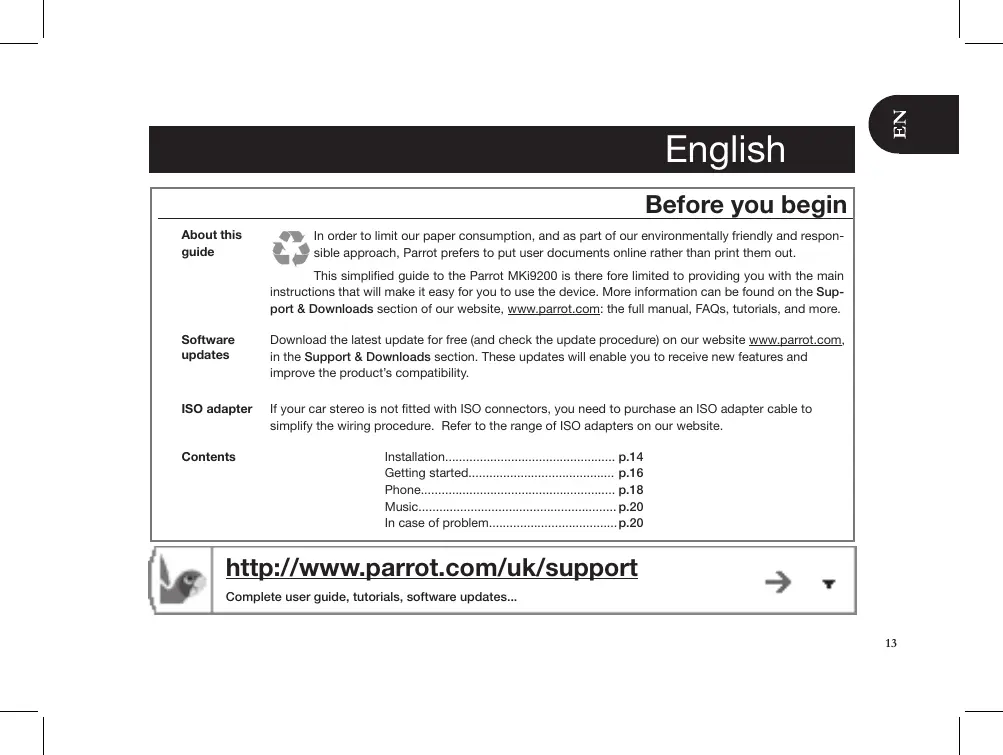
| Before you begin | |
| About this guide | In order to limit our paper consumption, and as part of our environmentally friendly and respon-sible approach, Parrot prefers to put user documents online rather than print them out. This simplified guide to the Parrot MKi9200 is there fore limited to providing you with the main instructions that will make it easy for you to use the device. More information can be found on the Sup-port & Downloads section of our website, www.parrot.com: the full manual, FAQs, tutorials, and more. |
| Software updates | Download the latest update for free (and check the update procedure) on our website www.parrot.com, in the Support & Downloads section. These updates will enable you to receive new features and improve the product's compatibility. |
| ISO adapter | If your car stereo is not fitted with ISO connectors, you need to purchase an ISO adapter cable to simplify the wiring procedure. Refer to the range of ISO adapters on our website. |
| Contents | Installation...... p.14 Getting started...... p.16 Phone...... p.18 Music...... p.20 In case of problem...... p.20 |

http://www.parrot.com/uk/support
Complete user guide, tutorials, software updates...

T
Installation
We would advise our customers to have the Parrot MKi9200 fitted by a professional.
- The cables supplied with the kit feature ISO connectors and two pairs of line-out jacks. The line-out jacks can be used if your audio system features this option (use of an amplifier). Several set-ups are therefore possible depending on the type of car stereo and your vehicle.
- Prior to fixing the hands-free kit's different components inside the car, connect the installation cables, control keypad and double microphone to the electronic control unit.
- The mute function is used to cut the sound of your car stereo to enable a phone call. The choice of the mute-in jack depends on your car stereo's configuration.
Car stereo with an ISO connector
Diagram p.6.
- Connect the male connectors of the hands-free kit to the car stereo.
- Join the vehicle's audio and power supply cables to the female connectors of the Parrot MKi9200.
- On the installation cable, connect the free yellow wire to one of the audio system's corresponding mute-in Jacks if
available (mute in 1, mute in 2 or mute in 3).
.
If your car stereo is not equipped with ISO connectors, you will need to purchase an ISO adapter cable to simplify the wiring procedure. Refer to the range of ISO adapters on our website: www.parrot.com.
Car stereo with line-in jacks

Diagram p.7.
- Use this type of connection by wiring a line-out jack (brown & white wire or red & black wire) to your car stereo's line-in jack.
- Using the two pairs of line-out jacks will enable you to take advantage of the streaming audio function in stereo over your vehicle's speakers.
- On the installation cable, connect the free yellow wire to one of the audio system's corresponding mute-in jacks if available (mute in 1, mute in 2 or mute in 3).
Installing the kit's power cable
Refer to your car stereo's wiring diagram.
- The red wire of the kit's cable must correspond to the constant +12V supply, the orange wire to the ignition +12V and the black wire to ground.
- Check that the orange wire is not connected to the constant
+12V supply, as you could run down the vehicle's battery.
- On some vehicles, the red and orange power supply wires may need to be reversed. This can easily be done by reversing the two fuse holders on the Parrot MKi9200 installation cable.
- Many new vehicles do not have a 12 volt ignition supply. The 12 V ignition must then be taken elsewhere on the vehicle such as the fusebox or cigar lighter. An additional device generating an artificial ignition 12V signal may also be necessary.
Checking the wiring

In order to check the wiring, connect the screen before placing it on the dashboard.
To perform the installation check, turn the ignition on, wait a few seconds then turn it off once the Parrot MKi9200 is installed: the message "Good bye!" must be displayed.
- If it is not the case, it is necessary to inverse the positions of the red and orange wires. Indeed, the red wire of the power cable must be connected to the permanent 12V, the orange wire to the 12V ignition and the black wire to the ground. This can be done simply by reversing both fuse holders located on the Parrot wiring.
Installing the audio connectors
The music cable grommet system allows you to adjust the cable length while reducing its wear. ▷ Diagrams p.11.
- Drill a 20mm hole in your dashboard (glove compartment or parcel tray).
- Insert manually two flexible arms of the grommet system.
- Use a flat screwdriver in order to insert the last two arms. > You can now connect your music cable to the bluebox.
Installing the electronic box
- Avoid installing the electronic box near heating or air-conditioning system, on a spot directly exposed to sunlight or behind metal walls.
- Make sure the electronic box stays fixed once it is installed and that it will not move while you are driving.
- Do not reinstall the car stereo forcibly. If you are short of space behind the car stereo to install the electronic box, consider installing it in the glove box.
Installing the remote control
-
If you want to place the remote control on the steering wheel, make sure it is securely attached, so it does not move when you are driving. Do not install the remote control on the outside of the steering wheel and ensure it does not get in the way when driving. ▷ Diagrams p.8/9.
-
If you want to place the remote control on the dashboard, stick the double-sided tape located on the flat side of the bracket to fix it against the dashboard. You can then insert the remote onto the bracket. ▶ Diagrams p.8.

Once you have stuck the support on the dashboard, wait for approximately 2 hours to make sure the adhesive tape adheres well.
Installing the microphone
- Make sure the microphone is installed as close to the mouth of the user as possible. The ideal distance is 60~cm . The best possible location for the microphone is near the rear-view mirror.
- The microphone needs to be pointed towards the user.
Installing the screen
Install the screen in an easily accessible and visible location. Do not install the screen in the airbag deployment area or in a possible head impact area. ▶ Diagrams p.12.

Once you have stuck the support on the dashboard, wait for approximately 2 hours to make sure the adhesive tape adheres well.
Getting started
Associating the control unit with the remote control
If the remote control does not seem to be associated to the electronic box while using the Parrot MKi9200:
- After verifying the CR2032 battery is properly inserted in the remote unit, press and hold the Play and green buttons, then press the red button several times. This has to be done when you see the "Parrot MKi9200" Logo on the display screen.
- Within 1 to 2 seconds, you should then see a "Pairing Remote Control" message displayed on the screen. At that time, you can release the buttons and the remote should then be paired with the kit and the message will go away. You can verify remote operation by navigating through the menus.
- If you are unsuccessful on the first attempt, power off the unit until you see the "Goodbye" message, power it back on, and repeat the process.
Selecting the language
While using the Parrot MKi9200 for the first time, use the jog wheel to browse through the available languages and press the jog wheel to confirm your selection.
Navigating through the menus
- Press the central jog wheel to access the menus.
The kit says the name of the current menu.
- Browse through the menus by turning the wheel and confirm with the green button or by pressing the wheel.
- Press the red button or wait a few seconds to exit the menu.
Pairing and connecting a phone to the Parrot MKi9200
Prior to using your Parrot MKi9200 with your phone for the very first time, you must initially pair both devices.
- Make sure the Parrot MKi9200 is set so that it is visible by all Bluetooth® devices. To do so, press the jog wheel and select Settings > Bluetooth > Visibility > Visible. The Parrot MKi9200 is visible by default.
- Press the jog wheel and select Settings > Bluetooth > Pair with...
If your mobile phone's model appears in the list, select it and confirm.
If your mobile phone model doesn't appear in the list, select the Other phones option.
3. From your phone, search for Bluetooth peripherals. Refer to your phone user guide for more information.
The list of the available Bluetooth peripherals
is displayed.
- Select «Parrot MKi9200» in the list.
You are prompted to enter a PIN code.
- Enter «0 0 0 0» on your phone.
«Pairing successful» is displayed on the screen of the Parrot MKi9200.
Once your phone is paired to the Parrot MKi9200, the connection between both devices will be automatically established each time you enter your vehicle if your screen is plugged in.
Using the Parrot MKi9200 with 2 phones
- To activate dual mode and connect two phones, select Settings > Bluetooth > Dual mode.
- When the Parrot MKi9200 is switched on, it attempts to connect all paired phones in the vehicle. If there are more than two paired phones in the vehicle, the device connects the two phones with the oldest pairing.
- When two phones are connected to the Parrot MKi9200, one of them becomes the main phone and the other is the secondary phone. By default, the main phone is the one with the oldest pairing to the Parrot MKi9200.
-
You can receive calls (manually or through voice recognition) to your main or secondary phones.
-
Only the phonebook for your main phone may be accessed through the Parrot MKi9200. You can only make calls using your main phone. However, you can easily switch between the connected phones by pressing and holding the red button for two seconds.
Synchronising the phonebook
- With some Bluetooth phones, the phonebook is automatically synchronized in the kit's memory. Only the contacts stored in the phone memory are synchronized.
-
If your phone doesn't support automatic synchronization, you can also use the Object Push function of your phone to send contacts from your mobile to the car kit via Bluetooth. To do so:
-
Press the jog wheel and select Telephone > Receive contacts.
The kit says « Waiting for contact »
- Refer to your phones' user guide for more information about sending contacts via Object Push.
Phone
!
The availability of some functionality only depends on your mobile phone. Refer to our website www.parrot.com, in the Support > Compatibility section, for further information.
Receiving a call
-
An incoming call is indicated by a ringtone. The name of the caller is announced if his number is recorded in the phonebook of the phone connected to the Parrot MKi9200.
-
If you want to answer the call, press the green button. Then press the red button to end the call.
-
If you want to refuse this call, press the red button.
-
If the magic words are activated, you can use the voice recognition feature to pick up and reject a call:
-
The magic word «Accept» allows you to accept an incoming call.
-
The magic word "Reject" allows you to reject an incoming call.
-
Magic words are activated by default. To deactivate / activate them:
-
Press the jog wheel and select Telephone > Voice commands > Magic words.
-
Press the jog wheel to activate/deactivate the magic words.
Making a call
To make a call via voice recognition:
- Press the green button to launch the voice recognition feature.
The Parrot MKi9200 asks you the name of the contact you want to call.
- Say the name of the contact and the type of number ( ^ Work^ , ^ Cellphone^ ...) if there are several numbers associated to your contact.
The call is automatically launched if the voice tag is correctly understood.
If it is not the case, a confirmation message is asked by the kit. Confirm by saying "Yes" or "Call".

At any time, press the red key to exit voice recognition mode.
To make a call manually:
- Press the jog wheel to enter the main menu and select Phonebook.
You access the phonebook of the connected phone.
-
Select a letter and push the jog wheel.
-
Once the contact chosen:
-
Press the green key to call this contact;
-
Use the jog wheel to choose between different numbers of the same contact.
-
Hold down the green key of the Parrot MKi9200 for two seconds to radial the last dialled number.
Using the Parrot MKi9200 while on a call
- Use the jog wheel during a call to adjust the communication volume. The volume setting is saved for subsequent calls.
- During a call, if you want to continue the conversation on your phone (private conversation), press the green button of the Parrot MKi9200.
- During a call, the Parrot MKi9200 allows you to send DTMFs to manage your voice mail for example. To do so, press the jog wheel to access the DTMF menu.
Music
- Use the iPod, USB or Jack connectors to connect the Parrot MKi9200 to your iPod / USB stick / audio player. Insert the SD card into the appropriate slot.
- You can also use the Parrot MKi9200 to listen to songs stored on your mobile phone / PDA / smartphone. Your mobile phone must support the Bluetooth® A2DP profile.
-
To change the music source, press the jog wheel to access the source menu and select it in the following order:
-
iPod (or iPhone);
- USB (MP3 player / USB flash drive);
- SD card;
- Audio Bluetooth (audio player supporting A2DPprofile connected via Bluetooth) ;
- Line In (analogue audio player).

While playing a song, press the red button to get to main menu. While navigating through the menus, press the Play button to get to the Now Playing screen.
- There is no restriction in terms of capacity of SD card / USB stick. Only MP3 (Mpeg 1 Layer3) or WMA formats are supported.
In case of problem
Before you begin
- Make sure the "Good bye" message is displayed on the Parrot MKi9200 screen when you turn the ignition off.
Refer to the Checking the wiring section for more information. - Make sure you have the latest software update on your Parrot MKi9200. To do so, select Settings > Advanced settings > Information. Compare this number with the one on our website, Downloads section.
Problems while using the phone function
- Make sure your phone is compatible with the Parrot MKi9200. To do so, refer to the compatibility list of the Parrot MKi9200 available on our website www.parrot.com, in the Support & Downloads section.
-
If your phone is compatible with the Parrot MKi9200 and if you already have the latest software update:
-
Erase the memory of the Parrot MKi9200. To do so, select Settings > Advanced settings > Factory settings.
- On your telephone, erase the Parrot system from the list of Bluetooth peripherals (or reboot your iPhone).
- Repeat the linking procedure for the 2 devices.
Problems while using the music function
-
Reboot your iPod / iPhone before connecting it to the Parrot MKi9200. To reboot your iPod / iPhone (this procedure will not erase any of your data):
-
iPod: press Menu and the centre button simultaneously until the iPod reboots.
-
iPhone: Press the On/Off button and the Home button simultaneously until the iPhone reboots. Do not touch the screen when the message "Slide to shutdown" appears.
-
Some problems may occur if the iPod / SD card / USB device is already connected to the Parrot MKi9200 before you turn on the ignition. Connect the iPod / SD card / USB device once the ignition is turned on.
- If your Parrot MKi9200 is connected to an iPhone and an USB flash drive, the iPhone has priority: you can only browse through your iPhone content.
- Make sure that your iPod is updated.
For any other problem or for more information
Refer to the Parrot MKi9200 FAQ available on our website, in the FAQ section.
- Consult the Parrot discussion & help forum on our website.
- Contact our support team (phone numbers / mail address on the last but one page).
Français
Avant de commencer
A propos de guide
http://www.parrot.com/nl/support
Complete documentation, educatieve software, updates...

T
Installatie

http://www.parrot.com/uk/support
Complete user guide, tutorials, software updates...

T
Instalacao

Without prejudice of legal warranty, Parrot products are warranted during 1 year from the date of purchase for defects in materials and workmanship, provided that no deterioration to the product has been made, and upon presentation of proof of purchase (date of purchase, location of sale and product serial number) to the retailer. Warranty does not cover: upgrading of the software items of the Parrot products with Bluetooth® cell phones for compatibility purpose, data recovery, deterioration of the external aspect due to normal use of the product, any damage caused by accident, misuse, misapplication, or non-Parrot products. Parrot is not responsible for storage, loss or damaged to data during transit or repair.
Any product wrongfully declared to be defective will be returned to sender and inspection, process and carriage costs will be invoiced to him.
Due to the technical nature of this
product, we advise you to ask your garage mechanic to take care of the installation. Parrot shall not be held responsible of any dysfunction caused by an installation which does not follow the instructions provided in this user guide or an incorrect installation.
Correct disposal of This Product (Waste Electrical & Electronic Equipment)
(Applicable in the European Union and

other European countries with separate collection systems).
This marking shown on the product or its literature, indi
cates that it should not be disposed with other household wastes at the end of its working life. To prevent possible harm to the environment or human health from uncontrolled waste disposal, please separate this from other types of wastes and recycle it responsibly to promote the sustainable reuse of material resources.
Household users should contact either the retailer where they purchased this
product, or their local government office, for details of where and how they can take this item for environmentally safe recycling. Business users should contract their supplier and the terms and conditions of the purchase contract. This product should not be mixed with other commercial wastes for disposal.
Modifications
The explanations and specifications in this guide are given for information purposes only and may be modified without prior notice. They are deemed to be correct at time of going to press. The utmost care has been taken when writing this guide, as part of the aim to provide you with accurate information. However, Parrot shall not be held responsible for any consequences arising from any errors or omissions in the guide, nor for any damage or accidental loss of data resulting directly or indirectly from the use of the information herein. Parrot reserves the right to amend or improve the product
design or user guide without any restrictions and without any obligation to notify users. As part of our ongoing concern to upgrade and improve our products, the product that you have purchased may differ slightly from the model described in this guide.
If so, a later version of this guide might be available in electronic format at Parrot's website at www.parrot.com.
FCC Compliance
Statement
This device complies with part 15 of the FCC rules. Operation is subject to the following two conditions:
(1). this device may not cause harmful interference, and
(2). this device must accept any interference received, including interference that may cause unde sired operation.
Note: The manufacturer is not responsible for any radio or tv interference caused by unauthorized modifications to this equipment. Such modifications could void the user's authority to operate the equipment.
Declaration of Conformity
We, Parrot S.A. of 174 quai de
CE Jemmapes, 75010 Paris, France, declare under our sole responsibility that our product, the Parrot MKi9200 to which this declaration relates in conformity with appropriate standards EN300328, EN300220-1, for a class 2 receiver, EN301489-17, EN301489-3, EN60950 following the provision of Radio Equipment, Telecommunication Equipment directive (1999/5/EC R&TTE), with requirements covering EMC directive 89/336/EEC, Low Voltage directive 73/23/EEC and automotive directive 2006/28/EC. Identification N. 394 149 496 R.C.S. PARIS - Parrot S.A.
Copyrights
Copyright © 2009 Parrot.
Licences
The Bluetooth® word mark and logos are owned by the Bluetooth SIG, Inc. and any use of such marks by Parrot S.A. is under license.
Bluetooth QID:
B013655,B013858,B012423
Apple, Mac and Leopard are trademarks of Apple Inc., registered in the U.S. and other countries.
iPhone, iPod, iPod classic, iPod nano and iPod touch are trademarks of Apple Inc., registered in the U.S. and other countries.
"Made for iPod" and "Made for iPhone" mean that an electronic accessory has been designed to connect specifically to iPod, or iPhone, respectively, and has been certified by the developer to meet Apple performance standards. Apple is not responsible for the operation of this device or its compliance with safety and regulatory standards.
Other trademarks and trade names are those of their respective owners.
Compatibility problems
Some special edition cars can be released with some differences from the original model. This could cause some compatibility problems with the
interfaces.
Our company is not responsible of compatibility problems caused by new equipment or devices updated by the car manufacturer without advise.
Speex & Flac Licences
Redistribution and use in source and binary forms, with or without modification, are permitted provided that the following conditions are met:
- Redistributions of source code must retain the above copyright notice, this list of conditions and the following disclaimer.
- Redistributions in binary form must reproduce the above copyright notice, this list of conditions and the following disclaimer in the documentation and/or other materials provided with the distribution.
- Neither the name of the Xiph.org Foundation nor the names of its contributors may be used to endorse or promote products derived from this software without specific prior written permission.
This software is provided by the copyright holders and contributors "as
is" and any express or implied warranties, including, but not limited to, the implied warranties of merchantability and fitness for a particular purpose are disclaimed. In no event shall the foundation or contributors be liable for any direct, indirect, incidental, special, exemplary, or consequential damages (including, but not limited to, procurement of substitute goods or services; loss of use, data, or profits; or business interruption) however caused and on any theory of liability, whether in contract, strict liability, or tort (including negligence or otherwise) arising in any way out of the use of this software, even if advised of the possibility of such damage.
Informations generales
Garantie
Copyright © 2009 Parrot.
Copyright © 2009 Parrot.
A steering wheel control interface can be used to connect your vehicle's steering wheel controls to your Parrot hands-free kit. With this interface, you will be able to make phone calls via the steering wheel controls while keeping your hands on the wheel. Refer to our website www.parrot.com for more information.
If you have any questions regarding your Parrot product, contact our hotline by phone or using our technical contact form available on our website (support section).
Italy: [+39] 02 59 90 15 97
Spain: [+34] 902 404 202
UK: [+44] (0)844 472 2360
Germany: 0900 1727768
USA: [+1] (877) 9 Parrot (toll free)
China: [+86] 755 8203 3307
Hong Kong: [+852] 2736 1169
France: 0148036069

Europe : [+33] 1 48 03 60 69 (Spoken languages : French, English and Spanish)
Our hotline is at your disposal from Monday to Friday. Refer to our website for more information about the service hours.
Made for

iPod

iPhone

Bluetooth


Federal
Communications
Commission
FCC ID: RKXEBOX4R2
RKXSAMOS4



Parrot
move wireless
Parrot S.A. - 174, quai de Jemmapes - 75010 Paris - France
Fax + 33 1 48 03 06 66 / Phone +33 1 48 03 60 60
www.parrot.com