
KP2 - Performance effect KORG - Free user manual and instructions
Find the device manual for free KP2 KORG in PDF.



| Product Type | Dynamic Effects Controller (Kaoss Pad) |
| Brand | KORG |
| Model | KP2 |
| Dimensions | 204 (W) × 207 (D) × 48 (H) mm |
| Weight | 1.1 kg |
| Power Supply | DC 12V, 700 mA (AC adapter included) |
| Number of Effect Programs | 100 (00-99) |
| Audio Inputs | Mic (mono jack), Phono (RCA), Line (RCA) |
| Audio Outputs | Line out (RCA), Headphones (stereo jack) |
| MIDI | IN, OUT |
| Display | Program/BPM (digital) |
| Touch Panel | Yes, touch-sensitive |
| Sampling | 2 samples, max. ~6 seconds each |
| Tempo | Tap Tempo, Auto BPM (80-160 BPM) |
| Program Memories | 8 keys (Program Memory 1~8) |
| Main Functions | Dynamic effects, sampling, MIDI control, pad motion recording |
| Included Accessories | AC adapter, touch panel protective sheet |
| Maintenance and Cleaning | Use a soft, dry cloth. Do not use solvents or thinners. |
| Safety | Use the correct AC adapter. Avoid exposure to moisture and metal objects. Disconnect if there is a problem. |
| Spare Parts and Repairability | Contact an authorized Korg dealer for any repairs. |
Frequently Asked Questions - KP2 KORG
User questions about KP2 KORG
0 question about this device. Answer the ones you know or ask your own.
Ask a new question about this device
Download the instructions for your Performance effect in PDF format for free! Find your manual KP2 - KORG and take your electronic device back in hand. On this page are published all the documents necessary for the use of your device. KP2 by KORG.
USER MANUAL KP2 KORG
Using the unit in the following locations can result in a malfunction.
- In direct sunlight
- Locations of extreme temperature or humidity
- Excessively dusty or dirty locations
- Locations of excessive vibration
- Close to magnetic fields
Power supply
Please connect the designated AC adapter to an AC outlet of the correct voltage. Do not connect it to an AC outlet of voltage other than that for which your unit is intended.
Interference with other electrical devices
Radios and televisions placed nearby may experience reception interference. Operate this unit at a suitable distance from radios and televisions.
Handling
To avoid breakage, do not apply excessive force to the switches or controls.
Care
If the exterior becomes dirty, wipe it with a clean, dry cloth. Do not use liquid cleaners such as benzene or thinner, or cleaning compounds or flammable polishes.
Keep this manual
After reading this manual, please keep it for later reference.
Keeping foreign matter out of your equipment
Never set any container with liquid in it near this equipment. If liquid gets into the equipment, it could cause a breakdown, fire, or electrical shock.
Be careful not to let metal objects get into the equipment. If something does slip into the equipment, unplug the AC adapter from the wall outlet. Then contact your nearest Korg dealer or the store where the equipment was purchased.
THE FCC REGULATION WARNING (for U.S.A.)
This equipment has been tested and found to comply with the limits for a Class B digital device, pursuant to Part 15 of the FCC Rules. These limits are designed to provide reasonable protection against harmful interference in a residential installation. This equipment generates, uses, and can radiate radio frequency energy and, if not installed and used in accordance with the instructions, may cause harmful interference to radio communications. However, there is no guarantee that interference will not occur in a particular installation. If this equipment does cause harmful interference to radio or television reception, which can be determined by turning the equipment off and on, the user is encouraged to try to correct the interference by one or more of the following measures:
Reorient or relocate the receiving antenna.
Increase the separation between the equipment and receiver.
Connect the equipment into an outlet on a circuit different from that to which the receiver is connected.
Consult the dealer or an experienced radio/TV technician for help.
Unauthorized changes or modification to this system can void the user's authority to operate this equipment.
CE mark for European Harmonized Standards
CE mark which is attached to our company's products of AC mains operated apparatus until December 31, 1996 means it conforms to EMC Directive (89/336/EEC) and CE mark Directive (93/68/EEC).
And, CE mark which is attached after January 1, 1997 means it conforms to EMC Directive (89/336/EEC), CE mark Directive (93/68/EEC) and Low Voltage Directive (73/23/EEC).
Also, CE mark which is attached to our company's products of Battery operated apparatus means it conforms to EMC Directive (89/336/EEC) and CE mark Directive (93/68/EEC).
IMPORTANT NOTICE TO CONSUMERS
This product has been manufactured according to strict specifications and voltage requirements that are applicable in the country in which it is intended that this product should be used. If you have purchased this product via the internet, through mail order, and/or via a telephone sale, you must verify that this product is intended to be used in the country in which you reside.
WARNING: Use of this product in any country other than that for which it is intended could be dangerous and could invalidate the manufacturer's or distributor's warranty.
Please also retain your receipt as proof of purchase otherwise your product may be disqualified from the manufacturer's or distributor's warranty.
Introduction
Thank you for purchasing the KP2 KAOSS PAD dynamic effect/controller. For trouble-free enjoyment of the KP2's fullest potential, please read this manual carefully and use the product correctly.
Parts of the KP2 and their functions
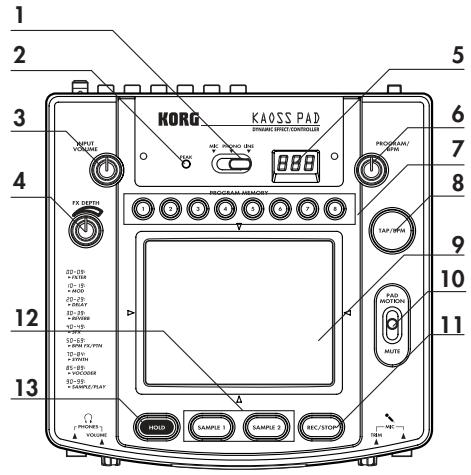
Top panel
- [INPUT SELECT] switch
- [PEAK] indicator
- [INPUT VOLUME] knob
- [FX DEPTH] knob
- [PROGRAM/BPM] display
- [PROGRAM/BPM] knob
- [PROGRAM MEMORY 1-8] keys
- [TAP/BPM] key
- Touch pad
- [PAD MOTION/MUTE] lever
- [REC/STOP] key
- [SAMPLE 1, 2] keys
- [HOLD] key
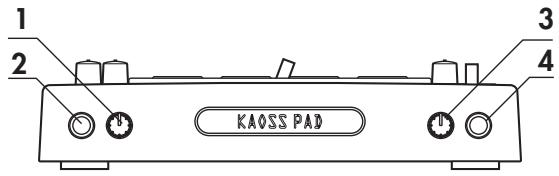
Front panel
- [PHONES VOLUME] knob
- [PHONES] output jack
- [MIC TRIM] knob
- [MIC] input jack
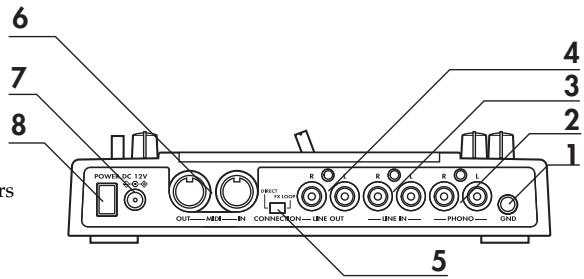
Rear panel
- [GROUND] connector
- [PHONO IN] jacks
- [LINE IN] jacks
- [LINE OUT] jacks
- [CONNECTION] switch
- [MIDI IN], [MIDI OUT] connectors
- DC 12V jack
- [POWER] switch
Connections
Basic connections
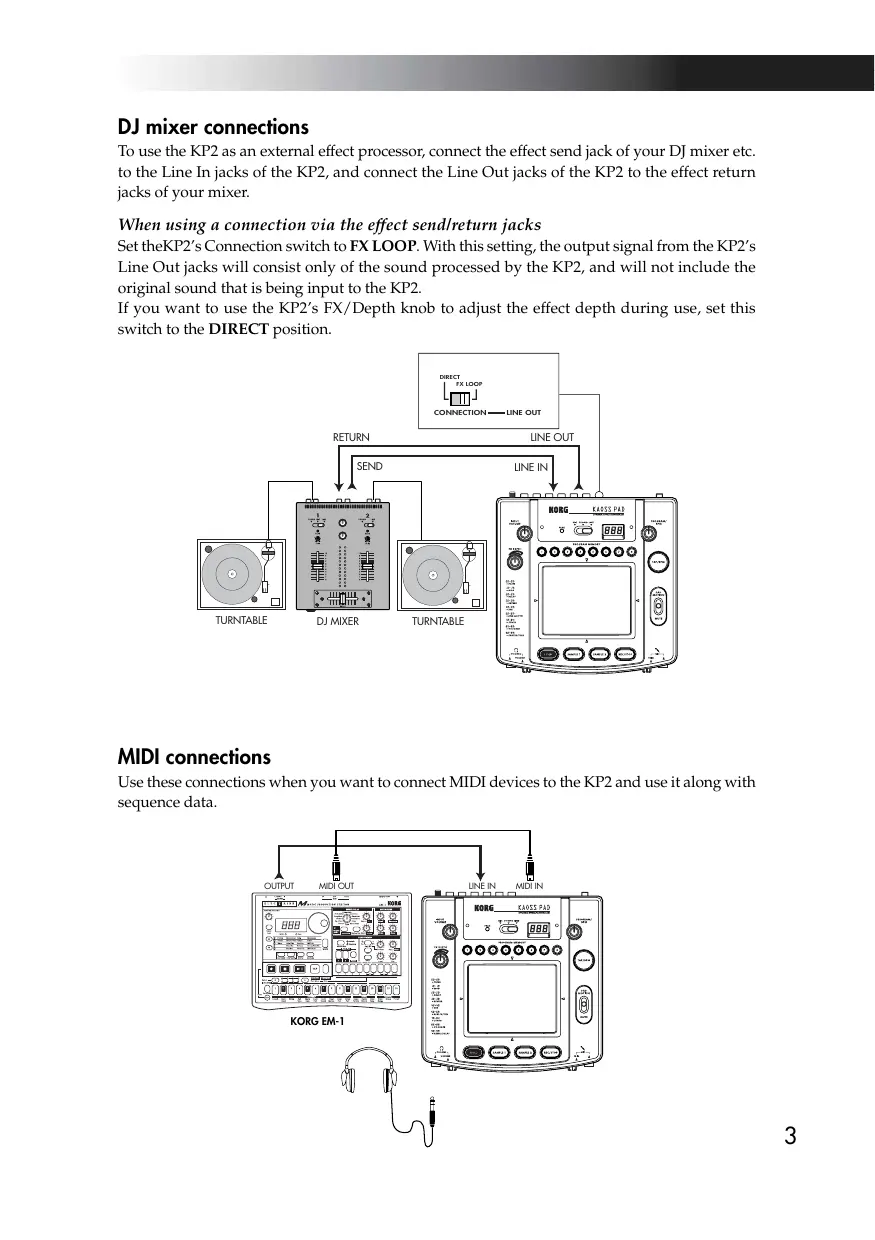
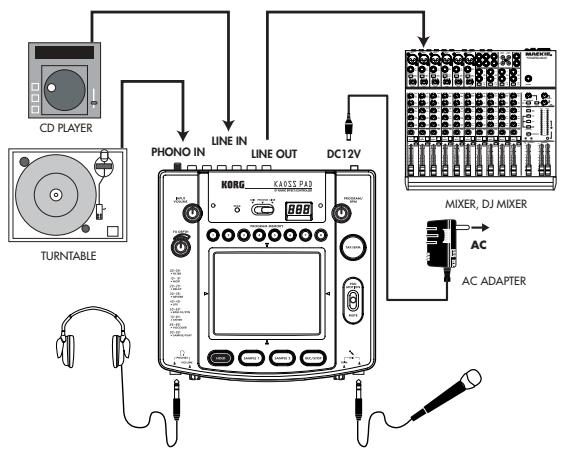
Use these connections when you want to apply effects to the sound from a device connected to the KP2's input jacks, and output the processed sound from the Line Out jacks. The KP2 has three types of input jacks. Use the jacks that are appropriate for your situation.
Care of the touch pad
Never press the touch pad with excessive force, or place heavy objects on it. It may crack or break if handled roughly. Press the touch pad only with your finger, since rubbing or pressing the touch pad with a sharp object will scratch it. To clean the touch pad, wipe it lightly with a soft dry cloth. Do not use solvents such as thinner, since this may cause deformation.
DJ mixer connections
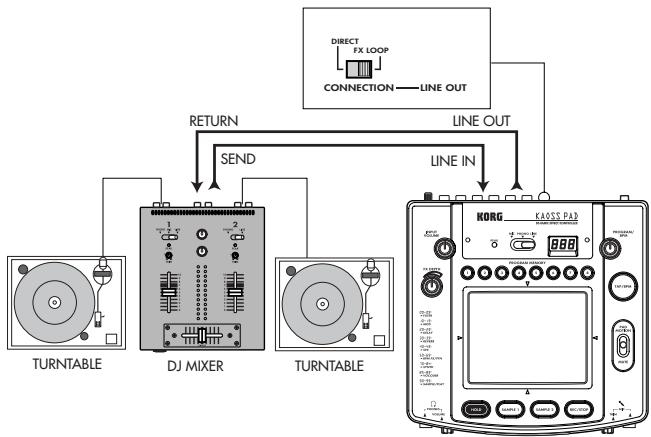
To use the KP2 as an external effect processor, connect the effect send jack of your DJ mixer etc. to the Line In jacks of the KP2, and connect the Line Out jacks of the KP2 to the effect return jacks of your mixer.
When using a connection via the effect send/return jacks
Set theKP2's Connection switch to FX LOOP. With this setting, the output signal from the KP2's Line Out jacks will consist only of the sound processed by the KP2, and will not include the original sound that is being input to the KP2.
If you want to use the KP2's FX/Depth knob to adjust the effect depth during use, set this switch to the DIRECT position.
MIDI connections
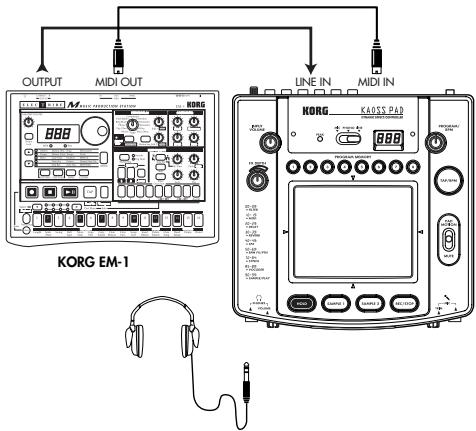
Use these connections when you want to connect MIDI devices to the KP2 and use it along with sequence data.
Operation
1. Turning on the power
(1) Connect the KP2 to your other equipment as shown in the diagram, and connect the AC adapter to an electrical outlet.
(2) Press the Power switch to turn it on. The Program/BPM display will light.
To turn off the power, press the Power switch once again to turn it off.
2. Inputting audio
(1) Use the Input Select switch to select the input jacks of the connected device to which you want to apply an effect.
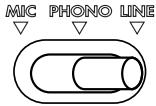
MIC: The effect will be applied to the mic input.
PHONO: The effect will be applied to the phono inputs.
LINE: The effect will be applied to the line inputs.
3. Adjusting the volume
(1) Adjust the input level.
While outputting audio from the connected device, use the Input Volume knob to adjust the input level so that the peak indicator does not light red.
If you are using the mic jack, adjust the MIC Trim knob as appropriate for the sensitivity of the mic, so that the sound is not distorted.
(2) If you are using headphones, use the Phones Volume knob to adjust the level.
4. Selecting a program
(1) The Program/BPM display will indicate the number of the currently selected program.
Use the Program/BPM knob to select a program (00-99).
(2) Use the FX/Depth knob to adjust the depth of the effect.
No effect will be applied if the knob is
turned to the far left, and the maximum effect will be applied if the knob is turned to the far right.
About the Program/BPM display
This display shows the number of the currently selected program, the specified BPM, and the point (position) at which you are touching the touch pad.
While you are operating the touch pad: The display will indicate the position at which you are touching the pad (1.1-9.9; 5.5 is the center).
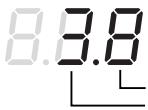
Vertical position (1-9) Horizontal position (1-9)
When selecting programs: The display will show the program number (00-99).
When setting the BPM: When you are pressing the Tap/BPM key to set the BPM, the display will indicate the BPM value. In Auto BPM mode, three dots will light.
MIDI Edit mode: The display will show the MIDI channel or control number, etc.
5. Operating the touch pad
(1) Control the sound by rubbing your finger across the touch pad or tapping it.
Note Use the included protective sheet.
(2) If you turn on the Hold key while operating the touch pad, the KP2 will hold the effect sound as it was the moment before you took your finger away from the pad.
6. The Mute function
If you move the Pad Motion/Mute lever to MUTE (toward yourself), the input signal, sample sound, or synth/drum sound will be silenced. When using delay or reverb, this lets you output only the effect sound (i.e., the delayed sound or reverberation).
transformer
By using the Pad Motion/Mute lever to rapidly switch MUTE on/off, you can create rhythms using a sustained input sound. This is a DJ technique known as "transformer."
7. Pad motion
The KP2 lets you record your touch pad operations, and move the the Pad Motion/ Mute lever to the PAD MOTION position to play back these operations.
Recording
Recording will begin when you hold the the Pad Motion/Mute lever in the PAD MOTION position and touch the touch pad.
Even when you take your finger away from the touch pad, this state will continue to be recorded as part of your operation. This means that you can also record operations that include tapping on the touch pad. Recording will end when you move the Pad Motion/Mute lever back to its original position. Recording will also end when you reach the maximum recording time (approximately 3.2 seconds).
Playback
If you have recorded a pad motion, move the the Pad Motion/Mute lever to the PAD MOTION position, and the recorded motion will play back. As long as you leave the the Pad Motion/Mute lever in the PAD MOTION position, the same motion will be played back repeatedly as long as you do not touch the touch pad.
role If you touch the touch pad during playback, recording will begin. Recording will be reset if you change programs.
The Hold key on/off state is not recorded as part of the pad motion. Also, if you turn on the Hold key and play back a pad motion, the motion will be held at the point where you stopped playback.
8. Specifying the BPM
If you specify the BPM, you will be able to apply effects in synchronization to the BPM when an effect program from the "BPM FX/PTN" group is selected. For details on the effect parameter to which this effect will be applied, refer to the effect program list (separate sheet).
What is BPM?
BPM (Beats Per Minute) is the tempo of the song expressed as the number of beats (quarter notes) that occur in one minute. A higher BPM value means a faster tempo.
To set the BPM
If you know the BPM, press the Tap/BPM key and use the Program/BPM knob to set the value. The normal display will reappear if ten seconds pass without any operation being performed.
Tap Tempo function
If you do not know the BPM, press the Tap/ BPM key twice or more in rhythm with the beat of the song. The beat will be detected, and the BPM will appear in the Program/ BPM display.
Auto BPM function
If you press and hold down the Tap/BPM key for an extended time, three dots will appear in the Program/BPM display, and the beat of the audio input will be detected automatically. (Auto BPM mode)
While the Program/BPM display is blinking, the BPM is being detected.
Press the Tap/BPM key once again to end automatic detection.
Note You can set the BPM in a range of 80-160.
MIDI Sync function
The BPM of the KP2 can be specified by MIDI Timing Clock messages from an external MIDI device. Connect the [MIDI IN] connector of the KP2 to the [MIDI OUT] connector of the external MIDI device (such as a sequencer) that is transmitting the timing clock messages.
This function does not synchronize sequence data with the KP2's rhythm pattern programs. If you want to synchronize to sequence data, you will either have to insert a Touch Pad On message into the beginning of each measure of your sequence data, or touch the touch pad at the beginning of each KP2 phrase to start the pattern.
Note If you want the KP2 to receive Timing Clock and Touch Pad On messages, go to MIDI
Edit mode (.8) , and make "MIDI message transmission/reception settings" (.8) so that these messages will be received.
Note You can not use the Tap Tempo or Auto BPM functions while the KP2 is receiving Timing Clock from an external MIDI device
9. Storing settings in the Program Memory key
The current state of the KAOSS PAD can be stored in one of the Program Memory 1-8 keys, so that it can be instantly recalled whenever you want.
Stored contents
Effect program
On/off state of the Hold key and the held position (coordinates)
-FX/Depth knob setting
For the "BPM FX/PTN" group, the specified BPM value
For the "SAMPLE/PLAY" group, the Sample 1,2 key used
Note Effect programs 60 and 90-99 do not store the state of the Hold key.
To store settings
(1) Press the Program Memory 1-8 key that you want to assign.
(2) Use the Program/BPM knob to select the effect program that you want to assign.
Note If you want to store the setting of the Hold key, select the program and then turn on the Hold key and touch the touch pad to specify the position. If you want to store other settings, make them at this time.
(3) Press and hold down the Program Memory 1-8 key you selected in step (1) for approximately two seconds, and the settings will be stored.
When the settings have been stored, the Program/BPM display will stop blinking.
To recall settings
(1) Press a Program Memory 1-8 key, and the settings stored in that key will be recalled.
10. Sampling and playing back a phrase
A phrase from the audio input can be recorded into one of the Sample 1, 2 keys. Then when you have selected a program from the "SAMPLE/PLAY" group (programs 90-99), you can play back the sample while using the touch pad to control the playback speed or reverse-playback. If you have selected a program from other than the "SAMPLE/PLAY" group, pressing the Sample 1, 2 keys will play back the phrase that was recorded in that key.
You can record for approximately six seconds in each of the two keys.
The recorded phrases will be lost when the power is turned off. It is not possible to save the recorded phrases.
Recording
(1) Press the Rec/Stop key, and the Rec/ Stop key LED will blink to indicate that you are in record-ready mode.
(2) Press the Sample 1, 2 key into which you want to record. At this time, you will not hear the playback sound.
(3) When you press the Rec/Stop key, the Rec/Stop key LED will light, and recording will begin. Recording will stop when you press the Rec/Stop key once again.
Recording will stop automatically when you reach the maximum recording time.
Note For programs of other than the "SAMPLE/ PLAY" group, you can operate the touch pad while you record, and the sound processed by the effect will be recorded.
Auto recording (AUTO REC)
You can cause recording to begin automatically when audio is input. This is convenient when recording voice from a mic.
(1) In step (2) of the Recording procedure, hold down the Sample 1, 2 key to which you want to record, and press the Rec/Stop key. The Rec/Stop key and Sample 1, 2 key LEDs will blink simultaneously, indicating that you are in record-ready mode.
(2) Recording will begin automatically
when audio is input. Recording will stop when you press the Rec/Stop key once again.
Playback
The playback method will differ depending on the effect program that you have selected.
For a program from the "SAMPLE/ PLAY" group
(1) Select a program from the "SAMPLE/ PLAY" group (90-99).
(2) Press the Sample 1, 2 key that you want to play. The playback will not yet be output at this time.
(3) When you touch the touch pad, the sound will play back according to the position that you touch.
The way in which the phrase plays will depend on the program. (separate sheet: Effect program list)
(4) Use the FX Depth knob to adjust the playback volume.
When the FX Depth knob is positioned in the center, the playback sound and the input sound will be output in a 1:1 proportion. When the knob is at the maximum position, only the sample sound will be output during playback, and you will not hear the input sound.
For a program from other than the "SAMPLE/PLAY" group
(1) Select a program from other than the "SAMPLE/PLAY" group.
(2) Press a Sample 1, 2 key, and the recorded phrase will play at normal speed. If you continue pressing the key, the phrase will play back as a loop.
To adjust the volume, continue pressing the Sample 1, 2 key and use the FX Depth knob to make adjustments.
Note You can apply effects to the playback by operating the touch pad while the sound plays back.
Note If you press the Hold key while pressing the Sample 1, 2 key, the playback will be held. Hold will be cancelled when you press the Sample 1, 2 key once again.
MIDI functions
What is MIDI?
MIDI stands for Musical Instrument Digital Interface, and is a world-wide standard for exchanging a variety of performance-related information between electronic musical instruments and computers.
MIDI connections
Commercially available MIDI cables are used to transmit and receive MIDI messages. Connect these cables between the MIDI connectors of the KP2 and the MIDI connectors of the external MIDI device with which you want to transfer data.
MIDI IN connector: This connector receives MIDI messages from another MIDI device. Connect it to the MIDI OUT connector of the external device.
MIDI OUT connector: This connector transmits messages from the KP2. Connect it to the MIDI IN connector of the external device.
Using MIDI
In addition to using the KP2 as an effect processor, you can transmit MIDI messages from the KP2 to use it as a realtime controller for a synthesizer or other external MIDI device.
You can also connect the KP2 to a MIDI sequencer, and record the MIDI messages that are transmitted when you operate the touch pad. By playing back the recorded MIDI messages you can reproduce your touch pad operations.
About MIDI channels
In order to independently transmit information to multiple MIDI devices over a single MIDI cable, MIDI uses sixteen channels (1- 16). If the transmitting device is set to MIDI channel "1," the MIDI messages will not be received unless the receiving device is also set to MIDI channel "1."
About the MIDI implementation chart The owner's manual of each MIDI device includes a "MIDI implementation chart." This chart lets you check the types of MIDI message that can be transmitted or received. When you use two (or more) MIDI devices together, compare their MIDI implementation charts to see which types of MIDI message they are able to transmit and receive between themselves.
- Details on the MIDI functionality are provided in the separate MIDI implementation. To obtain the MIDI implementation, please contact Korg distributor.
MIDI Edit mode
Hold down the Tap/BPM key and press the Rec/Stop key. After approximately one second, you will enter MIDI Edit mode, and the MIDI channel will be displayed blinking in the Program/BPM display.
Setting the MIDI channel
In MIDI Edit mode, the Program/BPM display will show the MIDI channel. At this time you can use the Program/BPM knob to change the MIDI channel.
MIDI message transmission/ reception settings
Transmission and reception of each type of MIDI message can be turned on/off by pressing one of the keys listed below. Transmission and reception are enabled when the corresponding LED is lit. Transmission and reception are disabled when the LED is dark.(p.9: Messages that can be transmitted and received)
Some parameters can only be transmitted, and others can only be received.
Changing the control number
By holding down one of the Program Memory 3-8 keys and turning the Program/BPM knob, you can change the control number setting. Although it is possible to select a control number that is already in use, it is not possible to simultaneously turn on transmission and reception for MIDI
messages of the same control number.
The MIDI messages transmitted and received by the KP2 can be changed in the range of CC#1- CC#31 and CC#64-CC#95.
To store the settings you modified
In MIDI Edit mode, press and hold the Rec/ Stop key for one second or longer, and the MIDI settings you modified will be stored. If you turn off the power without storing the modified settings, they will revert to their previous state.
To exit MIDI Edit mode
You will return to the normal state if you touch the touch pad or leave the KP2 for ten seconds without performing any operation.
Saving your settings
You can save the contents of program memory and the control number settings of MIDI edit mode by transmitting them as exclusive messages, and saving them on an external MIDI device.
For details on the exclusive messages that the KP2 can transmit and receive, refer to the separate MIDI implementation.
Messages that can be transmitted and received
With the factory settings, the following MIDI messages can be transmitted and received.
| Data operations transmitted | MIDI messages transmitted | ON/OFF key settings transmitted |
| Touch pad X-axis | Effect control 1 (CC#12) *1, *2 | Program Memory 4 |
| Touch pad Y-axis | Modulation depth 1 (CC#1) Y=5-9 | Program Memory 1 |
| Modulation depth 2 (CC#2) Y=5-1 | Program Memory 2 | |
| Effect control 2 (CC#13) *1, *2 | Program Memory 5 | |
| Touch pad X+Y-axis | Effect depth 3 (CC#93) *1 | Program Memory 3 |
| Touch pad on/off | Effect depth 2 (CC#92) *1, *2 | Program Memory 6 |
| FX DEPTH | Effect depth 4 (CC# 94) *1, *2 | Program Memory 7 |
| MUTE | Effect depth 5 (CC# 95) *1, *2 | Program Memory 8 |
| Program change | Program change (00-99) *2 | Hold |
| Data operations received | MIDI messages received | ON/OFF key settings received |
| Touch pad X-axis | Effect control 1 (CC#12) *1, *2 | Program Memory 4 |
| Touch pad Y-axis | Effect control 2 (CC#13) *1, *2 | Program Memory 5 |
| Touch pad on/off | Effect depth 2 (CC#92) *1, *2 | Program Memory 6 |
| FX DEPTH | Effect depth 4 (CC# 94) *1, *2 | Program Memory 7 |
| MUTE | Effect depth 5 (CC# 95) *1, *2 | Program Memory 8 |
| Program change | Program change (00–99) *2 | Hold |
| BPM | Timing clock | Sample 1 |
*1: The MIDI messages transmitted and received can be changed in a range of CC#1-CC#31, CC#64-CC#95, and PITCH BEND. () is the factory setting.
*2: Ena/Dis and CC# settings are the same for both transmission and reception.
The control changes for touch pad Y-axis Y-5-9 and Y-5-1, and for touch pad X+Y axis can be transmitted but not received. For this reason when you record control changes into a sequencer, use MIDI Edit mode to turn PROGRAM MEMORY 1-3 off, so that unnecessary MIDI messages are not transmitted.
2 Previously-specified control numbers cannot be specified again elsewhere.
Specifications
Number of programs: 100
Input: Mic input jack / monaural phone jack, Phono input jacks / RCA phono jacks, Line input jacks / RCA phono jacks
Output: Line output jacks / RCA phono jacks, Headphone jack / stereo phone jack
MIDI: IN, OUT
Power supply: DC 12V, 700 mA
Included items: AC adapter, touch pad protection sheet
Weight: 1.1kg
Dimensions: 204(W) X 207(D) X 48(H)mm
— Appearance and specifications are subject to change without notice for improvement.
Précautions
Emplacement
Specifications techniques
- POWER SUPPLY
- HANDLING
- CARE
- KEEP THIS MANUAL
- KEEPING FOREIGN MATTER OUT OF YOUR EQUIPMENT
- THE FCC REGULATION WARNING (FOR U.S.A.)
- CE MARK FOR EUROPEAN HARMONIZED STANDARDS
- IMPORTANT NOTICE TO CONSUMERS
- INTRODUCTION
- PARTS OF THE KP2 AND THEIR FUNCTIONS
- TOP PANEL
- FRONT PANEL
- REAR PANEL
- CONNECTIONS
- BASIC CONNECTIONS
- CARE OF THE TOUCH PAD
- DJ MIXER CONNECTIONS
- WHEN USING A CONNECTION VIA THE EFFECT SEND/RETURN JACKS
- MIDI CONNECTIONS
- OPERATION
- TURNING ON THE POWER
- INPUTTING AUDIO
- ADJUSTING THE VOLUME
- SELECTING A PROGRAM
- ABOUT THE PROGRAM/BPM DISPLAY
- OPERATING THE TOUCH PAD
- THE MUTE FUNCTION
- TRANSFORMER
- PAD MOTION
- RECORDING
- PLAYBACK
- SPECIFYING THE BPM
- WHAT IS BPM
- TO SET THE BPM
- TAP TEMPO FUNCTION
- AUTO BPM FUNCTION
- MIDI SYNC FUNCTION
- STORING SETTINGS IN THE PROGRAM MEMORY KEY
- STORED CONTENTS
- TO STORE SETTINGS
- TO RECALL SETTINGS
- SAMPLING AND PLAYING BACK A PHRASE
- AUTO RECORDING (AUTO REC)
- FOR A PROGRAM FROM THE "SAMPLE/ PLAY" GROUP
- FOR A PROGRAM FROM OTHER THAN THE "SAMPLE/PLAY" GROUP
- MIDI FUNCTIONS
- WHAT IS MIDI
- USING MIDI
- ABOUT MIDI CHANNELS
- MIDI EDIT MODE
- SETTING THE MIDI CHANNEL
- MIDI MESSAGE TRANSMISSION/ RECEPTION SETTINGS
- CHANGING THE CONTROL NUMBER
- TO STORE THE SETTINGS YOU MODIFIED
- TO EXIT MIDI EDIT MODE
- SAVING YOUR SETTINGS
- MESSAGES THAT CAN BE TRANSMITTED AND RECEIVED
- SPECIFICATIONS
- PRÉCAUTIONS
- EMPLACEMENT
- SPECIFICATIONS TECHNIQUES
Brand : KORG
Model : KP2
Category : Performance effect