
LD620D - Printer OKI - Free user manual and instructions
Find the device manual for free LD620D OKI in PDF.


| Product type | Direct thermal printer |
| Print resolution | 203 dpi (8 dots/mm) |
| Print speed | Up to 127 mm/s (5 ips) |
| Maximum print width | 104 mm |
| Paper roll width | 42 to 106 mm |
| Available interfaces | RS-232C (serial), IEEE1284 (parallel), USB |
| Power supply | AC adapter 100-240 V, 50/60 Hz, output 24 V DC 2.5 A |
| Operating temperature | 0 to 40 °C |
| Operating humidity | 10 to 80% RH (non-condensing) |
| Built-in functions | Self-test, automatic setup, pause/resume, automatic and manual sensor calibration, label peeling, data transfer mode |
| Supported paper types | Label roll, fanfold paper, PP/PET labels |
| Cleaning | Print head, sensor, rollers and paper path with alcohol |
| Safety | Automatic shutdown in case of overheating, overvoltage protection |
| Compliance | Energy Star, CE (2004/108/EC, 2006/95/EC, 1999/5/EC, 2011/65/EU) |
Frequently Asked Questions - LD620D OKI
User questions about LD620D OKI
0 question about this device. Answer the ones you know or ask your own.
Ask a new question about this device
Download the instructions for your Printer in PDF format for free! Find your manual LD620D - OKI and take your electronic device back in hand. On this page are published all the documents necessary for the use of your device. LD620D by OKI.
USER MANUAL LD620D OKI
Every effort has been made to ensure that the information in this document is complete, accurate, and up-to-date. The manufacturer assumes no responsibility for the results of errors beyond its control. The manufacturer also cannot guarantee that changes in software and equipment made by other manufacturers and referred to in this manual will not affect the applicability of the information in it. Mention of software products manufactured by other companies does not necessarily constitute endorsement by the manufacturer.
While all reasonable efforts have been made to make this document as accurate and helpful as possible, we make no warranty of any kind, expressed or implied, as to the accuracy or completeness of the information contained herein.
All rights are reserved by Oki Data Corporation. Unauthorized copying, transferring, translating, or related actions are prohibited. You must obtain written permission from Oki Data Corporation before doing any of the above.
© 2012 Oki Data Corporation
OKI is a registered trademark of Oki Electric Industry Co., Ltd.
Energy Star is a trademark of the United States Environmental Protection Agency.
Microsoft, Windows, Windows Server and Windows Vista are registered trademarks of Microsoft Corporation.
Apple, Macintosh, Rosetta, Mac and Mac OS are registered trademarks of Apple Inc.
Other product names and brand names are registered trademarks or trademarks of their proprietors.

As an Energy Star Program Participant, the manufacturer has determined that this product meets the Energy Star guidelines for energy efficiency.

This product complies with the requirements of the Council Directives 2004/108/EC (EMC), 2006/95/EC (LVD), 1999/5/ EC (R&TTE) and 2011/65/EU(RoHS), as amended where applicable, on the approximation of the laws of the member states relating to Electromagnetic Compatibility, Low Voltage, Radio & Telecommunications Terminal Equipment, Energy related Products and Restriction on the use of certain Hazardous Substances in electrical and electronic equipment.
The following cables were used to evaluate this product to achieve EMC directive 2004/108/EC compliance and configurations other than this may affect that compliance.
| CABLE TYPE | LENGTH (METRE) | CORE | SHIELD |
| Power | 1.8 | × | × |
| USB | 1.8 | × | ✓ |
| Serial | 1.8 | × | ✓ |
| Parallel | 1.8 | ✓ | ✓ |
MANUFACTURER
Oki Data Corporation,
4-11-22 Shibaura, Minato-ku,
Tokyo 108-8551,
Japan
For all sales, support and general enquiries contact your local distributor.
IMPORTER TO THE EU/AUTHORISED REPRESENTATIVE
OKI Europe Limited (trading as OKI Printing Solutions)
Blays House
Wick Road
Egham
Surrey, TW20 0HJ
United Kingdom
For all sales, support and general enquiries contact your local distributor.
ENVIRONMENTAL INFORMATION

Table of Contents
※ Manual Information & Usage Precautions 5
- Content Confirmation 9
- Product Part Names 10
- Installation & Usage 12
3-1 Power Connection 12
3-2 Interface Cable Connection 13
3-3 Paper Installation 14
3-4 LED Display 15
3-5 Feed Button Operations 16
- Self-Test 16
- Detailed features 17
5-1 Stand-alone Configuration Mode 17
5-2 Media Length Measurement 17
5-3 Pause/Resume 18
5-4 Media Sensor Auto-Calibration 18
5-5 Gap Sensor Manual-Calibration 19
5-6 Data Dump Mode 20
5-7 The Peel-Off 20
5-8 Using Fan-Fold Paper 22
- Cleaning Head 23
6-1 Cleaning Head 23
6-2 Cleaning Sensors, Roller or/and Paper Path 24
- Appendix 25
7-1 Specifications 25
7-2 Label Types 25
Manual Information
This user's guide contains basic information for product usage as well as for emergency measures that may be required.
The following separate manuals provide more detailed content on various technological issues and areas.
1. Windows Driver Manual
This manual provides information on the installation instructions and main functions of the Windows Driver.
2. Unified Label Utility-II Manual
This manual provides information on the usage of software for function selection of this product, operating condition modification, etc.
3. Programming (SLCS) Manual
This manual provides information on label printer commands.
4. True Font Downloader Manual
This manual provides information on the usage of the font downloader that can downloade True Fonts and facilitate their usage as Device Fonts.
We at Oki Data maintain ongoing efforts to enhance and upgrade the functions and quality of all our products. In following, product specifications and/or user's guide content may be changed without prior notice.
Safety Precautions
In using the present appliance, please keep the following safety regulations in order to prevent any hazard or material damage.

WARNING
Violating following instructions can cause serious injury or death.
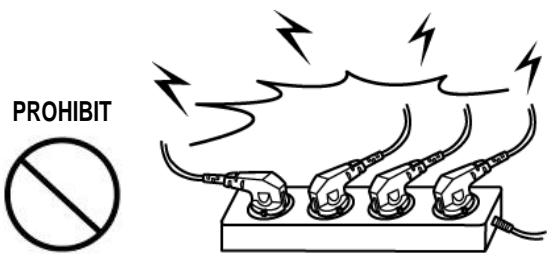
Do not plug several products in one multi-outlet.
- This can provoke over-heating and a fire.
- If the plug is wet or dirty, dry or wipe it before usage.
- If the plug does not fit perfectly with the outlet, do not plug in.
- Be sure to use only standardized multi-outlets.
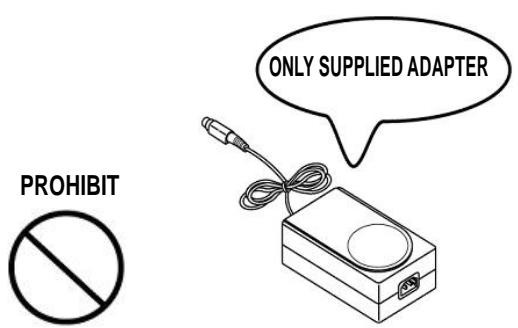
You must use only the supplied adapter.
- It is dangerous to use other adapters.
Do not pull the cable to unplug.
- This can damage the cable, which is the origin of a fire or a breakdown of the printer.

Keep the plastic bag out of children's reach.
- If not, a child may put the bag on his head.

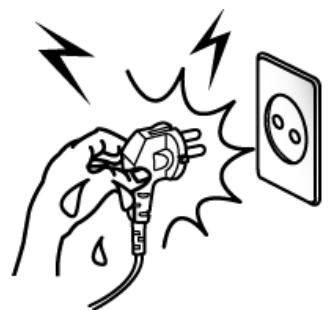
Do not plug in or unplug with your hands wet.
- You can be electrocuted.

PROHIBIT
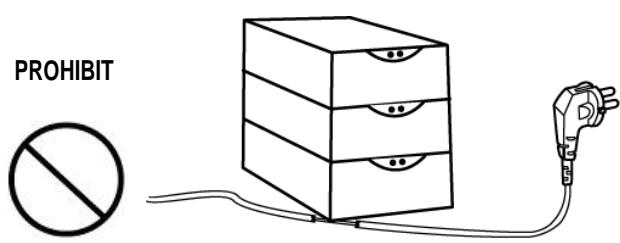
Do not bend the cable by force or leave it under any heavy object.
- A damaged cable can cause a fire.

CAUTION
Violating following instructions can cause slight wound or damage the appliance.
If you observe a strange smoke, odor or noise from the printer, unplug it before taking following measures.
- Switch off the printer and unplug the set from the mains.
After the disappearance of the smoke, call your dealer to repair it.

TO UNPLUG

Be careful not to get your fingers pinched when opening or closing the paper cover. Also be careful the paper cover does not slip off and drop.

MECHANICAL HAZARD

Install the printer on the stable surface.
- If the printer falls down, it can be broken and you can hurt yourself.

PROHIBIT

Use only approved accessories and do not try to disassemble, repair or remodel it for yourself.
- Call your dealer when you need these services.
- Do not touch the blade of manual cutter.

DISASSEMBLING PROHIBITED

Do not let water or other foreign objects in the printer.
- If this happened, switch off and unplug the printer before calling your dealer.

PROHIBIT

Do not use the printer when it is out of order. This can cause a fire or an electrocution.
- Switch off and unplug the printer before calling your dealer.

TO UNPLUG

Other Precautions
The copyright for this user's guide and various other manuals is property of the Oki Data Corporation. Any copying or conversion into electronic firm and saving of this material without the express written permission of Oki Data Corporation. is strictly prohibited.
Use of the information contained in this manual is not subject to any patent liability. This manual has been prepared with utmost care and attention to detail but may contain certain errors and/or omissions.
Oki Data Corporation. is not legally liable for any damages resulting from the use of the information in this manual.
Oki Data Corporation. and its affiliates are not legally liable (United States excluded) for any damages, loss, costs, and/or expenses that result from the breakdown, malfunction, and/or misuse of the product due to violation or neglect of the operation and maintenance information and instructions provided by the Oki Data Corporation., as well as from the unauthorized alteration, repair, and/or modification of the product by the user and/or third party.
Oki Data Corporation. is not legally liable for any damages and/or issues resulting from the use of options and/or parts that are not authentic Oki Data products or authorized products.
1. Content Confirmation
The following items should all be contained in the printer package.
Contact the dealer from which the purchase was made if any item is damaged and/or missing.
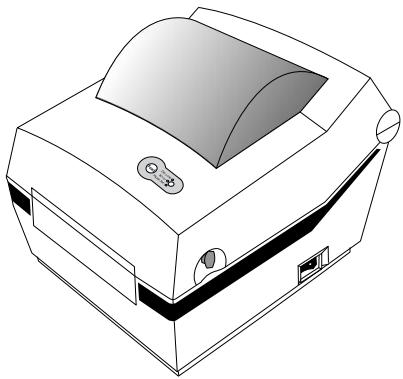
LD620D
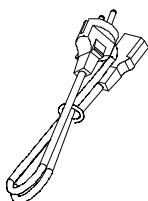
Power Cord
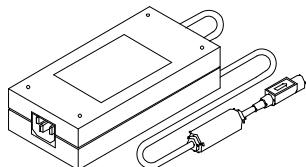
AC Adapter

CD

User Documents
(Setup Guide, Safety, Warranty)
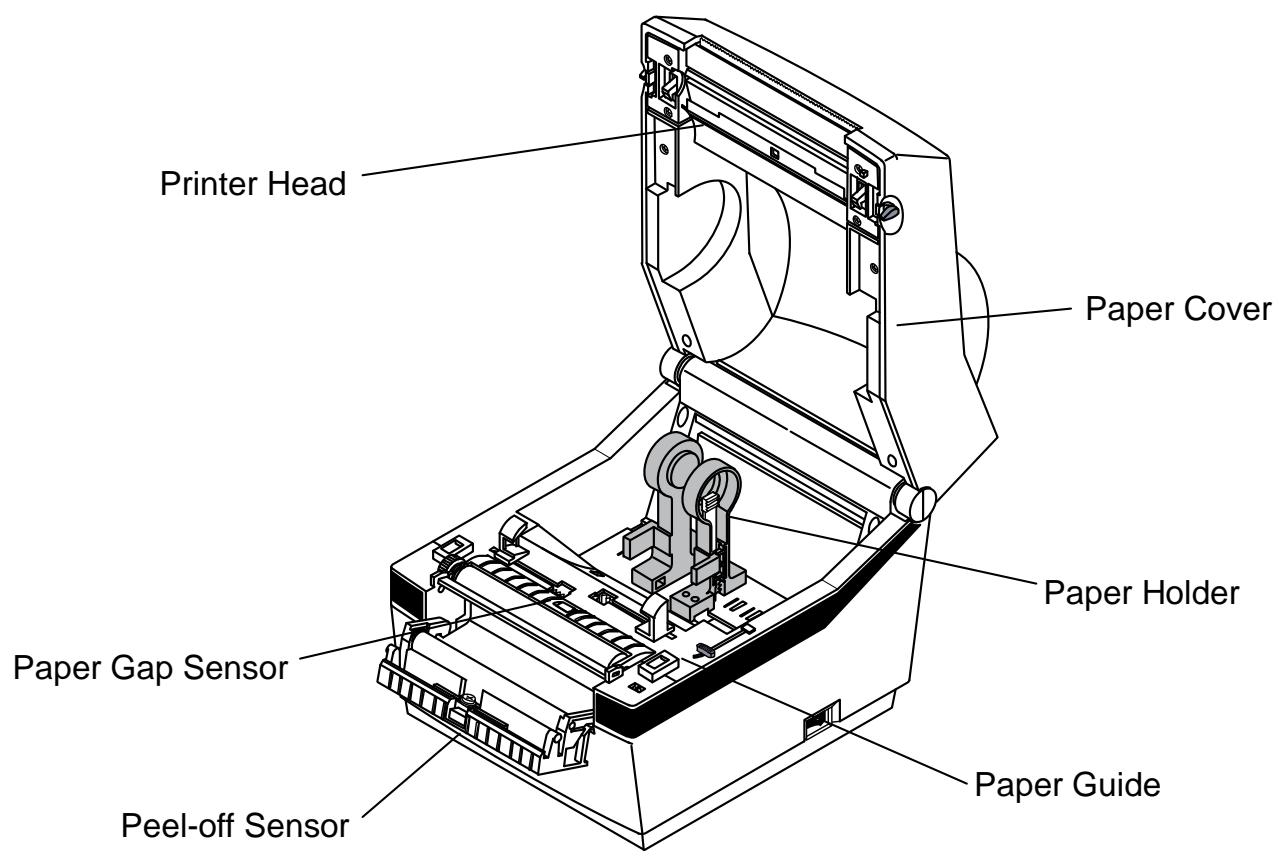
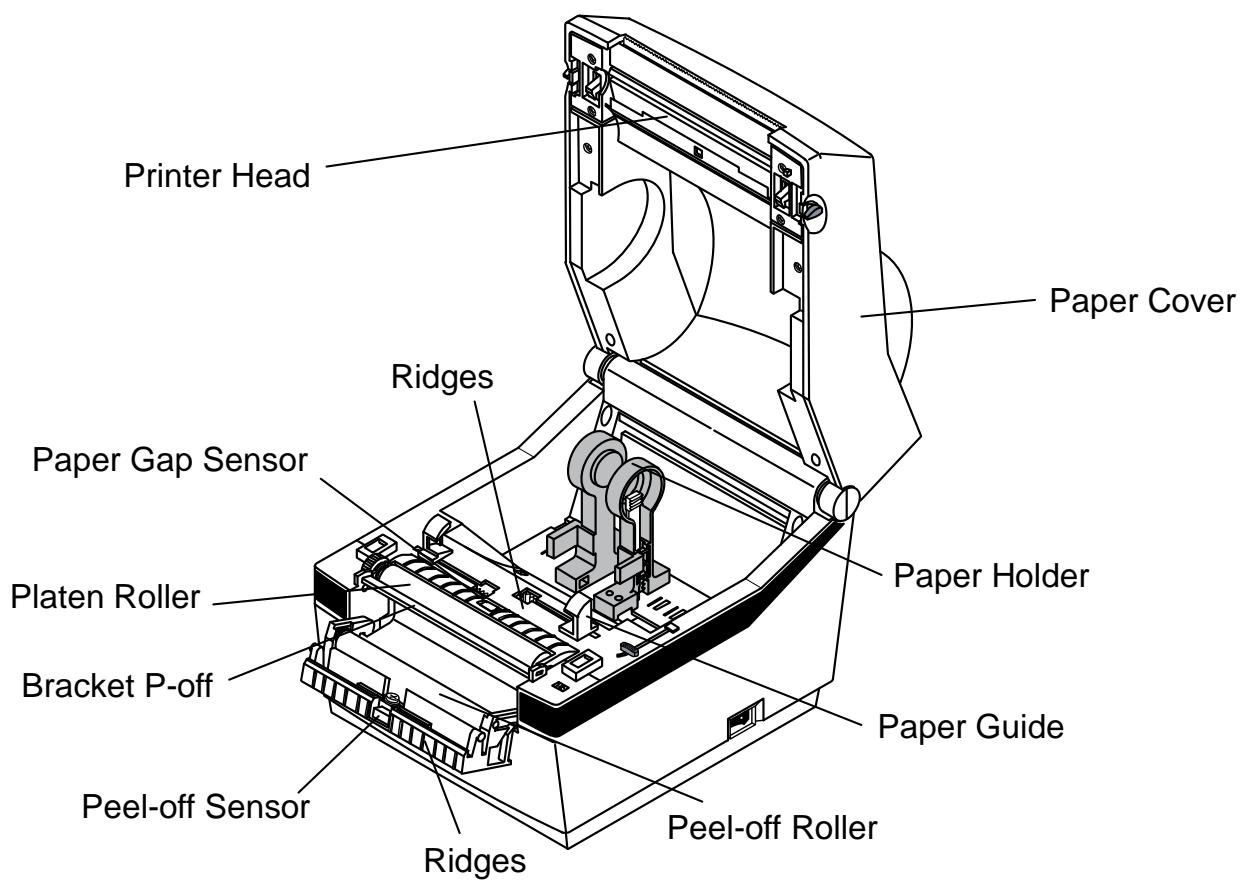
2. Product Part Names
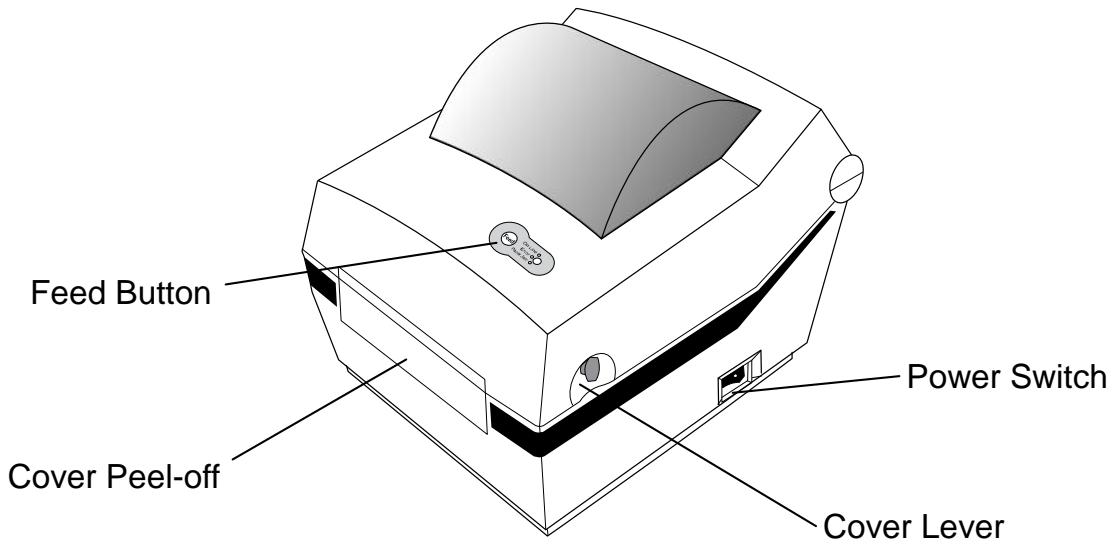

3. Installation & Usage
※ CAUTION
- Be careful not to get your fingers pinched when opening or closing the paper cover. Also be careful the paper cover does not slip off and drop.
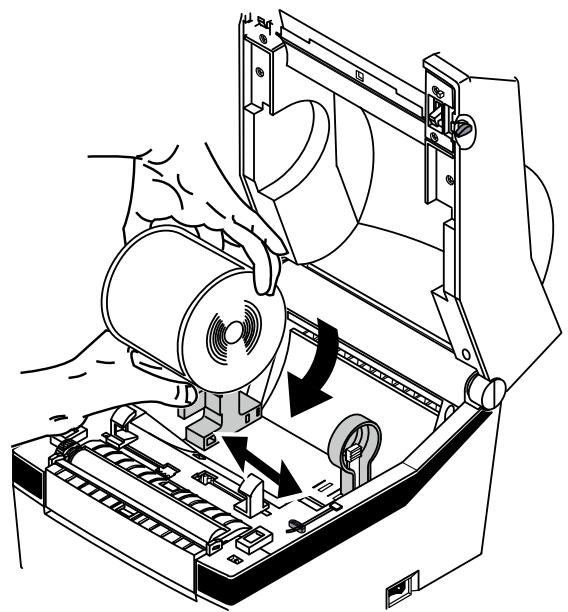
- When loading roll paper, be careful not to get your fingers pinched between the paper roll and the supply unit.
- Do not touch the cutter with your hands. Doing so could result in an injury.
3-1 Power Connection
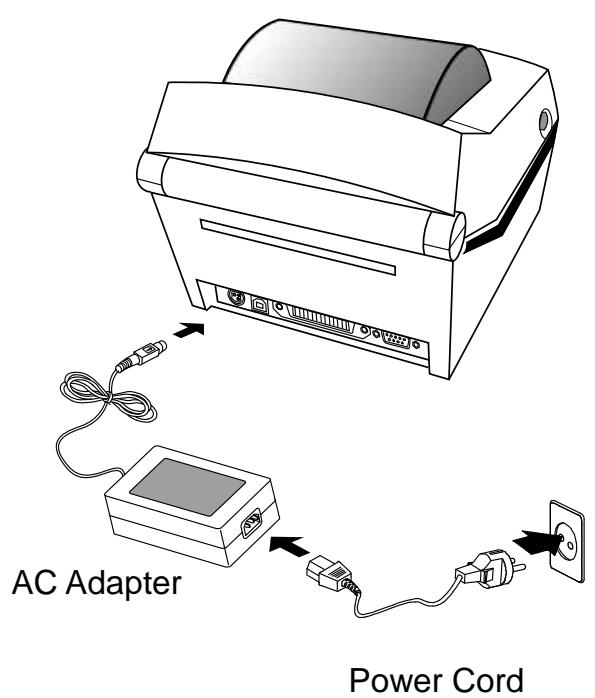
Connect power to the printer as shown below.
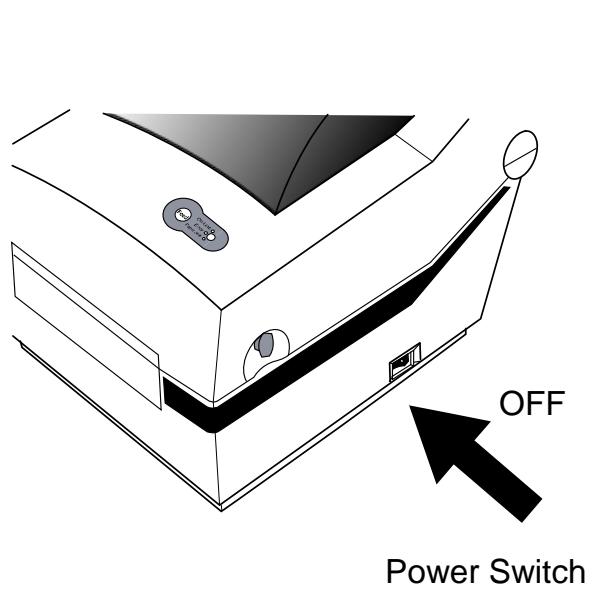
1) Turn off the printer power switch.
2) Check to see that the AC adapter voltage matches that of the power source.
3) Connect the AC adapter jack to the printer power connector.
4) Connect the power cord to the AC adapter.
5) Connect the power cord to a power source/outlet.
3-2 Interface Cable Connection
Connect the interface cable as shown below.
This printer supports the following communications interface standards.
RS-232C (Serial)
- IEEE1284 (Parallel)
- USB
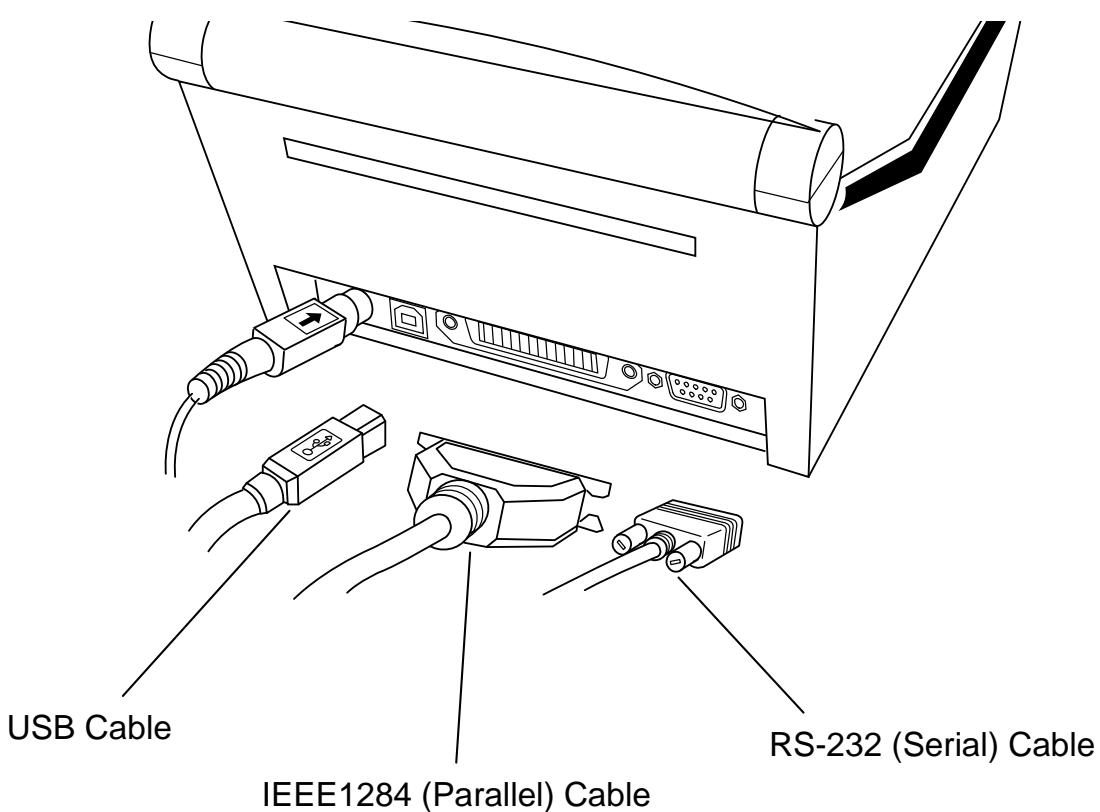
1) Turn off the power switch.
2) Connect the communication cable to the printer communication port to be used.
- Connect the RS-232C(Serial) Cable to the SERIAL port.
and tighten the screw on both sides.
This port requires a shielded cable less than 1.8m long.
- Connect the IEEE1284(Parallel) Cable to the PARALLEL port.
and fasten the clips on both sides.
This port requires a shielded cable with ferrite core less than 1.8m long.
- Connect USB cable to the USB port.
This port requires a shielded cable less than 1.8m long.
3-3 Paper Installation
1) Open the Paper Cover.
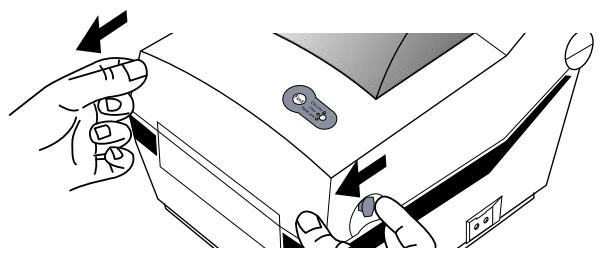
2) Spread the paper holder and insert paper as shown.
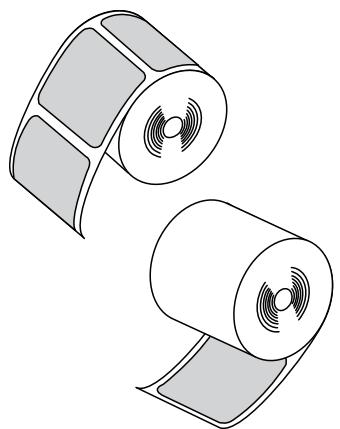
3) Keep note of paper printing direction.
4) Adjust the paper guide to the width of the paper.
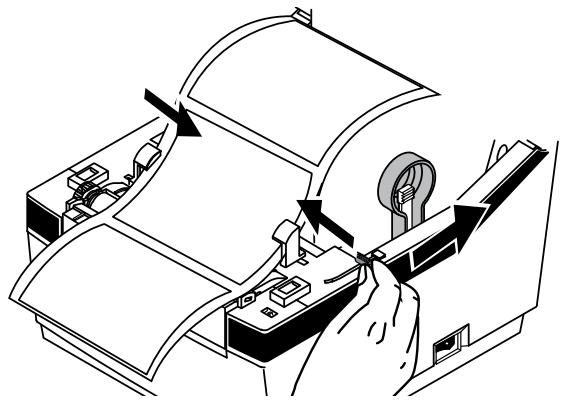
5) Close the Paper Cover until a click sound is heard.
3-4 LED Display
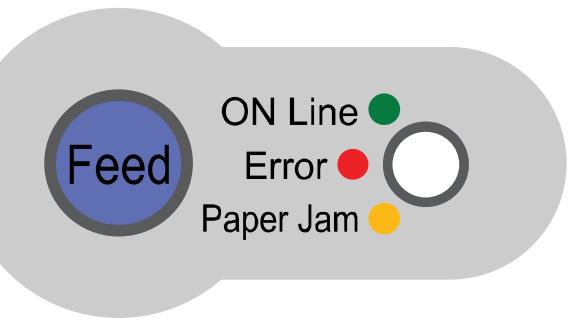
Feed button
Paper feed or cancel the print job.
LED
The current printer status can be viewed. (Refer to below)
The current printer status can be viewed via the printer's LED display.
1) Green LED on
- The printer waits for the data from Host (PC) in normal mode.
2) Orange LED on
- It means paper gap sensing error. It becomes on when the printer fails to detect the paper or paper jam occurred. When fails to detect the paper correctly use Auto-Calibration function.
3) Red LED on
- The printer has stopped by pressing FEED button. It restarts printing when pressed again.
4) Green LED blinking
- TPH (Thermal Printing Head) overheated or ;
- The printers is waiting for the button input to run Auto-Calibration function.
5) Orange LED blinking
- No paper. Make sure the paper is loaded correctly.
6) Red LED blinking
- The printer cover is open.
3-5 Feed Button Operations
Feed Button can be used for various purposes as follows.
1) Feed Label
In Print Standby mode, pressed for shorter than 3 seconds, the printer feed one label.
2) Stand-alone Configuration Mode
In Print Standby mode, pressed for longer than 3 seconds, the printer enters into Stand-alone Configuration Mode. Please refer to 5-1 for details.
3) Pause and Resume printing
If pressed while printing labels, Printing toggled between Pause and Resume.
4. Self-Test
The self-test checks whether the printer has any problems.
(Users cannot perform this procedure if using the printer's label peel-off option.)
If the printer does not function properly, contact an authorized dealer.
The self-test checks the following;
1) Make sure that the paper roll has been installed properly.
2) Turn on the power while holding down the FEED button. The self-test begins.
(It takes about 5 seconds before starting self-test)
3) The self-test prints the current printer configuration information.
4) After the self-test results are printed out, a printer enters into Print Standby Mode.
5. Detailed features
5-1 Stand-alone Configuration Mode
Various modes can be executed by using button and LED status.
Please take following steps to start Stand-alone Configuration Mode and execute each function.
1) Make sure that a printer is in Print Standby Mode.
2) Depress the Feed button for about 3 seconds, then the LED changes to orange color.
3) Release the Feed button, then the printer starts the Standalone Configuration Mode and 6 numbers of LED status changes sequentially.
4) When the Feed button is depressed at specific LED status, the corresponding operation will be executed.
Function List of Stand-alone Configuration Mode.
| Sequence Number | LED | Printer Operation | |
| Color | Status | ||
| 1 | Green | Blink 3 times | NONE |
| 2 | Orange | Blink 3 times | Factory Reset and Gap Calibration |
| 3 | RED | Blink 3 times | Factory Reset and Black Mark Calibration |
| 4 | Green | Keep On | NONE |
| 5 | Orange | Keep On | Data Dump Mode |
| 6 | Red | Keep On | Demo Mode |
- This information can be printed out by printer self-test.
5-2 Media Length Measurement
The printer needs to have the exact length of currently installed paper to make a proper print image.
For this, the printer automatically starts Media Length Measurement Mode in the following conditions.
1) When the printer has no measure length, for example first feeding after installation.
2) When the detected label length differs from the measured value.
In this mode, the printer feeds 2 or 3 labels to measure the exact length of label and saves the measured value on printer's non-volatile memory.
5-3 Pause/Resume
Press FEED button to pause at the middle of labels printing.
1) Press FEED once.
2) Printer stops after on-going printing and Red LED becomes on.
3) Press FEED once again. It resumes printing in a queue.
5-4 Media Sensor Auto-Calibration
Media sensor auto-calibration is used when the printer does not detect a gap or black mark on the label paper correctly.
Generally a printer is set to detect most types of gap or black mark but sometimes it fails to detect and keep feeding the paper without a stop when special paper used. In such case, use media sensor auto-calibration function for a proper detection.
1) Make sure that paper roll has been installed properly.
2) Use Stand-alone Configuration Mode, Sequence Number 2 or 3(refer to 5-1)
- Sequence Number 2: Gap Media Auto-Calibration
- Sequence Number 3: Black Mark Media Auto-Calibration.
5-5 Gap Sensor Manual-Calibration
Manual-calibration of media detection can be used when the printer cannot detect a media gap (or black mark) even after auto-calibration has been executed.
Users can calibrate sensor parameters in detail by using the utility program provided by the manufacturer.
The utility can be obtained from the enclosed CD.
Please make sure the printer is connected and execute the utility program. Please the Calibration Setting Manager Button after setting the interface type.
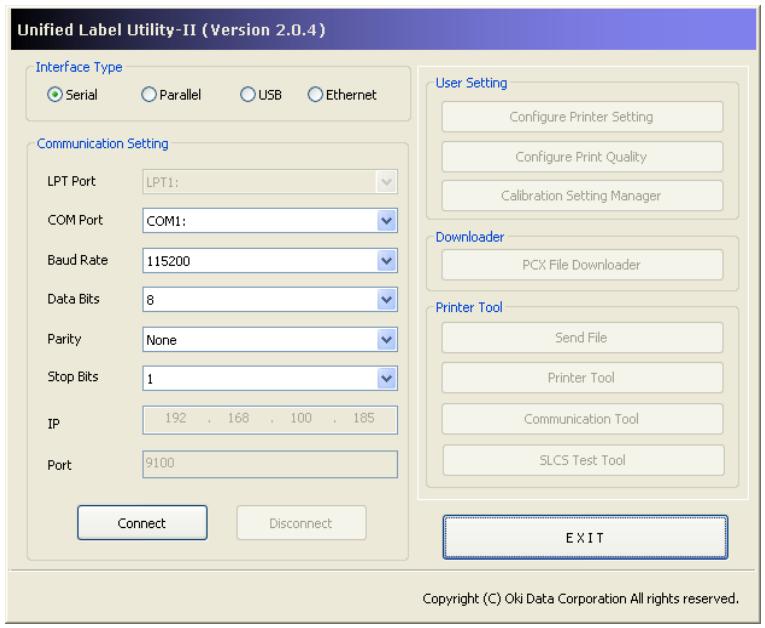
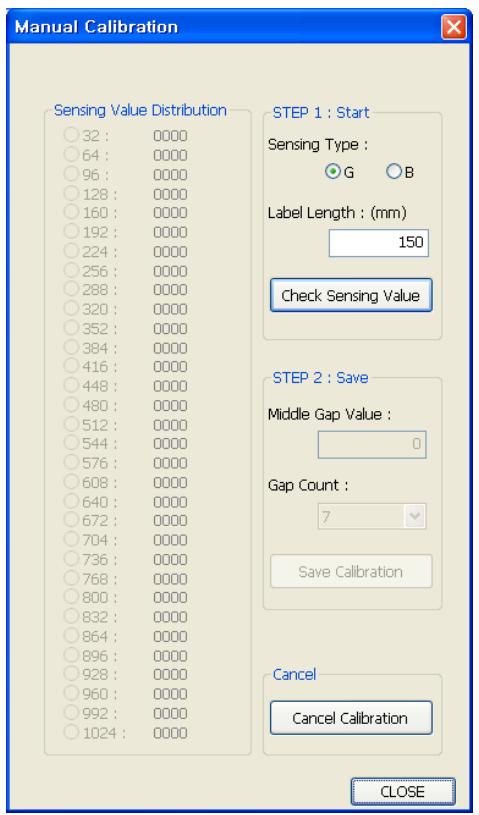
1) Select the sensing type and input the label length by millimeter and click on "Check Sensing Value" tap. Then printer starts to calibrate.
2) Printer will print the scanned values after calibration and the values will appear on the Screen.
3) Optimal sensing values will appear in black bold letters on the left of the utility screen and select one of the values and click on "Save Calibration"
4) If chosen value does not work properly, please try the other values among the black bold letters.
5) To go back to the initial value, please click on "Cancel Calibration"
5-6 Data Dump Mode
This function can be used to diagnose the communication issues when the printer does not work correctly.
In this mode, the received data are not analyzed and printed, instead they are dumped in hex format without processing.
Turn the printer off and on to recover to the Print Standby Mode.
Use Stand-alone Configuration Mode, Sequence Number 5(refer to 5-1) to start Data Dump Mode
5-7 The Peel-Off
This function is used to automatically separate labels from the liner.
- The peeler is for Label Paper only.
- When the peeler switch is on, labels are not printed if previous printed labels have been removed from the peeler.
- When the peeler function is not required, turn the peeler switch off. Keeping the switch on may result in the printer not working correctly.
- When the peeler switch has been changed, the printer should be turned off and back on.
1) Open the peel-off cover and turn on the peeler switch. (Check if the peeler LED is on.)
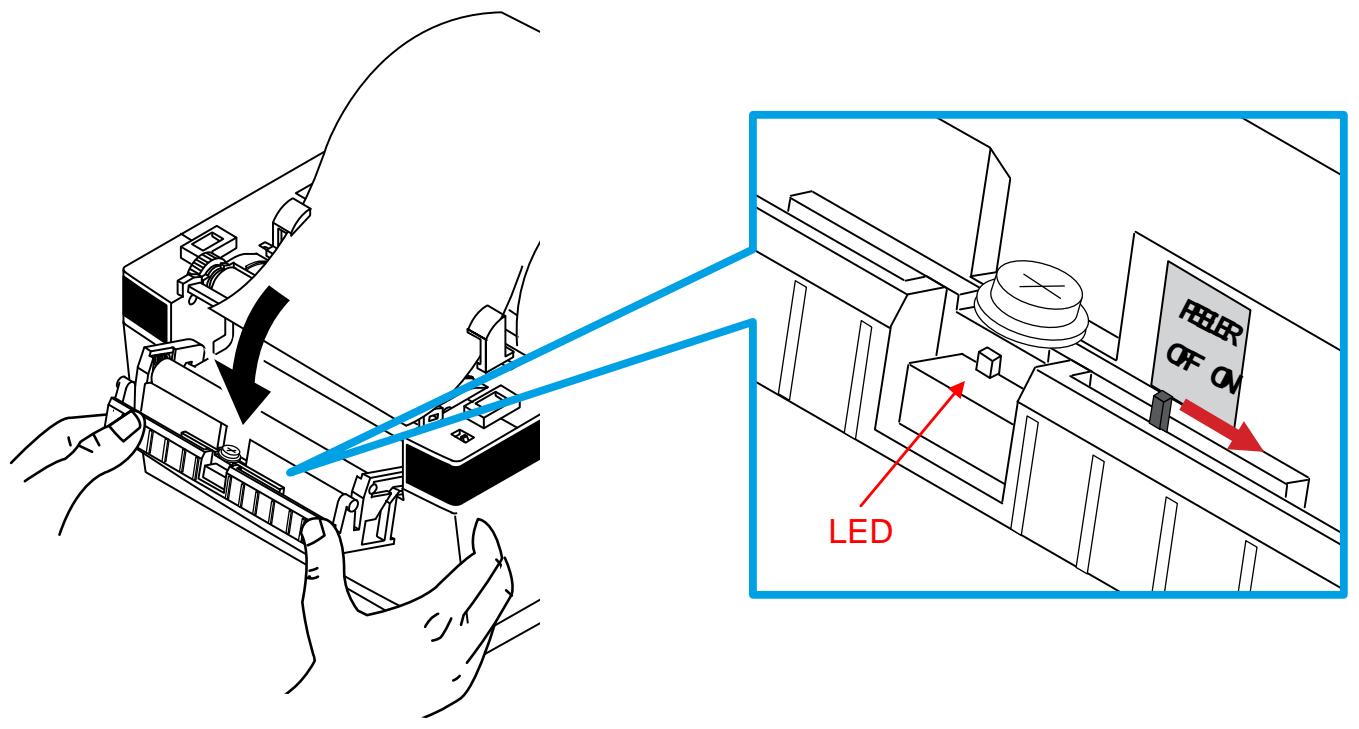
2) Remove the paper and insert the paper through the slot.
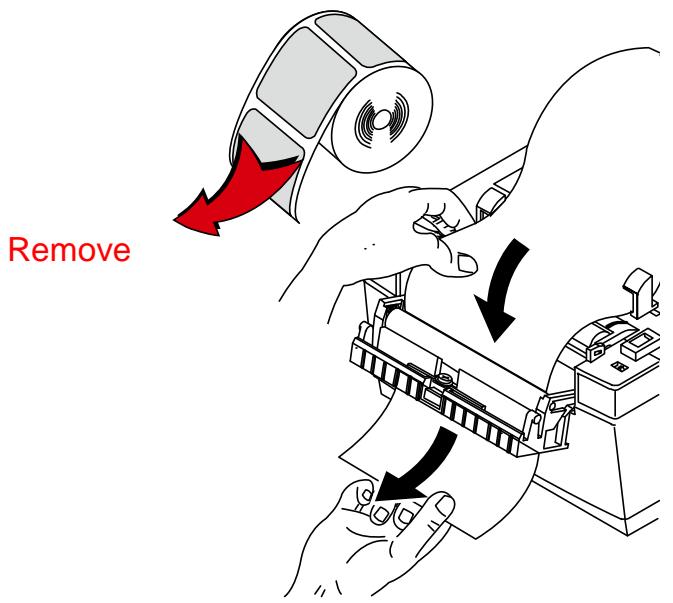
3) Adjust the paper guides and close the cover.
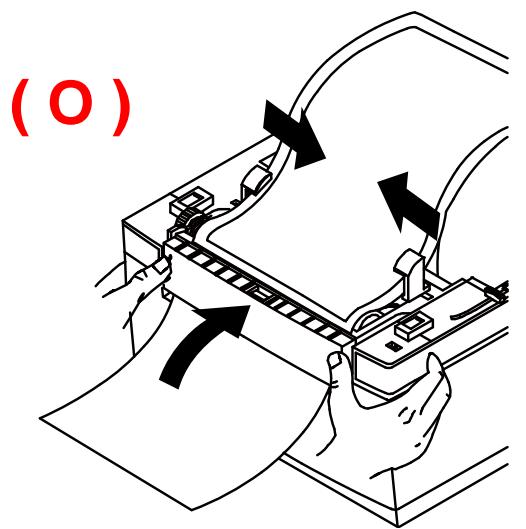

4) Close the Paper Cover until a click sound is heard.
5) Turn the printer off and back on.
5-8 Using Fan-Fold Paper
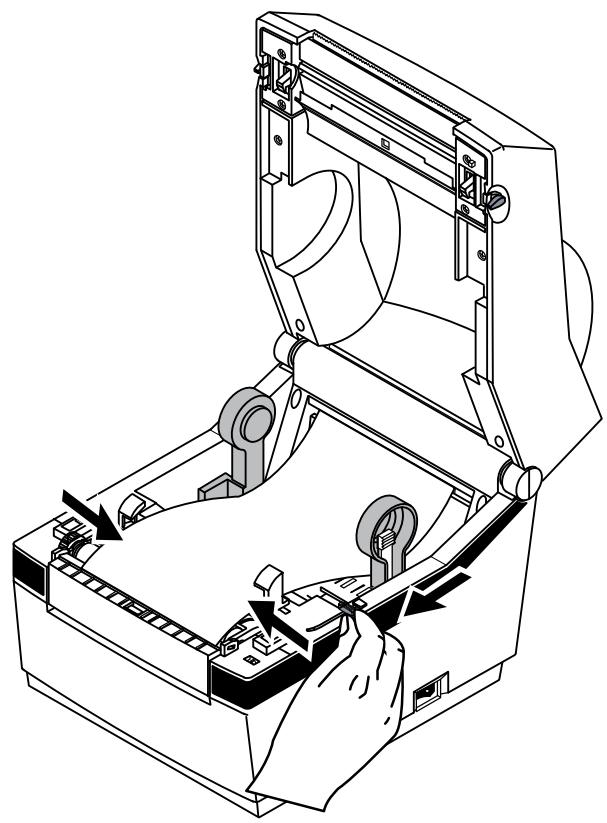
Insert paper through both the rear slot and guides. Adjust holders and guides to the width of the paper.
1) Insert the paper at the rear of the printer and then open the Paper Cover.
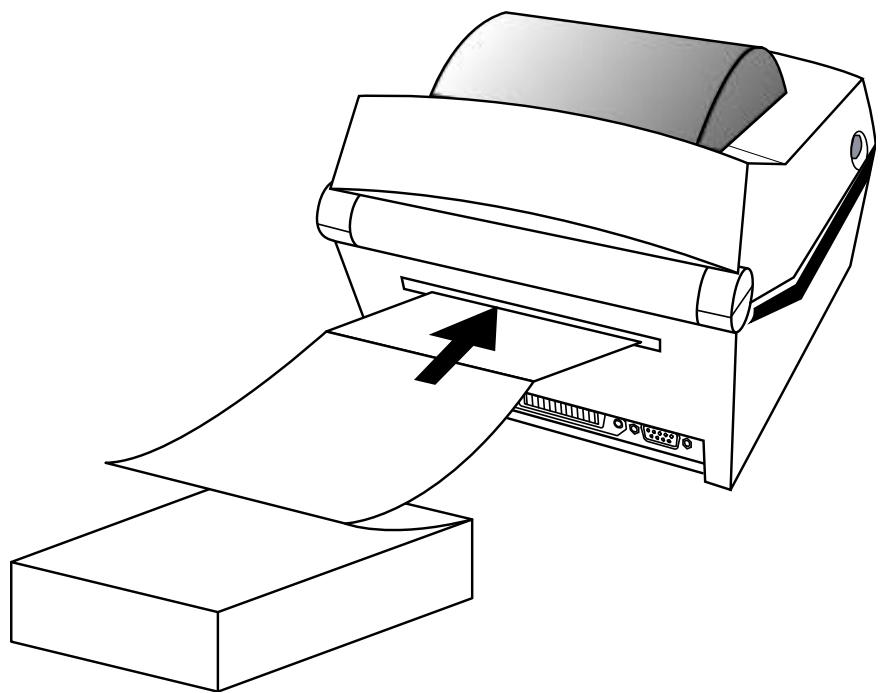
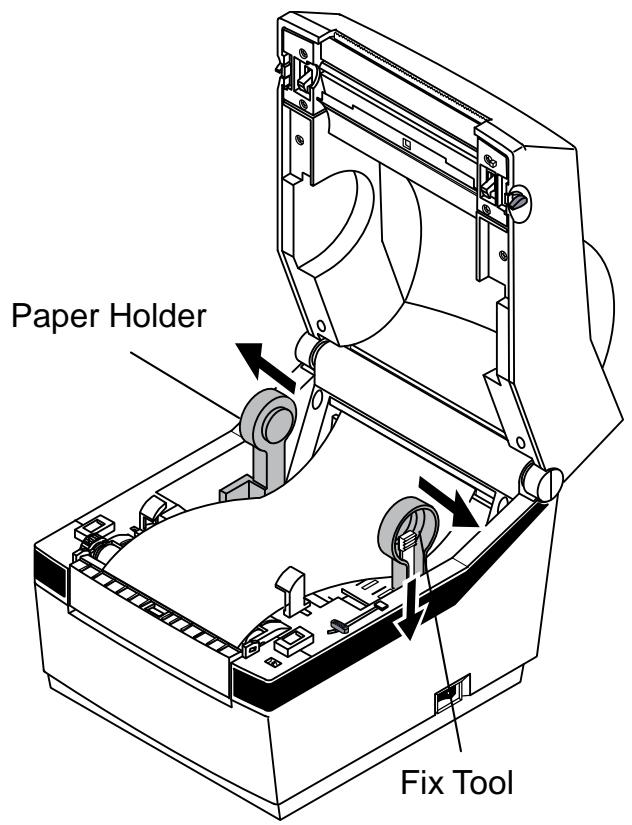
2) Adjust Paper Holders to the paper width by using the Fix Tool.
3) Adjust Paper Guides and close the Paper Cover until a click sound is heard.
6. Cleaning Head
Printing quality might be degraded by dust, foreign substance, adhesive substance, or other pollution materials stuck in the printer head or inside the printer.
When dirty, clean the print head as follows:
※ CAUTION
- Make sure to turn the printer power off prior to cleaning.
- As the print head gets very hot during printing, if intending to clean the print head, turn the printer power off and wait approximately 2~3 minute before commencement.
- When cleaning the print head, take care not to touch the heated portion of the print head.
Printer Head is susceptible to damage from static electricity, etc.
- Take care not to allow the print head to become scratched and/or damaged in any way.
- Be careful not to get your fingers pinched when opening or closing the paper cover. Also be careful the paper cover does not slip off and drop.
- When loading roll paper, be careful not to get your fingers pinched between the paper roll and the supply unit.
- Do not touch the cutter with your hands. Doing so could result in an injury.
6-1 Cleaning Head
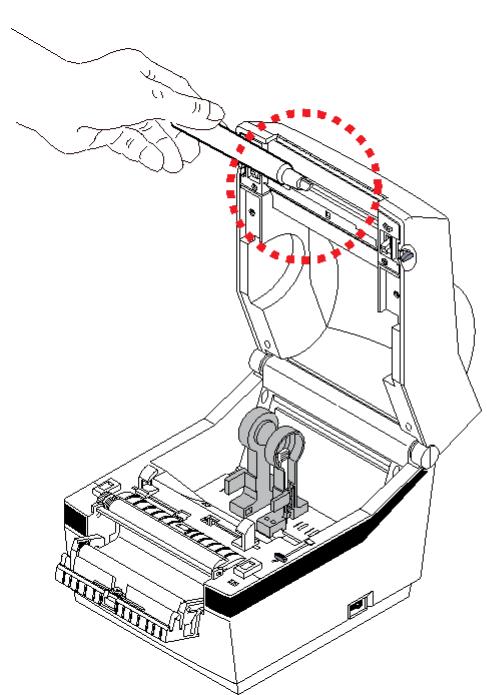
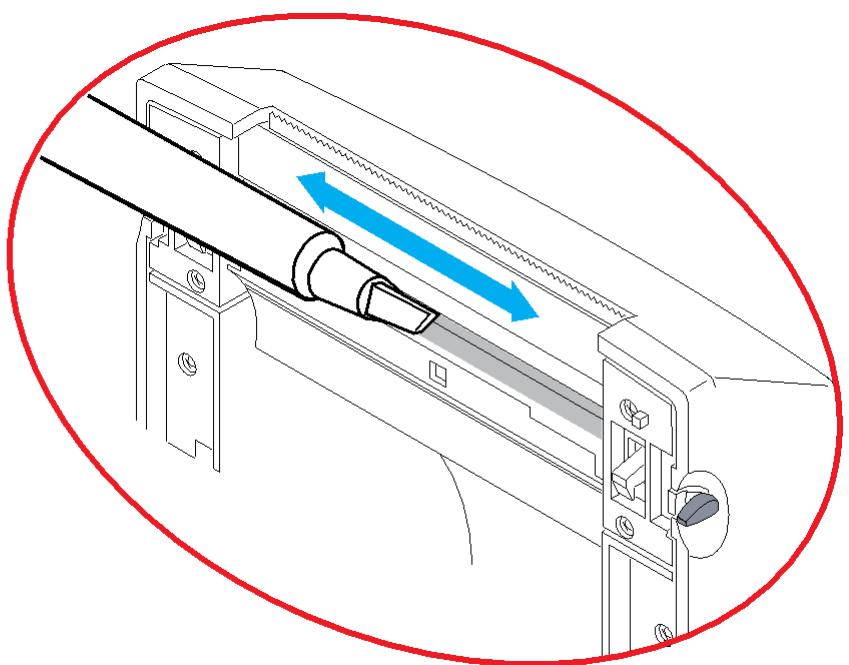
1) Open the Paper Cover and then use the cleaning pen to clean the head in the direction from the center of the head to the edges.
2) After cleaning the head, do not use the printer until the alcohol used for cleaning evaporates completely (1~2 min) and the printer has completely dried.
Perform the cleaning process each time the paper roll is replaced to prevent print quality deterioration.
6-2 Cleaning Sensors, Roller or/and Paper Path
1) Open the Paper Cover and remove the paper.
2) Remove any dust or foreign substance using dry cloth or cotton swab.
3) Soak the cloth or cotton swab in alcohol for medical use and use it to remove adhesive foreign substances or other pollution materials.
4) After cleaning the parts, do not use the printer until the alcohol evaporates completely (1~2 min) and the printer has completely dried
* Clean the parts when there is a degradation of performance in printing quality or paper detection.
7. Appendix
7-1 Specifications
| Item | Description | |
| Printer | Printing Method | Direct Thermal Printing |
| Dot Density | 203 dpi (8 dot/mm) | |
| Printing Width | Max. 104 mm(Max. 4.09") | |
| Printing Speed | Max. 127 mm/sec(Max. 5ips) | |
| Paper | Roll Width | 42 ~ 106mm(1.65 ~ 4.17") |
| AC Adapter | SMPS Input Voltage | AC 100~240V |
| Frequency | 50/60 Hz | |
| SMPS Output Voltage | DC24V±5% | |
| SMPS Output Current | 2.5A | |
| Usage Conditions | Temperature | 0 ~ 40 °C (Operating) -20 ~ 60 °C (Storage) |
| Humidity (except for paper) | 10 ~ 80 % RH (Operating) 10 ~ 90 % RH (Storage) | |
※ Note
- Printing speed can vary depending on the data transmission speed and combination of control commands.
- This equipment is for indoor use and all the communication wires are limited to inside of the building.
- The switch is the disconnecting device. Turn off switch from any hazard.
7-2 Label Types
The label types used with this printer are as follows.
Control Labels: PP
- Other Labels: PET
Oki Systems f! ?L@x
Blays House
Wick Road
Egham
Surrey
TW20 0HJ
Tel: +44 (0) 1784 274300
Fax:+44 (0) 1784 274301
http://www.oki.co.uk
Oki Systems Ireland Limited
The Square Industrial Complex
Tallaght
Dublin 24
Tel: +353 (0) 1 4049590
Fax:+353(0)14049591
http://www.oki.ie
Oki Systems Ireland Limited - Northern Ireland
19 Ferndale Avenue
Glengormley
BT36 5AL
Northern Ireland
Tel: +44 (0) 7767 271447
Fax:+44 (0) 1 404 9520
http://www.oki.ie
Technical Support for all Ireland:
Tel: +353 1 4049570
Fax:+35314049555
E-mail: tech.support@oki.ie
OKI Systems (Czech and Slovak), s.r.o.
IBC-Pobrěžní 3
186 00 Praha 8
Czech Republic
Tel: +420 224 890158
Fax:+420222326621
Website: www.oki.cz, www.oki.sk
www.okiprintingsolutions.de
info@oki.de
OKI Printing Solutions
Platinum Business Park II, 3rd Floor ul. Domaniewska 42
02-672 Warsaw
Poland
Tel:+48224486500
Fax:+48224486501
Website: www.oki.com.pl
E-mail: oki@oki.com.pl
Hotline: 0800 120066
E-mail: tech@oki.com.pl
Oki Systems (Ibérica) S.A.
Sucursal Portugal
Edificio Prime -
Av. Quinta Grande 53
7^ C Alfragide
2614-521 Amadora
Portugal
Tel: +351 21 470 4200
Fax: +351 21 470 4201
Website: www.oki.pt
E-mail: oki@oki.pt
Oki Service
OKI Europe Ltd. (Russia)
Office 702, Bldg 1
Zagorodnoye shosse
117152, Moscow
Tel: +74 095 258 6065
Fax: +74 095 258 6070
e-mail: info@oki.ru
Website: www.oki.ru
Technical support:
Tel: +7 495 564 8421
e-mail: tech@oki.ru
Raisy Opkinoy Street,8
Building B, 2^na Floor,
Kiev 02002
Ukraine
Tel: +380 44 537 5288
e-mail: info@oki.ua
Website: www.oki.ua
www.okiprintingsolutions.com.tr
Oki Systems (Belgium)
Medialaan 24
1800 Vilvoorde
Helpdesk: 02-2574620
Fax: 02 2531848
Website: www.oki.be
AlphaLink Bulgaria Ltd.
2 Kukush Str.
Building "Antim Tower", fl. 6
1463 Sofia, Bulgaria
tel: +359 2 821 1160
fax: +359 2 821 1193
Website: http://bulgaria.oki.com
OKI Printing Solutions
Herstedøstervej 27
2620 Albertslund
Danmark
Oki Systems (Norway) AS
Tevlingveien 23
N-1081 Oslo
Tel: +47 (0) 63 89 36 00
Telefax:+47(0)63893601
Ordrefax:+47(0)63893602
Website: www.oki.no
General Systems S.R.L. (Romania)
Sos. Bucuresti-Ploiesti Nr. 135.
Bucharest 1
Romania
Tel: +40 21 303 3138
Fax: +40 21303 3150
Website: http://romania.oki.com
Oki Systems (Sweden) AB
Borgafjordsgatan 7
Box 1191
164 26 Kista
Tel. +46 (0) 8 634 37 00
e-mail:
info@oki.se for allmanna fragor om
Okiprodukter
support@oki.se for tekisk support
gallandes Oki Produkter
Vardagar: 08.30 - 12.00,
13.00 - 16.00
Website: www.oki.se
2000 Bishops Gate Blvd.
http://WWW.OKIPRINTINGSOLUTIONS.COM
http://my.okidata.com
Oki Data Americas Inc.(Canada • Canada)
4140 B Sladeview Crescent Units 7&8
Mississauga, Ontario
Canada L5L 6A1
Tél: 1-905-608-5000
Téléç: 1-905-608-5040
http://WWW.OKIPrintINGSOLUTIONS.COM
Oki Data Americas Inc.(América Latina (OTRO))
2000 Bishops Gate Blvd.
http://WWW.OKIPRINTINGSOLUTIONS.COM
Oki Data do Brasil, Ltda.
http://WWW.OKIPRINTINGSOLUTIONS.COM
Oki Data (Singapore) Pte. Ltd.
438A Alexandra Road #02-11/12,
Lobby 3, Alexandra Technopark
Singapore(119967)
Tel:(65) 6221 3722
Fax:(65) 6594 0609
http://www.okidata.com.sg
Oki Systems (Thailand) Ltd.
1168/81-82 Lumpini Tower,
27th Floor Rama IV Road
Tungmahamek, Sathorn
Bangkok 10120
Tel:(662)679 9235
Fax:(662)679 9243/245
http://www.okisysthai.com
Oki Systems (Hong Kong) Ltd.
Suite 1908, 19/F, Tower 3,
China Hong Kong City
33 Canton Road, TsimShaTsui,
Kowloon, Hong Kong
Tel: (852) 3543 9288
Fax: (852) 3549 6040
http://www.okiprintingsolutions.com.hk
Oki Data(Australia) Pty Ltd.
Levwl67 Epping Road, Macquarie Park NSW 2113, Australia
Tel: +61 2 8071 0000
(Support Tel: 1800 807 472)
Fax: +61 2 8071 0010
http://www.oki.com.au
Comworth Systems Ltd.
8 Antares Place Mairangi Bay,
Auckland, New Zealand
Tel:(64)94770500
Fax:(64) 94770549
http://www.comworth.co.nz
Oki Data(S) P Ltd. Malaysia Rep Office
Suite 21.03, 21st Floor Menara IGB, Mid Valley City,
Lingkaran Syed Pura 59200,
Kuala Lumpur, Malaysia
Tel: (60) 32287 1177
Fax: (60) 32287 1166
© 2012 Oki Data Corporation
OKI Data Corporation, 4-11-22 Shibaura, Minato-ku, Tokyo 108-8551, Japan
Oki Systems Ireland Limited
The Square Industrial Complex
Tallaght
Dublin 24
Tel: +353 (0) 1 4049590
Fax:+353(0)14049591
http://www.oki.ie
Oki Systems Ireland Limited - Northern Ireland
19 Ferndale Avenue
Glengormley
BT36 5AL
Northern Ireland
Tel: +44 (0) 7767 271447
Fax:+44 (0) 1 404 9520
http://www.oki.ie
Technical Support for all Ireland:
Tel: +353 1 4049570
Fax:+35314049555
E-mail: tech.support@oki.ie
OKI Systems (Czech and Slovak), s.r.o.
IBC-Pobrěžní 3
186 00 Praha 8
Czech Republic
Tel: +420 224 890158
Fax:+420222326621
Website: www.oki.cz, www.oki.sk
www.okiprintingsolutions.de
info@oki.de
OKI Printing Solutions
Platinum Business Park II, 3rd Floor ul. Domaniewska 42
02-672 Warsaw
Poland
Tel:+48224486500
Fax:+48224486501
Website: www.oki.com.pl
E-mail: oki@oki.com.pl
Hotline: 0800 120066
E-mail: tech@oki.com.pl
Oki Systems (Ibérica) S.A.
Sucursal Portugal
Edificio Prime -
Av. Quinta Grande 53
7^ C Alfragide
2614-521 Amadora
Portugal
Tel: +351 21 470 4200
Fax:+351214704201
Website: www.oki.pt
E-mail: oki@oki.pt
Oki Service
OKI Europe Ltd. (Russia)
Office 702, Bldg 1
Zagorodnoye shosse
117152, Moscow
Tel: +74 095 258 6065
Fax: +74 095 258 6070
e-mail: info@oki.ru
Website: www.oki.ru
Technical support:
Tel: +7 495 564 8421
e-mail: tech@oki.ru
Raisy Opkinoy Street,8
Building B, 2^na Floor,
Kiev 02002
Ukraine
Tel: +380 44 537 5288
e-mail: info@oki.ua
Website: www.oki.ua
www.okiprintingsolutions.com.tr
Oki Systems (Belgium)
Medialaan 24
1800 Vilvoorde
Helpdesk: 02-2574620
Fax: 02 2531848
Website: www.oki.be
AlphaLink Bulgaria Ltd.
2 Kukush Str.
Building "Antim Tower", fl. 6
1463 Sofia, Bulgaria
tel: +359 2 821 1160
fax: +359 2 821 1193
Website: http://bulgaria.oki.com
OKI Printing Solutions
Herstedøstervej 27
2620 Albertslund
Danmark
Oki Systems (Norway) AS
Tevlingveien 23
N-1081 Oslo
Tel: +47 (0) 63 89 36 00
Telefax:+47(0)63893601
Ordrefax:+47(0)63893602
Website: www.oki.no
General Systems S.R.L. (Romania)
Sos. Bucuresti-Ploiesti Nr. 135.
Bucharest 1
Romania
Tel: +40 21 303 3138
Fax: +40 21303 3150
Website: http://romania.oki.com
Oki Systems (Sweden) AB
Borgafjordsgatan 7
Box 1191
164 26 Kista
Tel. +46 (0) 8 634 37 00
e-mail:
info@oki.se for allmanna fragor om
Okiprodukter
support@oki.se for teknisk support
gallandes Oki Produkter
Vardagar: 08.30 - 12.00,
13.00 - 16.00
Website: www.oki.se
2000 Bishops Gate Blvd.
http://WWW.OKIPRINTINGSOLUTIONS.COM
http://my.okidata.com
Oki Data Americas Inc.(Canada • Canada)
4140 B Sladeview Crescent Units 7&8
Mississauga, Ontario
Canada L5L 6A1
Tél: 1-905-608-5000
Téléç: 1-905-608-5040
http://WWW.OKIPrintINGSOLUTIONS.COM
Oki Data Americas Inc.(América Latina (OTRO))
2000 Bishops Gate Blvd.
http://WWW.OKIPRINTINGSOLUTIONS.COM
Oki Data do Brasil, Ltda.
http://WWW.OKIPRINTINGSOLUTIONS.COM
Oki Data (Singapore) Pte. Ltd.
438A Alexandra Road #02-11/12,
Lobby 3, Alexandra Technopark
Singapore(119967)
Tel:(65) 6221 3722
Fax:(65) 6594 0609
http://www.okidata.com.sg
Oki Systems (Thailand) Ltd.
1168/81-82 Lumpini Tower,
27th Floor Rama IV Road
Tungmahamek, Sathorn
Bangkok 10120
Tel:(662)679 9235
Fax:(662)679 9243/245
http://www.okisysthai.com
Oki Systems (Hong Kong) Ltd.
Suite 1908, 19/F, Tower 3,
China Hong Kong City
33 Canton Road, TsimShaTsui,
Kowloon, Hong Kong
Tel: (852) 3543 9288
Fax: (852) 3549 6040
http://www.okiprintingsolutions.com.hk
Oki Data(Australia) Pty Ltd.
Levwl67 Epping Road, Macquarie Park NSW 2113, Australia
Tel: +61 2 8071 0000
(Support Tel: 1800 807 472)
Fax: +61 2 8071 0010
http://www.oki.com.au
Comworth Systems Ltd.
8 Antares Place Mairangi Bay,
Auckland, New Zealand
Tel:(64) 9477 0500
Fax:(64) 94770549
http://www.comworth.co.nz
Oki Data(S) P Ltd. Malaysia Rep Office
Suite 21.03, 21st Floor Menara IGB, Mid Valley City,
Lingkaran Syed Pura 59200,
Kuala Lumpur, Malaysia
Tel: (60) 322871177
Fax: (60) 32287 1166
Guida per l'utente
PREFAZIONE
© 2012 Oki Data Corporation
OKI Data Corporation, 4-11-22 Shibaura, Minato-ku, Tokyo 108-8551, Giappone
Oki Systems (UK) Ltd
Blays House
Wick Road
Egham
Surrey
TW20 0HJ
Tel: +44 (0) 1784 274300
Fax:+44 (0) 1784 274301
http://www.oki.co.uk
Oki Systems Ireland Limited
The Square Industrial Complex
Tallaght
Dublin 24
Tel: +353 (0) 1 4049590
Fax:+353(0)14049591
http://www.oki.ie
Oki Systems Ireland Limited - Northern Ireland
19 Ferndale Avenue
Glengormley
BT36 5AL
Northern Ireland
Tel: +44 (0) 7767 271447
Fax:+44 (0) 1 404 9520
http://www.oki.ie
Technical Support for all Ireland:
Tel: +353 1 4049570
Fax:+35314049555
E-mail: tech.support@oki.ie
OKI Systems (Czech and Slovak), s.r.o.
IBC-Pobrěžní 3
186 00 Praha 8
Czech Republic
Tel: +420 224 890158
Fax:+420222326621
Website: www.oki.cz, www.oki.sk
www.okiprintingsolutions.de
info@oki.de
OKI Printing Solutions
Platinum Business Park II, 3rd Floor ul. Domaniewska 42
02-672 Warsaw
Poland
Tel:+48224486500
Fax:+48224486501
Website: www.oki.com.pl
E-mail: oki@oki.com.pl
Hotline: 0800 120066
E-mail: tech@oki.com.pl
Oki Systems (Iberica) S.A.
Sucursal Portugal
Edificio Prime -
Av. Quinta Grande 53
7^ C Alfragide
2614-521 Amadora
Portugal
Tel:+351214704200
Fax:+351214704201
Website: www.oki.pt
E-mail: oki@oki.pt
Oki Service
OKI Europe Ltd. (Russia)
Office 702, Bldg 1
Zagorodnoye shosse
117152, Moscow
Tel: +74 095 258 6065
Fax: +74 095 258 6070
e-mail: info@oki.ru
Website: www.oki.ru
Technical support:
Tel: +7 495 564 8421
e-mail: tech@oki.ru
Raisy Opkinoy Street,8
Building B, 2^nd Floor,
Kiev 02002
Ukraine
Tel: +380 44 537 5288
e-mail: info@oki.ua
Website: www.oki.ua
www.okiprintingsolutions.com.tr
Oki Systems (Belgium)
Medialaan 24
1800 Vilvoorde
Helpdesk: 02-2574620
Fax: 02 2531848
Website: www.oki.be
AlphaLink Bulgaria Ltd.
2 Kukush Str.
Building "Antim Tower", fl. 6
1463 Sofia, Bulgaria
tel: +359 2 821 1160
fax: +359 2 821 1193
Website: http://bulgaria.oki.com
OKI Printing Solutions
Herstedøstervej 27
2620 Albertslund
Danmark
Oki Systems (Norway) AS
Tevlingveien 23
N-1081 Oslo
Tel: +47 (0) 63 89 36 00
Telefax:+47(0)63893601
Ordrefax:+47(0)63893602
Website: www.oki.no
General Systems S.R.L. (Romania)
Sos. Bucuresti-Ploiesti Nr. 135.
Bucharest 1
Romania
Tel: +40 21 303 3138
Fax: +40 21303 3150
Website: http://romania.oki.com
Oki Systems (Sweden) AB
Borgafjordsgatan 7
Box 1191
164 26 Kista
Tel. +46 (0) 8 634 37 00
e-mail:
info@oki.se for allmanna fragor om
Okiprodukter
support@oki.se for tekisk support
gallandes Oki Produkter
Vardagar: 08.30 - 12.00,
13.00 - 16.00
Website: www.oki.se
2000 Bishops Gate Blvd.
http://WWW.OKIPRINTINGSOLUTIONS.COM
http://my.okidata.com
Oki Data Americas Inc.(Canada • Canada)
4140 B Sladeview Crescent Units 7&8
Mississauga, Ontario
Canada L5L 6A1
Tél: 1-905-608-5000
Téléç: 1-905-608-5040
http://WWW.OKIPrintINGSOLUTIONS.COM
Oki Data Americas Inc.(América Latina (OTRO))
2000 Bishops Gate Blvd.
http://WWW.OKIPRINTINGSOLUTIONS.COM
Oki Data do Brasil, Ltda.
http://WWW.OKIPRINTINGSOLUTIONS.COM
Oki Data (Singapore) Pte. Ltd.
438A Alexandra Road #02-11/12,
Lobby 3, Alexandra Technopark
Singapore(119967)
Tel:(65) 6221 3722
Fax:(65) 6594 0609
http://www.okidata.com.sg
Oki Systems (Thailand) Ltd.
1168/81-82 Lumpini Tower,
27th Floor Rama IV Road
Tungmahamek, Sathorn
Bangkok 10120
Tel:(662)679 9235
Fax:(662)679 9243/245
http://www.okisysthai.com
Oki Systems (Hong Kong) Ltd.
Suite 1908, 19/F, Tower 3,
China Hong Kong City
33 Canton Road, TsimShaTsui,
Kowloon, Hong Kong
Tel: (852) 3543 9288
Fax: (852) 3549 6040
http://www.okiprintingsolutions.com.hk
Oki Data(Australia) Pty Ltd.
Levwl67 Epping Road, Macquarie Park NSW 2113, Australia
Tel: +61 2 8071 0000
(Support Tel: 1800 807 472)
Fax: +61 2 8071 0010
http://www.oki.com.au
Comworth Systems Ltd.
8 Antares Place Mairangi Bay,
Auckland, New Zealand
Tel:(64) 9477 0500
Fax:(64)94770549
http://www.comworth.co.nz
Oki Data(S) P Ltd. Malaysia Rep Office
Suite 21.03, 21st Floor Menara IGB, Mid Valley City,
Lingkaran Syed Pura 59200,
Kuala Lumpur, Malaysia
Tel: (60) 322871177
Fax: (60) 32287 1166
Bedienungsanleitung
VORWORT
© 2012 Oki Data Corporation
OKI Data Corporation, 4-11-22 Shibaura, Minato-ku, Tokyo 108-8551, Japan
Oki Systems Ireland Limited
The Square Industrial Complex
Tallaght
Dublin 24
Tel: +353 (0) 1 4049590
Fax:+353 (0)1 4049591
http://www.oki.ie
Oki Systems Ireland Limited - Northern Ireland
19 Ferndale Avenue
Glengormley
BT36 5AL
Northern Ireland
Tel: +44 (0) 7767 271447
Fax:+44 (0) 1 404 9520
http://www.oki.ie
Technical Support for all Ireland:
Tel: +353 1 4049570
Fax:+35314049555
E-mail: tech.support@oki.ie
OKI Systems (Czech and Slovak), s.r.o.
IBC-Pobrěžní 3
186 00 Praha 8
Czech Republic
Tel: +420 224 890158
Fax:+420 22 232 6621
Website: www.oki.cz, www.oki.sk
www.okiprintingsolutions.de
info@oki.de
OKI Printing Solutions
Platinum Business Park II, 3rd Floor ul. Domaniewska 42
02-672 Warsaw
Poland
Tel: +48 22 448 65 00
Fax:+48224486501
Website: www.oki.com.pl
E-mail: oki@oki.com.pl
Hotline: 0800 120066
E-mail: tech@oki.com.pl
Oki Systems (Ibérica) S.A.
Sucursal Portugal
Edificio Prime -
Av. Quinta Grande 53
7^ C Alfragide
2614-521 Amadora
Portugal
Tel: +351 21 470 4200
Fax:+351214704201
Website: www.oki.pt
E-mail: oki@oki.pt
Oki Service
OKI Europe Ltd. (Russia)
Office 702, Bldg 1
Zagorodnoye shosse
117152, Moscow
Tel: +74 095 258 6065
Fax: +74 095 258 6070
e-mail: info@oki.ru
Website: www.oki.ru
Technical support:
Tel: +7 495 564 8421
e-mail: tech@oki.ru
Raisy Opkinoy Street,8
Building B, 2^nd Floor,
Kiev 02002
Ukraine
Tel: +380 44 537 5288
e-mail: info@oki.ua
Website: www.oki.ua
www.okiprintingsolutions.com.tr
Oki Systems (Belgium)
Medialaan 24
1800 Vilvoorde
Helpdesk: 02-2574620
Fax: 02 2531848
Website: www.oki.be
AlphaLink Bulgaria Ltd.
2 Kukush Str.
Building "Antim Tower", fl. 6
1463 Sofia, Bulgaria
tel: +359 2 821 1160
fax: +359 2 821 1193
Website: http://bulgaria.oki.com
OKI Printing Solutions
Herstedøstervej 27
2620 Albertslund
Danmark
Oki Systems (Norway) AS
Tevlingveien 23
N-1081 Oslo
Tel: +47 (0) 63 89 36 00
Telefax:+47(0)63893601
Ordrefax:+47(0)63893602
Website: www.oki.no
General Systems S.R.L. (Romania)
Sos. Bucuresti-Ploiesti Nr. 135.
Bucharest 1
Romania
Tel: +40 21 303 3138
Fax: +40 21303 3150
Website: http://romania.oki.com
Oki Systems (Sweden) AB
Borgafjordsgatan 7
Box 1191
164 26 Kista
Tel. +46 (0) 8 634 37 00
e-mail:
info@oki.se for allmanna fragor om
Okiprodukter
support@oki.se for teknisk support
gallandes Oki Produkter
Vardagar: 08.30 - 12.00,
13.00 - 16.00
Website: www.oki.se
2000 Bishops Gate Blvd.
http://WWW.OKIPRINTINGSOLUTIONS.COM
http://my.okidata.com
Oki Data Americas Inc.(Canada • Canada)
4140 B Sladeview Crescent Units 7&8
Mississauga, Ontario
Canada L5L 6A1
Tél: 1-905-608-5000
Téléç: 1-905-608-5040
http://WWW.OKIPRINTINGSOLUTIONS.COM
Oki Data Americas Inc.(América Latina (OTRO))
2000 Bishops Gate Blvd.
http://WWW.OKIPRINTINGSOLUTIONS.COM
Oki Data do Brasil, Ltda.
http://WWW.OKIPRINTINGSOLUTIONS.COM
Oki Data (Singapore) Pte. Ltd.
438A Alexandra Road #02-11/12,
Lobby 3, Alexandra Technopark
Singapore(119967)
Tel:(65) 6221 3722
Fax:(65) 6594 0609
http://www.okidata.com.sg
Oki Systems (Thailand) Ltd.
1168/81-82 Lumpini Tower,
27th Floor Rama IV Road
Tungmahamek, Sathorn
Bangkok 10120
Tel:(662)679 9235
Fax:(662)679 9243/245
http://www.okisysthai.com
Oki Systems (Hong Kong) Ltd.
Suite 1908, 19/F, Tower 3,
China Hong Kong City
33 Canton Road, TsimShaTsui,
Kowloon, Hong Kong
Tel: (852) 3543 9288
Fax: (852) 3549 6040
http://www.okiprintingsolutions.com.hk
Oki Data(Australia) Pty Ltd.
Levwl67 Epping Road, Macquarie Park NSW 2113, Australia
Tel: +61 2 8071 0000
(Support Tel: 1800 807 472)
Fax: +61 2 8071 0010
http://www.oki.com.au
Comworth Systems Ltd.
8 Antares Place Mairangi Bay,
Auckland, New Zealand
Tel:(64) 9477 0500
Fax:(64) 94770549
http://www.comworth.co.nz
Oki Data(S) P Ltd. Malaysia Rep Office
Suite 21.03, 21st Floor Menara IGB, Mid Valley City,
Lingkaran Syed Pura 59200,
Kuala Lumpur, Malaysia
Tel: (60) 322871177
Fax: (60) 32287 1166
Guía del Nombre
PREFACIO
© 2012 Oki Data Corporation
OKI es unamarca registrada de Oki Electric Industry Co., Ltd.
Energy Star es unamarca commercial de United States Environmental Protection Agency.
Microsoft, Windows, Windows Server y Windows Vista son marcas registradas de Microsoft Corporation.
Apple, Macintosh, Rosetta, Mac y Mac OS son marcas registradas de Apple Inc.
Oki Data Corporation,
4-11-22 Shibaura, Minato-ku,
Tokio 108-8551,
Japon
Oki Systems (UK) Ltd
Blays House
Wick Road
Egham
Surrey
TW20 0HJ
Tel: +44 (0) 1784 274300
Fax:+44 (0) 1784 274301
http://www.oki.co.uk
Oki Systems Ireland Limited
The Square Industrial Complex
Tallaght
Dublin 24
Tel: +353 (0) 1 4049590
Fax:+353(0)14049591
http://www.oki.ie
Oki Systems Ireland Limited - Northern Ireland
19 Ferndale Avenue
Glengormley
BT36 5AL
Northern Ireland
Tel: +44 (0) 7767 271447
Fax: +44 (0) 1 404 9520
http://www.oki.ie
Technical Support for all Ireland:
Tel: +353 1 4049570
Fax:+35314049555
E-mail: tech.support@oki.ie
OKI Systems (Czech and Slovak), s.r.o.
IBC-Pobrěžní 3
186 00 Praha 8
Czech Republic
Tel: +420 224 890158
Fax:+420222326621
Website: www.oki.cz, www.oki.sk
www.okiprintingsolutions.de
info@oki.de
OKI Printing Solutions
Platinum Business Park II, 3rd Floor ul. Domaniewska 42
02-672 Warsaw
Poland
Tel: +48 22 448 65 00
Fax:+48224486501
Website: www.oki.com.pl
E-mail: oki@oki.com.pl
Hotline: 0800 120066
E-mail: tech@oki.com.pl
Oki Systems (Ibérica) S.A.
Sucursal Portugal
Edificio Prime -
Av. Quinta Grande 53
7^ C Alfragide
2614-521 Amadora
Portugal
Tel: +351 21 470 4200
Fax:+351214704201
Website: www.oki.pt
E-mail: oki@oki.pt
Oki Service
OKI Europe Ltd. (Russia)
Office 702, Bldg 1
Zagorodnoye shosse
117152, Moscow
Tel: +74 095 258 6065
Fax: +74 095 258 6070
e-mail: info@oki.ru
Website: www.oki.ru
Technical support:
Tel: +7 495 564 8421
e-mail: tech@oki.ru
Raisy Opkinoy Street,8
Building B, 2^nd Floor,
Kiev 02002
Ukraine
Tel: +380 44 537 5288
e-mail: info@oki.ua
Website: www.oki.ua
www.okiprintingsolutions.com.tr
Oki Systems (Belgium)
Medialaan 24
1800 Vilvoorde
Helpdesk: 02-2574620
Fax: 02 2531848
Website: www.oki.be
AlphaLink Bulgaria Ltd.
2 Kukush Str.
Building "Antim Tower", fl. 6
1463 Sofia, Bulgaria
tel: +359 2 821 1160
fax: +359 2 821 1193
Website: http://bulgaria.oki.com
OKI Printing Solutions
Herstedøstervej 27
2620 Albertslund
Danmark
Oki Systems (Norway) AS
Tevlingveien 23
N-1081 Oslo
Tel: +47 (0) 63 89 36 00
Telefax:+47(0)63893601
Ordrefax:+47(0)63893602
Website: www.oki.no
General Systems S.R.L. (Romania)
Sos. Bucuresti-Ploiesti Nr. 135.
Bucharest 1
Romania
Tel: +40 21 303 3138
Fax: +40 21303 3150
Website: http://romania.oki.com
Oki Systems (Sweden) AB
Borgafjordsgatan 7
Box 1191
164 26 Kista
Tel. +46 (0) 8 634 37 00
e-mail:
info@oki.se for allmanna fragor om
Okiprodukter
support@oki.se for teknisk support
gallandes Oki Produkter
Vardagar: 08.30 - 12.00,
13.00 - 16.00
Website: www.oki.se
2000 Bishops Gate Blvd.
http://WWW.OKIPRINTINGSOLUTIONS.COM
http://my.okidata.com
Oki Data Americas Inc.(Canada • Canada)
4140 B Sladeview Crescent Units 7&8
Mississauga, Ontario
Canada L5L 6A1
Tél: 1-905-608-5000
Téléç: 1-905-608-5040
http://WWW.OKIPRINTINGSOLUTIONS.COM
Oki Data Americas Inc.(América Latina (OTRO))
2000 Bishops Gate Blvd.
http://WWW.OKIPrintINGSOLUTIONS.COM
Oki Data do Brasil, Ltda.
http://WWW.OKIPRINTINGSOLUTIONS.COM
Oki Data (Singapore) Pte. Ltd.
438A Alexandra Road #02-11/12,
Lobby 3, Alexandra Technopark
Singapore(119967)
Tel:(65) 6221 3722
Fax:(65) 6594 0609
http://www.okidata.com.sg
Oki Systems (Thailand) Ltd.
1168/81-82 Lumpini Tower,
27th Floor Rama IV Road
Tungmahamek, Sathorn
Bangkok 10120
Tel:(662)679 9235
Fax:(662)679 9243/245
http://www.okisysthai.com
Oki Systems (Hong Kong) Ltd.
Suite 1908, 19/F, Tower 3,
China Hong Kong City
33 Canton Road, TsimShaTsui,
Kowloon, Hong Kong
Tel: (852) 3543 9288
Fax: (852) 3549 6040
http://www.okiprintingsolutions.com.hk
Oki Data(Australia) Pty Ltd.
Levwl67 Epping Road, Macquarie Park NSW 2113, Australia
Tel: +61 2 8071 0000
(Support Tel: 1800 807 472)
Fax: +61 2 8071 0010
http://www.oki.com.au
Comworth Systems Ltd.
8 Antares Place Mairangi Bay,
Auckland, New Zealand
Tel:(64) 9477 0500
Fax:(64) 94770549
http://www.comworth.co.nz
Oki Data(S) P Ltd. Malaysia Rep Office
Suite 21.03, 21st Floor Menara IGB, Mid Valley City,
Lingkaran Syed Pura 59200,
Kuala Lumpur, Malaysia
Tel: (60) 322871177
Fax: (60) 32287 1166
Guia do usuario
PREFÁCIO
© 2012 Oki Data Corporation
Oki Data Corporation,
4-11-22 Shibaura, Minato-ku,
Toquio 108-8551,
Japão
Oki Systems (UK) Ltd
Blays House
Wick Road
Egham
Surrey
TW20 0HJ
Tel: +44 (0) 1784 274300
Fax:+44 (0) 1784 274301
http://www.oki.co.uk
Oki Systems Ireland Limited
The Square Industrial Complex
Tallaght
Dublin 24
Tel: +353 (0) 1 4049590
Fax:+353(0)14049591
http://www.oki.ie
Oki Systems Ireland Limited - Northern Ireland
19 Ferndale Avenue
Glengormley
BT36 5AL
Northern Ireland
Tel: +44 (0) 7767 271447
Fax:+44 (0) 1 404 9520
http://www.oki.ie
Technical Support for all Ireland:
Tel: +353 1 4049570
Fax:+35314049555
E-mail: tech.support@oki.ie
OKI Systems (Czech and Slovak), s.r.o.
IBC-Pobrěžní 3
186 00 Praha 8
Czech Republic
Tel: +420 224 890158
Fax:+420222326621
Website: www.oki.cz, www.oki.sk
www.okiprintingsolutions.de
info@oki.de
OKI Printing Solutions
Platinum Business Park II, 3rd Floor ul. Domaniewska 42
02-672 Warsaw
Poland
Tel:+48224486500
Fax:+48224486501
Website: www.oki.com.pl
E-mail: oki@oki.com.pl
Hotline: 0800 120066
E-mail: tech@oki.com.pl
Oki Systems (Ibérica) S.A.
Sucursal Portugal
Edificio Prime -
Av. Quinta Grande 53
7^ C Alfragide
2614-521 Amadora
Portugal
Tel: +351 21 470 4200
Fax: +351 21 470 4201
Website: www.oki.pt
E-mail: oki@oki.pt
Oki Service
OKI Europe Ltd. (Russia)
Office 702, Bldg 1
Zagorodnoye shosse
117152, Moscow
Tel: +74 095 258 6065
Fax: +74 095 258 6070
e-mail: info@oki.ru
Website: www.oki.ru
Technical support:
Tel: +7 495 564 8421
e-mail: tech@oki.ru
Raisy Opkinoy Street,8
Building B, 2^na Floor,
Kiev 02002
Ukraine
Tel: +380 44 537 5288
e-mail: info@oki.ua
Website: www.oki.ua
www.okiprintingsolutions.com.tr
Oki Systems (Belgium)
Medialaan 24
1800 Vilvoorde
Helpdesk: 02-2574620
Fax: 02 2531848
Website: www.oki.be
AlphaLink Bulgaria Ltd.
2 Kukush Str.
Building "Antim Tower", fl. 6
1463 Sofia, Bulgaria
tel: +359 2 821 1160
fax: +359 2 821 1193
Website: http://bulgaria.oki.com
OKI Printing Solutions
Herstedøstervej 27
2620 Albertslund
Danmark
Oki Systems (Norway) AS
Tevlingveien 23
N-1081 Oslo
Tel: +47 (0) 63 89 36 00
Telefax:+47(0)63893601
Ordrefax:+47(0)63893602
Website: www.oki.no
General Systems S.R.L. (Romania)
Sos. Bucuresti-Ploiesti Nr. 135.
Bucharest 1
Romania
Tel: +40 21 303 3138
Fax: +40 21303 3150
Website: http://romania.oki.com
Oki Systems (Sweden) AB
Borgafjordsgatan 7
Box 1191
164 26 Kista
Tel. +46 (0) 8 634 37 00
e-mail:
info@oki.se for allmanna fragor om
Okiprodukter
support@oki.se for tekisk support
gallandes Oki Produkter
Vardagar: 08.30 - 12.00,
13.00 - 16.00
Website: www.oki.se
2000 Bishops Gate Blvd.
http://WWW.OKIPRINTINGSOLUTIONS.COM
http://my.okidata.com
Oki Data Americas Inc.(Canada • Canada)
4140 B Sladeview Crescent Units 7&8
Mississauga, Ontario
Canada L5L 6A1
Tél: 1-905-608-5000
Téléç: 1-905-608-5040
http://WWW.OKIPrintINGSOLUTIONS.COM
Oki Data Americas Inc.(América Latina (OTRO))
2000 Bishops Gate Blvd.
http://WWW.OKIPRINTINGSOLUTIONS.COM
Oki Data do Brasil, Ltda.
http://WWW.OKIPRINTINGSOLUTIONS.COM
Oki Data (Singapore) Pte. Ltd.
438A Alexandra Road #02-11/12,
Lobby 3, Alexandra Technopark
Singapore(119967)
Tel:(65) 6221 3722
Fax:(65) 6594 0609
http://www.okidata.com.sg
Oki Systems (Thailand) Ltd.
1168/81-82 Lumpini Tower,
27th Floor Rama IV Road
Tungmahamek, Sathorn
Bangkok 10120
Tel:(662)679 9235
Fax:(662)679 9243/245
http://www.okisysthai.com
Oki Systems (Hong Kong) Ltd.
Suite 1908, 19/F, Tower 3,
China Hong Kong City
33 Canton Road, TsimShaTsui,
Kowloon, Hong Kong
Tel: (852) 3543 9288
Fax: (852) 3549 6040
http://www.okiprintingsolutions.com.hk
Oki Data(Australia) Pty Ltd.
Levwl67 Epping Road, Macquarie Park NSW 2113, Australia
Tel: +61 2 8071 0000
(Support Tel: 1800 807 472)
Fax: +61 2 8071 0010
http://www.oki.com.au
Comworth Systems Ltd.
8 Antares Place Mairangi Bay,
Auckland, New Zealand
Tel:(64) 9477 0500
Fax:(64) 94770549
http://www.comworth.co.nz
Oki Data(S) P Ltd. Malaysia Rep Office
Suite 21.03, 21st Floor Menara IGB, Mid Valley City,
Lingkaran Syed Pura 59200,
Kuala Lumpur, Malaysia
Tel: (60) 322871177
Fax: (60) 32287 1166
- MANUFACTURER
- IMPORTER TO THE EU/AUTHORISED REPRESENTATIVE
- ENVIRONMENTAL INFORMATION
- Table of Contents
- Manual Information
- Windows Driver Manual
- Unified Label Utility-II Manual
- Programming (SLCS) Manual
- True Font Downloader Manual
- Safety Precautions
- WARNING
- Do not plug several products in one multi-outlet.
- You must use only the supplied adapter.
- Do not pull the cable to unplug.
- Keep the plastic bag out of children's reach.
- Do not plug in or unplug with your hands wet.
- Do not bend the cable by force or leave it under any heavy object.
- CAUTION
- Other Precautions
- Content Confirmation
- Product Part Names
- Installation & Usage
- ※ CAUTION
- 3-1 Power Connection
- 3-2 Interface Cable Connection
- 3-3 Paper Installation
- 3-4 LED Display
- 3-5 Feed Button Operations
- Self-Test
- Detailed features
- 5-1 Stand-alone Configuration Mode
- 5-2 Media Length Measurement
- 5-3 Pause/Resume
- 5-4 Media Sensor Auto-Calibration
- 5-5 Gap Sensor Manual-Calibration
- 5-6 Data Dump Mode
- 5-7 The Peel-Off
- 5-8 Using Fan-Fold Paper
- Cleaning Head
- 6-1 Cleaning Head
- 6-2 Cleaning Sensors, Roller or/and Paper Path
- Appendix
- 7-1 Specifications
- ※ Note
- 7-2 Label Types
- Oki Systems f! ?L@x
- Oki Systems Ireland Limited
- Oki Systems Ireland Limited - Northern Ireland
- OKI Systems (Czech and Slovak), s.r.o.
- OKI Printing Solutions
- Oki Systems (Ibérica) S.A.
- Oki Service
- OKI Europe Ltd. (Russia)
- Oki Systems (Belgium)
- AlphaLink Bulgaria Ltd.
- Oki Systems (Norway) AS
- General Systems S.R.L. (Romania)
- Oki Systems (Sweden) AB
- Oki Data Americas Inc.(Canada • Canada)
- Oki Data Americas Inc.(América Latina (OTRO))
- Oki Data do Brasil, Ltda.
- Oki Data (Singapore) Pte. Ltd.
- Oki Systems (Thailand) Ltd.
- Oki Systems (Hong Kong) Ltd.
- Oki Data(Australia) Pty Ltd.
- Comworth Systems Ltd.
- Oki Data(S) P Ltd. Malaysia Rep Office
- Guida per l'utente
- PREFAZIONE
- Oki Systems (UK) Ltd
- Oki Systems (Iberica) S.A.
- Bedienungsanleitung
- VORWORT
- Guía del Nombre
- PREFACIO
- Guia do usuario
- PREFÁCIO
Brand : OKI
Model : LD620D
Category : Printer