AVR-590 - AV receiver DENON - Free user manual and instructions
Find the device manual for free AVR-590 DENON in PDF.


User questions about AVR-590 DENON
0 question about this device. Answer the ones you know or ask your own.
Ask a new question about this device
Download the instructions for your AV receiver in PDF format for free! Find your manual AVR-590 - DENON and take your electronic device back in hand. On this page are published all the documents necessary for the use of your device. AVR-590 by DENON.
USER MANUAL AVR-590 DENON
※ The illustrations used for explaining operations in this manual show the buttons of the remote control unit.
The same operations can be performed using the buttons with the same names on the main unit panel.
The lightning flash with arrowhead symbol, within an equilateral triangle, is intended to alert the user to the presence of uninsulated "dangerous voltage" within the product's enclosure that may be of sufficient magnitude to constitute a risk of electric shock to persons.

The exclamation point within an equilateral triangle is intended to alert the user to the presence of important operating and maintenance (servicing) instructions in the literature accompanying the appliance.
WARNING:
TO REDUCE THE RISK OF FIRE OR ELECTRIC SHOCK, DO NOT EXPOSE THIS APPLIANCE TO RAIN OR MOISTURE.

CAUTION:
The top surface over the internal heat sink may become hot when operating this product continuously.
PRECAUTION:
SURFACE CHAUBE. NE PAST TOUCHER.
IMPORTANT SAFETY INSTRUCTIONS
- Read these instructions.
- Keep these instructions.
- Heed all warnings.
- Follow all instructions.
- Do not use this apparatus near water.
- Clean only with dry cloth.
- Do not block any ventilation openings. Install in accordance with the manufacturer's instructions.
- Do not install near any heat sources such as radiators, heat registers, stoves, or other apparatus (including amplifiers) that produce heat.
- Do not defeat the safety purpose of the polarized or grounding-type plug. A polarized plug has two blades with one wider than the other. A grounding type plug has two blades and a third grounding prong. The wide blade or the third prong are provided for your safety. If the provided plug does not fit into your outlet, consult an electrician for replacement of the obsolete outlet.
- Protect the power cord from being walked on or pinched particularly at plugs, convenience receptacles, and the point where they exit from the apparatus.
- Only use attachments/accessories specified by the manufacturer.
- Use only with the cart, stand, tripod, bracket, or table specified by the manufacturer, or sold with the apparatus. When a cart is used, use caution when moving the cart/ apparatus combination to avoid injury from tip-over.
- Unplug this apparatus during lightning storms or when unused for long periods of time.
- Refer all servicing to qualified service personnel. Servicing is required when the apparatus has been damaged in any way, such as power-supply cord or plug is damaged, liquid has been spilled or objects have fallen into the apparatus, the apparatus has been exposed to rain or moisture, does not operate normally, or has been dropped.
- Batteries shall not be exposed to excessive heat such as sunshine, fire or the like.
CAUTION:
- The ventilation should not be impeded by covering the ventilation openings with items, such as newspapers, tablecloths, curtains, etc.
- No naked flame sources, such as lighted candles, should be placed on the unit.
- Observe and follow local regulations regarding battery disposal.
- Do not expose the unit to dripping or splashing fluids.
- Do not place objects filled with liquids, such as vases, on the unit.
ATTENTION:
To completely disconnect this product from the mains, disconnect the plug from the wall socket outlet.
The mains plug is used to completely interrupt the power supply to the unit and must be within easy access by the user.
PRECAUTION:
| FCC INFORMATION (For US customers) |
| 1.PRODUCTThis product complies with Part 15 of the FCC Rules. Operation is subject to the following two conditions: (1) this product may not cause harmful interference, and (2) this product must accept any interference received, including interference that may cause undesired operation. |
| 2.IMPORTANT NOTICE: DO NOT MODIFY THIS PRODUCTThis product, when installed as indicated in the instructions contained in this manual, meets FCC requirements.Modification not expressly approved by DENON may void your authority, granted by the FCC, to use the product. |
| 3. NOTEThis product has been tested and found to comply with the limits for a Class B digital device, pursuant to Part 15 of the FCC Rules. These limits are designed to provide reasonable protection against harmful interference in a residential installation.This product generates, uses and can radiate radio frequency energy and, if not installed and used in accordance with the instructions, may cause harmful interference to radio communications. However, there is no guarantee that interference will not occur in a particular installation. If this product does cause harmful interference to radio or television reception, which can be determined by turning the product OFF and ON, the user is encouraged to try to correct the interference by one or more of the following measures:•Reorient or relocate the receiving antenna.•Increase the separation between the equipment and receiver.•Connect the product into an outlet on a circuit different from that to which the receiver is connected.•Consult the local retailer authorized to distribute this type of product or an experienced radio/TV technician for help. |
This Class B digital apparatus complies with Canadian ICES-003.
Flow of operations through playback 2
Accessories 2
Cautions on Handling 3
Cautions on Installation 3
About the Remote Control Unit 3
Inserting the Batteries 3
Operating Range of the Remote Control Unit 3
Part Names and Functions 4
Front Panel 4
Display 5
Rear Panel 6
Remote Control Unit 7
Connections
Important Information 8
Cables Used for Connections 8
Converting Input video signals for Output (Video Conversion
Function) 9
How the on-screen display is displayed depending on the video
input signal 9
Installing/Setting the Speakers 10
Connecting the Speakers 11
Connecting Devices 12
Connecting Devices not Equipped with HDMI connectors 13
Once Connections are Completed 16
Turning the Power On 16
Turning the Power Off 16
Settings
Menu map 17
Examples of On-screen Display and Front Display 18
Making the Optimum Settings for the Connected Speakers
Automatically (Audyssey Auto Setup) 19
Making detailed settings (Manual Setup) 24
Making the input settings (Input Setup) 30
Playback
Playing Components 34
Playing Blu-ray Disc / DVD Players 34
iPod®Playback 34
Listening to FM/AM Broadcasts 36
Operations During Playback 37
Selecting the Surround Mode 37
① Playing sources according to the sources' audio signal format/ number of channels (Standard Playback) 37
② Playing in a DENON original surround mode 38
③ DirectPlayback 38
④ Stereo Playback 39
Adjusting the Sound Field Effects (Parameter) 39
Adjusting the sound field effects (Surround Parameter) 39
Adjusting the tone (Tone Control) 41
Making the MultEQ, Dynamic EQ and Dynamic Volume settings (Audyssey Settings) 4
Adjust tonal quality for each speaker using graphic equalizer (Manual EQ) 42
Restoring compressed audio to nearly pre-compressed conditions for playback (RESTORER) 43
Adjusting the audio delay time while watching the picture (Audio Delay) 43
Checking the Status (Information) 43
Convenient functions
HDMI Control Function 44
Setting the power to standby after a certain amount of time (Sleep Timer Function) 44
Playing the picture of a different input source without changing the currently playing sound (Video Select Function) 44
Adjust the volume of the different speakers 45
Saving frequently used settings (Quick Select Function) 45
Various memory functions 45
Operating the Connected Devices by Remote Control Unit
Registering Preset Codes 46
Operating Registered Devices 46
Assigning buttons that are Not Used to Operate Other Devices
(Punch Through Function) 48
Other Information 49
Troubleshooting 55
Restoring all the settings to as they were at the time of purchase (Resetting the Microprocessor) 57
Specifications 58
List of preset codes End of this manual
Getting Started
Flow of operations through playback
Perform the operations leading to playback on the AVR-590 in the order shown below.
Connections
Installing/Setting the Speakers ( page 10)

Connecting the Speakers ( page 11)

Connecting Devices ( page 12)

Turning the Power On (16)

Settings
Audyssey Auto Setup (1 page 19)

Manual Setup (page 24)
※ Perform "Manual Setup" as necessary.

Input Setup (page 30)

Playback
Playing Components (12 page 34)

Selecting the Surround Mode ( page 37)

Adjusting the Sound Field Effects (page 39)
Thank you for purchasing this DENON product. To ensure proper operation, please read this owner's manual carefully before using the product.
After reading them, be sure to keep them for future reference.
Accessories
Check that the following parts are supplied with the product.
① Owner's manual 1
② Getting Started 1
③ Warranty (for North America model only) 1
④ Service station list. 1
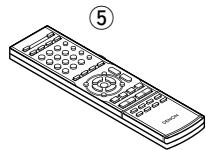
⑤ Remote control (RC-1120) 1
⑥ R03/AAA batteries 2
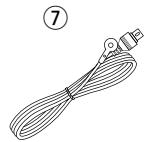
⑦ FM indoor antenna 1
⑧ AM loop antenna 1
⑨ Setup microphone (DM-A409, Cord length: Approx. 25 ft / 7.6 m)............ 1

Cautions on Handling
- Before turning the power switch on
Check once again that all connections are correct and that there are no problems with the connection cables.
- Power is supplied to some of the circuitry even when the unit is set to the standby mode. When traveling or leaving home for long periods of time, be sure to unplug the power cord from the power outlet.
- About condensation
If there is a major difference in temperature between the inside of the unit and the surroundings, condensation (dew) may form on the operating parts inside the unit, causing the unit not to operate properly.
If this happens, let the unit sit for an hour or two with the power turned off and wait until there is little difference in temperature before using the unit.
- Cautions on using mobile phones
Using a mobile phone near this unit may result in noise. If so, move the mobile phone away from this unit when it is in use.
- Moving the unit
Turn off the power and unplug the power cord from the power outlet.
Next, disconnect the connection cables to other system units before moving the unit.
- Note that the illustrations in these instructions may differ from the actual unit for explanation purposes.
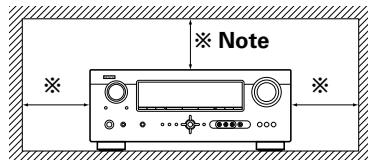
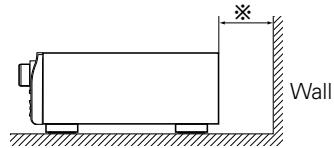
Cautions on Installation
Note:
For proper heat dispersal, do not install this unit in a confined space, such as a bookcase or similar enclosure.
About the Remote Control Unit
In addition to the AVR-590, the included remote control unit (RC1120) can also be used to operate the equipment listed below.
① DENON system components
② Non-DENON system components
- By setting the preset memory (12 page 46)
Inserting the Batteries
① Lift the clasp and remove the rear cover.
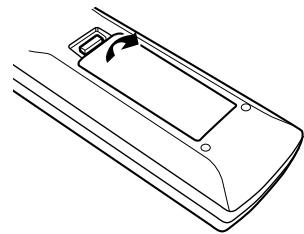
③ Put the rear cover back on.
② Load the two batteries properly as indicated by the marks in the battery compartment.
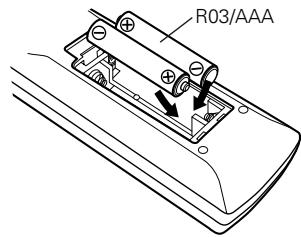
NOTE
- Replace the batteries with new ones if the set does not operate even when the remote control unit is operated close to the unit.
- The supplied batteries are only for verifying operation.
- When inserting the batteries, be sure to do so in the proper direction, following the "⊕" and "Θ" marks in the battery compartment.
-
To prevent damage or leakage of battery fluid:
-
Do not use a new battery together with an old one.
- Do not use two different types of batteries.
- Do not attempt to charge dry batteries.
- Do not short-circuit, disassemble, heat or dispose of batteries in flames.
- If the battery fluid should leak, carefully wipe the fluid off the inside of the battery compartment and insert new batteries.
- Remove the batteries from the remote control unit if it will not be in use for long periods.
- Used batteries should be disposed of in accordance with the local regulations regarding battery disposal.
Operating Range of the Remote Control Unit
Point the remote control unit at the remote sensor when operating it.
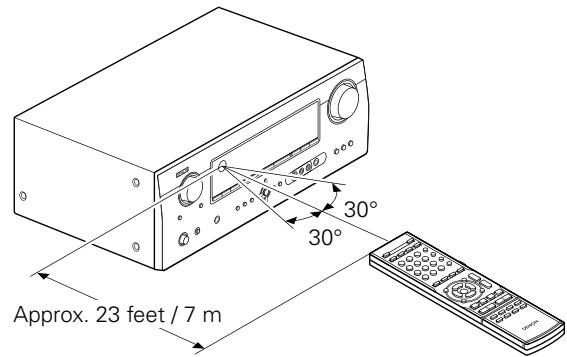
NOTE
The set may function improperly or the remote control unit may not operate if the remote control sensor is exposed to direct sunlight, strong artificial light from an inverter type fluorescent lamp or infrared light.
Part Names and Functions
Front Panel
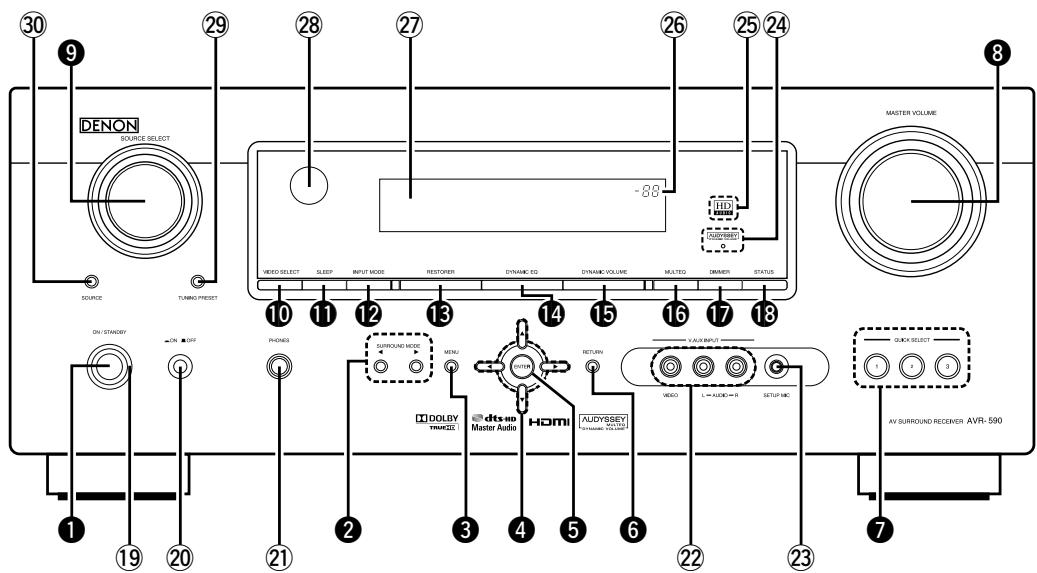
Buttons, connectors and displays only provided on the main unit
19 Power indicator (16)
20 Power switch (ON OFF) (16, 57)
②1 Headphones jack (PHONES) …………………… (37)
22 V. AUX INPUT connectors (15)
23 SETUP MIC jack (20)
24 AUDYSSEY DYNAMIC VOLUME indicator (42)
25 HD AUDIOindicator (38)
26 MASTERVOLUMEindicator
⑦ Display
28 Remote control sensor (3)
29 TUNING PRESET button (36)
30 SOURCE MODE SELECT button (34)
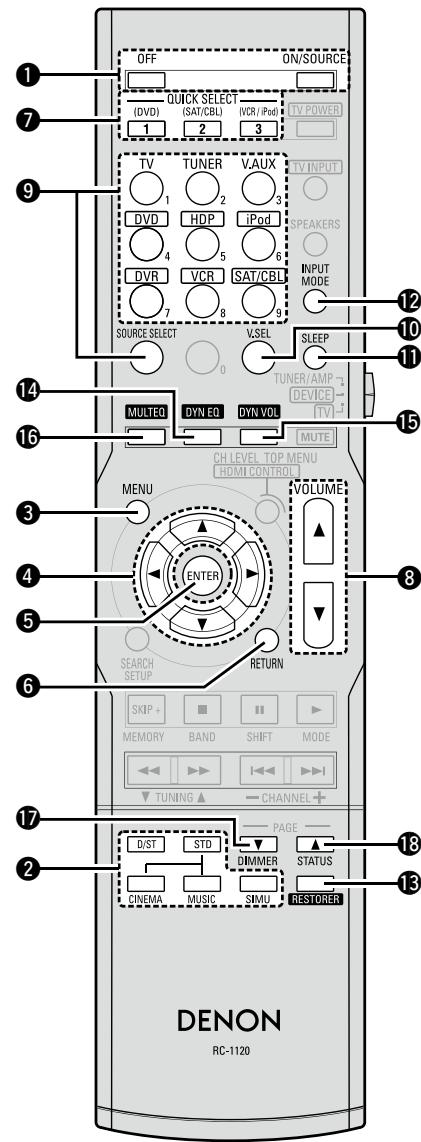
Button that function in the same way as remote control buttons
For buttons not explained here, see the page indicated in parentheses ( ).
Power operation button (ON/STANDBY) (16)
2 SURROUND MODE buttons (37)
3 MENU button (17)
4 Cursor buttons ( ) (17)
5 ENTER button (17)
RETURN button (17)
7 QUICK SELECT buttons (45)
8 MASTER VOLUME control knob (34)
9 SOURCE SELECT knob (34)
VIDEO SELECT button (44)
11 SLEEP TIMER button (44)
12 INPUT MODE button (32)
RESTORER button (43)
14 DYNAMIC EQ button (42)
15 DYNAMIC VOLUME button (42)
16 MULTEQ button (41)
DIMMER button (37)
STATUS button (43)
- Buttons that function in the same way as Front Panel buttons
Display
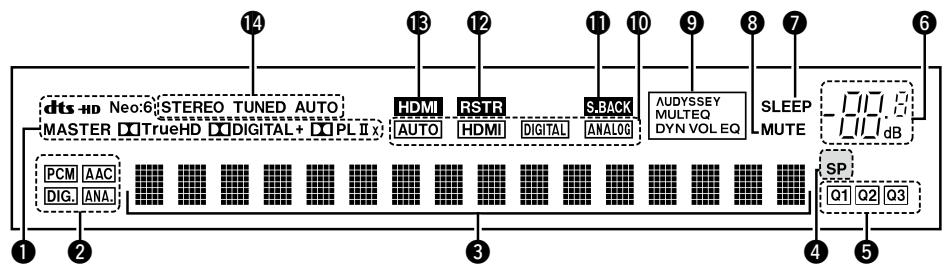
1 Decoder indicators
The indicator for the currently operating decoder lights.
2 Input audio signal indicators
Information display
The input source name, surround mode, setting values and other information are displayed here.
4 Front speaker indicator
Lights when audio signals are being output from the speakers.
5 QUICK SELECT indicators
These light when the Quick Select function is set ( page 45).
6 Master volume indicator
When performing setting operations, displays the menu number.
SLEEP TIMER indicator
Lights when the sleep timer is operating (page 44).
MUTE indicator
Lights when the muting mode is set ( page 37).
AUDYSSEY indicator
These light as shown below in the different modes ( page 41).
AUDYSSEY MULTEQ
: During "MultEQ" operation
AUDYSSEY MULTEQ DYN E
: During "MultiEQ", "Dynamic EQ" operation
AUDYSSEY MULTEQ DYN VOL
: During "MultEQ", "Dynamic EQ", "Dynamic Volume" operation
When speaker settings are changed after the Audyssey Auto Setup procedure, either the indicators' frame turns off or all the indicators turn off.
10 Input mode indicators
1 S.BACK indicator
Lights when surround back audio signals are being output from the SURR. BACK / FRONT HEIGHT PRE OUT connectors ( page 25).
12 RESTORER indicator
Lights during "RESTORER" operation ( page 43).
13 HDMI indicator
Lights when HDMI input signals are detected (page 13).
14 Tuner reception mode indicators
This lights according to the reception conditions when the input source is set to "TUNER".
- AUTO
This lights when in the auto tuning mode.
STEREO
In the FM mode, this lights when receiving analog stereo broadcasts.
TUNED
This lights when the broadcast is properly tuned in.
Rear Panel
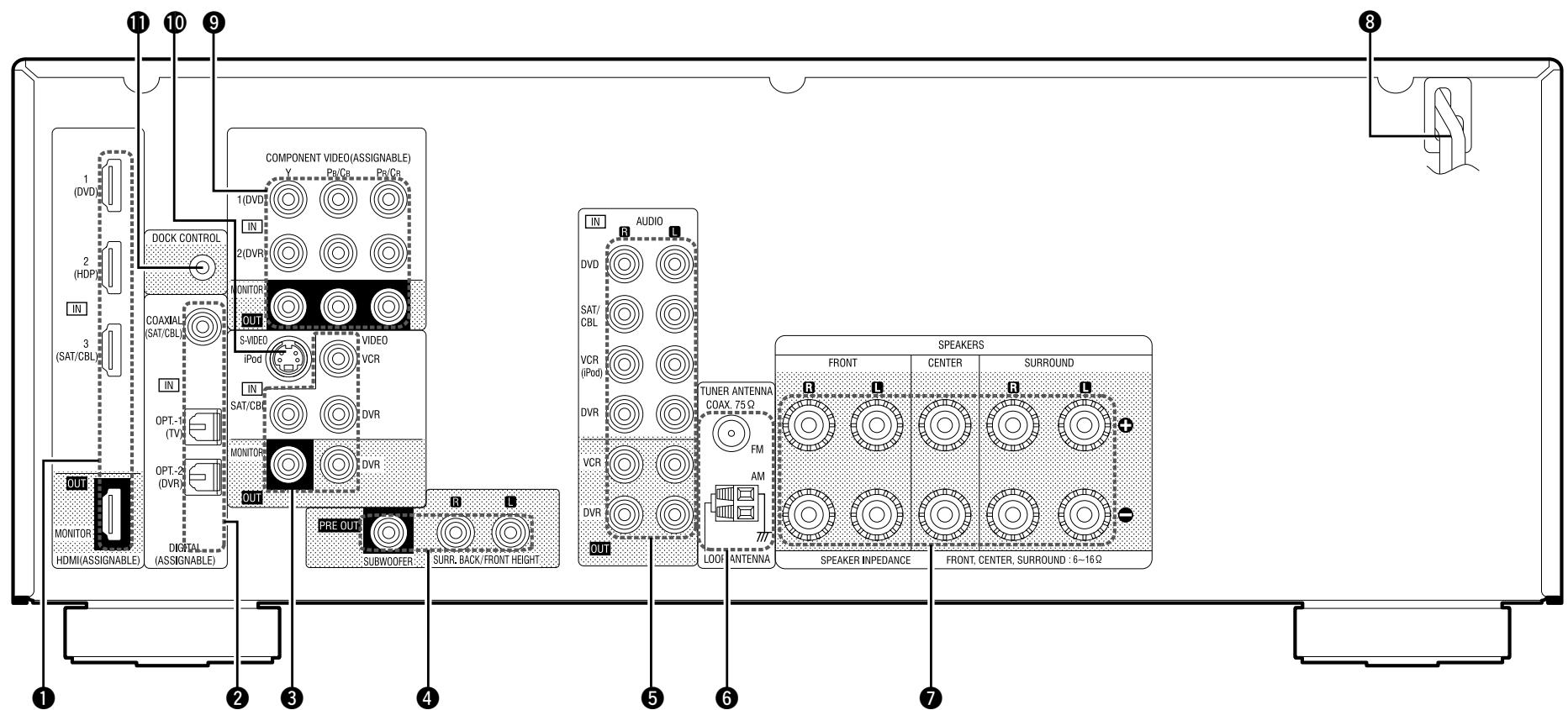
1 HDMI connectors (13)
Analog audio connectors (14)
9 COMPONENTVIDEO connectors (14)
2 Digital audio connectors (14)
⑥ FM/AM antenna terminals (16)
10 Control Dock for iPod S-Video input connector (14)
3VIDEO connectors (15)
7 Speaker terminals (11)
1 Control Dock for iPod DOCK CONTROL jack (14)
PRE OUT connectors (11)
8 Power cord (16)
Remote Control Unit
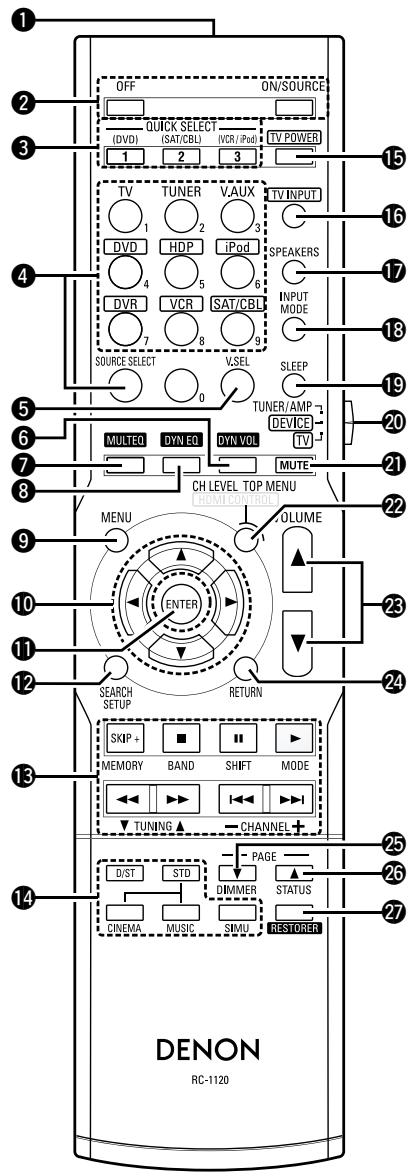
Remote control signal transmitter
Power buttons (16)
3 QUICK SELECT buttons (45)
4 SOURCE SELECT buttons (34)
⑤VIDEO SELECT button (44)
6 DYNAMIC VOLUME button (42)
7 MULTEQ button (41)
8 DYNAMIC EQ button (42)
9 MENU button (17)
10 Cursor buttons ( < ) (17)
1 ENTER button (17)
12 SEARCH button (35)
13 System buttons (46)
14 Surround mode buttons (37)
TV POWER button (47)
16 TV INPUT button (47)
17 FRONT HEIGHT SPEAKER ON/OFF button (41)
18 INPUT MODE button (32)
19 SLEEP TIMER button (44)
20 Device select switch (34, 46)
21 MUTING button (37)
2 Channel level adjustment button (45)
Master volume control buttons (34)
24 RETURN button (17)
DIMMER button (37)
26 STATUS button (43)
RESTORER button (43)
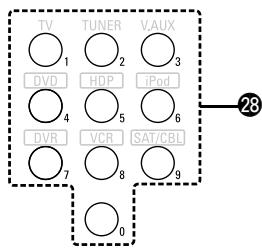
Number buttons (0 ~ 9) (46)

For buttons not explained here, see the page indicated in parentheses ( ).
Operations possible by remote control
Operations on the AVR-590
Operations on six devices other that the AVR-590
Preset the remote control codes of the devices to be operated beforehand (12 page 46).
① Switch the DEVICE SELECT switch according to the device to be operated.
② Press the SOURCE SELECT button for the device to be operated.
※ For detailed operating instructions, see "Operating registered devices" (25 page 46).
| ① DEVICE SELECT switch | ② SOURCE SELECT button | Operable devices |
| TUNER/AMP | - | AVR-590 and Tuner |
| DEVICE | DVD ○ | DVD Player or CD player |
| HOP ○ | Blu-ray disc player | |
| iPod ○ | iPod (DENON) | |
| DVR ○ | Digital video recorder | |
| VCR ○ | Video deck | |
| SAT/CBL ○ | Satellite receiver or Cable TV | |
| TV | TV ○ | TV |
Punch through setting ( page 48)
Connections
Connection Flow
Installing/Setting the Speakers ( page 10)

Connecting the Speakers ( page 11)

Connecting Devices (page 12)

Connecting Devices not Equipped with HDMI connectors ( page 13)
HDMI ( page 12)
Monitor (TV) ( page 13)
Playback Components
- Blu-ray Disc player / DVD player (14)
- iPod® (12 page 14)
SAT/CABLE Tuner ( page 14)
□ Recording Components
DVD Recorder (1 page 15)
Video Cassette Recorder ( page 15)
Other Devices
Video Camera / Game Console (10 page 15)
- Antenna terminals (page 16)
Power Cord

Turning the Power On (16)
Important Information
Connections for all compatible audio and video signal formats are described in this owner's manual. Please select the types of connections suited for the equipment you are connecting.
After connections are completed, certain settings must be made on the receiver. Make the settings indicated "Set as necessary" for the individual items.
NOTE
- Do not plug in the power cord until all connections have been completed.
- When making connections, also refer to the operating instructions of the other components.
- Be sure to connect the left and right channels properly (left with left, right with right).
- Do not bundle power cords together with connection cables. Doing so can result in humming or noise.
Cables Used for Connections
Select the cables according to the equipment being connected.
| Audio and video cables | ||
| HDMI connections | HDMI cable | |
| Audio cables | ||
| Coaxial digital connections | Coaxial digital cable | |
| Optical digital connections | Optical cable | |
| Analog connections (White) | L | L |
| (R) | (R) | |
| Analog connections (monaural, for subwoofer) | Stereo pin-plug cable | |
| Pin-plug cable | ||
| Speaker connections | + | + |
| - | - | |
| Video cables | ||
| Component video connections | (Green) | |
| (Blue) | ||
| (Red) | ||
| S-Video connections | ||
| S-Video cable | ||
| Video connections | (Yellow) | |
| 75 Ω/ohms pin-plug video cable | ||
Converting Input video signals for Output (Video Conversion Function)
The AVR-590 is equipped with four types of video input connectors (HDMI, Component video, S-Video and video) and three types of video output connectors (HDMI, Component video and video).
Use the connectors according to the devices to be connected.
This function automatically converts various formats of video signals input to the AVR-590 into the format used to output the video signals from the AVR-590 to a monitor.
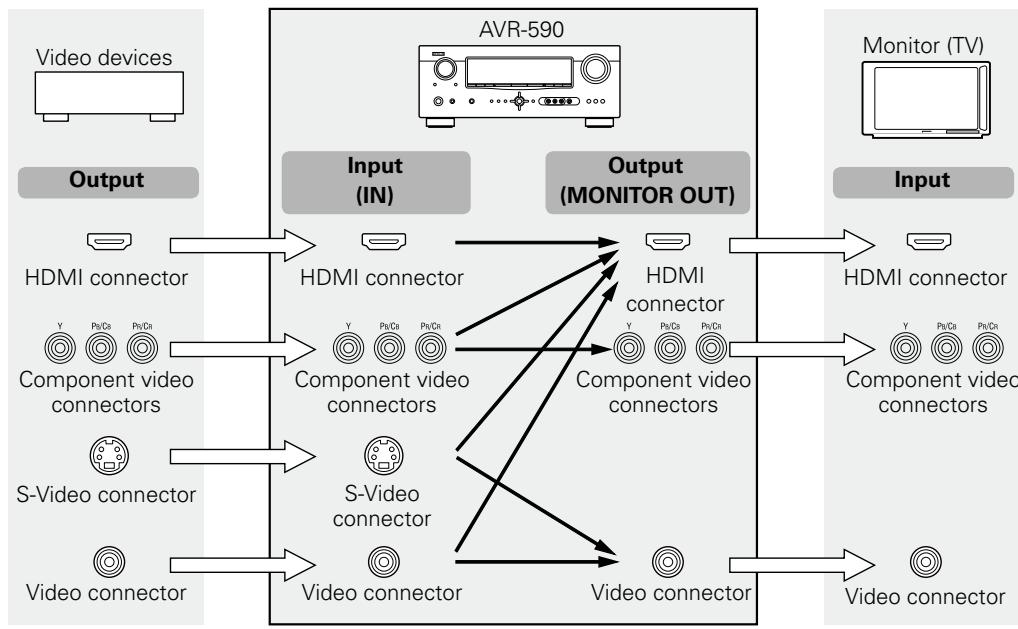

The video conversion function supports the NTSC, PAL, SECAM, NTSC 4.43, PAL-N, PAL-M and PAL-60 formats.
NOTE
- The S-Video input connector is exclusively for use with a Control Dock for iPod. It can be used when the Control Dock for iPod is connected to the connector assigned to the iPod input source.
- HDMI signals cannot be converted into analog signals.
- When a non-standard video signal from a game machine or some other source is input, the video conversion function might not operate.
How the on-screen display is displayed depending on the video input signal
The way the on-screen display of the menus, status, etc., is displayed differs according to the type of video signal input to the AVR-590.
When video signals are input from the HDMI or component video connectors
- Menu: Switches to a screen with a black background and the menu is superimposed. (※)
- Status display: Not displayed.
※: If you want to display the menus superimposed on the picture being played, input the same video signals to the S-Video or video connectors. When a menu is displayed, the picture switches to the one being input from the S-Video or video connectors and the menu is displayed superimposed over this picture.
NOTE
- Menu and status display screens are not displayed for component video connector pictures. To display them, also connect the video connectors.
When video signals are being input from the S-Video or video connectors
- Menu: Menus are displayed superimposed over the picture being played.
- Status display: Displayed.
Examples of on-screen display
-
Menu screen
-
Status display screen
When the input source is switched
When the volume is adjusted
MENU
- Parameter
- Information
- Auto Setup
- Manual Setup
- Input Setup
ENT : Select
[Auto]
IN :DVD
MODE:STEREO
Status display: The operating status is displayed temporarily on the screen when the input source is switched or the volume is adjusted.
Installing/Setting the Speakers
- The AVR-590 is compatible with various types of surround playback.
- Decide on the surround modes to be played on the AVR-590 before making connections and settings.
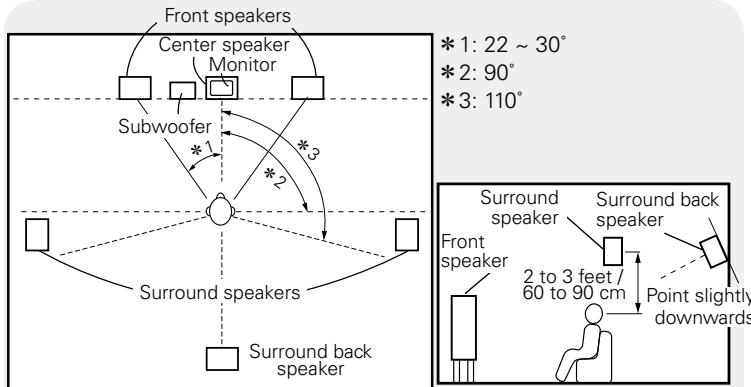
1 Determine the Speaker Layout.
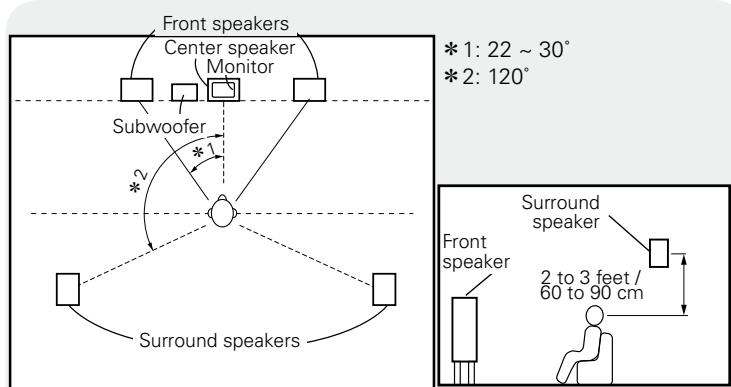
Below we introduce examples of speaker layouts. Refer to these to arrange your speakers according to their type and how you want to use them.
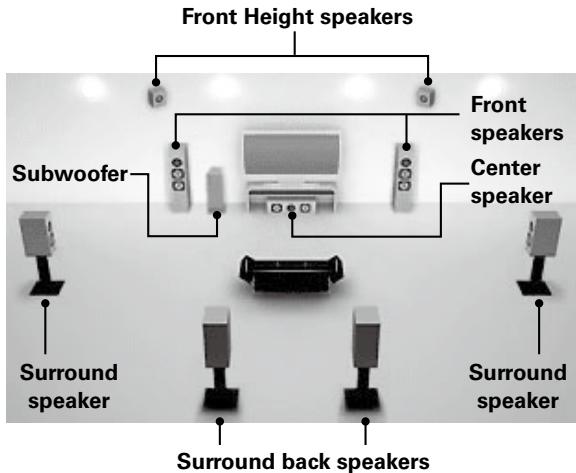
Installing All the Speakers
NOTE
- It is not possible to use the front height speakers and surround back speakers simultaneously.
- To play surround back speakers or front height speakers, connect a power amplifier to the AVR-590's SURR. BACK / FRONT HEIGHT PRE OUT connectors ( page 11).
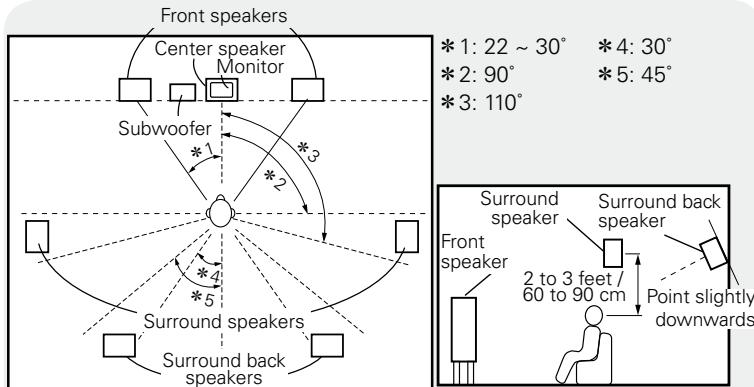
When 7.1ch (Surround Back Speaker) Connected
[As seen from above]
[As seen from the side]
When 6.1ch Connected
[As seen from above]
[As seen from the side]
When 5.1ch Connected
[As seen from above]
[As seen from the side]

□ When 7.1ch (Front Height Speaker) Connected
[As seen from above]
[As seen from the side]
2 Set the "Pre Assign" Mode According to the Speaker Layout.
The signals output from the AVR-590's SURR. BACK / FRONT HEIGHT PRE OUT connectors can be switched to signals of the surround mode being used ( page 24 "Pre Assign").
| Pre Assign mode (12 page 24) | The speaker which plays the a sound output from the SURR. BACK / FRONT HEIGHT PRE OUT connectors | Example of speaker installation |
| Normal (Default) | Surround back speakers | (7.1) |
| Normal | Surround back speakers ※ Connect to the SURR. BACK / FRONT HEIGHT PRE OUT “L” connector. ※ Set “S.Back (Pre out)” (12 page 25) to “1ch”. | (6.1) |
| Normal | Not connected ※ Set the “S.Back (Pre out)” setting (12 page 25) to “None”. | (5.1) |
| Front Height | Front Height speakers | (7.1) |
Connecting the Speakers
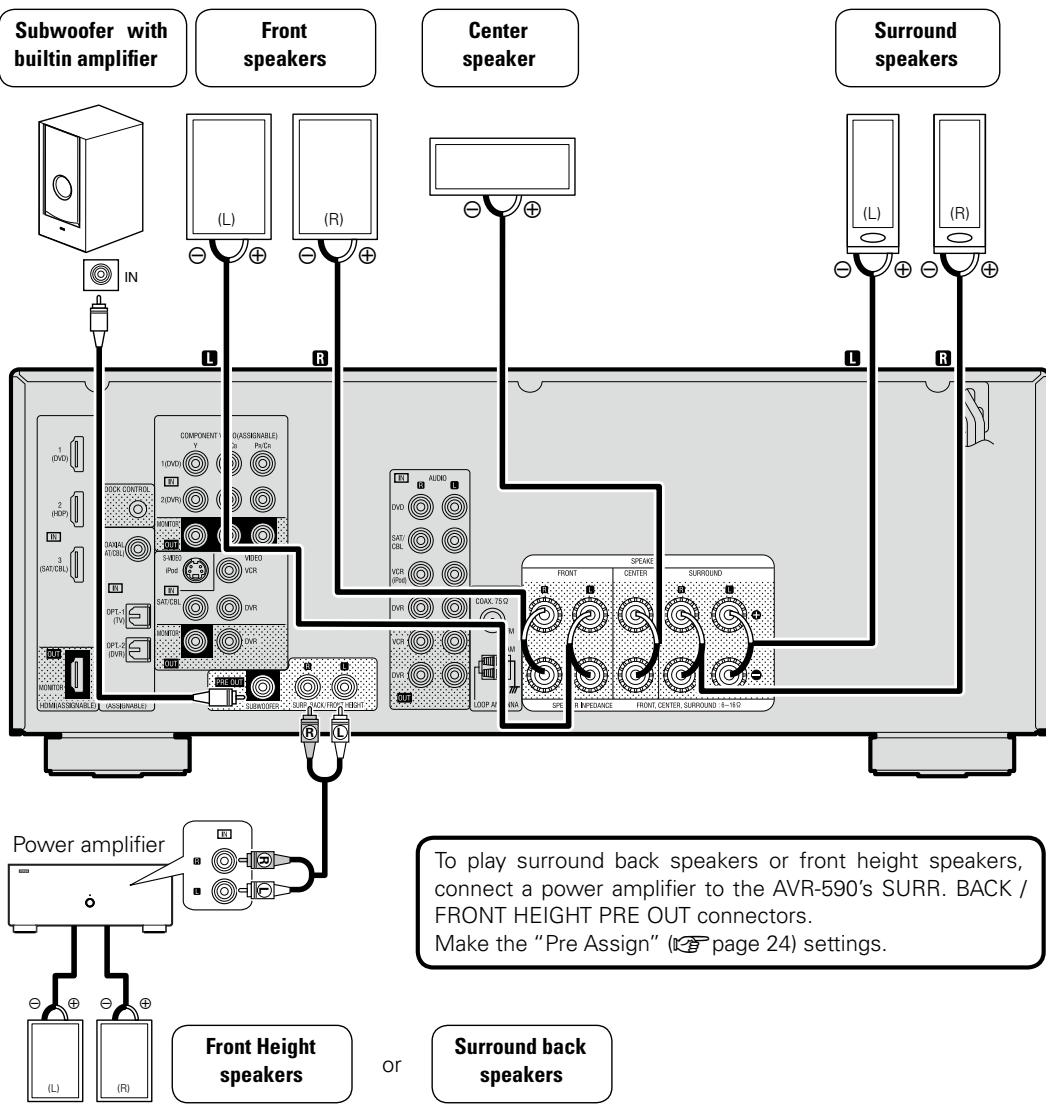
Connecting the Speaker Cables
Carefully check the left (L) and right (R) channels and + (red) and - (black) polarities on the speakers being connected to the AVR-590, and be sure to interconnect the channels and polarities correctly.
1 Peel off about 10 ~mm of sheathing from the tip of the speaker cable, then either twist the core wire tightly or terminate it.
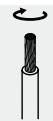
2 Turn the speaker terminal counterclockwise to loosen it.

3 Insert the speaker cable's core wire to the hilt into the speaker terminal.

4 Turn the speaker terminal clockwise to tighten it.

When using a banana plug
Tighten the speaker terminal firmly before inserting the banana plug.
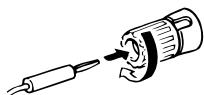

Use speakers with an impedance of 6 to 16 Ω/ohms.
NOTE
- Connect the speaker cables in such a way that they do not stick out of the speaker terminals. The protection circuit may be activated if the core wires touch the rear panel or if the + and - sides touch each other ("Protection circuit").
- Never touch the speaker terminals while the power supply is connected. Doing so could result in electric shock.
Protection circuit
If the core wires touch the rear panel and the screws etc., or the ± sides touch each other, the protection circuit will be activated and the power indicator will flash red at intervals of 0.5 secs.
If the protection circuit is activated, the speaker output is isolated, and the power supply goes to the standby state. If the power supply is turned off, after the power supply cord is withdrawn, please confirm that speaker cable and input cable are connected.
Also, if replaying large sound levels by using a speaker having an impedance less than that specified (eg, 4 Ω/ohms), the temperature will rise, and the protection circuit might be activated. The power supply will go into the standby state, and the power indicator will flash red at 2 second intervals.
In this case, please switch off the power supply, and wait until the AVR-590 has cooled down, and the surrounding ventilation is good.
Even if there are no problems with the surrounding ventilation and connections, in the event of the protection circuit becoming activated,
due to thinking that the AVR-590 has failed, please contact DENON Service center after switching off.
Connecting Devices
Connecting Devices Equipped with HDMI connectors
Important Information
About HDMI
"HDMI" is the abbreviation of "High Definition Multimedia Interface". This interface allows transfer of digital video signals and digital audio signals over a single HDMI cable.
"HDMI","HDMI logo" and "High-Definition Multimedia Interface" are trademarks or registered trademarks of HDMI Licensing LLC.
Functions usable with HDMI connections
Deep Color
Eliminates on-screen color banding, for smooth tonal transitions and subtle gradations between colors.
x.v.Color
Enables displays with natural, vivid colors. "x.v.Color" is a Sony registered trademark.
Auto Lip Sync (page 27)
HDMI 1.3 incorporates an automatic video/audio synching capability that allows devices to perform this synchronization automatically with total accuracy.
HDMI control function ( page 27, 44)
This function allows you to operate external devices from the receiver and operate the receiver from external devices.
NOTE
These functions will not work if the device connected to the HDMI connector does not support Deep Color or x.v.Color signal transfer or the Auto Lip Sync function.
Copyright protection system (HDCP)
The AVR-590 supports HDCP (High-bandwidth Digital Contents Protection). HDCP is a copyright protection technology for digital video signals. The devices connected to the AVR-590 must also support HDCP.
NOTE
When a device that does not support HDCP is connected, video signals are not properly output.
Connections
The AVR-590 allows connection of inputs from up to 3 HDMI devices and output to 1TV.
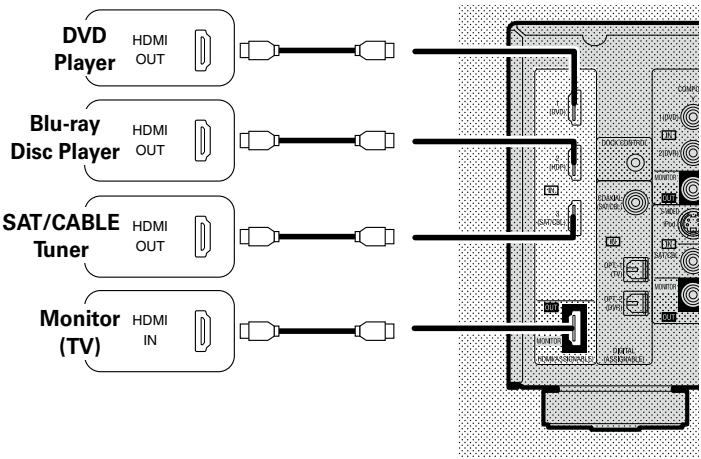

- Use a cable on which the HDMI logo is indicated (a certified HDMI product) for connection to the HDMI connector. Normal playback may not be possible when using a cable other than one on which the HDMI logo is indicated (a non-HDMI-certified product).
- When the AVR-590 is connected to other devices with HDMI cables, also connect the AVR-590 and TV using an HDMI cable.
- When a device supporting Deep Color signal transfer is connected, use a cable compatible with HDMI ver.1.3a.
- Video signals are not output if the input video signals do not match the monitor's resolution. In this case, switch the Blu-ray Disc player / DVD player's resolution to a resolution with which the monitor is compatible.
NOTE
- If the menu "HDMI Audio Out" setting (12 page 27) is set to "AMP", the sound may be interrupted when the monitor's power is turned off.
- The audio signal from the HDMI output connector (sampling frequency, number of channels, etc.) may be limited by the HDMI audio specifications of the connected device regarding permissible inputs.
- Connecting to a device equipped with a DVI-D connector
When an HDMI/DVI conversion cable (sold separately) is used, the HDMI video signals are converted to DVI signals, allowing connection to a device equipped with a DVI-D connector.
NOTE
- No sound is output when connected to a device equipped with a DVI-D connector. Also make the audio connections.
- Signals cannot be output to DVI-D devices that do not support HDCP.
- Depending on the combination of devices, the video signals may not be output.
□ Settings related to HDMI connections
Set as necessary. For details, see the respective reference pages.
Input connector assignment ( page 31)
Set this when changing the input sources of the different connectors.
HDMI Setup ( page 27)
Make these settings related to HDMI input/output signals.
- Auto Lip Sync
HDMI Audio Out
HDMI Control - Standby Source
- Power Off Control
NOTE
The audio signals output from the HDMI connectors are only the HDMI input signals.
Connecting Devices not
Equipped with HDMI connectors
Monitor (TV)
- Select the terminal to use and connect the device.
- For video connections, see "Converting input video signals for output (Video Conversion Function)" (page 9).
For instructions on HDMI connections, see "Connecting Devices Equipped with HDMI connectors" on page 12.
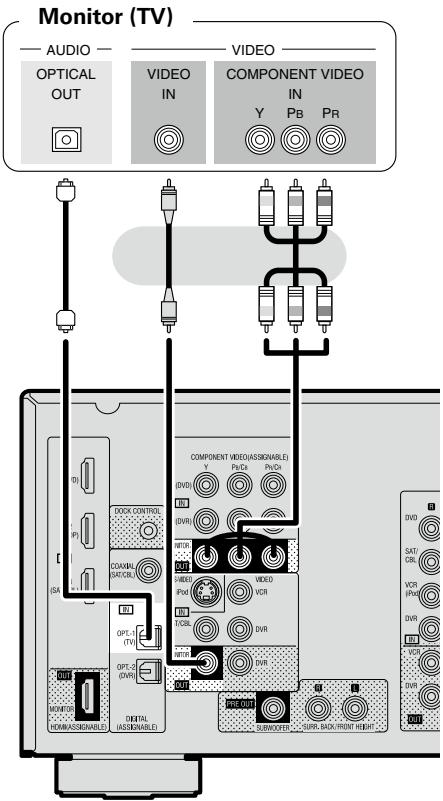

The component video connectors may be indicated differently on your monitor. For details, see the monitor's operating instructions.
Playback Components
Blu-ray Disc player / DVD player
Select the terminal to use and connect the device.
For instructions on HDMI connections, see "Connecting Devices Equipped with HDMI connectors" on page 12.
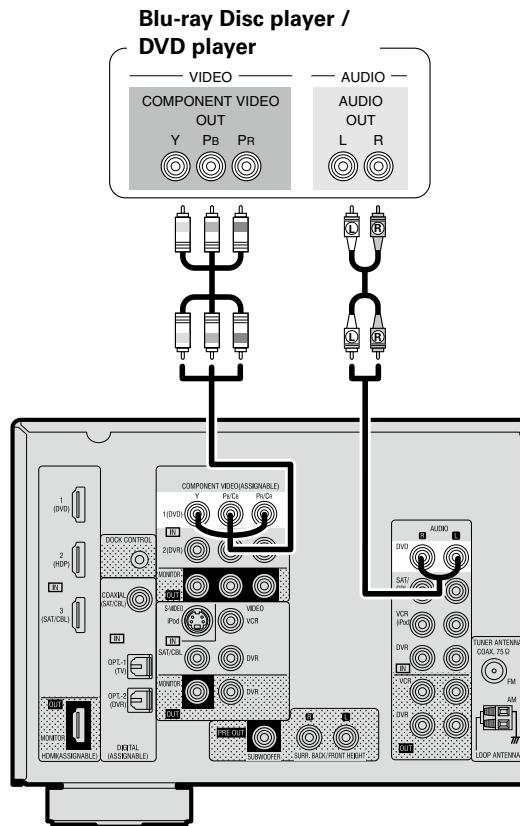
Set as necessary
Set this to change the input signal to which the input source is assigned.
"Assign" (15 page 31)
NOTE
When connected to a Blu-ray Disc player, and playing Dolby TrueHD, DTS-HD, Dolby Digital Plus, connect the HDMI.
Control dock for iPod®
Use a DENON control dock for iPod (ASD-1R, ASD-11R, ASD-3N or ASD-3W sold separately) to connect the iPod to the AVR-590. For instructions on the control dock for iPod settings, refer to the control dock for iPod's operating instructions.
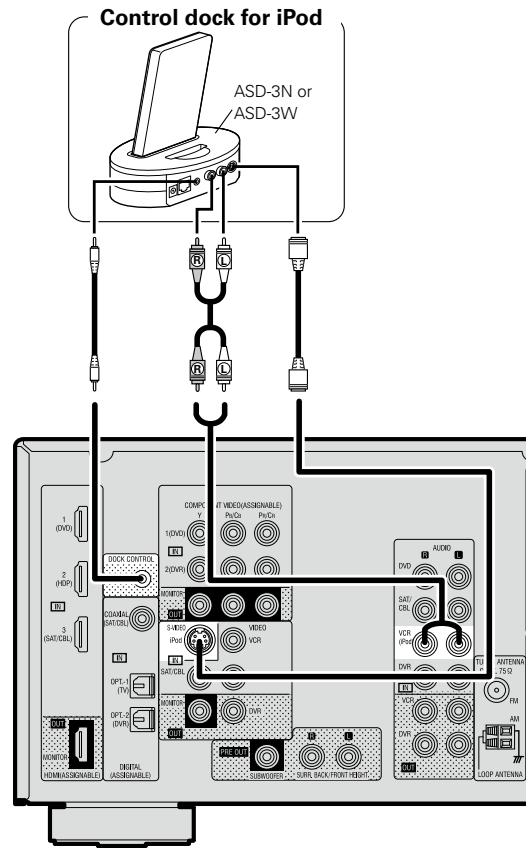
Set as necessary
Set this to assign the iPod to a connector other than "VCR (iPod)" "iPod Dock" ( page 31)

With the default settings, the iPod can be used connected to the VCR (iPod) connector.
SAT/CABLE Tuner
Select the terminal to use and connect the device.
For instructions on HDMI connections, see "Connecting Devices Equipped with HDMI connectors" on page 12.
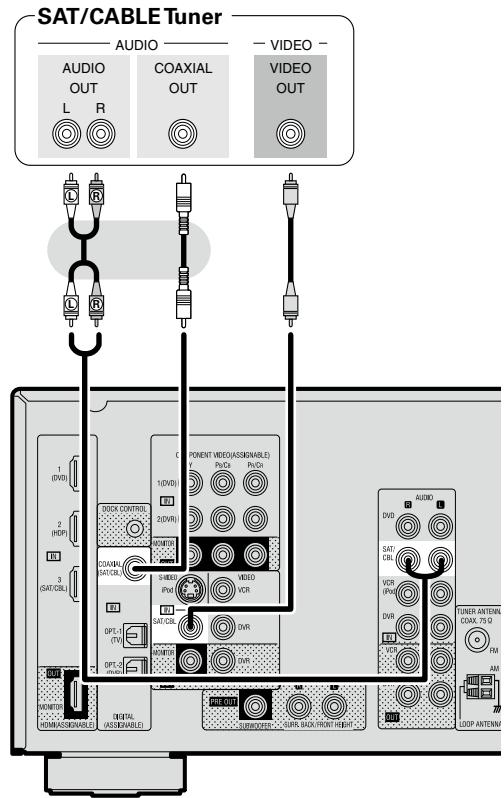
Set as necessary
Set this to change the input signal to which the input source is assigned.
"Assign" (1 page 31)
Recording Components
Digital Video Recorder
Select the terminal to use and connect the device.
For instructions on HDMI connections, see "Connecting Devices Equipped with HDMI connectors" on page 12.
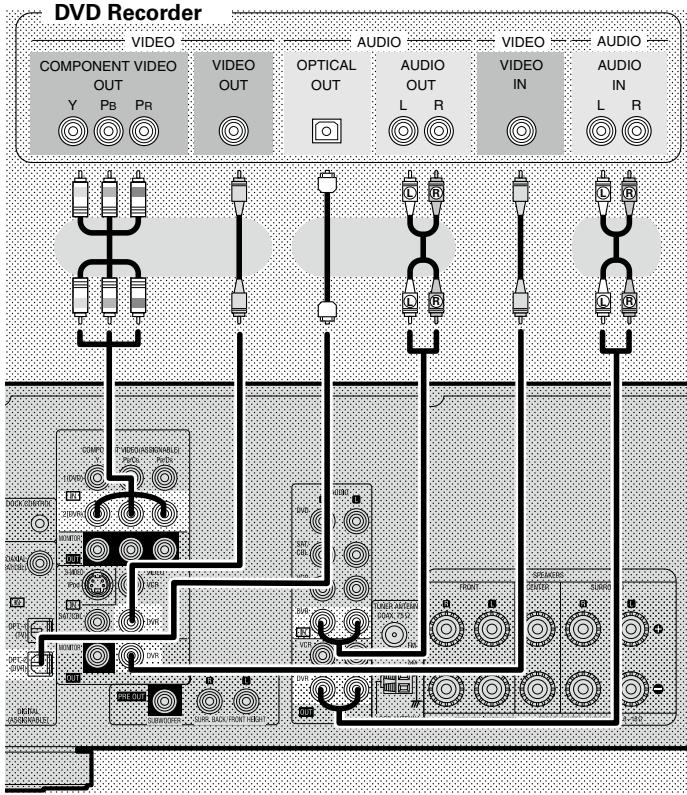
Set as necessary
Set this to change the input signal to which the input source is assigned.
"Assign" (1 page 31)
NOTE
To record video signals through the AVR-590, use the same type of video cable for connection between the AVR-590 and the player as the cable used for connection between the AVR-590 and the recorder.
Video Cassette Recorder
Select the terminal to use and connect the device.
For instructions on HDMI connections, see "Connecting Devices Equipped with HDMI connectors" on page 12.
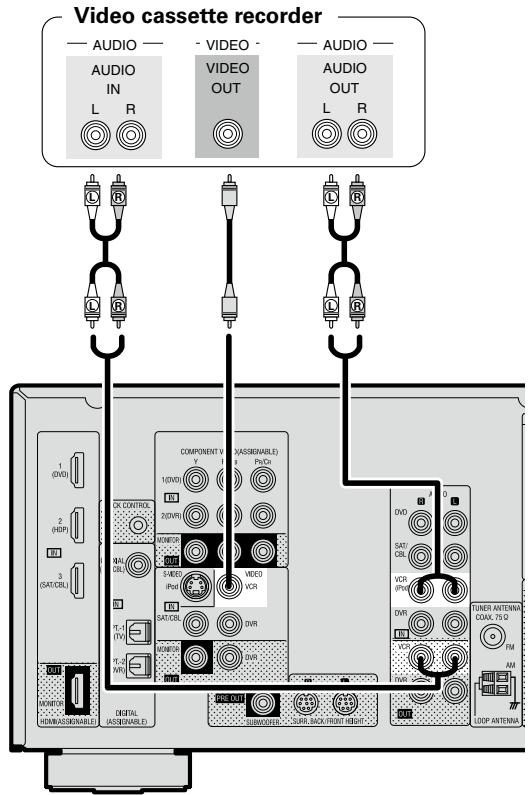
Set as necessary
Set this to change the input signal to which the input source is assigned.
"Assign" (1 page 31)
NOTE
To record video signals through the AVR-590, use the same type of video cable for connection between the AVR-590 and the player as the cable used for connection between the AVR-590 and the recorder.
Other Devices
Video Camera / Game Console
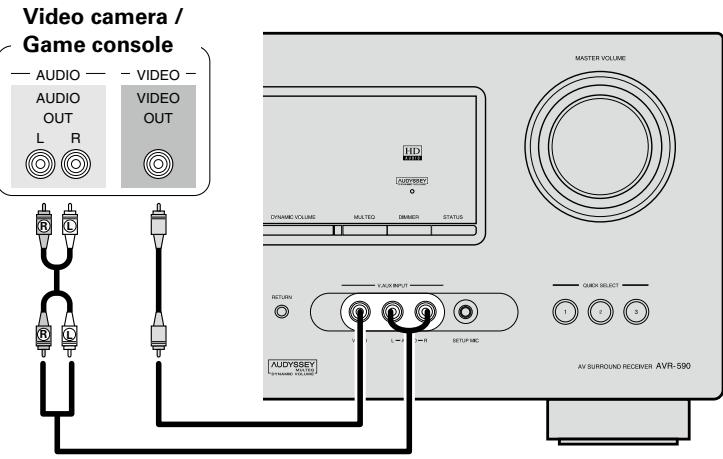
Connecting Devices not Equipped with HDMI connectors
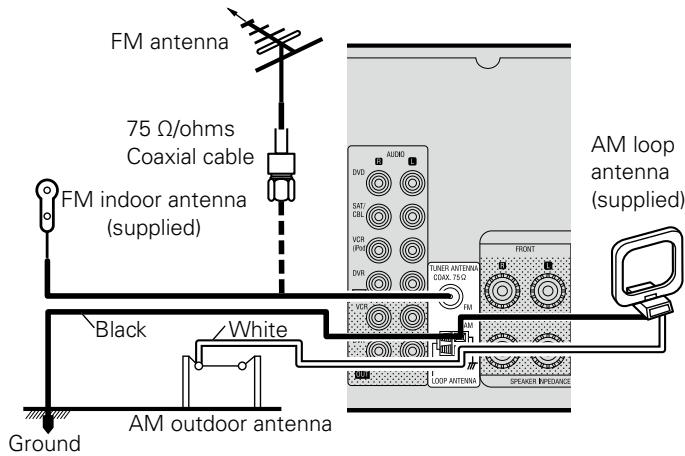
Antenna terminals
Direction of broadcasting station
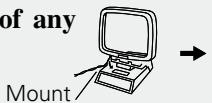
AM loop antenna assembly
1 Remove the vinyl tie and take out the connection line.

2 Bend in the reverse direction.

3-1 With the antenna on top of any stable surface.

3.2With the antenna attached to a wall.
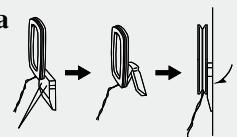
Installation hole Mount on wall, etc.
□ Connection of AM antennas
1 Push the lever.

2 Insert the conductor.
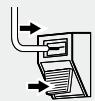
3 Return the lever.
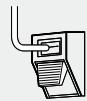
NOTE
- Do not connect two FM antennas simultaneously.
- Even if an external AM antenna is used, do not disconnect the AM loop antenna.
- Make sure the AM loop antenna lead terminals do not touch metal parts of the panel.
Connecting the Power Cord
Wait until all connections have been completed before connecting the power cord.
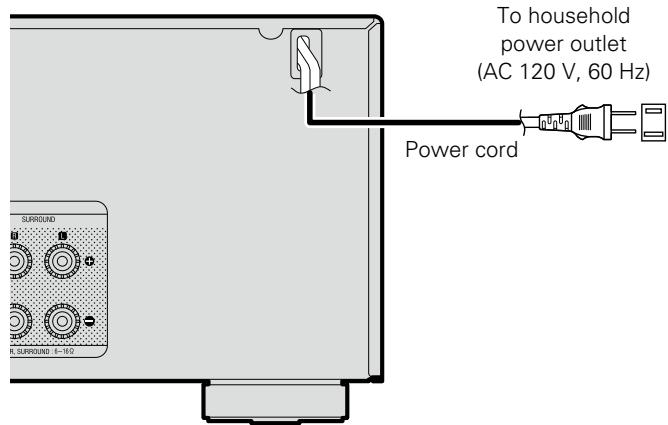
NOTE
Insert the AC plugs securely. Incomplete connections could cause noise.
Once Connections are Completed
Turning the Power On
1 Press ON OFF. The power in

The power indicator lights red and the power is set to the standby mode.
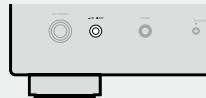
Press
The power indicator flashes green and the power turns on.
※Also press

QUICK SELECT

(SAT/CBL)

standby mode, the power turns on.
SOURCE SELECT
When

been pressed, the input
source set with the

is set.
QUICK

一

If a 1

VCRIF003

open pressed , the input source stored

:

"Saving free
frequently used settings (Quick Select Function)".

This operation can also be performed by
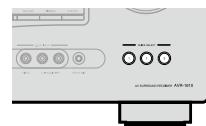
pressing a on the main unit.
Turning the Power Off
Press
The power is set to the standby mode.
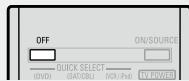
Press
The power indicator turns off, and so does the power.
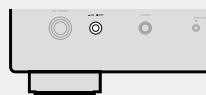
NOTE
Power continues to be supplied to some of the circuitry even when the power is in the standby mode. When leaving home for long periods of time or when traveling, either press ON OFF to turn off the power, or unplug the power cord from the power outlet.
Settings
With the AVR-590, settings and operations for most functions can be performed by operating while looking at the menus displayed on the monitor screen.
Menu map
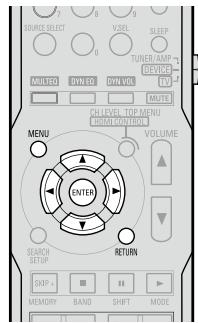
Operations
1
Pre
The menu is displayed.
2
Press △∇ to select the item you want to set, then press
ENTER
3 Press to select the item you want to set, then press
ENTER
※
4 Use the
△V pres
S ENTER
to s to se
elect the item, t.
※To return to the previous item, press
O RETURN
※Select“DefaultYes”,then pres reset to the default setting.
ENTER
5 Press
MENUE
The settings made up to that point are entered and the settings menu screen turns off.
Setting menus
MENU
- Parameter
- Information
- Auto Setup
- Manual Setup
5.1_nput_Setup_
Items that only need to be set once
Set these for example upon purchase.
Once these items are set, there is no need to set them again unless the speaker layout or the connected speakers have been changed.
| Setting items | Number | Detailed items | Description | Page |
| 1. ParameterAdjust various audio parameters. | 1-1 | Surround Parameter | Adjust surround sound parameters. | 39 |
| 1-2 | Tone Control | Adjusts the treble and bass tone. | 41 | |
| 1-3 | Audyssey Settings | Makes the MultEQ, Dynamic EQ and Dynamic Volume settings. | 41 | |
| 1-4 | Manual EQ | Adjust tonal quality for each speaker using graphic equalizer. | 42 | |
| 1-5 | RESTORER | Uncompress compressed sources and apply bass boost for richer sound. | 43 | |
| 1-6 | Audio Delay | Compensate for incorrect timing between video and audio. | 43 | |
| 2. InformationShow information about receiver settings, input signals, etc. | 2-1 | Status | Shows information about current settings. | 43 |
| 2-2 | Audio Input Signal | Shows information about audio input signals. | 43 | |
| 2-3 | HDMI Information | Displays the HDMI input/output signals and TV information. | 43 | |
| 2-4 | Auto Surround Mode | Displays the settings stored for the auto surround mode. | 43 | |
| 2-5 | Quick Select | Displays the settings stored for the Quick Select function. | 43 | |
| 2-6 | Preset Channel | Shows information about preset channels. | 43 | |
| 3. Auto SetupMakes the optimum speaker settings and corrects for the acoustic characteristics of the room. | 3-1 | Audyssey Auto Setup | Makes the optimum settings for the speakers being used automatically. | 20 |
| 3-2 | Parameter Check | Check Audyssey Auto Setup measurement results.This item is only displayed after the Audyssey Auto Setup procedure has been performed. | 23 | |
| 4. Manual SetupUse this to make various types of detailed settings. | 4-1 | Speaker Setup | Sets the speaker size and distance, the channel level, etc. | 24 |
| 4-2 | HDMI Setup | Make settings for HDMI video/audio output. | 27 | |
| 4-3 | Audio Setup | Make settings for audio playback. | 28 | |
| 4-4 | Option Setup | Make various other settings. | 28 | |
| 5. Input SetupUse this to make settings related to playing input sources. | 5-1 | Assign | Change input connector assignment. | 31 |
| 5-2 | Input Mode | Sets the audio input mode and decode mode. | 32 | |
| 5-3 | Rename | Change the display name for this source. | 32 | |
| 5-4 | Source Level | Adjust the playback level of the audio input. | 33 | |
| 5-5 | iPod Playback Mode | Make settings for iPod playback. | 33 | |
| 5-1 | Auto Preset | Use the auto preset function to program radio stations. | 33 | |
| 5-2 | Preset Skip | Set the preset memories that you do not want to display when tuning. | 33 | |
| 5-3 | Preset Name | Assign name to a preset memory. | 33 |
Examples of On-screen Display and Front Display
Below we describe typical examples of displays on the TV screen and on the set's display window.
| On-screen Display | Front Display | Description | |
| Top menu display | 2 1 Parameter Information Auto Setup Manual Setup Input Setup [ENT] : Select | 3 Parameter 2 | 1: The menu items are displayed here. 2: The selected line is displayed here. The currently selected item is displayed on the display. Use △▼ to move to the item you want to set. 3: The number of the current selected setting menu is displayed. |
| Display when changing settings | 1 5-1-1 Input Assign HDMI Digi Comp DVD 1 1 HDP 2 01 TV SAT/CBL 3 C1 VCR/iPod 02 2 DVR 02 2 [ENT] : Select [RTN] : Back Press [ENTER]. | 1 1 DVD HDMI 1 57 2 Press [ENTER]. | 1: The number of the current selected setting menu is displayed. 2: Use △▼ ▲ ▽ to move to the item you want to set. 3: Press [ENTER] to set to the mode in which the setting can be made. 4: ▲ ▽ is displayed at the sides of items whose setting can be changed. Use ▲ ▽ to change to the desired setting. |
| 1 5-1-1 Input Assign HDMI Digi Comp DVD 1 1 TV SAT/CBL 3 C1 VCR/iPod DVR 02 2 [ENT] : Select [RTN] : Back Press [ENTER]. | |||
| Display when inputting characters | 3 5-3 Rename 1 DVD 1 1 DVD Default 2 [SRCH] : Caps. [ENT] : OK [RTN] : Cancel | 3 1 DVD 4 DVD 5 3 1 | 1: When ▲ ▽ is pressed, the cursor moves to the left or right. 2: When △▼ is pressed at the position at which you want to input the character, the character is input. 3: The number of the current selected setting menu is displayed. |
| Display when resetting | 2 5-3. Rename DVD : [ DVD ] 1 Default [▲▼] : Up/Down [ENT] : Select [RTN] : Back | Default 1 2 Default? : 4 No 2 | 1: Press ▼ to select "Default", then press [ENTER] to set. 2: The number of the current selected setting menu is displayed. |

Making the Optimum Settings for the Connected Speakers Automatically (Audyssey Auto Setup)
The acoustic characteristics of the connected speakers and listening room are measured and the optimum settings are made automatically.
Audyssey Auto Setup Flow
Step 1:Connect the included Setup Microphone ( page 20)

Step 2 : Audyssey Auto Setup Preparations
page 21)
Changing the PRE OUT connectors assignment
(Pre Assign) (page 21)

Step 3 : Performing the Audyssey Auto Setup
Procedure ( page 21)
Check Audyssey Auto Setup Measurement
Results (Parameter Check) ( page 23)
Important Information
Audyssey MultEQ® automatically measures the acoustical problems in the listening environment to create the best audio experience for your home theater.
- When the Audyssey Auto Setup procedure is performed, the MultEQ, Dynamic EQ and Dynamic Volume functions (K page 41) are enabled.
- Use the included setup microphone (DM-A409) to perform the Audyssey Auto Setup procedure.
- Measurements are performed by placing the calibrated microphone successively at multiple positions throughout the listening area as shown in [Example ①]. For best results, it is strongly recommended to measure 6 positions so that the measurements have the proper spatial weighting.
Even if the listening environment is small as shown in [Example ②], measuring at multiple points throughout the listening environment results in more effective correction.
When using Front Height Speakers
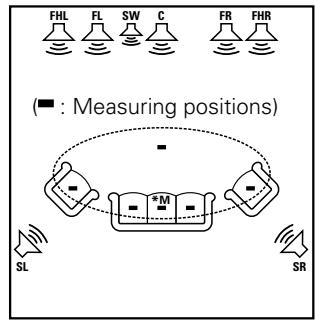
【Example ①】
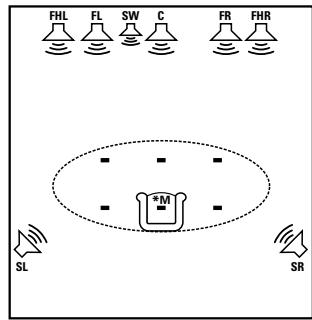
【Example ②】
When using Surround Back Speakers
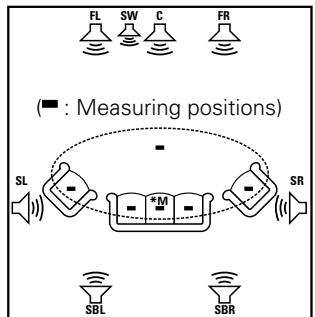
【Example ①】
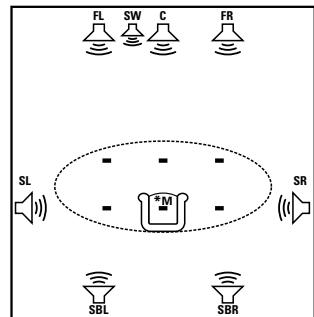
【Example ②】
FHL :Front height speaker (L)
FL :Front speaker (L)
SW : Subwoofer
C : Center speaker
FR : Front speaker (R)
FHR : Front height speaker (R)
SR : Surround speaker (R)
SBR: Surround back speaker (R)
SBL:Surround back speaker (L)
SL : Surround speaker (L)
About the main listening position (*M)
The main listening position refers to the most central position where one would normally sit within the listening environment.
MultEQ uses the measurements from this position to calculate speaker distance, level, polarity, and the optimum crossover value for the subwoofer.
NOTE
- Loud test sounds may be played during Audyssey MultEQ automatic speaker setup. This is part of normal operation. If there is background noise in room, these test signals will increase in volume.
- Do not stand between the speakers and setup microphone or allow obstacles in the path while the measurements are being made. This will cause inaccurate readings.
- Make the room as quiet as possible. Background noise can disrupt the room measurements. Close windows, silence cell phones, televisions, radios, air conditioners, fluorescent lights, home appliances, light dimmers, or other devices as measurements may be affected by these sounds.
Cell phones should be placed away from all audio electronics during the measurement process as Radio Frequency Interference (RFI) may cause measurement disruptions (even if the cell phone is not in use).
Step 1 : Connect the included Setup Microphone
NOTE
- Do not disconnect the setup microphone until the Audyssey Auto Setup procedure is completed.
- When using headphones, unplug the headphones before starting the Audyssey Auto Setup procedure.
1 Check the speaker connections.
page 11 "Connecting the Speakers"
2 Turn on the power of the TV and subwoofer.
Set the TV's input to the AVR-590.
3 Turn on the AVR-590's power.
page 16 "Turning the Power On"
4 Connect the included calibrated setup microphone to the SETUP MIC jack on the main unit.
The Audyssey Auto Setup screen appears automatically.
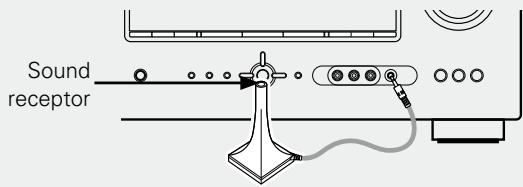
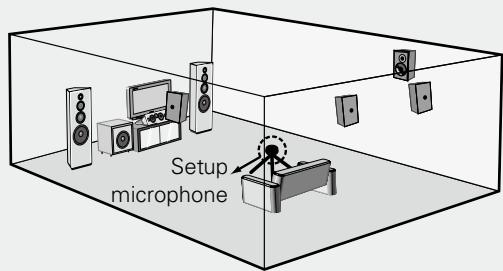
5 Mount the setup microphone on a tripod or stand and install it at the main listening position.
When installing the setup microphone, adjust its height so that the section where the sound is received is at the height of the ears during listening.
NOTE
- Do not hold the microphone in your hand during measurements.
- Avoid placing the microphone close to a seat back or wall as sound reflections may give inaccurate results.
When using a subwoofer on which the volume can be adjusted and the crossover frequency can be set
When using a subwoofer, make the following settings before starting the Audyssey Auto Setup procedure:
When using a subwoofer with a direct mode
Set the direct mode to "On" and disable the volume adjustment and crossover frequency setting.
When using a subwoofer without a direct mode
Make the following settings:
Volume : "12 o'clock position"
- Crossover frequency : "Maximum/Highest Frequency"
- Low pass filter : "Off"
- Standby mode : "Off"
Step 2: Audyssey Auto Setup Preparations

around items indicate the settings made upon purchase.
If adjustment to the environment is necessary, set the following items before proceeding.
Changing the PRE OUT connectors assignment (Pre Assign)
The signals output from the AVR-590's SURR. BACK / FRONT HEIGHT PRE OUT connectors can be switched to signals of the surround mode being used.
1 Press to select "Pre Assign".
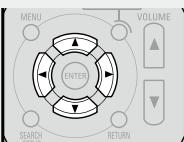
Press to select Pre Assign Mode.
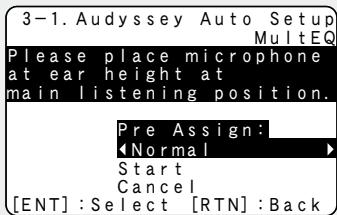
Normal
: The sound of the surround back channel is output from the SURR. BACK / FRONT HEIGHT PRE OUT connectors.
Front Height
: The sound of the front height channel is output from the SURR. BACK / FRONT HEIGHT PRE OUT connectors.
To cancel Audyssey Auto Setup
Use to select "Cancel", then use to select "Yes".
Step 3 : Performing the Audyssey Auto Setup Procedure
- The Audyssey Auto Setup function detects the presence of each speaker and automatically calculates the speaker size, channel level, distance, and optimal crossover frequency setting. Audyssey MultEQ corrects acoustical distortions within the listening area.
- Once started, MultEQ will play a series of test tones through each speaker.
- Before starting, connect and position all of your speakers.
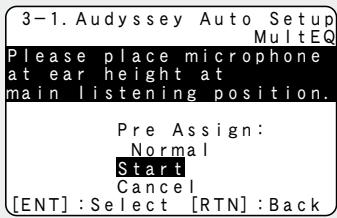
1 Press to select "Start", then press ENTER.
Detection of the speaker configuration starts.
2 Once all the speakers have been detected and the screen on the right appears, check the results of detection of the connected speakers.
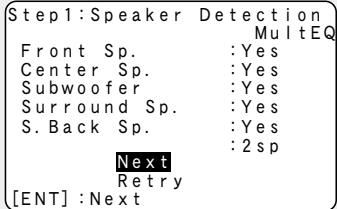
3 Once you have checked the results, use to select "Next", then press ENTER.
Measurements for the main listening position begin.
4 Once the screen on the right appears, move the setup microphone to the second position, use to select "Next", then press ENTER.
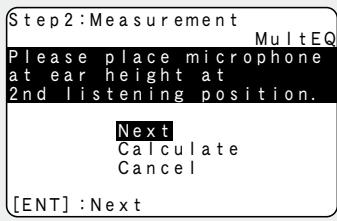
Measurements for the second position begin.
5 Perform Step 4 repeatedly for the 3rd, 4th, 5th, and 6th measurments.
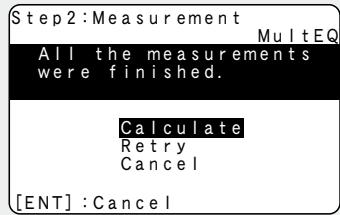
Once measurements for the sixth position are completed, "All the measurements were finished." is displayed.
Measure at a total of six positions, including the main listening position and positions around it. It is possible to stop the settings with five positions or fewer, but for better results we recommend measuring at six positions.
6 Once measurements are finished, use to select "Calculate", then press ENTER. Analysis begins.
※ Analysis takes several minutes to complete. The time required for this analysis depends on the number of speakers connected. The greater the number of speakers connected, the longer analysis will take.

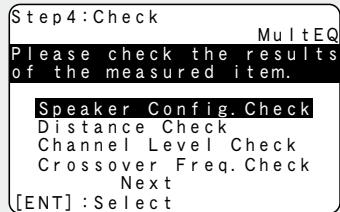
7 Use to select the item you want to check, then press ENTER.
The measurement result confirmation screen is displayed.
Subwooers or other speakers may be set to a value that does not correspond to the actual distance.

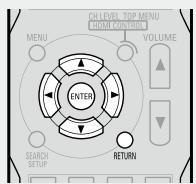
Press RETURN.
This returns you to analysis results items, so repeat step 7.

Press to select "Next", then press ENTER.

10 Press to select "Store", then press
"Storing Please wait..." is displayed on the onscreen display while the results are being stored. When storing is complete, "Storing complete. Auto Setup is now finished." is displayed on the onscreen display.
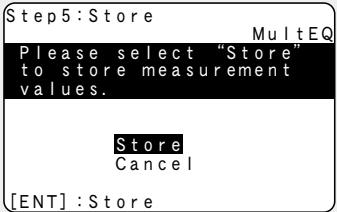
If you do not want to save the measurement results, use to select "Cancel", then select "Yes" using All the measured Audyssey Auto Setup data will be erased.
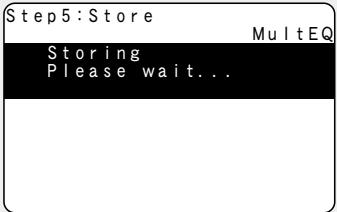
NOTE
Do not turn the power off while the settings are being stored.
12 Disconnect the setup microphone from the AVR-590.
NOTE
Do not change the speaker connections or subwoofer volume, or speaker locations after making measurements. If changes are necessary, make the changes and use the Audyssey Auto Setup once again for an updated EQ solution.

- If the result differs from the actual connection status or an error message appears, use to on-screen display "Retry" and then press
ENTER to repeat the measurement. - If the result still differs from the actual connection status after remeasurement or the error message still appears, it is possible that the speakers are not connected properly. Turn the AVR-590 off, check the speaker connections and repeat the measurement process from the beginning.
- For instance, If the location or direction of a speaker is altered, the Audyssey Auto Setup should be performed again to ensure the correct EQ solution for the new room configuration.
Error Messages
If the Audyssey Auto Setup procedure could not be completed due to speaker installation, the measuring environment, etc., an error message is displayed. If this happens, check the relevant items, be sure to take the necessary measures, then perform the Audyssey Auto Setup procedure over again.
NOTE Be sure to turn the power off before checking the speaker connections.
| Error messages (examples) | Cause | Measures |
| Caution • MultEQ • Microphone: None or Speaker: None • Retry Cancel [ENT]:Retry | • Included setup microphone is not connected. • Not all speakers could be detected. • The front L speaker was not properly detected. | • Connect the included setup microphone to the SETUP MIC jack on the main unit. • Check the speaker connections. |
| Caution • MultEQ • Ambient noise is too high or Level is too low. • Retry Cancel [ENT]:Retry | • Too much noise in the room for accurate measurements to be made. • Speaker or subwoofer sound is too low for accurate measurements to be made. | • Either turn off any device generating noise or move it away. • Try again when the surroundings are quieter. • Check the speaker installation and the direction in which the speakers are facing. • Adjust the subwoofer's volume. |
| Caution • MultEQ • Front R :None • Retry Cancel Skip [▲▼] :Up/Down [▲▼] :CH | • Displayed speaker could not be detected. • The front R speaker were not properly detected. • Only one channel of the surround speakers was detected. • Sound was output from the R channel when only one surround back speaker was connected. • The surround back, but the surround speaker was not detected. | • Check the connections of the displayed speaker. |
| Caution • MultEQ • Front L :Phase • Retry Cancel Skip [▲▼] :Up/Down [▲▼] :CH | • Displayed speaker connected with the polarities reversed. | • Check the polarities of the displayed speaker. • For some speakers, this error message may be displayed even if the speaker is properly connected. If you are sure that the wiring is correct, press △▼ to select “Skip”, then press ENTER. |
To perform the Audyssey Auto Setup procedure again
Press to select "Retry", then press (ENTER).
To cancel Audyssey Auto Setup
Use to select "Cancel", then select "Yes" using .
Check Audyssey Auto Setup Measurement Results (Parameter Check)
This is displayed after the Audyssey Auto Setup procedure is completed.
| 3-2. Parameter Check |
| Speaker Config. Check |
| Distance Chenck |
| Channel Level Check |
| Crossover Freq. Check |
| EQ Check |
| Restore |
| [ENT]:Select [RTN]:Back |
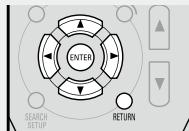
Use to select the item you want to check, then press ENTER.
Speaker Config. Check : Check the speaker configuration
Distance Check : Check the distance
Channel Level Check : Check the channel level
Crossover Freq. Check : Check the crossover frequency
EQ Check : Check the equalizer
3 Use to switch the display between the different speakers.
4 Press RETURN. The confirmation screen reappears. Repeat steps 2 and 3.

Even if the settings are changed after the Audyssey Auto Setup procedure, the Audyssey Auto Setup settings can be restored by selecting "Restore" then pressing ENTER.
Making detailed settings (Manual Setup)
Use this procedure to change the Audyssey Auto Setup settings or to change the various audio, video and display settings.
The set can be used without changing these settings. Make these settings as necessary.
For a description of "Menu map" and operating instructions, see page 17.
□ Items that can be set with the Manual Setup procedure

Making the speaker settings (Speaker Setup) page 24

Making the HDMI settings (HDMI Setup) page 27

Making the audio settings (Audio Setup) page 28

Making other settings (Option Setup) page 28
Examples of Menu Screen Displays
Speaker Setup
4-1. Speaker Setup
- Pre Assign
- Speaker Config.
- Bass Setting
- Distance
- Channel Level
- Crossover Freq.
ENT : Select [RTN] : Back
Audio Setup
4-3. Audio Setup
- Auto Surround Mode
2.EQ Customize
ENT : Select [RTN] : Back
HDMI Setup
4-2.HDMI Setup
Auto Lipsync : ON
HDMI Audio Out : Amp
HDMI Control : OFF
[RTN] : Back
Option Setup
4-4. Option Setup
- Volume Control
- Source Delete
- On-Screen Display
- Quick Select Name
- Setup Lock
ENT : Select [RTN] : Back

Making the speaker settings (Speaker Setup)
Default settings are underlined.
Use this procedure to set the speakers manually or if you wish to change the settings made with the Audyssey Auto Setup procedure.
| Setting items | Setting contents |
| Pre Assign Sets the signal output from the SURR. BACK / FRONT HEIGHT PRE OUT connectors. | Normal: The surround back channel audio signals are output. Front Height: The front height channel audio signals are output. |
| Speaker Config. Select speaker configuration and size. (bass reproduction capability) | Front: Set the front speaker size. • Large: Use of a large speaker that can adequately play back low frequencies. • Small: Use of a small speaker that has inadequate playback capacity for low frequencies. If "Subwoofer" is set to "No", "Front" is automatically set to "Large". |
| Center: Set the presence and size of the center speaker. • Large: Use of a large speaker that can adequately play back low frequencies. • Small: Use of a small speaker that has inadequate playback capacity for low frequencies. • None: Select when a center speaker is not connected. | |
| NOTE Select "Large" or "Small" not according to the physical size of the speaker but according to the low frequency reproduction capabilities based on the frequency set at "Crossover Frequency" (12 page 26). | • "Large" is not displayed when "Front" is set to "Small". • Even if "Center" has been set to "Large", when "Front" is set to "Small", the "Center" setting automatically switches to "Small". • Subwoofer: Set the presence of a subwoofer. • Yes: Use a subwoofer. • No: Select when a subwoofer is not connected. When "Front" is set to "Small", "Subwoofer" can automatically set to "Yes". |
See overleaf
| Setting items | Setting contents |
| Speaker Config. | Surround: Set the presence and size of the Surround speakers. |
| Select speaker configuration and size. | • Large: Use of a large speaker that can adequately play back low frequencies. |
| (bass reproduction capability) | • Small: Use of a small speaker that has inadequate playback capacity for low frequencies. |
| • None: Select when the surround speakers are not connected. | |
| “Large” is not displayed when “Front” is set to “Small”. | |
| “S.Back” is displayed when the “Pre Assign” setting (Kb page 24) is set to “Normal”. | S.Back (Pre out): Set the presence, size and number of surround back speakers. |
| • Large: Use of a large speaker that can adequately play back low frequencies. | |
| • Small: Use of a small speaker that has inadequate playback capacity for low frequencies. | |
| • None: Select when the surround back speakers are not connected. | |
| • 2ch: Use two surround back speakers. | |
| • 1ch: Use only one surround back speaker. Surround back audio is output from the SURR. BACK / FRONT HEIGHT PRE OUT “L” connector. | |
| • “Large” is not displayed when “Surround” is set to “Small”. | |
| • Even if “S.Back” is set to “Large”, the “S.Back” setting is automatically switched to “Small” if “Surround” is set to “Small”. | |
| NOTE | |
| Even when the Surround Back Speaker setting is other than “None”, sound may not be emitted from the surround back speaker, depending on the playback source. In this case, “Surround Back” setting other than “OFF” (Kb page 40). | |
| “Front Height” is displayed when the “Pre Assign” setting (Kb page 24) is set to “Front Height”. | Front Height (Pre out): Set the front height speaker size. |
| • Large: Use of a large speaker that can adequately play back low frequencies. | |
| • Small: Use of a small speaker that has inadequate playback capacity for low frequencies. | |
| • None: Select when a front height speaker is not connected. | |
| NOTE | • “Large” is not displayed when “Front” is set to “Small”. |
| Select “Large” or “Small” not according to the physical size of the speaker but according to the low frequency reproduction capabilities based on the frequency set at “Crossover Frequency” (Kb page 26). | • Even if “Front Height” is set to “Large”, the “Front Height” setting is automatically switched to “Small” if “Front” is set to “Small”. |
| Setting items | Setting contents |
| Bass Setting Make the settings related to playback of low frequency signals (subwoofer and LFE). This can be set when "Speaker Config." - "Subwoofer" (12 page 24) is set to "Yes." | Subwoofer Mode: Select low range signal to be reproduced by subwoofer. LFE: Add the low frequency signal of the channel for which the speaker size is set to "Small" to the subwoofer signal and output it. LFE+Main: Add the low frequency signal of all channels to the subwoofer signal and output it. Play music or a movie source and select the mode offering the strongest bass. Select "LFE+Main" if you want the bass signals to always be produced from the subwoofer. |
| LPF for LFE: Set the upper limit of the low frequency signals output from the subwoofer. 80Hz / 90Hz / 100Hz / 110Hz / 120Hz / 150Hz / 200Hz / 250Hz | |
| Distance Set the distance from the listening position to the speakers. Measure the distance from the listening position to the speakers beforehand. | Unit: Set the unit of distance. Feet Meters Step: Set the minimum variable width of the distance. 1ft / 0.1ft 0.1m / 0.01m FL (Front L)/ FR (Front R)/ C (Center)/ SW (Subwoofer)/ SL (Surround L)/ SR (Surround R/SBL (Surr. Back L)/ SBR (Surr. Back R)/ FHL (Front Height L)/ FHR (Front Height R): Select the speaker you want to set, and set the distance. Set the value that is closest to the measured distance. 0.0ft ~ 60.0ft / 0.00m ~ 18.00m The speakers that can be selected differ depending on the "Pre Assign" (12 page 24) and "Speaker Config." settings. Default settings: Front/Center/Subwoofer/ Front Height : 3.6 meters (12 feet) Surround/Surr. Back : 3.0 meters (10 feet) NOTE Set the difference in the distance between the speakers to less than 6.0 meters (20 feet). "Relocate Speaker" is displayed on the screen if an inappropriate distance is set. |
| Default: Reset all distance settings to factory default. Yes: Reset to the defaults. No: Do not reset to the defaults. | |
| Channel Level Set the volume of the test tone to be the same when it is output from each speaker. | Test Tone Start: Output test tones. FL (Front L)/ C (Center)/ FR (Front R)/ SR (Surround R)/ SBR* (Surround Back R)/ SBL* (Surround Back L)/ SL (Surround L)/ FHL (Front Height L)/ FHR (Front Height R)/ SW (Subwoofer): Select the speaker. *When the "S.Back" setting (Kb page 25) is set to "1ch", "SB" is displayed. - -12.0dB ~ +12.0dB (0.0dB): Adjust the volume. ● When "Channel Level" is adjusted, the adjusted values are set for all the surround modes. To adjust the channel level separately for the different surround modes, use the operation see "Adjust the volume of the different speakers" (Kb page 45). ● Speakers set to "None" in the "Speaker Config." (Kb page 25) settings are not displayed. ● When <1 is pressed while the subwoofer volume is set to "-12dB", the "Channel Level" setting switches to "OFF". ● If output of the test tones begins while the muting mode is set, the muting mode is canceled. |
| Default: Reset all channel level settings to factory default. Yes: Reset to the defaults. No: Do not reset to the defaults. | |
| Crossover Frequency Outputs at below set frequency, each speaker's bass signal output from the subwoofer. Set this according to the low frequency reproduction capabilities of the speakers you are using. This can be set when "Speaker Config." - "Subwoofer" (Kb page 25) is set to "Yes" or "No." | Crossover: Outputs at below set frequency, each speaker's bass signal output from the subwoofer. ·40Hz / 60Hz / 80Hz / 90Hz / 100Hz / 110Hz / 120Hz / 150Hz / 200Hz / 250Hz ● Advanced: Set the low frequency signals to be output from the signals of the respective speakers to the subwoofer. ● Front / Center / Surround / S.Back / Front Height: Select the speaker. ·40Hz / 60Hz / 80Hz / 90Hz / 100Hz / 110Hz / 120Hz / 150Hz / 200Hz / 250Hz: Set the crossover frequency. |
Making detailed settings (Manual Setup)
| Setting items | Setting contents |
| Crossover Frequency | Always set the crossover frequency to "80 Hz". When using small speakers, however, we recommend setting the crossover frequency to a higher frequency. For speakers set to "Small", sound below the crossover frequency is cut from the sound output. The cut bass sound is output from the subwoofer or front speakers. The speakers that can be set when "Advanced" is selected differ according to the "Bass Setting" setting (12 page 25). ·When "LFE" is selected, speakers set to "Small" at "Speaker Config." (12 page 25) can be set. ·When "LFE+Main" is selected, speakers can be set regardless of the speaker size setting. |

Making the HDMI settings (HDMI Setup)
Default settings are underlined.
Make settings for HDMI video音频 output.
| Setting items | Setting contents |
| Auto Lip SyncAutomatic compensation for timing shift in audio and video output. | ON: Compensated.OFF: Not compensated. |
| HDMI Audio OutSelect HDMI audio output device. | Amp: Use speakers connected to AVR-590 for audio playback.TV: Use speakers of TV for audio playback.NOTEWhen the HDMI control function is operating, the setting of audio playback in the connected TV takes priority (12 page 44 "Controlling HDMI-compatible devices from the AVR-590 (HDMI Control Function)"). |
| HDMI ControlExternal devices can be controlled from the AVR-590 and the AVR-590 can be controlled from external devices.NOTEThe HDMI control function controls operations of a TV that is compatible with the HDMI control function.Make sure that the TV and HDMI are connected when you perform HDMI control. | ON: Use the HDMI control function.OFF: Do not use the HDMI control function.Pleasesee consult the operating instructions for each connected device to check the settings.For details on the HDMI control function, see "Controlling HDMI-compatible devices from the AVR-590 (HDMI Control Function)" (12 page 44).NOTEWhen "Control" is set to "ON", it consumes more standby power.When not using this unit for a long period, we recommend that you press ONOFFto turn off (12 OFF) the power.When the "HDMI Control" setting has been changed, always turn off the power to the connecting devices afterwards and then turn back on.The "HDMI Control" does not work when the power to the equipment is off. |
| Standby SourceSet the HDMI connector for HDMI signal input during standby.This can be set when "HDMI Control" is set to "ON". | Last: Standby with last used input source during power on.HDMI1 / HDMI2 / HDMI3: The standby mode is set at the input source assigned to the respective. |
| Setting items | Setting contents |
| Power Off Control The power of the AVR-590 and external device turn off together. This can be set when "HDMI Control" is set to "ON". | ON: Switched. OFF: Not switched. ● Please consult the operating instructions for each connected device to check the settings. ● For details on the HDMI control function, see "Controlling HDMI-compatible devices from the AVR-590 (HDMI Control Function)" (K7page 44). |

Making the audio settings (Audio Setup)
Default settings are underlined.
Make settings for audio playback.
| Setting items | Setting contents |
| Auto Surround ModeMake setting for memorizing surround mode setting for each input signal type. | ON: Memorize settings. Most recently stored surround mode is automatically selected.OFF: Do not memorize settings. Surround mode does not change according to input signal.The auto surround mode function lets you store in the memory the surround mode last used for playing the four types of input signals listed below.1 Analog and PCM 2-channel signals2 Dolby Digital and DTS 2-channel signals3 Dolby Digital and DTS multi-channel signals4 Multi-channel signals other than Dolby Digital and DTS (PCM, etc.) |
| EQ CustomizeSet so that unused equalizer settings are not displayed when ☐ is used. | Audyssey Byp. L/R / Audyssey Flat / ManualUsedNot UsedNOTESet so that the "Audyssey Byp. L/R" and "Audyssey Flat" settings can be made when the Audyssey Auto Setup procedure is performed.Equalizer settings for which "Not Used" is set with the Quick Select function cannot be stored and called out. |

Making other settings (Option Setup)
Default settings are underlined.
| Setting items | Setting contents |
| Volume Control Set the MAIN ZONE volume setting. | Volume Display: Set the volume display method. • Relative: The volume is displayed within the range of --dB (Minimum), -80 dB ~ +18 dB. • Absolute: The volume is displayed within the range of 0, 1 ~ 99. |
| Vol.Limit: Make a setting for maximum volume. • OFF: Do not set a maximum volume. • -20dB(61) / -10dB(71) / 0dB(81) | |
| Power On Level: This sets the volume set when the MAIN ZONE's power is turned on. • Last: Use the memorized setting from the last session. • --: Always use the muting on condition when power is turned on. • -80dB(1) ~ +18dB(99): The volume is adjusted to the set level. | |
| Mute Level: This sets the amount of attenuation of the volume when the mute mode is set in the MAIN ZONE. • Full: The sound is cut off entirely. • -40dB: The sound is attenuated by 40 dB. • -20dB: The sound is attenuated by 20 dB. | |
| Source Delete Remove input sources that are not used from the display. | TUNER / DVD / HDP / TV / SAT/CBL / VCR / DVR / V.AUX: Select the sources you do not want to use. • ON: Use this source. • Delete: Do not use this source. NOTE • The currently selected input source cannot be set. SOURCE SELECT • Input sources set to “Delete” cannot be selected using Ⓒ. |
| On-Screen Display Make the settings related to displays on the TV screen. | Screensaver: Make screensaver settings. • ON: The screen switches to the screensaver if no operation is performed for approximately 3 minutes while a menu is displayed or while an iPod screen is displayed. When you press △▽◇, the screen saver is cancelled and the screen before that screen saver started is displayed. • OFF: Turn the screensaver function off. |
| Text: The mode name is displayed when the operation for switching the surround mode, input mode, etc., is performed. • ON: Turn display on. • OFF: Turn display off. | |
| Master Volume: Master volume display during adjustment. • Bottom: Displayed at the bottom of the screen. • Top: Displayed at the top of the screen. • OFF: Turn display off. |
See overleaf
Remote control operation buttons
MENU
Displaying the menu Cancel the menu

Moves the cursor (Up/Down/Left/Right)

: Decision the setting

Return to previous menu
| Setting items | Setting contents |
| On-Screen Display Make the settings related to displays on the TV screen. | Tuner Information: This sets the time the on-screen display is displayed when a tuner operation is performed. • Always: Show display continuously. • 30sec: Show display for 30 seconds after operation. • 10sec: Show display for 10 seconds after operation. • OFF: Turn display off. |
| iPod Information: This sets the time the on-screen display is displayed when an iPod operation is performed. • Always: Show display continuously. • 30sec: Show display for 30 seconds after operation. • 10sec: Show display for 10 seconds after operation. • OFF: Turn display off. | |
| Quick Select Name Change the Quick Select name. | Rename Label: Change the display name of the selected "Quick Select" setting. 1. Use △▽ to select the name of the Quick Select setting you want to change, then press ENTER. 2. Use < ▷ to set the cursor to the character you want to change. 3. Use △▽ to change the character, then press ENTER. • Up to 16 characters can be input. • The input character type can be switched by pressing SEARCH while the display name is being changed. • The types of characters that can be input are as shown below. [Capital letters] ABCDEFGHIJKLMNOPQRSTUVWXYZ [Small letters] abcdefghijklmnopqrstuvwxyz [Symbols] {')}※+-./::;<=?[]) [Numbers] 0123456789 (space) |
| 4. Repeat steps 2 and 3 to change the display name. | |
| Template: The display name can be changed by selecting "Operation" and "Device Name" from the previously set templates. 1. Use △▽ to select the name of the Quick Select setting you want to change, then press ENTER. 2. Use △▽ to select "Template", then press ENTER. 3. Use △▽ to select "Operation", then press ENTER. • Watch / Listen to / Play / For 4. Use △▽< ▷ to select "Device Name", then press ENTER. • DVD / Blu-Ray / HDP / TV / CableTV / Satellite / VCR / iPod / VAUX / LD / Movie (When "Operation" is selected to "Watch"). • CD / TUNER / iPod / MD / TAPE / MUSIC (When "Operation" is selected to "Listen to!"); • PC / Game (When "Operation" is selected to "Play!"); • Father / Mother / Son / Daughter / Brother / Sister / Grandfather / Grandmother / Me (When "Operation" is selected to "For.") |
Making detailed settings (Manual Setup)
| Setting items | Setting contents |
| Quick Select Name | Default: The changed display names are reset to the defaults. • Yes: Reset to the defaults. • No: Do not reset to the defaults. |
| Setup Lock Protect settings from inadvertent change. | ON: Turn protection on. OFF: Turn protection off. When “Setup Lock” is set to “ON”, the settings listed below can no longer be changed. Also, “SETUP LOCKED!” is displayed if you attempt to operate related settings. • RESTORER: Dynamic Volume • MultEQ: Channel Level • Dynamic EQ: Audio Delay |
Making the input settings (Input Setup)
Make the settings related to the currently selected input source.
SOURCE SELECT
Before displaying the menu screen, press to switch to the input source to be set.
The items that can be set differ according to the selected input source.
The set can be used without changing these settings. Make these settings as necessary.
For a description of "Menu map" and operating instructions, see page 17.
- Items that can be set with the Input Setup procedure
Changing the Input Sources Assigned to the Input Connectors (Assign)

Changing the Input Source's Input Mode and Decoding mode (Input mode) page 32
Changing the Input Source's Display Name (Rename) page 32
Correcting the Input Source's Playback Level (Source Level)
Setting the iPodPlayback Mode (iPodPlayback Mode) page 33
Presetting Radio Stations (Auto Preset) page 33
Setting the Preset Channels to be Skipped (Preset Skip) page 33
Assign Name to a Preset Memory (Preset Name) page 33
Examples of Menu Screen Displays
Assign
| 5-1-1. Input Assign | |||
| HDMI | Digi Comp | ||
| DVD | 1 | 1 | |
| HDP | 2 | ||
| TV | 0 1 | ||
| SAT/CBL | 3 | C 1 | |
| VCR/iPod | |||
| DVR | 0 2 | 2 | |
| ENT]:Select [RTN]:Back | |||
Source Level
| 5-4. Source Level | |
| Source Level :← 0dB→ | |
| [RTN] : Back |
Auto Preset
| 5-1. Auto Preset |
| Auto Tuning |
| Preset Station Memory |
| Storing Preset Memory |
| Start |
| [ENT] : Start [RTN] : Back |
Input Mode
| 5-2. Input Mode | |
| Input Mode : Auto | |
| Decode Mode : Auto | |
| [RTN] : Back |
iPod Playback Mode
| 5-5. iPod Playback Mode | |
| Repeat Mode :← One → | |
| Shuffle Mode : OFF | |
| [RTN] : Back |
Preset Skip
| 5-2. Preset Skip | ||
| Block: :←A | ||
| A Block Presets: ON | ||
| A1 FM 87.50MHz : ON | ||
| A2 FM 89.10MHz : ON | ||
| A3 FM 98.10MHz : ON | ||
| A4 FM 107.90MHz : ON | ||
| A5 FM 90.10MHz : ON | ||
| A6 FM 90.10MHz : ON | ||
| A7 FM 90.10MHz : ON | ||
| ↓ A8 FM 90.10MHz : ON |
Rename
| 5-3. Rename | |
| DVD: DVD | |
| Default | |
| [▲▼]: Up/Down [▲▼]: Rename [RTN]: Back |
Preset Name
| 5-3. Preset Name | |
| Block:←A→ | |
| A1FM 87.50MHz: | |
| A2FM 89.10MHz: | |
| A3FM 98.10MHz: | |
| A4FM107.90MHz: | |
| A5FM 90.10MHz: | |
| A6FM 90.10MHz: | |
| A7FM 90.10MHz: | |
| ↓ A8FM 90.10MHz: | |
| [ENT]:Select [RTN]:Back |
Making the input settings (Input Setup)
Changing the Input Sources Assigned to the Input Connectors (Assign)
Default settings are underlined.
| Setting items | Setting contents | ||||||
| Input Assign (HDMI) Assign input sources to input connectors. | HDMI : The DVD HDP TV SAT/CBL VCR DVR V.AUX input sources are assigned to the HDMI input connectors as shown below. • HDMI1 / HDMI2 / HDMI3 • None : Do not assign an HDMI input connector to the currently selected input source. ※ Upon purchase, the settings of the different input sources are as shown below. | ||||||
| Input source | DVD | HDP | TV | SAT/CBL | VCR | DVR V.AUX | |
| Default setting | HDMI1 | HDMI2 | None | HDMI3 | None | None | |
| When HDMI is assigned to an input source, the audio signal switches to HDMI along with the video signal. To use with the digital audio input connectors assigned, set menu "Input Mode" (K page 32) to "Digital". When the AVR-590 and TV are connected with an HDMI cable, if the TV is not compatible with HDMI audio signal playback, only the video signals are output to the monitor. The audio signals input from the analog, digital and EXT. IN connectors are not output to the TV. NOTE When "HDMI Control" is set to "ON", HDMI cannot be assigned to "TV" at the "HDMI" settings (K page 27). | |||||||
| Input Assign (Digital) Assign input sources to input connectors. | Digital : The DVD HDP TV SAT/CBL VCR DVR V.AUX input sources are assigned to the digital audio input connectors as shown below. • C1 (COAXIAL) / O1 (OPT1) / O2 (OPT2) • None : Do not assign a digital input connector to the currently selected input source. ※ Upon purchase, the settings of the different input sources are as shown below. | ||||||
| Input source | DVD | HDP | TV | SAT/CBL | VCR | ||
| Default setting | None | None | OPT1 | COAXIAL | None | ||
| Input source | DVR | V.AUX | |||||
| Default setting | OPT2 | None | |||||
| Setting items | Setting contents | ||||||
| Input Assign (Component) Assign input sources to input connectors. | Component: The DVD HDP TV SAT/CBL VCR DVR V.AUX input sources are assigned to the component video input connectors as shown below. • COMP1 (Component video 1 input connector) / COMP2 (Component video 2 input connector) • None: Do not assign the component video input connectors to the currently selected input source. ※ Upon purchase, the settings of the different input sources are as shown below. | ||||||
| Input source | DVD | HDP | TV | SAT/CBL | VCR | DVR V.AUX | |
| Default setting | COMP1 | None | None | None | None | COMP2 None | |
| iPod Dock Change the input source to which the control dock for iPod is assigned. | The control dock for iPod can be assigned to the DVD SAT/CBL VCR DVR V.AUX input sources. Assign: Assign the currently selected input source to the Control Dock for iPod input. None: Do not assign the currently selected input source to the Control Dock for iPod input. • With the default settings, the control dock for iPod can be used connected to the VCR (iPod) connector. • Even if “iPod Dock” is set to “Assign”, if AVR-590 and control dock for iPod are not connected, the input is used as the normal input source. | ||||||
Making the input settings (Input Setup)
Changing the Input Source's Input Mode and Decoding mode (Input Mode)
Default settings are underlined.
The selectable input modes depend on the input source and "Assign" setting ( page 31 "Changing the input sources assigned to the input connectors").
| Setting items | Setting contents | |||||
| Input Mode Set the audio input modes for the different input sources. | Auto: Automatically detect input signal and perform playback. HDMI: Play only signals from HDMI input. Digital: Play only signals from digital input. Analog: Play only signals from analog input. | |||||
| ※ Upon purchase, the settings of the different input sources are as shown below. | ||||||
| Input source | DVD | HDP | TV | SAT/CBL | VCR | |
| Default setting | Auto | HDMI | Digital | Auto | Analog | |
| Input source | DVR | V.AUX | TUNER | |||
| Default setting | Auto | Analog | Analog | |||
| ● The “HDMI” settings are made for input sources for which HDMI input connectors are assigned at “Assign” (页面 31). ● The “Digital” settings are made for input sources for which digital input connectors are assigned at “Assign” (页面 31). ● When a digital signal is properly input, the “DIG” indicator lights on the display. If the “DIG” indicator does not light, check the digital input connector assignment and the connections. ● This can also be set by pressing or input MODE. Each time you press the button, the input mode display will change. | ||||||
| ● Auto → HDMI → Digital → Analog → | ||||||
| Setting items | Setting contents |
| Decode Mode Set the input source's decoding mode. | Auto: Detect type of digital input signal and decode and play automatically. PCM: Decode and play only PCM input signals. DTS:Decode and play only DTS input signals. ●This can be set for input sources for which “HDMI” or “Digital” is assigned at “Assign” (12 page 31). ●Normally set this to “Auto”. |
Changing the Input Source's Display Name (Rename)
Default settings are underlined.
Use this procedure to change the display name of the currently selected input source.
| Setting items | Setting contents |
| Rename Change the input source's display name to the desired name. | 1. Use < ▶ to set the cursor to the character you want to change. 2. Use △∇ to change the character, then press ENTER. • Up to 8 characters can be input. • The input character type can be switched by pressing SEARCH while the display name is being changed. • The types of characters that can be input are as shown below. |
| [Capital letters] ABCDEFGHIJKLMNOPQRSTUVWXYZ [Small letters] abcdefghijklmnpqrstuvwxyz [Symbols] {'()※+-./;}<=?[]) [Numbers] 0123456789 (space) | |
| Default The changed display names are reset to the defaults. | Yes: Reset to the defaults. No: Do not reset to the defaults. |
Remote control operation buttons
MENU
Displaying the menu Cancel the menu

Moves the cursor (Up/Down/Left/Right)

: Decision the setting

Return to previous menu
Correcting the Input Source'sPlayback Level (Source Level)
Default settings are underlined.
Use this procedure to correct the playback level of the currently selected input source's audio input. Set this if there are differences in the input volume levels between the different sources.
| Setting items | Setting contents |
| Source Level | -12dB ~ +12dB (0dB) |
| Correct the playback level of the audio input. |
Setting the iPodPlayback Mode (iPodPlayback Mode)
Default settings are underlined.
This can be selected for input sources for which "Assign" is assigned at the "iPod Dock" (12 page 31) setting.
| Setting items | Setting contents |
| RepeatMake settings for repeat mode. | All: Repeat all songs.One: Repeat the current song.OFF: Cancel repeat mode. |
| ShuffleMake settings for shuffle mode. | □ When DENON control dock for iPod ASD-1R or ASD-11R is connectedSongs: Shuffle all songs.Albums: Shuffle songs from current album only.OFF: Cancel shuffle mode. |
Presetting Radio Stations (Auto Preset)
Default settings are underlined.
| Setting items | Setting contents |
| Auto Preset Use the auto preset function to program radio stations. | This can be set when the source is set to TUNER. Start : Start the auto preset process. If an FM station cannot be preset automatically, select the desired station by tuning it in manually, then preset it manually. |
Setting the Preset Channels to be Skipped (Preset Skip)
Default settings are underlined.
| Setting items | Setting contents |
| Preset Skip Set the preset memories that you do not want to display when tuning. | This can be set when the source is set to TUNER. A ~ G : Select the preset channel(s) you do not want to display. • ON : Display this number. • Skip : Skip this number. If you set “Block Presets” to “Skip”, you can skip the preset memory blocks (A to G). |
Assign Name to a Preset Memory (Preset Name)
Default settings are underlined.
| Setting items | Setting contents |
| Preset Name Assign name to a preset memory. | This can be set when the source is set to TUNER. 1. Use △▽ to select the preset channel name you want to change, then press ENTER. 2. Use ▲▷ to set the cursor to the character you want to change. 3. Use △▽ to change the character, then press ENTER. • Up to 8 characters can be input. • The input character type can be switched by pressing SEARCH SETUP while the display name is being changed. • The types of characters that can be input are as shown below. |
| [Capital letters] ABCDEFGHIJKLMNOPQRSTUVWXYZ [Small letters] abcdefghijklmnopqrstuvwxyz [Symbols] {'()※+-./;}<=?[]) [Numbers] 0123456789 (space) | |
| 4. Repeat steps 2 and 3 to change the display name. |
Playback
Operation Flow
Before starting playback, make the connections between the different components and the settings on the receiver.
Playing Components ( page 34)
Playing Blu-ray Disc/DVD Players (page 34)
iPod® Playback (12 page 34)
□ Listening to FM/AM Broadcasts (page 36)
Operations During Playback (page 37)

Selecting the Surround Mode ( page 37)
① Standard Playback ( page 37)
② Playing in a DENON original surround mode (10 page 38)
③ Direct Playback (10 page 38)
④ StereoPlayback ( page 39)

Adjusting the Sound Field Effects (Parameter)
page 39)
NOTE
- Also refer to the operating instructions of the connected components when playing them.
- External devices can be controlled by remote control unit (it page 46 "Operating the Connected Devices by Remote Control Unit").
Playing Components
Playing Blu-ray Disc / DVD Players
The following describes the procedure for playing Blu-ray disc/DVD players.
Use the same procedure to play other components.
1 Prepare for playback.
① Turn on the power of the TV, subwoofer and player.
② Set the TV's input to the AVR-590.
③ Load the disc in the player.
2 Turn on the AVR-590's power.
page 16 "Turning the Power On"
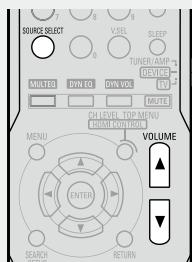
3 Press and select the input source.
If "TUNING PRESET" is selected for preset
SOURCE SELECT channel, press SOURCE before turning
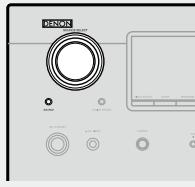
4 Play the component connected to the AVR-590. Make the necessary settings on the player (language setting, subtitles setting, etc.) beforehand.
Use to adjust the volume.
[Variable range] - - - - 80.0dB ~ 18.0dB
※ The variable range differs according to the input signal and channel level setting.
6 Select the desired surround mode.
page 37 "Selecting the Surround Mode")
7 Adjust the desired sound field effects.
page 39 "Adjusting the Sound Field Effects")
iPod®Playback
The music / video on an iPod can be played by using the control dock for iPod (ASD-1R, ASD-11R, ASD-3N or ASD-3W sold separately).
Connect the control dock for iPod beforehand. (12 page 14 "iPod®").
Listening to music on an iPod®
1 Prepare for playback.
① Set the iPod in the DENON control dock for iPod.
② Assign the control dock for iPod's input (page 31).
③ Switch DEVICE to "DEVICE".
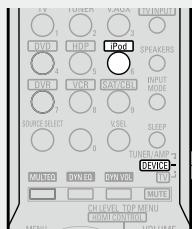
Turn on the AVR-590's power.
page 16 "Turning the Power On")
3 Press to select the input source assigned in step 1- ② above.
※ If the screens above are not displayed, the iPod may not be properly connected. Try connecting again.
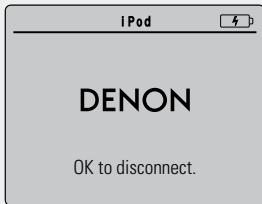
(iPod screen)
See overleaf
Press and hold it down for a 2 seconds or more to select the display mode.
There are two modes for display the contents recorded on the iPod.
Browse mode
: Displayed on the TV screen.
Remote mode
: Displayed on the iPod's screen.
| Display mode | Browse mode | Remote mode | |
| Playable files | Audio file | ○ | ○ |
| Video file | ○*1 | ○*2 | |
| Active buttons | Remote control unit (AVR-590) | ○ | ○ |
| iPod® | × | ○ | |
1: When using an ASD-11R, ASD-3N or ASD-3W control dock for iPod.
2: Video may not be output, depending on the combination of ASD-1R or ASD-11R and iPod.
Use to select the menu, then press ENTER or > to select the music or video file to be played.
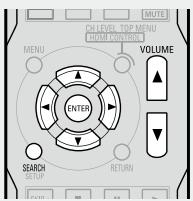
6 Press (ENTER) or
Playback starts.
7 Use to adjust the volume.
[Variable range] - - - - 80.0dB ~ 18.0dB
※ The variable range differs according to the input signal and channel level setting.
8 Select the desired surround mode. page 37 "Selecting the Surround M
9 Adjust the desired sound field effects. (page 39 "Adjusting the sound Field Effects")
To stop
During playback, either press and hold (ENTER) or press.
□ Stopping playback temporarily
During playback, press ENTER or
Press again to resume playback.
To cue to the beginning of a track
During playback, either press (to cue to the current track) or (to cue to the next track).
Repeat playback and shuffle playback
"iPodPlaybackMode"(page33)

- Use the RESTORER mode to expand the low and high frequency components of compressed audio files and achieve a richer sound. The default setting is "Mode3" (12 page 43).
- To check the name of the title, the artist or the album when playing in browse mode, press STATUS.
- The time (default : 30 sec) for which the on-screen display are displayed can be set at menu "iPod Information" ( page 29). Press to return to the original screen.
- Press OFF and set the AVR-590's power to the standby mode before disconnecting the iPod. Also switch the input source to one to which the menu "iPod dock" is not assigned before disconnecting the iPod.
NOTE
- Depending on the type of iPod and the software version, some functions may not operate.
- DENON will accept no responsibility whatsoever for any loss of iPod data.
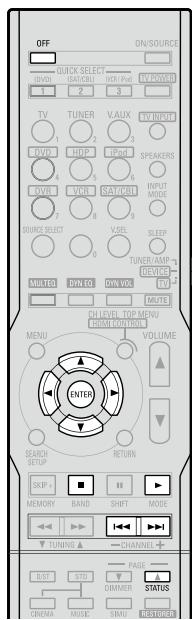
Viewing Still Pictures or Videos on the iPod®
- Photo and video data on the iPod can be viewed on the monitor. Only for iPod equipped with slideshow or video functions. (When using an ASD-1R or ASD-11R)
- Video may not be output, depending on the combination of ASD-1R or ASD-11R and iPod.
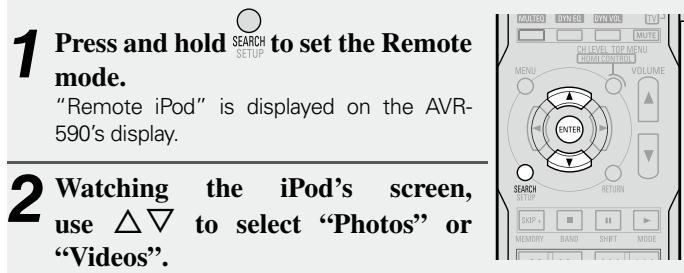
Press ENTER until the image you want to view is displayed.

"TV Out" at the iPod's "Slideshow Settings" or "Video Settings" must be set to "On" in order to display the iPod's photo data or videos on the monitor. For details, see the iPod's operating instructions.

iPod is a trademark of Apple Inc., registered in the U.S. and other countries. The iPod may only be used to copy or play contents that are not copyrighted or contents for which copying or playback is legally permitted for your private use as an individual. Be sure to comply with applicable copyright legislation.
Listening to FM/AM Broadcasts
Basic Operation
1 Set TUNER/AMP to "TUNER/AMP".
Press to select "TUNER".
Press to select "FM" or "AM".
4 Tune in the desired broadcast station.
①To tune in automatically (Auto Tuning)
Press to light the "AUTO" indicator on the display, then use TUNING to select the station you want to hear.
② To tune in manually (Manual Tuning)
Press to turn off the display's "AUTO" indicator, then use TUNING to select the station you want to hear.

- If the desired station cannot be tuned in with auto tuning, tune it in manually.
- When tuning in stations manually, press and hold TUNING to change frequencies continuously.
- The time (default : 30 sec) for which the on-screen display are displayed can be set at "On-Screen Display" (12 page 29).
Presetting Radio Stations (Preset Memory)
Your favorite broadcast stations can be preset so that you can tune them in easily. Up to 56 stations can be preset.
1 Tune in the broadcast station you want to preset.
Press MEMOry.
Press to select the block (A to G) in which the station is to be preset.
Press | to select the preset number (1 to 8).
Press again to complete the setting.

- To preset other stations, repeat steps 1 to 5.
- Stations can be preset automatically at menu "Auto Preset" (38 page 33).
NOTE
Preset stations are erased by overwriting them.
Listening to Preset Stations
1 Press to select the memory block (A to G).
Press CHANNEL+ to select the desired preset channel (1 to 8).
Default settings
| Auto tuner presets | |
| A1 ~ A8 | 87.5 / 89.1 / 98.1 / 107.9 / 90.1 / 90.1 / 90.1 / 90.1 MHz |
| B1 ~ B8 | 520 / 600 / 1000 / 1400 / 1500 / 1710 kHz, 90.1 / 90.1 MHz |
| C1 ~ C8 | 90.1 MHz |
| D1 ~ D8 | 90.1 MHz |
| E1 ~ E8 | 90.1 MHz |
| F1 ~ F8 | 90.1 MHz |
| G1 ~ G8 | 90.1 MHz |

You can also operate via the main unit. In this case, perform the following operations.
SOURCE SELECT
Press TUNING PRESET then turn unit to select the preset
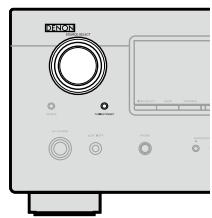
Operations During Playback
Turning Off the Sound Temporarily (Muting)
Press MUTE.

- The sound is reduced to the level set at menu "Mute Level" (28).
- To cancel, press MUTE again. Muting can also be canceled by adjusting the master volume.
Listening with Headphones
Plug the headphones into the PHONES jack on the main unit.
The sound from the speakers and pre-out connectors is automatically cut.
NOTE
- To prevent hearing loss, do not raise the volume level excessively when using headphones.
- Unplug headphones when performing the Audyssey Auto Setup procedure or other settings.
Switching the brightness of the display

Selecting the Surround Mode
Select a surround mode to enjoy surround playback with your favorite sound field effects.
① Playing sources according to the sources' audio signal format/number of channels (Standard Playback)
Operations
The selectable surround modes depend on the following:
- Format of the audio signals being input
- Number of channels of the audio signals being input
The set pre out assignment mode (12 page 24)
1 Playing the source (page 34).
Press STD to select the surround mode.
Multichannel sources
The surround modes that can be selected differ according to the input source.
2channel sources
When you select "DOLBY PLIIz", set "Pre Assign" to "Front Height".
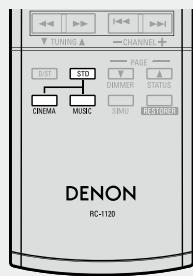
DOLBY PLIIx, DOLBY PLII
or
DOLBY PLIIz
DTS NEO:6
The signals are decoded in DOLBY PLIIx, DOLBY PLII or DOLBY PLIIz, for playback.
The signals are decoded in DTS NEO:6 for playback.
*: DOLBY PLIIx can be selected when surround back speakers are being used.
3 This is the operation for playing 2-channel sources. Select the mode for the source at "Mode" ( page 39).
DOLBY PLIIx, DOLBY PLII
Cinema : This mode is suited for movie sources.
Music : This mode is suited for music sources.
Game : This mode is suited for games.
Pro Logic :This is the Pro Logic playback mode. This can be selected when playing with a DOLBY PLII decoder. When this mode is selected, "DOLBY PL" is displayed.
DTS NEO:6
Cinema : This mode is suited for movie sources.
Music :This mode is suited for music sources.
The modes that can be selected depend on the input source being played.

The "Cinema" and "Music" modes can also be set by pressing CINEMA or MUSIC.
Displaying the currently playing surround mode
Surround playback of multichannel sources (Dolby Digital, DTS, etc.)
In the case of standard playback of multi channel sources, the AVR-590 recognizes the format of the multi-channel audio input signal and automatically operates the appropriate decoder for surround sound.
| Input signal | Display | |
| Dolby Digital | Dolby Digital (other than 2ch)/ Dolby Digital EX | DOLBY DIGITAL |
| DOLBY DIGITAL EX | ||
| DOLBY DIGITAL+PLIIx CINEMA | ||
| DOLBY DIGITAL+PLIIx MUSIC | ||
| DOLBY DIGITAL+PLIIz | ||
| Dolby Digital Plus (*1) | DOLBY DIGITAL++PLIIx C | |
| DOLBY DIGITAL++PLIIx M | ||
| DOLBY DIGITAL++PLIIz | ||
| Dolby TrueHD (*1) | DOLBY TrueHD | |
| DOLBY HD+EX | ||
| DOLBY HD+PLIIx CINEMA | ||
| DOLBY HD+PLIIx MUSIC | ||
| DOLBY HD+PLIIz | ||
| DTS | DTS (5.1ch)/ DTS-ES Discrete 6.1 / DTS-ES Matrix 6.1 / DTS 96/24 | DTS SURROUND |
| DTS+PLIIx CINEMA | ||
| DTS+PLIIx MUSIC | ||
| DTS+PLIIz | ||
| DTS+NEO:6 | ||
| DTS ES MTRX6.1 (*2) | ||
| DTS ES DSCRT6.1 (*3) | ||
| DTS 96/24 (*4) | ||
| DTS-HD (*1) | DTS-HD HI RES | |
| DTS-HD MSTR | ||
| DTS-HD+NEO:6 | ||
| DTS-HD+PLIIx CINEMA | ||
| DTS-HD+PLIIx MUSIC | ||
| DTS-HD+PLIIz | ||
| PCM | PCM (multi ch) | MULTI CH IN |
| MULTI IN+PLIIx CINEMA | ||
| MULTI IN+PLIIx MUSIC | ||
| MULTI IN+PLIIz | ||
| MULTI CH IN 7.1 | ||
1: When a signal is input, the HD AUDIO indicator lights.
2: This is displayed when the input signal is "DTS-ES Matrix 6.1" and the AVR-590's "AFDM" setting (12 page 40) is set to "ON".
3: This is displayed when the input signal is "DTS-ES Discrete 6.1".
4 : This is displayed when the input signal is "DTS 96/24".
(2) Playing in a DENON original surround mode
The desired mode according to the program source and viewing situation can be selected from among 7 DENON original surround modes.
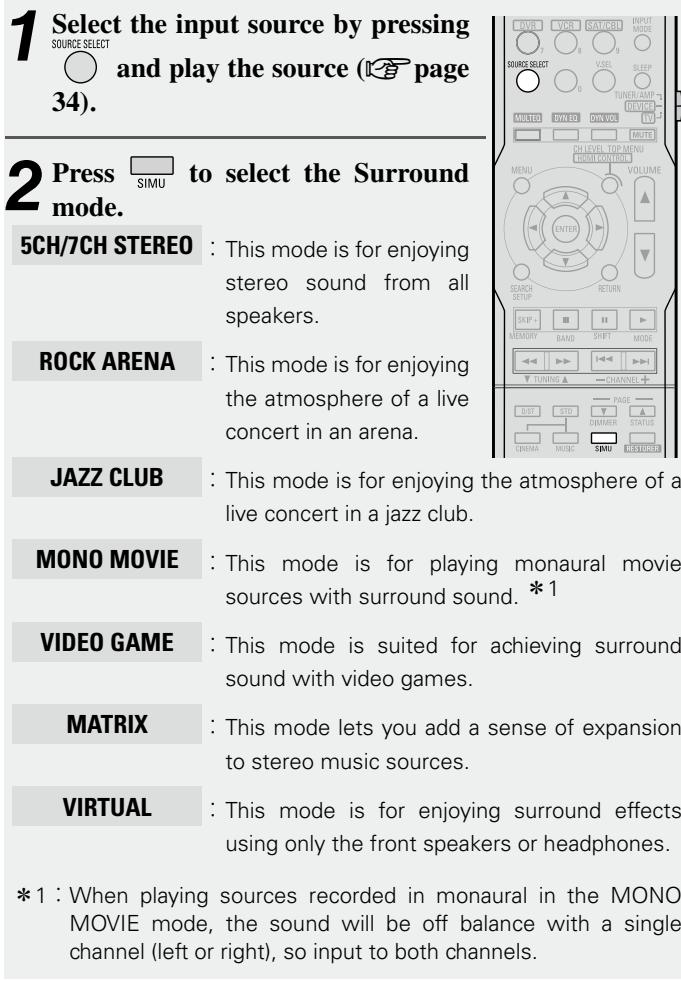

Depending on the program source being played, it may not be possible to achieve a satisfactory surround effect. In this case, try other modes to achieve a sound field suited to your tastes.
NOTE
When the input signal is DOLBYTrueHD, DOLBY DIGITAL Plus, DTSHD you cannot select DENON original surround mode.
③ DirectPlayback
In this mode the signals bypass the tone adjustment circuitry for high quality sound.
The sound is output to the same channels as the input signal.
1 Select the input source by pressing SOURCE SELECT and play the source (page 34).
2 Press D/ST to select the "DIRECT".
Displaying the currently playing surround mode
| Input signal | Display |
| Analog signal / PCM (2ch) / Dolby Digital source / DTS source / Other 2-channel digital signals | DIRECT |
| PCM (multi ch) | MULTI CH DIRECT |
| M DIRECT + PLIIx CINEMA | |
| M DIRECT + PLIIx MUSIC | |
| M DIRECT + PLIIz | |
| M DIRECT 7.1 |
④ Stereo Playback
This is the mode for playing in stereo. The tone can be adjusted. Sound is output from the front left and right speakers and subwoofer.
1 Select the input source by pressing
SOURCE SELECT
and play the source (page
34).
2 Press D/ST to select the "STEREO".

Adjusting the Sound Field Effects (Parameter)
The sound being played in the surround mode can be adjusted to your liking.
The items (parameters) that can be adjusted depend on the signal being input and the currently set surround mode. For details on the adjustable parameters, see "Surround Modes and Parameters" (page 51).
NOTE
Some of the setting items cannot be set while playback is stopped. Set these items during playback.
Adjusting the sound field effects (Surround Parameter)
Default settings are underlined.
| Setting items | Setting contents |
| Mode Set the play mode for playing 2-channel sources in surround. | □ In the PLIIx, PLII or PLIIz mode Cinema: This is the mode for cinema source. Music: This is the mode for music source. Game: This is the mode for game source. ProLogic: Dolby Pro Logic playback mode (PLII mode only). (This is the mode for 4-channel playback (front L, front R, center, surround (MONO).) |
| □ In the DTS NEO:6 mode Cinema: This is the mode for cinema source. Music: This is the mode for music source. ● The "Music" mode is also effective for movie sources including a lot of stereo music. ● The "Cinema" and "Music" modes can also be set by pressing CINEMA or MUSIC. | |
| Cinema EQ Soften the treble range of movie sound tracks for better understanding. | OFF: "Cinema EQ" is not used. ON: "Cinema EQ" is used. |
| Dynamic Range Compression (D.Comp) Compress dynamic range (difference between loud and soft sounds). | Low/Mid/High: These set the compression level. OFF: Turn dynamic range compression off. The "D.Comp" indicator lights when playing DTS source that supports the "D.Comp" function. |
| Dynamic Range Control (DRC) Compress dynamic range | Auto: Dynamic range compression of Dolby TrueHD sources turns on and off automatically. Low/Mid/High: These set the compression level. OFF: Turn dynamic range compression off. |
| LFE Adjust the low-frequency effects level (LFE). | -10dB ~ 0dB For proper playback of the different program sources, we recommend setting to the values below. ● Dolby Digital sources: "0dB" ● DTS movie sources: "0dB" ● DTS music sources: "-10dB" |
Adjusting the Sound Field Effect (Parameter)
| Setting items | Setting contents |
| Center Image Assign center channel signal to front left and right channels for wider sound. | 0.0 ~ 1.0 (0.3) |
| Panorama Assign front L/R signal also to surround channels, for wider sound. | ON: Set. OFF: Do not set. |
| Dimension Shift sound image center to front or rear, to adjust playback balance. | 0 ~ 6 (3) |
| Center Width Assign center channel signal to front left and right channels for wider sound. | 0 ~ 7 (3) |
| Delay Time Adjust delay time to control sound stage size. | 0ms ~ 300ms (30ms) |
| Effect Level Adjust the strength of the surround effect. | 1 ~ 15 (10) Set to a lower level if the positioning and sense of phase of the surround signals seems unnatural. |
| Room Size Determine size of acoustic environment. NOTE "Room Size" does not indicate the size of the room in which sources are played. | Small: Simulate acoustics of a small room. Medium small: Simulate acoustics of a medium-small room. Medium: Simulate acoustics of a medium room. Medium large: Simulate acoustics of a medium-large room. Large: Simulate acoustics of a large room. |
| Setting items | Setting contents |
| AFDM (Auto Flag Detect Mode) | ON: Set. |
| OFF: Do not set. | |
| Detects the source's surround back channel signal and sets the optimum surround mode automatically. | |
| Surround Back Sets the method of generating of the surround back channel. | For 2-channel sources ON: The surround back channel is used. OFF: No signal is played from the surround back channels. |
| For multi channel sources Set this to set the method of generating of the surround back channel for sources that do not include surround back signals and when you do not want to play the surround back signals included in the source. Check the audio signals of the source being played before making this setting. OFF: No signal is played from the surround back channels. MTRX ON: Generate and play the surround back signals from the surround channel signals. PLIIx CINEMA*1: Generate and play the surround back signals by decoding the signals in the "Dolby Pro Logic IIx Cinema" mode. PLIIx MUSIC*2: Generate and play the surround back signals by decoding the signals in the "Dolby Pro Logic IIx Music" mode. ES MTRX: Generate and play the surround back signals from the surround channel signals of the DTS source. ES DSCRT*3: Play the surround back signals included in the 6.1-channel DTS source. DSCRT ON*3: Play the surround back signals included in the 7.1-channel source. *1: This can be selected when "S.Back" in the "Speaker Config." settings (2ch page 25) is set to "2ch". *2: This can be selected when "S.Back" in the "Speaker Config." settings (2ch page 25) is set to "2ch" or "1ch". *3: When "AFDM" is set to "ON", the surround back channel is played with the AFDM function. When selected while "AFDM" is set to "OFF", the source's surround back signals are played. This can also be set by pressing STD. | |
| NOTE This is valid when the "Pre Assign" setting (2ch page 24) is set to "7.1-channel surround back" or "6.1-channel surround back", and when the "S.Back" setting (2ch page 25) is set to "Large" or "Small". | |
Adjusting the tone (Tone Control)
| Setting items | Setting contents |
| Front Height Set whether or not to use the front height channel. | ON: Use the front height channel. OFF: Do not use the front height channel. This can also be set by pressing Ⓞ. |
| Subwoofer Turn subwoofer output on and off. | ON: The subwoofer is used. OFF: The subwoofer is not used. |
| Default Restores all the surround parameter settings to their defaults. | Yes: Reset to the defaults. No: Do not reset to the defaults. |
Default settings are underlined.
| Setting items | Setting contents |
| Tone Control Sets the tone control function ON and OFF. This can be set when "Dynamic EQ" (123 page 42) is set to "OFF". | ON: Allow tone adjustment (treble, bass). OFF: Playback without tone adjustment. The tone cannot be adjusted when in the DIRECT mode. |
| Bass Adjusts the low frequencies. This can be set when "Tone Control" is set to "ON". | -6dB ~ +6dB (0dB) |
| Treble Adjusts the high frequencies. This can be set when "Tone Control" is set to "ON". | -6dB ~ +6dB (0dB) |
Making the MultEQ, Dynamic EQ and Dynamic Volume settings (Audyssey Settings)
Default settings are underlined.
- When the "Audyssey Auto Setup" (page 19) procedure is performed, the "MultEQ", "Dynamic EQ" and "Dynamic Volume" functions are enabled.
- Operating conditions for each function
Dynamic EQ:
When "MultEQ" is set to "ON"
Dynamic Volume :
When "Dynamic EQ" is set to "ON"
- Setting:
When "Dynamic Volume" is set to "ON"
MultEQ
Dynamic EQ
Dynamic Volume
Setting
NOTE
If the speaker settings are changed after the "Audyssey Auto Setup" procedure is performed, "MultEQ", "Dynamic EQ" and "DynamicVolume" functions cannot be selected and "Run Audyssey" is displayed.
If this happens, either perform the "Audyssey Auto Setup" procedure again, or perform the "Restore" operation (15 page 23) to restore the settings to as they were after the "Audyssey Auto Setup" procedure was performed.
| Setting items | Setting contents |
| MultEQ Corrects the frequency response of the different speakers. | Audyssey: Optimize frequency response of all speakers. Audyssey Byp.L/R: Optimize frequency response of speakers except front L and R speakers. Audyssey Flat: Optimize frequency response of all speakers to flat response. Manual: Apply frequency response set with "Manual EQ" (R page 42). OFF: The "MultEQ" equalizer cannot be used. |
| “MultEQ” and “Manual EQ” settings for which “Not Used” has been set at “EQ Customize” (R page 28) cannot be selected. ·When using headphones, “MultEQ” is set to “OFF”. | ·When “Audyssey”, “Audyssey Byp. L/R” or “Audyssey Flat” is selected, “AUDYSSEY MULTEQ” lights. ·After running Audyssey Auto Setup, if the Speaker Configuration, Distance, Channel Level, and Crossover Frequency have changed without increasing the number of speakers measured, only “AUDYSSEY MULTEQ” lights. ·This can also be set by pressing MULTEQ. |
| Dynamic EQ Audyssey Dynamic EQ solves the problem of deteriorating sound quality as volume is decreased by taking into account human perception and room acoustics. This can be set when the "MultEQ" (41) is set to anything other than "OFF." | ON: Use Dynamic EQ function. OFF: Do not use Dynamic EQ function. · When set to "ON", "AUDYSSEY MULTED EQ" is displayed. · When "MultEQ" is set to "OFF", "Dynamic EQ" is automatically set to "OFF" · This can also be set by pressing DYN EQ. · Dynamic EQ: ON/Volume: OFF → Dynamic EQ / Volume: OFF AUDYSSEY DYNAMIC VOLUME · Red" · "Off" · "ON" · "DYN EQ" · "DYN EQ" · "DYN EQ" · "DYN EQ" · "DYN EQ" · "DYN EQ" · "DYN EQ" · "DYN EQ" · "DYN EQ" · "DYN EQ" · "DYN EQ" · "DYN EQ" · "DYN EQ" · "DYN EQ" · "DYN EQ" |
| NOTE “Tone Control” is set to “OFF” when “Dynamic EQ” is set to “ON”. Reference Level Offset: Audyssey Dynamic EQ takes the standard film mixing level of 85 dB SPL during -20 dB FS input as its reference level. However, since standardization is lacking outside the film industry, the reference level of media contents may not be appropriate. In order to view such contents, Reference Level Offset of Dynamic EQ has available offsets of 5 dB, 10 dB and 15 dB. · 0dB: Suitable for viewing movies. · 5dB: Suitable for listening to classical music and other content mixed at a high level. · 10dB: Suitable for listening to jazz and other audio sources with a wide dynamic range. Also suitable for viewing TV. · 15dB: Suitable for listening to pop, rock music and other content with an extremely wide dynamic range. · Setting is enabled when "Dynamic EQ" is "ON". | |
| Dynamic Volume Audyssey Dynamic Volume solves the problem of large variations in volume level between television programs, commercials, and between the soft and loud passages of movies. This can be set when "Dynamic EQ" (42) is set to "ON." | ON: Use Dynamic Volume. The Dynamic Volume effect will be at the level of the "Setting" (42) OFF: Do not use Dynamic Volume. · When set to "ON", "AUDYSSEY MULTED EQ" is displayed. · When "MultEQ" is set to "OFF", "Dynamic Volume" is automatically set to "OFF". · This can also be set by pressing DYN VOL. · Dynamic EQ / Volume: ON → Dynamic EQ: ON / Volume: OFF · "Green" · "Red" · "DYN EQ" · "DYN EQ" · "DYN EQ" · "DYN EQ" · "DYN EQ" · "DYN EQ" · "DYN EQ" · "DYN EQ" · "DYN EQ" · "DYN EQ" · "DYN EQ" · "DYN EQ" · "DYN EQ" · "DYN EQ" |
Adjusting the Sound Field Effect (Parameter)
| Setting items | Setting contents |
| Setting Set Dynamic Volume effect. This can be set when “Dynamic EQ” (42) is set to “ON.” | Day: Low setting provides the least adjustments to the loudest and softest of sounds. Evening: Middle setting prevents loud and soft sounds from being much louder and softer respectively than average sounds. Midnight: High setting affects volume the most, causing all sounds to be of equal loudness. |
| Adjust tonal quality for each speaker using graphic equalizer (Manual EQ) Default settings are underlined. | |
| Setting items | Setting contents |
| Adjust CH Adjust the tonal quality of the individual speakers. | 1. Select speaker adjustment method. All CH: Adjust tonal quality for all speakers together. L/R CH: Adjust tonal quality for each L/R speaker pair. Each CH: Adjust tonal quality for each speaker separately. 2. Select the frequency band to be adjusted. 63Hz / 125Hz / 250Hz / 500Hz / 1kHz / 2kHz / 4kHz / 8kHz / 16kHz ※ When “L/R CH” or “Each CH” is selected, select the speaker to be adjusted. 3. Adjust the level. -20.0dB ~ +6.0dB (0dB) |
| Base Curve Copy Copy the MultEQ “Audyssey Flat” correction curve. | Yes: Copy. No: Do not copy. “Base Curve Copy” is displayed after the Audyssey Auto Setup procedure has been performed. |
| Default Reset the “Manual EQ” settings to their defaults. | Yes: Reset to the defaults. No: Do not reset to the defaults. |
Adjusting the Sound Field Effect (Parameter)
Restoring compressed audio to nearly pre-compressed conditions for playback (RESTORER)
Default settings are underlined.
- Such compressed audio formats as MP3, WMA (Windows Media Audio) and MPEG-4 AAC reduce the amount of data by eliminating signal components that are hard for the human ear to hear. The RESTORER function generates the signals eliminated upon compression, restoring the sound to conditions near those of the original sound before compression. It also corrects the sense of volume of the bass to obtain richer sound with compressed audio signals.
- This can be set with analog signals or when a PCM signal (fs = 44.1/48 kHz) is input.
Setting contents
OFF: Do not use RESTORER.
Mode1 (RESTORER 64) : Optimized mode for compressed sources with very weak highs.
Mode2 (RESTORER 96) : Apply suitable bass and treble boost for all compressed sources.
Mode3 (RESTORER HQ) : Optimized mode for compressed sources with normal highs.

- The default setting for "iPod" is "Mode3". All others are set to "OFF".
- When set to something other than "OFF", "RSTR" is displayed.
- This can also be set by pressing during playback.
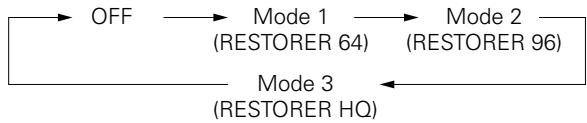
Adjusting the audio delay time while watching the picture (Audio Delay)
Default settings are underlined.
Setting contents
0ms~200ms

-
If you wish to adjust the "Audio Delay" while playing HDMI or component video signals, press to set "OSD" to "OFF". This way the audio delay can be adjusted while watching the picture. (Press the again. The display switches to the display of the menu screen only.)
-
This cannot be adjusted when playing in the DIRECT or STEREO mode (with "Front Speaker" set to "Large", "Tone Control" to "OFF" and "MultEQ" and "RESTORER" to "OFF").
- When the Auto Lipsync Correction function is operating, you can set within the range 0 100 ms.
- Store "Audio Delay" for each input source.

Checking the Status (Information)
| Setting items | Setting contents |
| Status Shows information about current settings. | Select Source / Surround Mode / Input Mode / Decode Mode / HDMI / Digital / Component / iPod Dock /Video Select / Source Level You can also display current status on the main unit's display each time you press STATUS. |
| Audio Input Signal Shows information about audio input signals. | Surround Mode: The currently set surround mode is displayed. Signal: The input signal type is displayed. fs: The input signal's sampling frequency is displayed. Format: The number of channels in the input signal (front, surround, LFE) is displayed. Offset: The dialogue normalization correction value is displayed. Flag: This is displayed when inputting signals including a surround back channel. “MATRIX” is displayed with Dolby Digital EX and DTS-ES Matrix signals, “DISCRETE” with DTS-ES Discrete signals. |
| HDMI Information Shows information about HDMI input signals and monitor. | HDMI Signal Information • Resolution / Color Space / Pixel Depth |
| HDMI Monitor Information • Interface / Suport Resolution | |
| Auto Surround Mode Shows information about auto surround mode settings. | Analog/PCM / Digital 2ch / Digital 5.1ch / Multi CH |
| Quick Select Shows information about quick select settings. | Quick Select 1 / Quick Select 2 / Quick Select 3 • Name / Input Source / Video Select / Volume Level / MultEQ / Dynamic EQ / Dynamic Vol / Analog/PCM / Digital 2ch / Digital 5.1ch / Multi CH |
| Preset Channel Shows information about preset channels. | A 1 ~ G 8 • TUNER |
Convenient functions
HDMI Control Function
When you make an HDMI connection with a TV or player compatible with AVR-590 and HDMI control functions, you can perform the following operations by setting the HDMI control function of each device.
AVR-590 power off can be linked to the TV power off step
* When you set "Output audio from amp" in the TV audio output setup operation, you can switch the amp power on.
□ You can switch audio output devices with a TV operation
You can adjust AVR-590 volume in the TV volume adjustment operation
You can switch AVR-590 input source through linkage to TV input switching
- When playing the player, the AVR-590 input function switches to the function of that player

- To play the TV's sound on the AVR-590, make optical digital connections (page 13 "Connecting the TV").
To use this function, set "HDMI Control" (23 page 27) to "ON".
NOTE
- When you power off AVR-590, the HDMI control function does not operate.
- Some functions may not operate depending on the connected TV or player. Check the owner's manual of each device for details beforehand.
- When "HDMI Control" is set to "ON", it is not possible to assign an HDMI connector to "TV" at "HDMI" (12 page 27).
1 Turn the power on for all the equipment connected by HDMI cable.
2 Set the HDMI control function for all equipment connected by HDMI cable.
Set "HDMI Control" (12 page 27) to "ON".
※ Please refer to the owner's manual as regards setting of connected devices.
※ Carry out Steps 1 and 2 should any of the equipment be unplugged.
3 Switch the television input to the HDMI connected to the AVR-590.
4 Switch the AVR-590 input to the HDMI input source and check if the picture from the player is ok.
5 When you turn the TV's power to standby, check that the power of the AVR-590 and player also goes on standby.

If the HDMI control function does not operate properly, check the following points.
- Is the TV or player compatible with the HDMI control function?
Is the AVR-590 properly set?
- Is "HDMI Control" (12 page 27) set to "ON"?
- Is "Power Off Control" (10 page 27) set to "ON"?
- Are the HDMI control function settings of all equipment correct?
NOTE
Should any of the operations below be performed, the interlocking function may be reset, in which case, repeat step's 1 and 2.
- Menu "HDMI" (page 27) setting has changed.
- There is a change to the connection between the equipment and the HDMI, or an increase in equipment.
Setting the power to standby after a certain amount of time (Sleep Timer Function)
This function allows you to automatically set the power to standby after the set amount of time has passed.
Press SLEEP and display the time you want to set.
The "SLEEP" indicator on the display lights.
- The time switches as shown below each time is pressed.
Sleep:OFF Sleep:120min Sleep:90min Sleep:30min Sleep:60min
- The time display turns off after about 5 seconds, and the setting is activated.
- Once the set time has passed, the power is automatically set to standby.
To cancel the sleep timer
Press to set "OFF".
- The "SLEEP" indicator on the display turns off.
Playing the picture of a different input source without changing the currently playing sound (Video Select Function)
Switch video input source while listening to audio signal.
Press VSEL until the desired picture appears.
※ To cancel, press to select "SOURCE".
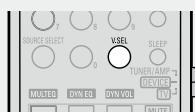
NOTE
- It is not possible to select HDMI input signals.
- When playing HDMI video input signals, the analog video signal of another input source cannot be selected for the HDMI video output.
- Input sources for which "Delete" is selected at "Source Delete" (10 page 28) cannot be selected.
- Input sources for which "None" is selected at "Assign" (10 page 31) cannot be selected.
Adjust the volume of the different speakers
You can adjust the channel level either according to the playback sources or to suit your taste, as described below.
Adjust the volume of the different speakers
CH LEVEL
H LEVEL
)
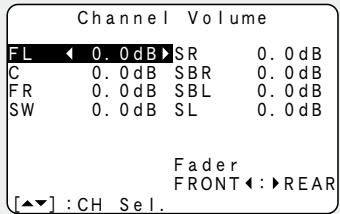
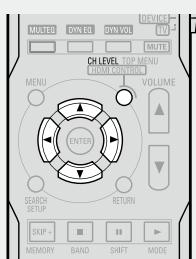
Press to select the speaker.
The speaker that can be set switches each time one of the buttons is pressed.
3 Press to adjust the volume.
※ In the case of a subwoofer, reducing the volume when it is at “-12 dB” will change the setting to “OFF” (none).

If headphones are plugged in, the headphones settings screen appears.
Adjusting the volume of groups of speakers (Fader Function)
This function lets you adjust (fade) the sound from all the front (Front speaker/center speaker/Front Height speaker) or rear (Surround speaker/ Surround Back speaker) speakers at once.
or to select "Fader", then select the item to.
fasting using or

to adjust the volume of the speakers.

- The fader function does not affect the subwoofer.
- The fader can be adjusted until the volume of the speaker adjusted to the lowest value is -12 dB.
Saving frequently used settings (Quick Select Function)
This function allows you to save all the settings shown in step 1. When frequently used settings are saved, they can easily be set again the next time you want to use them. This function also allows you to always enjoy the same playback environment.
- Three sets of settings can be saved.
Saving the settings
1 Set the items below to the settings you want to save.
① Input source (1 page 34)
② Input Mode (page 32)
③ Surround Mode (15 page 37)
④ Audyssey Settings (MultEQ, Dynamic EQ, Dynamic Volume) ( page 41)
Volume setting (page 34)
2 Press and hold the desired QUICK SELECT
QUICK SELECT
(DVD) (SAT/CBL)
(DVB) (GAI)OBL
1 2
一
(NCP (iPod)
(20
3
until
and
play.
will be memorized.
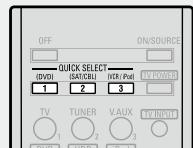
[Quick Select Defaults]
| Input Source | Volume | |
| Quick Select 1 | DVD | -40 dB |
| Quick Select 2 | SAT/CBL | -40 dB |
| Quick Select 3 | VCR/iPod | -40 dB |
Calling the settings out
一
QUI
CK SELECT
SAT/CB
2
一
VCB/iPc
3
at v
which
h
the
settings you
want to call out are saved.
NOTE
Input sources stored with the quick select function cannot be selected if they have been deleted at menu "Source Delete" (28 page 28). In this case, store them again.
Naming Quick Select settings
"Quick Select Name" (page 29).
Various memory functions
Personal Memory Plus Function
This function sets the settings (input mode, surround mode, MultEQ, Dynamic EQ, Dynamic Volume, audio delay etc.) last selected for the individual input sources.
Last Function Memory
This stores the settings as they were directly before the standby mode was set.
When the power is turned back on, the settings are restored to as they were directly before the standby mode was set.
Backup Memory
The various settings are backed up for about 1 week, even if the power is turned off or the power cord is disconnected.
Operating the Connected Devices by Remote Control Unit
Registering Preset Codes
DENON and other makes of components can be operated by setting the preset memory.
Cautions during operation
When registering a preset code, point the remote control transmitter toward the AVR-590. The status of the registration operation is displayed on the AVR-590.
1 Press the source select button (see below) for the device to be registered and ^ON/SOURCE simultaneously for over 2 seconds.
"RC SETUP START" appears on the display and the remote control unit is set to the preset code registration mode.


DVD player or CD player

: Blu-ray disc player

: Digital video recorder

: Video deck

Satellite receiver
or cable TV
Press O_0 O_9 and input the 3-digit number of the brand of the component to be preset. The numbers are shown in the Preset Code Table (End of this manual).
When registration is completed, "RC SETUP OK" appears on the display.
※ If the codes could not be registered, "RC SETUP NG" appears on the display. Try again.
3 To store the codes of another component in the memory, repeat steps 1 to 2.
※ For details, refer to the component's operating instructions.

- Some manufacturers use more than one type of remote control code. Refer to the included list of preset codes to change the number and verify correct operation.
- The preset memory can be set for one component only among the following: DVD/CD and SAT/CBL.
Operating Registered Devices
1 Switch

to the device to be operated.
TUNER/AMP
To operate a Tuner
DEVICE
To operate a Blu-ray disc player, DVD player, CD player, Digital video recorder, Video deck, iPod, Satellite receiver or cable TV
MAIN/TV
: To operate a TV
2 When "DEVICE" has been selected in step 1, press the source select button for the device to be operated.
The remote control unit is set to the device mode for the device to be operated. When the remote control transmitter is pointed towards the AVR-590 at this time, the AVR-590's input source switches simultaneously.
※ The remote control unit stays in the same device mode until a different source select button is pressed.

Operate the component.
※ For details, refer to the component's operating instructions.
NOTE
Depending on the model and year of manufacture, this function cannot be used for some models, even if they are of makes listed in the list of preset codes.
Operating Registered Devices
iPod
| OFF | ON/SOURCE | |
| QUICK SELECT (DVD) | TUNER | VAUX |
| (SATUR) | HPI (PH) | |
| 1 | 2 | 3 |
| TV | TUNER | VAUX |
| DVD | HDP | IPod |
| DVR | 5 | SPEAKERS |
| DVLR | VSEL | SURVEY |
| DVR | 8 | 9 |
| GURSE SELECT (ENTER) | VSEL | SLEEP |
| 0 | TUBE ADAM | |
| 0 | DEGREE | |
| MOUNTED | WVED | TURN |
| SEARCH SETUP | RETURN | MUTE |
| CHLEVEL TOP MENU FROM CONTROL | ||
| MENU | VOLUME | |
| PAGE | ||
| SDI | ||
| DIMMER | STATUS | |
| CINEMA | SUBNO | |
| Operation mode setting | TUNER/AMP DEVICE TV | IPod |
| ON/SOURCE | Power on / Standby *1 | |
| ▶ | Play / Pause | |
| ■ | Stop | |
| II | Pause | |
| MEMORY | MEMORY *1 | |
| TOP MENU | Calling out the top menus *1 | |
| ←▶▶ | Manual search (fast-reverse / fast-forward) | |
| I←▶▶ | Auto search (cue) | |
| △▽◇ | Cursor | |
| ENTER | Enter | |
| SEARCH | Press and hold | Once |
| Browse/Remote mode switching | Page search mode switching *2 | |
| RETURN | Return | |
| PAGE▲▼ | Page up/down *1 | |
1: This operation is possible when using a DENON ASD-3N or ASD-3W Control Dock for iPod.
2: This operation is possible when using a DENON ASD-1R or ASD-11R Control Dock for iPod.
TV
Blu-ray Disc / DVD Player
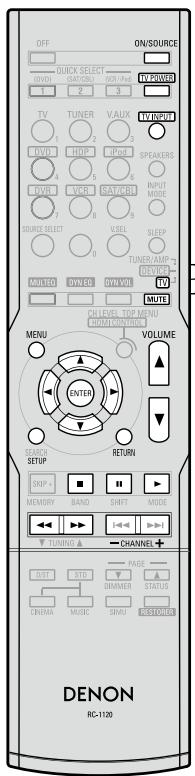
| Operation mode setting | TUNER/AMP DEVICE+TV |
| ON/SOURCE | Power on / Standby |
| TV/POWER | Power on / Standby *1 |
| ► | Play *2 |
| II | Pause *2 |
| ■ | Stop *2 |
| ←►► | Manual search *2 (fast-reverse / fast-forward) |
| CHANNEL + - | Switch channels (+,-) |
| TV INPUT | Switching the input *1 |
| VOLUME▲▼ | ▲: TV Volume (+) ▼: TV Volume (-) |
| MUTE | TV MUTE |
| MENU | Calling out the menus |
| △▽◇ | Cursor operation |
| ENTER | Enter setting |
| SETUP | Setup |
| RETURN | Return |
| Default setting (Preset code) | SONY (374) |
| Special Remarks | ① |
*1:This can be operated even when the operation mode is set to something other than "TV".
*2: When the punch through function (10 page 48) is set, this functions as the button for the device for which punch through is set.
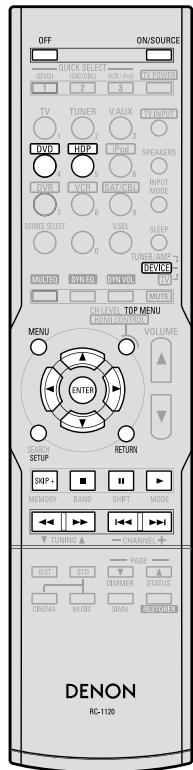
| Operation mode setting | TUNER/AMP DEVICE TV | HDP or DVD |
| OFF | Standby | |
| ON/SOURCE | Power on or Power on / Standby | |
| ▶ | Play | |
| ■ | Stop | |
| II | Pause | |
| SKIP + | BD Player | DVD Player |
| - | Disc skip | |
| ←▶→ | Manual search (fast-reverse / fast-forward) | |
| I←▶→I | Auto search (cue) | |
| MENU | BD Player | DVD Player |
| Popup menus | Menuis | |
| △▽←◇ | Cursor operation | |
| ENTER | Enter setting | |
| SETUP | Setup | |
| RETURN | Return | |
| TOP MENU | Top menus | |
| Default setting (Preset code) | BD Player | DVD Player |
| DENON (111) | DENON (111) | |
| Special Remarks | ①, ② | |
CD Player
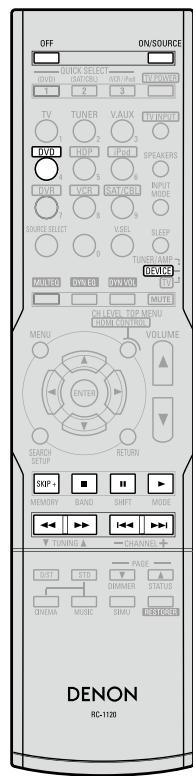
| Operation mode setting | TUNER/AMP DEVICE TV |
| OFF | Standby |
| ON/SOURCE | Power on or Power on / Standby |
| ▶ | Play |
| ■ | Stop |
| || | Pause |
| SKIP + | Disc skip + |
| ←▶→ | Manual search (fast-reverse / fast-forward) |
| I←▶→I | Auto search (cue) |
| Default setting (Preset code) | - |
| Special Remarks | ① |
【Special Remarks】
① Only one device can be set in the preset memory for each mode.
When a new preset code is registered, the existing code is automatically erased.
② For some brands, the DVD remote control buttons may have different function names.
Check beforehand.
Digital Video Recorder / Video Deck
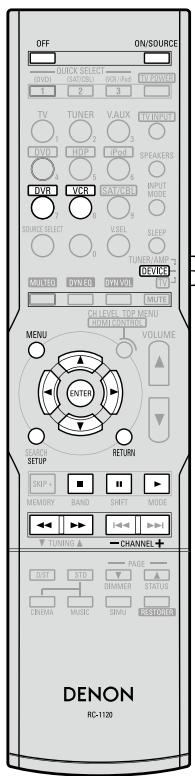
| Operation mode setting | TUNER/AMP DEVICE TV | DVR or VCR |
| ON/SOURCE | Power on / Standby | |
| ▶ | Play | |
| ■ | Stop | |
| II | Pause | |
| ←▶ | Manual search (fast-reverse / fast-forward) | |
| CHANNEL + - | Switch channels (+, -) | |
| MENU | Menu | |
| △▽←◇ | Cursor operation | |
| ENTER | Enter setting | |
| SETUP | Setup | |
| RETURN | Return | |
| Default setting (Preset code) | Digital Video Recorder | Video Deck |
| JVC (001) | HITACHI (111) | |
| Special Remarks | ①, ② | |
Satellite receiver/Cable TV
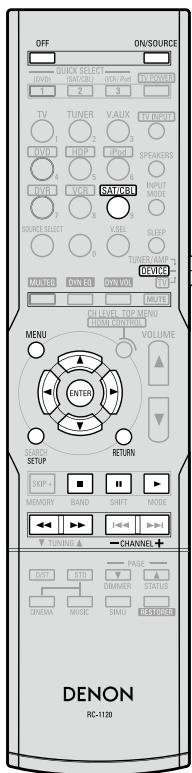
| Operation mode setting | TUNER/AMP DEVICE TV | SAT/CBL | |
| ON/SOURCE | Power on / Standby | ||
| ▶ | Play* | ||
| || | Pause* | ||
| ■ | Stop* | ||
| ←▶→ | Manual search * (fast-reverse / fast-forward) | ||
| CHANNEL + - | Switch channels (+, -) | ||
| △▼◇ | Cursor operation | ||
| ENTER | Enter setting | ||
| MENU | Guide menus | ||
| SETUP | Setup | ||
| RETURN | Return | ||
| Default setting (Preset code) | Satellite Receiver | Cable TV | |
| Direc TV (095) | - | ||
| Special Remarks | ① | ||
*: When the punch through function (12 page 48) is set, this functions as the button for the device for which punch through is set.
[Special Remarks]
① Only one device can be set in the preset memory for each mode.
When a new preset code is registered, the existing code is automatically erased.
② For some brands, the DVD remote control buttons may have different function names.
Check beforehand.
Assigning buttons that are Not Used to Operate Other Devices (Punch Through Function)
When the remote control unit's device mode is set to "TV" or "SAT/CBL", the next "TUNER", "DVD", "HDP", "iPod", "DVR" or "VCR" operation can be performed without switching the remote control unit's device mode.
- One device each can be assigned to the "TV" and "SAT/CBL" device modes.
- Assignable buttons
Cautions during operation
When registering a punch through function, point the remote control transmitter toward the AVR-590. The status of the registration operation is displayed on the AVR-590.
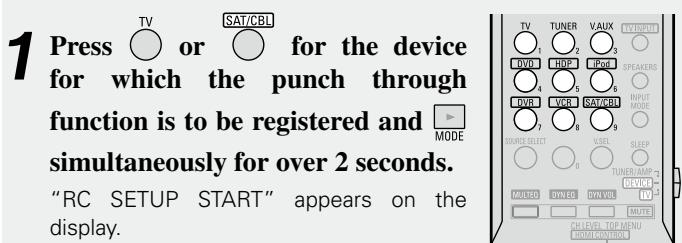
Press the source select button for the device to be assigned.
When registration is completed, "RC SETUP OK" appears on the display.
※ If the codes could not be registered, "RC SETUP NG" appears on the display. Try again.
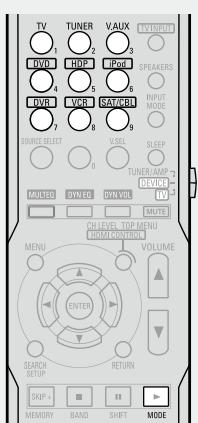
NOTE
If the "TV" or "SAT/CBL" preset code is changed after setting the punch through function, the punch through setting is canceled.
Other Information
Surround
The AVR-590 is equipped with a digital signal processing circuit that lets you play program sources in the surround mode to achieve the same sense of presence as in a movie theater.
Dolby Surround
Dolby Digital
Dolby Digital is a multichannel digital signal format developed by Dolby Laboratories.
A total of 5.1-channels are played: 3 front channels ("FL", "FR" and "C"), 2 surround channels ("SL" and "SR") and the "LFE" channel for low frequencies.
Because of this, there is no crosstalk between channels and a realistic sound field with a "three-dimensional" feeling (sense of distance, movement and positioning) is achieved.
A real, overpowering sense of presence is achieved when playing movie sources in AV rooms as well.
Dolby Digital Plus
Dolby Digital Plus is an improved Dolby Digital signal format that is compatible with up to 7.1-channels of discrete digital sound and also improves sound quality thanks to extra data bit rate performance. It is upwardly compatible with conventional Dolby Digital, so it offers greater flexibility in response to the source signal and the conditions of the playback equipment.
Dolby TrueHD
Dolby TrueHD is a high definition audio technology developed by Dolby Laboratories, using lossless coding technology to faithfully reproduce the sound of the studio master.
This format is compatible with a maximum sampling frequency of 96 kHz and up to 7.1-channels, so it is used for applications particularly prioritizing sound quality.
Dolby Pro Logic II
Dolby Pro Logic II is a matrix decoding technology developed by Dolby Laboratories.
Regular music such as that on CDs is encoded into 5-channels to achieve an excellent surround effect.
The surround channel signals are converted into stereo and full band signals (with a frequency response of 20Hz to 20kHz or greater) to create a "three-dimensional" sound image offering a rich sense of presence for all stereo sources.
Dolby Pro Logic IIx
Dolby Pro Logic IIx is a further improved version of the Dolby Pro Logic II matrix decoding technology.
Audio signals recorded in 2-channels are decoded to achieve a natural sound with up to 7.1-channels.
There are 3 modes: "Music" suited for playing music, "Cinema" suited for playing movies, and "Game" which is optimized for playing games.
Dolby Digital EX
Dolby Digital EX is a 6.1-channel surround format proposed by Dolby Laboratories that allows users to enjoy in their homes the "DOLBY DIGITAL SURROUND EX" audio format jointly developed by Dolby Laboratories and Lucas Films.
The 6.1 channels of sound, including surround back channels, provide improved sound positioning and expression of space.
Dolby Pro Logic IIz
Dolby Pro Logic IIz introduces a new dimension to Home Entertainment through the addition of a pair of front height channels. Compatible with stereo, 5.1 and 7.1 content, Dolby Pro Logic IIz provides enhanced spaciousness, depth and dimension to movies, concert video and videogame playback while maintaining the full integrity of the source mix.
Dolby Pro Logic IIz identifies and decodes spatial cues that occur naturally in all content, directing this information to the front height channels, complementing the performance of left and right surround sound speakers. Content that is encoded with Dolby Pro Logic IIz height channel information can be even more revealing, with perceptually discrete height channel information bringing an exciting new dimension to home entertainment. Dolby Pro Logic IIz, with front height channels is also an ideal alternative for households that cannot support the placement of back surround speakers of a typical 7.1 channel system but may have bookshelf space available to support the addition of height speakers.
Manufactured under license from Dolby Laboratories.
"Dolby", "Pro Logic" and the double-D symbol are trademarks of Dolby Laboratories.
DTS Surround
DTS Digital Surround
DTS Digital Surround is the standard digital surround format of DTS, Inc., compatible with a sampling frequency of 44.1 or 48kHz and up to 5.1-channels of digital discrete surround sound.
DTS-HD High Resolution Audio
DTS-HD High Resolution Audio is an improved version of the conventional DTS, DTS-ES and DTS 96/24 signals formats, compatible with sampling frequencies of 96 or 48kHz and up to 7.1-channels of discrete digital sound. High data bit rate performance provides high quality sound. This format is fully compatible with conventional products, including conventional DTS digital surround 5.1-channel data.
DTS-HD Master Audio
DTS-HD Master Audio is DTS, Inc's lossless audio format compatible with up to 96 kHz/7.1-channels. The lossless audio coding technology faithfully reproduces the sound of the studio master. It is fully compatible with conventional products, including conventional DTS digital surround 5.1-channel data.
DTS-ES™ Discrete 6.1
DTS-ESTM Discrete 6.1 is a 6.1-channel discrete digital audio format adding a surround back (SB) channel to the DTS digital surround sound. Decoding of conventional 5.1-channel audio signals is also possible according to the decoder.
DTS-ES™ Matrix 6.1
DTS-ESTM Matrix 6.1 is a 6.1-channel discrete digital audio format inserting a surround back (SB) channel to the DTS digital surround sound through matrix encoding. Decoding of conventional 5.1-channel audio signals is also possible according to the decoder.
DTS NEO:6™ Surround
DTS NEO:6™ is a matrix decoding technology for achieving 6.1-channel surround playback with 2-channel sources. It includes "DTS NEO:6 Cinema" suited for playing movies and "DTS NEO:6 Music" suited for playing music.
DTS 96/24
DTS 96/24 is a digital audio format enabling high sound quality playback in 5.1-channels with a sampling frequency of 96kHz and 24 bit quantization on DVD-Video.
Manufactured under license under U.S. Patent #s: 5,451,942; 5,956,674; 5,974,380; 5,978,762; 6,226,616; 6,487,535; 7,212,872; 7,333,929; 7,392,195; 7,272,567 & other U.S. and worldwide patents issued & pending. DTS is a registered trademark and the DTS logos, Symbol, DTS-HD and DTS-HD Master Audio are trademarks of DTS, Inc. © 1996-2008 DTS, Inc. All Rights Reserved.
Audyssey
Audyssey MultEQ®
Audyssey MultEQ is a room equalization solution that calibrates any audio system so that it can achieve optimum performance for every listener in a large listening area. Based on several room measurements, MultEQ calculates an equalization solution that corrects for both time and frequency response problems in the listening area and also performs a fully automated surround system setup.
Audyssey Dynamic EQ™
Audyssey Dynamic EQ solves the problem of deteriorating sound quality as volume is decreased by taking into account human perception and room acoustics. Audyssey Dynamic EQ works in tandem with Audyssey MultEQ to provide well-balanced sound for every listener at any volume level.
Audyssey Dynamic Volume™
Audyssey Dynamic Volume solves the problem of large variations in volume level between television programs, commercials, and between the soft and loud passages of movies.
Audyssey Dynamic EQ is integrated into Dynamic Volume so that as the playback volume is adjusted automatically, the perceived bass response, tonal balance, surround impression, and dialog clarity remain the same.
AUDYSSEY MULTEQ DYNAMIC VOLUME
Manufactured under license from Audyssey Laboratories. U.S. and foreign patents pending. Audyssey MultEQ® is a registered trademark of Audyssey Laboratories. Audyssey Dynamic EQ™ is a trademark of Audyssey Laboratories. Audyssey Dynamic Volume™ is a trademark of Audyssey Laboratories.
Surround Modes and Parameters
| Surround mode | Signals and adjustability in the different modes | ||||||||||||||||
| Channel output | Parameter (default values are shown in parentheses) | ||||||||||||||||
| Front L/R | Center | Surround L/R | Surround Back L/R | Front Height L/R | Subwoofer | D. Comp *1 | LFE *2 | AFDM *1 | SB CH Out | Cinema EQ. | Mode | Room Size | Effect | Delay time | Subwoofer | DRC *3 | |
| DIRECT | ○ | ◎ | ◎ | ◎ | × | ◎ | ○ (OFF) | ○ (0dB) | × | × | × | × | × | × | × | ○ | ○ (Auto) |
| MULTI CH DIRECT | ○ | ◎ | ◎ | ◎ | × | ◎ | × | ○ (0dB) | ○ (ON) | ○ | × | × | × | × | × | × | × |
| STEREO | ○ | × | × | × | × | ◎ | ○ (OFF) | ○ (0dB) | × | × | × | × | × | × | × | × | ○ (Auto) |
| MULTI CH IN | ○ | ◎ | ◎ | ◎ | × | ◎ | × | ○ (0dB) | ○ (ON) | ○ | × | × | × | × | × | × | × |
| DOLBY PRO LOGIC IIx | ○ | ◎ | ◎ | ◎ | × | ◎ | ○ (OFF) | × | × | ○ | ○ (NOTE1) | ○ (Cinema) | × | × | × | × | ○ (Auto) |
| DOLBY PRO LOGIC II | ○ | ◎ | ◎ | × | × | ◎ | ○ (OFF) | × | × | ○ | ○ (NOTE2) | ○ (Cinema) | × | × | × | × | ○ (Auto) |
| DTS NEO:6 | ○ | ◎ | ◎ | ◎ | × | ◎ | ○ (OFF) | × | × | ○ | ○ (NOTE1) | ○ (Cinema) | × | × | × | × | × |
| DOLBY PRO LOGIC IIz | ○ | ◎ | ◎ | × | ◎ | ◎ | ○ (OFF) | × | × | × | ○ (OFF) | × | × | × | × | × | × |
| DOLBY DIGITAL | ○ | ◎ | ◎ | ◎ | ◎ | ◎ | ○ (OFF) | ○ (0dB) | ○ (ON) | ○ | ○ (OFF) | × | × | × | × | × | × |
| DOLBY DIGITAL Plus | ○ | ◎ | ◎ | ◎ | ◎ | ◎ | ○ (OFF) | ○ (0dB) | ○ (ON) | ○ | ○ (OFF) | × | × | × | × | × | × |
| DOLBY TrueHD | ○ | ◎ | ◎ | ◎ | ◎ | ◎ | ○ (OFF) | ○ (0dB) | ○ (ON) | ○ | ○ (OFF) | × | × | × | × | × | ○ (Auto) |
| DTS SURROUND | ○ | ◎ | ◎ | ◎ | ◎ | ◎ | ○ (OFF) | ○ (0dB) | ○ (ON) | ○ | ○ (OFF) | × | × | × | × | × | × |
| DTS 96/24 | ○ | ◎ | ◎ | ◎ | ◎ | ◎ | ○ (OFF) | ○ (0dB) | ○ (ON) | ○ | ○ (OFF) | × | × | × | × | × | × |
| DTS-HD | ○ | ◎ | ◎ | ◎ | ◎ | ◎ | ○ (OFF) | ○ (0dB) | ○ (ON) | ○ | ○ (OFF) | × | × | × | × | × | × |
| 5CH/7CH STEREO | ○ | ◎ | ◎ | ◎ | ◎ | ◎ | ○ (OFF) | ○ (0dB) | × | ○ | × | × | × | × | × | × | × |
| ROCK ARENA | ○ | ◎ | ◎ | ◎ | ◎ | ◎ | ○ (OFF) | ○ (0dB) | × | ○ | × | × | ○ (Medium) | ○ (10) | × | × | × |
| JAZZ CLUB | ○ | ◎ | ◎ | ◎ | ◎ | ◎ | ○ (OFF) | ○ (0dB) | × | ○ | × | × | ○ (Medium) | ○ (10) | × | × | × |
| MONO MOVIE | ○ | ◎ | ◎ | ◎ | ◎ | ◎ | ○ (OFF) | ○ (0dB) | × | ○ | × | × | ○ (Medium) | ○ (10) | × | × | × |
| VIDEO GAME | ○ | ◎ | ◎ | ◎ | ◎ | ◎ | ○ (OFF) | ○ (0dB) | × | ○ | × | × | ○ (Medium) | ○ (10) | × | × | × |
| MATRIX | ○ | ◎ | ◎ | ◎ | ◎ | ◎ | ○ (OFF) | ○ (0dB) | × | ○ | × | × | × | × | ○ (30 ms) | × | × |
| VIRTUAL | ○ | × | × | × | × | ◎ | ○ (OFF) | ○ (0dB) | × | × | × | × | × | × | × | × | × |
: Signal/Adjustable
X: No signal / Not adjustable
: Turned on or off by speaker configuration setting
: Signal/Adjustable
X: No signal / Not adjustable
NOTE1 : This parameter is available when the menu “Mode” (25 page 39) is set to “Cinema”.
NOTE2 : This parameter is available when the menu “Mode” (10 page 39) is set to “Cinema” or “PL”.
NOTE:
1: When playing Dolby Digital and DTS signals.
2 : When playing Dolby Digital, DTS and Linear PCM (multi ch).
*3 : When playing Dolby TrueHD signal.
| Surround mode | Signals and adjustability in the different modes | ||||||||
| Parameter (default values are shown in parentheses) | |||||||||
| PRO LOGIC II/IIx MUSIC mode only | NEO:6 MUSIC mode only | Tone (NOTE4) | MultEQ | Dynamic EQ (NOTE5) | Dynamic Volume (NOTE6) | RESTORER (NOTE7) | |||
| Panorama | Dimension | C. Width | Center Image | ||||||
| DIRECT | × | × | × | × | × | × | × | × | × |
| MULTI CH DIRECT | × | × | × | × | × | × | × | × | × |
| STEREO | × | × | × | × | ○ (0dB) | ○ (OFF) | ○ (OFF) | ○ (OFF) | ○ |
| MULTI CH IN | × | × | × | × | ○ (0dB) | ○ (OFF) | ○ (OFF) | ○ (OFF) | × |
| DOLBY PRO LOGIC IIx | ○ (OFF) | ○ (3) | ○ (3) | × | ○ (0dB) | ○ (OFF) | ○ (OFF) | ○ (OFF) | ○ |
| DOLBY PRO LOGIC II | ○ (OFF) | ○ (3) | ○ (3) | × | ○ (0dB) | ○ (OFF) | ○ (OFF) | ○ (OFF) | ○ |
| DTS NEO:6 | × | × | × | ○ (0.3) | ○ (0dB) | ○ (OFF) | ○ (OFF) | ○ (OFF) | ○ |
| DOLBY PRO LOGIC IIz | × | × | × | × | ○ (0dB) | ○ (OFF) | ○ (OFF) | ○ (OFF) | × |
| DOLBY DIGITAL | × | × | × | × | ○ (0dB) | ○ (OFF) | ○ (OFF) | ○ (OFF) | × |
| DOLBY DIGITAL Plus | × | × | × | × | ○ (0dB) | ○ (OFF) | ○ (OFF) | ○ (OFF) | × |
| DOLBY TrueHD | × | × | × | × | ○ (0dB) | ○ (OFF) | ○ (OFF) | ○ (OFF) | × |
| DTS SURROUND | × | × | × | × | ○ (0dB) | ○ (OFF) | ○ (OFF) | ○ (OFF) | × |
| DTS-96/24 | × | × | × | × | ○ (0dB) | ○ (OFF) | ○ (OFF) | ○ (OFF) | × |
| DTS-HD | × | × | × | × | ○ (0dB) | ○ (OFF) | ○ (OFF) | ○ (OFF) | × |
| 5CH/7CH STEREO | × | × | × | × | ○ (0dB) | ○ (OFF) | ○ (OFF) | ○ (OFF) | ○ |
| ROCK ARENA | × | × | × | × | ○ (NOTE3) | ○ (OFF) | ○ (OFF) | ○ (OFF) | ○ |
| JAZZ CLUB | × | × | × | × | ○ (0dB) | ○ (OFF) | ○ (OFF) | ○ (OFF) | ○ |
| MONO MOVIE | × | × | × | × | ○ (0dB) | ○ (OFF) | ○ (OFF) | ○ (OFF) | ○ |
| VIDEO GAME | × | × | × | × | ○ (0dB) | ○ (OFF) | ○ (OFF) | ○ (OFF) | ○ |
| MATRIX | × | × | × | × | ○ (0dB) | ○ (OFF) | ○ (OFF) | ○ (OFF) | ○ |
| VIRTUAL | × | × | × | × | ○ (0dB) | ○ (OFF) | ○ (OFF) | ○ (OFF) | ○ |
: Adjustable
X:Notadjustable
NOTE3:BASS +6 dB,TREBLE +4 dB
NOTE4 : Cannot be set when the “Dynamic EQ” (12 page 42) setting is “ON”.
NOTE5 : Cannot be set when the "MultEQ" (10 page 41) setting is "OFF"
NOTE6 : Cannot be set when the “Dynamic EQ” (页面 42) setting is “OFF”.
NOTE7: "RESTORER" can be set for analog or PCM 48 k or 44.1 k input signals.
Differences in Surround Mode Names Depending on the Input Signals
| Button | Note | Input signals | ||||||||||||||||
| Surround mode | ANALOG | PCM | DTS-HD | DTS | DOLBY | DOLBY DIGITAL | ||||||||||||
| Linear PCM (multi ch) | Linear PCM (2ch) | DTS-HD Master Audio | DTS-HD High Resolution Audio | DTS ES DSCRT (With Flag) | DTS ES MTRX (With Flag) | DTS (5.1ch) | DTS 96/24 | DOLBY TrueHD | DOLBY DIGITAL Plus | DOLBY DIGITAL EX (With Flag) | DOLBY DIGITAL EX (With no Flag) | DOLBY DIGITAL (5.1/5/4ch) | DOLBY DIGITAL (4/3ch) | DOLBY DIGITAL (2ch) | ||||
| STANDARD | ||||||||||||||||||
| DTS SURROUND | ||||||||||||||||||
| DTS-HD MSTR | × | × | × | ● | × | × | × | × | × | × | × | × | × | × | × | × | ||
| DTS-HD HI RES | × | × | × | × | ● | × | × | × | × | × | × | × | × | × | × | × | ||
| DTS ES DSCRT6.1 | *1 *3 | × | × | × | × | × | ●◎ | × | × | × | × | × | × | × | × | × | × | |
| DTS ES MTRX6.1 | *1 *3 | × | × | × | × | × | × | ●◎ | × | × | × | × | × | × | × | × | × | |
| DTS SURROUND | × | × | × | × | × | ○ | ○ | ● | × | × | × | × | × | × | × | × | ||
| DTS 96/24 | × | × | × | × | × | × | × | × | ● | × | × | × | × | × | × | × | ||
| DTS (-HD) + PLIIx CINEMA | *2 *3 | × | × | × | ○ | ○ | ○ | ○ | ○ | ○ | × | × | × | × | × | × | × | |
| DTS (-HD) + PLIIx MUSIC | *1 *3 | × | × | × | ○ | ○ | ○ | ○ | ○ | ○ | × | × | × | × | × | × | × | |
| DTS (-HD) + PLIIz | *1 *4 | × | × | × | ○ | ○ | ○ | ○ | ○ | ○ | × | × | × | × | × | × | × | |
| DTS (-HD) + NEO:6 | *1 *3 | × | × | × | ○ | ○ | × | ○ | ○ | ○ | × | × | × | × | × | × | × | |
| DTS NEO:6 CINEMA | ○ | × | ○ | × | × | × | × | × | × | × | × | × | × | × | × | ○ | ||
| DTS NEO:6 MUSIC | ○ | × | ○ | × | × | × | × | × | × | × | × | × | × | × | × | ○ | ||
| DOLBY SURROUND | ||||||||||||||||||
| DOLBY TrueHD | × | × | × | × | × | × | × | × | × | ● | × | × | × | × | × | × | ||
| DOLBY DIGITAL+ | × | × | × | × | × | × | × | × | × | × | ● | × | × | × | × | × | ||
| DOLBY DIGITAL EX | *1 *3 | × | × | × | × | × | × | × | × | × | × | × | ○ | ○ | ○ | ○ | × | |
| DOLBY (D+) (HD) +EX | *1 *3 | × | × | × | × | × | × | × | × | × | ○ | ○ | × | × | × | × | × | |
| DOLBY DIGITAL | × | × | × | × | × | × | × | × | × | × | × | ○ | ● | ● | ● | × | ||
| DOLBY (D) (D+) (HD) +PLIIx CINEMA | *2 *3 | × | × | × | × | × | × | × | × | × | ○ | ○ | ●◎ | ○ | ○ | ○ | × | |
| DOLBY (D) (D+) (HD) +PLIIx MUSIC | *1 *3 | × | × | × | × | × | × | × | × | × | ○ | ○ | ○ | ○ | ○ | ○ | × | |
| DOLBY (D) (D+) (HD) +PLIIz | *1 *4 | × | × | × | × | × | × | × | × | × | ○ | ○ | ○ | ○ | ○ | ○ | × | |
| DOLBY PRO LOGIC IIx CINEMA | *3 | ○ | × | ○ | × | × | × | × | × | × | × | × | × | × | × | × | ○ | |
| DOLBY PRO LOGIC IIx MUSIC | *3 | ○ | × | ○ | × | × | × | × | × | × | × | × | × | × | × | × | ○ | |
| DOLBY PRO LOGIC IIx GAME | *3 | ○ | × | ○ | × | × | × | × | × | × | × | × | × | × | × | × | ○ | |
| DOLBY PRO LOGIC IIz | *4 | ○ | × | ○ | × | × | × | × | × | × | × | × | × | × | × | × | ○ | |
| DOLBY PRO LOGIC II CINEMA | ○ | × | ○ | × | × | × | × | × | × | × | × | × | × | × | × | ○ | ||
| DOLBY PRO LOGIC II MUSIC | ○ | × | ○ | × | × | × | × | × | × | × | × | × | × | × | × | ○ | ||
| DOLBY PRO LOGIC II GAME | ○ | × | ○ | × | × | × | × | × | × | × | × | × | × | × | × | ○ | ||
| DOLBY PRO LOGIC | ○ | × | ○ | × | × | × | × | × | × | × | × | × | × | × | × | ○ | ||
NOTE:
1: This mode is not available when the surround back speaker setup is set to "None".
2: This mode is not available when the surround back speaker setup is set to "1ch" or "None".
3: Can be set when "Pre Assign" is set to "Normal".
4: Not selectable when "Pre Assign" is set to anything other than "Front Height".
: Mode selectable in initial status
: Mode fixed when "AFDM" is "ON"
: Selectable mode
X: Non-selectable mode
Surround
1: This mode is not available when the surround back speaker setup is set to "None".
2: This mode is not available when the surround back speaker setup is set to "1ch" or "None".
3: Can be set when "Pre Assign" is set to "Normal".
4: If the surround back speaker setup is set to "None", then "5CH STEREO" is displayed.
*5: Not selectable when "Pre Assign" is set to anything other than "Front Height".
: Mode selectable in initial status
: Mode fixed when "AFDM" is "ON"
: Selectable mode
X : Non-selectable mode
Troubleshooting
If a problem should arise, first check the following:
- Are the connections correct?
- Is the set being operated as described in the owner's manual?
- Are the other components operating properly?
If this unit does not operate properly, check the items listed in the table below. Should the problem persist, there may be a malfunction.
In this case, disconnect the power immediately and contact your store of purchase.
[General]
| Symptom | Cause | Countermeasure | Page |
| Set does not operate properly. | • External noise or interference is causing the set to malfunction. | • Reset the microprocessor. | 57 |
| Power does not turn on, or turns off directly after it was turned on. | • Connection of the power cord is faulty. | • Check the insertion of the power cord plug. | 16 |
| No sound is produced from speakers. | • Connection with the input devices or connection of the speaker cables is faulty. • Device you want to play and set input source do not match. • Master volume is turned too low. • Mute mode is set. • Headphones are connected. • No digital signals are being input. • The connectors to which the digital inputs are assigned and the settable input modes do not match. | • Check the connections. • Select an appropriate input source. • Adjust the master volume to an appropriate level. • Cancel the mute mode. • Disconnect the headphones. • Select an input source for which the digital input setting has been made. • Set the input mode. | 11 34 34 37 37 31 32 |
| Display is off. | • The “Display” setting is set to “OFF”. | • Set to something other than “OFF”. | 37 |
| “DOLBY DIGITAL” indicator does not appear on display. | • Blu-ray Disc player / DVD player’s digital audio output setting is not proper. | • Check the Blu-ray Disc player / DVD player’s audio output setting. For details, read the Blu-ray Disc player / DVD player’s operating instructions. | - |
| Symptom | Cause | Countermeasure | Page |
| Power switches off suddenly while you are using the AVR-590, the power indicator will flash in red at intervals of approximately 2 seconds. | ·The protection circuit will be activated depending upon the temperature rise in the internal parts of the unit. | ·Please switch off power at once, and re-apply the power after the body temperature has fallen sufficiently. ·Please re-install AVR-590 in a place having good ventilation. | 3 - |
| Power switches off suddenly while you are using the AVR-590, the power indicator will flash red at intervals of approximately 0.5 seconds. | ·Use speakers having impedance less than that specified. ·If speaker cable core wires touch each other or the core wires become disconnected from their terminals, the protection circuit will be activated in the event of core wires coming into contact with the AVR-590 rear panel. | ·Please use speakers which have the specified impedance. ·Unplug the power cord, then after twisting the core wires together tightly again, or effecting termination treatments etc, please reconnect once again. | 12 12 |
| Even applying power, the power display flashes red at intervals of approximately 0.5 seconds. | ·The AVR-590 amplifier circuit has failed. | ·Switch off the power and please contact the DENON service adviser. | - |
| Set does not work properly when remote control unit operated. | ·Batteries are worn. ·You are operating outside of the specified range. ·Obstacle between main unit and remote control unit. ·The batteries are not inserted in the proper direction, as indicated by the polarity marks in the battery compartment. ·The set's remote control sensor is exposed to strong light (direct sunlight, inverter type fluorescent bulb light, etc.). ·The device selection switch is not set to the proper position. ·Perform the remote control unit device mode setting operation. | ·Replace with new batteries. ·Operate within the specified range. ·Remove the obstacle. ·Insert the batteries in the proper direction, following the polarity marks in the battery compartment. ·Move the set to a place in which the remote control sensor will not be exposed to strong light. ·Set the device selection switch to the proper position, according to the purpose for operating the switch. ·Before operating the remote control unit, set the device mode for the device to be operated. | 3 3 3 3 3 46 46 |
[Audio]
| Symptom | Cause | Countermeasure | Page |
| No sound is produced from center speaker. | ● You are playing a monaural source (TV, etc.) in the "STANDARD" (Dolby/DTS Surround) mode. | ● The mode is set to something other than "STANDARD" (Dolby/DTS Surround). | 37 |
| No sound is produced from surround speakers. | ● The surround mode is set to "STEREO", or "DIRECT". | ● Set to a surround playback mode. | 38, 39 |
| No sound is produced from surround back speaker. | ● The pre-out assignment for the surround back speakers is not set. ● "S.Back" setting is set to "None". ● The "Parameter" - "Surround Parameter" - "SB CH Out" settings are "OFF". ● Surround mode not set to a mode for 6.1- or 7.1-channel playback. | ● Set the pre-out assignment to the surround back speakers. ● Set to something other than "None". ● Please set "Parameter" - "Surround Parameter" - "SB CH Out" to settings other than "OFF". ● Select a surround playback mode. | 24 25 39 37 |
| No sound is produced from subwoofer. | ● Subwoofer's power not turned on. ● The "Subwoofer" setting at "Speaker Config." is set to "No". ● The subwoofer is not properly connected. ● The subwoofer's volume is turned off. | ● Turn on the subwoofer's power. ● Set to "Yes". ● Check the connections. ● Adjust the subwoofer's volume to an appropriate level. | -241145 |
| DTS sound is not output. | ● Blu-ray Disc player / DVD player's audio output setting is not set to bitstream. ● Blu-ray Disc player / DVD player is not compatible with DTS sound playback. ● The AVR-590's "Decode Mode" setting is set to "PCM". | ● Set the Blu-ray Disc player / DVD player. For details, refer to the Blu-ray Disc player / DVD player's operating instructions. ● Use a DTS-compatible player. ● Set to the "Auto" or "DTS" mode. | -32 |
| HDMI audio signals are not output from speakers. | ● The "Manual Setup" - "HDMI Setup" - "HDMI Audio Out" setting is set to "TV". | ● Set to "AMP". | 27 |
| No sound is output from the monitor connected with HDMI connections. | ● The "Manual Setup" - "HDMI Setup" - "HDMI Audio Out" setting is set to "AMP". | ● Set to "TV". | 27 |
| Symptom | Cause | Countermeasure | Page |
| Dolby TrueHD, DTS-HD, Dolby Digital Plus audio is not output. | • HDMI is not connected. • Blu-ray Disc player's audio output setting is not set to bitstream. • Blu-ray Disc player is not compatible with DTS sound playback. | • Connect the HDMI. • Set the Blu-ray Disc player. For details, refer to the Blu-ray Disc player's operating instructions. • Use a DTS-compatible player. | 13 - |
[Video]
| Symptom | Cause | Countermeasure | Page |
| No picture appears. | ·The connections between the AVR-590 and monitor are faulty. ·The monitor's input setting is wrong. ·The player is connected using the component input connectors, the monitor is connected using the video (yellow) output connectors. | ·Check the connections. ·Set properly. ·High definition (1080i/720p) and progressive (480p/576p) video signals are not down-converted. Set the player to interlace (480i/576i) signals. | 13 ~ 16 - - 15 |
| Picture cannot be recorded. | ·Input source does not match recorder's video connection connector (video). | ·The video conversion function does not work for the REC OUT connectors. Match the input source and recorder connections. | |
| DVDs cannot be copied on a DVR. | - | ·This is not a malfunction. Most movie software includes copy prevention signals and cannot be copied. | - |
| The menu screen and status indicators are not displayed. | ·"OFF" is displayed for the status. ·The main volume display is "OFF." ·The display during tuner operation is "OFF." ·The display during iPod operation is "OFF." | ·When viewing HDMI or component video signals via the AVR-590, the on-screen display appears when the MENU button on the main unit or the MENU button on the main remote control unit. ·Set "Manual Setup" - "Option Setup" - "On-Screen Display" - "Text" to "ON." ·Set "Manual Setup" - "Option Setup" - "On-Screen Display" - "Master Volume" to "Top" or "Bottom." ·Set when "Manual Setup" - "On-Screen Display" - "Tuner Information" is not "OFF." ·Set when "Manual Setup" - "On-Screen Display" - " iPod Information" is not "OFF." | 9 28 28 29 29 |
[HDMI]
| Symptom | Cause | Countermeasure | Page |
| HDMI audio signals are not output from speakers. | ·The “Manual Setup” - “HDMI Setup” - “HDMI Audio Out” setting is set to “TV” | ·Set to “Amp” | 27 |
| No picture appears with HDMI connections. | ·The connections to the HDMI connectors are faulty. ·HDMI input setting is improper. ·The monitor is not compatible with copyright protection (HDCP). ·The HDMI format of the player and monitor do not match. | ·Check the connections. ·Check the HDMI input setting. ·Connect a monitor that is compatible with copyright protection (HDCP). ·Match the HDMI format of the player and monitor. | 13 31 12 12 |
| No sound is output from the monitor connected with HDMI connections. | ·The “Manual Setup” - “HDMI Setup” - “HDMI Audio Out” setting is set to “Amp” | ·Set to “TV” | 27 |
| When performing the following operations on a connected device, AVR-590 has the same operations. ·Power ON/OFF ·Switching audio output devices ·Adjust volume ·Switch input source | ·HDMI's CEC function is operating. | ·Set “Manual Setup” - “HDMI Setup” - “HDMI Control” to “OFF.” When you only want to operate the power on/off each device, set “Power Off Control” to “OFF”. | 27 |
[iPod]
| Symptom | Cause | Countermeasure | Page |
| iPod cannot be played. | ·The input source assigned to “iPod Dock” is not selected. ·Cable is not properly connected. ·Control dock for iPod's AC adapter is not connected to power outlet. | ·Switch to the input source assigned at “iPod Dock” ·Reconnect. ·Plug the control dock for iPod's AC adapter into a power outlet. | 31 14 - |
Restoring all the settings to as they were at the time of purchase (Resetting the Microprocessor)
Perform this procedure if the display is abnormal or if operations cannot be performed.
When the microprocessor is reset, all the settings are reset to their default values.
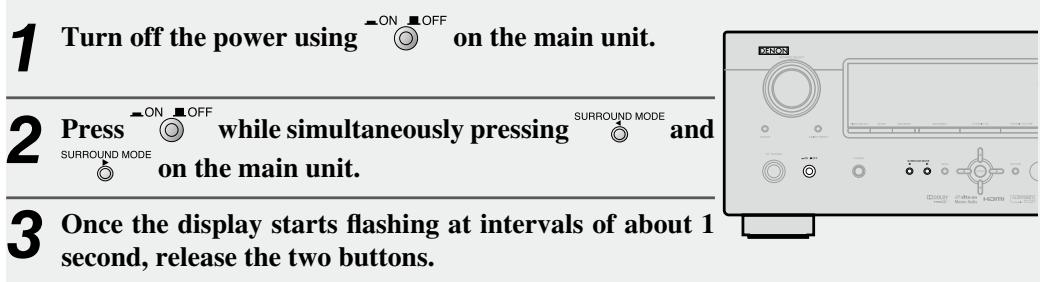

If in step 3 the display does not flash at intervals of about 1 second, start over from step 1.
Specifications
Audio section
- Power amplifier
Rated output:
Front :
75 W+75 W (8 Ω/ohms, 20 Hz ~ 20 kHz with 0.08 % T.H.D.)
110 W+110 W (6 Ω/ohms, 1 kHz with 0.7 % T.H.D.)
Center:
75 W (8 Ω/ohms, 20 Hz ~ 20 kHz with 0.08 % T.H.D.)
110 W (6 Ω/ohms, 1 kHz with 0.7 % T.H.D.)
Surround:
75 W+75 W (8 Ω/ohms, 20 Hz ~ 20 kHz with 0.08 % T.H.D.)
110 W+110 W (6 Ω/ohms, 1 kHz with 0.7 % T.H.D.)
Output connectors:
Front, Center, Surround :
6~16 Ω/ohms
- Analog
Input sensitivity / Input impedance:
200 mV / 47 kΩ/kohms
10 Hz ~ 100 kHz — +1, -3 dB (DIRECT mode)
Frequency response:
S/N:
98 dB (IHF-A weighted, DIRECT mode)
Video section
- Standard video connectors
Input / output level and impedance:
1 Vp-p, 75 Ω/ohms
Frequency response:
5 Hz ~ 10 MHz — +1, -3 dB
Color component video connector
Input / output level and impedance:
Y (brightness) signal — 1 Vp-p, 75 Ω/ohms
P_B / C_B signal — 0.7 Vp-p, 75 Ω/ohms
PR/CR signal - 0.7 Vp-p, 75 Ω/ohms
5 Hz ~ 60 MHz — +0, -3 dB
Frequency response:
[FM]
(note: V at 75 /ohms 0dBf = 1× 10^-15W)
87.5 MHz ~ 107.9 MHz
[AM]
1.2 V (12.8 dBf)
MONO 2.8 V (20.2 dBf)
STEREO 48.7 V (45.0 dBf)
S/N (IHF-A):
MONO 70 dB
STEREO 67 dB
Total harmonic Distortion (at 1 kHz):
MONO 0.7%
STEREO 1.0%
520 kHz ~ 1710 kHz
18 V
General
Power supply:
AC 120V 60 Hz
Power consumption:
4.3 A
0.3 W (Standby)
Maximum external dimensions:
434 (W) x 171 (H) x 377 (D) mm (17-3/32" x 6-47/64" x 14-27/32")
Weight:
9.3 kg (20 lbs 8 oz)
Remote control unit (RC-1120)
Batteries:
R03/AAA Type (two batteries)
Maximum external dimensions:
50 (W) x 211 (H) x 22 (D) mm (1-31/32" x 8-5/16" x 55/64")
Weight:
110 g (Approx 3.9 oz) (including batteries)
- For purposes of improvement, specifications and design are subject to change without notice.
DEVICE SELECT : TV
Television
A
A.R. Systems 284
Accent 276,284
Accuscan 224
Action 188,268
Acura 276
Addison 238
ADL 349
Admiral 045,233,213,218,224,233 239,244,252
Advent 219, 242, 280, 287, 288, 293
Adventura 032
Adventuri 235
Aagna 182
Aiko 238,276,284,316
Aim 241,284
Aiwa 1/2, 216, 264, 380, 400, 413, 414
016, 186, 188, 190, 193, 209, Akai 235, 237, 246, 253, 254, 274, 276, 284, 300, 316
Akashi 276
Akiba 284
Akito 284
Akura 214,276,284,356
Alaron 319
Alba 209, 276, 284
Albatron 186,248
Alfide 246
Alleron 062,188,319
Allstar 284
All-Tel 249
A-Mark 218,224,276
Ambassador 182,320
America Action 239
American High 235, 237
Ampro 261
Amstrad 214,235,276,272,284,320
Amtron 235,239
Anam 006,036,177,186,239,276 284,299
Anam National 036,177,239,268,284
Anglo 276
Anhua 213
Anitech 276,284
Ansonic 276, 284
048,133,184,188,193,233
AOC 235,237,238,239,276,299 319
Apex Digital 170, 192, 194, 259
Archer 276
Asora 276
Audiovox 276
Awa 184,272
Axion 301, 302
Axxent 276
B
Baihe 276
Baile 185,276
Baird 284
Basic Line 276, 284
Bauer 023
Baur 284
Baysonic 239, 240, 252
Beaumark 188, 193, 244
Beijing 185,254,276,280,283
Beko 284
Belcor 188,235
Bell & Howell 045,191,218,233,244
BenQ 198,205
Beon 284
Bestar 284
Blaupunk 319
Blue Sky 221, 284, 291
Boots 276
Boxlight 346
BPL 284
Bradford 239
Brinkmann 284
Brionvega 284
Brockwood 188, 193, 235
Broksonic 172,209,239,240,252,320 361
Bush 185,276,284
C
Caihong 276,280
Cailing 170
030,032,050,188,193,235, 319
Capehart 188, 193, 238, 244
Capetronic 188
Carena 284
Carnivale 188
Carrefour 284
Carver 218,319
Cascade 276, 284
Casio 284
Cathay 284
CCE 284
Celebrity 193,235
Celera 259
Celestial 194
Centurion 284
Changcheng 185,213,276,280
Changfei 276,280
Changfeng 280
Changhai 276,280
Changhong 192, 194, 201, 259, 276, 280
207
Chengdu 276,280
Ching Tai 238, 276
Chun Yun 186,235,238,239,248,276
Chunfeng 276
Chung Hsin 173,239
Chunsun 276,280
Cimline 276
Cinema 246
Cineral 184,238
Circuit City 193
Citek 224
023,030,032,034,050,123, 184,188,193,209,214,218, 235,237,238,239,252,316, 319
City 276
Clarion 239
Clarivox 284
Classic 188,238
Clatronic 276, 284
Colortyme 188,193,218,224,235,237 244,319
CommercialSolutio 229
Commercial 224
Solutions
Concerto 193,235
Concorde 276
Condor 276, 284
Conja 356
Conic 193
Conrowa 190, 192, 201, 276
Contec 013,023,041,239,276,284
Cony 023,041,239
Cosmel 276,284
Craig 214, 239
Crosley 188,214,218,235,239
Crown 023,173,233,239,246,276, 284
CrownMustang 246
CTX 205
023, 034, 044, 053, 184, 188, 190, 191, 193, 210, 213, 218, 224, 226, 228, 233, 235, 237, 239, 253, 282, 284, 316, 319
D
CXC 239
Daenyx 239
023,048,107,184,185,186 187,188,191,193,205,215 237,238,239,246,249,258 276,284,299,319,388,389 395
Dansai 276,284,316
Dawa 276,284
Daytek 246
Daytron 188, 193, 238, 239, 276, 284
Dayu 185
Decca 284
Dell 220,348
Denon 190.322
Denstar 299
Denver 284, 285
Desmet 276, 284
Dewo 299
Diamant 284
Diamond 241, 246, 276
Digatron 284
Digiline 284
Digital Life 340
Digitor 284
Dimensia 044
Dixi 027,222,276,284
DL 285,340
Dongda 276
Donghai 276
Dream Vision 359
Drean 284
DTS 276
Dual 284
Dumont 193,239,244
Durabrand 171, 193, 214, 239, 251, 252
Dux 284
D-Vision 284
Dwin 233, 297
Dynatron 284
E
ECE 284
Elbe 284
Electroband 193,235
Electrograph 215
Electrohome 023,036,058,182,188,191, 193,235,240,252,274
Elekta 276
Elektra 187,244
ELG 284
Elin 276,284
Elite 284
Elta 027,276
Emerald 193,320
023, 060, 062, 123, 124, 148, 172, 173, 182, 184, 191, 193
Emerson 214, 239, 224, 244, 251, 284, 239, 240, 252, 258, 319, 320, 362
Envision 188,319,329
Epson 331,333
Erres 284
ESA 214,254,362
ESC 284
Ether 188,276
Etron 027,276
Euroman 284
Europa 284
Europhon 284
Evolution 205
Exquisit 284
F
Feilang 276
Feilu 276,280
Feiyue 276,280
Fenner 276
Ferguson 173,209,284
Fidelity 214, 284
Finlux 284
Firstar 240,276
Firstline 276, 284
Fisher 021, 191, 218, 224, 235
Flint 284
Formenti 023,284
Fortress 233
Fraba 284
Friac 276,284
Frontech 276
Fujimaro 249,356
Fujitsu 062,178,179,180,214,276
Fujitsu General 178,276
Fujitsu Siemens 179
Funai 062,214,216,235,239,396 397
Furi 190,280
Futuretech 066,239
G
Galaxis 284
Ganxin 280
Gateway 205.215
GBC 276
034,036,044,058,066,088, 184,188,193,222,213,224, 226,228,229,231,233,234, 235,237,238,239,316
GEC 284
Geloso 276
Gemini 224
General Electric 224
General Technic 276
Genesis 276, 284
Genexxa 276,284
Gericom 249.349
Giant 276
Gibraltar 188,235,244
Go Video 237, 344
| Go Vision | 301 |
| Goldstar | 023, 048, 133, 188, 191, 193, 213, 222, 224, 240, 275, 276, 284, 290 |
| Goodmans | 185, 235, 272, 276, 284, 285, 316 |
| Gradiente | 173, 284, 319 |
| Granada | 283, 284 |
| Grandin | 249, 276, 284 |
| Grundig | 178, 209, 241, 246, 285 |
| Grundy | 062, 139 |
| Haaz | 241 |
| Haier | 171, 267, 287, 285 |
| Haihong | 276 |
| Haiyan | 280 |
| Hallmark | 193, 239, 240 |
| Hankook | 188, 193, 239, 299 |
| Hanseatic | 185, 276, 284 |
| Hantarex | 249, 276, 284 |
| Hantor | 284 |
| Harley Davidson | 188, 193, 216, 235, 237, 239 |
| Harman/Kardon | 218 |
| Harsper | 249 |
| Harvard | 239 |
| Harwood | 276, 284 |
| Hauppauge | 284 |
| Havermy | 233 |
| HCM | 276, 284 |
| Heathkit | 244 |
| Helios | 249 |
| Hello Kitty | 184 |
| Hema | 276 |
| Highline | 184 |
| Himitsu | 239, 299 |
| Hinari | 276, 284 |
| Hisense | 170, 190, 192, 201, 276, 291 |
| Hitachi | 023, 041, 070, 124, 182, 188, 190, 192, 193, 199, 201, 202, 208, 213, 216, 218, 224, 235, 238, 244, 274, 284, 316, 376, 384, 385, 386, 394, 408, 409, 410, 412 |
| Hitachi Fujian | 182 |
| Hitachi Pay TV | 151 |
| Hitsu | 276 |
| Hoeher | 249 |
| Hongmei | 233, 276, 280 |
| Hongyan | 280 |
| Hornyphon | 284 |
| Hua Tun | 276 |
| Huafa | 190, 276 |
| Huanghaimei | 276 |
| Huanghe | 276, 280 |
| Huanglong | 276 |
| Huangshan | 276, 280 |
| Huanyu | 280 |
| Huari | 190 |
| Hugoson | 309, 349 |
| Huodateji | 213 |
| Hyper | 276 |
| Hypson | 284 |
| Hyundai | 195, 249 |
| Iberia | 284 |
| ICE | 284 |
| liyama | 309, 349 |
| Ima | 193, 239, 240 |
| Imperial | 284 |
| Imperial Crown | 185, 276 |
| Indiana | 284 |
| Infinity | 017, 218, 222 |
| Ingersol | 276 |
| Inno Hit | 276 |
| Innova | 284 |
| Innowert | 249 |
| Insignia | 214 |
| Inteq | 190, 244 |
| Interbuy | 276, 284 |
| Interfunk | 184 |
| Internal | 184 |
| Intervention | 276, 284 |
| Irradio | 276, 284 |
| IRT | 184, 187, 299 |
| Isukai | 184 |
| ITS | 184 |
| ITT Nokia | 239 |
| ITV | 284 |
| Janeil | 032 |
| JBL | 018, 218, 222 |
| JC Penny | 034, 041, 044, 048, 050, 058, 066, 088, 094, 192, 193, 237, 275 |
| JCB | 193, 235 |
| Jean | 192, 213, 238, 240, 276 |
| JEC | 316 |
| Jensen | 242, 280, 288, 293 |
| Jiahua | 213 |
| JiaLiCai | 276 |
| JIL | 188 |
| Jinfeng | 213, 283 |
| Jinque | 276, 280 |
| Jinta | 276 |
| Jinxing | 190, 192, 218, 276, 280, 284 |
| Juhua | 280 |
| Jutan | 188 |
| JVC | 023, 041, 072, 073, 173, 174, 175, 176, 178, 188, 218, 233, 252, 268 |
| Kaige | 276, 280 |
| Kaisui | 276, 284 |
| Kamp | 239, 244 |
| Kangli | 185, 276, 280 |
| Kangyi | 276 |
| Kawasho | 018, 188, 193 |
| KDS | 356 |
| KEC | 237, 239 |
| Ken Brown | 240, 252 |
| Kendo | 284 |
| Kenia | 188 |
| Kenwood | 188, 193, 239, 240, 319 |
| Khind | 241 |
| Kioto | 218, 241, 284 |
| KLH | 192 |
| KLL | 284 |
| Kloss | 005, 032, 188 |
| Kloss Novabeam | 005, 032, 101 |
| Kneissel | 284 |
| Kolin | 173, 182, 239, 355 |
| Kolster | 284 |
| Kongque | 276, 280 |
| Konichi | 276 |
| Konig | 284 |
| Konka | 239, 263, 265, 266, 280, 284, 285, 286, 297, 299 |
| Korpel | 284 |
| Kosmos | 284 |
| Kost | 278 |
| Koyoda | 276 |
| KTV | 074, 123, 188, 239, 252 |
| Kuaile | 276 |
| Kulun | 276 |
| Kunlun | 185, 213, 280, 283 |
| L&S Electronic | 249 |
| Lark | 191 |
| Leader | 276 |
| Lecson | 284 |
| Legend | 276 |
| Lenco | 284, 285 |
| Lenoir | 276 |
| Leyco | 284 |
| LG | 188, 193, 186, 196, 218, 237, 276, 284, 290, 348, 351, 360, 387, 394 |
| Liesenk & Tter | 284 |
| Liesenkotter | 284 |
| Lifetec | 178, 276, 284 |
| Lihua | 280 |
| Lloyd's | 188, 216, 239, 240, 276 |
| Local Chennai TV | 276 |
| Local India TV | 276 |
| Loewe | 222, 284 |
| Logik | 045, 237, 239, 240, 349, 272, 276 |
| Longjiang | 280 |
| Luma | 276 |
| Lumatron | 284 |
| Lux May | 276, 284 |
| Luxman | 193 |
| LXI | 017, 034, 044, 075, 103, 188, 191, 192, 193, 210, 213, 214, 218, 222, 224, 233, 235, 237, 244, 284, 316 |
| M & S | 218 |
| M Electronic | 185, 276, 284 |
| Madison | 284 |
| MAG | 356 |
| Magnadyne | 218 |
| Magnasonic | 235, 188, 218, 238, 233, 192 |
| Magnavox | 005, 017, 030, 050, 079, 085, 089, 101, 108, 110, 177, 188, 191, 193, 213, 214, 215, 216, 218, 221, 222, 224, 237, 238, 235, 239, 241, 272, 284, 316, 319, 328, 362 |
| Magnum | 284 |
| Majestic | 244 |
| Manesth | 316, 284 |
| Manhattan | 284 |
| Marantz | 017, 193, 188, 284, 218, 324, 289, 290, 222 |
| Mark | 276, 284 |
| Mastro | 173, 241 |
| Masuda | 276, 284 |
| Matsui | 022, 276, 272, 316, 284, 320 |
| Matsushita | 213, 177, 268 |
| Matsuviama | 285 |
| Maxent | 205, 215 |
| MCE | 276 |
| Mediator | 284 |
| Medion | 284 |
| Megapower | 186 |
| Megatron | 276, 224, 190, 274, 193 |
| Meile | 180 |
| Memorex | 027, 045, 276, 188, 316, 284, 237, 182, 191, 193, 239, 177, 252, 172 |
| Memphis | 276 |
| Mercury | 276, 284, 237 |
| Mermaid | 284 |
| Metz | 160, 161, 162, 284, 285 |
| MGA | 182, 193, 048, 240, 058, 021, 018, 188 |
| MGN Technology | 193 |
| Micro Genius | 182 |
| Micromaxx | 284 |
| Midland | 034, 244, 224, 213 |
| Minato | 284 |
| Minoka | 284 |
| Minutz | 066 |
| Mitsubishi | 016, 021, 048, 058, 081, 105, 177, 182, 188, 191, 193, 233, 234, 239, 240, 272, 277, 280, 281, 284, 369, 385, 386, 394 |
| Monaco | 276 |
| Monivision | 186, 248 |
| Montgomery Ward | 011, 066, 101, 144, 235 |
| Morgan's | 284 |
| Motorola | 036, 182, 213, 218, 233 |
| MTC | 034, 048, 188, 193, 237, 238, 239, 272 |
| Mudan | 276, 213, 283, 280 |
| Multitec | 284 |
| Multitech | 276, 284, 239 |
| Mx Onda | 356 |
| NAD | 075, 192, 193, 201, 210, 211, 212, 284 |
| Naiko | 284 |
| Nakimura | 284 |
| Nanbao | 276 |
| Nansheng | 280 |
| NAT | 283 |
| National | 036, 213, 239, 283 |
| National Quenties | 283 |
| NEC | 319, 036, 048, 173, 185, 188, 191, 192, 193, 213, 224, 240, 276, 272, 280, 319, 321, 323, 324, 342, 359 |
| Neckermann | 284 |
| NEI | 284 |
| Neovia | 249 |
| Netsat | 284 |
| NetTV | 215 |
| Neufunk | 276, 284 |
| New Tech | 276, 284 |
| Newave | 276, 238, 233, 193 |
| Nikkai | 276, 316, 284 |
| Nikko | 188, 238, 193 |
| Nikkodo | 188, 238, 193 |
| Nishi | 188 |
| Noblex | 284, 191 |
| Nokia | 239 |
| Norcent | 170, 247 |
| Nordmende | 284 |
| Normerel | 284 |
| Novatronic | 284 |
| NTC | 238 |
| Nyon | 235 |
| Okano | 276, 284 |
| Olevia | 347, 350, 355, 358 |
| Omni | 170, 340 |
| Onida | 173, 175 |
| Onwa | 239 |
| Opera | 284 |
| Optimus | 211, 188, 233, 182, 191, 210, 193, 239, 177, 268 |
| Optoma | 345 |
| Optonica | 011, 233 |
| Orbit | 284 |
| Orion | 214, 272, 244, 284, 320, 193, 239, 240, 252, 251, 172 |
| Orline | 284 |
| Osaki | 284 |
| Osio | 284 |
| Osume | 284 |
| Otic | 356 |
| Otto Versand | 284, 233, 283 |
| Pace | 238 |
| Pacific | 284, 209 |
| Packard Bell | 238, 291 |
| Palladium | 284 |
| Palsonic | 284, 216 |
| Panama | 276, 284 |
| Panasonic | 009, 017, 036, 177, 181, 188, 192, 213, 218, 222, 235, 240, 270, 271, 283, 284, 268, 180, 269, 311, 316, 376, 384, 385 |
| Panavision | 284 |
| Panda | 276, 213, 283, 241, 280 |
| Pausa | 276 |
| Paxonic | 188, 237 |
| PCE | 237, 192 |
| Penney | 235, 188, 316, 284, 224, 213, 237, 192, 193, 177, 228 |
| Perdio | 284 |
| Perfekt | 284 |
| Petters | 357 |
| Philco | 005, 023, 030, 036, 079, 050, 085, 089, 101, 172, 184, 187, 188, 190, 284, 218, 238, 239, 252, 193, 299 |
| Philips | 005, 017, 023, 030, 036, 050, 087, 088, 089, 101, 188, 193, 205, 213, 214, 217, 218, 221, 222, 223, 235, 238, 244, 276, 284, 290 |
| Phoenix | 284 |
| Phonola | 284 |
| Pilot | 272, 288, 213, 237, 193, 241 |
| Pioneer | 124, 142, 370, 415, 416, 272, 284, 319, 218, 211, 212, 310 |
| Plantron | 276, 284 |
| Playsonic | 284 |
| Polaroid | 258, 249, 278, 291, 279, 353, 354, 292, 356, 357 |
| Poppy | 276 |
| Portland | 238, 184 |
| Powerpoint | 284 |
| Precision | 320, 239, 240 |
| Premier | 276 |
| Price Club | 237 |
| Prima | 276, 242, 287, 288, 280, 293 |
| Princeton | 186, 325 |
| Prism | 213, 177 |
| Profex | 276 |
| Profi | 276 |
| Profitronic | 284 |
| Proline | 284 |
| Proscan | 034, 044, 224, 282, 228, 229, 231 |
| Proisco | 192 |
| Prosonic | 284 |
| Protec | 276, 284 |
| Protech | 276, 284 |
| Proton | 185, 023, 092, 276, 188, 193, 282 |
| Proview | 356 |
| ProVision | 284 |
| Pulsar | 149, 244, 238, 193 |
| Pye | 284 |
| Pymi | 276 |
| Qingdao | 213, 283, 280 |
| Quadral | 213 |
| Quartz | 182, 193 |
| Quasar | 036, 213, 074, 276, 316, 177, 268, 249 |
| Quelle | 272, 284 |
| Rabbit | 224 |
| Radio Shack | 011, 044 |
| Radiola | 284 |
| Radiomarelli | 284 |
| RadioShack | 188, 284, 224, 182, 191, 193, 239, 216 |
| Radiotone | 276, 284 |
| RCA | 034, 044, 130, 151, 152, 185, 188, 189, 193, 211, 222, 213, 218, 224, 225, 226, 227, 228, 229, 230, 231, 232, 233, 235, 237, 238, 234, 302, 312 |
| Realistic | 011, 181, 224, 182, 191, 193, 239 |
| Recor | 284 |
| Rectiligne | 284 |
| Redstar | 284 |
| Reflex | 284 |
| Relisys | 249 |
| Remotec | 284, 233, 190, 214, 177 |
| Revox | 284 |
| RFT | 284 |
| R-Line | 284 |
| Roadstar | 276, 284 |
| Rowa | 276, 284, 285, 176, 280 |
| Runco | 244, 288, 237, 321, 323 |
| Ruyi | 280 |
| Saba | 177 |
| Saige | 276, 280 |
| Saisho | 027, 276, 272, 320 |
| Saivod | 284 |
| Sampo | 276, 188, 224, 238, 233, 191, 214, 193, 268, 186, 215, 205 |
| Samsung | 034, 094, 053, 188, 189, 191, 192, 193, 218, 222, 224, 233, 237, 238, 240, 243, 244, 253, 254, 257, 260, 276, 280, 283, 284, 285, 300, 308, 316, 318, 382, 401 |
| Sanky | 188, 237 |
| Sansei | 238, 184 |
| Sanskui | 251, 188, 284, 237, 252, 241, 216, 172, 209 |
| Santon | 276 |
| Sanyo | 013, 021, 081, 096, 190, 191, 192, 214, 215, 218, 224, 235, 239, 245, 252, 276, 272, 284, 290, 319, 324, 327, 346, 384, 392, 393, 404 |
| Sanyong | 284 |
| Sanyuan | 276, 233, 280 |
| Saville | 237 |
| SBR | 222, 284 |
| Sceptre | 349 |
| Schneider | 222, 284, 216 |
| Scotch | 193 |
| Scott | 062, 188, 320, 193, 239, 240 |
| Sears | 021, 023, 034, 041, 062, 073, 075, 173, 188, 191, 192, 193, 210, 213, 218, 214, 216, 224, 233, 235, 237, 240, 244, 284, 316, 327 |
| SEG | 276, 284 |
| SEI | 284, 320 |
| Sei-Sinudyne | 284 |
| Semivox | 239, 240, 252 |
| Semp | 192, 203 |
| Sencora | 276 |
| Sentra | 316 |
| Serie Dorada | 188, 192, 193, 239 |
| Serino | 233 |
| Shancha | 280 |
| Shanghai | 276, 283, 280 |
| Shaofeng | 190, 280 |
| Sharp | 011, 013, 026, 099, 104, 173, 188, 218, 233, 234, 239, 268, 372, 373, 276, 294, 295, 296, 297, 298, 398, 402, 403 |
| Shen Ying | 276, 238 |
| Shencai | 276, 190 |
| Sheng Chia | 276, 233, 240 |
| Shenyang | 276, 280 |
| Sherwood | 276 |
| Shintoshi | 284 |
| Shivaki | 284, 193 |
| Show | 276 |
| Siam | 284 |
| Siemens | 013, 284, 190 |
| Siera | 284 |
| Signature | 045, 144, 188, 224, 233 |
| Signet | 278 |
| Silva | 284 |
| Silva Schneider | 284 |
| Silvano | 285 |
| Simpson | 050, 272, 188, 193 |
| Singer | 276, 284, 273, 238 |
| Sinudyne | 284, 320 |
| SKY | 284 |
| Skygiant | 239 |
| Sky-North | 284 |
| Skyworth | 276, 284, 170, 280 |
| Sliding | 249 |
| Soemtron | 249 |
| Solar Drape | 235 |
| Solavox | 284 |
| Sole | 329 |
| Songba | 276 |
| Soniko | 284 |
| Sonneclair | 284 |
| Sonoko | 276, 284 |
| Sontec | 276, 284 |
| Sony | 173, 182, 191, 193, 216, 235, 236, 244, 263, 268, 272, 284, [374]*, 375, 399, 405, 406, 407, 368, 366 |
| Sounddesign | 030, 050, 062, 193, 239 |
| Soundwave | 284 |
| Sova | 364 |
| Sowa | 213, 237, 238, 192, 193, 283 |
| Spectra | 276 |
| Spectravision | 192, 193 |
| Spectricon | 276 |
| Spectroniq | 356 |
| Squareview | 214 |
| SR2000 | 191 |
| Sangyong | 214 |
| SSS | 276 |
| Staksonic | 239 |
| Standard | 276 |
| Standard Component | 276 |
| Starlite | 276, 284, 239, 240 |
| Strato | 276, 284 |
| Studio Experience | 248 |
| Sunkai | 249 |
| Sunstar | 276, 284 |
| Sunwood | 284 |
| Superscan | 233, 337, 362 |
| Supersonic | 276 |
| SuperTech | 276, 284 |
| Supra | 276, 193 |
| Supre-Macy | 032 |
| Supreme | 235, 193 |
| Sutron | 276 |
| SV2000 | 218 |
| SVA | 285, 170, 267, 249, 338, 339, 340 |
| Sylvania | 005, 017, 023, 030, 079, 085, 089, 101, 188, 191, 193, 213, 214, 216, 218, 224, 235, 238, 284, 291, 362 |
| Symphonic | 148, 235, 214, 193, 239, 216, 362 |
| Synco | 235, 237, 238, 233, 193, 184 |
| Syntax | 347, 350, 355 |
| Sysline | 284 |
| Tacico | 276, 238, 193 |
| Tai Yi | 276 |
| Taishan | 276, 280 |
| Talent | 193 |
| Tandy | 233 |
| Tashiko | 238, 319, 268 |
| Tatung | 036, 124, 235, 276, 272, 284, 213, 218, 237, 191, 192, 201, 221, 205 |
| TCL | 241 |
| Teac | 276, 284, 191, 319, 214, 193, 296, 241, 215, 216 |
| Tec | 276, 284 |
| Tech Line | 284 |
| Technics | 213, 218, 283, 177, 268 |
| Technovox | 188 |
| Techview | 335 |
| Techwood | 213, 237, 177 |
| Teco | 276, 213, 238, 233, 193 |
| Tedelex | 276 |
| Teiron | 276 |
| Teknika | 030, 032, 034, 041, 144, 156, 218, 237, 238, 182, 193, 239, 252 |
| Telecolor | 244 |
| Telecor | 284 |
| Telefunken | 284, 285, 253 |
| Telefusion | 284 |
| Telegazi | 284 |
| Telemeister | 284 |
| Telesonic | 284 |
| Telestar | 276, 284 |
| Teletech | 276, 284 |
| Teleview | 284 |
| Tempest | 276 |
| Tennessee | 284 |
| Tensai | 276, 284 |
| Tenson | 276 |
| Tera | 185, 188, 238, 282 |
| Tevion | 284, 194, 356 |
| Texet | 276 |
| ThemeScene | 345 |
| Thomas | 224, 193, 216 |
| Thomson | 165, 166, 284, 224, 229 |
| Thorn | 316, 284 |
| Tiane | 233, 280 |
| TMK | 320, 193, 239, 240 |
| TNCi | 244 |
| Tobo | 276, 170 |
| Tocom | 192 |
| Tokai | 276, 284 |
| Tokyo | 316 |
| Tongtel | 285 |
| Tophouse | 239, 246 |
| Toshiba | 034, 075, 094, 041, 182, 190, 191, 192, 199, 201, 202, 203, 204, 207, 209, 210, 237, 233, 268, 276, 272, 316, 330, 334, 351, 359, 365, 371, 390, 391 |
| Totevision | 213 |
| Toyoda | 276 |
| Toyomenka | 193 |
| Trans Continens | 284 |
| TRANS-continents | 249 |
| Transonic | 276, 284, 285 |
| Trio | 356 |
| Triumph | 284, 320 |
| Truetone | 213, 177 |
| TunTEX | 276, 188, 238 |
| TVS | 252 |
| Uher | 284 |
| Ultra | 238 |
| Ultravox | 284 |
| Unic Line | 284 |
| United | 284, 285 |
| Universal | 066, 088, 284, 224 |
| Universum | 276, 272, 284, 319, 320 |
| Univox | 284 |
| V | 337, 343, 215, 205 |
| V2max | 249 |
| V7 Videoseven | 349, 215 |
| Vector Research | 188 |
| Vestel | 284 |
| Vexa | 276, 284 |
| Victor | 173, 177, 268 |
| Video Concepts | 016 |
| Videocon | 284 |
| Videomac | 276 |
| VideoSystem | 284 |
| Vidikron | 218 |
| Vidtech | 193 |
| Viewsonic | 336, 337, 343, 215 |
| Viking | 032, 237 |
| Vision | 284 |
| Vizio | 337, 343, 215, 205, 360 |
| Vortec | 284 |
| Voxson | 284, 193 |
| Waltham | 284 |
| Wards | 005, 011, 045, 030, 085, 088, 089, 101, 102, 148, 188, 191, 192, 193, 201, 210, 212, 213, 218, 224, 226, 228, 233, 235, 237, 239, 240, 244, 274, 284, 316 |
| Warumaia | 185 |
| Watson | 276, 284 |
| Waycon | 192 |
| Wega | 284 |
| Wegavox | 276 |
| Weipai | 276 |
| Welton | 193 |
| Westinghouse | 235, 184, 343, 250, 309, 367 |
| Wharfedale | 284 |
| White | 284, 240, 184, 252, 258, 250 |
| Westinghouse | |
| World | 239, 240, 184, 252 |
| World-of-Vision | 249, 309, 349 |
| Xenius | 185 |
| Xiahua | 176, 280 |
| Xianghai | 276 |
| Xiangyu | 276 |
| Xihu | 280 |
| Xingfu | 276 |
| Xoro | 049 |
| XR-1000 | 191, 214, 239 |
| Xrypton | 284 |
| Yamaha | 188, 268, 326, 331, 332 |
| Yamishi | 284 |
| Yapshe | 177 |
| Yingge | 276 |
| Yokan | 284 |
| Yoko | 276, 284 |
| Yonggu | 276 |
| Yorx | 188 |
| Youlanasi | 208 |
| Yousida | 276 |
| Yuhang | 276 |
| Zenith | 140, 144, 149, 235, 244, 188, 284, 224, 238, 233, 190, 214, 193, 252, 254, 199, 351, 216, 172 |
| ZhuHai | 276 |
| Zonda | 276 |
DEVICE SELECT : DVD
DVD Player
| A | Aiwa | 002, 009 |
| Alba | 017, 040 | |
| Apex Digital | 002, 040 | |
| B | Blaupunkt | 040 |
| Bush | 040 | |
| C | Clatronic | 015 |
| Creative | 001, 017 | |
| D | Daewoo | 023, 114 |
| Denon | [111]*, 112, 113, 114 | |
| Dual | 015 | |
| E | Emerson | 015, 046 |
| Entivo | 001, 017 | |
| F | Finlux | 046 |
| Firstline | 023 | |
| Funai | 015 |
| G | Gateway | 042, 043, 044, 045 |
| GE | 038, 040 | |
| General Electric | 038, 040 | |
| Go Video | 010, 023, 040 | |
| Goldstar | 023, 046 | |
| Gradient | 114 | |
| Grundig | 017 | |
| H | HITACHI | 010 |
| I | Integra | 001 |
| J | Irradio | 023 |
| K | JVC | 001, 006, 011, 017 |
| L | Kenwood | 114 |
| M | KLH | 040 |
| N | Kloss | 002 |
| O | Konka | 012, 013 |
| L | LG | 023, 046 |
| P | Luxman | 010 |
| M | Magnasonic | 015 |
| O | Magnavox | 001, 015, 017 |
| S | Marantz | 001, 015, 017 |
| T | Metz | 003, 008 |
| U | Micromedia | 001, 017 |
| V | Mitsubishi | 004, 033 |
| N | NEC | 023 |
| O | Optimus | 003, 008 |
| P | Panasonic | 001, 008, 114 |
| Panda | 040 | |
| Philco | 015 | |
| Philips | 001, 005, 015, 016, 017 | |
| Pioneer | 003, 008, 114 | |
| Pye | 017, 023 | |
| R | RadioShack | 008 |
| RCA | 008, 038, 040 | |
| Realistic | 008 | |
| Rotel | 006, 011 | |
| Rowa | 040 | |
| S | Samsung | 010, 114 |
| Sanyo | 015, 018, 037 | |
| Schneider | 017, 023 | |
| Sharp | 015 | |
| Sherwood | 040 | |
| Sonic Blue | 010, 023 | |
| SONY | 002, 010, 019 | |
| SVA | 040 | |
| Sylvania | 015 |
| Symphonic | 015 | |
| T | Teac | 008, 015, 040 |
| Technics | 114 | |
| Thomson | 038 | |
| Toshiba | 001, 010, 017, 021 | |
| U | United | 015 |
| Universum | 023, 046 | |
| Y | Yamaha | 016, 017, 114 |
| Z | Zenith | 001, 023, 046 |
| CD Player | ||
| A | Aiwa | 150, 201, 235, 243 |
| B | Burmester | 151 |
| Burmster | 202 | |
| C | Carvery | 150, 202, 203, 235 |
| D | Denon | 167, 189, 190, 191, 192, 222, 234, 244 |
| E | Emerson | 204, 205, 206, 207 |
| F | Fisher | 155, 203, 208, 209, 210 |
| J | JVC | 158, 173, 218, 219 |
| K | Kenwood | 155, 162, 163, 164, 165, 166, 167, 168, 211, 212, 213, 214, 217 |
| M | Magnavox | 150, 156, 206, 215, 235 |
| Marantz | 150, 152, 153, 156, 163, 170, 216, 228, 235 | |
| MCS | 163, 216, 224 | |
| O | Onkyo | 159, 177, 178, 179, 180, 181, 182, 183, 184, 185, 225, 227 |
| Optimus | 151, 155, 158, 165, 172, 217, 220, 221, 223, 226 | |
| P | Philips | 167, 214, 232, 233, 235 |
| Pioneer | 158, 159, 160, 161, 206, 226, 230 | |
| S | Sears | 206 |
| Sony | 154, 155, 174, 175, 176, 223, 231 | |
| T | Teac | 152, 153, 154, 202, 209, 228 |
| Technics | 163, 171, 216, 229, 236 | |
| W | Wards | 150, 155, 158, 172, 186, 235, 237 |
| Y | Yamaha | 154, 158, 164, 177, 187, 188, 238, 239, 240, 241 |
| Z | Zenith | 242 |
| DEVICE SELECT : HDP | ||
| Blu-Ray Disc Player | ||
| D | Denon | 038, 039, [111]* |
| H | Hitachi | 034, 035, 036 |
| Integra | 012 | |
| I | JVC | 013, 014, 016, 017, 018, 019 |
| J | LG | 010 |
| M | Marantz | 025, 026 |
| Mitsubishi | 023, 024 | |
| O | Onkyo | 011, 012 |
| P | Panasonic | 001, 002, 003, 040, 041 |
| Philips | 004 | |
| Pioneer | 005, 037 | |
| R | RCA | 011 |
| S | Samsung | 006 |
| Sharp | 031, 032, 033, 027, 028, 029, 030 | |
| Sony | 007, 008, 009, 015 | |
| T | Toshiba | 011 |
| Y | Yamaha | 020, 021, 022 |
DEVICE SELECT : DVR
Digital Video Recorder
| A | ALCO | 011 |
| ATLM | 010 | |
| F | Funai | 035 |
| H | Hitachi | 031, 032, 033, 034, 036, 037 |
| J | JVC | [001]*, 002, 003, 004 |
| M | Mitsubishi | 038, 039 |
| P | Panasonic | 036, 037 |
| S | Pioneer | 027, 028, 029, 030 |
| SANYO | 009 | |
| Sharp | 040, 041 | |
| SONY | 012, 023, 024, 025, 026 | |
| T | TOSHIBA | 006, 007, 008, 042, 043 |
| V | Victor | 020, 021, 022, 040, 041 |
| Y | YAMAHA | 005 |
DEVICE SELECT : VCR
Video Cassette Recorder
| A | Admiral | 081 |
| Aiko | 095 | |
| Aiwa | 009, 026, 027, 070, 072, 082, 083, 084 | |
| Alba | 055 | |
| Amstrad | 009 | |
| ASA | 042 | |
| Asha | 087 | |
| Audio Dynamic | 005, 085 | |
| Audiovox | 088 | |
| B | Beaumark | 087 |
| Broksonic | 086, 093 | |
| C | Calix | 088 |
| Candle | 006, 087, 088, 089, 090 | |
| Canon | 049, 057 | |
| Capehart | 025, 055, 056, 071 | |
| Carver | 015 | |
| CCE | 095 | |
| Citizen | 006, 007, 087, 088, 089, 090, 095 | |
| Craig | 007, 087, 088, 091, 115 | |
| Curtis Mathes | 006, 049, 073, 080, 087, 088, 091, 115 | |
| Cybernex | 087 | |
| Daewoo | 025, 055, 059, 074, 089, 093, 095, 096 | |
| Daytron | 025, 055 | |
| DBX | 005, 085 | |
| Dumont | 053 | |
| Dynatech | 009 | |
| Electrohome | 001, 088, 097 | |
| Electrophonic | 088 | |
| Emerson | 001, 009, 017, 027, 086, 088, 089, 092, 093, 097, 100, 101, 102, 103, 104, 117 | |
| Flisher | 009, 028, 031, 053, 054, 091, 099, 115 | |
| GE | 007, 011, 049, 050, 051, 052, 073, 080, 087 | |
| Go Video | 047, 048 | |
| Goldstar | 006, 012, 062, 088, 200 | |
| Gradient | 094 | |
| Grundig | 042 | |
| Harley Davidson | 094 | |
| Harman Kardon | 040, 062 | |
| Hi-Q | 091 | |
| Hitachi | 009, 013, 023, 026, 058, 108, 109, 110. [111]* | |
| JC Penny | 004, 005, 007, 023, 028, 049, 062, 085, 087, 088 | |
| Jensen | 013, 026 | |
| JVC | 004, 005, 006, 026, 029, 043, 044, 045, 046, 085 | |
| Kenwood | 004, 005, 006, 026, 029, 033, 045, 085, 090 | |
| Kodak | 088 | |
| Lloyd | 009, 094 | |
| LXI | 088 | |
| Magnavox | 015, 016, 042, 049, 063, 106 | |
| Magnin | 087 | |
| Marantz | 004, 005, 006, 015, 042, 049, 085, 090 | |
| Marta | 088 | |
| MEI | 049 | |
| Memorex | 009, 033, 049, 053, 060, 081, 087, 088, 091, 094, 115 | |
| Metz | 123, 124, 125, 126, 127 | |
| MGA | 001, 017, 027, 041, 097 | |
| MGN Technology | 087 | |
| Midland | 011 | |
| Minolta | 013, 023 | |
| Mitsubishi | 001, 003, 008, 013, 014, 017, 027, 029, 040, 041, 045, 097 | |
| Montgomery Ward | 001, 002, 007, 009, 049, 063, 081, 115, 117 | |
| Motorola | 081 |
| N | MTC | 009, 087, 094 |
| Multitech | 007, 009, 011, 087, 090, 094 | |
| NAD | 038 | |
| NEC | 004, 005, 006, 018, 026, 029, 045, 061, 062, 085 | |
| Nikko | 088 | |
| Noblex | 087 | |
| O | Optimus | 081, 088 |
| Optonica | 021 | |
| Panasonic | 024, 049, 064, 066, 067, 068, 069, 107 | |
| Pentax | 009, 013, 023, 058, 090 | |
| Perdio | 009 | |
| Philco | 015, 016, 049 | |
| Philips | 015, 021, 042, 049, 105 | |
| Pilot | 088 | |
| Pioneer | 005, 013, 029, 036, 037, 038, 045, 085 | |
| Portland | 025, 055, 090 | |
| Proscan | 080, 063 | |
| Pulsar | 060 | |
| Q | Quartz | 033, 034, 049 |
| R | Radio Shack | 001, 002, 021, 081, 087, 088, 091, 094, 097, 098, 115 |
| Radix | 088 | |
| Randex | 088 | |
| RCA | 007, 013, 019, 023, 058, 063, 064, 065, 073, 080, 082, 087 | |
| Realistic | 009, 021, 031, 033, 049, 053, 081, 087, 088, 091, 094, 097, 098 | |
| Ricoh | 055 | |
| S | Salora | 033, 041 |
| Samsung | 007, 011, 051, 059, 070, 083, 087, 089, 113 | |
| Sanky | 081 | |
| Sansui | 005, 026, 029, 045, 061, 085, 114 | |
| Sanyo | 032, 033, 053, 087, 091, 115, 116 | |
| SBR | 042 | |
| Scott | 017, 020, 086, 089, 093, 117 | |
| Sears | 013, 023, 028, 031, 033, 053, 054, 088, 091, 098, 099, 115 | |
| Sentra | 055 | |
| Sharp | 001, 002, 021, 097 | |
| Shogun | 087 | |
| Sony | 075, 076, 077, 078, 079, 121, 122 | |
| STS | 023 | |
| Sylvania | 009, 015, 016, 017, 041, 049, 094 | |
| Symphonic | 009, 094 | |
| T | Tandy | 009 |
| Tashiko | 009, 088 | |
| Tatung | 004, 026, 030 | |
| Teac | 004, 009, 026, 094 | |
| Technics | 024, 049 | |
| TMK | 087, 092 |
| Toshiba | 013, 017, 020, 041, 059, 089, 098, 099, 117 |
| Torevision | 007, 087, 088 |
| Unirech | 087 |
| Vector Research | 005, 062, 085, 089, 090 |
| Victor | 005, 045, 046, 085 |
| Video Concepts | 005, 027, 085, 089, 090 |
| Videosonic | 007, 087 |
| Wards | 013, 021, 023, 087, 088, 089, 091, 094, 097, 118, 119, 120 |
| XR-1000 | 094 |
| Yamaha | 004, 005, 006, 026, 062, 085 |
| Zenith | 060, 078, 079 |
DEVICE SELECT : SAT/CBL
Satellite Receiver
| A | Alphastar | 054 |
| C | Chaparrali | 035, 036, 150, 154, 155 |
| D | DirecTV | [095]*, 156, 157, 158, 162, 163, 166, 174, 176, 177, 179, 188, 189, 191, 193, 197, 198, 200, 202 |
| E | Dish Network System | 164, 173, 194, 201 |
| Dishnet | 053 | |
| Drake | 037, 038 | |
| Echostar Dish | 062, 077, 095, 164, 168, 173, 187, 190, 194, 201 | |
| G | GE | 048, 055, 056, 156, 157 |
| H | General Instruments | 039, 040, 041 |
| Grundig | 070, 071, 072, 073, 152, 167, 168, 171, 185 | |
| Hitachi | 058, 059, 163, 166, 182, 183 | |
| J | Hughes Networkr | 063, 064, 065, 069, 163, 193, 200 |
| JVC | 077, 164, 201 | |
| K | Kathrein | 074, 075, 076, 083, 152, 153, 192, 196 |
| M | Magnavox | 060, 160, 162 |
| N | Nokia | 070, 084, 085, 086, 161, 168, 181 |
| P | Panasonic | 091, 155, 159, 167, 186 |
| R | Philips | 060, 150, 152, 153, 160, 162, 163, 164, 166, 060, 168, 172, 174, 178, 179, 193, 199, 200 |
| S | Primestar | 051 |
| Proscan | 048, 055, 056, 156, 157 | |
| RCA | 048, 055, 056, 068, 151, 156, 157, 164, 169, 179, 185, 189, 193 | |
| T | Realistic | 042 |
| S | Sierra I | 036 |
| Sierra II | 036 | |
| Sierra III | 036 | |
| Y | Sony | 049, 067, 158, 167, 168, 195, 197, 198 |
| S | STS1 | 043 |
| T | STS3 | 045 |
| STS4 | 046 | |
| Technisat | 077, 078, 079, 081, 082, 175, 180 | |
| Toshiba | 047, 050, 163, 165, 166, 184, 200 | |
| U | Uniden | 061, 160, 162 |
Cable TV
| ABC | 006, 007, 008, 009, 118, 122 |
| Archer | 010, 011, 122 |
| Century | 011, 118 |
| Citizen | 011 |
| Colour Voice | 012, 013 |
| Comtronic | 014 |
| Eastern | 015 |
| Garrard | 011 |
| General Instrument | 032, 108, 110, 111 |
| Goldstar | 100 |
| Hytex | 006 |
| Jasco | 011 |
| Jerrold | 007, 009, 032, 110, 111 |
| Magnavox | 018 |
| Motorola | 110, 111, 113 |
| Oak | 006, 020, 101 |
| Panasonic | 001, 005, 100, 115, 116, 117, 118 |
| Philips | 011, 012, 013, 018, 021, 129, 130, 131, 133, 134 |
| Pioneer | 002, 003, 022, 100, 123, 126, 127, 128 |
| RCA | 029 |
| Regency | 015 |
| Samsung | 014, 023, 100, 117, 119, 120 |
| Scientific Atlanta | 004, 024, 025, 117, 118, 121, 122, 123, 136 |
| Signal | 014 |
| SL Marx | 014 |
| Sony | 105, 132 |
| Starcom | 009 |
| Stargate | 014 |
| Teleview | 014 |
| Tocom | 007 |
| Unika | 011 |
| United Artists | 006 |
| Universal | 010, 011 |
| Viewstar | 018, 104 |
| Zenith | 027, 028, 117, 118, 125, 135 |
[ ]*: Preset codes set upon shipment from the factory.