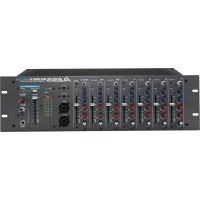
MULTIMIX 8 USB 2.0 - Mixer ALESIS - Free user manual and instructions
Find the device manual for free MULTIMIX 8 USB 2.0 ALESIS in PDF.




| Product type | Analog mixing console with USB 2.0 audio interface |
| Brand | ALESIS |
| Model | MULTIMIX 8 USB 2.0 |
| Number of channels | 8 input channels (4 mono + 2 stereo) |
| Microphone inputs | 4 XLR inputs with +48 V phantom power |
| Line inputs | 4 x 6.35 mm jack inputs (mono channels) and 4 RCA inputs (stereo channels) |
| Phantom power | +48 V switchable, LED indicator |
| Equalization | 2-band per channel (treble and bass) |
| Aux sends | 2 AUX buses (A and B) with dedicated returns |
| Outputs | RCA main output, 6.35 mm headphone output, CTRL ROOM output |
| USB interface | USB 2.0, multitrack recording (individual channels + main mix) |
| Sampling rates | 44.1 kHz, 48 kHz, 88.2 kHz, 96 kHz |
| VU meters | 2 LED bargraphs for main mix level |
| Power supply | External AC adapter (included) |
| Dimensions (W x D x H) | 260 x 220 x 80 mm (approx) |
| Weight | 1.5 kg (approx) |
| Box contents | Mixing console, power cable, USB 2.0 cable, software DVD |
| Cleaning | Use a dry, soft cloth. Do not use solvents. |
| Safety | Read the safety instructions booklet before use. Do not expose to moisture. |
| Spare parts and repairability | Contact Alesis technical support or an authorized service center. |
Frequently Asked Questions - MULTIMIX 8 USB 2.0 ALESIS
User questions about MULTIMIX 8 USB 2.0 ALESIS
0 question about this device. Answer the ones you know or ask your own.
Ask a new question about this device
Download the instructions for your Mixer in PDF format for free! Find your manual MULTIMIX 8 USB 2.0 - ALESIS and take your electronic device back in hand. On this page are published all the documents necessary for the use of your device. MULTIMIX 8 USB 2.0 by ALESIS.
USER MANUAL MULTIMIX 8 USB 2.0 ALESIS
Quick Start Owner's Manual
(ENGLISH)
BOX CONTENTS
- MIXING CONSOLE
POWER SUPPLY
USB 2.0 CABLE - SOFTWARE DVD
This page intentionally left blank.
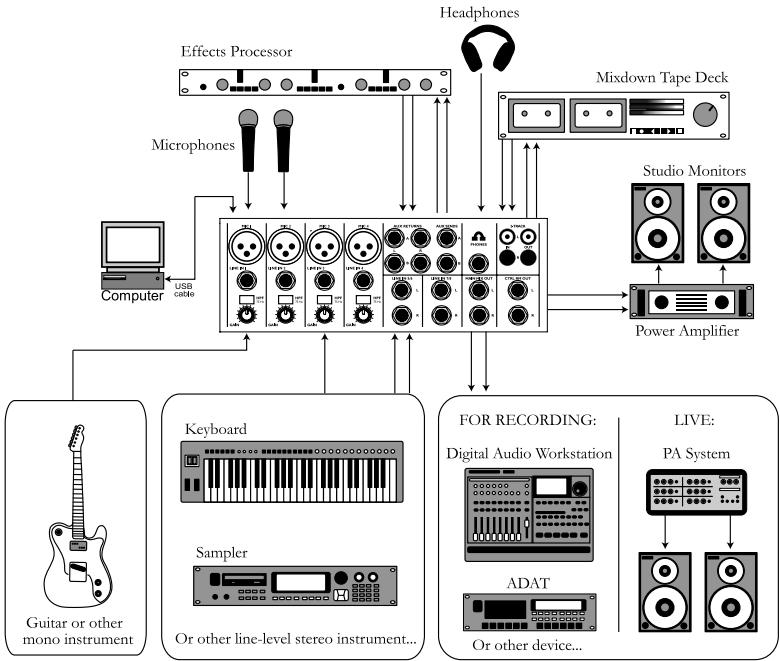
MULTIMIX USB 2.0 QUICK START OWNERS MANUAL (ENGLISH)
- Make sure all items listed on the front of this guide are included in the box.
- READ SAFETY INSTRUCTION BOOKLET BEFORE USING THE PRODUCT.
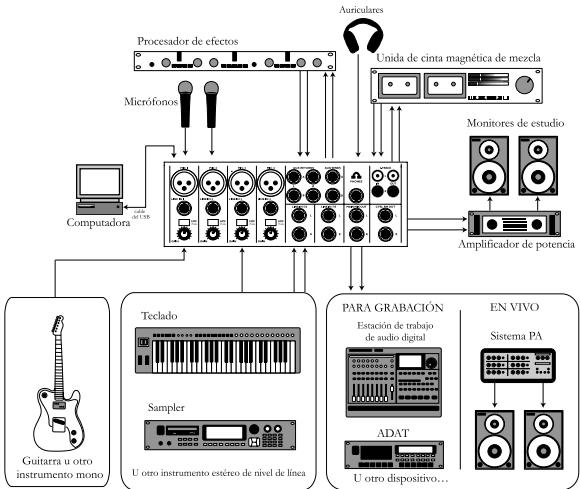
- Study this setup diagram.
- Place the MultiMix in an appropriate position for operation.
- Make sure all devices are turned off and all volumes are at "zero."
- Connect all input sources as indicated in the diagram.
- Connect the outputs to the power amplifier(s), tape decks, and/or audio sources.
- Connect the USB 2.0 cable to a computer.
- Plug your MultiMix and other devices into AC power.
- Switch everything on in the following order:
Audio input sources
External effects, recording devices or equalizers
The MultiMix USB 2.0
Amplifiers
Computer
-
When turning off, always reverse this operation by:
-
Turning off computers
-
Turning of amplifiers
Turning off the MultiMix USB 2.0
External effects, recording devices or equalizers
Last, any input devices -
Go to http://www.alesis.com/ for product registration.
CHANNEL FEATURES
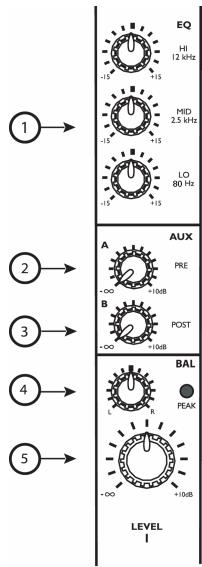
Channel Strip
- EQ: Boosts or cuts the respective frequencies for each channel. When recording via USB 2.0, the EQ settings ARE recorded.
- AUX A: Routes channel signal to an external device like an effects processor.
- AUX B: Controls level routed to internal effects processor or - if a device is patched into the Aux B returns - routes channel signal to an external device like an effects processor.
When recording via USB 2.0, the AUX A and B signals are NOT recorded on the individual channels. They ARE recorded via the MAIN MIX channels.
- PAN/BALANCE: Shifts the balance between the Left and Right inputs.
When recording via USB 2.0, the MONO channels' pan position is ignored when recording the individual channel but is captured when recording the MAIN MIX channels. The STEREO channels' balance is captured by both the individual channel and the MAIN MIX channels.
- CHANNEL FADER: Controls the MAIN OUT (analog) and USB 2.0 (digital) signal level of the MIC or LINE inputs.
MASTER FEATURES
Note: It is recommended that the MULTIMIX USB 2.0 be turned off before connecting and disconnecting any sources to the inputs of the unit. However, do not turn off the MultiMix USB 2.0 once you have established a connection to the computer.
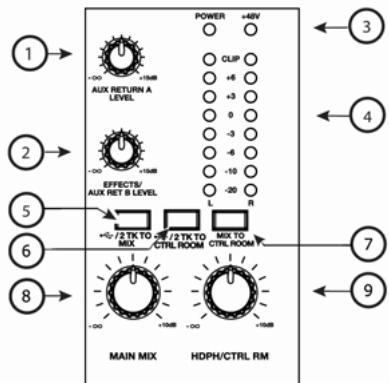
- AUX RETURN A: Controls the signal level that returns from AUX A.
- EFFECTS/AUX RET B: Controls the signal level of the internal effects or the level returning from AUX B if in use.
- +48V LED: Indicates that the PHANTOM POWER is enabled for the MIC inputs.
- LED METERS: Monitors the audio signal level.
- USB/2TK TO MIX: Routes the stereo return from the computer as well as the 2TK input to the MAIN faders.
- USB/2TK TO CTRL ROOM: Routes the stereo return from the computer as well as the 2TK input to the HDPH / CTRL RM output.
- MIX TO CTRL ROOM: Routes the MAIN MIX to the HDPH /CTRL RM output.
- MAIN MIX: Controls the level of the MAIN OUTPUTS.
- HDPH/CTRL RM: Controls the level that is sent to the PHONES or CTRL RM outputs.
RECORDING VIA USB 2.0
FEATURES OF MULTIMIX USB 2.0 RECORDING
The MultiMix USB2.0 allows you to record every individual channel to the computer, along with the main mix. The recorded signal is post-Gain, post-EQ and post-fader, which means that the settings you make to these controls will affect the recorded signal.
Additionally, the balance set for the stereo channels will affect the recording. Note that, if you only plug a source into the LEFT input of one of the stereo channels, this source will be duplicated to the right channel.
You can record at one of four different sample rates—44.1kHz, 48kHz, 88.2kHz, and 96kHz.
A stereo return comes back from your computer to the mixer. Listen to this stereo signal by routing it using the USB/2TK buttons in the master section.
INSTALL THE SOFTWARE ON YOUR COMPUTER
If your computer has access to the Internet, point your browser to the Support/Downloads section of http://www.alesis.com. It's possible that updated drivers have been posted there since the time the software DVD included with your MultiMix was manufactured.
Windows
Before attaching your mixer to your computer, install the drivers either from the website or the software DVD. During the installation process, attach and re-attach your mixer as prompted by the install program.
For each of the several installations that occur, click "Continue Anyway" if Windows warns you that the drivers have not passed Microsoft Logo Certification.
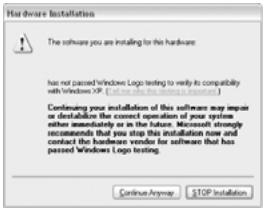
Windows Logo Certification warning
Ignore this warning by clicking "Continue Anyway."
Macintosh
Install the driver from the .dmg file.
Wait to turn on/attach your MultiMix USB2.0 mixer to your Mac until after the Mac has fully booted. If you do not do so, your computer may not recognize the device.
You must select the "Alesis USB Audio Device" via your Mac's "Audio MIDI Setup" utility in order for your computer to route the MultiMix USB2.0's signals into and out of your computer applications properly.
CONNECT THE MULTIMIX USB 2.0 TO THE COMPUTER
- Connect your microphones and line-level sources to the MultiMix USB 2.0
- Connect your output devices - headphones or speakers, or both - to the MultiMix USB 2.0. Turn their volume down to zero
Turn on the MultiMix USB 2.0 - Connect the USB 2.0 cable to both the MultiMix USB 2.0 and your computer
- Turn your computer on
NOTE: If your computer "hangs" when following this procedure, turn off both the mixer and the computer. Try turning on the computer first. Turn on the MultiMix USB 2.0 only after your computer has completely booted up.
- Within the recording application, select the MultiMix USB 2.0 as the recording and playback device
- Adjust the MultiMix USB 2.0's sample rate and buffer sizes as appropriate
- Assign one or more MultiMix USB 2.0 inputs and begin recording
- Raise or lower the trim knobs and volume sliders on the MultiMix USB 2.0 to achieve a strong signal which does not distort (clip)
Use the equalizer to sculpt the sound - To record the signal along with the built-in effects or AUX bus effects, record the master fader signal. Individual channel signals include EQ but do not include effects
On the MultiMix USB 2.0, assign the "2-TK" output from the computer to the monitor mix - Raise the monitoring level (headphones or monitor speakers) on the MultiMix USB 2.0 to listen back
See the Reference Manual for additional details.
MINIMUM COMPUTER REQUIREMENTS
Minimum PC Requirements:
- Pentium 4, 2.4GHz Processor (or equivalent, such as any Intel Centrino notebook computer)
512 MB RAM
Available USB 2.0 Port (2 tracks in and out at 44.1kHz / 48kHz with USB 1.1 port)
Windows XP (with Service Pack 2 or higher installed) or Vista (32-bit)
5400 RPM or faster hard drive recommended for multitrack audio
Minimum Macintosh Requirements:
G5 with native USB 2.0 support (2 tracks in and out at 44.1kHz / 48kHz with USB 1.1 port)
Mac OS X version 10.4 or later
512 MB RAM
5400 RPM or faster hard drive recommended for multitrack audio
MANUAL DE INICIO RÁPIDO PARA EL MULTIMIX USB
2.0 (ESPAÑOL)
Windows Logo Certification warning.
Ignore vuesto avertimento e cliccate "Continue Anyway."