AT-900C - Numeric keypad ROLAND - Free user manual and instructions
Find the device manual for free AT-900C ROLAND in PDF.


User questions about AT-900C ROLAND
0 question about this device. Answer the ones you know or ask your own.
Ask a new question about this device
Download the instructions for your Numeric keypad in PDF format for free! Find your manual AT-900C - ROLAND and take your electronic device back in hand. On this page are published all the documents necessary for the use of your device. AT-900C by ROLAND.
USER MANUAL AT-900C ROLAND
Before using this unit, carefully read the sections entitled: "IMPORTANT SAFETY INSTRUCTIONS" (p. 2), "USING THE UNIT SAFELY" (p. 3), and "IMPORTANT NOTES" (p. 6). These sections provide important information concerning the proper operation of the unit. Additionally, in order to feel assured that you have gained a good grasp of every feature provided by your new unit, Owner's manual should be read in its entirety. The manual should be saved and kept on hand as a convenient reference.

ATTENTION
CAUTION
BISK OF ELECTRIC SHOCK
DO NOT OPEN

RISQUE DE CHOC ELECTRIQUE NE PAS OUVRIR
CAUTION: TO REDUCE THE RISK OF ELECTRIC SHOCK,
DO NOT REMOVE COVER (OR BACK).
NO USER-SERVICEABLE PARTS INSIDE.
REFER SERVICING TO QUALIFIED SERVICE PERSONNEL.

The lightning flash with arrowhead symbol, within an equilateral triangle, is intended to alert the user to the presence of uninsulated "dangerous voltage" within the product's enclosure that may be of sufficient magnitude to constitute a risk of electric shock to persons.

The exclamation point within an equilateral triangle is intended to alert the user to the presence of important operating and maintenance (servicing) instructions in the literature accompanying the product.
INSTRUCTIONS PERTAINING TO A RISK OF FIRE, ELECTRIC SHOCK, OR INJURY TO PERSONS.
IMPORTANT SAFETY INSTRUCTIONS SAVE THESE INSTRUCTIONS
WARNING - When using electric products, basic precautions should always be followed, including the following:
- Read these instructions.
- Keep these instructions.
- Heed all warnings.
- Follow all instructions.
- Do not use this apparatus near water.
- Clean only with a dry cloth.
- Do not block any of the ventilation openings. Install in accordance with the manufacturers instructions.
- Do not install near any heat sources such as radiators, heat registers, stoves, or other apparatus (including amplifiers) that produce heat.
-
Do not defeat the safety purpose of the polarized or grounding-type plug. A polarized plug has two blades with one wider than the other. A grounding type plug has two blades and a third grounding prong. The wide blade or the third prong are provided for your safety. If the provided plug does not fit into your outlet, consult an electrician for replacement of the obsolete outlet.
-
Protect the power cord from being walked on or pinched particularly at plugs, convenience receptacles, and the point where they exit from the apparatus.
- Only use attachments/accessories specified by the manufacturer.
- Use only with the cart, stand, tripod, bracket, or table specified by the manufacturer, or sold with the apparatus. When a cart is used, use caution when moving the cart/apparatus combination to avoid injury from tip-over.
- Unplug this apparatus during lightning storms or when unused for long periods of time.
- Refer all servicing to qualified service personnel. Servicing is required when the apparatus has been damaged in any way, such as power-supply cord or plug is damaged, liquid has been spilled or objects have fallen into the apparatus, the apparatus has been exposed to rain or moisture, does not operate normally, or has been dropped.

For the U.K.
WARNING: THIS APPARATUS MUST BE EARTHED
IMPORTANT: THE WIRES IN THIS MAINS LEAD ARE COLOURED IN ACCORDANCE WITH THE FOLLOWING CODE. GREEN-AND-YELLOW: EARTH, BLUE: NEUTRAL, BROWN: LIVE
As the colours of the wires in the mains lead of this apparatus may not correspond with the coloured markings identifying the terminals in your plug, proceed as follows:
The wire which is coloured GREEN-AND-YELLOW must be connected to the terminal in the plug which is marked by the letter E or by the safety earth symbol 12 or coloured GREEN or GREEN-AND-YELLOW.
The wire which is coloured BLUE must be connected to the terminal which is marked with the letter N or coloured BLACK. The wire which is coloured BROWN must be connected to the terminal which is marked with the letter L or coloured RED.
USING THE UNIT SAFELY
INSTRUCTIONS FOR THE PREVENTION OF FIRE, ELECTRIC SHOCK, OR INJURY TO PERSONS
About WARNING and CAUTION Notices
| ▲WARNING | Used for instructions intended to alert the user to the risk of death or severe injury should the unit be used improperly. |
| ▲CAUTION | Used for instructions intended to alert the user to the risk of injury or material damage should the unit be used improperly. * Material damage refers to damage or other adverse effects caused with respect to the home and all its furnishings, as well to domestic animals or pets. |
About the Symbols
| ▲ | The △ symbol alerts the user to important instructions or warnings. The specific meaning of the symbol is determined by the design contained within the triangle. In the case of the symbol at left, it is used for general cautions, warnings, or alerts to danger. |
| ◎ | The ⊙ symbol alerts the user to items that must never be carried out (are forbidden). The specific thing that must not be done is indicated by the design contained within the circle. In the case of the symbol at left, it means that the unit must never be disassembled. |
| ◎ | The ● symbol alerts the user to things that must be carried out. The specific thing that must be done is indicated by the design contained within the circle. In the case of the symbol at left, it means that the power-cord plug must be unplugged from the outlet. |
ALWAYS OBSERVE THE FOLLOWING
WARNING
Safety grounding connection
Connect mains plug of this model to a mains socket outlet with a safety grounding connection.

Do not disassemble or modify
Do not disassemble or modify this device.

Do not repair or replace parts
Never attempt to repair this device or replace parts. If repair or part replacement should become necessary, you must contact your dealer or a Roland service center.

Do not use or store in the following types of locations
- Locations of extremely high temperature (such as in direct sunlight, near heating equipment, or on a device that generates heat)
- Near moisture (such as in a bathroom, near a sink, or on a wet floor) or in locations of high humidity
- Locations exposed to rain
- Locations of excessive dust
- Locations subject to heavy vibration


Do not place in an unstable location
Do not place this device on an unstable stand or a tilted surface. You must place it in a stable and level location.

Connect the power cord to an outlet of the correct voltage
You must connect the power cord to an AC outlet of the correct voltage as marked on the device.

WARNING
Use only the included power cord
You must use only the power cord included with the device. Do not use the included power cord with any other device.

Do not bend the power cord or place heavy objects on it
Do not bend the power cord excessively, or place heavy objects on the power cord. Doing so will damage the power cord, and may cause short circuits or faulty connections, possibly resulting in fire or electrical shock.

Do not share an outlet with an unreasonable number of other devices
Do not connect excessive numbers of electrical devices to a single power outlet. In particular, when using a power strip, exceeding the rated capacity (watts/amps) of the power strip may cause heat to be generated, possibly melting the cable.

Avoid extended use at high volume
This device, either by itself or used in conjunction with headphones, amps, and/or speakers, is capable of producing volume levels that can cause permanent hearing damage. If you experience impaired hearing or ringing in your ears, immediately stop using the device and consult a medical specialist.

Do not insert foreign objects
Never allow foreign objects (flammable objects, coins, wires, etc.) to enter this device. This can cause short circuits or other malfunctions.


WARNING
Turn off the power if an abnormality or malfunction occurs
If any of the following should occur, immediately turn off the power, disconnect the power cord from the AC outlet, and contact your dealer or a service center to have the device serviced.
- The power cord is damaged
- The device produces smoke or an unusual smell
- A foreign object enters the device, or liquid spills into the device
- The device becomes wet (by rain, etc.)
- An abnormality or malfunction occurs in the device

Do not allow children to use without supervision
In households with children, take particular care against tampering. If children are to use this device, they must be supervised or guided by an adult.

Do not drop or subject to strong impact
Do not drop this device or subject it to strong impact.

Do not use overseas
If you wish to use this device overseas, please contact your dealer or a service center.

Do not use a CD-ROM in an audio CD player or DVD player
If you attempt to play back a CD-ROM in a conventional audio CD player or DVD player, the resulting high volume may damage your hearing or your speakers.

Do not place containers of water on the device
Do not place containers of water (such as a flower vase) or drinks on the device. Nor should you place containers of insecticide, perfume, alcoholic liquids, nail polish, or spray cans on the device. Liquids that spill into the device may cause it to malfunction, and may cause short circuits or faulty operation.

Never expose Battery to excessive heat
Never expose Battery to excessive heat such as sunshine, fire or the like.


CAUTION
Place in a well ventilated location
When using this device, ensure that it is placed in a well ventilated location.

Grasp the plug when connecting or disconnecting the power cord
When connecting or disconnecting the power cord to/from an AC outlet or the device itself, you must grasp the plug, not the cord.

Periodically wipe the dust off the power cord plug
From time to time, you should unplug the power cord from the AC outlet and use a dry cloth to wipe the dust off of it. You should also unplug the power cord from the AC outlet if you will not be using the device for an extended period of time. Dust or dirt that accumulates between the power cord plug and the AC outlet can cause a short circuit, possibly resulting in fire.

Manage cables for safety
Ensure that the connected cables are organized and managed in a safe manner. In particular, place the cables out of reach of children.

Do not stand or place heavy objects on this device
Do not stand on this device, or place heavy objects on it.

Do not connect or disconnect the power cord with wet hands
Do not connect or disconnect the power cord to the device or AC outlet while holding the power cord plug with wet hands.

(For AT-900C)
Cautions when moving this device
If you need to move the instrument, take note of the precautions listed below. Since this product is very heavy, you must make sure that a sufficient number of people are on hand to help, so you can lift and move it safely, without causing strain. It should be handled carefully, all the while keeping it level. Make sure to have a firm grip, to protect yourself from injury and the instrument from damage.

- Check whether the knob bolts fastening the device to its stand have become loose. If they are loose, tighten them firmly.
- Disconnect the power cord.
- Disconnect external devices.
- Remove the music stand.
CAUTION
(For AT-900)
Cautions when moving this device
Before moving the unit, disconnect the power plug from the outlet, and pull out all cords from external devices.

Unplug the power cord from the AC outlet before cleaning
Before you clean the device, turn off the power and unplug the power cord from the AC outlet (p. 23).

If there is a possibility of lightning strike, disconnect the power cord from the AC outlet
If there is a possibility of lightning strike, immediately turn off the power and disconnect the power cord from the AC outlet.

Cautions when using batteries
Batteries may leak or burst if they are used incorrectly. Please observe the following cautions (p. 251).
- When inserting batteries, carefully observe the correct polarity (^ + ^ and · · · -· ·)
- Do not mix new and partially used batteries, or batteries of different types.
- If you will not be using the device for an extended period of time, remove the batteries.
- If the batteries have leaked, use a soft dry cloth to carefully wipe the liquid off the battery compartment, and install new batteries. If liquid that leaks from a battery contacts your skin, it may cause skin irritation. Battery liquid that gets into your eye is dangerous; immediately wash out your eye with water.
- Do not carry or store batteries together with metallic objects such as pens, necklaces, or hairpins.
(For AT-900)
Cautions when opening/closing the lid
Be careful when opening/closing the lid so you do not get your fingers pinched (p. 22). Adult supervision is recommended whenever small children use the unit.

CAUTION
Cautions when using the seat
You must observe the following cautions when using the seat.

- Do not play with the seat or use it as a stepstool.
- Do not allow two or more people to sit on the seat simultaneously.
- Do not sit on the seat if the bolts fastening the legs are loose. (If they are loose, use the included tool to retighten them.)
- (For AT-900) When opening or closing the seat lid, be careful not to pinch your fingers. In particular, be careful not to pinch your fingers in the folding metal supports. (p. 27)
Keep small items out of the reach of children
To prevent small items such as the following from being swallowed accidentally, keep them out of the reach of children.

-
Included items
-
Screws for assembling the music rest
- Screws for attaching the music rest
- Cap for the stand screws on the rear of the AT-900C
- Stopper for the pedal keyboard included with the AT900C stand
- Stopper screws for the pedal keyboard included with the AT-900C stand
- AT-900C stand assembly screws
Do not remove the speaker grille and speaker
Do not remove the speaker grille and speaker by any means. Speaker not user replaceable. Shock hazardous voltages and currents are present inside the enclosure.

- GS (G) is a registered trademark of Roland Corporation.
- XG lite (XG) is a registered trademark of Yamaha Corporation.
- All product names mentioned in this document are trademarks or registered trademarks of their respective owners.
Power Supply
- Do not connect this device to the same electrical outlet as an inverter-controlled device such as a refrigerator, microwave oven, or air conditioner, or a device that contains an electric motor. Depending on how the other device is used, power supply noise could cause this device to malfunction or produce noise. If it is not practical to use a separate electrical outlet, please connect this device via a power supply noise filter.
- Batteries are included with this device. These batteries are for the purpose of testing the operation of this device, and their life span may be shorter than normal.
- Before you make connections, you must switch off the power on all devices to prevent malfunction and/or speaker damage.
- Although the LCD and LEDs are switched off when the Power switch is switched off, this does not mean that the unit has been completely disconnected from the source of power. If you need to turn off the power completely, first turn off the Power switch, then unplug the power cord from the power outlet. For this reason, the outlet into which you choose to connect the power cord's plug should be one that is within easy reach and readily accessible.
Location
- If this device is placed near devices that contain large transformers, such as power amps, hum may be induced in this device. If this occurs, move this device farther away or change its orientation.
- If this device is operated near a television or radio, color distortion may be seen in the television screen or noise may be heard from the radio. If this occurs, move this device farther away.
- Keep your cell phone powered off or at a sufficient distance from this device. If a cell phone is nearby, noise may be heard when a call is received or initiated, or during conversation.
- Do not leave this device in direct sunlight, near devices that produce heat, or in a closed-up automobile. Do not allow illumination devices operated in close proximity (such as a piano light) or powerful spotlights to shine on the same location on this device for an extended time. This can cause deformation or color change.
- If you move this device between locations of radically different temperature or humidity, water droplets (condensation) may form inside the device. Using the device in this condition will cause malfunctions, so please allow several hours for the condensation to disappear before you use the device.
- Do not allow items made of rubber or vinyl to remain on top of this device for an extended time. This can cause deformation or color change.
- Do not leave objects on top of the keyboard. This can cause malfunctions such as failure to sound.
- Do not affix adhesive labels to this device. The exterior finish may be damaged when you remove the labels.
- (AT-900C) Depending on the material and temperature of the surface on which you place the unit, its rubber feet may discolor or mar the surface. You can place a piece of felt or cloth under the rubber feet to prevent this from happening. If you do so, please make sure that the unit will not slip or move accidentally.
Care
- For everyday care, wipe with a soft dry cloth, or remove stubborn dirt using a tightly wrung-out cloth. If this device contains wooden components, wipe the entire area following the direction of the grain. The finish may be damaged if you continue strongly rubbing a single location.
- If water droplets should adhere to this device, immediately wipe them off using a soft dry cloth.
- Do not use solvents such as benzene, thinner, or alcohol, since these can cause deformation or color change.
Servicing
- If you return this device for servicing, the contents of memory may be lost. Please store important contents on USB memory, or make a note of the contents. We take utmost care to preserve the contents of memory when performing service, but there may be cases when the stored content cannot be recovered because the memory section has malfunctioned. Please be aware that we cannot accept responsibility for the recovery of lost memory content or for any consequences of such loss.
Other Cautions
- Stored content may be lost due to a malfunction of the device or because of inadvertent operation. You should back up important content on USB memory as a safeguard against such loss.
- We cannot accept responsibility for the recovery of any content lost from internal memory or USB memory, or for the consequences of such loss.
- Do not apply excessive force to the buttons, knobs, or input/output jacks, since this may cause malfunctions.
- Never strike or apply strong pressure to the display.
- When connecting or disconnecting cables, grasp the plug (not the cable) to prevent short circuits or broken connections.
- This device may produce a certain amount of heat, but this is not a malfunction.
- Please enjoy your music in ways that do not inconvenience other people nearby, and pay particular attention to the volume at nighttime. Using headphones will allow you to enjoy music without having to be concerned about others.
- When transporting or shipping this device, package it in an appropriate amount of cushioning material. Scratches, damage, or malfunctions may occur if you transport it without appropriate packaging.
- If using the music rest, do not apply excessive force to it.
- Some connection cables contain a resistor. Do not connect such cables to this device. Doing so may make the volume extremely low or inaudible. Please use connection cables not containing a resistor.
- (For AT-900) Before opening or closing the keyboard lid, always make sure that no pets or other small animals are located on top of the instrument (in particular, they should be kept away from the keyboard and its lid). Otherwise, due to the structural design of this instrument, small pets or other animals could end up getting trapped inside it. If such a situation is encountered, you must immediately switch off the power and disconnect the power cord from the outlet. You should then consult with the retailer from whom the instrument was purchased, or contact the
nearest Roland Service Center.
- The sensitivity of the D Beam controller will change depending on the amount of light in the vicinity of the unit. If it does not function as you expect, adjust the sensitivity as appropriate for the brightness of your location.
- In order to provide the highest possible image quality, the ATELIER uses a TFT liquid crystal display. Due to the nature of a TFT liquid crystal display, the screen may contain pixels that fail to light or that remain constantly lit, but please be aware that this is not a malfunction or defect.
- (For AT-900C) If you play at an excessive volume, a protection circuit will operate, causing the sound from the speakers to be temporarily muted. If this occurs, please lower the volume.
Floppy Disk Handling (Using Optional Floppy Disk Drive)
-
Floppy disks contain a plastic disk with a thin coating of magnetic storage medium. Microscopic precision is required to enable storage of large amounts of data on such a small surface area. To preserve their integrity, please observe the following when handling floppy disks:
-
Never touch the magnetic medium inside the disk.
- Do not use or store floppy disks in dirty or dusty areas.
- Do not subject floppy disks to temperature extremes (e.g., direct sunlight in an enclosed vehicle). Recommended temperature range: 10–50 degrees C (50–122 degrees F).
-
Do not expose floppy disks to strong magnetic fields, such as those generated by loudspeakers.
-
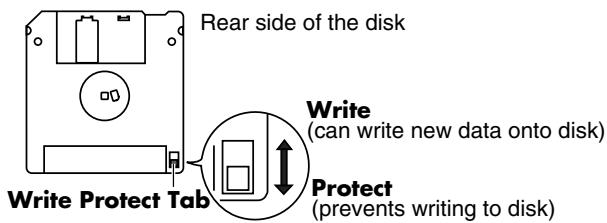
Floppy disks have a "write protect" tab which can protect the disk from accidental erasure. It is recommended that the tab be kept in the PROTECT position, and moved to the WRITE position only when you wish to write new data onto the disk.
- The identification label should be firmly affixed to the disk. Should the label come loose while the disk is in the drive, it may be difficult to remove the disk.
- Store all disks in a safe place to avoid damaging them, and to protect them from dust, dirt, and other hazards. By using a dirty or dust-ridden disk, you risk damaging the disk, as well as causing the disk drive to malfunction.
USB Memory Handling
- When connecting USB memory, firmly insert it all the way in.
- Do not touch the pins of the USB memory connector, or allow them to become dirty.
-
USB memory is made using high-precision electronic components, so please observe the following points when handling it.
-
To prevent damage from static electrical charges, discharge any static electricity that might be present in your body before handling USB memory.
- Do not touch the terminals with your fingers or any metal
object.
- Do not bend or drop USB memory, or subject it to strong impact.
- Do not leave USB memory in direct sunlight or in locations such as a closed-up automobile. (Storage temperature: 0–50 degrees C)
- Do not allow USB memory to become wet.
-
Do not disassemble or modify USB memory.
-
When connecting USB memory, position it horizontally with the external memory connector and insert it without using excessive force. The external memory connector may be damaged if you use excessive force when inserting USB memory.
- Do not insert anything other than USB memory (e.g., wire, coins, other types of device) into the external memory connector. Doing so will damage the external memory connector.
- Do not apply excessive force to the connected USB memory.
- If you will not be using USB memory for an extended period of time, close the USB memory cover.
Handling the CDs (CD-ROMs)
-
When handling the discs, please observe the following.
-
Do not touch the encoded surface of the disc.
- Do not use in dusty areas.
-
Do not leave the disc in direct sunlight or an enclosed vehicle.
-
Avoid touching or scratching the shiny underside (encoded surface) of the disc. Damaged or dirty CD-ROM discs may not be read properly. Keep your discs clean using a commercially available CD cleaner.
- Keep the disc in the case.
- Do not keep the disc in the CD drive for a long time.
- Do not put a sticker on the label of the disc.
- Wipe the disc with a soft and dry cloth radially from inside to outside. Do not wipe along circumference.
- Do not use benzine, record cleaner spray or solvents of any kind.
- Do not bend the disc. Bending discs may prevent proper reading and writing of data, and may further result in malfunction.
Copyright
- This product can be used to record or duplicate audio or visual material without being limited by certain technological copy-protection measures. This is due to the fact that this product is intended to be used for the purpose of producing original music or video material, and is therefore designed so that material that does not infringe copyrights belonging to others (for example, your own original works) can be recorded or duplicated freely.
- Do not use this unit for purposes that could infringe on a copyright held by a third party. We assume no responsibility whatsoever with regard to any infringements of third-party copyrights arising through your use of this unit.
We want to take a moment to thank you for your purchase of the Roland Organ "Music ATELIER." The ATELIER is an electronic organ which provides a generous collection of rich organ sounds. In addition, it is designed to be easy to learn and use. In order to enjoy reliable performance of your new keyboard for many years to come, please take the time to read through this manual in its entirety.
- The AT-900 and AT-900C are abbreviated in this manual as "ATELIER" respectively.
Basic Concepts of the ATELIER Series
A full complement of organ sounds
A wide range of basic organ sounds, ranging from jazz organ and pipe organ to theatre organ, are onboard so you are sure to enjoy having access to all the sounds you expect from an organ.
Panel layout based on a tradition of emphasis on realtime operation
Based on the idea that you should be able to sit down and begin playing immediately, the operation buttons of the panel are arranged by function as dictated by classic organ traditions, ensuring easy and intuitive operation. All models of the ATELIER series feature the same operability, allowing you to start playing immediately even if you switch models.
High-quality sounds that you can use without editing
In addition to a full range of organ sounds, high-quality sounds such as strings and brass are also included onboard. You can simply select sounds and enjoy playing the organ—no need to perform complicated editing operations.
Expansive lower keyboard with damper pedal for piano-like expressiveness
The piano is indispensable to contemporary music performance. All models of the ATELIER series contain high-quality grand piano sounds that you will enjoy performing. In addition, the range of the lower keyboard has been expanded, giving you greater expressive capabilities on the piano. A damper pedal and initial touch sensitivity are also provided, both necessities for piano performance.
Design utilizes your existing music data
The ATELIER series is designed so that even on new models, you will feel right at home and can begin playing immediately. Consideration has been given to data compatibility, and existing song data or registration data can be moved to USB memory or used by connecting a floppy disk drive.
Music styles from around the world
Many of the best-loved musical styles from around the world (rhythm and automatic accompaniment patterns) are built in, allowing you to enjoy an international range of performances.
Utilizes SMF music files
Compatible with General MIDI 2, the world standard in SMF music files. Since an external memory connector is provided, you can connect separately available USB memory or a floppy disk drive and take advantage of the wide range of commercially available SMF music files. You can also mute parts, allowing you to practice the part for each hand separately, and enjoy performing ensemble with the music files.
Features
Harmonic bars for creating organ sounds
The organ is equipped with "Harmonic bars," which are much like the controllers used on traditional jazz organs. By operating the harmonic bars, you can easily create a diverse variety of organ sounds.
By using the solo harmonic bars you can add orchestral sounds to the organ sounds for even more expressive performance potential.
Realistically expressing acoustic instrument performances (Articulation Voice)
In order to bring out the distinctive qualities of an acoustic instrument and perform in a musically significant way, it is essential to make use of the instrument's rich variety of tonal changes and diverse performance techniques (articulations). The ATELIER contains "Articulation Voices," which use Super Natural technology to realistically express the sounds and performance techniques of these acoustic instruments. For even more richly expressive performances, you can take advantage of aftertouch or a foot switch to modify the tone in various ways while you play.
Super Natural technology
SuperNATURAL TECHNOLOGY
Proprietary Roland sound generation technology that realistically reproduces the tonal changes and performance techniques distinctive of an acoustic instrument, allowing you to perform music that is natural and richly expressive.
USB Memory
You can connect separately sold USB memory or a floppy disk drive, and play back SMF music files.
Performances you record or registration data you create can also be saved on USB memory or a floppy disk, or you can save SMF music files or registrations from USB memory or a floppy disk into internal user memory.
"Quick Registration" and "Music Assistant" functions
The "Quick Registration" function lets you use keywords to select wonderful registrations created by top-ranking organizers such as Hector Olivera. The "Music Assistant" function makes it easy to recall appropriate rhythm and sound settings simply by selecting a desired atmosphere for your song.
Highly realistic rhythms and automatic accompaniment functions
All rhythms use data from performances by professional drummers, featuring high-quality patterns with all the grooves and subtle nuance of the real thing. In addition, you can use automatic accompaniments that are perfectly matched to each rhythm to enjoy the feeling of playing with your own band in the background.
Human voices and phrases
In addition to a full array of organ sounds, the ATELIER series provides human voices such as "Jazz Sat," and human voice phrases such as "Amen."
Active Expression sounds
For some of the sounds, moving the expression pedal will vary not only the volume but also the tone, or add other sounds. From pianissimo to fortissimo, the tonal character of the sound itself will change as you perform a crescendo, or strings may appear behind the piano, creating dynamic changes in tonality.
Harmony Intelligence
The Harmony Intelligence function automatically adds harmony to the upper keyboard sound according to the chord you play in the lower keyboard. This gives you greater tonal depth and a more powerful performance.
76-note lower keyboard for plenty of range
The 76-note range can be split into zones, allowing a solo voice, pedal bass voice, percussion, etc., to be played independently for an even wider range of performance possibilities. Since the lower keyboard can be divided into a maximum of four parts, you have at your command expressive power that rivals that of a three-manual organ. In addition, you can use the Drums/SFX function to play drum sounds or sound effects from the entire lower keyboard.
Connect external speakers for even greater presence
Using the Aux Out jack, the accompaniment parts and an enveloping ambience of RSS reverb sound can be played through external speakers to create the impression that you're playing along with a band or orchestra.
By outputting the drums and bass separately from the other sounds, you'll also be able to adjust the volume balance during a concert.
Large, wide LCD
For convenience, the frame area of the wide LCD screen always displays buttons for frequently used functions. You can also view the tempo and measure number in any screen. The color liquid-crystal touch panel ensures excellent visibility and easy operability.
Conventions Used in This Manual
This manual uses the following conventions in the interest of simpler, more concise instructions.
- The AT-900 and AT-900C are abbreviated in this manual as "ATELIER" respectively.
- In this manual, an illustration of the AT-900 is sometimes used for explanatory purposes.
- Button names are enclosed in square brackets ( c 1 1 ) , as in [Drums/SFX] button.
- On screen text is enclosed in angled brackets < > , as in
. - [] [] , [] [] means that you should press one or the other button. Example: Reverb [] [] buttons, Tempo [] [] buttons.
- For easier readability, some screens and colors used here may differ in part from actual screens and colors.
- The act of lightly contacting the Touch Screen with your finger is called "touching."
- An asterisk (*) or a at the beginning of a paragraph indicates a note or precaution. These should not be ignored.
- (p. **) refers to pages within the manual.
USING THE UNIT SAFELY 3
Important Notes. 6
Main Features. 8
Conventions Used in This Manual 10
Contents 11
Panel Descriptions. 18
Before You Start Playing 20
Attaching the Pedalboard (AT-900) 20
Attaching the Pedalboard (AT-900C) 20
Setting Up the Music Rest 21
Connecting the Speaker Cable (AT-900C) 22
Opening/Closing the Lid (AT-900) 22
About the Adjuster (AT-900) 23
Connecting the Power Cord 23
Turning the Power On and Off 24
Turning On the Power 24
Turning Off the Power 24
Using Headphones 25
Using a Microphone 25
Using the Code Hook 26
About the Hole of the ATELIER's Cabinet 26
About the Bench (AT-900) 27
Restoring All the Factory Default Settings 27
Using the External Memory 29
Connecting the USB Memory 29
Connecting the Floppy Disk Drive 29
Using a CD 30
Connecting a CD Drive 30
About the Display 31
Understanding the Main and Related Screens 31
Convenient Functions 35
Listening to the Demo Songs 35
Choose a Keyword for Quick Registration Selection 37
Music Assistant Function 39
Music Assistant Search 41
About the Quick Guide Function 43
About the Index Menu 44
Settings for Easy Performance 46
Selecting and Playing Sounds 47
Selecting Voices 47
About the Voices and Parts 47
Functions of the Upper/Lower/Pedal Bass Sound Select Buttons 48
Selecting the Upper and Lower Voices 49
Selecting Pedal Bass Voice 50
Selecting Solo Voice 51
Selecting a Voice Using the [Others] Button 52
Creating Organ Sounds (Vintage Organ) 54
Playing a Vintage Organ Voice 56
Realistically Expressing an Acoustic Instrument Performance (Articulation Voice) 61
Selecting a Articulation Voice 62
Performing with an Articulation Voice 64
Using Aftertouch or the Expression Pedal 64
Making the Ideal Settings for Playing an Articulation Voice 65
Tips for Performing with an Articulation Voice 66
Performing with an Active Expression Voice 69
Performing with a Human Voice 70
Adjust the Volume Balance 72
Transpose the Pitch in Octave Units (Octave Shift) 74
Playing Drum Sounds or Sound Effects from the Entire Lower Keyboard (Drums/SFX) 76
Changing Drums/SFX Sets 77
Playing a Lower Voice with Percussion Instrument Sounds and a Voice Phrase (Manual Percussion).78
Changing the Manual Percussion Sets 79
Sustaining Notes in the Lower Part (Lower Hold) 80
Using Rhythm Performance 81
Selecting a Rhythm 81
Using Rhythms Stored in User Memory 82
Rhythm Search 83
Playing Rhythm 85
Starting at the Press of a Button 85
Starting the Rhythm Automatically When You Play the Lower Keyboard or Pedalboard (Sync Start) ... 86
Stopping the Rhythm 87
Changing a Rhythm's Tempo 87
Playing the Count Sound at the End of the Intro 88
Playing Rhythm and Automatic Accompaniment 88
Adding Variety to the Rhythm or Automatic Accompaniment 89
Changing the Arrangement of the Rhythm and Accompaniment (Variation) 89
Playing Chords with Simple Fingering (Chord Intelligence) 90
Leading Bass Function 92
A Simple Way to Make Automatic Accompaniment Settings (One Touch Program) 94
Using a Rhythm from a USB Memory 96
Reviewing the Rhythms on USB Memory 96
Copying Rhythms 97
Changing the Order of the Saved Rhythms 100
Renaming a Saved Rhythm 102
Deleting Saved Rhythm 104
Using the Registration Buttons 106
Storing Registrations 107
Recalling a Registration 108
How to Recall a Registration (DELAYED) 108
How to Recall a Registration (INSTANT) 108
Changing the Timing of Recalling Registrations 109
Automatically Registering When You Switch Panel Settings 110
Assigning a Name to a Registration Set 111
Saving Registration Sets. 113
Loading Previously Saved Registration Sets Into the ATELIER 116
Loading a Set of Registrations 116
Loading an Individual Registration 117
Recalling the Order that the Registrations are Saved (Load Next) 120
Deleting a Set of Registrations 122
Changing the Name or Order of Registration 124
Copying Registrations 127
Using the Performance Functions 130
Transposing to a Different Key (Key Transpose) 130
Adjusting the Brightness of the Sound 131
Adding Decay to the Sound (Damper Pedal) 131
Using the Pitch Bend/Vibrato Lever 132
Using the Foot Switches 133
Changing the Function of the Foot Switch 134
Using the Foot Switch to Switch Registrations 135
Adjusting the Overall Volume Using an Expression Pedal 136
Adjusting the Depth of the Expression Pedal 137
Applying Various Effects to the Sound 138
Adding Harmony to a Melody (Harmony Intelligence) 138
Changing the Harmony Intelligence Type 139
Adding Modulation to the Sound (Rotary Effect) 141
Making Fine Adjustments to the Rotary Effect Speed (Rotary Speed) 142
Changing the Brightness of the Rotary Effect (Rotary Color) 143
Adding Richness to the Sound (Chorus Effect) 144
Adding Resonance to the Sound (Sustain Effect) 146
Changing the Sustain Length 148
Adding Reverberation to the Sound (Reverb Effect) 149
Changing the Reverb Type 150
Changing the Wall Type 151
Changing the Depth of the Reverb 152
Using the D Beam Controller for Additional Enjoyment 154
Modifying the Sound 154
Moving Your Hand Above the D Beam Controller to Produce a Sound Effect. 155
Using the Lower Keyboard Effectively 156
Making Effective Use of the Lower Keyboard 156
Playing the Solo Voice on the Lower Keyboard (Solo [To Lower] Button) 158
Changing How the Solo Voice Responds 159
Layering the Solo Voice and Lower Voice 159
Changing the Solo Split Point 160
Using the Lower Keyboard to Play the Bass Voice ([Bass Split] Button) 161
Changing the Bass Split Point 162
Using the Lower Keyboard to Play the Bass Voice (Pedal [To Lower] Button) 163
Recording/Playing Back What You Play 164
What is a Track Button? 165
Displaying the Track Buttons 166
Playing Back Performance Songs Stored on USB Memory and SMF Music Files 167
Silencing a Specific Track (Track Mute) 168
Muting Individual Tracks of Performance Data 170
Viewing a Notation 171
Changing the Notation Settings 172
Recording a Performance. 174
Playing Back a Performance Song 175
Add a Count Sound to Match the Timing (Count In) 175
Recording Each Part Separately 176
Re-Recording 177
Erasing a Performance Song (Song Clear) 178
Changing the Name of a Performance Song (Rename) 178
Saving Performance Songs 180
Loading Performance Songs Into the ATELIER 181
Deleting Performance Songs Stored on "Favorites" or the USB Memory 182
Layering a New Recording onto SMF Music Files 183
Using Song with a Different Tempo Than That of the Performance Song 184
Re-Recording Part of Your Performance (Punch-in Recording) 185
Recording and Layering Drum Parts (Loop Recording) 186
Starting recording at the right moment (Count-In Recording) 187
Copying Performance Song 188
Creating a Folder in USB Memory 189
Editing Your Musical Performance Data 190
Deleting a Specific Measure (Delete Measure) 190
Delete the Recording from a Track (Delete Track) 191
Erase Recording (Erase Event) 193
Copying Measures (Copy) 195
Correct Timing Inaccuracies (Quantize) 196
Creating Original Accompaniment Rhythms 198
Preparations for Creating User Rhythms 199
Displaying the Rhythm Customize Screen 199
Selecting the Division 200
Loading the Rhythm 201
Making the Division Settings 202
Creating the User Rhythm 203
Editing the Rhythm 203
Changing and Deleting the Instruments Used 206
Deleting Rhythms You Have Created 207
Saving the User Rhythm 207
Changing the Name of a User Rhythm (Rename) 207
Saving User Rhythms to the User Memory or USB Memory 208
Various Other Settings 209
Adjusting How the Instrument Responds 209
Turning Aftertouch On/Off 209
Adjusting the Depth of Aftertouch 209
Adjusting the Initial Touch Sensitivity 210
Changing the Pedalboard Polyphony 210
Performance Function Settings 211
Selecting the keyboard affected by the damper pedal 211
Changing the Function of the Expression Pedal. 211
Choosing the keyboard for which Pitch Bend and Vibrato will apply. 212
Changing the Pitch Bend Range 213
Adjusting the Sensitivity of the D Beam Controller 213
Rhythm Settings 214
Turning Chord Hold On/Off 214
Changing the Intro Countdown Sound (Count Down Sound) 214
Preventing Rhythm Tempos from Switching Automatically 215
Changing the Operation of the Fill In Button and Intro/Ending Buttons 215
Registration Settings 217
Changing the Timing at Which Arranger Settings are Recalled 217
Changing the Timing at Which Transposition Settings are Recalled 217
Composer Settings 218
Switching the Display of Lyrics On or Off 218
Changing the Key When Playing Back Songs (Play Transpose) 218
Changing the Metronome Setting 219
Adjusting the Metronome Volume 219
Changing the Sound of the Metronome 220
Setting the Beat 220
Other Settings 221
Adjust the Standard Pitch (Master Tune) 221
Adjusting the mic echo 221
Enabling Transmission of PC Numbers 222
Setting the PC Number 222
MIDI IN Mode 223
Selecting the MIDI Transmit Channel 223
Adjusting the Brightness of the Display 224
Eliminating the Bouncing Ball from the Main Screen 225
Switching the Background of the Main Screen 225
Changing the External Memory Setting 226
Turning the Remote Function On/Off 226
Changing the Functions of the Remote Control's Buttons 227
Using the V-LINK function 227
Repositioning the Touch Screen 229
Restoring the User Memory to the Original Factory Settings 230
Restoring All Settings Other Than the User Memory to the Original Factory Settings 231
Formattig a USB Memory (Format) 232
Displaying a Graphic at Power-up 232
Deleting an Image Stored in Internal Memory 234
Copying Data from a Floppy Disk to USB Memory 235
Video-related Settings 236
Specifying the Television Format 236
Selecting the Aspect Ratio of the Video Output 237
Selecting the Type of Slide Show 238
Selecting the Interval at which Images will Change 239
Connecting with External Device 240
Name and Functions of Jack and Connectors 240
Connecting to Audio Equipment 241
Connecting an amp to produce sound (AT-900C) 242
Connecting a Computer 242
Making the Settings for the USB Driver 243
Connecting MIDI Devices 244
Connecting an External Display or Television 245
Changing the settings when external speakers are connected 247
Switching the Aux Out On/OFF 247
Switching the Aux Out Mode 247
Using the Remote 251
Installing Batteries in the Remote 251
Using the Remote 252
Remote Control Buttons 253
Enjoying Music and Video 255
Performing with a Background Image from a Video Camera 256
Performing with a Background Image from a DVD Player 258
Enjoying Powerful Sound and Big-screen Playback from Your Portable Audio/Video Player .... 260
Freely Switching Between Images 262
Enjoying VIMA TUNES Songs 263
Listening to a VIMA TUNES Song 263
Displaying a Slide Show while the Song Plays 265
Performing with Sounds that Match the Song (Recommended Tones) 267
Listening to Songs from Music CD 268
Enjoying Karaoke with a Music CD (Center Cancel) 269
Appendices
Troubleshooting 270
Error Message 276
Chord List 277
Glossary 279
Music Files That the ATELIER Can Use 280
The ATELIER Allows You To Use the Following Music Files 280
About the ATELIER Sound Generator 280
Settings That Are Stored After the Power Is Turned Off 281
Settings That Are Stored After the Power Is Turned Off 281
Settings That Are Stored In the Registration Buttons 281
Settings That Are Stored In the Individual Registration Buttons 281
MIDI Implementation Chart 282
Demo Song List 283
Short Cut List 286
Main Specifications 287
Index. 290
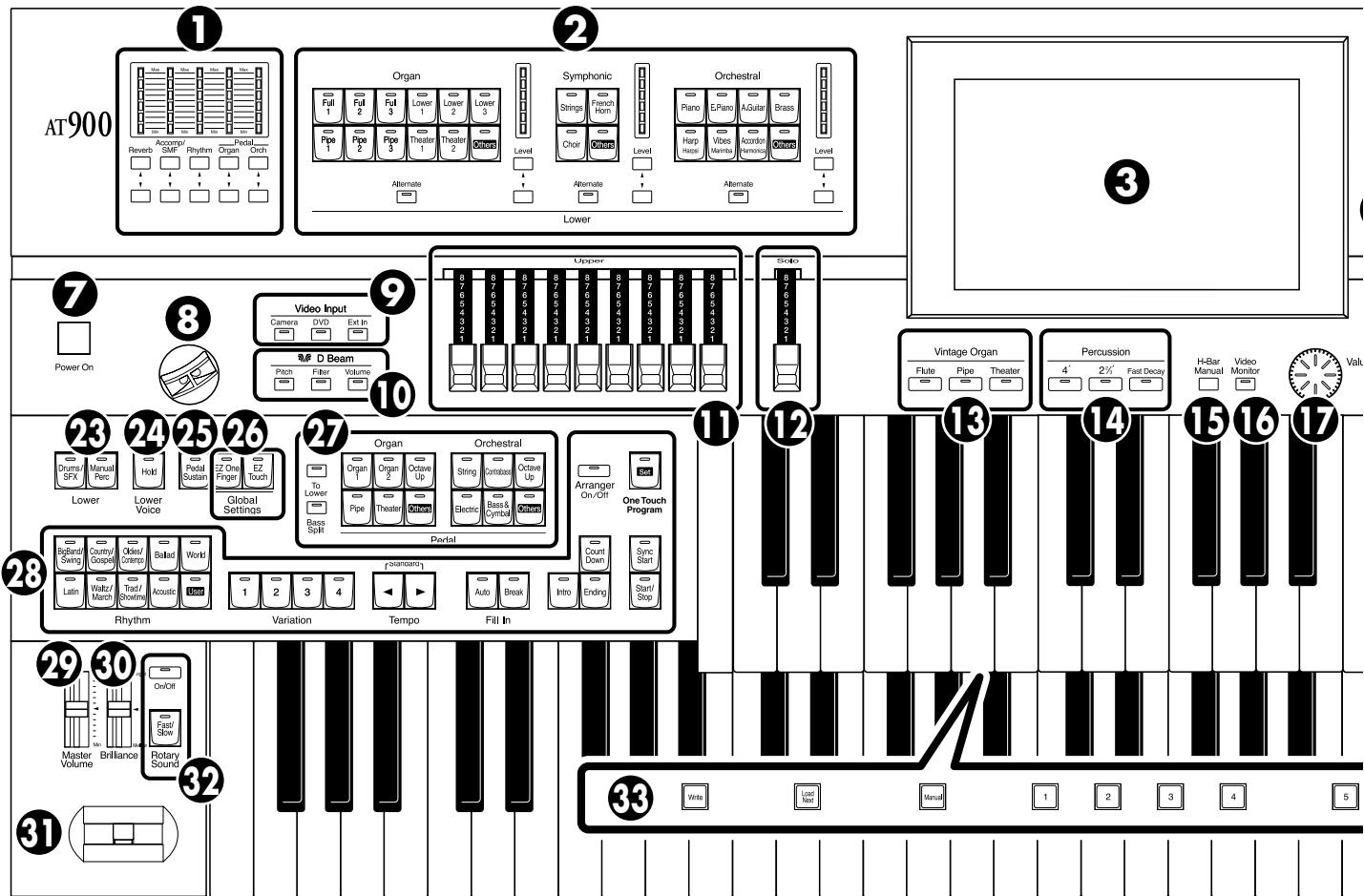
- Part Balance [▲] [▼] buttons → p. 72
Part Balance Indicator p. 73
- Lower Voice select buttons p. 49
Lower Organ Part
Lower Symphonic Part
Lower Orchestral Part
[Alternate] button
Level [A] [▼] buttons → p. 72
Level indicator p. 73
-
Touch Screen p. 31
-
[Harmony Intelligence] button p. 138
-
Upper Voice select buttons p. 49
Upper Organ Part
Upper Symphonic Part
Upper Orchestral Part
[Alternate] button
Level [▲] [▼] buttons → p. 72
Level indicator p. 73
- Solo Voice select buttons p. 51
Solo Part
[Alternate] button
[To Lower] button p. 158
Level [A] [▼] buttons → p. 72
Level indicator p. 73
- [Power On] switch p. 24
- D Beam p. 154, p. 155
- Video Input buttons p. 262
- D Beam buttons p. 154, p. 155
- Upper Harmonic Bars p. 54
- Solo Harmonic Bars p. 54, p. 72
- Vintage Organ buttons p. 54
- Percussion buttons p. 54
- [H-Bar Manual] button p. 58
- [Video Monitor] button
- [Value] dial p. 34
- Pedal Harmonic Bars p. 54
- Lower Harmonic Bars p. 54
- Transpose [-] [+] buttons p. 130
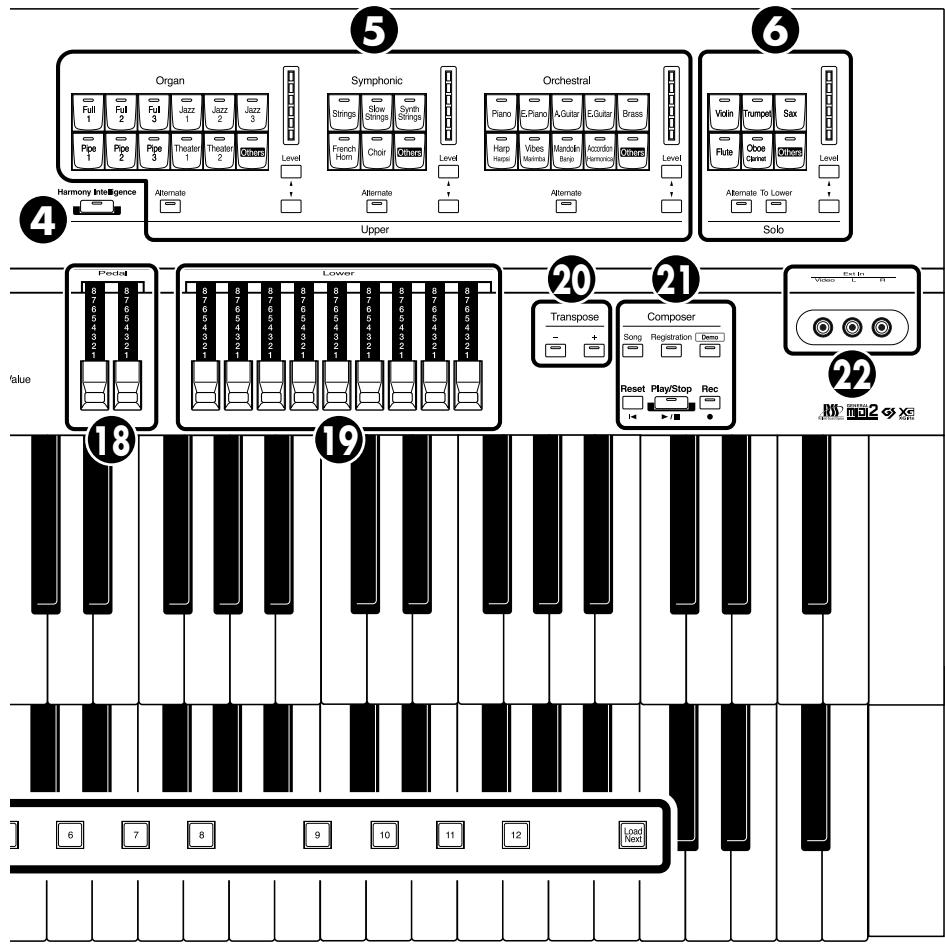
21.Composer p.164
[Song] button
[Registration] button p. 116-p. 125
[Demo] button p. 35, p. 168
[Reset] button
[Play/Stop] button
[Rec] button p. 174
-
Ext In jacks p. 260
-
Lower
[Drums/SFX] button p. 76
[Manual Perc] button p. 78
-
Lower Voice [Hold] button p. 80
-
[Pedal Sustain] button p. 146
-
Global Settings p. 46
[EZ One Finger] button
[EZ Touch] button
- Pedal Bass Voice select buttons p. 50
Pedal Organ Part
Pedal Orchestral Part
[To Lower] button p. 163
[Bass Split] button p. 161
- Rhythm select buttons p. 81
Variation buttons p. 89
Tempo [ ] [ ] buttons p. 87
Fill In [Auto] button p. 89
Fill In [Break] button p. 89
[Intro] button p. 85-p. 87
[Ending] button p. 85-p. 87
[Count Down] button p. 88
[Sync Start] button p. 86
[Start/Stop] button p. 85, p. 87
Arranger [On/Off] button p. 88
[One Touch Program] button p. 94
-
[Master Volume] slider p. 24
-
[Brilliance] slider p. 131
-
[Bender/Vibrato] lever p. 132
-
Rotary Sound p. 141
[On/Off] button
[Fast/Slow] button
- Registration buttons
[Write] button p. 107
[Manual] button p. 110
Registration [1] - [12] buttons p. 106
[Load Next] button p. 120
Attaching the Pedalboard (AT-900)
- Detach the pedal cord that is temporarily fastened to the board on the upper part of the Expression Pedal.
- Connect the pedal cord to the connector located at the right side of the Pedalboard.
- Firmly tighten the screws of the pedal cable's plug.
- Slide the Pedalboard firmly all the way back so that it is secure and unable to move.
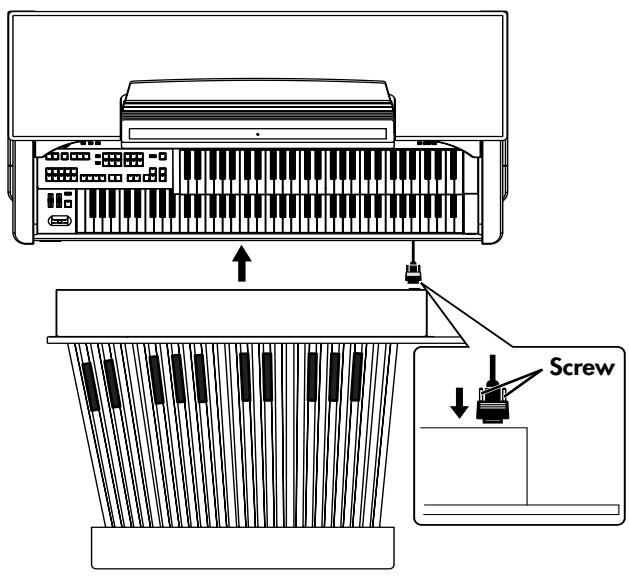

Do not remove the fastener located near the Expression Pedal. Before transporting the AT-900, be sure to wind up the pedal cable so that there is no slack, and attach it to the fastener.
Attaching the Pedalboard (AT-900C)
A PK series pedal keyboard (sold separately) can be connected to the AT-900C.

The AC adaptor supplied with the pedal keyboard is not used. The pedalboard will be turned on/off by the power switch of the AT-900C, regardless of the position of the pedalboard's own power switch.
- Make sure that the AT-900C and pedal keyboard (PK series) are powered off.
- Use the PK cable that is supplied with the AT-900C to connect the AT-900C's PK IN connector to the pedalboard's PK OUT connector.

Once the connections have been completed, turn on power to your various devices in the order specified. By turning on devices in the wrong order, you risk causing malfunction and/or damage to speakers and other devices.
- Turn on the power of the AT-900C (p. 24).
- Make sure that the indicator on the rear panel of the pedalboard is lit.
Play the pedalboard. If you hear the pedal part of the ATELIER, connections are complete.

This unit is equipped with a protection circuit. A brief interval (a few seconds) after power up is required before the unit will operate normally.

For details on pedal keyboard settings, refer to the owner's manual of the pedal keyboard.

For details on attaching the pedal keyboard and assembling the stand, refer to the leaflet that describes how to assemble the stand.
Setting Up the Music Rest
Attaching the Music Rest (AT-900)
- Insert the supplied screws for the music rest into the screw holes located on the top of the instrument, and lightly tighten them (two locations).
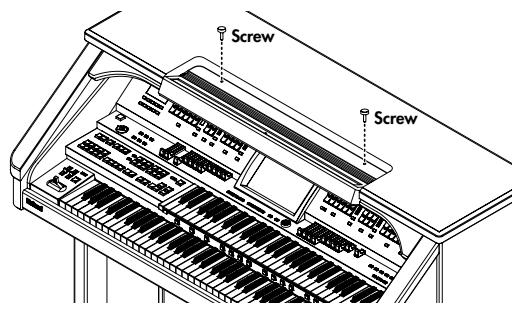
- Put the music rest between the screws and the ATELIER's body.
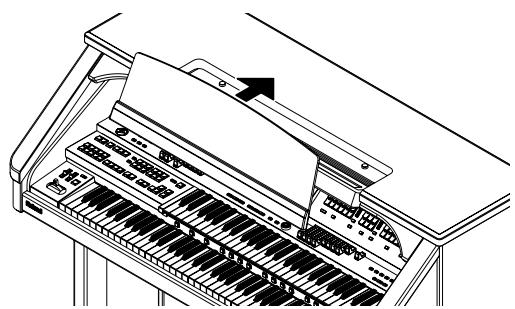
- While supporting the music rest with one hand, secure it in place by turning the screws.
When attaching the music rest, support it firmly with one hand to make sure that you don't drop it. Be careful, so you don't get your fingers pinched.
- To set up the music stand, always use both hands to lift the base, and pull it gently toward yourself.
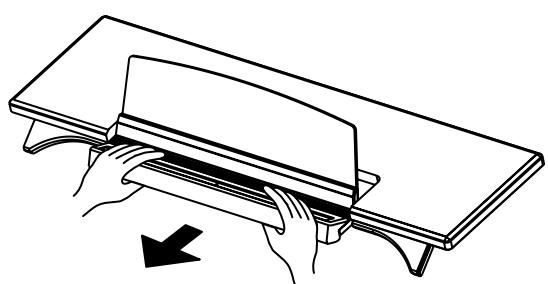
NOTE Do not apply excessive force to the installed music rest.
NOTE Be sure to use the supplied screws for attaching the music rest.
NOTE Before moving the piano, be sure to remove the music rest to prevent accidents.
Attaching the Music Rest (AT-900C)
- Place the music rest on top of the AT-900C and align the screw hole locations.
- Insert the included music stand fastening screws into the screw holes of the music stand, and loosely tighten them (two locations).
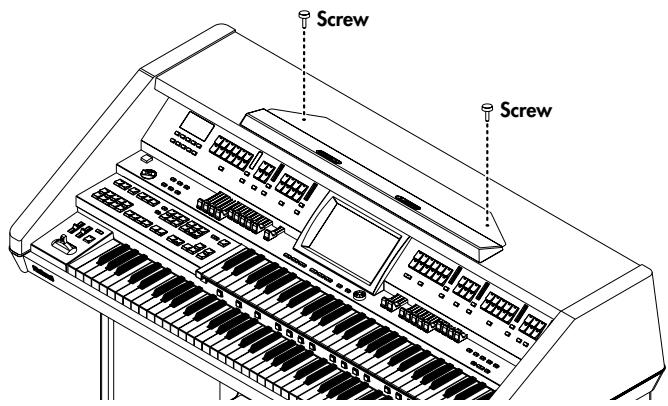
- Put the music rest between the screws and the ATELIER's body.
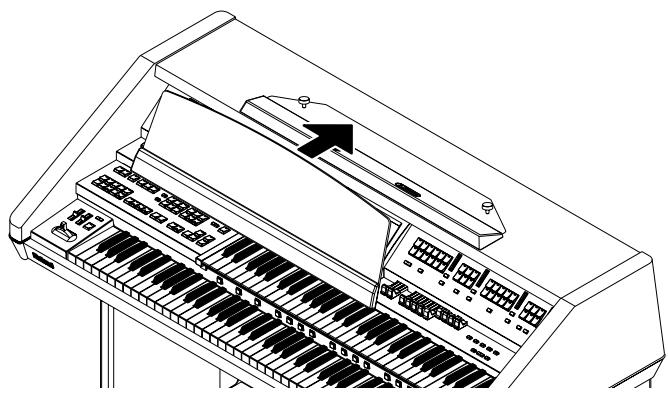
- While supporting the music rest with one hand, secure it in place by turning the screws.
When attaching the music rest, support it firmly with one hand to make sure that you don't drop it. Be careful, so you don't get your fingers pinched.
Removing the Music Rest
- To remove the music rest, support it with one hand while loosening the screws.
- Remove the music rest.
After removing the music rest, don't forget to retighten the screws.
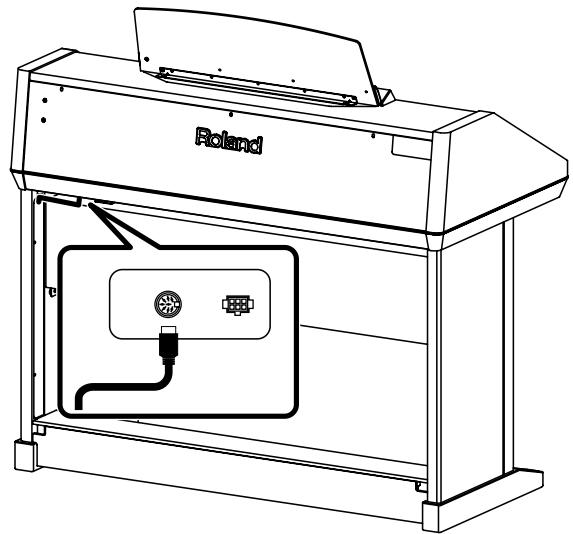
Connecting the Speaker Cable (AT-900C)
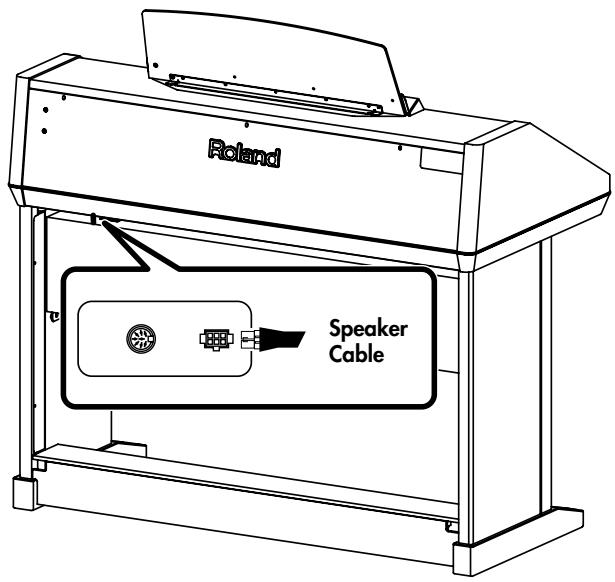
1. Plug the speaker cable extending from the stand into the Speaker connector located at the rear of the AT-900C's bottom panel.
Pay attention to the shape of the speaker cable's connector, and insert it until you hear it click securely into place.
Opening/Closing the Lid (AT-900)
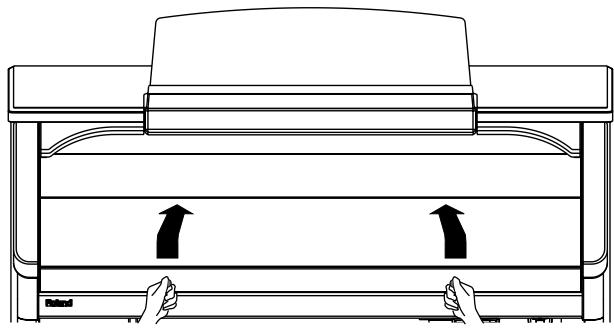
- To open the lid, hold handles with both hands and lift it straight up. Then, slide it to the rear.
- To close the lid, slowly pull it forward until it stops. Then, gently lower it into place.
NOTE
Be careful not to get your fingers caught when opening or closing the lid. Adult supervision is recommended when small children are going to be using the instrument.
NOTE
To prevent accidents, be sure to close the lid before moving the organ.
NOTE
Make sure you don't have anything (such as sheet music) on the keyboard when you close the lid.
About the Adjuster (AT-900)
If you feel that the ATELIER has become unstable, for example after moving it to another location, turn the adjuster located on the bottom of the stand's legs as shown in the following.
- Rotate the adjustor to lower it so that it is in firm contact with the floor. Make adjustments so that there is no gap between the adjuster and the floor. In particular, when placing the ATELIER on carpet, turn the adjuster so that it is firmly in contact with the floor.

The legs of the AT-900's bench also have adjusters. If the bench is unstable, you can adjust its adjusters.

When turning the adjuster, be careful not to pinch your hand.
Connecting the Power Cord
- First, make sure that the [Power On] switch at the panel's left side is OFF (not pushed in).

Power On

Upper position
OFF
- Connect the supplied power cord to the AC Inlet connector, then plug the other end into an AC outlet.
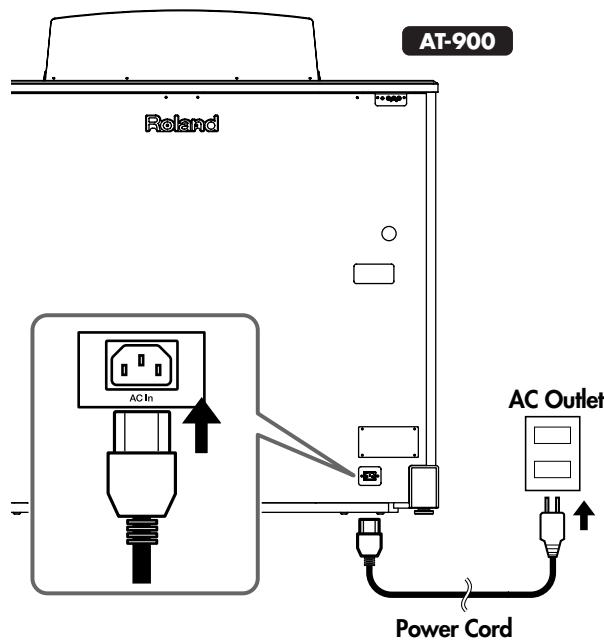
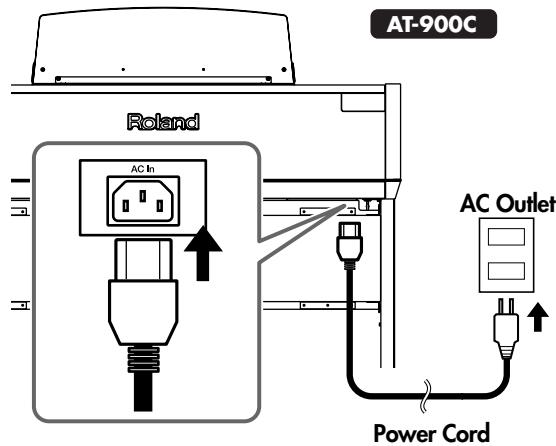

Only use the power cord supplied with this instrument.

Whenever you do not intend to use the instrument for extended periods of time, pull out the power cord from the AC outlet.
Turning the Power On and Off

Once the connections have been completed, turn on or off power to your various devices in the order specified. By turning on or off devices in the wrong order, you risk causing malfunction and/or damage to speakers and other devices.
Turning On the Power
1. Make sure of the following before the power is turned on.
- Is the power cord correctly connected to the AC inlet?
- Is the power cord correctly connected to the AC outlet?
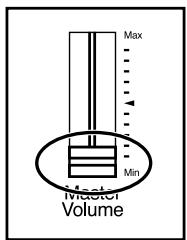
- Is the [Master Volume] slider (located at the left of the Lower Keyboard) set to the Min (minimum) position?
2. Press the [Power On] button to turn on the power.
![ROLAND AT-900C - Press the [Power On] button to turn on the power. - 1](/content/2025/01/130760/images/4e0e7e53fbcb17c10c557b0850c2d2858ff4f92f99ed0eb5388393b4b78be893.jpg)
Power On
![ROLAND AT-900C - Press the [Power On] button to turn on the power. - 2](/content/2025/01/130760/images/6e16e3243bc558b0ebdc4aa75cb922d66acb0f73132770f7de9841b89c9d627b.jpg)
Lower position
The main screen will appear in the display.
![ROLAND AT-900C - Press the [Power On] button to turn on the power. - 3](/content/2025/01/130760/images/5b7ba4792214b10a80248563417401647ff8f1d88e3e80dc1aede55d07fca299.jpg)
![ROLAND AT-900C - Press the [Power On] button to turn on the power. - 4](/content/2025/01/130760/images/15d0769f9cfe907de5a099524ddff80bf97937b64576f923af8243937ae5b2f7.jpg)
This unit is equipped with a protection circuit. A brief interval (a few seconds) after power up is required before the unit will operate normally.
3. Adjust the volume to an appropriate level by moving the [Master Volume] slider or operating the expression pedal.
Now adjust the [Master Volume] slider to a suitable level. The volume will be increased when the Expression Pedal is pressed down, and decreased when the pedal is returned.
![ROLAND AT-900C - Adjust the volume to an appropriate level by moving the [Master Volume] slider or operating the expression pedal. - 1](/content/2025/01/130760/images/a922d7f185d2de4a70af50b758267770fc607744f0af2ae577e6b5c4202c7ec7.jpg)
![ROLAND AT-900C - Adjust the volume to an appropriate level by moving the [Master Volume] slider or operating the expression pedal. - 2](/content/2025/01/130760/images/9709de6481ceaad5574d79efea47593a80174492cc23ccb6c9c9df5a5b7e9798.jpg)
Turning Off the Power
- Before switching the power off, set the [Master Volume] slider to the Min (minimum) position.
- Press the [Power On] button to turn off the power.

Power On

Upper position
OFF

If you need to turn off the power completely, first turn off the POWER switch, then unplug the power cord from the power outlet. Refer to [Power Supply] (p. 6).
Using Headphones
The ATELIER features Phones jacks. These allow you to play without having to worry about bothering others around you, even at night.
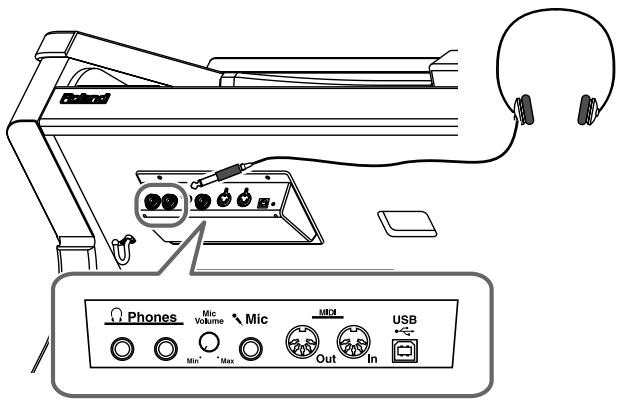
1. Connect your headphones to the [Phones] jack underneath the left side of the keyboard.
The sound from the built-in speakers stops.
Now, sound is heard only through the headphones.
![ROLAND AT-900C - Connect your headphones to the [Phones] jack underneath the left side of the keyboard. - 1](/content/2025/01/130760/images/189993f4d73d97f8d6f19ca75218c6d6e1280fd515dcae198129c17caa033ec2.jpg)
2. Adjust the headphones volume with the [Master Volume] slider and Expression pedal.
Some Notes on Using Headphones
CAUTION
- To prevent damage to the cord, handle the headphones only by the headset or the plug.
- Headphones may be damaged if the volume is too high when they are plugged in. Lower the volume on the ATELIER before plugging in headphones.
- To prevent possible auditory damage, loss of hearing, or damage to the headphones, the headphones should not be used at an excessively high volume. Use the headphones at a moderate volume level.
- Accepts connection of Stereo headphones.
- If plugs of the headphones are plugged into the [Phones] jack, no sound will be heard from the ATELIER's speakers.
Using a Microphone
The ATELIER is equipped with a Mic jack.
Since this instrument has a Mic jack, you can use a microphone to enjoy a variety of possibilities such as singing along with your performance, or singing along with SMF music files (sold separately).
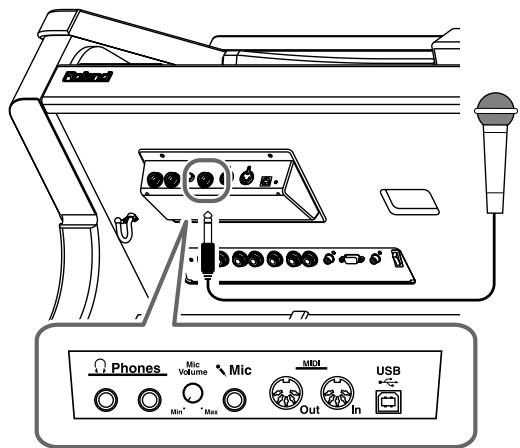
- Connect your microphone to the [Mic] jack underneath the left side of the keyboard.
- Use the [Mic Volume] knob to adjust the volume level for the microphone.

You can adjust the depth of the echo applied to sound from the microphone (p. 221).

The microphone must be purchased separately. When purchasing a microphone, please consult the vendor where you bought the ATELIER.
Some Notes on Using a Microphone
CAUTION
- To avoid disturbing others, be careful of the volume level when playing late at night or very early in the morning.
- When connecting a microphone to the ATELIER, be sure to lower the volume. If the volume control is too high when the microphone is plugged in, noise may be produced by the speakers.
-
Howling could be produced depending on the location of microphones relative to speakers. This can be remedied by:
-
Changing the orientation of the microphone.
- Relocating the microphone so it is farther from the speakers.
- Lowering volume levels.
Using the Code Hook
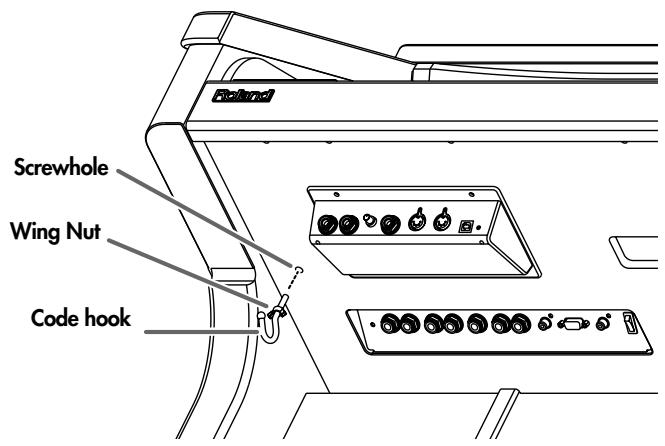
If you're using headphones or a mic, you can use the code hook to neatly bundle the cables near your feet.
Attaching the Code Hook
- Screw the code hook (with wing nut) about 80% of the way into the screwhole located at the bottom left of the organ.
- After you've oriented the hook as desired, use the wing nut to fasten it.
About the Hole of the ATELIER's Cabinet
AT-900
On the back of the AT-900 there are two holes through which you can pass cables.
When connecting an external device to the AT-900, you can pass the connection cables through these holes to the back.
- Remove the cap from the cable pass-thru located on the back of the AT-900.
- Pass the cables through the holes from which you removed the cover.
If you remove a cap, keep it in a safe place so that it is not lost.
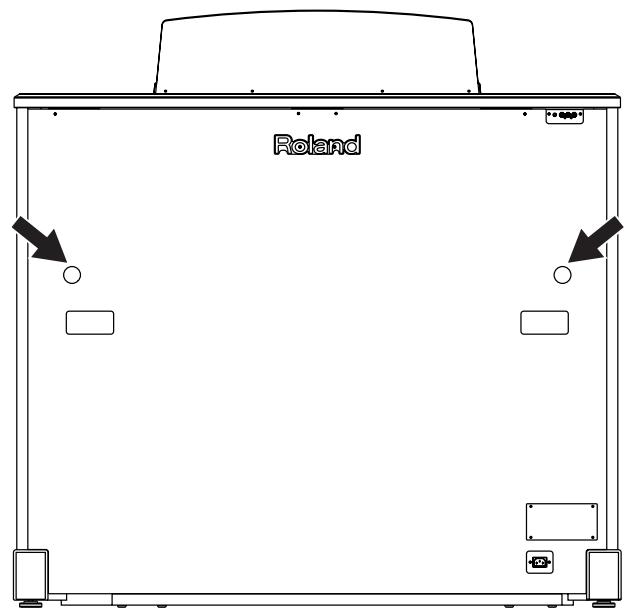
NOTE

CAUTION
- Avoid inserting fingers into this hole.
AT-900C
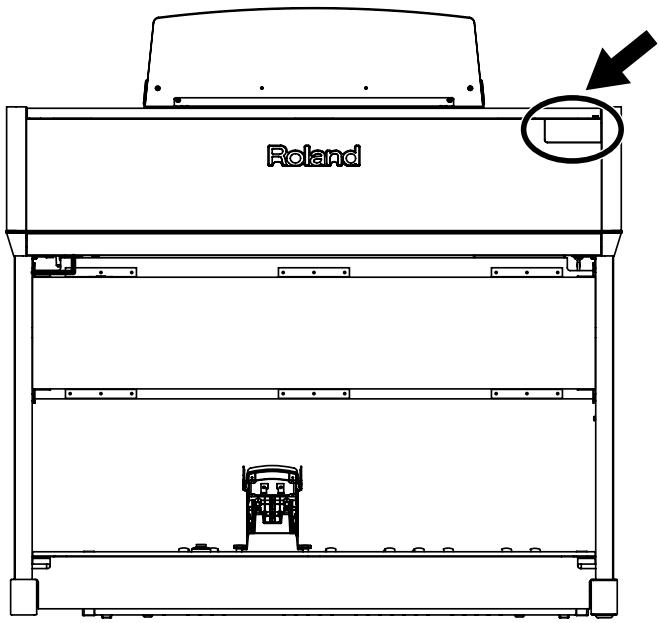
On the back of the AT-900C there a hole through which you can pass cables.
When connecting a DVD player or other external device to the AT-900C, this allows you to organize the cables neatly.
- Remove the cover from the cable pass-through located on the rear panel of the AT-900C.
Grasp the tab of the cable pass-through cover, and remove the cover.
2. Pass the cable through the hole from which you removed the cover.
About the Bench (AT-900)
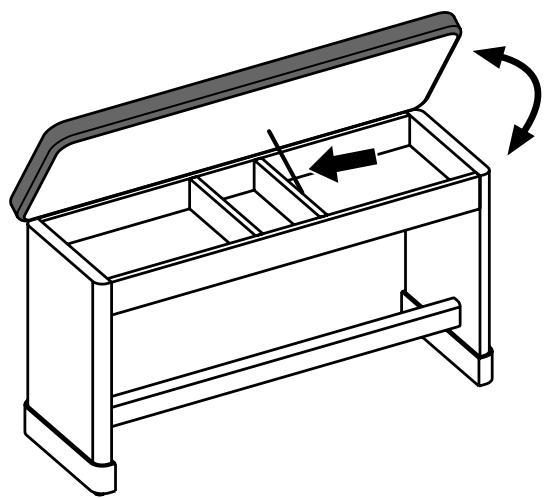
The bench seat can be opened, and sheet music and other items can be stored inside.
Caution When Using the Bench

CAUTION
- When opening/closing the seat, be careful not to pinch your fingers.

Restoring All the Factory Default Settings
You can restore all of the settings stored in the ATELIER to what they were when the instrument shipped from the factory. This function is called "Factory Reset."
1. Touch on the Main screen.
The System screen appears.

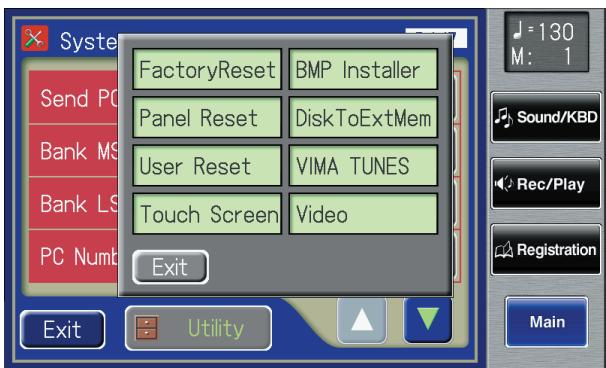
2. In the System screen, touch to open the Utility screen.
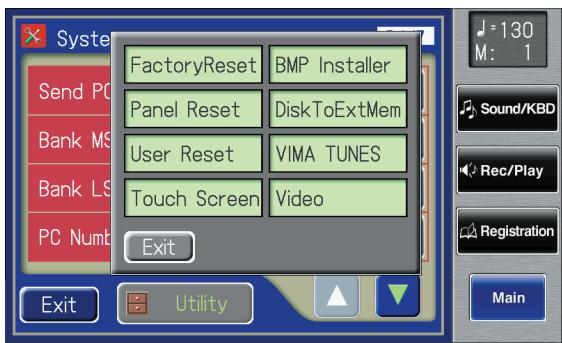
3. In the Utility screen, touch .
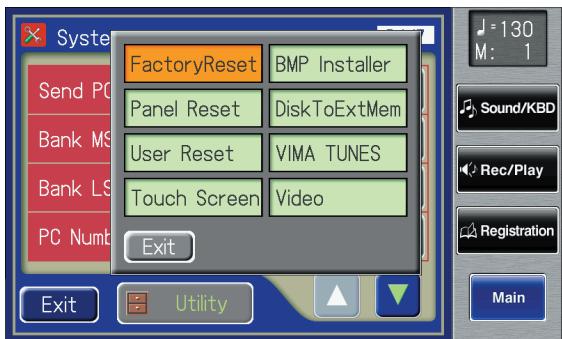
The confirmation message appears on screen.
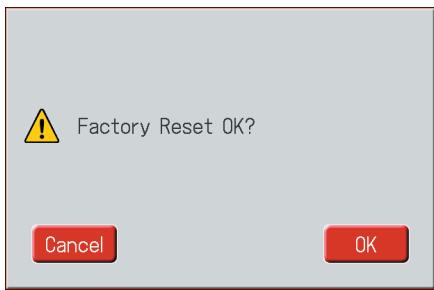
If you touch <Cancel> , the Factory Reset will not be performed, and you will return to the System screen.
4. When you touch <OK> , the Factory Reset operation will begin, and the settings will return to the factory-set condition.
NOTE
Never switch off the power while this operation is in progress!
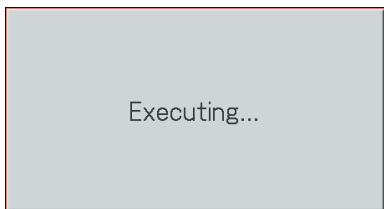
NOTE
Loading factory default settings will erase any Registrations currently in the memory of the ATELIER. To save the registrations you are currently using, refer to "Saving Registration Sets" (p. 113).
If you want to restore settings other than those for User Memory (p. 82) to the factory-set condition, touch
You can also use the following method to return to the factory-set condition.
Method 1
- Touch
on the Main screen, to display the Quick Guide screen. - Press the [One Touch Program] button.
The confirmation message appears on screen.
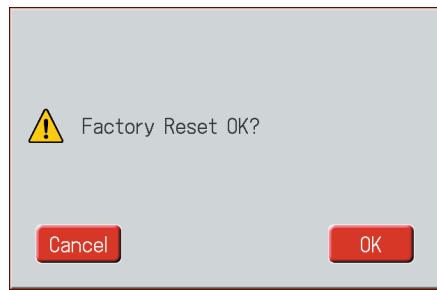
If you touch <Cancel> , the Factory Reset will not be performed, and you will return to the System screen.
- When you touch <OK> , the Factory Reset operation will begin, and the settings will return to the factory-set condition.
Method 2
- Turn down the volume to the minimum level, then turn off the power.
- While holding down the [One Touch Program] button, press the [Power On] switch to turn the power on.

Power On

One Touch Program
The following screen appears.
Factory Preset is Loading...
Using the External Memory
Songs you record on the ATELIER and registration sets you create can be copied to separately available USB memory for safekeeping. You can also copy songs to a floppy disk using a separately sold floppy disk drive (p. 97, p. 127, p. 188). You can also play back SMF music files saved on USB memory or a floppy disk (p. 167).
NOTE
Use USB memory and floppy disk drive available from Roland. Proper operation cannot be guaranteed if other USB device is used.
Connecting the USB Memory
1. Connect the USB memory to the External Memory connector.
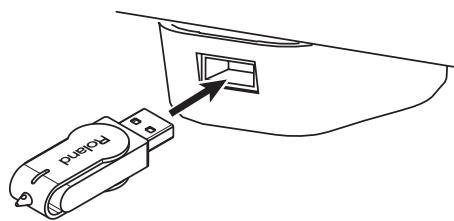
Carefully insert the USB memory all the way in—until it is firmly in place.
MEMO
If you're using new USB memory or floppy disk, you'll need to initialize (format) it on the ATELIER. For details, refer to " Formatting a USB Memory (Format)" (p. 232).
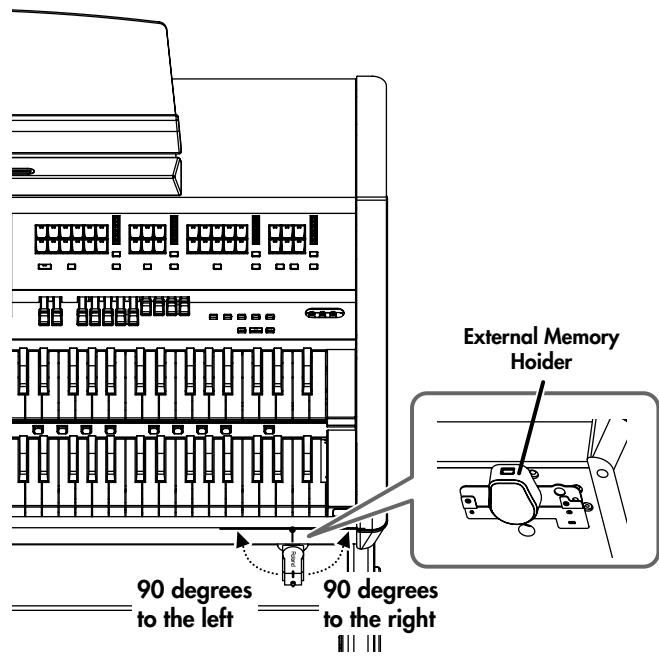
Rotating the External Memory Connector Holder
The External Memory connector holder rotates 90 degrees left and right. Rotating the External Memory connector holder allows you to avoid damaging the connected external memory if something happens to bump against it.
1. Grasp the External Memory connector holder and turn it 90 degrees to the left or right.
NOTE
Be sure to grasp the External Memory connector holder itself when rotating it. Never rotate the External Memory connector holder by holding the connected external memory.
NOTE
Take care not to allow your fingers to become pinched when rotating the External Memory connector holder.
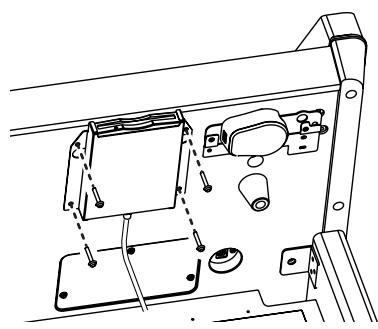
Connecting the Floppy Disk Drive
Attach the floppy disk drive as shown the figure, using the mounting holes on the ATELIER's bottom panel.

For details of the attachment, refer to the owner's manual of the floppy disk drive.
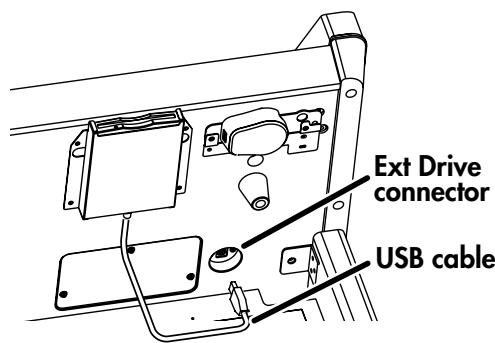
1. Connect the USB cable of the floppy disk drive to the ATELIER's Ext Drive connector.
Using a CD
You can play back audio CDs and CD-ROMs containing saved SMF music files.

You can also play songs on VIMA CD-ROMs (VIMA TUNES) sold by Roland.
Precautions Concerning Use of the CD
- You cannot play back CD-R/RW disks to which audio tracks have been added or CDs containing both audio tracks and data (CD Extra).
- The ATELIER is capable of playing back only commercial CDs that conform the official standards-those that carry the "COMPACT DISC DIGITAL AUDIO" logo.
- The usability and sound quality of audio discs that incorporate copyright protection technology and other non-standard CDs cannot be guaranteed.
- For more detailed information on audio discs featuring copyright protection technology and other non-standard CDs, please consult the disc vendor.
- You cannot save songs to CDs, and you cannot delete songs recorded to CDs. Furthermore, you cannot format CDs.
Connecting a CD Drive

CD drives that draw their power from the USB connector cannot be used.
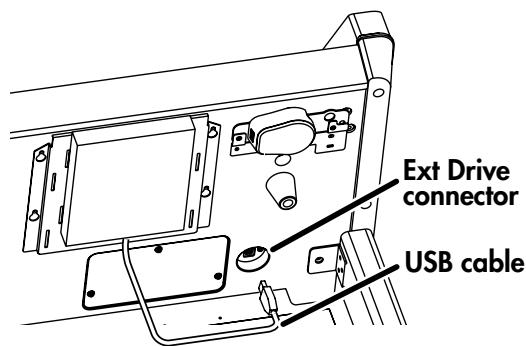
- Switch off the power to the ATELIER and the CD drive to be connected.
- Connect the USB cable included with the CD drive to the Ext Drive connector on the ATELIER.
- Turn on the power to the ATELIER.
- Turn on the power to the connected CD drive.
For information on how to perform the following CD-drive operations, refer to the owner's manual for the drive.

- Switching the power on and off
- Inserting and ejecting a CD
A list of the CD drives that have been tested and found to be compatible is available on the Roland website.
http://www.roland.com/
The ATELIER makes use of a Touch Screen.
This lets you carry out a wide variety of actions just by touching the screen lightly.
Understanding the Main and Related Screens
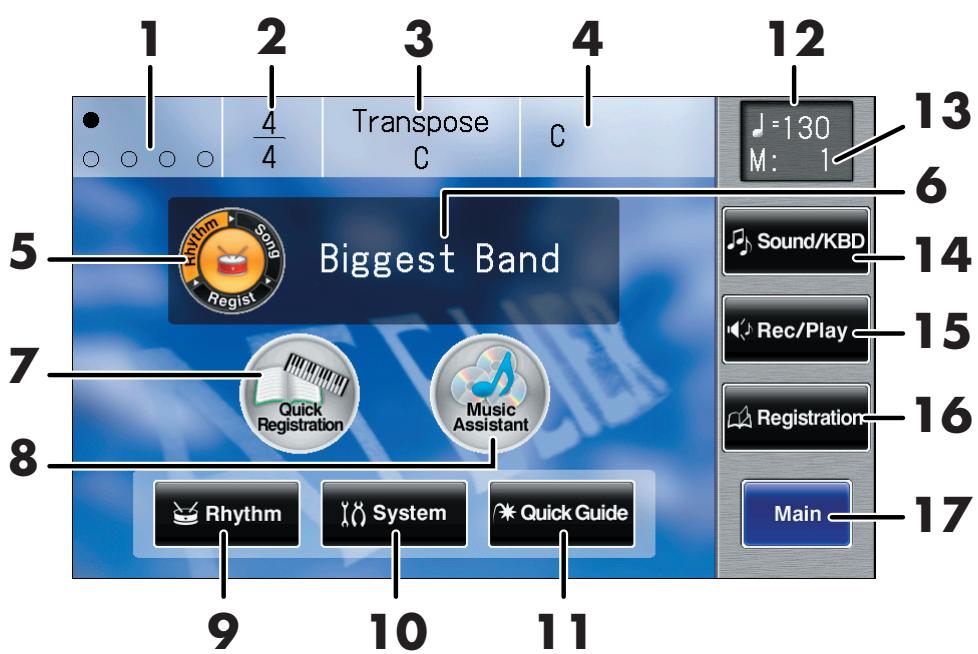
Main Screen
| Number | Explanations |
| 1 | Bouncing Ball A ball will bounce in time with the rhythm or song. |
| 2 | Beat |
| 3 | Transpose Displays the keyboard transposition setting. |
| 4 | Chord Name Displays the name of the chord that is played in the lower keyboard. |
| 5 | Indication button Pressed to choose which name to have indicated; either the Rhythm Name, Song Name, or Registration Name. The name of the rhythm will appear in the screen when you turn on the power. You can change this indication to the song name or the registration name. |
| 6 | Rhythm Name/Song Name/Registration Name |
| 7 | Quick Registration Press this when you want to use the Quick Registration function (p. 37). |
| 8 | Music Assistant Press this when you want to use the Music Assistant function (p. 39). |
| 9 | Rhythm You can play rhythms from this instrument, or play or store rhythms from USB memory or user memory. Rhythm-related settings can also be made here. |
NOTE
The explanations in this manual include illustrations that depict what should typically be shown by the display. Note, however, that your unit may incorporate a newer, enhanced version of the system (e.g., includes newer sounds), so what you actually see in the display may not always match what appears in the manual.
NOTE
The Touch Screen is operated by touching it lightly with your finger. Pressing hard, or using a hard object can damage the Touch Screen. Be careful not to press too hard, and be sure to use only your fingers to operate the Touch Screen.
NOTE
The positioning of the Touch Screen may become displaced due to changes in the surrounding environment and over time. If this happens, follow the steps in "Repositioning the Touch Screen" (p. 229) to correct the pointer position.
NOTE
Do not place items on the touch screen.
MEMO
You can adjust the brightness of the screen (p. 224).
MEMO
You can make settings so that the bouncing ball is not shown in the main screen (p. 225), and change the background of the main screen (p. 225).
| Number | Explanations |
| 10 | System Make various settings. |
| 11 | Quick Guide Displays the Quick Guide screen. While the Quick Guide screen is displayed, you can press the keyboard, a button, or a foot switch to jump to the related setting screen (p. 43). |
| 12 | Tempo |
| 13 | Measure |
| 14 | Sound/KBD (Sound/Keyboard) Select a voice (tone), or make settings for the effect depth, keyboard, etc. |
| 15 | Rec/Play Play back or record a song. You can also view a notation display while a song plays. |
| 16 | Registration Load registrations from user memory into internal memory, or save registrations. Registration-related settings can also be made here. |
| 17 | Main Returns you to the main screen if any screen other than the main screen is open. |
| V-LINK | This icon is displayed when the V-LINK function is on. → V-LINK function (p. 227) |
| SMF | This icon is shown for SMF music files. |
| EDITED | This icon is displayed when any portion of the recorded song has been altered. This icon is also shown if you've recorded a song but not yet saved it. |

Tempo, measure number,
About the Icons
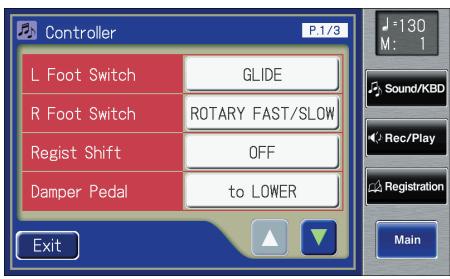
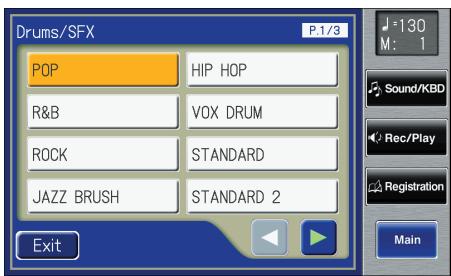
| Button | Meaning |
| Depending on the function, some screens are spread over multiple pages. You can touch < > to display the next or previous page of the screen. In the Load screen, Save screen, or File Edit screen, you can select a file by touching >. | |
| Exit | Touch this when you want to exit (close) the currently displayed screen. |
| ACT EXP | This icon is shown for Active Expression voice. → Active Expression Voice (p. 69) |
| EX | This icon is shown for EX voice. → Ex Voice (p. 52) |
| ArtVoice | This icon is shown for Articulation voice. → Articulation Voice (p. 61) |
Sub-windows
When you touch
MEMO
You can return directly to the main screen by touching the
MEMO
When you touch a menu in the sub-window, the sub-window will close, and the selected menu screen will appear.
MEMO
In a sub-window, touch
Sub-windows for Setting Values
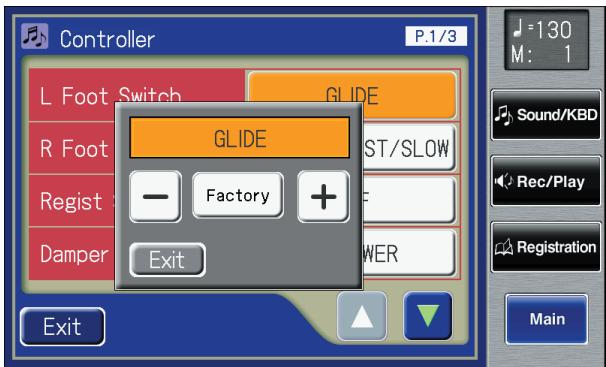
When you are making settings in the System screen, the following type of screen appears.
| Factory | Return to the factory settings. |
| - + | Modify the value. |
About the [Value] Dial
The ATELIER has a [Value] dial.
You can use the [Value] dial to change the tempo or edit the settings, or to select a file in screens such as the File Edit screen.
Editing the value of a setting (when a sub-window for editing the value is open)
![ROLAND AT-900C - About the [Value] Dial - 1](/content/2025/01/130760/images/2eb4c5784ada491fd421b3ca58ff34c9c0b6d6ca1b6676ab5e9bee61eebd36c8.jpg)
Switching files (when the File Edit screen, Save screen, or Load screen for rhythms, songs, or registrations is open)
![ROLAND AT-900C - About the [Value] Dial - 2](/content/2025/01/130760/images/eefc8367486dfc26f8606d6ab44c7d560eddff114d24097b3a6dcdc647b3e25b.jpg)
![ROLAND AT-900C - About the [Value] Dial - 3](/content/2025/01/130760/images/298a2a2e89e01bc37039660f6b2effa9f553ae5792310904f56f08fef3b6fd3b.jpg)
If a sub-window for you to edit the settings is shown, you can use the [Value] dial to switch the settings.
Listening to the Demo Songs
The ATELIER provides demo songs. Here's how to play the Demo songs, and fully appreciate the sounds, Rhythms, and Automatic Accompaniment that are available with the ATELIER.
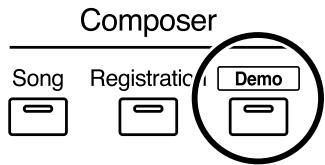
1. Press the [Demo] button to make the indicator light.
The Demo Screen appears.
![ROLAND AT-900C - Press the [Demo] button to make the indicator light. - 1](/content/2025/01/130760/images/779aaa7038608ba2629979326d4a4ad28eae261c8607ad4322ebd609d5028b8e.jpg)
2. Touch <口> or <口> on screen to select the demo song.
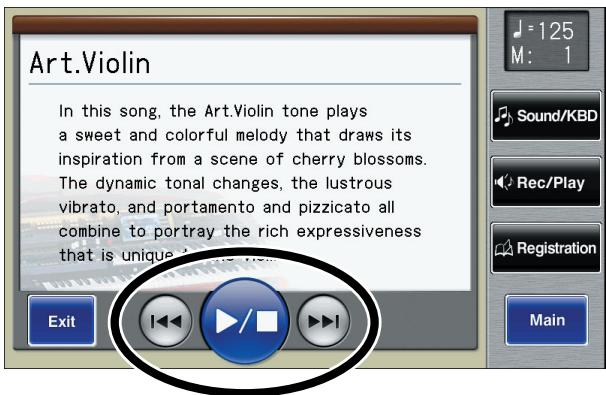
3. Touch < > to start playback of the demo song.
When the selected demo song ends, the next demo song will begin playing.

For details on the composer of each demo song and their profiles, refer to "Demo Song List" (p. 283).

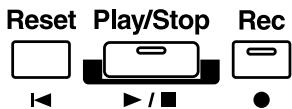
You can play/stop the demo songs by pressing the panel [Play/Stop] button.
- Touch < once again to stop playback of the demo song.
- Press the [Demo] button to exit the demonstration screen.
If the following screen appears
If the performance song in the unit has not been saved to the "Favorites" (User memory) or USB memory, the following message appears, and it will not be possible to play the Demo songs.
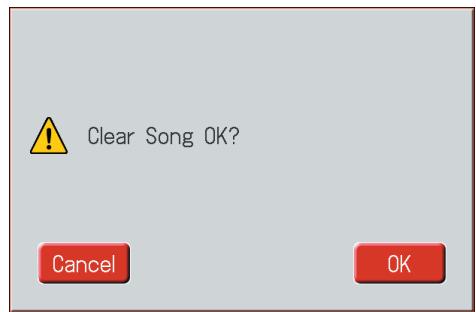
If you do not want to delete the performance data, touch
- If you want to delete the performance data, touch
.
MEMO
The performance data can be saved on the "Favorites" (User memory) or USB memory. If you wish to save the performance data to the "Favorites" or USB memory, refer to "Saving Performance Songs" (p. 180).
NOTE
All rights reserved. Unauthorized use of this material for purposes other than private, personal enjoyment is a violation of applicable laws.
NOTE
The data for the Demo song that is being played is not available at the MIDI Out connector.
Choose a Keyword for Quick Registration Selection
You can select a voice appropriate for your performance by selecting from keywords representing your situation, location, musical genre, etc. You can call up registrations created by top-level organizers, and refer to them for hints on how to select and layer sounds when creating your own registrations.
1. Touch on the Main screen.
The Quick Registration screen appears.
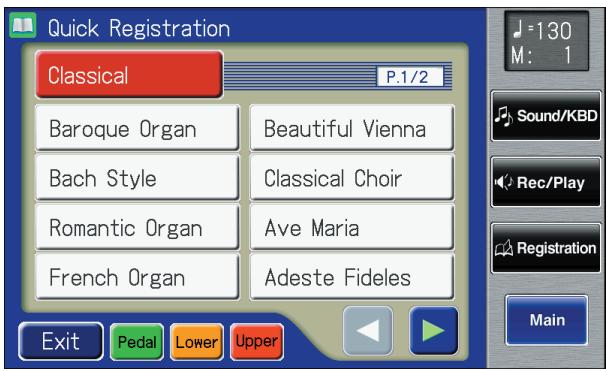
2. Touch a button that shows a Quick Registration group.
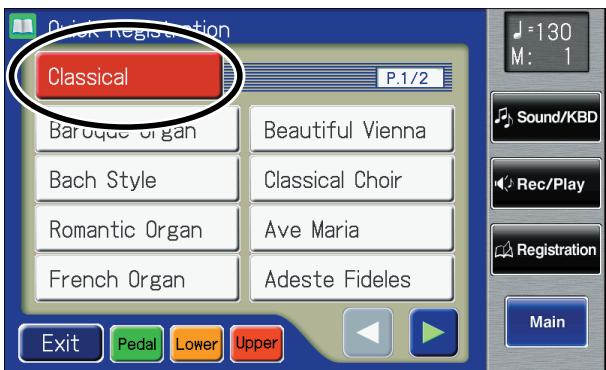
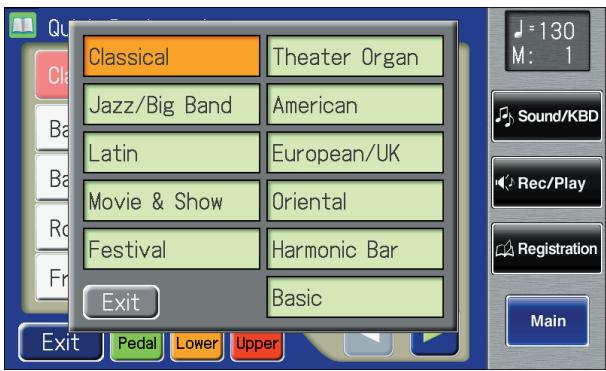
A sub-window appears, allowing you to select a Quick Registration group.
MEMO
If another screen is open, touch
3. In the sub-window, touch a Quick Registration group name to select the desired Quick Registration group.
The sub-window closes, and the Quick Registration screen returns to the display.
4. Touch , , or , switching the respective button's indicator on or off, to select the keyboard to which the voice is to be assigned.
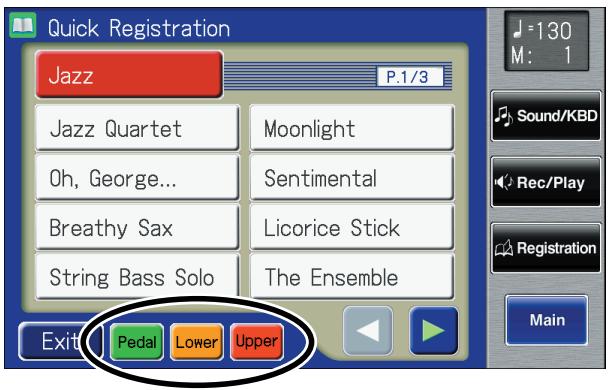
| Setting | Keyboard for which you select a voice |
| Upper | Upper keyboard |
| Lower | Lower keyboard |
| Pedal | Pedalboard |
5. Touch <> to switch pages, and touch the desired keyword.
The voice will be assigned to the selected keyboard.
If you want to continue changing the voice settings, repeat steps 2-5.
Music Assistant Function
A collection of the world's best, most well-known songs were carefully selected, then the optimum panel settings for each of them were determined, and the resulting data was stored inside the instrument.
Simply select the keyword that most closely suggests the character of the song you have in mind, and a rhythm performance, a sound for the melody, and other selections will be made for you. Once you've selected a keyword, all you have to do is play the keyboard to start performing.
1. Touch on the Main screen.
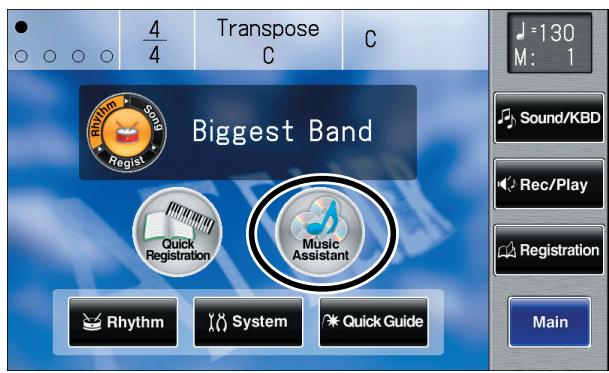
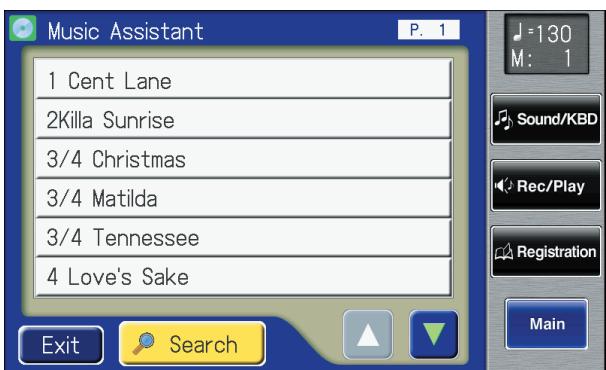
The Music Assistant screen appears.

If another screen is open, touch
2. Touch <>><> to switch screens, and touch a keyword appropriate for the character of the song.
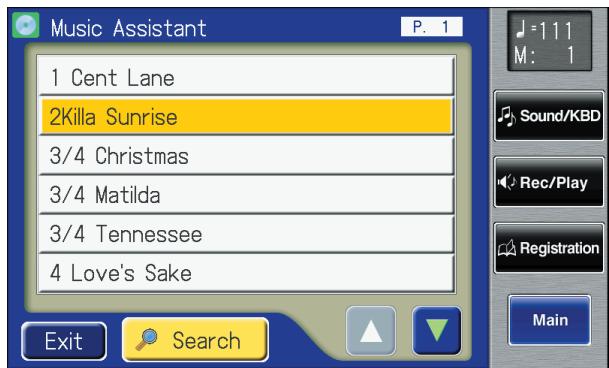
The Registration buttons [1]–[4] flash.
Panel settings appropriate for the keyword will automatically be called up for the Registration [1]–[4] buttons.
3. On the Lower keyboard, play a chord.
4. Press a Registration button from [1] through [4] to switch the panel settings.
5. Press the [Ending] or [Start/Stop] button to stop the Rhythm.
6. To end the Music Assistant function, press the [One Touch Program] button, extinguishing its indicator.
At the moment you play the keyboard, the Intro will begin, and then the Rhythm and Automatic Accompaniment will play.
Music Assistant Search
You can specify a song name and other search terms and use these for a Music Assistant search.
1. Touch on the Main screen.
The Music Assistant screen appears.
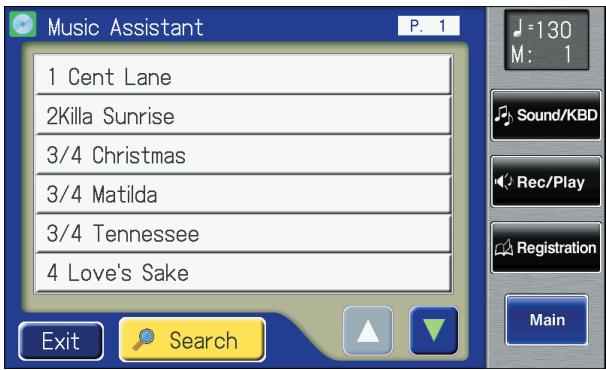
2. Touch .
A sub-window appears.
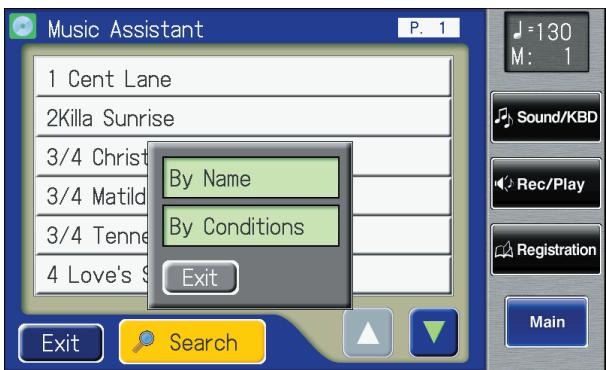
Searching by Music Assistant Name
3. Touch.
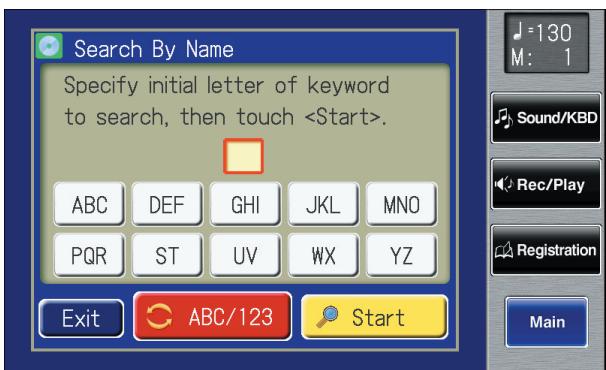

If another screen is open, touch
4. Decide which character you will use for the search.
Enter the character you are searching for. For example, touching ABC in succession cycles you through the available choices in that character group ("A"→"B"→"C"…).
Touch <ABC/123> to toggle between alphabets and numerals.
The selected character appears in the middle of the screen.
5. Touch (Start Search).
The results of the search appear in the display.
To cancel the search, touch
6. Touch a Music Assistant name to select a Music Assistant.
Touch
Searching by Conditions
3. Touch .
You can use four different criteria in searches: "Tempo," "Rhythm," "Genre," and "Scene."
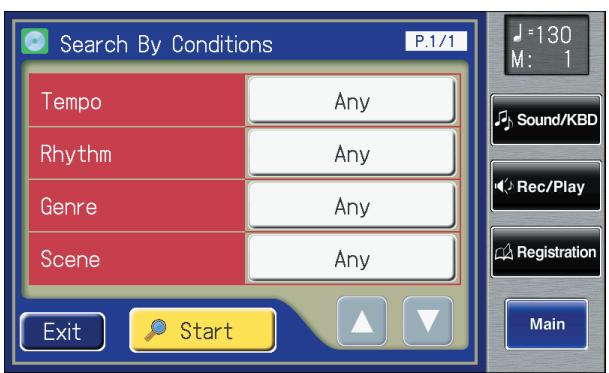
4. Touch the value for the search term.
5. Touch <-> <+> to adjust the settings.
6. Touch (Start Search).
The results of the search appear in the display.
To cancel the search, touch
7. Touch a Music Assistant name to select a Music Assistant.
Touch
About the Quick Guide Function
The ATELIER offers a Quick Guide function, which makes it easy for you to access various functions. While the Quick Guide screen is displayed, you can press the keyboard, a button, or a foot switch to jump to the related setting screen.
1. Touch on the Main screen.
The following Quick Guide screen appears.
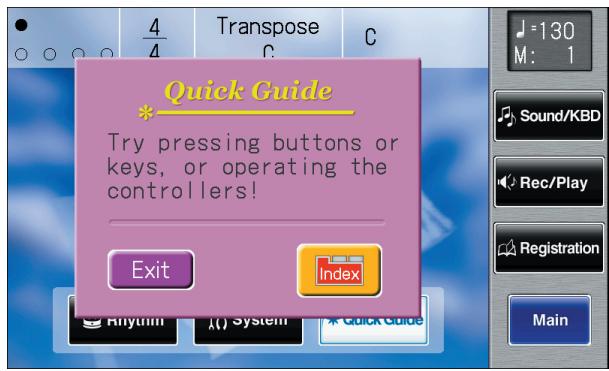
2. While the Quick Guide screen is displayed, press a button, keyboard, pedal, or foot switch.
You will be taken to the screen that contains settings related to the button, keyboard, pedal, or foot switch that you pressed.
3. Make settings in the screen to which you jumped.
4. When you are finished making settings, touch to close the screen.
MEMO
If another screen is open, touch
MEMO
For more on keys, buttons, and controllers that can be used with the Quick Guide function, refer to "Settings That Are Stored After the Power Is Turned Off" (p. 281).
About the Index Menu
In the Quick Guide screen, you can touch
1. Touch on the Main screen.
The following Quick Guide screen appears.
2. Touch .
The following screen appears.
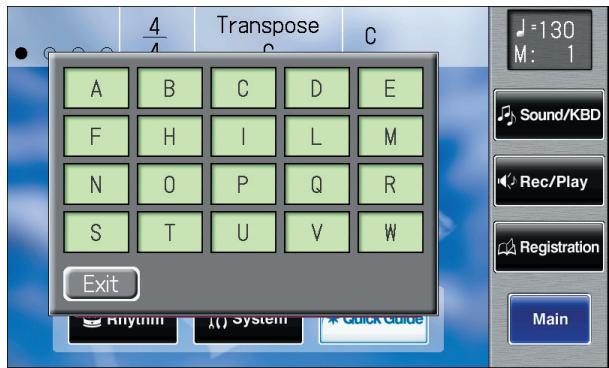
3. Touch a letter of the alphabet A-W to select the first letter of the desired keyword.
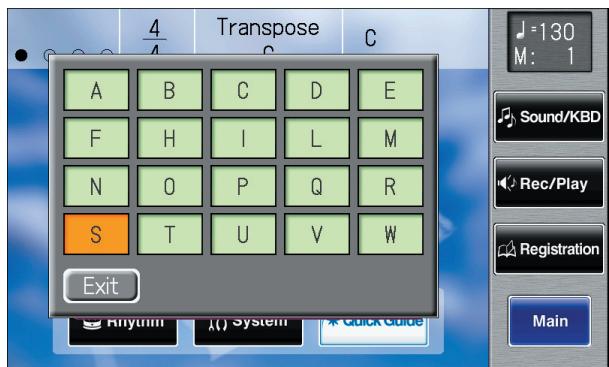
The Quick Guide Index screen appears, and the keywords will be displayed.
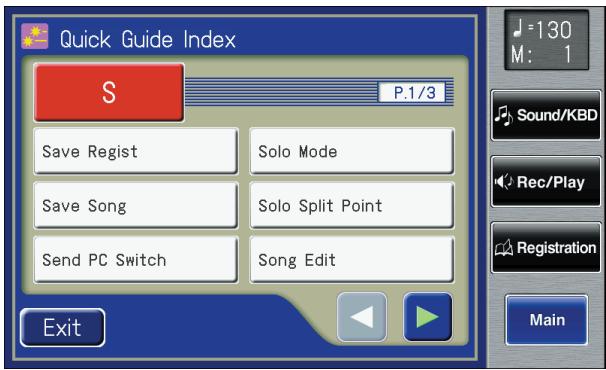
4. Touch the desired keyword.
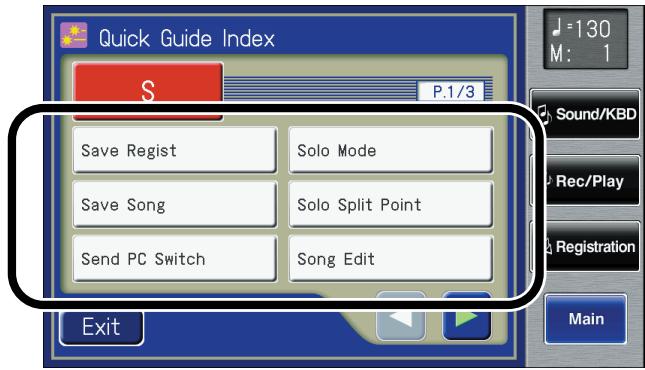
The setting screen for the specified keyword appears.
- Make settings in the setting screen that appeared.
- Touch
.
Settings for Easy Performance
The ATELIER provides a Global Settings buttons.
If you press the Global Settings [EZ One Finger] button, you'll be able to produce chords simply by holding down one or two keys of the lower keyboard.
If you press the Global Settings [EZ Touch] button, you'll be able to play at a fixed volume regardless of variations in your keyboard playing strength.
1. Press the Global Settings [EZ One Finger] button or [EZ Touch] button.
Pressing these buttons will make the following performance settings.
| Button | Explanations |
| EZ One Finger | Chord Intelligence function will be on A chord will be detected when you hold down one or two keys of the lower keyboard. |
| Pedal To Lower function will be on You can sound the Pedal Bass voice by playing the root note of a chord on the Lower keyboard in the area that is playing the Lower voice. | |
| EZ Touch function will be on Initial Touch will be turned off, so that you'll be able to play at a fixed volume regardless of variations in your keyboard touch. | |
| Lower Voice Hold function will be on You can have Lower voice continue to sound after you release you fingers from the keys, until the next key is played. | |
| Chord Hold function will be on When you use automatic accompaniment, and you take your fingers off the keyboard after fingering a chord in the lower keyboard, the automatic accompaniment will continue playing until you play the next chord. | |
| EZ Touch | Initial Touch will be turned off Regardless of the Initial Touch settings of the registration, Initial Touch will be turned off. You'll be able to play at a fixed volume regardless of variations in your keyboard touch. |
These settings make it easier for you to perform.
2. Go ahead and perform!
MEMO
If you press the Global Settings [EZ One Finger] button to turn it off (the indicator goes out), the following functions will return to their factory-set condition.
- Chord Intelligence function
- Pedal To Lower function
EZ Touch function - Lower Voice Hold function
- Chord Hold function
MEMO
If you press the Global Settings [EZ Touch] button to turn it off (the indicator goes out), the Initial Touch functions will return to their factory-set condition.
Selecting Voices
You can play the sounds of various instruments on the ATELIER. These sounds are called "Voices."
About the Voices and Parts
The ATELIER has two manual keyboards and a pedalboard.
From top to bottom these are called the "Upper Keyboard," "Lower
Keyboard," and "Pedalboard."
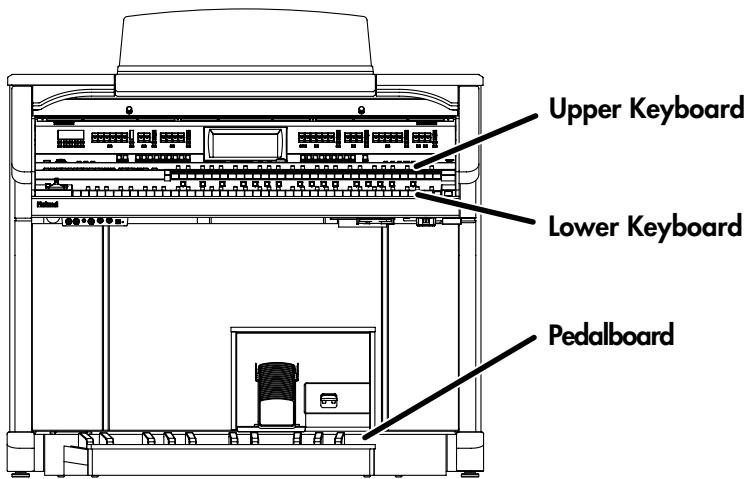
Four parts, "Organ," "Symphonic," "Orchestral," and "Vintage Organ" are assigned to the Upper and Lower keyboards, respectively, and you can select one voice from each part. Plus, with the addition of the "Solo" part voice, you can have up to five voices playing simultaneously (the Solo voice can be played in either the Upper or Lower keyboard).
The Pedalboard has three parts: "Pedal Organ," "Pedal Orchestral," and "Vintage Organ." You can select one voice for each part, meaning that it is possible to play up to three voices simultaneously.
| Keyboard | Parts |
| Upper Keyboard | Upper Organ |
| Upper Symphonic | |
| Upper Orchestral | |
| Upper Vintage | |
| Solo (This voice is sounded only when the Solo [To Lower] button be extinguished) | |
| Lower Keyboard | Lower Organ |
| Lower Symphonic | |
| Lower Orchestral | |
| Lower Vintage | |
| Solo (This voice is sounded only when the Solo [To Lower] button lights up) | |
| Pedalboard | Pedal Organ |
| Pedal Orchestral | |
| Pedal Vintage |
MEMO
The explanation at left uses an illustration of the AT-900.
MEMO
The AT-900C allows a pedal keyboard (PK series; sold separately) to be connected and used to play the voice of the pedal part.
MEMO
To play a Solo voice on the Lower keyboard, select the Solo voice and press the Solo [To Lower] button (p. 158).
MEMO
To play a Pedal Bass voice on the Lower keyboard, select the Pedal Bass voice and press the [Bass Split] button (p. 161).
Functions of the Upper/Lower/Pedal Bass Sound Select Buttons
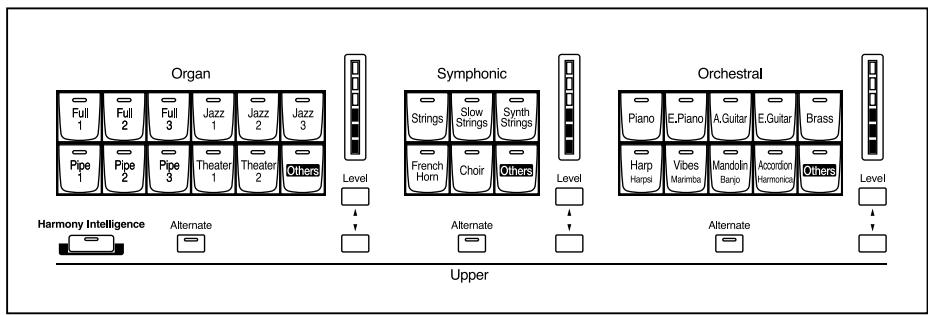

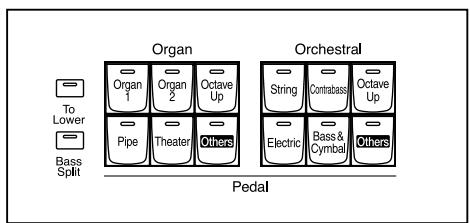
Each time you press a voice button, its indicator will switch between being lit and being turned off. Voices that have their button indicator lit can be played.
Two voices of the same family are assigned to each voice button. Buttons with voices from two different families have the names of both voices printed on them.
The [Alternate] button switches between these two voices.
| The [Alternate] button | Voice that will be selected |
| Lit | The voice indicated on the button is selected. |
| Unlit | Another voice of the same category as the voice shown on the button will be selected. For buttons to which voices of the same category are not assigned, the voice printed below the button will be selected. |
NOTE
No sounds are produced, even when the keys are played, when the Voice button is unlit and all vintage organ voices are off.
Selecting the Upper and Lower Voices
Press the "Organ," "Symphonic," or "Orchestral" buttons for each Keyboard (Upper/Lower) to select the desired voice.
When the power is turned on, the Upper keyboard will play "Full Organ1" and the Lower keyboard will play "Lower Organ1."
Example: Selecting "Full Organ 5" for the Upper Organ, "Full Strings" for the Upper Symphonic, and Upper Orchestral "Grand Piano" for the Upper Orchestral.
1. Press the Upper Organ [Full 2] button (indicator lights).
The name of the selected voice appears in the display for several seconds.
Upper Organ Voice
Full Organ2
Now when you play the Upper keyboard, the "Full Organ 2" will sound.
2. Press the Upper Organ [Alternate] button (the indicator lights).
When you play the Upper keyboard, the "Full Organ 5" will sound.
Each time you press the [Alternate] button you will switch between the two voices which are assigned the button.
3. Press the Upper Symphonic [Strings] button (the indicator lights).
Now when you play the Upper keyboard, the two voices "Full Organ 5" and "Full Strings" will sound simultaneously (mixed together).
4. Press the Upper Orchestral [Piano] button (the indicator lights).
When you play the Upper keyboard, "Grand Piano" will be added, producing a mixture of three different voices.
![ROLAND AT-900C - Press the Upper Orchestral [Piano] button (the indicator lights). - 1](/content/2025/01/130760/images/8ca2892f47d734ceac3d42b295671e0f322c6dec32a7ac03e2ab80b13bd74044.jpg)
The lower voice can be selected in the same way as the upper voice.
Selecting Pedal Bass Voice
Immediately after the power is turned on, the Pedal Bass voice will sound single notes using the "Organ Bass1" voice.
Press the buttons of the various parts of "Pedal Organ" and "Pedal Orchestral" to select voices.
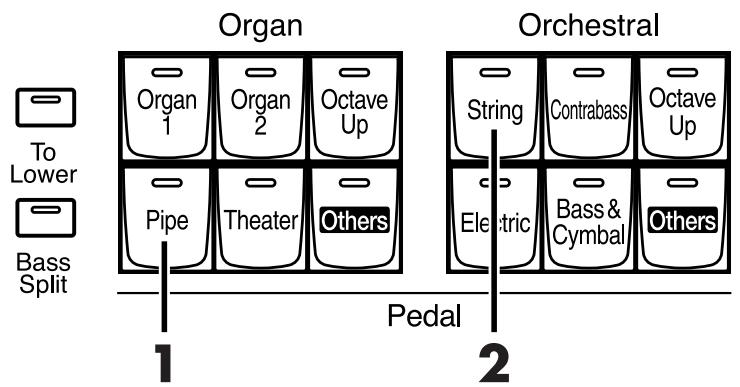
Example: Select "Pipe Org. Bs" for the Pedal Organ part, and select "Str.Bass Pdl" for the Pedal Orchestral part
1. Press the Pedal Organ [Pipe] button (indicator lights).
The name of the selected voice appears in the display for several seconds.
![ROLAND AT-900C - Press the Pedal Organ [Pipe] button (indicator lights). - 1](/content/2025/01/130760/images/3a902fc32089d38437177da32f7ef65332660dcf73e2f168f98ec480ee0c6408.jpg)
Now when you play the Pedalboard, "Pipe Org. Bs" (Pipe Organ Bass) will be heard.
2. Press the Pedal Orchestral [String] button (indicator lights).
Now when you play the Pedalboard, the two voices Pipe Organ Bass and Str.Bass Pdl (String Bass Pedal) will sound simultaneously (mixed together).
![ROLAND AT-900C - Press the Pedal Orchestral [String] button (indicator lights). - 1](/content/2025/01/130760/images/da418e77333bd80c3c3edd3f4615c0912da88e4129434136af8432c73a36a75b.jpg)
Normally, playing the pedalboard will sound one note at a time. Settings can be adjusted to allow multiple notes to be played on the Pedalboard (p. 210).
![ROLAND AT-900C - Press the Pedal Orchestral [String] button (indicator lights). - 2](/content/2025/01/130760/images/8566cd855c6aed6187e90fc7a8d6b3b504d70065ba77a95a1aaff5d26b90c953.jpg)
If you press the Pedal [To Lower] button (indicator lights p. 163) or [Bass Split] button (indicator lights p. 161), the Pedal Bass voice can now be played by the Lower keyboard, not by the Pedalboard.
![ROLAND AT-900C - Press the Pedal Orchestral [String] button (indicator lights). - 3](/content/2025/01/130760/images/8b86b4c0d1557e6a25db908534205b2728013e4a4080e78c5a3803fa581a62b4.jpg)
The Pedal Organ part has an [Octave Up] button. Notice that when the [Octave Up] button is on, the selected Pedal Bass voice will sound an octave higher.
Selecting Solo Voice
The Solo section of the Upper keyboard is monophonic, that is, the Solo voice will only sound for the highest note played on the Upper keyboard. This allows you to play full chords and have the selected Solo voice playing the highest (solo) note.
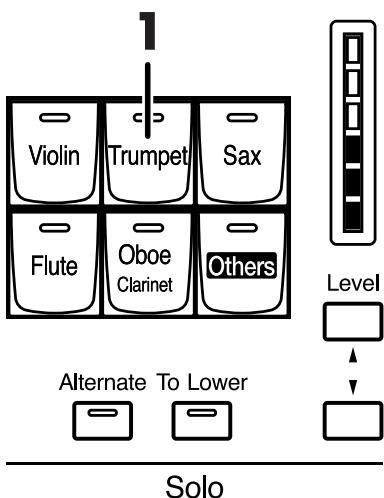
Example: Selecting "Trumpet" for the Solo part
1. Press the Solo [Trumpet] button (indicator lights).
The name of the selected voice appears in the display for several seconds.
![ROLAND AT-900C - Press the Solo [Trumpet] button (indicator lights). - 1](/content/2025/01/130760/images/02c453f2fcdeb9157cf605c07fcc5c03e15cfead74fd9be19b449ffa7372c90c.jpg)
Play the Upper keyboard. The selected voice will sound by the highest note played.
When you press the [Alternate] button, the two voices assigned to the button will alternate.
MEMO
You can use the Solo part's harmonic bar to adjust the volume of the Solo part (p. 72).
MEMO
By pressing the Solo [To Lower] button, you can play the Solo voice from the Lower keyboard. For details refer to "Playing the Solo Voice on the Lower Keyboard (Solo [To Lower] Button)" (p. 158).
MEMO
It is possible to change how a Solo voice will sound. Normally, the Solo voice will be sounded by the highest note you play on the Upper keyboard, but you can make settings so that the last-played note will sound the Solo voice. For details, refer to "Changing How the Solo Voice Responds" (p. 159).
MEMO
You can use the Solo [Others] button to select richly expressive sounds (articulation voices) (p. 61).
Selecting a Voice Using the [Others] Button
Notice that there is an [Others] button for each part. By using the [Others] button, you can select all voices.
As with the other voice buttons, the [Others] button can be assigned two voices (one voice for "Pedal Organ" and one for "Pedal Orchestral"). You can use the [Alternate] button to switch between these two voices.
1. Press the [Alternate] button for the Part for which you wish to specify a voice to select ON (lit) or OFF (dark).
The setting of the [Alternate] button: ON (lit) or OFF (dark), determines to which of the two available locations a newly selected voice will be assigned.
2. Press the [Others] button for the Part for which you wish to specify a voice.
The Others Voice screen appears for several seconds.
![ROLAND AT-900C - Press the [Others] button for the Part for which you wish to specify a voice. - 1](/content/2025/01/130760/images/4d39369782bf11c3277b033996d14365da1c08224e4b695eb8d8873b90ba39b8.jpg)
3. Touch a button that shows a sound group.
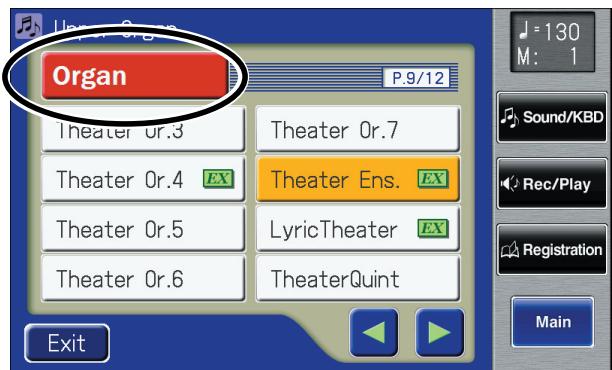

Step 1 is unnecessary in the case of Pedal Bass Part.

When you press the [Others] button, the Others Voice screen appears in the display screen, but the basic screen will reappear if you wait several seconds without touching the screen.
If you want to change the voice for the [Others] button, press the [Others] button once more, then select the voice by quickly touching the screen while the Others Voice screen appears in the display.

A voice indicated by is called an "EX voice."
These voices are especially recommended.

Sounds marked by ACT support the Active Expression function (p. 69).
A sub-window appears, allowing you to select a sound group.
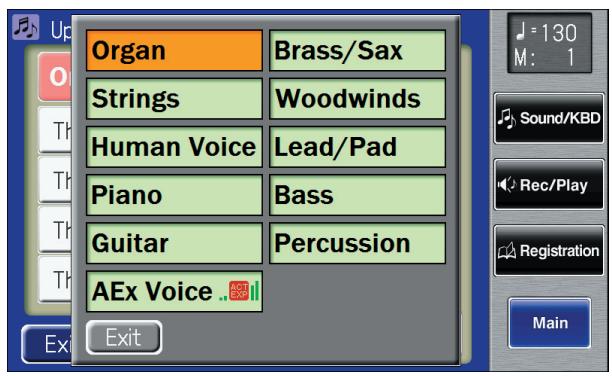
4. In the sub-window, touch a sound group name to select the desired sound group.
The indicator of the selected [Others] button will blink.
The Others Voice screen appears, showing the sounds of the specified sound group.
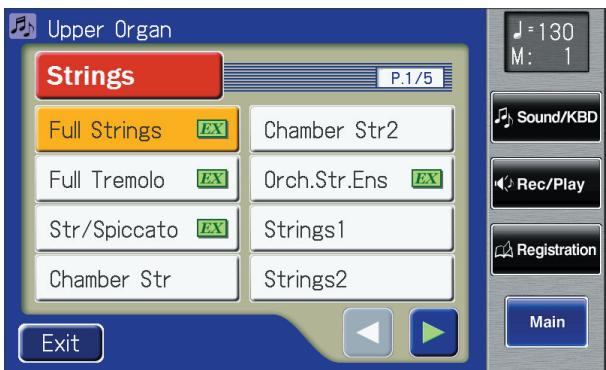
5. Touch <> to switch screens, and touch a voice name to select a voice.
6. Once again, press the blinking [Others] button to confirm the voice.
The indicator of the [Others] button will change from blinking to lit.
MEMO
You can touch
"Active Expression voices" can be assigned to the [Others] buttons of the Upper Orchestral part, Lower Orchestral part, Pedal Orchestral part, and Solo part.
For more on the active expression voices, refer to "Performing with an Active Expression Voice" (p. 69).
MEMO
You can also confirm the voice by touching
MEMO
For more information about the voices that can be assigned to an [Others] button, please refer to "Voice List" (Appendix: separate booklet).
Creating Organ Sounds (Vintage Organ)
The Vintage Organ button lets you add three types of vintage organ sounds to the upper, lower, and pedal parts.
In addition, you can also use the harmonic bars to modify the selected sound as desired.
The ATELIER provides nine harmonic bars for the upper part and lower part respectively, and two harmonic bars for the pedal part.
Each harmonic bar is assigned a sound of a different footage (pitch), and by layering these sounds you can create a variety of organ tones.
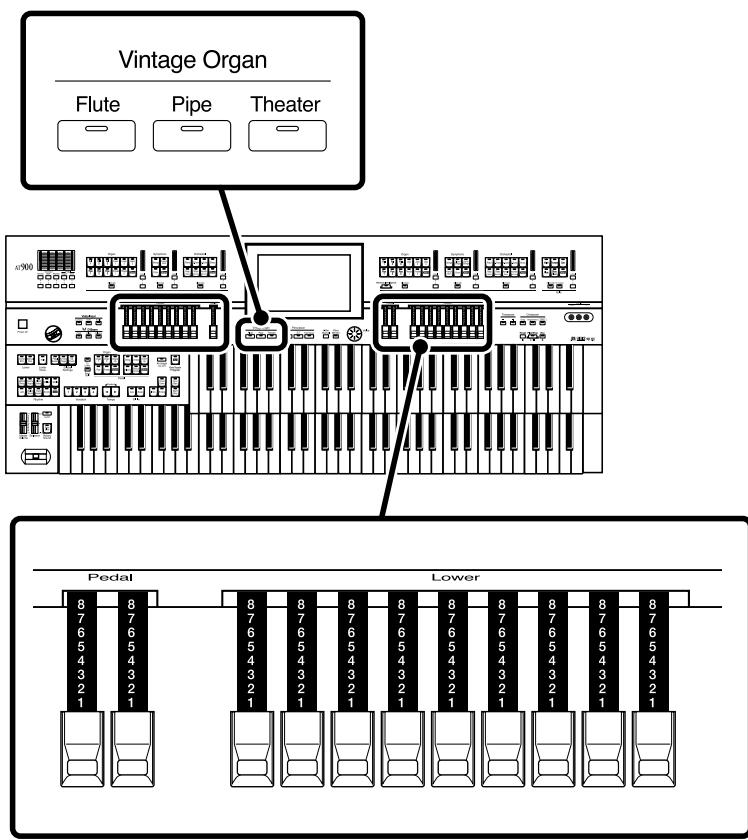
Harmonic Bar
By sliding the harmonic bars forward or backward (in or out), you can adjust the volume of the various footages.
The volume can be adjusted over nine steps (0-8).
When a harmonic bar is pulled out all the way (8), the volume is loudest.
When it is pushed in all the way (0), there will be no sound.
8^ is the footage that forms the basic pitch of the sound; this is the center around which you create the tone.
Each harmonic bar is assigned a sine wave (a pure pitch without overtones) of a different pitch, and by combining these pitches you can create a wide range of sounds.

You can use the Solo part's harmonic bars to adjust the volume of the Solo part voice.

If you've selected "Pipe" or "Theater" as the vintage organ type, the harmonic bars will turn the various footages on or off.
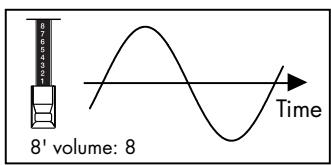
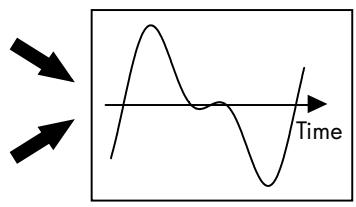
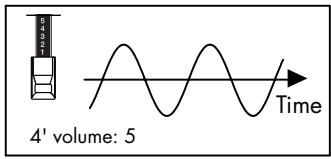
What's the feet?
"Feet" is a term that began as a measurement of the length of the pipes in a pipe organ.
The pipes that produce the basic pitch (fundamental) for each note are considered to be "8 feet" in length. Therefore, a pipe producing a pitch one octave below that of the reference of 8' (eight feet) would be 16' ; for one octave above the reference, the pipe would be 4' , and to take the pitch up yet another octave it would be shortened to 2' .
The pitches of the harmonic bars are related as follows.
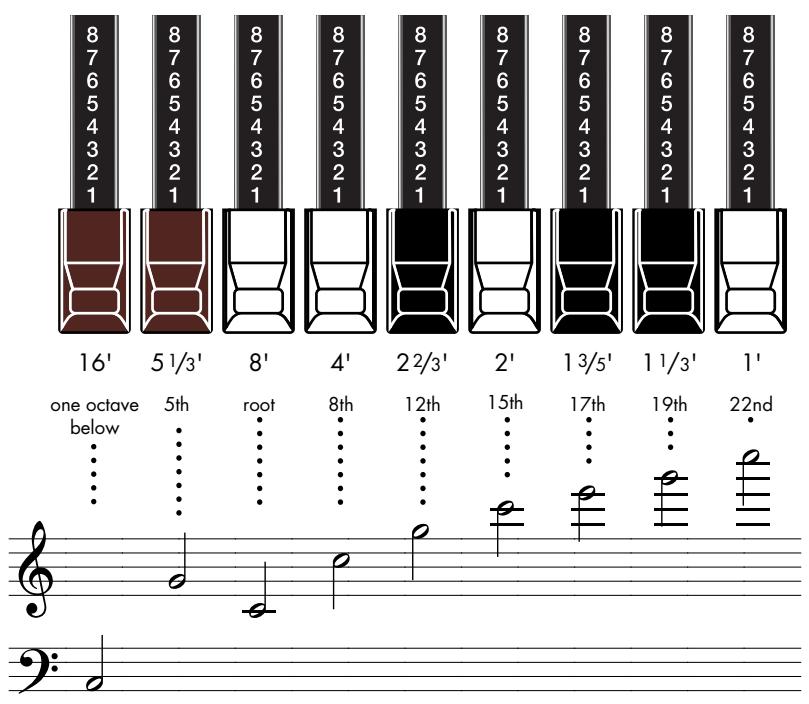
When the middle C (C4) note is pressed, each harmonic bar will sound the following notes.
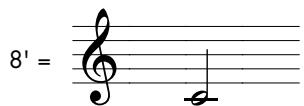
On tonewheel organs, the high-pitched footage for a portion of the high range, and the low-pitched footage for a portion of the low range are "folded-back" in units of one octave.
Folding back the high-frequency portion prevents the high-frequency sounds from being unpleasantly shrill, and folding back the low-frequency portion prevents the sound from becoming "muddy."
On the ATELIER faithfully simulates this characteristic.
Playing a Vintage Organ Voice
Selecting the Type of Vintage Organ
1. Press one of the Vintage Organ buttons so its indicator is lit.
Each time you press the button, the indicator will alternate between ON (lit) and OFF.
Vintage Organ
| Flute | Pipe | Theater |
| = | = | = |
There are three types of vintage organ.
| Button | Explanation |
| [Flute] button | Full Organ |
| [Pipe] button | Pipe Organ |
| [Theater] button | Theater Organ |
Modifying the Sound
2. Slide the harmonic bars that you want to hear.
You can layer the sound of multiple harmonic bars.
Various pitches can be combined for the Lower keyboard in the same way as for the Upper keyboard.
| Vintage Organ Type | Function of the Harmonic Bars |
| Flute | Slide the harmonic bars to adjust the volume of each footage over a range of nine steps (0–8). |
| Pipe | Use the harmonic bars to turn each footage on/off. Pulling a harmonic bar out will turn it on, and pushing it in will turn it off. |
| Theater |
The harmonic bar for the Solo part will adjust the volume of the voice selected for the Solo part. When you move the Solo part's harmonic bar, the Solo part's level indicator will also change.
NOTE
Pitch bend, glide, and sustain effects are not applied to the Vintage Organ voice.
MEMO
Percussion is often used with Flute. It can also be used with Pipe or Theater, but if you have selected percussion for Flute, switching to Pipe or Theater will cause percussion to be cancelled automatically.
Adding Sparkle to the Sound (Percussion)
This adds an attack sound to the beginning of the note, making the sound crisp.
3. Press the Percussion [4'] button or [2 2/3'] button (indicator lit).
Play the Upper keyboard and notice that an attack has been added.
![ROLAND AT-900C - Press the Percussion [4'] button or [2 2/3'] button (indicator lit). - 1](/content/2025/01/130760/images/23eab0d191722756db5b6c9de2404f97edd6f86f775facd6db602893b67db601.jpg)
| Button | Explanation |
| Percussion [4'] button | Percussion one octave above |
| Percussion [2 2/3'] button | Percussion one octave and a fifth above |
Adjusting the Rate at which the Percussion Decays
You can shorten the decay time of the percussion sound.
4. Press the Percussion [Fast Decay] button to switch the indicator between lit/unlit.
![ROLAND AT-900C - Press the Percussion [Fast Decay] button to switch the indicator between lit/unlit. - 1](/content/2025/01/130760/images/6d6657b907ea42955b873652f94be60db8f5cd104da39fcd8c9dc1c6a7d37825.jpg)
| [Fast Decay] Button | Explanation |
| Lit | The percussion sound will disappear quickly. The percussion will have a sharper attack. |
| Unlit | The percussion sound will disappear slowly. The percussion will have a more gentle attack. |
NOTE
Percussion [4^] and [2 2/3^] buttons cannot be used simultaneously.
NOTE
The Percussion [4^] button and Percussion [2 2/3^] button are valid only for vintage organ voices of the upper part.
Using the Harmonic Bar Settings of the Panel
If you've edited the harmonic bar settings in the screen, or if you've switched registrations so that the Vintage Organ settings have changed, you can switch the Vintage Organ settings to the positions (settings) of the harmonic bars on the panel (p. 54).
1. Press the H-Bar [Manual] button.
When you press the Vintage Organ button, a vintage organ screen like the following will appear.
There are two types of vintage organ screens.
Vintage Organ Screen
When the Vintage Organ Type is "Flute"
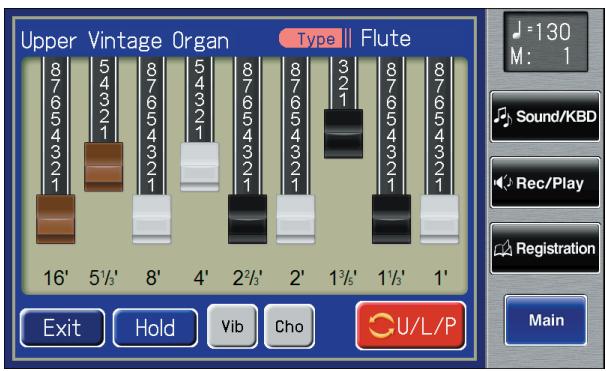
The screen will show the harmonic bars.
By touching the harmonic bars and sliding them, you can adjust the volume of each footage. The volume can be adjusted over nine steps (0-8).
When a harmonic bar is pulled out all the way (8), the volume is loudest.
When it is pushed in all the way (0), there will be no sound.
| Icon | Explanation |
| Vib (Vibrato) | Adds a vibrato effect to the sound. |
| Cho (Chorus) | Adds a chorus effect to the sound. |
| U/L/P | Touching the icon cycles you through the available choices, which are: Upper Vintage screen, Lower Vintage screen, and Pedal Vintage screen. |
| Hold | The Vintage Organ screen will automatically close after it has been displayed for several seconds. If you touch <Hold>, the screen will remain displayed until you touch <Hold> once again. |
MEMO
The Vintage Organ screen will be displayed for several seconds, then it will close automatically.
If you touch
MEMO
By touching the screen and sliding your fingertip to the left or right (horizontally), you can adjust the volume of all harmonic bars.
NOTE
It is not possible to apply both vibrato and chorus simultaneously.
MEMO
You can touch < U/L/P > to switch between the Upper Vintage Organ screen, Lower Vintage Organ screen, and Pedal Vintage Organ screen.
When the Vintage Organ Type is "Pipe" or "Theater"
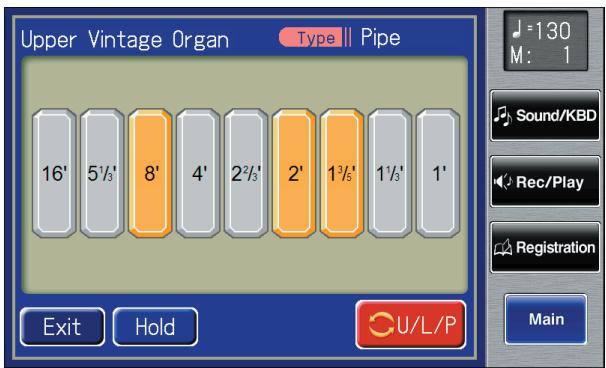
The buttons displayed in the screen are called "tablets."
You can press each tablet to turn it on/off.
You can turn tablets on/off by moving the harmonic bars in the panel.
Adjusting the volume of the Flute vintage organ
If you've selected "Flute" as the vintage organ type, you can adjust the overall volume of the Flute sound to regulate the volume balance relative to the other sounds.

If you've selected "Pipe" or "Theater," the volume of the upper/lower/pedal organ part will change at the same time.
1. Touch on the Main screen.
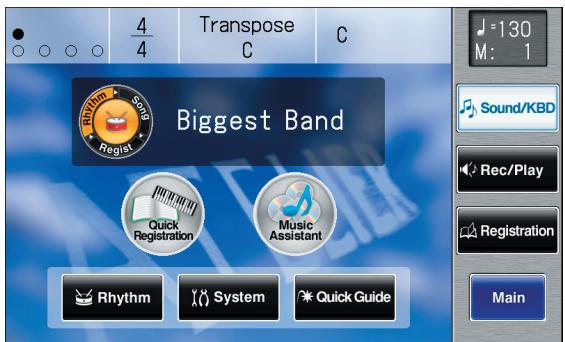
The Sound/Keyboard screen appears.
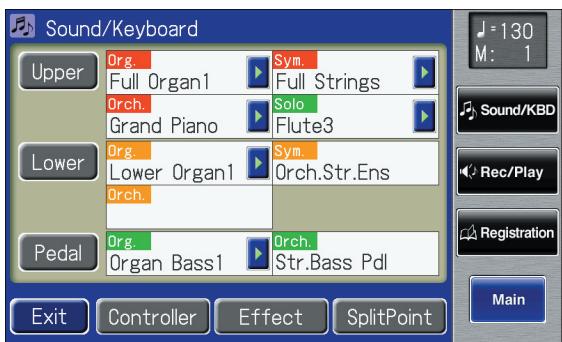
2. Touch .
The Effect screen appears.
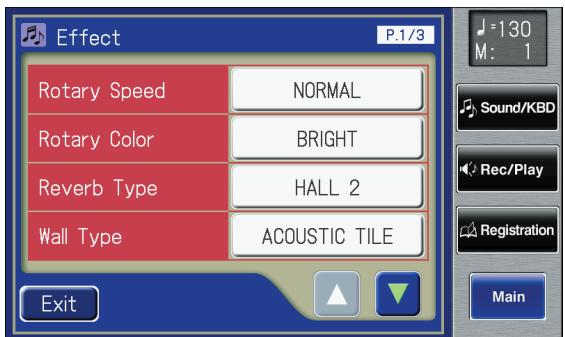
- Touch <><> to display the VintageFlute Volume.
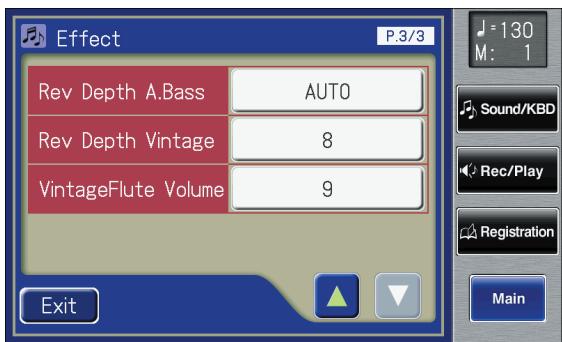
- Touch the value setting buttons for VintageFlute Volume to adjust the setting.
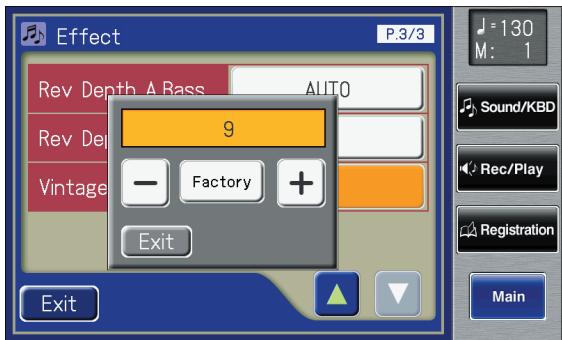
- Touch < > < +> to edit the value.

- Touch
.
Realistically Expressing an Acoustic Instrument Performance (Articulation Voice)
What is an Articulation Voice?
In order to bring out the distinctive qualities of an acoustic instrument and perform in a musically significant way, it is essential to employ the instrument's rich variety of tonal changes and diverse performance techniques (articulations). Voices that are able to realistically express these acoustic instrument sounds and techniques are called "articulation voices" on the ATELIER. By using articulation voices, you can express the sounds and techniques of such instruments in real time.
Playing an Articulation Voice
When playing an articulation voice, playing the keyboard legato or staccato will cause the sound to change according to your playing technique. By also using aftertouch, foot switch, etc., while you play, you can apply a variety of effects to the sound, making your performance even richer and more realistic.
Terms Used with Articulation Voices
Legato playing
This refers to the play of successive notes without causing a break between them to be perceived. On a keyboard instrument, you would play the next note slightly before releasing the currently held key, causing the notes to briefly overlap.
Staccato playing
This is the opposite of legato playing, and means that you clearly separate each note you play. In other words, you would release the currently held key before playing the next note.
Dynamics
This refers to the variations between loud and soft when playing an instrument, and includes not only changes in volume but also performance techniques that affect the tonal character. For articulation voices, you can use aftertouch, initial touch, and expression pedal to vary the dynamics.
Portamento
This is a technique in which the pitch is changed smoothly from one note to the next. This smooth change in pitch is particularly effective when playing bowed string sounds such as violin or cello, or trombone.

What is aftertouch?
This allows you to apply various effects to the sound by pressing down on the key after you've played a note.

What is initial touch?
This refers to the way in which the loudness or character of the sound is affected by the force with which you strike the keys. Slight variations in your playing touch can add expressive character to the sound.
Selecting a Articulation Voice
Articulation voices can be selected only using the Solo part's [Others] button.
1. Press the Solo [Others] button.
The Others Voice screen appears for several seconds.
![ROLAND AT-900C - Press the Solo [Others] button. - 1](/content/2025/01/130760/images/398fe5f7a68b2a162abfc269c9844d64230fdadd2418fe43fbda2b426426cad8.jpg)
2. Touch a button that shows a sound group.
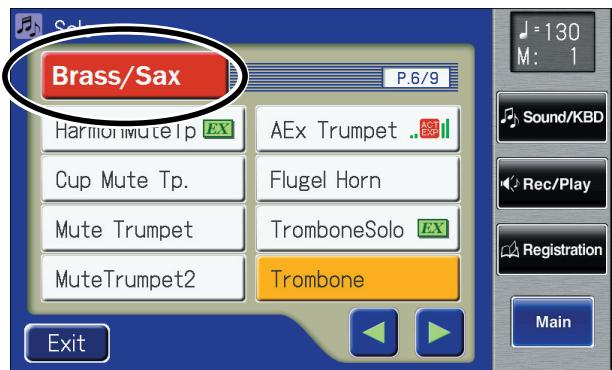
A sub-window appears, allowing you to select a sound group.
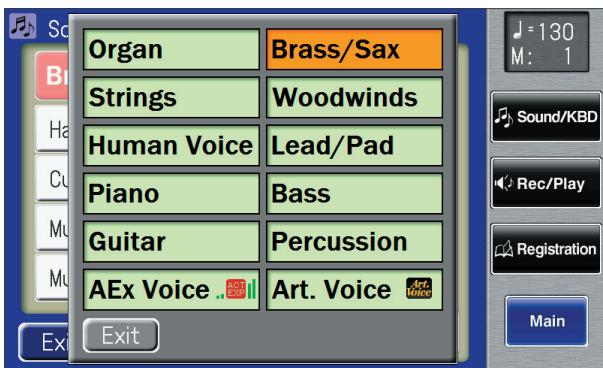
NOTE
Articulation voices cannot be selected using the [Others] button of parts other than the Solo part.
NOTE
When you press the [Others] button, the Others Voice screen appears in the display screen, but the basic screen will reappear if you wait several seconds without touching the screen. If you want to change the voice for the [Others] button, press the [Others] button once more, then select the voice by quickly touching the screen while the Others Voice screen appears in the display.
3. In the sub-window, touch (Articulation Voice).
The indicator of the Solo [Others] button will blink.
The Others Voice (Others Voice Select) screen appears, and only the
Articulation Voices from the entire collection are displayed.
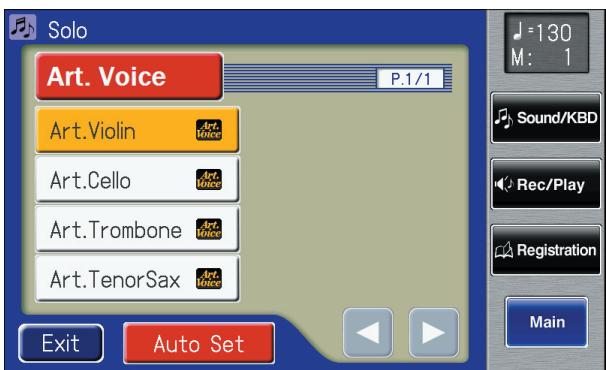
4. Touch a voice name to select a voice.
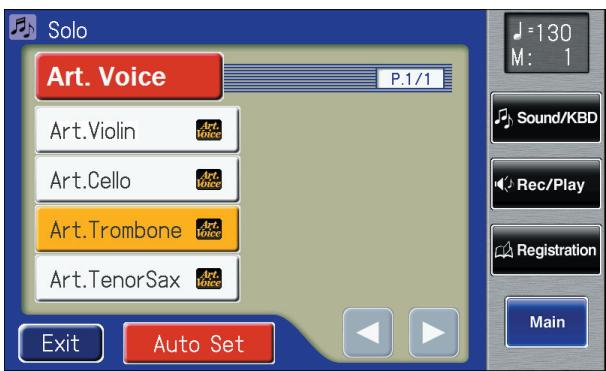
5. Once again, press the blinking Solo [Others] button to confirm the voice.
The indicator for the [Others] button of the Solo part will change from blinking to lit, and the articulation voice will be selected.
![ROLAND AT-900C - Once again, press the blinking Solo [Others] button to confirm the voice. - 1](/content/2025/01/130760/images/0262c461b7fc7b2f74c6f9fe9555ec196b6ab9539e822b83b3de29509de77d2e.jpg)
The
![ROLAND AT-900C - Once again, press the blinking Solo [Others] button to confirm the voice. - 2](/content/2025/01/130760/images/e03155afcb688eaf0f88b1d2f234ca946673bbf3ac6989ab7b598478bb9e82fd.jpg)
icon is shown for
articulation voices.
![ROLAND AT-900C - Once again, press the blinking Solo [Others] button to confirm the voice. - 3](/content/2025/01/130760/images/bac9ef6a9212dd5b9ed404d08d5d022754baf60bbf7cda041eada8a907ff5b03.jpg)
You can also confirm the voice by touching
Others Voice (Other Voice select) screen.
Performing with an Articulation Voice
Articulation voices let you vary the character of the sound by changing your playing technique.
If you play legato, the sound will change smoothly between notes. If you play staccato, the sound will have a crisp attack.
Using Aftertouch or the Expression Pedal
Aftertouch will affect the dynamics and vibrato of an articulation voice. As you apply stronger pressure to the keyboard, the dynamics will increase and the vibrato will become deeper. As you relax your pressure on the keyboard, the dynamics will decrease and the vibrato will become shallower.
The expression pedal will vary the dynamics and vibrato in the same way as aftertouch, but for voices other than the Solo part, the volume will change in the same way as a conventional expression pedal. You should use aftertouch if you want to apply expressive effects only to the articulation voice.
MEMO
After Touch p.61
Dynamics p.61
MEMO
What is vibrato?
This is an effect that modulates the pitch of the notes you play on the keyboard.
Making the Ideal Settings for Playing an Articulation Voice
You can perform even more effectively with an articulation voice by making the appropriate solo mode and foot switch settings.
You can automatically set these controller settings so that they are ideal for performing with an articulation voice.
1. In the articulation voice select screen, touch .

The following message appears.
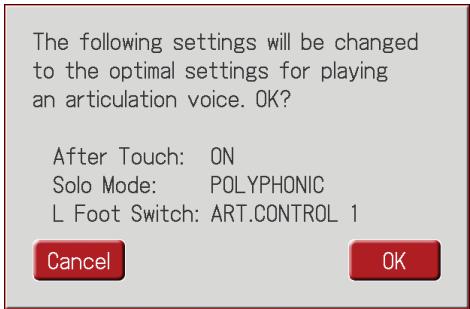
To cancel the change, touch <Cancel> .
2. Touch to change the setting.
The settings will be changed as follows.
| Item | Setting | Page |
| After Touch | ON | p. 209 |
| Solo Mode | POLYPHONIC | p. 159 |
| L Foot Switch | ART. CONTROL1 | p. 134 |
Tips for Performing with an Articulation Voice
Distinctive Features of the Violin (Art.Violin)
The distinctive character of the violin lies in its rich vibrato, the portamento playing technique, which allows the pitch to be changed smoothly, and the pizzicato technique, in which the string is plucked with a finger.
The Art. Violin sound lets you express these distinctive features of the violin.
Performance tips
Changes in the tonal character and the depth of vibrato are very important elements of violin performance. The most important thing is to skillfully use aftertouch to control the dynamics. You can also emphasize the attack of the notes by playing a key strongly.
Portamento is another distinctive element.
In order to perform with portamento, set the foot switch setting to
ART.CONTROL1, and play legato on the keyboard while pressing the foot switch. Playing the new note strongly will produce a rapid portamento, while playing the new note gently will produce a slow portamento. Quickly playing an upward or downward chromatic step will produce a violin-like effect in which the sound is completely connected. By using this at appropriate points in your phrases, you can perform in a highly effective way.
Normally, the Art. Violin sound will play monophonically, but if you play multiple keys simultaneously or play while holding down the damper pedal, you'll be able to play the multiple-stop notes that are distinctive of the violin (up to four-note chords).
Foot switch effect
| Item | Explanation |
| ART. CONTROL1 | By playing the keyboard legato while holding down the foot switch, you can produce portamento that changes the pitch smoothly. |
| ART. CONTROL2 | By playing the keyboard while holding down the foot switch, you can produce a pizzicato sound of the string being plucked with the finger instead of being played with a bow. |
Recommended pitch range
G3-G7 (when Octave Shift is 0. Middle C is C4.)
Distinctive Features of the Cello (Art.Cello)
Important aspects of the cello's sound are its deep body resonances and the rich tonal changes. The Art.Cello sound lets you fully express these distinctive nuances of the cello.
MEMO
"Multiple stopping" is a technique by which more than one note can be played simultaneously on a violin or other stringed instrument.
Performance tips
The basic performance techniques are the same as for Art.Violin. You can use aftertouch and expression pedal to control the dynamics and produce a richly expressive mid- and low-range sound. Striking the keys more strongly will emphasize the attack by adding a brief sound of the bow scraping on the strings.
The pizzicato that is heard when you set the foot switch setting to ART.CONTROL2 and play a note lets you instantly change from arco (bowed) sounds to pizzicato (plucked). You can make effective use of this by switching between the two sounds at the right moment within a phrase.
The Art.Cello instrument has a low pitch range. If you're playing it on the upper manual, you'll probably want to set Octave Shift to -1 to increase the area in which the sound can be played effectively.
Foot switch effect
| Item | Setting |
| ART. CONTROL1 | By playing the keyboard legato while holding down the foot switch, you can produce portamento that changes the pitch smoothly. |
| ART. CONTROL2 | By playing the keyboard while holding down the foot switch, you can produce a pizzicato sound of the string being plucked with the finger instead of being played with a bow. |
Recommended pitch range
C2-F5 (when Octave Shift is 0. Middle C is C4.)
Distinctive Features of the Trombone (Art.Trombone)
The most distinctive feature of the trombone is the portamento effect obtained by using the slide. The Art.Trombone sound supports this performance technique.
Performance tips
The dynamics control produced by aftertouch and expression pedal lets you smoothly and naturally transition from a softly blown gentle sound to a strongly blow intense sound. Striking the keys more strongly will produce a briefly "overblown" sound.
The portamento technique, which smoothly changes the pitch, is an important part of the trombone's distinctive character, but can sound unnatural if overused. The key is to use it only at a limited number of points in the song where it will be most effective.
The Art.Trombone instrument has a low pitch range. If you're playing it on the upper manual, you'll probably want to set Octave Shift to -1.
Foot switch effect
| Item | Explanation |
| ART. CONTROL1 | If you hold down the foot switch and play the keyboard legato, you will obtain a portamento effect in which the pitch will change smoothly. |
| ART. CONTROL2 |
Recommended pitch range
E2-A5 (when Octave Shift is 0. Middle C is C4.)
Distinctive Features of the Tenor Sax (Art.TenorSax)
From soft and gentle tones to crisp, strong notes, the Art.TenorSax sound lets you express the broad range of the tenor sax.
Performance tips
An important aspect of sax performance is to make skillful distinctions between legato and staccato. Be aware of the difference between playing a smooth phrase with a single breath, and playing a phrase with sharply distinguished notes.
The first note of a phrase you play will include the slight upward swoop in pitch that is distinctive of wind instruments. When you play crisp staccato notes or rapid passages, the corresponding nuances distinctive of a sax will also be expressed in an appropriate manner.
By letting up a bit on the aftertouch at the end of a phrase, you can express the sensation of the sound's natural decay as you stop blowing into the instrument. The same effect can be produced by returning the expression pedal slightly toward yourself instead of using aftertouch.
The growl effect produced by the foot switch ART.CONTROL2 is particularly useful when you want to emphasize a phrase in styles such as jazz. It's effective when used on one or two notes at a musical climax.
Foot switch effect
| Item | Setting |
| ART. CONTROL1 | By playing the keyboard legato while you hold down the foot switch, you can apply portamento to smoothly vary the pitch between notes. |
| ART. CONTROL2 | By playing the keyboard while you hold down the foot switch, you can apply a growl effect, as if the performer was “moaning” while blowing into the instrument. |
Recommended pitch range
G#2-D#5 (when Octave Shift is 0. Middle C is C4.)

What is the growl effect?
This is an effect produced by vocalizing into the mouthpiece of a sax while blowing. It produces the powerful and distinctively distorted sound unique to a sax.
Performing with an Active Expression Voice
For "Active Expression Voices," operating the expression pedal will control not only the volume but also the tone, or may add additional sounds.
1. Touch the [Others] button of the Part to which you want to assign an Active Expression voice.
The Others Voice screens appear. "Active Expression voices" can be assigned to the [Others] buttons of the Upper Orchestral part, Lower Orchestral part, Pedal Orchestral, and Solo part.
2. Touch a button that shows a sound group.
A sub-window appears, allowing you to select a sound group.
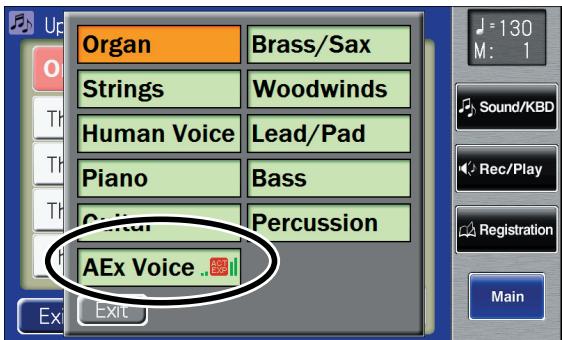
3. In the sub-window, touch (Active Expression Voice).
The indicator of the selected [Others] button will blink.
The Others Voice (Others Voice Select) screen appears, and only the Active Expression Voices from the entire collection are displayed.
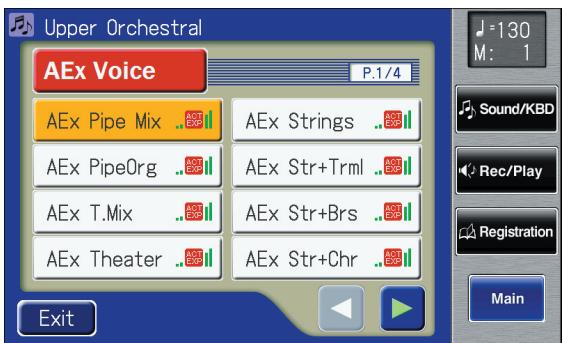
4. Touch <> to change screens, and touch a voice name.
5. Once again, press the [Others] button for the part whose sound you wish to set to confirm the voice.
The indicator of the [Others] button will change from blinking to lit.
An active expression voice will be selected.
![ROLAND AT-900C - Once again, press the [Others] button for the part whose sound you wish to set to confirm the voice. - 1](/content/2025/01/130760/images/ec785c56b40f22f4946cb3762a57389f6b59754c5bf86e6a0d0a811f5f590531.jpg)
For details on the active expression voices that are available, refer to "Voice list" (Appendix: separate booklet).
NOTE
Although you can select an Active Expression voice with the [Others] button for parts other than Lower Orchestral, Upper Orchestral, Pedal Orchestral, and Solo, no Active Expression
effect is applied. The ACT EXP (Active Expression) icon does not appear when an Active Expression voice is selected for a part for which the Active Expression effect is not being used.
MEMO
Sounds marked by ACT EXP support the Active Expression function.
MEMO
You can also confirm the voice by touching
Performing with a Human Voice
In addition to sounds such as organ and piano, you can also play "human voice," which produces a vocal-like sound.
1. Press the [Alternate] button for the Part for which you wish to specify a voice to select ON (lit) or OFF (dark).
The setting of the [Alternate] button: ON (lit) or OFF (dark), determines to which of the two available locations a newly selected voice will be assigned.
2. Press the [Others] button for the Part for which you wish to specify a voice.
The Others Voice screen appears for several seconds.
![ROLAND AT-900C - Press the [Others] button for the Part for which you wish to specify a voice. - 1](/content/2025/01/130760/images/f9bb7c42f3407a62d1827d394202f02d5fecc7a65f614853f26c72fb7893619b.jpg)
3. Touch a button that shows a sound group.
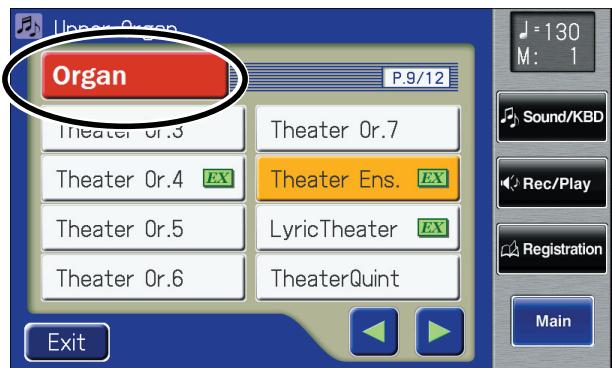
A sub-window appears, allowing you to select a sound group.
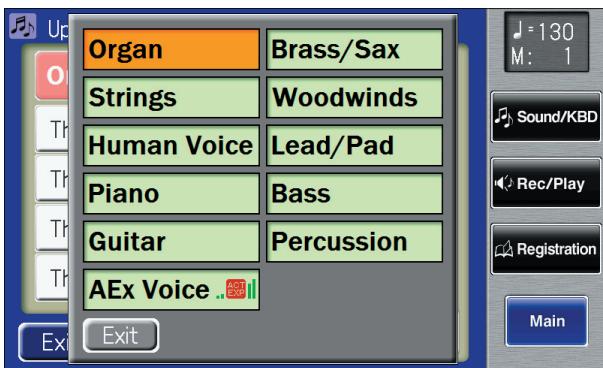

For details on the Human Voice that are available, refer to "Voice List" (Appendix: separate booklet).

Step 1 is unnecessary in the case of Pedal Bass Part.

When you press the [Others] button, the Others Voice screen appears in the display screen, but the Main screen will reappear if you wait several seconds without touching the screen. If you want to change the voice for the [Others] button, press the [Others] button once more, then select the voice by quickly touching the screen while the Others Voice screen appears in the display.
4. In the sub-window, touch .
The indicator of the selected [Others] button will blink.
The Others Voice screen appears, showing the sounds of the Human Voice group.
The Others Voice screen will appear, and the sounds of the Human Voice group will appear.
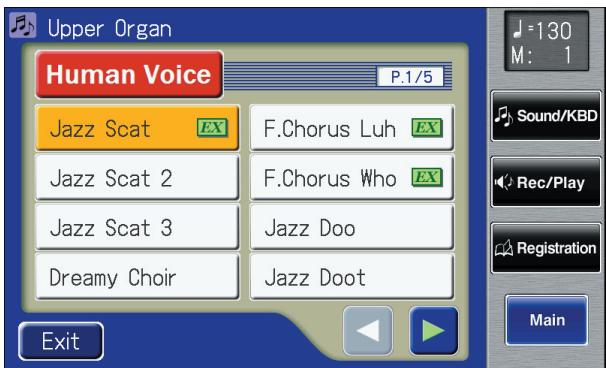
5. Touch <><> to switch the screen, and touch a voice name to select the desired voice.
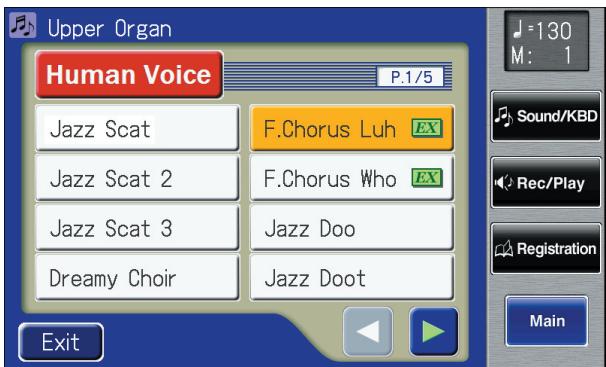
6. Once again, press the [Others] button for the part whose sound you wish to set to confirm the voice.
The indicator of the [Others] button will change from blinking to lit.
MEMO
For some human voices, such as "Jazz Scat," the sound will change depending on the strength at which you play the keyboard. If the Utility menu setting "Initial Touch" (p. 210) is "OFF," the sound will not change in response to the dynamics of your keyboard playing.
MEMO
You can also confirm the voice by touching
Adjust the Volume Balance
The ATELIER allows you to adjust the volume balance individually for each Part.
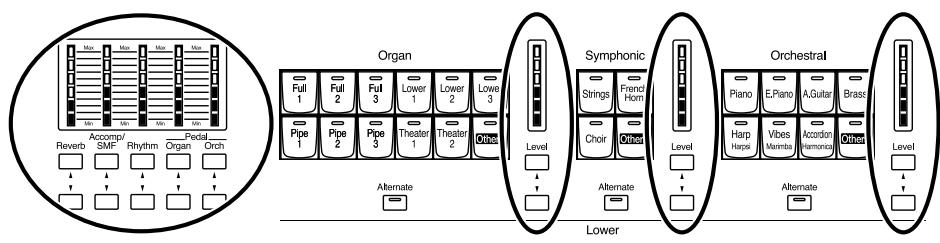
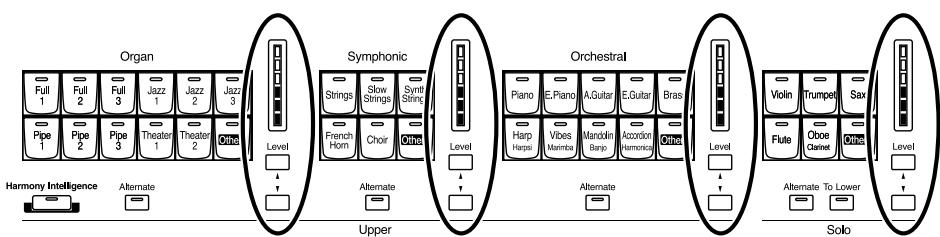
The following buttons are used to adjust the volume of a multiple number of Parts.
| Button | Part |
| Accomp/SMF [▲] [▼] button | Automatic Accompaniment (except Bass) |
| Playback of performance songs from something other than the ATELIER performance songs (for example: SMF music files) | |
| Rhythm [▲] [▼] button (When the [Manual Perc] button is ON) | Manual percussion |
| Rhythm [▲] [▼] button (When the [Manual Perc] button is OFF) | Rhythm performance |
| Drums/SFX | |
| Pedal Organ [▲] [▼] button | Pedal Organ voice |
| Bass note of automatic accompaniment |

You can use the Solo part's harmonic bar to adjust the volume of the Solo part.
1. The volume levels of each part are adjusted using the corresponding [] and [] buttons.
Pressing the upper button ([▲] button) will increase the volume.
Pressing the lower button ([▼] button) will decrease the volume.
The volume can be set to any value from 0 to 12.
When the volume value shown in the display is 0, that part will produce no sound.
You can also press the [▲] button or [▼] button of the part whose volume you wish to adjust, so that the "Part Balance Monitor screen" is displayed for several seconds, allowing you to check the volume balance.
![ROLAND AT-900C - The volume levels of each part are adjusted using the corresponding [] and [] buttons. - 1](/content/2025/01/130760/images/70e27b78bea88cf08b80cba73b865799e29afe72c239d4f8531c8f7c5593265f.jpg)
You can check the volume by viewing the Level indicators of each part.
![ROLAND AT-900C - The volume levels of each part are adjusted using the corresponding [] and [] buttons. - 2](/content/2025/01/130760/images/3dcd19cf9ef45618f0e91d7f1131a9cc2914db760bebe76b19a760f3a6473f34.jpg)
Solo
![ROLAND AT-900C - The volume levels of each part are adjusted using the corresponding [] and [] buttons. - 3](/content/2025/01/130760/images/caf5a0d3a42a7129c74ce76dd1539b6bcdbe1e816be9cfa29803293d823b0447.jpg)
The Part Balance Monitor screen is displayed for several seconds and then closes automatically.
If you touch <Hold> , the screen continues to be displayed until you touch <Exit> .
Transpose the Pitch in Octave Units (Octave Shift)
The pitch of the sound played by the keyboard can be adjusted in one-octave steps. This function is called "Octave Shift." You can apply an Octave shift to all Parts.
1. Touch on the Main screen.
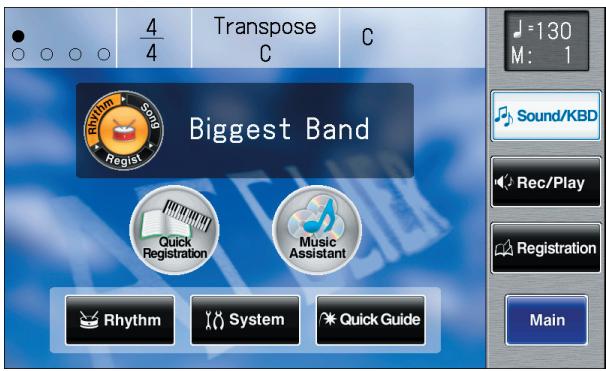
The Sound/Keyboard screen appears.
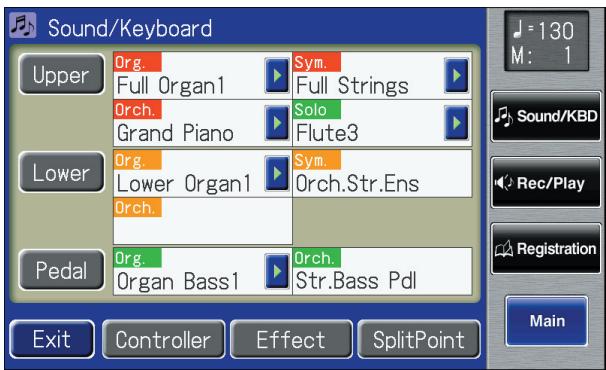
2. Touch either , , or .
| Menu | Part whose pitch will change |
| Upper | To change the pitch of the Upper and Solo part |
| Lower | To change the pitch of the Lower part |
| Pedal | To change the pitch of the Pedal part |
3. Touch <><> to display the Octave Shift.
4. Touch the part display of the part whose Octave Shift settings you wish to change.
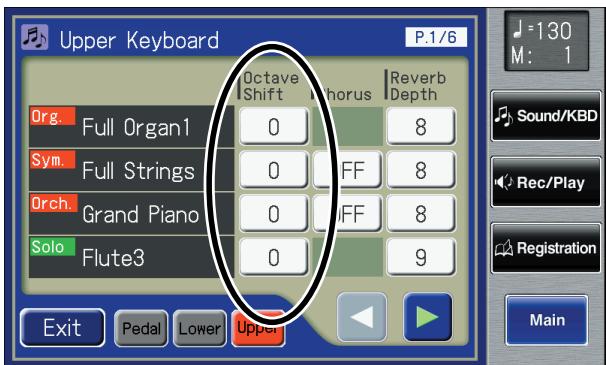
5. Touch <-> <+> to adjust the settings.
The value can be set to a range of + / - 3 octaves.
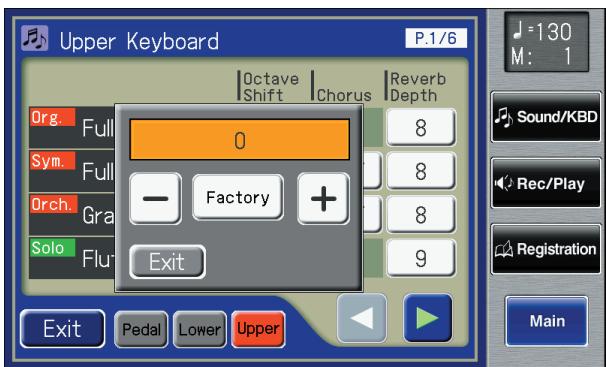
6. Touch.
You will return to the Upper Keyboard/Lower Keyboard/Pedalboard screen.

You can open the Pedalboard screen, Lower Keyboard screen, or Upper Keyboard screen with touching

When the power is turned on, the Octave Shift setting for each part of the Pedal will be set to -1 (1 octave down). If you turn on the [Octave Up] button, the Octave Shift will be automatically set to "0" regardless of the previous setting. When you turn off the [Octave Up] button, the Octave Shift will always return to "-1" regardless of the previous setting.

Please note that when you apply the Octave Shift function to certain voices, their pitch could be stretched beyond their recommended note ranges, and they may not sound as expected. Care should be taken when using Octave Shift.
Playing Drum Sounds or Sound Effects from the Entire Lower Keyboard (Drums/SFX)
You can use the Lower keyboard to play various drum sounds (drum set). In this case, the Lower voices will no longer sound.
1. Press the [Drums/SFX] button, getting its indicator to light up.
The [Drums/SFX] button indicator will alternate between on (lit) and off (dark) each time it is pressed.
The Drums/SFX (drums/sound effects) screen will be displayed for several seconds.
![ROLAND AT-900C - Press the [Drums/SFX] button, getting its indicator to light up. - 1](/content/2025/01/130760/images/742f2dc9b87850802fb259ed5831ba3e582abd7f970d2afb005a65cbfc76ba0c.jpg)
2. Play the Lower keyboard and listen to the various drum sounds on each key.

Refer to "Drum Set List" for details on which drum sound or Sound Effect will be played by each note.

It is not possible to select and play both [Drums/SFX] and [Manual Perc] buttons simultaneously.

For some drum sets, there will be keys that do not sound.
Changing Drums/SFX Sets
As the drum set, you can choose the types of drum set and sound effect. When you change the drum set, the sound produced by each note will change. Immediately after the power is turned on, the POP drum set will sound.
1. Press the [Drums/SFX] button, getting its indicator to light up.
The Drums/SFX screen will be displayed for several seconds.
![ROLAND AT-900C - Press the [Drums/SFX] button, getting its indicator to light up. - 1](/content/2025/01/130760/images/6e85a40806168ca39dc0f713d0e2e71acd2883939952b4b750c76d9e0c76fdda.jpg)
2. While the Drums/SFX screen is displayed, touch a Drum/ SFX set name in the screen.
The [Drums/SFX] button indicator will begin to blink.
You can select from 18 different Drum Sets and one set of Sound Effects as follows:
Drums/SFX Set
POP, R&B, ROCK, JAZZ BRUSH, HIP HOP, VOX DRUM, STANDARD, STANDARDS2, ROOM, ROOM2, POWER, ELECTRONIC, TR-808, DANCE, JAZZ, BRUSH, BRUSH2, ORCHESTRA, SOUND EFFECTS
3. Press the [Drums/SFX] button once again.
The [Drums/SFX] button indicator will change from blinking to lit, and your choice of drum set will be finalized.
MEMO
For the types of drum set and the sound effects played by each key, refer to "Drum/SFX Set List."
NOTE
After the Drums/SFX (drums/sound effects) screen is displayed, it will close automatically after several seconds unless you touch the screen to select a drums/sound effects set. If you wish to switch drums/sound effect sets, quickly select the desired drums/sound effect set while the Drums/SFX (drums/sound effects) screen is displayed.
MEMO
You can also confirm the Drums/SFX set by touching
Playing a Lower Voice with Percussion Instrument Sounds and a Voice Phrase (Manual Percussion)
You can play various drum sounds and Sound Effects using the bottom 15 keys of the Lower keyboard. This is convenient when you wish to play the Lower voice together with drum sounds or Sound Effects.
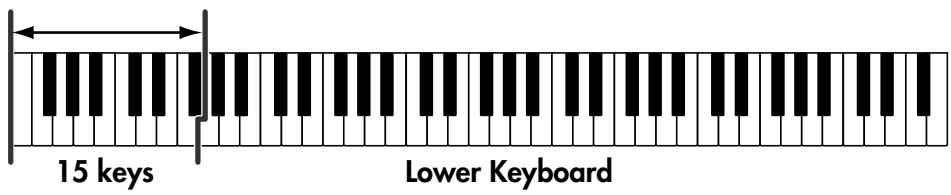
the keys for Drum sounds or Sound Effects
1. Press the [Manual Perc] button (indicator lights).
The button will alternate between ON (lit) and OFF (dark) each time it is pressed.
The Manual Percussion screen will be displayed for several seconds.
![ROLAND AT-900C - Press the [Manual Perc] button (indicator lights). - 1](/content/2025/01/130760/images/fa140b580986680ec82d5413366f9aa304bde5c5e6a0fd32152040e8f2f99c8b.jpg)
2. When you play the bottom 15 keys of the Lower keyboard the chosen drum sound is played on each key.
NOTE
It is not possible to select and play both [Drums/SFX] and [Manual Perc] buttons simultaneously. (p. 76).
Changing the Manual Percussion Sets
You can choose the type of Manual Percussion Set. When you change the Manual Percussion Set, the sound played by each of the 15 lowest notes of the Lower keyboard will change.
Immediately after the power is turned on, the PERC SET1 drum set will sound.
1. Press the [Manual Perc] button (indicator lights).
The Manual Percussion screen will be displayed for several seconds.
![ROLAND AT-900C - Press the [Manual Perc] button (indicator lights). - 1](/content/2025/01/130760/images/d712874d21e9eab7c82a9d894d0aea863eed47ef8e758e5995ce77af23d6d17d.jpg)
2. While the Manual Percussion screen is displayed, touch a manual percussion set name in the screen.
The [Manual Perc] button indicator will begin to flash.
You can select from 14 different Manual Percussion Sets;
Manual Percussion Set
PERC SET 1, PERC SET 2, PERC SET 3, ORCHESTRA SET, ORCHESTRA SET2, LATIN SET, ASIAN SET, VOICE PHRASE, VOICE PHRASE 2, VOICE PHRASE 3, SFX SET, SFX SET 2, JAPANESE SET, JAPANESE SET 2
3. Press the [Manual Perc] button once again.
The [Manual Perc] button indicator will change from blinking to lit, and your choice of drum set will be finalized.
MEMO
Refer to "Manual Percussion List" (Appendix: separate booklet) for details on which percussion sound will be played by each note.
NOTE
The Manual Percussion screen will automatically close after several seconds if you do not touch the screen to select a manual percussion set. If you wish to change the manual percussion set, you must select a manual percussion set quickly while the manual percussion screen is displayed.
MEMO
You can also confirm the Manual Percussion set by touching Exit in the Manual Percussion screen. You can also play the lower manual to confirm the manual percussion set.
Sustaining Notes in the Lower Part (Lower Hold)
You can have Lower voice continue to sound after you release you fingers from the keys, until the next key is played.
Lower Voice
1. Press the Lower Voice [Hold] button (confirm that the indicator is lit).
The Lower voice will continue sounding.
While the Lower Voice [Hold] button is lit, pressing a key will cause the note to continue sounding.
2. When you press the Lower Voice [Hold] button to make the indicator go dark, the notes which had continued to sound will stop.
The ATELIER lets you enjoy playing along with a rhythmic accompaniment.
MEMO
For details, refer to the Voice List (Appendix: separate booklet).
Selecting a Rhythm
The ATELIER provides various Rhythms and Automatic Accompaniments (Music Styles).
The ten buttons below are called "rhythm buttons," and let you select rhythms that are categorized by musical style.
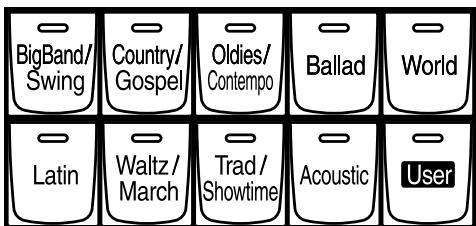
Rhythm
1. Press a Rhythm button to select a Rhythm group.
The indicator will light.
A Rhythm screen like the following appears.
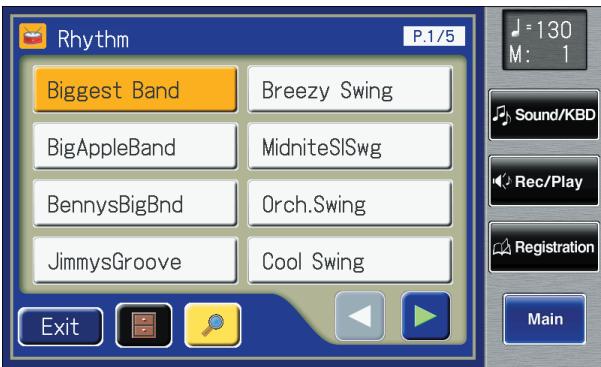
The rhythms in the selected rhythm group appear in the display.
2. Touch <> to switch screens, and touch a rhythm name to select the desired rhythm.
The indicator of Rhythm button will blink.
3. Press the Rhythm button once again (indicator lights constantly).
The Rhythm button's indicator will change from blinking to light.
MEMO
You can also open the Rhythm screen by touching
MEMO
You can also confirm the rhythm by touching
Using Rhythms Stored in User Memory
The ATELIER features a User memory.
What is the User Memory?
This is the internal memory area that lets you store user rhythms you've created. You can also copy rhythms saved on USB memory to the User memory (p. 97).
The ATELIER is shipped from the factory with rhythms already stored in User memory. These rhythms can be overwritten by calling up rhythms from USB memory into the ATELIER, or by saving user rhythms you've created using the Rhythm Customize function (p. 198). The content of User memory is retained even while the ATELIER's power is turned off.
You can call up rhythms in User memory by pressing the [User] button.
Calling Up Rhythms Stored in User Memory
1. Press the [User] button.
The Rhythm screen appears.
![ROLAND AT-900C - Press the [User] button. - 1](/content/2025/01/130760/images/5fe805a9ab4922fb77d39daae903ecb772ff79b620c209c058e88676b957f578.jpg)
2. Touch < - > < + > on the Rhythm screen to select "User."
The rhythms stored in user memory will be shown.
3. Touch <><> to switch screens, and touch a rhythm name to select the desired rhythm.
The indicator of [User] button will blink.
4. After selecting a rhythm, press the flashing [User] button once more.
The [User] button stops flashing and remains lit, indicating that the rhythm has been selected.
![ROLAND AT-900C - After selecting a rhythm, press the flashing [User] button once more. - 1](/content/2025/01/130760/images/4637d0812e6bdeac19fc2ae6876d70953a85a24decbc11a90e01744a74516ff7.jpg)
If you wish to copy a Rhythm saved on USB memory to User memory, refer to "Copying Rhythms" (p. 97).
![ROLAND AT-900C - After selecting a rhythm, press the flashing [User] button once more. - 2](/content/2025/01/130760/images/eb2d5b5b4dc698311f3cecad4c45e9cd83d3ff4b05d0be0c9b46c41ae06d07bc.jpg)
If you want to restore the original rhythms that User memory contained at the time the instrument was shipped from the factory, refer to "Restoring the User Memory to the Original Factory Settings" (p. 230).
![ROLAND AT-900C - After selecting a rhythm, press the flashing [User] button once more. - 3](/content/2025/01/130760/images/42e672666322859c5e5ffdb1caa1f0d4aac20b0b668fa7c85db8a509a3cf87db.jpg)
If USB memory is connected, you can touch - < + to select "Ext Memory" so that rhythms in the USB memory will be shown.
![ROLAND AT-900C - After selecting a rhythm, press the flashing [User] button once more. - 4](/content/2025/01/130760/images/6d65bb6078f732f121fd6e38a896f9c08e5884d4b1e0ed995464716ed87e1fd6.jpg)
You can also confirm the rhythm by touching
Rhythm Search
You can search for Rhythm that match the tempo of the song, musical genre, or other criteria you set.
You can also search Rhythm using the first character of the Rhythm names.
1. Touch on the Main screen.
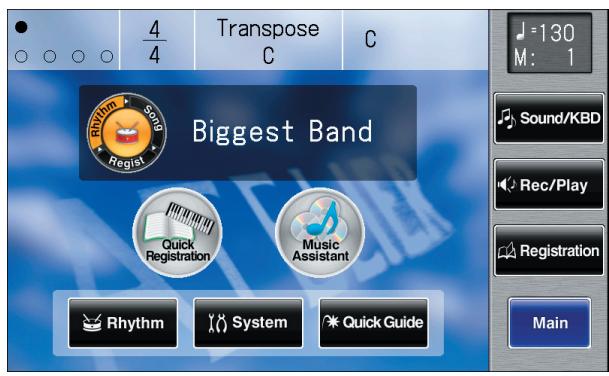
The following Rhythm screen appears.
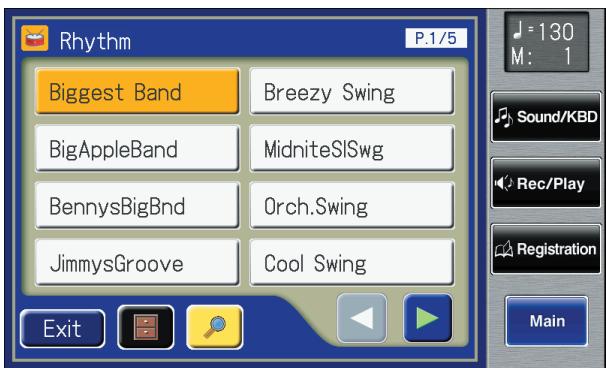
2. Touch < on the Main screen.
A sub-window appears.
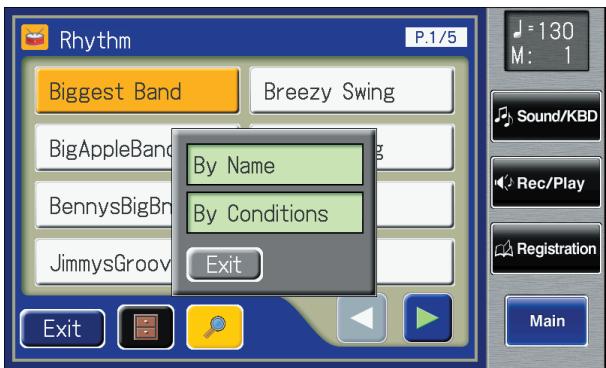

If another screen is open, touch

You can also open the Rhythm screen by pressing Rhythm buttons.

You can also search only for rhythms other than the internal rhythms accessed with the
[User] button. The icon does not appear in the display while [User] button rhythms are displayed.
Searching by Rhythm Name
3. Touch .
4. Decide which character you will use for the search.
The selected character appears in the middle of the screen.
Enter the character you are searching for. For example, touching ABC in succession cycles you through the available choices in that character group ("A"→"B"→"C"…).
Touch
5. Touch (Start Search).
The search results appear in the display.
To cancel the search, touch
6. Touch a Rhythm name to select a Rhythm.
Touch <Exit> to return to the Rhythm screen.
Searching by Conditions
3. Touch .
You can use four different criteria in searches: "Tempo," "Beat," "Groove," and "Genre."
4. Touch the value for the search term.
5. Touch <-> <+> to adjust the settings.
6. Touch (Start Search).
The search results appear in the display.
To cancel the search, touch
7. Touch a Rhythm name to select a Rhythm.
Touch < Exit> to return to the Rhythm screen.
Playing Rhythm
There are two ways to start the rhythm. You can press the [Start/Stop] button to start the rhythm, or you can use Synchro Start to have the rhythm start when you play the lower keyboard or the pedal keyboard.
You can also make the rhythm start with an intro, or stop with an ending.
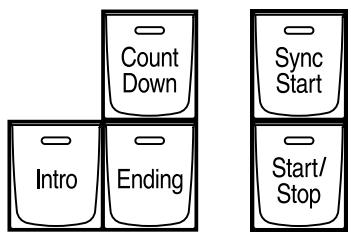
Starting at the Press of a Button
Starting with an Added Intro
- Press the [Intro] button.
- Press the [Start/Stop] button.
The Intro is played and the Rhythm starts.
While the Intro is playing, the [Intro] button indicator will light, until the Intro ends then the button indicator will go dark.
Starting Without an Intro
- Press the [Start/Stop] button.
The Rhythm starts without an Intro being played.
Making the Intro Short and Simple
- Press the Variation [1] button.
- Press the [Intro] button.
- Press the [Start/Stop] button.
A short Intro is played and the Rhythm starts.
MEMO
The functions of the [Intro] button, [Ending] button and [Start/Stop] button can be assigned to the foot switches located on each side of the Expression Pedal (p. 134).
MEMO
You can change the operation of the Fill In [Auto] button, [Break] button, [Intro] button, and [Ending] button (p. 215).
MEMO
For more on the Variation buttons, refer to "Adding Variety to the Rhythm or Automatic Accompaniment" (p. 89).
Starting the Rhythm Automatically When You Play the Lower Keyboard or Pedalboard (Sync Start)
Starting with an Added Intro
- Press the [Sync Start] button to make the indicator light up.
- Press the [Intro] button.
The [Intro] button's indicator will light.
- Play either the Lower keyboard or the Pedalboard.
The Intro is played and the Rhythm starts.
While the Intro is playing, the [Intro] button indicator will light, until the Intro ends then the button indicator will go dark.
Starting Without an Intro
- Press the [Sync Start] button to make the indicator light up.
- Play either the Lower keyboard or the pedalboard.
The Rhythm starts without an Intro being played.
Making the Intro Short and Simple
- Press the [Sync Start] button to make the indicator light up.
- Press the Variation [1] button.
- Press the [Intro] button.
[Intro] button indicator will blink.
- Play either the Lower keyboard or the Pedalboard.
A short Intro is played and the Rhythm starts.
NOTE
If the Arranger function is ON (the Arranger [On/Off] button indicator is lit), it is not be able to start the Rhythm by playing the Pedalboard (p. 88).
MEMO
For more on the Variation button, refer to "Adding Variety to the Rhythm or Automatic Accompaniment" (p. 89).
Stopping the Rhythm
Stopping with an Ending
1. Press the [Ending] button.
An Ending is played, then the Rhythm stops.
While the Ending is playing, the [Ending] button indicator will light, until the
Ending finishes the button indicator will be turned off.
Stopping without an Ending
1. Press the [Start/Stop] button.
The Rhythm stops without an Ending being played.
Making the Ending Short and Simple
- Press the Variation [1] button.
2. Press the [Ending] button.
A short Ending is played, then the Rhythm stops.
Changing a Rhythm's Tempo
You can change the tempo of the Rhythm or Automatic Accompaniment (p. 88).
Tempo
1. Press the Tempo [←] and [▶] buttons to change the tempo (speed) of the Rhythm or Automatic Accompaniment.
| Tempo [▲] button | The tempo becomes slower |
| Tempo [►] button | The tempo becomes faster |
By pressing the Tempo [▲] and [▶] buttons simultaneously, the tempo is returned to the standard (preset) tempo for the selected Rhythm.
The value of the tempo currently set (20-500 beats per minute) can be checked in the screen.
MEMO
The functions of the [Intro] button, [Ending] button and [Start/Stop] button can be assigned to the foot switches located on each side of the Expression Pedal (p. 134).
MEMO
If you switch rhythms when "Auto Std Tempo" (p. 215) is on, the tempo changes to match the rhythm. If you switch rhythms when "Auto Std Tempo" is off, the tempo remains unchanged even when you switch the rhythm.
MEMO
You can confirm the tempo and beat with the "bouncing ball" in the Main screen (p. 31).
MEMO
You can also use the Value dial to change the tempo.
Playing the Count Sound at the End of the Intro
If an intro is played before your performance, you can have a countdown played to the end of the intro, allowing you to understand easily where you are to start playing.
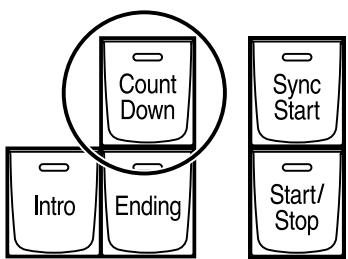
- Press the [Count Down] button, getting the indicator to light.
- Press the [Intro] button.
- Press the [Start/Stop] button.
The intro plays, and a countdown plays to the end of the intro.
When the [Sync Start] button is lit, specifying the chord on the Lower keyboard starts the intro, and again, a countdown is given.
- To stop the countdown, press the [Count Down] button, turning off the indicator light.
Playing Rhythm and Automatic Accompaniment
The Arranger function of the ATELIER can add an Automatic Accompaniment to each Rhythm. Based on the selected Rhythm, the Arranger function automatically adds an accompaniment that is suitable for the chord being pressed on the Lower keyboard.
Arranger
On/Off
- Press the Arranger [On/Off] button (indicator lights.)
| Arranger [On/Off] button | Function |
| Lit | Rhythm and Automatic Accompaniment |
| Unlit | Rhythm |
- Start the rhythm (p. 85).
The rhythm and the automatic accompaniment will play together.
If the Arranger [On/Off] button is ON and no Pedal Bass voice is selected, the Automatic Accompaniment will play the bass sound.

You can change the countdown sound (p. 214).

When the Arranger [On/Off] button is on, Sync Start (p. 86) on the pedalboard cannot be used.

The lower voice is not played during the performance of the intro and ending, even when the Lower keyboard is played.
Adding Variety to the Rhythm or Automatic Accompaniment
You can add variety to the rhythm or automatic accompaniment by changing the rhythm pattern of the rhythm or the arrangement of the automatic accompaniment, or by inserting a break (i.e., stopping the rhythm for one measure).
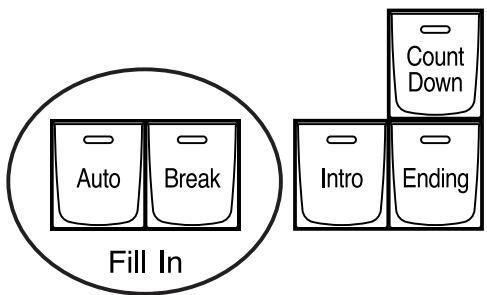
| Button name | Function |
| Fill In [Auto] button | A fill-in will automatically be added when you press a Variation button to change the accompaniment or rhythm arrangement. |
| [Break] button | Stop the rhythm at the end of that measure (Break). |
What's a fill-in?
A Fill In is a short phrase that is inserted at a break in the melody or at a point where the character of the song changes (between Chorus's or Verses).
Changing the Arrangement of the Rhythm and Accompaniment (Variation)
You can change the arrangement of the accompaniment. This function is called "Variation." For each rhythm, there are four types of arrangement for the accompaniment.
The following buttons are called Variation buttons.
Variation
1. Press the Variation buttons to change the arrangement of the accompaniment.
The indicator of the button you pressed will light.
The Variation [1] button produces the simplest arrangement, and the [Full] button produces the most florid.
For an intro or ending, Variation [1] is the shortest and simplest.

The functions of the Variation buttons and [Break] button can be assigned to the foot switches located on each side of the Expression Pedal. Please refer to "Changing the Function of the Foot Switch" (p. 134).

You can change the behavior of the Fill In [Auto] button and [Break] button (p. 215).
Playing Chords with Simple Fingering (Chord Intelligence)
"Chord Intelligence" is a feature that intelligently plays the correct accompaniment chords the moment you play a key specifying a chord on the Lower keyboard during Automatic Accompaniment.
For example, in order to make the instrument detect a "C Major" chord, you must normally play the three keys "C," "E," and "G." If you use the Chord Intelligence function, you can simply press a single "C" key in the lower keyboard to sound a C Major chord with the voice selected for the Lower part.
1. Touch on the Main screen.
The Rhythm screen appears.
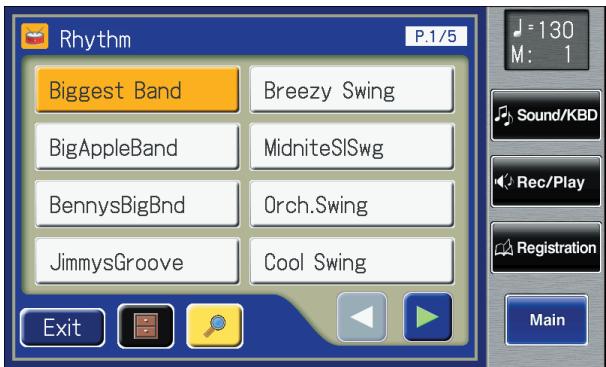
2. Touch < > (Utility) on the Rhythm screen.
The Utility screen appears.
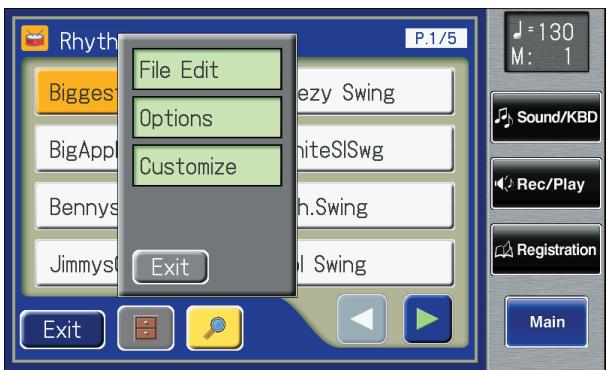
MEMO
For more information about chord fingering, refer to the "Chord List" (p. 277).
MEMO
You can also open the rhythm screen by pressing a Rhythm button.
MEMO
If you press the root note of the chord (p. 279) in the lower keyboard when the Chord Intelligence function is ON, all notes in that chord will sound. For example, if you press the root "C" of the C major chord in the lower keyboard, the notes of the C major chord "C," "E," and "G" will be sounded by the voice selected for the lower part.
3. Touch .
The Rhythm Options screen appears.
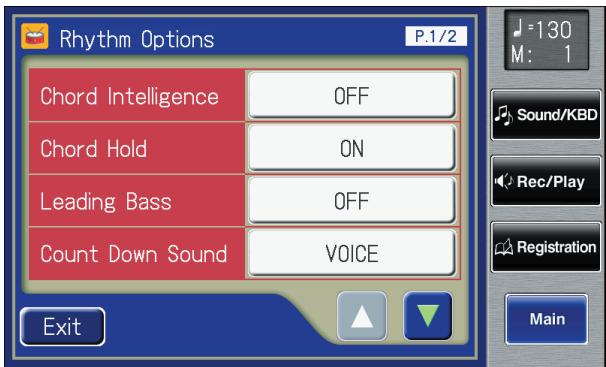
4. Touch the Chord Intelligence setting to turn it "ON."
The Chord Intelligence function can now be used.
Each time you touch the Chord Intelligence setting, it will be switched ON/OFF.
5. If you wish to turn off the Chord Intelligence function, switch it "OFF."
MEMO
When the Leading Bass function (p. 92) is on and the Chord Intelligence function is off, you can specify chords with a combination of the lower keyboard and pedalboard.
MEMO
When you touch the [One Touch Program] button, the Chord Intelligence setting will automatically be turned ON.
Leading Bass Function
When Automatic Accompaniment is used, and the Pedal [To Lower] button is ON, the Pedal Bass voice will normally play the root note (p. 279) of the chord you play on the Lower keyboard.
If the Leading Bass function is enabled, the lowest note of the chord you play on the Lower keyboard will then be used as the bass note (the bottom note of the chord). This allows the bass to be a note other than the root of the chord you play and the bass note will change when inverted chords are played (p. 279).
1. Touch on the Main screen.
The Rhythm screen appears.
2. Touch < > (Utility) on the Rhythm screen.
The Utility screen appears.
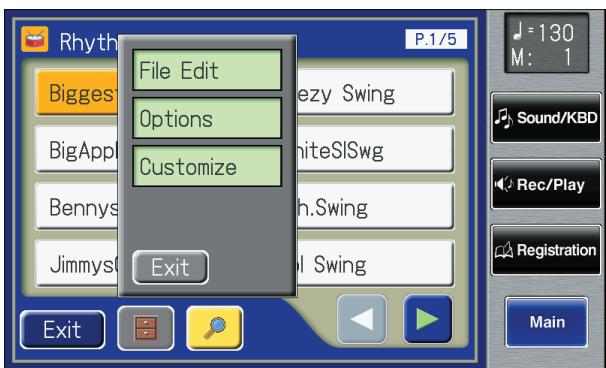

You can also open the Rhythm screen by pressing the Rhythm buttons.

When the Leading Bass function is on and the Chord Intelligence function (p. 90) is off, you can specify chords with a combination of the lower keyboard and pedalboard.
3. Touch .
The Rhythm Options screen appears.
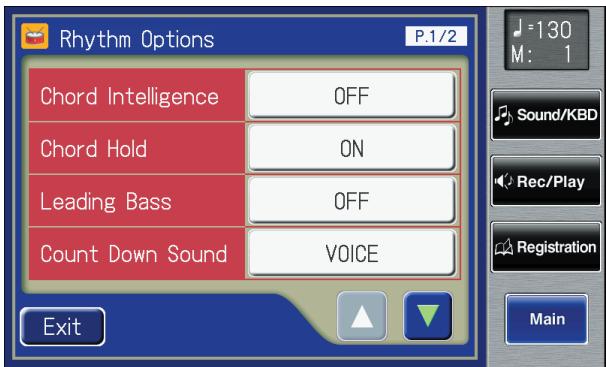
4. Touch the Leading Bass setting to turn it "ON."
Each time you touch the Leading Bass setting, it will be switched ON/OFF.
5. To turn off the Leading Bass function, set the Leading Bass setting to "OFF."
MEMO
You can assign the Leading Bass functions to either of the foot switches located on each side of the Expression Pedal. Please refer to "Changing the Function of the Foot Switch" (p. 134).
A Simple Way to Make Automatic Accompaniment Settings (One Touch Program)
The ATELIER provides a very convenient [One Touch Program] button. By simply pressing this button once, the Arranger function will be turned ON, and keyboard voices that are most appropriate for playing with the currently selected Rhythm/Automatic Accompaniment are selected.
By pressing the [One Touch Program] button, you can make the following settings.
- Panel settings (e.g., sounds and volume) suitable for the rhythm
- Arranger [On/Off] button lit (Automatic Accompaniment playing)
- [Sync Start] button lit, [Intro] button blinking (Waiting for Sync Start)
- Chord Intelligence function is ON (p. 90)
What is Sync Start?
Sync Start is a function that starts the rhythm at the moment that you play the lower keyboard.
What is Chord Intelligence?
"Chord Intelligence" is a feature that intelligently decides on accompaniment chords the moment you play some keys specifying a chord during automatic accompaniment.
The panel settings specified by the One Touch Program function are as follows.
8 panel settings for each rhythm (4 panel settings × 2 groups)
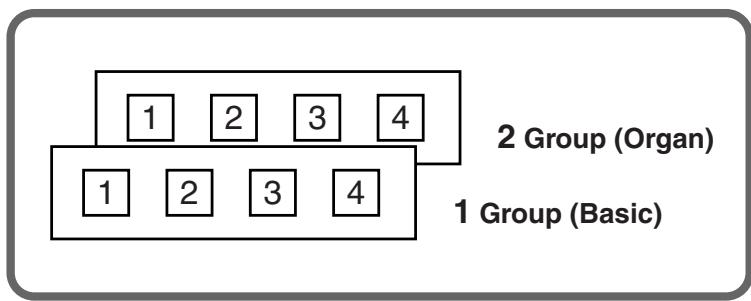
Rhythm
- Select a Rhythm (p. 81).
- Press the [One Touch Program] button.
The [One Touch Program] button's indicator will light.
One Touch Program
An One Touch Program Group (One Touch Program Group select) screen like the one shown below will be displayed for several seconds.
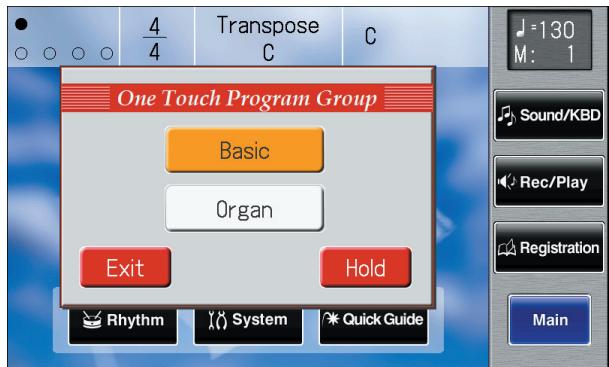
- While the One Touch Program Group screen is displayed, touch the screen to select a One Touch Program group.
If you fail to select a One Touch Program group while the One Touch Program Group screen is displayed, "Basic" will be selected automatically.
Panel settings appropriate for the rhythm and automatic accompaniment will automatically be called up for Registration [1]-[4] buttons.
- Press the Registration [1] - [4] button to select panel settings.
- On the Lower keyboard, play a chord.
At the moment you play the lower keyboard, the Intro will begin, and then the Rhythm and Automatic Accompaniment will play.
- Press the [Ending] or [Start/Stop] button to stop the Rhythm.
Rhythm and Automatic Accompaniment stops.
- Press the [One Touch Program] button, extinguishing its indicator.
You will return to the panel settings that were in effect prior to pressing the [One Touch Program] button.

When you press the [One Touch Program] button, the "Arranger Update" setting will automatically change to "INSTANT" (p. 109).

To redisplay the One Touch Program Group screen, while holding down the Registration [Write] button, press the [One Touch Program] button. Touch the One Touch Program Group screen to reselect the group.

The One Touch Program function will be turned off if you're using the Quick Registration function (p. 37) or if you've loaded a registration (p. 108).
Using a Rhythm from a USB Memory
The ATELIER contains a variety of rhythms, but you can also use rhythms from USB memory or floppy disk to perform rhythms in an even wider range of styles.
Reviewing the Rhythms on USB Memory
1. Press the Rhythm [User] button (confirm that its indicator is lit).
The Rhythm screen appears.
![ROLAND AT-900C - Press the Rhythm [User] button (confirm that its indicator is lit). - 1](/content/2025/01/130760/images/7530ee8fb9741c9505c838e99516971b3fff56f7a007b73da576826f481415f3.jpg)
2. Connect the USB memory containing the rhythms to the external memory connector.
3. Touch < - > < +> to select "Ext Memory" and see the rhythms in USB memory.
The Rhythm screen will show the Rhythms on the USB memory.
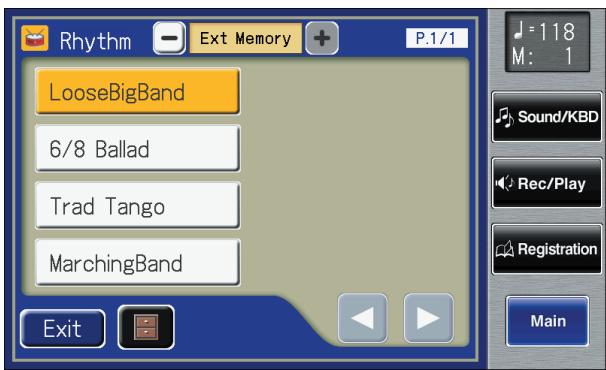
4. Touch the Rhythm screen to select a Rhythm.
The [Start/Stop] button indicator will blink while the Rhythms are being loaded into internal memory. When loading is finished, you will be able to play the selected rhythm.
5. Press the [Start/Stop] button.
The selected Rhythm is played.
NOTE
All rights reserved.
Unauthorized use of
commercially available Music
Style disk for purposes other
than private, personal
enjoyment is a violation of
applicable laws.
MEMO
If you copy rhythms from USB memory or floppy disk into user memory (p. 82), you'll be able to access those rhythms simply by pressing the [User] button (p. 97).
MEMO
If you want to use rhythms from a floppy disk, connect the floppy disk drive to the Ext Drive connector.
MEMO
If "User" is selected, the rhythms saved in User memory (p. 82) will be shown. If "Disk" is selected, the rhythms saved on the floppy disk will be shown.
Copying Rhythms
User memory (p. 82) already contains rhythms, but you can replace these rhythms with rhythms from USB memory or floppy disk. Rhythms copied from the USB memory into User memory will not be lost even if the power is turned off. It is convenient to copy frequently-used Rhythms into User memory.
Rhythms that you've created and saved in user memory can also be copied to USB memory (p. 99).
Copying Rhythms from USB Memory to User Memory
1. Connect the USB memory to the external memory connector.
2. Touch on the Main screen.
The Rhythm screen appears.
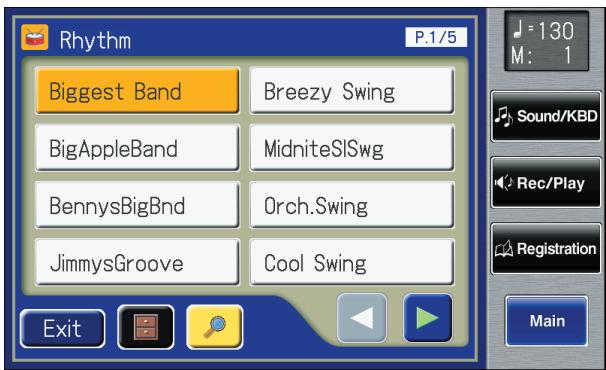
3. Touch < > (Utility) on the Rhythm screen.
The Utility screen appears.
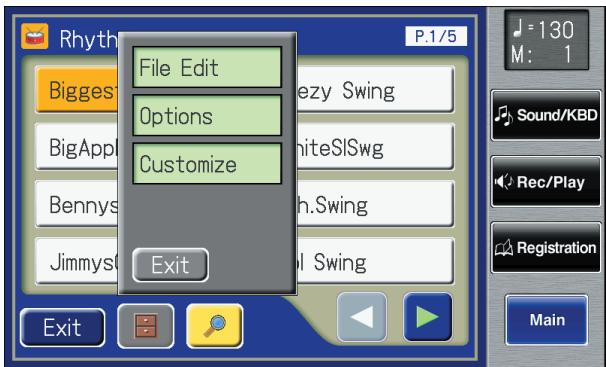

If you want to copy rhythms from floppy disk, connect the floppy disk drive to the Ext Drive connector.
4. Touch .
The Rhythm File Edit screen appears.
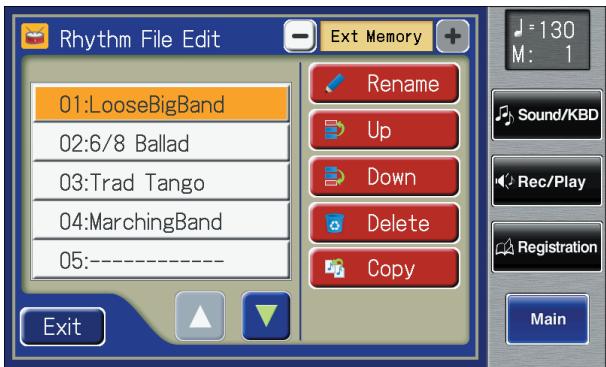
5. Touch (Rhythm Copy).
The Rhythm File Copy screen appears.
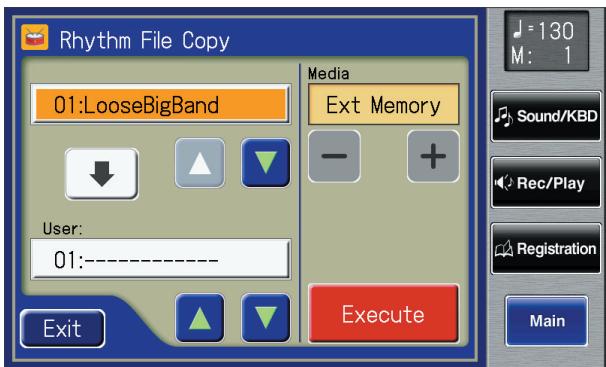
6. Touch <-> <+> to select the media (the location of the rhythm you want to copy).
If you want to copy a rhythm from USB memory, select "Ext Memory." If you want to copy a rhythm from floppy disk, select "Disk."
7. Touch < > < > to select the rhythm you want to copy.
8. Touch User < to select the copy-destination number.
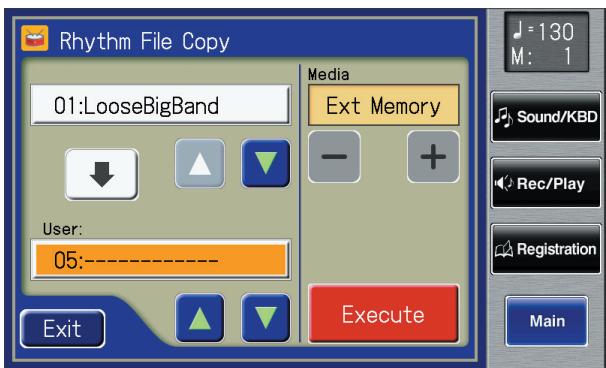
Numbers for which a rhythm name is shown already have a rhythm saved to them.
9. Touch .
The copying of the rhythm to User memory begins.
Once the Rhythm has been accommodated in memory, the Rhythm File Edit screen will reappear.
If you select a number in which a rhythm is already saved, a screen like the following will appear.
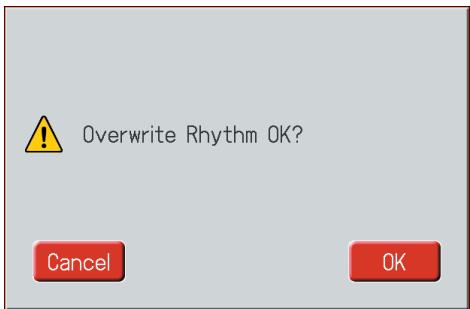
If you want to delete the previously saved rhythm and overwrite it with the rhythm you're newly saving, touch
If you don't want to delete the previously saved rhythm, touch
Copying Rhythms from User Memory to USB Memory
You can copy rhythms from user memory to USB memory.
In this case, touch the arrow icon located in the center of the "Rhythm File Copy screen" in step 5 of the above procedure, so the arrow points upwards. In this state, you'll be copying rhythms from user memory to USB memory.
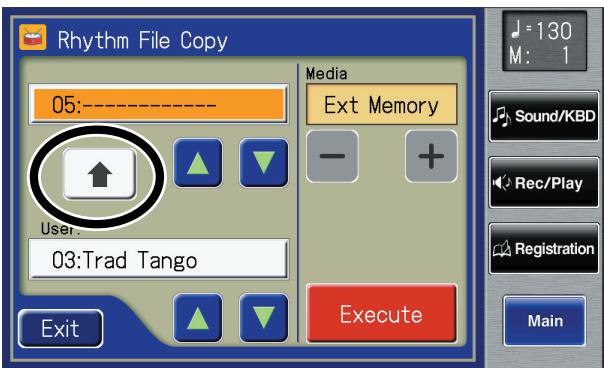
The rest of the procedure is the same as when copying rhythms from USB memory to user memory.
NOTE
Never remove the USB memory or turn off the power while the rhythm data is being copied from USB memory into the ATELIER. If you do so, the rhythm data will not be loaded into the ATELIER, and malfunctions could result. After returning the rhythm stored in the user memory to the factory settings (p. 230), copy the rhythm from USB memory once more.
MEMO
You can return only the user memory to the factory settings. Refer to "Restoring the User Memory to the Original Factory Settings" (p. 230).
Changing the Order of the Saved Rhythms
You can rearrange the order of the rhythms stored in User memory (p. 82) or USB memory.
1. Touch on the Main screen.
The Rhythm screen appears.
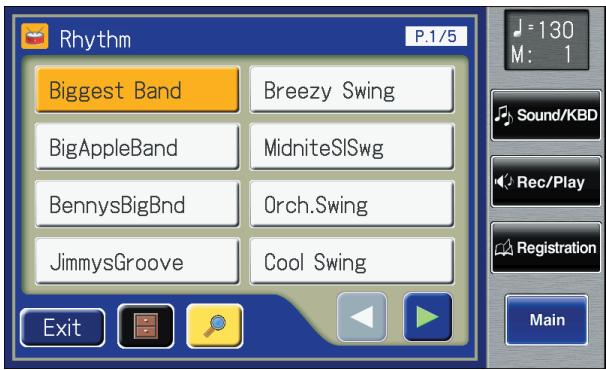
2. Touch < > (Utility) on the Rhythm screen.
The Utility screen appears.
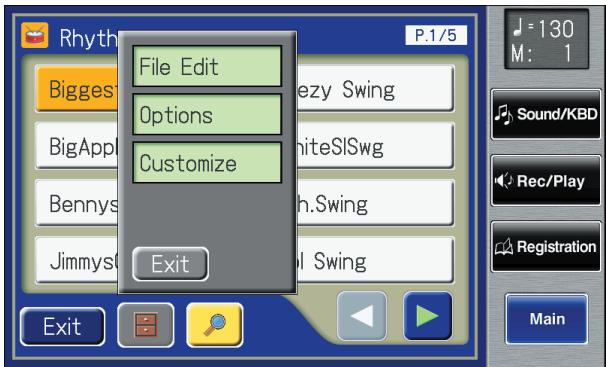
3. Touch .
The Rhythm File Edit screen appears.
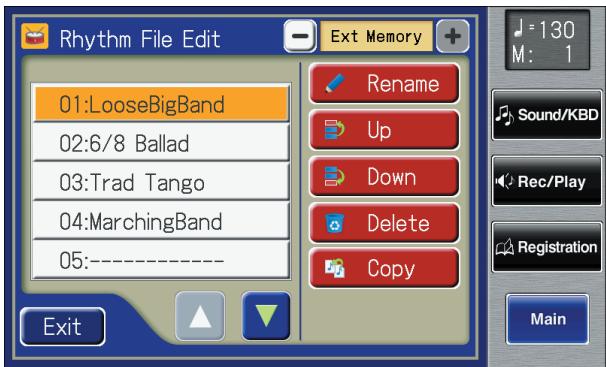
| Button | Meaning | Description |
| Rename | Modify the name | The Rename screen appears. You can touch the screen and rename the selected rhythm (p. 102). |
| Up | Change the order (upward) | The selected rhythm will be moved earlier in the order. |
| Down | Change the order (downward) | The selected rhythm will be moved later in the order. |
| Delete | Delete the Rhythm | The selected rhythm will be deleted (p. 104). |
| Copy | Copies the rhythm | You can copy rhythms from USB memory to user memory, or copy rhythms from user memory to USB memory (p. 97). |
4. Touch < - > < +> to select the desired media.
Choose "User" if you want to change the order of the rhythms saved in user memory, or choose "Ext Memory" if you want to change the order of the rhythms saved in USB memory.
5. Touch <>><> to select the rhythm
6. Touch <Up> or <Down> to move the rhythm.
7. Touch.
Renaming a Saved Rhythm
You can rename rhythms stored in User memory (p. 82) or USB memory.
1. Touch on the Main screen.
The Rhythm screen appears.
2. Touch < > (Utility) on the Rhythm screen.
The Utility screen appears.
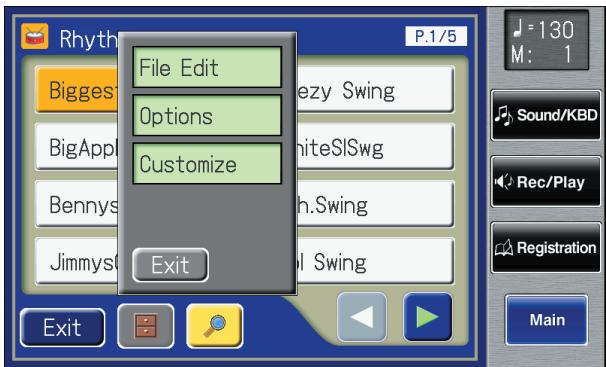
3. Touch .
The Rhythm File Edit screen appears.
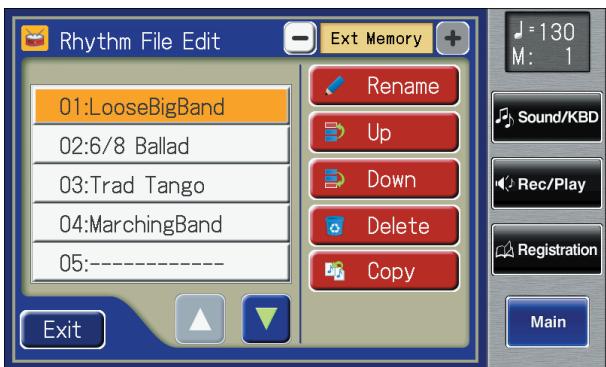
4. Touch < - > < +> to select the desired media.
Choose "User" if you want to change the name of the rhythms saved in user memory, or choose "Ext Memory" if you want to change the name of the rhythms saved in USB memory.
5. Touch < > < > to select the rhythm whose name you want to change.
6. Touch .
The Rename screen appears.
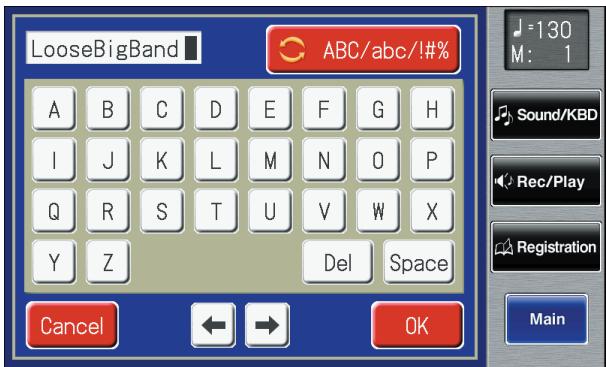
7. Touch < ABC/abc/!#% > to change among uppercase/ lowercase/symbols.
Each touch of the character switch button takes you to the next available choice, like this: uppercase lowercase symbols uppercase ....
8. Touch the screen to specify the desired character.
The following characters can be selected.
| Uppercase | A B C D E F G H I J K L M N O P Q R S T U V W X Y Z |
| Lowercase | a b c d e f g h i j k l m n o p q r s t u v w x y z |
| Symbols | ! " # % & ' ( ) * + , - . / : = ? ^ _ 0 1 2 3 4 5 6 7 8 9 |
| Del | Delete a character. |
| Space | Insert a space. |
| ← → | Move the cursor (the symbol that indicates the location at which characters will be input) to left or right. |
To cancel the operation, touch <Cancel> .
9. When you're done making the settings, touch .
The Rhythm has now been named. The Edit User screen reappears.
10. Touch.
Deleting Saved Rhythm
You can delete rhythms stored in User memory (p. 82) or USB memory.
1. Touch on the Main screen.
The Rhythm screen appears.
2. Touch < > (Utility) on the Rhythm screen.
The Utility screen appears.
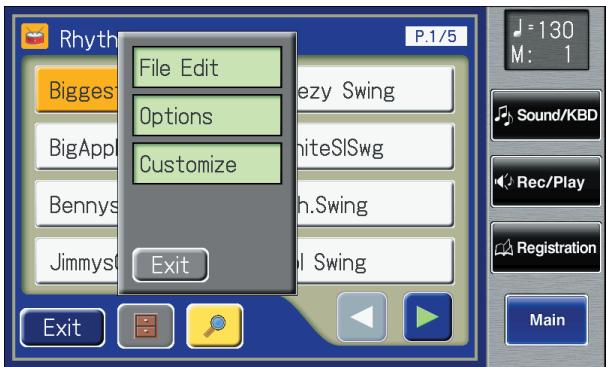
3. Touch .
The Rhythm File Edit screen appears.
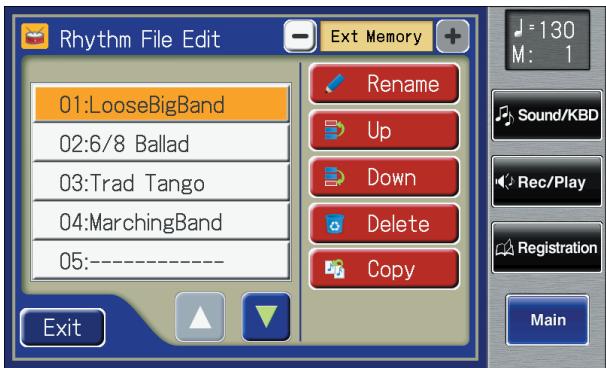
| Button | Meaning | Description |
| Rename | Modify the name | The Rename screen appears. You can touch the screen and rename the selected rhythm (p. 102). |
| Up | Change the order (upward) | The selected rhythm will be moved earlier in the order (p. 100). |
| Down | Change the order (downward) | The selected rhythm will be moved later in the order (p. 100). |
| Delete | Delete the Rhythm | The selected rhythm will be deleted. |
| Copy | Copies the rhythm | You can copy rhythms from USB memory to user memory, or copy rhythms from user memory to USB memory (p. 97). |
4. Touch <-> <++> to select the desired media.
Choose "User" if you want to delete the rhythm saved in user memory, or choose "Ext Memory" if you want to delete the rhythm saved in USB memory.
5. Touch <>><> to select the rhythm that you wish to delete.
6. Touch .
The following display appears.
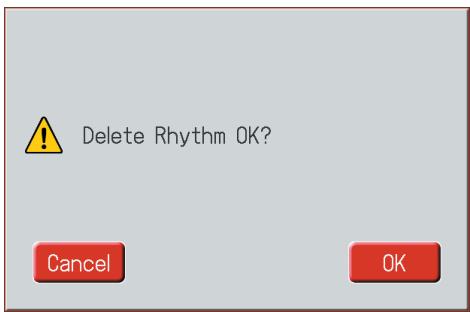
To cancel operation, touch
7. If you are sure that you wish to delete the rhythm, touch OK>.
When a rhythm is deleted, the deleted rhythm name will change to "----".
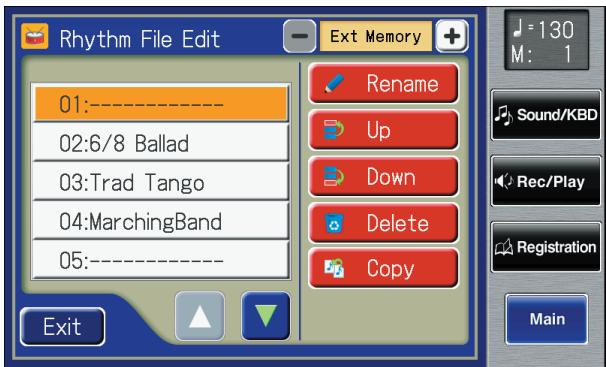
The ATELIER allows you to store sound settings and panel settings in the Registration buttons.
The ATELIER has a total of twelve registration buttons, and one set of panel settings can be registered to each button, for a total of twelve types of panel settings. Each set of panel settings that has been stored in a Registration button is called a "Registration."
This provides a convenient way to change large numbers of panel settings during a performance, or to recall a complex panel setting.
MEMO
Settings that have been stored to Registration buttons [1]-[12] are remembered even if the power is turned off. If you wish to restore the settings stored in the Registration buttons to their factory settings, use the "Factory Reset" operation (p. 27).

About the Registration Buttons
In addition to assigning voices and rhythms to the Registration buttons, you can also store the following settings:
- Panel button settings (for example, settings for the Level [▲] [▼] buttons and Solo [To Lower] button, etc.)
- Controller settings (functions assigned to foot switches, pitch bend range, etc.)
- Other types of settings (reverb type, tempo settings, degree of initial touch, etc.)
If you would like to know all of the settings that can be recorded to the Registration buttons, refer to "Settings That Are Stored In the Individual Registration Buttons" (p. 281).
The twelve settings stored at the registration buttons can be saved as a "set" in USB memory, a floppy disk, or user memory (p. 113).
In addition to the settings saved to the Registration buttons, the following data is also saved when Registration sets are saved.
- Registration Name p. 111
- Registration Shift p. 135
Arranger Update p 109 - Trans. Update (Transpose Update) p. 217
- Exp. Curve (Expression Curve) p. 137
MEMO
Recorded performance data and rhythms from User memory (p. 82) are not stored in Registration sets.
When a rhythm saved in User memory is assigned to a Registration set, that rhythm is copied beforehand to the User memory.
Procedure for Creating Registration Sets
Prepare the Registrations
A convenient way to make the sequence of Registration buttons to be pressed easy to understand is to store the panel settings starting from the Registration [1] button, continuing with subsequent buttons in accordance with the progression of the song.
Save the Registrations to the USB memory or User memory
If you want to use more than twelve Registrations in a song, save the settings for Registration buttons [1]–[12] to a USB memory or User memory as a set, then continue to store further panel settings again, starting from Registration button [1]. Save all of the Registration sets you have set to the USB memory or user memory.
Arrange the Registrations in the sequence they are to be used
Save the Registration sets to the USB memory or user memory in the order they are to be used in the song. You can use the File Edit function (p. 124) to alter the sequence and names of registrations contained on the USB memory or User memory (p. 111) as well as delete such registrations (p. 122).
Using Registration Sets
Call up the Registration sets saved on the USB memory to the ATELIER
Insert the USB memory containing the saved Registration sets into the external memory connector, and read the Registration sets into the ATELIER.
Switch the Registration sets as you perform
Press the Registration buttons to switch Registrations as you play the song. To call up the next Registration Set, press the [Load Next] button, then press the Registration buttons.
Storing Registrations

- Make all the panel settings that you wish to store.
- While holding down the [Write] button, press one of the Registration buttons [1]-[12].
The panel settings will be stored in the selected Registration button.

You can also assign the "Right ^+ Load Next" to the foot switch and use it to call up subsequent Registration sets (p. 135).

For details on the settings that are stored in a Registration, refer to "Settings That Are Stored In the Registration Buttons" (p. 281).
Recalling a Registration
Settings that have been registered to Registration buttons [1]-[12] can be recalled in two ways: "INSTANT" and "DELAYED."
At the factory this is set to "DELAYED."
How to Recall a Registration (DELAYED)
Recalling Voices and Other Panel Settings
- Press and immediately release one of the Registration buttons [1]-[12].
Recalling Settings for Rhythm and Automatic Accompaniment in Addition to the Panel Settings
- Press and hold a Registration button [1]-[12] for several seconds.
The indicator of the rhythm select button will blink, and the panel settings and settings related to rhythm performance and automatic accompaniment will be recalled.
How to Recall a Registration (INSTANT)
Recalling panel settings of a voice, or when recalling settings for rhythm performance and Automatic Accompaniment in addition to panel settings
- Press and immediately release one of the Registration buttons [1]-[12].

When changing the way Registrations are called up, refer to "Changing the Timing of Recalling Registrations" (p. 109).
Changing the Timing of Recalling Registrations
Settings for Rhythm play and Automatic Accompaniment are recalled when you continue holding a Registration button [1]–[12] for several seconds, but you can change this so that the settings are recalled the instant you press the button.
1. Touch on the Main screen.
The Registration Load screen appears.
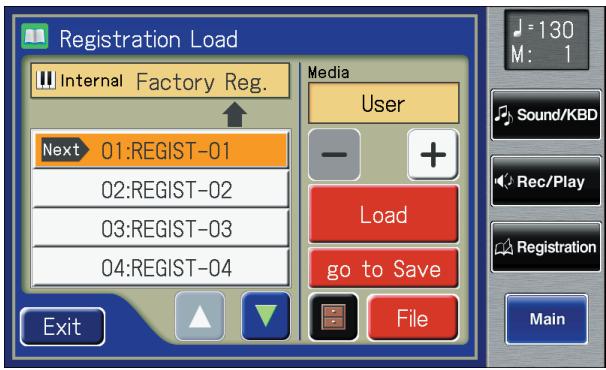
2. Touch < > (Utility).
The Utility screen appears.
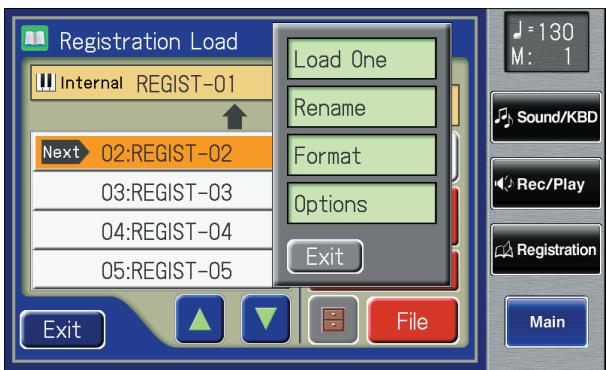
3. Touch .
The Registration Options screen appears.
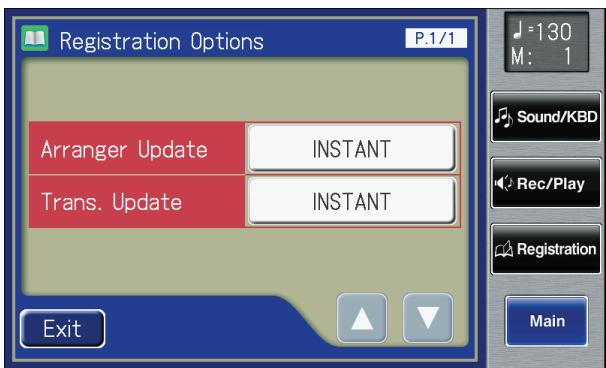

You can also open the Registration Load screen by pressing the [Registration] button on the panel.

You can also use the following method to open the Registration Options screen.
- Touch
on the Main screen, to display the Quick Guide screen. - Press the Registration [Write] button. The Registration Options screen appears.
4. Touch the Arranger Update setting to switch between "DELAYED" and "INSTANT."
Each time you touch the Arranger Update setting, it will alternate between "DELAYED" and "INSTANT."
| Setting | Descriptions |
| DELAYED | When you press and hold a Registration button [1]–[12] for several seconds, the settings for Rhythm and Automatic Accompaniment will be recalled in addition to the panel settings. If you press and immediately release a Registration button [1]–[12], only the settings that are not related to Rhythm or Automatic Accompaniment will be recalled. |
| INSTANT | The panel settings and settings for Rhythm and Automatic Accompaniment will be recalled the instant that you press a Registration button [1]–[12]. |
5. Touch.
Automatically Registering When You Switch Panel Settings
When the [Manual] button is ON (lit), all panel settings you make will be stored automatically in the [Manual] button as they are made, thus updating the Registration that had been previously saved.

MEMO
You can change the timing of recalling the transpose setting when you press a Registration button.
For details refer to "Changing the Timing at Which
Transposition Settings are
Recalled" (p. 217).
NOTE
The settings stored in the [Manual] button will return to their default values when the power is turned off.
Assigning a Name to a Registration Set
When saving Registration sets, names like "Factory Reg." will be assigned by default, but you can assign a name that will help you later to identify the contents of the Registration set.
1. Touch on the Main screen.
The Registration Load screen appears.
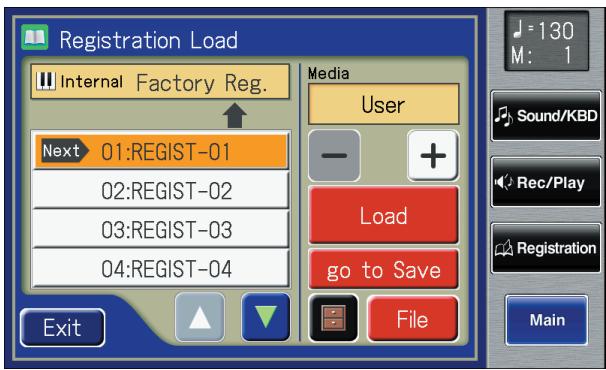
2. Touch .
The Registration Save screen appears.
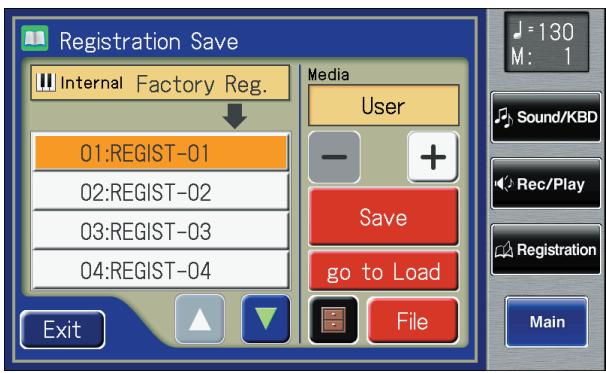
3. Touch < > (Utility).
The Utility screen appears.
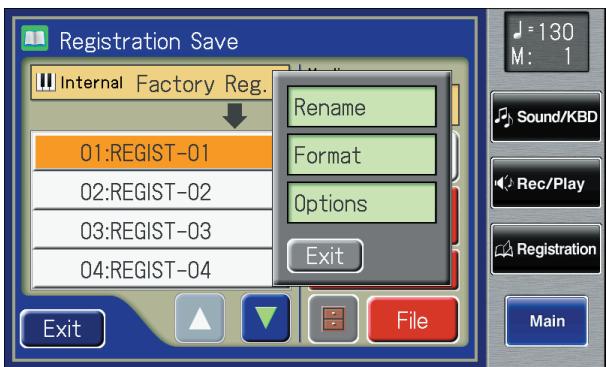
4. Touch .
The Rename screen appears.
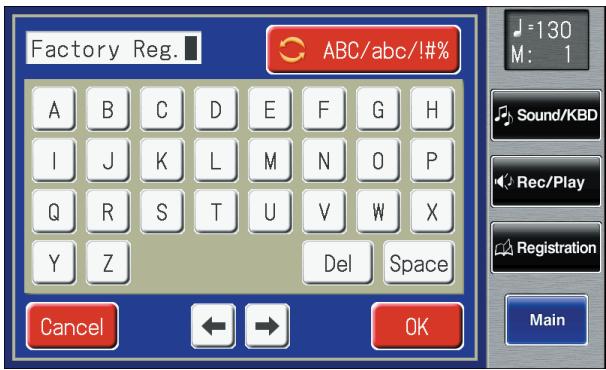
5. Touch < ABC/abc/1## > to change among uppercase/ lowercase/symbols.
Each touch of the character switch button takes you to the next available choice, like this: uppercase lowercase symbols uppercase ....
6. Touch the screen to specify the desired character.
The following characters can be selected.
| Uppercase | A B C D E F G H I J K L M N O P Q R S T U V W X Y Z |
| Lowercase | a b c d e f g h i j k l m n o p q r s t u v w x y z |
| Symbols | ! " # % & ' ( ) * + , - . / : = ? ^ _ 0 1 2 3 4 5 6 7 8 9 |
| Del | Delete a character. |
| Space | Insert a space. |
| ← → | Move the cursor (the symbol that indicates the location at which characters will be input) to left or right. |
To cancel the operation, touch <Cancel> .
7. When you're done making the settings, touch .
The Registration set in the ATELIER's internal memory has now been named.
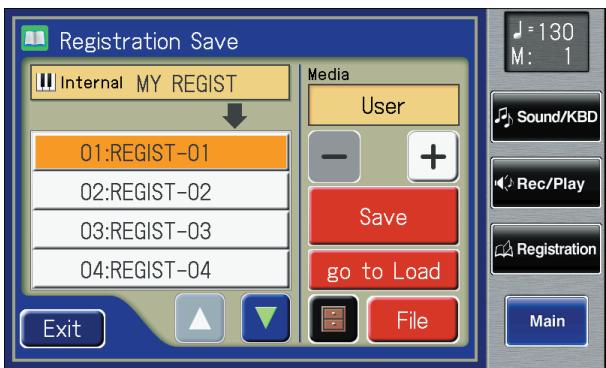

The Rename screen can also be opened in the following ways.
Main screen
Saving Registration Sets
With the settings of Registration buttons [1]–[12] considered as one set, you can store the registration set to USB memory or User memory. We recommend that complex panel settings or Registrations you wish to keep be saved on USB memory. Furthermore, when you save registrations created on the ATELIER to USB memory, you can call up their settings on other ATELIER Series instruments and use the registrations the same way.
1. Connect your USB memory to the external memory connector.
If you want to save registration data to a floppy disk, connect the floppy disk drive to the Ext Drive connector.
Into the floppy disk drive, insert a floppy disk that was formatted by the ATELIER.
2. Touch on the Main screen.
The Registration Load screen appears.
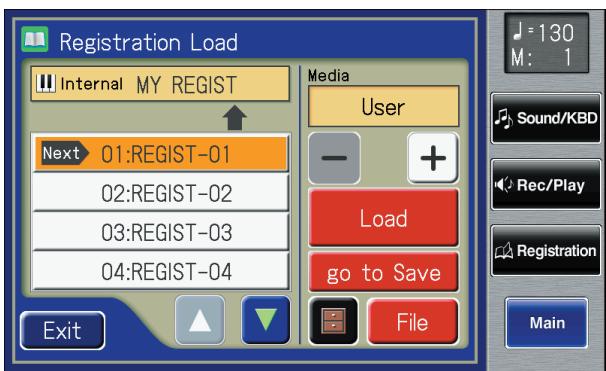
3. Touch .
The Registration Save screen appears.
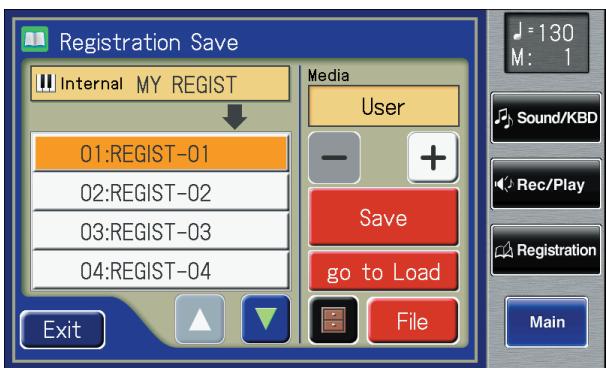
MEMO
If you wish to assign a name before you save, refer to "Assigning a Name to a Registration Set" (p. 111).
4. Touch <-> <++> to select the desired media.
If you want to save the registration to user memory, select "User."
If you want to save the registration to USB memory, select "Ext Memory."
If you want to save the registration to floppy disk, select "Disk."
5. Touch <>><> in the screen to select the save-destination number.
Numbers which have not been used in the saving operation will be displayed as "----".
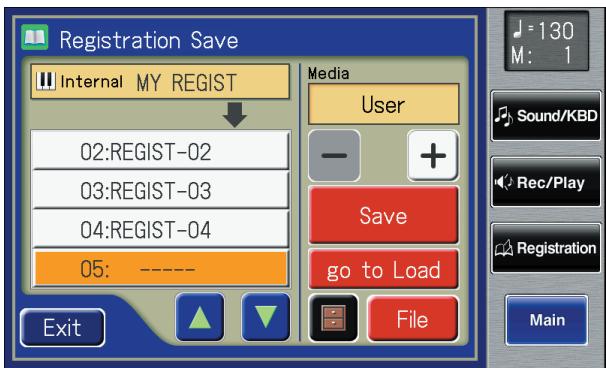
To cancel the Save operation, touch the
6. Touch .
The Save Format screen appears.
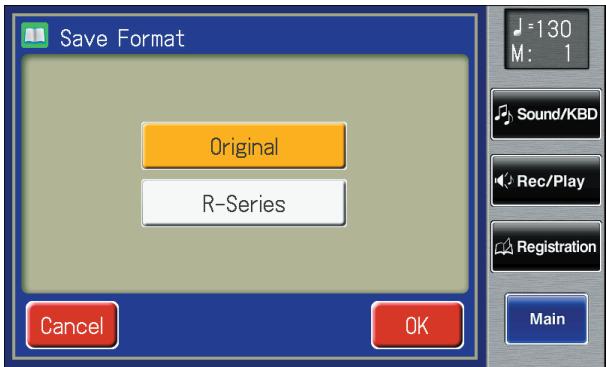
7. Touch or .
| Settings | Description |
| Original | Save formats that can be used with the AT-900, AT-900C and AT-800 When saved in this format, the data can also be used by AT-S Series, AT-45, AT-15 and AT-S Series devices. |
| R-Series | Save formats that can be used with AT-R Series devices |
8. Touch OK>.
Saving of the registration data will begin.
When saving ends, the "----" in the screen will change to the registration name that you saved.
If you've named the registration, it will be saved with that name.
If the following screen appears
If you select a number at which a registration has already been saved and touch
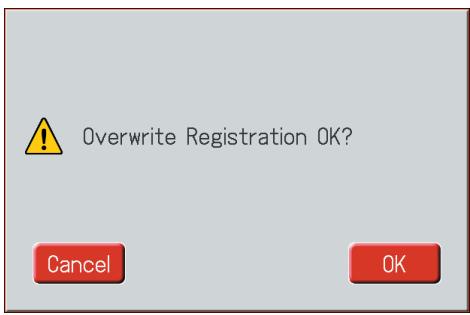
If you wish to update the contents of the Registration data
- Touch
.
If you wish to save new data instead of updating the registration
- Touch
.
Rewriting of the Registration will be canceled.
- In the Registration Save screen, select the number that is displayed as "-----" (a number that currently does not contain registration data).
- Save the Registration (p. 113).
When saving is complete, the saved registration name will be displayed.
Loading Previously Saved Registration Sets Into the ATELIER
Here's how to recall a previously saved Registration set from the User memory or USB memory into the memory of the ATELIER. Registrations can be selected in the following three ways.
Loading a Set of Registrations (Load) p. 116
You can load a "set" (a collection of settings for Registration buttons [1]–[12]) from USB memory or user memory.
Loading an Individual Registration (Load One) p. 117
Recall the settings of one of the Registration [1]–[12] buttons.
Recalling the Order that the Registrations are Saved on the USB memory or user memory (Load Next) p. 120
Press the [Load Next] button to recall registration sets in the order in which they are saved on the USB memory or user memory.
Loading a Set of Registrations
1. If you want to load a registration from USB memory, connect your USB memory to the external memory connector.
If you want to load a registration from a floppy disk, connect the floppy disk drive to the Ext Drive connector, and insert the floppy disk containing the registration into the floppy disk drive.
2. Touch on the Main screen.
The Registration Load screen appears.
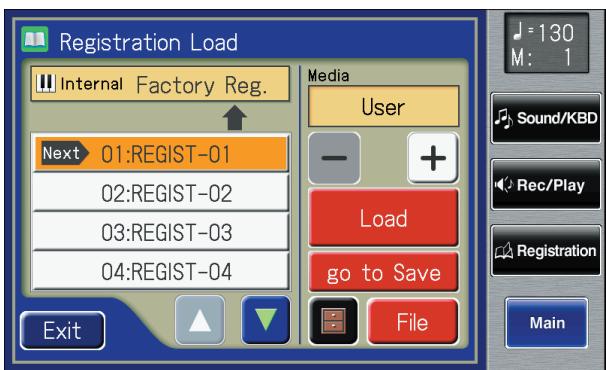
NOTE
Be aware that when you load Registrations from a USB memory or user memory, the Registrations that were previously in internal memory will be lost. It is a good idea to save important Registrations to USB memory or user memory (p. 113).
MEMO
You can also open the Registration Load screen by pressing the [Registration] button.
MEMO
When you touch
3. Touch <-> <++> to select the desired media.
If you want to load from the registration of user memory, select "User." If you want to load from the registration of USB memory, select "Ext Memory." If you want to load from the registration of floppy disk, select "Disk."
4. Touch <>><> to select the Registration that you wish to load into internal memory.
To cancel operation, touch <Exit> .
5. Touch.
The registration data will start being load.
When the Registration has been loaded, the Registration Load screen will reappear.
Loading an Individual Registration
1. If you want to load a registration from USB memory, connect your USB memory to the external memory connector.
If you want to load a registration from a floppy disk, connect the floppy disk drive to the Ext Drive connector, and insert the floppy disk containing the registration into the floppy disk drive.
2. Touch on the Main screen.
The Registration Load screen appears.
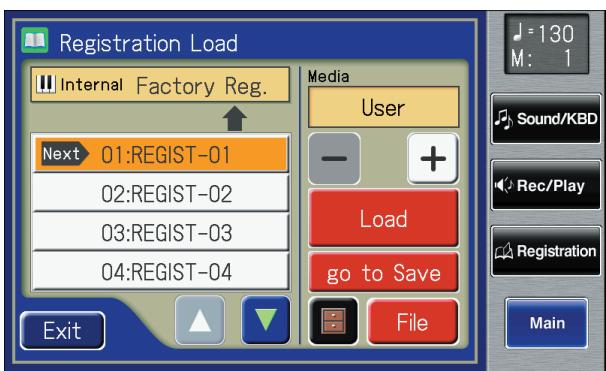
3. Touch <-> <++> to select the desired media.
If you want to load from the registration of user memory, select "User." If you want to load from the registration of USB memory, select "Ext Memory." If you want to load from the registration of floppy disk, select "Disk."

To select a registration from a folder, refer to "Selecting a registration from within a folder" (p. 126).

You can also open the Registration Load screen by pressing the [Registration] button.
- Touch <>><> to select the registration that you wish to load into internal memory.
- Touch < > (Utility).
The Utility screen appears.
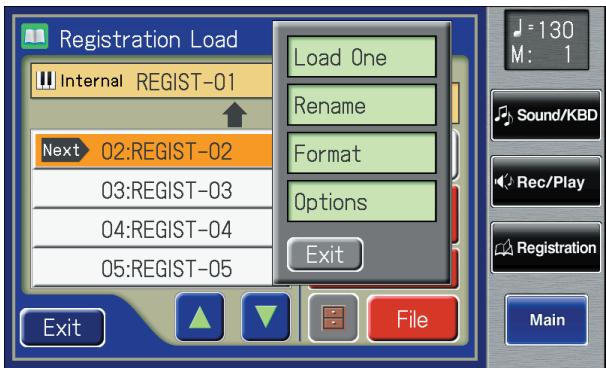
- Touch
.
The Load One Registration screen appears.
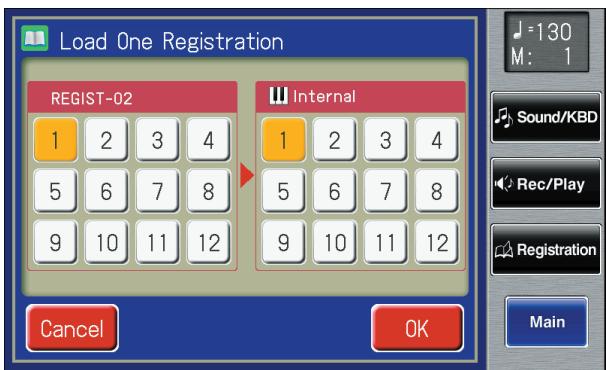
- Touch < 1> to select the number of the registration button that you wish to load from disk into internal memory.
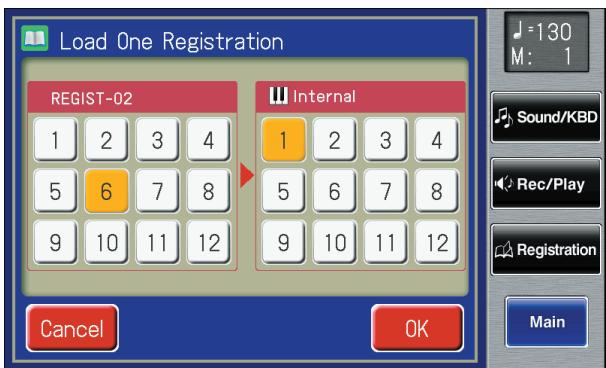
8. Touch Internal < 1> to select the number of the storage-destination button.
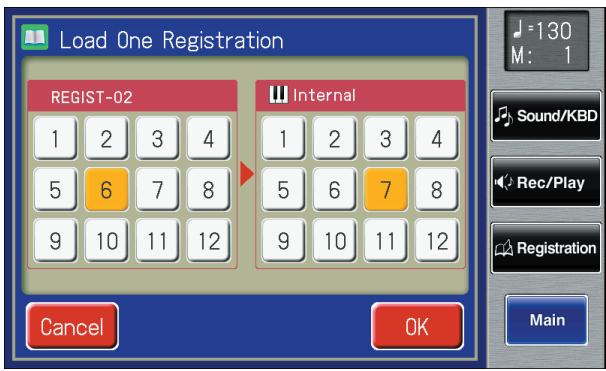
To cancel this operation, touch <Cancel> .
9. When you're done making the settings, touch .
The following display appears.
When the Registration has been loaded, the Registration Load screen will reappear.
Recalling the Order that the Registrations are Saved (Load Next)
You can simply press the [Load Next] button to successively recall registrations in the order in which they were saved on the USB memory or user memory. This function is called "Load Next."
When you will be performing live, you can save registration sets to USB memory in the order in which you will be performing. Then while you perform, you can recall the next registration set easily and smoothly.
There are two [Load Next] buttons. Pressing either one will produce the same result.
MEMO
By using the "File Edit" function, you can modify the order or the name of the registrations saved on USB memory or user memory, or delete an unwanted registration (p. 111, p. 122, p. 124).

1. If you want to load a registration from USB memory, connect your USB memory to the external memory connector.
If you want to load a registration from a floppy disk, connect the floppy disk drive to the Ext Drive connector, and insert the floppy disk containing the registration into the floppy disk drive.
2. Press the [Load Next] button.
The first registration saved on the USB memory will be recalled into the ATELIER.
The following screen appears.
![ROLAND AT-900C - Press the [Load Next] button. - 1](/content/2025/01/130760/images/2355e22af223db1a6b92ea3573cf204bd46f0193c309c5848f128ef8c9b5a518.jpg)
3. Press one of the registration [1]-[12] buttons.
The registration will be loaded (recalled into internal memory).
4. Repeat steps 2 and 3 to successively recall the registration sets.
MEMO
You can also assign the "Right+Load Next" function to Regist Shift, and use the foot switch to operate the Next Load function.
| Button | Description |
| Undo | Return to the registration that had been selected before you pressed the [Load Next] button. |
| OK | Finalize the registration. It will not be possible to return to the previous registration. |
MEMO
Instead of performing step 3, you can also load the registration by touching
Checking the next registration set
1. Access the Main screen.
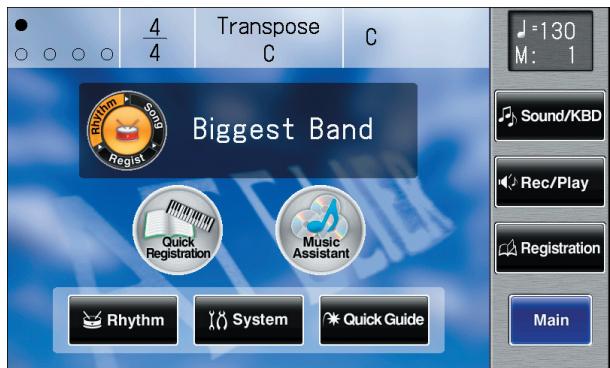
2. Touch the < Regist > icon several times to switch to < Regist > (Regist).
The Main screen display will switch to the registration.
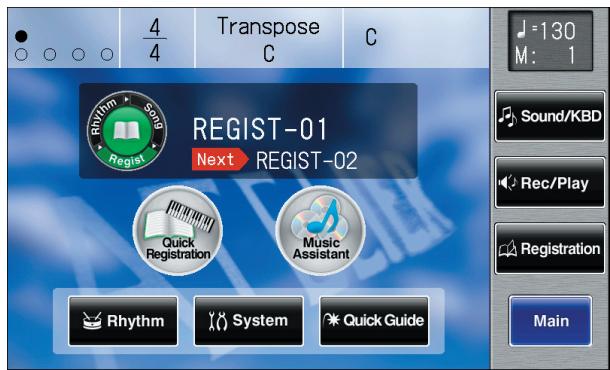
"Next" will indicate the name of the next registration set.
Deleting a Set of Registrations
Here's how to delete a Registration set that was saved to a USB memory, User memory, or floppy disk.
1. Prepare the registration that you want to delete.
If you want to delete registration data from the USB memory, connect the USB memory to the external memory connector.
If you want to delete registration data from the floppy disk, connect the floppy disk drive to the Ext Drive connector. Into the floppy disk drive, insert a floppy disk that was formatted by the ATELIER.
2. Touch on the Main screen.
The Registration Load screen appears.
3. Touch .
The Registration File Edit screen appears.
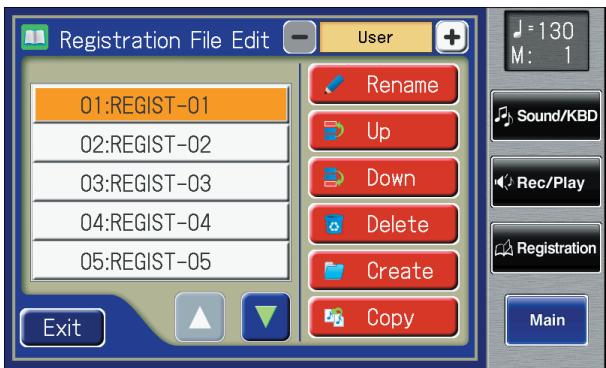
| Button | Meaning | Description |
| Rename | Modify the name | The Rename screen appears. You can touch the screen and rename the selected registration (p. 111). |
| Up | Change the order (upward) | The selected registration will be moved earlier in the order (p. 124). |
| Down | Change the order (downward) | The selected registration will be moved later in the order (p. 124). |
| Delete | Delete the Registration | The selected registration will be deleted. |
| Create | Create new folder | A new folder will be created (p. 125). |
| Copy | Copies the Registration | You can copy registration from USB memory to user memory, or copy registration from user memory to USB memory (p. 127). |
4. Touch <-> <++> to select the desired media.
If you want to delete from the registration to user memory, select "User."
If you want to delete from the registration to USB memory, select "Ext
Memory."
If you want to delete from the registration to floppy disk, select "Disk."
5. Touch <>><> to select the registration that you wish to delete.
6. Touch .
The following display appears.
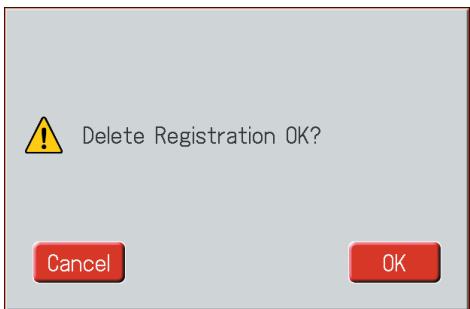
To cancel operation, touch
7. If you are sure that you wish to delete the registration, touch .
When the Registration has been deleted, the Registration File Edit screen will reappear.
When a registration is deleted, the deleted registration name will change to "----".
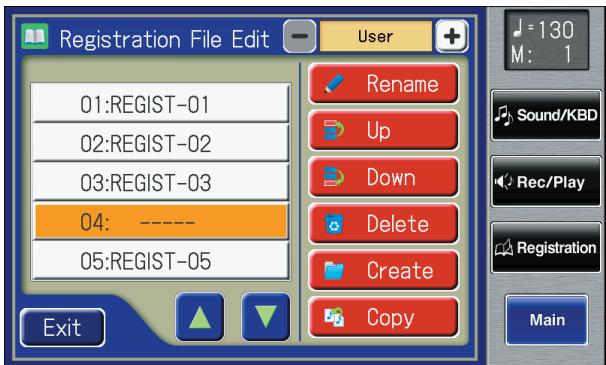
Changing the Name or Order of Registration
After saving registrations on USB memory, user memory, or floppy disk, you can change the order or name of the registrations, or delete a registration (p. 122). This is very convenient when you are preparing to use the [Load Next] button (Load Next function p. 120) to recall successive registrations while you play.
1. Prepare the registration(s) that you want to rename or sort.
If you want to rename or sort registrations saved on USB memory, connect your USB memory to the external memory connector.
If you want to rename or sort registrations saved on a floppy disk, connect the floppy disk drive to the external memory connector.
2. Touch on the Main screen.
The Registration Load screen appears.
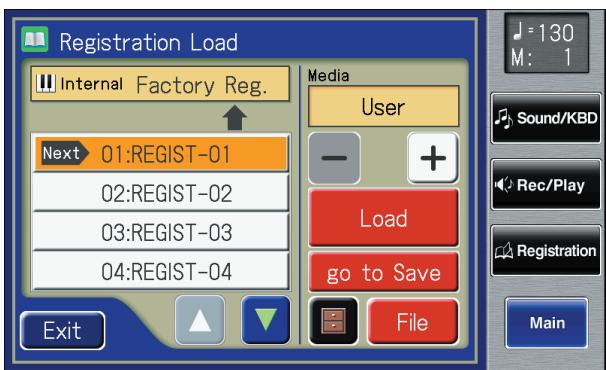
3. Touch .
The Registration File Edit screen appears.
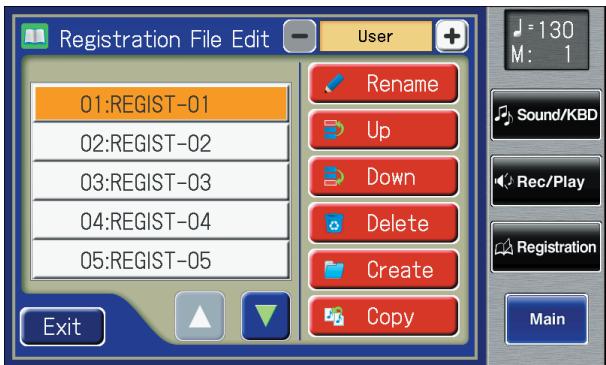
4. Touch <-> <++> to select the desired media.
Choose "Ext Memory" if you want to rename or sort registrations saved on USB memory, or "Disk" if you want to rename or sort registrations saved on a floppy disk. Choose "User" if you want to rename or sort registrations saved in user memory.
5. Touch <>><> in the screen to select a registration.
Changing the Order of Registration
6. Touch or to move the registration.
| Button | Mean | Description |
| Up | Change the order (upward) | The selected registration will be moved earlier in the order. |
| Down | Change the order (downward) | The selected registration will be moved later in the order. |
Changing the Name of the Registration
7. Touch .
The Rename screen appears.
Rename the registration as described in "Assigning a Name to a Registration Set" (p. 111).
8. Touch.
Creating a Folder
About folders
The ATELIER lets you create up to 99 registration sets. If you create a folder, you'll be able to save up to 99 sets in each folder.
You can create as many folders as you wish, limited only by the capacity of the media.
It's a good idea to save the registrations in a folder for each song.
NOTE
If there's a registration that you want to delete, touch
< > to select the
registration, then touch
asking you to confirm the
deletion appears, touch < 0K> .
MEMO
You can rename the folder in
the Registration File Edit screen.
9. Touch.
A screen will appear, allowing you to specify a name for the new folder.
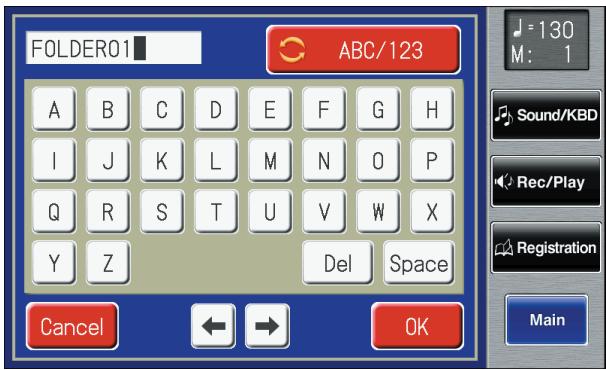
10. Assign a name to the folder.
Touch the screen to specify the desired characters.
Rename the folder as described in "Assigning a Name to a Registration Set" (p. 111).
11. When you've finished, touch .
A new folder with the name you assigned will be created.
Selecting a registration from within a folder
- Touch
on the Main screen to display the Registration Load screen. - Touch <> <> to select a folder.
- Touch the folder name.
The registrations in the folder will be displayed.
- Touch the registration name.
To exit the folder
- Touch <> to select "UP."
- Touch the "UP" indication.
NOTE
You can't use lowercase letters in the folder name.
NOTE
You can't create a folder that has the same name as an already-existing folder.
MEMO
Alternatively, you can touch

to select the
folder name, and then press the [Play/Stop] button on the panel to view the registrations in the folder.
Copying Registrations
Registrations from USB memory or floppy disk can be copied to user memory. If a registration saved in USB memory or on a floppy disk is stored in user memory, the stored registration data will not disappear even when you turn off the power. It is convenient to load frequently-used registration into User memory.
Registrations saved in user memory can also be copied to USB memory (p. 129).
Copying Registration from USB Memory to User Memory
- Connect the USB memory to the external memory connector.
- Touch
on the Main screen.
The Registration Load screen appears.
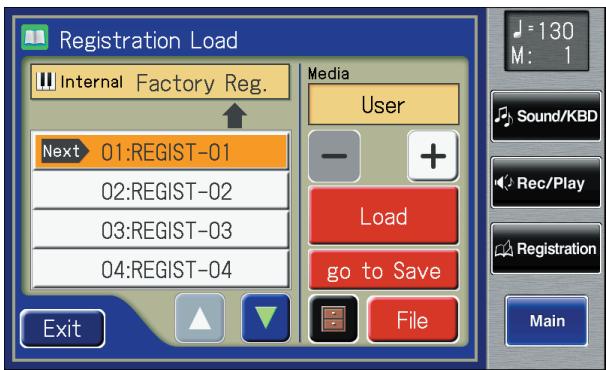
- Touch
.
The Registration File Edit screen appears.
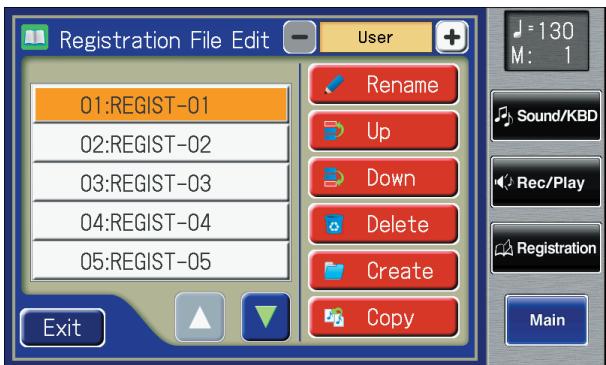
MEMO
If you want to copy registration from floppy disk, connect the floppy disk drive to the Ext Drive connector.
4. Touch .
The Registration File Copy screen appears.
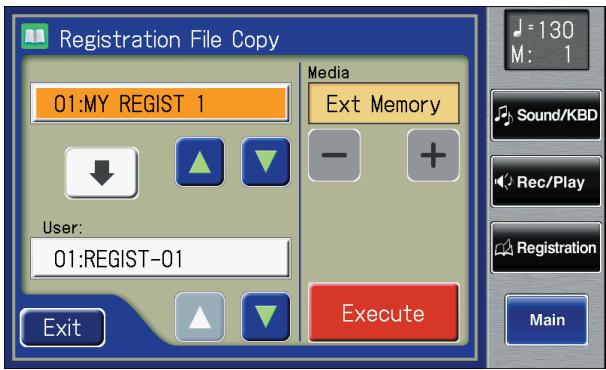
5. Touch <-> <+> to select the media (the location of the registration you want to copy).
If you want to copy a registration from USB memory, select "Ext Memory." If you want to copy a registration from floppy disk, select "Disk."
6. Touch < > < > to select the registration you want to copy.
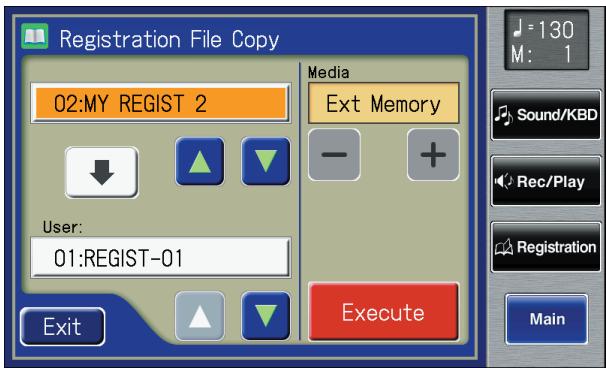
7. Touch User < to select the copy-destination number.
Numbers for which a registration name is shown already have a rhythm saved to them.
8. Touch .
The copying of the registration to User memory begins.
Once the registration has been accommodated in memory, the Registration File Edit screen will reappear.
NOTE
Never remove the USB memory or turn off the power while the registration data is being copied from USB memory into the ATELIER. If you do so, the registration data will not be loaded into the ATELIER, and malfunctions could result. After returning the registration stored in the user memory to the factory settings (p. 230), re-load the registration from USB memory.
If you select a number in which a registration is already saved, a screen like the following will appear.
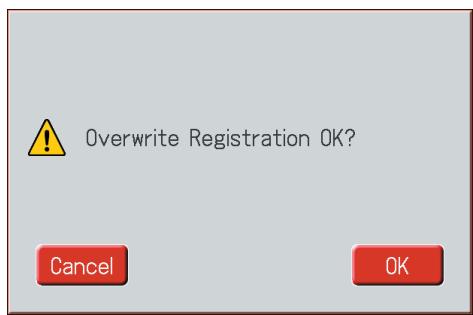
If you want to delete the previously saved registration and overwrite it with the registration you're newly saving, touch
If you don't want to delete the previously saved registration, touch
Copying Registration from User Memory to USB Memory
You can copy registration from user memory to USB memory.
In this case, touch the arrow icon located in the center of the "Registration File Copy screen" in step 4 of the above procedure, so the arrow points upwards. In this state, you'll be copying registration from user memory to USB memory.
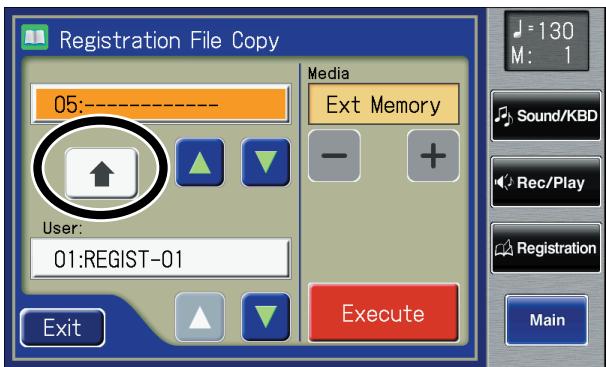
The rest of the procedure is the same as when copying registration from USB memory to user memory.

You can return only the user memory to the factory settings. Refer to "Restoring the User Memory to the Original Factory Settings"(p. 230).
Transposing to a Different Key (Key Transpose)
You can transpose the key of a performance without having to shift the position of your fingers on the keyboard. This feature is called "Key Transpose."
For example, even if the song is in a difficult key with numerous sharps or flats, you can transpose it to a key that is easier for you to play.
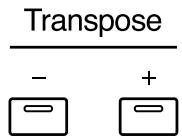
1. Set the value for the transposition with the Transpose [-] and [+] buttons.
Each time you press a Transpose [-] [+] button, the pitch will be transposed by a semitone.
Acceptable values range from A , to G (in semitone steps).
The specified value will be displayed in the Main screen.
![ROLAND AT-900C - Set the value for the transposition with the Transpose [-] and [+] buttons. - 1](/content/2025/01/130760/images/a72660d1caa38e7787423e26216b8dc58aeaf10f895c58f06b4106ca7a4a8859.jpg)
State of the Transpose [-] [+] buttons
| If transposed (non-C) | One of the Transpose [-] [+] button indicators is lit. |
| If not transposed (C) | The Transpose [-] [+] button indicators are extinguished. |
2. By pressing the Transpose [-] [+] buttons simultaneously, you can restore the default setting C.
![ROLAND AT-900C - By pressing the Transpose [-] [+] buttons simultaneously, you can restore the default setting C. - 1](/content/2025/01/130760/images/88ae5bc1dfe3df90c2f95523e2cd953eda4f766b1649f3849f6d6d8cf9e71aac.jpg)
The transposition setting is stored in the Registration. For details on the settings that are stored in the Registration, refer to "Settings That Are Stored In the Registration Buttons" (p. 281).
![ROLAND AT-900C - By pressing the Transpose [-] [+] buttons simultaneously, you can restore the default setting C. - 2](/content/2025/01/130760/images/0877be3fcc078171427df9ed8ffd1f354ee3657b266ece3d69ae12580b50f758.jpg)
You can change the timing at which the transposition settings saved in a Registration will be recalled. For details refer to "Changing the Timing at Which Transposition Settings are Recalled" (p. 217).
Adjusting the Brightness of the Sound
Using the [Brilliance] slider, you can adjust the brightness of the sound. For a brighter sound, push the slider away from you. For a mellower sound, pull the slider toward you.
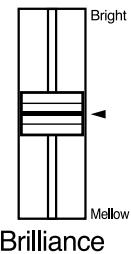
You can adjust not only the treble range but the bass as well with the [Brilliance] slider. You can suppress the lower frequencies by moving the slider downwards.
NOTE
This setting is not stored in the Registration.
Adding Decay to the Sound (Damper Pedal)
When you depress the Damper (Sustain) pedal, a decay effect will be added to the voices.
While you continue depressing the damper pedal, notes will be sustained even if you release the keys.
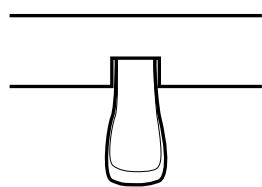
By default the decay effect will be applied to the voices played on the Lower keyboard.
MEMO
The explanation at left uses an illustration of the AT-900.
MEMO
You can modify the setting so that decay is only applied to notes played on the Upper keyboard (p. 212).
NOTE
Decay cannot be added to the Solo voices.
NOTE
Decay can be applied to Pedal Bass voices played on the Lower keyboard (when the Pedal [To Lower] or [Bass Split] button indicators are lit). In this case, a decay will not be applied to the pedal bass voice.
MEMO
You can connect a pedal keyboard (PK series; sold separately) to the AT-900C and use the pedal keyboard's hold pedal to sustain the sound.
Using the Pitch Bend/Vibrato Lever
When you move the Pitch Bend/Vibrato lever to the left or right, you can obtain a smooth change in the pitch of the notes being played (Pitch Bend effect). Move the lever to the right to raise the pitch, and to the left to lower it. Also, when you push the lever away from you, a vibrato effect can be obtained.
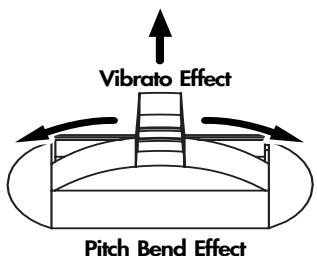
By default (immediately after the power is turned on) the Pitch Bend effect is added to the voices of all the sections being played on the Upper keyboard.
MEMO
You can also adjust the range of the pitch which is shifted by the Pitch Bend lever. For details, refer to "Changing the Pitch Bend Range" (p. 213).
NOTE
Please note that only the appropriate voices will allow vibrato to be added.
MEMO
You can change the settings so that both the Pitch Bend and Vibrato effects are applied to the Lower keyboard voice or the voices on the Pedalboard. Please refer to "Choosing the keyboard for which Pitch Bend and Vibrato will apply" (p. 212).
Using the Foot Switches
On either side of the expression pedal are two Foot Switches. Different functions are assigned to each of these two foot switches.
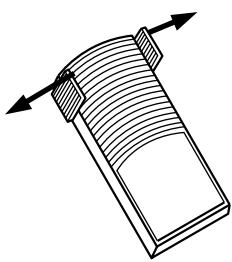
You can also change the functions assigned to the left and right Foot Switches. Please refer to "Changing the Function of the Foot Switch" (p. 134).
With the factory settings, the following functions are assigned to the left and right Foot Switches.
| Right Foot Switch | Switch the Rotary effect between Fast/Slow. If Rotary is turned on, the Rotary effect will switch between “Fast” and “Slow” each time you press the Foot Switch. |
| Left Foot Switch | Glide (an effect by which the pitch is lowered by a semitone while the foot switch is pressed, and is returned to what is originally was when you release your foot). While you are pressing the Foot Switch, the pitch will be temporarily lowered. When you release the Foot Switch, the pitch will return to normal gradually. |
You can store functions to be assigned to the foot switch to individual Registration buttons (p. 107).
MEMO
You can connect a pedal keyboard (PK series; sold separately) to the AT-900C and use the pedal keyboard's foot switch.
NOTE
If "Regist Shift" is turned "RIGHT," "LEFT," or "RIGHT +Load Next," the foot switch will function only to switch registrations (p. 135).
MEMO
The Glide effect will only be applied to the keyboard section that has been specified as being the destination for the Pitch bend/Vibrato lever. Please refer to "Choosing the keyboard for which Pitch Bend and Vibrato will apply" (p. 212).
Changing the Function of the Foot Switch
You can select any of the following functions and assign them to either Foot Switch on the right or left side of the Expression Pedal.
1. Touch on the Main screen.
The Sound/Keyboard screen appears.
2. Touch .
The Controller screen appears.
3. Touch <>> <> to display the L Foot Switch or R Foot Switch.
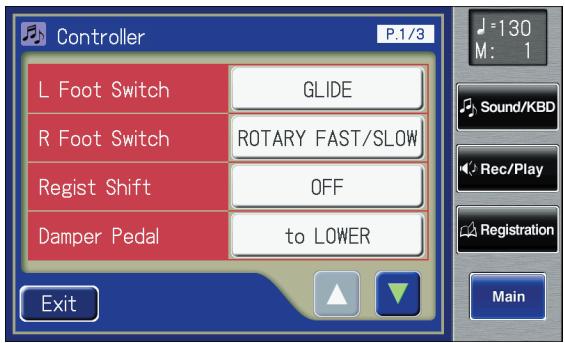
4. Touch or setting.
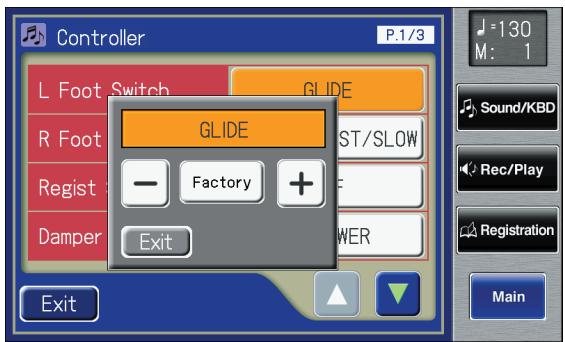
5. Touch < - > < +> to change the setting.
6. Touch.

If the "Regist Shift (Registration Shift)" setting is "RIGHT," "LEFT," or "RIGHT + Load next," the Foot Switch will be dedicated to switching through the Registrations, and the "R Foot Switch" or "L Foot Switch" setting will be ignored (p. 135).

This setting remains stored in memory even while power is turned off.
| Available functions | Description |
| ROTARY FAST/SLOW | Switch the Rotary speed between "FAST" and "SLOW." |
| GLIDE | While the Foot Switch is pressed, the pitch will temporarily be lowered, and will gradually return to normal when you release the Foot Switch. When the power is turned on, Glide effect is added to the voice of all the sections being played on Upper keyboard. |
| LEADING BASS | The Leading Bass function (p. 92) will operate only while you continue pressing the Foot Switch. |
| RHYTHM START/STP | Start/Stop the Rhythm. |
| COMP PLAY/STOP | The same function as theComposer [Play/Stop] button. Each time you press the Foot Switch, the performance data will play back or stop. |
| INTRO/ENDING | Play an Intro or Ending. |
| VARIATION UP | Switches the Variation button. Each time you press the foot switch, the Variation number will increment. |
| VARIATION DOWN | Switches the Variation button. Each time you press the foot switch, the Variation number will decrement. |
| VARIATION ALT | Switches the Variation button. If the Variation [1] button or [3] button is selected, this will switch between the Variation [1] and [3] buttons. If the Variation [2] button or [4] button is selected, this will switch between the Variation [2] and [4] buttons. |
| BREAK | Stop the rhythm at the end of that measure. |
| DAMPER OF UPPER | Notes played on the Upper keyboard will be sustained only while you continue pressing the Foot Switch. |
| DAMPER OF LOWER | Notes played on the Lower keyboard will be sustained only while you continue pressing the Foot Switch. |
| ART. CONTROL1 | Applies an effect to an articulation voice (p. 61). |
| ART. CONTROL2 | |
| OFF | Turns the foot switch function off. |
Using the Foot Switch to Switch Registrations
You can use the Foot Switch as a dedicated switch for selecting Registrations in order. The registration will be switched each time you press the foot switch.
The Regist Shift settings are stored to each individual
Registration Set. When "RIGHT + Load Next" is assigned to
NOTE
the foot switch and the Load Next function is used to switch Registration Sets saved to a USB memory or floppy disk, set the Regist Shift setting to "RIGHT + Load Next" for all saved Registrations.
1. Touch on the Main screen.
The Sound/Keyboard screen appears.
2. Touch .
The Controller screen appears.
3. Touch <><> to display the Regist Shift.
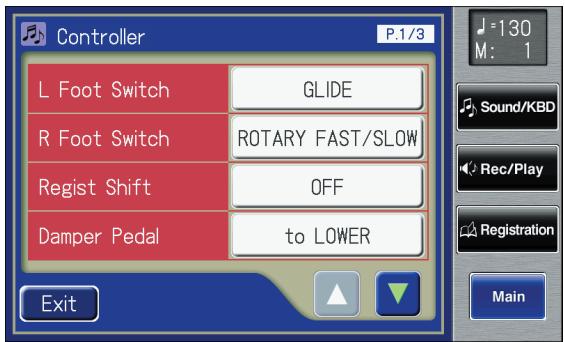
4. Touch the Regist Shift setting (OFF/RIGHT/LEFT/RIGHT + Load Next).
5. Touch <-> <+> to change the setting.
6. Touch.

This setting remains stored in memory even while the power is turned off.
| Setting | Descriptions |
| OFF | You can use a function assigned to the foot switch. |
| RIGHT | The right foot switch is dedicated to switching registrations. The function assigned to the right foot switch cannot be used. |
| Setting | Descriptions |
| LEFT | The left foot switch is dedicated to switching registrations. The function assigned to the left foot switch cannot be used. |
| RIGHT + Load Next | The right foot switch is dedicated to switching registrations. The function assigned to the right foot switch cannot be used. Selecting the Registration [12] button and pressing the right foot switch activates the Load Next function, calling up the next registration saved to the USB memory, user memory, or floppy disk. The Registration Load window appears in the display. When you then press the right foot switch again, the Registration Set is confirmed, and the Registration [1] button is selected. Example: 1→2→3...→12 →Load Next→ (Next Registration) 1 |
What is "Load Next"?
You can use the Load Next function to call up Registrations in the order saved to the USB memory, user memory, or floppy disk. When you will be performing live, you can save registration sets to USB memory, user memory, or floppy disk in the order in which you will be performing. Then while you perform, you can recall the next registration set easily and smoothly.
Checking the next registration set
1. Display the Main screen (p. 31).
2. Touch the < img src=""> icon several times to switch

The Main screen display will switch to the registration.
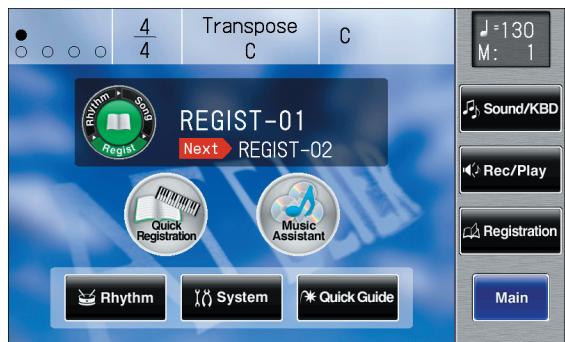
"Next" will indicate the name of the next registration set.
Adjusting the Overall Volume Using an Expression Pedal
You can use the expression pedal to adjust the overall volume. When you depress the Expression Pedal, the volume increases. The volume decreases as you tilt the pedal back.
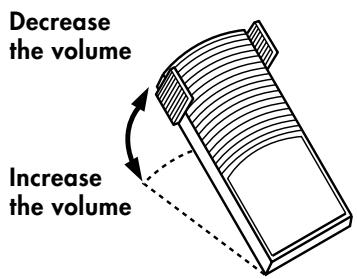
Using the expression pedal enables you to give your performances even richer musical expressiveness.
The expression pedal features the following special characteristics:
- Completely releasing the expression pedal does not lower the volume to zero. If you do want to turn down the volume completely, set the [Master Volume] slider to the Min (Minimum) position.
- Even as you release your foot from the expression pedal and lower the volume, the lower-range portion will linger on. This provides a natural-sounding resonance.
- When an Active Expression voice is selected, the expression pedal can be used to produce changes in the voice (p. 69).
MEMO
You can specify how the Expression Pedal will affect the sound when it is pressed (p. 137).
MEMO
You can also specify whether the Expression Pedal will or will not control the volume during the recording of your performance (p. 211).
MEMO
You can specify whether the Expression Pedal will or will not control the volume during the playback of recorded performance (p. 212).
MEMO
You can connect a pedal keyboard (PK series; sold separately) to the AT-900C and use the pedal keyboard's expression pedal.
Adjusting the Depth of the Expression Pedal
You can set the amount of effect applied when you step on the expression pedal.
1. Touch on the Main screen.
The Sound/Keyboard screen appears.
2. Touch .
The Controller screen appears.
3. Touch <>> <> to display the Exp. Curve (Expression Curve).
4. Touch setting.
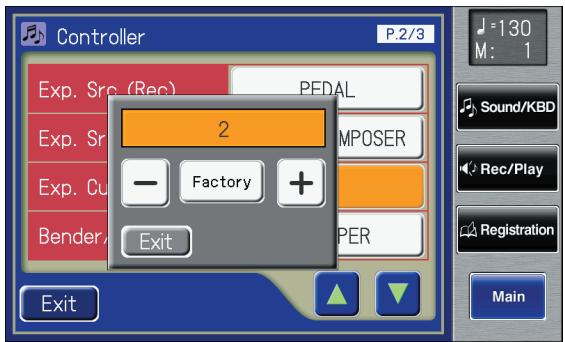
5. Touch <><+\> to change the setting.
| Setting | Descriptions |
| 1 | The position of the expression pedal does not really affect the rhythm performances and Automatic Accompaniment. This setting is convenient when you do not want to have the rhythm or Automatic Accompaniment volume change much. |
| 2 | The expression pedal is applied to the rhythms and Automatic Accompaniment just as it is to the keyboard performance. The volume is easily adjusted according to the angle of the expression pedal, making this setting perfect for use in songs with big changes in dynamics. |
| 3 | The expression pedal is applied to the rhythms and Automatic Accompaniment just as it is to the keyboard performance. The expression affect is applied more gently than with Setting 2, so this setting is appropriate for quieter songs with less intense dynamic changes. |
| 4 | The expression pedal does not affect the rhythms and Automatic Accompaniment at all. This setting is suitable for ensemble performances and other performances featuring multiple instruments. |
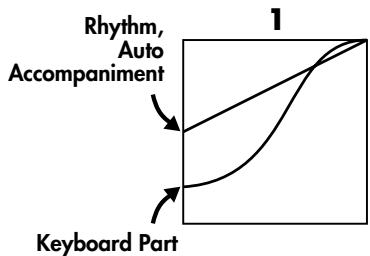
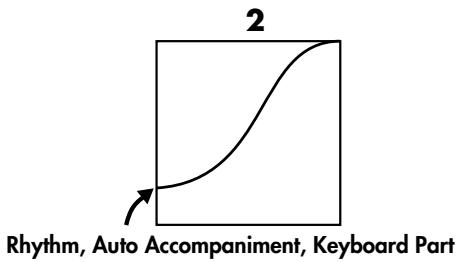
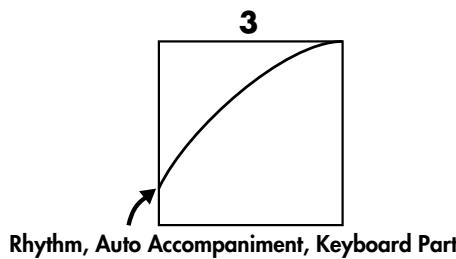
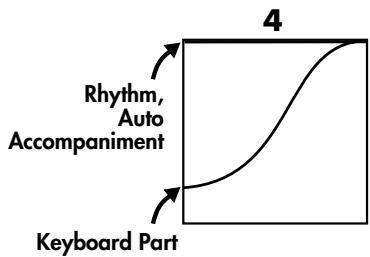
6. Touch.

This setting remains stored in memory even while power is turned off.
The ATELIER allows you to apply various effects to the sounds you play from the keyboard.
Adding Harmony to a Melody (Harmony Intelligence)
Harmony appropriate for the chord you play in the lower keyboard can be added to the highest note played in the upper keyboard. This function is called "Harmony Intelligence."
When you press the [Harmony Intelligence] button, the voice most suitable for the selected harmony intelligence will be selected automatically.

Harmony Intelligence
1. Press the [Harmony Intelligence] button (indicator lights).
Each time you press the button, the indicator will alternate between ON (lit) and OFF.
The name of the selected Harmony Intelligence will be displayed for several seconds in the screen.
![ROLAND AT-900C - Press the [Harmony Intelligence] button (indicator lights). - 1](/content/2025/01/130760/images/94faf9f22ad71ea40001c341a1762a34e91ad9931e40dd040a9f02e1b304af70.jpg)
Changing the Harmony Intelligence Type
There are 36 different Harmony types.
The manner in which notes will sound also depends on the Harmony type. When you press the [Harmony Intelligence] button to turn it on (lit), a voice most suitable for the selected harmony intelligence will be selected automatically.
1. Press the [Harmony Intelligence] button.
The Harmony Intelligence screen appears for several seconds.
![ROLAND AT-900C - Press the [Harmony Intelligence] button. - 1](/content/2025/01/130760/images/1594fe7ecdfb5d73bb7da85bae70b42a199412eb8f51941f0dced1ea44f6f6ec.jpg)
2. Touch \(<\triangleleft>\)<\(\triangleright\)>\) to switch the screen, and touch the screen to select the desired harmony intelligence.
The indicator of the Harmony Intelligence [Harmony Intelligence] button will blink.
Type of Harmony Intelligence
ORGAN, BIG BAND, STRINGS, BLOCK, HYMN, TRADITIONAL, HARP, DUET, COMBO, JAZZ SCAT, COUNTRY, BROADWAY, BRASS, FLUTE, DIXIELAND, HYMN2, GOSPEL, SYNTH, OCTAVE 1, OCTAVE 2, 1 NOTE, 2 NOTES, 3 NOTES, 4 NOTES, ORGAN, BIG BAND, STRINGS, BLOCK, HYMN, DUET/DIXIE, COMBO/BRASS, JAZZ SCAT, COUNTRY/SYN, BROADWAY, FLUTE, GOSPEL*
3. Press the [Harmony Intelligence] button once again.
The [Harmony Intelligence] button indicator will light, indicating that the selected harmony intelligence has been confirmed.
![ROLAND AT-900C - Press the [Harmony Intelligence] button once again. - 1](/content/2025/01/130760/images/e4833b9afac6e8079ed98d244ed3c9549dad415760785487c5486ff05f6ff2e9.jpg)
You can also confirm the Harmony Intelligence settings by touching <Exit> on the Harmony Intelligence screen. You can also play the upper manual to confirm the type of the Harmony Intelligence.
The way in which the keys you press are sounded by each type of harmony intelligence is described below.
| Type | Solo Voice | Upper Voice | Number of notes of the harmony |
| ORGAN | — | Theater Or.3 | 3 |
| BIG BAND | Trumpet | Flugel Horn | 5 |
| STRINGS | Strings 1 | Strings 5 | 4 |
| BLOCK | Vibraphone | Piano 1 | 5 |
| HYMN | Choir | Choir | 4 |
| TRADITIONAL* | Currently Selected Tone | 3 | |
| HARP | — | Harp | 2 |
| DUET | Trumpet | Tp. Section | 2 |
| COMBO | Clarinet | Trombone | 3 |
| JAZZ SCAT | Jazz Scat | Jazz Scat | 4 |
| COUNTRY | Full Organ 1 | Jazz Guitar | 3 |
| BROADWAY | Celesta | Theater Or. 1 | 3 |
| BRASS | Brass 1 | Fr.HornSect3 | 3 |
| FLUTE | Flute 3 | Strings 7 | 4 |
| DIXIELAND | Trumpet | Clarinet | 2 |
| HYMN2 | Female 1 | Classical | 4 |
| GOSPEL | Full Organ 1 | Gospel | 3 |
| SYNTH | Organ Bell | Synth. Pad2 | 3 |
| OCTAVE 1* | Currently Selected Tone | 2 | |
| OCTAVE 2* | Currently Selected Tone | 2 | |
| 1 NOTE* | Currently Selected Tone | 2 | |
| 2 NOTES* | Currently Selected Tone | 3 | |
| 3 NOTES* | Currently Selected Tone | 4 | |
| 4 NOTES* | Currently Selected Tone | 5 | |
| ORGAN* | Currently Selected Tone | 3 | |
| BIG BAND* | Currently Selected Tone | 5 | |
| STRINGS* | Currently Selected Tone | 4 | |
| BLOCK* | Currently Selected Tone | 5 | |
| HYMN* | Currently Selected Tone | 4 | |
| DUET/DIXIE* | Currently Selected Tone | 2 | |
| COMBO/BRASS* | Currently Selected Tone | 3 | |
| JAZZ SCAT* | Currently Selected Tone | 4 | |
| COUNTRY/SYN* | Currently Selected Tone | 3 | |
| BROADWAY* | Currently Selected Tone | 3 | |
| FLUTE* | Currently Selected Tone | 4 | |
| GOSPEL* | Currently Selected Tone | 3 | |
MEMO
Harp-type harmony intelligence does not sound the keys you play. Use your left hand to play a chord in the lower keyboard and use your right hand to play a glissando in the upper keyboard, and a beautiful harp glissando will be produced.
NOTE
The number of notes of the harmony will depend on the Harmony Intelligence type.
Adding Modulation to the Sound (Rotary Effect)
Rotary is an effect which simulates the sound of rotating speakers. There is a choice of two settings: Fast and Slow.
Rotary Sound
- Select the voice to which you wish to apply the Rotary effect.
- Press the Rotary Sound [On/Off] button (confirm that its indicator is lit).
The Rotary effect will be applied to the voice.
- Press the Rotary Sound [Fast/Slow] button to switch between Rotary Fast (Lit) and Rotary Slow (Unlit).
| Rotary [Fast/Slow] button | Effect |
| Lit (Fast) | The effect obtained is equivalent to speakers being rapidly rotated. |
| Unlit (Slow) | Effect simulating the slow rotation of speakers. |
When you switch the rotary effect from "Fast" to "Slow," the modulation will slow down gradually, and when you switch from "Slow" to "Fast" the modulation will speed up gradually.
NOTE
For more on the tones to which the Rotary effect can be applied, refer to "Voice List" (Appendix: separate booklet).
MEMO
You can assign the Rotary Sound [Fast/Slow] button function to the foot switches located on each side of the Expression Pedal (p. 134).
Making Fine Adjustments to the Rotary Effect Speed (Rotary Speed)
You can make fine adjustments to the speaker rotation speed of the rotary effect (p. 141).
1. Touch on the Main screen.
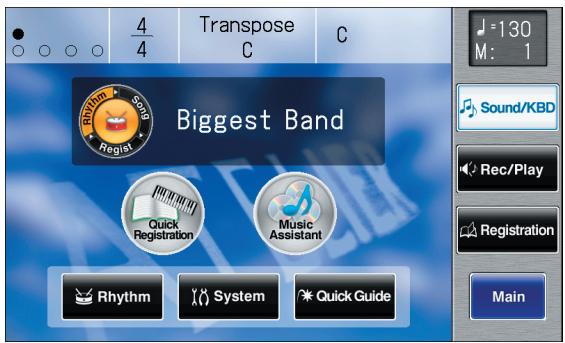
The Sound/Keyboard screen appears.
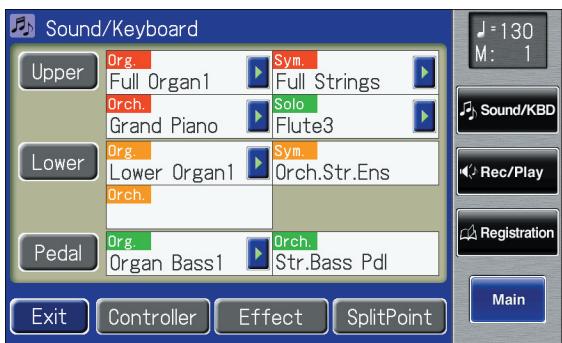
2. Touch .
The Effect screen appears.
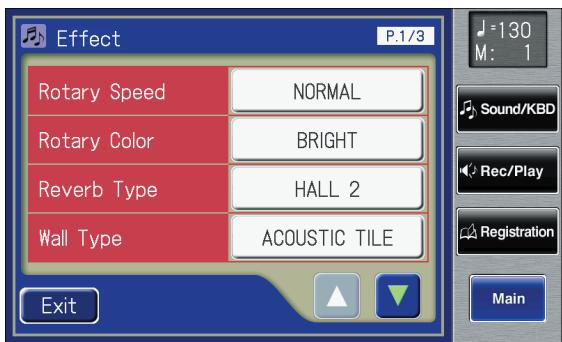
3. Touch <><> to display the Rotary Speed.
4. Touch the value setting buttons for Rotary Speed to adjust the setting.
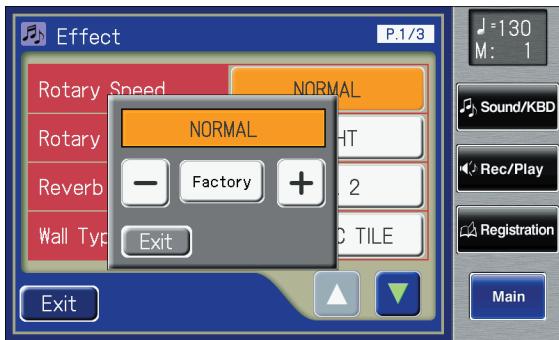
5. Touch < > < +> to edit the value.

6. Touch.

These settings remain stored in memory even while the power is off.
Changing the Brightness of the Rotary Effect (Rotary Color)
This setting allows you to choose the brightness of the Rotary sound obtained when using the Rotary effect (p. 141).
1. Touch on the Main screen.
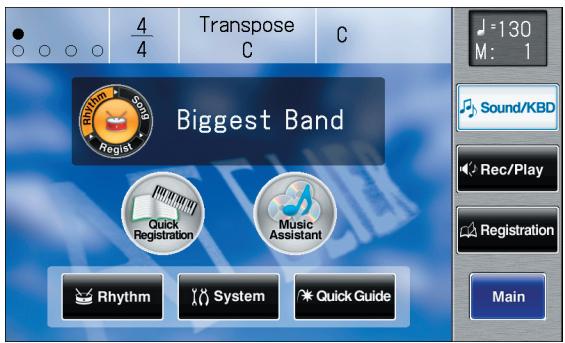
The Sound/Keyboard screen appears.
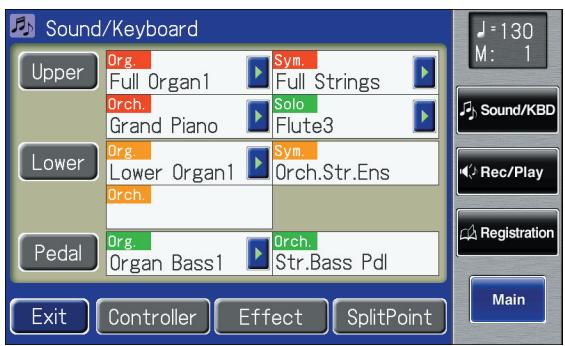
2. Touch .
The Effect screen appears.
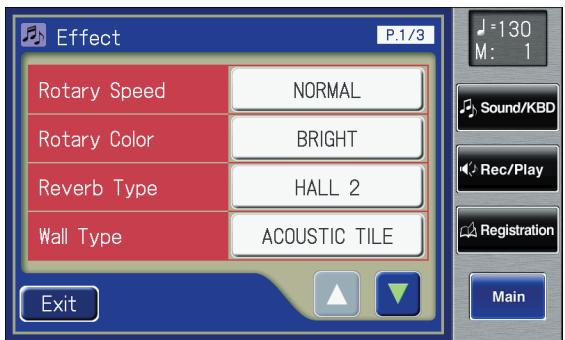
4. Touch the value setting buttons for Rotary Color to adjust the setting.
Each time you touch the Rotary Color setting, it will switch between "BRIGHT" and "MELLOW."
Setting
BRIGHT, MELLOW
5. Touch.

These settings remain stored in memory even while the power is off.
3. Touch <> <> to display the Rotary Color.
Adding Richness to the Sound (Chorus Effect)
Chorus is an effect that adds expansiveness to a sound, making one instrument sound like several.
You can apply a chorus effect for the "Upper Symphonic," "Upper Orchestral," "Lower Symphonic," and "Lower Orchestral" voices.
1. Touch on the Main screen.
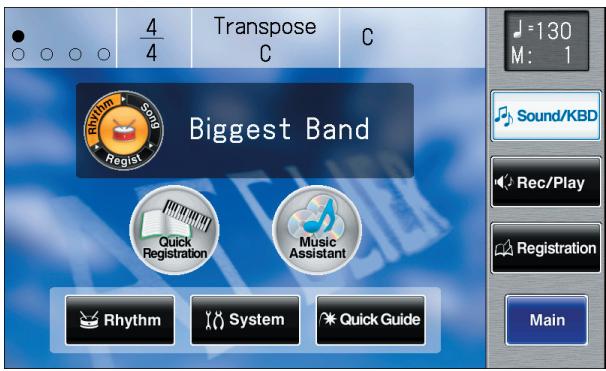
The Sound/Keyboard screen appears.
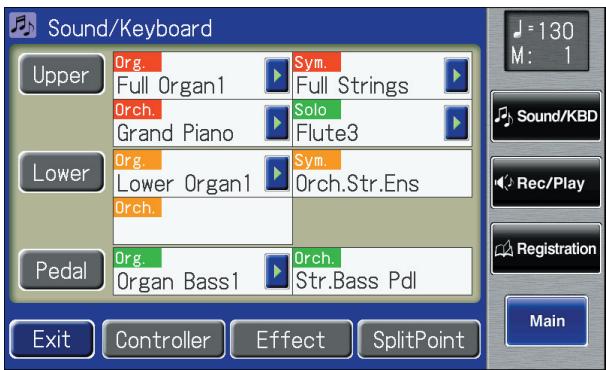
2. Touch either or .
| Menu | Description |
| Upper | To apply chorus to the Upper part |
| Lower | To apply chorus to the Lower part |

For some of the voices, Chorus may already be turned ON.
3. For the part to which you wish to apply the chorus effect, touch the Chorus "ON/OFF" display to change the setting.
Each time you touch the Chorus setting, it will alternate ON/OFF.
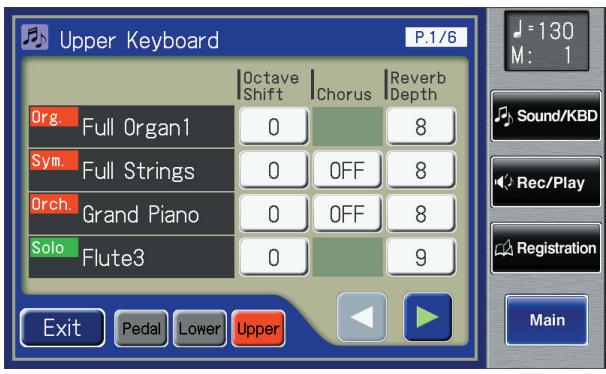
| Indication | Description |
| ON | The Chorus effect will be applied to the voice. |
| OFF | The Chorus effect will not be applied to the voice. |
4. Touch.
NOTE
Some voices do not allow the Chorus effect to be applied. For details refer to "Voice List" ((Appendix: separate booklet).
MEMO
You can open the Pedal Keyboard screen, Lower Keyboard screen or Upper Keyboard screen with touching
Adding Resonance to the Sound (Sustain Effect)
Sustain allows you to add a sustain effect or decay to each voice after the keys are released.
The Sustain effect can be added to the Upper (except the Solo part), Lower, and Pedal voices.
When Applying Sustain to the Pedal Part
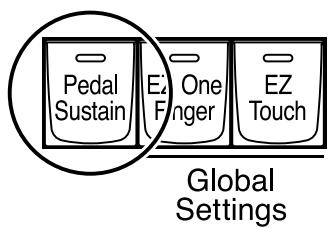
1. Press the [Pedal Sustain] button to make the indicator light.
The Sustain effect is applied to the voices of the Pedal Bass part.
When Applying Sustain to the Upper Part and Lower Part
1. Touch on the Main screen.
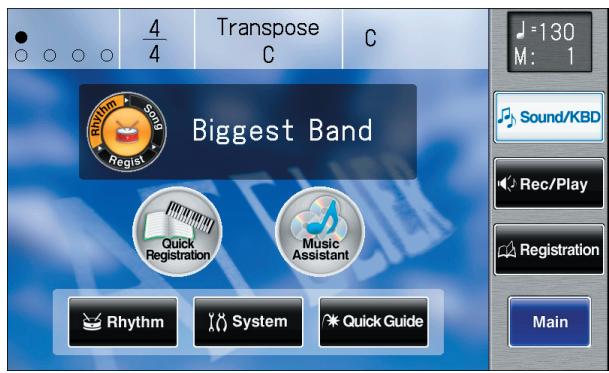
The Sound/Keyboard screen appears.
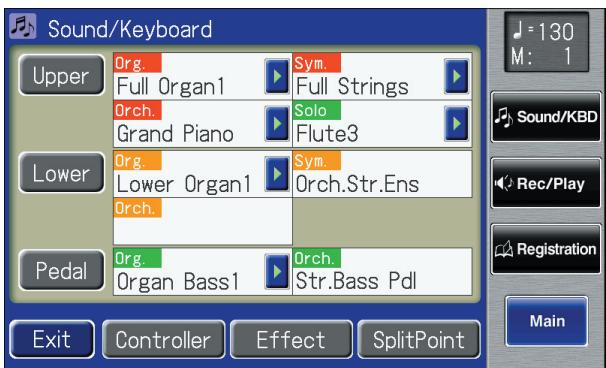
NOTE
The Sustain effect will not be applied to the Solo part voice.
MEMO
The length of Sustain can be modified independently for each part (p. 148).
2. Touch either or .
| Indication | Description |
| Upper | To apply sustain to the Upper part |
| Lower | To apply sustain to the Lower part |
3. Touch <><> to display the Sustain.
4. Touch the Sustain setting to switch between "ON" and "OFF."
Each time you touch the Sustain setting, it will alternate ON/OFF.
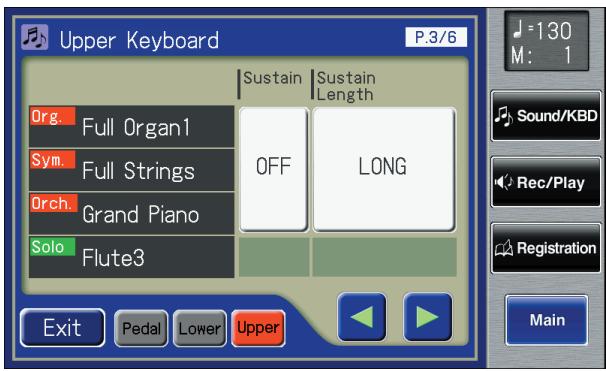
5. Touch.
NOTE
You can touch
Changing the Sustain Length
The sustain length can be set independently (SHORT, MIDDLE (Medium) or LONG) for the Upper and Lower keyboards and Pedalboard.
1. Touch on the Main screen.
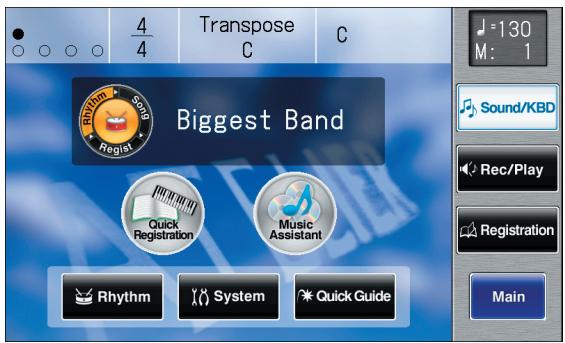
The Sound/Keyboard screen appears.
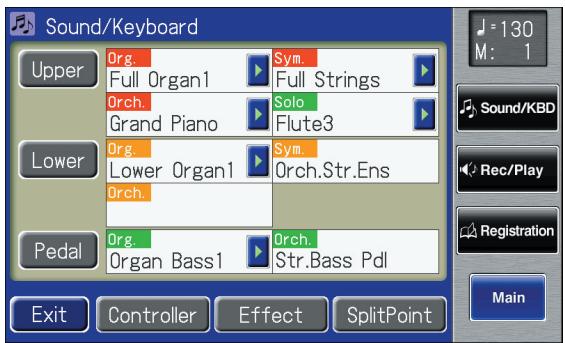
2. Touch either , , or .
| Menu | Part whose sustain length you wish to change |
| Upper | To change the length of the Upper part. |
| Lower | To change the length of the Lower part. |
| Pedal | To change the length of the Pedal part. |
3. Touch <><> to display the Sustain Length.
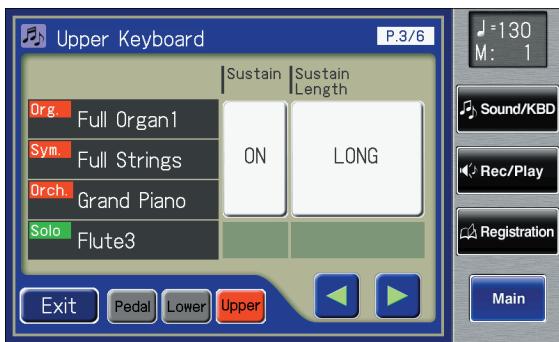

You can open the Pedalboard screen, Lower Keyboard screen, or Upper Keyboard screen with touching
4. For the part whose sustain length you wish to adjust, touch the Sustain "SHORT/MIDDLE/ LONG" display.
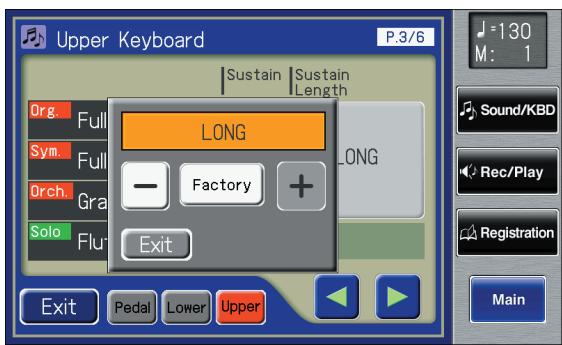
5. Touch < - > < +> to change the value.
| Setting |
| SHORT, MIDDLE, LONG |
6. Touch.
Adding Reverberation to the Sound (Reverb Effect)
Reverb is an effect that adds a sense of spaciousness to the sound, creating the illusion of playing in a large or small concert hall, a large or small room, a small club, etc.
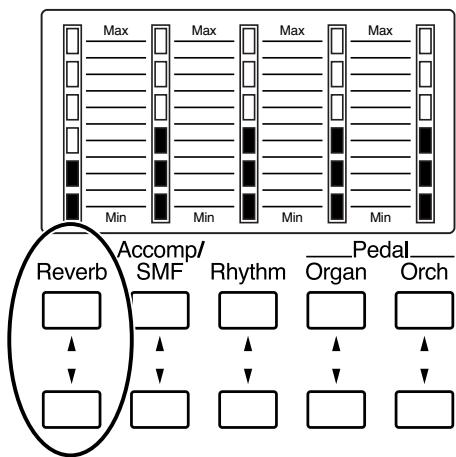
1. Press the Reverb [▲] or [▼] buttons to adjust the overall Reverb amount.
When you press the up button [] , additional Reverb is applied. Pressing the down button [] decreases the Reverb level. If none of the Reverb indicators are lit, the Reverb effect will not be heard.
When you press the Reverb [▲] [▼] buttons, the Part Balance Monitor screen appears. In the Part Balance Monitor screen you can check the reverb depth.
![ROLAND AT-900C - Press the Reverb [▲] or [▼] buttons to adjust the overall Reverb amount. - 1](/content/2025/01/130760/images/10d44689485ee06015cde4143c8438fb162c8015559670572f48c445c5a8bccf.jpg)
![ROLAND AT-900C - Press the Reverb [▲] or [▼] buttons to adjust the overall Reverb amount. - 2](/content/2025/01/130760/images/db5dba4fc742256ff15d9f22b25776693dcdc6589c3700b35bdcf7e0a11bbde0.jpg)
The Part Balance Monitor screen is displayed for several seconds and then closes automatically.
If you touch
Changing the Reverb Type
By changing the reverberations of the notes, you can enjoy the atmosphere of performance in a wide variety of different locations.
1. Touch on the Main screen.
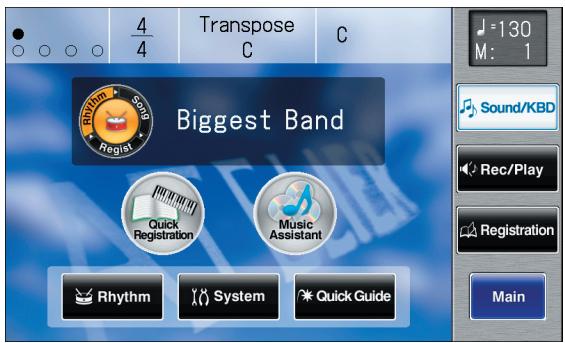
The Sound/Keyboard screen appears.
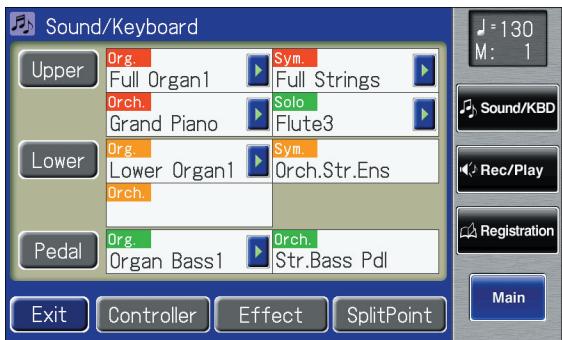
2. Touch .
The Effect screen appears.
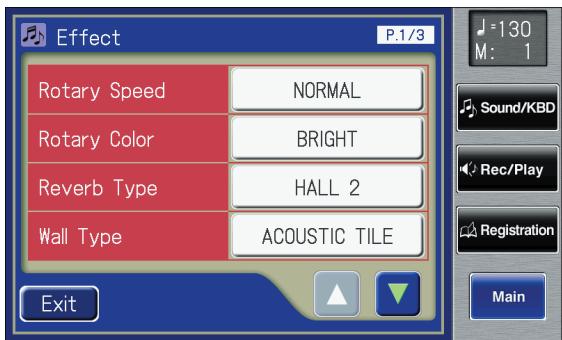
3. Touch <><> to display the Reverb Type.
4. Touch the value setting buttons for Reverb Type to adjust the setting.
The following screen appears.
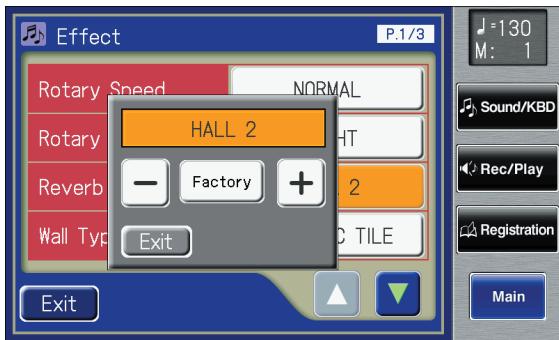
5. Touch <><+ to change the setting.
| Display | Description |
| ROOM 1 | Simulates the reverb of a conference room |
| ROOM 2 | Simulates the reverb of a performance lounge |
| ROOM 3 | Simulates the reverb of a large, open room |
| HALL 1 | Simulates the reverb of a large concert hall |
| HALL 2 | Simulates the reverb of a small concert hall |
| SMALL CHURCH | The reverberation of a small church |
| LARGE CHURCH | The reverberation of a large church |
| CATHEDRAL | The reverberation of a cathedral |
| PLATE | Applies a bright, metallic reverb |
| DELAY | An echo-like sound repeated several times |
| PAN DELAY | Similarly to the above but where the sound is panned between the left and right speakers |
NOTE
It is not possible to modify the delay time (delay interval)
when "DELAY" or "PAN DELAY" is selected.
6. Touch.
Changing the Wall Type
By changing the type of reverb (p. 150) you can experience the feeling of performing in various different locations, and by changing the Wall Type (wall material) you can make further adjustments to the way in which reverberation occurs.
1. Touch on the Main screen.
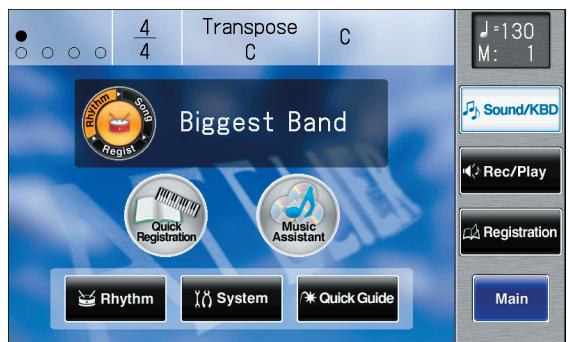
The Sound/Keyboard screen appears.
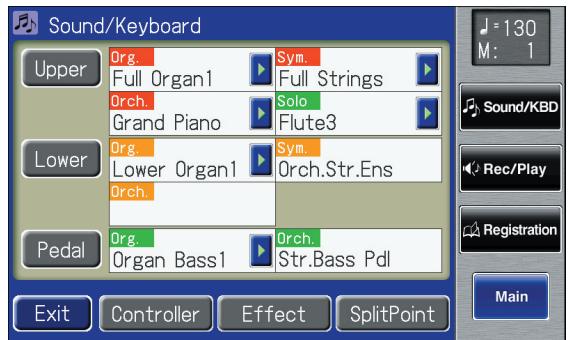
2. Touch .
The Effect screen appears.
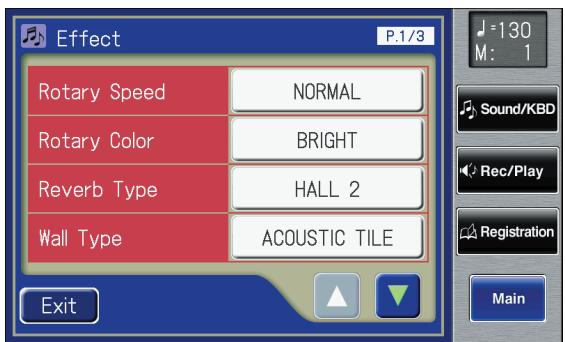
3. Touch <> <> to display the Wall Type.
4. Touch the value setting buttons for Wall Type to adjust the setting.
The following screen appears.
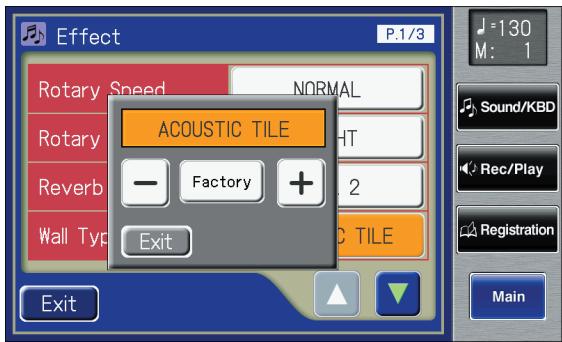
5. Touch <> <+> to change the setting.
| Display | Description |
| DRAPERY | Pleated curtain |
| CARPET | Carpet |
| ACOUSTIC TILE | Acoustical tile, sound-absorptive tile |
| WOOD | Wood |
| BRICK | Brick |
| PLASTER | Plaster |
| CONCRETE BLOCK | Concrete block |
| MARBLE | Marble |
6. Touch.
Changing the Depth of the Reverb
You can specify the reverb depth for each part.
To adjust the reverb depth for Upper/ Lower/Pedal/Solo
1. Touch on the Main screen.
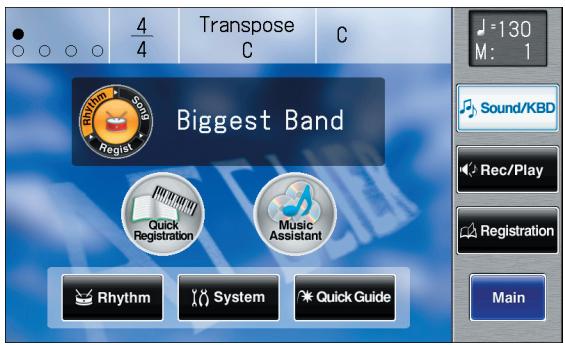
The Sound/Keyboard screen appears.
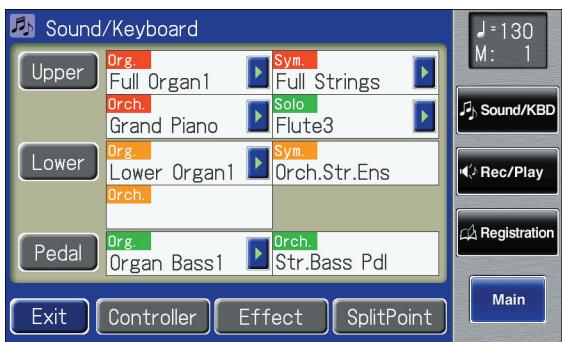
2. Touch , , or .
The Upper Keyboard screen, Lower Keyboard screen, or Pedalboard screen will be displayed.
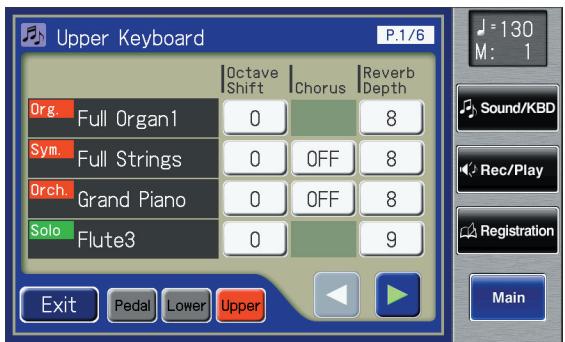
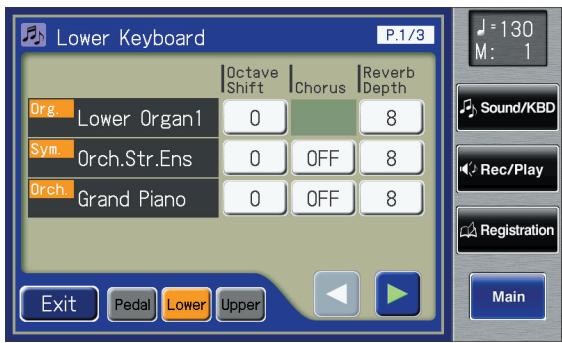
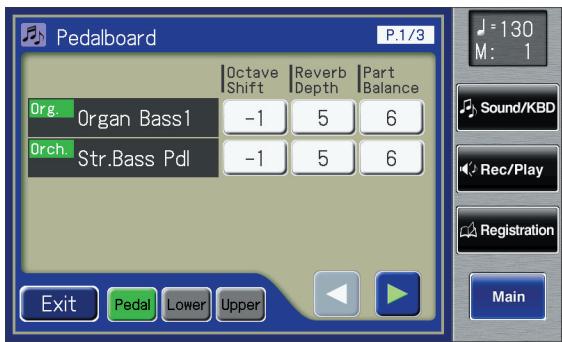
- Touch <> <> to display the Reverb Depth.
- Touch the part whose reverb depth you wish to adjust.
The following screen appears.
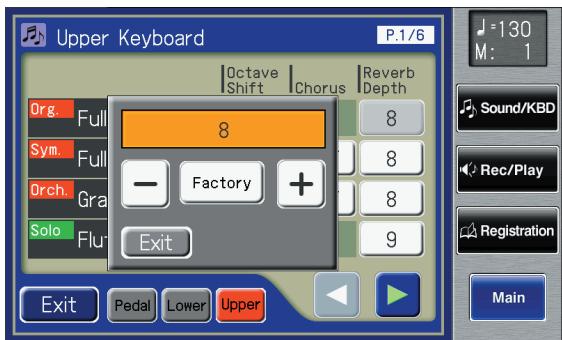
- Touch <>> <+> to adjust the setting.

- Touch
.
To adjust the reverb depth for something other than Upper/Lower/ Pedal/Solo
1. Touch on the Main screen.
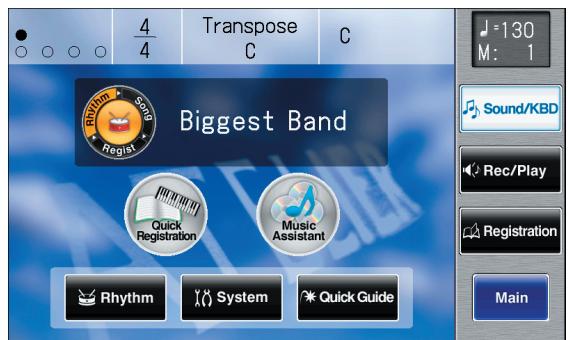
The Sound/Keyboard screen appears.
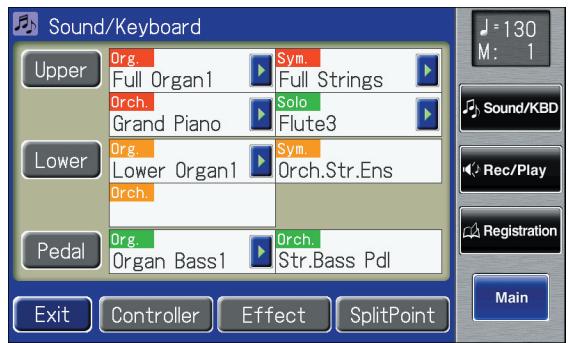
2. Touch .
The Effect screen appears.
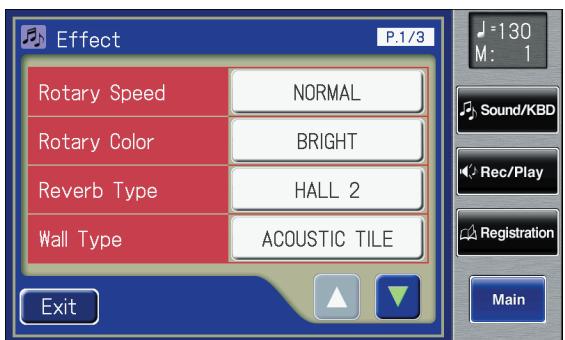
3. Touch <> <> to display the Rev Depth (Reverb Depth).
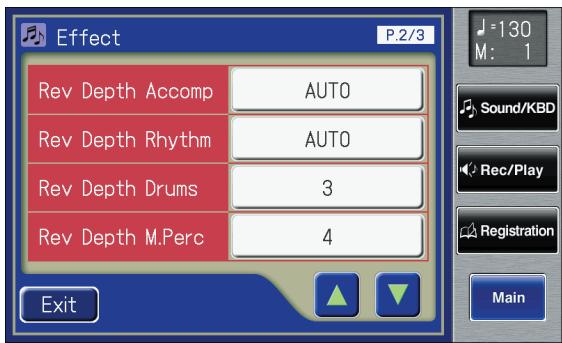
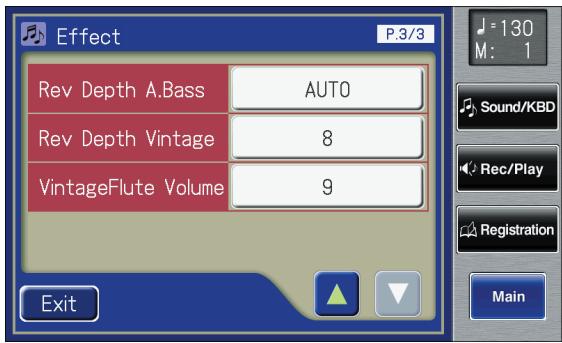
Part
Accomp, Rhythm, Drums, M.Perc, A.Bass, Vintage Organ
4. Touch the part whose reverb depth you wish to adjust.
The following screen appears.
5. Touch <-> <+> to adjust the setting.
Setting
0-10, AUTO (Accomp, Rhythm, A.Bass only)
For the three Parts of the Accomp, Rhythm and Accompaniment Bass, you have the option of selecting the "AUTO" setting. Parts for which "AUTO" is selected will be set to the Reverb Depth that is most suitable for the Rhythm currently selected.
6. Touch.
Using the D Beam Controller for Additional Enjoyment
Modifying the Sound
You can modify the sound simply by moving your hand above the D Beam controller located on the panel.
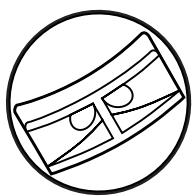
| D Beam | ||
| Pitch | Filter | Volume |
1. Press either the [Pitch], [Filter], or [Volume] button for the D Beam so the button is lit in red.
| Button | Button status | Description |
| Pitch | Lit (red) | Changes the pitch of the sounds you play on the keyboard. |
| Filter | Lit (red) | Changes the tonal character of the sounds you play on the keyboard. * For some sounds, the tonal change may be difficult to notice. |
| Volume | Lit (red) | Changes the volume of the sounds you play on the keyboard. |
2. Move your hand above the D Beam controller.
The effect assigned to the D Beam controller will be applied to the sound.
Effective range of the D Beam controller
The illustration at right shows the effective range of the D Beam controller. Moving your hand outside this range will not produce any effect.
The effective range of the D Beam controller will be drastically decreased under strong direct sunlight. Please be aware of this when using the D Beam controller outdoors.
Turning the D Beam Controller Off
3. Press the button you pressed in step 1 several times so its light is turned off.
MEMO
When the [Pitch], [Filter], or [Volume] button for the D Beam is lit in green, the sound effect assigned to the D Beam controller will play when you move your hand above the D Beam controller (p. 155).
NOTE
The sensitivity of the D Beam controller will vary according to the brightness of its surroundings. If it does not operate as you expect, you can readjust the sensitivity. Increasing the D Beam sensitivity value (p. 213) will make it more sensitive.
Moving Your Hand Above the D Beam Controller to Produce a Sound Effect
You can produce various sound effects simply by moving your hand above the D Beam controller on the panel.
1. Press either the [Pitch], [Filter], or [Volume] button for the D Beam so the button is lit in green.
| Button | Button status | Description |
| Pitch | Lit (green) | A bass drum and cymbal will sound. |
| Filter | Lit (green) | The cymbal will be struck with gradually increasing force. |
| Volume | Lit (green) | The sound of a wind chime is produced. |
2. Move your hand above the D Beam controller.
The sound effect assigned to the D Beam controller will play.
Turning the D Beam Controller Off
3. Press the button you pressed in step 1 several times so its light is turned off.

When the [Pitch], [Filter], or [Volume] button for the D Beam is lit in red, an effect will be applied to the sound when you move your hand above the D Beam controller (p. 154).
Making Effective Use of the Lower Keyboard
Since the lower keyboard of the ATELIER provides a generous 76 notes, you can use it to play piano pieces with ease. In addition, you can divide the keyboard into two or more sections and play solo voices, play the pedal bass voice, or combine a variety of uses for even more versatility.
For example, the following applications are possible.
Using the Lower Keyboard to Play the Solo Voice
- Press the Solo [To Lower] button in the Solo section to Play the Solo voice to the Lower keyboard (p. 158).
Drums/SFX
■ Manual Perc.
Bass
Lower
Solo







Using the Lower Keyboard to Play Drum Sounds or Sound Effects
- Press the [Manual Perc] button to play drum sounds or sound effects with the Lower voice on the lower keyboard (p. 78).
Drums/SFX
■ Manual Perc.
Bass
Lower
Solo







Playing Drum Sounds from the Entire Lower Keyboard
- Press the [Drums/SFX] button (p. 76).
Drums/SFX
■ Manual Perc.
Bass
Lower
Solo






Using the Lower Keyboard to Play the Bass Part by Hand
- Press the [Bass Split] button in the Pedal section to play the Pedal Bass voice from the Lower keyboard (p. 161).
Drums/SFX
Manual Perc.
Bass
Lower
Solo


Using the Lower Keyboard to Play Drum Sounds and Solo Voice
- Press the [Drums/SFX] button (p. 76), and then press the Solo [To Lower] button (p. 158)
Drums/SFX
■ Manual Perc.
Bass
Lower
Solo



By changing the combination of voices that are played on the Lower keyboard, and by changing the Solo Split Point (p. 160) and Bass Split Point (p. 162), you can create the following types of setup.
Drums/SFX
Manual Perc.
Bass
Lower
Solo



Drums/SFX
Manual Perc.
Bass
Lower
Solo



Drums/SFX
Manual Perc.
Bass
Lower
Solo



Playing the Solo Voice on the Lower Keyboard (Solo [To Lower] Button)
Normally, the solo voice will sound on the upper keyboard.
By using the Solo [To Lower] button, you can play the solo voice in the right-hand side of the lower keyboard that includes the B4 key. The state in which the keyboard is divided in this way is called "split," and the location at which the keyboard is divided to play the solo voice in the lower keyboard is called the "Solo Split Point."
![ROLAND AT-900C - Playing the Solo Voice on the Lower Keyboard (Solo [To Lower] Button) - 1](/content/2025/01/130760/images/78f499ee19d16bc2b892e6f3d96ba531997934d8bd6163be99e19d843cacb924.jpg)
- Select a Solo voice (p. 51).
- Press the Solo [To Lower] button (indicator lights).
When you play the Lower keyboard, the Solo voice will sound in the range to the right of the Solo Split Point.
![ROLAND AT-900C - Playing the Solo Voice on the Lower Keyboard (Solo [To Lower] Button) - 2](/content/2025/01/130760/images/8391d8343ce54706765948ad1e99de7e728dab8d10cd535a28e950cd7796601d.jpg)
- To turn off the Solo split, press the Solo [To Lower] button (indicator turns off).
The Solo voice will no longer sound in the Lower keyboard; the Solo voice will now be played in the Upper keyboard.
![ROLAND AT-900C - Playing the Solo Voice on the Lower Keyboard (Solo [To Lower] Button) - 3](/content/2025/01/130760/images/8d1bd1d4db003db47a601827b2d0394f58e3b08313cfddab65c227b2162949ab.jpg)
You can adjust the Solo Split Point (p. 160).
![ROLAND AT-900C - Playing the Solo Voice on the Lower Keyboard (Solo [To Lower] Button) - 4](/content/2025/01/130760/images/597af38a8520a411c52d7333f7b0b397c3fba6276478db9f5239cf9a14d5a3dc.jpg)
You can change how the Solo voice will sound (p. 159).
![ROLAND AT-900C - Playing the Solo Voice on the Lower Keyboard (Solo [To Lower] Button) - 5](/content/2025/01/130760/images/6041c26daaf59a0dbd2775350d57af3c82989bb5f9cece09758f9095c88de0ea.jpg)
If the Solo [To Lower] is ON, the Solo voice will not be heard from the upper keyboard.
![ROLAND AT-900C - Playing the Solo Voice on the Lower Keyboard (Solo [To Lower] Button) - 6](/content/2025/01/130760/images/d0b51ab6a511d507cc280be6930414e68749f12004e7f50e6421056ce8949488.jpg)
The key used for the solo split point is included in the Solo voice range.
![ROLAND AT-900C - Playing the Solo Voice on the Lower Keyboard (Solo [To Lower] Button) - 7](/content/2025/01/130760/images/9651720d9891900f4914788e7b8fdb5f3b917a52fa944f553579e99fbd2ec22a.jpg)
You can layer the Solo voice with the Lower voice so that they will sound together (p. 159).
Changing How the Solo Voice Responds
When the Solo voice is assigned to the Upper keyboard or the Lower keyboard, you can specify how the Solo voice will respond when more than one key is pressed.
1. Touch on the Main screen.
The Sound/Keyboard screen appears.
2. Touch.
The Upper Keyboard screen appears.
3. Touch <><> to display the Solo Mode.
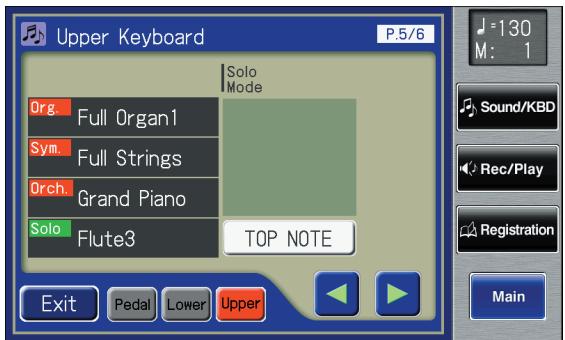
4. Touch the Solo Mode setting (the TOP NOTE, LAST NOTE, or POLYPHONIC indication).
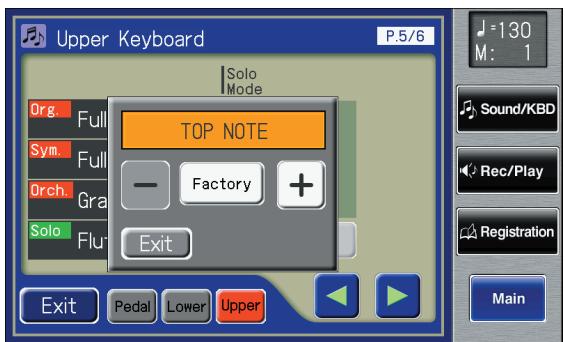
5. Touch <> <+> to change the setting.
| Setting | Descriptions |
| TOP NOTE | The Solo voice will sound the highest note that is played for the Solo part. |
| LAST NOTE | The Solo voice will sound the note that was most recently played for the Solo part. |
| POLYPHONIC | The Solo voice will sound all notes that are played for the Solo part. |
6. Touch.
Layering the Solo Voice and Lower Voice
When the Solo voice is being played by the Lower keyboard (i.e., when the Solo [To Lower] button is ON), you can specify whether the Lower voice and the Solo voice will sound together (layered), or will sound separately (split).
1. Touch on the Main screen.
The Sound/Keyboard screen appears.
2. Touch.
The Upper Keyboard screen appears.
3. Touch <><> to display the Solo To Lower Mode.
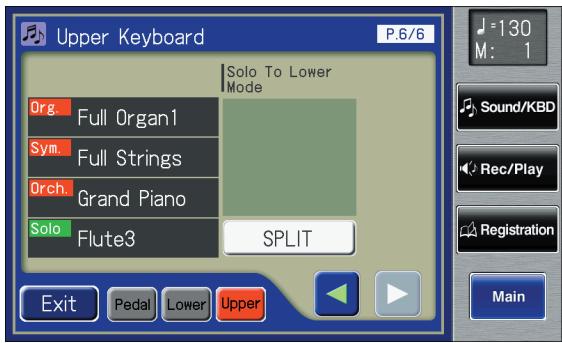
4. Touch the Solo To Lower Mode setting to switch between "SPLIT" and "LAYER."
Each time you touch the Solo To Lower Mode setting, it will alternate between "SPLIT" and "LAYER."
| Setting | Descriptions |
| SPLIT | The parts will sound separately. |
| LAYER | The Lower voice and Solo voice will sound together. |
5. Touch.
Changing the Solo Split Point
This setting is used to determine the Solo Split Point (lower limit of the playable range of the Solo voice) on the Lower keyboard to any desired position.
1. Touch on the Main screen.
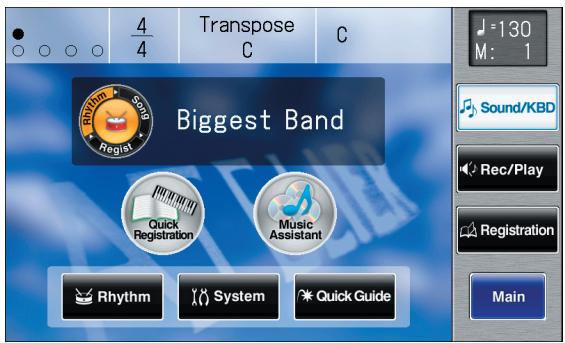
The Sound/Keyboard screen appears.
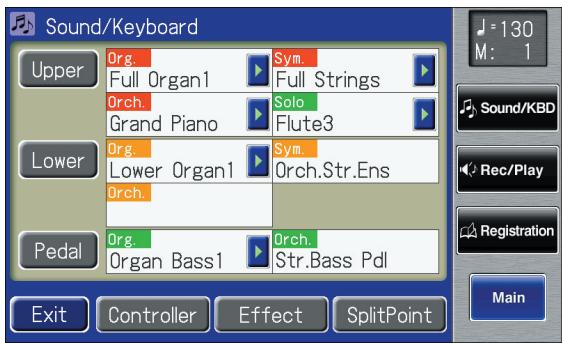
2. Touch .
The Split Point screen appears.
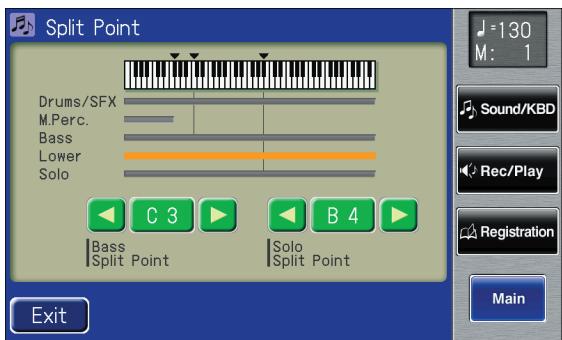
3. Touch < to change the Solo Split Point.
| Setting |
| E1-G7 |
4. Touch.

You can also set the split point by pressing the key of the lower keyboard that you want to be the Solo Split Point.
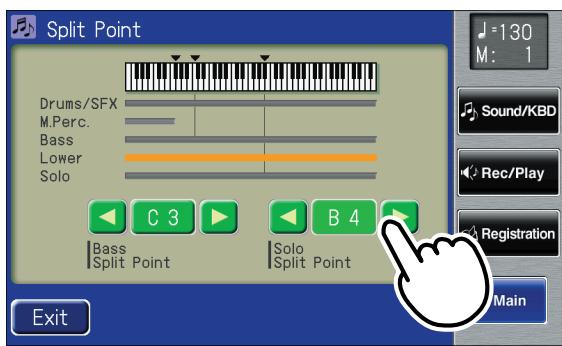
- While touching the Solo Split Point value (E1-G7 indication) in the Split Point screen, press the key in the Lower keyboard that you want to specify as the Solo Split Point. The Solo Split Point will be set in the Split Point screen.
Using the Lower Keyboard to Play the Bass Voice ([Bass Split] Button)
By using the [Bass Split] button you can play the bass voice in the left-hand side (including C3) of the lower keyboard. The location at which the lower keyboard is divided in this way, to play the pedal bass voice, is called the "Bass Split Point."
![ROLAND AT-900C - Using the Lower Keyboard to Play the Bass Voice ([Bass Split] Button) - 1](/content/2025/01/130760/images/714f5789e0014779973ddeadf5dde8a1dbd7e5fde3be24360aea6faeb2fb1b97.jpg)
- Select a Pedal Bass voice (p. 50).
- Press the [Bass Split] button (indicator lights).
When you play the Lower keyboard, the Pedal Bass voice will sound in the range to the left of (and including) the C3 note.
![ROLAND AT-900C - Using the Lower Keyboard to Play the Bass Voice ([Bass Split] Button) - 2](/content/2025/01/130760/images/f2be22a5fd46e250296d28c54dcc06d7e2d8e7cd5090a88e8682bd7064134908.jpg)
- To turn off the Bass split, press the [Bass Split] button (indicator turns off).
The Pedal Bass voice will no longer sound in the Lower keyboard; the Pedal Bass voice will now be played in the pedalboard.
NOTE
It is not possible to select and play both [Bass Split] and Pedal [To Lower] buttons simultaneously.
MEMO
You can adjust the Bass Split Point (p. 162).
MEMO
The bass split point is included in the left-hand area of the keyboard.
NOTE
If the [Bass Split] is ON, the Pedal Bass voice will not be heard from the Pedalboard. The Pedal Bass voice will sound from the Lower keyboard.
Changing the Bass Split Point
You can assign the Bass Split Point (the highest key up to which the Pedal Bass voice will sound), to any key of the Lower keyboard.
1. Touch on the Main screen.
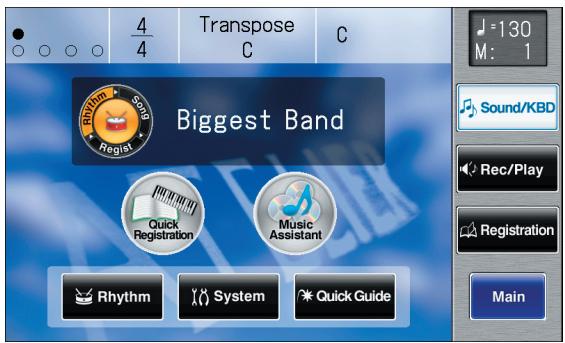
The Sound/Keyboard screen appears.
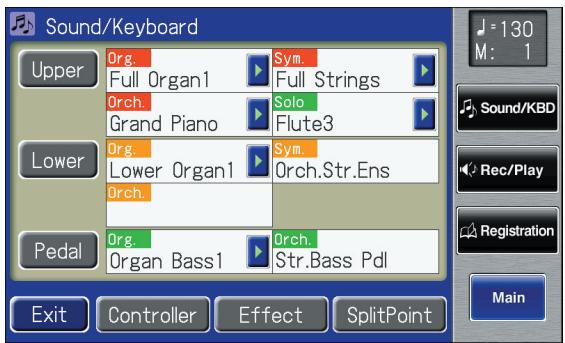
2. Touch .
The Split Point screen appears.
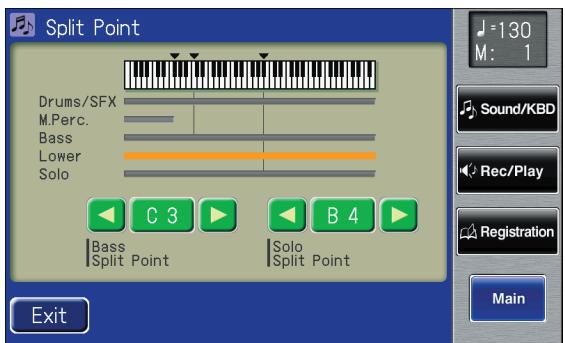
3. Touch <><> to modify the Bass Split Point.
| Setting |
| E1-G7 |
4. Touch.

You can also set the bass split point by playing the desired key of the lower keyboard.
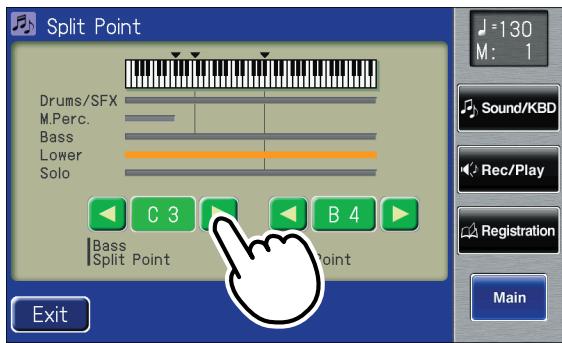
- While touching the Bass Split Point value (E1-G7 indication) in the Split Point screen, press the key in the Lower keyboard that you want to specify as the Bass Split Point. The bass split point will be set in the Split Point screen.
Using the Lower Keyboard to Play the Bass Voice (Pedal [To Lower] Button)
By using the Pedal [To Lower] button, you can sound the Pedal Bass voice by playing the root note (see p. 279) of a chord on the Lower keyboard in the area that is playing the Lower voice.
![ROLAND AT-900C - Using the Lower Keyboard to Play the Bass Voice (Pedal [To Lower] Button) - 1](/content/2025/01/130760/images/0f75fdb12fd99cbdca2e9016f35af2251a9f3fd1cf716e2048372e0b7c0a9655.jpg)
![ROLAND AT-900C - Using the Lower Keyboard to Play the Bass Voice (Pedal [To Lower] Button) - 2](/content/2025/01/130760/images/93f3e7de7d030abb3fc74fe209b6e5b1b263c3b2f8968836bbfbb1e822924399.jpg)
![ROLAND AT-900C - Using the Lower Keyboard to Play the Bass Voice (Pedal [To Lower] Button) - 3](/content/2025/01/130760/images/2a781620654c82858e24f50dbd3f569bce7c175258033e2fbc6b53ca016ab4f7.jpg)
- Select a Pedal Bass voice (p. 50).
- Press the Pedal [To Lower] button (indicator lights).
When you play a chord in the area of the Lower keyboard that sounds the Lower voice, the Pedal Bass voice will also be heard and will play the root note.
If the "Leading Bass" function is on (p. 92), the lowest note played in the lower keyboard will sound the pedal bass voice.
- Press the Pedal [To Lower] button (indicator turns off).
The Pedal Bass voice will no longer sound in the Lower keyboard.
NOTE
If no portion of the Lower keyboard is sounding the Lower voice (the [Drums/SFX] button is ON), the Pedal Bass voice will not sound.
NOTE
It is not possible to select and play both [Bass Split] and Pedal [To Lower] buttons simultaneously.
NOTE
If the Pedal [To Lower] is ON, the Pedal Bass voice will not be heard from the Pedalboard.
The internal composer can record performances and play back commercial SMF music files.
The composer can be used in the following two ways.
Using the PanelComposer Buttons
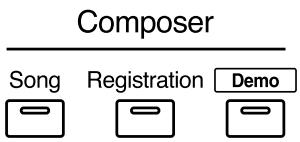
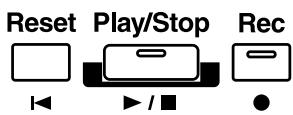
| Button | Description |
| Reset | Returns you to the beginning of the song. |
| Play/Stop | Starts and stops playback of the song. |
| After the [Rec] button has been pressed, putting the composer in record standby mode, recording then starts when the [Play/Stop] is pressed. | |
| Rec | The unit switches to record standby mode. * In record standby, the [Rec] button is lit, and the [Play/Stop] button flashes. |
| Song | The Song Select screen appears in the display. |
| Registration | The Registration Load screen appears in the display. |
| Demo | The Demo screen opens. |
Touching
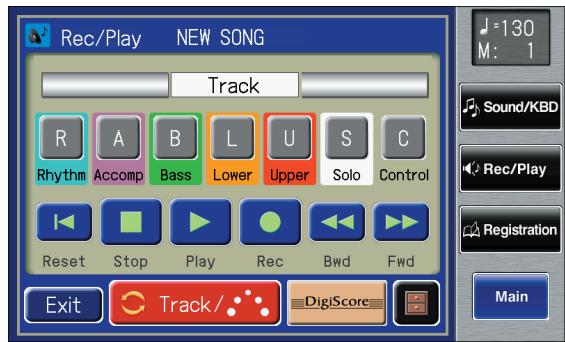
| Button | Description |
| TrackRhythmAccmpBassLowerUpperSoloControl | Buttons for tracks to which performances are recorded light up.A lighted button can be toggled betweenlighted and unlit by pressing it. Tracksare muted when the button's light is off.→ For more about the track buttons, referto p. 165. |
| Reset | Returns you to the beginning of the song. |
| Stop | Stops playback of the song. |
| Play | Starts playback of the song. |
| After <Rec> has been touched to put thecomposer in record standby mode,recording then starts when you touch<Play>. | |
| Rec | The unit switches to record standbymode.* In record standby, <Rec> is lit, and<Play> flashes. |
| Bwd | Rewinds the song. |
| Fwd | Fast forwards the song. |
| Track/ | You can toggle between display of thetrack buttons, the bouncing ball, or thetrack mute buttons by touching thebutton. |
| DigiScore= | The Notation screen appears in thedisplay. |
| The Utility screen for theComposer isdisplayed. |
What is a Track Button?
The recorded performance will be automatically assigned to the seven Track buttons according to the recorded part. You can record or play back independently by specifying the desired Track button; for example, when you wish to re-record a track.
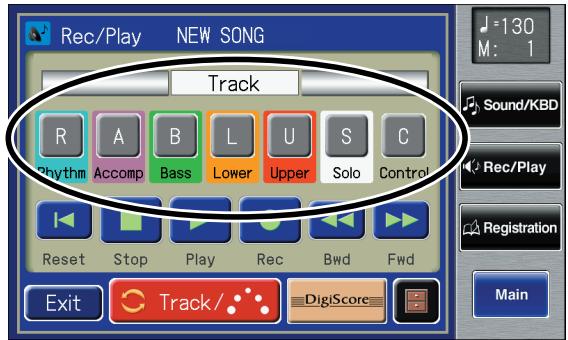
You can record different kinds of performance data into each track:
| Track | Recorded performance |
| Rhythm | Rhythm performance |
| Drums/SFX | |
| Manual percussion | |
| Accmp | Automatic Accompaniment (except Bass) |
| Bass | Pedal Bass Voice Performance Data (Note, Bender, Modulation) |
| Bass part of the Automatic Accompaniment | |
| Lower | Lower Voice Performance Data (Note, Hold, Bender, Modulation) |
| Upper | Upper Voice Performance Data (Note, Hold, Bender, Modulation, After Touch) |
| Solo | Solo Voice Performance Data (Note, Hold, Bender, Modulation, After Touch) |
| Control | Glide |
| Expression | |
| Reverb Type | |
| Reverb Depth | |
| Solo [To Lower] button (ON/OFF) | |
| Pedal [To Lower] button (ON/OFF) | |
| Transpose [-] [+] button setting | |
| [Harmony Intelligence] button] (ON/OFF) | |
| Harmony Intelligence Type | |
| Rotary [Fast/Slow] button (ON/OFF) | |
| Rotary [On/Off] button (ON/OFF) | |
| Pedal Bass Mode |
| Track | Recorded performance |
| Control | Solo Mode |
| Solo To Lower Mode | |
| Solo Split Point | |
| [Bass Split] button (ON/OFF) | |
| Bass Split Point | |
| Sustain ON/OFF | |
| Sustain Length | |
| Initial Touch | |
| Vintage Organ Setting | |
| Wall Type | |
| The Voices assigned for each part | |
| Level [▲][▼] (Part Balance Volume) | |
| The Reverb depth for each part | |
| The Chorus settings (ON/OFF) of the voice | |
| The Octave settings for each part | |
| [Drums/SFX] button (ON/OFF) | |
| Drums/SFX Set | |
| [Manual Percussion] button (ON/OFF) | |
| Manual Percussion Set | |
| Chord Intelligence | |
| Chord Hold | |
| Leading Bass | |
| Lower Voice [Hold] button (ON/OFF) | |
| Tempo setting | |
| Volume of the rhythm Accompaniment part | |
| Reverb depth of the rhythm Accompaniment part | |
| Volume of the rhythm drum part | |
| Reverb depth of the rhythm drum part | |
| Volume of the rhythm bass part | |
| Reverb depth of the rhythm bass part |

More information about the track assignments when playing commercial SMF music files, please refer to "Correspondence Between Track Buttons and Track Mute Buttons When Playing Back Commercial SMF Music Files" (p. 169).
During recording, the control track will store the operations as follows.
- Recording panel operations (Voice selections, Tempo changes, etc.)
Newly recorded performance data will be added without erasing the previously recorded data.
- Recording expression pedal operations
This will depend on the function of the expression pedal.
Recording of expression operations will differ depending on the setting for "Exp. Src (Rec)."
For details refer to "Changing the Function of the Expression Pedal" (p. 211).

If you wish to erase all the recorded data and record new performance data, use the editing function "Erase" (erase performance data) to erase the data (p. 178).
Displaying the Track Buttons
The track buttons will be displayed in the screen when you record or play back a performance.
1. Touch on the Main screen.
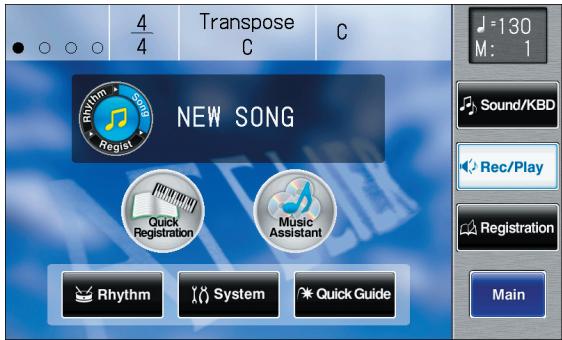
The Rec/Play screen appears.
The following buttons are referred to as the track buttons.
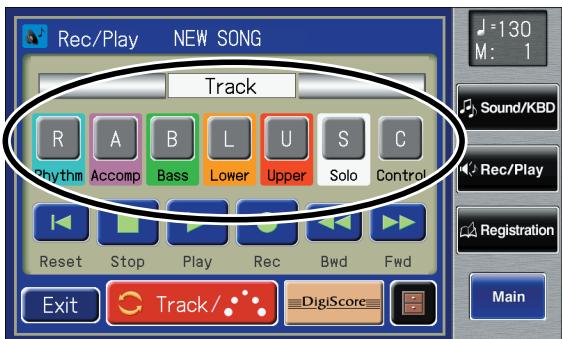
All accompaniment data is grouped to the "Accmp" track button in the Rec/Play screen. In the same manner, the rhythm performance data is grouped to "Rhythm."
If you want to mute only a portion of the rhythms or accompaniment, open up the Track Mute screen, and switch off the Track Mute buttons there (p. 170).
Playing Back Performance Songs Stored on USB Memory and SMF Music Files
In addition to playing back the music you recorded on the instrument and saved to a USB memory, ATELIER also lets you enjoy a wide variety of commercially available song files, such as defined below.
SMF Music Files
SMF (Standard MIDI File) is a data format that was created in order to standardize music data formats between manufacturers. Collections of songs in SMF music data are commercially available in a wide range of styles for enjoyment, as accompaniment for practicing musical instruments, and for karaoke.
If you want to purchase SMF music data, you can contact the dealer where you purchased the ATELIER.
To play back only one song
1. Prepare the song that you want to play back.
If you want to play a song from USB memory, connect it to the external memory connector.
If you want to play a song from floppy disk, connect the floppy disk drive to the Ext Drive connector, and insert a floppy disk into the drive.
When the performance song loaded from a USB memory is a Standard MIDI File, "SMF" will be displayed on the Main screen.
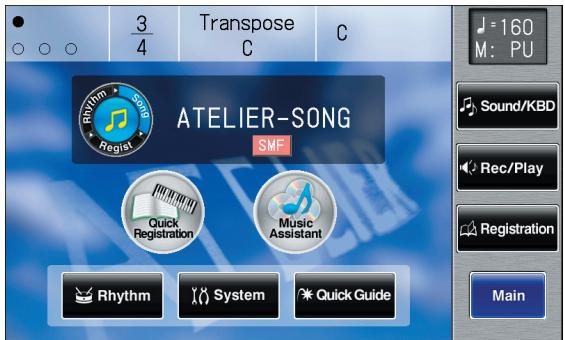
2. Press the [Song] button.
![ROLAND AT-900C - Press the [Song] button. - 1](/content/2025/01/130760/images/2f3ab1858d528e8c1d7046d98d9bc0dec2b54e249a1a23fedf0fcba77c16d714.jpg)
![ROLAND AT-900C - Press the [Song] button. - 2](/content/2025/01/130760/images/75c2a07e61fde7cc7814cfe296c75f1006e2ce435975c14e98d21c5b290e05e4.jpg)
The Song Select screen appears.
![ROLAND AT-900C - Press the [Song] button. - 3](/content/2025/01/130760/images/b9e168fafe3603d055f06a5e6df48b29b70978a9df0f8ec1bed3af427ffa36eb.jpg)
3. Touch < - > < +> to select the desired media.
If you want to play a song from USB memory, choose "Ext Memory." If you want to play a song from floppy disk, choose "Disk."
4. In the screen, touch <><> to select the song that you wish to play back.
5. Touch < > to play back the song.
6. Touch < > to stop the song.

You can also play back or stop the music data by touching
Playing back all performance data
1. Prepare the song that you want to play back.
If you want to play a song from USB memory, connect it to the external memory connector.
If you want to play a song from floppy disk, connect the floppy disk drive to the Ext Drive connector, and insert a floppy disk into the drive.
2. While holding down the [Song] button, press the [Play/Stop] button.
![ROLAND AT-900C - While holding down the [Song] button, press the [Play/Stop] button. - 1](/content/2025/01/130760/images/de8dff41f92cc40439d69006e8f61905eb1a3fb990444a03260e784becc15dce.jpg)
![ROLAND AT-900C - While holding down the [Song] button, press the [Play/Stop] button. - 2](/content/2025/01/130760/images/87ab1a8ff42397d614e2363df2bbd219124784ba2b885b74c678bee11009b622.jpg)
All performance data saved on the USB memory or floppy disk will be played consecutively.
3. To stop playback, press the [Play/Stop] button.
![ROLAND AT-900C - To stop playback, press the [Play/Stop] button. - 1](/content/2025/01/130760/images/05486a5e78e5ab37998f927195fa74dbfea584843b2127adc74f64b583f8ed92.jpg)
![ROLAND AT-900C - To stop playback, press the [Play/Stop] button. - 2](/content/2025/01/130760/images/5e4cfeaedeaa83a5b78a02e6f81e0d30f4a56996317980cd015b57567f86840a.jpg)
Silencing a Specific Track (Track Mute)
When the Rec/Play screen is displayed, the track button will light to indicate a track in which a performance has been recorded. By turning off these track buttons, you can temporarily silence the sound. This is referred to as "Track Mute."
If you want to play back a song from USB memory, connect your USB memory to the external memory connector before you continue.
If you want to play back a song from floppy disk, connect your floppy disk drive to the Ext Drive connector, and insert the floppy disk.
1. Press the [Song] button.
The Song Select screen appears.
![ROLAND AT-900C - Press the [Song] button. - 1](/content/2025/01/130760/images/5df212a2906958e6118a9740cd482747f3660e88c4d717a69c7a415bef7c2424.jpg)
2. Touch < - > < +> to select the desired media.
Choose "Favorites" if you want to play back a song from user memory, choose "Ext Memory" if you want to play back a song from USB memory, or choose "Disk" if you want to play back a song from floppy disk.
3. Touch <><> to select the song that you wish to play back.
- Touch
to load the song.
The Rec/Play screen appears.
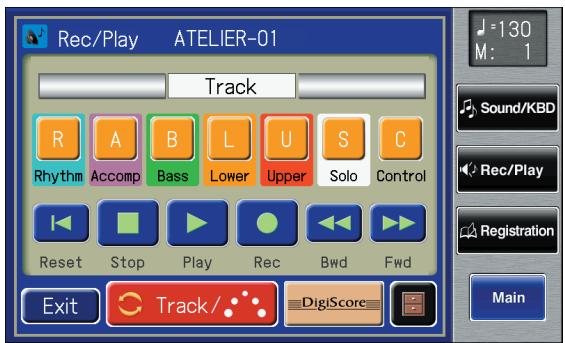
All accompaniment data is grouped to the "Accmp" track button in the Rec/Play screen. In the same manner, the rhythm performance data is grouped to "Rhythm." If you want to mute only a portion of the rhythms or accompaniment, open up the Track Mute screen, and switch off the Track Mute buttons there (p. 170).
5. Press a track button that is lit, extinguishing the button.
When you play back the performance, track buttons that are not lighted will be muted (silenced).
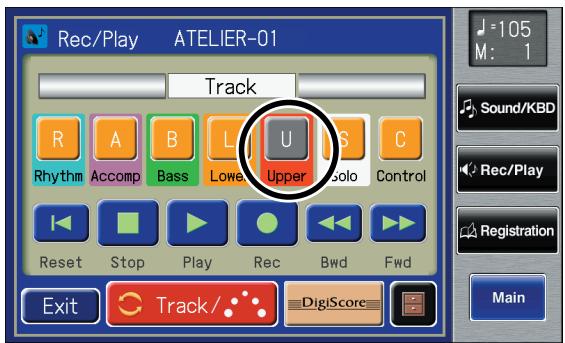
6. Press the track button once again (button lights).
The part that had been muted will return to normal and will be heard.
Correspondence Between Track Buttons and Track Mute Buttons When Playing Back Commercial SMF Music Files
| Track button | Channel |
| Rhythm | 10 |
| Accmp | 5, 6, 7, 8, 9, 11, 12, 13, 14, 15, 16 |
| Bass | 2 |
| Lower | 3 |
| Upper | 4 |
| Solo | 1 |
Correspondence Between Track Buttons and Track Mute Buttons When Playing Back Performance Data Created with an Music ATELIER
| Track button | Track Mute button |
| Rhythm | 10, 11 (Drums/SFX), 13 (Manual Percussion) |
| Accmp | 5, 6, 7, 8, 9, 12, 14, 15 |
| Bass | 2 (Bass) |
| Lower | 3 (Lower) |
| Upper | 4 (Upper) |
| Solo | 1 (Solo) |
Muting Individual Tracks of Performance Data
All accompaniment data is grouped to the "Accmp" track button in the Rec/Play screen. In the same manner, the rhythm performance data is grouped to "Rhythm."
You can mute only a portion of the rhythms or accompaniment on the Track Mute screen.
1. Touch on the Main screen.
The Rec/Play screen appears.
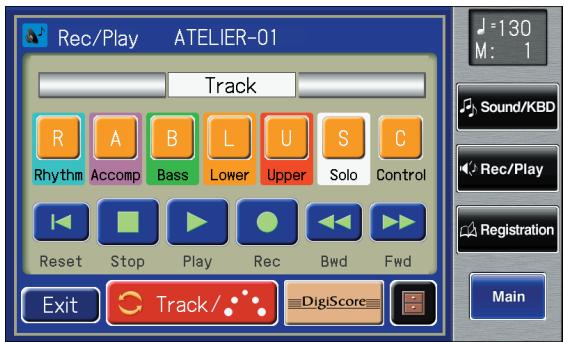
2. Touch < Track/ > a number of times.
The Track Mute screen appears.
Sixteen Track Mute buttons appear in the display.
From the left, these are "Track 1, Track 2 ... Track 15, and Track 16."
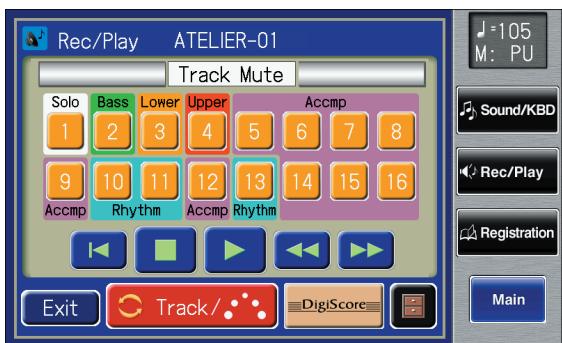
3. Touch the screen to select the track that you wish to mute.
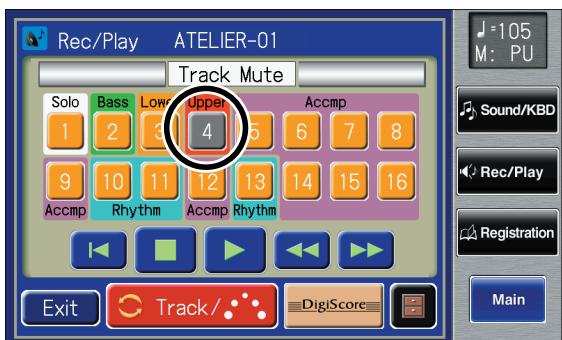
The button you've touched goes out, indicating the sound is muted.
- When you touch an unlit track button, the track button lights up, indicating muting of the track is cancelled.
5. Touch.

Track mute will be cancelled if you choose other performance data.
The seven Track buttons in the Rec/Play screen (p. 165) correspond to the sixteen Track Mute buttons of the Track Mute screen as shown below.
Commercial SMF Music Files
| Track Mute Button | Track Button |
| 1 (Solo) | Solo |
| 2 (Pedal) | Pedal |
| 3 (Lower) | Lower |
| 4 (Upper) | Upper |
| 5-9, 11-16 (Acmp) | Accmp |
| 10 (Rhythm) | Rhythm |
Performance Data Created on the ATELIER
| Track Mute Button | Track Button |
| 1 (Solo) | Solo |
| 2 (Pedal) | Pedal |
| 3 (Lower) | Lower |
| 4 (Upper) | Upper |
| 5–9, 12, 14, 15 (Acmp) | Accmp |
| 10 (Rhythm) | Rhythm |
| 11 (Drums/SFX) | Rhythm |
| 13 (Manual Percussion) | Rhythm |
- The Track Mute button 16 cannot be used with performance data created on an ATELIER.
Viewing a Notation
You can display the notations of performances from SMF music files and recordings made on the ATELIER. This is very convenient when you want to read the music as you play and to confirm recorded songs.
Selecting Songs
There is no need to select the song when displaying notations for performances recorded with theComposer. Start from Step 6.
1. Prepare the USB memory or floppy disk that contains the song for which you want to view the notation.
If you want to view the notation for a song in USB memory, connect your USB memory to the external memory connector before you continue.
If you want to view the notation for a song in floppy disk, connect the floppy disk drive to the Ext Drive connector, and insert a floppy disk into the drive.
2. Press the [Song] button.
The Song Select screen appears.
![ROLAND AT-900C - Press the [Song] button. - 1](/content/2025/01/130760/images/64026057ba51f3f4a551b43156e656ae0ead1f5f920906c10fbd96f442bf50c6.jpg)
3. Touch <> <+> to select the desired media.
If you want to view the notation for a song in USB memory, select "Ext Memory."
If you want to view the notation for a song in user memory, select "Favorites."
If you want to view the notation for a song in floppy disk, select "Disk."
4. Touch <>><> to select the song whose notation is to be displayed.
5. Touch.
After the song is loaded, the Rec/Play screen opens.
Displaying Notations
6. Touch on the Rec/Play screen.
The Notation screen appears.
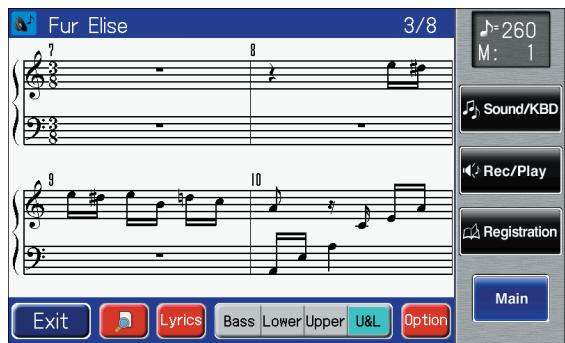
| Display | Explanation |
| Lyrics | Enlarge the notation display. |
| Display lyrics in the notation. | |
| Bass | Display the Bass part notation. |
| Lower | Display the Lower part notation. |
| Upper | Display the Upper part notation. |
| U&L | Display the Upper part and Lower part notations. |
| Option | You can change the part that is displayed, and change the way in which the notation is displayed (p. 172). |
Changing the Notation Settings
1. Touch on the Main Screen.
The Rec/Play screen appears.
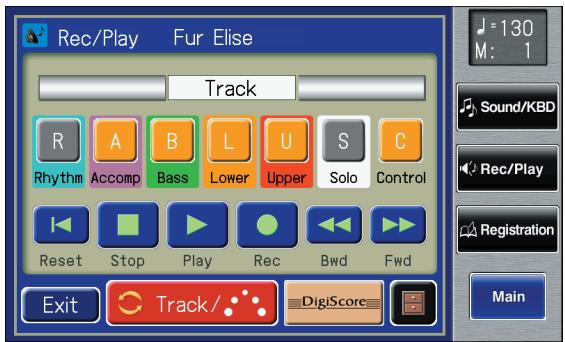
2. Touch .
The Notation screen appears.
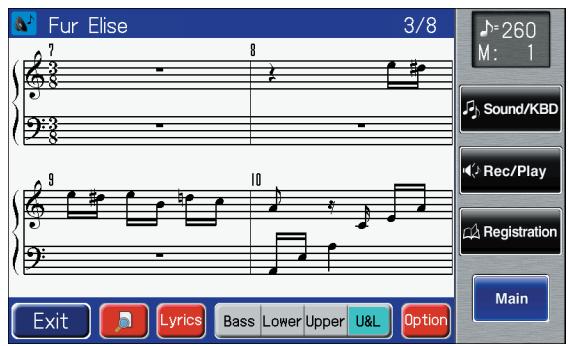
3. Touch
The Notation Options screen appears.
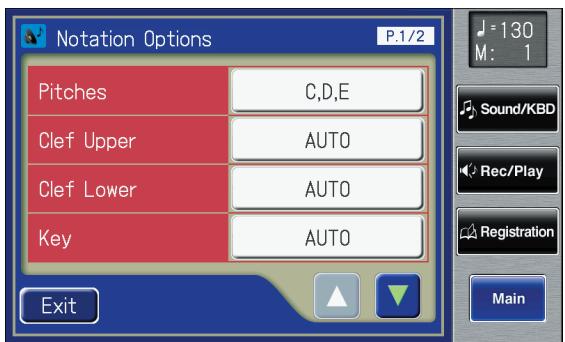
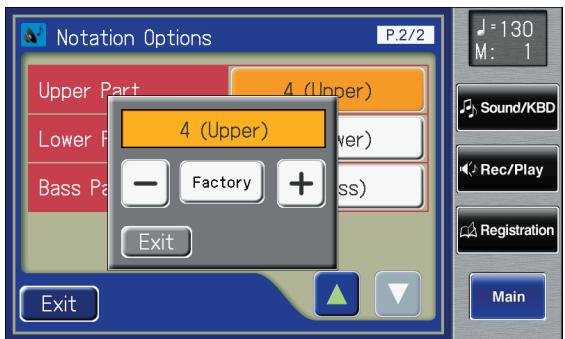
4. Touch the button for the item whose setting you want to change.
| Menu | Setting | Explanation |
| Pitches | OFF | Not displayed |
| C,D,E | Letter names (fixed do) are display in the detailed notation. | |
| Do,Re,Mi | Selmization syllables (movable do) are displayed in the detailed notation. | |
| Clef Upper | AUTO | Display is switched automatically. |
| G Clef | Displayed the G-clef staff of the upper part. | |
| F Clef | Displayed the F-clef staff of the upper part. | |
| Clef Lower | AUTO | Display is switched automatically. |
| G Clef | Displayed the G-clef staff of the lower part. | |
| F Clef | Displayed the F-clef staff of the lower part. | |
| Key | AUTO | Key is switched automatically. |
| Db, Ab, Eb, Bb, F, C, G, D, A, E, B, F#, Bbm, Fm, Cm, Gm, Dm, Am, Em, Bm, F#m, C#m, G#m, D#m | Display the notation in the selected key. | |
| Upper Part | 1-16 | Select the part to be displayed as the upper part. |
| Lower Part | 1-16 | Select the part to be displayed as the lower part. |
| Bass Part | 1-16 | Select the part to be displayed as the bass part. |
5. Touch <> <+> to change the setting.
When you touch <Key> , the following screen appears.
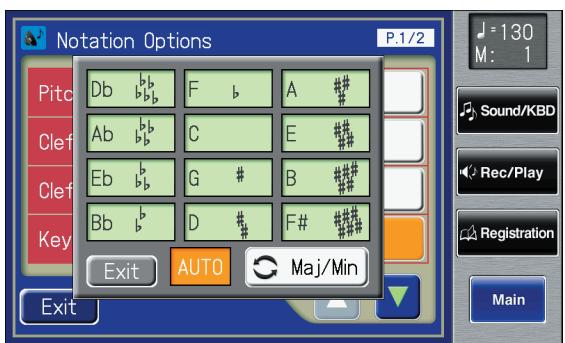


The Key screen is composed of two screens. Touch
< Maj/Min> to switch between the two screens.
6. Touch.
Some notes on a Notation screen
- When you start playback of music files, the marks appears. While this appears on the notation, the ATELIER is reading data. Please wait until reading of the data is complete.
- In the Notation screen, some lyrics or notes could extend beyond the edges of the screen, and not be displayed.
- The notations that are presented by the display are produced based on the music files. Viewing ease is given priority over precise expression when dealing with complex, high-level music. Because of this, you may find that the notation shown in the display does not match what is provided on commercially available sheet music. The notation display feature is particularly unsuitable for the display of difficult, complex musical works that demand accurate notation. In addition, the display cannot show notes that are briefer than a sixteenth note.
- If you select a part that does not contain performance data, notes will not be displayed in the notation. Use
- If you use the buttons located below the display to change the displayed part while the song is playing, the song may be played back from the beginning.
Recording a Performance
You can record the performance that you play. You can also record your performance while playing rhythms or automatic accompaniment.
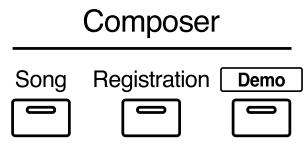
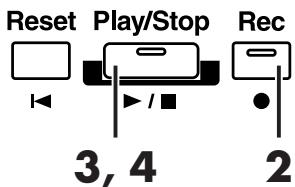
- Select the panel settings needed for recording the performance.
- Enter the recording standby mode by pressing the [Rec] button.
The [Rec] button indicator will light, and the [Play/Stop] button will blink.
- Press the [Play/Stop] button to start recording.
When you press the [Play/Stop] button, the metronome will play two measures (bars) of count-in before recording begins.

If you wish to use Rhythm and Automatic Accompaniment as you record, press the [Start/Stop] button instead of the
[Play/Stop] button to begin recording. Also, if the [Sync Start] button is lit (i.e., if Sync Start is ON), recording will begin the instant you play the Lower keyboard.
- Press the [Play/Stop] button when you have completed your recording.
The Track indicator where a performance song is recorded will change from a flashing to a constant light. When you press the [Ending] button (or [Start/Stop] button) while recording a Rhythm performance or Automatic Accompaniment, the Rhythm performance and Automatic Accompaniment will stop. However, the recording itself will continue. Press the [Play/Stop] button to stop recording.

The Play and Stop functions can both be assigned to one of the foot switches located on each side of the Expression Pedal (p. 134).

You can also choose to cancel the metronome count-in before recording starts (p. 219).
Caution
If you press the [Rec] button when a song has been selected from the USB memory or floppy disk, the selected song will be completely loaded into the ATELIER and the Composer will enter into the recording standby mode. To record a new song, use the following procedure.
- Press the [Rec] button to cancel recording standby.
- Disconnect the external media.
If you've connected USB memory, disconnect the USB memory from the external memory connector. If you're using a floppy disk, remove the floppy disk from the disk drive.
- Delete the performance data (p. 178).
Re-record your performance.
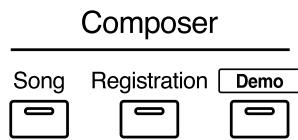
If the following screen appears
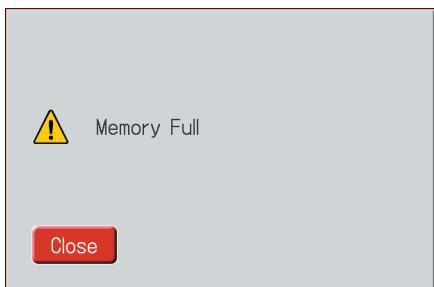
When recording was automatically canceled because the memory limit was reached.
Playing Back a Performance Song
Here's how to play back a performance you've recorded.
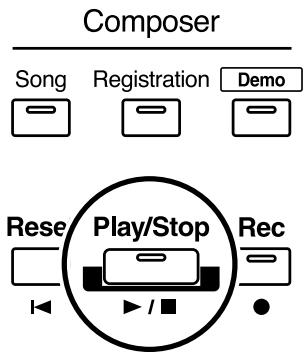
1. Touch on the Main screen.

The Rec/Play screen appears.
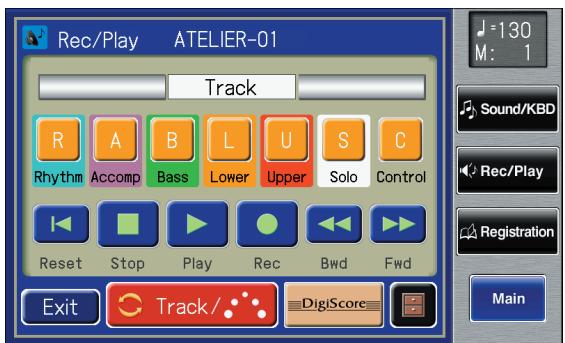
2. Touch.
The location at which playback will start will return to the beginning of measure 1.
If you wish to begin playback from the middle of the song, touch <Bwd> <Fwd> to move to the measure from which you wish to begin playback.
3. Touch to begin playback.
After playback reaches the end of the performance, it will stop automatically.

You can also begin playback by pressing the Composer [Play/Stop] button.
4. To stop playback at any point, touch the button.

You can also stop playback by pressing the Composer [Play/Stop] button.

The Play and Stop functions can both be assigned to one of the foot switches located on each side of the Expression Pedal (p. 134).

You can specify whether or not the Expression Pedal will affect the playback and what you play while ATELIER music file is being played back (p. 212).

If you load performance data (such as SMF music files) that was not designed for an ATELIER Series instrument and play it back, you may find, when playing rhythms and automatic accompaniment, that the music doesn't sound quite like it should. (For example, the wrong sounds could be played). If you want the data to be played back accurately, first press the [Reset] button prior to playback.
Add a Count Sound to Match the Timing (Count In)
In cases such as when you want to perform in time with a song, you can have a count sound played before playback of the song begins, allowing you to synchronize your own performance with the song.
Playing back a song after playing the count sound is called "Count In."
1. Hold down the [Reset] button and press the [Play/Stop] button.
The metronome will play two measures (bars) of count-in before recording begins.
Recording Each Part Separately
In this method, each part (track button) is recorded one after another: first the Rhythm part, then the bass part, etc. If there are any previously recorded performances, you can listen to them as you record additional parts.
- Select the panel settings needed for recording the performance.
- Touch
on the Main screen.
The Rec/Play screen appears.
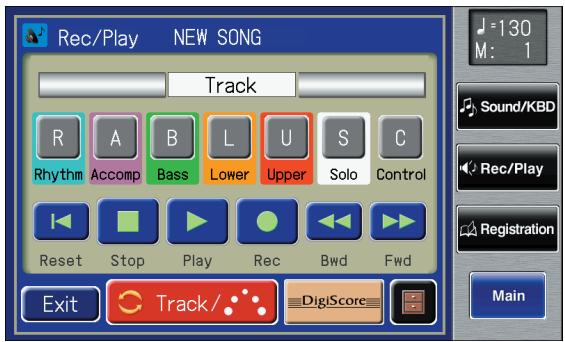
- Touch the
and buttons to select the desired measure (bar) when you start recording.
If you wish to start recording from the beginning of the song, touch the
- In the Rec/Play screen, touch
to enter recording-standby mode.
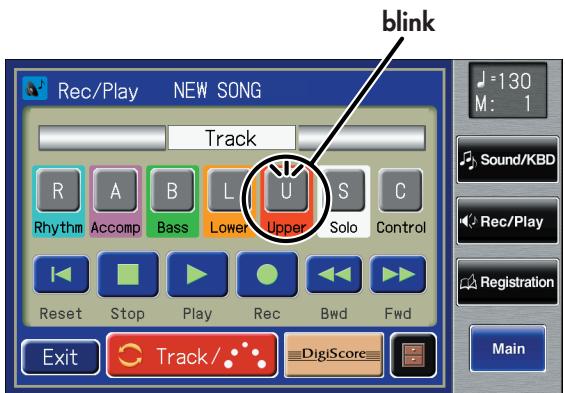
Also, the panelComposer[Rec]buttonindicatorwill light,and [Play/Stop] button will blink.

You can also enter recording-standby mode by pressing the Composer [Rec] button.
- In the Rec/Play screen, touch
to begin recording.
When you touch
As you listen to the performance song previously recorded, record the Part into a new Track.

You can also start recording by pressing the Composer [Play/Stop] button.
- In the Rec/Play screen, touch
to stop recording.
The track button for which performance data has been recorded will be lit.

You can also stop recording by pressing the Composer [Play/Stop] button.
- Repeat steps 3-6 to record each part.
Re-Recording
If you made a mistake in your performance during recording etc., you can re-record just a portion of the musical data in the track.

If you wish to re-record with different settings for voices, tempo, part balance, erase the recorded song (p. 178) and re-record again. If the Control track still contains data from before you re-recorded, the volume or sounds may change during playback.
1. Touch on the Main screen.
The Rec/Play screen appears.
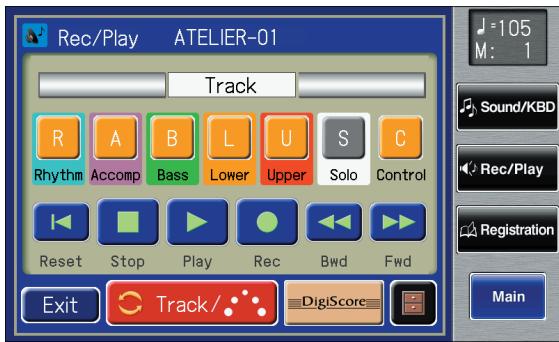
2. Touch the and buttons to select the desired measure (bar) when you start recording.
If you wish to start recording from the beginning of the song, touch the
3. In the Rec/Play screen, touch to enter recording-standby mode.
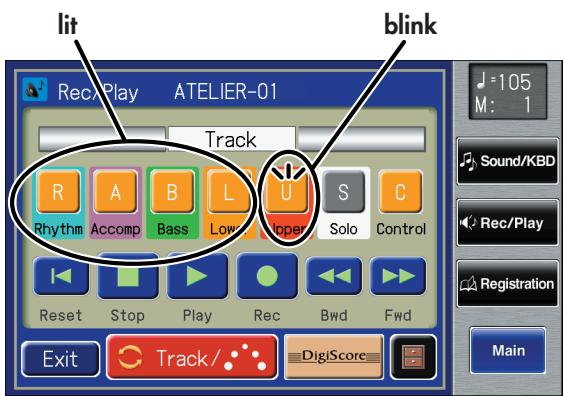
Also, the panel [Rec] button indicator will light, and [Play/Stop] button will blink.

You can also enter recording-standby mode by pressing the [Rec] button.
4. Touch the Track button which you wish to rerecording (button flashes).
The song data of the specified Track (with the exception of the Control Track) will be erased as new song data is recorded.

When the Track button is lit constantly, no song data has been recorded on that Track.
5. In the Rec/Play screen, touch to begin recording.
The metronome will sound a two-measure count, and then recording will begin.

You can also start recording by pressing the [Play/Stop] button.
6. In the Rec/Play screen, touch to stop recording.
The track buttons which were re-recorded will change from flashing to being constantly lit.

You can also stop recording by pressing the [Play/Stop] button.

If you wish to keep the existing Expression Pedal data, and record only the panel operations, you can make settings to prevent the operation of the Expression Pedal from being recorded (p. 211).

You can use punch-in recording (p. 185) to re-record only the area that you specify.
Erasing a Performance Song (Song Clear)
If you wish to discard your recording and re-record from the beginning, or if you wish to record a new performance, you must erase the previously-recorded data.
1. Touch on the Main screen.
The Rec/Play screen appears.
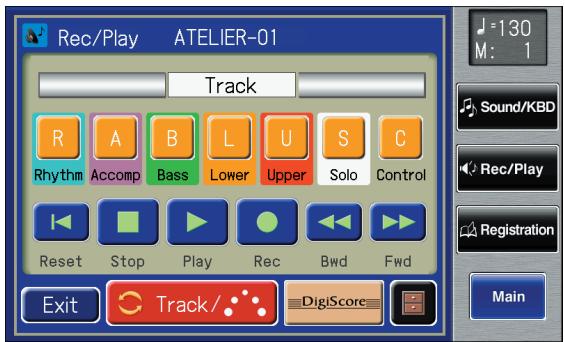
2. Touch < > (Utility).
The Utility screen appears.
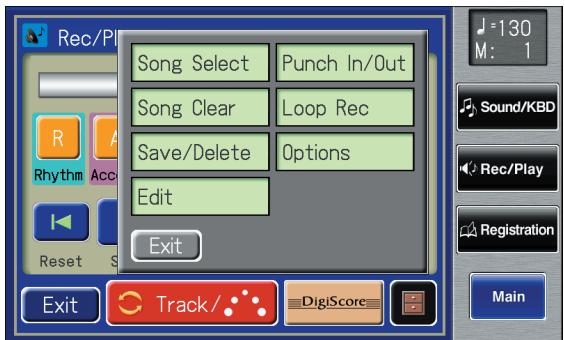
3. Touch .
The following message, asking you to confirm your choice, will be displayed.
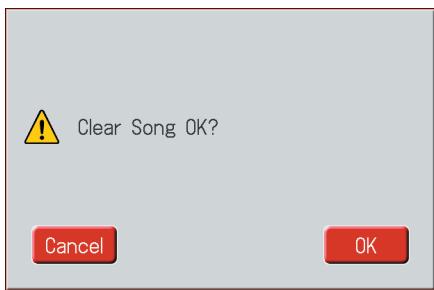
If you touch
4. If you touch <OK> , the performance data will be erased.

You can also use the following method to open the Song Clear screen.
- Touch
on the Main screen to display the Quick Guide screen. - Press the [Song] button.
The Song Clear screen appears.
Changing the Name of a Performance Song (Rename)
A name is automatically assigned to a performance song that you record. However, at some point you may wish to change the name to something more meaningful.
1. Touch on the Main screen.
The Rec/Play screen appears.
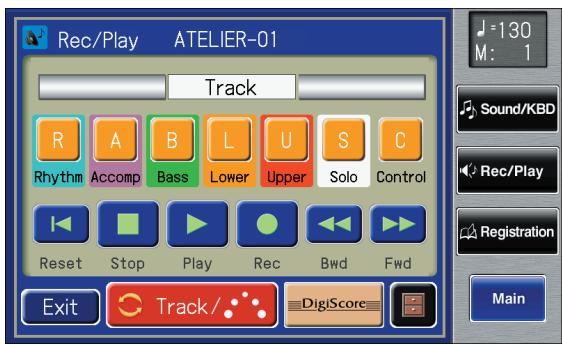
2. Touch < > (Utility).
The Utility screen appears.
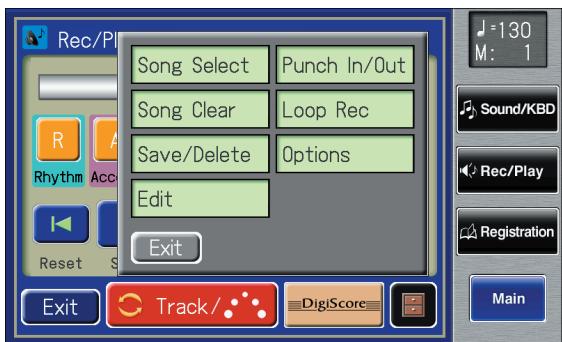
3. Touch .
The Song Save/Song Delete screen appears.
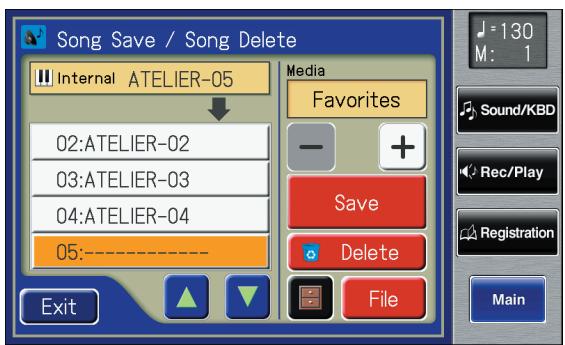
4. Touch < > (Utility) to open the Utility screen.
The Utility screen appears.
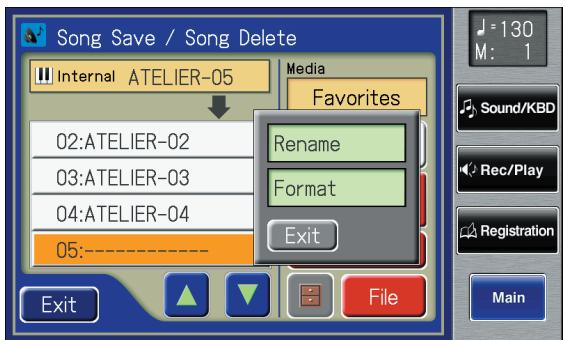
5. Touch .
The Rename screen appears.
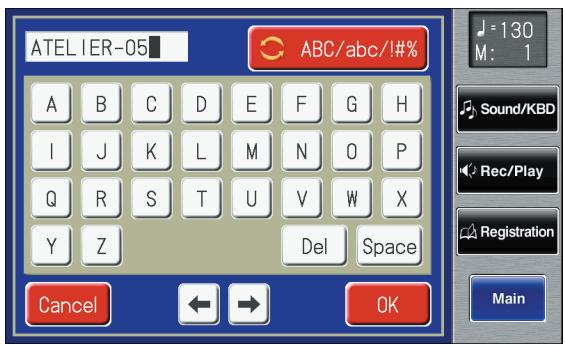
6. Touch the character select button ( ABC/abc/1#%) to switch among uppercase/lowercase/ symbols.
Touch the character select button repeatedly to cycle through the available choices, like this: uppercase lowercase symbols uppercase...
7. Touch the screen to specify the desired character.
The following characters can be selected.
| ABCDEFGHIJKLMNOPQRSTUVWXYZ | |
| abcdefghi klmnopqrstuwxyz | |
| !''#%&'( )*+, -./: =?^_0123456789 | |
| Del | Deletes a character. |
| Space | Inserts a space (blank). |
| ←→ | Move the cursor (the symbol that indicates the location at which characters will be input) to left or right. |
To cancel operation, touch <Cancel> .
8. When you're done making the settings, touch OK>.
The new name is now inserted.

NOTE
You cannot directly change or edit the name of a performance song stored on a USB memory or floppy disk.
The song must first be loaded (p. 181) into the instrument, edited, and then saved to USB memory or floppy disk again.
You can also access the Rename screen as follows.
- Touch < > (Utility) on the Rec/Play screen.
The Utility screen appears.
- In the Utility screen, touch
.
The Edit Menu screen appears.
- Touch
on the Edit Menu screen.
The Rename screen appears.
Saving Performance Songs
The performance data that you recorded will disappear when the power of the ATELIER is turned off. If you wish to keep the performance data, you can save it on a USB memory, floppy disk, or "Favorites" (internal memory).
If the recorded performance data has not been saved, the display will show the "EDITED" symbol. This symbol will disappear when you save the performance data.
1. Prepare to save the performance song.
If you want to save performance song to a USB memory, connect the USB memory to the External memory connector.
If you want to save performance song to a floppy disk, connect the floppy disk drive to the Ext Drive connector. Into the floppy disk drive, insert a floppy disk that was formatted by the ATELIER.
2. Touch on the Main screen.
The Rec/Play screen appears.
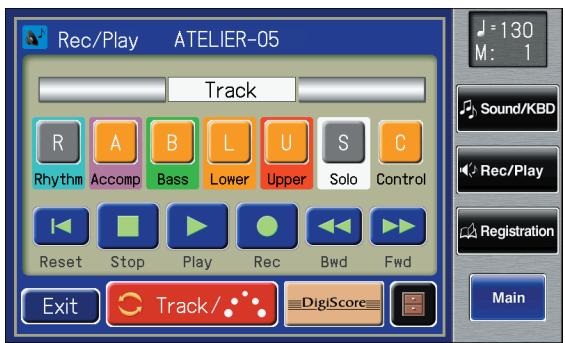
3. Touch < > (Utility).
The Utility screen appears.
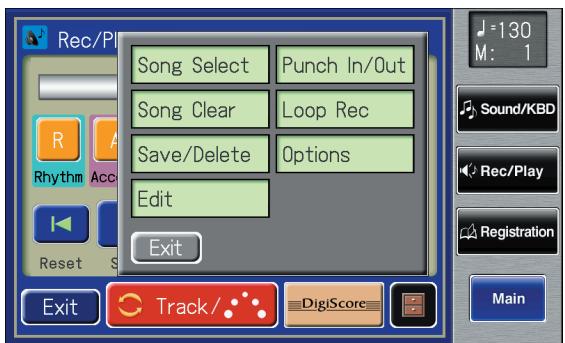
4. Touch .
The Song Save/Song Delete screen appears.
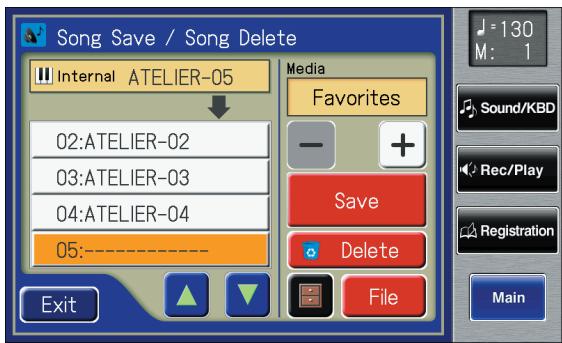
5. Touch <><+ to select the save-destination media.
Select "Ext Memory" to save the data in USB memory, select "Disk" to save it on a floppy disk, or " Favorites" to save it in user memory.
6. Touch <>><> to select the number of the save destination.
If the save destination contains no data, the screen will indicate "—"
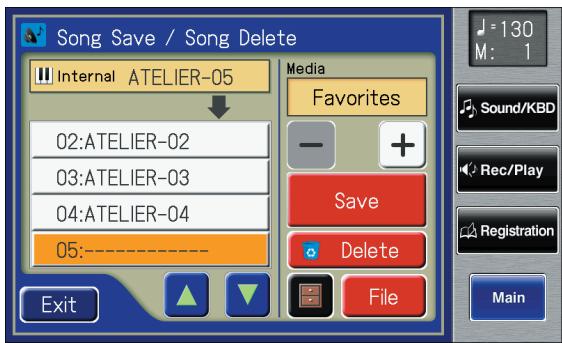
To cancel the Save operation, touch the
7. Touch .
The Save Format screen appears.
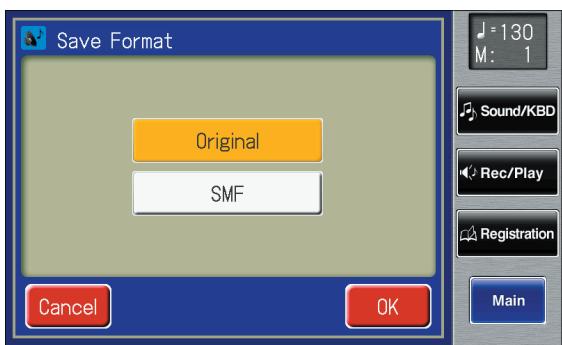
8. Touch the screen to select the format in which the data will be saved.
You can select either "Original" or "SMF" format.
| Display | Description |
| Original | Save data in ATELIER format |
| SMF | Saving in SMF Format for ATELIER Sound Modules |
9. Touch to finalize the save format.
Saving of the performance data will begin.

Performance data saved by the ATELIER cannot be played back properly by the sound generator of an instrument that is not a member of the ATELIER series.

Saving performance data in SMF format (SMF) requires a longer time than saving it in ATELIER format (Original).
If the following screen appears
If you select a number at which a performance data has already been saved and touch <Save> , the following screen appears.
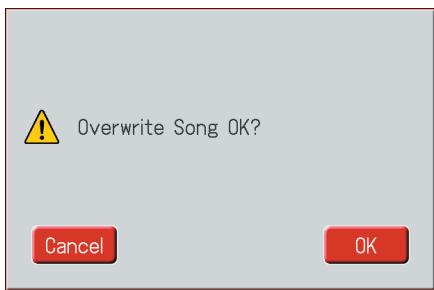
If you wish to update the contents of the performance data
1. Touch .
If you want to save your performance as new data without overwriting the existing data
-
Touch
to stop the Save operation. -
In the Song Save/Song Delete screen, select the number that is displayed as "-----" (a number that currently does not contain performance data).
3. Save the performance data.
When saving is complete, the saved performance name will be displayed.
What is the SMF Format?
SMF (Standard MIDI File) is a data format that was created to provide music files compatibility between manufacturers.
Loading Performance Songs Into the ATELIER
To edit (p. 190) or re-record a performance song that is stored on a USB memory or floppy disk, you must first load that song into the instrument.
1. Prepare the performance song.
If you want to load performance song to a USB memory, connect the USB memory to the External memory connector.
If you want to load performance song to a floppy disk, connect the floppy disk drive to the Ext Drive connector. Into the floppy disk drive, insert a floppy disk that was formatted by the ATELIER.
2. Touch on the Main screen.
The Rec/Play screen appears.
3. Touch < > (Utility).
The Utility screen appears.
4. Touch .
The Song Select screen appears.
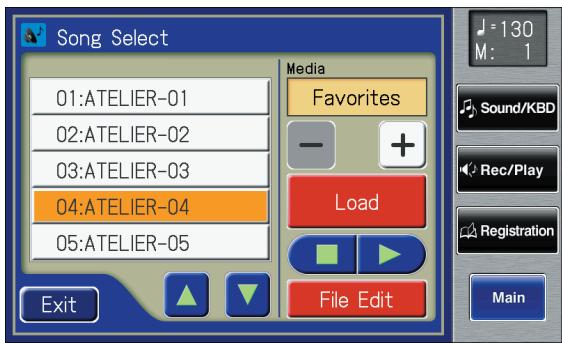
5. Touch <-> <+> to select the desired media.
If you want to load a song from USB memory, choose "Ext Memory." If you want to load a song from floppy disk, choose "Disk."
6. Touch <><> to select the performance song that you wish to load into internal memory.
7. Touch.
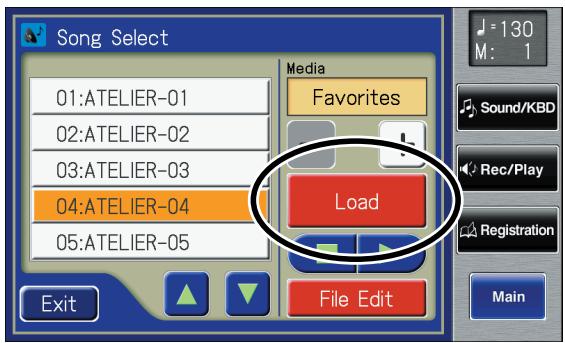
The selected performance data will be loaded into internal memory.
If the following screen appears
The message below is shown when the performance song in the unit has not been saved to USB memory.
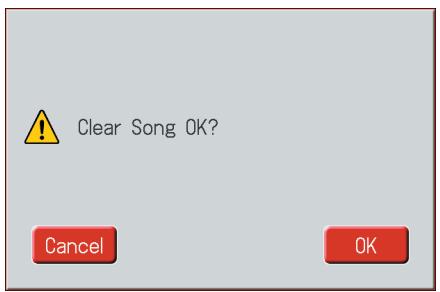
If you wish to erase the performance song
- Touch the
button.
If you wish to erase the performance song
1. Touch the button.
Save the song to USB memory or a floppy disk (p. 180).
If loading is canceled because the memory limit has been reached, the following message will be displayed:
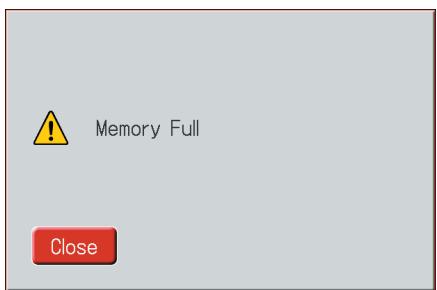
Deleting Performance Songs Stored on "Favorites" or the USB Memory
You can delete a performance song that was saved onto a "Favors," USB memory, or floppy disk.
If you want to delete a song in USB memory, connect your USB memory to the external memory connector before you continue.
If you want to delete a song in floppy disk, connect the floppy disk drive to the Ext Drive connector, and insert a floppy disk into the drive.
- Touch
on the Main screen.
The Rec/Play screen appears.
- Touch < > (Utility).
The Utility screen appears.
- Touch
.
The Song Save/Song Delete screen appears.
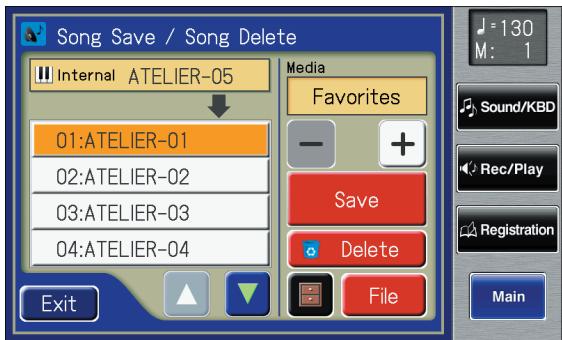
- Touch < - > < +> to select the desired media.
If you want to delete a song from the "Favorites," choose "Favorites."
If you want to delete a song from USB memory, choose "Ext Memory." If you want to delete a song from floppy disk, choose "Disk."
- Touch <>> <> to select the performance data that you wish to delete.
- Touch
.
The confirmation message appears.
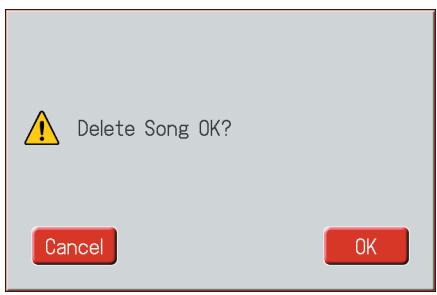
If you touch
7. When you touch <OK> the performance data will be deleted.
Layering a New Recording onto SMF Music Files
You can load commercially available SMF music files into the ATELIER, and record your own performance on top of it. During recording, the data you've loaded will be played back, while you record your performance.
1. Prepare the SMF music files.
If you're using SMF music files from USB memory, connect it to the external memory connector.
If you're using SMF music files from a floppy disk, connect the floppy disk drive to the Ext Drive connector, and insert the floppy disk.
2. Touch on the Main screen.
The Rec/Play screen appears.
3. Touch < > (Utility).
The Utility screen appears.
4. Touch .
The Song Select screen appears.
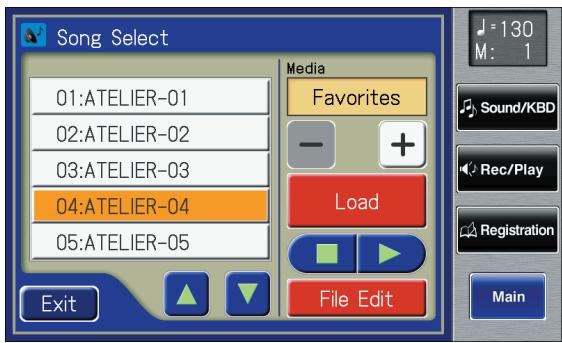
5. Touch < -> to select the desired media.
If you want to play SMF music files from USB memory, choose "Ext Memory." If you want to play SMF music files from floppy disk, choose "Disk."
6. Touch <><> to select the SMF music files that you wish to load into internal memory.
7. Touch .
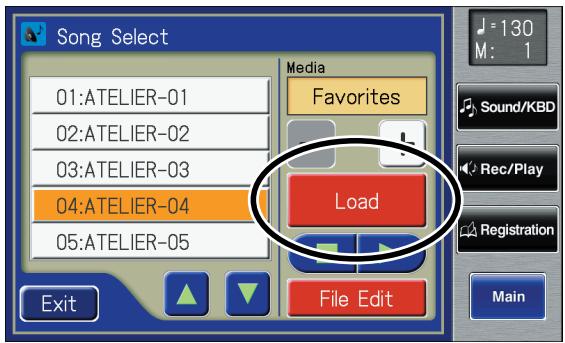
The selected performance data will be loaded into internal memory.
For track assignments of SMF format performance data loaded to the ATELIER, refer to p. 169.
- Select the panel settings needed for recording the performance.
- Touch the
button and button to move to the measure at which you wish to begin recording. - In the Rec/Play screen, touch
to enter recording-standby mode.
Also, the panel [Rec] button indicator will light, and the [Play/Stop] button will blink.

You can also enter recording-standby mode by pressing the [Rec] button.
- Touch the Track button which you wish to recording (button flashes).
- In the Rec/Play screen, touch
to begin recording.
As you record, the music file that was loaded into the ATELIER will play back.
- In the Rec/Play screen, touch
to stop recording.
The track button for which performance data has been recorded will be lit.

You can also start and stop recording by pressing the [Play/Stop] button.

The performance data you recorded can be saved on a USB memory, "Favorites," or floppy disk (p. 180).

Commercially sold music files can also be loaded into the ATELIER, but for reasons of copyright protection, cannot be saved in SMF format.
Using Song with a Different Tempo Than That of the Performance Song
- Prepare the performance data whose tempo you want to change.
If you're using performance data from USB memory, connect it to the external memory connector.
If you're using performance data from a floppy disk, connect the floppy disk drive to the Ext Drive connector, and insert the floppy disk.
- Load the performance data into the unit (p. 181).
- Determine the tempo with the Tempo [▲][▶] buttons.
- Hold down the panel [Reset] button and press the [Rec] button.
The tempo of the performance data will change.

You cannot carry out this operation with the
Re-Recording Part of Your Performance (Punch-in Recording)
After you have recorded a performance, you can re-record a specified portion of the performance.
With this method, you listen to the recorded performance, and re-record just the desired area. This recording method is called "Punch-in Recording."
To Specify the Segment to be Recorded Over Again
1. Touch on the Main screen.
The Rec/Play screen appears.
2. Touch < > (Utility).
The Utility screen appears.
3. Touch .
The Punch In/Out screen appears.
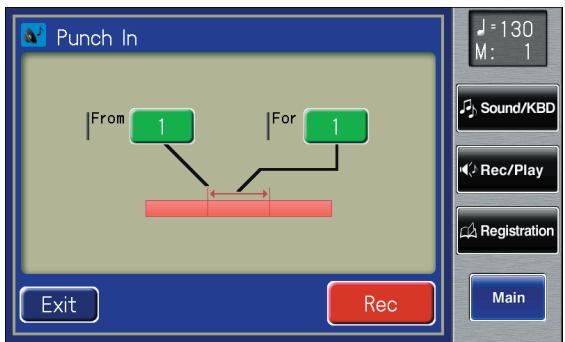
4. Touch the "From" value (the measure at which recording will begin).
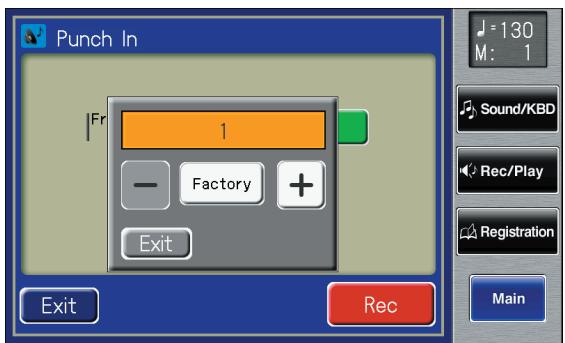
5. Touch < - > < + > to specify "From" (the measure at which recording will begin).
9. Touch .
- Touch the "For" value (the number of measures that will be re-recorded).
- Touch < - > < +> to set "For" (the number of measures that will be re-recorded).
- Touch
.
The Rec/Play screen appears, and the unit is placed in recording standby.
When you touch, the metronome will play two measures (bars) of count-in before recording begins. When you reach the first measure of the specified area, recording will begin. When the specified area ends, recording will end, and playback will resume.
While the song is playing back or recording, the [Rec] button's indicator will be lit as follows.
When recording has ended for the specified area and the data is once again playing back, the [Rec] button's indicator will resume flashing.
The indicator of the track button which recorded the performance will light.
To Record While Listening to the Song
10. Press the Track button which you wish to re-record (indicator flashes).
11. Touch to begin recording.
| While the performance is playing back | The [Rec] button's indicator will flash |
| While you are re-recording | The [Rec] button's indicator will light constantly |
12. Touch to stop the recording.
Recording and Layering Drum Parts (Loop Recording)
You can repeatedly record over a specified region of the rhythm part, adding additional notes at each pass. This type of recording is called "Loop Recording."
This recording method is convenient when you wish to layer drum sounds individually for the Rhythm part.

"Loop Recording" can be used only when recording the Rhythm part.
- Press the [Drums/SFX] button or the [Manual Perc] button to select a Drum Set or Sound Effect Set (p. 76–p. 79).
- Touch
on the Main screen.
The Rec/Play screen appears.
- Touch the
and on the Rec/Play screen, move to the measure where you wish to start Loop Recording. - Touch < > (Utility).
The Utility screen appears.
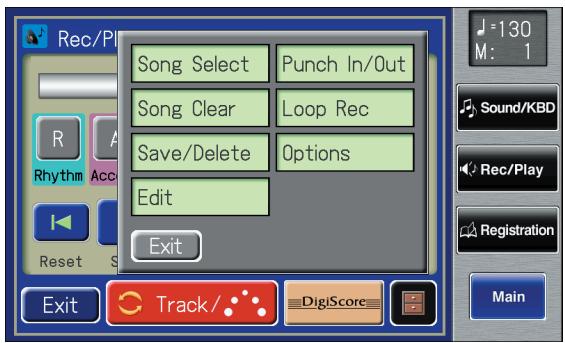
- Touch
.
The Loop Rec screen appears.
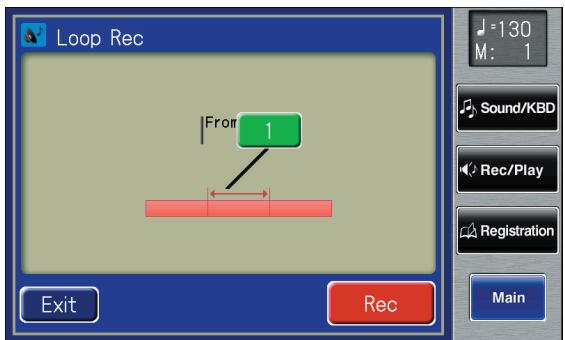
- Touch the "For" value (the number of measures that will be recorded repeatedly).
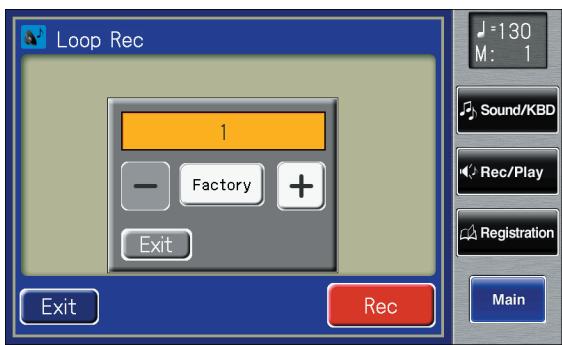
To cancel operation, touch
- Touch < - > < +> to specify the "For" value (the number of measures that will be recorded repeatedly).
- Touch
. - Touch
.
The Rec/Play screen appears, and the unit is placed in recording standby.
- Touch
to begin recording.
When you touch the
- Touch
to stop playback.
The indicator of the Rhythm track button which recorded the performance will light.
Starting recording at the right moment (Count-In Recording)
This setting (ON/OFF) determines whether or not a metronome count-in (2 measures) will be heard after pressing the [Play/Stop] button on recording.
1. Touch on the Main screen.
The Rec/Play screen appears.
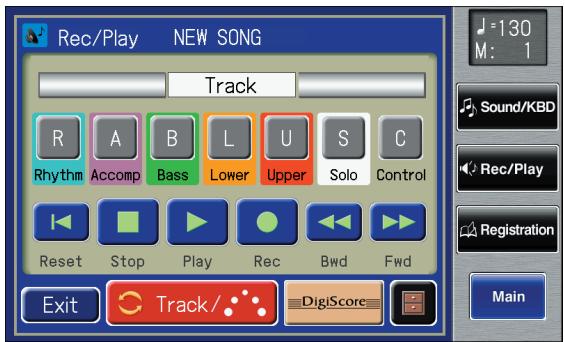
2. Touch < Utility > (Utility).
The Utility screen appears.
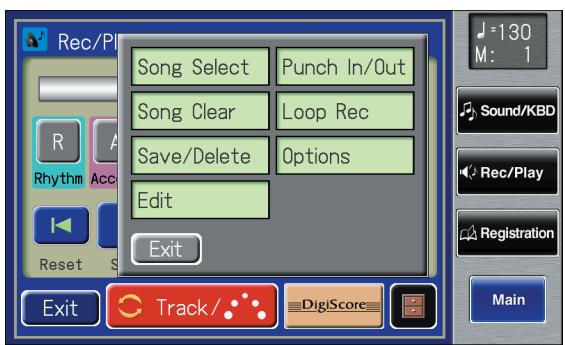
3. Touch .
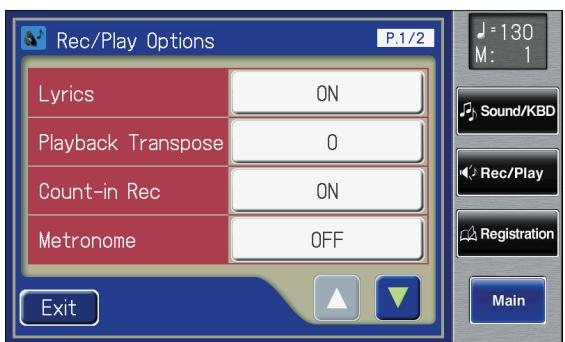
4. Touch <>><> to display the Count-In Rec.
5. Touch the Count-In Rec setting (ON/OFF) to switch it between "ON/OFF."
Each time you touch the Count-In Rec setting, it will alternate between ON/OFF.
| Setting | Description |
| ON | A two-measure count will sound before recording |
| OFF | No count will sound before recording |
6. Touch.
Copying Performance Song
Performance songs and SMF music files from USB memory or floppy disk can be copied to " Favorites" (user memory).
If a performance song saved in USB memory or on a floppy disk is stored in "Favorites," the stored performance song will not disappear even when you turn off the power. It is convenient to load frequently-used performance song into "Favorites."
Performance songs saved in "Favorites" can also be copied to USB memory or floppy disk.
Copying Performance Songs from USB Memory to "Favorites"
- Connecting the USB memory to the external memory connector.
- Touch
on the Main screen.
The Rec/Play screen appears.
- Touch < > (Utility).
The Utility screen appears.
- Touch
.
The Song Select screen appears.
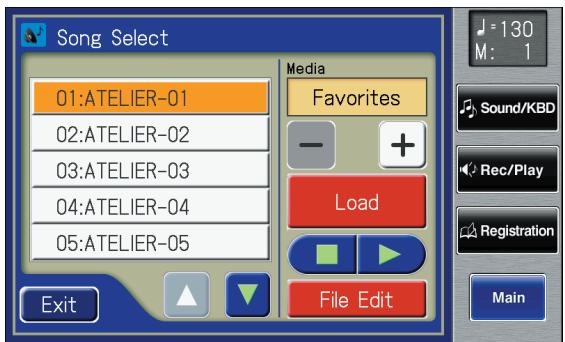
- Touch
.
The Song File Edit screen appears.
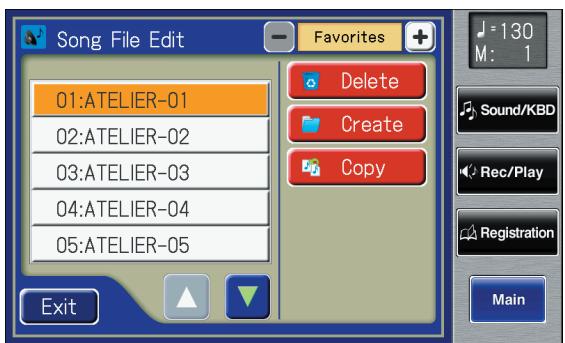
- Touch
(Song Copy).
The following screen appears.
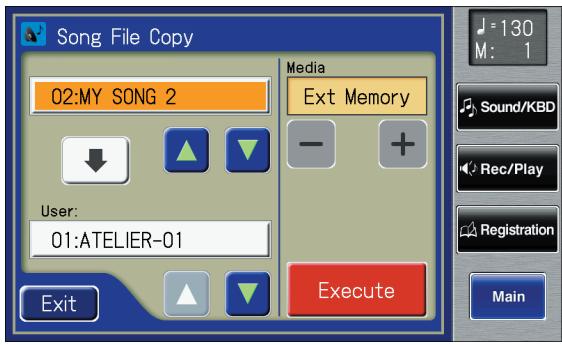
- Touch < - > < +> to select the media (the location of the performance song you want to copy).
If you want to copy a performance song from USB memory, select "Ext Memory."
If you want to copy a performance song from floppy disk, select "Disk."
- Touch <>> <> to select the performance song you want to copy.
- Touch Favorites < > < > to select the copy-destination number.
Numbers for which a song name is shown already have a song saved to them.
10触摸
The copying of the song to "Favorites" begins.
Once the song has been accommodated in memory, the Song File Edit screen will reappear.
If you select a number in which a song is already saved, a screen like the following will appear.
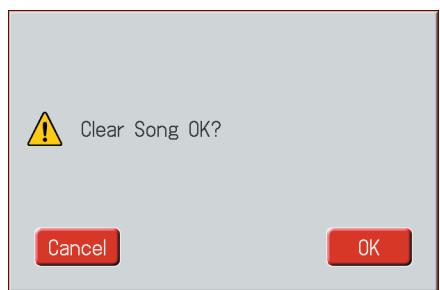
If you want to delete the previously saved song and overwrite it with the song you're newly saving, touch OK>.
If you don't want to delete the previously saved song, touch <Cancel> , then select a number at which no song has been saved, and copy the song to that number.
Copying Performance Songs from "Favorites" to USB Memory
You can copy performance song from "Favorites" to USB memory.
In this case, touch the arrow icon located in the center of the "Song File Copy screen" in step 6 of the above procedure, so the arrow points upwards. In this state, you'll be copying performance song from "Favorites" to USB memory.
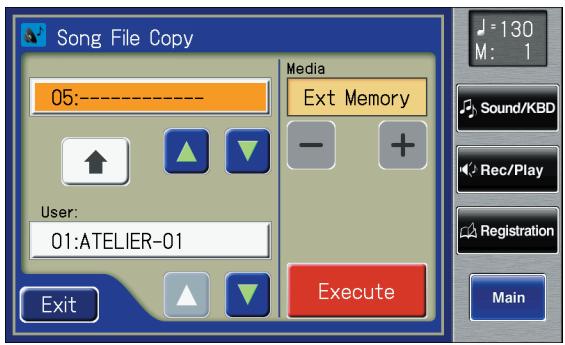
The rest of the procedure is the same as when copying performance song from USB memory to "Favors."
Creating a Folder in USB Memory
You can create folders in a connected USB memory device or in "Favorites."
If you want to create a folder in USB memory, connect the USB memory to the external memory connector.
- Touch
on the Main screen.
The Rec/Play screen appears.
- Touch < > (Utility).
The Utility screen appears.
- Touch
.
The Song Select screen appears.
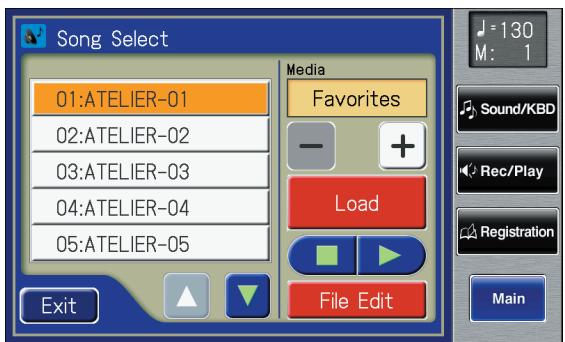
- Touch
.
The Song File Edit screen appears.
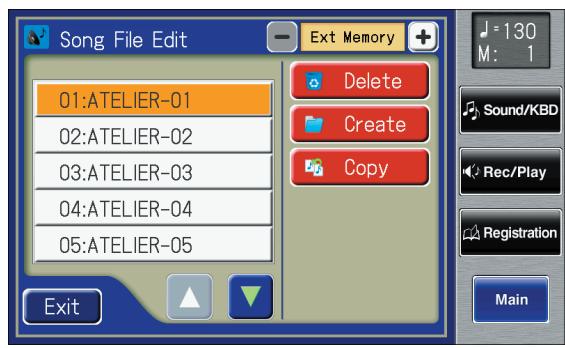
- Touch < - > < +> to select the media.
Choose "Favorites" if you want to create a folder in "Favorites," or "Ext Memory" if you want to create a folder in USB memory.
- Touch
.
A screen will appear, allowing you to create a new folder.
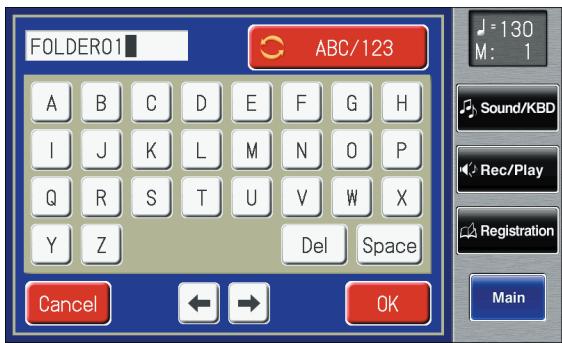
- Assign a name to the folder.
Touch the screen to specify the desired characters. Rename the folder as described in "Assigning a Name to a Registration Set" (p. 111).
- When you've finished, touch
.
The name will be assigned to the newly created folder.
Song files that you record can be edited using five different functions.
The following editing functions are provided.
| Menu | Descriptions | Page |
| Delete Measure | Deleting a Specific Measure. | p. 190 |
| Delete Track | Delete the Recording from a Track. | p. 191 |
| Erase Event | Erase a specified portion of the performance in a specified area. | p. 193 |
| Copy | Copying Measures. | p. 195 |
| Quantize | Correct Timing Inaccuracies. | p. 196 |
| Rename | Change the name of the performance data. | p. 178 |

Once you edit data, it cannot be restored to its original condition. As a precaution against accidents, we recommend that you save your song to a USB memory before you edit it (p. 180).
Deleting a Specific Measure (Delete Measure)
You can delete a portion of the performance data. This function lets you delete specified measures (bars) of the song from all tracks. When any part of the song file is deleted, subsequent recording will be moved forward to fill the gap. Example: To delete measures (bars) 5-8
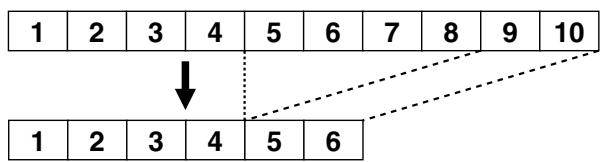
1. Touch on the Main screen.
The Rec/Play screen appears.
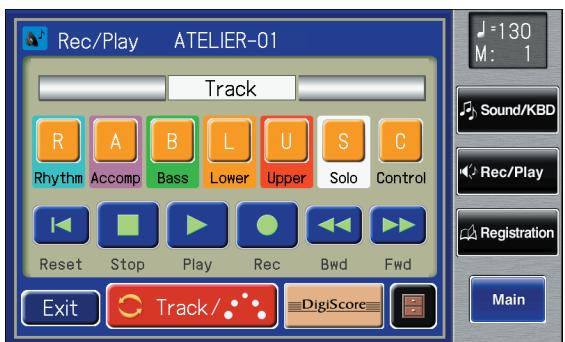
- In the Rec/Play screen, touch < > (Utility) to open the Utility screen.
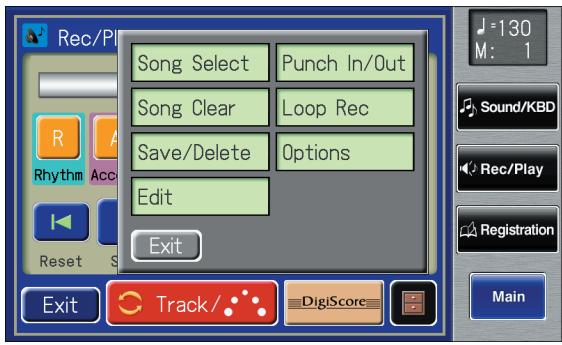
3. In the Utility screen, touch .
The Edit Menu screen appears.
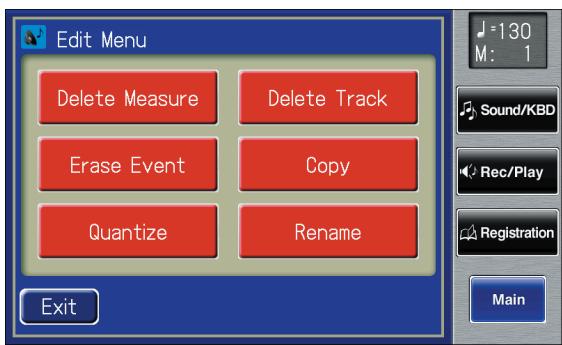
4. Touch .
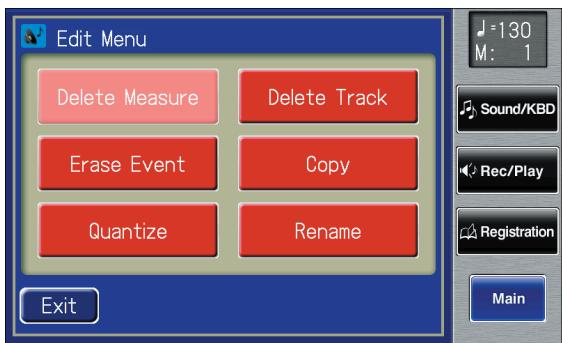
The Delete Measure screen appears.
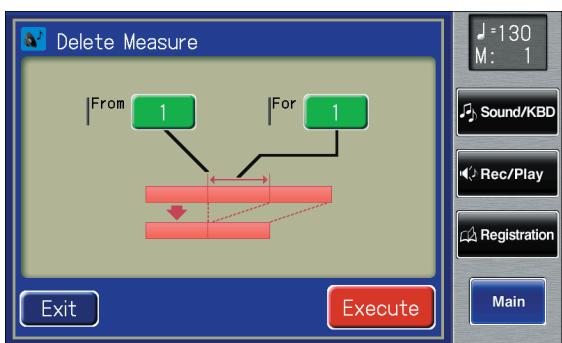
- Touch the "From" value (the first measure that you wish to delete).
- Touch <-> <+> to set "From" (the first measure that you wish to delete).
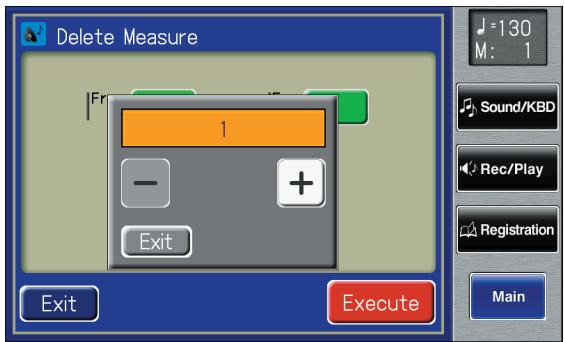
- When you're done making the settings, touch
. - Touch the "For" value (the number of measures that you wish to delete).
- Touch < -> < +> to set "For" (the number of measures that you wish to delete).
To delete to the last measure, select "ALL."
- When you're done making the settings, touch
. - Touch
.
The following display appears.
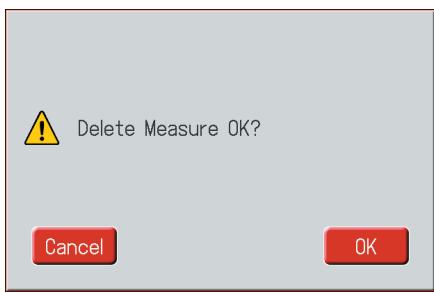
To cancel operation, touch <Cancel> .
- Touch
to delete the measures.
When deletion has been completed, you are returned to the Delete Measure screen.
Delete the Recording from a Track (Delete Track)
The ATELIER has seven tracks. This function lets you delete the recording from a track that you specify.

For more on the content stored on each track, refer to p. 165.
- Touch
on the Main screen.
The Rec/Play screen appears.
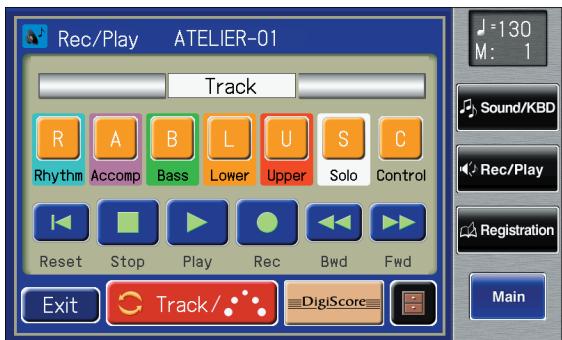
- In the Rec/Play screen, touch < > (Utility) to open the Utility screen.
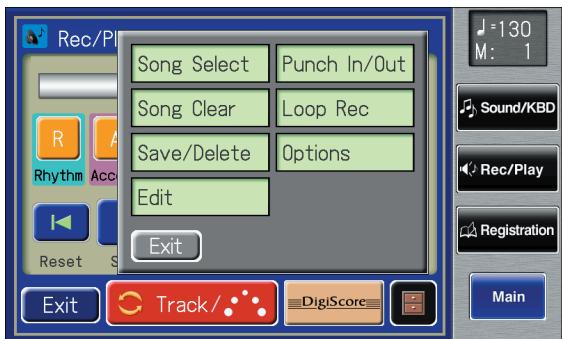
- In the Utility screen, touch
.
The Edit Menu screen appears.
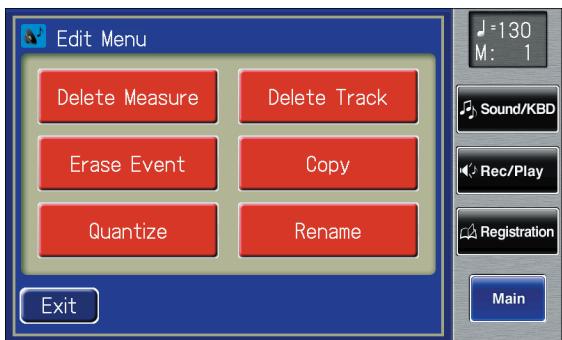
4. Touch .
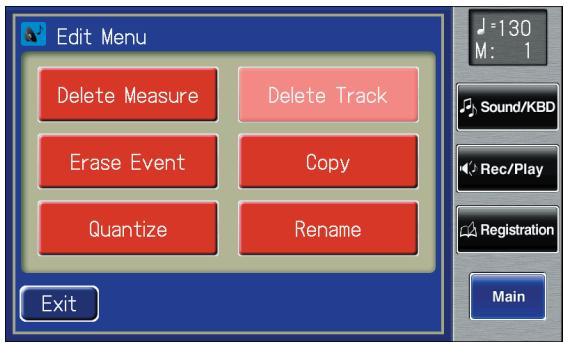
The Delete Track (delete the performance data of a track) screen appears.
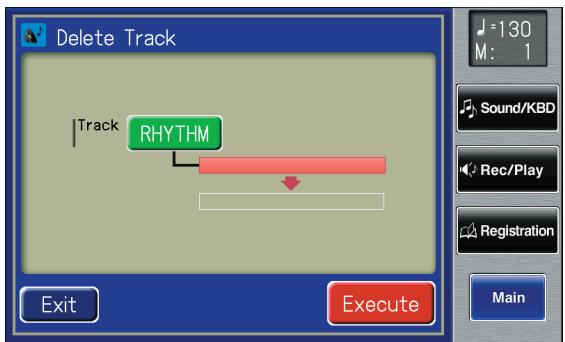
- Touch the "Track" value (the track whose performance data you wish to delete).
- Touch <> <+> to select the "Track" (the track whose performance data you wish to delete).
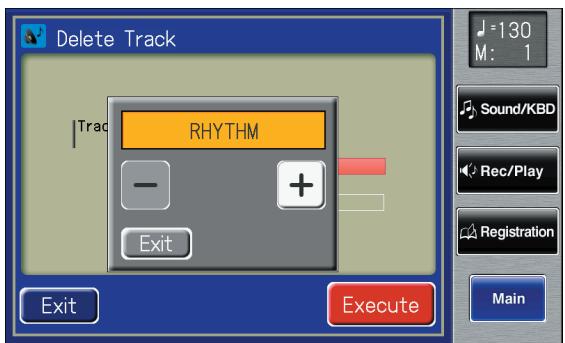
| Setting |
| RHYTHM, ACCOMP, BASS, LOWER, UPPER, SOLO, CONTROL |
-
When you're done making the settings, touch
. -
Touch
.
The following display appears.
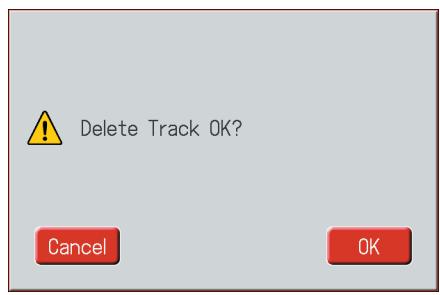
To cancel operation, touch <Cancel> .
- Touch <OK> to delete the performance data.
When the recording has been deleted, the Delete Track screen will reappear.
Erase Recording (Erase Event)
You can erase a specified portion of the performance in a specified area without making the song shorter. This is called the "Erase" function.
As an alternative to the method of erasing all performance data in a specified area, you can erase the following contents of the performance.
| ALL | All recording |
| NOTE | Notes played on the keyboard |
| PANEL | Panel operations, Content Saved to the Control Track (Information Other than Expression, Voice, and Tempo Data) → Refer to p. 165. |
| EXPRESSION | Expression pedal recording |
| VOICE | Voice settings |
| TEMPO | Tempo setting |
Example: Erasing measures (bars) 5-8
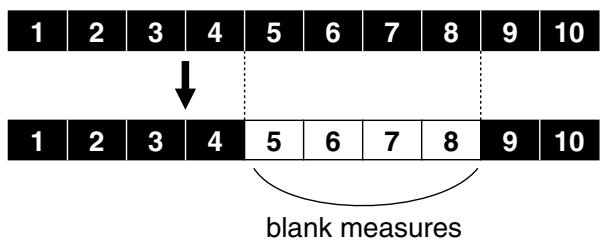
1. Touch on the Main screen.
The Rec/Play screen appears.
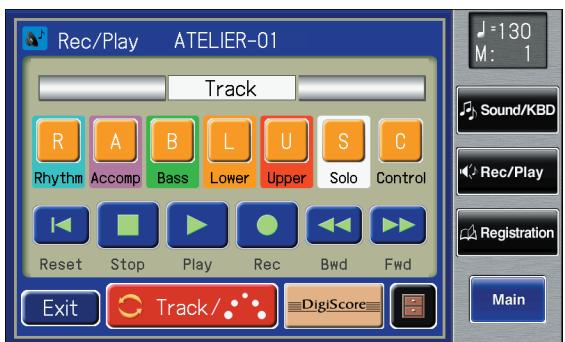
- In the Rec/Play screen, touch < > (Utility) to open the Utility screen.
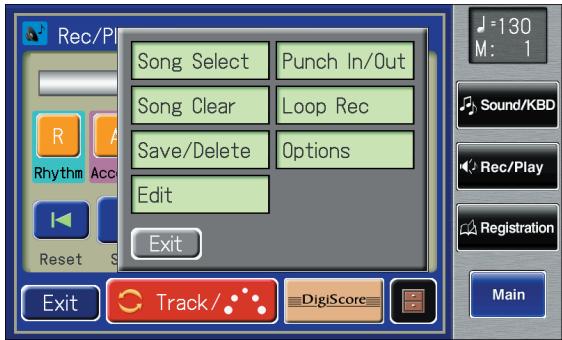
3. In the Utility screen, touch .
The Edit Menu screen appears.
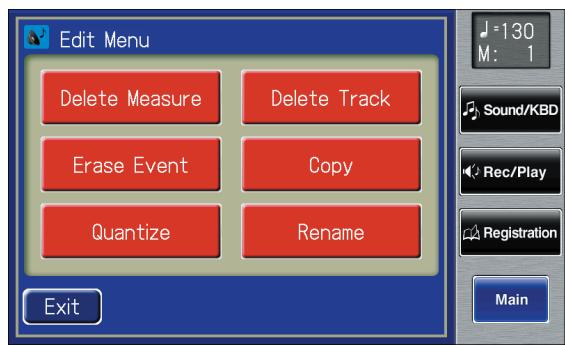
- Touch
.
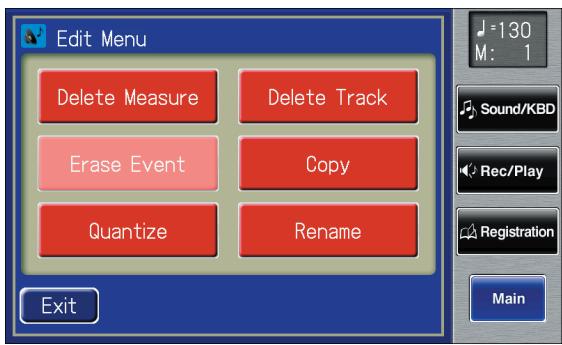
The Erase Event screen appears.
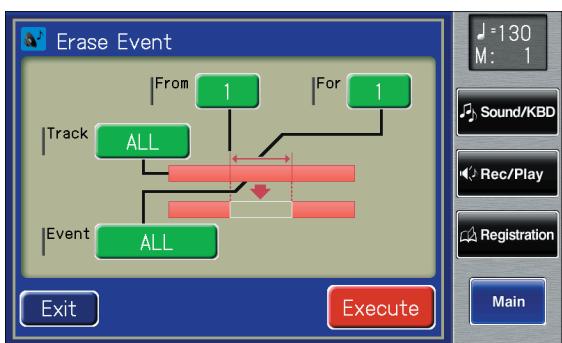
- Touch the "Event" value (the type of performance data that you wish to erase).
- Touch <><+ to specify the "Event" (the type of performance data that you wish to erase).
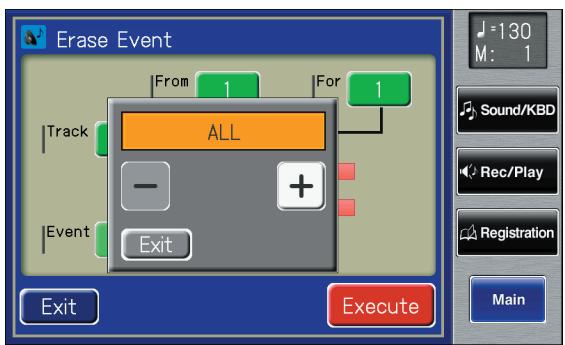
Setting
ALL, NOTE, PANEL, EXPRESSION, VOICE, TEMPO
- When you're done making the settings, touch
. - Touch the "Track" value (the track from which data will be erased).
- Touch <><+ to specify the "Track" (the track from which data will be erased).
If you have selected EXPRESSION, VOICE and TEMPO as the type of recording to be erased, you need not specify the track.
Track
ALL, RHYTHM, ACCOMP, BASS, LOWER, UPPER, SOLO, CONTROL
If you select "ALL," the recording will be erased from all parts.
- When you're done making the settings, touch
. - Touch the "From" value (the measure at which erasure will begin).
-
Touch < - > < +> to set "From" (the measure at which erasure will begin).
13.When you're done making the settings, touch. -
Touch the "For" value (the number of measures from which the data will be erased).
- Touch < -> to set "For" (the number of measures from which the data will be erased). If you wish to erase to the last measure (bar), set "for: ALL."
- When you're done making the settings, touch
. - Touch
.
The following display appears.
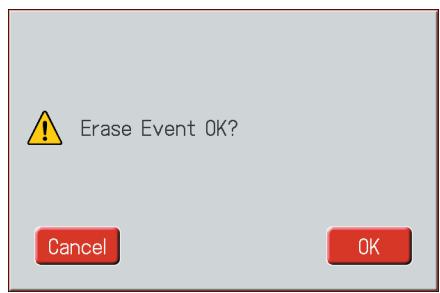
To cancel operation, touch
- Touch
to erase the performance data.
Once the performance data has been erased, you are returned to the Erase Event screen.
Copying Measures (Copy)
This function lets you copy a portion of recorded song to a different measure (bar) location in the same track.
If a recording already exists at the copy destination, it will be erased.
Example: To copy measures (bars) 5-7 to measure (bar) 8
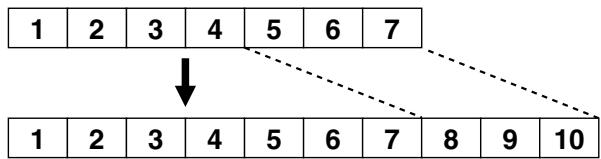
1. Touch on the Main screen.
The Rec/Play screen appears.
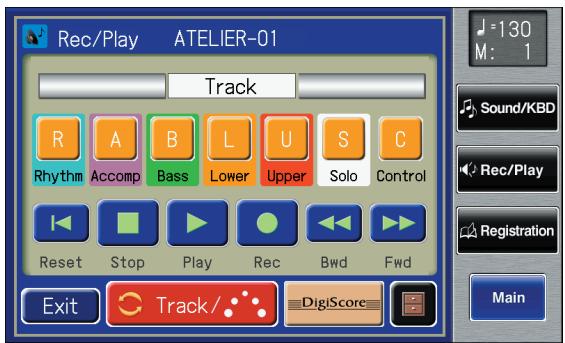
2. In the Rec/Play screen, touch < > (Utility) to open the Utility screen.
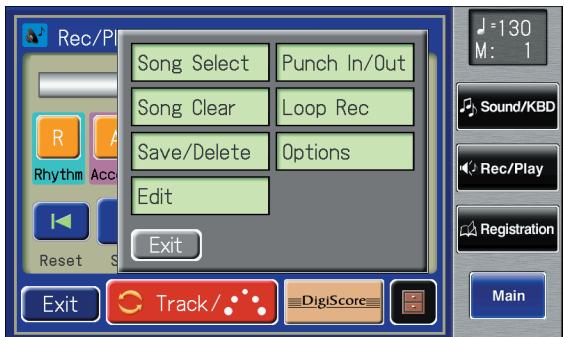
3. In the Utility screen, touch .
The Edit Menu screen appears.
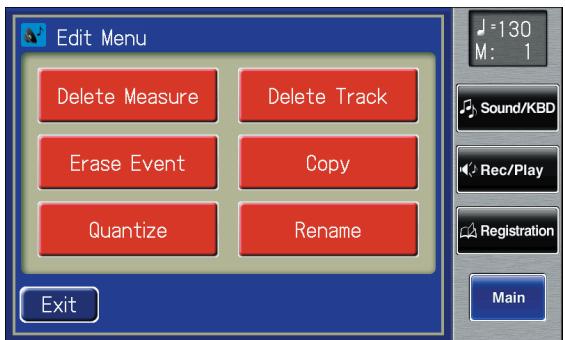
4. Touch .
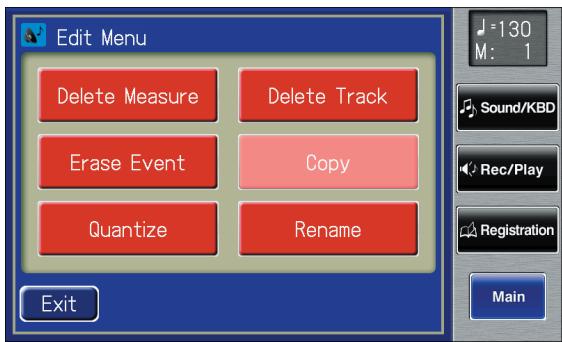
The Copy screen appears.
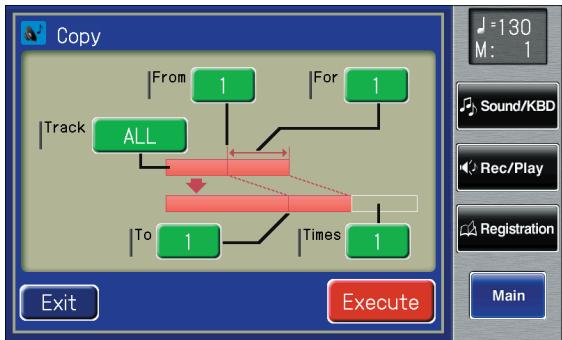
5. Touch the "Track" value (the track to be copied).
6. Touch < - > < +> to set "Track" (the track to be copied).
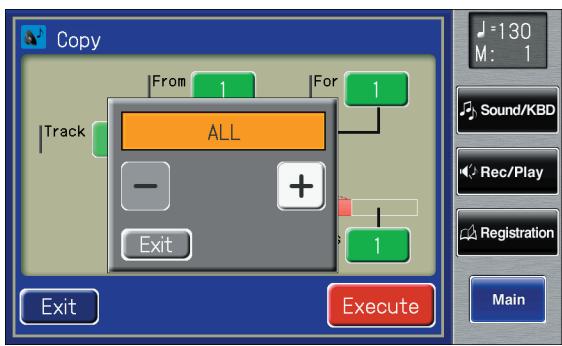
Track
ALL, RHYTHM, ACCOMP, BASS, LOWER, UPPER, SOLO, CONTROL
If you select "ALL," the recording in all the tracks will be copied.
7. When you're done making the settings, touch .
8. Touch the "From" value (the measure at which copying will begin).
- Touch < - > < +> to set "From" (the measure at which copying will begin).
- When you're done making the settings, touch
. - Touch the "For" value (the number of measures to be copied).
- Touch < - > < +> to set "For" (the number of measures to be copied).
If you want to specify all of the data up to the final measure, select "ALL."
13.When you're done making the settings, touch
14. Touch the "To" value (the copy-destination measure number).
15. Touch <-> <+> to set "To" (the copy-destination measure number).
If you select "END," the data will be copied following the end of the last measure.
- When you're done making the settings, touch
. - Touch the "Time" value (the number of times that the data will be copied).
- Touch <><+ to set "Time" (the number of times that the data will be copied).
19.When you're done making the settings, touch.
20触摸.
The following display appears.
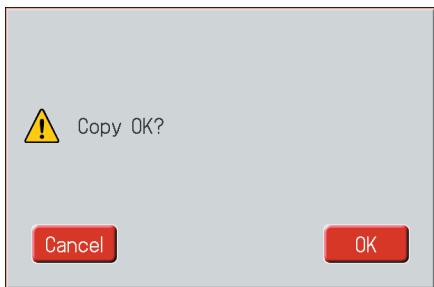
To cancel operation, touch <Cancel> .
- Touch
to copy the measures.
Once the measures have been copied, you are returned to the Copy screen.
Correct Timing Inaccuracies (Quantize)
You can correct for timing discrepancies in a recorded performance by having the music be aligned with a timing you specify. This is called "Quantizing."
For example even if you intend to play at quarter-note timing, the notes may be slightly earlier or later than precise quarter-note intervals. In this case, if you quantize at quarter-note (1/4) timing, you can correctly match the rhythms.
- Touch
on the Main screen.
The Rec/Play screen appears.
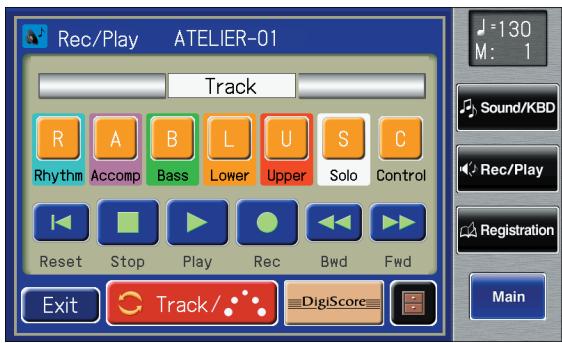
- In the Rec/Play screen, touch < 0> (Utility) to open the Utility screen.
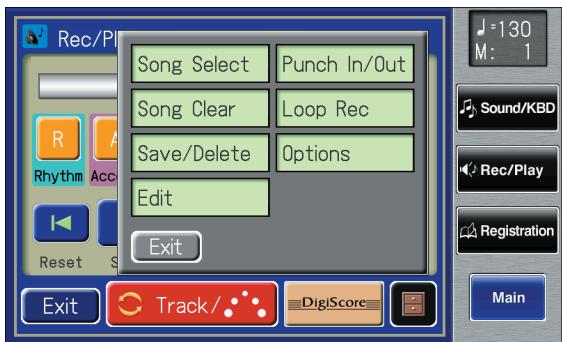
- In the Utility screen, touch
.
The Edit Menu screen appears.
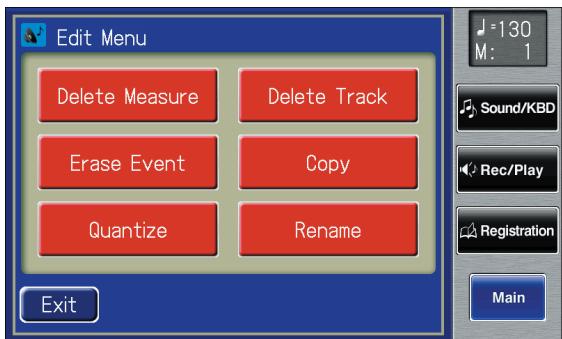
4. Touch .
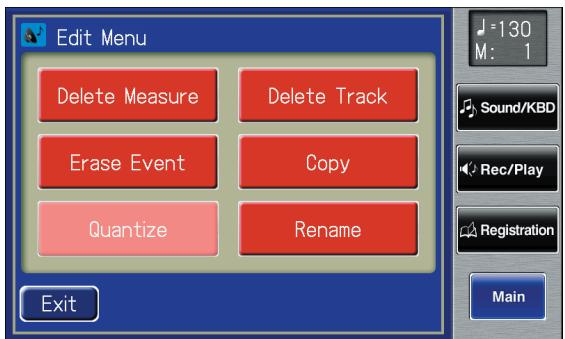
The Quantize screen appears.
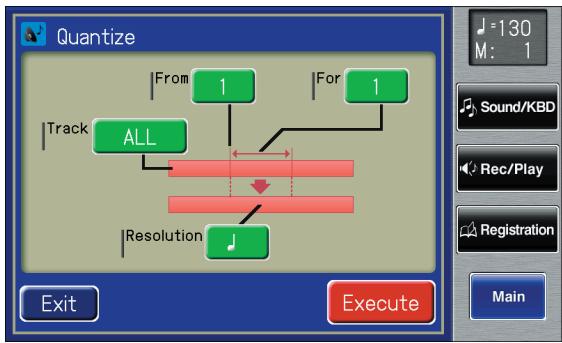
5. Touch the "Track" value (the track that will be quantized).
6. Touch <-> <+> to specify the "Track" (the track that will be quantized).
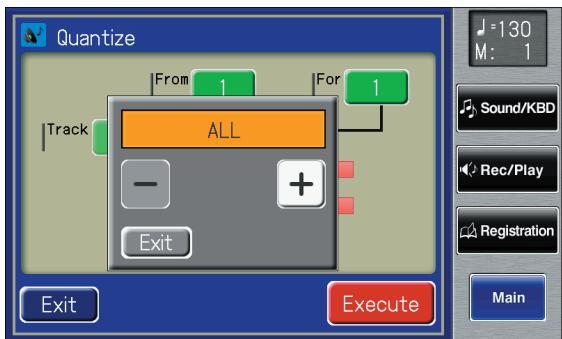
Track
ALL, RHYTHM, ACCOMP, BASS, LOWER, UPPER, SOLO
If you select "ALL," the recording in all the tracks will be quantized.
7. When you're done making the settings, touch .
8. Touch the "From" value (the measure at which quantization will begin).
9. Touch < - > < +> to set "From" (the measure at which quantization will begin).
10. When you're done making the settings, touch .
11. Touch the "For" value (the number of measures that will be quantized).
12. Touch < -> < +> to set "For" (the number of measures that will be quantized).
To specify everything through to the last measure, set "for: ALL."
13.When you're done making the settings, touch .
14. Touch the "Resolution" value (the resolution at which notes will be aligned).
15. Touch the screen to set "Resolution" (the resolution at which notes will be aligned).
The "Resolution" (the timing to which notes are aligned) can be set to one of the following settings.
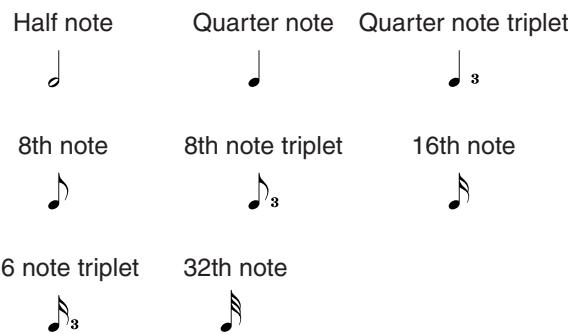
16.When you're done making the settings, touch .
17. Touch .
The following display appears.
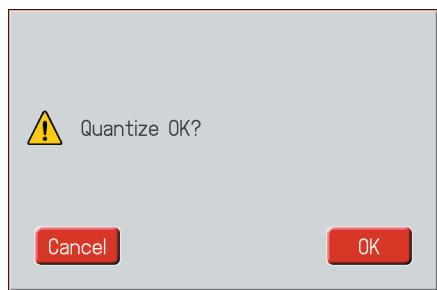
To cancel operation, touch
18. Touch to have the quantization carried out.
When the quantizing is finished, you are returned to the Quantize screen.
You can create a rhythm for use when Rhythm Mode is set to "S-SERIES" (p. 215).
An original rhythm of your own is created by starting with one of the internal rhythms, then modifying it. You can edit some of the internal rhythms to create your own original rhythms. These original rhythms are called "User Rhythms." This function is called "Rhythm Customize."
Process for Creating User Rhythms
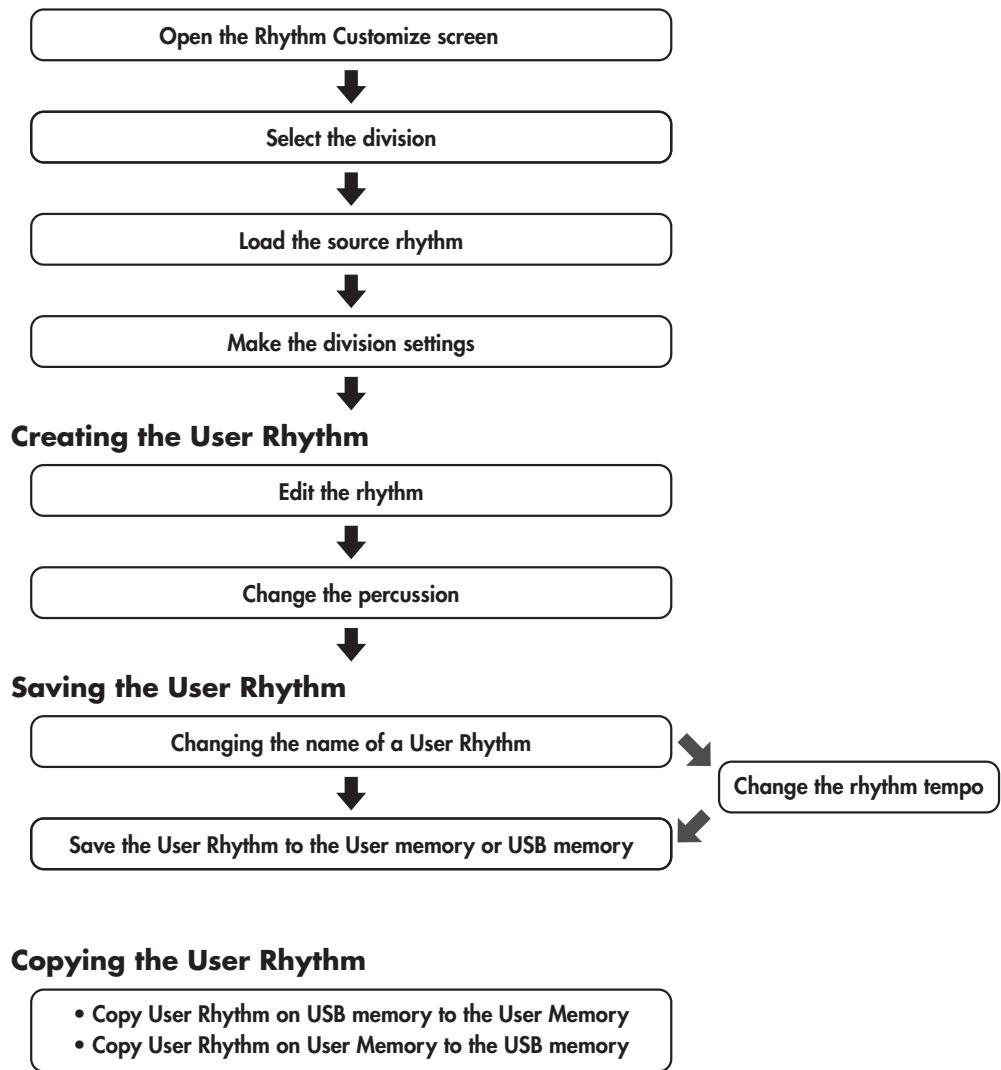
Preparations for Creating User Rhythms
Preparations for Creating User Rhythms
Displaying the Rhythm Customize Screen
1. Touch on the Main screen.
The Rhythm screen appears.
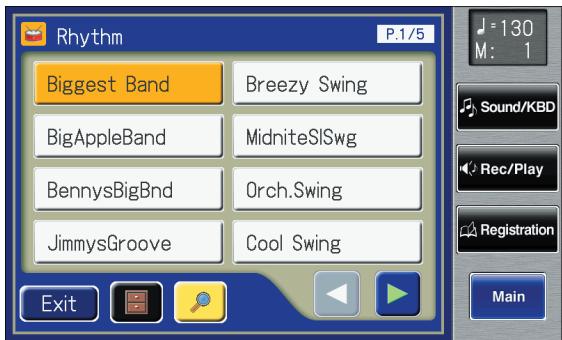
2. In the Rhythm screen, touch < > (Utility).
The Utility screen appears.
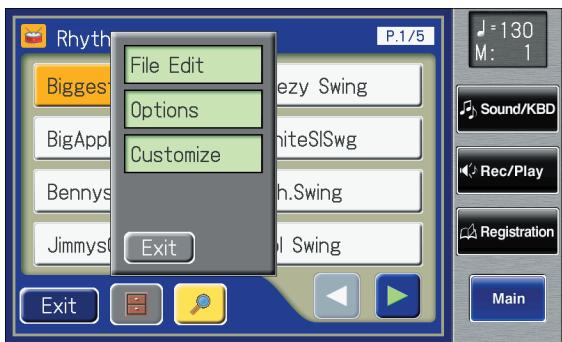
3. Touch .
The Rhythm Customize screen appears.
When opening a new Rhythm Customize screen
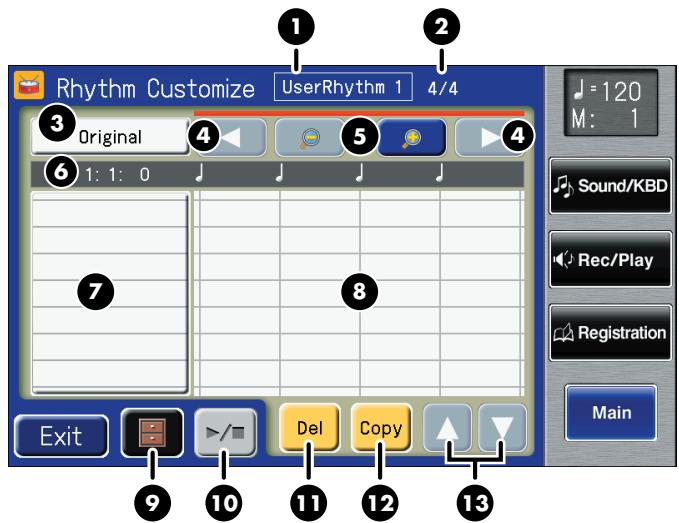
When calling up a source.
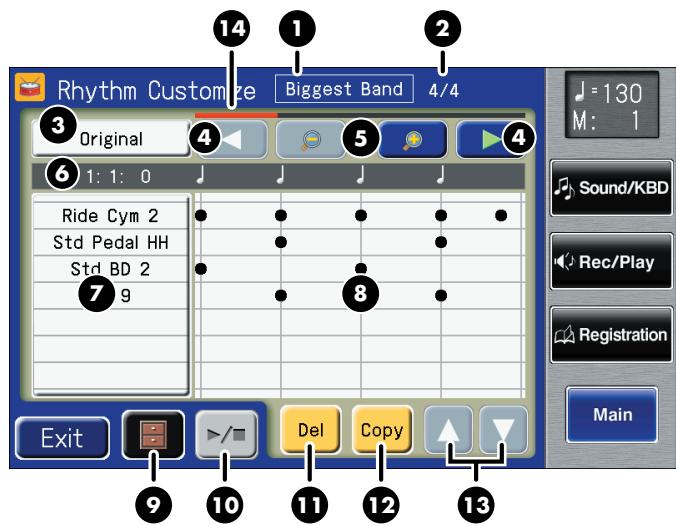
| 1 | Rhythm Name |
| 2 | Beat |
| 3 | Division Name (p. 200) |
| 4 | buttonSwitches the page when the rhythm pattern is displayed over multiple pages. |
| 5 | Zoom Out/Zoom In) buttonExpands (zooms in) and reduces (zooms out) the rhythm pattern display. |
| 6 | Current location (Measure: Beat: Tick) |
| 7 | Instrument NameIndicates the name of the instrument used in the rhythm. |
| 8 | Rhythm Pattern DisplayDisplays the notes in the selected rhythm pattern. |
| 9 | (Utility) buttonDisplays the menu with settings for the Rhythm Customize function. |
| 10 | (Preview) buttonAllows you to listen to the created rhythm. |
| 11 | Delete (Delete) buttonDeletes the rhythm in the displayed measure. |
| 12 | Copy (Copy) buttonCopies the rhythm in the displayed measure and adds it to the end of that measure. |
| 13 | buttonWhen more than eight different instruments are used in a rhythm, press these buttons to switch through the instrument names. |
| 14 | Scroll BarThis indicates the position of the current measure in the overall rhythm. |
Selecting the Division
What is the Division?
A song progresses in predictable a sequence, such as intro, melody A, melody B, bridge and ending.
With the ATELIER, such changes in songs are allocated to the following six performance states. We call these six parts of a song "Divisions."
| Division | Performance division |
| Intro | The intro is played at the start of a song. |
| Original | This is a basic accompaniment pattern. |
| Fill In To Variation | This is a phrase inserted at a juncture where the mood changes. It is used to make a song more lively. After the phrase is played, the variation's accompaniment pattern is played. |
| Variation | This is a developmental accompaniment pattern. It is a variation on an Original. |
| Fill In To Original | This is a phrase inserted at a juncture where the mood changes. It is used to make a song more sedate. After the phrase is played, the original's accompaniment pattern is played. |
| Ending | This is played at the end of a song. |
You can make a song more lively or more restrained by increasing or reducing played parts by Divisions. You can also modify a song by changing the voice of the parts in the Divisions.
1. Bring up the Rhythm Customize screen (p. 199).
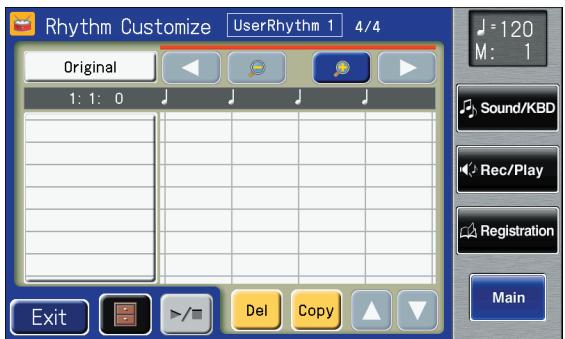
2. Touch < > (Utility).
The Utility screen appears.
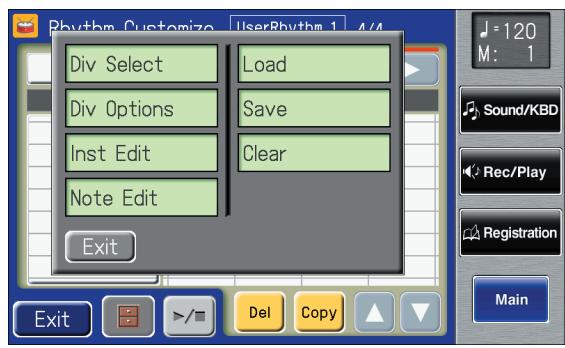
3. Touch (Division Select).
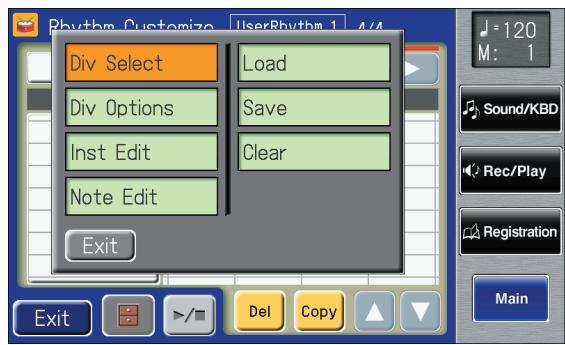

You can open the Division Select screen by touching the Division name indication (p. 199) in the Rhythm Customize screen.
4. Touch a Division name to select the Division.
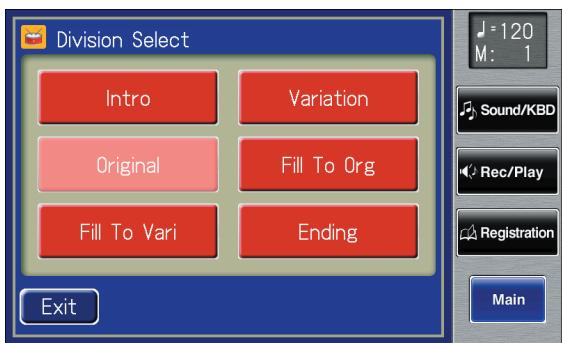
This returns you to the Rhythm Customize screen. The name of the selected division now appears in the Rhythm Customize screen.
You can touch < > / 口> to hear how the rhythm sounds.
Loading the Rhythm
Use the Rhythm Customize function to select the rhythm you want to use as the base for the rhythm you are creating.
- Bring up the Rhythm Customize screen (p. 199).
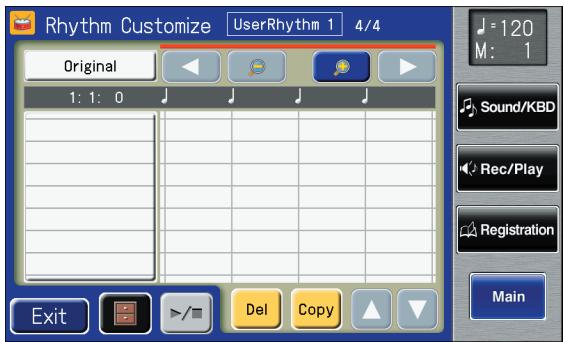
- Touch < > (Utility).
The Utility screen appears.
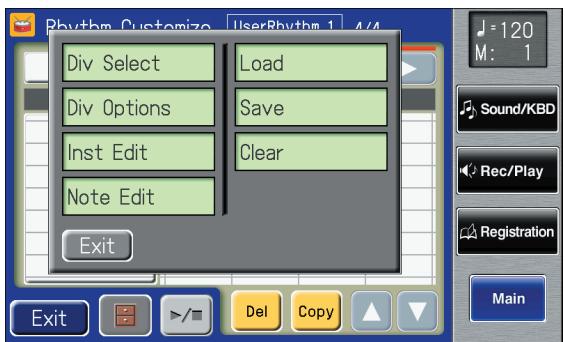
- Touch
.
The Rhythm Load screen appears.
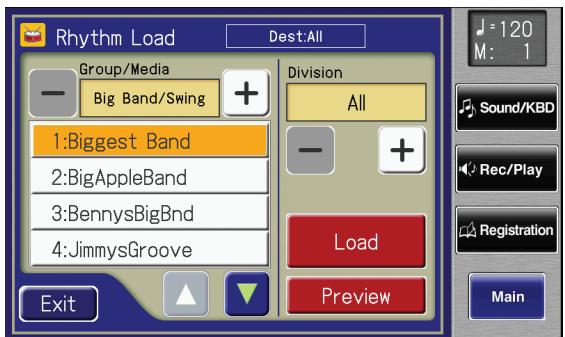
- Touch Group/Media < - > < +> to select Rhythm group.
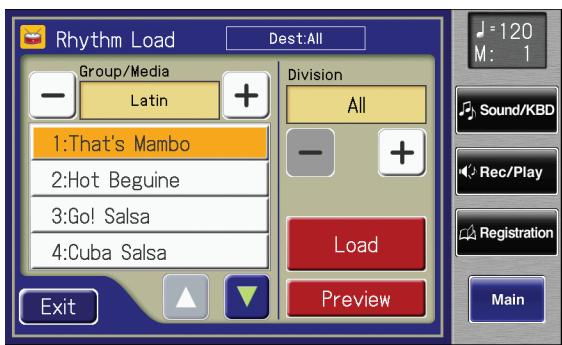
- Touch <><> to switch the screen, then touch a rhythm name to select the rhythm.
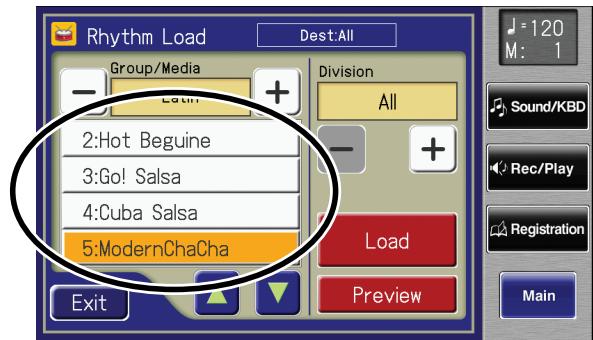
You can touch to hear how the rhythm sounds.
- Touch Division < > < +> to select the Division you want to call up.
Selecting "ALL" calls up all of the Divisions.
- Use the Variation buttons of the panel to change the arrangement of the accompaniment.
- Touch
.
The rhythm is called up, and the Rhythm Customize screen returns to the display.
Making the Division Settings
Independent "Drum Set," "Beat," and "Volume" settings can be made for each Division.
- Bring up the Rhythm Customize screen (p. 199).
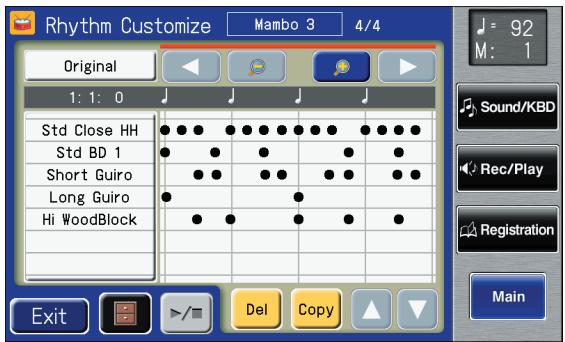
- Touch < > (Utility).
The Utility screen appears.
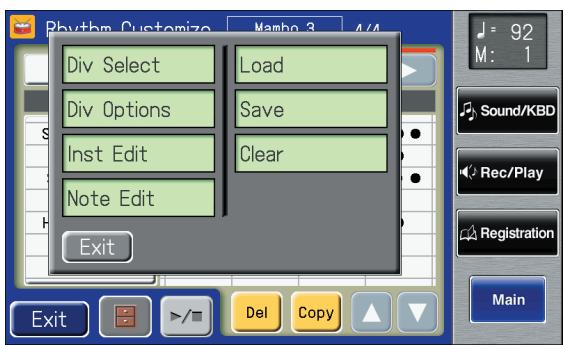
- Touch (Division Options).
The Division Options screen appears.
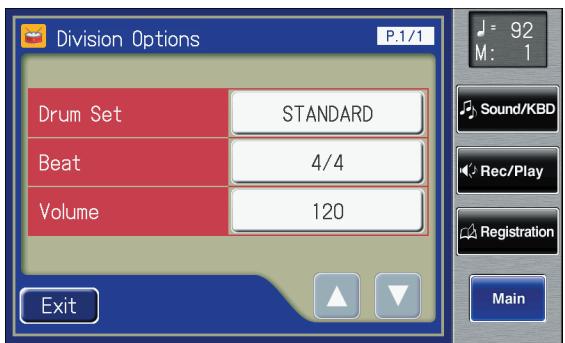
Changing the Drum Set
- Touch the value set for Drum Set.
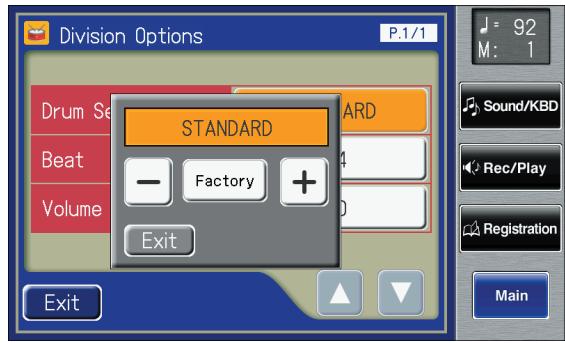
- Touch <> <+> to change the setting.
- Touch
.
The Division Options screen reappears.
Changing the Beat
- Touch the Beat setting.
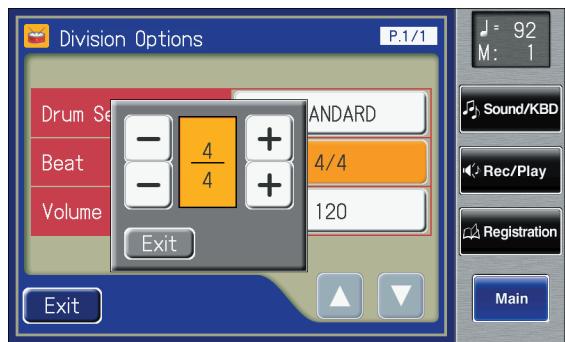
- Touch <> <+> to change the setting.
- Touch
.
The Division Options screen reappears.
Changing the Volume
- Touch the Volume setting.

11. Touch <> <+> to change the setting.
12.Touch.
The Division Options screen reappears.
Creating the User Rhythm
Editing the Rhythm
Edit the internal rhythm.
What you can do Page Copying the Rhythm in a Selected Measure p. 203 Deleting the Rhythm in a Selected Measure p. 203 Erasing Sounds p. 204 Adding Sounds p. 204 Altering Voices p. 205 Changing the Velocity p. 205 Moving Sounds p. 205
Copying the Rhythm in a Selected Measure
- Bring up the Rhythm Customize screen (p. 199).
- Touch
(to copy the selected measure).
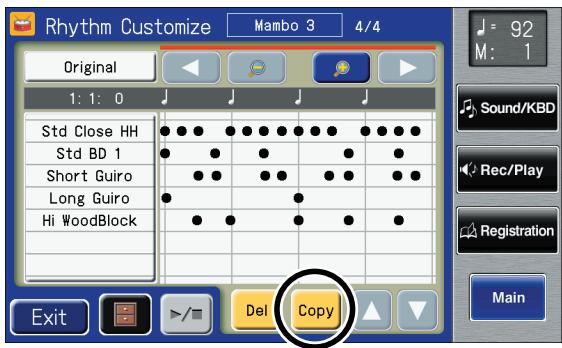
The following screen appears.
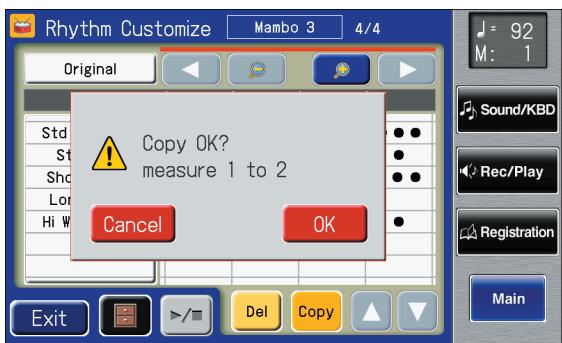
To cancel operation, touch .
3. Touch .
Copies the rhythm in the displayed measure and adds it to the end of that measure.
Deleting the Rhythm in a Selected Measure
- Bring up the Rhythm Customize screen (p. 199).
- Touch <Del> (to copy the selected measure).
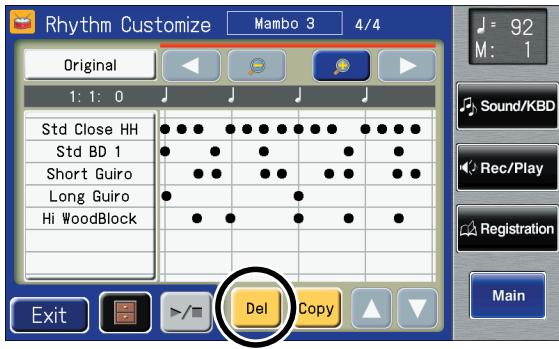
The following screen appears.
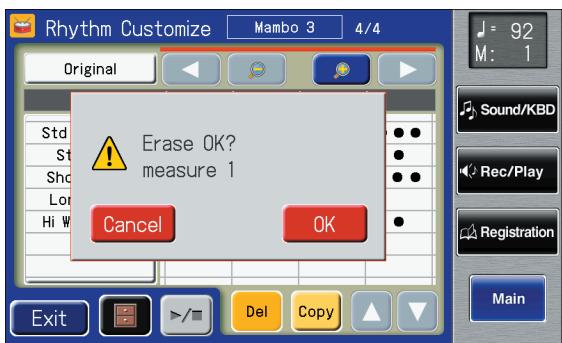
To cancel operation, touch <Cancel> .
3. Touch .
The selected measure is deleted.
Editing the Sounds
You can add and erase sounds, alter voices, and change the velocity.
- Bring up the Rhythm Customize screen (p. 199).
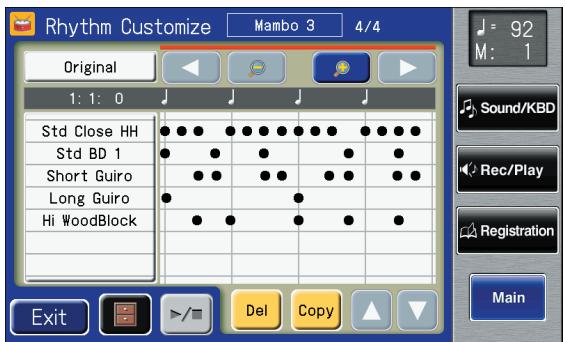
- Touch the point on the screen where the sound you want to edit is located.
When you touch the screen, a line appears at the point you touch. By holding your finger to the screen and moving it to the left or right, you can have the line move along with your finger.
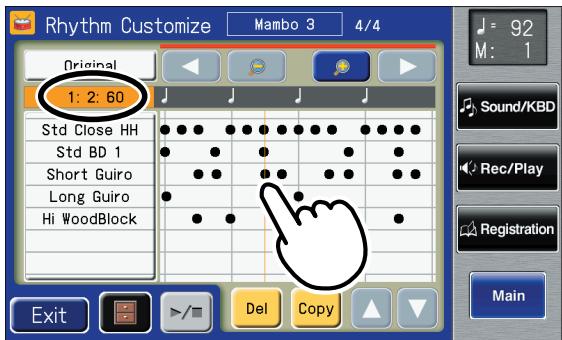
The information on the location (Measure: Beat: Tick) of the line on the screen is displayed.
When you remove your finger from the screen, the Note Edit screen opens, and the note positioned at the line in the Rhythm Customize screen is displayed.
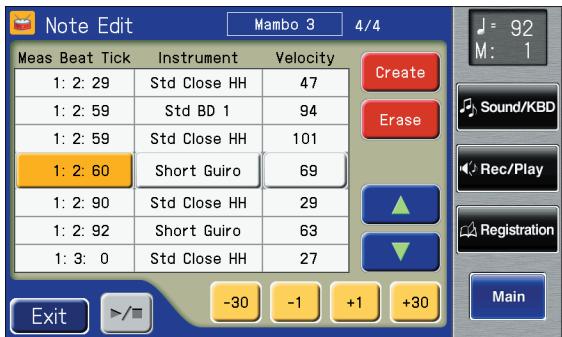

You can touch < to open the Utility screen, and then touch in the Utility screen to open the Note Edit screen.
Erasing Sounds
- Touch < to select the point where you want to erase the sound.
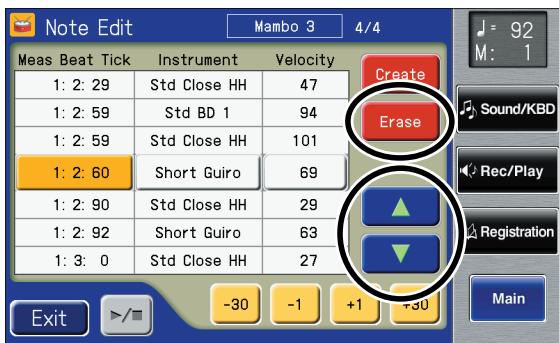
- When you touch <Erase> , the selected sound is erased.
Adding Sounds
- Touch < to select the point where you want to add the sound.
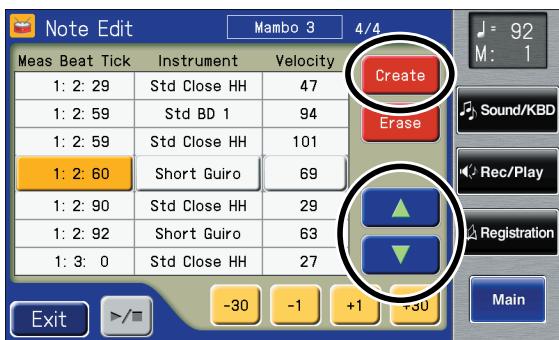
- When you touch < Create , the new sound is added after the selected sound.
Altering Voices
- Touch < ▲ > < ▼ > to select the sound whose voice you want to change.
- Touch the Instrument name.
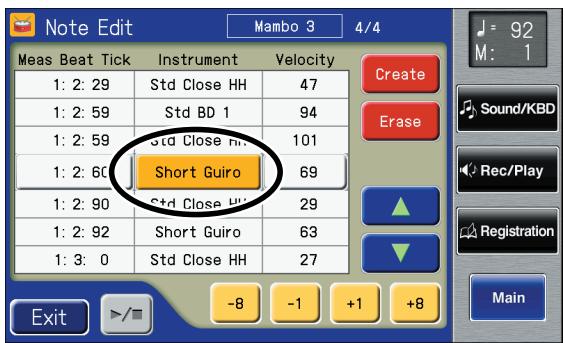
- Touch < -8 > < -1 > < +1 > < +8 > to switch the voice.
Changing the Velocity
- Touch < △ > to select the sound whose velocity you want to change.
- Touch the Velocity setting.
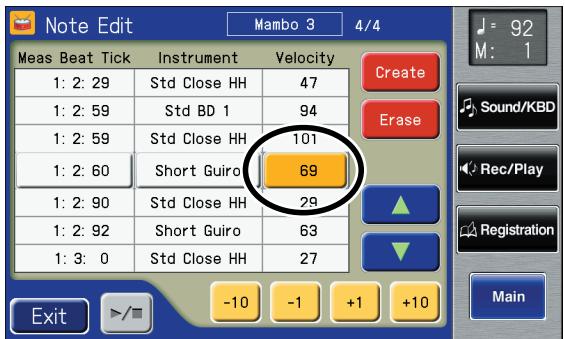
- Touch < -10 > < -1 > < +1 > < +10 > to change the velocity.
Moving Sounds
- Touch < △ > < ▽ > to select the sound you want to move.
- Touch the "Meas Beat Tick" setting.
The note-location display uses "Measure: Beat: Tick" as the format. A tick is a unit of time that's shorter than a beat.
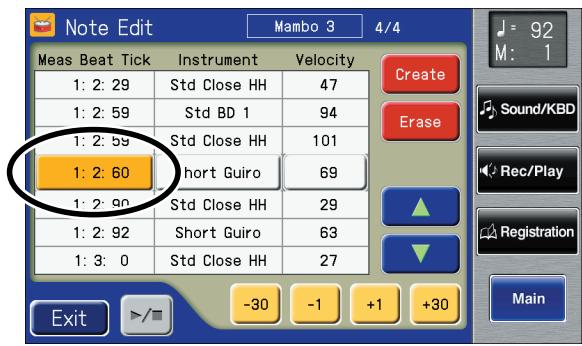
- Touch < -30 > < -1 > < +1 > < +30 > to move the sound.
With the Rhythm Customize function, note locations are expressed in terms of "Measure: Beat: Tick." One tick is the smallest unit used in indicating the location of the note, and there are 120 ticks in a quarter note. Typical notes might be indicated as shown below.
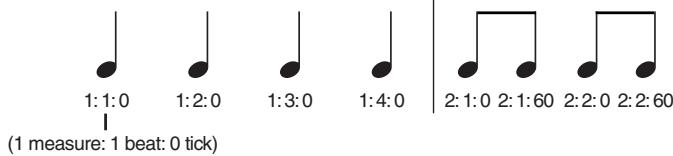
Quarter Note
8th Note Triplet
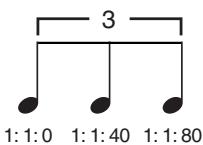
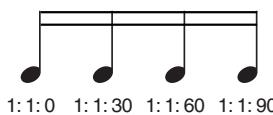
16th Note
The ticks for each note have the following characteristics.
Quarter Note 0 (Every 120 ticks) 8th Note 0, 60 (Every 60 ticks) 8th Note Triplet 0, 40, 80 (Every 40 ticks) 16the Note 0, 30, 60, 90 (Every 30 ticks)
Changing and Deleting the Instruments Used
You can change an instrument used in a rhythm and replace it with another instrument.
- Bring up the Rhythm Customize screen (p. 199).
- Touch the section in the Rhythm Customize screen where the instrument names are displayed.
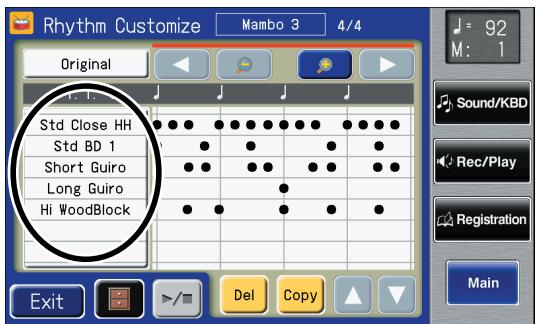
The Instrument Edit screen appears.
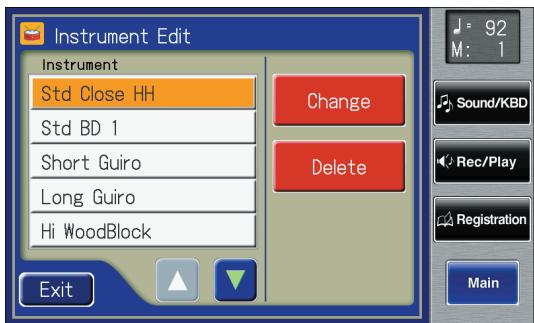
MEMO
You can open Instrument Edit screen using the following procedure.
- Touch < > (Utility).
The Utility screen appears.

- Touch
(Instrument Edit).
The Instrument Edit screen appears.
Changing the Instrument Used
-
Touch <>> <> in the screen to select the name of the instrument you want to change.
-
Touch.
The following screen appears.
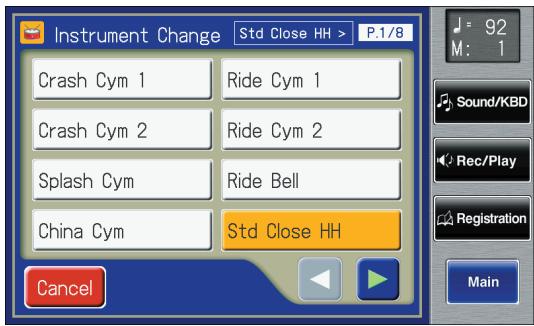
- Touch <><> to switch the screen, then touch the instrument name.
The following screen appears.
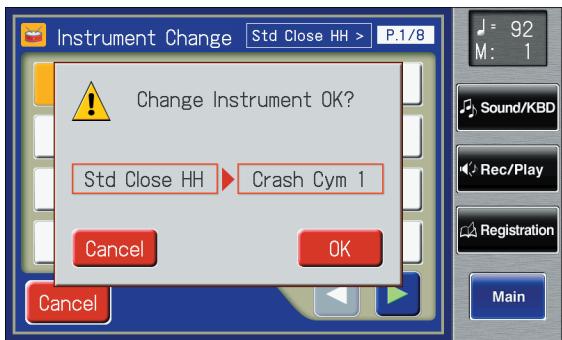
To cancel operation, touch .
- If you want to change the instrument, touch OK.
The instrument is changed.
Deleting an Instrument
You can delete an instrument used in a rhythm. When an instrument is deleted, all of the sounds using that instrument are deleted from the rhythm.
- Touch <>><> in the screen to select the name of the instrument you want to delete.
- Touch
on the Instrument Edit screen.
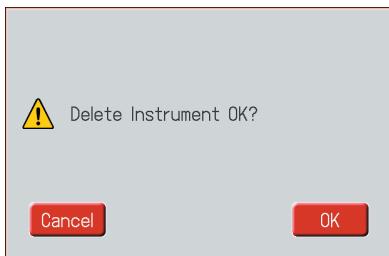
To cancel operation, touch .
- If you are sure that you wish to delete the instrument, touch
.
The selected instrument is deleted.
Deleting Rhythms You Have Created
This deletes User rhythms created by partially editing the internal rhythms.
- Bring up the Rhythm Customize screen (p. 199).
- Touch < > (Utility).
The Utility screen appears.
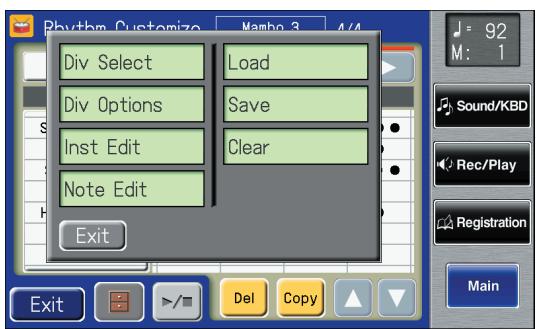
- Touch
.
The following screen appears.
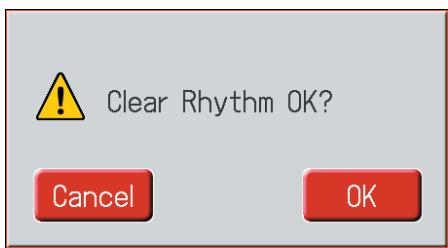
To cancel operation, touch <Cancel> .
- If you are sure that you wish to delete the rhythm, touch
.
Saving the User Rhythm
Changing the Name of a User Rhythm (Rename)
- Bring up the Rhythm Customize screen (p. 199).
- Touch < > (Utility).
The Utility screen appears.
- Touch
.
The Rhythm Save screen appears.
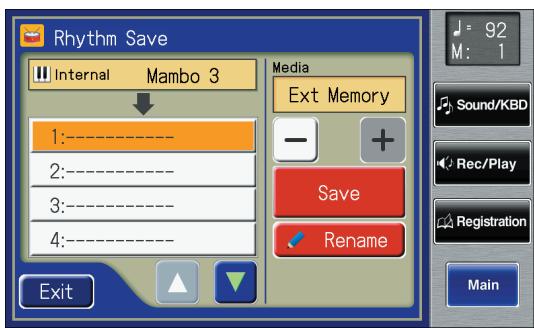
- Touch
.
The Rename screen appears.
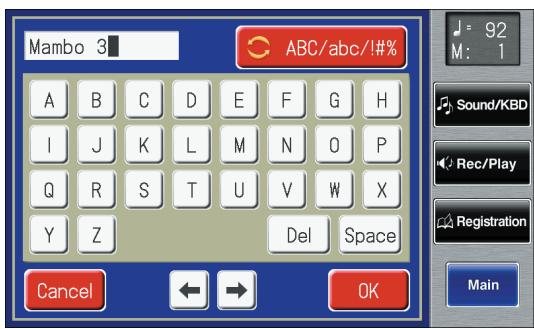
- Touch the character select button ( ABC/abc/#%) to switch among uppercase/lowercase/ symbols.
Touch the character select button repeatedly to cycle through the available choices, like this: uppercase lowercase symbols uppercase...
- Touch the screen to specify the desired character.
The following characters can be selected.
ABCDEFGHIJKLMNOPQRSTUVWXYZ abcdefghi klmnopqrstuwxyz ! " # % & '() *+, -./ := ?^0123456789 Del Deletes a character. Space Inserts a space (blank). ←→ Move the cursor (the symbol that indicates the location at which characters will be input) to left or right.
To cancel operation, touch <Cancel> .
- When you're done making the settings, touch OK>.
Saving User Rhythms to the User Memory or USB Memory
You can take User rhythms created with the Rhythm Customize function and save them in the ATELIER's User memory and USB memory.
To call up rhythms saved in User memory, press the [User] button.
- Bring up the Rhythm Customize screen (p. 199).
- Touch < > (Utility).
The Utility screen appears.
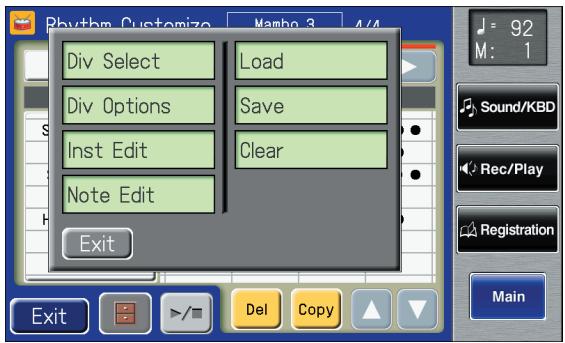
- Touch
.
The Rhythm Save screen appears.
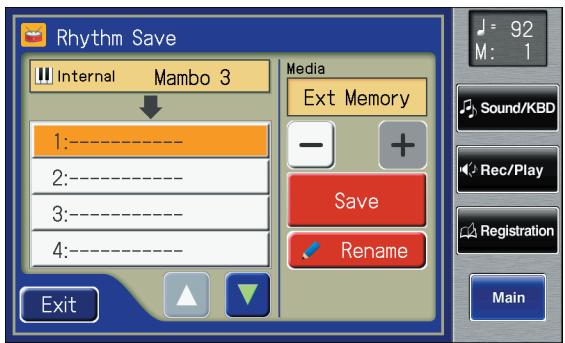
- Touch <><+ to determine the save destination.
Select "Ext Memory" to save the data in USB memory, or "Favorites" to save it in user memory.
- Touch <>><> to select the number of the save destination.
Numbers which have not been used in the saving operation will be displayed as "----".
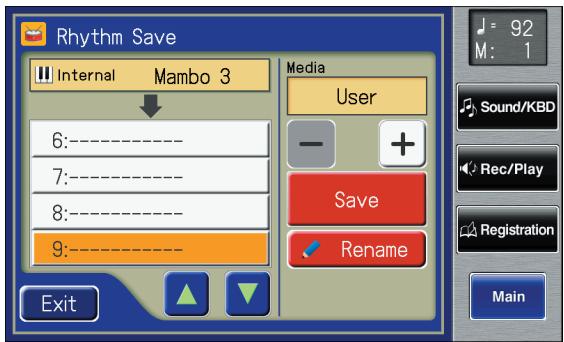
To cancel the save, touch the to close the Rhythm Save screen.
You can change the name of a rhythm by touching .
- Touch
.
The User rhythms are saved to the User memory or to USB memory.

You can save rhythms after changing the tempo by touching the Tempo [ ] [ ] button.
If the following screen appears
The following screen appears if you select a number to which a rhythm has already been saved and then touch .
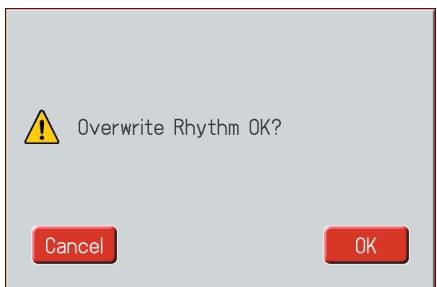
If you wish to overwrite the rhythm
- Touch
.
The Rhythm will be rewritten.
If you wish to save new data instead of updating the rhythm
- Touch
.
Rewriting of the Rhythm will be canceled.
- In the Rhythm Save screen, select the number that is displayed as "----" (a number that currently does not contain rhythm data).
- Save the Rhythm.
Adjusting How the Instrument Responds
Turning Aftertouch On/Off
This switches the aftertouch setting for the Upper keyboard. Aftertouch applies vibrato when additional pressure is placed on the keys that are being played.

Aftertouch can only be enabled for the Upper keyboard.
1. Touch on the Main screen.
The Sound/Keyboard screen appears.
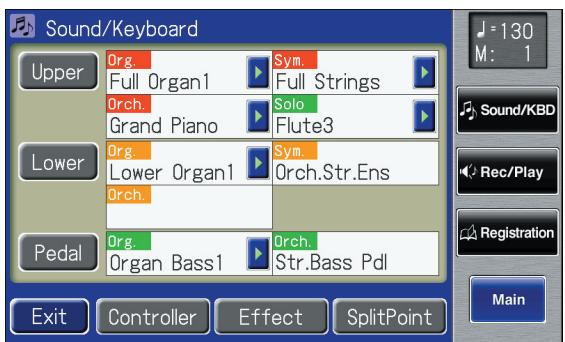
2. Touch.
3. Touch <>><> to display the After Touch.
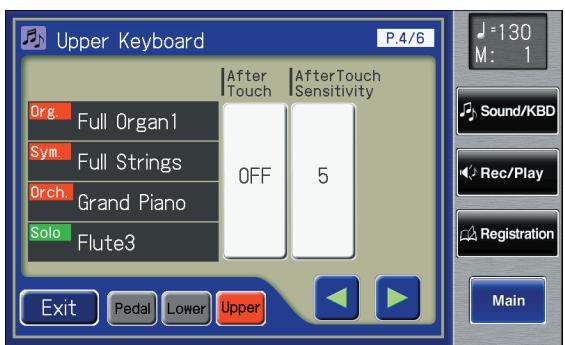
4. Touch the After Touch setting to switch between "ON" and "OFF."
Each time you touch the After Touch setting, it will alternate between "ON" and "OFF."
Setting ON, OFF
5. Touch.

Please note that not all the voices on the Upper keyboard are responsive to Aftertouch, even if the feature is set to ON. For details, refer to the Voice List (Appendix: separate booklet).
Adjusting the Depth of Aftertouch
This adjusts the depth of the Aftertouch effect.

Aftertouch can only be enabled for the Upper keyboard.
1. Touch on the Main screen.
The Sound/Keyboard screen appears.
2. Touch.
The Upper Keyboard screen appears.
3. Touch <><> to display the After Touch Sensitivity.
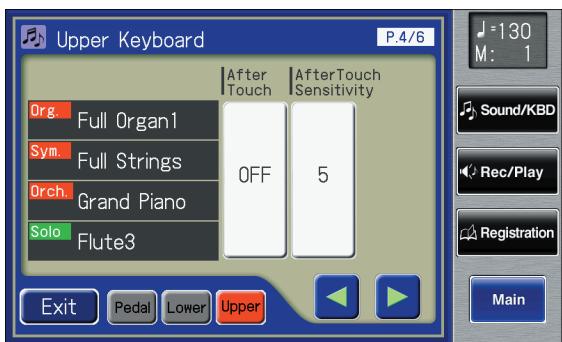
4. Touch the After Touch Sensitivity value (1-10).
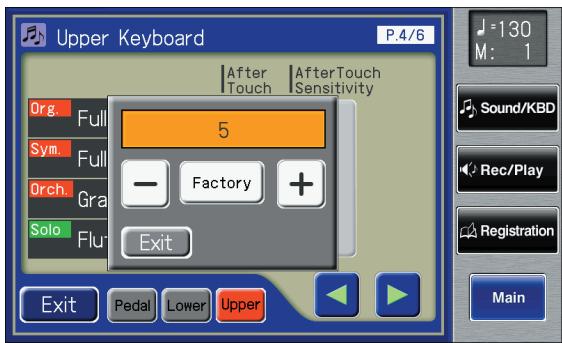
5. Touch < - > < +> to edit the value.
Setting 1-10
Higher settings of this value will allow deeper vibrato to be applied when you apply pressure to the keyboard.
6. Touch.
Adjusting the Initial Touch Sensitivity
Initial Touch is a function that translates the force used in playing the keys into a directly proportional amount of volume. This adjusts the amount of the Initial Touch effect applied.
1. Touch on the Main screen.
The Sound/Keyboard screen appears.
2. Touch either , or .
Upper To change the initial touch setting of the Upper part Lower To change the initial touch setting of the Lower part
3. Touch <><> to display the Initial Touch.
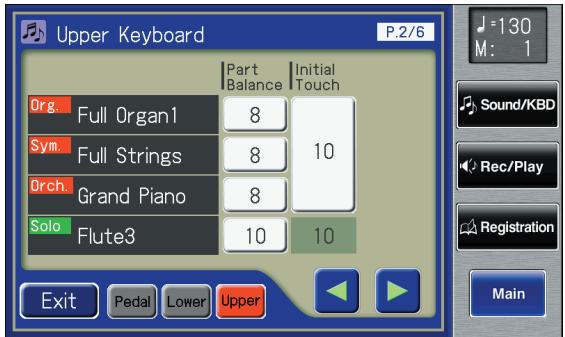
4. Touch the Initial Touch value (OFF, 1-10).
5. Touch < - > < +> to edit the value.
Setting Descriptions 1-10 Initial Touch is on.
Striking the keys more forcefully will produce correspondingly louder sounds.
The change in volume when the keys are played forcefully increases as the value is increased. OFF Initial Touch is off.
Volume remains constant regardless of how hard you play.
6. Touch.
Changing the Pedalboard Polyphony
You can set the Bass Pedalboard to play simultaneous multiple notes or single notes only.
1. Touch on the Main screen.
The Sound/Keyboard screen appears.
2. Touch .
The Pedalboard screen appears.
3. Touch <><> to display the PedalBass Mode.
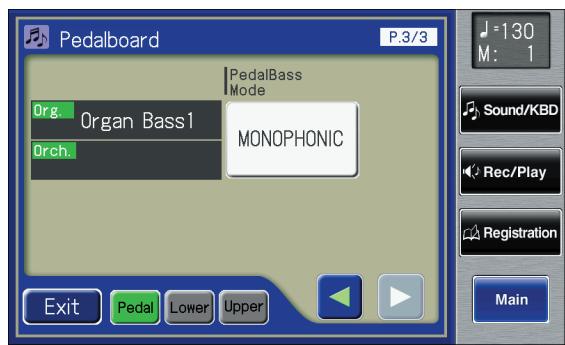
4. Touch the PedalBass Mode setting to switch between "MONOPHONIC" and "POLYPHONIC."
Each time you touch the PedalBass Mode setting, it will alternate between "MONOPHONIC" and "POLYPHONIC."
Setting Descriptions MONOPHONIC Only single notes can be played. POLYPHONIC Multiple notes can be played.
5. Touch.
Performance Function Settings
Selecting the keyboard affected by the damper pedal
You can specify which keyboard will be affected when you press the Damper (Sustain) pedal.
1. Touch on the Main screen.
The Sound/Keyboard screen appears.
2. Touch .
The Controller screen appears.
3. Touch <>> <> to display the Damper Pedal.
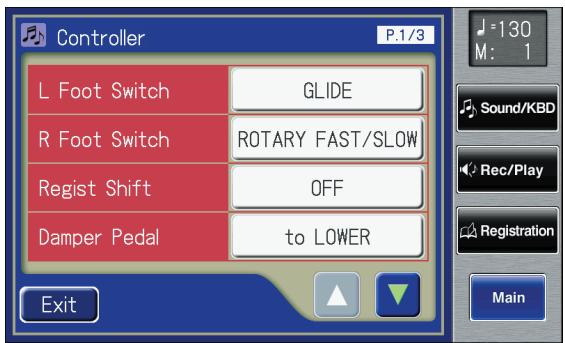
4. Touch the Damper Pedal setting to switch between "to UPPER" and "to LOWER."
Each time you touch the Damper Pedal setting, it will alternate between "to UPPER" and "to LOWER."
Setting Descriptions to UPPER The effect is applied to the voices played on the Upper keyboard. to LOWER The effect is applied to the voices played on the Lower keyboard.
5. Touch.
Changing the Function of the Expression Pedal
Specify how the Expression Pedal will function when your performance is being recorded and when ATELIER song files are being played back.
Function During Recording
Specify whether Expression Pedal operations will be recorded or not while your performance is being recorded.
1. Touch on the Main screen.
The Sound/Keyboard screen appears.
2. Touch .
The Controller screen appears.
3. Touch <>> <> to display the Exp. Src (Rec).

4. Touch the Exp. Src (Rec) setting to switch between "PEDAL" and "COMPOSER."
Each time you touch the Exp. Src (Rec) setting, it will alternate between "PEDAL" and "COMPOSER."
Setting Descriptions PEDAL Expression Pedal movements will be recorded. The previous recording will be erased as new songs are recorded. COMPOSER Expression Pedal movements will not be recorded. The previous data will remain without being erased.
5. Touch.
Function During Playback
You can specify whether or not the Expression Pedal will function while ATELIER song files are being played back.
1. Touch on the Main screen.
The Sound/Keyboard screen appears.
2. Touch .
The Controller screen appears.
3. Touch <>><> to display the Exp. Src (Play).
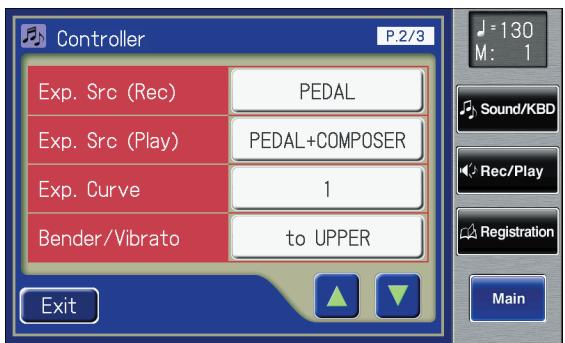
4. Touch the Exp. Src (Play) setting.
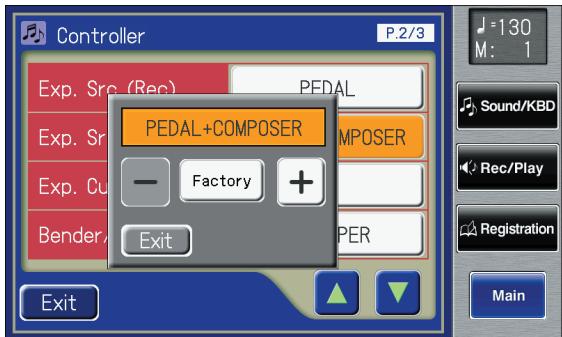
5. Touch <-> <+> to change the setting.
Setting Descriptions PEDAL +COMPOSER The Expression Pedal will function. Expression Pedal recording within the song file will also be effective. COMPOSER The Expression Pedal will not function. The Expression Pedal recording within the song file will be effective. PEDAL The Expression Pedal will function. The Expression Pedal recording within the song file will be ignored.
6. Touch.
Choosing the keyboard for which Pitch Bend and Vibrato will apply
This setting determines which keyboard will be controlled by the Pitch Bend/Vibrato lever.
1. Touch on the Main screen.
The Sound/Keyboard screen appears.
2. Touch .
The Controller screen appears.
3. Touch <>><> to display the Bender/Vibrato.
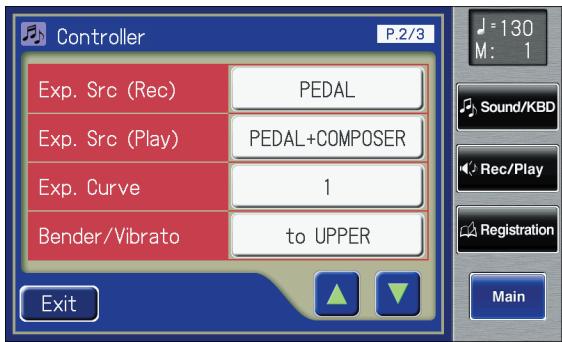
4. Touch the Bender/Vibrato setting.
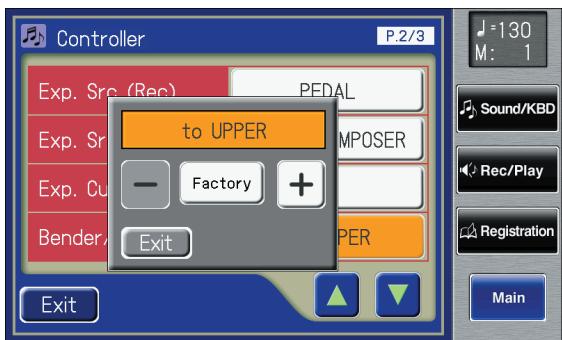
5. Touch <> <+> to change the setting.
Setting Descriptions to UPPER The effect is applied to the voices played on the Upper keyboard. to LOWER The effect is applied to the voices played on the Lower keyboard. to PEDAL The effect is applied to the voices played on the Pedalboard.
6. Touch .
Changing the Pitch Bend Range
This setting allows you to choose the maximum amount of Pitch change (range) permissible when using Pitch Bend. The range can be set anywhere between 1-12 (in semitone units; with a maximum of one octave).
1. Touch on the Main screen.
The Sound/Keyboard screen appears.
2. Touch .
The Controller screen appears.
3. Touch <>> <> to display the Pitch Bend Range.
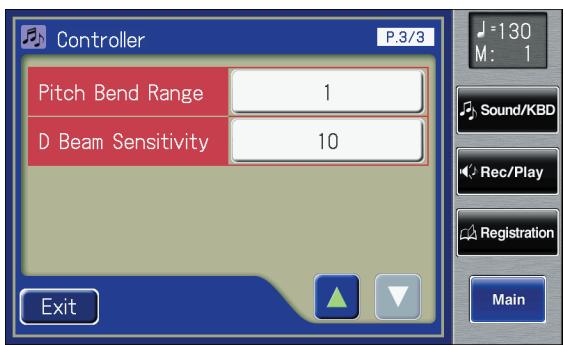
4. Touch the Pitch Bend Range setting.
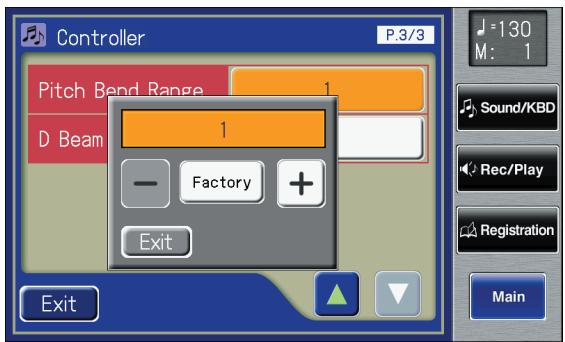
5. Touch <-> <+> to change the setting.
1-12 (semitone steps)
6. Touch.
NOTE
Drums/SFX is fixed at one octave range, regardless of this setting.
Adjusting the Sensitivity of the D Beam Controller
You can adjust the sensitivity of the D Beam controller.
Increasing this setting will make the D Beam controller more responsive.
The sensitivity of the D Beam controller can vary depending on the brightness of the surroundings. If it does not operate as you expect, please readjust the sensitivity.
1. Touch on the Main screen.
The Sound/Keyboard screen appears.
2. Touch .
The Controller screen appears.
3. Touch <>><> to display the D Beam Sensitivity.
4. Touch the D Beam Sensitivity setting.
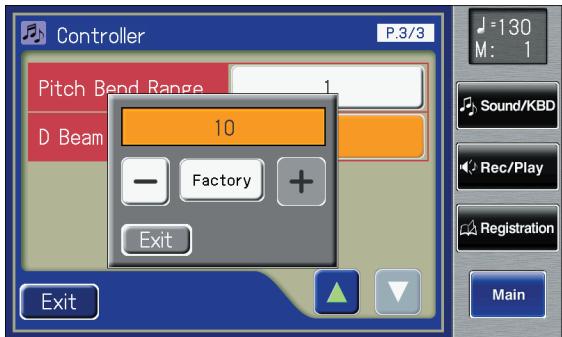
5. Touch <><+ to change the setting.
Setting 1-10
6. Touch.
This setting remains stored in memory even while power is turned off.
Rhythm Settings
Turning Chord Hold On/Off
The Chord Hold function can be switched ON/OFF. When Chord Hold is ON, the Automatic Accompaniment will continue playing even when you lift your hand from the keyboard to play a new chord.
1. Touch on the Main screen.
The Rhythm screen appears.
2. Touch < > (Utility).
The Utility screen appears.
3. Touch .
The Rhythm Options screen appears.
4. Touch <> <> to display the Chord Hold.
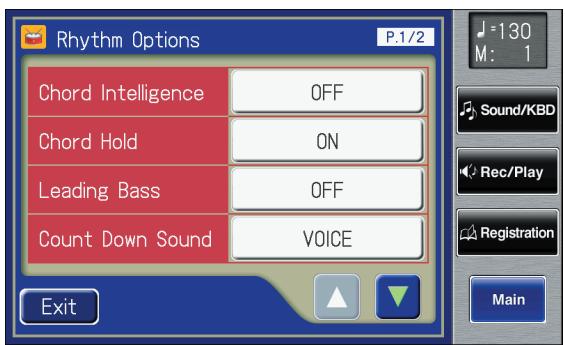
5. Touch the Chord Hold setting to switch between "ON" and "OFF."
Each time you touch the Chord Hold setting, it will alternate between "ON" and "OFF."
Setting Descriptions ON The Automatic Accompaniment determined by the chord played on the Lower keyboard is held (even if you release the keys). OFF When you release the keys that you played in the Lower keyboard, the Automatic Accompaniment will stop (be muted). Only the Rhythm (drum) performance will continue.
6. Touch .
Changing the Intro Countdown Sound (Count Down Sound)
You can change the sound that is used for the count played at the end of the intro with the Intro Countdown function (p. 88).
1. Touch on the Main screen.
The Rhythm screen appears.
2. Touch < > (Utility).
The Utility screen appears.
3. Touch.
The Rhythm Options screen appears.
4. Touch <>><> to display the Count Down Sound.
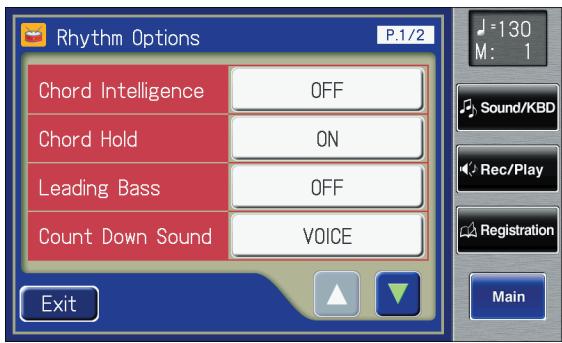
5. Touch the Count Down Sound setting to switch between "VOICE" and "STICK."
Each time you touch the Count Down Sound setting, it will alternate between "VOICE" and "STICK."
Setting Descriptions VOICE Human voice count (One, two, three...) STICK Stick sound count
6. Touch.
Preventing Rhythm Tempos from Switching Automatically
You can prevent rhythm tempos from switching automatically when you switch rhythms.
1. Touch on the Main screen.
The Rhythm screen appears.
2. Touch < > (Utility).
The Utility screen appears.
3. Touch .
The Rhythm Options screen appears.
4. Touch <>><> to display the Auto Std Tempo (Auto Standard Tempo).
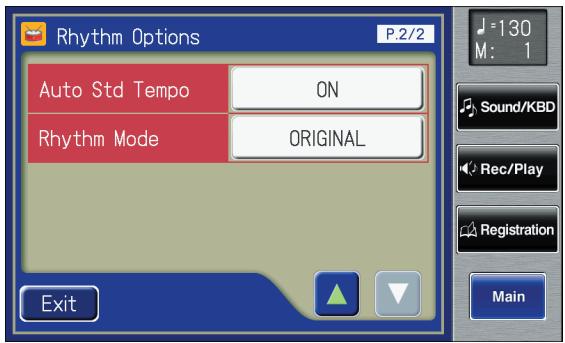
5. Touch the Auto Std Tempo setting to switch between "ON" and "OFF."
Each time you touch the Auto Std Tempo setting, it will alternate between "ON" and "OFF."
Setting Descriptions ON Switching the rhythm while the rhythm is stopped automatically changes the tempo settings to those in the new rhythm. OFF The tempo settings are not changed automatically when the rhythms are changed.
6. Touch.

This setting remains stored in memory even while power is turned off.
Changing the Operation of the Fill In Button and Intro/Ending Buttons
You can change the operation of the Fill In [Auto] button, [Break] button, [Intro] button, and [Ending] button so that they work in the same way as on the S-series.
1. Touch on the Main screen.
The Rhythm screen appears.
2. Touch < > (Utility).
The Utility screen appears.
3. Touch .
The Rhythm Options screen appears.
4. Touch <><> to display the Rhythm Mode.
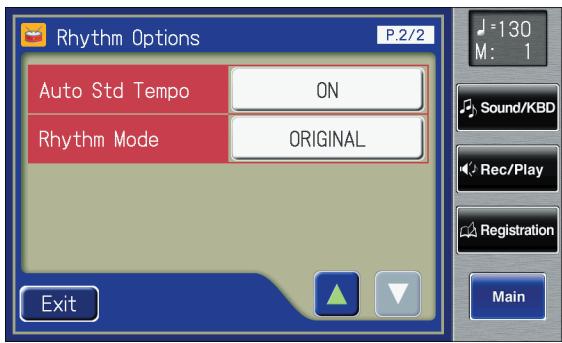
5. Touch the Rhythm Mode setting to switch between "ORIGINAL" and "S-SERIES."
Each time you touch the Rhythm Mode setting, it will alternate between "ORIGINAL" and "S-SERIES."
Setting Descriptions ORIGINAL The function of the Fill In [Auto] button, [Break] button, [Intro] button, and [Ending] button will not change. S-SERIES The function of the Fill In [Auto] button, [Break] button, [Intro] button, and [Ending] button will change. Fill In [Auto] button → Fill In [To Variation] button [Break] button → Fill In [To Original] button [Intro] button → [Break] button [Ending] button → [Intro/Ending] button
6. Touch.

This setting remains stored in memory even while power is turned off.
Placing the Panel Overlay Sheet
If you've set Rhythm Mode to "S-SERIES," you can place the panel overlay sheet included with the ATELIER on the panel so that the button functions will be easy to see.
1. Place the panel overlay sheet as shown in the illustration below.
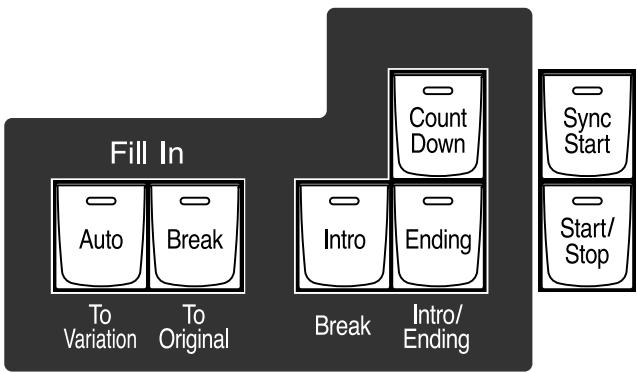
On the panel overlay sheet are printed the names of the buttons for when Rhythm Mode is set to "S-SERIES."
Button Descriptions Fill In [To Variation] button A fill-in (p. 89) will be played, and then an elaborate rhythm pattern will play. Fill In [To Original] button A fill-in (p. 89) will be played, and then a basic rhythm pattern will play. [Break] button Stop the rhythm at the end of that measure (Break). [Intro/Ending] button This lets you start the rhythm with an intro or stop the rhythm with an ending.
Starting the Rhythm (if Rhythm Mode is "S-SERIES")
Starting with an Added Intro
1. Press the [Intro/Ending] button.
The Intro is played and the Rhythm starts.
While the Intro is playing, the [Intro/Ending] button indicator will light, until the Intro ends then the button indicator will go dark.
Making the Intro Short and Simple
1. Press the Fill In [To Variation] or Fill In [To Original] button.
[Start/Stop] button indicator will blink.
The indicator for the Fill In [To Variation] or [To Original] button will blink.
2. Press the [Start/Stop] button.
A short Intro is played and the Rhythm starts.
Starting Without an Intro
1. Press the [Start/Stop] button.
The Rhythm starts without an Intro being played.
Stopping the Rhythm (if Rhythm Mode is "S-SERIES")
Stopping with an Ending
1. Press the [Intro/Ending] button.
An Ending is played, then the Rhythm stops.
While the Ending is playing, the [Intro/Ending] button indicator will light, until the Ending finishes the button indicator will be turned off.
Making the Ending Short and Simple
1. Press the [To Variation] or [To Original] button, and then press the [Start/Stop] button.
A short Ending is played, then the Rhythm stops.
Stopping without an Ending
1. Press the [Start/Stop] button.
The Rhythm stops without an Ending being played.
Registration Settings
Changing the Timing at Which Arranger Settings are Recalled
You can specify how the settings related to Rhythm performances and Automatic Accompaniment will be recalled when you press a Registration button.
1. Touch on the Main screen.
The Registration Load screen appears.
2. Touch < > (Utility).
The Utility screen appears.
3. Touch .
The Registration Options screen appears.
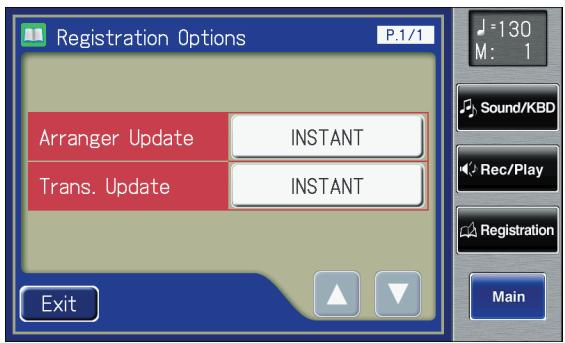
4. Touch the Arranger Update setting to switch between "DELAYED" and "INSTANT."
Each time you touch the Arranger Update setting, it will alternate between "DELAYED" and "INSTANT."
Setting Descriptions DELAYED Settings related to Rhythm performances and Automatic Accompaniment will be recalled when you hold a Registration button for several seconds. If you quickly press the Registration button, only the panel settings (voice, etc.) that are not related to Rhythm and Automatic Accompaniment will be updated. INSTANT Settings related to Rhythm performances and Automatic Accompaniment will be recalled the instant you press a button along with all other panel settings.
5. Touch.

This setting remains stored in memory even while power is turned off.
Changing the Timing at Which Transposition Settings are Recalled
You can specify how the transpose setting will be recalled when you press a Registration button.
1. Touch on the Main screen.
The Registration Load screen appears.
2. Touch < > (Utility).
The Utility screen appears.
3. Touch.
The Registration Options screen appears.
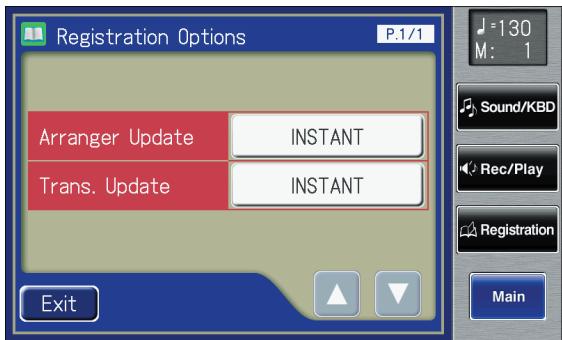
4. Touch the Trans. Update (Transpose Update) setting to switch between "DELAYED" and "INSTANT."
Each time you touch the Trans. Update setting, it will alternate between "DELAYED" and "INSTANT."
Setting Descriptions DELAYED Transpose settings will be recalled when you hold a Registration button for several seconds. INSTANT Transpose setting will be recalled the instant you press a button along with all other panel settings.
5. Touch.

This setting remains stored in memory even while power is turned off.
Composer Settings
Switching the Display of Lyrics On or Off
Some music files have Lyrics included and these Lyrics can be displayed on the screen. You can turn on or off the lyrics display of such music files.
1. Touch on the Main screen.
The Rec/Play screen appears.
2. Touch < > (Utility).
The Utility screen appears.
3. Touch .
The Rec/Play Options screen appears.
4. Touch <><> to display the Lyrics.
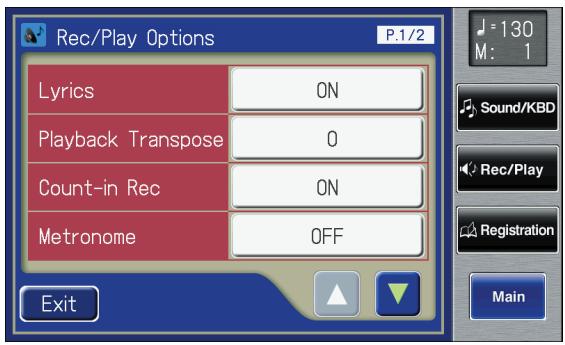
5. Touch the Lyrics setting to switch between "ON" and "OFF."
Touch the setting to toggle the display of lyrics "ON" (visible) or "OFF" (hidden).
6. Touch.

If you press a voice select button while playing back music files that contains lyrics, the display screen will switch, and the lyrics will no longer be displayed. To re-display the lyrics, touch on Rec/Play screen once again.

This setting remains stored in memory even while power is turned off.
Changing the Key When Playing Back Songs (Play Transpose)
SMF music files or a performance that you yourself recorded can be transposed for playback.
1. Touch on the Main screen.
The Rec/Play screen appears.
2. Touch < > (Utility).
The Utility screen appears.
3. Touch.
The Rec/Play Options screen appears.
4. Touch <>><> to display the Play Transpose.
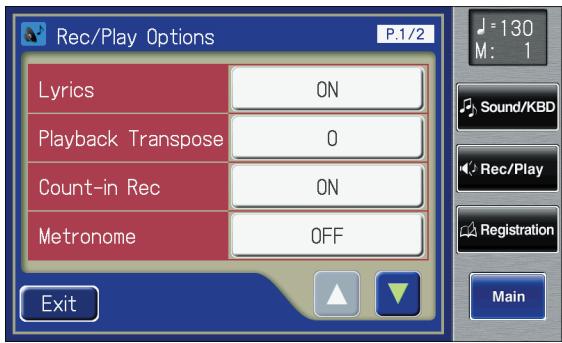
5. Touch the Play Transpose setting.
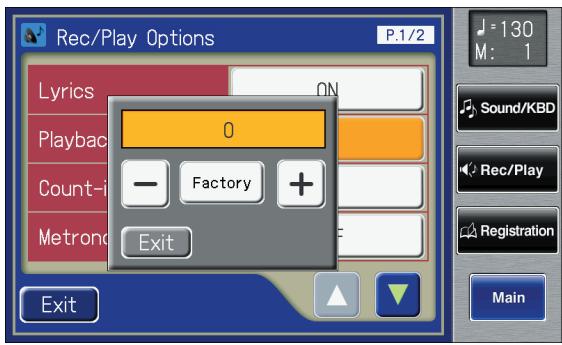
6. Touch <><+\> to change the setting.
The key is transposed by one semitone each time the

Setting
-6-0-5 (semitone steps)
7. Touch.
Changing the Metronome Setting
You can change the way in which the metronome will sound.
- Touch
on the Main screen.
The Rec/Play screen appears.
- Touch < Utility > (Utility).
The Utility screen appears.
- Touch
.
The Rec/Play Options screen appears.
- Touch <> <> to display the Metronome.
- Touch the Metronome setting.
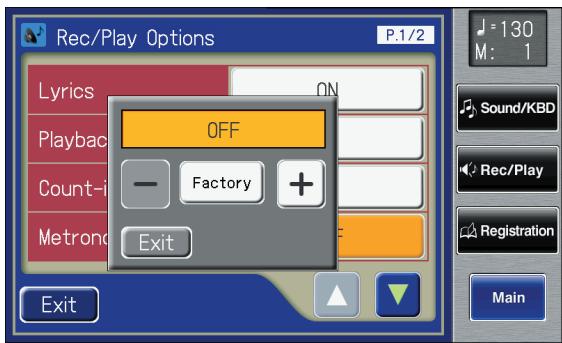
- Touch <-> <+> to change the setting.
Setting Descriptions OFF Not heard at all REC Heard only while recording ON Heard constantly
- Touch
.
Adjusting the Metronome Volume
You can adjust the volume of the metronome.
- Touch
on the Main screen.
The Rec/Play screen appears.
- Touch < > (Utility).
The Utility screen appears.
- Touch
.
The Rec/Play Options screen appears.
- Touch <>><> to display the Metronome Vol. (Metronome Volume).
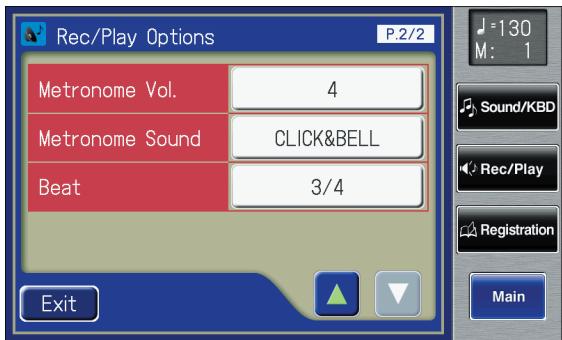
- Touch Metronome Vol. setting.
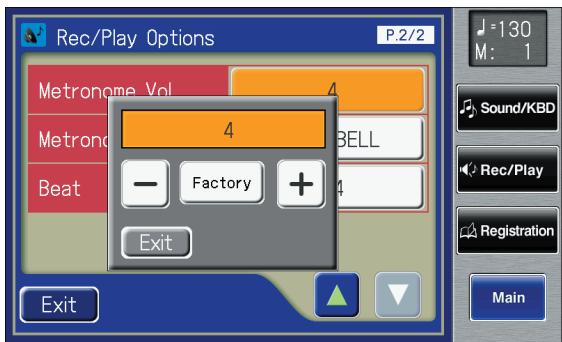
- Touch <><+> to change the setting.
Setting 1-10
Increasing the value will raise the volume of the metronome.
- Touch
.
Changing the Sound of the Metronome
You can choose one of 4 different sounds for the metronome.
- Touch
on the Main screen.
The Rec/Play screen appears.
- Touch < > (Utility).
The Utility screen appears.
- Touch
.
The Rec/Play Options screen appears.
- Touch <>> <> to display the Metronome Sound.
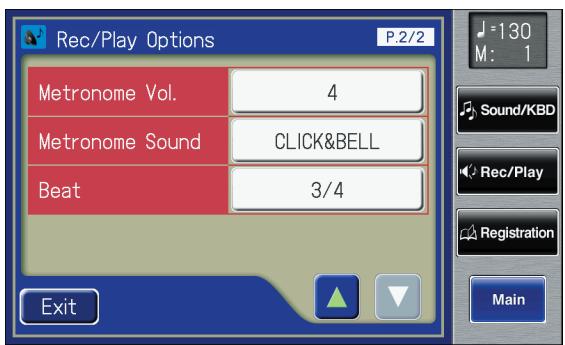
- Touch the Metronome Sound setting.
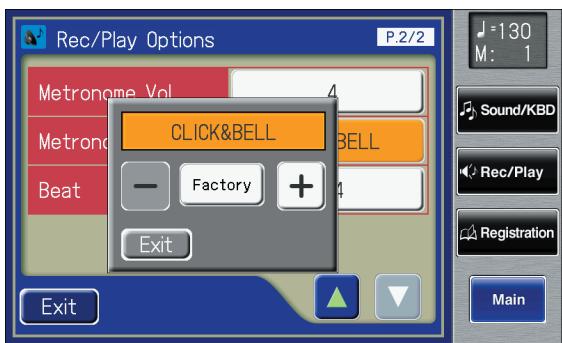
- Touch <><+> to change the setting.
Setting Descriptions CLICK&BELL Conventional metronome sound ELECTRONIC Electronic metronome sound VOICE ENG. Human voice (English) VOICE JPN. Human voice (Japanese)
- Touch
.

This setting remains stored in memory even while power is turned off.
Setting the Beat
This setting determines the beat to be used when recording performance songs.
- Touch
on the Main screen.
The Rec/Play screen appears.
- Touch < > (Utility).
The Utility screen appears.
- Touch
.
The Rec/Play Options screen appears.
- Touch <> <> to display the Beat.
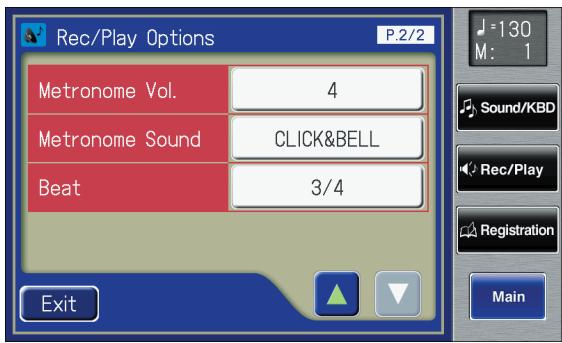
- Touch the Beat setting.
The time signature setting screen appears.
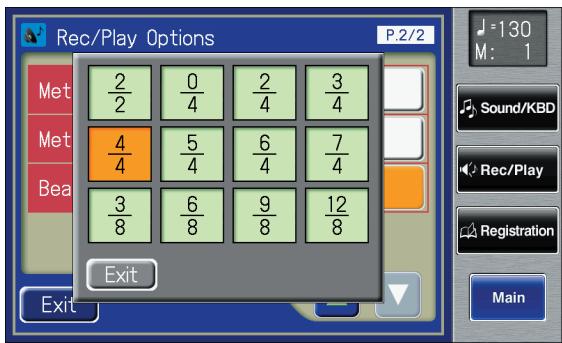
-
Touch the time signature that you wish to set.
-
Touch.

If you're using rhythm performance or automatic accompaniment, the time signature will be specified automatically.

You cannot change the beat of previously recorded songs.
Other Settings
Adjust the Standard Pitch (Master Tune)
The basic pitch of an instrument is generally considered as the pitch of the middle A note. The "Master Tune" parameter lets you adjust this basic pitch to match the pitch of any other instruments that are playing together with the ATELIER.
1. Touch on the Main screen.
The System screen appears.
2. Touch <><> to display the Master Tune.
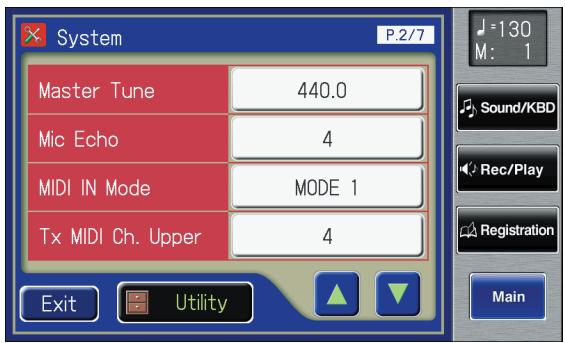
3. Touch the Master Tune setting.
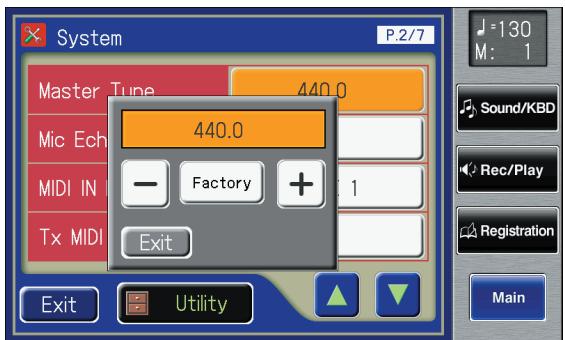
4. Touch <><+\> to change the setting.
Setting 415.3Hz-466.2Hz (0.1 Hz units)
5. Touch.

By touching < > , you can restore the default setting (440.0 Hz).

This setting remains stored in memory even while power is turned off.
Adjusting the mic echo
You can adjust the mic echo that will apply to a connected mic.

Connecting the Microphone (p. 25)
1. Touch on the Main screen.
The System screen appears.
2. Touch <> <> to display the Mic Echo.
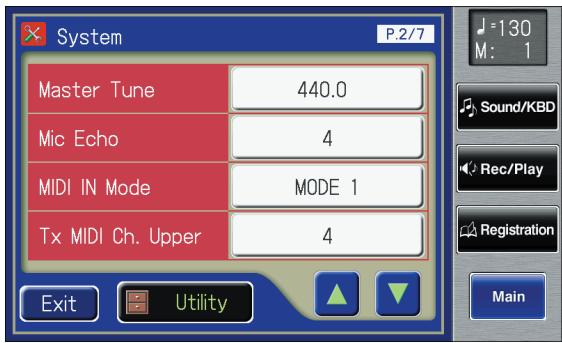
3. Touch the Mic Echo setting.
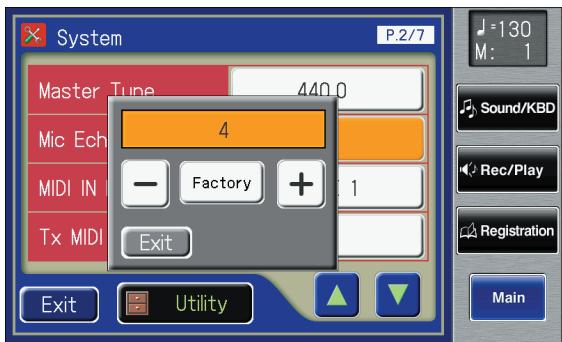
4. Touch <> <+> to change the setting.
Setting 0-12
5. Touch.

This setting remains stored in memory even while power is turned off.
Enabling Transmission of PC Numbers
Transmission of PC (Program Change) numbers can be switched ON/OFF when a Registration is selected.
- Touch
on the Main screen.
The System screen appears.
- Touch <>><> to display the Send PC Switch.
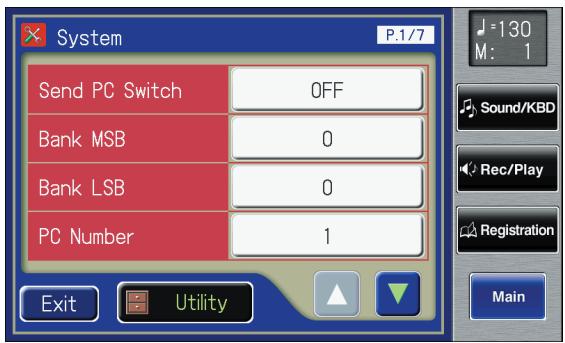
- Touch the Send PC Switch setting to switch between "ON" and "OFF."
Each time you touch the Send PC Switch setting, it will alternate between "ON" and "OFF."
Setting Descriptions ON PC numbers are transmitted OFF PC numbers are not transmitted
- Touch
.

This setting remains stored in memory even while power is turned off.
Setting the PC Number
You can specify the Program Change number that will be transmitted from MIDI Out when a Registration is selected.
- Touch
on the Main screen.
The System screen appears.
- Touch <>> <> to display the Bank MSB (Bank Select MSB), Bank LSB (Bank Select LSB), or PC Number (Program Change Number).
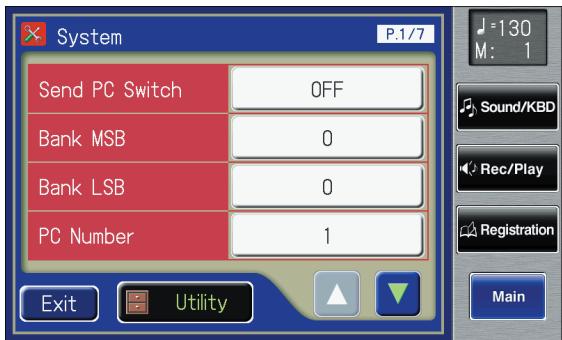
- Touch either
, , or setting.
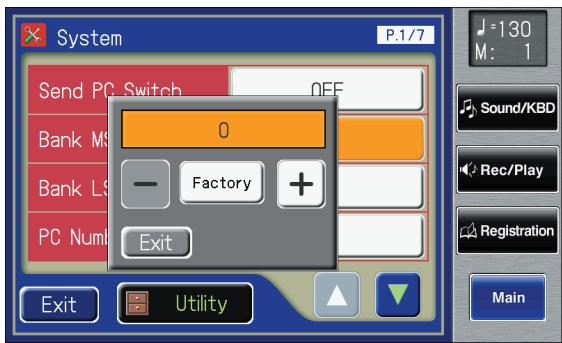
- Touch <> <+> to change the setting.
Menu Setting Bank MSB 0–127 Bank LSB 0–127 PC Number 1–128
- Touch
.
MIDI IN Mode
This instrument contains two sound generators: one for GM2/ GS data playback and one for keyboard performance.
Normally, data received at the MIDI In connector will control only the sound generator for GM2/GS data playback.
However by changing the MIDI IN Mode setting, you can also control the keyboard sound generator from MIDI In.
1. Touch on the Main screen.
The System screen appears.
2. Touch <><> to display the MIDI IN Mode.
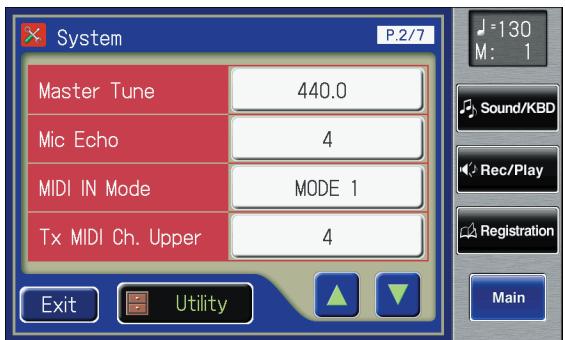
3. Touch the MIDI IN Mode setting to switch between "MODE 1" and "MODE 2."
Each time you touch the MIDI IN Mode setting, it will alternate between "Mode 1" and "Mode 2."
MODE 1 Control the instrument as a GS sound generator MODE 2 Channels 5 through 10 and Channels 12, 14, 15 are transmitted to the GS sound generator, and all other channels are transmitted to the keyboard sound generator.
Channel MODE 1 MODE 2 1 GS Solo 2 GS Pedal/GS * 3 GS Lower 4 GS Upper 5–10 GS GS 11 GS Drum/SFX 12 GS GS 13 GS Manual Percussion 14–15 GS GS 16 GS Control
- When the pedal part button is ON, data received at the MIDI In connector will control the pedal part of keyboard sound generator. When the pedal part button is OFF, data received at the MIDI In connector will control the GS sound generator.
4. Touch.

This setting remains stored in memory even while power is turned off.
Selecting the MIDI Transmit Channel
When you use the MIDI connectors or the USB connector of the ATELIER to transmit musical data to external devices, for each keyboard (Upper, Lower, and Pedal) you can specify the channel on which your playing will be transmitted as MIDI messages.

For details refer to "Connecting MIDI Devices" (p. 244).
1. Touch on the Main screen.
The System screen appears.
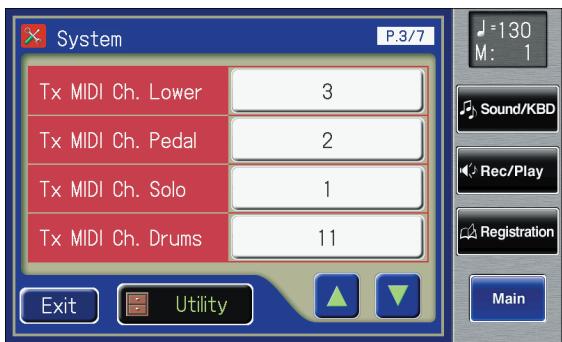
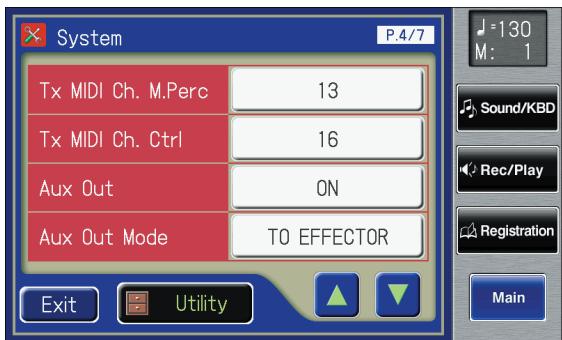
- Touch
, , , , (Tx MIDI Ch. Drums/SFX), (Tx MIDI Ch. Manual Percussion) or (Tx MIDI Ch. Control).
The Control part transmits Expression pedal data and PC numbers.
- Touch <><+ to change the setting.

Setting 1-16
- Touch
.

MIDI messages for the Solo part will be transmitted only when the Solo [To Lower] button is ON.
Adjusting the Brightness of the Display
You can adjust the brightness of the display.
- Touch
on the Main screen.
The System screen appears.
- Touch <>><> to display the Display Brightness.
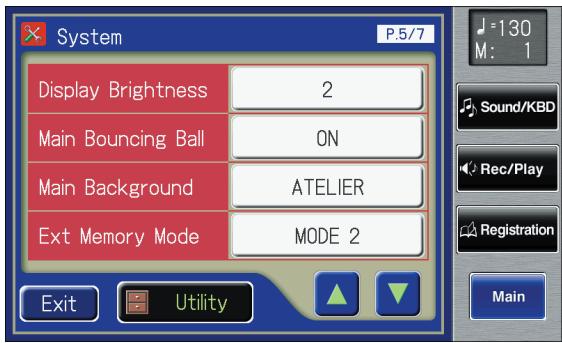
- Touch the Display Brightness setting.
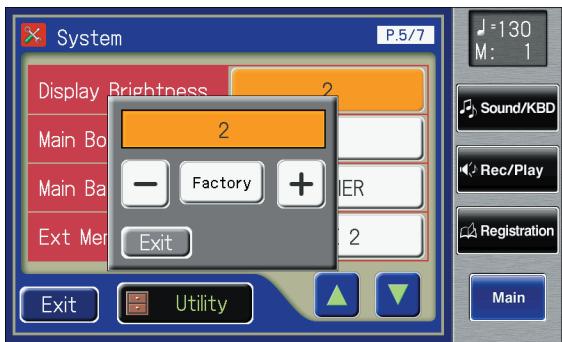
- Touch <><+> to change the setting.
Higher values will make the screen brighter.
Setting 1-3
- Touch
.

This setting remains stored in memory even while power is turned off.
Eliminating the Bouncing Ball from the Main Screen
You can set the main screen so that the bouncing ball does not appear.
- Touch
on the Main screen.
The System screen appears.
- Touch <><> to display the Main Bouncing Ball.
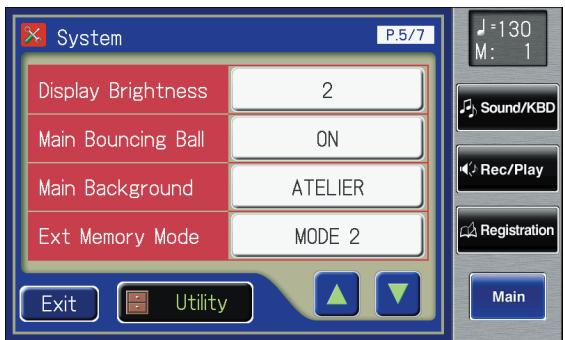
- Touch the Main Bouncing Ball setting to switch between "ON" and "OFF."
Each time you touch the Main Bouncing Ball setting, it will alternate between "ON" and "OFF."
Setting Descriptions ON The bouncing ball appears in the main screen. OFF The bouncing ball does not appear in the main screen.
- Touch
.

This setting remains stored in memory even while power is turned off.
Switching the Background of the Main Screen
You can change the color and pattern for the main screen's background.
- Touch
on the Main screen.
The System screen appears.
- Touch <>><> to display the Main Background.
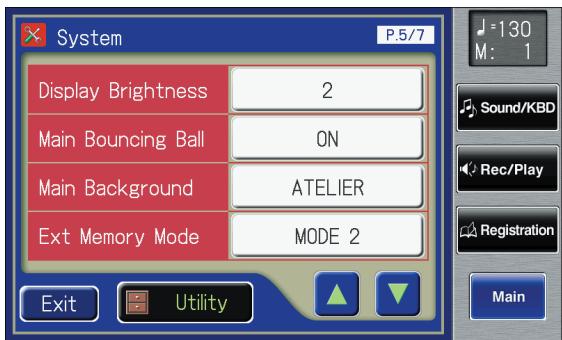
- Touch the Main Background setting.
- Touch <> <+> to change the setting.
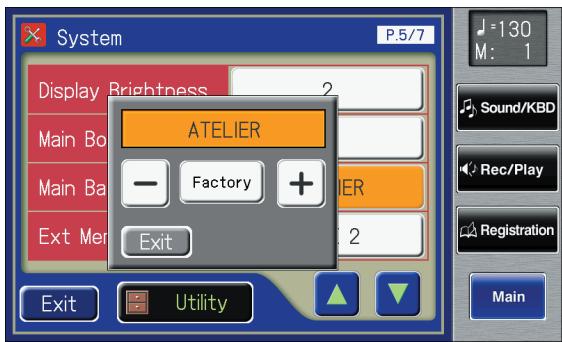
- Touch
.
The System screen appears.
- Touch
on the System Screen.
The main screen appears with the selected background.

This setting remains stored in memory even while power is turned off.
Changing the External Memory Setting
In some cases, when USB memory is connected to the external memory connector, it may take longer for data to be loaded, or data may fail to be loaded successfully. If this occurs, you may be able to solve the problem by changing the external memory setting.
1. Touch on the Main screen.
The System screen appears.
2. Touch <>><> to display the Ext Memory Mode.
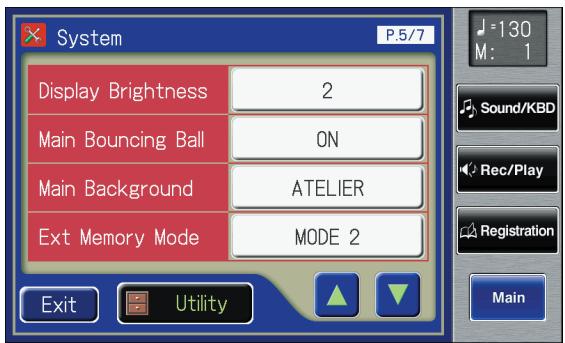
3. Touch the Ext Memory Mode setting to switch between "Mode 1" and "Mode 2."
Each time you touch the Ext Memory Mode setting, it will alternate between "Mode 1" and "Mode 2."
Setting MODE 1, MODE 2
4. Touch.
5. Turn on the power once again.
Turning the Remote Function On/Off
You can turn the Remote function on (enabled) or off (disabled).
1. Touch on the Main screen.
The System screen appears.
2. Touch <><> to display the Remote Control.
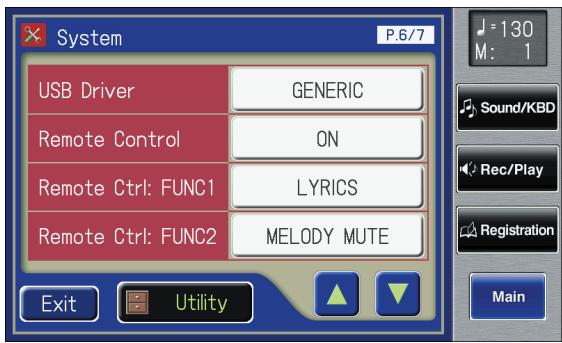
3. Touch the Remote Control setting to switch between "ON" and "OFF."
Each time you touch the Remote Control setting, it will alternate between "ON" and "OFF."
Setting Descriptions ON The remote control unit will operate the ATELIER. OFF The remote control unit will be disabled. You will not be able to operate the ATELIER using the remote control.
4. Touch.

This setting remains stored in memory even while power is turned off.
Changing the Functions of the Remote Control's Buttons
These let you change the functions that are assigned to the remote control's [FUNC 1] button and [FUNC2] button.
1. Touch on the Main screen.
The System screen appears.
2. Touch <>> <> to display the "Remote Ctrl: FUNC1" or "Remote Ctrl: FUNC2."

3. Touch either setting.
4. Touch <><+\> to change the setting.
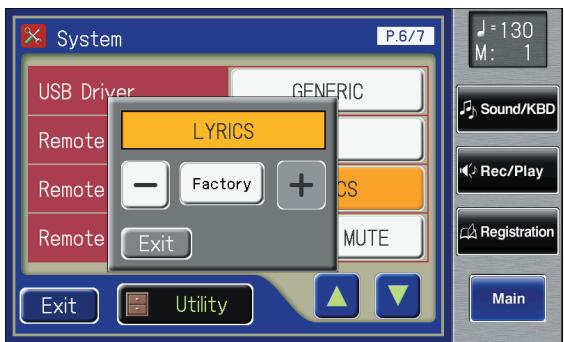
Setting Descriptions MELODY MUTE Mutes the sound of the melody, or minimizes the vocal sounds of a music CD (p. 264, p. 269). GUIDE Lowers the volume of the melody (p. 264). LYRICS Switches display of lyrics on (displayed) or off (hidden) (p. 218).
5. Touch.

This setting remains stored in memory even while power is turned off.
Using the V-LINK function
Connecting the ATELIER to a V-LINK compatible image device allows you to control the images with the ATELIER.
V-LINK
V-LINK ( V-LINK™ ) is a function that allows music and images to be performed together. By using MIDI to connect two or more V-LINK compatible devices, you can easily enjoy a wide range of visual effects that are linked to the expressive elements of a music performance.
How to Use the V-LINK
1. Touch on the Main screen.
The System screen appears.
2. Touch <> <> to display the V-LINK.
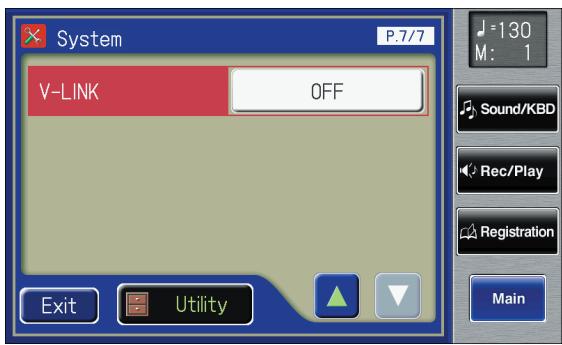
3. Touch the V-LINK setting.
4. Touch <><+\> to change the setting.
Setting Descriptions OFF The V-LINK function is switched off. MODE 1 The V-LINK function is switched on. You can now control the video images using the Registration buttons. MODE 2 The V-LINK function is switched on. You can now control the video images using the twelve rightmost keys of the lower keyboard and Registration buttons.
No sound is produced when you press any of the twelve keys at the right end of the keyboard.
5. Touch.
The V-LINK function is turned on, and the V-LINK icon appears in the main screen.
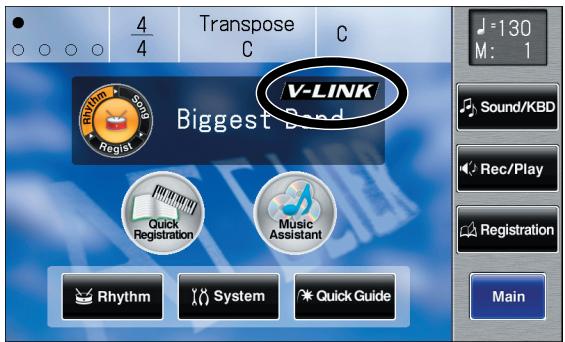

The Send PC Switch settings is automatically switched to ON when V-LINK is on (MODE 1, MODE 2). When the VLINK function is switched off, the Send PC Switch setting reverts to the setting in effect before V-LINK was switched on.
When V-LINK is set to "MODE 1"
When a Registration button is pressed, "Bank Select" and "Program Change Number" messages are transmitted from the MIDI Out connector as video control messages. At this time, the Control MIDI transmit channel setting is disregarded, and the messages are transmitted via Channel 16.
When V-LINK is set to "MODE 2"
In addition to the functions of "MODE 1," MODE 2 also sets the device to transmit "Note messages" as video control messages from the MIDI Out connector when one of the twelve rightmost keys in the Lower keyboard is pressed.
In this case, the Lower and Solo MIDI transmit channel settings are disregarded, and the messages are transmitted via Channel 16.

The MIDI transmit channel used for video control messages is fixed at channel 16.

For more on switching video images, refer to the owner's manual for the connected device.

You can also use the following procedure to turn the V-LINK function on.
1. Hold down the Composer [Reset] button and press either the Upper Organ [Full 1] button or the Upper Organ [Full 2] button.
Holding down theComposer [Reset] button and pressing the Upper Organ [Full 1] button switches the instrument to "MODE 1" (p.227). Holding down theComposer [Reset] button and pressing the Upper Organ [Full 2] button switches the instrument to "MODE 2" (p.227).
The display changes as shown below, and the ATELIER switches to Image Control mode.
Video Link System is ON.
The V-LINK function is turned on, and the V-LINK icon appears in the main screen.
![ROLAND AT-900C - Hold down the Composer [Reset] button and press either the Upper Organ [Full 1] button or the Upper Organ [Full 2] button. - 1](/content/2025/01/130760/images/ba86ece54d8bb687bbacd23b97951c86214fedee0d5688cfab347f95f6c49930.jpg)
2. To cancel the V-LINK function, once again hold down the Composer [Reset] button and press either the Upper Organ [Full 1] button or the Upper Organ [Full 2] button.
If set to "MODE 1" (p. 227), holding down theComposer [Reset] button and pressing the UpperOrgan [Full 1] button switches the V-LINK function off. If set to "MODE 2" (p. 227), holding down theComposer [Reset] button and pressing the UpperOrgan [Full 2] button switches the V-LINK function off.
Repositioning the Touch Screen
If you've been using the Touch Screen for some time, the pointer may be shifted, making the ATELIER react incorrectly. You should correct this displacement when necessary by performing calibration (repositioning).
1. Touch on the Main screen.
The System screen appears.
2. In the System screen, touch .
The Utility screen appears.
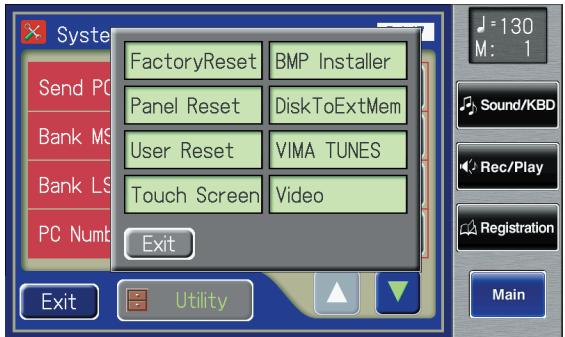
Do this carefully, because touching a location that's different from the one indicated for the pointer may make the displacement even worse. Be sure to touch the pointer accurately. If the following display appears, perform the touch panel position adjustment once again.
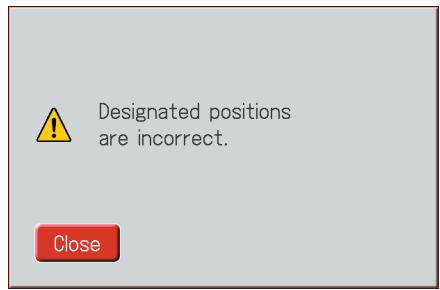
3. Touch .
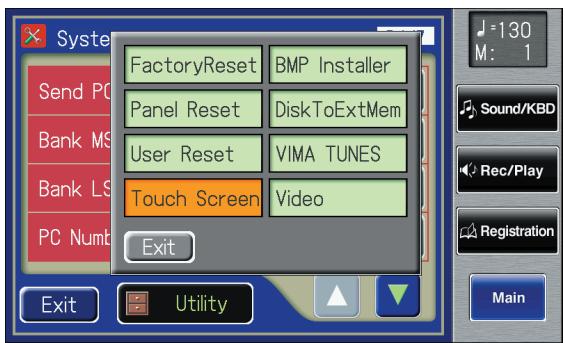
A display will ask for confirmation.
To cancel the operation, touch <Cancel> .
4. Touch on the screen.
5. Touch the points indicated on the touch screen.
Restoring the User Memory to the Original Factory Settings
You can restore the User memory to their original factory settings.
This function is called "User Memory Reset."
What is User Memory?
"User Memory" refers to an area inside the instrument where you can store the user rhythms you create and the performances you record. Rhythms and SMF music files saved on USB memory can also be copied to user memory (p. 97).
User memory is quite useful, since anything you place there will be retained even while the power is turned off. The following things are stored in User memory:
Songs you've registered in "Favorites"
Rhythms
- Registration sets
1. Touch on the Main screen.
The System screen appears.
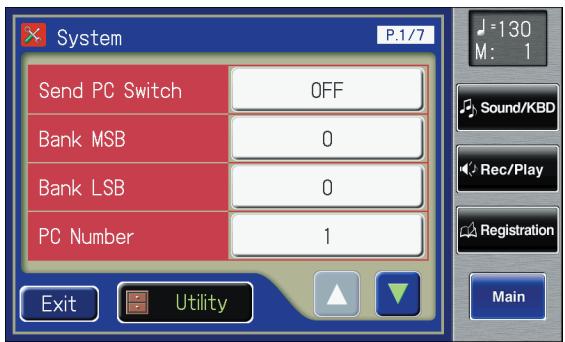
2. In the System screen, touch to open the Utility screen.
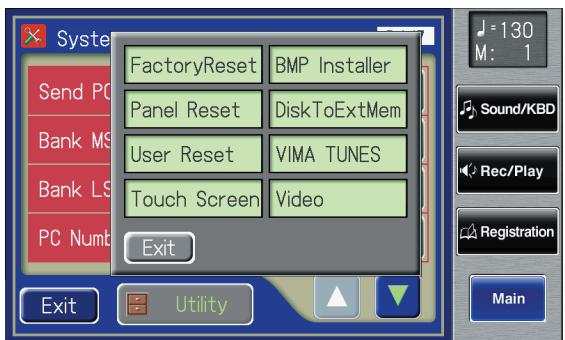
3. In the Utility screen, touch .
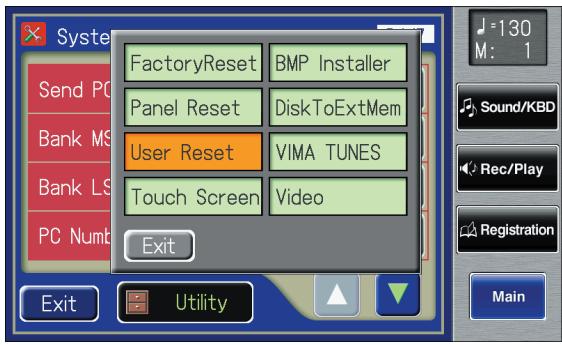
The confirmation message appears on screen.
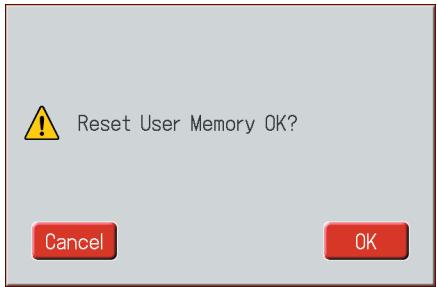
Touch to return to the System screen without resetting the user memory.
4. Touch .
The user memory will be reset to the factory-set state.

Never switch off the power while this operation is in progress!

To reset only the User memory (p. 82) to its original factory settings, refer to p. 231. If you want to reset all settings to their factory-set state, refer to p. 27.
Restoring All Settings Other Than the User Memory to the Original Factory Settings
You can restore all of the settings other than the User memory (p. 82) to their original factory settings.
This function is called "Panel Reset."
1. Touch on the Main screen.
The System screen appears.
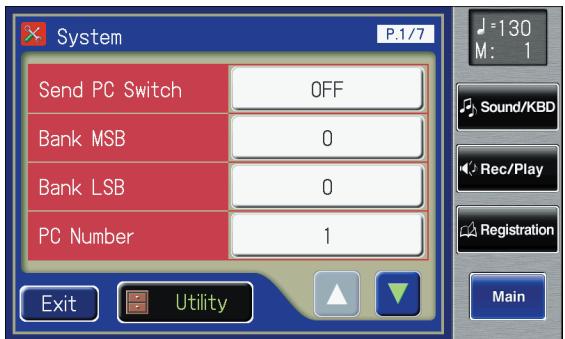
2. In the System screen, touch to open the Utility screen.
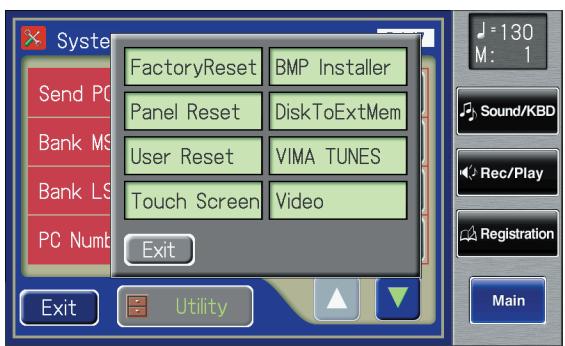
3. In the Utility screen, touch .
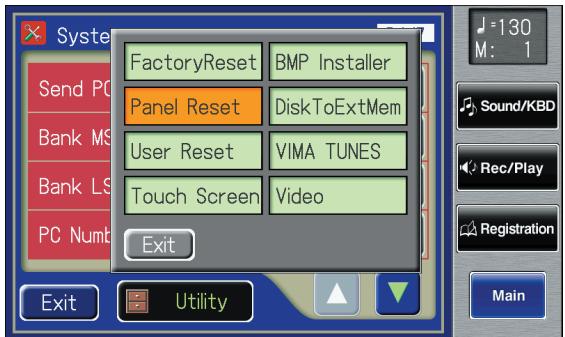
The confirmation message appears on screen.
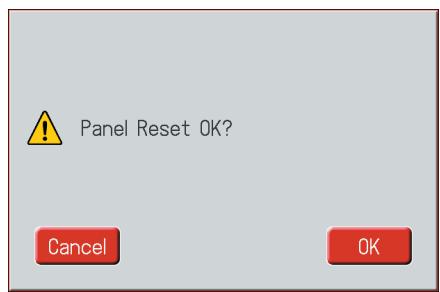
If you touch <Cancel> , the Panel Reset will not be performed, and you will return to the System screen.
4. Touch .
The Panel Reset operation will begin, and the settings will return to the factory-set condition.
NOTE Never switch off the power while this operation is in progress!
NOTE
To reset only the User memory (p. 82) to its original factory settings, refer to p. 230. If you want to reset all settings to their factory-set state, refer to p. 27.
MEMO
You can also use the following method to open the Panel Reset confirmation screen.
1. Touch on the Main screen, to display the Quick Guide screen.
2. Press the [Harmony Intelligence] button.
The Panel Reset confirmation screen will appear.
Formatting a USB Memory (Format)
The process of preparing USB memory or floppy disks so that they can be used with the ATELIER is called "initialization" (formatting).
In certain cases, particularly with floppy disks, the media is formatted for a specific type of device. If the media format does not match the ATELIER's, you will not be able to use that media with the ATELIER.
1. Connect the USB memory to the external memory connector
If you want to initialize a floppy disk, connect your floppy disk drive (sold separately) to the Ext Drive connector, and insert the floppy disk.
2. Touch on the Main screen.
3. Touch .
The Registration Save screen appears.
4. Touch < - > < +> to select the media.
Choose "Ext Memory" if you want to initialize USB memory, or choose "Disk" if you want to initialize a floppy disk.
5. Touch < > (Utility).
The Utility screen appears.
6. Touch .
The Format screen appears.
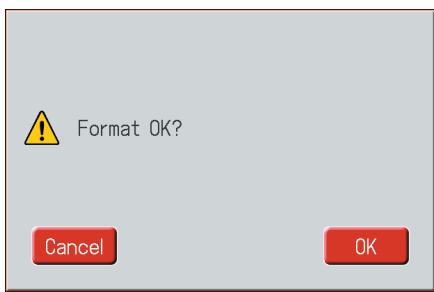
If you touch , you will return to the Registration Save screen without formatting.
7. Touch to start formatting.
When the format is finished, the Registration Save screen returns.

Never attempt to remove the USB memory until formatting is complete.
Displaying a Graphic at Power-up
The ATELIER allows you to load a favorite graphic into internal memory, and have it be displayed when the power is turned on.
1. Use your computer to create a graphic image file that meets the following criteria:
Size 800 x 480 pixels Color 24 bit colors Format image saved in BMP format Name 1-8 characters in length (lowercase is ok). A filename extension of“.BMP” must be added after the name.The following characters can be used to name an image.A B C D E F G H I J K L M N O P Q R S T U V W X Y Z a b c d e f g h i j k l m n o p q r s t u v w x y z 0 1 2 3 4 5 6 7 8 9 # $ % & ‘() - @ ~{ }^ _!If you use a character that cannot be used in a name, it will be replaced by another character when displayed.
2. Using your computer, save the image that you want to load into the ATELIER on external media.
3. Connect the external media containing the image to the ATELIER.
If you're using USB memory, connect it to the external memory connector. If you're using a floppy disk, connect the separately purchased floppy disk drive to the Ext Drive connector.
4. Touch on the Main screen.
The System screen appears.
5. In the System screen, touch .
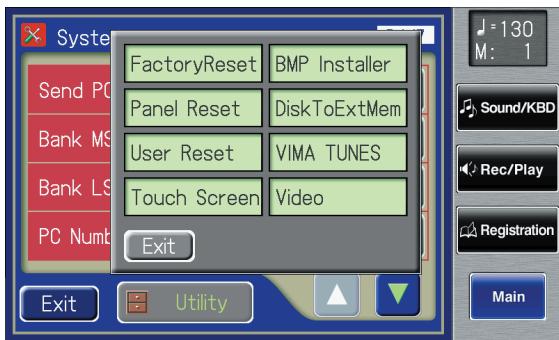
6. Touch .
The BMP Installer screen appears.
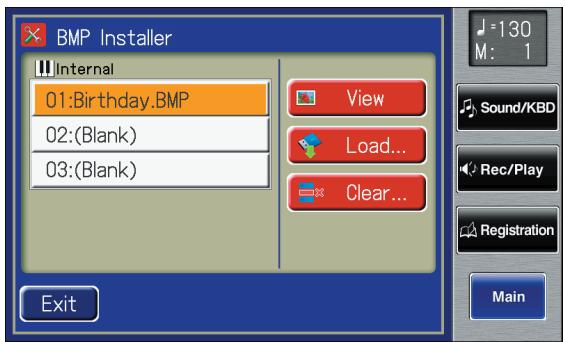
Display Explanation 01–03 Images stored in internal memory
For numbers at which no image is saved, “(Blank)” is shown. View The image stored in the ATELIER will be shown for a few seconds, allowing you to check the image. Load... Load an image from external media into internal memory. Clear... Delete an image from internal memory.

The ATELIER can store up to three images. If two or more images are stored in internal memory, those images will be displayed consecutively after the power is turned on.
7. In the screen, touch <01> - <03> to select the destination at which the image is to be saved.
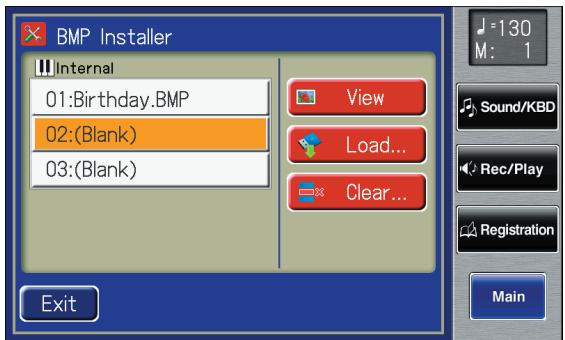
8. Touch.
The following screen appears.
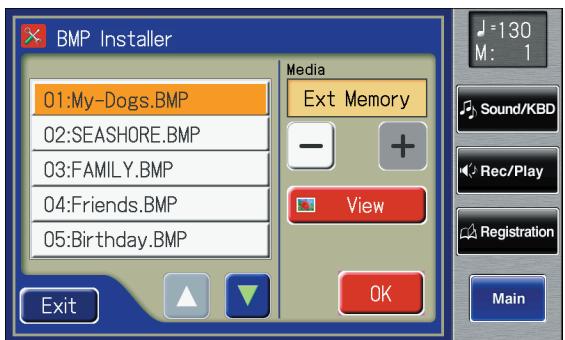
9. Touch < - > < +> to select the media.
Choose "Ext Memory" to load an image from USB memory, or choose "Disk" to load an image from floppy disk.
The destination will show the names of the images saved on the external media.
10. Touch <>><> to select the image that you want to load into internal memory.

You can touch <View> to verify the image.
11. Touch .
The image will be loaded.

If an image is already stored at the load destination, the following screen will appear.
To erase the currently loaded image, and load the new image
- Touch
.
To cancel image loading
- Touch
.

If the image cannot be loaded, the following screen will appear.
Deleting an Image Stored in Internal Memory
1. Touch on the Main screen.
The System screen appears.
2. In the System screen, touch .
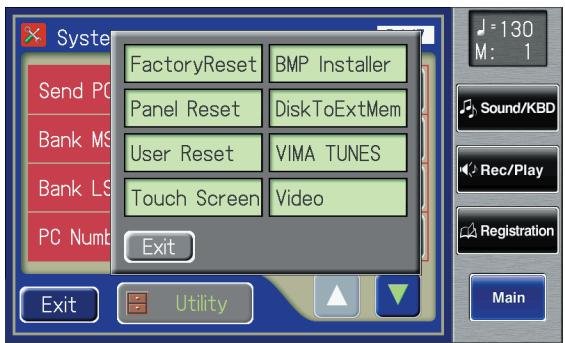
3. Touch .
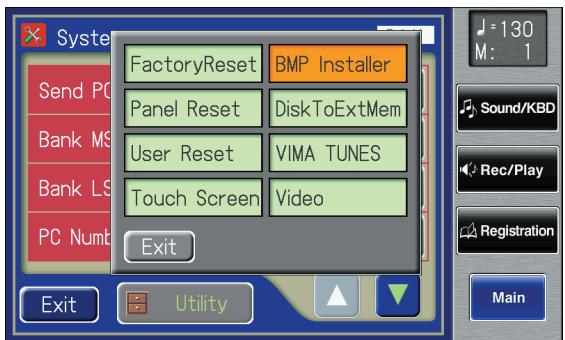
The BMP Installer screen appears.
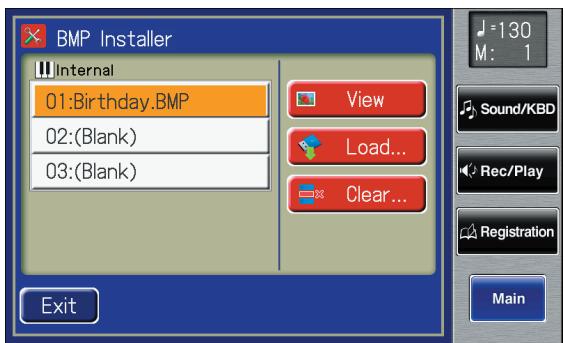
4. In the screen, touch <01> - <03> to select the image that you wish to delete.

You can touch to verify the image.

Numbers for which "Blank" is shown have no image.
5. Touch .
The following screen appears.
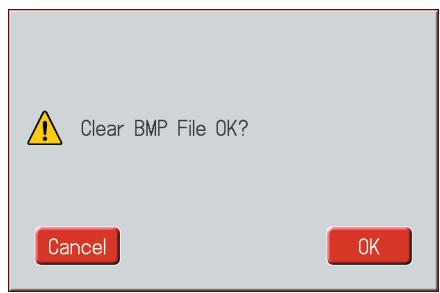
To cancel without deleting the image, touch .
6. Touch .
The image will be deleted.

Once the image has been deleted, the screen will indicate "Blank."
Copying Data from a Floppy Disk to USB Memory
All songs and registration data saved on a floppy disk can be copied to USB memory.

Rhythms and image data cannot be copied.

+ongs and registrations inside folders will not be copied. If you want to copy this data, move the song or registration data out of the folder.
1. Make preparations for the copy.
Connect the floppy disk drive to the Ext Memory connector. Into the floppy disk drive, insert the floppy disk containing the data you want to copy. Connect your USB memory to the external memory connector.
2. Touch on the Main screen.
The System screen appears.
3. In the System screen, touch .
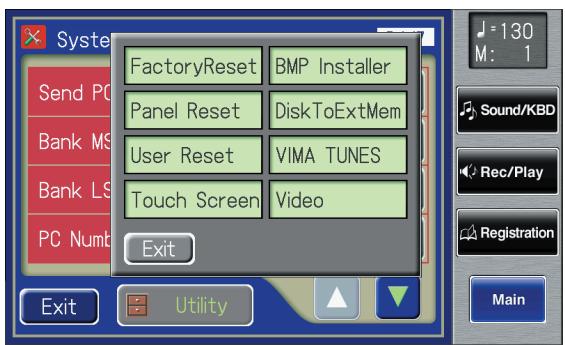
4. Touch .
The following screen appears.
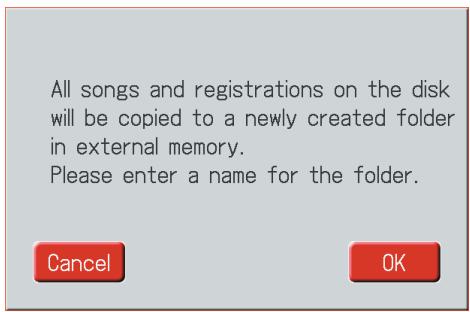
If you decide to stop the data copy operation, touch .
5. Touch .
A screen like the one below will appear, allowing you to specify a name for the folder.
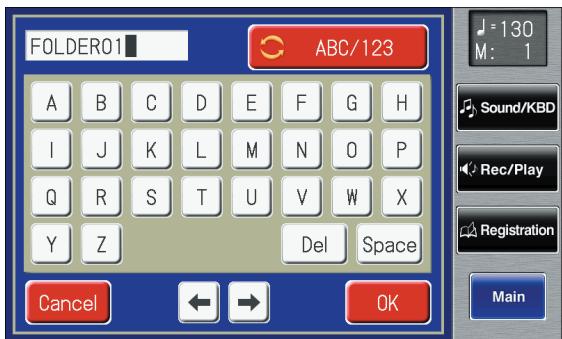
If you're copying all songs and registrations to USB memory, a folder will be created in the USB memory, and the data will be saved in this folder.
6. Touch the character select button ( ABC/abc/1#%) to switch among uppercase/numbers.
Touch the character select button repeatedly to cycle through the available choices, like this: uppercase numbers uppercase...
7. Touch the screen to specify the desired character.
The following characters can be selected.
ABCDEFGHIJKLMNOPQRSTUVWXYZ 0123456789 Del Deletes a character. Space Inserts a space (blank). ←→ Move the cursor (the symbol that indicates the location at which characters will be input) to left or right.
8. When you're done making the settings, touch .
The folder name has been assigned.
The following screen appears.
To cancel the operation, touch <Cancel> .
9. Touvch.
The data from floppy disk will be copied to USB
memory.
When the copy is completed, a message will indicate
"Completed," and you will return to the System screen.

If the floppy disk drive or USB memory is not connected correctly, a screen like the following will appear.
fig.+++
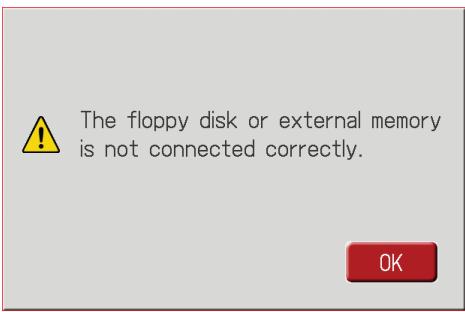
Video-related Settings
Specifying the Television Format
Set the ATELIER's television format to match the television format of the television, video camera, or DVD player that is connected.
Change this setting if the image is not correctly shown on the television, or if the image from your video camera or DVD player is not displayed correctly.
Set this to the broadcast format used in your area.
1. Touch on the Main screen.
The System screen appears.
2. Touch .
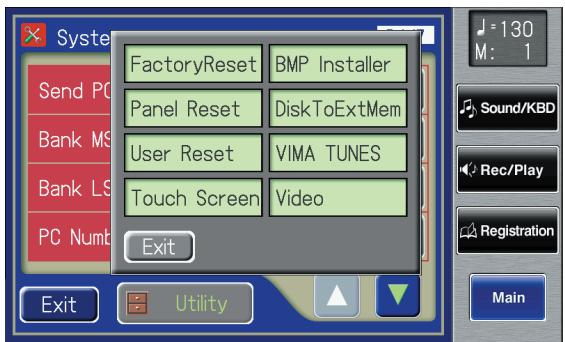
3. Touch
The Video screen appears.
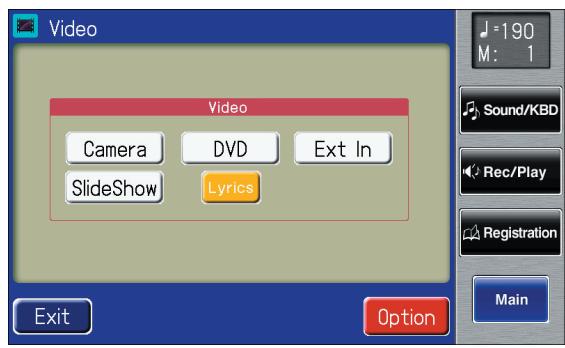
4. Touch .
The Video Option screen appears.
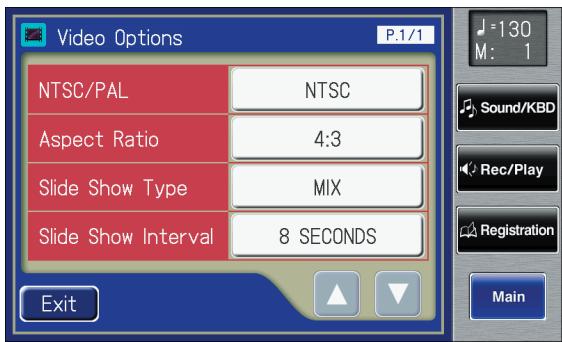
5. Touch the NTSC/PAL setting to switch between "NTSC" and "PAL."
Setting NTSC, PAL
NTSC and PAL
Both of these are the names of color television broadcast standards.
NTSC is used in North America and a number of other countries including Japan. PAL is used in many regions, including Europe and Asia.
6. Touch.

This setting remains stored in memory even while power is turned off.
Selecting the Aspect Ratio of the Video Output
This setting changes the proportional relationship between the vertical and horizontal dimensions of the image that is output from the ATELIER to the television or display connected to the Video Output [Video] jack.
The ATELIER's display screen has a horizontal/vertical ratio of 16:9. Televisions and displays have screen sizes with a horizontal/vertical ratio of 4:3 or 16:9 (wide screen).

You can't change the aspect ratio of the image that is output from the Video Output [RGB] connector to an external display or a television.
If you're viewing images on a television or display connected to the Video Output [Video] jack, change this setting as appropriate for the aspect ratio of the television or display you've connected.
1. Touch on the Main screen.
The System screen appears.
2. Touch .
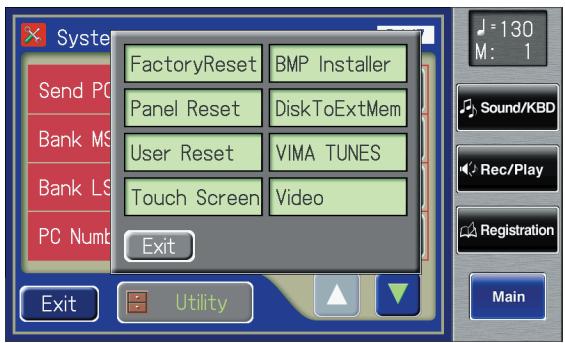
3. Touch
The Video screen appears.
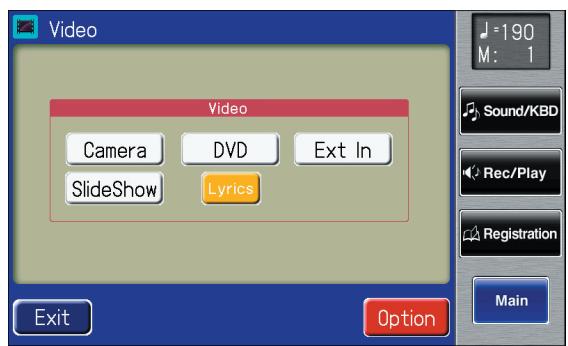
4. Touch .
The Video Option screen appears.
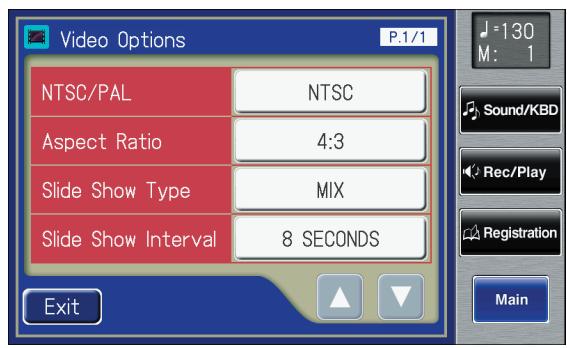
5. Touch the Aspect Ratio setting to switch between "16:9" and "4:3."
Setting Descriptions 16:9 Use this setting if the connected television or display has a screen aspect ratio of 16:9. 4:3 Use this setting if the connected television or display has a screen aspect ratio of 4:3.
6. Touch.

This setting remains stored in memory even while power is turned off.
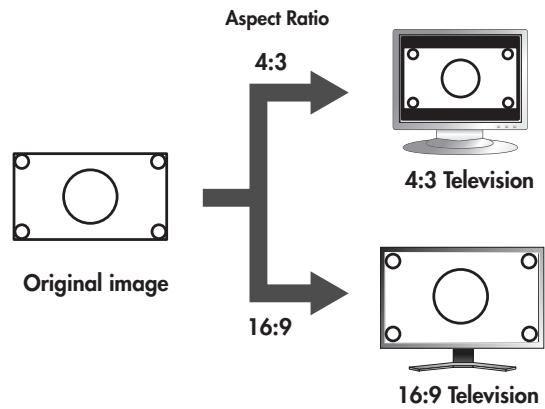
Image is displayed correctly
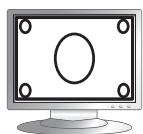
× Image is distorted
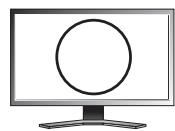
X Image is not completely visible

If the image is still not shown correctly even though you have adjusted the ATELIER's aspect ratio to match the television or display you've connected, please change the settings of the connected television or display.
Selecting the Type of Slide Show
You can specify how transitions between images are to occur when you play back a slide show (p. 265).
1. Touch on the Main screen.
The System screen appears.
2. Touch .
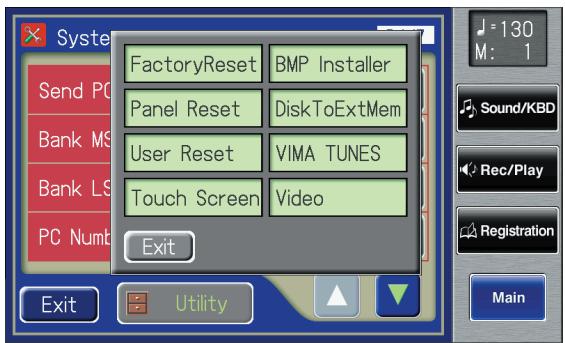
3. Touch
The Video screen appears.
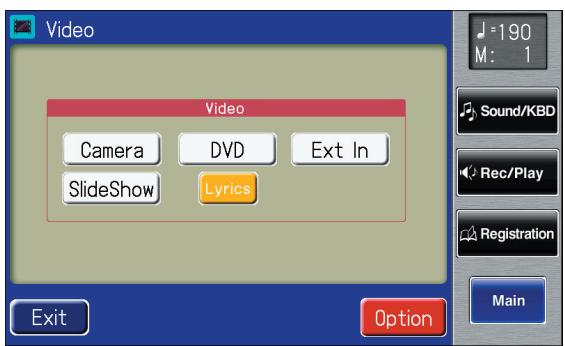
4. Touch .
The Video Option screen appears.
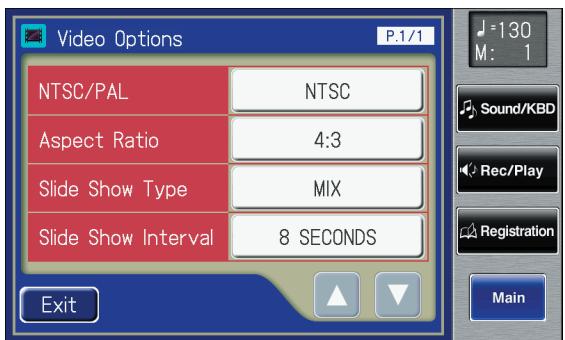
5. Touch the Slide Show Type setting.
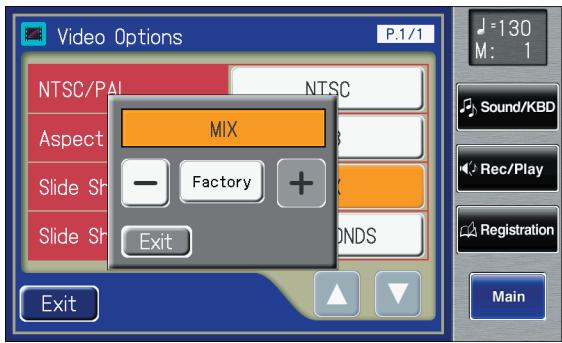
6. Touch <-> <+> to change the setting.
Setting Descriptions SIMPLE One photo will simply fade-out while the next photo fades-in. BLOCK The photo will be divided into blocks that change separately. POP The photo will switch using rapid movement and color combination. MIX Simple, block, and pop types will be combined.
7. Touch.
Selecting the Interval at which Images will Change
You can specify the interval at which images will change when you play back a slide show (p. 265).
1. Touch on the Main screen.
The System screen appears.
2. Touch .
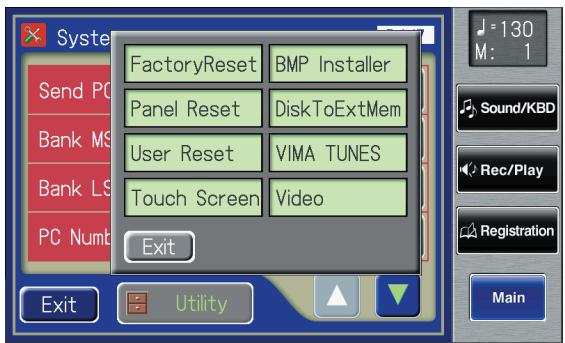
3. Touch
The Video screen appears.
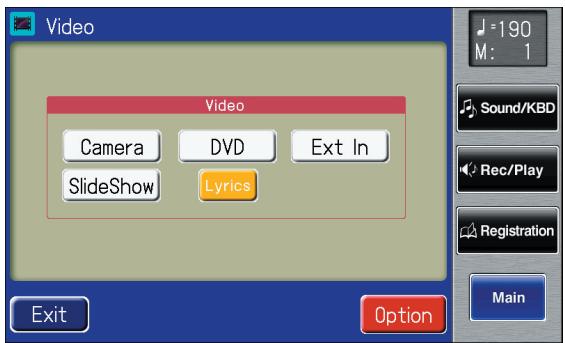
4. Touch .
The Video Option screen appears.
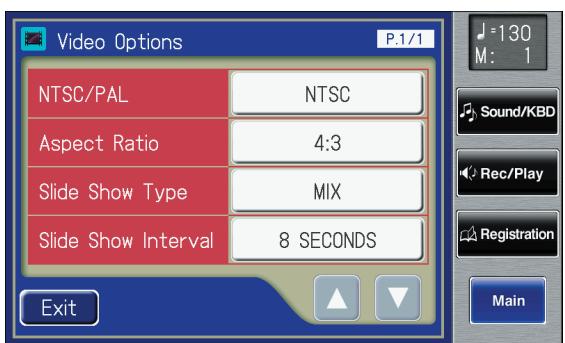
5. Touch the Slide Show Interval setting.
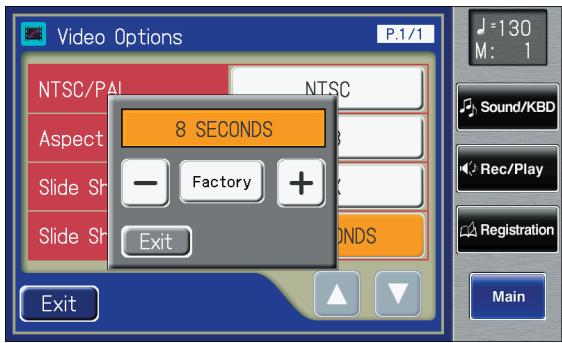
6. Touch <-> <+> to change the setting.
Setting 5 SECONDS, 8 SECONDS, 12 SECONDS,
4 MEASURES, 6 MEASURES, 8 MEASURES
7. Touch.
Name and Functions of Jack and Connectors
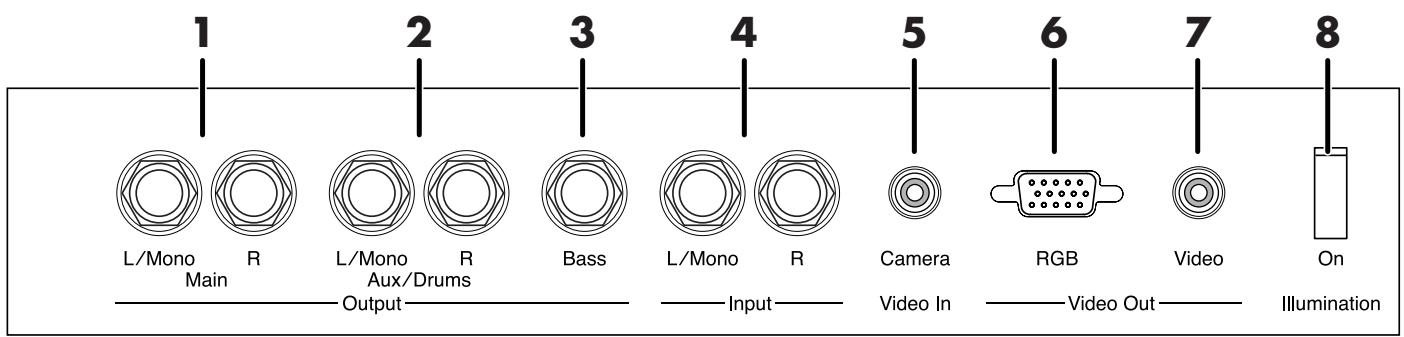
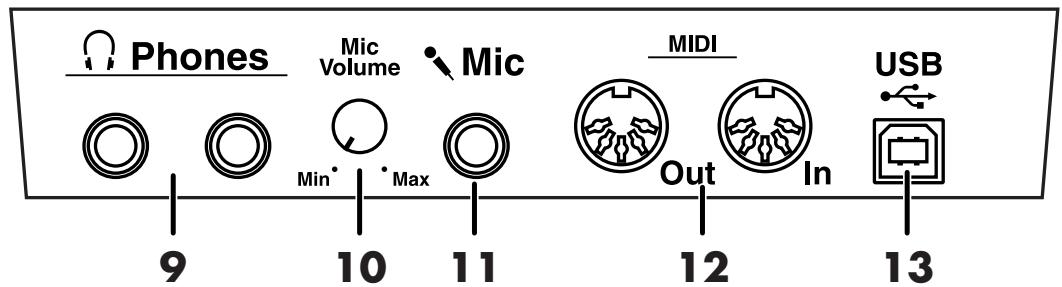
The functions of the jacks on the bottom of the keyboard are described below.
Output
1. Main L/Mono, R Jacks
These jacks can be connected to your audio system to enjoy more powerful sound.
If the Aux Out mode is set to "SEPARATE," sounds other than drums and bass will be output from these jacks (p. 247).
2. Aux/Drums L/Mono, R Jacks
You can connect an external speaker or a reverb unit to obtain a more spacious reverb.
If you set Aux Out mode to "SEPARATE," the drum sound will be output from these jacks (p. 247).
3. Bass Jack
If you set Aux Out mode to "SEPARATE," the bass sound will be output from this jack (p. 247).
Input
4. Input L/Mono, R Jacks
Using these jacks, you can connect other sound generating devices or audio equipment and play sounds from other devices through the ATELIER's speaker.
Video In
5. Camera Jack p. 256
A video camera or other device can be connected here.
Video Out
6. RGB Connector p. 245
You can connect an external display here to view images from a video camera or DVD.
7. Video Jack p. 246
You can connect a television here to view images from a video camera or DVD.
8. Illumination Switch
Press this switch to turn on the illumination.
9. Phones Jack p. 25
Connect headphones here.
10.Mic Volume Knob p. 25
This adjusts the volume when a microphone is connected.
11. Mic Jack p. 25
Connect microphone here.
12.MIDI Out/In Connectors p. 244
You can connect external MIDI devices to the ATELIER and exchange performance data between them.
13.USB Connector p. 242
Used for connecting a computer to the ATELIER using a USB cable.
Connecting to Audio Equipment
You can connect audio devices to play the sound of the ATELIER through the speakers of your audio system, or to record your performance on a tape recorder or other recording device.

When connecting, please use an audio cable with a standard phone plug, such as the PCS-100PW (sold separately).
Connecting Speakers to the ATELIER and Outputting Sounds
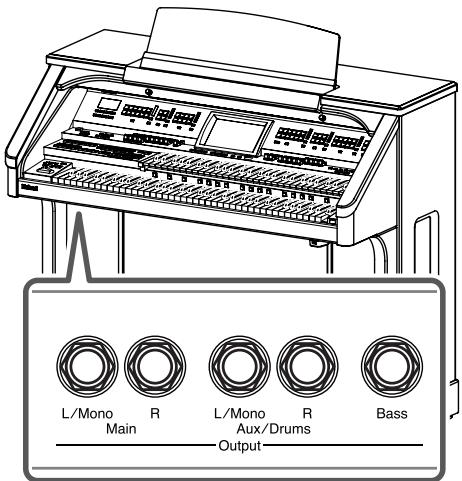
Input (Line In) jack

- Turn the volume all the way down on the ATELIER and on the speaker you're about to connect.
- Turn off the power to the ATELIER and the speaker.
- Use audio cables (sold separately) to make the connection.
- Switch on the ATELIER.
- Switch on the connected speaker.
- Adjust the volume level on the ATELIER and the connected speaker.
When you play the ATELIER's keyboard, the sound is played from the connected speakers.
- When connection cables with resistors are used, the volume level of equipment connected to the input jacks may be low. If this happens, use connection cables that do not contain resistors.
- To prevent malfunction and/or damage to speakers or other devices, always turn down the volume, and turn off the power on all devices before making any connections.
Turning Off the Power
- Turn the volume all the way down on the ATELIER and on the speaker you're about to connect.
- Turn off the connected speaker.
- Turn off the ATELIER.
Playing Sounds from Audio Equipment Through the ATELIER
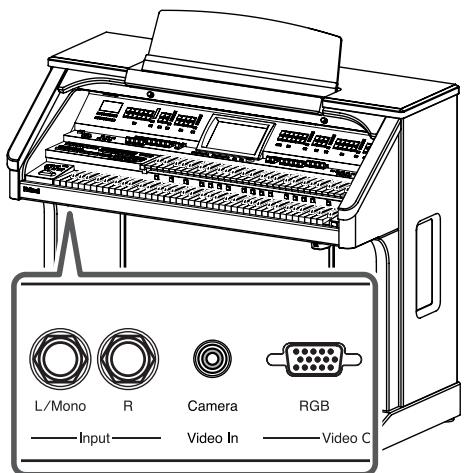
Stereo Set etc. Output (Line Out) jack
-
Turn the volume all the way down on the ATELIER and on the audio device you're about to connect.
-
Turn off the power to the ATELIER and the audio device.
- Use audio cables (sold separately) to make the connection.
- Switch on the audio device.
- Switch on the ATELIER.
- Adjust the volume level on the ATELIER and the audio device.
The sounds from the connected audio device are played by the ATELIER.
Turning Off the Power
- Turn the volume all the way down on the ATELIER and on the audio device you're about to connect.
- Turn off the ATELIER.
- Turn off the audio device.
Connecting an amp to produce sound (AT-900C)
The rear panel of the AT-900C provides balanced (XLR) output jacks.
You can connect these jacks to your amp or mixer to produce sound.
- This instrument is equipped with balanced (XLR) type jacks. Wiring diagrams for these jacks are shown below. Make connections after first checking the wiring diagrams of other equipment you intend to connect.
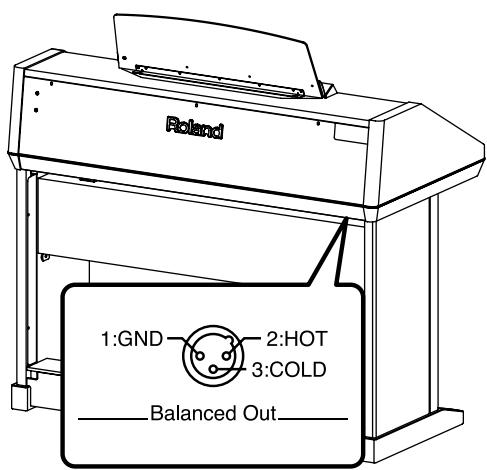
Connecting a Computer
The following become possible once you connect a USB cable (available separately) between the USB connector located to the lower left of the ATELIER and the USB connector of your computer.
- You can use the ATELIER to play sounds from SMF music files played back with MIDI software.
- By exchanging MIDI data with sequencer software, you can save songs recorded with the ATELIER to your computer, and enjoy a variety of musical control and editing features.
Connect the ATELIER to your computer as shown below.
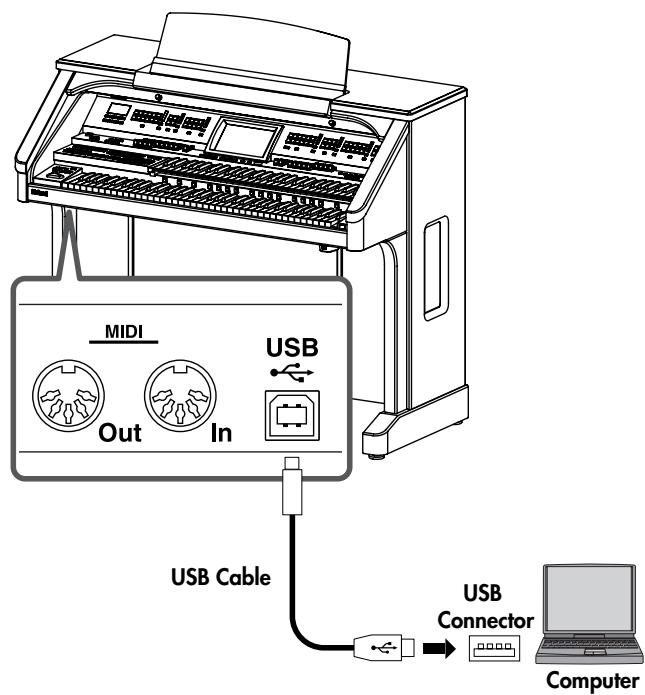
- Refer to the Roland website for system requirements. Roland website: http://www.roland.com/
If connection to your computer is unsuccessful…
Normally, you don't need to install a driver in order to connect the ATELIER to your computer. However, if some problem occurs, or if the performance is poor, using the Roland original driver may solve the problem. For details on downloading and installing the Roland original driver, refer to the Roland website.
Roland website: http://www.roland.com/
Specify the USB driver you want to use, and then install the driver.
Caution
- To prevent malfunction and/or damage to speakers or other devices, always turn down the volume, and turn off the power on all devices before making any connections.
- Only MIDI data can be transmitted using USB.
- USB cables are not included. Consult your Roland dealer if you need to purchase.
- Turn on the power to the ATELIER before starting up MIDI applications on the computer. Do not turn the ATELIER on or off while any MIDI application is running.
Making the Settings for the USB Driver
Normally, you don't need to install a driver in order to connect the ATELIER to your computer. However, if some problem occurs, or if the performance is poor, using the Roland original driver may solve the problem.
Specify the USB driver you want to use, and then install the driver.
1. Touch on the Main screen.
The System screen appears.
2. Touch <><> to display the USB Driver.
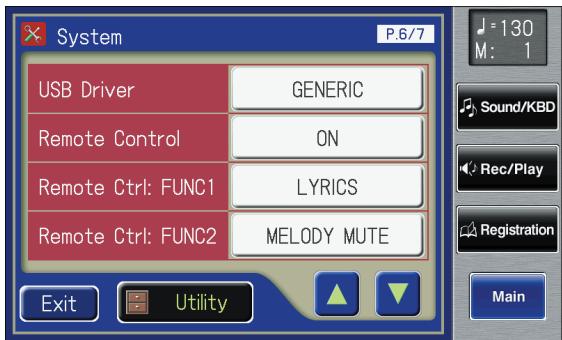
3. Touch the USB Driver setting to switch between "GENERIC" and "ORIGINAL."
Each time you touch the USB Driver setting, it will alternate between "GENERIC" and "ORIGINAL."
Setting Descriptions GENERIC Choose this if you want to use the standard USB driver that was included with your computer. Normally, you should use this mode. ORIGINAL Choose this if you want to use a USB driver downloaded from the Roland website.
4. Turn the ATELIER's volume to the minimum level, switch off the power, then turn it back on again.

This setting remains stored in memory even while power is turned off.
Connecting MIDI Devices
By connecting an external MIDI device and exchanging performance data, you can control the performances on one device from the other. For instance, you can output sound from the other instrument or switch Tones on the other instrument.
What's MIDI?
MIDI, short for "Musical Instrument Digital Interface," was developed as a standard for the exchange of performance data between electronic instruments and computers. The ATELIER is equipped with MIDI connectors to let it exchange performance data with external devices. These connectors can be used to connect the ATELIER to an external device for even greater versatility.
About MIDI Connectors
The ATELIER has two kinds of MIDI connectors.
Connecting these to the MIDI connectors on a MIDI instrument makes it possible for the two instruments to control each other. For instance, you can output sound from the other instrument or switch tones on the other instrument.
You should also set the MIDI send channel as needed.
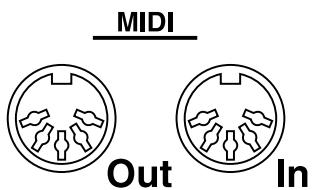
MIDI Out Connector
Connect the external MIDI device to the MIDI IN connector with an optional MIDI cable. The notes played on the keyboard, movements of the Damper pedal, Expression data, data indicating that a Registration button, etc., was pressed will be transmitted to the external MIDI connector. The Solo voice will be transmitted only if the Solo [To Lower] button is ON.
MIDI In Connector
Connect the external MIDI device to the MIDI out connector with an optional MIDI cable. Performance messages from an external MIDI device are received here.
These incoming messages may instruct the receiving MIDI instrument to play sounds or switch voices.
The ATELIER contains two sound generators: one sound generator for its own keyboards and one GM2/GS sound generator (p. 280). Normally, musical data transmitted from an external device to the MIDI In connector is sent to the GM2/GS sound generator, but you can also set the "MIDI IN Mode" parameter (p. 223) so that the keyboard sound generator is controlled.
Making the Connections

When connecting, turn on power to your various devices in the order specified. Failure to follow these steps in the order given could cause a malfunction and/or damage to speakers or other equipment.
- Turn the volume all the way down on the ATELIER and on the device you're about to connect.
- Switch off the power to the ATELIER and the device you're about to connect.
- Use a MIDI cable (sold separately) to connect the MIDI connectors to each other.
- Switch on the power to the ATELIER and the connected device.
- Adjust the volume level on the ATELIER and the connected device.
- You should also set the MIDI send channel as needed (p. 223).
Connecting an External Display or Television
Connecting an External Display
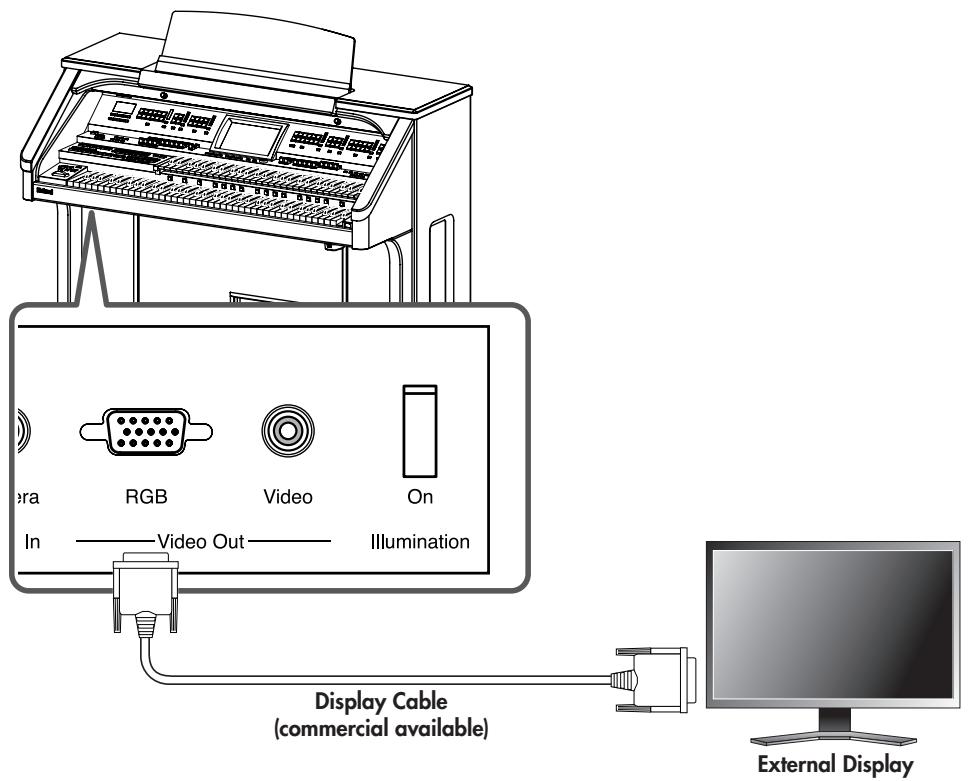
Displays That Can Be Connected to This Instrument

In general, a great many of the VGA monitors and multiscan monitors that are available on the market are compatible with this instrument. However, before you connect any monitor, make sure it meets the following specifications:
Resolution 800 x 480 pixels Horizontal scan frequency 31.5 kHz Vertical scan frequency 60 Hz Connector 3-row, 15-pin D-Sub type Signal Analog

Confirm that the display to be used is compatible with the frequencies mentioned above. Using a display that is not compatible with the above frequencies may result in incorrect image output when images move, and in certain cases may even damage the display.
Making the Connections

To prevent malfunction and/or damage to speakers or other devices, always turn down the volume, and turn off the power on all devices before making any connections.
- Turn off the power to the ATELIER and the display to be connected (p. 24).
- Connect your display to the ATELIER.
Use display cable (sold separately) to connect the display to the Video Out [RGB] jack on the ATELIER.
- Switch on the ATELIER (p. 24).
- Switch on the connected display.

For more on handling the external display, refer to your display's owner's manual.
Connecting a Television
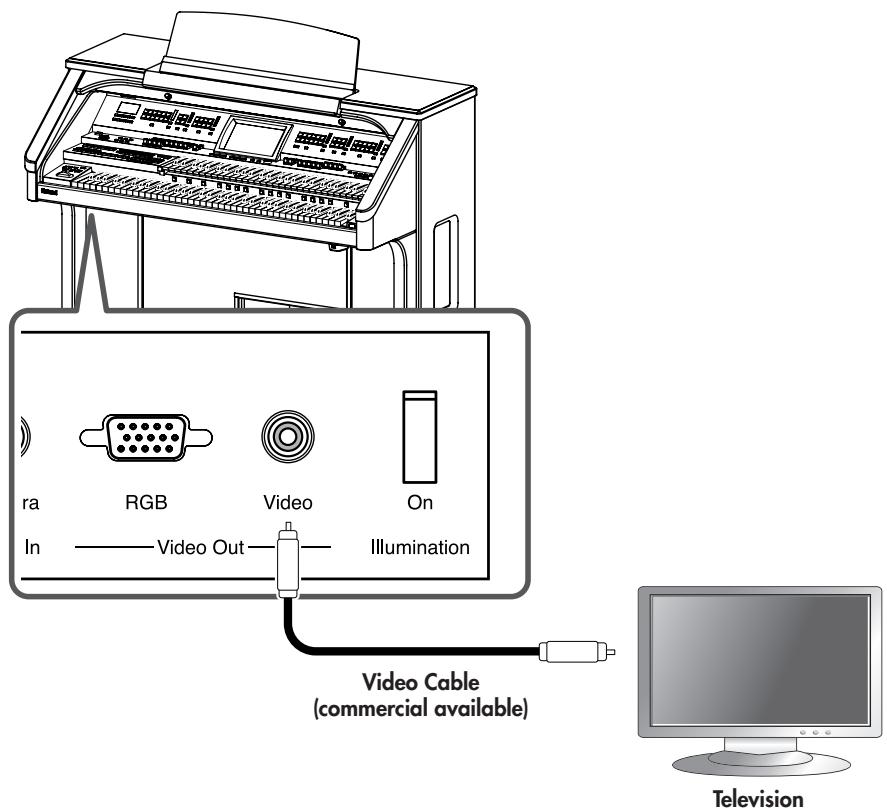
Making the Connections

To prevent malfunction and/or damage to speakers or other devices, always turn down the volume, and turn off the power on all devices before making any connections.
- Turn off the power to the ATELIER and the television to be connected (p. 24).
- Connect your television to the ATELIER.
Use a video cable (sold separately) to connect the ATELIER Video Out [Video] jack with the television's video input jack.
- Switch on the ATELIER (p. 24).
- Switch on the connected display.
- (As necessary) Specify the television output format (p. 236).
- Specify the aspect ratio (ratio between width and height) for your television (p. 237).
Switching Off Your Television or External Display
You must turn off the power of the television or external display in the following order.
- Minimize the volume of the ATELIER (p. 24).
- Switch off the connected television or display.
- Switch off the ATELIER (p. 24).
Changing the settings when external speakers are connected
The ATELIER has an Aux/Drums Output jack and Bass Output jack on the bottom of the instrument.
By using this Aux/Drums Output jack to connect external speakers or audio set, you can sound the reverb (reverberation) from the speakers. An external reverb unit can also be connected and used to apply reverb.
By making connections to the Aux/Drums Output jacks or Bass Output jack, you can output the drums or bass sounds separately. This is convenient when you've connected the ATELIER to a mixer so that the overall volume balance can be adjusted on the mixer.
Switching the Aux Out On/OFF
1. Touch on the Main screen.
The System screen appears.
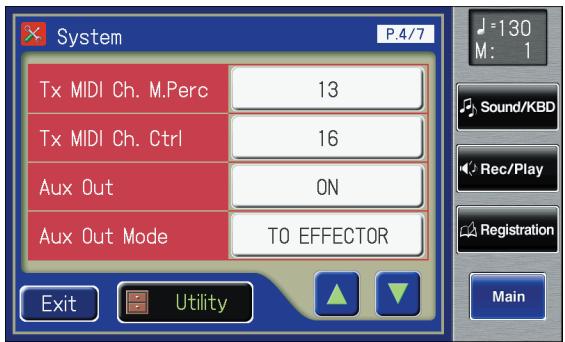
2. Touch <>> <> to display the Aux Out.
3. Touch the Aux Out setting to switch between "ON" and "OFF."
Each time you touch the Aux Out setting, it will alternate between "ON" and "OFF."
4. Touch.
Switching the Aux Out Mode
1. Touch on the Main screen.
The System screen appears.
2. Touch <>><> to display the Aux Out Mode.
3. Touch the Aux Out Mode setting.
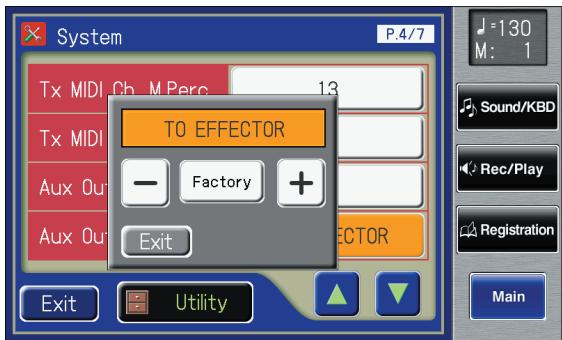
4. Touch <-> <+> to change the setting.
Setting Effects AMBIENCE Play the RSS reverb sound from the external speakers
The reverb sound applied by the ATELIER will be output. TO EFFECTOR Connect an external reverb processor and use it to apply the desired reverb.
The direct sound is output for applying reverb. SEPARATE Use a connected mixer to adjust the volume balance
Bass, drums, and other sounds will be output separately. ENSEMBLE The accompaniment and rhythm will be heard from external speakers, creating the sensation that you’re playing with an orchestra
The sounds you play on the keyboard will be heard from the ATELIER’s own speakers, and the accompaniment will be heard from the speakers that are connected to the Aux/Drums Output connector.
5. Touch.

You can change the depth of Reverb for each part (p. 152).

This setting remains stored in memory even while power is turned off.
A Setup for a Small Hall or Home
Speakers are placed at the back to produce the RSS reverb sound. This setup lets you enjoy the sensation of being enveloped by sound, even while in your own living room.
Aux Out: ON Aux Out Mode: AMBIENCE
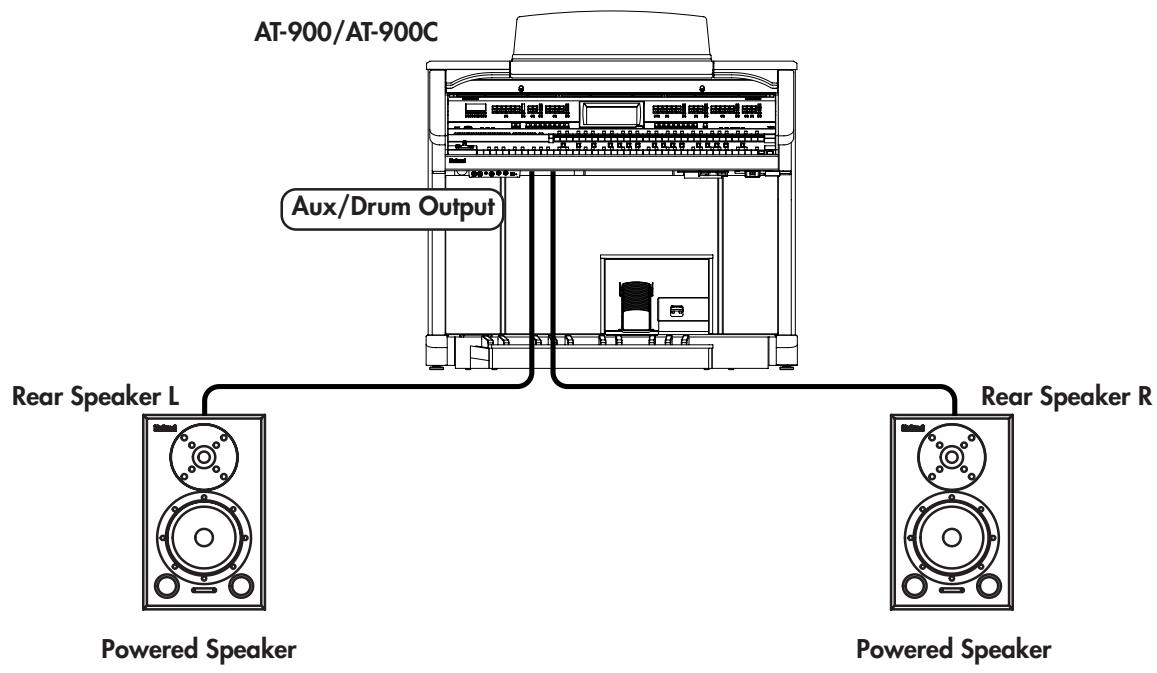
A Setup for a Mid-sized Hall
Speakers are placed in front and in the back to produce the RSS reverb sound.
Aux Out: ON Aux Out Mode: AMBIENCE
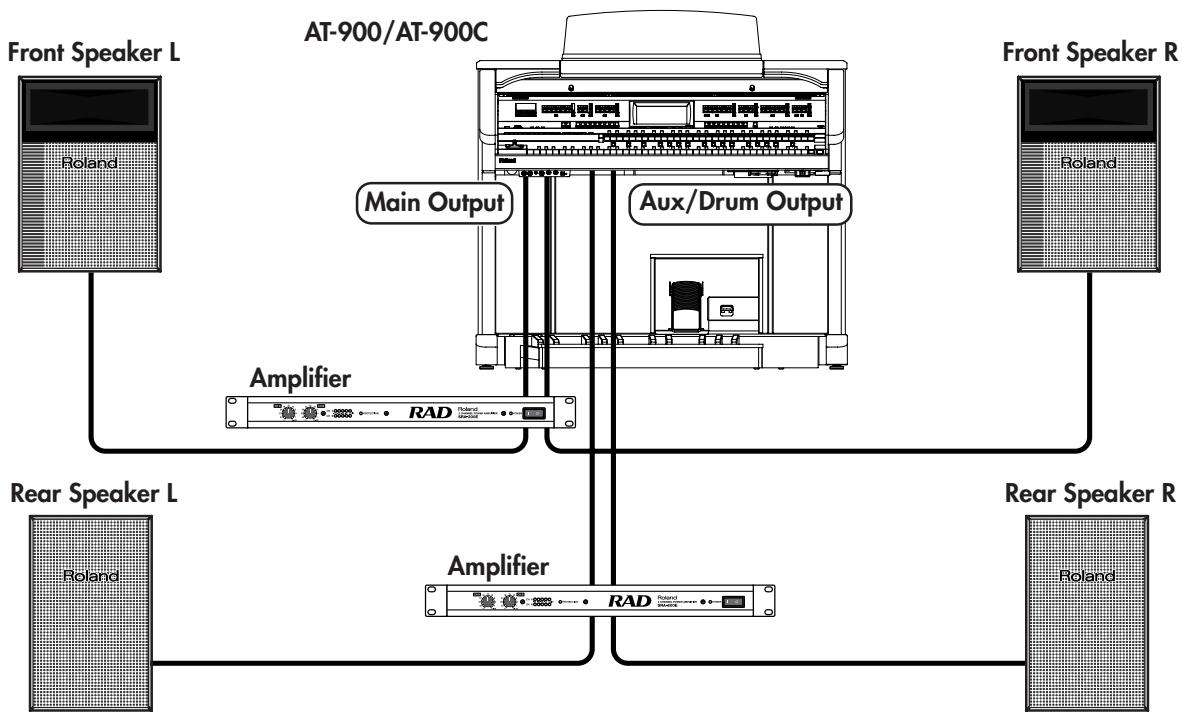
Settings for Using an External Reverb Processor
You can use an external reverb processor to apply reverb to the ATELIER's sound.
Aux Out: ON Aux Out Mode: TO EFFECTOR
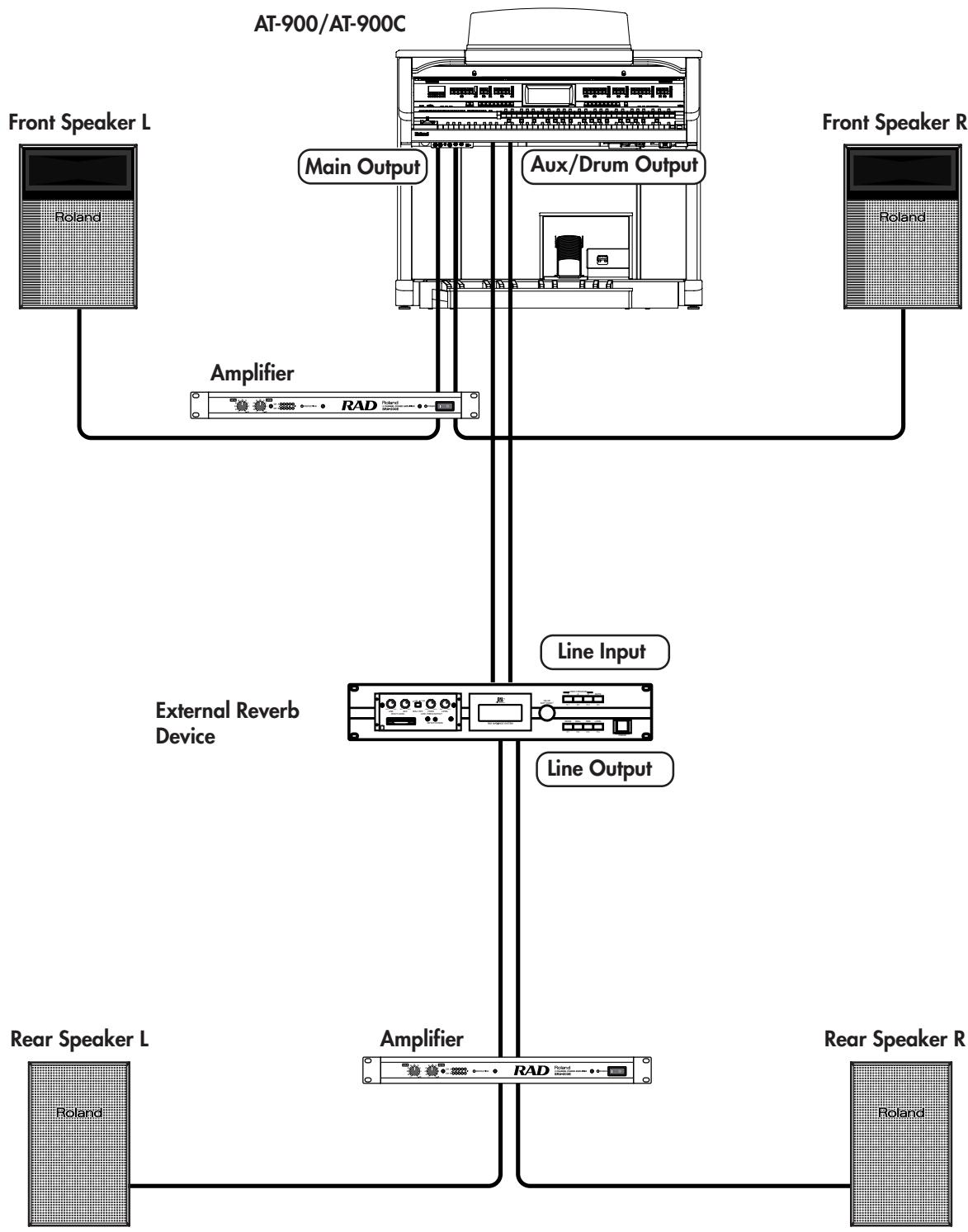
A Setup for a Recital
Bass, drums, and other sounds are output separately, and a mixer is used to adjust the volume balance.
Aux Out : ON
Aux Out Mode: SEPARATE
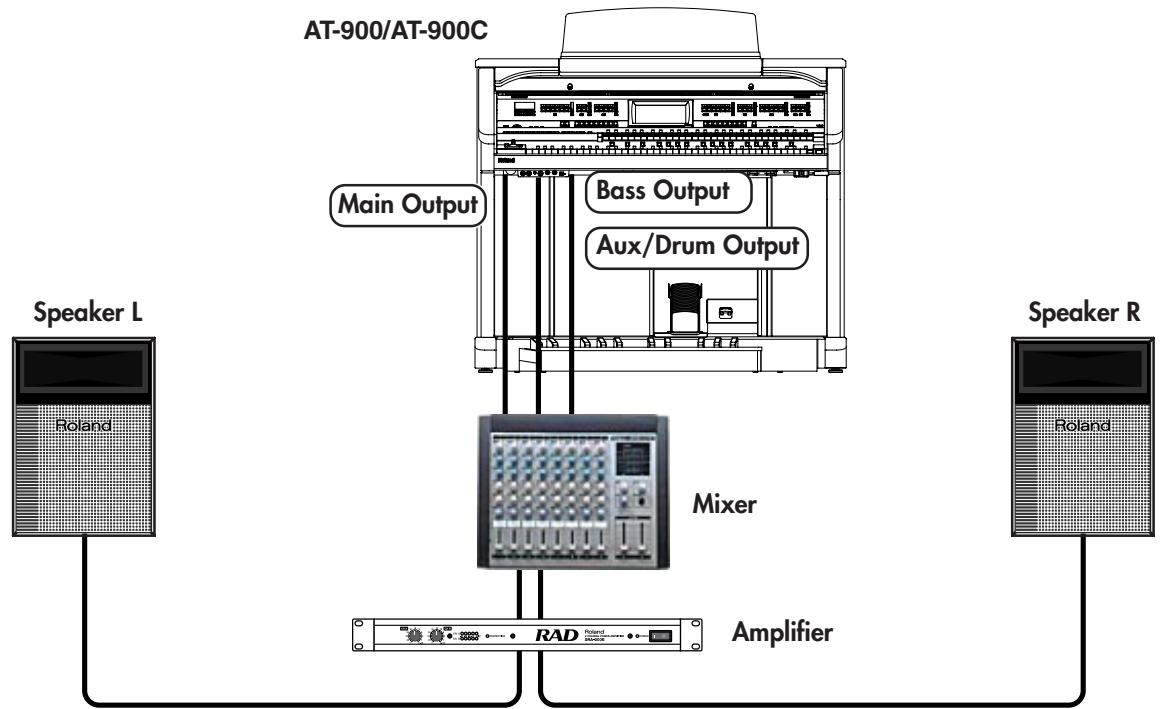
A Setup for Enjoying Ensemble Performance
By producing the accompaniment and rhythm from external speakers, you can enjoy the sensation of performing together with an orchestra.
Aux Out : ON
Aux Out Mode: ENSEMBLE
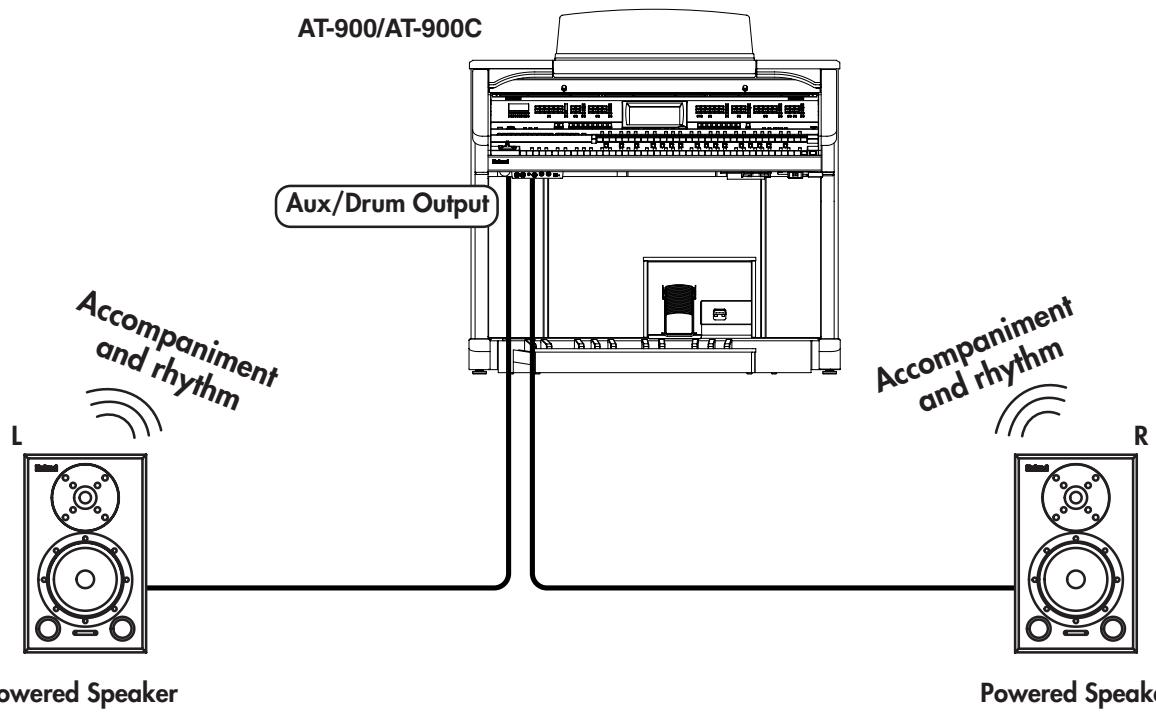
Using the Remote
You can use the included remote control to conveniently play/stop a song or to select songs.
You can also use the remote to switch the image of the external display or television, or assign frequently used functions to the remote buttons.
Installing Batteries in the Remote
Install the included batteries (two) into the remote control unit.
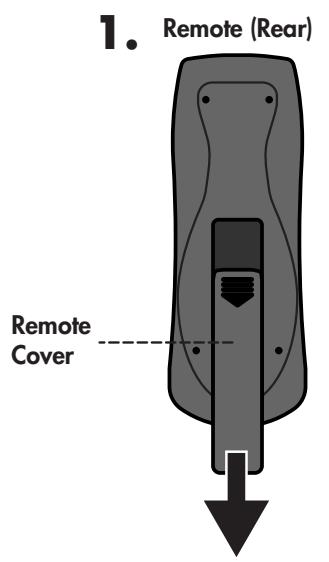
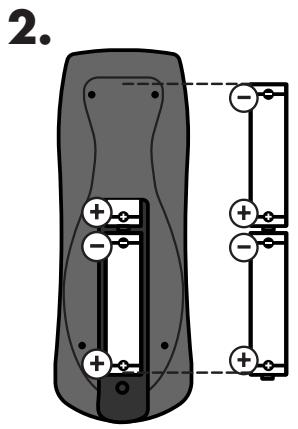
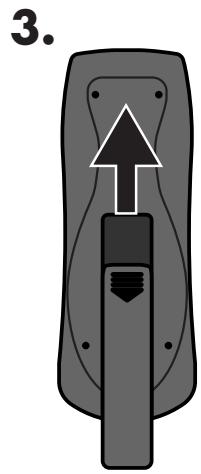
- Slide the cover located on the rear of the remote to open it.
- Insert the two AA batteries in the orientation shown on the remote.
- Slide the cover closed.

For details on how the remote control's buttons function, refer to "Remote Control Buttons" (p. 253)

Be sure to observe the correct polarity (+, -) for each battery.
Using the Remote
When using the remote, point it toward the remote sensor on the ATELIER, and stay within the allowable operating range described below.
Front View
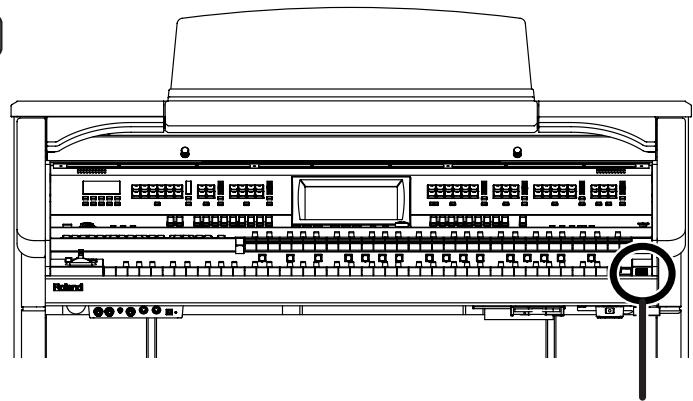
Remote Sensor
Over View
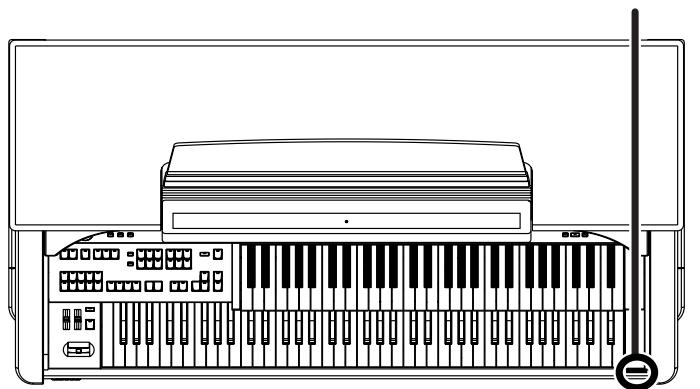
Operating range for the remote
Distance: 4 meters or less
Angle: 40 degrees or less (to left or right)
Remote
Cautions when using the remote
- You can't operate two or more of the remote's buttons simultaneously.
- Even if the remote is within the operating range, it may not work if there are obstacles between it and the remote sensor, or if the angle is poor.
- Malfunctions may occur if you use the remote near a device that produces infrared light, or if you use another infrared remote control nearby.
- The battery life will depend on the conditions of use. The operating range will decrease as the batteries run down. Replace the batteries if this occurs.
- If you won't be using the remote for an extended period, remove the batteries.
- If a strong light such as a spotlight strikes the remote sensor, the remote control may respond sluggishly.
Remote Control Buttons
You can use the buttons of the remote control to perform the following functions.
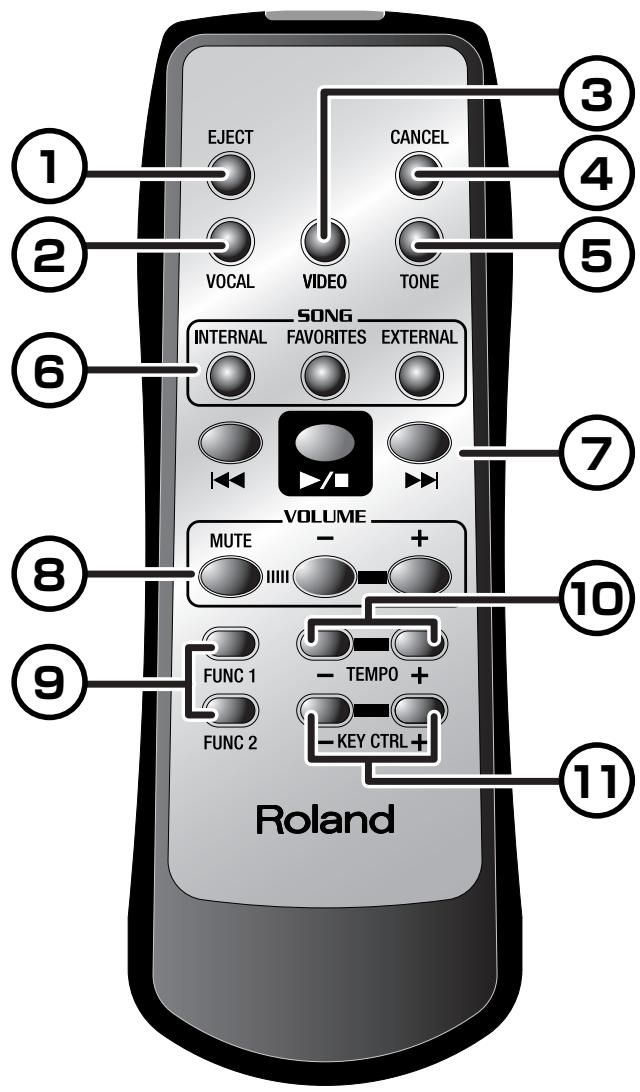
Button name Explanation 1 [EJECT] button If a CD drive is connected, this ejects the CD or opens/closes the tray. 2 [VOCAL] button Adjusts the depth of mic echo.
Each time you press the button, the mic echo depth will change.
4 → 8 → 12 → 0 → 4 ... 3 [VIDEO] button Switches the image shown in the connected external display or television.
Images from a video camera, digital camera, DVD player, or video-enabled audio player connected to the ATELIER can be shown on an external display or television. You can also connect a CD drive and play back VIMA TUNES to view an appropriate slide show (p. 265) while listening to the song.
The Video screen is shown in the ATELIER's display.
Camera → DVD → Ext In (External Input) → Slide Show → Off (Video function is turned off) → Camera ... 4 [CANCEL] button If you have used the [VOCAL] button, [VIDEO] button, or [TONE] button to change the settings, this will return the settings to their factory-set state. 5 [TONE] button The reverb depth will change each time you press the button. 6 SONG [INTERNAL] button The demo screen will be displayed. SONG [FAVORITES] button Selects songs from "Favorites." SONG [EXTERNAL] button Selects songs from an external media (USB memory or floppy disk). If external media is connected both to the external memory connector and to the Ext Drive connector, pressing this button toggles you between these two sources of media. In this case, "Ext Memory1" is indicated for the external media connected to the external media connector, and "Ext Memory2" is indicated for the external media connected to the Ext Drive connector. * This button won't work if no external media is connected. 7 [▶] button Pressing the [▶] button selects the preceding song. [▶/■] button Plays/stops the song. Press the remote [▶/■] button to toggle the song between playing and stopped. When you press the remote [▶/■] button, songs will play back consecutively from the selected song. All songs in the selected location (favorites or external media) will play back in succession. Playback will stop when you press the remote [▶/■] button once again. [▶>1] button Press the [▶>1] button to select the next song. 8 VOLUME [MUTE] button Temporarily mutes all sounds. VOLUME [-] [+] buttons Adjust the volume of the keyboard and song. Pressing the VOLUME [-] button decreases the volume, and pressing the VOLUME [+] button increases the volume. 9 [FUNC 1] button Executes the function you've assigned to this button. You can change the function that's assigned to the button (p. 227). With the factory settings, "Lyrics" is assigned to this button. [FUNC 2] button Executes the function you've assigned to this button. You can change the function that's assigned to this button (p. 227). With the factory settings, "Melody Mute" is assigned to this button. 10 TEMPO [-] [+] buttons Adjust the tempo of the song. Pressing the TEMPO [-] button slows down the tempo, and pressing the TEMPO [+] button speeds up the tempo. * You can't change the tempo of a music CD. 11 KEY CTRL (key control) [-] [+] buttons Change the key of the song that's playing. Pressing the KEY CTRL [-] button will lower the key, and pressing the KEY CTRL [+] button will raise the key. → Play Transpose (p. 218)
You can connect an external display or television to the ATELIER, and use it to view images from a device connected to the ATELIER.
You can also connect a CD drive (commercially available) and play back VIMA TUNES (sold separately). While playing a VIMA TUNES song, you can use the external display or television to view a slide show suitable for the character of the song, or play along using recommended tones.
Video Screen
In the System Utility screen, touch
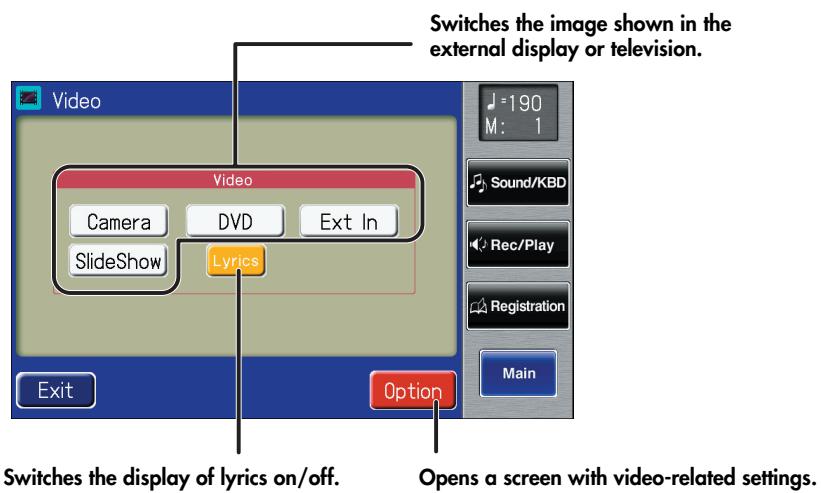
VIMA TUNES Screen
In the Video screen, touch <VIMA TUNES> to access the "VIMA TUNES screen" shown below.
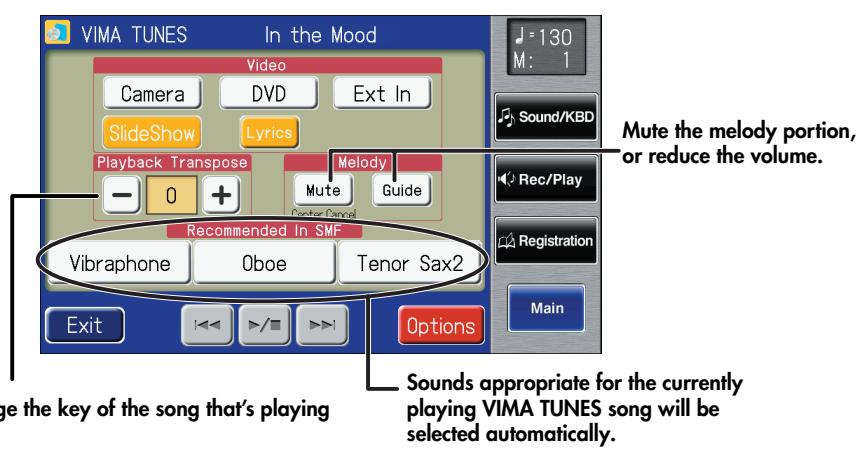
MEMO
VIMA TUNES is a Roland specification for music files that contains image and lyric data, allowing you to enjoy songs with lyrics and images simultaneously. When data bearing the "VIMA TUNES" logo is played back on a device that bears the same logo, lyrics can be shown on the screen of a connected external display or television, letting you enjoy karaoke or watch a slide show.
Performing with a Background Image from a Video Camera
The image from your video camera can be shown on an external display or a television connected to the ATELIER. In the large external screen, you show yourself performing in real time, or show a video you've taken of your family for everyone to enjoy.
1. Connect your video camera.
If you want to connect a video camera, connect it to the Camera In connector located in the jack panel on the left of the ATELIER's bottom surface.
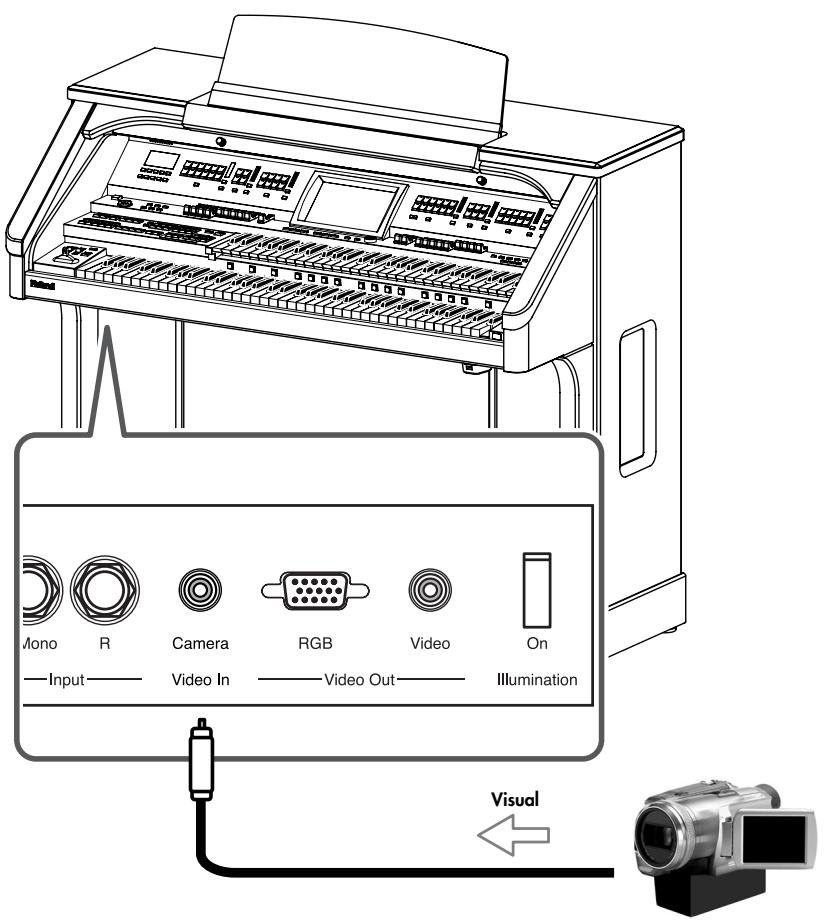

For details, refer to the owner's manual of your video camera.

Video camera cables can differ depending on the model. Check the shape of the connector on the ATELIER and on your video camera, and make sure you have the correct type of cable when making connections.

Make sure that the video camera you're connecting matches the television format selected on the ATELIER. For details on setting the television format of your video camera, refer to the owner's manual for your video camera. For details on setting the ATELIER's television format, refer to "Specifying the Television Format"(p. 236).

The AT-900C's stand has screw holes for fastening the camera stand.
2. Turn on the video function.
Press the [Camera] button so it's lit.
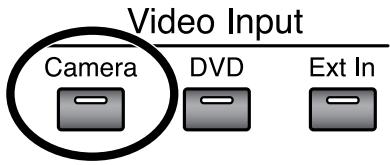
3. Prepare your video camera.
Turn on the power of your video camera. The image that's being captured or played back by your video camera will appear on the external display or television connected to the ATELIER.
Perform or sing along with the background image from your video camera.
Turning Off the Video Function
4. Press the lit [Camera] button, turning off its illumination.
If all of the video function select buttons are not lighted, the television or external display will show the MUSIC ATELIER logo (p. 262).
MEMO
If you press the [Video Monitor] button located below the display, the ATELIER's display will show the same image as the external display or television. This is a convenient way for you to monitor the image that's shown in the external display or television.
MEMO
For details, refer to the owner's manual of your video camera.
MEMO
If SMF music files with lyrics is playing back, you can touch on the Video screen to display the song lyrics over the background image from the video camera.
Performing with a Background Image from a DVD Player
You can connect your DVD player and use an external display or a television connected to the ATELIER to show the image from the DVD player while listening to the music or narration through the ATELIER's speakers. You can also temporarily mute the DVD's sound on the ATELIER and perform to the DVD's background video, or decrease the melody portion and sing the melody yourself.
1. Turn the DVD Player In [Volume] knob all the way to the right so that the volume is minimized.
2. Connect your DVD player.
If you want to connect your DVD player and display its video image, connect it to the DVD Player In connector of the ATELIER's.
If you want to hear the audio from the DVD player, connect your DVD player's audio output jacks of the ATELIER.
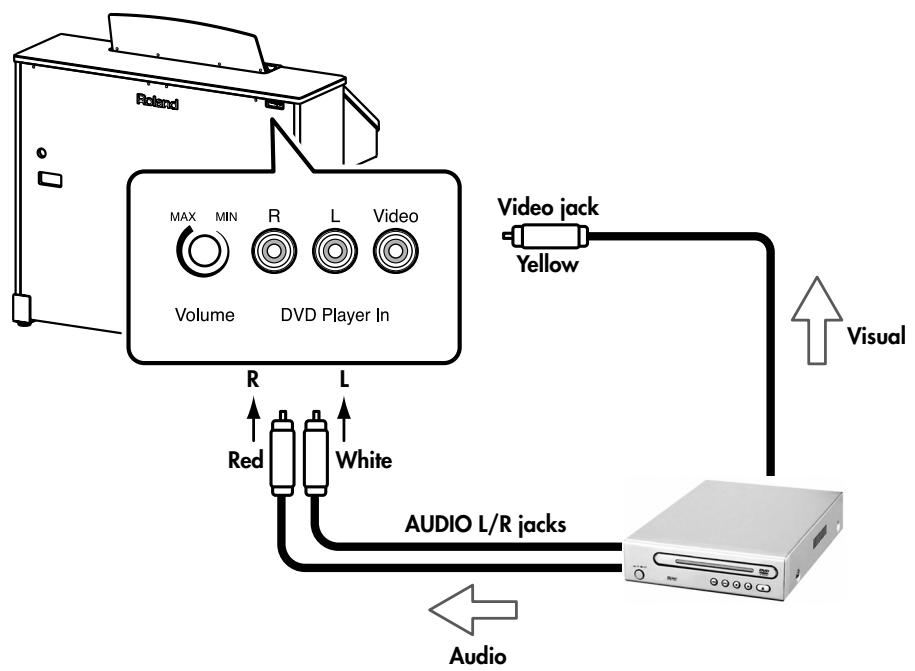
3. Turn on the video function.
Press the video function select [DVD] button so it's lit.
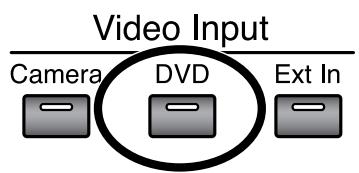
MEMO
For details, refer to the owner's manual of your DVD player.
MEMO
For the AT-900C, detach the cover from the rear panel (p. 26).
NOTE
DVD player cables can differ depending on the model. Check the shape of the connector on the ATELIER, and make sure you have the correct type of cable when making connections.
MEMO
You can also connect your DVD player to the ATELIER's Camera connector or Ext In connector and view the video from your DVD player on the external display or television.
NOTE
Make sure that the DVD player you're connecting matches the television format selected on the ATELIER.
For details on setting the television format of your DVD player, refer to the owner's manual for your DVD player. For details on setting the ATELIER's television format, refer to "Specifying the Television Format"(p. 236).
4. Play back your DVD player.
The external display or television connected to the ATELIER will show the video being played by the DVD player. The audio from the DVD player will be played back through the ATELIER's speakers.
5. Adjust the DVD volume.
To adjust the volume of the DVD, turn the DVD Player In [Volume] knob of the ATELIER. If you turn the DVD Player In [Volume] all the way toward the right, there will be no sound from the DVD.
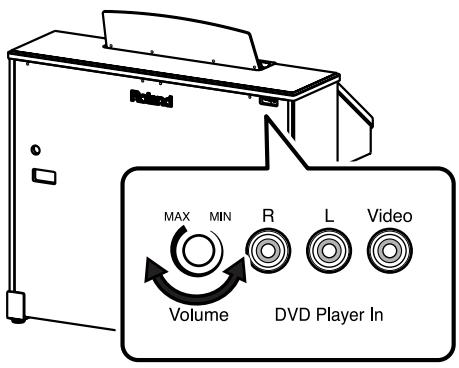
6. To minimize the sound of the vocal on the DVD, proceed as follows.
- Touch < System> on the Main screen.
- Touch
on the System screen.
- Touch
.
- Touch Melody
.
This will decrease the vocal (melody) portion of the music from the DVD, allowing you to sing or play it yourself.
Turning Off the Video Function
7. Press the lit [DVD] button to turn off its illumination.
If all of the video function select buttons are not lighted, the television or external display will show the MUSIC ATELIER logo (p. 262).
-
If you connect a device (such as a video camera) that contains a microphone to the ATELIER's DVD Player In connector, acoustic feedback (a whine or shriek) may occur depending on the position of your video camera relative to the speakers. If this occurs, take the following actions.
-
Change the orientation of the video camera
- Move the video camera away from the speakers
- Lower the volume
![ROLAND AT-900C - Press the lit [DVD] button to turn off its illumination. - 1](/content/2025/01/130760/images/16b5f1694b340f53f436c2d761084dcbbc5907313469234d8429f9e06ab86e53.jpg)
For details, refer to the owner's manual of your DVD player.
![ROLAND AT-900C - Press the lit [DVD] button to turn off its illumination. - 2](/content/2025/01/130760/images/398b080fe27f2b0581d367f33e532a4529a5ff86a24fded12694806b8e2f7d55.jpg)
If you press the [Video Monitor] button located below the display, the ATELIER's display will show the same image as the external display or television. This is a convenient way for you to monitor the image that's shown in the external display or television.
![ROLAND AT-900C - Press the lit [DVD] button to turn off its illumination. - 3](/content/2025/01/130760/images/0dd552bd9c40da2624d983471dc71b21dba2ba613f57ddd8866460b207537698.jpg)
You can change the pitch of the DVD player's sound. For details, refer to "Transposing the Song to a Comfortable Key for Singing"(p. 269).
Enjoying Powerful Sound and Big-screen Playback from Your Portable Audio/Video Player
If your portable audio player has video capability, you can connect it so the video is shown on the external display or television and the music is heard from the ATELIER's speakers.
1. Set the [Master Volume] slider to Min so that the volume is minimized.
2. Connect your portable audio/video player.
When connecting your portable audio/video player, connect it to the ATELIER's Ext In (Video, L, R) jacks. Use the type of jacks that are appropriate for the cables you're using.
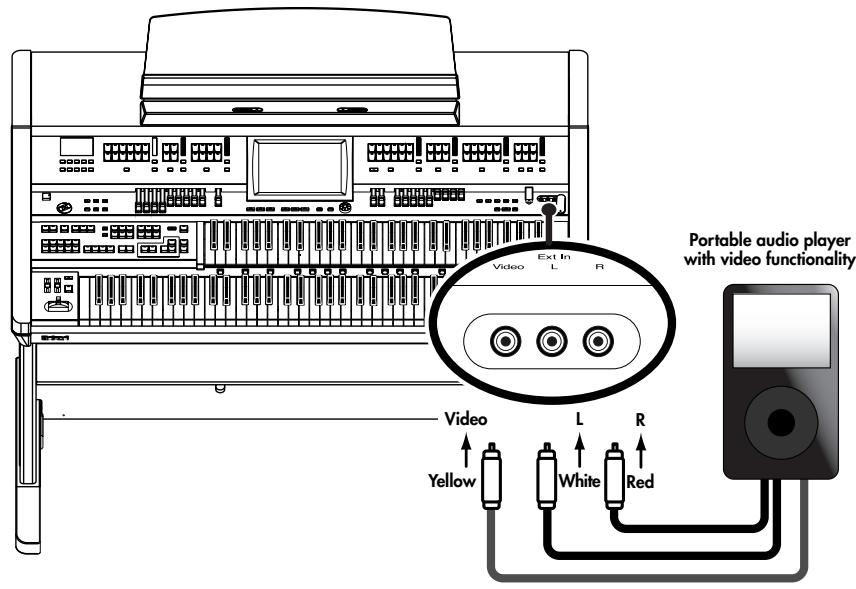
3. Turn on the video function.
Press the video function select [Ext In] button so it's lit.
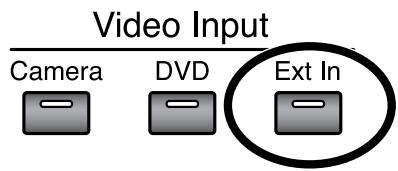

For details, refer to the owner's manual of your portable audio player.

Make sure that the portable audio player you're connecting matches the television format selected on the ATELIER. For details on setting the television format of your portable audio player, refer to the owner's manual for portable audio player. For details on setting the ATELIER's television format, refer to "Specifying the Television Format"(p. 236).
4. Play back your portable audio/video player.
The external display or television connected to the ATELIER will show the image from your portable audio/video player. The sound from your player will be heard from the ATELIER's speakers.
5. Turn the [Master Volume] slider to adjust the volume.
6. To minimize the sound of the vocal on the portable audio/video player, proceed as follows.
- Touch
on the Main screen.
- Touch
on the System screen.
- Touch
.
- Touch Melody
.
This will decrease the vocal (melody) portion of the music from the portable audio player, allowing you to sing or play it yourself.
Turning Off the Video Function
7. Press the lit [Ext In] button to turn off its illumination.
If all of the video function select buttons are not lighted, the television or external display will show the MUSIC ATELIER logo (p. 262).
MEMO
For details, refer to the owner's manual of your portable audio player.
MEMO
If you press the [Video Monitor] button located below the display, the ATELIER's display will show the same image as the external display or television. This is a convenient way for you to monitor the image that's shown in the external display or television.
MEMO
You can change the pitch of the portable audio/video player's sound. For details, refer to "Transposing the Song to a Comfortable Key for Singing" (p. 269).
Freely Switching Between Images
You can connect various video devices to the ATELIER, and then use the video function select buttons on the ATELIER's panel to freely control the image that's shown on the external display or television.
Video Function Select Buttons
This refers to the following buttons.
[Camera] button
[DVD] button
[Ext In] button
1. Connect a variety of video devices to the ATELIER.
Connecting a video camera p. 256
Connecting a DVD player p. 258
Connecting a portable audio/video player p. 260
2. Press the video function select buttons to switch the image shown in the external display or television.
Button Function Page Camera Switches to the image from the device connected to the Camera In connector. p. 256 DVD Switches to the image from the device connected to the DVD Player In connector. p. 258 Ext In Switches to the image from the device connected to the Ext In connector. p. 260
Turning off the Video function
1. Press video function select buttons to extinguish the indicators for all of the buttons.
If all of the video select buttons are extinguished, the image from the video device connected to the ATELIER will not be displayed.
The television or external display will show the MUSIC ATELIER logo.
MEMO
You can also switch the image by touching the video function select buttons in the Video screen or the VIMA TUNES screen (p. 255).
Enjoying VIMA TUNES Songs
Listening to a VIMA TUNES Song
You can connect a CD drive (commercially available) and play back VIMA TUNES (sold separately). While playing a VIMA TUNES song, you can use the external display or television to view a slide show suitable for the character of the song, or play along using recommended tones.
- Connect a commercially available CD drive to the Ext Drive connector, and insert the VIMA TUNES disc into the CD drive.
- Touch
on the Main screen.
The System screen appears.
- Touch
.
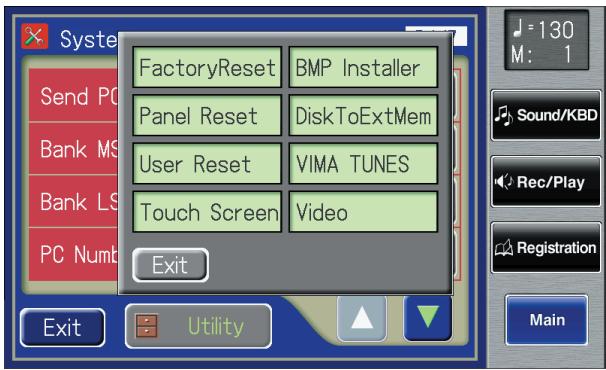
- Touch
.
The VIMA TUNES screen appears.
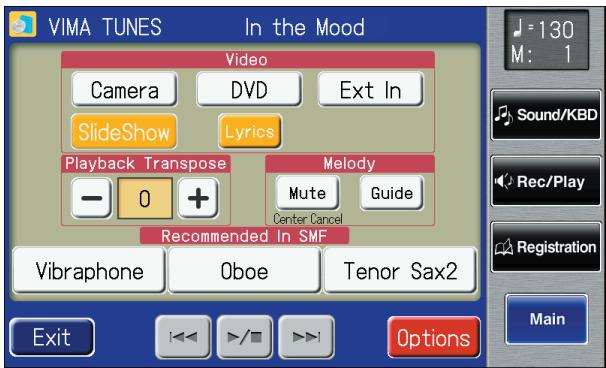
- Touch <1 × 1> to select the song you want to play.
MEMO
You can also press the panel's [Song] button and choose a VIMA TUNES song from Song Select screen.
NOTE
It will take a certain amount of time until VIMA TUNES can be selected.
6. Touch < > / > to start playing back the song.
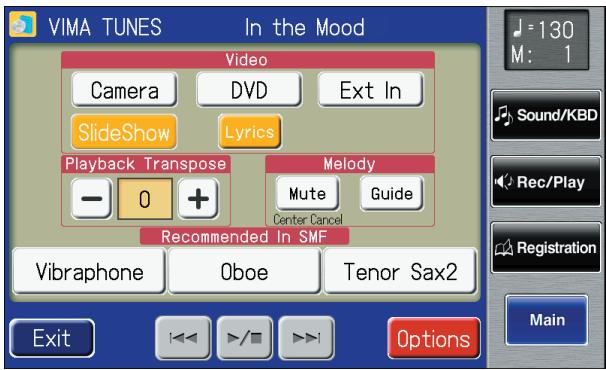
You can touch Play Transpose < - > < +> to change the key of the song.
When you touch Melody in the screen, the melody will be muted.
You can mute the melody, and play the melody yourself.
When you touch Melody in the screen, the volume of the melody will be lowered. You can leave the melody playing at a lowered volume and play along until you've learned the melody. Since you will still be able to hear the melody, you can use it as a guide during practice.
7. Touch < > / 口> to stop playing back the song.
Displaying a Slide Show while the Song Plays
While playing back a VIMA CD-ROM (VIMA TUNES), you can view a slide show of images that match the mood of the song.
Songs on a CD-ROM created for VIMA (VIMA TUNES) contain slide show images suitable for those songs, making it easy for you to enjoy a slide show without having to prepare your own images (photos).
- Connect a commercially available CD drive to the Ext Drive connector, and insert the VIMA TUNES disc into the CD drive.
- Touch
on the Main screen.
The System screen appears.
- Touch
.
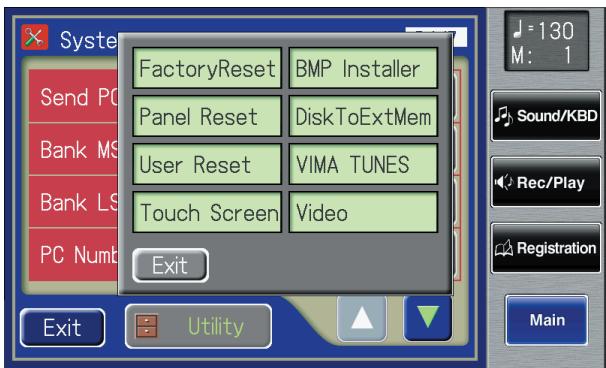
- Touch
.
The VIMA TUNES screen appears.
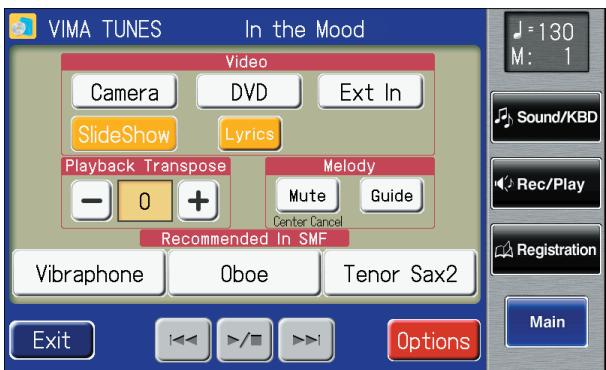
- Touch
so it's lit.
- Touch <1> to select the song you want to play.

You can also press the panel's [Song] button and choose a VIMA TUNES song from Song Select screen.

It will take a certain amount of time until VIMA TUNES can be selected.
7. Touch <▶/□> to start playing back the song.
A slide show suitable for the character of the song will be shown on the external display or television connected to the ATELIER.
8. Touch <> / > to stop playing back the song.
MEMO
If you press the [Video Monitor] button located below the display, the ATELIER's display will show the same image as shown on your external display or television.
You can view the ATELIER's screen to check the image that's shown on your external display or television.
Performing with Sounds that Match the Song (Recommended Tones)
When playing along on the keyboard while listening to a CD-ROM made for the VIMA (VIMA TUNES), this function lets you play using instrumental sounds that are appropriate for the atmosphere of the selected song.
If you select a song from a CD-ROM created for VIMA (VIMA TUNES), three recommended tones will automatically be selected in the VIMA TUNES screen. You can use these three sounds to perform sounds that will match the character of that song.
When you want to select a song from a CD-ROM made for the VIMA (VIMA TUNES), insert the CD-ROM into the CD drive.
- Select the song of VIMA CD-ROM (p. 268).
- Touch
on the Main screen.
The System screen appears.
- Touch
.
- Touch
.
The VIMA TUNES screen appears.

The three recommended tones are shown in the lower part of the screen.
- Touch one of the recommended tones in the screen to select a tone.
- Touch <> / > to start playing back the song.
- Play along with the song.
The tones you play will be suitable for the character of the song.
- Touch < > / 口> to stop playing back the song.
Listening to Songs from Music CD
You can connect a CD drive to the ATELIER and use it to play music CDs. This lets you perform or sing along with the backing of a music CD.
- Connect a commercially available CD drive to the Ext Drive connector, and insert the music CD into the CD drive.
- Press the [Song] button.
The Song Select screen appears.
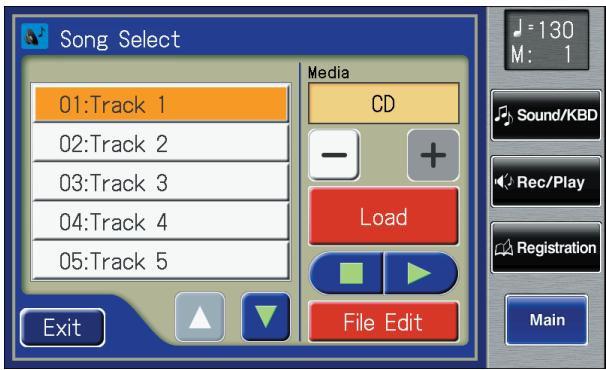
- Touch <-> <+> to select the "CD."
- Touch <><> to select the song you want to play.
- Touch < > () to start playing back the song.
- Touch < (■) to stop playing back the song.
NOTE
You can't copy music CD songs to "Favorites."
NOTE
It will take a certain amount of time until a music CD can be selected.
NOTE
You can also play or stop the music data by touching or in the Rec/Play screen, and you can touch or to rewind or fast-forward the playback.
Enjoying Karaoke with a Music CD (Center Cancel)
You can minimize the vocal sounds of a commercially available music CD, and sing the vocal part yourself. This is a convenient way to enjoy karaoke or practice soloing with a favorite music CD.
You can also minimize the vocal sounds of a song from a DVD or a portable audio player.
- Connect a commercially available CD drive to the Ext Drive connector.
- Insert the music CD you want to use into the CD drive, and select the song you want to sing (p. 268).
- Display the VIMA TUNES screen.
- Touch the Melody
on the screen.
The Center Cancel function is active.
- Touch < ▶/■> to start playing back the song.
When you play back the song, the sound of the melody or vocal will be minimized.
This lets you perform the melody portion yourself.
Transposing the Song to a Comfortable Key for Singing
You can transpose the song to a key that is more comfortable for you to sing.
If you or someone else will be singing along with a song, you can change the key of the song so it's appropriate for the singer's range.
You can transpose the key not only of a music CD, but also of the sound from a portable audio player or DVD player.
- Touch Playback Transpose < - > < +> on the VIMA Tunes screen.
Each time you touch Play Transpose < - > < +> , the key is changed by one semitone.
Touch < - > to lower the key, or touch < + > to raise the key.
This can be set in a range of -6-0-5 (semitone steps).
The VIMA TUNES screen shows the value you've specified.
- If you touch Playback Transpose < - > < +> to select "0," Key Control will be turned off.
NOTE
For some songs, the vocal sound may not be eliminated completely.
MEMO
If you want to sing along with a song on DVD or a portable audio player, connect your DVD player (p. 258) or portable audio player (p. 260). If you touch Melody in the VIMA TUNES screen while playing a DVD or a song on your portable audio player, the sounds such as the melody or vocal will be diminished.
NOTE
If you select a different song, the playback transpose settings will return to their factory-set state.
If the ATELIER does not function in the way you except, first check the following chart. If this does not resolve the problem, consult your dealer or a nearby Roland Service Station.
Problem Check Solution Page When you press the [Power On] switch, the power doesn't come on Power cord is not connected correctly. Connect the power cord correctly. p. 23 Nothing appears on screen The ATELIER uses a liquid-crystal screen, so text may not be displayed when the ambient temperature is below freezing. This is not a malfunction. *** It appears as though there are vertical stripes in the screen This is due to the nature of a liquid crystal display, and is not a malfunction. This is not a malfunction. *** Can't view the main screen The [Video Monitor] button is lit. If the [Video Monitor] button is lit, the ATELIER's display will show the same image as the device connected to the ATELIER. Press the [Video Monitor] button so it's turned off. p. 18 Bouncing Ball is not shown The Bouncing Ball display is turned off. Turn the Main Bouncing Ball setting ON. p. 225 Remote control does not work Could the Remote function be turned off?
If the Remote function is turned off, data from the remote control will not be received. Refer to “Turning the Remote function on/off.” p. 227 The device connected to the Input jack is not loud enough Could you be using a connection cable that contains a resistor? Use a connection cable that does not contain a resistor. *** The volume level of the instrument connected to ATELIER is too low. Could you be using a connection cable that contains a resistor? Use a connection cable that does not contain a resistor. p. 241 Can't read/write USB memory Could you be using USB memory not made by Roland? We cannot guarantee operation if you're using USB memory not made by Roland. *** The external memory setting is incorrect. Change the external memory setting. p. 226 Noise is heard in the sound If there is a cell phone nearby, you may hear noise from the ATELIER when an incoming call or outgoing call occurs, or during a conversation. Keep the phone as far away as possible, or turn off its power. *** No sound is heard The [Master Volume] slider is set too low. Turn the [Master Volume] knob toward "Max." p. 24 Headphones are connected. When you connect the headphones, the sound is heard only through the headphones. If you want sound to be output from the speakers, disconnect the headphones. p. 25 The plug is still plugged into the headphone jack. Disconnect the plug from the headphone jack. p. 25 The volume is set too low on the Level [▲] [▼] buttons. Press the Level [▲][▼] buttons to raise the volume. p. 72 The volume is set too low on the Expression Pedal. Advance the expression pedal. p. 136 You do not have a Voice selected. Voices that have their button indicator lit can be played. Press a voice button to select a voice. p. 47 No sound is heard (by the Lower keyboard) Drums/SFX are selected for the Lower keyboard, but you are playing a key to which no drum sound is assigned. Turn the Drums/SFX off or play keys to which drums sounds are assigned. p. 76 No sound is heard (by the Upper keyboard) "Percussion Set 3" has been selected for the Upper keyboard. When "Percussion Set 3" is selected, some keys may have no sound assigned to them. For the upper keyboard, select a voice other than "Percussion Set 3." p. 49 No sound is heard (by the pedalboard) Pedal cord is not connected correctly. Use the pedal cable to connect the pedal correctly. p. 20 No sound is heard (when external devices are connected) The power of the connected external devices is not turned on. Use the correct procedure to turn on the power of the connected external devices. p. 241 - p. 247 Damper Pedal does not operate The damper pedal affects only the Lower keyboard and Upper keyboard. The damper pedal does not affect the Bass pedalboard. You can change the settings so that the damper pedal affects the Upper keyboard. p. 212 The damper pedal does not affect the Solo voice. This is not a malfunction. --- Expression Pedal does not operate The function of the Expression Pedal during recording or the function during playback has been set to "COMPOSER." Set the expression pedal function during recording to "PEDAL," and during playback to "PEDAL" or "PEDAL+COMPOSER." p. 211 Can't use the function assigned to the foot switch If "Regist Shift" (change Registrations) is "RIGHT," "LEFT," or "RIGHT + Load Next," the foot switch will be dedicated to switching the Registration. Turn "Regist Shift" off. p. 135 When the human voice "Jazz Scat" is selected, playing dynamics do not change the sound The setting of "Initial Touch" is turned OFF. Turn "Initial Touch" on. p. 210 Rotary effect is not be applied Some sounds do not allow the rotary effect to be applied. This is not a malfunction. --- Chorus effect does not apply Some sounds do not allow the chorus effect to be applied. This is not a malfunction. --- When you release your fingers from keys in the Lower keyboard while Automatic Accompaniment and Rhythm are playing, the Rhythm performance only remains playing Chord Hold is at OFF. Turn "Chord Hold" on.The Automatic Accompaniment will play while you press a chord. If Chord Hold is turned ON, the Automatic Accompaniment will continue playing with the Rhythm even when you take your hand off of the Lower keyboard. p. 214 When you release your fingers from keys in the Lower keyboard, the notes continue sounding The Lower Voice [Hold] button is at ON. Press the Lower Voice [Hold] button to turn it off (dark). p. 80 Even though you press only one key, a multiple number of notes sound Harmony Intelligence is at ON. Turn "Harmony Intelligence" off. p. 138 Chord Intelligence is turned ON. Turn "Chord Intelligence" off. p. 90 Sound is produced when you take your finger off a key You have selected a "Marimba Treml" or "Banjo Treml" sound. This is not a malfunction.If you select a "Marimba Treml" or "Banjo Treml" sound, a sound will also be produced when you take your finger off the key. - - - Automatic Accompaniment sounds odd The keys for a chord were not pressed simultaneously. Either turn on the Chord Intelligence function, or play the chord correctly. p. 90 When Chord Intelligence is OFF, the chord is not being pressed correctly. Either turn on the Chord Intelligence function, or play the chord correctly. p. 90 When performance data from a device other than the ATELIER is being played together with the Automatic Accompaniment, the Automatic Accompaniment may not be sounded correctly. This is not a malfunction. - - - Rhythm sounds odd When performance data from a device other than the ATELIER is being played together with the Automatic Accompaniment, the Rhythm performance may not be sounded correctly. This is not a malfunction. - - - Pitch is off Transpose is in effect. Simultaneously press the Transpose [-] [+] buttons to cancel the transposition (the Transpose [-][+] buttons' indicators will go out). p. 130 The tuning is incorrect. Adjust the standard pitch. p. 221 While set for an octave shift, you are playing keys beyond the recommended range. This does not indicate a malfunction. Adjust the Octave Shift setting. p. 74 Recording is not possible If you wish to erase a previously-recorded track and then re-record, press the track button for the desired track to make that button blink before you begin recording. Press the track button for the desired track to make that button indicator blink before you begin recording. p. 177 If you wish to erase a previously-recorded track and then re-record, touch the track button for the track you want to record in the Rec/Play screen, stopping the button from flashing. On Rec/Play screen, touch the track button for the desired track to make that button indicator blink before you begin recording. p. 177 The recorded performance has disappeared Any performance that has been recorded is deleted when the power to the unit is turned off. A performance cannot be restored once it's been deleted, so be sure to save it on a floppy disk before you turn off the power. p. 180 The bass note of the Automatic Accompaniment does not sound When a voice is selected for the Pedal Bass part, the bass of the Automatic Accompaniment will not sound. This is not a malfunction. --- MIDI messages received at MIDI In are not sounded The Computer switch is not set to "MIDI" position. Set the Computer switch to "MIDI." p. 244 The Computer switch was set to "MIDI" after the power was turned on. Turn off the power, and then turn the power on once again. p. 244 Sound is distorted / cracked The Part Balance volume of each part is too high. Press the Part Balance button to lower the volume. p. 72 The Reverb volume has been raised when the volume of each Part Balance button is already raised. Either lower the Reverb volume, or adjust the Part Balance of each part. p. 72
p. 150 The [Master Volume] slider has been used to raise the overall volume excessively. Use the [Master Volume] slider to lower the overall volume. p. 24 Some keys (of certain keyboard parts) sound strange You are playing notes outside the recommended range of the voice. This is not a malfunction. --- The Rhythm does not change when you press the Registration buttons The settings at which Registrations are recalled (Registration Arranger Update) has been set to "DELAYED." Set the timing at which the arranger settings are called up (Registration Arranger Update) to "INSTANT." p. 109
p. 217 The volume changes during playback of performance data When recording is performed repeatedly while changing the Part Balance volume, the previously-recorded Part Balance data remains in the Control track. If you wish to get rid of the volume changes, use the Erase function to delete the Part Balance data. p. 193 Bass is heard even though you are not playing the Bass Pedalboard The Pedal [To Lower] button or the [Bass Split] button is ON.
When the Pedal [To Lower] button is ON, the Bass will be sounded by the Lower keyboard. In the Pedal part, press the Pedal [To Lower] button or [Bass Split] button to turn the button off (dark). p. 161
p. 163 When playing the same sound in the Upper keyboard and Lower keyboard, the volume is different On one of the keyboards, "Initial Touch" is turned ON. Set the initial touch settings of the Upper keyboard and the Lower keyboard to both On, or both Off. p. 210 Lower keyboard cannot be heard The Lower keyboard will not produce sound while an Intro or Ending is being played. This is not a malfunction. --- The sound is not played correctly If you layer the same type of sound (for example, Strings 1 and Strings 5), or play an octave-shifted organ sound, the timing at which you play a note or the phase relationship between the two sounds may affect the way in which the sounds are heard, but this is not a malfunction. You are layering sounds of the same type (e.g., Strings 1 and Strings 5). Alternatively, you are playing an organ sound with Octave Shift. This is not a malfunction. --- Lyrics are not indicated properly in the display With some music files, the lyrics cannot be displayed correctly. This is not a malfunction. --- In the Notation screen, some lyrics or notes could extend beyond the edges of the screen, and not be displayed. This is not a malfunction. --- A button was pressed while the lyrics were being shown in the display. During the display of lyrics, you could be taken to a different screen if you press a button. If you want to have the lyrics be displayed again, touch <Play> on the Rec/Play screen. p. 164 The Touch Screen doesn't respond correctly The positioning of the Touch Screen may become displaced if some time has passed since it was last used Reposition the Touch screen. p. 229 Certain instrument are not heard while playing a song The track is muted. Turn off track muting. p. 168
p. 170 Can't use Chord Intelligence function Chord Intelligence is at OFF. Turn "Chord Intelligence" on. p. 90 Notation is not indicated properly in the display In the Notation screen, some lyrics or notes could extend beyond the edges of the screen, and not be displayed. This is not a malfunction. --- The Notation display feature is particularly unsuitable for the display of difficult, complex musical works that demand accurate notation. This is not a malfunction. p. 173 If you select a part that does not contain performance data, notes will not be displayed in the notation. Change the part that is displayed. p. 172 The Bass Range Sounds Odd, or There Is a Vibrating Resonance Playing at loud volumes may cause instruments near the ATELIER to resonate. Resonance can also occur with fluorescent light tubes, glass doors, and other objects. In particular, this problem occurs more easily when the bass component is increased, and when the sound is played at higher volumes. Use the following measures to suppress such resonance.
• Place speakers so they are 10-15 cm from walls and other surfaces.
• Reduce the volume.
• Move the speakers away from any resonating objects. --- When listening through headphones: Here, a different cause (such as resonance produced by the ATELIER) would be suspect. Consult your Roland dealer or nearest Roland Service Center. --- Pressing the expression pedal while playing back ATELIER performance data produces a crackling noise The expression pedal function is set to “PEDAL+COMPOSER” during playback of ATELIER performance data.
When this setting is used, moving the expression pedal while playing back ATELIER performance data may create a difference between the expression pedal information in the performance data and the volume as set with the expression pedal, which can result in this kind of sound being produced. Set the expression pedal function to “PEDAL” during playback. p. 212 Tempo not changing even when the source tempo is reselected (when arranging rhythms using the Rhythm Customize function) Auto Std Tempo (Auto Standard Tempo) is set to on.
When the Auto Std Tempo setting is set to ON and rhythms are switched while the rhythm is stopped, the tempo is automatically set to the tempo for that rhythm.
The tempo setting does not change automatically, even if the rhythms are switched with the Auto Std Tempo setting set to OFF and the rhythm stopped. Turn “Auto Std Tempo” off. p. 215 Unable to save created rhythm to the User Memory “Memory Full” appears in the display.
The available memory remaining in the ATELIER is not sufficient. First delete some other rhythm saved to the user memory, then save the rhythm you have created to the user memory once again. p. 207
p. 208 There is no sound from the twelve keys at the right of the lower keyboard The V-LINK function is set Mode 2.
When V-LINK setting is Mode 2, the group of twelve keys starting at the very right of the lower keyboard are used for controlling video images.
Therefore, no sounds are played even when you press these keys. Turn the V-LINK function off, or select Mode 1 for the V-LINK function. p. 227 DVD volume is too low (or inaudible) Is the DVD player connected correctly? Connect the DVD player correctly. p. 258 Could the DVD PLAYER INPUT [VOLUME] knob be turned to the minimum position? The DVD player's volume is adjusted with the DVD PLAYER INPUT [VOLUME] knob; not by the [VOLUME] knob. p. 258
Error Message Meanings Copy Protected. Can't Save. To protect the copyright, this music file cannot be saved as SMF format. Write-Protected Media. The protect tab of the storage media is set to the Protect (write prohibit) position. Move the tab to the Write (write permit) position and try the operation again. Can't Save This Song. You can only play the music data. It cannot be saved on a storage media Master Disk This storage media does not allow initialization or saving. Insert a different storage media and try the operation again. Read Only File. You cannot overwrite save or delete a file on this storage media. No Media Storage media is not connected. Please connect storage media. Media Full Saving is not possible because the storage media does not have enough space. Please use other storage media that has been formatted by the ATELIER. Unknown Media This storage media cannot be used. Please format it. Media Ejected The storage media was disconnected while it was being accessed. Please try the operation again. Damaged Media A damaged area was found on the storage media. Can't Read This data cannot be read. Can't Play Playback was halted because the song could not be read fast enough. The song could not be read from the storage media fast enough for playback. Press the [Reset] button, then press the [Play/Stop] button once again. No Rhythm There is no rhythm in user memory. The rhythm used by the selected registration was deleted from user memory, or its order was changed. Designated positions are incorrect. When calibrating the touch panel, the appropriate point was not touched correctly. If you touch a location other than the specified point, the discrepancy may become severe. Please be sure to touch the correct point. Memory Full The song data is excessively large, and cannot be loaded. The performance data is excessively large, and cannot be loaded. MIDI Buffer Full The ATELIER cannot deal with the excessive MIDI data sent from the external MIDI device. Reduce the amount of MIDI data sent to the ATELIER. Communication Error A MIDI cable or computer cable has been disconnected. Connect it properly and securely. Data transfer failed. Please transfer the data again. The ATELIER is unable to handle the data that was sent. Please send data that the ATELIER is able to handle. Memory Full Recording or editing is not possible because the memory of the ATELIER is full. Memory Error An error occurred in internal memory. Please perform the operation again. If this indication appears even after you've repeated the operation several times, please contact Roland service. Not found A rhythm or registration that meets the conditions was not found. This is registration data of a type that is not supported. This instrument cannot use this registration. USB over current USB memory not supported by the ATELIER was connected. This USB memory cannot be used with the ATELIER.
- symbol: Indicates the constituent not of chord.
symbol: Chord shown with an "★" can be played by pressing just the key marked with the "★."
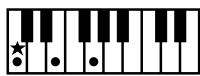
C
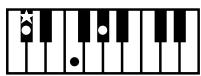
C#
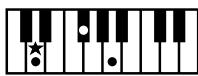
D
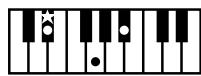
Eb
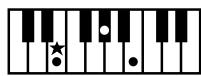
E
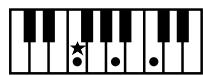
F
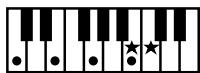
Cmaj7
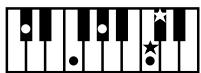
C#maj7

Dmaj7
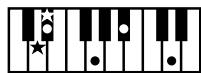
Eb maj7

Emaj7
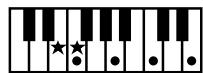
Fmaj7
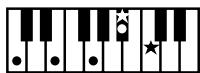
C7
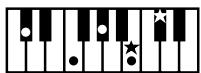
C#7
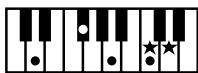
D7
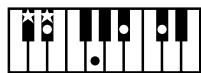
Eb7
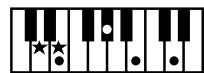
E7
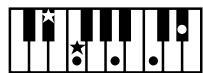
F7
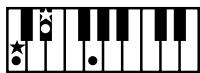
Cm
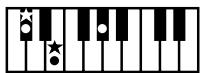
C#m
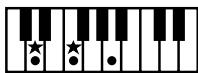
Dm
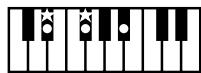
Ebm
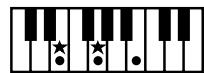
Em
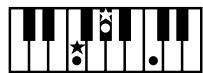
Fm
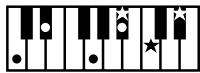
Cm7
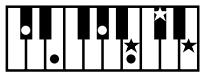
C#m7
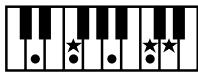
Dm7
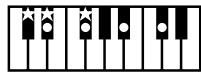
EBm7
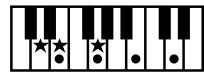
Em7
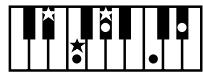
Fm7
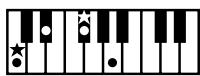
Cdim
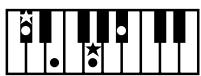
C#dim
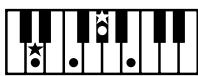
Ddim

Ebdim
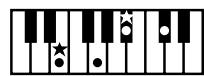
Edim
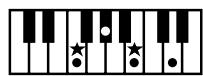
Fdim
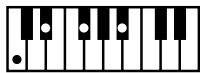
Cm7b5
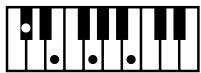
C#m7b5
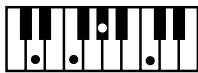
Dm7b5
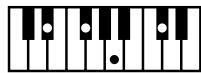
Eb m7b5
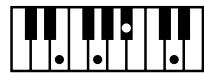
Em7b5
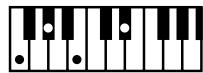
Fm7b5
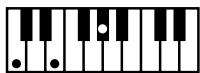
Caug
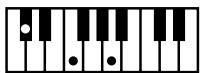
C#aug
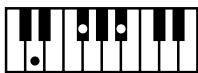
Daug
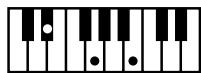
Ebaug
Eaug
Faug
Csus4
C#sus4
Dsus4
Eb sus4
Esus4
Fsus4
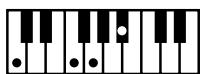
C7sus4
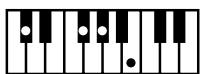
C#7sus4
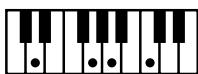
D7sus4
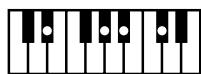
Eb 7sus4
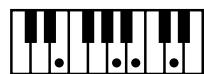
E7sus4
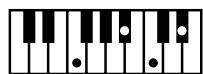
F7sus4
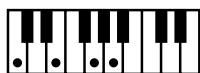
C6
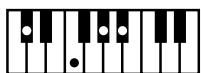
C#6
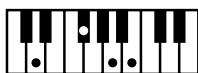
D6

Eb6
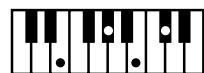
E6
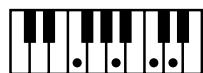
F6
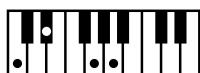
Cm6
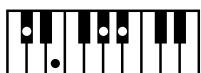
C#m6
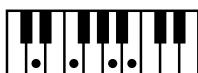
Dm6
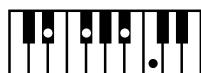
EB m6
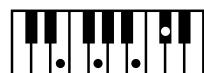
Em6
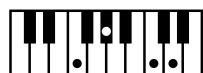
Fm6
- symbol: Indicates the constituent not of chord.
symbol: Chord shown with an "★" can be played by pressing just the key marked with the "★."
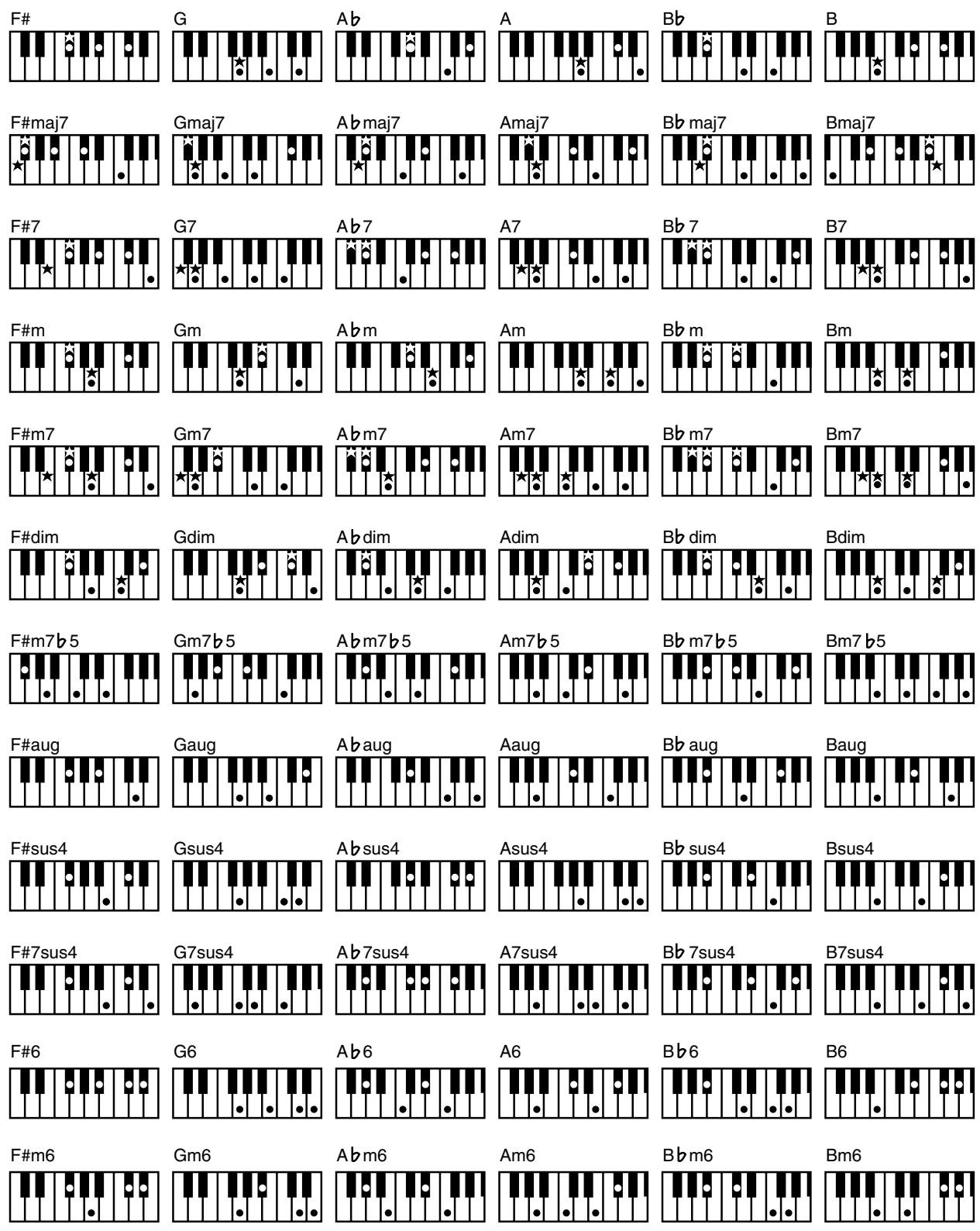
Arrangement
This refers to changes that have been made in an original tune, by adding a new accompaniment or by changing the instruments used.
Automatic Accompaniment
Automatic Accompaniment is automatic accompaniment when just a few keys in the lower section of the keyboard are pressed to specify the chord.
Basic Chord
This refers to the most commonly used types of chord, which are generally the following six types: major chords, minor chords, minor seventh chords, minor seventh (5) chords, dominant seventh chords, and diminished seventh chords.
Chord
Notes of two or more pitches sounded simultaneously. Chords consisting of three notes are called "triads," and are the most basic type of chord.
Chorus
An effect that adds spaciousness and richness to the sound.
Ending
This is the last part of the accompaniment. When you stop playing the Automatic Accompaniment, the ATELIER plays an Ending appropriate for the Rhythm.
Glide
An effect that temporarily lowers the pitch and then gradually returns it to normal.
Intro
This is the introductory portion of an Automatic Accompaniment performance. When automatic accompaniment begins, the ATELIER can add an appropriate intro for each rhythm..
Inversion
When the lowest note of a chord is the root, the chord is said to be in "root position." In contrast, forms of a chord in which other notes are the lowest pitch are called "inversions."
Mute
To silence a sound. The ATELIER provides a Track Mute function that allows you to turn off the track button indicator of a track on which music data has been recorded, so that the corresponding track will temporarily be silenced.
Panel Settings
Settings such as sound selections, tempo, Rotary fast/slow.
Pitch Bend
An effect that smoothly raises or lowers the pitch.
Registration
A set of data that specifies the state of the instrument when performing, including sounds and panel settings.
Reverb
An effect that simulates the reverberation of a room or concert hall.
Root Note
The root note is the basis of a chord. All chords are built on a root note, which is the part of the chord name given in uppercase letters.
Rotary
An effect which simulates the modulation given to the sound when a rotating speaker is used. The Rotary effect produces two types of modulation: fast or slow.
Sound Generator
This is the section that produces the sound. The ATELIER series uses a sound generator that is compatible with GM2/GS.
Split
A function which allows the keyboard to be divided into two or more areas, and a different sound assigned to each area. The point at which the keyboard is divided is called the "Split Point."
Sustain
An effect that adds a decay to each note. The ATELIER allows sustain to be applied to the voices of the upper part, lower part, and pedal part.
Vibrato
An effect that cyclically modulates the pitch.
Voice
The ATELIER is able to produce the sounds of various instruments. These sounds are called "Voices."
What Are Music Files?
Music files contains musical information such as how long the key for a corresponding pitch is played, the force applied to the key played, and other such information. Performance data is transmitted to the ATELIER from music files saved in USB memory and CD-ROM, and played back without change as songs. This is different than a audio CD, since the music file does not contain a recording of the sound itself. This makes it possible to change tempos and keys freely, allowing you to use it in many different ways.
Regarding Copyright
Use of the internal songs and audio files for any purpose other than private, personal enjoyment without the permission of the copyright holder is prohibited by law. Additionally, this data must not be copied, nor used in a secondary copyrighted work without the permission of the copyright holder.
Please be aware that if you create derivative works that are based on existing copyrighted material, such as commercially available SMF music files, such works may violate copyright law if used for any purpose other than personal enjoyment. Roland takes no responsibility for any copyright violation you may commit by creating such works.
The ATELIER Allows You To Use the Following Music Files
VIMA TUNES

VIMA TUNES is a Roland specification for music files that contains image and lyric data, allowing you to enjoy songs with lyrics and images simultaneously. When data bearing the "VIMA TUNES" logo is played back on a device that bears the same logo, lyrics can be shown on the screen of a connected external display or television, letting you enjoy karaoke or watch a slide show.
SMF Music Files
SMFs (Standard MIDI Files) use a standard format for music file that was formulated so that files containing music file could be widely compatible, regardless of the manufacturer of the listening device. An enormous variety of music is available, whether it be for listening, for practicing musical instruments, for Karaoke, etc.
SMF with Lyrics SMF LYRICS
"SMF with Lyrics" refers to SMF (Standard MIDI File) that contains the lyrics. When Music Files carrying the "SMF with Lyrics" logo are played back on a compatible device (one bearing the same logo), the lyrics will appear in its display.
The ATELIER come equipped with GM 2/GS sound generators.
About the ATELIER Sound Generator
The ATELIER come equipped with GM 2/GS sound generators.
General MIDI

The General MIDI is a set of recommendations which seeks to provide a way to go beyond the limitations of proprietary designs, and standardize the MIDI capabilities of sound generating devices. Sound generating devices and music files that meets the General MIDI standard bears the General MIDI logo. Music files bearing the General MIDI logo can be played back using any General MIDI sound generating unit to produce essentially the same musical performance.
General MIDI 2

The upwardly compatible General MIDI 2 recommendations pick up where the original General MIDI left off, offering enhanced expressive capabilities, and even greater compatibility. Issues that were not covered by the original General MIDI recommendations, such as how sounds are to be edited, and how effects should be handled, have now been precisely defined. Moreover, the available sounds have been expanded. General MIDI 2 compliant sound generators are capable of reliably playing back music files that carry either the General MIDI or General MIDI 2 logo.
In some cases, the conventional form of General MIDI, which does not include the new enhancements, is referred to as "General MIDI 1" as a way of distinguishing it from General MIDI 2.
GS Format

The GS Format is Roland's set of specifications for standardizing the performance of sound generating devices. In addition to including support for everything defined by the General MIDI, the highly compatible GS Format additionally offers an expanded number of sounds, provides for the editing of sounds, and spells out many details for a wide range of extra features, including effects such as reverb and chorus. Designed with the future in mind, the GS Format can readily include new sounds and support new hardware features when they arrive. Since it is upwardly compatible with the General MIDI, Roland's GS Format is capable of reliably playing back GM Scores equally as well as it performs GS music files (music files that have been created with the GS Format in mind). This product supports both the General MIDI 2 and the GS Format, and can be used to play back music data carrying either of these logos.
XG lite

XG is a tone generator format of YAMAHA Corporation, that defines the ways in which voices are expanded or edited and the structure and type of effects, in addition to the General MIDI 1 specification. XGlite is a simplified version of XG tone generation format. You can play back any XG music files using an XGlite tone generator. However, keep in mind that some music files may play back differently compared to the original files, due to the reduced set of control parameters and effects.
Settings That Are Stored After the Power Is Turned Off
Arranger Update
Aspect Ratio
Auto Std Tempo (Auto Standard Tempo)
Aux Out Mode
D Beam Sensitivity
Display Brightness
Exp. Curve (Expression Curve)
Lyrics
Main Background
Main Bouncing Ball
Master Tune
Metronome Sound
Mic Echo
MIDI IN Mode
NTSC/PAL
Regist Shift (Registration Shift)
Remote Control
Remote Control: FUNC1, 2
Rhythm Mode
Rotary Color
Rotary Speed
Send PC Switch
Trans. Update (Transpose Update)
USB Driver
Registration Name
Settings That Are Stored In the Registration Buttons
Registration Name
Regist Shift (Registration Shift)
Arranger Update
Trans. Update (Transpose Update)
Exp. Curve (Expression Curve)
Settings That Are Stored In the Individual Registration Buttons
Reverb Type
Reverb Depth
Solo [To Lower] button (ON/OFF)
Pedal [To Lower] button (ON/OFF)
Transpose [-] [+] button (Key Transpose)
L Foot Switch Assignment (Left Foot Switch Assignment)
R Foot Switch Assignment (Right Foot Switch Assignment)
Damper Pedal (Damper Pedal Assignment)
[Harmony Intelligence] buttons (ON/OFF)
Harmony Intelligence Type
Rotary [Fast/Slow] button (ON/OFF)
Rotary [On/Off] button (ON/OFF)
Bender/Vibrato
Pitch Bend Range
Pedal Bass Mode
Solo Mode
Solo To Lower Mode
Solo Split Point
[Bass Split] button (ON/OFF)
Bass Split Point
Sustain ON/OFF
Sustain Length
Tx MIDI Channel
After Touch ON/OFF
After Touch Sens (After Touch Sensitivity)
Initial Touch (Initial Touch Sensitivity)
Vintage Organ Type
Vintage Flute Volume
PC Number (Program Change Number)
Bank LSB (Bank Select LSB)
Bank MSB (Bank Select MSB)
Wall Type
The Voices assigned for each part
Level [▲][▼] (Part Balance Volume)
The Reverb depth for each part
The Chorus settings (ON/OFF) for each part
The Octave settings for each part
The voices assigned to the [Others] buttons for each part
[Drums/SFX] button (ON/OFF)
Drum/SFX Set
[Manual Percussion] button (ON/OFF)
Manual Percussion Set
Selected Rhythm
[Intro] button (ON/OFF)
[Ending] button (ON/OFF)
[Sync Start] button (ON/OFF)
Variation
Chord Intelligence ON/OFF
Chord Hold ON/OFF
Leading Bass ON/OFF
Arranger [ON/OFF] button (ON/OFF)
Lower Voice [Hold] button (ON/OFF)
Tempo setting
Volume of the rhythm Accompaniment part
Reverb depth of the rhythm Accompaniment part
Volume of the rhythm drum part
Reverb depth of the rhythm drum part
Volume of the rhythm bass part
Reverb depth of the rhythm bass part
Function... Transmitted Recognized Remarks Basic Channel Default 1 (Solo) 1 (Solo) *5 2 (Pedal) 2 (Pedal) *5 3 (Lower) 3 (Lower) *5 4 (Upper) 4 (Upper) *5 11 (Drums/SFX) 11 (Drums/SFX) *5 13 (Manual Percussion) 13 (Manual Percussion) *5 16 (Expression, PC, V-LINK) 16 (Expression) *5 Changed 1-16 1-16 (GM2/GS) *6 X Mode Default x Mode 3 *10 Messages x Mode 3, 4(M=1) Altered ********** Note Number: True Voice 24-110 0-127 ********** 0-127 Velocity Note ON ○ *1 ○ Note OFF x 8n v=64 x After Touch Key's x ○ *2, 8 Ch's x ○ *2, 7, 8, 9 Pitch Bend x ○ *2, 7, 8, 9 Control Change 0, 32 ○ *1 ○ *3, 7, 8 Bank select Modulation Portamento time Data entry Volume Panpot Expression General purpose controller (Glide) Hold 1 Portamento Sostenuto Soft Resonance Release Time Attack Time Cut off Decay Time Vibrato Time Vibrato Depth Portamento control Effect depth Effect depth Effect depth Effect depth Effect depth Effect depth Effect depth Effect depth Effect depth Effect depth Effect depth Effect depth Effect depth Effect depth Effect depth Effect depth Effect depth Effect depth Effect depth Effect depth Effect depth Effect depth Effect depth Effect depth Effect depth Effect depth Effect depth Effect depth Effect depth Effect depth Effect depth Effect depth Effect depth Effect depth Effect depth Effect depth Effect depth Effect depth Effect depth Effect depth Effect depth Effect depth Effect depth Effect depth Effect depth Effect depth Effect depth Effect depth Effect depth Effect depth Effect thickness Effect thickness Effect thickness Effect thickness Effect thickness Effect thickness Effect thickness Effect thickness Effect thickness Effect thickness Effect thickness Effect thickness Effect thickness Effect thickness Effect thickness Effect thickness Effect thickness Effect thickness Effect thickness Effect thickness Effect thickness Effect thickness Effect thickness Effect thickness Effect thickness Effect thickness Effect thickness Effect thickness Effect thickness Effect thickness Effect thickness Effect thickness Effect thickness Effect thickness Effect thickness Effect thickness Effect thickness Effect thickness Effect thickness Effect thickness Effect thickness Effect thickness Effect thickness Effect thickness Effect thickness Effect thickness Effect thickness Effect thickness Effect thickness Effect thickness Effect Thickness Effect Thickness Effect Thickness Effect Thickness Effect Thickness Effect Thickness Effect Thickness Effect Thickness Effect Thickness Effect Thickness Effect Thickness Effect Thickness Effect Thickness Effect Thickness Effect Thickness Effect Thickness Effect Thickness Effect Thickness Effect Thickness Effect Thickness Effect Thickness Effect Thickness Effect Thickness Effect Thickness Effect Thickness Effect Thickness Effect Thickness Effect Thickness Effect Thickness Effect Thickness Effect Thickness Effect Thickness Effect Thickness Effect Thickness Effect Thickness Effect Thickness Effect Thickness Effect Thickness Effect Thickness Effect Thickness Effect Thickness Effect Thickness Effect Thickness Effect Thickness Effect Thickness Effect Thickness Effect Thickness Effect Thickness Effect Thickness Effect Thickness EffectThicknessEffect Thickness Effect Thickness Effect Thickness Effect Thickness Effect Thickness Effect Thickness Effect Thickness Effect Thickness Effect Thickness Effect Thickness Effect Thickness Effect Thickness Effect Thickness Effect Thickness Effect Thickness Effect Thickness Effect Thickness Effect Thickness Effect Thickness Effect Thickness Effect Thickness Effect Thickness Effect Thickness Effect Thickness Effect Thickness Effect Thickness Effect Thickness Effect Thickness Effect Thickness Effect Thickness Effect Thickness Effect Thickness Effect Thickness Effect Thickness Effect Thickness Effect Thickness Effect Thickness Effect Thickness Effect Thickness Effect Thickness Effect Thickness Effect Thickness Effect Thickness Effect Thickness Effect Thickness Effect Thickness Effect Thickness Effect Thickness Effect Thickness Effect ThicknessEffect Thickness Effect Thickness Effect Thickness Effect Thickness Effect Thickness Effect Thickness Effect Thickness Effect Thickness Effect Thickness Effect Thickness Effect Thickness Effect Thickness Effect Thickness Effect Thickness Effect Thickness Effect Thickness Effect Thickness Effect Thickness Effect Thickness Effect Thickness Effect Thickness Effect Thickness Effect Thickness Effect Thickness Effect Thickness Effect Thickness Effect Thickness Effect Thickness Effect Thickness Effect Thickness Effect Thickness Effect Thickness Effect Thickness Effect Thickness Effect Thickness Effect Thickness Effect Thickness Effect Thickness Effect Thickness Effect Thickness Effect Thickness Effect Thickness Effect Thickness Effect Thickness Effect Thickness Effect Thickness Effect Thickness Effect Thickness Effect Thickness EffectThickness Effect Thickness Effect Thickness Effect Thickness Effect Thickness Effect Thickness Effect Thickness Effect Thickness Effect Thickness Effect Thickness Effect Thickness Effect Thickness Effect Thickness Effect Thickness Effect Thickness Effect Thickness Effect Thickness Effect Thickness Effect Thickness Effect Thickness Effect Thickness Effect Thickness Effect Thickness Effect Thickness Effect Thickness Effect Thickness Effect Thickness Effect Thickness Effect Thickness Effect Thickness Effect Thickness Effect Thickness Effect Thickness Effect Thickness Effect Thickness Effect Thickness Effect Thickness Effect Thickness Effect Thickness Effect Thickness Effect Thickness Effect Thickness Effect Thickness Effect Thickness Effect Thickness Effect Thickness Effect Thickness Effect Thickness Effect Thickness Effect Thickness Effect thickness Effect Thickness Effect Thickness Effect Thickness Effect Thickness Effect Thickness Effect Thickness Effect Thickness Effect Thickness Effect Thickness Effect Thickness Effect Thickness Effect Thickness Effect Thickness Effect Thickness Effect Thickness Effect Thickness Effect Thickness Effect Thickness Effect Thickness Effect Thickness Effect Thickness Effect Thickness Effect Thickness Effect Thickness Effect Thickness Effect Thickness Effect Thickness Effect Thickness Effect Thickness Effect Thickness Effect Thickness Effect Thickness Effect Thickness Effect Thickness Effect Thickness Effect Thickness Effect Thickness Effect Thickness Effect Thickness Effect Thickness Effect Thickness Effect Thickness Effect Thickness Effect Thickness Effect Thickness Effect Thickness Effect Thickness Effect Thickness EffectThicknessEffectThicknessEffect ThicknessEffect ThicknessEffect ThicknessEffect ThicknessEffect ThicknessEffect ThicknessEffect ThicknessEffect ThicknessEffect ThicknessEffect ThicknessEffect ThicknessEffect ThicknessEffect ThicknessEffect ThicknessEffect ThicknessEffect ThicknessEffect ThicknessEffect ThicknessEffect ThicknessEffect ThicknessEffect ThicknessEffect ThicknessEffect ThicknessEffect ThicknessEffect ThicknessEffect ThicknessEffect ThicknessEffect ThicknessEffect ThicknessEffect ThicknessEffect ThicknessEffect ThicknessEffect ThicknessEffect ThicknessEffect ThicknessEffect ThicknessEffect ThicknessEffect ThicknessEffect ThicknessEffect ThicknessEffect ThicknessEffect ThicknessEffect ThicknessEffect ThicknessEffect ThicknessEffect ThicknessEffect ThicknessEffect ThicknessEffect ThicknessEffect ThicknessEffectThicknessEffect ThicknessEffect ThicknessEffect ThicknessEffect ThicknessEffect ThicknessEffect ThicknessEffect ThicknessEffect ThicknessEffect ThicknessEffect ThicknessEffect ThicknessEffect ThicknessEffect ThicknessEffect ThicknessEffect ThicknessEffect ThicknessEffect ThicknessEffect ThicknessEffect ThicknessEffect ThicknessEffect ThicknessEffect ThicknessEffect ThicknessEffect ThicknessEffect ThicknessEffect ThicknessEffect ThicknessEffect ThicknessEffect ThicknessEffect ThicknessEffect ThicknessEffect ThicknessEffect ThicknessEffect ThicknessEffect ThicknessEffect ThicknessEffect ThicknessEffect ThicknessEffect ThicknessEffect ThicknessEffect ThicknessEffect ThicknessEffect ThicknessEffect ThicknessEffect ThicknessEffect ThicknessEffect ThicknessEffect ThicknessEffectThicknessEffectThicknessEffect ThicknessEffect ThicknessEffect ThicknessEffect ThicknessEffect ThicknessEffect ThicknessEffect ThicknessEffect ThicknessEffect ThicknessEffect ThicknessEffect ThicknessEffect ThicknessEffect ThicknessEffect ThicknessEffect ThicknessEffect ThicknessEffect ThicknessEffect ThicknessEffect ThicknessEffect ThicknessEffect ThicknessEffect ThicknessEffect ThicknessEffect ThicknessEffect ThicknessEffect ThicknessEffect ThicknessEffect ThicknessEffect ThicknessEffect ThicknessEffect ThicknessEffect ThicknessEffect ThicknessEffect ThicknessEffect ThicknessEffect ThicknessEffect ThicknessEffect ThicknessEffect ThicknessEffect ThicknessEffect ThicknessEffect ThicknessEffect ThicknessEffect ThicknessEffect ThicknessEffect ThicknessEffect ThicknessEffect Thickness effect thickness effect thickness effect thickness effect thickness effect thickness effect thickness effect thickness effect thickness effect thickness effect thickness effect thickness effect thickness effect thickness effect thickness effect thickness effect thickness effect thickness effect thickness effect thickness effect thickness effect thickness effect thickness effect thickness effect thickness effect thickness effect thickness effect thickness effect thickness effect thickness effect thickness effect thickness effect thickness effect thickness effect thickness effect thickness effect thickness effect thickness effect thickness effect thickness effect thickness effect thickness effect thickness effect thickness effect thickness effect thickness effect thickness effect thickness effect thickness effect thickness effect thickness effect Thickness effect thickness effect thickness effect thickness effect thickness effect thickness effect thickness effect thickness effect thickness effect thickness effect thickness effect thickness effect thickness effect thickness effect thickness effect thickness effect thickness effect thickness effect thickness effect thickness effect thickness effect thickness effect thickness effect thickness effect thickness effect thickness effect thickness effect thickness effect thickness effect thickness effect thickness effect thickness effect thickness effect thickness effect thickness effect thickness effect thickness effect thickness effect thickness effect thickness effect thickness effect thickness effect thickness effect thickness effect thickness effect thickness effect thickness effect thickness effect thickness effect thickness effective thickness effective thickness effective thickness effective thickness effective thickness effective thickness effective thickness effective thickness effective thickness effective thickness effective thickness effective thickness effective thickness effective thickness effective thickness effective thickness effective thickness effective thickness effective thickness effective thickness effective thickness effective thickness effective thickness effective thickness effective thickness effective thickness effective thickness effective thickness effective thickness effective thickness effective thickness effective thickness effective thickness effective thickness effective thickness effective thickness effective thickness effective thickness effective thickness effective thickness effective thickness effective thickness effective thickness effective thickness effective thickness effective thickness effective thickness effective thickness effective thickness effective thicknesseffective thickness effective thickness effective thickness effective thickness effective thickness effective thickness effective thickness effective thickness effective thickness effective thickness effective thickness effective thickness effective thickness effective thickness effective thickness effective thickness effective thickness effective thickness effective thickness effective thickness effective thickness effective thickness effective thickness effective thickness effective thickness effective thickness effective thickness effective thickness effective thickness effective thickness effective thickness effective thickness effective thickness effective thickness effective thickness effective thickness effective thickness effective thickness effective thickness effective thickness effective thickness effective thickness effective thickness effective thickness effective thickness effective thickness effective thickness effective thickness effective thickness effective thicknessEffective thickness effective thickness effective thickness effective thickness effective thickness effective thickness effective thickness effective thickness effective thickness effective thickness effective thickness effective thickness effective thickness effective thickness effective thickness effective thickness effective thickness effective thickness effective thickness effective thickness effective thickness effective thickness effective thickness effective thickness effective thickness effective thickness effective thickness effective thickness effective thickness effective thickness effective thickness effective thickness effective thickness effective thickness effective thickness effective thickness effective thickness effective thickness effective thickness effective thickness effective thickness effective thickness effective thickness effective thickness effective thickness effective thickness effective thickness effective thickness effective thickness effective thickness active mode 1-16 0-127 0-127 0-127 Program number 1-128 System Exclusive ○ *11 ○ System Common : Song Pos x x : Song Sel x x : Tune x x System Real Time : Clock ○ x : Commands ○ x Aux Message : All sound off x ○ (120, 126, 127) *7, 8 : Reset all controllers x ○ *7, 8 : Local Control x x : All Notes OFF x ○ (123-125) *7, 8, 9 : Active Sense ○ ○ *11 V-LINK : Reset x x Notes *1 O x is selectable. *7 Received in GM2 mode *2 O x is selectable by SysEx. (GS Part) *8 Received in GS mode *3 Not received in the keyboard part *9 Received in General MIDI mode *4 Can be received in the keyboard part *10 Recognize as M=1 even if M≠1. *5 With MIDI IN Mode 2 *11 V-LINK *6 With MIDI IN Mode 1 *7 Received in GM2 mode *8 Received in GS mode *9 Received in General MIDI mode *10 Recognize as M=1 even if M≠1. *11 V-LINK *6 With MIDI IN Mode 1
Song Title Composer Player Copyright Art.Violin Hector Olivera Hector Olivera © 2007 Roland Corporation Jazz Organ Akio Sasaki Akio Sasaki © 2007 Roland Corporation Art.Cello Hector Olivera Hector Olivera © 2007 Roland Corporation Donau Wellen losif Ivanovici Yuri Tachibana © 2007 Roland Corporation Art.Trombone Hector Olivera Hector Olivera © 2007 Roland Corporation Film Score Hector Olivera Hector Olivera © 2004 Roland Corporation VivaTheater! Tony Fenelon Tony Fenelon © 2004 Roland Corporation Accordions Ralf Schink Ralf Schink © 2004 Roland Corporation Greensleeves Traditional Yuri Tachibana © 2004 Roland Corporation Pop Organ Ralf Schink Ralf Schink © 2004 Roland Corporation Pops Orch. Hector Olivera Hector Olivera © 2004 Roland Corporation Jazz Combo Ric Iannone Ric Iannone © 2003 Roland Corporation Slow Waltz Ric Iannone Ric Iannone © 2003 Roland Corporation Hawaiian Ric Iannone Ric Iannone © 2003 Roland Corporation Dixieland Ric Iannone Ric Iannone © 2003 Roland Corporation Soft Gospel Ric Iannone Ric Iannone © 2001 Roland Corporation Pipe Organ Hector Olivera Hector Olivera © 1999 Roland Corporation Orchestra Hector Olivera Hector Olivera © 2001 Roland Corporation Soprano W.A.Mozart Hector Olivera © 2001 Roland Corporation Tenor Ric Iannone Ric Iannone © 1999 Roland Corporation Jazz Scat Ric Iannone Ric Iannone © 1999 Roland Corporation
- All rights reserved. Unauthorized use of this material for purposes other than private, personal enjoyment is a violation of applicable laws.
- No data for the music that is played will be output from MIDI Out connector.
Profile
Akio Sasaki
After graduating from the Berklee College of Music in Boston as a principle, Akio has been active as a top jazz organ player in Japan. He performs live throughout the country, and also teaches at the Senzoku Gakuen College of Music and at the Kyoto Musical Academy. Additionally, he has published numerous arrangements, works of music theory, and music education books. In 2005 he released his own trio's CD album "Glide in Blue," receiving high praise not only from organ fans but also from many jazz fans. In 2007 he released his new album "Fly by Night," and his musical career continues to expand.
Hector Olivera
Hector Olivera was born in Argentina. He received his education at the Conservatory and the University of Buenos Aires followed by a scholarship at the famous Juilliard School of Music in New York. Olivera has performed extensively throughout the world including concerts at prestigious places such as the Notre Dame Cathedral in Paris and Carnegie Hall in New York. Hector Olivera's expertise involves both the traditional pipe organ and the electronic organ. Presently Olivera tours internationally playing some of the world's most magnificent pipe organs as well as his preferred electronic organ, the Roland ATELIER for which he continues to collaborate with its development.
Ralf Schink
Ralf Schink was born in Germany and began playing the electronic organ at the age of 9. After completing his formal education Ralf went on to study at the renowned Swiss Jazz School in Bern, Switzerland as well as the Berklee College of Music in Boston. Since then, his energetic, contemporary style has won him many accolades throughout Europe and around the world. Ralf regularly performs at the Frankfurt Musik Messe, the largest musical fair in Europe. A tremendously versatile and gifted musician, Ralf is comfortable with all types of music. From pop to jazz, Ralf's repertoire appeals to all age groups. Since 1992 Ralf has been working and touring for Roland Europe as demonstrator and product consultant. He regularly tours Europe, Asia and Canada.
Ric Iannone
Ric Iannone began playing the piano and accordion at the age of two and a half. By the time he was seven, he was performing public and private engagements with his musician father. For more than 20 years Ric has performed and traveled extensively throughout the United States and Europe, delighting audiences with his unique playing style and music arrangements. He is equally comfortable playing the organ, piano or keyboard, as a concert artist and product demonstrator.
Tony Fenelon
Tony Fenelon studied at the Conservatory of Music in Melbourne, Australia under famed teacher Roy Shepard. An internationally acclaimed artist, Tony has completed eighteen major concert tours overseas including the United States, U.K. and Japan. He has released seventeen albums, including four gold records. Tony has also been featured regularly as a solo pianist with the Australian Philharmonic Orchestra and the Australian Pops Orchestra. In June of 2003, Tony learned that he had been awarded the distinction of "Organist for the Year 2002" by the American Theatre Organ Society, and 2004 was awarded the distinction of the Medal of the Order of Australia in Queen Elizabeth's Birthday Honours List for his contributions in music.
Yuri Tachibana
Although Yuri Tachibana began playing the piano at age 3, she switched completely to the organ after winning First Prize in an organ competition. She has expanded her work to include a variety of activities, releasing two albums on Columbia Records and performing organ regularly on the "11 PM" TV program for four years. She further contributes articles on a wide range of musical genres, including classical and jazz, is an accomplished arranger, and has published numerous scores. In 2002, King Records released Yuri's album "Organ Chat," all songs of which were performed and recorded using the Roland Organ Music ATELIER. The album was acclaimed for its unique arrangements and sure playing, prompting the release of "Organ Chat 2" in 2005. Currently, her musical activities range beyond Japan to include the United States, Europe, China, and Southeast Asia, and she has appeared on numerous CDs from King Records and other record companies as a recording arranger.
Quick Guide Function
Short Cut Screen/Setting While the Quick Guide screen is displayed, Expression Pedal Controller screen/Exp. Curve (Expression Curve) [Bender/Vibrato] lever Controller screen/Bender/Vibrato Upper Keyboard Upper Keyboard screen/After Touch Lower Keyboard Split Point screen Pedalboard Pedalboard screen/Pedal Bass Mode Left Foot Switch Right Foot Switch Controller screen/L Foot Switch (Left Foot Switch)R Foot Switch (Right Foot Switch) Damper Pedal Controller screen/Damper Pedal [Solo To Lower] button Split Point screen [Bass Split] button Split Point screen Sustain [Pedal] button Pedalboard screen/Sustain Length Rotary [On/Off] button Effect screen/Rotary Color Rotary [Slow/Fast] button Effect screen/Rotary Speed [Count Down] button Rhythm Options screen/Count Down Sound Upper Voice select buttons Solo Voice select buttons [Alternate] button Upper Keyboard screen Lower Voice select buttons [Alternate] button Lower Keyboard screen Pedal Voice select buttons Pedalboard screen Registration [Write] button Registration Options screen/Arranger Update screen [One Touch Program] button Factory Reset screen [Harmony Intelligence] buttons Panel Reset screen [Song] button Song Clear screen(If the performance data has never been saved to a USB memory or " Favorites," the Song Clear screen appears.)
AT-900, AT-900C: MUSIC ATELIER
AT-900 AT-900C Keyboard Upper 56 keys (C3 - G7) Lower 76 keys (Waterfall keyboard, E1 - G7) Pedal 25 keys (C2 - C4) Option
PK-25A: 25 keys (C2 - C4)
PK-7A: 20 keys (C2 - G3) Initial Touch Upper, Lower (10 levels for each) After Touch Upper (10 levels) Sound Generator Sound Generator Conforms to GENERAL MIDI Level 2, GENERAL MIDI System, GS and XG lite format Max.Polyphony 384 Voice 450 Voices (Included 4 Articulation Voices and 31 Active Expression Voices) Upper Part Organ, Symphonic, Orchestral Lower Part Organ, Symphonic, Orchestral Solo Part Solo Pedal Part Organ, Orchestral Vintage Organ Flute (with harmonic bars), Pipe, Theater Rhythm Rhythm 300 rhythms in 10 groups x 4 variations User Rhythm 99 rhythms Rhythm Customize Pattern editing of the internal rhythms(Drum Set, Beat, Tempo, Note) Arranger Function Tempo, Arranger On/Off, Start/Stop, Sync Start, Intro, Ending, Intro Count Down, Break, Auto Fill In, Variation (4 variations), One Touch Program, Chord Intelligence, Chord Hold, Leading Bass, Auto Standard Tempo, Rhythm Mode Music Assistant 700 titles x 4 variations One Touch Program 300 rhythms x 2 groups x 4 variations Quick Registration 216 settings in 11 groups Drums/SFX Sets 18 Drum Sets + 1 SFX Set Manual Percussion Sets 14 sets Harmony Intelligence 36 types Master Tuning 415.3 Hz - 466.2 Hz (0.1 Hz steps) Key Transpose -4 - +7 (in semitones) Playback Transpose -6 - +5 (in semitones) Effects Rotary Sound, Chorus, RSS Reverb, Sustain, Vibrato, Pitch Bend, Glide Registration Registration 12 memories Function Load Next, File Edit Composer Tracks 7 tracks Note Storage Approx. 40,000 notes Song Length Max. 999 measures Tempo Quarter note = 20 - 500 Resolution 120 ticks per quarter note Recording Realtime (Replace, Punch In/Out, Loop) Edit Function Delete Measure, Delete Track, Erase, Copy, Quantize Score Display DigiScore (Great Staff, G Clef Staff, F Clef Staff, with note name, with lyrics) File Storage Media USB flash memory,floppy disk (in the case of using optional USB floppy disk drive FD-01A) Save Format MUSIC ATELIER original format, SMF format 0 Songs Max. 99 songs for each folder Rated Power Output 10 W + 10 W + 60 W + 60 W + 100 W 80 W + 80 W Speaker Tweeter 5 cm x 4 5 cm x 2 Full-range (small) 8 cm x 2 8 cm x 2 Full-range (large) 16 cm x 4 - Woofer 30 cm x 1 20 cm x 1 Display Graphic 800 x 480 dots backlit color LCD with touch screen Pedals, Switches Damper Pedal,Expression Pedal,Foot Switch: 2 pcs. (on the expressionpedal, function assignable) (attached to the optional pedalboard PK-25A, PK-7A)Damper Pedal,Expression Pedal,Foot Switch: 2 pcs. (on the expressionpedal, function assignable) Connectors Audio Output Jacks (L/mono, R), Aux/Drums Output Jacks (L/mono, R),Bass Output Jack (mono), Audio Input Jacks (L/mono, R),External Input Jacks (Camera, DVD Player In, Ext In),Video Output Jacks (Analog RGB, Video),Phones Jacks (stereo) x 2, Mic Input Jack,MIDI connectors (In, Out), USB (MIDI) Jack,External Memory connector (USB Flash Memory connector),Ext Drive connector, AC Inlet - Balanced Audio Output (L, R),PK In connector Power Supply AC 117 V, 230 V, 240 V Power Consumption 420 W 220 W Finish Satin Walnut Polished Cherry Dimensions Console (included Music Rest) 1,374(W) x 700(D) x 1,350(H) mm
54-1/8(W) x 27-9/16(D) x 53-3/16(H) inches 1,299(W) x 683(D) x 525(H) mm
51-3/16(W) x 26-15/16(D) x 20-11/16(H) inches Stand - 1,282(W) x 554(D) x 765(H) mm
50-1/2(W) x 21-13/16(D) x 30-1/8(H) inches Pedalboard 1,160(W) x 844(D) x 128(H) mm
45-11/16(W) x 33-1/4(D) x 5-1/16(H) inches - Total 1,374(W) x 1,020(D) x 1,350(H) mm
54-1/8(W) x 40-3/16(D) x 53-3/16(H) inches 968(W) x 370(D) x 614(H) mm
38-1/8(W) x 14-5/8(D) x 24-3/16(H) inches Bench 1,075(W) x 379(D) x 622(H) mm
42-3/8(W) x 14-15/16(D) x 24-1/2(H) inches - Pedalboard (Option) - PK-25A:
1,068(W) x 885(D) x 283(H) mm
42-1/16(W) x 34-7/8(D) x 11-3/16(H) inches
PK-7A:
905(W) x 490(D) x 271(H) mm
35-11/16(W) x 19-5/16(D) x 10-11/16(H) inches Weight Console 180.5 kg / 398 lbs 64 kg / 142 lbs Stand - 38 kg / 84 lbs Pedalboard 24 kg / 53 lbs - Total 204.5 kg / 451 lbs 102 kg / 225 lbs Bench 20.5 kg / 46 lbs 11.5 kg / 26 lbs Pedalboard (Option) - PK-25A: 29 kg / 64 lbs
PK-7A: 16 kg / 36 lbs] Accessories Music Rest, 2 screws for the Music Rest, Code Hook, Panel Sheet, Power Code, Bench, Remote Controller, Dry-cell Battery x 2, Owner's Manual, Voice & Rhythm Guide Pedalboard Console Cover Options Stereo Headphones, USB Flash Memory, USB Floppy Disk Drive (FD-01A), CD Drive Holder (DH-01), Microphone Pedalboard (PK-25A, PK-7A)
- In the interest of product improvement, the specifications and/or appearance of this unit are subject to change without prior notice.
A
Active Expression Voice 69
Adjuster 23
AExVoice 69
Aftertouch 209
Alternate 48
Arrangement 279
Arranger function 88
Arranger Update 217
Art.Cello 66
Art.TenorSax 68
Art.Trombone 67
Art.Violin 66
Articulation Voice 61-62, 64
Aspect Ratio 237
Audio CD 268
Auto Standard Tempo 215
Automatic Accompaniment 88, 279
Aux Out 247
Aux Out Mode 247
Aux/Drums 240
B
Balanced Out 242
Basic Chord 279
Bass 240
Bass Split 161
Bender/Vibrato 212
BMP Installer 232
Bouncing Ball 31
Break 89,134
Brightness Rotary Effect 143
Brilliance 131
C
Calibration Touch Screen 229
Camera 240, 257, 262
CD-DA 268
Chord 279
Chord Hold 214
Chord Intelligence 90
Chord Name
Main Screen 31
Chorus 279
Chorus Effect 144
code hook 26
Composer 164
Computer 242
Connecting Audio Equipment 241
Computer 242
DVD Player 258
Portable Audio/Video Player 260
Video Camera 256
Copyright
Measure 195
Performance Song 188
Registration 127, 129
Rhythm 97, 99
Rhythms on Disks into User Memory 97, 188-189
Correct Timing 196
Count Down 88
Count Down Sound 214
Count In 175
Count-In Recording 187
D
DBeamController 154
D Beam Controller sensitivity 213
Damper Pedal 131, 211
Decay 131
Delete Graphic 234
Measure 190
Performance Songs 182
Registrations 122
Rhythms Stored in User Memory 104
Track 191
Demo Song 35
Demo Song List 283
Depth Expression Pedal 137
Disk Rhythm 96
Drums/SFX 76
Drums/SFX Sets 77
DVD 262
[DVD] button 258
DVD Player 258
Connecting 258
DVD Player In 258
E
Editing 190
Performance Data 190
Effects 138
Ending 279
Erase Performance Song 178
Erase Event 193
Exp. Curve 137
Exp. Src (Play) 212
Exp. Src (Rec) 211
Expression Pedal 136
Function 211
Ext In 262
[Ext In] button 260
External Display
Connecting 245
EZ One Finger 46
EZ Touch 46
F
Factory Reset 27
Favorites 254
Feet 55
File Edit 124, 127
Fill In 89
Foot Switch 133-134
Format 232
G
GeneralMIDI 280
GeneralMIDI2 280
Glide 134, 279
Gloal Settings
EZ One Finger 46
EZ Touch 46
Global Settings 46
GS 280
GS Format 280
H
Harmony Intelligence 138
H-Bar Manual 58
Headphones 25
Hold 80
Human Voice 70
1
Illumination 240
Initial Touch Sensitivity 210
Input 240
Intro 279
Inversion 279
K
Key Transpose 130
L
Leading Bass 92, 134
Load
Individual Registration 117
Performance Songs 181
Set of Registrations 116
Load Next Registrations 120
Loop Recording 186
Lower Hold 80
Lower Voice 49,80
Lyrics 218
M
Main 240
Main Screen 31
Background 225
Bouncing Ball 225
Manual Perc 78
Manual Percussion 78
Manual Percussion Sets 79
Master Tune 221
Master Volume 24
Measure
Copy 195
Delete 190
Metronome 219
Metronome Beat 220
Metronome Sound 220
Metronome Volume 219
Mic 240
jack 25
Mic Echo 221
Mic Volume 25
Microphone 25
MIDI 244
MIDI Devices
Connecting 244
MIDI IN Mode 223
MIDI In/Out 240
Music Assistant 39
Main Screen 31
Music Assistant Search 41
Music CD 268-269
Music Files 280
Mute 279
N
Notation 171
0
Octave Shift 74
One Touch Program 94-95
Output 240
P
Panel Reset 231
Panel Settings 279
Part Balance 72
Part Balance Monitor 73
PC Number 222
Pedal 50
Pedal Bass Voice 50
Pedal Cord 20
Pedal To Lower 163
PedalBass Mode 210
Pedalboard Polyphony 210
Percussion 57
Performance Recommended Tones 267
Phones 240
jack 25
Pitch Bend 279
Pitch Bend Range 213
Pitch Bend/Vibrato 132
Play Transpose 218
Playing Demo Song 35
Performance Song 175
Performance Songs Stored on Floppy Disk 167
Rhythm 85
Portable Audio/Video Player 260
Power On 23
Produce a Sound Effect D Beam Controller 155
Punch-in Recording 185
Q
Quick Guide 43
Index menu 44
Main Screen 32
Quick Registration 37
Main Screen 31
R
Rec/Play Main Screen 32
Recall Registration 108
Recommend Tone 267
Recording 164
Each Part Separately 176
Performance 174
Re-Recording 177
Recording onto SMF 183
Regist Shift 135
Registration 279
Arranger Update 109
Main Screen 32
Recall 108
Rename 124
Storing Registrations 107
Remote Control 251, 254
Rename Performance Song 178
Registration 111, 124
Saved Rhythms 102
Re-Recording 177
Reverb 279
Reverb Effect 149
Depth of the Reverb 152-153
Reverb Type 150
Wall Type 151
RGB 240
Rhythm 81
Count Down 88
Customize 198
fill-in 89
Main Screen 31
One Touch Program 95
Rhythm Mode 215
Rotary 279
Rotary Effect 134, 141
Rotary Color 143
Rotary Speed 142
s
Saving Performance Songs 180
Registration Sets 113
User Rhythms 208
Search Rhythm 83
Send PC Switch 222
Sensitivity Aftertouch 209
Slide Show 238
SMF Format 181
SMF Music Files 167, 280
SMF withLyrics 280
Solo 51
Alternate 51
To Lower 158
Solo Mode 159
Solo To Lower 158
Solo To Lower Mode 159
Solo Voice 51
Sort Registration 124
Sound Generator 279-280
Sound/KBD Main Screen 32
Split 279
Split Point Bass Split Point 162 Solo Split Point 160
Sub-window 33-34
Sustain 279
Sustain Effect 146
Sustain Length 148
Sync Start 86
System Main Screen 32
T
Television Connecting 245 Format 236
Tempo 87
Touch Screen 31
Tr. Mute (Track Mute) 170
Track
Delete 191
TrackButton 165
TrackMute 168
Transpose Key Transpose 130 Main Screen 31 Play Transpose 218
Transpose Update 217
Tx MIDI Ch. (MIDI Transmit Channel 223
Type of Slide Show 238
U
Upper Voice 49
Upper/Lower 48
Alternate 48
USB (MIDI) connector 242
USB Driver 243
UserMemory 82,230
UserMemoryReset 230
User Rhythm 198
Save 208
V
VARIATION 134
Variation 89
Vibrato 279
Video 240
Video Camera 256
Video Function Select Buttons 262
Video In 240
Video Monitor 257
VIMA TUNES 263, 280
Vintage Organ 56
Voice 47,279
Volume DVD Player 259 Part Balance 72
X
XGLite 280
Information
When you need repair service, call your nearest Roland Service Center or authorized Roland distributor in your country as shown below.
AFRICA
EGYPT
Al Fanny Trading Office
9, EBN Hagar Al Askalany Street.
ARD E1 Golf, Heliopolis,
Cairo 11341,EGYP
TEL: 20-2-417-1828
REUNION
Maison FO - YAM Marcel
25 Rue Jules Hermann,
Chaudron - BP79 97 491
St Clotilde Cedex,
REUNION ISLAND
TEL: (0262) 218-429
SOUTH AFRICA
T.O.M.S. Sound & Music
(Pty)Ltd.
2 ASTRON ROAD DENVER
JOHANNESBURG ZA 2195,
SOUTH AFRICA
TEL: (011)417 3400
Paul Bothner(PTY)Ltd.
Royal Cape Park, Unit 24
Londonderry Road, Ottery 7800
Cape Town, SOUTH AFRICA
TEI: (021) 799 4900
ASIA
CHINA
Roland Shanghai Electronics Co., Ltd.
5F. No.1500 Pingliang Road
Shanghai 200090, CHINA
TEL: (021) 5580-0800
Roland Shanghai Electronics
Co.Ltd.
(BEIJING OFFICE)
10F.No.18 3 Section Anhuaxili
Chaoyang District Beijing
100011 CHINA
TEL: (010) 6426-5050
HONG KOI
Tom Lee Music Co., Ltd.
Service Division
22-32 Pun Shan Street, Tsuen
Wan, New Territories,
HONG KONG
TEL: 2415 0911
Parsons Music Ltd.
8th Floor, Railway Plaza, 39
Chatham Road South, T.S
Kowloon, HONG KONG
TEL:23331863
INDIA
Rivera Digitec (India) Pvt. Ltd.
411, Nirman Kendra
Mahalaxmi Flats Compound
Off. Dr. Edwin Moses Road,
Mumbai-400011, INI
TEL: (022) 2493 9051
INDONESIA
PT Citra IntiRama
JI. Cideng Timur No. 15J-15O
Jakarta Pusat
INDONESIA
TEL: (021) 6324170
KOREA
Cosmos Corporation
1461-9, Seocho-Dong
Seocho Ku, Seoul, KOREA
TEL: (02) 3486-8855
MALAYSIA
Roland Asia Pacific Sdn. Bhd.
45-1, Block C2, Jalan PJU 1/39
Dataran Prima, 47301 Petaling
Jaya, Selangor, MALAYSIA
TEL: (03) 7805-3263
VIET NAM
Suoi Nha Company, Ltd
370 Cach Mang Thang Tam St.
Dist.3, Ho Chi Minh City,
VIET NAM
TEL: 9316540
PHILIPPINES
G.A. Yupangco & Co. Inc.
339 Gil J. Puyat Avenue
Makati, Metro Manila 1200,
PHILIPPINES
TEL: (02) 899 9801
SINGAPORE
SWEE LEE MUSIC
COMPANY PTE. LTD.
150 Sims Drive,
SINGAPORE 387381
TEL: 6846-3676
TAIWAN
ROLAND TAIWAN
ENTERPRISE CO., LTD.
Room 5, 9fl. No. 112 Chung
Shan N.Road Sec.2, Taipei,
TAIWAN, R.O.C.
TEL: (02) 2561 3339
THAILAND
Theera Music Co., Ltd.
330 Soi Verng NakornKasem,
New Road, Sumpantawongse,
Bangkok 10100, THAIL
TEL: (02) 224-8821
AUSTRALIA/
NEW ZEALAND
AUSTRALIA/
NEW ZEALAND
Roland Corporation
Australia Pty..Ltd.
38 Campbell Avenue
Dee Why West. NSW 2099
AUSTRALIA
For Australia
Tel: (02) 9982 8266
For New Zealand
Tel: (09) 3098 715
CENTRAL/LATIN
AMERICA
ARGENTINA
Instrumentos Musicales S.A.
Av.Santa Fe 2055
(1123) Buenos Aires
ARGENTINA
TEL: (011) 4508-2700
BARBADOS
A&B Music Supplies LTD
12 Webster Industrial Park
Wildley, St.Michael, Barbados
TEL: (21) 640-1100
TEL: (246)430-1100
BRAZIL
Roland Brasil Ltda.
Rua San Jose, 780 Sala B
Parque Industrial San Jose
Cotia - Sao Paulo - SP, BRAZIL
TEL: (011) 461
CHILE
Comercial Fancy II S.A.
Rut.: 96.919.420-7
Nataniel Cox #739, 4th Floor
Santiago - Centro, CHILE
TEL: (02) 688-9540
COLOMBIA
Centro Musical Ltda.
Cra 43 B No 25 A 41 Bododega 9
Medellin, Colombia
TEL: (574)3812529
COSTA RICA
JUAN Bansbach Instrumentos
Musicales
Ave.1.Calle 11,Apartado
10237,
San Jose, COSTA RICA
TEL: 258-0211
CURACAO
Zeelandia Music Center Inc.
Orionweg 30
Curacao, Netherland Antilles
TEL:(305)5926866
DOMINICAN REPUBLIC
Instrumentos Fernando Giraldez
Calle Proyecto Central No.3
Ens.La Esperilla
Santo Domingo,
Dominican Republic
TEL:(809)683 0305
ECUADOR
Mas Musika
Rumichaca 822 y Zaruma
Guayaquil - Ecuador
TEL:(593-4)2302364
EL SALVADOR
OMNI MUSIC
75 Avenida Norte y Final
Alameda Juan Pablo II,
Edificio No.4010 San Salvador,
EL SALVADOR
TEL: 262-0788
GUATEMALA
Casa Instrumental
Calzada Roosevelt 34-01, zona 11
Ciudad de Guatemala
Guatemala
TEL:(502)599-2888
HONDURAS
Almacen Pajaro Azul S.A. de C.V.
BO.Paz Barahona
3 Ave.11 Calle S.O
San Pedro Sula, Honduras
TEL: (504) 553-2029
MARTINIQUE
Musique & Son
Z.I.Les Mangle
97232 Le Lamantin
Martinique F.W.I.
TEL:596596426860
Gigamusic SARL
1030 Re De La Folie 07200BnBnBn
9/200 Fort De France
Martina EWHALL
Martinique F.W.I. TEL:506-706-7157
TEL: 596 596 715222
MEXICO
Casa Veerkamp, s.a. de c.v.
Av. Toluca No. 323, Col. Olivar
de los Padres 01780 Mexico
D.F. MEXICO
TEL: (55) 5668-6699
NICARAG
Bansbach Instrumentos
Musicales Nicaragua
Altamira D'Este Calle Principal
de la Farmacia 5ta.Avenida
1 Cuadra al Lago.#503
Managua, Nicaragua
TEL: (505)277-2557
PANAMA
SUPROMUNDIAL,S.A.
Boulevard Andrews, Albrook,
Panama City, REP. DE
PANAMA
TEL: 315-0101
PARAGUAY
Distribuidora De
Instrumentos Musicales
J.E. Olear y ESQ. Manduvira
Asuncion PARAGUAY
TEL: (595) 21 492147
PERU
Audionet
Distribuciones Musicales SAC
Juan Fanning 530
Miraflores
Lima - Peru
TEL: (511) 4461388
TRINIDAD
AMR Ltd
Ground Floor
Maritime Plaza
Barataria Trinidad W.I.
TEL: (868) 638 6385
URUGUAY
Todo Musica S.A.
Francisco Acuna de Figueroa
1771
C.P.: 11.800
Montevideo, URUGUAY
TEL: (02) 924-2335
VENEZUELA
Instrumentos Musicales
Allegro,C.A.
Av.las industrias edf.Guitar
import
7 zona Industrial de Turumo
Caracas, Venezuela
TEL: (212) 244-1122
EUROPE
AUSTRIA
Roland Elektronische
Musikinstrumente HmbH.
Austrian Office
Eduard-Bodem-Gasse 8,
A-6020 Innsbruck, AUSTRIA
TEL: (0512) 26 44 260
BELGIUM/FRANCE/
HOLLAND/
LUXEMBOURG
Roland Central Europe N.V.
Houtstraat 3, B-2260, Oevel
(Westerlo) BELGIUM
TEL: (014) 575811
CROATIA
ART-CENTAR
Degenova 3.
HR-10000Zagreb
TEL: (1) 466 8493
CZECH REP.
CZECH REPUBLIC
DISTRIBUTOR s.r.o
Voctarova 247/16
CZ-180 00 PRAHA 8,
CZECH REP
TEL: (2) 830 20270
DENMARK
Roland Scandinavia A/S
Nordhavnsvej 7, Postbox 880,
DK-2100 Copenhagen
DENMARK
TEL:39166200
FINLAND
Roland Scandinavia As, Filial
Finland
Elannontie 5
FIN-01510 Vantaa, FINLAND
TEL: (0)968 24 020
GERMANY
Roland Elektronische
Musikinstrumente HmbH.
Oststrasse 96,22844
Norderstedt,GERMANY
TEL: (040) 52 60090
GREECE/CYPRUS
STOLLAS S.A.
Music Sound Light
155.New National Road
Patras 26442, GREECE
TEL: 2610 435400
HUNGARY
Roland East Europe Ltd
Warehouse Area DEPO'Pf.83
H-2046 Torokbalint,
HUNGARY
TEL: (23) 511011
IRELAND
Roland Ireland
G2 Calmount Park, Calmout
Avenue, Dublin 12
Republic of IRELAND
TEL: (01) 4294444
IIALI
Roland Italy S. P. A.
Ithaca, NY
Viale delle Industrie 8, 2016
20202 Arese, Milano, ITALY
TEL: (02) 937-78300
NORWAY
Roland Scandinavia Avd.
Kontor Norge
Lilleakerveien 2 Postboks 95
Lilleaker N-0216 Oslo
NORWAY
TEL: 22730074
POLAND
ROLAND POLSKA SP. Z O.O.
UL. Gibraltarska 4
PL-03 664 Warszawa
POLAND
TEL: (022) 679 4419
PORTUGAL
Roland Iberia, S.L.
Portugal Office
Cais das Pedras, 8/9-1 Dto
4050-465, Porto, PORTUGAL
TEL:226080060
ROMANIA
FBS LINES
Piata Libertatii 1.
535500 Gheorgheni.
ROMANIA
TEL: (266) 364 609
RUSSIA
MuTek
Dorozhnaya ul.3,korp.6
117 545 Moscow, RUSSIA
TEL: (095) 981-4967
SLOVAKIA
DAN Acoustic s.r.o.
P.O. Box 16-10
Fovazska 18CK,040.01N
SK-94001VoneZamkyTEL:(035)6424.330
SPAIN
Roland Iberia, S.L
Paseo Garcia Faria, 33-35
08005 Barcelona SPAIN
TEL: 934939100
SWEDEN
Roland Scandinavia A/S
SWEDISH SALES OFFICE
Danvik Center 28, 2 tr
S-131 30 Nacka SWEDEN
TEL: (0)8 702 00 20
SWITZERLAND
Roland (Switzerland) AG
Landstrasse 5, Postfach,
CH-4452 Itingen,
SWITZERLAND
TEL: (061) 927-8383
UKRAINE
EURHYTHMICS Ltd.
P.O.Box:37-a.
Nedecey Str. 30
UA-89600 Mukachevo,
UKRAINE
TEL: (03131) 414-40
UNITED KINGDOM
Roland (U.K.) Ltd.
Atlantic Close, Swansea
Enterprise Park, SWANSEA SA70E1
SA79FJ;
UNITED KINGDOM
TEL: (01792) 702701
MIDDLE EAST
BAHRAIN
Moon Stores
No.1231&1249 Rumaytha
Building Road 3931, Manama
339 BAHRAIN
TEL:17813942
IRAN
MOCO INC.
No.41 Nike St., Dr.Shariyati Ave.
Roberoye Cerahe Mirdamad
Tehran, IRAN
TEL: (021) 285-4169
ISRAEL
Halilit P. Greenspoon & Sons
Ltd.
8 Retzif Ha'alia Hashnia St.
Tel-Aviv-Yafo ISRAEL
TEL: (03) 6823666
JORDAN
MUSIC HOUSE CO. LTD.
FREDDY FOR MUSIC
P.O.Box922846
Amman 11192 JORDAN
TEL: (06) 5692696
KUWAIT
EASA HUSAIN AL-YOUSIFI
& SONS CO.
Abdullah Salem Street,
Safat, KUWAIT
TEL: 243-6399
LEBANON
Chahine S.A.L.
George Zeidan St., Chahine
Bldg., Achrafieh, P.O.Box: 16-
5857
Beirut,LEBANON
TEL: (01) 20-1441
OMAN
TALENTZ CENTRE L.L.C.
Malatan House No.1
Al Noor Street, Ruwi
SULTANATE OF OMAN
TEL:24783443
QATAR
Al Emadi Co. (Badie Studio &
Stores)
P.O.Box 62,Doha,QATAR
TEL: 4423-554
SAUDI ARABIA
aDawliah Universal
Electronics APL
Corniche Road, Aldossary
Bldg., 1st Floor, Alkhobar,
31952 SAUDI ARABIA
P.O.Box 2154, Alkhobar 31952
SAUDI ARABIA
TEL: (03) 898 2081
SYRIA
Technical Light & Sound
Center
Rawda, Abdul Qader Jazairi St.
Bldg. No. 21, P.O.BOX 13520,
Damascus, SYRIA
TEL: (011) 223-5384
TURKEY
ZUHAL DIS TICARET A.S.
Galip Dede Cad. No.37
Beyoglu - Istanbul / TURKEY
TEL: (0212) 249 85 10
U.A.E.
Zak Electronics & Musical
Instruments Co. L.L.C.
Zabeel Road, Al Sherooq Bldg.,
No. 14, Ground Floor, Dubai,
U.A.E.
TEL: (04) 3360715
NORTH AMERICA
CANADA
Roland Canada Ltd.
(Head Office)
5480 Parkwood Way
Richmond B.C.,V6V2M4
CANADA
TEL: (604) 270 6626
Roland Canada Ltd
(Toronto Office)
170 Admiral Boulevard
Mississauga On L5T 2N6
CANADA
TEL: (905) 362 9707
U.S.A.
Roland Corporation U.S.
5100 S. Eastern Avenue
Los Angeles, CA 90040-2938
U.S.A
TEL: (323) 890 3700
& Sons
For EU Countries


This symbol indicates that in EU countries, this product must be collected separately from household waste, as defined in each region. Products bearing this symbol must not be discarded together with household waste.

Dieses Symbol beteutet, dass这点 Produkt in EU-Ländern getrennt vom Hausmull gesammelt werden muss gemäß den regionalen Bestimmungen. Mit这点 Sonderung gekennzeichnete Produkte dürfen nicht zusammen mit den Hausmull entsorgt werden.

Ce symbole indique que dans les pays de l'Union européen, ce produit doit être collecté séparément des ordures menagères selon les directives en vigueur dans chacun de ces pays. Les produits portant ce symbole ne doivent pas été mis au rebut avec les ordures menagères.

Questo significato indica che nei paesi della Comunità europea questo prodotto devesse smalitto separamente dai normali rifiuti domestici, seconda la legislazione in vigore in ciascun pesse. I prodotti che riportano questo significolo non devono essere smalititi insieme ai rifiuti domestici. Ai sensi dell'art. 13 del D.Lgs. 25 luglio 2005 n. 151.

Este symbolo indica que en los País de la Unión Europea this producto debe recogerse parte de los residuos domesticos, tal como este regulado en cada zona. Los productos con este symbolo no se deben depositar con los residuos domesticos.

Estesímbolo indica que nos paises da UE, a recolha deste produits devar se feita separadamente do lixo dométrico, de acordo com os regulamentos de cada região. Os produits que aparecem estesímbolo nãodeferao sereliminadosjuntamente com o lixo dométrico.

Dit symbool geeft aan dat in landen van de EU dit product gescheken van huishoudelijk afval moet worden aangeboden, zoals bepaald per gemeente of regio. Producten die van dit symbool zijn voorzien,ogenseniet samen met huishoudelijk afval worden verwijderd.

Dette symbol angiver, at i EU-lande skal dette produit opsamples adskilt fra husholdningsalfald, som defineret i hver enkelt region. Produktker med dette symbol mA ikke smides udammen med hushholdningsalfald.

Dette symbolet indikerer at produitet mā behandles som spesialavfall i EU-land, iht. til retningsliner for den entelke regionen, og ikke kastes sammen med vanlig husholdningsavfall. Produktör som er merket med dette symbolet, mā违法犯罪 sammen med vanlig husholdningsavfall.

Symbolen anger att i EU-länder måste den harprodukten kasseras separat frän hushällsvafari, i enliget med varje regions bestämmelser. Produktur med den har symbolen fär inte kasseras tillsammans med hushällsvafari.

Täm merkinta ilmaisee, etta tuote on EU-maisa kerattava erillaa kotitalousjatteista kunkin alueen voimassa olevien maaraysten mukaisesti. Talla merkinnalla varustettuja tuotteita ei saa havittaa kotitalousjatteiden mukana.

Ez a szimbólum azt jalenti, hogy az Europai Unioban EZT a termeket a hazartási hulladektól elkūlónítve, az adott régiónb érvényes szabályozászerint kell gyüfteni. AZ ezzel a szimbóllum ellatott termeketemnzabad a hazartási hulladek köze dobni.

Symbol oznacza, ze zgodnie z regulacjami w odpowiednim regionie, w krajach UE produktu nie nalezy wyrzucac z odpadami domowymi. Produktow opatrzonych tym symbolem no moins utlizować razem z odpadami domowymi.

Tento symbol udáva, Že v zemich EU musí byt tento vyrobek sbrán odděleně odomáho opdau, jak je urceno pro každý region. Vyrobykny nesouci tento symbol ne sesní vyhazovat spolu s domácim odadem.

Tento symbol vyjadruje, ze v krajinach EU sa musi zber tohto produktu vykonávat oddelene od modoveho opdau, podfa nariadeni platn'yh v konkrénej krajine. Produktys tymto symbolom sa nesmú vyhadžovat' spolu s domovym odopadom.

See sumbol niṭab, et EL-ı maades tuleb see toode olemprügist eraldi koguda, ni nagu on igas piirkonnas märatletud. Selle stimboliga margitud tooteid ei tohī ara visata koos olmprügica.

Šis simbolis rodo, kad ES šalysce šis produktas turi būti surenkamas atskirai nuo buitiniq atlieku, kaip nustatyta kiekviename regione. Šuo simboliu pazenklinti produktai neturi būti ismetami kartu su buitinemis atliekomis.

Sisimbols noradā, ka ES valstis šo produktu jäievac atseviški no mājsaimmiecības akritiumem, kā noteikts katra regiona. Produktus ar šo simulobu nedrifikst izmestkopar mājsaimmiecības akritiumem.

Ta symbol oznăcuje, da je treba proizvod v držah AV zbirati ločeno od gospodinjskih odpadkov, takto kjet doLOceno vaskai regiji. Proizvoda s temznakni n dovoljeno odlagati skupaj z gospodinskimi odpadki.

To oujpoI ao turo 0vodni oI oni 1oogc ts E.E. to ouyexojevo npoiov npoeia va ovleyeta yooiota ato ta vloLota oiaoxa atoogmuata, oioovna o6oa oopjovotnu oae afoe iyoqoi. Ta ooioyta oou fegovu oovyexojevo oujofo dev nqie va oogotnveutva qei ta oonaiaa oogmuoi.
For China
有关产品中所含有害物质的说明
本资料就本公司产品中所含的特定有害物质及其安全性予以说明。
本资料适用于2007年3月1日以后本公司所制造的产品。
环保使用期限

此标志适用于在中国国内销售的电子信息产品,表示环保使用期限的年数。所谓环保使用期限是指在自制造日起的规定期限内,产品中所含的有害物质不致引起环境污染,不会对人身、财产造成严重的不良影响。
环保使用期限仅在遵照产品使用说明书,正确使用产品的条件下才有效。
不当的使用,将会导致有害物质泄漏的危险。
产品中有毒有害物质或元素的名称及含量
部件名称 有毒有害物质或元素 铅(Pb) 汞(Hg) 镉(Cd) 六价铬(Cr(VI)) 多溴联苯(PBB) 多溴二苯醚(PBDE) 外壳(壳体) × ○ ○ ○ ○ ○ 电子部件(印刷电路板等) × ○ × ○ ○ ○ 附件(电源线、交流适配器等) × ○ ○ ○ ○ ○ ○:表示该有毒有害物质在该部件所有均质材料中的含量均在 SJ/T11363-2006 标准规定的限量要求以下。×:表示该有毒有害物质至少在该部件的某一均质材料中的含量超出 SJ/T11363-2006 标准规定的限量要求。因根据现有的技术水平,还没有什么物质能够代替它。

For EU Countries
This product complies with the requirements of European Directives EMC 89/336/EEC and LVD 73/23/EEC.
For the USA
FEDERAL COMMUNICATIONS COMMISSION RADIO FREQUENCY INTERFERENCE STATEMENT
This equipment has been tested and found to comply with the limits for a Class B digital device, pursuant to Part 15 of the FCC Rules. These limits are designed to provide reasonable protection against harmful interference in a residential installation. This equipment generates, uses, and can radiate radio frequency energy and, if not installed and used in accordance with the instructions, may cause harmful interference to radio communications. However, there is no guarantee that interference will not occur in a particular installation. If this equipment does cause harmful interference to radio or television reception, which can be determined by turning the equipment off and on, the user is encouraged to try to correct the interference by one or more of the following measures:
- Reorient or relocate the receiving antenna.
- Increase the separation between the equipment and receiver.
- Connect the equipment into an outlet on a circuit different from that to which the receiver is connected.
- Consult the dealer or an experienced radio/TV technician for help.
This device complies with Part 15 of the FCC Rules. Operation is subject to the following two conditions:
(1) this device may not cause harmful interference, and
(2) this device must accept any interference received, including interference that may cause undesired operation.
Unauthorized changes or modification to this system can void the users authority to operate this equipment.
This equipment requires shielded interface cables in order to meet FCC class B Limit.
For Canada
NOTICE
This Class B digital apparatus meets all requirements of the Canadian Interference-Caising Equipment Regulations.
AVIS
Cet appeareil numérique de la classe B respecte toutes les exigences du Reglement sur le matériel brouilleur du Canada.
For the USA
DECLARATION OF CONFORMITY Compliance Information Statement
Model Name: AT-900, AT-900C
Type of Equipment : Digital Organ
Responsible Party: Roland Corporation U.S.
Address: 5100 S. Eastern Avenue, Los Angeles, CA 90040-2938
Telephone: (323) 890-3700
Roland®
You can open the Division Select screen by touching the Division name indication (p. 199) in the Rhythm Customize screen.
4. Touch a Division name to select the Division.
This returns you to the Rhythm Customize screen. The name of the selected division now appears in the Rhythm Customize screen.
You can touch < > / 口> to hear how the rhythm sounds.
Loading the Rhythm
Use the Rhythm Customize function to select the rhythm you want to use as the base for the rhythm you are creating.
- Bring up the Rhythm Customize screen (p. 199).
- Touch < > (Utility).
The Utility screen appears.
- Touch
.
The Rhythm Load screen appears.
- Touch Group/Media < - > < +> to select Rhythm group.
- Touch <><> to switch the screen, then touch a rhythm name to select the rhythm.
You can touch
- Touch Division < > < +> to select the Division you want to call up.
Selecting "ALL" calls up all of the Divisions. - Use the Variation buttons of the panel to change the arrangement of the accompaniment.
- Touch
.
The rhythm is called up, and the Rhythm Customize screen returns to the display.
Making the Division Settings
Independent "Drum Set," "Beat," and "Volume" settings can be made for each Division.
- Bring up the Rhythm Customize screen (p. 199).
- Touch < > (Utility).
The Utility screen appears.
- Touch (Division Options).
The Division Options screen appears.
Changing the Drum Set
- Touch the value set for Drum Set.
- Touch <> <+> to change the setting.
- Touch
.
The Division Options screen reappears.
Changing the Beat
- Touch the Beat setting.
- Touch <> <+> to change the setting.
- Touch
.
The Division Options screen reappears.
Changing the Volume
- Touch the Volume setting.
11. Touch <> <+> to change the setting.
12.Touch
. The Division Options screen reappears.
Creating the User Rhythm
Editing the Rhythm
Edit the internal rhythm.
What you can do Page Copying the Rhythm in a Selected Measure p. 203 Deleting the Rhythm in a Selected Measure p. 203 Erasing Sounds p. 204 Adding Sounds p. 204 Altering Voices p. 205 Changing the Velocity p. 205 Moving Sounds p. 205 Copying the Rhythm in a Selected Measure
- Bring up the Rhythm Customize screen (p. 199).
- Touch
(to copy the selected measure).
The following screen appears.
To cancel operation, touch
. 3. Touch
. Copies the rhythm in the displayed measure and adds it to the end of that measure.
Deleting the Rhythm in a Selected Measure
- Bring up the Rhythm Customize screen (p. 199).
- Touch <Del> (to copy the selected measure).
The following screen appears.
To cancel operation, touch <Cancel> .
3. Touch
. The selected measure is deleted.
Editing the Sounds
You can add and erase sounds, alter voices, and change the velocity.
- Bring up the Rhythm Customize screen (p. 199).
- Touch the point on the screen where the sound you want to edit is located.
When you touch the screen, a line appears at the point you touch. By holding your finger to the screen and moving it to the left or right, you can have the line move along with your finger.
The information on the location (Measure: Beat: Tick) of the line on the screen is displayed.
When you remove your finger from the screen, the Note Edit screen opens, and the note positioned at the line in the Rhythm Customize screen is displayed.
You can touch < to open the Utility screen, and then touch
in the Utility screen to open the Note Edit screen. Erasing Sounds
- Touch < to select the point where you want to erase the sound.
- When you touch <Erase> , the selected sound is erased.
Adding Sounds
- Touch < to select the point where you want to add the sound.
- When you touch < Create , the new sound is added after the selected sound.
Altering Voices
- Touch < ▲ > < ▼ > to select the sound whose voice you want to change.
- Touch the Instrument name.
- Touch < -8 > < -1 > < +1 > < +8 > to switch the voice.
Changing the Velocity
- Touch < △ > to select the sound whose velocity you want to change.
- Touch the Velocity setting.
- Touch < -10 > < -1 > < +1 > < +10 > to change the velocity.
Moving Sounds
- Touch < △ > < ▽ > to select the sound you want to move.
- Touch the "Meas Beat Tick" setting.
The note-location display uses "Measure: Beat: Tick" as the format. A tick is a unit of time that's shorter than a beat.
- Touch < -30 > < -1 > < +1 > < +30 > to move the sound.
With the Rhythm Customize function, note locations are expressed in terms of "Measure: Beat: Tick." One tick is the smallest unit used in indicating the location of the note, and there are 120 ticks in a quarter note. Typical notes might be indicated as shown below.
Quarter Note
8th Note Triplet
16th NoteThe ticks for each note have the following characteristics.
Quarter Note 0 (Every 120 ticks) 8th Note 0, 60 (Every 60 ticks) 8th Note Triplet 0, 40, 80 (Every 40 ticks) 16the Note 0, 30, 60, 90 (Every 30 ticks) Changing and Deleting the Instruments Used
You can change an instrument used in a rhythm and replace it with another instrument.
- Bring up the Rhythm Customize screen (p. 199).
- Touch the section in the Rhythm Customize screen where the instrument names are displayed.
The Instrument Edit screen appears.MEMO
You can open Instrument Edit screen using the following procedure.
- Touch < > (Utility).
The Utility screen appears.
- Touch
(Instrument Edit).
The Instrument Edit screen appears.
Changing the Instrument Used
-
Touch <>> <> in the screen to select the name of the instrument you want to change.
-
Touch
.
The following screen appears.
- Touch <><> to switch the screen, then touch the instrument name.
The following screen appears.
To cancel operation, touch
. - If you want to change the instrument, touch OK.
The instrument is changed.
Deleting an Instrument
You can delete an instrument used in a rhythm. When an instrument is deleted, all of the sounds using that instrument are deleted from the rhythm.
- Touch <>><> in the screen to select the name of the instrument you want to delete.
- Touch
on the Instrument Edit screen.
To cancel operation, touch
. - If you are sure that you wish to delete the instrument, touch
.
The selected instrument is deleted.
Deleting Rhythms You Have Created
This deletes User rhythms created by partially editing the internal rhythms.
- Bring up the Rhythm Customize screen (p. 199).
- Touch < > (Utility).
The Utility screen appears.
- Touch
.
The following screen appears.
To cancel operation, touch <Cancel> .
- If you are sure that you wish to delete the rhythm, touch
.
Saving the User Rhythm
Changing the Name of a User Rhythm (Rename)
- Bring up the Rhythm Customize screen (p. 199).
- Touch < > (Utility).
The Utility screen appears. - Touch
.
The Rhythm Save screen appears.
- Touch
.
The Rename screen appears.
- Touch the character select button ( ABC/abc/#%) to switch among uppercase/lowercase/ symbols.
Touch the character select button repeatedly to cycle through the available choices, like this: uppercase lowercase symbols uppercase...
- Touch the screen to specify the desired character.
The following characters can be selected.
ABCDEFGHIJKLMNOPQRSTUVWXYZ abcdefghi klmnopqrstuwxyz ! " # % & '() *+, -./ := ?^0123456789 Del Deletes a character. Space Inserts a space (blank). ←→ Move the cursor (the symbol that indicates the location at which characters will be input) to left or right. To cancel operation, touch <Cancel> .
- When you're done making the settings, touch OK>.
Saving User Rhythms to the User Memory or USB Memory
You can take User rhythms created with the Rhythm Customize function and save them in the ATELIER's User memory and USB memory.
To call up rhythms saved in User memory, press the [User] button.
- Bring up the Rhythm Customize screen (p. 199).
- Touch < > (Utility).
The Utility screen appears.
- Touch
.
The Rhythm Save screen appears.
- Touch <><+ to determine the save destination.
Select "Ext Memory" to save the data in USB memory, or "Favorites" to save it in user memory.
- Touch <>><> to select the number of the save destination.
Numbers which have not been used in the saving operation will be displayed as "----".
To cancel the save, touch the
to close the Rhythm Save screen. You can change the name of a rhythm by touching
. - Touch
.
The User rhythms are saved to the User memory or to USB memory.
You can save rhythms after changing the tempo by touching the Tempo [ ] [ ] button.
If the following screen appears
The following screen appears if you select a number to which a rhythm has already been saved and then touch
. If you wish to overwrite the rhythm
- Touch
.
The Rhythm will be rewritten.
If you wish to save new data instead of updating the rhythm
- Touch
.
Rewriting of the Rhythm will be canceled. - In the Rhythm Save screen, select the number that is displayed as "----" (a number that currently does not contain rhythm data).
- Save the Rhythm.
Adjusting How the Instrument Responds
Turning Aftertouch On/Off
This switches the aftertouch setting for the Upper keyboard. Aftertouch applies vibrato when additional pressure is placed on the keys that are being played.
Aftertouch can only be enabled for the Upper keyboard.
1. Touch
on the Main screen. The Sound/Keyboard screen appears.
2. Touch
. 3. Touch <>><> to display the After Touch.
4. Touch the After Touch setting to switch between "ON" and "OFF."
Each time you touch the After Touch setting, it will alternate between "ON" and "OFF."
Setting ON, OFF 5. Touch
. Please note that not all the voices on the Upper keyboard are responsive to Aftertouch, even if the feature is set to ON. For details, refer to the Voice List (Appendix: separate booklet).
Adjusting the Depth of Aftertouch
This adjusts the depth of the Aftertouch effect.
Aftertouch can only be enabled for the Upper keyboard.
1. Touch
on the Main screen. The Sound/Keyboard screen appears.
2. Touch
. The Upper Keyboard screen appears.
3. Touch <><> to display the After Touch Sensitivity.
4. Touch the After Touch Sensitivity value (1-10).
5. Touch < - > < +> to edit the value.
Setting 1-10 Higher settings of this value will allow deeper vibrato to be applied when you apply pressure to the keyboard.
6. Touch
. Adjusting the Initial Touch Sensitivity
Initial Touch is a function that translates the force used in playing the keys into a directly proportional amount of volume. This adjusts the amount of the Initial Touch effect applied.
1. Touch
on the Main screen. The Sound/Keyboard screen appears.
2. Touch either
, or . Upper To change the initial touch setting of the Upper part Lower To change the initial touch setting of the Lower part 3. Touch <><> to display the Initial Touch.
4. Touch the Initial Touch value (OFF, 1-10).
5. Touch < - > < +> to edit the value.
Setting Descriptions 1-10 Initial Touch is on. Striking the keys more forcefully will produce correspondingly louder sounds. The change in volume when the keys are played forcefully increases as the value is increased. OFF Initial Touch is off. Volume remains constant regardless of how hard you play. 6. Touch
. Changing the Pedalboard Polyphony
You can set the Bass Pedalboard to play simultaneous multiple notes or single notes only.
1. Touch
on the Main screen. The Sound/Keyboard screen appears.
2. Touch
. The Pedalboard screen appears.
3. Touch <><> to display the PedalBass Mode.
4. Touch the PedalBass Mode setting to switch between "MONOPHONIC" and "POLYPHONIC."
Each time you touch the PedalBass Mode setting, it will alternate between "MONOPHONIC" and "POLYPHONIC."
Setting Descriptions MONOPHONIC Only single notes can be played. POLYPHONIC Multiple notes can be played. 5. Touch
. Performance Function Settings
Selecting the keyboard affected by the damper pedal
You can specify which keyboard will be affected when you press the Damper (Sustain) pedal.
1. Touch
on the Main screen. The Sound/Keyboard screen appears.
2. Touch
. The Controller screen appears.
3. Touch <>> <> to display the Damper Pedal.
4. Touch the Damper Pedal setting to switch between "to UPPER" and "to LOWER."
Each time you touch the Damper Pedal setting, it will alternate between "to UPPER" and "to LOWER."
Setting Descriptions to UPPER The effect is applied to the voices played on the Upper keyboard. to LOWER The effect is applied to the voices played on the Lower keyboard. 5. Touch
. Changing the Function of the Expression Pedal
Specify how the Expression Pedal will function when your performance is being recorded and when ATELIER song files are being played back.
Function During Recording
Specify whether Expression Pedal operations will be recorded or not while your performance is being recorded.
1. Touch
on the Main screen. The Sound/Keyboard screen appears.
2. Touch
. The Controller screen appears.
3. Touch <>> <> to display the Exp. Src (Rec).
4. Touch the Exp. Src (Rec) setting to switch between "PEDAL" and "COMPOSER."
Each time you touch the Exp. Src (Rec) setting, it will alternate between "PEDAL" and "COMPOSER."
Setting Descriptions PEDAL Expression Pedal movements will be recorded. The previous recording will be erased as new songs are recorded. COMPOSER Expression Pedal movements will not be recorded. The previous data will remain without being erased. 5. Touch
. Function During Playback
You can specify whether or not the Expression Pedal will function while ATELIER song files are being played back.
1. Touch
on the Main screen. The Sound/Keyboard screen appears.
2. Touch
. The Controller screen appears.
3. Touch <>><> to display the Exp. Src (Play).
4. Touch the Exp. Src (Play) setting.
5. Touch <-> <+> to change the setting.
Setting Descriptions PEDAL +COMPOSER The Expression Pedal will function. Expression Pedal recording within the song file will also be effective. COMPOSER The Expression Pedal will not function. The Expression Pedal recording within the song file will be effective. PEDAL The Expression Pedal will function. The Expression Pedal recording within the song file will be ignored. 6. Touch
. Choosing the keyboard for which Pitch Bend and Vibrato will apply
This setting determines which keyboard will be controlled by the Pitch Bend/Vibrato lever.
1. Touch
on the Main screen. The Sound/Keyboard screen appears.
2. Touch
. The Controller screen appears.
3. Touch <>><> to display the Bender/Vibrato.
4. Touch the Bender/Vibrato setting.
5. Touch <> <+> to change the setting.
Setting Descriptions to UPPER The effect is applied to the voices played on the Upper keyboard. to LOWER The effect is applied to the voices played on the Lower keyboard. to PEDAL The effect is applied to the voices played on the Pedalboard. 6. Touch
. Changing the Pitch Bend Range
This setting allows you to choose the maximum amount of Pitch change (range) permissible when using Pitch Bend. The range can be set anywhere between 1-12 (in semitone units; with a maximum of one octave).
1. Touch
on the Main screen. The Sound/Keyboard screen appears.
2. Touch
. The Controller screen appears.
3. Touch <>> <> to display the Pitch Bend Range.
4. Touch the Pitch Bend Range setting.
5. Touch <-> <+> to change the setting.
1-12 (semitone steps)
6. Touch
. NOTE
Drums/SFX is fixed at one octave range, regardless of this setting.
Adjusting the Sensitivity of the D Beam Controller
You can adjust the sensitivity of the D Beam controller.
Increasing this setting will make the D Beam controller more responsive.
The sensitivity of the D Beam controller can vary depending on the brightness of the surroundings. If it does not operate as you expect, please readjust the sensitivity.
1. Touch
on the Main screen. The Sound/Keyboard screen appears.
2. Touch
. The Controller screen appears.
3. Touch <>><> to display the D Beam Sensitivity.
4. Touch the D Beam Sensitivity setting.
5. Touch <><+ to change the setting.
Setting 1-10 6. Touch
. This setting remains stored in memory even while power is turned off.
Rhythm Settings
Turning Chord Hold On/Off
The Chord Hold function can be switched ON/OFF. When Chord Hold is ON, the Automatic Accompaniment will continue playing even when you lift your hand from the keyboard to play a new chord.
1. Touch
on the Main screen. The Rhythm screen appears.
2. Touch < > (Utility).
The Utility screen appears.
3. Touch
. The Rhythm Options screen appears.
4. Touch <> <> to display the Chord Hold.
5. Touch the Chord Hold setting to switch between "ON" and "OFF."
Each time you touch the Chord Hold setting, it will alternate between "ON" and "OFF."
Setting Descriptions ON The Automatic Accompaniment determined by the chord played on the Lower keyboard is held (even if you release the keys). OFF When you release the keys that you played in the Lower keyboard, the Automatic Accompaniment will stop (be muted). Only the Rhythm (drum) performance will continue. 6. Touch
. Changing the Intro Countdown Sound (Count Down Sound)
You can change the sound that is used for the count played at the end of the intro with the Intro Countdown function (p. 88).
1. Touch
on the Main screen. The Rhythm screen appears.
2. Touch < > (Utility).
The Utility screen appears.
3. Touch
. The Rhythm Options screen appears.
4. Touch <>><> to display the Count Down Sound.
5. Touch the Count Down Sound setting to switch between "VOICE" and "STICK."
Each time you touch the Count Down Sound setting, it will alternate between "VOICE" and "STICK."
Setting Descriptions VOICE Human voice count (One, two, three...) STICK Stick sound count 6. Touch
. Preventing Rhythm Tempos from Switching Automatically
You can prevent rhythm tempos from switching automatically when you switch rhythms.
1. Touch
on the Main screen. The Rhythm screen appears.
2. Touch < > (Utility).
The Utility screen appears.
3. Touch
. The Rhythm Options screen appears.
4. Touch <>><> to display the Auto Std Tempo (Auto Standard Tempo).
5. Touch the Auto Std Tempo setting to switch between "ON" and "OFF."
Each time you touch the Auto Std Tempo setting, it will alternate between "ON" and "OFF."
Setting Descriptions ON Switching the rhythm while the rhythm is stopped automatically changes the tempo settings to those in the new rhythm. OFF The tempo settings are not changed automatically when the rhythms are changed. 6. Touch
. This setting remains stored in memory even while power is turned off.
Changing the Operation of the Fill In Button and Intro/Ending Buttons
You can change the operation of the Fill In [Auto] button, [Break] button, [Intro] button, and [Ending] button so that they work in the same way as on the S-series.
1. Touch
on the Main screen. The Rhythm screen appears.
2. Touch < > (Utility).
The Utility screen appears.
3. Touch
. The Rhythm Options screen appears.
4. Touch <><> to display the Rhythm Mode.
5. Touch the Rhythm Mode setting to switch between "ORIGINAL" and "S-SERIES."
Each time you touch the Rhythm Mode setting, it will alternate between "ORIGINAL" and "S-SERIES."
Setting Descriptions ORIGINAL The function of the Fill In [Auto] button, [Break] button, [Intro] button, and [Ending] button will not change. S-SERIES The function of the Fill In [Auto] button, [Break] button, [Intro] button, and [Ending] button will change. Fill In [Auto] button → Fill In [To Variation] button [Break] button → Fill In [To Original] button [Intro] button → [Break] button [Ending] button → [Intro/Ending] button 6. Touch
. This setting remains stored in memory even while power is turned off.
Placing the Panel Overlay Sheet
If you've set Rhythm Mode to "S-SERIES," you can place the panel overlay sheet included with the ATELIER on the panel so that the button functions will be easy to see.
1. Place the panel overlay sheet as shown in the illustration below.
On the panel overlay sheet are printed the names of the buttons for when Rhythm Mode is set to "S-SERIES."
Button Descriptions Fill In [To Variation] button A fill-in (p. 89) will be played, and then an elaborate rhythm pattern will play. Fill In [To Original] button A fill-in (p. 89) will be played, and then a basic rhythm pattern will play. [Break] button Stop the rhythm at the end of that measure (Break). [Intro/Ending] button This lets you start the rhythm with an intro or stop the rhythm with an ending. Starting the Rhythm (if Rhythm Mode is "S-SERIES")
Starting with an Added Intro
1. Press the [Intro/Ending] button.
The Intro is played and the Rhythm starts.
While the Intro is playing, the [Intro/Ending] button indicator will light, until the Intro ends then the button indicator will go dark.
Making the Intro Short and Simple
1. Press the Fill In [To Variation] or Fill In [To Original] button.
[Start/Stop] button indicator will blink.
The indicator for the Fill In [To Variation] or [To Original] button will blink.
2. Press the [Start/Stop] button.
A short Intro is played and the Rhythm starts.
Starting Without an Intro
1. Press the [Start/Stop] button.
The Rhythm starts without an Intro being played.
Stopping the Rhythm (if Rhythm Mode is "S-SERIES")
Stopping with an Ending
1. Press the [Intro/Ending] button.
An Ending is played, then the Rhythm stops.
While the Ending is playing, the [Intro/Ending] button indicator will light, until the Ending finishes the button indicator will be turned off.
Making the Ending Short and Simple
1. Press the [To Variation] or [To Original] button, and then press the [Start/Stop] button.
A short Ending is played, then the Rhythm stops.
Stopping without an Ending
1. Press the [Start/Stop] button.
The Rhythm stops without an Ending being played.
Registration Settings
Changing the Timing at Which Arranger Settings are Recalled
You can specify how the settings related to Rhythm performances and Automatic Accompaniment will be recalled when you press a Registration button.
1. Touch
on the Main screen. The Registration Load screen appears.
2. Touch < > (Utility).
The Utility screen appears.
3. Touch
. The Registration Options screen appears.
4. Touch the Arranger Update setting to switch between "DELAYED" and "INSTANT."
Each time you touch the Arranger Update setting, it will alternate between "DELAYED" and "INSTANT."
Setting Descriptions DELAYED Settings related to Rhythm performances and Automatic Accompaniment will be recalled when you hold a Registration button for several seconds. If you quickly press the Registration button, only the panel settings (voice, etc.) that are not related to Rhythm and Automatic Accompaniment will be updated. INSTANT Settings related to Rhythm performances and Automatic Accompaniment will be recalled the instant you press a button along with all other panel settings. 5. Touch
. This setting remains stored in memory even while power is turned off.
Changing the Timing at Which Transposition Settings are Recalled
You can specify how the transpose setting will be recalled when you press a Registration button.
1. Touch
on the Main screen. The Registration Load screen appears.
2. Touch < > (Utility).
The Utility screen appears.
3. Touch
. The Registration Options screen appears.
4. Touch the Trans. Update (Transpose Update) setting to switch between "DELAYED" and "INSTANT."
Each time you touch the Trans. Update setting, it will alternate between "DELAYED" and "INSTANT."
Setting Descriptions DELAYED Transpose settings will be recalled when you hold a Registration button for several seconds. INSTANT Transpose setting will be recalled the instant you press a button along with all other panel settings. 5. Touch
. This setting remains stored in memory even while power is turned off.
Composer Settings
Switching the Display of Lyrics On or Off
Some music files have Lyrics included and these Lyrics can be displayed on the screen. You can turn on or off the lyrics display of such music files.
1. Touch
on the Main screen. The Rec/Play screen appears.
2. Touch < > (Utility).
The Utility screen appears.
3. Touch
. The Rec/Play Options screen appears.
4. Touch <><> to display the Lyrics.
5. Touch the Lyrics setting to switch between "ON" and "OFF."
Touch the setting to toggle the display of lyrics "ON" (visible) or "OFF" (hidden).
6. Touch
. If you press a voice select button while playing back music files that contains lyrics, the display screen will switch, and the lyrics will no longer be displayed. To re-display the lyrics, touch
on Rec/Play screen once again. This setting remains stored in memory even while power is turned off.
Changing the Key When Playing Back Songs (Play Transpose)
SMF music files or a performance that you yourself recorded can be transposed for playback.
1. Touch
on the Main screen. The Rec/Play screen appears.
2. Touch < > (Utility).
The Utility screen appears.
3. Touch
. The Rec/Play Options screen appears.
4. Touch <>><> to display the Play Transpose.
5. Touch the Play Transpose setting.
6. Touch <><+\> to change the setting.
The key is transposed by one semitone each time the
Setting
-6-0-5 (semitone steps)
7. Touch
. Changing the Metronome Setting
You can change the way in which the metronome will sound.
- Touch
on the Main screen.
The Rec/Play screen appears.
- Touch < Utility > (Utility).
The Utility screen appears.
- Touch
.
The Rec/Play Options screen appears.
- Touch <> <> to display the Metronome.
- Touch the Metronome setting.
- Touch <-> <+> to change the setting.
Setting Descriptions OFF Not heard at all REC Heard only while recording ON Heard constantly - Touch
.
Adjusting the Metronome Volume
You can adjust the volume of the metronome.
- Touch
on the Main screen.
The Rec/Play screen appears.
- Touch < > (Utility).
The Utility screen appears.
- Touch
.
The Rec/Play Options screen appears.
- Touch <>><> to display the Metronome Vol. (Metronome Volume).
- Touch Metronome Vol. setting.
- Touch <><+> to change the setting.
Setting 1-10 Increasing the value will raise the volume of the metronome.
- Touch
.
Changing the Sound of the Metronome
You can choose one of 4 different sounds for the metronome.
- Touch
on the Main screen.
The Rec/Play screen appears.
- Touch < > (Utility).
The Utility screen appears.
- Touch
.
The Rec/Play Options screen appears.
- Touch <>> <> to display the Metronome Sound.
- Touch the Metronome Sound setting.
- Touch <><+> to change the setting.
Setting Descriptions CLICK&BELL Conventional metronome sound ELECTRONIC Electronic metronome sound VOICE ENG. Human voice (English) VOICE JPN. Human voice (Japanese) - Touch
.
This setting remains stored in memory even while power is turned off.
Setting the Beat
This setting determines the beat to be used when recording performance songs.
- Touch
on the Main screen.
The Rec/Play screen appears.
- Touch < > (Utility).
The Utility screen appears.
- Touch
.
The Rec/Play Options screen appears.
- Touch <> <> to display the Beat.
- Touch the Beat setting.
The time signature setting screen appears.
-
Touch the time signature that you wish to set.
-
Touch
.
If you're using rhythm performance or automatic accompaniment, the time signature will be specified automatically.
You cannot change the beat of previously recorded songs.
Other Settings
Adjust the Standard Pitch (Master Tune)
The basic pitch of an instrument is generally considered as the pitch of the middle A note. The "Master Tune" parameter lets you adjust this basic pitch to match the pitch of any other instruments that are playing together with the ATELIER.
1. Touch
on the Main screen. The System screen appears.
2. Touch <><> to display the Master Tune.
3. Touch the Master Tune setting.
4. Touch <><+\> to change the setting.
Setting 415.3Hz-466.2Hz (0.1 Hz units) 5. Touch
. By touching < > , you can restore the default setting (440.0 Hz).
This setting remains stored in memory even while power is turned off.
Adjusting the mic echo
You can adjust the mic echo that will apply to a connected mic.
Connecting the Microphone (p. 25)
1. Touch
on the Main screen. The System screen appears.
2. Touch <> <> to display the Mic Echo.
3. Touch the Mic Echo setting.
4. Touch <> <+> to change the setting.
Setting 0-12 5. Touch
. This setting remains stored in memory even while power is turned off.
Enabling Transmission of PC Numbers
Transmission of PC (Program Change) numbers can be switched ON/OFF when a Registration is selected.
- Touch
on the Main screen.
The System screen appears.
- Touch <>><> to display the Send PC Switch.
- Touch the Send PC Switch setting to switch between "ON" and "OFF."
Each time you touch the Send PC Switch setting, it will alternate between "ON" and "OFF."
Setting Descriptions ON PC numbers are transmitted OFF PC numbers are not transmitted - Touch
.
This setting remains stored in memory even while power is turned off.
Setting the PC Number
You can specify the Program Change number that will be transmitted from MIDI Out when a Registration is selected.
- Touch
on the Main screen.
The System screen appears.
- Touch <>> <> to display the Bank MSB (Bank Select MSB), Bank LSB (Bank Select LSB), or PC Number (Program Change Number).
- Touch either
, , or setting.
- Touch <> <+> to change the setting.
Menu Setting Bank MSB 0–127 Bank LSB 0–127 PC Number 1–128 - Touch
.
MIDI IN Mode
This instrument contains two sound generators: one for GM2/ GS data playback and one for keyboard performance.
Normally, data received at the MIDI In connector will control only the sound generator for GM2/GS data playback.
However by changing the MIDI IN Mode setting, you can also control the keyboard sound generator from MIDI In.
1. Touch
on the Main screen. The System screen appears.
2. Touch <><> to display the MIDI IN Mode.
3. Touch the MIDI IN Mode setting to switch between "MODE 1" and "MODE 2."
Each time you touch the MIDI IN Mode setting, it will alternate between "Mode 1" and "Mode 2."
MODE 1 Control the instrument as a GS sound generator MODE 2 Channels 5 through 10 and Channels 12, 14, 15 are transmitted to the GS sound generator, and all other channels are transmitted to the keyboard sound generator. Channel MODE 1 MODE 2 1 GS Solo 2 GS Pedal/GS * 3 GS Lower 4 GS Upper 5–10 GS GS 11 GS Drum/SFX 12 GS GS 13 GS Manual Percussion 14–15 GS GS 16 GS Control - When the pedal part button is ON, data received at the MIDI In connector will control the pedal part of keyboard sound generator. When the pedal part button is OFF, data received at the MIDI In connector will control the GS sound generator.
4. Touch
. This setting remains stored in memory even while power is turned off.
Selecting the MIDI Transmit Channel
When you use the MIDI connectors or the USB connector of the ATELIER to transmit musical data to external devices, for each keyboard (Upper, Lower, and Pedal) you can specify the channel on which your playing will be transmitted as MIDI messages.
For details refer to "Connecting MIDI Devices" (p. 244).
1. Touch
on the Main screen. The System screen appears.
- Touch
, , , , (Tx MIDI Ch. Drums/SFX), (Tx MIDI Ch. Manual Percussion) or (Tx MIDI Ch. Control).
The Control part transmits Expression pedal data and PC numbers.
- Touch <><+ to change the setting.
Setting 1-16 - Touch
.
MIDI messages for the Solo part will be transmitted only when the Solo [To Lower] button is ON.
Adjusting the Brightness of the Display
You can adjust the brightness of the display.
- Touch
on the Main screen.
The System screen appears.
- Touch <>><> to display the Display Brightness.
- Touch the Display Brightness setting.
- Touch <><+> to change the setting.
Higher values will make the screen brighter.
Setting 1-3 - Touch
.
This setting remains stored in memory even while power is turned off.
Eliminating the Bouncing Ball from the Main Screen
You can set the main screen so that the bouncing ball does not appear.
- Touch
on the Main screen.
The System screen appears.
- Touch <><> to display the Main Bouncing Ball.
- Touch the Main Bouncing Ball setting to switch between "ON" and "OFF."
Each time you touch the Main Bouncing Ball setting, it will alternate between "ON" and "OFF."
Setting Descriptions ON The bouncing ball appears in the main screen. OFF The bouncing ball does not appear in the main screen. - Touch
.
This setting remains stored in memory even while power is turned off.
Switching the Background of the Main Screen
You can change the color and pattern for the main screen's background.
- Touch
on the Main screen.
The System screen appears.
- Touch <>><> to display the Main Background.
- Touch the Main Background setting.
- Touch <> <+> to change the setting.
- Touch
.
The System screen appears.
- Touch
on the System Screen.
The main screen appears with the selected background.
This setting remains stored in memory even while power is turned off.
Changing the External Memory Setting
In some cases, when USB memory is connected to the external memory connector, it may take longer for data to be loaded, or data may fail to be loaded successfully. If this occurs, you may be able to solve the problem by changing the external memory setting.
1. Touch
on the Main screen. The System screen appears.
2. Touch <>><> to display the Ext Memory Mode.
3. Touch the Ext Memory Mode setting to switch between "Mode 1" and "Mode 2."
Each time you touch the Ext Memory Mode setting, it will alternate between "Mode 1" and "Mode 2."
Setting MODE 1, MODE 2 4. Touch
. 5. Turn on the power once again.
Turning the Remote Function On/Off
You can turn the Remote function on (enabled) or off (disabled).
1. Touch
on the Main screen. The System screen appears.
2. Touch <><> to display the Remote Control.
3. Touch the Remote Control setting to switch between "ON" and "OFF."
Each time you touch the Remote Control setting, it will alternate between "ON" and "OFF."
Setting Descriptions ON The remote control unit will operate the ATELIER. OFF The remote control unit will be disabled. You will not be able to operate the ATELIER using the remote control. 4. Touch
. This setting remains stored in memory even while power is turned off.
Changing the Functions of the Remote Control's Buttons
These let you change the functions that are assigned to the remote control's [FUNC 1] button and [FUNC2] button.
1. Touch
on the Main screen. The System screen appears.
2. Touch <>> <> to display the "Remote Ctrl: FUNC1" or "Remote Ctrl: FUNC2."
3. Touch either
setting. 4. Touch <><+\> to change the setting.
Setting Descriptions MELODY MUTE Mutes the sound of the melody, or minimizes the vocal sounds of a music CD (p. 264, p. 269). GUIDE Lowers the volume of the melody (p. 264). LYRICS Switches display of lyrics on (displayed) or off (hidden) (p. 218). 5. Touch
. This setting remains stored in memory even while power is turned off.
Using the V-LINK function
Connecting the ATELIER to a V-LINK compatible image device allows you to control the images with the ATELIER.
V-LINK
V-LINK ( V-LINK™ ) is a function that allows music and images to be performed together. By using MIDI to connect two or more V-LINK compatible devices, you can easily enjoy a wide range of visual effects that are linked to the expressive elements of a music performance.
How to Use the V-LINK
1. Touch
on the Main screen. The System screen appears.
2. Touch <> <> to display the V-LINK.
3. Touch the V-LINK setting.
4. Touch <><+\> to change the setting.
Setting Descriptions OFF The V-LINK function is switched off. MODE 1 The V-LINK function is switched on. You can now control the video images using the Registration buttons. MODE 2 The V-LINK function is switched on. You can now control the video images using the twelve rightmost keys of the lower keyboard and Registration buttons. No sound is produced when you press any of the twelve keys at the right end of the keyboard. 5. Touch
. The V-LINK function is turned on, and the V-LINK icon appears in the main screen.
The Send PC Switch settings is automatically switched to ON when V-LINK is on (MODE 1, MODE 2). When the VLINK function is switched off, the Send PC Switch setting reverts to the setting in effect before V-LINK was switched on.
When V-LINK is set to "MODE 1"
When a Registration button is pressed, "Bank Select" and "Program Change Number" messages are transmitted from the MIDI Out connector as video control messages. At this time, the Control MIDI transmit channel setting is disregarded, and the messages are transmitted via Channel 16.
When V-LINK is set to "MODE 2"
In addition to the functions of "MODE 1," MODE 2 also sets the device to transmit "Note messages" as video control messages from the MIDI Out connector when one of the twelve rightmost keys in the Lower keyboard is pressed.
In this case, the Lower and Solo MIDI transmit channel settings are disregarded, and the messages are transmitted via Channel 16.
The MIDI transmit channel used for video control messages is fixed at channel 16.
For more on switching video images, refer to the owner's manual for the connected device.
You can also use the following procedure to turn the V-LINK function on.
1. Hold down the Composer [Reset] button and press either the Upper Organ [Full 1] button or the Upper Organ [Full 2] button.
Holding down theComposer [Reset] button and pressing the Upper Organ [Full 1] button switches the instrument to "MODE 1" (p.227). Holding down theComposer [Reset] button and pressing the Upper Organ [Full 2] button switches the instrument to "MODE 2" (p.227).
The display changes as shown below, and the ATELIER switches to Image Control mode.
Video Link System is ON.
The V-LINK function is turned on, and the V-LINK icon appears in the main screen.
2. To cancel the V-LINK function, once again hold down the Composer [Reset] button and press either the Upper Organ [Full 1] button or the Upper Organ [Full 2] button.
If set to "MODE 1" (p. 227), holding down theComposer [Reset] button and pressing the UpperOrgan [Full 1] button switches the V-LINK function off. If set to "MODE 2" (p. 227), holding down theComposer [Reset] button and pressing the UpperOrgan [Full 2] button switches the V-LINK function off.
Repositioning the Touch Screen
If you've been using the Touch Screen for some time, the pointer may be shifted, making the ATELIER react incorrectly. You should correct this displacement when necessary by performing calibration (repositioning).
1. Touch
on the Main screen. The System screen appears.
2. In the System screen, touch
. The Utility screen appears.
Do this carefully, because touching a location that's different from the one indicated for the pointer may make the displacement even worse. Be sure to touch the pointer accurately. If the following display appears, perform the touch panel position adjustment once again.
3. Touch
. A display will ask for confirmation.
To cancel the operation, touch <Cancel> .
4. Touch
on the screen. 5. Touch the points indicated on the touch screen.
Restoring the User Memory to the Original Factory Settings
You can restore the User memory to their original factory settings.
This function is called "User Memory Reset."
What is User Memory?
"User Memory" refers to an area inside the instrument where you can store the user rhythms you create and the performances you record. Rhythms and SMF music files saved on USB memory can also be copied to user memory (p. 97).
User memory is quite useful, since anything you place there will be retained even while the power is turned off. The following things are stored in User memory:
Songs you've registered in "Favorites"
Rhythms
- Registration sets1. Touch
on the Main screen. The System screen appears.
2. In the System screen, touch
to open the Utility screen. 3. In the Utility screen, touch
. The confirmation message appears on screen.
Touch
to return to the System screen without resetting the user memory. 4. Touch
. The user memory will be reset to the factory-set state.
Never switch off the power while this operation is in progress!
To reset only the User memory (p. 82) to its original factory settings, refer to p. 231. If you want to reset all settings to their factory-set state, refer to p. 27.
Restoring All Settings Other Than the User Memory to the Original Factory Settings
You can restore all of the settings other than the User memory (p. 82) to their original factory settings.
This function is called "Panel Reset."
1. Touch
on the Main screen. The System screen appears.
2. In the System screen, touch
to open the Utility screen. 3. In the Utility screen, touch
. The confirmation message appears on screen.
If you touch <Cancel> , the Panel Reset will not be performed, and you will return to the System screen.
4. Touch
. The Panel Reset operation will begin, and the settings will return to the factory-set condition.
NOTE Never switch off the power while this operation is in progress!
NOTE
To reset only the User memory (p. 82) to its original factory settings, refer to p. 230. If you want to reset all settings to their factory-set state, refer to p. 27.
MEMO
You can also use the following method to open the Panel Reset confirmation screen.
1. Touch
on the Main screen, to display the Quick Guide screen. 2. Press the [Harmony Intelligence] button.
The Panel Reset confirmation screen will appear.
Formatting a USB Memory (Format)
The process of preparing USB memory or floppy disks so that they can be used with the ATELIER is called "initialization" (formatting).
In certain cases, particularly with floppy disks, the media is formatted for a specific type of device. If the media format does not match the ATELIER's, you will not be able to use that media with the ATELIER.
1. Connect the USB memory to the external memory connector
If you want to initialize a floppy disk, connect your floppy disk drive (sold separately) to the Ext Drive connector, and insert the floppy disk.
2. Touch
on the Main screen. 3. Touch
. The Registration Save screen appears.
4. Touch < - > < +> to select the media.
Choose "Ext Memory" if you want to initialize USB memory, or choose "Disk" if you want to initialize a floppy disk.
5. Touch < > (Utility).
The Utility screen appears.
6. Touch
. The Format screen appears.
If you touch
, you will return to the Registration Save screen without formatting. 7. Touch
to start formatting. When the format is finished, the Registration Save screen returns.
Never attempt to remove the USB memory until formatting is complete.
Displaying a Graphic at Power-up
The ATELIER allows you to load a favorite graphic into internal memory, and have it be displayed when the power is turned on.
1. Use your computer to create a graphic image file that meets the following criteria:
Size 800 x 480 pixels Color 24 bit colors Format image saved in BMP format Name 1-8 characters in length (lowercase is ok). A filename extension of“.BMP” must be added after the name.The following characters can be used to name an image.A B C D E F G H I J K L M N O P Q R S T U V W X Y Z a b c d e f g h i j k l m n o p q r s t u v w x y z 0 1 2 3 4 5 6 7 8 9 # $ % & ‘() - @ ~{ }^ _!If you use a character that cannot be used in a name, it will be replaced by another character when displayed. 2. Using your computer, save the image that you want to load into the ATELIER on external media.
3. Connect the external media containing the image to the ATELIER.
If you're using USB memory, connect it to the external memory connector. If you're using a floppy disk, connect the separately purchased floppy disk drive to the Ext Drive connector.
4. Touch
on the Main screen. The System screen appears.
5. In the System screen, touch
. 6. Touch
. The BMP Installer screen appears.
Display Explanation 01–03 Images stored in internal memory For numbers at which no image is saved, “(Blank)” is shown. View The image stored in the ATELIER will be shown for a few seconds, allowing you to check the image. Load... Load an image from external media into internal memory. Clear... Delete an image from internal memory. The ATELIER can store up to three images. If two or more images are stored in internal memory, those images will be displayed consecutively after the power is turned on.
7. In the screen, touch <01> - <03> to select the destination at which the image is to be saved.
8. Touch
. The following screen appears.
9. Touch < - > < +> to select the media.
Choose "Ext Memory" to load an image from USB memory, or choose "Disk" to load an image from floppy disk.
The destination will show the names of the images saved on the external media.
10. Touch <>><> to select the image that you want to load into internal memory.
You can touch <View> to verify the image.
11. Touch
. The image will be loaded.
If an image is already stored at the load destination, the following screen will appear.
To erase the currently loaded image, and load the new image
- Touch
.
To cancel image loading
- Touch
.
If the image cannot be loaded, the following screen will appear.
Deleting an Image Stored in Internal Memory
1. Touch
on the Main screen. The System screen appears.
2. In the System screen, touch
. 3. Touch
. The BMP Installer screen appears.
4. In the screen, touch <01> - <03> to select the image that you wish to delete.
You can touch
to verify the image. Numbers for which "Blank" is shown have no image.
5. Touch
. The following screen appears.
To cancel without deleting the image, touch
. 6. Touch
. The image will be deleted.
Once the image has been deleted, the screen will indicate "Blank."
Copying Data from a Floppy Disk to USB Memory
All songs and registration data saved on a floppy disk can be copied to USB memory.
Rhythms and image data cannot be copied.
+ongs and registrations inside folders will not be copied. If you want to copy this data, move the song or registration data out of the folder.
1. Make preparations for the copy.
Connect the floppy disk drive to the Ext Memory connector. Into the floppy disk drive, insert the floppy disk containing the data you want to copy. Connect your USB memory to the external memory connector.
2. Touch
on the Main screen. The System screen appears.
3. In the System screen, touch
. 4. Touch
. The following screen appears.
If you decide to stop the data copy operation, touch
. 5. Touch
. A screen like the one below will appear, allowing you to specify a name for the folder.
If you're copying all songs and registrations to USB memory, a folder will be created in the USB memory, and the data will be saved in this folder.
6. Touch the character select button ( ABC/abc/1#%) to switch among uppercase/numbers.
Touch the character select button repeatedly to cycle through the available choices, like this: uppercase numbers uppercase...
7. Touch the screen to specify the desired character.
The following characters can be selected.
ABCDEFGHIJKLMNOPQRSTUVWXYZ 0123456789 Del Deletes a character. Space Inserts a space (blank). ←→ Move the cursor (the symbol that indicates the location at which characters will be input) to left or right. 8. When you're done making the settings, touch
. The folder name has been assigned.
The following screen appears.
To cancel the operation, touch <Cancel> .
9. Touvch
. The data from floppy disk will be copied to USB
memory.
When the copy is completed, a message will indicate
"Completed," and you will return to the System screen.
If the floppy disk drive or USB memory is not connected correctly, a screen like the following will appear.
fig.+++
Video-related Settings
Specifying the Television Format
Set the ATELIER's television format to match the television format of the television, video camera, or DVD player that is connected.
Change this setting if the image is not correctly shown on the television, or if the image from your video camera or DVD player is not displayed correctly.
Set this to the broadcast format used in your area.
1. Touch
on the Main screen. The System screen appears.
2. Touch
. 3. Touch
The Video screen appears.
4. Touch
. The Video Option screen appears.
5. Touch the NTSC/PAL setting to switch between "NTSC" and "PAL."
Setting NTSC, PAL NTSC and PAL
Both of these are the names of color television broadcast standards.
NTSC is used in North America and a number of other countries including Japan. PAL is used in many regions, including Europe and Asia.
6. Touch
. This setting remains stored in memory even while power is turned off.
Selecting the Aspect Ratio of the Video Output
This setting changes the proportional relationship between the vertical and horizontal dimensions of the image that is output from the ATELIER to the television or display connected to the Video Output [Video] jack.
The ATELIER's display screen has a horizontal/vertical ratio of 16:9. Televisions and displays have screen sizes with a horizontal/vertical ratio of 4:3 or 16:9 (wide screen).
You can't change the aspect ratio of the image that is output from the Video Output [RGB] connector to an external display or a television.
If you're viewing images on a television or display connected to the Video Output [Video] jack, change this setting as appropriate for the aspect ratio of the television or display you've connected.
1. Touch
on the Main screen. The System screen appears.
2. Touch
. 3. Touch
The Video screen appears.
4. Touch
. The Video Option screen appears.
5. Touch the Aspect Ratio setting to switch between "16:9" and "4:3."
Setting Descriptions 16:9 Use this setting if the connected television or display has a screen aspect ratio of 16:9. 4:3 Use this setting if the connected television or display has a screen aspect ratio of 4:3. 6. Touch
. This setting remains stored in memory even while power is turned off.
Image is displayed correctly
× Image is distorted
X Image is not completely visibleIf the image is still not shown correctly even though you have adjusted the ATELIER's aspect ratio to match the television or display you've connected, please change the settings of the connected television or display.
Selecting the Type of Slide Show
You can specify how transitions between images are to occur when you play back a slide show (p. 265).
1. Touch
on the Main screen. The System screen appears.
2. Touch
. 3. Touch
The Video screen appears.
4. Touch
. The Video Option screen appears.
5. Touch the Slide Show Type setting.
6. Touch <-> <+> to change the setting.
Setting Descriptions SIMPLE One photo will simply fade-out while the next photo fades-in. BLOCK The photo will be divided into blocks that change separately. POP The photo will switch using rapid movement and color combination. MIX Simple, block, and pop types will be combined. 7. Touch
. Selecting the Interval at which Images will Change
You can specify the interval at which images will change when you play back a slide show (p. 265).
1. Touch
on the Main screen. The System screen appears.
2. Touch
. 3. Touch
The Video screen appears.
4. Touch
. The Video Option screen appears.
5. Touch the Slide Show Interval setting.
6. Touch <-> <+> to change the setting.
Setting 5 SECONDS, 8 SECONDS, 12 SECONDS, 4 MEASURES, 6 MEASURES, 8 MEASURES 7. Touch
. Name and Functions of Jack and Connectors
The functions of the jacks on the bottom of the keyboard are described below.
Output
1. Main L/Mono, R Jacks
These jacks can be connected to your audio system to enjoy more powerful sound.
If the Aux Out mode is set to "SEPARATE," sounds other than drums and bass will be output from these jacks (p. 247).
2. Aux/Drums L/Mono, R Jacks
You can connect an external speaker or a reverb unit to obtain a more spacious reverb.
If you set Aux Out mode to "SEPARATE," the drum sound will be output from these jacks (p. 247).
3. Bass Jack
If you set Aux Out mode to "SEPARATE," the bass sound will be output from this jack (p. 247).
Input
4. Input L/Mono, R Jacks
Using these jacks, you can connect other sound generating devices or audio equipment and play sounds from other devices through the ATELIER's speaker.
Video In
5. Camera Jack p. 256
A video camera or other device can be connected here.
Video Out
6. RGB Connector p. 245
You can connect an external display here to view images from a video camera or DVD.
7. Video Jack p. 246
You can connect a television here to view images from a video camera or DVD.
8. Illumination Switch
Press this switch to turn on the illumination.
9. Phones Jack p. 25
Connect headphones here.
10.Mic Volume Knob p. 25
This adjusts the volume when a microphone is connected.
11. Mic Jack p. 25
Connect microphone here.
12.MIDI Out/In Connectors p. 244
You can connect external MIDI devices to the ATELIER and exchange performance data between them.
13.USB Connector p. 242
Used for connecting a computer to the ATELIER using a USB cable.
Connecting to Audio Equipment
You can connect audio devices to play the sound of the ATELIER through the speakers of your audio system, or to record your performance on a tape recorder or other recording device.
When connecting, please use an audio cable with a standard phone plug, such as the PCS-100PW (sold separately).
Connecting Speakers to the ATELIER and Outputting Sounds
Input (Line In) jack- Turn the volume all the way down on the ATELIER and on the speaker you're about to connect.
- Turn off the power to the ATELIER and the speaker.
- Use audio cables (sold separately) to make the connection.
- Switch on the ATELIER.
- Switch on the connected speaker.
- Adjust the volume level on the ATELIER and the connected speaker.
When you play the ATELIER's keyboard, the sound is played from the connected speakers.
- When connection cables with resistors are used, the volume level of equipment connected to the input jacks may be low. If this happens, use connection cables that do not contain resistors.
- To prevent malfunction and/or damage to speakers or other devices, always turn down the volume, and turn off the power on all devices before making any connections.
Turning Off the Power
- Turn the volume all the way down on the ATELIER and on the speaker you're about to connect.
- Turn off the connected speaker.
- Turn off the ATELIER.
Playing Sounds from Audio Equipment Through the ATELIER
Stereo Set etc. Output (Line Out) jack-
Turn the volume all the way down on the ATELIER and on the audio device you're about to connect.
-
Turn off the power to the ATELIER and the audio device.
- Use audio cables (sold separately) to make the connection.
- Switch on the audio device.
- Switch on the ATELIER.
- Adjust the volume level on the ATELIER and the audio device.
The sounds from the connected audio device are played by the ATELIER.
Turning Off the Power
- Turn the volume all the way down on the ATELIER and on the audio device you're about to connect.
- Turn off the ATELIER.
- Turn off the audio device.
Connecting an amp to produce sound (AT-900C)
The rear panel of the AT-900C provides balanced (XLR) output jacks.
You can connect these jacks to your amp or mixer to produce sound.
- This instrument is equipped with balanced (XLR) type jacks. Wiring diagrams for these jacks are shown below. Make connections after first checking the wiring diagrams of other equipment you intend to connect.
Connecting a Computer
The following become possible once you connect a USB cable (available separately) between the USB connector located to the lower left of the ATELIER and the USB connector of your computer.
- You can use the ATELIER to play sounds from SMF music files played back with MIDI software.
- By exchanging MIDI data with sequencer software, you can save songs recorded with the ATELIER to your computer, and enjoy a variety of musical control and editing features.
Connect the ATELIER to your computer as shown below.
- Refer to the Roland website for system requirements. Roland website: http://www.roland.com/
If connection to your computer is unsuccessful…
Normally, you don't need to install a driver in order to connect the ATELIER to your computer. However, if some problem occurs, or if the performance is poor, using the Roland original driver may solve the problem. For details on downloading and installing the Roland original driver, refer to the Roland website.
Roland website: http://www.roland.com/
Specify the USB driver you want to use, and then install the driver.
Caution
- To prevent malfunction and/or damage to speakers or other devices, always turn down the volume, and turn off the power on all devices before making any connections.
- Only MIDI data can be transmitted using USB.
- USB cables are not included. Consult your Roland dealer if you need to purchase.
- Turn on the power to the ATELIER before starting up MIDI applications on the computer. Do not turn the ATELIER on or off while any MIDI application is running.
Making the Settings for the USB Driver
Normally, you don't need to install a driver in order to connect the ATELIER to your computer. However, if some problem occurs, or if the performance is poor, using the Roland original driver may solve the problem.
Specify the USB driver you want to use, and then install the driver.
1. Touch
on the Main screen. The System screen appears.
2. Touch <><> to display the USB Driver.
3. Touch the USB Driver setting to switch between "GENERIC" and "ORIGINAL."
Each time you touch the USB Driver setting, it will alternate between "GENERIC" and "ORIGINAL."
Setting Descriptions GENERIC Choose this if you want to use the standard USB driver that was included with your computer. Normally, you should use this mode. ORIGINAL Choose this if you want to use a USB driver downloaded from the Roland website. 4. Turn the ATELIER's volume to the minimum level, switch off the power, then turn it back on again.
This setting remains stored in memory even while power is turned off.
Connecting MIDI Devices
By connecting an external MIDI device and exchanging performance data, you can control the performances on one device from the other. For instance, you can output sound from the other instrument or switch Tones on the other instrument.
What's MIDI?
MIDI, short for "Musical Instrument Digital Interface," was developed as a standard for the exchange of performance data between electronic instruments and computers. The ATELIER is equipped with MIDI connectors to let it exchange performance data with external devices. These connectors can be used to connect the ATELIER to an external device for even greater versatility.
About MIDI Connectors
The ATELIER has two kinds of MIDI connectors.
Connecting these to the MIDI connectors on a MIDI instrument makes it possible for the two instruments to control each other. For instance, you can output sound from the other instrument or switch tones on the other instrument.
You should also set the MIDI send channel as needed.
MIDI Out Connector
Connect the external MIDI device to the MIDI IN connector with an optional MIDI cable. The notes played on the keyboard, movements of the Damper pedal, Expression data, data indicating that a Registration button, etc., was pressed will be transmitted to the external MIDI connector. The Solo voice will be transmitted only if the Solo [To Lower] button is ON.
MIDI In Connector
Connect the external MIDI device to the MIDI out connector with an optional MIDI cable. Performance messages from an external MIDI device are received here.
These incoming messages may instruct the receiving MIDI instrument to play sounds or switch voices.
The ATELIER contains two sound generators: one sound generator for its own keyboards and one GM2/GS sound generator (p. 280). Normally, musical data transmitted from an external device to the MIDI In connector is sent to the GM2/GS sound generator, but you can also set the "MIDI IN Mode" parameter (p. 223) so that the keyboard sound generator is controlled.
Making the Connections
When connecting, turn on power to your various devices in the order specified. Failure to follow these steps in the order given could cause a malfunction and/or damage to speakers or other equipment.
- Turn the volume all the way down on the ATELIER and on the device you're about to connect.
- Switch off the power to the ATELIER and the device you're about to connect.
- Use a MIDI cable (sold separately) to connect the MIDI connectors to each other.
- Switch on the power to the ATELIER and the connected device.
- Adjust the volume level on the ATELIER and the connected device.
- You should also set the MIDI send channel as needed (p. 223).
Connecting an External Display or Television
Connecting an External Display
Displays That Can Be Connected to This Instrument
In general, a great many of the VGA monitors and multiscan monitors that are available on the market are compatible with this instrument. However, before you connect any monitor, make sure it meets the following specifications:
Resolution 800 x 480 pixels Horizontal scan frequency 31.5 kHz Vertical scan frequency 60 Hz Connector 3-row, 15-pin D-Sub type Signal Analog Confirm that the display to be used is compatible with the frequencies mentioned above. Using a display that is not compatible with the above frequencies may result in incorrect image output when images move, and in certain cases may even damage the display.
Making the Connections
To prevent malfunction and/or damage to speakers or other devices, always turn down the volume, and turn off the power on all devices before making any connections.
- Turn off the power to the ATELIER and the display to be connected (p. 24).
- Connect your display to the ATELIER.
Use display cable (sold separately) to connect the display to the Video Out [RGB] jack on the ATELIER.
- Switch on the ATELIER (p. 24).
- Switch on the connected display.
For more on handling the external display, refer to your display's owner's manual.
Connecting a Television
Making the Connections
To prevent malfunction and/or damage to speakers or other devices, always turn down the volume, and turn off the power on all devices before making any connections.
- Turn off the power to the ATELIER and the television to be connected (p. 24).
- Connect your television to the ATELIER.
Use a video cable (sold separately) to connect the ATELIER Video Out [Video] jack with the television's video input jack.
- Switch on the ATELIER (p. 24).
- Switch on the connected display.
- (As necessary) Specify the television output format (p. 236).
- Specify the aspect ratio (ratio between width and height) for your television (p. 237).
Switching Off Your Television or External Display
You must turn off the power of the television or external display in the following order.
- Minimize the volume of the ATELIER (p. 24).
- Switch off the connected television or display.
- Switch off the ATELIER (p. 24).
Changing the settings when external speakers are connected
The ATELIER has an Aux/Drums Output jack and Bass Output jack on the bottom of the instrument.
By using this Aux/Drums Output jack to connect external speakers or audio set, you can sound the reverb (reverberation) from the speakers. An external reverb unit can also be connected and used to apply reverb.
By making connections to the Aux/Drums Output jacks or Bass Output jack, you can output the drums or bass sounds separately. This is convenient when you've connected the ATELIER to a mixer so that the overall volume balance can be adjusted on the mixer.
Switching the Aux Out On/OFF
1. Touch
on the Main screen. The System screen appears.
2. Touch <>> <> to display the Aux Out.
3. Touch the Aux Out setting to switch between "ON" and "OFF."
Each time you touch the Aux Out setting, it will alternate between "ON" and "OFF."
4. Touch
. Switching the Aux Out Mode
1. Touch
on the Main screen. The System screen appears.
2. Touch <>><> to display the Aux Out Mode.
3. Touch the Aux Out Mode setting.
4. Touch <-> <+> to change the setting.
Setting Effects AMBIENCE Play the RSS reverb sound from the external speakers The reverb sound applied by the ATELIER will be output. TO EFFECTOR Connect an external reverb processor and use it to apply the desired reverb. The direct sound is output for applying reverb. SEPARATE Use a connected mixer to adjust the volume balance Bass, drums, and other sounds will be output separately. ENSEMBLE The accompaniment and rhythm will be heard from external speakers, creating the sensation that you’re playing with an orchestra The sounds you play on the keyboard will be heard from the ATELIER’s own speakers, and the accompaniment will be heard from the speakers that are connected to the Aux/Drums Output connector. 5. Touch
. You can change the depth of Reverb for each part (p. 152).
This setting remains stored in memory even while power is turned off.
A Setup for a Small Hall or Home
Speakers are placed at the back to produce the RSS reverb sound. This setup lets you enjoy the sensation of being enveloped by sound, even while in your own living room.
Aux Out: ON Aux Out Mode: AMBIENCE
A Setup for a Mid-sized Hall
Speakers are placed in front and in the back to produce the RSS reverb sound.
Aux Out: ON Aux Out Mode: AMBIENCE
Settings for Using an External Reverb Processor
You can use an external reverb processor to apply reverb to the ATELIER's sound.
Aux Out: ON Aux Out Mode: TO EFFECTOR
A Setup for a Recital
Bass, drums, and other sounds are output separately, and a mixer is used to adjust the volume balance.
Aux Out : ON
Aux Out Mode: SEPARATE
A Setup for Enjoying Ensemble Performance
By producing the accompaniment and rhythm from external speakers, you can enjoy the sensation of performing together with an orchestra.
Aux Out : ON
Aux Out Mode: ENSEMBLE
Using the Remote
You can use the included remote control to conveniently play/stop a song or to select songs.
You can also use the remote to switch the image of the external display or television, or assign frequently used functions to the remote buttons.
Installing Batteries in the Remote
Install the included batteries (two) into the remote control unit.
- Slide the cover located on the rear of the remote to open it.
- Insert the two AA batteries in the orientation shown on the remote.
- Slide the cover closed.
For details on how the remote control's buttons function, refer to "Remote Control Buttons" (p. 253)
Be sure to observe the correct polarity (+, -) for each battery.
Using the Remote
When using the remote, point it toward the remote sensor on the ATELIER, and stay within the allowable operating range described below.
Front View
Remote SensorOver View
Operating range for the remote
Distance: 4 meters or less
Angle: 40 degrees or less (to left or right)
RemoteCautions when using the remote
- You can't operate two or more of the remote's buttons simultaneously.
- Even if the remote is within the operating range, it may not work if there are obstacles between it and the remote sensor, or if the angle is poor.
- Malfunctions may occur if you use the remote near a device that produces infrared light, or if you use another infrared remote control nearby.
- The battery life will depend on the conditions of use. The operating range will decrease as the batteries run down. Replace the batteries if this occurs.
- If you won't be using the remote for an extended period, remove the batteries.
- If a strong light such as a spotlight strikes the remote sensor, the remote control may respond sluggishly.
Remote Control Buttons
You can use the buttons of the remote control to perform the following functions.
Button name Explanation 1 [EJECT] button If a CD drive is connected, this ejects the CD or opens/closes the tray. 2 [VOCAL] button Adjusts the depth of mic echo. Each time you press the button, the mic echo depth will change. 4 → 8 → 12 → 0 → 4 ... 3 [VIDEO] button Switches the image shown in the connected external display or television. Images from a video camera, digital camera, DVD player, or video-enabled audio player connected to the ATELIER can be shown on an external display or television. You can also connect a CD drive and play back VIMA TUNES to view an appropriate slide show (p. 265) while listening to the song. The Video screen is shown in the ATELIER's display. Camera → DVD → Ext In (External Input) → Slide Show → Off (Video function is turned off) → Camera ... 4 [CANCEL] button If you have used the [VOCAL] button, [VIDEO] button, or [TONE] button to change the settings, this will return the settings to their factory-set state. 5 [TONE] button The reverb depth will change each time you press the button. 6 SONG [INTERNAL] button The demo screen will be displayed. SONG [FAVORITES] button Selects songs from "Favorites." SONG [EXTERNAL] button Selects songs from an external media (USB memory or floppy disk). If external media is connected both to the external memory connector and to the Ext Drive connector, pressing this button toggles you between these two sources of media. In this case, "Ext Memory1" is indicated for the external media connected to the external media connector, and "Ext Memory2" is indicated for the external media connected to the Ext Drive connector. * This button won't work if no external media is connected. 7 [▶] button Pressing the [▶] button selects the preceding song. [▶/■] button Plays/stops the song. Press the remote [▶/■] button to toggle the song between playing and stopped. When you press the remote [▶/■] button, songs will play back consecutively from the selected song. All songs in the selected location (favorites or external media) will play back in succession. Playback will stop when you press the remote [▶/■] button once again. [▶>1] button Press the [▶>1] button to select the next song. 8 VOLUME [MUTE] button Temporarily mutes all sounds. VOLUME [-] [+] buttons Adjust the volume of the keyboard and song. Pressing the VOLUME [-] button decreases the volume, and pressing the VOLUME [+] button increases the volume. 9 [FUNC 1] button Executes the function you've assigned to this button. You can change the function that's assigned to the button (p. 227). With the factory settings, "Lyrics" is assigned to this button. [FUNC 2] button Executes the function you've assigned to this button. You can change the function that's assigned to this button (p. 227). With the factory settings, "Melody Mute" is assigned to this button. 10 TEMPO [-] [+] buttons Adjust the tempo of the song. Pressing the TEMPO [-] button slows down the tempo, and pressing the TEMPO [+] button speeds up the tempo. * You can't change the tempo of a music CD. 11 KEY CTRL (key control) [-] [+] buttons Change the key of the song that's playing. Pressing the KEY CTRL [-] button will lower the key, and pressing the KEY CTRL [+] button will raise the key. → Play Transpose (p. 218) You can connect an external display or television to the ATELIER, and use it to view images from a device connected to the ATELIER.
You can also connect a CD drive (commercially available) and play back VIMA TUNES (sold separately). While playing a VIMA TUNES song, you can use the external display or television to view a slide show suitable for the character of the song, or play along using recommended tones.
Video Screen
In the System Utility screen, touch
VIMA TUNES Screen
In the Video screen, touch <VIMA TUNES> to access the "VIMA TUNES screen" shown below.
MEMO
VIMA TUNES is a Roland specification for music files that contains image and lyric data, allowing you to enjoy songs with lyrics and images simultaneously. When data bearing the "VIMA TUNES" logo is played back on a device that bears the same logo, lyrics can be shown on the screen of a connected external display or television, letting you enjoy karaoke or watch a slide show.
Performing with a Background Image from a Video Camera
The image from your video camera can be shown on an external display or a television connected to the ATELIER. In the large external screen, you show yourself performing in real time, or show a video you've taken of your family for everyone to enjoy.
1. Connect your video camera.
If you want to connect a video camera, connect it to the Camera In connector located in the jack panel on the left of the ATELIER's bottom surface.
For details, refer to the owner's manual of your video camera.
Video camera cables can differ depending on the model. Check the shape of the connector on the ATELIER and on your video camera, and make sure you have the correct type of cable when making connections.
Make sure that the video camera you're connecting matches the television format selected on the ATELIER. For details on setting the television format of your video camera, refer to the owner's manual for your video camera. For details on setting the ATELIER's television format, refer to "Specifying the Television Format"(p. 236).
The AT-900C's stand has screw holes for fastening the camera stand.
2. Turn on the video function.
Press the [Camera] button so it's lit.
3. Prepare your video camera.
Turn on the power of your video camera. The image that's being captured or played back by your video camera will appear on the external display or television connected to the ATELIER.
Perform or sing along with the background image from your video camera.
Turning Off the Video Function
4. Press the lit [Camera] button, turning off its illumination.
If all of the video function select buttons are not lighted, the television or external display will show the MUSIC ATELIER logo (p. 262).
MEMO
If you press the [Video Monitor] button located below the display, the ATELIER's display will show the same image as the external display or television. This is a convenient way for you to monitor the image that's shown in the external display or television.
MEMO
For details, refer to the owner's manual of your video camera.
MEMO
If SMF music files with lyrics is playing back, you can touch
on the Video screen to display the song lyrics over the background image from the video camera. Performing with a Background Image from a DVD Player
You can connect your DVD player and use an external display or a television connected to the ATELIER to show the image from the DVD player while listening to the music or narration through the ATELIER's speakers. You can also temporarily mute the DVD's sound on the ATELIER and perform to the DVD's background video, or decrease the melody portion and sing the melody yourself.
1. Turn the DVD Player In [Volume] knob all the way to the right so that the volume is minimized.
2. Connect your DVD player.
If you want to connect your DVD player and display its video image, connect it to the DVD Player In connector of the ATELIER's.
If you want to hear the audio from the DVD player, connect your DVD player's audio output jacks of the ATELIER.
3. Turn on the video function.
Press the video function select [DVD] button so it's lit.
MEMO
For details, refer to the owner's manual of your DVD player.
MEMO
For the AT-900C, detach the cover from the rear panel (p. 26).
NOTE
DVD player cables can differ depending on the model. Check the shape of the connector on the ATELIER, and make sure you have the correct type of cable when making connections.
MEMO
You can also connect your DVD player to the ATELIER's Camera connector or Ext In connector and view the video from your DVD player on the external display or television.
NOTE
Make sure that the DVD player you're connecting matches the television format selected on the ATELIER.
For details on setting the television format of your DVD player, refer to the owner's manual for your DVD player. For details on setting the ATELIER's television format, refer to "Specifying the Television Format"(p. 236).
4. Play back your DVD player.
The external display or television connected to the ATELIER will show the video being played by the DVD player. The audio from the DVD player will be played back through the ATELIER's speakers.
5. Adjust the DVD volume.
To adjust the volume of the DVD, turn the DVD Player In [Volume] knob of the ATELIER. If you turn the DVD Player In [Volume] all the way toward the right, there will be no sound from the DVD.
6. To minimize the sound of the vocal on the DVD, proceed as follows.
- Touch < System> on the Main screen.
- Touch
on the System screen. - Touch
. - Touch Melody
.
This will decrease the vocal (melody) portion of the music from the DVD, allowing you to sing or play it yourself.
Turning Off the Video Function
7. Press the lit [DVD] button to turn off its illumination.
If all of the video function select buttons are not lighted, the television or external display will show the MUSIC ATELIER logo (p. 262).
-
If you connect a device (such as a video camera) that contains a microphone to the ATELIER's DVD Player In connector, acoustic feedback (a whine or shriek) may occur depending on the position of your video camera relative to the speakers. If this occurs, take the following actions.
-
Change the orientation of the video camera
- Move the video camera away from the speakers
- Lower the volume
For details, refer to the owner's manual of your DVD player.
If you press the [Video Monitor] button located below the display, the ATELIER's display will show the same image as the external display or television. This is a convenient way for you to monitor the image that's shown in the external display or television.
You can change the pitch of the DVD player's sound. For details, refer to "Transposing the Song to a Comfortable Key for Singing"(p. 269).
Enjoying Powerful Sound and Big-screen Playback from Your Portable Audio/Video Player
If your portable audio player has video capability, you can connect it so the video is shown on the external display or television and the music is heard from the ATELIER's speakers.
1. Set the [Master Volume] slider to Min so that the volume is minimized.
2. Connect your portable audio/video player.
When connecting your portable audio/video player, connect it to the ATELIER's Ext In (Video, L, R) jacks. Use the type of jacks that are appropriate for the cables you're using.
3. Turn on the video function.
Press the video function select [Ext In] button so it's lit.
For details, refer to the owner's manual of your portable audio player.
Make sure that the portable audio player you're connecting matches the television format selected on the ATELIER. For details on setting the television format of your portable audio player, refer to the owner's manual for portable audio player. For details on setting the ATELIER's television format, refer to "Specifying the Television Format"(p. 236).
4. Play back your portable audio/video player.
The external display or television connected to the ATELIER will show the image from your portable audio/video player. The sound from your player will be heard from the ATELIER's speakers.
5. Turn the [Master Volume] slider to adjust the volume.
6. To minimize the sound of the vocal on the portable audio/video player, proceed as follows.
- Touch
on the Main screen. - Touch
on the System screen. - Touch
. - Touch Melody
.
This will decrease the vocal (melody) portion of the music from the portable audio player, allowing you to sing or play it yourself.
Turning Off the Video Function
7. Press the lit [Ext In] button to turn off its illumination.
If all of the video function select buttons are not lighted, the television or external display will show the MUSIC ATELIER logo (p. 262).
MEMO
For details, refer to the owner's manual of your portable audio player.
MEMO
If you press the [Video Monitor] button located below the display, the ATELIER's display will show the same image as the external display or television. This is a convenient way for you to monitor the image that's shown in the external display or television.
MEMO
You can change the pitch of the portable audio/video player's sound. For details, refer to "Transposing the Song to a Comfortable Key for Singing" (p. 269).
Freely Switching Between Images
You can connect various video devices to the ATELIER, and then use the video function select buttons on the ATELIER's panel to freely control the image that's shown on the external display or television.
Video Function Select Buttons
This refers to the following buttons.
[Camera] button
[DVD] button
[Ext In] button
1. Connect a variety of video devices to the ATELIER.
Connecting a video camera p. 256
Connecting a DVD player p. 258
Connecting a portable audio/video player p. 260
2. Press the video function select buttons to switch the image shown in the external display or television.
Button Function Page Camera Switches to the image from the device connected to the Camera In connector. p. 256 DVD Switches to the image from the device connected to the DVD Player In connector. p. 258 Ext In Switches to the image from the device connected to the Ext In connector. p. 260 Turning off the Video function
1. Press video function select buttons to extinguish the indicators for all of the buttons.
If all of the video select buttons are extinguished, the image from the video device connected to the ATELIER will not be displayed.
The television or external display will show the MUSIC ATELIER logo.
MEMO
You can also switch the image by touching the video function select buttons in the Video screen or the VIMA TUNES screen (p. 255).
Enjoying VIMA TUNES Songs
Listening to a VIMA TUNES Song
You can connect a CD drive (commercially available) and play back VIMA TUNES (sold separately). While playing a VIMA TUNES song, you can use the external display or television to view a slide show suitable for the character of the song, or play along using recommended tones.
- Connect a commercially available CD drive to the Ext Drive connector, and insert the VIMA TUNES disc into the CD drive.
- Touch
on the Main screen.
The System screen appears.
- Touch
.
- Touch
.
The VIMA TUNES screen appears.
- Touch <1 × 1> to select the song you want to play.
MEMO
You can also press the panel's [Song] button and choose a VIMA TUNES song from Song Select screen.
NOTE
It will take a certain amount of time until VIMA TUNES can be selected.
6. Touch < > / > to start playing back the song.
You can touch Play Transpose < - > < +> to change the key of the song.
When you touch Melody
in the screen, the melody will be muted.
You can mute the melody, and play the melody yourself.When you touch Melody
in the screen, the volume of the melody will be lowered. You can leave the melody playing at a lowered volume and play along until you've learned the melody. Since you will still be able to hear the melody, you can use it as a guide during practice. 7. Touch < > / 口> to stop playing back the song.
Displaying a Slide Show while the Song Plays
While playing back a VIMA CD-ROM (VIMA TUNES), you can view a slide show of images that match the mood of the song.
Songs on a CD-ROM created for VIMA (VIMA TUNES) contain slide show images suitable for those songs, making it easy for you to enjoy a slide show without having to prepare your own images (photos).
- Connect a commercially available CD drive to the Ext Drive connector, and insert the VIMA TUNES disc into the CD drive.
- Touch
on the Main screen.
The System screen appears.
- Touch
.
- Touch
.
The VIMA TUNES screen appears.
- Touch
so it's lit. - Touch <1> to select the song you want to play.
You can also press the panel's [Song] button and choose a VIMA TUNES song from Song Select screen.
It will take a certain amount of time until VIMA TUNES can be selected.
7. Touch <▶/□> to start playing back the song.
A slide show suitable for the character of the song will be shown on the external display or television connected to the ATELIER.
8. Touch <> / > to stop playing back the song.
MEMO
If you press the [Video Monitor] button located below the display, the ATELIER's display will show the same image as shown on your external display or television.
You can view the ATELIER's screen to check the image that's shown on your external display or television.
Performing with Sounds that Match the Song (Recommended Tones)
When playing along on the keyboard while listening to a CD-ROM made for the VIMA (VIMA TUNES), this function lets you play using instrumental sounds that are appropriate for the atmosphere of the selected song.
If you select a song from a CD-ROM created for VIMA (VIMA TUNES), three recommended tones will automatically be selected in the VIMA TUNES screen. You can use these three sounds to perform sounds that will match the character of that song.
When you want to select a song from a CD-ROM made for the VIMA (VIMA TUNES), insert the CD-ROM into the CD drive.
- Select the song of VIMA CD-ROM (p. 268).
- Touch
on the Main screen.
The System screen appears.
- Touch
. - Touch
.
The VIMA TUNES screen appears.
The three recommended tones are shown in the lower part of the screen.
- Touch one of the recommended tones in the screen to select a tone.
- Touch <> / > to start playing back the song.
- Play along with the song.
The tones you play will be suitable for the character of the song.
- Touch < > / 口> to stop playing back the song.
Listening to Songs from Music CD
You can connect a CD drive to the ATELIER and use it to play music CDs. This lets you perform or sing along with the backing of a music CD.
- Connect a commercially available CD drive to the Ext Drive connector, and insert the music CD into the CD drive.
- Press the [Song] button.
The Song Select screen appears.
- Touch <-> <+> to select the "CD."
- Touch <><> to select the song you want to play.
- Touch < > () to start playing back the song.
- Touch < (■) to stop playing back the song.
NOTE
You can't copy music CD songs to "Favorites."
NOTE
It will take a certain amount of time until a music CD can be selected.
NOTE
You can also play or stop the music data by touching
or in the Rec/Play screen, and you can touch or to rewind or fast-forward the playback. Enjoying Karaoke with a Music CD (Center Cancel)
You can minimize the vocal sounds of a commercially available music CD, and sing the vocal part yourself. This is a convenient way to enjoy karaoke or practice soloing with a favorite music CD.
You can also minimize the vocal sounds of a song from a DVD or a portable audio player.
- Connect a commercially available CD drive to the Ext Drive connector.
- Insert the music CD you want to use into the CD drive, and select the song you want to sing (p. 268).
- Display the VIMA TUNES screen.
- Touch the Melody
on the screen.
The Center Cancel function is active.
- Touch < ▶/■> to start playing back the song.
When you play back the song, the sound of the melody or vocal will be minimized.
This lets you perform the melody portion yourself.
Transposing the Song to a Comfortable Key for Singing
You can transpose the song to a key that is more comfortable for you to sing.
If you or someone else will be singing along with a song, you can change the key of the song so it's appropriate for the singer's range.
You can transpose the key not only of a music CD, but also of the sound from a portable audio player or DVD player.
- Touch Playback Transpose < - > < +> on the VIMA Tunes screen.
Each time you touch Play Transpose < - > < +> , the key is changed by one semitone.
Touch < - > to lower the key, or touch < + > to raise the key.
This can be set in a range of -6-0-5 (semitone steps).
The VIMA TUNES screen shows the value you've specified.
- If you touch Playback Transpose < - > < +> to select "0," Key Control will be turned off.
NOTE
For some songs, the vocal sound may not be eliminated completely.
MEMO
If you want to sing along with a song on DVD or a portable audio player, connect your DVD player (p. 258) or portable audio player (p. 260). If you touch Melody
in the VIMA TUNES screen while playing a DVD or a song on your portable audio player, the sounds such as the melody or vocal will be diminished. NOTE
If you select a different song, the playback transpose settings will return to their factory-set state.
If the ATELIER does not function in the way you except, first check the following chart. If this does not resolve the problem, consult your dealer or a nearby Roland Service Station.
Problem Check Solution Page When you press the [Power On] switch, the power doesn't come on Power cord is not connected correctly. Connect the power cord correctly. p. 23 Nothing appears on screen The ATELIER uses a liquid-crystal screen, so text may not be displayed when the ambient temperature is below freezing. This is not a malfunction. *** It appears as though there are vertical stripes in the screen This is due to the nature of a liquid crystal display, and is not a malfunction. This is not a malfunction. *** Can't view the main screen The [Video Monitor] button is lit. If the [Video Monitor] button is lit, the ATELIER's display will show the same image as the device connected to the ATELIER. Press the [Video Monitor] button so it's turned off. p. 18 Bouncing Ball is not shown The Bouncing Ball display is turned off. Turn the Main Bouncing Ball setting ON. p. 225 Remote control does not work Could the Remote function be turned off? If the Remote function is turned off, data from the remote control will not be received. Refer to “Turning the Remote function on/off.” p. 227 The device connected to the Input jack is not loud enough Could you be using a connection cable that contains a resistor? Use a connection cable that does not contain a resistor. *** The volume level of the instrument connected to ATELIER is too low. Could you be using a connection cable that contains a resistor? Use a connection cable that does not contain a resistor. p. 241 Can't read/write USB memory Could you be using USB memory not made by Roland? We cannot guarantee operation if you're using USB memory not made by Roland. *** The external memory setting is incorrect. Change the external memory setting. p. 226 Noise is heard in the sound If there is a cell phone nearby, you may hear noise from the ATELIER when an incoming call or outgoing call occurs, or during a conversation. Keep the phone as far away as possible, or turn off its power. *** No sound is heard The [Master Volume] slider is set too low. Turn the [Master Volume] knob toward "Max." p. 24 Headphones are connected. When you connect the headphones, the sound is heard only through the headphones. If you want sound to be output from the speakers, disconnect the headphones. p. 25 The plug is still plugged into the headphone jack. Disconnect the plug from the headphone jack. p. 25 The volume is set too low on the Level [▲] [▼] buttons. Press the Level [▲][▼] buttons to raise the volume. p. 72 The volume is set too low on the Expression Pedal. Advance the expression pedal. p. 136 You do not have a Voice selected. Voices that have their button indicator lit can be played. Press a voice button to select a voice. p. 47 No sound is heard (by the Lower keyboard) Drums/SFX are selected for the Lower keyboard, but you are playing a key to which no drum sound is assigned. Turn the Drums/SFX off or play keys to which drums sounds are assigned. p. 76 No sound is heard (by the Upper keyboard) "Percussion Set 3" has been selected for the Upper keyboard. When "Percussion Set 3" is selected, some keys may have no sound assigned to them. For the upper keyboard, select a voice other than "Percussion Set 3." p. 49 No sound is heard (by the pedalboard) Pedal cord is not connected correctly. Use the pedal cable to connect the pedal correctly. p. 20 No sound is heard (when external devices are connected) The power of the connected external devices is not turned on. Use the correct procedure to turn on the power of the connected external devices. p. 241 - p. 247 Damper Pedal does not operate The damper pedal affects only the Lower keyboard and Upper keyboard. The damper pedal does not affect the Bass pedalboard. You can change the settings so that the damper pedal affects the Upper keyboard. p. 212 The damper pedal does not affect the Solo voice. This is not a malfunction. --- Expression Pedal does not operate The function of the Expression Pedal during recording or the function during playback has been set to "COMPOSER." Set the expression pedal function during recording to "PEDAL," and during playback to "PEDAL" or "PEDAL+COMPOSER." p. 211 Can't use the function assigned to the foot switch If "Regist Shift" (change Registrations) is "RIGHT," "LEFT," or "RIGHT + Load Next," the foot switch will be dedicated to switching the Registration. Turn "Regist Shift" off. p. 135 When the human voice "Jazz Scat" is selected, playing dynamics do not change the sound The setting of "Initial Touch" is turned OFF. Turn "Initial Touch" on. p. 210 Rotary effect is not be applied Some sounds do not allow the rotary effect to be applied. This is not a malfunction. --- Chorus effect does not apply Some sounds do not allow the chorus effect to be applied. This is not a malfunction. --- When you release your fingers from keys in the Lower keyboard while Automatic Accompaniment and Rhythm are playing, the Rhythm performance only remains playing Chord Hold is at OFF. Turn "Chord Hold" on.The Automatic Accompaniment will play while you press a chord. If Chord Hold is turned ON, the Automatic Accompaniment will continue playing with the Rhythm even when you take your hand off of the Lower keyboard. p. 214 When you release your fingers from keys in the Lower keyboard, the notes continue sounding The Lower Voice [Hold] button is at ON. Press the Lower Voice [Hold] button to turn it off (dark). p. 80 Even though you press only one key, a multiple number of notes sound Harmony Intelligence is at ON. Turn "Harmony Intelligence" off. p. 138 Chord Intelligence is turned ON. Turn "Chord Intelligence" off. p. 90 Sound is produced when you take your finger off a key You have selected a "Marimba Treml" or "Banjo Treml" sound. This is not a malfunction.If you select a "Marimba Treml" or "Banjo Treml" sound, a sound will also be produced when you take your finger off the key. - - - Automatic Accompaniment sounds odd The keys for a chord were not pressed simultaneously. Either turn on the Chord Intelligence function, or play the chord correctly. p. 90 When Chord Intelligence is OFF, the chord is not being pressed correctly. Either turn on the Chord Intelligence function, or play the chord correctly. p. 90 When performance data from a device other than the ATELIER is being played together with the Automatic Accompaniment, the Automatic Accompaniment may not be sounded correctly. This is not a malfunction. - - - Rhythm sounds odd When performance data from a device other than the ATELIER is being played together with the Automatic Accompaniment, the Rhythm performance may not be sounded correctly. This is not a malfunction. - - - Pitch is off Transpose is in effect. Simultaneously press the Transpose [-] [+] buttons to cancel the transposition (the Transpose [-][+] buttons' indicators will go out). p. 130 The tuning is incorrect. Adjust the standard pitch. p. 221 While set for an octave shift, you are playing keys beyond the recommended range. This does not indicate a malfunction. Adjust the Octave Shift setting. p. 74 Recording is not possible If you wish to erase a previously-recorded track and then re-record, press the track button for the desired track to make that button blink before you begin recording. Press the track button for the desired track to make that button indicator blink before you begin recording. p. 177 If you wish to erase a previously-recorded track and then re-record, touch the track button for the track you want to record in the Rec/Play screen, stopping the button from flashing. On Rec/Play screen, touch the track button for the desired track to make that button indicator blink before you begin recording. p. 177 The recorded performance has disappeared Any performance that has been recorded is deleted when the power to the unit is turned off. A performance cannot be restored once it's been deleted, so be sure to save it on a floppy disk before you turn off the power. p. 180 The bass note of the Automatic Accompaniment does not sound When a voice is selected for the Pedal Bass part, the bass of the Automatic Accompaniment will not sound. This is not a malfunction. --- MIDI messages received at MIDI In are not sounded The Computer switch is not set to "MIDI" position. Set the Computer switch to "MIDI." p. 244 The Computer switch was set to "MIDI" after the power was turned on. Turn off the power, and then turn the power on once again. p. 244 Sound is distorted / cracked The Part Balance volume of each part is too high. Press the Part Balance button to lower the volume. p. 72 The Reverb volume has been raised when the volume of each Part Balance button is already raised. Either lower the Reverb volume, or adjust the Part Balance of each part. p. 72 p. 150 The [Master Volume] slider has been used to raise the overall volume excessively. Use the [Master Volume] slider to lower the overall volume. p. 24 Some keys (of certain keyboard parts) sound strange You are playing notes outside the recommended range of the voice. This is not a malfunction. --- The Rhythm does not change when you press the Registration buttons The settings at which Registrations are recalled (Registration Arranger Update) has been set to "DELAYED." Set the timing at which the arranger settings are called up (Registration Arranger Update) to "INSTANT." p. 109 p. 217 The volume changes during playback of performance data When recording is performed repeatedly while changing the Part Balance volume, the previously-recorded Part Balance data remains in the Control track. If you wish to get rid of the volume changes, use the Erase function to delete the Part Balance data. p. 193 Bass is heard even though you are not playing the Bass Pedalboard The Pedal [To Lower] button or the [Bass Split] button is ON. When the Pedal [To Lower] button is ON, the Bass will be sounded by the Lower keyboard. In the Pedal part, press the Pedal [To Lower] button or [Bass Split] button to turn the button off (dark). p. 161 p. 163 When playing the same sound in the Upper keyboard and Lower keyboard, the volume is different On one of the keyboards, "Initial Touch" is turned ON. Set the initial touch settings of the Upper keyboard and the Lower keyboard to both On, or both Off. p. 210 Lower keyboard cannot be heard The Lower keyboard will not produce sound while an Intro or Ending is being played. This is not a malfunction. --- The sound is not played correctly If you layer the same type of sound (for example, Strings 1 and Strings 5), or play an octave-shifted organ sound, the timing at which you play a note or the phase relationship between the two sounds may affect the way in which the sounds are heard, but this is not a malfunction. You are layering sounds of the same type (e.g., Strings 1 and Strings 5). Alternatively, you are playing an organ sound with Octave Shift. This is not a malfunction. --- Lyrics are not indicated properly in the display With some music files, the lyrics cannot be displayed correctly. This is not a malfunction. --- In the Notation screen, some lyrics or notes could extend beyond the edges of the screen, and not be displayed. This is not a malfunction. --- A button was pressed while the lyrics were being shown in the display. During the display of lyrics, you could be taken to a different screen if you press a button. If you want to have the lyrics be displayed again, touch <Play> on the Rec/Play screen. p. 164 The Touch Screen doesn't respond correctly The positioning of the Touch Screen may become displaced if some time has passed since it was last used Reposition the Touch screen. p. 229 Certain instrument are not heard while playing a song The track is muted. Turn off track muting. p. 168 p. 170 Can't use Chord Intelligence function Chord Intelligence is at OFF. Turn "Chord Intelligence" on. p. 90 Notation is not indicated properly in the display In the Notation screen, some lyrics or notes could extend beyond the edges of the screen, and not be displayed. This is not a malfunction. --- The Notation display feature is particularly unsuitable for the display of difficult, complex musical works that demand accurate notation. This is not a malfunction. p. 173 If you select a part that does not contain performance data, notes will not be displayed in the notation. Change the part that is displayed. p. 172 The Bass Range Sounds Odd, or There Is a Vibrating Resonance Playing at loud volumes may cause instruments near the ATELIER to resonate. Resonance can also occur with fluorescent light tubes, glass doors, and other objects. In particular, this problem occurs more easily when the bass component is increased, and when the sound is played at higher volumes. Use the following measures to suppress such resonance. • Place speakers so they are 10-15 cm from walls and other surfaces. • Reduce the volume. • Move the speakers away from any resonating objects. --- When listening through headphones: Here, a different cause (such as resonance produced by the ATELIER) would be suspect. Consult your Roland dealer or nearest Roland Service Center. --- Pressing the expression pedal while playing back ATELIER performance data produces a crackling noise The expression pedal function is set to “PEDAL+COMPOSER” during playback of ATELIER performance data. When this setting is used, moving the expression pedal while playing back ATELIER performance data may create a difference between the expression pedal information in the performance data and the volume as set with the expression pedal, which can result in this kind of sound being produced. Set the expression pedal function to “PEDAL” during playback. p. 212 Tempo not changing even when the source tempo is reselected (when arranging rhythms using the Rhythm Customize function) Auto Std Tempo (Auto Standard Tempo) is set to on. When the Auto Std Tempo setting is set to ON and rhythms are switched while the rhythm is stopped, the tempo is automatically set to the tempo for that rhythm. The tempo setting does not change automatically, even if the rhythms are switched with the Auto Std Tempo setting set to OFF and the rhythm stopped. Turn “Auto Std Tempo” off. p. 215 Unable to save created rhythm to the User Memory “Memory Full” appears in the display. The available memory remaining in the ATELIER is not sufficient. First delete some other rhythm saved to the user memory, then save the rhythm you have created to the user memory once again. p. 207 p. 208 There is no sound from the twelve keys at the right of the lower keyboard The V-LINK function is set Mode 2. When V-LINK setting is Mode 2, the group of twelve keys starting at the very right of the lower keyboard are used for controlling video images. Therefore, no sounds are played even when you press these keys. Turn the V-LINK function off, or select Mode 1 for the V-LINK function. p. 227 DVD volume is too low (or inaudible) Is the DVD player connected correctly? Connect the DVD player correctly. p. 258 Could the DVD PLAYER INPUT [VOLUME] knob be turned to the minimum position? The DVD player's volume is adjusted with the DVD PLAYER INPUT [VOLUME] knob; not by the [VOLUME] knob. p. 258 Error Message Meanings Copy Protected. Can't Save. To protect the copyright, this music file cannot be saved as SMF format. Write-Protected Media. The protect tab of the storage media is set to the Protect (write prohibit) position. Move the tab to the Write (write permit) position and try the operation again. Can't Save This Song. You can only play the music data. It cannot be saved on a storage media Master Disk This storage media does not allow initialization or saving. Insert a different storage media and try the operation again. Read Only File. You cannot overwrite save or delete a file on this storage media. No Media Storage media is not connected. Please connect storage media. Media Full Saving is not possible because the storage media does not have enough space. Please use other storage media that has been formatted by the ATELIER. Unknown Media This storage media cannot be used. Please format it. Media Ejected The storage media was disconnected while it was being accessed. Please try the operation again. Damaged Media A damaged area was found on the storage media. Can't Read This data cannot be read. Can't Play Playback was halted because the song could not be read fast enough. The song could not be read from the storage media fast enough for playback. Press the [Reset] button, then press the [Play/Stop] button once again. No Rhythm There is no rhythm in user memory. The rhythm used by the selected registration was deleted from user memory, or its order was changed. Designated positions are incorrect. When calibrating the touch panel, the appropriate point was not touched correctly. If you touch a location other than the specified point, the discrepancy may become severe. Please be sure to touch the correct point. Memory Full The song data is excessively large, and cannot be loaded. The performance data is excessively large, and cannot be loaded. MIDI Buffer Full The ATELIER cannot deal with the excessive MIDI data sent from the external MIDI device. Reduce the amount of MIDI data sent to the ATELIER. Communication Error A MIDI cable or computer cable has been disconnected. Connect it properly and securely. Data transfer failed. Please transfer the data again. The ATELIER is unable to handle the data that was sent. Please send data that the ATELIER is able to handle. Memory Full Recording or editing is not possible because the memory of the ATELIER is full. Memory Error An error occurred in internal memory. Please perform the operation again. If this indication appears even after you've repeated the operation several times, please contact Roland service. Not found A rhythm or registration that meets the conditions was not found. This is registration data of a type that is not supported. This instrument cannot use this registration. USB over current USB memory not supported by the ATELIER was connected. This USB memory cannot be used with the ATELIER. - symbol: Indicates the constituent not of chord.
symbol: Chord shown with an "★" can be played by pressing just the key marked with the "★."
C
C#
D
Eb
E
F
Cmaj7
C#maj7
Dmaj7
Eb maj7
Emaj7
Fmaj7
C7
C#7
D7
Eb7
E7
F7
Cm
C#m
Dm
Ebm
Em
Fm
Cm7
C#m7
Dm7
EBm7
Em7
Fm7
Cdim
C#dim
Ddim
Ebdim
Edim
Fdim
Cm7b5
C#m7b5
Dm7b5
Eb m7b5
Em7b5
Fm7b5
Caug
C#aug
Daug
Ebaug
Eaug
Faug
Csus4
C#sus4
Dsus4
Eb sus4
Esus4
Fsus4
C7sus4
C#7sus4
D7sus4
Eb 7sus4
E7sus4
F7sus4
C6
C#6
D6
Eb6
E6
F6
Cm6
C#m6
Dm6
EB m6
Em6
Fm6- symbol: Indicates the constituent not of chord.
symbol: Chord shown with an "★" can be played by pressing just the key marked with the "★."
Arrangement
This refers to changes that have been made in an original tune, by adding a new accompaniment or by changing the instruments used.
Automatic Accompaniment
Automatic Accompaniment is automatic accompaniment when just a few keys in the lower section of the keyboard are pressed to specify the chord.
Basic Chord
This refers to the most commonly used types of chord, which are generally the following six types: major chords, minor chords, minor seventh chords, minor seventh (5) chords, dominant seventh chords, and diminished seventh chords.
Chord
Notes of two or more pitches sounded simultaneously. Chords consisting of three notes are called "triads," and are the most basic type of chord.
Chorus
An effect that adds spaciousness and richness to the sound.
Ending
This is the last part of the accompaniment. When you stop playing the Automatic Accompaniment, the ATELIER plays an Ending appropriate for the Rhythm.
Glide
An effect that temporarily lowers the pitch and then gradually returns it to normal.
Intro
This is the introductory portion of an Automatic Accompaniment performance. When automatic accompaniment begins, the ATELIER can add an appropriate intro for each rhythm..
Inversion
When the lowest note of a chord is the root, the chord is said to be in "root position." In contrast, forms of a chord in which other notes are the lowest pitch are called "inversions."
Mute
To silence a sound. The ATELIER provides a Track Mute function that allows you to turn off the track button indicator of a track on which music data has been recorded, so that the corresponding track will temporarily be silenced.
Panel Settings
Settings such as sound selections, tempo, Rotary fast/slow.
Pitch Bend
An effect that smoothly raises or lowers the pitch.
Registration
A set of data that specifies the state of the instrument when performing, including sounds and panel settings.
Reverb
An effect that simulates the reverberation of a room or concert hall.
Root Note
The root note is the basis of a chord. All chords are built on a root note, which is the part of the chord name given in uppercase letters.
Rotary
An effect which simulates the modulation given to the sound when a rotating speaker is used. The Rotary effect produces two types of modulation: fast or slow.
Sound Generator
This is the section that produces the sound. The ATELIER series uses a sound generator that is compatible with GM2/GS.
Split
A function which allows the keyboard to be divided into two or more areas, and a different sound assigned to each area. The point at which the keyboard is divided is called the "Split Point."
Sustain
An effect that adds a decay to each note. The ATELIER allows sustain to be applied to the voices of the upper part, lower part, and pedal part.
Vibrato
An effect that cyclically modulates the pitch.
Voice
The ATELIER is able to produce the sounds of various instruments. These sounds are called "Voices."
What Are Music Files?
Music files contains musical information such as how long the key for a corresponding pitch is played, the force applied to the key played, and other such information. Performance data is transmitted to the ATELIER from music files saved in USB memory and CD-ROM, and played back without change as songs. This is different than a audio CD, since the music file does not contain a recording of the sound itself. This makes it possible to change tempos and keys freely, allowing you to use it in many different ways.
Regarding Copyright
Use of the internal songs and audio files for any purpose other than private, personal enjoyment without the permission of the copyright holder is prohibited by law. Additionally, this data must not be copied, nor used in a secondary copyrighted work without the permission of the copyright holder.
Please be aware that if you create derivative works that are based on existing copyrighted material, such as commercially available SMF music files, such works may violate copyright law if used for any purpose other than personal enjoyment. Roland takes no responsibility for any copyright violation you may commit by creating such works.
The ATELIER Allows You To Use the Following Music Files
VIMA TUNES
VIMA TUNES is a Roland specification for music files that contains image and lyric data, allowing you to enjoy songs with lyrics and images simultaneously. When data bearing the "VIMA TUNES" logo is played back on a device that bears the same logo, lyrics can be shown on the screen of a connected external display or television, letting you enjoy karaoke or watch a slide show.
SMF Music Files
SMFs (Standard MIDI Files) use a standard format for music file that was formulated so that files containing music file could be widely compatible, regardless of the manufacturer of the listening device. An enormous variety of music is available, whether it be for listening, for practicing musical instruments, for Karaoke, etc.
SMF with Lyrics SMF LYRICS
"SMF with Lyrics" refers to SMF (Standard MIDI File) that contains the lyrics. When Music Files carrying the "SMF with Lyrics" logo are played back on a compatible device (one bearing the same logo), the lyrics will appear in its display.
The ATELIER come equipped with GM 2/GS sound generators.
About the ATELIER Sound Generator
The ATELIER come equipped with GM 2/GS sound generators.
General MIDI
The General MIDI is a set of recommendations which seeks to provide a way to go beyond the limitations of proprietary designs, and standardize the MIDI capabilities of sound generating devices. Sound generating devices and music files that meets the General MIDI standard bears the General MIDI logo. Music files bearing the General MIDI logo can be played back using any General MIDI sound generating unit to produce essentially the same musical performance.
General MIDI 2
The upwardly compatible General MIDI 2 recommendations pick up where the original General MIDI left off, offering enhanced expressive capabilities, and even greater compatibility. Issues that were not covered by the original General MIDI recommendations, such as how sounds are to be edited, and how effects should be handled, have now been precisely defined. Moreover, the available sounds have been expanded. General MIDI 2 compliant sound generators are capable of reliably playing back music files that carry either the General MIDI or General MIDI 2 logo.
In some cases, the conventional form of General MIDI, which does not include the new enhancements, is referred to as "General MIDI 1" as a way of distinguishing it from General MIDI 2.
GS Format
The GS Format is Roland's set of specifications for standardizing the performance of sound generating devices. In addition to including support for everything defined by the General MIDI, the highly compatible GS Format additionally offers an expanded number of sounds, provides for the editing of sounds, and spells out many details for a wide range of extra features, including effects such as reverb and chorus. Designed with the future in mind, the GS Format can readily include new sounds and support new hardware features when they arrive. Since it is upwardly compatible with the General MIDI, Roland's GS Format is capable of reliably playing back GM Scores equally as well as it performs GS music files (music files that have been created with the GS Format in mind). This product supports both the General MIDI 2 and the GS Format, and can be used to play back music data carrying either of these logos.
XG lite
XG is a tone generator format of YAMAHA Corporation, that defines the ways in which voices are expanded or edited and the structure and type of effects, in addition to the General MIDI 1 specification. XGlite is a simplified version of XG tone generation format. You can play back any XG music files using an XGlite tone generator. However, keep in mind that some music files may play back differently compared to the original files, due to the reduced set of control parameters and effects.
Settings That Are Stored After the Power Is Turned Off
Arranger Update
Aspect Ratio
Auto Std Tempo (Auto Standard Tempo)
Aux Out Mode
D Beam Sensitivity
Display Brightness
Exp. Curve (Expression Curve)
Lyrics
Main Background
Main Bouncing Ball
Master Tune
Metronome Sound
Mic Echo
MIDI IN Mode
NTSC/PAL
Regist Shift (Registration Shift)
Remote Control
Remote Control: FUNC1, 2
Rhythm Mode
Rotary Color
Rotary Speed
Send PC Switch
Trans. Update (Transpose Update)
USB Driver
Registration Name
Settings That Are Stored In the Registration Buttons
Registration Name
Regist Shift (Registration Shift)
Arranger Update
Trans. Update (Transpose Update)
Exp. Curve (Expression Curve)
Settings That Are Stored In the Individual Registration Buttons
Reverb Type
Reverb Depth
Solo [To Lower] button (ON/OFF)
Pedal [To Lower] button (ON/OFF)
Transpose [-] [+] button (Key Transpose)
L Foot Switch Assignment (Left Foot Switch Assignment)
R Foot Switch Assignment (Right Foot Switch Assignment)
Damper Pedal (Damper Pedal Assignment)
[Harmony Intelligence] buttons (ON/OFF)
Harmony Intelligence Type
Rotary [Fast/Slow] button (ON/OFF)
Rotary [On/Off] button (ON/OFF)
Bender/Vibrato
Pitch Bend Range
Pedal Bass Mode
Solo Mode
Solo To Lower Mode
Solo Split Point
[Bass Split] button (ON/OFF)
Bass Split Point
Sustain ON/OFF
Sustain Length
Tx MIDI Channel
After Touch ON/OFF
After Touch Sens (After Touch Sensitivity)
Initial Touch (Initial Touch Sensitivity)
Vintage Organ Type
Vintage Flute Volume
PC Number (Program Change Number)
Bank LSB (Bank Select LSB)
Bank MSB (Bank Select MSB)
Wall Type
The Voices assigned for each part
Level [▲][▼] (Part Balance Volume)
The Reverb depth for each part
The Chorus settings (ON/OFF) for each part
The Octave settings for each part
The voices assigned to the [Others] buttons for each part
[Drums/SFX] button (ON/OFF)
Drum/SFX Set
[Manual Percussion] button (ON/OFF)
Manual Percussion Set
Selected Rhythm
[Intro] button (ON/OFF)
[Ending] button (ON/OFF)
[Sync Start] button (ON/OFF)
Variation
Chord Intelligence ON/OFF
Chord Hold ON/OFF
Leading Bass ON/OFF
Arranger [ON/OFF] button (ON/OFF)
Lower Voice [Hold] button (ON/OFF)
Tempo setting
Volume of the rhythm Accompaniment part
Reverb depth of the rhythm Accompaniment part
Volume of the rhythm drum part
Reverb depth of the rhythm drum part
Volume of the rhythm bass part
Reverb depth of the rhythm bass part
Function... Transmitted Recognized Remarks Basic Channel Default 1 (Solo) 1 (Solo) *5 2 (Pedal) 2 (Pedal) *5 3 (Lower) 3 (Lower) *5 4 (Upper) 4 (Upper) *5 11 (Drums/SFX) 11 (Drums/SFX) *5 13 (Manual Percussion) 13 (Manual Percussion) *5 16 (Expression, PC, V-LINK) 16 (Expression) *5 Changed 1-16 1-16 (GM2/GS) *6 X Mode Default x Mode 3 *10 Messages x Mode 3, 4(M=1) Altered ********** Note Number: True Voice 24-110 0-127 ********** 0-127 Velocity Note ON ○ *1 ○ Note OFF x 8n v=64 x After Touch Key's x ○ *2, 8 Ch's x ○ *2, 7, 8, 9 Pitch Bend x ○ *2, 7, 8, 9 Control Change 0, 32 ○ *1 ○ *3, 7, 8 Bank select Modulation Portamento time Data entry Volume Panpot Expression General purpose controller (Glide) Hold 1 Portamento Sostenuto Soft Resonance Release Time Attack Time Cut off Decay Time Vibrato Time Vibrato Depth Portamento control Effect depth Effect depth Effect depth Effect depth Effect depth Effect depth Effect depth Effect depth Effect depth Effect depth Effect depth Effect depth Effect depth Effect depth Effect depth Effect depth Effect depth Effect depth Effect depth Effect depth Effect depth Effect depth Effect depth Effect depth Effect depth Effect depth Effect depth Effect depth Effect depth Effect depth Effect depth Effect depth Effect depth Effect depth Effect depth Effect depth Effect depth Effect depth Effect depth Effect depth Effect depth Effect depth Effect depth Effect depth Effect depth Effect depth Effect depth Effect depth Effect depth Effect depth Effect thickness Effect thickness Effect thickness Effect thickness Effect thickness Effect thickness Effect thickness Effect thickness Effect thickness Effect thickness Effect thickness Effect thickness Effect thickness Effect thickness Effect thickness Effect thickness Effect thickness Effect thickness Effect thickness Effect thickness Effect thickness Effect thickness Effect thickness Effect thickness Effect thickness Effect thickness Effect thickness Effect thickness Effect thickness Effect thickness Effect thickness Effect thickness Effect thickness Effect thickness Effect thickness Effect thickness Effect thickness Effect thickness Effect thickness Effect thickness Effect thickness Effect thickness Effect thickness Effect thickness Effect thickness Effect thickness Effect thickness Effect thickness Effect thickness Effect thickness Effect Thickness Effect Thickness Effect Thickness Effect Thickness Effect Thickness Effect Thickness Effect Thickness Effect Thickness Effect Thickness Effect Thickness Effect Thickness Effect Thickness Effect Thickness Effect Thickness Effect Thickness Effect Thickness Effect Thickness Effect Thickness Effect Thickness Effect Thickness Effect Thickness Effect Thickness Effect Thickness Effect Thickness Effect Thickness Effect Thickness Effect Thickness Effect Thickness Effect Thickness Effect Thickness Effect Thickness Effect Thickness Effect Thickness Effect Thickness Effect Thickness Effect Thickness Effect Thickness Effect Thickness Effect Thickness Effect Thickness Effect Thickness Effect Thickness Effect Thickness Effect Thickness Effect Thickness Effect Thickness Effect Thickness Effect Thickness Effect Thickness Effect Thickness EffectThicknessEffect Thickness Effect Thickness Effect Thickness Effect Thickness Effect Thickness Effect Thickness Effect Thickness Effect Thickness Effect Thickness Effect Thickness Effect Thickness Effect Thickness Effect Thickness Effect Thickness Effect Thickness Effect Thickness Effect Thickness Effect Thickness Effect Thickness Effect Thickness Effect Thickness Effect Thickness Effect Thickness Effect Thickness Effect Thickness Effect Thickness Effect Thickness Effect Thickness Effect Thickness Effect Thickness Effect Thickness Effect Thickness Effect Thickness Effect Thickness Effect Thickness Effect Thickness Effect Thickness Effect Thickness Effect Thickness Effect Thickness Effect Thickness Effect Thickness Effect Thickness Effect Thickness Effect Thickness Effect Thickness Effect Thickness Effect Thickness Effect Thickness Effect ThicknessEffect Thickness Effect Thickness Effect Thickness Effect Thickness Effect Thickness Effect Thickness Effect Thickness Effect Thickness Effect Thickness Effect Thickness Effect Thickness Effect Thickness Effect Thickness Effect Thickness Effect Thickness Effect Thickness Effect Thickness Effect Thickness Effect Thickness Effect Thickness Effect Thickness Effect Thickness Effect Thickness Effect Thickness Effect Thickness Effect Thickness Effect Thickness Effect Thickness Effect Thickness Effect Thickness Effect Thickness Effect Thickness Effect Thickness Effect Thickness Effect Thickness Effect Thickness Effect Thickness Effect Thickness Effect Thickness Effect Thickness Effect Thickness Effect Thickness Effect Thickness Effect Thickness Effect Thickness Effect Thickness Effect Thickness Effect Thickness Effect Thickness EffectThickness Effect Thickness Effect Thickness Effect Thickness Effect Thickness Effect Thickness Effect Thickness Effect Thickness Effect Thickness Effect Thickness Effect Thickness Effect Thickness Effect Thickness Effect Thickness Effect Thickness Effect Thickness Effect Thickness Effect Thickness Effect Thickness Effect Thickness Effect Thickness Effect Thickness Effect Thickness Effect Thickness Effect Thickness Effect Thickness Effect Thickness Effect Thickness Effect Thickness Effect Thickness Effect Thickness Effect Thickness Effect Thickness Effect Thickness Effect Thickness Effect Thickness Effect Thickness Effect Thickness Effect Thickness Effect Thickness Effect Thickness Effect Thickness Effect Thickness Effect Thickness Effect Thickness Effect Thickness Effect Thickness Effect Thickness Effect Thickness Effect Thickness Effect thickness Effect Thickness Effect Thickness Effect Thickness Effect Thickness Effect Thickness Effect Thickness Effect Thickness Effect Thickness Effect Thickness Effect Thickness Effect Thickness Effect Thickness Effect Thickness Effect Thickness Effect Thickness Effect Thickness Effect Thickness Effect Thickness Effect Thickness Effect Thickness Effect Thickness Effect Thickness Effect Thickness Effect Thickness Effect Thickness Effect Thickness Effect Thickness Effect Thickness Effect Thickness Effect Thickness Effect Thickness Effect Thickness Effect Thickness Effect Thickness Effect Thickness Effect Thickness Effect Thickness Effect Thickness Effect Thickness Effect Thickness Effect Thickness Effect Thickness Effect Thickness Effect Thickness Effect Thickness Effect Thickness Effect Thickness Effect Thickness EffectThicknessEffectThicknessEffect ThicknessEffect ThicknessEffect ThicknessEffect ThicknessEffect ThicknessEffect ThicknessEffect ThicknessEffect ThicknessEffect ThicknessEffect ThicknessEffect ThicknessEffect ThicknessEffect ThicknessEffect ThicknessEffect ThicknessEffect ThicknessEffect ThicknessEffect ThicknessEffect ThicknessEffect ThicknessEffect ThicknessEffect ThicknessEffect ThicknessEffect ThicknessEffect ThicknessEffect ThicknessEffect ThicknessEffect ThicknessEffect ThicknessEffect ThicknessEffect ThicknessEffect ThicknessEffect ThicknessEffect ThicknessEffect ThicknessEffect ThicknessEffect ThicknessEffect ThicknessEffect ThicknessEffect ThicknessEffect ThicknessEffect ThicknessEffect ThicknessEffect ThicknessEffect ThicknessEffect ThicknessEffect ThicknessEffect ThicknessEffect ThicknessEffect ThicknessEffectThicknessEffect ThicknessEffect ThicknessEffect ThicknessEffect ThicknessEffect ThicknessEffect ThicknessEffect ThicknessEffect ThicknessEffect ThicknessEffect ThicknessEffect ThicknessEffect ThicknessEffect ThicknessEffect ThicknessEffect ThicknessEffect ThicknessEffect ThicknessEffect ThicknessEffect ThicknessEffect ThicknessEffect ThicknessEffect ThicknessEffect ThicknessEffect ThicknessEffect ThicknessEffect ThicknessEffect ThicknessEffect ThicknessEffect ThicknessEffect ThicknessEffect ThicknessEffect ThicknessEffect ThicknessEffect ThicknessEffect ThicknessEffect ThicknessEffect ThicknessEffect ThicknessEffect ThicknessEffect ThicknessEffect ThicknessEffect ThicknessEffect ThicknessEffect ThicknessEffect ThicknessEffect ThicknessEffect ThicknessEffect ThicknessEffectThicknessEffectThicknessEffect ThicknessEffect ThicknessEffect ThicknessEffect ThicknessEffect ThicknessEffect ThicknessEffect ThicknessEffect ThicknessEffect ThicknessEffect ThicknessEffect ThicknessEffect ThicknessEffect ThicknessEffect ThicknessEffect ThicknessEffect ThicknessEffect ThicknessEffect ThicknessEffect ThicknessEffect ThicknessEffect ThicknessEffect ThicknessEffect ThicknessEffect ThicknessEffect ThicknessEffect ThicknessEffect ThicknessEffect ThicknessEffect ThicknessEffect ThicknessEffect ThicknessEffect ThicknessEffect ThicknessEffect ThicknessEffect ThicknessEffect ThicknessEffect ThicknessEffect ThicknessEffect ThicknessEffect ThicknessEffect ThicknessEffect ThicknessEffect ThicknessEffect ThicknessEffect ThicknessEffect ThicknessEffect ThicknessEffect Thickness effect thickness effect thickness effect thickness effect thickness effect thickness effect thickness effect thickness effect thickness effect thickness effect thickness effect thickness effect thickness effect thickness effect thickness effect thickness effect thickness effect thickness effect thickness effect thickness effect thickness effect thickness effect thickness effect thickness effect thickness effect thickness effect thickness effect thickness effect thickness effect thickness effect thickness effect thickness effect thickness effect thickness effect thickness effect thickness effect thickness effect thickness effect thickness effect thickness effect thickness effect thickness effect thickness effect thickness effect thickness effect thickness effect thickness effect thickness effect thickness effect thickness effect thickness effect Thickness effect thickness effect thickness effect thickness effect thickness effect thickness effect thickness effect thickness effect thickness effect thickness effect thickness effect thickness effect thickness effect thickness effect thickness effect thickness effect thickness effect thickness effect thickness effect thickness effect thickness effect thickness effect thickness effect thickness effect thickness effect thickness effect thickness effect thickness effect thickness effect thickness effect thickness effect thickness effect thickness effect thickness effect thickness effect thickness effect thickness effect thickness effect thickness effect thickness effect thickness effect thickness effect thickness effect thickness effect thickness effect thickness effect thickness effect thickness effect thickness effect thickness effective thickness effective thickness effective thickness effective thickness effective thickness effective thickness effective thickness effective thickness effective thickness effective thickness effective thickness effective thickness effective thickness effective thickness effective thickness effective thickness effective thickness effective thickness effective thickness effective thickness effective thickness effective thickness effective thickness effective thickness effective thickness effective thickness effective thickness effective thickness effective thickness effective thickness effective thickness effective thickness effective thickness effective thickness effective thickness effective thickness effective thickness effective thickness effective thickness effective thickness effective thickness effective thickness effective thickness effective thickness effective thickness effective thickness effective thickness effective thickness effective thickness effective thicknesseffective thickness effective thickness effective thickness effective thickness effective thickness effective thickness effective thickness effective thickness effective thickness effective thickness effective thickness effective thickness effective thickness effective thickness effective thickness effective thickness effective thickness effective thickness effective thickness effective thickness effective thickness effective thickness effective thickness effective thickness effective thickness effective thickness effective thickness effective thickness effective thickness effective thickness effective thickness effective thickness effective thickness effective thickness effective thickness effective thickness effective thickness effective thickness effective thickness effective thickness effective thickness effective thickness effective thickness effective thickness effective thickness effective thickness effective thickness effective thickness effective thickness effective thicknessEffective thickness effective thickness effective thickness effective thickness effective thickness effective thickness effective thickness effective thickness effective thickness effective thickness effective thickness effective thickness effective thickness effective thickness effective thickness effective thickness effective thickness effective thickness effective thickness effective thickness effective thickness effective thickness effective thickness effective thickness effective thickness effective thickness effective thickness effective thickness effective thickness effective thickness effective thickness effective thickness effective thickness effective thickness effective thickness effective thickness effective thickness effective thickness effective thickness effective thickness effective thickness effective thickness effective thickness effective thickness effective thickness effective thickness effective thickness effective thickness effective thickness effective thickness active mode 1-16 0-127 0-127 0-127 Program number 1-128 System Exclusive ○ *11 ○ System Common : Song Pos x x : Song Sel x x : Tune x x System Real Time : Clock ○ x : Commands ○ x Aux Message : All sound off x ○ (120, 126, 127) *7, 8 : Reset all controllers x ○ *7, 8 : Local Control x x : All Notes OFF x ○ (123-125) *7, 8, 9 : Active Sense ○ ○ *11 V-LINK : Reset x x Notes *1 O x is selectable. *7 Received in GM2 mode *2 O x is selectable by SysEx. (GS Part) *8 Received in GS mode *3 Not received in the keyboard part *9 Received in General MIDI mode *4 Can be received in the keyboard part *10 Recognize as M=1 even if M≠1. *5 With MIDI IN Mode 2 *11 V-LINK *6 With MIDI IN Mode 1 *7 Received in GM2 mode *8 Received in GS mode *9 Received in General MIDI mode *10 Recognize as M=1 even if M≠1. *11 V-LINK *6 With MIDI IN Mode 1 Song Title Composer Player Copyright Art.Violin Hector Olivera Hector Olivera © 2007 Roland Corporation Jazz Organ Akio Sasaki Akio Sasaki © 2007 Roland Corporation Art.Cello Hector Olivera Hector Olivera © 2007 Roland Corporation Donau Wellen losif Ivanovici Yuri Tachibana © 2007 Roland Corporation Art.Trombone Hector Olivera Hector Olivera © 2007 Roland Corporation Film Score Hector Olivera Hector Olivera © 2004 Roland Corporation VivaTheater! Tony Fenelon Tony Fenelon © 2004 Roland Corporation Accordions Ralf Schink Ralf Schink © 2004 Roland Corporation Greensleeves Traditional Yuri Tachibana © 2004 Roland Corporation Pop Organ Ralf Schink Ralf Schink © 2004 Roland Corporation Pops Orch. Hector Olivera Hector Olivera © 2004 Roland Corporation Jazz Combo Ric Iannone Ric Iannone © 2003 Roland Corporation Slow Waltz Ric Iannone Ric Iannone © 2003 Roland Corporation Hawaiian Ric Iannone Ric Iannone © 2003 Roland Corporation Dixieland Ric Iannone Ric Iannone © 2003 Roland Corporation Soft Gospel Ric Iannone Ric Iannone © 2001 Roland Corporation Pipe Organ Hector Olivera Hector Olivera © 1999 Roland Corporation Orchestra Hector Olivera Hector Olivera © 2001 Roland Corporation Soprano W.A.Mozart Hector Olivera © 2001 Roland Corporation Tenor Ric Iannone Ric Iannone © 1999 Roland Corporation Jazz Scat Ric Iannone Ric Iannone © 1999 Roland Corporation - All rights reserved. Unauthorized use of this material for purposes other than private, personal enjoyment is a violation of applicable laws.
- No data for the music that is played will be output from MIDI Out connector.
Profile
Akio Sasaki
After graduating from the Berklee College of Music in Boston as a principle, Akio has been active as a top jazz organ player in Japan. He performs live throughout the country, and also teaches at the Senzoku Gakuen College of Music and at the Kyoto Musical Academy. Additionally, he has published numerous arrangements, works of music theory, and music education books. In 2005 he released his own trio's CD album "Glide in Blue," receiving high praise not only from organ fans but also from many jazz fans. In 2007 he released his new album "Fly by Night," and his musical career continues to expand.
Hector Olivera
Hector Olivera was born in Argentina. He received his education at the Conservatory and the University of Buenos Aires followed by a scholarship at the famous Juilliard School of Music in New York. Olivera has performed extensively throughout the world including concerts at prestigious places such as the Notre Dame Cathedral in Paris and Carnegie Hall in New York. Hector Olivera's expertise involves both the traditional pipe organ and the electronic organ. Presently Olivera tours internationally playing some of the world's most magnificent pipe organs as well as his preferred electronic organ, the Roland ATELIER for which he continues to collaborate with its development.
Ralf Schink
Ralf Schink was born in Germany and began playing the electronic organ at the age of 9. After completing his formal education Ralf went on to study at the renowned Swiss Jazz School in Bern, Switzerland as well as the Berklee College of Music in Boston. Since then, his energetic, contemporary style has won him many accolades throughout Europe and around the world. Ralf regularly performs at the Frankfurt Musik Messe, the largest musical fair in Europe. A tremendously versatile and gifted musician, Ralf is comfortable with all types of music. From pop to jazz, Ralf's repertoire appeals to all age groups. Since 1992 Ralf has been working and touring for Roland Europe as demonstrator and product consultant. He regularly tours Europe, Asia and Canada.
Ric Iannone
Ric Iannone began playing the piano and accordion at the age of two and a half. By the time he was seven, he was performing public and private engagements with his musician father. For more than 20 years Ric has performed and traveled extensively throughout the United States and Europe, delighting audiences with his unique playing style and music arrangements. He is equally comfortable playing the organ, piano or keyboard, as a concert artist and product demonstrator.
Tony Fenelon
Tony Fenelon studied at the Conservatory of Music in Melbourne, Australia under famed teacher Roy Shepard. An internationally acclaimed artist, Tony has completed eighteen major concert tours overseas including the United States, U.K. and Japan. He has released seventeen albums, including four gold records. Tony has also been featured regularly as a solo pianist with the Australian Philharmonic Orchestra and the Australian Pops Orchestra. In June of 2003, Tony learned that he had been awarded the distinction of "Organist for the Year 2002" by the American Theatre Organ Society, and 2004 was awarded the distinction of the Medal of the Order of Australia in Queen Elizabeth's Birthday Honours List for his contributions in music.
Yuri Tachibana
Although Yuri Tachibana began playing the piano at age 3, she switched completely to the organ after winning First Prize in an organ competition. She has expanded her work to include a variety of activities, releasing two albums on Columbia Records and performing organ regularly on the "11 PM" TV program for four years. She further contributes articles on a wide range of musical genres, including classical and jazz, is an accomplished arranger, and has published numerous scores. In 2002, King Records released Yuri's album "Organ Chat," all songs of which were performed and recorded using the Roland Organ Music ATELIER. The album was acclaimed for its unique arrangements and sure playing, prompting the release of "Organ Chat 2" in 2005. Currently, her musical activities range beyond Japan to include the United States, Europe, China, and Southeast Asia, and she has appeared on numerous CDs from King Records and other record companies as a recording arranger.
Quick Guide Function
Short Cut Screen/Setting While the Quick Guide screen is displayed, Expression Pedal Controller screen/Exp. Curve (Expression Curve) [Bender/Vibrato] lever Controller screen/Bender/Vibrato Upper Keyboard Upper Keyboard screen/After Touch Lower Keyboard Split Point screen Pedalboard Pedalboard screen/Pedal Bass Mode Left Foot Switch Right Foot Switch Controller screen/L Foot Switch (Left Foot Switch)R Foot Switch (Right Foot Switch) Damper Pedal Controller screen/Damper Pedal [Solo To Lower] button Split Point screen [Bass Split] button Split Point screen Sustain [Pedal] button Pedalboard screen/Sustain Length Rotary [On/Off] button Effect screen/Rotary Color Rotary [Slow/Fast] button Effect screen/Rotary Speed [Count Down] button Rhythm Options screen/Count Down Sound Upper Voice select buttons Solo Voice select buttons [Alternate] button Upper Keyboard screen Lower Voice select buttons [Alternate] button Lower Keyboard screen Pedal Voice select buttons Pedalboard screen Registration [Write] button Registration Options screen/Arranger Update screen [One Touch Program] button Factory Reset screen [Harmony Intelligence] buttons Panel Reset screen [Song] button Song Clear screen(If the performance data has never been saved to a USB memory or " Favorites," the Song Clear screen appears.) AT-900, AT-900C: MUSIC ATELIER
AT-900 AT-900C Keyboard Upper 56 keys (C3 - G7) Lower 76 keys (Waterfall keyboard, E1 - G7) Pedal 25 keys (C2 - C4) Option PK-25A: 25 keys (C2 - C4) PK-7A: 20 keys (C2 - G3) Initial Touch Upper, Lower (10 levels for each) After Touch Upper (10 levels) Sound Generator Sound Generator Conforms to GENERAL MIDI Level 2, GENERAL MIDI System, GS and XG lite format Max.Polyphony 384 Voice 450 Voices (Included 4 Articulation Voices and 31 Active Expression Voices) Upper Part Organ, Symphonic, Orchestral Lower Part Organ, Symphonic, Orchestral Solo Part Solo Pedal Part Organ, Orchestral Vintage Organ Flute (with harmonic bars), Pipe, Theater Rhythm Rhythm 300 rhythms in 10 groups x 4 variations User Rhythm 99 rhythms Rhythm Customize Pattern editing of the internal rhythms(Drum Set, Beat, Tempo, Note) Arranger Function Tempo, Arranger On/Off, Start/Stop, Sync Start, Intro, Ending, Intro Count Down, Break, Auto Fill In, Variation (4 variations), One Touch Program, Chord Intelligence, Chord Hold, Leading Bass, Auto Standard Tempo, Rhythm Mode Music Assistant 700 titles x 4 variations One Touch Program 300 rhythms x 2 groups x 4 variations Quick Registration 216 settings in 11 groups Drums/SFX Sets 18 Drum Sets + 1 SFX Set Manual Percussion Sets 14 sets Harmony Intelligence 36 types Master Tuning 415.3 Hz - 466.2 Hz (0.1 Hz steps) Key Transpose -4 - +7 (in semitones) Playback Transpose -6 - +5 (in semitones) Effects Rotary Sound, Chorus, RSS Reverb, Sustain, Vibrato, Pitch Bend, Glide Registration Registration 12 memories Function Load Next, File Edit Composer Tracks 7 tracks Note Storage Approx. 40,000 notes Song Length Max. 999 measures Tempo Quarter note = 20 - 500 Resolution 120 ticks per quarter note Recording Realtime (Replace, Punch In/Out, Loop) Edit Function Delete Measure, Delete Track, Erase, Copy, Quantize Score Display DigiScore (Great Staff, G Clef Staff, F Clef Staff, with note name, with lyrics) File Storage Media USB flash memory,floppy disk (in the case of using optional USB floppy disk drive FD-01A) Save Format MUSIC ATELIER original format, SMF format 0 Songs Max. 99 songs for each folder Rated Power Output 10 W + 10 W + 60 W + 60 W + 100 W 80 W + 80 W Speaker Tweeter 5 cm x 4 5 cm x 2 Full-range (small) 8 cm x 2 8 cm x 2 Full-range (large) 16 cm x 4 - Woofer 30 cm x 1 20 cm x 1 Display Graphic 800 x 480 dots backlit color LCD with touch screen Pedals, Switches Damper Pedal,Expression Pedal,Foot Switch: 2 pcs. (on the expressionpedal, function assignable) (attached to the optional pedalboard PK-25A, PK-7A)Damper Pedal,Expression Pedal,Foot Switch: 2 pcs. (on the expressionpedal, function assignable) Connectors Audio Output Jacks (L/mono, R), Aux/Drums Output Jacks (L/mono, R),Bass Output Jack (mono), Audio Input Jacks (L/mono, R),External Input Jacks (Camera, DVD Player In, Ext In),Video Output Jacks (Analog RGB, Video),Phones Jacks (stereo) x 2, Mic Input Jack,MIDI connectors (In, Out), USB (MIDI) Jack,External Memory connector (USB Flash Memory connector),Ext Drive connector, AC Inlet - Balanced Audio Output (L, R),PK In connector Power Supply AC 117 V, 230 V, 240 V Power Consumption 420 W 220 W Finish Satin Walnut Polished Cherry Dimensions Console (included Music Rest) 1,374(W) x 700(D) x 1,350(H) mm 54-1/8(W) x 27-9/16(D) x 53-3/16(H) inches 1,299(W) x 683(D) x 525(H) mm 51-3/16(W) x 26-15/16(D) x 20-11/16(H) inches Stand - 1,282(W) x 554(D) x 765(H) mm 50-1/2(W) x 21-13/16(D) x 30-1/8(H) inches Pedalboard 1,160(W) x 844(D) x 128(H) mm 45-11/16(W) x 33-1/4(D) x 5-1/16(H) inches - Total 1,374(W) x 1,020(D) x 1,350(H) mm 54-1/8(W) x 40-3/16(D) x 53-3/16(H) inches 968(W) x 370(D) x 614(H) mm 38-1/8(W) x 14-5/8(D) x 24-3/16(H) inches Bench 1,075(W) x 379(D) x 622(H) mm 42-3/8(W) x 14-15/16(D) x 24-1/2(H) inches - Pedalboard (Option) - PK-25A: 1,068(W) x 885(D) x 283(H) mm 42-1/16(W) x 34-7/8(D) x 11-3/16(H) inches PK-7A: 905(W) x 490(D) x 271(H) mm 35-11/16(W) x 19-5/16(D) x 10-11/16(H) inches Weight Console 180.5 kg / 398 lbs 64 kg / 142 lbs Stand - 38 kg / 84 lbs Pedalboard 24 kg / 53 lbs - Total 204.5 kg / 451 lbs 102 kg / 225 lbs Bench 20.5 kg / 46 lbs 11.5 kg / 26 lbs Pedalboard (Option) - PK-25A: 29 kg / 64 lbs PK-7A: 16 kg / 36 lbs] Accessories Music Rest, 2 screws for the Music Rest, Code Hook, Panel Sheet, Power Code, Bench, Remote Controller, Dry-cell Battery x 2, Owner's Manual, Voice & Rhythm Guide Pedalboard Console Cover Options Stereo Headphones, USB Flash Memory, USB Floppy Disk Drive (FD-01A), CD Drive Holder (DH-01), Microphone Pedalboard (PK-25A, PK-7A) - In the interest of product improvement, the specifications and/or appearance of this unit are subject to change without prior notice.
A
Active Expression Voice 69
Adjuster 23
AExVoice 69
Aftertouch 209
Alternate 48
Arrangement 279
Arranger function 88
Arranger Update 217
Art.Cello 66
Art.TenorSax 68
Art.Trombone 67
Art.Violin 66
Articulation Voice 61-62, 64
Aspect Ratio 237
Audio CD 268
Auto Standard Tempo 215
Automatic Accompaniment 88, 279
Aux Out 247
Aux Out Mode 247
Aux/Drums 240
B
Balanced Out 242
Basic Chord 279
Bass 240
Bass Split 161
Bender/Vibrato 212
BMP Installer 232
Bouncing Ball 31
Break 89,134
Brightness Rotary Effect 143
Brilliance 131
C
Calibration Touch Screen 229
Camera 240, 257, 262
CD-DA 268
Chord 279
Chord Hold 214
Chord Intelligence 90
Chord Name
Main Screen 31Chorus 279
Chorus Effect 144
code hook 26
Composer 164
Computer 242
Connecting Audio Equipment 241
Computer 242
DVD Player 258
Portable Audio/Video Player 260
Video Camera 256
Copyright
Measure 195
Performance Song 188
Registration 127, 129
Rhythm 97, 99
Rhythms on Disks into User Memory 97, 188-189
Correct Timing 196
Count Down 88
Count Down Sound 214
Count In 175
Count-In Recording 187D
DBeamController 154
D Beam Controller sensitivity 213
Damper Pedal 131, 211
Decay 131
Delete Graphic 234
Measure 190
Performance Songs 182
Registrations 122
Rhythms Stored in User Memory 104
Track 191
Demo Song 35
Demo Song List 283
Depth Expression Pedal 137
Disk Rhythm 96
Drums/SFX 76
Drums/SFX Sets 77
DVD 262
[DVD] button 258
DVD Player 258
Connecting 258
DVD Player In 258E
Editing 190
Performance Data 190
Effects 138
Ending 279
Erase Performance Song 178
Erase Event 193
Exp. Curve 137
Exp. Src (Play) 212
Exp. Src (Rec) 211Expression Pedal 136
Function 211
Ext In 262
[Ext In] button 260
External Display
Connecting 245
EZ One Finger 46
EZ Touch 46
F
Factory Reset 27
Favorites 254
Feet 55
File Edit 124, 127
Fill In 89
Foot Switch 133-134
Format 232
G
GeneralMIDI 280
GeneralMIDI2 280
Glide 134, 279
Gloal Settings
EZ One Finger 46
EZ Touch 46
Global Settings 46
GS 280
GS Format 280
H
Harmony Intelligence 138
H-Bar Manual 58
Headphones 25
Hold 80
Human Voice 70
1
Illumination 240
Initial Touch Sensitivity 210
Input 240
Intro 279
Inversion 279
K
Key Transpose 130
L
Leading Bass 92, 134
Load
Individual Registration 117
Performance Songs 181
Set of Registrations 116
Load Next Registrations 120
Loop Recording 186
Lower Hold 80
Lower Voice 49,80
Lyrics 218
M
Main 240
Main Screen 31
Background 225
Bouncing Ball 225
Manual Perc 78
Manual Percussion 78
Manual Percussion Sets 79
Master Tune 221
Master Volume 24
Measure
Copy 195
Delete 190
Metronome 219
Metronome Beat 220
Metronome Sound 220
Metronome Volume 219
Mic 240
jack 25
Mic Echo 221
Mic Volume 25
Microphone 25
MIDI 244
MIDI Devices
Connecting 244
MIDI IN Mode 223
MIDI In/Out 240
Music Assistant 39
Main Screen 31
Music Assistant Search 41
Music CD 268-269
Music Files 280
Mute 279
N
Notation 171
0
Octave Shift 74
One Touch Program 94-95
Output 240
P
Panel Reset 231
Panel Settings 279
Part Balance 72
Part Balance Monitor 73
PC Number 222
Pedal 50
Pedal Bass Voice 50
Pedal Cord 20
Pedal To Lower 163
PedalBass Mode 210
Pedalboard Polyphony 210
Percussion 57
Performance Recommended Tones 267
Phones 240
jack 25Pitch Bend 279
Pitch Bend Range 213
Pitch Bend/Vibrato 132
Play Transpose 218
Playing Demo Song 35
Performance Song 175
Performance Songs Stored on Floppy Disk 167
Rhythm 85
Portable Audio/Video Player 260
Power On 23
Produce a Sound Effect D Beam Controller 155
Punch-in Recording 185
Q
Quick Guide 43
Index menu 44
Main Screen 32
Quick Registration 37
Main Screen 31R
Rec/Play Main Screen 32
Recall Registration 108
Recommend Tone 267
Recording 164
Each Part Separately 176
Performance 174
Re-Recording 177
Recording onto SMF 183
Regist Shift 135
Registration 279
Arranger Update 109
Main Screen 32
Recall 108
Rename 124
Storing Registrations 107
Remote Control 251, 254
Rename Performance Song 178
Registration 111, 124
Saved Rhythms 102
Re-Recording 177
Reverb 279
Reverb Effect 149
Depth of the Reverb 152-153
Reverb Type 150
Wall Type 151
RGB 240
Rhythm 81
Count Down 88
Customize 198
fill-in 89
Main Screen 31
One Touch Program 95
Rhythm Mode 215
Rotary 279
Rotary Effect 134, 141
Rotary Color 143
Rotary Speed 142
s
Saving Performance Songs 180
Registration Sets 113
User Rhythms 208
Search Rhythm 83
Send PC Switch 222
Sensitivity Aftertouch 209
Slide Show 238
SMF Format 181
SMF Music Files 167, 280
SMF withLyrics 280
Solo 51
Alternate 51
To Lower 158
Solo Mode 159
Solo To Lower 158
Solo To Lower Mode 159
Solo Voice 51
Sort Registration 124
Sound Generator 279-280
Sound/KBD Main Screen 32
Split 279
Split Point Bass Split Point 162 Solo Split Point 160
Sub-window 33-34
Sustain 279
Sustain Effect 146
Sustain Length 148
Sync Start 86
System Main Screen 32T
Television Connecting 245 Format 236
Tempo 87
Touch Screen 31
Tr. Mute (Track Mute) 170
Track Delete 191
TrackButton 165
TrackMute 168
Transpose Key Transpose 130 Main Screen 31 Play Transpose 218
Transpose Update 217
Tx MIDI Ch. (MIDI Transmit Channel 223
Type of Slide Show 238U
Upper Voice 49
Upper/Lower 48
Alternate 48
USB (MIDI) connector 242
USB Driver 243
UserMemory 82,230
UserMemoryReset 230
User Rhythm 198
Save 208V
VARIATION 134
Variation 89
Vibrato 279
Video 240
Video Camera 256
Video Function Select Buttons 262
Video In 240
Video Monitor 257
VIMA TUNES 263, 280
Vintage Organ 56
Voice 47,279
Volume DVD Player 259 Part Balance 72X
XGLite 280
Information
When you need repair service, call your nearest Roland Service Center or authorized Roland distributor in your country as shown below.
AFRICA
EGYPT
Al Fanny Trading Office
9, EBN Hagar Al Askalany Street.
ARD E1 Golf, Heliopolis,
Cairo 11341,EGYP
TEL: 20-2-417-1828
REUNION
Maison FO - YAM Marcel
25 Rue Jules Hermann,
Chaudron - BP79 97 491
St Clotilde Cedex,
REUNION ISLAND
TEL: (0262) 218-429
SOUTH AFRICA
T.O.M.S. Sound & Music
(Pty)Ltd.
2 ASTRON ROAD DENVER
JOHANNESBURG ZA 2195,
SOUTH AFRICA
TEL: (011)417 3400
Paul Bothner(PTY)Ltd.
Royal Cape Park, Unit 24
Londonderry Road, Ottery 7800
Cape Town, SOUTH AFRICA
TEI: (021) 799 4900
ASIA
CHINA
Roland Shanghai Electronics Co., Ltd.
5F. No.1500 Pingliang Road
Shanghai 200090, CHINA
TEL: (021) 5580-0800
Roland Shanghai Electronics
Co.Ltd.
(BEIJING OFFICE)
10F.No.18 3 Section Anhuaxili
Chaoyang District Beijing
100011 CHINA
TEL: (010) 6426-5050
HONG KOI
Tom Lee Music Co., Ltd.
Service Division
22-32 Pun Shan Street, Tsuen
Wan, New Territories,
HONG KONG
TEL: 2415 0911
Parsons Music Ltd.
8th Floor, Railway Plaza, 39
Chatham Road South, T.S
Kowloon, HONG KONG
TEL:23331863
INDIA
Rivera Digitec (India) Pvt. Ltd.
411, Nirman Kendra
Mahalaxmi Flats Compound
Off. Dr. Edwin Moses Road,
Mumbai-400011, INI
TEL: (022) 2493 9051
INDONESIA
PT Citra IntiRama
JI. Cideng Timur No. 15J-15O
Jakarta Pusat
INDONESIA
TEL: (021) 6324170
KOREA
Cosmos Corporation
1461-9, Seocho-Dong
Seocho Ku, Seoul, KOREA
TEL: (02) 3486-8855
MALAYSIA
Roland Asia Pacific Sdn. Bhd.
45-1, Block C2, Jalan PJU 1/39
Dataran Prima, 47301 Petaling
Jaya, Selangor, MALAYSIA
TEL: (03) 7805-3263
VIET NAM
Suoi Nha Company, Ltd
370 Cach Mang Thang Tam St.
Dist.3, Ho Chi Minh City,
VIET NAM
TEL: 9316540
PHILIPPINES
G.A. Yupangco & Co. Inc.
339 Gil J. Puyat Avenue
Makati, Metro Manila 1200,
PHILIPPINES
TEL: (02) 899 9801
SINGAPORE
SWEE LEE MUSIC
COMPANY PTE. LTD.
150 Sims Drive,
SINGAPORE 387381
TEL: 6846-3676
TAIWAN
ROLAND TAIWAN
ENTERPRISE CO., LTD.
Room 5, 9fl. No. 112 Chung
Shan N.Road Sec.2, Taipei,
TAIWAN, R.O.C.
TEL: (02) 2561 3339
THAILAND
Theera Music Co., Ltd.
330 Soi Verng NakornKasem,
New Road, Sumpantawongse,
Bangkok 10100, THAIL
TEL: (02) 224-8821
AUSTRALIA/
NEW ZEALAND
AUSTRALIA/
NEW ZEALAND
Roland Corporation
Australia Pty..Ltd.
38 Campbell Avenue
Dee Why West. NSW 2099
AUSTRALIA
For Australia
Tel: (02) 9982 8266
For New Zealand
Tel: (09) 3098 715
CENTRAL/LATIN
AMERICA
ARGENTINA
Instrumentos Musicales S.A.
Av.Santa Fe 2055
(1123) Buenos Aires
ARGENTINA
TEL: (011) 4508-2700
BARBADOS
A&B Music Supplies LTD
12 Webster Industrial Park
Wildley, St.Michael, Barbados
TEL: (21) 640-1100TEL: (246)430-1100
BRAZIL
Roland Brasil Ltda.
Rua San Jose, 780 Sala B
Parque Industrial San Jose
Cotia - Sao Paulo - SP, BRAZIL
TEL: (011) 461
CHILE
Comercial Fancy II S.A.
Rut.: 96.919.420-7
Nataniel Cox #739, 4th Floor
Santiago - Centro, CHILE
TEL: (02) 688-9540
COLOMBIA
Centro Musical Ltda.
Cra 43 B No 25 A 41 Bododega 9
Medellin, Colombia
TEL: (574)3812529
COSTA RICA
JUAN Bansbach Instrumentos
Musicales
Ave.1.Calle 11,Apartado
10237,
San Jose, COSTA RICA
TEL: 258-0211
CURACAO
Zeelandia Music Center Inc.
Orionweg 30
Curacao, Netherland Antilles
TEL:(305)5926866
DOMINICAN REPUBLIC
Instrumentos Fernando Giraldez
Calle Proyecto Central No.3
Ens.La Esperilla
Santo Domingo,
Dominican Republic
TEL:(809)683 0305
ECUADOR
Mas Musika
Rumichaca 822 y Zaruma
Guayaquil - Ecuador
TEL:(593-4)2302364
EL SALVADOR
OMNI MUSIC
75 Avenida Norte y Final
Alameda Juan Pablo II,
Edificio No.4010 San Salvador,
EL SALVADOR
TEL: 262-0788
GUATEMALA
Casa Instrumental
Calzada Roosevelt 34-01, zona 11
Ciudad de Guatemala
Guatemala
TEL:(502)599-2888
HONDURAS
Almacen Pajaro Azul S.A. de C.V.
BO.Paz Barahona
3 Ave.11 Calle S.O
San Pedro Sula, Honduras
TEL: (504) 553-2029
MARTINIQUE
Musique & Son
Z.I.Les Mangle
97232 Le Lamantin
Martinique F.W.I.
TEL:596596426860
Gigamusic SARL
1030 Re De La Folie 07200BnBnBn
9/200 Fort De France
Martina EWHALLMartinique F.W.I. TEL:506-706-7157
TEL: 596 596 715222
MEXICO
Casa Veerkamp, s.a. de c.v.
Av. Toluca No. 323, Col. Olivar
de los Padres 01780 Mexico
D.F. MEXICO
TEL: (55) 5668-6699
NICARAG
Bansbach Instrumentos
Musicales Nicaragua
Altamira D'Este Calle Principal
de la Farmacia 5ta.Avenida
1 Cuadra al Lago.#503
Managua, Nicaragua
TEL: (505)277-2557
PANAMA
SUPROMUNDIAL,S.A.
Boulevard Andrews, Albrook,
Panama City, REP. DE
PANAMA
TEL: 315-0101
PARAGUAY
Distribuidora De
Instrumentos Musicales
J.E. Olear y ESQ. Manduvira
Asuncion PARAGUAY
TEL: (595) 21 492147
PERU
Audionet
Distribuciones Musicales SAC
Juan Fanning 530
Miraflores
Lima - Peru
TEL: (511) 4461388
TRINIDAD
AMR Ltd
Ground Floor
Maritime Plaza
Barataria Trinidad W.I.
TEL: (868) 638 6385
URUGUAY
Todo Musica S.A.
Francisco Acuna de Figueroa
1771
C.P.: 11.800
Montevideo, URUGUAY
TEL: (02) 924-2335
VENEZUELA
Instrumentos Musicales
Allegro,C.A.
Av.las industrias edf.Guitar
import
7 zona Industrial de Turumo
Caracas, Venezuela
TEL: (212) 244-1122
EUROPE
AUSTRIA
Roland Elektronische
Musikinstrumente HmbH.
Austrian Office
Eduard-Bodem-Gasse 8,
A-6020 Innsbruck, AUSTRIA
TEL: (0512) 26 44 260
BELGIUM/FRANCE/
HOLLAND/
LUXEMBOURG
Roland Central Europe N.V.
Houtstraat 3, B-2260, Oevel
(Westerlo) BELGIUM
TEL: (014) 575811
CROATIA
ART-CENTAR
Degenova 3.
HR-10000Zagreb
TEL: (1) 466 8493
CZECH REP.
CZECH REPUBLIC
DISTRIBUTOR s.r.o
Voctarova 247/16
CZ-180 00 PRAHA 8,
CZECH REP
TEL: (2) 830 20270
DENMARK
Roland Scandinavia A/S
Nordhavnsvej 7, Postbox 880,
DK-2100 Copenhagen
DENMARK
TEL:39166200
FINLAND
Roland Scandinavia As, Filial
Finland
Elannontie 5
FIN-01510 Vantaa, FINLAND
TEL: (0)968 24 020
GERMANY
Roland Elektronische
Musikinstrumente HmbH.
Oststrasse 96,22844
Norderstedt,GERMANY
TEL: (040) 52 60090
GREECE/CYPRUS
STOLLAS S.A.
Music Sound Light
155.New National Road
Patras 26442, GREECE
TEL: 2610 435400
HUNGARY
Roland East Europe Ltd
Warehouse Area DEPO'Pf.83
H-2046 Torokbalint,
HUNGARY
TEL: (23) 511011
IRELAND
Roland Ireland
G2 Calmount Park, Calmout
Avenue, Dublin 12
Republic of IRELAND
TEL: (01) 4294444
IIALI
Roland Italy S. P. A.
Ithaca, NYViale delle Industrie 8, 2016
20202 Arese, Milano, ITALY
TEL: (02) 937-78300
NORWAY
Roland Scandinavia Avd.
Kontor Norge
Lilleakerveien 2 Postboks 95
Lilleaker N-0216 Oslo
NORWAY
TEL: 22730074
POLAND
ROLAND POLSKA SP. Z O.O.
UL. Gibraltarska 4
PL-03 664 Warszawa
POLAND
TEL: (022) 679 4419
PORTUGAL
Roland Iberia, S.L.
Portugal Office
Cais das Pedras, 8/9-1 Dto
4050-465, Porto, PORTUGAL
TEL:226080060
ROMANIA
FBS LINES
Piata Libertatii 1.
535500 Gheorgheni.
ROMANIA
TEL: (266) 364 609
RUSSIA
MuTek
Dorozhnaya ul.3,korp.6
117 545 Moscow, RUSSIA
TEL: (095) 981-4967
SLOVAKIA
DAN Acoustic s.r.o.
P.O. Box 16-10Fovazska 18CK,040.01N
SK-94001VoneZamkyTEL:(035)6424.330
SPAIN
Roland Iberia, S.L
Paseo Garcia Faria, 33-35
08005 Barcelona SPAIN
TEL: 934939100
SWEDEN
Roland Scandinavia A/S
SWEDISH SALES OFFICE
Danvik Center 28, 2 tr
S-131 30 Nacka SWEDEN
TEL: (0)8 702 00 20
SWITZERLAND
Roland (Switzerland) AG
Landstrasse 5, Postfach,
CH-4452 Itingen,
SWITZERLAND
TEL: (061) 927-8383
UKRAINE
EURHYTHMICS Ltd.
P.O.Box:37-a.
Nedecey Str. 30
UA-89600 Mukachevo,
UKRAINE
TEL: (03131) 414-40
UNITED KINGDOM
Roland (U.K.) Ltd.
Atlantic Close, Swansea
Enterprise Park, SWANSEA SA70E1
SA79FJ;
UNITED KINGDOM
TEL: (01792) 702701
MIDDLE EAST
BAHRAIN
Moon Stores
No.1231&1249 Rumaytha
Building Road 3931, Manama
339 BAHRAIN
TEL:17813942
IRAN
MOCO INC.
No.41 Nike St., Dr.Shariyati Ave.
Roberoye Cerahe Mirdamad
Tehran, IRAN
TEL: (021) 285-4169
ISRAEL
Halilit P. Greenspoon & Sons
Ltd.
8 Retzif Ha'alia Hashnia St.
Tel-Aviv-Yafo ISRAEL
TEL: (03) 6823666
JORDAN
MUSIC HOUSE CO. LTD.
FREDDY FOR MUSIC
P.O.Box922846
Amman 11192 JORDAN
TEL: (06) 5692696
KUWAIT
EASA HUSAIN AL-YOUSIFI
& SONS CO.
Abdullah Salem Street,
Safat, KUWAIT
TEL: 243-6399
LEBANON
Chahine S.A.L.
George Zeidan St., Chahine
Bldg., Achrafieh, P.O.Box: 16-
5857
Beirut,LEBANON
TEL: (01) 20-1441
OMAN
TALENTZ CENTRE L.L.C.
Malatan House No.1
Al Noor Street, Ruwi
SULTANATE OF OMAN
TEL:24783443
QATAR
Al Emadi Co. (Badie Studio &
Stores)
P.O.Box 62,Doha,QATAR
TEL: 4423-554
SAUDI ARABIA
aDawliah Universal
Electronics APL
Corniche Road, Aldossary
Bldg., 1st Floor, Alkhobar,
31952 SAUDI ARABIA
P.O.Box 2154, Alkhobar 31952
SAUDI ARABIA
TEL: (03) 898 2081
SYRIA
Technical Light & Sound
Center
Rawda, Abdul Qader Jazairi St.
Bldg. No. 21, P.O.BOX 13520,
Damascus, SYRIA
TEL: (011) 223-5384
TURKEY
ZUHAL DIS TICARET A.S.
Galip Dede Cad. No.37
Beyoglu - Istanbul / TURKEY
TEL: (0212) 249 85 10
U.A.E.
Zak Electronics & Musical
Instruments Co. L.L.C.
Zabeel Road, Al Sherooq Bldg.,
No. 14, Ground Floor, Dubai,
U.A.E.
TEL: (04) 3360715
NORTH AMERICA
CANADA
Roland Canada Ltd.
(Head Office)
5480 Parkwood Way
Richmond B.C.,V6V2M4
CANADA
TEL: (604) 270 6626
Roland Canada Ltd
(Toronto Office)
170 Admiral Boulevard
Mississauga On L5T 2N6
CANADA
TEL: (905) 362 9707
U.S.A.
Roland Corporation U.S.
5100 S. Eastern Avenue
Los Angeles, CA 90040-2938
U.S.A
TEL: (323) 890 3700
& Sons
For EU Countries
This symbol indicates that in EU countries, this product must be collected separately from household waste, as defined in each region. Products bearing this symbol must not be discarded together with household waste.
Dieses Symbol beteutet, dass这点 Produkt in EU-Ländern getrennt vom Hausmull gesammelt werden muss gemäß den regionalen Bestimmungen. Mit这点 Sonderung gekennzeichnete Produkte dürfen nicht zusammen mit den Hausmull entsorgt werden.
Ce symbole indique que dans les pays de l'Union européen, ce produit doit être collecté séparément des ordures menagères selon les directives en vigueur dans chacun de ces pays. Les produits portant ce symbole ne doivent pas été mis au rebut avec les ordures menagères.
Questo significato indica che nei paesi della Comunità europea questo prodotto devesse smalitto separamente dai normali rifiuti domestici, seconda la legislazione in vigore in ciascun pesse. I prodotti che riportano questo significolo non devono essere smalititi insieme ai rifiuti domestici. Ai sensi dell'art. 13 del D.Lgs. 25 luglio 2005 n. 151.
Este symbolo indica que en los País de la Unión Europea this producto debe recogerse parte de los residuos domesticos, tal como este regulado en cada zona. Los productos con este symbolo no se deben depositar con los residuos domesticos.
Estesímbolo indica que nos paises da UE, a recolha deste produits devar se feita separadamente do lixo dométrico, de acordo com os regulamentos de cada região. Os produits que aparecem estesímbolo nãodeferao sereliminadosjuntamente com o lixo dométrico.
Dit symbool geeft aan dat in landen van de EU dit product gescheken van huishoudelijk afval moet worden aangeboden, zoals bepaald per gemeente of regio. Producten die van dit symbool zijn voorzien,ogenseniet samen met huishoudelijk afval worden verwijderd.
Dette symbol angiver, at i EU-lande skal dette produit opsamples adskilt fra husholdningsalfald, som defineret i hver enkelt region. Produktker med dette symbol mA ikke smides udammen med hushholdningsalfald.
Dette symbolet indikerer at produitet mā behandles som spesialavfall i EU-land, iht. til retningsliner for den entelke regionen, og ikke kastes sammen med vanlig husholdningsavfall. Produktör som er merket med dette symbolet, mā违法犯罪 sammen med vanlig husholdningsavfall.
Symbolen anger att i EU-länder måste den harprodukten kasseras separat frän hushällsvafari, i enliget med varje regions bestämmelser. Produktur med den har symbolen fär inte kasseras tillsammans med hushällsvafari.
Täm merkinta ilmaisee, etta tuote on EU-maisa kerattava erillaa kotitalousjatteista kunkin alueen voimassa olevien maaraysten mukaisesti. Talla merkinnalla varustettuja tuotteita ei saa havittaa kotitalousjatteiden mukana.
Ez a szimbólum azt jalenti, hogy az Europai Unioban EZT a termeket a hazartási hulladektól elkūlónítve, az adott régiónb érvényes szabályozászerint kell gyüfteni. AZ ezzel a szimbóllum ellatott termeketemnzabad a hazartási hulladek köze dobni.
Symbol oznacza, ze zgodnie z regulacjami w odpowiednim regionie, w krajach UE produktu nie nalezy wyrzucac z odpadami domowymi. Produktow opatrzonych tym symbolem no moins utlizować razem z odpadami domowymi.
Tento symbol udáva, Že v zemich EU musí byt tento vyrobek sbrán odděleně odomáho opdau, jak je urceno pro každý region. Vyrobykny nesouci tento symbol ne sesní vyhazovat spolu s domácim odadem.
Tento symbol vyjadruje, ze v krajinach EU sa musi zber tohto produktu vykonávat oddelene od modoveho opdau, podfa nariadeni platn'yh v konkrénej krajine. Produktys tymto symbolom sa nesmú vyhadžovat' spolu s domovym odopadom.
See sumbol niṭab, et EL-ı maades tuleb see toode olemprügist eraldi koguda, ni nagu on igas piirkonnas märatletud. Selle stimboliga margitud tooteid ei tohī ara visata koos olmprügica.
Šis simbolis rodo, kad ES šalysce šis produktas turi būti surenkamas atskirai nuo buitiniq atlieku, kaip nustatyta kiekviename regione. Šuo simboliu pazenklinti produktai neturi būti ismetami kartu su buitinemis atliekomis.
Sisimbols noradā, ka ES valstis šo produktu jäievac atseviški no mājsaimmiecības akritiumem, kā noteikts katra regiona. Produktus ar šo simulobu nedrifikst izmestkopar mājsaimmiecības akritiumem.
Ta symbol oznăcuje, da je treba proizvod v držah AV zbirati ločeno od gospodinjskih odpadkov, takto kjet doLOceno vaskai regiji. Proizvoda s temznakni n dovoljeno odlagati skupaj z gospodinskimi odpadki.
To oujpoI ao turo 0vodni oI oni 1oogc ts E.E. to ouyexojevo npoiov npoeia va ovleyeta yooiota ato ta vloLota oiaoxa atoogmuata, oioovna o6oa oopjovotnu oae afoe iyoqoi. Ta ooioyta oou fegovu oovyexojevo oujofo dev nqie va oogotnveutva qei ta oonaiaa oogmuoi.
For China
有关产品中所含有害物质的说明
本资料就本公司产品中所含的特定有害物质及其安全性予以说明。
本资料适用于2007年3月1日以后本公司所制造的产品。环保使用期限
此标志适用于在中国国内销售的电子信息产品,表示环保使用期限的年数。所谓环保使用期限是指在自制造日起的规定期限内,产品中所含的有害物质不致引起环境污染,不会对人身、财产造成严重的不良影响。
环保使用期限仅在遵照产品使用说明书,正确使用产品的条件下才有效。
不当的使用,将会导致有害物质泄漏的危险。产品中有毒有害物质或元素的名称及含量
部件名称 有毒有害物质或元素 铅(Pb) 汞(Hg) 镉(Cd) 六价铬(Cr(VI)) 多溴联苯(PBB) 多溴二苯醚(PBDE) 外壳(壳体) × ○ ○ ○ ○ ○ 电子部件(印刷电路板等) × ○ × ○ ○ ○ 附件(电源线、交流适配器等) × ○ ○ ○ ○ ○ ○:表示该有毒有害物质在该部件所有均质材料中的含量均在 SJ/T11363-2006 标准规定的限量要求以下。×:表示该有毒有害物质至少在该部件的某一均质材料中的含量超出 SJ/T11363-2006 标准规定的限量要求。因根据现有的技术水平,还没有什么物质能够代替它。 For EU Countries
This product complies with the requirements of European Directives EMC 89/336/EEC and LVD 73/23/EEC.
For the USA
FEDERAL COMMUNICATIONS COMMISSION RADIO FREQUENCY INTERFERENCE STATEMENT
This equipment has been tested and found to comply with the limits for a Class B digital device, pursuant to Part 15 of the FCC Rules. These limits are designed to provide reasonable protection against harmful interference in a residential installation. This equipment generates, uses, and can radiate radio frequency energy and, if not installed and used in accordance with the instructions, may cause harmful interference to radio communications. However, there is no guarantee that interference will not occur in a particular installation. If this equipment does cause harmful interference to radio or television reception, which can be determined by turning the equipment off and on, the user is encouraged to try to correct the interference by one or more of the following measures:
- Reorient or relocate the receiving antenna.
- Increase the separation between the equipment and receiver.
- Connect the equipment into an outlet on a circuit different from that to which the receiver is connected.
- Consult the dealer or an experienced radio/TV technician for help.
This device complies with Part 15 of the FCC Rules. Operation is subject to the following two conditions:
(1) this device may not cause harmful interference, and
(2) this device must accept any interference received, including interference that may cause undesired operation.Unauthorized changes or modification to this system can void the users authority to operate this equipment.
This equipment requires shielded interface cables in order to meet FCC class B Limit.
For Canada
NOTICE
This Class B digital apparatus meets all requirements of the Canadian Interference-Caising Equipment Regulations.
AVIS
Cet appeareil numérique de la classe B respecte toutes les exigences du Reglement sur le matériel brouilleur du Canada.
For the USA
DECLARATION OF CONFORMITY Compliance Information Statement
Model Name: AT-900, AT-900C
Type of Equipment : Digital Organ
Responsible Party: Roland Corporation U.S.
Address: 5100 S. Eastern Avenue, Los Angeles, CA 90040-2938
Telephone: (323) 890-3700
Roland®