
SD-A245 - Monitor VIEWSONIC - Free user manual and instructions
Find the device manual for free SD-A245 VIEWSONIC in PDF.


| Product Type | Monitor |
| Brand | Viewsonic |
| Model | SD-A245 |
| Screen Size | 24 inches (61 cm) |
| Native Resolution | 1920 x 1080 (Full HD) |
| Panel Technology | LED Backlight |
| Aspect Ratio | 16:9 |
| Refresh Rate | 60 Hz |
| Response Time | 5 ms (GtG) |
| Connectivity | HDMI, VGA, headphone jack |
| Power Supply | 100-240 V, 50/60 Hz |
| Power Consumption (typical) | 25 W |
| Dimensions (with stand) | 541 x 410 x 200 mm |
| Net Weight | 4.5 kg |
| Main Functions | Flicker-Free, blue light filter, preset image settings |
| Care and Cleaning | Use a soft, dry cloth. Do not use harsh cleaners. |
| Security | Integrated Kensington lock |
| Spare parts and repairability | Parts available through Viewsonic customer service. Repair possible by an authorized technician. |
Frequently Asked Questions - SD-A245 VIEWSONIC
User questions about SD-A245 VIEWSONIC
0 question about this device. Answer the ones you know or ask your own.
Ask a new question about this device
Download the instructions for your Monitor in PDF format for free! Find your manual SD-A245 - VIEWSONIC and take your electronic device back in hand. On this page are published all the documents necessary for the use of your device. SD-A245 by VIEWSONIC.
USER MANUAL SD-A245 VIEWSONIC
Please read before proceeding
- Use only the batteries and power adapter provided by the manufacturer. The use of unauthorized accessories may void your warranty.
- Do not store your device in temperatures higher than 50^ (122°F).
- The operating temperature for this device is from 0^ (32°F) to 35^ (95°F).
FCC Notice
The following statement applies to all products that have received FCC approval. Applicable products bear the FCC logo, and/or an FCC ID in the format FCC ID: GSS-VS15197 on the product label. This device complies with part 15 of the FCC Rules. Operation is subject to the following two conditions: (1) This device may not cause harmful interference, and (2) This device must accept any interference received, including interference that may cause undesired operation. This mobiledevice has been tested and found to comply with the limits for a Class B digital device, pursuant to Part 15 of the FCC Rules. These limits are designed to provide reasonable protection against harmful interference in a residential installation. This equipment generates, uses and can radiate radio frequencyenergy and, if not installed and used in accordance with the instructions, may cause harmful interferenceto radio communications. However, there is no guarantee that interference will not occur in a particular installation. If this equipment does cause harmful interference to radio or television reception, which can be determined by turning the equipment off and on, the user is encouraged to try to correct the interference by one or more of the following measures
- Reorient or relocate the receiving antenna.
- Increase the separation between the equipment and receiver.
- Connect the equipment into an outlet on a circuit different from that to which the receiver is connected.
- Consult the dealer or an experienced radio/TV technician for help.
Changes or modifications not expressly approved by the party responsible for compliance could void theuser's authority to operate the equipment. The antenna(s) used for this transmitter must not be colocated or operating in conjunction with any otherantenna or transmitter.
The device was tested and complies to measurement standards and procedures specified in FCC OET Bulletin 65, Supplement C
FCC SAR Information
This equipment complies with FCC radiation exposure limits set forth for an uncontrolled environment. End users must follow the specific operating instructions for satisfying RF exposure compliance.
This transmitter must not be co-located or operating in conjunction with any other antenna or transmitter. This equipment should be installed and operated with a minimum distance of 20 centimeters between the radiator and your body.
Canada Statement
This device complies with Industry Canada licence-exempt RSS standard(s). Operation is subject to the following two conditions: (1) this device may not cause interference, and (2) this device must accept any interference, including interference that may cause undesired operation of the device.
Caution: Exposure to Radio Frequency Radiation
To comply with RSS 102 RF exposure compliance requirements, a separation distance of at least 20 cm must be maintained between the antenna of this device and all persons.
CE Conformity for European Countries
CE The device complies with the EMC Directive 2004/108/EC and Low Voltage Directive 2006/95/EC, R&TTE Directive 1999/5/EC.
Following information is only for EU-member states:
The mark shown to the right is in compliance with the Waste Electrical and Electronic Equipment Directive 2002/96/EC (WEEE).
The mark indicates the requirement NOT to dispose the equipment as unsorted municipal waste, but use the return and collection systems according to local law.
If the batteries, accumulators and button cells included with this equipment, display the chemical symbol Hg, Cd, or Pb, then it means that the battery has a heavy metal content of more than 0.0005% Mercury, or more than 0.002% Cadmium, or more than 0.004% Lead.


European Union Regulatory Conformance
The equipment complies with the RF Exposure Requirement 1999/519/EC, Council Recommendation of 12 July 1999 on the limitation of exposure of the general public to electromagnetic fields (0-300 GHz). This equipment meets the following conformance standards: EN301489-1, EN301489-17, EN55022/24, EN60950-1, EN300328.
We, hereby, declare that this Wi-Fi & Bluetooth radio is in compliance with the essential requirements and other relevant provisions of Directive 1999/5/EC.
Declaration of RoHS2 Compliance
This product has been designed and manufactured in compliance with Directive 2011/65/EU of the European Parliament and the Council on restriction of the use of certain hazardous substances in electrical and electronic equipment (RoHS2 Directive) and is deemed to comply with the maximum concentration values issued by the European Technical Adaptation Committee (TAC) as shown below:
| Substance Proposed Maximum Concentration | Actual Concentration | |
| Lead (Pb) 0.1% < 0.1% | ||
| Mercury (Hg) 0.1% < 0.1% | ||
| Cadmium (Cd) 0.01% < 0.01% | ||
| Hexavalent Chromium ( Cr^6+ ) 0.1% < 0.1% | ||
| Polybrominated biphenyls (PBB) 0.1% < 0.1% | ||
| Polybrominated diphenyl ethers (PBDE) 0.1% < 0.1% |
Certain components of products as stated above are exempted under the Annex III of the RoHS2 Directives as noted below:
Examples of exempted components are:
- Mercury in cold cathode fluorescent lamps and external electrode fluorescent lamps (CCFL and EEFL) for special purposes not exceeding (per lamp):
(1) Short length (≤500 mm): maximum 3.5 mg per lamp.
(2) Medium length (>500 mm and ≤1,500 mm): maximum 5 mg per lamp.
(3) Long length (>1,500 mm): maximum 13 mg per lamp.
- Lead in glass of cathode ray tubes.
- Lead in glass of fluorescent tubes not exceeding 0.2% by weight.
- Lead as an alloying element in aluminium containing up to 0.4% lead by weight.
- Copper alloy containing up to 4% lead by weight.
- Lead in high melting temperature type solders (i.e. lead-based alloys containing 85% by weight or more lead).
- Electrical and electronic components containing lead in a glass or ceramic other than dielectric ceramic in capacitors, e.g. piezoelectronic devices, or in a glass or ceramic matrix compound.
Product disposal at end of product life
ViewSonic respects the environment and is committed to working and living green. Thank you for being part of Smarter, Greener Computing. Please visit ViewSonic website to learn more.
USA & Canada: http://www.viewsonic.com/company/green/recycle-program/
Europe: http://www.viewsoniceurope.com/uk/support/recycling-information/
Taiwan: http://recycle.epa.gov.tw/recycle/index2.aspx
Europe: http://www.viewsoniceurope.com/uk/support/recycling-information/
Taiwan: http://recycle.epa.gov.tw/recycle/index2.aspx
RoHS2 Uyumluluk Beyani
Thank you for purchasing this SD-A245/CDS245. This Start-up Guide describes how to handle and use this product safely. Before operating, please read this guide carefully for safe and correct use. Please also keep this guide handy for quick reference should you encounter any difficulties when using this product.
You can find the full user guide on the home screen of your device once powered on.
A. Getting Started
■ You can find the full user guide on the home screen of your device once powered on.
■ Before using this product, please ensure that the following items are included:
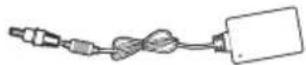
Main unit x 1 AC Adapter x 1

natural_image
Line drawing of a flat-screen computer monitor (no text or symbols)
Power cable
* Plug types by country
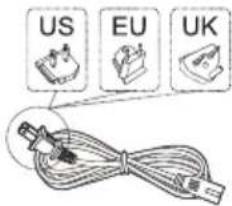
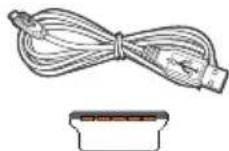
Quick Start Guide x 1 Mini USB to USB cable x 1 Micro USB to USB cable x 1


Mini-USB plug

Micro-USB plug
Items supplied with this product
■ Please ensure that the serial number on this product is identical to that on the product warranty.
■ If any parts are missing or broken, please contact your store of purchase.

To use this product safely
Even though this product is designed with safety in mind, improper use of this product may cause fire or electric shock that can lead to injuries or death. To prevent such accidents, please comply with the following recommendations:
■ Observe safety precautions
Please read and follow all safety precautions as indicated.
■ Stop using the product if it malfunctions
In the event of a malfunction, please contact ViewSonic Customer Care for support.
■ If the following events occur, then follow the recommendations
- Smoke is detected
- Strange sound or odor is observed
• If water gets inside this product
• This product is dropped or damaged

- Turn off the power
- Unplug the AC adapter cable and USB cable
- Please contact ViewSonic Customer Care for service support.
Safety warning indications
Attention Sign Prohibition Signs Instruction Signs


Keep dry Handle with dry hands

Disconnect the plug
B. Product Overview
Basic Operations and Front View
① Built-in microphone
② Built-in Webcam
※ Webcam can be used when in display mode, it requires the Mini-USB cable connected to the PC.
③ Display with touch panel function
* Connect the Smart Display to your PC using the included Mini-USB cable to enable touch functionality when using the Smart Display as a monitor with external PC.
About LCD display:
This product uses a TFT LCD display. Note that some pixels may always appear off (black) while some are always on (orange, green, or blue). Depending on the viewing angle, uneven color or uneven brightness may be observed. Please note that these are natural characteristics of TFT LCD and should not be regarded as defects.

④ OSD Menu / Exit
⑤ Power button (LED indicator)
- Green light - Power On
• Orange light - Power Saving Mode
• Light off - Power Off
⑥ Input Signal Switch / OSD Menu Select
⑦ Arrow Button (Down/Left)
⑧ Arrow Button (Up/Right)
Back View
① DC-in jack

Please do not use AC adapters other than the one supplied in this product package to prevent fire and electric shock.
Please do not place objects on the AC adapter, or cover it with anything. Overheating of the AC adapter may lead to a fire.
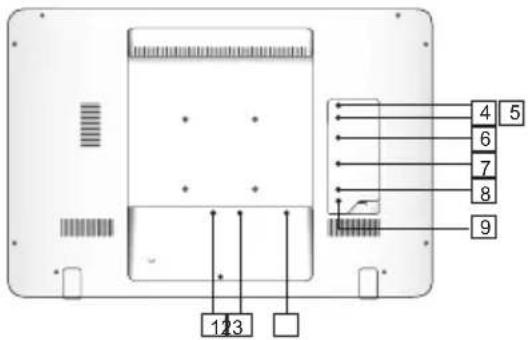
②HDMI
※ For input only HDMI output not supported.
③ LAN port (RJ-45)
④ USB Port
⑤ USB Port
⑥ Mini USB Port
⑦ Micro USB Port
⑧ SD Card Slot
⑨ Headphone jack
C. Installation precautions
Installation Environment Health precautions

Viewing computer monitor displays for extended periods of time may result in tiredness, numbness in the hands and feet, blurry vision, etc. Please see the picture on the right as a guide for extended use conditions.
Safety precautions
• Install this product in a well-ventilated location to eliminate exposure to high humidity conditions that may lead to condensation on or in the product.
- For proper heat dissipation, ensure a gap of at least 15cm between this product and the wall during installation.

Regarding lightning hazards
In the case where lightning strikes are expected, it is advised to turn off the computer, and unplug any cable or cord connected to this product
Ideal installation and method of use

D. Installation and Connection
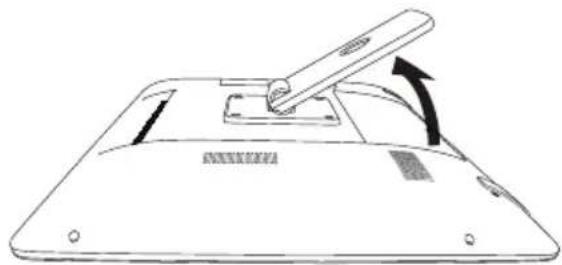
1) Open the stand in the direction of the arrow. Place face down on a clean, flat surface and be wary of any objects that could damage the display.
natural_image
Line drawing of a device with a handle and arrow indicating rotation (no text or symbols)2) Connect the power
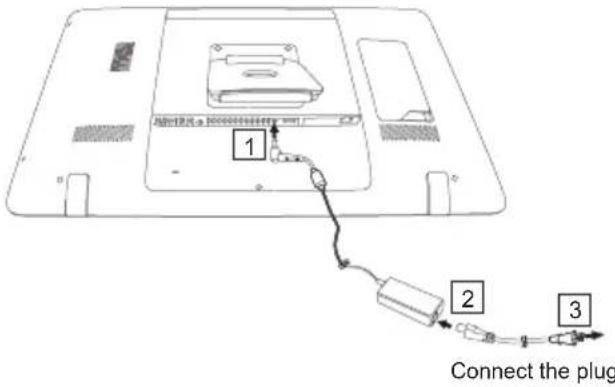
① Connect one end of the supplied AC adapter to the DC-in jack at the back of the unit.
② Connect the power cord to the other end of the AC adapter.
③ Connect the power plug to the outlet.
3) Place the unit on a stable, flat surface.
E. Using Touch Panel
This product has an integrated touch panel that can be operated using fingertips. See below for how to use a touch panel.
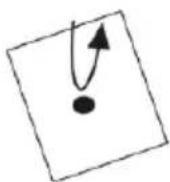
Tap/Double Tap
Gently touch the display and release your finger immediately. A tap executes an application, and opens folder and setting options. Tapping the same position twice indicates a double tap. Double tap to change the screen size.

Pinch
This function is to enlarge or reduce the screen size. Touch the display with two fingers and widen (pinch out) or narrow (pinch in) the fingers' distance.

Drag
Keep finger touching the display, and trace to the desired position. Drag to move icons or to scroll the screen.

Long Touch
Touch and hold an item or icon to display menu.
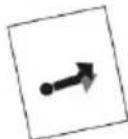
Flick
Slowly touch the display and gently flick your finger to scroll the display screen.
※ Depending on the screen shown, the above operations may not work
F. Start-up and initial setting
Turn on the Power
1) Make sure the power cable and AC adapter are connected.
2) Press the power button until you see the power LED lighting green.
Shut Down
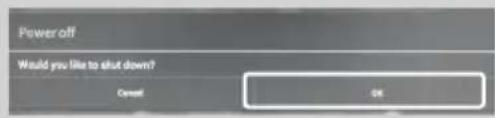
1) Press and hold the power button until you see "Power off" appears on the screen.
2) When the screen appears as shown on the left, tap "OK" to shut down the power.

If the power button is pressed shortly, the screen shuts off and goes into power saving mode. When the power button is pressed for about 8 seconds, the product is forced to shut down.
G. Power saving mode and Returning to operation
Entering Power Saving Mode
While product is in operation, briefly press of the power button puts the unit into power saving mode.
Returning from Power Saving Mode
While the power LED lights orange, briefly press the power button to return from power saving mode
H. Basic Operation
Lock Screen

1) Touch the 🔒 is shown besides the .
2) Drag to
3) Home screen is shown.
Home Screen
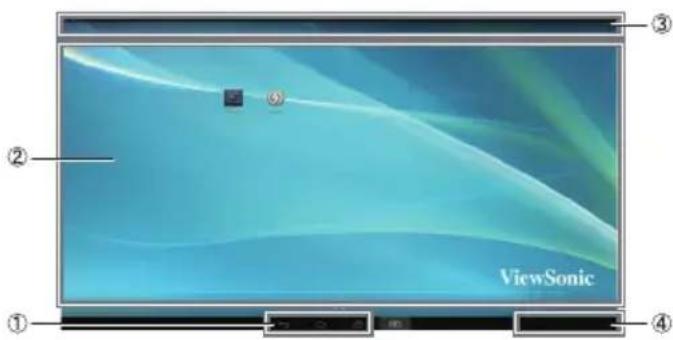
① Operation buttons
| Back button Returns to previous screen. | |
| Home button Returns to Home screen. | |
| Recently used applications Shows the list of recently used applications. | |
| Screenshot button Tap this button to capture an image of your screen. |
② Desktop area
③ Tool icons
| All applications | Shows the list of all applications. | |
| Menu | Shows menu of the current application. |
Depending on the screen shown, the content displayed in tool icons may vary.
④ Status display
I. Network Setting
Connecting to Wireless LAN
1) Tap "All applications" – "Settings".
2) Turn "Wi-Fi" to ON by dragging "OFF" to the right.

3) When Wi-Fi is turned on, a list of all available wireless LAN access points will be shown on the right side of the screen. Tap the desired Wireless LAN access point for connection.
4) If a password is required, enter it and tap "Connect" to connect to the wireless LAN.
Connecting to RJ45
Simply plug in your Ethernet cable to the RJ45 port to connect to a LAN. No set-up or configuration is required.
J. Formatting
Resetting Your Smart Display

Formatting will delete all of your data created and added after purchase (including system and application settings, downloaded applications, etc.)
1) Tap "All applications" – "Settings".
2) Tap "Back up & reset".
3) Tap "Factory data reset".
4) Confirm all onscreen instructions and tap "reset".
5) Again, confirm all onscreen instructions and tap "Delete All". Formatting will begin shortly.
※ System will reboot several times during formatting.
K. Use as HDMI-supported Display
Depending on the mode selected, this product may be used as an HDMI-supported display.
| Android Mode C | Can be used as an Android device. |
| Display Mode | When in Display Mode, the webcam, touch-screen and USB upstream functionality requires the Mini-USB cable connected to the PC, for example Window 7. |
Switching to Display Mode
1) Connect the main unit and HDMI device with the HDMI-HDMI cable. Optional accessory; may not be included with this product package in some territories.
2) Tap the SELECT icon [→] to switch to Display mode.
Switching to Android Mode
1) Tap the SELECT icon to switch to Android mode.
L. Troubleshooting and Q&A
Q. Power does not turn on.
A. Check if the AC adapter and power cord are properly connected.
- Reconnect the AC adapter and power cord, and turn the power on.
- Press and hold the power button for 8 seconds, and turn the power on again.
Q. "Compatible Zoom" is shown when an application is started.
A. “Compatible Zoom” is a feature (specification) that can enlarge the size of a fixed size application. Use Compatible Zoom to enjoy your applications in enlarged sizes.
Q. The device is frozen.
A. "Power Off" - Long press the power button over 6 seconds to force Power Off in the event of a look-up caused by software or App error that prevents normal power off or restart.
Q. Touch screen does not respond to hand gestures or render them properly.
A. 1. Remove any dust or particles from the reflector and camera using compressed air.
- Gently clean the cameras and reflector surface carefully with a soft antistatic brush to avoid scratches.
- Clean any remaining dust with a clean, dry dust-free cloth.
Introduction
natural_image
Front view of a blank computer monitor (no text or symbols visible)natural_image
Line drawing of a device with a handle and arrow indicating rotation (no text or symbols)Branchez la fiche
natural_image
Line drawing of a laptop computer with blank screen (no text or symbols)1 x Guía de inicio

1 x cable mini-USB a USB
Enchufe mini-USB
natural_image
Line drawing of a device with a handle and arrow indicating rotation (no text or symbols)natural_image
Line drawing of a blank laptop computer monitor (no text or symbols)natural_image
Line drawing of a flat-screen printer with a handle and spout, showing no text or symbolsnatural_image
Line drawing of a flat-screen laptop computer with blank screen (no text or symbols)
natural_image
Line drawing of a digital drawing tablet with a handle and scroll, showing a curved arrow indicating rotation (no text or symbols)Подсоедините вилку
natural_image
Line drawing of a blank laptop computer with no text or symbols
natural_image
Line drawing of a device with a handle and arrow indicating rotation (no text or symbols)Dokunma/Çift Dokunma
natural_image
Line drawing of a laptop computer with blank screen (no text or symbols)natural_image
Line drawing of a device with a handle and arrow indicating rotation (no text or symbols)Ligue a ficha
natural_image
Line drawing of a laptop computer with blank screen (no text or symbols)Pikaopas x 1

Mini-USB - USB-kaapeli x 1

Mini-USB-liitin
natural_image
Line drawing of a device with a handle and arrow indicating rotation (no text or symbols)2) Kytke virta
Open Source Licenses Notice
The firmware/software included in this product contains some copyrighted software that is licensed under the GPL v2. A copy of that license is included in the product by going to Settings > About Tablet > Legal Information > Open Source Licenses. You may obtain the complete Corresponding Source code from us for a period of three years after our last shipment of this product, which will be no earlier than 2013-08-31, by sending a money order or check for \$5 to the following addresses and an additional shipping charge which may vary from different areas shall be paid upon your receipt:
North America:
GPL Compliance Division
381 Brea, Canyon Road, Walnut, CA 91789, USA
Europe:
ViewSonic Europe Limited
Level 10, Tower 42, 25 Old Broad Street, London, EC2N 1HQ, UK
Rest countries:
Sequel Technology Inc.
ViewSonic_Parts Logistic Center Dept.
3F, No 38, Lane 148, Li-De St., Jhonghe Dist., New Taipei City 235, Taiwan. R.O.C.
Please write "source for SD-A245/CDS245" in the memo line of your payment.
You may also find a copy of the source at
http://www.viewsonic.com/support/downloads/drivers/SD-A245_Source_Code.zip
This offer is valid to anyone in receipt of this information.

中国
http://www.viewsonic.com.cn
电话:4008 988 188
香港
http://www.hk.viewsonic.com
電話:852 3102 2900
澳門
http://www.hk.viewsonic.com
電話:853 2870 0303
台灣
http://www.viewsonic.com.tw
電話:0800 061 198
한국
http://ap.viewsonic.com/kr/
Phone: 080 333 2131
Singapore/Malaysia/Thailand
http://www.viewsonic.com.sg
Phone: 65 6461 6044
India
http://www.in.viewsonic.com
Phone: 1800 266 0101
Europe
www.viewsoniceurope.com/uk/
support/call-desk/
Australia/New Zealand
http://www.viewsonic.com.au
Phone: 1800 880 818 (AUS)
0800 008 822 (NZ)
United States
http://www.viewsonic.com
Phone: 1-800-688-6688 (Toll-Free)
1-424-233-2530 (Toll)
Canada
http://www.viewsonic.com
Phone: 1-866-463-4775 (Toll-Free)
1-424-233-2533 (Toll)
South Africa
http://ap.viewsonic.com/za/
Latin America (Chile)
http://www.viewsonic.com/la/
Phone: 1230-020-7975
Latin America (Mexico)
http://www.viewsonic.com/la/
Phone: 001-8882328722
Latin America (Peru)
http://www.viewsonic.com/la/
Phone: 0800-54565
Latin America (Argentina)
http://www.viewsonic.com/la/
Phone: 0800-4441185
Puerto Rico & Virgin Islands
http://www.viewsonic.com
Phone: 1-800-688-6688 (English)
1-866-379-1304 (Español)

natural_image
Three identical bird perched on a branch, wearing black and white plumage (no text or symbols visible)ViewSonic®
- Please read before proceeding
- FCC Notice
- FCC SAR Information
- Canada Statement
- Caution: Exposure to Radio Frequency Radiation
- CE Conformity for European Countries
- Following information is only for EU-member states:
- European Union Regulatory Conformance
- Declaration of RoHS2 Compliance
- Product disposal at end of product life
- RoHS2 Uyumluluk Beyani
- Getting Started
- Items supplied with this product
- To use this product safely
- Safety warning indications
- Product Overview
- Basic Operations and Front View
- About LCD display:
- Back View
- Installation precautions
- Installation Environment Health precautions
- Safety precautions
- Regarding lightning hazards
- Ideal installation and method of use
- Installation and Connection
- Using Touch Panel
- Tap/Double Tap
- Pinch
- Drag
- Long Touch
- Flick
- Start-up and initial setting
- Turn on the Power
- Shut Down
- Power saving mode and Returning to operation
- Entering Power Saving Mode
- Returning from Power Saving Mode
- Basic Operation
- ② Desktop area
- ④ Status display
- Network Setting
- Connecting to Wireless LAN
- Connecting to RJ45
- Formatting
- Resetting Your Smart Display
- Use as HDMI-supported Display
- Switching to Display Mode
- Switching to Android Mode
- Troubleshooting and Q&A
- Power does not turn on.
- Introduction
- Dokunma/Çift Dokunma
- 2) Kytke virta
- Open Source Licenses Notice
- North America:
- Europe:
- Rest countries:
- 中国
- 香港
- 澳門
- 台灣
- 한국
- Singapore/Malaysia/Thailand
- India
- Europe
- Australia/New Zealand
- United States
- Canada
- South Africa
- Latin America (Chile)
- Latin America (Mexico)
- Latin America (Peru)
- Latin America (Argentina)
- Puerto Rico & Virgin Islands
Brand : VIEWSONIC
Model : SD-A245
Category : Monitor