
appRP01V3 - Network card / adapter Approx - Free user manual and instructions
Find the device manual for free appRP01V3 Approx in PDF.


| Product type | Network card / adapter |
| Brand | Approx |
| Model | appRP01V3 |
| Interface | PCI Express |
| Connector | RJ45 (Ethernet) |
| Transmission speed | Gigabit Ethernet (10/100/1000 Mbps) |
| Dimensions | 120 x 80 x 20 mm |
| Weight | 50 g |
| Power supply | Via PCI Express slot |
| Main functions | High-speed wired connection, compatibility with LAN networks |
| Maintenance and cleaning | Disconnect the device, clean with a soft, dry cloth |
| Safety | Avoid electrical overloads, do not expose to moisture |
| Spare parts and repairability | Not applicable (card not user-serviceable) |
| General information | Manual available for free download at notice-facile.com |
Frequently Asked Questions - appRP01V3 Approx
User questions about appRP01V3 Approx
0 question about this device. Answer the ones you know or ask your own.
Ask a new question about this device
Download the instructions for your Network card / adapter in PDF format for free! Find your manual appRP01V3 - Approx and take your electronic device back in hand. On this page are published all the documents necessary for the use of your device. appRP01V3 by Approx.
USER MANUAL appRP01V3 Approx
Contraseña: approx
Modo Repeater (Modo Repetidor)
Mediante Cable RJ-45 (Modo Client)
Chapter 1. Introduction and product description
Thank you for choosing the Wi-Fi-N 300Mbps APPRP01V3 Repeater from Approx!
The APPRP01V3 is a repeater for Wi-Fi networks, designed for those seeking a definitive solution to extend the range of their wireless network. Connected to an electrical outlet, it repeats the WiFi signal to distant areas such as patios, terraces or far away rooms. For the more demanding user, it can also be used as an access point or in client mode. With the repeater APPRP01V3 any wireless network can be extended almost immediately with just an electrical outlet available in the range of the router. One of the outstanding features is its speed; 300Mbps and its quick and easy setup in minutes. You longer do not have any excuses to extend your Wi-Fi network!
Chapter 2. Package contents
• APPRP01V3 Wireless Repeater.
• Quick Installation Guide in multiple languages.
• Network cable RJ-45
Note: make sure your package contains the items described above. If you find any items are missing or damaged, please contact your dealer.
Chapter 3. Part descriptions

Chapter 4. Installation and configuration.
This repeater has three modes of configuration and installation with different functions.
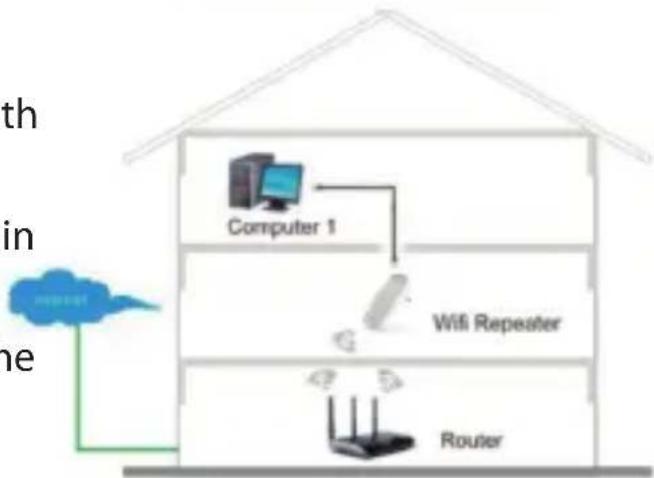
Wireless Repeater Installation
• You will need a router or an access point with Internet.
- Connect to main router wirelessly to repeat.

flowchart
graph TD
    A["Computer 1"] --> B["WiFi Repeater"]
    C["Computer 3"] --> B
    D["Router"] --> B
    B --> E["Cloud Icon"]
    style A fill:#f9f,stroke:#333
    style C fill:#f9f,stroke:#333
    style D fill:#ccf,stroke:#333
    style B fill:#cff,stroke:#333
    style E fill:#ffc,stroke:#333
Access point Installation
- You will need a router with Internet.
- Connect it from its LAN output to the repeater using the RJ-45 cable provided.

flowchart
graph TD
    A["Computer 1"] --> B["WiFi Repeater"]
    C["Computer 3"] --> B
    D["Computer 2"] --> E["Lan Cable"]
    F["Router"] --> E
    E --> G["Cloud Base"]
    style A fill:#f9f,stroke:#333
    style C fill:#f9f,stroke:#333
    style D fill:#f9f,stroke:#333
    style F fill:#f9f,stroke:#333
Client Mode Installation
- You will need a router with Internet.
- Connect wirelessly to the main router.
- Connected via RJ-45 cable to the computer.
flowchart
graph TD
    A["Router"] --> B["WiFi Repeater"]
    B --> C["Computer 1"]
    C --> D["Router"]
    style A fill:#f9f,stroke:#333
    style B fill:#ccf,stroke:#333
    style C fill:#cfc,stroke:#333
    style D fill:#fcc,stroke:#333
The repeater can be configured wirelessly or wired to its first configuration.
Wireless Configuration
- Please connect your repeater APPRP01V3 into a free electrical outlet in your home that is within the coverage range of your primary router.
- Click on the network icon (or) at the bottom right of the desktop. You will see the Wi-Fi signal repeater for the APPRP01V3. Click "Connect" and wait a few seconds
APPRP01V3

-
Go to your web browser and type in the address bar 192.168.10.1
-
Automatically your browser will ask for a user name and password to access the repeater settings, please insert in those empty fi elds the following:
User name: admin
Password: approx

- Once inside your web settings follow steps repeater setup wizard.

flowchart
graph LR
    A["Wizard"] --> B["AP"]
    B --> C["REPEATER"]
    B --> D["CLIENT"]
    C --> E["User-PC"]
    D --> F["Repeater"]
    E --> G["Router Switch"]
    F --> H["Internet"]
Configuration by RJ-45 cable
-
Please plug your repeater APPRP01V3 into a free electrical outlet in your home that is within the coverage range of your primary router.
-
Connect the supplied RJ-45 cable between a LAN output from your router and the repeater.
-
Follow the same steps as the wireless settings from point 3 to 5.
Note: If you cannot access your device do the following:
-
Click "Start," "Control Panel", "Network and Internet", "Network Connections" direct button click "Local Area Connection" or "Wireless Network Connection", "Properties". Select "Internet Protocol Version 4 (TCP/IPv4)" and click "Properties".
-
Enter 192.168.10.2 in the IP address, subnet mask 255.255.255.0 in and gateway 192.168.10.1 in and accept.
-
Repeat the same steps as the wireless settings from point 3 to 5.
You can also restore the factory settings with the following procedure below.
Connect the repeater to an electrical outlet (not strip), press the reset button for 10 seconds and release, wait and do nothing, the repeater will be returned to default values.
Configuration modes (setup wizard)
AP Mode (Access point)
- Select AP within Wizard

-
Type a name for your wireless network in the SSID field
-
Let the channel (Channel) as Auto
-
In Security Type select a wireless security type for your device and set a password.
-
Click the Apply button to fi nish

- A message like the following will appear, click the Close

Repeater Mode (Repeater Mode)
- Select Repeater within the Wizard

flowchart
graph LR
    A["Wizard"] --> B["AP"]
    A --> C["REPEATER"]
    A --> D["CLIENT"]
    E["User-PC"] --> F["Repeater"]
    F --> G["Router Switch"]
    G --> H["Internet"]
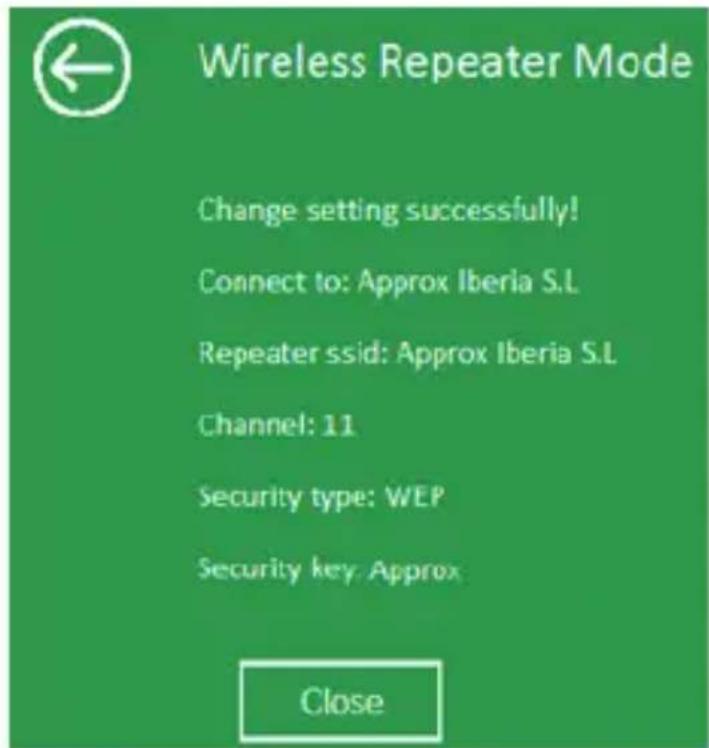
- Select the name of the wireless network you want to connect to

- In the Security Key field type the password of the router to which you are connecting to repeat the signal.
- Finally click the Apply button to accept the settings, if everything went well we will have a message similar to the following. Press the Close button.
Client Mode (Client)
- Select the Client within Wizard

- Select the name of the wireless network you want to connect to

-
In the Security Key fi eld type the password of the router to which you are connecting to repeat the signal.
-
Finally click on the button Apply to accept the configuration.
Connect computers to the repeater.
Wirelessly (AP and Repeater mode)
- Click the network icon (o) on the bottom right of the desktop. For Wi-Fi signal repeater APPRP01V3. Click "Connect" and enter the security key and wait a few seconds.
Using WPS (AP and Repeater mode)
- Press the WPS button of the repeater for 3 seconds.
- Press the WPS button on your wireless adapter for 3 seconds.
-
Click Finish to complete the WPS configuration.
-
If the steps were successful your equipment will be connected to the repeater via WPS.
By RJ-45 cable (Client Mode)
- Connect the supplied RJ-45 cable between the LAN input from the network card of your computer and the LAN input of your repeater.
Chapter 5. Technical support.
Please more information on installing and configuring this product please visit our Support section on our website www.approx.es web or write an email to the following address: soporte@approx.es.
Configuration via un câble RJ-45.
Mode AP (Access Point)
Mode Répéteur
Mode Client
En RJ-45 (mode client)
The content of this guide is subject to typographical errors
aqprox
www.approx.es


- Modo Repeater (Modo Repetidor)
- Mediante Cable RJ-45 (Modo Client)
- Chapter 1. Introduction and product description
- Chapter 2. Package contents
- Chapter 3. Part descriptions
- Chapter 4. Installation and configuration.
- Wireless Repeater Installation
- Access point Installation
- Client Mode Installation
- Wireless Configuration
- Configuration by RJ-45 cable
- Configuration modes (setup wizard)
- AP Mode (Access point)
- Repeater Mode (Repeater Mode)
- Client Mode (Client)
- Connect computers to the repeater.
- Wirelessly (AP and Repeater mode)
- Using WPS (AP and Repeater mode)
- By RJ-45 cable (Client Mode)
- Chapter 5. Technical support.
- Configuration via un câble RJ-45.
- Mode AP (Access Point)
- Mode Répéteur
- Mode Client
- En RJ-45 (mode client)
Brand : Approx
Model : appRP01V3
Category : Network card / adapter