
Graphite M32 - MIDI Keyboard SAMSON - Free user manual and instructions
Find the device manual for free Graphite M32 SAMSON in PDF.


| Product Type | MIDI Keyboard |
| Brand | Samson |
| Model | Graphite M32 |
| Number of Keys | 32 |
| Key Type | Synth, velocity-sensitive |
| Connectivity | USB 2.0 (micro-B type) |
| Power Supply | USB bus (5V, 500mA) |
| Dimensions (L x W x H) | 52 x 18 x 5 cm |
| Weight | 1.5 kg |
| Main Features | Velocity-sensitive keys, modulation wheel, transport buttons (Play, Stop, Record), volume slider, headphone jack |
| Software Compatibility | Windows, macOS, iOS, Android (via adapter) |
| Included Software | Samson Softt (audio workstation), SampleTank SE |
| Chassis Material | ABS plastic |
| Maintenance and Cleaning | Dust with a soft, dry cloth. Do not use chemicals. |
| Safety | Do not expose to moisture, extreme temperatures, or shocks. Disconnect before extended cleaning. |
| Spare Parts and Repairability | Product not user-serviceable. Contact Samson customer service in case of failure. |
| Warranty | 2 years (depending on country) |
| Box Contents | Graphite M32 keyboard, USB cable, quick start guide |
Frequently Asked Questions - Graphite M32 SAMSON
User questions about Graphite M32 SAMSON
0 question about this device. Answer the ones you know or ask your own.
Ask a new question about this device
Download the instructions for your MIDI Keyboard in PDF format for free! Find your manual Graphite M32 - SAMSON and take your electronic device back in hand. On this page are published all the documents necessary for the use of your device. Graphite M32 by SAMSON.
USER MANUAL Graphite M32 SAMSON
The lightning flash with arrowhead symbol within an equilateral triangle is intended to alert the user to the presence of non-insulated “dangerous voltage” within the product’s enclosure that may be of sufficient magnitude to constitute a risk of electric shock.
The exclamation point within an equilateral triangle is intended to alert the user to the presence of important operating and maintenance instructions in the literature accompanying the appliance.
WARNING
TO PREVENT FIRE OR SHOCK HAZARD. DO NOT USE THIS PLUG WITH AN EXTENSION CORD, RECEPTACLE OR OTHER OUTLET UNLESS THE BLADES CAN BE FULLY INSERTED TO PREVENT BLADE EXPOSURE. TO PREVENT FIRE OR SHOCK HAZARD. DO NOT EXPOSE THIS APPLIANCE TO RAIN OR MOISTURE. TO PREVENT ELECTRICAL SHOCK, MATCH WIDE BLADE PLUG TO WIDE SLOT AND FULLY INSERT.
Copyright 2015 V2
Samson Technologies 45 Gilpin Avenue Hauppauge, New York 11788-8816 Phone: 1-800-3-SAMSON (1-800-372-6766) Fax: 631-784-2201 www.samsontech.com
Apple, Mac, Mac OS, and iPad are trademarks of Apple Inc., registered in the U.S. and other countries.
IOS is a trademark or registered trademark of Cisco in the U.S. and other countries and is used under license.
CAUTION
Any changes or modifications to the construction of this device which are not expressly approved by the party responsible for compliance could void the user's authority to operate the equipment.
NOTE: This equipment has been tested and found to comply with the limits for a Class B digital device, pursuant to Part 15 of the FCC Rules. These limits are designed to provide reasonable protection against harmful interference in a residential installation. This equipment generates, uses, and can radiate radio frequency energy and, if not installed and used in accordance with the instructions, may cause harmful interference to radio communications. However, there is no guarantee that interference will not occur in a particular installation. If this equipment does cause harmful interference to radio or television reception, which can be determined by turning the equipment off and on, the user is encouraged to try to correct the interference by one or more of the following measures.
- Reorient or relocate the receiving antenna.
- Increase the separation between the equipment and receiver.
- Connect the equipment to an outlet on a circuit different from that to which the receiver is connected.
- Consult the dealer or an experienced radio/TV technician for help.
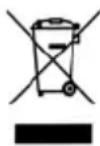
If you want to dispose this product, do not mix it with general household waste. There is a separate collection system for used electronic products in accordance with legislation that requires proper treatment, recovery and recycling.
Private household in the 28 member states of the EU, in Switzerland and Norway may return their used electronic products free of charge to designated collection facilities or to a retailer (if you purchase a similar new one).
For Countries not mentioned above, please contact your local authorities for a correct method of disposal.
By doing so you will ensure that your disposed product undergoes the necessary treatment, recovery and recycling and thus prevent potential negative effects on the environment and human health.
Important Safety Information
- Read these instructions.
- Keep these instructions.
- Heed all warnings.
- Follow all instructions.
- Do not use this apparatus near water.
-
Clean only with dry cloth.
-
Do not block any ventilation openings. Install in accordance with the manufacturer's instructions.
-
Do not install near any heat sources such as radiators, heat registers, stoves, or other apparatus (including amplifiers) that produce heat.
-
Only use attachments/accessories specified by the manufacturer.
-
Use only with the cart, stand, tripod, bracket, or table specified by the manufacturer, or sold with the apparatus. When a cart is used, use caution when moving the cart/apparatus combination to avoid injury from tip-over.
-
Unplug the apparatus during lightning storms, or when unused for long periods of time.

natural_image
Silhouette of a person climbing a ladder inside a circular frame (no text or symbols)-
Refer all servicing to qualified personnel. Service is required when the apparatus has been damaged in any way, such as power supply cord or plug is damaged, liquid has been spilled or objects have fallen into the apparatus has been exposed to rain or moisture, does not operate normally, or has been dropped.
-
This appliance shall not be exposed to dripping or splashing water and that no object filled with liquid such as vases shall be placed on the apparatus.
-
Caution-to prevent electrical shock, match wide blade plug wide slot fully insert.
-
Please keep a good ventilation environment around the entire unit.
-
Always unplug cables by gripping the plug firmly, not by pulling on the cable.
Introduction
Thank you for purchasing the Samson Graphite M32, compact USB keyboard controller! The Graphite M32 gives you the performance and production control to easily integrate with Windows or Mac digital production workstations. The keyboard can also be powered directly by an Apple iPad (using the Apple iPad Camera Connection Kit or Lightning to USB Camera Adapter, not included), and can be used to control many iOS MIDI apps, like GarageBand. The Graphite M32 features a 32-key velocity-sensitive keyboard, an assignable Data fader, a Volume knob, pitch bend and modulation strips. To take full advantage of the assignable functions, you will need to download the free Graphite M32 editor from the Samson website (www.samsontech.com).
In these pages, you'll find a detailed description of the features of the Graphite M32 keyboard controller, as well as a guided tour of its control panel, and instructions for setup and use. You'll also find a warranty card enclosed. Please don't forget to fill it out and mail it in so that you can receive online technical support, and so that we can send you updated information about this and other Samson products in the future.
We recommend you record your serial number in the space provided below, for future reference.
Serial number: ____
Date of purchase: ____
With proper care and maintenance, your Graphite M32 will operate trouble-free for many years. Should your keyboard ever require servicing, a Return Authorization (RA) number must be obtained before shipping your unit to Samson. Without this number, the unit will not be accepted. Please call Samson at 1-800-3SAMSON (1-800-372-6766) for an RA number prior to shipping your unit. Please retain the original packing materials and, if possible, return the unit in its original carton. If your Graphite M32 was purchased outside of the United States, contact your local distributor for warranty details and service information.
Features
The Samson Graphite M32 utilizes state-of-the-art technology and is engineered to the finest detail. Here are some of its main features:
• 32-key velocity-sensitive keyboard
• Volume knob and Data slider
- Pitch Bend and Modulation ribbon strips
- CC Mode to set keys to send control change messages
- Program mode for sending program change information
- Compact design, perfect for live performance and studio applications
• Dedicated Octave up, Octave down, and Sustain buttons
• USB plug and play and bus powered
System Components
- Samson Graphite M32 USB Keyboard
- One (1) USB Cable
• Graphite M32 Owner's Manual
Minimum System Requirements
Windows (PC)
• Windows XP/Vista/Win 7/Win 8
• 800MHz or higher, 256MB RAM or larger, USB port
Mac OS
• Mac OS X 10.4.9 or higher
• 733MHz or higher, 512MB RAM or larger, USB port
Apple iPad
- iOS v4.2 or higher
Quick Start

- Connect the Graphite M32 to your computer or iPad* using the supplied USB cable. The unit will receive power and transmit MIDI data via the USB connection.
If the Graphite M32 is connected to a non-powered USB hub, it may not receive enough power to turn on. It is recommended that you connect the Graphite M32 directly to your computer or to a powered USB hub.
- Launch your DAW or virtual instrument software.
- Set the Graphite M32 as the MIDI Input and MIDI Output device.
Front Panel Controls and Functions

- VOLUME Knob - This knob is preset from the factory to send MIDI volume (CC #7) messages. The VOLUME knob can be assigned to control different MIDI parameters using the computer editor.
- DATA Slider - This slider is preset from the factory to send MIDI pan (CC #10) messages. The DATA slider can be assigned to control different MIDI parameters using the computer editor.
- OCTAVE +/- Buttons - Press the OCTAVE buttons to shift the octave of the keyboard up or down a maximum of four octaves, to extend the range of the keyboard. Each time you press the OCTAVE button, the range of the keyboard shifts up or down 12 notes. The buttons blink progressively faster as the keyboard's octave shifts in each direction. Press both buttons to set the keyboard to the default range.
- SUSTAIN Button - Press this button to sustain (hold) currently held notes. Release the button to stop notes from being held.
- CC Button - When pressed, the keyboard sends a control change message. The CC button can be assigned using the Graphite M32 computer editor.
- PROG Button - Press this button to send program change information via the Function keys (0–9). Press the key labeled ENTER to send the desired program change message. When the PROG button is pressed, the button lights red and the keys will not send note information.
- PITCH BEND Ribbon Strip - Slide your finger to raise or lower the pitch of notes played on the keyboard.
- MODULATION Ribbon Strip - Slide your finger to send modulation messages. Modulation is usually used to add vibrato or other expressive effects to a sound being played.
Front Panel Controls and Functions
- Function Keys - In PROG mode, the last 11 keys of the keyboard are assigned to numerical digits (0–9), and ENTER. To Send a program change message, press the PROG button, then enter the program number by pressing the numbered keys. When the program number is entered, press the ENTER key to transmit the program number information. The Graphite M32 will exit the program mode, and the Function keys will transmit note information.
- Keyboard - 32-note velocity sensitive keyboard.
- USB Connection - Connect the included USB-mini cable from this port to the USB connection on a computer to provide power to the keyboard, as well as to send and receive MIDI data.
Editing Parameters
The Graphite M32 features controls which settings can be customized using the Graphite M32 computer editor, which can be found on the Samson website (www.samsontech.com). The following information outlines the available parameters for each control that can be adjusted.
Assignable Volume Knob
Control Change: Sets the control change number that the knob will transmit.
MIDI Channel: Sets the specific MIDI channel that the knob will use to transmit data.
Assignable Data Slider
Control Change: Sets the control change number that the slider will transmit.
MIDI Channel: Sets the specific MIDI channel that the encoder will use to transmit data.
Modulation Strip
Control Change: Sets the control change number that the Modulation strip will transmit.
MIDI Channel: Sets the specific MIDI channel that the Modulation strip will use to transmit data.
CC Button
Control Change: Sets the control change number that the CC keys will transmit.
MIDI Channel: Sets the specific MIDI channel that the CC keys will use to transmit data.
Value: Sets the control change value the button will transmit.
Specifications
Keyboard 32-key, semi-weighted, velocity sensitive
Controls Volume Knob Data Slider, Octave +/- buttons, Pitch
Bend Ribbon Strip, Modulation Ribbon Strip
Operation Controls SUSTAIN, CC Mode, PROG
Functions Keys 0-9, Enter
MIDI MIDI over USB
Power USB Bus Power
AccessoriesUSBCable
Dimensions 17.36" x 4.8" x 1.65"
441 mm x 122 mm x 42 mm
Weight1.32lbs
.6 kgs

ATTENTION RISQUE D'ÉLECTROCUTION ! NE PAS OUVRIR !
MISE EN GARDE : POUR DIMINUER LE RISQUE D'ELECTROCUTION, NE PAS RETIRER LE CACHE (OU A L'ARRIERE). CE MATERIEL NE COMPORTE PAS DE PIECES SUSCEPTIBLES D'ETRE REPAREES PAR L'UTILISATEUR. CONFIEZ TOUTES LES INTERVENTIONS D'ENTRETIEN A DES TECHNICIENS DE S.A.V. QUALIFIE.
natural_image
Silhouette of a person climbing a ladder inside a circular frame (no text or symbols)Introduction
Dimensions 17,36" x 4,8" x 1,65"
441 mm x 122 mm x 42 mm
Poids1,32lbs
0,6 kg

natural_image
Symbolic illustration of a person climbing a ladder inside a circle (no text or symbols)natural_image
Symbolic illustration of a person climbing a ladder inside a circle (no text or symbols)natural_image
Silhouette of a person climbing a ladder inside a circle (no text or symbols)


Brand : SAMSON
Model : Graphite M32
Category : MIDI Keyboard