Q25 - MIDI Keyboard ALESIS - Free user manual and instructions
Find the device manual for free Q25 ALESIS in PDF.


User questions about Q25 ALESIS
0 question about this device. Answer the ones you know or ask your own.
Ask a new question about this device
Download the instructions for your MIDI Keyboard in PDF format for free! Find your manual Q25 - ALESIS and take your electronic device back in hand. On this page are published all the documents necessary for the use of your device. Q25 by ALESIS.
USER MANUAL Q25 ALESIS
This Quickstart Guide is intended to give you a brief overview of the functionality and features of the Q25. In this manual you will find instructions on how to connect the Q25 and how to use its basic features. Enjoy!
CONNECTION DIAGRAM
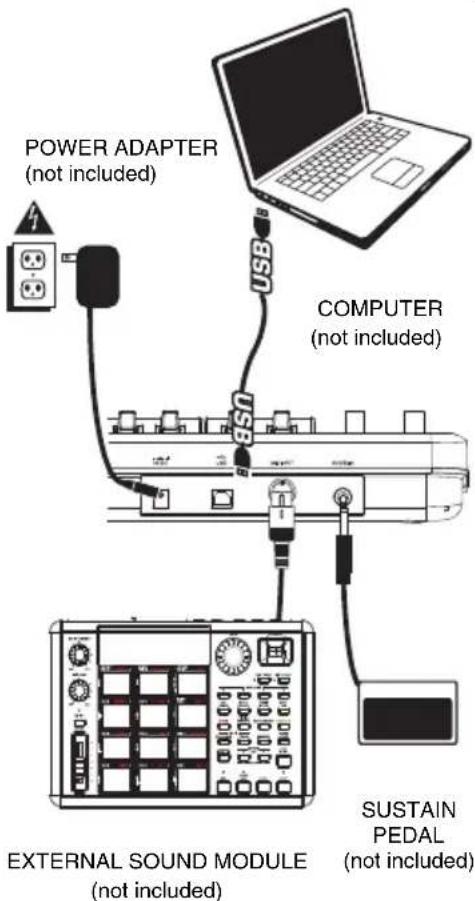
Please refer to the following scenario for connecting the Q25.
- Connect a USB cable from your computer to the Q25. The unit will be powered through the USB connection. Alternatively, if you do not wish to use a computer in your setup or if you wish to power the Q25 externally, please plug in a 9V DC, 500mA power adapter, center-positive, 5.46mm barrel diameter.
- If you would like to use an external sound module, connect a 5-pin MIDI cable from the KEYBOARD MIDI OUT of the Q25 to the MIDI IN of the external device.
text_image
POWER ADAPTER (not included) COMPUTER (not included) EXTERNAL SOUND MODULE (not included) SUSTAIN PEDAL (not included)REAR PANEL OVERVIEW
- DC POWER ADAPTER INPUT - Plug in a 9V DC, 500mA power adapter, center-positive, 5.46mm barrel diameter (sold separately) if you do not wish to power the Q25 through the USB connection.
- USB CONNECTION – Plug a standard USB cable into this outlet and into the USB port of
your computer. The computer's USB port will provide power to the Q25. This connection is used to send and receive MIDI data to and from your computer and may also be used to send MIDI data from your computer to a device attached to the MIDI OUT port of the Q25.
- MIDI OUT - Use a five-pin MIDI cable (sold separately) to connect this jack to the MIDI IN of an external device.
- SUSTAIN PEDAL INPUT – Connect a 1/4" TS sustain pedal (sold separately) to this input.

text_image
-V DC USB MIDI OUT SUSTAIN 1 2 3 4TOP PANEL OVERVIEW
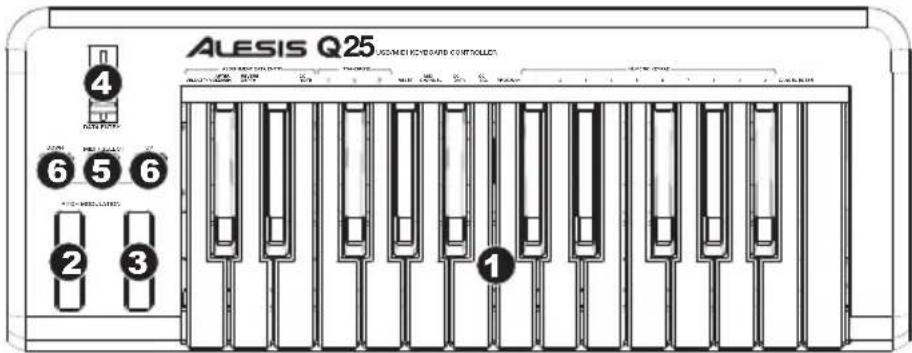
1. KEYBOARD - The
KEYBOARD functions as a normal electronic piano keyboard during performance but can also be used to adjust MIDI settings and send MIDI messages. The labels above the keys indicate their functions. The numbered keys allow you to enter values for settings. Press the Cancel or Enter key to cancel or confirm your selection, respectively. See SELECTING & EDITING MIDI COMMANDS for more information.
text_image
ALESIS Q25 AUSMEI ELECTRIC SABID CONTROLS 4 6 5 6 2 3 1- PITCH BEND WHEEL – Transmits MIDI Pitch Bend information to raise or lower the pitch of a note temporarily.
- MODULATION WHEEL – This wheel can be used to transmit continuous controller data (CC #1 or Modulation Depth).
- DATA ENTRY SLIDER - This slider lets you send MIDI messages for the currently selected parameter from the KEYBOARD (e.g., REVERB DEPTH, VOLUME, etc.). You can select a parameter by pressing MIDI / SELECT then the corresponding key on the KEYBOARD.
- MIDI / SELECT - Pressing this button allows you to adjust MIDI settings and send MIDI messages by pressing labeled keys on the KEYBOARD. See SELECTING & EDITING MIDI COMMANDS for more information.
- OCTAVE UP / DOWN – These buttons can be used to shift the keyboard's range up and down.
SELECTING & EDITING MIDI COMMANDS
The MIDI / SELECT button and the keys on the KEYBOARD allow you to adjust MIDI parameters and send precise MIDI messages and information quickly and easily:
- Press MIDI / SELECT.
- Press the key on the KEYBOARD whose MIDI setting (printed above the key) you want to adjust or send.
- Enter a value with the numbered keys on the KEYBOARD.
- Press the Enter or Cancel key on the KEYBOARD to confirm or cancel your choice, respectively.
- Press MIDI / SELECT if the button is still lit.
VELOCITY – Press this key to set the DATA ENTRY SLIDER to adjust the note velocity. Increasing this value increases the MIDI velocity value generated by a light key press.
AFTERTOUCH – Press this key to set the DATA ENTRY SLIDER to send Aftertouch information (also sometimes referred to as Channel Pressure).
REVERB DEPTH – Press this key to set the DATA ENTRY SLIDER to CC #91 (Reverb Send Level). The default value for this setting is 64.
VOLUME – Press this key to set the DATA ENTRY SLIDER to CC #7 (Channel Volume).
CC DATA (Control Change Data) – Sets the value to be sent. Pressing the Enter key will send a MIDI message.
OCTAVE – Lowers or raises the octave range of the KEYBOARD with the "OCTAVE -" and "OCTAVE +" buttons, respectively. You can transpose the keyboard up to two octaves in either direction. Press STANDARD to return the KEYBOARD to its original octave range
b/# - Lowers or raises (respectively) the pitch of the entire KEYBOARD a semitone.
RESET – Press this key followed by the Enter key to send a reset message to all controllers and return the Q25 to its original settings.
Note: This button does not reset the current octave range or transposition of the KEYBOARD.
CC NO. (Control Change Number) – Sets the MIDI CC# to be sent. (A message will not be sent until the Enter key is pressed when selecting CC Data.)
PROGRAM - Sets the MIDI Program Change number.
Note: After you enter a CC#, the number will be remembered by the Q25. However, if you want to send a CC or Program Change message, you must enter the value using the numbered keys on the KEYBOARD each time (even if the desired value is shown in the LCD) before pressing Enter.
TROUBLESHOOTING
| PROBLEM CAUSE SOLUTION | ||
| The display does not light up. | No power. | Please make sure that the Q25 is connected to your computer and that the computer is powered on. |
| If using a power adapter, please make sure that the adapter is plugged into a live power outlet. | ||
| No sound from target device. | Q25 not properly connected. | Check your computer's USB connection to confirm that the Q25 is recognized. If necessary, replug the connection and restart your computer. |
| If controlling an external hardware module, make sure that the MIDI cable is connected from the Q25 to the device's MIDI IN port. | ||
| Q25 connected after software application has started. | Restart the software application with the controller plugged in. | |
| Problem is caused by use of a USB hub. | Unplug the Q25 from the USB hub and connect directly to the computer. | |
| Software application not set to receive MIDI data from the Q25. | Ensure that the Q25 or USB MIDI device is listed as an active MIDI source in your application. Usually, the MIDI settings can be accessed through the application's Preferences menu. | |
| Q25's MIDI channel not the same as application's incoming MIDI chanel. | Make sure that the Q25 is sending MIDI information on the channel that the target device expects. | |
| Notes sustain continuously. | Sustain pedal was plugged in after the Q25 was powered on. | Turn the unit's power off, wait a moment and then turn it on again. |
| Stuck notes due to incomplete MIDI data. | Turn the unit's power off, wait a moment and then turn it on again. | |
| Sustain pedal works in reverse. | Sustain pedal was plugged in after power was turned on. | With the pedal plugged in, turn the unit's power off, wait a moment, and turn it on again. |
SPECIFICATIONS
POWER: USB, 9V DC, 500mA, center-positive, 5.46mm barrel diameter (sold separately)
KEYBOARD: 25 keys
ACCESSORIES: Quickstart Guide, USB cable
MIDI OUTPUTS: 1 5-pin jack
USB: 1 slave connector (MIDI over USB)
http://www.alesis.com/q25