
KV-PX501 - Browser JVC - Free user manual and instructions
Find the device manual for free KV-PX501 JVC in PDF.


| Product type | Portable GPS navigator |
| Brand | JVC |
| Model | KV-PX501 |
| Dimensions (L×H×D) | 95 × 85 × 25 mm |
| Weight | 170 g |
| Display | TFT LCD touchscreen 3.5", 16.7 million colors, resolution 320×240 |
| GPS receiver | 32 parallel channels |
| Processor | Samsung S3C2440A 400 MHz |
| Operating system | Microsoft Windows CE 5.0 Core |
| Memory | 64 MB NAND Flash + 64 MB SDRAM |
| Battery | Rechargeable lithium-ion 1150 mAh, battery life 2 to 4 hours |
| Power supply | AC adapter 100-240 V~50/60 Hz; cigarette lighter adapter 12-24 V |
| Connectivity | Bluetooth (hands-free, SMS, file transfer); mini-USB port (charge only); SD card slot |
| Navigation functions | Address entry, special destinations, favorites, TMC (optional), voice guidance |
| Multimedia functions | Audio player (MP3), video, image viewer, eBook |
| Included accessories | Vehicle mount, suction cup, adhesive plate, cigarette lighter adapter, AC adapter, dashboard disk, DVD-ROM, quick guide, SD card, carrying case, TMC antenna, external GPS antenna (optional) |
| Operating temperature | -10 °C to 60 °C |
| Safety | Protection fuse, automatic shutdown in case of overheating, do not open the casing |
| Maintenance and cleaning | Wipe with a soft, dry cloth; do not use abrasive products |
| Spare parts and repairability | Battery and accessories available from customer service; repair by a professional only |
Frequently Asked Questions - KV-PX501 JVC
User questions about KV-PX501 JVC
0 question about this device. Answer the ones you know or ask your own.
Ask a new question about this device
Download the instructions for your Browser in PDF format for free! Find your manual KV-PX501 - JVC and take your electronic device back in hand. On this page are published all the documents necessary for the use of your device. KV-PX501 by JVC.
USER MANUAL KV-PX501 JVC
Regulatory information
CE Marking
Portable Navigation with Bluetooth
CE 0678
Bluetooth transmitter [2400,0 MHz – 2483,5 MHz]
This device is intended for use in the European countries.
English Hereby, JVC declares that this KV-PX501 is in compliance with the essential requirements and other relevant provisions of Directive 1999/5/EC.
This apparatus is in conformance with the valid European directives and standards regarding electromagnetic compatibility and electrical safety.
European representative of Victor Company of Japan, Limited is:
JVC Technology Centre Europe GmbH
Postfach 10 05 52
61145 Friedberg Germany
ES – Español
Apreciado cliente,
Den europeiske representanten for Victor Company of Japan, Limited, er:
JVC Technology Centre Europe GmbH
Postfach 10 05 52
Please read this section carefully and follow all the instructions given.
This will help ensure reliable operation and extend the service life for your appliance.
Keep the packaging and the user instructions for future reference or inquiries at a later date. If you pass the article on to another person, you must pass on these instructions.
Never allow children to play with electrical equipment unsupervised. Children may not always correctly recognize possible danger.
Keep the packing materials, such as foil away from children.
The danger of suffocation could arise in the case of misuse.
Never open up the housing of the appliance or the power adapter. These contain no user-serviceable parts. If the housing is opened there is a danger to life from electric shock.
Do not place any objects on the appliance and do not exert any pressure on the display. Otherwise there is a danger that the screen will break.
To avoid damage, do not touch the screen with sharp objects. Use only the stylus provided or another blunt implement. The device can also be operated with a finger in many cases.
There is a risk of injury if the display breaks. If this should occur, use protective gloves to pack the broken parts and contact customer support to arrange for disposal. Then wash your hands with soap, since there is a possibility that chemicals may have escaped.
Terminate the electricity supply (remove the electricity plug), switch the appliance off immediately, or do not actually switch it on, and contact Customer Service
if the housing of the appliance or the power pack becomes damaged or fluids leak into it. Components must be checked by Customer Service in order to avoid damage!
Operating Environment
Failure to follow these instructions may lead to damage to your appliance.
The guarantee will be excluded in such cases.
Keep your navigation System and all connected devices away from moisture and avoid dust, heat and direct sunlight, especially in the car.
Make sure you protect your appliance from getting wet, e.g. from rain and hail, at all times. Please pay attention that moisture can even build up in a protective pouch because of condensation.
Avoid heavy vibrations and shaking, such as can arise, for example, in the case of transverse field intrusions.
Avoid the device from releasing itself from its holder, for example when braking. Install the device as vertically as possible.
Electromagnetic Compatibility
When connecting additional or other components the “Electromagnetic Compatibility Directive” (EMC) must be adhered to. Please also note that only screened cable (maximum 10ft) should be used with this appliance.
For optimal performance, maintain a distance of at least 10 ft. from sources of high-frequency and magnetic interference (televisions, loudspeaker systems, mobile telephones and so on.
This will help avoid malfunctions and loss of data.
Electronic devices emit electromagnetic waves during operation.
These emissions are harmless, but can interfere with other devices operated in close proximity.
While our devices are tested and optimized for electromagnetic compliance in our laboratories, interference during operation may still occur in the device itself and with other devices in its proximity.
Should such interference occur, try to eliminate it by adjusting the positions of and the distances between the devices.
Before driving a car, please ensure that the electronic systems of the car are working properly.
Data Security
Every time you update your data make backup copies on an external storage medium. The supplier does not assume liability for data loss or damage to data storage units, and no claims can be accepted for damages resulting from the loss of data or for consequential damages.
Connection
Use the power adapter included with the package. Using other power adaptors than the one provided will result in malfunction and could prove to be dangerous.
The car adapter should only be connected to the lighter socket of a car (car battery = DC 12V, truck battery = DC 24V!). If you are in any doubt about the power source in your car, contact your car manufacturer.
Only use the mains adapter on grounded sockets at AC 100 – 240 V\~, 50/60 Hz. If you are unsure about the power supply to the place of use, ask the relevant energy supplier.
The device should only be used with the supplied batteries.
About the power adaptor:
- Do not use the power adaptor in a wet environment. When hands and feet are wet, do not touch the power adaptor.
- While using the power adaptor, ensure that the area is well ventilated. Do not let paper or other material cover the power adaptor, as this will interfere with cooling. Do not use the power adaptor whilst it is in a bag.
- Do not attempt to repair the device. If device is damaged or is in a wet environment, replace the device immediately.
- It is not recommended to charge from a PC because the PC power voltage is not enough to supply the device.
- When installing the apparatus, ensure that the plug is easily accessible.
About the battery:
-
Use only the original factory approved charger.
-
A Lithium battery is built into the device. To prevent fire or skin burns, do not disassemble, pierce, impact, or expose the battery to fire. The battery will crack, explode, or release dangerous chemicals if placed in a fire.
3.CAUTION
The Battery shall not be exposed to excessive heat such as sunshine, fire or the like.
Important instructions
- Note: Replacing with an incorrect battery may result in an explosion.
When disposing of the battery, follow the instructions. The replacement battery must be a factory approved original. - Regulations must be observed when recycling or disposing of batteries.
- The battery should only be used in this device.
4.CAUTION
To reduce the risk of electrical shocks, fire, etc.:
- Do not remove screws, covers or cabinet.
- Do not expose this appliance to rain or moisture.
Information for Users on Disposal of Old Equipment

natural_image
Symbol of a trash bin crossed with no visible text or labelsThis symbol indicates that the product with this symbol should not be disposed as general household waste at its end-of-life. If you wish to dispose of this product,
please do so in accordance with applicable national legislation or other rules in your country and municipality.
By disposing of this product correctly, you will help to conserve natural resources and will help prevent potential negative effects on the environment and human health.
Navigation
Safety Instructions for Navigation
Do not manipulate the navigation system while driving to protect yourself and others from accidents!
In the event that you do not understand the voice instruction or if you are in any doubt about what to do at the next intersection, then the map or arrow display will provide you with a quick orientation. Only look at the display when you are in a safe driving situation!
Attention!
The road layout and driving rules take precedence over the instructions of the navigation system. Only follow the instructions when circumstances and driving rules permit it! The navigation system will guide you to your destination even when you have to deviate from your planned route.
The direction statements of the navigation system given do not release the driver of the vehicle from his or her duty of care or personal responsibility.
Plan routes before you leave. If you want to plan a new route whilst on the road stop driving.
In order to receive the GPS signal correctly, metal objects may not hinder reception. Attach the navigation system onto the inside of the windscreen or near the windscreen with the suction cup.
Try out different positions in your vehicle in order to find the best reception.
Important Notice
his system only provides a navigational reference. Do not use this system for any directional, distance, and geographic precise measurements.
The first GPS positioning should be performed at a single set point in a wide-open area without building shelters. The length of time it takes to position will depend on the satellite signal strength, and cloud levels. It will possibly taking up to 10 minutes.
GPS (Global Positioning System) is the satellite system used by the United States of America Department of Defense. All maintenance and operations are also managed by the United States of America Department of Defense. Should the system be modified and adjusted, the precision and operation of the GPS related systems might be affected.
Any wireless communication products (mobile phone, radio, speed detection unit etc) might affect the GPS signal and result in a poor signal.
For safety reasons, do not operate this system while driving a vehicle.
Do not leave this unit under your front windshield after you leave the vehicle. Exposure to high temperatures might be dangerous and cause the battery to overheat, resulting in malfunction of the device.
Window tinting might interfere with the reception of satellite signals. We recommend that you install a vehicle antenna to strengthen and stabilize the signal.
The planned navigational route is for reference only; changes in roadside conditions (one way streets, no right turns) may happen so please respond according to the situation and decide whether or not to follow the planned course.
When placing this system in the vehicle, please secure it on the car with brackets to ensure safety. The recommended installation location is illustrated below.

Differences between manufactured and shipped versions may be present; this software may be updated frequently. If the descriptions in this manual are
different from your software version, please follow the software version currently on hand.
Please thoroughly read this manual of operating instructions and explanations. Only use original factory approved batteries and accessories to prevent unexpected damage. If the correct procedures were not followed for operation or incompatible accessories were connected, this is a violation of the warrantee agreement and will automatically void the warrantee. This may also cause personal safety issues.
First time use
Copyright
Without the written consent of JVC, Inc, this manual, including the product and the software, may not be duplicated, transmitted, recorded or saved on storage devices. Furthermore, it shall not be translated under any circumstances into any other languages.
Copyright ©2007 JVC, Inc. All rights reserved.


Microsoft and Windows are registered trademarks of Microsoft Corporation in the United States and/or other Countries.
The Bluetooth word mark and logos ard owned by the Bluetooth SIG, Inc. and any use of such marks by Victor Company of Japan, Limited (JVC) is under license.
SD logo is a trademark.
Package Contents
Your product should include the following accessories:
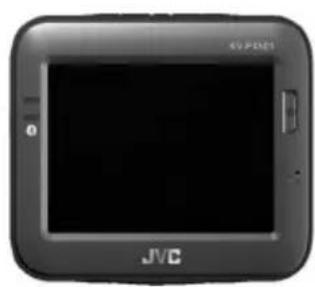
natural_image
Front view of a black electronic device with 'JVC' branding and 'EXPRESS' label (no additional text or symbols visible)KV-PX501 Unit Cradle Suction Cup Mount

natural_image
3D rendered image of a gray plastic mechanical component with mounting holes and internal slots (no text or symbols)Suction Cup Mount

natural_image
Close-up of a black and white mechanical component with no visible text or symbols

natural_image
Coiled black cable with a plug, no visible text or symbolsCigarette Lighter Adpator

natural_image
Coiled black cable with a small plug, no visible text or symbolsAC Adaptor
Dashboard Disk

natural_image
Circular metallic disc with concentric rings and central hole (no text or symbols)DVD-ROM (Digital map/User manual)

Instructions
SD Memory Card (Digital map)

Carrying Case
TMC Antenna
natural_image
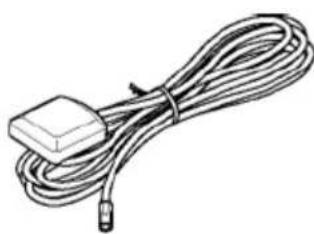
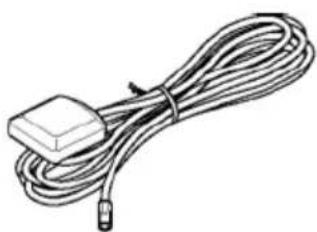
Line drawing of a cable with a small rectangular component attached (no text or symbols)External-GPS Antenna (Optional)
Basic Operation
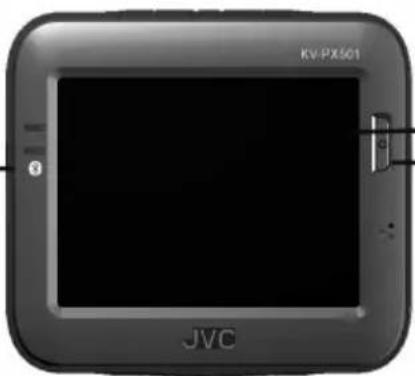
Introduction Front View
Bluetooth LED
Charging indicator LED

3.5" TFT LCD with touch screen
Power button
Charging indicator LED:
Charging: Orange
Full: Green
Bluetooth LED:
Bluetooth ON: Blinking Blue
Bluetooth OFF: LED off
Rear View
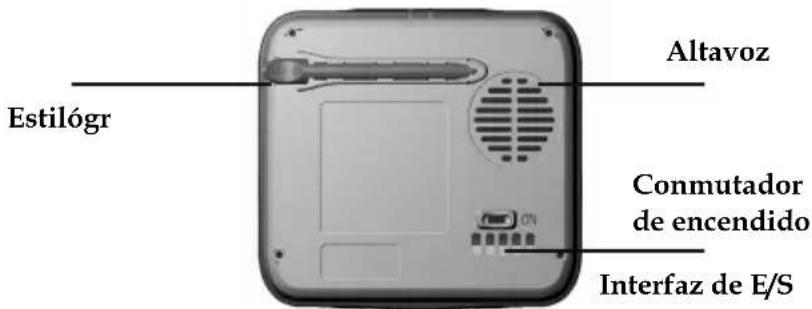
Stylus
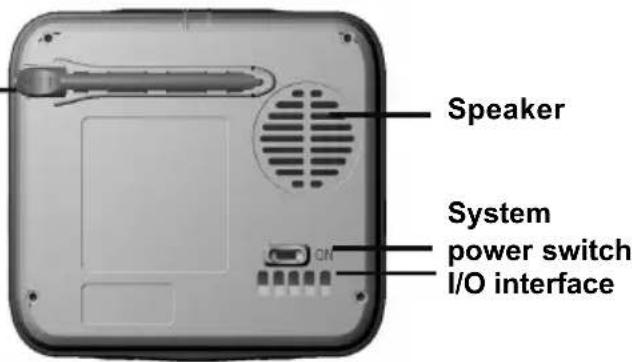
Speaker
System power switch I/O interface
Left Side

natural_image
Close-up of a black electronic device with indicator lights and a handle (no visible text or symbols)External Antenna port
USB port
(used for battery charging only by AC Adaptor)
Right Side

Stylus
SD card slot
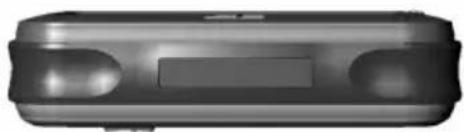
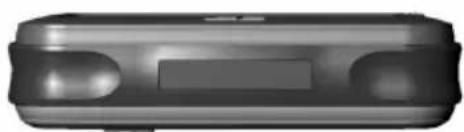
Top View
natural_image
Exterior view of a modern office building (no signage)Operating Methods
Startup
- For first time use, please turn the system power switch at the rear side On.
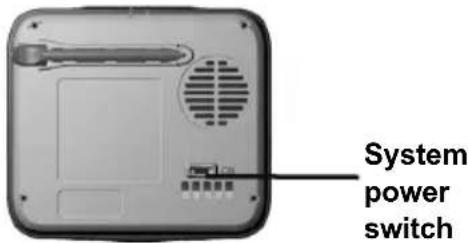
- Press and hold the power button for about two seconds to turn on the power.
Note: Before the first time use, please switch the system power on.
System Reset
Only under extremely few circumstances will it be required to reboot the system. Reset your system if the following situations occur:
- Heavy lag experienced with screen refresh or operations, resulting in an inoperable system.
- Cannot turn off the system with power button.
- No response with selection on the screen.
If any of above occurs, turn the system power switch at the rear side Off and turn it back On to reboot the system.
Shutdown
- While power is on, press the power button to turn off power.
- If the unit will not be used for a long time, turn the system power switch at the rear side Off.

Using Vehicle Bracket
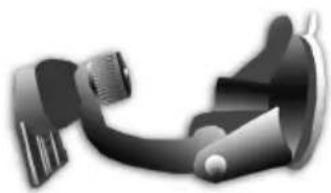
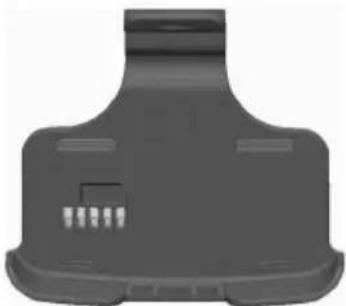
The included in vehicle bracket set can be securely suctioned on the front windshield, or using the adhesive plate, securing on top of the glove compartment. This device will effectively secure the GPS unit in the vehicle. Follow the procedures below to secure the bracket:
- Follow the arrows and slide the unit into the in-vehicle bracket fitting holes to secure.
- Gently push down until the unit is tightly fixed with the bracket.
Note: Please note the directions of the arrows, when fitted the assembly should be tight. If these directions are not followed, a loose fit will result, and components must be reassembled.

natural_image
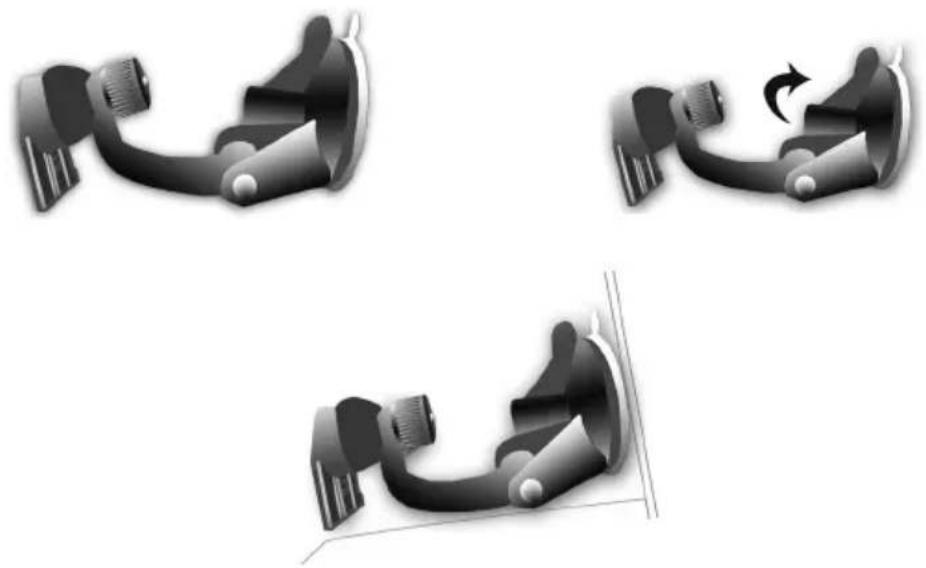
Two grayscale 3D diagrams showing internal mechanical components with arrows indicating movement or force (no text or symbols)- Bend the bracket support to a proper angle. Suction the vehicle bracket securely to the windshield, ensuring its base is resting firmly on the dashboard.

natural_image
Three black-and-white illustrations showing a mechanical component with a curved handle and a rotation arrow, no text or symbols present.-
Follow the directions to insert the bracket into the slots on the bracket, and slide to fix the set (A → B).
-
The in vehicle bracket assembly is complete.
√ When using the in-vehicle secure bracket, do not install in a location that will block the view of the driver
√ Recommended installation requirement
The bracket base should be resting securely on the dashboard to prevent excessive shock.

natural_image
Technical illustration of a device with labeled parts (A and B) and a magnified inset showing a mechanical component (no readable text or symbols)Using the Car Charger
While using the device in a vehicle, use the included car charger for long periods of usage.
- Plug in the small plug into the power jack on the rear of the in vehicle bracket.
- Insert the other end into the cigarette lighter.

natural_image
Diagram showing a cable being inserted into a device with labeled parts (no text or symbols present)Changing Fuse
Replace only with same type and ratings of fuse: FAST ACTING TYPE / φ 6.35*32 / 250V / 1.5A
- Turn right the front plastic cover to loosen it but leaves the positive metal part in it.
- Take out the fuse (Fuse: FAST ACTING TYPE / φ 6.35*32/250V/1.5A)
-
Replace the fuse (Fuse: FAST ACTING TYPE / φ 6.35*32/250V/1.5A)
-
Fasten the front plastic cover again. Then finished (Do not let the positive metal part dropped during this process)

natural_image
Four-step line drawings of a mechanical device with ports and connectors, showing progressive assembly (no text or symbols)Using the AC Adaptor
Before using the device for the first time, we strongly suggest you use a fully charged battery.
- Insert the USB connector into the unit.
- Plug the adaptor into a power outlet.
The USB connector is used for battery charging only by AC Adaptor..

natural_image
Pure electrical circuit lines without any symbolsUsing the TMC Antenna
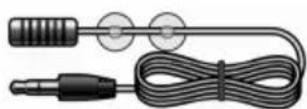
Insert the TMC Antenna (1) into the unit.

Main Menu
During the first startup, the screen will show the main screen consisting of four functions: GPS, Bluetooth, Entertainment, and Setting. Directly select the icon onscreen to use the function.

GPS
Loads the navigation program and navigation screen
Note: If the SD card with navigator software is inserted, the system will enter GPS function automatically after startup.
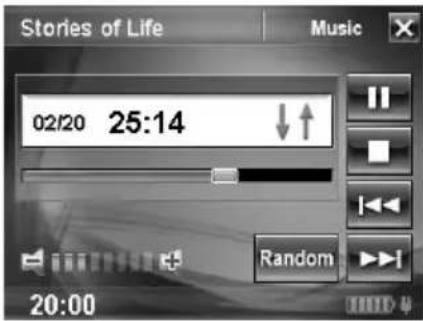
MP3
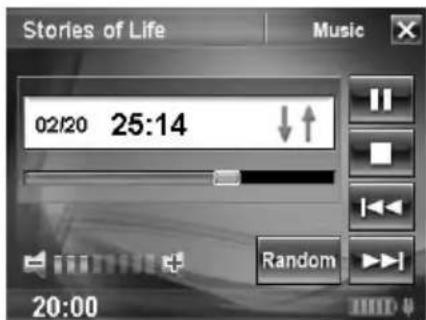
Plays MP3/WMA music. Need to create Folder "mp3"
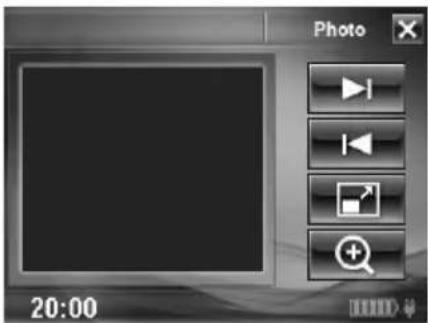
PHOTO
Plays images. Need to create Folder "image"
VIDEO
Plays video. Need to create Folder "file"

eBOOK
Can read file with __txt format. Need to create Folder "ebook"

natural_image
Black and white photo of a curved surface with motion blur, displayed within an eBook browser window (no readable text or symbols)SETTING
System setup
Note Please read the user manual in the DVD-ROM.
● Contents of this manual will be modified without further notice.
● The proper operation temperature of the product is between -10°C 60°C .
Operating or recharging in an environment with temperature over 45° C might cause system to stop functioning. yet this should be considered as a normal phenomenon. Please do not operate in an extreme temperature environment.
GPS Main Menu
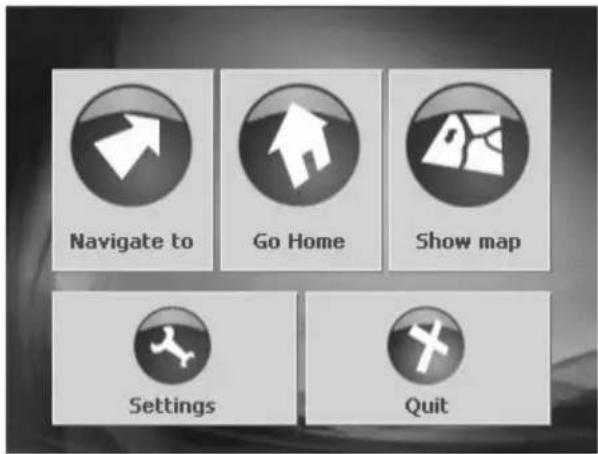
Main menu
1 Opens the NAVIGATE TO window.
2 Starts navigation to home (the home address must be entered beforehand).
3 Opens the map. The current location is indicated during GPS-reception.
4 Opens the SETTINGS window. Here you can configure the navigation system according to your own needs.
5 Switches the navigation system off.
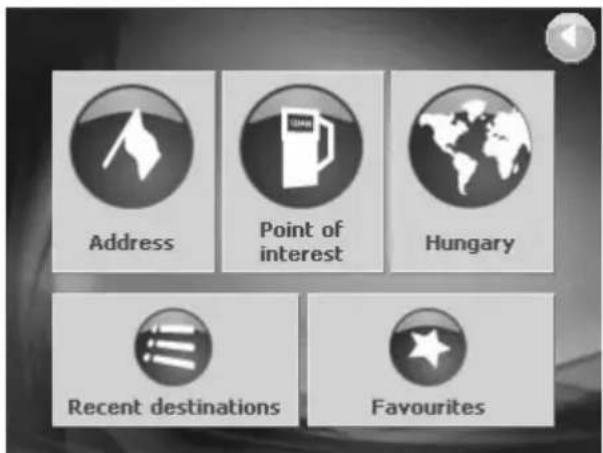
Window 'Navigate to'
10pens the previous window.
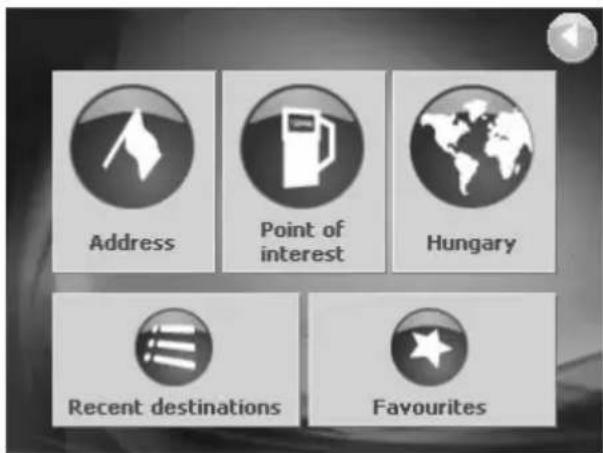
20pens the ADDRESS window. There you can enter the address of the next destination.
30pens the POINT OF INTEREST window. There you can search for a point of interest.
40pens the REGION window. There you can select the country in which your destination lies.
5Opens the RECENT DESTINATIONS list.
60pens the FAVORITES list that contains all of your stored destinations.
Specifying a destination for navigation

Tap in the main menu on Navigate to.
The NAVIGATE TO window opens.
Specifying the destination country

The name of the country used for specifying / selecting destinations is

located below the button (Region) on the window NAVIGATE TO.


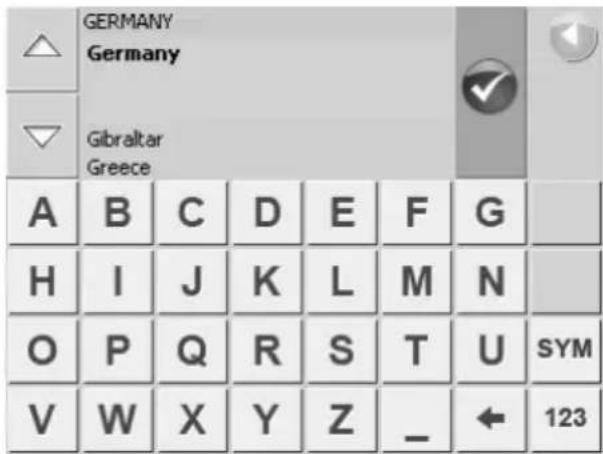
Tap on (Region) in order to select a different country.
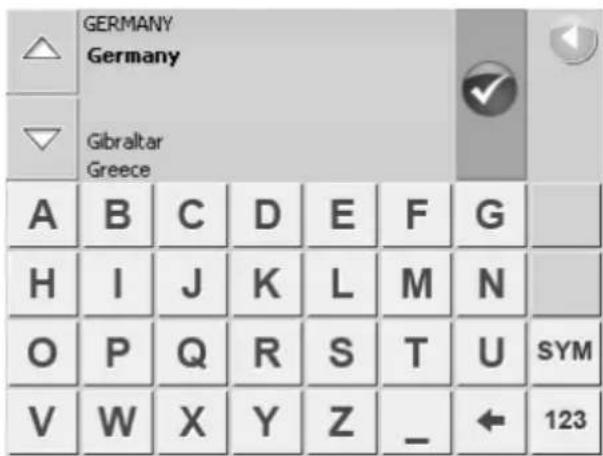
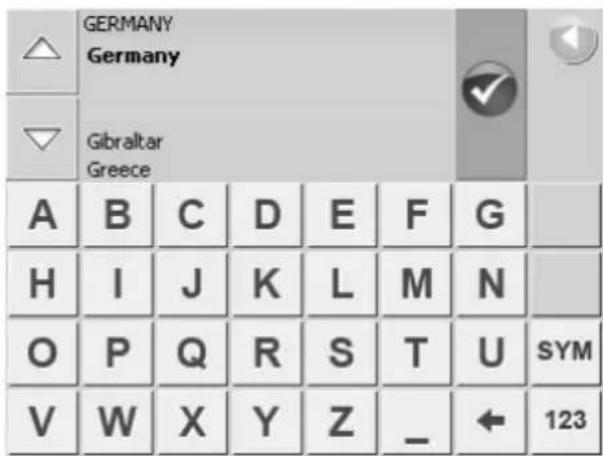
Enter the name of the destination country.
You can use the Upward and Downward buttons to mark the desired country.
Tap on √ (Ok).

The name of the selected country will now appear on the NAVIGATE TO

window below the button (Region).
Specifying an address

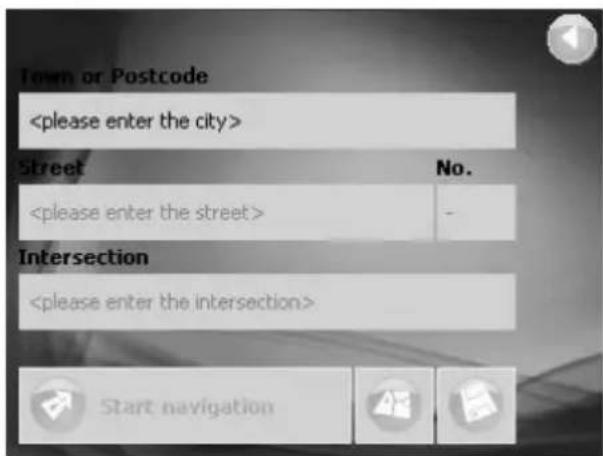
Tap on the Address button in the NAVIGATE TO window.
The ADDRESS window opens.

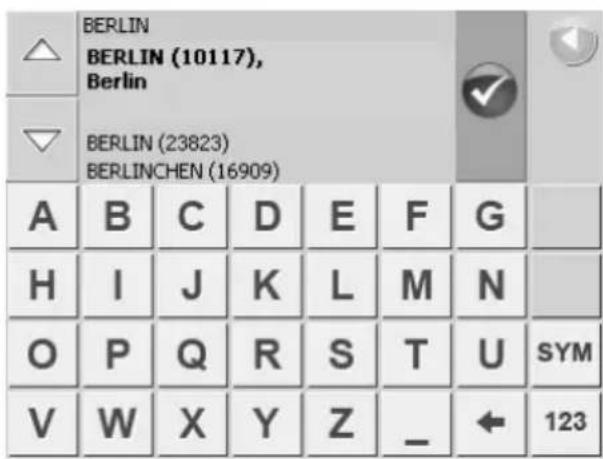
Tap on the City or ZIP field.

Enter the name of the destination city. The zip codes are included in the list of cities. If two or more cities have the same name then tap on the Upward and Downward buttons in order to mark the correct entry.
Tap on (Ok).
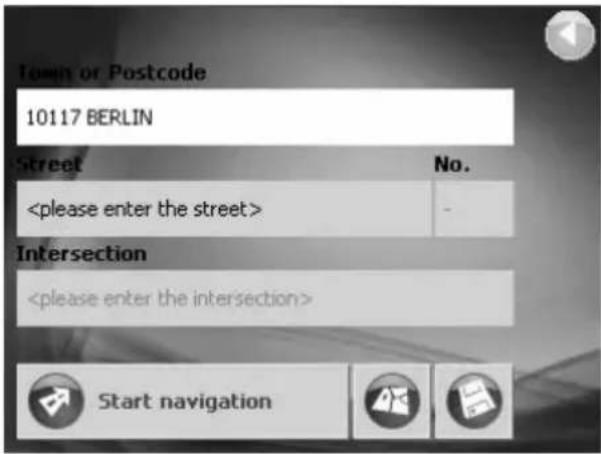
The street address for the destination can be entered in the same way.
You can also enter the house address or a side street.
Tap on the Start navigation button after making the necessary entries. The route is then calculated and navigation starts.
Tap on (Show on map) in order to see the destination on the map.
Tap on (Save) in order to save the destination in the FAVORITES list.
Selecting point of interest
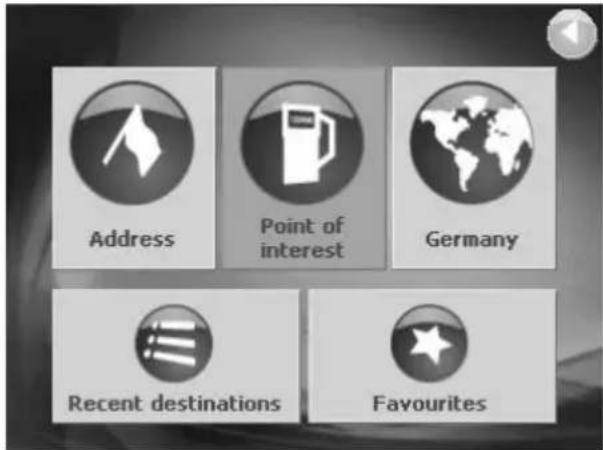
Points of interest are for example gas stations, hotels, restaurants, etc.
Tap on the Point of interest button in the NAVIGATE TO window.
The POINT OF INTEREST window opens.
Select a point of interest in a particular city.

Are you looking for a restaurant or a hotel in a particular city?
Tap on the ... in a browsed city button in the POINT OF INTEREST window.
The POINT OF INTEREST IN A BROWSED CITY window opens.

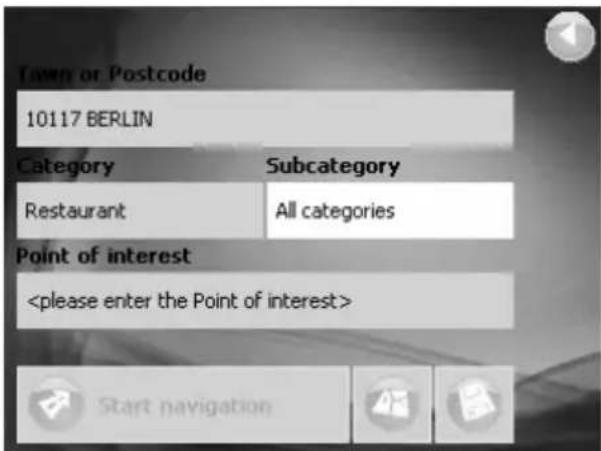
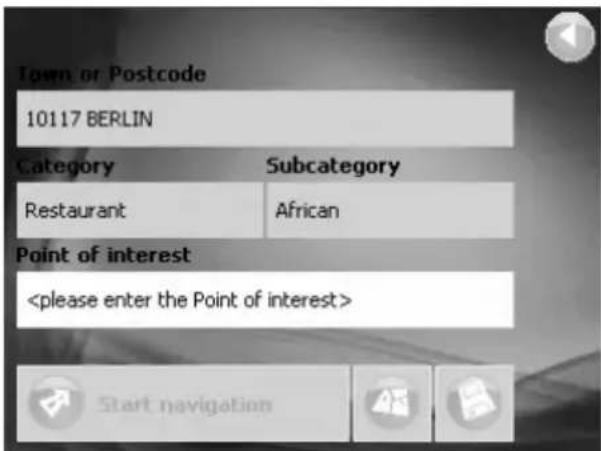
Tap on the City or ZIP field.
Enter the name of a city where you would like to find a point of interest (e.g. Berlin).

Tap on the Category field.
Select the type of point of interest that you would like to find in Berlin (e.g. restaurant).

Tap on the Subcategory field.
Select the type of restaurant that you would like to find in Berlin (e.g. African).

Tap on the Point of interest field.
Select the African restaurant that you would like to navigate to in Berlin (e.g. AMUN).

You are not required to make a selection in the Category and Subcategory fields. There purpose is to narrow down the list of points of interest in the Point of interest field. This list can be very comprehensive, especially in the larger cities.
Tap on the Start navigation button after you have selected the desired destination. The route is then calculated and navigation starts.
Tap on (Show on map) in order to see the destination on the map.
Tap on (Save) in order to save the destination in the FAVORITES list.
Selecting nearby point of interest

Are you looking for a restaurant or a or a hotel near your current location?
Tap on the ... nearby GPS position button in the POINT OF INTEREST window.
The POINT OF INTEREST NEARBY GPS POSITION window opens.

Tap on the Radius field. Select the radius in which you would like to find a point of interest (e.g. 3 km). Then tap on the Category, Subcategory, and Point of interest fields and enter the appropriate information.

You are not required to make a selection in the Category and Subcategory fields. Their purpose is to narrow down the list in the Point of interest field. This list can be very comprehensive, especially in the larger cities.
Tap on the Start navigation button after you have selected the desired destination. The route is then calculated and navigation starts.
Tap on (Show on map) in order to see the destination on the map. Tap on (Save) in order to save the destination in the FAVORITES list.
Selecting a point of interest of nationwide importance
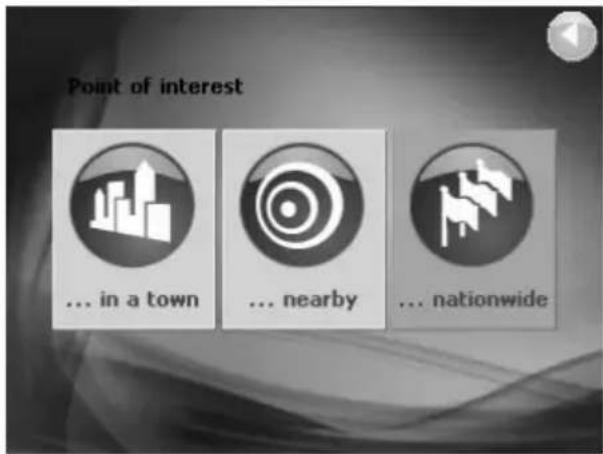
You would like to go to an airport or visit a tourist attraction but do not know the name of the city the destination lies in?
Tap on the ... nationwide button in the POINT OF INTEREST window.
The POINT OF INTEREST NATIONWIDE window opens.

Tap on the Category field. Select the type of point of interest that you would like to find in Berlin (e.g. tourism).
Tap on the Point of interest field. Select the point of interest you would like to navigate to (e.g. conservation park Bavarian Forest).

You are not required to make a selection in the Category field. Its purpose is to narrow down the list in the Point of interest field. This list can be very comprehensive.
Tap on the Start navigation button after you have selected the desired destination. The route is then calculated and navigation starts.
Tap on (Show on map) in order to see the destination on the map.
Tap on (Save) in order to save the destination in the FAVORITES list.
Navigating to home

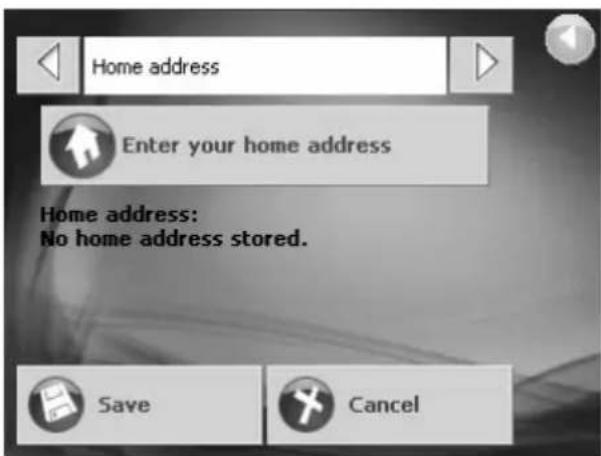
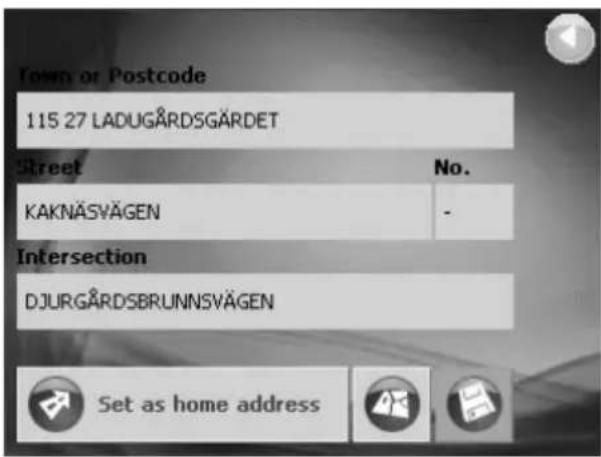
Would you like to drive home?
Tap in the main menu on Take me home. The route is then calculated and navigation starts.
You will be requested to enter your home address if you have not yet done so.
Tap on Ⓥ (Ok).
The settings window HOME ADDRESS opens.
Tap on Enter your home address.
The NAVIGATE TO window opens.
Enter your home address as if it were your next destination.
Tap on Set as home address after you have completely entered your home address.

The map during navigation

The settings window HOME ADDRESS opens.
Tap on Save.
The main window opens.
1 The driving maneuver after the next
2 The distance up to the next driving maneuver
3 The next
driving
maneuver
4 Your current location
5 Your route
6 Your current street location
7 The street onto which you must turn
8 Estimated time of arrival
9 Remaining distance
10 Estimated remaining travel time
Tool bar
11 Increase scale
12 Blocking / unblocking a route stage
13 Day / night mode
14 Volume
15 Move / enlarge
16 Freeze location / map section
17 Reduce scale
18 Exit navigation, close map
Tap on any point of the map to show or hide the toolbar.
Settings
Tap in the main menu on Settings.

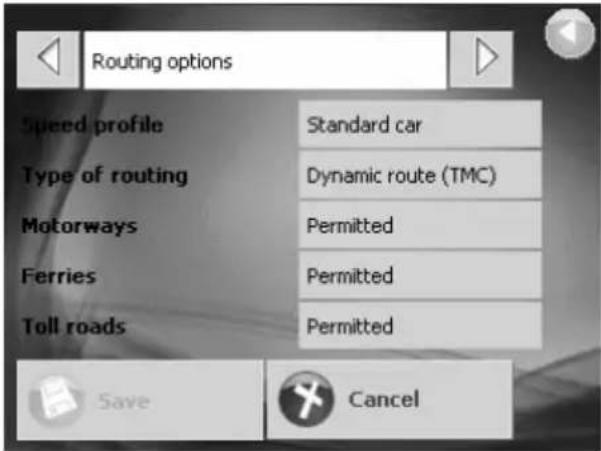
The SETTINGS window opens.
Use the Upward and Downward buttons in order to mark the settings window that you would like to open.
Tap on

(Ok).
Change the settings according to your needs.
You can use the button To the Right and To the Left for opening other setting windows.
Tap on Save if you want to save the changes.
You will find further information on the settings on the following pages.
Settings window
| PRODUCT INFORMATION | Take the time to learn the product version.Run the product demo |
| MAP INFORMATION | Indicate whether points of interest or street names should be displayed on the map.Select the navigation map that you would like to load. Navigation destinations must be recorded on the map. |
| ROUTE INFORMATION | Specify whether you want the estimated time of arrival, the remaining time to destination, and / or the remaining distance to destination to be displayed during navigation. |
| SIGNPOST INFORMATION | Specify whether you want the signposts you should follow to be displayed during navigation. |
SPEED LIMIT Specify whether you want speed limits to be displayed on the map. Configure acoustic and visual warnings on exceeding these speed limits.
VOLUME Set the volume of the spoken driving instructions.
REPRESENTATION Calibrate the touchscreen for contact sensitivity. Select the brightness level for day and night mode.
AUTO MODE Indicate whether the navigation should startup with 2D- or a 3D-map section.
Indicate whether auto zoom should be active (the faster you drive the larger the map scale becomes).
Indicate whether the map should be configured in a 2D-view driving direction or northern direction.
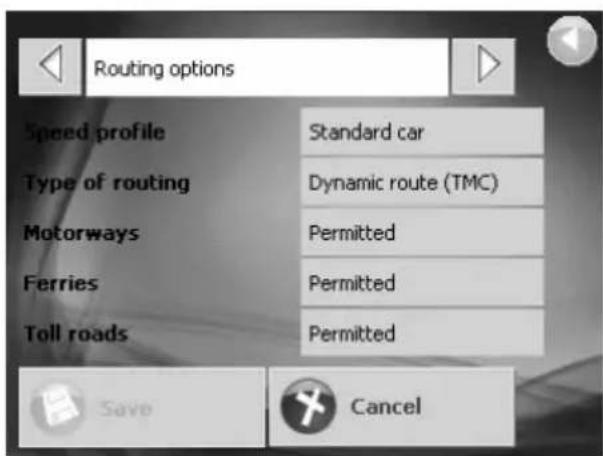
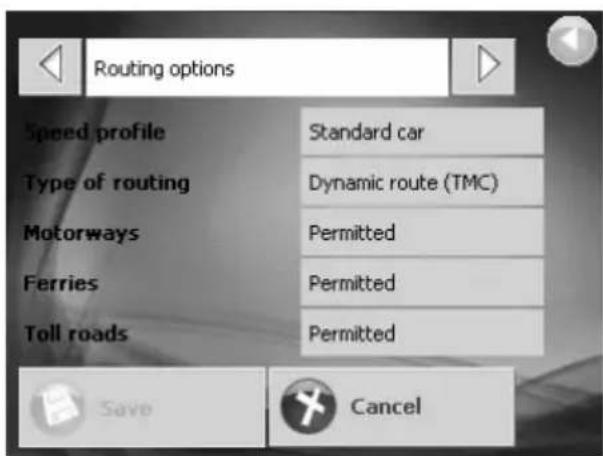
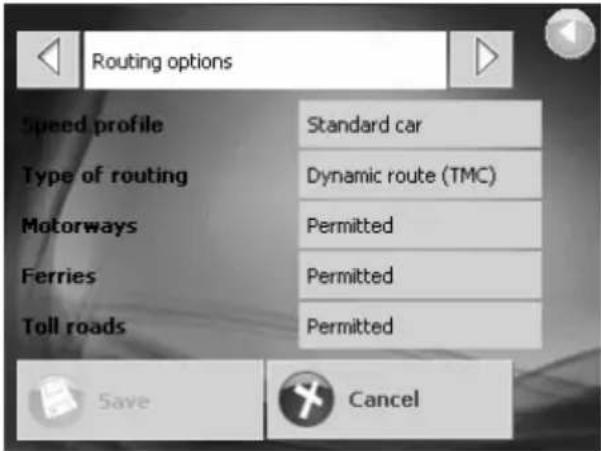
ROUTING OPTIONS Indicate your speed profile and the type of route (dynamic, shortest route, fastest route) Indicate whether you would like to use the interstate, ferries, or toll ways during your trip.
TIME ZONE Indicate your time zone.
Indicate whether summer is the current time of year.
FORMAT Indicate whether the time should be displayed on a 12 hour or 24 hour clock.
Indicate whether distances should be displayed in miles or in kilometers.
TMC Indicate whether if the route should be recalculated if traffic Information affects the route.
HOME ADDRESS Enter your home address or change it.
Overview of the buttons for MN5|BASE
Main menu

Navigate to: Enter the navigation destination

Show map: Display the map
Point of interest

... in a browsed city: Point of interest in a city

... nearby GPS position: Nearby point of interest

Take me home: Navigate to home

... nationwide:
Nationwide point of interest

Settings: Change the settings Specifying the destination

Exit: Exit the navigation program

Start navigation:
Start navigation to the specified destination

Return: Return to the previous window

Show on map: Show the destination on the map
Navigate to

Save: Save the destination in the FAVORITES list

Address: Enter a address for the navigation
Edit favorites

Point of interest: Specify a point of interest

Delete: Delete the destination from the FAVORITES list

Recent destinations: Select a destination from the RECENT DESTINATIONS list.

Edit: Edit the entry in the FAVORITES list

Favorites: Select a destination from the FAVORITES list.
TMC

Region: Select a country or a region

TMC-signal strength: Quality of the TMC-signal

Update TMC: Update the TMC-messages to the latest version
Map section

No GPS: Insufficient GPS-reception
Other buttons

TMC (optional): TMC-reception available or not

Ok: Confirmation in a dialog box

Enlarge: Enlarge the scale (zoom out)

Terminate: Do not confirm in a dialog box

Block / unblock: Block a certain route stage

Calibrate: Start the touchscreen calibration

Day / night mode: Switch between the display modes

Upward: Scroll upward in a list

Entire route: Show the entire route on the map

Downward: Scroll downward in a list

Move / zoom: Moving the map with the pointing device instead of zooming

To the Left: Scroll to the left

Freeze location / map: Center the location and move the map section or vice versa

To the Right: Scroll to the right

Reduce: Reduce the scale (zoom in)
Specifications
| Integrated GPS Receiver | 32 parallel channels |
| Processor | Samsung S3C2440A 400 MHz. |
| Operating System | Microsoft Windows CE 5.0 Core Version |
| Memory | 64 MB NAND flash memory and 64MB SDRAM memory |
| Mass (Approx) | 170 g |
| Dimensions(W/H/D) | 95 (W) x85 (H)x25 (D) mm |
| Car Holder / Charger | Input voltage: 12-24V.Output voltage: 5V/ 2A. |
| AC Adaptor | Input voltage: 100-240V~50/60Hz 0.5AOutput voltage: 5V/ 2A |
| Battery | Rechargeable 1150mAh.Battery life: 2 ~ 4 hrs. |
| Extension Slot | SD |
| Display | 3.5" high-brightness & contrast ratio transflective TFT LCD (16.7 M colors) with touch screen.320 x 240 resolution |
| LED | Orange/Green LED for battery charging statusBlue LED for Bluetooth status |
| Audio | Built-in speaker.Software volume control. |
| Temperature | Operation: -10°C ~ 60°CStorage: -20°C ~ 70°C |
| Humidity | Operation: 0%~90%Storage: 0%~90% |
| Mini-USB Connector | mini USB Connector for DC power in |
| Bluetooth profile | Hands-Free calling, SMS, File transfer |
JVC
natural_image
Abstract pattern of diagonal black and white stripes on white background (no text or symbols)Sicherheitshinweise
natural_image
Symbol of a trash bin crossed out by two diagonal lines (no text or numbers present)natural_image
Front view of a black rectangular electronic device with 'JVC' branding and control buttons (no readable text or symbols beyond branding)
natural_image
3D rendered image of a gray plastic component with cutouts and mounting holes (no text or symbols)
natural_image
Close-up of a black mechanical component with textured surfaces and a curved handle (no visible text or symbols)natural_image
Coiled black cable with a plug, no visible text or symbolsnatural_image
Coiled black cable with a small plug, no visible text or symbolsNetzteil
Armaturenbrett

natural_image
Circular metallic disc with concentric rings and central hole (no text or symbols)natural_image
Illustration of a cable with a rectangular connector and terminal plug (no text or symbols)Externe GPS-Antenne (optional)
natural_image
Back view of a rectangular electronic device with ventilation slots and a thermometer inserted (no text or symbols visible)Sprecher
natural_image
Close-up of a black electronic device with labeled ports and buttons (no readable text or symbols)natural_image
Exterior view of a modern office building (no signage)Betriebsmethoden
Systemstart
- While power is on, press the power button to turn off power.
- If the unit will not be used for a long time, turn the system power switch at the rear side Off.

Note: Please note the directions of the arrows, when fitted the assembly should be tight. If these directions are not followed, a loose fit will result, and components must be reassembled.

natural_image
Two grayscale 3D diagrams of a mechanical component with arrows indicating direction, no text or symbols present.natural_image
Three black-and-white illustrations of a mechanical clamp or connector, showing a curved arm and a rotation arrow (no text or symbols)natural_image
Diagram showing a device with labeled parts and an inset view of a vehicle (no text or symbols present)natural_image
Diagram showing a plug inserted into a device with labeled parts (no text or symbols present)natural_image
Four technical line drawings of a mechanical device with exploded views, showing internal components and assembly (no text or symbols)natural_image
Pure electrical circuit lines without any symbolsLoads the navigation program and navigation screen
Note: If the SD card with navigator software is inserted, the system will enter GPS function automatically after startup.
MP3
Can read file with __txt format.
natural_image
Black and white image of a book with abstract curved lines and a play button, no readable text or symbolsSETTING
System setup

Hauptmenü


natural_image
Abstract pattern of diagonal black and white stripes on white background (no text or symbols)natural_image
Symbol of a trash bin crossed with no visible text or labels
natural_image
Front view of a black electronic device with 'JVC' branding and 'R-FOX'SI' logo on screen (no readable text beyond branding)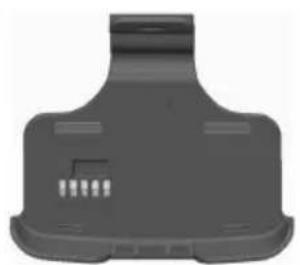
natural_image
Gray plastic mechanical component with mounting holes and a small inset showing internal slots (no text or symbols)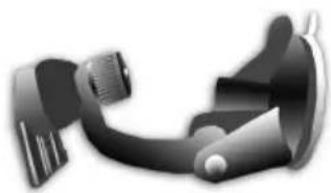
natural_image
Close-up of a black and white mechanical component with no visible text or symbolsnatural_image
Coiled black cable with a plug, no visible text or symbols
natural_image
Coiled black cable with two pins, no visible text or symbols
natural_image
Circular metallic disc with concentric rings and central hole (no text or symbols)
natural_image
Line drawing of a cable with a small rectangular component attached (no text or symbols)natural_image
Close-up of a black handheld device with control buttons and indicator lights (no visible text or symbols)Côté droit
Port pour antenne
natural_image
Black rectangular device with a handle and two horizontal lines pointing to the right side (no text or symbols visible)Stylet
natural_image
Exterior view of a modern office building (no signage)Utilisation
Démarrage
Note: Before the first time use, please switch the system power on.

natural_image
Front view of a computer monitor with ventilation grille and indicator lights (no visible text or symbols)natural_image
Two grayscale images showing internal mechanical components with directional arrows indicating movement or force (no text or symbols)- Bend the bracket support to a proper angle. Suction the vehicle bracket securely to the windshield, ensuring its base is resting firmly on the
natural_image
Three identical mechanical components with curved surfaces and fasteners, shown in three sequential states (no text or symbols)natural_image
Diagram showing a device with labeled parts A and B, including a magnified inset of the component (no readable text or symbols)Fusible de rechange
natural_image
Four-step line drawings of a device with ports and connectors, showing progressive assembly from left to right (no text or symbols)natural_image
Pure electrical circuit lines without any symbolsLoads the navigation program and navigation screen
Note: If the SD card with navigator software is inserted, the system will enter GPS function automatically after startup.
MP3
Plays MP3/WMA music. Créer Dossier "mp3" et Liste de lecture.
PHOTO
Can read file with __txt format. Créer Dossier "ebook"

natural_image
Black and white photo of a book with abstract curved design, displayed within an eBook browser window (no readable text or symbols)SETTING
System setup

Menu principal


INFORMATIONS PRODUIT
INFOS SUR LA CARTE
natural_image
Abstract pattern of diagonal black and white stripes on white background (no text or symbols)natural_image
Symbol of a trash bin crossed with no visible text or labelsnatural_image
Front view of a black rectangular electronic device with 'JVC' branding and 'ELEFEMT' label (no additional text or symbols visible)natural_image
3D rendered image of a gray plastic mechanical component with cutouts and mounting holes (no text or symbols)
natural_image
Close-up of a black mechanical component with textured surfaces and a curved handle (no visible text or symbols)natural_image
Coiled black cable with a plug, no visible text or symbolsnatural_image
Coiled black cable with a small plug and connector, isolated on white background (no text or symbols)natural_image
Line drawing of a cable with a small rectangular component attached (no text or symbols)Antena GPS externa (Opcional)
Bluetooth OFF: LED off
Charging indicator LED:
Charging: Orange
Full: Green
Vista posterior
natural_image
Exterior view of a modern office building (no signage)natural_image
Two grayscale mechanical components with directional arrows indicating movement or assembly (no text or symbols visible)natural_image
Three identical mechanical clamping mechanisms shown in sequence, no text or symbols presentnatural_image
Diagram showing a device with labeled parts and an inset view of a device with arrows indicating direction (no text or symbols present)natural_image
Diagram showing a cable being inserted into a device with labeled parts (no text or symbols present)Cambio del fusible
natural_image
Four-step line drawings of a mechanical device with ports and connectors, showing progressive assembly (no text or symbols)natural_image
Diagram of a wall-mounted electrical plug connecting two connected cables (no text or symbols visible)Loads the navigation program and navigation screen
Note: If the SD card with navigator software is inserted, the system will enter GPS function automatically after startup.
MP3
Can read file with __txt format.
natural_image
Black and white photo of a blurred abstract shape on a screen, no visible text or symbolsSETTING
System setup
Menú principal





natural_image
Symbol of a trash bin crossed with a diagonal line and a horizontal bar below (no text or labels)natural_image
Front view of a black electronic device labeled 'JVC' with control buttons (no readable text beyond branding)Unità KV-PX501

natural_image
Top-down view of a gray plastic mechanical component with no visible text or symbolsStaffa per veicolo
natural_image
Close-up of a black mechanical component with textured surfaces and a curved handle (no visible text or symbols)natural_image
Coiled black cable with a terminal connector, no visible text or symbolsnatural_image
Coiled black cable with a small plug and connector (no text or symbols visible)Trasformatore CA
Disco per cruscotto
natural_image
Line drawing of a cable with a small rectangular component attached (no text or symbols)natural_image
Exterior view of a modern office building (no signage)Operazioni
Avvio
natural_image
Two grayscale views of a car door handle assembly, showing internal components and directional arrows (no text or symbols)natural_image
Diagram showing a device with labeled parts A and B, including a magnified inset of the component (no readable text or symbols)natural_image
Four-step line drawings of a mechanical device with ports and connectors, showing progressive assembly (no text or symbols)natural_image
Diagram of a cable with two connectors, one connected to a wall socket (no text or symbols visible)natural_image
Black and white image of a curved surface with a blue arrow pointing to a play button, displayed within an older software interface (no readable text or symbols on the main subject)SETTING

Menú principale


natural_image
Abstract pattern of diagonal black and white stripes on white background (no text or symbols)natural_image
Symbol of a trash bin crossed with no visible text or labelsnatural_image
Front view of a black electronic device with 'JVC' branding and 'KUFX301' label (no additional text or symbols visible)Unidad KV-PX501
natural_image
3D rendered image of a gray plastic mechanical component with internal slots and mounting holes (no text or symbols)natural_image
Close-up of a black mechanical component with textured surfaces and a curved handle (no visible text or symbols)natural_image
Coiled black cable with a plug, no visible text or symbolsnatural_image
Coiled black cable with a small plug, no visible text or symbolsnatural_image
Circular metallic disc with concentric rings and central hole (no text or symbols)CD-ROM

INSTRUÇÕES

SD Memory Card (Mapa digital)
natural_image
Line drawing of a cable with a small rectangular component attached (no text or symbols)Antena GPS externa (Opcional)
Charging indicator LED:
Charging: Orange
Full: Green
Bluetooth LED:
Bluetooth ON: Blinking Blue
Bluetooth OFF: LED off
Parte de trás

natural_image
Exterior view of a modern office building (no signage)Funcionamento
Arranque
natural_image
Two grayscale images showing internal mechanical components with directional arrows indicating movement or force (no text or symbols)natural_image
Three black-and-white illustrations of a mechanical clamp or bracket mechanism, showing step-by-step assembly and rotation (no text or symbols)natural_image
Diagram showing a device with labeled parts A and B, including a magnified inset of the component (no readable text or symbols)Mudar Fusível
natural_image
Four-step line drawings of a device with ports and connectors, showing progressive assembly from left to right (no text or symbols)Usar o Transformador CA::
natural_image
Black and white photo of a smooth, curved surface with no visible text or symbolsDefinições

Menu principal


Toque no campo Raio.

natural_image
Abstract pattern of diagonal black and white stripes on white background (no text or symbols)natural_image
Symbol of a trash bin crossed with no visible text or labels
natural_image
Front view of a black electronic device with a display screen and control buttons (no visible text or symbols)
natural_image
Gray plastic mechanical component with no visible text or symbols
natural_image
Close-up of a black mechanical component with textured surfaces and a curved handle (no visible text or symbols)KV-PX501 enhet Vagga Sugkoppmontage
natural_image
Coiled black cable with a connector, no visible text or symbols
natural_image
Coiled black cable with a small plug, no visible text or symbols
Cigarettändaradapter Strömadapter Instrumentpanelsskiva

natural_image
Circular metallic disc with concentric rings and central hole (no text or symbols)natural_image
3D rendered image of a gray rectangular object with a knob (no text or symbols)Transportväska
TMC-Antenn
natural_image
Line drawing of a cable with a small rectangular component attached (no text or symbols)Extern GPS-antenn (tillval)
Basic Operation
Grundfunktioner
Framsida
natural_image
Front view of a JVC tablet device with no visible text or symbols on the screen or body3.5 tum TFT LCD
med pekskärm
Botão de
alimentação
Bluetooth LED:
Bluetooth PÅ: Blinkande blå
natural_image
Top-down view of a device casing with visible internal components and wiring (no text or symbols)Systemströmbr
ytare
I/O gränssnitt
Vänster sida
Höger sida

natural_image
Close-up of a black electronic device with labeled buttons and ports (no readable text or symbols)Hörlursuttag
/TMC-antennport
USB port
(används för
natural_image
Black cylindrical device with a handle and control panel, no visible text or symbolsPekpenna
SD kortplats
Ovanifrån

natural_image
Exterior view of a modern office building (no signage)Hanteringsmetoder
Komma igång
natural_image
Two grayscale images showing internal mechanical components with directional arrows indicating movement or force (no text or symbols)natural_image
Diagram showing a device with labeled parts and an inset view of a device with arrows indicating direction (no text or symbols present)Använda billaddaren
Byte av säkring
natural_image
Four-step line drawing of a device with ports and connectors, showing progressive assembly from left to right (no text or symbols)natural_image
Diagram of a wall-mounted device connected to a plug, showing cable routing (no text or symbols)Använda TMC-antenn
natural_image
Grayscale abstract image with smooth curved shapes and a digital interface panel (no readable text or symbols)Setup [INSTÄLLNING]
Systeminställning

Hovedmeny


Klicka på Radie.
Klicka på Kategori.
Navigera hem


HEMADRESS öppnas. Hemadressen visas.
Klicka på Spara.
Huvudmenyn öppnas.
Kartan under pågående navigation

Klicka
natural_image
Abstract pattern of diagonal black and white stripes on white background (no text or symbols)natural_image
Symbol of a trash bin crossed with no visible text or labels
natural_image
Front view of a black rectangular electronic device with a display screen and control buttons (no visible text or symbols)natural_image
Gray plastic mechanical component with no visible text or symbols
natural_image
Close-up of a black mechanical component with a curved handle and textured grip (no visible text or symbols)
natural_image
Coiled black cable with a plug, no visible text or symbolsnatural_image
Coiled black cable with a small plug, no visible text or symbols

natural_image
Circular metallic disc with concentric rings and central hole (no text or symbols)natural_image
Gray rectangular metal mailbox with a flag on top (no text or symbols visible)Etui

TMC
natural_image
Line drawing of a cable with a small rectangular component attached (no text or symbols)Ekstern GPS antenne Antenne (valgfri)
Basic Operation
Introduction
Front View
Opladeindikator LED Bluetooth LED
natural_image
Front view of a JVC tablet device with visible screen and control buttons (no readable text or symbols beyond branding)4,3" TFT LCD
kontaktskærm
Tænd/Sluk knap
natural_image
Top-down view of a device casing with ventilation grille and ports (no visible text or symbols)Systemkontakt I/O interface
Left Side
Right Side

natural_image
Close-up of a black electronic device with indicator lights and ports (no readable text or symbols)Høretelefonstik / TMC antennestik USB port (kun til batteriopladning med AC adapter)

Skrivestift
SD kort åbning
Top View
natural_image
Exterior view of a modern office building (no signage)Betjeningsmetoder
Opstart
natural_image
Two grayscale images showing internal mechanical components with directional arrows indicating movement or force (no text or symbols)natural_image
Close-up of a black mechanical component with a curved handle and textured grip (no visible text or symbols)
natural_image
Mechanical component with a curved handle and gear mechanism, no visible text or symbols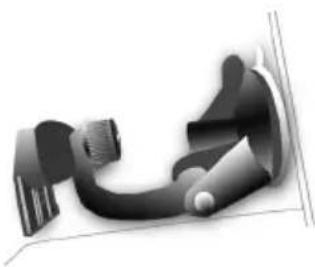
natural_image
Abstract 3D rendering of a mechanical component with no visible text or symbolsnatural_image
Medical device component illustration showing a device with labeled parts A and B, alongside a close-up of its internal structure (no text or symbols beyond labels)natural_image
Diagram showing a cable being inserted into a device, with no visible text or symbolsnatural_image
Four-step line drawings of a mechanical device with ports and connectors, showing progressive assembly (no text or symbols)Sådan bruger du AC adapteren :
natural_image
Pure electrical circuit lines without any symbolsnatural_image
Black and white photo of a curved surface with a digital interface panel on the right (no readable text or symbols in the main image area)SETTING (INDSTILLINGER)
Systemopsætning

Hovedmenuen

Tryk i City or Postcode (By eller postnummer) feltet.
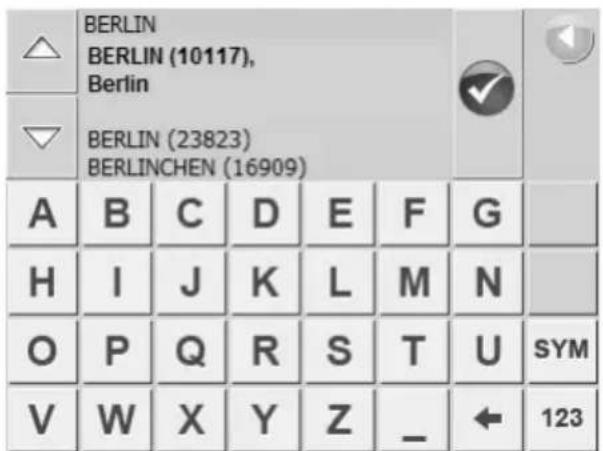
Steder af interesse kan fx være tankstationer, hoteller, restauranter osv.
Tryk på Point o finterest (sted af interesse) knappen i NAVIGATE TO (NAVIGER TIL) vinduet.
Herefter åbner POINT OF INTEREST (STED AF INTERESSE) vinduet.
Leder du efter en restaurant eller et hotel i en bestemt by?
Tryk på ... in a town (i en bestemt by) knappen i P OINT OF INTEREST (STED AF INTERESSE) vinduet.
Herefter åbner POINT OF INTEREST IN A TOWN (STED AF INTERESSE I EN BESTEMT BY) vinduet.
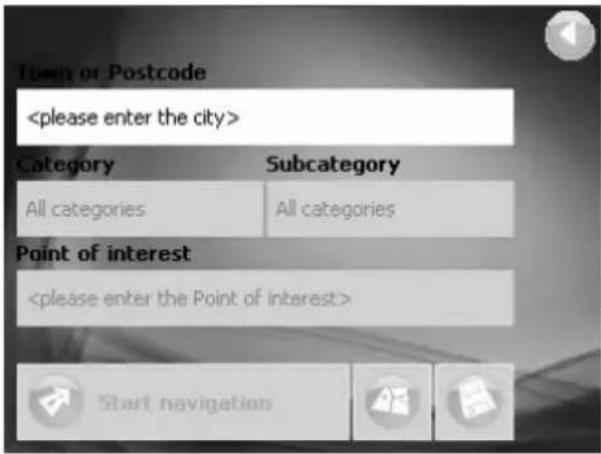

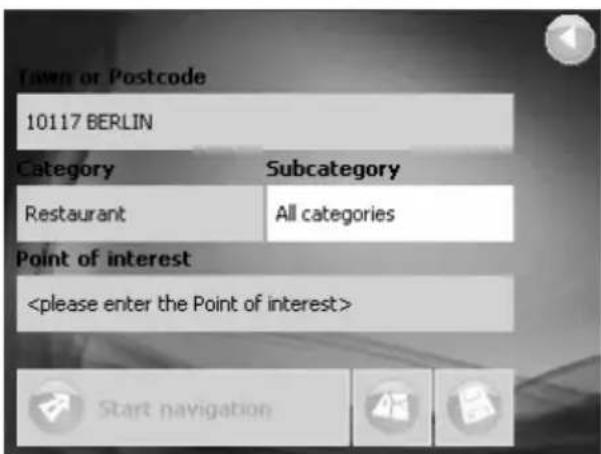

Tryk i City or Postcode (By eller postnummer) feltet.
Tryk i Radius feltet.
Tryk i Category (Kategori) feltet.

Indstillingsvinduet HOME ADDRESS (HJEMMEADRESSE) åbner.
Tryk på Save (Gem).
natural_image
Abstract diagonal pattern with alternating black and white stripes (no text or symbols)JVC
- Regulatory information
- CE Marking
- ES – Español
- Operating Environment
- Electromagnetic Compatibility
- Data Security
- Connection
- 3.CAUTION
- Information for Users on Disposal of Old Equipment
- Navigation
- Safety Instructions for Navigation
- Attention!
- Important Notice
- First time use
- Copyright
- Package Contents
- Basic Operation
- Introduction Front View
- Rear View
- Left Side
- Right Side
- Top View
- Operating Methods
- Startup
- System Reset
- Shutdown
- Using Vehicle Bracket
- Using the Car Charger
- Changing Fuse
- Using the AC Adaptor
- Using the TMC Antenna
- Main Menu
- GPS
- MP3
- PHOTO
- VIDEO
- eBOOK
- SETTING
- GPS Main Menu
- Window 'Navigate to'
- Specifying a destination for navigation
- Specifying the destination country
- Specifying an address
- Selecting point of interest
- Select a point of interest in a particular city.
- Selecting nearby point of interest
- Selecting a point of interest of nationwide importance
- Navigating to home
- The map during navigation
- Settings
- Settings window
- Overview of the buttons for MN5|BASE
- Point of interest
- Navigate to
- Edit favorites
- TMC
- Map section
- Other buttons
- JVC
- Sicherheitshinweise
- Betriebsmethoden
- Systemstart
- Hauptmenü
- Côté droit
- Utilisation
- Démarrage
- Fusible de rechange
- Menu principal
- INFORMATIONS PRODUIT
- INFOS SUR LA CARTE
- Vista posterior
- Cambio del fusible
- Menú principal
- Operazioni
- Avvio
- Menú principale
- Charging indicator LED:
- Bluetooth LED:
- Parte de trás
- Funcionamento
- Arranque
- Mudar Fusível
- Usar o Transformador CA::
- Definições
- Grundfunktioner
- Framsida
- Vänster sida
- Höger sida
- Ovanifrån
- Hanteringsmetoder
- Komma igång
- Använda billaddaren
- Byte av säkring
- Använda TMC-antenn
- Setup [INSTÄLLNING]
- Hovedmeny
- Kartan under pågående navigation
- Introduction
- Front View
- Betjeningsmetoder
- Opstart
- Sådan bruger du AC adapteren :
- SETTING (INDSTILLINGER)
- Hovedmenuen
Brand : JVC
Model : KV-PX501
Category : Browser