MAX49 - MIDI Keyboard AKAI - Free user manual and instructions
Find the device manual for free MAX49 AKAI in PDF.


User questions about MAX49 AKAI
0 question about this device. Answer the ones you know or ask your own.
Ask a new question about this device
Download the instructions for your MIDI Keyboard in PDF format for free! Find your manual MAX49 - AKAI and take your electronic device back in hand. On this page are published all the documents necessary for the use of your device. MAX49 by AKAI.
USER MANUAL MAX49 AKAI
MAX49, power adapter, USB cable, software CD (with Vyzex and AkaiConnect software), software DVD (with Ableton Live Lite Akai Edition), Quickstart Guide, Safety Instructions & Warranty Information Booklet
QUICK SETUP / CONNECTION DIAGRAM

text_image
COMPUTER (not included) POWER ADAPTER (optional) EXTERNAL MIDI MODULE (optional, not included) EXPRESSION PEDAL (optional, not included) FOOTSWITCHES (optional, not included)1. INSTALLATION
- Insert the included software CD into your computer.
-
Open and install:
-
Windows: Double-click My Computer then double-click the disc. Once the disc's contents are shown, double-click the Vyzex installer file (.exe).
-
Mac: Double-click the disc. Once the disc's contents are shown, double-click the Vyzex .pkg file.
-
Follow the on-screen instructions to install the software.
-
When the Vyzex installation has finished, repeat Steps 2-3 to install AkaiConnect.*
Please see the VYZEX and AKAICONNECT sections of this manual for more information about these programs.
To install the included Ableton Live Lite Akai Edition software, repeat these installation steps with the included Ableton software DVD.
* IMPORTANT!: Please see the AKAICONNECT section of this manual to ensure it runs properly with your DAW and MAX49.
2. GET STARTED
- Connect MAX49's USB port to a free USB port on your computer (using a port on the rear panel, if possible). MAX49 will power on.
- Open your preferred digital audio workstation (DAW).
- Turn the VALUE DIAL to browse through the list of available Programs. Select the name of your DAW and press the VALUE DIAL to load the corresponding Program.
- In your DAW, select Akai MAX49 as its control device.
- MAX49 will now work with your DAW. To learn how to customize MAX49's Program settings further, see the MODES section of this manual.
Note: You can download additional documentation about the Programs used in MAX49 by going to www.akaipro.com/max49 (click on Docs & Downloads).
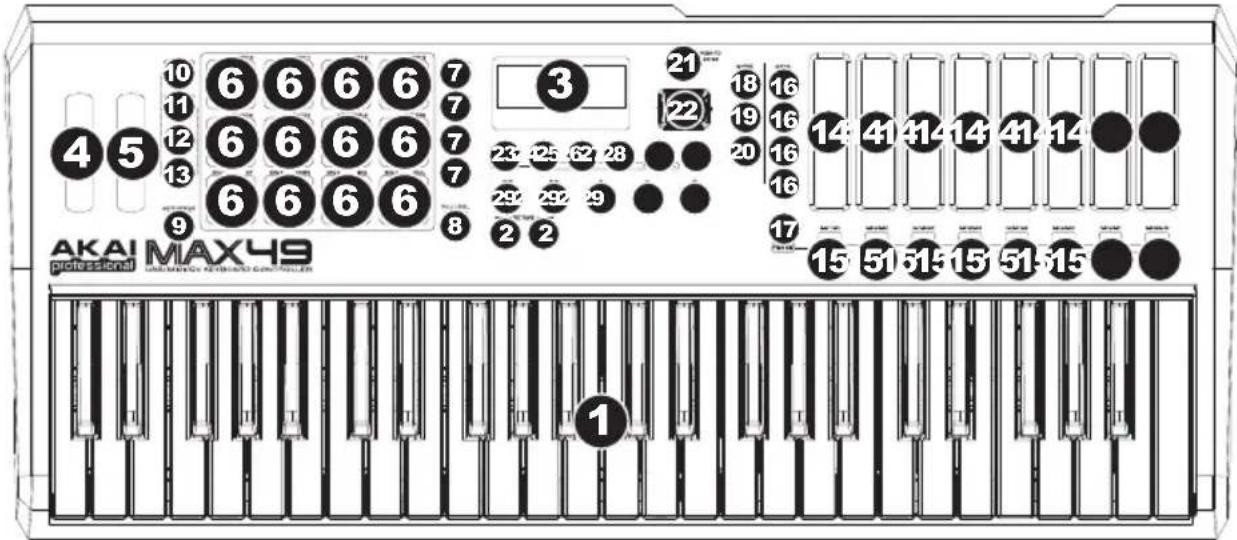
TOP PANEL OVERVIEW
text_image
AKAI MAX49 PROFESSIONAL MAX49 1 2 3 4 5 6 6 6 6 7 8 9 10 11 12 13 14 15 16 17 18 19 20 21 22 23 24 25 26 27 28 29 30 31 32 33 34 35 36 37 38 39 40 41 42 43 44 45 46 47 48 49 50 51 52 53 54 55 56 57 58 59 60-
KEYBOARD - This 49-note keyboard is velocity-sensitive and, in conjunction with the OCTAVE DOWN/UP buttons, can control a ten-octave range.
-
OCTAVE DOWN/UP – These buttons can be used to shift the KEYBOARD's range up or down three octaves in either direction, allowing for a ten-octave range. When you are higher or lower than the center octaves, the corresponding OCTAVE button will light.
-
LCD – The display is used for navigating menus, displaying data, and affecting change on MAX49's options and parameters.
-
PITCH BEND WHEEL – Transmits MIDI Pitch Bend information to raise or lower the pitch of the KEYBOARD temporarily.
-
MODULATION WHEEL – Transmits continuous controller data (assignable to any CC number).
-
PADS – The pads can be used to trigger drum hits or other samples in your software. The pads are velocity-sensitive, which makes them very responsive and intuitive to play.
-
PAD BANK BUTTONS – These 4 buttons switch among pad banks A, B, C, D. Between these 4 banks with 12 PADS per bank, you can access up to 48 MIDI events using the PADS.
-
[FULL LEVEL] – When [FULL LEVEL] is activated, the pads always play back at a maximum velocity (127), no matter how hard or soft you hit them.
-
[NOTE REPEAT] – Holding this button while striking a pad causes the pad to retrigger at a rate based on the current Tempo and Time Division settings. The Note Repeat feature can be synced to an internal or external MIDI Clock source. [NOTE REPEAT] can function as a toggle or momentary button.
-
[ARP MODE] - Hold down this button and view the illuminated PADS to determine the Arpeggiator's current setting (each PAD has its corresponding Arpeggiator setting printed above it on the right-hand side). You can then change the setting by pressing different PADS.
-
[SEQ SELECT] – Hold down this button then press a pad with text printed above it on the left-hand side to select a Sequence. The Sequence number is printed on the left-hand side above the bottom four pads.
-
[ON/OFF] – This button enables and disables the internal Arpeggiator or the Sequencer, depending on which is currently selected (indicated by its LED button). These features work in conjunction with the Tempo and Time Division settings, which specify the rate of arpeggiation and the tempo of the sequence. Please note that the Arpeggiator and Sequencer can be synced either to an internal or external MIDI Clock source (such as a software DAW or a MIDI device).
Note: We recommend you set the KEYBOARD, PADS, and Sequencer to transmit MIDI data over different channels. By default, they are all set to the Common Channel, which means your performance on one of those items could affect the performance of another. To set the channels, see the EDIT MODE section of this manual.
Note: For more information on using MAX49's Arpeggiator and Sequencer, please see the ARPEGGIATOR and SEQUENCER parts of this manual.
- [LATCH] – This button works in conjunction with the internal Arpeggiator or the Sequencer, depending on which is currently selected (indicated by its LED button).
Arpeggiator: When the Arpeggiator is on and [LATCH] has been enabled, you can hold down a combination of keys, and the Arpeggiator will memorize and continue to arpeggiate these notes, even after you lift your fingers. There are a couple of ways to use the [LATCH] function:
a. While holding down the keys, you can add more notes to the arpeggiated chord by pressing down additional keys.
b. If you press the keys, release them, and then press down a new combination of notes, the Arpeggiator will memorize and arpeggiate the new notes.
Sequencer: When the Sequencer is on and [LATCH] has been enabled, you can press a key on the keyboard to trigger the Sequencer, which will keep playing once you release that key. (The Sequencer can only be latched in this way when its Start/Stop setting is set to Note On/Note Off. See the SEQUENCER part of the EDIT MODE section for more information.)
- TOUCH FADERS – Each fader can be used to send continuous control data to a desktop audio workstation or external MIDI device. These faders also can also set the MIDI note or velocity of each step in a Sequence. An LED on the edge of each fader represents its current value/setting (the exact numerical value will also be displayed in the LCD).
- S-SWITCHES – These LED buttons serve three functions:
a. Pressing one of these buttons after pressing [TIME DIV] will select the Time Division (the available values are printed under each button).
b. These LEDs will also light up to indicate which TOUCH FADERS are being used in the current Sequence.
c. When playing a Sequence, these buttons will illuminate to indicate the steps.
- FADER/SWITCH BANK BUTTONS - These four buttons switch the TOUCH FADERS and S-SWITCHES between 4 available banks, with each bank representing 8 steps of a possible 32-step sequence.
- [TIME DIV] - Press this button to change the Time Division of the Arpeggiator or Sequencer, then press an S-SWITCH (on the right) to select the desired Time Division.
- [SEQ NOTE] – Press this button to put the TOUCH FADERS in Sequence Note Mode. In this mode, the faders' positions determine the pitch of the notes of each step of a Sequence.
- [SEQ CC] – Press this button to put the TOUCH FADERS in Sequence CC Mode. In this mode, the faders' positions determine the MIDI CC of each step of a Sequence.
- [MIDI] – Press this button to put the TOUCH FADERS in MIDI Mode. In this mode, you can use the faders to send MIDI CC messages.
- [VALUE] (Push to Enter) – This dial is used to increment and decrement Presets, parameter values and settings. This dial also functions as an [ENTER] button when it is pressed down.
- CURSOR BUTTONS – These buttons are used to navigate through the fields of menus and options.
- [SHIFT] – Hold this button down to access the secondary functions of the four mode buttons to its right.
- [EDIT] / [STORE] – This button calls up Edit Mode, which allows you to edit the behavior of the keyboard, pads, buttons, faders and default settings for each Program. Hold [SHIFT] and press this button to store the current Program.
- [PROGRAM] / [STANDARD] – This button calls up Program Mode. You can select and recall different Programs in this mode. Hold [SHIFT] and press this button to automatically select the last used Program.
- [GLOBAL] / [HUI] – This button calls up Global Mode, where MIDI reset commands and global system preferences are set. Hold [SHIFT] and press this button to automatically select the HUI Program.
- [PROGRAM CHANGE] / [MACKIE CONTROL] – Pressing this button will enter Program Change Mode. In this mode, you can send a Program Change or Program Bank Change message to a hardware or software module. Hold [SHIFT] and press this button to automatically select the Mackie Control Program.
- [TEMPO] – When MAX49 is set to Internal Sync, this LED button flashes to indicate the current tempo of the Arpeggator and Sequencer. You can tap this button several times to set a new Tempo. If the Program is reloaded, the Tempo will revert to the last saved Tempo value. (Note: A Program's default tempo can be set in Edit Mode. Also, this button does not work when MAX49 is set to External sync.)
- TRANSPORT CONTROL BUTTONS – These five buttons are dedicated buttons for sending transport control commands. The transport control buttons can be set to transmit either MMC (MIDI Machine Control), MMC/MIDI SysEx, MIDI START/STOP or pre-assigned MIDI CC values.
Note: You can press the Stop button (■) three times in quick succession to send an "All Notes Off" message.
REAR PANEL OVERVIEW
- POWER INPUT - Connect an optional 6V DC - 2A power adapter (center pin positive, sold separately) to this jack then into an electrical outlet.

text_image
2 3 4 5 6 7 8 9 10 — KEYBOARD — — GOUT GATE OUT- POWER ADAPTER RESTRAINT – You can secure a power adapter cable to this restraint to prevent it from accidentally unplugging.
- KENSINGTON LOCK SLOT – You may use this Kensington lock slot to secure MAX49 to a table or other surface.
- USB PORT – Use the included USB cable to connect this port to the USB port of your computer. MAX49 will be powered by your computer's USB connection. MAX49 is class-compliant, so it is "plug-and-play" – no separate driver installation is necessary.
- MIDI OUT – Use a five-pin MIDI cable to connect the MIDI OUT of MAX49 to the MIDI IN of an optional external device.
- MIDI IN – Use a five-pin MIDI cable to connect the MIDI OUT of an optional external MIDI device to the MIDI IN of MAX49.
- EXPRESSION PEDAL INPUT – Connect an optional 1/4" TRS expression pedal to this input.
- FOOTSWITCH INPUTS – Connect an optional 1/4" TS footswitch to these inputs. If you are using a sustain pedal, connect it to the FS1/SUSTAIN input.
- CV OUT - Use a 1/4" TS cable (not included) to connect this output to an optional external sequencer to send MAX49's control voltage (CV) data (0-5V, 1V/octave). The data sent over this connection can be set in Global Mode. Please also see the CV section of this manual.
- GATE OUT - Use a 1/4" TS cable (not included) to connect this output to an optional external sequencer to send MAX49's Gate (trigger) data. The data sent over this connection can be set in Global Mode.
MODES
MAX49 has four different modes of operation. Each mode can be accessed by pressing the corresponding button on MAX49.


In each page of each mode:
- Use the up/down CURSOR BUTTONS to move between settings on the current page.
- Use the left/right CURSOR BUTTONS to move between different pages.
- Turn the VALUE DIAL to change the currently selected value/setting.
Following is a short description of each mode. Each mode is described in detail in its corresponding section later in this manual.
[EDIT] ➔ Edit Mode: This mode allows you to edit the configuration of MAX49. Edit Mode is a powerful tool for customizing your set-up. In this mode, you can make changes to how the keyboard, pads, touch faders and other features behave. For example, you may want a touch fader to transmit only a limited range of MIDI data, or you may want the pads to transmit on a different MIDI channel from the keyboard. You can change these and other various parameters in Edit Mode. (See the EDIT MODE PARAMETERS section for a summarized list of parameters.)
[PROGRAM] ➔ Program Mode: This mode allows you to load your stored Programs. A Program is a collection of information about how the controls – keyboard, pads, touch faders, etc. – will behave (their behavior can be adjusted in Edit Mode then stored). Using Programs allows you to save different configurations, which can be quickly loaded when you need them, without having to reprogram MAX49 every time.
[GLOBAL] ➔ Global Mode: This mode allows you to set global parameters and make general changes to how MAX49 functions. For example, you can set the brightness of the LCD screen, the MIDI common channel, MIDI clock settings, the pads' and keyboard's velocity curve and sensitivity, and more.
[PROG CHANGE] ➤ Program Change Mode: This mode allows you to transmit various Program Change messages. In this mode, you can make your DAW or external device switch to a different program bank of sounds. This way, you can switch between programs right from MAX49 rather than switching them manually on your DAW or external device.
EDIT MODE
- To enter Edit Mode, press [EDIT].
- Select a control to edit by touching, pressing, or manipulating the desired control (fader, pad, etc.). In the LCD, the name of the selected control will appear in the upper left corner, and the editable parameters will be shown below it.
-
In each page of Edit Mode:
-
Use the up/down CURSOR BUTTONS to move through the parameters on the current page.
- If there are multiple pages (indicated by "Pg1," "Pg2," etc.), use the left/right CURSOR BUTTONS to move between different pages.
- Turn the VALUE DIAL to change the currently selected value/setting. Any value/setting is automatically selected; you do not have to press the VALUE DIAL to enter or select it.
Note: We recommend you set the KEYBOARD, PADS, and Sequencer to transmit MIDI data over different channels. By default, they are all set to the Common Channel, which means your performance on one of those items could affect the performance of another. To set the channels, see the KEYBOARD, PADS, and SEQUENCER parts of this EDIT MODE section.
- To edit more controls, repeat Steps 2-3.
IMPORTANT: To store your new settings in the Program, hold [SHIFT] and press [STORE]. Without storing your edited settings, your changes will be lost if you load a new Program.
For an overview of the available parameters, see the EDIT MODE PARAMETERS table at the end of this manual.
KEYBOARD
MIDI Channel: This setting determines over which MIDI channel data is sent. The available settings are Common, USB A1-A16, and USB B1-B16.
Octave: The keyboard's octave setting. The available settings are -3 to +3, with 0 as the center octave.
Transpose: The keyboard's transposition (in half-steps). The available settings are -36 to +36, with 0 as the center position (no transposition).
MIDI to DIN: Determines whether or not MIDI data is sent to the MIDI OUT (On) or not (Off). MIDI data will be sent to MAX49's USB connection regardless of this setting.
PADS
Type: The type of event that will be sent. The available settings are Note, Program Change, and Program Bank.
MIDI Channel: This setting determines over which MIDI channel data is sent. The available settings are Common, USB A1-A16, and USB B1-B16.
Note: If Note is the selected Type, this assigns the note number.
Aft: If Note is the selected Type, this determines the Aftertouch settings. The available options are Off, Ch (Channel Aftertouch), and Poly (Poly Aftertouch).
Program Number / Pgm: If Program Change or Program Bank is the selected Type, this determines the Program number. The available range is 000 - 127.
Msb / Lsb: If Program Change or Program Bank is the selected Type, these determine the MSB (Most Significant Bit) and LSB (Least Significant Bit). The available range is 000 - 127.
MIDI to DIN: Determines whether or not MIDI data is sent to the MIDI OUT (On) or not (Off). MIDI data will be sent to MAX49's USB connection regardless of this setting.
Note Mode: If Note is the selected Type, this determines whether it is in Toggle or Momentary Mode.
TOUCH FADERS
Type: The type of event that will be sent. The available settings are Aft (Aftertouch), MIDI CC, Inc/Dec1 (Increment/Decrement, Mode 1), Inc/Dec2 (Increment/Decrement, Mode 2), Mackie, and HUI.
MIDI Channel: This setting determines over which MIDI channel data is sent. The available settings are Common, USB A1-A16, and USB B1-B16.
CC Number: If MIDI CC is the selected Type, this determines the MIDI CC. The available range is 000 – 127.
MIDI to DIN: Determines whether or not MIDI data is sent to the MIDI OUT (On) or not (Off). MIDI data will be sent to MAX49's USB connection regardless of this setting.
Mode: This determines how the fader will act when touched:
- Absolute: Touching the fader will cause it to jump immediately to that position. This mode is only available when the Type is set to Aftertouch or MIDI CC.
- Relative: Sliding your finger upward or downward along the fader will cause its setting to move upward or downward (regardless of your finger's absolute position on the fader).
- Relative2: This mode behaves like Relative Mode but with a finer resolution, allowing for more precise adjustment. This mode is only selectable in this menu when the Type is set to Aftertouch or MIDI CC. When a fader is in Relative Mode, you can manually put the faders in Relative2 Mode by holding [SHIFT] and sliding your finger along it.
Min / Max: If Aftertouch is the selected Type, these determine the lowest (Min) and highest (Max) values. (If Min is higher than the Max, the fader's polarity will be reversed.)
Msb / Lsb: If Inc/Dec1 is the selected Type, these determine the MSB (Most Significant Bit) and LSB (Least Significant Bit). The available range is 000 - 127.
Value:
- If Inc/Dec1 is the selected Type, this determines the value sent by an Increment (CC#96) or Decrement (CC#97) message. The available range is 000 - 127.
- If Mackie or HUI is the selected Type, this determines what the fader will control using that protocol. The available settings are Fader 1-8, V-pot 1-8, and Master Level (Mackie only).
S-SWITCHES
Type: The type of event that will be sent. The available settings are Note, CC#000-127, ProgramChange, ProgramBank, MackieControl, and HUI.
MIDI Channel: This setting determines over which MIDI channel data is sent. The available settings are Common, USB A1-A16, and USB B1-B16.
Note#: If Note is the selected Type, this assigns the note number.
Velo: If Note is the selected Type, this assigns the velocity. The available range is 000-127.
Mode: If Note, CC#000-127, Mackie, or HUI is the selected Type, this determines whether it is in Toggle or Momentary Mode.
Invert: If CC#000-127 is the selected Type, the S-switches send 000 as the "off" value and 127 as the "on" value. This determines whether the values sent are normal (Off), as described above, or switched/inverted (On).
Program Number / Pgm: If ProgramChange or ProgramBank is the selected Type, this determines the Program number. The available range is 000 - 127.
Msb / Lsb: If ProgramChange or ProgramBank is the selected Type, these determine the MSB (Most Significant Bit) and LSB (Least Significant Bit). The available range is 000 - 127.
MIDI to DIN: Determines whether or not MIDI data is sent to the MIDI OUT (On) or not (Off). MIDI data will be sent to MAX49's USB connection regardless of this setting.
Value:
- If Inc/Dec1 is the selected Type, this determines the value sent by an Increment (CC#96) or Decrement (CC#97) message. The available range is 000 – 127.
- If Mackie or HUI is the selected Type, this determines what the S-switches will control using that protocol. The available settings are Fader 1-8, V-pot 1-8, and Master Level (Mackie only).
PITCH WHEEL
MIDI Channel: This setting determines over which MIDI channel data is sent. The available settings are Common, USB A1-A16, and USB B1-B16.
MIDI to DIN: Determines whether or not MIDI data is sent to the MIDI OUT (On) or not (Off). MIDI data will be sent to MAX49's USB connection regardless of this setting.
MODULATION WHEEL
MIDI Channel: This setting determines over which MIDI channel data is sent. The available settings are Common, USB A1-A16, and USB B1-B16.
MIDI CC: If MIDI CC is the selected Type, this determines the MIDI CC. The available range is 000 - 127.
Max / Min: These determine the lowest (Min) and highest (Max) values. (If Min is higher than the Max, the wheel's polarity will be reversed.)
MIDI to DIN: Determines whether or not MIDI data is sent to the MIDI OUT (On) or not (Off). MIDI data will be sent to MAX49's USB connection regardless of this setting.
FOOTSWITCH
Type: The type of event that will be sent. The available settings are CC#000-127, Tap Tempo, Play, Rec (Record), Stop, Play/Stop, Arp/Seq (Arpeggiator/Sequencer), and Sustain
MIDI Channel: This setting determines over which MIDI channel data is sent. The available settings are Common, USB A1-A16, and USB B1-B16.
MIDI CC: If CC#000-127 is the selected Type, this determines the MIDI CC. The available range is 001 - 127.
Mode: This determines whether it is in Toggle or Momentary Mode.
MIDI to DIN: Determines whether or not MIDI data is sent to the MIDI OUT (On) or not (Off). MIDI data will be sent to MAX49's USB connection regardless of this setting.
EXPRESSION PEDAL
MIDI Channel: This setting determines over which MIDI channel data is sent. The available settings are Common, USB A1-A16, and USB B1-B16.
MIDI CC: This determines the MIDI CC. The available range is 000 - 127.
Max / Min: These determine the lowest (Min) and highest (Max) values. (If Min is higher than the Max, the pedal's polarity will be reversed.)
MIDI to DIN: Determines whether or not MIDI data is sent to the MIDI OUT (On) or not (Off). MIDI data will be sent to MAX49's USB connection regardless of this setting.
ARPEGGIATOR
Type: The type of arpeggation that will be used. The available settings are:
- Double: Each note will sound twice. This setting can be selected in conjunction with any of the settings described below, except Chord.
- Up: Notes will sound from the lowest to the highest.
- Down: Notes will sound from the highest to lowest.
- Incl (Inclusive): Notes will sound from the lowest to the highest, then back down. The lowest and highest notes will sound twice at the direction change.
- Excl (Exclusive): Notes will sound from the lowest to the highest, then back down. The lowest and highest notes will sound only once at the direction change.
- Rand (Random): Notes will sound in random order.
- Chord: All notes of the chord will sound together repeatedly.
Note: You can also set the Arpeggiator by using the pads. Hold down [ARP MODE] and press a pad with text printed above it on the right-hand side to determine the Arpeggiator's current setting. The selected pad(s) will illuminate red to show the Arpeggiator's current settings.
Range: The octave range of the Arpeggiator. The available range is 0 to +3 octaves.
Gate: The length of the arpeggiated notes. The available range is 1-99% of the current Time Division setting. Swing: The amount of swing used in the arpeggiated notes. The available range is 50% – 75%.
Pattern: Determines whether the Arpeggiator will use the pattern shown in the Pattern Indicator (On) or not use it (Off). See the Pattern Indicator description later in this section.
Length: The number of steps in the Arpeggiator pattern. The available range is 0 – 16 steps.
Pattern Indicator: The pattern at the bottom of the LCD on this page represents the rhythm in which the notes will sound when the Arpeggiator is engaged (and when Pattern is set to On). A star (*) indicates a sounding note, while an underscore (_) indicates a "rest" (no note will sound). Use the VALUE DIAL to move the cursor through the notes, and push the VALUE DIAL to change its state (between * and _).
NOTE REPEAT
Time Division: The speed of the repetition as a division of the master tempo or external clock. The available options are 1/4, 1/4T, 1/8, 1/8T, 1/16, 1/16T, 1/32, and 1/32T. ("T" denotes a triplet-based Time Division.)
Mode: This determines whether it is in Toggle or Momentary Mode.
Gate: The length of the repeated notes. The available range is 1-99% of the current Time Division setting.
Swing: The amount of swing used in the repeated notes. The available range is 50% – 75%.
TEMPO
BPM: The tempo as indicated in beats per minute. The available range is 30 - 300 BPM.
Time Division: The division of the master tempo or external clock. The available options are 1/4, 1/4T, 1/8, 1/8T, 1/16, 1/16T, 1/32, and 1/32T. ("T" denotes a triplet-based Time Division.)
Note: You can also enter a new BPM setting by tapping [TEMPO] in time with the desired tempo several times.
Gate: The length of the repeated notes. The available range is 1-99% of the current Time Division setting.
Swing: The amount of swing used in the repeated notes. The available range is 50 - 75%.
SEQUENCER
[SEQ SELECT]: The first two pages of this section (Pg1 and Pg2) pertain to specific Sequences (1-4), as indicated at the top of the LCD. The rest of the pages pertain to the Sequencer in general. So the first two pages' settings may vary between the four Sequences, but the rest will be the same for all Sequences.
Note: You can select the Sequence to edit by using the pads. Hold down [SEQ SELECT] then press one of the bottom four pads to select that Sequence (the number is printed on the left-hand side above the pad - 1-4).
Steps: The number of steps used by the Sequencer. The available range is 01-32 steps.
MIDI Channel: This setting determines over which MIDI channel data is sent. The available settings are Common, USB A1-A16, and USB B1-B16.
MIDI to DIN: Determines whether or not MIDI data is sent to the MIDI OUT (On) or not (Off). MIDI data will be sent to MAX49's USB connection regardless of this setting.
Keyshift: When Keyshift is set to On, you can transpose the Sequence in real time (as it is playing) by pressing a key on the keyboard once, which will "latch" it to that new transposition. When Keyshift is set to Off, you can only transpose the Sequence by holding down a key; it will return to the Default Key when the key is released.
Default Key: The default key of the Sequence.
Scale: The scale used by the Sequencer. When a scale other than Chromatic is selected, the faders will be limited to selecting only the notes available in the scale, which can be useful for avoiding unintentionally out-of-key notes! The available settings are Chromatic, Major, Dorian, Phrygian, Lydian, Mixolydian, Minor, Locrian, Minor Melo (Melodic Minor), Minor Harm (Harmonic Minor), PentaMajor (Major Pentatonic), PentaMinor (Minor Pentatonic), Blues, AlteredDom (Altered Dominant), DimWhlHalf (Diminished Whole-Half-Step), and Whole-Tone.
Start / Stop: This determines what message will start/stop the Sequencer. The available settings are:
- Note On / Note Off: The Sequencer will play when [SEQ ON/OFF] is activated and a key on the keyboard is pressed. If Keyshift is On, the Sequence will be automatically transposed to that key.
- Seq On/Off: The Sequencer will play when [SEQ ON/OFF] is pressed.
- Play / Stop: The Sequence will play when Play (▶) is pressed and stop when Stop (■) is pressed.
[SEQ NOTE]: This is a representation of the steps in a Sequence. Use the CURSOR buttons to navigate through the "grid" format.
Step: The step number.
Note: The note being played for that step. You can also set the note by touching the TOUCH FADERS.
Velo: The velocity of the note being played for that step.
[SEQ CC]: This is a representation of the steps in a Sequence. Use the CURSOR buttons to navigate through the "grid" format.
Step: The step number.
Value: The value being sent for that step.
CC Number: The MIDI CC# being sent.
TRANSPORT CONTROLS
Type: The type of event that will be sent. The available settings are MMC, MMC/MIDI, MIDI Real Time, MIDI CC, Mackie, and HUI.
MIDI to DIN: Determines whether or not MIDI data is sent to the MIDI OUT (On) or not (Off). MIDI data will be sent to MAX49's USB connection regardless of this setting.
PROGRAM MODE
Program Mode allows you to select and load a Program. MAX49 has several default Programs we created to work specifically with some popular DAWs or plug-ins, but you may also create/edit, store, and load your own Programs.
To select/load a Program:
-
Press [PROGRAM]. (Each time MAX49 is first powered on, it will automatically be in Program Mode.) The LCD will show the current Program name (flashing).
-
Turn the VALUE DIAL to browse through the list of available Programs.
-
Press the VALUE DIAL to load the desired Program.
Note: As a shortcut, you can hold [SHIFT] then press one of the following buttons to access certain Programs:
• [PROGRAM] = the last used Program
• [MACKIE CONTROL] = Mackie Control protocol
• [HUI] = HUI control protocol
Notes:
- You can also load a Sequence while in Program Mode. To do this, use the up/down CURSOR BUTTONS to select the Sequence number field, turn the VALUE DIAL to browse through the Sequences, then press the VALUE DIAL to load it to the Sequencer.
- You can also transpose an entire Program while in Program Mode. To do this, hold down both OCTAVE DOWN / UP buttons and press the desired key on the keyboard. The Program will be transposed accordingly. (The note you selected will become the note that plays on the keyboard's middle C key.)
To edit a program, please refer to the earlier EDIT MODE section.
To store your current settings as a Program,
- Hold [SHIFT] and press [STORE]. The LCD will show "Store Program" at the top.
- Turn the VALUE DIAL to select the Program to which you want to save your Program. (By default, the current Program will appear here.)
- To rename the program, use the CURSOR BUTTON to select the Name field. The first character of the field will flash:
- Turn the VALUE DIAL to browse through the available letters/numbers. When it displays the desired letter/number, use the left/right CURSOR BUTTONS to skip to the next character.
- When you are ready to store the Program, press the VALUE DIAL. You can cancel the process by simply pressing a button other than [PROGRAM] or the VALUE DIAL.
GLOBAL MODE
- To enter Global Mode, press [GLOBAL].
- In each page of Global Mode:
- Use the up/down CURSOR BUTTONS to move through the parameters on the current page.
- Use the left/right CURSOR BUTTONS to move between different pages.
- Turn the VALUE DIAL to change the currently selected value/setting. Any value/setting is automatically selected; you do not have to press the VALUE DIAL to enter or select it.
IMPORTANT: To store your global settings, see the UTILITY section below.
See the following sections for specific information about each control's editable parameters.
MIDI COMMON CHANNEL
Common Chnl (Channel): This setting determines which MIDI channel is the common channel (various controls can be assigned to the common channel in Edit Mode). The available settings are USB A1-A16, and USB B1-B16.
Input Chnl (Channel): This setting determines over which MIDI channel MAX49 will receive MIDI data from an external device connected to the MIDI OUT. The available settings are Common, USB A1-A16, and USB B1-B16.
NOTE DISPLAY
Type: Determines whether the LCD will display notes as note values (e.g., C2, F#3, etc.) or note numbers (e.g., 36, 54, etc.).
KEYBOARD
Curve: The keyboard's velocity curve. The available settings are Linear, EXP1, and EXP2.
Sensitivity: The keyboard's overall velocity sensitivity. The available range is 1-10. At 1, it would take a lot of force to generate a velocity value of 127. At 10, the opposite is true.
PADS
Pad Threshold: The velocity threshold to trigger the pads. The available range is 0-15. This can help prevent false triggering or make it easier to trigger the pads.
Velocity Curve: The pads' velocity curve. The available settings are Linear, EXP1, EXP2, Log1, and Log2.
Velocity Sense (Sensitivity): The pads' overall velocity sensitivity. The available range is 1-10. At 1, it would take a lot of force to generate a velocity value of 127. At 10, the opposite is true.
TEMPO
Tempo: The global tempo as indicated in beats per minute. When MAX49 is using its internal MIDI clock, this global tempo settings determines the speed of the Arpeggiator, Sequencer, and Note Repeat rate. The available range is 30 – 300 BPM.
Tap Average: The number of times you would need to press [TAP TEMPO] to enter a new tempo. The available range is 2-4.
Tempo LED: When MAX49 is using its internal MIDI clock, the [TAP TEMPO] LED will flash in time with the current tempo setting. You can set this feature to On or Off.
CLOCK
Source: Determines whether MAX49 uses its Internal MIDI clock or refers to an External clock (e.g., from a DAW).
CV/GATE
CV/Gate Out: This determines how data is sent out of the CV OUT and GATE OUT:
- Key/Seq: The data from the keyboard, Arpeggiator, and Sequencer will be sent out. The keyboard will send out 1V per octave (lowest C = 0V).
- Pads: The data from the pads will be sent out, with the notes sent corresponding to the pads' note values (if a note is assigned).
- Common (Channel): When connected via USB, the data sent to MAX49 over the common channel and port will be sent out. When not connected via USB, the data sent to the MAX49 over the MIDI IN on the common channel will be sent out.
- USB 1A – 16A, 1B – 16B: When connected via USB, the data sent to MAX49 over the selected channel and port will be sent out. When not connected via USB, the data sent to the MAX49 over the MIDI IN on the selected channel will be sent out, but Port B will be ignored.
SYSEX
Send Program: The Program to be sent via SysEx. The available options are the individual Program numbers or ALL (all Programs). Press the VALUE DIAL to send the Program. "PROG: ____ SENT" will appear to confirm the Program was sent successfully.
UTILITIES
Contrast: The LCD contrast. The available options are 0 to 99.
SAVE GLOBALS
On this page, press the VALUE DIAL to store your global settings. After "Stored" flashes three times on the LCD, the global settings are stored in MAX49's internal memory.
os
This page displays MAX49's current operating system information.
PROGRAM CHANGE MODE
Use the VALUE DIAL to select which message is sent: Program Change or Program Bank.
PROGRAM CHANGE
MIDI Channel: This setting determines over which MIDI channel data is sent. The available settings are Common, USB A1-A16, and USB B1-B16.
Program Number: This determines the Program number that will be sent. The available range is 000 – 127. Please refer to your external module's documentation for information on its available programs.
MIDI to DIN: Determines whether or not MIDI data is sent to the MIDI OUT (On) or not (Off). MIDI data will be sent to MAX49's USB connection regardless of this setting. Since an external module will usually be connected to MAX49's MIDI OUT, we recommend leaving this set to On.
PROGRAM BANK
MIDI Channel: This setting determines over which MIDI channel data is sent. The available settings are Common, USB A1-A16, and USB B1-B16.
Program Number: This determines the Program number that will be sent. The available range is 000 – 127. Please refer to your external module's documentation for information on its available programs.
Msb / Lsb: These determine the MSB (Most Significant Bit) and LSB (Least Significant Bit). The available range is 000 – 127. Please refer to your external module's documentation for information on its available programs.
MIDI to DIN: Determines whether or not MIDI data is sent to the MIDI OUT (On) or not (Off). MIDI data will be sent to MAX49's USB connection regardless of this setting. Since an external module will usually be connected to MAX49's MIDI OUT, we recommend leaving this set to On.
MACKIE CONTROL & HUI PROTOCOLS
MAX49 can use the Mackie Control or HUI (Human User Interface) protocols to control certain functions in DAWs that support them. MAX49 has Mackie Control and HUI Programs in its internal memory precisely for this purpose.
To select/load the Mackie Control or HUI Program:
-
Press [PROGRAM]. (Each time MAX49 is first powered on, it will automatically be in Program Mode.) The LCD will show the current Program name (flashing).
-
Turn the VALUE DIAL to browse through the list of available Programs.
-
Press the VALUE DIAL to load the desired Program: Mackie Control or HUI.
Note: As a shortcut, you can hold [SHIFT] then press one of the following buttons to access certain Programs:
• [PROGRAM] = the last used Program
- [MACKIE CONTROL] = Mackie Control protocol
• [HUI] = HUI control protocol
IMPORTANT: Your DAW must also be set to receive commands from an external device (i.e., MAX49) using the Mackie Control or HUI protocol.
ARPEGGIATOR
To activate the Arpeggiator:
- Make sure [ARP MODE] is lit. If it is unlit, press it.
- Press [ON/OFF] (next to the pads).
- Play some chords on the keyboard!
Latching the Arpeggiator:
When the Arpeggiator is on and [LATCH] has been enabled, you can hold down a combination of keys, and the Arpeggiator will memorize and continue to arpeggiate these notes, even after you lift your fingers. There are a couple of ways to use the [LATCH] function:
a. While holding down the keys, you can add more notes to the arpeggiated chord by pressing down additional keys.
b. If you press the keys, release them, and then press down a new combination of notes, the Arpeggiator will memorize and arpeggiate the new notes.
Arpeggiator settings:
You can set the Arpeggiator's settings by using MAX49's pads. Each pad has text printed above it on the right-hand side, which denotes an Arpeggiator mode.
Hold down [ARP MODE] and the currently selected pads will illuminate red to show the Arpeggiator's current settings:
-
The top row of pads, determine the octave range of the Arpeggiation. The available range is 0 to +3 octaves (OCT 0-3).
• The available Arpeggiation types are: -
Up: Notes will sound from the lowest to the highest.
- Down: Notes will sound from the highest to lowest.
○ Incl (Inclusive): Notes will sound from the lowest to the highest, then back down. The lowest and highest notes will sound twice at the direction change.
○ Excl (Exclusive): Notes will sound from the lowest to the highest, then back down. The lowest and highest notes will sound only once at the direction change.
- Random: Notes will sound in random order.
○ Chord: All notes of the chord will sound together repeatedly
o Note Double: Each note will sound twice. This setting can be selected in conjunction with any of the settings described below, except Chord.
o Pattern: Determines whether the Arpeggiator will use the pattern shown in the Pattern Indicator or not. See the ARPEGGIATOR part of the EDIT MODE section for more information.
You can adjust more Arpeggiator settings (Gate, Swing, Pattern, etc.) in Edit Mode. See the ARPEGGIATOR part of the EDIT MODE section for more information.
SEQUENCER
MAX49 is equipped with a powerful internal sequencer. The Sequencer emulates vintage-style step sequencers with which you can program the pitch (note) and velocity of each step (up to 32!). MAX49 allows you to store up to four Sequences per Program and change from one Sequence to another with the press of a drum pad. The following sections describe how to use the Sequencer.
CONFIGURING SEQUENCER SETTINGS
To configure the settings for (1) individual Sequences and (2) the Sequencer in general, you will need to enter Edit Mode for the Sequencer. To do this, please see the EDIT MODE section of this manual and then refer to its SEQUENCER sub-section.
IMPORTANT: To store your new settings in the Program, hold [SHIFT] and press [STORE]. Without storing your edited settings, your changes will be lost if you load a new Program.
This will allow you to set the following settings for individual sequences (four per Program): number of steps in the Sequence, the Sequence's MIDI channel, its MIDI to DIN setting, its ability to "Keyshift," the default musical key, and the musical scale. You will also be able to set the Start/Stop setting for the Sequencer (for all four Sequences in that specific Program).
You should also address the Tempo and Time Division. To do this, please see the EDIT MODE section of this manual and then refer to its TEMPO sub-section. You could also set the Tempo and Time Division with the following shortcuts:
- Tempo: Press [TAP TEMPO] several times at the desired tempo. This will only work if MAX49's MIDI clock source is internal; if it is external, your DAW controls the tempo.
- Time Division: Hold [TIME DIV] and press one of the S-SWITCHES to select the Time Division value printed under the switch.
How the Sequencer works:
• Each TOUCH FADER and S-SWITCH represents a step of the loaded Sequence.
- As the Sequence plays, the S-SWITCH corresponding to the currently playing step will be lit amber while other S-SWITCHES are lit green. You will see the amber LED "move" through the steps as it plays.
- If your Sequence has more than 8 steps, those higher steps will be shown in the additional banks. For instance, if a Sequence has 16 steps, Steps 1-8 will be shown in Bank 1-8, and Steps 9-16 will be shown in Bank 9-16. Use the FADER/SWITCH BANK BUTTONS to switch to the other banks.
To create a Sequence:
- Configure your desired Sequence settings (described in the previous section).
- Set the notes and velocities for each step of your Sequence:
- With [SEQ SELECT] lit, press [EDIT] then press [SEQ NOTE]. In the LCD, you will see each step of the Sequence represented with its step number, note, and velocity value ("Velo"). You can use the CURSOR BUTTONS to navigate the "grid" format. Turn the VALUE DIAL to change the value.
- Shortcut to setting notes: When [SEQ NOTE] is lit, you can use the TOUCH FADERS to determine the note for each step.
- Tie: To "tie" a step to the previous one (so the previous note will sound across both steps without a break), increase that step's note to the highest possible value then increase the value further with the VALUE DIAL. "TIE" will appear for that step in the LCD.
- Rest: To turn a step into a "rest" (no note will sound on that step), press that step's corresponding S-SWITCH so it is unlit. "--" will appear for that step in the LCD.
To play a Sequence:
-
Load a Sequence to the Sequencer in one of two ways:
-
The bottom 4 PADS have a Sequence number – SEQ 1-4 – printed above it on the left-hand side. Hold [SEQ SELECT] and press the corresponding PAD so it illuminates.
-
Press [PROGRAM], press the "down" CURSOR BUTTON so the Sequence field is flashing, turn the VALUE DIAL to select the desired Sequence, then press the VALUE DIAL.
-
The Sequence is now loaded to the Sequencer. Ensure [SEQ SELECT] is lit (if not, press it).
-
Press [ON/OFF] to start playing the Sequence.
Note: In Edit Mode, you can set other controls to trigger Sequence playback (e.g., a footswitch or pressing a key on the Keyboard). See the EDIT MODE section of this manual and then refer to its SEQUENCER subsection.
VYZEX EDITOR
With MAX49 connected to your computer, you can use the included Vyzex program to edit MAX49's various parameter settings. You can do edit the same settings in MAX49's four modes (see the MODES section of this manual), but Vyzex is an easy, intuitive program for adjusting your settings in a software application instead of MAX49's interface.
To learn more about Vyzex's features, click Manuals in the program's top menu bar, and select one of the manuals, which will open a PDF.
AKAICONNECT
AkaiConnect allows you to use MAX49 to control your VST plug-in's parameters. MAX49's controls will be mapped automatically by default, but you can use AkaiConnect to edit or customize these mappings as you wish. You can also save your custom mappings for later use.
To use AkaiConnect:
- Connect MAX49 to your computer.
- Open AkaiConnect.
- Click the Plug-In Wrapping tab.
- Click Select in the upper left corner.
- Select the folder in computer where you store your VST plug-ins, and click OK. (If your plug-ins are stored in different folders, select the higher-level folder that contains those folders.)
-
A list of your available plug-ins will appear. For any plug-ins you want to use with MAX49 in your DAW, click the button under the Wrapped column so it reads Yes. Leave AkaiConnect open.
-
Open your DAW.
-
View your list of available plug-ins in your DAW. For any plug-in you previously "wrapped," there will be a duplicate that has "[AC]" in its name. To use MAX49 to control that plug-in, select that duplicate version. (AkaiConnect must remain open.)
-
Optional: AkaiConnect pre-maps many of those plug-ins' parameters to MAX49's controls. To customize the control mapping further, click the Control Mapping tab in the AkaiConnect window. This tab represents MAX49's controls: TOUCH FADERS, S-SWITCHES, FADER/SWITCH BANK BUTTONS, and FOOTSWITCHES. You will see the plug-in's parameters automatically assigned to these controls, but you can use the drop-down menu next to each virtual control to select a different parameter. There are also buttons that allow you to delete the current map, reset the map to its default, or to retain (save) the map for later use.
CV
MAX49's CV OUT sends 0-5V with 1V per octave, allowing you a five-octave range when using it with an external module that uses CV.
When using MAX49 with an external CV module, make sure of the following:
- Your CV module has an identical voltage range (0-5V). If it is different, the "scaling" of the octaves may sound very unusual!
• You have connected the device to MAX49's CV OUT, using a standard 1/4" TS cable. - You have set MAX49 to send CV/Gate information over the proper channel. See the CV/GATE part of the GLOBAL MODE section for information about this.
If you are using MAX49 with an external CV module and your computer, also make sure of the following:
- Use the included power adapter to connect MAX49 to a power source before connecting it to your computer's USB port.
Essentially, this option lets you use MAX49 as a MIDI-to-CV converter, allowing your DAW to send data to your external CV module (through MAX49).
- Set MAX49 to send CV/Gate information over the same channel over which your DAW sends data to MAX49 (e.g., if your DAW is sending data to MAX49 over USB Port A, Channel 3, set MAX49's CV/Gate setting as "USB A3"). See the CV/GATE part of the GLOBAL MODE section for information about this.
CONTENIDO DE LA CAJA
Para usar AkaiConnect:
EDIT MODE (MODE D'ÉDITION)
FOOTSWITCH (COMMANDE AU PIED)
To select/load the Mackie Control or HUI Program:
| PAGE PARAMETER SETTINGS | ||
| MIDI CHANNELS | Common ChannelInput Channel | Common, USB A1-A16, USB B1-B16Common, USB A1-A16, USB B1-B16 |
| NOTE DISPLAY | Type | Value, Number |
| KEYBOARD | CurveSensitivity | Linear, EXP1, EXP21-10 |
| PADS | Pad ThresholdVelocity CurveVelocity Sense (Sensitivity) | 0-15Linear, EXP1, EXP2, Log1, Log21-10 |
| TEMPO | Tempo (BPM)Tap AverageTempo LED | 30 – 3002-4On, Off |
| CLOCK | Source | Internal, External |
| CV/GATE | CV/Gate Out Key/Seq, Pads, Common Channel, USB1A – 16A,1B – 16B | |
| SYSEX | Send Program Program 1 – ____, ALL | |
| UTILITIES | Contrast 0 – 99 | |
| SAVE GLOBALS | Press VALUE DIAL to save Global Settings. | |
| OS | Current operating system. | |
PROGRAM CHANGE MODE
| CONTROL PARAMETER | SETTINGS | |
| [PROG CHANGE] | Program ChangeProgram NumberMIDI ChannelMIDI to DINProgram BankProgram NumberMIDI ChannelMsbLsbMIDI to DIN | 000-127Common, USB A1-A16, USB B1-B16On / Off000-127Common, USB A1-A16, USB B1-B16000-127000-127On / Off |
MIDI IMPLEMENTATION CHART
Manufacturer: Akai Professional
Model: MAX49
Version: 1.0
Date: 2011.12.09
USB PORTS A & B
| Transmit/Export | Recognize/Import | Remarks | |
| 1. BASIC INFORMATION | |||
| MIDI channels 1-16 1-16 | |||
| Note numbers 1-127 1-127 | |||
| Program change 1-127 1-33 | |||
| Bank Select response? (Yes/No)If yes, list banks utilized in remarks column | No | ||
| Modes supported: Mode 1: Omni-On, Poly (Yes/No)Mode 2: Omni-On, Mono (Yes/No)Mode 3: Omni-Off, Poly (Yes/No)Mode 4: Omni-Off, Mono (Yes/No)Multi Mode (Yes/No) | No | ||
| Note-On Velocity (Yes/No) | Yes | No | |
| Note-Off Velocity (Yes/No) | No | No | |
| Channel Aftertouch (Yes/No) | Yes | No | |
| Poly (Key) Aftertouch (Yes/No) | Yes | No | |
| Pitch Bend (Yes/No) | Yes | No | |
| MIDI CC (Yes/No) | Yes | Yes | |
| Active Sensing (Yes/No) | No | No | |
| System Reset (Yes/No) | No | No | |
| Tune Request (Yes/No) | No | No | |
| Universal System Exclusive:Sample Dump Standard (Yes/No)Device Inquiry (Yes/No)File Dump (Yes/No)MIDI Tuning (Yes/No)Master Volume (Yes/No)Master Balance (Yes/No)Notation Information (Yes/No)Turn GM1 System On (Yes/No)Turn GM2 System On (Yes/No)Turn GM System Off (Yes/No)DLS-1 (Yes/No)File Reference (Yes/No)Controller Destination (Yes/No)Key-based Instrument Ctrl (Yes/No)Master Fine/Coarse Tune (Yes/No)Other Universal System Exclusive | Device Inquiry | Device Inquiry | |
| Manufacturer or Non-Commercial System Exclusive | No | No | |
| NRPNs (Yes/No) | Yes | No | |
| RPN 00 (Pitch Bend Sensitivity) (Yes/No)RPN 01 (Channel Fine Tune) (Yes/No)RPN 02 (Channel Coarse Tune) (Yes/No)RPN 03 (Tuning Program Select) (Yes/No)RPN 04 (Tuning Bank Select) (Yes/No)RPN 05 (Modulation Depth Range) (Yes/No) | No | No | |
| 2. MIDI TIMING AND SYNCHRONIZATION | |||
| MIDI Clock (Yes/No) | Yes | Yes | |
| Song Position Pointer (Yes/No) | Yes | Yes | |
| Song Select (Yes/No) | No | No | |
| Start (Yes/No)Continue (Yes/No)Stop (Yes/No) | Yes | Yes | |
| MIDI Time Code (Yes/No) | No | No | |
| MIDI Machine Control (Yes/No) | Yes | No | |
| MIDI Show Control (Yes/No)If yes, MSC Level supported | No | No | |
| 3. EXTENSIONS COMPATIBILITY | |||
| General MIDI compatible? (Level(s)/No)Is GM default power-up mode? (Level/No) | No | No | |
| DLS compatible? (Levels(s)/No)(DLS File Type(s)/No) | No | No | |
| Standard MIDI Files (Type(s)/No) | No | No | |
| XMF Files (Type(s)/No) | No | No | |
| SP-MIDI compatible? (Yes/No) | No | No |
USB PORT C (MIDI)
| Transmit/Export | Recognize/Import | Remarks | |
| 1. BASIC INFORMATION | |||
| MIDI channels 1-16 1-16 | |||
| Note numbers 1-127 1-127 | |||
| Program change 1-127 1-127 | |||
| Bank Select response? (Yes/No)If yes, list banks utilized in remarks column | No | ||
| Modes supported: Mode 1: Omni-On, Poly (Yes/No)Mode 2: Omni-On, Mono (Yes/No)Mode 3: Omni-Off, Poly (Yes/No)Mode 4: Omni-Off, Mono (Yes/No)Multi Mode (Yes/No) | No | ||
| Note-On Velocity (Yes/No) Yes Yes | |||
| Note-Off Velocity (Yes/No) | No | No | |
| Channel Aftertouch (Yes/No) | Yes Yes | ||
| Poly (Key) Aftertouch (Yes/No) | Yes Yes | ||
| Pitch Bend (Yes/No) | Yes Yes | ||
| MIDI CC (Yes/No) | Yes Yes | ||
| Active Sensing (Yes/No) | No | No | |
| System Reset (Yes/No) | No | No | |
| Tune Request (Yes/No) | No | No | |
| Universal System Exclusive:Sample Dump Standard (Yes/No)Device Inquiry (Yes/No)File Dump (Yes/No)MIDI Tuning (Yes/No)Master Volume (Yes/No)Master Balance (Yes/No)Notation Information (Yes/No)Turn GM1 System On (Yes/No)Turn GM2 System On (Yes/No)Turn GM System Off (Yes/No)DLS-1 (Yes/No)File Reference (Yes/No)Controller Destination (Yes/No)Key-based Instrument Ctrl (Yes/No)Master Fine/Coarse Tune (Yes/No)Other Universal System Exclusive | Device Inquiry | Device Inquiry | |
| Manufacturer or Non-Commercial System Exclusive | No | No | |
| NRPNs (Yes/No) | No | No | |
| RPN 00 (Pitch Bend Sensitivity) (Yes/No)RPN 01 (Channel Fine Tune) (Yes/No)RPN 02 (Channel Coarse Tune) (Yes/No)RPN 03 (Tuning Program Select) (Yes/No)RPN 04 (Tuning Bank Select) (Yes/No)RPN 05 (Modulation Depth Range) (Yes/No) | No | No | |
| 2. MIDI TIMING AND SYNCHRONIZATION | |||
| MIDI Clock (Yes/No) | No | No | |
| Song Position Pointer (Yes/No) | No | No | |
| Song Select (Yes/No) | No | No | |
| Start (Yes/No)Continue (Yes/No)Stop (Yes/No) | No | No | |
| MIDI Time Code (Yes/No) | No | No | |
| MIDI Machine Control (Yes/No) | No | No | |
| MIDI Show Control (Yes/No)If yes, MSC Level supported | No | No | |
| 3. EXTENSIONS COMPATIBILITY | |||
| General MIDI compatible? (Level(s)/No)Is GM default power-up mode? (Level/No) | No | No | |
| DLS compatible? (Levels(s)/No)(DLS File Type(s)/No) | No | No | |
| Standard MIDI Files (Type(s)/No) | No | No | |
| XMF Files (Type(s)/No) | No | No | |
| SP-MIDI compatible? (Yes/No) | No | No | |
USB PORT D (MACKIE CONTROL)
| Transmit/Export | Recognize/Import | Remarks | |
| 1. BASIC INFORMATION | |||
| MIDI channels 1 1 | |||
| Note numbers | As used by protocol | ||
| Program change | |||
| Bank Select response? (Yes/No)If yes, list banks utilized in remarks column | No | ||
| Modes supported: Mode 1: Omni-On, Poly (Yes/No)Mode 2: Omni-On, Mono (Yes/No)Mode 3: Omni-Off, Poly (Yes/No)Mode 4: Omni-Off, Mono (Yes/No)Multi Mode (Yes/No) | No | ||
| Note-On Velocity (Yes/No) No No | |||
| Note-Off Velocity (Yes/No) No No | |||
| Channel Aftertouch (Yes/No) | No | No | |
| Poly (Key) Aftertouch (Yes/No) | No | No | |
| Pitch Bend (Yes/No) | No No | ||
| MIDI CC (Yes/No) | As used by protocol | ||
| Active Sensing (Yes/No) | No | No | |
| System Reset (Yes/No) | No | No | |
| Tune Request (Yes/No) | No | No | |
| Universal System Exclusive:Sample Dump Standard (Yes/No)Device Inquiry (Yes/No)File Dump (Yes/No)MIDI Tuning (Yes/No)Master Volume (Yes/No)Master Balance (Yes/No)Notation Information (Yes/No)Turn GM1 System On (Yes/No)Turn GM2 System On (Yes/No)Turn GM System Off (Yes/No)DLS-1 (Yes/No)File Reference (Yes/No)Controller Destination (Yes/No)Key-based Instrument Ctrl (Yes/No)Master Fine/Coarse Tune (Yes/No)Other Universal System Exclusive | Device Inquiry | Device Inquiry | |
| Manufacturer or Non-Commercial System Exclusive | No | No | |
| NRPNs (Yes/No) | No No | ||
| RPN 00 (Pitch Bend Sensitivity) (Yes/No)RPN 01 (Channel Fine Tune) (Yes/No)RPN 02 (Channel Coarse Tune) (Yes/No)RPN 03 (Tuning Program Select) (Yes/No)RPN 04 (Tuning Bank Select) (Yes/No)RPN 05 (Modulation Depth Range) (Yes/No) | No No | ||
| 2. MIDI TIMING AND SYNCHRONIZATION | |||
| MIDI Clock (Yes/No) | No No | ||
| Song Position Pointer (Yes/No) | No | No | |
| Song Select (Yes/No) | No No | ||
| Start (Yes/No)Continue (Yes/No)Stop (Yes/No) | No No | ||
| MIDI Time Code (Yes/No) | No | No | |
| MIDI Machine Control (Yes/No) | No | No | |
| MIDI Show Control (Yes/No)If yes, MSC Level supported | No No | ||
| 3. EXTENSIONS COMPATIBILITY | |||
| General MIDI compatible? (Level(s)/No)Is GM default power-up mode? (Level/No) | No No | ||
| DLS compatible? (Levels(s)/No)(DLS File Type(s)/No) | No No | ||
| Standard MIDI Files (Type(s)/No) | No | No | |
| XMF Files (Type(s)/No) | No | No | |
| SP-MIDI compatible? (Yes/No) | No | No | |
USB PORT E (REMOTE)
| Transmit/Export | Recognize/Import | Remarks | |
| 1. BASIC INFORMATION | |||
| MIDI channels No No | |||
| Note numbers No No | |||
| Program change No No | |||
| Bank Select response? (Yes/No)If yes, list banks utilized in remarks column | No | ||
| Modes supported: Mode 1: Omni-On, Poly (Yes/No)Mode 2: Omni-On, Mono (Yes/No)Mode 3: Omni-Off, Poly (Yes/No)Mode 4: Omni-Off, Mono (Yes/No)Multi Mode (Yes/No) | No | ||
| Note-On Velocity (Yes/No) No No | |||
| Note-Off Velocity (Yes/No) No No | |||
| Channel Aftertouch (Yes/No) No No | |||
| Poly (Key) Aftertouch (Yes/No) No No | |||
| Pitch Bend (Yes/No) No No | |||
| MIDI CC (Yes/No) | No No | ||
| Active Sensing (Yes/No) | No No | ||
| System Reset (Yes/No) | No No | ||
| Tune Request (Yes/No) | No No | ||
| Universal System Exclusive:Sample Dump Standard (Yes/No)Device Inquiry (Yes/No)File Dump (Yes/No)MIDI Tuning (Yes/No)Master Volume (Yes/No)Master Balance (Yes/No)Notation Information (Yes/No)Turn GM1 System On (Yes/No)Turn GM2 System On (Yes/No)Turn GM System Off (Yes/No)DLS-1 (Yes/No)File Reference (Yes/No)Controller Destination (Yes/No)Key-based Instrument Ctrl (Yes/No)Master Fine/Coarse Tune (Yes/No)Other Universal System Exclusive | Device Inquiry,Preset/Seq Dump,Parameters | Device Inquiry,Preset/Seq Dump,Parameters | |
| Manufacturer or Non-Commercial System Exclusive | Yes | Yes | |
| NRPNs (Yes/No) | No No | ||
| RPN 00 (Pitch Bend Sensitivity) (Yes/No)RPN 01 (Channel Fine Tune) (Yes/No)RPN 02 (Channel Coarse Tune) (Yes/No)RPN 03 (Tuning Program Select) (Yes/No)RPN 04 (Tuning Bank Select) (Yes/No)RPN 05 (Modulation Depth Range) (Yes/No) | No | No | |
| 2. MIDI TIMING AND SYNCHRONIZATION | |||
| MIDI Clock (Yes/No) No No | |||
| Song Position Pointer (Yes/No) | No No | ||
| Song Select (Yes/No) | No No | ||
| Start (Yes/No)Continue (Yes/No)Stop (Yes/No) | No | No | |
| MIDI Time Code (Yes/No) | No No | ||
| MIDI Machine Control (Yes/No) | No No | ||
| MIDI Show Control (Yes/No)If yes, MSC Level supported | No | No | |
| 3. EXTENSIONS COMPATIBILITY | |||
| General MIDI compatible? (Level(s)/No)Is GM default power-up mode? (Level/No) | No | No | |
| DLS compatible? (Levels(s)/No)(DLS File Type(s)/No) | No | No | |
| Standard MIDI Files (Type(s)/No) | No No | ||
| XMF Files (Type(s)/No) | No No | ||
| SP-MIDI compatible? (Yes/No) | No No |
MIDI DIN
| Transmit/Export | Recognize/Import | Remarks | |
| 1. BASIC INFORMATION | |||
| MIDI channels 1-16 1-16 | |||
| Note numbers 1-127 1-127 | |||
| Program change 1-127 No | |||
| Bank Select response? (Yes/No)If yes, list banks utilized in remarks column | No | ||
| Modes supported: Mode 1: Omni-On, Poly (Yes/No)Mode 2: Omni-On, Mono (Yes/No)Mode 3: Omni-Off, Poly (Yes/No)Mode 4: Omni-Off, Mono (Yes/No)Multi Mode (Yes/No) | No | ||
| Note-On Velocity (Yes/No) | Yes | No | |
| Note-Off Velocity (Yes/No) | No | No | |
| Channel Aftertouch (Yes/No) | Yes | No | |
| Poly (Key) Aftertouch (Yes/No) | Yes | No | |
| Pitch Bend (Yes/No) | Yes | No | |
| MIDI CC (Yes/No) | Yes | No | |
| Active Sensing (Yes/No) | No | No | |
| System Reset (Yes/No) | No | No | |
| Tune Request (Yes/No) | No | No | |
| Universal System Exclusive:Sample Dump Standard (Yes/No)Device Inquiry (Yes/No)File Dump (Yes/No)MIDI Tuning (Yes/No)Master Volume (Yes/No)Master Balance (Yes/No)Notation Information (Yes/No)Turn GM1 System On (Yes/No)Turn GM2 System On (Yes/No)Turn GM System Off (Yes/No)DLS-1 (Yes/No)File Reference (Yes/No)Controller Destination (Yes/No)Key-based Instrument Ctrl (Yes/No)Master Fine/Coarse Tune (Yes/No)Other Universal System Exclusive | Device Inquiry | Device Inquiry | |
| Manufacturer or Non-Commercial System Exclusive | No | No | |
| NRPNs (Yes/No) | No | No | |
| RPN 00 (Pitch Bend Sensitivity) (Yes/No)RPN 01 (Channel Fine Tune) (Yes/No)RPN 02 (Channel Coarse Tune) (Yes/No)RPN 03 (Tuning Program Select) (Yes/No)RPN 04 (Tuning Bank Select) (Yes/No)RPN 05 (Modulation Depth Range) (Yes/No) | No | No | |
| 2. MIDI TIMING AND SYNCHRONIZATION | |||
| MIDI Clock (Yes/No) | No | No | |
| Song Position Pointer (Yes/No) | No | No | |
| Song Select (Yes/No) | No | No | |
| Start (Yes/No)Continue (Yes/No)Stop (Yes/No) | No | No | |
| MIDI Time Code (Yes/No) | No | No | |
| MIDI Machine Control (Yes/No) | No | No | |
| MIDI Show Control (Yes/No)If yes, MSC Level supported | No | No | |
| 3. EXTENSIONS COMPATIBILITY | |||
| General MIDI compatible? (Level(s)/No)Is GM default power-up mode? (Level/No) | No | No | |
| DLS compatible? (Levels(s)/No)(DLS File Type(s)/No) | No | No | |
| Standard MIDI Files (Type(s)/No) | No | No | |
| XMF Files (Type(s)/No) | No | No | |
| SP-MIDI compatible? (Yes/No) | No | No |
SPECIFICATIONS
| Note keys | 49 (velocity-sensitive, 10-octave range with octave up/down buttons or transposition) |
| Pads | 12 (velocity-sensitive, 4 banks) |
| Faders | 8 (touch-sensitive, ribbon-style sensors with LED indicators, 4 banks) |
| Switches | 8 (LED backlit, 4 banks) |
| Inputs / Outputs | 1 USB port1 1/4" TRS expression pedal input2 1/4" TS footswitch inputs1 1/4" TS Gate output1 1/4" TS CV output1 5-pin MIDI in1 5-pin MIDI out |
| Power | USB bus-poweredPower adapter (optional): 6V DC, 2A, center pin positive |
| Dimensions(W x D x H) | 28.5" x 13" x 3.5"724 mm x 330 mm x 89 mm |
| Weight | 12 lbs.5.4 kg |
AKAI
professional