
MX-PB12 - Printer Accessory SHARP - Free user manual and instructions
Find the device manual for free MX-PB12 SHARP in PDF.



| Product Type | Software Extension Kit for Network Printer |
| Brand | SHARP |
| Model | MX-PB12 |
| Category | Printer Accessory |
| Kit Contents | 2 CD-ROMs (Disc 1 and Disc 2) containing PCL6/PCL5e/PS/PPD drivers, PC-Fax driver, Printer Status Monitor utility, online manual |
| Supported Operating Systems | Windows 2000/XP/Server 2003/Vista/Server 2008 (32/64-bit); Mac OS 9.0-9.2.2, Mac OS X v10.2.8-v10.5.6 |
| Connection Type | Network (Ethernet 10/100/1000Base-T) or USB 2.0 (Windows only) |
| Minimum System Requirements | IBM PC/AT compatible processor, 512 MB RAM, 1024x768 16-bit display, network card or USB port |
| Dimensions (CD case) | Approximately 14 x 12 x 1 cm |
| Weight | Approximately 100 g |
| Power Supply | None (software on CD-ROM) |
| Main Functions | Installation of print drivers (PCL, PS, PPD), PC-Fax driver, status monitoring utility (Printer Status Monitor), network configuration |
| Maintenance and Cleaning | Clean the CD with a soft, dry cloth; avoid scratches and dust |
| Safety | Use shielded interface cables to comply with EMC regulations; Class A digital device |
| Spare Parts and Reparability | Not applicable (software product); in case of loss or damage, download drivers from the SHARP website |
| General Information | Manual available in French, English, Spanish, Portuguese; requires Adobe Reader for PDFs |
Frequently Asked Questions - MX-PB12 SHARP
User questions about MX-PB12 SHARP
0 question about this device. Answer the ones you know or ask your own.
Ask a new question about this device
Download the instructions for your Printer Accessory in PDF format for free! Find your manual MX-PB12 - SHARP and take your electronic device back in hand. On this page are published all the documents necessary for the use of your device. MX-PB12 by SHARP.
USER MANUAL MX-PB12 SHARP
SOFTWARE SETUP GUIDE
(for network printer)
KIT IMPRIMANTE
GUIDE D'INSTALLATION DU LOGICIEL
This device complies with Part 15 of the FCC Rules. Operation is subject to the following two conditions: (1) This device may not cause harmful interference, and (2) this device must accept any interference received, including interference that may cause undesired operation.
WARNING:
FCC Regulations state that any unauthorized changes or modifications to this equipment not expressly approved by the manufacturer could void the user's authority to operate this equipment.
Note:
This equipment has been tested and found to comply with the limits for a Class A digital device, pursuant to Part 15 of the FCC Rules. These limits are designed to provide reasonable protection against harmful interference when the equipment is operated in a commercial environment. This equipment generates, uses, and can radiate radio frequency energy and, if not installed and used in accordance with the instruction manual, may cause harmful interference to radio communications. Operation of this equipment in a residential area is likely to cause harmful interference in which case the user will be required to correct the interference at his own expense.
Shielded interface cables must be used with this equipment to maintain compliance with EMC regulations.
Notice for Users in Canada
This Class A digital apparatus complies with Canadian ICES-003.
ABOUT THE SOFTWARE 3
SOFTWARE CD-ROM 3
VERIFYING SYSTEM REQUIREMENTS 5
SYSTEM REQUIREMENTS 5
- SOFTWARE REQUIREMENTS 5
CONNECTING THE MACHINE 6
- CONNECTING TO A NETWORK 6
CONNECTING THE MACHINE WITH A USB CABLE (Windows) 6
SETUP IN A WINDOWS ENVIRONMENT
OPENING THE SOFTWARE SELECTION SCREEN (FOR ALL SOFTWARE)............ 7
INSTALLING THE PRINTER DRIVER / PC-FAX DRIVER 9
- WHEN THE MACHINE IS CONNECTED TO A NETWORK 9
- WHEN THE MACHINE WILL BE CONNECTED WITH A USB CABLE. 17
USING THE MACHINE AS A SHARED PRINTER 22 - CONFIGURING THE PRINTER DRIVER FOR THE OPTIONS INSTALLED ON THE MACHINE ...24
INSTALLING THE PRINTER STATUS MONITOR 27
INSTALLING THE PS DISPLAY FONTS 28
SETUP IN A MACINTOSH ENVIRONMENT
MAC OS X 29
MAC OS 9.0 - 9.2.2 35
TROUBLESHOOTING
WHEN INSTALLATION WAS NOT SUCCESSFUL 38
REMOVING THE SOFTWARE 41
INTRODUCTION
Thank you for purchasing this product. This manual explains how to install and configure the software that allows the machine to be used as a printer.
If the software is not installed correctly or you need to remove the software, see
"TROUBLESHOOTING" (page 38).
Please note
- The explanations in this manual assume that you have a working knowledge of your Windows or Macintosh computer.
- For information on your operating system, please refer to your operating system manual or the online Help function.
- The explanations of screens and procedures in this manual are primarily for Windows Vista® in Windows® environments, and Mac OS X v10.4 in Macintosh environments. The screens may vary depending on the version of the operating system.
- Wherever "MX-xxxx" appears in this manual, please substitute your model name for "xxxx".
- This manual contains references to the fax function. However, please note that the fax function is not available in some countries and regions.
- This manual contains explanations of the PC-Fax driver and PPD driver. However, please note that the PC-Fax driver and PPD driver are not available and do not appear on the software for installation in some countries and regions.
In this case, please install the English version if you want to use these drivers.
- Considerable care has been taken in preparing this manual. If you have any comments or concerns about the manual, please contact your dealer or nearest authorized service representative.
- This product has undergone strict quality control and inspection procedures. In the unlikely event that a defect or other problem is discovered, please contact your dealer or nearest authorized service representative.
- Aside from instances provided for by law, SHARP is not responsible for failures occurring during the use of the product or its options, or failures due to incorrect operation of the product and its options, or other failures, or for any damage that occurs due to use of the product.
Warning
- Reproduction, adaptation or translation of the contents of the manual without prior written permission is prohibited, except as allowed under copyright laws.
- All information in this manual is subject to change without notice.
The display screens, messages, and key names shown in the manual may differ from those on the actual machine due to product improvements and modifications.
SOFTWARE LICENSE
The SOFTWARE LICENSE will appear when you install the software from the CD-ROM. By using all or any portion of the software on the CD-ROM or in the machine, you are agreeing to be bound by the terms of the SOFTWARE LICENSE.
The explanations in this manual are based on American English and the North American version of the software. Software for other countries and regions may vary slightly from the North American version.
This chapter describes the software programs that allow you to use the printer function of the machine, the CD-ROMs that contain the software, and the pages where the installation procedures can be found.
ABOUT THE SOFTWARE
The software that can be used with the machine is on the CD-ROMs that accompany the machine and the expansion kits.
Before installing the software, make sure that your computer and the machine meet the system requirements described in "VERIFYING SYSTEM REQUIREMENTS" (page 5).

To view the manuals in PDF format, Adobe Reader or Acrobat Reader of Adobe Systems Incorporated is required. If neither program is installed on your computer, the programs can be downloaded from the following URL:
http://www.adobe.com/
SOFTWARE CD-ROM
The "Software CD-ROM" that accompanies the machine or the printer expansion kit contains the printer driver and other software. The "Software CD-ROM" consists of 2 discs.
Disc 1
Software for Windows
- Printer driver
These allow the machine to be used as a printer.
- PCL6 and PCL5e printer driver
The machine supports the Hewlett-Packard PCL6 and PCL5e printer control languages. It is recommended that you use the PCL6 printer driver. If you have a problem printing from older software using the PCL6 printer driver, use the PCL5e printer driver.
- PS printer driver
The PS printer driver supports the PostScript 3 page description language developed by Adobe Systems Incorporated.
- PPD driver
The PPD driver enables the machine to use the standard Windows PS printer driver.
WHEN THE MACHINE IS CONNECTED TO A NETWORK (page 9)
WHEN THE MACHINE WILL BE CONNECTED WITH A USB CABLE (page 17)
- Printer Status Monitor (can only be used when the machine is connected to a network)
This allows you to monitor the status of the machine on your computer screen.
INSTALLING THE PRINTER STATUS MONITOR (page 27)
Disc 2
Software for Windows
- PC-Fax driver
This enables you to send a file from your computer as a fax using the same procedure as when printing the file. (When the fax option is installed.)
INSTALLING THE PRINTER DRIVER / PC-FAX DRIVER (page 9)
- Online manual (for network printer)
Manual in PDF format that are viewed using Adobe Acrobat Reader.
To view online manual, specify the path as follows (where "R" represents the letter of your CD-ROM drive):
R:\Manual\EnglishA\MXPB12.pdf
- "English A" in North America. "English" in Europe.
The following software can be used only when the machine is connected to a network.
- Printer Administration Utility
This allows the administrator to monitor the machine and configure machine settings from a computer. To install and use the Printer Administration Utility, see the Readme file and the manual in PDF format on the "Software CD-ROM" (Disc 2). The Readme file and manual are in the following folder on the CD-ROM. (Substitute the letter of your CD-ROM drive for "R" in the following path.)
R:\Admin\Documents\EnglishA*
"EnglishA" in North America. "English" in Europe.
Software for Macintosh
- PPD file
This is the printer description file which enables the machine to be used as a PostScript 3 compatible printer. The PS3 expansion kit is required to use the machine in a Macintosh environment.
MAC OS X (page 29)
MAC OS 9.0 - 9.2.2 (page 35)
- Online manual (for network printer)
Manual in PDF format that are viewed using Adobe Acrobat Reader.
To view online manual, double-click the folders and files in the following order.
"Printer Manual" folder - "EnglishA"* folder - "MXPB12" icon.
-
"English A" in North America. "English" in Europe.
-
The PS3 expansion kit is required to use the machine as a printer in a Macintosh environment. In addition, the machine must be connected to a network. A USB connection cannot be used.
- The PC-Fax driver cannot be used in a Macintosh environment.
VERIFYING SYSTEM REQUIREMENTS
SYSTEM REQUIREMENTS
Before installing the software described in this manual, make sure that your computer satisfies the following requirements.
| Windows | Macintosh*2 | |
| Operating system | Windows 2000 Professional, Windows XP Professional, Windows XP Home Edition, Windows 2000 Server, Windows Server 2003, Windows Vista, Windows Server 2008 | Mac OS 9.0 to 9.2.2, Mac OS X v10.2.8, Mac OS X v10.3.9, Mac OS X v10.4.11, Mac OS X v10.5 to 10.5.6 |
| Computer type | IBM PC/AT compatible computer Equipped with a 10Base-T/100Base-TX/1000Base-T LAN board or equipped standard with a USB 2.0/1.1*1 port. | An environment in which any of the operating systems listed above can fully operate (including Macintosh computers with an Intel processor). |
| Display | 1024 x 768 dots resolution and 16-bit color or higher is recommended. | |
| Other hardware requirements | An environment that allows any of the above operating systems to fully operate. |
1 Compatible with models preinstalled with Windows 2000 Professional, Windows XP Professional, Windows XP Home Edition, Windows 2000 Server, Windows Server 2003, Windows Vista, or Windows Server 2008, and which are equipped standard with a USB interface.
2 Cannot be used when the machine is connected with a USB cable. The PC-Fax driver and scanner driver cannot be used.

For users of Windows NT 4.0/2000/XP/Server 2003/Vista/Server 2008
To perform the procedures described in this manual such as installing the software and configuring settings after installation, administrator authority is required.
SOFTWARE REQUIREMENTS
The following requirements must be met to use the software described in this manual.
| Operating system environment* | Software | Required expansion kits | Type of connection* |
| Windows | PCL6 printer driver, PCL5c printer driver | Can be used in the standard configuration. | Network/ USB |
| PS printer driver, PPD driver | PS3 expansion kit | ||
| PC-Fax driver | Facsimile expansion kit | ||
| Printer Status Monitor | Can be used in the standard configuration. | Network only (cannot be used with a USB connection) | |
| Printer Administration Utility | |||
| Macintosh | Macintosh PPD file | PS3 expansion kit |
- For the types of computers and operating systems that can run the software, see "SYSTEM REQUIREMENTS" (page 5).
CONNECTING THE MACHINE
CONNECTING TO A NETWORK
To connect the machine to a network, connect the LAN cable to the machine's network connector. Use a shielded LAN cable.
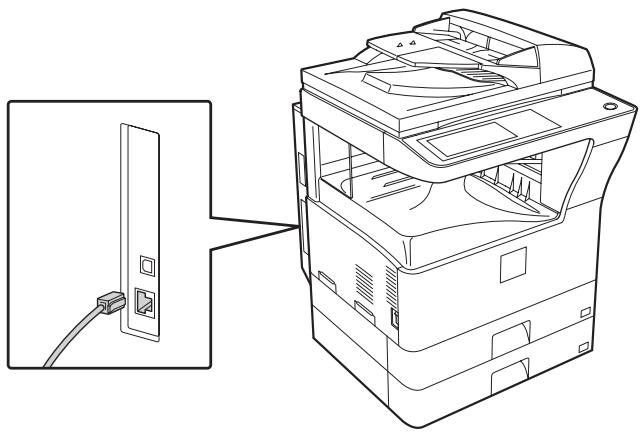
After connecting the machine to a network, be sure to configure the IP address and other network settings before installing the software. (The factory default setting for the IP address is to receive the IP address automatically when the machine is used in a DHCP environment.)
Network settings can be configured using "Network Settings" in the administrator settings on the machine.

- If the machine is used in a DHCP environment, the IP address of the machine may change. If this happens, printing will not be possible. This problem can be avoided by using a WINS server or by assigning a permanent IP address to the machine.
- This manual explains how to set up the software in a Windows network environment and in a Macintosh network environment.
Checking the IP address of the machine
You can check the IP address of the machine by printing out the "PRINTER SETTINGS LIST" in the system settings. Follow these steps to print out the "PRINTER SETTINGS LIST".
Press the [SYSTEM SETTINGS] key, touch the [LIST PRINT] key, touch the [PRINTER TEST PAGE] key, and then touch the [PRINTER SETTINGS LIST] key.
CONNECTING THE MACHINE WITH A USB CABLE (Windows)
The machine can be connected to a computer using a USB cable if the computer is a Windows computer. (The USB interface on the machine cannot be used in a Macintosh environment.) The machine and computer must be connected when a message appears during installation of the printer driver. If a USB cable is connected before the printer driver is installed, the printer driver will not be installed correctly. For the procedure for connecting a USB cable, see "WHEN THE MACHINE WILL BE CONNECTED WITH A USB CABLE" (page 17).
This section explains how to install the software and configure settings so that the printer function of the machine can be used with a Windows computer.
OPENING THE SOFTWARE SELECTION SCREEN (FOR ALL SOFTWARE)
1 Insert the "Software CD-ROM" into your computer's CD-ROM drive.
- If you are installing the printer driver or printer status monitor, insert the "Software CD-ROM" that shows "Disc 1" on the front of the CD-ROM.
- If you are installing the PC-Fax driver or scanner driver, insert the "Software CD-ROM" that shows "Disc 2" on the front of the CD-ROM.
2 Click the [Start] button ( ), click [Computer], and then double-click the [CD-ROM] icon ( ).
- In Windows XP/Server 2003, click the [start] button, click [My Computer], and then double-click the [CD-ROM] icon.
- In Windows 2000, double-click [My Computer] and then double-click the [CD-ROM] icon.
3 Double-click the [Setup] icon (B).
![SHARP MX-PB12 - Double-click the [Setup] icon (B). - 1](/content/2019/11/122366/images/dfdcdd15c6a2163176d739a61318590b9d876a58d6e6cb192b36323319c262b1.jpg)
In Windows Vista/Server 2008, if a message screen appears asking you for confirmation, click [Allow].
- The "SOFTWARE LICENSE" window will appear. Make sure that you understand the contents of the license agreement and then click the [Yes] button.
![SHARP MX-PB12 - Double-click the [Setup] icon (B). - 2](/content/2019/11/122366/images/dd2bda97544822cc65b7a90ad1a17b519d6501bbdd229ed32116485ff4c88c87.jpg)
You can show the "SOFTWARE License" in a different language by selecting the desired language from the language menu. To install the software in the selected language, continue the installation with that language selected.
5 Read the message in the "Welcome" window and then click the [Next] button.
![SHARP MX-PB12 - Double-click the [Setup] icon (B). - 3](/content/2019/11/122366/images/7fc7a0d049c6433a9a7dff4f1207abca46fcc7c3919f02956c61db56db3da06e.jpg)
The software selection screen appears.
Before installing the software, be sure to click the [Display Readme] button and view the detailed information on the software.

*The above screen appears when using the "Disc 1" CD-ROM.
For the steps that follow, see the appropriate page below for the software that you are installing.
INSTALLING THE PRINTER DRIVER / PC-FAX DRIVER
-
WHEN THE MACHINE IS CONNECTED TO A NETWORK
-
Standard installation: page 9
- Installation by specifying the machine's address: page 13
- Printing using the IPP function and the SSL function: page 15
WHEN THE MACHINE WILL BE CONNECTED WITH A USB CABLE: page 17
USING THE MACHINE AS A SHARED PRINTER: page 22
INSTALLING THE PRINTER STATUS MONITOR: page 27
INSTALLING THE PRINTER DRIVER / PC-FAX DRIVER
To install the printer driver or the PC-Fax driver, follow the appropriate procedure in this section depending on whether the machine is connected to a network or connected by USB cable.
WHEN THE MACHINE WILL BE CONNECTED WITH A USB CABLE (page 17)
WHEN THE MACHINE IS CONNECTED TO A NETWORK
This section explains how to install the printer driver and the PC-Fax driver when the machine is connected to a Windows network (TCP/IP network).
Supported operating systems: Windows 2000/XP/Server 2003/Vista/Server 2008*
- Administrator's rights are required to install the software.

- The PS3 expansion kit is required to use the PS printer driver or the PPD driver.
- To print to the machine over the Internet using the IPP function when the machine is installed in a remote location, or to print using the SSL (encrypted communication) function, see "Printing using the IPP function and the SSL function" (page 15) and install the printer driver or the PC-Fax driver.
- The installation procedure in this section is for both the printer driver and the PC-Fax driver, although the explanations are centered on the printer driver.
Standard installation
When the software selection screen appears in step 6 of "OPENING THE SOFTWARE SELECTION SCREEN (FOR ALL SOFTWARE)" (page 7), perform the steps below.
1 Click the [Printer Driver] button.
To install the PC-Fax driver, click the [PC-Fax Driver] button on the "Disc 2" CD-ROM.
![SHARP MX-PB12 - Click the [Printer Driver] button. - 1](/content/2019/11/122366/images/b29c06777174972abad4b74c54b42d0ea722496328f153b58a675504b0d8c1fe.jpg)
*The above screen appears when using the "Disc 1" CD-ROM.
2 Click the [Standard installation] button.
![SHARP MX-PB12 - Click the [Standard installation] button. - 1](/content/2019/11/122366/images/6db044b78b5e3ab4635f360a516b1006c5d6512cd569de29d0480907cf025f44.jpg)
Note
When [Custom installation] is selected, you can change any of the items below. When [Standard installation] is selected, the installation will take place as indicated below.
- Machine connection method: LPR Direct Print (Auto Search)
- Set as default printer:Yes (excluding the PC-Fax driver)
- Printer driver name: Cannot be changed
- PCL printer display fonts: Installed If you selected [Custom installation], select [LPR Direct Print (Auto Search)] and click the [Next] button.
If you selected other than [LPR Direct Print (Auto Search)], see the following pages:
- LPR Direct Print (Specify Address): page 13
- IPP: page 15 -Shared printer: page 22
- Connected to this computer: page 17
3 Printers connected to the network are detected. Select the machine and click the [Next] button.
![SHARP MX-PB12 - Printers connected to the network are detected. Select the machine and click the [Next] button. - 1](/content/2019/11/122366/images/438c55b8774037b56dc84c957f07462ab8db3b2bc6eaf935e56555d923deb35a.jpg)
Note
- If the machine is not found, make sure that the machine is powered on and that the machine is connected to the network, and then click the [Re-search] button.
- You can also click the [Specify condition] button and search for the machine by entering the machine's name (host name) or IP address.
Checking the IP address of the machine (page 6)
4 A confirmation window appears. Check the contents and then click the [Next] button.
5 When the printer driver selection window appears, select the printer driver to be installed and click the [Next] button.
Click the checkbox of the printer driver to be installed so that a checkmark ( ) appears.
![SHARP MX-PB12 - When the printer driver selection window appears, select the printer driver to be installed and click the [Next] button. - 1](/content/2019/11/122366/images/ce0a6f4e1a1dc4464acb1d8c8f1b72c1ff56e5e0c77b1dd3d32243f4f70e9b8d.jpg)
Note
- When the PC-Fax driver is being installed, this screen does not appear. Go to the next step.
- The PS3 expansion kit is required to use the PS printer driver or the PPD driver.
6 When you are asked whether or not you want the printer to be your default printer, make a selection and click the [Next] button.
If you are installing multiple drivers, select the printer driver to be used as the default printer. If you do not wish to set one of the printer drivers as the default printer, select [No].
Note
If you clicked the [Custom installation] button in step 2, the following windows will appear.
- Printer name window
If you wish to change the printer name, enter the desired name and click the [Next] button.
- Window confirming installation of the display fonts
To install the display fonts for the PCL printer driver, select [Yes] and click the [Next] button.
- When the PC-Fax driver is being installed, this screen does not appear. Go to the next step.
- If you are not installing the PCL printer driver (you are installing the PS printer driver or the PPD driver), select [No] and click the [Next] button.
7 Follow the on-screen instructions.
Read the message in the window that appears and click the [Next] button. Installation begins.
Note
If you are using Windows Vista/Server 2008
If a security warning window appears, be sure to click [Install this driver software anyway].
- If you are using Windows 2000/XP/Server 2003
If a warning message regarding the Windows logo test or digital signature appears, be sure to click the [Continue Anyway] or [Yes] button.
8 When the installation completed screen appears, click the [OK] button.
9 Click the [Close] button in the window of step 1.
![SHARP MX-PB12 - Click the [Close] button in the window of step 1. - 1](/content/2019/11/122366/images/b6994ec526c6933d2b299b53cbae4d9fa90bf1dea3275003e19c0f73188aaf0c.jpg)
After the installation, a message prompting you to restart your computer may appear. If this message appears, click the [Yes] button to restart your computer.
This completes the installation.
- After installation, see "CONFIGURING THE PRINTER DRIVER FOR THE OPTIONS INSTALLED ON THE MACHINE" (page 24) to configure the printer driver settings.
- If you installed the PS printer driver or the PPD driver, the PS display fonts can be installed from the "PRINTER UTILITIES" CD-ROM that accompanies the PS3 expansion kit. See "INSTALLING THE PS DISPLAY FONTS" (page 28).
- If you are using the machine as a shared printer, see "USING THE MACHINE AS A SHARED PRINTER" (page 22) to install the printer driver on each of the client computers.
Installation by specifying the machine's address
When the machine cannot be found because it is not powered on or otherwise, installation is possible by entering the name (host name) or IP address of the machine.
When the software selection screen appears in step 6 of "OPENING THE SOFTWARE SELECTION SCREEN (FOR ALL SOFTWARE)" (page 7), perform the steps below.
1 Click the [Printer Driver] button.
To install the PC-Fax driver, click the [PC-Fax Driver] button on the "Disc 2" CD-ROM.
![SHARP MX-PB12 - Click the [Printer Driver] button. - 1](/content/2019/11/122366/images/b9191d2ad90b36ad3f4747bc5bc38a5eeca42ccef7e6671632b5db0266b60f4e.jpg)
*The above screen appears when using the "Disc 1" CD-ROM.
2 Click the [Custom installation] button.
![SHARP MX-PB12 - Click the [Custom installation] button. - 1](/content/2019/11/122366/images/b65839d4fd623f45d6e0e5fab3ff155b661e75161df60ae07b99819d12fbf9f7.jpg)
3 When you are asked how the printer is connected, select [LPR Direct Print (Specify Address)] and click the [Next] button.
![SHARP MX-PB12 - When you are asked how the printer is connected, select [LPR Direct Print (Specify Address)] and click the [Next] button. - 1](/content/2019/11/122366/images/2540d07bbf2b85d420ed2b9b2a82da2c6a3723c8e1cae9e022a5994b8622d94c.jpg)
4. Enter the name (host name) or IP address of the machine and click the [Next] button.
Checking the IP address of the machine (page 6)
![SHARP MX-PB12 - Enter the name (host name) or IP address of the machine and click the [Next] button. - 1](/content/2019/11/122366/images/d983a985f8c278a4fbb3d310cb142539d4fa434149b55024ae0b6d59d8148816.jpg)
Note
Ask your network administrator for the name (host name).
5 When the model selection window appears, select the model name of your machine and click the [Next] button.
6 When the printer driver selection window appears, select the printer driver to be installed and click the [Next] button.
Click the checkbox of the printer driver to be installed so that a checkmark ( ) appears.
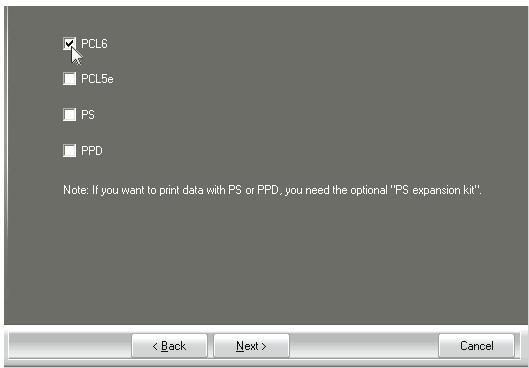

- When the PC-Fax driver is being installed, this screen does not appear. Go to the next step.
- The PS3 expansion kit is required to use the PS printer driver or the PPD driver.
7 Select whether or not you wish the printer to be your default printer and click the [Next] button.
If you are installing multiple drivers, select the printer driver to be used as the default printer. If you do not wish to set one of the printer drivers as the default printer, select [No].
When the printer name window appears, click the [Next] button.
If you wish to change the printer name, enter the desired name.
9 When you are asked if you wish to install the display fonts, select an answer and click the [Next] button.
- When the PC-Fax driver is being installed, this screen does not appear. Go to the next step.
- If you are not installing the PCL printer driver (you are installing the PS printer driver or the PPD driver), select [No] and click the [Next] button.
10 Follow the on-screen instructions.
Read the message in the window that appears and click the [Next] button. Installation begins.

If you are using Windows Vista/Server 2008
If a security warning window appears, be sure to click [Install this driver software anyway].
If you are using Windows 2000/XP/Server 2003
If a warning message regarding the Windows logo test or digital signature appears, be sure to click the [Continue Anyway] or [Yes] button.
When the installation completed screen appears, click the [OK] button.
12 Click the [Close] button in the window of step 1.

After the installation, a message prompting you to restart your computer may appear. If this message appears, click the [Yes] button to restart your computer.
This completes the installation.
- After installation, see "CONFIGURING THE PRINTER DRIVER FOR THE OPTIONS INSTALLED ON THE MACHINE" (page 24) to configure the printer driver settings.
- If you installed the PS printer driver or the PPD driver, the PS display fonts can be installed from the "PRINTER UTILITIES" CD-ROM that accompanies the PS3 expansion kit. See "INSTALLING THE PS DISPLAY FONTS" (page 28).
Printing using the IPP function and the SSL function
The IPP function can be used to print to the machine over a network using HTTP protocol.
When the machine is in a remote location, this function can be used in place of the fax function to print a higher quality image than a fax. The IPP function can also be used in combination with the SSL (encrypted communication) function to encrypt the print data. This enables secure printing with no concern that the data will be leaked to others.

To use the SSL function, configure the "SSL Settings" in the administrator settings of the machine. To configure the settings, see "SYSTEM SETTINGS (ADMINISTRATOR)" in the Operation Manual.
When the software selection screen appears in step 6 of "OPENING THE SOFTWARE SELECTION SCREEN (FOR ALL SOFTWARE)" (page 7), perform the steps below.
1 Click the [Printer Driver] button.
To install the PC-Fax driver, click the [PC-Fax Driver] button on the "Disc 2" CD-ROM.
![SHARP MX-PB12 - Click the [Printer Driver] button. - 1](/content/2019/11/122366/images/573ebc631fb1bfed30d92bc03b439fb1229e0dfb5a62d632b227fdf3136242ea.jpg)
*The above screen appears when using the "Disc 1" CD-ROM.
2 Click the [Custom installation] button.
![SHARP MX-PB12 - Click the [Custom installation] button. - 1](/content/2019/11/122366/images/61e93f7766e0febb03d75541ec07a30e1f375331eb940fc7466ee02ce8cc4feb.jpg)
3 When you are asked how the printer is connected, select [IPP] and click the [Next] button.
![SHARP MX-PB12 - When you are asked how the printer is connected, select [IPP] and click the [Next] button. - 1](/content/2019/11/122366/images/ce11c30fad17f77cca86b12832cf2f5c2aa5d42d4ef0d17dcad24a2b5938d64c.jpg)
4 If a proxy server is used, specify the proxy server and click the [Next] button.
To specify a proxy server, select [Print via the proxy server] and then enter the [Address] and [Port number].
![SHARP MX-PB12 - If a proxy server is used, specify the proxy server and click the [Next] button. - 1](/content/2019/11/122366/images/e57c98189a5aae509bb5a18afbf1938bd8072f6e7b6f98c1e28eb52c19d7bdd2.jpg)
5 Enter the machine's URL and click the [Next] button.
Enter the URL in the following format:
Normal format:
http://
*1 Normally "631" should be entered for the port number. If the IPP port number has been changed on the machine, enter the new port number.
When SSL is used:
https://
*2 Normally the port number and the colon": immediately preceding the port number can be omitted. If the IPP port number for SSL has been changed on the machine, enter the new port number.


If your computer and the machine are connected to the same local area network, you can click the [Search] button to search for the machine. The machine's URL will appear. Select the URL and click the [OK] button. You will return to the above screen and the machine's URL will be automatically entered.
6 Perform steps 5 through 12 on page 14 to continue the installation.
This completes the installation.
- After installation, see "CONFIGURING THE PRINTER DRIVER FOR THE OPTIONS INSTALLED ON THE MACHINE" (page 24) to configure the printer driver settings.
- If you installed the PS printer driver or the PPD driver, the PS display fonts can be installed from the "PRINTER UTILITIES" CD-ROM that accompanies the PS3 expansion kit. See "INSTALLING THE PS DISPLAY FONTS" (page 28).
WHEN THE MACHINE WILL BE CONNECTED WITH A USB CABLE
Supported operating systems: Windows 2000/XP/Server 2003/Vista/Server 2008*
- Administrator's rights are required to install the software.

- Make sure that a USB cable is not connected to your computer and the machine.
If a cable is connected, a Plug and Play window will appear. If this happens, click the [Cancel] button to close the window and disconnect the cable. - The PS3 expansion kit is required to use the PS printer driver or the PPD driver.
- To use the port created when the printer driver is installed for fax data transfer, install the printer driver first and then install the PC-Fax driver.
When the software selection screen appears in step 6 of "OPENING THE SOFTWARE SELECTION SCREEN (FOR ALL SOFTWARE)" (page 7), perform the steps below.
1 Click the [Printer Driver] button.
![SHARP MX-PB12 - Click the [Printer Driver] button. - 1](/content/2019/11/122366/images/5cffd3583b03b388a64059b960a6fc0eb71525274314219084c5b84bb82ea79b.jpg)
2 Click the [Custom installation] button.
![SHARP MX-PB12 - Click the [Custom installation] button. - 1](/content/2019/11/122366/images/4aacfeb992844fd196b850d7d5e304814dc0517cf1b2771359d12d9d1e72c68b.jpg)
3 When you are asked how the printer is connected, select [Connected to this computer] and click the [Next] button.
![SHARP MX-PB12 - When you are asked how the printer is connected, select [Connected to this computer] and click the [Next] button. - 1](/content/2019/11/122366/images/92e71a3f336c4ff3225c77df45489faeed0e4d0a49506b9d1b0b4cc260910cb6.jpg)
4 When you are asked if you wish to install the display fonts, select an answer and click the [Next] button.
5 Follow the on-screen instructions.
Read the message in the window that appears and click the [Next] button. When the installation completed screen appears, click the [OK] button.

If you are using Windows Vista/Server 2008
If a security warning window appears, be sure to click [Install this driver software anyway].
If you are using Windows 2000/XP/Server 2003
If a warning message regarding the Windows logo test or digital signature appears, be sure to click the [Continue Anyway] or [Yes] button.
Click the [Close] button in the window of step 1.
When a message appears prompting you to connect the machine to your computer, click the [OK] button.
![SHARP MX-PB12 - Click the [Close] button in the window of step 1. - 1](/content/2019/11/122366/images/c3f09c0ec4727bcbae596209e38c1aa1156ba5cc136996f20e9a9e3f9585e16d.jpg)
After the installation, a message prompting you to restart your computer may appear. If this message appears, click the [Yes] button to restart your computer.
7 Connect the machine to your computer with a USB cable.
(1) Make sure that the machine is powered on.
(2) Connect the cable to the USB connector (B type) on the machine.
The USB interface on the machine complies with the USB 2.0 standard. Please purchase a shielded USB cable.
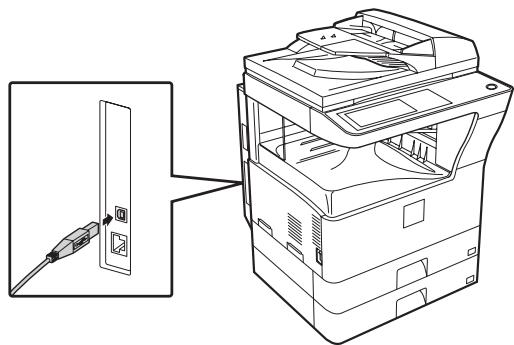
(3) Connect the other end of the cable to the USB connector (A type) on your computer.
The machine is found and a Plug and Play window appears.
Installation of the PCL6 printer driver begins.
When the "Found New Hardware Wizard" appears, select [Install the software automatically (Recommended)], click the [Next] button, and follow the on-screen instructions.

- If you are using Windows Vista/Server 2008
If a security warning window appears, be sure to click [Install this driver software anyway].
If you are using Windows 2000/XP/Server 2003
If a warning message regarding the Windows logo test or digital signature appears, be sure to click the [Continue Anyway] or [Yes] button.
This completes the installation.
- After installing the printer driver, see "CONFIGURING THE PRINTER DRIVER FOR THE OPTIONS INSTALLED ON THE MACHINE" (page 24) to configure the printer driver settings.
- If you are using the machine as a shared printer, see "USING THE MACHINE AS A SHARED PRINTER" (page 22) to install the printer driver on each of the client computers.
When installing the PCL5e printer driver, PS printer driver, PPD driver, or PC-Fax driver Installation is possible even after the USB cable has been connected. When the software selection screen appears in step 6 of "OPENING THE SOFTWARE SELECTION SCREEN (FOR ALL SOFTWARE)" (page 7), perform the steps below.
1 Click the [Printer Driver] button.
To install the PC-Fax driver, click the [PC-Fax Driver] button on the "Disc 2" CD-ROM.
![SHARP MX-PB12 - Click the [Printer Driver] button. - 1](/content/2019/11/122366/images/82ee10fba9a5e085662794f7f53b20e3c60d61b98d739e2c047656e004649a2e.jpg)
* The above screen appears when using the "Disc 1" CD-ROM.
2 Click the [Custom installation] button.
![SHARP MX-PB12 - Click the [Custom installation] button. - 1](/content/2019/11/122366/images/86e417de93ce7e18baab64090f2df3cb8e356be1f61f50e4feba951588c32d9f.jpg)
3 When you are asked how the printer is connected, select [Connected to this computer] and click the [Next] button.
![SHARP MX-PB12 - When you are asked how the printer is connected, select [Connected to this computer] and click the [Next] button. - 1](/content/2019/11/122366/images/b24fc1b6c12b5ca09dfcaac9dc93cc15e54e65c5cdae611fe4e64d45deea8a4a.jpg)
4 When the port selection window appears, select the port that the PCL6 printer driver is using (USB001, etc.) and click the [Next] button.
5 When the printer driver selection window appears, remove the [PCL6] checkmark and select the printer driver to be installed, and then click the [Next] button.
Click the checkbox of the printer driver to be installed so that a checkmark ( ) appears.
![SHARP MX-PB12 - When the printer driver selection window appears, remove the [PCL6] checkmark and select the printer driver to be installed, and then click the [Next] button. - 1](/content/2019/11/122366/images/9cc53d40723a0275ec840db9347423725a26ae624873288f6a3d85830d8a61c1.jpg)
Note
- When the PC-Fax driver is being installed, this screen does not appear. Go to the next step.
- The PS3 expansion kit is required to use the PS printer driver or the PPD driver.
6 Select whether or not you wish the printer to be your default printer and click the [Next] button.
If you are installing multiple drivers, select the printer driver to be used as the default printer. If you do not wish to set one of the printer drivers as the default printer, select [No].
When the printer name window appears, click the [Next] button.
If you wish to change the printer name, enter the desired name.
8 When you are asked if you wish to install the display fonts, select [No] and click the [Next] button.
When the PC-Fax driver is being installed, this screen does not appear. Go to the next step.
9 Follow the on-screen instructions.
Read the message in the window that appears and click the [Next] button. Installation begins.
Note
- If you are using Windows Vista/Server 2008 If a security warning window appears, be sure to click [Install this driver software anyway].
- If you are using Windows 2000/XP/Server 2003 If a warning message regarding the Windows logo test or digital signature appears, be sure to click the [Continue Anyway] or [Yes] button.
10 When the installation completed screen appears, click the [OK] button.
11 Click the [Close] button in the window of step 1.
Note
After the installation, a message prompting you to restart your computer may appear. If this message appears, click the [Yes] button to restart your computer.
This completes the installation.
- After installation, see "CONFIGURING THE PRINTER DRIVER FOR THE OPTIONS INSTALLED ON THE MACHINE" (page 24) to configure the printer driver settings.
- Make sure that the port of the installed driver is the same as the port used by the PCL6 printer driver. The port used by the printer driver of the machine is indicated by a checkmark on the [Ports] tab of the printer driver properties window.
- If you installed the PS printer driver or the PPD driver, the PS display fonts can be installed from the "PRINTER UTILITIES" CD-ROM that accompanies the PS3 expansion kit. See "INSTALLING THE PS DISPLAY FONTS" (page 28).
USING THE MACHINE AS A SHARED PRINTER
If you are going to use the machine as a shared printer on a Windows network with the printer driver or the PC-Fax driver installed on a print server, follow the steps below to install the printer driver or the PC-Fax driver on the client computers.

- Ask your network administrator for the server name and printer name of the machine on the network.
- For the procedure for configuring settings on the print server, see the operation manual or the Help file of the operating system. The "print server" explained here is a computer that is connected directly to the machine, and "clients" are other computers connected to the same network as the print server.
- Install the same printer driver on client computers as the printer driver that is installed on the print server.
When the software selection screen appears in step 6 of "OPENING THE SOFTWARE SELECTION SCREEN (FOR ALL SOFTWARE)" (page 7), perform the steps below.
1 Click the [Printer Driver] button.
To install the PC-Fax driver, click the [PC-Fax Driver] button on the "Disc 2" CD-ROM.
![SHARP MX-PB12 - Click the [Printer Driver] button. - 1](/content/2019/11/122366/images/c675d22e8e482cecca3f8553ca5e7eb08dc3d9ed7f8f5ccb2fe414d325c16f8b.jpg)
*The above screen appears when using the "Disc 1" CD-ROM.
2 Click the [Custom installation] button.
3 Select [Shared Printer] and click the [Next] button.
![SHARP MX-PB12 - Select [Shared Printer] and click the [Next] button. - 1](/content/2019/11/122366/images/b9afab468434fbed02dcb822e599fde206556f48ea0e527fced437dcf4119f97.jpg)
4. Select the printer name (configured as a shared printer).
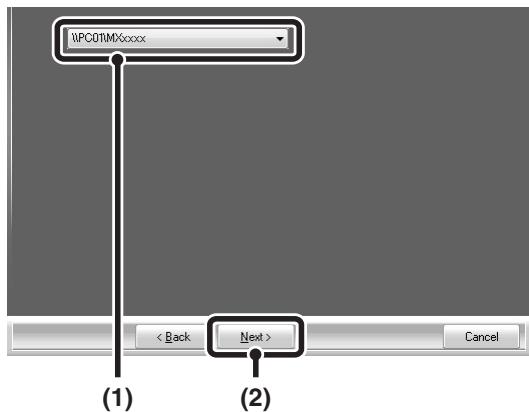
(1) Select the printer name (configured as a shared printer on a print server) from the list. If you are using Windows 2000/XP/Server 2003, you can also click the [Add Network Port] button displayed below the list and select the printer to be shared by browsing the network in the window that appears.
(2) Click the [Next] button.
![SHARP MX-PB12 - Click the [Next] button. - 1](/content/2019/11/122366/images/57c71dc03c4c711b2437d731d4512a46ec03957b9af60ccef11e748028ffa1b1.jpg)
If the shared printer does not appear in the list, check the settings on the print server.
5 Perform steps 5 through 12 on page 14 to continue the installation.
In the printer driver selection screen, be sure to select the same type of printer driver as the printer driver installed on the print server.
This completes the installation.
If you installed the PS printer driver or the PPD driver, the PS display fonts can be installed from the "PRINTER UTILITIES" CD-ROM that accompanies the PS3 expansion kit. See "INSTALLING THE PS DISPLAY FONTS" (page 28).
CONFIGURING THE PRINTER DRIVER FOR THE OPTIONS INSTALLED ON THE MACHINE
After installing the printer driver, you must configure the printer driver settings appropriately for the options that have been installed and the size and type of paper loaded in the machine. Follow the steps below to configure the printer driver.

If the PPD driver is installed, see "When the PPD driver is installed" (page 26).
When the PCL printer driver or PS printer driver is installed
1 Click the [Start] button ( ), click [Control Panel], and then click [Printer].
- In Windows XP/Server 2003, click the [start] button and then click [Printers and Faxes].
- In Windows 2000, click the [Start] button, select [Settings], and then click [Printers].
![SHARP MX-PB12 - Click the [Start] button ( ), click [Control Panel], and then click [Printer]. - 1](/content/2019/11/122366/images/04814965f78bcdb828cd6c95f92a9085135aecd078967ceb3d1e2dc23b68c677.jpg)
If [Printers and Faxes] does not appear in the [start] menu in Windows XP, click the [start] button, click [Control Panel], click [Printers and Other Hardware], and then click [Printers and Faxes].
2 Open the printer properties window.
(1) Right-click the printer driver icon of the machine.
(2) Select [Properties].
3 Click the [Configuration] tab.
Set the printer configuration properly. Otherwise, printing may not take place correctly.
4 Click the [Auto Configuration] button.
The settings are automatically configured based on the detected machine status.
![SHARP MX-PB12 - Click the [Auto Configuration] button. - 1](/content/2019/11/122366/images/2f0938179d44a4be3782300a35553d24a9ea8ca44090de324336c980be69123a.jpg)
5 Configure the image of the machine.
An image of the machine is formed in the printer driver configuration window based on the options that are installed.
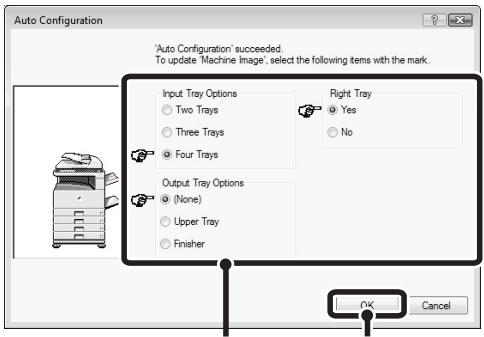
(1)
(2)
(1) Select the options that are installed on the machine.
(2) Click the [OK] button.

To cancel the image settings, click the [Cancel] button.
6 Click the [OK] button in the printer properties window.
![SHARP MX-PB12 - Click the [OK] button in the printer properties window. - 1](/content/2019/11/122366/images/d6b9f1649da512d5fe3230f0ff0a4de391f0f0667e860f677e8ad7009e2a2bdd.jpg)
If automatic configuration fails, configure the settings manually.
- You can check the options that are installed and the tray settings by printing out the "PRINTER SETTINGS LIST" in the system settings of the machine. (However, note that "Input Tray Options" must be set to the number of trays on the machine.) Follow these steps to print out the "PRINTER SETTINGS LIST": Press the [SYSTEM SETTINGS] key, touch the [LIST PRINT] key, touch the [PRINTER TEST PAGE] key, and then touch the [PRINTER SETTINGS LIST] key.
- Click the [Set Tray Status] button and then set the following items. Select a tray from the "Paper source" menu, set the size of paper loaded in the tray from the "Set Paper Size" menu, and select the type of paper from the "Set Paper Type" menu. Repeat for each of the trays.
When the PPD driver is installed
1 Click the [Start] button ( ), click [Control Panel], and then click [Printer].
- In Windows XP/Server 2003, click the [start] button and then click [Printers and Faxes].
- In Windows 2000, click the [Start] button, select [Settings], and then click [Printers].
![SHARP MX-PB12 - Click the [Start] button ( ), click [Control Panel], and then click [Printer]. - 1](/content/2019/11/122366/images/5ade1881f2cac2354e0a1a719258627ba8b7fdb994cb187b4921448fbdf55587.jpg)
If [Printers and Faxes] does not appear in the [start] menu in Windows XP, click the [start] button, click [Control Panel], click [Printers and Other Hardware], and then click [Printers and Faxes].
2 Open the printer properties window.
(1) Right-click the printer driver icon of the machine.
(2) Select [Properties].
3 Configure the printer driver for the options installed on the machine.
(1) Click the [Device Settings] tab.
(2) Configure each item based on the machine configuration.
The items and the procedures for configuring the items vary depending on the operating system version.
(3) Click the [OK] button.
![SHARP MX-PB12 - Click the [OK] button. - 1](/content/2019/11/122366/images/944d7038711e72c13103a434fd91511f2cf2e8174b6b13c183f0c9ab253c6a3a.jpg)
You can check the options that are installed on the machine by printing out the "PRINTER SETTINGS LIST" in the system settings. (However, note that "Input Tray Options" must be set to the number of trays on the machine.) Follow these steps to print out the "PRINTER SETTINGS LIST": Press the [SYSTEM SETTINGS] key, touch the [LIST PRINT] key, "PRINTER TEST PAGE" key and then touch the "PRINTER SETTINGS LIST" key.
INSTALLING THE PRINTER STATUS MONITOR
Printer Status Monitor is a printer utility that allows general users to check the current status of the machine on their computer screen, such as whether or not the machine is ready to print. The Printer Status Monitor shows error information such as paper misfeeds, printer configuration information (whether or not a finisher is installed, etc.) as an image, the paper sizes that can be used, and the amount of paper remaining.
Note
The Printer Status Monitor cannot be used in the following situations:
- When the machine is connected by a USB cable.
- When printing to the machine using the IPP function.
Supported operating systems: Windows 2000*/XP*/Server 2003*/Vista*/Server 2008*
- Administrator's rights are required to install the software.
When the software selection screen appears in step 6 of "OPENING THE SOFTWARE SELECTION SCREEN (FOR ALL SOFTWARE)" (page 7), perform the steps below.
1 Click the [Printer Status Monitor] button.
![SHARP MX-PB12 - Click the [Printer Status Monitor] button. - 1](/content/2019/11/122366/images/ebb7c0dbda61496c62457b1e361f6031886426766b7a31927bb4b55ba556ce8c.jpg)
2 Follow the on-screen instructions.
3 When the installation completed screen appears, click the [Finish] button.
To have the Printer Status Monitor start automatically when your computer is started, select the [Add this program to your Startup folder] checkbox and click the [Finish] button.
4 Click the [Close] button in the window of step 1.
![SHARP MX-PB12 - Click the [Close] button in the window of step 1. - 1](/content/2019/11/122366/images/8d019b5b0d8c4f5769d0cbfbdc656d66c73e4e03edf2b86225f5445e784d5ba1.jpg)
After the installation, a message prompting you to restart your computer may appear. If this message appears, click the [Yes] button to restart your computer.
This completes the installation.
For the procedures for using the Printer Status Monitor, see the Help file. Follow these steps to view the Help file:
Click the Windows [start] button, select [All Programs] ([Programs] in Windows 2000), select [SHARP Printer Status Monitor] and then select [Help].
INSTALLING THE PS DISPLAY FONTS
Fonts that can be used by the PS printer driver are contained on the "PRINTER UTILITIES" CD-ROM that accompanies the PS3 expansion kit. Install these fonts as needed for the PS printer driver.
1 Insert the "PRINTER UTILITIES" CD-ROM that accompanies the PS3 expansion kit into your computer's CD-ROM drive.
2 Click the [Start] button ( ), click [Computer], and then double-click the [CD-ROM] icon
- In Windows XP/Server 2003, click the [start] button, click [My Computer], and then double-click the [CD-ROM] icon.
- In Windows 2000, double-click [My Computer], and then double-click the [CD-ROM] icon.
3 Double-click the [Setup] icon ( ).

In Windows Vista/Server 2008, if a message screen appears asking you for confirmation, click [Allow].
4 The "SOFTWARE LICENSE" window will appear. Make sure that you understand the contents of the license agreement and then click the [Yes] button.

You can show the "SOFTWARE License" in a different language by selecting the desired language from the language menu. To install the software in the selected language, continue the installation with that language selected.
5 Read the message in the "Welcome" window and then click the [Next] button.
6 Click the [PS Display Font] button.
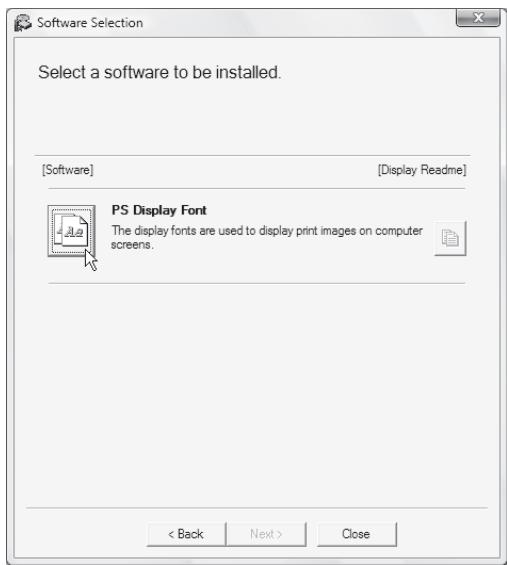
7 Follow the on-screen instructions.
8 Click the [Close] button in the screen of step 6.
This chapter explains how to install the PPD file to enable printing from a Macintosh and how to configure the printer driver settings.
MAC OS X: this page
(v10.2.8, v10.3.9, v10.4.11, v10.5 - 10.5.6)
MAC OS 9.0 - 9.2.2: page 35
- The PS3 expansion kit is required to use the machine as a printer in a Macintosh environment. In addition, the machine must be connected to a network. A USB connection cannot be used.
- The PC-Fax driver cannot be used in a Macintosh environment.
MAC OS X
Note
- The explanations of screens and procedures are primarily for Mac OS X v10.4. The screens may vary in other versions of the operating system.
- Make sure that AppleTalk is activated before installing the PPD file.
1 Insert the "Software CD-ROM" into your computer's CD-ROM drive.
Insert the "Software CD-ROM" that shows "Disc 2" on the front of the CD-ROM.
Double-click the [CD-ROM] icon ( ) on the desktop.
3 Double-click the [MacOSX] folder.
Before installing the software, be sure to read "ReadMe First". "ReadMe First" is in the [US-English] folder ([English] folder in areas other than the U.S.) in the [Readme] folder.
4 Double-click the folder corresponding to the versions of the operating system.

Double-click the [MX-B08] icon ( ).
![SHARP MX-PB12 - Double-click the [MX-B08] icon ( ). - 1](/content/2019/11/122366/images/9d0ce8a7fb614adbbf0f9e51a90a44a5653af20c91e44198a49d930aac61005b.jpg)
If the "Authentication" window appears in Mac OS X v10.2.8, enter the password and click the [OK] button.
6 Click the [Continue] button.
![SHARP MX-PB12 - Click the [Continue] button. - 1](/content/2019/11/122366/images/e95382b2706b2512c817247e45c9106cb478a0a0dddbec2013beb0518ff5c98e.jpg)
7 The License Agreement window will appear. Make sure that you understand the contents of the license agreement and then click the [Continue] button.
A message will appear asking you if you agree to the terms of the license. Click the [Agree] button.
![SHARP MX-PB12 - The License Agreement window will appear. Make sure that you understand the contents of the license agreement and then click the [Continue] button. - 1](/content/2019/11/122366/images/34161c78eb14dc5c5416b0556ee75789e84bed669cbf1590899a96ec81dc8738.jpg)
If the license appears in the different language, change the language in the language menu.
8 Select the hard drive where the PPD file will be installed and click the [Continue] button.
Be sure to select the hard drive on which your operating system is installed.
![SHARP MX-PB12 - Select the hard drive where the PPD file will be installed and click the [Continue] button. - 1](/content/2019/11/122366/images/16b0ad46960402d11346533d1a8c260d304f4ed7aee111a35ebfa97e0b364898.jpg)
9 Click the [Install] button. Installation begins.
![SHARP MX-PB12 - Click the [Install] button. Installation begins. - 1](/content/2019/11/122366/images/e809ddd4888f46d3de5840493e79a1c08d8c63139377545e4846f36aa1179454.jpg)
![SHARP MX-PB12 - Click the [Install] button. Installation begins. - 2](/content/2019/11/122366/images/8b2fd1870958b225bf22866ff1d438d2827b49352baaf6db7437081e892d1862.jpg)
If the "Authentication" window appears, enter the password and click the [OK] button.
10 When the message "The software was successfully installed" appears in the installation window, click the [Close] button.
This completes the installation of the software. Next, configure the printer driver settings.
11 Select [Utilities] from the [Go] menu.
- If you are using Mac OS X v10.5 to 10.5.6, click [System Preferences] in the Apple menu ( ) and select [Print & Fax ] ( ). When the screen for adding a printer appears, click the + button and go to step 14.
- If you are using Mac OS X v10.2.8, select [Applications] from the [Go] menu.
![SHARP MX-PB12 - Select [Utilities] from the [Go] menu. - 1](/content/2019/11/122366/images/b2acec5593307e016a802559ae929bf59bedb15b825067c9164b313ca281890b.jpg)
12 Double-click the [Printer Setup Utility] icon ( ).
If you are using Mac OS X v10.2.8, double-click the [Utilities] folder and then double-click the [Print Center] icon.
![SHARP MX-PB12 - Double-click the [Printer Setup Utility] icon ( ). - 1](/content/2019/11/122366/images/a7d7ad78ba1c739f71a2dc880689fb9bf401b0fb04009b5b5440cb450d249ee0.jpg)
If this is the first time you are installing a printer driver on your computer, a confirmation message will appear. Click the [Add] button.
13 Click [Add].
![SHARP MX-PB12 - Click [Add]. - 1](/content/2019/11/122366/images/f32df3bc6e73ad45546a81cf30456610d3a4a2161f1ba99b3b938bcdb522366f.jpg)
14 Configure the printer driver.
- The procedure for configuring the printer driver varies depending on the operating system version. The procedure for versions 10.4.11 and 10.5 - 10.5.6 and the procedure for other versions are explained separately below.
- The machine can print using the IPP function. If you wish to use the IPP function, see "Printing using the IPP function" (page 34) to configure the printer driver settings.
v10.4.11, v10.5 - 10.5.6
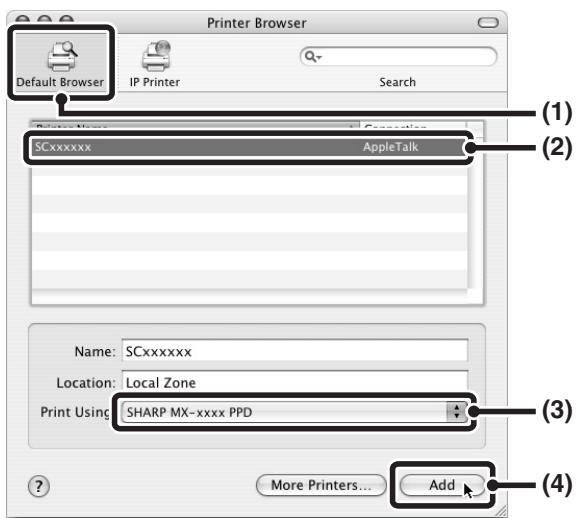
(1) Click the [Default Browser] icon.
- If multiple AppleTalk zones are displayed, select the zone that includes the printer from the menu.
- If you are using Mac OS X v10.5 to 10.5.6, click the [Default] icon.
(2) Click the machine's model name.
- The machine's model name usually appears as [SCxxxxxx]. ("xxxxxx" is a sequence of characters that varies depending on your model. Ask your network administrator for details.)
- The PPD file of the machine is automatically selected.
(3) Make sure that the PPD file of your model is selected.
(4) Click the [Add] button.
The PPD file of the machine is automatically selected and the peripheral devices installed on the machine are detected and automatically configured.
v10.2.8, v10.3.9

(1) Select [AppleTalk].
If multiple AppleTalk zones are displayed, select the zone that includes the printer from the menu.
(2) Click the machine's model name.
The machine's model name usually appears as [SCxxxxxx]. ("xxxxxxxx" is a sequence of characters that varies depending on your model. Ask your network administrator for details.)
(3) Select the PPD file of the machine.
- If you are using Mac OS X v10.3.9, select [Auto Select].
- If you are using Mac OS X v10.2.8, select [Sharp] and click the PPD file of your model.
(4) Click the [Add] button.
If you are using Mac OS X v10.3.9, the PPD file of the machine is automatically selected and the peripheral devices installed on the machine are detected and automatically configured.
15 Display printer information.

(1) Click the machine's name.
If you are using Mac OS X v10.5 to 10.5.6, click the [Options & Supplies] button, click the [Driver] tab and go to step 16.
(2) Click [Show Info].
If you are using Mac OS X v10.2.8, select [Show Info] from the [Printers] menu.
16 Select the machine configuration.
If you selected [Auto Select] in (3) of step 14, the machine configuration is detected and automatically configured. Check the configured settings to make sure they are correct.
(1) Select [Installable Options]. If you are using Mac OS X v10.5 to 10.5.6, it does not appear.
(2) Select the options that are installed on the machine.
(3) Click the [Apply Changes] button. If you are using Mac OS X v10.5 to 10.5.6, click the [OK] button.
(4) Click to close the window.
Note
You can check the options that are installed on the machine by printing out the "PRINTER SETTINGS LIST" in the system settings. (However, note that "Input Tray Options" must be set to the number of trays on the machine.) Follow these steps to print out the "PRINTER SETTINGS LIST": Press the [SYSTEM SETTINGS] key, touch the [LIST PRINT] key, "PRINTER TEST PAGE" key and then touch the "PRINTER SETTINGS LIST" key.
This completes the configuration of the printer driver.
Printing using the IPP function
The machine can print using the IPP function. When the machine is in a remote location, this function can be used in place of the fax function to print a higher quality image than a fax. If you wish to use the IPP function, follow these steps to select the PPD file when configuring the printer driver (step 14 on page 32).
v10.4.11, v10.5 - 10.5.6
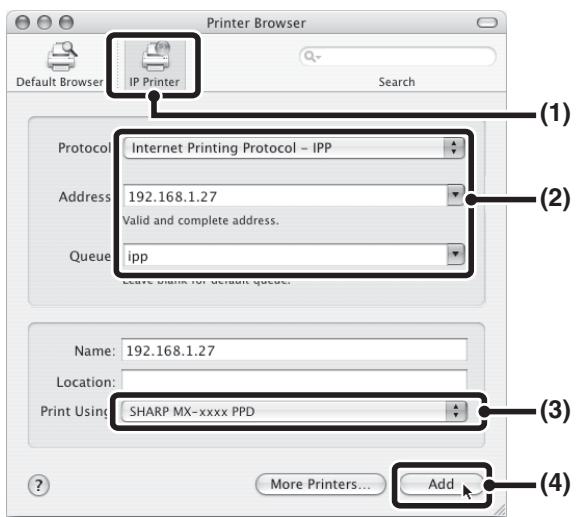
(1) Click the [IP Printer] icon.
If you are using Mac OS X v10.5 to 10.5.6, click the [IP] icon.
(2) Select [Internet Printing Protocol] in "Protocol". Enter the address of the machine (IP address or domain name) and the queue name.
Enter "ipp" in "Queue".
(3) Select [Sharp] in "Print Using" and click the PPD file of your model.
If you are using Mac OS X v 10.5 to 10.5.6, select [Select a driver to use] from "Print Using" and click the PPD file for your model.
(4) Click the [Add] button.
If you are using Mac OS X v 10.5 to 10.5.6, the "Installable Options" screen will appear. Make sure that the settings are correct and click the [Continue] button.
Checking the IP address of the machine (page 6)
v10.2.8, v10.3.9
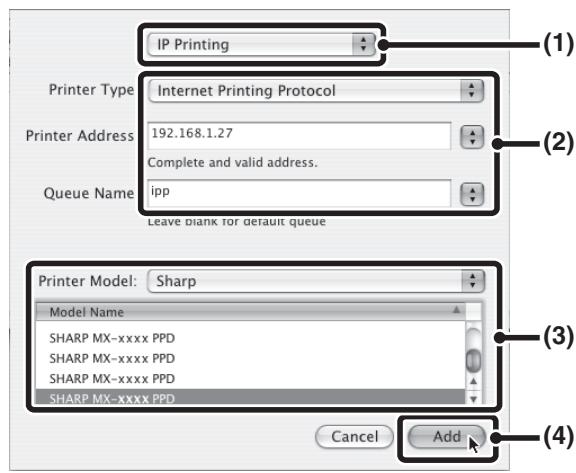
(1) Select [IP Printing].
(2) Select [Internet Printing Protocol] in "Printer Type". Enter the address of the machine (IP address or domain name) and the "Queue Name".
- If you are using Mac OS X v10.2.8, enter the address of the machine (IP address or domain name) in "Printer's Address".
- Enter "ipp" in "Queue Name".
(3) Select [Sharp] in "Printer Model" and click the PPD file of your model.
(4) Click the [Add] button.
Checking the IP address of the machine (page 6)
MAC OS 9.0 - 9.2.2

If you are using Mac OS 9.0 to 9.2.2, make sure that "LaserWriter 8" has been installed and that the "LaserWriter 8" checkbox is selected in "Extensions Manager" in "Control Panels". If not, install it from the system CD-ROM supplied with your Macintosh computer.
1 Insert the "Software CD-ROM" into your computer's CD-ROM drive.
Insert the "Software CD-ROM" that shows "Disc 2" on the front of the CD-ROM.
Double-click the [CD-ROM] icon (⑥) on the desktop.
3 Double-click the [MacOS] folder.
Before installing the software, be sure to read "ReadMe First". "ReadMe First" is in the [US-English] folder ([English] folder in areas other than the U.S.) in the [Readme] folder.
4 Double-click the [Installer] icon (念)
5 Click the [Install] button.
![SHARP MX-PB12 - Click the [Install] button. - 1](/content/2019/11/122366/images/b06c17d699b414dd804400dacf1a90cf29da855154d212401a2b8b4f7b6b766d.jpg)
6 The License Agreement window will appear. Make sure that you understand the contents of the license agreement and then click the [Yes] button.
7 Read the message in the window that appears and click the [Continue] button.
Installation of the PPD file begins. After the installation, a message prompting you to restart your computer will appear. Click the [OK] button and restart your computer.
This completes the installation of the software. Next, configure the printer driver settings.
8 Select [Chooser] from the Apple Menu.
9 Create a printer.

(1) Click the [LaserWriter 8] icon.
If multiple AppleTalk zones are displayed, select the zone that includes the printer.
(2) Click the machine's model name.
The machine's model name usually appears as [SCxxxxxx]. ("xxxxxxxx" is a sequence of characters that varies depending on your model. Ask your network administrator for details.)
(3) Click the [Create] button.
10 Select the PPD file.

(1) Click the PPD file for your model.
(2) Click the [Select] button.

- If the above dialog box does not appear and you return to the "Chooser" dialog box, follow these steps to select the PPD file manually.
(1)Make sure that the machine is selected in the "Select a PostScript Printer" list, and then click the [Setup] button followed by the [Select PPD] button.
(2) Select the PPD file for your model and click the [Open] button.
(3) Click the [OK] button.
- The PPD file is installed in the [Printer Descriptions] folder in the [Extensions] folder.
Make sure that the machine is selected in the "Select a PostScript Printer" list and then click the [Setup] button.
12 Click the [Configure] button.
![SHARP MX-PB12 - Click the [Configure] button. - 1](/content/2019/11/122366/images/f20f16bbef7b13b7d11e7a93a7551793f0eb44f35ad102760435d25cdaa8e8a4.jpg)
![SHARP MX-PB12 - Click the [Configure] button. - 2](/content/2019/11/122366/images/69d335093b58e1cb63ea6db140c512ced22978ee4a82d4c6f19c00f25800e7b7.jpg)
To automatically configure the settings based on the installed machine options that are detected, click the [Auto Setup] button.
13 Select the machine configuration.
(1) Select the options that are installed on the machine.
(2) Select [Options 2] from the menu to change the screen and continue selecting the options that have been installed on the machine.
(3) Click the [OK] button.

You can check the options that are installed on the machine by printing out the "PRINTER SETTINGS LIST" in the system settings. (However, note that "Input Tray Options" must be set to the number of trays on the machine.) Follow these steps to print out the "PRINTER SETTINGS LIST": Press the [SYSTEM SETTINGS] key, touch the [LIST PRINT] key, "PRINTER TEST PAGE" key and then touch the "PRINTER SETTINGS LIST" key.
14 Click the [OK] button in the window of step 12 to close the window.
15 Click the close box (□) to close the "Chooser".
This completes the configuration of the printer driver.
Installing the screen fonts
The screen fonts for Mac OS 9.0 - 9.2.2 are contained in the [Font] folder of the "PRINTER UTILITIES" CD-ROM that accompanies the PS3 expansion kit. Copy the fonts that you wish to install to the [System Folder] of the startup disk.

If you experience problems that may be due to the installed screen fonts, immediately delete the installed fonts from the system.
WHEN INSTALLATION WAS NOT SUCCESSFUL
This section provides solutions to possible installation problems. See the following table of contents to locate the appropriate page for your question or problem.
- The software cannot be installed. 38
- The machine is not detected (when connected to a network). 39
- The plug and play screen does not appear (USB connection in Windows). 39
- The printer driver is not installed correctly by plug and play (USB connection in Windows). 40
- The printer driver cannot be installed (Windows 2000/XP/Server 2003) 40
| Problem | Point to check | Solution |
| The software cannot be installed. | Is there sufficient free space on your hard drive? | Delete any unneeded files and applications to increase free space on your hard drive. |
| Are you using an operating system that is not supported? | Make sure that the software can run on your operating system. For detailed information on installation requirements for each software program in Windows, click the [Display Readme] button in the installer. In a Macintosh environment, this can be checked in "ReadMe First" in the [US-English] folder ([English] folder in areas other than the U.S.) in the [Readme] folder of the "Software CD-ROM". | |
| The machine is not detected (when connected to a network). | Is the IP address of the machine configured? | If the IP address of the machine is not configured, the machine will not be detected. Make sure that the IP address is configured correctly in "Network Settings" in the machine's administrator settings. |
| Is your computer connected to the same network as the machine? | Windows: If the machine and your computer are not connected to the same local area network, the machine will not be detected. If the two are connected to different sub-networks, click the [Specify condition] button and enter the machine's name (host name) or IP address to search for the machine. Macintosh: If multiple AppleTalk zones exist, select the zone to which the machine is connected from the menu. | |
| The machine is not detected (when connected to a network). | Is the machine power on? | If the machine is powered off, it will not be detected. (In Windows, search again after powering on the machine.) |
| Is your computer connected correctly to the machine? | Make sure that the cable is connected securely to the LAN connectors on your computer and the machine. Check the connections at the hub as well. CONNECTING TO A NETWORK (page 6) | |
| The plug and play screen does not appear (USB connection in Windows). | Can your computer use a USB connection? | Check your computer whether or not a USB interface can be used on the Device Manager in your computer. (For information on "Device Manager", see Help in Windows.) If USB can be used, your controller chipset type and root hub will appear in "Universal Serial Bus controllers" in "Device Manager". (The items that appear will vary depending on your computer.) |
| Universal Serial Bus controllers Intel(R) 82801FB/FBM Universal Host Controller - 2658 Intel(R) 82801FB/FBM Universal Host Controller - 2659 If these two items appear, USB should be useable. If a yellow exclamation point appears next to "Universal Serial Bus controllers" or the two items do not appear, refer to your computer manual or check with the manufacturer of your computer to enable USB and then reinstall the printer driver. | ||
| The printer driver is not installed correctly by plug and play (USB connection in Windows). | Did you connect the machine to your computer before installing the printer driver? | If the machine was connected to your computer with a USB cable before the printer driver was installed from the installer, check if information on the unsuccessful installation remains in "Device Manager". (For information on "Device Manager", see Help in Windows.) If the model name of the machine appears in "Other devices" in "Device Manager", delete it, restart your computer, and install the printer driver again. Other devices SHARPMX-xxxx |
The printer driver cannot be installed (Windows 2000/XP/Server 2003)
If the printer driver cannot be installed on Windows 2000/XP/Server 2003, follow the steps below to check your computer settings.
1 Click the [start] button and then click [Control Panel].
In Windows 2000, click the [Start] button, point to [Settings], and click [Control Panel].
2 Click [Performance and Maintenance] and then [System].
In Windows 2000, double-click the [System] icon.
3 Click the [Hardware] tab and then the [Driver Signing] button.
4 Check the settings in "What action do you want Windows to take?" ("File signature verification" in Windows 2000).
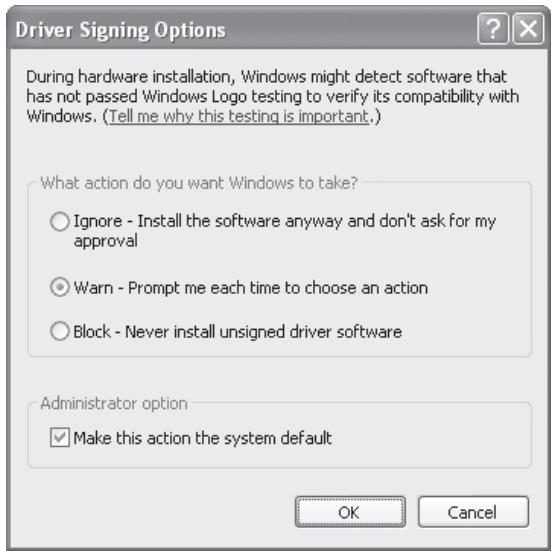
If [Block] is selected, the printer driver cannot be installed. Select [Warn] and install the printer driver again.
REMOVING THE SOFTWARE
To remove the printer driver or software installed using the installer, follow the steps below.
Windows
1 Click the [start] button and then click [Control Panel].
In Windows 2000, click the [Start] button, point to [Settings], and click [Control Panel].
2 Click [Uninstall a program].
- In Windows XP/Server 2003, click [Add or Remove Programs].
- In Windows 2000, double-click the [Add/Remove Programs] icon.
3 Select the program or driver that you wish to delete.
For more information, see the manual for the operating system or Help.
4 Restart your computer.
Mac OS X
1 Delete the printer that uses the machine's PPD file from the printer list.
To show the printer list, see step 11 and 12 of "MAC OS X" (page 29).
2 Delete the PPD file.
The PPD file has been copied to the following folder on the startup disk.
[Library] - [Printers] - [PPDs] - [Contents] -
[Resources] - [en.lproj]
Delete the PPD file of the machine from this folder.
3 Delete the installation information.
The installation information file has been copied to the following folder on the startup disk.
[Library] - [Receipts]
Delete the [MX-B08.pkg] file from this folder.
Mac OS 9.0 - 9.2.2
After deleting the icon of the printer that uses the machine's PPD file from the desktop, follow the steps below.
1 Insert the "Software CD-ROM" into your CD-ROM drive.
Insert the "Software CD-ROM" that shows
"Disc 2" on the front of the CD-ROM.
2 Double-click the [CD-ROM] icon ( ) on the desktop and double-click the [MacOS] folder.
3 Double-click the [Installer] icon ()
4 Select [Remove] in the Install menu and click the [Remove] button.
TABLE DES MATIERES
INTRODUCTION 2
AVANT D'INSTALLER LE LOGICIEL
A PROPOS DU LOGICIEL 3
- SOFTWARE CD-ROM 3
VERIFICATION DE LA CONFIGURATION REQUISE. 5
- CONFIGURATION SYSTEME REQUIRE 5
- CONFIGURATION LOGICIELLE REQUIRE 5
CONNEXION DE LA MACHINE 6
- CONNEXION A UN RESEAU 6
- CONNEXION DE LA MACHINE VIA UN CABLE USB (Windows) 6
LLATION ET CONFIGURATION SOUS WINDOWS
OUVERTURE DE L'ECRAN DE SELECTION DE LOGICIEL (POUR TOUS LES LOGICIELS)............7
INSTALLATION DU PILOT E D'IMPRIMANTE ET DU PIOTE PC-FAX 9
LORSQUE LA MACHINE EST EN RESEAU 9
LORSQUE LA MACHINE EST CONNECTEE VIA UN CABLE USB. 17
UTILISATION DE LA MACHINE COMME IMPRIMANTE PARTAGEE 22
- CONFIGURATION DU PILOTE D'IMPRIMANTE POUR LES OPTIONS INSTALLLEES SUR LA MACHINE... 24
INSTALLATION DE PRINTER STATUS MONITOR 27
INSTALLATION DES POLICES D'AFFICHAGE PS 28
INSTALLATION ET CONFIGURATION SOUS MACINTOSH
MAC OS X 29
MAC OS 9.0 - 9.2.2 35
DEPANNAGE
SI L'INSTALLATION ECHOUE 38
DESINSTALLATION DU LOGICIEL 41
INTRODUCTION
- Printer Administration Utility
Installation standard
Cela termine I'installation.
Cela termine I'installation.
- Printer Administration Utility
- Printer Administration Utility
Instalar as fontes de ecra
[Library] - [Receipts]
- KIT IMPRIMANTE
- WARNING:
- Note:
- Notice for Users in Canada
- SETUP IN A WINDOWS ENVIRONMENT
- SETUP IN A MACINTOSH ENVIRONMENT
- TROUBLESHOOTING
- INTRODUCTION
- Please note
- Warning
- SOFTWARE LICENSE
- ABOUT THE SOFTWARE
- SOFTWARE CD-ROM
- Disc 1
- Software for Windows
- - Printer driver
- Disc 2
- - PC-Fax driver
- - Online manual (for network printer)
- R:\Manual\EnglishA\MXPB12.pdf
- - Printer Administration Utility
- R:\Admin\Documents\EnglishA*
- Software for Macintosh
- - PPD file
- VERIFYING SYSTEM REQUIREMENTS
- SYSTEM REQUIREMENTS
- For users of Windows NT 4.0/2000/XP/Server 2003/Vista/Server 2008
- SOFTWARE REQUIREMENTS
- CONNECTING THE MACHINE
- CONNECTING TO A NETWORK
- Checking the IP address of the machine
- CONNECTING THE MACHINE WITH A USB CABLE (Windows)
- OPENING THE SOFTWARE SELECTION SCREEN (FOR ALL SOFTWARE)
- Insert the "Software CD-ROM" into your computer's CD-ROM drive.
- Click the [Start] button ( ), click [Computer], and then double-click the [CD-ROM] icon ( ).
- Double-click the [Setup] icon (B).
- The software selection screen appears.
- INSTALLING THE PRINTER DRIVER / PC-FAX DRIVER
- WHEN THE MACHINE IS CONNECTED TO A NETWORK
- Standard installation
- Click the [Printer Driver] button.
- Click the [Standard installation] button.
- Note
- Printers connected to the network are detected. Select the machine and click the [Next] button.
- A confirmation window appears. Check the contents and then click the [Next] button.
- When the printer driver selection window appears, select the printer driver to be installed and click the [Next] button.
- When you are asked whether or not you want the printer to be your default printer, make a selection and click the [Next] button.
- Follow the on-screen instructions.
- When the installation completed screen appears, click the [OK] button.
- Click the [Close] button in the window of step 1.
- This completes the installation.
- Installation by specifying the machine's address
- Click the [Custom installation] button.
- When you are asked how the printer is connected, select [LPR Direct Print (Specify Address)] and click the [Next] button.
- Enter the name (host name) or IP address of the machine and click the [Next] button.
- Printing using the IPP function and the SSL function
- When you are asked how the printer is connected, select [IPP] and click the [Next] button.
- If a proxy server is used, specify the proxy server and click the [Next] button.
- Enter the machine's URL and click the [Next] button.
- Normal format:
- When SSL is used:
- Perform steps 5 through 12 on page 14 to continue the installation.
- WHEN THE MACHINE WILL BE CONNECTED WITH A USB CABLE
- When you are asked how the printer is connected, select [Connected to this computer] and click the [Next] button.
- When you are asked if you wish to install the display fonts, select an answer and click the [Next] button.
- Follow the on-screen instructions.
- Click the [Close] button in the window of step 1.
- Connect the machine to your computer with a USB cable.
- Installation of the PCL6 printer driver begins.
- When the port selection window appears, select the port that the PCL6 printer driver is using (USB001, etc.) and click the [Next] button.
- When the printer driver selection window appears, remove the [PCL6] checkmark and select the printer driver to be installed, and then click the [Next] button.
- Select whether or not you wish the printer to be your default printer and click the [Next] button.
- When the printer name window appears, click the [Next] button.
- When you are asked if you wish to install the display fonts, select [No] and click the [Next] button.
- Follow the on-screen instructions.
- When the installation completed screen appears, click the [OK] button.
- Click the [Close] button in the window of step 1.
- USING THE MACHINE AS A SHARED PRINTER
- Select [Shared Printer] and click the [Next] button.
- Select the printer name (configured as a shared printer).
- Click the [Next] button.
- Perform steps 5 through 12 on page 14 to continue the installation.
- CONFIGURING THE PRINTER DRIVER FOR THE OPTIONS INSTALLED ON THE MACHINE
- When the PCL printer driver or PS printer driver is installed
- Click the [Start] button ( ), click [Control Panel], and then click [Printer].
- Open the printer properties window.
- Click the [Configuration] tab.
- Click the [Auto Configuration] button.
- Configure the image of the machine.
- Click the [OK] button in the printer properties window.
- When the PPD driver is installed
- Click the [Start] button ( ), click [Control Panel], and then click [Printer].
- Configure the printer driver for the options installed on the machine.
- Click the [OK] button.
- INSTALLING THE PRINTER STATUS MONITOR
- Click the [Printer Status Monitor] button.
- Follow the on-screen instructions.
- When the installation completed screen appears, click the [Finish] button.
- Click the [Close] button in the window of step 1.
- INSTALLING THE PS DISPLAY FONTS
- MAC OS X
- Double-click the [CD-ROM] icon ( ) on the desktop.
- Double-click the [MacOSX] folder.
- Double-click the folder corresponding to the versions of the operating system.
- Double-click the [MX-B08] icon ( ).
- Click the [Continue] button.
- The License Agreement window will appear. Make sure that you understand the contents of the license agreement and then click the [Continue] button.
- Select the hard drive where the PPD file will be installed and click the [Continue] button.
- Click the [Install] button. Installation begins.
- When the message "The software was successfully installed" appears in the installation window, click the [Close] button.
- Select [Utilities] from the [Go] menu.
- Double-click the [Printer Setup Utility] icon ( ).
- Click [Add].
- Configure the printer driver.
- v10.4.11, v10.5 - 10.5.6
- Click the [Default Browser] icon.
- Click the machine's model name.
- Make sure that the PPD file of your model is selected.
- Click the [Add] button.
- v10.2.8, v10.3.9
- Select [AppleTalk].
- Select the PPD file of the machine.
- Display printer information.
- Click the machine's name.
- Click [Show Info].
- Select the machine configuration.
- Printing using the IPP function
- MAC OS 9.0 - 9.2.2
- Double-click the [CD-ROM] icon (⑥) on the desktop.
- Double-click the [MacOS] folder.
- Double-click the [Installer] icon (念)
- Click the [Install] button.
- The License Agreement window will appear. Make sure that you understand the contents of the license agreement and then click the [Yes] button.
- Read the message in the window that appears and click the [Continue] button.
- Select [Chooser] from the Apple Menu.
- Create a printer.
- Click the [LaserWriter 8] icon.
- Click the [Create] button.
- Select the PPD file.
- Make sure that the machine is selected in the "Select a PostScript Printer" list and then click the [Setup] button.
- Click the [Configure] button.
- Select the machine configuration.
- Click the [OK] button in the window of step 12 to close the window.
- Click the close box (□) to close the "Chooser".
- Installing the screen fonts
- WHEN INSTALLATION WAS NOT SUCCESSFUL
- The printer driver cannot be installed (Windows 2000/XP/Server 2003)
- Click the [start] button and then click [Control Panel].
- Click [Performance and Maintenance] and then [System].
- Click the [Hardware] tab and then the [Driver Signing] button.
- Check the settings in "What action do you want Windows to take?" ("File signature verification" in Windows 2000).
- REMOVING THE SOFTWARE
- Windows
- TABLE DES MATIERES
- AVANT D'INSTALLER LE LOGICIEL
- LLATION ET CONFIGURATION SOUS WINDOWS
- INSTALLATION ET CONFIGURATION SOUS MACINTOSH
- DEPANNAGE
- Installation standard
- Cela termine I'installation.
- Instalar as fontes de ecra
Brand : SHARP
Model : MX-PB12
Category : Printer Accessory