
PN-L601B - Monitor SHARP - Free user manual and instructions
Find the device manual for free PN-L601B SHARP in PDF.



User questions about PN-L601B SHARP
0 question about this device. Answer the ones you know or ask your own.
Ask a new question about this device
Download the instructions for your Monitor in PDF format for free! Find your manual PN-L601B - SHARP and take your electronic device back in hand. On this page are published all the documents necessary for the use of your device. PN-L601B by SHARP.
USER MANUAL PN-L601B SHARP
Starting and Exiting the Software 3
Pen Software modes and how to start the modes ....3
Exiting the software 4
Layout of Basic Screen 5
ToolBar function buttons 6
Saving and Opening a File 7
Saving data 7
Opening the whiteboard file 7
Edit Operations 8
Changing the sheet to edit (whiteboard mode) 8
Drawing with a Pen 10
Erasing a drawn line. 11
Editing an object. 12
Undoing/redoing operation 14
Deleting an object 14
Enlarging the view of the screen 15
Importing a Document as an Image (Pen Software
Printer Driver) 17
Acquiring an Image From a Multifunction Machine ...18
Using the Network Scanner Tool to acquire an image 18
Printing 19
Customizing the Settings. 20
Installing/Uninstalling the Software 22
Installing the Pen Software 22
Installing the Network Scanner Tool. 23
Introduction
This software is intended to facilitate effective meetings and presentations.
- Letters can be created directly so that the computer screen can be used as a whiteboard.
- Any document can be converted into an image and imported for display.
- An image can be acquired from a multifunction machine for display.
- The contents being edited can be printed out or saved.
This software is for the PN-L601B.
Important Information
This software has been shipped after strict quality control and product inspection. If, however, you find any failure or malfunction, contact your product dealer.
- Please understand that SHARP CORPORATION bears no responsibility for errors made during use by the customer or a third party, nor for any other malfunctions or damage to this software arising during use, except where indemnity liability is recognized under law.
Transcribing or duplicating part or all of this manual and/or this software without permission from our company is not permitted.
- As a part of our policy of continuous improvement, SHARP reserves the right to make design and specification changes for product improvement without prior notice. The performance specification figures indicated are nominal values of production units. There may be some deviations from these values in individual units.
- This software uses the ImageKit7 technology. ImageKit7 Copyright © 2005 Newtone Corp.
- The contents or details may vary depending on the screen configuration and OS version, etc.
- Only an English version of this software is provided. The screens shown in the manual are the screens that appear in the English OS.
- This manual does not contain basic operating instructions for Windows.
- The paths used in this manual assume the case where this software being installed in the default folder. The actual path may vary depending on the folder specified during installation.
Trademarks
- Microsoft, Windows, and Windows Vista are either registered trademarks or trademarks of Microsoft Corporation in the United States and/or other countries.
- Names of products and other proper nouns are the registered trademarks or trademarks of their respective copyright holders.
Pen Software modes and how to start the modes
TIPS
- The use of a secondary display is not supported.
- Whiteboard mode and overlay mode cannot be started at the same time.
To change modes, exit the current mode and start the other mode.
- To prevent the Windows taskbar from moving, lock it.
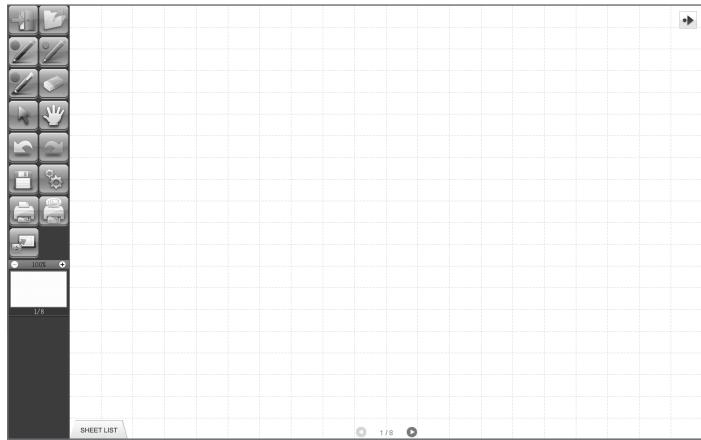
■ Whiteboard mode
You can use the screen as a whiteboard.
The work area is displayed for each "sheet". By changing the sheet, you can edit data on another screen.
Starting whiteboard mode
Follow the steps below to start the software.
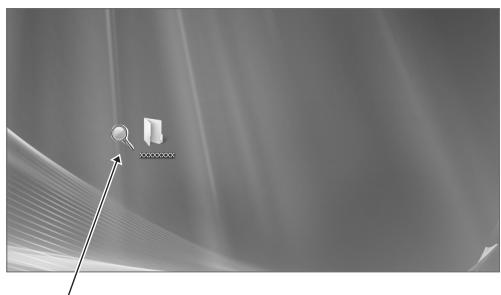
- On the desktop, touch the "SHARP Pen Software" shortcut icon ( ) twice quickly (or double-click the icon).
- Click the "Start" button, and then select "All Programs" - "SHARP Pen Software" - "SHARP Pen Software".
- Touch a whiteboard file (a file saved in the SWS format) twice quickly (or double-click the file).
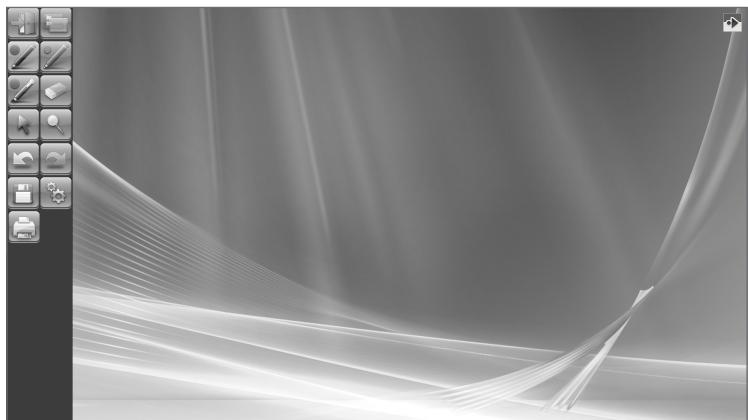
Overlay mode
The board is shown as transparent.
The work area consists of a single screen.
Your drawing will appear on the transparent board placed over the screen, so that you can write comments directly on the items displayed on the screen. Note, however, that you cannot operate the screen shown behind the transparent board.
Starting overlay mode
Follow the steps below to start the software.
- On the desktop, touch the "SHARP Pen Software (Overlay mode)" shortcut icon ( ) twice quickly (or double-click the icon).
- Click the "Start" button, and then select "All Programs" - "SHARP Pen Software" - "SHARP Pen Software (Overlay mode)".
Exiting the software
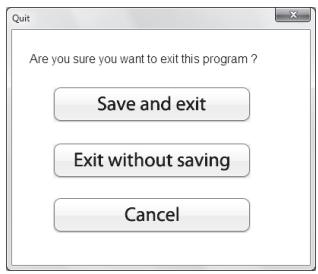
Touch the "Quit" button.
When there is no data which is being edited and is not saved
The software is exited.
When there is data which is being edited and is not saved
A confirmation dialog box appears.
When you touch "Save and exit", a dialog box appears to allow you to specify the destination to save the data. Confirm the saving format, specify the destination, and save the data. (Page 7)
When you touch "Exit without saving", the software is terminated without saving the data.
Layout of Basic Screen
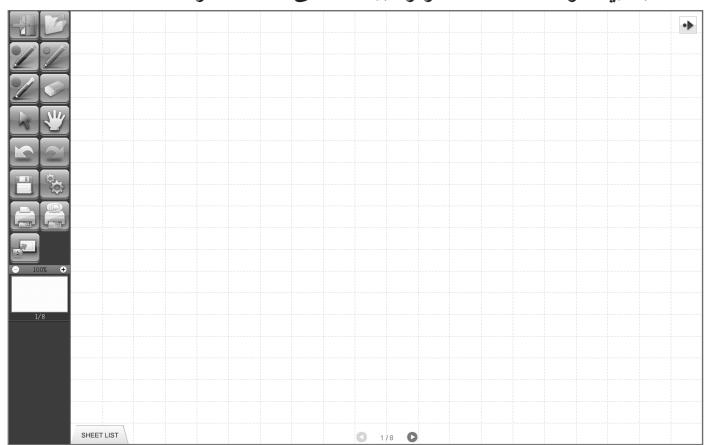
Screen example: Whiteboard mode
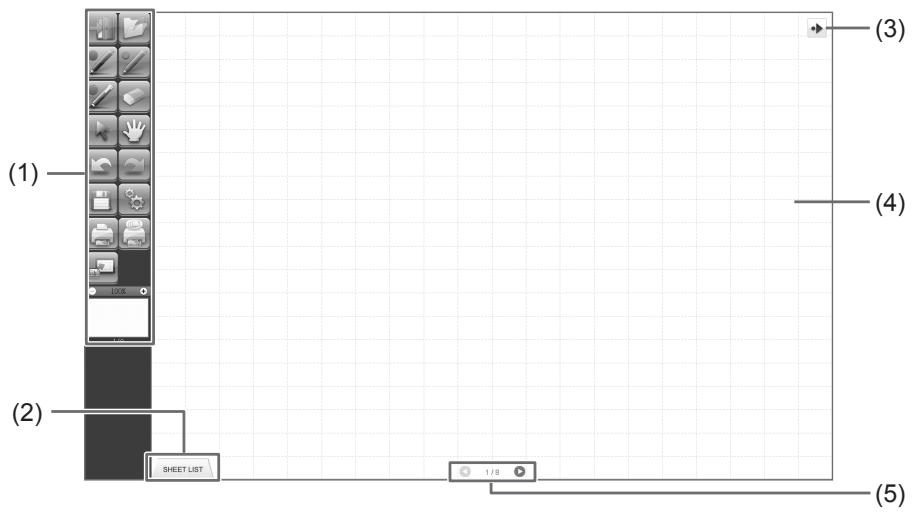
(1) Toolbar
Used to switch functions. (Page 6)
(2) SHEET LIST
This is displayed only in the whiteboard mode.
Touch this tab to display the list of sheets shown as thumbnail images. (Page 8)
(3) Move toolbar icon
This appears on the side opposite to the toolbar, and can be touched to move the toolbar to that side. (The icon and the toolbar will switch places.)
(4) Board
Work area. You can write letters, draw lines, and paste images here.
The board can be displayed in two modes: whiteboard mode and overlay mode. The latter is transparent, showing the background.
TIPS
- The background color and grid used in the whiteboard mode can be changed. (Page 20)
(5) Sheet navigation buttons/Page No.
This is displayed only in the whiteboard mode.
Touch the sheet navigation button to change the displayed sheet. (Page 8)
The number shown at the center is the page No. of the current sheet.
ToolBar function buttons
The functions of the toolbar are shown as buttons. Touch a button to select the function of that button. The function buttons that appear on the toolbar vary depending on the mode.
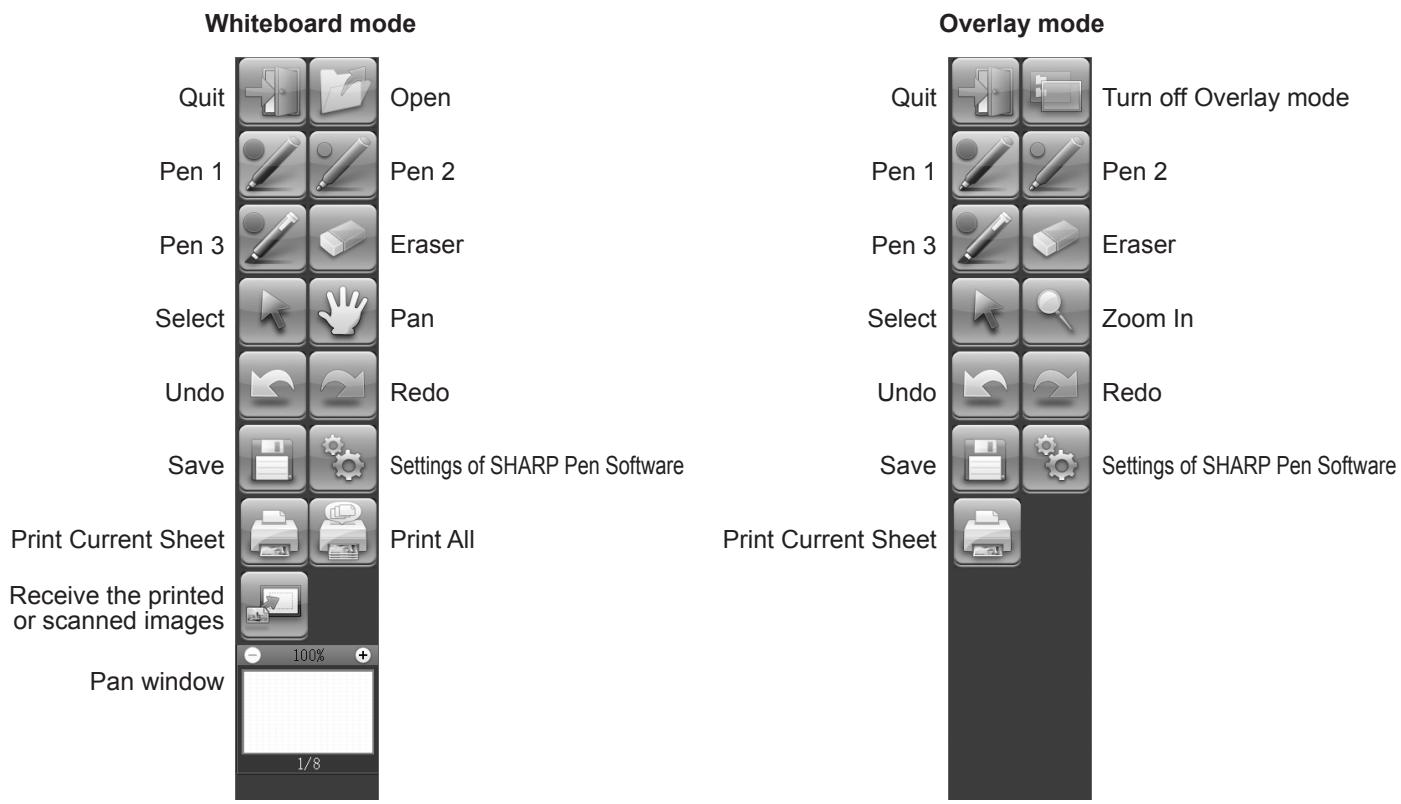
| Button | Function | Page |
| Quit | Exit this software. | 4 |
| Open*1 | Open a whiteboard file. | 7 |
| Turn off Overlay mode*2 | Turn off overlay mode. By disabling the board function temporarily, you can operate something other than the software (files, other application software, etc.). | - |
| Pens 1 to 3 | Draw lines. | 10 |
| Eraser | Erase hand-drawn lines. | 11 |
| Select | Select an object. | 12 |
| Pan*1 | Enlarge the view of the whiteboard, change the display position, and change pages. | 8, 15 |
| Zoom In*2 | Enlarge part of the screen in overlay mode. | 16 |
| Undo | Cancel the immediately preceding operation. | 14 |
| Redo | Redo the immediately preceding canceled operation. | 14 |
| Save | Save the data being edited. | 7 |
| Settings of SHARP Pen Software | Set this software according to the user's preference. | 20 |
| Print Current Sheet | Print the displayed sheet. | 19 |
| Print All*1 | Print all sheets. | 19 |
| Receive the printed or scanned images*1 | Paste an image file acquired from the Pen Software printer driver or a multifunction machine onto the board. | 17, 18 |
| Pan window*1 | This shows a thumbnail image of the displayed sheet. Operate inside this window to enlarge the view of the board or move the display position. | 15 |
1 Only appears in whiteboard mode.
2 Only appears in overlay mode.
Saving and Opening a File
Saving data
Data can be saved in the following file formats:
| File format | Description |
| Whiteboard file | Data on the whiteboard is saved in the SWS format. The saved data can be re-edited with this software. |
| PDF, BMP, JPEG, PNG | The working screen is saved as a screen shot. The data is converted into the different file format so that it cannot be re-edited with the software. |
In the whiteboard mode
Data can be saved in any of the file formats above.
All sheets will be saved. (A sheet without data will not be saved.)
When data is saved in BMP, JPEG, or PNG format, each sheet is saved in a separate file.
In the overlay mode
Data can be saved in PDF, BMP, JPEG, or PNG format.
- Touch the "Save" button.
- Select the file format from the drop-down list.
- Specify the destination and touch "Save".
Automatic backup
This function automatically backs up the whiteboard file at specified intervals.
(The automatic backup cannot be used for the data in the overlay mode.)
You can change whether to enable/disable the automatic backup and the backup interval time. (Page 20)
Opening the whiteboard file
When whiteboard mode is started, a new whiteboard file opens. (If you start the software by directly touching a whiteboard file, the whiteboard file opens.)
To open a saved whiteboard file, touch the "Open" button and select the file. (If the data being edited is not saved, the file saving confirmation dialog box appears.)
Changing the sheet to edit (whiteboard mode)
In the whiteboard mode, each screen is displayed on a sheet.
To change the sheet, touch the sheet navigation button at the bottom of the screen. The number shown at the center is the page No. of the current sheet.
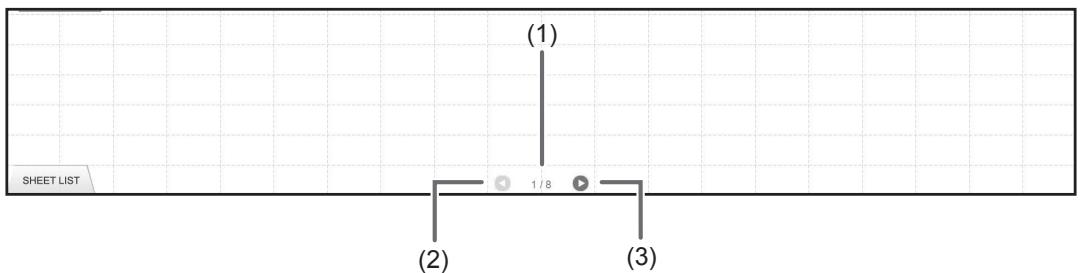
(1) Page No. of the current sheet
(2) Sheet navigation button (Previous)
Touch this button to display the previous sheet. When the first sheet is displayed, this button is disabled.
(3) Sheet navigation button (Next)
Touch this button to display the next sheet. When the last sheet is displayed, this button is disabled.
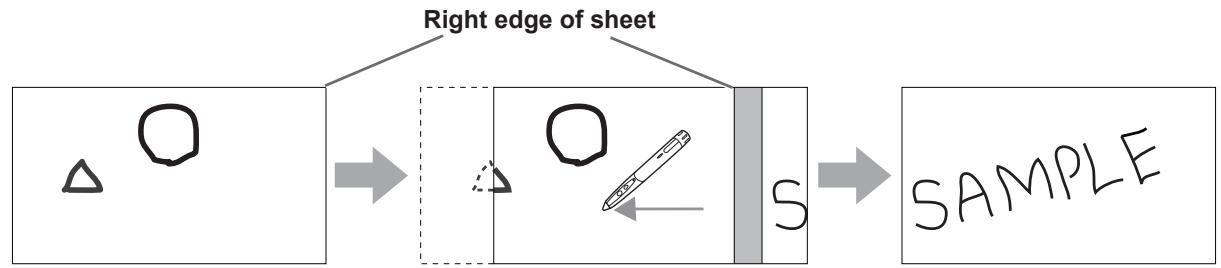
Changing the sheet by dragging the screen
A sheet can be changed by dragging when the zoom (enlargement percentage) is 100% .
- Touch the "Pan" button.
-
Drag horizontally with the touch pen.
-
Drag to the right to show the previous sheet.
- Drag to the left to show the next sheet.
Changing the sheet by referring to thumbnail images / Editing the sheet
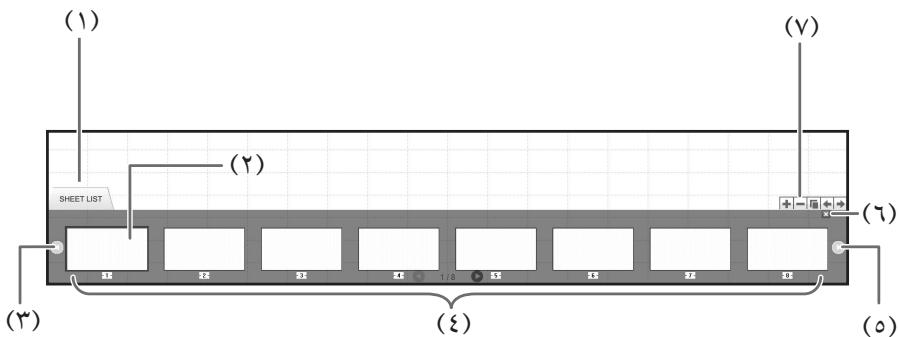
Thumbs nails of each sheet appear in "SHEET LIST" in the bottom left corner of the screen. A thumbnail can be touched to change to that sheet. The sheets can be edited, including adding, deleting, copying, and moving sheets.
- Touch "SHEET LIST" in the lower left corner of the screen.
The list of the thumbnail images of the sheets is displayed.
- Touch the thumbnail image of the sheet you want to display.
The screen changes to the selected sheet.
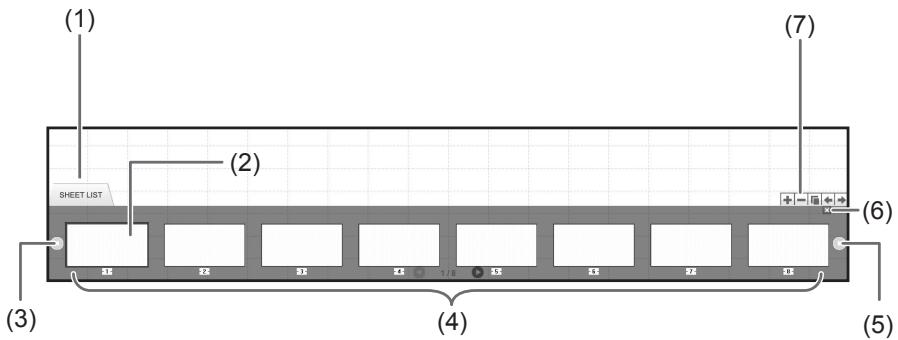
(1) SHEET LIST
(2) Currently selected sheet
(3) Thumbnail navigation button (Previous)
(4) Thumbnail images
(5) Thumbnail navigation button (Next)
(6) Touch this button to close the sheet list.
(7) + : Add a new sheet to the right of the selected sheet.
Delete the selected sheet.
: Copy the selected sheet and insert it on the right of the selected sheet.
Move the selected sheet one to the left.
Move the selected sheet one to the right.
Drawing with a Pen
- Touch any of the "Pen 1" to "Pen 3" buttons.
- Draw on the board.
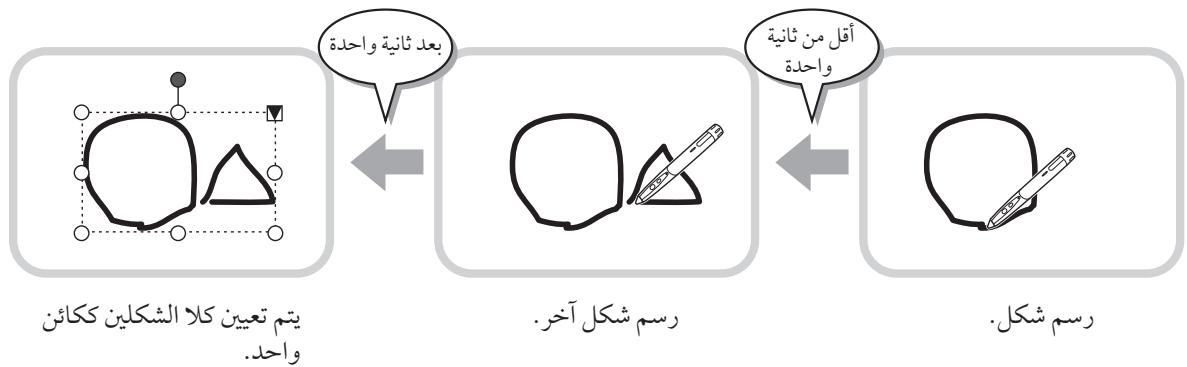
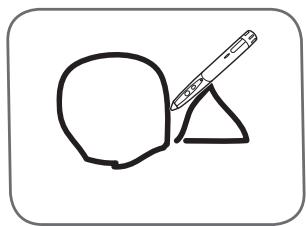
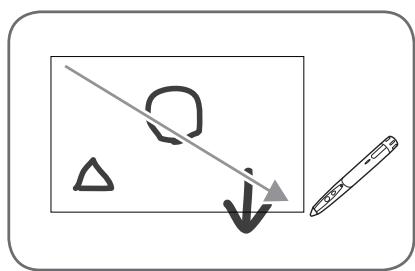
The drawn shape will be determined as an object 1 second after you lift the touch pen from the board. If you start drawing another object within 1 second after you lift the touch pen from the board, the drawn shapes will be determined to be a single object even though they are separate.
- This period can be changed. (Page 20)
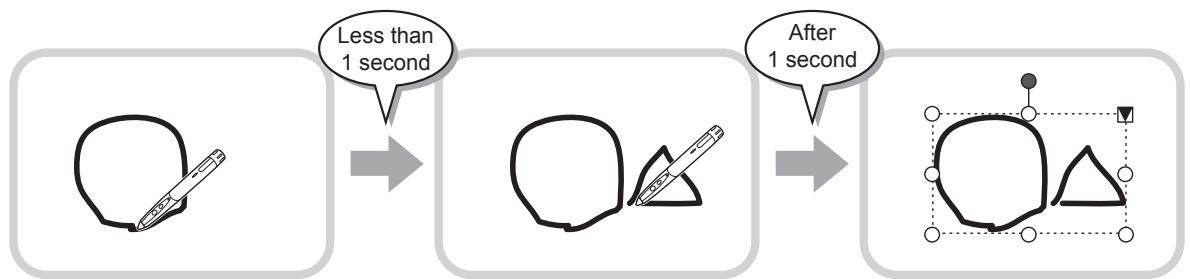
Draw a shape.
Draw another shape.
Both shapes are determined as a single object.
TIPS
- You can switch through "Pen 1" to "Pen 3" and "Eraser" by repeatedly pressing Function Button 2 of the touch pen. To change functions using Function Button 2, select the touch panel driver "Properties", and set "Function Button 2" to "Pen Software Link" on the "OPERATION SETTING" tab.
- For details about objects, refer to page 12.
- In certain cases, such as when a button on the toolbar is touched, the drawn shape will be fixed as an object before the specified time elapses after the touch pen is lifted from the board.
Changing the color and thickness of the pen
The "Pen 1" to "Pen 3" palettes can be used to change the pen function settings. To display the palette, touch the button of the selected pen once again.
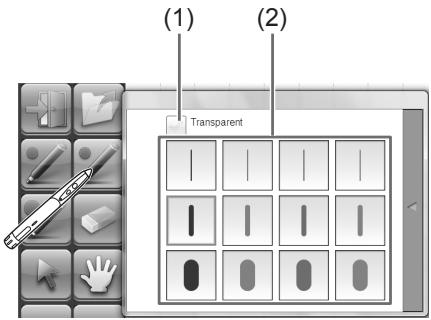
(1) Check this box to make the line transparent.
The pen icon changes when this setting is enabled.
Normal Transparent


(2) Set the color and thickness of the line.
The palette is closed.
TIPS
- The method of closing the palette can be changed. (Page 20)
Erasing a drawn line
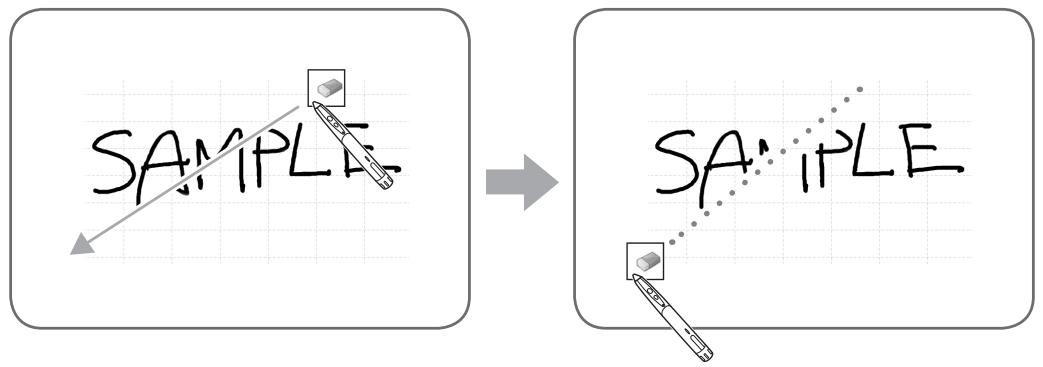
- Touch the "Eraser" button.
- With the pen touching the screen, move the pen.
The part you move over is erased.
TIPS
- You can switch through "Pen 1" to "Pen 3" and "Eraser" by repeatedly pressing Function Button 2 of the touch pen. To change functions using Function Button 2, select the touch panel driver "Properties", and set "Function Button 2" to "Pen Software Link" on the "OPERATION SETTING" tab.
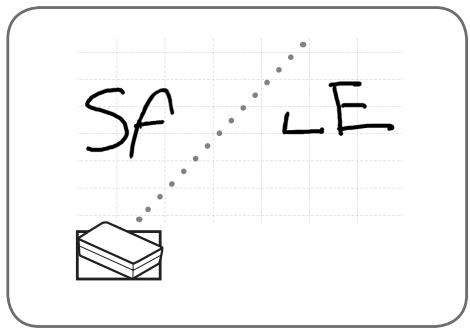
- The eraser function can erase only the objects drawn with the pen function. You cannot use the "Eraser" button to erase pasted images. You cannot use it either to erase the edges of a line to make the line thinner. Even if you erase the edges only, the entire width of the line will be erased.
- An object drawn with the pen function cannot be erased if it is part of a group.
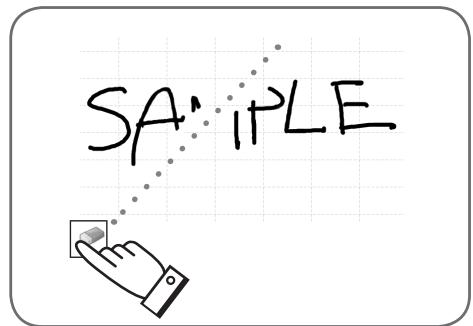
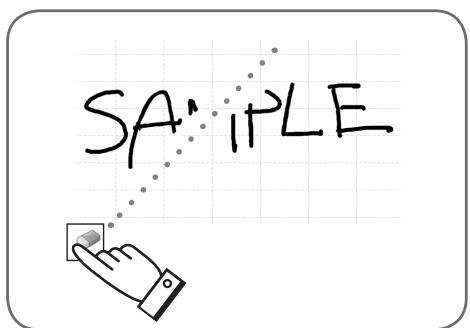
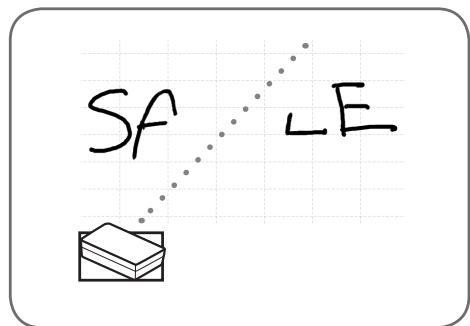
- When "Auto Pen/Eraser Mode Switching" is enabled (page 20), you can erase with the eraser or your finger when one of "Pen 1" to "Pen 3" or "Eraser" is selected. Touch the screen with the eraser or your finger, and after the cursor changes to the eraser, move the eraser or your finger. You can set the eraser size for erasing with the eraser or your finger to the touched area of the screen, or to the size selected on the palette.
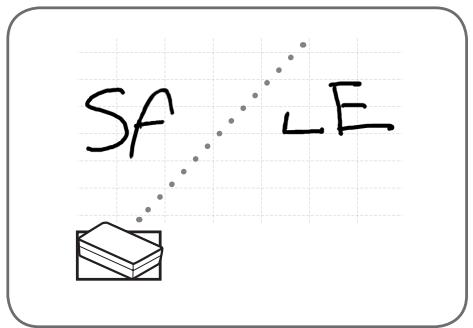
When "The area you touch (or cover)" is selected
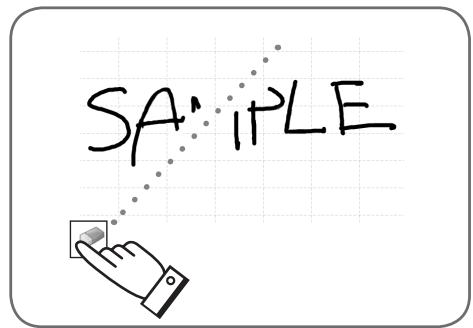
When "The selected size in Eraser Palette" is selected
-
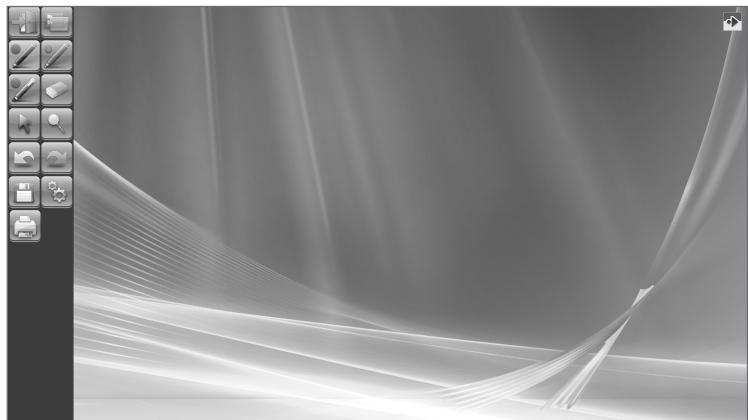
With Windows Vista/7, the display changes as follows when the "Eraser" button is selected in the overlay mode. The display returns to normal when the function other than the "Eraser" button is selected.
-
The computer screen in the background is hidden even by translucent objects.
- An object is surrounded with a white line.
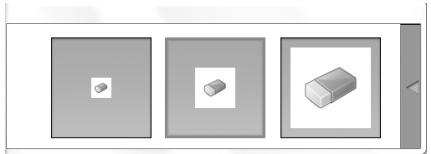
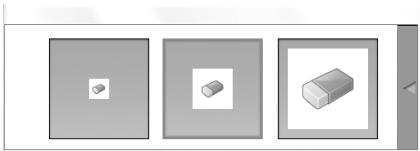
Changing the eraser size
The size of the eraser can be changed by selecting it from the palette for the "Eraser" button.
To display the palette, touch the "Eraser" button again while it is in the selected state.
TIPS
- The method of closing the palette can be changed. (Page 20)
Editing an object
The drawn lines and the images pasted on the board are handled in the software as an "object".
Selecting an object
You need to select an object before editing it.
- Touch the "Select" button.
- Touch an object.
The object is selected.
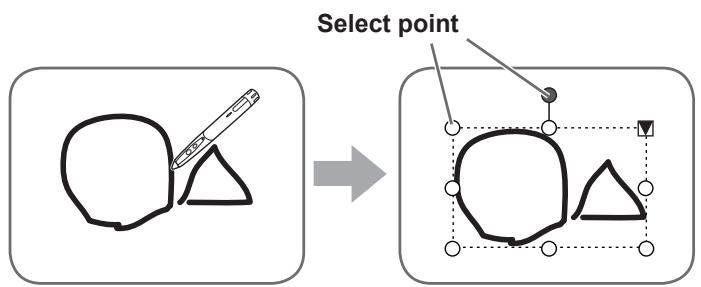
Touch an object.
Touch an area where something is drawn. You cannot select an object by touching the area where nothing is drawn.
Selected object
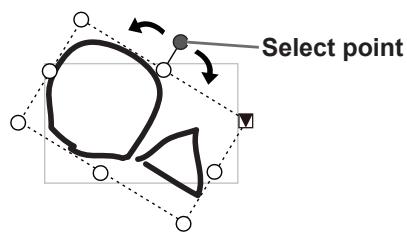
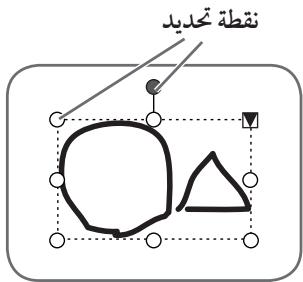
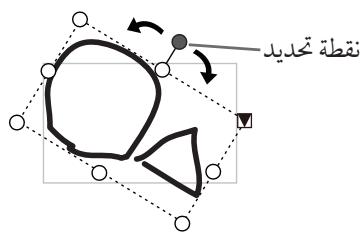
The area of the object is indicated with a dotted line, and symbols called select points appear on the vertices and sides of the area.
When you select an object and then touch , the expansion menu appears to allow you the following edit operations:
Cut
- Copy
- Paste
- Delete
- Rotate
- Order
- Cancel selection
- Group
Ungroup
- Property
By specifying an area by dragging, you can select several objects inside the area. (Objects which are not entirely included in the area are not selected.)
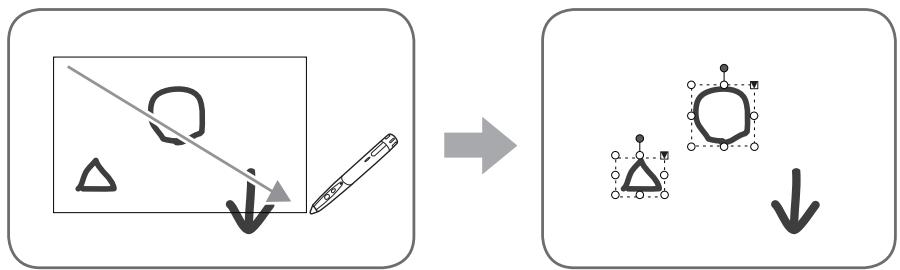
Grouping objects
You can edit several selected objects as one object.
- Select objects to be grouped.
- Select "Group" from the expansion menu.
Canceling the grouping
- Select the grouped objects.
- Select "Ungroup" from the expansion menu.
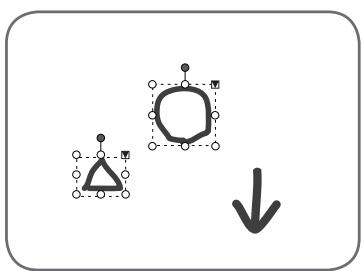
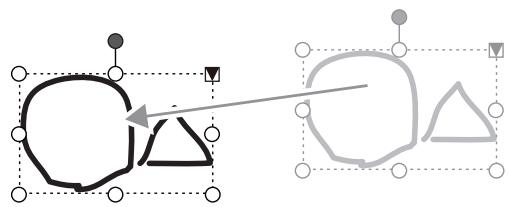
■ Moving an object
You can move an object by selecting the object and dragging it.
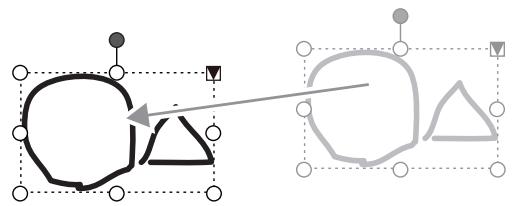
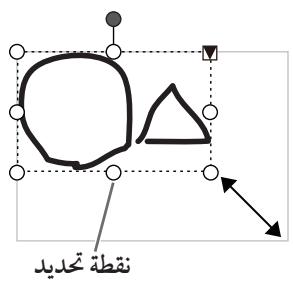
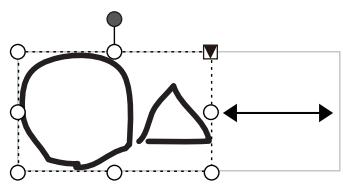
■ Enlarging/reducing an object
- Select an object.
-
Drag the select point.
-
Dragging the select point on the vertex enlarges/reduces the object with the same aspect ratio.
- Dragging the select point on the side enlarges/reduces the object in the direction of either width or height.
- The line width remains the same after the object is enlarged/reduced.
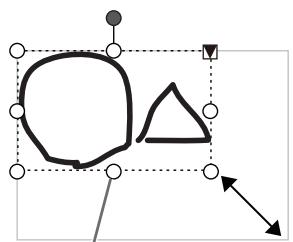
Select point
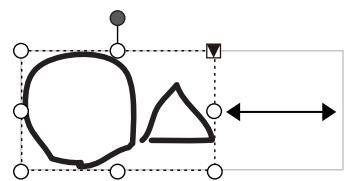
Rotating an object
- Select an object.
- Drag the select point at the center top. Or, select "Rotate Right", "Rotate Left" or "Rotate 180 degrees" from "Rotate" in the expansion menu.
- Copying an object
You can copy an object to the clipboard.
- Select an object.
- Select "Copy" from the expansion menu.
Cutting an object
You can cut an object and save it to the clipboard.
- Select an object.
- Select "Cut" in the expansion menu.
Pasting an object
To paste the object in the clipboard, select "Paste" in the expansion menu.
Changing the order of objects
You can change the order of the object placement.
1. Select an object.
-
Select the object placement from "Order" in the expansion menu.
-
Bring to Front : The object moves to the front.
- Send to Back : The object moves to the back.
- Bring forward : The object moves one forward.
- Send backward : The object moves one backward.
Object placement order
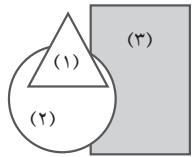
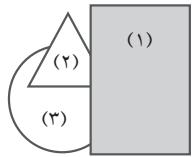
When several objects overlap, the objects at the back are hidden behind the objects in front. To show the hidden part, change the placement order of the objects.
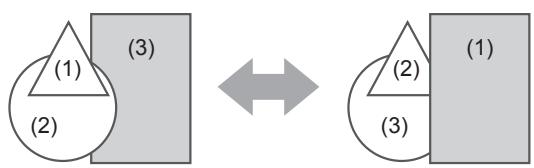
(1) Object placed in front of the other objects
(2) Object placed second from the front object
(3) Object placed at the back of the other objects
Undoing/redoing operation
Touching the "Undo" button cancels the preceding drawing or editing operation.
Touching the "Redo" button repeats the operation canceled with the "Undo" button.
TIPS
- Up to 50 actions can be undone.
Deleting an object
- Select an object.
- Select "Delete" from the expansion menu.
The selected object disappears.
Enlarging the view of the screen
The steps for enlarging the view of the screen vary depending on the mode.
■ Enlarging the screen in whiteboard mode
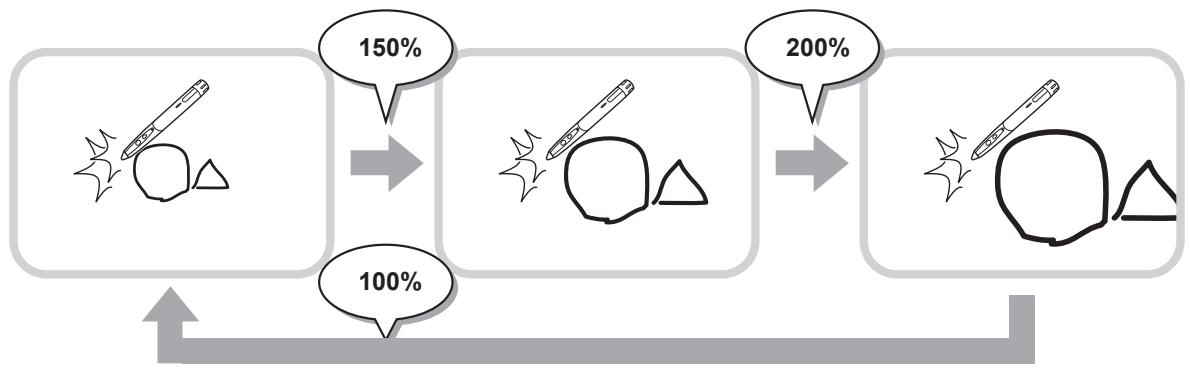
Double-click to enlarge the screen
- Touch the “Pan” button.
- Quickly touch the part of the board that you want to enlarge twice (double-click).
Each time you double-click, the view changes in the order 100% > 150% > 200% , centered on the click position. Double-clicking at 200% returns the view to 100% .
Changing the display position when the view is enlarged
To change the display position, drag on the screen with "Pan" selected.
Enlarging the view of the screen with the pan window
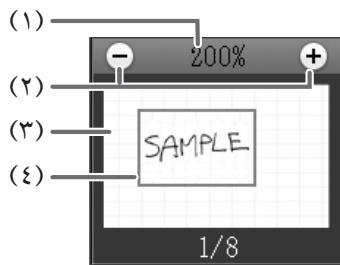
A thumbnail of the current sheet appears in the pan window on the toolbar.
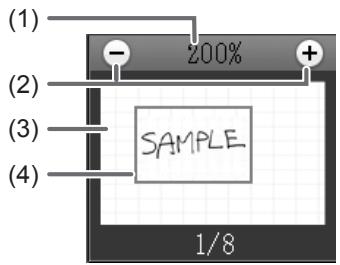
(1) Magnification
Shows the current screen magnification.
(2) [-] [+]
Touch to enlarge or reduce the view between 100% and 400% in increments of 50% .
(3) Pan window
Shows a thumbnail of the current sheet. Double-click to change the view in the order 100% > 150% > 200% , centered on the double-click position.
(4) Display frame
Shows the area that is displayed on the screen. To move the area that is displayed, drag the display frame.
■ Enlarging the screen in overlay mode
You can enlarge part of the screen and display it.
- Touch the "Zoom In" button.
- Touch the board.
The area around the touched point is enlarged and displayed.
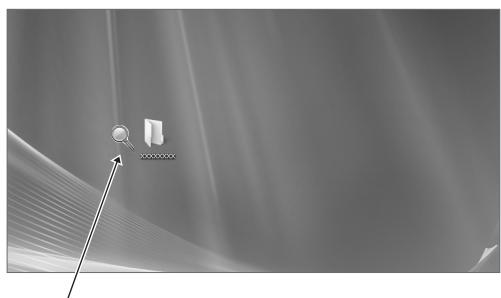
Touch the point to enlarge.

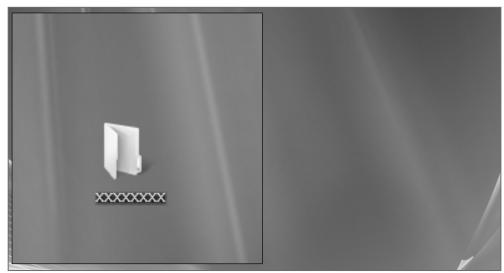
The area around the point is enlarged.
Importing a Document as an Image (Pen Software Printer Driver)
A document of any application can be converted into an image and displayed on the whiteboard.
A document is imported as an image similar to an image printed by a printer.
In the software application
- In the software application, open the document that you wish to import.
- Select the print command and open the print settings screen.
For details, see the manual for the software application.
-
Change the printer to "Send print data to SHARP Pen Software", and select print settings.
-
"Paper Size", "Orientation", and "Resolution" can be selected.
-
When you have finished selecting settings, touch "OK".
-
Execute printing.
The printed document will be converted into an image and sent to the Pen Software.
In the Pen Software (whiteboard mode)
When the image has been sent, the "Receive the printed or scanned images" button will blink.
- Touch the "Receive the printed or scanned images" button.
The first sheet of the acquired image appears.
TIPS
- It may not be possible to correctly convert documents from some software applications.
- The "Resolution" setting of the Pen Software printer driver should normally be set to 120 dpi. If set to a higher setting, operations such as enlarging, reducing, and scrolling the sheet may not take place smoothly.
Acquiring an Image From a Multifunction Machine
If a SHARP multifunction machine is connected to the same network as the computer on which the Pen Software is installed, an image scanned on the multifunction machine can be acquired onto the whiteboard.
TIPS
Supports the Network Scanner Tool 3.3 or higher (as of August, 2010).
- For details, contact your dealer or nearest authorized service representative for the multifunction machine.
- For the procedures for using the multifunction machine, see the manual for the multifunction machine.
Using the Network Scanner Tool to acquire an image
The first time you use the Network Scanner Tool, install the Network Scanner Tool on the computer on which the Pen Software has been installed and configure the Network Scanner Tool settings. (Page 23)
To acquire an image from a multifunction machine, the Network Scanner Tool must be running on your computer.
Use JPEG for the scan send format.
In the multifunction machine
- Place the document in the multifunction machine.
- Select a destination stored in the Network Scanner Tool.
- Select JPEG for the scan send format.
- Execute scanning.
The document will be scanned and sent to the Pen Software.
In the Pen Software (whiteboard mode)
When the image has been sent, the "Receive the printed or scanned images" button will blink.
- Touch the "Receive the printed or scanned images" button.
The first sheet of the acquired image appears.
Printing
To print only the currently displayed sheet, touch the "Print Current Sheet" button.
To print all sheets on the whiteboard, touch the "Print All" button. (Whiteboard mode only)
Store the print settings ahead of time.
TIPS
- The operation tools of the software, such as the toolbars and tabs will not be printed.
- In the whiteboard mode, a sheet with no data will not be printed.
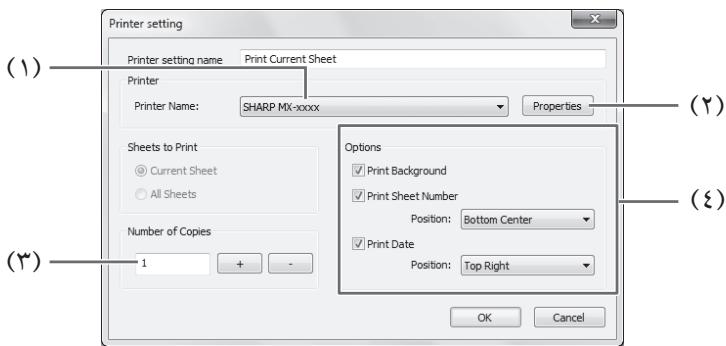
Register the settings for printing
- In the "Settings" dialog box (page 20), touch "Print Current Sheet" or "Print All".
- Specify the print settings. (See below.)
- When you finish adjusting the settings, touch "OK".
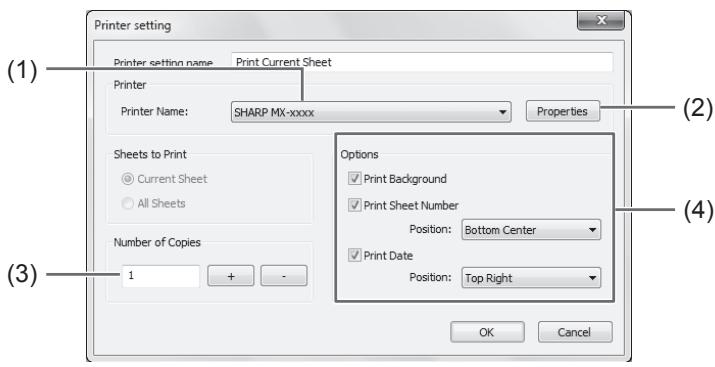
(1) Printer Name
Select the printer to be used for printing.
(2) Properties
Set the printer details. The setting options depend on the printer. For the setting options, refer to the instruction manual of the printer.
(3) Number of Copies
Specify the number of copies to print.
(4) Options
- Print Background : Select this to print the color that is set for the whiteboard background.
(Only when in whiteboard mode)
- Print Sheet Number : Select this to print page numbers, and select the "Position".
(Only when in whiteboard mode)
- Print Date : Select this to print the print date, and select the "Position".
TIPS
- "Sheets to Print" cannot be changed.
Customizing the Settings
You can customize various settings of this software.
The settings are the same in both whiteboard mode and overlay mode. However, the contents of the screen will vary depending on which mode is started.
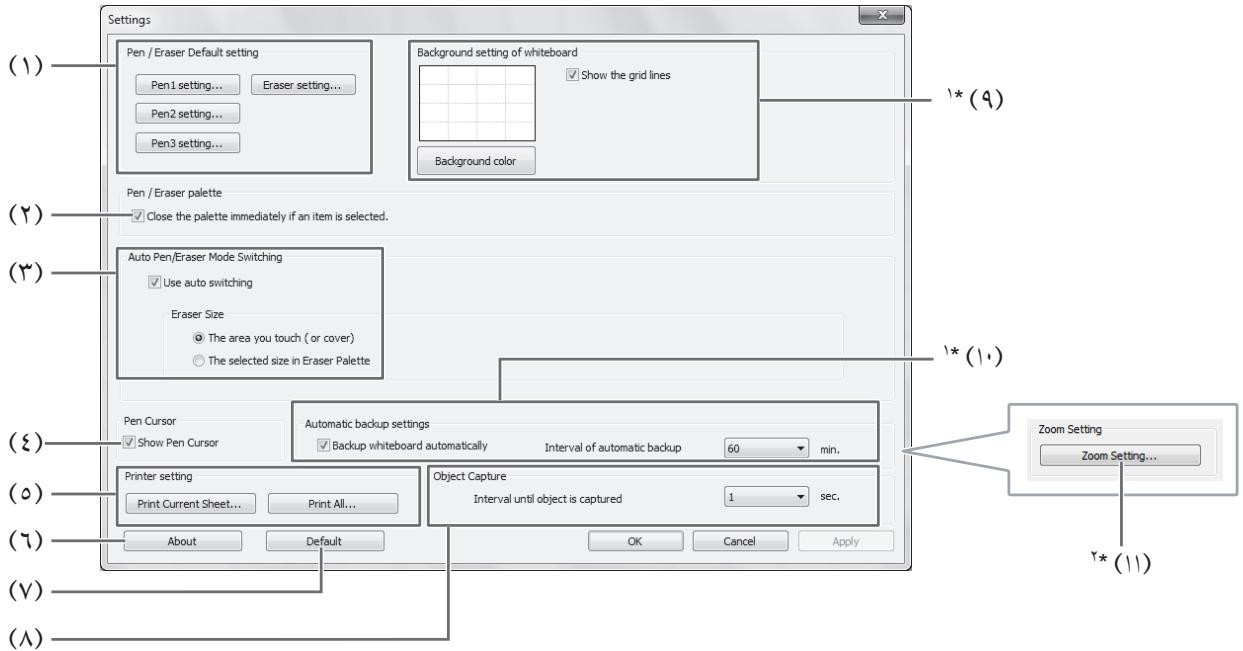
- Touch the “Settings of SHARP Pen Software” button.
- Set the options as necessary. (See below.)
- When you finish adjusting the settings, touch "OK".
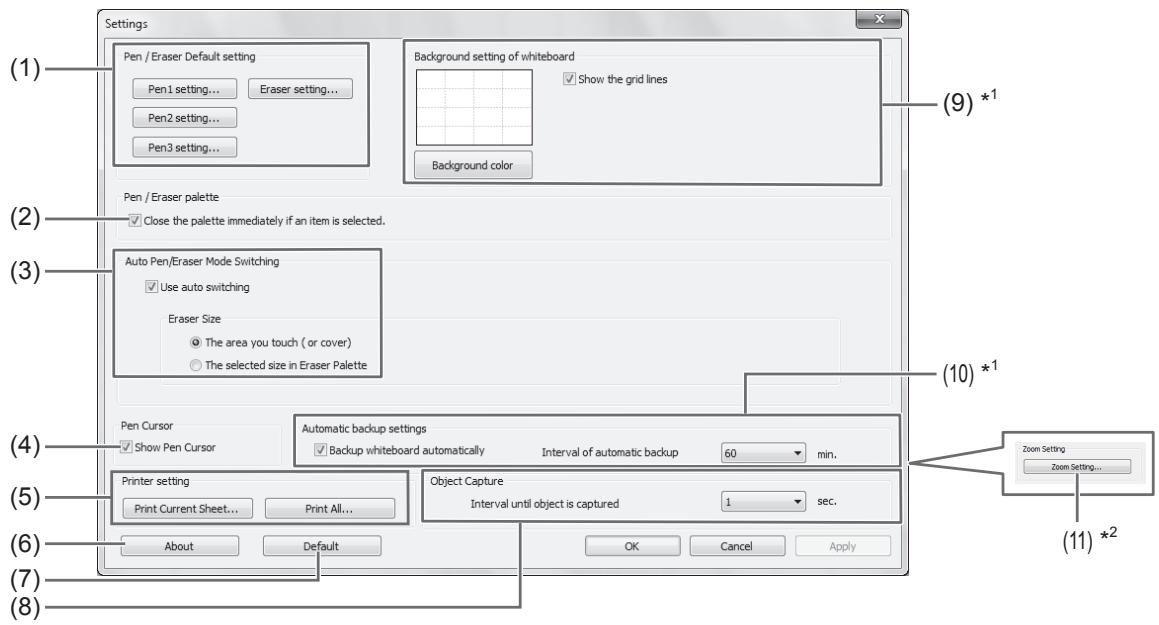
1 Only appears in whiteboard mode.
2 Only appears in overlay mode.
(1) Pen/Eraser Default setting
Set the initial color and thickness of "Pen 1" to "Pen 3", and the initial size of the "Eraser".
(2) Pen/Eraser palette
Select this to have the palettes of "Pen 1" to "Pen 3" and "Eraser" close when a pattern is selected from a palette. If the checkmark is removed, must be clicked to close the palette.
(3) Auto Pen/Eraser Mode Switching
Use auto switching
To use this function, select this to have the pen automatically switch to the eraser when the screen is touched with the eraser or your finger in pen mode. Set the eraser size that is applied in "Eraser Size".
- The area you touch (or cover) : When using an eraser or other object and the area of contact on the screen is at least 1-9/16 inch (4 cm) x 1-9/16 inch (4 cm), erase the area of contact.
- The selected size in Eraser Palette : Erase with the selected eraser size regardless of the amount of contact on the screen.
IMPORTANT
- To use this function, select the touch panel driver "Properties", and configure the settings on the "OPERATION SETTING" tab as shown below. For information on the touch panel driver, see the Touch Panel Driver Operation Manual.
- Set "Input Mode Setting" to "Standard". If set to other than "Standard", the pen/eraser auto switching function cannot be used.
- If you have selected "The area you touch (or cover)", set "Detect Eraser Area" to "Enable".
(4) Pen Cursor
Set whether to show a cursor when you draw with the pen function.
(5) Printer setting
Register the settings for printing. (Page 19)
(6) About
The version information of this software is displayed.
(7) Default
Reset the settings to the initial values.
(8) Interval until object is captured
Set the period until a hand-drawn line is determined as an object.
(9) Background setting of whiteboard
Preview : The image of the whiteboard with the current setting is displayed.
- Background color : Set the background color of the whiteboard.
- Show the grid lines : Select to show the grid on the whiteboard.
(10) Automatic backup settings
Specify whether to back up data automatically in the whiteboard mode.
To use the automatic backup, specify the interval.
(11) Zoom Setting
Specify the size and magnification of the zoom display.
The operations in this section require administrator privilege.
Installing the Pen Software
■ Installing .NET Framework 2.0 or later
.NET Framework 2.0 or later must be installed on the computer on which the Pen Software will be used.
Download and install .NET Framework from Microsoft's website.
■ Installing the Pen Software
- Exit all running software applications.
- Insert the supplied CD-ROM into the CD-ROM drive of the computer.
-
Double-click the setup program.
-
32-bit operating system: \PenSoftware\eng\setup.exe
-
64-bit operating system: \PenSoftware\eng_x64\setup_x64.exe
-
For the remainder of the procedure, follow the instructions shown on the screen.
-
When the "User Account Control" dialog box appears, click "Yes" (or "Allow").
- When a security warning screen (The publisher could not be verified.) appears, click "Allow".
When installation is finished, shortcut icons for whiteboard mode ( ) and overlay mode ( ) will be created on the desktop.
The Pen Software printer driver will also be added. (Page 17)
Uninstalling
- Exit all running software applications.
- Click the "Start" button and select "Control Panel".
-
Click "Uninstall a program".
-
If you are using icon view (Classic View), double-click "Programs and Features".
-
When Windows XP is used, click "Add or Remove Programs". (In the classic view, double-click "Add or Remove Programs".)
-
Select "SHARP Pen Software" and click "Uninstall".
When Windows XP is used, click "Remove".
- For the remainder of the procedure, follow the instructions shown on the screen.
When the "User Account Control" dialog box appears, click "Continue".
This completes the uninstallation process.
Installing the Network Scanner Tool
The Network Scanner Tool is used to acquire an image from a SHARP multifunction machine connected to the same network.
■ Installing the Network Scanner Tool
The Network Scanner Tool is not included on the provided CD-ROM. Use the Network Scanner Tool (Version 3.3 or later) that is provided with the multifunction machine. (If already installed, there is no need to reinstall.)
For details on installing and using the Network Scanner Tool, see the Network Scanner Tool user's guide. For questions on the compatibility of your multifunction machine or the Network Scanner Tool, contact your dealer or authorized service representative.
- Configuring settings for the Network Scanner Tool
The folder that will be used to acquire images scanned from the multifunction machine must be stored as a destination in the multifunction machine's address book. When creating a profile, select "Move File to Folder" and set the folder (below) for acquiring images in "Details".
- Windows Vista/7:
Startup drive:\ProgramData\SHARP\PenSoftware\JPEG - Windows XP:
Startup drive:\Documents and Settings\All UsersApplication Data\SHARP\PenSoftware\JPEG
Uninstalling
Exit the Network Scanner Tool from the taskbar, open the uninstall screen as explained on page 22, and remove "Network Scanner Tool" (or "Sharpdesk").
Table des matières
Introduction. 2
Cut
- Copy
- Paste
- Delete
- Rotate
- Order
- Cancel selection
- Group
- Ungroup
- Property
5. Touchez la touche "Receive the printed or scanned images"
(3) Number of Copies
(8) Interval until object is captured
(9) Background setting of whiteboard
(10) Automatic backup settings
Cut
- Copy
- Paste
- Delete
- Rotate
- Order
- Cancel selection
- Group
- Ungroup
- Property
- Toque el botón "Receive the printed or scanned images".
- Toque el botón "Receive the printed or scanned images".
(3) Number of Copies
Especifique el numero de copias a imprimir.
(4) Options
(8) Interval until object is captured
(9) Background setting of whiteboard
(10) Automatic backup settings
- Cut
- Copy
- Paste
- Delete
- Rotate
- Order
- Cancel selection
- Group
- Ungroup
- Property
In Pen Software (Whiteboardmodus)
In Pen Software (Whiteboardmodus)
(3) Number of Copies
"Settings of SHARP Pen Software".
- The area you touch (or cover)
- The selected size in Eraser Palette
(8) Interval until object is captured
(9) Background setting of whiteboard
(10) Automatic backup settings
当选定“The area you touch (or cover)”时
当选定“The selected size in Eraser Palette”时
- 触碰 “Receive the printed or scanned images” 按钮。
将出现获取的第一张图像。
提示
- 触碰 “Receive the printed or scanned images” 按钮。
将出现获取的第一张图像。
打印
(3) Number of Copies
指定要打印的份数。
(4)选项
(8) Interval until object is captured
设置手绘线条被确定为对象的间隔时间。
(9) Background setting of whiteboard
(10) Automatic backup settings
指定在白板模式下,是否自动备份数据。
要使用自动备份,应指定间隔。
(11) Zoom Setting
指定缩放显示的大小和放大率。
这部分操作需要具备管理员权限。
安装 Pen Software
J 1 J 1 J 1 J 1 J 1 J 1 J 1 J 1 J 1 J 1 J 1 J 1 J 1 J 1 J 1 J 1 J 1 J 1 J 1 J 1 J 1 J 1
y 1
J 1
a a a a a a a a a a a a a a a a a a a a a a a
Windows
aalalalalalalalalalalalalalalalalalalalalalalalal
.
y
/ Microsoft Corporation 500000000000000000000000000000000000000000000000000000000
S = S^2 - 1
a
g Pen Software g
1
paoaaiwaiiip
.
a1 = 23,a2 = - 43,b1 = 58,b2 = - 78
i 1
Clogla 25 aill pll
.(()Sheet)
logal
ai = 12( ai - 1 + ai - 1) = 12( a1 + a1) = 12( a0 + a_0)
(2) = ( x1,y1) , = ( x2,y2)
1115 1
b_3 = ( a - b) · ( a^2 + b^2)
- a5 = a1 + 5a_6
. 1
51 jll g s
.000000000000000000000000000
.
.
SHEET LIST (1)
(Y)
(aL)jall jllj(Y)
jai jai ()
(0)
(7)
. 1
.aaaalaaa
. 1
jlll j 8yda aolal aa
Jai:
.(Pen3)(Pen1)
2^n + 1 p^n + 1 - p^n
J 1
i 15
(y·).ojiJIOJoo
1
111 111 111 111 111 111 111 111 111 111 111 111 111 111 111 111 111 1
. (The selected size in Eraser Palette)
. (The area you touch (or cover))
a 1
.(Eraser)jj
1
1.5,5 l
olzai
Eerer) 1
Eerer
1
(Y·).1gJ12
()S 2011
#
.
(Select)

j
j5
m = 311
.
S_ OBC = 12 · OB · BC = 12 × CD × 5
U 1
.
<cut
< 一 Copy
<>Paste
<>Delete
<ω>Rotate
<Order
- Cancel selection
- 1.
- 电 电 电 电 电 电 电 电 电
- a3 = a5 = 2,a4 = a6 = 4
- | x - 2| = | x + 5| .
- = 1 1. = 1 1. = 1
Group
<Ungroup
Property
215 ÷ 215
122 151 j10 jS1 a120
a10 (s) j0j g
i 1
· = 1
S OBC = S COD + S_ BOC
y. 54. p w y a bio y a bio y jls y
= ( 1 - v) 2 = 2( 1 - v)
(aablljJolkLlygaaaepyIy).aabllJolldcL5oLdLsKb

J
12 + 8 + 12 = 16
lg = ( 1 - x) x
Group
a
ai + 1 = 12 · ai · S_j - 1^2
Ungroup

.

S OBC = S ABC + S_ BOC
.
a 1
1
01 1 j 1 /
1
.

S OBC = S BOC + S_ CBA
.
Rotate 180) j1 (Rotate Left) j1 (Rotate Right)
Lrtate" degrees

S OBC = S COD + S BOC - S BOC
S OBC = S AOB + S_ BOC
Copy

ab + 12 = ab + 8t
js = 21a - 1
(Cut).

Lulall lalil (Paste) 15
#
L
S OBC = S COD + S_ BOC
10
: Bring to Front
.:. Send to Back
ploU oJg oJL Jua: Bring forward
. 15
jss11sli
1 1 1 1 1 1 1 1 1 1 1 1 1 1 1 1 1 1 1 1 1 1 1
S
0o 1
()

iueae jiae ooe / 0e e
l llll l l l l l (Udo)
.(Undo)jJl:ollll iaii
1
1
.0 1
j5
S OBC = S BOC + S_ BOC
..1111111111111111111111111111
.2.1.1.1
a
.
aogalee 2g g
aLl 150
.(Pan)
(2019)zj 48
15
1.1·s 15,16,17,18,19·s 15,16,17,18,19

.(Pan)
S
y
S(1)
aaii
[-]+
0 · bc = ac ( )
S_ AOB = 12 · AO · OB = 12 × OA × 3
.
auiuuiu()
aaii 1b1 aaii aaii aaii aaii aaii
a
《Zoom In》
ai a ai 分母最小值为 k .
i 1

So abeJL abaal aabll

ai = 12,bi = 14
(Pen Software 4
1
.001
. iLJI 15100 iLW Lg aIJI 1
1
. Send print data to SHARP Pen Software
.(Resolution)&(Orientation) & (Paper Size)
( 12 + 13 - 13) ÷ ( 16 - 16 + 16) ÷ ( 18 - 18 + 18) ÷ ( 110 - 110 + 110) ÷ ( 112 - 112 + 112)
a1b2j
. Pen Software 1 J J J J J J J J J J J J J J J J J J J J J J
(oo) Pen Software
.Receive the printed or scanned images) .
1
y
J 1
Pen Software 11 jyssuSHARP wJn no aBgl sdo jg jgsj g
1
(\cdot (Y \cdot 1 \cdot \left( \begin{array}{l} \text{山山山山山山山山山山山山山山山山山山山山山山山山山山山山山山山山山山山山山山山山山山山山山山山山山山山山山山山山山山山山山山山山山山山山山山山山山山山山山山山山山山山山山山山山山山山山山山山山山山山山
j 1 j 1 j 1 j 1
a1 + a2 + a_3 = 6 .
Network Scanner Tool
Pen Software Network Scanner Tool Network Scanner Tool
()Network Scanner Tool
J Network Scanner Tool
JLWJGLJPEG
aIgll 1
abb^2 + aca^2 = 1
Network Scanner Tool
JLwJgJJJ JPEG 1
Culli
. Pen Software 1
(oo) Pen Software
.Receive the printed or scanned images
.《Print Current Sheet》
(1234567890)。(Print All)
.
1
.
aIbIbIbIe!
.(Print All)/(Print Current Sheet)(Y·)(Settings)/
.
.0K) 1
Printer Name ( )
aLbU Lgolulul 111 aLb12
Properties (Y)
aall j 1111111111111111111111111111
Number of Copies (Y)
yoll
Options (
Print Background
(三)已知数列 an = 1( 3n - 1) ( 3n + 5) ,求此数列的前 n 项和 Sn
. (Position) : Print Sheet Number
S OBC = S COD + S BOC - S BOC
.(Position)20g a111 1111111: Print Date
1
.(Sheets to Print)
1
.(Settings of SHARP Pen Software)
(1) a4 = a1 + 2d( a - 1)
OK
1
15111 60
Pen/Eraser Default Setting( )
(Eraser) 1 (Pen 3) (Pen 1)
Pen/Eraser Palette (Y)
J (Eraser) and (Pen 3) J (Pen 1) J (Pen 2)
Auto Pen/Eraser Mode Switching(Y)
Use auto switching
.(Eraser Size)
aepnps 2x pww 8 jaiy 1e aaii 1e gao 1e aiaio 1e aie 1e aie 1e aie 1e aie 1e aie 1e aie 1e aie 1e aie 1e aie 1e aie 1e aie 1e aie 1e aie 1e aie 1e aie 1e aie 1e aie 1e aie 1e aie 1e aie 1e a ie
.
The selected size in Eraser Palette
pLs
J 1 J 1 J 1 J 1 J 1 J 1 J 1 J 1 J 1 J 1 J 1 J 1 J 1 J 1 J 1 J 1 J 1 J 1 J 1 J 1
.1al /pala jy jn y (Standard) (Standard) (Input Mode Setting)
.(Enable)DetectEraserArea)《Theareayoutouch(orcover)》
Pen Cursor(£)
aill lddb plidcuiu puii iie 51 leb! uji ciSla lo
Printer setting(o)
(19 a.o. ) .a. 12
About(7)
.
Default(V)
Interval until object is captured (A)
LIL
Background setting of whiteboard(4)
Preview
: Background color
:Show the grid lines
Automatic backup settings(1·)
1
silll lalil 100
Zoom Setting(11)
Pen Software
. NET Framework 2.0
Pen Software 1e
Microsoft .NET Framework
Pen Software
S OBC = S COD + S BOC - S BOC
jssuulbgydall jolgdl jolgl 1
.10000000000000000000000000000
\PenSoftware\eng\setup.exe:
\PenSoftware\eng_x64\setup_x64.exe:
.
.(《Cun)()()()()()()()()()()()()()()
. 1
.
.
.
.
.
.
.
.
.
.
.
.
.
.
.
.
.
.
.
.
.
.
.
.
.
.
.
g yil (jull joo gell jai) olly jia zai h jyab dic
1
(1V a)Pen Software 1uB Jauol Lai
J 3.3 Network Scanner Tool . Network Scanner Tool . (4)
e 1
.(Details) (204
:Windows Vista/7
\ProgramData\SHARP\PenSoftware\JPEG:1
:Windows XP
\Documents and Settings\All UsersApplication Data\SHARP\PenSoftware\JPEG:
j) (Network Scanner Tool) 1 j g Y a a a a a a a a a a a a a a a a a a a a a a a a a a a a a a a a a a a a a a a a a a a a
(Sharpsdck)