i-Move 545 - Mp3 player WOXTER - Free user manual and instructions
Find the device manual for free i-Move 545 WOXTER in PDF.


User questions about i-Move 545 WOXTER
0 question about this device. Answer the ones you know or ask your own.
Ask a new question about this device
Download the instructions for your Mp3 player in PDF format for free! Find your manual i-Move 545 - WOXTER and take your electronic device back in hand. On this page are published all the documents necessary for the use of your device. i-Move 545 by WOXTER.
USER MANUAL i-Move 545 WOXTER
Introduction of cover: 46
Introduction of LCD 47
- Basic operation 48
- MP3, WMA Playback: 49
- Erase files: 52
- FM tuner: 52
- Voice recording: 54
- Auto power off....55
- Speaker Setting.... 56
www.woxter.com
3

-
Screen Save.... 56
-
Check the capacity of memory 56
-
Picture display function 57
-
Set the start-up Logo 58
-
MTV Function Instruction.... 58
-
MTV Convert Tool Usage Instruction 59
-
Lyrics edit: 60
-
Connecting with a computer: 61
Trouble Shooting 78
Specification 80

Nota:


9) FF
![Removable Disk [14.1]](/content/2026/06/1203690/images/b8a6986cde6f9e5dcdfd0618ebcf1fef23cb29451e559a1571a58790b9625469.jpg)
a
b

A
C


¢

∅Û
¢
Ü
Do not allow water or foreign objects to enter the player.
☐Do not use the unit in places that are extremely hot, cold, dusty, or humid.
☐Avoid the unit being dropped.
The battery service life may differ under different usage conditions and different models
Please charge the unit when any of the following cases occur:
*The logo appears and displays: low battery
*The keys become inactive
*The unit stops running under normal condition.
Important information: please read and retain all the operating instructions before operating the unit, we do not assume any liability arising out of improper operation or incidental damages. Be note to operate this unit with care and back up any files if necessary.
Specifications are subject to change and improvement without notice
If the actual setup and usage of the unit are different from this operation manual, please view the website of our company (www.woxter.com) to inquire about the latest product information.

Features:
1.8" 65K COLOUR TFT display
MP3/WMA playback
SMV movie function
65K color picture viewing
Louder Speaker
FM turner, store30 stations
FM recording, record the FM program contents
No driver necessary under Windows 2000/XP/ME
Mobile storage function
High quality voice recording
Several EQ modes
Support SD/MMC card
ID3 TAG support (title, artist, and lyrics – edited in advance)
Firmware upgradeable
Low consumption
Built-in rechargeable Lithium-ion battery
www.woxter.com
Introduction of cover:


24) Reset button
Introduction of LCD
●Liquid crystal display
·Volume

-USB mode

·Remaining capacity of battery indication
- Name of music or REC files song ordinal number and recording time
·Recycling mode


Recycling includes 5 modes: Single repeat, repeat all, shuffle, shuffle all and normal (no logo display for normal mode)
·EQ mode

EQ mode includes 5 modes: normal, rock, jazz, classic and pop
1. Basic operation
1). Power on/off
On: Press "■" button to turn on the unit, and LCD displays the logo picture. Then the unit enters the menu status.
Off: Press and hold "■" button (about 4 seconds), the LCD displays the power off flash.
2). Charging
When the battery indicator on the LCD of the player displays: □, please charge it. The unit has two ways of charging:
A) No matter it is on or off, link the unit to the computer via USB cable.
B) By provided charger.
Note: ☐When the battery is too low, please charge it in time. Otherwise, the unit cannot be turned on.

When the remaining battery is too low LCD display: "low battery, it will off", the player will automatically off.
Charging process should not be longer than 8 hours.
When it is playing, the indicated battery capacity may change. It is because the electric charge oscillation generated due to different power consumption during the play.
Note: we recommend you to turn off the player before charging. The charging time is about 3-5 hours.
2. MP3, WMA Playback:
Note: this unit can supports MP3 (layer3 of MPEG1, MPEG2 and MPEG2.5) and WMA files.
1). Playback
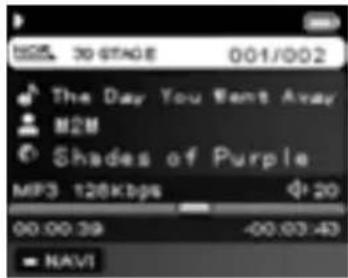
Press “■” button to start playback under stop or pause status, the unit plays the current music file, and the LCD displays the repeat indicator, volume, track number, total number, total time, track name, the singer,
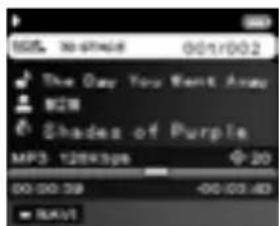

EQ indicator, and battery level as well. If the lyrics have been edited in advance, it will also be displayed
2). Pause/Stop/Power off
Pause: under playback mode, press "■" button. Press "■" button again, the unit continue to play.
Stop: under playback or pause status, press and hold "■" button for about 2 seconds, the LCD displays the stop icon and the unit stop playing.
Power off: under playback/pause/stop status, press and hold “■” button (about 4 second) until the LCD displays the power off flash, the unit powers off.
Note: under pause or playback mode, in order to save the battery power, the unit will automatically turned off in 60 second if no button was pressed.
3). Previous file/Next file
Press “” button to skip to the next file and press “” button to skip to the previous file.
4). FF/RW
Press and hold “▶” to FF, the playback time increase; press and hold “◀” button to

RW, the playback time decrease.
5). Volume Adjustment
Decrease the volume by “-” button and increase the volume by “+” button. The icon “¶ 31” on the LCD will display accordingly.
6). Output EQ Mode Setting:
Under music or voice mode, press MENU button to enter menu mode. Select "settings" and press "MENU" button to confirm. Then select "EQ" and press MENU button to enter EQ mode selection. EQ includes 5 modes: normal, rock, jazz, classic and pop, you can shift those modes by pressing "◀" or "▶" button. Finally press
MENU button to confirm and return.
Under MUSIC status, press "MENU" button to enter the menu, select "settings" and press MENU button to confirm. Then select "play mode" and press MENU button to enter the play mode settings. By pressing "◀" or "▶" button, the play mode will change in below order: Normal, repeat one, repeat

all, shuffle, and shuffle all. Finally press MENU button to confirm and return.
3. Erase files:
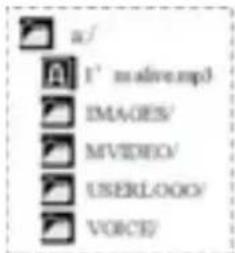
Under Music mode, press "MENU" button to enter the menu, select "folder" and press "MENU" button to confirm. The LCD displays all of the folders "☐" and single file "☐", press "◀" or "▶" to select the option you want delete, and then press "-" to enter the erase mode. The LCD displays "Delete files", the file name, "Yes" and "No". Select "yes" or "no" by "▶" or "◀" button. Select "Yes" and press MENU to delete the current file; select "No" to give up delete operation and return to the previous menu. Press "MENU" button again to exit delete mode.
Note: Press “” to check the files in the folder. Press “MENU” to return to the previous menu.
4. FM tuner:
1). Enter FM tuner:
Press MENU button to enter the menu, and then
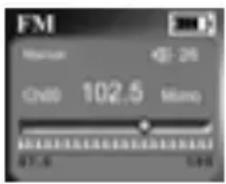

press "◀" or "▶" button to select "FM" and press MENU button to confirm. The LCD displays "FM".
2). Auto-searching:
Under FM mode:
Searching next station: Press "MENU" button to enter the searching mode, press and hold "→" to start searching from high frequencies to lower frequencies; press and hold "←" to start searching from low frequencies to higher frequencies.
Auto searching: Press "■" button and "MENU" button at same time; the unit begins to search all stations and store them automatically. Maximum station is 30.
Note: Before searching or if no station was stored, the station order will be default 87.5 MHz.
Press MENU button to enter searching mode, each time you press “◀” or “▶” button the frequency will decrease or increase by 0.1 MHz.
4). Storing:
Under searching status, press MENU button to enter store mode and press "◀" or

“▶” button to select the channel number then press “MENU” button to store the frequency and go back to FM receiving.
Note: By those operations above, the files can only be stored temporarily. If you Shut off the power directly, the file will lose .so if you want to keep them, you must press and hold "▶" button and turn it off normally.
5). Previous/Next station
Under FM mode: press "◀" button to skip to the previous station, press "▶" to skip to the next station.
6). Volume adjustment: under FM program, adjust the volume by "+" button or "-" button, the indicator on the LCD will change accordingly
7). Exit: press and hold MENU button to quit FM tuner and return to previous menu.
8). Record: press "■" button momentarily to start to record; press "■agin to pasue; and press MENU button to stop recording.
5. Voice recording:
Under music mode, press MENU button to enter the menu, select "Record" and press MENU button to confirm and enter the "Record Settings" interface. Select the setting items "MIC", "FM" or "Line-In" by "◀◀" or "▶◀button, and change the selected item by

MENU button. Select "Record" and press MENU button to confirm, the LCD display □ and the unit start to record.
Stop/Pause recording:
Under record mode, press MENU button to stop recording; press "▶" button to pause recording. Other buttons are not active.
6. Auto power off
Press MENU key to enter the menu, select "Settings" by "◀◀" or "▶◀◀" button, and press MENU button to confirm. Then choose "auto power off", press MENU button to enter the auto power off setting mode. Select the auto off time (Disable, 1 min, 2 min, 5 min, 10 min) by "◀◀◀" or "▶◀◀◀" button and finally press MENU button to confirm your choice and return to previous menu.
Note: if you choose Disable, the unit won't power off until the battery is completely exhausted.

7. Speaker Setting
Press MENU button to enter the menu, press “◀” or “▶” button to select “settings” and press MENU button to confirm. Then select “Speaker” and press MENU button to enter to set the on/off status of the speaker. Press “◀” or “▶” button to select “ON” or “OFF”, and then press MENU button to confirm and return to the previous menu.
8. Screen Save
Press MENU button to enter the menu, press “◀” or “▶” button to select “settings” and press MENU button to confirm. Then select “screen save” by pressing MENU button. Then press “◀” or “▶” button to select time (∞, 5s, 10s, 30s, and 60s). Finally press MENU confirm and return.
Note: Except for saving screen, the screen saving function can also save power and expand the lifespan of battery. It is recommended to use this function.
9. Check the capacity of memory
Press "MENU" key first and then press "◀" or "▶" button to select "About" option,

press "MENU" key once again, the LCD will display "memory" and "free". Press any button to exit.
10. Picture display function
1). Picture display: press MENU to enter the menu, select "Picture" by "◀" or "◀" button and press MENU to confirm. Press "◀" or "◀" button to select the picture you want to display. And during the display, press MENU to return.
2). Delete pictures: press "MENU" button to enter the menu, select "folder" by "◀◀" and press "MENU" button to confirm. Press "◀◀" or "◀◀" to select the folder "IMAGES".
Press “■” button, the LCD displays all of the pictures. Select the picture you want delete, and then press “-” to enter the erase mode. Select “yes” or “no” by “▶” or “◀” button. Select “Yes” and press MENU to delete the current picture; select “No” to give up delete operation and return to the previous menu. Press “MENU” button again to exit delete mode.
3). Picture display setting: Press MENU to enter the menu, select "settings" by "→" or "←" button and press MENU to confirm. Then select "Pic browser" and press MENU to enter the setting. Press "→" or "←" button to select the auto browse time (Disable,2s,

5s, 10s). Finally press MENU to confirm and exit.
11. Set the start-up Logo
Users can set the logo by themselves: copy the picture to USERLOGO folder and named the start logo as "STARTLOGO" and end logo as "ENDLOGO". Then the picture logo will be set.
Note: if no logo was copied into USERLOGO folder, the system will default a Logo.
12. MTV Function Instruction
1). Transform the files (.avi/.mpg/.wmv) you want to play to .smv files by the convert tool in the CD-ROM. Copy the created files to MVIDEO folder of the player.
2). Under music mode, shortly press MENU key to enter the menu, select "Motion Video" by "◀" or "▶" key, and then press MENU key again to confirm. Select the file you want play by "◀" or "▶" key, and then press "◀" key to start playback. Select previous or next file by "◀" or "▶" key. Press MENU button to quit.

3). Delete video files. Operations please refer to "delete pictures".
13. MTV Convert Tool Usage Instruction
- Run the program: video2smv.exe
- Click the button on the right side of "Input Video", and select the file you want to play. The unit supports .avi / .mpg/ .wmv files.
- Click the button on the right side of "Output File", and select the output file and its output path.
- Select "Quality level
High/Medium/Low/Custom. - Select "Dimension: 96x64 / 96x96 / 128x96 / 160x128."
- Click Convert to start converting the files.
Note: 1. Suggest to choose "Frame Rate:
Medium (128Mbyte/hr)" and "Dimension:
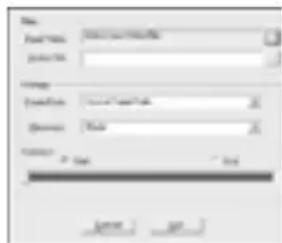
160x128".
- The system have to be installed Media Player 9 or above version.
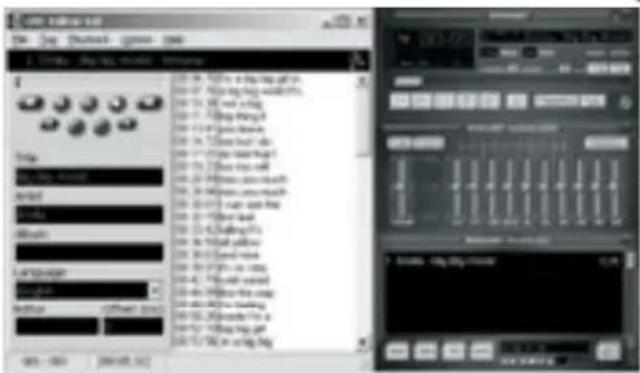
14. Lyrics edit:
1). Open the Winamp, load the mp3 you want to edit, then open the LRC (4.0) lyrics editor. You can key in the lyrics to the LRC editor's text frame or click Document/open, move the edited text lyrics to the lyrics editor, as follows:
2). When the relative lyrics are playing, please clicks [add tag]; the time tag will appear before the lyrics.

3). Fill the file name, singer, album name blanks accordingly (not fill is also acceptable).
4). Finally, click "saves as (A)" in "file (F)" in LRC to save the edited lyrics.
Note: 1. Each sentence shall not exceed 16 single-characters (i.e. English or number characters) or 8 double-characters (i.e. Chinese characters).
-
Characters as follows should not be used in title blank and singer blank: \/:* ? "<> | []
-
the lyric of each song cannot exceed 1.2KB, or the exceeded characters cannot be displayed.
15. Connecting with a computer:
1). Installation of driving program
Note: a, Windows 98 base needs installation of driving program, while Windows 200/XP/ME do not .b, DO NOT connect the MP3 player to the computer before installation is completed. c, if you want to use win 2000, the windows2000 service pack 3.0 (in the install CD)must be installed.
- Load the provided installation CD into the CDROM or download the driving program
from the company website.

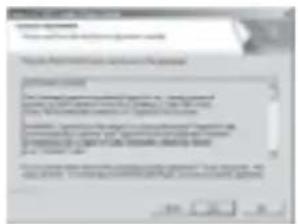
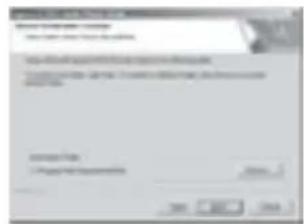
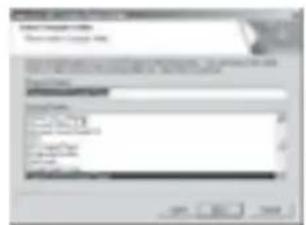
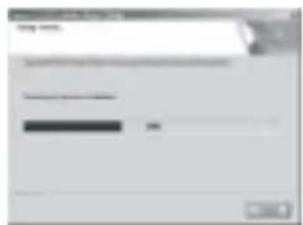
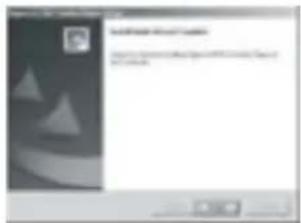
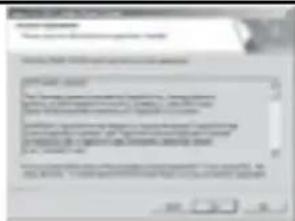
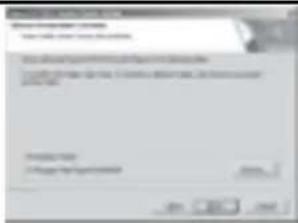
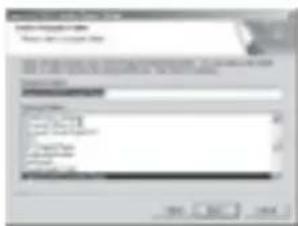
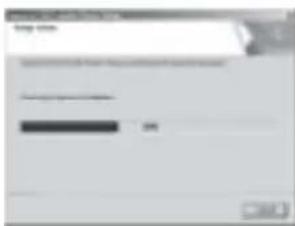
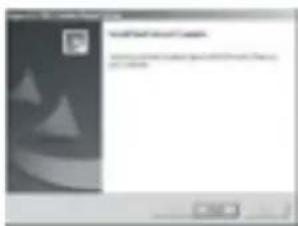
- Double clicks on SETUP. EXE, pictures will be shown as follows: Then click Next>Yes>Next>Next>Finish according to the reminder. The drive program installation is finished.

2). Connecting to a computer
Connect your MP3 player to PC via USB cable, press “■” button or under the condition that the unit was turned on, the window will appear indicating the new hardware has been found, then the system will automatically install the drive program. After it, a mobile disk icon (see as following) will be found in My computer with “▶” on LCD display.
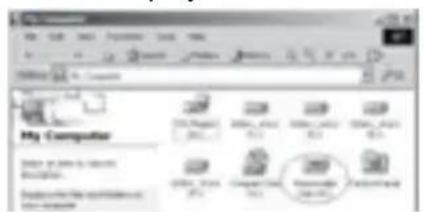
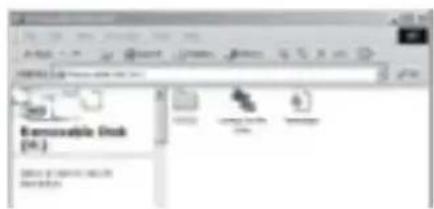
3). Upload/ Download files
So long as the driving program has been properly installed, the MP3 player itself is a mobile disk after being connected to a computer. Therefore the file transfer is operated in the same way as the ordinary disk.
Note:. Don't unplug the MP3 player during the process of uploading or downloading

files; otherwise, it may cause dysfunction of the unit due to the damage to the software. For details, please see Trouble shooting.
Note: when unplugging the MP3 player from the USB jacket of the PC, make sure that the LCD of the player displays “ ”. If it displays “reading” or “writing”, it means that is is transferring data, if it displays “ ”, you can unplug the player then.
Special notice: Normal uninstallation for USB device is required under Windows 2000 or Windows XP; otherwise it may cause damage or data loss to the player.
Operation steps are as follow:
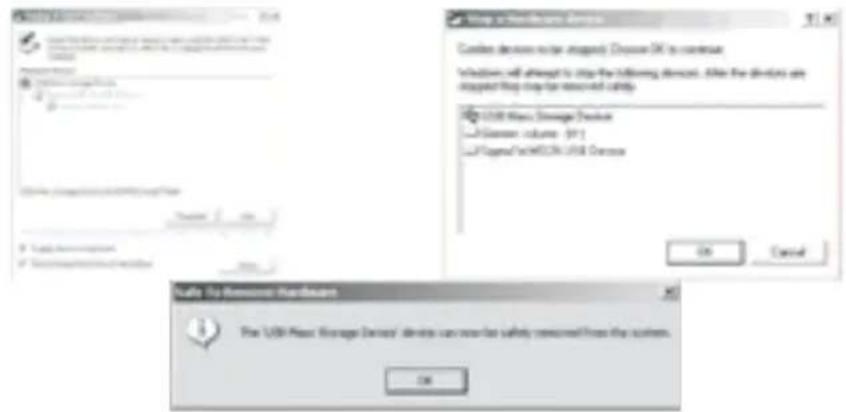
a.Double clicks on icon of "Unplug or Eject Hardware" on bottom right corner of the computer (note: under XP, it is "delete hardware safely") as following:
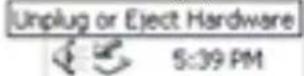
b.Click Stop on the pop-up window. Refer to the following picture on the left. c.Click OK on the pop-up window. Refer to the following picture on the right. d.Click OK on the pop-up window. See the following picture on the right. You may then unplug the MP3 player from USB port after the above steps.

4) Upgrade/Renew Software
You'd better not upgrade the software unless the player works abnormally, i.e. not able to be powered on.
A. Connect MP3 with computer.

B. Press button, or MP3 has already been in ON status, then a mobile disk icon will appear in My Computer, see picture a:
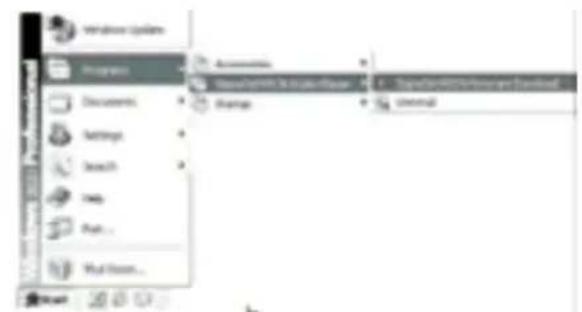
C. Steps: Start>Program>SigmaTel MSCN Audio Player>SigmaTel MSCN Firmware Download, see the following picture b.
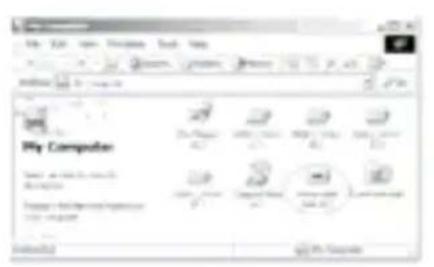
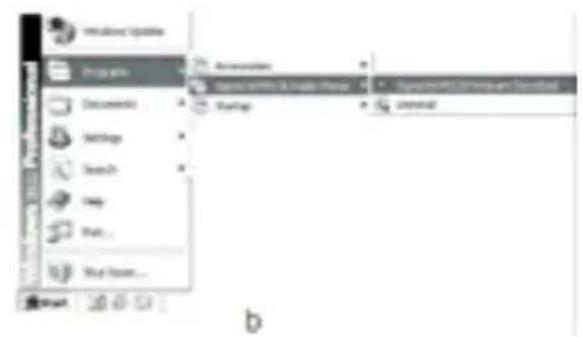
a
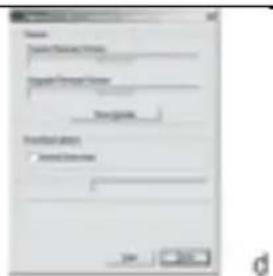
Then a window will pop out as picture c:
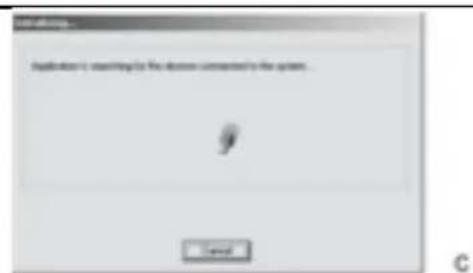
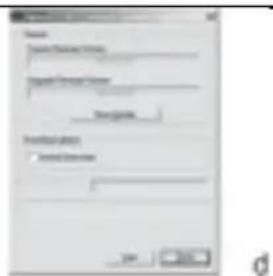
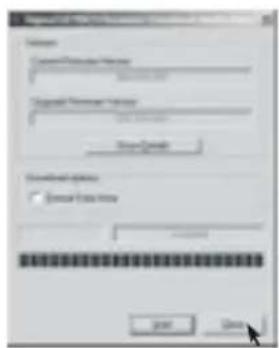
After the above windows close automatically, the window of upgrading software will pop out as picture d:
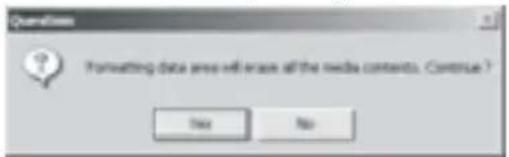
Note: if you want to format data area of the flash while upgrading, you need to choose Format Data Area. System will pop out a window as the following picture. If you want to format Data Area, click yes.

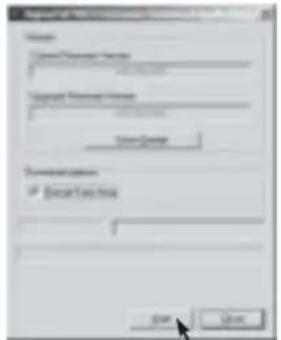
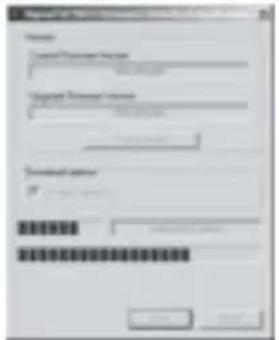
D: Click Start button and start upgrading software, see as follows:
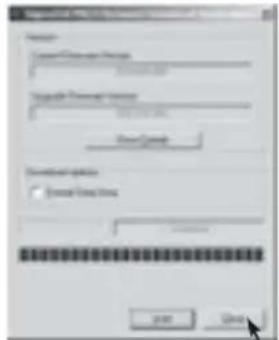
E: After upgrading, please click Close button.
5). Format the MP3 Player
A. Press ▶ after connecting the player to the computer.
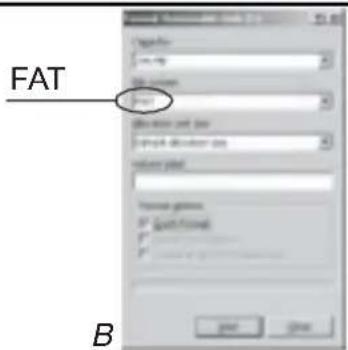
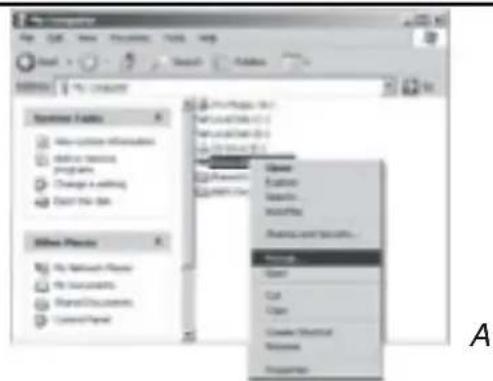
B.Click mobile disk with right button of the mouse, and choose "Format" from the menu, see the right picture:
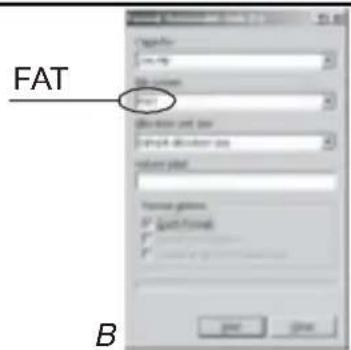
C. That the format window will pop out, see the above picture:
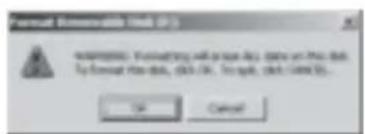
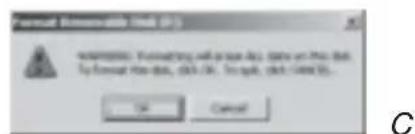
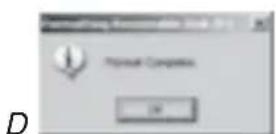
D.Click Start in the format window. Then click OK in the pop-out window and start formatting MP3 flash.

E. After formatting, click OK button in the right picture.
6). Uninstall the driving program
A. Disconnect the player to the computer.
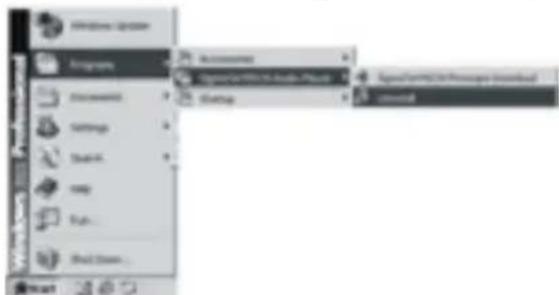
B. According to the following picture, click Start>Program>SigmaTel MSCN Audio Player>Uninstall, or Control Panel>Explorer
Immediately the following window will pop out.
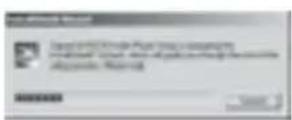
Click Cancel if you want to cancel the
operation, otherwise the following conversation window will appear.
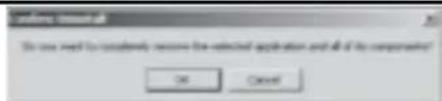

Click OK to start cancel the driving program, with the following conversation window appear then.
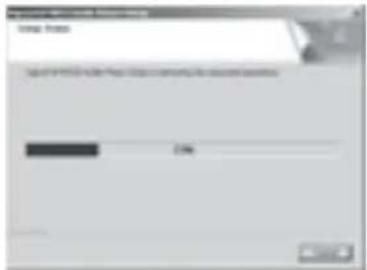
Click Finish when uninstall completes.
Note: This driving program may prevent driving program installation of other MP3 products. Download driving program manually under device manager or refer to the technical support of our company.

Steps for downloading driving program manually:
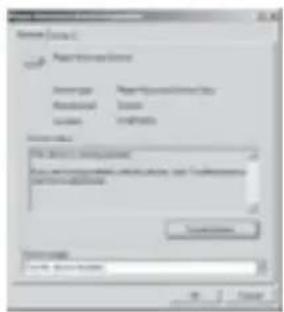
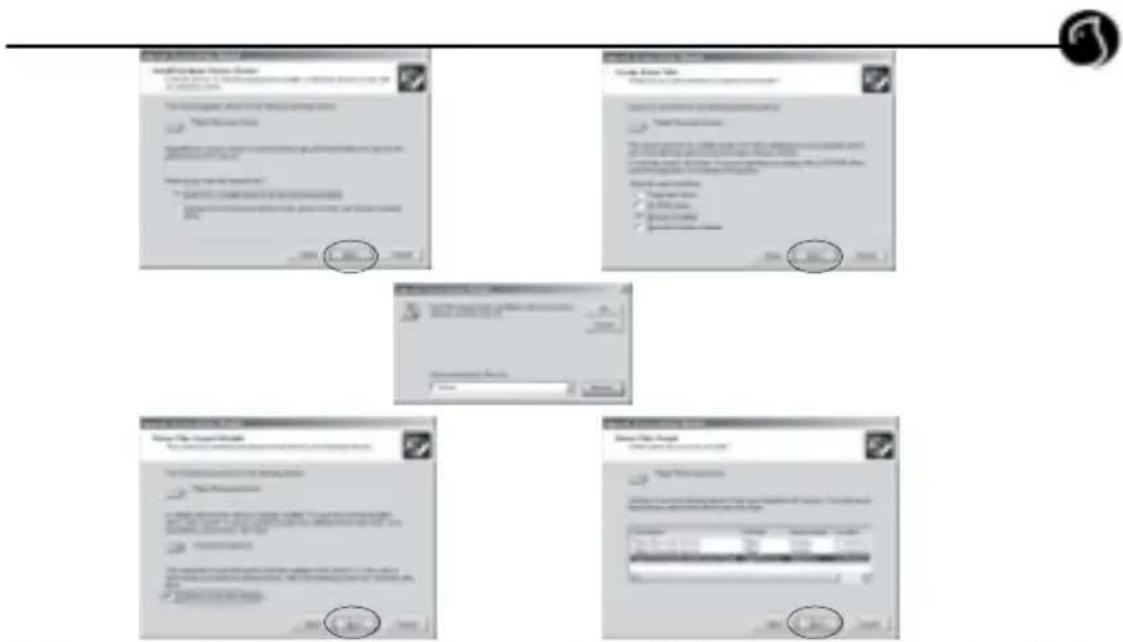
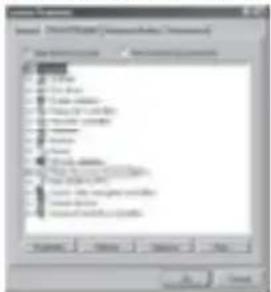
A.Under Windows 2000/XP, click My computer>Properties>Hardware>Device Manager with the right button on the mouse. See following picture on the left.
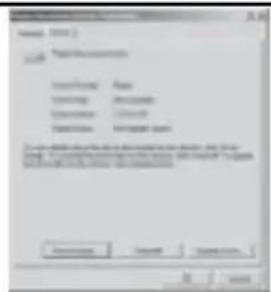
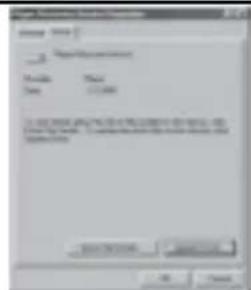
Double click Player Recovery Device Class>Player Recovery Device, see as follows:
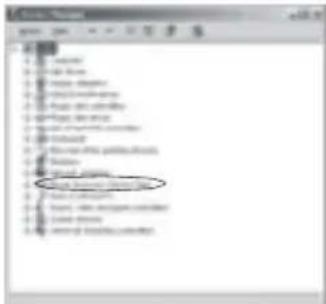
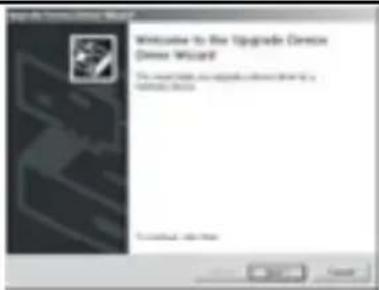
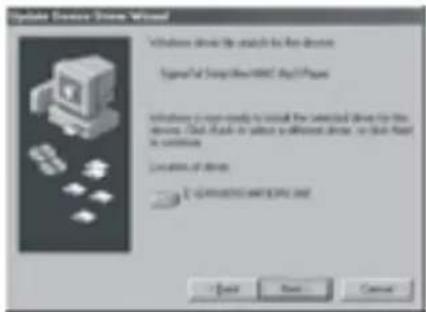
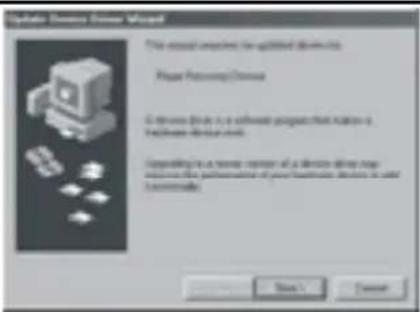
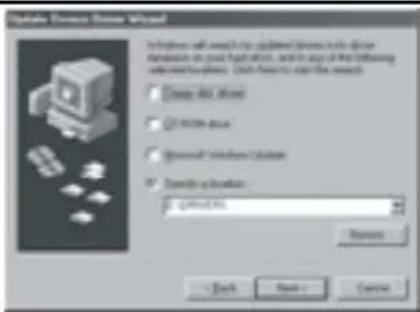
Click Driver>Update Driver... the following windows will pop-up.
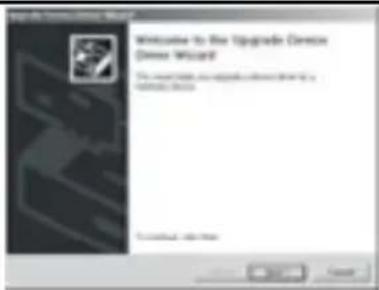
Click NEXT on each continuously appearing window.
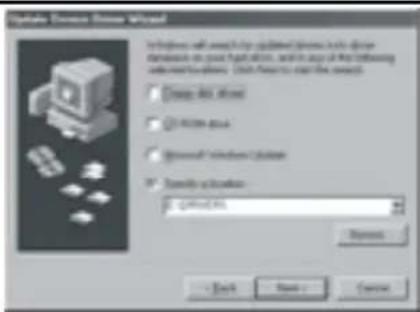
Click NEXT, the following will pop-up:
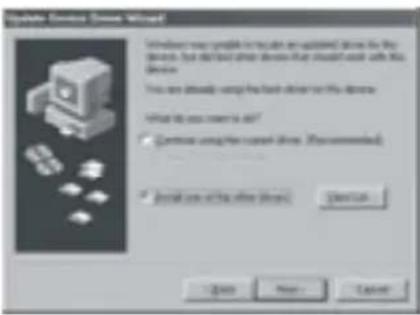
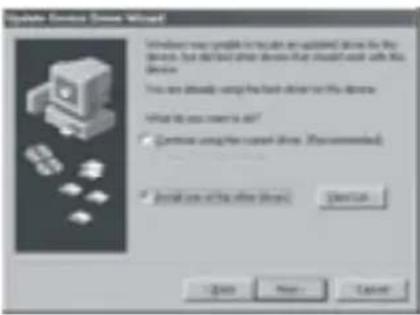
Find out the corresponding program driving by "Browse" and then click "OK", following window (left) will pop-out. Select "install one of the drive (I)" and then click NEXT(as the right chart).
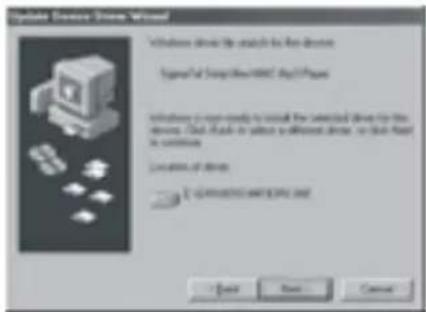
Select the corresponding driver and click NEXT, the system will install the driving program automatically.
B After connecting the player to the computer, click My computer>Properties>Device

Manager by right button on mouse under Windows 98, to check whether there is Player Recovery Device in device manager, see following picture.
Double click Player Recovery Device Class>Player Recovery Device, see as follow left chart:
Click Driving Program as follow right chart:
"Upgrade driver□U□...", as chart 1.
Click NEXT, chart 2 will pop-out:
Find out the corresponding program driving by "Browse", and then click NEXT, chart 3 will pop-out:
Select the "install other driver (I) in the dialogue box, and click NEXT, chart 4 will pop-out. Click NEXT, the system will install the driving program automatically.
¢

∅Û
¢
Ü
Trouble Shooting
1. Why can't some MP3 be played?
Standard MP3 only includes: the songs in layer 3 of MPEG 1, layer 3 of MPEG 2 and layer 3 of MPEG 2.5. Otherwise, it won't be played in the player except transformed by the corresponding software.
2. Why doesn't the memory size displayed under the operational system match the figure on the tab?
The software in the MP3 player takes up a small portion of the memory, which coincides with the corresponding standards.
3. About WAV format
This solution supports WAV files of IMA ADPCM format only. If you want to store WAV files of other format in this player, please set up a new folder and store the WAV files in it. Don't put the WAV files of other format into the root directory of the mobile disk and the folder of VOICE, otherwise, the player may shut down when play such WAV

files.
4. What causes the MP3 player running slowly?
Using or deleting files frequently in a long time will generate fragments in the flash memory, like fragment in the hard disk, which will cause the player running slowly.
5. What if the driving program of the MP3 player be damaged?
This is caused by improper operation. For details, please refer to the Upgrade/Renew Software part.
6. What if the MP3 play works abnormally, i.e., shutting down?
When abnormal causes occur due to improper operation, press the RESET button to initialize the player.

Specification
Flash memory: 128MB/256MB/512MB/1024MB
Max recording time: 8hr/16hr/32hr/64hr
Dimensions: 67.5mm×42mm×15mm
Weight: 53.8g (includes battery)
Record medium: built-in flash memory
Microphone: Built-in capacitor MIC
Input: Built-in MIC
Output: Double-channel earphone, above 8 ohm
Condition to use: 0-40
Basic accessory:
User's manual, USB cable, earphone, neck strap, installation CD.
www.woxter.com