rDrive 6628TM - NAS Highpoint - Free user manual and instructions
Find the device manual for free rDrive 6628TM Highpoint in PDF.


User questions about rDrive 6628TM Highpoint
0 question about this device. Answer the ones you know or ask your own.
Ask a new question about this device
Download the instructions for your NAS in PDF format for free! Find your manual rDrive 6628TM - Highpoint and take your electronic device back in hand. On this page are published all the documents necessary for the use of your device. rDrive 6628TM by Highpoint.
USER MANUAL rDrive 6628TM Highpoint
Copyright © 2017 HighPoint Technologies, Inc. This document contains materials protected by International Copyright Laws. All rights reserved. No part of this manual may be reproduced, transmitted or transcribed in any form and for any purpose without the express written permission of HighPoint Technologies, Inc.
Trademarks
Companies and products mentioned in this manual are for identification purpose only. Product names or brand names appearing in this manual may or may not be registered trademarks or copyrights of their respective owners. Backup your important data before using HighPoint's products and use at your own risk. In no event shall HighPoint be liable for any loss of profits, or for direct, indirect, special, incidental or consequential damages arising from any defect or error in HighPoint's products or manuals.
Information in this manual is subject to change without notice and does not represent a commitment on the part of HighPoint.
Notice
Reasonable effort has been made to ensure that the information in this manual is accurate. HighPoint assumes no liability for technical inaccuracies, typographical, or other errors contained herein.
FCC Part 15 Class B Radio Frequency Interference Statement
This equipment has been tested and found to comply with the limits for a Class B digital device, pursuant to part 15 of the FCC Rules. These limits are designed to provide reasonable protection against harmful interference in a residential installation. This equipment generates uses and can radiate radio frequency energy and, if not installed and used in accordance with the instructions, may cause harmful interference to radio communications. However, there is no guarantee that interference will not occur in a particular installation. If this equipment does cause harmful interference to radio or television reception, which can be determined by turning the equipment off and on, the user is encouraged to try to correct the interference by one or more of the following measures:
- Reorient or relocate the receiving antenna.
- Increase the separation between the equipment and receiver.
- Connect the equipment into an outlet on a circuit different from that to which the receiver is connected.
- Consult the dealer or an experienced radio/TV technician for help.
Modifications not expressly approved by the manufacturer could void the user's authority to operate the equipment under FCC rules.
This device complies with part 15 of the FCC Rules. Operation is subject to the following two conditions: (1) this device may not cause harmful interference, and (2) this device must accept any interference received, including interference that may cause undesired operation.
European Union Compliance Statement
This Information Technologies Equipment has been tested and found to comply with the following European directives:
• European Standard EN55022 (1998) Class B
• European Standard EN55024 (1998)
Table of Contents
Product Overview....5
Kit Content....5
Product Information....5
Section 1: Hardware Installation....6
Hardware Overview....6
Panel Layout-Front View 6
Panel Layout-Rear View 6
System Requirements ....7
Enclosure Setup....7
Section 2: Setting Up Software for Mac Platforms....8
Driver installation....8
Checking Driver Installation 9
Installing the HighPoint rDrive Manager....11
Formatting the RAID Volumes....12
Section 3: Using the HighPoint rDrive Manager....14
How to Login to the rDrive Manager....14
Navigating the rDrive Manager....14
Overview Tab....15
Enclosure Properties 15
Storage Properties....15
Array Config....16
Delete 16
Quick Config. 16
Advanced Config....16
Quick Config. 17
Advanced Config....18
Creating Array 19
Spare Pool....21
Logical Device 22
Logical Device Information....22
Maintenance 22
Array Information....22
Expanding an Existing Array 26
Physical Device Information....27
Rescan 28
Beeper Mute....28
Settings Tab 29
Enclosure 29
Email Notification....29
SMTP Setting 29
Add Recipient....30
Security....31
Password Setting....31
System 32
Event....33
Storage Health Inspector (SHI) 33
Scheduler....34
How to Create a New Verify Task....34
Help 35
Section 4: Troubleshooting ....36
Handling Critical Arrays 36
Rebuilding Stops Due to Bad Sectors 37
Critical Array Becomes Disabled When You Removed Faulty Disk 37
Online RAID Roaming 37
Appendix....38
Table 1: rDrive Manager Icon Guide ...... 38
Table 2: RAID Reference Level....40
Contacting Technical Support 40
Product Overview
Customers can now take advantage of professional class Thunderbolt™ 3 storage with a premium feature set for the price of entry level backup solution. The RocketStor 6628TM delivers superior data security and outstanding transfer performance in a compact, turnkey, out of the box ready solution that can be easily connected to any Mac platform with macOS 10.10 or later and Thunderbolt™ 3 capability. Armed with 16 to 96TB of pre-configured RAID storage, the rDrive 6628TM series can accommodate any budget and capacity requirement.
Kit Content
• 1x rDrive RAID Storage unit
• 8x Removable Disk Modules
• 1x 40Gb/s Thunderbolt™ 3 cable
- 1x UL Power Cord
• 1x Quick Installation Guide
Before getting started, check to see if any items are missing, damaged, or incorrect. If you discover any discrepancies, please contact your reseller, or our Support Department via our Online Web Support Portal.
Product Information
| Product Information | rDrive 6628TM |
| Port Type | ThunderboltTM 3 |
| Number of Ports | 2 |
| Interface Technology | Daisy Chain up to 6 devicesBi-directional, dual-protocol (PCI Express and DisplayPort)8 lanes of Display Port 1.2 – supports dual 4K displays or one 5K displayPower delivery: 15W to bus-powered devicesBackward compatible with ThunderboltTM 2 devicesUSB-C ports compatible with existing USB devices and cables, support up to USB 3.1 10Gb/s speed |
| RAID Level | Preconfigured RAID 5 / Optional RAID 0, 1, 6, 1/0 & JBODNote: RAID 1/0 is the equivalent of RAID 10 |
| System Requirement | Computer with a ThunderboltTM 3 portmacOS X 10.10 & Later |
| Warranty | 2 Years |
| Performance Benchmark | RAID 0:Read – 1,550 MB/sWrite – 1,513 MB/sRAID 5:Read – 1,350 MB/sWrite – 814 MB/s |
| Kit Contents | 1x rDrive RAID Storage unit8x Removable Disk Modules1x 40Gb/s ThunderboltTM 3 cable1x UL Power Cord1x Quick Installation Guide |
Section 1: Hardware Installation
Hardware Overview
Panel Layout-Front View

text_image
HighPoint RS Disk Present / Active LED Disk Status LED Power LEDLED Indicators
Disk Present: Solid blue
Disk Active LED: Flashing blue
Disk Failure LED: Solid red
Disk rebuilding/identifying LED: Flashing red
Power LED: Solid blue
Panel Layout-Rear View
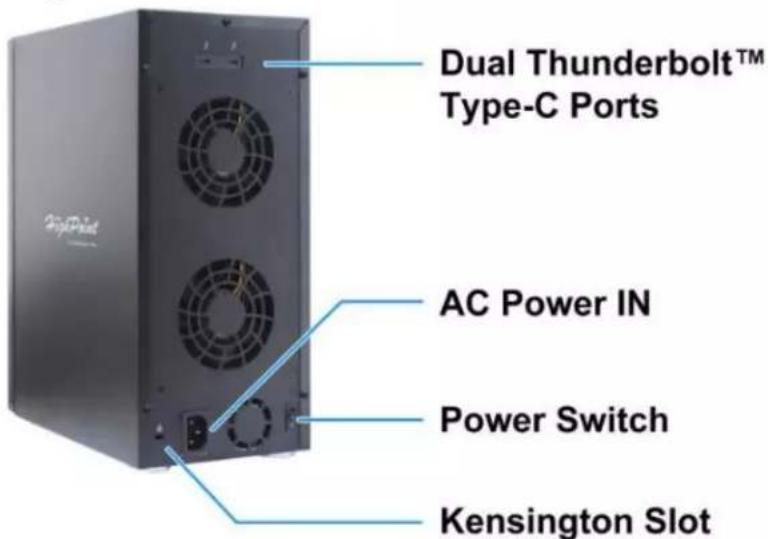
text_image
Dual Thunderbolt™ Type-C Ports AC Power IN Power Switch Kensington SlotSystem Requirements
• Mac system with a Thunderbolt ^TM 3 (USB type-C) port
• Mac system with a Thunderbolt ^TM 2 port and Thunderbolt ^TM 2 to Thunderbolt ^TM 3 adapter
• Mac OS X 10.10 or later
Enclosure Setup
- Connect the rDrive 6628TM to the host system with the Thunderbolt™ cable
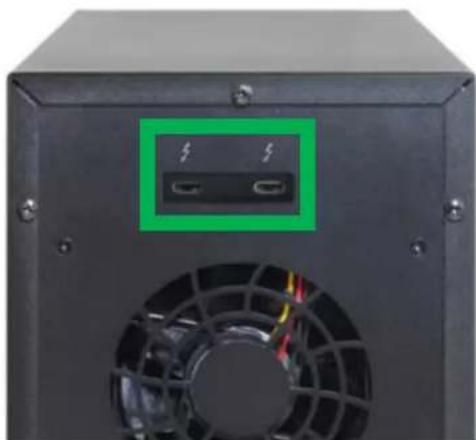
natural_image
Close-up of a black computer power supply unit with a green indicator box and fan blades (no visible text or symbols)- Connect the rDrive 6628TM to power and turn on the power switch
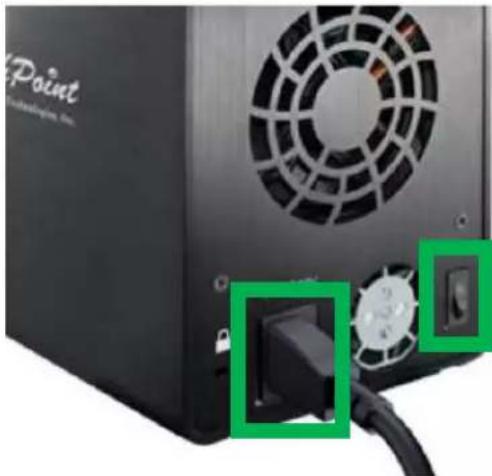
natural_image
Close-up of a black power supply unit with ventilation grille and connector socket (no visible text or symbols)Section 2: Setting Up Software for Mac Platforms
Driver installation
- Obtain the latest driver software for the rDrive 6628T from our website: http://www.highpoint-tech.com/USA_new/series-rd6628tm-download.htm#nav_bottom
- Mount and enter the downloaded folder
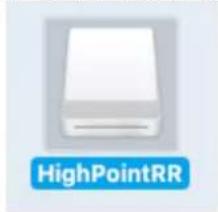
natural_image
Icon of a HighPointRR printer with no visible text or symbols on the device itself- Run the HighPointRR.pkg package

text_image
HighPointRR.pkg Install_MacOSX_and_macOS _HighPointRR.pdf readme.txt- Follow the on screen installation instructions
text_image
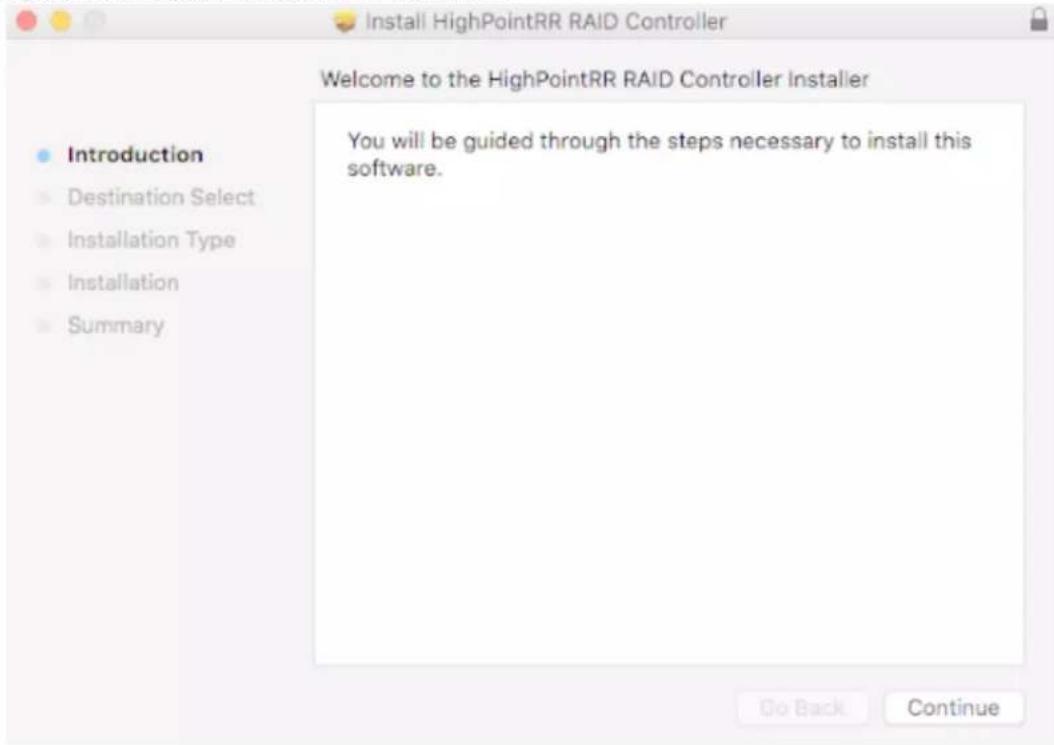
Install HighPointRR RAID Controller Welcome to the HighPointRR RAID Controller Installer Introduction Destination Select Installation Type Installation Summary You will be guided through the steps necessary to install this software. Go Back Continue- Restart your computer
Checking Driver Installation
- Select the Apple logo in the top left part of the screen
- Select About this Mac

text_image
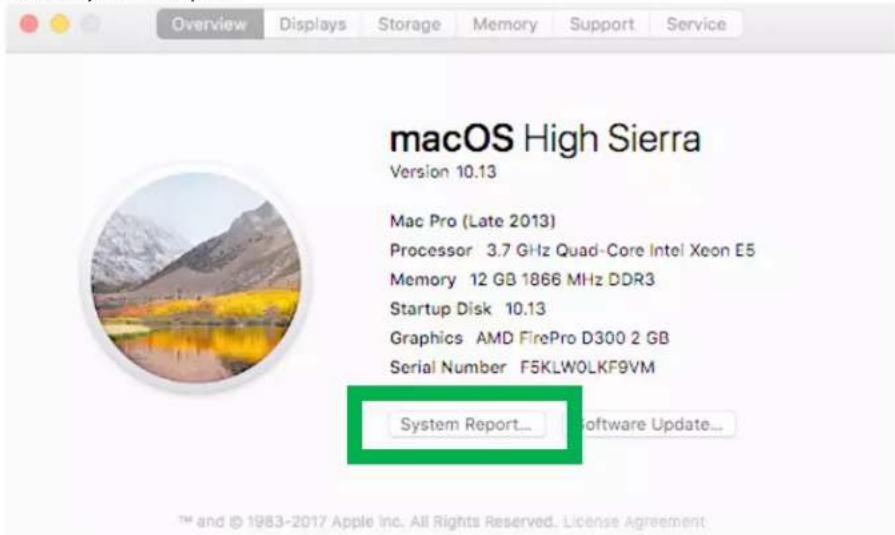
Finder File Edit View About This Mac System Preferences... App Store...- Select System Report
text_image
Overview Displays Storage Memory Support Service macOS High Sierra Version 10.13 Mac Pro (Late 2013) Processor 3.7 GHz Quad-Core Intel Xeon E5 Memory 12 GB 1866 MHz DDR3 Startup Disk 10.13 Graphics AMD FirePro D300 2 GB Serial Number F5KLWOLKF9VM System Report... Software Update... TM and © 1983-2017 Apple Inc. All Rights Reserved. License Agreement- Select the Thunderbolt tab on the left

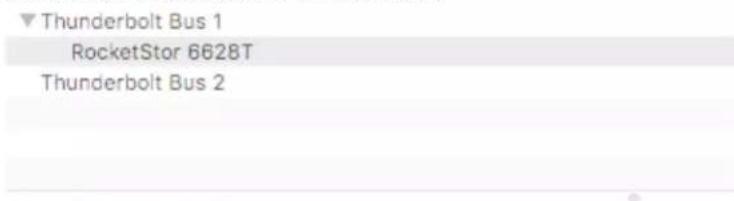
- Check that RocketStor 6628T is present
text_image
Thunderbolt Bus 1 RocketStor 6628T Thunderbolt Bus 2RocketStor 6628T:
| Vendor Name: | HighPoint Technologies, Inc. |
| Device Name: | RocketStor 6628T |
| Vendor ID: | 0x43 |
| Device ID: | 0x6627 |
| Device Revision: | 0x1 |
| UID: | 0x0043537E1119A400 |
| Route String: | 3 |
| Firmware Version: | 25.3 |
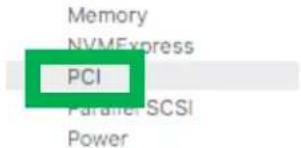
6. Select the PCI tab on the left
text_image
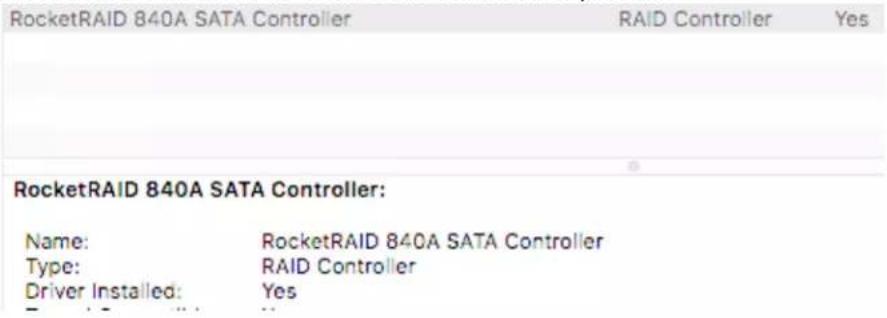
Memory NVMExpress PCI Parallel SCSI Power7. Check that the RocketRAID 840A SATA Controller is present
text_image
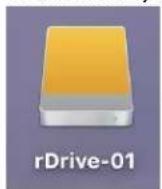
RocketRAID 840A SATA Controller RAID Controller Yes RocketRAID 840A SATA Controller: Name: RocketRAID 840A SATA Controller Type: RAID Controller Driver Installed: Yes8. Afterwards, check that rDrive-01 will be installed on the screen. rDrive-01 is configured as Raid 5 and its ready to use.
Installing the HighPoint rDrive Manager
- Download the rDrive Manager files from http://www.highpoint-tech.com/USA_new/series-rs6628t-download.htm
- Mount and enter the downloaded folder
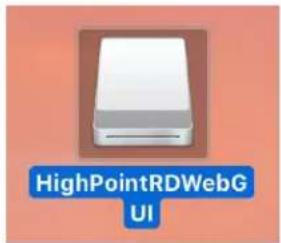
text_image
HighPointRDWebG UI- Run the HighPointRSWebGUI.pkg package
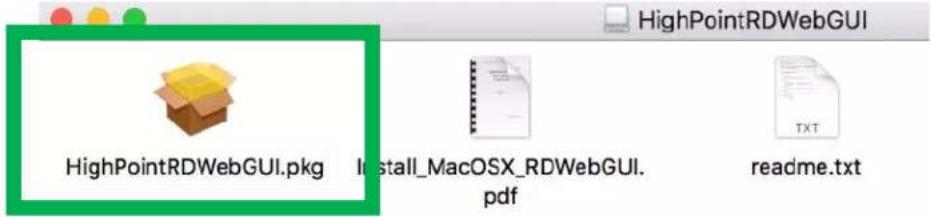
text_image
HighPointRDWebGUI.pkg Install_MacOSX_RDWebGUI. pdf readme.txt- Follow the on screen installation instructions

text_image
Install HighPoint rDrive Manager Welcome to the HighPoint rDrive Manager Installer Introduction Destination Select Installation Type Installation Summary You will be guided through the steps necessary to install this software. Go Back Continue- Log into the rDrive Manager by double clicking the desktop icon (see below)

Formatting the RAID Volumes
After creating a RAID array, your operating system will recognize that array as a logical disk. However, the array will not be accessible until it is formatted by the operating system.
Format the volume when you have finished the following procedures
- Set up the Enclosure
- Set up the RAID Controller
- Installed Drivers
- Create an Array
For Mac users
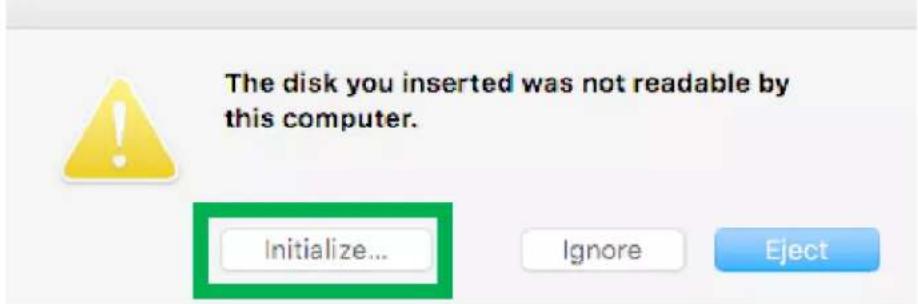
- Shortly after creating the RAID array, a pop-out (shown below) appears. Select Initialize...
text_image
The disk you inserted was not readable by this computer. Initialize... Ignore Eject- Select your created RAID array on the left hand side of Disk Utility under External

text_image
Disk Utility View Volume First Aid Partition Erase Restore Mount Info Internal APPLE SSD SM0256.. 10.11 disk0s3 disk0s4 Mac10.12 Container disk1 10.13 HPT VDO-0 Media Uninitialized 12 TB Location: External Capacity: 12 TB Connection: SAS Child count: 0 Partition Map: Not Supported Type: Disk S.M.A.R.T. status: Not Supported Device: disk33. Select the Erase option near the top

text_image
View Volume First Aid Part1 Encas store Mount Info Internal APPLE SSD SM0256... 10.11 disk0x3 disk0x4 Mac10.12 Container disk1 10.13 External HPT VD0-0 Media HPT VD0-0 Media Uninitialized 12 TB Location External Capacity: 12 TB Connection:SAS Ctrl count: 0 Partition Map: Not Supported Type: Disk S.M.A.R.T. status: Not Supported Device: disc34. Type in the name you want to use for your RAID array and select the format and scheme. Then, select Erase.

text_image
Erase "HPT DISK 1.0 Media"? Erasing "HPT DISK 1.0 Media" will delete all data stored on it, and cannot be undone. Provide a name, choose a partition map and format, and click Erase to proceed. Name: rDrive RAID Array Format: Mac OS Extended (Journalled) Scheme: GUID Partition Map Security Options... Cancel Erase5. After the erase process is complete, select Done

text_image
Erasing "HPT DISK 1_0 Media" and creating "rDrive RAID Array" Erase process is complete, click Done to continue. Show Details Done6. Your RAID array is now mounted on the desktop

text_image
rDrive RAID ArraySection 3: Using the HighPoint rDrive Manager
How to Login to the rDrive Manager
You can reach the rDrive Manager log in page either by:
- Double clicking on the rDrive Manager icon created on your desktop
- Opening your preferred web browser and typing http://localhost:7406 in the address bar.
There is no password needed for the default log-in. The password can be changed under the Setting tab after log-in the rDrive Manager.
Navigating the rDrive Manager
The rDrive Manager allows you to do several key things:
- Create and remove arrays
• Monitor disk health - Update firmware and BIOS
- Change enclosure settings
- Troubleshoot faulty drives
• View general system overview
| Tab Name | Function |
| Overview | View Enclosure and Storage Properties |
| Quick Config | A quick configuration wizard to create a new RAID array |
| Advanced Config | Manage and create RAID arrays |
| Settings | Adjust rDrive Manager control settings |
| Event | Show rDrive Manager event log |
| Storage Health Inspector (SHI) | View and schedule S.M.A.R.T monitoring |
| Help | Online help, register product, configuration records |
Overview Tab
Enclosure(1): rD6628T

HighPoint Technologies, Inc.
text_image
Overview Quick Config. Advanced Config. Settings Event SHI Help Enclosure Properties Model: rDrive 6628T EFI: v1.0.3 Disk installed: 8 Detail Storage Properties Total : 96.00 TB Configured : 96.00 TB Free : 0 GB RAID Array: 0 Logical Device: 8 Background Task: 0 Advanced Config. ■ Configured Capacity □ Free CapacityrDrive Manager 2.18.2
Copyright (c) 2017 HighPoint Technologies, Inc. All Rights Reserved
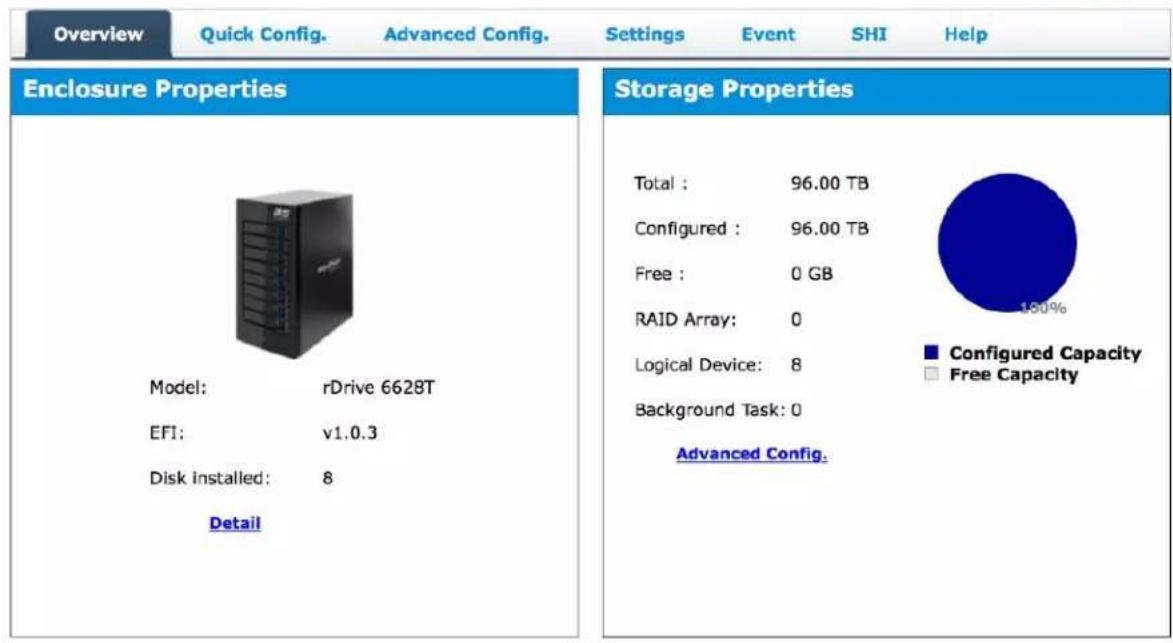
The Overview provides information regarding each HighPoint Enclosure connected to your computer detects. It is also the first page you see when logging in.
It also provides the following information
• Enclosure Properties
• Storage Properties
On the top left of the page is a drop down menu that allows you to select which controller you want to manage (if you have multiple HighPoint controllers connected).
Enclosure Properties
• Model: the model name of the controller
- Disk Installed: number of drives seen by the controller
Storage Properties
• Total: the combined capacity of the physical disks connected to the controller.
- Configured: the amount of space used for creating arrays
• Free: total amount of unused space
- RAID Array: total amount of configured RAID arrays
• Logical Device: total amount of logical devices
• Background Task: current running task
Array Config.
When setting up a new array configuration make sure back up all the data on the disks. Afterwards click maintenance than delete to set up the disk for the new array.
Delete
The delete function is used to delete the already exist arrays so that the user has free disks to create another array.
The delete function can be found in the Advanced Config. tab.

text_image
Overview Quick Config. Advanced Config. Settings Event SHI Help Create Array Spare Pool Logical Device Rescan Beeper Mute Logical Device Information Name Type Capacity BlockSize SectorSize OS Name Status RAID_5_0 RAID 5 84.00 TB 128k 512B HPT DISK 1_0 Normal Maintenance Array Information RAID_5_0 Location.Model Device_1_1 Delete Max Free 1/1 ST12000VN00C Device_1_3 Write Back Change Cache Policy 1/2 ST12000VN00C Device_1_4 Rename TB 0.00 GB 1/3 ST12000VN00C Device_1_5 JBOD(Volume) ORLM TB 0.00 GB 1/4 ST12000VN00C Device_1_6 Device_1_7 Device_1_8 TB 0.00 GB 1/5 ST12000VN00C Device_1_7 1/6 ST12000VN00C Device_1_8 Close TB 0.00 GB 1/7 ST12000VN00C 1/8 ST12000VN007-2GS116-ZCH08DNS 12.00 TB 0.00 GBrDrive Manager 2.18.2
Copyright (c) 2017 HighPoint Technologies, Inc. All Rights Reserved
Quick Config.
Quick Config. is the easiest and quickest way to configure RAID arrays. Back up all data before following the on-screen instructions to configure your array.
Advanced Config.
The Advanced Config. tab is where you can edit, delete, and maintain your RAID configurations, as well as review the Physical Device information.
Quick Config.
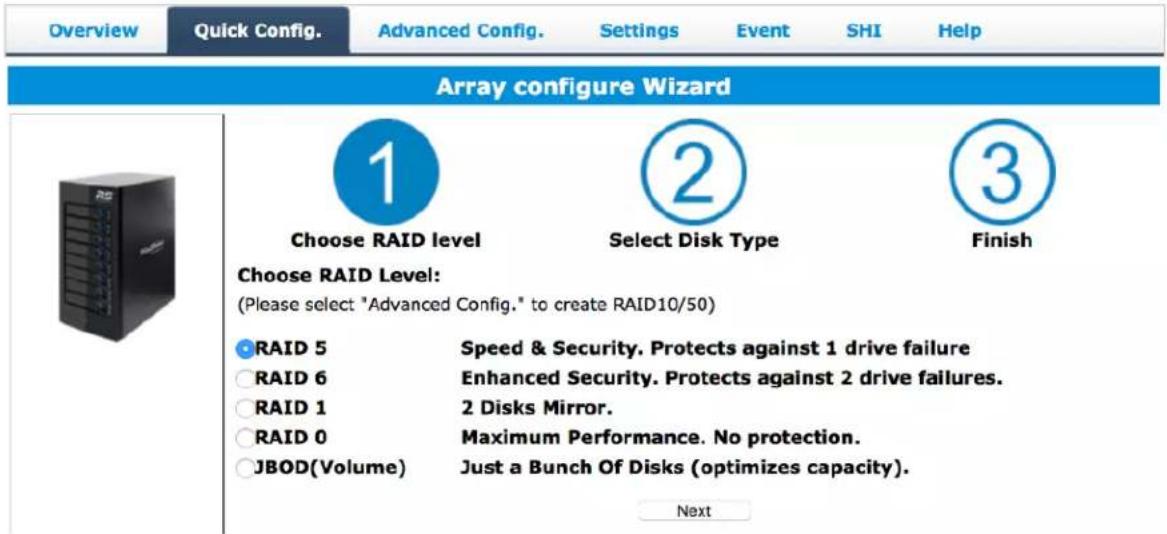
- Choose the Raid level you would like (Refer to Table 2; RAID Reference Level)(P.38)
text_image
Overview Quick Config. Advanced Config. Settings Event SHI Help Array configure Wizard Choose RAID level Select Disk Type Finish Choose RAID Level: (Please select "Advanced Config." to create RAID10/50) RAID 5 RAID 6 RAID 1 RAID 0 JBOD(Volume) Speed & Security. Protects against 1 drive failure Enhanced Security. Protects against 2 drive failures. 2 Disks Mirror. Maximum Performance. No protection. Just a Bunch Of Disks (optimizes capacity). Next- Select the disk type
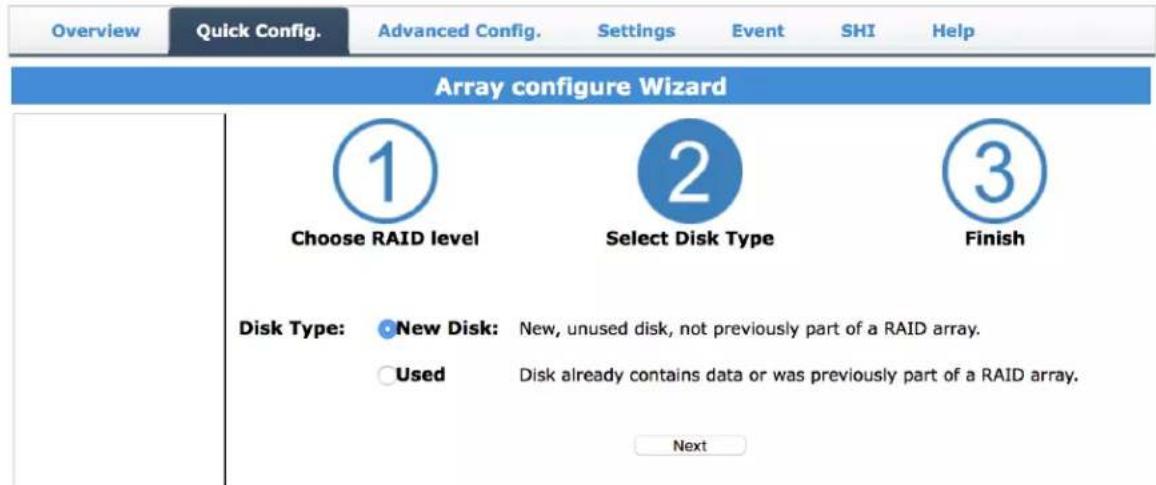
a. New disk is used for disk with no data on them
b. Used disk is used for disks already having data
text_image
Overview Quick Config. Advanced Config. Settings Event SHI Help Array configure Wizard Choose RAID level Select Disk Type Finish Disk Type: New Disk: New, unused disk, not previously part of a RAID array. Used Disk already contains data or was previously part of a RAID array. Next- Click create on the bottom

text_image
Overview Quick Config. Advanced Config. Settings Event SHI Help Array configure Wizard Choose RAID level Select Disk Type Finish New Array configuration summary: RAID Level: RAID 5 Disk Used: E1 Port1, E2 Port2, E3 Port3, E4 Port4 Array Capacity: Maximum Advanced Config. Create- Next, you will need to format the RAID Volume. Please check page 11 for more information.
Advanced Config.
| Overview Quick Config. Advanced Config. Settings Event SHI Help | |||||||
| Create Array Spare Pool Logical Device Rescan Beeper Mute | Logical Device Information | ||||||
| Name | Type | Capacity | BlockSize | SectorSize | OS Name | Status | |
| RAID_5_0 | RAID 5 | 84.00 TB | 128k | 512B | HPT DISK 1_0 | Normal Maintenance | |
| Physical Device Information | |||||||
| Location | Model | Capacity Max Free | |||||
| 1/1 | ST12000VN0007-2GS116-ZCH074PL | 12.00 TB 0.00 GB | |||||
| Revision SC60 | Read Ahead | Enabled Change | |||||
| Location 1/1 | Write Cache | Enabled Change | |||||
| Max Free 0.00 GB | |||||||
| Status Normal | NCQ | Enabled Change | |||||
| Serial Num ZCH074PL | Identify LED | [ON][OFF] | |||||
| 1/2 | ST12000VN0007-2GS116-ZCH07TEY | 12.00 TB 0.00 GB | |||||
| 1/3 | ST12000VN0007-2GS116-ZCH05C83 | 12.00 TB 0.00 GB | |||||
| 1/4 | ST12000VN0007-2GS116-ZCH07VLV | 12.00 TB 0.00 GB | |||||
| 1/5 | ST12000VN0007-2GS116-ZCH05HLN | 12.00 TB 0.00 GB | |||||
| 1/6 | ST12000VN0007-2GS116-ZCH08FX3 | 12.00 TB 0.00 GB | |||||
| 1/7 | ST12000VN0007-2GS116-ZCH070PW | 12.00 TB 0.00 GB | |||||
| 1/8 | ST12000VN0007-2GS116-ZCH08DNS | 12.00 TB 0.00 GB | |||||
rDrive Manager 2.18.2
Copyright (c) 2017 HighPoint Technologies, Inc. All Rights Reserved
The Advanced Config. tab has the following functions:
- Create Array
- Spare Pool
- Logical Device
- Rescan
- Beeper Mute
Creating Array

text_image
Overview Quick Config. Advanced Config. Settings Event SHI Help Create Array Spare Pool Logical Device Rescan Beeper Mute Create Array Array Type: JBOD(Volume) Array Name: Default Initialization Method: Keep Old Data Cache Policy: Write Back Block Size: 128K Number of RAID5 member disks: 3 Select All Location Model Capacity Max Free 1/1 ST12000VN0007- 2GS116-ZCH074PL 12.00 TB 12.00 TB 1/2 ST12000VN0007- 2GS116-ZCH07TEY 12.00 TB 12.00 TB 1/3 ST12000VN0007- 2GS116-ZCH05C83 12.00 TB 12.00 TB 1/4 ST12000VN0007- 2GS116-ZCH07VLV 12.00 TB 12.00 TB 1/5 ST12000VN0007- 2GS116-ZCH05HLN 12.00 TB 12.00 TB 1/6 ST12000VN0007- 2GS116-ZCH08FX3 12.00 TB 12.00 TB 1/7 ST12000VN0007- 2GS116-ZCH070PW 12.00 TB 12.00 TB 1/8 ST12000VN0007- 2GS116-ZCH08DNS 12.00 TB 12.00 TB Capacity:(According to the max free space on the selected disks) Maximum (MB) Sector Size: 512B CreaterDrive Manager 2.18.2
Copyright (c) 2017 HighPoint Technologies, Inc. All Rights Reserved
Array Type
• JBOD: Just a Bunch of Disks
- RAID 0: Striping
- RAID 1: Mirroring
• RAID 5: Rotating Parity bit (Single parity)
• RAID 6: Rotating Parity bit (Dual parity)
• RAID 10: Striping Mirrored array
• RAID 50: Stripping RAID 5 array
Each RAID level has its pros and cons based on the application you use it for (Note: Refer to RAID level Quick Reference.)
Array Name
Name displayed in Logical Device Information (Default: RAID_
Initialization Method
Initialization of a disk sets all data bits to 0, essentially clearing all the data on the drive. It is important to initialize disks as previous data physically stored on the drive may interfere with new data.
- Keep Old Data: This option skips the initialization process and all data on each physical disk of the array will be untouched.
- Quick Init: This option grants immediate access to the RAID array by skipping the initialization process, but it will delete all data. Note: Skipping initialization is generally not recommended as residual data on disks may interfere with new data in the future.
- Foreground: The array initialization process will be set at high priority. During this time array is not accessible, but the initialization process will complete much faster.
- Background: The array initialization process will have a lower priority. During this time the array will be accessible, but the initialization process will take much longer to complete.
Note:
- Initializing takes a significant amount of time (approximately 2 hours per one TB).
- Fully initializing the array will completely zero out the data on the disks, meaning the disk will be completely wiped and every bit on the disk will be set to 0. Foregoing initialization means the array will still be created, and you can still write new data onto the array. But when your array requires rebuilding, residual data left behind may interfere with the process.
Cache Policy (Default: Write Back)
Write Back:
- Any data written to the array will be stored as cache, resulting in better I/O performance at the risk of data failures due to power outages. Data will be stored as cache before it is physically written to the disk; when a power outage occurs, any data in the cache will be lost.
Write Through:
- Data written to an array is directly written onto the disk, meaning lower write performance for higher data availability. Without cache acting as a buffer, write performance will be noticeably slower but data loss due to power outages or other failures is significantly minimized.
Block Size (default: 512K)
Adjusting the block size towards your disk usage can result in some performance gain.
In a typical RAID configuration, data of the virtual drive is striped (or spread across) the physical drives. Having a smaller array block size will increase the likelihood of accessing all physical drives
when processing large I/O requests. Multiple physical drives working in parallel increases the throughput, meaning better performance.
For smaller I/O requests (512 bytes to 4 kilobytes), it is better to have each individual disks handle their own I/O request, improving the IOPS (I/O per second), rather than having one tiny I/O request being handled by multiple disks.
A block size of 64k is recommended because it strikes a balance between the two I/O usage scenarios.
Capacity (Default: Maximum)
The total amount of space you want the RAID array to take up. When creating RAID levels, disk capacities are limited by the smallest disk. For example, consider the following
• You have 3 drives connected to the enclosure.
• The first drive is 6 TB, the second is 4 TB, and the third drive is 2 TB.
- After creating a RAID level 5 using all three drives and maximum capacity, the first drive will have 4 TB, the second 2 TB, and the third drive 0 TB of free capacity
- The free capacity on the first and second drive can be used to create a separate array.
You may also choose how much space each array will utilize. You can use the remaining space to create another array (up to 4 arrays are supported).
Spare Pool
Spare disks are physical disks that will immediately replace critical disks in an array.
To add spare disks:
-
Click Advanced Config.
-
Click Spare Pool

text_image
Overview Quick Config. Advanced Config. Settings Event SHI Help Create Array Spare Pool Logical Device Rescan Beeper Mute Spare Pool Remove Spare Available Disks Device_1_1 ST12000VN0007-2GS116-ZCH074PL 12.00 TB Device_1_2 ST12000VN0007-2GS116-ZCH07TEY 12.00 TB Device_1_3 ST12000VN0007-2GS116-ZCH05C83 12.00 TB Device_1_4 ST12000VN0007-2GS116-ZCH07VLV 12.00 TB Device_1_5 ST12000VN0007-2GS116-ZCH05HLN 12.00 TB Device_1_6 ST12000VN0007-2GS116-ZCH08FX3 12.00 TB Device_1_7 ST12000VN0007-2GS116-ZCH070PW 12.00 TB Device_1_8 ST12000VN0007-2GS116-ZCH08DNS 12.00 TB Add Spare-
Check the box for the disk you want as a spare under Available Disks.
-
Click Add Spare, and confirm by selecting OK from the pop-up window:

text_image
This site says... 1 disk(s) will be added to spare pool. Do you want to continue? OK Cancel- The disk has now been assigned as a spare. Click OK to confirm:

text_image
This site says... Disk 'Device_1_T' (Location: 1/1) has been put into spare pool successfully. Don't let this page create more messages OK-
Disks added to the spare pool will be displayed under Spare Pool and can be removed by checking the box before the target drive, then clicking the Remove Spare button.
-
Physical drives marked as a spare will automatically be added to an array whenever there is a disk failure. This feature minimizes the chances of a data loss by reducing the time an array is in the critical status.
Logical Device
The Logical device including your RAID arrays and the individual disks your system detects.
Logical Device Information
Arrays you create and the properties associated with them will appear here.
Maintenance
Once an array has been created, the Maintenance menu provides options to maintain or edit it. To access the Maintenance menu, click the Maintenance button towards the right-hand side of the array name.
Array Information
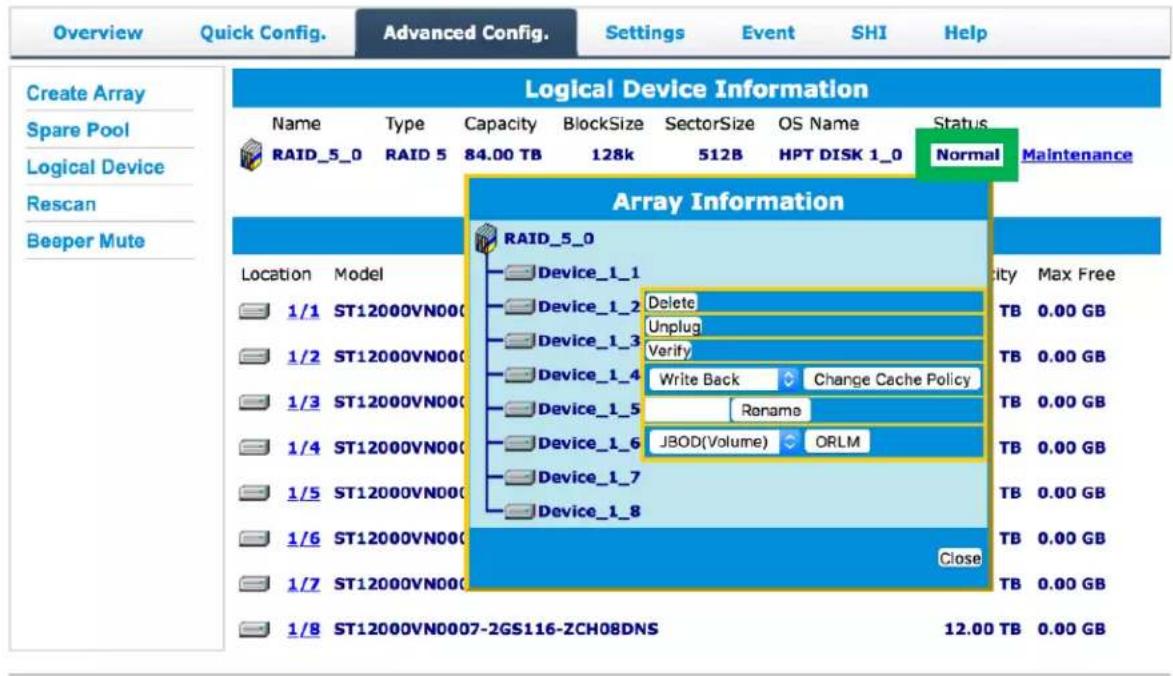
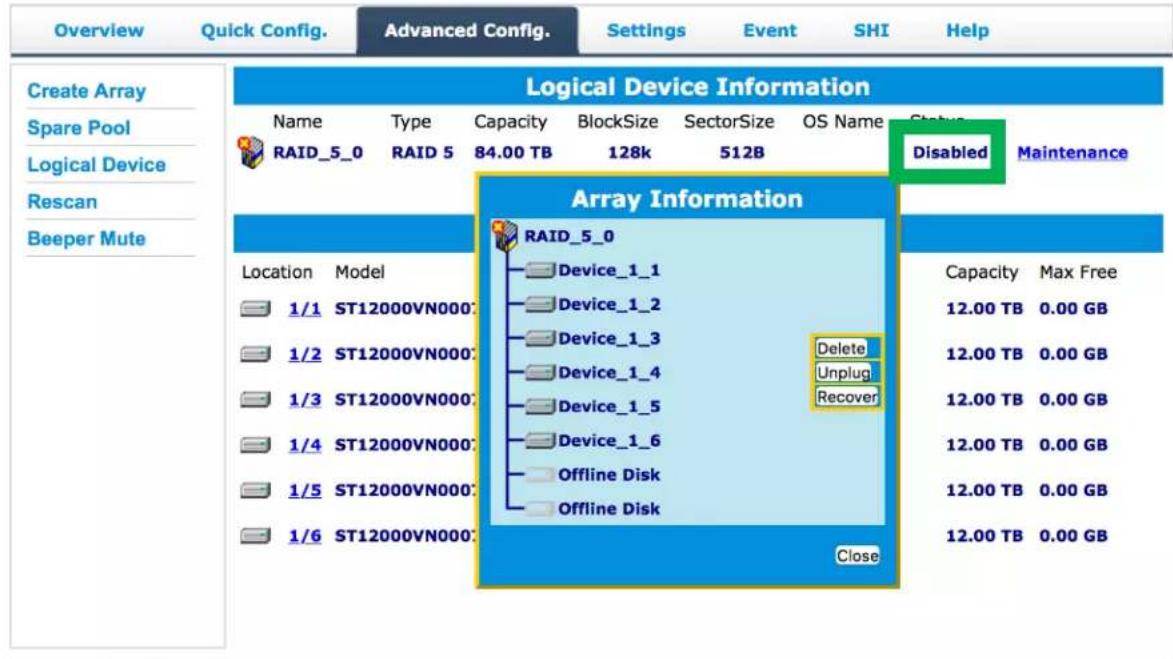
Clicking on the maintenance button will show you the Array information box. Different array statuses (normal, critical, disabled) will have different maintenance options.
Normal
text_image
Overview Quick Config. Advanced Config. Settings Event SHI Help Create Array Spare Pool Logical Device Rescan Beeper Mute Logical Device Information Name Type Capacity BlockSize SectorSize OS Name Status RAID_5_0 RAID 5 84.00 TB 128k 512B HPT DISK 1_0 Normal Maintenance Array Information RAID_5_0 Location.Model Device_1_1 Quality Max Free 1/1 ST12000VN000 Device_1_2 Delete TB 0.00 GB 1/2 ST12000VN000 Device_1_3 Unplug TB 0.00 GB 1/3 ST12000VN000 Device_1_4.Write Back Change Cache Policy TB 0.00 GB 1/4 ST12000VN000 Device_1_5 Rename TB 0.00 GB 1/5 ST12000VN000 Device_1_6(JBOD(Volume) ORLM TB 0.00 GB 1/6 ST12000VN000 Device_1_7 TB 0.00 GB 1/7 ST12000VN000 Device_1_8 TB 0.00 GB 1/8 ST12000VN0007-2GS116-ZCH08DNS Close TB 0.00 GB 12.00 TB 0.00 GBrDrive Manager 2.18.2
Copyright (c) 2017 HighPoint Technologies, Inc. All Rights Reserved
Arrays with the Normal status are healthy and functioning properly. Arrays with the Normal status will have the following options:
- Delete: deletes the selected RAID array
- Unplug: powers off the selected RAID array – once powered off, the physical disks can be safely removed from the RAID controller
To detect the disk again you can wait for the system to detect the disk or you can turn the power off and on for a quicker solution - Verify: verifies the integrity of the RAID array
- Change Cache Policy: toggles between Write through and Write back cache
- Rename: renames the RAID array.
- ORLM (Online Capacity Expansion / Online RAID Level Migration options): see Expanding a RAID array for more information.
Critical

text_image
Overview Quick Config. Advanced Config. Settings Event SHI Help Create Array Spare Pool Logical Device Rescan Beeper Mute Logical Device Information Name Type Capacity BlockSize SectorSize OS Name Status RAID_5_0 RAID 5 84.00 TB 128k 512B HPT DISK 1_0 Critical Maintenance Array Information RAID_5_0 Location.Model Device_1_1 1/1 ST12000VN00C Device_1_2 Delete TB 0.00 GB 1/2 ST12000VN00C Device_1_3 Unplug TB 0.00 GB 1/3 ST12000VN00C Device_1_4 Add Disk TB 0.00 GB 1/4 ST12000VN00C Device_1_5.Write Back Change Cache Policy TB 0.00 GB 1/5 ST12000VN00C Device_1_6(JBOD(Volume) ORLM TB 0.00 GB 1/6 ST12000VN00C Device_1_7 1/7 ST12000VN00C Offline Disk TB 0.00 GB Close TB 0.00 GBrDrive Manager 2.18.2
Copyright (c) 2017 HighPoint Technologies, Inc. All Rights Reserved
Arrays in the Critical status can be accessed and utilized, but are no longer fault tolerant. A Critical array should be rebuilt as soon as possible to restore redundancy.
A critical status array has all the normal status options except the following:
• The Array can no longer be renamed
- Add Disk replaces the Verify Disk option
Once the array status changes to critical, the faulty disk will be taken offline and you can either:
- Reinsert the same disk
- Insert new disk
Reinserting the same disk should trigger the rebuilding status, since data on the disk would be recognized. If you insert a new disk, clicking Add Disk will give you the option to select that disk and add it to the array. If a spare disk is available, an array that has entered the critical state will begin rebuilding using the next available spare disk.
Disabled
text_image
Overview Quick Config. Advanced Config. Settings Event SHI Help Create Array Spare Pool Logical Device Rescan Beeper Mute Logical Device Information Name Type Capacity BlockSize SectorSize OS Name Status RAID_5_0 RAID 5 84.00 TB 128k 512B Disabled Maintenance Array Information RAID_5_0 Location.Model 1/1 ST12000VN000: 1/2 ST12000VN000: 1/3 ST12000VN000: 1/4 ST12000VN000: 1/5 ST12000VN000: 1/6 ST12000VN000: Device_1_1 Device_1_2 Device_1_3 Device_1_4 Device_1_5 Device_1_6 Offline Disk Offline Disk Delete Unplug Recover Capacity(Max Free 12.00 TB 0.00 GB 12.00 TB 0.00 GB 12.00 TB 0.00 GB 12.00 TB 0.00 GB 12.00 TB 0.00 GB CloserDrive Manager 2.18.2
Copyright (c) 2017 HighPoint Technologies, Inc. All Rights Reserved
An array with the Disabled status means that the RAID level does not have enough disks to function.
- Your data will be inaccessible
- Rebuilding will not trigger, since the RAID array does not have enough parity data to rebuild.
Your options in Maintenance are:
- Delete: it will delete all the data in the disk in the array
• Unplug: take the array offline, making it safe to remove - Verify: attempt to verify the RAID array integrity, only the RAID1, 5 and 10 support this feature.
Expanding an Existing Array
Important: It is recommended that the array be Verified/Rebuilt before Expanding or Migrating. Once you start an OCE/ORLM procedure, you can stop the process, but it must be resumed until completion.
To add more capacity to your current configuration follows these steps:
-
Click Advanced Config.
-
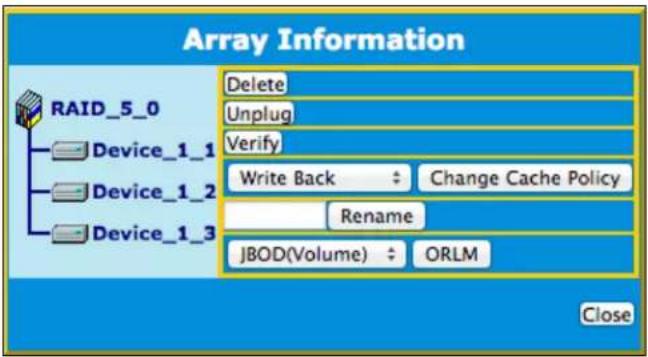
Click Maintenance for the array you want to change
a. Select a different RAID level to Migrate. For example, if you want to change a RAID 0 array, you will need to select a different RAID level, such as RAID 5 or 6.
b. Select the same RAID level to Expand. For example, if you want to expand the capacity of an existing RAID 5 array, you must select RAID 5 from the menu.
text_image
Array Information RAID_5_0 Device_1_1 Device_1_2 Device_1_3 Delete Unplug Verify Write Back : Change Cache Policy Rename JBOD(Volume) : ORLM Close- Important: make a note of all the physical drives currently in the target array.
- Click ORLM
- Select the physical drives you recorded earlier (step 5) and the drives you want to add
- Click Submit
- Upon submission, you will receive a prompt stating ORLM has been successfully configured.

text_image
http://localhost:7402 ORLM destination RAID 5 Array 'RAID_5_1' has been created successfully (Disk 1:WDC WD2003FZEX-00Z4SA0-WD-WMC5C0D010MK, 1/1; Disk 2:WDC WD2003FZEX-00Z4SA0-WD- WMC5C0D1RJUS, 1/2; Disk 3:WDC WD60EFRX-68MYMN1-WD-WX11D74RH86K, 1/3; Disk 4:WDC WD2003FZEX-00Z4SA0-WD-WMC5C0D0WZ56, 1/4).The Logical Device Information will change the status to migrating.
| Overview Quick Config. Advanced Config. Settings Event SHI Help | ||||||||||
| Create Array Spare Pool Logical Device Rescan Beeper Mute | Logical Device Information | |||||||||
| Name | Type | Capacity | BlockSize | SectorSize | OS Name | Status | ||||
| RAID_5_0 | RAID 5 | 36.00 TB | 128k | 512B | HPT DISK 1_0 | Migrating 0% Maintenance | ||||
| RAID_5_1 | RAID 5 | 36.00 TB | 128k | 512B | Migrating 0% Maintenance | |||||
| Physical Device Information | ||||||||||
| 12.00 TB | 0.00 GB | |||||||||
| 12.00 TB | 0.00 GB | |||||||||
| 12.00 TB | 0.00 GB | |||||||||
| 12.00 TB | 0.00 GB | |||||||||
| 12.00 TB | 0.00 GB | |||||||||
| 12.00 TB | 0.00GB | |||||||||
| 12.00 TB | 0.00 GB | |||||||||
| 12.00 TB | 0.00 GB | |||||||||
| 12.00 TB | 0.00 GB | |||||||||
| 12.00 TB | 0.00 GB | |||||||||
| 12.00 TB | 0.00 CB | |||||||||
| 12.00 TB | 0.00 GB | |||||||||
| 12.00 TB | 0.00 GB | |||||||||
| 12.00 TB | 0.00 GB | |||||||||
| 12.00 TB | 0.00 GB | |||||||||
| 12.00 TB | 0.00 Gb | |||||||||
| 12.00 TB | 0.00 GB | |||||||||
| 12.00 TB | 0.00 GB | |||||||||
rDrive Manager 2.18.2
Copyright (c) 2017 HighPoint Technologies, Inc. All Rights Reserved
Physical Device Information
- Location: which controller and port the drive is located in
- Model: model number of the drive connected
• Capacity: total capacity of the drive
• Max Free: total capacity that is not configured

text_image
Overview Quick Config. Advanced Config. Settings Event SHI Help Create Array Spare Pool Logical Device Rescan Beeper Mute Logical Device Information Name Type Capacity BlockSize SectorSize OS Name Status RAID_5_0 RAID 5 84.00 TB 128k 512B HPT DISK 1_0 Normal Maintenance Physical Device Information Location Model Capacity Max Free 1/1 ST12000VN0007-2GS116-ZCH074PL 12.00 TB 0.00 GB Revision SC60 Read Ahead Enabled Change Location 1/1 Write Cache Enabled Change Max Free 0.00 GB Status Normal NCQ Enabled Change Serial Num ZCH074PL Identify LED [ON] [OFF]The following properties are part of the Physical Devices Information
- Model: model number of the physical drive
• Capacity: total capacity of the physical drive - Revision: HDD device firmware revision number
- Read Ahead* (Enable/Disable): enabling disk read ahead will speed up read operations by prefetching data and loading it into RAM
- Location: device location (example: 1/2 states controller 1, channel 2)
- Write Cache* (Enable/Disable): enabling write cache will speed up write operations
- Max Free: space on the disk that is not configured in an array
- Status (Normal, Disabled, Critical): status of the disk
- Serial Number: serial number of the physical disk
- Unplug: safely ejects the selected disk, other methods of disk removal will trigger the alarm if enabled
* Disk properties that can be adjusted.
Rescan
Clicking rescan will force the drivers to report the array status. For any disk(s) you hot plug into the device; do not click rescan until all physical drives are detected and appear under Logical Device Information.
Beeper Mute
Click the beeper to mute/unmute the device
Settings Tab
Enclosure
Review the rDrive unit information or update the BIOS/Firmware

text_image
Overview Quick Config. Advanced Config. Settings Event SHI Help Enclosure Email Notification Security System Enclosure Info Controller Name: rDrive 6628T EFI Version: v1.0.3 Select the file to update BIOS. This process may take some time. Choose File no file selected SubmitEmail Notification
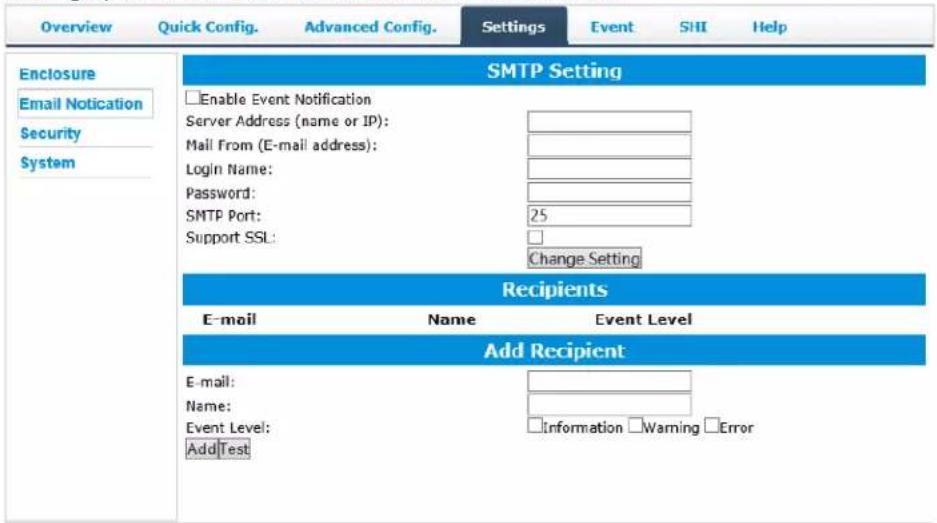
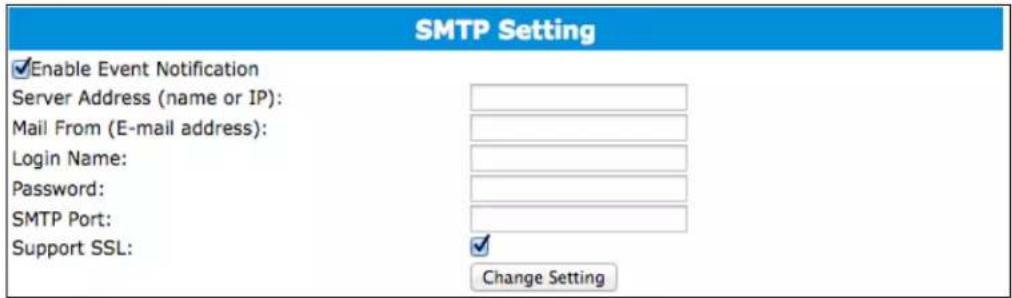
Setting up the event notification via SMTP Email server
text_image
Overview Quick Config. Advanced Config. Settings Event SHI Help Enclosure Email Notification Security System SMTP Setting Enable Event Notification Server Address (name or IP): Mail From (E-mail address): Login Name: Password: SMTP Port: 25 Support SSL: Change Setting Recipients E-mail Name Event Level Add Recipient E-mail: Name: Event Level: AddTest Information Warning ErrorYou can instruct the controller to send an email out to the recipients of your choosing when certain events trigger (for more information, see Event Tab).
SMTP Setting
text_image
SMTP Setting ✓Enable Event Notification Server Address (name or IP): Mail From (E-mail address): Login Name: Password: SMTP Port: Support SSL: Change SettingTo set up email alerts:
- Check the Enable Event Notification box.
- Enter the ISP server address name or SMTP name
- Type in the email address of the sender (email account that is going to send the alert)
- Type in the account name and password of the sender
- Type in the SMTP port (default: 25)
- Check support SSL box if SSL is supported by your ISP (port value will change to 465).
Note: After you click Change Setting, the password box will become blank.
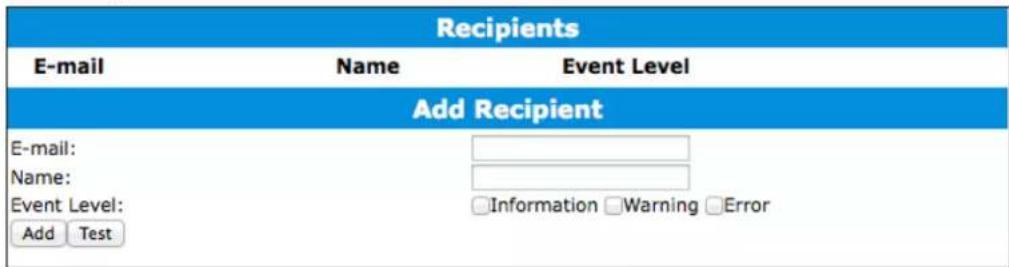
Add Recipient
text_image
Recipients E-mail Name Event Level Add Recipient E-mail: Name: Event Level: Add Test Information Warning ErrorYou can add multiple email addresses as receivers of a notice.
- Type the email of the recipient in the E-mail text box
- Type the name of the recipient in the Name text box
- Check which type(s) of events will trigger an email using the respective Event Level check boxes.
- (Optional) Click test to confirm the settings are correct by sending out a test email
- Click add to add the recipient to recipient list
- The added recipient will display in under Recipients
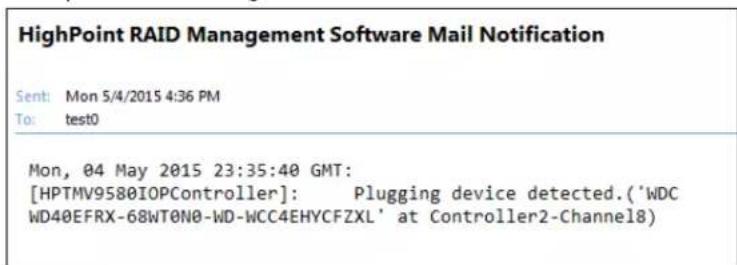
The email will include the output recorded in the event log. Example email message:
text_image
HighPoint RAID Management Software Mail Notification Sent: Mon 5/4/2015 4:36 PM To: test0 Mon, 04 May 2015 23:35:40 GMT: [HPTMV9580IOPController]: Plugging device detected.('WDC WD40EFRX-68WT0N0-WD-WCC4EHYCFZXL' at Controller2-Channel8)Security
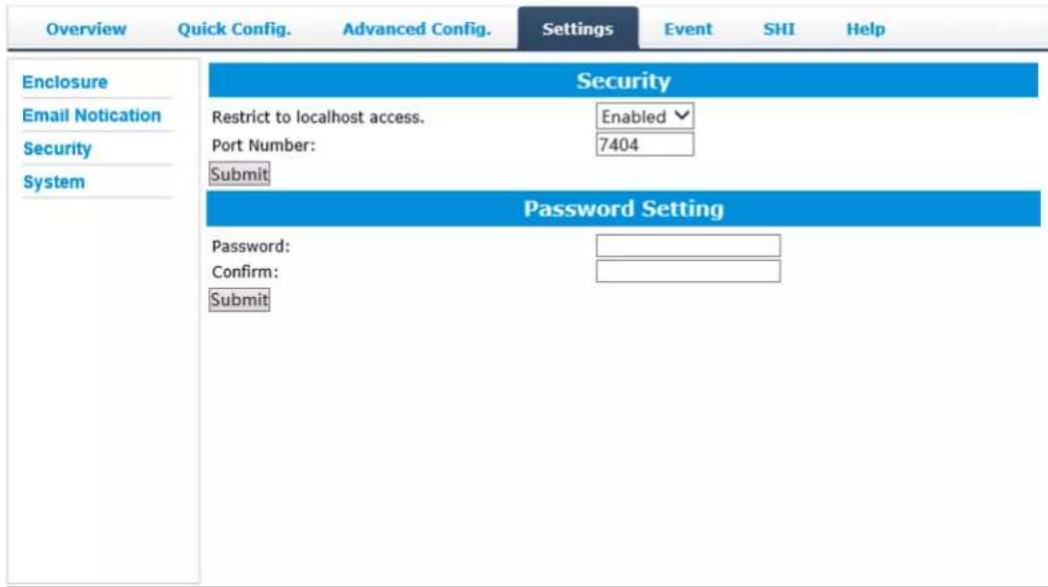
This section allows you to change the log-in password, Port Number and enable or disable localhost access.
text_image
Overview Quick Config. Advanced Config. Settings Event SHI Help Enclosure Email Notification Security System Security Restrict to localhost access. Enabled Port Number: 7404 Submit Password Setting Password: Confirm: SubmitPassword Setting
To change your password type your new password, confirm it, and then click Submit.
Note: if you are locked out of the rDrive Manager and do not remember your password, do the following
- Mac: We recommend uninstalling rDrive Manager, then reinstalling. This will remove the password requirement and allow you create a new one under the Setting tab.
- Windows: In file explorer, go to \C\Windows\hptuser.dat and delete the file
System

text_image
Overview Quick Config. Advanced Config. Settings Event SHI Help Enclosure Email Notification Security System System Setting Enable auto rebuild. Enabled ✓ Enable Continue Rebuilding on error. Enabled ✓ Set Rebuild Priority: Medium ✓ SubmitEnable auto rebuild (default: Enabled)
- When a physical drive fails, the controller will take the drive offline. Once you re-insert or replace the disk, the controller will not automatically rebuild the array unless this option is enabled.
Enable continue rebuilding on error (default: Enabled)
- When enabled, the rebuilding process will ignore bad disk sectors and continue rebuilding until completion. When the rebuild is finished, the data may be accessible but may also be inconsistent, due to any bad sectors that were ignored during the procedure. If this option is enabled, HighPoint recommends checking the event log periodically for bad sectors warnings.
Rebuild Priority (default: Medium)
- You can specify the amount of system resources you want to dedicate to rebuilding the array. There are 5 levels of priority [Lowest, Low, Medium, High, Highest].
Event
The event view is a basic error logging tool built into the rDrive Manager
| Icon | Name | Definition |
| Information | Includes general administrative tasks:Create/delete arraysConfiguring sparesRebuilding arraysConfiguring event notificationsConfiguring maintenance | |
| Warning | Alerts issued by the Host Adapter:High temperaturesSector errorsCommunication errorsVerification errors | |
| Error | Hardware related problemsHard disk failureBroken errorsMemory failure |
Storage Health Inspector (SHI)
SHI outputs information collected using SMART (Self-Monitoring Analysis and Reporting Technology) Hard Drive Technology. The data provided on this tab helps you to anticipate any disk failures based on a variety of monitored hard disk properties.
| Overview | Quick Config. | Advanced Config. | Settings | Event | SHI | Help | |
| Storage Health Inspector(SHI) | |||||||
| Enclosure ID | Port# | Device Serial Number | RAID | Temperature | Bad Sectors Found & Repaired | S.M.A.R.T | |
| 1 | 1 | ZCH074PL | RAID_5_0 | Normal | None | Detail | |
| 1 | 2 | ZCH07TEY | RAID_5_0 | Normal | None | Detail | |
| 1 | 3 | ZCH05C83 | RAID_5_0 | Normal | None | Detail | |
| 1 | 4 | ZCH07VLV | RAID_5_0 | Normal | None | Detail | |
| 1 | 5 | ZCH05HLN | RAID_5_0 | Normal | None | Detail | |
| 1 | 6 | ZCH08FX3 | RAID_5_0 | Normal | None | Detail | |
| 1 | 7 | ZCH070PW | RAID_5_0 | Normal | None | Detail | |
| 1 | 8 | ZCH08DNS | RAID_5_0 | Normal | None | Detail | |
| Schedule a task | |||||||
rDrive Manager 2.18.2
Copyright (c) 2017 HighPoint Technologies, Inc. All Rights Reserved
To enable S.M.A.R.T monitoring, go to the S.M.A.R.T section in the middle of the SHI section and select Enable and vice versa
Note: Disabling SMART monitoring will disable all warnings related to SMART attributes.
Scheduler
To enter the Scheduler, select Schedule a Task on the SHI page

text_image
Overview Quick Config. Advanced Config. Settings Event SHI Help Tasks List Name Description □test0 Check all disks every day at 16:30:0 Delete New Verify Task ○ RAID_5_0 Task Name: ●Occurs one time on 2017 - 5 - 19 at 0 : 0 : 0 Schedule: ○Occurs every 1 Day(s) ▼ on Sunday ▼ 1 at 0 : 0 : 0 Start date: 2017 - 5 - 19 ○ End date: 2017 - 5 - 19 ● No end date Submit Health Inspector Scheduler Task Name: Select a Schedule: ○Daily ●Weekly ○Bi-Weekly ○Monthly Select a time: Sunday ▼ 1 0 : 0 : 0 SubmitThe Scheduler enables you to schedule disk/array checkups to ensure disks/array are functioning optimally.
How to Create a New Verify Task
All arrays will appear under New Verify Task
- Log into the rDrive Manager
- Select the proper controller from the top left drop down
- Click SHI
- Click Schedule a task
- Select the array you want to schedule the verify task
- Type the name in Task Name entry box
- Choose how you want to schedule
- One time verify task on specific date (YYYY-MM-DD) at (HH:MM:SS, 24-hr clock)
- Or a specific schedule you can adjust based on Daily, Weekly, or Monthly options
- Click Submit
- Your entry will appear under Tasks List
Note: New Verify Task box only appears if you have normal status arrays. If you have a critical array, New Rebuild Task will replace New Verify Task.
Help
Online Help redirects you to additional documentation concerning the rDrive Manager.
Register Product takes you to the HighPoint Online Web Support Portal. On this page you can create a new customer profile where you can register your product, or post an online support ticket
The Configuration Record feature simplifies the process of gathering system and configuration information when submitting a technical support inquiry. Instead of manually entering all RAID related settings, simply type in the new Case ID assigned to the Online Support Ticket, and click submit – rDrive Manager will automatically send all required data to the corresponding Case ID.

text_image
Overview Quick Config Advance Config Settings Event SHI Help Configuration RecordSupport Case ID:
Please enter your Support Case ID. Your configuration will be Emailed to HighPoint Support.
If you do not have a Case ID, please submit a Support Ticket, or Register an Account.
Http://www.highpoint-tech.com/websupport
Submit
Section 4: Troubleshooting
Handling Critical Arrays
When your disk status turns critical, your array as a whole is still accessible, but one or more disks are faulty (depending on your RAID level), and the array is in danger of failing.
Common scenarios for critical status
- Unplugging a disk that is part of an array
- Bad sector is detected on a disk that is part of an array
• Unrecoverable data during rebuilding
• Defective port or cable interrupts rebuilding process
To recover from this situation,
- Backup your existing data.
- Identify which disk is faulty.
a. You can refer to the LED lights on the enclosure
b. Refer to the rDrive Manager Logical tab and Event tab.
- Re-insert the faulty disk or replace with a new disk.
a. The array will rebuild automatically if your auto-rebuild setting is enabled and you reseated the faulty disk. Note: Click Rescan if the array still does not rebuild automatically.
- If the new disk is added and it does not automatically start rebuilding, you can manually add the disk in maintenance.
a. Log into the rDrive Manager
b. Click Advanced Config. Tab
c. Click Maintenance > Add Disk > select the appropriate disk
- Rebuild should now start.
a. If rebuild does not start, click 'Rescan' on the left hand panel.
Note: Rebuilding an array takes on average 2 hours per 1 Terabyte of disk capacity. The process will scan through the entire disk, even if you have very little used disk space.
Rebuilding Stops Due to Bad Sectors
If rebuilding fails to complete due to bad disk sector errors (check in the Event Log), there is an option to continue rebuilding on error in the HighPoint rDrive Manager.
- Log into the rDrive Manager
- Click Settings tab
- Change Enable Continue Rebuilding on Error to Enabled
This option will enable rebuilding to ignore bad sectors and attempt to make your data accessible. It is important to backup immediately after backup is complete and replace or repair the disks with bad sectors.
Critical Array Becomes Disabled When You Removed Faulty Disk
If this is the case, you may have removed the wrong disk. When you remove the wrong disk from a critical array, the array status may become disabled. Data is inaccessible for disabled arrays. Follow these steps to restore the array to the previous state.
- Shut down your PC
- Shut down the rDrive 6628TM Enclosure
- Place all disks back to original configuration
- Boot up PC
Your array should be back to Critical status. Identify the correct disk and rebuild from there.
Online RAID Roaming
One of the features of all HighPoint RAID controllers is online array roaming. Information about the RAID configuration is stored on the physical drives. So if a card fails or you wish to switch cards, the RAID configuration data can still be read by another HighPoint card.
Appendix
Table 1: rDrive Manager Icon Guide
| [T380] | Critical: Missing DiskA disk is missing from the array bringing it to ‘critical’ status. The array is still accessible but another disk failure could result in data loss. |
 | VerifyingThe array is currently running a disk integrity check. |
 | RebuildingThe array is currently rebuilding meaning you replaced a failed disk or added a new disk to a ‘critical’ state array. |
 | Critical: Rebuild RequiredThe array has all disks, but one disk requires rebuilding. |
| [8X7H] | DisabledThe icon represents a disabled array, meaning more than one disk failed and the array is no longer accessible |
 | InitializingThe array is initializing. The two types of initialization are Foreground and Background. (See Initialization) |
| [XK24] | UninitializedThe array initialization process has been interrupted, and the process is incomplete. |
| [X70A] | Not InitializedDisk is not initialized yet, and needs to be initialized before use |
 | OCE/ORLMArray is performing a OCE/ORLM operation |
 | OCE/ORLM Has StoppedThe array expansion process has been stopped. |
[78KK] | LegacyAn existing file system has been detected on the disk. These disks are classified as legacy drives.SpareThe device is a spare drive, it will automatically replace any failed drive part of an array. |
| [70ZW] | NormalThe array status is normal |
| [8KES] | InitializingThe array is initializing, either foreground or background initialization |
| [8TSS] | Initialization StoppedThe initialization has been stopped. Current status is uninitialized. |
 | Critical: InconsistencyData in the array is inconsistent and needs to be rebuilt. |
| [877B] | Critical: Missing DiskA disk has been removed or experienced failure, and user needs to reinsert disk or add a new disk. |
| [028X] | RebuildingThe array is currently rebuilding. |
| [0170] | VerifyingThe array is performing a data consistency check. Array status will show ‘verifying’. |
| [CCZA] | DisabledThe array does not have enough disks to maintain the RAID level. A disabled array is not accessible. |
| [T2X3] | OCE/ORLMArray is expanding its capacity or migrating to a different raid level.Status will display ‘Expanding/Migrating’ |
| [W0XX] | OCE/ORLM StoppedThe ‘Expansion/Migrating’ process has been stopped. The status will display ‘Need Expanding/Migrating’ |
| [A1YSZ] | Critical: OCE/ORLMA disk member is lost during the OCE/ORLM process. |

Critical: OCE/ORLM Rebuild
The expanding/migrating array requires a rebuild.
Table 2: RAID Reference Level
| Type | Description | Min. Disks | Usable Space | Advantage | Disadvantage | Application |
| JBOD | Just a bunch of disk | 1 | 100% | Each drive can be accessed as a single volume | No fault tolerance - failure of one drive results in complete data loss | Backup |
| RAID 0 | Disk Striping | 2 | 100% | Offers the highest performance | No fault tolerance - failure of one drive results in complete data loss | Temporary file, performance driven application. |
| RAID 1 | Disk Mirroring | 2 | 50% | Provides convenient low-cost data redundancy for smaller systems and servers | Useable storage space is 50% of total available capacity. Can handle 1 disk failure. | Operating system, backup, and transaction database. |
| RAID 10 | Disk Mirroring followed by stripe | 4 | 50% | High read performance and medium write performance with data protection for up to 2-drive failures | Useable storage capacity equals total capacity of all drives in the array minus two | Fast database and application servers which need performance and data protection |
| RAID 5 | Disk Striping with Rotating parity | 3 | 67-87% | High read performance, and medium write performance with data protection with a single drive failure | Not recommended for database applications that require frequent/heavy write sessions. Can handle 1 disk failure. | Data archives, and ideal for application that require data protection |
| RAID 50 | Disk Mirroring followed by RAID5 | 6 | 67-75% | High read performance, and medium write performance with data protection in case of up to two drives failure | Not recommended for applications that require frequent/heavy write sessions. | Data archives and ideal for application that requires data protection |
| RAID 6 | Disk Striping with dual rotating parity | 4 | 50-75% | High read performance, and medium write performance with data protection in case of up to two drives failure | Not recommended for applications that require frequent/heavy write sessions. | Data archives and ideal for application that requires data protection |
Contacting Technical Support
For any help and support, please submit the following
• Support ticket online at http://www.highpoint-tech.com/websupport/
- Configuration record