RocketRAID 3522 - NAS Highpoint - Free user manual and instructions
Find the device manual for free RocketRAID 3522 Highpoint in PDF.


User questions about RocketRAID 3522 Highpoint
0 question about this device. Answer the ones you know or ask your own.
Ask a new question about this device
Download the instructions for your NAS in PDF format for free! Find your manual RocketRAID 3522 - Highpoint and take your electronic device back in hand. On this page are published all the documents necessary for the use of your device. RocketRAID 3522 by Highpoint.
USER MANUAL RocketRAID 3522 Highpoint
Copyright © 2008 HighPoint Technologies, Inc. This document contains materials protected by International Copyright Laws. All rights reserved. No part of this manual may be reproduced, transmitted or transcribed in any form and for any purpose without the express written permission of HighPoint Technologies, Inc.
Trademarks
Companies and products mentioned in this manual are for identification purpose only. Product names or brand names appearing in this manual may or may not be registered trademarks or copyrights of their respective owners. Backup your important data before using HighPoint's products and use at your own risk. In no event shall HighPoint be liable for any loss of profits, or for direct, indirect, special, incidental or consequential damages arising from any defect or error in HighPoint's products or manuals. Information in this manual is subject to change without notice and does not represent a commitment on the part of HighPoint.
Notice
Reasonable effort has been made to ensure that the information in this manual is accurate. HighPoint assumes no liability for technical inaccuracies, typographical, or other errors contained herein.
Table of Content
Chapter 1
Introduction
About this Guide .... 1-1
Introducing the RocketRAID 3522 Host Adapter ....1-1
RocketRAID 3522 – Features and Specifications....1-2
Understanding RAID Concepts and Terminology .... 1-4
Network Features 1-5
Chapter 2
RocketRAID 3522 Hardware Description/Installation
1 - RocketRAID 3522 Adapter Layout....2-1
2 - Installing the RocketRAID 3522 Host Adapter ...... 2-2
3 - Verifying Installation 2-3
4 - Battery Backup 2-4
Chapter 3
RocketRAID 3522 BIOS Utility
1 - BIOS Command Overview .... 3-1
2 - Disk Menu....3-2
3 - Array Menu 3-3
4 - Controller Menu ....3-5
Chapter 4
RocketRAID 3522 Driver and Software Installation Microsoft Windows (2000, XP, 2003 Server, Vista)
Table of Contents
Driver and Software CD 4-1
Windows Driver Installation 4-3
Chapter 5
RocketRAID 3522 Web-RAID Management Interface
1 - Web RAID Management Interface 5-1
2 - Preparing Hard disks 5-2
3 - Array Management ....5-3
4 - Device Management ....5-8
5 - Configuring Spare Disks 5-12
6 - Managing Events and Tasks 5-13
7 - Settings 5-14
Chapter 6
Linux Driver Support
1 - Fedora Core Linux installation Overview 6-1
2 - Red Hat Enterprise Overview 6-4
3 - SuSE Linux Enterprise Server (SLES) installation Overview 6-8
Chapter 7
FreeBSD Driver Support
1 - Installing FreeBSD on the RocketRAID 3522 Controller ....7-1
2 - Installing the RocketRAID 3522 Driver on an Existing System ....7-4
3 - Updating the Driver 7-6
4 - Uninstalling the Driver 7-6
Chapter 8
Mac OSX Driver
Installing the driver and RAID utility 8-1
Appendix
Customer Support ...... A-1
Chapter 1 Introduction
Contents of this Chapter:
About this guide
Introducing the RocketRAID 3522 Host Adapter
RocketRAID 3522 Features and Specifications
Understanding RAID Concepts and Terminology
Network Features (Web Management/BIOS Utilities)
HighPoint
About this Guide
The RocketRAID 3522 SATAII Host Adapter's User's Guide provides information about the functions and capabilities of the host adapter, and instructions for installing, configuring and maintaining RAID arrays hosted by the adapter.
Introducing the RocketRAID 3522 Host Adapter
The HighPoint RocketRAID 3522 is an 8-channel PCI-E x8 to Serial ATA II RAID controller. The RocketRAID 3522 solution designed for enterprise storage applications such as NAS solutions, workgroup and web servers, video streaming / video editing workstations, data archiving/back up, and security systems.
The RocketRAID 3522 delivers optimized performance and features through the use of HighPoint's industry-leading RAID technology.
The HighPoint RocketRAID 3522 PCI-E SATA II RAID Controller offers the features needed for enterprise level storage environments. The RocketRAID 3522 is the latest product in storage technology, combining the outstanding high-performance capabilities of SATA II, with enterprise storage features, such as Native Command Queuing (NCQ), staggered drive spin-up, and SAF-TE enclosure management.
The external mini-SAS Interconnect System - Unparalleled flexibility and outstanding performance
The RocketRAID 3522 supports a variety of connectors and cable assemblies that make installation a snap, and ensure compatibility with a wide array of external storage chassis and enclosures. These assemblies enable flexible approach to speed-dependent applications, ranging from 1.5 to 6.0 Gbps, with maximum capabilities up to 10.0 Gbps. The RocketRAID 3522 is an ideal and versatile multi-faceted solution for the growing server storage market.
Intel 81341 I/O Processor and RAID Off-load Engine
The RocketRAID 3522 utilizes the Intel 81341 hardware I/O processor for superior RAID 6 and 5 parity calculations. The Off-load engine relieves the mainboard's CPU from the burden of RAID-related computations, allowing it to attend to other important system tasks.
Onboard Cache and Optional Battery Backup for optimal performance and added security
256MB of DDR SDRAM with ECC protection is integrated into the RocketRAID 3522 for improved performance, and provides additional security in the case of critical system failure, when used in conjunction with the optional battery back up unit.
RocketRAID 3522 - Features and Specifications
Host Adapter Architecture
- TerabyteStream™ for Blazing Performance
- Intel IOP 81341
• PCI -Express x8 (x16 slot compatible)
• 256 MB of DDR II memory with ECC protection - Write through and write back cache
• 8 SATA II channels at 3Gb/s per port - Multi -adapter support up to 4 adapters
• BIOS booting support
• BIOS PnP and BBS (BIOS boot specification) support - Intel RAID 6 Engine for large capacity RAID arrays
- Battery Backup Unit (BBU) Optional
- RoHS compliant
Advance RAID Features
• Support RAID 0, 1, 3, 5, 10, 50, 6 and JBOD
- Multiple RAID support
- Multiple Logical Drive Support
- Online array roaming
- Online capacity expansion (OCE) and Online RAID level migration (ORLM)
- Quick and Background initialization for instant RAID configuration
• Automatic drive insertion / removal detection and rebuild
- 64bit LBA support greater than 2TB per volume
• S.M.A.R.T monitoring hard drive status for reliability
- Staggered Spinup with user selection in BIOS
• (MAID) spin down drives in array is idle
Array Monitors, Alerts and Indicators
- SMTP for email notification
- Alarm / Buzzer alerts for array activity
• SAF-TE support - Ethernet Board for (OBM) Out of Band Management
• NTP (Network Time Protocol)
RAID Management
- TerabyteSaver™ and TerabyteGuard™ for Data Protection and Reliability
- Firmware update in the Operating System
- Ethernet board for OBM (Out of Bound Management) – Supports NTP protocol
- SNMP support
- Hot key (ctrl-h) boot-up RAID manager via BIOS
• API library for customizing AP
• Command Line Interface (CLI) - Web browser-base RAID management software
- Disk scrubbing to prevent degraded RAID arrays
- Bad sector repair and re-mapping to reduce dropped drives
• ATA pass-through mode support
Operating System Support
• Windows 2000, XP, 2003, Vista (32-bit and 64-bit)
- Linux (native support)
- FreeBSD
• Mac OS X 10.4.x & 10.5.x
- Open Source Driver (GPL Licensed) into Linux Kernel 2.6
PHYSICAL SPECIFICATIONS
Size: (160.0mm x 66.0mm) 6.26"L x 2.59"
WEMI : FCC Part 15 Class B and CE
Thermal and Atmospheric Characteristics:
Work Temperature Range: +5C \~ + 55C
Relative Humidity Range : 5% \~ 60% non condensing
Storage Temperature : \~20 \~ 80C
MTBF: 920,585 Hours
Electrical Characteristics:
| PCI-e | 12 V | 3.3 V |
| Power | 10 W | 1 W |
Understanding RAID Concepts and Terminology
The following concepts and terminology is commonly used when describing the functions of the RocketRAID 3522 Host Adapter.
Disk initialization
Initializing a disk writes necessary RAID configuration information to that disk. Disks must be initialized before configuring them into RAID arrays. The initialization process will destroy all data on the disk.
Disk Status
New The disk contains no data and has not been initialized.
Initialized The disk has been initialized and can be used for array creation.
Configured The disk has been assigned to one or more arrays, or configured as a spare disk.
Legacy The disk was used on other controllers before use with the RocketRAID 3522 (see legacy disk below).
Array initialization
A redundant array (RAID5, RAID1, RAID10) needs to be initialized to ensure full performance and reliability. Non-redundant arrays (RAID0, JBOD) do not need to be initialized.
When you create a redundant array using the RocketRAID 3522 controller's BIOS Configuration Utility, it will automatically start the initialization process. When creating an array using the HighPoint RAID Management Console software, you can specify an initialization option (Skip initialization, foreground and background).
Online Capacity Expansion (OCE)
This feature allows disks to be added to existing RAID arrays, in order to increase the array's capacity, without fear of data loss. Any number of disks can be added to an array, at any time. Data can be accessed and utilized even while being redistributed.
Online RAID Level Migration
This term describes the ability to change one type of array (RAID level), into a different type of array (changing a RAID 1 array into a RAID 10 array for example). Data is still accessible during the migration process, and a base level of security is still active.
OCE, ORLM and the RocketRAID 3522
The RocketRAID 3522 supports both Online Capacity Expansion (OCE), and Online RAID Level Migration (ORLM). Both features are supported by a single function - an array can be transformed from one RAID level to another RAID level while simultaneously being resized, even under I/O load.
Spare disk
A spare disk is a single disk that can be used to automatically rebuild a redundant array in case of drive failure. Spare disks may also be members of a RAID array. Any available space on these disks may be used to rebuild other broken arrays.
Legacy disk
Disks attached to the RocketRAID 3522 that contain valid partition tables will be identified as legacy disks. A legacy disk attached to the RocketRAID 3522 can be accessed by the operating system, but cannot be used to create RAID arrays. A legacy disk must be initialized before assigning it to an array.
Network Features
The RocketRAID 3522 offers a selection of network-oriented RAID Management functions. These features are integrated into the card's firmware, and can be administered using the BIOS and Web-based management utilities.
SNMP Manager - Simple Network Management Protocol. Allows the administrator to view the current state of the entire RAID system.
SNMP Trap - The RAID adapter can be configured to report events over the network. When an event is generated by the RAID Management utility, the SNMP Trap will send SNMP Trap messages to the Trap Receiver.
NTP - Network time protocol. The RocketRAID 3522's firmware automatically synchronizes it's internal clock to match that of the selected server. If a NTP server is not specified, the adapter will synchronize itself with the host system's BIOS clock.
Chapter 2
RocketRAID 3522
Hardware Description/Installation
Contents of this Chapter:
RocketRAID 3522 Hardware
1 - RocketRAID 3522 Adapter Layout
2 - Installing the RocketRAID 3522 Host Adapter
3 - Verifying Installation
4 - Battery Backup
HighPoint
RocketRAID 3522 Hardware
1 - RocketRAID 3522 Adapter Layout
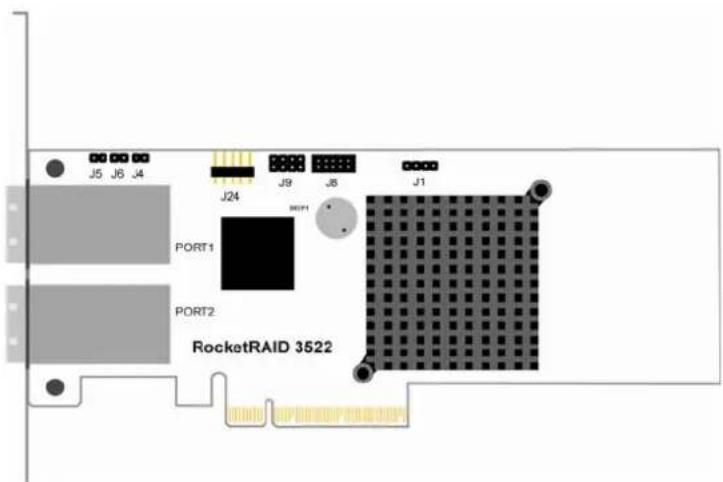
text_image
J5 J6 J4 J24 J9 J8 J1 PORT1 PORT2 RocketRAID 3522Port1, Port2
These represent the RocketRAID 3522's two External Mini-SAS ports. Each port can support up to 4 hard disks.
J1 - SAF-TE connector

text_image
SCL GND SDA VCC 3.3VBEEP1 – Speaker
Alarm (speaker): the speaker emits and audible alarm in the case of disk/array failure.
J8 (BBU connector)
Connector for battery backup unit (optional part).
2 - Installing the RocketRAID 3522 Host Adapter
Note: Make sure the system is powered-off before installing the RocketRAID 3522 host adapter.
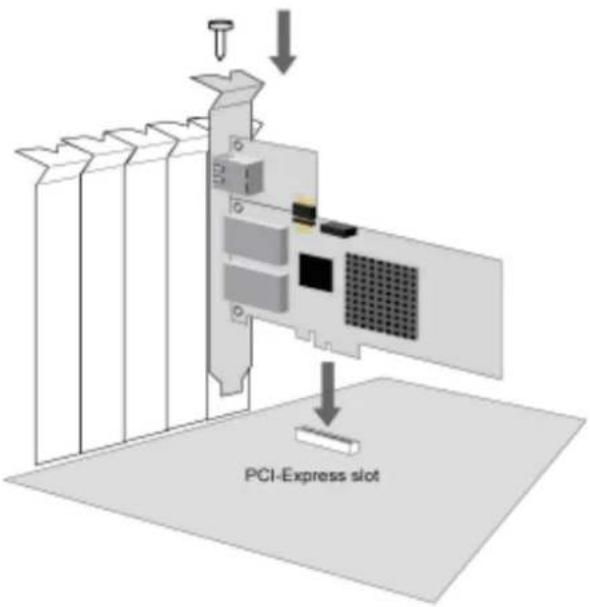
The RocketRAID 3522 includes both standard and low-profile brackets. It may be necessary to attach the low-profile bracket in place of the standard bracket, depending upon the chassis design.
- Open the system chassis and locate an unused PCI-E x8 (or x16) slot.
- Remove the PCI slot cover.
- Gently insert the RocketRAID 3522 into the PCI-E slot, and secure the bracket to the system chassis.
-
After installing the adapter, attach the disk enclosures to the RocketRAID 3522 the appropriate external Mini-SAS cables.
-
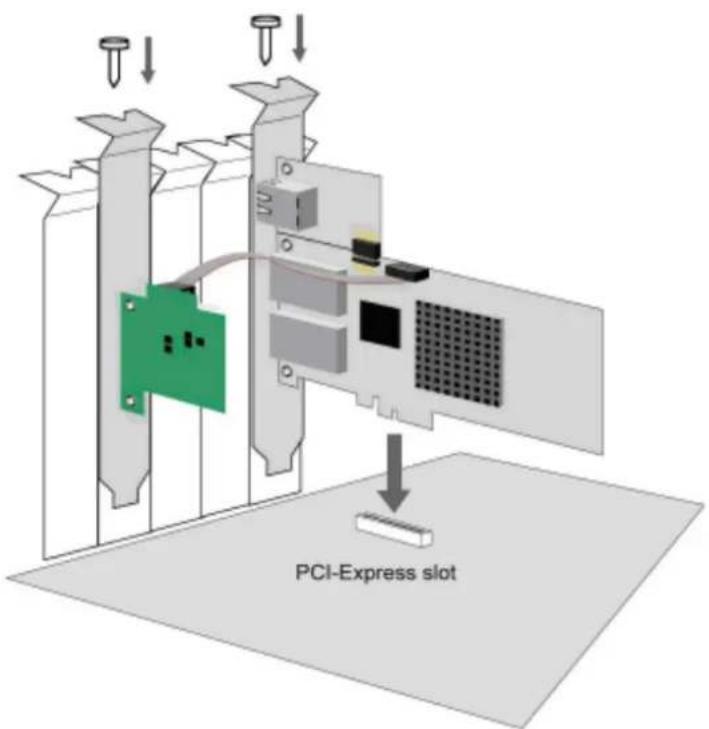
Consult the disk enclosure's manual for proper hard disk installation procedures Note: The Full RocketRAID 3522 product include the Rocket Ethernet board. The Ethernet board can be removed to fit the 2U chassis in case of user won't use the OBM feature.
text_image
PCI-Express slot
text_image
PCI-Express slot3 - Verifying Installation
Once the RocketRAID 3522 host adapter and hard disks have been installed into the disk enclosure, boot-up the system to verify that the hardware is properly recognized.
- Power on the system. If the system detects the presence of the adapter, the
RocketRAID 3522 BIOS Utility will be displayed during bootup.
- Press Ctrl+H to access the RocketRAID 3522 BIOS Utility.
The BIOS Utility will display information about hard disks attached to the adapter. Make sure all attached disks are detected by this utility. If any of the hard disks are not detected, power down the system and check the cable connections to both the card, and enclosure.
4 - Battery Backup
A battery backup option will be available as an optional add-on component.
The battery provides additional data security in case of a critical system failure.
Data normally lost during a major system fault, such as a power outage or CPU failure, which was in transit at the time of the failure (stored in the card's onboard cache), will remain viable for up to 72 hours.
The battery unit can be attached to the card using the BBU CONN.
Attach the BBU into J8 of RocketRAID 3522 using the cable included with the BBU unit:
text_image
PCI-Express slotChapter 3
RocketRAID 3522 BIOS Utility
Contents of this Chapter:
RocketRAID 3522 BIOS Utility
1 - BIOS Command Overview
2 - Disk Menu
3 - Array Menu
4 - Controller Menu
HighPoint
RocketRAID 3522 BIOS Utility
The RocketRAID 3522's BIOS Utility can be accessed using the "Ctrl+H" command. This command should be displayed automatically when the RocketRAID 3522's BIOS screen appears during the system's boot up procedure.
1 - BIOS Command Overview
The RocketRAID 3522 BIOS Utility provides a wide selection of RAID related commands. These commands are displayed towards the top of the utility's interface.
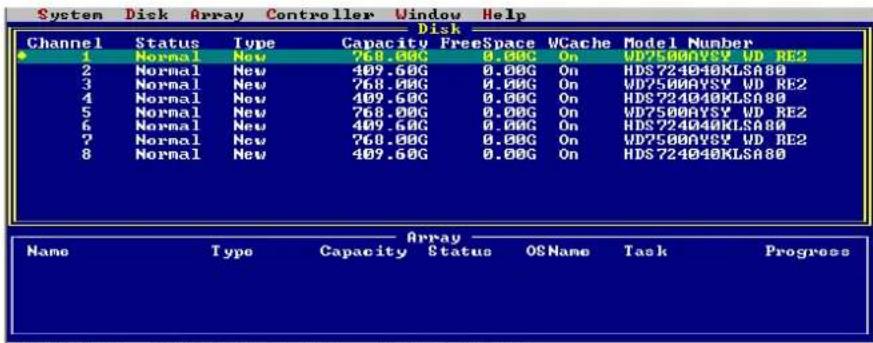
text_image
System Disk Array Controller Window Help Disk Channel Status Type Capacity FreeSpace VCache Model Number 1 Normal New 768.00G 0.00C On UD75000VSY UD RE2 2 Normal New 409.60G 0.00G On HDS724040KLSA80 3 Normal New 768.00G 0.00G On UD75000VSY UD RE2 4 Normal New 409.60G 0.00G On HDS724040KLSA80 5 Normal New 768.00G 0.00G On UD75000VSY UD RE2 6 Normal New 409.60G 0.00G On HDS724040KLSA80 7 Normal New 768.00G 0.00G On UD75000VSY UD RE2 8 Normal New 409.60G 0.00G On HDS724040KLSA80 Array Name Type Capacity Status OSName Task Progress[F10] Menu [TAB] Switch window [Enter] Select
General Navigation
Press ALT + the first letter of the each menu item (highlighted in red) to access the corresponding menu (Alt + D will open the "Disk" menu bar). You can also press F10 to quickly browse through the various menu selections. Use the arrow keys to select the desired item, and press ENTER to open the menu. Use the arrows keys to select the desired command from each menu, and press the ENTER key to confirm the selected command.
There are two windows in the utility's interface; Disk interface and Array interface. Use the TAB key to switch between each interface.
Supervisor/User mode
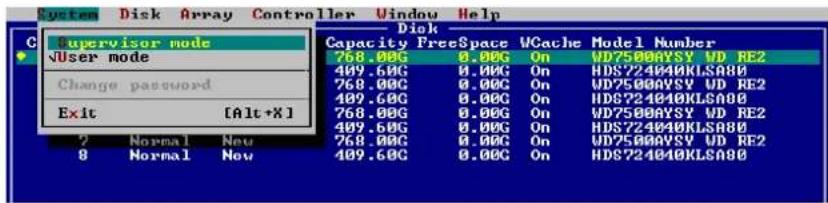
The default BIOS operation mode is User mode; user can only view some information of the controller through BIOS. If user wants to modify the setting of the RAID controller, it must be changed to Supervisor mode:
Press [ALT + S] to open the "System" menu in the figure 1; then select "Supervisor mode", and press ENTER. This will open the user authentication interface. Enter the appropriate password and then press ENTER. The initial password is "hpt".
text_image
System Disk Array Controller Window Help C Supervisor mode User mode Change password Exit [Alt+X] 2 Normal New 8 Normal New Disk Capacity FreeSpace VCache Model Number 768.00G 0.00G On WD7500AVSY WD RE2 409.60G 0.00G On HDS724040KLSA80 768.00G 0.00G On UD7500AVSY WD RE2 409.60G 0.00G On HDS724040KLSA80 768.00G 0.00G On WD7500AVSY WD RE2 409.60G 0.00G On HDS724040KLSA80 768.00G 0.00G On UD7500AVSY WD RE2 409.60G 0.00G On HDS724040KLSA802 - Disk Menu
Press [ALT + D] to access the "Disk" menu.
View a disk
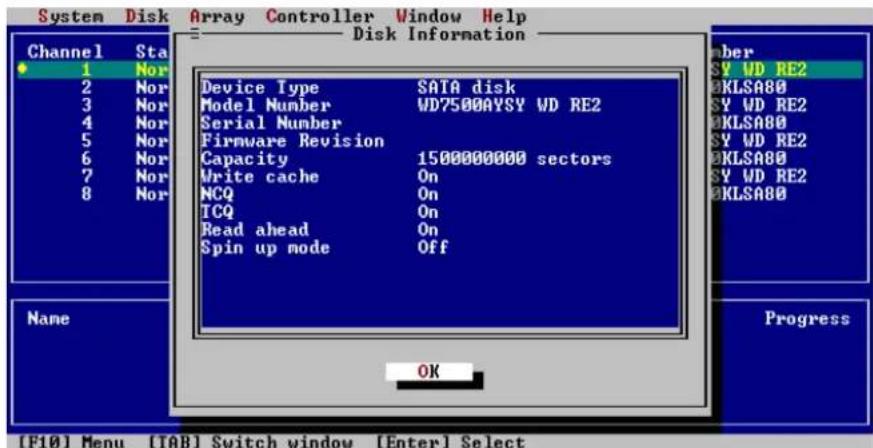
From the Disk menu, use the arrows keys to select a disk. After highlighting the desired disk, select Disk->Information to view hardware data about this disk.
text_image
System Disk Array Controller Window Help Disk Information Channel Sta 1 Nor 2 Nor 3 Nor 4 Nor 5 Nor 6 Nor 7 Nor 8 Nor Device Type SATA disk Model Number WD7500AYSY WD RE2 Serial Number Firmware Revision Capacity 1500000000 sectors Write cache On NCQ On TCQ On Read ahead On Spin up mode Off Name Progress OK [F10] Menu [TAB] Switch window [Enter] SelectDisk initialization
Disks must be initialized prior to creating a RAID array. To initialize a disk, access the Disk menu and highlight a disk using the arrows keys. Press ENTER to add the disk to the initialization list. Repeat this procedure for each disk that requires initialization. After selecting the required disks, select Disk->Initialize option from the Disk menu.
Note: If the selected disk has already been initialized, the BIOS utility will display a warning message, but will continue to initialize the remaining disks.
Warning: Initializing a disk may result in data loss – do not initialize disks that contain critical data. Non-initialized disks can still be utilized as stand-alone drives, and will be recognized as “Legacy” devices.
Other Disk related Functions
“Disk->Toggle Spare”, “Disk->Unplug”, “Disk->Rescan”, “Disk->Turn on write cache”, and “Disk->Turn off write cache” work in the same manner as Disk Initialization. Highlight the desired disks and press ENTER to select them. Return to the Disk menu, highlight the desired function, and press ENTER to initiate the task.
Toggle Spare – use this option to specify spare disks. Spare disks are used to automatically rebuild failed RAID arrays.
Unplug - use this option to safely remove the selected hard disk. This allows you to safely park and power off a disk while the system remains active.
Rescan - use this option when attaching hard disks to the RocketRAID card.
Turn on/Turn off write Cache – use these options to enable or disable write cache on the selected disks. Disk cache is enabled by default.
3 - Array Menu
Press [ALT + A] to access the "Array" menu.
Create an Array
To create a RAID array, first access the Disk menu. Use the arrows keys to highlight a disk, and press the Enter key to confirm the selection. Repeat this procedure to add additional disks to the array. Once the appropriate disks have been selected, return to the Array menu, highlight the Create option, and press ENTER to access the “Create Array” page. Use the TAB and [Shift + TAB] to select from the corresponding RAID settings (Radio button, Edit box, etc.), and use the SPACE key to confirm the selections.
VSS (Variable Sector Size):
If the array's capacity is over 2TB, user will be asked to select the Sector Size values (from 512B to 4K):

text_image
System Disk Array Controller Window Help Disk Capacity FreeSpace VCache Model Number Channel Status Type (1) 1 N (2) 2 N (3) 3 N (4) 4 N (5) 5 N (6) 6 N (7) 7 N (8) 8 N Create Array Array Type ( ) 1:RAID 0 ( ) 2:RAID 1 (•) 3:JB = Sector size ( ) 4:RA ( ) 5:RA ( ) 6:RA ( ) 7:RA ( ) 8:RA 512B 1K 2K 4K Cache Po ( ) None (•) Write ( ) Write-through 64 OK 024KB) Create Cancel WD RE2 LSA80 WD RE2 LSA80 WD RE2 LSA80 WD RE2 LSA80 Progress [E10] Menu [TCR] Switch window [Enter] SelectNote: Variable Sector Size (VSS) for over 2TB support in 32bit LBA OS.
It changes the sector size from default 512 Bytes to 4k Bytes etc. the maximum volume capacity up to 16TB. This option works under Windows platform only. And it CANNOT be converted to Dynamic Disk, because 4k sector size is not a standard format.
View an Array
To view information about a specific Raid array, use the TAB key to switch to the Array Interface view, and use the arrows keys to select the array. After selecting the array, access the Array menu and select the Information option, then press ENTER.
Other RAID array related functions
"Array->Delete", "Array->Unplug", "Array->Verify", "Array->Start task", "Array->Stop task" and "Array->Set Boot" work in the same manner as the "View an Array" function.. Highlight the desired array using the Array Interface view, and press ENTER.. Return to the Array menu, select the desired function, and press ENTER to initiate the task.
Delete - use this option to delete the selected array.
Warning: all data on the selected array will be lost
Unplug – use this option to safely remove each disk member of the selected array. This allows you to safely park and power off each hard disk while the system remains active.
Verify – select this option to verify the integrity of the selected array. Routine RAID verification is essential to avoid data loss in the case of disk failure.
Start Task – select this option to schedule specific RAID maintenance tasks such as RAID Verification.
Stop Task - use this option to terminate scheduled tasks.
Set boot - use this option to set an array to act as a boot volume.
Note: This setting is dependent on the motherboard's BIOS configuration. An array designated as a boot volume cannot be used to boot the system unless the card has been instructed to act as the system's boot device. Consult the motherboard's BIOS/CMOS setup menu, and corresponding manual for more information.
4 - Controller Menu
Press [ALT + C] to access the “Controller” menu.
View Controller information
To view information about the controller, access the Controller menu, select "view" and press ENTER.
View Events
To view the RocketRAID event log, access the Controller menu, select "Evnetlog" and press ENTER. Use [Shift + TAB] to select from the different items (check boxes, editable fields), and use the SPACE key to confirm the selection. There are three selectable filter options, which can be used specify the type of information presented by the selected log. A maximum of 10 logs are listed in the utility at a time; use the "Prev" and "Next" button to turn the pages. Use the "Clear" button to delete all logs.
Controller Setting
To access the Controller Settings page access the Controller menu, select "Settings" and press ENTER. Use [Shift + TAB] to select between different menu items: Radio buttons, check boxes, editable fields, etc., and use the SPACE key to confirm the selection.
Network Setting
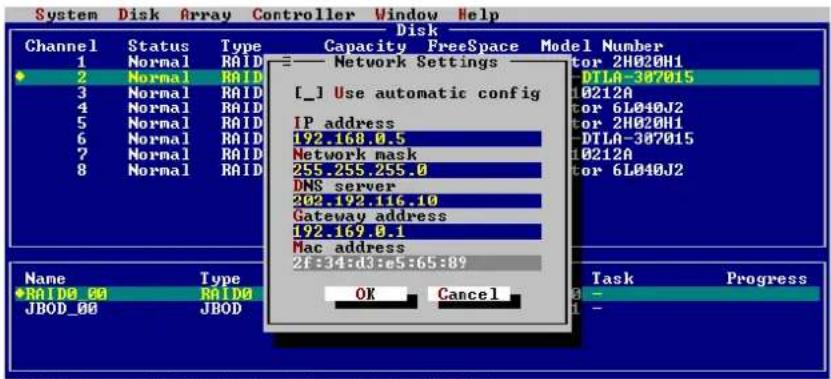
Use this menu to configure the RocketRAID card's network settings. Access the Controller menu, select "Network" and press ENTER. You can select "Use automatic config" to request the network information from the system, or configure the settings manually.
text_image
System Disk Array Controller Window Help Disk Channel Status Type Capacity FreeSpace Model Number 1 Normal RAID = Network Settings 2 Normal RAID 3 Normal RAID 4 Normal RAID 5 Normal RAID 6 Normal RAID 7 Normal RAID 8 Normal RAID [_] Use automatic config IP address 192.168.0.5 Network mask 255.255.255.0 DNS server 202.192.116.10 Gateway address 192.169.0.1 Mac address 2f:34:d3:e5:65:89 Task Progress RAID0_00 RAID0 JBOD_00 JBOD OK Cancel[F10] Menu [TAB] Switch window [Enter] Select
Chapter 4
RocketRAID 3522 Driver and
Software Installation Microsoft Windows
(2000, XP, 2003 Server, Vista)
Contents of this Chapter:
Driver and Software CD
Windows Driver Installation
HighPoint
Driver and Software CD
The RocketRAID 3522 retail box includes a Driver and Software CD.
This CD can be used to generate driver diskettes, and install the RAID Management software for a variety of operating systems.
To create a driver diskette:
- Insert the CD into the system's CD/DVD drive. The program should start automatically.
- Insert a blank floppy diskette into the system's floppy drive.
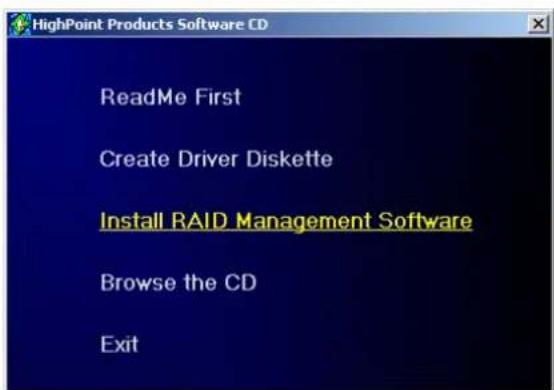
- Click on "Create Driver Diskette".

text_image
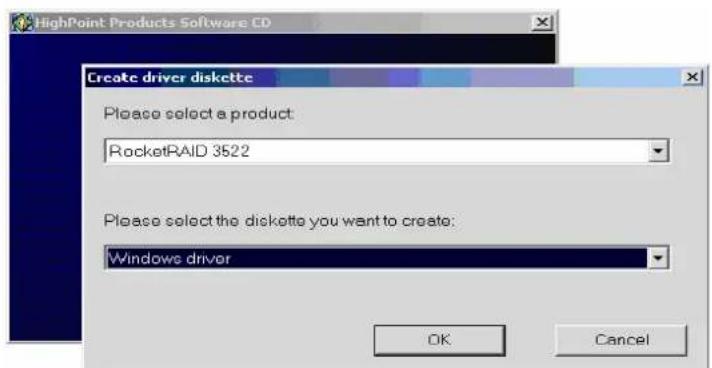
HighPoint Products Software CD ReadMe First Create Driver Diskette Install RAID Management Software Browse the CD Exit- Click on the "Please Select a Product" drop-down button, and select "RocketRAID 3522" from the list.
text_image
HighPoint Products Software CD Create driver diskette Please select a product: RocketRAID 3522 Please select the diskette you want to create: Windows driver OK Cancel- Click on the "Please Select the Diskette you want to create" drop-down button, and select the appropriate OS from the list.

text_image
HighPoint Products Software CD Create driver diskette Please select a product: RocketRAID 3522 Please select the diskette you want to create: Windows driver Windows driver Fedora Core 3 (i386) driver Fedora Core 3 (x86_64) driver Fedora Core 4 (i386) driver Fedora Core 4 (x86_64) driver Red Hat Enterprise Linux 3.0 driver (emd64) Red Hat Enterprise Linux 3.0 driver (ethlon) Red Hat Enterprise Linux 3.0 driver (i586) Red Hat Enterprise Linux 3.0 driver (i686) Red Hat Enterprise Linux 4.0 driver (x86) Red Hat Enterprise Linux 4.0 driver (emd64) SuSE Linux Enterprise 9 driver SuSE Linux 8.x driver SuSE Linux 9.0 driver SuSE Linux 9.1 driver SuSE Linux 9.2 driver SuSE Linux 10.0 driver- Click on the "OK" button to create the driver diskette.
To install the RAID software:
- Click on "Install RAID Management Software".
text_image
HighPoint Products Software CD ReadMe First Create Driver Diskette Install RAID Management Software Browse the CD Exit- Select the desired software from the drop down menu, and click on the "OK" button.
Windows Driver Installation
Before installing the RocketRAID 3522 device driver, make sure the RocketRAID 3522 host adapter and all required hard disks have been installed into the system's chassis (refer to the Hardware Installation section, pages 2-2, 2-3).
Installing the RocketRAID 3522 driver for an existing Windows XP/2003/x64 system
After the operating system has booted, Windows will automatically detect the RocketRAID 3522, and request that a device driver be installed. To install the device driver, follow the steps outlined below:
- When the "Found New Hardware Wizard" window appears, select "Install from a list or specific location (Advanced)", and click Next to continue.
- Click on the “Include this location in the search” option, and select the system’s floppy drive (generally Disk A). Next, insert the Driver Installation diskette into the system’s floppy drive.
- At the Hardware Wizard screen, select the floppy drive as the source, then click the Next button. Select the appropriate operating system folder, then, click the Next button.
- Windows will display a warning message that states the driver has "not been signed". Select "Continue Anyway", then, click Finish when prompted. When Windows asks to reboot the system, choose No.
- Windows will then display a second "Found New Hardware Wizard" window – repeat steps 1 through 4.
- Remove the Driver Installation diskette from the floppy drive, then Shut down and restart the computer.
Installation Verification
After the driver has been installed, and the system has been restarted:
- Click the Start button, then right-click My Computer icon. Select the Properties item from the popup menu.
- In the popup window, select Hardware tab and then click Device Manager button.
- Double click the “SCSI and RAID controllers” entry. If the RocketRAID 3522 device entry is not displayed, or there are “?” or “!” marks displayed near the RocketRAID 3522 entry, the driver has not been installed properly. Delete the entries and reinstall the driver.
Installing the RocketRAID 3522 driver during a fresh Windows 2000/XP/2003/x64 installation
- After booting from the Windows 2000/XP/2003 CD-ROM, when the Windows Setup blue screen appears, look towards the bottom of the screen. Windows will prompt you to press the F6 key if you want to install a third party SCSI or RAID driver. Press the F6 key at this time.
- The setup procedure will continue, and will later instruct you to press the "S" key to specify additional adapters. Press the "S" key as instructed.
- Next, the setup program will prompt for the insertion of the driver diskette. Please insert the driver diskette, and then press ENTER to continue.
- The next window will display several driver options. Please select the RocketRAID 3522 Controller for the corresponding operating system, and press ENTER to continue.
Windows Vista Driver Installation
Installing the driver during a fresh Windows Vista installation
- Boot from Windows Vista DVD.
- When the screen “where do you want to install Windows” appears, click “Load driver” and browse for the driver location. Windows Vista can install drivers from several media types: floppy diskette, USB flash disk or CD.
- Select the RocketRAID 3522 controller driver, and click "Next".
- The driver is now installed - you can now continue on with the installation procedure.
Installing the driver for an existing Windows Vista system
- Install the RocketRAID 3522 host adapter into the PC, then boot up Windows Vista.
- Windows should automatically detect the card, and display the "Found New Hardware" wizard pop-up window. Select "Locate and install driver software". When Windows asks: "Windows needs your permission to continue", select "continue".
- Select “I don’t have disc, show me other options” and then select “Browse my computer for driver software”.
-
Specify the location of the driver and click "Next".
-
When asked: "Would you like to install this driver software?", select "Install".
- Reboot the system when prompted. The RocketRAID 3522 will be available for use after Vista reboots.
Installation Verification
After the driver has been installed, and the system has been restarted:
- Click the Start button, then right-click My Computer icon. Select the Properties item from the popup menu.
- In the popup window, select Hardware tab and then click Device Manager button.
- Double click the "SCSI and RAID controllers" entry. If the RocketRAID device entry is not displayed, or there are "?" or "!" marks displayed near the RocketRAID entry, the driver has not been installed properly. Delete the entries and reinstall the driver.
Chapter 5
RocketRAID 3522
Web RAID Management Interface
Contents of this Chapter:
1 - Web RAID Management Interface
2 - Preparing Hard disks
3 - Array Management
4 - Device Management
5 - Configuring Spare Disks
6 - Managing Events and Tasks
7 - Settings
HighPoint
1 Web RAID Management Interface
There are two methods to access the RocketRAID 3522's web-based RAID management interface: Use HighPoint In-band Management Service or use the adapter's Ethernet port (out-of-band management).
The Web RAID Management interface is a firmware-based utility. If you are using the adapter's Ethernet port, you need no additional software and configuration on the host system. You can access the web interface once you have setup the adapter's network configuration.
You can also access the web interface through the in-band management software. The in-band management software acts as a proxy between the web browser and the firmware. The in-band management software can also provide remote RAID management through the host system's network interface.
Installing the HighPoint In-band Management software.
For Windows:
Run setup.exe from the in-band management software folder on the software CD.
For Linux:
The in-band management software is distributed as a RPM package. You can install it by “rpm -i” command.
For FreeBSD:
You can install the in-band management software by "pkg_add" command.
For more information about in-band management software, please check the README file in the in-band management software package.
Starting the Management Interface
Note: To use the web-based RAID management interface, a web browser with XML support is required, e.g. Internet Explorer 6.0+, Mozilla, Firefox, or Safari (for OSX systems).
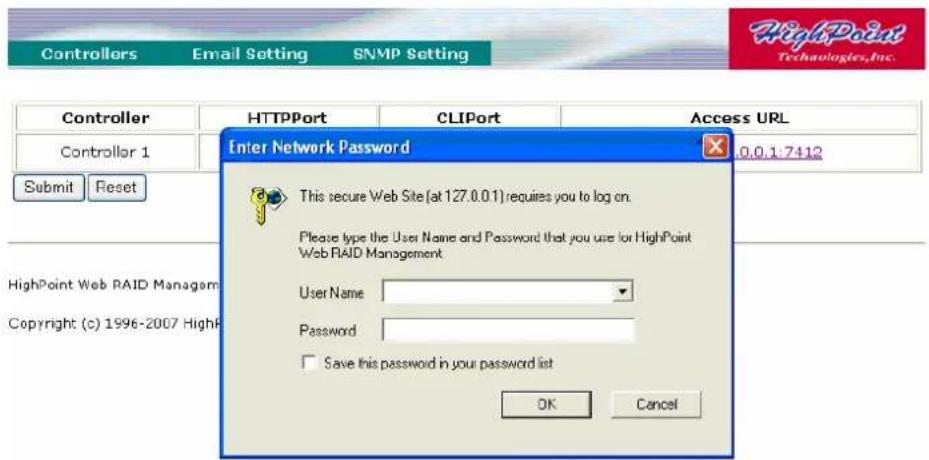
To run the management interface, start the web browser and enter the access URL. If you are using the adapter's Ethernet port, please enter http://adapter-ip-address If you are using in-band management software, please enter http://host-address:7402
Where host-address is the host name or IP address of the host system. Specifically, if you are running the browser on the host system, you can use http://localhost:7402.
The in-band management software provides an access URL for each controller on the system. You can access the RAID management interface for each controller through its access URL.
text_image
Controllers Email Setting SNMP Setting Controller HTTPPort CLIPort Access URL Controller 1 Submit Reset Enter Network Password 0.0.1:7412 This secure Web Site (at 127.0.01) requires you to log on. Please type the User Name and Password that you use for HighPoint Web RAID Management. User Name Password Save this password in your password list OK CancelThen Select the controller's Access URL by click the link http://127.0.0.1:7412 You will be asked for the User and Password to login. The default user name is "RAID" and the initial password is "hpt". You can change the password after you have logged in.
2 Preparing Hard disks
Disks must be initialized before they can be configured into RAID arrays.
Normally, disks only have to be initialized once. The disk initialize process should only take a few seconds.
Initializing disks may result in loss – do not initialize disks unless they are to be configured into RAID arrays.
Initializing hard disks:
1) Select the "Manage - Device" function to access the device management page.
2) Click on the "Initialize Devices" button towards the upper portion of the interface screen.

text_image
Manage Event Task Setting SHI Logout Help Rescan Devices Initialize Devices3) Checkmark each disk you wish to initialize, and click the Submit button.
Warning: initializing disks may delete data stored on the selected disks.
Legacy Disks
Disks that already contain data or have been partitioned will be recognized as "Legacy Disks".
Arrays cannot be created from Legacy Disks. These disks would have to be initialized, which may result in data loss.
3 Array Management
Creating an Array
To create an array:
- Select "Manage - Array" from the menu.
- Click the Create Array button. The create array page will appear.

text_image
Manage Event Task Setting SHI Logout Help Logical Device Information Name Type Capacity Cache Policy OS Name Status Create Array| Location | Model | Capacity | Max Free |
| 1/3/1 | WDC WD5000YS-01MPB0-WD-WMANU1006170 | 500.02 GB | 500.02 GB |
| 1/3/2 | WDC WD5000YS-01MPB0-WD-WMANU1018718 | 500.02 GB | 500.02 GB |
| 1/3/3 | WDC WD5000YS-01MPB0-WD-WMANU1016543 | 500.02 GB | 500.02 GB |
| 1/3/4 | WDC WD5000YS-01MPB0-WD-WMANU1018709 | 500.02 GB | 500.02 GB |
| Rescan |
HighPoint Web RAID Management 1.6.9
Copyright (c) 1996-2007 HighPoint Technologies, Inc. All Rights Reserved
- Choose the array type you want to create from the drop-down list.
-
Enter a name for the array (this is optional)
-
If you are creating a redundant RAID array (RAID1, 5, 6, 10, 50), select an initialization option for the array.
Note: An un-initialized RAID1 or RAID10 array can still provide redundancy in case of a disk failure. A RAID5 array, however, is not fault-tolerant until initialization is finished.
- Specify a cache policy:
Write-back
When the write-back setting is selected, writes to the array are cached. This will result in higher performance, but data loss may occur in case of a power failure.
Write-through
When the write-through setting is selected, writes to the array are always passed directly to the disks. Subsequent reads may still be completed from the cache, if appropriate.
None
Neither write-back nor write-through cache is used. I/O data will be passed to disks directly.
- Select disks from the Available Disks list.
- Enter a capacity for the array, or use the default value (the maximum capacity for the array).
- Click Create. If you have specified an initialization option, the initialization process will start automatically.
Deleting an Array
To delete an array:
1) Select "Manage - Array" from the menu.
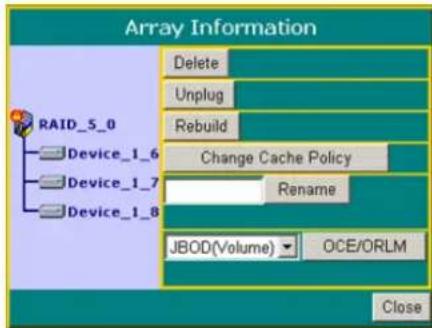
2) Click on the Maintenance button. An Array Information window will appear.
text_image
Array Information RAID_5_0 Device_1_6 Device_1_7 Device_1_8 Delete Unplug Rebuild Change Cache Policy Rename JBOD(Volume) ▼ OCE/ORLM Close3) Click the Delete button.
Note: An array in use by the operating system cannot be deleted. Any data stored on a deleted array will be inaccessible
Array Maintenance – Rebuilding/Verifying/Modifying RAID arrays
Rebuilding a Failed Array
When an array member in a redundant array fails, the array will be listed as broken. A broken array will be automatically rebuilt using available-spare disks. However, if you have no spare disks configured, you can still rebuild by manually adding an Available Disk to the array. To add a disk to a broken array:
1) Select menu " Manage - Array".
2) Highlight the desired RAID array
3) Click the "Maintenance" button.
4) Click the "Add Disk" button.
5) If the disk is successfully added to the array, rebuild process will start automatically. A progress bar will be displayed.
Note: If the system utilizes hot-swap capable enclosures, you can add new physical disks to the RocketRAID card in order to rebuild or modify an existing array, using the "Rescan" feature.
Reminder: When adding disks manually, make sure to initialize the disk (see Preparing Hard Disks).
Only initialized disks can be used to rebuild RAID arrays.
Verifying an Array
For a RAID 1 or RAID1/0 array, verify process compares the data of one mirror pair with the other. For RAID 5, verify process calculates RAID5 parity and compares it to the parity data on the array. Verification checks each sector on a drive. Periodic verification of an array allows the disk drive firmware to take corrective actions on problem areas on the disk, minimizing the occurrence of uncorrectable read and write errors.
To verify an array:
1) Select menu " Manage - Array".
2) Highlight the desired RAID array
3) Click the "Maintenance" button.
Click the Verify button to start the verify process.
OCE/ORLM - modifying existing RAID arrays
Expanding/Migrating an Array
With the OCE/ORLM function, you can migrate an array from one RAID level to another RAID level and/or expand the array dynamically, even under I/O load. This function implements both Online Capacity Expansion (OCE) and Online RAID Level Migration (ORLM).
To expand/migrate an array:
1) Select "Manage - Array" from the menu.
2) Highlight the desired RAID array
3) Click the "Maintenance" button.
4) Select the target array type.
5) Click the "OCE/ORLM" button.
6) The OCE/ORLM page will appear. The interface is similar to the array creation wizard:
Note:
A) When expanding a JBOD array, all the original disks must be included in the target array, and these disks must be selected in the same order (as the original array). If you want to migrate a JBOD array to another RAID level, only the first member disk can be included in the target array. For example, a JBOD comprised of 3 disks (1, 2, 3), can only be “migrated” using disk 1. Disks 2 and 3 cannot be used – disk 1 would have to be combined with other disks attached to the RocketRAID card.
B) You cannot change an array to another type of array with a smaller capacity. In some cases, a disk may need to be added to the RocketRAID card.
During the OCE/ORLM procedure, the redundancy level of the array will be the lowest of the source and target arrays; e.g. if you ORLM a RAID0 array to a RAID1 array, the array will be non-redundant until the procedure is complete.
C) The OCE/ORLM process can be aborted and continued at later time. However, you should always stop the transform progress from the RAID Management software.
An unexpected system crash may result in data loss while performing OCE/ORLM on an array. We strongly recommend backing up data before starting the OCE/ORLM process.
After the OCE/ORLM procedure has completed, reboot the system.
Other RAID related Functions
Renaming an Array
You are free to rename RAID arrays. This will not harm the array – data will not be lost.
To rename an array:
1) Select “ Manage - Array” from the menu.
2) Highlight the desired RAID array
3) Click on the "Maintenance" button.
4) Enter a new name for the array in the provided field.
5) Click the "Rename" button.
Note: An array running background tasks cannot be renamed.
Unplug
This can be used to safely take an entire array offline while the system remains operational.
To Unplug an array:
1) Select "Manage - Array" from the menu.
2) Highlight the desired RAID array
3) Click on the "Maintenance" button.
4) Click the "Unplug" button.
5) The software will notify you when it is safe to remove the array.
Note: Make sure the array is not in use before using this command. Active arrays cannot be unplugged.
4 Device Management
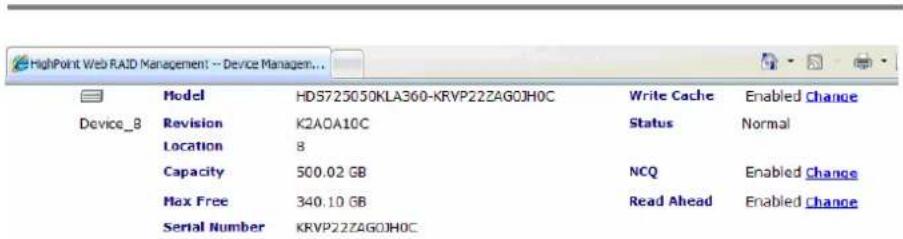
Select the "Manage - Device" function to access the device management page.
| Rescan Devices Initialize Devices | ||||
| Controller 1 (RocketRAID 3522 Controller) | ||||
| Device_1 | Model | ST3160812SV-5LSENGST | Write Cache | Enabled Change |
| Revision | 3.ACP | Status | Normal | |
| Location | 1 | |||
| Capacity | 159.92 GB | NCQ | Enabled Change | |
| Max Free | 0.00 GB | Read Ahead | Enabled Change | |
| Serial Number | 5LSENGST | |||
| Device_2 | Model | ST3160812SV-5LSESH7E | Write Cache | Enabled Change |
| Revision | 3.ACP | Status | Normal | |
| Location | 2 | |||
| Capacity | 159.92 GB | NCQ | Enabled Change | |
| Max Free | 0.00 GB | Read Ahead | Enabled Change | |
| Serial Number | 5LSESH7E | |||
| Device_3 | Model | ST3160812SV-5LSE55GL | Write Cache | Enabled Change |
| Revision | 3.ACP | Status | Normal | |
| Location | 3 | |||
| Capacity | 159.92 GB | NCQ | Enabled Change | |
| Max Free | 0.00 GB | Read Ahead | Enabled Change | |
| Serial Number | 5LSE56GL | |||
Change Device Settings
Depending upon the capabilities RAID controller and hard disks drives in use, several configurable device settings may be available: Read Ahead, Write Cache, TCQ, and NCQ. Each feature can be enabled or disabled individually, for each hard disk.
Unplug
The Unplug option found below each Device name, can be used to quickly remove (hot-swap) a Legacy disk.
Extended Information & Update Firmware
The device management page also shows the extended information of the RAID controller, such as onboard memory and battery information.
Web RAID Management Interface
text_image
HighPoint Web RAID Management -- Device Manager... Model HD5725050KLA360-KRVP22ZAGOJHOC Write Cache Enabled Change Device_8 Revision K2AOA10C Status Normal Location 8 Capacity 500.02 GB NCQ Enabled Change Max Free 340.10 GB Read Ahead Enabled Change Serial Number KRVP22ZAGOJHOC| Extended Information (Controller 1) | |
| IOP Model: | IOP34x (69056818) |
| SDRAM Size: | 256 M |
| Battery Status: | Installed |
| BatteryMD Status: | Installed |
| Battery Voltage: | Normal |
| Battery Temperature: | Normal |
| Firmware Version: | v1.2.12.25 |

text_image
Update Firmware(Controller 1) Select the bfl file to update Firmware. This process may take some time. Browse... CommitUser can also use the Web RAID management to upgrade controller's firmware.
SHI – Storage Health Inspector
The primary SHI interface displays a brief “health” summary of each hard disk.
| Manage | Event | Task | Setting | SHI | Logout | Help | ||
| Schedule | ||||||||
| Storage Health Inspector(SHI) | ||||||||
| Controller ID | Port# | Device SSN# | RAID | *F | Bad Sectors Found & Repaired | Device Status | ||
| 1 | 3_1 | WD-WMANU1006170 | None | 100 | None | OK | SMART | |
| 1 | 3_2 | WD-WMANU1018718 | None | 100 | None | OK | SMART | |
| 1 | 3_3 | WD-WMANU1016543 | None | 102 | None | OK | SMART | |
| 1 | 3_4 | WD-WMANU1018709 | None | 101 | None | OK | SMART | |
HighPoint Web RAID Management 1.6.0
Copyright (c) 1998-2007 HighPoint Technologies, Inc. All Rights Reserved
Controller ID
Which controller /card the disk is attached to.
Port #
Port location of the hard disk
Device SSN#
Serial number of the hard disk
RAID
RAID/Non-RAID status
F
Temperature (in Fahrenheit) of the hard disk (Celsius is displayed under the SMART status)
Bad Sectors/Found & Repaired
The card is capable of repairing bad sectors – a summary of this activity is presented here.
Device Status
OK means the disk is in a healthy state. A Failed status suggests the disk was taken offline (due to a RAID, SMART or sector failure).
Schedule
Click on the blue "Schedule" link to access the Event menu.
S.M.A.R.T Status
You can view S.M.A.R.T. (Self-Monitoring, Analysis, and Reporting Technology) data about a particular hard disk to help troubleshoot problems that occur. You can also setup periodically S.M.A.R.T. status checking to send notification messages when S.M.A.R.T. thresholds are exceeded.
Click on the blue "SMART" text to view the SMART status of the hard disk.
| Manage | Event | Task | Setting | SHI | Logout | Help | ||
| Schedule | ||||||||
| Storage Health Inspector(SHI) | ||||||||
| Controller ID | Port# | Device SSN# | RAID | of | Bad Sectors Found & Repaired | Device Status | ||
| 1 | 3_1 | WD-WMANU1006170 | None | 100 | None | OK | SMART | |
| 1 | 3_2 | WD-WMANU1018718 | None | 100 | None | OK | SMART | |
| 1 | 3_3 | WD-WMANU1016543 | None | 102 | None | OK | SMART | |
| 1 | 3_4 | WD-WMANU1018709 | None | 101 | None | OK | SMART | |
| Device Name Device_1_3_2 | ||||||||
| Model Number WDC WD5000YS-01MPB0-WD-WMANU1018718 | ||||||||
| Temperature Celsius 39 | ||||||||
| S.M.A.R.T Enabled Disable | ||||||||
| S.M.A.R.T Attributes | ||||||||
| ID | Name | Threshold | Worst | Value | Status | |||
| 1 | Raw Read Error Rate | 51 | 200 | 200 | OK | |||
| 3 | Spin Up Time | 21 | 215 | 249 | OK | |||
| 4 | Start Stop Count | 0 | 100 | 100 | OK | |||
| 5 | Reallocated Sector Ct | 140 | 200 | 200 | OK | |||
| 7 | Seek Error Rate | 51 | 200 | 200 | OK | |||
| 9 | Power On Hours | 0 | 98 | 98 | OK | |||
| a | Spin Retry Count | 51 | 100 | 100 | OK | |||
| b | Calibration Retry Count | 51 | 100 | 100 | OK | |||
| c | Power Cycle Count | 0 | 100 | 100 | OK | |||
| be | Unknown Attribute | 0 | 18 | 61 | OK | |||
| c3 | Hardware ECC Recovered | 0 | 1 | 1 | OK | |||
| c4 | Reallocated Event Count | 0 | 200 | 200 | OK | |||
| c5 | Current Pending Sector | 0 | 200 | 200 | OK | |||
| c6 | Offline Uncorrectable | 0 | 200 | 200 | OK | |||
| c7 | UDMA CRC Error Count | 0 | 200 | 200 | OK | |||
| c8 | Multi Zone Error Rate | 51 | 199 | 200 | OK | |||
HighPoint Web RAID Management 1.6.0
Copyright (c) 1996-2007 HighPoint Technologies, Inc. All Rights Reserved
Note: S.M.A.R.T attribute data is drive-specific. The software includes a list of definitions for popular drive models/manufacturers. Unknown S.M.A.R.T. attributes will be shown as "unknown". You can add the attribute definitions for your drive in the file smart.def (which resides in the software installation directory).
Rescan Devices
When you physically add drives to the controller while the system is running, you can rescan the controller to reflect the change.
To rescan the devices:
1) Select menu " Manage - Device".
2) Click "Rescan Devices" button.
Note: When you are hot-plugging an entire array, run rescan only after all array members (hard disks) have been physically plugged or unplugged from the system. You can rescan all the devices at once using the Rescan function on the Array Management page.
5 Configuring Spare Disks
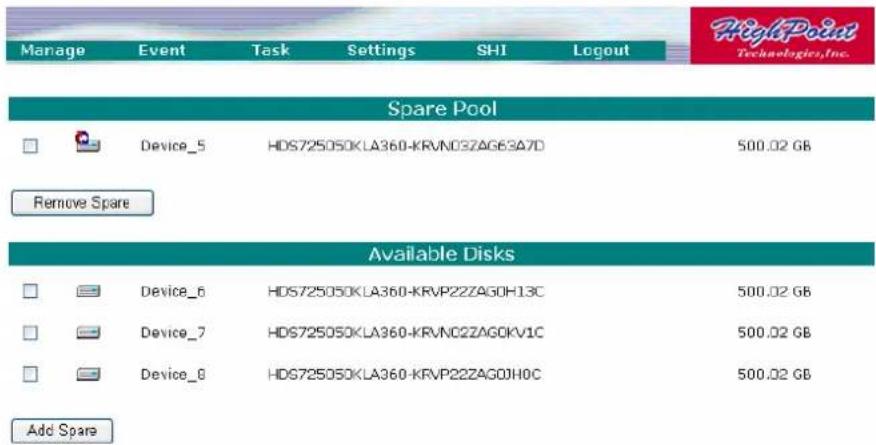
To configure spare disks attached to the RocketRAID card, select the "Manage - Spare" function. The Spare Pool Management page will be displayed.
text_image
Manage Event Task Settings SHI Logout HighPoint Technologies,Inc. Spare Pool Device_5 HDS725050KLA360-KRVN03ZAG63A7D 500.02 GB Remove Spare Available Disks Device_6 HDS725050KLA360-KRVP2ZZAG0H13C 500.02 GB Device_7 HDS725050KLA360-KRVN02ZAG0KV1C 500.02 GB Device_8 HDG725050KLA360-KRVP2ZZAG0JH0C 500.02 GB Add SpareAdding a Spare Disk
To add a spare disk, select a disk from the Available Disks list and click the Add Spare button. This will add the disk to the Spare Pool list.
Removing a Spare Disk
To remove a spare disk, select it from the Spare Pool list and click the Remove Spare button. This will remove the disk from the Spare Pool list.
6 Managing Events and Tasks
The HighPoint Web RAID Management Software automatically logs all controller related events that have occurred (for all controllers/cards managed by the software). In addition you can configure E-mail Notification to receive information about these events (see Section 7 Settings -View Events).
Events
Tasks executed by the Management Software, or any disk/array errors reported by the card while the OS is active are known as “Events”. These events are logged (recorded) by the Management Software.
To view logged events, Please select "Event" from the menu. The Event Management page will be displayed.

text_image
Manage Event Task Settings SHI Logout HighPoint Technologies,Inc.Clear
| Event View (1) | ||
| Type | Date Time | Description |
| Information | 2008/01/08 11:33:59 | Disk 'Device_5' (Location: 5) has been put into spare pool successfully. |
| Information | 2008/01/08 11:29:27 | User RAID logged on system. |
| Information | 2008/01/08 11:02:09 | User RAID logged on system. |
| Information | 2008/01/08 10:13:23 | User RAID logged on system. |
| Information | 2008/01/08 10:05:09 | User RAID logged on system. |
| RAID 6 Array 'RAID_6_0' has been created successfully (Disk 1:ST31608125V-5LSENGST, 1; Disk 2:ST31608125V-5LSESH7E, 2; Disk 3:ST31608125V-5LSES6GL, 3; Disk 4:ST31608125V-5LSEQB64, 4; Disk 5:HDS725050KLA360-KRVN03 AG63A7D, 5; Disk 6:HDS725050KLA360-KRVP22 AGOH13C, 6; Disk 7:HDS725050KLA360-KRVN02 AGOKV1C, 7; Disk 8:HDS725050KLA360-KRVP22 AGOIHOC, 8). | ||
| Information | 2008/01/07 18:52:40 | |
Click the Clear button to clear the event log.
Managing Tasks
With the HighPoint RAID Management Software, you can configure and schedule back-ground rebuild and verify tasks to help maintain the integrity of your drives and data.
You can select menu "Task" to enter Task Management page.

text_image
Manage Event Task Settings SHI Logout HighPoint Technologies,Inc.Tasks List
Name Description
☐ Verify Verify array "RAID_6_0" every day at 11:43:5+ from 2008-01-08.
☐ SHI Check all disks every week on Sunday at 11:44:02
Delete
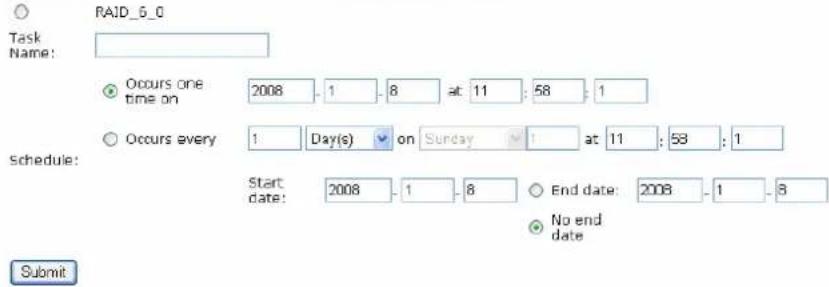
New Verify Task
text_image
RAID_5_0 Task Name: Occurs one time on 2008 - 1 - 8 at 11 : 58 : 1 Occurs every 1 Day(s) on Sunday - 1 at 11 : 58 : 1 Start date: 2008 - 1 - 8 End date: 2008 - 1 - 8 No end date SubmitScheduling a Task
To add a task schedule:
1) Select the array that you want to verify or rebuild.
2) Enter a name for the task.
3) Configure the frequency for the task.
4) Check the Submit button.
Delete a Scheduled Task
To delete a task schedule:
1) Select a task from the Tasks List.
2) Click the Delete button.
7 Settings
Select the "Settings" option to access Settings page.
| Manage | Event | Task | Settings | SHI | Logout |
| System | Network | ||||
| User | |||||
| SNMP | NTP |
Settings>System

text_image
Manage Event Task Settings SHI Logout HighPoint Technologies,Inc. System Setting SAF-TE Config File no config file Audible Alarm Enabled Staggered Spinup Enabled Number of Drives Per Spinup 2 Delay between spinup (seconds) 2 Spindown Idle Disk (minutes) Disabled Rebuild Priority: Medium Auto Rebuild Disabled Submit Reset Upload SAF-TE Config File. Browse... CommitThe System Setting page include SAF-TE config file setting, Audible Alarm setting, Staggered Spinup setting, Spindown Idle Disk setting, Rebuild priority setting and Auto Rebuild setting.
The Upload SAF-TE config file option allow user to upload the special SAF-TE config files.
Settings>Network

text_image
Network Setting DHCP Disabled IP Address 192 .9 . 200 .251 Subnet Mask 255 .255 . 255 .0 IP broadcast 255 .255 . 255 .255 Gateway 192 .9 . 200 .103 DNS Server Current IP Address 192.9.200.251 Current Subnet Mask 255.255.255.0 Current Gateway 192.9.200.103 Current DNS Server Ether Net MAC Address 00:19:3c:00:00:00 Submit ResetThis page allow user to adjust the onboard LAN values.
Settings>User

text_image
User Setting Password: Confirm: Change PasswordThis setting allows you to alter the default password (when logging on).
Enter a new password and click the "Change Password" button to change the current user's password.
Settings>Email

text_image
SMTP Setting Enable Event Notification Server Address (name or IP): 192.168.0.1 Mail From (E-mail address): admin@host.com Login Name: admin Password: ********** SMTP Port: 25 Submit Reset
text_image
Recipients E-mail Name Event Level □tester@host.com tester Information Warning Error Delete
text_image
Add Recipient E-mail: Name: Event Level: Information Warning Error [Add Text]Enabling E-mail notification:
To configure E-mail notification:
1) Select the "Enable Event Notification" option.
2) Enter the appropriate information for the SMTP server.
3) Click the "Change Setting" button.
Note: Your SMTP server may require user authentication – enter the appropriate password and username as required.
To add a Recipient:
- Enter the necessary information for the desired recipient.
- Click the Add button.
To test E-mail notification:
1) Enter the necessary information for the recipient.
2) Click the Test button.
If the software is unable to send a test message, an error will be displayed. Double check the recipient entries and make sure the information is correct.
Settings>SNMP
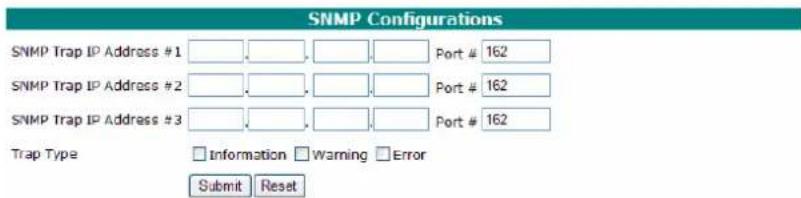
You can set three SNMP Trap IP address and trap type, this setting will be saved in the flash. While the corresponding type of events generated, the adapter will send SNMP Trap Messages to the designated Trap Receiver through its Ethernet interface.
text_image
SNMP Configurations SNMP Trap IP Address #1 Port # 162 SNMP Trap IP Address #2 Port # 162 SNMP Trap IP Address #3 Port # 162 Trap Type Information Warning Error Submit ResetIf you do not use the adapter's Ethernet interface, you can setup the SNMP configuration in the In-Band Management Service configuration page. In this case, the in-band management service will send SNMP Trap messages through the network interface of the host computer.
Settings>NTP
text_image
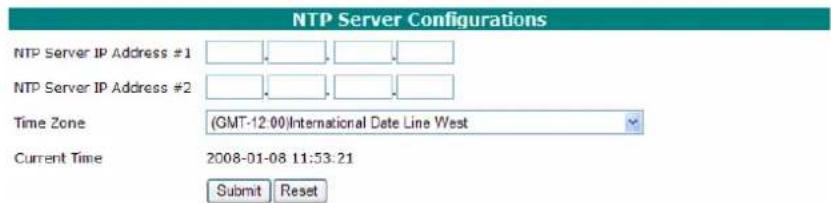
NTP Server Configurations NTP Server IP Address #1 NTP Server IP Address #2 Time Zone (GMT-12:00)International Date Line West Current Time 2008-01-08 11:53:21 Submit ResetYou can check the current firmware time and setup two NTP time server addresses and select the time zone. The adapter will keep its clock synchronized with time sever.
Note: To use the NTP feature you must setup the Ethernet port of the adapter.
Chapter 6
Linux Driver Support
Contents of this Chapter:
Fedora 7 Linux installation Overview
Red Hat Enterprise 5 Overview
SuSE Linux Enterprise Server (SLES) installation Overview
HighPoint
1 - Fedora 7 Linux installation Overview
This section provides instructions describing how to install and utilize the RocketRAID host adapter on a Fedora 7 Linux system.
2 - Installing Fedora 7 on the RocketRAID 3522 Host Adapter
Note: If the OS is running kernel that differs from the one supported by the precompiled driver, the precompiled drivers cannot be used. A driver can be built for this kernel using the OpenSource package for the RocketRAID host adapter. This package is available from our website, and is posted on the BIOS/Driver page for the corresponding RocketRAID host adapter.
To install Fedora Linux onto hard disks or RAID arrays attached to RocketRAID host adapter, follow the steps outlined below:
Step 1 Prepare the Driver Diskette
The driver is contained in a floppy diskette image file.
On a DOS or Windows system, a Fedora driver diskette can be generated using rawrite.exe. This utility is included on the Fedora Linux CD (under /dosutils). Run rawrite using a command prompt window, and follow the directions it provides.
On a Linux system, use the "dd" command to generate a boot diskette. Insert a floppy disk into the floppy drive and type the following command:
# dd if=fc6-i386.img of=/dev/fd0
Note: The driver disk image file depends on your core version and hardware.
Step 2 Install Fedora Linux
Installation steps for Fedora 7
1) Boot from the Fedora Installation CD, and start the install procedure.
2) At the “Welcome to Fedora Linux” installation screen, a prompt labeled “boot:” will appear at the bottom of the screen. Type in “linux dd” and then press Enter.
3) When prompted “Do you have a driver disk?”, select “Yes”. At the “Insert your driver disk and press OK to continue.” prompt, insert the driver diskette and then select “OK”.
4) The system will now load the RocketRAID driver automatically.
3 - Installing the RocketRAID 3522 driver for an Existing System
Note: If a SCSI adapter is used to boot the system, make sure the RocketRAID host adapter BIOS loads/posts after the SCSI adapter's BIOS. It may be necessary to move the adapter(s) to another PCI slot.
Step 1 Obtain the Driver Module
Extract the module file from the file modules.cgz (from the driver disk) using the following commands:
<h1 id="mount-devfd0">mount /dev/fd0</h1>
<h1 id="cd-tmp">cd /tmp</h1>
<h1 id="gzip-dc-mediafloppymodulescgz-cpio-idumv">gzip -dc /media/floppy/modules.cgz | cpio -idumv</h1>
Driver modules for all supported kernel versions will be extracted. The driver module for the active kernel is located under the directory that matches the kernel version (/tmp/‘uname –r’/i686/hptiop.ko).
After extracting the driver module, load it using the following commands:
<h1 id="modprobe-sd_mod">modprobe sd_mod</h1>
<h1 id="insmod-hptiopko">insmod hptiop.ko</h1>
Arrays attached to the adapter can be accessed as SCSI devices (e.g. /dev/sda).
Step 2 Mounting and Partitioning the Device
Example: A RAID array has been configured between several hard disks.
This array will be registered to the system as device "/dev/sda".
To create a partition on this array (which will listed as /dev/sda1), use the “fdisk /dev/sda” command.
Next, use the "mkfs /dev/sda1" command to setup a file system on this partition.
Step 3 Configure System to Automatically Load the Driver
To avoid typing in “insmod hptiop.ko” each time the operating system is booted, the system must be instructed to automatically load the module during bootup. To install the module, type in the following commands (first change to the directory where the proper hptiop.ko file is located):
#cp hptiop.ko /lib/modules/‘uname –r’/kernel/drivers/scsi.
#depmod
Then, instruct the system to load the module when booting. Use the following commands:
echo "modprobe hptiop" > /etc/init.d/hptdriver
chmod 755 /etc/init.d/hptdriver
ln -sf /etc/init.d/hptdriver /etc/rc.d/rc3.d/S01hptdriver
ln -sf /etc/init.d/hptdriver /etc/rc.d/rc4.d/S01hptdriver
ln -sf /etc/init.d/hptdriver /etc/rc.d/rc5.d/S01hptdriver
Step 4 Configure System to Mount Volumes during Startup
The system can be instructed to automatically mount the array(s) during startup by modifying the file"/etc/fstab".
For example, add the following line to tell the system to mount /dev/sda1 to location /mnt/raid after startup:
/dev/sda1 /mnt/raid ext3 defaults 0 0
4 - Updating the Driver
-
If the original driver is installed in the system's initrd (Initial RAM Disk) file (when using a system installed to RocketRAID host adapter, for example), the driver module in the initrd file should be updated using the mkinitrd command (or extract the initrd file and replace the driver module manually).
-
If the original driver is installed in the /lib/modules/`uname -r`/kernel/drivers/scsi/ directory, and loaded by the script file (Example /etc/init.d/hptdriver) during the init process, or the configure file (Example /etc/modules.conf), please replace it with the new driver (hptiop.o or hptiop.ko).
5 - Uninstalling the Driver
To uninstall the RocketRAID 3522 driver
Note: The driver cannot be uninstalled while the system is booted from a disk or array attached to the RocketRAID host adapter.
To uninstall the driver, remove the lines added to /etc/fstab, and remove the files created in the /etc/init.d directory.
1 - Red Hat Enterprise 5 Installation Overview
This section provides instructions describing how to install and utilize the RocketRAID host adapter on a Red Hat Enterprise 3 Linux system.
2 - Installing Red Hat Enterprise 5 (AS, ES, WS) Linux on the RocketRAID 3522 controller
To install Red Hat Enterprise Linux onto disks or RAID arrays attached to RocketRAID host adapter:
Step 1 Prepare the Driver Diskette
The driver is provided in a floppy diskette image file format.
On a DOS or Windows system, a driver diskette can be generated using rawrite.exe. This utility is included on the Red Hat Enterprise Linux CD (under /dosutils). Run rawrite using a command prompt window, and follow the directions it provides.
On a Linux system, use the "dd" command to generate a boot diskette. Insert a floppy disk into the floppy drive and type the following command:
# dd if= hptiop-rhel-4u4.img of=/dev/fd0
Step 2 Install Red Hat Enterprise Linux
Start installing Red Hat Enterprise Linux by booting from the installation CD.
At the “Welcome to Red Hat Linux” installation screen, a prompt labeled “boot:” will appear at the bottom of the screen. Type in linux dd, then press Enter.
boot: linux dd
When prompted "Do you have a driver disk?". Select "Yes".
When prompted “Insert your driver disk and press OK to continue”, insert the driver diskette into the system’s floppy drive, and select “OK”.
- The system will now load the RocketRAID driver automatically.
- When prompted "Where do you want to install the boot loader?" in the "Boot Loader Configuration" dialog, select "Master Boot Record (MBR)" to instruct the system be to boot from the RocketRAID host adapter.
Continue the installation as normal. You can refer to Red Hat Enterprise Linux installation guide.
Note:
- The system device mapping order is the same as the order shown in RocketRAID BIOS Setting Utility. If no other SCSI adapters are installed, the device marked as "BOOT" or "HDD0" will identified as /dev/sda, "HDD1" as /dev/sdb, "HDD2" as /dev/sdc, etc. When creating mount points, /boot must be mounted on /dev/sda.
3 - Installing the RocketRAID 3522 driver for an Existing System
Note: If a SCSI adapter is used to boot the system, make sure the RocketRAID host adapter BIOS loads/posts after the SCSI adapter's BIOS. It may be necessary to move the adapter(s) to another PCI slot.
Step 1 Obtain the Driver Module
Extract the module file from the file modules.cgz (from the driver disk) using the following commands:
# mount /dev/fd0
# cd /tmp
# gzip -dc /mnt/floppy/modules.cgz | cpio -idumv
Driver modules for all supported kernel versions will be extracted. The driver module for the active kernel is located under the directory that matches the kernel version (/tmp/`uname -r`/hptiop.ko).
After you have extracted the driver module, you can load it by following commands:
# modprobe sd_mod
# insmod hptiop.ko
Arrays attached to the adapter can be accessed as SCSI devices (e.g. /dev/sda).
Step 2 Mounting and Partitioning the Device
Example: A RAID array has been configured between several hard disks.
This array will be registered to the system as device "/dev/sda".
To create a partition on this array (which will listed as /dev/sda1), use the "fdisk /dev/sda" command.
Next, use the "mkfs /dev/sda1" command to setup a file system on this partition.
Use the command "mkdir xxxx" to create a mount point for the RAID array.
Then, mount /dev/sda1 /xxxx in order to access it.
Note: xxxx represents the desired name of the mount point.
Step 3 Configure System to Automatically Load the Driver
To avoid typing in “insmod hptiop.ko” each time the operating system is booted, the system must be instructed to automatically load the module during bootup. To install the module, type in the following commands (first change to the directory where the proper hptiop.ko file is located):
<h1 id="install-d-libmodulesuname-rkerneldriversscsi">install -d /lib/modules/‘uname –r’/kernel/drivers/scsi</h1>
<h1 id="install-c-hptiopko-libmodulesuname-rkerneldriversscsi">install -c hptiop.ko /lib/modules/‘uname –r’/kernel/drivers/scsi</h1>
Then, instruct the system to load the module when booting. Use the following commands:
#echo "modprobe hptiop" > /etc/init.d/hptdriver
#chmod 755 /etc/init.d/hptdriver
#ln -sf /etc/init.d/hptdriver /etc/rc.d/rc3.d/S01hptdriver
#ln -sf /etc/init.d/hptdriver /etc/rc.d/rc4.d/S01hptdriver
#ln -sf /etc/init.d/hptdriver /etc/rc.d/rc5.d/S01hptdriver
Step 4 Configure System to Mount Volumes during Startup
The system can be instructed to automatically mount the array(s) during startup by modifying the file"/etc/fstab".
For example, add the following line to tell the system to mount /dev/sda1 to location /mnt/raid after startup:
/dev/sda1 /mnt/raid ext2 defaults 0 0
4 - Updating the Driver
If you are not booting from disks attached to RocketRAID host adapter, you can update the driver just by reinstalling it following the procedure outlined in the previous section, "Installing the RocketRAID driver for an Existing System".
If you are running the system installed to a disk or array attached to the RocketRAID host adapter:
First, obtain the new driver module “hptiop.ko”. Refer to the previous section “Obtain the Driver Module”. In following steps, we assume it has been copied to “/tmp/hptiop.ko”.
Replace hptiop.ko in the boot RAM disk image, /boot/initrd-xxx.img (where xxx is the kernel version).
Example:
<h1 id="gzip-dc-bootinitrd-xxximg-tmpinitrdext2">gzip -dc /boot/initrd-xxx.img > /tmp/initrd.ext2</h1>
<h1 id="mkdir-mntinitrd">mkdir /mnt/initrd</h1>
<h1 id="mount-o-loop-tmpinitrdext2-mntinitrd">mount -o loop /tmp/initrd.ext2 /mnt/initrd</h1>
<h1 id="cp-tmphptiopko-mntinitrdlibhptiop_00ko">cp /tmp/hptiop.ko /mnt/initrd/lib/hptiop_00.ko</h1>
<h1 id="umount-mntinitrd">umount /mnt/initrd</h1>
<h1 id="gzip-c-tmpinitrdext2-bootinitrd-xxximg">gzip -c /tmp/initrd.ext2 > /boot/initrd-xxx.img</h1>
If you are using lilo to boot the system, use "lilo" to reinstall the RAM disk:
#lilo
Update hptiop.ko in /lib/modules:
# cp /tmp/hptiop.ko /lib/modules/‘uname –r’/kernel/drivers/scsi/hptiop.ko
Reboot your system to allow the new driver take effect.
5 - Uninstalling the Driver
To uninstall the RocketRAID 3522 driver
Note: The driver cannot be uninstalled while the system is booted from a disk or array attached to the RocketRAID host adapter.
To uninstall the driver, remove the lines added to /etc/fstab, and remove the files created in the /etc/init.d directory.
1 - SuSE Linux Enterprise Server (SLES) installation
Overview
This section provides instructions describing how to install and utilize the RocketRAID host adapter on a SuSE (SLES) Linux system.
2 - Installing SLES Linux on the RocketRAID 3522 Host Adapter
Note: If the OS is running kernel that differs from the one supported by the precompiled driver, the precompiled drivers cannot be used. A driver can be built for this kernel using the OpenSource package for the RocketRAID host adapter. This package is available from our website, and is posted on the BIOS/Driver page for the corresponding RocketRAID host adapter.
To install SLES onto hard disks or RAID arrays attached to RocketRAID host adapter, follow the steps outlined below:
Step 1 Prepare the Driver Diskette
The driver is contained in a floppy diskette image file (slesdd.img).
On a DOS or Windows system, a driver diskette can be generated using rawrite.exe. This utility is included on the SLES Linux CD (under /dosutils). Run rawrite using a command prompt window, and follow the directions it provides.
On a Linux system, use the "dd" command to generate a boot diskette. Insert a floppy disk into the floppy drive and type the following command:
# dd if=SLESdd.img of=/dev/fd0
Step 2 Install SLES Linux
- Start the install procedure by booting from SLES installation CD.
- After the CD boots, select the "Installation" option and press F6 to load the driver.
- Insert the Driver Diskette when it displays "Please insert the Driver Update floppy".
- When the “Diver Update Menu” is displayed, press “OK” and “back” for back to installer.
- Next. Select "back" to return to the installer.
- Installation will now proceed normally. Refer to SLES Linux documents for additional OS installation procedures.
Additional Installation Notes:
The system device mapping order is the same as the order shown in RocketRAID host adapter's BIOS Setting Utility. If no other SCSI adapters are installed, the device marked as "BOOT" or "HDD0" will be identified as /dev/sda, "HDD1" as /dev/sdb, "HDD2" as /dev/sdc, etc. When creating mount points, /boot must be mounted on /dev/sda.
3 - Installing the RocketRAID 3522 Driver on an Existing System
If you are currently running SLES and would like to access drives or arrays attached to the Rocket RAID host adapter, follow the steps outlined below:
Note:
- If a SCSI adapter is used to boot the system, make sure the RocketRAID host adapter's BIOS loads/posts after the SCSI adapter's BIOS. It may be necessary to move the adapter(s) to another PCI slot.
- The driver may work incorrectly on certain motherboards (such as DFI77B KT400).
For these motherboards, add the "acpi=off" kernel parameter in the/boot/grub/menu.lst: kernel (hd0,1)/vmlinuz root=/dev/hda1 acpi=off initrd (hd0,1)/initrd
Step 1 Update Grub
If you are running an SLES SMP System, you must first update the /boot/grub/menu.lst.
Example:
default=0
timeout=8
title Linux
kernel (hd0,1)/vmlinux root=/dev/hda1 acpi=off
initrd (hd0,1)/initrd
Reboot the system to allow the new kernel parameters to take effect.
Step 2 Install the Driver Module
Extract the module file from the file /linux/suse/[arch]-[version]/install/update.tar.gz (from the driver disk), using the following commands (SLES 9 is used as an example):
# mount /dev/fd0 /mnt/floppy
# cd /
# tar xfz /mnt/floppy/linux/suse/i386-sles9/install/update.tar.gz
The driver modules will be extracted to the directory /lib/modules/[kernel-ver]/kernel/drivers/scsi/.
After you have extracted the driver module, you can load it by following commands:
# modprobe sd_mod
# insmod hptiop.ko
Then you can access the arrays attached to the controller as SCSI devices (e.g. /dev/sda).
Step 3 Mounting and Partitioning the Device
Note: Many versions of SuSE include YAST. YAST is a graphical configuration utility that is capable of executing the commands described below. We recommend using YAST, if available, as it may help simplify the installation process.
Example: A RAID array has been configured between several hard disks.
This array will be registered to the system as device "/dev/sda".
-
To create a partition on this array (which will listed as /dev/sda1), use the "fdisk /dev/sda" command.
-
Next, use the "mkfs /dev/sda1" command to setup a file system on this partition.
-
Use the command "mkdir xxxx" to create a mount point for the RAID array. Then, mount /dev/sda1 /xxxx in order to access it.
Note: xxxx represents the desired name of the mount point.
Step 4 Configure System to Automatically Load the Driver
To avoid typing in “insmod hptiop.o” each time the operating system is booted, the system must be instructed to automatically load the module during bootup. To install the module, type in the following commands (first change to the directory where the proper hptiop.ko file is located):
- Edit the file "/etc/sysconfig/kernel", and add the hptiop module to the line "INITRD_MODULES=..."
Example:
INITRD_MODULES="reiserfs hptiop"
- Run the "depmod" command to update the module configuration:
# depmod
- Next, run the "mkinitrd" command to update the initrd file:
mkinitrd
- If you are using the lilo boot loader, run lilo again:
lilo
Step 5 Configure System to Mount Volumes during Startup
The system can be instructed to automatically mount the array(s) during startup by modifying the file"/etc/fstab".
For example, add the following line to tell the system to mount /dev/sda1 to location /mnt/raid after startup:
/dev/sda1 /mnt/raid ext2 defaults 0 0
4 - Updating the Driver
To update the driver, simply reinstall the driver following the steps in previous section, “Install RocketRAID driver on an Existing System”.
Note: If the driver is loaded in initrd (when system is installed onto a disk or array attached to the RocketRAID host adapter), you need to run the mkinitrd to command to update the initrd file. If you are using the lilo boot loader, run lilo again (# lilo).
5 - Uninstalling the Driver
To uninstall the RocketRAID 3522 driver
Note: The driver cannot be uninstalled while the system is booted from a disk or array attached to the RocketRAID host adapter.
To uninstall the driver, remove the lines added to /etc/modules.conf and /etc/fstab.
Chapter 7
FreeBSD Driver Support
Contents of this Chapter:
1 - Installing FreeBSD on the RocketRAID 3522 Controller
2 - Installing the RocketRAID 3522 Driver on an Existing System
3 - Updating the Driver
4 - Uninstalling the Driver
HighPoint
1 - Installing FreeBSD on the RocketRAID 3522 Controller
If you would like to install FreeBSD onto arrays attached to the RocketRAID host adapter, please follow the steps below.
Step 1 Prepare the Driver Diskette
When installing FreeBSD to a disk or array attached to the RocketRAID host adapter, you must prepare a driver diskette before starting the installation procedure.
First, obtain the driver diskette image file from the driver package.
In a DOS or Windows system, create the boot diskette using the rawrite.exe utility. This utility can be found on the FreeBSD CD (under \tools). Run it under a DOS-Prompt window and follow it's prompt.
On a FreeBSD system, use the "dd" command to make the driver diskette. For example, Insert a floppy disk into the floppy drive and type the following command (if you are installing FreeBSD 5.x versions):
<h1 id="dd-iffreebsd_5ximg-ofdevfd0">dd if=freebsd_5.x.img of=/dev/fd0</h1>
Step 2 Install FreeBSD
- Start the FreeBSD installation procedure by booting from installation CD.
- If you are installing FreeBSD 5.0 or earlier versions, skip this step. When the
"Welcome to FreeBSD" screen appears, select "6".
- When the "Hit [enter] to boot immediately or any other key for command
prompt" screen appears, press the SPACE key to stop the loader from autobooting.
BTX loader 1.00 BTX version is 1.01
Console: internal video/keyboard
BIOS driver A: is disk0
BIOS driver B: is disk1
BIOS driver C: is disk2
BIOS 636kB/74512kB available memory
FreeBSD/i386 bootstrap loader, Revision 0.8
(mailto:jkh@narf.osd.bsd.com, Sat Apr 21 08:46:19 GMT 2001)
-
Hit [Enter] to boot immediately, or any other key for command prompt.
Booting [kernel] in 9 seconds...
<-press SPACE key
A prompted label "ok" will appear at the bottom of the screen
- Insert the RocketRAID driver diskette into floppy drive. Type in "load diskx:
hptiop-x.x" (without quotation marks), and then press enter.
for FreeBSD 4.3-RELEASE
ok load kernel
ok load disk1:hptiop-4.3.ko
for FreeBSD 4.4-RELEASE
ok load kernel
ok load disk1:hptiop-4.4.ko
for FreeBSD 4.5-RELEASE
ok load disk1:hptiop-4.5.ko
for FreeBSD 4.6.2-RELEASE
ok load disk1:hptiop-4.6.2.ko
for FreeBSD 4.7-RELEASE
ok load disk1:hptiop-4.7.ko
for FreeBSD 4.8-RELEASE
ok load disk1:hptiop-4.8.ko
for FreeBSD 4.9-RELEASE
ok load disk1:hptiop-4.9.ko
for FreeBSD 4.10-RELEASE
ok load disk1:hptiop-4.10.ko
for FreeBSD 4.11-RELEASE
ok load disk1:hptiop-4.11.ko
for FreeBSD 5.0-RELEASE
ok load disk0:hptiop-5.0.ko
for FreeBSD 5.1-RELEASE
    ok load disk0:hptiop-5.1.ko

for FreeBSD 5.2.1-RELEASE
    ok load disk0:hptiop-5.2.1.ko

for FreeBSD 5.3-RELEASE
    ok load disk0:hptiop-5.3.ko

for FreeBSD 5.4-RELEASE
    ok load disk0:hptiop-5.4.ko

for FreeBSD 5.3-AMD64-RELEASE
    ok load disk0:hptiop-5.3-amd64.ko

for FreeBSD 5.4-AMD64-RELEASE
    ok load disk0:hptiop-5.4-amd64.ko

for FreeBSD 6.0-AMD64-RELEASE
    ok load disk0:hptiop-6.0-amd64.ko

for FreeBSD 6.1-RELEASE
    ok load disk0:hptiop-6.1.ko

for FreeBSD 6.1-AMD64-RELEASE
    ok load disk0:hptiop-6.1-amd64.ko
- After the driver has been loaded, remove the floppy diskette from the floppy drive.
- Type in "boot" and continue with installation as normal. Refer to FreeBSD installation guide for additional information.
ok boot
Note: On some systems, when ACPI is enabled, FreeBSD may not function properly. Try disabling ACPI in the motherboard's BIOS settings, or type the command "set hint.acpi.0.disabled="1" under the boot prompt, in order to solve the problem.
- Before exiting installation, an additional step must be taken to copy the
RocketRAID driver module to the system. On the driver diskette, there is a setup script labeled "postinstall", which will complete this task. Before rebooting the system, press Alt-F4 to enter the command shell, and type the following commands:
<h1 id="mount-o-ro-devfd0-mnt">mount -o ro /dev/fd0 /mnt</h1>
<h1 id="sh-mntpostinstall">sh /mnt/postinstall</h1>
<h1 id="umount-mnt">umount /mnt</h1>
Then, press Alt-F1 to return to the setup screen, and choose [X Exit Install] to finish setup.
2 - Installing the RocketRAID 3522 Driver on an Existing System
If you are currently running FreeBSD and would like to access drives or arrays attached to the RocketRAID host adapter, follow the steps outlined below:
Step 1 Copy the Driver Module
If you have made FreeBSD drivers into a diskette, you can insert the driver diskette to floppy drive, then using the following commands to copy the driver module:
For FreeBSD 4.x:
<h1 id="mount-o-ro-devfd0-mnt-2">mount -o ro /dev/fd0 /mnt</h1>
<h1 id="cp-mnthptiop-xxxko-moduleshptiopko">cp /mnt/hptiop-xxx.ko /modules/hptiop.ko</h1>
<h1 id="umount-mnt-2">umount /mnt</h1>
For FreeBSD 5.x:
<h1 id="mount-o-ro-devfd0-mnt-3">mount -o ro /dev/fd0 /mnt</h1>
<h1 id="cp-mnthptiop-xxxko-bootkernelhptiopko">cp /mnt/hptiop-xxx.ko /boot/kernel/hptiop.ko</h1>
<h1 id="umount-mnt-3">umount /mnt</h1>
Alternately, it is possible extract the files from the .img files directly, without using a floppy diskette:
For FreeBSD 4.x:
<h1 id="vnconfig-vn0c-freebsd_xxximg">vnconfig vn0c freebsd_xxx.img</h1>
<h1 id="mount-devvn0c-mnt">mount /dev/vn0c /mnt</h1>
<h1 id="cp-mnthptiop-xxxko-moduleshptiopko-2">cp /mnt/hptiop-xxx.ko /modules/hptiop.ko</h1>
<h1 id="vnconfig-du-vn0c-myfilesystem-mountmnt">vnconfig -du vn0c myfilesystem mount=/mnt</h1>
For FreeBSD 5.x:
    # mdconfig -a -t vnode -f freebsd_5.x.img -u 0
    # mount /dev/md0 /mnt
    # cp /mnt/hptiop-xxx.ko /boot/kernel/hptiop.ko
    # umount /mnt
    # mdconfig -d -u md0
Step 2 Test the Driver Module
Test the driver module to ensure that it works with the system, by loading it during bootup. If the module has been loaded successfully you should see the RocketRAID banner and a display screen of the attached drives. You can now access the drives as a SCSI device.
Note: If you have no other SCSI device, the first device is /dev/da0, then /dev/da1, etc.).
Example: F1 FreeBSD
Default: F1

>> FreeBSD/i386 BOOT
Default: 0:ad(0,a)/boot/loader
boot:

BTX loader 1.00 BTX version is 1.01
Console: internal video/keyboard
BIOS driver A: is disk0
BIOS driver C: is disk2
BIOS 636kB/74512kB available memory

FreeBSD/i386 bootstrap loader, Revision 0.8
(mailto:jkh@narf.osd.bsd.com, Sat Apr 21 08:46:19 GMT 2001)
Loading /boot/defaults/loader.conf
/kernel text=0x24f1db data=0x3007ec+0x2062c -
<- For FreeBSD 5.1 and later: select "6" on "Welcome to FreeBSD" screen.
Hit [Enter] to boot immediately, or any other key for command prompt.
Booting [kernel] in 9 seconds...
<-press SPACE key
Type '?' for a list of commands, 'help' for more detailed help.
ok load hptiop
/modules/hptiop.ko text=0xf571 data=0x2c8+0x254
ok autoboot
Note: If you have configured a RAID 10 using 4 disks, it will be registered to system as device /dev/da0. You can use "/stand/sysinstall" to create partitions and disklabels (like da0s1e) on da0. Then, create a new filesystem using "newfs /dev/da0s1e". Now you can mount /dev/da0s1e to somewhere to access it
Step 3 Configure System to Automatically Load the Driver
To avoid typing in “load hptiop” each time the operating system is booted, the system must be instructed to automatically load the module during bootup. To configure the system to automatically install the module, type in the following commands:
# echo 'hptiop_load="YES"' >> /boot/defaults/loader.conf
This command will instruct the loader to load the RocketRAID module together with the kernel. After using this command, reboot the system. The RocketRAID module should now automatically load each time the operating system starts up.
Note: When using FreeBSD 4.x, type in the following command to configure the system:
# mknod /dev/hptiop c 200 0
Then, check to make sure the node "/dev/hptiop", is present in the /dev directory.
Step 4 Configure the System to Mount Volumes at Startup
Instruct the system to automatically mount the array by modifying the file /etc/fstab.
Example: Add the following line to instruct the system to mount /dev/da1s1e to location /mnt/hpt after startup:
/dev/dalsle /mnt/hpt ufs rw 0 0
3 - Updating the Driver
To update the driver with a newer revision, simply reinstall the driver following the steps discussed in the previous section, “Install the driver on an existing system”.
4 - Uninstalling the Driver
The driver can only be uninstalled when the system is not booting from devices attached to the RocketRAID host adapter. To uninstall, remove the line hptiop_load="YES" located in /boot/defaults/loader.conf, and then delete the driver module /modules/hptiop.ko or /boot/kernel/hptiop.ko.
Chapter 8
Mac OSX Driver
Contents of this Chapter:
Installing the driver and RAID utility
HighPoint
1 Installing the driver and RAID utility
Installing the package
1) Double click the package labeled "rr3xxx_4xxx-MacOSX-universal-vxxx.dmg" to start the installation process ("xxx" refers to the revision of the driver). This will open the driver and software packag.
2) Double click the "rr3xxx_4xxx-MacOSX-universal-vxxx.dmg" file to start the installer.
3) When the Installer window opens, click the "Continue" button.
4) The installer will ask you to select a destination for the driver. Make sure to select the boot Volume - the driver must be installed to /System/Library/Extensions/folder in order to function properly.
5) Click the "Install" button.
You will be prompted: “clicking the install button will install a basic installation of the software package on your selected volume”. Confirm the prompt to install the software package.
6) You will then be notified that a reboot is needed to install the software. Click "Continue Installation".
7) The driver will then be installed into the system. Click “Restart” to restart the ystem. After the system restarts, you can use a web browser to configure the controller and setup RAID arrays. Use the MacOSX Disk Utility to create partitions the RAID arrays.
Web RAID Management Utility
Please refer to page 5-1 – the Web utility utilizes a universal interface, and operates in the same manner as revisions released for other operating systems.
Appendix
Customer Support
HighPoint
Customer Support
If you encounter any problems while utilizing the RocketRAID 3522, or have any questions about this or any other HighPoint product, feel free to contact our Customer Support Department.
Troubleshooting Checklist
Before contacting our Customer Support department:
Make sure the latest BIOS, driver and RAID Software have been installed for the RocketRAID 3522. Updates are available from our website.
Prepare a list of the computer system's hardware and software (motherboard, CPU, memory, other PCI devices/host adapters, operating system, applications)
Contact Information
E-mail address: support@highpoint-tech.com
Phone: 408-942-5800 (request for support)
9:00AM-6:00PM, Pacific Standard Time
Additional information about HighPoint products is available from our web site:
http://www.highpoint-tech.com
FCC Part 15 Class B Radio Frequency Interference statement
This equipment has been tested and found to comply with the limits for a Class B digital device, pursuant to part 15 of the FCC Rules. These limits are designed to provide reasonable protection against harmful interference in a residential installation. This equipment generates, uses and can radiate radio frequency energy and, if not installed and used in accordance with the instructions, may cause harmful interference to radio communications. However, there is no guarantee that interference will not occur in a particular installation. If this equipment does cause harmful interference to radio or television reception, which can be determined by turning the equipment off and on, the user is encouraged to try to correct the interference by one or more of the following measures:
●Reorient or relocate the receiving antenna.
- Increase the separation between the equipment and receiver.
- Connect the equipment into an outlet on a circuit different from that to which the receiver is connected.
- Consult the dealer or an experienced radio/TV technician for help.
Modifications not expressly approved by the manufacturer could void the user's authority to operate the equipment under FCC rules.
This device complies with part 15 of the FCC Rules. Operation is subject to the following two conditions: (1) this device may not cause harmful interference, and (2) this device must accept any interference received, including interference that may cause undesired operation.
European Union Compliance Statement
This Information Technologies Equipment has been tested and found to comply with the following European directives:
●European Standard EN55022 (1998) Class B
●European Standard EN55024 (1998)