V-R261-DLW - Kufuatilia MARSHALL - Free user manual and instructions
Find the device manual for free V-R261-DLW MARSHALL in PDF.


User questions about V-R261-DLW MARSHALL
0 question about this device. Answer the ones you know or ask your own.
Ask a new question about this device
Download the instructions for your Kufuatilia in PDF format for free! Find your manual V-R261-DLW - MARSHALL and take your electronic device back in hand. On this page are published all the documents necessary for the use of your device. V-R261-DLW by MARSHALL.
USER MANUAL V-R261-DLW MARSHALL
Model No. V-R261-DLW
26" Full Resolution Dual Link / Waveform Monitor
natural_image
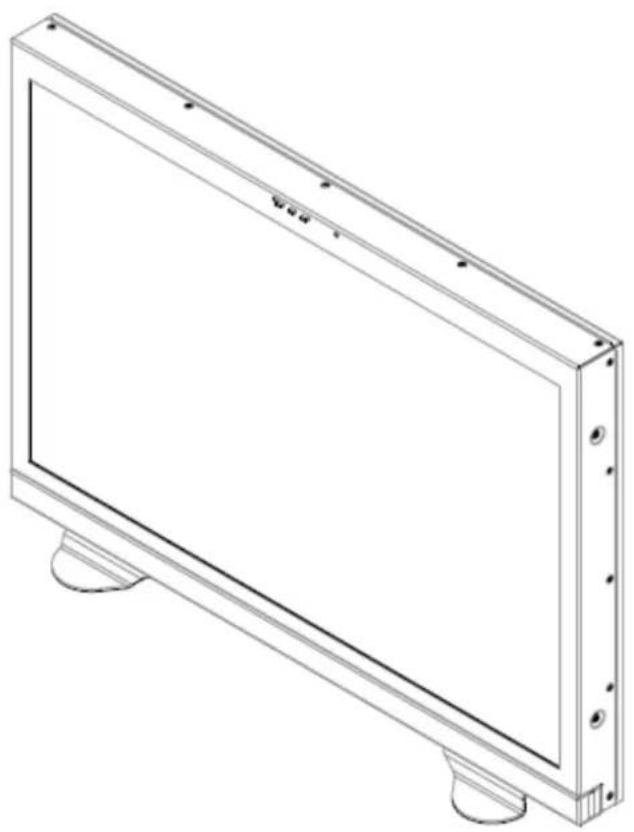
Line drawing of a rectangular electronic device with mounting feet and a flat panel (no text or symbols)Operating Instructions
This page intentionally left blank
Features......4
Installation and Initial Setup ....5
Unpacking 5
Installation 5
Connections and Power-On....5
Front Panel Features....6
Power Button....6
Input Channel Buttons 6
DVI Button 6
User-Definable Function Buttons....6
Layout Button 6
RotoMenu™ Knob....6
Image Adjustment Knobs....6
Rear Panel Features....7
RS-422/485 Serial Interface 7
Tally Interface 7
3G-SDI Inputs and Outputs 7
Power Input....7
VESA 75mm and 200 mmHole Pattern 7
DVI-I Input Connector 7
Compatible Input Formats....8
DLW Monitor Layouts 9
On-Screen Menu....11
STRUCTURE OVERVIEW 11
MAIN MENU AND NAVIGATION....12
Marker Setup Submenu....12
16:9 Markers 13
4:3 Markers 13
Marker Background....14
Center Marker....14
Video Config Submenu ....15
Monochrome Mode....15
Blue-Only Mode 15
Pixel-to-Pixel Mode....16
Aspect Ratio Settings....16
Curtain Color 17
Ctemp/Gamma 17
Analog Phase 17
DVI-A CSC Mode 17
DVI-D CSC Mode 17
HDMI CSC Auto....18
Color Configuration Submenu ....18
System Configuration Submenu 18
User-Definable Function Buttons 19
Saving and Loading User Presets 19
OSD Configuration Submenu 20
IMD State 20
Status Display 20
OSD Tally 21
LED Tally 21
Ancillary Timecode 22
Audio Monitor....22
CC Monitor....22
OSD Timeout 22
IMD Configuration Submenu 23
Overview 23
IMD ID# 23
IMD Group #....23
IMD Protocol....23
Tally Source 24
IMD Baud Rate 25
IMD Name (S/N) 25
IMD Tally Mode 25
IMD Fixed Configuration Submenu....25
IMD Fixed Color 25
IMD Fixed Align....26
IMD Fixed String....26
Closed Captioning Submenu 26
Wave/Vector Submenu 27
Ancillary Submenu....29
DID/SDID 30
SERVICE SUBMENU 31
Software Version Display....31
Specifications 32
Maintenance 34
Warranty 34
The V-R261-DLW (Dual Link / Waveform) monitor is the latest addition to Marshall's expanding line of IMD-equipped monitors.
■ 1920 x 1200 Full Resolution 26" Panel
The V-R261-DLW features an all-digital TFT-MegaPixel active matrix LCD system with 1920x1200 native resolution. The LCD panel features a brightness of 500 cd/m ^2 and a 800:1 contrast ratio making it ideal in a variety of environments and lighting conditions.
■ Multi mode, Vectorscope and Waveform Monitor mode
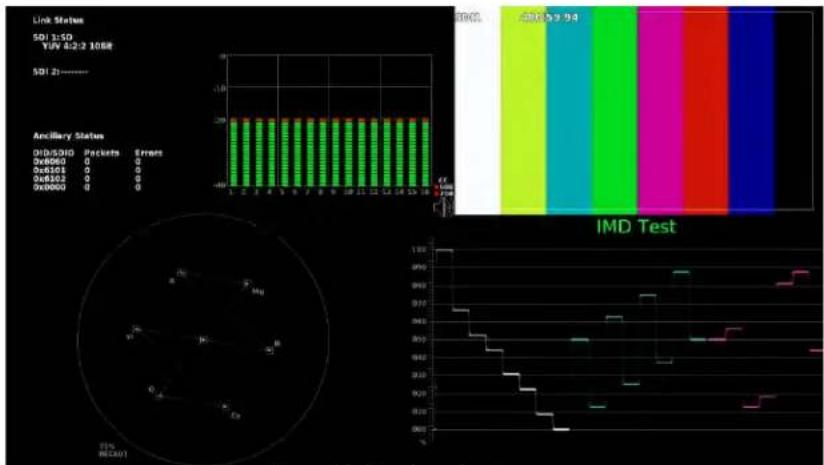
The DLW monitor series includes a real-time Waveform monitor and Vectorscope along with support for SDI, HD-SDI, 3G-SDI and Dual Link SDI. With the monitor in Multi mode, the monitor will break into four quadrants and display Signal Input information (Link Status), Embedded Audio levels, a Waveform monitor, a Vectorscope and live video simultaneously. Additional layouts provide the ability to view the Waveform monitor, Vectorscope, SDI Link status and Video individually.
■ Closed Captioning Decoding
The DLW monitor allows for decoding of Closed Captioning in the EIA-608 or EIA-708.
■ In-Monitor Display
In-Monitor Display allows on-screen text and tally indication, controlled locally or remotely via a variety of industry standard protocols.
■ OSD Features (On Screen Display)
Embedded time code and an embedded audio presence indicator can be displayed on the screen in a variety of configurations. Closed Caption presence indication is also provided for 608/708 captions.
■ Advanced Features
Color temperature adjustment, aspect ratio settings, blue-only mode, and monochrome mode are a few of the advanced features allowing the V-R261-DLW to be at home in any broadcast environment. Pixel-to-Pixel mode also allows native display of any incoming image format.
■ Four User-Definable Function Buttons
Four user-definable function buttons allow quick access to numerous settings and features including aspect ratio, monochrome mode, color temperature, and more.
■ Unpacking
Carefully unpack the V-R261-DLW monitor and verify that the following items are included:
• V-R261-DLW Monitor
• V-PS24-7.5 Power Supply with XLR Connector
- Operating Instructions
Inspect the unit for any physical damage that may have occurred during shipping. Should there be any damage, immediately contact Marshall Electronics at (800) 800-6608. If you are not located within the continental United States, call +1 (310) 333-0606.
■ Installation
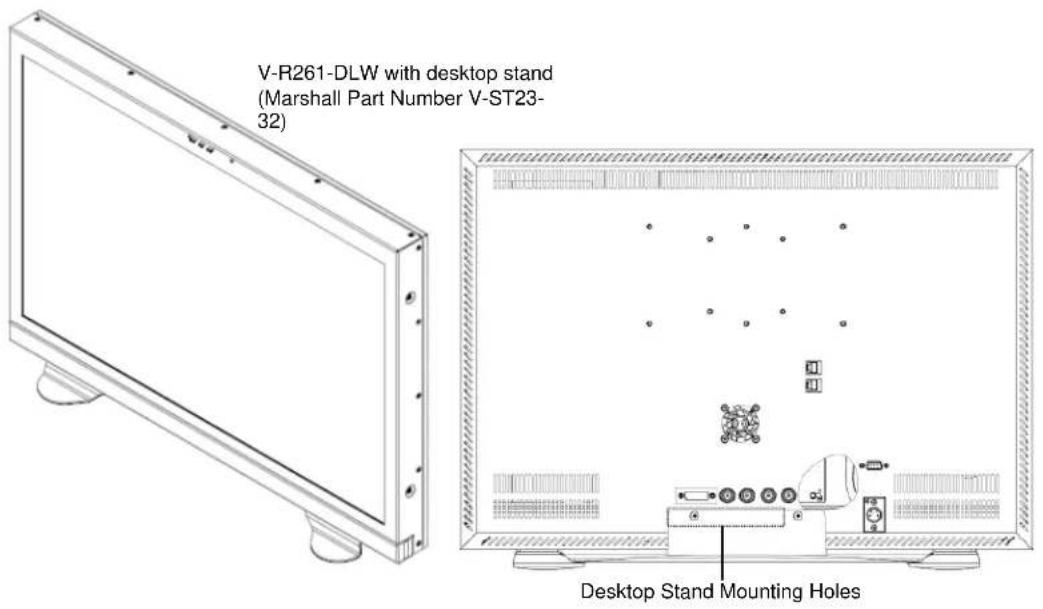
The V-R261-DLW can be combined with a desktop stand for desktop use. (Marshall Part V-ST23-32).
VESA standard 75mm hole patterns allows custom mounting installations. Marshall Electronics can provide an optional VESA stand with pivot and tilt as well. (Marshall Part VP-LCD171H-ST-01).
text_image
V-R261-DLW with desktop stand (Marshall Part Number V-ST23- 32) Desktop Stand Mounting Holes■ Connections, Power-On and Initial Setup
Plug the V-PS24-7.5 power supply into an AC power source (100-240 V @ 50/60 Hz). Attach the XLR connector to the back of the monitor. Connect the required cables for video signals input and output. (Power must be applied to the V-R261-DLW for the active loop-though output to be activated.) The monitor defaults to 'ON' when power is supplied.

text_image
POWER SDI 1 SDI 2 DV1 F1 F2 F3 F4 LAYOUT ROTOMEAU COLOR BRIGHT CONTRAST ① ② ③ ④ ⑤ ⑥ ⑦① Power Button
Turn the monitor off or on by pressing the power button. The LED on the power button is at maximum illumination when the unit is OFF. The LED is at minimum illumination when the unit is on.
② Input Channel Buttons
Pressing SDI 1 or SDI 2 will select HDSDI-SDI Video Inputs 1 or 2, respectively. When a channel is activated, the LED on the channel will illuminate. When displaying Dual Link formats, both LEDs will illuminate simultaneously.
3 DVI Button
Pressing the DVI button selects the DVI-I input. When activated, the LED will light.
4 User-Definable Function Buttons
Four user-definable function buttons can be used for direct access to various settings. Functions are assigned using the on-screen menu.
⑤ Layout Button
Use this button to switch between the four available layouts on the V-R261-DLW.
6 RotoMenu™ Knob
The RotoMenu™ knob allows for accessing and navigating the main menu, using only a single control.
⑦ Image Adjustment Knobs
Use the image adjustment knobs to adjust color saturation, brightness and contrast of the image. The status of each image adjustment parameter is shown on the top left of the screen, with values ranging from 0 to 100. Pressing a knob once displays the current value. Pressing a knob twice resets the corresponding adjustment to the default setting.
text_image
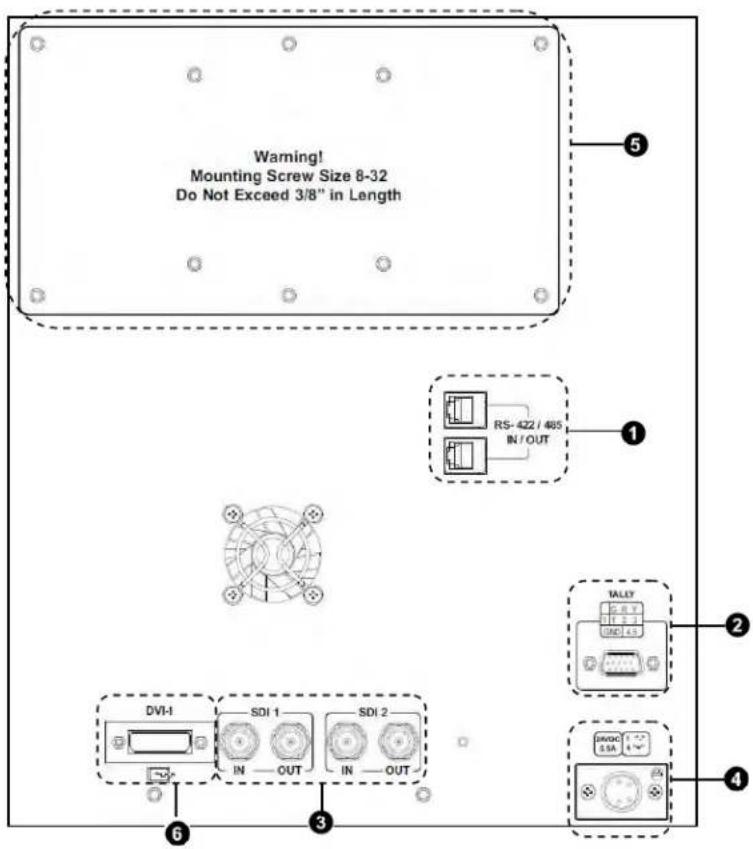
Warning! Mounting Screw Size 8-32 Do Not Exceed 3/8" in Length RS-422 / 405 IN / OUT 1 TALLY IN 2 3 DVI-I SDI 1 SDI 2 IN — OUT IN — OUT 6 4 DRIVE LISA① RS-422/485 Serial Interface
The RS-422/485 ports are used to remotely control the IMD or all V-R261-DLW features, using a variety of industry standard protocols. (Note:
Connector/pin-out may need to be adapted depending on protocol and controlling device used.) Only one connection to either port is needed to control the monitor. The second port can be used to loop multiple monitors in the same bus.
② Tally Interface (HD-15)
THE OSD Tally can be activated via the HD-15 connector by connecting the corresponding pin to ground. A variety of external devices can be used to perform the contact closure. No additional power should be supplied at the HD-15 port.
3 3G-SDI Inputs and Outputs
The V-R261-DLW has two 3G-SDI inputs and two active loop-through outputs. SDI 1 and SDI 2 can be used simultaneously to display Dual Link SDI signals.
4 Power Input
Connect the 24 VDC input to the XLR power input connector. Power can be supplied from the included power supply or from a variety of DC sources supplying at least 7.5 Amps at 24 Volts.
IMPORTANT: If using a power source other than the included power supply, be sure that the polarity of the DC input is correct:
Pin 1: GND
Pin 4: 24VDC
⑤ VESA 75mm and 200 mm Hole Pattern
VESA-standard 75 mm hole-patterns are provided to accommodate a variety of custom mounting options.
6 DVI-I Input Connector
Integrated DVI Digital and Analog VGA input. Includes EDID and HDCP for connection to Computers, DVD Players, Rasterizers, etc.
Compatible Input Formats
The following SDI standards are supported by the V-R261-DLW:
525i, 625i
1035i (60 / 59.94)
1080i (60 / 59.94 / 50)
1080psF (24 / 23.98)
1080p (23.98 / 24 / 25 / 29.97 / 30)
720p (60 / 59.94 / 50)
720p (23.98 / 24 / 25 / 29.97 / 30)
The following 3G-SDI standards are supported by the V-R261-DLW:
YCbCr (4:2:2) 10 Bit - Level A / B
1080p (60 / 59.94 / 50)
YCbCr/RGB (4:4:4 / 4:2:2) 10 Bit / 12 Bit - Level A / B
1080i (60 / 59.94 / 50)
1080p (30 / 29.97/ 25 / 24 / 23.98)
1080psF (30 / 29.97 / 25 / 24 / 23.98)
YCbCr+A/RGB+A (4:4:4:4) 10 Bit / 12 Bit - Level A / B
1080i (60 / 59.94 / 50)
1080p (30 / 29.97/ 25 / 24 / 23.98)
1080psF (30 / 29.97 / 25 / 24 / 23.98)
The following Dual Link standards are supported by the V-R261-DLW:
YCbCr (4:2:2)
1080p (60 / 59.94 / 50)
YCbCr/RGB (4:4:4 / 4:2:2) 10 Bit / 12 Bit
1080i (60 / 59.94 / 50)
1080p (30 / 29.97/ 25 / 24 / 23.98)
1080psF (24 / 23.98)
YCbCr+A/RGB+A (4:4:4:4) 10 Bit / 12 Bit
1080i (60 / 59.94 / 50)
1080p (30 / 29.97/ 25 / 24 / 23.98)
1080psF (24 / 23.98)
Dual Link
2k p(23.98 / 24 / 25 / 29.97 / 30)
The following VESA standards are supported by the V-R261-DLW (DVI-I input):
640x480 @60Hz
800x600 @60Hz
1024x768 @60Hz
1280x1024 @60Hz
1600x1200 @60Hz
The following DVI-Video standards are supported by the V-R261-DLW (DVI input):
1080p/60, 1080p/59.94, 1080p/50
1080i/60, 1080i/59.94, 1080i/50
1080p/23.98, 1080p/24, 1080p/25, 1080p/29.97, 1080p/30
720p/60, 720p/59.94, 720p/50
DLW Monitor Layouts
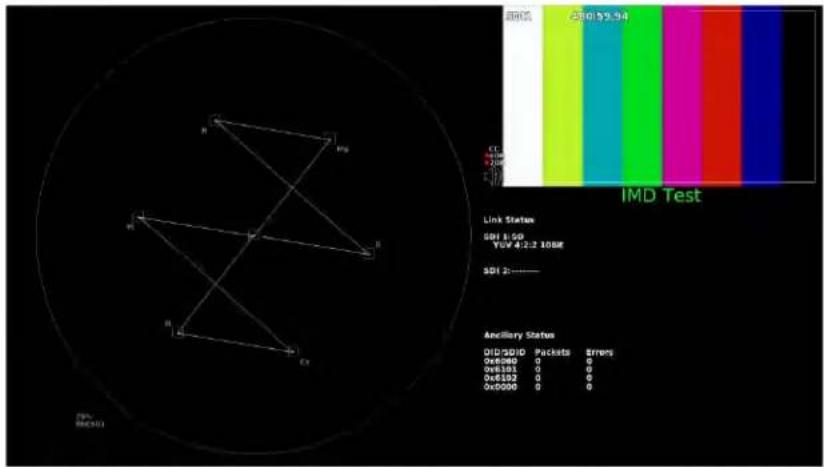
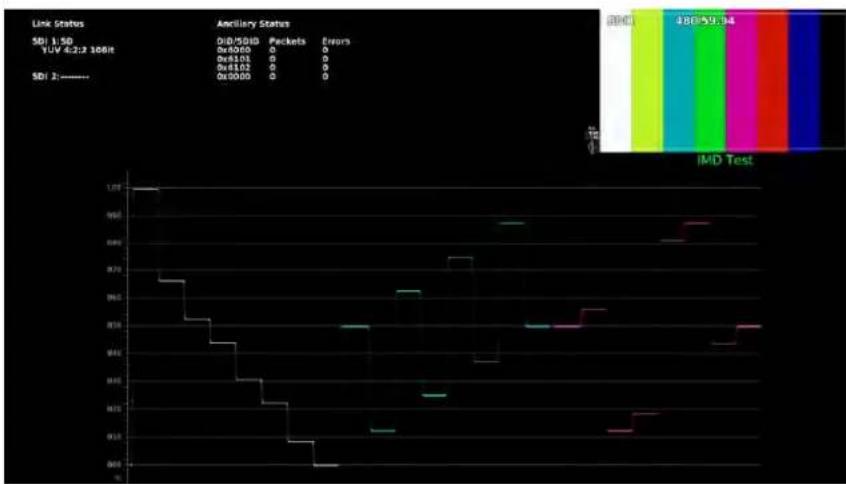
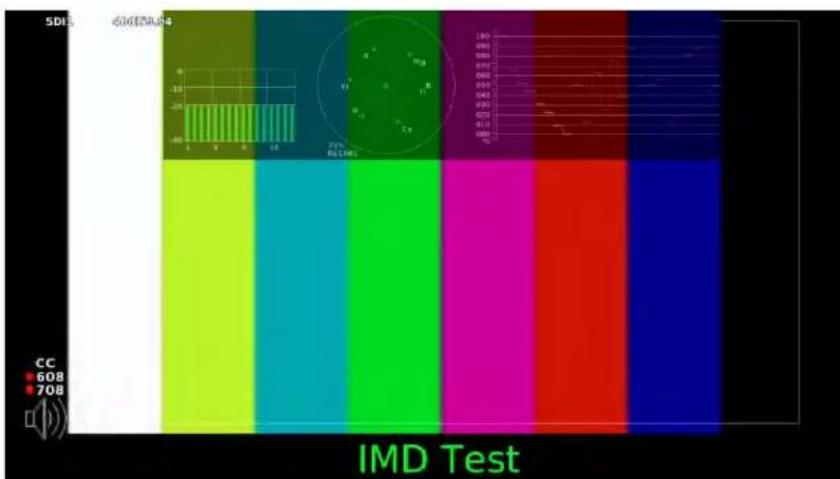
The V-R261-DLW has 4 possible layouts, Multi mode, Vectorscope mode, Waveform mode and Full Screen Video mode. Each press of the LAYOUT Button will change the current mode to next available mode.
bar
| IDID/5310 | Packets | Errors | | --------- | ------- | ------ | | 0x8060 | 0 | 0 | | 0x6101 | 0 | 0 | | 0x5102 | 0 | 0 | | 0x0000 | 0 | 0 |Default Multi mode Layout
text_image
IMD Test Link Status SDI 1:50 YUV 4:2:2 100M SDI 2:---- Ancillary Status DID/SD/D Packets Errors Ox6080 0 0 Ox6101 0 0 Ox6102 0 0 Ox6000 0 0 TYP: BEC(51)Vectorscope Mode
line
| Time | Value | |------|-------| | 0 | 124 | | 1 | 96 | | 2 | 84 | | 3 | 72 | | 4 | 60 | | 5 | 54 | | 6 | 48 | | 7 | 42 | | 8 | 36 | | 9 | 30 | | 10 | 24 | | 11 | 20 | | 12 | 16 | | 13 | 12 | | 14 | 8 | | 15 | 4 | | 16 | 2 | | 17 | 0 | | 18 | -2 | | 19 | -4 | | 20 | -6 | | 21 | -8 | | 22 | -10 | | 23 | -12 | | 24 | -14 | | 25 | -16 | | 26 | -18 | | 27 | -20 | | 28 | -22 | | 29 | -24 | | 30 | -26 | | 31 | -28 | | 32 | -30 | | 33 | -32 | | 34 | -34 | | 35 | -36 | | 36 | -38 | | 37 | -40 | | 38 | -42 | | 39 | -44 | | 40 | -46 | | 41 | -48 | | 42 | -50 | | 43 | -52 | | 44 | -54 | | 45 | -56 | | 46 | -58 | | 47 | -60 | | 48 | -62 | | 49 | -64 | | 50 | -66 | | 51 | -68 | | 52 | -70 | | 53 | -72 | | 54 | -74 | | 55 | -76 | | 56 | -78 | | 57 | -80 | | 58 | -82 | | 59 | -84 | | 60 | -86 | | 61 | -88 | | 62 | -90 | | 63 | -92 | | 64 | -94 | | 65 | -96 | | 66 | -98 | | 67 | -100 | | 68 | -102 | | 69 | -104 | | 70 | -106 | | 71 | -108 | | 72 | -110 | | 73 | -112 | | 74 | -114 | | 75 | -116 | | 76 | -118 | | 77 | -120 | | 78 | -122 | | 79 | -124 | | 80 | -126 | | 81 | -128 | | 82 | -130 | | 83 | -132 | | 84 | -134 | | 85 | -136 | | 86 | -138 | | 87 | -140 | | 88 | -142 | | 89 | -144 | | 90 | -146 | | 91 | -148 | | 92 | -150 | | 93 | -152 | | 94 | -154 | | 95 | -156 | | 96 | -158 | | 97 | -160 | | 98 | -162 | | 99 | -164 | | 100 | -166 |Waveform Monitor Mode
text_image
SDI 60M24A5 -1.8 -2.0 -2.5 -3.0 -3.5 -4.0 -4.5 -5.0 -5.5 -6.0 -6.5 -7.0 -7.5 -8.0 2.0 mg N Fe RGB LIME ZnO 0.00 0.01 0.02 0.03 0.04 0.05 0.06 0.07 0.08 0.09 0.10 0.11 0.12 0.13 0.14 0.15 0.16 0.17 0.18 0.19 0.20 CC 608 708 IMD TestFull Screen Video Mode
STRUCTURE OVERVIEW
| Marker Setup | Back | Return to Main Menu |
| Marker 16:3 | Off, 95%, 93%, 90%, 88%, 80%, 1.85:1, 2.35:1, 4:3, 14:9, 13:9 | |
| Marker 4:3 | Off, 95%, 93%, 90%, 88%, 80% | |
| Marker Backgrd | Off, 50% Grey, Black | |
| Center Marker | Off, On | |
| Video Config | Back | Return to Main Menu |
| Monochrome | Off, On | |
| Blue Only | Off, On | |
| Pixel to Pixel | Off, On | |
| Aspect Ratio | Full, 4:3, Scaled 4:3, 16:9 | |
| Curtain Color | Blue, Red, Green, White, Black | |
| Ctemp/Gamma | 55k, 65k, 90k, Linear | |
| Analog Phase | 0-31 (DVI-Analog input only) | |
| DVI-A CSC Mode | RGB PC, YUV 601, YUV 703, RGB Studio | |
| DVI-D CSC Mode | RGB PC, YUV 601, YUV 703, RGB Studio | |
| HDMI CSC Auto | On, Off | |
| Color Config | Back | Return to Main Menu |
| Red Offset | 0-100 | |
| Green Offset | ||
| Blue Offset | ||
| Red Offset | ||
| Green Offset | ||
| Blue Offset | ||
| Reset | SDI, DVID, DVIA, All, Back | |
| System Config | Back | Return to Main Menu |
| Function 1 | Monochrome, Marker, Center Marker, Marker Backgrd, IMD State, Anc. | |
| Function 2 | Timecode, OSD Tally, Audio Monitor, CC Monitor, Waveform Mode, Overlay Position, Limits, Aspect Ratio, Pixel to Pixel, CTemp/Gamma, Blue Only | |
| Function 3 | ||
| Function 4 | ||
| Load Config | Mfg, User 1, User 2, User 3, User 4, User 5, User 6, Back | |
| Save Config | User 1, User 2, User 3, User 4, User 5, User 6, Back | |
| OSD Config | Back | Return to Main Menu |
| IMD State | Off, On | |
| Status Display | Off, On | |
| OSD Tally | Off, RGY, RG, GR | |
| LED Tally | Off, On | |
| Anc. Timecode | Off, LTC, VITC1, VITC2 | |
| Audio Monitor | Off, On | |
| CC Monitor | Off, On | |
| OSD Timeout | None, 5, 10, 15, 20, 25, 30 |
| IMD Config | Back | Return to Main Menu |
| IMD ID # | 000-255 | |
| IMD Group # | 001-254 | |
| IMD Protocol | MEI, Image Video, TSL 4.0, MEI-Image Video | |
| Tally Source | Standard, TSL/MEI 422, Image Video HW, Image Video 422, Standard + IV 422 | |
| IMD Band Rate | 300, 600, 1200, 2400, 4800, 3600, 19200, 38400, 57600, 115200 | |
| IMD Name (S/N) | User Defined (16 chars max.) | |
| IMD Tally Mode | T1, T2, T1T2, T2T1, T1-, T2-, T1T2-, T2T1- | |
| IMD Fixed Config | Back | Return to Main Menu |
| IMD Fixed Color | Green, Yellow, Red | |
| IMD Fixed Aligna | Left, Center, Right | |
| IMD Fixed String | User Defined (16 chars max.) | |
| Closed Captioning | Back | Return to Main Menu |
| Mode | Off, 608, 708, 708 (608 Comp.) | |
| 608 Service | CC1, CC2, CC3, CC4 | |
| 708 Service | 1-63 | |
| 608 Color | Auto, White, Green, Blue, Cyan, Red, Yellow, Magenta | |
| 708 Color | Auto, White, Green, Blue, Cyan, Red, Yellow, Magenta | |
| Wave/Vector | Back | Return to Main Menu |
| Waveform Mode | YUV Overlay, YUV Parade, RGB Overlay, RGB Parade | |
| Waveform Scale | Off, mV, % IRE, Auto | |
| Colorize Waveform | Off, On | |
| Limits | Off, On | |
| Limits Max | 0-1023 | |
| Limits Min | 0-1023 | |
| Vectorscope Targets | Off, 75%, 100% | |
| Overlay Position | Off, Bottom, Top | |
| Overlay Transparency | 0-100 | |
| Ancillary | Back | Return to Main Menu |
| DID/SDID | 0x0000-0xFFFF | |
| DID/SDID | ||
| DID/SDID | ||
| DID/SDID | ||
| Reset Counters | Counter 1, Counter 2, Counter 3, Counter 4, All, Back | |
| Service | Version | Displays current firmware version |
MAIN MENU AND NAVIGATION
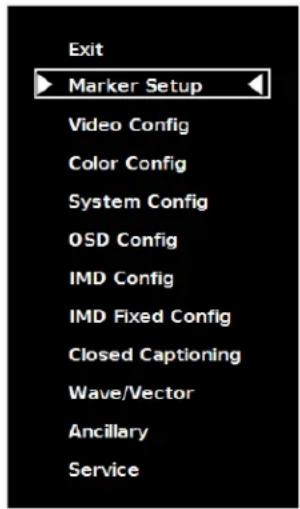
Access and navigate the main menu using the RotoMenu™ knob:
text_image
Exit Marker Setup Video Config Color Config System Config OSD Config IMD Config IMD Fixed Config Closed Captioning Wave/Vector Ancillary ServiceMain Menu
Using the RotoMenu knob
- Press the RotoMenu™ knob to enter the main menu.
- Rotate the knob to scroll up or down in the main menu or each submenu.
- Press the RotoMenu™ knob to enter a submenu or choose a setting.
• To return to main menu from submenu, select 'Back' and press the RotoMenu™.
The menu timeout can be set in the OSD Timeout section of the OSD Config submenu.
Marker Setup Submenu
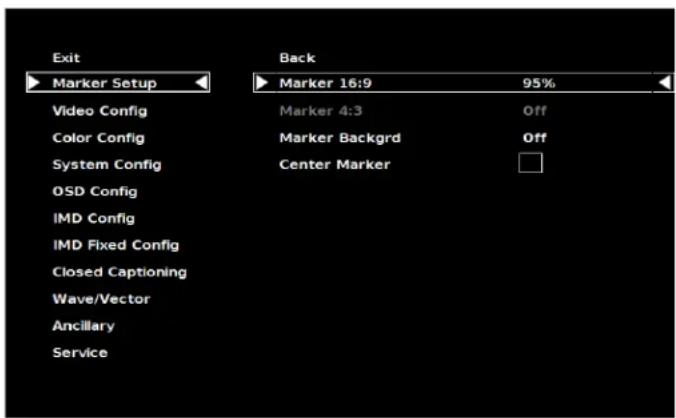
Use the Marker Setup submenu to select various on-screen markers, adjust the Marker Background, or toggle the Center Marker ON or OFF.
text_image
Exit ► Marker Setup ► Marker 16:9 95% Video Config Marker 4:3 Off Color Config Marker Backgrd Off System Config Center Marker OSD Config IMD Config IMD Fixed Config Closed Captioning Wave/Vector Ancillary ServiceMarker Setup Submenu
■ 16:9 Markers
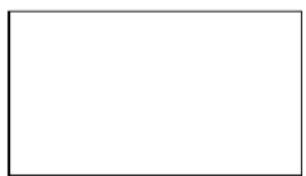
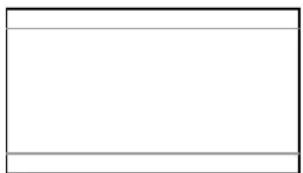
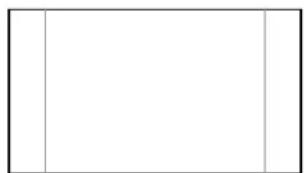
Use this setting to superimpose one of 10 markers on the screen when in 16:9 or Full Screen mode. This setting is disabled when the aspect ratio is set to 4:3, or when Pixel-to-Pixel mode is enabled. Note that in Full Screen mode, markers are vertically stretched along with the picture to fit the 16:10 screen.
- Off (No Marker)
- 95% Safe Area
- 93% Safe Area
- 90% Safe Area
- 88% Safe Area
- 80% Safe Area
• 1.85:1 Aspect Ratio
• 2.35:1 Aspect Ratio
• 4:3 Aspect Ratio
• 14:9 Aspect Ratio
• 13:9 Aspect Ratio
16:9 Marker Examples:
natural_image
Empty white rectangle with black border (no text or symbols)OFF (No Marker)

natural_image
Empty rectangular frame with no text, symbols, or markings90% Safe Area
natural_image
Blank white rectangle with no text, symbols, or markings2.35:1 Aspect Ratio
natural_image
Empty rectangular frame with vertical lines on both sides (no text or symbols)4:3 Aspect Ratio Marker
■ 4:3 Markers
Use this setting to superimpose one of 5 markers on the screen when in 4:3 mode. This setting is disabled when the aspect ratio is set to 16:9 or Full Screen, and when Pixel-to-Pixel mode is enabled.
- Off (No Marker)
- 95% Safe Area
- 93% Safe Area
- 90% Safe Area
- 88% Safe Area
- 80% Safe Area
4:3 Marker Examples:
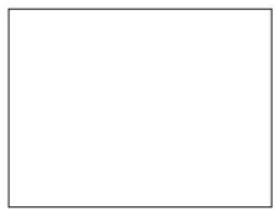
natural_image
Empty white rectangle with a thin gray border (no text or symbols)OFF (No Marker)
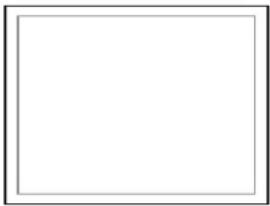
natural_image
Empty white square with a thin black border (no text or symbols)90% Safe Area
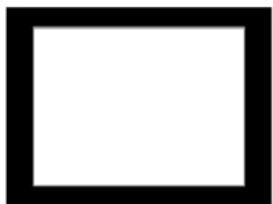
■ Marker Background
Use this setting to choose how selected markers are displayed on the screen:
- Off The marker is superimposed on the complete image.
- 50% Gray Screen area beyond the marker is shown at 50% intensity.
- Black Screen area beyond the marker is shown as black.
Example (80% Marker in 4:3 Mode):
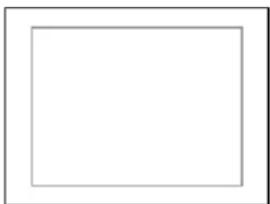
natural_image
Empty rectangular frame with no text, numbers, or symbolsBackground OFF
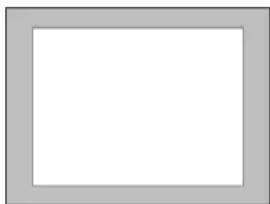
natural_image
Empty white rectangle with gray border (no text or symbols)50% Gray Background
natural_image
Empty white rectangle with black border (no text or symbols)Black Background
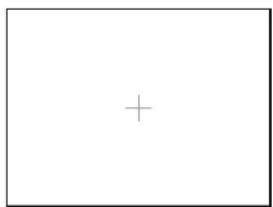
■ Center Marker
Use this setting to display a center marker on the screen.
natural_image
Simple black plus sign centered on white background, no text or symbols presentCenter Marker
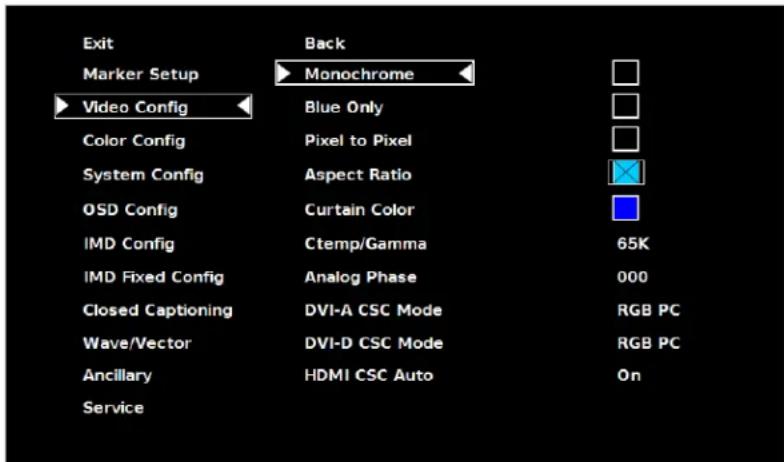
Video Config Submenu
Use the Video Configuration submenu to select various video settings such as monochrome mode or blue-only mode.
text_image
Exit Marker Setup ►Video Config Back ►Monochrome Blue Only Color Config Pixel to Pixel System Config Aspect Ratio OSD Config Curtain Color IMD Config Ctemp/Gamma 65K IMD Fixed Config Analog Phase 000 Closed Captioning DVI-A CSC Mode RGB PC Wave/Vector DVI-D CSC Mode RGB PC Ancillary HDMI CSC Auto On ServiceVideo Configuration Submenu
■ Monochrome Mode
Use this setting to enable monochrome mode. Only the luminance of the image will be displayed as a grayscale picture.
■ Blue-Only Mode
Use this setting to enable Blue-Only mode. This mode displays only the blue color component of the image, switching off the red and green components. Use this mode when calibrating the monitor to SMPTE color bars with the following procedure:
- Allow the monitor to warm up for at least 5-10 minutes.
- Display SMPTE split-field color bars on the monitor using an external source.
- Enable Monochrome mode.
- Adjust the Contrast knob until an even grayscale appears along the top bars.
-
Disable Monochrome mode.
-
Locate the pluge pattern (super black, black, and gray bars) at the lower-right corner of the screen. Adjust the Brightness knob until there is no visible difference between the super black and black bars, but the gray bar is still visible.
-
Enable Blue-Only mode and adjust the Color knob so that the outermost bars (white and blue) appear to match in brightness.
■ Pixel-to-Pixel Mode
Use this setting to enable Pixel-to-Pixel mode.
This mode bypasses the monitor's internal scaling function and displays images in their native resolution and aspect ratio, with a one-to-one mapping of incoming image pixels to screen pixels:
- For incoming formats smaller than the native resolution of the window (or selected aspect ratio), the image will be displayed in the center of the window using only the necessary LCD pixels. For example, 480i images will only occupy exactly 640x480 pixels in a particular channel window in DLW mode, or if the channel is selected full screen, it will occupy exactly 640x480 pixels in the center of the screen. The surrounding screen area will be black.
■ Aspect Ratio Settings
Use this menu option to switch between several aspect ratio settings.
As the V-R261-DLW monitor has a native resolution of 1920x1200 RGB pixels, incoming images are automatically scaled to fit the screen:
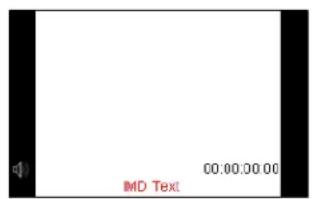
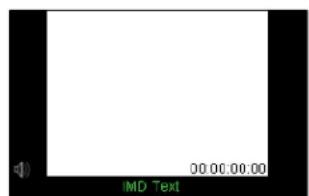
- In 4:3 mode, images are scaled up or down to fill the maximum 4:3 portion of the screen (1600 x 1200). IMD text and time code are superimposed on the lower portion of the image. The audio presence indicator and on-screen tally are displayed at the bottom of the screen, outside the image.
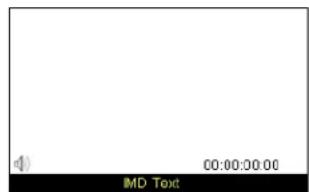
- In Scaled 4:3 mode, images are scaled to a smaller 4:3 portion of the screen, leaving space for IMD text, tally, and audio presence indicator to be displayed below or around the image. Time code is superimposed on the lower portion of the image.
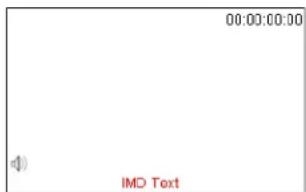
- In 16:9 mode, images are scaled to fill the maximum 16:9 portion at the top of the screen (1920 x 1080). In this mode, IMD text and on-screen tally are displayed below the image. Time code and the audio presence indicator are superimposed on the lower portion of the image.
- In Full Screen (16:10) mode, images are scaled to fill the entire 16:10 screen (1920 x 1200). In this mode, all OSD features are superimposed on the image. Note that when using a 16:9 input image in this mode, the image will be vertically stretched by approximately 10%.
The diagrams on the following show how IMD text, timecode, and the audio monitor icon are simultaneously displayed on the screen in each aspect ratio setting. The white area represents the video image.
text_image
00:00:00:00 IMD Text4:3
text_image
00:00:00:00 IMD TextScaled 4:3
text_image
00:00:00:00 IMD Text16:9
text_image
00:00:00:00 IMD TextFull Screen (16:10)
■ Curtain Color
Use this setting to choose the default color displayed on the screen when no video input is present. Available colors are blue, red, green, white, and black.
■ Ctemp/Gamma
Use this setting to choose one of three color temperature / gamma presets or to remove gamma settings:
• Linear (No gamma applied)
• 55K
• 65K
• 93K
■ Analog Phase (DVI-Analog or VGA input only)
Adjusts the analog phase value to improve picture quality on DVI-A or VGA Sources. This adjusts the signal phase (not color phase) of the analog-to-digital conversion.
• 0-31 (value)
■ DVI-A CSC Mode (DVI-Analog input only)
Use the DVI-A CSC Mode to accommodate for four different types of colorspace inputs. This setting will only affect your DVI-A inputs.
• RGB Studio: accommodates digital 480i video using the RGB limited range (16-235) inputs.
• RGB PC: accommodates full range RGB (0-255) inputs.
• YUV 601: accommodates for Rec. 601 SDTV YUV colorspace inputs.
• YUV 709: accommodates for Rec. 709 HDTV YUV colorspace inputs.
The monitor's default setting is RGB PC.
■ DVI-D CSC Mode (DVI-D input only)
Use the DVI-D CSC Mode to accommodate for four different types of colorspace inputs. This setting will only affect your DVI-D and HDMI inputs.
• RGB Studio: accommodates digital 480i video using the RGB limited range (16-235) inputs.
• RGB PC: accommodates full range RGB (0-255) inputs.
• YUV 601: accommodates for Rec. 601 SDTV YUV colorspace inputs.
• YUV 709: accommodates for Rec. 709 HDTV YUV colorspace inputs.
The monitor's default setting is RGB PC.
■ HDMI CSC Auto (HDMI input only, via the DVI-I interface)
The HDMI CSC Auto setting is used to accommodate newer HDMI interfaces that send colorspace signaling in the HDMI data stream. If this setting is set to On, the monitor will automatically determine which colorspace setting to use. If this setting is set to Off, or your HDMI signal does not contain colorspace signaling, the DVI-D CSC Mode described above will determine the colorspace configuration.
Color Config Submenu
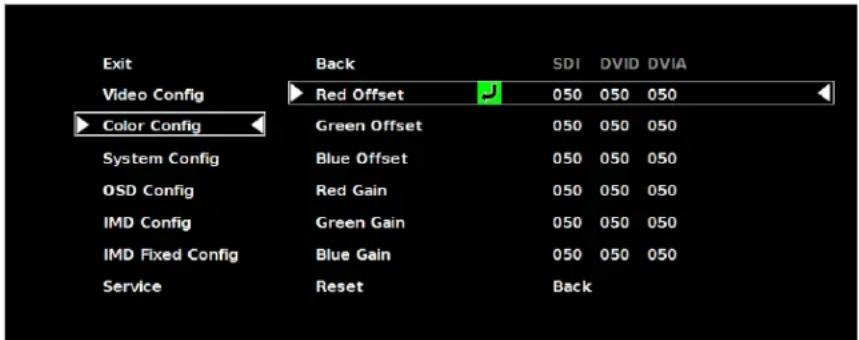
Use the Color Configuration submenu to adjust the Red, Green and Blue Offset and Gain values of the two SDI channels, the DVI-D input and DVI-A input.
text_image
Exit Video Config Color Config System Config OSD Config IMD Config IMD Fixed Config Service Back SDI DVID DVIA Red Offset 050 050 050 Green Offset 050 050 050 Blue Offset 050 050 050 Red Gain 050 050 050 Green Gain 050 050 050 Blue Gain 050 050 050 Reset BackEach column adjusts a particular input channel, from SDI1 and SDI2 to the DVI-I input. For the DVI-I input, you can adjust the Offset and Gain for either a DVI-D or DVI-A input.
The Reset option allows you to return to the default settings for each individual channel.
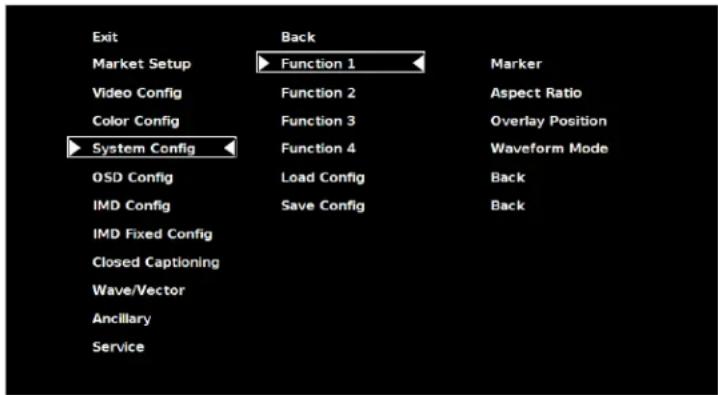
System Config Submenu
Use the System Configuration submenu to control various system parameters.
text_image
Exit Back Market Setup ► Function 1◀ Marker Video Config Function 2 Aspect Ratio Color Config Function 3 Overlay Position ► System Config◀ Function 4 Waveform Mode OSD Config Load Config Back IMD Config Save Config Back IMD Fixed Config Closed Captioning Wave/Vector Ancillary ServiceSystem Configuration Submenu
■ User-Definable Function Buttons
Use the Function 1, Function 2, Function 3 and Function 4 menu items to define each function button on the front panel of the monitor. The following options are available for each button:
- Marker Toggle between different Screen Markers
- Center Marker Display/hide the Center Marker
- Marker Backgrd Change how markers are displayed on the screen
- IMD State Display/hide IMD text
- Anc. Time Code Display/hide time code
- OSD Tally Rotate amongst types of OSD Tally
• Audio Monitor Display/hide audio presence indicator - CC Monitor Display/hide the Closed Caption Presence indicator
- Waveform Mode Change the data displayed on the Waveform monitor
• Overlay Position Change the position of the WFM Overlay in DLW Overlay Mode - Limits Toggle the Limits option of the Waveform Monitor On or Off
- Aspect Ratio Toggle between 4:3 and 16:9 aspect ratios
- Pixel to Pixel Enable/disable Pixel-to-Pixel mode
- Ctemp/Gamma Rotate amongst color temperature settings
- Blue Only Enable/disable Blue Only mode
- Monochrome Enable/disable Monochrome mode
■ Saving and Loading User Presets
Use the SAVE CONFIG and LOAD CONFIG menus to save current settings to one of 6 presets, or load a preset. Each Preset saves all monitor settings except for IMD configuration.
- Use the LOAD CONFIG menu to load one of presets USR1 – USR6. Factory default settings can also be loaded by selecting MFG. (Factory defaults cannot be overwritten.)
- Use To perform a full system restore, which resets ALL adjustable fields on the monitor to their "fresh-from-factory" state, press the Power, F1 and F2 button simultaneously. Note: You will lose ALL user adjustable settings on your monitor.
• Use the SAVE CONFIG menu to save the current settings to a preset from USR1-USR6.
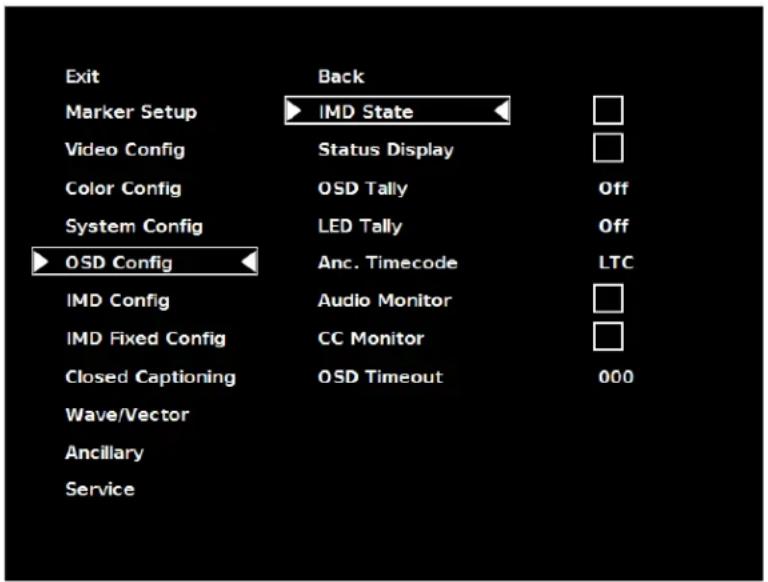
Use the OSD Configuration submenu to select a variety of information to be displayed on the screen.
text_image
Exit Back Marker Setup IMD State Video Config Status Display Color Config OSD Tally Off System Config LED Tally Off > OSD Config Anc. Timecode LTC IMD Config Audio Monitor IMD Fixed Config CC Monitor Closed Captioning OSD Timeout 000 Wave/Vector Ancillary ServiceOSD Configuration Submenu
■ IMD State
Use this setting to turn the IMD text display on or off. This setting affects both fixed string IMD text and remote IMD text commands.
■ Status Display
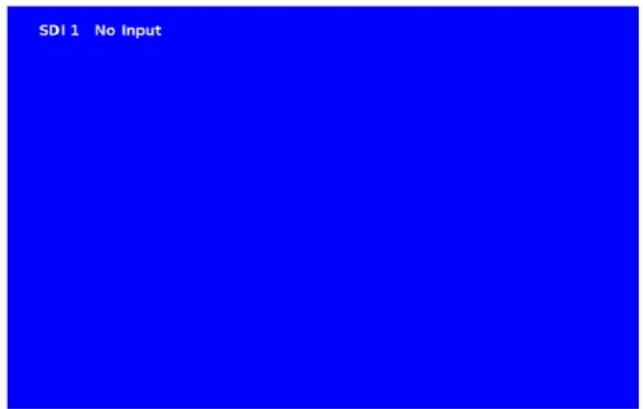
Use this setting to enable or disable status display. When enabled, the current video input standard is displayed on the top left of the screen. When disabled, status is only displayed for 2 seconds when the monitor is powered on, when an input is applied, or when the input video standard changes. The status display reads "No Input" when no video input is present.
text_image
SDI 1 No InputStatus Display
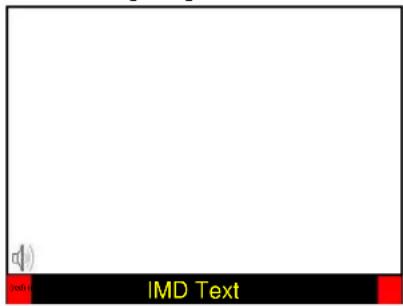
■ OSD Tally
Use this setting to choose how tally is displayed on the screen. The available OSD Tally options depend on the Tally Source selected in the IMD Configuration submenu
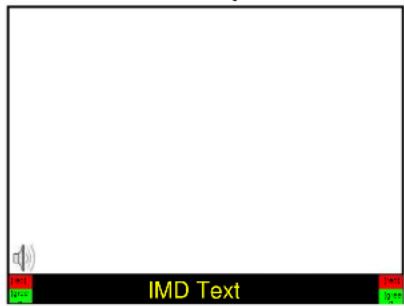
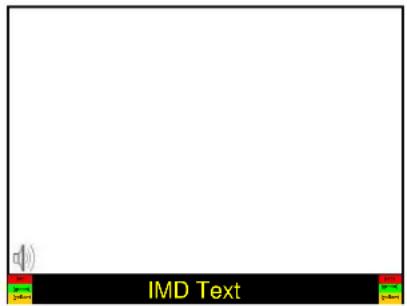
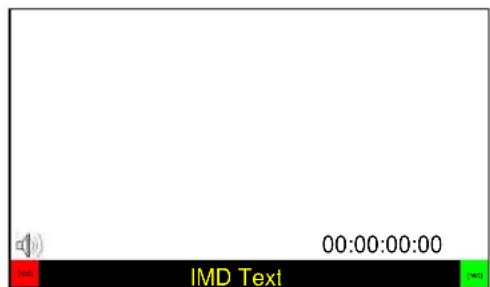
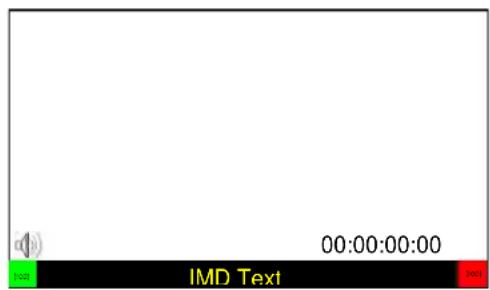
When the Tally Source is set to Standard (contact closure), OSD Tally can be set to Off, RGY, RG, or GR:
- Off On-screen tally is disabled
- RGY Red, yellow, or green tally signals are indicated at both the bottom left and bottom right corners of the screen. Two or three colors are shown simultaneously by subdividing each tally indicator
- RG Red tally is shown at the bottom left of the screen, and green is shown at the bottom right.
- GR Green tally is shown at the bottom left of the screen, and red is shown at the bottom right.
The following diagrams show RGY, RG, and GR OSD Tally modes:
text_image
IMD TextRGY mode: single color activated
text_image
IMD TextRGY mode: two colors activated
text_image
IMD TextRGY mode: three colors activated
text_image
00:00:00:00 IMD TextRG Mode: both colors activated
text_image
00:00:00:00 IMD TextGR Mode: both colors activated
When the Tally Source is set to TSL/MEI 422, OSD Tally can be set to Off or IMD:
- Off On-screen tally is disabled
- IMD Red, yellow, and green tally is displayed according the protocol commands. Green, red, and yellow colors are shown individually on either the bottom left or right of the screen.
■ LED Tally
Use this to enable or disable the physical LED tally on the top of the monitor.
■ Anc. Timecode
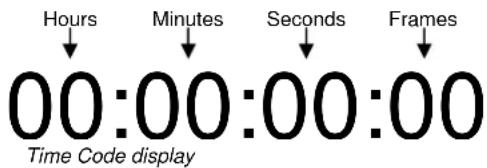
Use this setting to enable time code display on the screen. Time code is de-embedded from the vertical ancillary data (VANC) within the HD/SDI signal. Two types of time code can be selected to display on the screen: LTC (linear time code) or VITC (vertical interval time code).
The position of the time code display varies based on the aspect ratio setting and presence of IMD text.
text_image
Hours Minutes Seconds Frames 00:00:00:00 Time Code display■ Audio Monitor
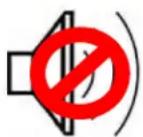
Use the Audio Monitor menu option to enable or disable the audio presence indicator icon. When enabled, this icon indicates whether embedded audio is present in the HD/SDI video input. A red circle and cross will flash on the icon if no embedded audio is present.

Embedded Audio Present
No Embedded Audio
■ CC Monitor (Closed Captioning)
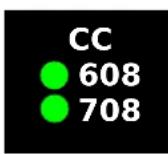
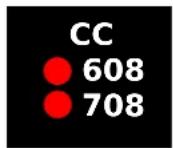
Use the CC Monitor menu option to enable or disable the Closed Captioning presence indicator icon. When enabled, this icon indicates the presence of 608 and/or 708 embedded Closed Captioning in the SDI video input. A green dot indicates the presence of CC Data. A red dot indicates no captioning data.
Both 608 and 708 CC Data present
No CC Data present
■ OSD Timeout
Use the OSD Timeout setting to set the amount of time you would like to see the Menu on screen. Selectable values range from 5 to 30 Seconds in 5 second increments. A value of None allows the menu to stay on screen until it is manually exited.
IMD Config Submenu
■ Overview
The V-R261-DLW features an In-Monitor Display (IMD) with the ability to display on-screen text and tally in three colors. IMD text, color, and alignment can be assigned to each screen locally using menu options (see below). Alternately, IMD text and tally can be remotely controlled via the RS-422/485 serial interface using several industry-standard protocols, including TSL v4.0 and Image Video. Multiple V-R261-DLW monitors can be looped together and each addressed individually via the protocol. All menu features of the V-R261-DLW can also be controlled via the Marshall Network Controller box using MEI protocol. (Contact Marshall Electronics for additional information).
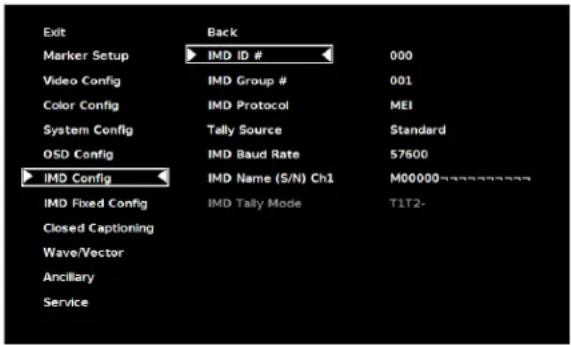
Use the IMD Configuration submenu to configure various IMD parameters as described below.
text_image
Exit Back Marker Setup IMD ID # Video Config IMD Group # Color Config IMD Protocol MEI System Config Tally Source Standard OSD Config IMD Baud Rate 57600 IMD Config IMD Name (S/N) Ch1 M00000-IMD Configuration Submenu
■ IMD ID #
The IMD ID # identifies each screen to the controlling device. When using the TSL protocol, the ID # of each screen should be manually set in conjunction with the controlling device. When using the Image Video protocol, the ID # may be set automatically by the controlling device, after each IMD is initially identified by IMD Name (see "IMD Name[S/N]" below). Available ID #s are 000-254.
■ IMD Group #
Each screen can be assigned an IMD Group # when using the Marshall protocol. Available Group #s are 01-254.
■ IMD Protocol
Use the IMD Protocol menu option to choose the protocol with which the V-R261-DLW receives remote commands. Currently, four protocols are available. Contact Marshall Electronics for the latest protocol compatibility.
Image Video
Use the Image Video protocol setting when controlling the IMD from an Image Video tally controller (e.g. TSI-1000) or other controlling device which utilizes the Image Video protocol. The IMD #, IMD Name(S/N), and Baud Rate parameters must be set for each screen in conjunction with the controlling device.
. TSL v4.0
Use the TSL v4.0 protocol setting when controlling the IMD from a TSL tally controller, or other controlling device which utilizes the TSL v4.0 protocol. The IMD # must be set for each screen in conjunction with the controlling device.
MEI
Use the MEI protocol setting when controlling the V-R261-DLW using the Marshall Network Controller box. This protocol allows remote control of all features on the V-R261-DLW, including marker setup, video configuration, system configuration, and image adjustments (brightness, contrast, etc.). The IMD #, IMD Group #, and Baud Rate parameters must be set in conjunction with the Network Controller Box.
MEI-Image Video
This protocol setting accepts Image Video commands via MEI protocol, for use when an Image Video controller is connected to the Marshall Network Controller box.
■ Tally Source
The V-R261-DLW OSD tally can be controlled in a variety of different ways. Use the Tally Source setting to choose how tally is controlled:
Standard
Use the Standard setting to control tally via contact closure on the HD-15 tally interface.
Image Video HW
Use the Image Video HW setting to control Image Video tally states via contact closure on the HD-15 tally interface. Contact closure of the Red pin corresponds to Image Video Tally 1, and the Green pin maps to Image Video Tally 2. Contact closure (ground) corresponds to a LOW state, and open circuit corresponds to a HIGH state. This mode requires the IMD Tally Mode parameter to be set. Consult Image Video documentation for further information.
Image Video 422
Use the Image Video 422 setting to control Image Video tally states via the Image Video serial protocol. OSD tally will be disabled in this mode, as Image Video tally states are manifested in the text color and other
parameters. This mode requires the IMD Tally Mode parameter to be set. Consult Image Video documentation for further information.
Standard + IV422
Use the Image Video 422 setting to control Image Video tally states via the Image Video serial protocol, while controlling OSD tally using contact closure on the HD-15 tally interface. This mode requires the IMD Tally Mode parameter to be set. Consult Image Video documentation for further information.
TSL/MEI 422
Use the TSL/MEI 422 setting to control OSD tally via the TSL or Marshall serial protocols.
■ IMD Baud Rate
Use this setting to choose the baud rate. The baud rate must be set in conjunction with the controlling device. Available baud rates are 300, 600, 1200, 2400, 4800, 9600, 19200, 38400, 57600, 115200. The TSL v4.0 protocol is fixed at 38400 bauds.
■ IMD Name (S/N)
Use this setting to assign a name to each screen when using the Image Video or Marshall-IV protocols. The IMD name is equivalent to the Image Video serial number and is used by the Image Video controlling device to identify each screen. The default IMD Name(S/N) is "M00000." It is recommended to maintain this naming scheme in order to avoid serial number conflicts with other Image Video devices on the same serial bus. Each name can be up to 16 ASCII characters.
Press RotoMenu ^™ knob to edit the IMD Name. Rotate the RotoMenu ^™ knob to move the cursor. Press the RotoMenu ^™ knob with the cursor on the character to be changed, then rotate the knob to scroll through the character set. Press the RotoMenu ^™ knob to choose a character.
■ IMD Tally Mode
Use this setting when using Image Video tally control. Choose one of the following settings, in conjunction with the Image Video controlling device. T1, T2, T1T2, T2T1, T1-, T2-, T1T2-, T2T1-. Consult Image Video documentation for further information.
IMD Fixed Config Submenu
text_image
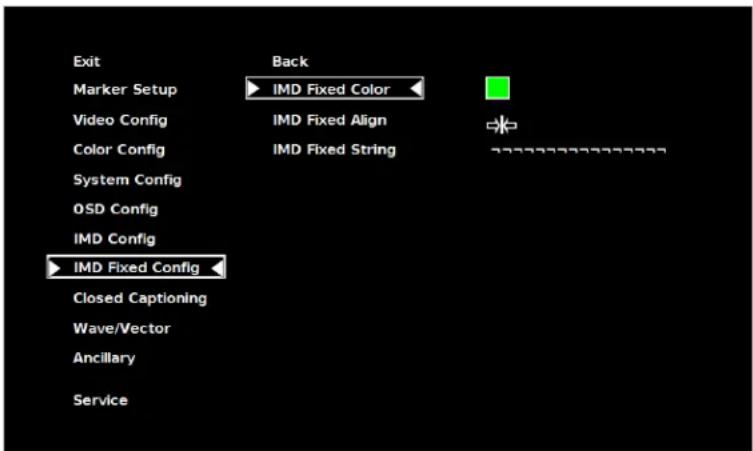
Exit Back Marker Setup ▶ IMD Fixed Color Video Config IMD Fixed Align Color Config IMD Fixed String System Config OSD Config IMD Config ▶ IMD Fixed Config Closed Captioning Wave/Vector Ancillary ServiceIMD Fixed Configuration Submenu
■ IMD Fixed Color
Use this setting to choose the color of the IMD Fixed String text (see below). Available colors are red, green, and yellow. This setting does not affect text color when using IMD text via the Image Video or TSL v4.0 protocols (text color is set via the protocols).
■ IMD Fixed Align
Use this setting to choose the horizontal alignment of the IMD text. IMD text can be justified on the left, center or right of the screen. This setting is overridden when using IMD text via the Image Video protocol (alignment is set via Image Video protocol).
■ IMD Fixed String
Use this setting to display static IMD text on the screen. This setting is used to enter IMD text locally, when a serial protocol is not used for remote control. The IMD Fixed String is saved after power cycle. The IMD Fixed String will be overridden by serial protocol commands.
Press RotoMenu™ knob to edit the IMD Fixed String. Rotate the RotoMenu™ knob to move the cursor. Press the RotoMenu™ knob with the cursor on the character to be changed, then rotate the knob to scroll through the character set. Press the RotoMenu™ knob to choose a character. The '-' character indicates an unused (NULL) value in the string. The string entered will be terminated by the first '-' Characters to the right of a '-' character will be displayed in the menu, but will not be shown in the IMD string.
Closed Captioning Submenu
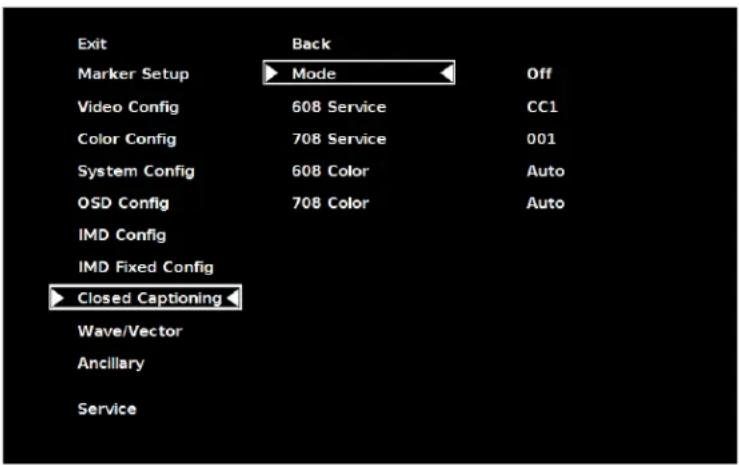
Use the Closed Captioning submenu to select the type of captioning stream you would like to decode.
text_image
Exit Back Marker Setup ► Mode Off Video Config 608 Service CC1 Color Config 708 Service 001 System Config 608 Color Auto OSD Config 708 Color Auto IMD Config IMD Fixed Config ► Closed Captioning Wave/Vector Ancillary ServiceClosed Captioning Submenu
■ Mode
The DLW monitor series provides support for three types of Closed Captioning Modes: 608, 708 and 708 (608 Comp.). Use this section to choose which type of stream you would like to decode.
■ 608 Service
The EIA-608 caption protocol defines four channels of caption information. The V-R261-DLW monitor can only display one of these four channels at any point in time. With the 608 Service selection, you can select which of the four streams to render on the screen.
■ 708 Service
Similar to the EIA-608 caption protocol, the EIA-708 caption protocol can contain multiple streams of captions. These streams are labeled with a service ID. This menu option allows you to select which service to render on the screen.
■ 608 Color
The EIA-608 caption protocol can define the color for the closed caption text. Use this setting to choose between using the color defined by the data stream or to override this data with any of the selected colors.
The default setting for option is Auto.
■ 708 Color
The EIA-708 caption protocol can also define the color for the closed caption text. Use this setting to choose between using the color defined by the data stream or to override this data with any of the selected colors.
The default setting for option is Auto.
Wave/Vector Submenu
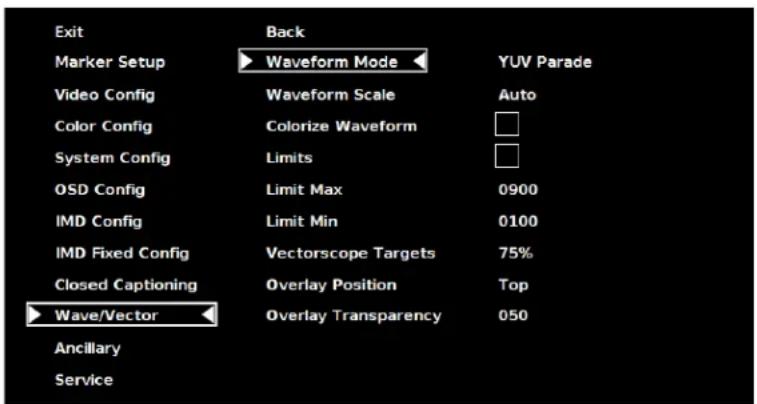
Use the Wave/Vector submenu to change the location of the Waveform Monitor and Vectorscope, as well as the data displayed on the Waveform monitor or the Vectorscope on the V-R261-DLW monitor. The Waveform Monitor can also be customized to conform to different scales, to display different colors, differentiate data with Limits. The Vectorscope targets can also be changed in this menu.
text_image
Exit Marker Setup Waveform Mode Video Config Waveform Scale Auto Color Config Colorize Waveform System Config Limits OSD Config Limit Max 0900 IMD Config Limit Min 0100 IMD Fixed Config Vectorscope Targets 75% Closed Captioning Overlay Position Top Wave/Vector Overlay Transparency 050 Ancillary Service■ Waveform Mode
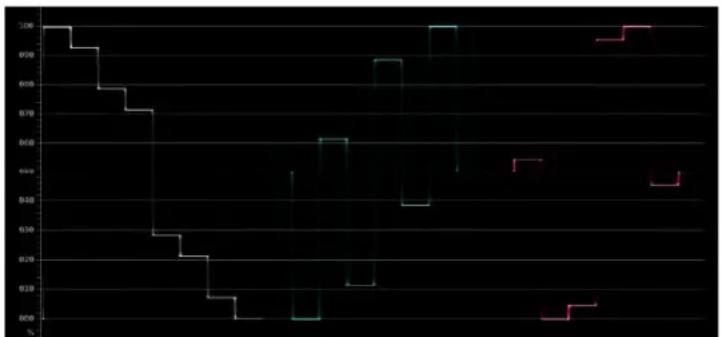
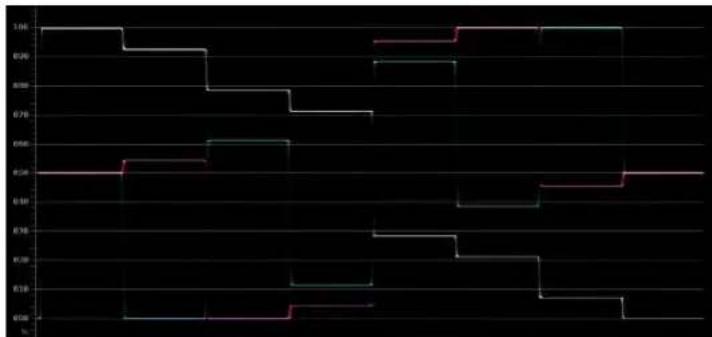
This option allows you to choose between different layouts for the Waveform monitor. Available options are YUV Parade, YUV Overlay, RGB Parade and RGB Overlay.
- YUV Parade The Y (Luminance, shown in white), U and V (Chrominance components, U is showed in cyan and V is shown in Magenta) components of the signal are displayed from left to right.
line
| Time Point | Series 1 (%) | Series 2 (%) | Series 3 (%) | | :--- | :--- | :--- | :--- | | 1 | 100 | 0 | 0 | | 2 | 95 | 0 | 0 | | 3 | 90 | 0 | 0 | | 4 | 85 | 0 | 0 | | 5 | 80 | 0 | 0 | | 6 | 75 | 0 | 0 | | 7 | 70 | 0 | 0 | | 8 | 65 | 0 | 0 | | 9 | 60 | 0 | 0 | | 10 | 55 | 0 | 0 | | 11 | 50 | 0 | 0 | | 12 | 45 | 0 | 0 | | 13 | 40 | 0 | 0 | | 14 | 35 | 0 | 0 | | 15 | 30 | 0 | 0 | | 16 | 25 | 0 | 0 | | 17 | 20 | 0 | 0 | | 18 | 15 | 0 | 0 | | 19 | 10 | 0 | 0 | | 20 | 5 | 0 | 0 | | 21 | 0 | 0 | 0 | | 22 | -5 | 0 | 0 | | 23 | -10 | 0 | 0 | | 24 | -15 | 0 | 0 | | 25 | -20 | 0 | 0 | | 26 | -25 | 0 | 0 | | 27 | -30 | 0 | 0 | | 28 | -35 | 0 | 0 | | 29 | -40 | 0 | 0 | | 30 | -45 | 0 | 0 | | 31 | -50 | 0 | 0 | | 32 | -55 | 0 | 0 | | 33 | -60 | 0 | 0 | | 34 | -65 | 0 | 0 | | 35 | -70 | 0 | 0 | | 36 | -75 | 0 | 0 | | 37 | -80 | 0 | 0 | | 38 | -85 | 0 | 0 | | 39 | -90 | 0 | 0 | | 40 | -95 | 0 | 0 | | 41 | -100 | 0 | 0 | | 42 | -105 | 0 | 0 | | 43 | -110 | 0 | 0 | | 44 | -115 | 0 | 0 | | 45 | -120 | 0 | 0 | | 46 | -125 | 0 | 0 | | 47 | -130 | 0 | 0 | | 48 | -135 | 0 | 0 | | 49 | -140 | 0 | 0 | | 50 | -145 | 0 | 0 | | ... (Repeated) | ... (Repeated) | ... (Repeated) | ... (Repeated) | The chart displays a step function with 'Time Point' on the x-axis and 'Value' on the y-axis. The values for 'Series' are labeled above each step. The 'Number' is annotated at the top of the chart.- YUV Overlay The YUV components of the signal are overlaid.
line
| Time | Value | |------|-------| | 0.00 | 1.04 | | 0.05 | 0.96 | | 0.10 | 0.82 | | 0.15 | 0.70 | | 0.20 | 0.60 | | 0.25 | 0.50 | | 0.30 | 0.40 | | 0.35 | 0.30 | | 0.40 | 0.20 | | 0.45 | 0.10 | | 0.50 | 0.05 | | 0.55 | 0.02 | | 0.60 | 0.01 | | 0.65 | 0.005 | | 0.70 | 0.002 | | 0.75 | 0.001 | | 0.80 | 0.0005| | 0.85 | 0.0002| | 0.90 | 0.0001| | 0.95 | 0.00005| | 1.00 | 0.00 |- RGB Parade The R (shown in Red), G (shown in Green) and B (shown in Blue) components of the signal are displayed from left to right.
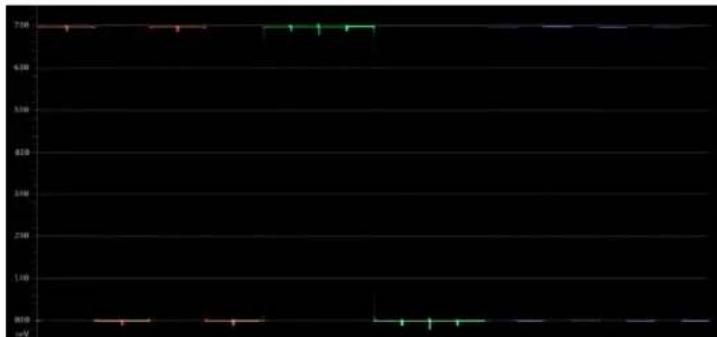
line
| Time (s⁻¹) | Voltage (V) | |------------|-------------| | 0 | 7.0 | | 1 | 7.0 | | 2 | 7.0 | | 3 | 7.0 | | 4 | 7.0 | | 5 | 7.0 | | 6 | 7.0 | | 7 | 7.0 | | 8 | 7.0 | | 9 | 7.0 | | 10 | 7.0 | | 11 | 7.0 | | 12 | 7.0 | | 13 | 7.0 | | 14 | 7.0 | | 15 | 7.0 | | 16 | 7.0 | | 17 | 7.0 | | 18 | 7.0 | | 19 | 7.0 | | 20 | 7.0 | | 21 | 7.0 | | 22 | 7.0 | | 23 | 7.0 | | 24 | 7.0 | | 25 | 7.0 | | 26 | 7.0 | | 27 | 7.0 | | 28 | 7.0 | | 29 | 7.0 | | 30 | 7.0 | | 31 | 7.0 | | 32 | 7.0 | | 33 | 7.0 | | 34 | 7.0 | | 35 | 7.0 | | 36 | 7.0 | | 37 | 7.0 | | 38 | 7.0 | | 39 | 7.0 | | 40 | 7.0 | | 41 | 7.0 | | 42 | 7.0 | | 43 | 7.0 | | 44 | 7.0 | | 45 | 7.0 | | 46 | 7.0 | | 47 | 7.0 | | 48 | 7.0 | | 49 | 7.0 | | 50 | 7.0 | | 51 | 7.0 | | 52 | 7.0 | | 53 | 7.0 | | 54 | 7.0 | | 55 | 7.0 | | 56 | 7.0 | | 57 | 7.0 | | 58 | 7.0 | | 59 | 7.0 | | 60 | 7.0 | | 61 | 7.0 | | 62 | 7.0 | | 63 | 7.0 | | 64 | 7.0 | | 65 | 7.0 | | 66 | 7.0 | | 67 | 7.0 | | 68 | 7.0 | | 69 | 7.0 | | 70 | 7.0 | | 71 | 7.0 | | 72 | 7.0 | | 73 | 7.0 | | 74 | 7.0 | | 75 | 7.0 | | 76 | 7.0 | | 77 | 7.0 | | 78 | 7.0 | | 79 | 7.0 | | 80 | 7.0 | | 81 | 7.0 | | 82 | 7.0 | | 83 | 7.0 | | 84 | 7.0 | | 85 | 7.0 | | 86 | 7.0 | | 87 | 7.0 | | 88 | 7.0 | | 89 | 7.0 | | 90 | 7.0 | | 91 | 7.0 | | 92 | 7.0 | | 93 | 7.0 | | 94 | 7.0 | | 95 | 7.0 | | 96 | 7.0 | | 97 | 7.0 | | 98 | 7.0 | | 99 | 7.0 | | Note: The actual values may vary due to the use of random data or sampling in the code execution.- RGB Overlay The RGB components of the signal are overlaid.
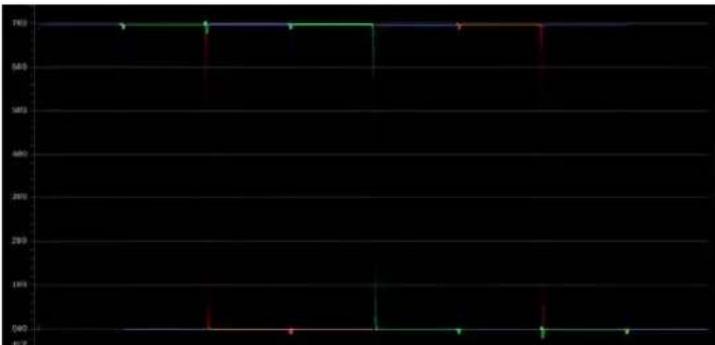
line
| Time | Value | |------|-------| | 0 | 700 | | 1 | 700 | | 2 | 700 | | 3 | 700 | | 4 | 700 | | 5 | 700 | | 6 | 700 | | 7 | 700 | | 8 | 700 | | 9 | 700 | | 10 | 700 | | 11 | 700 | | 12 | 700 | | 13 | 700 | | 14 | 700 | | 15 | 700 | | 16 | 700 | | 17 | 700 | | 18 | 700 | | 19 | 700 | | 20 | 700 | | 21 | 700 | | 22 | 700 | | 23 | 700 | | 24 | 700 | | 25 | 700 | | 26 | 700 | | 27 | 700 | | 28 | 700 | | 29 | 700 | | 30 | 700 | | 31 | 700 | | 32 | 700 | | 33 | 700 | | 34 | 700 | | 35 | 700 | | 36 | 700 | | 37 | 700 | | 38 | 700 | | 39 | 700 | | 40 | 700 | | 41 | 700 | | 42 | 700 | | 43 | 700 | | 44 | 700 | | 45 | 700 | | 46 | 700 | | 47 | 700 | | 48 | 700 | | 49 | 700 | | 50 | 700 | | 51 | 700 | | 52 | 700 | | 53 | 700 | | 54 | 700 | | 55 | 700 | | 56 | 700 | | 57 | 700 | | 58 | 700 | | 59 | 700 | | 60 | 700 | | 61 | 700 | | 62 | 700 | | 63 | 700 | | 64 | 700 | | 65 | 700 | | 66 | 700 | | 67 | 700 | | 68 | 700 | | 69 | 700 | | 70 | 700 | | 71 | 700 | | 72 | 700 | | 73 | 700 | | 74 | 700 | | 75 | 700 | | 76 | 700 | | 77 | 700 | | 78 | 700 | | 79 | 700 | | 80 | 700 | | 81 | 700 | | 82 | 700 | | 83 | 700 | | 84 | 700 | | 85 | 700 | | 86 | 700 | | 87 | 700 | | 88 | 700 | | 89 | 700 | | 90 | 700 | | 91 | 700 | | 92 | 700 | | 93 | 700 | | 94 | 700 | | 95 | 700 | | 96 | 700 | | 97 | 700 | | 98 | 700 | | 99 | 700 | |1 | |■ Waveform Scale
Use the Waveform scale option to switch between different graticule units on the Waveform display. Available options are mV, %IRE, Auto and Off.
■ Colorize Waveform
Use the Colorize Waveform option to add or remove color from the Waveform display. When Colorize Waveform is ON, the YUV and RGB data components on the Waveform display will appear in different colors. When Colorize Waveform is OFF, all YUV and RGB data components will appear as white on the Waveform display.
■ Limits
Use the Limits option to differentiate data (indicated by a red highlight) on the Waveform display that goes above a Limit Max (maximum) and goes below a Limit Min (minimum) set in the Wave/Vector submenu. The Limit maximum and minimum can be set from 0000 to 1023. Note: Setting the Limits option to ON will override the Colorize Waveform option. All Waveform display data within the limits will appear in white.
■ Limit Max
Use this to set the desired maximum for the Limit display of the waveform monitor. Any Waveform data that goes beyond this Limit Max will be displayed in red.
■ Limit Min
Use this to set the desired minimum for the Limit display of the waveform monitor. Any Waveform data that goes below this Limit Max will be displayed in red.
■ Vectorscope Targets
Use the Vectorscope Targets option to set your Vectorscope targets up for 75% or 100% color bar signals. You can also set your Vectorscope Targets to the OFF position.
■ Overlay Position
Use the Overlay Position option to place the Waveform, Vectorscope and Audio Level display on the Top or Bottom of the screen while in the DLW Overlay display mode. You can also set your Overlay display to OFF.
■ Overlay Transparency
Use the Overlay Transparency option to set the transparency of the Waveform, Vectorscope and Audio Level display while in DLW Overlay mode. Choose a value from 000-100. A low value will cause the Waveform, Vectorscope and Audio Level data to blend into the background, while a high value will make the data appear more visible against the video display in the background.
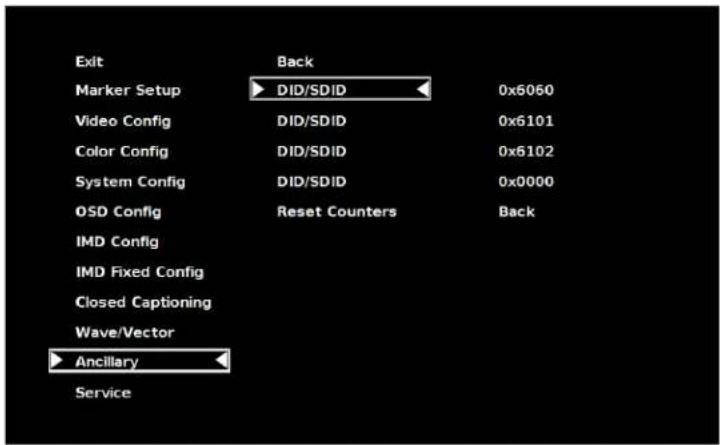
Ancillary Submenu
Use the Ancillary submenu to determine which ancillary packet IDs should be counted in the Ancillary Status portion of the DLW monitor display.
text_image
Exit Back Marker Setup DID/SDID 0x6060 Video Config DID/SDID 0x6101 Color Config DID/SDID 0x6102 System Config DID/SDID 0x0000 OSD Config Reset Counters Back IMD Config IMD Fixed Config Closed Captioning Wave/Vector Ancillary Service■ DID/SDID
Use this section to select which packet IDs should be counted on the DLW monitor display. For example, 0x6060 would count the Timecode data packets, 0x6101 would count the EIA-708 CC data packets and 0x6102 would count the EIA-608 CC data packets. Any ancillary packet ID can be chosen, from 0000 to FFFF.
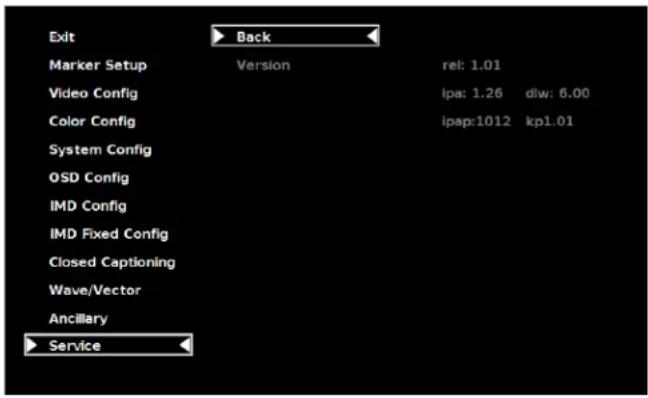
SERVICE SUBMENU
■ Software Version Display
The Main Board, Keypad, and FPGA software version numbers are displayed.
text_image
Exit Back Marker Setup Version rel: 1.01 Video Config lipa: 1.26 dlw: 6.00 Color Config ipap:1012 kp1.01 System Config OSD Config IMD Config IMD Fixed Config Closed Captioning Wave/Vector Ancillary ServiceService Menu
The following information is displayed:
- rel: Release Package version number
- ipa Input processor firmware
- dlw FPGA Version
- ipap Product Type
- kp Keypad version number
■ PANEL
Screen Size 25.54" Diagonal
Display Area (h x v) 528 mm x 375.6 mm
Aspect Ratio 16:10 Native (4:3/16:9 Modes)
Pixels 1920 x RGB x 1200
Color Depth 8-bit
Viewing Angle (h x v) 178° x 178°
Brightness 400 cd/m
Contrast Ratio 1000:1
Pixel Pitch (h x v) 0.2865 x 0.2865 mm
2 x BNC Female (75 Ω)
3G-SDI Video Output (Active Loop-Through)
2 x BNC Female (75 Ω)
DVI-I Video/VESA input
1 x DVI-I Female connector
Power Input
4-Pin XLR
Tally Hardware Interface
HD-15 Female
RS-422/485 Interface
2 x RJ12 (Modular 6P6C)
■ TALLY HARDWARE INTERFACE (HD-15)
Activation requires contact closure of pin to ground on the HD-15 connector:
| Pin No. Signal | |
| 1 Channel 1 | Green |
| 2 Channel 1 | Red |
| 3 Channel 1 | Yellow |
| 4 Ground | |
| 5 Ground | |
| 6 N/C | |
| 7 N/C | |
| 8 N/C | |
| 9 N/C | |
| 10 N/C | |
| 11 N/C | |
| 12 N/C | |
| 13 N/C | |
| 14 N/C | |
| 15 N/C | |
■ RS-422/485 SERIAL INTERFACE (RJ12)
Protocols: Image Video, TSL v4.0, MEI
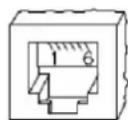
| Pin No. Signal | |
| 1 Tx- | |
| 2 Ground | |
| 3 Rx+ (Receive from host) | |
| 4 Rx- (Receive from host) | |
| 5 N/C | |
| 6 Tx+ | |
ELECTRICAL
Power Consumption 115 W
Voltage Requirement 24 VDC
V-PS24-7.5 Power Supply:
Input 100V-240V, 2.5A, 50-60 Hz
Output 18-24VDC, 7.5A, 150W Max
MECHANICAL
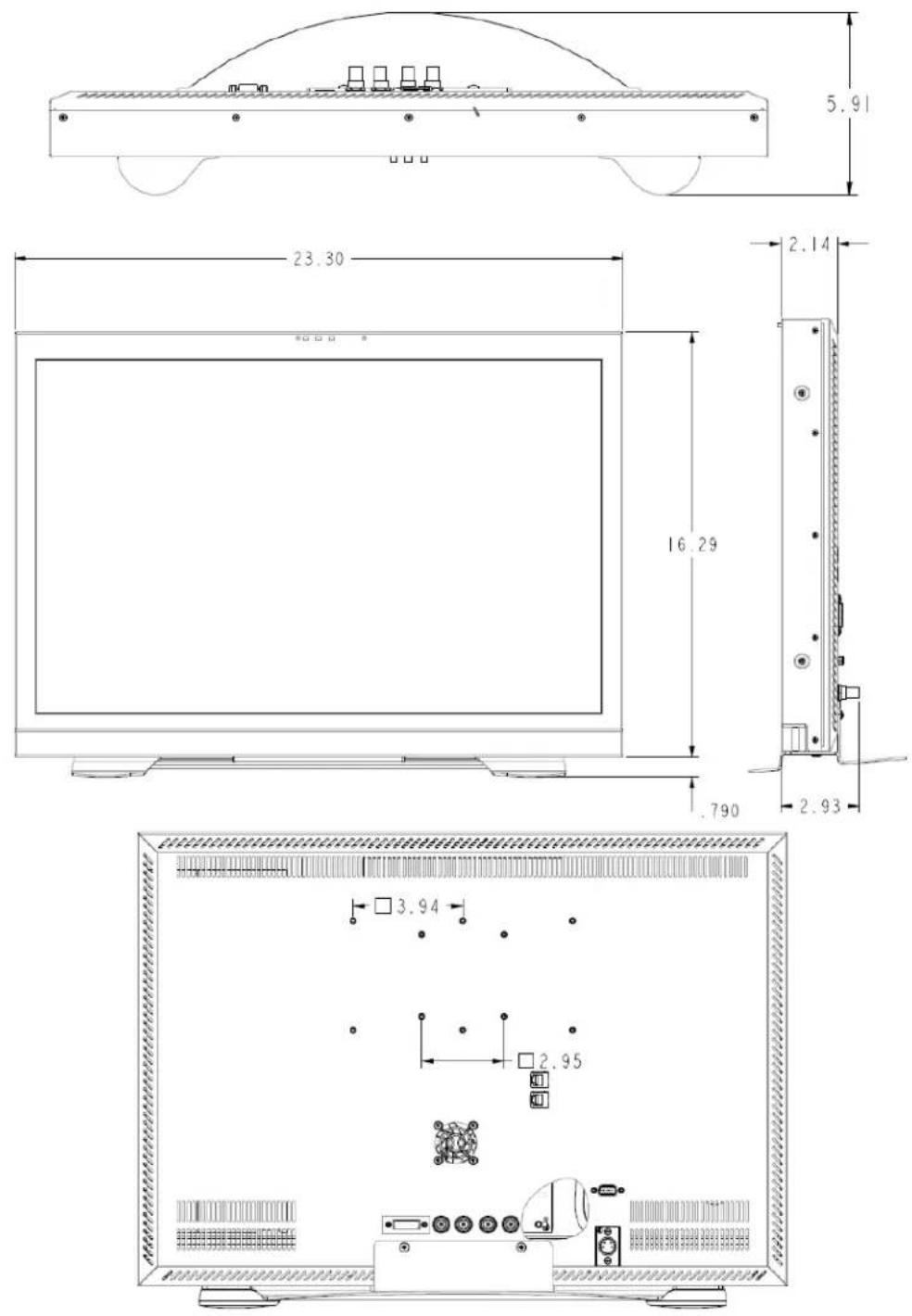
Dimensions (w x h x d): 23.3" x 16.29" x 2.14"
Weight (with desktop stand): \~17.5 lbs.
Operating Temperature 32°F to 104°F (0°C to 40°C)
Storage Temperature -4°F to 120°F (-20°C to 50°C)
Compliance CE, FCC-Class A, ANSI-63.4
(Certificates on file)
RoHs Do not dispose. Return to
Manufacturer or Authorized Recycle Facility.
■ Screen Cleaning
Periodically clean the screen surface using ammonia-free cleaning wipes (Marshall Part No. V-HWP-K). A clean microfiber cloth can also be used using only non-abrasive and ammonia-free cleaning agents. Do not use paper towels. Paper towel fibers are coarse and may scratch the surface of the polycarbonate faceplate or leave streaks on the surface. Antistatic and fingerprint resistant cleaning agents are recommended. Do not apply excessive pressure to the screen to avoid damaging the LCD.
■ Faceplate Dusting
Dust the unit with a soft, damp cloth or chamois. Dry or abrasive cloths may cause electrostatic charge on the surface, attracting dust particles. Neutralize static electricity effects by using the recommended cleaning and polishing practice.
Warranty
Marshall Electronics warranties to the first consumer that this V-R261-DLW LCD monitor will, under normal use, be free from defects in workmanship and materials, when received in its original container, for a period of one year from the purchase date. This warranty is extended to the first consumer only, and proof of purchase is necessary to honor the warranty. If there is no proof of purchase provided with a warranty claim, Marshall Electronics reserves the right not to honor the warranty set forth above. Therefore, labor and parts may be charged to the consumer. This warranty does not apply to the product exterior or cosmetics. Misuse, abnormal handling, alterations or modifications in design or construction void this warranty. It is considered normal for a minimal amount of pixels, not to exceed three, to fail on the periphery of the display active viewing area. Marshall Electronics reserves the option to refuse service for display pixel failure if deemed unobtrusive to effective use of the monitor by our technicians. No sales personnel of the seller or any other person is authorized to make any warranties other than those described above, or to extend the duration of any warranties on behalf of Marshall Electronics, beyond the time period described above. Due to constant effort to improve products and product features, specifications may change without notice.
Burn-In Warning
This monitor uses a high quality TFT LCD panel. However, if a static image is left on the screen for 48 hours, there may be a 30 second to 10 minute recovery period for the panel. During recovery, a very faint image may be retained on the display. Put up a white curtain for 30 minutes to eliminate the retained image.
This page intentionally left blank
★□▲★□□□■▲
1910 East Maple Ave.
www.LCDRacks.com • sales@lcdracks.com
2010-0722