V-LCD15SB-AFHD-DT - Monitor MARSHALL - Free user manual and instructions
Find the device manual for free V-LCD15SB-AFHD-DT MARSHALL in PDF.


User questions about V-LCD15SB-AFHD-DT MARSHALL
0 question about this device. Answer the ones you know or ask your own.
Ask a new question about this device
Download the instructions for your Monitor in PDF format for free! Find your manual V-LCD15SB-AFHD-DT - MARSHALL and take your electronic device back in hand. On this page are published all the documents necessary for the use of your device. V-LCD15SB-AFHD-DT by MARSHALL.
USER MANUAL V-LCD15SB-AFHD-DT MARSHALL
Specifications (continued)
Maintenance
■ Screen Cleaning
Periodically clean the screen surface using ammonia-free cleaning wipes (Marshall Part No. V-HWP-K). A clean microfiber cloth can also be used using only non-abrasive and ammonia-free cleaning agents. Do not use paper towels. Paper towel fibers are coarse and may scratch the surface of the polycarbonate faceplate or leave streaks on the surface. Antistatic and fingerprint resistant cleaning agents are recommended. Do not apply excessive pressure to the screen to avoid damaging the LCD.
■ Faceplate Dusting
Dust the unit with a soft, damp cloth or chamois. Dry or abrasive cloths may cause electrostatic charge on the surface, attracting dust particles. Neutralize static electricity effects by using the recommended cleaning and polishing practice.
Warranty
Marshall Electronics warranties to the first consumer that this V-LCD15SB-AFHD-DT LCD monitor will, under normal use, be free from defects in workmanship and materials, when received in its original container, for a period of one year from the purchase date. This warranty is extended to the first consumer only, and proof of purchase is necessary to honor the warranty. If there is no proof of purchase provided with a warranty claim, Marshall Electronics reserves the right not to honor the warranty set forth above. Therefore, labor and parts may be charged to the consumer. This warranty does not apply to the product exterior or cosmetics. Misuse, abnormal handling, alterations or modifications in design or construction void this warranty. It is considered normal for a minimal amount of pixels, not to exceed three, to fall on the periphery of the display active viewing area. Marshall Electronics reserves the option to refuse service for display pixel failure if deemed unobtrusive to effective use of the monitor by our technicians. No sales personnel of the seller or any other person is authorized to make any warranties other than those described above, or to extend the duration of any warranties on behalf of Marshall Electronics, beyond the time period described above. Due to constant effort to improve products and product features, specifications may change without notice.
Updated: 11/26/09
Marshall Electronics, Inc.
1910 East Maple Ave.
El Segundo, CA 90243 Tel: (800) 800-6608 / (310) 333-0506 · Fec: 310-333-0688
www.LCDtracks.com • sales@lcracks.com
Marshall Electronics
V-LCD15SB-AFHD-DT
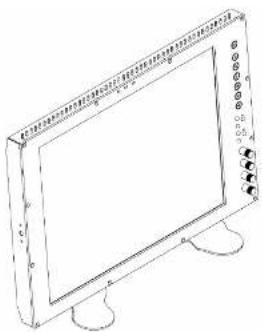
SD/HD SunBrite LCD Monitor
natural_image
Line drawing of a flat-screen monitor with stand and buttons (no text or symbols)Operating Instructions
Contents
Product Overview....3
Features 3
Installation and Initial Setup 4
Unpacking 4
Installation....4 Connections and Power-On....4
Front Panel Features 5
Power Button 5
Input Select Buttons....5 On-Screen Menu Navigation Buttons....5
User-Definable Function Buttons....5
Image Adjustment Knobs 5
Tally Lights....5
Rear Panel Features....6
Power Input....6 Signal Input/Output....6
Signal Input Output .... 6 Tally Interface .... 6
Mounting Holes 6
Compatible Input Formats....7
On-Screen Menu....8
STRUCTURE OVERVIEW....8 MAIN MENU AND NAVIGATION....9
MAIN MENU AND NAVIGATION ....8 MARKER SETUP SUBMENU 9
16:9 Markers....9
4:3 Markers....10
Marker Background 10
Center Marker 10 VIDEO CONFIGURATION SUBMENU 11
Color Temperature Presets 11
Adjusting Color Bias 11
Adjusting Color Gain....11
Monochrome Mode....12 Blue Only Mode....12
Pixel-to-Pixel™ Mode 12
Aspect Ratio Setting 13
Scanning Modes 13
Delay Modes 13 SYSTEM CONFIGURATION SUBMENU 14
Internal SMPTE Color Bars 14
User-Definable Function Buttons 14
Status Display....14
Saving and Loading User Configuration Presets 14
Specifications 15
Maintenance....16
Warranty 16
Specifications
■ PANEL
Screen Size 15.0" Diagonal
Display Area (h x v) 304.128 x 228.096 mm
Aspect Ratio 4:3 Native (4:3/16:9 Modos) Pixel 1024 x RGB x 758
Fluxis 1024 x HGB x 100 Color Depth 16,777,216 Colors
Viewing Angle (h x v) 160° x 140°
Brightness 600 cd/m
Contrast Rello 600:1 Dot Pitch (b.v.) 9.000
Dot Pitch (in x v) 0.099 x 0.297 mm Pixel Pitch (in x y) 0.297 x 0.297 mm
Pixel Response 18 ms (rise + fall)
Supports SMPTE 170M, NTSC/PAL
Color burst/sud-carrier required
S-Video (Y/C) Input / Output
Supports SIMPTE 170M, NTSC/PAL
YP_BP_R Input / Output
Supports SMPTE 260M, 274M, 296M
HD-SDI Input / Output
Supports ITU-R BT.656, SMPTE 259M. 292M
VGA Input
Supports RGBHV, RsGsBs, RGsB, RGB CS,
DVI Input
Supports Digital Signals Only (DVI-D)
HDCP Supported
■ CONNECTORS
Video Input
Video 1 x BNC Female (75.0)
S-Video (Y/C) 1 x 4-Pin Mini-DIN VR-D 2 x PNC Female
YFPiPii J x BNC Female (75 D) HD-SDI L x BNC Female (75 D)
HD-SDI 1 x BROT Female (VGA) 1 x HD-15 Female
DVI 1 x DVI-I 29-Pin Female
Video Output (Active Loop-Through)
Video 1 x BNC Female (75.0)
S-Video (170) 1 x 4-Pin Mini-DIN YPnPn 3 x BNC Female (7
SDI 1 x BNC Female (75 Ω)
Power Input
2-Pin Conxall Twist-Lock Female
Tally Interface
HD-15 Female
■ TALLY
3 LEDs (Green, Red, Yellow). Activation requires contact closure of pin to ground on the HD-15 connector:
| Pin No. | Signal |
| 1 | Green |
| 2 | Red |
| 3 | Yellow |
| 4 | Ground |
| 5 | Ground |
| 6 | N/C |
| 7 | N/C |
| 8 | N/C |
| 9 | Ground |
| 10 | Ground |
| 11 | N/C |
| 12 | N/C |
| 13 | N/C |
| 14 | Ground |
| 15 | Ground |
ELECTRICAL
Power Consumption 3A @ 12VDC (36 W) Voltage Requirement 12 VDC
V-PS12-5V-1 Power Supply: Input 100V-240V, 50/60Hz Output 12VDC, 5A
MECHANICAL
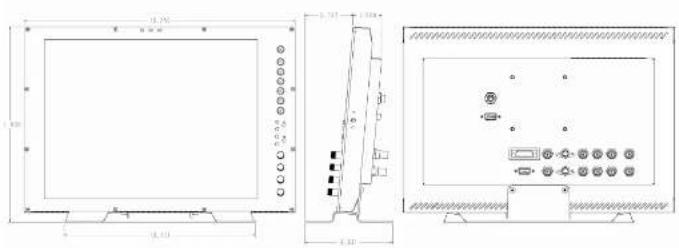
Dimensions (w x h x d): 15.25" x 10.45" x 1.77"
Height with Stand: 11.01 Park Height: 6 PU
HACK Height: BHD Additional Mounting: VESA 75 mm
Weight (Monitor Only): 8.1 lbs Operating Temperature 32°F to 120°F (0°C to 50°C) Storage Temperature -4°F to 120°F (-20°C to 50°C)
Compliance , FCC-Class A, ANSI-63.4 (Certificates on file)
RoHs Do not dispose. Return to Manufacturer or Authorized Recycle Facility.
On-Screen Menu (continued)
Use to display internally generated SMPTE split-field color bars.
■ User-Definable Function Buttons
Use the FUNCTION 1 and FUNCTION 2 menu items to define each function button on the front panel of the monitor. The following options are available for each button:
- DELAY Enable and rotate amongst delay modes.
• RATIO Toggle between 4:3 and 16:9 aspect ratios.
• BACK Rotate amongst marker backgrounds. - CENTER Enable/disable center marker.
• MONO Enable/disable monochrome mode.
• CTEMP Rotate amongst color temperature settings. - PTP Enable/disable Pixel-to-Pixel™ mode.
- MARKER Enable and rotate amongst marker settings (choices depend on aspect ratio setting).
FUNCTION 1 is set to RATIO by default.
FUNCTION 2 is set to PTP by default.
■ Status Display
Use to enable on-screen display of input/format status in the upper-left corner of the screen.
■ Saving and Loading User Configuration Presets
Use the SAVE CONFIG and LOAD CONFIG menus to save current settings to one of 6 presets, or load a preset. All monitor settings on the monitor are saved, including the image adjustment knob settings.
- Use the LOAD CONFIG menu to load one of presets USR1 – USR6. Factory default settings can also be loaded by selecting MFG. (Factory defaults cannot be overwritten.)
• Use the SAVE CONFIG menu to save the current settings to a preset from USR1-USR6.
Product Overview
The V-LCD15SB-AFHD-DT is a 15 ^th SD/HD video LCD with Marshall Electronics' proprietary SunBrite LCD panel, designed specifically for outdoor applications or high levels of ambient light. The V-LCD15SB-AFHD-DT features our completely digital TFT-MegaPixel ^TM active matrix LCD system. Weighing only 8.1 lbs and only 1.77 ^th deep, this monitor is an ideal lightweight replacement for CRTs used in all broadcast and professional video applications. Emulation of SMPTE C/EBU color and adjustable color temperature enable the most precise color representation possible. Our proprietary digital signal processing features 10-bit A/D conversion of all analog signals, with 4X over-sampling and 5-line super-adaptive 2D comb filtering of composite signals. De-interfacing is performed using our HyperProcess ^TM algorithm with motion adaptive interpolation. The V-LCD15SB-AFHD-DT features multi-format compatibility, accommodating virtually all video formats including NTSC/PAL 480/p, 720p, and 1060/p formats. VGA and DVI inputs accept VESA standards allowing the display to be used as a computer monitor. Advanced features include aspect ratio settings, a variety of screen markers, underscan mode, blue-only mode, monochrome mode, H/V delay, and Pixel-to-Pixel ^TM mode.
Features
■ High-Resolution 15" SunBrite Panel
The V-LCD15SB-AFHD-DT features Marshall Electronics' new SunBrite LCD panel, dramatically boosting the efficiency of the backlight's light utilization and minimizing the surface reflection of ambient light. The transmissive LCD produces high-contrast images, even in challenging outdoor lighting conditions. This technology features a much wider color reproduction range than typical transflective/reflective LCDs with increased backlight performance. The LCD panel features a brightness of 600 cd/m², 600:1 contrast ratio, and 160° horizontal and 140° vertical viewing angles.
■ Multi-Format Compatibility
With a variety of analog and digital inputs, the V-LCD15SB-AFHD-DT accommodates virtually all video formats. Input types include Composite Video, S-Video, YPbPr, SDI, VGA, and DVI with HDCP. Accepted formats include NTSC/PAL, 480i/p, 576i/p, 720p, 1035i, and 1080i/p standards, as well as VESA PC formats through SXGA (1280 x 1024).
■ End-to-End Digital Signal Processing
Analog signals are digitized using an advanced 10-bit process with 4x over-sampling, 5-line super-adaptive 2D comb filtering, and exacting color space conversion. Video is scaled to fit on the screen in the highest possible resolution using a state-of-the-art LSI that incorporates precision gamma correction and our HyperProcess™ motion adaptive interpolation for interlaced images.
■ ColorMatch™ Conversion with Color Temperature Adjustment
Emulation of SMPTE-C/EBU color space allows the V-LCD1SSB-AFHD-DT to replace any broadcast CRT monitor. Settings include D55, D65 and D95. Bias and Gain adjustment for each color enables precise color matching and white balance.
■ Advanced Features
Aspect ratio settings, underscan mode, blue-only mode, monochrome mode, and H/V delay are a few of the advanced features making the V-LCD15SB-AFHD-DT at home in any broadcast environment. Pixel-to-Pixel™ mode also allows native display of any incoming image format.
■ Flexible Screen Markers
A variety of screen markers in both 4:3 and 16:9 modes allow accurate monitoring of the different aspect ratios used in broadcast environments.
■ User-Definable Function Buttons
Two user-definable function buttons on the front-panel allow quick access to numerous settings and features including aspect ratio, screen markers, monochrome mode, color temperature, delay mode, and more.
Installation and Initial Setup
On-Screen Menu (continued)
■ Unpacking
Carefully unpack the V-LCD15SB-AFHD-DT monitor and verify that the following items are included:
• V-LCD15SB-AFHD-DT Monitor with Attached Desktop Stand
- V-PS12-5V-1 Power Supply with Conxall 2-Pin Twist-Lock Connector
• Operating Instructions
Inspect the unit for any physical damage that may have occurred during shipping. Should there be any damage, immediately contact Marshall Electronics at (800) 800-6608. If you are not located within the continental United States, call +1 (310) 333-0606.
■ Installation
The V-LCD15SB-AFHD-DT monitor is shipped with pre-installed desktop stand, allowing the monitor to be flexibly used in the field. The monitor can also be installed in an EIA standard 19-inch rack, occupying GRU (contact Marshall Electronics). When installed in a rack, the unit can be rotated 360° to achieve the desired viewing angle.
A VESA standard 75mm hole pattern also allows custom mounting installations on stands or articulating arms.
■ Connections and Power-On
Plug the V-PS12-5V-1 power supply into an AC power source (100-240 V @ 50/60 Hz). Attach the 2-pin twist-lock connector to the back of the monitor.
Connect the required cables for video signal input and output. (Power must be applied to the V-LCD15SB-AFHD-DT for the active loop-though outputs to be activated.) All BNC connectors are rated at 75Ω.
Turn on the unit by pressing the power button located on the front panel. Select a video input by pressing the corresponding input select button.
VIDEO CONFIGURATION SUBMENU (continued)
■ Aspect Ratio Settings
Use to switch between 4:3 and 16:9 aspect ratios.
As the V-LCD15SB-AFHD-DT monitor has a native resolution of 1024 x 768 RGB pixels, incoming images are automatically scaled to fit the screen:
• In 4:3 mode, images are scaled up or down to fill the entire 4:3 screen (1024 x 768).
- In 16:9 mode, images are scaled to fill the maximum 16:9 portion of the screen (1024 x 576), with black bars filling the remainder of the screen.
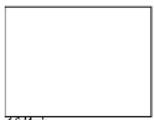
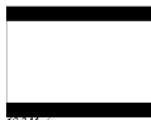
Note: The aspect ratio setting is ignored when Pixel-to-Pixel™ mode is enabled.
■ Scanning Modes
Use this setting to switch between normal and underscan modes:
• In normal scan mode, the active portion of the video signal is displayed on the screen, with 0% overscan.
- In underscan mode, area around the active video area is displayed on the screen, resulting in blanking intervals being shown around the perimeter of the active image. Use this mode to clearly view the edges of the active video area.
■ Delay Modes
Use this setting to enable one of three delay modes (H/V, H, V):
- In H/V delay mode, both horizontal sync and vertical sync are delayed, resulting in both horizontal and vertical blanking periods being shown on the screen.
• In V delay mode, vertical sync is delayed so that the vertical blanking period is displayed on screen.
• In H delay mode, horizontal sync is delayed so that the horizontal blanking period is displayed on the screen.
Note: Delay modes are only available in normal scan mode.
On-Screen Menu (continued)
VIDEO CONFIGURATION SUBMENU (continued)
■ Monochrome Mode
Use this setting to enable monochrome mode. Only the luminance of the image will be displayed as a grayscale picture.
■ Blue-Only Mode
Use this setting to enable Blue-Only mode. This mode displays only the blue color component of the image, switching off the red and green components. Use this mode when calibrating the monitor to SMPTE color bars with the following procedure:
- Allow the monitor to warm up for at least 5-10 minutes.
- Display SMPTE split-field color bars on the monitor using the internal generator or an external source
- Enabie Monochrome mode
- Locate the sluge pattern (super black, black, and gray bars) at the lower-right corner of the screen. Adjust the Brightness knob until there is no visible difference between the super black and black bars, but the gray bar is still visible.
- Adjust the Contrast knob until an even grayscale appears along the top bars.
- Disable Monochrome mode
- Enable Blue-Only mode and adjust the Color knob so that the outermost bars (white and blue) appear to match in brightness.
- Composite'S-Video NTSC only: Adjust the Tint knob until the third bar from the left (cyan) and the third bar from the right (magenta) appear to match in brightness.
- Disable Blue-Only mode
This mode bypasses the monitor's internal scaling function and displays incoming images in their native resolution and aspect ratio, with a one-to-one mapping:
- For incoming formats smaller than the native resolution of the LCD panel (1024 x 768), the image will be displayed in the center of the screen using only the necessary LCD pixels. For example, NTSC or PAL images will occupy exactly 720 x 486 or 720 x 576 pixels respectively. The surrounding pixels will be black.
- For incoming formats exceeding 1024 x 768 pixels, only the center 1024 x 768 of the incoming image will displayed occupying the whole screen, with the remainder of the picture cropped. For example, 1080 and 720 formats will both be cropped to 1024 x 768 and displayed full-screen.
Note: Pixel-to-Pixel™ mode will utilize the entire screen (1024 x 768) regardless of the aspect ratio setting. Pixel-to-Pixel™ mode is not available when using the VGA or DVI inputs.
Front Panel Features
① Power Button
Turn the monitor on by pressing the power button. In the OFF state, the LED will shine brightly. The LED will dim when the monitor is turned on.
② Input Select Buttons
Use the input select buttons to select the input to be displayed:
• Video
• S-Video
• YPbPr (SD:HD)
• VGA
• DVI
Each input automatically detects the applicable formats (See Compatible Input Formats – Page 7).
3 On-Screen Menu Navigation Buttons
Use the Menu, ↑, ., and Select buttons to display and navigate the on-screen menu (See Main Menu and Navigation – Page 8).
4 User-Definable Function Buttons
Two user-definable function buttons can be used for direct access to various settings. Functions are assigned using the on-screen menu (See User-Definable Function Buttons – Page 14).
5 Image Adjustment Knobs
Use the image adjustment knobs to adjust the following settings. Pressing each knob will display the current status of the corresponding control:
Three tally LEDs (green, red, and yellow) are provided as general purpose indicators. Each LED can be individually controlled, providing multiple indications. Tally LEDs are controlled via the HD-15 connector on the rear panel (See Tally Interface – Page 6).

text_image
POWER VIDEO SHIELD VGA VGA DVI SOX 2 3 4 5 RIGHT COLOR TNT COUNTER Right Front Panel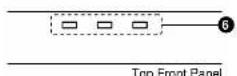
Rear Panel Features
On-Screen Menu (continued)
0000000000000000000000000000000000000000000
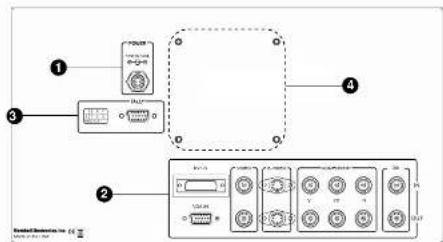
text_image
Diagram of a device layout showing labeled components including power supply, control panel, and display unit with ports and indicators.Rear Panel
① Power Input
Connect the 12VDC input to the Conxall 2-pin twist-lock power input connector. Power can be supplied from the included power supply, or from a variety of DC sources supplying at least 3 Amps at 12 Volts.
IMPORTANT: If using a power source other than the included power supply, be sure that the polarity of the DC input is correct:
Pin 1: +12VDC
Pin 2: GND
② Signal Input/Output
Connections:
• Composite Video Input/Output (BNC)
• S-Video Input/Output (4-Pin Mini-DIN)
- YP 3 P B Input/Output (BNC x 3)
• SDI Input/Output (BNC)
• VGA (HD-15)
• DVI (29-Pin connector, DVI-D signals only)
All outputs are active and require the monitor to be powered.
3 Tally Interface
Each tally light is activated via the HD-15 connector by connecting the corresponding pin to ground. A variety of external devices can be used to perform the contact closure. No additional power should be supplied to the HD-15 port.
Tally Interface: HD-15 Pinout
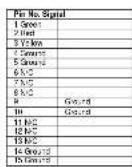
Example: To activate the red tally light, connect pin 2 to pin 4, 5, 14, or 15.
4 Mounting Holes
A VESA-standard 75 mm hole pattern is provided to accommodate a variety of custom mounting options.
Use this setting to choose one of three color temperature presets:
• D55 (5500K)
• D65 (6500K)
• D93 (930K)
• USER (Adjustable Color Bias and Gain)
■ Adjusting Color Bias
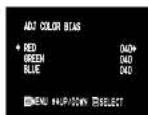
Color Bias Menu
Use this submenu to adjust bias of the color response. Adjust the bias for each color to alter the white balance of the image. The Color Temperature preset will automatically switch to USER when Color Bias settings are adjusted. It is normal for color bias adjustments to be very subtle.
■ Adjusting Color Gain
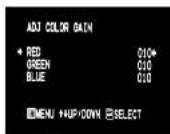
Color Gain Menu
Use this submenu to adjust gain of the color response. The Color Temperature preset will automatically switch to USER when Color Gain settings are adjusted.
On-Screen Menu (continued)
MARKER SETUP SUBMENU (continued)
■ 4:3 Markers
Use this setting to superimpose one of 5 markers on the screen when in 4:3 mode. This setting is disabled when the aspect ratio is set to 16:9, or when Pixel-to-Pixel ^™ . Underscan, or H/V Delay is enabled.
• OFF (No Marker)
- 95% Safe Area
• 93% Safe Area
- 50% Safe Area
- 88% Safe Area
• 80% Safe Area
4:3 Marker Examples:
OFF (No Marker)
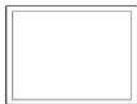
90% Sale Area
Marker Background
Use this setting to choose how selected markers are displayed on the screen:
• OFF The marker is superimposed on the complete image.
- Half-tone Image area beyond the marker is shown at 50% intensity.
- Black Image area beyond the marker is shown at 0% intensity (black).
Example (80% Marker in 4:3 Mode):
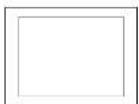
Background OFF
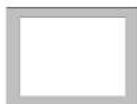
Half-lone Background
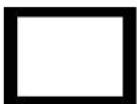
Black Background
■ Center Marker
Use this setting to display a center marker on the screen. This feature is not available when H/V delay is on.
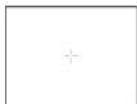
Center Marker
Compatible Input Formats
| Format Composite S-Video YPbPr SDI VGA DVI-D | ||||||
| NTSC | ■ | ● | ||||
| PAL | ● | ● | ||||
| 460 / 59.94 | ● | ● | ||||
| 576 / 50 | ● | ● | ||||
| 485p / 59.94 | ● | ● | ● | |||
| 576p / 50 | ● | ● | ● | ● | ||
| 1035 / 60 | ● | ● | ||||
| 1035 / 59.94 | ● | ● | ||||
| 1080 / 60 | ● | ● | ● | ● | ||
| 1080 / 59.95 | ● | ● | ● | ● | ||
| 1080 / 50 | ● | ● | ● | ● | ||
| 1080μsF / 24 | ● | ● | ● | ● | ||
| 1080μsF / 23.98 | ● | ● | ● | ● | ||
| 1080p / 30 | ● | ● | ||||
| 1080p / 29.97 | ● | ● | ||||
| 1080p / 25 | ● | ● | ||||
| 720p / 60 | ● | ● | ● | ● | ||
| 720p / 59.94 | ● | ● | ● | ● | ||
| 720p / 50 | ● | ● | ● | ● | ||
| 720p / 50 | ● | ● | ||||
| 720p / 29.97 | ● | ● | ||||
| 720p / 25 | ● | ● | ||||
| 540 x 480 @ 60Hz | ● | ● | ||||
| 540 x 480 @ 73Hz | ● | ● | ||||
| 540 x 480 @ 85Hz | ● | ● | ||||
| 800 x 600 @ 60Hz | ● | ● | ||||
| 800 x 600 @ 75Hz | ● | ● | ||||
| 800 x 600 @ 85Hz | ● | ● | ||||
| 1024 x 768 @ 60Hz | ● | ● | ||||
| 1024 x 768 @ 75Hz | ● | ● | ||||
| 1024 x 768 @ 85Hz | ● | ● | ||||
| 1280 x 1024 @ 60Hz | ● | ● | ||||
STRUCTURE OVERVIEW
| MAIN | MARKER SETUP | MARKER 18:9 | OFF, 13:9, 14:9, 43:2, 35:1, 1, 85:1, 95%, 97%, 90%, 88%, 80% |
| MARKER 4:3 | OFF, 95%, 93%, 90%, 88%, 80% | ||
| MARKER BACKGROUND | OFF, HALF, BLACK | ||
| CENTER MARKER | OFF, OW | ||
| VIDEO CONFIG | COLOR TEMP | DSS, DGS, D93, USFR | |
| ADJ COLOR BIAS | RED (0-100) | ||
| GREEN (0-100) | |||
| BLUE (0-100) | |||
| ADJ COLOR GAIN | RED (0-100) | ||
| GREEN (0-100) | |||
| BLUE (0-100) | |||
| MONO | OFF, OW | ||
| BLUE ONLY | OFF, OW | ||
| PIXEL TO PIXEL | OFF, OW | ||
| ASPECT RATIO | 4:2, 18:9 | ||
| SCAN | NORMAL, UNIVER | ||
| DELAY | OFF, HV, V, N | ||
| SYSTEM CONFIG | SMPTE BAR | OFF, OW | |
| FUNCTION 1 | DELAY, RATIO, BACK, CENTER, MARKER, MONO, CTEMP, FTP | ||
| FUNCTION 2 | DELAY, RATIO, BACK, CENTER, MARKER, MONO, CTEMP, FTP | ||
| STATUS DISPLAY | OFF, OW | ||
| LOAD CONFIG | USR1, USR2, USR3, USM, USRS, USMS, MFG | ||
| SAVE CONFIG | USR1, USR2, USR3, USM, USRS, USRS |
MAIN MENU AND NAVIGATION
Access the main menu by pushing and holding the MENU button on the front panel of the monitor until the main menu appears (approximately 1-2 seconds).
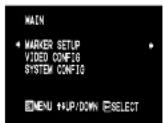
Main Mercy
- Step through menu items using the ↑ and ↓ buttons.
- Choose a menu item by pressing SELECT.
- Rotate through options using the ↑ and ↓ buttons.
- Choose a setting by pressing SELECT.
• Return to the previous menu by pressing MENU - Exit the main menu by pressing MENU. The menu will automatically time out after 5 seconds. After exiting the menu, wait 1-2 seconds before displaying the menu again.
MARKER SETUP SUBMENU
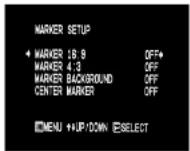
Marker Setup Submenu
■ 16:9 Markers
Use this setting to superimpose one of 10 markers on the screen when in 16:9 mode. This setting is disabled when the aspect ratio is set to 4:3, or when Pixel-to-Pixel™, Underscan, or H/V Delay is enabled.
- OFF (No Marker)
• 13:9 Aspect Ratio
• 14:9 Aspect Ratio
• 4:3 Aspect Ratio
• 2.35:1 Aspect Ratio
• 1.85:1 Aspect Ratio - 95% Safe Area
- 93% Safe Area
- 50% Safe Area
- 50% Safe Area
- 99% Safe Area
- 60% Safe Area
- 90% Safe Area
16:9 Marker Examples:
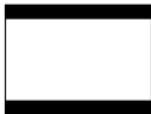
OFF (No Marker)
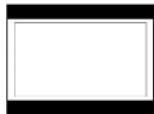
90% Safe Area
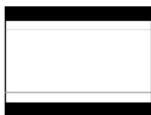
2.35:1 Aspect Ratio
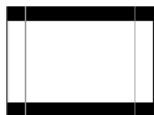
4.3 Aspect Ratio Marker