V-LCD70XHB-HDMIPT - Suivi MARSHALL - Free user manual and instructions
Find the device manual for free V-LCD70XHB-HDMIPT MARSHALL in PDF.


User questions about V-LCD70XHB-HDMIPT MARSHALL
0 question about this device. Answer the ones you know or ask your own.
Ask a new question about this device
Download the instructions for your Suivi in PDF format for free! Find your manual V-LCD70XHB-HDMIPT - MARSHALL and take your electronic device back in hand. On this page are published all the documents necessary for the use of your device. V-LCD70XHB-HDMIPT by MARSHALL.
USER MANUAL V-LCD70XHB-HDMIPT MARSHALL
Marshall Electronics
Model No. V-LCD70XHB-HDA
Model No.V-LCD70XHB-HDMIPT
Model No.V-LCD70XHB-3GSDI
7" Portable Field / Camera-Top Monitor
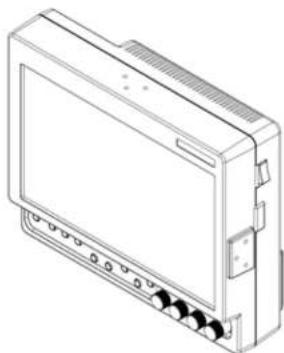
natural_image
Line drawing of a rectangular electronic device with ports and connectors (no text or symbols)Operating Instructions
Marshall Electronics, Inc.
1910 East Maple Ave.
Tel: (801) 900-8608 / (310) 333-8606 • Fax: 310-333-0688
www.LCDRecks.com • sales@lodracks.com
Maintenance
■ Screen Cleaning
Periodically clean the screen surface using ammonia-free cleaning wipes (Marshall Part No. V-HWP-K). A clean microfiber cloth can also be used using only non-abrasive and ammonia-free cleaning agents. Do not use paper towels. Paper towel fibers are coarse and may scratch the surface of the polycarbonate faceplate or leave streaks on the surface. Amistatic and fingerprint resistant cleaning agents are recommended. Do not apply excessive pressure to the screen to avoid damaging the LCD.
■ Faceplate Dusting
Dust the unit with a soft, damp cloth or chamois. Dry or abrasive cloths may cause electrostatic charge on the surface, attracting dust particles. Neutralize static electricity effects by using the recommended cleaning and polishing practice.
Warranty
Marshall Electronics warranties to the first consumer that this V-LCD70XHB series LCD monitor will, under normal use, be free from defects in workmanship and materials, when received in its original container, for a period of one year from the purchase date. This warranty is extended to the first consumer only, and proof of purchase is necessary to honor the warranty. If there is no proof of purchase provided with a warranty claim, Marshall Electronics reserves the right not to honor the warranty set forth above. Therefore, labor and parts may be charged to the consumer. This warranty does not apply to the product exterior or cosmetics. Misuse, abnormal handling, alterations or modifications in design or construction void this warranty. It is considered normal for a minimal amount of pixels, not to exceed three, to fail on the periphery of the display active viewing area. Marshall Electronics reserves the option to refuse service for display pixel failure if deemed unobtrusive to effective use of the monitor by our technicians. No sales personnel of the seller or any other person is authorized to make any warranties other than those described above, or to extend the duration of any warranties on behalf of Marshall Electronics, beyond the time period described above. Due to constant effort to improve products and product features, specifications may change without notice.
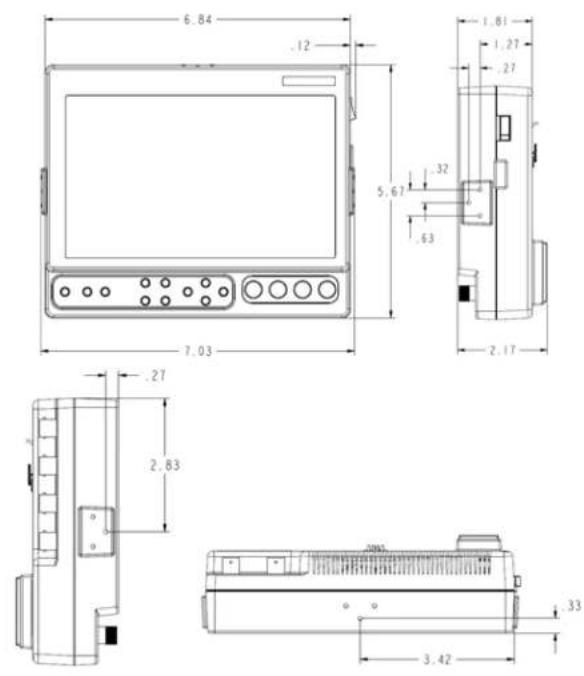
Dimensions
Contents
Installation and Initial Setup 4
Front and Side Monitor Features....6
Rear Monitor Features....7 Compatible Input Format....9
Compatible Input Formats....8 Menu Overview....9
Menu Overview Main Menu and Navigation 11
Video Configuration Submenu 11
Marker Configuration Submenu 16
Filter Configuration Submenu 19
System Configuration Submenu 20
Function Presets Submenu 23
System Information Submenu 24
Specifications 25
Dimensions 26
Maintenance....27
Warranty 27
Installation and Initial Setup
■ Unpacking
Carefully unpack the V-LCD70XHB monitor and verify that the following items are included:
• V-LCD70XHB Monitor
• V-PS12-5V-XLR Power Supply with 4-Pin Female XLR Connector
- Operating Instructions
Inspect the unit for any physical damage that may have occurred during shipping. Should there be any damage, immediately call Marshall Electronics Customer Service at (800) 800-6608. If you are not located within the continental United States, call +1 (310) 333-0506.
Specifications
■ PANEL
Screen Size 7.0" Diagonal
Display Area (h x v) 152.4 x 91.44 mm
Aspect Ratio 15:9 (16:9 / 4:3 Selectable)
Pixels 800 x 480
Color Depth 6-bit (262,114 Colors)
Viewing Angle (h x v) 170° x 170°
Brightness 800 cd/m
Contrast Ratio 600:
0.1905 × 0.1905 mm
■ CONNECTORS
Video Input
Video
YPEP_R
1 x BNC Female (75 0)
3 x BNC Female (75 Ω)
HDMI Input
HDMI
1 x HDMI (Type A) Female
3G-SDI Video Input
1 x BNC Female (75 Ω)
HDMI Output
HDMI
1 x HDMI (Type A) Female
3G-SDI Video Output
1 x BNC Female (75 Ω)
Note: The HDMIPT module will NOT pass through HDCP
protected content.
Also, the HDMIPT module will NOT pass through EDID
Information:
Video Output (Active Loop-Through)
Video
1 x BNC Female (75 Ω)
YPBPB
3 x BNC Female (75 Ω)
3G-SDI
Power Input
4-Pin Male XLR
Pin 1:
Pin 2:
Pin 3:
Pin 4: +12VDC
ELECTRICAL
Power Consumption 1.20 Amp @ 12VDC (14W Max)
Voltage Requirement 12V DC (7.5V DC-18V DC)
V-PS12-5V-XLR Power Supply:
Input 100V-240V, 1.5A, 50-60Hz
Output
BATTERY ADAPTER
Field-Interchangeable Battery Adapter Options
(Sold Separately):
| Marshall Adapter | Battery Type | Battery Voltage | Recommended Battery |
| CM | Canon | 7.4 V | Canon BP-970G |
| PM | Panasonic 7.2 V | Panasonic CGA-DS4 | |
| JM | JVC | 7.2 V | JVC BK-V438U |
| SB | Sony RP | 14.4 V Sony RP-460 | |
| SM | Sony NP-Q 7.2 V | Sony NP-QV91 | |
| SL | Sony NP-F | 7.2 V | Sony NP F970 |
| IDX | V Mount | 14.4 V IDX E75 | |
| AB | Anion Bauer | 14.4 V | Anion Bauer Hytron 5N |
MECHANICAL
Dimensions (w x h x d): 7.03" x 5.67" x 2.17"
Additional Mounting: 1/4"-20 Mounting Bracket
Weight (Monitor Only): 1.60 lbs
Operating Temperature 32^ F to 95^ F ( 0^ C to 35^ C)
Storage Temperature -14°F to 140°F (-10°C to 60°C)
RoHs
Do not dispose. Return to
Manufacturer or Authorized
Recycle Facility
System Information Submenu
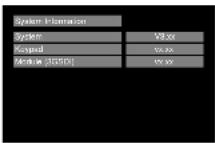
System information Submenu
System
This shows the System firmware version of your monitor.
■ Keypad
This shows the Keypad firmware version of your monitor.
Module
This shows your module version (HDMIPT or 3GSDI) and the firmware version of your module.
Front and Side Monitor Features
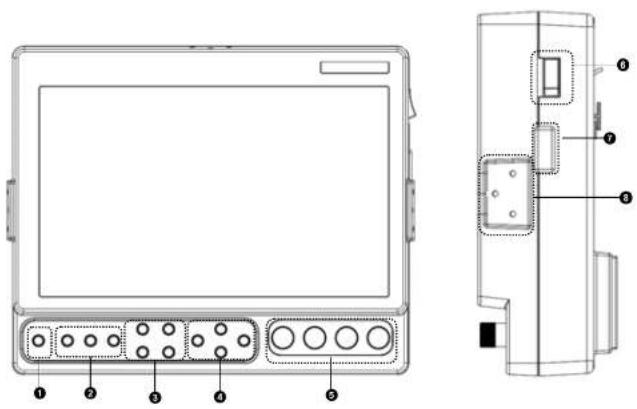
① Power Button
Use the power button to toggle between ON and STANDBY modes. In the STANDBY state, the LED on the button will illuminate bright green. In the ON state, the LED will dimly illuminate green.
② Input Select Buttons
Use the Input select buttons to select VIDEO, YPbPr, and HDMI or 3GSDI inputs. In the case of the V-LCD70XHB-HDA monitor, the third button will not be available. Video standards and formats (NTSC/PAL, etc.) are automatically detected.
③ User-Definable Function Buttons
Four user-definable function buttons can be used for direct access to various settings. Functions are assigned using the on-screen menu.
4 Menu Navigation Buttons
Use the Menu, ▲, ▼, and Select buttons to display and navigate the on-screen menu.
⑤ Image Adjustment Knobs
Use the image adjustment knobs to adjust brightness, color saturation, and contrast of the image. The status of each image adjustment
parameter is shown on the bottom left of the screen, with values ranging from 0 to 100. Default value is 50. Tint will adjust the hue of Composite inputs only.
6 Power Switch
Use the hard power switch to supply power to the monitor, and choose the input from which the monitor draws power. The upper switch position uses the battery adapter, the lower switch position uses the 4-Pin XLR input, and the center position is OFF. Battery life can be preserved by setting this switch to the OFF position when the monitor is not in use.
⑦ Accessory / Service Connector
This connector is for Marshall Electronics' line of V-LCD accessories and for monitor service. Please contact Marshall Electronics for more information.
Mounting Plate Attachment Area
Use the Mounting Plate Attachment area to attach mounting brackets with 1/4-20 mounting holes. This attachment area is available on the top and sides of the monitor as well.
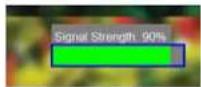
■ SDI Signal Strength (V-LCD70XHB-JGSDI Model Only with 3GSDI-CLI module)
Use this setting to enable an on-screen indicator of your current SDI signal strength. Although this is not meant to be an absolute measurement of your SDI Signal Strength, this feature can be useful in determining the stability of the digital data along your cable run.
Function Presets Submenu
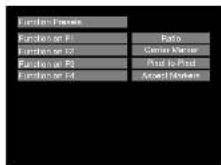
Function Pressers Submenu
■ User-Definable Function Buttons
Use the Function on F1, F2, F3 and F4 menu items to define each function button on the front panel of the monitor. The following options are available for each button:
- Ratio
- Check Field
• HDMI DSL Ratio - Horizon Indicator*
- Image Flip
- Mosquito Filter
- Recking Filter
- Faking Photo
- False Colors
- False Colors
- Freeze Input
- Aspect Markers
- Center Marker
- Marker Enable
- Underscan
• HIV Delay - Pixel-to-Pixel
text_image
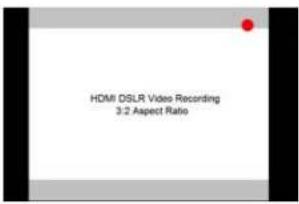
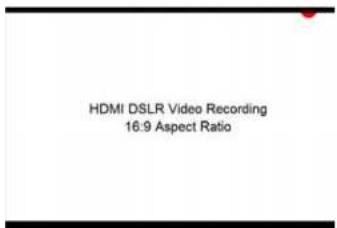
HDMI DSLR Video Recording 3:2 Aspect RatioUse the 16:9 option to scale the HDMI DSLR video output to fit the 16:9 portion of the screen. This will also remove the portion of the on screen video that is NOT recorded by the DSLR camera due to sensor crop.
text_image
HDMI DSLR Video Recording 16:9 Aspect RatioUse the Full Screen to
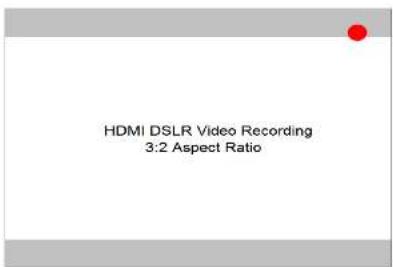
text_image
HDMI DSLR Video Recording 3:2 Aspect RatioRear Monitor Features
text_image
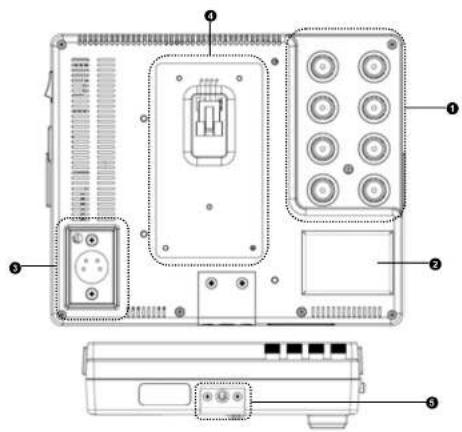
Technical diagram of an electronic device rear panel with labeled components and internal wiring① Component and Composite Input and Output
The V-LCD70XHB has HD component (YPbPr), composite as well as active loop-through outputs for each analog input. See page 8 for supported video formats. The BNC inputs are internally terminated with 75 ohms.
② Module Slot
This area is intended for the Marshall Electronics' V-LCD70XHB modules, which are factory installed.
V-LOD70XHB-HOMIPT
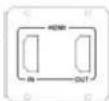
V-LCD70XHB 3GSD
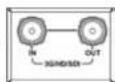
③ Power Input
Connect 12VDC to the 4-Pin XLR power input connector. Power can be supplied from the included power supply, or from a variety of DC sources supplying at least 1 Amp at 12 Volts.
IMPORTANT: If using a power source other than the included power supply, be sure that the polarity of the DC input is correct:
Pin 1: GND
Pin 2: N/C
Pin 3: N/C
Pin 4: +12VDC
④ Battery Adapter
The V-LCD70XHB can be powered from a variety of batteries. Several user-interchangeable battery adapters are available.
6 1/4-20 Mounting Hole
Use the 14-20 mounting hole to attach the monitor to a camera or variety of mounting devices.
Compatible Input Formats
The following standards are supported by the V-LCD70XHB monitors:
Composite (CVBS) NTSG, PAL
Component (YPbPr) 48050, 57650 720p (30, 29.97, 25) 720p (60 / 59.94 / 50) 1080p (30, 29.97, 25, 24, 24 aF, 23.98, 23.98 aF) 1080i (60 / 59.94 / 50)
3GSDI and HDMIPT Inputs
V-LCD70XHB-3GSDI - V-LCD70XHB monitor with Triple-Rate SDI Input / Output
SD-SDI - 480i 59.94, 576i 50
720p (60 / 59.94 / 50 / 30 / 29.97 / 25)
1080i (60 / 59.94 / 50) 1080p (30 / 29.97 / 25 / 24 / 24sF / 23.98 / 23.96sF) 3G-SDI - YCbCr (4:2:2) 10 Bit - Level A and B 1080p (60 / 59.94 / 50)
YCbCr:RGB (4:4:4) 10 Bit - Level A and B 1950/50/50.04/50
1080p (30 / 29.87 / 29.97sF / 25 / 25eF / 24 / 24eF / 23.86 / 23.98sF)
YCbCr+A / RGB+A (4:4:4) 10 Bit
1080p (30 / 29.87 / 29.97eF / 25 / 25eF / 24 / 24eF / 23.86 / 23.98sF)
V-LCD70XHB-HDMIPT - V-LCD70XHB monitor with HDMI Input and Pass Through
HDMI Video-
480p 59.94, 578p 50 770p 160 (50.94 / 57 / 37 / 29.57 / 75)
1080i (60 / 59.94 / 50)
1080p (30 / 29.97 / 25 / 24 / 24eF / 23.98 / 23.98eF)
VESA
640×480 (60 Hz / 72 Hz / 75 Hz)
500×650/56Hz/60Hz/72Hz, 1024×768/60Hz/70Hz/75Hz
1280 x 1024 (60 Hz / 75 Hz)
Note: The HDMIPT module will NOT pass through HDCP protected content.
Also, the HDMIPT module will NOT pass through EDID information.
■ Contrast / Backlight
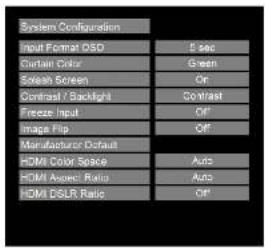
Use this feature to choose between controlling the Contrast of the image or the intensity of the panel's Backlight with the CONTRAST knob on your monitor. Note: While the Contrast control moves up and down at intervals of 1, the Backlight control will move up and down at intervals of 2, from 0-100.
■ Freeze Input
Use the Freeze function to "freeze" the current image on the screen. Select this menu item again (Unfreeze) to return to the real-time video input.
■ Image Flip
Use the Image Flip function to turn the monitor's display 180°. Note: Both the image and all menus and On Screen Display text will be flipped.
■ Manufacturer Default
Select this menu item to reset all adjustments and menu settings to the factory default configuration.
■ HDMI Color Space (HDMIPT Model Only)
Use this setting to automatically detect (Auto) or select the color space (RGB or YCrCb) of incoming HDMI video. This should match the color space of the video output settings on your playback device. Note that this option is disabled when viewing VESA (Computer) formats.
■ HDMI Aspect Ratio (HDMIPT Model Only)
Use this setting to automatically detect (Auto) the proper Aspect Ratio settings of incoming HDMI video. Most HD signals will display in the 16:9 aspect ratio. SD signals (480P/576P) will display in the 4:3 aspect ratio.
■ HDMI DSLR Ratio (HDMIPT Model Only)
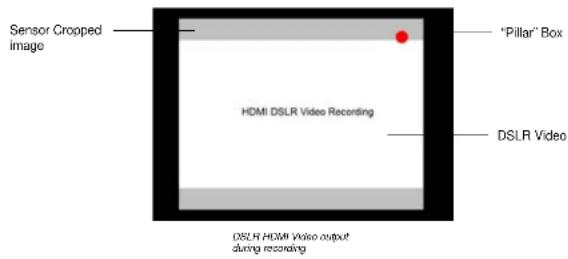
During video recording, the most popular DSLR cameras place "pillar" boxes around the image when outputting to an external HDMI video sink. The HDMI DSLR Ratio option allows you to size the scale of the image so that you can see only video in the appropriate aspect ratio or only video that is being captured by the camera's sensor.
text_image
Sensor Cropped image “Pillar” Box HDMI DSLR Video Recording DSL R Video DSL R HDMI Video output during recordingThe HDMI DSLR Ratio provides you with 3 options: 3:2, 16:9 and Full Screen.
Use the 3:2 option to scale the HDMI DSLR video output to fit the screen vertically.
■ Peaking Filter (Focus assist)
The Peaking Filter is used to aid the camera operator in obtaining the sharpest possible picture. When activated, all color will be removed from the display and a black-and-white image will remain. The internal processor will display RED color on the screen where sharp edges appear. When the camera operator adjusts (racks) the focus control (on the camera lens), different parts of the image will have RED colored edges. This indicates that the portion of the image is sharp - or in focus. Final focus is achieved by racking the camera lens focus control back and forth until the desired portion of the image has RED colored edges. Please note that this feature is most effective when the subject is properly exposed and contains enough contrast to be processed.
■ Mosquito Filter
Use this setting to filter out "Mosquito Noise" – an artifact that appears as specs around edges of objects. This artifact is the result of video that has been compressed at some point. Video sources from DVD Players, PDA's, Digital Cable Boxes, Camcorders, etc. often have this artifact.
System Configuration Submenu
text_image
System Configuration Input Format OSO 5 sec Curtain Color Green Soleach Screen On Contrast / Backlight Contrast Freeze Input Off Image Flip Off Manufacturer Default HDMI Color Space Auto HDMI Audio Ratio Auto HDMI DSLR Ratio OffSystem Configuration Submenu
■ Input Format OSD
Use this option to enable on-screen display of input/format status in the upper-left corner of the screen.
■ Curtain Color
Use this option to change the curtain color on the monitor. This curtain color is what you see when there is no signal input to the monitor.
■ Splash Screen
Use this option to enable or disable the Marshall Electronics Inc. splash screen seen when the monitor is first powered on.
Menu Overview
-1.5
| Video Configuration | Color | User, Linear, D55, D65, D93 |
| Temperature | ||
| Gamma | 1.6, 1.8, 2.0, 2.2, 2.4 | |
| Correction | ||
| RGB Bias and Gain | R,G,B Bias (0-100) / R,G,B Gain (0-100) | |
| Check Field | Off, Mono, Blue, Green, Red | |
| Ratio | Full Screen, 4:3, 16:9 | |
| Pixel to Pixel | Off, Centered, User | |
| H/V Delay | Off, H & V Delay, V Delay, H Delay | |
| Underscan | Off, On | |
| NTSC Black Level ^1 | 0 IRE, 7.5 IRE |
| Marker Configuration | |
| Marker Enable | Off, On |
| Center Marker | Off, On |
| 16: 9 Markers | Off, 4:3, 13:9, 14:9, 1.85:1,2.35:1, 95% Safe, 93% Safe,90% Safe, 88% Safe, 85% Safe,80% Safe, User |
| Full ScreenMarkers | Off, 95% Safe, 93% Safe, 90%Safe, 88% Safe, 85% Safe, 80%Safe, User |
| 4:3 Markers | Off, 95% Safe, 93% Safe, 90%Safe, 88% Safe, 85% Safe, 80%Safe, User |
| Filter Configuration2 | False Colors | Off, On |
| Peaking Filter | Off, On | |
| Mosquito Filter | Off, On |
^1 Feature enabled in Composite NTSC Video only ^2 The Raise Color and Peaking Filter cannot be activated simultaneously
| System Configuration | Input Format OSD | On, Off, 5 sec |
| Curtain Color | Blue, Green, Black | |
| Splash Screen | On, Off | |
| Contrast/Backlight | Contrast, Backlight | |
| Freeze Input | Off, On | |
| Image Flip | Off, On | |
| Manufacturer Default | ||
| HDMI Color Space ^3 | Auto, YCbCr, RGB | |
| HDMI Aspect Ratio ^3 | Auto, Manual | |
| HDMI DSLR Ratio ^3 | Off, 3:2, 16:9, Full Screen | |
| SDI Signal Strength ^4 | Off, 5 sec, On |
| Function Presets5 | ||
| Function on F1 | Ratio, Check Field, HDMI DSLRRatio, Horizon Indicator, ImageFlip, Mosquito Filter, PeakingFilter, False Colors, Freeze Input,Aspect Markers, Center Marker,Marker Enable, Underscan, H/VDelay, Pixel-to-Pixel | |
| Function on F2 | Ratio, Check Field, HDMI DSLRRatio, Horizon Indicator, ImageFlip, Mosquito Filter, PeakingFilter, False Colors, Freeze Input,Aspect Markers, Center Marker,Marker Enable, Underscan, H/VDelay, Pixel-to-Pixel | |
| Function on F3 | Ratio, Check Field, HDMI DSLRRatio, Horizon Indicator, ImageFlip, Mosquito Filter, PeakingFilter, False Colors, Freeze Input,Aspect Markers, Center Marker,Marker Enable, Underscan, H/VDelay, Pixel-to-Pixel | |
| Function on F4 | Ratio, Check Field, HDMI DSLRRatio, Horizon Indicator, ImageFlip, Mosquito Filter, PeakingFilter, False Colors, Freeze Input,Aspect Markers, Center Marker,Marker Enable, Underscan, H/VDelay, Pixel-to-Pixel | |
Filter Configuration Submenu
■ False Colors
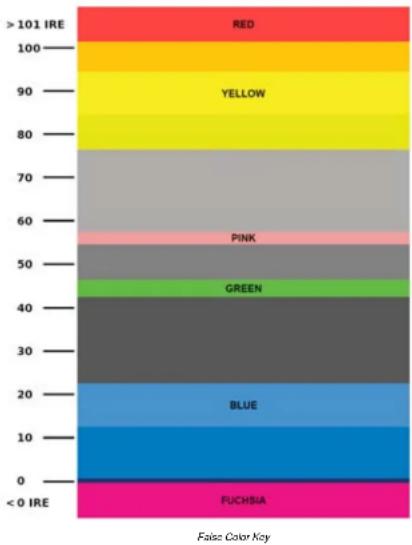
The V-LCD70XHB has a false color filter to aid in the setting of camera exposure. As the camera Iris is adjusted, elements of the image will change color based on the luminance or brightness values. This enables proper exposure to be achieved without the use of costly, complicated external equipment. To best utilize this feature, you must understand the color chart below and have a basic understanding of camera exposure. Normally, when shooting subjects like people, it is common practice to set exposure of faces to the equivalent of approximately 56 IRE. The false color filter will show this area as the color PINK on the monitor. Therefore, as you increase exposure (open the IRIS), your subject will change color as indicated on the chart: PINK, then GREY, then a few shades of YELLOW. Over exposed subjects (above 101 IRE) on the monitor will be shown as RED. In addition, underexposed subjects will show as DEEP-BLUE to DARK-BLUE, with clipped-blacks indicated with a FUCHSIA-like color. Lastly, the color GREEN is used to indicate elements of the image that are approximately 45 IRE. This represents a 'neutral' or 'mid-level' exposure commonly used for objects (not people).
bar_stacked
| Color Key | Value | |---|---| | RED | >101 IRE | | YELLOW | 90 | | PINK | 60 | | GREEN | 50 | | BLUE | 30 | | FUCHSIA | <0 IRE | False Color Key^1 Feature enabled for HDMIPT models only
Feature enabled for 3GSDI model only
^2 Horizon Indicator option is only applicable when you have the V-LCD-HI accessory connected to your monitor
- Use the BRIGHT, COLOR, TINT and CONTRAST knobs to move the LEFT, RIGHT, TOP and BOTTOM borders of the safe area to your desired position. When you have reached the desired location for the borders, press the MENU button. If you began the marker adjustment using one of the predefined safe areas and made an adjustment, the marker selection will automatically convert to the User marker setting.

natural_image
Close-up of a red and purple bird perched on a branch with yellow flowers in the background (no text or symbols visible)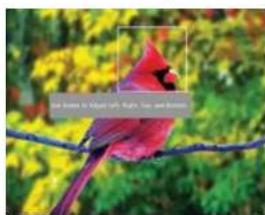
natural_image
Red bird perched on a branch with green foliage background (no visible text or symbols)Marker Background
Use this setting to choose how selected markers are displayed on the screen.
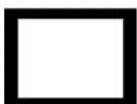
- 0% The marker is superimposed on the complete image.
• 25% Image area beyond the marker is shown at 25% intensity. - 50% Image area beyond the marker is shown at 50% intensity.
- 75% Image area beyond the marker is shown at 75% intensity.
• 100% Image area beyond the marker is shown at 100% intensity (black).
Example (80% Marker in 4:3 Mode):
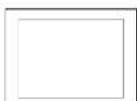
Normal Background Black Background
Main Menu and Navigation
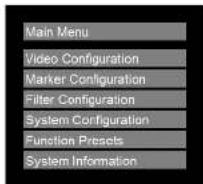
Main Menu
Access the main menu by pushing and holding the MENU button on the front panel of the monitor.
- Step through menu items using the ▲ and ▼ buttons.
- Choose a submenu or select a menu item by pressing SELECT
- Return to the previous menu by pressing MENU.
- Exit the main menu by pressing MENU. The menu will automatically time out after 15 seconds.
Video Configuration Submenu
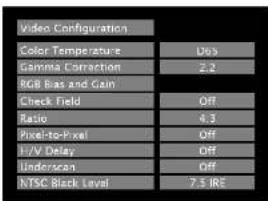
text_image
Video Configuration Color Temperature Dos Gamma Correction 2.2 RGB Bias and Gain Check Field Off Ratio 4.3 Pixel-to-Pixel Off I-V Delay Off Underscan Off NTSC Black Level 7.5 IREVideo Configuration Submenu
■ Color Temperature
Use this setting to choose one of three color temperature presets:
• D65 (5500K)
• D65 (6500K)
• D93 (9300K)
- USER (Adjustable Color Bias and Gain)
• Linear (No processing is applied to the panel)
■ Gamma Correction
Use the Gamma Correction setting to adjust the value of the gamma applied to incoming video signals. The default gamma value is 2.2. Gamma correction represents the relationship between the pixel levels from your incoming video
and the luminance of your monitor. The lowest gamma level available, 1.6, will cause the image to appear brighter. The highest gamma level available, 2.4, will cause the image to appear darker. The chart below shows this on a scale.
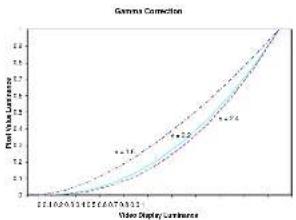
line
| User Display Luminance | Final Data Luminance | | ---------------------- | -------------------- | | 1.5 | 1.4 | | 2.0 | 1.6 | | 2.5 | 1.8 | | 3.0 | 2.0 | | 3.5 | 2.2 | | 4.0 | 2.4 | | 4.5 | 2.6 | | 5.0 | 2.8 |■ RGB Bias and Gain
Select this submenu to fine-tune the monitor's color balance (R, G, B). This should only be done by someone experienced with video engineering, as this will alter the overall color shading of the screen. The purpose is to allow color matching to other types of monitors and/or displays. Note: The Color Temperature preset will automatically switch to USER when Color Bias settings are adjusted. It is normal for color bias adjustments to be very subtle.
When selecting the RGB Bias and Gain submenu, gain adjustment indicators will appear at the top of the screen, and bias adjustment indicators will appear at the bottom of the screen:
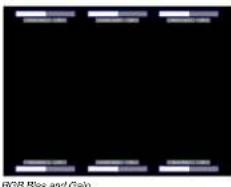
text_image
BOB Blue and GainUse the ▲ and ▼ buttons to select each individual bias or gain control. Press SELECT to begin adjusting the control. Use the ▲ and ▼ buttons to increase or decrease the value.
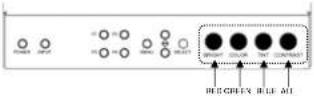
Alternately, the image adjustment knobs (Brightness, Color, Tint, Contrast) can be used to easily adjust the bias and gain settings as shown below. The knobs affect whichever row of controls (gain or bias) is currently selected.
■ Full Screen Markers
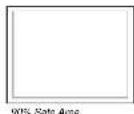
Use this setting to superimpose one of 7 markers on the screen when in Full Screen mode. This setting is disabled when the aspect ratio is set to 16:9 or 4:3, or when Pixel-to-Pixel, Underscan, or H/V Delay is enabled.
• 95% Sale Area
- 93% Safe Area
- 90% Sale Area
• 88% Safe Area
• 85% Sale Area
- 80% Safe Area
- User Sale Area
Full Screen Marker Examples:
■ 4:3 Markers
Use this setting to superimpose one of 7 markers on the screen when in 4:3 mode. As with the other modes, this setting is disabled when the aspect ratio is set to Full Screen or 16:9, or when Pixel-to-Pixel, Underscan, or HIV Delay is enabled..
- 95% Safe Area
- 93% Safe Area
- 90% Safe Area
- 88% Safe Area
• 85% Safe Area - 80% Sale Area
- Upper Sale Area
User Markers
User markers enable the user to create their own safe areas on the screen.
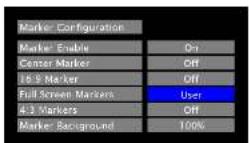
- Choose the User option for your selected aspect ratio (Full Screen, 4:3 or 16:9) in the Marker Configuration submenu and press the SELECT button. You may also begin with an already predefined safe area (95%, 93%, 90%, etc.) and make your adjustments from there by highlighting a particular safe area and pressing the SELECT button.
Marker Configuration Submenu
| Marker Configuration | |
| Marker Enable | On |
| Center Marker | Off |
| 16:9 Marker | Off |
| Full Screen Markers | Off |
| 4.3 Markers | Off |
| Marker Background | 100% |
Marker Configuration Submenu
■ Markers
Use this setting to enable or disable all on-screen markers. This setting affects the center marker, full screen markers, 16:9 markers and 4:3 markers.
■ Center Marker
Use this setting to display a center marker on the screen.
■ 16:9 Markers
Use these settings to superimpose one of 12 markers on the screen when in 16:9 mode. This setting is disabled when the aspect ratio is in Full Screen or 4:3 mode, or Pixel-to-Pixel, Underscan, or HIV Delay is enabled.
· 43
· 13:9
· 14:9
• 1.85:1
• 2.35:1
• 95% Safe
• 93% Safe
• 90%Sale
• 68% Safe
• 85% Safe
- 60% Sale
- User
16:9 Marker Examples:
OFF (No Marker)
2.35:1 Aspect Ratio
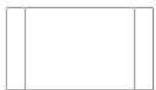
4:3 Aspect Ratio Marker
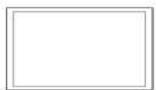
90% Sale Area
■ Check Field
Use the check field modes for monitor calibration or to analyze individual color components of an image. In Monochrome mode, all color is disabled and only a grayscale image is shown. In Blue, Green, and Red check field modes, only the selected color will be shown.
Use the following procedure when calibrating the monitor to SMPTE color bars with the following procedure:
- Allow the monitor to warm up for at least 5-10 minutes.
- Display SMPTE split-field color bars on the monitor using an external source.
- Enable Monochrome mode.
- Locate the pluge pattern (super black, black, and gray bars) at the lower-right corner of the screen. Adjust the Brightness knob until there is no visible difference between the super black and black bars, but the gray bar is still visible.
- Adjust the Contrast knob until an oven grayscale appears along the top bars.
- Disanla Monochrome mode
- Enable Blue Check Field mode and adjust the Color knob so that the outermost bars (white and blue) appear to match in brightness.
- Composite NTSC only: Adjust the Tint knob until the third bar from the left icy end and the third bar from the right imagenta; appear to match in brightness.
- Disable Blue Check Field mode.
■ Ratio
Use to switch between Full Screen, 4:3 and 16:9 aspect ratios.
As the V-LCD70XHB-HDA monitor has a native resolution of 800 x 450 RGB pixels, incoming images are automatically scaled to fit the screen:
- In Full Screen mode, images are scaled to fill the entire screen (800 x 480).
- In 4:3 mode, images are scaled to fill the center 4:3 portion of the screen (640 x 480). With a 16:9 source, images will be centered with a black letter-box added on the left and right sides.
- In 16:9 mode, images are scaled to a 16:9 portion of the screen (800 x 450), with a black letter-box added top and bottom.
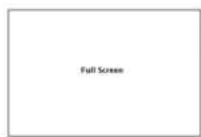
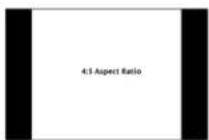
Note: The aspect ratio setting is ignored when Pixel-to-Pixel mode is enabled.
■ Pixel-to-Pixel Mode
Use this setting to enable Pixel-to-Pixel mode. You have the option of viewing the center 800 x 480 (Centered Pixel-to-Pixel mode) or selecting any 800 x 480 area on the screen (User Pixel-to-Pixel mode). The User Pixel-to-Pixel option is not available when the incoming image is 800 x 480 or lower - only the Centered Pixel-to-Pixel mode can be used in this case.
This Pixel-to-Pixel mode bypasses the monitor's internal scaling function and displays incoming images in their native resolution and aspect ratio, with a one-to-one mapping:
- For incoming formats smaller than the native resolution of the LCD panel (800 x 480), the image will be displayed in the center of the screen using only the necessary LCD pixels. For example, NTSC images will occupy exactly 720 x 480 pixels. The surrounding pixels will be black.
- For incoming formats exceeding 800 x 480 pixels, only the center 800 x 480 of the incoming image will displayed occupying the whole screen, with the remainder of the picture cropped. For example, 1080i formats will both be cropped to 800 x 480 and displayed full-screen.
Note: Pixel-to-Pixel mode disables aspect ratio control and HV Delay.
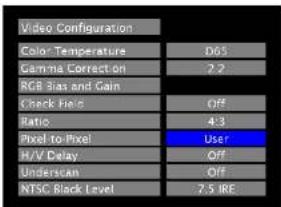
The User Pixel-to-Pixel mode is available with High Definition (720P or greater) formats only, and is enabled in the following way:
text_image
Video Configuration Color Temperature D63 Gamma Correction 2.2 RGB Bias and Gain Check Field Off Ratio 4.3 Pixel to Pixel User H/V Delay Off Underscan Off NTSC Black Level 7.5 IRE- Toggle to the User option in the Pixel-to-Pixel section of the Video Configuration Menu. Press Select.
natural_image
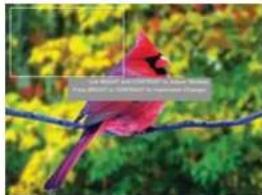
Red bird perched on a branch with green foliage background (no text or symbols visible)- Using the BRIGHT and CONTRAST knobs, select the portion of the image you would like to view with scaling turned off. The BRIGHT knob will move your selected area left and right, and the CONTRAST knob will move your selected area up and down.
- Press the BRIGHT or CONTRAST knob to confirm your selection. The selected portion of the screen will automatically fill the display area.
natural_image
Close-up of blurred yellow flowers with green foliage in the background (no text or symbols visible)■ H/V Delay
Use this setting to enable one of three delay modes (H & V Delay, V Delay, H Delay):
- In H & V Delay mode, both horizontal sync and vertical sync are delayed, resulting in both horizontal and vertical blanking periods being shown on the screen.
- In V Delay mode, vertical sync is delayed so that the vertical blanking period is displayed on screen.
- In H Delay mode, horizontal sync is delayed so that the horizontal blanking period is displayed on the screen.
■ Underscan
Use this setting to enable or disable Underscan mode:
- When Underscan is OFF, the active portion of the video signal is displayed on the screen, with 0% overscan.
- When Underscan is ON, the image size is slightly reduced. This allows the user to clearly view the edges of the active video area.
■ NTSC Black Level
Set the NTSC Black Level according to the type of NTSC composite video input:
- 7.5 IRE: Use this setting for standard NTSC-M signals which use a 7.5 IRE setup (black level).
- 0 IRE: Use this setting for NTSC-J signals which have no setup, or a black level of 0 IRE.
Note: This setting is disabled for PAL composite input and all component/HDMI formats.