FPE709 - Television VOXX - Free user manual and instructions
Find the device manual for free FPE709 VOXX in PDF.


User questions about FPE709 VOXX
0 question about this device. Answer the ones you know or ask your own.
Ask a new question about this device
Download the instructions for your Television in PDF format for free! Find your manual FPE709 - VOXX and take your electronic device back in hand. On this page are published all the documents necessary for the use of your device. FPE709 by VOXX.
USER MANUAL FPE709 VOXX
natural_image
Front view of a rectangular electronic device with two circular buttons and a central knob (no text or symbols)FPE709
7" Portable Handheld TV
Important Safety Instructions
Some of the following information may not apply to your particular product; however, as with any electronic product, precautions should be observed during handling and use.
Read these instructions.
- Keep these instructions.
Heed all warnings.
Follow all instructions.
Do not use this apparatus near water.
Clean only with dry cloth.
Do not block any ventilation openings. Install in accordance with the manufacturer's instructions.
Do not install near any heat sources such as radiators, heat registers, stoves, or other apparatus (including amplifiers) that produce heat.
Do not defeat the safety purpose of the polarized or grounding-type plug. A polarized plug has two blades with one wider than the other. A grounding type plug has two blades and a third grounding prong. The wide blade or the third prong is provided for your safety. If the provided plug does not fit into your outlet, consult an electrician for replacement of the obsolete outlet.
Protect the power cord from being walked on or pinched particularly at plugs, convenience receptacles, and the point where they exit from the apparatus.
Only use attachments/accessories specified by the manufacturer.
- Use only with the cart, stand, tripod,
bracket, or table specified by the manufacturer, or sold with the apparatus.
When a cart is used, use caution when moving the cart/apparatus combination to avoid injury from tip-over.

Unplug this apparatus during lightning storms or when unused for long periods of time.
Refer all servicing to qualified service personnel. Servicing is required when the apparatus has been damaged in any way, such as power-supply cord or plug is damaged, liquid has been spilled or objects have fallen into the apparatus, the apparatus has been exposed to rain or moisture, does not operate normally, or has been dropped.
Additional Safety Information
Apparatus shall not be exposed to dripping or splashing and no objects filled with liquids, such as vases, shall be placed on the apparatus.
Always leave sufficient space around the product for ventilation. Do not place product in or on a bed, rug, in a bookcase or cabinet that may prevent air flow through vent openings.
Do not place lighted candles, cigarettes, cigars, etc. on the product.
Connect power cord only to AC power source as marked on the product.
Care should be taken so that objects do not fall into the product.
Do not attempt to disassemble the cabinet. This product does not contain customer serviceable components.
Do not use the unit immediately after transportation from a cold place to a warm place; condensation problems may result. Wait for about one hour till the moisture evaporates before operating the unit.
When using your TV, do not sit or stand too close to the screen.
To use a headset safely, please keep the following in mind:
- Do not play your headset at a high volume. Hearing experts advise against continuous extended play.
- If you experience ringing in your ears, turn down the volume or stop using the headset.
- Do not use a headset while driving a motorized vehicle or riding a bike. It may cause a traffic hazard and is illegal in many areas.
- Even if your headset is an open-air type designed to let you hear outside sounds, don't turn up the volume so high that can't hear sounds around you.
CAUTION! Danger of explosion if battery is incorrectly replaced. Replace only with the same or equivalent type.
Warning: Your TV contains a battery and charging system which is designed to work in temperatures that do not exceed 50°C (122°F). Leaving this product in a closed automobile or in the trunk of an automobile where temperature may exceed 50°C may result in permanent battery damage, fire, or explosion. Please remove your product from the automobile when you exit, do not place your product in the trunk of your automobile, and do not leave your product in any location where temperature may exceed 50°C.
|  THE LIGHTNING FLASH AND ARROWHEAD WITHIN THE TRIANGLE IS A WARNING SIGN ALERTING YOU OF "DANGEROUS VOLTAGE" INSIDE THE PRODUCT. | CAUTION: TO REDUCE THE RISK OF ELECTRIC SHOCK, DO NOT REMOVE COVER (OR BACK). NO USER- SERVICEABLE PARTS INSIDE REFER SERVICING TO QUALIFIED SERVICE PERSONNEL. | ! THE EXCLAMATION POINT WITHIN THE TRIANGLE IS A WARNING SIGN ALERTING YOU OF IMPORTANT INSTRUCTIONS ACCOMPANYING THE PRODUCT. |
| SEE MARKING ON BOTTOM/BACK OF PRODUCT | ||
WARNING: TO PREVENT FIREOR ELECTRICAL SHOCK HAZARD, DO NOT EXPOSE THIS PRODUCT TO RAIN OR MOISTURE.
FCC Information
This device complies with part 15 of the FCC rules. Operation is subject to the following two conditions: (1) This device may not cause harmful interference, and (2) This device must accept any interference received, including interference which may cause undesired operation.
This equipment has been tested and found to comply with the limits for a Class B digital device, pursuant to Part 15 of the FCC Rules. These limits are designed to provide reasonable protection against harmful interference in a residential installation. This equipment generates, uses and can radiate radio frequency energy and, if not installed and used in accordance with the instructions, may cause harmful interference to radio communications. However, there is no guarantee that interference will not occur in a particular installation.
If this equipment does cause harmful interference to radio or television reception, which can be determined by turning the equipment off and on, the user is encouraged to try to correct the interference by one or more of the following measures:
- Reorient or relocate the receiving antenna.
-
Increase the separation between the equipment and receiver.
-
Connect the equipment into an outlet on a circuit different from that to which the receiver is connected.
- Consult the dealer or an experienced radio / TV technician for help.
In accordance with FCC requirements, changes or modifications not expressly approved by manufacturer could void the user's authority to operate this product.
Service Information
This product should be serviced only by those specially trained in appropriate servicing techniques. For instructions on how to obtain service, refer to the warranty included in this user manual.
For Your Records
Keep your sales receipt for proof of purchase to obtain warranty parts and service.
In the event that service should be required, you may need both the model number and the serial number. In the space below, record the date and place of purchase, and the serial number:
Model No.
Date of Purchase
Place of Purchase
Serial No.
Content
Introduction....7
Contents....7
Powering and Installation 8
Controls, Indicators, and Connectors.... 9
Settings Menu 11
Connecting a TV Antenna/ Cable to Receive Channels.....12
Selecting Digital Channels.... 13
Using External Antenna 14
Using Your TV as a Monitor 14
Using Headphone (not supplied) 15
Specifications 15
Troubleshooting 16
Introduction
Thank you for choosing the FPE709 Portable Handheld TV. Please read the entire instruction manual supplied with this product prior to using. The documentation will assist you in using the system properly to obtain the best equipment performance. Please save this manual for later use.
Contents
- 1 x 7" Portable Handheld TV
- 1 x Remote Control with Battery (CR2025)
- 1 x Audio/Video Cable
- 1 x AC to DC Adapter
- 1 x Automotive Power Adapter
- 1 x Instruction Manual
- 1 x Product Registration Card
- 1 x eMusic Card
- 1 x External Magnetic Mount Antenna
Powering and Installation
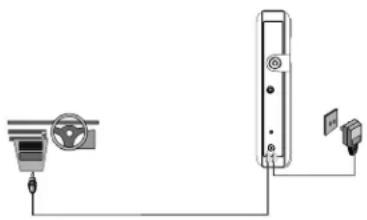
1. Powering the System Indoors (Refer to Figure 1)
Plug one end of the AC to DC adapter into the DC input jack on the right side of the main unit, then plug the other end into the 100\~240V AC power receptacle.
2. Powering the System in a Car
Plug one end of the Automotive Power adapter into the DC input jack on the unit, then plug the other end into the vehicle power outlet.
natural_image
Pure electrical circuit lines without any symbolsFigure 1
3. To Charge the Built-in Battery
Plug one end of the AC to DC adapter into the DC jack on the side of the TV, then plug the other end into the 100\~240V AC power outlet, or plug one end of the automotive power adapter on the side of the TV, then plug the other end into the vehicle power outlet, as shown in Figure 1. Make sure that the TV is turned off, and the red charge light turns on. Once fully charged, the LED indicator turns off, then remove the AC to DC adapter wall plug or the automotive power adapter.
NOTE: Your new battery must be charged a minimum of 8 hours before the first usage. Each full recharge takes approximate five hours and one full charge can provide power to the player for approximate 2.5 hours.
Controls, Indicators, and Connectors
1. Unit View (Refer to Figure 2)
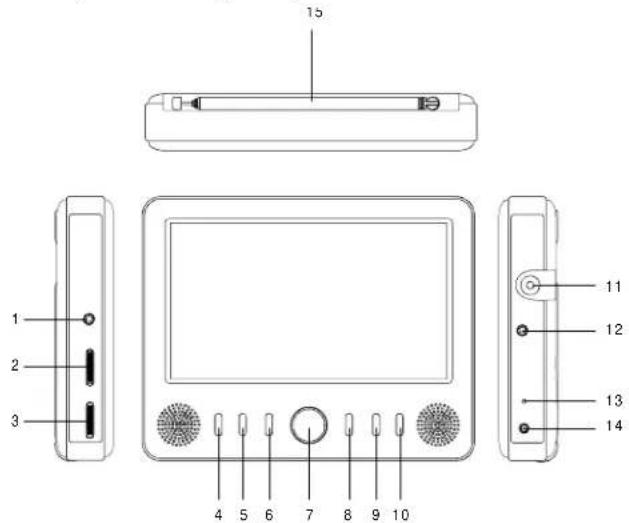
Figure 2
1) Headphone Jack: Insert earphone for private listening. the speaker mute.
2) Volume Up/Down Control: Adjust the volume.
3) Brightness Up/Down Control: Adjust the brightness.
4) IR Sensor: Infrared sensor receives information from remote.
5) POWER Button: Turn the TV on or off.
6) MENU Button: Open or close TV menu.
7) Up/Down/Left/Right Buttons: Navigate on-screen menus. CH+/-: Select the previous or next channel.
8) ENTER Button: Execute item or confirm setting.
9) SOURCE Button: Switch between TV and AV IN.
10) WIDE Button: Switch the screen between 16:9 and 4:3.
11) RF IN: Connect to the internal or external antenna.
12) AV IN: Connect to a Audio Video device like a DVD Player or VCR using the supplied audio video cable.
13) Power/Charge Indicator LED: Lights green when the TV on and lights red when the battery is charging.
14) DC Jack: Connect to the power adapter.
15) Antenna Rod: Extend and adjust for better reception.
2. Remote Control (Refer to Figure 3)
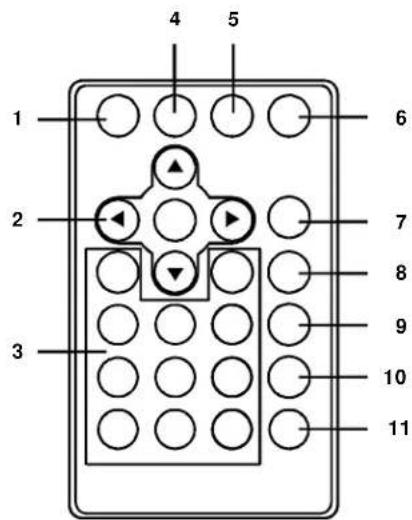
Figure 3
1) MENU button: Open or close TV menu.
2) Navigation buttons: Navigate on-screen menus.
ENTER button: Execute item or confirm setting.
3) Number keys: Use to select channels.
- button: Always use it with number keys to input a channel number, such as "7-1".
4) AUTO button: Search for channels automatically.
5) DISPLAY button: Press to display information.
6) GUIDE button: Display the list of available channels and the corresponding channel information.
7) SOURCE button: Switch between TV and AV IN.
8) MUTE button: Press to shut off the volume.
9) AUDIO button: Select one of the audio soundtracks.
10) CH+ button: Selects next channel.
11) CH- button: Selects previous channel.
Settings Menu
Press MENU button to enter the Main menu, use the navigation buttons to select and set the items and press ENTER to select.
1. Clock
OSD Duration: Select the duration of the on-screen display.
Sleep Timer: The TV turns off if inactive for amount of time (5,10,15,30,45,60,90,120,180, 240 Min or Off).
Time Zone: Select your time zone.
Daylight Saving Time: Turn Daylight Saving On/Off.
2. Setup
Language: Select different languages.
Transparency: Make the menu transparent.
Closed Caption: You can choose a kind of closed caption you desire and set it on or off.
TV Display Modes: Switch among Auto, Wide, Zoom, Cinema.
Restore Default: Reset settings to factory default.
3. Channel Setup(only on TV)
Antenna: Switch between air and CATV.
Auto Scan: Scans for channels to save to memory. Erases previously saved channel information.
Auto Scan Add CH: Scans for channels to save to memory, but does not erase previously saved channel information.
Channel Skip: Set the TV to skip specific channels.
Channel NO: Switch the channel, but remains in Menu mode.
Channel Label: Lets you edit the program label that appears when a channel is selected.
NOTE: Press MENU button to exit.
Connecting a TV Antenna/ Cable to Receive Channels
To view television channels correctly, a signal must be received from one of the following sources:
- An indoor or outdoor antenna
- A cable system, note that after your subscription is active, unplug the Antenna from the TV as shown below. Then plug in the cable from the cable company to the RF IN on your TV.
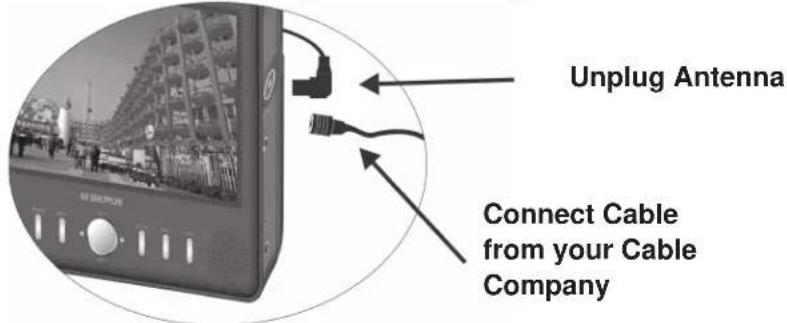
Using antenna/cable to receive programs
a. For the first time you turn on the TV, there is not any channel stored, a pop-up screen appears: "Do you want to proceed with auto scan?" The selection of YES enables you to perform a auto scan without navigating to the channel setup menu first.
b. After finishing auto scan, a channel list will be save in the TV. You can also follow below steps to re-scan the available channels for your TV.
-
Press the SOURCE button to make sure your TV is in the TV mode.
-
Press the MENU button to enter the main menu.
-
Press the RIGHT button twice to highlight the "Antenna icon".
-
Press the DOWN ARROW (CH-) to highlight the Antenna selection.
-
Press the LEFT or RIGHT button to select CATV/Air selection for the antenna selection.
- If you are using the indoor or outdoor antenna, select Air here. Press the DOWN button and select "Auto Scan".
- If you are using the cable system, select CATV. Press the DOWN button to select "Auto Scan". Use LEFT or RIGHT button to set the Cable System you desire, Auto should be the correct setting for most cable systems. If you choose Air for the antenna selection, the Cable System selection is unavailable. Then press the DOWN button and select "Start to Scan".
- The TV will start scanning the channels and store the channels found in TV's channel memory.
- When the scan is complete, the number of channels will be shown on the screen and the TV will tune to the first channel found.
- Use the same way to select "Auto Scan Add CH" to add more channels to those scanned.
NOTE: Press MENU button to interrupt the channel scanning. If the TV didn't find any channel, the Channel up and Down buttons do not function.
Selecting Digital Channels
You can select specific digital TV stations using your remote control. To select a digital station, enter the channel number followed by "-1". For example, enter "11-1" for the digital channel 11. If available, the digital channel appears.
Some digital stations provide multiple broadcasts on a single channel. To access these directly, enter higher numbers after the channel number. For example, "11-2" "11-3" etc. for digital broadcasts of channel 11. If available, these digital channels appear.
Using External Antenna
If the picture is not clear with the built-in rod antenna, try placing your TV near a window or connecting an external antenna to the TV to improve reception. If you are in an area with weak TV signals or inside a concrete building, you might need an external antenna to improve reception. The supplied external antenna provides convenience and flexibility for receiving digital signals. A outdoor antenna could also be used to pickup weak signals. Rather than using a “screw-on F connector” to connect to your outdoor antenna Audiovox recommends using Quick Slip-on “F” connectors (not included).
Using Your TV as a Monitor
- First, press SOURCE button to choose AV IN mode.
- Connect the AV Cable plugs to the AV out jack of AV Device as below:
Yellow plug: Connect to the VIDEO OUT jack on the AV Device. Red plug: Connect to the AUDIO IN R jack on the AV Device. White plug: Connect to the AUDIO IN L jack on the AV Device. - Finally, Connect the AV cable's 1/8-inch plug to the AV IN jack on the TV unit.
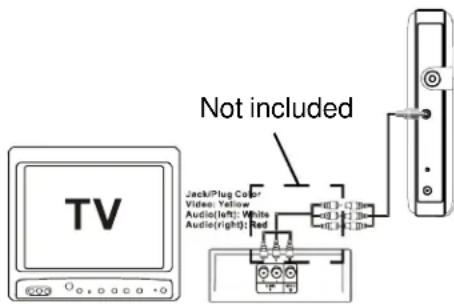
Using Headphone (not included)
For private listening, you can connect an optional headphone with a 1/8-inch plug to the Headphone jack on the left side of the TV. This automatically mutes the built-in speakers.
NOTE:
The TV will not work when it is moving.
The TV will shut off automatically if there is no signal for 15 minutes.
Specifications
Signal system: ATSC
Panel size: 7 inch
Panel resolution: 480 x 234
Power source: DC 9-12V, 1.5A
Operating temperature: 5\~35°C
Weight: 0.575 kg
Dimensions (W x D x H): 185 x 148 x 34 mm
Built-in battery: Lithium polymer type, 7.4V, 2100mAh
Troubleshooting
| PROBLEM | SOLUTION |
| The TV won't turn on | - Charge the battery.- Check that the AC power cord is connected.- Test the outlet by plugging in another appliance.- Connect to another power outlet. |
| Poor picture | - Adjust the antenna.- Move to a window (if inside a structure).- Use an external antenna.- Move your portable TV away from other appliances that cause interference.- Make sure the TV and connected antenna are in a fixed position and not used within a moving vehicle.- To choose the best antenna for your location visit the web site: www.antennaweb.org, click on “choose an antenna”, then enter in your information and click “Submit”. This site will show you what stations are available in your area, how far away they are, and recommend type of antenna that is necessary to pick up the stations in your area. You may also click on “View Street Level Map”. A map will then be displayed showing the directions the various channels are located. You can then use this information to select the correct antenna for your area and also will know which way to point your external outside antenna (not the supplied magnetic mount antenna) to pick up the channel(s). The further away from the station that you are, the weaker the signal will be, so a stronger antenna will be necessary to pick to the station. |
Troubleshooting (Cont)
| PROBLEM | SOLUTION |
| Digital TV Signal Information | - The picture freezing, pixilation, dropouts and no signal are all signs that the TV signal may be weak. Many factors affect how strong the signal will be when it reaches your antenna. These factor include how close you are to the TV transmitter, how high your antenna is, weather conditions, and obstructions such as trees or buildings. Knowing where and how far away your favorite TV station's transmitting tower is, can help you solve signal problems.- Digital TV signals received with an antenna keep their quality for longer distances than traditional TV, but at the edge of their range, they dissolve abruptly. This is called the “cliff effect,” where the signal just “falls off of the cliff”. This is one reason why you might be able to receive a clear picture at one time and a no signal the next. You may be right on the edge of the cliff. Often High buildings or trees can also obstruct the signal. Moving the TV’s antenna to the left or right so the tall building does not block the signal can often help. Also raising the antenna higher can also help. Example: If you are in the kitchen with the TV connected to the external magnetic mounted antenna which is located on kitchen counter and are having trouble with the picture freezing occasionally, try moving the antenna up higher by placing it on top of the refrigerator or relocating it to a window facing the direction of the TV station. |
English
Troubleshooting (Cont)
| PROBLEM | SOLUTION |
| No sound | - Check the speaker settings. Turn up the volume.- Press MUTE on the remote control to turn off mute.- Unplug the headphones. |
| Remote control doesn’t work | - Remove any obstacles between the remote and the TV.- Use the remote control near the portable TV.- Point the remote at the IR sensor on the TV.- Replace the battery in the remote control. |
| The on screen menu disappears before I have time to select an item. | The OSD Duration may be set to low. Press the MENU button to access the Menu, Press the DOWN button to highlight “OSD Duration” and press ENTER to select this menu item. Press the RIGHT arrow key to increase the OSD Duration. Possible values are: 5, 10, and 30 seconds. |
| After performing a Autoscan, the TV did not find any TV channels so the Channel up and Down buttons do not function. | Check and make sure the Antenna setting is set correctly in the channel setup menu. When an antenna is being used, the antenna setting should be set to Air. When a cable input is being used, the antenna setting should be set to CATV. |
The descriptions and characteristics in this owner's manual are for the purpose of general reference only and not as a guarantee. In order to provide you with the highest quality product, we may make changes or modifications without prior notice. The English version serves as the final reference on all product and operation details should any discrepancies arise in other languages.
AUDIOVOX
ELECTRONICS CORP.
90 DAY LIMITED WARRANTY
Applies to Audiovox Video Products
AUDIOVOX ELECTRONICS CORP. (the Company) warrants to the original retail purchaser of this product that should this product or any part thereof, under normal use and conditions, be proven defective in material or workmanship within ninety (90) days from the date of original purchase, such defect(s) will be repaired or replaced with reconditioned product (at the Company's option) without charge for parts and repair labor. A game controller, if supplied, is similarly warranted for ninety (90) days.
To obtain repair or replacement within the terms of this Warranty, the product is to be delivered with proof of warranty coverage (e.g. dated bill of sale), specification of defect(s), transportation prepaid, to the Company at the address shown below.
This Warranty does not extend to the elimination of externally generated static or noise, to correction of antenna problems, to costs incurred for installation, removal or reinstallation of the product, or to damage to digital memory/media devices, gaming devices, discs, speakers, accessories, or electrical systems.
This Warranty does not apply to any product or part thereof which, in the opinion of the Company, has suffered or been damaged through alteration, improper installation, mishandling, misuse, neglect, accident, or by removal or defacement of the factory serial number/bar code label(s). THE EXTENT OF THE COMPANY'S LIABILITY UNDER THIS WARRANTY IS LIMITED TO THE REPAIR OR REPLACEMENT PROVIDED ABOVE AND, IN NO EVENT, SHALL THE COMPANY'S LIABILITY EXCEED THE PURCHASE PRICE PAID BY PURCHASER FOR THE PRODUCT.
This Warranty is in lieu of all other express warranties or liabilities. ANY IMPLIED WARRANTIES, INCLUDING ANY IMPLIED WARRANTY OF MERCHANTABILITY, SHALL BE LIMITED TO THE DURATION OF THIS WRITTEN WARRANTY. ANY ACTION FOR BREACH OF ANY WARRANTY HEREUNDER INCLUDING ANY IMPLIED WARRANTY OF MERCHANTABILITY MUST BE BROUGHT WITHIN A PERIOD OF 12 MONTHS FROM DATE OF ORIGINAL PURCHASE. IN NO CASE SHALL THE COMPANY BE LIABLE FOR ANY CONSEQUENTIAL OR INCIDENTAL DAMAGES FOR BREACH OF THIS OR ANY OTHER WARRANTY. No person or representative is authorized to assume for the Company any liability other than expressed herein in connection with the sale of this product.
Some states do not allow limitations on how long an implied warranty lasts or the exclusion or limitation of incidental or consequential damage so the above limitations or exclusions may not apply to you. This Warranty gives you specific legal rights and you may also have other rights which vary from state to state.
Audiovox Electronics Corporation, 150 Marcus Blvd., Hauppauge, New York 11788• 1-800-645-4994
128-5556G
natural_image
Simple line drawing of a rectangular device with a vertical line and internal components (no text or symbols)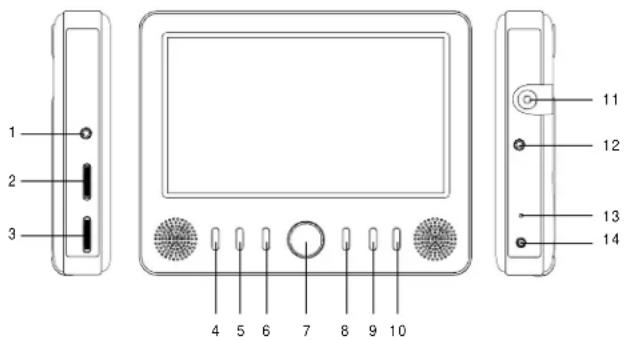
Español
Figura 2
natural_image
Close-up of a black electronic device with a circular display showing urban background and cable connectors (no readable text or symbols)desconectar la antena
Audiovox Electronics Corporation
150 Marcus Boulevard
Hauppauge, NY 11788
www.audiovox.com
© 2009 Audiovox Electronics Corporation
128-8656 (V 2.0)
Printed in China