FPE4207HR - Television VOXX - Free user manual and instructions
Find the device manual for free FPE4207HR VOXX in PDF.


User questions about FPE4207HR VOXX
0 question about this device. Answer the ones you know or ask your own.
Ask a new question about this device
Download the instructions for your Television in PDF format for free! Find your manual FPE4207HR - VOXX and take your electronic device back in hand. On this page are published all the documents necessary for the use of your device. FPE4207HR by VOXX.
USER MANUAL FPE4207HR VOXX
natural_image
Line drawing of a flat-screen computer monitor with blank screen (no text or symbols)Before connecting, operating or adjusting this product, please read the manual completely. Please keep this manual for future reference.
FOR ASSISTANCE CALL 1-800-619-3848 OR VISIT US AT WWW AUDIOVOX.COM.
Table of Contents
Important Information ....1
Important Safety Precautions....2
Setup....5
Identification of Controls....8
Connections....12
Basic Operations....18
Memorizing the Channels....20
Channel Selection....22
Setting Picture 23
Setting Picture/Adjusting Image 24
Setting Sound 25
System Setup....27
Clock and Timer Setup....28
Viewing Closed Captions 29
Setting Parental Control 30....
PIP/PBP/POP Operations....34
Electronic Program Guide 36
Image Adjust for PC/Component Mode ....37
Image Adjust for HDMI Mode ....38
Troubleshooting 39
Care and Maintenance....40
Specifications....41
Assemble the Speaker....42
Programming the Universal Remote Control ....43
WARNING: TO REDUCE THE RISK OF FIRE OR ELECTRIC SHOCK, DO NOT EXPOSE THIS APPARATUS TO RAIN OR MOISTURE.

CAUTION
RISK OF ELECTRIC SHOCK DO NOT OPEN

CAUTION-To reduce the risk of electric shock, do not perform any servicing other than that contained in the operating instructions unless you are qualified to do so.
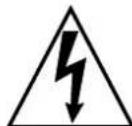
The lightning flash with arrowhead symbol, within an equilateral triangle is intended to alert the user to the presence of uninsulated dangerous voltage within the product's enclosure that may be of sufficient magnitude to constitute a risk of electric shock to persons.

The exclamation point within an equilateral triangle is intended to alert the user to the presence of important operating and maintenance (servicing) instructions in the literature accompanying the appliance.
This product utilizes tin-lead solder, and fluorescent lamp containing a small amount of mercury. Disposal of these materials may be regulated due to environmental considerations. For disposal or recycling information, please contact your local authorities or the Electronic Industries Alliance: www.eia.org
FCC STATEMENT
FCC Notice
LCD TV: A CLASS B digital device
This equipment has been tested and found to comply with the limits for a Class B digital device, pursuant to part 15 of the FCC Rules. These limits are designed to provide reasonable protection against harmful interference when the equipment is operated in a commercial environment.
This equipment generates, uses, and can radiate radio frequency energy and, if not installed and used in accordance with the instruction manual, may cause harmful interference to radio communications. Operation of this equipment in a residential area is likely to cause harmful interference in which case the user will be required to correct the interference at his own expense.
FCC CAUTION:
Pursuant to 47CFR, Part 15.21 of the FCC rules, any changes or modifications to this monitor not expressly approved by the manufacturer could cause harmful interference and would void the user's authority to operate this device.
WARNING: This is a CLASS B product. In a domestic environment this product may cause radio interference in which case the user may be required to take adequate measures to counter interference.
Electrical energy can perform many useful functions, but it can also cause personal injuries and property damage if improperly handled. This product has been engineered and manufactured with the highest priority on safety. But IMPROPER USE CAN RESULT IN POTENTIAL ELECTRICAL SHOCK OR FIRE HAZARD. In order to prevent potential danger, please observe the following instructions when installing, operating and cleaning the product. To ensure your safety and prolong the service life of your LCD TV product, please read the following precautions carefully before using the product.
- Read these instructions---All operating instructions must be read and understood before the product is operated.
- Keep these instructions---These safety and operating instructions must be kept in a safe place for future reference.
-
Heed all warnings---All warnings on the product and in the instructions must be observed closely.
-
Follow all instructions---All operating instructions must be followed.
-
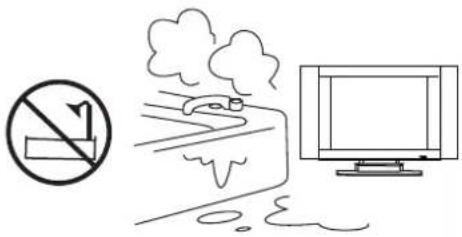
Do not use this apparatus near water---for example, near a bathtub, washbowl, kitchen sink, or laundry tub, in a wet basement, or near a swimming pool, and the like. Do not use immediately after moving from a low temperature to high temperature environment, as this causes condensation, which may result in fire, electric shock, or other hazards.
Apparatus shall not be exposed to dripping or splashing and no objects filled with liquids, such as vases, shall be placed on the apparatus.
-
Clean only with dry cloth---Unplug this product from the wall outlet before cleaning. Do not use liquid cleaners or aerosol cleaners. Use a damp cloth for cleaning.
-
Ventilation---Do not block any ventilation openings. Install in accordance with the manufacturer instructions. The vents and other openings in the cabinet are designed for ventilation. Do not cover or block these vents and openings since insufficient ventilation can cause overheating and/or shorten the life of the product. Do not place the product on a bed, sofa, rug or other similar surface, since they can block ventilation openings. This product is not designed for built-in installation; do not place the product in an enclosed place such as a bookcase or rack, unless proper ventilation is provided or the manufacturer's instructions are followed.
-
Heat sources---Do not install near any heat sources such as radiators, heat registers, stoves, or other apparatus (including amplifiers) that produce heat.
natural_image
Simple line drawing showing a no-smoking sign, a road with smoke, and a computer monitor (no text or symbols)
natural_image
Illustration of a medical worker cleaning a patient's abdomen with a monitor and cable (no text or symbols)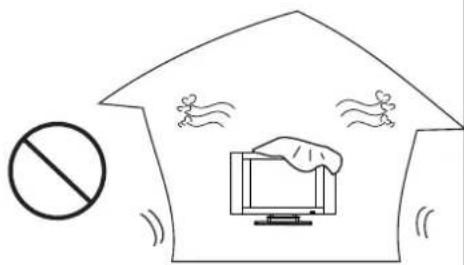
text_image
Diagram showing a shield with a 'no' symbol and a computer monitor, indicating no protection or absence of protection.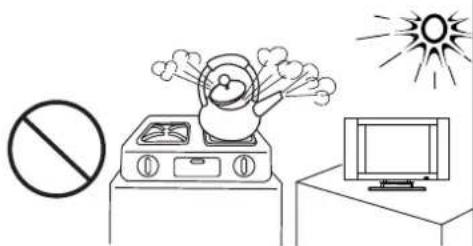
text_image
Safety warning illustration showing a pictogram of a person on a stove with a 'No' symbol, next to a TV and a sun.-
Grounding or Polarization---Do not defeat the safety purpose of the polarized or grounding-type plug. A polarized plug has two blades with one wider than the other. A grounding type plug has two blades and a third grounding prong. The wide blade or the third prong are provided for your safety. If the provided plug does not fit into your outlet, consult an electrician for replacement of the obsolete outlet.
-
Power cord protection---Protect the power cord from being walked on or pinched particularly at plugs, convenience receptacles, and the point where they exit from the apparatus. Note: where the mains plug or an appliance coupler is used as the disconnect device, the disconnect device shall remain readily operable.
-
Attachments---Only use attachments/accessories specified by the manufacturer. Do not use attachments not recommended by the manufacturer. Use of improper attachments can result in accidents.
-
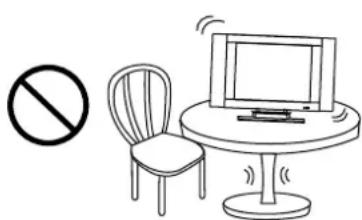
Stand---Use only with the cart, stand, tripod, bracket, or table specified by the manufacturer, or sold with the apparatus. Do not place the product on an unstable trolley, stand, tripod or table. Placing the product on an unstable base can cause the product to fall, resulting inserious personal injuries as well as damage to the product. When mounting the product on a wall, be sure to follow the manufacturer's instructions. Use only the mounting hardware recommended by the manufacturer.
natural_image
Simple line drawing of a chair, monitor, and prohibition symbol (no text or labels)- Move Carefully---When a cart is used, use caution when moving the cart/apparatus combination to avoid injury from tip-over. Sudden stops, excessive force and uneven floor surfaces can cause the product to fall from the trolley. Never attempt to move the TV unless the power cord has been disconnected.

natural_image
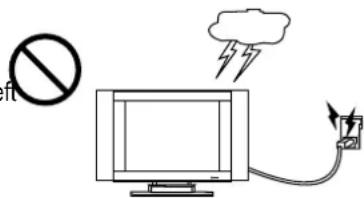
Silhouette of a person holding a large diagonal line next to a small screen, with no text or symbols present.- Lightning---Unplug this apparatus during lightning storms or when unused for long periods of time. For added protection for this television equipment during a lightning storm, or when it is unattended and unused for long periods of time, unplug it from the wall outlet and disconnect the antenna. This will prevent damage to the equipment due to lightning and power-line surges.
text_image
ft cloud-
Servicing---Refer all servicing to qualified service personnel. Servicing is required when the apparatus has been damaged in any way, such as power-supply cord or plug is damaged, liquid has been spilled or objects have fallen into the apparatus, the apparatus has been exposed to rain or moisture, does not operate normally, or has been dropped.
-
Replacement parts---In case the product needs replacement parts, make sure that the service person replacement parts specified by the manufacturer, or those with the same characteristics and performance as the original parts. Use of unauthorized parts can result in fire, electric shock and/or other danger.
-
Overloading---Do not overload wall outlets, extension cords, or convenience receptacles on other equipment as this can result in a risk of fire or electric shock.
-
Entering of objects and liquids---Never insert an object into the product through vents or openings. High voltage flows in the product, and inserting an object can cause electric shock and/or short internal parts. For the same reason, do not spill water or liquid on the product.
-
Damage requiring service---If any of the following conditions occurs, unplug the power cord from the AC outlet, and request a qualified service person to perform repairs.
a. When the power cord or plug is damaged.
b. When a liquid is spilled on the product or when objects have fallen into the product.
c. When the product has been exposed to rain or water.
d. When the product does not operate properly as described in the operating instructions.
Do not touch the controls other than those described in the operating instructions. Improper adjustment of controls not described in the instructions can cause damage, which often requires extensive adjustment work by a qualified technician.
e. If the product has been dropped or the cabinet has been damaged in any way.
f. When the product displays an abnormal condition or exhibits a distinct change in performance. Any noticeable abnormality in the product indicates that the product needs servicing.
-
Safety checks---Upon completion of service or repair work, request the service technician to perform safety checks to ensure that the product is in proper operating condition.
-
Wall or ceiling mounting---When mounting the product on a wall or ceiling, be sure to install the product according to the method recommended by the manufacturer. This is a safety feature.
-
Power source---This product is intended to be supplied by a listed power supply indicated on the marking label. If you are not sure of the type of power supply to your home, consult your product dealer or local power company. For added protection for this product during a lightning storm, or when it is left unattended and unused for long periods of time, unplug it from the wall outlet and disconnect the cable system. This will prevent damage to the product due to lightning and power line surges. When the unit has to be used with another power supply voltage, the power cable must be changed. Consult your product dealer. The socket outlet should be installed near the equipment and easily accessible. Use only the power cord designated by our dealer to ensure safety and EMC. When connecting other products such as VCRs and personal computers, you should turn off the power of the unit for protection against electric shock.
-
Panel protection---The LCD panel used in this product is made of glass. Therefore, it can break when the product is dropped or impacted upon by other objects. Be careful not to be injured by broken glass pieces in case the LCD panel breaks.

natural_image
Simple line drawing of a prohibition symbol, a megaphone, and a television with radiating lines (no text or labels)24.Pixel defect---The LCD panel is a very high technology product, giving you finely detailed pictures. Occasionally, a few non-active pixels may appear on the screen as a fixed point of blue, green or red. Please note that this does not affect the performance of your product.
WARNING: For continued safety, apparatus with class I constructions shall be connected to a mains socket outlet with a protective earthing connection.
Using the Remote Control
■ Use the remote control by pointing it towards the remote sensor window of the set. Objects between the remote control and sensor window may prevent proper operation.
Note: This illustration is for reference only. The remote sensor may be in different locations on different models.

text_image
30° 25° 5mCautions regarding use of remote control
■ Do not expose the remote control to shock. In addition, do not expose the remote control to liquids, and do not place in an area with high humidity.
■ Do not install or place the remote control under direct sunlight. The heat may cause deformation of the unit.
■ The remote control may not work properly if the remote sensor window of the main unit is under direct sunlight or strong lighting. In such a case, change the angle of the lighting or TV set, or operate the remote control closer to the remote sensor window.
Batteries for the Remote Control
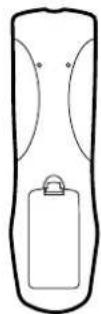
1 Open the battery cover.

natural_image
Simple line drawing of a remote control with two buttons and a battery (no text or symbols)2 Insert two size-AA batteries.
■(Place the batteries with their terminals corresponding to the (+) and (−) indications in the battery compartment.)

natural_image
Diagram of a remote control with battery and two batteries (no text or symbols)3 Replace the cover.
Precaution on battery use
Improper use of batteries can result in a leakage of chemicals and/or explosion. Be sure to follow the instructions below.
■ Place batteries with their terminals corresponding to the (+) and (−) indications.
■ Different types of batteries have different characteristics. Do not mix batteries of different types.
■ Do not mix old and new batteries. Mixing old and new batteries can shorten the life of new batteries and/or cause old batteries to leak chemicals.
■ Remove batteries as soon as they are non-operable. Chemicals that leak from batteries can cause a rash. If chemical leakage is found, wipe with a cloth.
■ The batteries supplied with the product may have a shorter life expectancy due to storage conditions.
■ If the remote control is not used for an extended period of time, remove the batteries from the remote control.
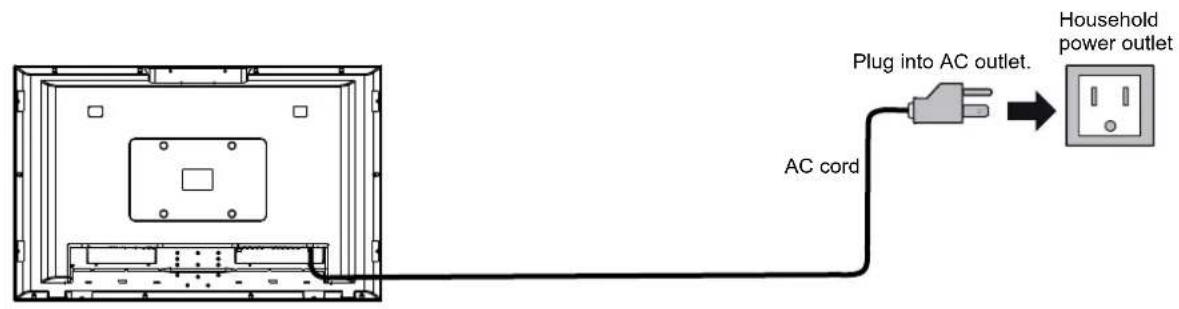
Power connection
text_image
Plug into AC outlet. AC cord Household power outletConnecting the AC plug to the wall outlet as illustrated.
Note:
■ This product should be operated only from the type of power source indicated on the marking label.
■ Always unplug the AC cord from power outlet when not using for a long period of time.
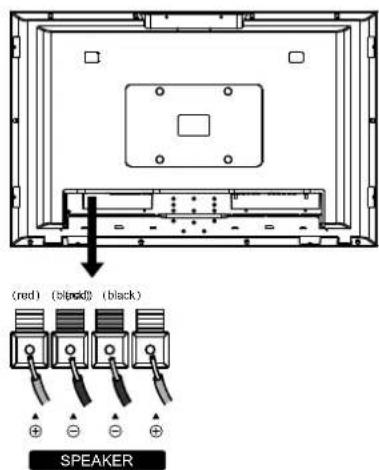
Speaker connection
text_image
(red) (blue) (black) SPEAKERConnect the speaker audio cable to the external speaker output jack on the unit matching the "+" and "-" ends of the cable with color.
Note:
- Unplug the TV set and all connected components before connecting the speakers.
- The illustration may be different depending on model.
Antenna Connection
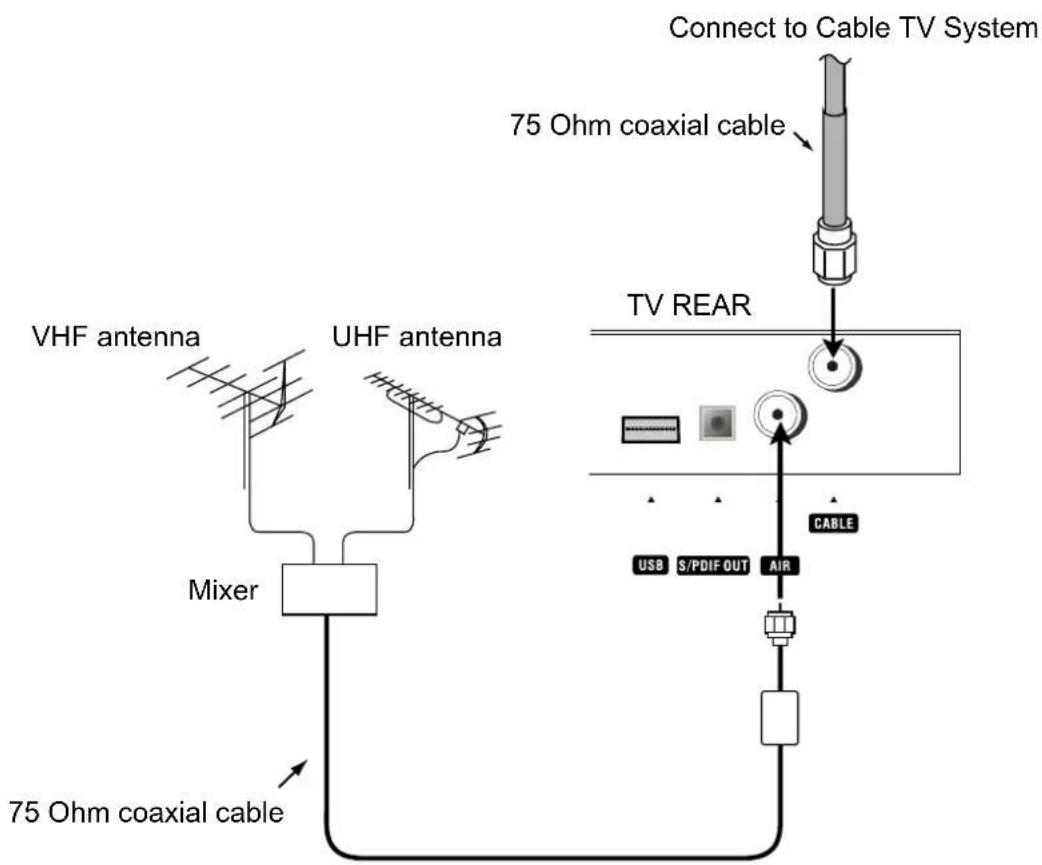
- For proper reception of VHF/UHF channels, an external antenna is required. For best reception, an outdoor antenna is recommended.
- When you enjoy the terrestrial TV programs only, connect the antenna to the AIR input on the TV rear.
- When you enjoy the cable TV programs, connect the cable TV's cable to the CABLE input on the TV rear.
- Select the TV Source (AIR or CABLE) in the CHANNEL SETUP menu and then perform auto channel search.(See
section)
flowchart
graph TD
    A["VHF antenna"] --> B["Mixer"]
    C["UHF antenna"] --> B
    B --> D["75 Ohm coaxial cable"]
    D --> E["TV REAR"]
    E --> F["Connect to Cable TV System"]
    F --> G["75 Ohm coaxial cable"]
    G --> H["CABLE"]
    H --> I["USB S/PDIF OUT AIR"]
Notes:
- To obtain optimum quality picture and sound, an antenna, the correct cable (75 Ohm coaxial) and the correct terminating plug are required.
- If a communal antenna system is used, you may require the correct connection cable and plug between the wall antenna socket and your television receiver.
- Your local television service centre or dealer may be able to assist you in obtaining the correct antenna system for your particular area and the accessories required.
- Any matters regarding antenna installation, upgrading of existing systems or accessories required, and the costs incurred, are your responsibility.
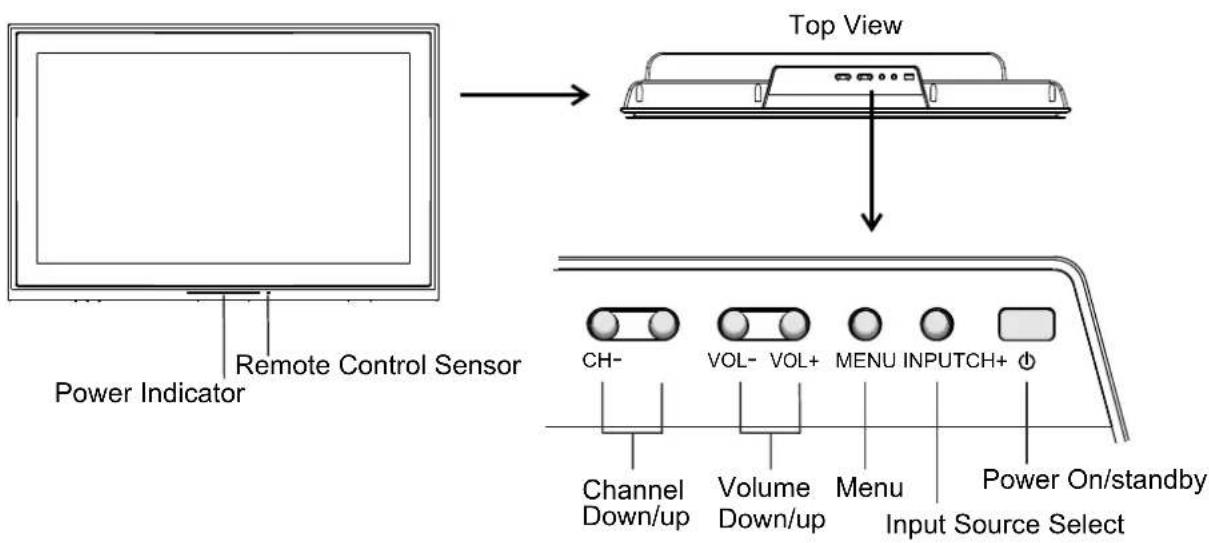
Main unit (front view)
text_image
Top View Power Indicator Remote Control Sensor CH- VOL- VOL+ MENU INPUTCH+ Φ Channel Down/up Volume Down/up Menu Input Source Select Power On/standby1. POWER ⏻
Press this button to turn the unit ON from STANDBY mode. Press it again to turn the set back to STANDBY.
2. INPUT
To select the input signal source
3. MENU
Press this button to access the MENU main page.
4. Volume up/down
Press the Volume up/down button to directly increase or decrease the sound volume level. In OSD Menu, press these buttons to adjust the value or setting of each item
5. Channel up/down
Channel up or down. In OSD Menu, press these buttons to choose the OSD items.
Note:
POWER ⏻, VOL+/-, CH+/-, MENU and INPUT on the main unit have the same functions as the corresponding buttons on the remote control.
This operation manual provides a description based on operating functions with the remote control.
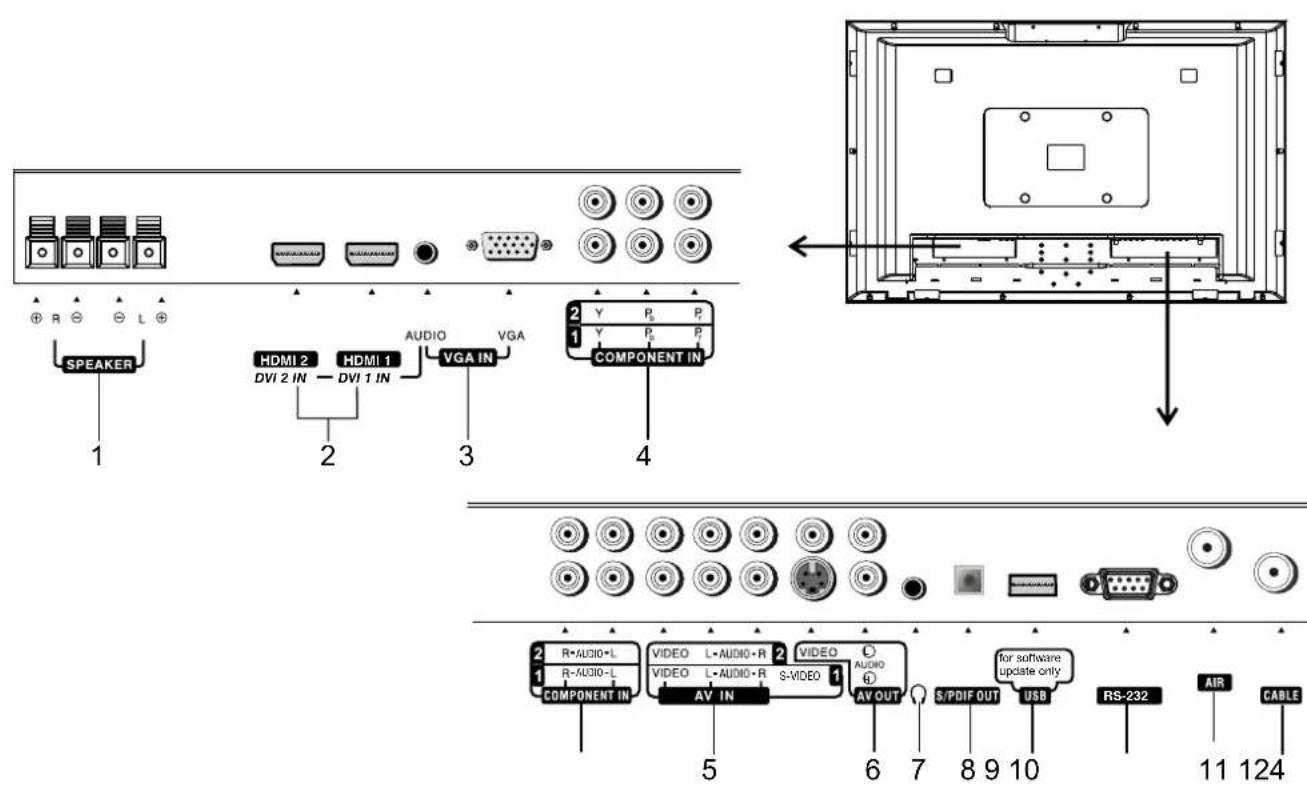
Main unit (rear view)
text_image
SPEAKER 1 HDMI 2 DVI 2 IN HDMI 1 DVI 1 IN AUDIO VGA IN 3 COMPONENT IN 2 Y P5 P7 1 Y P8 P9 4 R-AUDIO-L R-AUDIO-L COMPONENT IN VIDEO L-AUDIO-R VIDEO L-AUDIO-R AV IN S-VIDEO AV OUT for software update only S/PDIF OUT USB RS-232 AIR CABLE 5 6 7 8 9 10 11 124- Speaker output jacks
- HDMI/DVI inputs 1/2
To connect with those equipments with HDMI or DVI interface, for example, Set-top box or DVD player.(A HDMI-to-DVI adapter cable is required when you are connecting a DVI-equipped device to this TV.)
- VGA interface/Audio in
Connect with those equipments with VGA interface, for example, PC.
Connect the audio jack as well with audio cable.
- Component inputs 1/2
Connect to the audio and component output jacks of a DVD player or Set-top box.
- AV inputs 1/2
Receive video/audio signals from external sources such as VCR or DVD player.
- AV output
Connect to the VCR input jacks to record programs.
- Headphone jack
- S/PDIF digital audio out terminal (optical)
- USB port
For software update only. The user can not operate the unit through the USB port.
10.RS-232 control interface
For service only. The user should not use this interface.
11.AIR antenna input
Connect to outdoor antenna.
12.CABLE input
Connect to a cable TV system.
Remote Control

text_image
1 2 3 4 5 6 7 8 9 INPUT 0 - 4 6 7 CH MUTE VOL - 9 10 MENU INFO 11 12 GUIDE EXIT 13 MTS/SAP ZOOM CCD SLEEP LIST FAVORITE AUDIO PICTURE PIP P POSITION SWAP FREEZE1. POWER ⏻
Turn the unit on or off
2. To select additional products to be controlled with remote control
Note: This remote control is an universal remote control. If your remote control does not work correctly when you operate the unit, please try to press TV button.
3. Direct channel selector/number buttons
Use these number buttons to select channel or input password.
4. Dash(-)
Used to enter a program number for multiple program channels such as 2-1,2-2, etc.
5. INPUT
To quickly select input source
6. RETURN
To quickly return to the previous channel
7. CH+/-
To select channels upward or downward
8. VOL+/-
Used to adjust volume.
9. MUTE
Sound mute
10.MENU
To access the Menu main page
11.INFO
To display channel status or signal information
12. Menu navigation buttons: ▲▼◀▶
▲▼: To move upward or downward in menu operation;
◀ ▶ : To move left or right in menu operation;
To adjust selected menu item in menu operation;
OK button: To confirm or toggle between the settings of the selected menu item.
13. EXIT
Used to exit the menu
14. GUIDE
To display the on-screen Electronic Program Guide(EPG)
Remote Control

text_image
SET AUX DVD CBL TV 1 2 3 4 5 6 7 8 9 INPUT 0 - + CH MUTE + VOL - MENU INFO OK GUIDE EXIT MTS/SAP ZOOM CCD SLEEP LIST FAVORITE AUDIO PICTURE PIP P POSITION SWAP FREEZE 15 16 17 18 19 20 21 22 23 24 25 2615. ZOOM
To select screen aspect ratio
16. CCD
To select closed caption mode
17.MTS/SAP
To select STEREO, SAP or MONO (Analog TV mode) To select audio track (DTV mode)
18.SLEEP
To set Sleep timer
19.LIST
To display program list
20.PICTURE
To select the picture mode
21. FAVORITE
To display favorite program list
22. AUDIO
To select the sound mode
23. PIP
To select PIP/PBP/POP/full screen mode
24. FREEZE
To freeze current picture
25. P.POSITION
To select PIP sub picture position
26.SWAP
To swap the main and sub pictures (only in PIP or PBP mode)
Note: the buttons without description are not active.
Connections
Cautions before connecting
● Carefully check the terminals for position and type before making any connections.
● The illustration of the external equipment may be different depending on your model.
- Loose connectors can result in image or color problems. Make sure that all connectors are securely inserted into their terminals.
Refer to the user manual of the external device as well.
- When connecting an external device, turn the power off on the panel to avoid any issues.
Connect an Audio Processor or Hi-Fi (Digital Audio)
For a full Home Theater sound experience, you must connect your Hi-Fi or Audio processor to the S/PDIF OUT(Optical) terminal on the TV rear.
Note:
The S/PDIF OUT terminal only can output digital TV program's audio.

Audio Processor
OR

natural_image
Three identical gray audio equipment units with speaker heads and a central screen (no text or symbols visible)HIFI System

text_image
2 R+AUDIO+L 1 R+AUDIO+L COMPONENT IN VIDEO L+AUDIO+R VIDEO L+AUDIO+R AV IN S-VDE 1 VIDEO Audio AV OUT S/PDIF OUT USB RS -232 AIR CABLE Optical cable S/PDIF IN (Optical)
Connect a VCR

text_image
How to connect: Connect the Audio/Video cables between the Audio jacks on the unit and VCR. Note: For better video, you can use the S-VIDEO your source supports it. S-VIDEO input uses the as Video1. S-VIDEO has priority if both conn inserted. Use one or the other. To play VCR 1. Turn on your TV, press INPUT button on the rem display INPUT SELECT menu, use ▲/▼ to select and then press OK to confirm. 2. Turn on your VCR, insert a videotape and press VCR Yellow (VIDEO) White (AUDIO L) Red (AUDIO R)Rear of the VCR
How to connect:
Connect the Audio/Video cables between the Audio (L/R)/Video jacks on the unit and VCR.
Note: For better video, you can use the S-VIDEO terminal if your source supports it. S-VIDEO input uses the same circuit as Video1. S-VIDEO has priority if both connectors are inserted. Use one or the other.
To play VCR
- Turn on your TV, press INPUT button on the remote control to display INPUT SELECT menu, use ▲ /▼ to select AV1/SVideo and then press OK to confirm.
- Turn on your VCR, insert a videotape and press the Play button.
Connect a Camcorder

text_image
COMPONENT IN R+AUDIO-L R+AUDIO-L VIDEO L- AV AUDIO-R VIDEO R S-DADE AUDIO R AV OUT S/PDIF OUT USB for soft video update only RS-232 AIR CABLE Y W R Video cable Audio cable Y W R AUDIO-RLVIDEO Yellow (VIDEO) White (AUDIO L) Red (AUDIO R) OUT IN CamcorderHow to connect:
Connect the Audio/Video cables between the Audio (L/R)/Video jacks on the unit and camcorder.
To playback Camcorder
- Turn on your TV, press INPUT button on the remote control to display INPUT SELECT menu, use ▲/▼ to select AV2 and then press OK to confirm.
- Turn on your camcorder and set it to output mode. (For details, refer to your camcorder user manual.)
- Insert the tape into the camcorder and press Play button.
Note:
The operations of the camcorder may be different and is dependant on your model. Please read the user manual of your camcorder to confirm operation.
HDMI Connection

flowchart
graph TD
    A["SPEAKER"] --> B["HDMI 12"]
    B --> C["DVI 2 IN"]
    C --> D["HDMI 1"]
    D --> E["AVIO"]
    E --> F["VGA IN"]
    F --> G["HDMI cable"]
    G --> H["HDMI OUTPUT"]
    H --> I["DVD player or STB with HDMI interface"]
    J["COMPONENT IN"] --> K["2 Y P5 P7"]
    K --> L["1 Y P5 P7"]
How to connect a DVD Player (or STB) using HDMI Connection:
Connect the HDMI cable between the HDMI interface on the unit and HDMI output on the DVD player (or STB).
To playback DVD (or STB)
- Turn on your TV, press INPUT button on the remote control to display INPUT SELECT menu, use ▲/▼ to select HDMI1 (or select HDMI2 if HDMI2 interface is used) and then press OK to confirm.
- Turn on your DVD player or STB and do relative operations.
Note:
If the external device has DVI output only, use a DVI to HDMI adapter cable to connect to the HDMI terminal. Connect the audio cable to the AUDIO terminal of VGA IN on the TV rear.
Connect a DVD player or Set-Top Box

text_image
SPEAKER HDM 12 DVI 2 IN—DVI 1 IN AUDIO VGA IN COMPONENT IN 2 V Y P R+AUDIO L+AUDIO+R AV IN S-VIDEO AV OUT SPDIF OUT USB RS-2.3.2 AIR CABLE W white (audio L) R red (audio R, Pr) G Green (Y) B Blue (Pb) Video cable Audio cable G B R R W AUDIOCOM AUDIO AV OUT R+VIDEO S-VIDEO DVI DVD player, STB, etc.Rear of the DVD, STB
How to connect:
Connect the Video cable between the Y, Pb, Pr input jacks on the unit and Y, Pb, Pr output jacks on the DVD (or STB). Component color inputs provide luminance and separate color signal.
Connect the Audio cable between the AUDIO input jack on the unit and AUDIO output jacks on the DVD (or STB).
To playback DVD or STB
- Turn on your TV, press INPUT button on the remote control to display INPUT SELECT menu, use ▲/▼ to select Component1 (or select Component2 if COMPONENT2 input terminals are used) and then press OK to confirm.
- Turn on your DVD or STB and do relative operations.
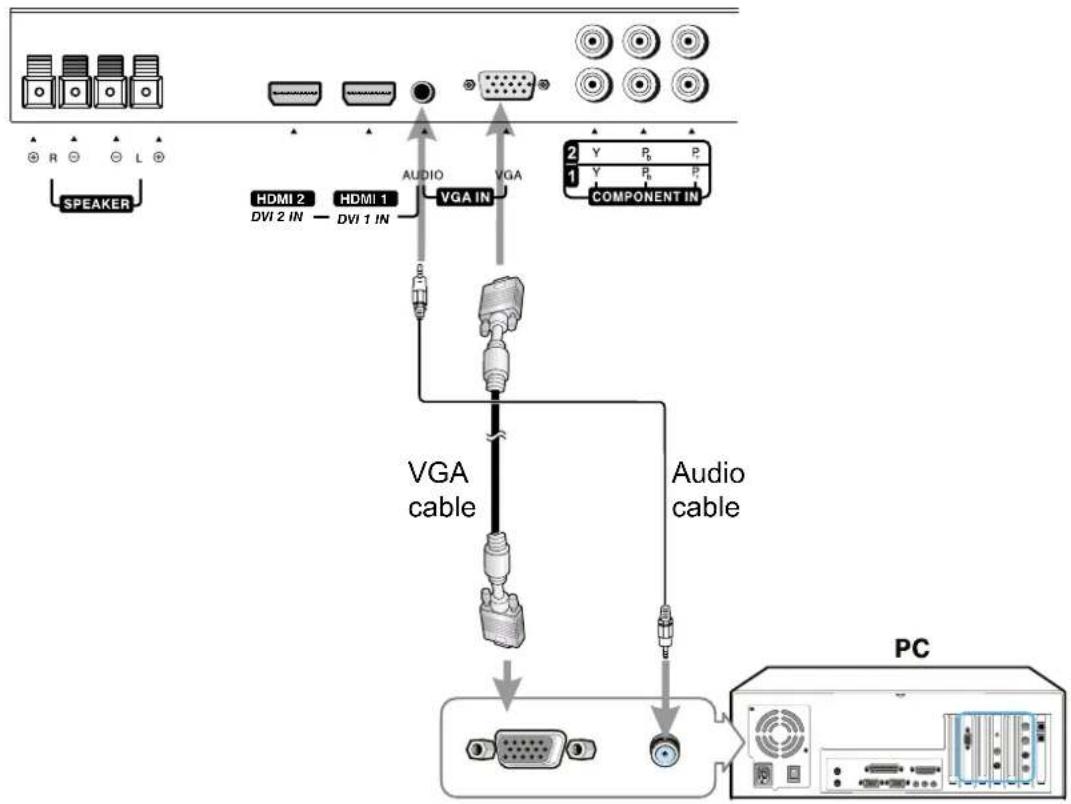
Connect a PC
flowchart
graph TD
    A["SPEAKER"] --> B["HDMI 2 DVI 2 IN"]
    B --> C["+"]
    C --> D["VGA IN"]
    D --> E["+"]
    E --> F["COMPONENT IN"]
    G["AUDIO"] --> H["VGA"]
    I["VGA cable"] --> J["+"]
    J --> K["+"]
    K --> L["PC"]
How to connect:
Connect a VGA cable between the VGA(D-sub) interface on the PC and the VGA input interface on the unit. Connect an Audio cable between the AUDIO output on the PC and AUDIO input jack on the unit.
To Watch the PC screen
- Turn on your TV, press INPUT button on the remote control to display INPUT SELECT menu, use ▲/▼ to select Analog RGB and then press OK to confirm.
- Turn on your PC and check for PC system requirements.
- Adjust the PC screen.
Connect a VCR (for recording) or external amplifier

flowchart
graph TD
    A["External Amplifier"] -->|To Audio inputs| B["Component IN"]
    A -->|Audio cable| C["Video cable"]
    A -->|Audio cable| D["Audio cable"]
    A -->|Audio cable| E["Ant OUT"]
    A -->|Audio cable| F["Ant IN"]
    A -->|Audio cable| G["Rear of the VCR"]
    H["VCR for recording"] --> I["Computer"]
How to connect:
Connect the Audio/Video cables between the Audio (L/R)/Video jacks on the unit and VCR.

Connect the Audio cables between the Audio (L/R) jacks on the unit and external amplifier.
To record program
- Turn on your TV, select a program you wish to record.
- Turn on your VCR, insert a videotape for recording.
- Press the Record button to begin recording.
To enjoy high-quality sound through an external amplifier
Note:
The operations of the amplifier may be different depending on model. Please read the user manual of your amplifier to confirm proper operation.
Only analog TV programs, AV1 and AV2 input sources can be output through the AV output jacks.
Turning the Unit On and Off
Turning On
Insert the power cord into the wall outlet.
Press the Power ⏻ button on the remote control, the unit will be turned on and you will be ready to use its features.
Turning Off
With the power on, press the Power ⏻ button on the remote control to turn off.
Note: You can also use the Power ⏻ button on the control panel on the main unit.
The period between Turn-Off and Turn-On should be more than 3 seconds.
Viewing the Menus and Displays
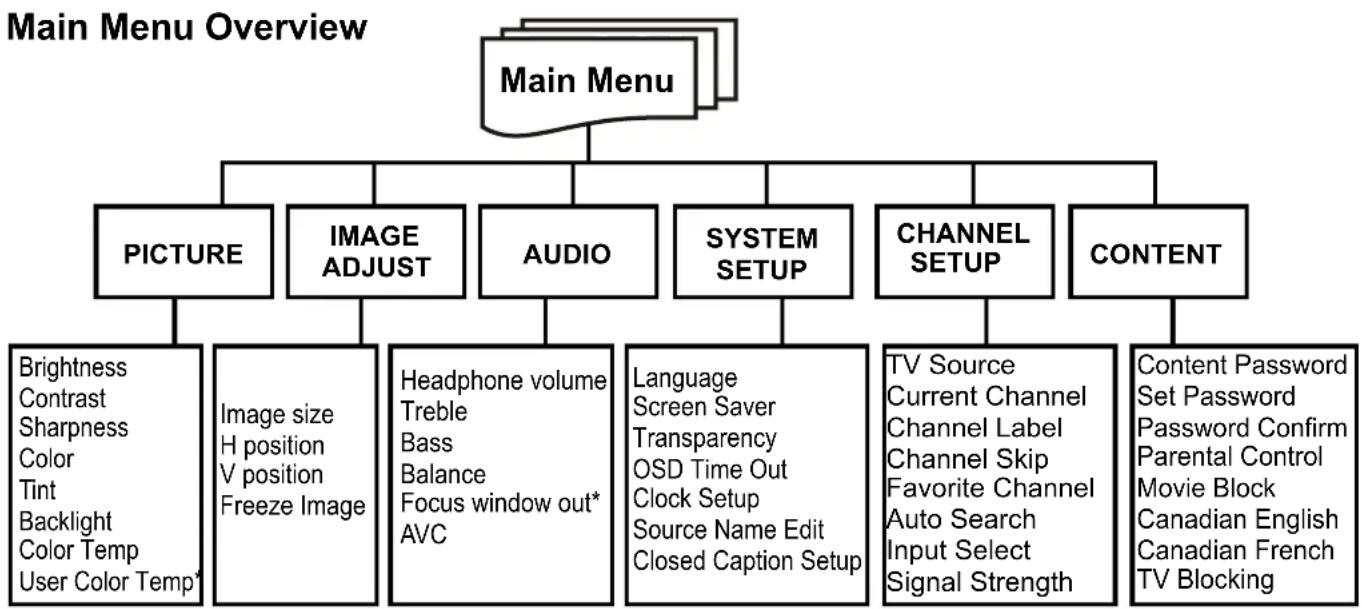
This unit has a simple, easy-to-use menu system that appears on the screen. This system makes it convenient and fast to use features on the unit. The unit also lets you display the status of many of your TV features.
flowchart
graph TD
    A["Main Menu"] --> B["PICTURE"]
    A --> C["IMAGE ADJUST"]
    A --> D["AUDIO"]
    A --> E["SYSTEM SETUP"]
    A --> F["CHANNEL SETUP"]
    A --> G["CONTENT"]

    B --> H["Brightness<br>Contrast<br>Sharpness<br>Color<br>Tint<br>Backlight<br>Color Temp<br>User Color Temp*"]
    B --> I["Image size<br>H position<br>V position<br>Freeze Image"]

    C --> J["Headphone volume<br>Treble<br>Bass<br>Balance<br>Focus window out*<br>AVC"]

    D --> K["Language<br>Screen Saver<br>Transparency<br>OSD Time Out<br>Clock Setup<br>Source Name Edit<br>Closed Caption Setup"]

    E --> L["TV Source<br>Current Channel<br>Channel Label<br>Channel Skip<br>Favorite Channel<br>Auto Search<br>Input Select<br>Signal Strength"]

    F --> M["Content Password<br>Set Password<br>Password Confirm<br>Parental Control<br>Movie Block<br>Canadian English<br>Canadian French TV Blocking"]
Note:
☐ The above main menu is illustrated as in TV mode.
☐ In DTV mode, there is no H position and V position item in IMAGE ADJUST menu.
☐ Only in DTV mode it will appear Signal Strength bar in CHANNEL SETUP menu.
☐ The menu items marked with * will appear only on some conditions. In CONTENT menu, 'Content Password' menu item will not be displayed after you use the password to access the menu.
Menu navigation
1 With the power on, press the MENU button to display the main menu.
2 Press button to select menu page. ▶ or ◀
3 Press button to enter the menu page.
4 Within the menu, use ▼or ▲to select, use to adjust or enter sub-menu. In some situations, press OK button to confirm or toggle some settings.
5 Press MENU button to return to the previous level menu.
Press EXIT button to exit the main menu and return to your program.
Note:
- To clearly introduce the menu operations, this operation manual provides a description based on operation with the remote control.
- The illustrations and on-screen displays in this manual are for explanation purposes(some are enlarged, others cropped) and may vary slightly from the actual ones.
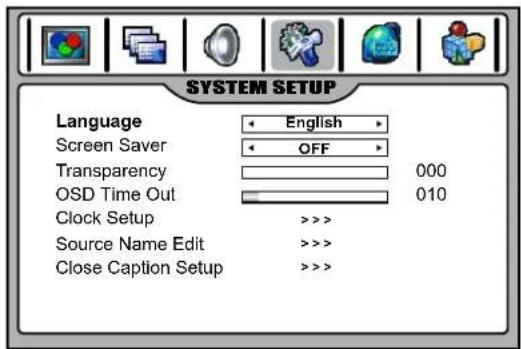
On-screen Menus Language Selection
The menus can be shown on the screen in the selected language. First select your language.
1 Press MENU and then use ▶ or ◀ to display SYSTEM SETUP menu page, press ▼ to enter.
2 Press selectLanguage if select your desired language.
3 Press EXIT button to return to TV viewing.
text_image
SYSTEM SETUP Language English Screen Saver OFF Transparency 000 OSD Time Out 010 Clock Setup >>>> Source Name Edit >>>> Close Caption Setup >>>>Selecting Input Source Signal
1 Press the INPUT button to display INPUT SELECT menu.
2 Press ▼ or ▲ to select your desired input source, press OK to confirm.
3 Press INPUT button to clear the screen.
TV ----Select TV signal.
AV1/SVideo----Select signal from AV INPUT1/S-VIDEO terminals.
AV2----Select signal from AV INPUT2 terminals.
Component1----Select signal from COMPONENT INPUT1 terminals.
Component2----Select signal from COMPONENT INPUT2 terminals.
Analog RGB----Select signal from VGA input interface.
HDMI1----Select signal from HDMI1 input interface.
HDMI2----Select signal from HDMI2 input interface.

text_image
INPUT SELECT ✓ TV AV1/SVideo AV2 Component1 Component2 Analog RGB HDMI1 HDMI2 Up/Down:Change OK:Select Input:ExitNote:
- You may also make use of OSD main menu (CHANNEL SETUP menu) to select the input source.
- You can edit source name to your preference (refer to "System Setup" section).
Information Banner
You can press INFO button to call up information banner. The information banner will display current status information such as channel number or signal source, etc.
In DTV mode, it will display the following information:
- Channel number and name.
-Air or Cable. - Resolution.
- Current time.
- Caption icon (if closed caption is offered), Clock icon (if timer has been setup) and Lock icon (if blocking scheme is enabled).
- Current program broadcast progress.
- Current program start and end play times.
Note:
Some DTV programs' information banner may not contain all the above information. It will vary depending on the broadcaster and your setting.
When the TV powers on for the first time after purchase, the initial auto channel search is invoked.
This unit can automatically find all channels available through antenna or cable inputs, and store them in memory.
Note: Be sure to select the TV input (refer to
Selecting the TV Source
Before your TV can memorize the available channels, you must specify the type of signal source that is connected to the unit. (i.e., an antenna or cable system)
1 In full screen mode, press MENU to display the main menu.
2 Press to display SETOPHANNE page, press to enter.
3 Press ▼ or ▲ to select TV Source item, press ◀ or ▶ to select AIR or CABLE.
- Select AIR if using antenna.
- Select CABLE if using cable.
Auto Channel Search
If TV Source is set to AIR: highlight Auto Search in the CHANNEL SETUP menu and then press ▶ or ◀ to begin the auto channel search, he unit will automatically search for all available TV/DTV program.
If TV Source is set to CABLE: highlight Auto Search in the CHANNEL SETUP menu and then press ▶ or ◀, now a Channel Scan Source window opens up. Use ▶ or ◀ to select one of STD, HRC, IRC and then press OK to begin the auto channel search, the unit will automatically search for all available CATV/CADTV program.
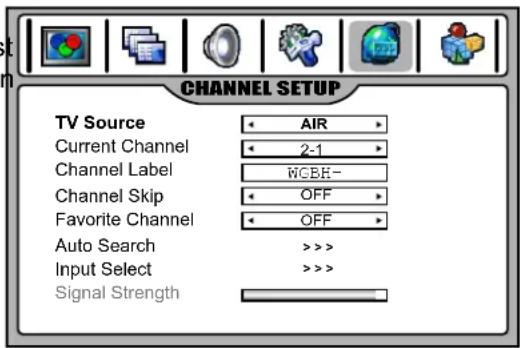
text_image
CHANNEL SETUP TV Source AIR Current Channel 2-1 Channel Label WGBE- Channel Skip OFF Favorite Channel OFF Auto Search >>> > Input Select >>> > Signal Strength
text_image
CHANNEL SETUP TV Source ← AIR → Current Channel ← 2-1 → Channel Label ← WGBH- Channel Skip ← OFF → Favorite Channel ← OFF → Auto Search >>> Input Select >>> Signal Strength
text_image
Channel Scan Source STD HRC IRCNote:
- If you want to stop the auto-search, press MENU button.
- Select one of Cable STD/HRC/IRC according to your local area's cable system, normally please select STD.
Channel Skip
After setting channels into memory, you can skip unnecessary channels so that only the channels you want to watch are selected with Channel up/down buttons.
1 Navigate to the CHANNEL SETUP menu.
2 Highlight Current Channel item, use to select an unwanted channel.
3 Highlight Channel Skip item, use ◀ or ▶ to set ON.
4 If you want to skip other unwanted channels, repeat the above steps.
5 Press EXIT button to exit.
Now when you use CH+/- buttons to cycle among the channels, the skipped channels can not be selected.
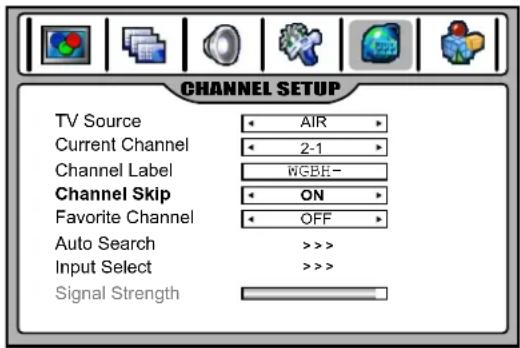
text_image
CHANNEL SETUP TV Source ← AIR → Current Channel ← 2-1 → Channel Label ← WGBH- Channel Skip ← ON → Favorite Channel ← OFF → Auto Search >>> Input Select >>> Signal StrengthDTV Signal Strength
You can make use of DTV signal strength bar to check how strong your DTV signal is and whether you need to adjust your antenna or digital cable input. The stronger the signal strength, the less likely you are to experience picture degradation.
Navigate to the CHANNEL SETUP menu, at the bottom of the menu screen the Signal Strength bar is displayed indicating the level and quality of signal that is received by the unit for the current DTV channel.
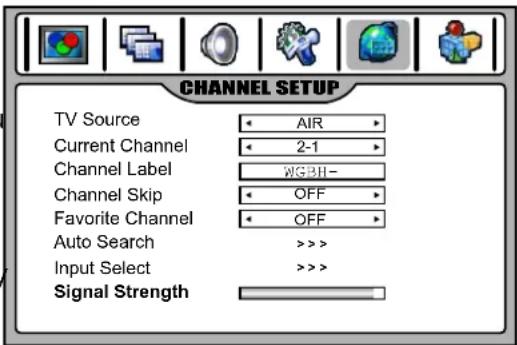
text_image
CHANNEL SETUP TV Source • AIR • Current Channel • 2-1 • Channel Label • RGBH- Channel Skip • OFF • Favorite Channel • OFF • Auto Search >>> > Input Select >>> > Signal StrengthChannel Label Setup
If required, you can give a name to the programs. (Only for analog channels)
1 Navigate to the CHANNEL SETUP menu and highlight Channel Label.
2 Press OK to enter into channel label editing mode.
Use ↕ cursorove the ▼ select character.
Press MENU to exit the editing mode.
3 Press EXIT button to return to TV viewing.
Note: the names of digital broadcasting channels are automatically assigned and thus cannot be assigned by users.

text_image
CHANNEL SETUP TV Source AIR Current Channel 2-1 Channel Label ABCD- Channel Skip OFF Favorite Channel OFF Auto Search >>> Input Select >>> Signal StrengthFavorite Channel Setup
You can create a favorite channel list into memory as follows:
1 Navigate to the CHANNEL SETUP menu.
2 Highlight Current Channel item, use ◀ or ▶ to select your favorite channel.
3 Highlight Favorite Channel item, use ◀ or ▶ to select ON.
4 Repeat the above steps to set more favorite channels (up to 10 channels)
5 Now a favorite channel list is created, and you can make use of it to quickly select your favorite channel.
Press FAVORITE button to call up the Favorite channel list, use ▲/▼ to highlight the channel, use OK to select that channel.
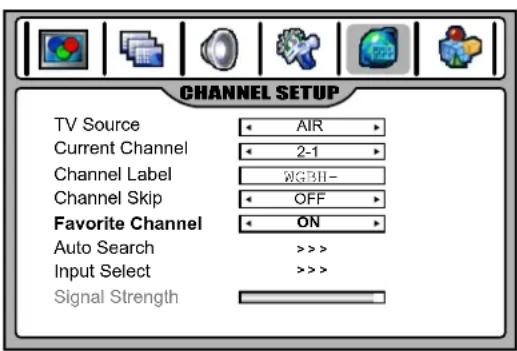
text_image
CHANNEL SETUP TV Source AIR Current Channel 2-1 Channel Label RGBII- Channel Skip OFF Favorite Channel ON Auto Search >>> > Input Select >>> > Signal StrengthInformation about USA channel numbering
● ATSC PSIP channel has two part channel number:
— Major channel number
For example: Channel: 5-1
— Minor channel number
Major channel number Minor channel number
- In US, in most situations the major channel number is same for both analog and digital channels (It is equal to the NTSC channel number for existing broadcasters.)
- In US, a minor channel number of zero is used for a broadcaster's analog channel.
Channel Numbering Example
● Original NTSC Channels for Des Moines:
— 5, 8, 11, 13, 17
● Possible NTSC + ATSC Channels for Des Moines:
— 5-0, 8-0, 11-0, 13-0, 17-0 (channel numbers for existing analog channels)
— 5-1, 5-2, 8-1, 8-2, 8-3, 8-4, 13-1 (channel numbers for digital channels)
Channel Selection
Using the Channel up/down buttons (CH+ or CH-)
Press the CH+ or CH- to cycle among available channels found (while the skipped channels can not be selected)
Using the direct select buttons (0-9 and dash buttons)
Press the number buttons (0-9) and the dash (-) button, and the unit goes to that channel.
For example, if you want to select channel 8-3, just key in '8', '-' , '3' on the remote control.(Be sure the period of two-press should be within 3 seconds)
Note:
- When you use the number buttons, you can directly select any channel within the channel range.
- In some situations virtual channel numbers have no correspondence to physical frequencies.
- To select an analog channel, you may directly input its major channel number. It is unnecessary to input the minor channel number of zero.
Using the LAST button
Press this button to switch between the current channel and the last viewed channel.
Using the PROGRAM LIST or FAVORITE LIST
After auto-search, a default program list has been created. You may press LIST button to call up the PROGRAM LIST, then make use of ▲/▼ to highlight the channel, and then press OK to select.
If you have created your favorite program list, you may press FAVORITE button to call up the FAVORITE LIST, then make use of ▲ /▼ to highlight the channel, and then press OK to select.
Note: 1) In twin window mode, then the above list is only for main window.
2) The OSD illustrations shown on the right are only served as an example and may differ from the actual ones.
PROGRAM LIST
| Digital 2-1 | WGBH-SD |
| Digital 2-2 | PBS-HD |
| Analog 6-0 | |
| Analog 7-0 |
FAVORITE LIST
| Digital | 2-1 |
| Digital | 2-3 |
| Analog | 12-0 |
| Analog | 48-0 |
Customizing the Picture
1 Press MENU to display the main menu.
2 Press ◀ or ▶ to display PICTURE menu page, press ▼ to enter.
3 Within the menu, use ▲ or ▼ to select item, use ◀ or ▶ to adjust. When Color Temp is set to User, then you can enter into User Color Temp sub-menu to customize the color temperature.
4 Press EXIT button to return to TV viewing.
Notes:
The OSD illustrations shown on the right are PICTURE menu in TV mode.
The menu items may be different when the unit works in different mode.

text_image
PICTURE Brightness 050 Contrast 050 Sharpness 007 Color 050 Tint 050 Backlight • Strong • Color Temp • User • User Color Temp >>>
text_image
PICTURE Red 052 Green 050 Blue 050| Option | Function Choice/remarks | ||
| Brightness | Adjusts screen brightness for easier viewing of dark picture such as night scenes and black hair. | ▸ : lighter▸ : darker | |
| Contrast | Adjusts image contrast. | ▸ : stronger▸ : weaker | |
| Sharpness | Adjusts image sharpness and displays a sharp image. | ▸ : sharper▸ : softer | |
| Color | Adjusts color saturation. | ▸ : stronger▸ : weaker | |
| Tint | Adjusts tint for image. | ▸ : greenish▸ : purplish | |
| Backlight | Adjusts panel backlight brightness. | Strong/Weak/Medium | |
| Color Temperature | Adjusts the color temperature of the image. Sets to warm to enhance hotter colors such as red, or set to cool to see less intense colors with more blue. | Cool/Warm/User | |
| User Color Temperature | Red | Adjusts the color RED of the image. | |
| Green | Adjusts the color GREEN of the image. | ||
| Blue | Adjusts the color BLUE of the image. | ||
Picture Mode Selection
You can select the picture quality instantly among three preset modes and one user-set mode.
Press the PICTURE button repeatedly to select the desired picture quality. NATURE, SOFT, USER and BRIGHT can be selected cyclically.
NATURE: Select for a normal picture.
SOFT: Select for a finely detailed picture.
BRIGHT: Select for a bright picture.
USER: The picture quality you set.
Image Size Adjustment
You can make use of image size adjustment to choose the aspect ratio depending on the format of the received signal and your preference.
Press the ZOOM button repeatedly to select the desired image size. You can also adjust Image size in the IMAGE ADJUST menu.

text_image
IMAGE ADJUST Image Size FILL ALL H Position 050 V Position 047 Freeze Image OFF- NORMAL
Selects the proper picture proportion to match the source's image. (4:3→4:3, 16:9→16:9)
- WIDE
This mode stretches the picture horizontally and at the same time still maintains a good aspect ratio at the center of the screen.
• ZOOM
This mode enlarges the picture in correct proportion.
- FILL ALL
This mode displays a picture at full screen size.
Screen Position Adjustment
1 Navigate to the IMAGE ADJUST menu.
2 Highlight H Position or V Position item, use ◀ or ▶ to make appropriate adjustments.

text_image
IMAGE ADJUST Image Size FILL ALL H Position 050 V Position 047 Freeze Image OFFNote:
- You may perform screen position adjustment only for analog channels. It is unnecessary to adjust screen position for digital channels.
To Freeze the Picture
Press the FREEZE button to freeze the image on the screen (the video sources still run). Press again to restore. You can also set Freeze Image to ON in the IMAGE ADJUST menu to freeze the picture. To restore, set it to OFF.
Note:
If a fixed image is displayed on the screen for a long time, that fixed image may become imprinted on the screen and remain visible.
Adjusting the Volume
Using the volume buttons (VOL+ and VOL-)
Press the VOL + or VOL - to increase or decrease the volume.
Using the Mute
At any time, you can temporarily cut off the sound using the MUTE button. Press the MUTE button again to restore.
Customizing the sound
1 Press MENU to display the main menu.
2 Press ◀ or ▶ to display AUDIO menu page, press ▼ to enter.
3 Within the menu, use ▲ or ▼ to select item, use ◀ or ▶ to adjust.
4 Press EXIT button to return to TV viewing.
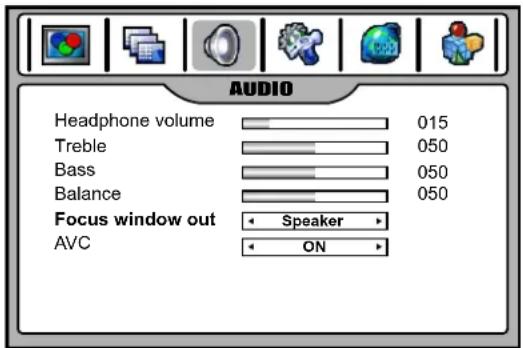
text_image
AUDIO Headphone volume 015 Treble 050 Bass 050 Balance 050 Focus window out Speaker AVC ON| Option | Function | Choice/Remarks |
| Headphone volume | Adjusts headphone volume. | ▸ : stronger▸ : weaker |
| Treble | Adjusts Treble (high sounds). | ▸ : stronger▸ : weaker |
| Bass | Adjusts Bass (low sounds) | ▸ : stronger▸ : weaker |
| Balance | Adjusts volume balance (left and right volumes). | ▸ :Higher volume from right speaker.▸ Higher volume from left speaker.: |
| Focus window out(PIP or PBP mode only) | In twin window mode(PIP or PBP), if “speaker” is selected, then the focus window* sound is output from speakers while the other window sound is output from headphone. (Default setting)If “Headphone” is selected, then the focus window sound is output from headphone while the other window sound is output from speakers.If “Both” is selected, then both speakers and headphone output focus window sound(as for the other window, this menu item will be set to “None” automatically). | Speaker/Headphone/Both |
| AVC(auto volume control) | Each broadcasting station has its own signal conditions, which can make it necessary to adjust the volume every time the channel is changed.Turning "AVC" On lets you automatically adjust the volume of the desired channel by lowering the sound output when the modulation singal is high or by raising the sound output when the modulation signal is low. | ON/OFF |
Notes:
- The menu items may be different when the unit works in different mode.
- Focus Window Out menu item is available only in twin window mode (PIP or PBP) and either window's program is not in Rating Blocked. If "Both" is selected and later on if either window's program comes into Rating Blocked, the sound may be mute. To cancel, please exit the Rating Blocked state for the program and then set this menu item to other proper choice.
- Normally the main picture is default focus window. You may select sub picture as focus window by pressing OK button and a green border will appear on it.
Sound Mode Selection
You can select the sound quality instantly among three preset modes and one user-set mode.
Press the AUDIO button repeatedly to select the desired sound quality. NEWS, USER, MOVIE and MUSIC can be selected cyclically.
NEWS: Select for a speech or conversation program.
MOVIE: Select for a movie program.
MUSIC: Select for a music program.
USER: The sound quality you set.
Stereo/SAP Broadcasts Setup (only for analog channel)
- This TV can receive MTS stereo programs and any SAP (Secondary Audio Program) that accompanies the stereo program; if the station transmits an additional sound signal as well as the original one.
- Stereo or SAP can be selected only when the TV station transmits these signals.
- Mono sound is automatically received if the broadcast is only in Mono.
- Select Mono if you are having difficulty receiving a stereo signal.
1 When viewing analog channel, press the MTS/SAP button to call up the AUDIO MODE menu.
2 Press ▲ or ▼ to select your desired MTS mode: Mono, Stereo or SAP, then press OK to confirm.
Note: In multi window mode, Stereo or SAP can be selected only for main picture.
AUDIO MODE
Mono
Stereo
SAP
Digital Audio Mode Selection (only in DTV mode)
- The digital-TV transmission system is capable of simultaneous transmission of many audio tracks (for example,
simultaneous translations of the program into foreign languages).
- The availability of these additional "multitracks" depends upon the program.
1 When viewing digital channel, press the MTS/SAP button to call up the AUDIO MODE menu.
2 Press ▲ or ▼ to select your desired audio mode option, then press OK to confirm.
Note: In multi window mode, the MTS/SAP button only can be used for the main picture.
AUDIO MODE
- Audio: eng
- Audio: fre
(The above OSD is only served as an illustration. It may be different in different situation)
- You may change systems such as OSD language, screen saver, menu transparency, etc. by making use of SYSTEM SETUP menu.
1 Press MENU and then use ◀ or ▶ to display SYSTEM SETUP menu page, press ▼ to enter.
2 Within the menu, use or to select, use to adjust or enter sub-menu.
In some situations, press OK button to confirm or toggle some settings.
3 Press EXIT button to return to TV viewing.
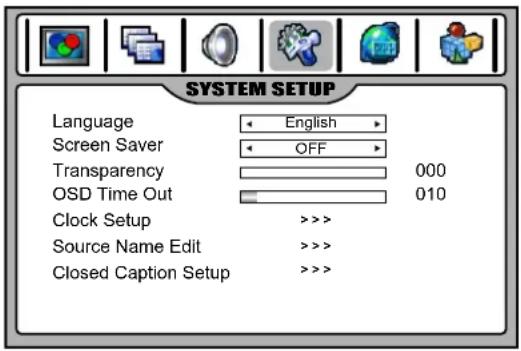
text_image
SYSTEM SETUP Language English Screen Saver OFF Transparency 000 OSD Time Out 010 Clock Setup >>>> Source Name Edit >>>> Closed Caption Setup >>>>| Option | Function |
| Language | Selects on-screen menus language. |
| Screen Saver | With the Screen Saver function on, the TV will appear “No Signal” character as screen saver automatically when no signal is being received for some seconds. |
| Transparency | Adjusts menu transparency. |
| OSD Time Out | Selects OSD main menu displaying time. |
| Clock Setup | Making use of Clock Setup sub-menu to setup auto clock, or manual clock, and On/Off timer. |
| Source Name Edit | Making use of Source Name Edit sub-menu to edit source name for your personal preference. |
| Closed Caption Setup | Making use of Closed Caption Setup sub-menu to control closed caption, to select caption mode. For DTV program, you can customize the captions that appear on the screen. |
Source Name Edit
Name the device connected to the input jacks to make your input source selection easier.
1 Navigate to SYSTEM SETUP menu and highlight Source Name Edit, use ◀ or ▶ to enter.
2 Use to select source you want to edit, then press OK to enter into source name editing mode.
Use ◀ / ▶ to move the cursor, use ▲ / ▼ to select character. Press MENU to exit the editing mode.
Note: TV source can not be edited.

text_image
SYSTEM SETUP TV AV1/SVideo AV2 Component1 Component2 Analog RGB HDMI1 HDMI2 TV---- AV1/SVideo AV2---- Component1 Component2 Analog-RGB HDMI1---- HDMI2----Auto Clock Setup
- With the Auto Clock function ON, the time is set automatically from a digital channel signal.
- The digital channel signal includes information for the current time provided by the broadcasting station.
- Set the clock manually, if the current time is set incorrectly by the auto clock function.
- If you cut off the power supply to the TV, the clock setting you have made will be cleared.
1 Press MENU and then use ◀ or ▶ to display SYSTEM SETUP menu page, press ▼ to enter.
2 Highlight Clock Setup item, use ◀ or ▶ to enter.
3 Highlight Auto Clock and then use ◀ or▶ turn the Auto Clock function ON
4 Highlight Set Time Zone and then use ◀ or ▶ to select your viewing area time zone: Atlantic, New Foundiand, Samoa, Hawaii, Alaska, Pacific, Mountain, Central, Eastern.
5 If your viewing area uses Observe Daylight Time, set Observe Daylight Time to ON in the menu, otherwise set it to OFF.
Manual Clock Setup
- If current time setting is wrong, reset the clock manually.
- If you cut off the power supply to the TV, the clock setting you have made will be cleared.
1 Navigate to the SYSTEM SETUP - Clock Setup sub-menu, highlight Auto Clock and then use ◀ or ▶ to select OFF.
2 Press ▲ or ▼ to highlight Current Time item and then use ◀ or ▶ to select either the year, date, or time option. Once selected, use the number buttons to input and set the year, date and time options. To select AM or PM, move the cursor to the position and then use OK to toggle.
3 If your area uses Observe Daylight Time, set Observe Daylight Time to ON in the menu, otherwise set it to OFF.
On/Off Timer Setup
- Auto Power On/Off function operates only if current time has been set.
- The TV must be in standby mode for the Auto Power On to work.
- If you cut off the power, the timer setting will be cleared.
1 Navigate to the SYSTEM SETUP - Clock Setup sub-menu, highlight Auto Power On or Auto Power Off.
2 Use ◀ or ▶ to select either the hour or minute option. Once selected, use the number buttons to input the time. To select AM or PM, move the cursor to the position and then use OK to toggle.
- If you want the function to work only today, select Today and then use OK to activate it (displayed in purple).
- If you want the function to work everyday, select Everyday and then use OK to activate it (displayed in purple).
- To cancel On/Off timer function, select Disable and then use OK to activate it (displayed in purple).
3 Press EXIT button to return to TV viewing or press MENU to return to the previous menu.
Sleep timer
- Sleep timer lets you select the amount of time before your TV turns itself off automatically. Note that this setting is cleared when the TV is turned off.
Press the SLEEP button repeatedly to set sleep timer. To cancel it, press SLEEP button repeatedly to select OFF.
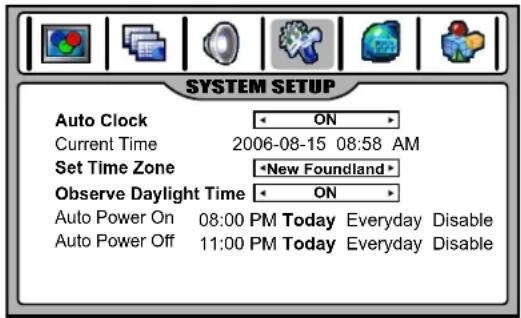
text_image
SYSTEM SETUP Auto Clock ON Current Time 2006-08-15 08:58 AM Set Time Zone *New Foundland* Observe Daylight Time ON Auto Power On 08:00 PM Today Everyday Disable Auto Power Off 11:00 PM Today Everyday Disable
text_image
SYSTEM SETUP Auto Clock OFF Current Time 2006-03-15 11:58 AM Set Time Zone New Foundland Observe Daylight Time OFF Auto Power On 08:00 PM Today Everyday Disable Auto Power Off 11:00 PM Today Everyday Disable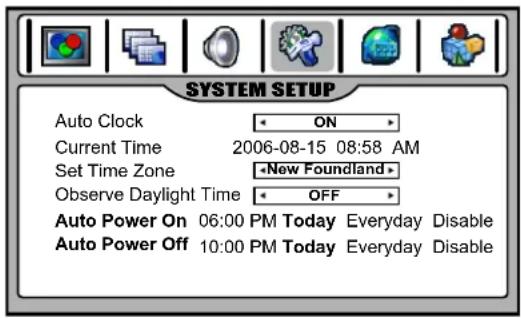
text_image
SYSTEM SETUP Auto Clock ON Current Time 2006-08-15 08:58 AM Set Time Zone -New Foundland Observe Daylight Time OFF Auto Power On 06:00 PM Today Everyday Disable Auto Power Off 10:00 PM Today Everyday DisableThe unit decodes and displays the closed captions that are broadcast with certain TV shows. These captions are usually subtitles for the hearing impaired or foreign language translations. All VCRs record the closed caption signal from television programs, so home-recorded video tapes also provide closed captions. Most prerecorded commercial video tapes provide closed captions as well. Check for the closed caption symbol in your television schedule and on the tape's packaging.
Note:
The Caption feature only works in TV and AV mode.
Not all the programs and videos will offer closed captioning. Please look for the ☐ symbol to ensure that captions will be shown. In multi window mode, the Caption feature only applies to main picture.
Closed Caption Control
Press the CCD button repeatedly to select Caption ON, MUTE ON, or OFF.
- MUTE ON shows the captions (if available on program) when the TV sound is muted.
- You can also navigate to SYSTEM SETUP-Closed Caption Setup sub menu and select Closed Caption Control item, then use ◀ or ▶ to select Caption ON, MUTE ON, or OFF.
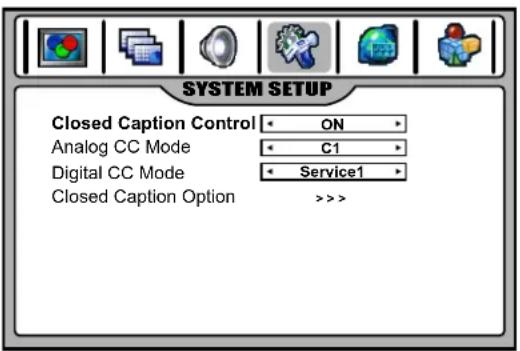
text_image
SYSTEM SETUP Closed Caption Control ON Analog CC Mode C1 Digital CC Mode Service1 Closed Caption Option >>>Analog or Digital Broadcasting System Caption Mode
- Select a caption mode for displaying captioning information if provided on a program.
- Analog caption displays information on the screen usually the program's dialog.
- Text displays information, usually at the bottom position and is used for a data service, generally not program related.
- Caption/Text, if provided by the broadcaster, would be available for both digital and analog channels.
1 Navigate to SYSTEM SETUP menu and highlight Closed Caption Setup, use ◀ or ▶ to enter.
2 Highlight Analog CC Mode or Digital CC Mode, use ◀ or ▶ to select caption mode.
Closed Caption Option
You can customize the digital closed captions that appear on your screen.
1 Navigate to the SYSTEM SETUP menu and highlight Closed Caption Setup, use ◀ or ▶ to enter.
2 Highlight Closed Caption Option, use ◀ or ▶ to enter.
3 Press to select your desired item, and then use or to customize the Size, Style. to your preference. A preview sample is provided at the bottom of the menu screen for you to see the effect.
◆ Font Size: Set the size the words will appear in.
Style: Select a style for the words.
◆Foreground: Select a color for the text.
◆ Background: Select a background color.
◆ Background Opacity: Select the opacity for the background color.
◆ Edge Effect: Select an edge effect.

text_image
SYSTEM SETUP Closed Caption Control ← ON → Analog CC Mode ← C1 → Digital CC Mode ← Service1 → Closed Caption Option >>>
text_image
SYSTEM SETUP Digital CC Font Size Standard Digital CC Style AUTO Digital CC Foreground AUTO Digital CC Background AUTO Digital CC Background Opacity AUTO Digital CC Edge Effect NONE SampleParental Control
This function allows TV programs to be restricted and TV usage to be controlled based on FCC data. It prevents children from watching violent or sexual scenes that may be harmful.
Restriction of TV programs includes two ratings that contain information about the program: the MPAA rating and the TV Parental Guidelines. The MPAA rating is restricted by age. TV Parental Guidelines are restricted by age and content.
Since a TV program may use either the MPAA rating or the TV Guidelines, both should be adjusted for complete control.
Note:
The Parental Control function works only in some modes (for example, in TV or AV mode).
If blocked program is selected, then the screen will appear "Rating Blocked".
[1] Movie Rating (MPAA)
| Rating | ||
| age based | G | GENERAL AUDIENCES. All ages admitted. |
| PG | PARENTAL GUIDANCE SUGGESTED. Some material may not be suitable for children. | |
| PG13 | PARENTAL STRONGLY CAUTIONED. Some material may be inappropriate for children under 13. | |
| R | RESTRICTED. Under 17 requires accompanying parent or adult guardian. | |
| NC | NO ONE 17 AND UNDER ADMITTED. | |
| X | X Rating is an older rating that is unified with NC-17 but may be encoded in the data of older movies. | |
| NR | NOT RATED. | |
Note:
The Movie rating is only age-based.
Example:
“PG13” in the age-based rating is blocked, this will automatically block the higher ratings “R”, “NC”, “X”, “NR” also.

text_image
CONTENT Set Password Password Confirm Parental Control Enable Movie Block G PG PG3 R NC X NR Canadian English E C8+ G PG 14+ 18+ Canadian French E G 8+ 13+ 16+ 18+ TV Blocking >>>[2] TV Rating
| Rating | ←content based → | |||||
| D | L | S | V | FV | ||
| age based | Y (All children) | × | × | × | × | × |
| Y7 (Direct to Older Children) | × | × | × | × | ● | |
| G (General Audience) | × | × | × | × | ||
| PG (Parental Guidance Suggested) | ● | ● | ● | ● | ||
| 14 (Parents Strongly Cautioned) | ● | ● | ● | ● | ||
| MA (Mature Audience Only) | ● | ● | ● | |||
× —— Content Rating can be set but this Rating is not D: Sexually Suggestive Dialog
normally broadcast by TV Station.
L: Adult Language
● —— Content Rating can be set.
S: Sexual Situation
V: Violence
FV: Fantasy Violence
Note:
Age-based ratings can be modified by the content-based ratings but only in the combinations indicated by an ● in the table above.
Choosing lower age-based rating blocks the higher age-based ratings regardless of content ratings settings.
Example:
When Y7 in the age-based rating is set to BLOCK, this will automatically block the higher ratings: G, PG, 14 and MA. In addition, D, L, S, V and FV in content automatically blocked.
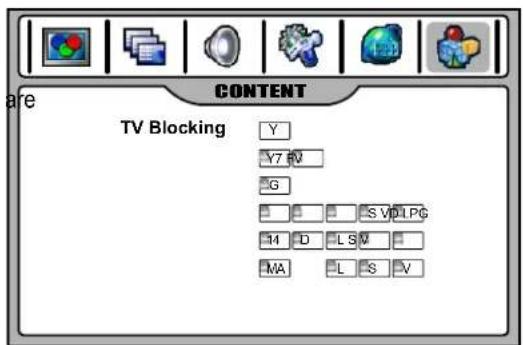
text_image
CONTENT TV Blocking Y Y7 M G S V D LPG 14 D L S M MA L S VPassword Setup
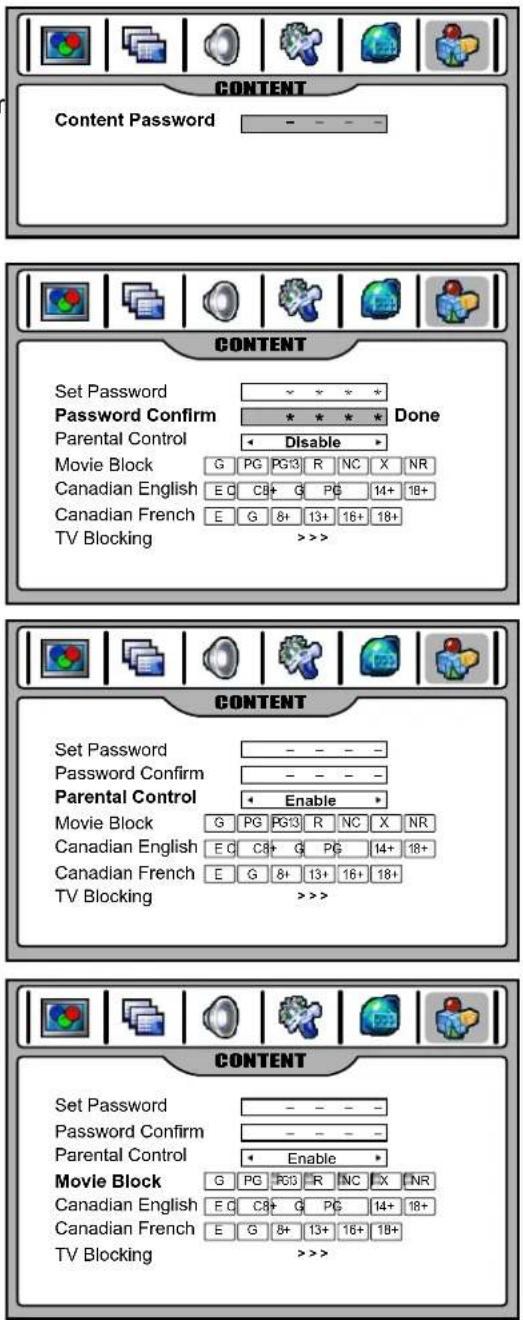
To use the Parental Control function, you first need to set your password.
1 Press MENU and then use ◀ or ▶ to display CONTENT menu page, press ▼ to enter.
2 Enter the password as requested (4-digit, the initial password is 1111). Now the whole CONTENT menu will appear.
3 Highlight Set Password, enter a new password and then confirm again. Now your new password has been created successfully. Be sure to write down your password and retain it for future use.
Parental Control Setup
1 Use the password to access CONTENT menu.
2 Highlight Parental Control, use ◀ or ▶ to select Enable to activate the blocking scheme you set up.
If you want to disable the blocking scheme you set up, select Disable.
MPAA Rating Setup
1 Use the password to access CONTENT menu.
2 Highlight Movie Block, use ◀ or ▶ to select your desired rating, then use OK to either block the rating (a lock will appear) or unblock (the lock will disappear).
For example, when "PG13" in the age-based rating is blocked, this will automatically block the higher ratings "R", "NC", "X", "NR" also.
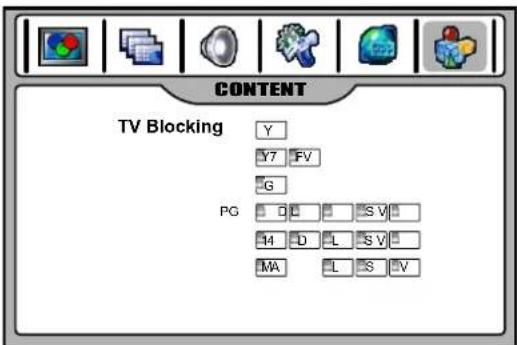
TV Rating Setup
1 Use the password to access CONTENT menu.
2 Highlight TV Blocking, use ◀ or ▶ to enter.
3 Within the menu, use ▲, ▼, ◀ or to select, use OK to either block (a lock will appear) or unblock (the lock will disappear).
For example, when Y7 in the age-based rating is set to BLOCK, this will automatically block the higher ratings: G, PG, 14 and MA. In addition, D, L, S, V and FV in content are automatically blocked.
4 Press EXIT button to return to TV viewing or press MENU to return to the previous menu.
text_image
CONTENT TV Blocking Y Y7 FV G PG D L S V M D L S V MA L S VCanadian English Rating Setup
1 Use the password to access CONTENT menu.
2 Highlight Canadian English, use ◀ or ▶ to select your desired rating, then use OK to either block the rating (a lock will appear) or unblock (the lock will disappear).
3 Press EXIT button to return to TV viewing.
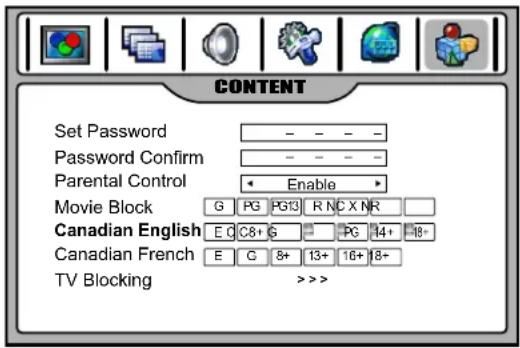
CANADIAN ENGLISH RATING CHART
text_image
CONTENT Set Password - - - - Password Confirm - - - - Parental Control Enable Movie Block G PG PG13 R N C X N R Canadian English E C8+ G PG 14+ -18- Canadian French E C 8+ 13+ 16+ 18+ TV Blocking >>>>| E | Exempt - Exempt programming includes: news, sports, documentaries and other information programming, talk shows, music videos, and variety programming. |
| C | Programming intended for children under age 8. No offensive language, nudity or sexual content. |
| C8+ | Programming generally considered acceptable for children 8 years and over. No profanity, nudity or sexual content. |
| G | General programming, suitable for all audiences. |
| PG | Parental Guidance suggested. Some material may not be suitable for children. |
| 14+ | Programming contains themes or content which may not be suitable for viewers under the age of 14 Parents are strongly cautioned to exercise discretion in permitting viewing by pre-teens and early tee |
| 18+ | Intended for viewers 18 years and older and might contain depictions of violence. |
Canadian French Rating Setup
1 Use the password to access CONTENT menu.
2 Highlight Canadian French, use ◀ or ▶ to select your desired rating, then use OK to either block the rating (a lock will appear) or unblock (the lock will disappear).
3 Press EXIT button to return to TV viewing.
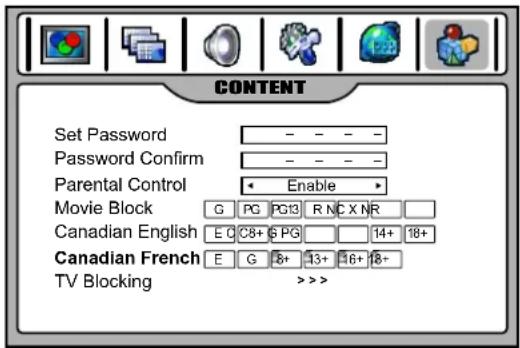
CANADIAN FRENCH RATING CHART
text_image
CONTENT Set Password - - - - Password Confirm - - - - Parental Control Enable Movie Block G PG PG13 RNCXNR Canadian English E C8+ S PG 14+ 18+ Canadian French E G 8+ 13+ 16+ 18+ TV Blocking >>>>| E | Exempt - Exempt programming. |
| G | General - Programming intended for audience of all ages. Contains no violence, or the violence content is minimal or is depicted appropriately. |
| 8+ | 8+ General - Not recommended for young children. Programming intended for a broad audience but contains light or occasional violence. Adult supervision recommended. |
| 13+ | Programming may not be suitable for children under the age of 13 - Contains either a few violent scenes or one or more sufficiently violent scenes to affect them. Adult supervisionstrongly suggested. |
| 16+ | Programming may not be suitable for children under the age of 16 - Contains frequent scenes of violence or intense violence. |
| 18+ | Only for adult viewing.Could contain frequent violent scenes and extreme violence. |
Information about RRT5 (Rating Region Table-Region5) criteria rating
If the broadcasting program uses RRT5 criteria rating in accordance with the FCC Rules, this unit can automatically download this kind of rating and provide to user to setup.
Its operation procedures are same to TV rating setup. Use password to access CONTENT menu, at the last line of the menu screen will appear this kind of rating, use ◀ or ▶ to access its first level sub-menu. In this level menu, particular rating types and Reset function are provided. Use menu navigation buttons to select and access second level sub-menu to setup the blocking scheme. Or you may select and activate Reset function at the first level sub-menu to clear the RRTrating. (If this rating is still broadcast by TV station, the unit will download it again).
Note: the actual menu options of this rating will vary depending on the broadcaster.
Watching PIP/PBP/POP Picture
Press the PIP button (the period of two-press should be within 3 seconds) to select different multi window modes. With each press of PIP button, the window mode will cycle among PIP, PBP, POP and full screen mode.
Note: If the period of two-press is more than 3 seconds and when current screen is in multi window mode, press PIP button then the screen will directly switch to full screen mode.
Full Screen
In Full Screen mode, only one window appears.
Full Screen
PIP (picture-in-picture)
PIP lets you view two different pictures on your TV screen at the same time. One picture will be large, and the other picture will show a smaller image.
Note: the main picture source can be any one kind except HDMI, while the sub window only can display analog TV channel or AV program.
Main Picture
Sub Picture
PBP (picture-by-picture)
PBP mode splits the screen into two, allowing two pictures to be shown on the TV screen at the same time. Each picture is given half the screen.
Note: the main picture source can be any one kind except HDMI, while the other window only can display analog TV channel or AV program.
| Main Picture | SubPicture |
POP (picture-out-of-picture)
Use POP to scan the programs of all the memorized channels one-by-one on the three mini windows (while the main window remains the current program).
Note: the main picture source can be any one kind except HDMI, while the three mini windows only can display analog TV channels.
| Main Picture | 1 |
| 2 Scanning Picture | |
| 3 |
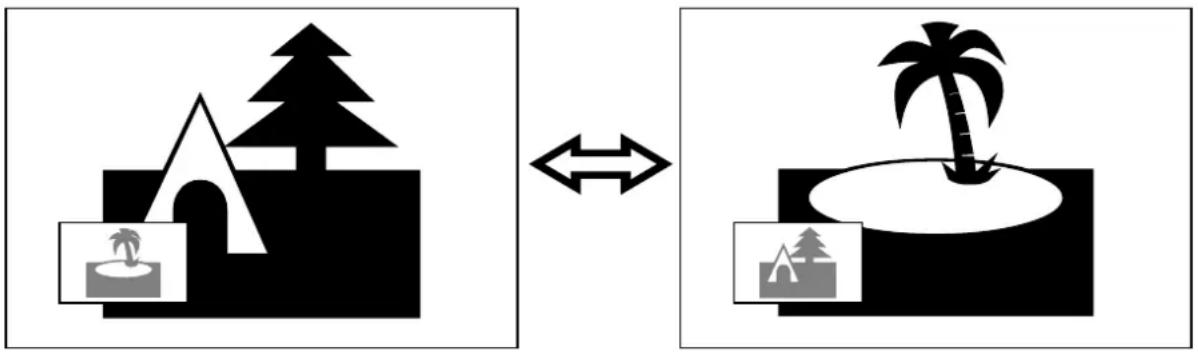
Swapping the PIP/PBP Picture
Use the SWAP button to swap the main and sub pictures.
Note:
Only when the main picture displays analog TV channel or AV program, the SWAP function can work.
natural_image
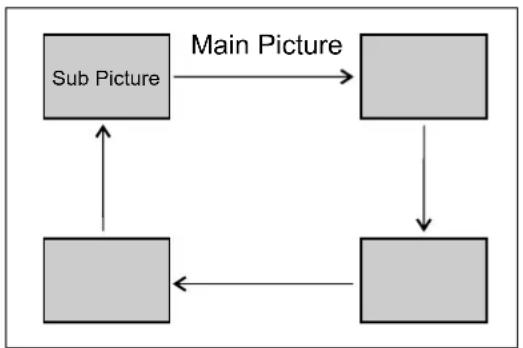
Two black-and-white diagrams showing a beach scene with trees and a palm tree, connected by an arrow (no text or symbols)Selecting the PIP sub picture position
In PIP mode, press the P.POSITION button to select a different position on the screen for the sub picture.
flowchart
graph TD
    A["Main Picture"] --> B["Sub Picture"]
    B --> C[" "]
    C --> D[" "]
    D --> E[" "]
    E --> F[" "]
    F --> G[" "]
    G --> H[" "]
    H --> I[" "]
    I --> J[" "]
    J --> K[" "]
    K --> L[" "]
    L --> M[" "]
    M --> N[" "]
    N --> O[" "]
    O --> P[" "]
    P --> Q[" "]
    Q --> R[" "]
    R --> S[" "]
    S --> T[" "]
    T --> U[" "]
    U --> V[" "]
    V --> W[" "]
    W --> X[" "]
    X --> Y[" "]
    Y --> Z[" "]
Selecting focus window
In multi window mode, you can press OK button to select main or sub picture as focus window and a green border will appear on it. You may apply many operations to the focus window such as channel select, volume control, input source select, etc.
In POP mode, you can press OK button to select three mini windows as focus window (1,2,3 will appear for some time). Before 1,2,3 disappears from the screen you can directly key in 1 or 2 or 3 on the remote control to choose the relevant program to be displayed on the main window.
Note:
- Normally main picture is default focus window.
- Many but not all operations can be applied to focus window.
Electronic Program Guide
Your TV has an “Electronic Program Guide” to help you to navigate through all the possible viewing options. The EPG supplies information, such as program lists, start and end times of all available channels. In addition, detailed information about the program is often available in the EPG. (The availability and the amount of program details will vary depending on the broadcaster.)
Operation
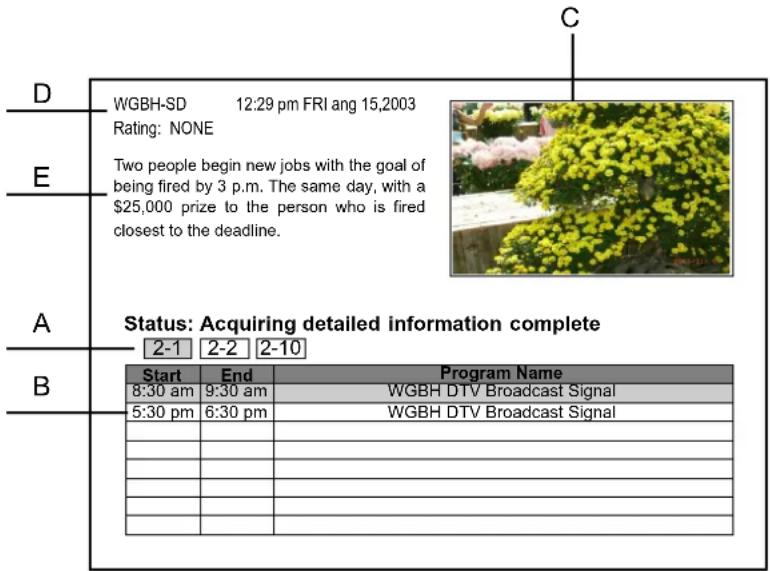
1 To display the Electronic Program Guide, press the GUIDE button. An example of an EPG window is given below. To exit, press GUIDE button again.
2 Press OK button to select active window. Once a window is activated, a green border will appear on it and you may apply operations to it.
3 If bottom half window of EPG is activated, press ◀ or ▶ button to select your desired channel (once selected, its relevant program information such as program list, start and end times of all available programs will be displayed). Press ▲ or ▼ to select different program at this channel (once selected, the top left window will display detailed information(if available) about this program).
4 If additional and detailed information about the selected program appears on the top right window, you may press OK button to highlight it (a green border will appear on it), then use ▲ or ▼ to scroll page (if required) to view more information.
text_image
D WGBH-SD 12:29 pm FRI ang 15,2003 Rating: NONE Two people begin new jobs with the goal of being fired by 3 p.m. The same day, with a $25,000 prize to the person who is fired closest to the deadline. E Status: Acquiring detailed information complete A 2-1 2-2 2-10 B Start End Program Name 8:30 am 9:30 am WGBH DTV Broadcast Signal 5:30 pm 6:30 pm WGBH DTV Broadcast Signal _ _ _ _ _ _ _ _ _ _ _ _ _ _ _ _ _ _ _ _ _ _ _ _ _ _ _ _ _ _ _ _ _ _ _ _ _ _ _ _ _ _ _ _ _ _ _ _ _ _ _ _ _ _ _ _ _ _ _ _ _ _ _ _ _ _ _ _ _ _ _ _ _ _ _ _ _ _ _ _ _ _ _ _ _ _ _ _ _ _ _ _ _ _ _ _ _ _ _ _ _A All available sub channels within an ATSC channel will be displayed.
B Displays current selected sub-channel's information such as program list, start and end times of all available programs.
C Program preview of current selected sub-channel.
D Shows current time, date, current program's station and rating, etc.
E Displays additional and detailed information about particular program (The availability of additional details depends on the broadcaster).
Note:
- The EPG will only work when you are receiving digital channels.
- To enable EPG to work properly, you must set Auto Clock function to ON.
- Be sure to select the correct source (Analog RGB or Component) before operation.
Image Adjust
1 Press MENU and then use ◀ or ▶ to display IMAGE ADJUST menu page, press ▼ to enter.
2 Within the menu, use ▲ or ▼ to select, use ◀ or ▶ to adjust.
3 Press EXIT button to exit.

text_image
IMAGE ADJUST Image size FILL ALL H position 050 V position 047 Frequency 000 Phase 000 Freeze Image OFF H width 005 V width 005(IMAGE ADJUST menu in Component mode)

text_image
IMAGE ADJUST Image size FILL ALL H position 050 V position 047 Frequency 000 Phase 000 Freeze Image OFF Auto Adjust >>>(IMAGE ADJUST menu in PC mode)
| Option | Function |
| Image size | Selects a desired image size (aspect ratio).The choice may be different in different mode.(refer to <Setting Picture/Adjusting Image>section in TV mode for details.)Note: you may directly press ZOOM button on the remote control to select. |
| H position | Move the image on the screen left/right. |
| V position | Move the image on the screen up/down |
| Frequency | Adjusts the sample frequency. |
| Phase | Improves the focussing of stable image. |
| Freeze Image | Select "ON" to freeze the image on the screen. Select "OFF" to reactivate the image.Note: you may directly press FREEZE button on the remote control to freeze the image, press again to restore. |
| H width(component mode only) | Adjusts the horizontal width of the image. |
| V width(component mode only) | Adjusts the vertical width of the image. |
| Auto Adjust(PC mode only) | Highlight "Auto Adjust" item and then use ◀ or ► button to start auto adjustment. The set will automatically adjust the image such as frequency, position setting, etc. |
- Be sure to select the HDMI source before operation.
Image Adjust
1 Press MENU and then use ◀ or ▶ to display IMAGE ADJUST menu page, press▼to enter.
2 Within the menu, use ▲ or ▼ to select, use ◀ or ▶ to adjust.
3 Press EXIT button to exit.
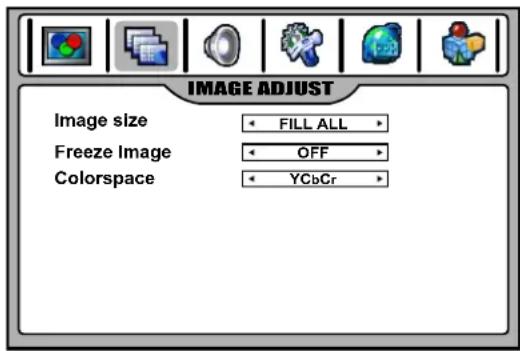
text_image
IMAGE ADJUST Image size FILL ALL Freeze Image OFF Colorspace YCbCr| Option | Function |
| Image size | Selects a desired image size (aspect ratio).(Refer tosection in TV mode for details.)Note: you may directly press ZOOM button on the remote control to select.When 1080i or 1080p signal is received, then this item can not be adjusted. |
| Freeze Image | Select "ON" to freeze the image on the screen. Select "OFF" to reactivate the image.Note: you may directly press FREEZEButton on the remote control to freeze the image, press again to restore. |
| Colorspace | When the unit converts DVI signal to HDMI signal, sometimes abnormal color will appear, if this situation occurs, you can try to adjust this item. |
Before calling for repair service, check the following items for possible remedies to an encountered symptom.
| Symptoms | Check item |
| No power | Check that the AC power cord is plugged into the mains socket.Unplug the power cord, wait for 60 seconds. Then re-insert plug into the mains socket and turn on the unit again. |
| No picture | Check video connections at the rear of the unit to see if it is properly connected to the unit.Adjust the contrast and brightness settings.Select a correct input.Is a non-compatible signal being input? |
| Good picture but no sound | Increase the VOLUME.Check that the unit is not muted. |
| Good sound but poor color | Adjust the contrast, color and brightness settings. |
| Poor picture | Sometimes, poor picture quality occurs when an activated S-VHS camera or camcorder is connected while another activated peripheral is connected. In this case switch off one of the peripherals.Check whether the room is too bright. |
| Horizontal dotted line | This may be caused by electrical interference (e.g. hairdryer, nearby neon lights, etc.).Turn off the equipment. |
| Remote operation fails. | This remote control is an universal remote control. If the remote control does not work correctly when operating the monitor, try pressing the TV button.Check whether the batteries are working. Replace if necessary.Clean the remote control sensor lens on the unit.Do not use the remote control under strong or fluorescent lighting.The batteries should be inserted with polarity (+,-) aligned. |
| Snowy picture and noise | Check the A/V connections. |
| No stable or not synchronized VGA picture | Check if you have selected the correct VGA mode in your PC. |
| No output from one of the speakers | Adjust Balance in the AUDIO (SOUND) menu. |
| Control buttons do not work. | Method 1: Press POWER button on the main unit and wait for 3 seconds, then the main unit will be turned off. Continue to wait for some time and then turn on the unit again. (Recommended because all the setting you have made will not be cleared.)Method 2: unplug the power cord, wait for a few seconds. Then re-plug the power cord and turn on the unit again.(But all the setting you have made will be cleared.) |

Do not use in hot and cold rooms (locations)
- When the unit is used in rooms (locations) with low temperature, the picture may leave trails or appear slightly delayed. This is not a malfunction, and the unit will recover when the temperature returns to normal.
- Do not leave the unit in a hot or cold location. Also, do not leave the unit in a location exposed to direct sunlight or near a heater, as this may cause the cabinet to deform and the LCD panel to malfunction.
(Storage temperature: 0°C to +50°C Working temperature: 5°C to +40°C)
Note:
If your problem is not solved, turn your unit off and then on again.
Never attempt to repair a defective TV yourself.
LCD Display panel information
Important Information Regarding Use of Video Games, Computers, Captions or Other Fixed Image Displays.
The extended use of fixed image program material can cause a permanent "shadow image" on the LCD panel.
This background image is viewable on normal programs in the form of a stationary fixed image. This type of irreversible LCD panel deterioration can be limited by observing the following steps:
A. Reduce the brightness/contrast setting to a minimum viewing level.
B. Do not display the fixed image for extended periods of time.
C. Turn the power off when not in actual use.
Note:
The marking or retained image on the LCD panel resulting from fixed image use is not an operating defect and as such is not covered by Warranty. This product is not designed to display fixed image patterns for extended periods of time.
Cleaning and Maintenance
To clean this unit, wipe with a soft, dry cloth.
If the surfaces are extremely dirty, use a soft cloth dipped in a soap and water solution or a weak detergent solution.
- Use eyeglass cleaner to remove stubborn dirt from the LCD.
- Never use alcohol, paint thinner or benzine to clean this unit.
- Before using a chemically treated cloth, read the instructions that came with the cloth carefully.
| Power supply: | AC 100-240V 50/60Hz |
| Power Consumption: | 250W (Max.) |
| Screen: | 42" |
| Weight: | 80.3(lb) |
| Unit Dimensions (WxHxD) (inch) | 42.4 x 33.9 x 13.6 |
Channel coverage:
| VHF | UHF | CATV | CADTV | DTV |
| 2-13 | 14-69 | 1-125 | 1-135 | 2-69 |
TV system: NTSC-M, ATSC
Accessories Operating manual X 1 Remote control unit X 1

- Design and specifications are subject to change without notice.
- Weight and Dimensions shown are approximate.
- Specifications and external appearance may be changed for the sake of improvement.
Safety precautions:
- Thoroughly read this instruction before setup and follow the steps below precisely.
- Very carefully handle the unit during setup and consult authorized service personnel to ensure successful installation.
- The table or other platform to be placed with the Display should be put a soft cushion on and be able to support the weight as well as be stable.
- Make sure not to handle the Speaker when moving the Display.
Assembling the Speaker
- Remove the screw covers carefully, then unscrew 4 screws from inside.

text_image
Screw covers- Assemble the speaker to the unit through the speaker-fixed connectors using the above screws(step1) and tighten securely, then install the two Speaker Connecting Covers to the corresponding place.
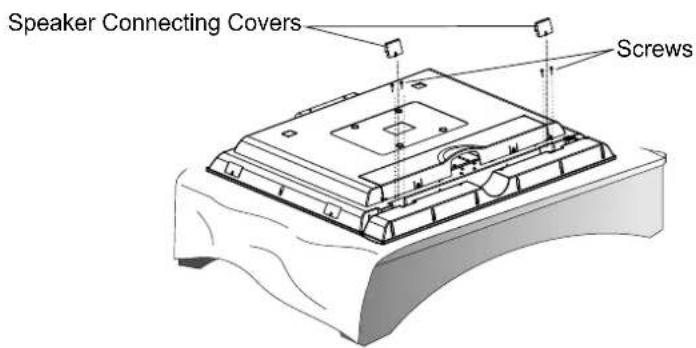
text_image
Speaker Connecting Covers ScrewsNote:
- Unplug the TV and all connected components before assembling and connecting the Speaker.
- Connect the speaker audio cable between the speaker output jacks on the unit and Speaker matching the "+" and "-" ends of the cable with color.
- The appearance of the unit may differ from the actual one.
- Design and specifications are subject to change without notice.
Programming your Remote Control
Introduction
Your remote lets you control four devices with one easy-to-use, compact unit. After installing batteries, you can program the remote to control your VCR or DVD, Cable or Satellite Receivers, Amplifier or Tuner, and Auxiliary devices. To do so, follow the instructions in "Programming a Device". For best results, please read and follow all the remaining instructions. Keep this guide for future reference.
Note: Programming to control TV is not allowed, TV control is already set and is unchangeable.
A Quick Look at Programming a Device
To control VCR or DVD, Cable or Satellite Receivers, Amplifier or Tuner, and Auxiliary devices, follow these steps. Before proceeding, find the codes for the devices you want to program in "Manufacturer's Codes" in next following pages and write them down or highlight them.
NOTE: To program a DVD Player, portable DVD player, or mobile DVD player, use the DVD key.
- Turn on the device (for example, DVD player) and, if needed, load media (for example, a DVD).
- Press a device key (VCR/DVD, CBL/ SAT, or AUX).
- Press and hold SET until the red LED blinks twice; then release.
- Enter the first five-digit code for your device. The LED blinks once as each digit is entered. If the code is correct, the LED blinks twice.
- NOTE: If the LED does not blink twice, repeat steps 2 to 4 and try entering the code again.
- Aim the remote at the device and press Power. The device should turn off. If it does not, repeat steps 3 to 5, trying each code for your brand until you find one that works. If you cannot find a code that works, see "Searching for Your Code".
- Repeat steps 1 to 5 for the other devices you want to control. For future reference, write down each working device code below:
AUX Code:
CBL Code:
CD Code:
DVD Code:
SAT Code:
TNR Code:
VCR Code:
- Press set to save and exit
Searching for your Code
If your device does not respond to the remote after trying all codes listed for your brand, or if your brand is not listed, try searching for your code:
-
Press a device key once.
-
Press and hold SET until the red LED blinks twice; then release.
- Enter 9-9-1, then the device group number (0= Cable, 2= VCR, 3= Audio). The LED blinks twice.
- Aim the remote at the device and press Power. The remote sends IR codes from its library to the selected device, starting with the most popular code first. If the device responds, go to step 7.
- If the device does not respond, press CH+. The remote will try the next code. Continue until the device responds.
- NOTE: Press CH- to try the previous code.
- To search for other device codes, repeat steps 1 to 5.
- Press SET to save and exit.
Checking the Codes
If you have set up the remote using the procedure in "Searching for Your Code", you may need to find out which four-digit code is operating your equipment.
For example, to find out which code is assigned to your DVD:
- Press DVD once.
- Press and hold SET until the red LED blinks twice; then release.
- Enter 9-9-0. The LED blinks twice.
- To view the code for the first digit, press 1. Count the LED blinks (for example, three blinks = 3), and write down the number in the appropriate code listing in step 6 under "Programming a Device".
- NOTE: If a code digit is 0, the LED does not blink.
- Repeat step 4 for the four remaining digits, using 2 for the second digit, 3 for the third digit, 4 for the fourth digit, and 5 for the fifth digit.
- To check for other device codes, repeat steps 1 to 5, substituting the device key for DVD.
Changing Volume Lock
The remote comes preset to allow independent volume control of each selected device (Global Volume Unlock). However, you may change the Volume Lock setting to Global Volume Lock so that one device's volume will control volume in all other modes. After that, you can perform Individual Volume Unlock on a selected device to set its volume control for independent operation or Global Volume Unlock to remove all volume locking.
Locking Volume Control to One Mode (Global Volume Lock)
- Press and hold SET until the red LED blinks twice; then release.
- Enter 9-9-3 and then press the mode key for the device you want to control volume (for example, DVD). The LED blinks twice. Now when you press VOL+, VOL-, or Mute, the selected device (for example, DVD) will control the volume regardless of the current mode.
Unlocking All Volume Control (Restoring Global Unlock)
-
Press and hold SET until the red LED blinks twice; then release.
-
Enter 9-9-3 and then press VOL+. The LED blinks four times.
Volume is now independently controlled for all programmed devices.
Unlocking a Single Device's Volume Control
-
Press a device key (VCR/DVD, CBL/ SAT, or AUX).
-
Press and hold SET until the red LED blinks twice; then release.
-
Enter 9-9-3 and then press VOL-. The LED blinks four times.
Volume is now independently controlled for the selected devices.
Troubleshooting
PROBLEM: LED does not blink when you press a key.
SOLUTION: Replace with new batteries.
PROBLEM: LED blinks when you press a key, but device does not respond.
SOLUTION: Make sure the remote is aimed at your device and is not more than 15 feet away.
PROBLEM: LED blinks one long blink.
SOLUTION: An entry error has occurred (for example, wrong key). Try entry sequence again.
PROBLEM: Remote does not control devices or commands are not working properly.
SOLUTION: Try all listed codes for the device. Make sure the device operates with an infrared remote control.
PROBLEM: No volume on a device.
SOLUTION: See "Changing Volume Lock".
MANUFACTURER'S CODES
Set Codes for Audio Amplifiers
Bose 30674
GE 30078
JVC 30331
Marantz 30321
Nakamichi 30321
NEC 30264
Optimus 30395
Realistic 30395
Sansui 30321
Shure 30264
Sony 30689
Soundesign 30078
Victor 30331
Wards 30078
Yamaha 30354, 30133
Set Codes for Audio Amp/Tuners
| ADC | 30531 |
| Aiwa | 31405, 31243, 30121 |
| Anam | 31609, 31074 |
| Audiotronic | 31189 |
| Bose | 31229 |
| Capetronic | 30531 |
| Carver | 31189 |
| Coby | 31263 |
| Denon | 31360, 31142, 30904 |
| Fonmix | 31360 |
| Glory Horse | 31263 |
| Harman/Kardon | 30110 |
| Hitachi | 31273 |
| Inkel | 30027 |
| Integra | 30135 |
| JBL | 30110 |
| JVC | 30074, 31263 |
| Kenwood | 31313, 31570, 30027 |
| KLH | 31428 |
| Magnavox | 31189, 31269, 30531 |
| Marantz | 31189, 31269, 30039 |
| MCS | 30039 |
| Onkyo | 30842, 30135 |
| Optimus | 31023, 30670, 30531, 31074 |
| Panasonic | 31518, 30039 |
| Philips | 31189, 31269 |
| Pioneer | 31023, 30150, 30014, 30630, 30531 |
| Proscan | 31254 |
| Qisheng | 31609 |
| Quasar | 30039 |
| RadioShack | 31263 |
| RCA | 31023, 31609, 31254, 30531, 31074 |
| Sharper Image | 31263 |
| Silsonic | 30176 |
| Sony | 31258, 31759 |
| Soundesign | 30670 |
| Stereophonics | 31023 |
| Sunfire | 31313 |
| Teac | 31074, 31267 |
| Technics | 31308, 31518, 30039 |
| Thorens | 31189 |
| Victor | 30074 |
| Wards | 30014 |
| Yamaha | 30176, 31276, 31176 |
Set Codes for Cable Converters
| ABC | 00003, 00008, 00014 |
| Americast | 00899 |
| Bell & Howell | 00014 |
| Bell South | 00899 |
| Clearmaster | 00883 |
| ClearMax | 00883 |
| Coolmax | 00883 |
| Daeryung | 01877, 00877, 00477, 00008 |
| Digi | 00637 |
| Director | 00476 |
| Dumont | 00637 |
| Gehua | 00476 |
| General Instrument | 00476, 00810, 00276, 00003, 00014 |
| GoldStar | 00144 |
| Hamlin | 00009, 00273 |
| Hitachi | 00014 |
| Jerrold | 00476, 00810, 00276, 00003, 00012, 00014 |
| KNC | 00008 |
| LG | 00144 |
| Memorex | 00000 |
| Motorola | 00476, 00810, 00276, 01254, 01376 |
| MultiVision | 00012 |
| Pace | 01877, 00237 |
| Panasonic | 00000, 00008, 00107 |
| Panther | 00637 |
| Paragon | 00000 |
| Philips | 00317, 01305 |
| Pioneer | 01877, 00877, 00144, 00533 |
| Pulsar | 00000 |
| Quasar | 00000 |
| RadioShack | 00883 |
| Regal | 00279, 00273 |
| Runco | 00000 |
| Samsung | 00000, 00144 |
| Scientific Atlanta | 01877, 00877, 00477, 00008 |
| Sony | 01006 |
| Starcom | 00003, 00014 |
| Supercable | 00276 |
| Supermax | 00883 |
| Tocom | 00012 |
| Torx | 00003 |
| Toshiba | 00000 |
| Trans PX | 00276 |
| Tristar | 00883 |
| TS | 00003 |
| V2 | 00883 |
| Viewmaster | 00883 |
| Vision | 00883 |
| Vortex View | 00883 |
| Zenith | 00000, 00525, 00899 |
Set Codes for CD Players
| Aiwa | 30157 | |
| Burmester | 30420 | |
| California Audio Labs | 30029 | |
| Carver | 30157, 30179 | |
| Denon | 30873 | |
| DKK | 30000 | |
| DMX Electronics | 30157 | |
| Dynamic Bass | 30179 | |
| Fisher | 30179 | |
| Garrard | 30420 | |
| Genexxa | 30032 | |
| Harman/Kardon | 30157, 30173 |
| Hitachi | 30032 |
| Integra | 30101 |
| JVC | 30072 |
| Kenwood | 30826, 30626, 30028, 30037, 30036, 30190 |
| Krell | 30157 |
| Linn | 30157 |
| Magnavox | 30157 |
| Marantz | 30626, 30029, 30157 |
| MCS | 30029 |
| Miro | 30000 |
| Mission | 30157 |
| MTC | 30420 |
| NSM | 30157 |
| Onkyo | 30868, 30101 |
| Optimus | 31063, 30000, 30032, 30037, 30420, 30179, 31075, 30145 |
| Panasonic | 30029 |
| Parasound | 30420 |
| Philips | 30626, 30157 |
| Pioneer | 31063, 31062, 30032 |
| Polk Audio | 30157 |
| Proton | 30157 |
| QED | 30157 |
| Quad | 30157 |
| Quasar | 30029 |
| RadioShack | 31075 |
| RCA | 31062, 30032, 30420, 30179, 30053 |
| Realistic | 30420, 30179 |
| Rotel | 30157, 30420 |
| SAE | 30157 |
| Sansui | 30157 |
| Sanyo | 30179 |
| SAST | 30157 |
| Sharp | 30861, 30037 |
| Silsonic | 30888, 30036 |
| Sonic Frontiers | 30157 |
| Sony | 30490, 30000, 30100 |
| Soundesign | 30145 |
| TAG McLaren | 30157 |
| Tascam | 30420 |
| Teac | 30420 |
| Technics | 30029 |
| Victor | 30072 |
| Wards | 30157, 30053 |
| Yamaha | 30888, 30036 |
| Zonda | 30157 |
Set Codes for DVD Players
| Aiwa | 20641, 21912 |
| Akai | 20770 |
| Allegro | 20869 |
| Apex Digital | 20672, 20717, 20797, 21061, 20796, 21056, 21937, 20794, 21020, 21915 |
| Blaupunkt | 20717 |
| Blue Parade | 20571 |
| Broksonic | 20695 |
| Changhong | 20627, 21061 |
| CineVision | 20869 |
| Coby | 21086 |
| Curtis Mathes | 21087 |
| CyberHome | 21024, 21023, 21129, 20816, 21117 |
| Daewoo | 20833, 21172, 20869 |
| Denon | 20490 |
| DVD2000 | 20521 |
| Emerson | 20591, 20675 |
| Enterprise | 20591 |
| Fisher | 21919 |
| Funai | 20675 |
| Gateway | 21158, 21073 |
| GE | 20522, 20717 |
| Go Video | 20744, 20833, 21099, 20783, 21075, 20869, 21730 |
| Greenhill | 20717 |
| Harman/Kardon | 20582, 20702 |
| Hitachi | 20573, 20664, 21919 |
| Hiteker | 20672 |
| Initial | 20717 |
| Integra | 20627, 21924 |
| JBL | 20702 |
| JVC | 20558, 20623, 20867 |
| Kenwood | 20490, 20534 |
| KLH | 20717, 21020, 21149 |
| Koss | 20651, 21980 |
| Lasonic | 20798 |
| LG | 20591, 20869, 20801 |
| Liquid Video | 21980 |
| Lite-On | 21158, 21058 |
| Loewe | 20511 |
| Magnavox | 20503, 20539, 21976, 21914, 20675 |
| Marantz | 20539 |
| Memorex | 20695 |
| Microsoft | 20522 |
| Mintek | 20717 |
| Mitsubishi | 21521, 20521 |
| Nesa | 20717 |
| Norcent | 21003 |
| Onkyo | 20503, 20627, 21924, 20792 |
| Oritron | 20651, 21980 |
| Panasonic | 20490, 21762, 21990 |
| Philips | 20503, 20539, 20646, 21914 |
| Pioneer | 20525, 20571 |
| Polaroid | 21086, 21061 |
| Polk Audio | 20539 |
| Portland | 20770 |
| Proscan | 20522 |
| Qwestar | 20651 |
| RCA | 20522, 20571, 20717, 20822 |
| Rio | 20869 |
| Rotel | 20623 |
| Sampo | 20752, 20698 |
| Samsung | 20490, 20573, 21932, 21075, 20820 |
| Sansui | 20695 |
| Sanyo | 20695 |
| Sharp | 20630, 20752 |
| Sharper Image | 21117 |
| Sherwood | 20770 |
| Shinco | 20717 |
| Shinsonic | 20533 |
| Sonic Blue | 20869, 21099 |
| Sony | 20533, 20864, 21033, 21904, 21903 |
| SVA | 20717 |
| Sylvania | 20675 |
| Symphonic | 20675 |
| Teac | 20717, 21984, 20809 |
| Technics | 20490 |
| Theta Digital | 20571 |
| Toshiba | 20503, 20695 |
| Urban Concepts | 20503 |
| Xbox | 20522 |
| Yamaha | 20490, 20539, 20545 |
| Zenith | 20503, 20591, 20869 |
Set Codes for Satellite Receivers
| AlphaStar | 00772 |
| Chaparral | 00216 |
| Crossdigital | 01109 |
| DirecTV | 00392, 00566, 00639, 01142, 00247, 00749, 01749, 00724, 00819, 01856, 01076, 01109, 00099, 01392, 01640, 01442, 01414, 01108 |
| Dish Network System | 01005, 00775, 01505 |
| Dishpro | 01005, 00775, 01505 |
| Echostar | 01005, 00775, 01505 |
| Expressvu | 00775 |
| GE | 00566 |
| General Instrument | 00869 |
| GOI | 00775 |
| Goodmans | 01246 |
| Hisense | 01535 |
| Hitachi | 00819, 00222, 01250 |
| HTS | 00775 |
| Hughes Network Systems | 01142, 00749, 01749, 01442 |
| I-Lo | 01535 |
| JVC | 00775 |
| LG | 01414, 01226 |
| Magnavox | 00724, 00722 |
| Memorex | 00724 |
| Mitsubishi | 00749 |
| Motorola | 00869 |
| NEC | 01270 |
| Next Level | 00869 |
| Panasonic | 00247, 00701 |
| Paysat | 00724 |
| Philips | 01142, 00749, 01749, 00724, 01076, 00722, 00099, 01442 |
| Proscan | 00392, 00566 |
| Proton | 01535 |
| RadioShack | 00869 |
| RCA | 00392, 00566, 00855, 00143, 01392 |
| Samsung | 01276, 01109, 01108 |
| Sanyo | 01219 |
| SKY | 00856 |
| Sony | 00639, 01640 |
| Star Choice | 00869 |
| Tivo | 01142, 01442 |
| Toshiba | 00749, 01749, 00790, 01285 |
| UltimateTV | 01640, 01392 |
| Uniden | 00724, 00722 |
| US Digital | 01535 |
| USDTV | 01535 |
| Voom | 00869 |
| Zenith | 00856, 01856 |
Set Codes for VCRs
| ABS | 21972 |
| Admiral | 20048, 20209 |
| Aiko | 20278 |
| Aiwa | 20037, 20479 |
| Alienware | 21972 |
| America Action | 20278 |
| American High | 20035 |
| Amoisonic | 20479 |
| Anam | 20162, 20037, 20240, 20278 |
| Anam National | 20162 |
| Asha | 20240 |
| Audiovox | 20037, 20278 |
| Beaumark | 20240 |
| Bell & Howell | 20104 |
| Broksonic | 20184, 20121, 20209, 20002, 20479 |
| Calix | 20037 |
| Canon | 20035 |
| Carver | 20081 |
| CCE | 20072, 20278 |
| Changhong | 20048, 20081 |
| Citizen | 20037, 20278 |
| Colt | 20072 |
| Craig | 20037, 20047, 20240, 20072 |
| Curtis Mathes | 20060, 20035, 20162 |
| Cybernex | 20240 |
| CyberPower | 21972 |
| Daewoo | 20045, 20104, 20278 |
| Dell | 21972 |
| Denon | 20042 |
| DirecTV | 20739 |
| Durabrand | 20039, 20038 |
| Electrohome | 20037 |
| Electrophonic | 20037 |
| Emerex | 20032 |
| Emerson | 20035, 20037, 20184, 20240, 20045, 20121, 20043, 20209, 20002, 20278, 20479 |
| Fisher | 20047, 20104 |
| Fuji | 20035, 20033 |
| Fujitsu | 20045 |
| Gateway | 21972 |
| GE | 20060, 20035, 20240 |
| General | 20045 |
| Go Video | 20432 |
| GoldStar | 20037, 20209, 20038, 20225 |
| Haojie | 20240 |
| Harman/Kardon | 20081, 20038 |
| Harwood | 20072 |
| Hewlett Packard | 21972 |
| HI-Q | 20047 |
| Hitachi | 20037, 20042, 20055 |
| Howard Computers | 21972 |
| HP | 21972 |
| Hughes Network Systems | 20042, 20739 |
| iBUYPOWER | 21972 |
| JVC | 20045, 20067 |
| KEC | 20037, 20278 |
| Kenwood | 20067, 20038 |
| KLH | 20072 |
| Kodak | 20035, 20037 |
| Kolin | 20043 |
| LG | 20037, 20045, 20042, 20209, 20038 |
| Logik | 20072 |
| LXI | 20037 |
| Magnavox | 20035, 20039, 20081 |
| Magnin | 20240 |
| Marantz | 20035, 20081 |
| Marta | 20037 |
| Matsushita | 20035, 20162 |
| Media Center PC | 21972 |
| MEI | 20035 |
| Memorex | 20035, 20162, 20037, 20048, 20039, 20047, 20240, 20104, 20209, 20479 |
| MGA | 20240, 20043 |
| MGN Technology | 20240 |
| Microsoft | 21972 |
| Mind | 21972 |
| Minolta | 20042 |
| Mitsubishi | 20067, 20043 |
| Motorola | 20035, 20048 |
| MTC | 20240 |
| Multitech | 20072 |
| NEC | 20035, 20037, 20048, 20104, 20067, 20038 |
| Newave | 20037 |
| Nikko | 20037 |
| Noblex | 20240 |
| Northgate | 21972 |
| Olympus | 20035 |
| Optimus | 21062, 20162, 20037, 20048, 20104, 20432 |
| Orion | 20184, 20209, 20002, 20479 |
| Panasonic | |
| Penney | |
| Pentax | 20042 |
| Philco | 20035, 20479 |
| Philips | 20035, 20081, 20739, 20618 |
| Pilot | 20037 |
| Pioneer | 20042, 20067 |
| Polk Audio | 20081 |
| Profitronic | 20240 |
| Proscan | 20060 |
| Protec | |
| Pulsar | 20039 |
| Qisheng | 20060 |
| Quasar | |
| Radix | 20037 |
| Randex | 20037 |
| RCA | 20060, 20035, 20240, 20042, 20880 |
| Realistic | 20035, 20037, 20048, 20047, 20104 |
| ReplayTV | 20616 |
| Runco | 20039 |
| Sampo | 20037, 20048 |
| Samsung | 20240, 20045, 20432 |
| Sanky | 20048, 20039 |
| Sansui | |
| Sanyo | 20047, 20240, 20104 |
| Scott | 20184, 20045, 20121, 20043 |
| Sears | 20035, 20037, 20047, 20042, 20104 |
| Sharp | 20048, 20209 |
| Shintom | 20072 |
| Shogun | 20240 |
| Singer | |
| Sonic Blue | |
| Sony | 20035, 20032, 20033, 20636, 21972 |
| STS | 20042 |
| Sylvania | 20035, 20081, 20043 |
| Systemax | |
| Tagar Systems | 21972 |
| Tashiko | 20037 |
| Tatung | 20045, 20067 |
| Technics | 20035, 20162 |
| Teco | 20035, 20037, 20048, 20038 |
| Teknika | 20035, 20037 |
| Tivo | 20636, 20618, 21503, 20739 |
| TMK | 20240 |
| Toshiba | 20045, 20042, 20067, 20043, 21503, 21008, 21972 |
Totevision 20037, 20240
Touch 21972
Unitech 20240
Vector 20045
Vector Research 20038
Victor 20067
Video Concepts 20045
Videomagic 20037
Videosonic 20240
Viewsonic 21972
Wards 20060, 20035, 20048, 20047, 20081, 20240, 20042, 20072
White Westinghouse 20209, 20072
XR-1000 20035, 20072
Yamaha 20038
Zenith 20039, 20033, 20209, 20479
ZT Group 21972
CARE
- Keep the remote dry. If it gets wet, wipe it dry immediately.
• Use and store the unit only in normal temperature environments. - Handle the remote gently and carefully. Don't drop it.
- Wipe the remote with a damp cloth to keep it looking like new.

PRINTED ON
RECYCLED PAPER