FPE1705 - Television VOXX - Free user manual and instructions
Find the device manual for free FPE1705 VOXX in PDF.


User questions about FPE1705 VOXX
0 question about this device. Answer the ones you know or ask your own.
Ask a new question about this device
Download the instructions for your Television in PDF format for free! Find your manual FPE1705 - VOXX and take your electronic device back in hand. On this page are published all the documents necessary for the use of your device. FPE1705 by VOXX.
USER MANUAL FPE1705 VOXX
natural_image
Illustration of a flat-screen CRT television mounted on a stand with a remote control unit beside it (no text or symbols visible)Before connecting, operating or adjusting this product, please read the manual completely.
Congratulations on your purchase of this LCD TV.
We recommend that you read this manual thoroughly before use to fully enjoy the many functions and excellent features of this unit.
Keep this manual in an easily accessible location for future reference.
Note: Screen displays and illustrations in this manual may differ from the actual model.
Contents Index
Important safety information 3
Important safety cautions 4
Identification of controls 6
Control buttons 6
Back 7
Remote control 8
Installation 10
Basic operations 18
Main on-screen-display (OSD) introduction 19
Operations 20
Picture adjustment 20
System setting 21
Audio setting 26
Channel setting 28
Selecting channel 30
OSD setting 31
Timer setting 32
Operations in VGA/YbPr mode 33
TV troubleshooting 35
Specifications 36
Important Safety Information

text_image
CAUTION RISK OF ELECTRIC SHOCK DO NOT OPEN CAUTION : TO REDUCE THE RISK OF ELECTRIC SHOCK, DO NOT REMOVE COVER (OR BACK). NO USER-SERVICEABLE PARTS INSIDE. REFER SERVICING TO QUALIFIED SERVICE PERSONNEL
The lightning flash with the arrowhead symbol within an equilateral triangle is intended to alert the user to the presence of uninsulated “DANGEROUS VOLTAGE” within the product’s enclosure that may be of sufficient magnitude to constitute a risk of electric shock to persons.

The Exclamation point within an equilateral triangle is intended to alert the user to the presence of important operating and maintenance (Servicing instructions in the literature accompanying the product).
Federal Communication Commission Information (FCC)
This Equipment has been tested and found to comply with the limits for a TV Broadcast Receiver, pursuant to Part 15 of the FCC Rules. These limits are designed to provide reasonable protection against harmful interference in a residential installation. This equipment generates, uses and can radiate radio frequency energy and, if not installed and used in accordance with the instructions, may cause harmful interference to radio communications. If this equipment does cause or receive interference, which can be determined by turning equipment off and on, the user is encouraged to try to correct the interference by one of the following measures:
Reorient or relocate the TV antenna
Increase the separation between TV and other equipment.
Connect TV into separate outlet from equipment.
Consult the dealer or an experienced radio/TV technician for help
FCC Caution: Any changes or modifications not expressly approved by the party responsible for compliance could void the user's authority to operate this equipment
Important Safety Cautions
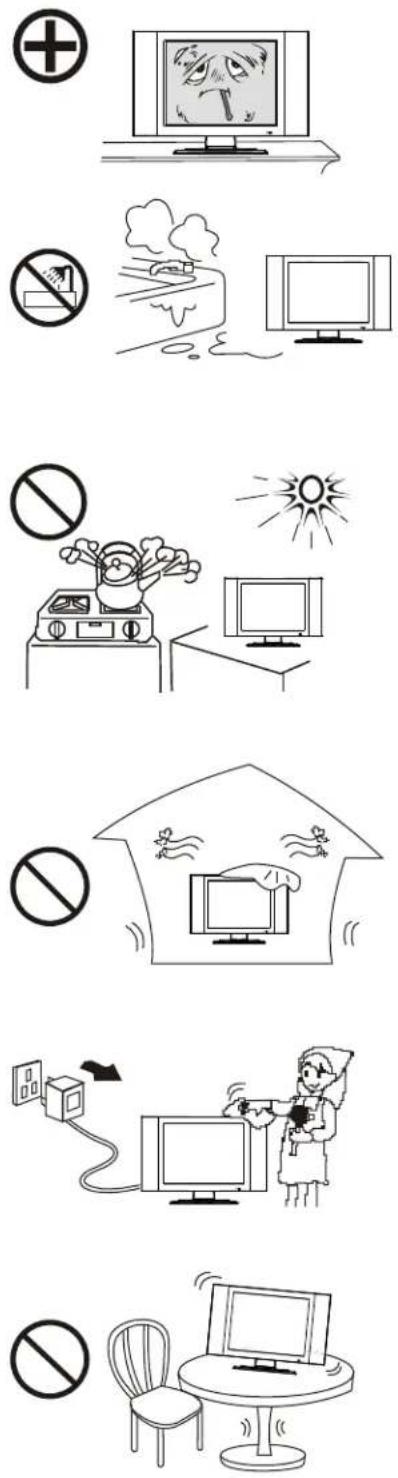
When any unusual situation occurs, turn off the power supply at once and remove the plug from the wall outlet. Contact a qualified service department in your local area.
Do not expose this unit in the rain or spatter by liquid. Do not use this product near water - for example, near a bathtub, washbowl, kitchen sink, or laundry tub, in a wet basement, or near a swimming pool, and the like. Do not use immediately after moving from a low temperature to high temperature environment, as this causes condensation, which may result in fire, electric shock, or other hazards.
Heat sources-Keep the product away from heat sources such as radiators, heaters, stoves and other heat generating products (including amplifiers). Requirement of environment temperature: 0°C\~950 C for storage; 5 C\~40 C for working
The vents and other openings in the cabinet are designed for ventilation. Do not cover or block these vents and openings since insufficient ventilation can cause overheating and/or shorten the life of the product. Do not place the product on a bed, sofa, rug or other similar surface, since they can block ventilation openings. This product is not designed for built-in installation; do not place the product in an enclosed place such as a bookcase or rack, unless proper ventilation is provided or the manufacturer's instructions are followed.
Unplug this product from the wall outlet before cleaning. Do not use liquid cleaners or aerosol cleaners. Use a damp cloth for cleaning.
Do not place the product on an unstable trolley, stand, tripod or table. Placing the product on an unstable base can cause the product to fall, resulting in serious personal injuries as well as damage to the product. Use only a trolley, stand, tripod, and bracket or table recommended by the manufacturer or sold with the product.
Important Information Regarding use of Video Games, Computer, captions or other fixed images displays
The extended use of a fixed image program material can cause permanent “Shadow Image” on the LCD panel. The background image is viewable on normal programs in the form of stationary fixed images. This type of irreversible LCD panel deterioration can be limited by observing the following steps:
* Reduce the Brightness and Contrast settings to a minimum viewing level
* DO NOT display the fixed image for extended periods of time
* Turn the power OFF when not in actual use
Recycling
This product utilizes tin-lead solder, and has a fluorescent lamp containing a small amount of mercury. Disposal of these materials may be regulated in your community due to environmental considerations. For disposal or recycling information please contact your local authorities, or the Electronics Industries Alliance Environment at: http://www.eiae.org/
Identification of controls
Control buttons
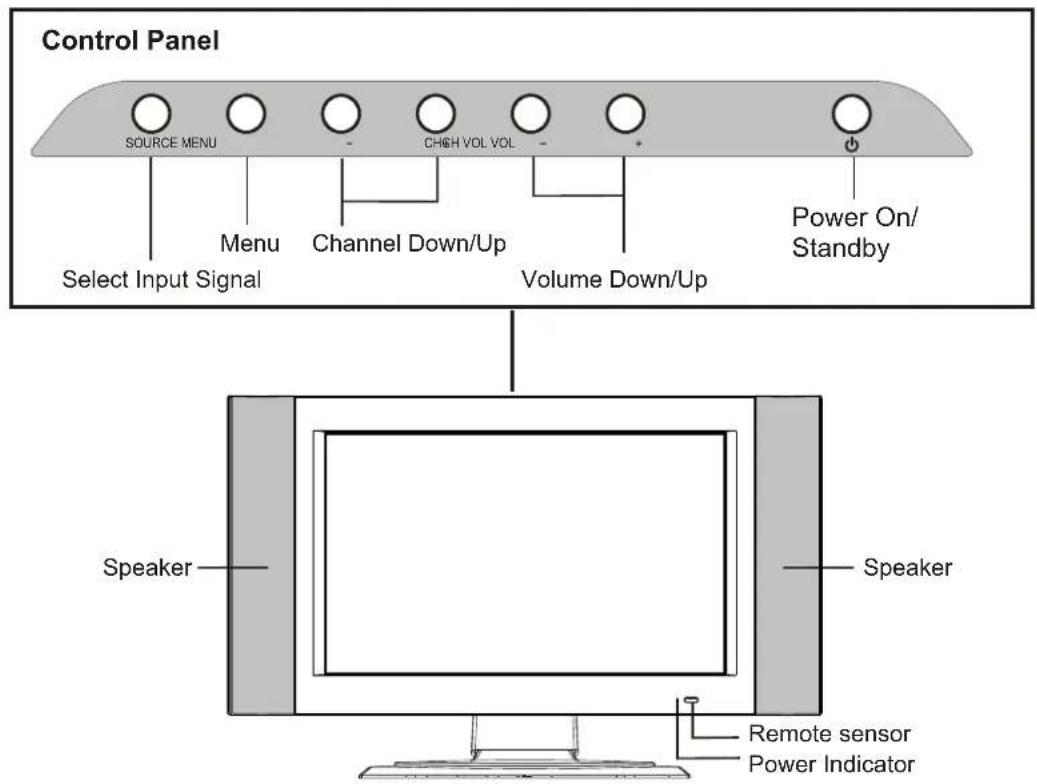
text_image
Control Panel SOURCE MENU Menu Channel Down/Up Volume Down/Up Select Input Signal CHCH VOL VOL Power On/ Standby Speaker Speaker Remote sensor Power Indicator1. SOURCE
To access the SOURCE select menu
The Power Indicator light will glow yellow when the set is turned on, and glows red when the set is in the standby mode.
2. MENU
Press this button to access the MENU main page.
3. CH +/-
Change the TV channel.
In OSD Menu, press these buttons to choose the OSD items.
4. VOL +/-
Increase or decrease the sound volume level.
In OSD Menu, press these buttons to adjust the value or setting of each item
5. POWER (⏻)
Press this button to turn the unit ON from STANDBY mode. Press it again to turn the set back to STANDBY.
Note:
SOURCE, MENU, CH+/-, VOL+/- and POWER( ⏻ ) on the main unit have the same functions as the corresponding buttons on the remote control.
This operation manual provides a description based on operating functions with the remote control.
Identification of controls (continued)

text_image
Back 1. VGA input / PC- Audio in Connect to the VGA/audio output Ø 3.5mm jacks on your PC. 2. HDTV input (Y, Pb, Pr, Audio L, R) Connect to the Y/Pb/Pr (or Y/Cb/Cr) and audio output jacks of a Set-Top Box or DVD player. 3. Headphone Ø 3.5mm jack 4. AV outputs (Video, Audio L, R) Connect to the VCR input jacks to record programs. 5. AV inputs (Video, Audio L, R) Receive video/audio signals from external sources such as VCR or DVD player. 6. S-Video input Receive a S-Video signal from external source such as VCR or DVD player. 7. Coaxial cable & Antenna inputRemote Control

text_image
Power on/standby Volume up/down selector; In the menu operation, adjust the selected item Access the menu Select OSD menu position Change audio to mono, stereo or SAP Auto correct picture Select picture mode between Bright, Nature, Soft & User Select the input signal source Power on/standby Mute CH VOL - CH MENU STEERO OSD POSITION S.M EXIT SLP Channel up/down selector. In menu operations, used to select item. Exit the menu Sound preset mode selector Setting sleep timer Previous channel Display the current state Direct channel selector Adjust the treble Bass+ Treb+ Bass- Treb- Adjust the bass Flip the cover open in the arrow direction.Preparing the Remote Control
Please install the batteries before using the remote control.
Batteries for the Remote Control
If the remote control fails to operate the LCD TV functions, replace the batteries in the remote control.
1 Open the battery cover.
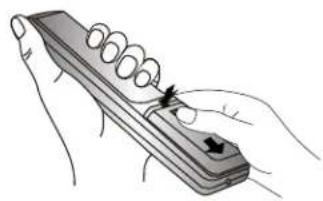
natural_image
Illustration of a hand holding a coiled spring and a rectangular device with a scroll, no text or symbols present■(Slide the cover while pressing down.)
2 Insert two size-AAA batteries.

■(Place the batteries with their terminals corresponding to the (+) and (-) indications in the battery compartment.)
3 Replace the cover and slide in reverse until the lock snaps.
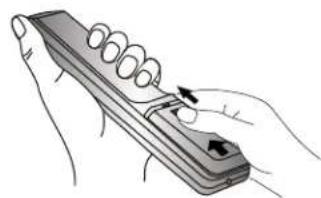
natural_image
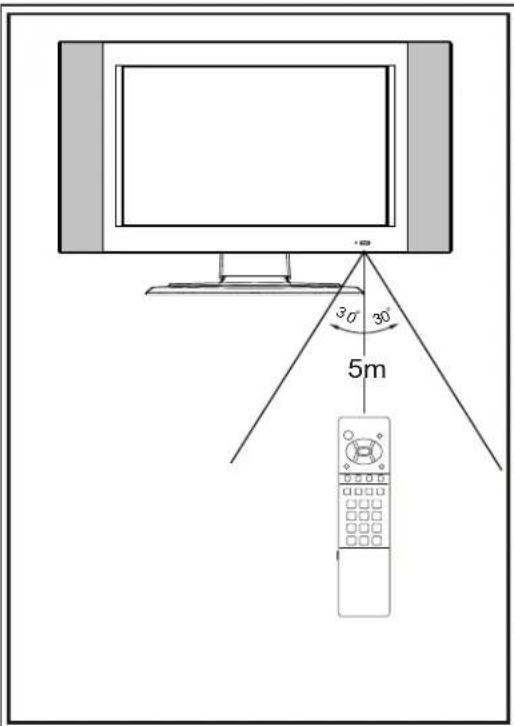
Illustration of a hand holding a coiled spring or scroll with an arrow indicating motion (no text or symbols)Effective range of the remote control
text_image
30° 30° 5m
Notes:
-
When the remote control will not be used for a long period of time or when the batteries are worn out, remove the batteries.
-
Do not drop or dampen the remote control.
-
Do not disassemble the remote control.
-
There should be no obstacle between the TV and the transmitter.
-
Use the remote control within the effective range as shown in the figure on the left.
-
If the remote control does not work, please check whether the batteries are exhausted or if they have been installed properly.
-
When direct sunlight, and incandescent lighting, fluorescent lamp or any other strong light shines on the remote sensor of the TV, the remote operation can be come erratic.
-
Do not mix different types of batteries in the remote.
Antenna connections
OUTDOOR VHF/UHF ANTENNA CONNECTION (ANTENNA NOT INCLUDED)
Follow the instructions for the type of antenna system you intend to use. If using Cable or satellite, see the next page.
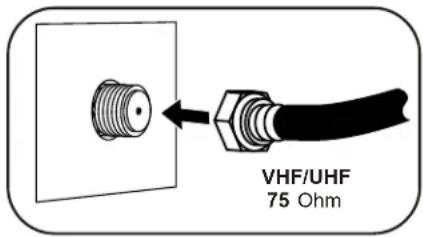
Combination VHF/UHF
Antenna (Single 75 Ohm cable Antenna (Separate VHF and or 300 Ohm twin-lead wire) UHF 300 Ohm twin-leads)
text_image
VHF/UHF 75 OhmConnect the 75 Ohm cable from combination VHF/UHF antenna to the antenna jack.
OR
If your combination antenna has a 300 Ohm twin-lead wire, use a 300-75 Ohm matching transformer (NOT SUPPLIED).
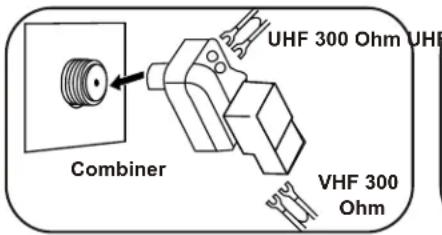
Combination VHF/UHF
Antenna (Separate VHF and UHF 300 Ohm twin-leads)
text_image
UHF 300 Ohm UHF Combiner VHF 300 OhmConnect the UHF twin-lead wire to a combiner (NOT SUPPLIED). Connect the VHF twin-lead to a 300-75 Ohm matching transformer (NOT SUPPLIED). Attach the transformer to the combiner. Attach the combiner to the antenna jack.

text_image
300 Ohm Combiner VHF 75 OhmConnect the 75 Ohm cable from the VHF antenna and the UHF antenna twin-lead wire to a combiner (NOT SUPPLIED). Attach the combiner to the antenna jack.
NOTE: If your VHF antenna has a twin-lead wire use a 300-75 Ohm matching transformer, then connect the transformer to the
Cable (CATV)/satellite connections
This TV has an extended tuning range and can tune most cable channels without using a Cable TV converter box. Some Cable TV companies offer "premium pay channels" in which the signal is scrambled. Descrambling these signals for normal viewing requires the use of a descrambler device which is generally provided by the cable company.
FOR SUBSCRIBERS TO BASIC CABLE TV SERVICE
For basic cable service not requiring a converter/descrambler box, connect the CATV 75 ohm coaxial cable to the VHF/UHF jack on the rear of the TV.

natural_image
Diagram showing a connector with threaded cable and connector, no text or symbols presentFOR SUBSCRIBERS TO SCRAMBLED CABLE TV SERVICE OR SATELLITE
If you subscribe to a satellite service or a cable TV service which requires the use of a converter/descrambler box, connect the incoming 75 Ohm coaxial cable to the converter/descrambler box. Using another 75 Ohm cable, connect the output of the converter/descrambler or satellite box to the antenna jack on the TV. Follow the connections shown below. Set the TV/VCR to the output channel of the converter/descrambler or satellite box (usually 3 or 4) and use the converter/descrambler or satellite box to select channels.

text_image
INCOMING 75 Ohm CATV CABLE CONVERTER/DESCRAMBLER OR SATELLITE BOX (NOT SUPPLIED) 75 Ohm CABLE TO TV/VCRFOR SUBSCRIBERS TO UNSCRAMBLED BASIC CABLE TV SERVICE WITH SCRAMBLED PREMIUM CHANNELS
If you subscribe to a satellite service or a cable TV service in which basic channels are unscrambled and premium channels require the use of a converter/descrambler box, you may wish to use a signal splitter and an A/B switch box (available from the cable company or an electronic supply store). Follow the connections shown below. With the switch in the "B" position, you can directly tune any nonscrambled channels on your TV. With the switch in the "A" position, tune your TV to the output of the converter/descrambler box (usually channel 3 or 4) and use the converter/descrambler box to tune

text_image
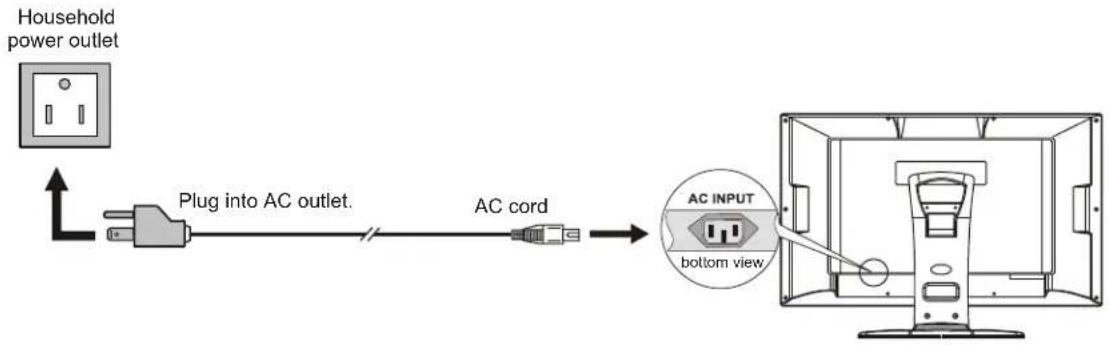
scrambled channels. NCOMING 5 Ohm CATV CABLE SPITTER (NOT SUPPLIED) CONVERTER/DESCRAMBLER (NOT SUPPLIED) 11 A/B SWITCH (NOT SUPPLIED) 75 Ohm CABLEPower connection
text_image
Household power outlet Plug into AC outlet. AC cord AC INPUT bottom view- Connecting the female plug to the AC socket on the unit.
- Connecting the male plug to the wall outlet as illustrated.
Note:
■ This product should only be operated with the type of power source marked on the lable on the unit.
■ Always unplug the power cord when the LCD TV is not in use for an extended period of time of time.
■ The illustration of power cord and power outlet is only for your reference and may vary depending on your area.
Elevation adjustment
You can adjust the angle of the LCD TV as follows. The elevation can be adjusted from -5^ to +10 average.

natural_image
Technical line drawing of a mechanical device with a vertical support and curved base (no text or symbols)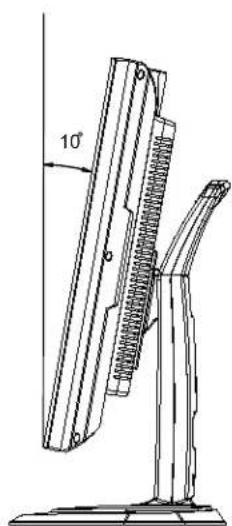
natural_image
Technical line drawing of a mechanical device with a 10° angle标注 (no text or symbols beyond the label)Installation(continued)
Notes about connection
- Carefully check the terminals for position and type before making any connections.
- Loose connectors will result in image or color problems. Make sure that all connectors are securely inserted into their terminals.
- When connecting an external device, turn off the power of the main unit first to prevent any possible damage.
Connecting the Video/Audio equipment
You can connect the unit to a DVD or VCR to enjoy playback with high quality picture and sound.
Please refer to the instruction manual of the equipment to be connected.
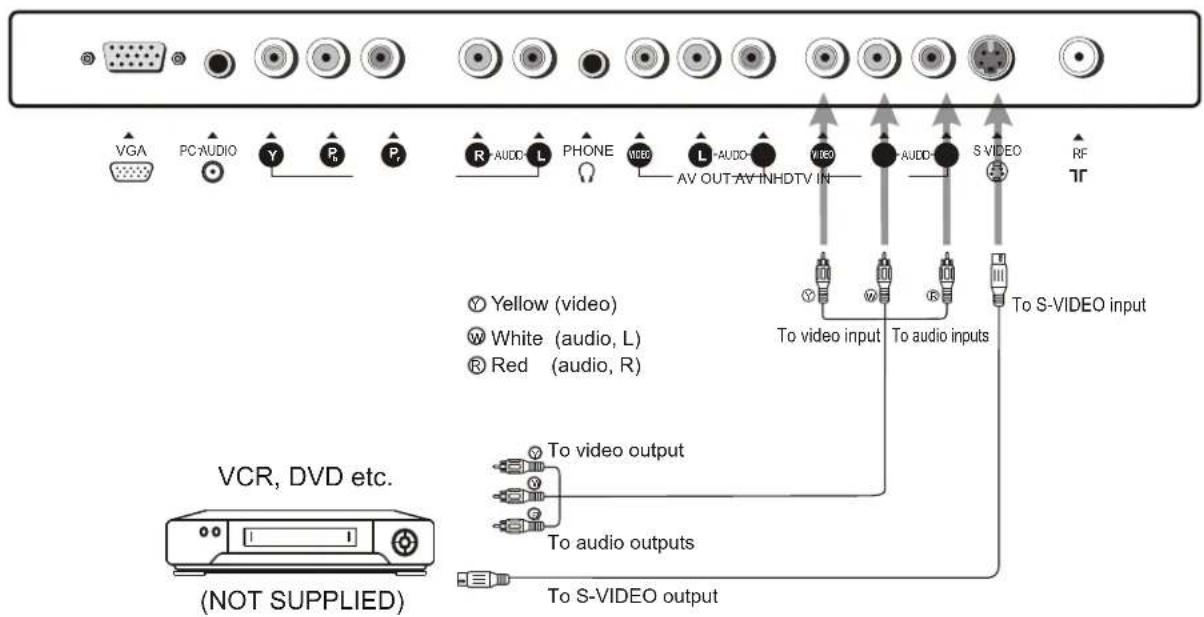
Composite Video signal connection
Connect the composite video signal terminal on the TV to the output of AV equipment through composite cable. If you select the video signal, please set the input signal source of LCD TV to AV mode.
text_image
VGA PC AUDIO Y R P R AUDIO L PHONE VIDEO L AUDIO AV OUT AV INHDTV IN VIDEO S VIDEO RF Yellow (video) White (audio, L) Red (audio, R) To video input To audio inputs To video output To audio outputs To S-VIDEO output VCR, DVD etc. (NOT SUPPLIED)Note: Composite video is the most common used signal, but the picture quality is not as high as S-video.
S-VIDEO Signal Connection
Connect the S-video terminal on the TV to the output of AV equipment using a S-video cable. If you select S-video signal, please set the input signal source of LCD TV to SVIDEO mode.
S-Video is a signal format which transfers the color and brightness of the picture with higher quality than a
Installation(continued)
The PC input signal connection
Connect the VGA(D-sub) input interface on the TV to the output of PC equipment through Min D-sub 15 pin cable as illustrated. For the audio connection, use an audio cord that matches the audio output terminal on the computer.
If you select PC signal, please set the input signal source of LCD TV to VGA mode.

text_image
VGA PC AUDIO Y P HDTV IN R- L PHONE VIDEO L AUDIO AUDIO AV OUT AV IN S-VIDEO RF TV VGA cable Audio cable (3.5mm - 3.5mm) PC
Notes:
- The native display resolution is 1280 × 768 . If the signal resolution exceeds this resolution, it may not be possible to show fine detail with sufficient clarity.
- We strongly recommend that you set the refresh rate on the PC to 60Hz. If you set it above 60Hz, the unit may not display correctly. (Control Panel/Display Settings)
- Use OSD to make final image adjustments.
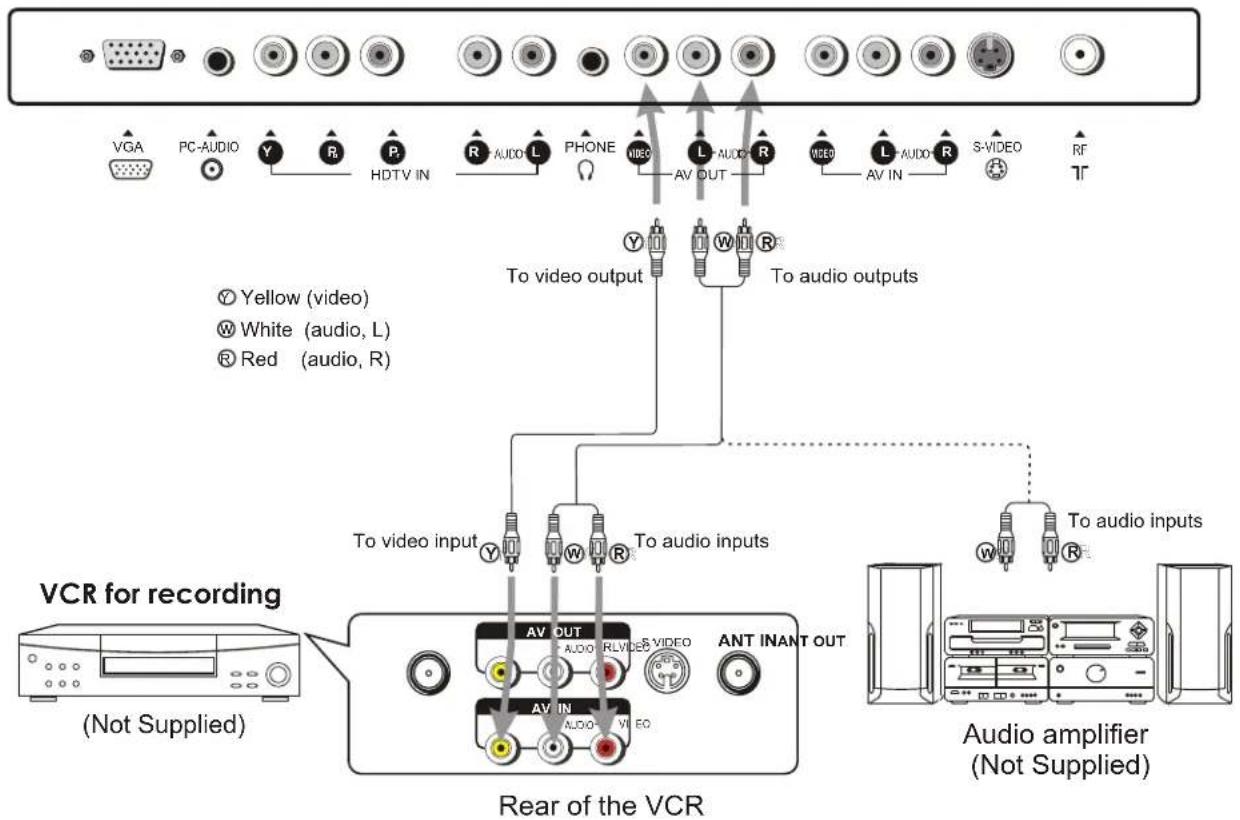
AV OUT connection
text_image
VGA PC AUDIO Y R HDTV IN R AUDIO L PHONE VIDEO L AUDIO R VIDEO L AUDIO R S-VIDEO RF To video output W R To audio outputs Yellow (video) White (audio, L) Red (audio, R) To video input Y W R To audio inputs VCR for recording (Not Supplied) Rear of the VCR ANT INANT OUT AV OUT AUDIO RLVIDEO AV IN AUDIO VIDEO To audio inputs Audio amplifier (Not Supplied)How to connect:
Connect the video/audio output terminals on the TV set to the signal input terminals of the VCR equipment or the video/audio input terminals on other TV set through a video/audio cable.
Connect the audio output terminals on the TV set to the Audio amplifier through audio cable.
How to record the TV program:
- Connect cables as shown above.
- Turn on the LCD TV and select source.
- Turn on the VCR and insert the tape.
- Select the video input from the VCR menu that corresponds to the AV in on the VCR.
- Press the "RECORD" button to begin recording.
How to enjoy high quality sound by Audio amplifier:
- Connect cables as shown above.
- Turn the volume of the Audio amplifier to minimum.
- Turn on the LCD TV and select source.
- Connect the RCA (Red/White) cable from the TV AV OUT to the AUX input on the back of the Audio Amplifier.
- Set the Audio Amplifier to AUX INPUT.
- Turn on the audio amplifier and adjust for a proper volume.
Installation(continued)
YPbPr input connection
Please connect the YPbPr input terminals on the TV set for better picture quality. And connect the audio outputs with the corresponding audio input terminals on the TV set.
If you select YPbPr signal, please set the input signal source of the LCD TV to YPbPr/YCbCr mode.

text_image
VGA PC-AUDIO Y R P HDTV IN R AUDIO L PHONE VED L-AUDIO R VED L-AUDI R S-VIDEO RF G B R R W Audio cable AV OUT AV IN S-VIDEO TR Yellow (video) white (audio L) red (audio R, Pr) Green (Y) Blue (Pb) HDTV OUT ANT AV OUT R-LAUDIO S VIDEO (Not Supplied)Rear of the STB, DVD
Notes:
The Y, Pb, Pr outputs on your DVD player are sometimes labeled Y, Cb, Cr. If so, connect the cables to like colors.
Basic Operations

text_image
POWER VOL - CH VOL + MENU STEREO OSD POSITION S.M EXIT SLP AUTO.ADJ P.M DSP 1 2 3 4 5 6 7 8 9 0 ←Turning on
1 Connect the power correctly, then the red indicator lights up and the unit is in STANDBY mode.
2 Press the POWER (⏻)button on the remote control or on the unit to turn on the TV set. The indicator LED will turn to yellow.
Turning off
1 With the power on, press the POWER (⏻) button to turn off the TV and put the TV in STANDBY mode, the indicator LED will turn to red.
2 If you want to turn off the power completely, unplug the power cord from the wall outlet.
Note: Do not switch the on/off state of the unit quickly. The interval of the turning on and turning off should be more than 5 seconds.
Selecting input signal
1 Press the SOURCE button on the unit or button on the remote control. The screen displays the menu as shown on the right.
2 Press CH▲/▼ to highlight your desired input signal source. Press VOL+/- or wait for about 4 seconds and the desired signal

text_image
SOURCE TV AV SVIDEO YPbPr/YCbCr VGA TVNote: All buttons shown in the manual are located on the remote control unless otherwise indicated.
Main On-Screen-Display (OSD) introduction
1 Press MENU button to display menu screen.
2 Press VOL+/- to select the menu.
3 Press CH▼ to access the menu.
4 Press CH▲/▼ to select the item.
5 Press VOL+/- to adjust the item.
6. Press EXIT button twice to exit the menu.
TV/AV/S-VIDEO MODE
Picture Setting Menu
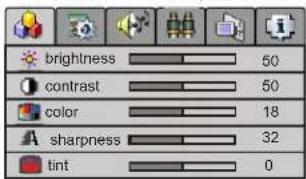
text_image
brightness 50 contrast 50 color 18 sharpness 32 tint 0System Setting Menu
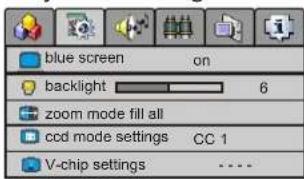
text_image
blue screen on backlight 6 zoom mode fill all ccd mode settings CC 1 V-chip settingsAudio Setting Menu
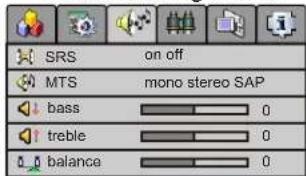
text_image
SRS on off MTS mono stereo SAP bass 0 treble 0 balance 0Channel Setting Menu
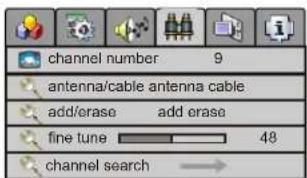
text_image
channel number 9 antenna/cable antenna cable add/erase add erase fine tune 48 channel search →OSD Setting Menu
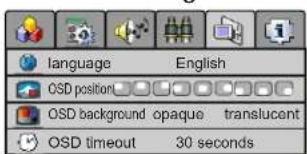
text_image
language English OSD position OSD background opaque translucent OSD timeout 30 secondsSignal Information Menu
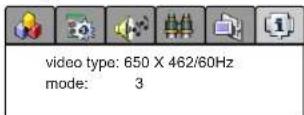
Note: in AV/S-VIDEO mode, Channel Setting menu can not be accessed and there is no MTS menu item in Audio Setting menu.
YPbPr/YCbCr/VGA MODE
Picture Setting Menu

text_image
brightness 50 contrast 50 color temp 5000K 7300K 9300K user customer temp setting →Picture Position MENU
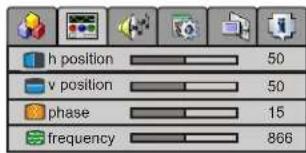
text_image
h position 50 v position 50 phase 15 frequency 866Audio Setting Menu
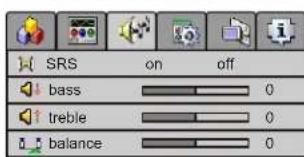
text_image
SRS on off bass treble balanceSystem Setting Menu

OSD Setting Menu
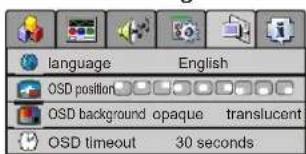
text_image
language English OSD position OSD background opaque translucent OSD timeout 30 secondsSignal Information Menu
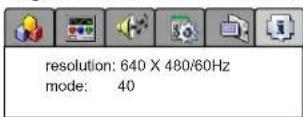
Note: in YPbPr/YCbCr mode, there are no color temp and customer temp setting menu items in Picture Setting menu.
Operations Picture adjustment
text_image
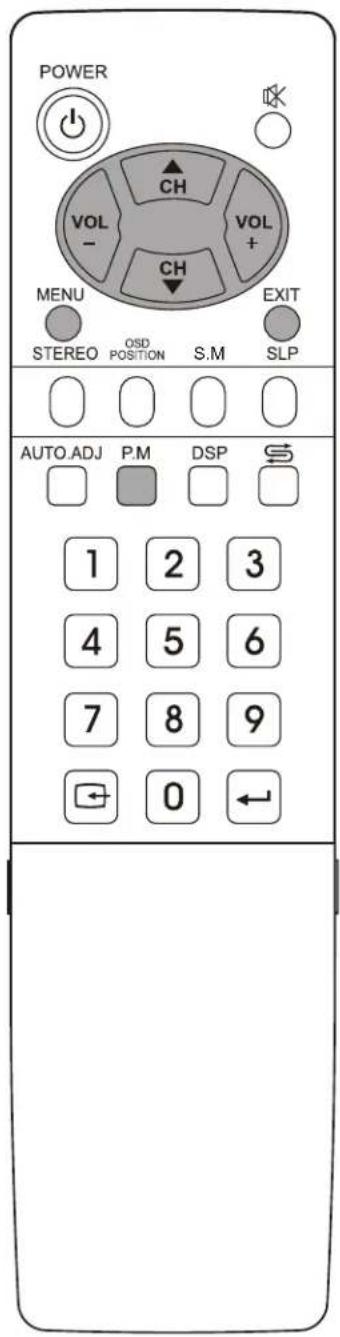
POWER VOL - CH VOL + MENU STEERO OSD POSITION S.M EXIT SLP AUTO ADJ P.M DSP 1 2 3 4 5 6 7 8 9 0 ←1 Access Picture Setting menu by pressing MENU.
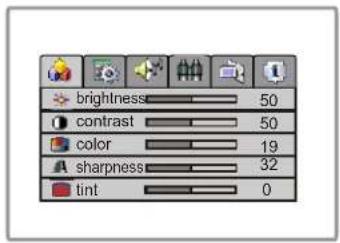
2 Press CH▲/▼ to select the item that you want to adjust.
3 Pres s VO L+ /- to adjust t selected item.
text_image
brightness 50 contrast 50 color 19 sharpness 32 tint 0| Item Function | Range | |
| brightness | To adjust picture's brightness | 0-100 |
| contrast | To adjust picture's contrast | 0-100 |
| color | To adjust picture's color | 0-36 |
| sharpness | To adjust picture's sharpness | 0-63 |
| tint | To adjust picture's tint | -32-+31 |
You can select picture mode by P.M button. There are four picture modes: Bright, Nature, Soft and User.
Bright: Select for a bright picture.
Nature: Select for a standard picture.
Soft: Select for a soft picture.
NOTE: Setting the unit to a Bright Picture with high brightness and contrast levels will cause picture quality loss.

flowchart
graph TD
    A["soft bright user"] --> B["nature"]
Operations (continued)
System setting
text_image
POWER VOL - CH VOL + MENU STEREO OSD POSITION S.M EXIT SLP AUTO.ADJ P.M DSP 1 2 3 4 5 6 7 8 9 0 ←blue screen setting
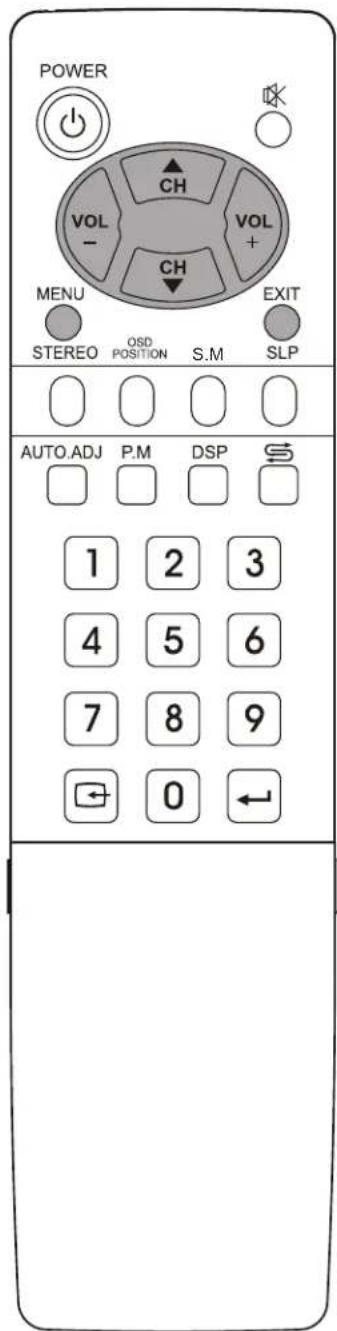
1 Access the System Setting menu.
2 Press CH▲/▼ to select blue screen item.
3 Press VOL+/- to select off or on. If you select on, the screen displays blue background when there is no signal. If you select off, the screen displays static when there is no signal.
Note: Only when the blue screen is on, the set will turn off automatically after 15 minutes if there is no signal.
backlight adjustment
1 Access the System Setting menu.
2 Press CH▲/▼ to select backlight item.
3 Press VOL+/- to adjust the backlight brightness.

text_image
blue screen on backlight 6 zoom mode fill all ccd mode settings CC 1 V-chip settings ----
text_image
blue screen on backlight 6 zoom mode fill all ccd mode settings CC 1 V-chip settings ....Zoom mode adjustment
1 Access the System Setting menu.
2 Press CH▲/▼ to select zoom mode item.
3 Press VOL+/- to select between fill all or wide.

text_image
blue screen on backlight 6 zoom mode fill all ccd mode settings CC 1 V-chip settings ....Operations (continued)
System setting
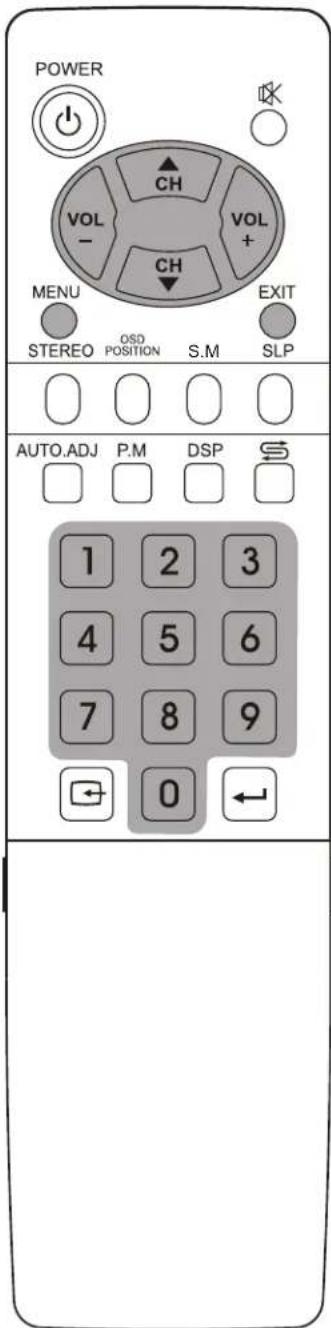
text_image
POWER VOL - CH VOL + MENU STEREO OSD POSITION S.M EXIT SLP AUTO.ADJ P.M DSP 1 2 3 4 5 6 7 8 9 0 ←Setting Closed Caption(CCD)
1 Access the System Setting menu.
2 Press CH▲/▼ to select ccd mode settings item.

text_image
blue screen on backlight 6 zoom mode fill all ccd mode settings CC 1 V-chip settings ......3 Press VOL+/- to select. You can select the caption data channel (CC1, CC2, CC3, CC4), the text service channel(text1, text2, text3, text4) or turn off the Closed Caption(Off).

Note:
- Some TV programs may not be broadcast with closed caption signals, and therefore the TV will not be able to display captions. Also, text information is not offered by all stations.
- Some TV programs only provide one channel caption, one channel text, or only caption without text.
Parental Control with V-Chip
1 Access the System Setting menu.
2 Press CH▲/▼ to select V-Chip settings item.
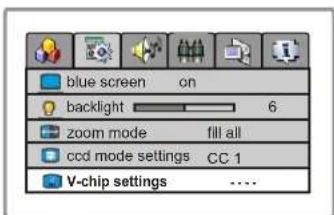
text_image
blue screen on backlight 6 zoom mode fill all ccd mode settings CC 1 V-chip settings ....3 Enter the password using the keypad to access the V-chip sub-menu.(The default password is 1234 and you should change the password after you access the sub-menu.)
4 Press CH▲/▼ to select Vchip global setting item. Use VOL+/- to select disable or enable. If you select enable, the function is activated. If you select disable, the function is not active.

text_image
Vchlp global setting enable movie blocking G TV blocking Y Canadian English blocking E Canadian French blocking E TV block setting... change password ......Operations (continued)
System setting (V-Chip Sub-menu)

text_image
POWER VOL - CH VOL + CH MENU STEREO OSD POSITION S.M EXIT SLP AUTO.ADJ P.M DSP 1 2 3 4 5 6 7 8 9 0 ←Movie Blocking setting
This function allows programs to be restricted and TV usage to be controlled based on program rating. It prevents children from watching violent or sexual scenes that may be harmful.
Please enter the V-chip sub-menu (previous page).
1 Press CH button to select movie blocking item.
2 Press VOL+/- button to select desired rating.
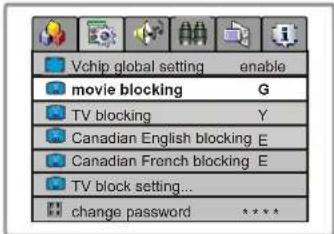
text_image
Vchip global setting enable movie blocking G TV blocking Y Canadian English blocking E Canadian French blocking E TV block setting... change password ****Movie Ratings:
* NONE
* G and Above (general audience)
* PG and Above (parental guidance suggested)
* PG-13 and Above (13 years and up)
* R and Above (restricted)
* NC-17 and Above (18 years and up)
* X (adult)
If you set PG-13, G and PG movies will be available, and PG-13, R, NC-17 and X will be blocked.
TV blocking setting
This function allows TV programs to be restricted and TV usage to be controlled based on age and content. It prevents children from watching violent or sexual scenes that may be harmful.
Age base
Please enter the V-chip sub-menu (previous page).
1 Press CH button to select TV blocking item.
2 Press VOL+/- button to select the desired rating.

text_image
Vchip global setting enable movie blocking G TV blocking Y Canadian English blocking E Canadian French blocking E TV block setting... change password ****TV Ratings:
* NONE
* Y and Above (all children) (individual content categories do not apply)
* Y7 (7 years and up)
* G and above (general audience) (individual categories do not apply)
* PG and Above (parental guidance suggested)
* 14 and above (14 years and up)
* MA (mature audience)
V-Chip enables parents to prevent their children from watching inappropriate material on TV. V-Chip reads the ratings for programming (except for news, sports, unedited movies on premium cable, and Emergency System signals), then denies access to programming if the program's rating meets the limitations you select. In this case, the program will be blocked.

text_image
POWER VOL - CH VOL + MENU STEERO OSD POSITION S.M EXIT SLP AUTO.ADJ P.M DSP 1 2 3 4 5 6 7 8 9 0 ←Content based
Please enter the V-chip sub-menu first.
1 Press CH button to select TV blocking setting... item.
2 Press VOL+ button to access the sub-menu.
3 Setting the content with CH+/- and VOL+/- buttons.
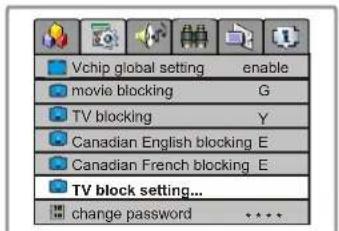
text_image
Vchip global setting enable movie blocking G TV blocking Y Canadian English blocking E Canadian French blocking E TV block setting... change password * * * *
text_image
FV VSLD TV-Y7 show TV-PG show show show show TV-14 show show show show TV-MA show show showContent Categories:
* FV: fantasy violence (applies only to TV-Y7)
* V: violence (applies to TV-PG and above, TV-
14 and Above, TV-MA)
* S: sexual situations (applies to TV-PG and above, TV-14 and Above, TV-MA)
* L: adult language (applies to TV-PG and above, TV-14 and Above, TV-MA)
* D: sexual dialogue (applies to TV-PG and Above, TV-14)
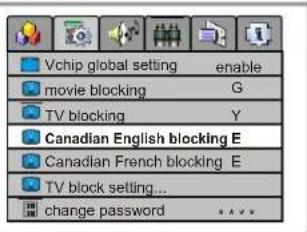
Canadian English Blocking setting
Please enter the V-chip menu first.
1 Press CH▲/▼ button to select Canadian English blocking item.
2 Press VOL+/- button to select the desired rating.
text_image
Vchip global setting enable movie blocking G TV blocking Y Canadian English blocking E Canadian French blocking E TV block setting... change password * * * *Canadian English Language Ratings:
* E: Exempt.
* C: Children.
* C8+: Children 8 years and older.
* G: General programming, suitable for all audiences.
* PG: Parental guidance.
* 14+: Viewers 14 years and older.
* 18+: Adult programming.
Operations (continued)
System setting (V-Chip Sub-menu)
text_image
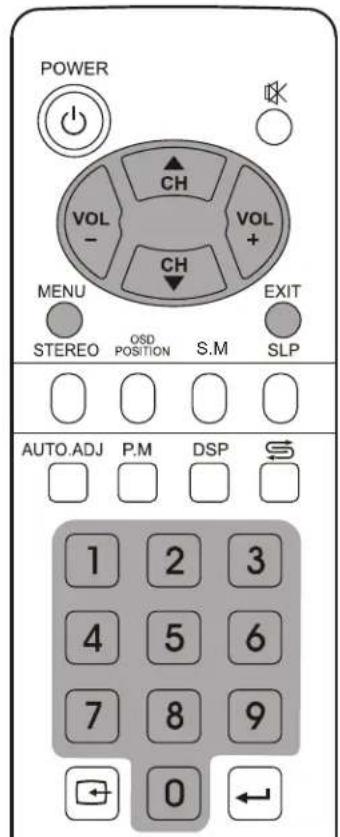
POWER VOL - CH VOL + CH MENU STREEO OSD POSITION S.M EXIT SLP AUTO.ADJ P.M DSP 1 2 3 4 5 6 7 8 9 0 ←Canadian French blocking setting
Please enter the V-chip sub-menu first.
1 Press CH button to select Canadian French blocking item.
2 Press VOL+/- button to select desired rating
Canadian French Language Ratings:
* E: Exempt.
* G: Children.
* 8 ans+: Children 8 years and older.
* 13 ans+: Children 13 years and older.
* 16 ans+: Viewers 16 years and older.
* 18 ans+: Adult programming.

text_image
Vchip global setting enable movie blocking G TV blocking Y Canadian English blocking E Canadian French blocking E TV block setting... change password ****Changing the password
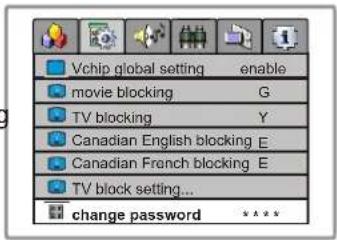
Please enter the V-chip sub-menu first.
1 Press CH button to select change password item.
2 Input a new 4-digit password by using the keypad on the remote.
text_image
Vchip global setting enable movie blocking G TV blocking Y Canadian English blocking E Canadian French blocking E TV block setting... change password ****Next time when you want to access the V-chip menu, you will use your new password. Make sure to remember the password.
Operations (continued)
Audio Setting

text_image
POWER VOL - CH VOL + MENU STEREO OSD POSITION S.M EXIT SLP AUTO.ADJ P.M DSP 1 2 3 4 5 6 7 8 9 0 ← Bass+ Treb+ Bass- Treb-Selecting the MTS
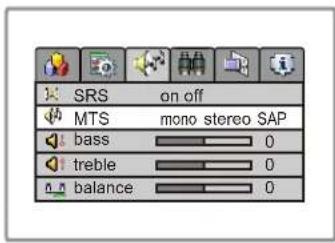
1 Access the Audio Setting menu.
2 Press CH▲/▼ to select MTS item.
3 Press VOL+/- to select mono, stereo or SAP(secondary audio program).
text_image
SRS on off MTS mono stereo SAP bass 0 treble 0 balance 0You can also directly press STEREO button on the remote control to select the MTS. The MTS mode changes as follows:

flowchart
graph TD
    A["MONO"] --> B["STEREO (If the program is STEREO)"]
    C["MONO"] --> D["SAP (If the program is SAP)"]
    E["MONO"] --> F["STEREO → SAP (If the program is STEREO & SAP)"]
    G["NOTE: SAP = Secondary Audio Program."] --> F
Adjusting volume
Press VOL+/- to adjust volume. Press VOL+ button, the volume increases. Press VOL- button, the volume decreases. (Range:0-100)

bar
| Category | Value | |---|---| | volume | 75 |Muting the sound
You can press the 📧 button on the remote control to mute the sound. Press the 📧 button again to restore. You can also press VOL+ to restore the sound.
natural_image
Blank white rectangle with a small black square in the top-left corner (no text or symbols)Selecting the sound mode
You can press S.M button on the remote control to switch the sound mode between user, movie, music, and news.
Movie: Select for a movie program. Music: Select for a music program. News: Select for a speech or talk program. Custom settings mode in the Audio Setting OSD are saved under USER mode.
Operations (continued)
Audio Setting

text_image
POWER VOL - CH VOL + CH MENU STEREO OSD POSITION S.M EXIT SLP AUTO.ADJ P.M DSP 1 2 3 4 5 6 7 8 9 0 ← Bass+ Treb+ Bass- Treb-Adjusting the bass/treble
1 Access the Audio Setting menu.
2 Press CH▲/▼ to select bass or treble item.
3 Press VOL+/- to adjust the bass or treble.

text_image
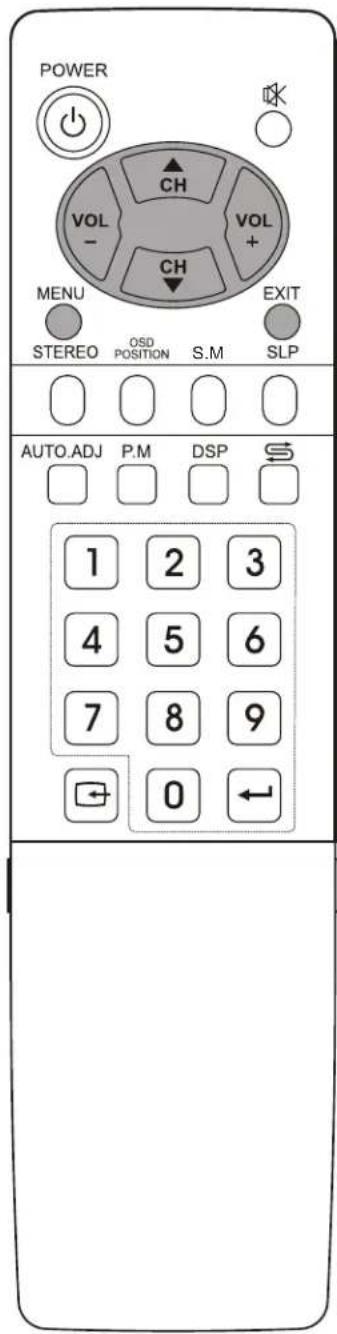
SRS on off MTS mono stereo SAP bass 0 treble 0 balance 0You can press the Bass+/- buttons on the remote control to adjust the bass directly; and you can also press the Treb+/- buttons on the remote control to adjust the treble directly.
Adjusting the sound balance
1 Access the Audio Setting menu.
2 Press CH▲/▼ to select balance item.
3 Press VOL+/- to adjust the balance of the left track and right track.

text_image
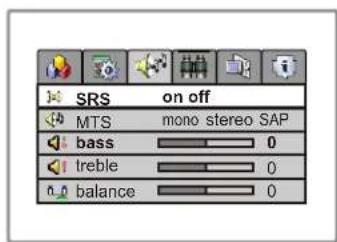
SRS on off MTS mono stereo SAP bass 0 treble 0 balance 0Adjusting the SRS
1 Access the Audio Setting menu.
2 Press CH▲/▼ to select SRS item.
3 Press VOL+/- to select on or off.
text_image
SRS on off MTS mono stereo SAP bass 0 treble 0 balance 0SRS (Sound Retrieval System®) is an audio enhancement technology that restores the spatial cues that are present in a live listening environment and processes it to provide a natural 3D sound field.
* The SRS symbol are trademark of SRS Labs, Inc. SRS technology is incorporated under license from SRS Labs, Inc.
Operations (continued)
Channel Setting
text_image
POWER VOL - CH VOL + CH MENU STEERO OSD POSITION S.M EXIT SLP AUTO.ADJ P.M DSP 1 2 3 4 5 6 7 8 9 0 ←Selecting antenna/cable
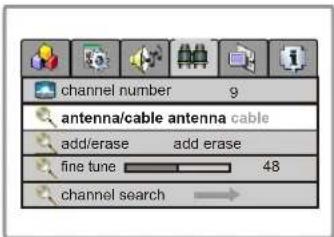
1 Access Channel Setting menu.
2 Press CH to select antenna/cable item.
3 Press VOL+/- button to select antenna or cable.
text_image
channel number 9 antenna/cable antenna cable add/erase add erase fine tune 48 channel search →Please select antenna or cable before you start Auto Search. If the TV is connected to antenna, please select antenna. If the TV is connected to cable, please select cable.
Auto Search
Please access the Channel Setting menu first.
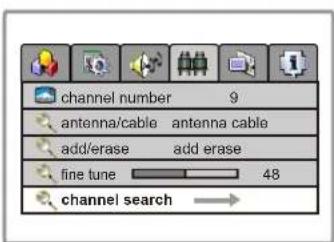
1 In Channel Setting menu, press CH button repeatedly to highlight channel search item.
2 Press VOL+/- to start Auto Search. All active channels will be preset and stored into the memory automatically.
text_image
channel number 9 antenna/cable antenna cable add/erase add erase fine tune 48 channel search →
text_image
antenna searchingOperations (continued)
Channel Setting

text_image
POWER VOL - CH VOL + CH MENU STEREO OSD POSITION S.M EXIT SLP AUTO.ADJ P.M DSP 1 2 3 4 5 6 7 8 9 0 ←Adding/Erasing Channels
After the Channel SEARCH, you can Add/Erase channels that you watch when you press the CH▲/▼ to change channels.
1 Select the channel number which you want to erase using the keypad.
2 Access the Channel Setting menu.
3 Press CHtφ▼select add/erase item.
4 Press VOL+/- to select erase. When you press CH to/√ change channels, this channel will be skipped.
If you want to resume a skipped channel, use the keypad buttons to enter the channel, then access the Channel Setting menu, press VOL+/- to select add. When you press CH▲/▼ to change channels, the

text_image
channel number 9 antenna/cable antenna cable add/erase add erase fine tune 48 channel search →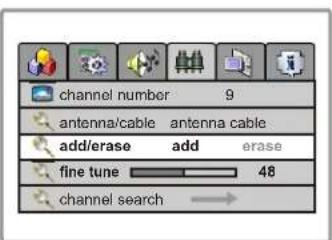
text_image
channel number 9 antenna/cable antenna cable add/erase add erase fine tune 48 channel search →Fine tuning
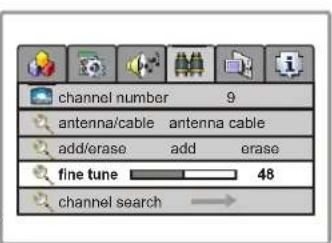
Please access the Channel Setting menu first.
1 In Channel Setting menu, press CH button repeatedly to highlight Fine tune item.
2 Press VOL+/- to fine tune to achieve best picture and sound.
text_image
channel number 9 antenna/cable antenna cable add/erase add erase fine tune 48 channel search →Operations (continued)
Selecting channel
text_image
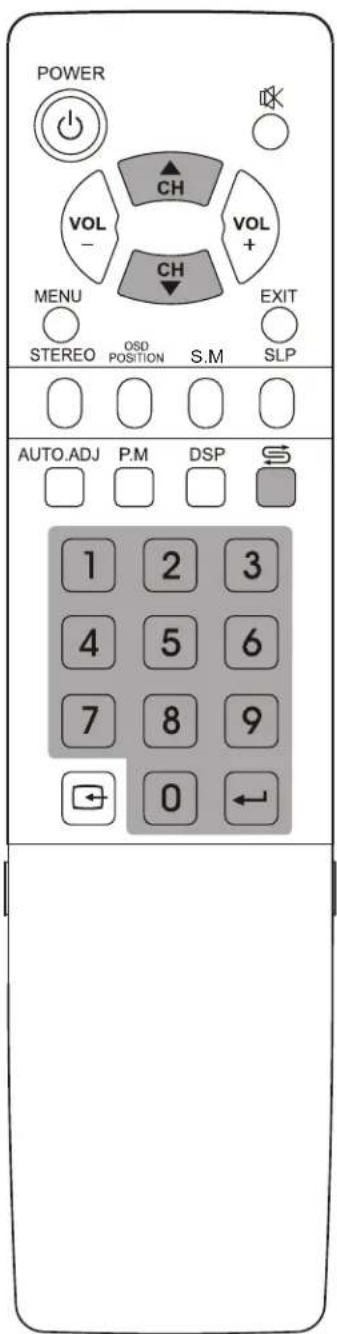
POWER VOL - CH VOL + MENU STEREO OSO POSITION S.M EXIT SLP AUTO.ADJ P.M DSP 1 2 3 4 5 6 7 8 9 0 ←* You can press DSP button to Know current channel number information.
Using Keypad buttons
1 To select one-digit channel numbers:
Input the channel using the 0-9 number button, then press Channel Enter← button to confirm.
2 To select two-digit channel numbers:
Input the channel using the 0-9 number button, then press Channel Enter← button to confirm.
3 To select three-digit channel numbers:
Note: The period between presses should be within 2 seconds.
Using Channel up/down buttons
1 Press CH ▲ button, the channel number increases;
2 Press CH▼ button, the channel number decreases.
NOTE: This feature works after a channel search is complete.
Using previous channel button
Press ⬆button to switch between the current channel and previous channel.
Operations (continued)
OSD Setting

text_image
POWER VOL - CH VOL + MENU STEREO OSD POSITION S.M EXIT SLP AUTO.ADJ P.M DSP 1 2 3 4 5 6 7 8 9 0 ← Bass+ Treb+ Bass- Treb-Setting the language of the menu
1 Access the OSD Setting menu.
2 Press CH to select the language item.
3 Press VOL+/- to select an OSD language. English, Spanish and French can be selected.

text_image
language English OSD position OSD background opaque translucent OSD timeout 30 secondsSetting the position of the menu
1 Access the OSD Setting menu.
2 Press CH to /select the OSD position item.
3 Press VOL+/- to select the position of the menu displaying.

text_image
language English OSD position OSD background opaque translucent OSD timeout 30 secondsYou can also press the OSD POSITION button on the remote control to select OSD menu position.
Setting the background of the menu
1 Access the OSD Setting menu.
2 Press CH to/select the OSD background item.
3 Press VOL+/- to select opaque or translucent. If you select Opaque, the background of the menu is opaque. If you select translucent, the background of the menu is translucent.

text_image
language English OSO position OSD background opaque translucent OSD timeout 30 secondsSetting the OSD timeout
1 Access the OSD Setting menu.
2 Press CH to /select the OSD timeout item.
3 Press VOL+/- to set the timeout: 5, 10, 15, 20, 25, 30, 35, 40, 45, 50, 55, 60 seconds.

text_image
language English OSD position OSD background opaque translucent OSD timeout 30 secondsOperations (continued)
Timer setting

text_image
POWER VOL - CH VOL + MENU STEREO OSD POSITION S.M EXIT SLP AUTO.ADJ P.M DSP 1 2 3 4 5 6 7 8 9 0 ←Using Sleep button
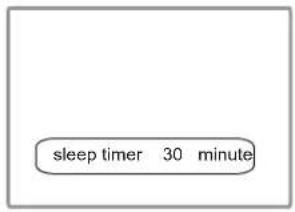
Press SLP button to display sleep timer menu. Press CH▲/▼ or VOL+/- repeatedly to set sleep time between:0, 10, 20, 30, 60, 90, 120, 180, 240 minutes. If you select 0 minute, the sleep timer function is turned off.
Press the SLP button again to exit the menu.
text_image
sleep timer 30 minuteOperations in VGA /YPbPr mode
text_image
POWER VOL - CH VOL + CH MENU STEREO OSD POSITION S.M EXIT SLP AUTO.ADJ P.M DSP 1 2 3 4 5 6 7 8 9 0 ←Select VGA/YPbPr mode
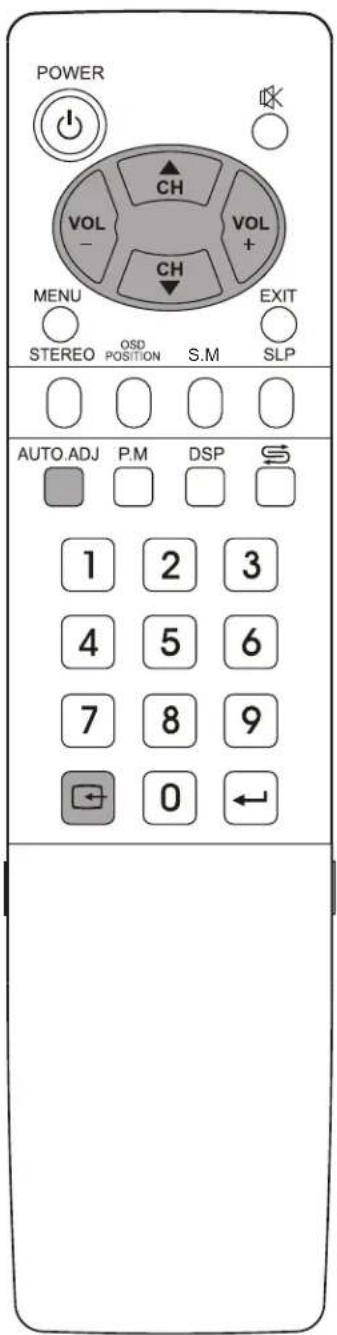
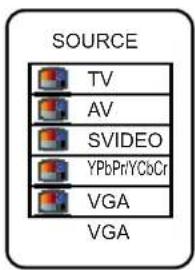
1 Press the SOURCE button on the unit or button ☐ on the remote control. The screen displays the menu shown as right.
2 Press CH▲/▼ to highlight the VGA or YPbPr/YCbCr item. Press VOL+/- or wait about 4 seconds and the signal source is selected.
text_image
SOURCE TV AV SVIDEO YPbPriYCbCr VGA VGAPC signal format
Connect VGA input and be sure that there is VGA input signal. The signal format should be set to: 1280 x 768 @ 60Hz.
Note:
The resolution of the LCD panel is 1280x higher. Resolution output from your PC Video card might distort the image.
Auto adjusting
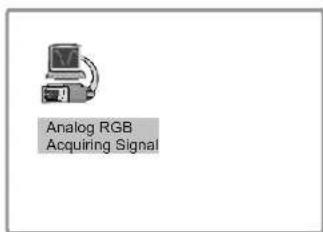
When VGA signal format is changed or when you switch to VGA mode from another source, the unit adjusts frequency and phase automatically to obtain the best display. During the process of auto correction, the screen displays Analog RGB Acquiring Signal, and all buttons on the set and on the remote control do not work until this process is finished.
text_image
Analog RGB Acquiring SignalWhen the set displays some nonstandard VGA signals and can not adjust the picture to the best status by itself, you can adjust it again by pressing the AUTO. ADJ button on the remote control.
NOTE: Please note your final phase and frequency settings as you might need to re-adjust your screen.
Operations in VGA /YPbPr mode(continued)
Picture Settings

text_image
POWER VOL - CH VOL + MENU STEERO OSD POSITION S.M EXIT SLP AUTO.ADJ P.M DSP 1 2 3 4 5 6 7 8 9 0 ←Adjusting Brightness/Contrast
1 Access the PICTURE menu.
2 Press CH▲/▼ to select brightness or contrast item.
3 Press VOL+/- to adjust the selected item.

text_image
brightness 50 contrast 50 color temp 5000K 7300K 9300K user customer temp setting →| Item Function | Notes | |
| brightness | Adjust the brightness of the picture. | Adjusting the picture under VGA modeWill Not affect the display settings in the TV, AV mode |
| contrast | Adjust the contrast of the picture. | |
Setting the color temperature
1 Access the Picture Setting menu.
2 Press CH▲/▼ to select color temp item.
3 Press VOL+/- to switch the color temperature between 5000K, 7300K, 9300K and User.
4 If you want to change the value of the user mode, set color temp to user first, then select customer temp setting item, and press VOL+/- to access the sub-menu.
5 Press CH▲/▼ to select the item and press VOL+/- to adjust it. The value you set will be stored.

text_image
brightness 50 contrast 50 color temp5000K 7300K 9300K User customer temp setting →
text_image
user red 50 user green 50 user blue 50Troubleshooting
Before calling for repair service, check the following items for possible remedies to an encountered symptom.
| Symptoms | Check item |
| Ghost or double images | This may be caused by obstruction to the antenna due to high rise buildings or hills. Using a highly directional antenna may improve the picture. |
| No power | Check that the AC power cord is plugged into the mains socket.Unplug the power cord, wait for 60 seconds. Then re-insert plug into the mains socket and turn on the unit again. |
| No picture | Check antenna connections at the rear of the unit to see if it is properly connected to the unit.Possible broadcast station trouble. Try another channel.Adjust the contrast and brightness settings.Check the Closed Captions control. Some TEXT modes could block the screen.Select a correct input.Is a non-compatible signal being input? |
| Good picture but no sound | Increase the VOLUME.Check that the unit is not muted.Check Whether the sound is output to headphone |
| Good sound but poor color | Adjust the contrast, color and brightness settings. |
| Poor picture | Sometimes, poor picture quality occurs when having activated an S-VHS camera or camcorder connected and having connected another peripheral at the same time. In this case, switch off one of the other peripherals.Check whether the room is too bright |
| Horizontal dotted line | This may be caused by electrical interference (e.g. hairdryer, nearby neon lights, etc.)Turn off the equipment. |
| Television not responding to remote control | Check whether the batteries are working. Replace if necessary.Clean the remote control sensor lens on the unit.Do not use the remote control under strong or fluorescent lighting.The batteries should be inserted with polarity (+,-) aligned. |
| Snowy picture and noise | Check the antenna connection. |
| No stable or not synchronized VGA picture | Check if you have selected the correct VGA mode in your PC. |
| No output from one of the speakers | Adjust Sound Balance. |
Note:
If your problem is not solved, restart your TV by turning it off and then on again once.
Never attempt to repair a defective TV yourself.
Specifications
Power supply for AC adapter: \~ 110-220 V, 50/60Hz
Power Consumption: 60W (Max.)
Resolution: 1280 x 768
Pixel Pitch: 0.2895mm x 0.2895 mm
Brightness: 450 nit
Contrast: 400:1
Viewing angle: 140 (H)/110 (V)
Dimensions(panel): 553(W) x 62(D) x 297(H) (mm)
Weight : 6.5 kg (with stand)
Screen: 17"
TV system & channel coverage:
SYSTEM VHF UHF CATV
NTSC-M 2-13 14-69 1-125
Color system: NTSC
Speaker : 3W, 8Ω x 2
Accessories: Operating manual x1, Power cord x 1,
AV cable x 1, Audio cable x 1,
Remote control x 1,
AAA batteries x 2,
VGA Cable (15 pin D-Sub) x 1
Note: Design and specification are subject to change without notice.


PRINTED IN
RECYCLED PAPER