FPE1708 - Television VOXX - Free user manual and instructions
Find the device manual for free FPE1708 VOXX in PDF.


User questions about FPE1708 VOXX
0 question about this device. Answer the ones you know or ask your own.
Ask a new question about this device
Download the instructions for your Television in PDF format for free! Find your manual FPE1708 - VOXX and take your electronic device back in hand. On this page are published all the documents necessary for the use of your device. FPE1708 by VOXX.
USER MANUAL FPE1708 VOXX
natural_image
Line drawing of a flat-screen monitor with blank screen (no text or symbols)OWNER'S MANUAL
SAFETY PRECAUTIONS

CAUTION
RISK OF ELECTRIC SHOCK DO NOT OPEN

DO NOT EXPOSE THIS UNIT TO RAIN OR MOISTURE AVIS RISQUE DE CHOC ÉLECTRIQUE—NE PAS OUVRIR
WARNING : TO REDUCE THE RISK OF ELECTRIC SHOCK, DO NOT REMOVE COVER (OR BACK). NO USER SERVICEABLE PARTS INSIDE. REFER SERVICING TO QUALIFIED SERVICE PERSONNEL.

The lightning fl ash with arrowhead symbol, within an equilateral triangle, is intended to alert the user to the presence of uninsulated
"dangerous voltage" within the product's enclosure that may be of sufficient magnitude to constitute a risk of electric shock to persons.

The exclamation point within an equilateral triangle is intended to alert the user to the presence of important operating and
maintenance (servicing) instructions in the literature accompanying the appliance.

The symbol for Class II (Double Insulation)
CAUTION
- DANGER OF EXPLOSION IF BATTERY IS INCORRECTLY REPLACED. REPLACE ONLY WITH THE SAME OR EQUIVALENT TYPE.
• TO PREVENT ELECTRIC SHOCK, MATCH WIDE BLADE OF PLUG TO WIDE SLOT OF WALL OUTLET, THEN FULLY INSERT. - USE OF CONTROLS OR ADJUSTMENTS OR PERFORMANCE OF PROCEDURES OTHER THAN THOSE SPECIFIED MAY RESULT IN HAZARDOUS RADIATION EXPOSURE.

WARNING :
• TO PREVENT FIRE OR SHOCK HAZARD, DO NOT EXPOSE THIS UNIT TO RAIN OR MOISTURE. DO NOT PLACE OBJECTS FILLED WITH LIQUIDS ON OR NEAR THIS UNIT.
- SHOULD ANY TROUBLE OCCUR, DISCONNECT THE AC POWER CORD AND REFER SERVICING TO A QUALIFIED TECHNICIAN.
PLACEMENT INFORMATION
- Do not use this unit in places that are extremely hot, cold, dusty or humid.
- Do not restrict the airflow of this unit by placing it somewhere with poor airflow, by covering it with a cloth, by placing it on bedding or carpeting.
SAFETY INFORMATION
- When connecting or disconnecting the AC power cord, grip the plug and not the cord itself. Pulling the cord may damage it and create a hazard.
- When you are not going to use the unit for a long period of time, disconnect the AC power cord.
CONDENSATION INFORMATION
- When left in a heated room where it is warm and damp, water droplets or condensation may form inside the equipment. When there is condensation inside the unit, the unit may not function normally. Let the unit stand for 1-2 hours before turning the power on or gradually heat the room and let the unit dry before use.
RATING PLATE LOCATION
The rating plate is located on the rear of the unit.
FCC STATEMENTS
NOTE: This unit has been tested and found to comply with the limits for a Class B digital device, pursuant to Part 15 of the FCC Rules. These limits are designed to provide reasonable protection against harmful interference in a residential installation. This unit generates, uses and can radiate radio frequency energy and, if not installed and used in accordance with the instructions, may cause harmful interference to radio communication. However, there is no guarantee that interference will not occur in a particular installation. If this unit does cause harmful interference to radio or television reception, which can be determined by turning the unit off and on, the user is encouraged to try to correct the interference by one or more of the following measures:
- Reorient or relocate the receiving antenna.
- Increase the separation between the unit and receiver.
- Connect the unit into an outlet on a circuit different from that to which the receiver is connected.
- Consult the dealer or an experienced radio/TV technician for help.

WARNING: Changes or modifications to this unit not expressly approved by the party responsible for compliance could void the user authority to operate the unit.
IMPORTANT SAFETY INSTRUCTIONS
1) Read these instructions.
2) Keep these instructions.
3) Heed all warnings.
4) Follow all instructions.
5) Do not use this apparatus near water.
6) Clean only with a dry cloth.
7) Do not block any ventilation openings. Install in accordance with the manufacturer's instructions.
8) Do not install near any heat sources such as radiators, heat registers, stoves, or other apparatus (Including amplifiers) that produce heat.
9) Do not defect the safety purpose of the polarized or grounding-type plug. A polarized plug has two blades with one wider than the other. A grounding type plug has two blades and a third grounding prong. The wide blade or the third prong is provided for your safety. If the provided plug does not & t into your wall outlet, consult an electrician for replacement of the obsolete outlet.
10) Protect the power cord from being walked on or pinched particularly at plugs, convenience receptacles, and the point where they exit from the apparatus.
11) Only use attachments / accessories specified by the manufacturer.
12) Use only with the cart, stand, tripod, bracket, or table specified by the manufacturer, or sold with the apparatus.
When a cart is used, use caution when moving the cart / apparatus combination to avoid injury from tip-over.
13) Unplug this apparatus during lightning storms or when unused for long periods of time.
14) Refer all servicing to qualified service personnel. Servicing is required when the apparatus has been damaged in any way, such as the power cord or plug is damaged, liquid has been spilled or objects have fallen into the apparatus, the apparatus has been exposed to rain or moisture, does not operate normally, or has been dropped.

CONTENTS
SAFETY PRECAUTIONS .... 1
IMPORTANT SAFETY INSTRUCTIONS ..... 2
CONTENTS 2
QUICK INSTALLATION .... 3
ACCESSORIES 4
GETTING STARTED 4
CONTROL REFERENCE GUIDE ..... 5 - 6
CONNECTIONS 7–10
Connecting a TV Antenna/Cable/Satellite .... 7
Connecting an A/V Device 7
Connecting Devices with a Composite (Yellow RCA-Type) Video Output ..... 8
Connecting Devices with a Composite (Yellow RCA-Type) Video Input 8
Connecting a High-Definition (HD) Source ..... 9 Connecting a PC ..... 9
Connecting an Audio Amplifier 10
Connecting the AC Power Cord 10
USING HEADPHONES 10
INSTALLATION 11
Removing the base stand 11
Mounting on the wall 11
TV SETUP 12-16
Picture menu 12
Audio menu 12
Time menu 13
Setup menu 13-14
Parental menu 14 – 15
TV menu 16
MAINTENANCE 17
TROUBLE SHOOTING GUIDE ...... 17
QUICK INSTALLATION
When you turn on your television set for the first time, be sure to place it on a solid stable surface. To avoid danger, do not expose the TV to water, or a heat source (e.g. lamp, candle, radiator). Do not obstruct the ventilation grid at the rear and be sure to leave sufficient gaps around the unit as shown.

text_image
2 3 / 8" B/3 B/3TURNING ON THE UNIT FOR THE FIRST TIME
The first time you turn on the unit, the unit will enter the setup mode. You can easily follow the prompt message on the screen to complete basic TV settings.
Make sure the RF aerial has been connected properly to the TV ANTENNA input jack on the rear of the system.

text_image
Proceed with auto scan ? No Yes ◀:SELECT ▼"ENTER":CONFIRM
text_image
PICTURE AUDIO TIME SETUP PARENTAL TV Antenna CATV Auto Scan Auto Scan Add CH Channel Skip Channel No. Channel Label DTV Signal UP/DOWN ADJUST "MENU"-EXIT-
Press the ◀ / ▶ button to select Yes. Press the ENTER button to proceed with the initial setup.
-
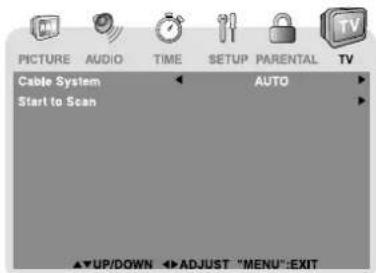
Use the ▲ / ▼ button to select Antenna, then press the ◀ button to select Air or CATV.
text_image
PICTURE AUDIO TIME SETUP PARENTAL TV Cable System AUTO Start to Scan ▲UP/DOWN ADJUST "MENU":EXIT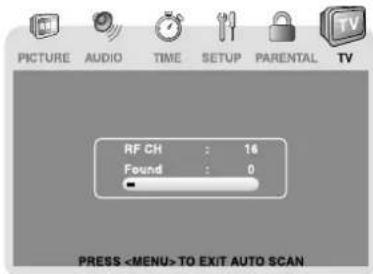
text_image
PICTURE AUDIO TIME SETUP PARENTAL TV RF CH : 16 Found : 0 PRESS-
Use the ▲ / ▼ button to select Auto Scan, then press the ▶ button to enter auto scan menu. Use the ▲ / ▼ button to select Start to Scan, press the ▶ button to begin scanning. (If you selected CATV on Step 2, you need to select Cable System before Start to Scan). The system will automatically start to scan and preset all available TV channels.
-
After scanning has finished the system will return to the first TV channel scanned.
ACCESSORIES
Please check and identify the supplied accessories.
□ Remote control (with batteries) ...... x 1
GETTING STARTED
USING THE REMOTE CONTROL
- Point the remote control at the remote sensor located on the unit.
- When there is a strong ambient light source, the performance of the infrared remote sensor may be degraded, causing unreliable operation.
- The recommended effective distance for remote operation is about 16 feet (5 meters).
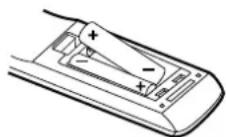
TO INSTALL THE BATTERIES
-
Open the battery door.
-
Insert 2 "AAA" batteries.

BATTERY REPLACEMENT
When the batteries become weak, the operating distance of the remote control is greatly reduced and you will need to replace the batteries.
CAUTION: Danger of explosion if battery is incorrectly replaced.
NOTES
- If the remote control is not going to be used for a long time, remove the batteries to avoid damage caused by battery leakage corrosion.
- Do not mix old and new batteries. Do not mix ALKALINE, standard (CARBON-ZINC) or rechargeable (NICKEL-CADMIUM) batteries.
• Always remove batteries as soon as they become weak. - Weak batteries can leak and severely damage the remote control.
WARNING : Do not dispose of batteries in a fire. Batteries may explode or leak.
Many universal remote controls have a “learning” feature. We recommend you use that feature to program the remote control.
For any questions or problems related to programming a universal remote control, you must contact the customer service department of the universal remote control manufacturer for assistance, or refer to the instructions included with the universal remote control. We cannot offer assistance in programming universal remote controls.
CONTROL REFERENCE GUIDE
REMOTE CONTROL

text_image
FUNCTION FIGURE STANDBY 0 0 1 2 3 4 5 6 7 8 9 10 11 12 13 14 15 16 17 18 19 EXIT CH + MENU ENTER DISPLAY MUTE VOL - CH - VOL + MTB FORMAT BOUND TV AV IN HD- FUNCTION Button
Press to switch between TV / AV In / YUV In / PC In. - Number (0 - 9) Buttons
- [dot] Button
Press to enter digital sub-channels (i.e. 11.3 or 12.7)
- EXIT Button
Press to exit the TV SETUP menu and return directly to normal viewing.
- CURSOR (▲,▼,◀) Buttons
Press to highlight selections on a menu screen and adjust certain settings.
ENTER Button
Press to confirm selections on a menu screen.
CH + / CH - Buttons
Press to change the TV channels.
- DISPLAY Button
Press to show that input you are watching (TV / AV in / YUV in / PC).
- VOLUME (- / +) Buttons
Press to adjust the volume level.
- FORMAT Button
Press to select the picture format.
- MTS Button
Press to select between MONO sound, STEREO sound and Secondary Audio Program (SAP).
- CC Button
Press to activate the Closed Captioning feature. This function only works on programs broadcasted with captions.
- TV Button
Press to switch to TV mode.
- AV IN Button
Press to switch to source connected to AV (composite) inputs.
- HD Button
Press to switch to source connected to YUV in (component) inputs.
- SOUND Button
Press to select from preset sound settings to match the type of show you are watching (Standard / Music / Movie / Personal).
- MUTE Button
Press to turn off the sound.
- MENU Button
Press to display the on-screen TV menu.
- LAST CH Button
Press to switch repeatedly between the last two channels displayed.
- PICTURE Button
Press to select from preset screen display settings to match the type of show you are watching (Standard / Soft / Movie / Personal).
- ⒽSTANDBY / ON Button
Press to turn ON the unit or put it in STANDBY (OFF) mode.
CONTROL REFERENCE GUIDE
text_image
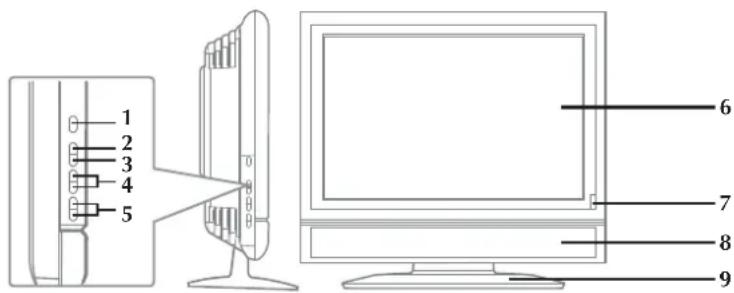
1 2 3 4 5 6 7 8 9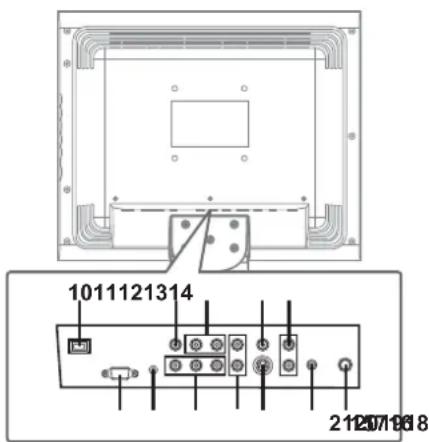
text_image
1011121314 212571968- button
Turns the unit on and off.
- MENU button
Press to display the on-screen TV menu.
- FUNCTION button
Select TV / AV IN / YUV IN / PC IN.
- GH/CH buttons
Selects a TV channel and highlight selections (Up & Down) on the menu screen.
-
- VOLUME + controls
Adjusts the volume level and highlight selections (Left & Right) on the menu screen.
-
Color LCD Screen
-
Remote Sensor
Do not block this sensor or the remote control will not work.
-
Speakers
-
Removable stand
-
AC Power Cord
-
AV OUT Video Output Jack
-
AV OUT Audio Output Jacks (Left/Right)
-
AV IN Video Input Jack
-
AV IN Audio Input Jacks (Left/Right)
-
PC IN MONITOR/VGA Jack
-
PC IN Audio Jack
-
YUV IN Component Video Input Jacks (Y/PB/PR)
-
YUV IN Audio Input Jacks (Left/Right)
-
AV IN S-Video Input Jack
-
Headphone Jack
-
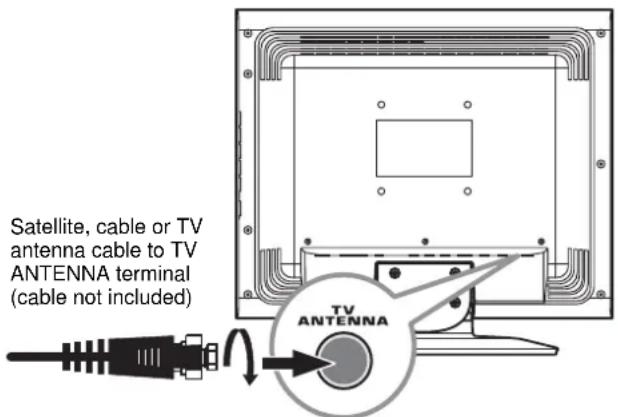
TV Antenna Cable Terminal - Coaxial TV Antenna Input
CONNECTIONS
CONNECTING A TV ANTENNA / CABLE / SATELLITE
To view television channels correctly, a signal must be received from one of the following sources:
- An indoor or outdoor aerial antenna
- A cable system
- A satellite system
Connecting a Digital Antenna
The tuner in this TV receives ATSC TV signals from an antenna. This digital TV can receive standard (SDTV) and high definition (HDTV) over the air broadcasts.
Connecting an Analog Antenna or Device
The tuner in this TV receives NTSC TV signals, analog cable signals or the RF output from a satellite receiver, VCR or cable box.
text_image
Satellite, cable or TV antenna cable to TV ANTENNA terminal (cable not included)CONNECTING AN A/V DEVICE
To connect to other equipment such as a VCR, camcorder, satellite system or cable, etc.
Connecting to a VCR / Camcorder / Satellite System / Cable
Connect the AUDIO and S-VIDEO cable (not included) as shown.
Make sure you connect the cable from the other equipment (AUDIO OUT and S-VIDEO OUT) to this unit (AUDIO IN and S-VIDEO IN).
NOTE
Please refer to the user manual for the other equipment for more information.

text_image
VCR / CAMCORDER / SATELLITE SYSTEM / CABLE, etc. S-VIDEO VIDEO IN AUDI IN R To S-VIDEO IN jack To AUDIO IN jacks (AV IN)To S-VIDEO OUT / AUDIO OUT jacks
CONNECTIONS
CONNECTING DEVICES WITH A COMPOSITE (YELLOW RCA-TYPE) VIDEO OUTPUT
To connect A/V devices such as a VCR, video game system or camcorder.
Connecting to a VCR / Video Game System / Camcorder Connect the AUDIO / VIDEO cable (not included) as shown.
Make sure you connect the cable from the other equipment (AUDIO and VIDEO OUT) to this unit (AUDIO and VIDEO IN).

flowchart
graph TD
    A["Computer monitor with sensor"] --> B["Video IN jacks (AV IN)"]
    B --> C["To AUDIO / VIDEO IN jacks (AV IN)"]
    C --> D["VCR / VIDEO GAME SYSTEM / CAMCORDER, etc."]
    D --> E["To AUDIO / VIDEO OUT jacks"]
NOTE Please refer to the user manual for the other equipment for more information.
CONNECTING DEVICES WITH A COMPOSITE (YELLOW RCA-TYPE) VIDEO INPUT
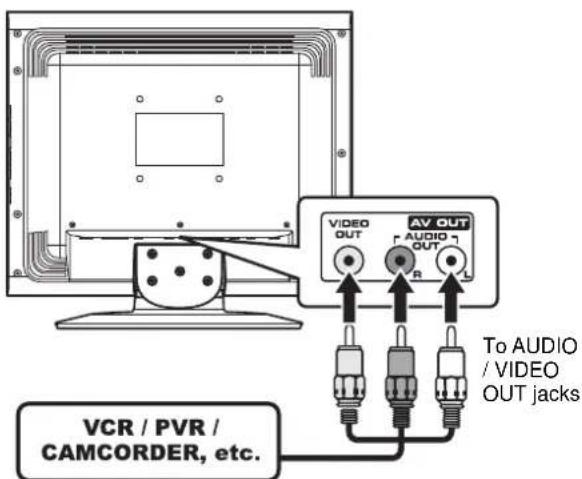
To connect A/V devices such as a VCR, PVR or camcorder.
Connecting to a VCR / PVR / Camcorder
Connect the AUDIO / VIDEO cable (not included) as shown.
Make sure you connect the cable from the other equipment (AUDIO and VIDEO IN) to this unit (AUDIO and VIDEO OUT).
NOTE
Please refer to the user manual for the other equipment for more information.
text_image
VCR / PVR / CAMCORDER, etc. AV OUT VIDEO OUT AUDIO OUT R L To AUDIO / VIDEO OUT jacksTo AUDIO / VIDEO IN jacks
E-8
CONNECTIONS
CONNECTING A HIGH-DEFINITION (HD) SOURCE
High-Definition (HD) Devices with component video output must be connected to the YUV input.
Connect the component video cable and audio cable (not included) as shown.
Make sure you connect the component video cable and audio cable from the other equipment (COMPONENT
VIDEO OUT and AUDIO OUT) to this unit (COMPONENT VIDEO IN and AUDIO IN - YUV IN).

flowchart
graph TD
    A["HD SOURCE With component video output (Digital Cable Box*, Satellite Receiver*, or external over-the-air HD-Tuner)."] --> B["To AUDIO IN jacks (YUV IN)"]
    B --> C["To AUDIO OUT jacks"]
    C --> D["To COMPONENT VIDEO OUT jacks"]
    D --> E["Component VIDEO OUT jacks"]
    E --> F["Component VIDEO IN jacks (YUV IN)"]
    F --> G["Component VIDEO IN Jacks (YUV IN)"]
    style A fill:#f9f,stroke:#333
    style D fill:#ccf,stroke:#333
    style E fill:#cfc,stroke:#333
NOTE
When connecting a DVD player to the television, the picture resolution is solely dependent upon the resolution supported by the DVD player attached. DVD player resolutions vary from 480i to 1080i, and this unit can support DVD players up to a maximum resolution of 1080i.
CONNECTING A PC
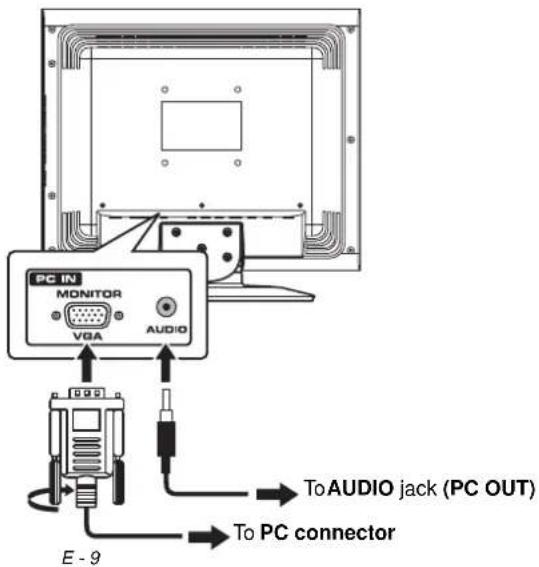
Connect the 15-pin D-SUB PC/VGA connector from your computer to the 15-pin D-SUB PC/VGA input on this unit using a monitor cable and an audio cable (not included) as shown.
Make sure you connect the cable from the computer (PC Connector and AUDIO - PC OUT) to this unit (MONITOR / VGA and AUDIO - PC IN).
text_image
PC IN MONITOR VGA AUDIO E - 9 To AUDIO jack (PC OUT) To PC connectorCONNECTIONS
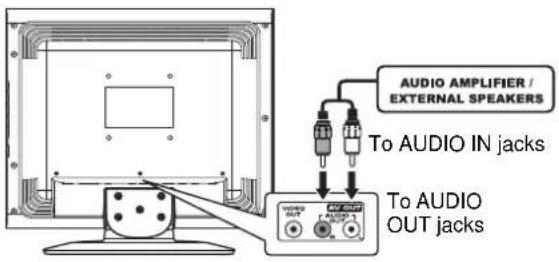
CONNECTING AN AUDIO AMPLIFIER
This connection allows you to use an audio amplifier and external speakers.
Connect the AUDIO cable (not included) as shown. Make sure you connect the cable from the other equipment (AUDIO IN) to this unit (AUDIO OUT).
text_image
AUDIO AMPLIFIER / EXTERNAL SPEAKERS To AUDIO IN jacks To AUDIO OUT jacksCONNECT THE AC POWER CORD
- Connect the AC power cord into a wall outlet.
- Press the STANDBY/ON button on the left of unit or remote control to turn on the unit.
NOTES
- TO PREVENT ELECTRIC SHOCK, MATCH WIDE BLADE OF PLUG TO WIDE SLOT OF WALL OUTLET, THEN FULLY INSERT.
- When the AC power cord is plugged in, the unit is not completely disconnected from the main power, even when the power is turned off.
- Be sure the AC power cord is disconnected and all functions are off before making connections.
• Make sure that all the components are connected correctly. - When you are not going to use the unit for a long period of time, disconnect the AC power cord.

text_image
To AC Power OutletUSING HEADPHONES
- Turn down the volume before connecting headphones to the unit, then adjust the volume to your desired level.
- When headphones are connected, no sound will come from the front speakers.
NOTE
Avoid listening to sound at high levels for prolonged periods of time. This may be harmful to you and may cause hearing loss.

text_image
Headphones (1/8" [3.5mm diameter plug) E - 10INSTALLATION
REMOVING THE BASE STAND
WARNING: The LCD Display is very fragile, and must be protected at all times when removing the base stand. Be sure that no hard or sharp object, or anything that could scratch or damage the LCD display, comes into contact with it. Do NOT place pressure on the front of the unit at any time because the screen could crack.
- Disconnect any cables or cords connected to the unit.
- Lay the unit down on a flat surface, so the backside is facing up, making sure to place a soft cushioned material (such as a pillow or thick piece of foam) beneath the screen.
- Remove the four screws and then remove the BASE STAND from the TV.

natural_image
Technical line drawing of a computer monitor with screwdriver and mounting base (no text or symbols)MOUNTING ON THE WALL
This unit is VESA-compliant, and is designed to be wall-mounted with a VESA-compliant 3 15/16" x 3 15/16" (100mm x 100mm) mounting kit designed for flat-panel TVs (sold separately). Mount this unit according to the directions included with the mounting kit.
NOTE
Remove the base stand before mounting the unit on the wall.

text_image
3 15/16" 3 15/16" Four mounting holesE-11
TV SETUP
Note: Some setting items on the menu screen may not activate depending on what mode the unit is currently in (TV/AV in/YUV in/PC in).
PICTURE MENU
- Press the MENU button.
- Press the ▼ button to enter PICTURE settings.
- Use the ▲ or ▼button to select the options (Picture Mode, Contrast, Brightness, Sharpness, Tint or Color). Adjust them using the ◀or ▼button (Screen will change to your desired setting).
- Repeat step 3 to adjust other options.
- To exit the MAIN MENU and return to the normal screen, press the EXIT or MENU button repeatedly.

text_image
PICTURE AUDIO TIME SETUP PARENTAL TV Picture Mode Standard Contrast 63 Brightness 44 Sharpness 25 Tint 0 Color 60 ▲UP/DOWN ▶ ADJUST "MENU":EXITPicture Mode : Select from preset screen display settings to match the type of show you are watching (Standard, Soft, Movie and Personal). Select Personal mode to recall your custom settings on contrast, brightness, sharpness, tint and color. Contrast : Adjust to sharpen the picture quality. The black portions of the picture become richer in darkness and the white become brighter.
Brightness : Adjust the brightness of the picture. Brighten or darken the whole picture.
Sharpness : Adjust the sharpness level to improve detail in the picture.
Tint : Adjust the tint of the picture. (toward purple / toward green)
Color : Adjust the color of the picture.
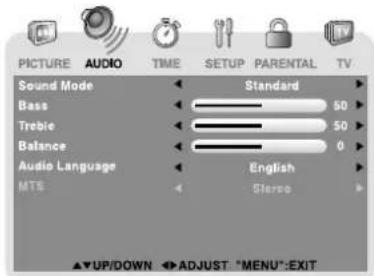
AUDIO MENU
- Press the MENU button.
- Use the ◀ or ▶ button to select AUDIO, then press the ▼ button to enter the AUDIO settings.
- Use the ▲ or ▼ button to select the options (Sound Mode, Bass, Treble, Balance, Audio Language or MTS). Adjust them using the ◀ or ▶ button.
- Repeat step 3 to adjust other options.
- To exit the MAIN MENU and return to the normal screen, press the EXIT or MENU button repeatedly.
NOTE
Experiment with different sound settings until you find the settings you prefer.
text_image
PICTURE AUDIO TIME SETUP PARENTAL TV Sound Mode Standard Bass 50 Treble 50 Balance 0 Audio Language English MTS Stereo ▲UP/DOWN ADJUST "MENU":EXITSound Mode : Select from preset sound settings (Standard, Music, Movie or Personal) to match the type of show you are watching. Select Personal mode to recall your custom settings on bass, treble and balance.
Bass : Adjust the bass range.
Treble : Adjust the treble range.
Balance : Adjust the balance level toward the left or right speakers.
Audio Language : Select from English / Spanish / French. (Available for digital channels if multiple audio languages are broadcasted.)
MTS (Multi Channel Television Sound) : Select Stereo / SAP (Secondary Audio Program) / Mono.
NOTE
The SAP (Secondary Audio Programs) feature allows a TV station to broadcast other information, which could be audio in another language.
TV SETUP
TIME MENU
- Press the MENU button.
- Use the ◀ or ▶ button to select TIME, then press the ▼ button to enter the TIME settings.
- Use the ▲ or ▼button to select the options (OSD Duration, Sleep Timer, Time Zone or Day Saving Time). Adjust them using the ◀or ▼button.
- Repeat step 3 to adjust other options.
- To exit the MAIN MENU and return to the normal screen, press the EXIT or MENU button repeatedly.

text_image
PICTURE AUDIO TIME SETUP PARENTAL TV OSD Duration 15 Sec Sleep Timer Off Time Zone Eastern Day Saving Time Off Clock 2007/03/05 04:39PM ▲UP/DOWN ▶ADJUST "MENU":EXITOSD (On Screen Display) Duration : Select the length of time for the On screen menu is displayed : 15 Sec / 30 Sec / 45 Sec / 60 Sec.
Sleep Timer : Select the length of time before the unit automatically changes to Standby mode : Off -> 5 Minutes -> 10 Minutes -> 15 Minutes -> 30 Minutes -> 60 Minutes -> 90 Minutes -> 120 Minutes -> Off.
Time Zone : Select the time zone from Eastern / Central / Mountain / Pacific / Alaska / Hawaii.
Day Saving Time : Select On to activate daylight savings time.
Clock : Display the current time.
SETUP MENU
- Press the MENU button.
- Use the ◀ or ▶ button to select SETUP, then press the ▼ button to enter the SET UP settings.
- Use the ▲ or ▼button to select the options (OSD Language, Color Mode, PC Set Up, Closed Caption or Restore Setting). Adjust them using the ◀ or ▶ button (Screen will change to your desired setting); or press the ▶button to go into the detailed settings.
- Press the MENU button to return to the previous menu.
- Repeat steps 3 and 4 to adjust other options.
- To exit the MAIN MENU and return to the normal screen, press the EXIT or MENU button repeatedly.

text_image
PICTURE AUDIO TIME SETUP PARENTAL TV OSD Language ← English → Color Mode ← Normal → PC Set Up Closed Caption → Restore Setting → ▲UP/DOWN ◀ADJUST "MENU":EXITOSD (On Screen Display) Language : Select On-screen menu language from English / French / Spanish.
Color Mode : Adjust the three color temperature of the picture. Choose from Normal (balanced), Warm (red white), or Cool (blue white) modes.
Restore Setting : If you reset the TV to the factory settings, all your present settings on PICTURE and AUDIO will be erased and replaced by the factory's default settings.
TV SETUP
PC Set Up (in PC mode only)
- Resolution : 1,440 x 900 max
- Refresh Frequency : 60Hz max
H-Pos : Center the image by moving it left or right.
V - Pos : Center the image by moving it up or down.
Clock : Adjusts the display clock to change width of the image.
Phase : Adjusts the image if there is flicker of screen letters, color misalignment, or blurring.
Auto Adjust : Adjust the image automatically.

text_image
PICTURE AUDIO TIME SETUP H - Pos 50 V - Pos 50 Clock 50 Phase 100 Auto adjust Best Resolution is 1440x900 ▲UP/DOWN ▶ADJUST "MENU":EXITClosed Caption
NOTE
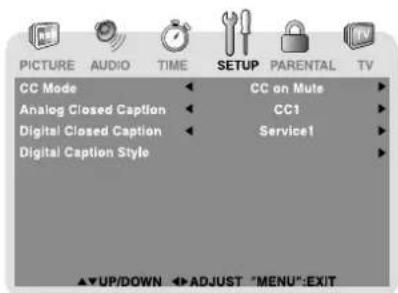
This function only works on ATSC programs broadcast with captions.
text_image
PICTURE AUDIO TIME SETUP PARENTAL TV CC Mode CC on Muts Analog Closed Caption CC1 Digital Closed Caption Service1 Digital Caption Style UP/DOWN ADJUST "MENU":EXITCC Mode
: Select closed caption On, Off or CC on Mute.
Analog Closed Caption
: Select the analog closed caption or turn it off.
Digital Closed Caption
: Select the digital closed caption or turn it off.
Digital Caption Style
: Select as Broadcaster to use the default digital caption style of the broadcaster. Select Custom to activate the caption style items and set your desired detailed settings.
PARENTAL MENU
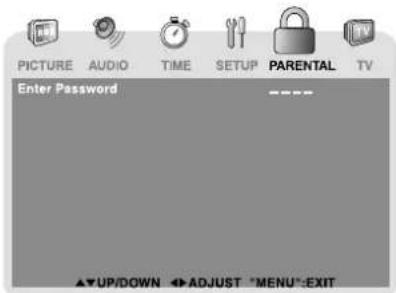
Password
- Press the MENU button.
- Use the ◀ or ▶ button to select PARENTAL, then press the ▼ button to enter the PARENTAL settings. The menu locked screen will be displayed.
- Enter a 4-digit password. Once entered, the screen will enter the Parental menu. The preset password is 0000.
If you forget the password, enter "8888" to unlock parental control.
text_image
PICTURE AUDIO TIME SETUP PARENTAL TV Enter Password ▲UP/DOWN ▶ADJUST "MENU"-EXITTV SETUP
Parental
- Use the ▲ or button to select various Parental settings.
Adjust them using the or button, or press the button to go into the detailed settings.
- Press the MENU button to return to the previous menu.
- Repeat steps 1 - 2 to adjust other options.
- To exit the MAIN MENU and return to the normal screen, press the EXIT or MENU button repeatedly.
Change Password : Enter the old password (the preset password is 0000 if you did not change it), then enter new password and confirm it.(Remember your password!)

text_image
PICTURE AUDIO TIME SETUP PARENTAL TV Change Password Rating Enable On US Canada RRT Setting Reset RRT UP/DOWN ADJUST "MENU"-EXITRating Enable : Select On to edit the following parental items. Select Off to disable parental control.
US : Set TV and MPAA ratings.
Canada : Set Canada English and Canada French ratings.
RRT Setting : Set Rating Region Table.
Reset RRT : Reset Rating Region Table to the default settings.
| U.S. TV Ratings | TV-Y : Recommended for all children.TV-Y7 : Recommended for all children age 7 and above.TV-G : General Audience.TV-PG : Parental Guidance Suggested.TV-14 : Parental Strongly Cautioned.TV-MA : Mature Audience Only. |
| U.S. MPAA Ratings | N/A : Not rated.G : GENERAL AUDIENCES, Suitable for all ages.PG : PARENTAL GUIDANCE SUGGESTED - Some material may not be suitable for children.PG-13 : PARENTS STRONGLY CAUTIONED - Some material may be inappropriate for children under 13.R : RESTRICTED, Under 17 requires accompanying parent or adult guardian for viewing in movie theaters.NC-17 : No one 17 or under admitted in movie theaters,X : Adults Only. |
| Canadian English Ratings | E : Exempt.C : Children.C8+ : Recommended for children age 8 and older.G : GENERAL AUDIENCES, Suitable for all ages.PG : PARENTAL GUIDANCE SUGGESTED - Some material may not be suitable for children.14+ : Viewers 14 years and older.18+ : Adult Programming. |
| Canadian French Ratings | E : Exempt.G : GENERAL AUDIENCES, Suitable for all ages.8 ans+ : Not recommended for young children.13 ans+ : Not suitable for children under the age of 13.16 ans+ : Not suitable for children under the age of 16.18 ans+ : Adult Programming. |
TV SETUP
TV MENU (For TV Mode Only)
- Press the MENU button.
- Use the ◀ or ▶ button to select TV, then press the ▼ button to enter the TV settings.
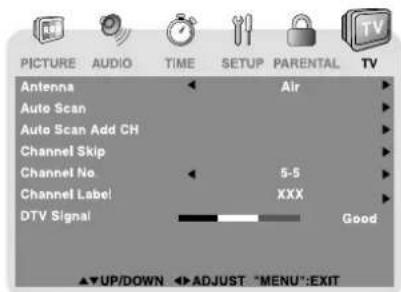
- Use the ▲ or ▼ button to select the options (Antenna, Auto Scan, Auto Scan Add CH, Channel Skip, Channel No., Channel Label or DTV Signal). Adjust them using the ◄ or ▼ button, or press the button to go into the detailed settings.
- Press the MENU button to return to the previous menu.
- Repeat steps 3 and 4 to adjust other options.
- To exit the MAIN MENU and return to the normal screen, press the EXIT or MENU button repeatedly.
text_image
PICTURE AUDIO TIME SETUP PARENTAL TV Antenna Air Auto Scan Auto Scan Add CH Channel Skip Channel No 5-5 Channel Label XXX DTV Signal Good ▲UP/DOWN ▶ADJUST "MENU":EXITAntenna
: Air (over-the-air broadcasts, Ch 2-69) or CATV (cable/satellite broadcasts, CH 1-135) mode are available.
Auto Scan : Search for usable stations and store them in memory.
Auto Scan Add CH : Search for more usable stations and add them in memory. The stations stored before are still kept.
Channel Skip : Skip weak channels and the channels you don't like.
Channel No. : Select a different TV channel.
Channel Label : Display and edit the channel label.
DTV Signal : Display the signal strength (for digital TV channels only).
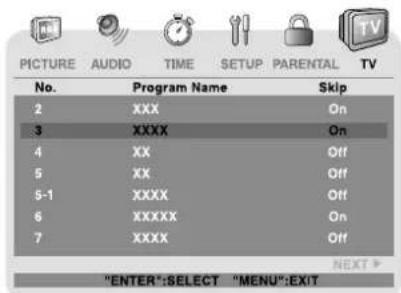
Channel Skip
- Use the ▲ or ▼button to select a channel. (Press the ▶ button to select the last channel of the page; press again to go to the next page. Press the ◀button to select the first channel of the page; press again to return to the previous page.)
- Press the ENTER button to shift between On / Off. (Select On to skip the selected channel. The channel will not appear when you press the CH ▲ / CH ▼ button.)
text_image
PICTURE AUDIO TIME SETUP PARENTAL TV No. Program Name Skip 2 XXX On 3 XXXX On 4 XX Off 5 XX Off 5-1 XXXX Off 6 XXXXX On 7 XXXX Off "ENTER":SELECT "MENU":EXIT NEXT >Channel Label
You can edit a label for each channel.
-
Use the ▲ or ▼button to select the number or letter. Use the ◀or ▶button to move and edit the next character.
-
After editing, the Channel and Channel Label will be shown on the screen when you press the DISPLAY button.

text_image
PICTURE AUDIO TIME SETUP PARENTAL TV X EDIT SELECT "MENU":EXITMAINTENANCE
CLEANING THE UNIT
- Be sure to turn the unit off and disconnect the AC power cord before maintaining the unit.
- Wipe the unit with a dry soft cloth. If the surfaces are extremely dirty, wipe clean with a cloth that has been dipped in a weak soap-and-water solution and wrung out thoroughly. Wipe with a dry cloth.
- Never use alcohol, benzine, thinner, cleaning fluid or other chemicals. Do NOT use compressed air to remove dust.
TROUBLESHOOTING GUIDE
SYMPTOM CAUSE (AND REMEDY)
| No power. | Check that the AC power cord is connected.The unit is not turned on. |
| The remote does not function. | Remove any obstacles between the remote and the unit.Use the remote near the unit.Point the remote at the remote sensor on the unit.Replace the batteries in the remote with new ones. |
| TV | |
| Bad Picture (snow, multiple images, distortion, blurry) | Check the location of the antenna and adjust it if necessary.Make sure the antenna cable is firmly connected.Make sure all input cables are firmly connected. |
| Black and white picture. | Check the PICTURE MENU within the TV SETUP MENU.Check to make sure the program you are watching is broadcast in color and not black & white. |
| No picture or sound. | Make sure the unit is plugged in and turned on.Make sure that TV mode is selected.Try a new channel to check for possible station trouble.Make sure the antenna is connected properly.Increase the volume.Make sure the antenna or audio video source device is working properly.Make sure all cables are firmly connected.Check for local interference. |
| Colored patches of picture. | Make sure there are no unshielded electrical devices nearby that are causing interference.Turn the unit off for 30 minutes, then try it again. |
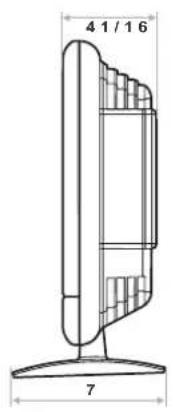
Unit: INCH
text_image
41/16 7
text_image
17 14
text_image
6 5/8 10 1/2 8 38 10 1/2Printed in China
811-361791W040