FP1500 - Television VOXX - Free user manual and instructions
Find the device manual for free FP1500 VOXX in PDF.


User questions about FP1500 VOXX
0 question about this device. Answer the ones you know or ask your own.
Ask a new question about this device
Download the instructions for your Television in PDF format for free! Find your manual FP1500 - VOXX and take your electronic device back in hand. On this page are published all the documents necessary for the use of your device. FP1500 by VOXX.
USER MANUAL FP1500 VOXX
Operating Instructions
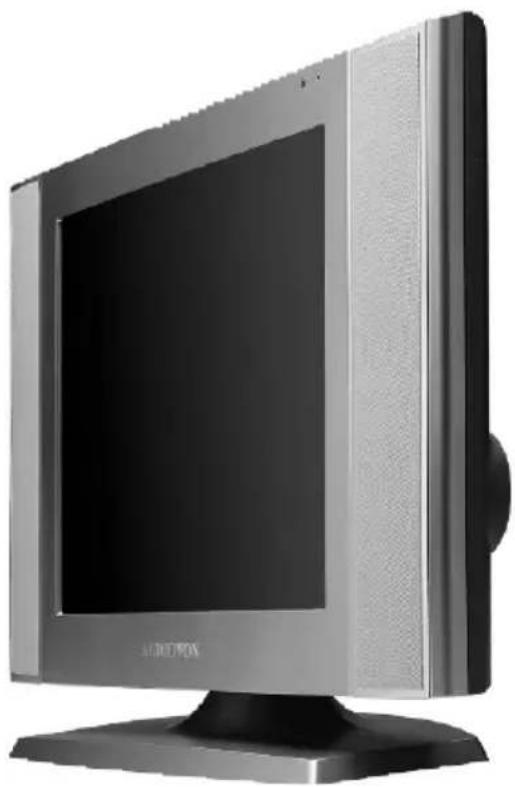
Model No. FP1500
natural_image
Front view of a vintage CRT monitor with a black cover and metallic grille (no visible text or symbols)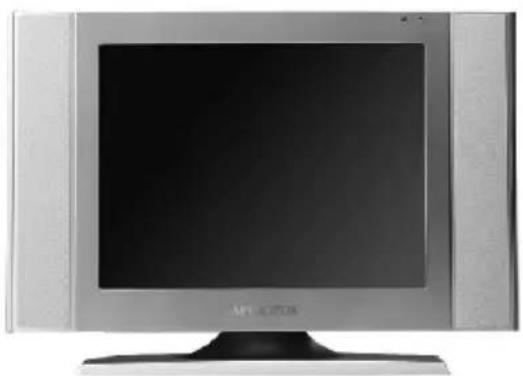
natural_image
Front view of a silver CRT television displaying a black screen with 'APLATOR' branding (no additional text or symbols visible)For assistance, please call: 1-800-645-4994
Or visit us at WWW.AUDIOVOX.COM
Before connecting, operating or adjusting this product, please read these instructions completely.
Please keep this manual for future reference
AUDIOVOX®
ELECTRONICS CORP.
Table of Contents
natural_image
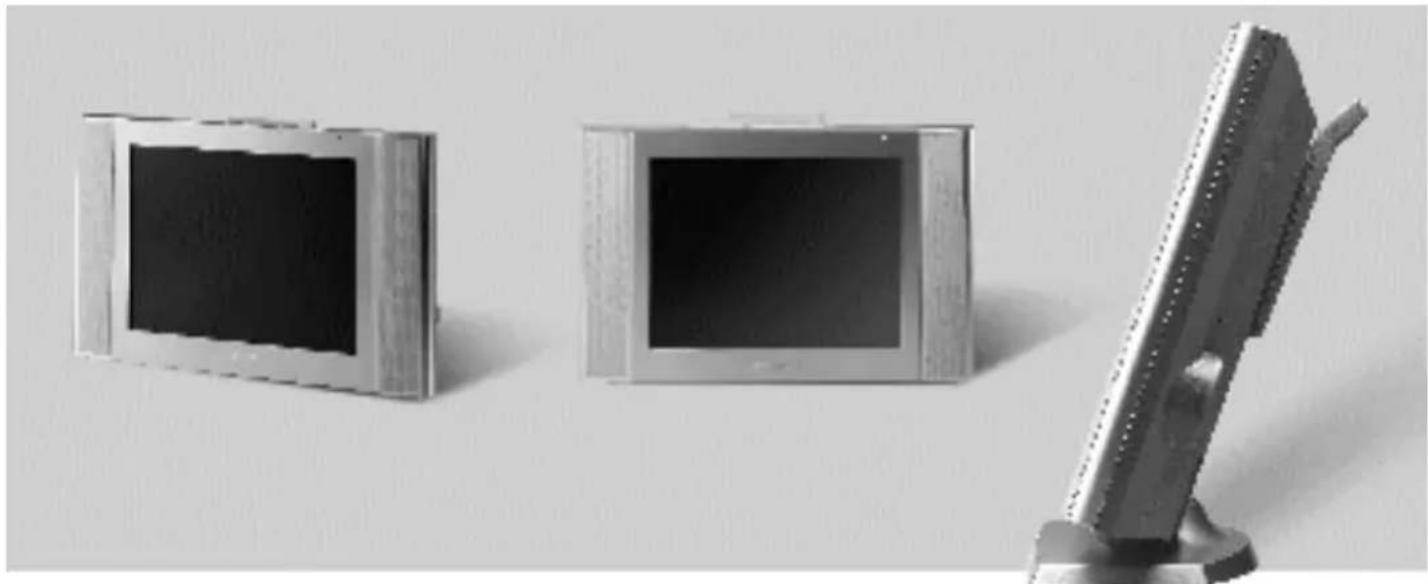
Two rectangular electronic devices with black screens, one standing upright and one tilted, against a plain background (no text or symbols visible)| Page# | 01 | 02 | 04 | Start up | Recognizing buttons and controls | |||||
| 05 | 06 | 07 | 08 | 09 | 10 | 11 | ||||
| Important Safety Instructions | Safety Cautions | Accessories | Outdoor Antenna Installation | Power Connection | Remote Control | Top / Front Control Panels | Rear Panel Input / Output Connections | Remote Control Buttons | PC/Video/ Speaker Connections | |
natural_image
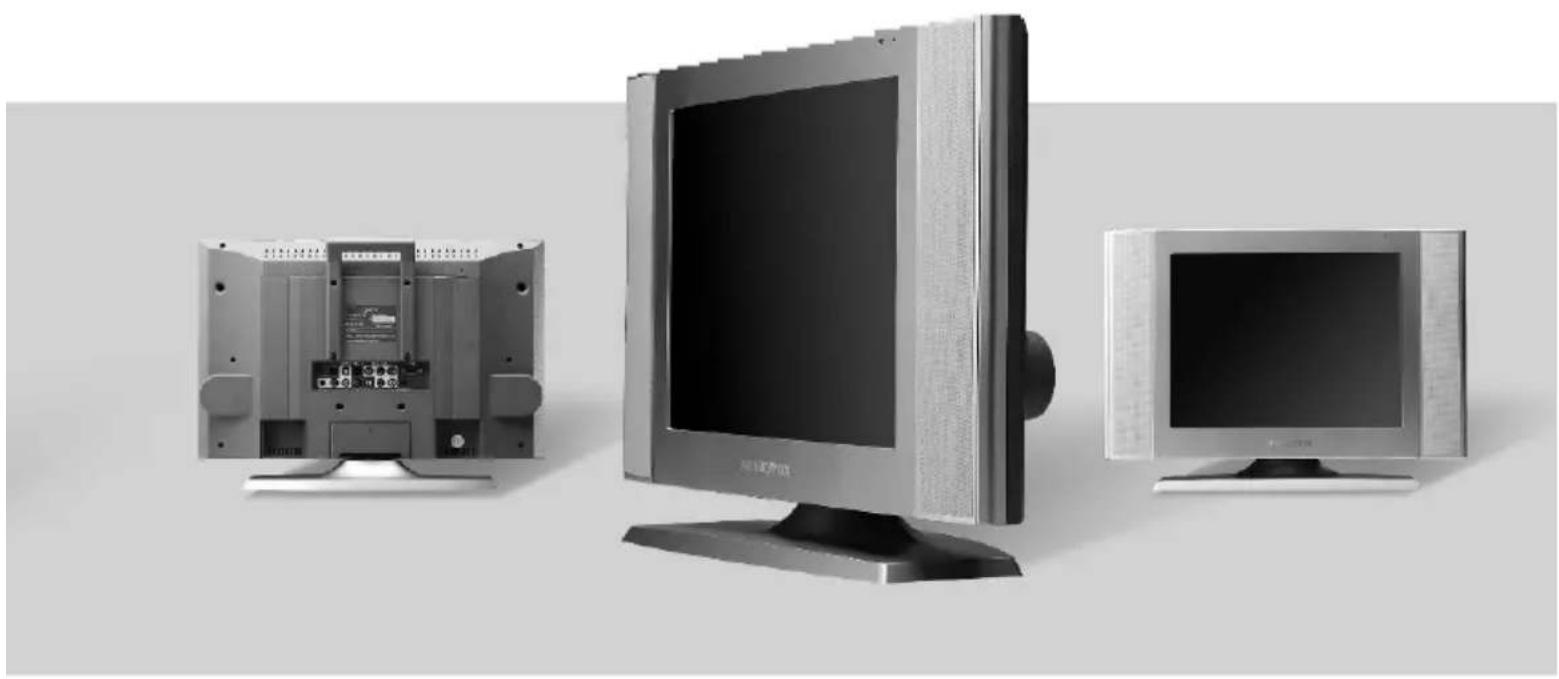
Three electronic devices: front panel, internal circuit board, and CRT monitor (no visible text or symbols)| Page# | 12 | 14 | 15 | 16 | 25 | 28 | 32 | 33 | 34 | 35 | |
| Basic Control | Menu Setting List (Diagram) | Picture Settings | Volume Settings | TV Setting / Other Functions | PC Setting | Troubleshooting | Product Specifications | Dimensions | Wall Mounting | Maintenance / Repair |
AUDIOVOX®
ELECTRONICS CORP.
Important Safety Instructions

CAUTION
RISK OF ELECTRIC SHOCK DO NOT OPEN

CAUTION
T O REDUCE THE RISK OF ELECTRIC SHOCK, DO NOT REMOVE COVER (OR BCAK) NO USER-DER VICEABLE P AR TS INSIDE PEFER SER VICING T O CLIALIFIED SER VICE PERSONNEL
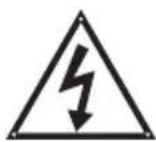
The Lightning flash with the arrowhead symbol within an equilateral triangle is intended to alert the user to the presence of uninsulated "DAN GER OUS VOLTAGE" within the product's enclosure that may be of sufficient magnitude to constitute a risk or electric shock to persons.

The Exclamation point within an equilateral triangle is intended to alert the user to the presence of important operating and maintenance (servicing instructions in the literature accompanying the product).
Federal Communication Commission Information (FCC)
This Equipment has been tested and found to comply with the limits for a TV Broadcast Receiver, pursuant to Part 15 of the FCC Rules. These limits are designed to provide reasonable protection against harmful interference in a residential installation. This equipment generates, uses and can radiate radio frequency energy and, if not installed and used in accordance with the instructions, may cause harmful interference to radio communications if this equipment does cause or receive interference, which can be determined by turning equipment of f and on, the user is encouraged to try to correct the interference by one of the following measures:
● Reorient or relocate the TV antenna
- Increase the separation between TV and other equipment
- Connect TV into separate outlet from equipment
- Consult the dealer or an experienced raido/TV technician for help
FCC Caution: Any changes or modifications not expressly approved by the party responsible for compliance could void the user's authority to operate the equipment.
AUDIOVOX®
ELECTRONICS CORP.
Safety Cautions

Users are advised to read this user's guide before operating the product.


natural_image
Cartoon illustration of a traffic light with three illuminated bulbs and a smiling face (no text or symbols)
Do not step over or place objects on the electrical cord. Do not over load your electrical outlet.

natural_image
Illustration of a house under stormy weather with raindrops and lightning (no text or symbols)
For safety reasons, do not touch any part of the TV, electrical cord, TV antenna or cable during bad weather and thunderstorms.

natural_image
Cartoon illustration of a computer monitor with a sad face and steam rising (no text or symbols)
To avoid short circuit, electrical shock or fire; keep this product indoors and away from rain and other forms of liquid.

natural_image
Two hand-drawn bottles with a diagonal line crossing through them, no text or symbols present.
Be sure that the AC plug is disconnected from the outlet before performing any kind of maintenance. When cleaning the TV, do not use liquid chemical cleaners or water sprays. Use a damp cloth to wipe out the dust.
natural_image
Cartoon illustration of a baby reacting to a computer screen showing a sad face (no text or symbols present)
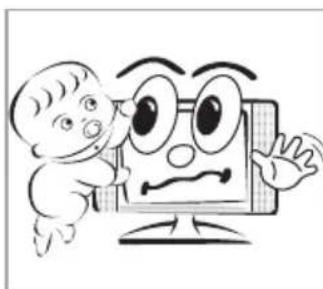
For safety reasons, this product must be placed on firm and stable surface at all times. Unstable surface will cause product to fall thus damaging the product and causing harm to those near it.
natural_image
Cartoon illustration of a distressed computer with a showerhead falling off, no text or symbols present
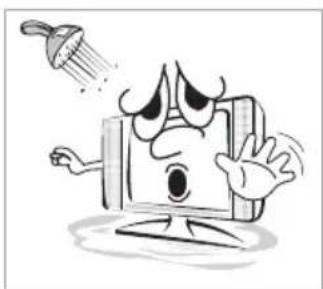
Keep this product away from humid environments. Such as near bath tubs, kitchen sinks, washing areas, swimming pools and basements.
AUDIOVOX®
ELECTRONICS CORP.
Safety Cautions

Users are advised to read this user's guide before operating the product.


natural_image
Cartoon illustration of a distressed computer monitor with a sad face, emitting steam from a steaming pot (no text or symbols)
Keep product away from other heat sources. Such as heat generating electrical appliances, heaters, gas stoves.
natural_image
Cartoon illustration of a smiling mobile phone with arms and legs, showing dynamic motion (no text or symbols)
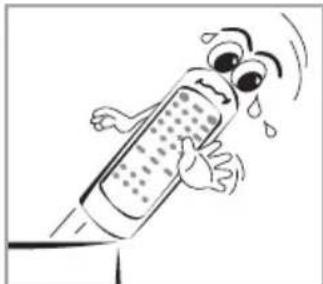
Avoid dropping the Remote Control at any time.
natural_image
Cartoon illustration of a sad face inside a TV frame with grid background (no text or symbols)
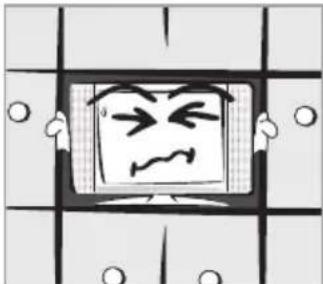
Good ventilation is essential to TV components' life span.
Do not place TV monitor on book shelf or enclosed cabinets. Never block TV airvents.
natural_image
Cartoon illustration of a computer monitor with angry faces and a pointing hand, no text or symbols present
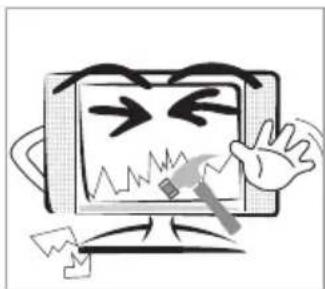
This LCD TV will break if drop or hit; should such incident occur, please send the product back to manufacturer for immediate repair.
natural_image
Cartoon illustration of a computer monitor character with arms and facial features, holding pliers (no text or symbols)
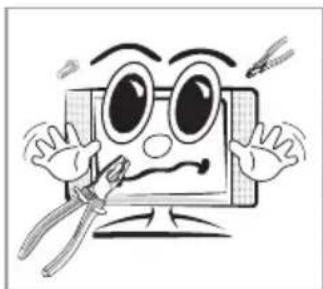
Never attempt to repair the TV yourself at any time. When any fault occur, be sure to unplug the cord from the main electrical outlet before calling our qualified serviceman for repair.
natural_image
Cartoon illustration of a character with large eyes and a mouth on a computer monitor, holding a pen (no text or symbols)
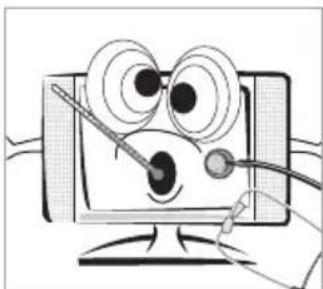
If liquid or foreign objects accidentally drops into the TV, be sure to have qualified serviceman check the product, before turn the TV power on.
※Beware: If you are not going to use the TV set for a long period of time, unplug your cord from the main power outlet to conserve electricity. This is because as long as your TV set is plugged in, it consumes electricity.
AUDIOVOX®
ELECTRONICS CORP.
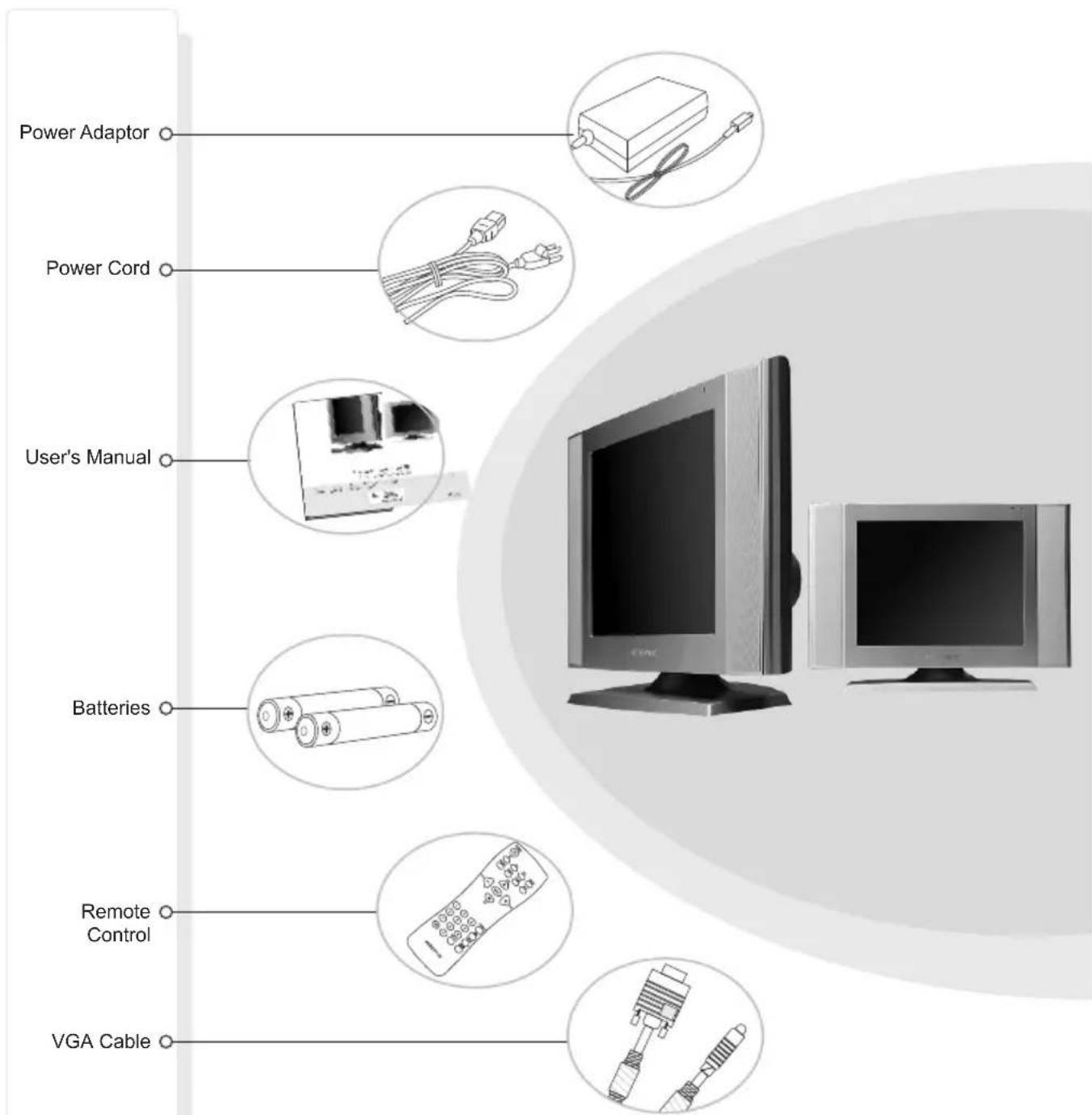
Accessories
text_image
Power Adaptor Power Cord User's Manual Batteries Remote Control VGA CableAUDIOVOX®
ELECTRONICS CORP.
Start UP
Antenna Installation
■ Using a good quality TV antenna accessories is essential to LCD TV reception. of antenna systems on the market: below are connectors and the different types
- The 75 system with commonly seen F type round head connectors which requires no tools for easy installation.
- The 300 system with the flat connectors system. Can be used with adaptor on 300 75 connectors (Accessories not included)
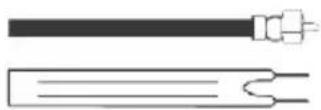
Outdoor Antenna Installation
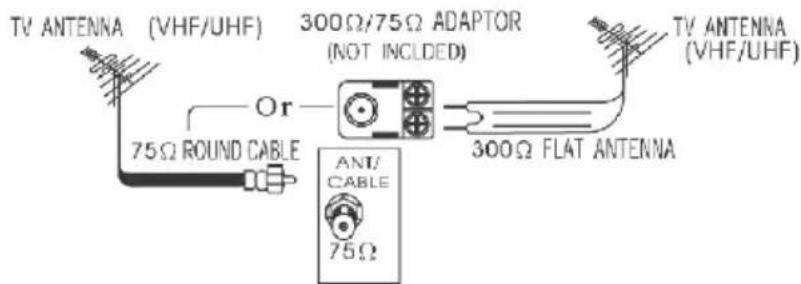
If you are installing an outdoor antenna, you may use one of the following methods:
- Use VHF/UHF mixed outdoor antenna.
- Use independent VHF or independent UHF outdoor antenna.
■ Installing the outdoor antenna to a TV tuner box.
A.VHF/UHF OUTDOOR ANTENNA
text_image
TV ANTENNA (VHF/UHF) 300Ω/75Ω ADAPTOR (NOT INCLUDED) TV ANTENNA (VHF/UHF) Or 75Ω ROUND CABLE ANT/ CABLE 75Ω 300Ω FLAT ANTENNAB.INDEPENDENT VHF OR INDEPENDENT UHF OUTDOOR ANTENNA

flowchart
graph TD
    A["VHF TV ANTENNA"] --> B["300Ω FLAT ANTENNA"]
    A --> C["300Ω FLAT ANTENNA"]
    A --> D["75Ω ROUND CABLE"]
    B --> E["TV TUNER (NOT INCLUDED)"]
    C --> E
    D --> E
    E --> F["IN OUT"]
    F --> G["Ant/CABLE 75Ω"]
- Keep your TV antenna cabling to the minimum required length to avoid unnecessary interference viewing TV.
- Avoid installing your TV antenna near steel framed housings or other metallic objects.
Install your TV antenna on high location avoiding main roads, neon lights and electrical power stations.
Avoid sharing your TV antenna. (i.e. using one antenna on more than one TV set.)
★ Outdoor antenna are subjected to constant weather wear and tear. When poor reception occurs, please consult your dealers or qualified service personnel.
natural_image
Illustration of a house under stormy weather with lightning and raindrops (no text or symbols)AUDIOVOX®
ELECTRONICS CORP.
Start Up
Power Connection

Power Connection
- Remove power adapter from package. Connect the round end of power adapter to the rear of the LCD TV monitor. Please refer to diagram instructions.
- T ake out the power cord and connect the flat end to the power adapter.
- Plug the other end of the power cord into the wall outlet and the installation is complete.

text_image
Keep babies away from electrical outlets at all times to prevent accidents from happening!AUDIOVOX®
ELECTRONICS CORP.
Start Up
Remote Control - Put batteries into the remote
Remote Operation
1 Aim remote directly at LCD TV monitor for clear signal.
2 Remote range is at approx. within 20 feet with angles of approx. 30 degrees.
3 Do not have obstructions between remote and TV reception.
4 Battery life span is between 6 months to one year depending on usage.
Once reception is weak, it is about time to replace batteries.
■ Remote Control: battery installation
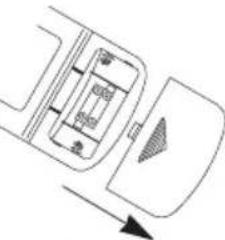
1
Depress the battery cover and slide out to the direction of the arrow indicated on cover.
natural_image
Pure diagram of a vehicle interior layout without any text, numbers, or symbols2
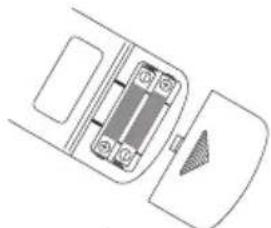
Install batteries in correct order as indicated.
natural_image
Pure diagram of a vehicle interior layout without any text, numbers, or symbols3
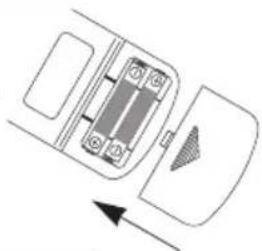
Slide battery cover in reverse order as indicated.
natural_image
Diagram of a vehicle interior showing a rectangular chamber and directional arrow (no text or symbols)
natural_image
Front view of a flat-screen computer monitor with a small screen and cable (no visible text or symbols)★note :
- It is dangerous to install batteries in the wrong direction. Batteries may leak and cause damage to the remote control!
- Do not mix old and new batteries together while change batteries
- Never recharge batteries which are not rechargeable batteries.
- Discard used batteries properly. Do not puncture or throw used batteries in fire as this may cause explosions!
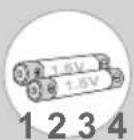
Batteries Installation Know how


Note
- It is dangerous to install batteries in the wrong order. Batteries may leak and cause damage to the remote control!
- Do not mix different brands or new and old batteries together during battery change!
- Never recharge batteries which are not rechargeable!
- Discard used batteries properly. Do not puncture or throw used batteries in fire as this may cause explosions!
AUDIOVOX®
ELECTRONICS CORP.
Recognizing buttons and controls
T op / Front Control Panels

text_image
1 4 5 6 7 2 MUTE PC/AV/TV MENU CH VOL POWER 9 101 Mute
2 TV / V ideo / PC
3 Menu
4 Channel selection (Previous)
5 Channel selection (Next)
6 Volume control (Decrease)
7 Volume control (Increase)
8 Power
9 Remote Control Sensor
10 Electric power light indicator
Light Indicator:

Red - TV of f
Green - TV on
Orange - Standby (A V/TV/PC)
AUDIOVOX®
ELECTRONICS CORP.
Recognizing buttons and controls
Rear Panel Input / Output Connections
Connectors
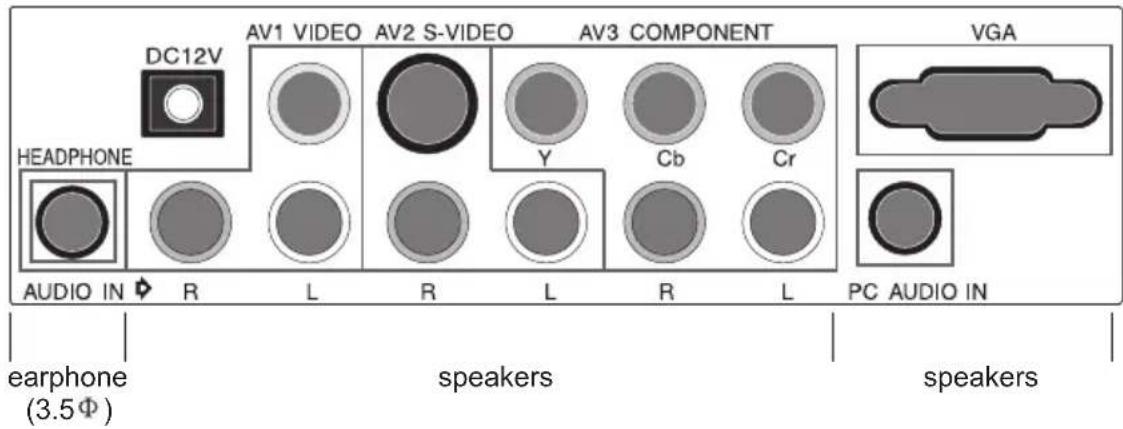
text_image
DC12V AV1 VIDEO AV2 S-VIDEO AV3 COMPONENT HEADPHONE Y Cb Cr AUDIO IN R L R L R L PC AUDIO IN earphone (3.5Φ) speakers speakersInput Connectors
| Input Video Speakers | ||
| AV1 Composite Stereo / AUDIO Connector | ||
| AV2 S-V ideo Stereo / AUDIO Connector | ||
| AV3 | Y,Cb,Cr | Stereo / AUDIO Connector |
| PC VGA (15 Pin D-SUB) Stereo /3.5 Earphone Connector | ||
| TV Antenna Terminal Antenna Connector | ||
Output Connectors
| Output Video Speakers | ||
| Headphone None | Stereo | |
Recognizing buttons and controls
Remote Control Buttons
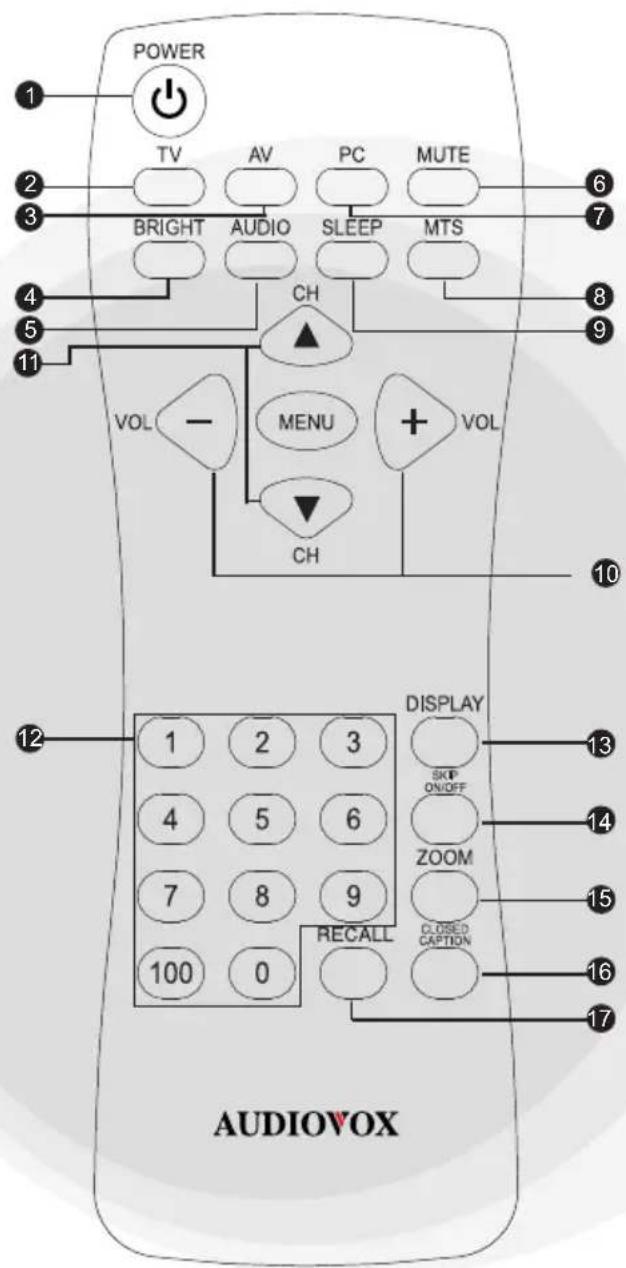
text_image
POWER TV AV PC MUTE BRIGHT AUDIO SLEEP MTS CH VOL - MENU + VOL CH DISPLAY SKIP ON/OFF 4 5 6 ZOOM 7 8 9 CLOSED CAPTION 100 0 AUDIOVOX 12 13 14 15 16 171 POWER
② TV
③ AV
4 BRIGHTNESS
5 AUDIO
6 MUTE
7 PC
8 MTS
9 SLEEP
⑩ VOL(+/-)
11 CH(▲▼)
12 CHANNEL SELECT
13 DISPLAY
14 SKIP ON/OFF
15 ZOOM
16 CLOSED CAPTION
17 RECALL
AUDIOVOX®
ELECTRONICS CORP.
Recognizing buttons and controls
PC/V ideo/Speaker Connections
Rear Output Connectors

text_image
PC Connectors 1 VGA Audio out PC DC12V AV1 VIDEO AV2 S-VIDEO AV3 COMPONENT VGA Y Cb Cr AUDIO IN R L R L R L PC AUDIO IN VGA
text_image
DG12V AV1 VIDEO AV2 5-VIDEO AV3 COMPONENT VGA HEADPHONE AUDIO IN R L R L R L PC AUDIO IN V ideo DVD/VCR L R2 V ideo Connectors

text_image
Home Stereo DC-12V AV1 VIDEO AV2 S-VIDEO AV3 COMPONENT VGA HEADPHONE AUDIO IN R L R L R L PC AUDIO IN 3.5 Φ R L3 Speaker Connectors
★Note :
- Normal TV sounds broadcast via speaker connectors are more impressive to ears.
- If your sound system does not have "Auxiliary" input connectors, you may select CD or video "Auxiliary" inputs.
AUDIOVOX®
ELECTRONICS CORP.
Basic Control
TV Control PC

Press Power button once, light indicator changes from red to green.
TV monitor is now ON. Press power button again, light indicator changes from green to red. TV monitor is now OFF.
Changing between TV/A V/PC Settings
- Make sure all equipment is connected properly.
- Press your desired setting (TV/A V/PC) and the selected mode will show on the upper left screen of the monitor indicating your present mode.

flowchart
graph TD
    A["Changing"] --> B["PC"]
    B --> C["TV"]
    C --> D["Av2"]
    D --> E["Av3"]
    E --> A
Av1
AUDIOVOX®
ELECTRONICS CORP.
Basic Control
To set sleep mode

Switching Channels
Use numeric buttons on remote control to select the channel you desire.
When selecting Single or Double digits channels (e.g., Channel 8) be sure to complete the selection within 4 seconds.
Action 1: Press "0" / Action 2: Press "8"
note: always include the digit "0" in front of Single digit channel selections. (e.g., Channel "8" is selected by pressing "08").
When selecting three digit channels (e.g., 1 18), please complete selection within 4 seconds. This is accomplished by doing the following:
Action 1: Press "100"
Action 2: Press "1"
Action 3: Press "8" to complete the 3 digit channel selection.
Make use of the channel selection buttons to scroll up and down.
Aerial antenna selection:
Press CH▲Selection up, channel selection moves from :
Press CH▼Selection down, channel selection moves from :
3 2 ... 69 68 3 2 ...
Cable selection:
Press CH▲Selection up, channel selection moves from :
1▶2 ▲... 125 1▶2▶3 ▲...
Press CH▼Selection down, channel selection moves from :
3 2 1 125 ... 3 2 1 ...
Menu Setting List (Diagram)
Menu: Picture / Volume / TV / Other fuction
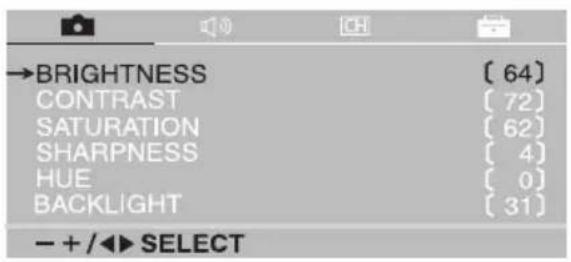
text_image
→BRIGHTNESS CONTRAST SATURATION SHARPNESS HUE BACKLIGHT - + /▲ SELECT [ 64 ] [ 72 ] [ 62 ] [ 4 ] [ 0 ] [ 31 ]【Picture Setting】

text_image
→SOUND MODE BALANCE TREBLE BASS [ USER ] [ 0] [ 0] [ 0] - + /◀▶ SELECT【Volume Setting】

text_image
CHANNEL INPUT CHANNEL ATUO SCAN CHANNEL SKIP CLOSED CAPTION V-CHIP BLOCK [ CATV ] [ OFF ] [ ] - + /▲ SELECT【TV Setting】Other fuction Setting
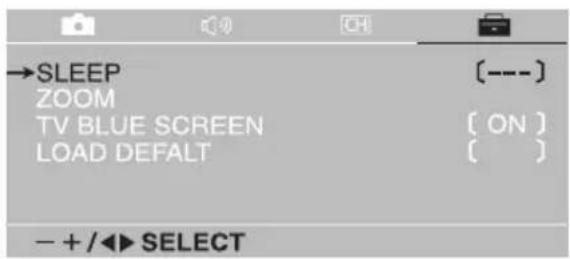
text_image
→SLEEP ZOOM TV BLUE SCREEN LOAD DEFALT [---] [ON] [ ]【 】
To locate the above settings do the following:
- Press MENU to display the menu setting list
- Press VOL (-/+) to select the desired item
- Press CH(▲) to scroll up or down to decide the selection
- Press VOL (-/+) to change the setting
- Press MENU to exit
AUDIOVOX®
ELECTRONICS CORP.
Picture Settings
■Picture Settings (1)
Directly Setting the brightness on the remote control, press "BRIGHT" to adjust the desired brightness.
You have 3 selections to chose.
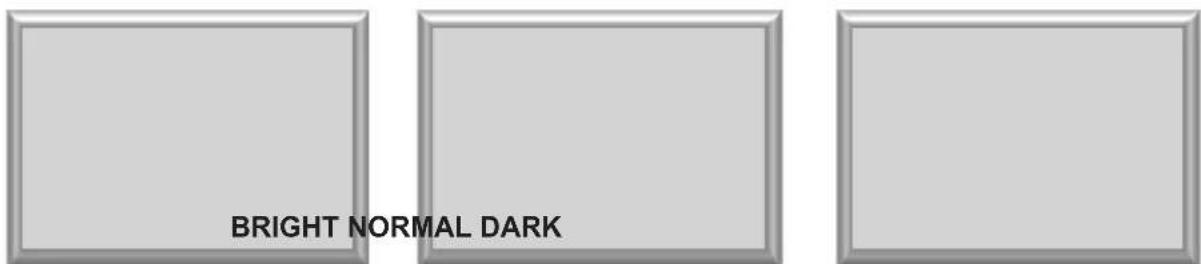
text_image
BRIGHT NORMAL DARKMaximum brightness 60% brightness suitable for viewing in a well lit area and save energy
20% brightness
■Picture Setting (2)
On the remote, press MENU. You may press on CH(▲/▼) button to scroll either up or down to find the function you need to adjust then press left or right on the "VOL (-/+") buttons to decide your desired adjustments such as adjust the contrast, brightness or sharpness of the TV screen.
Action 1, Press "MENU"

text_image
BRIGHTNESS (50)Action 2, Press "CH" (▲▼)

text_image
CONTRAST [ 50 ]Action 3, Press "VOL"(-/+)

text_image
CONTRAST [48]When you have finished adjusting your selections, simply press the "MENU" button to exit.
Volume Settings
■V olume Setting (1)
- Press "Audio" on the remote the select 5 different preset levels of volume.
- Press "Audio" button; the 5 different levels of sounds will appear as shown.
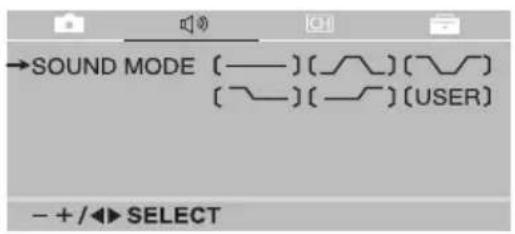
text_image
→SOUND MODE [—] ( Burk)— ( Burk)— [ Burk] ( Burk—) ( USER) - + /▲ SELECT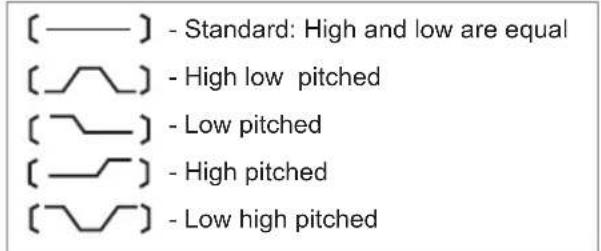
text_image
[——] - Standard: High and low are equal [~] - High low pitched [~] - Low pitched [~] - High pitched [~] - Low high pitched■V olume Setting (2)
- You can adjust the "Balance" of the speakers.
- Simply go to "MENU" setting, locate the "Balance", and press "VOL" (-/+), and perform the desired adjustment

■V olume Setting (3)
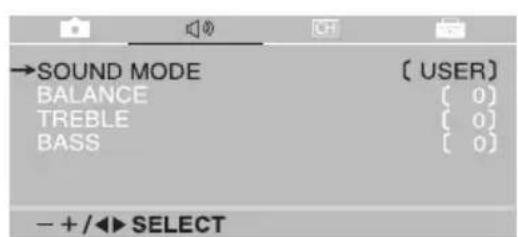
Before you adjust the TREBLE or BASS, please set the Audio Mode (USER), then locate the TREBLE or BASS controls, and perform the desired adjustment.
text_image
→SOUND MODE BALANCE TREBLE BASS [ USER ] [ 0 ] [ 0 ] [ 0 ] - + /◀ SELECT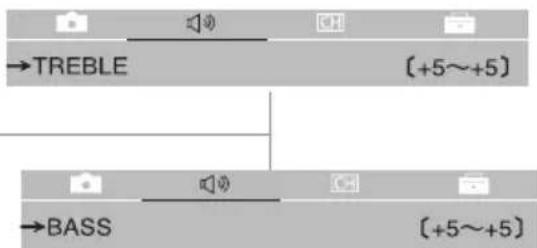
text_image
TREBLE (+5~+5) BASS (+5~+5)TV Setting
Multichannel T television Sound (MTS)
Your TV set is equipped with MTS (Multichannel Television Sound) decoding. This means you can view your programs in the original sound track. (SAP, Second Audio Program).
- Simply press the "MTS" button to adjust the desired language heard.
2.Y ou may also select "MENU" to do the necessary adjustments step by step. Simply press the select and setting buttons to finalize your selection.
-
Stereo 2. Mts 3. Mono
-
When you change a channel selection, or if there is a break in electrical circuit, the TV screen will show your present status as being "Stereo" and/or "MTS" function, depending on the present status.
4.Yellow lettering on TV settings describes the TV's present status. E.g.: Present program has two language settings broadcasting under mono-tone.
STEREO SAP MONO
- Weak antenna reception may result in poor Stereo Sound effects. Simply press the "MTS" button to change tone settings from "Stereo" to "Mono" tone. This procedure will give you better sound reception.
- If present program is being broadcasted under a secondary language selection, then stereo sound will not be heard as a result. That is, secondary language and stereo sounds will not function together.
- Cable reception is unusually strong, may sometimes result in receiving multiple language interference during MTS mode.
- You may do various tasks with the "menu" selection mode.
CLOSED CAPTION
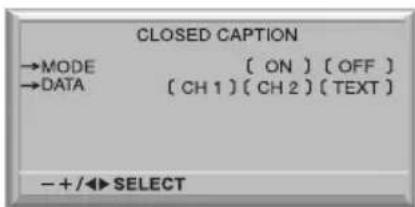
This TV set is equipped with an internal Closed Caption decoder. The closed caption broadcasts can be viewed in two modes: (CAPTION) and (TEXT). For each mode, two channels are available: CH1 and CH2
The (CAPTION) mode shows subscripts of dialogs and commentaries of TV dramas and news programs while allowing a clear view of the picture.
The (TEXT) mode display various information over the picture (such as TV program schedule and weather forecasts, etc.) that is independent of the TV programs
Simply press the "CLOSED CAPTION" button to select MODE or DATA
Or 1. Press MENU to display the MENU screen
- Press "VOL(-/+ ) to move to CHANNEL SETTING
- Press "CH (▲▼to CLOSED CAPTION
- Press "VOL(-/+) to change the CLOSED CAPTION setting
- Press "MENU" to exit
Note: The closed caption function is inactive in Componet mode.
text_image
CLOSED CAPTION →MODE [ ON ] [ OFF ] →DATA [ CH 1 ] [ CH 2 ] [ TEXT ] - + /◀ SELECTTV Setting
V -CHIP
This function allows TV programs to be restricted and TV usage to be controlled based on FCC data. It prevents children from watching violent or sexual scenes that may be harmful.
Restriction of TV programs includes two rating that contain information about the program: the MP AA rating and the TV Parental Guidelines. The MP AA is restricted by age. TV Parental Guidelines are restricted by age and context.
Since a TV program may use either the MP AA rating or the TV Guidelines, both should be adjusted for complete control.
| RA TING | |||
| Age base | G GENERAL AUDIENCES. All ages admitted | ||
| PG | PARENTAL GUIDANCE SUGGESTED. | Some material may not be suitable for children | |
| PG-13 | PARENTAL STRONGLY CAUTIONED. | Some material may be inappropriate for | |
| children under 13. | |||
| R RESTRICTED. Under 17 required | accompanying parent or guardian. | ||
| NC-17 | NO ONE 17 AND UNDER ADMITTED. | ||
| X X is an older rating that is unified with NC-17 but may be encoded in the data of older movies | |||
- Press MENU to display the MENU screen
- Press VOL(-/+) and CH (▲) to V -CHIP
- INPUT SECRET NO. will be display. Input the 4-digit secret number (0000) by using channel select keys
- Press CH (▲) to move the arrow to MP AA
- Press VOL (-/+) to select BLOCK, if you set PG to BLOCK PG-13, R, NC-17 and X are automatically block.
- Press MENU to return the main screen
Upper control panel of the main unit

text_image
CH VOL + VOL (+) CH (▲)■CHANGING OR CLEARING THE SECRET NUMBER
- Press and hold CH first, do not set free, then press and hold VOL+ on the TV set simultaneously until the message INPUT SECRET NO. blinks.
AUDIOVOX®
ELECTRONICS CORP.
TV Setting
TV P ARENT AL GUIDELINES
| RA TING | content | |||||
| FV V(Fantasy violence) | S L D(Violence)S Uation) | (iexual (Language) | Adult (Sexually Suggestive | Dialog | ||
| age base | TV -Y (All children) X X X X | □ X | □ | □ | □ | □ |
| TV -Y7 (Direct to Older Children) | X X | X X□ | ✕ | □ | □ | |
| TV -G (General Audience) | ✕ X | X □ | X □ | □ | ||
| TV -PG (Parental Guidance Cautioned) | X X | X | X | |||
| TV -14 (Parents its Strongly Cautioned) | X X | X | X | |||
| TV -MA (Mature Audience Only) | X X | X | X | |||
* ☒: The content rating can be set, but this rating is not normally broadcast by 1 / stations.
* X : The content rating can be set.
■Setting BLOCK CONTENT
- Press MENU to display the MENU screen
- Press VOL(-/+ ) and CH (▲▼to V -CHIP
- INPUT SECRET NO. (0000) will be display. Input the 4 digit secret number by using channel select keys
- Press CH (▲) to move the arrow to TV P ARENT AL GUIDELINES
- Press VOL(-/+) to select BLOCK CONTENT
- Press CH (▲) to move the arrow to the desired item
- Press VOL(-/+) to select BLOCK or ----(unblock)
- Press ☐ MENU ☐ to exit
Note: V-CHIP HAS BEEN ACTIVATED will not be displayed if STATUS in not Configured to ON.
Note: Not all broadcasted channels display restrictions.
TV Setting
Channel Input / Channel Auto Scan

CHANNEL INPUT (CA TV/TV)
It is necessary to set the receiving mode to CA TV or TV channels to receive local broadcast TV programs
- Press MENU to display MENU screen
- Press VOL (-/+) to CH
- Press CH (▲) to move the cursor to CHANNEL INPUT
- Press VOL (-/+) to select CA TV or TV
- Press MENU to exit

text_image
→CHANNEL INPUT CHANNEL ATUO SCAN CHANNEL SKIP CLOSED CAPTION V-CHIP BLOCK [ CATV ] [ OFF ] [ ] - + /▲ SELECT
CHANNEL AUT O SCAN
From MENU, press VOL(-/+), then CH (▲▼ to find CHANNEL AUT O SCAN press VOL(-/+), channels will automatically select, adjust and set.

text_image
14 Auto Scan RED (SKIP) GREEN (ON AIR)AUDIOVOX®
ELECTRONICS CORP.
TV Setting
Channel Memory (Enable/Disable)

CHANNEL MEMOR Y (Disable Channel)
If you do not want a particular channel, you can delete it from memory as follows:
- From your remote, press "CH"(▲)up or down to find the channel you wish to delete. You may also directly input the channel you wish to delete.
- Press "SKIP ON/OFF" to delete the channel you wish. This action will delete the channel from your TV. The deleted channel lettering will also change color from green to red.

text_image
15 CATV Red
CHANNEL MEMOR Y (Enable Channel)
If you wish to replace a channel, proceed as follows:
- From your remote, press "CH"(▲)up or down to locate the channel you want. You may also directly input the channel number you wish to add.
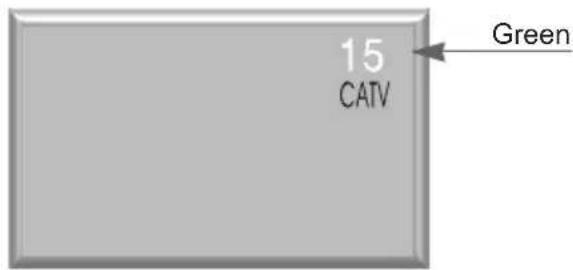
- Press "SKIP ON/OFF" to add the channel you want. The newly added channel lettering will change from that of red to green.
text_image
15 CATV Green★Note:
- The above enable /disable channel action may also be carried out via the menu button.
- From Menu, select, then set the channel you wish to add or delete. Remember that the lettering color for added channels are green and the lettering for deleted channels are red
TV Setting

Sleep Mode
- To set sleep mode :
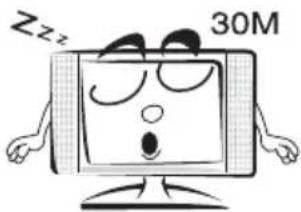
Press the "Sleep" button and select the time you wish to activate this function. The selected time (lettering in red) will disappear from your screen, and your power indicator will now change from the color green to that of orange, indicating that the sleep mode is now active.
text_image
ZZZ 30M- To cancel sleep mode:
Press "Sleep" button and the remaining time till sleep mode activation will appear (lettering in green). Now select the time to show [----] and the screen will disappear. The power indicator will now change from orange to green once again.

Adjusting the screen size
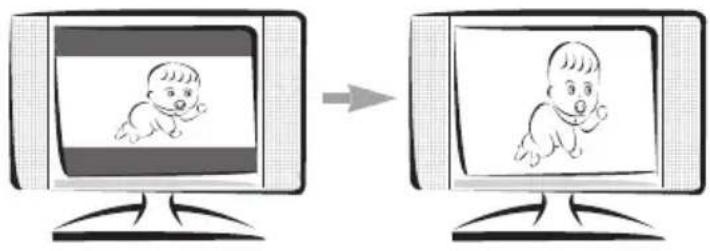
Press "ZOOM" button, there are 4 preset screen sizes to chose from:

text_image
SLEEP ZOOM TV BLUE SCREEN LOAD DEFAULT - + /◀ SELECT
flowchart
graph LR
    A["1. NORMAL"] --> B["2. EXP ANSION"] --> C["3. 16 : 9"]
★16:9 setting is applicable only when signals have cut original picture's top and bottom portion as shown below. Normally apply to DVD or theater mode movies.
text_image
Illustration showing a baby crawling on a computer screen before and after transformation, with Chinese text labels.AUDIOVOX®
ELECTRONICS CORP.
TV Setting

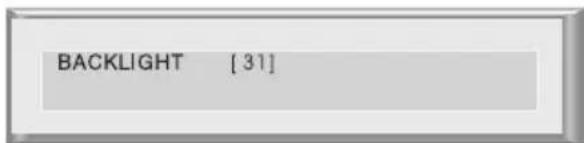
Backlight Setting
From the menu, press VOL (-/+) , then CH (▲▼and find "backlight" mode for desired setting.
text_image
BACKLIGHT [31]
Blue Channel Setting
Automatically turns the screen blue if a broadcast signal is not received.
Note:
When received signals are weak or interfered with some other signals, the BLUE SCREEN function may be activated. To watch the TV under such conditions, set BLUE SCREEN to of f.

text_image
→TV BLUE SCREEN [ ON ]
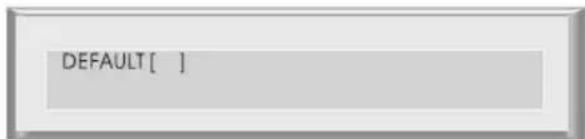
Default Setting
From menu, press VOL(-/+), then CH (▲▼) and find "default setting" then set.
text_image
DEFAULT[ ]AUDIOVOX®
ELECTRONICS CORP.
Other Functions

Mute
Press the mute button to silence the TV volume. The screen will show a red icon on the TV screen indicating that the mute function has been activated. Press the mute button again return to the original volume setting.

natural_image
Blank rectangular frame with a small musical note symbol in the center (no text or labels)★ Note: Increasing or decreasing the volume setting will also disable on mute setting.

Channel Display
Press the "Display" button and the top right hand corner of the TV screen will display your current viewing channel, program and audio mode.

text_image
15 CATV STEREO SAP MONO
Channel Return
Press the "Q-VIEW" button and you will return to your previous viewing channel. Press it again and you will return to your present viewing channel. You may alternate between these two channels.
AUDIOVOX®
ELECTRONICS CORP.
PC Setting
PC Settings
★ Simply press TV/V ideo/PC button to locate the PC mode.
★ T o make adjustments under the PC mode, do the following:
- Press the "MENU" button
- Select the function you desire
- Press the "CH" up or down buttons to adjust or the "VOL+/-" button for further adjustments.
- To demonstrate the "water level", move the light pointer to the "water level" position and the letterings will be lit.
- Press "VOL +/-" to adjust the screen left and right balance.
- Press "MENU" button again to end single setting selection.
★ End (Single Setting instruction)
■ Left unattended, any instructions desired will disappear, press menu button to end selection process.
| PC P A TTERN | |
| BRIGHTNESS CONTRAST | |
| HOR. POSITION VER. POSITION | |
| PHAS IMAGE ADJUSTMEMT | |
| SHARPNESS LANGUAGE | |
| LOAD DEF AUL T NO SIGNAL INPUT |
Remote Control Functions
| Remote Control Functions | |
| 1. Press Menu to select2. Press Select up and down buttons to find desired mode | 3. Press Set left or right buttons to finalize selection4. Press Menu to exit |
AUDIOVOX®
ELECTRONICS CORP.
PC Setting

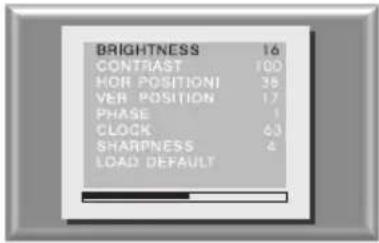
Brightness
Press menu, select brightness, and then set the brightness functions
text_image
BRIGHTNESS 16 CONTRAST 100 HOR POSITIONI 38 VER POSITION 17 PHASE 1 CLOCK 63 SHARPNESS 4 LOAD DEFAULT
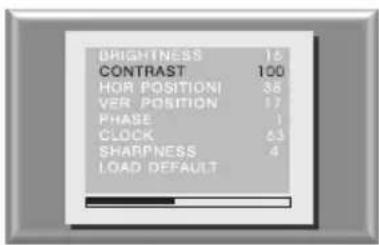
Contrast
Press menu, select Contrast, and then set the contrast functions
text_image
BRIGHTNESS 16 CONTRAST 100 HOR POSITIONI 38 VER POSITION 17 PHASE 1 CLOCK 63 SHARPNESS 4 LOAD DEFAULT
Horizontal Position
Press menu, select horizontal Position, and then set the horizontal position functions
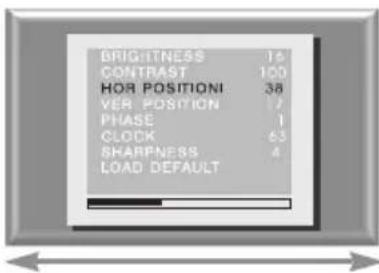
text_image
BRIGHTNESS 15 CONTRAST 100 HOR POSITIONI 38 VER POSITION 7 PHASE 1 CLOCK 63 SHARPNESS 4 LOAD DEFAULT
Vertical Position
Press menu, select V ertical Position and then set the vertical position functions
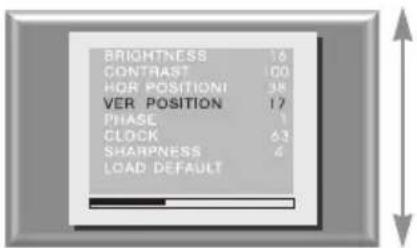
text_image
BRIGHTNESS 16 CONTRAST 100 HOR POSITIONI 38 VER POSITION 17 PHASE 1 CLOCK 63 SHARPNESS 4 LOAD DEFAULTAUDIOVOX®
ELECTRONICS CORP.
PC Setting

Phase
Press menu, select Phase, then set the phase functions
Note: Adjust if screen is not clear
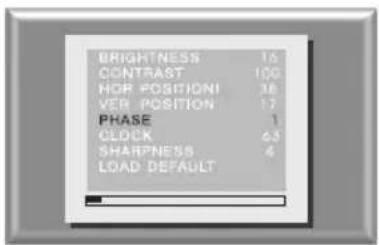
text_image
BRIGHTNESS 16 CONTRAST 100 HOR POSITIONI 38 VER POSITION 17 PHASE 1 CLOCK 63 SHARPNESS 4 LOAD DEFAULT
Clock
Press menu, select Clock, then set your current time

text_image
BRIGHTNESS 16 CONTRAST 100 HOR POSITIONI 38 VER POSITION 17 PHASE 1 CLOCK 63 SHARPNESS 4 LOAD DEFAULT
Load Default
Press menu, select, then set the setting to default
note: if screen shows "No Signals" this means that the PC(VGA) signals has not yet been connected.

text_image
BRIGHTNESS 16 CONTRAST 100 HOR POSITIONI 38 VER POSITION 17 PHASE 7 CLOCK 63 SHARPNESS 4 LOAD DEFAULTAUDIOVOX®
ELECTRONICS CORP.
T roubleshooting
Interference
Please note the following common TV reception interferences:

Ignition ef fect
Black spots or vertical lines may appear. Screen jumps crazily or is very unstable. This is commonly the result of car ignition system interference, neon lights, or other forms of electrical interferences.

Ghost Shadows
This is the result of two signals: One being the original signal from the antenna while the 2nd signal is a slightly delayed signal, normally the result of bouncing of f tall buildings or other obstructions. This problem might be corrected by adjusting your outdoor antenna.

Flurries
Lots of tiny dots appears on your screen. This is the result of poor reception signals. You may have to re-enforce your antenna signals.
AUDIOVOX®
ELECTRONICS CORP.
T roubleshooting
You may have problems that can be fixed with a few minor adjustments. Look for the type of problem you are having below and then apply the suggestions to get your TV going again.

Picture with no sound
- Check if you have accidentally pressed the "mute" button
Check other channels if the same problem exist. If other channels are fine, then problem is with the TV program you are viewing. This shouldn't be a concern
■ V erify all connections are firmly attached
■ Connect cable to another TV
■ If all checks fail, please contact our serviceman
natural_image
Cartoon illustration of a computer monitor with hands holding a document, no text or symbols present
Sound with no picture
- Check if main power is switched on
■ Check brightness and contrast level to see if they have been tuned to the minimum level thus making the screen dark
■ Unplug the cable and re-plug it in after two minutes - Check if you have accidentally pressed the "mute" button
■ Connect cable to another TV

natural_image
Cartoon illustration of a computer monitor with an angry face and exclamation marks (no text or symbols)
No Picture No Sound
■ Check main power source
■ Check other TV channels. If they are okay, problem is just with the TV program you are viewing
■ Press the TV/VIDEO/PC button on the remote or on the top of the unit to get to the desired display option
■ If you are using outdoor antenna, please check your connections
■ Please check if your power cord is connected properly, it may be loose
■ Switch of f main power, disconnect cable. Reconnect cable after two minutes rest then switch on the main power
■ Check if the antenna or cable are well connected
■ Check your Remote Control
■ Check power adapter and power cord if they have been damaged
■ Connect cable to another TV
If all fails, please contact with serviceman immediately
natural_image
Cartoon illustration of a computer monitor with a question mark on its screen (no text or symbols)AUDIOVOX®
ELECTRONICS CORP.
T roubleshooting

Picture too dark
■ Check your brightness level
■ Check your contrast level
In the on screen display (OSD) select default
■ Check your LCD monitor for possible damage
natural_image
Cartoon illustration of a smiling computer monitor character with arms and legs (no text or symbols)
Remote Control Failure
■ Check TV main power source
■ Check if remote control batteries are weak
■ Check if batteries have been correctly installed
- Check if there are obstructions between your remote control and the main TV remote sensor
■ Disconnect your cable for two minutes before reinstalling it
If failure resulted from electrical interferences, lighting or static, disconnect the TV main power for 10 seconds before reinstalling it. Restart your TV
■ Try holding remote 2 inches from sensor
natural_image
Cartoon illustration of a confused remote with question marks around (no text or symbols)
Picture is blurry
■ Check other channels. Problem may be an isolated incidence
■ If using outdoor antenna, please check connections
■ Please check your accessories. Such as V ideo recorder, VCD, DVD
■ Check your cable company or outdoor antenna reception
■ RF signal may be too slow
■ If all fails, please contact our serviceman immediately

natural_image
Cartoon illustration of a computer monitor character with arms and facial features (no text or symbols)AUDIOVOX®
ELECTRONICS CORP.
T roubleshooting
Before calling our serviceman, please refer to the following chart to see if you can adjust the problems yourself.

| T rouble Checks and Adjustments | |
| TV will not turn on Plug TV in. | Plug something else into the outlet to make sure it is working.Make sure batteries in the remote are not dead.Make sure batteries are placed in the remote the right way .Unplug TV for a few minutes and then turn it on again. |
| Poor sound or no sound Check volume settings and mute settings | Check for possible interference sources |
| Blur picture or no picture Check antenna or TV cable | Check for possible outside interferencesCheck picture settings |
| Some channels are not clear Check outdoor antenna and make necessary adjustments | Check possible outside interferences |
| Poor Color tone or No color Check memory settings | Check Color settingsCheck if program is in correct channelCheck antenna and cable connectionsCheck possible outside interferences |
| No reception from Cable Check if cable is connected properly | Check if channels are selected properlyCheck if cable company are experiencing technical problems |
| Channels above 13 cannot receive Check TV channel settings (CA TV/TV) are set properly( page 20) | Check antenna and UHF settings |
| Unable to operate remote Check for low batteries or possible obstructions between remote and TV sensor | Check TV main power source |
| TV shut of f Electric power failure | Preset sleep mode features are onTV programs ended |
Product Specifications
| Display Specifications: | |
| Screen 15" (diagonal) | |
| Aspect Ratio 4:3 | |
| Resolution | 1024x768 |
| Pixel Pitch 0.297mm(H)x0.297(V) | |
| Total Display colors 16.7 millions(8 bit/color) | |
| Viewing Angle H: 130 V :1 10 | |
| Contrast Ration 500:1 | |
| Brightness 350 cd/m2 (typ) | |
| Backlight lift 50,000 hrs ( minimum) | |
| Surface T treatments: | |
| Anit-Glare | |
| Connection information: | |
| Hi-Resolution component /V ideo (480i) | |
| S-V ideo | |
| Composite (A/V input) | |
| VGA (15 pin D-sub) | |
| 3.5mm Stereo plug input | |
| Headphone | |
| Convenience Specifications: | |
| Total W att output 3W X 2 | |
| Number of Speaker 2 | |
| 181 TV channel compatibility | |
| Parental Control with V -Chip | |
| Closed Caption (CC) | |
| SAP | |
| Auto Sleep (Power/ Of f) | |
| VESA mounting standard 3.93 x 3.93 inch (100 x 100 mm) | |
| Mechanical Dimensions: | |
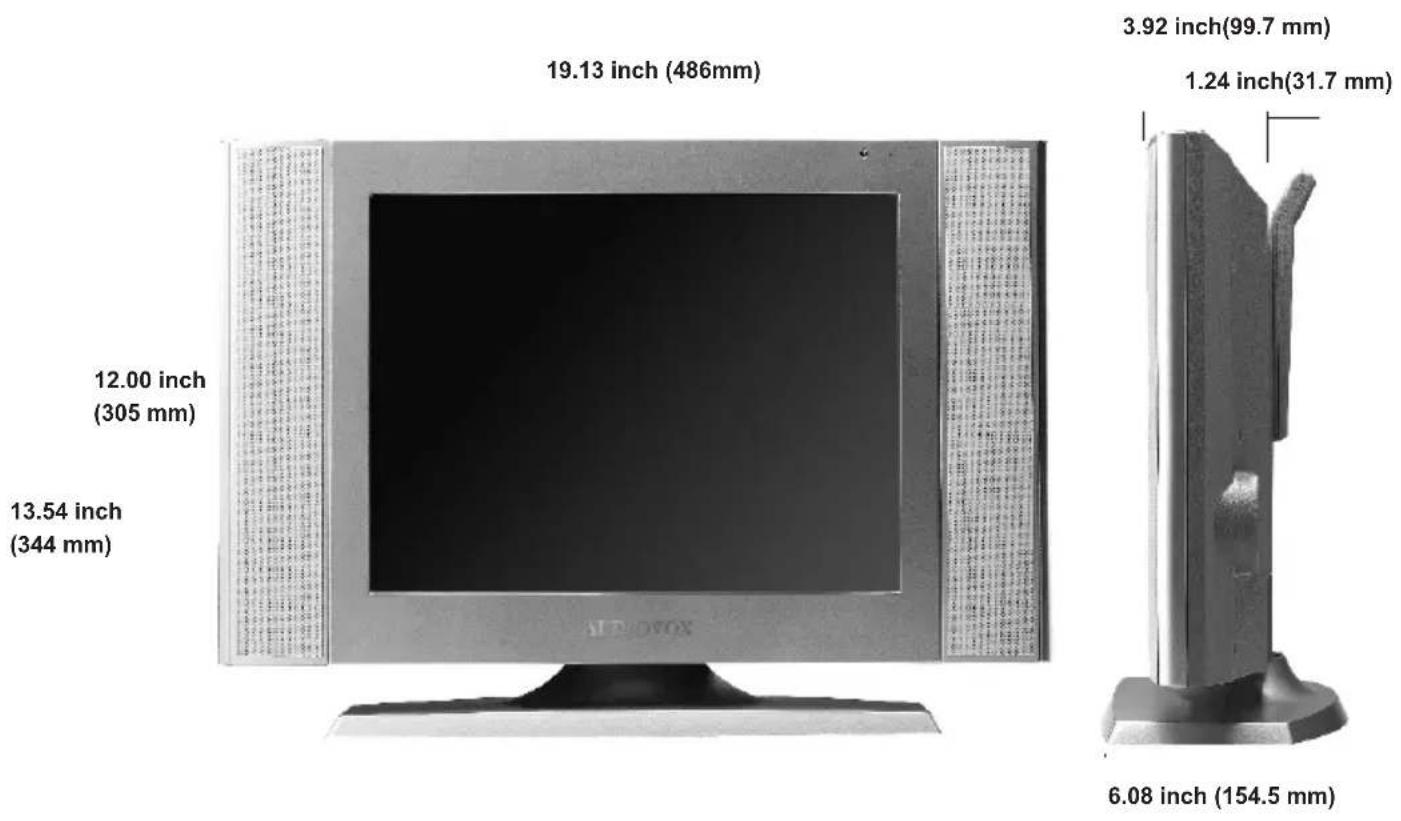
| WxHxD 19.13 x 12.00 x 2.67 inch | (486 x 305 x 68 mm) (less stand) |
| WxHxD 19.13 x 13.54 x 3.92 inch | (486 x 344 x 99.7 mm) (with stand) |
| Weight 1 1b (5.4 kgs) | |
| Power Usage: | |
| Power source | AC 1 10V - 240V @50/60Hz |
| Power input | 12Vdc, 4A |
| Power ON Consumption | 48W |
Dimensions
Unit: inch

natural_image
3D model of a computer monitor with a 13° angle indicator (no text or symbols on the device itself)
natural_image
Close-up of a mechanical component with a 2° angle indicator (no text or symbols on the part itself)AUDIOVOX®
ELECTRONICS CORP.
W all Mounting
Unit: inch
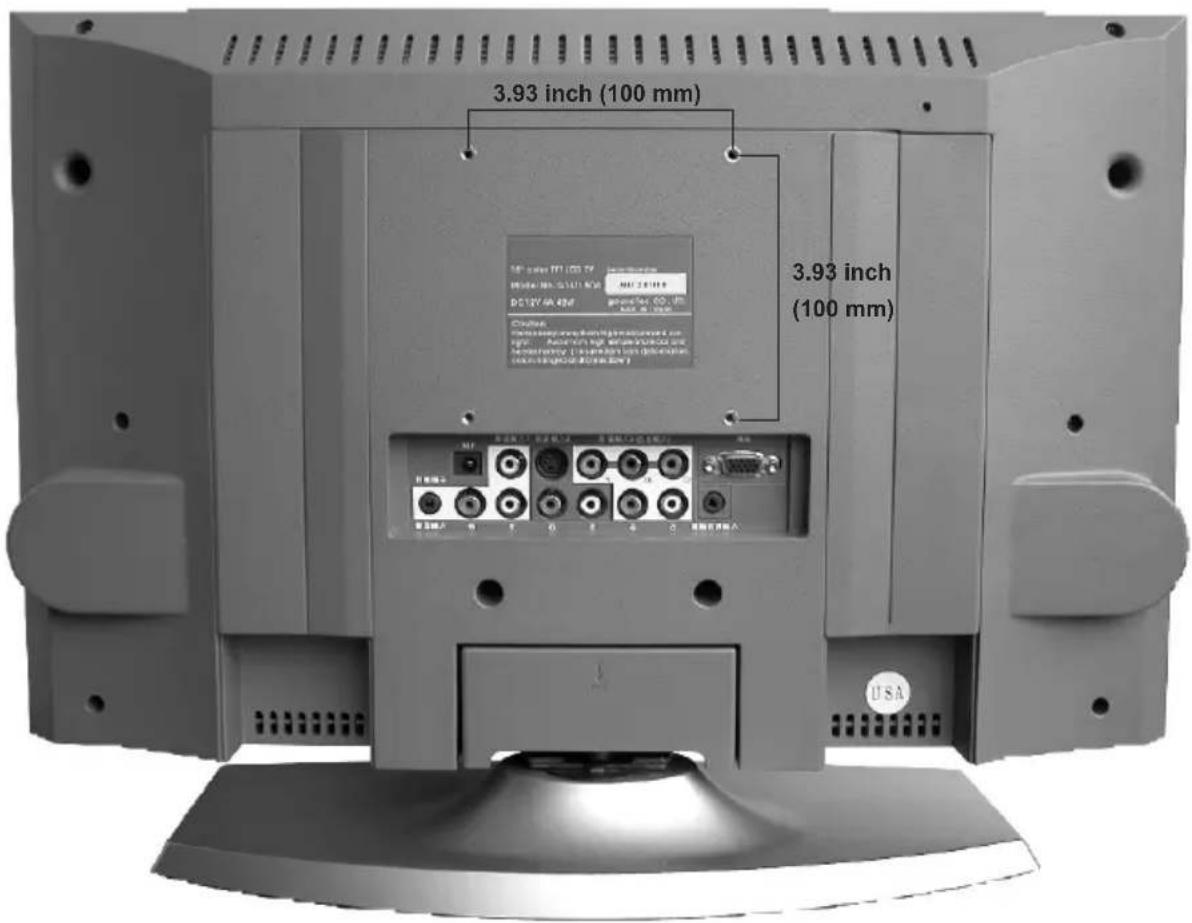
text_image
3.93 inch (100 mm) 3.93 inch (100 mm) USAAUDIOVOX®
ELECTRONICS CORP.
Maintenance / Repair

Maintenance:
■ DO NOT wipe LCD with water
Clean the LCD using a dry soft cloth such as gauze. If the LCD is heavily soiled, apply a cleaner for LCD panels to the cloth and wipe of f gently.
DO NOT use chemical such as acetone, solvents as xylem or toluene.
■ WIPE the cabinet with a soft cloth
If the cabinet is heavily soiled, wipe with soft cloth dipped in water

REP AIR: (Important)
DO NOT SHIP PRODUCT BACK FOR REP AIR WITHOUT FIRST CONT ACTING AUDIOVOX A T 1-800-645-4994.
AUDIOVOX WILL PROVIDE A SPECIALY DESIGNED TRANSPORT BOX FOR YOUR UNIT. THIS BOX WILL BE PROVIDED TO YOU A T NO CHARGE. THE BOX WILL CONTAIN A PREP AID SHIPPING LABLE SO THE PRODUCT MAY BE RETURNED A T NO EXPENCE.
For assistance, please call: 1-800-645-4994 or visit us at WWW .AUDIOVOX.COM
AUDIOVOX®
ELECTRONICS CORP.
Note
AUDIOVOX®
ELECTRONICS CORP.
Note
AUDIOVOX®
ELECTRONICS CORP.
Note
AUDIOVOX®
ELECTRONICS CORP.
Note
Customer Record:
This Model number and serial number of this product can be found on its rear panel.
You should note this serial number in the space provided below and retain this book, plus your purchase receipt, as a permanent record of your purchase to aid in identification in the event of theft or loss, and Warranty Service purpose.
Model Number:
FP1500
Serial Number:
AUDIOVOX ELECTRONICS CORPORATION (the Company) warrants to the original retail purchaser of this product that should this product or any part thereof, under normal use and conditions, be proven defective in material or workmanship within 90 days from the date of original purchase, such defect(s) will be repaired or replaced with reconditioned product (at the Company's option) without charge for parts and repair labor.
To obtain repair or replacement within the term of this Warranty, the products is to be delivered with proof of warranty coverage (e.g. dated bill of sale), specification of defect(s), transportation prepaid, to the Company at the address shown below.
This Warranty does not extend to the elimination of externally generated static or noise, to correction of antenna problems, to costs incurred for installation, removal or reinstallation of the product, or to damage to tapes, discs, speakers, accessories, or electrical systems.
This Warranty does not apply to any product or part thereof which, in the opinion of the Company, has suffered or been damaged through alteration, improper installation, mishanding, misuse, neglect, accident, or by removal or defacement of the factory serial number / bar code lable(s). THE EXTENT OF THE COMPANY'S LIABILITY warranty UNDER THIS WARRANTY IS LIMITED TO THE REPAIR OR REPLACEMENT PROVIDED ABOVE AND, IN NO EVENT, SHALL THE COMPANY'S LIABILITY EXCEED THE PURCHASE PRICE PAID BY PURCHASER FOR THE PRODUCT.
This Warranty is in lieu of all other express warranties or liabilities. ANY IMPLIED WARRANTIES, INCLUDING ANY IMPLIED WARRANTY OF MERCHANTABILITY, SHALL BE LIMITED TO THE DURATION OF THIS WRITTEN WARRANTY. ANY ACTION FOR BREACHY OF ANY WARRANTY HEREUNDER INCLUDING ANY IMPLIED WARRANTY OF MERCHANTABILITY MUST BE BROUGHT WITHIN A PERIOD OF 30 MONTHS FROM DATE OF ORIGINAL PURCHASE. IN NO CASE SHALL THE COMPANY BE LIABLE FOR ANY CONSEQUENTIAL OR INCIDENT AL DAMAGES FOR BREACH OF THIS OR ANY OTHER WARRANTY, EXPRESS OR IMPLIED, WHATSOEVER. No person or representative is authorized to assume for the Company any liability other than expressed herein in connection with the sale of this product.
Some states do not allow limitations on how long an implied warranty lasts or the exclusion or limitation of limitation of incidental or consequential damage so the above limitation or exclusions may not apply to you. This W gives you specific legal rights and you may also have other rights which vary from state to state.
U.S.A.: AUDIOVOX ELECTRONICS CORPORATION, 150 MARCUS BLVD., HAUPPAUGE, NEW YORK 11788 • 1-800-645-4994 CANADA: CALL 1-800-645-4994 FOR LOCATION OF WARRANTY STATION SERVING YOUR AREA
Dealer
70-010019