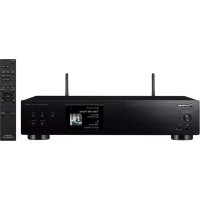
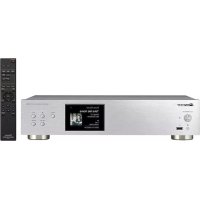
N-50-S - Media player PIONEER - Free user manual and instructions
Find the device manual for free N-50-S PIONEER in PDF.


| Product Type | Network media player |
| Brand | PIONEER |
| Model | N-50-S |
| Dimensions (W x H x D) | 435 x 100 x 300 mm |
| Weight | 7 kg |
| Power supply | 230 V AC, 50 Hz |
| Power consumption | 30 W |
| Main functions | Network audio file playback (DLNA), USB DAC input for computer, support for high-resolution formats (up to 24-bit/192 kHz), USB playback, Ethernet connectivity |
| Audio inputs | 1 x USB (type B for PC), 1 x Ethernet RJ45 |
| Audio outputs | 1 x RCA line, 1 x digital coaxial, 1 x optical |
| Supported audio formats | WAV, FLAC, ALAC, AIFF, MP3, AAC, WMA, DSD (up to 5.6 MHz) |
| Maintenance and cleaning | Unplug the device before cleaning. Wipe with a soft, dry cloth. Do not use solvents or abrasive products. |
| Safety | Do not expose to moisture, heat sources, or direct sunlight. Use only on a stable surface. Unplug during thunderstorms. |
| Spare parts and repairability | Spare parts are not provided. For any repair, contact an authorized Pioneer service center. |
| General information | Pioneer N-50-S: USB DAC compatible network audio player. Requires driver installation for Windows (download from Pioneer website). No driver required for Mac OS X. |
Frequently Asked Questions - N-50-S PIONEER
User questions about N-50-S PIONEER
0 question about this device. Answer the ones you know or ask your own.
Ask a new question about this device
Download the instructions for your Media player in PDF format for free! Find your manual N-50-S - PIONEER and take your electronic device back in hand. On this page are published all the documents necessary for the use of your device. N-50-S by PIONEER.
USER MANUAL N-50-S PIONEER
Operating Instructions
About these Operating Instructions
When a USB cable is used to connect the unit's DIGITAL IN USB port to a computer, audio files located on the computer can be played.
In order to use this function, a dedicated driver (software program) must be installed in the computer. These Operating Instructions contain important information necessary for playing files on the computer, including instructions about how to install the driver and how to perform troubleshooting in event of problems.
Computer Environment
To utilize this driver, your computer must be equipped with a USB port supporting USB Rev2.0 HS. For information regarding supported computer operating systems and playback software, please consult the Pioneer website (the download page for this driver).

Note
- When using an input supported by the DIGITAL IN USB port to play music files from a computer, it is recommended that all computer applications be closed except for the music player application.
- The sampling frequencies and number of quantization bits that can be output by your computer may differ depending on the computer's operating system and the version of playback software used.
Microsoft, Windows, Windows Vista and Windows XP are either registered trademarks or trademarks of Microsoft Corporation in the United States and/or other countries.
Installing the driver software

Note
- This driver program is supported for use with Windows Vista, Windows XP, and Windows 7 operating systems.
- It is unnecessary to install the driver when using Mac OS X. (Digital files can be played without the need to install the software.)
1 Download the driver program.
The driver software can be downloaded from the Pioneer website.
- When downloading the driver program, designate the folder where you wish the program to be saved.
- Depending on the browser program used or its settings, it may not be possible to designate the folder for saving downloads. In this case, the file will be saved to a folder location previously designated by the program.
- The driver program will be downloaded in compressed ZIP format.
The downloaded compressed file will have a name like "Pioneer_AV_USB_Driver_*.zip", where "***" will indicate the program's package number.
2 Following completion of the download, decompress the compressed file.
The decompressed file (driver) will be decompressed to the computer folder which you designate.
After decompression, the folder holding the driver program will be named "Pioneer_AV_USB_Driver_*", where "*" will indicate the program's package number.
- When the compressed zip file is decompressed, a sub folder will be created, and the installer program (Setup.exe) will be saved to that folder.
- For more information regarding the software used to open the compressed file, please consult your software publisher or computer vendor.
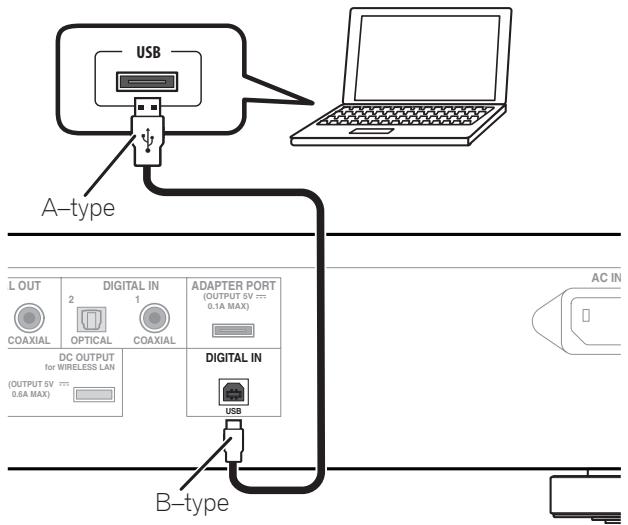
3 Use a proper USB cable to connect a computer to a device equipped with DIGITAL IN USB connector, then turn on the power.
For more information regarding connections, check the Operating Instructions for this device. The image shown below is for the N-50.
4 Execute the Setup program located in the root directory of the decompressed folder.
The InstallShield wizard will appear.
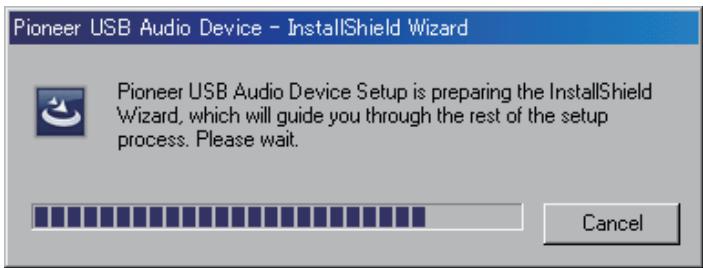
- If an older version of this driver program is found on the computer, the InstallShield wizard will display a "delete" option. In this event, follow the on-screen instructions to delete the older version, then reboot your computer and once again install the new driver program.
5 Click on [Next].
![PIONEER N-50-S - Click on [Next]. - 1](/content/2025/01/119029/images/660e923b5791f19ca53bc9fc3e063b8c59c209c8320417140c6d067d7ed82a47.jpg)
6 Click on [Install].
![PIONEER N-50-S - Click on [Install]. - 1](/content/2025/01/119029/images/09e969eb040f5eb9a8dabc29490e9d820708aeda49650c05fba306de31dbf0b9.jpg)
The following screen will appear; wait until the step 7 instructions appear.
![PIONEER N-50-S - Click on [Install]. - 2](/content/2025/01/119029/images/b6a33e55cca5b525ccbc2b08f72b8cc76f4266ce7e4bd49bada33e6a543d06ee.jpg)
7 Click on [Finish].
![PIONEER N-50-S - Click on [Install]. - 3](/content/2025/01/119029/images/d70f92d2da2999311f7db31133fc2e280e340a6863d4cdda9182da4d25bfac02.jpg)
The driver installation is completed.
8 Reboot your computer to finalize installation of the driver.
Procedure finished.
To uninstall the driver
1 Click on the [Start] button at lower left of your monitor screen, then click on ([Settings] ) [Control Panel].
2 From the Control Panel menu, click on [Add or Remove Programs].
3 Select [Pioneer USB Audio Device] and click [Remove].
The uninstaller dialog will appear.
4 Click [Next] to execute the uninstall process.
The driver software will be uninstalled.
5 Reboot your computer.
Procedure finished.
Troubleshooting (Windows XP)
When using Windows Vista, see page 7; for Windows 7, see page 11; for Mac OS X, see page 15.
1. No sound
Do not boot your computer's music player program if the power is turned off to the device with the DIGITAL IN USB port, or if the DIGITAL IN USB port has not been selected as the input source.
Boot your computer's music playing program only after switching the input to the DIGITAL IN USB port.
For information about the name of inputs supported by the DIGITAL IN USB port, see the Operating Instructions for this device.
1 Click on [Start] ([Settings] ) [Control Panel] [System].
2 Click on the [Hardware] tab then click on [Device Manager].
3 Click on [Universal Serial Bus controllers] and confirm that [USB Composite Device] is listed.
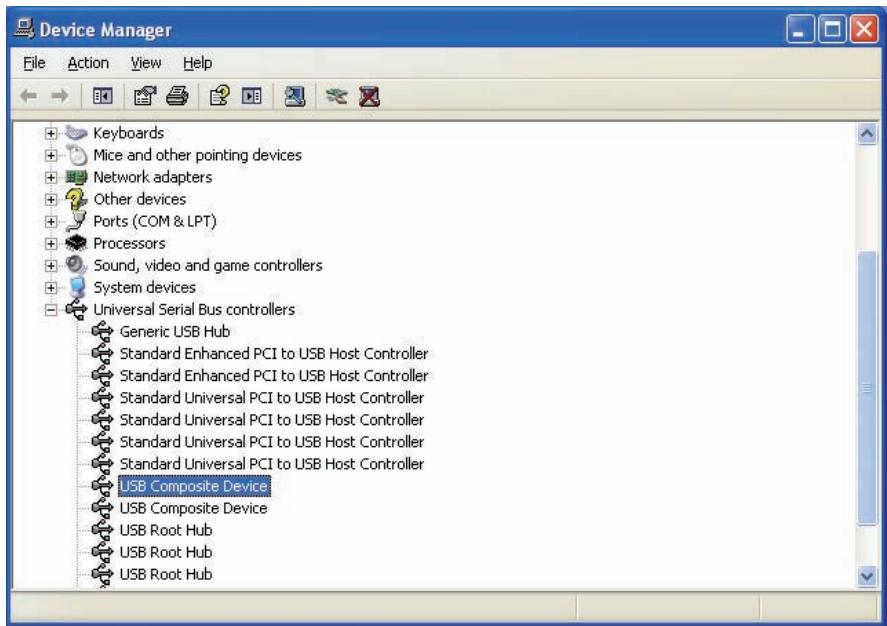
Procedure continues.
4 Click on [Sound, video and game controllers] and confirm that [Pioneer USB Audio Device] is listed.
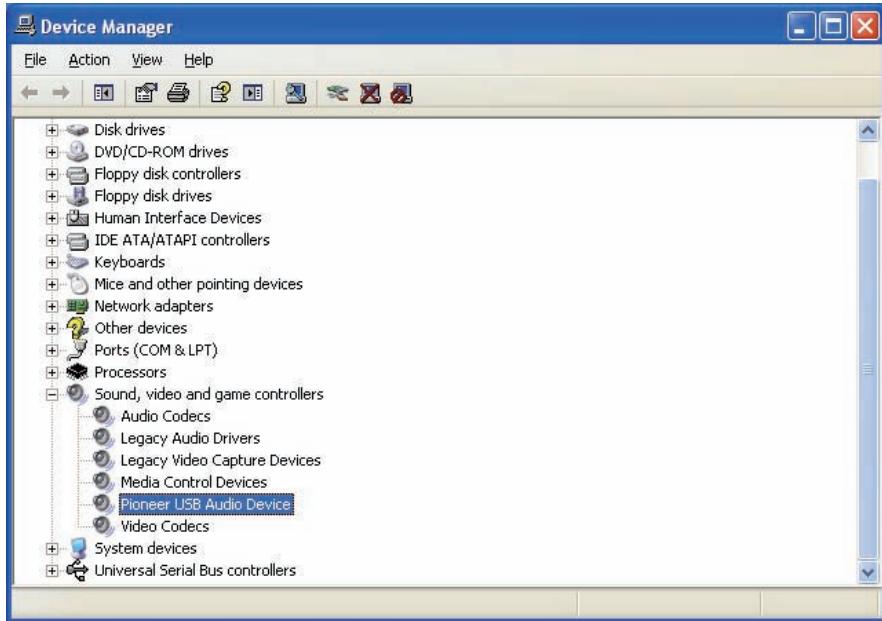
If the [Pioneer USB Audio Device] does not appear, confirm that the DIGITAL IN USB port has been selected as input source. Then try reconnecting the cable or turning the power off and then on again; when this is done, the [Pioneer USB Audio Device] should be recognized.
5 Click on [Start] ([Settings] ) [Control Panel] [Sound, Speech, and Audio Devices] [Sounds and Audio Devices].
6 Open the sound and audio Properties.
Procedure continues.
7 Click on the [Audio] tab, then confirm that [Pioneer USB Audio Device] is listed as the [Default device] for [Sound playback].
If another device has been selected, open the drop-down menu and select [Pioneer USB Audio Device], then click on [Apply] to change the selection.
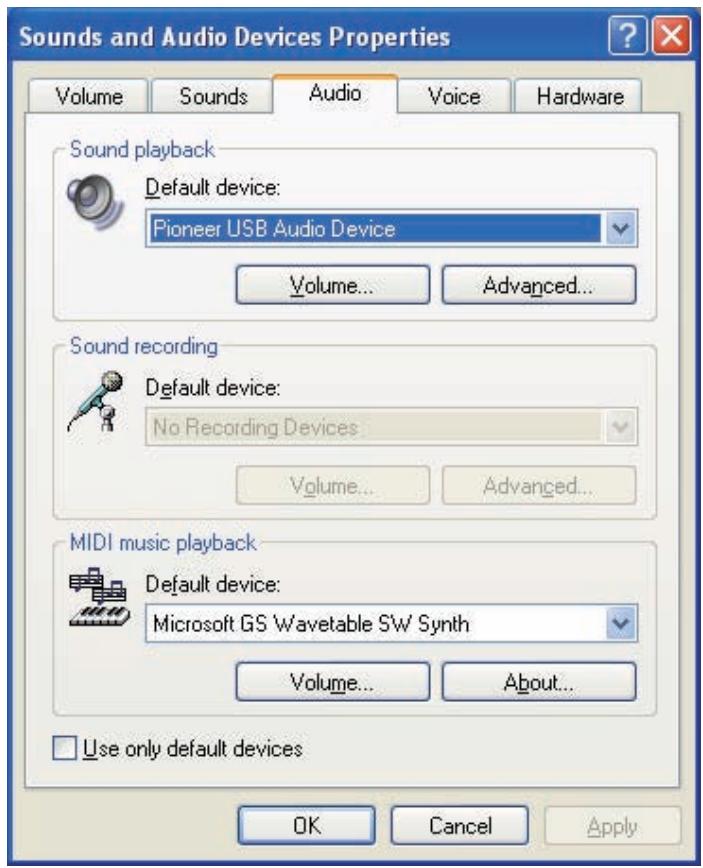
8 To enable the new setting, reboot your computer.
9 Confirm that your media player's sound volume is set to Maximum.
In the event your media player requires an output plugin setting, confirm that [Pioneer USB Audio Device] is selected.
2. To disable the operating system's sound scheme
Under default OS settings, computer events may be accompanied by audio signals and beeps that are audible through the speakers attached to the device. In the event you do not wish to hear such non-music signals, follow the instructions listed below:
1 Click [Start] [Control Panel] [Sounds and Audio Devices].
2 Click on the [Sounds] tab, and for the [Sound scheme], select [No Sounds], then click on [Apply].
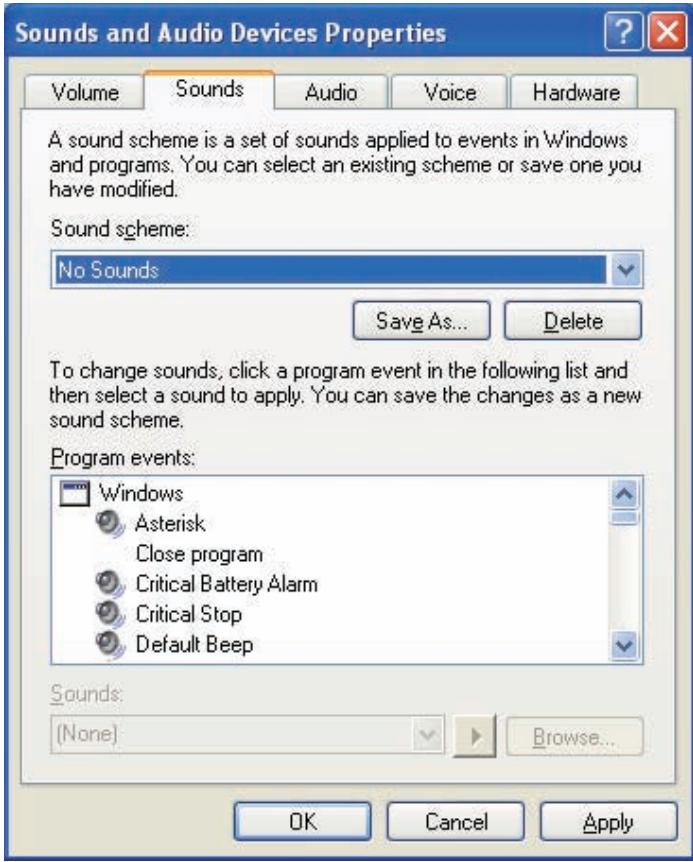
Procedure finished.
Procedure finished.
Troubleshooting (Windows Vista)
When using Windows XP, see page 5; for Windows 7, see page 11; for Mac OS X, see page 15.
1. No sound
Do not boot your computer's music player program if the power is turned off to the device with the DIGITAL IN USB port, or if the DIGITAL IN USB port has not been selected as the input source. Boot your computer's music playing program only after switching the input to the DIGITAL IN USB port.
For information about the name of inputs supported by the DIGITAL IN USB port, see the Operating Instructions for this device.
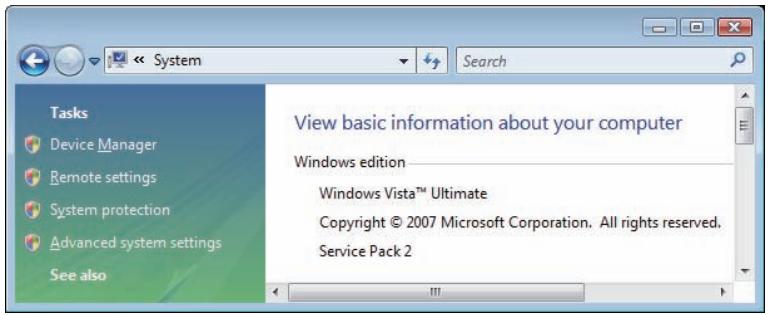
1 Click on [Start] [Control Panel] [System and Maintenance] [System].
2 From the [Tasks] list, click on [Device Manager].
Procedure continues.
3 Click on [Sound, video and game controllers] and confirm that [Pioneer USB Audio Device] is listed.
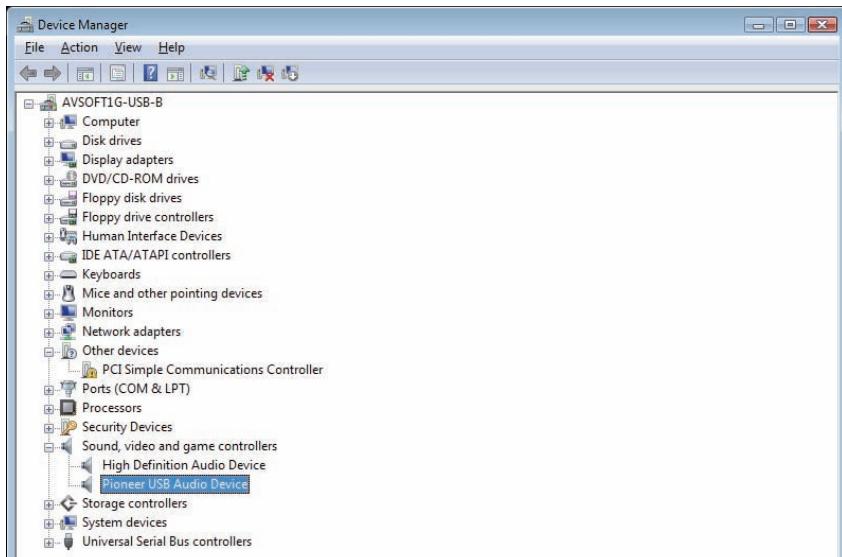
If the [Pioneer USB Audio Device] does not appear, confirm that the DIGITAL IN USB port has been selected as input source. Then try reconnecting the cable or turning the power off and then on again; when this is done, the [Pioneer USB Audio Device] should be recognized.
4 Click on [Universal Serial Bus controllers] and confirm that [USB Composite Device] is listed.
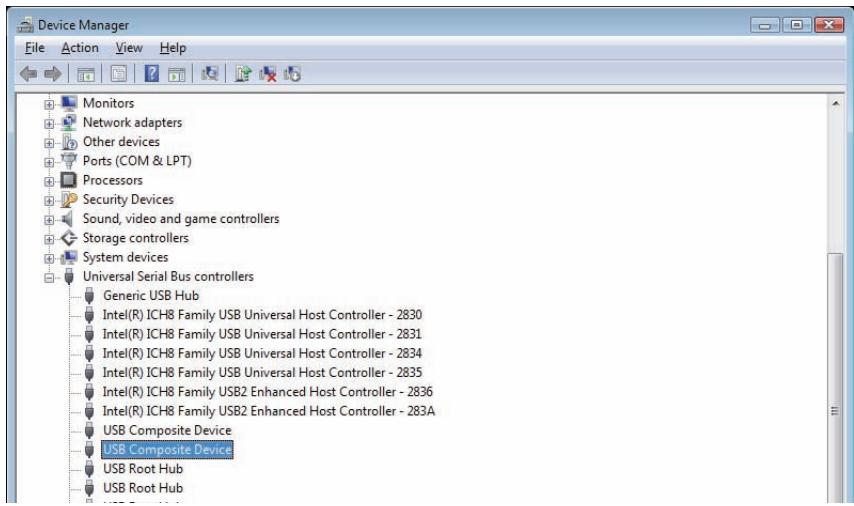
Procedure continues.
5 Click on [Start] [Control Panel] [Hardware and Sound] [Sound].
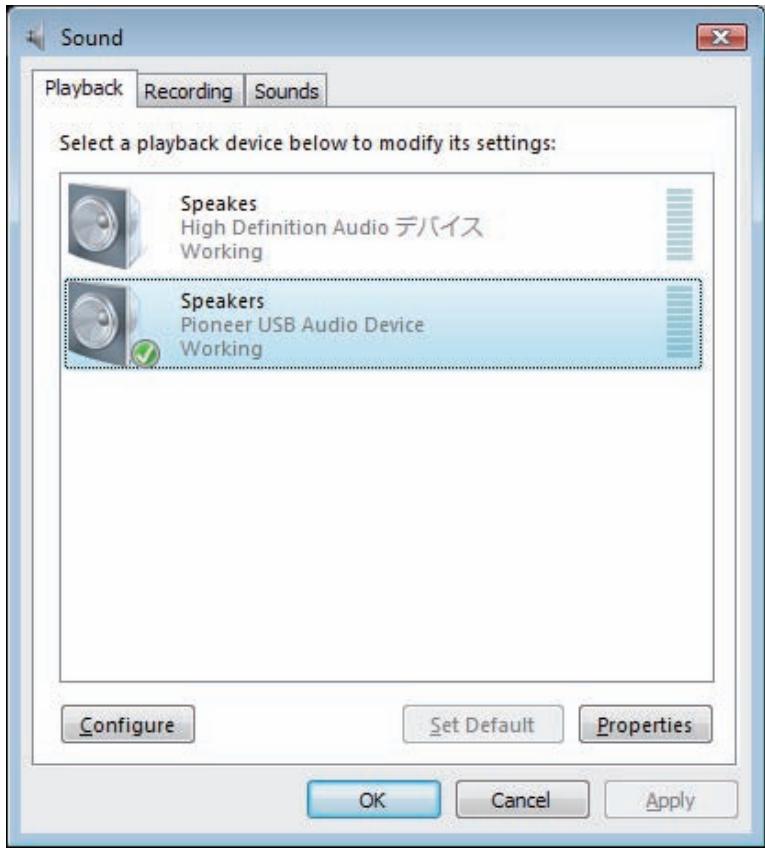
6 Under the [Playback] tab, confirm that for [Speakers], [Pioneer USB Audio Device] is checked as the default device.
If another device has been selected, select [Pioneer USB Audio Device], and click to [Set Default].
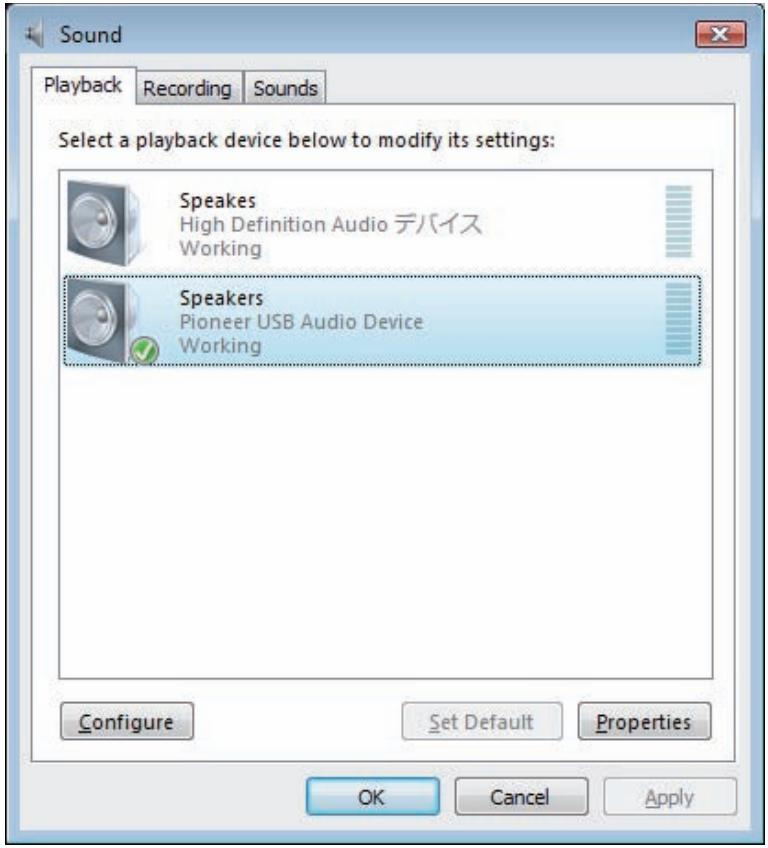
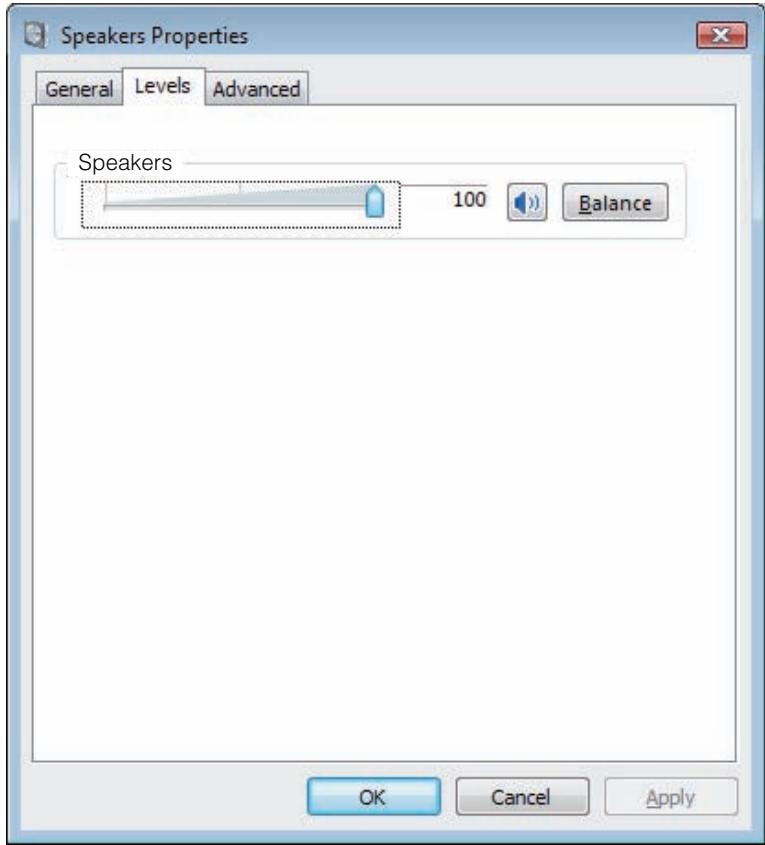
7 Double click on [Speakers] ([Pioneer USB Audio Device]), and display its Properties.
8 Under the [Levels] tab, set the [Speakers] level to maximum.
If the Speaker Mute indicator (at the left side of the Balance button) is lighted, click it to turn it off.
9 Confirm that your media player's sound volume is set to Maximum.
In the event your media player requires an output plugin setting, confirm that [Pioneer USB Audio Device] is selected.
Procedure finished.
Procedure continues.
2. To disable the operating system's sound scheme
Under default OS settings, computer events may be accompanied by audio signals and beeps that are audible through the speakers attached to the device. In the event you do not wish to hear such non-music signals, follow the instructions listed below:
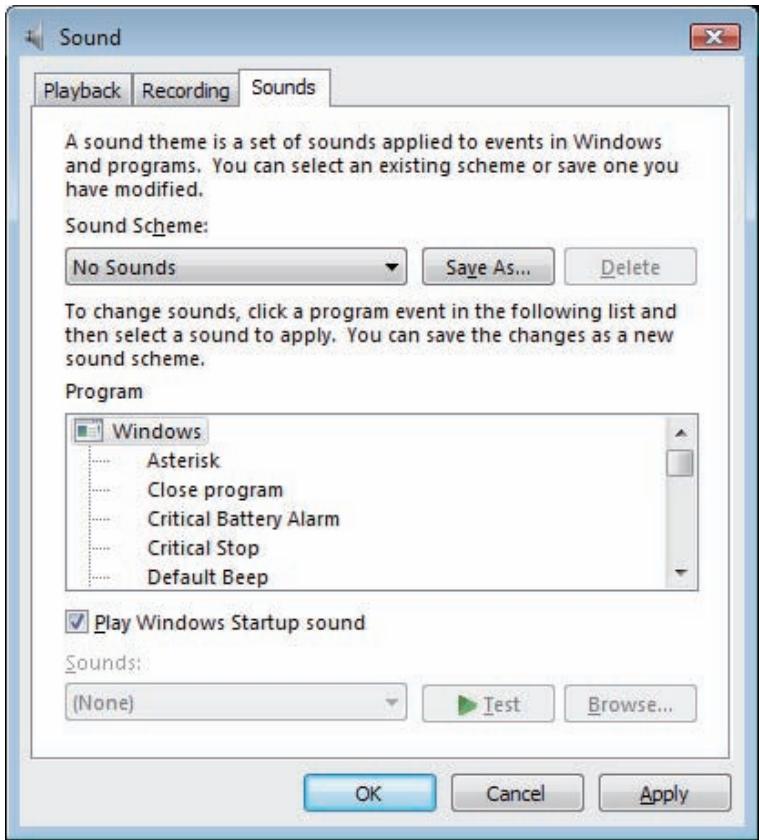
1 Click [Start] [Control Panel] [Hardware and Sound] [Sound].
2 Click on the [Sounds] tab, and for the [Sound scheme], select [No Sounds], then click on [Apply].
Procedure finished.
3. To set the sampling frequency for audio data output from your computer
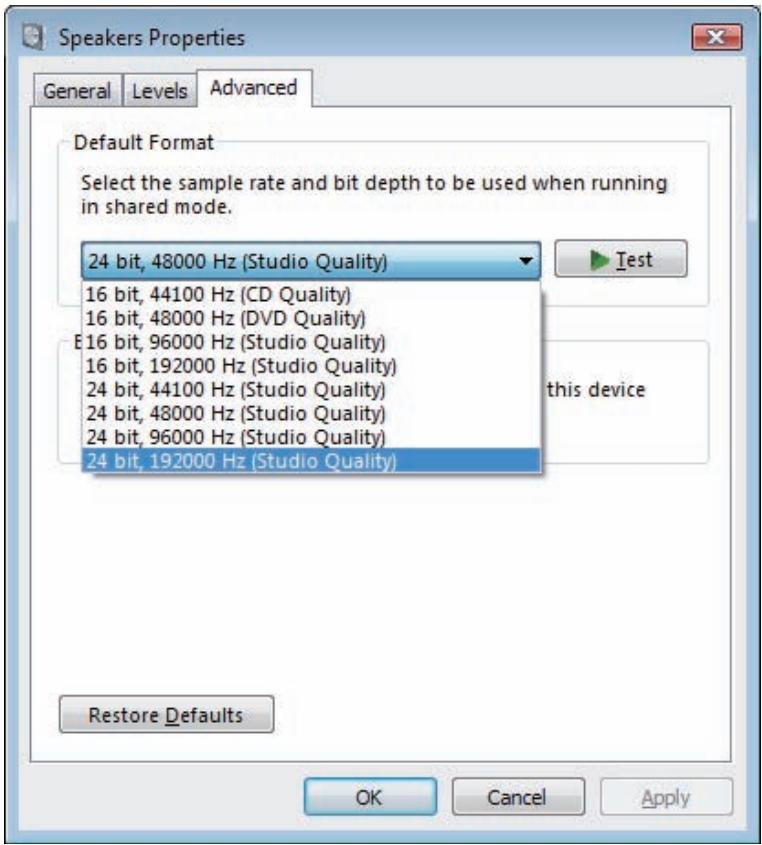
By synchronizing the sampling frequency of playback files with the transmission sampling rate, sound can be transmitted without the need for frequency conversion.
When a high sampling frequency is set on a computer with inadequate processing capacity, audio playback may be disrupted. In this event, the bit rate and frequency should be set to low values such as 2-channel, 24-bit, 44100 Hz.
1 Click on [Start] [Control Panel] [Hardware and Sound] [Sound].
2 Under the [Playback] tab, for [Speakers], double click on [Pioneer USB Audio Device] to display the Properties.
Procedure continues.
3 Under the [Advanced] tab, select for [Default Format] the desired output sampling rate, then click on [Apply].
Procedure finished.
Troubleshooting (Windows 7)
When using Windows XP, see page 5; for Windows Vista, see page 7; for Mac OS X, see page 15.
1. No sound
Do not boot your computer's music player program if the power is turned off to the device with the DIGITAL IN USB port, or if the DIGITAL IN USB port has not been selected as the input source.
Boot your computer's music playing program only after switching the input to the DIGITAL IN USB port.
For information about the name of inputs supported by the DIGITAL IN USB port, see the Operating Instructions for this device.
1 Click on [Start] [Control Panel] [System and Security].
2 Under [System], click on [Device Manager].
3 Click on [Sound, video and game controllers] and confirm that [Pioneer USB Audio Device] is listed.
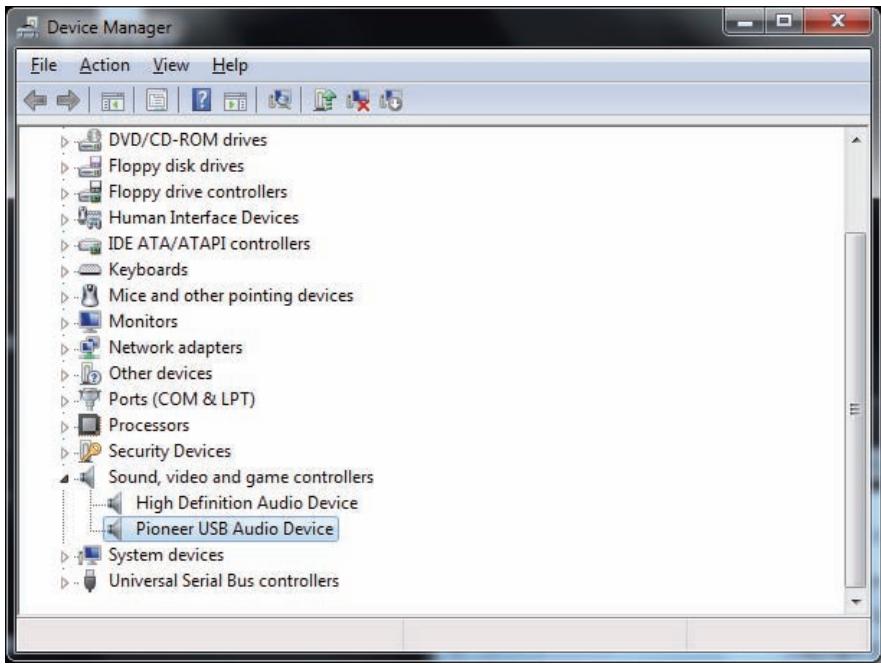
If the [Pioneer USB Audio Device] does not appear, confirm that the DIGITAL IN USB port has been selected as input source. Then try reconnecting the cable or turning the power off and then on again; when this is done, the [Pioneer USB Audio Device] should be recognized.
4 Click on [Universal Serial Bus controllers], and confirm that [USB Composite Device] is listed.
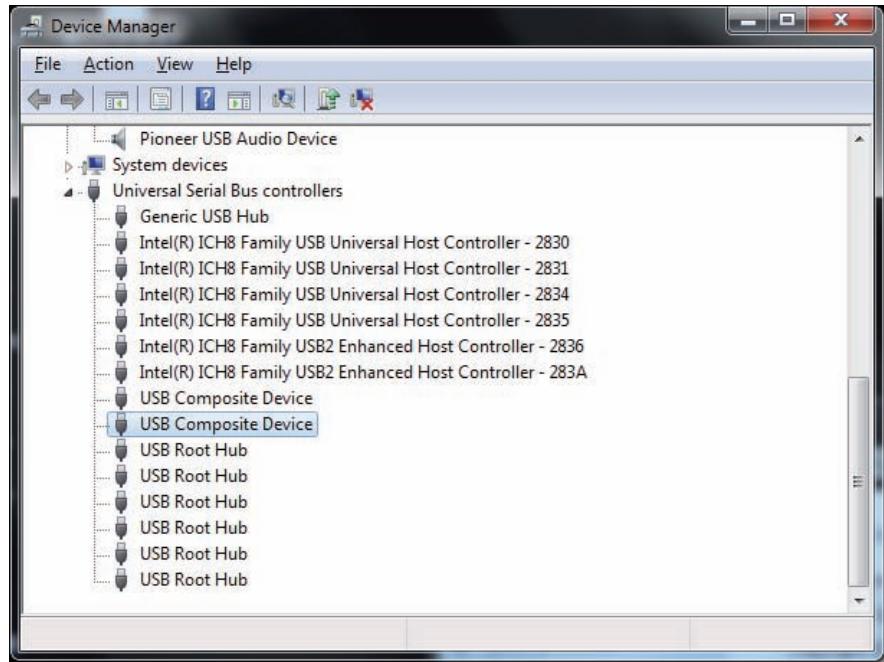
5 Click on [Start] [Control Panel] [Hardware and Sound] [Sound].
Procedure continues.
6 Under the [Playback] tab, confirm that for [Speakers], [Pioneer USB Audio Device] is checked as the [Default Device].
If another device has been selected, select [Pioneer USB Audio Device], and click on [Set Default].
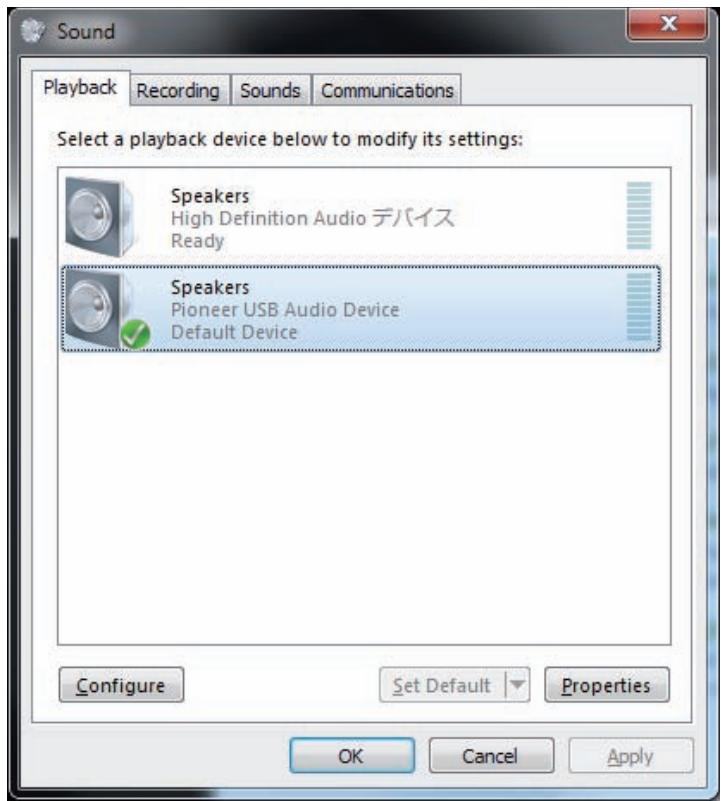
7 Double click on [Speakers] ([Pioneer USB Audio Device]), and display its Properties.
8 Under the [Levels] tab, set the [Speakers] level to maximum.
If the Speaker Mute indicator (at the left side of the Balance button) is lighted, click it to turn it off.
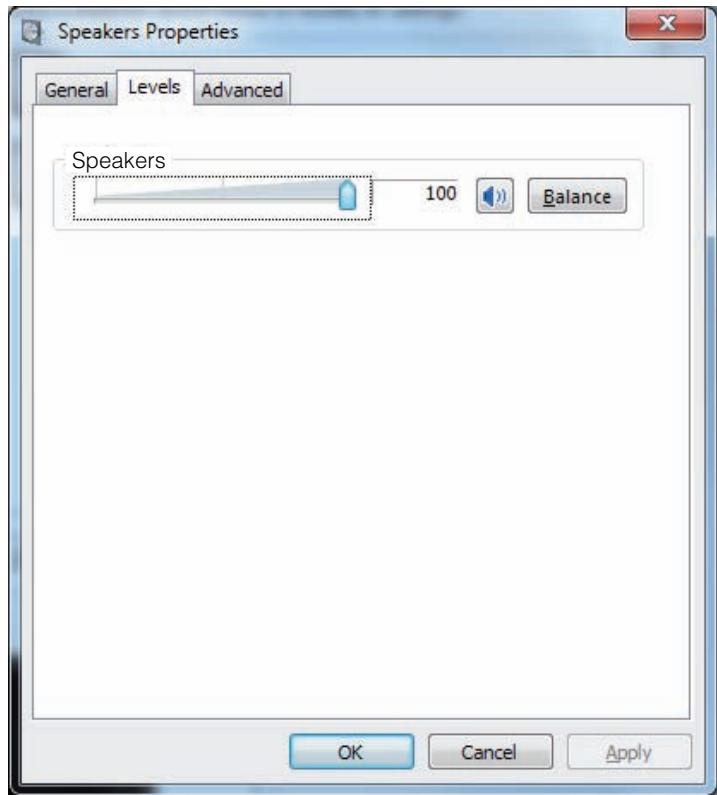
9 Confirm that your media player's sound volume is set to Maximum.
In the event your media player requires an output plugin setting, confirm that [Pioneer USB Audio Device] is selected.
2. To disable the operating system's sound scheme
Under default OS settings, computer events may be accompanied by audio signals and beeps that are audible through the speakers attached to the device. In the event you do not wish to hear such non-music signals, follow the instructions listed below:
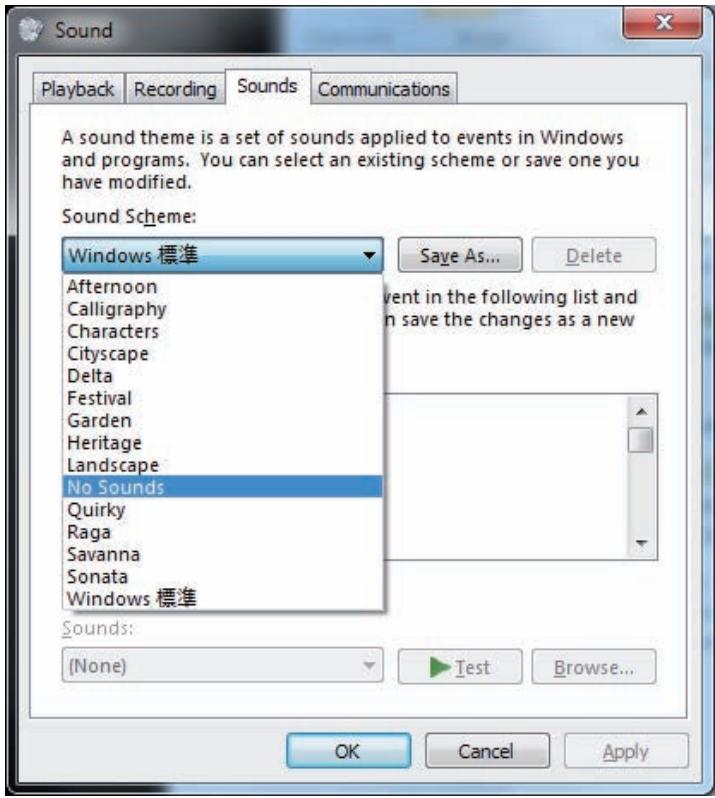
1 Click [Start] [Control Panel] [Hardware and Sound] [Sound].
2 Click on the [Sounds] tab, and for the [Sound scheme], select [No Sounds], then click on [Apply].
Procedure finished.
3. To set the sampling frequency for audio data output from your computer
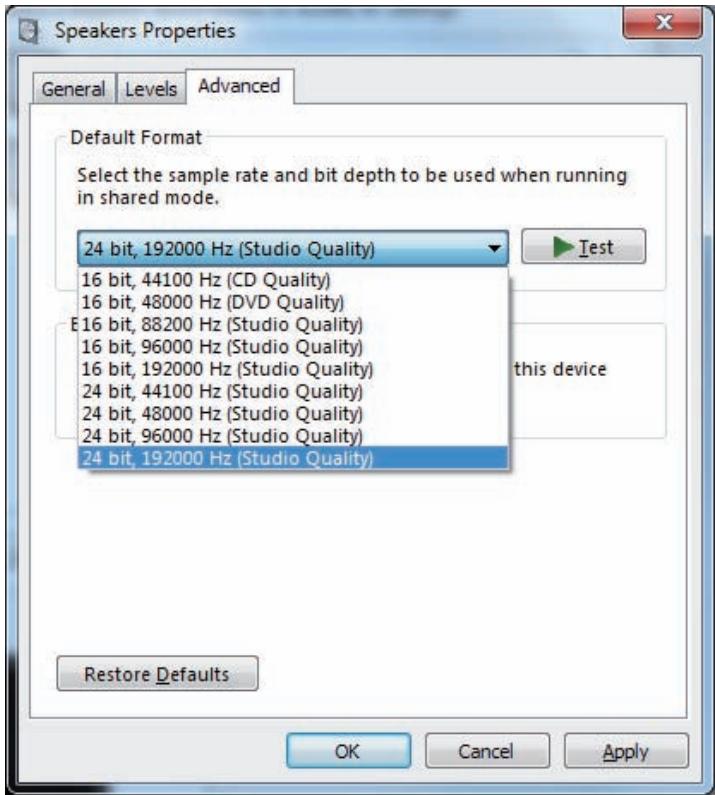
By synchronizing the sampling frequency of playback files with the transmission sampling rate, sound can be transmitted without the need for frequency conversion.
When a high sampling frequency is set on a computer with inadequate processing capacity, audio playback may be disrupted. In this event, the bit rate and frequency should be set to lower values such as 2-channel, 24-bit, 44100 Hz.
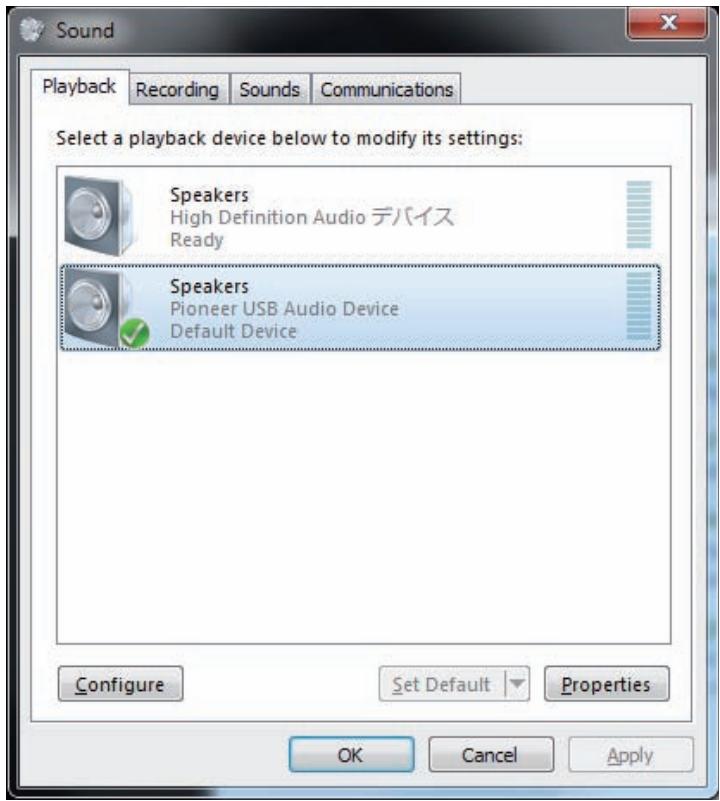
1 Click on [Start] [Control Panel] [Hardware and Sound] [Sound].
2 Under the [Playback] tab, for [Speakers], double click on [Pioneer USB Audio Device] to display the Properties.
Procedure continues.
3 Under the [Advanced] tab, select for [Default Format] the desired output sampling rate, then click on [Apply].
Procedure finished.
Troubleshooting (Mac OS X)
When using Windows XP, see page 5; for Windows Vista, see page 7; for Windows 7, see page 11.
1. No sound
Do not boot your computer's music player program if the power is turned off to the device with the DIGITAL IN USB port, or if the DIGITAL IN USB port has not been selected as the input source.
Boot your computer's music playing program only after switching the input to the DIGITAL IN USB port.
For information about the name of inputs supported by the DIGITAL IN USB port, see the
Operating Instructions for this device.
1 Click on [System Preferences...] [Sound].
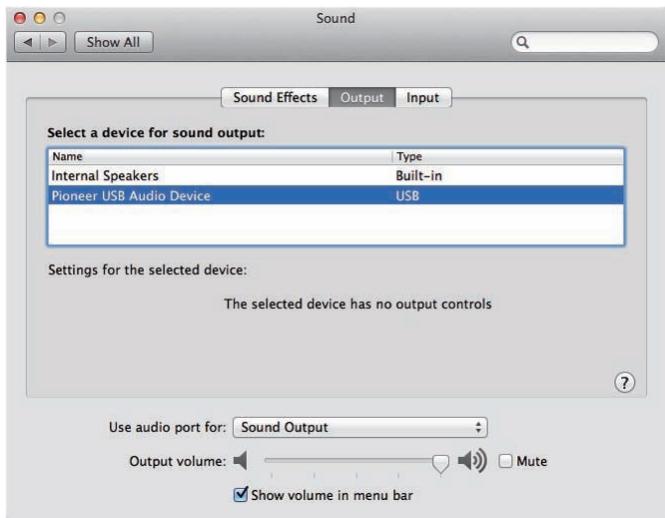
2 Select the [Output] tab, then under [Select a device for sound output], select [Pioneer USB Audio Device].
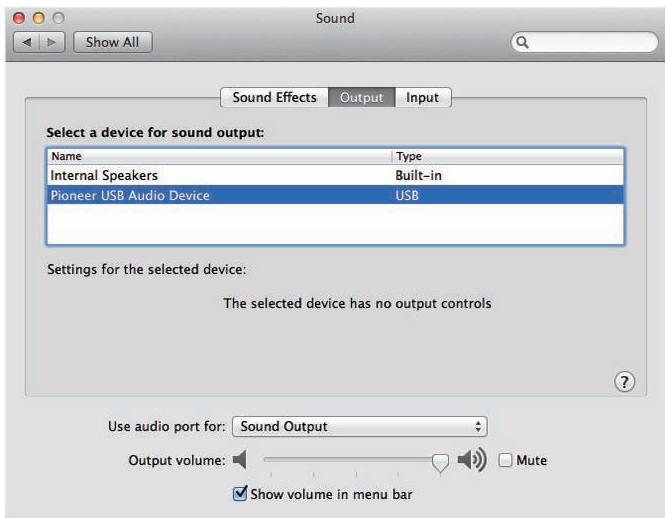
If the [Pioneer USB Audio Device] does not appear, confirm that the DIGITAL IN USB port has been selected as input source. Then try reconnecting the cable or turning the power off and then on again; when this is done, the [Pioneer USB Audio Device] should be recognized.
Procedure finished.
2. To disable the operating system's sound scheme
Under default OS settings, computer events may be accompanied by audio signals and beeps that are audible through the speakers attached to the device. In the event you do not wish to hear such non-music signals, follow the instructions listed below:
1 Click [System Preferences...] [Sound].
2 Click on [Sound Effects] tab, and for the item [Selected sound output device], click [Internal Speakers].
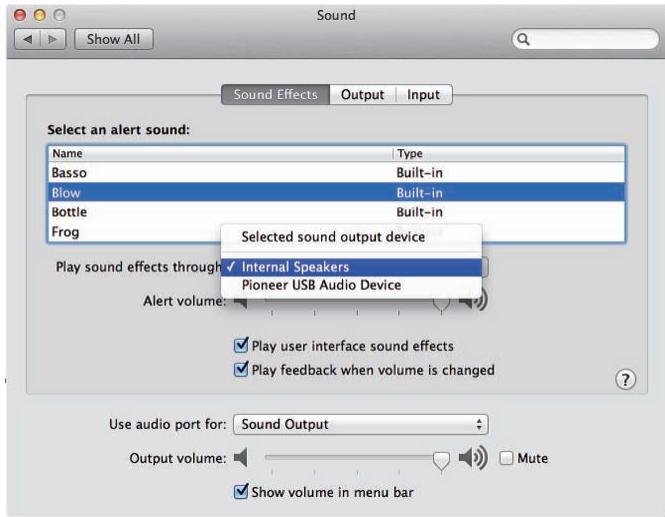
3 Select the [Output] tab, and for the item [Select a device for sound output], click on [Pioneer USB Audio Device].
Procedure finished.
3. To set the sampling frequency for audio data output from your computer
By synchronizing the sampling frequency of playback files with the transmission sampling rate, sound can be transmitted without the need for frequency conversion.
1 Click on [Finder] [Applications] [Utilities] [Audio MIDI Setup].
![PIONEER N-50-S - Click on [Finder] [Applications] [Utilities] [Audio MIDI Setup]. - 1](/content/2025/01/119029/images/fd4aeb346e21dd944f382a98e073cf84d21e99d3284d1ab85c2b28f159b4c7ce.jpg)
![PIONEER N-50-S - Click on [Finder] [Applications] [Utilities] [Audio MIDI Setup]. - 2](/content/2025/01/119029/images/8b1fa6836af2a5aab123d39ac4397edc82c06f32b63b77aa54ec1533d07f2b79.jpg)
2 Select [Pioneer USB Audio Device].
3 Select the bit rate and sampling frequency for the desired audio file.
![PIONEER N-50-S - Click on [Finder] [Applications] [Utilities] [Audio MIDI Setup]. - 3](/content/2025/01/119029/images/f91b5cd2f39c42a25cd4036fd8f1c1dda2c616752fd7dfa206090be6a22286b0.jpg)
Procedure finished.
Procedure continues.
© 2012 PIONEER CORPORATION.
All rights reserved.
PIONEER CORPORATION
1-1, Shin-ogura, Saiwai-ku, Kawasaki-shi, Kanagawa 212-0031, Japan
PIONEER ELECTRONICS (USA) INC.
P.O. BOX 1540, Long Beach, California 90801-1540, U.S.A. TEL: (800) 421-1404
PIONEER ELECTRONICS OF CANADA, INC.
340 Ferrier Street, Unit 2, Markham, Ontario L3R 2Z5, Canada TEL: 1-877-283-5901, 905-479-4411
PIONEER EUROPE NV
Haven 1087, Keetberglaan 1, B-9120 Melsele, Belgium TEL: 03/570.05.11
PIONEER ELECTRONICS ASIACENTRE PTE. LTD.
253 Alexandra Road, #04-01, Singapore 159936 TEL: 65-6472-7555
PIONEER ELECTRONICS AUSTRALIA PTY. LTD.
5 Arco Lane, Heatherton, Victoria, 3202, Australia, TEL: (03) 9586-6300
PIONEER ELECTRONICS DE MEXICO S.A. DE C.V.
Blvd. Manuel Avila Camacho 138 10 piso Col.Lomas de Chapultepec, Mexico, D.F. 11000 TEL: 55-9178-4270