
DDJ-S1 - DJ Controller PIONEER - Free user manual and instructions
Find the device manual for free DDJ-S1 PIONEER in PDF.



| Product type | DJ Controller |
| Brand | PIONEER |
| Model | DDJ-S1 |
| Dimensions (W × H × D) | 680 mm × 95.2 mm × 318 mm |
| Weight | 5.0 kg |
| Power supply | AC adapter (100-240 V AC, 50/60 Hz, 300 mA, output 5 V DC, 2 A) or USB bus power |
| Power consumption | 1.4 A (with AC adapter) |
| Included software | Serato ITCH |
| Number of channels | 2 channels + mic/AUX |
| Built-in effects | Yes (filter, flanger, delay, etc.) |
| Audio outputs | MASTER OUT 1 (XLR), MASTER OUT 2 (RCA), PHONES (6.35 mm jack and 3.5 mm mini jack) |
| Audio inputs | MIC1 (XLR/6.35 mm jack), MIC2 (6.35 mm jack), AUX IN (RCA) |
| Connectivity | USB 2.0 (Type B) |
| Playback functions | Jog wheel, scratch, pitch, loops, cues, slip mode, sync |
| Maintenance | Clean with a damp cloth; do not use liquid, aerosol, or alcohol-based products |
| Safety | Follow instructions: unplug before cleaning, do not open, avoid water, etc. |
| Spare parts and repairability | AC adapter and USB cable supplied; for repairs, contact a Pioneer authorized service center |
| Operating temperature | +5°C to +35°C |
| Operating humidity | 5% to 85% (without condensation) |
| Country of origin | Japan (Pioneer Corporation) |
Frequently Asked Questions - DDJ-S1 PIONEER
User questions about DDJ-S1 PIONEER
0 question about this device. Answer the ones you know or ask your own.
Ask a new question about this device
Download the instructions for your DJ Controller in PDF format for free! Find your manual DDJ-S1 - PIONEER and take your electronic device back in hand. On this page are published all the documents necessary for the use of your device. DDJ-S1 by PIONEER.
USER MANUAL DDJ-S1 PIONEER
The Pioneer website shown above offers FAQs, information on software and various other types of information and services to allow you to use your product in greater comfort.
Operating Instructions
Mode d'emploi
Bedienungsanleitung
Thank you for buying this Pioneer product. Please read through these operating instructions so you will know how to operate your model properly. After you have finished reading the instructions, put them away in a safe place for future reference.
In some countries or regions, the shape of the power plug and power outlet may sometimes differ from that shown in the explanatory drawings. However the method of connecting and operating the unit is the same.

If you want to dispose this product, do not mix it with general household waste. There is a separate collection system for used electronic products in accordance with legislation that requires proper treatment, recovery and recycling.
Private households in the member states of the EU, in Switzerland and Norway may return their used electronic products free of charge to designated collection facilities or to a retailer (if you purchase a similar new one).
For countries not mentioned above, please contact your local authorities for the correct method of disposal.
By doing so you will ensure that your disposed product undergoes the necessary treatment, recovery and recycling and thus prevent potential negative effects on the environment and human health.
K058b_A1_En
Before making or changing the connections, switch off the power and disconnect the AC adapter from the AC outlet.
For PLUGGABLE EQUIPMENT, the socket-outlet shall be installed near the equipment and shall be easily accessible.
D44-9-3_A1_En_PSV
Contents
How to read this manual
- In this manual, names of screens and menus displayed on the product and on the computer screen, as well as names of buttons and terminals, etc., are indicated within brackets. (e.g.: [CUE] button, [FILES] panel, [VINYL] mode, [AUX IN] terminal)
- Please note that the screens and specifications of the software described in this manual as well as the external appearance and specifications of the hardware are currently under development and may differ from the final specifications.
01 Before you start
Features 4
What's in the box. 4
About the AC adapter 4
Installing the software 5
Launching ITCH. 9
About the driver software and setting utility software. 9
02 Connections and part names
Connecting the input/output terminals 10
Part names and functions. 11
03 Operation
ITCH software screen. 15
Starting the system 18
Quitting the system. 18
Operating the Library. 18
Loading tracks to decks. 22
Playing and pausing 22
Adjusting the playing speed (Tempo control) 23
Playing in reverse 23
Operating the jog dial 23
Specifying the position to be played instantly (NEEDLE SEARCH).....23
Setting a temporary cue point 23
Loop operations 24
Setting Hot Cue 25
Using the slip mode 25
Synchronizing the playing speed. 26
Editing the beat grid. 26
Using the mixer functions 27
Using a microphone 28
Using an external device 28
Recording 28
Outputting the microphone and AUX sound directly. 29
Using the effect function. 29
Changing the settings 30
14 Additional information
Troubleshooting 32
File corruption messages 33
Using as a controller for other DJ software. 34
Disclaimer 34
Cautions on copyrights 34
Specifications 35
Before you start
Features
This unit is an all-in-one DJ system combining the high operability hardware of Pioneer professional DJ players and DJ mixers that has achieved an excellent reputation among many professional DJs and clubs with the ITCH DJ software by Serato Audio Research. It is also equipped with audio interface, and allows full-fledged DJ performances without requiring other DJ equipment.
LAYOUT
This unit uses the same layout as Pioneer professional models, allowing intuitive and accurate performances with simple 2-channel mixing and effects.
MIC/AUX INPUT, XLR OUTPUT
This unit is equipped with a microphone/auxiliary input allowing connection of a microphone or external device (sampler, portable audio device, etc.). For output, it has XLR and RCA terminals supporting professional PA equipment. In this way, this unit supports all types of situations and DJing styles.
ITCH
The included ITCH software is a DJ software application that has been optimized for this unit. In addition to the 2-channel mixer and effector, a number of new functions, including slip mode, alphabet search, and hot cue fader start, enable creative and comfortable DJ performances. Furthermore, all the buttons and knobs are preset to operate in association with the software, so DJ performances can be enjoyed immediately simply by connecting this unit to the computer.
LAPTOP DOCK
The computer's keyboard section can be stowed under this unit. Docking the computer with this unit into a single unit allows you to create an efficient DJ system.
Playing address/Level meter
The player section is equipped with a "playing address" indicator letting you grasp the track's progress at a glance by the position of the LED display and get the sense of touching the track directly when the [NEEDLE SEARCH (ALPHABET SEARCH)] pad is touched with a finger. Furthermore, the mixer section is equipped with a master level meter and channel level meters. This increases affinity with the computer for even more comfortable DJ performances.
HIGH SOUND QUALITY
The sound quality technology developed for Pioneer professional models is used to achieve a high level of sound quality for a DJ controller.
What's in the box
CD-ROM
- AC adapter
Power plug
USB cable
Warranty card
- Operating instructions (this document)
About the AC adapter
Safety instructions
To ensure your personal safety and to maximize the full operating potential of your unit, read and follow these safety instructions.
Read & Retain Instructions
Read all operating and user information provided with this product.
Cleaning
Use a damp cloth to clean the exterior housing. Avoid using any fluids including liquid, aerosol or alcohol-based cleaning products.
Water or Moisture
Avoid operating or locating this product near water or other sources of fluid.
Accessories
Do not place this product on an unstable cart, stand, or table. The product may fall and be seriously damaged.
Ventilation
Do not block or cover this product in use. This unit should not be placed in a built-in installation unless properly ventilated.
Environment
Avoid placing this product in a location with exposure to large quantities of dust, high temperatures, high humidity, or subject to excessive vibrations or shocks.
Power Sources
Operate this product only from the recommended power sources. If you are unsure of the power source, consult an authorized Pioneer representative.
Power-Cord Protection
When unplugging the unit, pull on the plug – not on the cord. Do not handle the cord or plug with wet hands; doing so could cause an electric short or shock. Do not allow anything to pinch or rest on the power cord and do not place in a walkway.
Power
Turn OFF the system before installing this or any other hardware device.
Overloading
Avoid connecting too many devices to a single wall socket or power source as this can cause fires or short circuits.
Object & Liquid Entry
Never push inappropriate objects in to the device. Avoid spilling any liquids in to or on the outside of the device.
Servicing
Opening or removing the cover exposes you to possible electrical shock or other danger. Contact a Pioneer authorized service representative for repairing this product (refer to the enclosed Service & Support Card).
Damage Requiring Service
Unplug the unit and refer servicing to qualified service personnel in the following situations:
- When the power cord, plug, or chassis is damaged.
If liquid has been spilled, or objects have fallen into the product.
If the product has been exposed to rain or water. -
If the product does not operate normally when the operating instructions are followed. Adjust only those controls that are covered by the operating instructions. Improper adjustment of other controls may result in damage and can require extensive work by a qualified technician to restore the unit to its normal operation.
-
When the product exhibits a distinct change in performance – this indicates a need for service.
Check that there are no irregularities with the AC adapter or power plug, then insert the power plug into the specified position of the AC adapter using the specified procedure until a click is heard. For details, see Mounting the power plug on page 5.
If there are irregularities with the AC adapter or power plug, ask your nearest Pioneer authorized service center or your dealer to carry out repair work.
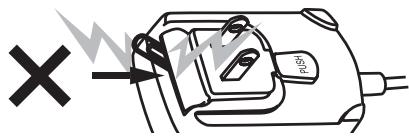
- Do not use this unit with a coin, paper clip or other metal object stuck between the AC adapter and power plug. Doing so could cause a short circuit, leading to fire or electric shock.
- When mounting the AC adapter on a wall outlet, make sure there is no space between the AC adapter and the wall outlet. Faulty contact or a coin, paper clip or other metal object getting stuck in the space could cause a short circuit, leading to fire or electric shock.
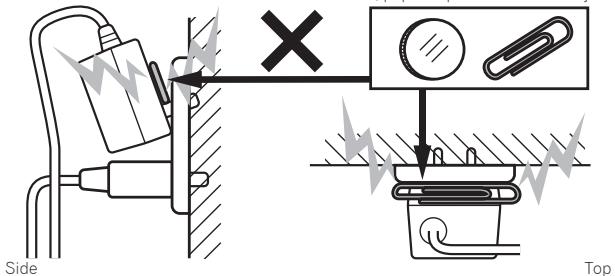
Coin, paper clip or other metal object
- The power plug could come detached from the AC adapter and remain in the power outlet if someone trips on the AC adapter's power cord or if something hits the AC adapter. If this happens, remove the power plug remaining in the outlet with dry hands, holding it as shown on the diagram below and without touching metal parts. Do not use any tools to remove it.
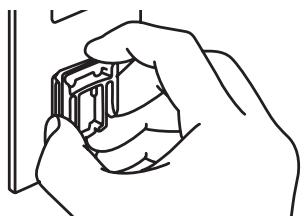
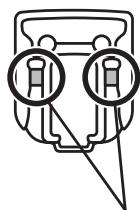
Do not touch metal parts.
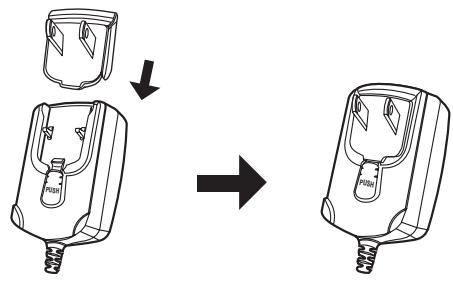
Mounting the power plug
Slide the power plug along the guide rails in the AC adapter unit as shown on the diagram below, then press in until a click is heard.
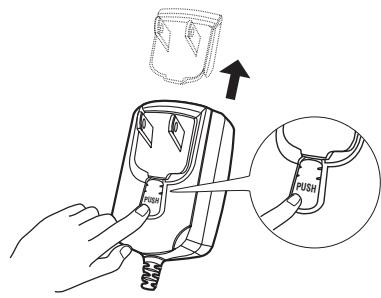
Removing the power plug
While pressing the [PUSH] button on the AC adapter unit, slide the power plug away from the adapter as shown on the diagram below to remove it.
Once the power plug is mounted, there is no need to remove it.
Power plug
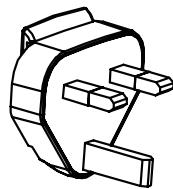
This product comes with the types of power plugs shown below. Use the appropriate power plug for the country or region you are in.
Type 1 (for Europe)
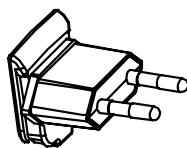
Type 2 (for the UK)
Installing the software
Before installing the software
About the software to be installed
The software to be installed differs according to the computer you are using.
For Windows
After the ITCH software is installed, the driver software is also installed.
- Carefully read the user license agreements below.
SERATO — USER LICENSE AGREEMENT ("License Agreement") (Refer to About the ITCH software.) - Software end user license agreement (Refer to About the driver software (Windows).)
- To install or uninstall the driver software, you need to be authorized by the administrator of your computer. Log on as the administrator of your computer before proceeding with the installation.
- If you connect this unit to your computer without installing the driver software first, an error may occur on your computer depending on the system environment.
- If installation of the driver software is interrupted after it has started, start the installation procedure over again from the beginning.
For Mac OS X
Only the ITCH software is installed.
- Carefully read the user license agreements below.
- SERATO — USER LICENSE AGREEMENT (“License Agreement”) (Refer to About the ITCH software.)
Minimum operating environment
Supported operating systems CPU and required memory
| Mac OS X 10.4.11 | Intel®processor, CoreTM Duo 1.8 GHz or better | |
| 1 GB or more of RAM | ||
| Mac OS X 10.5.8 | Intel®processor, CoreTM Duo 1.8 GHz or better | |
| 1 GB or more of RAM | ||
| Mac OS X 10.6 | 32-bit version | Intel®processor, CoreTM Duo 1.8 GHz or better |
| 1 GB or more of RAM | ||
| 64-bit version | Intel®processor, CoreTM Duo 2.4 GHz or better | |
| 4 GB or more of RAM | ||
| Windows®7 Home Premium/ Professional/ Ultimate | 32-bit version | Intel®processor, CoreTM 2 Duo 1.8 GHz or better |
| 2 GB or more of RAM | ||
| 64-bit version | Intel®processor, CoreTM 2 Duo 2.4 GHz or better | |
| 4 GB or more of RAM | ||
| Windows Vista® Home Basic/ Home Premium/ Business/Ultimate | 32-bit version | Intel®processor, CoreTM 2 Duo 1.8 GHz or better |
| 2 GB or more of RAM | ||
| 64-bit version | Intel®processor, CoreTM 2 Duo 2.2 GHz or better | |
| 4 GB or more of RAM | ||
| Windows®XP Home Edition/ Professional (SP2 or later) | 32-bit version | Intel®processor, CoreTM 2 Duo 1.8 GHz or better |
| 1 GB or more of RAM |
For the latest information on the operating environment and compatibility, and to acquire the latest operating system, please visit the following Serato Audio Research website: http://serato.com
Others
| Hard disk | Sufficient free hard disk space for music data |
| CD drive | Optical disc drive on which the CD-ROM can be read |
| USB port | A USB 2.0 port is required to connect the computer with this unit. |
| Display resolution | Resolution of 1 024 x 768 or greater |
Full functionality is not guaranteed on all computers, even those meeting the operating environment requirements described above.
- Even with the required memory indicated for the operating environment above, lack of memory due to resident programs, the number of services, etc., could prevent the software from offering optimal functionality and performance. In such cases, free up sufficient memory. We recommend installing additional memory for stable operation.
- Depending on the computer's power-saving settings, etc., the CPU and hard disk may not provide sufficient processing capabilities. For notebook computers in particular, make sure the computer is in the proper conditions to provide constant high performance (for example by keeping the AC power connected) when using ITCH.
Note that problems may arise with the functionality of ITCH depending on other software running on your computer.
Operation of ITCH is not guaranteed with AMD brand CPUs.
About the ITCH software
ITCH is a DJ software application by Serato Audio Research. DJ performances are possible by connecting the computer on which this software is installed to this unit.
Checking the latest information on the ITCH software
Free updates of ITCH can be downloaded from the Internet. Check the website below and keep the software updated to the latest version.
http://serato.com
SERATO — USER LICENSE AGREEMENT ("License Agreement")
Serato Inc LP ("Serato") and its licensor(s) own the Software, being any and all Serato applications, and intellectual property in the Software. By installing or using the Software, you agree to the terms of this License Agreement.
1 Grant of License:
Serato grants you a perpetual, non-exclusive, personal license ("License") to install and use the Software on the terms of this License Agreement.
The License as it applies to any and all Software which is authorized solely via a license code (with no hardware component) ("Single Instance Software") only permits you to authorize and use Single Instance Software on one computer at a time with that license code. If you wish to authorize and use Single Instance Software on another computer you must first deauthorize any prior installation.
Where, as part of the Software installation process, software owned by third parties ("Third Party Software") is installed on your computer, the relevant third party license agreement or terms will apply, and this License Agreement does not apply to it.
2 Ownership:
You acknowledge that Serato and its licensor(s) are and remain the owners of the intellectual property in the Software. You are granted no other rights to the Software other than those expressly conferred by this License Agreement.
3 Copying and Disposal of Software:
You must not copy, alter, modify, reproduce, reverse engineer, reverse assemble or reverse compile the Software or any part of it or any related materials, or permit any other person to do so, except that you may make one copy of the Software for genuine back-up purposes
You may transfer your License in its entirety to another person provided that, prior to transfer, you deauthorize any prior installation of Single Instance Software; and where the relevant Serato application operates as a bundle with hardware, you transfer ownership of the relevant hardware to that person. Any person to whom the License is transferred agrees to the terms of this License Agreement by virtue of clause 1.
4 No Implied Warranties:
Except for any written representation, warranty, term or condition addressed to you and signed by Serato, you acknowledge that Serato gives no warranties in relation to the Software, either express or implied, including but not limited to, any implied warranties relating to quality, fitness for any particular purpose or ability to achieve a particular result. You acknowledge that:
a you do not enter into this License Agreement in reliance on any representation, warranty, term or condition, except for any written representation, warranty, term or condition addressed to you and signed by Serato; and
b any conditions, warranties or other terms implied by statute or common law are excluded from this License Agreement to the fullest extent permitted by law.
5 Exclusion of liability:
In no event will Serato be liable (whether in contract, tort including negligence, or otherwise) to you for:
a any claim for damages, or any other monetary remedy, under this License Agreement or relating to the Software, including but not limited to a claim for:
i loss of revenue and/or profit, loss of anticipated savings, loss of goodwill or opportunity, loss of production, loss or corruption of data or wasted management or staff time; or
ii loss, damage, cost or expense of any kind whatsoever that is indirect, consequential, or of a special nature, arising directly or indirectly out of this License or the Software, even if Serato had been advised of the possibility of such damages, and
even if such loss, damage, cost or expense was reasonably foreseeable by Serato;
b any loss whatsoever brought about through your installation or use of Third Party Software.
6 Exclusions subject to law:
Nothing in this License Agreement will operate, or is intended to operate, to limit or exclude any liability or obligation of Serato to the extent that such liability or obligation cannot be limited or excluded under applicable law.
7 Updates:
Where you operate the feature of the Software that checks for updates, you agree that:
a the terms of this License Agreement will also apply to the updates and/or the Software as modified by the updates; and
b the feature may send information, including information about the configuration of the Software, to Serato's servers, and Serato may collect and use that information for its business purposes.
The Serato Websites Privacy Policy (located at http://serato.com/legal/ website-privacy-policy and subject to revision by Serato from time to time) will apply to your use of the feature of the Software that checks for updates.
8 Governing law:
This License Agreement will take effect as a contract made under, and be governed by, New Zealand law. The United Nations Convention on Contracts for the International Sale of Goods shall not apply to this License Agreement or the Software. You submit to the non-exclusive jurisdiction of the New Zealand courts.
9 License for bundled digital media files:
Where digital media files are provided with the Software ("Bundled Media"), you may use them only within the Software through its normal operation. Serato does not warrant that it holds and does not grant any license or rights whatsoever in relation to the Bundled Media or any of the copyright works embodied in them. In particular and without limitation, you are responsible for any and all applicable ASCAP, BMI, SESAC and other similar license fees arising from your public performance, broadcast, or other communication of or reproduction of or other dealing with any of the Bundled Media in your territory.
Should you have any questions concerning this License Agreement, or if you desire to contact Serato for any reason, please write to: Serato Inc LP, Private Bag 92015, AMSC, Auckland 1142, New Zealand or email Serato at eula@serato.com
About the driver software (Windows)
This driver software is an exclusive ASIO driver for outputting audio signals from the computer.
There is no need to install the driver software when using Mac OS X.
Checking the latest information on the driver software
For the latest information on the driver software for exclusive use with this unit, visit our website shown below. http://www.prodjnet.com/support/
Software end user license agreement
This Software End User License Agreement ("Agreement") is between you (both the individual installing the Program and any single legal entity for which the individual is acting) ("You" or "Your") and PIONEER CORPORATION ("Pioneer"). TAKING ANY STEP TO SET UP OR INSTALL THE PROGRAM MEANS THAT YOU ACCEPT ALL OF THE TERMS OF THIS LICENSE AGREEMENT. PERMISSION TO DOWNLOAD AND/OR USE THE PROGRAM IS EXPRESSLY CONDITIONED ON YOUR FOLLOWING THESE TERMS. WRITTEN OR ELECTRONIC APPROVAL IS NOT REQUIRED TO MAKE THIS AGREEMENT VALID AND ENFORCEABLE. IF YOU DO NOT AGREE TO ALL OF THE TERMS OF THIS AGREEMENT, YOU ARE NOT AUTHORIZED TO USE THE PROGRAM AND MUST STOP INSTALLING IT OR UNINSTALL IT, AS APPLICABLE.
1 Definitions
1 "Documentation" means written documentation, specifications and help content made generally available by Pioneer to aid in installing and using the Program.
2 "Program" means all or any part of Pioneer's software licensed to You by Pioneer under this Agreement.
2 Program license
1 Limited License. Subject to this Agreement's restrictions, Pioneer grants to You a limited, non-exclusive, nontransferable, license (without the right to sublicense):
a To install a single copy of the Program on the hard disk drive of Your computer, to use the Program only for Your personal purpose complying with this Agreement and the Documentation ("Authorized Use");
b To use the Documentation in support of Your Authorized Use; and
c To make one copy of the Program solely for backup purposes, provided that all titles and trademark, copyright and restricted rights notices are reproduced on the copy.
2 Restrictions. You will not copy or use the Program or Documentation except as expressly permitted by this Agreement. You will not transfer, sublicense, rent, lease or lend the Program, or use it for third-party training, commercial timesharing or service bureau use. You will not Yourself or through any third party modify, reverse engineer, disassemble or decompile the Program, except to the extent expressly permitted by applicable law, and then only after You have notified Pioneer in writing of Your intended activities. You will not use the Program on multiple processors without Pioneer's prior written consent.
Ownership. Pioneer or its licensor retains all right, title and interest in and to all patent, copyright, trademark, trade secret and other intellectual property rights in the Program and Documentation, and any derivative works thereof. You do not acquire any other rights, express or implied, beyond the limited license set forth in this Agreement.
4 No Support. Pioneer has no obligation to provide support, maintenance, upgrades, modifications or new releases for the Program or Documentation under this Agreement.
3 Warranty disclaimer
THE PROGRAM AND DOCUMENTATION ARE PROVIDED "AS IS" WITHOUT ANY REPRESENTATIONS OR WARRANTYES, AND YOU AGREE TO USE THEM AT YOUR SOLE RISK. TO THE FULlest EXTENT PERMISSIBLE BY LAW, PIONEER EXPRESSLY DISCLAIMS ALL WARRANTYES OF ANY KIND WITH RESPECT TO THE PROGRAM AND DOCUMENTATION, WHETHER EXPRESS, IMplied, STATUTORY, OR ARISING OUT OF COURSE OF PERFORMANCE, COURSE OF DEALING OR USAGE OF TRADE, INCLUDING ANY WARRANTYES OF MERCHANTABILITY, FITNESS FOR A PARTICULAR PURPOSE, SATISFACTORY QUALITY, ACCURACY, TITLE OR NON-INFRINGEMENT.
4 Damages and remedies for breach
You agree that any breach of this Agreement's restrictions would cause Pioneer irreparable harm for which money damages alone would be inadequate. In addition to damages and any other remedies to which Pioneer may be entitled, You agree that Pioneer may seek injunctive relief to prevent the actual, threatened or continued breach of this Agreement.
5 Termination
Pioneer may terminate this Agreement at any time upon Your breach of any provision. If this Agreement is terminated, You will stop using the Program, permanently delete it from the computer where it resides, and destroy all copies of the Program and Documentation in Your possession, confirming to Pioneer in writing that You have done so. Sections 2.2, 2.3, 2.4, 3, 4, 5 and 6 will continue in effect after this Agreement's termination.
6 General terms
1 Limitation of Liability. In no event will Pioneer or its subsidiaries be liable in connection with this Agreement or its subject matter, under any theory of liability, for any indirect, incidental, special, consequential or punitive damages, or damages for lost profits, revenue, business, savings, data, use, or cost of substitute procurement, even if advised of the possibility of such damages or if such damages are foreseeable. In no event will Pioneer's liability
for all damages exceed the amounts actually paid by You to Pioneer or its subsidiaries for the Program. The parties acknowledge that the liability limits and risk allocation in this Agreement are reflected in the Program price and are essential elements of the bargain between the parties, without which Pioneer would not have provided the Program or entered into this Agreement.
2 The limitations or exclusions of warranties and liability contained in this Agreement do not affect or prejudice Your statutory rights as consumer and shall apply to You only to the extent such limitations or exclusions are permitted under the laws of the jurisdiction where You are located.
Severability and Waiver. If any provision of this Agreement is held to be illegal, invalid or otherwise unenforceable, that provision will be enforced to the extent possible or, if incapable of enforcement, deemed to be severed and deleted from this Agreement, and the remainder will continue in full force and effect. The waiver by either party of any default or breach of this Agreement will not waive any other or subsequent default or breach.
4 No Assignment. You may not assign, sell, transfer, delegate or otherwise dispose of this Agreement or any rights or obligations under it, whether voluntarily or involuntarily, by operation of law or otherwise, without Pioneer's prior written consent. Any purported assignment, transfer or delegation by You will be null and void. Subject to the foregoing, this Agreement will be binding upon and will inure to the benefit of the parties and their respective successors and assigns.
5 Entire Agreement. This Agreement constitutes the entire agreement between the parties and supersedes all prior or contemporaneous agreements or representations, whether written or oral, concerning its subject matter. This Agreement may not be modified or amended without Pioneer's prior and express written consent, and no other act, document, usage or custom will be deemed to amend or modify this Agreement.
6 You agree that this Agreement shall be governed and construed by and under the laws of Japan.
About the installation procedure (Windows)
1 Connect this unit to your computer via a USB cable.
For details about connections, see Connections and part names on page 10.
2 Slide the [ON/OFF] switch to the [ON] side.
Turn on the power of this unit.
- When this unit is connected to your computer for the first time, the standard driver provided in Windows® is also installed. Proceed to the next step after installation of the driver is completed.
3 Insert the included CD-ROM into the computer's CD drive.
4 From the Windows [Start] menu, double-click the [Computer (or My Computer)] > [ITCH CD] icon.
The contents of the CD-ROM are displayed.
5 Double-click [ITCH_installer.exe].
The ITCH installer is launched.
6 Once the ITCH installer is launched, click [Next].
![PIONEER DDJ-S1 - Once the ITCH installer is launched, click [Next]. - 1](/content/2024/12/118933/images/fe60a4e118306054114fc48b8cb3a5aaf89a67a863946fd0de69388593b7baa9.jpg)
7 Accept the license agreement (select [I accept the terms in the license agreement]), and then click [Next].
![PIONEER DDJ-S1 - Accept the license agreement (select [I accept the terms in the license agreement]), and then click [Next]. - 1](/content/2024/12/118933/images/18aac3f54bc179b15b57ef6ced95b9a574de27d0064c98736af8eb9617c0b963.jpg)
If you do not agree, select [I do not accept the terms in the license agreement].
8 Select the folder in which you want to install ITCH, then click [Next].
9 Click [Install].
![PIONEER DDJ-S1 - Click [Install]. - 1](/content/2024/12/118933/images/57ad0dc03e0aa19687b83fca31bf511a91c2664586dd064c47a3c2bc27672a37.jpg)
Installation begins.
After installation of the ITCH software is completed, installation of the driver software begins.
10 Select the language that you want from the pulldown menu.
11 Accept the license agreement (select [Agree]) and then click [Install].
If you do not agree, select [Disagree].
Once [Install] is clicked, Installation begins.
The installation completed screen appears once installation is completed.
12 Click [Close].
13 Click [Finish] to quit the ITCH installer.
A screen advising you to restart the computer appears.
14 Click [Yes].
The computer is restarted.
About the installation procedure (Macintosh)
1 Connect this unit to your computer via a USB cable.
For details about connections, see Connections and part names on page 10.
2 Slide the [ON/OFF] switch to the [ON] side.
Turn on the power of this unit.
3 Insert the included CD-ROM in the computer's CD drive.
The [ITCH CD] icon appears on the screen.
4 Double-click the [ITCH CD] icon.
The contents of the CD-ROM are displayed.
5 Double-click [ITCH_installer.mpkg].
The ITCH installer is launched.
6 Once the ITCH installer is launched, click [Continue].
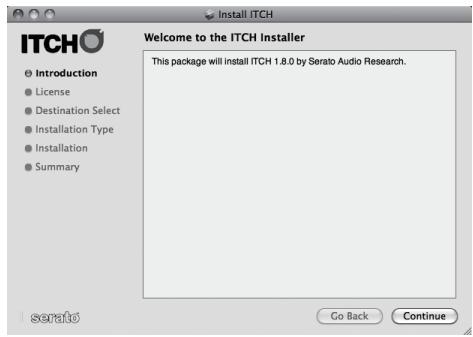
7 Read the contents of the license agreement carefully, click [Continue] and then click [Agree] to accept the license agreement.
If you do not agree to the license agreement, click [Disagree] to cancel installation.

8 Select the folder in which you want to install ITCH, then click [Continue].
9 Click [Install].
Installation begins.
The installation completed screen appears once installation is completed.
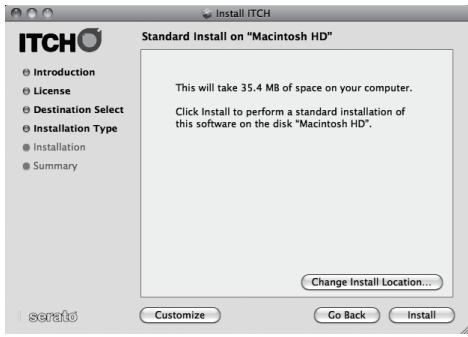
10 Click [Restart].
The computer is restarted.
Launching ITCH
For Windows
From the Windows [Start] menu, open [All Programs] > [Serato] > [ITCH], then click the [ITCH] icon.
For Mac OS X
In Finder, open the [Application] folder, next open [Serato] > [ITCH], then double-click the [ITCH] icon.
About the driver software and setting utility software
Adjusting the buffer size
This unit functions as an audio device conforming to the ASIO standards.
- If an application using this unit as the default audio device (DJ software, etc.) is running, quit that application before adjusting the buffer size.
Click the Windows [Start] menu> [All Programs]>[Pioneer] > [DDJ] > [Pioneer DDJ ASIO Settings Utility].
- If the buffer size is made large, drops in audio data (breaks in the sound) occur less easily, but the time lag due to the delay in the transfer of the audio data (latency) increases.
Checking the version of the driver software
Click the Windows [Start] menu> [All Programs]>[Pioneer] > [DDJ] > [Pioneer DDJ Version Display Utility].
- You can check the firmware version of this unit on the screen.
- The firmware version is not displayed when this unit is not connected to the computer or when this unit and computer are not properly communicating.
Connections and part names
- Wait until all connections between devices have been completed before connecting the AC adapter.
Be sure to turn off the power and unplug the AC adapter from the power outlet before making or changing connections between devices.
Refer to the operating instructions for the component to be connected.
- Only use the AC adapter included with this unit.
- Power to this unit is supplied by the AC adapter or by USB bus power. This unit can be used by connecting it to a computer using a USB cable, even without connecting the AC adapter.
- Connect this unit and the computer directly using the included USB cable.
- A USB hub cannot be used.
Notes on running this unit with USB bus power
- When using this unit on USB bus power, supply power to the connected computer from the AC power supply. Do not run the computer on its battery.
-
In cases like the ones below, the power may be insufficient and this unit may not operate on USB bus power.
-
When the computer's USB power supply capacity is insufficient.
- When other USB devices are connected to the computer.
If this unit does not operate on USB bus power, connect the included AC adapter.
- The following limitations apply when operating on USB bus power:
- The jog dial indicator will not light.
The [MASTER OUT 1] (XLR output) channel is not output.
The [MIC1], [MIC2] and [AUX IN] terminals cannot be used.
The indicators are dimmer than when using the AC adapter.
To use the unit without these limitations, connect the included AC adapter.
Connecting the input/output terminals
Front panel
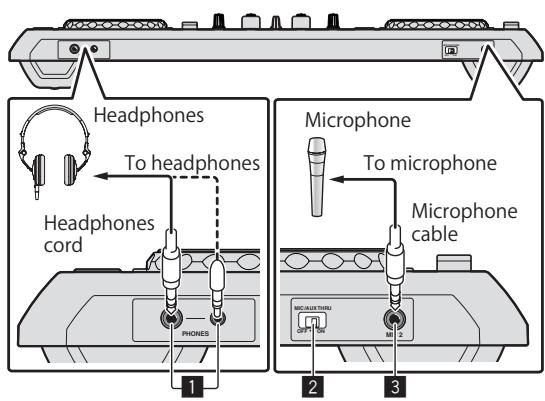
1 PHONES jacks
Connect headphones here.
Both stereo phone plugs (Ø 6.3 mm) and stereo mini phone plugs (Ø 3.5 mm) can be used.
For details, see Monitoring sound with headphones on page 27.
- There are two input jacks, both a stereo phones jack and a mini phones jack, but do not use both simultaneously. If both are used simultaneously, when one is disconnected and/or connected, the volume of the other may increase or decrease suddenly.
MIC/AUX THRU selector switch
Set this to [ON] if you want to output the [MIC2] and [AUX] channels directly.
Outputting the microphone and AUX sound directly (p.29)
3 MIC2 terminal
Connect a microphone here.
Using a microphone (p.28)
Rear panel
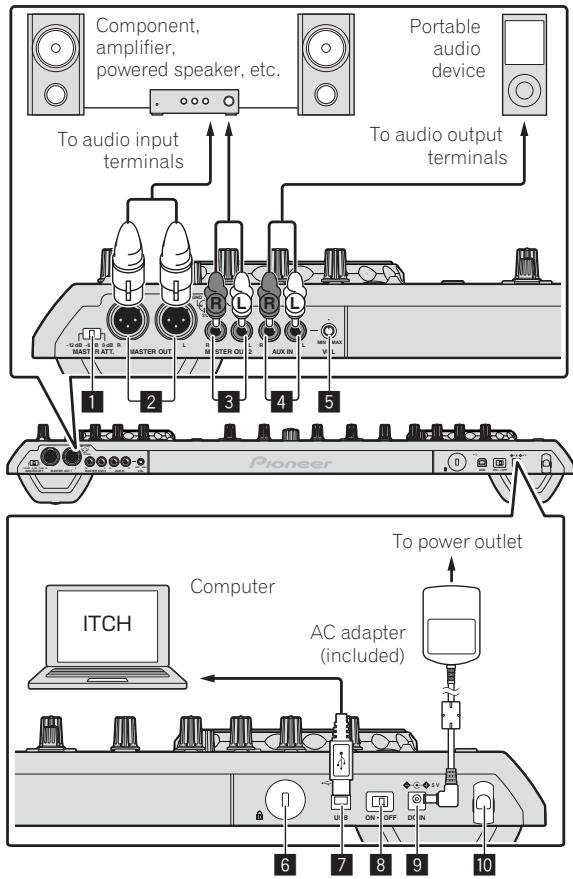
1 MASTER ATT.
Sets the attenuation level of the sound output from the [MASTER1] terminal.
2 MASTER OUT 1 terminal
Connect powered speakers, etc., here.
3 MASTER OUT 2 terminal
Connect to a power amplifier, etc.
4 AUX IN terminal
Connect to the output terminal of an external device (sampler, portable audio device, etc.)
5 VOL control
Adjusts the audio level input to the [AUX IN] terminals.
6 Kensington security slot
7 USB terminal
Connect to a computer.
- Connect this unit and the computer directly using the included USB cable.
- A USB hub cannot be used.
8 ON/OFF switch
Turns this unit's power on and off.
9 DC IN terminal
Connect to a power outlet using the included AC adapter (with the power plug mounted).
- Wait until connection of all equipment is completed before connecting the AC adapter.
- Only use the included AC adapter.
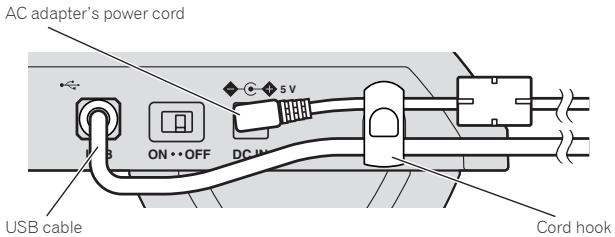
10 Cord hook
Catch the AC adapter's power cord and USB cable on this hook when using this unit.
- The sound will be interrupted if the AC adapter or USB cable is disconnected during playback.
Cord hook
Hook the AC adapter's power cord in the top of the cord hook, the USB cable in the bottom.
Fasten the AC adapter's power cord and USB cable in place by hooking them on the cord hook. This prevents the power cord and USB cable from being accidentally pulled and the plugs from being disconnected from the terminals.
- The sound will be interrupted if the AC adapter or USB cable is disconnected during playback.
Upper left of control panel
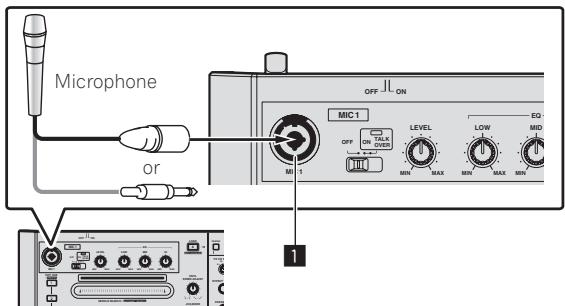
MIC1 terminal
Connect a microphone here.
Using a microphone (p.28)
Either an XLR connector or a phones plug ( 6.3mm) can be used.
Part names and functions
Deck section
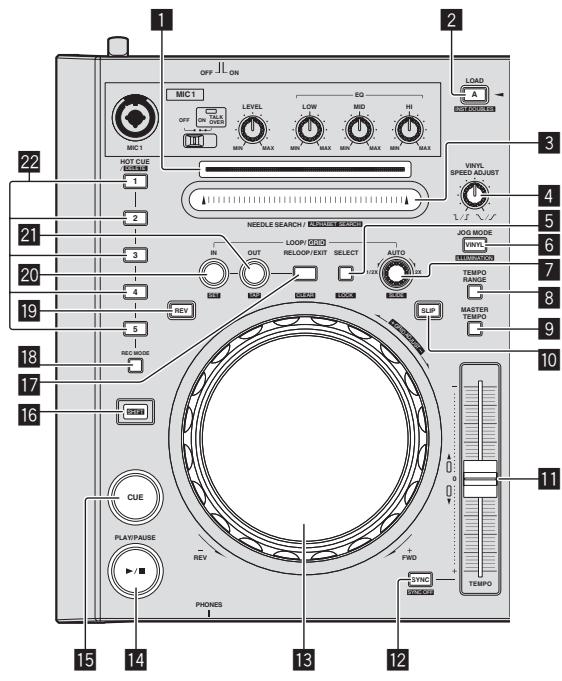
1 Playing address indicator
The position in the track is displayed in 10 steps, with the beginning of the track at the left edge, the end of the track at the right edge. The indicator lights in sync with the elapsed playing time or remaining time display in the "ITCH" software.
2 LOAD (INST.DOUBLES) button
The selected tracks are loaded to the respective decks.
Loading tracks to decks (p.22)
When the [LOAD (INST. DOUBLESS)] button is pressed while pressing the [SHIFT] button, the track being played is doubled.
Instant Doubles (p.22)
3 NEEDLE SEARCH (ALPHABET SEARCH) pad
- The sound is played from the position at which the pad is touched.
The alphabet search function can be used.
Searching using the [NEEDLE SEARCH (ALPHABET SEARCH)] pad ("Alphabet Search") (p.21)
4 VINYL SPEED ADJUST control
For track playing and stopping, this adjusts the speed at which playback slows until it stops and the speed at which the normal playback speed is reached from the stop mode.
5 LOOP SELECT (GRID LOCK) button
The loop you want to play can be selected from the loops that have been pre-registered in the loop bank.
The loop bank number switches each time the button is pressed.
Using the loop bank (p.24)
When the [LOOP SELECT (GRID LOCK)] button is pressed while pressing the [SHIFT] button, the overall beat grid is locked so that it cannot be edited.
6 VINYL (ILLUMINATION) button
This switches the [VINYL] mode on/off.
- Switching the jog dial mode (p.23)
7 AUTO LOOP (GRID SLIDE) control
This sets auto loops.
Setting loops automatically (Auto loop) (p.24)
The beat grid can be adjusted by turning the [AUTO LOOP
GRID SLIDE] control while pressing the [SHIFT] button.
TEMPO RANGE button
This switches the [TEMPO] slider's adjustment range.
Selecting the range for adjusting the playing speed (p.23)
9 MASTER TEMPO button
Use this to turn the master tempo function on and off.
Adjusting the playing speed without changing the pitch (Master Tempo) (p.23)
10 SLIP button
This turns the slip mode on/off.
Using the slip mode (p.25)
TEMPO slider
Use this to adjust the track playing speed.
Changing the playing speed (p.23)
SYNC (SYNC OFF) button
When this button is pressed, the track on the deck whose button was pressed is synchronized to the BPM and beat grid of the track loaded in the other deck.
Synchronizing the playing speed (p.26)
13 Jog dial
This can be used for such operations as scratching, pitch bending, etc.
Operating the jog dial (p.23)
- The top of the jog dial has an embedded switch. Do not place objects on the jog dial or subject it to strong forces. Also note that water or other liquids getting into the set will lead to malfunction.
14 PLAY/PAUSE /II button
Use this to play/pause tracks.
Playing and pausing (p.22)
15 CUE button
This is used to set, play and call out temporary cue points.
Setting a temporary cue point (p.23)
16 SHIFT button
When another button is pressed while pressing the [SHIFT] button, a different function is called out.
17 RELOOP/EXIT (GRID CLEAR) button
Use this to return to loop playback (reloop) or cancel loop playback (loop exit).
Returning to Loop playback (Reloop) (p.24)
Canceling Loop playback (Loop Exit) (p.24)
The beat grid can be cleared by pressing the
[RELOOP/EXIT (GRID CLEAR)] button while pressing the [SHIFT] button.
18 REC MODE button
This switches the function of the [HOT CUE (DELETE)] button (set/ call-out).
- When the power is turned on, the button is set to the call-out mode.
Setting Hot Cue (p.25)
19 REV button
Use this to turn reverse playback on and off.
Playing in reverse (p.23)
20 LOOP IN (GRID SET) button
When this button is pressed during playback at the position at which you want to start loop playback (the loop in point), the loop in point is set.
Loop operations (p.24)
The beat grid can be set by pressing the [LOOP IN (GRID SET)] button while pressing the [SHIFT] button.
21 LOOP OUT (GRID TAP) button
When this button is pressed during playback at the position at which you want to end loop playback (the loop out point), the loop out point is set, playback returns to the loop in point and loop playback starts.
Loop operations (p.24)
When the [LOOP OUT (GRID TAP)] button is pressed while pressing the [SHIFT] button, the beat grid can be adjusted during playback by tapping the button.
22 HOT CUE (DELETE) button
This is used to set and call out hot cues.
Setting Hot Cue (p.25)
Mixer/Effect section
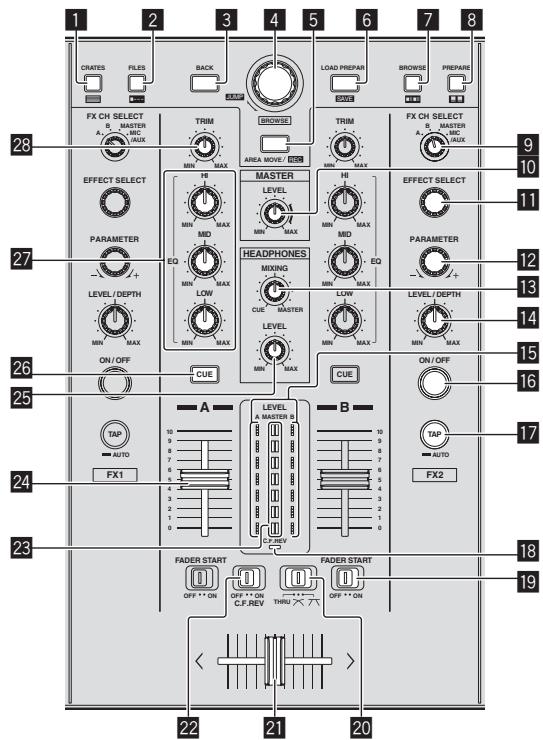
1 CRATES button
Moves the cursor to the crate list panel.
2 FILES button
Turns the display of the [FILES] panel on/off.
3 BACK button
Moves the cursor focus back one level.
4 Rotary selector
Moves the cursor within the panel. Use this to select files or tracks.
Selecting items (p.19)
5 AREA MOVE (REC) button
Moves the cursor to a different panel.
Selecting items (p.19)
6 LOAD PREPARE (SAVE) button
Loads tracks to the [PREPARE] panel.
Using the [PREPARE] list (p.21)
7 BROWSE button
Turns the display of the [BROWSE] panel on/off.
8 PREPARE button
Turns the display of the [PREPARE] panel on/off.
9 FX CH SELECT control
Switches the channel to which the effect is applied.
Using the effect function (p.29)
10 MASTER LEVEL control
Adjusts the master sound level output.
11 EFFECT SELECT control
Selects the type of effect.
Using the effect function (p.29)
2 PARAMETER control
Adjusts the parameters provided for the various effects (time, harmonics etc.).
Using the effect function (p.29)
13 HEADPHONES MIXING control
Adjusts the monitor volume balance between the sound of channels for which the headphones [CUE] button is pressed and the sound of [MASTER OUT 1] and [MASTER OUT 2].
Monitoring sound with headphones (p.27)
LEVEL/DEPTH control
Adjusts the quantitative parameter of the effect.
Using the effect function (p.29)
15 Channel level indicator
16 FX ON/OFF button
Turns the effect on/off.
Using the effect function (p.29)
TAP button
The BPM used as the base value for the effect is calculated by the interval at which the button is tapped with a finger.
Setting the BPM manually (p.29)
18 C.F. REV indicator
Lights when the [C.F. REV] switch is set to [ON].
19 FADER START switch
These turn the fader start function on/off.
Starting playback using the fader (Fader Start) (p.28)
20 Crossfader curve selector switch
This switches the crossfader curve characteristics.
Selecting the crossfader curve characteristics (p.28)
21 Crossfader
Switches between the audio output of the left and right decks.
Outputting sound (p.27)
22 C.F. REV switch
Reverses the deck to which the crossfader is assigned from right to left and vice versa.
Using the crossfader reverse function (p.28)
23 Master level indicator
24 Channel fader
Adjusts the sound level output from the various decks.
Outputting sound (p.27)
25 HEADPHONES LEVEL control
Adjusts the audio level output from the [PHONES] terminal.
26 Headphones CUE button
The sound of decks for which the headphones [CUE] button is pressed can be monitored over headphones.
Monitoring sound with headphones (p.27)
27 EQ (HI, MID, LOW) controls
Boosts or cuts frequencies for the different channels.
Equalization (p.27)
28 TRIM control
Adjusts the individual channel output gain.
Outputting sound (p.27)
Do not pull on the channel fader and crossfader knobs with excessive force. The knobs are not designed to be removed. Pulling the knobs strongly may result in damaging the unit.
Microphone/External input control section
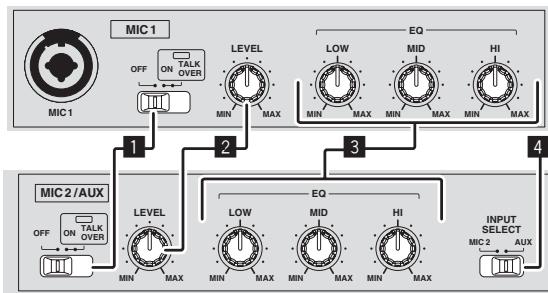
OFF, ON, TALK OVER selector switch
Turns the microphone on/off.
2 LEVEL control
Adjusts the level of the output sound.
3 EQ (HI, MID, LOW) controls
Boosts or cuts frequencies in order to change the quality of the sound.
4 MIC2/AUX selector switch
Switches the audio input between the microphone and the external device.
- [MIC2]: Selects the microphone connected to the [MIC2] terminal.
[AUX]: Selects the external device connected to the [AUX IN] terminals.
Using a microphone (p.28)
Using an external device (p.28)
Using the LAPTOP DOCK
The computer's keyboard section can be stowed under this unit.
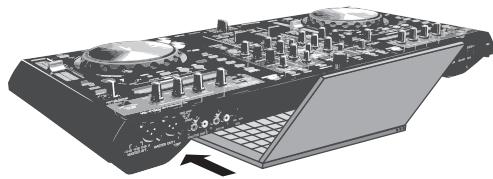
- Depending on the size of your (notebook) computer, the keyboard section may not fit in the LAPTOP DOCK.
Install in such a way that the computer unit does not touch this unit. - Install in such a way that the cables connected to the computer are not stuck under this unit.
Using with the feet removed
This unit's two feet can be removed.
Use a Phillips screwdriver to remove the screws from the left and right feet (2 screws each).
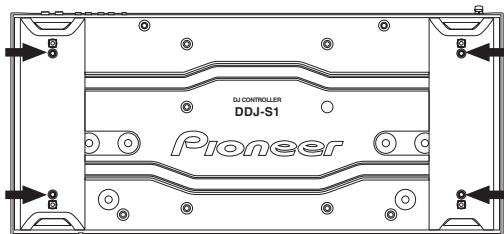
- The screws you have removed will be needed when mounting the feet. Be careful not to lose them. The feet cannot be properly mounted using other screws.
ITCH software screen
Screen when this unit is connected
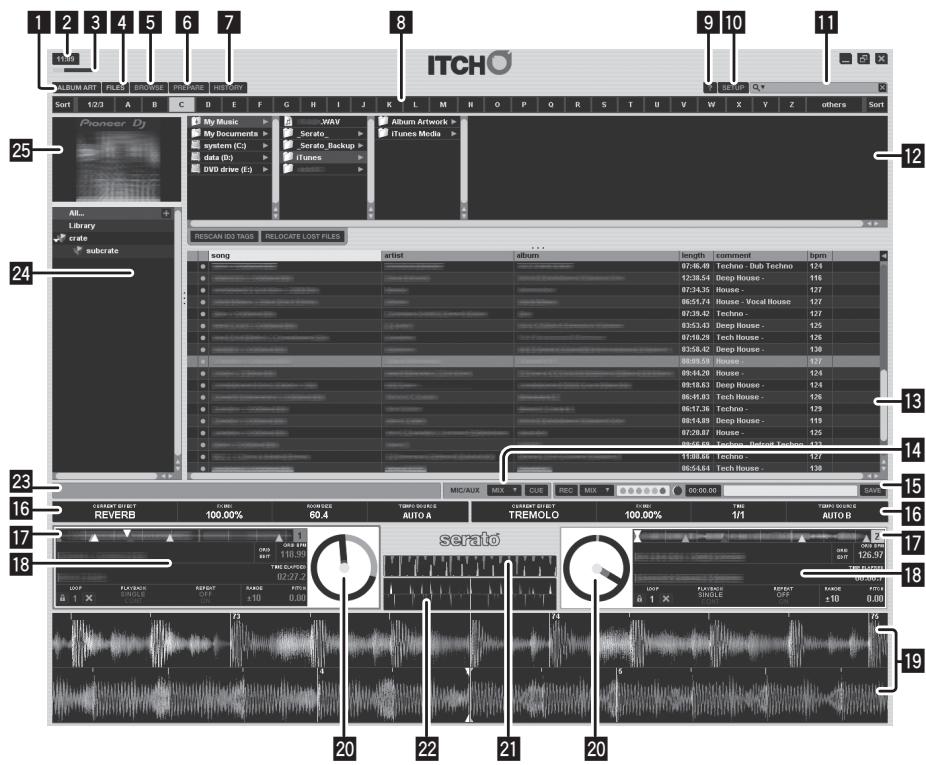
1 ALBUM ART tab
Switches the display of the album art on/off.
2 Current time display
3 Simple display of CPU usage rate
4 FILES tab
Switches the display of the [FILES] panel on/off.
5 BROWSE tab
Switches the display of the [BROWSE] panel on/off.
6 PREPARE tab
Switches the display of the [PREPARE] panel on/off.
7 HISTORY tab
Switches the display of the [HISTORY] panel on/off.
8 Alphabet search panel
Searching using the [NEEDLE SEARCH (ALPHABET SEARCH)] pad ("Alphabet Search") (p.21)
9? (TOOLTIPS)
Switches tooltips on/off
10 SETUP
Displays the setup screen.
Changing the settings (p.30)
11 (SEARCH)
Searches your library for the text input into this field.
12 Sub panel
The contents displayed here are switched and turned on or off by clicking the tabs (FILES/BROWSE/PREPARE/HISTORY) at the top of the screen.
Switching the sub panel (p.19)
13 Track list
Displays tracks with the contents corresponding to the items selected in the crate list panel.
- When the [BROWSE] panel is displayed, only tracks meeting the conditions narrowed down according to the genre are displayed.
MIC/AUX monitor control panel
MIC/AUX monitor control panel (p.17)
15 Recording panel
Recording panel (p.17)
16 Effect panel
Using the effect function (p.29)
17 Track overview
Displays the frequency bands of the track's sound on a waveform, in blue for the treble range, green for the midrange and red for the bass range. The playback point is displayed as [] (white). The temporary cue point is displayed as [] (white) and the hot cue points are displayed as [] in another color.
- Click to move the playing position to that position.
- Thin vertical gray lines are displayed in 1 minute intervals, thick lines are displayed in 5 minute intervals.
18 Track information display
Displays the details of the tracks loaded in the deck.
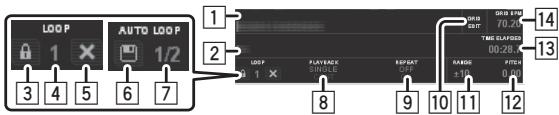
The track name is displayed here (only when information is available).
The artist name is displayed here (only when information is available).
3 When clicked, the icon is highlighted and the loop cannot be overwritten. Click again to turn the protect mode off.
4 The currently selected loop bank number is displayed here. (Where there are loop bank slots where nothing is saved, the first loop in the track will be displayed.)
5 When clicked, the loop saved at the currently selected bank number is deleted.
6 When clicked, the currently set loop is saved in the loop bank.
7 Displays the loop length set with the auto loop function.
Used to select the play mode. [SINGLE]: The deck stops once playback of the track ends. [CONT]: When playback of the track ends, the next track on the list is automatically played.
9 When this function is turned on, once the track finishes playing, playback returns to the start position and repeats.
10 When clicked, the grid edit mode is activated and the key flashes. Click again to save the edited grid data and quit the grid edit mode.
11 Displays the possible range of adjustment of the playing speed with respect to the playing speed at which the track was originally recorded.
12 Displays the pitch value relative to the position of the [TEMPO] slider.
13 Displays the track's playing position by time. When clicked, the display switches between time elapsed and time remaining.
14 Displays the current BPM of the currently playing track.
- The BPM can be set manually by either clicking here in time with the beat or by pressing the computer's space key (only if beat grid is not enabled).
19 Waveform display
Displays detailed waveform data for the area around the point of the track that is playing.
Displays the frequency bands of the track's sound on a waveform, in blue for the treble range, green for the midrange and red for the bass range. The playback point is at the center of the display. The temporary cue point is displayed as [] and [] in white, and the hot cue points are displayed as [] and [] in other colors.
- Click to move the playing position to that position.
- When the waveform is clicked while pressing the computer's [Ctrl] key, the waveform is displayed divided in three ranges: the treble, mid and bass.
- When the waveform is clicked while pressing the computer's [Shift] key, the height of the display section becomes narrower.
- The waveform display can be zoomed in and out using the [+] and [-] keys on the computer.
20 Virtual deck
Displays the track's playing position and playing speed.
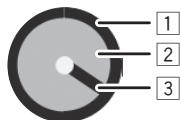
1 Displays the track's length. The position being played is displayed with a gray gauge.
Turns white when a track is loaded. (When a color label is set, this changes to the set color.)
Turns according to the platter speed. When a point at which a hot cue is set approaches, this shifts in steps to the color of that hot cue to notify that the hot cue is approaching. When moving
away from the hot cue, the color shifts back to the original color in steps.
- The needle flashes when the point 20 seconds before the end of the track is reached to notify that the end of the track is approaching.
21 Tempo match display
This indicates the tempo of the tracks on decks (A) and (B) by measure, and is designed to help you match the tempo.
The red waveform indicates the tempo of the track in deck A (1), the orange waveform the tempo of the track in deck B (2). When the tempos of the tracks in the two decks match, the positions of the peaks of the red and orange waveforms match.
- Even if the beat is not synchronized, the positions of the peaks of the waveforms on the display match when the tempos of the left and right tracks match.
22 Beat match display
This view shows the position of beats within the track. When the peaks shown in this window are aligned, the two tracks' beats are matched.
The beat match display indicates the beat positions of the tracks currently playing on decks (A) and (B) and is designed to help you match the beat. When the beats of the tracks on decks (A) and (B) match, the positions of the peaks of the waveforms at the top and bottom match.
23 Status bar
Displays the current information (mainly analysis, errors, etc.).
24 Crate list
With ITCH, tracks are classified and arranged in folders called "Crate".
The crate list panel can also be opened by pressing the [CRATES] button on this unit.
Crate list (p.16)
25 ALBUM ART
Displays album art (when available).
Crate list
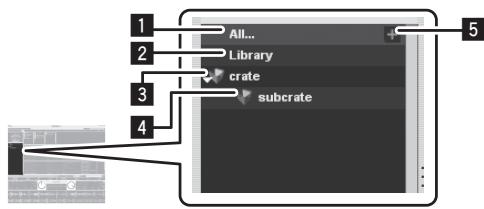
All...
All the tracks that have been imported or loaded to the decks are displayed. When tracks that have not been imported are loaded to a deck, they are added to [ALL...].
2 Library
Displays the iTunes library.
- To display the iTunes library, change the settings at the [SETUP] menu.
Show iTunes library (p.31)
3 Crates
ITCH uses digital crates for quick access to your favorite collections. There is no limit to the number of crates you can create, and any given track can be placed in multiple crates. The crate area is on the left hand side of the library.
4 Subcrates
Crates can be placed within other crates. These crates are called "Subcrates".
5 "+
Click this to create a new crate.
- When a crate is dragged and dropped into another crate, it becomes a subcrate. Repeat this operation to increase the number of layers.
- A track or group of tracks can be dragged on to "+" and a crate will be created containing these.
- If there are multiple layers, the layer below can be opened or closed by clicking on the respective item.
Track list
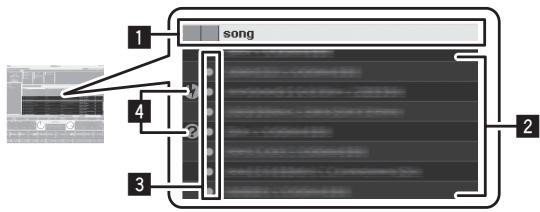
1 Column header
The selected item name is displayed here. When the item name is clicked, the order of display can be changed (sorted).
The items below can be displayed in the area in which the track information is displayed.
Date added (date added to the library), album, artist, bitrate, BPM, comment, composer, filename, genre, group, key, label, track time, place stored, remixer, sampling rate, file size, track, year
- The order of the tracks in the track list is indicated by the numbers displayed in the "#" column.
2 Track
Displays the tracks included in the item selected at the crate list panel.
3 Color label
Colors can be set to differentiate the tracks.
4 Status icon
The status of tracks are indicated by icons.
| Icon | Meaning |
| None | Tracks that have been directly imported into the ITCH library. |
| Tracks imported from an iTunes library. | |
| Tracks whose files are damaged. Such tracks must be re-encoded. | |
| Displayed when the file cannot be found in its original position. | |
| Indicates read-only tracks that cannot be edited. |
Effect panel

1 The name of the selected effect is displayed.
2 Displays the value adjusted with the [LEVEL/DEPTH] control.
3 Displays the value adjusted with the [PARAMETER] control.
4 When [A] or [B] is selected, [AUTO A] or [AUTO B] is displayed and the effect is synchronized with the BPM set for the deck. When another channel is selected, [MANUAL] is displayed and the setting can be made manually with the [TAP] button.
Recording panel

1 Click this to start/stop recording.
2 Click this to select the source to be recorded.
This displays the sound level input from the source being recorded.
4 This adjusts the recording level.
This displays the elapsed recording time.
6 Input the name of the recorded data file here.
7 Click this to save the recorded data.
MIC/AUX monitor control panel
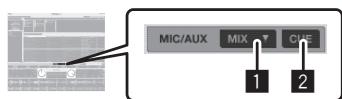
1 Click this to select the output channel for the connected microphone and external device. This setting only affects the [MASTER] channel.
- [MIX]: Outputs regardless of the position of the crossfader.
- [X-F A]: Outputs when the crossfader is to left of the right edge.
- [X-F B]: Outputs when the crossfader is to right of the left edge.
- [Mute]: Sound is not output.
2 Click this to monitor over the headphones. While the key is highlighted, the sound of the connected microphone and external device is output to the headphones [CUE] channel.
Screen when this unit is not connected
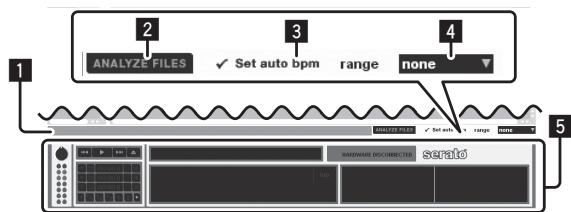
1 Status bar
Displays the current information (mainly analysis, errors, etc.).
2ANALYZEFILES
Used to analyze tracks.
The analyze files function processes the tracks in your library to detect file corruption, prepare the waveform overviews, and if enabled calculate the BPM values.
3 Set auto bpm
When [Set auto bpm] is checked, the BPM is automatically analyzed when the track is analyzed.
4 range
Used to specify the BPM analysis range when [Set auto bpm] is operating.
Offline player
The offline player is available when your ITCH hardware is not connected and will output through the current default audio device. In most cases, this will be from your computer speakers.
- Load a track to the offline player by dragging and dropping onto the offline player or by pressing the computer's [shift] key and [←] key. If the end of the loaded track is reached, the next track in the current playlist will automatically play next.
The offline player is a useful tool for preparing crates, auditioning tracks, and setting cue and loop points.
Starting the system
1 Turn on the connected microphone and external equipment.
2 Connect the USB cable between this unit and the computer.
3 Boot up the connected computer.
4 Slide the [ON/OFF] switch to the [ON] side.
5 After this unit's indicators light, launch ITCH.
If the computer and this unit are linked properly, two virtual decks will appear on the screen.
Quitting the system
1 Turn off the connected microphone and external equipment.
2 Quit ITCH.
3 Slide the [ON/OFF] switch to the [OFF] side.
4 Disconnect the USB cable from your computer.
Operating the Library
Within the library, tracks can be imported and managed easily.
Adding music files to the library
- When adding music files stored on an external device to the library, connect this device before launching ITCH.
Tracks can also be added from an iTunes library. To display the iTunes library, change the settings at the [SETUP] menu.
For details on the settings, see Show iTunes library on page 31.
- To add tracks recorded on discs to the library, first import the tracks to the computer and convert them into a file type that can be played with ITCH.
The playing performance may decrease if tracks recorded on discs are played directly.
When converting tracks into music files, we recommend converting them into MP3 format (320 kbps/MPEG-1 Audio Layer-3) for high sound quality with a low CPU usage rate.
1 Press the [FILES] button.
The contents of your computer or the peripheral connected to the computer are displayed in the [FILES] panel.
2 Select the desired folder using the computer's mouse.
With the computer's mouse, click the folder containing the track you want to add to the library in the [FILES] panel.
3 Drag and drop the selected folder to the crate list panel using the computer's mouse.
- When a folder in which music files are stored is dragged and dropped in the crate list panel, that folder becomes a crate including all the tracks in it and the tracks are also added to the library.
- There are several ways to add tracks to your ITCH library. — When tracks that have not been added to the library are loaded directly into a deck, they are automatically added to [All...] on the crate list panel.
-
Files and folders can also be added from Explorer or Finder by dragging and dropping them to the track list or crate list on the ITCH screen.
-
To add the music file to the desired crates, drag and drop the music file to the position at which you want to add it on the ITCH screen.
- A track or group of tracks can be dragged on to the crate list panel and a crate will be created containing these.
Playable music file formats
MP3, OGG (Vorbis format), AAC, ALAC (Apple Lossless), AIF, WAV and WL.MP3 (Whitelabel.MP3)
About MP3 files
MP3 files can have a constant bit rate (CBR) or a variable bit rate (VBR). Both types of files can be played on the DDJ-S1, but the search and super fast search functions are slower with VBR files. If your priority is operability, we recommend recording MP3 files in CBR.
About AAC files
- AAC is the abbreviation of "Advanced Audio Coding", a basic format of audio compression technology used for MPEG-2 and MPEG-4.
- The file format and extension of AAC data depends on the application used to create the data.
- In addition to AAC files with the extension ".m4a" encoded with iTunes®, files with the extensions ".aac" and ".mp4" can also be played. Note, however, that copyright-protected AAC files purchased for example at the iTunes Music Store cannot be played. Also, some files may not be playable, depending on the version of iTunes used for encoding.
About WL.MP3
Whitelabel MP3 (file extension ".wl.mp3"), is a custom MP3 format developed by Serato Audio Research for promotional release purposes and can be acquired from Whitelabel.net. Files in Whitelabel MP3 format are specifically for use with Serato Audio Research DJ software, have preinstalled overviews, and the track, artist, BPM and album art data is tagged as far as possible. These files are played with a low quality of 32 kbps on regular MP3 players (including when played independently on ITCH software without using this unit), but with a high quality equivalent to 320 kbps when played on ITCH software connected to this unit.
For details, see the URL below. http://whitelabel.net/
Analyzing files
This function is operated not on the DDJ-S1 but on the computer.
Before you play your music in ITCH it is very important to analyze your files first. The analyze files function processes the tracks in your library to detect file corruption, prepare the waveform overviews, and if enabled calculate the BPM values.
This is function is performed in ITCH while in the offline player.
- For details on the positions of keys, see Screen when this unit is not connected on page 17.
Setting the BPM automatically when analyzing tracks
1 Click [Set auto bpm] to check it.
When [Set auto bpm] is checked, the BPM is automatically analyzed when the track is analyzed.
When ITCH determines that the analyzed BPM information is accurate, the BPM information is written into the music file.
2 Click [range] to display the pull-down menu.
3 Click the BPM analysis range you want to set.
Specifying the BPM analysis range from the [range] pull-down menu avoids having the track analyzed with an erroneous BPM value. When [Set auto bpm] is checked, set the BPM analysis range if you know more or less the BPM value of the track you want to analyze.
Analyzing all tracks
1 Disconnect this unit from the computer.
2 Click [ANALYZE FILES].
All the tracks in the library are analyzed.
To re-analyze all the tracks, click [ANALYZE FILES] while pressing the computer's [Ctrl] key.
Analyzing individual tracks or crates
1 Disconnect this unit from the computer.
2 Drag and drop the track or crate to [ANALYZE FILES].
- Even music files that have not been added to the library can be analyzed by dragging and dropping them. Once analysis is completed, the music files are automatically added to [All...] in the crate list panel.
Tracks and crates that have already been analyzed can be reanalyzed by dragging and dropping them to [ANALYZE FILES].
If a file is damaged or an error occurs
Status icons are displayed to the left of the tracks displayed in the library. When the cursor is hovered over that icon, there will be an error message displayed in the status bar.
- For details on the contents of the displayed errors, see File corruption messages on page 33.
Selecting items
- To select the item, you can also use the computer's mouse and keyboard.
Moving the cursor between panels
Press the [AREA MOVE (REC)] button.
When the [AREA MOVE (REC)] button on this unit is pressed, the cursor moves from panel to panel.
- The cursor can also be moved between panels by pressing the computer's [Tab] key.
Moving the cursor up and down
Turn the rotary selector.
The cursor moves up and down when this unit's rotary selector is turned.
- When the rotary selector is turned while pressing the [SHIFT] button, the cursor skips over several items at a time.
- The cursor can also be moved up and down by pressing the [↑] or [↓] key on the computer.
Moving between layers
Press the rotary selector.
If there are further layers under the currently selected item, the cursor moves down to the next layer down when this unit's rotary selector is pressed.
Press the [BACK] button to move back to the layer above.
- The cursor can also be moved using the [] and [] keys on the computer.
Switching the sub panel
Press the [FILES] button (or one of the [BROWSE], [PREPARE] or [CRATES] buttons).
- [FILES] panel
Used when importing tracks.
[BROWSE] panel
Used to narrow down imported tracks by genre, BPM, etc. - [PREPARE] panel
Used to select and prepare tracks you want to play ahead of time.
[ HISTORY] panel
The track playing history is recorded and displayed here.
Editing crates
Creating a crate
Click "+" in the upper right of the crate list panel.
A new crate is added to the crate list panel.
- When a folder in which music files are stored is dragged and dropped in the crate list panel, that folder becomes a crate including all the tracks in it and the tracks are also added to the library.
- A track or group of tracks can be dragged on to the crate list panel and a crate will be created containing these.
- A track or group of tracks can be dragged on to "+" and a crate will be created containing these.
Changing the crate layer
Crates and subcrates can be move to different layers.
Drag and drop crate in another crate.
When a crate is dragged and dropped in another crate, it becomes a subcrate.
- Crate with the same name cannot be placed on the same layer.
Editing crate names
Double-click the crate's name.
You can now rename this crate.
Deleting crate
1 Turn the rotary selector.
Select the crate you want to delete.
2 On the computer's keyboard, press the [Delete] key while pressing the [Ctrl] key.
Crate is deleted.
- This operation will delete the crate but not the contents. If you press the [Delete] key while pressing the [Shift] key and [Ctrl] key on the computer's keyboard, the contents of the crate will also be deleted.
Changing the display of item names in the track list
The display of column headers can be turned on and off and their order can be changed.
Changing the order of the item names
Drag the column header to the left or to the right.
The arrangement of the column is changed.
Showing and hiding a column
Click [<] at the right edge of the row of item names, then select the item name from the pop-up menu and click it.
The selection shows items on or hides them from the header column.
Editing the track list
The playing order of tracks displayed in the track list, the titles of tracks and other information can be edited.
- When a track is selected and another track is clicked while pressing the computer's [Shift] key, those two tracks and all the tracks between them are selected. When a track is selected and other tracks are clicked while pressing the computer's [Ctrl] key, only the tracks that are clicked are selected.
Changing the order of the tracks
1 Click the [#] on the column header.
When clicked, [#] is highlighted, indicating that it is selected.
2 Drag and drop the track to the position to which you want to move it.
The track order changes.
- The order of the tracks in the track list is indicated by the numbers displayed in the "#" column.
Deleting tracks
1 Turn the rotary selector.
Select the track you want to delete.
2 On the computer's keyboard, press the [Delete] key while pressing the [Ctrl] key.
- If you press the [Delete] key while pressing the [Shift] key and [Ctrl] key on the computer's keyboard, the tracks will be deleted from both the ITCH library and your computer's hard drive.
Editing the track information
It may not be possible to edit some system-related items, such as filenames.
- is displayed for read-only tracks that cannot be edited.
1 Turn the rotary selector.
Select the track to be edited.
2 Double-click the item to be edited.
Text can now be input.
3 Input the text.
Edit the item's contents on the computer.
- On the computer's keyboard, press an arrow key while pressing the [Ctrl] key to move the cursor to a different item and edit items consecutively.
- When an item is edited while multiple tracks are selected, the editing is applied to all the selected tracks.
Setting colors for tracks
1 Turn the rotary selector.
Select the track to be edited.
2 Click the color label.
The color palette is displayed.
3 Select the desired color from the color palette.
The track is colored with the selected color.
Reloading the track information
This procedure reloads all the tags for the tracks in the library and updates the track information. Update the track information after editing it with other software.
1 Press the [FILES] button.
The [FILES] panel is displayed.
2 Click [RESCAN ID3 TAGS].
The track information is updated.
Relocating lost files
If you have moved the location of files which are already in your library, they will show up as not found and be displayed in red. Doing this relocation of files will update the database with their new location.
1 Press the [FILES] button.
The [FILES] panel is displayed.
2 Drag and drop a folder (including any subFolders) or lost files onto [RELOCATE LOST FILES].
For searching a folder (including any subFolders), drag them from Explorer or Finder. For searching for lost files, drag them from your library. Searching begins.
- Clicking [RELOCATE LOST FILES] will search all attached drives for missing files and can take some time.
Searching for tracks
It is possible to quickly search among many tracks imported onto the track list for the track you want to play. There are several search methods.
Searching by inputting characters
Tracks can be searched for by inputting characters and searching for the tracks containing those characters.
1 Click in the search box.
A pull-down menu for selecting the item to be included in the search is displayed.
2 Click the item to be included in the search.
3 Press the [CRATES] button.
Moves the cursor to the crate list panel.
4 Turn the rotary selector.
Select the item to be searched from the crate list panel.
Searching is performed within the selected item.
To search all the tracks, select [All...].
5 Click the search box and input the characters.
The tracks applicable to the characters you have input are displayed.
- The characters you have input are cleared by clicking [×] at the right of the search box or by pressing the [Esc] key on the computer's keyboard. You can delete one character at a time by pressing the [Back Space] key on the computer's keyboard.
- The characters being input are cleared if a different item is selected from the crate list panel.
Using the [BROWSE] panel
The [BROWSE] panel can be used to narrow down your tracks in the ITCH library by genre, BPM etc.
1 Press the [CRATES] button.
Moves the cursor to the crate list panel.
2 Turn the rotary selector.
Select the item to be searched from the crate list panel.
To search all the tracks, select [All...].
3 Press the [BROWSE] button.
The [BROWSE] panel is displayed.
4 Turn the rotary selector.
Select the genre to which you want to narrow down the search.
5 Press the rotary selector.
The tracks applicable to the selected genre are displayed in the track list. Next, narrow down by the BPM, the artist and the album items, in that order. Only the tracks matching the selected contents are displayed in the track list.
- Press the [BACK] button to move back to the layer above.
Searching using the [NEEDLE SEARCH (ALPHABET SEARCH)] pad ("Alphabet Search")
Alphabet search allows you to quickly sort your tracks alphabetically using the [NEEDLE SEARCH (ALPHABET SEARCH)] pad.
- Alphabet search sorting is applied to your library or currently selected crate.
Relationship between the alphabet search panel and [NEEDLE SEARCH (ALPHABET SEARCH)] pad
The section on the screen with the alphabet search letters and the [NEEDLE SEARCH (ALPHABET SEARCH)] pad have the same positional relationship.
![PIONEER DDJ-S1 - Relationship between the alphabet search panel and [NEEDLE SEARCH (ALPHABET SEARCH)] pad - 1](/content/2024/12/118933/images/e74493929f3f0a9f3c231fda9d3eeb7e8347c3bc4f440be62d182b9de4d3fea9.jpg)
1 Press the [CRATES] button.
Moves the cursor to the crate list panel.
2 Turn the rotary selector.
Select the item to be searched from the crate list panel.
To search all the tracks, select [All...].
3 Tap any position on the [NEEDLE SEARCH (ALPHABET SEARCH)] pad while pressing the [SHIFT] button.
Alphabet search panel is displayed on the top of screen. While the [SHIFT] button is pressed, the alphabet search function is active.
4 Tap [▲] at the left or right edge of the [NEEDLE SEARCH (ALPHABET SEARCH)] pad while pressing the [SHIFT] button.
The focus on the column header moves left or right each time left or right [▲] is tapped. The column header in bright gray shows that the column is currently selected.
5 Slide your finger while holding in the [SHIFT] button.
Once you have selected the column you wish to sort by, move your finger along the [NEEDLE SEARCH (ALPHABET SEARCH)] pad and you'll see the cursor in the alphabet search display follow.
Tracks corresponding to the currently selected letter are displayed in the track list.
6 Release your finger from the [NEEDLE SEARCH (ALPHABET SEARCH)] pad and the [SHIFT] button.
- Numbers are searched when 12 is selected, characters other than letters and numbers are searched when others is selected.
Switching the display of the album art on and off
If the file includes an image of the album, the image can be displayed.
- Use a general-purpose application to load the album art image into the track.
Click [ALBUM ART].
When clicked, the [ALBUM ART] panel is displayed.
- When clicked again, the panel closes.
Displaying the album images in the track list
The album images can be displayed in the track list. The layout of the track information and album images can be changed as desired.
While pressing the [SHIFT] button, press the [FILES] button (or one of the [BROWSE], [PREPARE] or [CRATES] buttons).
The track list display switches.
| Button | Layout | |
| CRATES button | A simply display consisting only of text (default). Album art is not displayed. | |
| FILES button | A column of album art is displayed at the very left, followed by text. | |
| BROWSE button | The tracks are arranged in a grid, with the album art displayed on the left side, the track information on the right side. | |
| PREPARE button | The tracks are arranged in a grid, with the album art displayed above, the track information below. | |
Using the [PREPARE] list
The [PREPARE] list is a list for selecting the tracks you want to prepare ahead of time for playback.
1 Press the [PREPARE] button.
The [PREPARE] panel is displayed.
2 Drag and drop the track or crate to the [PREPARE] panel.
The track or crate is added to the [PREPARE] list.
Tracks or crate can also be added to the [PREPARE] list by dragging and dropping them on the [PREPARE] tab at the top of the screen.
Tracks or crate can also be added to the [PREPARE] list by selecting them then pressing the [LOAD PREPARE (SAVE)] button.
- When tracks on the [PREPARE] list are loaded into a deck, those tracks are deleted from the [PREPARE] list.
- When ITCH is quit, the tracks in the [PREPARE] panel are cleared.
Using the [HISTORY] panel
Browsing the history
The [HISTORY] tab opens a complete log of all the tracks you have played and allows exporting ITCH session information as a data file.
1 Play tracks.
The history of the tracks that have been played is displayed in the [HISTORY] panel by session.
2 Click the [HISTORY] tab on the computer's screen.
The [HISTORY] panel is displayed.
- Only the tracks you actually play are listed in history. This is done using an A-B algorithm, meaning a track on deck (A) is only listed once the track on deck (B) has been changed or ejected. You can choose to show tracks which you have auditioned, but not actually played, by checking [Show Unplayed Tracks]. The session will then also list these tracks in gray, along with actual played tracks. Alternatively, you can mark or unmark tracks as played manually. Select a track (or a group of tracks) and click [MARK PLAYED] or [MARK UNPLAYED]. Tracks that you have played are marked as orange in your library. Click [CLEAR] to reset the list of recently played tracks and turn the color of your library back to white.
About sessions
"Session" refers to one unit of playback. A new session will be created each time ITCH is re-opened or a new session is started manually. When [▶] at the left of an item in the [period] column is clicked, the different sessions recorded in the history are displayed. When [▶] to the left of the individual sessions is clicked, the tracks and artists played in that session are displayed.
-
The editing operations below can be performed on sessions.
-
START SESSION: Starts a new session.
END SESSION: Ends the session. - INSERT TRACK: Adds information for a track that has not been played into the session (manual input).
- EXPORT: Exports and saves the session information.
Inputting the track information manually
You can add information for tracks not played in ITCH into your session (e.g., if you played one of your favorite vinyl or music CD).
1 Select the position at which you want to input the track information, then click [INSERT TRACK].
A new row is added below the selected position.
2 Double-click the inserted track fields and edit your information accordingly.
The session name and artist name can be input.
Exporting sessions
The [HISTORY] panel data can be exported.
1 Select the name of the session you want to export.
2 Click the tab to the right of [EXPORT].
Select the format in which the data is to be saved.
text: Text file format. This can be opened without using special software.
- CSV: A file format used for spreadsheet software, etc.
- m3u: A file format that can be imported to music file playback software, etc. The audio data is not included; information on the location where the files is stored is recorded.
(Track information inserted into the session by clicking INSERT TRACK] is not included in files of this format.)
3 Click [EXPORT].
The data export starts.
The exported data is stored in the following directory.
Windows: My Music >Serato > History Export
Macintosh: Music >Serato >History Export
Copying sessions into the crate list panel
Session information can be copied as one of the items in the crate list panel.
Drag and drop the name of the session you want to copy to the crate list panel.
A note for users who have installed other Serato Audio Research DJ software
ITCH shares its library with Scratch Live. The loop and cue points of tracks set with Scratch Live can be used as such with ITCH, and information set with ITCH can likewise be used with Scratch Live. If you use both software programs alternately, note that their libraries will have the same contents.
About backing up library information
When ITCH is installed, the [Serato] folder is created at the location in the computer shown below, and the library and crate information is stored in this folder.
Windows: My Documents > My Music > Serato
Macintosh: Users > Music >Serato
- When tracks are added to the library from an external hard disk, for example, the [Serato] folder is also created on the hard disk.
When ITCH is quit the first time after installing it, a confirmation message concerning the creation of a backup library is displayed.
When you check [Backup library] on the confirmation message screen, click [Yes], then close the software, the [Serato_Backup] folder is created in the [My Music] folder (in the [Music] folder for Macintosh) and the library information is backed up.
After this, whenever you check [Backup library] on the confirmation message screen, click [Yes], then close the software, the information is backed up and the previous backup is overwritten.
-
The confirmation message concerning the creation of a backup is again displayed in the following cases.
-
When over 1 week has passed since the last backup
- When there is no backup
Loading tracks to decks
1 Select the track you want to load.
Set the cursor to the track you want to load to the deck.
For details, see Selecting items on page 19.
2 Press the [LOAD (INST. DOUBLEBS)] buttons for the decks into which you want to load the tracks.
The selected tracks are loaded to the respective decks.
- When tracks that have not been added to the library are loaded directly into a deck, they are automatically added to [All...] on the crate list panel.
- With tracks selected, the tracks can be loaded into deck (A) or deck (B) by pressing [] or [] while pressing the [Shift] key on the computer's keyboard.
Tracks can also be loaded into decks by dragging and dropping them. - When [] or [] is pressed while pressing the [Shift] and [Alt] buttons on the computer, the decks are emptied.
- When a new track is loaded into a deck, the headphones [CUE] button for the deck in which it is loaded lights and the sound is output from the headphones [CUE] channel.
Instant Doubles
During playback on one of the decks, the track loaded in that deck can be loaded to the other deck and played from the same position. (Instant Doubles)
The following example describes the operation for playing the deck (A) track on deck (B) as well.
1 Load a track into deck (A) and play it.
2 While pressing the [SHIFT] button on deck (B), press the [LOAD (INST. DOUBLES)] button on deck (B).
The track loaded in deck (A) is also loaded into deck (B) and played from the same position.
- When deck (A) is in the pause mode, the pause mode is set at the same position for the track on deck (B).
Playing and pausing
Playback
1 Load a track in deck.
- For details on operation, see Loading tracks to decks on page 22.
2 Press the [PLAY/PAUSE /II] button.
Pausing
During playback, press the [PLAY/PAUSE II] button.
- Playback resumes when the [PLAY/PAUSE▶/II] button is pressed again.
Adjusting the playing speed (Tempo control)
Changing the playing speed
Move the [TEMPO] slider forward or backward.
The playing speed increases when the slider is moved to the [+ side (towards you), decreases when the slider is moved to the [-] side (away from you).
Selecting the range for adjusting the playing speed
Press the [TEMPO RANGE] button.
The playing speed adjustment range switches each time the button is pressed. The setting after the change is displayed in ITCH.
$$ [ \stackrel {-} {=} [ \pm 6 \% ] - \stackrel {-} {=} [ \pm 10 \% ] - \stackrel {-} {=} [ \pm 16 \% ] - \stackrel {-} {=} [ \pm 100 \% ] ] $$
Adjusting the playing speed without changing the pitch (Master Tempo)
1 Press the [MASTER TEMPO] button.
The pitch no longer changes even when the playing speed is changed with the [TEMPO] slider.
The sound is digitally processed, so the sound quality decreases.
The master tempo tolerance range is ± 50% .
2 Move the [TEMPO] slider forward or backward.
Playing in reverse
Press the [REV] button.
The track is played in the reverse direction.
- The direction in which the playing speed is increased or decreased according to the direction in which the jog dial is turned is reversed.
Operating the jog dial
Switching the jog dial mode
The jog dial has two modes.
- [VINYL] mode: When the top of the jog dial is pressed during playback, playback pauses, and when the jog dial is spun at this time the sound is output according to how the jog dial is spun.
- Normal mode: Pressing the top of the jog dial during playback does not pause playback. Also, such operations as scratching are not possible.
Press the [VINYL (ILLUMINATION)] button.
The jog mode switches to the [VINYL] mode and the [VINYL (ILLUMINATION)] button lights.
Scratch
When the jog mode is set to the [VINYL] mode and the jog dial is spun while pressing on its top, the track can be played according to the direction in and speed at which the jog dial is being spun.
1 Press the [VINYL (ILLUMINATION)] button.
Set the jog mode to the [VINYL] mode.
2 During playback, press the top of the jog dial.
Playback stops.
3 While pressing the top of jog dial, spin the jog dial in the desired direction and at the desired speed.
The sound is played according to the spinning direction and speed of the jog dial.
4 Release your hand from the top of the jog dial.
Normal playback resumes.
Pitch bend
During playback, spin the outer section of the jog dial.
The playing speed increases when spun clockwise, decreases when spun counterclockwise. When spinning is stopped, playback returns to the normal speed.
- When the jog mode is set to the normal mode, the same operation is possible by spinning the top of the jog dial.
Switching the jog dial illumination
The way the jog dial illumination lights can be selected from one of two types.
The same setting is applied to the jog dials for both decks (A) and (B).
Press the [VINYL (ILLUMINATION)] button while pressing the [SHIFT] button.
The setting switches each time the button is pressed.
Specifying the position to be played instantly (NEEDLE SEARCH)
The sound at the position at which the
[NEEDLE SEARCH (ALPHABET SEARCH)] pad is touched can easily be played.
The left edge of the [NEEDLE SEARCH (ALPHABET SEARCH)] pad indicates the beginning of the track, the right edge the end of the track.
1 Touch the [NEEDLE SEARCH (ALPHABET SEARCH)] pad.
The track's playing position changes instantly according to the position on the pad that is touched.
2 While touching the
[NEEDLE SEARCH (ALPHABET SEARCH)] pad, slide your finger along the pad.
The track's playing position moves as you slide your finger.
Setting a temporary cue point
1 During playback, press the [PLAY/PAUSE▶/III] button.
Playback is paused.
- Adjust the position by spinning the jog dial during pause, if desired. (To move the playback position during pause, other methods also can be used.)
2 Press the [CUE] button.
A temporary cue point is set at the position at which the track was paused.
- When a new temporary cue point is set, the point previously set is canceled.
Returning to the temporary cue point (Back cue)
During playback, press the [CUE] button.
The playback position immediately returns to the currently set temporary cue point and pauses.
- When the [PLAY/PAUSE II] button is pressed, playback starts from the temporary cue point.
Checking the temporary cue point (Cuesampler)
Keep pressing the [CUE] button after returning to the temporary cue point.
Playback starts from the temporary cue point. Playback continues while the [CUE] button is pressed.
- When the [PLAY/PAUSE II] button is pressed during cue sampling, playback continues from that point.
Loop operations
Setting Loop
1 During playback, press the [LOOP IN (GRID SET)] button at the point at which you want loop playback to start (the loop in point).
Loop In Point is set.
2 Press the [LOOP OUT (GRID TAP)] button at the point at which you want loop playback to end (the loop out point).
The Loop Out Point is set, and Loop playback starts from the Loop In Point.
Fine-adjusting the loop in point (loop in adjust)
1 During loop playback, press the [LOOP IN (GRID SET)] button.
2 Spin the jog dial.
The loop in point can be fine-adjusted.
- The loop in point's adjustable range is any point before the loop out point.
3 Press the [LOOP IN (GRID SET)] button.
Normal loop playback resumes.
Fine-adjusting the loop out point (loop out adjust)
1 During loop playback, press the [LOOP OUT (GRID TAP)] button.
2 Spin the jog dial.
The loop out point can be fine-adjusted.
- The loop out point's adjustable range is any point before the loop in point.
3 Press the [LOOP OUT (GRID TAP)] button.
Normal loop playback resumes.
Canceling Loop playback (Loop Exit)
During loop playback, press the [RELOOP/EXIT (GRID CLEAR)] button.
Playback continues beyond the Loop Out Point without returning to the Loop In Point.
Returning to Loop playback (Reloop)
After canceling loop playback, press the [RELOOP/EXIT (GRID CLEAR)] button during playback.
Playback returns to the previously set Loop In Point, and Loop playback resumes.
Setting loops automatically (Auto loop)
1 During playback, turn the [AUTO LOOP (GRID SLIDE)] control.
Sets the loop length by the specified number of beats.
2 Press the [AUTO LOOP (GRID SLIDE)] control.
A loop with the set number of beats is created automatically according to the BPM of the currently playing track and loop playback begins.
Even during auto looping, the loop length can be adjusted by turning the [AUTO LOOP (GRID SLIDE)] control.
Canceling auto looping
During auto looping, press the [AUTO LOOP (GRID SLIDE)] control.
Playback continues beyond the Loop Out Point without returning to the Loop In Point.
Splitting loops (Loop Halving)
During loop playback, turn the [AUTO LOOP (GRID SLIDE)] control counterclockwise.
The length of the loop is split in half each time the control is turned counterclockwise.
Doubling the loop (Loop Doubling)
During loop playback, turn the [AUTO LOOP (GRID SLIDE)] control clockwise.
The length of the loop is doubled each time the control is turned clockwise.
Using the loop bank
Saving loop points
Loops can be saved beforehand and called out later.
1 Press the [LOOP SELECT (GRID LOCK)] button to select the loop bank number at which you want to save the loop.
The loop bank number switches each time the button is pressed.
- If no loop has ever been set for the currently loaded track, bank number 1 is assigned.
2 Set the loop.
For details on setting loops, Loop operations on page 24.
When a loop is set, it is automatically saved in the currently selected loop bank.
- Up to 9 loop banks can be set.
- When a loop is set while a bank number at which a loop is already saved is selected, the loop saved at that loop bank is overwritten.
Calling out loop points
1 Press the [LOOP SELECT (GRID LOCK)] button.
The loop bank number switches each time the button is pressed. Select the loop bank at which the loop point is saved.
2 Press the [RELOOP/EXIT (GRID CLEAR)] button.
Loop playback starts from the saved loop in point.
Deleting loop points
Click [× ] on the right of the loop bank number display.
The loop point saved at the currently selected loop bank is deleted.
Protecting loop points (Loop lock)
Click on the left of the loop bank number display.
Operations that overwrite or delete the loop point saved in the selected loop bank are disabled.
When is pressed again, protection is canceled.
Setting Hot Cue
When a hot cue is set, that point can be called out and played instantaneously. Up to 5 hot cues can be set per music track.
1 Press the [REC MODE] button.
The mode switches to the hot cue recording mode. The [REC MODE] button flashes.
- For hot cue buttons at which no hot cue is set, hot cues can be set even without pressing the [REC MODE] button to switch to the hot cue recording mode.
2 During playback, in the pause mode or when pausing at a cue point, press one of hot cue buttons [HOT CUE (DELETE) 1] - [HOT CUE (DELETE) 5].
A hot cue is set at the position at which the button was pressed.
Hot cue buttons at which hot cues are set ([HOT CUE (DELETE) 1] - [HOT CUE (DELETE) 5]) light.
- The position where the hot cue has been set is displayed at the track overview.
The direction of playback is not recorded for hot cues.
Playing hot cues
- When the [REC MODE] button is flashing, the hot cue recording mode is set. In this case, press the [REC MODE] button to switch to the hot cue playing mode. The [REC MODE] button is off when in the hot cue playing mode.
Press one of the hot cue buttons ([HOT CUE (DELETE) 1] - [HOT CUE (DELETE) 5]) at which a hot cue is set.
Playback starts instantaneously from the point recorded in the button.
- Hot cue buttons at which no hot cues are set do not light. If one of these hot cue buttons is pressed, the position at which the button is pressed is set as the hot cue point for that button.
Hot cue sampler
In the pause mode or when pausing at a temporary hot cue point, press and hold one of the [HOT CUE (DELETE) 1] - [HOT CUE (DELETE) 5] buttons at which a hot cue is set.
The playing position moves to that hot cue point and the hot cue is played while the hot cue button is being pressed.
- When the [PLAY/PAUSE /II] button is pressed during hot cue sampling, playback continues from that point.
Deleting hot cues
Press one of hot cue buttons [HOT CUE (DELETE) 1] - [HOT CUE (DELETE) 5] while pressing the [SHIFT] button.
The hot cue button ([HOT CUE (DELETE) 1] - [HOT CUE (DELETE) 5]) whose hot cue has been deleted turns off.
Using the slip mode
Slip mode is a performance tool which allows you to temporarily manipulate the audio as normal by scratching, looping or reverse playing. As you are doing this, the playhead continues to move inaudibly through the track in the background, keeping it's place as if you were just playing the track normally. Once you have finished manipulating, playback then resumes from the current position of the playhead in the track.
- The [SLIP] button lights when the [SLIP] mode is turned on and flashes while normal playback is continuing in the background.
Slip looping
1 Press the [SLIP] button.
The mode switches to the slip mode.
2 Press the [LOOP IN (GRID SET)] button, then press [LOOP OUT (GRID TAP)] button.
Loop playback starts.
Normal playback continues in the background even during loop playback.
3 Press the [RELOOP/EXIT (GRID CLEAR)] button.
Looping is canceled, and normal playback of the sound that was playing in the background resumes.
- To cancel the slip mode, press the [SLIP] button again.
Auto beat slip looping
1 Press the [SLIP] button.
The mode switches to the slip mode.
2 Turn the [AUTO LOOP (GRID SLIDE)] control to set the beat.
3 Press the [AUTO LOOP (GRID SLIDE)] control.
A loop with the set number of beats is created automatically according to the BPM of the currently playing track and loop playback begins.
Normal playback continues in the background even during loop playback.
4 Press the [RELOOP/EXIT (GRID CLEAR)] button.
Looping is canceled, and normal playback of the sound that was playing in the background resumes.
- To cancel the slip mode, press the [SLIP] button again.
Slip reverse
1 Press the [SLIP] button.
The mode switches to the slip mode.
2 Press the [REV] button.
The track is played in the reverse direction.
Normal playback continues in the background even during reverse playback.
- To cancel the slip mode, press the [SLIP] button again.
Slip scratching
1 Press the [VINYL (ILLUMINATION)] button.
Set the jog mode to the [VINYL] mode.
2 Press the [SLIP] button.
The mode switches to the slip mode.
3 During playback, press the top of the jog dial.
Performs scratching.
Normal playback continues in the background even while scratching.
- The slip loop and slip reverse operations cannot be performed during slip scratch play.
4 Release your hand from the top of the jog dial.
Normal playback of the sound that was playing in the background resumes.
- To cancel the slip mode, press the [SLIP] button again.
Slip hot cue
1 Set the hot cue.
For details, see Setting Hot Cue on page 25.
2 Press the [SLIP] button.
The mode switches to the slip mode.
3 Keep pressing the hot cue button.
Playback starts from the hot cue point. Playback continues while the hot cue button is pressed.
4 Release your finger from the hot cue button.
Normal playback of the sound that was playing in the background resumes.
- To cancel the slip mode, press the [SLIP] button again.
Synchronizing the playing speed
Synchronizing the beats of 2 tracks (Beat Sync)
The tempo (BPM) and beat grid of the track can be automatically synchronized with the track on the opposite deck.
- When using the beat sync function, operate the [TEMPO] sliders beforehand to set them so that the BPMs of the tracks on the two decks are near each other.
- If the setting of [Enable beat grid] on the [SETUP] menu is enabled, both the tempo (BPM) and beat grid is fully synchronized. If the setting is disabled, only the tempo (BPM) is synchronized.
Press the [SYNC (SYNC OFF)] button on the deck you want to synchronize.
To synchronize the track on the deck (A) with the track playing on the deck (B), press the [SYNC (SYNC OFF)] button on the deck (B).
- To cancel the synchronizing, press the [SYNC (SYNC OFF)] button while pressing the [SHIFT] button.
The beat grid can also be aligned manually with looking at the beat match display by using the jog dial.
Editing the beat grid
The beat grid is set automatically from the average value of the BPM when tracks are analyzed.
If the beat grid does not match the track's actual beat, the tracks in the left and right decks are synchronized more accurately after the beat grid is edited.
- To edit the beat grid, enable the [Enable beat grid] setting in the [SETUP] menu.
The beat grid can also be edited through operations on the computer. To do so, the operations below must be performed.
- Either press the [Alt] and space keys simultaneously on the computer's keyboard, or click [GRID EDIT] on the computer's screen to set the beat grid edit mode.
- Once you finish editing the beat grid, press the computer's [Enter] key to save. (The beat grid editing mode is also canceled.)
If you do not want to save the edited beat grid, click the computer's [Esc] key.
Setting the beat marker
1 Select the position at which you want to set the beat marker.
Operate the [NEEDLE SEARCH (ALPHABET SEARCH)] pad or jog dial to move the position at which you want to set the beat marker to the center of the waveform display.
- The position can also be moved by dragging the waveform display on the computer's screen.
2 Press the [LOOP IN (GRID SET)] button while pressing the [SHIFT] button.
The beat marker is set. (Beat markers can be set at multiple points.)
- When in the beat grid editing mode, beat markers can also be set by either pressing the [X] key on the computer's keyboard or by double-clicking while pressing the [Alt] key.
Sliding the entire beat grid left and right
Turn the [AUTO LOOP (GRID SLIDE)] control clockwise or counterclockwise while pressing the [SHIFT] button.
When turned clockwise, the entire beat grid slides to the right. When turned counterclockwise, the entire beat grid slides to the left.
- When in the beat grid editing mode, sliding is also possible by pressing the computer's [] or [] key while pressing the [Ctrl] key.
- When in the beat grid editing mode, the beat grid slides faster when the computer's [] or [] key is pressed while pressing the [Ctrl] and [Shift] keys.
Adjusting the spacing of the entire beat grid
Turn the jog dial clockwise or counterclockwise while pressing the [SHIFT] button.
When turned clockwise, the beat grid's spacing widens, and when turned counterclockwise, the beat grid's spacing narrows.
- When in the beat grid editing mode, the beat grid's spacing can also be adjusted by pressing the computer's [] or [] key or by dragging while pressing the [Alt] key.
- When in the beat grid editing mode, the spacing can be adjusted faster by pressing the computer's [] or [] key while pressing the [Shift] key.
Adjusting the entire beat grid's spacing by tapping the button
While playing the track, the beat grid's width can be adjusted by tapping the button.
At the beginning of one of the track's measures, press the [LOOP OUT (GRID TAP)] repeatedly while pressing the [SHIFT] button.
The interval at which the [LOOP OUT (GRID TAP)] is pressed is set as the beat grid's spacing.
- When in the beat grid editing mode, the beat grid's spacing can also be adjusted by tapping the computer's space key.
Deleting beat markers
1 Select the beat marker you want to delete.
Operate the [NEEDLE SEARCH (ALPHABET SEARCH)] pad or jog dial to move the beat marker you want to delete to the center of the waveform display.
- The position can also be moved by dragging the waveform display on the computer's screen.
2 Press the [RELOOP/EXIT (GRID CLEAR)] button while pressing the [SHIFT] button.
- When in the beat grid editing mode, beat markers can also be deleted by selecting them then either pressing the computer's [Delete] key or double-clicking while pressing the [Alt] and [Shift] keys.
- When in the beat grid editing mode, the entire beat grid can be deleted by pressing the computer's [Delete] key while pressing the [Shift] key.
Locking beat grids
This protects the entire grid so that it cannot be edited in units of individual tracks.
Press the [LOOP SELECT (GRID LOCK)] button while pressing the [SHIFT] button.
Using the mixer functions
Outputting sound
Set the volume of the power amplifiers connected to the [MASTER OUT 1, MASTER OUT 2] terminals to an appropriate level. Note that very loud sounds will be output if the volume is set too high.
1 Turn the [TRIM] control.
Adjusts the sound level input to the various decks.
2 Move the channel fader away from you.
Adjusts the sound level output from the various decks.
3 Move the crossfader.
Switch the deck whose sound is to be output from the speakers.
This operation is not necessary when the crossfader curve selector switch is set to [THRU].
- Left edge: Only the sound of the channel assigned to the left of the crossfader is output.
Center position: The sound of the two decks is mixed and output. -
Right edge: Only the sound of the channel assigned to the right of the crossfader is output.
-
The deck assignments can be reversed from right to left and vice versa with the [C.F. REV] button.
4 Turn the [MASTER LEVEL] control.
Audio signals are output from the [MASTER1] and [MASTER2] terminals.
Equalization
Turn the [EQ (HI, MID, LOW)] controls on the respective decks.
These adjust the [HI] (high range), [MID] (middle range) and [LOW] (low range), respectively.
Monitoring sound with headphones
The channel for monitoring over the headphones is called the [CUE] channel. The sound of this channel is output from the headphones regardless of the positions of the crossfader and channel fader.
-
To monitor the sound of deck (A) or deck (B) over the headphones without outputting it from the [MASTER] channel, use one of the procedures below.
-
Move the channel fader for the channel you do not want to output from the [MASTER] channel to the nearest position towards you.
-
Move the crossfader all the way to the side opposite the channel you do not want to output.
-
To monitor the sound of the microphone or external device (AUX) without outputting it from the [MASTER] channel, select [Mute] on the MIC/AUX monitor control panel.
MIC/AUX monitor control panel (p.17)
1 Connect headphones to one of the [PHONES] terminals.
2 Press the headphones [CUE] button for the channel you want to monitor.
The headphones [CUE] button lights and the sound is output to the headphones [CUE] channel.
- If you want to monitor the sound of both channels simultaneously, press both headphones [CUE] buttons simultaneously.
3 Click the [CUE] key for the microphone or external device you want to monitor.
The [CUE] key is highlighted and the sound is output to the headphones [CUE] channel.
- For details on the positions of keys, see Switching the jog dial illumination on page 23.
4 Turn the [HEADPHONES MIXING] control.
Adjust the monitor volume balance between the sound of the [CUE] channel and the sound of the [MASTER] channel.
- Turn counterclockwise: The relative volume of the [CUE] channel increases. When turned all the way counterclockwise, the sound of the [MASTER] channel cannot be heard through the headphones.
- Center position: The sound of the [CUE] channel and the sound of the [MASTER] channel have the same volume.
- Turn clockwise: The relative volume of the [MASTER] channel increases. When turned all the way clockwise, the sound of the [CUE] channel cannot be heard through the headphones.
5 Turn the [HEADPHONES LEVEL] control.
The volume of the headphones is adjusted.
When multiple headphones [CUE] buttons are pressed, the sound of the decks for which the buttons are pressed is mixed and output from the headphones.
- When the headphones [CUE] button is pressed again, monitoring of the deck's sound is canceled.
- When the [CUE] key on the MIC/AUX monitor control panel is clicked again, monitoring of the sound of the microphone or external device is canceled.
Selecting the crossfader curve characteristics
Switch the crossfader curve selector switch.
- [A]: Makes a sharply increasing curve (if the crossfader is moved away from the [A] side, audio signals are immediately output from the [B] side).
- [A]: Makes a gradually increasing curve (if the crossfader is moved away from the [A] side, the sound on the [B] side gradually increases, while the sound on the [A] gradually decreases).
- [THRU]: Choose this when you do not want to use the crossfader.
Using the crossfader reverse function
Switch the [C.F. REV] switch.
- [ON]: The left side of the crossfader is set to deck (B), the right side to deck (A).
- [OFF]: The left side of the crossfader is set to deck (A), the right side to deck (B).
Starting playback using the fader (Fader Start)
Starting playback using the crossfader
1 Set the [FADER START] switch to [ON].
2 Move the crossfader.
Set to the edge opposite the side on which the channel you want to use with the fader start function is set.
3 Set the temporary cue point.
Playback pauses at the temporary cue point.
- If a temporary cue point is already set, press the [CUE] button to move the playback position back to that point.
4 Move the crossfader.
Playback starts.
- If you set the crossfader back to the original position, the player immediately returns to the temporary cue point and pauses playback (Back cue).
Starting hot cue playback using the fader (Hot cue fader start)
Starting playback using the crossfader
1 Set the [FADER START] switch to [ON].
2 Move the crossfader.
Set to the edge opposite the side on which the channel you want to use with the fader start function is set.
3 Select one of hot cues.
Playback pauses at the hot cue point.
If no hot cue is set, set the hot cue first. For details, see Setting Hot Cue on page 25.
4 Move the crossfader.
Playback starts.
- If you set the crossfader back to the original position, the player instantaneously returns to the hot cue point already set and pauses playback.
Using a microphone
1 Connect a microphone to the [MIC1] or [MIC2] terminal.
To use the [MIC2] terminal, set the [MIC2/AUX] selector switch to [MIC2].
2 Set the [OFF, ON, TALK OVER] selector switch to [ON] or [TALK OVER].
[ON]: The indicator lights.
[TALK OVER]: The indicator flashes.
- When set to [TALK OVER], the volume level of the currently playing track is automatically decreased when sound is input to the microphone. (The volume level of the sound input to the [AUX IN] terminals is not decreased.)
3 Turn the [LEVEL] control.
Adjust the sound level output from [MIC1] and [MIC2].
- Pay attention that rotating to the extreme right position outputs a very loud sound.
4 Input audio signals to the microphone.
Equalization
Turn the [EQ (HI, MID, LOW)] controls for [MIC1] or [MIC2].
Using an external device
1 Set the [MIC2/AUX] selector switch to [AUX].
2 Turn clockwise the [LEVEL] control in the microphone/AUX section.
Adjusts the level of the output sound.
- If the volume level cannot be adjusted enough with the [LEVEL] control in the microphone/AUX section alone, adjust by turning the [VOL] control on the rear panel.
Equalization
Turn the [EQ (HI, MID, LOW)] controls in the microphone/ AUX section.
Recording
- For details of relative screen on the computer, see Recording panel on page 17.
- Recording of the input sound is not possible with ITCH when the [MIC/AUX THRU] selector switch is set to [ON].
1 Select the channel to be recorded.
Perform this operation on the computer's screen.
- [MIX]: The sound output from the [MASTER OUT 1] and [MASTER OUT 2] terminals can be recorded.
[AUX]: The sound of the [MIC/AUX] channel can be recorded alone.
2 Adjust the recording level.
Adjust the recording level using the appropriate controls for the source being recorded. The recording meter in the software shows the signal level that will be recorded to disk. We recommend that you set your levels so the loudest part of the mix causes the meter to enter the red zone only briefly.
3 Press the [AREA MOVE (REC)] button while pressing the [SHIFT] button.
Recording starts.
The [AREA MOVE (REC)] button flashes.
4 Press the [AREA MOVE (REC)] button while pressing the [SHIFT] button.
The [AREA MOVE (REC)] button turns off and recording stops.
5 Operatethecomputer toinput thefilename.
6 Press the [LOAD PREPARE (SAVE)] button while pressing the [SHIFT] button.
The recorded sound is saved.
- If no filename is input, a file with the name "Serato Recording
" is created. - Recorded data is stored in the following directory. Windows: My Music > _Serato > Recording
Macintosh: Music >Serato > Recording
Outputting the microphone and AUX sound directly
When the [MIC/AUX THRU] selector switch is set to [ON], the audio signals of the connected external device and microphone are output directly without passing through the computer. Normally use with the switch set to [OFF].
1 Set the [MIC/AUX THRU] selector switch to [ON].
2 Input audio signals to the microphone or output audio signals from the external device.
- No effect is applied to the connected microphone and auxiliary equipment when the [MIC/AUX THRU] selector switch is set to [ON].
Using the effect function
This function lets you instantaneously set various effects according to the tempo (BPM = Beats Per Minute) of the currently playing track.
The effect is applied to the selected channel.
1 Turn the [FX CH SELECT] control.
This selects the channel to which the effect is applied.
2 Turn the [EFFECT SELECT] control.
This selects the type of effect.
For the types of effects, see Types of effects on page 29.
3 Press the [FX ON/OFF] button.
When the effect is on, the selected effect is applied to the sound.
- When the button is pressed again, the effect is turned off.
The effect parameters can be adjusted by turning the [LEVEL/DEPTH] and [PARAMETER] controls. - When the [FX CH SELECT] control is set to [MASTER] or [MIC/AUX], the output of the microphone or AUX channel may seem to be out of sync. In this case, either turn the effect off or set the [FX CH SELECT] control to [A] or [B].
Setting the BPM manually
The BPM used as the base value for the effect can be set manually.
- When [A] or [B] is selected in the [FX CH SELECT] control, the auto mode corresponding to the BPM of the track loaded in the deck is set.
Use the [TAP] button if you want to set the BPM manually. - When [MASTER] or [MIC/AUX] is selected in the [FX CH SELECT] control, the mode is always set to the manual mode.
Press the [TAP] button.
The interval at which the [TAP] button is tapped with a finger is set as the BPM.
- When [A] or [B] is selected in the [FX CH SELECT] control, the BPM can be set back to the auto mode by pressing and holding the [TAP] button.
Types of effects
- In the descriptions in the section, the "set beat" refers to the beat set with the [PARAMETER] control.
REVERB
Reverb is a series of small natural delays or reverberations of the audio signal, creating a spacious atmospheric trail such as you would hear in a cave or in an enclosed space. These reverb "reflections" are audio ripples that sound like the music is bouncing around from wall to wall. As a digital effect, reverb can allow you to create a sense of space and atmosphere. As the reverb depth becomes fully wet, the original sound gradually disappears.
| PARAMETER control | Adjusts the degree of the reverb effect. |
| LEVEL/DEPTH control | Adjusts the reverb level. |
DELAY
A delay is when a part of the audio signal is repeated at a later stage. Increasing the level of [FX MIX] will blend the delay level into the original level, until you have 100% delay blended into the original signal.
| PARAMETER control | Use these to set a time delay of 1/16 – 8/1 with respect to the time of one beat of the BPM. |
| LEVEL/DEPTH control | Sets the balance between the original sound and the effect sound. |
ECHO
Similar to the Delay, the Echo effect will repeat the original signal at a later stage for a set number of times before the echo trail dissipates. Echo emulates classic Tape Echo effect units, with a warmer, more analogue sound, where the user is able to control the warmth/colour of the effected signal, rather than a clean digital delay. The level will increase as the effect wetness is increased, until only the full wet delay is playing with no original signal.
| PARAMETER control | Use these to set a time delay of 1/16 – 8/1 with respect to the time of one beat of the BPM. |
| LEVEL/DEPTH control | Sets the balance between the original sound and the effect sound. |
LPF
The low pass filter acts like an equalizer that cuts the top end out of the frequency spectrum, allowing only the audio below the filter cut off point to pass through, sweeping down towards the low end of the signal. Resonance can be added, making the effect cut off point more pronounced.
| PARAMETER control | Adjusts the resonance. |
| LEVEL/DEPTH control | The further the control is turned clockwise, the more the effect is stressed. |
HPF
The high pass filter acts like an equalizer that cuts the bass out of the frequency spectrum, allowing only the audio above the filter cut off point to pass through, sweeping up towards the top end of the signal. Resonance can be added, making the effect cut off point more pronounced.
| PARAMETER control | Adjusts the resonance. |
| LEVEL/DEPTH control | The further the control is turned clockwise, the more the effect is stressed. |
PHASER
The phaser uses filters to shift the frequency spectrum to create a sweeping effect on the audio source. A low frequency oscillator will alter the speed of the sweep. [FX MIX] will change the depth and feedback of the effect.
| PARAMETER control | Use these to set the cycle for moving the phaser effect as of time of 1/6 – 32/1 with respect to the time of one beat of the BPM. |
| LEVEL/DEPTH control | The further the control is turned clockwise, the more the effect is stressed. When turned all the way counterclockwise, only the original sound is output. |
FLANGER
The flanger effect is when two identical sound sources are mixed together at slightly different times, creating a more natural sounding audio sweep up and down the frequency spectrum as you change the parameter of [TIME]. [FX MIX] will change the depth and feedback of the effect.
| PARAMETER control | Sets an effect time of 1/6 – 32/1 with respect to the time of one beat of the BPM. |
| LEVEL/DEPTH control | The further the control is turned clockwise, the more the effect is stressed. When turned all the way counterclockwise, only the original sound is output. |
CRUSHER
Crusher adds distortion and lowers the bit rate resolution of the audio source. This effect can either sound glitchy or overdriven depending on what point your bit depth is set to.
| PARAMETER control | Adjusts the degree of the effect. |
| LEVEL/DEPTH control | The further the control is turned clockwise, the more the effect is stressed. |
TREMOLO
The Tremolo modulates the signal volume, lowering and increasing it rhythmically to the set time divisions, as if you were performing a series of cuts on the mixer's crossfader. [TIME] determines the rate of the volume drop, while [FX MIX] modifies the modulation on the signal volume. The depth of the cut is determined by the wet/dry amount, with 100% being a cut to silence.
| PARAMETER control | Use these to set a cut time of 1/16 – 8/1 with respect to the time of one beat of the BPM. |
| LEVEL/DEPTH control | Sets the balance between the original sound and the effect sound. |
BRAKER
The braker acts like a classic turntable styled "stop" braking function, where the audio winds down to a complete stop before resuming playback once again. Depending on the length of [TIME] set this effect can sound like a quick fire stop button brake all the way through to the classic "turning the turntable off" technique, allowing the audio to slow down to a complete stop.
| PARAMETER control | Sets a brake time of 1/16 to 8/1 with respect to one beat of the BPM. |
| LEVEL/DEPTH control | Sets the frequency at which the brake sound is applied. |
REPEATER
This effect repeats audio chunks similar to a loop roll function. You can control the "chance" the playing audio stream will be repeated, the count
at which the audio section will be repeated for, and the time of the audio division to be repeated.
| PARAMETER control | Use these to set a repeat time of 1/16 – 8/1 with respect to the time of one beat of the BPM. |
| LEVEL/DEPTH control | Sets the frequency at which the repeated sound is applied. |
REVERSER
This effect reverses a section of the audio signal, mixing it with the original audio. You can control the length of the audio stream to be reversed, and the "Chance" of repeating audio.
| PARAMETER control | Use these to set a reverse time of 1/16 - 8/1 with respect to the time of one beat of the BPM. |
| LEVEL/DEPTH control | Sets the frequency at which the reversed sound is applied. |
Changing the settings
ITCH's environmental settings can be changed according to the usage conditions.
1 On the computer screen, click [SETUP].
![PIONEER DDJ-S1 - On the computer screen, click [SETUP]. - 1](/content/2024/12/118933/images/8385222b9c2e94bfac9c938beae2a869d8e6b3dcb12c29d2000f3e7518f8d857.jpg)
The ITCH setup menu opens.
2 Click the tab for the item you want to set.
The details of the setting items are displayed.
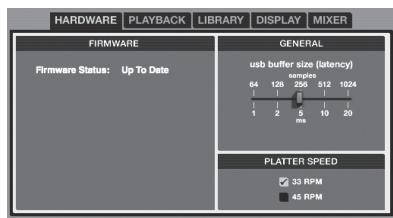
For details of the various tabs, see the individual explanations described later.
- The ITCH version information is displayed at the bottom left of the [SETUP] menu.
- If the computer is connected to the Internet, click [CHECK FOR UPDATES] to check whether more recent software is available.
[SETUP] menu setting items
HARDWARE
FIRMWARE
This unit's firmware version can be checked here.
- When [Update Available] is displayed, a newer version of the firmware is available. Click [UPDATE FIMWARE] to update the firmware. If [Up to Date] is displayed, there is no need to update the firmware.
GENERAL
The USB buffer size "usb buffer size (latency)" setting can be changed here.
ITCH divides the audio data into small packets for playback. This packet size can be adjusted here.
-
If the buffer size is made small, the operation of the jog dial is transmitted accurately and the system's transmission delay (latency) decreases, but dropouts in the audio data (interruptions in the sound), etc., may occur.
-
If the buffer size is made large, dropouts in the audio data (interrup-. tions in the sound), etc., tend to occur less, but the time lag due to the transmission delay (latency) of the audio data may increase.
PLATTER SPEED
The playing speed of the virtual deck can be set to 33 or 45 RPM.
PLAYBACK
GENERAL
- Playback keys use shift
This disables operations using the computer keyboard when the keyboard's [Shift] key is not pressed or when Caps Lock is off.
- Lock playing deck
This disables loading of new tracks on decks on which a track is playing.
This disables operations of the
[NEEDLE SEARCH (ALPHABET SEARCH)] pad when a track is playing.
Hi-fi resampler
This reduces digital distortion generated when tracks are played at low or high speed. When enabled, however, the load of the CPU increases slightly.
Use auto gain
This sets the volume (gain) for the tracks automatically when the software creates the track overviews. The volume is set with respect to the reference volume selected from the drop-down list on the right.
- Enable beat grid
This option turns on/off Beatgrids.
ON SONG LOAD
- play from start
When a track is loaded, playback starts from the beginning of the track. If there is a blank section at the beginning of the track, playback starts from the position at which the sound starts.
-
When a track is loaded with this setting disabled, playback starts from the position played last on the track that was playing the previous time.
-
instant doubles
The same track is played on both tracks (doubled).
For example, when the track currently playing on deck (A) is also loaded in deck (B), the playing position of the track on deck (B) is automatically synchronized to deck (B) and playback begins. At this time, the master tempo and loop settings are also synchronized.
- play from first cue point
When a track is loaded, playback start position is set on the low-numbered hot cue within set hot cues.
If no hot cue has been set for the track, playback starts from the beginning of the track.
- Those settings are prioritized in the following order.
instant doubles], [play from first cue point], [play from start]
RECORDING
Bit depth
Select 16 bits or 24 bits for the bitrate when recording with ITCH.
File format
Select AIFF or WAV for the file format when recording with ITCH.
LIBRARY
Show iTunes library
The iTunes library and playlists are displayed in ITCH.
Protect library
The following operations in the library are disabled.
- Editing of filenames and character information
- Moving or deleting of files and crates
Custom crate columns
The column header of the tracks list be set individually for different crates. When this is disabled, the column header for all track lists is displayed in common.
Center on selected song
This enables you to scroll the lists up and down with the cursor remaining fixed to the center when operating this unit to browse the library.
Show all file types
When importing music files, all the files on the hard disk are displayed.
- When this setting is disabled, only files that can be played with ITCH are displayed.
include subctractracks
Tracks within subcrates are displayed within the parent crate.
DISPLAY
Maximum screen Updates
This slider allows you to lower ITCH's screen refresh rate and potentially use less CPU. Users with slower computers or those running a recording program at the same time might like to do this if they are having performance issues. The default setting is 60Hz , or refreshed 60 times per second. This setting applies to the entire ITCH user interface; the virtual decks, the waveforms, the library, and the setup screen.
Horizontal waveforms
The waveform display section is displayed horizontally at the bottom of the screen.
Left vertical waveforms
The waveform display section is displayed vertically at the left of the screen.
Right vertical waveforms
The waveform display section is displayed vertically at the right of the screen.
MIXER
GENERAL
EQ
-6dB
The equalizer gain is set to 6 dB.
12dB
The equalizer gain is set to 12 dB.
OUTPUT
Mono
The external output is set to monaural.
— Stereo
The external output is set to stereo.
HEADROOM
Adjusts the output from the respective decks. Decrease the number if the sound is broken or distorted, increase it if the input is low and noise is conspicuous.
CUE
OVERDRIVE
This adjusts the sound level output from the headphones channel.
The sound quality may decrease if the level is raised too high.
UPFADERS
U/F CURVE
This sets the abruptness of the increase or decrease in volume when the channel fader is moved.
CROSSFADER
For the crossfader's curve characteristics, the sound overlaps when the channel is switched can be adjusted in detail.
·
The curve characteristics when A is selected with the crossfader curve selector switch can be adjusted.
The curve characteristics when x is selected with the crossfader curve selector switch can be adjusted.
Additional information
Troubleshooting
Incorrect operation is often mistaken for trouble or malfunction. If you think that there is something wrong with this component, check the points below. Sometimes the trouble may lie in another component. Inspect the other components and electrical appliances being used. If the trouble cannot be rectified after checking the items below, ask your nearest Pioneer authorized service center or your dealer to carry out repair work.
This unit may not operate properly due to static electricity or other external influences. In this case, proper operation may be restored by turning the power off, waiting 1 minute, then turning the power back on.
| Problem | Check | Remedy |
| The power is not turned on. None of the indicators light. | Is the [ON/OFF] switch for power supply set to [ON]? | Set the [ON/OFF] switch for power supply to [ON]. |
| The jog dial indicator does not light. [MASTER OUT 1] (XLR output) volume is low, sound quality is poor or no sound is output. [MIC1], [MIC2] and [AUX IN] terminals cannot be used. The indicators are dim. | Are you operating on USB bus power? | There are limitations when operating on USB bus power. To use the unit without these limitations, connect the included AC adapter. (page 10) |
| This unit is not recognized. | Is the [ON/OFF] switch for power supply set to [ON]? | Set the [ON/OFF] switch for power supply to [ON]. |
| Is the included USB cable properly connected? | Connect the included USB cable properly. (page 10) | |
| This unit operates on USB bus power even when the included AC adapter is used. | Is the included AC adapter properly connected? | Mount the power plug properly on the included AC adapter. Connect the included AC adapter properly to the power outlet. (page 5) |
| Connect the included AC adapter's DC plug properly to this unit. (page 10) | ||
| Power does not turn on when operating on USB bus power. | Is the included USB cable properly connected? | Connect the computer and this unit directly using the included USB cable. USB hubs cannot be used. (page 10) |
| The computer's USB power supply capacity may be insufficient. | Use the included AC adapter. (page 10) | |
| Are you using a USB hub? | USB hubs cannot be used. Connect the computer and this unit directly using the included USB cable. (page 10) | |
| Are you using a commercially available USB cable? | Use the included USB cable. | |
| This unit cannot be operated. | Is the driver software properly set? | Set the driver software properly. (page 7) |
| Music files cannot be played. | Are the music files damaged? | Play music files that are not damaged. |
| Tracks are not displayed on track list. | Have the music files been properly imported? | Import the music files properly. (page 18) |
| Is a crate or subcrate that does not contain any tracks selected? | Either select a crate or subcrate that contains any tracks or add tracks to the crate or subcrate. | |
| Recording is not possible. | Is the external device or microphone properly connected? | Check the connection of the external device or microphone. (page 10) |
| Is the channel you want to record properly selected? | Select the channel you want to record properly. (page 28) | |
| Sound of an external device or microphone cannot be output. | Is the [MIC2/AUX] selector switch properly set? | Set the [MIC2/AUX] selector switch properly. (page 28) |
| Is the MIC/AUX monitor control panel properly set? | Depending on the settings, the master sound may not be output. Set the output method properly. (page 17) | |
| Are you operating on USB bus power? | There are limitations when operating on USB bus power. To use the unit without these limitations, connect the included AC adapter. (page 10) | |
| Volume of device connected to [AUX IN] termi-nals is low. | Is the [AUX IN] terminals' [VOL] control set to the proper position? | Set the audio level to a suitable level for the connected device. (page 28) |
| Distorted sound. | Are the [MASTER LEVEL] and [TRIM] controls set to the proper position? | Adjust the [MASTER LEVEL] and [TRIM] controls. |
| Is the audio level being input to the [AUX IN] and [MIC] terminals set to a suitable level? | Set the audio level input to the terminals to a suitable level for the connected devices. | |
| Is [HEADROOM] in the [SETUP] menu properly set? | Set the level properly. | |
| Sound being played is interrupted. | Are the included AC adapter and included USB cable properly connected? | The sound will be interrupted if the included AC adapter's power cord or included USB cable is disconnected from this unit during playback. Properly fasten the included AC adapter's power cord and the included USB cable to this unit's cord hook. (page 10) |
| Is the driver software's latency value suitable? | Set the driver software's latency to a suitable value. (page 9) | |
| Set the DJ software's latency to a suitable value. (page 30) | ||
| No sound is produced. | Are the connection cables properly connected? | Connect the connection cables properly. (page 10) |
| Is the included USB cable properly connected? | Connect the computer and this unit directly using the included USB cable. USB hubs cannot be used. (page 10) | |
| Are terminals or plugs dirty? | Wipe any dirt off terminals and plugs before connecting. | |
| Is the driver software properly set? | Set the driver software properly. (page 7) | |
| Is ITCH properly set? | Set ITCH properly. | |
| Check the [MIXER] setting in the [SETUP]. (page 31) | ||
| Are the connected components and amplifiers properly set? | Set the external input selection and volume on the components and amplifiers properly. | |
| Are you operating on USB bus power? | When operating on USB bus power, the [MASTER OUT 1] volume decreases, the sound quality decreases, sound may not be output, etc. To use the unit without these limitations, connect the included AC adapter. (page 10) | |
| Is the [MIC/AUX THRU] selector switch set to [ON]? | Set the [MIC/AUX THRU] selector switch to [OFF]. If the [MIC/AUX THRU] selector switch is set to [ON], only the sound of the microphone or external device is output. (page 29) | |
| No sound is produced, or sound is distorted or noisy. | Is this unit placed near a TV? | Turn the TV's power off or install this unit and TV away from each other. |
| The beat grid is not displayed. | Has the music file been analyzed? | Analyze the file. If music files cannot be analyzed automatically, click [GRID EDIT] in the ITCH software and input the beat grids manually. |
| [SYNC] function does not work. | Have the music files been properly imported? | Reimport the music files and load them in the decks. (page 18) |
| Has the music file been analyzed? | Analyze the file. | |
| [SYNC] function does not work even when files are analyzed. | Is the beat grid irregular? Is the beat grid properly tapped? | Set the beat grid properly. |
| Are the BPMs of the tracks in the two decks too different? | The [SYNC] function will not work properly if the BPM of the track on the deck for which the [SYNC (SYNC OFF)] button is pressed is outside the adjustable tempo range of the track on the deck for which the [SYNC (SYNC OFF)] button is not pressed. | |
| Are you scratching? | The [SYNC] function is disabled when scratching. | |
| Fader starting is not possible. | Are you in standby with a cue set? | Set the cue. (page 23) |
| Sound is interrupted when the ASIO driver is set. | Has the ASIO driver been set with ITCH running? | Set the ASIO driver before launching ITCH. (page 7) |
| Back cue function does not work. | Is a temporary cue point set? | Set a temporary cue point. (page 23) |
| Reloop function does not work. | Has a loop been set in the current playback? | If no loop has been set in the current playback, the reloop function does not work. Set a loop once. (page 23) |
| Indicator flashes and power does not turn on. | — | Normal operation can sometimes be restored by unplugging the power cord, waiting at least 1 minute, then plugging the power cord back in. If the symptom persists, unplug the power cord and request repairs. |
| Library cannot be edited. | Is [Protect library] in [SETUP] enabled? | Disable [Protect library]. (page 31) |
| ITCH operation is unstable. | Are you using the latest version of the software? | Free updates of ITCH can be downloaded from the Internet. Check the website below and keep the software updated to the latest version. (page 6) |
| Are you using softwares other than ITCH at the same time? | Quit other applications to decrease the load on the computer. If operation continues to be unstable, try disabling the wireless network or other wireless connections, antivirus software, the screen saver, the low power mode, etc. (page 6) | |
| The computer's USB power supply capacity may be insufficient. | Use the included AC adapter. (page 10) | |
| When other USB devices are connected to the computer. | Disconnect other USB devices from the computer. When another USB audio device is connected to the computer at the same time, it may not operate or be recognized normally. (page 10) | |
| Are you using a USB hub? | USB hubs cannot be used. Connect the computer and this unit directly using the included USB cable. (page 10) | |
| There is a problem with the USB port to which this unit is connected. | If your computer has multiple USB ports, try connecting this unit to a different USB port. (page 10) | |
| Is this unit connected to a notebook computer running on its battery? | Supply power to the notebook computer from an AC power supply. (Depending on the notebook computer's settings, the low power mode may be set when the computer is running on its battery, automatically reducing the performance of the computer itself.) (page 6) | |
| The USB buffer size is too small. | Raise the USB buffer size. (page 30) |
File corruption messages
An error code is displayed on the screen if this unit cannot operate properly. Check the error on the table below and take the appropriate action.
| Error code | Description of error | Cause and action |
| Corrupt file : This MP3 contains invalid frames | This file contains frames not conforming to formal MP3 standards. | Normal playback is not guaranteed. We recommend that you remake the file. |
| Corrupt file : This file contains corrupt frames that may result in audible glitches | This file contains consecutive corrupt frames. | We recommend that you remake the file. Corrupt frames are played with no sound, so the sound will seem to be inter-rupted. |
| Corrupt file : This file has been split. You should check the beginning for audio glitches | The sound that should be at the first MPEG audio frame in the file has been lost. | This could be due to irregular MP3 editing. Because corrupt frames are played with no sound and because many tracks start with no sound, it may be difficult to notice this, but we recommend listening carefully to check. |
| Corrupt file : This MP3 contains frames with corrupt data | ||
| Corrupt file : This MP3 file lost synchronization between the frame index and the frame | An old MP3 overview edited with a different editing program is loaded. | As with other corrupt files, the corrupt section is played with no sound. We recommend that you remake the file. |
| Corrupt file : This MP3 is completely invalid and is not playable | This file contains invalid data and cannot be played. The cause could be a bad sector, a corrupt system file, use of an erroneous file format or extension, etc. | Remake the overview. |
| Corrupt file : This file contains invalid audio data | Large quantities of invalid data were found when searching the audio data. | We recommend that you remake the file. |
| Corrupt file : This MP3 contains no valid frames | The file cannot be played because no audio data was found. | Check whether or not this is a legitimate music file. |
| Unsupported file : This MP3 contains multiple layers | Multiple layers of MPEG frames were found when scanning the file. | MP3 files containing multiple layers of frames cannot be played. Depending on the frames, they may be played with no sound. |
| Unsupported file : This file is more than 2GB in size | The file exceeds the limit size of 2 GB. | Files exceeding 2 GB in size are not supported. We recommend that you remake the file. |
| Unsupported file : This file had data blocks greater than 2GB size | There are data blocks exceeding the limit size of 2 GB in the file. | Files exceeding 2 GB in size are not supported. We recommend that you remake the file. |
| Corrupt file : This WAV contains no valid chunks | There is no recognizable WAV data in the file. This may not be a WAV file. | Use a music file format that can be played. |
| Unsupported file : This file's data is not in PCM format | The WAV data is not in PCM format so the file cannot be played. | Only WAV files in PCM format can be played. |
| Unsupported file : This file has a sampling rate greater than 48kHz | The file cannot be played because the sampling rate exceeds 48 kHz. | Resample the file at 48 kHz and save it. |
| Unsupported file : This file uses more than 24bits per sample | The file cannot be played because the bitrate exceeds 24 bits. | We recommend that you remake the file. A maximum of 24 bits per audio sample data is supported. |
| Corrupt file : This WAV is incomplete | The amount of data is under the anticipated file size. Either the data is corrupt or it has not been properly edited, so ITCH cannot properly determine the amount of data in the file. | We recommend that you remake the file. |
| Corrupt file : This file contains corrupt blocks | This file contains block data whose size is 0 (zero). | We recommend that you remake the file. Continued use could cause ITCH to become unstable or freeze. |
| Corrupt file : This song contains no audio data | No audio data can be found in the file, so it cannot be played. | Check whether the file contains audio data. |
| Corrupt file : This song contains invalid samples | This file contains audio samples whose size is too small. | If the size is too small, it may be identified as 0 (zero). This does not particularly affect playback, but the sound may be interrupted. |
Using as a controller for other DJ software
The DDJ-S1 also outputs the operating data for the buttons and dials in MIDI format. If you connect a computer with a built-in MIDI-compatible DJ software via a USB cable, you can operate the DJ software on this unit. The sound of music files being played on the computer can also be output from the DDJ-S1.
To use as a controller for other DJ software, first make the DJ software's audio and MIDI related settings.
For details, see your DJ software's operating instructions.
For details of the MIDI messages on this unit, see the website below. http://www.prodjnet.com/support/
Disclaimer
- Pioneer is a registered trademark of Pioneer Corporation.
- Microsoft®, Windows Vista®, Windows® and Internet Explorer® are either registered trademarks or trademarks of Microsoft Corporation in the United States and/or other countries.
- Apple, Macintosh, Mac OS, Safari, iTunes, and Finder are trademarks of Apple Inc., registered in the U.S. and other countries.
Intel and Intel Core are trademarks of Intel Corporation in the U.S. and other countries.
ASIO is a trademark of Steinberg Media Technologies GmbH.
AMD is a trademark of Advanced Micro Devices, Inc.
- "ITCH" is a registered trademark of Serato Audio Research.
The names of companies and products mentioned herein are the trademarks of their respective owners.
This product has been licensed for nonprofit use. This product has not been licensed for commercial purposes (for profit-making use), such as broadcasting (terrestrial, satellite, cable or other types of broadcasting), streaming on the Internet, Intranet (a corporate network) or other types of networks or distributing of electronic information (online digital music distribution service). You need to acquire the corresponding licenses for such uses. For details, see http://www.mp3licensing.com.
Cautions on copyrights
Recordings you have made are for your personal enjoyment and according to copyright laws may not be used without the consent of the copyright holder.
-
Music recorded from CDs, etc., is protected by the copyright laws of individual countries and by international treaties. It is the full responsibility of the person who has recorded the music to ensure that it is used legally.
-
When handling music downloaded from the Internet, etc., it is the full responsibility of the person who has downloaded the music to ensure that it is used in accordance with the contract concluded with the download site.
Specifications
AC adapter
Power.. AC 100 V to 240 V, 50 Hz/60 Hz
Rated current 300 mA
Rated output. DC 5 V, 2 A
General - Main Unit
Power consumption (when using AC adapter) 1.4 A
Main unit weight 5.0 kg
Max. external dimensions ... 680 mm (width) x 95.2 mm (height) x 318 mm (depth)
Tolerable operating temperature +5^ to +35^
Tolerable operating humidity .5% to 85% (no condensation)
Audio Section (when using AC adapter/when playing on computer)
Rated output level
MASTER OUT 1 16 Vrms
MASTER OUT 2 3 Vrms
Total harmonic distortion
MASTER OUT 1 .0.006%
MASTER OUT 2 .0.006%
Frequency characteristic
MASTER OUT 1 20 Hz to 20 kHz
MASTER OUT 2 20 Hz to 20 kHz
S/N ratio
MASTER OUT 1 101 dB or greater (at rated output)
MASTER OUT 2 101 dB or greater (at rated output)
Input / Output terminals
USB terminal B type 1 set
MASTER OUT 1 output terminal XLR connector. 1 set
MASTER OUT 2 output terminal RCA pin jacks .1 set
PHONES output terminal Stereo phone jack (0 6.3 mm) .1 set Stereo mini phone jack (0 3.5 mm).1 set
AUX input terminal RCA pin jacks 1 set
MIC1 terminal XLR connector/phone jack (Ø 6.3 mm)............1 set
MIC2 terminal Phone jack (6.3 mm)1 set
- For improvement purposes, specifications and design of this unit and the included software are subject to change without notice.
Published by Pioneer Corporation. Copyright © 2011 Pioneer Corporation. All rights reserved.
MIC/AUX INPUT, XLR OUTPUT
Met le mode [VINYL] en/hors service.
22 Touche HOT CUE (DELETE)
14 Commande LEVEL/DEPTH
27 Commandes EQ (HI, MID, LOW)
3 Commandes EQ (HI, MID, LOW)
La lecture commence.
La lecture commence.
La touche [AREA MOVE (REC)] clignote.
- play from first cue point
instant doubles], [play from first cue point], [play from start]
RECORDING
Bit depth
Center on selected song
include subcrate tracks
Maximum screen Updates
Horizontal waveforms
Left vertical waveforms
Right vertical waveforms
MASTER OUT 1 16 Vrms
MASTER OUT 2 .3 Vrms
Distorsion harmonique totale
MASTER OUT 1 .0,006 %
MASTER OUT 2 .0,006 %
MIC/AUX INPUT, XLR OUTPUT
22 HOT CUE (DELETE)-Taste
Mixer/Effect-K Section
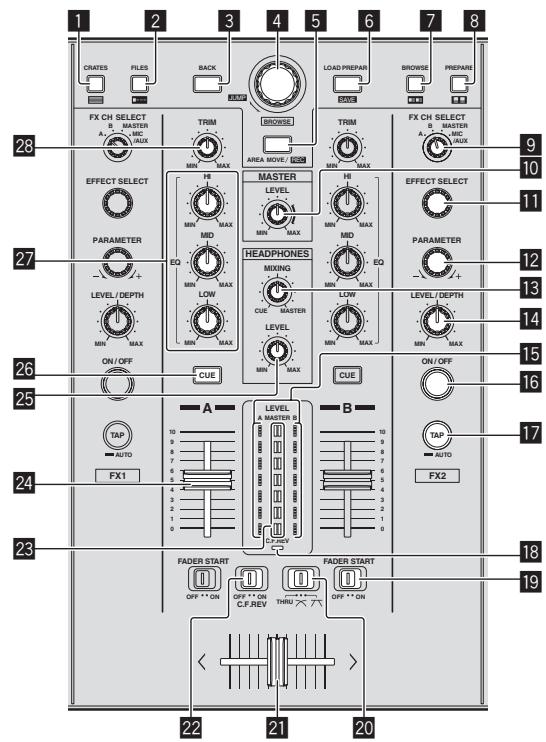
1 CRATES-Taste
5 AREA MOVE (REC)-Taste
14 LEVEL/DEPTH Regler
Show iTunes library (S.33)
3 Crates
Effect-Feld

- play from first cue point
Center on selected song
include subcrate tracks
Maximum screen Updates
Horizontal waveforms
Left vertical waveforms
Right vertical waveforms
Published by Pioneer Corporation.
Copyright © 2011 Pioneer Corporation.
All rights reserved.
Publication de Pioneer Corporation.
© 2011 Pioneer Corporation.
- Contents
- How to read this manual
- Before you start
- Connections and part names
- Operation
- Additional information
- Before you start
- Features
- LAYOUT
- MIC/AUX INPUT, XLR OUTPUT
- ITCH
- LAPTOP DOCK
- Playing address/Level meter
- HIGH SOUND QUALITY
- What's in the box
- About the AC adapter
- Safety instructions
- Read & Retain Instructions
- Cleaning
- Water or Moisture
- Accessories
- Ventilation
- Environment
- Power Sources
- Power-Cord Protection
- Power
- Overloading
- Object & Liquid Entry
- Servicing
- Damage Requiring Service
- Mounting the power plug
- Removing the power plug
- Power plug
- Type 1 (for Europe)
- Type 2 (for the UK)
- Installing the software
- Before installing the software
- About the software to be installed
- For Windows
- For Mac OS X
- Minimum operating environment
- About the ITCH software
- Checking the latest information on the ITCH software
- SERATO — USER LICENSE AGREEMENT ("License Agreement")
- Grant of License:
- Ownership:
- Copying and Disposal of Software:
- No Implied Warranties:
- Exclusion of liability:
- Exclusions subject to law:
- Updates:
- Governing law:
- License for bundled digital media files:
- About the driver software (Windows)
- Checking the latest information on the driver software
- Software end user license agreement
- Definitions
- Program license
- Warranty disclaimer
- Damages and remedies for breach
- Termination
- General terms
- About the installation procedure (Windows)
- Connect this unit to your computer via a USB cable.
- Slide the [ON/OFF] switch to the [ON] side.
- Insert the included CD-ROM into the computer's CD drive.
- From the Windows [Start] menu, double-click the [Computer (or My Computer)] > [ITCH CD] icon.
- Double-click [ITCH_installer.exe].
- Once the ITCH installer is launched, click [Next].
- Accept the license agreement (select [I accept the terms in the license agreement]), and then click [Next].
- Select the folder in which you want to install ITCH, then click [Next].
- Click [Install].
- Select the language that you want from the pulldown menu.
- Accept the license agreement (select [Agree]) and then click [Install].
- Click [Close].
- Click [Finish] to quit the ITCH installer.
- Click [Yes].
- About the installation procedure (Macintosh)
- Click [Restart].
- Launching ITCH
- About the driver software and setting utility software
- Adjusting the buffer size
- Checking the version of the driver software
- Connections and part names
- Notes on running this unit with USB bus power
- Connecting the input/output terminals
- Front panel
- PHONES jacks
- MIC/AUX THRU selector switch
- MIC2 terminal
- Rear panel
- MASTER ATT.
- MASTER OUT 1 terminal
- MASTER OUT 2 terminal
- AUX IN terminal
- VOL control
- Kensington security slot
- USB terminal
- ON/OFF switch
- DC IN terminal
- Cord hook
- Cord hook
- Hook the AC adapter's power cord in the top of the cord hook, the USB cable in the bottom.
- Upper left of control panel
- MIC1 terminal
- Part names and functions
- Deck section
- Playing address indicator
- LOAD (INST.DOUBLES) button
- NEEDLE SEARCH (ALPHABET SEARCH) pad
- VINYL SPEED ADJUST control
- LOOP SELECT (GRID LOCK) button
- VINYL (ILLUMINATION) button
- AUTO LOOP (GRID SLIDE) control
- TEMPO RANGE button
- MASTER TEMPO button
- SLIP button
- TEMPO slider
- SYNC (SYNC OFF) button
- Jog dial
- PLAY/PAUSE /II button
- CUE button
- SHIFT button
- RELOOP/EXIT (GRID CLEAR) button
- REC MODE button
- REV button
- LOOP IN (GRID SET) button
- LOOP OUT (GRID TAP) button
- HOT CUE (DELETE) button
- Mixer/Effect section
- CRATES button
- FILES button
- BACK button
- Rotary selector
- AREA MOVE (REC) button
- LOAD PREPARE (SAVE) button
- BROWSE button
- PREPARE button
- FX CH SELECT control
- MASTER LEVEL control
- EFFECT SELECT control
- PARAMETER control
- HEADPHONES MIXING control
- LEVEL/DEPTH control
- Channel level indicator
- FX ON/OFF button
- TAP button
- C.F. REV indicator
- FADER START switch
- Crossfader curve selector switch
- Crossfader
- C.F. REV switch
- Master level indicator
- Channel fader
- HEADPHONES LEVEL control
- Headphones CUE button
- EQ (HI, MID, LOW) controls
- TRIM control
- Microphone/External input control section
- OFF, ON, TALK OVER selector switch
- LEVEL control
- EQ (HI, MID, LOW) controls
- MIC2/AUX selector switch
- Using the LAPTOP DOCK
- Using with the feet removed
- ITCH software screen
- Screen when this unit is connected
- ALBUM ART tab
- Current time display
- Simple display of CPU usage rate
- FILES tab
- BROWSE tab
- PREPARE tab
- HISTORY tab
- Alphabet search panel
- 9? (TOOLTIPS)
- SETUP
- (SEARCH)
- Sub panel
- Track list
- MIC/AUX monitor control panel
- Recording panel
- Effect panel
- Track overview
- Track information display
- Waveform display
- Virtual deck
- Tempo match display
- Beat match display
- Status bar
- Crate list
- ALBUM ART
- Crate list
- All...
- Library
- Crates
- Subcrates
- "+
- Track list
- Column header
- Track
- Color label
- Status icon
- Effect panel
- Recording panel
- Screen when this unit is not connected
- Status bar
- 2ANALYZEFILES
- Set auto bpm
- range
- Offline player
- Starting the system
- Quitting the system
- Operating the Library
- Adding music files to the library
- Press the [FILES] button.
- Select the desired folder using the computer's mouse.
- Drag and drop the selected folder to the crate list panel using the computer's mouse.
- Playable music file formats
- About MP3 files
- About AAC files
- About WL.MP3
- Analyzing files
- Setting the BPM automatically when analyzing tracks
- Click [Set auto bpm] to check it.
- Click [range] to display the pull-down menu.
- Click the BPM analysis range you want to set.
- Analyzing all tracks
- Click [ANALYZE FILES].
- Analyzing individual tracks or crates
- Disconnect this unit from the computer.
- Drag and drop the track or crate to [ANALYZE FILES].
- If a file is damaged or an error occurs
- Selecting items
- Moving the cursor between panels
- Press the [AREA MOVE (REC)] button.
- Moving the cursor up and down
- Turn the rotary selector.
- Moving between layers
- Press the rotary selector.
- Switching the sub panel
- Press the [FILES] button (or one of the [BROWSE], [PREPARE] or [CRATES] buttons).
- Editing crates
- Creating a crate
- Click "+" in the upper right of the crate list panel.
- Changing the crate layer
- Drag and drop crate in another crate.
- Editing crate names
- Double-click the crate's name.
- Deleting crate
- Turn the rotary selector.
- On the computer's keyboard, press the [Delete] key while pressing the [Ctrl] key.
- Changing the display of item names in the track list
- Changing the order of the item names
- Drag the column header to the left or to the right.
- Showing and hiding a column
- Click [<] at the right edge of the row of item names, then select the item name from the pop-up menu and click it.
- Editing the track list
- Changing the order of the tracks
- Click the [#] on the column header.
- Drag and drop the track to the position to which you want to move it.
- Deleting tracks
- Editing the track information
- Double-click the item to be edited.
- Input the text.
- Setting colors for tracks
- Click the color label.
- Select the desired color from the color palette.
- Reloading the track information
- Click [RESCAN ID3 TAGS].
- Relocating lost files
- Drag and drop a folder (including any subFolders) or lost files onto [RELOCATE LOST FILES].
- Searching for tracks
- Searching by inputting characters
- Click in the search box.
- Click the item to be included in the search.
- Press the [CRATES] button.
- Turn the rotary selector.
- Click the search box and input the characters.
- Using the [BROWSE] panel
- Press the [CRATES] button.
- Turn the rotary selector.
- Press the [BROWSE] button.
- Press the rotary selector.
- Searching using the [NEEDLE SEARCH (ALPHABET SEARCH)] pad ("Alphabet Search")
- Relationship between the alphabet search panel and [NEEDLE SEARCH (ALPHABET SEARCH)] pad
- Tap any position on the [NEEDLE SEARCH (ALPHABET SEARCH)] pad while pressing the [SHIFT] button.
- Tap [▲] at the left or right edge of the [NEEDLE SEARCH (ALPHABET SEARCH)] pad while pressing the [SHIFT] button.
- Slide your finger while holding in the [SHIFT] button.
- Release your finger from the [NEEDLE SEARCH (ALPHABET SEARCH)] pad and the [SHIFT] button.
- Switching the display of the album art on and off
- Click [ALBUM ART].
- Displaying the album images in the track list
- While pressing the [SHIFT] button, press the [FILES] button (or one of the [BROWSE], [PREPARE] or [CRATES] buttons).
- Using the [PREPARE] list
- Press the [PREPARE] button.
- Drag and drop the track or crate to the [PREPARE] panel.
- Using the [HISTORY] panel
- Browsing the history
- Play tracks.
- Click the [HISTORY] tab on the computer's screen.
- About sessions
- Inputting the track information manually
- Select the position at which you want to input the track information, then click [INSERT TRACK].
- Double-click the inserted track fields and edit your information accordingly.
- Exporting sessions
- Select the name of the session you want to export.
- Click the tab to the right of [EXPORT].
- Click [EXPORT].
- Copying sessions into the crate list panel
- Drag and drop the name of the session you want to copy to the crate list panel.
- A note for users who have installed other Serato Audio Research DJ software
- About backing up library information
- Loading tracks to decks
- Select the track you want to load.
- Press the [LOAD (INST. DOUBLEBS)] buttons for the decks into which you want to load the tracks.
- Instant Doubles
- Load a track into deck (A) and play it.
- While pressing the [SHIFT] button on deck (B), press the [LOAD (INST. DOUBLES)] button on deck (B).
- Playing and pausing
- Playback
- Pausing
- Adjusting the playing speed (Tempo control)
- Changing the playing speed
- Selecting the range for adjusting the playing speed
- Adjusting the playing speed without changing the pitch (Master Tempo)
- Playing in reverse
- Operating the jog dial
- Switching the jog dial mode
- Scratch
- Pitch bend
- Switching the jog dial illumination
- Specifying the position to be played instantly (NEEDLE SEARCH)
- Setting a temporary cue point
- Press the [CUE] button.
- Returning to the temporary cue point (Back cue)
- During playback, press the [CUE] button.
- Checking the temporary cue point (Cuesampler)
- Keep pressing the [CUE] button after returning to the temporary cue point.
- Loop operations
- Setting Loop
- Fine-adjusting the loop in point (loop in adjust)
- Fine-adjusting the loop out point (loop out adjust)
- Press the [LOOP OUT (GRID TAP)] button.
- Canceling Loop playback (Loop Exit)
- During loop playback, press the [RELOOP/EXIT (GRID CLEAR)] button.
- Returning to Loop playback (Reloop)
- After canceling loop playback, press the [RELOOP/EXIT (GRID CLEAR)] button during playback.
- Setting loops automatically (Auto loop)
- During playback, turn the [AUTO LOOP (GRID SLIDE)] control.
- Press the [AUTO LOOP (GRID SLIDE)] control.
- Canceling auto looping
- During auto looping, press the [AUTO LOOP (GRID SLIDE)] control.
- Splitting loops (Loop Halving)
- During loop playback, turn the [AUTO LOOP (GRID SLIDE)] control counterclockwise.
- Doubling the loop (Loop Doubling)
- During loop playback, turn the [AUTO LOOP (GRID SLIDE)] control clockwise.
- Using the loop bank
- Saving loop points
- Press the [LOOP SELECT (GRID LOCK)] button to select the loop bank number at which you want to save the loop.
- Set the loop.
- Calling out loop points
- Press the [LOOP SELECT (GRID LOCK)] button.
- Press the [RELOOP/EXIT (GRID CLEAR)] button.
- Deleting loop points
- Click [× ] on the right of the loop bank number display.
- Protecting loop points (Loop lock)
- Click on the left of the loop bank number display.
- Setting Hot Cue
- Press the [REC MODE] button.
- During playback, in the pause mode or when pausing at a cue point, press one of hot cue buttons [HOT CUE (DELETE) 1] - [HOT CUE (DELETE) 5].
- Playing hot cues
- Press one of the hot cue buttons ([HOT CUE (DELETE) 1] - [HOT CUE (DELETE) 5]) at which a hot cue is set.
- Hot cue sampler
- In the pause mode or when pausing at a temporary hot cue point, press and hold one of the [HOT CUE (DELETE) 1] - [HOT CUE (DELETE) 5] buttons at which a hot cue is set.
- Deleting hot cues
- Press one of hot cue buttons [HOT CUE (DELETE) 1] - [HOT CUE (DELETE) 5] while pressing the [SHIFT] button.
- Using the slip mode
- Slip looping
- Press the [SLIP] button.
- Press the [LOOP IN (GRID SET)] button, then press [LOOP OUT (GRID TAP)] button.
- Press the [RELOOP/EXIT (GRID CLEAR)] button.
- Auto beat slip looping
- Turn the [AUTO LOOP (GRID SLIDE)] control to set the beat.
- Press the [AUTO LOOP (GRID SLIDE)] control.
- Press the [RELOOP/EXIT (GRID CLEAR)] button.
- Slip reverse
- Press the [REV] button.
- Slip scratching
- Press the [VINYL (ILLUMINATION)] button.
- Press the [SLIP] button.
- During playback, press the top of the jog dial.
- Release your hand from the top of the jog dial.
- Slip hot cue
- Set the hot cue.
- Keep pressing the hot cue button.
- Release your finger from the hot cue button.
- Synchronizing the playing speed
- Synchronizing the beats of 2 tracks (Beat Sync)
- Press the [SYNC (SYNC OFF)] button on the deck you want to synchronize.
- Editing the beat grid
- Setting the beat marker
- Select the position at which you want to set the beat marker.
- Press the [LOOP IN (GRID SET)] button while pressing the [SHIFT] button.
- Sliding the entire beat grid left and right
- Turn the [AUTO LOOP (GRID SLIDE)] control clockwise or counterclockwise while pressing the [SHIFT] button.
- Adjusting the spacing of the entire beat grid
- Turn the jog dial clockwise or counterclockwise while pressing the [SHIFT] button.
- Adjusting the entire beat grid's spacing by tapping the button
- At the beginning of one of the track's measures, press the [LOOP OUT (GRID TAP)] repeatedly while pressing the [SHIFT] button.
- Deleting beat markers
- Select the beat marker you want to delete.
- Press the [RELOOP/EXIT (GRID CLEAR)] button while pressing the [SHIFT] button.
- Locking beat grids
- Using the mixer functions
- Outputting sound
- Turn the [TRIM] control.
- Move the channel fader away from you.
- Move the crossfader.
- Turn the [MASTER LEVEL] control.
- Equalization
- Monitoring sound with headphones
- Connect headphones to one of the [PHONES] terminals.
- Press the headphones [CUE] button for the channel you want to monitor.
- Click the [CUE] key for the microphone or external device you want to monitor.
- Turn the [HEADPHONES MIXING] control.
- Turn the [HEADPHONES LEVEL] control.
- Selecting the crossfader curve characteristics
- Switch the crossfader curve selector switch.
- Using the crossfader reverse function
- Switch the [C.F. REV] switch.
- Starting playback using the fader (Fader Start)
- Starting playback using the crossfader
- Set the [FADER START] switch to [ON].
- Move the crossfader.
- Set the temporary cue point.
- Move the crossfader.
- Starting hot cue playback using the fader (Hot cue fader start)
- Select one of hot cues.
- Using a microphone
- Connect a microphone to the [MIC1] or [MIC2] terminal.
- Set the [OFF, ON, TALK OVER] selector switch to [ON] or [TALK OVER].
- Turn the [LEVEL] control.
- Input audio signals to the microphone.
- Using an external device
- Set the [MIC2/AUX] selector switch to [AUX].
- Turn clockwise the [LEVEL] control in the microphone/AUX section.
- Recording
- Select the channel to be recorded.
- Adjust the recording level.
- Outputting the microphone and AUX sound directly
- Using the effect function
- Setting the BPM manually
- Types of effects
- REVERB
- DELAY
- ECHO
- LPF
- HPF
- PHASER
- FLANGER
- CRUSHER
- TREMOLO
- BRAKER
- REPEATER
- REVERSER
- Changing the settings
- On the computer screen, click [SETUP].
- Click the tab for the item you want to set.
- [SETUP] menu setting items
- HARDWARE
- FIRMWARE
- GENERAL
- PLATTER SPEED
- ON SONG LOAD
- LIBRARY
- Show iTunes library
- Protect library
- Custom crate columns
- Center on selected song
- Show all file types
- include subctractracks
- DISPLAY
- Maximum screen Updates
- Horizontal waveforms
- Left vertical waveforms
- Right vertical waveforms
- MIXER
- CUE
- UPFADERS
- CROSSFADER
- Additional information
- Troubleshooting
- File corruption messages
- Using as a controller for other DJ software
- Disclaimer
- Cautions on copyrights
- Specifications
- AC adapter
- General - Main Unit
- Audio Section (when using AC adapter/when playing on computer)
- Touche HOT CUE (DELETE)
- include subcrate tracks
- HOT CUE (DELETE)-Taste
- Mixer/Effect-K Section
- CRATES-Taste
- AREA MOVE (REC)-Taste
- LEVEL/DEPTH Regler
- Effect-Feld
Brand : PIONEER
Model : DDJ-S1
Category : DJ Controller