Force - Smartphone INTEX - Free user manual and instructions
Find the device manual for free Force INTEX in PDF.


User questions about Force INTEX
0 question about this device. Answer the ones you know or ask your own.
Ask a new question about this device
Download the instructions for your Smartphone in PDF format for free! Find your manual Force - INTEX and take your electronic device back in hand. On this page are published all the documents necessary for the use of your device. Force by INTEX.
USER MANUAL Force INTEX
Dear INTEX customer,
Congratulations on becoming a proud owner of INTEX product. You have now joined the fraternity of millions of satisfied INTEX customers spread across the globe.
Intex Technologies is one of the fastest growing IT Hardware, Mobile Phones and Electronics Company. A well established brand, INTEX has kept pace with the technology needs of millions of IT hardware & electronics consumers and has been serving them with more than 300 user friendly, high quality, state-of-the-art yet simple products/solutions. The products have been in the market since 1996 and conform to global standards.
Brand INTEX covers a wide range of computer peripherals and accessories such as Computer Multimedia speakers, Cabinets, Keyboards, Mouse, UPS, Add-on cards, Webcams, Headphones, Laptop bags, etc. As a part of its diversification strategy, Intex also offers an interesting range of PCs, TFT-LCD Monitors, Consumer Electronics (DVD Players), Home UPS & Mobile Phones. Every INTEX product goes through a rigorous process of sample
evaluation and approval before commercial launch. Customers look upon the brand as a value-for-money & feature-rich offering, supported by efficient after sales service.
We look forward to your patronage.
It would be our pleasure to receive feedback and suggestions you may have for improvements in the product(s) you are using.
Intex Technologies (1) Ltd
info@intextechnologies.com
www.intextechnologies.com
Helpline No· 1800-103- 8822 (India)
Intex Way Gulf LLC
service@intexuae.com
www.intexuae.com
Toll Free No· 800-468- 39823 (Dubai)
Tel: 00971 04 3931991
SAFETY TIPS
■ Use of wireless hands-free system (headphone, headset) with a low power Bluetooth emitter.
■ Make sure the cell phone has a low SAR.
- Keep your calls short or send a text message (SMS) (instead. This advice applies especially to children, adolescents and pregnant women.)
■ Use cell phone when the signal quality is good.
■ People having active medical implants should preferably keep the cell phone at least 15 cm away from the implant.
CONTENT
- WARNINGS.... 1 -
- GETTING STARTED.... 3 -
2.1 APPEARANCE.... 3 -
2.2 KEYPAD DEFINITION.... 5 -
2.3 BATTERY INSTALLATION......8 -
2.4 SIM CARD/T-FLASH CARD INSTALLATION...... 9 -
2.5 CHARGING THE BATTERY....10 -
2.6 SECURITY SETTINGS...... - 11 -
2.7 T-FLASH CARD ...... 12 -
2.8 USB CABLE......12 - - BASIC FUNCTIONS……12 -
3.1 MAKING A CALL 12 -
3.2 EMERGENCY SERVICE 13 -
3.3 ANSWERING A CALL.... 13 -
3.4 REJECTING A CALL....14 -
4. GUIDE TO MENU OPERATIONS.... 14 -
4.1 PHONEBOOK ...... 14 -
4.2 MESSAGING ...... 15 -
4.3 CALL LOG....20-
4.3.1 CALL HISTORY ...... - 20 -
4.3.2 CALL SETTINGS 20 -
4.4 SETTINGS....22-
4.4.1 DUAL SIM SETTINGS....22-
4.4.2 PHONE SETTINGS.... 23 -
4.4.3 NETWORK SETTINGS 24 -
4.4.4 SECURITY SETTINGS...... - 25 -
4.4.5 RESTORE FACTORY SETTINGS…… - 27 -
4.5 MULTIMEDIA …… - 27 -
4.5.1 CAMERA....27-
4.5.2 IMAGE VIEWER ...... - 27 -
4.5.3 VIDEO RECORDER...... - 27 -
4.5.4 VIDEO PLAYER…… - 28 -
4.5.5 AUDIO PLAYER ...... - 28 -
4.5.6 SOUND RECORDER ...... - 28 -
4.5.7 FM RADIO 29 -
4.6 FILE MANAGER.... 30 -
4.7 ORGANIZER 30 -
4.7.1 CALENDAR....30 -
4.7.2 ALARM 30 -
4.7.3 CALCULATOR.... 30 -
4.7.4 STOPWATCH.... 31 -
4.7.5 EBOOK READER.... 31 -
4.7.6 TORCH.... 32 -
4.7.7 WORLD CLOCK 32 -
4.7.8 BLUETOOTH.... 32 -
4.8 INTEX ZONE...... 33 -
4.8.1 GAMES.... 33 -
4.8.2 AUTO CALL RECORD 33 -
4.8.3 MOBILE TRACKER.... 33 -
4.8.4 STK 34 -
4.9 USER PROFILES 34 -
5. ENTRY MODE...... - 35 -
6. CARE AND MAINTENANCE...... - 36 -
7. TECHNICAL INFORMATION...... 40 -
1. Warnings
Not following these simple guidelines may be dangerous or illegal. Read the complete user guide for further information.
TURN ON SAFELY
Do not turn on the phone when wireless phone is prohibited or when it may cause interference or danger.
ROAD SAFETY
Obey all road safety laws. Always use both of your hands to operate the vehicle while driving.
INTERFERENCE
All wireless phones may be sensitive to interference, which may affect performance.
TURN OFF IN HOSPITALS
Follow all restrictions. Turn off the phone near medical equipment.
TURN OFF ON AIRCRAFTS
Follow all restrictions. Wireless devices can cause interference on aircrafts.
TURN OFF WHEN REFUELING
Do not use the phone at/near refueling stations. Do not use near fuel or chemicals.
USE SENSIBLY
Only qualified personnel may install or repair this product.
ENHANCEMENTS AND BATTERIES
Use only appropriate enhancements and batteries. Do not connect incompatible products.
WATER-RESISTANCE
Your phone is not water-resistant. Keep it dry.
BACKUP COPIES
Remember to make back-up copies or keep a written record of all important information stored in your phone.
CONNECTING TO OTHER DEVICES
When connecting to any external device, read its user guide for detailed safety instructions. Do not connect with incompatible products.
2. Getting Started
2·1 Appearance
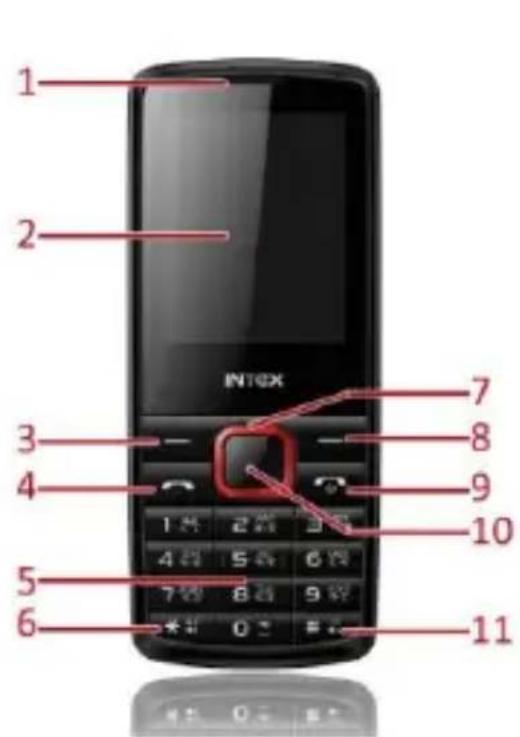
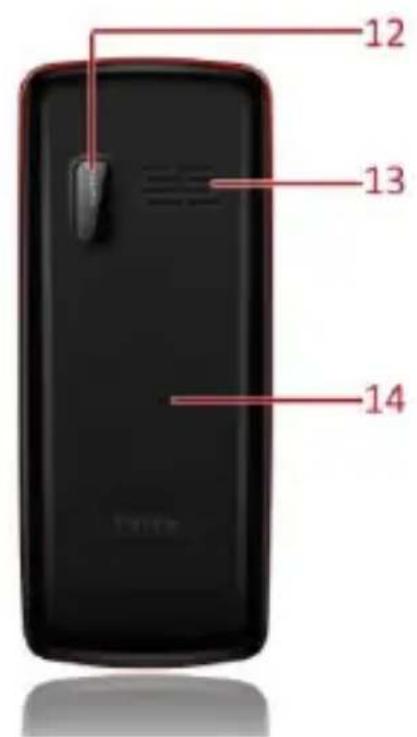
The Symbols above indicate:
- Receiver
-
Left Soft Key
-
Display Screen
-
Dial Key
-
Number Keys
-
* Key
-
Navigation Keys
-
Right Soft Key
-
End Key/Power Key
-
OK Key
-
Key
-
Camera
-
Speaker
-
Battery Cover
2·2 Keypad Definition
| Key | Definitions |
| Left Soft key / Right Soft key | 1. Execute functions that the left-down/right-down corner indicator shows.2. In the standby mode, press left soft to access Menu, press right soft key to access Names. |
| Navigation Keys | 1. In other modes, it is used as thenavigation/direction key except for some special functions.2. In the standby mode, use navigation keys to enter shortcuts function. |
| OK Key | 1. In the standby mode, press this key to enter Shortcuts menu.2. In dial panel, after input numbers, pre the key to select SIM1/2 voice call.3. In other mode, press the key for confirmation. |
| End Key/ Power Key | 1. Mainly used as power on/off.2. Press to return to standby screen in d interface.3. End calls or reject incoming calls.4. In standby mode, press the key to lockeypad and off screen. |
| Dial Key | 1. Press this key to dial or receive an incoming call.2. When in the standby mode, press to check call history. |
| Number Keys | 1. Use these keys to input numbers or letters.2. In standby mode, long press the O key to turn on/off torch. |
| * Key | 1. After inputting phone number, quick press * key thrice, then the symbol “p” appears and input the extension number. You can make an extension call.2. In standby mode, press left soft key o* key to lock or unlock keypad. |
| # Key | 1. In text editing interface, press # key switch the text input method.2. Press and hold # key to transfer the profile of current mode and Silent mode. |
2·3 Battery Installation
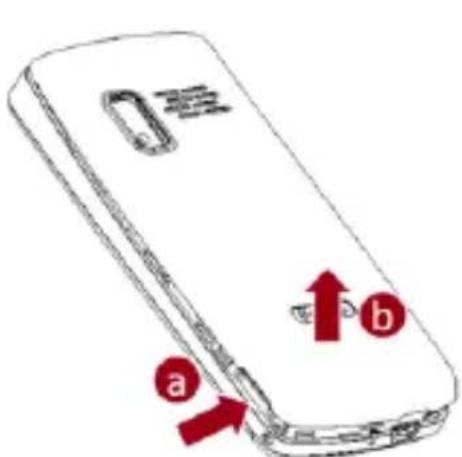
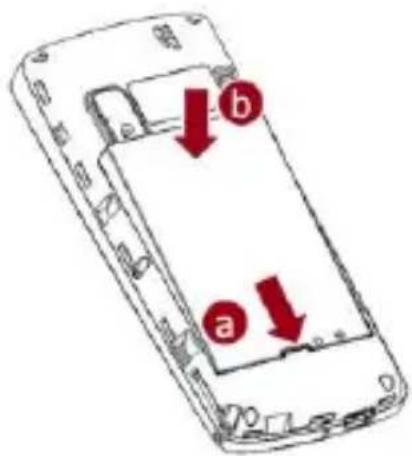
Caution: Install according to the illustration above to avoid breaking
the battery connectors.
2.4 SIM Card/T-Flash Card Installation
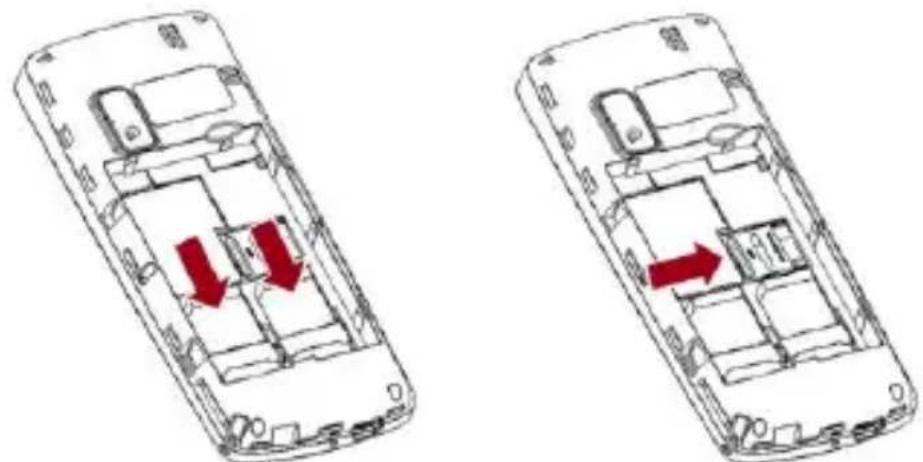
Caution: Do not bend or scratch your SIM card and T-Flash card. Avoid exposing your SIM card and T-Flash card to static electricity, water, or dirt.
Tips: Face the gold color contact point of SIM card towards the cell phone and push the SIM card into the slot. With the metal
contacts facing down, gently slide the T-Flash card into the slot. Press and pull the cover up to lock it.
2·5 Charging the Battery
Insert the charger into USB interface of the phone; the flash symbol on the charger plug must face upwards.
Connect the charger to a standard wall outlet and the battery power icon in the up-right corner of the screen will start scrolling.
When the battery bar stops scrolling, the battery charge is complete. Press the two sides of the charger plug and disconnect the charger from the phone.
- When the battery is low, a "low battery" message will display across the screen and the battery icon will seem empty. If the battery level is insufficient, the phone will turn off automatically. Do not use your phone under low battery state for an extended
period of time or it may cause battery damage.
2·6 Security Settings
- PIN Lock
When enter the SIM Lock, you need to input PIN·PIN code (Personal Identity Number) prevents unauthorized use of your phone·The PIN code is provided by your network operator with the SIM card·
If you enter the wrong code three times in a row, the PIN code will be blocked. To unblock the PIN code, you need to enter your PUK. Your PUK is provided by your network operator.
- Phone Lock
Turn on/off power on password (the length of the password is 4-8 digital numbers). If you activate the “Phone lock”, you need to enter the password each time you turn on the phone. Enter Change password to change the password.
2.7 T-flash Card
Insert the T-Flash card into phone. This will expand the Flash memory of the phone.
2.8 USB Cable
You can transfer and store files, such as MP3, MP4 and pictures from PC, through USB cable, to the mass storage in phone or identified SD card that is inserted.
3. Basic Functions
3·1 Making a Call
In standby mode, press numerical keys to input phone number to dial. If you're making a long distance call, add the area code preceding the telephone number. After inputting phone number, quickly press
* key thrice until the symbol “p” appears, then input the extra number. Press Dial key or OK key and select SIM1/2 voice call to call the number. Press left soft key to do options. During a call press up/down navigation keys to adjust volume.
3·2 Emergency Service
You can dial an emergency call without the SIM card. Contact your service provider to get the emergency call number.
3·3 Answering a Call
When you receive a call, the phone will ring or vibrate and will display an incoming call indicator. Press the dial key to answer. You can also press OK key or left soft key and select Answer to answer. During the calling, you can press left soft key to access Options: Hold, End single call, New call, Phonebook, Call history, Messaging,
Sound recorder, Mute, and DTMF.
3·4 Rejecting a Call
You can press End key to reject or end a call.
4. Guide to Menu Operations
4.1 Phonebook
In the phonebook, you can store contacts' personal information and numbers while also search for previously stored contacts.
- Select Add new contact:
You can save new contact To SIM1/2 or To Phone.
— Select one contact and press left soft key to access options:
• View: Check the detailed information of the contact
- Send text message: Edit text message and select SIM1/2 to send message
- Call: Select SIM1/2 voice call to call the number
• Edit: Edit the contact - Delete: Confirm whether to delete the contact
- Copy: Copy the contact To Phone, To SIM1, To SIM2, or To file
- Send business card: Send business card as text message or via Bluetooth
- Add to Blocklist: Add the contact to Blocklist
- Mark several: Mark one or more contacts to delete
- Phonebook settings: Set Preferred storage, Speed dial, Memory status
4·2 Messaging
4·2·1 Write Message
This function can begin a new message. After completing the message:
- Press OK key:
- Enter number: Input number
- Add from Phonebook: Select contact from phonebook
- Press left soft key:
- Send to: Enter number or Add from Phonebook to send message
- Input method: Select input method
• Advanced: Insert number - Save to Drafts: Save the message to drafts
4·2·2 Inbox
After entering the Inbox, press up/down navigation key to select messages. Press OK key to check the details of message, or press left soft key to access Options:
- View: Check the message
- Reply: Reply message to the sender
— Call sender: Select SIM1/2 voice call to call the sender
- Forward: Send the message to others
— Delete: Confirm whether to delete the message
— Delete all: Confirm whether to delete all messages
— Save to Phonebook: Save the number to the phonebook
— Filter by: Select SIM1, SIM2, or All messages
— Mark several: Select one or more messages to mark
4·2·3 Drafts
You can save unsent and edit incomplete messages in draft box. Press left soft key to access to Options:
- View: Check the message
— Send: Enter number or Add from Phonebook and select SIM1/2 to send the message
- Edit: Edit the message
- Delete: Confirm whether to delete the message
— Delete all: Confirm whether to delete all messages
— Mark several: Select one or more messages to mark
4.2.4 Outbox
Checks the information of unsuccessfully sent message in outbox. Press left soft key to access to Options:
— View: Check the message
— Resend: Send the message once more
- Edit: Edit the message
— Delete: Confirm whether to delete the message
— Delete all: Confirm whether to delete all messages
— Mark several: Select one or more messages to mark
4·2·5 Sent Messages
Check the message in sent box. Select one message to open, or press left soft key to access Options:
- View: Check the message
- Forward: Send the message to others
- Delete: Confirm whether to delete the message
— Delete all: Confirm whether to delete all messages
— Mark several: Select one or more messages to mark
4·2·6 SMS Settings
— SIM1/SIM2: Set SMSC address, Validity period, Message type, Delivery report, Reply path, and Voicemail server
— Memory status: Check the message memory of SIM cards and phon
- Save Sent Message
- Preferred storage: Select SIM or Phone as preferred storage
- SMS Backup: Backup all messages
— SMS Blocklist: Check the Mode and edit Blocklist numbers
4.3 Call Log
4·3·1 Call History
In the menu, you can check dialled calls, received calls, missed calls, etc.
- Missed calls: Display the latest missed calls list.
— Dialled calls: Display the latest dialled calls list.
- Received calls: Display the latest received calls list.
- Delete call logs: Delete all call records.
— Call timers: Input phone password and check all call time records
- Text msg·counter: To count all messages sent and received.
4·3·2 Call Settings
— SIM1/2 Call Settings
- Call Waiting
Set the mode of call waiting, this function need to be activated.
- Call Divert
When the call divert is activated, incoming calls will be diverted to voice mail or other phone numbers according to the call divert settings.
- Call Barring
When the call barring is activated, some of the calls will be barred according to the call barring setting condition. Contact your service provider to sign up for call barring.
- Line Switching
Switching between Line 1 and Line 2.
- Advanced Settings
- Blocklist
Select whether to Reject number in blocklist and edit Blocklist
numbers·
• Auto Redial
Set: On/ Off
- Call Time Reminder
Set: Off/ Single/ Periodic.
- End with SMS
If you turn on the function, when there is an incoming call, you can send a SMS to the number and reject the call.
- Answer Mode
Set: Any key or Auto answer when headset mode
4.4 Settings
4.4.1 Dual SIM Settings
Select: Dual SIM open, Only SIM 1 open, or Only SIM 2 open
4.4.2 Phone Settings
— Time and Date
You can select Set home city, Set time/date, Set format, and Update with time zone.
- Schedule power on/off
Set time to power on/off the phone automatically
- Language
You can choose several languages under this function.
— Pref·Input Method
Select one input method as preferred input method.
- Display
• Wallpaper
You can set wallpaper under this function.
• Power on Display
Select System or User defined animation as power on display.
• Power off Display
Select System or User defined animation as power off display.
• Show Date and Time
Select On or Off.
— Dedicated Key
Set shortcut functions for navigation keys.
- Auto Update Time
Select On or Off
- Flight Mode
Select Normal mode or Flight mode
- Misc. Settings
Select LCD backlight to set
4.4.3 Network Settings
- SIM1/SIM2
• Network Selection
This function can let you select the network manually or automatically.
4.4.4 Security Settings
- SIM 1/SIM 2 Security
• PIN Lock
PIN number setting can avoid unauthorized usage of SIM card. If PIN number has been wrongly inputted for 3 times, the SIM card will be locked. PUK number is needed to unlock the SIM card. Please contact the network provider if you don't know the PUK number.
- Change PIN
Input old SIM1/2 PIN, and then input new PIN, input the PIN code again to confirm. Before change PIN, you need to turn on PIN lock.
- Change PIN2
Input old SIM1/2 PIN2, and then input new PIN2, input the PIN2 code again to confirm.
- Phone Security
• Phone Lock
Input phone password to turn on/off phone lock. The default password is 1234.
- Change Password
Input old password, and then input new password, input the new password again to confirm.
- Auto Keypad Lock
You can set the time to lock the keypad automatically.
- Red Key Locks Keypad
When the function is turned on, you can press red key (end key) in standby mode once to lock keypad and display screen.
4.4.5 Restore Factory Settings
Input default password 1234 to restore factory settings.
4·5 Multimedia
4.5.1 Camera
Press left soft key or OK key to enter. The photo can be previewed in the screen; press OK key to shoot and right soft key to back, left soft key to access Options.
4·5·2 Image Viewer
Enter image viewer, you can choose photos to view or return. Press left soft key to access to Options: View, Image information, Browse style, Send, Use as, Rename, and Delete.
4·5·3 Video Recorder
Press left soft key or OK key to enter. Press OK key to shoot and right soft key to back, left soft key to access Options.
4.5.4 Video Player
Preview the videos. Press * key and # key to adjust volume. Press navigation keys and OK key to operate the video player. Press left soft key to access Options.
4·5·5 Audio Player
This function menu is used to store and play the audio files. Press the left soft key or OK key to enter and then use the Navigation keys and OK key to operate the audio player. Press * key and # key to adjust volume. Press left soft key you can access List.
4·5·6 Sound Recorder
You can take a recorder in this function. When enter the recorder, press left soft key to access Options: New record, List, and Settings.
Press left soft key and select New record to record, press left soft key to pause, press right soft key to stop.
After saved, press left soft key to access Options.
4·5·7 FM Radio
Enter FM radio (insert earphone), it will search channel list automatically. Press OK key to turn on/off the radio, press left/right navigation keys to search channels manually, press up navigation key to auto search, press down navigation key to record the current program, press * key and # key to adjust volume. Press left soft key to access Options.
4·6 File Manager
Enter this menu; you can check the files store on Memory card. Select one file to open and press left soft key, you can do options.
4.7 Organizer
4.7.1 Calendar
You can use this feature to view the year, date and term easily. Use navigation keys to navigate other date. Press left soft key, you can enter submenu to do options.
4.7.2 Alarm
The alarm clock feature sounds an alert or makes a vibration alert at a time you specify.
4.7.3 Calculator
This feature can use your phone as a calculator for simple calculations. Press keypad to enter the numbers. Use following navigation keys to calculate:
Navigation keys: +,-,x,÷
OK key: Show the calculation result.
* Key: Double O
# Key: Decimal point
4.7.4 Stopwatch
You can use this function to count down time. Select Typical stopwatch or Nway stopwatch to use.
4.7.5 Ebook Reader
Read e-books stored on the memory card. Select one txt file and press left soft key to access options.
4·7·6 Torch
The phone can be used as torch. In the menu, press left soft key or OK key to turn on/off torch.
4.7.7 World Clock
By pressing left/right navigation keys to change time zone on world map, you can check time and date of different cities and regions. Press left soft key to access options.
4.7.8 Bluetooth
This mobile phone support Bluetooth wireless connection. You can establish wireless connection between mobile phone and device to realize voice communication, data exchange and synchronization. Press left soft key and OK key to enter: Power, Visibility, My device,
Search audio device, My name, and Advanced.
4.8 Intex Zone
4.8.1 Games
Your phone supplies built-in game, you can play it whenever you want. Select Game settings to set.
4.8.2 Auto Call Record
You can set: On or Off. After you activate this function, once your call connected, the phone will record the call automatically.
4.8.3 Mobile Tracker
Enter password to activate mobile tracker function. When useractivated this function and lost the mobile, if someone pick-up themobile and insert new SIM card, the Mobile Tracker will send SMS
to predetermined numbers to show detail of the lost mobile. This message can be edited by end user.
4.8.4 STK
If your SIM card supports STK function, the phone can display different first level menu according to different STK card. This function needs the network provider support. If user finds STK function can't operate normally, please contact the network provider. If the network provider does not support this function, we do not claim any responsibility whatsoever.
4.9 User Profiles
This phone provides several profiles, select one profile and press OK key to activate, or left soft key to customize (except Silent).
5. Entry Mode
You can use several methods for entering text and numbers. By selecting a Text Entry Mode, the phone provides a few Text Entry Mode for new adding, editing contact records, finding contacts, editing SMS and writing memos.
Select Text Entry Mode:
5.1 Letter entry mode
Press a key once to insert the first letter on the key, twice for the second letter, etc. If you pause briefly, the last letter in the display is accepted and the text awaits the next entry.
For example, press the "2" key continuously, it will appear "a"、"b"、"c"、"2" one by one.
5·2 Number entry mode
Number Entry Mode can input the number in the text, such as telephone number. Tap the proper number and input it.
6. Care and Maintenance
Battery care
- Your device is powered by a rechargeable battery. When the power is weak, please charge the battery. In order to extend the lifespan of the battery, use all the battery's power before recharging.
- Unplug the charger from the electrical plug and the device when not in use. Do not leave the battery connected to a charger more than a week. Overcharging may shorten its lifespan.
-
Extreme temperatures can affect the ability of your battery to charge. Battery needs the fit temperature. If the surrounding temperature is over 40^ , the battery cannot be charged.
-
Use the battery only for its intended purpose. Never use any charger or battery that is damaged.
- Do not short-circuit the battery. Accidental short-circuiting can occur when a metallic object such as a coin, clip, or pen causes direct connection of the positive (+) and negative (-) terminals of the battery. (These look like metal strips on the battery.)
Short-circuiting the terminals may damage the battery or the connecting object.
• Leaving the battery in hot or cold places, such as in a closed car in summer or a freezer in winter conditions, will reduce the capacity and lifetime of the battery. Always try to keep the battery between 59^ F and 77^ F ( 15^ C and 25^ C). A hot or cold battery may not function temporarily, even when the battery is fully charged.
- Battery performance is particularly limited in temperatures below freezing. - Do not dispose of batteries in a fire! Dispose of batteries according to local regulations. Please recycle when possible. Cell phones are not considered household waste.
Mobile phone maintenance
- Keep the device dry. Precipitation, humidity, and all types of liquids or moisture can contain minerals that will corrode electronic circuits. If your device does get wet, remove the battery and allow the device to dry completely before replacing it.
- Do not use or store the device in dusty, dirty areas. Its moving parts and electronic components can be damaged.
- Do not store the device in hot areas. High temperatures can shorten the life of electronic devices, damage batteries, and warp or melt certain plastics.
- Do not store the device in cold areas. When the device returns to its normal temperature, moisture can form inside the device and damage electronic circuit boards.
- Do not attempt to open the device other than as instructed in this guide.
- Do not drop, knock, or shake the device. Rough handling can break internal circuit boards and fine mechanics.
- Do not use harsh chemicals, cleaning solvents, or strong detergents to clean the device.
- Do not paint the device Paint can clog the moving parts and prevent proper operation.
- Use only the supplied or an approved replacement antenna. Unauthorized antennas, modifications, or attachments could damage the device and may violate regulations governing radio devices.
All of the above suggestions apply to your device, battery, charger, or any enhancement. If any device is not working properly, take it to the nearest authorized service facility for service.
7. Technical Information
Weight: 90g
Size: 119 x49 x15·5mm
Battery: 1800mAh
Networks: GSM 900/1800 MHz
SAR Value: 0·559 W/Kg-GSM 900MHz
0·637 W/Kg-DCS 1800MHz
Model: Force
Weight: 90 gram (with battery)
Lithium Battery
Model: BR1802H
Nominal voltage: 3·7v
Nominal: 4·2v
Capacity rating: 1800mAh
Continuous standby time: 350-450hrs
Continuous calling time: 6-8hrs
* Depending on the network
Operation Temperature: -20\~+60°C
Networks: GSM
Battery work times refer to the list below (Will not announce if the capacity is changed):
The operation time of the battery depends on conditions such as:
• Transmitting power level
- Signal (distance between the phone and the base station)
• Network parameters defined by the operator
- Phone use (games, SMS)
- Charging procedure used
Exclusions:
Subject to the exclusions contained below:
- Damage due to the improper use.
- User does not follow the manual.
Explanation:
The company has the final right of the explanation for this document. Software upgrades will not be announced.
All the configurations mentioned in this user manual is only for reference; please refer to the actual phone.
Disclaimer
© Intex· All rights reserved·
Features and specifications are subject to change without prior notice. Certain mobile phone features may not be activated by your service provider, and / or their network setting may limit the feature's functionality. Services and some features such as GPRS, email may be dependent on the network, SIM card, as well as on the compatibility of the devices used and content formats supported and may require network/service subscription/solutions. Data transfers speeds are network dependent. Always contact your service provider for details or help. Talk and standby time is quoted in digital mode and are approximate; battery performance and the signal reception depend on network configuration, signal strength, type of SIM card, operating temperature, features selected as well as voice, data and other application usage pattern. The phones supports Bluetooth, A2DP, in order for Bluetooth devices to
communicate with one another, they must utilize the same Bluetooth Profile. To determine the profiles supported by other Intex products, visit www.intextechnologies.com, for other devices, contact their respective manufacturers. Always demand for original Intex mobile phones to protect against buying tinkered and/or used, refurbished or tampered phones. The warranty is applicable only for Intex phones; the company is not responsible for any loss or theft. Always use Intex original Enhancements (including batteries) for safety. The use of any other type may invalidate and approval or warranty applying to the mobile phone and may be dangerous. The phone is designed to operate using Li-ion batteries approved by the phone manufactures. Using non approved batteries with the phone may result in poor performance and damage to the phone or its enhancements. The display and products visualization here are illustrative purposes only; Display / color of the phone may differ
from that shown on the manual. All features, functionality and other product specifications are based on the latest available information and are correct at the time of printing; however such product specifications are subject to change without notice. Copyrights are reserved. Intex is the trademark of INTEX TECHNOLOGIES (INDIA) LTD. which is registered. The unauthorized copying of copyrighted material is not legalized is inimical to the provisions of the copyright laws of India and other countries.
INFORMATION UNDER E-WASTE (MANAGEMENT AND HANDLING) RULES, 2011
For disposal of e-waste, please call our helpline no· or visit our website·
E-waste Helpline no· 1800-103-8822
Weblink:
www.intextechnologies.com/window_self/Waste%20Disposal.html
- Do's for disposal of product
a) Always drop your used electronic products, batteries, and packaging materials after the end of their life in nearest collection point or collection center
b) Separate the packaging material according to responsible waste disposal options and sorting for recycling.
c) The battery can easily be removed from the product for recycling.
2. Don't of disposal of equipment
a) Never dump E-waste in garbage bins or municipal solid waste stream.
b) Do not dispose of your product as unsorted municipal waste.
c) Do not throw used batteries into household waste.
d) Do not dispose damaged or leaking Lithium Ion (Li-Ion) battery with normal household waste.

- Information on the consequences of improper handling, accidental breakage damage and improper recycling of the end of life product.
a) If batteries are not properly disposed of, it can cause harm to human health or the environment.
b) Placing of batteries or devices on or in heating devices, such as microwave ovens, stoves, or radiators and improper disposal of batteries may lead to explosion.
c) If the battery terminals are in contact with metal objects, it may cause a fire.