AQUA SX - Smartphone INTEX - Free user manual and instructions
Find the device manual for free AQUA SX INTEX in PDF.


| Product Type | Smartphone |
| Brand | Intex |
| Model | AQUA SX |
| Operating System | Android 5.1 (Lollipop) |
| Display Size | 5.0 inches |
| Display Resolution | 854 x 480 pixels |
| Processor | 1.3 GHz Quad-Core |
| RAM | 1 GB |
| Internal Storage | 8 GB |
| Expandable Storage | Up to 32 GB via microSD |
| Rear Camera | 5 MP with LED flash |
| Front Camera | 2 MP |
| Battery Capacity | 2000 mAh Li-ion |
| Dimensions (H x W x D) | 143 x 72 x 8.5 mm |
| Weight | 150 g |
| SIM Type | Dual SIM (Micro + Nano) |
| Connectivity | Wi-Fi 802.11 b/g/n, Bluetooth 4.0, GPS |
| Audio Jack | 3.5 mm |
| Sensors | Accelerometer, Proximity, Light |
| Battery Type | Removable Li-ion |
| Charging Port | Micro USB 2.0 |
| Maintenance | Clean with a soft, dry cloth. Avoid liquids. |
| Safety | Use only Intex-approved charger. Keep away from water. |
| Spare Parts | Battery and charger available; screen repair at service center. |
| General Info | Released 2016. User manual available for download. |
Frequently Asked Questions - AQUA SX INTEX
User questions about AQUA SX INTEX
0 question about this device. Answer the ones you know or ask your own.
Ask a new question about this device
Download the instructions for your Smartphone in PDF format for free! Find your manual AQUA SX - INTEX and take your electronic device back in hand. On this page are published all the documents necessary for the use of your device. AQUA SX by INTEX.
USER MANUAL AQUA SX INTEX
Dear INTEX customer,
Congratulations on becoming a proud owner of INTEX product. You have now joined the fraternity of millions of satisfied INTEX customers spread across the globe.
Intex Technologies is one of the fastest growing IT Hardware, Mobile Phones and Electronics Company. A well established brand, INTEX has kept pace with the technology needs of millions of IT hardware & electronics consumers and has been serving them with more than
300 user friendly, high quality, state-of-the-art yet simple products/solutions. The products have been in the market since 1996 and conform to global standards.
Brand INTEX covers a wide range of computer peripherals and accessories such as Computer Multimedia speakers, Cabinets, Keyboards, Mouse, UPS, Add-on cards, Webcams, Headphones, Laptop bags, etc. As a part of its diversification strategy, Intex also offers an interesting range of PCs, TFT-LCD Monitors, Consumer Electronics (DVD Players), Home UPS & Mobile Phones. Every INTEX product goes through a rigorous process of sample
evaluation and approval before commercial launch. Customers look upon the brand as a value-for-money & feature-rich offering, supported by efficient after sales service.
We look forward to your patronage.
It would be our pleasure to receive feedback and suggestions you may have for improvements in the product(s) you are using.
Intex Technologies (1) Ltd
info@intextechnologies.com
www.intextechnologies.com
Helpline No· 1800-103- 8822 (India)
Intex Way Gulf LLC
service@intexuae.com
www.intexuae.com
Toll Free No· 800-468- 39823 (Dubai)
Tel: 00971 04 3931991
SAFETY TIPS
- Use of wireless hands-free system (headphone, headset) with a low power Bluetooth emitter.
■ Make sure the cell phone has a low SAR.
- Keep your calls short or send a text message (SMS) (instead. This advice applies especially to children, adolescents and pregnant women.
- Use cell phone when the signal quality is good.
■ People having active medical implants should preferably keep the cell phone at least 15 cm away from the implant.
Contents
KEY DESCRIPTION....9
PHONE....11
CONTACTS....13
BROWSER....20
CAMERA 23
MUSIC 26
GALLERY 29
GOOGLE APPS....32
SETTINGS....44
OTHER APPLICATIONS....60
TECHNICAL INFORMATION....69
MODEL: AQUA SX....70
Key Description
| Key | Function |
| Power | Switch button; screen is locked in the other interface.Press and hold to open the phone options men and then you can choose to mute mode, offlin mode, shut down. |
| Home | In any application or interface, press this key t return to the Home interface.Press and hold to open the recently executed application window. |
| Menu | • Press this key to open a list of actions you perform actions in the interface or optic menu |
| Return | • Press this key to return to the previous interface, or to close the dialog box, options menu, the Notifications panel, or on-scre keyboard. |
| Search | • Press this key to enter to search interface |
| Volume down | • Press to increase the volume. |
| Volume up | • Press to decrease the volume. |
- Muted Press to cell phone vibration state.
Phone
Calling using the Dialer
Tap Phone at the bottom of the Home Screen to enter the dialer screen. In Dialer, when you input some number, you have two ways to select make a call.
- Directly press on the keyboard, and then chose which SIM card you want to use.
- You can choose 📁 to have a call by click the contacts.
Paste a number to the keypad
Tap the screen above the keyboard, and then tap Paste.
Answering an incoming call
Slide 📋 or Press ANSWER to answer incoming call
Rejecting an incoming call
Slide End Key or Press REJECT to reject incoming call.
Using Call Log
When you miss a call, the missed call icon appears in the title bar. Use the Call log tab of the Contacts screen to check who the caller was or view all your dialed numbers and received calls.
Using the Call log tab
You have two ways into the call log tab:
- At the Home Screen, tap into the Main Menu Screen, and then
tap Call log·
- In the Contacts Screen, tap at the bottom of the screen
- Tap behind the number to see details of this number.
Adding a new phone number to Contacts
If the phone number of a person who called is not in your contacts list, you can choose to save the number after you hang up.
Turning the phone function on and off
You can enable or disable, Airplane mode:
Contacts
About Contacts
In Contacts, you can easily manage your communications with contacts via phone, messaging, and email.
Add a new contact
- On the contacts list screen, press Menu, then tap new contact.
- Enter the contact information in the fields provided.
- Scroll to the bottom of the screen and tap Save.
To search for a contact
There have a search bar on the top of contacts list screen, enter the first few letters of the first or last name of the contact you are searching, matching contacts are displayed. You can also press
menu, and then tap Search to open the search bar.
Delete contact
On the contacts list screen, long press the contact you want to delete and then tap Delete contact. If you want delete multiple contacts, press Menu, and then tap Delete contact. On the Delete screen, you can operate Multiple choice, or Mark all.
Display options
The function help you to display customize options, including default and Gmail account display option.
Import/Export
Start the phone will automatically import SIM1 and SIM2 card
contacts; you can cancel it in "Display options".
Edit contact
On the contacts list screen, press and hold the contact, and then tap Edit contact. You can also tap the contact into contact detail and then press Menu, tap Edit contact to open edit contact screen.
Set default number
If the contacts contain more than one number item, you can set any to default number. On the contacts details screen, press and hold the number not default, and then tap Make default number.
Set ringtone
You can set different ringtone to different contact. In the contact detail screen, press menu and tap Options, you can change ringtone according to your will.
Groups
You can create different groups, add saved in the phone contacts to the group, and set personalized items.
Messaging
Create and send a text message
-
On the All Messages screen, top the compose screen opens.
-
Enter the phone number (the message recipient) in the field. As
you enter the phone number, matching contacts will appear on the screen. Tap a recipient or continue entering the recipient's phone number.
-
Tap the text box that contains the text "Type to compose", and then start composing your message.
-
When done, tap Send to send the text message.
Create and send a multimedia (MMS) message
- On the All threads screen, tap 📋 to open the Compose screen.
- Enter the mobile phone number or email address of your message recipients in the field. As you enter the phone number or email address, matching contacts will appear on the screen. Tap a recipient
or continue entering the recipient's phone number or email address.
- Tap the text box that contains the text "Type to compose", and then start composing your message.
- Press Menu and then tap Attach.
- On the Attach window, you can select Picture, Video, Audio and Slideshow from the following file attachments:
- When you are finished composing the multimedia message, tap Send.
Open and read a text message
Press home, then press and hold the status bar, slide it down to open the Notifications panel. Tap the new message to open and read
it. On the All threads screen, tap the text message or message thread to open and read it. To return to the all threads screen from a text message thread, press menu and then tap more -> all threads.
Open and view a multimedia message
-
On the All threads screen, tap a multimedia message or message thread to open it.
-
Tap the Play button at the top of a multimedia message to view it.
Browser
Browser
1) Enter the URL address bar on the browser screen, and then click. 2) To use the keyboard to enter a web address. While you enter the address, matching web page addresses will appear on the screen. You can click on the URL to go directly to that page or continue to enter the URL.
Home Page
Select "Home", and you set the home address can be found. If you do not have to be set, will use the site preset by the manufacturer.
Managing browser
1) Select the browser -> enter
2) Tap Menu -> Bookmarks: Save this page as a bookmark. In this way, you can save and quickly access frequently visited web pages.
3) Open the browser -> browses pages.
4) Menu button -> Bookmarks -> Bookmarks Click on the 'history' switch to the "history" interface, click on the 'most visited' interface will appear the most visited website.
5) Click on the interface of history "today", you can see just the URL is recorded in which.
6) Long press any records to the pop-up menu of the title to the recorded URL.
7) Click on the "Add Bookmark" pop-up "Add Bookmark" operation box.
8) Click on any URL will open the page.
Camera
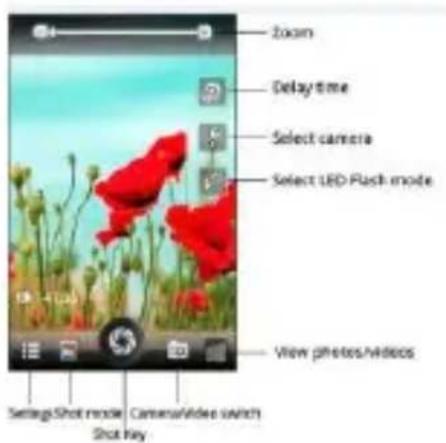
Taking photos
When you open Camera, the preview screen orientation will depend on how you are holding the phone.
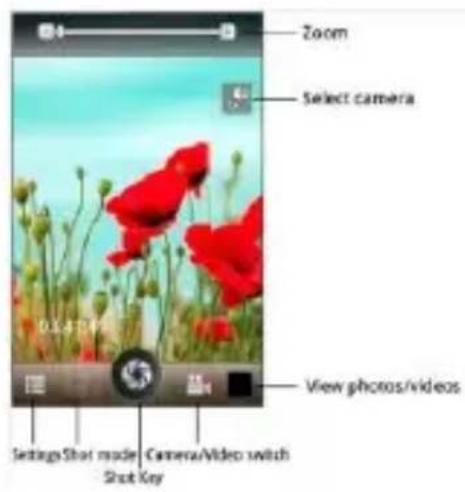
Shooting videos
When you open Camera, the preview screen orientation will depend on how you are holding the phone.
Closing Camera
On the Camera screen, press home or back.
Music
All songs that you capture on your phone are stored on the storage card.
Playing songs
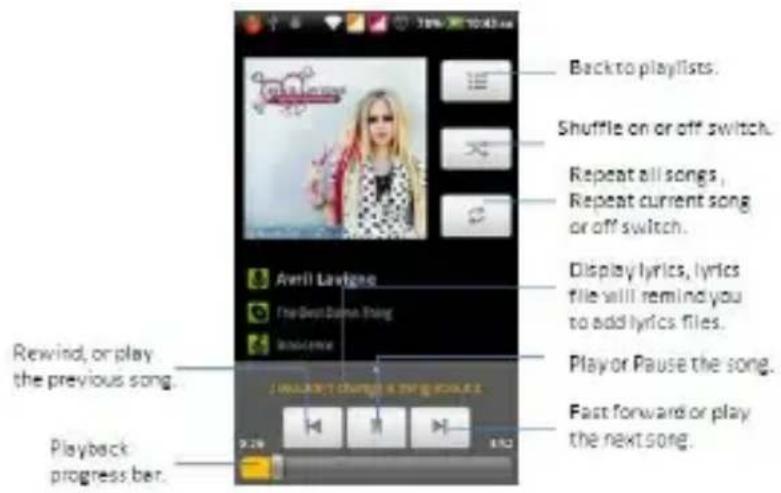
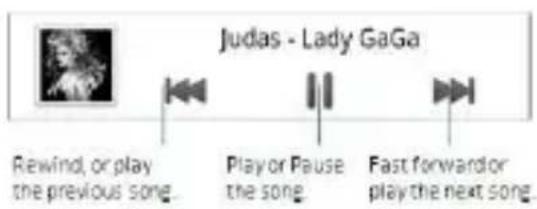
You can display the audio playback controls from another app by press and hold the status bar, then slide your finger downward to open the
Notifications panel.
Long press the menu key until show the function list. Creating playlists: Use playlists to organize your music files. You can create
as many playlists as you want on your phone. Tap
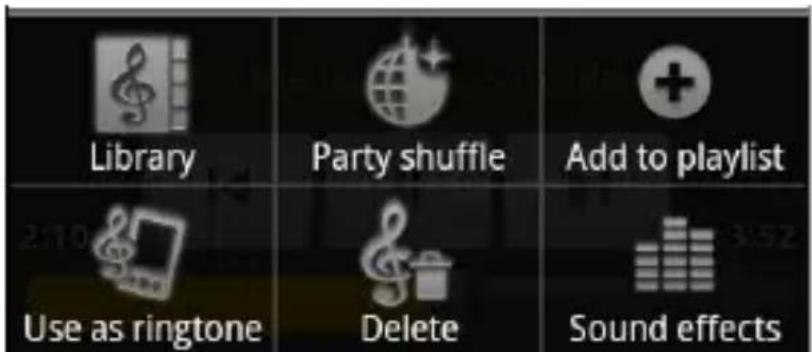
add to playlist and select new, Enter the playlist name and then tap save, select a category to add songs from to the playlist. Setting a song as ringtone: tap set as ringtone.
Library
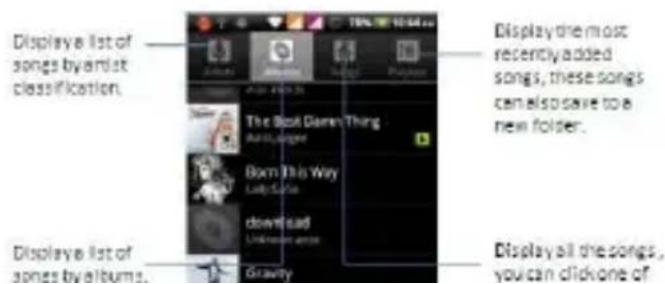
Your music is organized into different categories such as Artists, Albums, Songs and Playlists. Select a category by tapping one of the category tabs at the top of the screen. Tap a song in the category to play it back.
Gallery
Open pictures
Open Applications -> Gallery. You can browse all the pictures and videos stored in the phone.
Use the photo
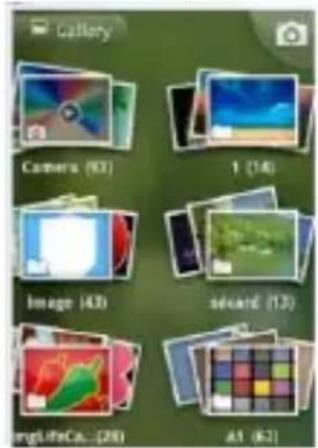
After taking a picture, you can also view a photo or photos to share 30
with friends.
View photos
1) Enter gallery, click on the album to view the pictures in the album 2) Click on the thumbnail to full-screen view images.
Chose the thumbnail of the picture, press the Menu key, you can share, delete, and view the detailed information of the photo ·Press and hold the photo to the left and drag to view the next photo, or to drag view a photo to the right.
View Videos
1) Enter gallery, click on the album to view the videos in the album.
2) Click on the thumbnail to view videos.
Chose the thumbnail of the picture, press the Menu key, you can share, delete, and view the detailed information of the video.
Google apps
Signing In to Your Google Account
Signing in to your Google Account lets you synchronize Gmail/Google Mail, Calendar, and Contacts between your phone and the web. You also need to sign into a Google Account to use Google Apps such as
Google Talk™ and Player Store. When you turn on the phone for the first time, you are given the option to sign in to your Google Account 1. In the Setup accounts screen, tap Google account > Yes > Next 2. Tap Sign in. Enter your user name and password, and then tap Sign in. After signing in, all emails, contacts, and calendar events on your Google Account will automatically synchronize with your phone.
Using Gmail/Google Mail
Gmail/Google Mail is Google's web-based email service. Gmail/Google Mail is configured when you first set up your phone. Depending on
your synchronization settings, Gmail/Google Mail on your phone is automatically synchronized with your Gmail/Google Mail account on the web.
To open Gmail/Google Mail
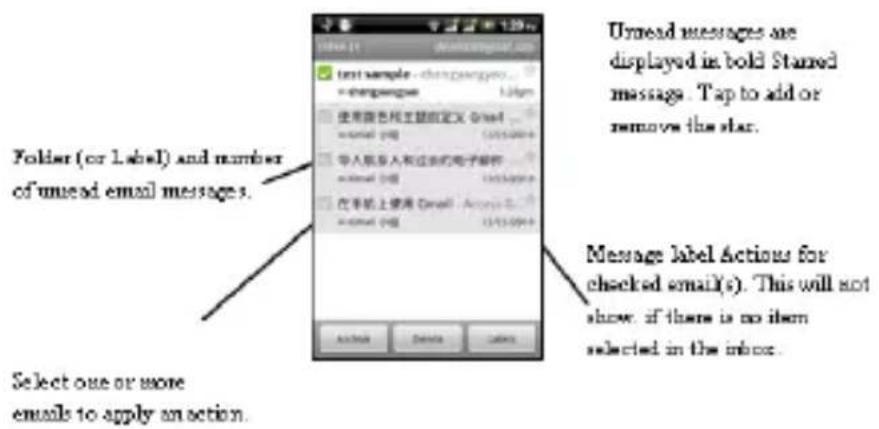
The Inbox conversations list (here in after referred to as Inbox) is your default Gmail/Google Mail view. All your received emails are delivered to your Inbox.
To refresh Gmail/Google Mail
Press menu and then tap refresh to send or receive new emails and to synchronize your emails with your Gmail/Google Mail account on the web.
To create and send an email
-
In the Inbox, press menu and then tap Compose.
-
Enter the message recipient's email address in the To field. If you
are sending the email to several recipients, separate the email addresses with a comma. You can add as many message recipients as you want.
- Enter the email subject, and then compose your email.
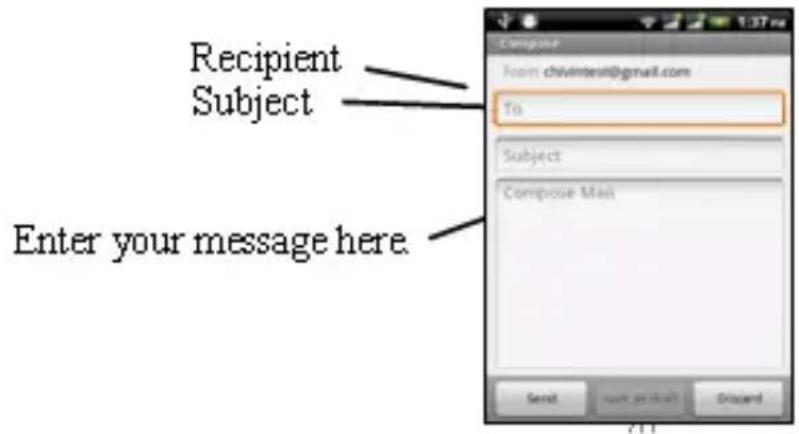
- After composing your email, tap Send.
To add a signature to emails
You can add a signature to email messages that you send.
-
In the Inbox, press menu and then tap Settings > Signature.
-
Enter your signature in the text box, and then tap OK.
5·2·3·3 To view you're sent messages
In the Inbox, press menu and then tap View labels > Sent
Receiving and reading emails
Depending on your notification settings, the phone plays a ring tone,
vibrates, or displays the email message briefly in the status bar when you receive a new email.
Gmail/Google Mail groups each message you send with all the responses you receive. This conversation list continues to grow as new replies arrive, so you can always see your messages in context. Conversations are also referred to as message threads. A new message or a change to the subject of a current message will begin a new thread.
Using Google Maps
Google Maps lets you track your current location, view real-time traffic situations, and receive detailed directions to your destination. It also provides a search tool where you can locate places of interest or an address on a vector or aerial map, or view locations in street level.
To enable Location source
Before you open Google Maps and find your location or search for places of interest, you must enable My location sources.
-
Press home > menu and then tap Settings > Location & Security.
-
Select Use wireless networks.
To find your location on the map
Open the map, automatically locate your location.
Searching for places of interest
-
On the Google Maps screen, press Search.
-
Enter the place you want to search in the search box. You can enter an address, a city, or type of business or establishment (for example, museums in London).
-
Tap search. The search results are displayed on the map.
- Tap the callout to show the Address, Details (if available), and Reviews (if available) for the search item.
Viewing maps
While viewing a map, take advantage of the following zoom and navigation techniques.
To zoom in or out on a map
Tap + to zoom in; tap - to zoom out.
To change map modes
When viewing a map, you can switch to another map mode. Select from Traffic, Satellite, Terrain, and Latitude.
Using Google Latitude (Available by Country)
Google Latitude™ user location service lets you and your friends share locations and status messages with each other. It also lets you send instant messages and emails, make phone calls, and get directions to your friends' locations.
Your location is not shared automatically. You must join Latitude, and then invite your friends to view your location or accept their
invitations·
Opening Latitude
While viewing a map in any mode, press menu and then tap Latitude
Sharing your locations
After you join Latitude, you can start sharing your locations with your friends. Only friends that you have explicitly invited or accepted can see your location.
Using Player Store
Player Store provides direct access to useful applications and fun games which you can download and install on your phone. Player Store also allows you to send feedback and comments about an application, or flag an application that you find objectionable or incompatible with your phone.
Settings
Customization
You can set Theme to Default or Slicer and set Wallpaper from Gallery, Live wallpapers and System Wallpapers.
SIM management
You can choose to use the SIM1 or SIM2, or both of them. If you insert one SIM card, just the one would be choice.
SIM Information
Tap check box to choose enable or disable a SIM card, or tap a SIM card to change its information.
Default SIM
You could choose which the default SIM card is when you have a voice call, video card, sending a message or connection.
General settings
You could change roaming settings or associate contacts with a specific SIM.
Wireless &networks
Your phone's networking capabilities allow you to access the Internet through GPRS or Wi-Fi.
Airplane mode
The place where you cannot use the wireless signal, such as aircraft, you have to turn off or turn on fly Mode. Turn flight mode, the title bar would have the icon and have notifications.
Wi-Fi
Wi-Fi provides wireless Internet access over distances of up to 100 feet (100 meters). To use Wi-Fi on your phone, you need access to a wireless access point or “hotspot”.
Turning Wi-Fi on and connecting to a wireless network
- Tap Settings > Wireless controls.
- Select the Wi-Fi check box to turn Wi-Fi on. The phone will scan for available wireless networks.
- Tap Wi-Fi settings. The network names and security settings (Open network or Secured with WEP) of detected Wi-Fi networks are displayed in the Wi-Fi networks section.
- Tap a Wi-Fi network to connect. If you selected an open network, you will be automatically connected to the network. If you selected a network that is secured with WEP, enter the key and then tap Connect.
Checking the wireless network status
You can check the current wireless connection status from t following:
Status bar
When your phone is connected to a wireless network, the Wi-Fi icon 📁 appears in the status bar and tells you the approximate signal strength (number of bands that light up). If Network notification in Wi-Fi settings is enabled this icon appears in the status bar whenever the phone detects an available wireless network
within range.
Wi-Fi networks
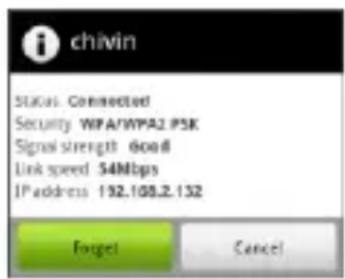
On the Wireless controls screen, tap Wi-Fi settings, and then tap the wireless network that the phone is currently connected to. A message box will be displayed showing the Wi-Fi network name, status, speed, signal strength, and more.
To connect to another Wi-Fi network
On the Wireless controls screen, tap Wi-Fi settings. Detected Wi-Fi networks are displayed in the Wi-Fi networks section.
Tips: To manually scan for available Wi-Fi networks, on the Wi-Fi settings screen, press menu and then tap Scan.
Tap another Wi-Fi network to connect to it.
Bluetooth
Bluetooth on your phone operates in three different modes:
- On- Bluetooth is turned on. Your phone can detect other Bluetooth-enabled devices, but not vice versa.
- Discoverable: Bluetooth is turned on, and all other
Bluetooth-enabled devices can detect your phone.
- Off: Bluetooth is turned off. In this mode, you can neither send nor receive information using Bluetooth.
Turning on Bluetooth and making the phone discoverable
-
Tap Bluetooth Settings.
-
Select the Bluetooth check box to turn Bluetooth. When on, the Bluetooth icon appears in the status bar
-
Tap Bluetooth settings, then tap Discoverable to chose how long the phone discoverable to other Bluetooth devices
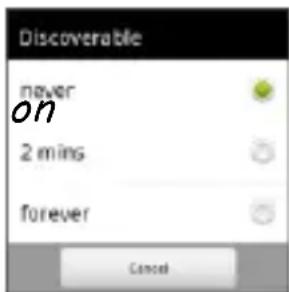
that are within range, never, in 2 minutes or forever.
USB Tethering
You can tether your phone to your computer with a USB cable, to share your phone's internet connection with your computer.
Portable Wi-Fi hotspot
You can turn your phone into a portable Wi-Fi hotspot, to share your phone's internet connection with one or more computers or other devices.
VPN Settings
From your phone, you can add, set up, and manage virtual private networks (VPNs) that allow you to connect and access resources inside a secured local network, such as your corporate network.
Mobile Networks
You can set mobile networks related options such as Data usage, Network Mode, Access Point Names and Network operators in Mobile Networks.
Call settings
You can choose according to their preference call settings.
Voice Call
In this option, you can change voice mail service and number, voice call forwarding settings. Voice call barring settings and phone number and call waiting settings.
Internet Call
You can login an Internet call accounts in this option.
Other settings
Manage Fixed Dialing Numbers, call cost information, and cell broadcast settings and minute reminder.
Audio profiles
There are four modes to choose from, including General, Silent Meeting, Outdoor. You could tap for set specific.
Display
Here you can set screen brightness, auto -rotate screen, animation and screen timeout for yourself.
Location & Security
- When checked use wireless networks, the mobile network /Wi-Fi
to determine the location
- In accordance with the options to lock screen with a pattern, PIN or password.
Applications
Here you can choose to install non-market applications and view the application procedure and has been downloaded
Accounts & sync
You can add corporate and Google account to synchronize.
When you first enter your Gmail, Google Latitude, Google Talk, an
Market, will be prompted to add a Google account, Google account let you back up your phone's information (such as: contacts, etc.) to Google's servers in order to avoid loss of information when replacement of the phone, your information will be restored to the new phone. You can also add a new account in "Settings-> Account & sync -> Add Account". You can add multiple accounts; a cell phone with an account can also be associated to multiple mobile phones.
Privacy
Its main application is loaded back up, if reinstall an application;
restore backed up settings or other data.
Note: When you tap Factory data reset, all data on phone would be erases, so please do not try to restore factory settings.
Storage
SD card and the phone which you can view and use the total capacity and can be inserted on the installation and format the SD card
Date & time
You can change the phone time and date or time zone in this option
About phone
Here you can view the phone status and the use of mobile phone batteries and IMEI number, Bluetooth address, Wi-Fi address
Other Applications
Clock
You can use Clock to check the time anywhere in the world, set an alarm, time an event, or set a timer.
Recorder
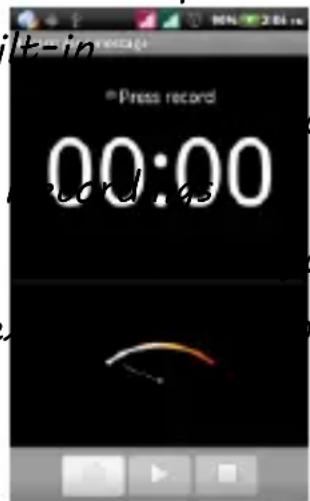
Voice Memos lets you use Phone as a portable recording device using the bui microphone, Phone or Bluetooth supported external microphone. using the built-in microphone are can record stereo using an e. microphone·
Calendar
Calendar makes it easy to stay on schedule. You can view individual calendars or several calendars at once. You can view your events by day, by month, or in a list. You can search the titles, invitees,
locations, and notes of events. If you enter birthdays for your contacts, you can view those birthdays in Calendar.
Day: To display the day of calendar in days.
62
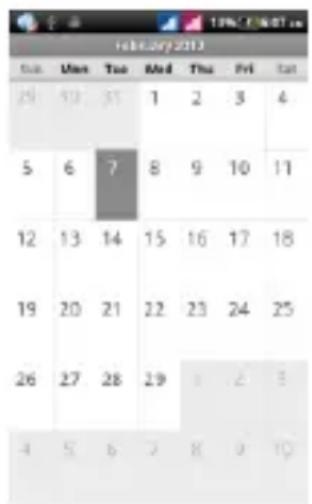
Week: To display the day of calendar in weeks.
Month: To display the day of calendar in months.
Daily: Display the calendar in the certain period of time within the region.
Today: "Day", "Week", "month", under the circumstances of the agenda click today, a variety of display format selection box will jump
to the "today".
More: Create a new event; view the currently selected calendar, setting.
Calculator
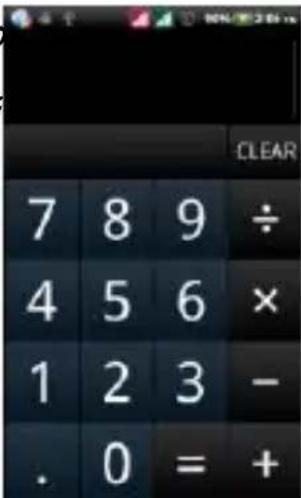
Tap numbers and functions in Calculator just as you would with a standard calculator. When you tap add, subtract, multiply, or divide
button, a code appears around the button tolet you know the operation to be carried out
Mobile Tracker
Enter password to activate mobile tracker function. When user activated this function and lost the mobile, if someone pick-up the mobile and insert new SIM, the Mobile Tracker will send SMS to predetermined num
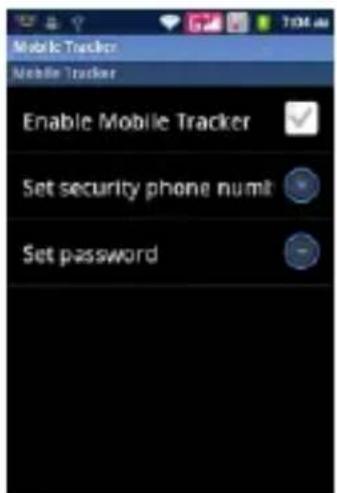
bers to show detail of the lost mobile. This message can be edited by end user.
Flashlight
Mobile phone flashlight operation will automatically adjust screen brightness to the highest, while pure white backlight lamp can meet some emergency needs, users can press the right soft key to exit, while some models software will automatically
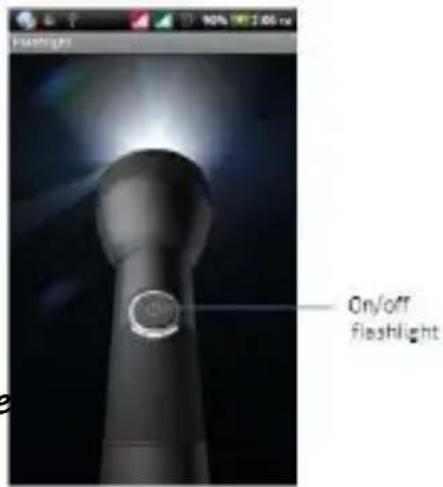
open led flashlight for lighting, software in the exit of automatic recovery system for the original brightness.
Intex Zone
Enter into Intex Zone you can view Intex
Official website such as
www.intextechnologles.com,
www.Intexmobile.in ,
www.Intexsafesurf.com.
Games
You can play games such as Angry Birds, Fruit Ninja, also you can download the games from application market what you like.
Technical Information
Weight: 138 gram (with battery)
Size Length: 116mm ×Width: 60.5 mm ×Depth: 13 mm
Battery: 1450mAh
Networks: GSM 900/1800 MHz
SAR Value: 1·145-900 MHz; 0·963-1800MHz;
Model: AQUA Sx
Weight: 138 gram (with battery)
Lithium Battery
Model: BR 911
Nominal voltage: 3·7v
Nominal: 4·2v
Capacity rating: 1450mAh
Continuous standby time*:360hrs
Continuous calling time: 5hrs
* Depending on the network
Operation Temperature: -10\~+55 °C
The operation time of the battery depends on conditions such as:
• Transmitting power level
• Signal (distance between the phone and the base station)
• Network parameters defined by the operator
• Phone use (WAP, games, SMS)
- Charging procedure used
Exclusions:
Subject to the exclusions contained below:
- Damage due to the improper use.
- User does not follow the manual.
Explanation:
The company has the final right of the explanation for this document
Software upgrades will not be announced.
All pictures are for reference only in the instruction book; please refer to the actual phone.
Disclaimer
© Intex· All rights reserved.
Features and specifications are subject to change without prior notice
Certain mobile phone features may not be activated by your service provider, and / or their network setting may limit the feature's functionality. Services and some features such as GPRS, email may be dependent on the network, SIM card, as well as on the compatibility of the devices used and content formats supported and may require network/service subscription/solutions. Data transfers speeds are network dependent. Always contact your service provider for details or help. Talk and standby time is quoted in digital mode and are approximate; battery performance and the signal reception depend on network configuration, signal strength, type of SIM card,
operating temperature, features selected as well as voice, data and other application usage pattern. The phones supports Bluetooth, A2DP, in order for Bluetooth devices to communicate with one another, they must utilize the same Bluetooth Profile. To determine the profiles supported by other Intex products, visit www.intextechologies.com, for other devices, contact their respective manufacturers. Always demand for original Intex mobile phones to protect against buying tinkered and/or used, refurbished or tampered phones. The warranty is applicable only for Intex phones, the company is not responsible for any loss or theft. Always use Inte
original Enhancements (including batteries) for safety. The use of any other type may invalidate and approval or warranty applying to the mobile phone and may be dangerous. The phone is designed to operate using Li-ion batteries approved by the phone manufactures. Using non-approved batteries with the phone may result in poor performance and damage to the phone or its enhancements. The display and products visualization here are illustrative purposes only; Display / color of the phone may differ from that shown on the manual. All features, functionality and other product specifications are based on the latest available information and are correct at the time of
printing; however such product specifications are subject to change without notice. Copyrights are reserved. Intex is the trademark of INTEX TECHNOLOGIES (INDIA) LTD. which is registered. The unauthorized copying of copyrighted material is not legalized inlinimical to the provisions of the copyright laws of India and other countries.
INFORMATION UNDER E-WASTE (MANAGEMENT AND HANDLING) RULES, 2011
For disposal of e-waste, please call our helpline no· or visit our website.
E-waste Helpline no· 1800-103-8822
Web link:
http://intextechnologies.com/window_self/Waste%20Disposal.html
- Do's for disposal of product
a) Always drop your used electronic products, batteries, and packaging materials after the end of their life in nearest collection point or collection center
b) Separate the packaging material according to responsible waste disposal options and sorting for recycling.
c) The battery can easily be removed from the product for recycling.
- Don't of disposal of equipment
a) Never dump E-waste in garbage bins or municipal solid waste stream.
b) Do not dispose of your product as unsorted municipal waste.
c) Do not throw used batteries into household waste.
d) Do not dispose damaged or leaking Lithium Ion (Li-Ion) battery with normal household waste.

natural_image
Pure electrical circuit lines without any symbols- Information on the consequences of improper handling, accidental breakage damage and improper recycling of the end of life product.
a) If batteries are not properly disposed of, it can cause harm to human health or the environment.
b) Placing of batteries or devices on or in heating devices, such as microwave ovens, stoves, or radiators and improper disposal of
batteries may lead to explosion.
c) If the battery terminals are in contact with metal objects, it may cause a fire.