IN GC5050 - Smartphone INTEX - Free user manual and instructions
Find the device manual for free IN GC5050 INTEX in PDF.


User questions about IN GC5050 INTEX
0 question about this device. Answer the ones you know or ask your own.
Ask a new question about this device
Download the instructions for your Smartphone in PDF format for free! Find your manual IN GC5050 - INTEX and take your electronic device back in hand. On this page are published all the documents necessary for the use of your device. IN GC5050 by INTEX.
USER MANUAL IN GC5050 INTEX
Dear INTEX customer,
Congratulations on becoming a proud owner of INTEX product. You have now joined the fraternity of millions of satisfied INTEX customers spread across the globe.
Intex Technologies is one of the fastest growing IT Hardware, Mobile Phones and Electronics Company. A well established brand, INTEX has kept pace with the technology needs of millions of IT hardware & electronics consumers and has been serving them with more than 300 user friendly, high quality, state-of-the-art yet simple products/solutions. The products have been in the market since 1996 and conform to global standards.
Brand INTEX covers a wide range of computer peripherals and accessories such as Computer Multimedia speakers, Cabinets, Keyboards, Mouse, UPS, Add-on cards, Webcams, Headphones, Laptop bags, etc. As a part of its diversification strategy, Intex also offers an interesting range of PCs, TFT-LCD Monitors, Consumer Electronics (DVD Players), Home UPS & Mobile Phones.
Every INTEX product goes through a rigorous process of sample evaluation and approval before commercial launch. Customers look upon the brand as a value-for-money & feature-rich offering, supported by efficient after sales service.
We look forward to your patronage.
It would be our pleasure to receive feedback and suggestions you may have for improvements in the product(s) you are using.
Intex Technologies (I) Ltd
info@intextechnologies.com
www.intextechnologies.com
Helpline No. 1800-103-8822 (India)
Intex Way Gulf LLC
service@intexuae.com
www.intexuae.com
Toll Free No. 800-468-39823 (Dubai)
Tel: 00971 04 3931991
SAFETY TIPS
■ Use of wireless hands-free system (headphone, headset) with a low power Bluetooth emitter.
■ Make sure the cell phone has a low SAR. The highest SAR value for this mobile phone is < 1.6 W/Kg, in accordance with the requirements of the ICNIRP, which recommended the limit for exposure to radio waves is 1.6 watts/kilogram (W/kg) averaged over 1 gram of tissue. For more information, please visit (website) to query
- Keep your calls short or send a text message (SMS) (instead. This advice applies especially to children, adolescents and pregnant women.
■ Use cell phone when the signal quality is good.
■ People having active medical implants should preferably keep the cell phone at least 15 cm away from the implant.
Contents
1 Fundamentals ......7
1.1 Introduction....7
1.2Security....7
1.3Safety....8
2 About your phone....11
2.1 Appearance 11
2.2Key definition....12
3 Getting Started....13
3.1Installing the SIM Cards and UIM Card and the Battery 13
3.2 Installing the T-Flash Card 15
3.3Recharging the Battery....16
3.4Powering On/Off the Mobile Phone 18
3.5Connecting the Network....18
3.6Dialing Calls....19
3.7Using the Earpiece....19
4 Input Method....20
4.1Icons for Input Methods....20
4.2To Shift Entry Methods 20
4.3Numeric Input 20
4.4English input and numeric input: 20
5 Using the Menus....23
5.1Phonebook 23
5.2Messages 23
5.3Call history....25
5.4Settings....26
5.5Multimedia ....33
5.6File Manager....35
5.7 Organizer....35
5.8Intex Zone....37
5.9Services....37
6 Appendix....39
6.1: Appendix 1 Troubleshooting....39
6.2Appendix2: Abbreviation and Explanation ....41
6.3Appendix 3: Environment declaration .....42
24. Technical Information....44
Model: GC5050....44
1 Fundamentals
1.1 Introduction
Please read this manual carefully to guarantee the mobile phone always works optimally.
Perfectly combining humanized design and fine art, this mobile phone provides a streamline outlook and feels comfortable. It provides the following features:
● Color screen
● Musical ring tones
● Powerful file management (supporting T-Flash cards)
● Fashionable camera and audio recording functions
MP3 player
MP4 player
● SIM +UIM two cards standby at the same time
Electric torch
Our company may change this mobile phone without prior written notice and reserves the final right to interpret the performance of this mobile phone.
As the software of this mobile phone is not provided by the service provider, the contents of this manual may differ from the actual mobile phone. In the case conflicts arise, the actual mobile phone shall take precedence.
1.2 Security
If your mobile phone has ever been stolen or missing, immediately notify the loss to the telecommunication operator to disable your SIM cards or UIM cards (network support is required). This protects you from further losses arising from illegal use of your
phone.
To protect your mobile phone from illegal use, take the following security measures:
— Set a PIN for each SIM card and Set a PIN for each UIM card as the phone support GSM and CDMA at the same time;
— Set a phone lock code.
1.3 Safety
FOR YOUR SAFETY
▶ ROAD SAFETY COMES FIRST
Do not use a hand-held phone while driving. Use hands-free fittings when calls are unavoidable while driving. In some countries, dialing or receiving calls while driving is illegal!
SWITCH OFF IN AIRCRAFT
Wireless devices can cause interference in aircraft. Using a mobile phone in flight is illegal and risky. In order to protect the airplane's communication system from interference, it is forbidden to use mobile phones in flight.
▶ SWITCH OFF BEFORE ENTERING RISKY AREAS
Strictly observe the relevant laws, codes, and regulations on the use of mobile phones in risky areas. Turn off your mobile phone before entering a place susceptible to explosion, such as an oil station, oil tank, chemical plant or a place where a blasting process is under way.
➢ OBSERVE ALL SPECIAL REGULATIONS
Follow any special regulations in force in any area such as hospitals and always switch off your phone whenever it is forbidden to use it or, when it may cause interference or danger. Properly use your mobile phone near medical apparatuses, such as
pacemakers, hearing aids and some other electronic medical devices, as it may cause interference to such apparatuses.
INTERFERENCE
The conversation quality of any mobile phone may be affected by radio interference. An antenna is built inside the mobile phone and located below the microphone. Do not touch the antenna area during a conversation, lest that the conversation quality deteriorate.
QUALIFIED SERVICE
Only qualified personnel may install or repair phone equipment. Installing or repairing the mobile phone on your own may bring great danger and violates the warranty rules.
ACCESSORIES AND BATTERIES
Use only approved accessories and batteries.
USE SENSIBLY
Use only in a normal and proper manner.
EMERGENCY CALLS
Ensure the phone is switched on and in service, enter the emergency number, e.g. 112, then press the Dial key. Give your location and state your situation briefly. Do not end the call until told to do so.
Note: Just like all other mobile phones, this mobile phone does not necessarily support all the features described in this manual due to network or radio transmission problems. Some networks even do not support the emergency call service. Therefore, do not rely solely on the mobile phone for critical communications such as first aid. Please consult the local network operator.
Precautions
This mobile phone is well designed with fine art. Please exercise special care when using it. The following suggestions will help your mobile phone survive the warranty period and extend its service life:
Keep the mobile phone and all its fittings beyond children's reach.
Keep the mobile phone dry. Keep away from rain, moisture, liquid or other substances that may corrode electronic circuits.
➢ Do not use or store the mobile phone in dusty places, lest that active parts of the mobile phone be damaged.
Do not store the mobile phone in a high-temperature place. High temperature will shorten the life of electronic circuits and damage the battery and some plastic parts.
Do not store the mobile phone in a chilly place. Otherwise, moistures will be formed inside the mobile phone to damage electronic circuits when the mobile phone is moved to a constant temperature place.
Do not throw, knock or shock the mobile phone, as that will destroy the internal circuits and high-precision components of the mobile phone.
2 About your phone
2.1 Appearance
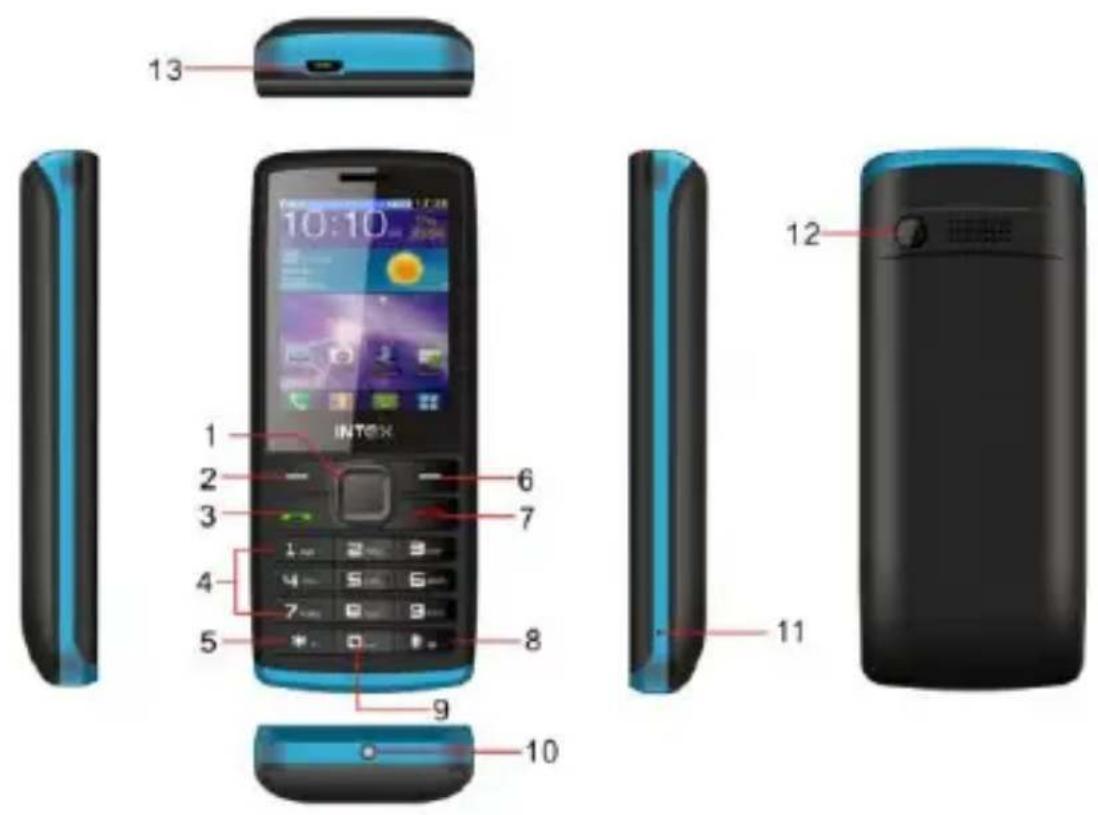
2.2Key definition
The mobile phone provides the following keys:
- OK key
In standby interface, press it can enter the main menu. In other interfaces, press OK key to confirm your selection.
-
Left Soft Key
-
Dial Key
Press it to originate a call on SIM card or UIM card by entering the called number or selecting a contact from the phonebook, or press it to receive an incoming call; or press it in standby state to show the latest call records; or press it twice in standby state to show the calling or called number of the last call.
-
Number Keys
-
* Key
-
Right Soft Key
-
End key
Press it to end a call being dialed or end an ongoing call; or press it to exit the menu and return to the standby state; or hold it for two or three seconds to power on or off the mobile phone.
-
Key
-
Space Key
-
Torch
-
Microphone
-
Camera
3 Getting Started
3.1 Installing the SIM Cards and UIM Card and the Battery
The mobile phone supports GSM and CDMA at the same time. A SIM card or an UIM card carries useful information, including your mobile phone number, Personal Identification Number (PIN), PIN2, PIN Unlocking Key (PUK), PIN2 Unlocking Key (PUK2), International Mobile Subscriber Identity (IMSI), network information, contact data, and short message data
Note:
After powering on your mobile phone, wait for a few seconds before removing or inserting an SIM card.
Exercise caution when operating an SIM card, as friction or bending will damage the SIM card.
Properly keep the mobile phone and its fittings such as the SIM cards beyond children's reach.
Installation
◆ Hold the End key for a while to power off the mobile phone
◆ Pull the rear battery cover to remove.
◆ Take out the battery.
◆ Gently insert the SIM/UIM card into the SIM/UIM card slot with its metal surface facing the phone and its dent facing down, till the SIM/UIM card cannot be further pushed in.
◆ Aim the positive pole and negative pole of the battery at the battery connector in the mobile phone, and press down the battery to install the battery into the battery tank.
Using Codes
The mobile phone and the SIM/UIM cards support the setting of multiple codes. This helps prevent the phone and the SIM/UIM cards from being misused. When you are prompted to input any of the codes described below, just input the correct code and then press the OK key. If you input a wrong code, press the Right soft key to clear the wrong inputs and then input the correct code.
◆ Phone lock code
The phone lock code may be set to prevent your mobile phone from being misused. In general, this code is provided along with the mobile phone by the manufacturer. The initial phone lock code is set to 1234 by the manufacturer. If the phone lock code is set, you need to input the phone lock code when powering on the mobile phone.
◆ PIN
The PIN comprises four to eight digits to prevent your SIM card from being used by authorized people. In general, the PIN is provided along with an SIM card by the network operator. If PIN check is enabled, you need to input the PIN each time you power on your mobile phone. The SIM card will be locked if the PINs you input at three consecutive times are wrong. To unlock the SIM card, do as follows:
-Input the correct PUK according to the screen prompt to unlock the SIM card.
-Then input the new PIN and press the OK key.
-Input the new PIN again and then press the OK key.
-If the input PUK is correct, the SIM card will be unlocked and the PIN will be reset.
Note: The SIM card will be locked if the PINs you input at three consecutive times are wrong. To unlock the SIM card, you need to input the PUK. In general, the PUK can be obtained from the network operator.
◆ PUK
The PUK comprises eight digits to unlock the PIN. It is provided along with an SIM card by the manufacturer. If you do not yet know the PUK, contact the network operator. If the PUKs you input at ten consecutive times are all wrong, the SIM card will be invalid. Please contact the network operator to replace the SIM card.
◆ PIN2
The PIN2 comprises four to eight digits. Provided along with an SIM card, it sets functions such as call billing and fixed dialing. Please contact the network operator to verify whether your SIM card supports these functions. If the PIN2 you input at three consecutive times is wrong, the PIN2 will be locked. To unlock the PIN2, input the correct PUK2 as follows:
-Input the correct PUK2 according to the screen prompt to unlock the PIN2.
-Then input the new PIN2 and press the OK key.
-Input the new PIN2 again and then press the OK key.
◆ PUK2
The PUK2 comprises eight digits to unlock the PIN2. It is provided along with an SIM card by the vendor. If you do not yet know the PUK, contact the network operator. If the PUK2s you input at ten consecutive times are all wrong, the PIN2 will be invalid and the corresponding functions cannot be used. Please contact the network operator to replace the SIM card.
◆ Barring code
A barring code is required for setting the call barring function. You can obtain this code from the network operator to set the call barring function.
3.2 Installing the T-Flash Card
The T-Flash card is a pluggable mobile storage card inside the mobile phone.
To install the T-Flash card, open its latch, place its indented side downward, insert
the card into the card slot, and then close the latch.
To remove the T-flash card, open its latch and slightly take the card out. And then close the latch.
Note:
The T-Flash card is a miniature object. Keep it beyond children's reach, lest children swallow it!
3.3 Recharging the Battery
The lithium battery delivered with the mobile phone can be put into use immediately after being unpacked.
Battery level indication:
◆ Your mobile phone can monitor and display the battery state.
- Normally the remaining energy of the battery is indicated by the battery level icon at the upper right corner of the display screen.
- When the battery energy is insufficient, the mobile phone prompts "Battery low". If you have set an alert tone, an alert tone will be given off when the battery level is too low.
◆ A charging animation appears when the battery is being charged. When the charging is complete, the animation disappears.
Use of the travel charger:
◆ Install the battery into the mobile phone before charging the battery.
◆ Connect the adapter of the travel charger with the charging slot in the mobile phone. Ensure that the adapter is fully inserted.
◆ Insert the plug of the travel charger to an appropriate power outlet.
◆ During the charging, the battery level grids in the battery icon keep flickering till the battery is fully charged.
- It is normal of the battery to become hot during the charging period.
◆ The battery icon does no longer flicker when the charging process ends.
Note:
Ensure that the plug of the charger, the plug of the earpiece, and the plug of the USB cable are inserted in the right direction. Inserting them in a wrong direction may cause charging failure or other problems.
Before the charging, ensure that the standard voltage and frequency of the local mains supply match the rated voltage and power of the travel charger.
Using the Battery
The performance of a battery is subject to multiple factors: radio network configuration, signal strength, ambient temperature, chosen functions or settings, phone fittings, and the voice, data or other application mode you choose to use.
To guarantee the optimal performance of your battery, please stick to the following rules:
◆ Use only the battery provided by the vendor. Otherwise, damages or even injuries could be caused during the charging.
◆ Power off the mobile phone before removing the battery.
◆ The charging process lasts a longer time for a new battery or a battery not in use for long. If the battery voltage is too low to enable the mobile phone to be powered on, charge the battery for a longer time. In this case, the battery icon does not flicker until a long time after the battery enters the charge status.
◆ During the charging, ensure the battery is placed in a room temperature environment or in an environment close to room temperature.
◆ Immediately stop using the battery if the battery produces odor, overheats, cracks,
distorts or has other damage, or if the electrolyte leaks.
◆ The battery wears out with use. A longer charging time is required as the battery is put into use for a long time. If the total conversation duration decreases but the charging time increases even though the battery is properly charged, purchase a standard battery from the OEM or use a battery approved by our company. Using any poor-quality fittings will cause harm to your mobile phone or even incur danger!
Note: To guarantee your personal safety and protect the environment, do not litter the battery! Return the old battery to the mobile phone manufacturer or place it in specified battery reclamation areas. Do not litter any battery with other rubbish.
Warning: Short-circuits of the battery may cause explosion, fire, personal injury or other severe consequences!
3.4 Powering On/Off the Mobile Phone
Hold the End key for a while to power on the mobile phone. A power-on animation appears on the display screen.
Input the phone lock code and press the OK key if the mobile phone prompts you to input the phone lock code. The default phone lock code is 1234.
Input the PIN and press the OK key if the mobile phone prompts you to input the PIN. For a new SIM card, the PIN is provided by the network operator.
Enter the standby interface.
To power off the mobile phone, hold the End key for a while.
3.5 Connecting the Network
After the SIM card and the mobile phone are successfully unlocked, the mobile phone automatically searches for an available network. After finding a network, the mobile phone enters the standby state. When the mobile phone is registered in the network, the name of the network operator is displayed on the screen. Now you can dial
or receive the calls.
3.6Dialing Calls
In the standby interface, press number keys to input the area code and the telephone number, and then press the Dial key to dial a call. To end the call, press the End key.
◆ Dialing an international call
Hold the * key and input "+". Then input the country code, the area code and the telephone number. Finally, press the Dial key.
◆ Dialing an extension
Input the main number, press the * key for three or four times, input "p" or "w" and then the extension number, and finally press the Dial key.
◆ Tuning the volume
During a conversation, you can press the Up and/or Down direction keys to tune the sound volume.
3.7 Using the Earpiece
When you insert the earpiece into the earpiece interface on the mobile phone, the mobile phone automatically enters the Headset mode and then the earpiece acts as both the earphone and the microphone. Make sure that the earpiece is inserted in position.
4 Input Method
This mobile phone provides multiple input methods, including numeric input, English input in both upper and lower case, and Hindi Language. You can use these input methods when editing the phonebook, short messages, files and greeting text.
4.1 Icons for Input Methods
After you enter an edit window such as a window for editing the phonebook, short messages or the memorandum, an icon is displayed to indicate the current input method:
Numeric input:"123"
English input in upper case:"ABC"
English input in lower case: "abc"
English input in lower case: "Abc"
Hindi input: "HI"
4.2 To Shift Entry Methods
Press the # key to switch between input methods.
4.3 Numeric Input
You can input numbers with the numeric input method. Press a number key to input the corresponding number.
4.4 English input and numeric input:
The keyboards for English input and numeric input are defined in the following table:
| Key | Character or Function | Remarks |
| Number key 1 | . , - ? !'@ : # $ /_ 1 | |
| Number key 2 | ABCabc2 | |
| Number key 3 | DEFdef3 | |
| Number key 4 | GHIghi4 | |
| Number key 5 | JKLjkl5 | |
| Number key 6 | MNOmno6 | |
| Number key 7 | PQRSpqrs7 | |
| Number key 8 | TUVtuv8 | |
| Number key 9 | WXYZwxyz9 | |
| Number key 0 | 0 | |
| * key | Press it to input a symbol | |
| # key | Press it to switch between input methods | |
| Left direction key | Press it to move to the left | |
| Right direction key | Press it to move to the right | |
| Left soft key | Equivalent to OK or Options | |
| Right soft key | Equivalent to Back or Clear | |
| End key | Press it to return to the standby interface |
English input:
Each key is used to represent multiple characters. Quickly and continuously press a key till the character you want appears. Input the next character after the cursor moves.
Press the # key to switch between input methods
To input a blank, switch to the English input mode (in upper or lower case) and
then press number key 0.
To clear wrong inputs, press the Right soft key.
Press the * key to enter the Select symbol interface, use direction keys to select a symbol you want.
5 Using the Menus
5.1Phonebook
The mobile phone can store up to 500 telephone numbers. The number of telephone numbers that an SIM/UIM card can store depends on the storage capacity of the SIM/UIM card. The telephone numbers stored in the mobile phone and in the SIM/UIM cards form a phonebook.
After selecting a telephone number in the phonebook, select Options to perform the following operations:
◆ View: View the content of the telephone number.
◆ Sent text message: sent message to this number.
◆ Sent multimedia message: sent multimedia message to this number.
◆ Call: call the selected number.
◆ Edit: Edit the selected number.
◆ Delete: Delete the selected number from the phonebook.
◆ Copy: Duplicate the selected number from the mobile phone to the SIM card or from the SIM card to the mobile phone.
- Add to Blocklist: Add the selected number to blocklist.
◆ Mark several: mark several phone numbers so you can perform a same operation on them.
◆ Phonebook settings: Set some parameters of phonebook.
5.2Messages
If the short message memory is full, a blinking SMS icon appears on the top of the screen. To normally receive short messages, you need to delete some of the existing
short messages.
5.2.1 Write message
Access this menu to create a text message or a multimedia message.
5.2.2Inbox
Received messages are listed in this menu.
5.2.3Drafts
From the main menu select “Messages” to create text message. You can type a message, and you're also able to insert a pre-defined message from “Templates”. While writing a message, select “Options” to access all the messaging options. You can save your messages that you send often to “Drafts”.
5.2.4Outbox
The messages which are sent failed are stored in the Outbox.
5.2.5Sent messages
Sent messages are listed in this menu.
5.2.6 Delete messages
You can delete messages stored in Inbox, Outbox, Drafts, etc through this function.
5.2.7 Broadcast Message
This network service enables you to receive a variety of text messages, such as broadcast messages about weather forecast or road conditions. At present, few networks provide this service. Please consult the network operator.
◆ Receive mode: Set it to On to enable or Off to disable cell broadcast service.
◆ Channel settings: Select receiving some types of cell broadcast messages or edit/delete some channel numbers.
◆ Languages: Select the language in which cell broadcast messages are displayed. The selected language, however, may not be supported by the network operator.
◆ Read message: View cell broadcast messages. You can press the Up and Down direction keys to view these messages.
5.2.8 Templates
Ten text templates are embedded in the phone. They can be used to create a new message.
5.2.9Message Settings
This function enables you to set the default features about the SMS, MMS and service message.
5.3 Call history
Choose Call history to enter the call history interface. A call history is displayed, including missed calls, dialed calls and received calls.
5.3.1 All calls
You can view the latest all calls.
5.3.2 Dialed Calls
You can view the latest dialed calls. Choose dialed calls and then select a dialed call to delete, save, dial, or edit (or send a short message to it).
5.3.3 Missed Calls
You can view a list of the latest missed calls.
Note: When the mobile phone indicates that some calls are missed, you can select Read to enter the missed calls list. Navigate to a missed call and then press the Dial key to dial the number that originated that call.
5.3.4 Received Calls
You can view the latest received calls. Choose received calls and then select a received call to delete, save, dial, or edit (or send a short message to it).
5.4Settings
5.4.1 Dual SIM Settings
◆ CDMA and GSM1 open: CDMA and GSM1 cards are standby if you set this option.
◆ GSM1 and GSM2 open: Both SIM cards are standby if you set this option.
- Only GSM1 open: Only GSM card 1 can be identified if you set this option.
- Only GSM2 open: Only GSM card 2 can be identified if you set this option.
◆ Flight mode: when this function is engaged, it will suspend many of the device's signals transmitting functions – thereby disabling the device's capacity to place or receive calls or text messages—while still permitting use of other functions that do not require signal transmission (e.g., games, built-in camera, MP3 player.)
5.4.2 Display
Users can access items to set wallpaper, screen saver, animation, backlight effect and Show date/time etc.
5.4.3 Phone settings
◆ Time and date: Set time, date, time format and date display type.
◆ Schedule power on/off: Set the time when the mobile phone will be automatically powered on or off.
◆ Language: Select the display language for the mobile phone.
◆ Pre. Input methods: select prefer input method.
◆ Shortcuts: You can set the shortcuts as per your need.
◆ Dedicated key: Customize the shortcut functions of the Up, Down, Left, and Right direction keys. In the standby interface, you can press a direction key to directly enter the function menu corresponding to that direction key.
◆ Auto update time: You can select among off, First confirm or On
5.4.4 Call Settings
◆ Caller ID: You can select the ID set by the network, hide the ID, or send the ID. By default, the ID set by the network is chosen.
Note: This function relates to the network. If you select Hide ID, dialing may fail. Therefore, make sure that calls can be normally dialed before you choose Hide ID.
◆ Call waiting
➢ Activate: After you choose Activate, the mobile phone will contact the network. A moment later, the network will make a response and send a message to acknowledge your operation. If the call waiting function is activated, the network will alert you and the mobile phone screen will display the incoming call number if others are calling you while you are already in a conversation.
➢ Deactivate: If you choose Deactivate, the network will not alert you when others are calling you while you are already in a conversation.
➢ Query status: Query the network to obtain the current call waiting status.
◆ Call diverts
this network function enables you to forward incoming calls to another number you have previously specified.
➢ Divert all voice calls: Divert all incoming calls to the preset number.
➢ Divert if unreachable: Divert an incoming call to the preset number only when the called party is unreachable.
➢ Divert if no answer: Divert an incoming call to the preset number only when the called party does not answer the call within the specified time.
➢ Divert if busy: Divert an incoming call to the preset number only when the called party is busy.
You can further perform the following operations for the above four functions:
- Activate: Input the diverted-to number and then activate the selected call divert function.
- Deactivate: Deactivate the selected call divert function.
- Query status: Query the network to obtain the current status of the selected call diverts function. The mobile phone will contact the network. A moment later, the network will make a response and send the results to the mobile phone.
➢ Divert all data calls: Divert all data calls. This function requires the network operator's support.
➢ Cancel all divert: Cancel all the set call diverts functions. The mobile phone will contact the network. A moment later, the network will make a response and send the operation results to the mobile phone.
◆ Call barring
the call barring function enables you to bar calls as needed. When setting this function, you need to use a network barring code, which can be obtained from the network operator. If the code is wrong, an error message will be prompted on the screen. After selecting a call barring option, continue to select Activate or Deactivate. The mobile phone will prompt you to input the call barring code and then contact the network. A moment later, the network will make a response and send the operation results to the mobile phone.
Outgoing calls
All calls: Bar all outgoing calls. If this option is set, the mobile phone cannot dial any call.
✧ International calls: Bar all international calls. If this option is set, the mobile phone cannot dial any international call.
✧ International calls except to home PLMN: Bar all outgoing calls except those directed to the home PLMN country. If this option is set, the mobile phone can dial only calls destined to the home PLMN country.
▶ Incoming calls
All calls: Bar all incoming calls. If this option is set, the mobile phone cannot receive any call.
When roaming: Bar all incoming calls when roaming. If this option is set, the mobile phone cannot receive any call when roaming outside the home PLMN.
For each call barring option, you can further perform the following operations:
- Activate: Input the call barring code to activate the selected call barring function.
- Deactivate: Deactivate the selected call barring function.
- Query status: Query the network to obtain the current status of the selected call barring function. The mobile phone will contact the network. A moment later, the network will make a response and send the results to the mobile phone.
➢ Cancel all: Cancel all the set call barring functions. To do so, you need to input the barring code provided by the network operator.
➢ Change barring: Change the call barring code. To do so, you need to input the old code.
◆ Line switching: Switch to Line 1 or Line 2. By default, Line 1 is used.
Note: If you choose Line 2, dialing may fail. This depends on the implementation of the network operator.
◆ Call waiting
➢ Activate: After you choose Activate, the mobile phone will contact the network. A moment later, the network will make a response and send a message to acknowledge
your operation. If the call waiting function is activated, the network will alert you and the mobile phone screen will display the incoming call number if others are calling you while you are already in a conversation.
➢ Cancel: If you choose Deactivate, the network will not alert you when others are calling you while you are already in a conversation.
◆ Call diverts
this network function enables you to forward incoming calls to another number you have previously specified.
➢ Call forward all: Divert all incoming calls to the preset number.
➢ Call forward no answer: Divert an incoming call to the preset number only when the called party does not answer the call within the specified time.
➢ Call forward busy: Divert an incoming call to the preset number only when the called party is busy.
You can further perform the following operations for the above four functions:
- Activate: Input the diverted-to number and then activate the selected call divert function.
- Deactivate: Deactivate the selected call divert function.
➢ Cancel all: Cancel all the set call forward functions.
【Advanced settings】
◆ Auto redial: Set it to On or Off to enable or disable auto redial. If you set Auto redial to On, the mobile phone will automatically redial the number a moment later if the called party does not reply. The number of auto redial times can be set to a maximum of 10. In the auto redial period, you cannot dial other numbers. To end the auto redial process, press the End key.
Note: This function requires support from the network operator to which the SIM
card is registered.
◆ End with SMS: Reject an incoming call and reply the caller a short message to state that you are not available at this moment.
◆ Connect notice: Once this function is enabled, the phone would vibrate to remind you when a call is connected.
◆ Blocklist: access this menu to set blocklist status and its members.
◆ Call time reminder: Set it to Single or Periodic, so that the mobile phone will alert you once or alert you periodically to the conversation duration.
◆ Answer mode: Set answer mode as per your need
◆ Auto quick end: This function enables you to disconnect a call at a preset time.
◆ Call time display: Display the conversation duration during each conversation.
5.7.5 User Profiles
The mobile phone provides multiple user profiles, so that you can customize some settings to adapt to the specific events and environments.
Customize the user profiles according to your preference and then activate the user profiles. The user profiles fall into five scenarios: General, Silent, Meeting, outdoor and My style.
Select Options and you can perform the following operations: Activate, Customize and Rename.
Activate
Select Activate to activate the selected mode.
Customize
After choosing one of the above five modes, select Customize to edit the items as per your need.
Reset
You can reset the setting through this function.
5.4.6 Network Settings
Contact the network operator to obtain the following network services:
5.4.7 Security settings
【SIM1 security】
◆ Network selection: Set Network selection mode to Automatic or Manual. Automatic is recommended. When Network selection mode is set to Automatic, the mobile phone will prefer the network where the SIM card is registered. When Network selection mode is set to Manual, you need to select the network operator's network where the SIM card is registered.
◆ Preferences: Select the preferred networks. By default, the network where the current SIM card is registered will be displayed.
◆ PIN lock: To activate PIN lock, you need to input the correct PIN code. If you set PIN lock to On, you need to input the PIN each time you power on the mobile phone. In the case you input a wrong PIN for three consecutive times, you need to input the PIN Unblocking Key (PUK). The PUK is used to unlock and change the locked PIN. To obtain the PUK, contact the network operator.
◆ Change PIN: To change PIN code of SIM card.
◆ Change PIN2: To change PIN2 code of PIN code.
◆ PIN lock: To set the UIM lock, you need to input the PIN. You can set the UIM lock only after inputting the correct PIN. If you set PIN lock to On, you need to input the PIN each time you power on the mobile phone. In the case you input a wrong PIN for three consecutive times, you need to input the PIN Unblocking Key (PUK). The PUK is used to unlock and change the locked PIN. To obtain the PUK, contact the network operator.
◆ Change PIN: Change UIM PIN password through this item.
【Phone security】
◆ Phone lock: The function enables you to lock/unlock the phone. Once this function is enabled, correct password is required when the phone is locked. The password is 4 to 8 digits.
◆ Change password: to change phone password.
【Data protect】
◆ Data protect: The function enables you to lock/unlock the specified item with password protected. Like Call log, phonebook, Message, Multimedia and file manager. The initial password is 1234.
◆ Change password: to change phone password.
You can select to turn on/off this function.
【Auto keypad lock】
The function enables you to lock/unlock the keypad. Setting the auto locking time that 5s, 30s, 1min or 5mins is available. The keypad will be auto locked with no operation during the period.
5.4.8 Restore factory settings
Use this function to restore factory settings. The initial password is 1234.
5.5 Multimedia
5.5.1 Camera
Use this function to capture pictures. In the capture interface, you can press left or right direction key to adjust exposure value; up or down direction key to zoom in or zoom out; OK key to capture photos; left soft key to access Options; right soft key to exit capture interface.
Note: Please abide by relevant laws and regulations on the use of mobile phones for photo taking, videotaping and recording. Improper use of the mobile phone for photo taking, videotaping or recording may infringe upon the copyright owner's rights.
5.5.2 Audio Player
Use this function to play audio files. By pressing the direction key can you control the playing process of audio player: play/pause (OK key), switch to last song/next song (press left or right direction key), fast forward (press and hold right direction key) and rewind (press and hold left direction key), play list(left soft key). In audio player interface, you can press * or # key to tune volume. Default storage is My Music
5.5.3 Video Player
Use this function to play video files. By pressing the direction key can you control the playing process of video player: play/pause (OK key), fast forward (press and hold right direction key) and rewind (press and hold left direction key). In video player interface, you can press * or # key to tune volume, number key 0 to switch full screen. Default storage is Videos
5.5.4 Video Recorder
This function enables you to record dynamic pictures. In capture interface, you can press left or right direction key to adjust exposure value; up or down direction key to zoom in or zoom out; OK key to capture videos clip; left soft key to access Options; right soft key to exit capture interface.
5.5.5 Image Viewer
You can view the pictures or images through this function.
5.5.6FM Radio
You can use the application as a traditional FM radio with automatic tuning and saved channels. Before using this function, you need to insert headset into its
corresponding slot. In FM radio interface, you can press * or # key to tune volume, left or right direction key to search channels manually, up direction key to enable auto search (once this is enabled, you can press left or right direction key to search channels automatically) and down direction key to record your program. It's also support wireless FM
5.5.7 Sound Recorder
The mobile phone supports two recording formats: WAV and AMR. The AMR format is based on the dynamic compression algorithm. Under the same storage space condition, the AMR format supports a longer record time than the WAV format.
5.6File Manager
The phone provides a certain space for users to manage files and supports the T-Flash card. You can use the file manager to conveniently manage various directories and files on the phone and the T-Flash card.
5.6.1Open
Choose File manager to enter the root directory of the memory. The root directory will list the default folders, new folders and user files. When the mobile phone is powered on for the first time or when you have not changed the directory, the root directory contains the default folders only.
5.6.2Format
You can use this function to format all the data in the memory. The system will re-create a default folder. The formatted data cannot be recovered. Therefore, think twice before using the formatting function.
5.7 Organizer
5.7.1 Bluetooth
With Bluetooth, you can make a wireless connection to other compatible devices,
such as mobile phones, computers, headsets and car kits. You can use the Bluetooth to send images, video clips, music, sound clips and notes, and transfer files from your compatible pc.
5.7.2Alarm
Five alarm clocks are set but deactivated by default. You can activate one, multiple or all of them as needed. For each alarm clock, the ringing days the ringing time can be set.
5.7.3 Calendar
Once you enter this menu, there is a monthly-view calendar for you to keep track of important appointments, etc. Days with events entered will be marked.
5.7.4 Calculator
The calculator can add, subtract, multiply, divide with Memory carry and reminder. To use the calculator:
◆ Press the up, down, left and right key to select +, -, x, ÷, = respectively.
◆ Press right soft key to delete the figure.
5.7.5 Tasks
Choosing data, call or anniversary to create new memo, which you can view, add, edit, delete, delete overdue task, delete all, jump to date, send route and saved as file. If you have set the alarm for the memo, alarm will sound when time is up, the content of memo will display at the same time.
5.7.6 World Clock
Access this menu to view time of main cities in various time zones.
5.7.7 Ebook reader
E-book reader enables you to read TXT file. Through the USB connecting line putting files to E-book folder of phone or T-Flash card. After finishing downloading, you
can find the folder and open the E-book to read text directly.
5.7.8Stopwatch
Stopwatch is simple application for measuring time with possibility to register several results and suspend/resume measurement.
5.7.9 Torch
Select on or off as you needed.
5.8Intex Zone
Two games are embedded in this menu. For specific operation, please refer to 'help' option of each game.
You can also log on the social network and turn on the GSM auto call record and Mobile tracker through this interface.
5.9Services
5.9.1 Internet service
This function enables you to surf the Internet using the mobile phone. The mobile phone provides some means to access the Internet. To surf the Internet, just activate the means.
◆ Homepage: A homepage address can be specified for each Internet access means. When WAP browsing is used, the homepage will be accessed first.
◆ Bookmarks: Multiple bookmarks are embedded in the phone. You can select Options to manage a bookmark as follows:
◆ Input address: To enter the website ensuring it can be linked
◆ Recent page: To view websites you visited latest.
◆ Setting: set up WAP-related service.
Note: For details on the charge and settings, consult the local network service provider.
5.9.2 Data account
Access this interface to set Data account related parameters.
5.9.3STK
The STK service is the SIM card toolkit. This mobile phone supports the STK service. The actual menu items are determined by both the SIM card and the network. When the network provides and the SIM card supports the STK service, an STK service menu will be automatically added to the menu on the phone.
6 Appendix
6.1: Appendix 1 Troubleshooting
If you find exceptions when operating the mobile phone, restore the factory settings and then refer to the following table to solve the problem. If the problem persists, contact the distributor or service provider.
| Fault | Cause | Solution |
| SIM card error | The SIM card is damaged. | Contact your network service provider |
| The SIM card is not in position. | Check the SIM card | |
| The metal face of the SIM card is polluted. | Clean the SIM card with a clean cloth | |
| Poor received signal quality | Signals are obstructed. For instance, radio waves cannot be effectively transmitted nearby a high building or in a basement. | Move to a place where signals can be effectively transmitted |
| Line congestions occur when you use the mobile phone in high-traffic hours39-The battery energy is exhausted. | Avoid using the mobile phone in high-traffic hoursCharge the battery | |
| The mobile phone cannot be powered on | ||
| Calls cannot be dialed | Call barring is activated | Cancel call barring |
| The mobile phone cannot connect the network | The SIM card is invalid | Contact your network service provider |
| The mobile phone is not in a service area of the GSM network | Move to the network operator's service area | |
| The signal is weak | Move to a place where the signal quality is high | |
| The battery cannot be charged | The charging voltage does not match the voltage range indicated on the charger | Ensure the charging voltage matches the voltage range indicated on the charger |
| An improper charger is used | Use the charger specially designed for the mobile phone | |
| Poor contact | Ensure the charger plug is in good contact with the mobile phone |
6.2Appendix2: Abbreviation and Explanation
| SMS | Short Message Service |
| EMS | Enhanced Message Service |
| SIM | Subscriber Identity Module |
| GSM | Global System for Mobile Communication |
| CDMA | Code Division Multiple Access |
| UIM | User Identity Module |
| PIN | Personal Identity Number |
| PUK | PIN Unblocking Key |
| IMEI | International Mobile Equipment Identity |
| ESN | Electrical Serial number |
| CB | Cell Broadcast |
| GPRS | General Packet Radio Service |
| MMS | Multimedia Message service |
6.3 Appendix 3: Environment declaration
| Part | Poison material or element | ||||||
| Pb | Hg | Cd | Chromiu-m (Cr(VI)) | Polybro-minated Biphenyl (PBB) | Polybro-minated Dipheny-let her (PBDE) | ||
| Mobile phone | O | O | O | O | O | O | |
| Charging | O | O | O | O | O | O | |
| Battery | O | O | O | O | O | O | |
| Earpiece | O | O | O | O | O | O | |
| Data Cable | O | O | O | O | O | O | |
| T-Flash card | O | O | O | O | O | O | |
| Packagin-g | O | O | O | O | O | O | |
| O: The element volume in the material is below the SJ/T11363-2006 standard.X: At least one of the elements in the material exceeds the SJ/T11363-200 | |||||||
standard.
24. Technical Information
Model: GC5050
Weight: 95 gram (with battery)
Size Length: 115.3mm x 47.7mmx 16.7mm
Networks: GSM 900/1800 MHz CDMA 800MHz
SAR Value: 1.027 w/kg-GSM 900MHz, 0.282w/kg -DCS 1800MHz; 0.441 w/kg -CDMA 800MHz
Lithium Battery
Model: BR 1833S
Nominal voltage: 3.7v
Nominal: 4.2v
Capacity rating: 1800mAh
Continuous standby time*: 350-400hrs
Continuous calling time: 6-7hrs
* Depending on the network
Operation Temperature: -10\~+55 °C
The operation time of the battery depends on conditions such as:
- Transmitting power level
- Signal (distance between the phone and the base station)
• Network parameters defined by the operator
• Phone use (WAP, games, SMS)
- Charging procedure used
Exclusions:
Subject to the exclusions contained below:
-
Damage due to the improper use.
-
User does not follow the manual.
Explanation:
The company has the final right of the explanation for this document.
Software upgrades will not be announced.
All pictures are for reference only in the instruction book; please refer to the actual phone.
Disclaimer
© Intex. All rights reserved.
Features and specifications are subject to change without prior notice. Certain mobile phone features may not be activated by your service provider, and / or their network setting may limit the feature's functionality. Services and some features such as GPRS, email may be dependent on the network, SIM card, as well as on the compatibility of the devices used and content formats supported and may require network/service subscription/solutions. Data transfers speeds are network dependent. Always contact your service provider for details or help. Talk and standby time is quoted in digital mode and are approximate; battery performance and the signal reception depend on network
configuration, signal strength, type of SIM card, operating temperature, features selected as well as voice, data and other application usage pattern. The phones supports Bluetooth, A2DP, in order for Bluetooth devices to communicate with one another, they must utilize the same Bluetooth Profile. To determine the profiles supported by other Intex products, visit www.intextechologies.com, for other devices, contact their respective manufacturers. Always demand for original Intex mobile phones to protect against buying tinkered and/or used, refurbished or tampered phones. The warranty is applicable only for Intex phones; the company is not responsible for any loss or theft. Always use Intex original Enhancements (including batteries) for safety. The use of any other type may invalidate and approval or warranty applying to the mobile phone and may be dangerous. The phone is designed to operate using Li-ion batteries approved by the phone manufactures. Using non approved batteries with the phone may result in poor performance and damage to the phone or its enhancements. The display and products visualization here are illustrative purposes only; Display / color of the phone may differ from that shown on the manual. All features, functionality and other product specifications are based on the latest available information and are correct at the time of printing; however such product specifications are subject to change without notice. Copyrights are reserved. Intex is the trademark of INTEX TECHNOLOGIES (INDIA) LTD. which is registered. The unauthorized copying of copyrighted material is not legalized is inimical to the provisions of the copyright laws of India and other countries.
INFORMATION UNDER E-WASTE (MANAGEMENT AND HANDLING) RULES, 2011
For disposal of e-waste, please call our helpline no. or visit our website.
E-waste Helpline no. 1800-103-8822
Web link: http://intextechnologies.com/window_self/Waste%20Disposal.html
- Do's for disposal of product
a) Always drop your used electronic products, batteries, and packaging materials after the end of their life in nearest collection point or collection center
b) Separate the packaging material according to responsible waste disposal options and sorting for recycling.
c) The battery can easily be removed from the product for recycling. - Don't of disposal of equipment
a) Never dump E-waste in garbage bins or municipal solid waste stream.
b) Do not dispose of your product as unsorted municipal waste.
c) Do not throw used batteries into household waste.
d) Do not dispose damaged or leaking Lithium Ion (Li-Ion) battery with normal household waste.

natural_image
Pure electrical circuit lines without any symbols- Information on the consequences of improper handling, accidental breakage damage and improper recycling of the end of life product.
a) If batteries are not properly disposed of, it can cause harm to human health or the environment.
b) Placing of batteries or devices on or in heating devices, such as microwave ovens, stoves, or radiators and improper disposal of batteries may lead to explosion.
c) If the battery terminals are in contact with metal objects, it may cause a fire.