 ManualGo.com
BCS-FS500 - Audio System PIONEER - Free user manual and instructions
Find the device manual for free BCS-FS500 PIONEER in PDF.



Download the instructions for your Audio System in PDF format for free! Find your manual BCS-FS500 - PIONEER and take your electronic device back in hand. On this page are published all the documents necessary for the use of your device. BCS-FS500 by PIONEER.
USER MANUAL BCS-FS500 PIONEER
BCS-F$500_En_0916 09.916 9.05PM ‘Xi
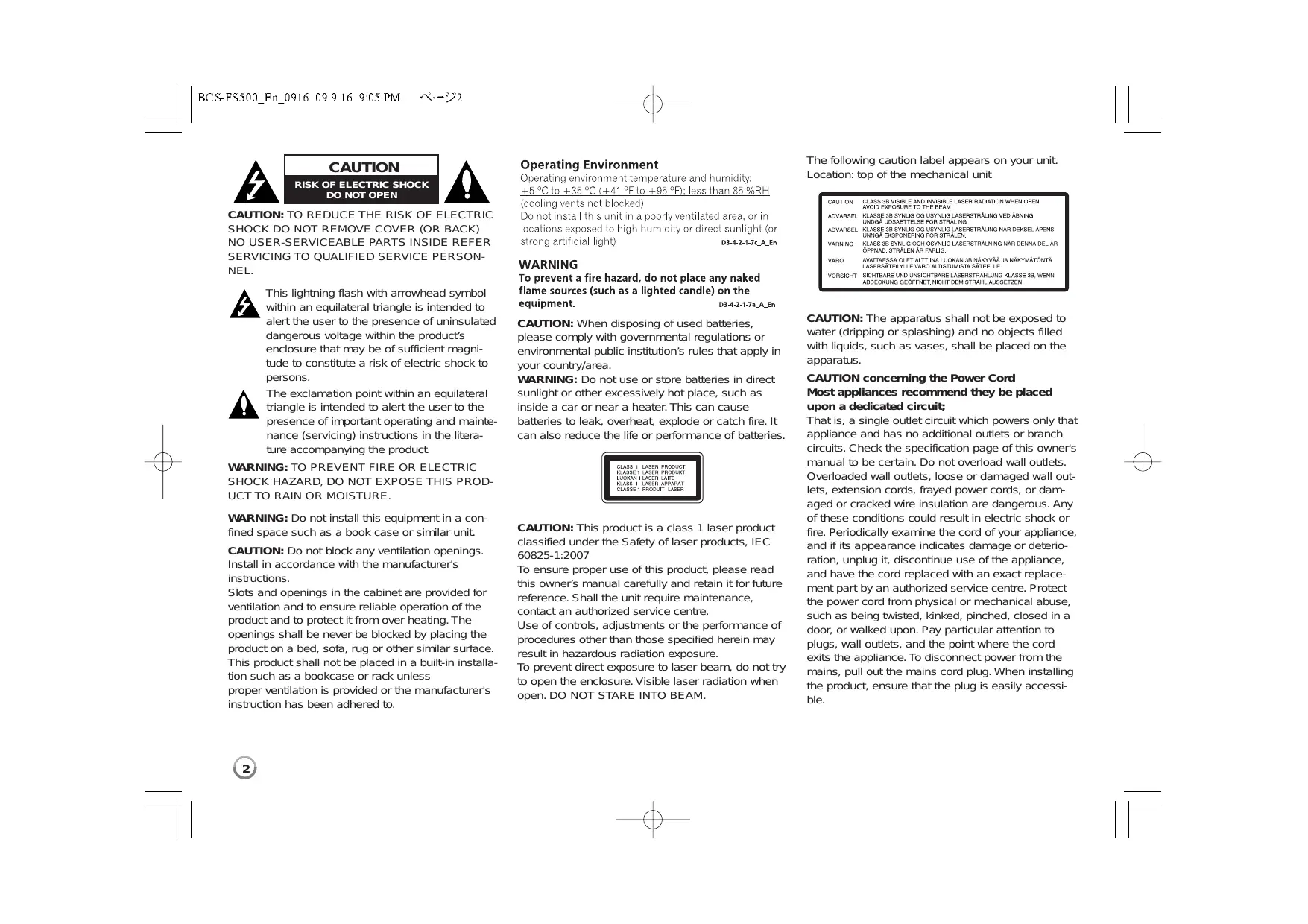
NEL. within an equilateral triangle is intended to alert the user to the presence of uninsulated dangerous voltage within the products enclosure that may be of suficient magni- tude to constitute a risk of electric shock to persons. û The exclamation point within an equilateral ; This lightning flash with arrowhead symbol triangle is intended to alert the user to the presence of important operating and mainte- nance (servicing) instructions in the litera- ture accompanying the product.
WARNING: TO PREVENT FIRE OR ELECTRIC
SHOCK HAZARD, DO NOT EXPOSE THIS PROD- UCT TO RAIN OR MOISTURE.
WARNING: Do not install this equipment in à con-
fined space such as a book case or similar unit. CAUTION: Do not block any ventilation openings. Install in accordance with the manufacturer's instructions. Slots and openings in the cabinet are provided for ventilation and to ensure reliable operation of the product and to protect it from over heating. The openings shall be never be blocked by placing the product on a bed, sofa, rug or other similar surface. This product shall not be placed in à built-in installa- tion such as a bookcase or rack unless proper ventilation is provided or the manufacturer's instruction has been adhered to.
Operating Environment Operating environment temperature and humidity: +5 °C to +35 °C (+41 °F to +95 °F): less than 85 %RH The following caution label appears on your unit. Location: top of the mechanical unit {cooling vents not blocked) Do not install this unit in à poorly ventilated area, or in locations exposed to high humidity or direct sunlight (or ng artificial light} D34247 AE WARNING To prevent a fire hazard, do not place any naked flame sources (such as a lighted candle) on the equipment. DA+7a An CAUTION: When disposing of used batteries, please comply with governmental regulations or environmental public institutions rules that apply in your country/area
WARNING: Do not use or store batteries in direct
sunlight or other excessively hot place, such as inside a car or near a heater. This can cause batteries to leak, overheat, explode or catch fire. It can also reduce the life or performance of batteries. CAUTION: This product is à class 1 laser product classified under the Safety of laser products, IEC 60825-1:2007 To ensure proper use of this product, please read this owners manual carefully and retain it for future reference. Shal the unit require maintenance, contact an authorized service centre. Use of controls, adjustments or the performance of procedures other than those specified herein may. result in hazardous radiation exposure. To prevent direct exposure to laser beam, do not try to open the enclosure. Visible laser radiation when open. DO NOT STARE INTO BEAM AGE, RE y are ve An Sétaene ss er aovanse HASSE av A LARERSTRAUNG RAA DK AP,
van PUS I ON OI LASER AA DE DELA
Vaso us CAUTION: The apparatus shall not be exposed to water (dripping or splashing) and no objects filled with liquids, such as vases, shall be placed on the apparatus. CAUTION conceming the Power Cord Most appliances recommend they be placed upon a dedicated circuit; That is, a single outilet circuit which powers only that appliance and has no additional outlets or branch circuits. Check the specification page of this owners manual to be certain. Do not overload wall outiets. Overloaded wall outiets, loose or damaged wall out- lets, extension cords, frayed power cords, or dam aged or cracked wire insulation are dangerous. Any of these conditions could result in electric shock or fire. Periodically examine the cord of your appliance, and if its appearance indicates damage or deterio- ration, unplug it, discontinue use of the appliance, and have the cord replaced with an exact replace- ment part by an authorized service centre. Protect the power cord from physical or mechanical abuse, such as being twisted, kinked, pinched, closed in a door, or walked upon. Pay particular attention to plugs, wall outlets, and the point where the cord exits the appliance. To disconnect power from the mains, pull out the mains cord plug. When installing the product, ensure that the plug is easily accessi- ble.
FS500_En_0916 099.16 9.05PM 233 Notes on Copyrights + Because AACS (Advanced Access Content System) is approved as content protection system for BD format, similar to use of CSS {Content Scramble System) for DVD format, certain restrictions are imposed on playback, analog signal output, etc, of AACS protected contents. The operation of this product and restrictions on this product may vary depending on your time of purchase as those restrictions may be adopted and/or changed by AACS after the production of this product. Furthermore, BD-ROM Mark and BD+ are additionally used as content protection systems for BD format, which imposes certain restrictions including playback restrictions for BD-ROM Mark and/or BD+ protected contents. To obtain additional information on AACS, BD-ROM Mark, BD+, or this product, please contact an authorized Customer Service Centre. Many BD-ROM/DVD discs are encoded with copy protection. Because of this, you should only con- nect your player directly to your TV, not to a VCR. Connecting to a VCR results in a distorted pi ture from copy-protected discs. This product incorporates copyright protection technologies that are protected by certain U.S. patents and other intellectual property rights owned by Macrovision Corporation and other rights owners. Use of this copyright protection technology must be authorized by Macrovision Corporation and is intended for home and other limited viewing uses only, unless otherwise authorized by Macrovision Corporation. Reverse engineering or disassembly is prohibited Under the U.S. Copyright laws and Copyright laws of other countries, unauthorized recording, use, display, distribution, or revision of television programs, videotapes, BD-ROM discs, DVDs, CDs and other materials may subject you to civil and/or criminal liability.
To use BD-Live functionality You must attach an external USB device using the USB port (see page 22). Licenses Java and all J ava-based trademarks and logos are trademarks or registered trademarks of Sun Microsystems, Inc. in the United States and other countries. Manufactured under license from Dolby Laboratories. Dolby and the double-D symbol are trademarks of Dolby Laboratories. Manufactured under license under U.S. Patent #5: 5,451,942; 5,956,674; 5,974,380; 5,978,762; 6,226,616; 6,487,535; 7,392,195; 7,272,567; 7,333,929; 7,212,872 & other U.S. and worldwide patents issued & pending. DTS is a registered trademark and the DTS logos, Symbol, DTS-HD and DTS-HD Master Audio | Essential are trademarks of DTS, Inc. © 1996-2008 DTS, Inc. All Rights Reserved. HDMI, the HDMI logo and High-Definition Multimedia Interface are trademarks or registered trademarks of HDMI licensing LLC “BD-LIVE "logo is trademark of Blu-ray Disc association. DVP is à trademark of DVD FormatLogo Licensing Corporation. m. 1 “Blu-ray Disc’and guwsaÿorse are trademarks. “BONUS VIEW"is trademark of Blu-ray Disc Association.
This product is licensed under the AVC patent port- olio license and VC-1 patent portfolio license for the personal and non-commercial use of a con- sumer to (i) encode video in compliance with the AVC Standard and VC-1 Standard (*AVC/VC-1 Video”) and/or (ii) decode AVC/VC-1 Video that was encoded by a consumer engaged in à personal and non-commercial activity and/or was obtained from a video provider licensed to provide AVC/VC-1 Video. No license is granted or shall be implied for any other use. Additional information may be obtained from MPEG LA, LLC. See http;/Awww.mpegla.com. “AVCHD" and the AVCHD logo are trademarks of Panasonic and Sony Corporation. iPod is a trademark of Apple Inc., registered in the U.S. and other countries. “Made for iPod” means that an electronic accessory has been designed to connect specifically to iPod and has been certified by the developer to meet Apple performance standards. Apple is not responsible for the operation of this device or its compliance with safety and reg- ulatory standards. Windows Media is either a registered trademark or trademark of Microsoft Corporation in the United States and/or other countries. This product includes technology owned by Microsoft Corporation and cannot be used or distributed without a license from Microsoft Licensing, Inc. DivX" is a registered trademark of DivX, Inc., and is used under license.
BCS-F$500_En_0916 09.916 9.05PM ‘X-—i4 PF Information for users on collection and disposal of old equipment and used batteries Symbol mr) equipment (srl cxeries) for batteries. These symbols on the products, packaging, and/or accompanying documents mean that used electrical and electronic products and batteries should not be mixed with general household waste. For proper treatment, recovery and recycling of old products and used batteries, please take them to applicable collection points in accordance with your national legislation. By disposing ofthese products and batteries correct}, you will help to save valuable resources and prevent any potential negative effects on human health and the environment which could otherwise arise from inappropriate waste handling. For more information about collection and recycling of old products and batteries, please contact your local municipality, your waste disposal service or the point of sale where you purchased the items. These symbols are only valid in the European Union. For countries outside the European Union: If you wish to discard these items, please contact your local authorities or dealer and ask for the correct method of disposal.
BCS-F$500_En_0916 099.16 9.05PM ‘5
Contents Speaker connection Connections to your TV . Resolution Setting Internet connection .............sssssssessess.... Setting the sound mode Adjust the speaker level settings Using the late night function Using the sleep timer Using USB devices . ra Using the Home Menu Adjust the Setup settings Play a disc Displaying disc Information Enjoying BD-LIVE " Playing a movie Before connecting, operating or adjusting this product, please read this instruction booklet carefully and completely. Listening to the radio . Playing the iPod . Listening to music from yo ur portable audio player .. Listening to the sound from your component Using HDMI IN jacks . Using DIGITAL AUDIO IN jacks Troubleshooting . Specifications . Open source software notice
FS$500_En_0916 099.16 9.05PM 26 Introduction To ensure proper use of this product, please read this owners manual carefully and retain for future reference. This manual provides information on the operation and maintenance of your player. Should the unit require service, contact an authorized service location. Aboutthe © Symbol Display “ © “may appear on your TV display during operation and indicates that the function explained in this oners manual is not available on that spe- cific media. Symbols Used in this Manual Note: Indicates special notes and operating features. Tip: Indicates tips and hints for making the task easier. A section whose title has one of the following symbols are applicable only to the disc represented by the symbol. All discs listed below BD-ROM disc ET ovo-video, DVD:R/RW in Video mode or VR mode and finalized DVDaR/RW in AVCHD format Movie files contained in the USB/Disc AVCHD [MOVE |
ACD Audio CDS Music files contained in the USB/Disc
Handling the Unit When shipping the unit Please save the original shipping carton and packing materials. If you need t ship the unit, for maximum protection, re-pack the unit as it was originally packed at the factory. Keeping the exterior surfaces clean + Do notuse volatile liquids such as insecticide spray near the unit. + Wiping with strong pressure may damage the surface. +_ Do not leave rubber or plastic products in contact with the unit for a long period of time. Cleaning the unit To clean the player, use a soft, dry cloth. Ifthe surfaces are extremely dirty, use a soft cloth lightiy moistened with a mild detergent solution. Do not use strong solvents such as alcohol, benzine, or thinner, as these might damage the surface of the unit. Maintaining the Unit The unit is à high-tech, precision device. If the optical pick-up lens and disc drive parts are dirty or womn, the picture quality could be diminished. For details, please contact your nearest authorized service centre. Notes on Discs Handling Discs Do not touch the playback side of the disc. Hold the disc by the edges so that fingerprints do not get on the surface. Never stick paper or tape on the disc. Storing Discs After playing, store the disc in its case. Do not expose the disc to direct sunlight or sources of heat and never leave it in a parked car exposed to direct sunlight. Cleaning Discs Fingerprints and dust on the disc can cause poor picture quality and sound distortion. Before playing, clean the disc with a clean cloth. Wipe the disc from the centre out. Do not use strong solvents such as alcohol, benzine, thinner, commercially available cleaners, or anti-static spray intended for older vinyl records.
Bnirag bise Blu-ray Disc -_ Discs such as movies that can be purchased or rented BD-R/RE discs that contain audio titles, DivX, MP3, WMA, or Photo files. DVD-VIDEO (8 cm / 12 cm disc) Discs such as movies that can be purchased or rented DVD-R (8 cm/ 12 cm disc) -_ Video mode and finalized only -_ Supports the dual layer disc also = AVCHD format = DVD-R discs that contain audio titles, DivX, MP3, WMA, or Photo files. DVD-RW (8 cm / 12 cm disc) -_VR mode, Video mode and finalized only = AVCHD format = DVD-RW discs that contain audio titles, DivX, MP3, WMA, or Photo files. DVD:R (8 cm / 12 cm disc) -_ Video mode and finalized disc only -_ Supports the dual layer disc also = AVCHD format = DVD4R discs that contain audio titles, DivX, MP3, WMA, or Photo files. DVD+RW (8 cm / 12 cm disc) -_ Video mode and finalized only = AVCHD format = DVD4RW discs that contain audio titles, DivX, MP3, WMA, or Photo files. Audio CD (8 cm / 12 cm disc) Audio CDS or CD-Rs/CD-RWS in audio CD format that can be purchased
CD-R/CD-RW (8 cm / 12 cm disc) CD-R/RW discs that contain finalized audio files, DivX, MP3, WMA, or Photo files. Notes: Depending on the conditions of the recording equipment or the CD- R/RW (or DVD4R/RW) disc itself, some CD-R/RW (or DVD4R/RW) discs cannot be played on the unit. Do not attach any seal or label to either side (the labeled side or the recorded side) of a disc. Do not use irregulariy shaped CDs (e.g., heart:shaped or octagonal). Doing so may result in malfunctions. Depending on the recording software & the finalization, some recorded discs (CD-R/RW or DVD4R/RW) may not be playable. DVD+R/RW and CD-R/RW discs recorded using a personal computer or à DVD or CD Recorder may not play if the disc is damaged or dirty, or if there is dirt or condensation on the players lens. If you record a disc using a personal computer, even if itis recorded in a compatible format, there are cases in which it may not play because of the settings of the application software used to create the disc. (Check with the software publisher for more detailed information.) This player requires discs and recordings to meet certain technical stan- dards in order to achieve optimal playback quality. Pre-recorded DVDs are automatically set to these standards. There are many different types of recordable disc formats (including CD-R containing MP 3 or WMA files) and these require certain pre-existing conditions to ensure compatible playback. Customers should note that permission is required in order to download MP3 / WMA files and music from the Internet. Our company has no right to grant such permission. Permission should always be sought from the copyright owner. You have to set the disc format option to [Mastered] in order to make the discs compatible with the players when formatting rewritable discs. When setting the option to Live System, you cannot use it on player. (Mastered/Live File System : Disc format system for windows Vista)
FS500_En_0916 099.16 9.05PM 28 BD-ROM Disc Features BD-ROM Discs can store 25 GB (single layer) or 50 GB (dual layer) on a single sided disc - about 5 to 10 times the capacity of a DVD. BD-ROM Discs also support the highest quality HD video available in the industry (up to 1920 x 1080) - Large capacity means no compromise on video quality. Furthermore, a BD-ROM disc has the same familiar size and look as DVD. © The following BD-ROM disc features are disc dependent and will vary. © Appearance and navigation of features will also vary from disc to disc. © Not all discs will have the features described below. © BD-ROM, Hybrid disc have both BD-ROM and DVD (or CD) layers on one side. On such discs, BD-ROM layer will be only played back in this player. Video highlights The BD-ROM format for movie distribution supports three highly advanced video codecs, including MPEG-2, MPEG4 AVC (H.264), and SMPTE VC1. HD video resolutions are also available: © 1920 x 1080 HD © 1280 x 720 HD Graphic planes Two individual, full HD resolution (1920x1080) graphic planes (layers) are available, on top of the HD video layer. One plane is assigned to video- related, frame accurate graphics (like subtiles), and the other plane is assigned to interactive graphic elements, such as buttons or menus. For both planes, various wipes, fades and scroll effects may be available. For High-Definition Playback To view high-definition contents from BD-ROM discs, an HDTV is required. Some discs may require HDMI OUT for viewing of high-definition contents. Ability to view high-definition contents in BD-ROM discs may be limited depending on the resolution of your TV.
Menu sounds When you highlight or select a menu option, sounds can be heard such as button clicks or a voice-over explaining the highlighted menu choice. Multi-page/PopUp Menus With DVD-Video, playback is interrupted each time a new menu screen is accessed. Due to BD-ROM disc's ability to preload data from the disc with- out interrupting playback, a menu can consist of several pages. You can browse through the menu pages or select different menu paths, while the audio and video remain playing in the background. Interactivity Certain BD-ROM Discs may contain animated menus and/or trivia games. User Browsable Slideshows With BD-ROM Discs, you can browse through various still pictures while the audio remains playing. Subtitles Depending on what is contained on the BD-ROM disc, you may be able to select different font styles, sizes and colours for some subtitles. Subtitles may also be animated, scrolled or faded in and out. BD} interactive Capability The BD-ROM format supports J ava for interactive functions. “BD-J “offers content providers almost unlimited functionality when creating interactive BD-ROM titles. BD-ROM Disc Compatibility This player supports BD-ROM Profile 2. Discs supporting BD-Live (BD-ROM version 2 Profile 2) that allows inter- active functions to be used when this unit is connected to the Internet in addition to the BONUSVIEW function. Discs supporting BONUSVIEW (BD-ROM version 2 Profile 1 version 1.1/Final Standard Profile) that allows Virtual packages or Picture-in- Picture functions to be used.
F$500_En_0916 099.16 9.05PM ‘79 Regional Code Certain System Requirements This unit has à regional code printed on the rear of the unit. This unit can play only BD-ROM or DVD discs labeled same as the rear of the unit or “ALL”. AVCHD (Advanced Video Codec High Definition) This player can playback AVCHD format discs. These discs are normally recorded and used in camcorders. The AVCHD format is a high definition digital video camera format. The MPEG-4 AVC/H.264 format is capable of compressing images at higher efficiency than that of the conventional image compressing format. Some AVCHD discs use the “x.v.Colour” format. This player can playback AVCHD discs using “xColour’ format. “xMColour’is a trademark of Sony Corporation. Some AVCHD format discs may not play, depending on the recording condition. AVCHD format discs need to be finalized. “x M.Colour” offers a wider colour range than normal DVD camcorder discs. Compatibility Notes Because BD-ROM are a new format, certain disc, digital connection and other compatibility issues are possible. If you experience compatibility problems, please contact an authorized Customer Service Centre. Viewing high-definition content and up-converting standard DVD content may require a HDMI-capable input or HDCP-capable DVI input on your display device. Some BD-ROM and DVD discs may restrict the use of some operation commandés or features. Dolby Digital EX, DTS-ES and DTS 96/24 are output as Dolby Digital 5.1 or DTS 5.1. You can use the USB device that is used to store some disc related information, including downloaded or-line content. The disc you are using will control how long this information is retained. For high definition video playback: High definition display that has COMPONENT or HDMI input jacks. BD-ROM disc with high definition content. HDMI or HDCP capable DVI input on your display device is required for some content (as specified by disc authors). For up-conversion of standard definition DVD, a HDMI or HDCP capable DVI input on your display device is required for copy protected content. Important Notice for TV colour system The colour system of this player differs according to currently playing discs. For example, when the player plays back the disc recorded in the NTSC colour system, the image is outputted as a NTSC signal. Only the multi system colour TV can receive all signals outputted from the player. Notes: +_ If you have à PAL colour system TV, you will see just distorted images when using discs recorded in NTSC. +_The multi system colour TV changes the colour system automatically according to input signals. In case that the colour system is not changed automatically, turn it off and then on to see normal images on screen. + Even if the disc recorded in NTSC colour system are well displayed on your TV, these may not be recorded correcty on your recorder. X.V.Colour xv.Color “xv.Colour’, XM.Colour ana x:v.Color are trademarks of Sony Corporation.
BCS-F$500_En_0916 09.9.16 9:05 PM sEanc4 FSU GEAR
INPUT (TUNER): Changes the input source (FM, AUX, PORTABLE, OPTICAL, COAXIAL, HDMI IN 1, HDMI IN 2) STANDBY/ON: Switches the player ON or OFF. OPEN/CLOSE (4): Opens and closes the disc tray. iPod: Selects REMOTE IPOD or OSD IPOD mode. PIP* Switches orfoff Secondary Video (Picture-in-pic- ture) (BD-ROM only). DISPLAY: Displays or exits On-Screen Display. HOME MENU: Displays or exits the [Home Menu]. MENU: Accesses menu on à disc. He eececee Direction buttons: Selects an option in the menu. PRESET (A/v}: Selects programme of Radio. TUNE (#-): Tunes in the desired radio station. ENTER (© }: Acknowledges menu selection. RETURN (43 }: Exits the menu or resumes playback. The resume play function may work depending on the BD-ROM disc. POPUP/TOP MENU: Displays the DVD title menu or BD-ROM' popup menu, if available. ee Heeeeee STOP (m}: Stops playback. PLAY -): Starts playback. PAUSE/STEP (ll): Pauses playback. SKIP (4 / »»1}: Go to next or previous chapter / track ile. SCAN (#4 /»> }: Searches backward or forward. SPK LEVEL: Sets the sound level of desired speaker. SOUND: Selects a sound mode. MUTE: Press MUTE to mute your unit You can mute your unit in order, for example, to answer the telephone. VOL (+#-}: Adjusts speaker volume.
DRC: Sets the late night function. Hesse 0-9 numerical buttons: Select numbered options in à menu. SUBTITLE ( }: Selects a subtitie language. RESOLUTION: Sets the output resolution for HDMI and COMPONENT VIDEO OUT jacks. MARKER: Marks any point during playback. SEARCH: Displays or exits the search menu. REPEAT: Repeat a desired section. CLEAR: Removes à mark on the search menu or a number when setting the password. Coloured (A, B, C, D) buttons: Use to navigate BD- ROM menus. They are also used for [MOVIE], [PHOTO] and [MUSIC] menu. - À button (RDS): Radio Data System. - B button (PTY): Views the programme type of the RDS. - € button (PTY SEARCH): Searches programme type. - D button: Selects MONO or STEREO in FM mode. TV Control Buttons: See page 44. SLEEP: Sets a certain period of time after which the unit will switch to standby.
Depending on a disc type or the pre-recorded con- tents of the BD-ROM disc, different functions may be executed than other media or there are no response when pressing some buttons (depending on media used). Remote Control Operation Point the Remote Control at the remote sensor and press the buttons. Remote Control Battery Installation Remove the battery cover on the rear of the Remote Control, and insert a RO3 (size AAA) battery with @ and © matched correctiy.
BCS-F$500_En_0916 099.16 9.05PM ‘11 Front panel EH () STANDBY/ON Button Switches the unit ON or OFF. Disc Tray Insert a disc here. Remote Sensor Point the remote control here. Touch Buttons on top panel - À (OPEN/CLOSE) Opens or closes the disc tray. - FUNCTION Changes the input source (FM, OSD IPOD, REMOTE IPOD, AUX, PORTABLE, OPTICAL, COAXIAL, HDMI IN 1, HDMI IN 2) or displays On-Screen Display.
Stats playback. Pause playback temporarilÿ, press again to exit pause mode. - Æ (STOP) Stops playback. - VOLUME -/+ Adjusts speaker volume. Action indicator Lights when a touch sensor operation is performed. USB Port Connect a USB device. Display Window Shows the current status of the player. Precautions in using the touch buttons. + Use the touch buttons with clean and dry hands. = In a humid environment, wipe out any moisture on the touch buttons before using. + Do not press the touch buttons hard to make it work. = If you apply too much strength, it can damage the sensor of the touch buttons. + Touch the button that you want to work in order to operate the function correctiy. + Be careful not to have any conductive material such as metallic object on the touch buttons. It can cause malfunctions.
BCS-F$500_En_0916 09.916 9.05PM ‘X: Rear panel AC Power Cord Plug into the power source. SPEAKER Connectors Connect the speakers. Cooling Fan FM ANTENNA Connector Connect the FM antenna. DIGITAL AUDIO IN (COAXIAL) Connect to digital (coaxial) audio equipment. VIDEO OUT Connect to a TV with video inputs.
Connect to an external source with 2 channel audio outputs. iPod (24 pin) Connect to the furnished iPod cradle. E DIGITAL AUDIO IN (OPTICAL) Connect to digital (optical) audio equipment.
Connect to a portable player with audio outputs. COMPONENT VIDEO (Y Ps Pr) OUTPUT (PROGRESSIVE SCAN) Connect to a TV with YŸ Pb Pr inputs. B LAN port Connect a network with an always-on broadband connection. Æ HDMI IN (Type A) 12 Connect to an external source with HDMI outputs. HDMI OUT (Type A) Connect to TV with HDMI inputs. (Interface for digital audio and video)
BCS-F$500_En_0916 09.916 9.05PM ‘X—i13 Speaker Connection Attaching non-skid pads + Attach the four large non-skid pads are for the subwoofer. Use the supplied adhesive to attach 4 pads to the base of the subwoofer. Assembling the speaker stands and securing your front speakers El insert the pole from the holes behind the base and secure with the A screws. Affix the gasket to the pole. Affix the gasket to the surface of the pole where the speaker will be mounted. the pole and connect it to the speaker terminal. After connecting, put the speaker wire in the gap on the back side of the speaker. Match the colour tube on the wire with the colour indicator on the label, then insert the white wire with gray line into the red (+ side and the other wire into the black (-) side. r d
El Secure the speaker and the pole with 2 screws. Ensure that the speaker wire does not get pinched between the speaker and the pole. El After connecting, put the speaker wire in the back of the base of the stand.
FS500_En_0916 099.16 905 PM —14 H Connect the wires to the player. Connect the white wire with gray line into (+ side and the other wire into (-) side. To connect the cable to the player, press each plastic finger pad to open the connection terminal. Insert the wire and release the finger pad. Red (+ White (4) Black (-) Wall mounting the speakers The front speaker have mounting holes. Before mounting +_ Remember that the speaker system is heavy and that its weight could cause the screws to work loose, or the wall material to fail to support it, resulting in the speaker falling. Make sure that the wall you intend to mount the speakers on is strong enough to support them. Do not mount on plywood or soft sur- face walls. Mounting screws are not supplied. Use screws suitable for the wall material and support the weight of the speaker. Cautions: +_If you are unsure of the qualities and strength of the wall, consult a profes- sional for advice. + Pioneer is not responsible for any accidents or damage that result from improper installation. Mounting screw {not supplied) 5 mm'to 7 mm
Attaching the speakers The front speaker can be hung vertically or horizontally on the wall. Use one hole to hang it vertically and two holes to hang it horizontally. The illustration below shows the front right speaker. Vertical set up Hole Horizontal set up lo 07 Holes When installing the speaker horizontally, set it up so that the speaker terminal on the back side of the speaker is on the outside on the end of the surface, far- thest away from the other speaker. Speaker terminal Speaker terminal Front right Front left Note: Do not connect the supplied speakers to any amplifier other than the one supplied with this system. Connection to any other amplifier may result in malfunction or fire.
FS$500_En_0916 099.16 9205PM ‘715 D Additional notes on speaker placement +_ Install the front left and right speakers at an equal distance from the TV. Precautions: + Make sure that all the bare speaker wire is twisted together and inserted fully into the speaker terminal. If any of the bare speaker wire touches the back panel it may cause the power to cut off as a safety measure. The front speakers supplied with this system are magnetically shielded. However, depending on the installation location, color distortion may occur if the speaker is installed extremely close to the screen of a television set. If this case happens, turn the power switch of the television set OFF, and turn it ON after 15 min. to 30 min. If the problem persists, place the speaker system away from the television set. + The subwoofer is not magnetically shielded and so should not be placed near a TV or monitor. Magnetic storage media (such as floppy discs and tape or video cassettes) should also not be kept close to the subwoofer. Do not attach the subwoofer to a wall or ceiling. They may fall off and cause injury. FM Antenna connection FM - Connect the FM antenna to the player. The reception will be its best when the two loose ends ofthe antenna are in a Straight and horizontal line.
BCS-F$500_En_0916 09.916 9.05PM ‘X—i16 Connections to Your TV Be sure to turn off the power and unplug the power cord from the power outlet whenever making or changing connections. Make one of the following connections, depending on the capabiliies of your existing equipment. Tips: Depending on your TV and other equipment you wish to connect, there are various ways you could connect the player. Use only one of the con- nections described below. Please refer to the manuals of your TV or other devices as necessary to make the best connections. Cautions: + Make sure the player is connected directiÿ to the TV. Tune the TV to the correct video input channel. + Do not connect your player via your VCR. The image could be distorted by the copy protection system. HDMI Connection If you have a HDMI TV or monitor, you can connect it to this player using a HDMI cable. Connect the HDMI OUT jack on the player to the HDMI IN jack on a HDMI compatible TV or monitor (H).
Set the TV’ source to HDMI (refer to TV's Owners manual). Notes: + You must select a HDMI audio output that your TV accepts using IHDMI Audio] options on the [Setup] menu (see page 26). + If a connected HDMI device does not accept the audio output of the unit, the HDMI device’ audio sound may be distorted or may not output. Tips: You can fully enjoy digital audio and video signals together with this HDMI connection. + When you use HDMI connection, you can change the resolution for the HDMI output. (Refer to “Resolution Setting” on page 18-19.) Select the type of video output from the HDMI OUT jack using IHDMI Color Setting] option on the [Setup] menu (see page 24). Cautions: + Changing the resolution when the connection has already been established may result in malfunctions. To solve the problem, turn off the player and then turn it on again. + When the HDMI connection with HDCP is not verified, TV screen is changed to black or green screen or the snow noise may occur on the screen. In this case, check the HDMI connection, or disconnect the HDMI cable. If there is noise or lines on the screen, please check the HDMI cable {length is generally limited to 4.5m) and use a High Speed HDMI cable {Version 1.3).
BCS-F$500_En_0916 09.916 9.05PM ‘X-—i17 Additional Information for HDMI + When you connect a HDMI or DVI compatible device make sure of the following: - Try switching off the HDMI/DVI device and this player. Next, switch on the HDMI/DVI device and leave it for around 30 seconds, then switch on this player. -_ The connected device's video input is set correctiy for this unit. -_ The connected device is compatible with 720x576p, 1280x720p, 1920x1080i or 1920x1080p video input. + Not all HDCP-compatible HDMI or DVI devices will work with this player. = The picture will not be displayed properiy with non-HDCP device. -_ This player does not playback and TV screen is changed to black or green screen or the snow noise may occur on the screen. Component Video Connection Connect the COMPONENT VIDEO OUT jacks on the player to the corresponding input jacks on the TV using Y Pb Pr cables (C). You can hear the sound through the systems speakers. BD player “COMPONENT INPUT. Tip: When you use COMPONENT VIDEO OUT connection, you can change the resolution for the output. (Refer to “Resolution setting” on page 18-19.) Video Connection Connect the VIDEO OUT jack on the player to the video in jack on the TV using à video cable (V). You can hear the sound through the systems speakers.
FS500_En_0916 099.16 905 PM ‘—18 Resolution Setting The player provides several output resolutions for HDMI OUT and COMPONENT VIDEO OUT jacks. You can change the resolution using [Setup] menu or pressing the RESOLUTION button. Note: Since several factors affect the resolution of video output, see “Available resolution according to the resolution setting” to the right. How to change the resolution using RESOLUTION button Press RESOLUTION repeatedlÿ during stop mode to change the resolu- tion. The display window will show you the current resolution. How to change the resolution using the [Setup] menu À Press HOME MENU and the [Home Menu] appears. 2 Select the [Setup] and press ENTER. The [Setup] menu appears. 3 Use À / v to select [DISPLAY] option then press æ to move to the second level. 4 Use À / Y to select the [Resolution] option then press > to move to the third level. 5 Use À / t select the desired resolution then press ENTER to confirm your selection. Not If the video signal from the HDMI OUT jack is not output from the TV screen when [Resolution] is set to [Auto], change the video output resolution by pressing RESOLUTION button. Available resolution according to the resolution setting -When the non-copy protected media is playing back Video Output HDMI OUT COMPONENT VIDEO OUT Resolution Setting HDMI connected | HDM disconnected STôi 576p s7ôi 576p 576p 576p 720p 720p 720p 1080i 1080i 1080i 1080p / 24Hz* 1080p / 24Hz s7ôi 1080i 1080p / 50H2* 1080p / 50Hz s7ôi 1080i -When the copy protected media is playing back Video Output HDMI OUT COMPONENT VIDEO OUT Resolution Setting HDMI connected | HDM disconnected s7ôi 576p 576 576p 576p S76p 720 720p s7ôi 576p 1080i 1080i s7ôi 576p 1080p / 24Hz* 1080p / 24Hz s7ôi 576p 1080p / 5OHz* 1080p / 5OHz s7ôi 576p + Refer to “1080p Display Mode” on page 24. Notes: + Depending on your display, some of the resolution settings may result in the picture disappearing or an abnormal picture appearing. In this case, press HOME MENU then RESOLUTION repeatediy until the picture re- appear. This player supports simultaneous output of all video out jacks. The resolution of the HDMI output will not be the same as the resolution output on the component video output.
FS500_En_0916 09.9.16 9:05 PM HDMI OUT connection + For the 576i resolution setting, real output resolution of HDMI OUT will change to 576p. If you select a resolution manually and then connect the HDMI jack to TV and your TV does not accept it, the resolution setting is set to [Auto]. If you select a resolution that your TV does not accept, the warning message will appear. After resolution change, if you cannot see the screen, please wait 20 seconds and the resolution will automatically revert back to the previous resolution. The 1080p video output frame rate may be automatically set to either 24Hz or 50Hz depending both on the capability and preference of the connected TV and based on the native video frame rate of the content on the BD-ROM disc. COMPONENT VIDEO OUT connection For the 1080p resolution setting with unprotected media, real output resolution of COMPONENT VIDEO OUT will change to 1080i. For the 720p, 1080ï, 1080p resolution setting with protected media, real output resolution of COMPONENT VIDEO OUT will change to 576i or 576p depending on the connectivity of HDMI cable. BD or DVD could prevent up-scaling on analog output. VIDEO OUT connection The resolution of the VIDEO OUT jack is always outputted at 576i resolution.
Intemet connection This player can be connected to a local area network (LAN) via the LAN port on the rear panel. After making the physical connection the player needs to be set up for network communication. This is done from the [Setup] menu — see NETWORK] Menu” on page 28 for detailed instructions. Connect the players LAN port to the corresponding port on your Modem or Router using a LAN cable. Use a commercially available straight LAN cable (Category 5/CATS or better with RJ 45 connector). By connecting the unit to broadband Internet, you can use a disc that offers BD-Live. Broadband Service
Cautions: + When plugging or unplugging the LAN cable, hold the plug portion of the cable. When unplugging, do not pull on the LAN cable but unplug while pressing down on the lock. + Do not connect a modular phone cable to the LAN port. + Since there are various connection configurations, please follow the specifications of your telecommunication carrier or internet service provider.
Notes: Depending on the internet service provider (ISP), the number of devices that can receive internet service may be limited by the applicable terms of service. For details, contact your ISP. Our company is not responsible for any malfunction of the player and/or the internet connection feature due to communication errors/malfunc- tions associated with your broadband internet connection, or other connected equipment. Our company is not responsible for any trouble in your internet connection. The features of BD-ROM discs made available through the Internet Connection feature are not created or provided by our company, and our company is not responsible for their functionality or continued availability. Some disc related material available by the Internet Connection may not be compatible with this player. If you have questions about such content, please contact the producer of the disc. Some internet contents may require a higher bandwidth connection. Even if the player is properly connected and configured, some interet contents may not operate properly because of internet congestion, the quality or bandwidth of your internet service, or problems at the provider of the content. Some internet connection operations may not be possible due to certain restrictions set by the Internet service provider (ISP) supplying your broadband Internet connection. Any fees charged by an ISP including, without limitation, connection charges are your responsibility. À 10 Base-T or 100 Base-TX LAN port is required for connection to this player. If your internet service does not allow for such a connection, you will not be able to connect the player. You must use à Router to use xDSL service. A DSL modems required to use DSL service and a cable modem is required to use cable modem service. Depending on the access method of and subscriber agreement with your ISP, you may not be able to use the internet connection feature contained in this player or you may be limited to the number of devices you can connect at the same time. f your ISP limits subscription to one device, this player may not be allowed to connect when à PC is already connected.)
+ The use of a “Router” may not be allowed or its usage may be limited depending on the policies and restrictions of your ISP. For details, contact your ISP directly. + Your ISP may protect this player from being connected to network when confirming MAC ADDRESS. In that case, contact your ISP to request to initialize MAC ADDRESS.
FS500_En_0918 099.18 742 AM “21 Setting the sound mode You can select a suitable sound mode. Press SOUND repeatedly until the desired mode appears on the front panel display or the TV screen. The setting the sound mode is not available when [HDMI Audio] is set to [On] (see page 26). [Bypass] mode: Software with multichannel surround audio signals is played according to the way it was recorded. [Bass Booster] mode: Reinforce the bass sound effect from front left and right speaker and subwoofer. [News] mode: This mode makes voice sound clear, improving the quality of voice sound. [Drama] mode: You can enjoy more dynamic sound with improved centre channel while watching a television drama. [Sports] mode: This mode produces dynamic sound expansion for the sports program. [Game] mode: You can enjoy more virtual sound while playing video games. [Concert] mode: Creates the sound of concert hall. [MP3 EXP] mode: When listening to MP3 files or other compressed music, you can enhance the sound. This mode is available only to 2 channel sources. Note: Only [IBYPASS] mode is available when HDMI IN's audio is à compressed bitstream of Dolby Digital Plus, Dolby TrueHD and DTS-HD. Adijust the speaker level settings You can adjust the sound level of each speaker. Press SPK LEVEL repeatedly to select a desired speaker to set. Press VOL (#-) to adjust the sound level of the selected speaker while the level setting menu is displayed on the front panel display or the TV screen. Repeat and adjust the sound level of the other speakers. Using the late night function You can compress the dynamic range of the sound track. Press DRC repeatediÿ. This may be useful when you want to watch movies at low volumes late at night. IDRC OFFH: Late night function off. IDRC ONE Reduction in dynamic range. Notes: +_The late night function may be less effective or have no effect depending on the source. + During the late night mode is on, the lighting of the touch buttons and the volume knob are turned off and the front panel display is dimmed. Using the sleep timer You can set the system to turn off at a preset time, so you can fall asleep listening to music. - Press SLEEP repeatedly to select the desired time period options (in minutes): (Dimmer on + Sleep timer value = Dimmer off) Dimmer on: The lighting of the blue illumination are turned off and the front panel display is dimmed. - To view the time countdown to the standby mode, press SLEEP again. - To deactivate the sleep timer, press SLEEP until the previous status is displayed or press POWER to switch the unit to standby. Pan
| BCS-F$500_En_0916 09.916 9.05PM ‘X: Using USB devices This unit can play the movie, music and photo files contained on the USB device. 1 Connect a USB device: - 2 Displays the [Home Menu]: HOME MENU 3 Select a main option: <>, ENTER IMovie], [Photo] or [Music] option 4 Select the [USB] option: <> 5 Displays corresponding menu list: ENTER IMoviel, [Photo] or [Music] menu appears. Details for the menu are on pages 36-39. Tip: If you select the [Movie], [Photo] or [Music] option when the USB device is connected and a disc is inserted simultaneously, the menu for selecting à media will appear. Select a media then press ENTER. SO - Audi = Inserting/Removing the USB device Inserting the USB device - Insert straight-in until it fits into place. Removing the USB device - Withdraw the USB device or cable carefully. BD player
USB Extemal HDD (S55) USB Flash Drive Notes: This player supports USB flash memory/external HDD formatted in FAT16, FAT32 and NTFS when accessing files (music, photo, movie). However, for BD-Live, only FAT16 and FAT32 formats are supported. Please use the Internal Flash Memory or USB flash memory/external HDD formatted in either FAT16 or FAT32 when using BD-Live. The USB device can be used for the local storage for enjoying BD-Live discs with Internet. This unit can support up to 4 partitions of the USB device. Do not extract the USB device during operation (play, etc.). A USB device which requires additional program installation when you have connected it to a computer is not supported. USB device: USB device that support USB1.1 and USB2.0. Movie files (DivX), Music files (MP 3AWMA) and photo files ( PEG/PNG) can be played. For details of operations on each file, refer to relevant pages. Regular back up is recommended to prevent data loss. If you use a USB extension cable or USB HUB, the USB device may not be recognized. Some USB devices may not work with this unit. Digital camera and mobile phone are not supported. USB Port of the unit cannot be connected to PC. The unit cannot be used as a storage device.
BCS-F$500_En_0916 09.916 9.05PM ‘X:
Using the Home Menu 1 Displays the [Home Menu]: Adijust the Setup settings 1 Displays the [Home Menu]: 2 Select an option: 2 Select the [Setup] option: <», ENTER 3 Displays the selected option menu: 3 Select a desired option on the first level: AY 4 Exit the [Home Menu]: 4 Move to second level: > 5 Select a desired option on the second level: | AY 6 Move level: > 7 Adjust or confirm the setting: AV, ENTER Some items require additional steps. 0-9 Numeric 8 Go back t the previous level: <« 9 Exit the [Setup] menu: HOME MENU or [Movie] - Start video media's playback or displays the [MOVIE] menu. RETURN [Photo] - Displays [PHOTO] menu. (page 39) [Music] - Displays [MUSIC] menu. (page 38) [Setup] - Displays the [Setup] menu. (page 23-29) Tip: If you select the [Movie], [Photo] or [Music] option when the USB device is connected and a disc is inserted simultaneously, the menu for selecting a media will appear. Select a media then press ENTER. Notes: + The unit will be in stop mode then the [Home Menu] will appear if you press HOME MENU during playback. + If you insert a DVD or an unplayable disc that is formatted as 1509660 or UDF, the [Movie], [Photo] or [Music] option can be selected in the [Home Menu]. But you cannot play it. TVApee ae 00 pla Mode
LR: NOM Cle Sting Lt Bo
BCS-F$500_En_0916 09.916 9.05PM ‘X: [DISPLAY] Menu TV Aspect Ratio [4:3 Letter Box] - Select when a standard 4:3 TV is connected. Displays theatrical images with masking bars above and below the picture. [4:3 Pan Scan] - Select when a standard 4:3 TV is connected. Displays pictures cropped to fill your TV screen. Both sides of the picture are cut off. [16:9 Original] - Select when a 16:9 wide TV is connected. The 4:3 picture is displayed with an original 4:3 aspect ratio, with black bars appearing at the left and right sides. [16:9 Full] - Select when a 16:9 wide TV is connected. The 4:3 picture is adjusted horizontally (in à linear proportion) to fil the entire screen. Resolution Sets the output resolution of the Component and HDMI video signal. Refer to “Resolution Setting” on page 18-19 for details about the resolution. [Auto] - if the HDMI OUT jack is connected for TVs providing display information (EDID), automatically selects the resolution best suited to the connected TV. If the COMPONENT VIDEO OUT is only connected, this changes the resolution to 1080i as default resolution. 1576] - Outputs 576 lines of interlaced video. [576p] - Outputs 576 lines progressive video. [720p] - Outputs 720 lines of progressive video. [1080i] - Outputs 1080 lines of interlaced video. [1080p] - Outputs 1080 lines of progressive video (only for HDMI connection). 1080p Display Mode When the resolution is set to 1080p, select [24Hz] for smooth presentation of film material (1080/24p) with a HDMI-equipped display compatible with 1080/24p input. Notes: + When you select [24Hz], you may experience some picture disturbance when the video switches video and film material. In this case, select [5OHz]. Even when [1080p Display Mode] is set to [24Hz], if your TV is not compatible with 1080/24p, the actual frame frequency of the video output will be 50HZ or 60Hz to match the video source format. HDMI Color Setting Select the type of output from the HDMI OUT jack. For this setting, please refer to the manuals of your display device. DYCbCr] - Select when connecting to a HDMI display device. [RGB] - Select when connecting to a RGB display device.
BCS-F$500_En_0916 09.916 9.05PM ‘X:
[LANGUAGE] Menu LauDIo1 Buno Date © nero Bonus Speaker Setup Display Menu Select a language for the [Setup] menu and on-screen display. Disc Menu / Disc Audio / Disc Subtitle Select the language you prefer for the audio track (disc audio), subtiles, and the disc menu. [Original] - Refers to the original language in which the disc was recorded. [Other] - Press ENTER to select another language. Use number buttons then ENTER to enter the corresponding 4-digit number according to the language code list on page 45. [Off] (for Disc Subtitle) - Turn off Subtitie. Note: Depending on a disc, your language setting may not work for some disc. To obtain the best possible sound, use the Speaker Setup display to specify the volume of the speakers you have connected and their distance from your listening position. Use the Test to adjust the volume of the speakers to the same level. [Speaker] - Select a speaker that you want to adjust. IVolumel - Adjust the output level of each speaker. Be sure to set “Test” to “All” for easy adjustment. [Distance] - Adjust the distance between each speaker and the listening position. [Test] - The speakers will emit a test tone. Al: The test tone is emitted from each speaker in sequence. To save your settings, press ENTER and select [Yes] by pressing /
BCS-F$500_En_0916 09.916 9.05PM ‘X: HD AV Sync Sometimes Digital TV encounters a delay between picture and sound. If this happens you can compensate by setting a delay on the sound so that it effectively ‘waits' for the picture to arrive: this is called HD AV Sync. Use A Y to scroll up and down through the delay amount, which you can set at anything between 0 and 300m sec. The delay will vary depending on which digital TV channel you are on. If you change channel you may need to readjust the HD AV Sync. HDMI Audio You can set TV speaker output for the audio signal from the HDMI OUT jack. [Off] - Audio signals are output to the system speakers only. [On] - Audio signals are output from the TV's speaker and the systems front left and right speakers and subwoofer. Note: When [HDMI Audio] is set to [On] the sound mode is switched to IBYPASS] automatically. [LOCK] Menu (Parental Control) The [LOCK] settings affect only BD and DVD playback. To access the any features in [LOCK] settings, you must enter the 4-digit security code you have created. If you have not entered a password yet, you are prompted to do so. Enter a 4-digit password and press ENTER. Enter it again and press ENTER to verify. Password You can create, change or delete the password. [New] - Enter a 4-digit password and press ENTER. Enter it again and press ENTER to create a new password. [Change] - Enter the current password and press ENTER. Enter a 4-digit password and press ENTER. Enter it again and press ENTER to create a new password. [Delete] - Enter the 4-digit password and press ENTER to delete the password. Tip: If you make a mistake before pressing ENTER, press CLEAR. Then input the correct password. I you forget your password If you forget your password, you can clear it using the following steps: À Remove any disc that might be in the player. 2 Highlight [Password] in the [LOCK] option. 3 Use Number buttons to enter “210499”. The password is cleared.
BCS-F$500_En_0916 09.916 9.05PM ‘X: DVD Rating Blocks playback of rated disc based on their content. (Not all discs are rated.) [Rating 1-8] - Rating one (1) has the most restrictions and rating eight (8) is the least restrictive. [Unlock] - if you select unlock, parental control is not active and the disc plays in full. BD Rating Set an age limit of BD-ROM play. Use number buttons to input an age limit for BD-ROM viewing. L255] - All BD-ROM can be played. [0-254] - Prohibits play of BD-ROM with corresponding ratings recorded on them. Note: The [BD rating] will be applied only for the BD disc that containing the Advanced Rating Control. Area Code Enter the code of the area whose standards were used to rate the DVD video disc, based on the list on page 45.
FS500_En_0916 09.9.16 9:05 PM ANR D INETWORK] Menu The [INETWORK] settings are needed to use the BD Live features. Some BD-ROM discs may enable you to access special BD-ROM sites, if you connect the player to the Internet For example, if a BD-ROM site includes content such as links to future movie trailers, you can watch the downloaded on-line content on the player. You do not need to connect to a PC to use this function. Preparations: + This feature requires an always-on broadband internet connection. {see page 19-20.) + A BD-ROM disc compatible with this feature is required. Not all BD- ROM discs are compatible. Connection Setting If you have connected this player to a local area network (LAN), the player needs to be set up for network communication. (See “Internet connection” on pages 19-20.) Connection Status If you want to check the network status on this player, select the [Connection Status] options and press > or ENTER to check whether a connection to the network and the internet have been established. BD-LIVE connection You can restrict Internet access when BD-Live functions are used. [Permitted] - Internet access is permitted for all BD-Live contents. [Partially permitted] - Internet access is permitted only for BD-Live contents which have content owner certificates. Internet access and AACS Online functions are prohibited for all BD-Live contents without a certificate. [Prohibited] - Internet access is prohibited for all BD-Live contents.
FS500_En_0916 09.9.16 9:05 PM AX--i729 [OTHERS] Menu Skin Changes the background of the initial screen. Initialize You can reset the player to its original factory settings, initialize the BD storage or deactivate the player. [Factory Set] - If you need to, you can reset the player to all its factory settings. Some options cannot be reset. (Rating, Password and Area Code, etc.) [BD Storage Clear] - Initializes the BD contents from the connected USB device. Divx VOD ABOUT DIVX VIDEO: DivX” is a digital video format created by DivX, Inc. This is an official DivX Certified device that plays DivX video. Visit wwidivx.com for more information and software tools to convert your files into DivX videos. ABOUT DIVX VIDEO-ON-DEMAND: This DivX" Certified device must be registered in order to play DivX Video-on-Demand (VOD) content. To generate the registration code, locate the [DivX VOD] section in the [Setup] menu. Go to vod.divx.com with this code to complete the registration process and learn more about DivX VOD. [DivX reg. Code] - Displays the registration code of your player. [Deactivate] - Deactivate your player and display the deactivation code. Note: Al the downloaded videos from DivX” VOD can only be played back on this unit. Pan
BCS-F$500_En_0916 09.916 9.05PM ‘X-—:30 OPEN/CLOSE (4) 1 Open the disc tray: 2 Insert a disc: - OPEN/CLOSE (4) AY<», ENTER 3 Close the disc tray: 4 Adjust the disc menu settings: À disc menu may not appear on the screen depending on the disc. 5 Starts playback: 6 Stops playback: Notes: + When you tum on the player or replace a disc, the player returns to the initial default setting. Depending on a disc, a specific type of audio that the disc has is output. + Depending on the pre-recorded contents of the BD-ROM, some functions may not be available or may be operated differentiy than other media. If a disc menu screen is displayed ES ET) M The menu screen may be displayed first after loading a disc which contains a menu. Use </» / À / Y buttons to select the titie/chapter you want to view, then press ENTER to start playback. Skip to the next/previous chapter/track/file During playback, press #4 or »æ1 to go to the next chapter/trackfile or to retum to the beginning of the current chapter/trackfile. Press A twice briefly to step back to the previous chapter/trackffile. PLAY =) STOP (m)
Resume playback During playback, press STOP (M) to stop playback. The unit records the stopped point, depending on the disc. ‘lim appears on the screen briefy. Press PLAY (æ-) to resume playback (from the scene point. If you press STOP (M) again or unload the disc (‘M appears on the screen.), the unit will clear the stopped point. (lI& = Resume Stop, = = Complete Stop) Notes: + The resume point may be cleared when a button is pressed (for example; STANDBY/ON, OPEN/CLOSE, etc). + On BD-Video discs including BD, the resume play function does not work. + On BD-ROM interactive title, the unit will be in Complete Stop mode if you press STOP once during playback. Pause a playback During playback, press PAUSE/STEP (Il) to pause playback. Press PLAY (æ-) to continue playback. Tip: During Audio CD or MP 3WMA playback, press PAUSE/STEP (1) once again to resume playback. Frame-by-Frame playback EI ET [MOVIE | Press PAUSE/STEP (ll) repeatedly to play Frame-by-Frame playback. Slow doun the playing speed ES ET] [mou | While the playback is paused, press SCAN »> repeatediy to play in slow motion (4 steps, forward only). Fast forward or fast reverse Press SCAN (44 or») to play fast forward or fast reverse during playback. You can change the various playback speeds by pressing SCAN (<< or »>) repeatediy. Press PLAY (æ) to continue play at normal speed. Note: This function may not work on some disc or titles.
BCS-F$500_En_0916 099.16 9.05PM ‘X—i31 Playing repeatediy ECS ET] XD CES ES Marker Search [ECS ES DES LE During playback, press REPEAT repeatedly to select a desired repeat mode. The current title, chapter or track will be played back repeatediy. To return to normal playback, press REPEAT repeatedly until the icon disappears. When you are using the repeat, A-B repeat or random functions in the [MUSIC] menu, refer to the mode icons as shown below. 'A-B - Selected portion will be repeated continually. Press REPEAT to select [A-] at the beginning of the portion you wish to repeat and press ENTER at the end of the portion. Your selected portion will be repeated continually. You cannot select a portion less than 3 seconds. To return to normal playback, press REPEAT repeatedly to select [OFF]. EDET EE < Track - The current track or file will be played back repeatediy. AI - All the tracks or files will be played back repeatediÿ. > > All - All the tracks or files will be played back repeatediy in random order. D - The tracks or files will be played back in random order. To cancel the A-B repeat, repeat or Random playback, press CLEAR. Note: If you press »æ1 once during Repeat Chapter/Track playback, the repeat playback cancels. Viewing the Title menu or Popup menu ES ED LE Press POPUP/TOP MENU to display the title menu or popup menu. If the current DVD or BD-ROM disc has a menu, the Title menu or Popup menu appears on the screen. Depending on the disc, the menu may not be available. To enter a Marker You can start playback from up to nine memorized points. To enter a marker, press MARKER at the desired point on the disc. The Marker icon appears on the TV screen brieñly. Repeat to enter up to nine markers. To Recall or Clear a Marked Scene Press SEARCH and the search menu appears on the screen. Press a number button to select a marker number that you want to recall. Playback starts from the marked scene.
Press Y to highlight a marker number. Use 4 /» to select a marked scene that you want to recall or clear. Press ENTER and playback starts from the marked scene. Press CLEAR and the marked scene is erased from the search menu. Notes: + This function may not work on some disc or tities. + All marked points are cleared if you press STOP () twice (complete stop), the title is changed or if you unload the disc.
BCS-F$500_En_0916 099.16 9.05PM ‘X-—i32 Selecting a subtitie language KES ET ET Hearing a different audio KEN ET [MOVIE | During playback, press SUBTITLE repeatedly to select a desired subtitie language.
During playback, press DISPLAY to display the playback menu. Use A Y to select the [Subtitle] option then use 4 > to select desired subtile language. Note: Some discs allow you to change subtitle selections only via the disc menu. If this is the case, press POPUP/TOP MENU or MENU button and choose the appropriate subtitle from the selections on the disc menu. Selecting a subtitie file [TA If names of the movie file and subtitie file are same, subtitie fille is played automatically when playing the movie file. Ifthe name of the subtitle file is different from movie file name, you need to select the subtitle file on the [Movie] menu before playing the movie. Use A Y <> to select the subtitie file you wish to play in the [Movie] menu, and then press MARKER. Press MARKER again to deselect the subtitie fille. Selected subtitie file will be displayed when you play the movie file. If you press STOP (1) while playback, the subtitle selection is canceled. During playback, press DISPLAY to display the playback menu. Use A Y to select the [Audio] option then use Æ æ to select desired audio language or audio track. Notes: + Some discs allow you to change audio selections only via the disc menu. If this is the case, press POPUP/TOP MENU or MENU button and choose the appropriate audio from the selections on the disc menu. Immediately after you have switched sound, there may be a temporary discrepancy between the display and actual sound. On BD-ROM disc, the multi audio format (5.1CH or 7.1CH) is displayed with [MultiCH] in the on-screen display. Using the search menu [ECS ED EX LE During playback, press SEARCH to display the search menu. Press > to skip the playback 15 seconds forward or backward.
Tip: You can select a point that you want to skip by pressing and holding < / » button. Note: This function may not work on some disc or titles. Using coloured (A, B, C, D) Buttons [EC These buttons are available only during BD-J contents playback. Use the appropriate buttons as indicated by the display. Depending on the disc con- tents, the functions of each button may differ.
BCS-F$500_En_0916 09.916 9.05PM ‘X-—i33
Last Scene Memory IEC ET] Changing content list view EE [move] This unit memorizes last scene from the last disc that is viewed. The last scene remains in memory even if you remove the disc from the unit or switch off the unit. If you load a disc that has the scene memorized, the scene is automatically recalled. Notes: + Settings are stored in memory for use any time. + This unit does not memorize settings of a disc if you switch off the unit before commencing to play it. + Last Scene Memory function for a previous disc is erased once a different disc is played. + This function may not work depending on the disc. Screen Saver The screen saver appears when you leave the player in Stop mode for about five minutes. Note: Ne Depending on the unit status, the screen saver may not appear. On the [Movie], [Music], [Photo] menu, you can change the content list view by pressing DISPLAY repeatedly. third push first push second push Note: The equalizer will be disappeared when you change the music contents list view.
E Time - Elapsed playing time. EH Audio - Selected audio language or channel. Subtitle - Selected subtitle. Notes: Angle - Selected angle/total number of angles. Title - Current title number/total number of titles. Chapter - Current chapter number/total number of chapters. + Ifno button is pressed for a few seconds, the on-screen display disappears. + A title number cannot be selected on some discs. + Anitem may not be available on some discs or titles. + If BD interactive title is playing back, some setting information is displayed on the screen but prohibited to be changed. Moving to another title/chapter Len Kovo| [MOVIE | When a disc has more than one titie/chapter, you can move to another titie/chapter/track. Press DISPLAY during playback then use A / Y to select the [Tite/Chapter] icon. Then, press the appropriate numbered button (0-9) or / » to select a titie/chapter number. Playing from selected time JC ET [mou | Press DISPLAY during playback. The time search box shows the elapsed playing time. Select the [Time] option and then input the required start time in hours, minutes, and seconds from left to right. For example, to find a scene at 2 hours, 10 minutes, and 20 seconds, enter “21020” and press ENTER. If you enter the wrong numbers, press CLEAR and enter the correct numbers. Note: This function may not work on some disc or titles. Watching from a different angle ECX ET Ifthe disc contains scenes recorded at different camera angles, you can change to a different camera angle during playback. During playback, press DISPLAY to display the playback menu. Use AY t select the [Angle] option, then use 4 > to select desired angle.
BCS-F$500_En_0916 09.916 9.05PM ‘X—i35 Enjoying BD-LIVE "" 1 inserts a BD-ROM disc with BD-LIVE "* features: 2 Check the network connection and settings: | - BD-Live features need the internet connection. 3 Connect a USB device: - A USB device is required to use this function. 4 Select a BD-LIVE" features on the disc menu: OPEN/CLOSE (4) AY<»>, ENTER This unit allows you to enjoy functions such as picture-in-picture, secondary audio and Virtual packages, etc, with BD-Video supporting BONUSVIEW (BD-ROM version 2 Profile 1 version 1.1/ Final Standard Profile). In addition to the BONUS VIEW function, BD-Video supporting BD-Live (BD-ROM version 2 Profile 2) that has a network extension function allows you to enjoy more functions such as online games by connecting this unit to the Internet. Enjoying BD-Live discs with Internet This unit supports BD-Live, a new BD-Video function that allows you to use the following interactive functions when connected to the Internet. (The usable functions and the operating method may vary with each disc. For details, refer to the instructions for the disc.) - Additional contents such as movie’s trailer, subtitles and BD-, etc. can be downloaded to USB device to play them. - Special video data, etc. may be played back while they are being downloaded to a USB device. Preparations: + The unit must be connected to the Internet and set up to use the BD-Live functions (see page 19-20 and 28). + A USB device is required to use this function. Connect a USB device (see page 22). + The free space in the USB device must be more than 1GB.
Caution: Do not extract the connected USB device while content is being downloaded or a Blu-ray disc is still in the disc tray. Doing so may damage the connected USB device and BD-Live features may not operate properly with the damaged USB device anymore. Ifthe connected USB device seems damaged from such an action, you can format the connected USB device from the PC and reuse it with this player. Notes: + Some BD-Live contents may be restrictively accessed in some territories by contents providers own decision. + itmay take up to several minutes to load and start enjoying BD-Live contents. + Depending on a disc, the BD-Live function may not be operated if [BD- LIVE connection] option is set to [Partially permittedi], (See page 28.) + The connection to the Internet may take time or the Internet may not be connected depending on the connection environment. It is required that you use a broadband connection. + Do not remove the USB device during operation. The USB device may be damaged. Stop playback and tu off the menu beforehand. Tip: Special video data, etc. may be played back while they are being downloaded to a USB device using one function of BD-Live. The playback may be paused depending on the communication environment. Some functions may be disabled to prevent skipping to sections that have not been downloaded, etc. AACS Online When discs supporting BD-Live are played back, the player or disc IDs may be sent to the content provider via the Internet. Services and functions to be provided differ depending on the disc. — You can be introduced to other similar movies if you record your viewing history on the server by using these IDs. - Game score histories can be saved.
BCS-F$500_En_0916 09.9.16 10:09 PM
Playing secondary video (picture-in-picture) Secondary video can be played from a disc compatible with the picture-in- Picture function. For the playback method, refer to the instructions for the disc. To tum orvoff secondary video, press PIP. Secondary video is played. Press the button to turn it ON or OFF. Notes: + Discs may not always be played back according to the settings on this unit, as certain playback formats are prioritized on certain discs. + Only the primary video is played during search/slow-motion or frame-by- frame. + This function may not work depending on the disc.
Playing a movie The player can play movie files on the disc/USB device and video contents recorded on a DVD-RW(VR mode) discs. Before playing movie files, read “movie file requirement” on page 37. 1 Insert a disc/USB device containing - movie contents. 2 Displays the [Home Menu]: HOME MENU 3 Select the [Movie] option: <>, ENTER 4 Selects a movie from the [MOVIE] menu: AY 5 Plays the selected movie: PLAY 6 Stops the playback: SToP Notes: When the USB device is connected and a disc is inserted simultaneously, the menu for selecting a media will appear. Select a media then press ENTER. You can use various playback functions. Refer to pages 30-33. On the [MOVIE] menu, use green (B) or yellow (C) button to move to the previous or next page and use red (A) or blue (D) button to move to the first or last page. Unfinalized DVD VR format dises may not be played in this player. Some DVD-VR disc are made with CPRM data by DVD RECORDER. This unit cannot support these kinds of discs. You cannot playback DVD-VR disc playlist. Some DivX files may not play, depending on the DivX format or the recording format. Press DISC MENU to move to the list menu. What is CPRM? CPRM is a copy protection system (with scramble system) only allowing the recording of ‘copy once’ broadcast programs. CPRM stands for Content Protection for Recordable Media.
BCS-F$500_En_0916 09.916 9.05PM ‘X-—i37 Notice for displaying the DivX subtitile Movie file requirement If the subtile does not display properlÿ, change the language code as described below. À Press and hold SUBTITLE for 3 seconds during playback. The language code will appear. 2 Press SUBTITLE repeatedly to select another language code until the subite is displayed properly and then press ENTER. Movie file compatibility with this player is limited as follows: Available resolution 1920 x 1080 (W x H) pixels File extensions divx”, “mpg', “mpeg”, “mp4”, “mkv” Playable subtitie: SUbRip (.srt / .bt), SAMI (.smi), SubStation Alpha (.ssa/.bt), MicroDVD (.suby.bt), VobSub (.sub) SubViewer 1.0 (.sub), SubViewer 2.0 (.sub/.b&), TMP layer (.b&, DVD Subtitle System (.bxt) Playable Codec format: ‘DIVX3.xx”, “DIVXA.xx, “DIVX5.xx", “XVID”, “DIVX6.xx" (Standard playback only), H.264/MPEG-4 AVC, DIVX-HD,
MPEG1 SS, MPEG2 PS, MPEG2TS
Playable Audio format: ‘Dolby Digital”, “ “AC3" Sampling frequency: within 32-48 KHz (WMA), within 16-48 kHz (MP 3) Bit rate: within 20-320 kbps (WMA), within 32-320 kbps (MP3) CD-R/RW, DVD4R/RW, BD-R/RE Format: ISO 9660 OLIET, UDF and UDF Bridge format Maximum Files/Folder: Less than 2000 + The movie file name and subtitle are limited to 180 characters. Not all the WMA, MP3 and AAC Audio format is compatible with this unit. + HD movie files contained on the CD or USB 1.0/1.1 may not played properly. BD, DVD or USB 2.0 are recommended to play back HD movie files. This player support H.264/MPEG-4 AVC profile Main, High at Level 4.1. For a file with higher level, the player will ask whether you want to play or not. This player does not support the file that are recorded with GMC* or Qpel”. Those are video encoding techniques in MPEGA4 standard, like DivX or XVID have. #1 GMC - Global Motion Compensation #2 Qpel - Quarter pixel
BCS-F$500_En_0916 09.916 9.05PM ‘X—i38 Listening to a mus The player can play Audio CDs and MP3/WMA files. Before playing MP3MVMA files, read “MP3/WMA audio file requirement” on page 38. 1 Inserts an Audio CD or a disc/USB Flash Drive containing MP3/WMA files. 2 Displays the [Home Menul: HOME MENU 3 Select a [Music] option: <®,ENTER 4 Selects a music from the [MUSIC] menu: AY 5 Plays the selected music: PLAY 6 Stops the playback: sToP Example) Audio CDs Notes: + When the USB device is connected and a disc is inserted simultaneously, the menu for selecting a media will appear. Select a media then press ENTER. + You can use various playback functions. Refer to pages 30-33.
Tips: + To go directly to any track or file and play, enter the track/file number using the numbered buttons (0-9). + The playback may start automatically if the Audio CD inserted. + Use A/v/4# to select a folder then press ENTER and you can view the files in the folder. If you want to move to the upper or lower directory, use A/Y to move to the desired directory. On the [MUSIC] menu, use red or blue button to move to the first or the last file or track and green or yellow button to move to the previous or next page. The equalizer indicator is not coupled with the music in play back. If there is impossible code to express in the file name, it may be displayed as illegible. MP3/MMA audio file requirement File extensions: “mp3 Sampling frequency: within 8-48 kHz (WMA), within 11-48 kHz (MP3) Bit rate: within 8-320 kbps (WMA, MP3) CD-R/RW, DVD4R/RW, BD-R/RE Format: ISO 96604 OLIET, UDF and UDF Bridge format Maximum Files/Folder: Less than 2000 (total number of files and folders) wma Notes on MP3/WMA file + Depending on the size and number of the MP 3WMA files, it may take several minutes to read the contents of the media. + This unit cannot support the ID3 Tag embedded in the MP3 file. + The total playback time indicated on the screen may not correct for VER files.
BCS-F$500_En_0916 09.916 9.05PM ‘X-—i39
Viewing a photo This unit can play a photo files. Before playing photo files, read “Photo file requirement” on page
1 inserts a disc/USB device containing photo files.
2 Displays the [Home Menu]: HOME MENU 3 Select a [Photo] option: <>, ENTER 4 Selects a photo from the [PHOTO] menu: MAL 5 Displays the selected photo in full screen: | ENTER 6 Displays the next or previous photo: HA / D» 7 Retum to the [PHOTO] menu screen: STOP (m) Notes: media then press ENTER. selected in the [PHOTO] menu. When the USB device is connected and a disc is inserted simultaneously, the menu for selecting a media will appear. Select a You can start the slide show by pressing PLAY (æ-) while photo file is You can change the content list view by pressing DISPLAY repeatediy. Options during viewing a photo file in full screen On the [PHOTO] menu, use red or blue button to move to the first or the last file and green or yellow button to move to the previous or next page. Press ENTER to play or pause the background music. This option is available after the background music is selected using [Music Select] option. Selects the background music.
1) Press ENTER and the menu will appear.
2) Use À Y 4» to select a media or folder that there are music
3) Press ENTER to confirm your selection.
Press ENTER to rotate the picture clockwise. This option is not available during slide show. Use green or yellow buttons to zoom in or out the picture. You can move through the zoomed picture using À Y 4» buttons. Press RETURN to exit the [Zoom] menu and retum to the normal picture size. Use A Y to selects an option between [Effect] or [Delay]. Use 4» to adjusts and press ENTER to set the selected option. [Effects] - You can apply various effects when sliding photos. OFF : Slide Show without any effect. Random : Slide show effects are applied randomly. Slide : Slides a photo from various direction. Door : Photo will be appear like door opening. Lattice : Photo will be appear from tiled pieces to full screen image [Delay] - You can set the photo delaying time while Slide Show. Press ENTER to exit the option menu. To appear the menu again, press ENTER. Photo file requirement jpg”, “jpeg”, “png” Recommended size: You can use various options during viewing a picture in full screen. Use AY<» to select an option and use the options as described below. EH Use <> to advance to the previous or next file. A Press ENTER to start or pause the slide show. Less than 4,000 x 3,000 x 24 bit/pixel Less than 3,000 x 3,000 x 32 bit/pixel CD-R/RW, DVD2R/RW, BD-R/RE Format ISO 96604 OLIET, UDF and UDF Bridge format Maximum les/Disc: Less than 2000 (total number of files and folders) Notes on Photo file + Progressive and lossiess compression photo image files are not supported. + Depending on the size and number of the photo files, it may take several minutes to read the contents of the media.
FS500_En_0916 099.16 905 PM ‘Ÿ-—:740 Listening to the radio Be sure that FM antenna is connected. 1 Select FM: TUNER (INPUT) 2 Select a radio station: TUNE + 3 To save a radio station: ENTER A preset number will show on the display. Up to 50 radio stations can be saved. 4 To confirm press: ENTER 5 To select a saved station PRESET A/ tening to the radio - more you can do Look for radio stations automatically Press and hold TUNE -/TUNE + for more than a second. The tuner will scan automatically and stop when it finds à radio station. Choose a preset number for a radio station When Storing a radio station, the preset number can be chosen. When this unit automatically shows a preset number, press PRESET A/Y to change it Press ENTER to save your chosen number. Delete all the saved stations Press and hold ENTER for two seconds. ERASE ALL will flash up on the display. Press ENTER to erase all saved radio stations. Improve poor FM reception Press ST/MONO. This will change the tuner from stereo to mono and usually improve the reception. See information about a radio station The FM tuner is supplied with the RDS (Radio Data System) facility This shows information about the radio station being listened to. Press RDS repeatedly to cycle through the various data types: PS (Programme Service Name) The name of the channel will appear in the display PTY (Programme Type Recognition) The programme type (eg. J azz or News) will appear in the display: RT (Radio Text) À text message contains special information from the broadcast station. This text may scroll across the display. CT (Time controlled by the channel) This shows the time and date as broadcast by the station. Playing the iPod For details about iPod, refer to the iPod User Guide. Preparation +To view iPod's Videos and Photos on the TV screen. - Be sure to use the video connection through the VIDEO OUT jack on the rear panel of this unit. Select the appropriate video input mode on the TV. - Depending on the iPod, make sure that select Videos > Video settings, and then set TV Out t Ask or On from your iPod. For details about Video Settings, refer to the iPod User Guide. - The viewing photos is available only if this unit is in REMOTE IPOD mode and you can view photos only as à slideshow. You have to start a slideshow on your iPod to view a photo on a TV. For details about a slideshow, refer to the iPod User Guide. + Before connecting the iPod, turn this unit off and reduce the volume of this unit to its minimum. Connect the iPod firmly. Connect the cradie and put your iPod on it. +If you tum this unit on, your iPod is automatically tumed on and recharging starts. To Do Press iP. on remote Select an iPod mode + REMOTE IPOD mode: You can operate your iPod through an iPod's display by using the supplied remote control and also control on your iPod. + OSD IPOD mode: You can operate your iPod by controlling OSD menu on the TV screen with the supplied remote control. The controls on your iPod are not operational in the OSD iPod mode.
BCS-F$500_En_0916 099.16 9.05PM ‘X-—ÿ41
Select a menu item Press AY and» or ENTER. Go back to the previous menu Browse for a song Press RETURN (4% ) or DISC MENU or 4 From the main menu, select Music. Browse for a video From the main menu, select Videos. Play a song or video Select the song or video and press ENTER. Press PAUSE/STEP (11) or PLAY (>). To continue playback, press PAUSE/STEP (I) or PLAY (>) again. Press SKIP (b»1). Pause a song or video Skip to the next song or video| Start a song or video over Press SKIP (44). Press SKIP (44) twice. Press and hold SCAN (44 or >>). Play the previous song or video Fast-forward or rewind a song or video Repeat a song Press REPEAT repeatedly to select a desired repeat mode: Track (62), All (CD), Off (No display). Tip: You may use the dock adapter which should be supplied with your iPod to the cradle for the stable use of the iPod. If you need an adapter, consult your iPod dealer.
Notes: + Compatibility with your iPod may vary depending on the type of your iPod. +iPod touch has any difference in operation other than iPod. You may need any additional control to use them with this unit. {e.g. ‘slide to unlock") + f you use an application, make a call, or send and receive SMS text message, etc. on your iPod touch, disconnect it from the iPod cradle of this unit and then use it. + Depending on your iPod software version, it may not be possible to con- trol your iPod from this unit. We recommend installing the latest software version. + The video quality depends on the video sources on your iPod. +If this unit displays an error message, follow the message. An error message “CHECK IPOD" or ‘Please check your iPod." appears when: - the communication between this unit and your iPod is failed. —+ Undock & re-dock your iPod in this unit. - your iPod is not connected firmiy. - this unit recognizes your iPod as unknown device. - your iPod is exceptionally low on power. —+ The battery needs to be charged. —+_ If you charge the battery while iPod is extremely low in power, it may take longer to charge. An error message “CHECK IPOD'” or “Connected iPod model is not supported." appears when: - your iPod is not available for the function to be operated. An error message “CHECK IPOD'or “Please update iPod's software." appears when: - your iPod has an old software version. — Update your iPod software to latest version. +If you have a problem with your iPod, please visit www.apple.conysupportipod.
BCS-F$500_En_0916 099.16 9.05PM ‘X-—i42 Listening to music from your portable audio player of the system. of the portable audio player into the PORT. IN on the rear panel of this unit: - You can enjoy the sound of your portable audio player from the speakers Listening to the sound from your component You can enjoy the sound of your component with the analog audio output jacks from the speakers of the system. To the audio output jacks of your component (TV. VCR, etc.) 1 Connect the analog audio output jacks of your componentinto the AUX L/R (INPUT) on the rear panel of this unit: - 2 Tum the power on: 2 Tum the power on: 3 Select the [PORTABLE] option: INPUT 3 Select the [AUX] option: INPUT 4 Tum down the volume of this unit VOL (#-) Sri dounithe volume of this unit: VOL (#7) 5 Tum the portable audio player on and start 5 Tum your component on: = it playing: - 6 Adjust the volume: VOL (4) 6 Adjust the volume of this unit and your VOL (#-) portable audio player:
BCS-F$500_En_0916 09.916 9.05PM ‘X-—i43 Using HDMI IN jacks You can enjoy the pictures and sound of your component with the HDMI OUT jack.
CRC) To the HDMI OUT jack of your component {set-top box, digital satellite receiver, video game machine, etc.) 1 Connect the HDMI OUT jack of your component into the HDMI IN Lor 2 jack on the rear panel of this unit. - 2 Tum the power on: STANDBY/ON 3 Select the [HDMI IN 1] or [HDMI IN 2] option:| INPUT 4 Tum down the volume of this unit: VOL (#-) 5 Tum your component on: - 6 Adjust the volume of this unit: VOL (#-) Notes: + You cannot change the video resolution at the HDMI IN 1/2 mode. Change the video resolution of the connected component. + The setting of the sound mode is not available when Dolby Digital Plus, Dolby TrueHD and DTS-HD are played at HDMI IN 1/2 mode. + Ifthe video output signal is abnormal when your personal computer is connected to HDMI IN 1/2 jack, change the resolution of your personal computer to 576p, 720p, 10801 or 1080p. Using DIGITAL AUDIO IN jacks You can enjoy the sound of your component with the digital optical or coaxial output jack from the speakers of the system. To the digital optical output jack of your component To the digital coaxial output jack of your component 1 Connect the optical or coaxial output jack of your component into the OPTICAL or COAXIAL (DIGITAL AUDIO IN) jack on the rear panel of this unit. - 2 Tum the power on: STANDBY/ON 3 Select the [OPTICAL] or [COAXIAL] option: | INPUT 4 Tum down the volume: VOL (4) 5 Tum your component on: - 6 Adjust the volume: VOL (4)
Reference Controlling a TV with the Supplied Remote Control BCS-F$500_En_0916 09.916 9.05PM ‘X-—i44 o You can control the volume, input source, and power state of your Pioneer TV with the supplied Remote Control. You can control your TV using the buttons below. | By pressing You can [] Turn the TV on or off. INPUT Switch the TVS input source between the TV and other input sources. CH + Scan up or down through memorized channels. VOL +#- Adjust the volume of the TV.
BCS-F$500_En_0916 09.916 9.05PM ‘X-—i46 o Troubleshooting Possible Cause No power. The power cord is disconnected. Correction Plug the power cord into the wall outlet securely. The power is on, but the + No disc is inserted. player does not work. Insert a disc. (Check the disc indicator in the display window is lit.) No picture. + The TV is not set to receive DVD signal output. Select the appropriate video input mode on the TV. The video cable is not connected securely. Connect the video cable securely. + The selected resolution is not capable with your TV. Select another resolution using RESOLUTION button. No sound. The equipment connected with the audio cable is not set to receive disc signal output. Select the correct input mode of the audio receiver so you can listen to the sound from the player. The power of the equipment connected with the audio cable is tumed off. Tum on the equipment connected with the audio cable. The [AUDIO] options are set to the wrong position. Set the [AUDIO] options to the correct position {see page 25-26). The player is in reverse play, fast forward, slow motion or pause mode. Retum to the normal playback. The player does not start The disc is upside down. Insert the disc with the playback side down. playback. — = + An unplayable disc is inserted. + Insert a playable disc. (Check the disc type and regional code.) + The rating level is set. + Change the rating level. + The disc was recorded on another unit and was not | + Finalize the disc on that unit. finalized. The Remote Control does + The Remote Control is not pointed at the remote + Pointthe Remote Control at the remote sensor of the not work properly. sensor on the player. player. + The Remote Control is too far from the player. Operate the Remote Control closer to the player.
BCS-F$500_En_0916 09.916 9.05PM ‘X-—i47 o Troubleshooti Symptom Correction BD-Live feature does not External USB device is not connected. + Connect a FAT16 or FAT32 formatted USB device to the work. USB port (see page 22). + The connected USB device does not have enough + Secure at least 1GB free space in the USB device for space. using BD-Live features. +_ Internet connection is not established. + Ensure that the unit is correcty connected to the local area network and can access the internet (see page 19-20). + The IBD-LIVE connection] option in the [Setup] menu … | + Set the [BD-LIVE connection] option to [Permitted]. is set to [Prohibited]. Radio stations cannot be + The signal strength of the stations is too weak (when | + Use direct tuning. tuned in. tuning in with automatic tuning). | Updates Resetting the unit | Note that information on this product is available on the Pioneer website. If you observe any of the following symptoms. Please check the website for information on updating or servicing your Blu-ray + The unitis plugged in, but the power Will not turn on or off. Disc PLAYER. + The front panel display is not working. + The unitis not operating normally. You can reset the unit as follows. + Press and hold the POWER button for at least five seconds. This will force the player to power off. Press the POWER button again to turn the player back on. + Unplug the power cord, wait at least five seconds, and then plug it in again. + Design and specifications are subject to change without notice.
Amplifier Stereo mode: Front PEAK Power 75 W +75 W (40 1 kHz Non CLIP) RMS Power 60 W +60 W (40 1 kHz THD 10%) Subwoofer PEAK Power 150 W (30 60 Hz Non CLIP) RMS Power 120 W (30 60 Hz THD 10%) System Laser: Semiconductor laser, Signal system: Frequency response: LAN port Accessories wavelength: 405nm / 650 nm Standard PAL/NTSC colour TV system 20 Hz to 20 kHz {48 kHz, 96 kHz, 192 kHz sampling) Ethernet jack x 1, 10BASE-T/100BASE-TX Remote control (1), Battery (1), FM antenna (1), Video cable (1), Cradle (1)
BCS-F$500_En_0916 09.916 9.05PM ‘X-—i49 Speaker - Front speakers Enclosure Closed-box floorstanding type {magnetically shielded) System 2-way system Speakers: Wbofer 5.2 cm cone type x2 Tweeter 2.6 cm semi-dome type Impedance 4Q Frequency range 200 Hz to 20 kHz Maximum input power 100 W Dimensions: Without speaker stand 77 mm(W) x 395 mm (H) x 55 mm (D) With speaker stand 126 mm (W) x 462 mm (H) x 126 mm (D) Weight: Without speaker stand 1.0 kg With speaker stand 13kg + Subwoofer Enclosure Bass-reflex floorstanding type System 16 cm 1-way system Speaker 16 cm cone type Impedance 3Q Frequency range 34 Hz to 1 kHz Maximum Input Power 150W Dimensions 230 mm (W) x 380 mm (H) x 360 mm (D) Weight 5.4 kg Accessories Open source software notice The licenses for the software used on this player can be found at the end of this document. {Notice on GNU General Public License] This product include the software licensed for use under the terms of a GNU General Public License. A copy of the corresponding source code can be obtained by being charged the fee for distribution. To obtain a copy, contact your local Pioneer Customer Support Center. See the GNU website (http:/www.gnu.org) for details of the GNU General Public License. Speaker cables (2), Speaker stand bases (2), Poles (2), Screws (small) (8), Screws (large) (4), Non-skid pads (4), Gaskets (2)
ADM GED MODEM SR ASE
BCS-F$500_Fr_0917 099.17 R26PM “37
BCS-F$500_Ge_0917 09.917 843PM ‘X-—i49
BCS-F$500_Du_0917 09.917 9.05PM ‘Xi OPGELET
BCS-F$500_Du_0917 09.917 9.05PM ‘5
BCS-F$500_Du_0917 09.917 9.05PM ‘X
BCS-F$500_Du_0917 09.917 9.05PM ‘X—i19
BCS-F$500_Du_0917 099.17 9.05PM ‘31
BCS-F$500_Du_0917 09.917 9.05PM ‘X-—i37
BCS-F$500_Du_0917 099.17 9.05PM ‘X-—i41
BCS-F$500_Du_0917 09.917 9.05PM ‘X-—i45
BCS-F$500_Du_0917 09.917 9.05PM ‘148
BCS-F$500_Sp_0917 09917 915PM 2
ADM GENE BEM STRAA ANAL
BCS-F$500_Sp_0917 09917 915PM ‘5
BCS-F$500_Sp_0917 09.917 DISPM ‘X—i37
BCS-F$500_6LEn_Lisence 0829 09.829 GOSPM ‘X-—:50 Open source software notice The licenses for the software used on this player are shown below. # OpenssL ‘The OpenSSL ipolki stays under à dual license, Le. both the conditions of the OpenSSL License and the riginal SSLeay license apply to the Inolkt. See below for he actual license texts. Achally both licenses are BSD-style Open Source licenses. In case of any license issues related 1) OpenSSL please contact openssl-core@openssLorg. OpenSSL License Copyright © 1998-2007 The OpenSSL Project Al rights reserved. Redistibution and use in source and binary forre, wi or without modification, are permited provided that. the folloming conditions are met:
1. Redstibutons of source code must retain the above copyright notice, this it of conditions and the follow
ing disclaimer. Redistibutions in binary form must reproduce the above copyright notice, his list of conditions and the fo lowing disclaimer in the documentation and/or other materials provided with the distribution. Al advertising materials mentioning features or use of this software rust display the following acknowt. edament "This product includes sofare developed by the OpenSSL Project for use in the OpenSSL. “Toolkit (hip: openss.orgN" ‘The names “OpenSSL Tookit and "OpenSSL Project" must not be used 1» endorse or prorte products. derived from this software without prior written permission. For writen perrission, please contact opens. core@openssl.org
5. Products derived from this sofare may not be called "Opens SL” nor may "OpenSSL'appear in their
names without prior writen permission of the OpenSSL. Project. Redistibutions of any form vhatsoever must retain the following acknowledament “This product includes sofuare developed by the OpensSL Project for use in the OpenSSL Toolkit (nHp:/mwuopensel org)" (THIS SOFTWARE 1S PROVIDED BY THE OpenSSL PRO ECT ‘AS 15 AND ANY EXPRESSED OR IMPLIED WARRANTIES, INCLUDING, BUT NOT LIMITED TO, THE IMPLIED WARRANTIES OF MER. CHANTABILITY AND FITNESS FOR À PARTICULAR PURPOSE ARE DISCLAIMED. IN NO EVENT SHALL THE OpenSSL PROJECT OR ITS CONTRIBUTORS BE LIABLE FOR ANY DIRECT, INDIRECT, INCIDEN.. TAL, SPECIAL, EXEMPLARY, OR CONSEQUENTIAL DAMAGES (INCLUDING, BUT NOT LIMITED TO, PROCUREMENT OF SUBSTITUTE GOODS OR SERVICES: LOSS OF USE, DATA, OR PROFITS; OR BUSINESS INTERRUPTION) HOWEVER CAUSED AND ON ANY THEORY OF LIABILITY, WHETHER IN CONTRAT, STRICT LIABILITY, OR TORT (INCLUDING NEGLIGENCE OR OTHERWISE) ARISING IN ANY WAY OUT OF THE USE OF THIS SOFTWARE, EVEN IF ADVISED OF THE POSSIBILITY OF SUCH DAMAGE “This product includes cryptngraphic software writen by Eric Young (eay@eryptsoftcom).This product includes software writen by Tim Hudson (ÿh@ cryptsoft com). Original SSLeay License Copyright © 1995-1998 Eric Young (eay@cryptsoft.com) Al rights reserved. This package is an SSL implementation writen by Eric Young (eay@cryptsoft com). The irrplementation was. wrien so as Lo conform with Netscapes SSL. “This library is free for commercial and non-commercial use as long as the following conditions are aheared to. The following conditions apply al code found in this distribution, be ILthe RCA, RSA, Ihash, DES, ete. code: natjust the SSL code. The SSL documentalion included with this disibution is covered by the same Copyright terms except that the holder Is Tim Hudson (Hh@ cryptsoft com) Copyright remains Eric Youngs, and as such any Copyright notices in the code are not to be remaved. this package is used in à product, Eric Young shouid be given atribution as the author of the parts of the library used. This can be in the form of a texual message at program startup or in documentation (online or textual) Provided ith the package. Redistibution and use in source and binary forre, wi or without modification, are permited provided that. the folloming conditions are met:
1. Redistibutions of source code must retain the copyright notice, this list of conditions and the following dis
laimer. Redistibutions in Binary form must reproduce the above copyright notice, his list of conditions and the fo. lowing disclaimer in the documentation and/or other materials provided with the distribution. Al achertsing materials mentioning fealures or use of his software must display the foloing acknoui- cgement: This product includes cryptographie software writen by Eric Young (eay@ cryptsoft com" ‘The word ‘eryptographie' can be left out if the rouines from the library being used are not cryptographie related -). If you include any Windows specific code {or a dertvatve thereof) from the apps directory (application code) you must include an acknonledgement. This product includes sofware written by Tim Hudson (Wh@ crypisoft com" THIS SOFTWARE IS PROVIDED BY ERIC YOUNG “AS IS” AND ANY EXPRESS OR IMPLIED WAR- RANTIES, INCLUDING, BUT NOT LIMITED TO, THE IMPLIED WARRANTIES OF MERCHANTABILITY AND FITNESS FOR À PARTICULAR PURPOSE ARE DISCLAIMED. IN NO EVENT SHALL THE AUTHOR OR CONTRIBUTORS 8E LIABLE FOR ANY DIRECT, INDIRECT, INCIDENTAL, SPECIAL, EXEMPLARY, OR CONSEQUENTIAL DAMAGES (INCLUDING, BUT NOT LIMITED TO, PROCUREMENT OF SUBSTITUTE GOODS OR SERVICES; LOSS OF USE, DATA, OR PROFITS; OR BUSINESS INTERRUPTION) HOWEVER CAUSED AND ON ANY THEORY OF LIABILITY, WHETHER IN CONTRACT, STRICT LIABILITY, OR TORT {NCLUDING NEGLIGENCE OR OTHERWISE) ARISING IN ANY WAY OUT OF THE USE OF THIS SOFT-. WARE, EVEN IF ADVISED OF THE POSSIBILITY OF SUCH DAMAGE. The licence and distrbuton terrrs for any publically available version or derivatve of this code cannot be changed. Le. this code cannot simply be copled and put under another dstibution licence [including the GNU Publi Licence] + zib ‘This software is based in part on zllb see hipr/wwmzlbinet for information. + FreeType ‘The Freeype Project is copyright © 1996-2000 by David Turner, Robert Wilhelm, and Werner Lerberg, All rights reserved except as specified below. (THE FREETYPE PROJ ECT 1S PROVIDED AS IS'WITHOUT WARRANTY OF ANY KIND, EITHER. EXPRESS OR IMPLIED, INCLUDING, BUT NOT LIMITED TO, WARRANTIES OF MERCHANTABILITY AND FITNESS FOR A PARTICULAR PURPOSE. IN NO EVENT WILL ANY OF THE AUTHORS OR COPYRIGHT HOLDERS BE LIABLE FOR ANY DAMAGES CAUSED BY THE USE OR THE INABILITY TO USE, OF THE FREETYPE PROJ ECT.
COPYRIGHT NOTICE, DISCLAIMER, and LICENSE: If you modify libpng you may insert additional noëces immediately following this sentence. libpng versions 1.2.6, August 15, 2004, tough 1.2.26, April 2, 2008, are Copyright © 2004, 20062008 Glenn Randers-Pehrson, and are distibuted according t the same disclaimer and license as lbpng-1.2.5 with the following individual added 1 the ist of Contibuting Authors Cosrrin Truta libpng versions 1.0.7, July 1, 2000, through 1.2.5 - October 3, 2002, are Copyright © 2000-2002 Glenn Randers-Pehrson, and are distributed according to the same disclaimer and license as libpng-1.0.6 with the folowing individuals added to the st of Contributing Authors Simon-Piere Cadieux Eric S. Raymond Gilles Vollant land with the folloning additions t the disclaimer ‘There Is no warranty against interference with your enjoyment of the library or against Infringement There is no warranty that our efforts or the library wil fu any of your particular purposes or needs. Thé library 1s provided with all faut, and the entire rsk of satisfactory quali, performance, accuracy, and effort Is with the user, libpng versions 0.97, January 1998, trrough 1.0.6, March 20, 2000, are Copyright © 1998, 1999 Glenn Randers-Pehrson, and are distributed according to the same disclaimer and license as ibpng-0.96, with the following individuals added to the st of Contributing Authors: “Tom Lane Glenn Randers-Pehrson Willem van Schaik libpng versions 0.89, ] une 1996, through 0.96, May 1997, are Copyright © 1996, 1997 Andreas Dilger
BCS-F$500_6LEn_Lisence 0829 09.829 G0SPM ‘51 Distributed according ta the same disclaimer and license as libpng-0.88, with the following individuals added Lo the list of Contribuëng Authors: John Bowier Kevin Bracey Sam Bushell Magnus Hoïmgren Greg Roelots om Tanner libpng versions 0.5, May 1995, through 0.88, anuary 1996, are Copyright ©1995, 1996 Guy Eric Schainat, Group 42, Inc. For the purposes of his copyright and license, “Contrbuting Authors” is defined as the following set of individ-| als: ‘Andreas Dilger Dave Marindale Guy Eric Schainat Paul Schmidt Tim Wegner ‘The PNG Reference Library is supplied “AS 15: The Contributng Authors and Group 42, Ine. disclaim all are ranties, expressed or implied, including, without limitation, the warrantes of merchantabilty and of finess for any purpose. The Contibuting Authors and Group 42, Inc. assume no liabilty for direct, indirect, incidental, special, exerplary or consequental damages, which may result from the use of the PNG Reference Library. even if advised of the possibllty of such damage. Permission Is hereby granted to use, copy, modif and distribue this source code, or portions hereof, for any purpose, without fee, subject to the following restrictions:
1. The origin of this source code must not be misrepresented
2. Allred versions must be plainly marked as such and must not be misrepresented as being the original
3. This Copyright notice may notbe removed or altered from any source or alered source disuibution.
‘The Contibuting Authors and Group 42, Inc. specifcally permit, without fee, and encourage the use of this source code as à component to supportng the PNG le format in commercial products. 1 you use this source code in à product, acknowedgment is not required but would be appreciated. A "pna_get_ copyright" function is available, for convenient use in “about” boxes and the Ike: Prin 6” png_det_ copyrigh{NULL}}Also, the PNG logo (in PNG format, of course) is supplied in the files “pngbarpng”and ‘pngbaripg (88x31) and ‘pngnow: png” (9831). Libpng is OS1 Certified Open Source Software. OSI Cerified Open Source is à certification mark of the Open Source Initiative. Glenn Randers-Pehrson dennrp at users.sourceforge:net 2-Apr08 # Expat Copyright © 1998, 1999, 2000 Thai Open Source Sofvare Center Li Permission is hereby granted. free of charge, Lo any person obtaining à copy of ti sofare and associated documentation fles (he “Software, 1 del in te Sofnare wtrout restriction, including without imitation the nights t use, copy, modif merge, publish, distribue, sublicense, andor sel copies of the Sofare, and 1» permi persons w whom ie Sofare s furmished to do so, subject 1 the flouing conditions: The above copyright notice and his permission notice shall be included in al copies or substantial portions of the Soñware. THE SOFTWARE 1S PROVIDED “AS 15 WITHOUT WARRANTY OF ANY KIND, EXPRESS OR IMPLIED, INCLUDING BUT NOT LIMITED TO THE WARRANTIES OF MERCHANTABILITY, FITNESS FOR À PARTIC- ULAR PURPOSE AND NONINFRINGEMENT. IN NO EVENT SHALL THE AUTHORS OR COPYRIGHT HOLDERS BE LIABLE FOR ANY CLAIM, DAMAGES OR OTHER LIABILITY, WHETHER IN AN ACTION OF CONTRACT, TORT OR OTHERWMISE, ARISING FROM, OUT OF OR IN CONNECTION WITH THE SOFT- WARE OR THE USE OR OTHER DEALINGS IN THE SOFTWARE.
+ GNU GENERAL PUBLIC LICENSE
Version 2, J'une 1991 Copyright © 1989, 1991 Free Software Foundation, Inc., 51 Frankin Street, Fifth Floor, Boston, MA 02110- 1301 USA Everyone Is permited to copy and distribue verbatim copies of th license document, but changing Is not allowed. Preamble ‘The licenses for most software are designed to take away your freedom to share and change it By contrast, the GNU General Public License is intended to guarantee our freedom to share and change free sofiare «| to make sure the soflare is free for all its users. This General Public License applies lo most ofthe Free Software Foundaton's software and to any other program whose authors corrmrit to using iL (Some other Free Software Foundation sofare Is covered by the GNU Lesser General Public License insteadl) You can appiy it your prograrrs, too. When we speak of free software, we are refeming to reedam, not price. Our General Public Licenses are designed to make sure that you have the freedom to distrbute copies of free sofware (and charge for this: Serice if you wish), that you receive source code or can getIt f you ak, that you can change the so. ware or use pieces of i in new free prograrrs; and that you know you can do these things. ‘To protect your rights, we need ta make restrictions that forbid anyone Lo deny you these rights or 1 ask you to surmender the rights. These restrictions translate to certain responsiblities for you if vou distrbute copies of the software, or If you modify IL For exarrple. you distibute copies of such a program, whether grals or for à fee, you must give the recipl. ents al the rights that you have. You must make sure that they, 199, receive or can get the source code. And you must show them these terme 50 they know their right. We protect your rights with lo steps: (1) copyright the sofivare, and (2) offer you this license which gives you legal permission 1 copy, distibute and/or modify the software. Also, for each authors protection and ours, we want lo make certain that everyene understands that there is no warranty for th free software. If the software is modified by someone else and passed on, we want Its reciplents 19 know that what they have is notthe original, so that any problems introduced by others vil not refect on the original authors” reputations. Finally. any free program is threatened constant by sofware patents. We wish 1 avoid the danger that redistribuer of à free program vil indiidually obtain patent licenses, in effect making the program propr tary. To prevent this, vie have made it clear that any patent must be licensed for everyones free use or not licensed at all ‘The precise terms and conditions for copying, distribution and modification follou. TERMS AND CONDITIONS FOR COPYING, DISTRIBUTION AND MODIFICATION
0. This License apples Lo any program or other work which contains a noëice placed by the copyright holder
saying it may be distributed under the terme of this General Public License, The “Program below, refers to any such program or work, and a “work based on the Program means either the Program or any deriv. te work under copyright law: that is to say, a work containing the Program or à portion of either ver- bat or with modifications and/or wanslated into another language. (Hereinaïter, translation Is included without limitation in the term modification") Each lcensee Is addressed as you” Activities other than copying, distribution and modification are not covered by this License: they are outside Is scope. The act of running the Program is not restricted, and the output from the Program is covered only ifits contents constitue a work based on the Program (independent of having been made by running the Program). Whether that is true depends on what the Program does. You may copy and distribute verbatm copies of the Programs source code as you receive in any medi- um provided that you conspicuousiy and appropriately publish on each copy an appropriate copyright notice and disclaimer of warranty: keep intact al the notices that refer to this License and to the absence of any warranty; and give any other recipients of the Program à copy of this License along with the Program. You may charge a fee for the physical act of transfering a copy, and you may at your opfion offer warranty protection in exchange for à fee. You may modify your copy or copies of the Program or any portion of thus forming a work based on the Program, and copy and distrbute such modifications or work under the terms of Section 1 above, provided that you also meet al of these conditions: a) You rust cause the rodifed fles to carry prominent notices stating that you changed the les and the ‘date of any change. b) You must cause any work that you distbute or publish, that in whole or in part contains or is derived from the Program er any part thereot, 1o be licensed as à whole at no charge Lo all third parties under
BCS-F$500_6LEn_Lisence 0829 09.829 GOSPM ‘X-—ÿ52 the termes of his License. ©) Ifthe modied program normaly read commandés interactively when run, vou must cause it when started running for such interactive use in the most orcinary way, print or display an announcement induding an appropriate copyright notice and a noce that there is no warranty (or else, saying that you provide à warranty) and that users may redistibute the program under these conditions, and teling the User how 1) view à copy of this License. (Exception: If the Program self is interactive but does not nor- maly print such an announcement, your work based on the Program is not required 1 print an announcement ) ‘These requi apphy to the work as a whole. sections of that work are not derived from the Program, and can be reasonably considered independent and separate works in them- seves, then this License, and IS terms, do not apply to those sections wien you disuibute them as sepa- rate works. But when you distibute the same sections as part of a whole which is à work based on the Program, the distribution of the whole must be on the terre of this License, whose permissions for other licensees extend to he entre whole, and thus to each and every part regardiess of who wrote I. ‘Thus, Is not the intent of this section 1 claim rights ar contest your rights to work written entrely by you: rather, the intent is 1) exercise the right to control the distribution of derivaive or collective works based on the Program. In addition, mere aggregation of another work not based on the Program with the Program (or th à work based on the Program) on a volume of a storage or distribution medium does not bring the other work {under the scope of this License. You may copy and distibute the Program (or a work based on It under Section 2) in abject code or exe- cutable form under the terrrs of Sections 1 and 2 above provided that you also do one of the following: a) Accompany i with the corplete corresponding machine-readable source code, which must be distrib ted under the terme of Sections 1 and 2 above en à medium customariy used for sofware inter. change: or. b) Accompany it with a writen offer, valid for at-least three years, to give any third part for à charge no more than your cost of physically performing source distribution, à complete machine-readable copy of the corresponding source code, 1 be distributed under the terms of Sections 1 and 2 above on à med um customarly used for sofware interchange: or, ©) Accompany I with the Infermation you received as to the offer t distibute corresponding source code. {This alternative is allowed only for noncommercial distribution and only you received the program in “object code or executable form with such an offer, in accord wih Subsection b above.) ‘The source code for a work means the preferred form of the work for making mocifications to IL. For an exécutable work, complete source code means all the source code for all modules it contains, plus any associated interface definition les, plus the scripts used 1) control compilation and instalation of the exe cutable. However, as a special exception, the source code distributed need nat include anything that is normal distibuted (in eïther source or binary for) with the major components (compiler, kernel, and so on) of the operating system on which the executable runs, unless that component self accompanies the exécutable. If distribution of executable or object code Is made by offering access to copy from a designated place, then offering equivalent access 1 copy the source code from the same place counts as distribution of the source code, even though third parties are not compelled to copy the source along with the object code. You may net copy, modif, sublicense, or distribue the Program except as expressly provided under his License. Any aterrpt otherwise to copy, modif, sublcense or distibute the Program s void, and wi auto maticaly erminate your rights under this License. However, parties who have received copies, or rights, from you under this License vil not have their lcenses terminated so long as such parties remain in fu Compliance. You are not required to accept this License, since you have nat signed it However, nothing else grants you permission modify or distibute the Program or its derivative works. These actions are prohibited by laws I you do not accept this License. Therefore, by modiffng or distibuting the Program (or any work based on the Program), vou indicate your acceplance of this License to do so, and al its terms and conditions for copying, distributng or modiffing the Program or works based on it. Each üme you redistibute the Program (or any work based on the Program), the recipient automatically receives à license from the original licensor to copy, distibute or modify the Program subject to these terms and conditions. You may not impose any further restrictions on the reciplents’ exercise of the rights: granted herein. You are not responsible for enforcing corrgliance by third parties t this License. If as à consequence of a court judgment or allegation of patent inringement or for any other reason (not limited to patent issues), conditions are imposed on you {uihether by court order, agreement or atheruise) that contradict the conditions of this License, they do nat excuse you fram the conditions of this License. 1 you cannot distribue so as to satisiy simultaneousiy your obligations under this License and any other pertinent obligations, then as a consequence you may not distribute the Program at all. For example, fa patent license would not permit royalty-ree redistribution of the Program by al those wha receive copies. direct or indirecty through you, then the only way vou could satisty bath i and this License would be to refrain entirely from distribution of the Program. Af any portion of this section is held Invalid or unenforceable under any particular cicurrétance, the bal. lance of the sections intended to apply and the section as à whole Is intended 19 apply in other cireur stances. Itis not the purpose of this section to Induce you to infinge any patents or other property right claims or. Lo contest validty of any such claims; this section has the sole purpose of protecting the integriy of the free sohware distribution system, which is implemented by publ license practices. Many people have rade generous contributions to the wide range of sofare distributed through that system in rellance on consistent application of that system Is up to the authordonor to decide if he or she is willing to distrb- ute software through any other system and a license cannot impose that choice. “This section is intended to make thoroughiy clear what Is belleved to be à consequence of the rest of this. License. If the distribution and/or use of the Program is resticted in certain countries either by patents or by copy ighted interfaces, the original copyright holder who places the Program under his License may add an explit geographical distribution limitation excluding those countries, so that distribution is permitied only in or among countries not thus excluded. In such case, this License incorporates the limitation as if written in the body of his License. ‘2. The Free Software Foundation may publish revised and/or new versions of the General Public License from üme 1 time. Such new versions wall be similar in spirit 19 the present version, but may diffr in detail Lo address new problerrs or concerns. Each version is given à distinguishing version number. If the Program specifies a version nurrber of this License which applies to I and “any later version’, you have the option of following the terms and condi- ions either of that version or of any later version published by the Free Sofware Foundation. the Program does not specify à version number of his License, you may choose any version ever published bythe Free Software Foundation 10.1f you wish to incorporate parts of the Program into other free prograrrs whose distribution conditions are iferert, write to the author t ask for permission. For software which Is copyrighted by the Free Software Foundation, write 1 the Free Software Foundation: we sometimes make exceplions for this. Qur decision il be guided by the two goals of presendng the free status of all derivatives of our free software and of promating the sharing and reuse of softnare generally. NO WARRANTY 11 BECAUSE THE PROGRAM IS LICENSED FREE OF CHARGE, THERE IS NO WARRANTY FOR THE PROGRAM, TO THE EXTENT PERMITTED BY APPLICABLE LAW. EXCEPT WHEN OTHERWISE STAT- ED IN WRITING THE COPYRIGHT HOLDERS AND/OR OTHER PARTIES PROVIDE THE PROGRAM “AS IS"WITHOUT WARRANTY OF ANY KIND, EITHER EXPRESSED OR IMPLIED, INCLUDING, BUT NOT LIMITED TO, THE IMPLIED WARRANTIES OF MERCHANTABILITY AND FITNESS FOR À PARTIC- ULAR PURPOSE. THE ENTIRE RISK AS TO THE QUALITY AND PERFORMANCE OF THE PROGRAM 15 WITH YOU. SHOULD THE PROGRAM PROVE DEFECTIVE, YOU ASSUME THE COST OF ALL NEC-
ESSARY SERVICING, REPAIR OR CORRECTION
121N NO EVENT UNLESS REQUIRED 8Y APPLICABLE LAW OR AGREED TO IN WRITING WILL ANY COPYRIGHT HOLDER, OR ANY OTHER PARTY WHO MAY MODIFY AND/OR REDISTRIBUTE THE PROGRAM AS PERMITTED ABOVE, 8 LIABLE TO YOU FOR DAMAGES, INCLUDING ANY GENER. AL SPECIAL, INCIDENTAL OR CONSEQUENTIAL DAMAGES ARISING OUT OF THE USE OR INABILI (TV TO USE THE PROGRAM (INCLUDING EUT NOT LIMITED TO LOSS OF DATA OR DATA BEING RENDERED INACCURATE OR LOSSES SUSTAINED BY YOU OR THIRD PARTIES OR A FAILURE OF (THE PROGRAM TO OPERATE WITH ANY OTHER PROGRAMS), EVEN IF SUCH HOLDER OR OTHER. PARTY HAS BEEN ADVISED OF THE POSSIBILITY OF SUCH DAMAGES
END OF TERMS AND CONDITIONS
How to Apply These Terms to Your New Programs If you develop a new program, and you want 1 be of the greatest possible use to the public, the best vay Lo achieve this is to make It free software which everyone can redistribute and change under these terrrs. To do so, attach the following notices to the program IE Is safest to altach them to the start of each source file
BCS-F$500_6LEn_Lisence 0829 09.829 GOSPM ‘53 to most effectvely convey the exclusion of varranty; and each le should have at least the "copyright" line and a pointer to where the ful notice is found. ne line to ge the prograrmis name and a brief idea of what t does.> Copyright © syear> name of author= This program is free sofware; you can redistibute it and/or modify under the terms of the GNU General Public License as published by the Free Software Foundation; either version 2 of the License, or (at your ‘aption) any later version. ‘This program is distributed in the hope that i il be useful, but WITHOUT ANY WARRANTY: without even the irplied warranty of MERCHANTABILITY or FITNESS FOR A PARTICULAR PURPOSE. See the GNU General Public License fer more details, You should have received a copy of the GNU General Public License along with this program if not, write the Free Software Foundation, Inc. 51 Franklin Street, Fifi Floor, Boston, MA 0210-1301 USA. AAlso add information on how to contact you by electronic and paper mail Ifthe program interactive, make it output a short notice Ike ts when tstarts in an interactive mode: Gnomevision version 69, Copyright © year name of author Gnomevision comes th ABSOLUTELY NO WARRANTY: for details type “shout w. This is free sofiare, land you are welcome to redistrbute it under certain conditions; type “hour c'for detail. ‘The hypothetcal commandés “show w and ‘shows €’ should show the appropriate parts of the General Public License. Of course, the commandé you use may be called something other than ‘show w and'shouw c'; they could even be mouse-clicks or menu items - watever suis your program. You should also get your employer if you work as à programmer) or your school, if any Lo sign a "copyright disclaimer” for the program if necessary Here is a sarmple: alter the names: Yoyodyne, Inc. hereby disclaims all copyright interest in the program Gnomavision (hich makes passes; at corrpllers) writen by ] ares Hacker. Signature of Ty Coon>, 1 April 1989 y Coon, President of Vice ‘This General Public License does not permit Incorporatng your program into praprietary programs. If your program is à subroutine library, you may consider IE mare useful lo permit inking propretary applications with the library this is wat you want 1 do, use the GNU Lesser General Public License instead of Hi License.
# GNU LESSER GENERAL PUBLIC LICENSE
Version 2.1, February 1999 Copyright © 1991, 1999 Free Software Foundation, Inc. 51 Franklin Street, Fih Floor, Boston, MA 0210-1301 USA Everyone Is permitted 1 copy and distibute verbatim copies of this license document, but changing It Is not allowed [This Is the fist released version of the Lesser GPL. It also counts as the successor of the GNU Library Publc License, version 2, hence the version nurrber 2-1.] Prearble ‘The licenses for most sofware are designed to take away your freedom to share and change it By contrast, the GNU General Public Licenses are intended to guarantee your freedom to share and change free software - to make sure the software is free for all it users. Thé license, the Lesser General Public License, applies to some specialy designated software packages - ypically libraries - of the Free Software Foundation and other authors who decide to use IL You can use It tp0, but we suggest you first think carefuly about whether this license or he ordinary General Public License is the beter strategy 1 use in any particular case, based on the explanations below: When we speak of free software, we are refering to freedom of use, not price. Our General Public Licenses are designed to make sure that you have the freedom to distribue copies of free software (and charge for. this service if you wish} that you receive source code or can getit if you want that you can change the software and use pieces of Itin new free programs; and that you are informed that you can do these things. ‘Te protect vour rights, we need to make restrictions that forbid distributors to deny you these rights or to ask you to surender these rights. These restrictions translate to certain responsibilles for vou if you distribute “copies of he library or if you modify For example, if you distibute copies of the library, whether gratis or for à fee, you must give the recipients all the rights that we gave you. You must make sure that they, Do, receive or can get the source code. If you link ‘other code with the library, you must provide complete object fles to the recipients, so that they can relink her ith the library after making changes 19 the library and recorpling IL And you must show them these terre 50 they know their rights. Ve protect your rights with à tne-step method: (1) we copyright the library. and (2) ve offer you th license, which gives you legal permission to copy, distibute andior modify the library. ‘To protect each distibutor, we want to make it very clear that there is no warranty for the free library. Also, If the library is modified by someone else and passed on, the recipients should know that what they have is not the original version, so thatthe original authors reputation will not be affected by problems that might be introduced by others. Final sofare patents pose à constant eat to the existence of any free program We wish to make sure that a company cannot effectnely restict the users of a free program by obtaining à resticthe license from a patent holder. Therefore, we insist that any patent license obtained for a version of the library must be consis- tent with the {ul freedom of use specified in ts license. Most GNU software, including sorne libraries, is covered by the ordinary GNU General Public License. This. license, the GNU Lesser General Public License, applies 19 certain designated libraries, and is quite different from the ordinary General Public License. We use this license for certain libraries in order Lo permit inkéng those libraries into non-free programs. When à program is linked with a library, whether staicall or using à shared ibrary. the combination of the to is legally speaking à combined work, à derative of the original library. The orcinary General Public: License therefore permis such linking only If the entre combination fs Is crterla of freedom The Lesser General Public License permits more lax criteria for linking other code with the library. We cal this license the “Lesser” General Public License because it does Less to protect the users freedom than the orcinary General Public License. also provides other free sofnare developers Less of an avan. tage over corpeting non-free prograrrs. These disadvantages are the reason we use the ordinary General Public License for many libraries. However, the Lesser license provides advantages in certain special circum stances. For exarrgle, on rare occasions, there may be a special need to encourage the widest possible use of a cer- tain library. so that it becomes à de-facto standarci. To achieve this, non-free programs must be allowed to {use the library À more frequent case s that a free library does the same job as widely used non-free libraries. In this case, there (s lite to gain by imiing the free library to free sofare only, 50 we use the Lesser General Public License. In other cases, permission to use à particular library in nor-free prograrrs enables a greater number of pes Ple to use a large body of free software. For exarrple, permission to use the GNU C Library in non-free pro- gras enables many more people to use the whole GNU operating system, as well as is variant. the GNU Linux operating system. ‘Although the Lesser General Public License Is Less protecte of the users’ freedom, i does ensure that the {user of a program that is linked with the Library has the freedom and the wherewithal to run that program using à modified version of the Library: ‘The precise terms and conditions for copying, distribution and modification folou. Pay close atention to the difference between a “work based on the library” and a “work that uses the library: The former contains code derived from the library, whereas the later must be combined with the library in orler 1 run, TERMS AND CONDITIONS FOR COPYING, DISTRIBUTION AND MODIFICATION O0. This License Agreement applies to any softare library or other program which contains a notice placed y the copyright holder or alher authorized party saying it may be distributed under the terms of this Lesser General Public License (also called is License’). Each license is adkressed as “you” A ‘tlbrary” means a collection of software functions and/or data prepared 50 as to be corvenienty linked with application programs (which use some of those functions and data) 1 form executables. ‘The “Library”, below, refers to any such softnare library or work which has been distributed under these terre. À “viork based on the Library” means either the Library or any derivative work under copyright laur that is to say, à work containing the Library or a portion of it, either verbatim or with modifications and/or tansiated stalghtforwardiy into another language. (Hereinaîter, translation Is included without imitation in the term modification") “Source code” for à work means the preferred form of the work for making modifcations to IL For a library. complete source code means all the source code for all modules it contains, plus any associated interface definition fles, plus the scripts used to control compilation and installation of the library. {Activities other than copying, distribution and modification are not covered by this License: they are outside Is scope. The act of running à program using the Library Is not restricted, and output from such a program is covered oniy its contents constiute à work based on the Library (independent of the use of the Library in à tool for wring I. Whether that true depends on what the Library does and what the program that uses the Library does.
2. You may cony and distribute verbatim copies of the Libranys complete source code as you receive it in
BCS-F$500_6LEn_Lisence 0829 09.829 GOSPM ‘X—54 any medium, provided that you conspicuousiy and appropriately publish on each copy an appropriate Copyright notice and disclaimer of warranty: keep imac all the notices that refer to his License and to the absence of any warranty: and distibute a copy of this License along with the Library: You may charge à fee for the physical act of tansferring à copy, and you may at Your option offer warranty Protection in exchange for à fee. You may modify your copy or copies of the Library or any portion of, thus foming à work based on the Library, and copy and distibute such modifications er work under the terms of Section 1 above, provided that you also meet al of these conditions: a) The modified work must itself be a software library. b) You must cause the files mocifled 1 carry prominent naïices stating that you changed the files and the ‘date of any change. ©) You must cause the whole of the work to be licensed at no charge to all third parties under he terms of this License. ) If a facilty in the modified Library refers ta function or à table of data to be supplied by an application program that uses the facil, other than as an argument passed when the facilty is invoked, then you must make à good faith effort to ensure that, in the event an application does not supply such function or table, the facility st operates, and perforé wihatever part of is purpose remains meaningful. (For “example. a function in a library to compute square roots has à purpose that Is entrely wel-defined independent of the application. Therefore, Subsection 24 requires that any application-supplied function or table used by this function must be optionat if the application does not supply the square root function must stil compute square 100.) ‘These requi apphy to the Work as a whole. sections of that work are not derived from the Library, and can be reasonably considered independent and separate works in them seves, then this License, and IS terms, do not app to those sections wien you disuibute them as sepa- rate works. But when you distibute the same seclions as part of a whole which is à work based on the Library the distribution of the whole must be on the terms of this License, whose permissions for ather licensees extend to the entre whole, and thus Lo each and every part regardiess of who wrote it. ‘Thus, is notthe intent of this section 1 claim rights ar contest your rights to work written entrely by you: rather, the intent is 1) exercise the right to control the distribution of dervatiwe or collective works based on the Library. In addition, mere aggregation of another work not based on the Library th the Library or with à work based on the Library) on à volume of à storage or distibution medium does nat bring the other work under the scope of his License. You may opt apply the terrrs of the ordinary GNU General Public License instead of this License to à given copy of he Library: Te de this, you must alter al he notices that refer to this License, 50 that they refer the ordinary GNU General Public License, version 2, instead of 1 this License. (if à newer version than version 2 of the ordinary GNU General Public License has appeared, then you can specify that ver ion instead if you wish.) Do not make any other change in these notices. Once this change is made in à given copy, IIS ireversible for that copy, so the ordinary GNU General Public License applies to al subsequent coples and dervative works made from that copy: This option is useful when you Mish to copy part ef the code of the Library into à program that is not a library. You may copy and distibute the Library (or à portion ar derative of , under Section 2) in object code or executable form under the terms of Sections 1 and 2 above provided that you accompany with the com. lete corresponding machine-readable source code, which must be distributed under the terrrs of Sections 1 and 2 above on à medium customarly used for software interchange. If distribution of object code is made by offering access to copy from à designated place, then offering equivalent access 1) copy the source code from the same place saïsfles the requirement to distribue the source code, even though third partes are not compelled to copy the source along with the object code. JA program that contains no dervatve of any portion of the Library, but is designed to work with the Library y being compiled or linked with, is called à “work that uses the Library. Such a work, in isolation, is not a derbative work of the Library and therefore fals outside the scope of his License. However, liking a “work that uses the Library” with the Library creates an executable that is a derivatve of the Library (because I contains portions of the Library], rather than a “work that uses the library”. The exe- cutable is therefore covered by this License. Section 6 states terms for distribution of such executables. When a “work that uses the Library uses material from a header le that is part of the Library, the object code for the work may be a derkative work of the Library even though the source code Is not Whether this is tue is especially signifcant if he work can be linked without he Library, or if the work is itself library. The threshol for this to be true is not precisely defined by la. If such an object le uses only numerical parameters, data structure Layouts and accessors, and small macros and small inline functions (ten lines or ess in length), then the use of the object fl Is unrestricted, regardiess of whether IIS legally à dervatve work. (Executables containing this object code plus portions f the Library wil stl fall under Section 6.) Othernise, the work is à derivatve of the Library. you may distibute the object code for the work under the terms of Section 6. Any executables containing that work also fall under Section 6, whether or not they are linked direct with the Library sel. /As an exception ta the Sections above, you may also combine or link à “Work that uses the Library with the Library t produce a work containing portions of the Library, and distibute that work under terms of your choice, provided that the terms permit modification of the work for the customers own use and reverse engineering for debugging such modifications. You must ge prominent notice with each copy of the work that he Library is used in and that the Library and is use are covered by this License. You must supply à copy of In License. If the work during xecution displays copyright notices, you must include the copyright notice for the Library among them as well as a reference directing the user to the copy of this License. Also, you must do one of these things: a) Accormpany the work with the complete corresponding machine-readable source code for the Library including whatever changes were used in the work (hich must be distributed under Sections 1 and 2 above): and, Ifthe work Is an executable linked with the Library, with the complete machine-readable “work that uses the Library”, as object code and/or source code, so that the user can modify the Library land then relink to produce a modified executable containing the macified Library. (Is understood that the user who changes the contents of deinitions fles in the Library wi not necessary be able to recompile the application to use the modified definitions.) b) Use a suitable shared library mechanism for linking with the Library A suitable mechanism is one that {) uses at run time a copy of the library already present on the users computer system, rather than Copying library functions into the executable, and (2) wi operate proper with à modified version of the library, if the user instal one, as long as the modified versions interface-corrpatble with the version thatthe work was made with ©) Accormpany the work with à writen offer, valid for at least three years, lo give the same user the materi- als specified in Subsection 6a, above, for à charge no more than the cost of perforring this distribution. ) I distribution of he work is made by offering access to copy from à designated place, offer equivalent access 1 copy the above specified materials from the same place. ) Very that the user has already received à copy of these materials or that you have already sent this user à copy For an executatle, the required form of the work that uses the Library” must include any data and utility. programs needed for reproducing the executable from IL However, as à special exception, the materials to be distibuted need not include anything that is normaly distributed (in either source or binary for) with the major components (compiler, kemel, and so on) of the operating system on which the executable runs, unless that component iself accompanies the executable. 1 may happen that this requirement contradicts he license restrictions of other proprietary libraries that do ot normally accompany the operating system. Such a contradiction means you cannot use both them and the Library together in an exécutable that you dtribute. You may place library faciles that are à work based on the Library side-by-side in a single library togeth- er with other library faciles not covered by thé License, and distibute such à combined library, provided thatthe separate distribution of the work based on the Library and of the other library facilities is otherwise permitted, and provided that you do these two things: a) Accompany the corbined library with a copy of the same work based on the Library, uncorrbined with any other library faciles. This must be distributed under the terrrs of he Sections above. b) Give prominent notice with the combined library of the fact that part of Lis a work based on the Library. and explaining where to find the accompanying uncorbined form of the same work. You may not copy, modif, sublicense, link with, or disibute the Library except as expressly provided under this License. Any aterrpt otherwise to copy, modif sublicense, link with, or distibute the Library ls void, and wi automatically terminate your rights under this License. Homever, parties who have receled copies, or rights, from you under this License wi not have their icenses terrinated 50 long as such par: Lies remain in fu corrpliance. You are not required 1) accept his License, since you have nat signed it. However, nothing else grants you permission to modify or distibute the Library or ts derivative works. These actions are prohibited by law you do not accept his License. Therefore, by modiféng or distributing the Library (or any work based on the Library), ou indicate your acceptance of this License to do s0, and all its terms and conditions for
BCS-F$500_6LEn_Lisence 0829 09.829 GOSPM ‘55 copying, distrbuting or modifying the Library or works based on it. 10.Each time you redistribute the Library (or any work based on the Library), the reciplent automatically receives a license from the original licensor to copy, distibute, ink with or modify the Library subject to these terms and conditions. You may notipose any further restrictions on the recipients' exercise of the rights granted herein. You are not responsible for enforcing corliance by third parties with this License. LUE as à consequence of a court judlgment or allegation of patent infingemnent or for any other reason (not limited to patent Issues), conditions are Imposed on you {whether by court order, agreement or otherwise) that contradict the conditions of hi License, they do not excuse you from the conditions of this License. f you cannot distibute 50 as to satisfy simullaneous|y your obligations under this License and any other pertinent obligations, then as à consequence you ray not distrbute the Library at all. For example, ia patent license would not permit royalt-free redistribution of he Library by al those who receive coples directly or indirect through you, then the only way you could satisty both i and this License would be to refrain entrely from distribution of the Library. I any portion of this section is held Invalid or unenforceable under any particular circumetance, the balance of he section is intended to apply, and the section a à whole is intended to apply in other circurstances. ILis notthe purpose of this section 1 induce you to infringe any patents or other property righe clairs or 5 contest valiity of any such claims; ts section has the sole purpose of protecting the integre of the free software distibution system which Is implemented by publ license practices. Many people have made generous contributions to the wide range of soñware distributed through that system in rellance on consistent application of that system is up Lo the author donor ta decide ifhe or she is wiling to distrib- ut software through any other system and a licensee cannot impose that choice: ‘This section is intended to make thoroughiy clear what is believed to be à consequence of the rest of this License. 12.fthe distribution and/or use of he Library I restricted in certain countries either by patents or by copy righted interfaces, the original copyright holder who places the Library under this License may add an explii geographical distribution limitation excluding those countries, sa that distribution is permitted only in or among countries not thus excluded. In such case, this License incorporates the limitation as if writen in the body of this License. 13.The Free Sofnare Foundation may publish revised and/or new versions of the Lesser General Public. License from time 19 time. Such new versions wil be similar in spirit to the present version, but may differ in detail D address new problers or concerne. Each version is given a distnguishing version number Ifthe Library species a version nurrber of this License which applies tit and “any later version’, you have the option of following the terrrs and condi- ‘ions either of hat version or of any later version published by the Free Sofware Foundation. If the Library does nat specify a license version nurrber, you may choose any version ever published by the Free Soñware Foundation.
14.1 you wish 1 incorporate parts of the Library into other free programs whose distribution conditions are
incorrpatble with these, write to the author to ask for permission. For software which is copyrighted by the Free Software Foundation, write to the Free Sofare Foundation: we sometimes make exceptions for this. Our decision will be guided by the to goals of preserving the free status of al derivatives of our free so. ware and of promotng the sharing and reuse of sofware generally. NO WARRANTY 15 BECAUSE THE LIBRARY IS LICENSED FREE OF CHARGE, THERE 1S NO WARRANTY FOR THE LIBRARY, TO THE EXTENT PERMITTED BY APPLICABLE LAW. EXCEPT WHEN OTHERWISE STATED IN WRITING THE COPYRIGHT HOLDERS AND/OR OTHER PARTIES PROVIDE THE LIBRARY “AS IS” WITHOUT WARRANTY OF ANY KIND, EITHER EXPRESSED OR IMPLIED, INCLUDING, BUT NOT LIM- ITED TO, THE IMPLIED WARRANTIES OF MERCHANTABILITY AND FITNESS FOR À PARTICULAR PURPOSE. THE ENTIRE RISK AS TO THE QUALITY AND PERFORMANCE OF THE LIBRARY IS WITH YOU. SHOULD THE LIBRARY PROVE DEFECTIVE, YOU ASSUME THE COST OF ALL NECESSARY SERVICING, REPAIR OR CORRECTION. 161 NO EVENT UNLESS REQUIRED BY APPLICABLE LAW OR AGREED TO IN WRITING WILL ANY COPYRIGHT HOLDER, OR ANY OTHER PARTY WHO MAY MODIFY AND/OR REDISTRIBUTE THE LIBRARY AS PERMITTED ABOVE, BE LIABLE TO YOU FOR DAMAGES, INCLUDING ANY GENERAL, SPECIAL, INCIDENTAL OR CONSEQUENTIAL DAMAGES ARISING OUT OF THE USE OR INABILITY TO USE THE LIBRARY (INCLUDING BUT NOT LIMITED TO LOSS OF DATA OR DATA BEING REN- DERED INACCURATE OR LOSSES SUSTAINED BY YOU OR THIRD PARTIES OR A FAILURE OF THE LIBRARY TO OPERATE WITH ANY OTHER SOFTWARE), EVEN IF SUCH HOLDER OR OTHER PARTY HAS BEEN ADVISED OF THE POSSIBILITY OF SUCH DAMAGES.
END OF TERMS AND CONDITIONS
How t» Apply These Terms to Your New Libraries If You develop à news library, and you want it to be of he greatest possible use Lo the public, ve recommend making free sofare that everyone can redistibute and change. You can do 0 by permiting redistribution under these terms (or, alternatively, under the terrs of the ordinary General Public License). ‘To appiy these terre, attach the following notices Lo the library Lis safest t attach Ihem Lo the start of each source file to most elfectvely convey the exclusion of warranty; and each file should have at least the "copy rightline and a pointer to where the full notice is found. one line t ge the lbrarys name and a brief idea of what it does.> Copyright © year <name of author ‘This library is free software: you can redistribute it andfor moy under the terms of the GNU Lesser General Pubic License as published by the Free Sofare Foundation: either version 2.1 of the License, or {at your option) any later version. .This library is distributed in the hope that ul be useful, Bt WITHOUT ANY WARRANTY: nithout even the irrpled warranty of MERCHANTABILITY or FITNESS FOR À PARTICULAR PURPOSE, Se the GNU Lesser General Pubic License for more details. You should have received a copy of the GNU Lesser General Public License along with this library not, write to the Free Software Foundation, Inc. 51 Frankin Street, Fifth Floor, Boston, MA 02110-1301 USA Also add information on how 19 contact you by electronic and paper mail. You shouid also get your errployer (if you work as à programme) or your School if any. 1D sign à “copyright disclaimer” fr the library. I necessary Here is a sample: alter the names: Yoyodyne, Inc. hereby disclairs al copyright interest in the library Frob (a library for tneaking knobs) uriten by james Random Hacker. signature of Ty Coon>, 1 Apri 1990 ‘1y Coon, President of Vice “That al there is to This product includes other open source software. + Copyright © 1998 by the Massachusetts Institute of Technology. + Copyright © 2003 Simtec Electronics Copyright © 2001 by First Peer, Inc. All rights reserved. Copyright © 2001 by Eric Kidd. All rights reserved. + Copyright © 1991, 1992, 1993, 1994 by Stichting Mathematisch Centrum, Amsterdam, The Netherlands. + Copyright © David L. Mills 1992-2006 + Copyright © 1998-2003 Daniel Veillard. + Copyright © 1998, 1999 Thai Open Source Software Center Ltd. + Copyright © 1990 The Regents of the University of California. + Copyright © 1998-2005 The OpenSSL Project. + Copyright © 1991, 1992 Paul Kranenburg <k@cs.feweurni> + Copyright © 1993 Branko Lankestar <branko@hacktic.ni> + Copyright © 1993 Ulrich Pegelow <pegelow@ moorea.uni-muenster.de> + Copyright ©1995, 1996 Michael Elizabeth Chastain <mec@duracefshoutnet= + Copyright © 1993, 1994, 1995, 1996 Rick Sladkey <rs@worid.std.com> Copyright © 1999, 2000 Wichert Akkerman <wakkerma@debian.org>= Al rights reserved.