AVM3651G - Television SANYO - Free user manual and instructions
Find the device manual for free AVM3651G SANYO in PDF.


User questions about AVM3651G SANYO
0 question about this device. Answer the ones you know or ask your own.
Ask a new question about this device
Download the instructions for your Television in PDF format for free! Find your manual AVM3651G - SANYO and take your electronic device back in hand. On this page are published all the documents necessary for the use of your device. AVM3651G by SANYO.
USER MANUAL AVM3651G SANYO
Welcome to the World of Sanyo
Thank you for purchasing a Sanyo Color Television. You made an excellent choice for Performance, Reliability, and Value. The TV is designed with easy on-screen set-up instructions and operating features. To meet the growing needs of our customers, this television has a "V-Chip" for parental controlled viewing. "Read this manual before assembling (or using) this product." Need assistance? Visit our web site at www.sanyoctv.com.
CONTENTS
Important Safety Tips 2
Features 3
Specifications 3
Basic Setup 3
Basic Hookup Methods 4
Rear Panel 5
Multimedia Remote Control .... 5 \~ 8
TV Adjustment and Setup 9 \~ 11
Resetting the TV 12
Using the Audio Output Jacks ..... 12
Using the Audio/Video Input Jacks ..... 13
Closed-Captioning 14
V-Guide Information 15
V-Guide Operation (Parental Control) .. 16 \~ 17
Setting the Sleep Timer 18
Care and Cleaning 18
Troubleshooting 19 \~ 21
Warranty and Service 22
Child Safety Matters .... Back Cover
ESPAÑOL 23 \~ 43
Contenido 23
Color TV Owner's Manual Color TV Manual Del Propietario
natural_image
Black-and-white photo of a person wearing sunglasses on a TV screen, with no visible text or symbols on the device or background.TV screen image / Imagen de la Pantalla del Televisor © 2001 PhotoDisc, Inc.

"As an ENERGY STAR® Partner, Sanyo has determined that this product meets the ENERGY STAR® guidelines for energy efficiency."
Printed in U.S.A. SMC, September 2001/
THIS SYMBOL INDICATES THAT THERE ARE IMPORTANT OPERATING AND MAINTENANCE INSTRUCTIONS IN THE LITERATURE ACCOMPANYING THIS UNIT.

WARNING: TO REDUCE THE RISK OF FIRE OR ELECTRIC SHOCK, DO NOT EXPOSE THIS APPLIANCE TO RAIN OR MOISTURE.
IMPORTANT SAFETY INSTRUCTIONS
CAUTION: PLEASE ADHERE TO ALL WARNINGS ON THE PRODUCT AND IN THE OPERATING INSTRUCTIONS. BEFORE OPERATING THE PRODUCT, PLEASE READ ALL OF THE SAFETY AND OPERATING INSTRUCTIONS. RETAIN THIS LITERATURE FOR REFERENCE. Follow all instructions...
Positioning the appliance
-
Do not place your appliance on an unstable cart, stand, shelf or table. Serious injury to an individual, and damage to the appliance, may result if it should fall. Your salesperson can recommend approved carts and stands or shelf and wall mounting instructions. An appliance and cart combination should be moved with care. Quick stops, excessive force, and uneven surfaces may cause the appliance and cart combination to overturn.
-
Slots and openings in the cabinet and in the back or bottom are provided for ventilation. To ensure reliable operation of the appliance and to protect it from overheating, these openings must not be blocked or covered. The openings should never be covered with a cloth or other material, and the bottom openings should not be blocked by placing the unit on a bed, sofa, rug, or other similar surface. This appliance should never be placed near or over a radiator or heat register. This appliance should not be placed in a built-in installation such as a bookcase unless proper ventilation is provided.
- Do not expose the appliance to rain or use near water . . . for example, near a bathtub, swimming pool, kitchen sink, in a wet basement, etc.
Hooking Up Outdoor Antenna
LIGHTNING PROTECTION FOR YOUR ANTENNA AND SET AS PER NATIONAL ELECTRICAL CODE INSTRUCTIONS.
EXAMPLE OF ANTENNA GROUNDING ACCORDING TO NATIONAL ELECTRICAL CODE, ANSI/NFPA 70 ANTENNA
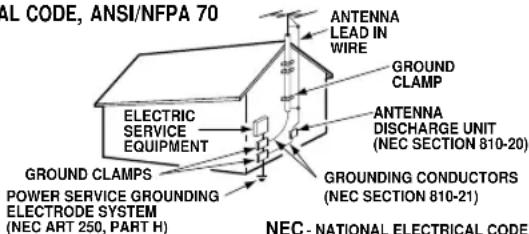
"Note to CATV system installer:
This reminder is provided to call the CATV system installer's attention to Article 820-40 of the NEC that provides guidelines for proper grounding and, in particular, specifies that the cable ground shall be connected to the grounding system of the building, as close to the point of cable entry as practical."
- If an outside antenna is connected to the receiver, be sure the antenna system is grounded so as to provide some protection against voltage surges and built up static charges. Article 810 of the National Electrical Code, ANSI/NFPA 70, provides information with respect to proper grounding of the mast and supporting structure, grounding of the lead in wire to an antenna discharge unit, size of grounding conductors, location of antenna discharge unit, connection to grounding electrodes, and requirements for the grounding electrode.
An outside antenna system should not be located in the vicinity of overhead power lines or other electric light or power circuits, or where it can fall into such power lines or circuits. When installing an outside antenna system extreme care should be taken to keep from touching such power lines or circuits as contact with them might be fatal.
Plug in the power cord
- This product should be operated only from the type of power source indicated on the marking label. If you are not sure of the type of power supply to your home, consult your product dealer or local power company. This product is equipped with a polarized alternating current line plug (a plug having one blade wider than the other). This plug will fit into the power outlet only one way. This is a safety feature. If you are unable to insert the plug fully into the outlet, try reversing the plug. If the plug should still fail to fit, contact your electrician to replace your obsolete outlet. Do not defeat the safety purpose of this polarized plug. Do not overload wall outlets, extension cords, or integral convenience receptacles as this can result in a risk of fire or electric shock.
- Power-supply cords should be routed so that they are not likely to be walked on or pinched by items placed upon or against them, paying particular attention to cords at plugs, convenience receptacles, and the point where they exit from the product.
Cleaning
- Before cleaning, unplug the unit from the wall outlet. Do not apply liquid cleaners or aerosol cleaners directly to the unit. Use a damp cloth for cleaning.
Service & Repair
- Unplug the appliance from the wall outlet and refer servicing to qualified service personnel under the following conditions:
A. If the power cord or plug is damaged or frayed.
B. If liquid has been spilled into the appliance.
C. If the appliance has been exposed to rain or water.
D. If the appliance has been dropped or the cabinet has been damaged.
E. If the appliance exhibits a distinct change in performance.
F. If the appliance does not operate normally by following the operating instructions, adjust only those controls that are covered in the operating instructions. Improper adjustment of other controls may result in damage and will often require extensive work by a qualified technician to restore the appliance to normal operation.
-
Upon completion of any service or repair, request the service technician's assurance that only Factory Authorized Replacement Parts that have the same characteristics as the original parts were used, and that routine safety checks have been performed to determine that the appliance is in safe operating condition. Unauthorized substitutions may result in fire, electrical shock, or other hazards.
-
Never add accessories that have not been specifically designed for use with this appliance as they may cause hazards.
-
For added protection during a lightning storm, or when the set is left unattended and unused for long periods of time, unplug it from the wall outlet and disconnect the antenna. This will prevent damage to the set due to lightning or power line surges.
-
Never push objects of any kind into this product through openings as they may touch dangerous voltage points or short-out parts that could result in a fire or electric shock. Never spill liquid of any kind on the product.
FEATURES
◆ Trilingual On-Screen Menu
◆ Automatic Channel Search
◆ Auto Shut Off
◆ Closed-Captioning/QuikCap
◆ Comb Filter
♦ Velocity Modulator
◆ Digital picture controls with on-screen display
♦ MTS stereo/dbx®/SAP Decoder
◆ Color Enhancer
◆ Auto Flesh Tone
◆ XDS (Extended data service) station call letters, title of show, ratings
◆ Factory preset adjustments for picture/sound
♦ Initial Channel
♦ Bass/Treble
◆ Audio/ Video Input Jacks (2 sets-R/L)
◆ S-Video Input Jack (2 sets)
◆ Audio Output Jacks (Fixed and Variable levels)
◆ V-Guide (Parental Control)
◆ Auto Clock
◆ Sleep Timer (3 hours)
TV Reset
181 Channel Tuning System
VHF Channels 2-13
UHF Channels 14-69
Cable TV (CATV) 1, 14-125
Automatic Fine Tuning
VHF and Cable Channels
Remote Control
Multimedia/Universal
VCR/TV/AUX
Large Glow-in-the-Dark basic operating keys
Numbered Channel Selection
Channel Scanning
Volume Mute
Power Recall
Display Sleep
Caption Reset
Menu V-Guide
VCR keys Input
dbx ^® is a registered trademark of Carillon Electronics Corporation
SPECIFICATIONS
PICTURE TUBE SIZE
(Measured Diagonally) 36-inch screen
PICTURE RESOLUTION ..... 330 Lines
Video Input 700 Lines
ANTENNA INPUT UHF/VHF/CATV 75Ω
POWER REQUIREMENT ..... 120VAC 60Hz
POWER 107 watts
HORIZONTAL DIM. (Width) ..... 33.4 in. (848mm)
VERTICAL DIM. (Height) ..... 29.6 in. (751mm)
DEPTH DIM. (Thickness) ..... 24.3 in. (618mm)
WEIGHT (Approx.) 146.3 lbs. (66.4 Kg.)
SOUND 2 Speakers, Size 6x12 cm
AMPLIFIER .... Built-in with 3.0W
A/V INPUT JACKS ....Video Input and Audio Input (2 sets-R/L), S-Video Input (2 sets)
AUDIO OUTPUT JACKS ..... Audio Output (R/L-Fixed and Variable) (RCA Connectors)
CAUTION: FCC Regulations state that improper modifications or unauthorized changes to this unit may void the user's authority to operate the unit.
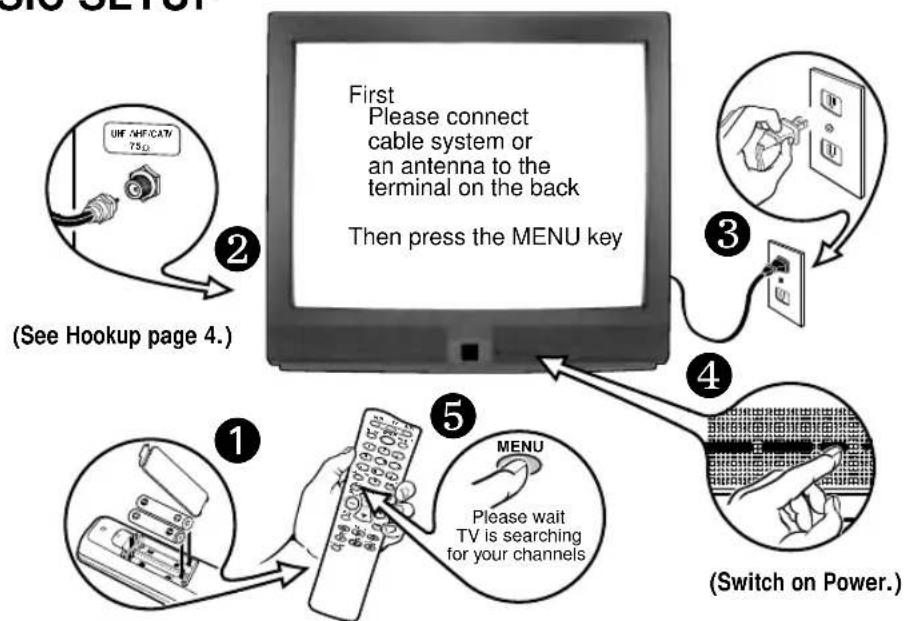
BASIC SETUP
flowchart
graph TD
    A["First Please connect cable system or an antenna to the terminal on the back"] --> B["Then press the MENU key"]
    B --> C["Switch on Power."]
    C --> D["Please wait TV is searching for your channels"]
    D --> E["1 See Hookup page 4."]
    E --> F["2"]
    F --> G["3"]
    G --> H["4"]
    H --> I["5"]
(Install batteries, see page 5.)

Quick Tips
- Do not position the TV in a confined area. Allow normal air circulation for electronic parts.
- Position your TV at least 2 feet from stereo speakers. The magnets in the speakers may affect the picture quality.
- The TV will automatically select the correct Antenna mode for the type of signal you connect.

Quick Tips
- The TV will automatically select the correct Antenna mode for the type of signal you connect.
■ TV will switch off automatically after 15 minutes if there is no signal reception (cable out or station not broadcasting).
Exception—When the Video mode is selected, the TV will not automatically switch off when signal reception has stopped for 15 minutes.
CATV FRANCHISE NOTE: Cable companies, like public utilities, are franchised by local government authorities. To receive cable programs, even with equipment which is capable of receiving cable channels, the consumer must subscribe to the cable company's service.
BASIC HOOKUP METHODS
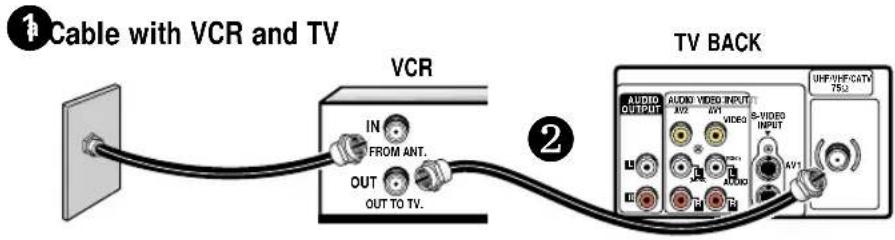
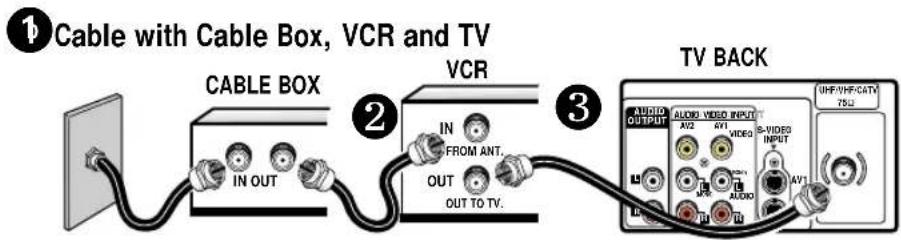
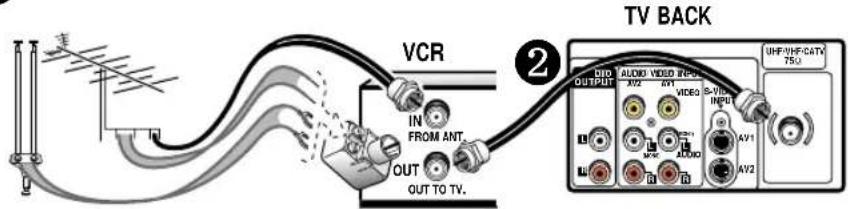
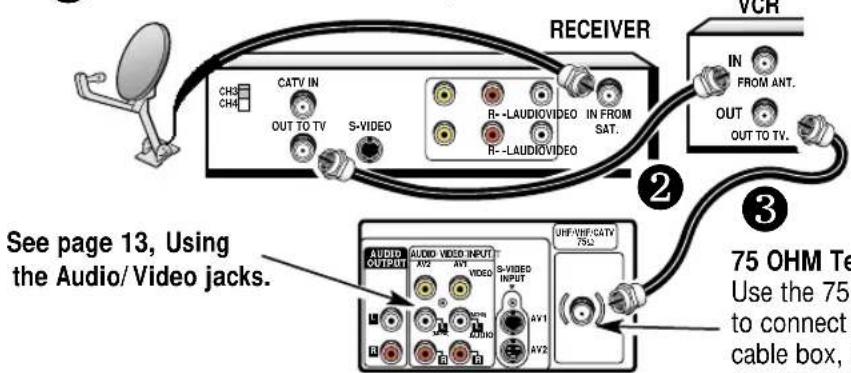
Use one of these methods to connect a signal to your TV. Select 1a—if you have cable service and a VCR, 1b—if you have a cable box and a VCR, 1c—if you have an outdoor or indoor antenna and a VCR, or 1d—if you have a satellite dish and a VCR. Connect your cable or antenna directly to the TV if you don't have any optional accessories.
1 Outdoor or Indoor Antenna with VCR and TV
Satellite Dish with Receiver, VCR and TV
TV BACK
75 OHM Terminal
Use the 75 ohm terminal to connect a VCR, cable, cable box, outdoor/indoor antenna or satellite receiver directly to the TV.
REAR PANEL
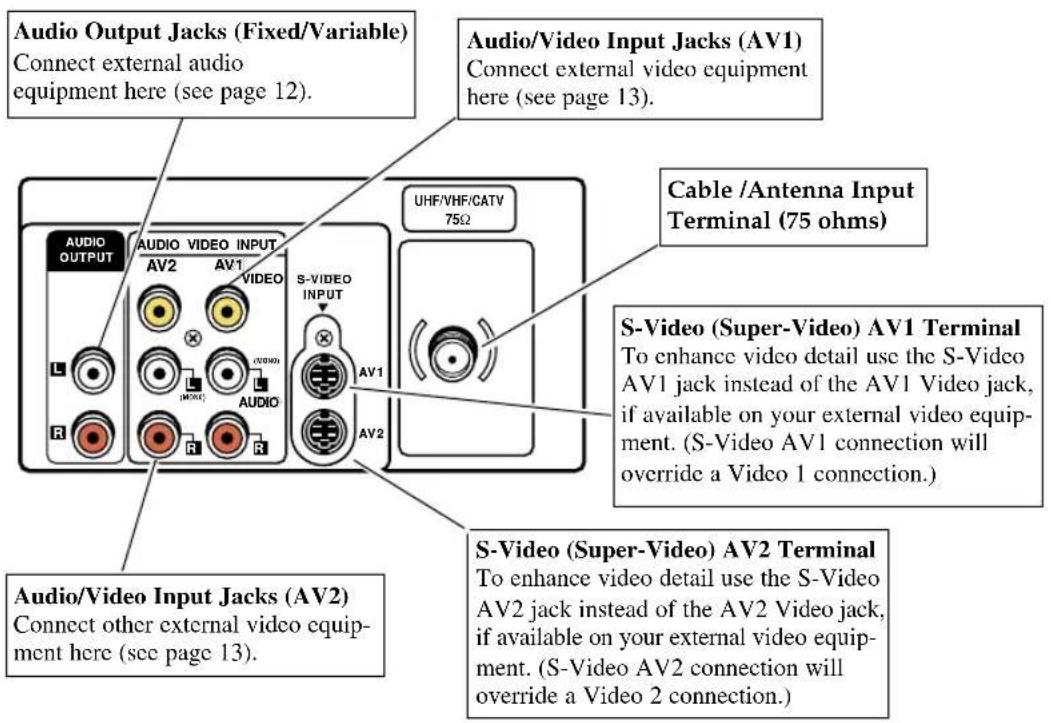
MULTIMEDIA REMOTE CONTROL
Operates your TV, VCR, DVD, and Cable converter box. To familiarize yourself with this remote control, see page 6. To program the remote control, see pages 7\~8.
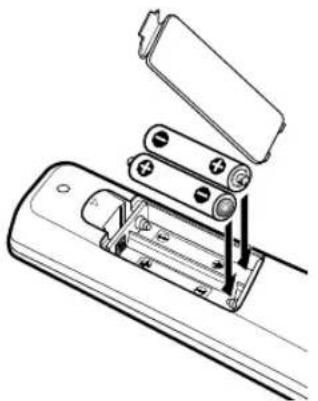
INSTALLING BATTERIES (2 AA not included)
-
Remove the battery cover by pressing the tab and tilting the cover upward. Insert batteries. Make sure you match + / - signs on the batteries with marks inside the remote control.
-
Replace battery cover. The remote control is ready!
Notes:
- Do not mix old batteries with new ones or mix different types of batteries together.
- Remove the batteries if the remote control will not be used for a month or more. Weak batteries may leak and cause damage.
natural_image
Diagram of a battery pack assembly with open casing and internal components (no text or labels)IMPORTANT NOTE: Spent or discharged batteries must be recycled or disposed of properly in compliance with all applicable laws. For detailed information, contact your local County Solid Waste Authority.

Quick Tips
■ Make sure all cable connectors are fully seated on jacks. See pages 12 and 13 before connecting external audio/video equipment.
■ Cables are not supplied for connecting your external equipment.
- A solid Blue screen with the word Video1 or Video2 displayed means that the Video mode is selected, but no signal is being detected at the Video jack. Check connection, and turn on external equipment.
- Be sure batteries are installed correctly.
- Point the remote control toward the equipment you want to operate. Objects between the remote control and the equipment may cause misoperation of the remote control function.

Quick Tips
- Point the remote control toward the equipment you want to operate. Objects between the remote and the equipment may cause misoperation of the remote control function.
■ Make sure batteries have been installed correctly. - If the remote control does not work: Press TV key (see item 1).
- The remote control must be programmed before it will operate your VCR, DVD, or Cable Box. See pages 7\~8.
- Cannot select channel with number keys. Press "0" in front of numbers 1 \~ 9. Example: Channel 05.
- The “C” in front of the channel number indicates a Cable channel.
- Adjusting the volume level: Right flashing arrow indicates volume is increasing and left flashing arrow indicates volume is decreasing.
- Channel number will not display continuously when captioning is on.
- Using V-Guide TV Parental Guidelines settings can be changed only by using the Remote Control. See pages 16 and 17.
MULTIMEDIA REMOTE CONTROL KEYS
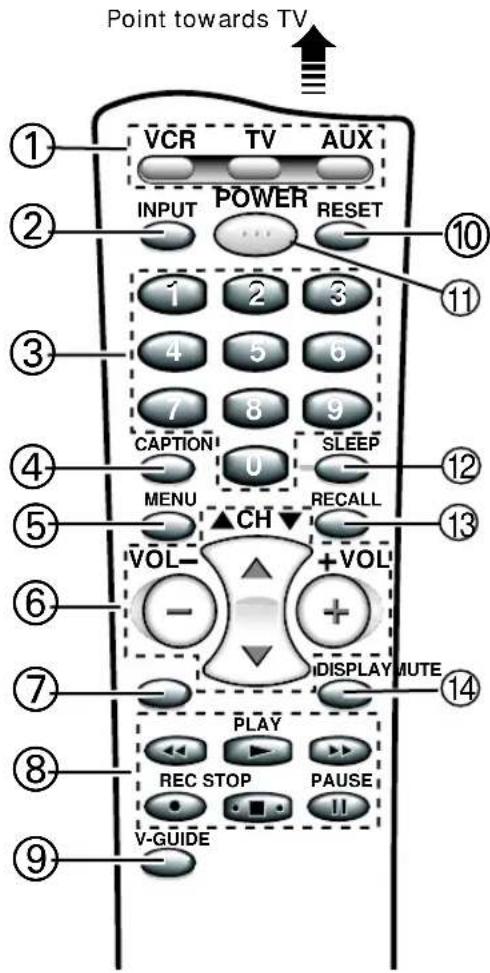
① Mode Keys
Use these keys to program the remote control and to select the operating mode (VCR, TV, or AUX).
②Input Key
Press to select the program source to be displayed on the screen: TV signal or signal from the equipment you have connected to the A/V jacks.
③Number Keys
Two keys must be pressed to select a channel. Example: Press 0 then 6 to select channel 6. For cable channels 100 through 125, press and hold the 1 key until C1—appears. Then press the other two numbers.
④Caption Key (See page 14.)
⑤Menu Key
Use this key with the land
⊖/⊕ keys to navigate and adjust features of the on-screen menu system (see pages 9 \~ 11).
⑥Channel (CH) Scanning (A)
and Volume ( ) Keys
Press to scan through the channels in memory and to adjust the volume.
⑦Mute Key
Press once to turn off the volume. Press again to restore.
Note: When using the audio out jacks this key will not mute the sound in the fixed mode, but will mute the sound in the variable mode.
⑧VCR Keys
These keys control the VCR's Fast Forward (▶ Rewind ( ),
Play ( ) Record ( ), Stop ( ) and Pause ( )
functions.
⑨V-Guide Key (See pages 15 \~17.)
⑩Reset Key
Press this key twice to restore factory settings. The TV will automatically start Channel Search and clear all customized settings. (See page 12.)
⑪Power Key
Press to turn TV on or off.
⑫Sleep Key
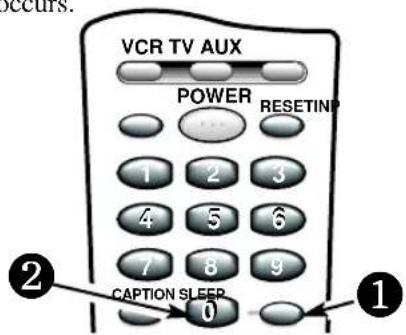
Use this key with the "0" key to set the Sleep Timer (see page 18).
⑬Recall Key
Select a channel then select another channel using the number keys. Press Recall to switch between the channels.
⑭Display Key
Press once to display the channel number and time. Press twice to display the channel number continuously. Press again to remove the display.
PROGRAMMING THE MULTIMEDIA REMOTE CONTROL
Find your code. It is next to the brand name of your equipment in the chart below and on page 8. (The illustrated example is for a Sanyo VCR.)
① Press and hold VCR or AUX key.
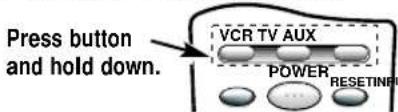
② Using the NUMBER keys on the remote, enter the three-digit code number for your VCR, DVD, or Cable Box. The key will flash 5 times when released if the code was accepted.
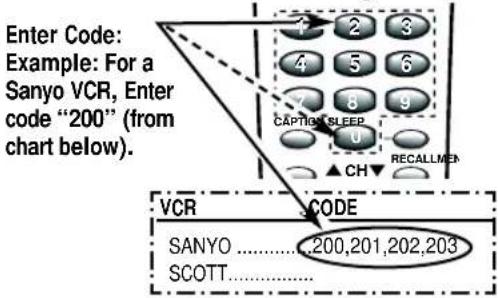
③ Press the POWER and CHANNEL keys to check programming. If they operate properly, programming is completed. If not, use another code, if available and repeat steps.
Notes:
- There may be VCRs, DVD's, and cable boxes that this remote control cannot operate.
- Some manufacturers use different types of remote controls. If your brand has several codes listed, repeat steps ① and ② with each number until you find the correct code. Write your codes in the spaces on back of remote control and page 8 for quick reference.
To Operate Your...
VCR—Press the VCR key.
Cable Box—Press the AUX key. DVD Player—Press the AUX key.
Television—Press the TV key.

Quick Tips
■ Make sure batteries have been installed correctly.
■ The remote control will not operate my VCR, DVD, or Cable Box.
- Press the VCR or AUX key.
- Reprogram the remote control.
- Special key functions: The INPUT key functions as the VCR's TV/VCR key when the Remote Control is in the VCR mode.
■ The AUX mode will accept codes for DVDs, Cable boxes, or a VCR, but only one at a time.
VCR Codes Chart
| BRAND NAME | CODE NO. | BRAND NAME | CODE NO. | BRAND NAME | CODE NO. |
| ADMIRAL | 234,239,243,247,224,229,222,215 | HUGHES | 221 | QUARTZ | 200 |
| ADVENTURA | 228 | JBL | 237 | QUASAR | 245,232,236,223,216 |
| AIKO | 240,205 | JENSEN | 209 | RADIO SHACK | 228,245,223 |
| AIWA | 228,217 | JVC | 220,225,238,226,203,209,221 | RCA | 221,241,246,230,232,236,239,224 |
| AKAI | 209,215 | KEC | 240,205 | 226,229,221,201,207,208,210,216 | |
| AMERICA ACTION | 205 | KENWOOD | 226,238,220,201,203,209 | REALISTIC | 232,239,223,224,228,229,200,201 |
| AMERICA HIGH | 232 | KODAK | 232 | 202,203,206,208,216,217,245 | |
| BELL & HOWELL | 203 | LLOYD'S | 228 | SAMSUNG | 208,233,211,217,222 |
| BROKSONIC | 234,243,247,227,204 | LOGIK | 235,219 | SANKY | 239,229,224 |
| CANDLE | 233,240,222,223,204,205,208 | LXI | 232,221,228,201,202,203,206 | SANSUI | 243,226,228,209,219,220 |
| 211,216,217 | 211,217 | SANYO | 200,201,202,203 | ||
| CANON | 232,216 | MAGNASONIC | 223,240,205,219 | SCOTT | 234,247,223,227,211 |
| CCE | 240,205 | MAGNAVOX | 204,232,228,211,216,217,219,220 | SEARS | 232,223,228,221,200,201 |
| CINERAL | 240,205 | MARTA | 206 | 202,203,206,211,216,217 | |
| CITIZEN | 233,240,222,205,211,216,217 | MATSUSHITA | 232,216 | SEMP | 211 |
| CRAIG | 223,202,219 | MEI | 232 | SHARP | 239,229,224 |
| CRAVER | 204 | MEMOREX | 232,239,243,245,223,224,228, | SHINTOM | 219,227 |
| CURTIS MATHES | 232,236,238,222,228,208,209 | 229,221,200,202,203,206,215 | SIGNATURE | 217,239,229,224,200 | |
| 211,216,217 | MINOLTA | 221 | SONY | 214,218,232,237,226,228 | |
| DAEWOO | 205,240,211 | MITSUBISHI | 231,239,244,224,226,229,210,223 | STS | 221 |
| DAYTRON | 240,205 | MOTOROLA | 232,239,229,224 | SYLVANIA | 228,232,244,204,216,217 |
| DENON | 221 | MTC | 228,217,219 | SYMPHONIC | 217,228,233,226,202 |
| DYNATECH | 228 | MULTITECH | 228,217 | TATUNG | 226,209 |
| EMEREX | 214 | NEC | 238,208,223,226,203,206,209 | TEAC | 228,209,214,217 |
| EMERSON | 234,236,240,243,247,223,227,228 | 215,217 | TECHNICS | 232 | |
| 203,204,205,206,210,211,217 | OLYMPUS | 232 | TEKNIKA | 232,223,228,216,217 | |
| FISHER | 200,201,202,203,211 | OPRIMUS | 239,245,248,223,224,229,203,208 | TOMAS | 228,217 |
| FUJI | 232 | ORION | 243,227,234,205,206,210,211,240 | TOSHIBA | 211,240,244,202,205,210 |
| FUNAI | 228,233,217 | PANASONIC | 245,232,236,223,202,211,216,219 | VECTOR | 211 |
| GARRARD | 228 | PENNY | 230,232,221,223,208,211,216,219 | VIDEO CONCEPT | 211 |
| GE | 222,246,232,236,239,226 | PENTAX | 238,221 | WARDS | 230,232,239,223,224,228,229 |
| 229,224,208,212,216 | PHILCO | 204,232,243,228,216,217 | 221,202,204,208,211,217 | ||
| GOLDSTAR | 223,238,226,206,208,215,217 | PHILIPS | 204,232,211,216,217,228 | WHITE | |
| GO VIDEO | 248,249,208,212,219 | PIONEER | 242,204,207,220 | WESTINGHOUSE | 240,243,205 |
| GRADIENTE | 228 | PROSCAN | 222,241,246,230,236,226 | XR-1000 | 228,232 |
| HARLEY DAVIDSON | 228 | PROTON | 219 | YAMAHA | 238,226 |
| HEADQUARTER | 200 | PULSAR | 233,240,205, 208,216,217 | ZENITH | 215,237,243,223,225,228,222 |
| HITACHI | 230,246,226,228,221,222,209,217 | QUARTER | 200 |
Cable Converter Box Codes Chart
| BRAND NAME | CODE NO. | BRAND NAME | CODE NO. |
| ABC ...... | 304,306,309 | PHILIPS ...... | 325,329,301 |
| 312, 313,314, | 313,314,322 | ||
| 318,321,322,324 | PIONEER ...... | 333,312,317 | |
| AIM ...... | 321 | PROSCAN ...... | 327 |
| ARCHER ...... | 334 | QUASAR ...... | 302,307,317 |
| BELL & HOWELL .. | 313 | RADIO SHACK ...... | 334 |
| CONTEC ...... | 302,305,307,308 | RCA ...... | 328,302,307 |
| 311,318,320,324 | REGAL ...... | 330,307,320 | |
| CPI ...... | 319 | REMBRANT ...... | 305,309 |
| DIAMOND ...... | 320 | SAMSUNG ...... | 310,312 |
| EAGLE ...... | 313 | SCIENTIFIC | |
| EMERSON...... | 334 | ATLANTA ...... | 327,307,324 |
| GEMINI ...... | 334 | SIGNAL ...... | 310 |
| GENERAL | SIGNATURE ...... | 300,309,321,322 | |
| INSTRUMENTS .. | 303,309,311,320 | SPRUCER ...... | 302,307,316 |
| 321,322,323,300 | STARCOM ...... | 332,309,311,321 | |
| GOLDSTAR ...... | 312 | 322,323 | |
| GOODMIND...... | 334 | STARGATE ...... | 309,310,311,321 |
| HAMLIN ...... | 330,320 | 322,334 | |
| HITACHI ...... | 309 | TELEVIEW ...... | 310 |
| HYTEX...... | 318 | TOCOM ...... | 300,303,304,305 |
| JERROLD ...... | 303,308,309,311 | 306,307 | |
| 313,319,320,321 | TOSHIBA ...... | 331,309,311 | |
| 322,323,300 | 316,322 | ||
| MAGNAVOX ...... | 325,329,301 | UNIKA ...... | 314 |
| 313,314,322 | UNITED AIRTISTS.. | 318 | |
| MEMOREX ...... | 332,313,314 | UNITED CABLE .... | 309 |
| MOVIE TIME ...... | 306,310,314 | U.S. | |
| NORTHCOAST ...... | 316 | ELECTRONICS .... | 309,322,324 |
| NSC ...... | 305,306,314 | VIEWSTAR ...... | 326,313,315 |
| OAK ...... | 305,318,320 | WARDS ...... | 321,322 |
| PANASONIC ...... | 302,307,317 | WARNER ...... | 312 |
| PARAGON ...... | 313,314 | ZENITH ...... | 331,316,322,324 |
DVD PLAYER Codes Chart
| BRAND NAME | CODE NO. | BRAND NAME | CODE NO. |
| APEX......523DENON......501,520EMERSON......521FISHER......500GE......504HARMAN/KARDON......513JVC......510,515KENWOOD......507MAGNAVOX......508,502MARANTZ......508MITSUBISHI......503ONKYO......502,516OPTIMUS......511ORITRON......522PANASONIC......501,518 | PHILIPS......508,502PIONEER......511,505,518PROSCAN......504RCA......504SAMSUNG......512SANYO......500SHARP......517SHERWOOD......519SONY......506TECHNICS......501THETA DIGITAL......511TOSHIBA......502YAMAHA......501,509ZENITH......514,502 |
Replacing Batteries
The programming code numbers will remain in memory for 5 minutes as you replace the batteries.
Record your VCR, Cable Box, and DVD Player codes for future reference.
| VCR Code: | |||
| Cable BoxCode: | |||
| DVD PlayerCode: |
Multimedia Remote Control Keys Functions Chart
| REMOTE KEYS FUNCTION | IN TV MODE FUNCTION | N VCR MODE FUNCTION | N CABLE MODE FUNCTION IN | DVD MODE |
| POWER On/Off On/Off On | Off | On/Off | ||
| NUMBER KEYS (0 ~ 9) | Used to Select Channels | Used to Select Channels | Used to Select Channels | No Function |
| INPUT | Selects TV/Video mode | Selects TV/VCR mode | Selects TV/Video mode | Selects TV/Video mode |
| RECALL | Selects previous channel | Selects previous channel | No Function | Select Repeat |
| CHANNEL (UP) | Selects next channel up | Selects next channel up | Selects next channel up | Next or Skip Forward |
| CHANNEL (DOWN) | Selects next channel dn | Selects next channel dn | Selects next channel dn | Previous or Skip Reverse |
| PLAY | Selects VCR Play Mode | Selects VCR Play Mode | Selects VCR Play Mode | Selects DVD Play Mode |
| FAST FORWARD | Fast Forwards tape | Fast Forwards tape | Fast Forwards tape | Fast Forwards disc |
| REWIND | Rewinds tape | Rewinds tape | Rewinds tape | Steps backward |
| STOP | Selects VCR Stop | Selects VCR Stop | Selects VCR Stop | Stops disc |
| PAUSE | Selects VCR Pause | Selects VCR Pause | Selects VCR Pause | Pause (still) disc |
| NOTE: Other remote control keys operate only TV functions. | ||||
TV ADJUSTMENT AND SETUP
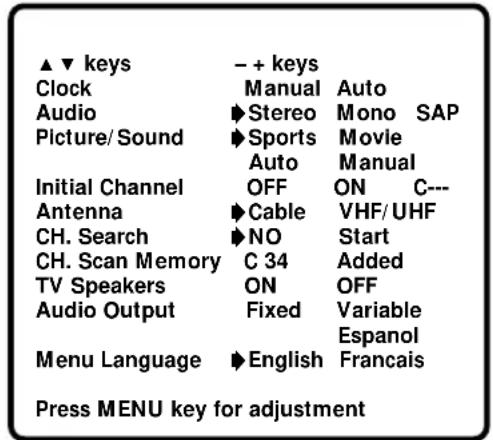
The on-screen menu provides the viewer with easy access to adjustments and settings. Just use the keys on the remote control and follow the instructions.
HOW TO MAKE ADJUSTMENTS
- Press MENU key.
- Use the /keys to highlight the desired feature.
- Use the 🔊key to choose desired option (▶ indicates selected item).
Items with submenus requires additional steps.
SETTING THE CLOCK
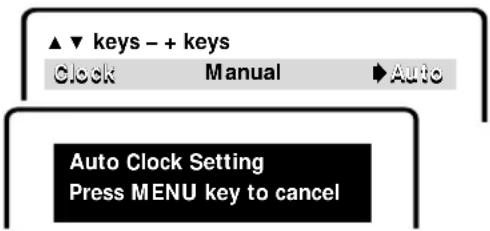
To use the Auto Clock feature, a local PBS station that is broadcasting an XDS signal must be received. The Auto Clock searches for the transmitted signal and automatically sets the
clock.
To set the clock automatically:
- Press MENU key.
- Use the ⊕ key to activate Auto setting.
Notes:
- The clock will be cleared after a power interruption. When power is restored, the TV will display the Auto Clock setup menu on the screen automatically.
- For Cable Box users, set the clock manually.
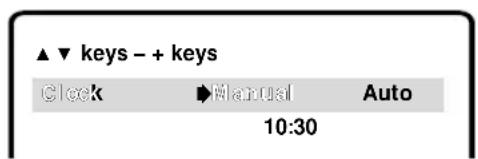
To set the clock manually:
- Press the Key to choose Manual.
- Press MENU key for adjustments.
- Use the key to set hour and the key to set the minutes.
- Press the MENU key to exit.

Quick Tips
■ Always follow on-screen instructions.
- The menu will display on the screen for approximately 20 seconds. Press MENU again to redisplay.
- All TV adjustments are controlled through the menu.
- Use the CHANNEL
/ and
VOLUME / keys
to navigate through the menus and to make selections from the menus.
- ① To see the time of day after setting the clock, press the DISPLAY key.
■ Extended Data Service (XDS) signal may not be transmitted by all broadcasters.
■ Under weak stereo signal conditions, you may receive better quality sound in the “Mono” position.
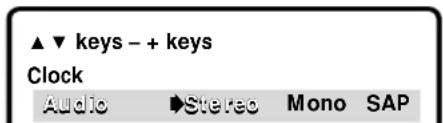
SETTING AUDIO MODE
Select desired sound setting, Stereo, Mono, or SAP (secondary audio program).
Note: Stereo and SAP must be part of the broadcast signal.
- Choose Stereo, Mono, or SAP from the Audio options.
- Press the MENU key to exit.
Note: The TV will automatically reset to stereo if unplugged or a power interruption occurs.

Quick Tips
- To expand your viewing experience select Sports, Movie, or News to match the program you are watching.
- Use the color enhancer feature to highlight the picture flesh tones and color highlights. Selecting warm will deepen the picture red tints and cool will highlight the picture blue tints.
- When Initial Channel is set to OFF the TV will tune to the last channel selected when powered on.
- When setting the Antenna mode, choose Cable if your TV is connected to a cable system, otherwise choose VHF/UHF.
ADJUSTING PICTURE/ SOUND
For automatic picture adjustment:
Choose Sports, Movie, or News from the Picture/Sound options.
Adjust the picture/sound manually:
- Choose Manual from the Picture/Sound options.
- Press the MENU key to open the picture/sound settings submenu.
- Use the /keys to highlight the picture or sound setting you want to change.
- Use the Ⓐkey to adjust settings.
- Press the MENU key to exit.
![▲▼ keys – + keys Clock Audio Play Music/Sound Initial Channel Sports News Movie ►Manual ▲▼ keys – + keys Color Tint Contrast Brightness Sharpness ●●●●●● Normal Cool Base 1 [1] [1] [1] Treble Press MENU key to exit](/content/2026/06/1187021/images/2b5de269d6da201bdc67c9bc465a7aa5e018ad0195e21c967545213767cb9874.jpg)
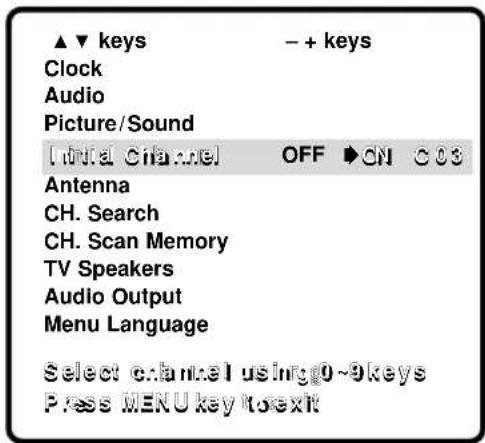
INITIAL CHANNEL SETUP
The TV can be programmed to tune to your favorite channel each time it is turned on, such as, a news or sports network, or the output of your VCR.
- Press MENU key.
- Use the /keys to highlight Initial Channel.
- Press the Key to choose ON. Select favorite channel (example): C03. To select cable channels above 99, press and hold the 1 key until C1—appears.
- Press the MENU key to exit.
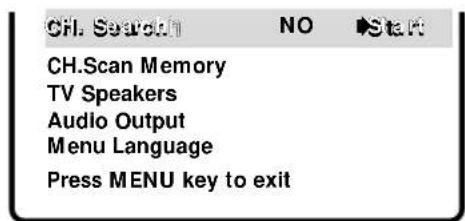
RESETTING THE ANTENNA/CABLE MODE AND CHANNEL SEARCH
Resetting the Antenna/Cable Mode or CH. (Channel) Search is required only if additional channels become available, such as moving to another city or having a cable service installed.
- Choose Start from the Ch. Search menu options.
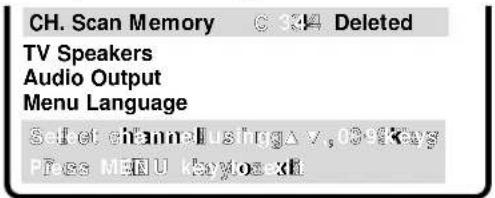
ADDING OR DELETING CHANNELS
- Press MENU key.
- Use the 🔒/ 🔒 keys to highlight CH. Scan Memory.
- Press the key to highlight the channel number entry area.
- Enter the channel number you want to add or delete (example): C34. For cable channels above 99, press and hold the 1 key until C1-- appears.
Then enter the other two numbers.
- Press the Key to change the present setting. Example: Added will change to Deleted.
- Press the MENU key to exit.
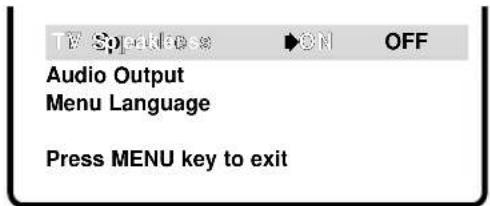
TV SPEAKERS
- Press MENU key.
- Use the /keys to highlight TV Speakers.
- Press the /keys to turn the speakers ON or OFF.
- Press the MENU key to exit.
Note: Sound will not be produced through your TV speakers, if the OFF mode is selected.

Quick Tips
■ Channels deleted from scan memory can be selected with the number keys.
- The channel number area must be highlighted before pressing the key to add or delete.
- Restoring deleted channels, use the on-screen menu to manually add channels or start CH. (Channel) Search from the menu.
- Press the RESET key twice to automatically start Channel Search and clear all customized settings.
AUDIO OUTPUT
This convenient menu option enables you to select a fixed or variable audio signal.
- Press MENU key.
- Use the 🔒/ 🔒 keys to highlight Audio Output.
- Press the ⊙/⊕ keys to select Fixed or Variable.
- Press the MENU key to exit.
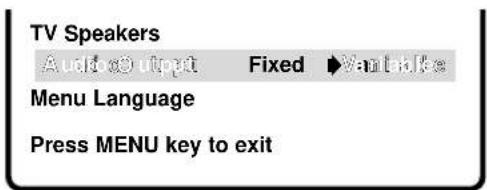
Fixed Mode (Constant audio output level from TV):
Use external equipment volume controls to adjust sound level.
Variable Mode (Output from TV varies with volume):
Use the TV and external equipment volume controls to adjust the sound level.
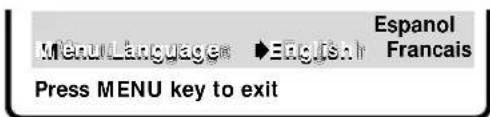
SELECTING THE DISPLAY LANGUAGE
- Choose English, Francais, or Espanol from the Menu Language options.
- Press the MENU key to exit.

Quick Tips
■ Make sure all cable connectors are fully seated on jacks.
■ Always match cables according to the colors; RED for right audio and WHITE for left audio.
- Position your TV at least 2 feet from stereo speakers. The magnets in the speakers may affect the picture quality.
- Do not connect external speakers directly to the TV.
RESET TING THE TV
Press the RESET key to automatically reset the television to factory settings. These features will automatically reset:
- Picture/Sound Adjustments: Color, Tint, Contrast, Brightness, Sharpness, Color Enhancer, Bass, and Treble
- Channel Memory
- Audio to Stereo
- Initial Channel to OFF
- Caption to OFF
• V-Guide to OFF
• TV Speakers to ON
• Audio Output to FIXED
• Language to English
• Auto Clock and Sleep Timer (if previously set)
If desired, personal settings can be made again using the menu options.
Press RESET key again to return factory preset and begin channel search
Auto Clock was cleared Begin setup procedures?
NO YES
Use - / + keys to select Then press the MENU Key
USING THE AUDIO OUTPUT JACKS
CONNECTING A STEREO AMPLIFIER TO AUDIO OUT JACKS
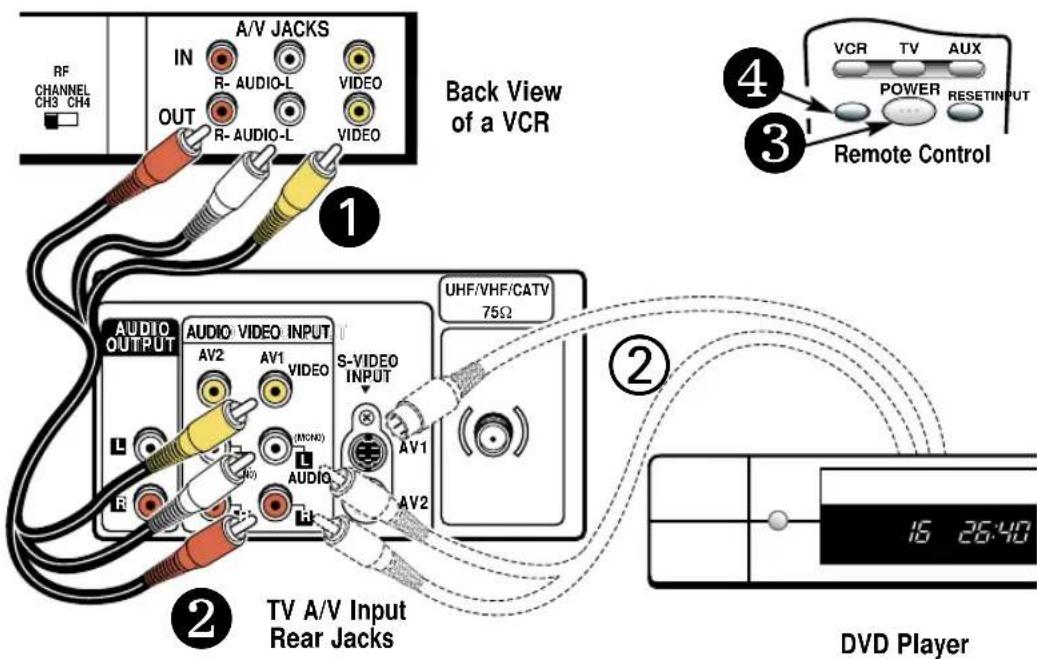
- Connect the TV Audio Output (R/L) ① to the Stereo Amplifier In (R/L) ②.
- Press POWER to turn on the TV. Turn on external equipment also.
- Use the AUDIO OUTPUT on-screen menu options (see page 11) to select Fixed or Variable output signal.
Notes: When TV Speakers is in the ON mode, sound will be produced through your TV and external speakers.
When TV Speakers is in the OFF mode, sound will be produced only through the external speakers.
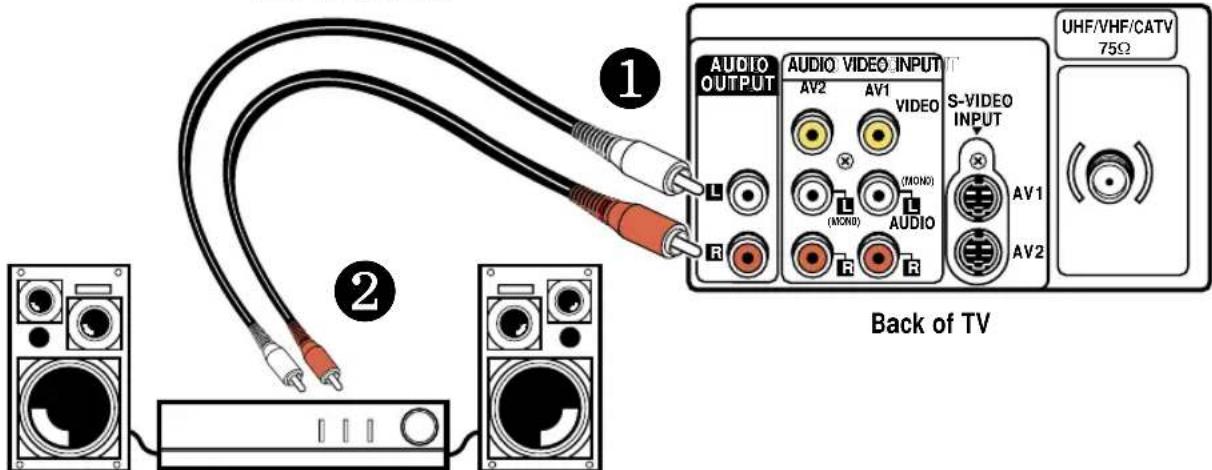
Stereo Amplifier
USING THE AUDIO/VIDEO INPUT JACKS
CONNECTING A VCR OR OTHER EXTERNAL EQUIPMENT
Switch off TV and external equipment before connecting cables. (Cables are not supplied.)
- Connect VCR, DVD, DSS, or other equipment's Audio Out (R/L) to the TV Audio Input (R/L) ①.
For Mono VCR (Single Audio Jack) connect VCR Audio Out to TV Audio (L) Input.
- Connect VCR, DVD, or other equipment's Video Out to the TV Video Input ②
Optional
Connect VCR, DVD, or other equipment's S-Video Out to the TV S-Video In (AV1) Jack or S-Video In (AV2) Jack②.
Using the S-Video In (AV1) jack overrides the Video 1 jack ② and using the S-Video In (AV2) jack overrides the Video 2 Input jack ②.
-
Press POWER ③ to turn on the TV. Turn on external equipment also.
-
Press the INPUT key ④ to select program source: TV signal or signal from the equipment you have connected to the A/V1 and A/V2 jacks.
Follow the same procedure to connect other compatible video equipment to the second set of A/V jacks.

Quick Tips
■ Make sure all cable connectors are fully seated on jacks.
■ Always match cables according to the colors; RED for right audio, WHITE for left audio and YELLOW for video.
- A/V1 and A/V2 jacks have identical functions. Any compatible video equipment can be connected to either set of jacks.
- A solid Blue screen with the word Video1 or Video2 displayed means that the Video mode is selected, but no signal is being detected at the Video jack. Check connection, and turn on external equipment.
- You may be able to use the remote control to operate your VCR, DVD, Cable Box, and TV. (See pages 7\~8.)

Quick Tips
- If Caption Text mode is selected and no captioned text is broadcasted, a black box may appear and remain on the TV screen.
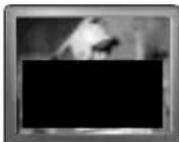
To remove this black box, set captioning to any mode other than Text1 or Text2 or press the RESET key to cancel captioning and customized settings.
- When captioning is turned on, the channel display will not stay on the screen. For these displays to stay on the screen you must set Captioning to OFF.
CLOSED-CAPTIONING

Captioning is textual information transmitted along with the picture and sound so it can be displayed on the TV screen. Because different types of captions can be transmitted with the TV signal, separate captioning modes are provided. The captioning modes recognized by this model are: Caption1, Caption2, Text1, and Text2. Local broadcasters decide which caption signals to transmit. They may not choose to provide captions or may provide captions in one or all of the available modes.
Caption1: This is the main mode used for program captioning (words match the program you are watching). Almost all broadcasters will use Caption1 to transmit program captions. These captions are generally one or two lines.
Caption2: This is an alternative mode for program captioning. Caption2 may be used by the broadcaster to provide captions in another language, such as, Spanish or French.
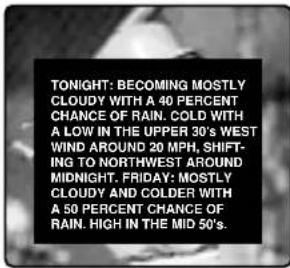
Text1: This mode is used to display large amounts of text. This text will appear within a black box that may be nearly as large as the TV screen. Text displayed in this manner does not generally relate to the program. These captions may be used by broadcasters to provide weather reports, community bulletins, stock quotes, etc.
Text2: This is an alternative mode used to display large amounts of text. The same types of information displayed in Text1 can be displayed in Text2.
Quikcap: Quikcap allows captions to toggle on and off with the Mute function. For example, the phone rings; you press the MUTE key on the remote control to block the TV sound; the captions display automatically. When you finish your conversation and press the MUTE key again to restore the sound, the captions will disappear.
Quikcap displays program captions in the Caption1 mode.
SETTING CAPTIONS
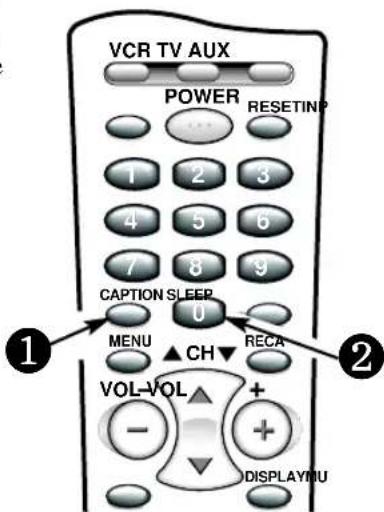
- Press the CAPTION key on the remote control.
- Use the 0 key to select OFF, Caption1, Caption2, Text1, Text2, or Quikcap.

Caption1/ Caption2
Text1/Text2
V-GUIDE INFORMATION
NOTE: THIS FEATURE IS DESIGNED TO COMPLY WITH THE UNITED STATES OF AMERICA'S FCC V-CHIP REGULATIONS. THEREFORE, IT MAY NOT FUNCTION WITH BROADCASTS THAT ORIGINATE IN OTHER COUNTRIES.
With the introduction of “V-Chip” technology, it is now possible for Sanyo televisions to interpret MPAA and TV Parental Guidelines rating codes. When these codes are detected, the TV will automatically display or block the program, depending upon choices you make when setting up the V-Guide system.
ABOUT MPAA AND TV PARENTAL GUIDELINES
MPAA and TV Parental Guidelines are rating systems that provide advance cautionary information to parents about the content of movie and television programming.
MPAA is a voluntary rating system used by the movie industry. TV Parental Guidelines are modeled after the MPAA ratings and were designed to be simple to use, easy to understand, and easy to find.
TV Parental Guidelines contain both age-based and content-based information. This gives parents discretionary ways of choosing appropriate material for their children to view.
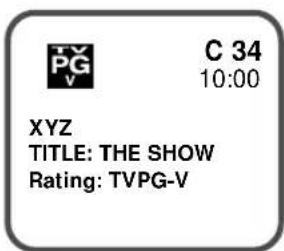
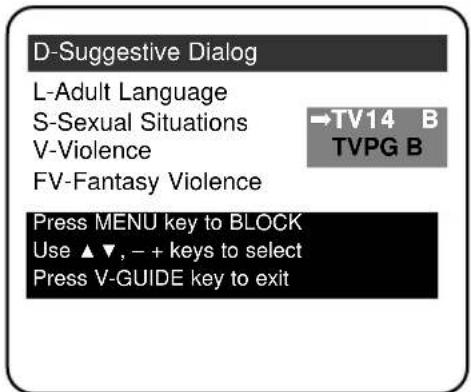
Content ratings are represented by the initials D (Suggestive Dialog), L (Adult Language), S (Sexual Situations), V (Violence), and FV (Fantasy Violence). When programming contains any or all of these conditions, these letters become part of the icon that is displayed on the TV screen.
A rating icon will generally appear in the upper left hand corner of the TV screen for fifteen seconds at the beginning of a program and should be repeated at the beginning of the second hour of a long program. It may also appear when returning from commercials. There may be other instances when these icons will be displayed as well. Parents are encouraged to become familiar with these icons and their meanings.
WHERE CAN I FIND ADVANCE NOTICE OF PROGRAM RATING
Publishers of programming guides have been asked to include these ratings along with other information they publish. You can expect to find this information in newspapers, magazines, and on-screen listings and guides.
TYPES OF PROGRAMS TO RECEIVE RATING
The TV Parental Guidelines will apply to various types of TV programming, including: specials, mini-series, and movies. Sports and news shows do not currently carry guidelines.

Quick Tips
- Use the CHANNEL / keys and the VOLUME / ☑ keys to navigate through the menus and to make selections from the menus.
■ V-Guide feature is accessible only from the remote control.
■ The TV guidelines rating icon will generally appear in the upper left hand corner of your TV screen. - The V-Guide display remains on screen for approximately 20 seconds. If it disappears, press the V-Guide key.

Quick Tips
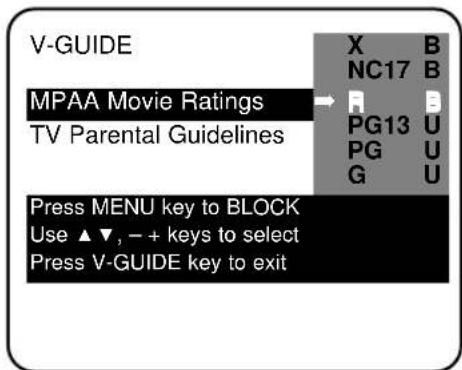
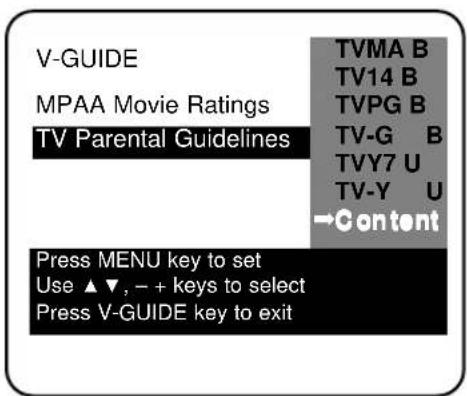
- The TV will automatically block (B) ratings above or unblock (U) ratings below selection. For example, if you block rating R, NC17 and X will be blocked as well.
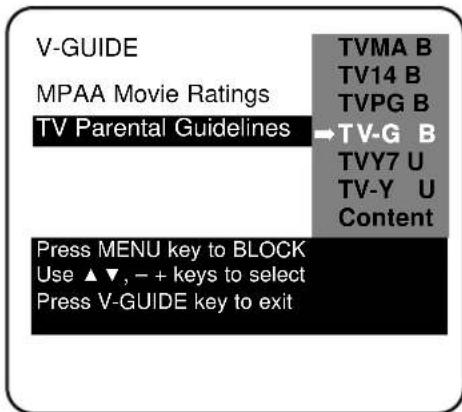
■ Blocking TVY7 does not block higher ratings. - You can block a content rating such as TVPG-V and still be able to watch TVPG programs with ratings of S-L-D provided TVPG is unblocked (U).
- To view Blocked (B) programs, set V-GUIDE to OFF, or press the RESET key twice to clear all Blocked (B) ratings and customized settings.
- When in the V-Guide menu system, the ⏻/⊕ keys allows you to navigate between the ratings and the options menu.
V-GUIDE OPERATION
Use this feature to supervise television viewing for young children. This television can be set to automatically block programs with content you deem as inappropriate for your children to view, including: suggestive dialog, adult language, sexual situations, violence, and fantasy violence.
The ability of the television to block the reception of specific programming content depends upon several conditions: 1) The program must be rated, 2) Networks must broadcast the rating code data, 3) Cable companies must transmit the rating code signal, and 4) The TV must be properly setup to decode the signal.
The TV guidelines rating icon will generally appear at the upper left hand corner of your TV screen.
SETTING MPAA MOVIE RATING
- Press the V-GUIDE key on the remote control to display menu.
- Press the Ⓞy to switch V-Guide ON.
- Press the 📤y again. Then use the 🔒/ Key to highlight rating.
- Press the MENU key to Block (B) or Unblock (U) selected rating. (→ Arrow indicates selection.)
- Press the 🔒y to return to the V-Guide Options menu.
SETTING AGE-BASED GUIDELINES
- Use the keys to highlight TV Parental Guidelines.
- Press the 🎥y. Then use the 🎥/ 🎥y to highlight rating.
- Press the MENU key to Block (B) or Unblock (U) selected rating. (→ Arrow indicates selection.)
SETTING CONTENT-BASED GUIDELINES


- Follow steps 6 and 7. Use the keys to highlight Content.
- Press the MENU key to display the Content Option menu.
- Use the /key to highlight a category (D-Suggestive Dialog, L-Adult Language, S-Sexual Situation, V-Violence, FV-Fantasy Violence).
- Press the ☑y. Then use the / key to highlight a rating.
- Press the MENU key to Block (B) or Unblock (U) selected rating. (→ Arrow indicates selection.)
- Press the V-GUIDE key to exit; or press the Ⓑ key to return to the Content Options menu.
- Repeat steps 11 through 13 to Block (B) or Unblock (U) additional content ratings, if desired.
TURNING OFF THE V-GUIDE
- Press the V-GUIDE key.
- Use the / keys to select OFF.
Note: Networks and local stations may or may not include the content ratings portion of the TV Parental Guidelines.
SETTING THE SLEEP TIMER
The Sleep Timer will switch off the TV automatically.
-
Press the SLEEP key.
-
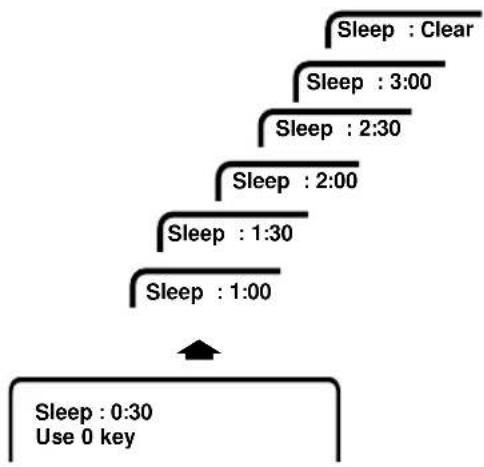
Use the 0 key to select the desired time (from 30 minutes up to 3 hours).
Note: The Sleep Timer cancels when the TV is turned off or if a power failure occurs.
flowchart
graph TD
    A["Sleep : Clear"] --> B["Sleep : 3:00"]
    B --> C["Sleep : 2:30"]
    C --> D["Sleep : 2:00"]
    D --> E["Sleep : 1:30"]
    E --> F["Sleep : 1:00"]
    F --> G["Sleep : 0:30\nUse 0 key"]
CARE AND CLEANING
The surface of the cabinet can be damaged if not properly maintained. Many common household aerosol sprays, cleaning agents, solvents and polishes will cause permanent damage to the fine surface.
-
Unplug the power cord before cleaning the television.
-
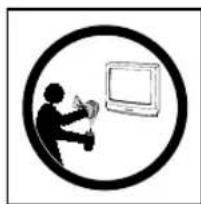
Use a damp cloth for cleaning.
Note: Never spray liquids on the screen because they can run down and drip onto the chassis. This may cause component failure not covered under Warranty.
natural_image
Silhouette of a person using a computer within a circular frame (no text or symbols)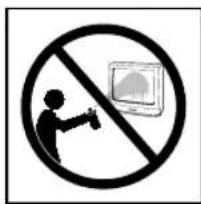
TROUBLESHOOTING
Before calling for assistance, please look for the condition that most closely resembles your problem in the following charts, then follow the instructions for that condition. Visit our web site at www.sanyoctv.com
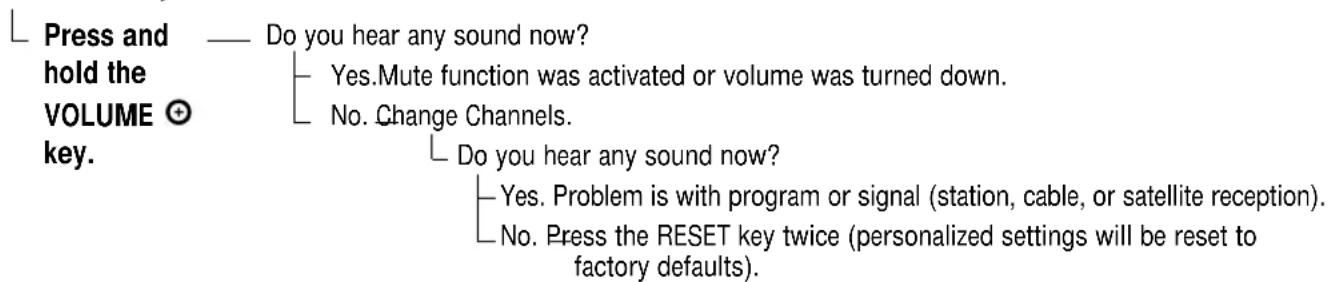
TV Turns off by itself

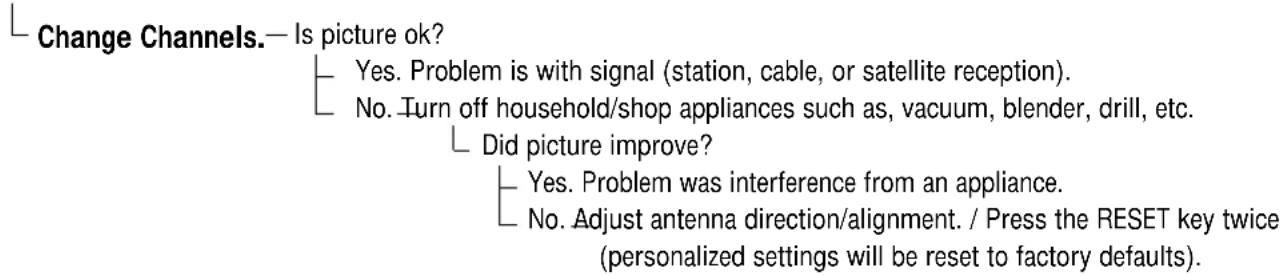
No Picture or Poor Picture
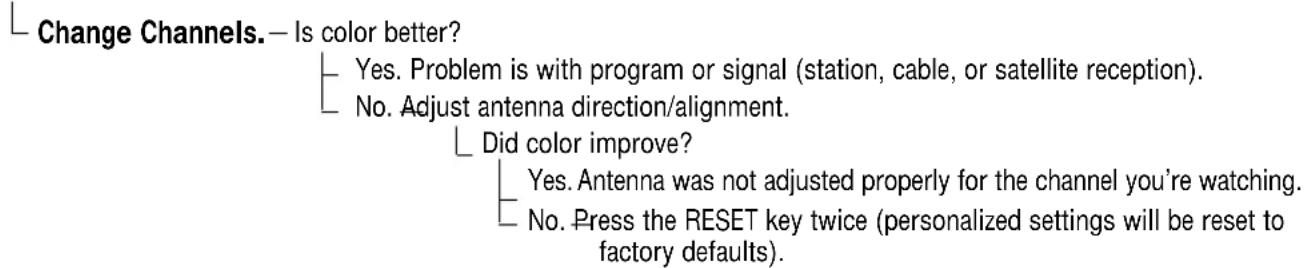
Poor color or no color
No sound, Poor Stereo sound
(Continued on next page.)
TROUBLESHOOTING (Continued)
No Captioning
Is the program you are watching closed-captioned?
Yes. Set captioning on. Press the Caption key then press the 0 key to highlight Caption1. No. -Tune to a channel that is broadcasting a closed-captioned program.
A Black box appears on the screen
Change Channels.—Did the black box disappear or disappear briefly then reappear?
Yes. TV station is broadcasting a Caption text signal without any textual data. Press the RESET key twice (customized settings will be reset to factory defaults). To retain customized settings, just turn captioning off (see page 14).
My TV screen is solid blue
Press the INPUT key.
Did the Blue Screen disappear?
Yes. The TV was in the Video mode. (A Blue Screen will appear when the Video mode is selected and there is no video signal being detected.) Your AV equipment may be turned off or unplugged.
I don't recognize words in the on-screen menu
Press the RESET
Do you recognize the menu words now?
Yes. A language other than English was selected.
key twice (personalized settings will be reset to factory defaults).
Cannot select or scan some channels
Press the RESET
Did the problem go away?
Yes. It may have been the channel scan memory or V-Guide settings.
key twice (personalized settings will be reset to factory defaults).
TROUBLESHOOTING (Continued)
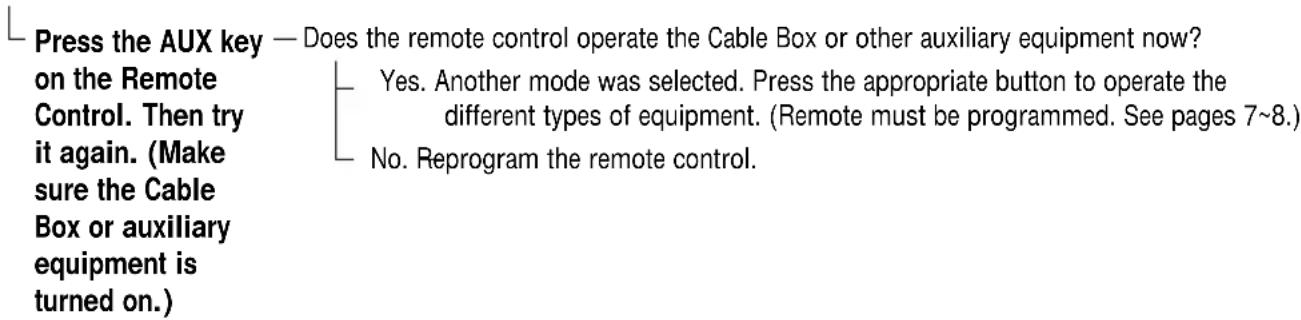
My remote control will not operate my Television

My remote control will not operate my Cable Box or other auxiliary equipment
The cabinet makes a popping sound
This is a normal condition during the warm-up and cool down of the plastic cabinet parts.

This symbol on the nameplate means the product is Listed by Underwriters' Laboratories Inc. It is designed and manufactured to meet rigid U.L. safety standards against risk of fire, casualty and electrical hazards.
SANYO Television Limited Warranty
OBLIGATIONS
To obtain Warranty service, television between the size of 13" \~ 27" (measured diagonally) must be delivered to and picked up from an authorized SANYO Service Center at the user's expense unless specifically stated otherwise in this warranty.
For 32" and above (measured diagonally), in-home service is available.
THIS WARRANTY IS VALID ONLY ON SANYO PRODUCTS PURCHASED AND USED IN THE UNITED STATES OF AMERICA, EXCLUDING ALL U.S. TERRITORIES AND PROTECTORATES. THIS WARRANTY APPLIES ONLY TO THE ORIGINAL RETAIL USER, AND DOES NOT APPLY TO PRODUCTS USED FOR ANY INDUSTRIAL, PROFESSIONAL OR COMMERCIAL PURPOSE. THE ORIGINAL DATED BILL OF SALE OR SALES SLIP MUST BE SUBMITTED TO THE AUTHORIZED SANYO SERVICE CENTER AT THE TIME WARRANTY SERVICE IS REQUESTED.
The name and addresses of Authorized Sanyo Service Centers may be obtained by calling the toll free number listed below.
| CUSTOMER/ TECHNICAL INFORMATION(Product operation, authorized service center referral, service assistance or problem resolution) | PARTS ORDER INFORMATION(Accessories and/or parts not available from an authorized dealer) |
| 1-800-877-5032Weekdays 7:30 A.M. ~ 4:00 P.M. Central Time | 1-800-726-9662Weekdays 8:30 A.M. ~ 5:00 P.M. Pacific Time |
Subject to the OBLIGATIONS set up above and the EXCLUSION AND CONDITIONS set out below, SANYO MANUFACTURING CORPORATION (SMC) warrants this SANYO product against defects in materials and workmanship for the periods of LABOR and PARTS specified below. SMC will repair or replace (at its option) within a reasonable time the product and any of its parts which fail to conform to this warranty. Repair or replacement of the product or its parts shall be the exclusive remedies available to user. The user is responsible for all other costs. Such costs may include, but are not limited to all necessary or incidental costs incurred to install the repaired product. The warranty period commences on the date the product was first purchased at retail.
| LABOR | PARTS | PICTURE | TUBE |
| 90 DAYS | 1 | YEAR 2 YEARS |
EXCLUSIONS AND CONDITIONS
This warranty does not cover (A) the adjustment of customer-operated controls as explained in the appropriate model's instruction manual, or (B) the repair of any product whose serial number has been altered, defaced or removed.
This warranty shall not apply to the cabinet or cosmetic parts, antenna, knobs, batteries or image burns to projection or picture tubes caused by electronic devices or games.
This warranty does not apply to uncrating, setup, installation, removal of the product for repair, or reinstallation of the product after repair.
This warranty does not apply to repairs or replacements necessitated by any cause beyond the control of SMC including, but not limited to, any malfunction, defect or failure caused by or resulting from unauthorized service or parts, improper maintenance, operation contrary to furnished instructions, shipping or transit accidents, modification or repair by the user, abuse, misuse, neglect, accident, incorrect line voltage, fire, flood or other Acts of God, or normal wear and tear.
The foregoing is in lieu of all other expressed warranties with respect to the television or installation, operation, repair or replacement of the television. SMC shall not be responsible for the loss of use of the unit, inconvenience, loss or damage to personal property, whether direct or indirect and whether arising in tort or contract. THE DURATION OF ANY WARRANTIES WHICH MAY BE IMPLIED BY LAW (INCLUDING THE WARRANTIES OF MERCHANTABILITY AND FITNESS) IS LIMITED TO THE TERM OF THIS WARRANTY. IN NO EVENT SHALL SMC BE LIABLE FOR SPECIAL, INCIDENTAL OR CONSEQUENTIAL DAMAGES ARISING FROM OWNERSHIP OR USE OF THIS PRODUCT, OR FOR ANY DELAY IN THE PERFORMANCE OF ITS OBLIGATIONS UNDER THIS WARRANTY DUE TO CAUSES BEYOND ITS CONTROL. SOME STATES DO NOT ALLOW LIMITATIONS ON HOW LONG AN IMPLIED WARRANTY LASTS AND/OR DO NOT ALLOW THE EXCLUSION OR LIMITATION OF CONSEQUENTIAL DAMAGES, SO THE ABOVE LIMITATIONS AND EXCLUSIONS MAY NOT APPLY TO YOU.
THIS WARRANTY GIVES YOU SPECIFIC LEGAL RIGHTS. YOU MAY HAVE OTHER RIGHTS, WHICH VARY FROM STATE TO STATE.
For your protection in the event of theft or loss of this product, please fill in the information requested below and KEEP in a safe place for your own personal records.
Model No. ____ Serial No. ____
Date of Purchase ____ Purchase Price ____
Where Purchased ____
SANYO MANUFACTURING CORPORATION
3333 Sanyo Road
Forrest City, AR 72335
ESPAÑOL
PESO (APROX.). 146.3 lbs. (66.4 Kg.)
natural_image
Diagram of a remote control device with battery pack and internal components (no text or symbols)
Consejos Rápidos
Auto Clock was cleared Begin setup procedures?
NO YES Use -/+ keys to select Then press the MENU Key
USANDO LA SALIDA DE AUDIO
SANYO MANUFACTURING CORPORATION
3333 Sanyo Road
Forrest City, AR 72335
Child Safety:

natural_image
Two baby babies sitting side by side, one covering face with hand on cheeks, the other looking up with hand on cheeks (no text or symbols visible)It Makes A Difference Where Your TV Stands
Congratulations on your purchase! As you enjoy your new product, please keep these safety tips in mind:
The Issue
If you are like most Americans, you have a television in your home. Many homes, in fact, have more than one television.
The home theater entertainment experience is a growing trend, and larger televisions are popular purchases and are not always supported on the proper TV stands.
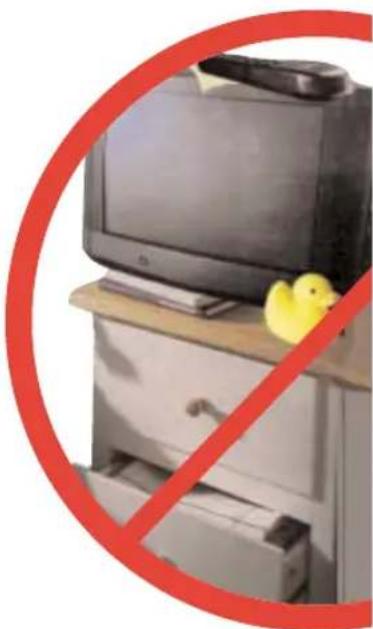
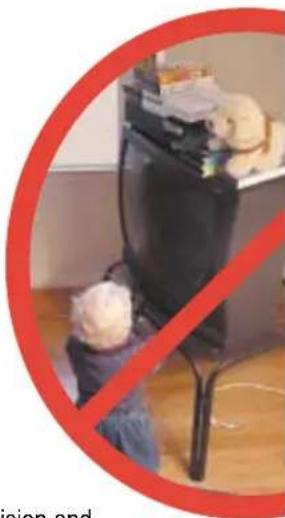
Sometimes televisions are improperly secured or inappropriately situated on dressers, bookcases, shelves, desks, audio speakers, chests, or carts. As a result, TV sets may fall over and may cause unnecessary injury.
natural_image
Interior scene with a person sitting at a desk and a red prohibition symbol overlay (no readable text or symbols)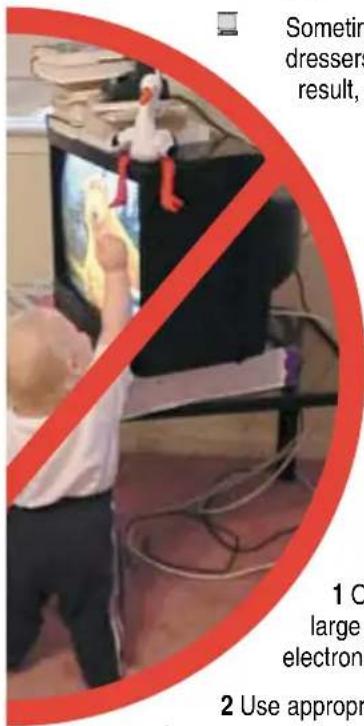
Sanyo Cares!
The industry is committed to making home entertainment enjoyable and safe.
The Consumer Electronics Association formed the Home Entertainment Support Safety Committee comprised of television and consumer electronics furniture manufacturers to advocate children's safety and educate customers and their families about television safety.
Tune Into Safety
1 One size does NOT fit all. Use the appropriate furniture that is large enough to support the weight of your television (and other electronic components).
2 Use appropriate angle braces, straps, and anchors to secure your furniture to the wall (but never screw anything directly into the TV).
3 Carefully read and understand the other enclosed instructions for proper use of this product.
4 Don't allow children to climb on or play with furniture and television sets.
5 Avoid placing any items on top of TVs such as VCRs and remotes that may pique the children's curiosity.
6 Remember that children can become excited while watching a program and can potentially push or pull a TV over.
7 Share our safety message on this hidden hazard of the home with your family and friends. Thank you!