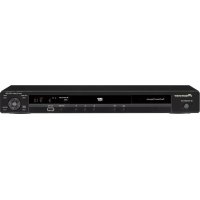
PDV-LC20 - DVD player PIONEER - Free user manual and instructions
Find the device manual for free PDV-LC20 PIONEER in PDF.


User questions about PDV-LC20 PIONEER
0 question about this device. Answer the ones you know or ask your own.
Ask a new question about this device
Download the instructions for your DVD player in PDF format for free! Find your manual PDV-LC20 - PIONEER and take your electronic device back in hand. On this page are published all the documents necessary for the use of your device. PDV-LC20 by PIONEER.
USER MANUAL PDV-LC20 PIONEER
Operating Instructions
IMPORTANT

The lightning flash with arrowhead symbol, within an equilateral triangle, is intended to alert the user to the presence of uninsulated "dangerous voltage" within the product's enclosure that may be of sufficient magnitude to constitute a risk of electric shock to persons.
CAUTION
RISK OF ELECTRIC SHOCK DO NOT OPEN
CAUTION:
TO PREVENT THE RISK OF ELECTRIC SHOCK,DO NOT REMOVE COVER (OR BACK).NO USER-SERVICEABLE PARTS INSIDE. REFER SERVICING TO QUALIFIED SERVICE PERSONNEL.

The exclamation point within an equilateral triangle is intended to alert the user to the presence of important operating and maintenance (servicing) instructions in the literature accompanying the appliance.
WARNING: TO PREVENT FIRE OR SHOCK HAZARD,
DO NOT EXPOSE THIS APPLIANCE TO RAIN OR
MOISTURE.
IMPORTANT SAFETY INSTRUCTIONS
READ INSTRUCTIONS - All the safety and operating instructions should be read before the product is operated.
RETAIN INSTRUCTIONS - The safety and operating instructions should be retained for future reference.
HEED WARNINGS All warnings on the product and in the operating instructions should be adhered to.
FOLLOW INSTRUCTIONS - All operating and use instructions should be followed.
CLEANING - Unplug this product from the wall outlet before cleaning. The product should be cleaned only with a polishing cloth or a soft dry cloth. Never clean with furniture wax, benzine, insecticides or other volatile liquids since they may corrode the cabinet.
ATTACHMENTS - Do not use attachments not recommended by the product manufacturer as they may cause hazards.
WATER AND MOISTURE — Do not use this product near water — for example, near a bathtub, wash bowl, kitchen sink, or laundry tub; in a wet basement; or near a swimming pool; and the like.
ACCESSORIES — Do not place this product on an unstable cart, stand, tripod, bracket, or table. The product may fall, causing serious injury to a child or adult, and serious damage to the product. Use only with a cart, stand, tripod, bracket, or table recommended by the manufacturer, or sold with the product. Any mounting of the product should follow the manufacturer's instructions, and should use a mounting accessory recommended by the manufacturer.
CART A product and cart combination should be moved with care. Quick stops, excessive force, and uneven surfaces may cause the product and cart combination to overturn.

VENTILATION — Slots and openings in the cabinet are provided for ventilation and to ensure reliable operation of the product and to protect it from overheating, and these openings must not be blocked or covered. The openings should never be blocked by placing the product on a bed, sofa, rug, or other similar surface. This product should not be placed in a built-in installation such as a bookcase or rack unless proper ventilation is provided or the manufacturer's instructions have been adhered to.
POWER SOURCES — This product should be operated only from the type of power source indicated on the marking label. If you are not sure of the type of power supply to your home, consult your product dealer or local power company.
LOCATION - The appliance should be installed in a stable location.
NONUSE PERIODS - The power cord of the appliance should be unplugged from the outlet when left unused for a long period of time.
GROUNDING OR POLARIZATION
-
If this product is equipped with a polarized alternating current line plug (a plug having one blade wider than the other), it will fit into the outlet only one way. This is a safety feature. If you are unable to insert the plug fully into the outlet, try reversing the plug. If the plug should still fail to fit, contact your electrician to replace your obsolete outlet. Do not defeat the safety purpose of the polarized plug.
-
If this product is equipped with a three-wire grounding type plug, a plug having a third (grounding) pin, it will only fit into a grounding type power outlet. This is a safety feature. If you are unable to insert the plug into the outlet, contact your electrician to replace your obsolete outlet. Do not defeat the safety purpose of the grounding type plug.
POWER-CORD PROTECTION —
Power-supply cords should be routed so that they are not likely to be walked on or pinched by items placed upon or against them, paying particular attention to cords at plugs, convenience receptacles, and the point where they exit from the product.
OUTDOOR ANTENNA GROUNDING
If an outside antenna or cable system is connected to the product, be sure the antenna or cable system is grounded so as to provide some protection against voltage surges and built-up static charges. Article 810 of the National Electrical Code, ANSI/NFPA 70, provides information with regard to proper grounding of the mast and supporting structure, grounding of the lead-in wire to an antenna discharge unit, size of grounding conductors, location of antenna-discharge unit, connection to grounding electrodes, and requirements for the grounding electrode. See Figure A.
LIGHTNING — For added protection for this product during a lightning storm, or when it is left unattended and unused for long periods of time, unplig it from the wall outlet and disconnect the antenna or cable system. This will prevent damage to the product due to lightning and power-line surges.
POWER LINES — An outside antenna system should not be located in the vicinity of overhead power lines or other electric light or power circuits, or where it can fall into such power lines or circuits. When installing an outside antenna system, extreme care should be taken to keep from touching such power lines or circuits as contact with them might be fatal.
OVERLOADING — Do not overload wall outlets, extension cords, or integral convenience receptacles as this can result in a risk of fire or electric shock.
OBJECT AND LIQUID ENTRY —
Never push objects of any kind into this product through openings as they may touch dangerous voltage points or short-out parts that could result in a fire or electric shock. Never spill liquid of any kind on the product.
SERVICING - Do not attempt to service this product yourself as opening or removing covers may expose you to dangerous voltage or other hazards. Refer all servicing to qualified service personnel.
DAMAGE REQUIRING SERVICE —
Unplug this product from the wall outlet and refer servicing to qualified service personnel under the following conditions:
- When the power-supply cord or plug is damaged.
If liquid has been spilled, or objects have fallen into the product.
If the product has been exposed to rain or water. - If the product does not operate normally by following the operating instructions. Adjust only those controls that are covered by the operating instructions as an improper adjustment of other controls may result in damage and will often require extensive work by a qualified technician to restore the
product to its normal operation.
- If the product has been dropped or damaged in any way.
- When the product exhibits a distinct change in performance — this indicates a need for service.
REPLACEMENT PARTS - When
replacement parts are required, be sure the service technician has used replacement parts specified by the manufacturer or have the same characteristics as the original part. Unauthorized substitutions may result in fire, electric shock, or other hazards.
SAFETY CHECK - Upon completion of any service or repairs to this product, ask the service technician to perform safety checks to determine that the product is in proper operating condition.
WALL OR CEILING MOUNTING —
The product should not be mounted to a wall or ceiling.
HEAT - The product should be situated away from heat sources such as radiators, heat registers, stoves, or other products (including amplifiers) that produce heat.
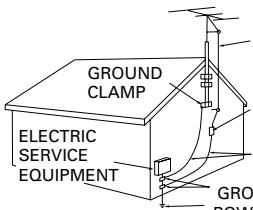
Fig. A
ANTENNA
LEAD IN WIRE
ANTENNA
DISCHARGE UNIT
(NEC SECTION 810-20)
GROUNDING CONDUCTORS
NEC SECTION 810-21
GROUND CLAMPS
POWER SERVICE GROUNDING
ELECTRODE SYSTEM
(NECART250,PARTH)
NEC — NATIONAL ELECTRICAL CODE
CONGRATULATIONS ON YOUR PURCHASE OF THIS FINE PIONEER PRODUCT.
Pioneer is on the leading edge of DVD research for consumer products and this unit incorporates the latest technological developments.
We are sure you will be fully satisfied with the DVD player.
Thank you for your support.
IMPORTANT NOTICE [For U.S. model]
The serial number for this equipment is located on the rear panel. Please write this serial number on your enclosed warranty card and keep it in a secure area. This is for your security.
Please read through these operating instructions so you will know how to operate your model properly. After you have finished reading the instructions, put them away in a safe place for future reference.
- This player is not suitable for commercial use.
CAUTION: This product satisfies FCC regulations when shielded cables and connectors are used to connect the unit to other equipment. To prevent electromagnetic interference with electric appliances such as radios and televisions, use shielded cables and connectors for connections.
Information to User
Alteration or modifications carried out without appropriate authorization may invalidate the user's right to operate the equipment.
NOTE: This equipment has been tested and found to comply with the limits for a Class B digital device, pursuant to Part 15 of the FCC Rules. These limits are designed to provide reasonable protection against harmful interference in a residential installation. This equipment generates, uses, and can radiate radio frequency energy and, if not installed and used in accordance with the instructions, may cause harmful interference to radio communications. However, there is no guarantee that interference will not occur in a particular installation. If this equipment does cause harmful interference to radio or television reception, which can be determined by turning the equipment off and on, the user is encouraged to try to correct the interference by one or more of the following measures:
- Reorient or relocate the receiving antenna.
- Increase the separation between the equipment and receiver.
- Connect the equipment into an outlet on a circuit different from that to which the receiver is connected.
- Consult the dealer or an experienced radio/TV technician for help.
This product complies with the Low Voltage Directive (73/23/ EEC, amended by 93/68/EEC), EMC Directives (89/336/EEC, amended by 92/31/EEC and 93/68/EEC). H015AEn
CAUTION
This product contains a laser diode of higher class than 1. To ensure continued safety, do not remove any covers or attempt to gain access to the inside of the product.
Refer all servicing to qualified personnel.
The following caution label appears on your unit.
Location: rear of the unit
CLASS 1 LASER PRODUCT
H018 En
On the bottom of the player
CAUTION : VISIBLE AND INVISIBLE LASER RADIATION WHEN OPEN. AVOID EXPOSURE TO BEAM.
VORSICHT: SICHTAIRE UND SICHBARE LERASTRAHUNG, WENN ABDECKUNG GOEFFNET NOTCH DEM STRAHL AUSSETZEN!
ADVARSEL: SYNLIG OG USYNLG LASERSTRALING VED ABING UNDGAS UDS@ETTELSE FOR STRALING.
VARNING : SYNLIG OCH OSYNLG LASERSTRALING NAR DENNA DEL AR OPPNAD BETRAKTA EJ STRALEN.
AVATTAESSA ALTISTUT NAKYJA.NAKYMATTOMALLE LASSERSATEL YYLE. ALA KATO SATESEEN. VRY1860
CAUTION
- Use of controls or adjustments or performance of procedures other than those specified herein may result in hazardous radiation exposure.
- The use of optical instruments with this product will increase eye hazard.
[For Canadian model]
This Class B digital apparatus complies with Canadian ICES-003.
[For Canadian model]
CAUTION: TO PREVENT ELECTRIC SHOCK, DO NOT USE THIS (POLARIZED) PLUG WITH AN EXTENSION CORD, RECEPTACLE OR OTHER OUTLET UNLESS THE BLADES CAN BE FULLY INSERTED TO PREVENT BLADE EXPOSURE.
ATTENTION: POUR PREVENIR LES CHOCS ELECTRIQUES NE PAS UTILISER CETTE FICHE POLARISEE AVEC UN PROLONGATEUR,UNE PRISE DE COURANT OU UNE AUTRE SORTIE DE COURANT, SAUF SI LES LAMES PEUVENT ETRE INSEREEs A FOND SANS EN LAISser AUCUNE PARTIE A DECOUVERT.
This product incorporates copyright protection technology that is protected by method claims of certain U.S. patents and other intellectual property rights owned by Macrovision Corporation and other rights owners. Use of this copyright protection technology must be authorized by Macrovision Corporation, and is intended for home and other limited viewing uses only unless otherwise authorized by Macrovision Corporation. Reverse engineering or disassembly is prohibited.
[For U.S. model]
![PIONEER PDV-LC20 - [For U.S. model] - 1](/content/2025/01/118685/images/a8599e85fa759dcc225f78d3bd5955f6da7670c90a997de30bb09a9270a7956f.jpg)
As an ENERGY STAR® Partner, Pioneer Corporation has determined that this product meets the ENERGY STAR® guidelines for energy efficiency. K001 En
Features
DVD-RW compatibility (page 9)
Play DVD discs recorded on a DVD-RW recorder (US and Canadian models only).
- CD-R and CD-RW compatibility (page 9)
Play audio discs recorded on CD-R/RW recorder.
- Compact design
The PDV-LC20/PDV-20 measures just 190mm× 142mm Attach the optional battery pack for a truly use-anywhere, portable DVD player.
- 7" widscreen LCD screen (PDV-LC20)
- Two headphone jacks for shared listening and viewing (page 58)
- Compatible with 5.1 channel surround sound Dolby Digital and DTS* software (pages 22, 43, 53)
Connect to an external AV amplifier for full surround sound.
- Compatible with 24-bit/96kHz software
Connect to an external 24-bit/96kHz-compatible amplifier for rich, detailed and dynamic audio playback.
- Setup Navigator (page 21)
Setup your DVD player quickly and easily using on-screen displays.
- Low standby power consumption
This unit is designed to use less than 0.7W of energy when this player is in standby mode (US and Canadian models).
(Standby power consumption for other models is 1.1W.)
- Manufactured under license from Dolby Laboratories. “Dolby” and the double-D symbol are trademarks of Dolby Laboratories. Confidential unpublished works. © 1992-1997 Dolby Laboratories. All rights reserved.
** "DTS" is trademark of Digital Theater Systems, Inc.
Contents
01 Before You Start
Features 6
Checking what's in the box 8
Disc types 9
DVD disc features 10
Using this player with DVD discs 10
Navigating DVDs, CDs and Video CDs. 10
Preparation for use 11
Connecting up to your TV 12
02 Getting Started
Plugging in and switching on 13
Playing discs 14
Navigating disc menus 16
Still-frame and frame review/advance 18
Playing slow-motion video 19
Taking out the disc, switching off and nplugging .. 20
Using the Setup Navigator 21
03 Advanced Features
Finding what you want on a disc 24
Switching camera angles 26
Switching subtitles and audio languages. 27
Switching audio channels 28
Using repeat and looped playback 29
Making program lists 31
Using random play 34
Bookmarking a place on a disc 35
Memorizing disc settings1 36
Displaying disc information 37
Using the Setup menu 40
OSD settings 40
04 The Setup Menu
Using the Setup Menu 40
OSD language 40
Video settings 41
Audio settings 43
Language settings 45
Miscellaneous settings 48
Other settings 50
Resetting all the player settings 52
05 Connections
Listening through an external AV amplifier ....53
Connecting to a TV using the S-Video cable ... 54
Watching an external video source
(PDV-LC20 only) 55
Listening through headphones. 55
06 Control and Display
Top panel controls. 56
Player(front) 57
Player (rear) 57
Player (right side) 58
Display (PDV-20 only) 59
LCD screen (PDV-LC20 only) 60
Remote control (Replacing the battery) 61
07 Additional Information
Taking care of your player 63
Taking care of your discs 65
Glossary 66
Troubleshooting 68
Screen sizes and disc formats 70
Using the player with a battery pack 71
Language code list 73
Specifications 74
Checking what's in the box
Thank you for buying this Pioneer product. Before starting to set up and use your new portable DVD player, please check that you have received the following supplied accessories.
- AC adapter
Power cable - Remote control unit (with lithium battery)
- AV cable (2 mini-plugs to 3 RCA)
- S-Video cable (mini-plug to S-Video plug)
- Optical fiber cable (PDV-LC20 European model only)
- PDV-BT20 battery pack (PDV-LC20 only)
These operating instructions
Optional accessories:
- PDV-BT20 battery pack
- PDV-BT25 high capacity battery pack
Disc types
Any disc carrying one of the following logos (either on the disc or its packaging) should play in this player. Other types of disc, including DVD-ROM, DVD-Audio and CD-ROM, cannot be played.


DVD video

DVD-RW (rewriteable) *

Video CD

CD (audio)

CD-R (recordable) **

CD-RW (rewriteable)**
Note: This player can play 8cm discs without an adapter. Do not use an adapter when playing 8cm discs.
* Playing DVD-RW discs
- Only US and Canadian models are DVD-RW compatible.
- You may not be able to play nonfinalized DVD-RW discs.
Copyrighted content originally provided with the permission of one generation and recorded on DVD discs cannot be played on this player. - When playing a DVD-RW disc that was edited on a DVD recorder, the screen may go momentarily black at the edited point (Play List edit, A-B erase, etc.).
- When playing a DVD-RW disc that was edited on a DVD recorder, you may see scenes from just before the edited point. This is not a malfunction.
- Up to 20 characters of a title name can be displayed.
** Playing recordable CDs
Note that this unit cannot record onto recordable discs.
- This unit can play music-use CD-R and CD-RW discs. However, depending on the condition of the CD recorder and the disc, you may find that not all discs will play successfully. (For example, if the disc is scratched or dirty, or if the player's pickup lens is dirty.)
01 Before You Start
DVD disc features
Look on the box of a DVD disc to find out what features are available. Some discs feature multiple audio and subtitle languages, multiple camera angles and widescreen video.
You may come across the following marks on disc boxes:
② Number of audio languages

Number of subtitle languages

Number of camera angles
16:9 LB
Aspect ratios available


Compatible regions*
- Different regions of the world are assigned different region codes. Your player also has a region code and will only play discs from a compatible region. You can find the region code on the underside of the player.
Using this player with DVD discs
Not all the functions of this player are available all the time with all discs. If you try and use a certain function and see either a or a symbol appear on-screen, it means that either the player or the disc does not allow the use of that function at that time.
Navigating DVDs, CDs and Video CDs
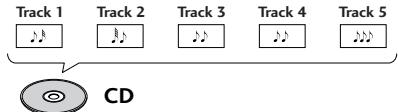
All discs are divided up into smaller, more manageable sections so that you can find specific content more easily.
DVD and DVD-RW discs are divided into one or more titles. Each title may be further divided into several chapters.
Occasionally, a chapter may contain index points, effectively dividing the chapter up into several parts, too.
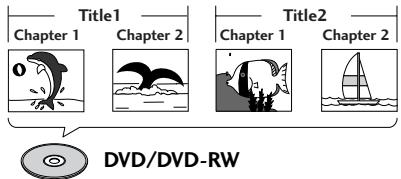
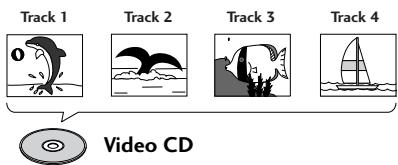
CDs and Video CDs are divided into a number of tracks. In rare cases, a track may contain a number of index points, effectively dividing the track up into several parts.
Preparation for use
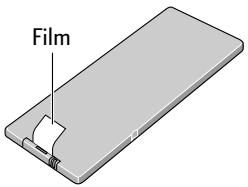
Before using for the first time, remove the battery protector from the remote control.
Pull out the film from the back of the remote control unit.
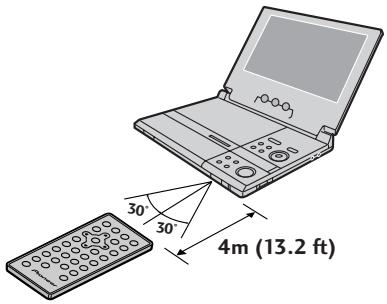
Use the remote control within the operating range shown below.
Connecting up to your TV
Use the supplied AV cable to connect this DVD player to your TV. This cable feeds both audio and video to your TV. Before connecting, make sure that both this player and your TV are switched off and disconnected from the wall outlet.
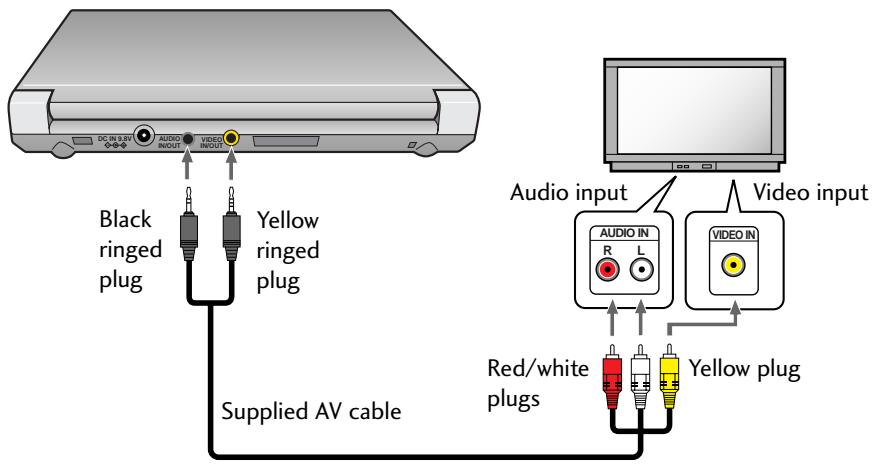
- Read the instructions that came with your TV if you're unsure which inputs to use.
- Do not connect this player to your TV through a VCR. Some discs are copy-protected and will not play properly when played via a VCR or when recorded on a VCR.
See pages 53 to 55 for how to connect this player up to an AV amplifier and other components.
Setting the TV system
(Except US and Canadian models)
This player is compatible with both PAL and NTSC TV systems. If your TV is compatible with both systems then set the
TV SYSTEM switch to AUTO, otherwise set it to the system your country or region uses.
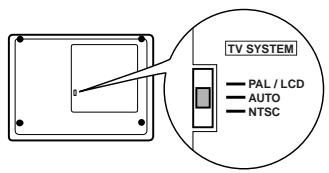
- When using the PDV-LC20 with the built-in screen, always set to PAL/LCD.
- You cannot play PAL DVDs when the TV SYSTEM switch is set to NTSC.
- You may need to adjust the vertical hold control on some PAL TVs when playing NTSC discs. Depending on the TV, you may also see black bars at the top and bottom of the screen.
Plugging in and switching on
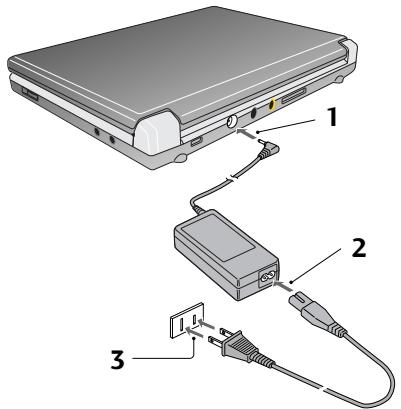
Power-cord caution
Handle the power cord by the plug. Do not pull out the plug by tugging the cord and never touch the power cord when your hands are wet as this could cause a short circuit or electric shock. Do not place the unit, a piece of furniture, etc., on the power cord, or pinch the cord. Never make a knot in the cord or tie it with other cords. The power cords should be routed such that they are not likely to be stepped on. A damaged power cord can cause a fire or give you an electrical shock. Check the power cord once in a while. When you find it damaged, ask your nearest Pioneer authorized service center or your dealer for a replacement.
1 Connect the power cord to the AC adapter.
2 Plug the power connector into the DC IN jack on the rear of the player.
3 Plug the other end of the power cord into a wall power outlet.
- The supplied AC adapter is compatible with 100 240V AC power so that it can be used almost anywhere in the world (although you may need a plug adapter).
4 Open the LCD screen in the direction of the arrow (PDV-LC20 only).
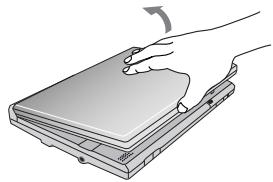
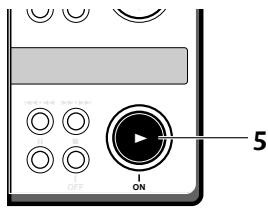
5 Press and hold the (ON) button until the player switches on.
- With the power on the power indicator lights green.
- You can use the button on the remote control to switch the player into standby. When in standby, the power indicator lights red.
Playing discs DVD DVD-RW Video CD CD
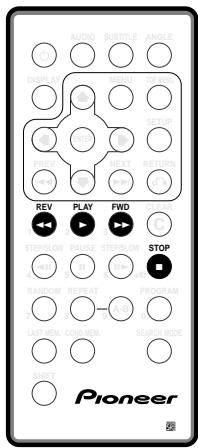
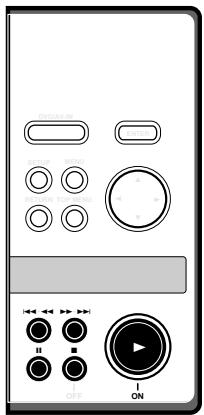
1 Open the display (PDV-LC20 only).
2 Slide the DISC COVER OPEN catch to the left to open the disc cover.
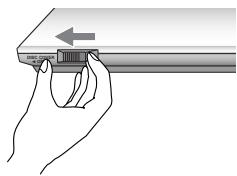
Always use the DISC COVER OPEN slide catch; never force open the disc cover.
3 Load a disc.
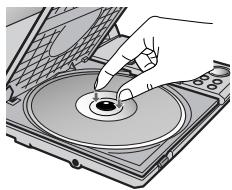
- The recorded side of the disc should be face-down in the player (for double-sided DVDs, the side you want to play should be face-down).
- Make sure that the disc clicks into place properly.
4 Push the disc cover shut.
5 Press to start playback.
- If a menu screen appears, see the following page for how to navigate it.
- Adjust the volume using the rotary volume control on the right side of the player.
6 To pause playback, press II.
- On a DVD, DVD-RW or Video CD, the picture should be paused.
- To restart playback, press or I.
7 To skip back/forward a chapter or track, press or .
- On the remote, use the and buttons.
8 To scan backwards/forwards, press and hold or .
- On the remote, use the and buttons.
- Release the button to resume normal playback.
- If you scan for more than about 5 seconds, scanning continues even after you release the button. In this case, press to resume normal playback.
9 To stop playback, press ■.
- If you start the disc playing again () , playback starts from the point last stopped (see Resuming play below).
- To switch the player off, press and hold OFF (■) for about two seconds.
Resuming play
When you stop playback, the player remembers where on the disc you got to. As long as you leave the disc in the player, even if you switch the player off, the next time you press , playback resumes from that point.
To start playback from the beginning of the disc again, press while the disc is stopped.
- For resume to work with CDs and DVD-RW discs, do not switch the player off using the front panel OFF (■) button. If you have a CD loaded and want to switch off, use the button on the remote to put the player into standby.
- Resume may not work reliably with some discs.
- When a DVD disc is loaded, pressing or resumes playback from the start of the title that was playing when the disc was stopped last time.
See also Bookmarking place on a disc on page 35.
Navigating disc menus DVD RW Video CD
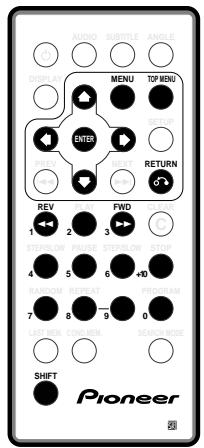
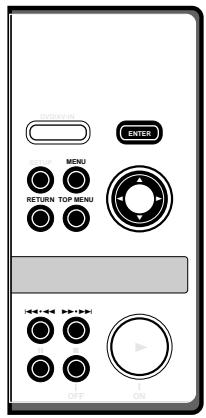
After you start playing a DVD, DVD-RW or Video CD, you may see a menu appear on-screen, from which you can choose what to watch.
DVD
Main Menu
1 Start movie
2 Scene selection
3 Credits
4Extras
5 Subtitles
6 Languages
1 Use the cursor (▲▼▶) buttons to highlight a menu option, then press ENTER to select it.
- If you're using the remote control, you can also use the number buttons to select items from numbered menus (press and hold SHIFT while using the number buttons).
- To display this disc menu during playback, press MENU or TOP MENU.
DVD-RW
(US and Canadian models only)
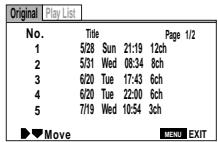
1 Use the cursor ( and ) buttons to toggle between Original and Play List.
The Original screen shows the contents of the disc as recorded. The Play List screen shows the contents in the order programmed by the person who recorded the disc (not all DVD-RW discs contain a Play List).
- You can't switch between Original and Play List while a disc is playing.
2 Use the cursor (▲ and ) buttons to highlight a menu item in the list, then press ENTER to select it.
- Use the · · and buttons to see the previous/next page ( and on the remote).
- To preview the first frame of the highlighted menu item, press the cursor right (▶) button.
- To display this disc menu during playback, press MENU.
Video CD
It's a Bust
2 Caravan Lowdown
3 Rue de Salle
4 The Surgeon's Daughter
5 Pigeon Post
1 Use the number buttons to select items from the list (press and hold SHIFT while using the number buttons).
- If there is more than one page of menu items, use the 1 2 3 and 2 3 4 buttons to select the page (1 4 and 2 4 on the remote).
To return to this menu during playback, press RETURN. - To play a PBC Video CD without the menu system, stop playback then use one of the number buttons on the remote, or the 1一4一一 and 1 buttons to start playback.
Still-frame and frame review/advance DVD DVD-RW Video CD
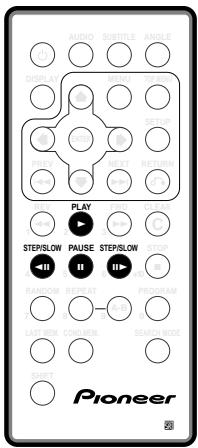
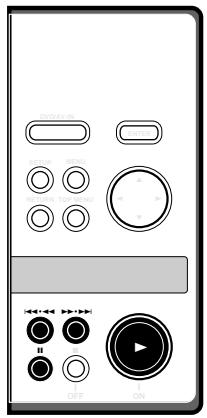
1 During playback, press II, II or II to pause the disc.
- You can change the way a DVD still-frame is displayed—see page 15.
2 Use the and buttons to go to the previous/next frame. On the top panel, use the I and I buttons.
- You can't use frame review (←II) with Video CDs.
- Due to the way in which DVD video is encoded, frame review steps are larger than frame advance steps.
3 To restart normal playback, press
Playing slow-motion video DVD DVD-RW Video CD
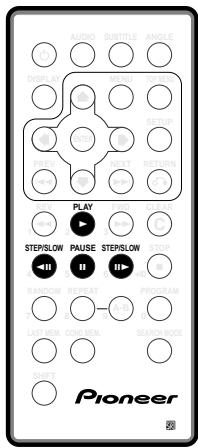
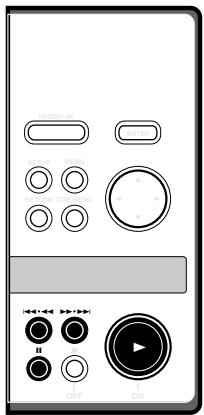
Slow forward play
1 During playback or while paused, press and hold II▶ for about 2 seconds.
On the top panel, press , then press and hold for about 2 seconds.
Slow-motion playback starts at 1/2 speed.
- There's no sound during slow-motion play.
2 Use and to change the play speed.
On the top panel, use the and buttons.
There are four slow play speeds: 1/2, 1/4, 1/8 and 1/16.
3 To restart normal playback, press
Slow reverse play
You can only use slow reverse play with DVD and DVD-RW discs.
1 During playback or while paused, press and hold for about 2 seconds.
On the top panel, press , then press and hold for about 2 seconds.
Reverse slow-motion playback starts.
- There's no sound during slow-motion play.
2 To restart normal playback, press
Taking out the disc, switching off and unplugging
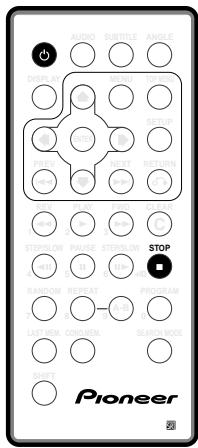
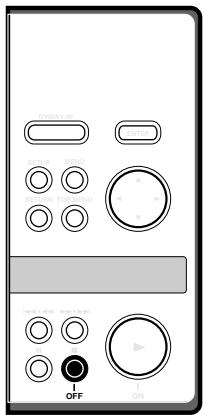
1 If the disc is playing, press to stop it.
2 Slide the DISC COVER OPEN catch to the left to open the disc cover.
3 Take out the disc.
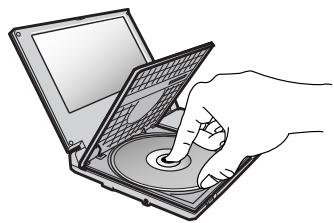
4 Close the disc cover.
5 Press and hold OFF (■) for about two seconds.
The power indicator goes off.
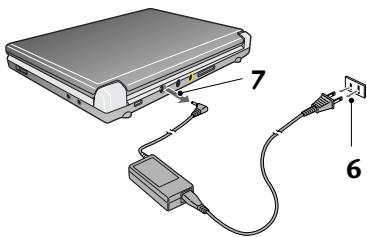
- Press on the remote to put the player into standby. The power indicator turns from green to red. Press again to switch back on.
6 Unplug from the wall outlet.
7 Unplug the power cord from the DC IN jack.
Using the Setup Navigator
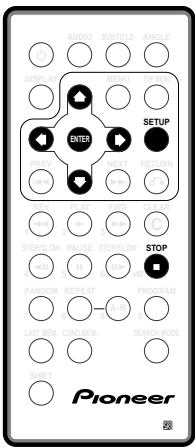
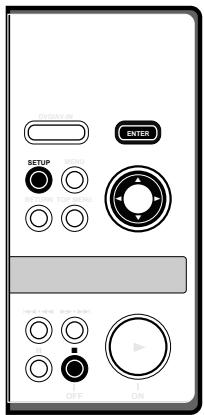
Before playing any discs with the PDV-20, we recommend using the Setup Navigator. This makes all the basic DVD system settings for you.
The Setup Navigator is also available on the PDV-LC20. Use it if you have connected an AV amplifier and/or TV to your player.
1 Make sure that the player is switched on.
- If you're using the PDV-20, also turn on your TV and make sure that it is set to the correct video input.
- If a disc that's already loaded starts to play, press ■ to stop it.
2 Press SETUP.
The Setup Navigator on-screen display (OSD) appears:
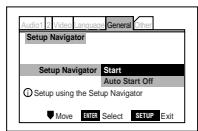
Navigate all of the following OSDs using these controls:
, - Cursor up/down
ENTER - Select the highlighted menu option
- Go back to the previous question The control possibilities for the current OSD are shown at the bottom of each screen.
3 Select Start.

Remember: Press ENTER to select an option.
- If you decide you don't want to use the Setup Navigator, select Auto Start Off here instead.
4 Choose an OSD menu language.
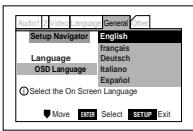
5 Select the type of TV you have.
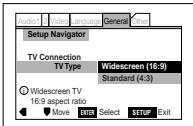
If you're using the built-in screen of the PDV-LC20, set this to Widescreen (16:9).
See Aspect ratio in the Glossary on page 66 if you're unsure of the difference between widescreen and standard TVs.
6 Select the digital audio formats the connected AV amplifier is compatible with.
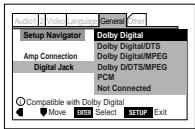
- All options (except Not Connected) assume PCM compatibility. The PCM options means only compatible with PCM.
- More information on these audio formats is available in the Glossary starting on page 66.
- Consult the manual that came with your AV amplifier if you're unsure about compatibility with any of the formats mentioned.
7 Confirm whether your AV amplifier is compatible with 96kHz audio.

- You won't see this screen if you selected Not Connected in step 6.
- Selecting Don't Know has the same effect as selecting No. Any 96kHz audio will be downsampled to a more compatible 48kHz at the digital output.
8 Select Save Changes to make the settings.
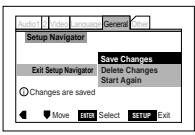
9 Press SETUP to exit.
Congratulations, set up is complete!
If you want to use the Setup Navigator again at any time, it is available from the
General menu. Also, each individual setting can be changed using the
appropriate menu option—chapter 04 explains all menu options in detail.
Finding what you want on a disc DVD DVD-RW Video CD CD
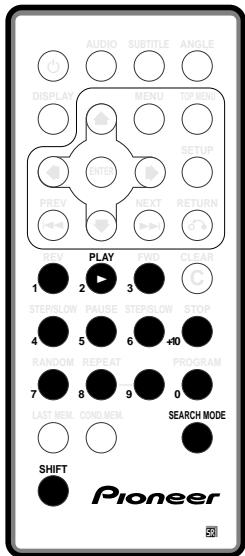
You can directly access any point on a disc using one of the search modes. You can use title, chapter and track search when a disc is stopped or playing. To use time search the disc must already be playing.
1 Press SEARCH MODE to choose a search mode.
Press repeatedly to choose between:
Title | Chapter/Track | Time | Off
- Title search is only available for DVD and DVD-RW discs.
- Time search is only available for DVD and DVD-RW discs and Video CDs not in PBC mode.
2 Enter the title/chapter/track number or time (minutes & seconds).
For example, for title 4, press 4.
For chapter/track 12, press 1, 2.
For 45 minutes into the disc,
press 4,5,0,0.
- Remember to hold down the SHIFT button when entering numbers.
3 Press to start/restart playback.
Note
For many discs, you can also perform title, track and chapter searches from the
Other screen of the Setup menu. See page 51 for more.
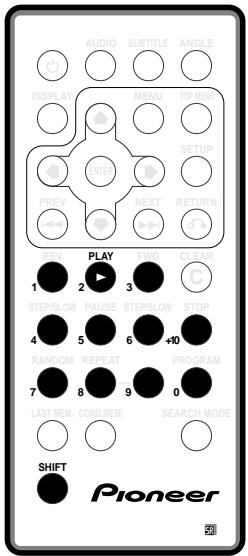
Direct search
You can use the number buttons on the remote to jump directly to the part of a disc you want.
Remember to hold down SHIFT while entering numbers. Numbers 10 and over are accessed using the +10 button (for 12, press +10, 2; for 26, press +10, +10, 6 etc.).
DVD
- When a disc is stopped, enter the number of the title you want to start playback from.
While a disc is playing, enter a chapter number to jump to.
DVD-RW
- Enter a title number to start playback from/jump to. The disc can be stopped or playing.
Video CD
CD
-
Enter a track number to start playback from/jump to. The disc can be stopped or playing.
-
A Video CD with Playback Control (PBC) will start playback in non-PBC mode.
Switching camera angles DVD
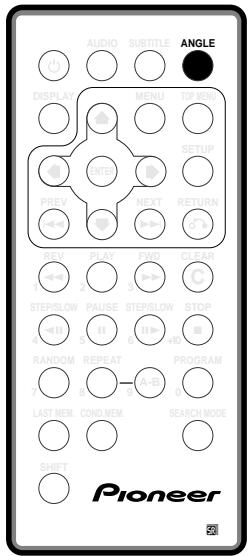
Some DVD discs feature scenes shot from two or more angles—check the disc box for details: it should be marked with a icon if it contains multi-angle scenes. When these scenes are playing, a camera icon appears on-screen.
1 Press ANGLE to switch the camera angle.
If the disc was paused, playback starts again with the new angle.
To hide the TV angle indicator, choose Angle Indicator > Off from the Video screen of the Setup menu (see page 42).
Note
You can also change camera angles from the Other screen of the Setup menu. See page 50 for more.
Switching subtitles and audio languages DVD
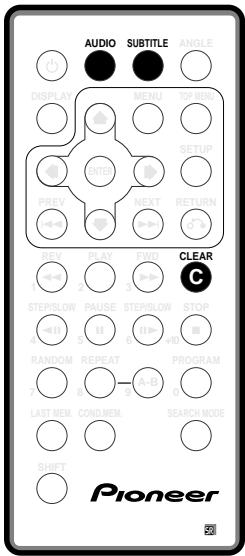
Switching subtitles
Many DVD discs have subtitles in one or more languages—the disc box will usually tell you which subtitle languages are available. You can switch subtitle language anytime during playback.
1 Press SUBTITLE repeatedly to display/switch the subtitle language.
- To switch off subtitles, press SUBTITLE then CLEAR.
To set subtitle preferences, see page 45.
Switching audio language
When playing a DVD disc recorded with dialog in two or more languages, you can switch audio language anytime during playback.
1 Press AUDIO repeatedly to display/switch the audio language.
To set audio language preferences, see page 45.
Note
You can also switch subtitles and audio language from the Other screen of the Setup menu. See page 50 for more.
It may also be possible to select subtitle and audio languages from the disc menu. Press MENU or TOP MENU to access this.
Switching audio channels
DVD-RW Video CD CD
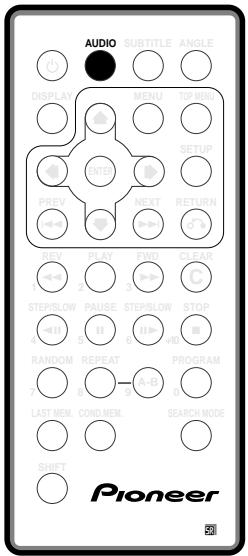
On Video CDs and CDs you can switch between stereo, just the left channel or just the right channel.
On DVD-RW discs that have both a main and a sub audio channel, you can switch between the main, sub, or a mix of both.
During playback, press AUDIO to change the audio channel.
The current playback channel(s) are indicated on-screen.
Using repeat and looped playback
DVD (DVD-RW) (Video CD) CD
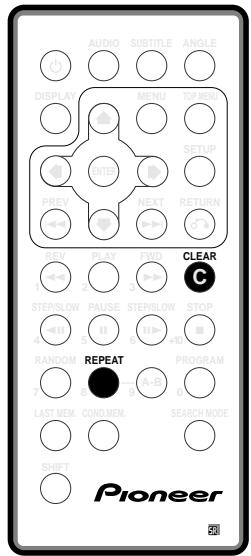
You can set the player to repeat individual tracks on CDs or Video-CDs, chapters or titles on DVD and DVD-RW discs, or the whole disc. It's also possible to loop a section of a disc.
You can use the repeat together with the programming mode to repeat the titles/chapters/tracks in the program list (see page 31 for how to make a program list).
You can't use any repeat mode or looped play with a Video CD playing in PBC mode.
Using repeat play
1 Press REPEAT during playback to select a repeat mode.
Each press switches the repeat mode:
For DVD and DVD-RW:
Repeat Chapter | Repeat Title | Repeat Off
For CD/Video CD:
Repeat Track | Repeat All | Repeat Off
In program play mode:
Program Repeat | Repeat Off
2 To resume normal playback, press CLEAR.
- Any repeat play mode is cancelled if you switch camera angles on a DVD disc.
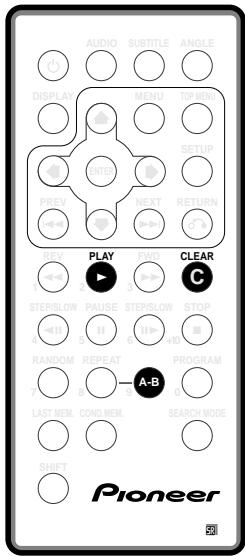
Looping a section of a disc
1 Press A-B once at the start of the section you want to repeat, then again at the end.
Playback immediately jumps back to the start point and plays the loop round and round.
- On a DVD or DVD-RW disc, the start and end points of the loop must be in the same title.
2 To resume normal playback, press CLEAR.
- You can also repeat a section of a disc just once by pressing to mark the end point (instead of A-B).
- Looped play is cancelled if you switch camera angles on a DVD disc.
Making program lists
DVD
Video CD
CD
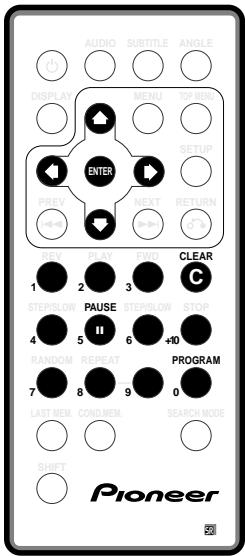
Making a program list means telling the player which titles/chapters/tracks you want played, and the order to play them in. You make a program list via an on-screen display, using the cursor buttons to navigate and the number buttons to enter titles/chapters/tracks.
DVD
1 Press PROGRAM.
2 Use the cursor (or) buttons to select Program Chapter or Program Title.
3 Move the cursor down () to the program list window.
If you selected Program Chapter, move the cursor up () and enter a title number (all the programmed chapters will come from this title).
4 Enter the title/chapter numbers for your program list.
For titles/chapters 1-9, use the corresponding number buttons. For 10 and over, use the +10 button (+10, 0 for 10; +10, +10, 4 for 24, etc.)
- You can program a pause instead of a title/chapter: press instead of entering a number in the program list. (A pause can't be the first or last step in the list.)
- A program list can contain up to 24 steps.
5 If you want to save the program list, move the cursor down () to Program Memory and set it to On.
If you do this, the program list is automatically recalled when you next load the disc.
- You can save program lists for up to 24 discs.
6 Press ENTER or to start playback immediately, or PROGRAM to exit if you want to start playback later.
Note
During program play, you may occasionally see the start of a chapter that was not programmed when the chapter number changes. This is not a malfunction.
Video CD CD
For Video CDs that feature PBC, make sure that the disc is stopped before you start.
1 Press PROGRAM.
2 Enter the track nu your program list.
For tracks 1-9, use the corresponding number buttons. For 10 and over, use the +10 button (+10, 0 for 10; +10, +10, 4 for 24, etc.)
- You can program a pause instead of a track: press instead of entering a number in the program list. (A pause can't be the first or last step in the list.)
- A program list can contain up to 24 steps.
3 Press ENTER or to start playback immediately, or PROGRAM to exit if you want to start playback later.
- You can't start playback later with a PBC Video CD; press ENTER or to start.
Programming tips
- To view the program list press PROGRAM.
- To delete a step in the program list, position the cursor on the title/chapter/track and press CLEAR.
- To insert a step into the program list, position the cursor where you want the new step to appear, then enter the title/ chapter/track number.
All the following steps move up one.
- To add the currently playing title/chapter/track to the program list, press and hold PROGRAM for about a second.
If there is no current program list, a new one is created (for DVD, if the last list created was a title list then the a title program list is created, otherwise a chapter program list is created).
To delete the program list, stop playback (press■), then press CLEAR.
The program list is also erased when you remove the disc from the player.
- To delete a memorized DVD program list, load the DVD, press PROGRAM, then change the Program Memory option to Off. Press ENTER to confirm.
Using random play
DVD
Video CD
CD
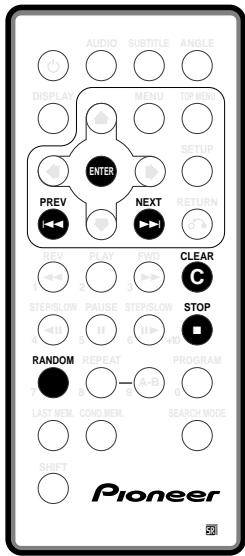
Use the random play function to play titles/chapters/tracks in a random order. Set playback to random when the disc is stopped or already playing.
You can't use random play with DVD-RW discs or Video CDs playing in PBC mode.
DVD
To start random chapter play, press RANDOM, then ENTER.
To start random title play, press RANDOM twice, then ENTER.
Video CD
CD
1 Press RANDOM to start random play.
- To stop the disc and cancel random playback, press.
- To cancel random playback without stopping playback, press CLEAR. The rest of the disc plays out.
Note
During random play, the and buttons function a little differently to normal: returns to the beginning of the current track/ chapter. You can't go back further than this. selects another track/chapter at random from those remaining.
- You can't use random play together with program or repeat play.
Bookmarking a place on a disc DVD Video CD
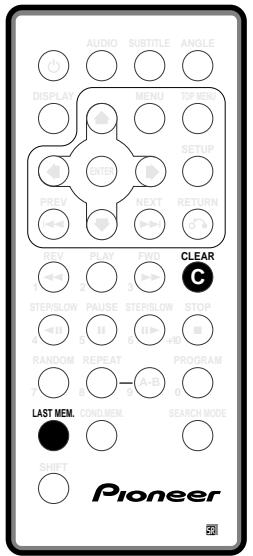
If you watch only part of a DVD disc with the intention of picking up later where you left off, you can bookmark the place then resume playback at a later date without having to manually search for the right place.
You can use this feature for up to five discs (after that the oldest bookmark is deleted to make space for a new one).
You can't use bookmarking with DVD-RW discs.
1 At the point from which you want to resume playback next time, press LAST MEM.
If you want to stop playback here, press ■.
2 To resume playback, load the disc and press LAST MEM. (If the disc starts auto playback, stop it first.)
3 To clear the bookmark for the disc loaded, press LAST MEM then CLEAR while Last Memory is displayed on-screen.
Note
Bookmarking also works with Video CD, but for one disc only, and you must leave the disc in the player—removing the disc erases the memory. Last Memory may not work reliably with some Video CDs that feature PBC.
Memorizing disc settings DVD
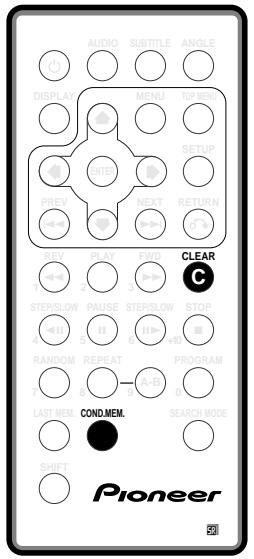
If you have a particular set of preferences for a disc, you can memorize them using the Condition Memory function. Once memorized, your settings will be recalled automatically whenever you load that disc. The player can store settings for 15 discs; after this, memorizing another replaces the oldest one stored.
The settings memorized are:
- On-screen display (page 41)
- Picture quality (page 42)
- Multi-angle (page 42)
Audio language (page 45) - Subtitle language (page 45)
- Parental lock level (page 48)
1 Press COND.MEM during playback to memorize settings. Condition Memory is displayed on-screen.
2 To recall memorized settings, just load the disc.
3 To clear memorized settings, load the disc and press CLEAR while Condition Memory is displayed on-screen.
Displaying disc information
DVD DVD-RW Video CD CD
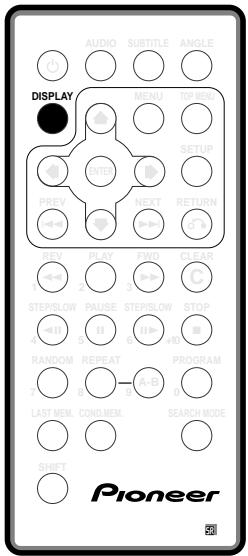
Various track, chapter and title information, as well as the video transmission rate for DVD discs, can be displayed on-screen while a disc is playing, or while it's stopped. When you play a CD on the PDV-LC20, disc information is displayed all the time on the built-in LCD screen.
You can find detailed explanations of all the displays on the following pages (depending on the disc, you may not see all the screens shown).
1 To show/switch the information displayed, press DISPLAY.
- When a disc is playing, the information appears at the top of the screen. Keep pressing DISPLAY to change the displayed information.
- When a disc is stopped, all title/chapter or track information for the disc loaded appears on-screen. Press DISPLAY again to exit the screen.
Note
You can choose to display disc information permanently on-screen from the Other screen of the Setup menu. See page 50 for more.
Displays when playing
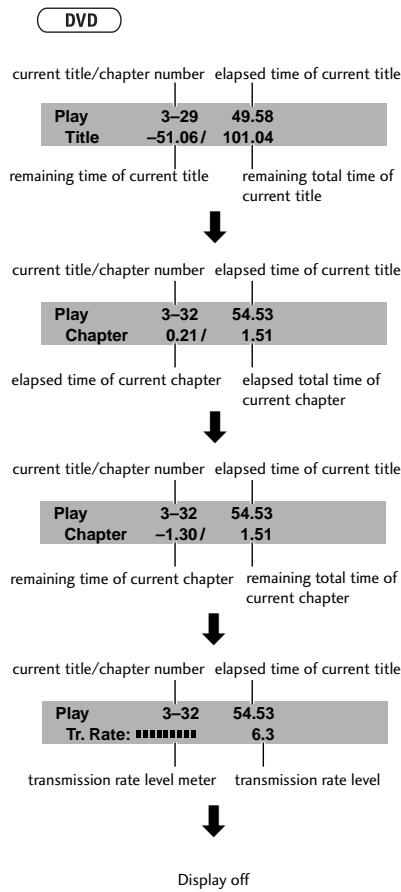
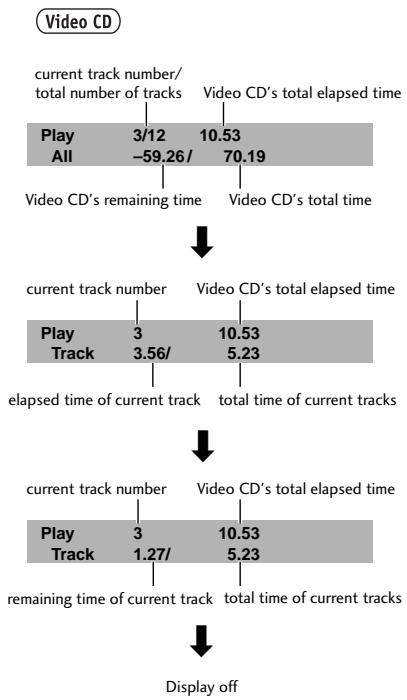
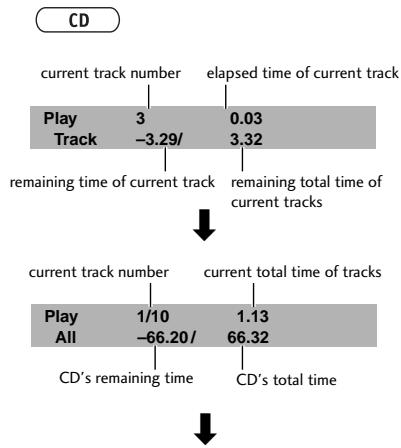
Display off
DVD-RW
current title/chapter number elapsed time of current title
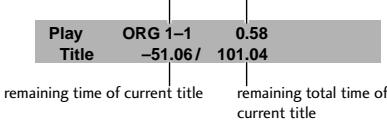

current title/chapter number elapsed time of current title
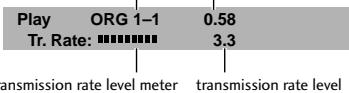

Display off
Displays when stopped
DVD
Information: DVD
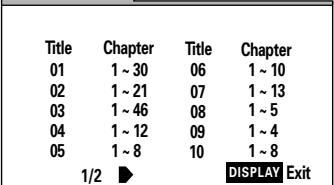
Titles and number of chapters in each title
Video CD
CD
Information: Compact Disc
| Total time | 72.04 | ||
| Track | Time | Track | Time |
| 01 | 5.23 | 06 | 6.51 |
| 02 | 4.55 | 07 | 3.18 |
| 03 | 6.13 | 08 | 6.50 |
| 04 | 5.45 | 09 | 4.16 |
| 05 | 5.10 | 10 | 3.22 |
| 1/2 | DISP | ||
Total playing time of disc, tracks and track times
DVD-RW
disc name (if programmed)
Information: DVD-RW
Disc
Title Original 1~6 Play List 1~3
DISPLAY Exit
Disc name (if programmed) and number of titles in the Original recording and the Play List
Using the Setup menu
The DVD Setup menu gives you access to all the system's DVD settings. Press SETUP to display/leave the menu and the cursor (▲▲▼) and ENTER buttons to navigate and select options. In some screens you can press RETURN to leave the screen without making any changes. The controls for each menu are shown at the bottom of the screen.
If an option is grayed out it means that it cannot be changed at the current time. This is usually because a disc is playing. Stop the disc, then change the setting.
The current setting for any option is marked with a colored box. The color of the box indicates what kind of disc the setting is applicable to: blue for DVD only; yellow for DVD and Video CD; green for any type of disc.
If when you change a setting you see a mark appear in the top right of the screen, it means that the setting is applicable only to DVD discs but a DVD disc is not loaded. The setting will take effect the next time you load a DVD disc.
Note
The language options shown in the menu screens that appear on the following pages may not be the same as those in your country or region.
OSD settings
Setup Menu Mode
- Default setting: Basic
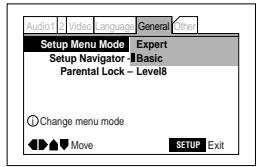
The Basic setup menu gives you access to the more commonly used settings. It also features an information bar which tells you more about what the currently highlighted option means.
Set to Expert for access to all settings.
On the following pages, system settings that are available only in Expert mode are labeled 'Expert'.
OSD language
- Set in Setup Navigator (default: English)
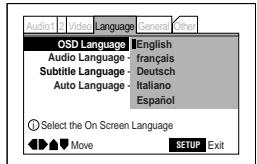
Choose the language you want the onscreen displays (OSDs) in.
On Screen Display Expert
- Default setting: Position - Normal
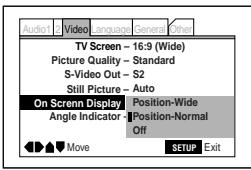
When watching DVD discs recorded in 4:3 format ('regular' TV size) on a widescreen TV, it can be difficult to see the operation displays (Play, Stop, Resume, etc.) at the top of the screen. If you find them hard to read, select Position - Wide.
If you prefer not to have the operation displays (Play, Stop, Resume, etc.) shown on-screen, change the setting to Off.
Video settings
TV Screen Size
- Set in Setup Navigator (Default: 16:9 (Wide))
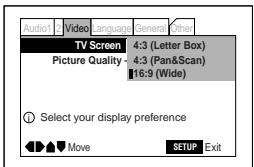
If you have a widescreen TV, select the 16:9 (Wide) setting—widenscreen DVD software is then shown using the full screen area. When playing software recorded in conventional (4:3) format, the settings on your TV will determine how the material is presented—see the manual that came with your TV for details on what options are available.
If you have a conventional TV, choose either 4:3 (Letter Box) or 4:3 (Pan & Scan). In Letter Box mode, widescreen software is shown with black bars at the top and bottom of the screen. Pan & Scan chops the sides off widescreen material to make it fit the 4:3 screen (so even though the picture looks larger on the screen, you're actually seeing less of the movie).
Picture Quality
- Default setting: Standard
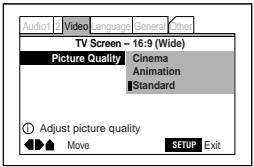
This player offers three preset color/ contrast settings; Animation (bright colors), Cinema (high contrast), and Standard.
S-Video Out Expert
- Default setting: S2
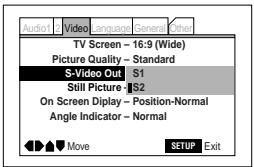
You only need to make this setting if you connected this player to your TV using an S-Video cord.
If you find that the picture is stretched or distorted on the default S2 setting, try changing it to S1.
Still Picture Expert
- Default setting: Auto
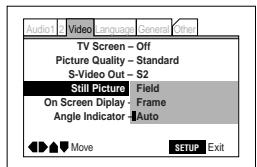
The player uses one of two processes when displaying a still frame from a DVD disc. The default Auto setting lets the system decide which to use.
Field produces a stable, generally shake-free image.
Frame - produces a sharper image, but more prone to shake than field stills.
Angle Indicator Expert
- Default setting: On
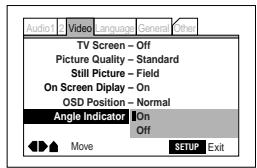
If you prefer not to see the camera icon on-screen during multi-angle scenes on DVD discs, change the Angle Indicator setting to Off.
Audio settings
Dolby Digital Out
- Set in Setup Navigator (Default: Dolby Digital)
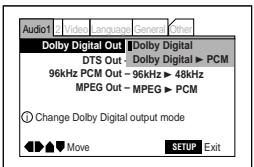
You only need to make this setting if you connected this system to another component (AV amplifier, etc.) using the optical digital out.
If your AV amplifier (or other connected component) is Dolby Digital compatible, set to Dolby Digital, otherwise set to Dolby Digital PCM.
DTS Out
- Set in Setup Navigator (Default: Off)
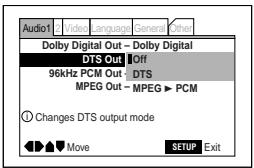
You only need to make this setting if you connected this system to another component (AV amplifier, etc.) using the digital out.
If your AV amplifier (or other connected component) is DTS compatible, set to DTS, otherwise set to Off.
96kHz PCM Out
- Set in Setup Navigator (Default: 96kHz)
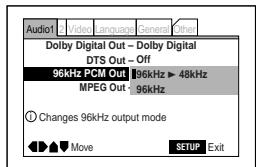
You only need to make this setting if you connected this system to another component (MD recorder, etc.) using the digital out.
If your AV amplifier (or other connected component) is 96kHz audio compatible, set to 96kHz , otherwise set to 96kHz 48kHz .
MPEG Out
- Set in Setup Navigator (Default: MPEG PCM)
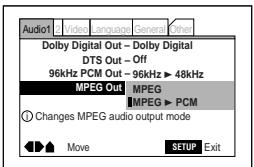
You only need to make this setting if you connected this system to another component (AV amplifier, etc.) using the optical digital out.
If your AV amplifier (or other connected component) is MPEG audio compatible, set to MPEG, otherwise set to MPEG PCM.
Digital Out Expert
- Default setting: On
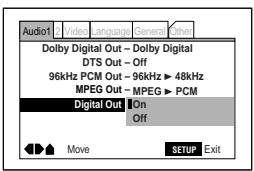
You can disable all digital audio output by setting this to Off.
Audio DRC
- Default setting: On
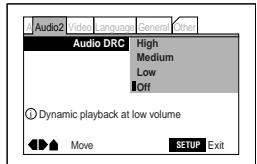
The dynamic range of a source is the difference between the quietest and the loudest sounds. The dynamic range of Dolby Digital soundtracks can be very great. This makes them exciting, but it also means that when you turn the volume down you can easily lose quiet dialog. Switch on Dynamic Range control to even out the soundtrack volume.
- High - the dynamic range is reduced by a large amount (good for listening at very low volume).
Medium - mid setting. - Low - the dynamic range is reduced by a small amount.
- Off - default setting (no change to the dynamics).
Language settings
Audio Language
- Default Setting: English
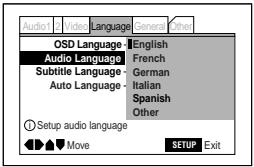
This setting is your preferred audio language for DVD discs. If the language you specify here is recorded on a disc, the system automatically plays the disc in that language (although this depends on the
Auto Language setting—see Auto Language on page 46).
The DVD format recognizes 136 different languages. Choose Other if you want to specify a language other than those listed, then follow the on-screen display to select a language. You may also want to refer to the Language code list on page 73.
Remember: You can switch between the languages recorded on a DVD disc any time during playback using the AUDIO button. (This does not affect this setting.)
Subtitle Language
- Default Setting: English
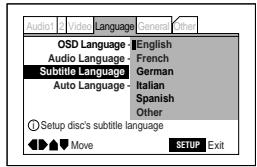
This setting is your preferred subtitle language for DVD discs. If the language you specify here is recorded on a disc, the system automatically plays the disc with those subtitles (although this depends on the Auto Language setting—see Auto Language on page 46).
The DVD format recognizes 136 different languages. Choose Other if you want to specify a language other than those listed, then follow the on-screen display to select a language. You may also want to refer to the Language code list on page 73.
Remember: You can change or switch off the subtitles on a DVD disc any time during playback using the SUBTITLE button. (This does not affect this setting.)
Auto Language
- Default Setting: On
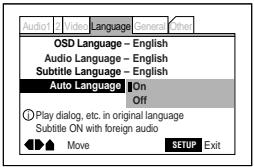
When set to On, the system always selects the default audio language on a DVD disc (French dialog for a French movie, for example), and displays subtitles in your preferred subtitle language only if that is set to something different. In other words, movies in your native language won't have any subtitles, while foreign language movies will be shown with subtitles.
Set to Off to have the system play discs strictly according to your Audio Language and Subtitle Language settings.
For Auto Language to work, the Audio Language and Subtitle Language settings must be the same—see page 45.
Remember: You can still switch audio and subtitle languages on playback using the AUDIO and SUBTITLE buttons.
DVD Language Expert
- Default Setting: w/Subtitle Language
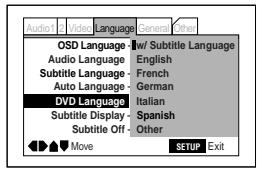
Some multi-lingual discs have disc menus in several languages. This setting specifies in which language the disc menus should appear. Leave on the default setting for menus to appear in the same language as your subtitle preference—see page 45.
The DVD format recognizes 136 different languages. Choose Other if you want to specify a language other than those listed, then follow the on-screen display to select a language. You may also want to refer to the Language code list on page 73.
Subtitle Display Expert
- Default Setting: On
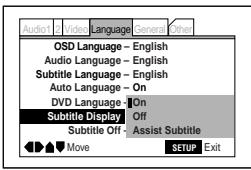
Set to On, the player displays subtitles according to the Subtitle Language and Auto Language settings above. Set to Off to switch subtitles off altogether (although see Subtitle Off on this page for special cases). Set to Assist Subtitle to have the player display the extra assistive subtitles recorded on to some DVD discs.
Subtitle Off Expert
- Default Setting: Selected Subtitle
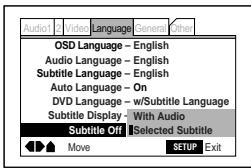
Some discs display subtitles even if the Subtitle Display setting (this page) is set to off. In this case, you can either have the subtitles displayed in the same language as your preferred audio language (With Audio), or in your preferred subtitle language (Selected Subtitle). If the Audio Language and Subtitle Language settings are the same then both of these choices will give the same result.
Miscellaneous settings
Parental Lock
- Default level: 8
- Default password: none
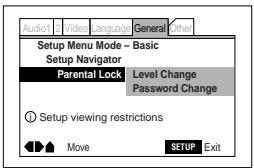
You can restrict access to certain discs using this feature. Once set, the player will ask for a four-digit password if a restricted disc is loaded, giving you a degree of control over what your children watch.
The player can be set to one of eight levels. Setting the level at 1 means that any disc that has any level of restriction will need the password in order to watch it, while setting it at level 8 gives unlimited access.
DVD discs are also rated from 1 to 8. Discs rated 1 (or with no rating) generally contain little or no offensive material; discs rated 2, may contain material that some parents may feel is unsuitable for children. Discs rated 8 will almost certainly be unsuitable for children.
Since a disc's rating is up to the manufacturer, it is not possible to give a definitive guide to each level—check the disc box for parental lock details.
Be careful: Not all discs that you may consider inappropriate for your children are rated. Unrated discs will always play without requiring the password first.
Changing the parental lock level
1 Select Level Change.
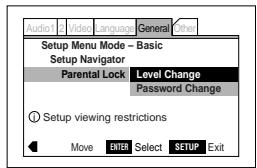
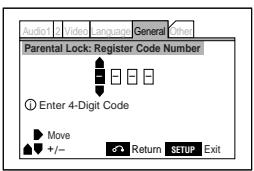
2 Use number buttons to register a new password or confirm your existing password, then press ENTER.

The first time you set the parental lock level, you have to register a password. Anything you input becomes your password.
3 Select a new level.
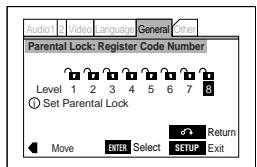
Move leftward to lock more levels (more discs will require the password); rightward to unlock levels. You can't lock level 1.
4 Press ENTER to set the new level.
Changing your password
1 Select Password Change.
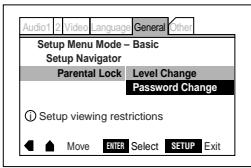
2 Input your existing password, then press ENTER.
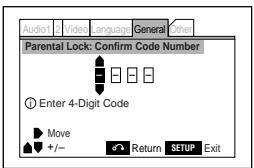
3 Input a new password, then press ENTER.
If you forget your password, resetting the player will clear the password. See page 52 for more on this.
Screen Saver Expert
- Default setting: differs by country
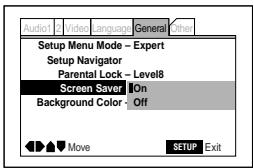
If a constant image is displayed on a conventional CRT-type TV, it can "burn in" leaving a ghost image on the screen.
Switch On the screen saver to make sure that a constant image is not displayed for a dangerously long time.
Background Color Expert
- Default setting: Blue
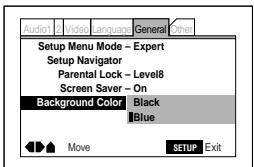
This specifies the color of the screen when the player is stopped (or playing an audio disc).
Other settings
Change OSD
- Default setting: Off
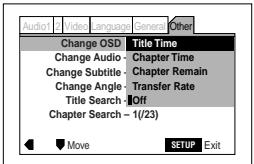
On the default setting, disc information is displayed only when you press DISPLAY on the remote. If you want to have disc information displayed all the time, set to one of the other options (these vary with the kind of disc loaded).
Change Audio
- Default setting: not applicable
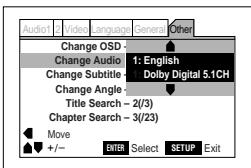
This setting lets you change the audio track (if more than one is available). The options available depend on the disc.
Change Subtitle
- Default setting: not applicable
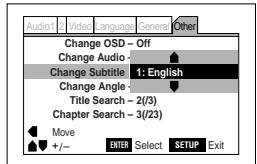
This setting lets you change the subtitle language on a DVD disc (if more than one is available). The options available depend on the disc.
Change Angle
- Default setting: not applicable
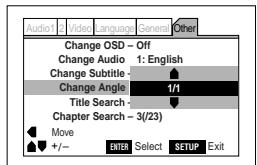
This setting lets you change the viewing angle during scenes that are recorded with more than one camera angle.
Title Search
- Default setting: not applicable
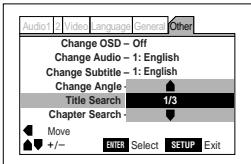
This setting lets you jump to another title on a DVD disc directly without using the remote. Use the cursor (▲ and▼) buttons to select a title number.
Chapter Search
- Default setting: not applicable
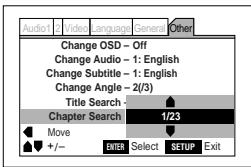
This setting lets you jump to another chapter on a DVD disc directly without using the remote. Use the cursor (▲ and ) buttons to select a chapter number.
Track Search
- Default setting: not applicable
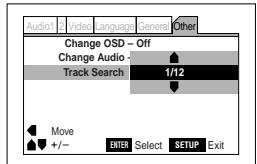
This setting lets you jump to another track on a CD or Video CD disc directly without using the remote. Use the cursor (▲ and ) buttons to select a track number.
Playback Control
- Default setting: not applicable
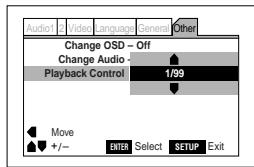
This lets you select a numbered option from a PBC Video CD menu without using the remote. Use the cursor (▲ and▼) buttons to select a number.
Resetting all the player settings

This returns the player to its factory settings. All saved settings, such as Last Memory, Program Memory, Condition Memory, Parental Lock password and so on, are erased when you do this.
1 Switch the power off.
2 Hold down II on the front panel and press ON () until the power comes on.
Listening through an external AV amplifier
In order to enjoy surround sound from DVD discs, you'll need to connect this unit to an AV amplifier using an optical (TOSLINK) fiber cable (supplied with PDV-LC20 European model). After connecting up, make sure that you set up the audio output correctly from the setup menu—see pages 43, 44.
Note that when an optical fiber cable is connected the CD anti-shock system does not work. Take care not to jolt the player to prevent it from skipping.
Before making or changing the connections, switch off the power and disconnect the power cord from the AC outlet.

Tips for using the digital output
You can also use the digital output to hook up this player to a digital recorder (MD, CD-R, DAT, etc.), or two channel amplifier with an optical digital input. In this case, make sure that you set up the audio output so that only PCM audio is output.
Connecting to a TV using the S-Video cable
If your TV has an S-Video input, you can use the supplied S-Video cable to connect it to this player. This may give a better picture than using the supplied AV cable.

Supplied AV cable
Watching an external video source (PDV-LC20 only)
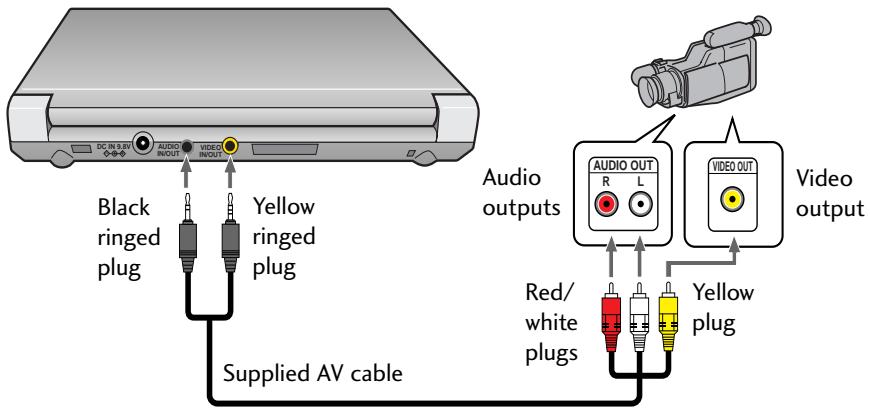
You can set the AV IN/OUT jack to function as either an output (to watch discs to an external TV/monitor) or an input (to watch other video sources on this player's built in screen).
After connecting up, press the DVD/AV-IN button to switch the player to AV input mode. When you do this, the player's controls become inoperative. Press DVD/AV-IN again to switch the player back.
Listening through headphones
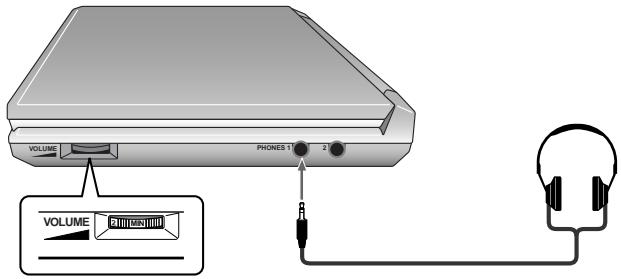
Plug in a pair of stereo headphones for private listening. There are two jacks enabling you to connect two pairs of headphones.
- Turn the volume down before starting playback, then gradually increase the volume to a comfortable level. Listening at high volume through headphones can damage your hearing.
- The speakers on the PDV-LC20 are muted when headphones are connected.
- You cannot listen to DTS encoded DVDs through headphones.
- Be careful: Loud noise is output through the headphones when playing DTS encoded CDs.
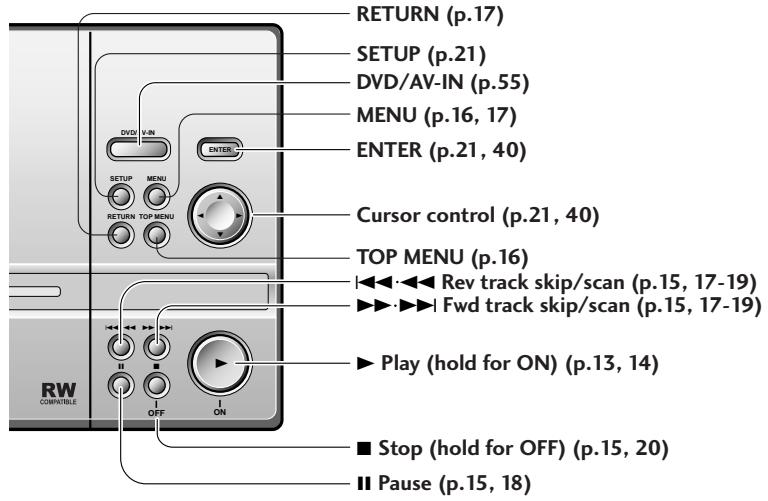
Top panel controls
PDV-LC20
PDV-20
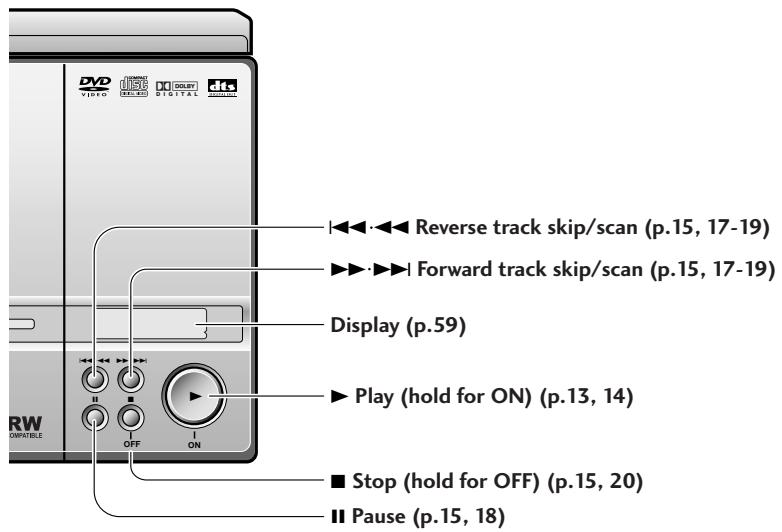
RW This mark, indicating compatibility with DVD-RW discs recorded on a DVD recorder, only appears on the US and Canadian models.
Player (front)
Illustration shows the PDV-LC20.
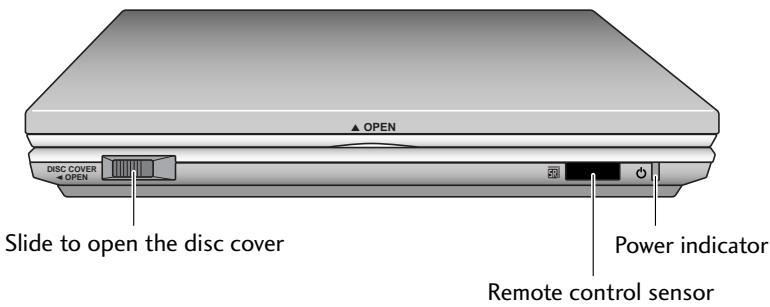
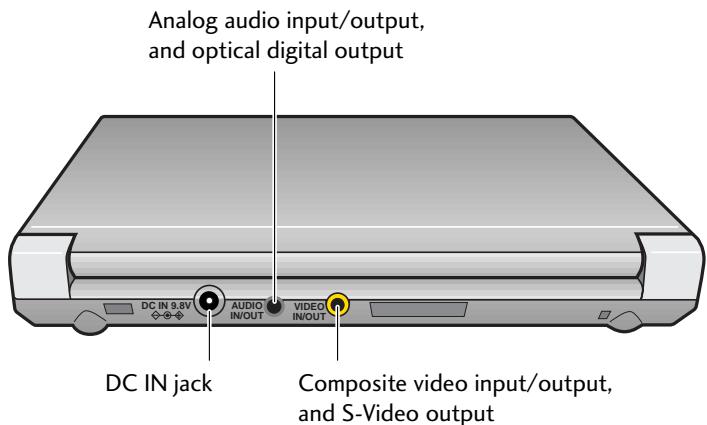
Player (rear)
Illustration shows the PDV-LC20. The PDV-20 has audio and video outputs only.
Player (right side)
Illustration shows the PDV-LC20.
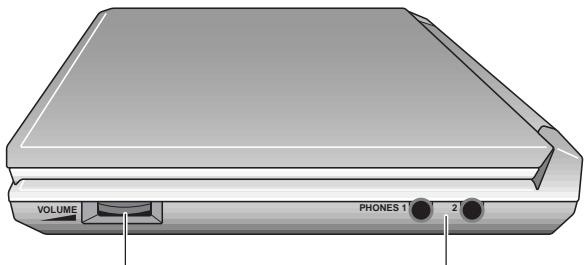
Rotary volume control
Headphone jacks
Display (PDV-20 only)
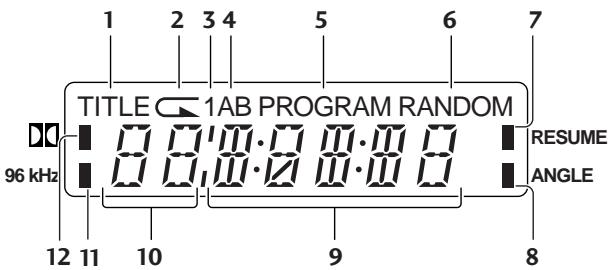
1 TITLE
Indicates that the number on the left in the display is showing a DVD title number.
2
Indicates repeat play (pages 29, 30).
31
Indicates single (title/chapter/track) repeat play (pages 29, 30).
4 AB
Indicates AB loop play (page 30).
5 PROGRAM
Indicates program play (page 31).
6 RANDOM
Indicates random play (page 34).
7 RESUME
Indicates that playback can be resumed (page 15).
8 ANGLE
Indicates that there are multiple camera angles in the current scene (page 26).
9 Counter display
Displays the elapsed playback time of the current title (DVDs) or track (CDs and Video CDs).
10 Title/chapter/track number display
Shows the current title or chapter number (DVDs), or track number (CDs and Video CDs).
11 96kHz
Lights when playing discs containing 96kHz audio.
120
Indicates Dolby Digital playback.
LCD screen (PDV-LC20 only)
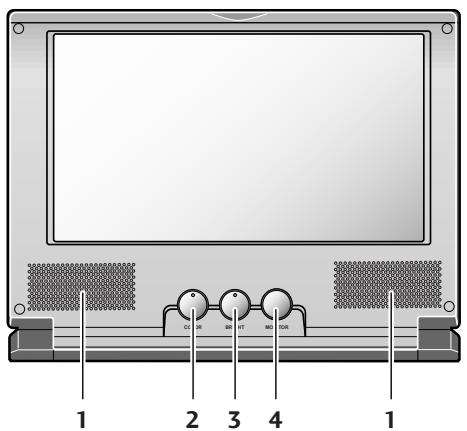
1 Speakers
2 COLOR
Adjusts the color depth.
3 BRIGHT
Adjusts the screen brightness.
4 MONITOR
Press to change the picture size:
- Normal - picture is shown in its original aspect ratio.
Full-4:3 material is stretched to 16:9 - Zoom - Zooms the picture to fill the whole screen.
Natural Wide - Leaves the center of the screen in the correct ratio while stretching the edges. - Off - Turns off the built-in display.
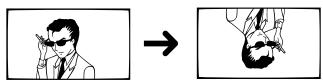
Flipping the screen
Press and hold MONITOR for about a second to flip the picture upside-down. Press and hold again to flip it back again. Note that because the stereo sound channels are not reversed when the picture is flipped, if you're listening through the built-in speakers, the soundstage will appear to be the wrong way around.
Remote control
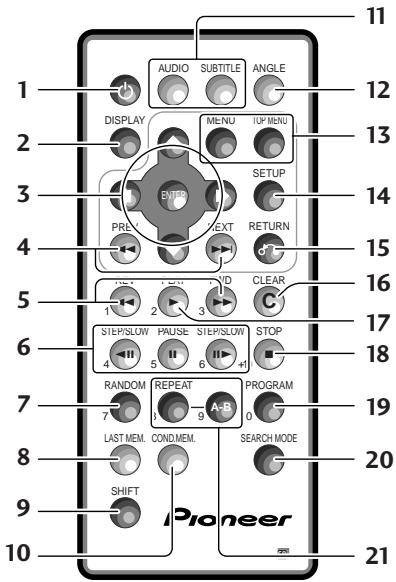
1 (pages 13, 20)
2 DISPLAY (page 37)
3 Cursor control and ENTER (pages 21, 40)
4 PREV and NEXT (pages 15, 17)
5 REV and FWD (page 15)
6 II/II STEP/SLOW and II PAUSE (page 15, 18, 19)
7 RANDOM (page 34)
8 LAST MEM. (page 35)
9 SHIFT
10 COND. MEM. (page 36)
11 AUDIO and SUBTITLE languages (page 27)
12 Camera ANGLE (page 26)
13 MENU and TOP MENU (page 16, 17)
14 SETUP menu (page 21, 40)
15 RETURN (page 17)
16 C CLEAR (pages 29-36)
17 PLAY (page 14)
18 STOP (page 15, 20)
19 PROGRAM (page 31)
20 SEARCH MODE (page 24, 25)
21 REPEAT and A-B repeat (page 29, 30)
06 Controls & Displays
Replacing the battery
1 Pull out the battery holder as shown below.
Pinch B inward while pulling the battery holder out from A.
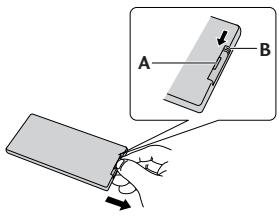
2 Remove the old battery, then insert the new battery into the battery holder.
Make sure that the side is facing upwards.
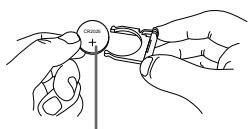
Lithium battery (CR2025)
3 Fit the battery holder back into place.
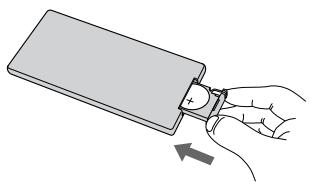
Note:
To prevent leakage of fluid from the lithium battery, remove the battery when not using the remote control unit for long periods of time (one month or more). If the fluid should leak, carefully wipe it from the battery case, then insert a new lithium battery.
Warning (lithium battery)
- Keep out of the reach of children.
- Contact a physician immediately if a battery should be swallowed.
- Do not take apart, dispose of in flames, charge, heat, solder or short-circuit.
- Remove the battery if the equipment isn't going to be used for a month or more.
Caution!
Danger of explosion if battery is incorrectly replaced.
Replace only with the same or equivalent type recommended by the manufacturer.
Discard used batteries according to the manufacturer's instructions.
When disposing of used batteries, please comply with governmental regulations or environmental public instruction's rules that apply in your country or area.
Taking care of your player
Cleaning the player
Before cleaning the player, switch off and disconnect the AC adapter.
To clean, wipe with a soft, dry cloth. For stubborn dirt, then wet a soft cloth with a mild detergent solution made by diluting one part detergent to 5 or 6 parts water, wring well, then wipe off the dirt. Use a dry cloth to wipe the surface dry. Do not use volatile liquids such as benzene and thinner which may damage the surfaces.
Cleaning the LCD Screen
To clean the LCD screen, wipe lightly using a soft dry cloth, such as a glasses lens cloth. If water droplets are allowed to remain on the display for a long period, the display may stain or discolor. If the screen becomes the very dirty, use a commercially available LCD screen cleaner.
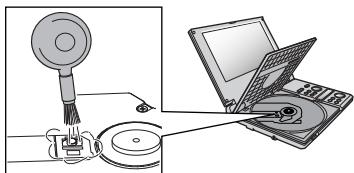
Cleaning the lens
Performance will be affected if there is dirt or dust on the lens. To clean the lens, use a commercially available camera lens blower to clean the lens. When doing so, be careful not to touch the lens. Do not use commercially available CD lens cleaning discs—they may damage the lens.
Condensation
Condensation may form inside the unit if it is brought into a warm room from outside, or if the temperature of the room rises quickly. Although condensation won't damage the unit, it may temporarily impair its performance. For this reason you should leave it to adjust to the warmer temperature for about an hour before switching on and using.
07 Additional Information
Location
We want you to enjoy using your player for years to come, so please bear in mind the following points when using it:
Do...
Use in a well-ventilated room.
Place on a solid, flat, level surface, such as a table, shelf or stereo rack.
Don't...
× Use in a place exposed to high temperatures or humidity, including near radiators and other heat-generating appliances.
× Place on a window sill or other place where the player will be exposed to direct sunlight.
× Use in an excessively dusty or damp environment.
× Place directly on top of an amplifier, or other component in your stereo system that becomes hot in use.
× Use near a television or monitor as you may experience interference—especially if the television uses an indoor antenna.
× Use in a kitchen or other room where the player may be exposed to smoke or steam.
X Use on a thick rug or carpet, or cover with cloth—this may prevent proper cooling of the unit.
× Place on an unstable surface, or one that is not large enough to support all four of the unit's feet.
Handling optic fibre cable
Optic fibre cables are more delicate than regular audio cables.
- Do not bend the cable at a sharp angle.
- When storing, coil loosely, as shown below.
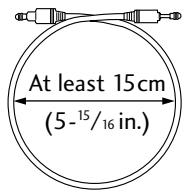
- If the plug is dusty, wipe off using a soft, dry cloth before connecting.
Optical cables more than 3 meters long may not work reliably. We recommend using cables shorter than 3 meters.
Taking care of your discs
When holding discs, take care not to leave fingerprints, dirt or scratches on the disc surface. Hold the disc by its edge or by the center hole and edge. Damaged or dirty discs can affect playback performance. Take care also not to scratch the label side of the disc. Although not as fragile as the recorded side, scratches can still result in a disc becoming unusable.
Should a disc become marked with fingerprints, dust, etc., clean using a soft, dry cloth, wiping the disc lightly from the center to the outside edge as shown on the next page. If necessary, use a cloth soaked in alcohol, or a commercially available CD/DVD cleaning kit to clean a disc more thoroughly. Never use benzine, thinner or other cleaning agents, including products designed for cleaning vinyl records.
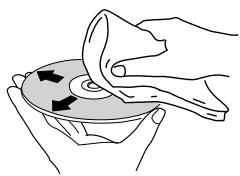
- Wipe lightly from the center of the disc using straight strokes.
Storing discs
Although CDs and DVDs are reasonably durable, you should still take care to handle and store discs correctly. When you're not using a disc, return it to its case and store upright. Avoid leaving discs in excessively cold, humid, or hot environments (including under direct sunlight).
Don't glue paper or put stickers on discs, or write on them using a pencil, ball-point pen or other sharp-tipped writing instrument.
Discs to avoid
Discs spin at high speed inside the player during playback. If you can see that a disc is cracked, chipped, warped, or otherwise damaged, don't risk using it—you could end up damaging the player.
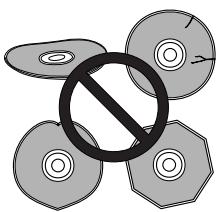
This player is designed for use with conventional, fully circular discs only. Use of shaped discs is not recommended. Pioneer disclaims all liability arising in connection with the use of shaped discs.
Glossary
Analog audio
An electrical signal that directly represents sound. Compare this to digital audio, which can also be an electrical signal, but is an indirect representation of sound. See also Digital audio.
Aspect ratio
The width of a TV screen relative to its height. Conventional TVs are 4:3 (in other words, the screen is almost square); widescreen models are 16:9 (the screen is almost twice as wide as it is high).
Chapter (DVD only)
Just as a book is divided up into several chapters, a title on a DVD disc is usually split into chapters. See also Title.
Digital audio
An indirect representation of sound by numbers. During recording, the sound is measured at discrete intervals (44,100 times a second for CD audio) by an analog-to-digital converter, generating a stream of numbers. On playback, a digital-to-analog converter generates an analog signal based on these numbers. See also Sampling frequency and Analog audio.
Dolby Digital (DVD only)
A surround sound system developed by Dolby Laboratories containing up to six channels of digital audio (front left and right, surround left and right, center and low-frequency channels). See also DTS.
DTS
A surround sound system developed by Digital Theater Systems as an alternative to Dolby Digital. DTS discs contain up to eight channels of digital audio. See also Dolby Digital.
Dynamic range
The difference between the quietest and loudest sounds possible in an audio signal (without distorting or getting lost in noise). Dolby Digital and DTS soundtracks are capable of a very wide dynamic range, delivering dramatic cinema-like effects.
MPEG video
The video format used for Video CDs and DVDs. Video CD uses the older MPEG-1 standard, while DVD uses the newer and much better quality MPEG-2 standard.
Optical digital output
A jack that outputs digital audio in the form of light pulses. Connect components with optical digital jacks using a special optical cord, available from good audio dealers.
PCM (Pulse Code Modulation)
The most common system of encoding digital audio, found on CDs and DAT. Excellent quality, but requires a lot of data compared to formats such as Dolby Digital and MPEG audio. For compatibility with digital audio recorders (CD, MD and DAT) and AV amplifiers with digital inputs, this unit can convert Dolby Digital and MPEG audio to PCM. See also Digital audio.
PBC (PlayBack Control) (Video CD only)
A system of navigating a Video CD through on-screen menus recorded onto the disc. Especially good for discs that you would normally not watch from beginning to end all at once—karaoke discs, for example.
Regions (DVD only)
These associate discs and players with particular areas of the world. This system will only play discs that have compatible region codes. You can find the region code of your system by looking on the rear panel. Some discs are compatible with more than one region (or all regions).
Sampling frequency
The rate at which sound is measured to be turned into digital audio data. The higher the rate, the better the sound quality, but the more digital information is generated. Standard CD audio has a sampling frequency of 44.1kHz , which means 44,100 samples (measurements) per second. See also Digital audio.
Title (DVD only)
A collection of chapters on a DVD disc. See also Chapter.
07 Additional Information
Troubleshooting
If there is a problem that persists after checking the points below, contact the store where you bought the player.
Power does not turn on
AC adapter not connected properly (page 13)
Battery is not charged (page 71).
Disc will not play
Disc is damaged or dirty (page 65).
Disc is not properly loaded (page 14).
Incompatible region number (page 67).
Condensation inside the player (page 63).
Incompatible disc format (page 9).
Disc is loaded upside-down (page 14).
PDV-LC20 only: the player is set to AV input (page 55).

mark appears on screen
The operation is prohibited by the disc.

mark appears on screen
The operation is prohibited by the player.

mark appears on screen
This setting will take effect when you next load a DVD disc.
Settings made when a disc was playing do not take effect
Some settings do not take effect until the disc is stopped then started again (note that the resume feature may not work, depending on the setting(s) changed.)
Settings have been erased
If power is cut or the player is unplugged while a disc is playing, any settings made while the current disc was playing will be lost. Always switch off the player using the OFF (■) button, or button on the remote.
Noisy picture when a DVD is recorded on a VCR or played via a VCR
Some discs are copy-protected. Such discs will not play properly when played via a VCR or when recorded on a VCR.
Player cannot be operated with the remote control unit
Remote control is outside its operating range (page 11).
Battery in the remote control battery is exhausted (page 62).
TV or other device operates erroneously
This player's remote may interfere with other remote controlled devices.
No sound or distorted sound from built-in speakers (PDV-LC20 only)
Disc is damaged or dirty (page 65).
Disc is paused or in slow motion play (pages 15, 19).
Volume control is set to minimum.
Headphones are plugged in.
Optical fiber cable is connected.
LCD screen is closed.
DVDs and CDs play at different volumes
This is normal.
No sound or distorted sound when connected to a TV, AV amplifier, etc.
For some discs, 96kHz digital output of linear PCM audio signals is prohibited.
Connection cables are not securely plugged in or not connected (pages 12, 53-55).
Connection plugs or jacks are dirty.
DTS audio digital output is connected to a non-compatible AV amplifier, etc.
No picture from the LCD screen (PDV-LC20 only)
Monitor is set to OFF (page 60).
The player is set to AV input (page 55).
Power automatically turns off
When using the battery, if a disc is paused for more than 5 minutes, the player automatically stops. If the disc is stopped for more than 5 minutes, the player automatically goes into standby to conserve power.
Player gets hot
This is normal.
Note
The player may stop operating properly due to static electricity or other external influences. In this case, unplugging the power cord then plugging it back in will usually resolve the problem. If not, consult your nearest Pioneer service center.
LCD screen (PDV-LC20 only)
With LCD screens, a few picture elements may be black or shine a particular color. This is normal.
Screen sizes and disc formats
The table below shows the effect of various TV Screen settings on the different kinds of disc available.
When viewing a standard size TV or monitor
| Screen format of disc | Setting | Appearance | |
| 16:9 | 4:3 (Letter Box) | The program is shown in widescreen with black bars at the top and bottom of the screen. | |
| 4:3 (Pan & Scan) | The sides of the program are cropped so that the picture fills the whole screen: set to either 4:3 (Letter Box). | ||
| 16:9 (Wide) | The program appears squashed: set to either 4:3 (Letter Box) or 4:3 (Pan & Scan). | ||
| 4:3 | 4:3 (Letter Box) 4:3 (Pan & Scan) 16:9 (Wide) | The program is presented correctly, regardless of the setting. | |
When viewing a wide screen TV or monitor
| Screen format of disc | Setting | Appearance |
| 16:9 | 16:9 (Wide) | The program is presented correctly, regardless of the setting. |
| 4:3 | 16:9 (Wide) | The program is shown in widescreen with black bars at the either side of the screen. |
| The program appears stretched. Your TV will determine how the picture is presented—check the manual that came with the TV for details. |
Using the player with a battery pack
This player can be used with either the PDV-BT20 battery pack (supplied with PDV-LC20), or the PDV-BT25 high-capacity battery pack (optional).
Please read the operating instructions that come with your battery pack.
Attaching the battery pack
1 Line up the back of the player with the back of the battery pack.
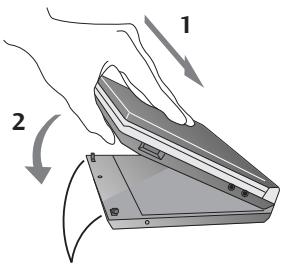
Catches
2 Gently push the player down on to the battery pack until you hear it click into place.
Check that the battery is securely attached.
Recharging the battery pack
You can recharge the battery cpack whether it is attached to the player or not.
The PDV-BT20 takes about 2.5 hours to fully charge from empty; the PDV-BT25 takes about 5 hours.
1 Plug the power connector into the DC IN jack on the rear of the battery pack.
2 Plug the other end of the power cord into a wall power outlet.
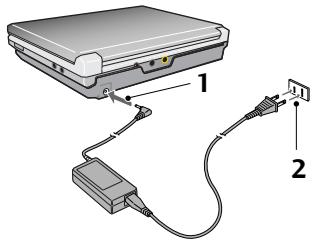
07 Additional Information
Checking the remaining battery power
Press and hold DISPLAY (remote only) for about 2 seconds to display the battery charge indicator on-screen. (If the AC adapter is connected, this is indicated instead.)
| Fully charged |
| At least half a charge remaining |
| Remaining charge getting low |
| Almost out of power |
- From fully charged, the PDV-BT20 gives about 3 hours continuous playback with the PDV-LC20 and about 5 hours with the PDV-20. The PDV-BT25 gives about 6.5 hours continuous playback with the PDV-LC20 and about 12 hours with the PDV-20. The actual battery life depends on how the player is used.
- When battery power is almost exhausted, the power indicator on the front of the player starts to blink.
- The button on the remote acts as a OFF (■) button when the player is connected to the battery pack.
- Use only the supplied AC adapter when recharging the battery pack.
Detaching the battery pack
1 Switch off the player.
2 Push the RELEASE tab in the direction indicated to release the player.
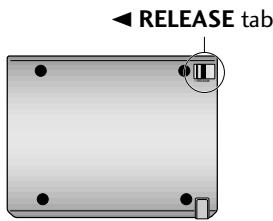
3 Lift the player clear from the battery pack.
Language code list
| Language | Code |
| Japanese (ja) | 1001 |
| English (en) | 0514 |
| French (fr) | 0618 |
| German (de) | 0405 |
| Italian (it) | 0920 |
| Spanish (es) | 0519 |
| Chinese (zh) | 2608 |
| Dutch (nl) | 1412 |
| Portuguese (pt) | 1620 |
| Swedish (sv) | 1922 |
| Russian (ru) | 1821 |
| Korean (ko) | 1115 |
| Greek (el) | 0512 |
| Afar (aa) | 0101 |
| Abkhazian (ab) | 0102 |
| Afrikaans (af) | 0106 |
| Amharic (am) | 0113 |
| Arabic (ar) | 0118 |
| Assamese (as) | 0119 |
| Aymara (ay) | 0125 |
| Azerbaijani (az) | 0126 |
| Bashkir (ba) | 0201 |
| Byelorussian (be) | 0205 |
| Bulgarian (bg) | 0207 |
| Bihari (bh) | 0208 |
| Bislama (bi) | 0209 |
| Bengali (bn) | 0214 |
| Tibetan (bo) | 0215 |
| Breton (br) | 0218 |
| Catalan (ca) | 0301 |
| Corsican (co) | 0315 |
| Czech (cs) | 0319 |
| Welsh (cy) | 0325 |
| Danish (da) | 0401 |
| Bhutani (dz) | 0426 |
| Esperanto (eo) | 0515 |
| Estonian (et) | 0520 |
| Basque (eu) | 0521 |
| Persian (fa) | 0601 |
| Finnish (fi) | 0609 |
| Fiji (fj) | 0610 |
| Faroeese (fo) | 0615 |
| Frisian (fy) | 0625 |
| Irish (ga) | 0701 |
| Scotts-Gaelic (gd) | 0704 |
| Galician (gl) | 0712 |
| Guarani (gn) | 0714 |
| Language | Code |
| Gujarati (gu) | 0721 |
| Hausa (ha) | 0801 |
| Hindi (hi) | 0809 |
| Croatian (hr) | 0818 |
| Hungarian (hu) | 0821 |
| Armenian (hy) | 0825 |
| Interlingua (ia) | 0901 |
| Interlingue (ie) | 0905 |
| Inupiak (ik) | 0911 |
| Indonesian (in) | 0914 |
| Icelandic (is) | 0919 |
| Hebrew (iw) | 0923 |
| Yiddish (ji) | 1009 |
| Javanese (jw) | 1023 |
| Georgian (ka) | 1101 |
| Kazakh (kk) | 1111 |
| Greenlandic (kl) | 1112 |
| Cambodian (km) | 1113 |
| Kannada (kn) | 1114 |
| Kashmiri (ks) | 1119 |
| Kurdish (ku) | 1121 |
| Kirghiz (ky) | 1125 |
| Latin (la) | 1201 |
| Lingala (ln) | 1214 |
| Laothian (lo) | 1215 |
| Lithuanian (lt) | 1220 |
| Latvian (lv) | 1222 |
| Malagasy (mg) | 1307 |
| Maori (mi) | 1309 |
| Macedonian (mk) | 1311 |
| Malayalam (ml) | 1312 |
| Mongolian (mn) | 1314 |
| Moldavian (mo) | 1315 |
| Marathi (mr) | 1318 |
| Malay (ms) | 1319 |
| Maltese (mt) | 1320 |
| Burmese (my) | 1325 |
| Nauru (na) | 1401 |
| Nepali (ne) | 1405 |
| Norwegian (no) | 1415 |
| Occitan (oc) | 1503 |
| Oromo (om) | 1513 |
| Oriya (or) | 1518 |
| Panjabi (pa) | 1601 |
| Polish (pl) | 1612 |
| Pashto, Pushto (ps) | 1619 |
| Quechua (qu) | 1721 |
| Language | Code |
| Rhaeto-Romance (rm) | 1813 |
| Kirundi (rn) | 1814 |
| Romanian (ro) | 1815 |
| Kinyarwanda (rw) | 1823 |
| Sanskrit (sa) | 1901 |
| Sindhi (sd) | 1904 |
| Sangho (sg) | 1907 |
| Serbo-Croatian (sh) | 1908 |
| Sinhalese (si) | 1909 |
| Slovak (sk) | 1911 |
| Slovenian (sl) | 1912 |
| Samoan (sm) | 1913 |
| Shona (sn) | 1914 |
| Somali (so) | 1915 |
| Albanian (sq) | 1917 |
| Serbian (sr) | 1918 |
| Siswati (ss) | 1919 |
| Sesotho (st) | 1920 |
| Sundanese (su) | 1921 |
| Swahili (sw) | 1923 |
| Tamil (ta) | 2001 |
| Telugu (te) | 2005 |
| Tajik (tg) | 2007 |
| Thai (th) | 2008 |
| Tigrinya (ti) | 2009 |
| Turkmen (tk) | 2011 |
| Tagalog (tl) | 2012 |
| Setswana (tn) | 2014 |
| Tonga (to) | 2015 |
| Turkish (tr) | 2018 |
| Tsonga (ts) | 2019 |
| Tatar (tt) | 2020 |
| Twi (tw) | 2023 |
| Ukrainian (uk) | 2111 |
| Urdu (ur) | 2118 |
| Uzbek (uz) | 2126 |
| Vietnamese (vi) | 2209 |
| Volapük (vo) | 2215 |
| Wolof (wo) | 2315 |
| Xhosa (xh) | 2408 |
| Yoruba (yo) | 2515 |
| Zulu (zu) | 2621 |
Specifications
General
DVD, video CD and CD system
Power requirements
AC adapter (included) DC 9.8 V
Battery pack (included with PDV-LC20) DC 7.4 V
AC adapter (included)
Power requirements AC 100 to 240V 50 / 60Hz
Power consumption 45 VA
Rated output 9.8V
Battery pack (PDV-BT20 included with PDV-LC20)
PDV-BT20/PDV-BT25
Battery type. Rechargeable Lithium-Ion
Power requirements
PDV-BT20 7.4 V, 2850 mAh
PDV-BT25 7.4 V, 6200 mAh
Power consumption
During DVD playback without AC adapter
PDV-LC20 10 W
PDV-20 5W
In standby with AC adapter
U.S and Canadian models 0.7 W
Other models 1.1 W
Main unit weight
PDV-LC20 610 g/1 lb. 6 oz.
PDV-20 300 g/0 lb. 11 oz.
External dimensions
(not including protruding parts)
PDV-LC20 190 (W) x 142 (D) x 25.9 (H) mm
7^1 / 2 W) x5^ / 8 D) x 1 H) in.
PDV-20 190 (W) x 142 (D) x 15.9 (H) mm
7^1 / 2 W) x5^5 / 8 D x0^5 / 8 H) in.
Operating temperature
+5°C to +35°C (+36°F to +96°F)
Operating humidity
5% to 85% (no condensation)
Video input/output
Video output level 1 Vp-p (75 Ω)
Output jack. 4-pole minijack
S video output
Y output level 1 Vp-p (75 Ω)
C output level 286 mVp-p (75 Ω)
Output jack. 4-pole minijack
(video input/output switching type)
Audio input/output
Audio input/output level 150 mVrms (1 kHz, -20 dB)
Input/output jack 4-pole minjack
Digital audio output characteristics
Frequency response 4 Hz to 44 kHz (DVD)
4 Hz to 20 kHz (CD)
Wow and flutter Limit of measurement
(± 0.001% W.PEAK) or lower (EIAJ)
Headphones output
Output jack. Stereo minijack
7" widenscreen LCD screen (PDV-LC20 only)
-Si TFT active matrix 7" widscreen LCD screen
Accessories
AC adapter 1
Power cable 1
Remote control unit (with lithium battery) 1
AV cable 1
S-Video cable 1
Optical fiber cable (European PDV-LC20 only) 1
Operating instructions 1
Option
Battery pack (PDV-BT20 / PDV-BT25)
(PDV-BT20 is supplied with PDV-LC20)
Note
The specifications and design of this product are subject to change without notice, due to improvement.


Dear Customer:
Selecting fine audio equipment such as the unit you've just purchased is only the start of your musical enjoyment. Now it's time to consider how you can maximize the fun and excitement your equipment offers. This manufacturer and the Electronic Industries Association's Consumer Electronics Group want you to get the most out of your equipment by playing it at a safe level. One that lets the sound come through loud and clear without annoying blaring or distortion-and, most importantly, without affecting your sensitive hearing.
Sound can be deceiving. Over time your hearing "comfort level" adapts to higher volumes of sound. So what sounds "normal" can actually be loud and harmful to your hearing. Guard against this by setting your equipment at a safe level BEFORE your hearing adapts.
To establish a safe level:
- Start your volume control at a low setting.
Slowly increase the sound until you can hear it comfortably and clearly, and without distortion.
Once you have established a comfortable sound level:
- Set the dial and leave it there.
Taking a minute to do this now will help to prevent hearing damage or loss in the future. After all, we want you listening for a lifetime.
We Want You Listening For A Lifetime
Used wisely, your new sound equipment will provide a lifetime of fun and enjoyment. Since hearing damage from loud noise is often undetectable until it is too late, this manufacturer and the Electronic Industries Association's Consumer Electronics Group recommend you avoid prolonged exposure to excessive noise. This list of sound levels is included for your protection.
Decibel
Level Example
30 Quiet library, soft whispers
40 Living room, refrigerator, bedroom away from traffic
50 Light traffic, normal conversation, quiet office
60 Air conditioner at 20 feet, sewing machine
70 Vacuum cleaner, hair dryer, noisy restaurant
80 Average city traffic, garbage disposals, alarm clock at two feet.
THE FOLLOWING NOISES CAN BE DANGEROUS UNDER CONSTANT EXPOSURE
90 Subway, motorcycle, truck traffic, lawn mower
100 Garbage truck, chain saw, pneumatic drill
120 Rock band concert in front of speakers, thunderclap
140 Gunshot blast, jet plane
180 Rocket launching pad
Information courtesy of the Deafness Research Foundation.


S001En
Should this product require service in the U.S.A, and you wish to locate the nearest Pioneer Authorized Independent Service Company, or if you wish to purchase replacement parts, operating instructions, service manuals, or accessories, please call the number shown below.
800-421-1404
Please do not ship your product to Pioneer without first calling the Customer Service Department at the above listed number for assistance.
PIONEER ELECTRONICS SERVICE, INC.
CUSTOMER SERVICE DEPARTMENT
P.O. BOX 1760, LONG BEACH,
For warranty information please see the Limited Warranty sheet included with your product.
Should this product require service in Canada, please contact a Pioneer Canadian Authorized Dealer to locate the nearest Pioneer Authorized Service Company in Canada.
Alternatively, please contact the Customer Service Department at the following address:
Pioneer Electronics of Canada, Inc.
Customer Service Department
300 Allstate Parkway, Markham, Ontario L3R OP2
(905)479-4411
1-877-283-5901
For warranty information please see the Limited Warranty sheet included with your product.
300 Allstate Parkway, Markham, Ontario L3R OP2
(905)479-4411
1-877-283-5901
Published by Pioneer Corporation.
Copyright © 2000 Pioneer Corporation.
All rights reserved.
PIONEER CORPORATION
4-1, Meguro 1-Chome, Meguro-ku, Tokyo 153-8654, Japan
PIONEER ELECTRONICS [USA] INC.
P.O. BOX 1540, Long Beach, California 90801-1540, U.S.A.
PIONEER ELECTRONICS OF CANADA, INC.
300 Allstate Parkway, Markham, Ontario L3R OP2, Canada
PIONEER EUROPE NV
Haven 1087, Keetberglaan 1, B-9120 Melsele, Belgium TEL: 03/570.05.11
PIONEER ELECTRONICS AUSTRALIA PTY. LTD.
178-184 Boundary Road, Braeside, Victoria 3195, Australia, TEL: [03] 9586-6300
PIONEER ELECTRONICS DE MEXICO S.A. DE C.V.
San Lorenzo 1009 3er Piso Desp. 302 Col. Del Valle Mexico D.F. C.P. 03100 TEL: 5-688-52-90