
CD-PC1 - Audio accessory PIONEER - Free user manual and instructions
Find the device manual for free CD-PC1 PIONEER in PDF.


| Product type | CD Player |
| Brand | Pioneer |
| Model | CD-PC1 |
| Dimensions (W x H x D) | 430 x 100 x 300 mm |
| Weight | 4.5 kg |
| Power supply | 230 V ~ 50 Hz |
| Power consumption | 15 W |
| Supported disc formats | CD audio, CD-R, CD-RW |
| Main functions | Play, Pause, Search, Repeat, Programming |
| Audio outputs | Analog RCA, Optical digital |
| Signal-to-noise ratio | 100 dB |
| Total harmonic distortion | 0.003 % |
| Frequency range | 4 Hz - 20 kHz |
| Maintenance and cleaning | Clean with a soft, dry cloth. Do not use solvents. |
| Safety | Do not expose to moisture. Unplug before cleaning. |
| Spare parts and repairability | Repairability score: 7.5/10 (estimate). Parts available on request. |
Frequently Asked Questions - CD-PC1 PIONEER
User questions about CD-PC1 PIONEER
0 question about this device. Answer the ones you know or ask your own.
Ask a new question about this device
Download the instructions for your Audio accessory in PDF format for free! Find your manual CD-PC1 - PIONEER and take your electronic device back in hand. On this page are published all the documents necessary for the use of your device. CD-PC1 by PIONEER.
USER MANUAL CD-PC1 PIONEER
English Windows 98, English Windows 98SE, English Windows 2000 and English Windows Me
- Not compatible with Macintosh PCs.
PIONEER SOFTWARE LICENSE AGREEMENT
Thank you for purchasing the product of Pioneer Corporation (hereinafter referred to as [the Company]). Before you use the software, please read this agreement very carefully, and be informed that you will be bound by all the terms and conditions of this agreement once you install the software.
Product name: [PC Link Kit CD-PC1]
TERMS OF AGREEMENT
Article 1 (Definition)
[The software] refers to the computer software developed by the Company and the said software is recorded in the CD-ROM disk packed in the product.
Article 2 (Range of application)
This agreement is exclusively applicable to the software.
Article 3 (License for use)
The Company grants you a non-exclusive and non-transferrable license to use the software on one unit of computer terminal in accordance with the terms of this agreement.
Article 4 (Warranty)
- In the event that the software fails to function according to the instruction manual, etc., within 30 days from the date of delivery even when properly installed and used, the Company will repair such defective software or replace it with another software free from defects and take appropriate measures based on the judgment of the Company.
- Above-mentioned measures will constitute the entire warranty to you by the Company pertaining to the software, and the Company will not be held responsible for any and all warranty including legal liability for the warranty of latent defects. Furthermore, the Company will not guarantee any merchantability of the software nor its fitness for a particular purpose.
- Notwithstanding the provision set forth in Item 1 above, the Company will not be held responsible, if the use by installing other application software results in the defect of the software.
Article 5 (Legal liability for compensation)
- Under any circumstances, the legal liability of the Company for compensating any damages caused by the use of the software will not exceed the gross amount of the consideration the Company received relating to such software.
- The Company will not take any responsibility for indirect damages, consequential losses or special damages, regardless of whether or not the Company was able to predict such losses and damages in advance. The indirect damages, special damages, etc., will include the losses of your data and the profits you are supposed to gain (lost profits).
Article 6 (Restrictions)
- You agree to recognize that the software is the protected documentation, etc., based on the Copyright Law, Industrial Property Right Law, etc., and you must not engage in any act that may infringe upon the said rights.
- You are not authorized to reverse engineer or decompile the software.
- You are not allowed to sell, distribute, loan, or transfer the whole or any part of the software to any third party.
Article 7 (Compensation for damages/cancellation)
- In the event that you violate any term of this agreement or engage in any wrongful or illegal act, the Company will advise you to rectify such violation or act in writing, giving a considerable period of time for rectification. If such violation or act cannot be rectified within a specified period, however, the Company may cancel this agreement and make a claim to you for the compensation of resultant damages.
- In the event that this agreement is cancelled, you will agree to stop the use of the software immediately and return to the Company the whole CD-ROM that contains the software. At the same time, you agree to delete the entire software and turn it into non-reproductive condition following instructions by the Company.
You are invited to contact the Company to inquire about unclear points of the software and this agreement.
LEADTOOLS
Copyright (c) 1991 - 1998 LEAD Technologies, Inc.
ActiveComm
Copyright (c) 2000 Bunka Orient Corp.
Checking the Operational Environment
This product requires a PC/AT compatible (DOS/V) machine with CPU equivalent to a Pentium processor 166 MHz or higher (200 MHz or higher recommended) operating on one of the following Operating Systems.
- OS: English Windows 98, English Windows 98SE, English Windows 2000, or English Windows Me
- Memory: 64 MB or more (96 MB or more recommended)
- Hard disk space: 40 MB or more of free space
- Disk drive: CD-ROM drive (for installing software)
- Connection: Serial port capable of connecting RS-232C D-Sub 9-pin connector
- Display: Resolution of 800 × 600 pixels (1024 × 768 pixels or higher recommended); 16-bit color depth (65,536 colors) or higher
Note:
- IE 4.01 or later is required to be installed (already installed if using Windows 98 or later).
Caution:
- The recommended values do not guarantee the operation of this product for all PCs.
About User Registration
User registration of this product is available only through online registration.
User Registration Homepage URL
Please access the following URL for user registration. After filling in the required fields, send the registration form to complete the registration process.
http://www.pioneer.co.jp/car/pclink/index-e.html
WARNING:
TO PREVENT FIRE OR SHOCK HAZARD, DO NOT EXPOSE THIS APPLIANCE TO RAIN OR MOISTURE.
[For European model]
This product complies with the Low Voltage Directive (73/23/EEC, amended by 93/68/EEC), EMC Directive (89/336/EEC, amended by 92/31/EEC and 93/68/EEC).
[For U.S. model]
IMPORTANT NOTICE
The serial number for this equipment is located on the rear panel. Please write this serial number on your enclosed warranty card and keep it in a secure area. This is for your security.
CAUTION:
This product satisfies FCC regulations when shielded cables and connectors are used to connect the unit to other equipment. To prevent electromagnetic interference with electric appliances such as radios and televisions, use shielded cables and connectors for connections.
Information to User
Alteration or modifications carried out without appropriate authorization may invalidate the user's right to operate the equipment.
NOTE:
-
This equipment has been tested and found to comply with the limits for a Class B digital device, pursuant to Part 15 of the FCC Rules. These limits are designed to provide reasonable protection against harmful interference in a residential installation. This equipment generates, uses, and can radiate radio frequency energy and, if not installed and used in accordance with the instructions, may cause harmful interference to radio communications. However, there is no guarantee that interference will not occur in a particular installation. If this equipment does cause harmful interference to radio or television reception, which can be determined by turning the equipment off and on, the user is encouraged to try to correct the interference by one or more of the following measures:
-
Reorient or relocate the receiving antenna.
- Increase the separation between the equipment and receiver.
- Connect the equipment into an outlet on a circuit different from that to which the receiver is connected.
- Consult the dealer or an experienced radio/TV technician for help.
[For Canadian model]
This Class B digital apparatus complies with Canadian ICES-003.
CAUTION:
TO PREVENT ELECTRIC SHOCK, DO NOT USE THIS (POLARIZED) PLUG WITH AN EXTENSION CORD, RECEPTACLE OR OTHER OUTLET UNLESS THE BLADES CAN BE FULLY INSERTED TO PREVENT BLADE EXPOSURE.
SAFETY INSTRUCTIONS
To ensure your personal safety and to maximize the full operating potential of your product, read and follow these safety precautions:
ENVIRONMENT:
- Please do not use this product at places with much dust, high temperature, or high humidity. Please use this product at a place where it is not subjected to vibrations or shocks.
- Do not cover the unit with blanket, etc. Heat may build up, causing fire as a result.
POWER:
- Before connecting this product on the system, be sure to turn off power on the system and remove the power cord from the AC outlet.
READ INSTRUCTIONS:
- Read all safety and operating instructions before you use this product.
RETAIN INSTRUCTIONS:
- Retain the safety and operating instructions for future reference.
FOLLOW INSTRUCTIONS:
- Follow all operating and use instructions.
HEED WARNINGS:
- All warnings must be adhered to.
CLEANING:
- DO NOT use liquid, aerosol cleaners, or alcohol. Use only a damp cloth to clean the exterior housing.
ATTACHMENTS:
- Do not use attachments not recommended by this product manufacturer as they may cause hazards.
WATER AND MOISTURE:
- DO NOT use this product near water.
POWER SOURCES:
- Operate this product from the type of power source indicated on the marking label. If you are not sure of the type of power available, consult Authorized Pioneer Dealer.
PLUG:
- If there is any dust metallic substances on the power plug or its surrounding, disconnect and clean with a dry cloth. Otherwise, fire and/or electrical shock may occur as a result.
NONUSE PERIODS:
- The power cord of the appliance should be unplugged from the outlet when left unused for a long period of time.
GROUNDING OR POLARIZATION:
-
If this product is equipped with a polarized alternating current line plug (a plug having one blade wider than the other), it will fit into the outlet only one way. This is a safety feature. If you are unable to insert the plug fully into the outlet, try reversing the plug. If the plug should still fail to fit, contact your electrician to replace your obsolete outlet. Do not defeat the safety purpose of the polarized plug.
-
If this product is equipped with a three-wire grounding type plug, a plug having a third (grounding) pin, it will only fit into a grounding type power outlet. This is a safety feature. If you are unable to insert the plug into the outlet, contact your electrician to replace your obsolete outlet. Do not defeat the safety purpose of the grounding type plug.
POWER-CORD PROTECTION:
- Power-supply cords should be routed so that they are not likely to be walked on or pinched by items placed upon or against them, paying particular attention to cords at plugs, convenience receptacles, and the point where they exit from this product.
LIGHTNING:
- During thunder and lightning, disconnect the power plug as soon as possible and stop using this product. Fire and/or electrical shock may occur as a result.
OVERLOADING:
- DO NOT overload wall outlets and extension cords. Doing so can result in fire or electric shock.
OBJECT AND LIQUID ENTRY:
- Never push objects of any kind into this product. Touching dangerous voltage points may cause a short resulting in fire or electric shock. Do not spill liquid of any kind on this product.
CONDENSATION:
- Moisture will form in the operating section of the product causing performance to be impaired if it is brought from cool surroundings into a warmer environment. If you are moving this product to a location with a warmer temperature, let this product stand for 1 - 2 hours in the new location before turning it back on.
WET HANDS:
- Do not connect/disconnect the power plug using wet hands. Electrical shock may occur as a result.
FRONT PANEL CONNECTOR:
- Do not touch insert wires, necklaces, hairpins and other metallic objects into the front panel connector or serial connector. Fire, personal injury and/or malfunction to the unit may occur as a result.
- Do not touch the front panel connector. In addition, make sure dust and other foreign particles do not adhere to the connector. Otherwise, a bad connection may occur as a result.
SERVICING:
- Do not attempt to repair this product yourself. Opening or removing covers may expose you to dangerous voltage or other hazards. Refer all servicing to qualified service personnel.
DAMAGE REQUIRING SERVICE:
Unplug this product from the wall outlet and refer servicing to qualified service personnel under the following conditions:
- When the power-supply cord or plug is damaged.
- If liquid has been spilled, or objects have fallen into this product.
- If this product has been exposed to rain or water.
- If this product does not operate normally by following the operating instructions. Adjust only those controls that are covered by the operating instructions. An improper adjustment of other controls may result in damage and will often require extensive work by a qualified technician to restore this product to its normal operation.
- If this product has been dropped or damaged in any way.
- When this product exhibits a distinct change in performance — this indicates a need for service.
Product Contents 8
Main Features 8
Installing the Program 9
Removing "LinkKit" (Uninstall) 9
Running the Program 10
Creating Still Images 11
Changing the Frame Position and Size 11
Creating Movies 12
Creating Animations from Still Images 13
Selecting the Animation to Create 13
Creating a Scroll Display Animation 14
Creating a Wipe Display Animation 15
Downloading Images from the Pioneer homepage 16
Setting the Image Conversion Method 17
Easily Setting the Conversion Method of Images 17
Setting the Image Conversion Method in Detail 18
Adjusting the Image 19
Saving Created Images 20
Editing Images 20
Inserting Text Images 20
Editing Created Movies and Animations 22
Connecting the Front Panel for Communication 23
Connecting with a PC 24
Mounting the Front Panel 25
Removing the Front Panel 25
Writing Images to the Front Panel 26
Setting the Port Number 28
Checking the Version Information of this Software 28
Quitting the Program 29
Returning Car Audio Images to Factory Settings 29
Troubleshooting 30
Specifications 31
- System names and product names used in this manual are trademarks or registered trademarks of their respective companies. The ^M and marks are not used in this manual.
- This manual assumes that the user is familiar with the basic operations of Windows. For details concerning PC operations, refer to the instruction manual of your PC.
This product package contains the items shown below. Check to make sure no items are missing upon opening the box.
- PC LinkKit main unit
- CD-ROM
- AC adapter
Power cord - RS-232C cable (Part No.: CZD6031)
- Owner's manual (this manual)
- Warranty card (for European, U.S. and Canadian models)
Main Features
Car audio movies and still images compatible with this product can be created, downloaded, and saved using a PC. In addition, desired images downloaded can be written to the car audio system for display during playback.
There are 3 types of images that can be rewritten.
- Movie screen (MOVIE)
- Level indicator (Indicator)
- Background still picture (BGP)
Note:
- Background visuals (BGV) cannot be created/rewritten.
- The level indicator cannot be created. The level indicator images can only be rewritten by downloading from the LinkKit Website.
Caution:
- Pioneer will not be responsible for any loss or damage to data resulting from the use of this product or PC.
The PC LinkKit cannot be started from the CD-ROM.
It is necessary to first install the program to the hard disk of your PC. Before installing the program, close all other applications.
1 Insert the included CD-ROM into the CD-ROM drive.
The Install Shield Wizard will automatically appear.
Note:
- If the Install Shield Wizard does not appear, click "Start" and select "Run". In the name box, enter the drive letter of the CD-ROM drive ("D" if the CD-ROM drive is D), colon (:), backslash () and then "setup". (For example, "D:\setup").
2 Check the content and click "Next".
The License Agreement will appear. (The content can also be found on page 2 of this manual.)
3 After reading the content, select "I accept the terms in the license agreement" and click "Next".
4 Specify the install destination and click "Next".
5 Click "Install" to install the program.
6 Click "Finish".
Now the program has been installed. If the install destination was not specified in step 4, the program will be registered in the Programs folder of the Start menu under the name of "Pioneer".
Removing "LinkKit" (Uninstall)
To remove "LinkKit" from your PC, uninstall the program using the following procedure.
1 Open the Control Panel of Windows.
Double click "Add/Remove Programs".
3 Select "LinkKit" and click "Add/Remove".
4 Follow the onscreen guidance.
Now, the program has been removed from your PC.
1 From the Start menu, select "Programs" - "Pioneer" - "LinkKit".
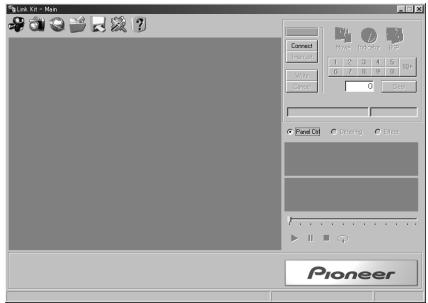
The main window will appear.
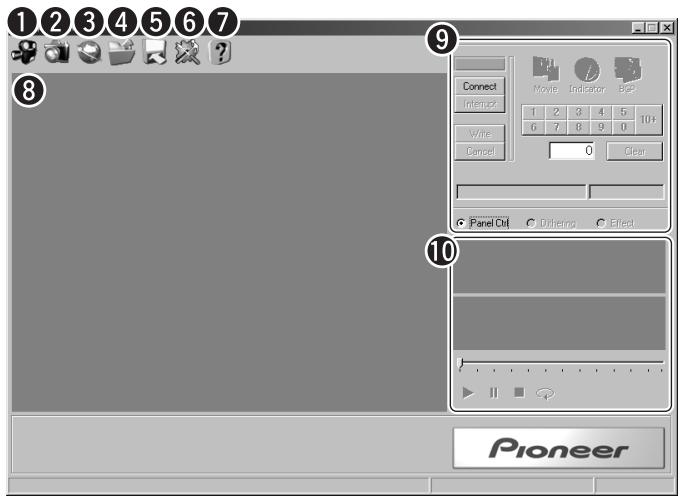
Creating movies (Movie): Movies can be created by capturing movies and creating animations from still images.
Creating images (Snapshot): Still images can be created by cutting out a portion from a desired image.
Connection to the internet: Movies and still images can be downloaded by accessing the LinkKit Website.
4 Open: Opens created image files.
Save: Saves created image files.
Option: Used to set the connection port and to check the version information of this software.
Help: Displays the Help for this software (explanation of features and operations). (Help is available only in English.)
Main view: When an image that can be captured is selected, the image and frame appears.
9 Communication/effects panel: Created images can be written to a car audio system, settings for image conversion can be made and effects can be applied to images. The screen will change when "Panel Ctrl", "Dithering" or "Effect" is pressed.
Preview: The captured image is displayed. The color image will appear at the top and the 4-step image will be displayed at the bottom.
Still images (BGP: Background still picture) can be created from your favorite images.
1 Click "Creating images".
A dialog box will appear. Allowed file types are: BMP (.bmp), JPEG (.jpg, .jpeg) and PNG (.png).
Note:
- The maximum file size of the still image that can be selected is 1.2 MB for JPEG and 12 MB for BMP.
2 Select the image file and click "Open".
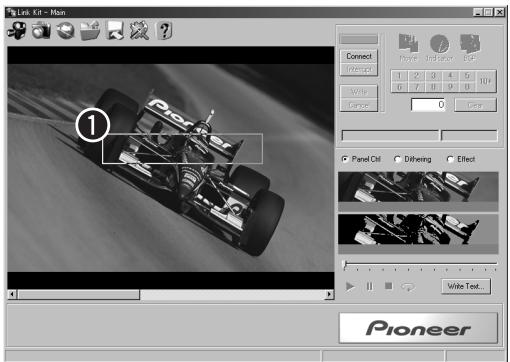
Frame: Use to set the capturing range.
3 Set the position and size of the image to capture.
Changing the Frame Position and Size
Changing the position
- Drag the inside of the frame to the desired position to capture.
Changing the size
- Drag the edge of the frame ( displayed) to the desired size.
Note:
- A menu will appear when right clicking the main view. This menu has the following features.
Reset Size: Resets the frame size to the default setting.
Reset Position: Resets the frame position to the upper left.
Aspect Ratio Adjustment: The aspect ratio of the frame can be optimized. (With the horizontal length as the base, the vertical length is adjusted to the shape of the display elements of the front panel.)
Note:
- Captured images can be processed (converted or corrected) or inserted with text. (Images are saved using a file format that cannot be processed. Always process images before saving.)
Car audio movies (Movie) can be created from your favorite movies (from a digital camcorder, etc.).
1 Click "Creating movies".
A dialog box will appear. Allowed file type is AVI (.avi). (When BMP (.bmp), JPEG (.jpg, .jpeg) or PNG (.png) is selected, an animation will be created.)
Note:
- The maximum movie file size that can be selected is about 10 minutes. The software may not operate properly if a movie file of more than 10 minutes is selected.
2 Select the image file and click "Open".
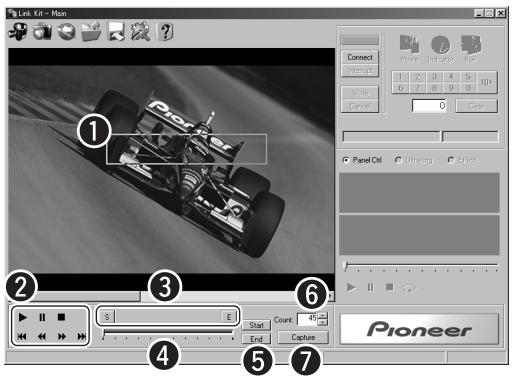
1 Frame: The capturing range can be set. (See "Changing the Frame Position and Size" on page 11.)
AVI control buttons: Operations Playback () , Pause () , Stop () , Forward/Rewind (/) and Forward frame/Rewind frame (/) can be performed for the selected movie file.
3 "S", "E": Scenes set as capturing start (S) and capturing end (E) can be viewed. The scene can be switched by moving the displayed slider bar.
④ Slider: The starting and ending scenes can be displayed and set by moving the bar.
“Start”, “End”: The starting and ending scenes set using the slider can be confirmed.
Count box: The number of images to capture with a set range is displayed. The number of images to capture (1 - 60) can be set by clicking “▲” or “▼”. (Maximum is about 4 seconds.)
7 "Capture": Captures the set images.
3 Set the images to capture by performing the following in order.
- Set the position and size of the frame.
- Click "S" and display the starting scene to capture using the slider.
- Click "Start" to confirm the starting scene to capture.
- Click "E" and display the ending scene to capture using the slider.
- Click "End" to confirm the ending scene to capture.
Note:
- Images can also be captured by playing back the movie using “▶” and click “Start” at the scene to start capturing and “End” at the scene to end capturing.
4 Click "Capture" to capture the images.
Captured images will be displayed in the preview.
Note:
- No more than 61 images can be captured.
- Capture images can be checked in the preview. Use the Playback (▶), Pause (■), Stop (■) and Repeat (◇) buttons to control the playback of the captured images.
- Captured images can be processed (converted or corrected). (Images are saved using a file format that cannot be processed. Always process images before saving.)
Creating Animations from Still Images
Two types of animations of "Scroll" and "Wipe" can be created from still images.
"Scroll" is an animation that displays a still image moving up/down and right/left.
"Wipe" is an animation that displays 2 still images as if they are repainted over one another.
Selecting the Animation to Create
1 Click "Creating movies".
A dialog box will appear. Allowed file types are: BMP (.bmp), JPEG (.jpg, .jpeg) and PNG (.png). (If AVI (.avi) is selected, a movie (Movie) will be created.)
2 Select the image file and click "Open".
3 Click "Scroll" or "Wipe" to select the animation type to create.
The animation type to create can be selected.

Creating a Scroll Display Animation
Select "Scroll" using steps 1 - 3 of "Selecting the Animation to Create".
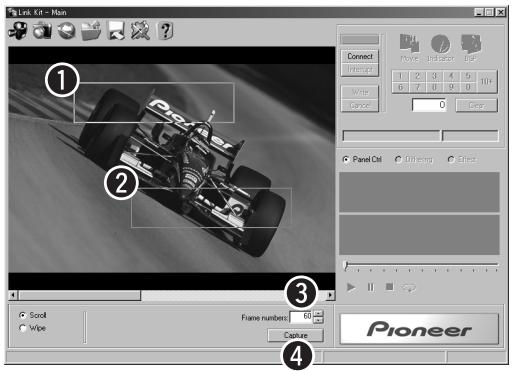
1 Start Point (Start): The starting image position to capture is set. (See "Changing the Frame Position and Size" on page 11.)
End Point (End): The ending image position to capture is set. (See "Changing the Frame Position and Size" on page 11.)
Frame numbers: The frame numbers of the images to capture is displayed. Click “▲” or “▼” to set the frame numbers to capture (1 - 60). (Maximum is about 4 seconds)
4 "Capture": The set images are captured.
Note:
- A menu will appear when right clicking the main view. The menu contains the following features for creating scroll display animations.
Put Start Point Upward: The start point can be placed on top of the end point. (Used only when clicking overlapping frames.)
Put End Point Upward: The end point can be placed on top of the start point. (Used only when clicking overlapping frames.)
Reset Start Point Size: Resets the start point size to the default setting.
Reset End Point Size: Resets the end point size to the default setting.
Overlap End Point with Start Point: Overlaps the end point with the start point.
Aspect Ratio Adjustment: The aspect ratio of the frame can be optimized. (With the horizontal length as the base, the vertical length is adjusted to the shape of the display elements of the front panel.)
- By setting different sizes for the start point and end point, animation with zooming and telephoto effects can be created.
1 Set the images to capture using the following procedure.
- Set the start point position and size.
- Set the end point position and size.
- Set the frame numbers.
2 Click "Capture" to capture the images.
Captured images will be displayed in the preview.
Note:
- Capture images can be checked in the preview. Use the Playback (▶), Pause (■), Stop (■) and Repeat (◇) buttons to control the playback of the captured images.
- Captured images can be processed (converted or corrected). (Images are saved using a file format that cannot be processed. Always process images before saving.)
Creating a Wipe Display Animation
Select "Wipe" using steps 1 - 3 of "Selecting the Animation to Create".
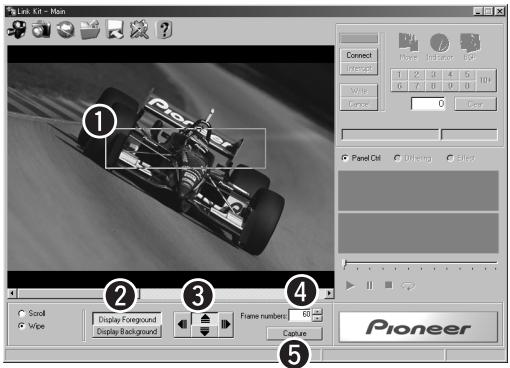
The selected image will be automatically set as the "Foreground". To select the background image, click "Display Background" and select the image file.
1 Frame:
Image position for both foreground and background can be set. (See "Changing the Frame Position and Size" on page 11.)
Foreground/Background Select Button:
The image displayed in the main view can be switched between the foreground (the image displayed first) and background (the later displayed image).
3 Direction Setting button:
The direction to wipe (repaint) can be set.
4 Frame numbers:
The frame numbers when wiping the foreground image and background image is displayed. Click the “▲” or “▼” button to set the capturing frame numbers (1 - 60). (Maximum is about 4 seconds.)
"Capture":
Captures the set images.
Continued overleaf.
1 Set the images to capture using the following procedure.
- Set the position and size of the foreground frame.
- Click "Display Background".
- Click "Creating movies" and select the image file to set as the background.
- Set the position and size of the background frame.
- Set the frame numbers and the wipe direction.
2 Click "Capture" to capture the images.
Captured images will be displayed in the preview.
Note:
- Capture images can be checked in the preview. Use the Playback (▶), Pause (■), Stop (■) and Repeat (→) buttons to control the playback of the captured images.
- A black background will be set if no background image is selected.
- Captured images can be processed (converted or corrected). (Images are saved using a file format that cannot be processed. Always process images before saving.)
Downloading Images from the Pioneer homepage
Desired images can be downloaded from the LinkKit Website.
Note:
- Images downloaded from the LinkKit Website cannot be edited/processed.
1 Click "Connection to the internet".
The browser will be launched and the LinkKit Website will be automatically connected.
Note:
- The LinkKit Website cannot be accessed for PCs with no Internet connection environment.
2 Click "WHAT'S NEW" or "DOWNLOAD".
Latest images can be found in "WHAT'S NEW". Earlier images can be found in "DOWNLOAD".
3 Click the image type to download.
Select from "MOVIES", "LEVEL INDICATOR" and "BACKGROUND PICTURE".
4 Click "DOWNLOAD" of the image to download.
A dialog box will appear.
Note:
- For MOVIES and LEVEL INDICATOR, images can be checked by clicking "PREVIEW".
5 Check the content and click "OK".
6 Specify the file name and save destination, and then click "Save".
The file will be saved with the ".lkd" extension.
Setting the Image Conversion Method
Captured images can be processed (dithered).
When setting dithering to ON, images can be easily processed using dithering. If dithering is set to OFF, detailed image processing can be made by adjusting the RGB balance and 4-step threshold rather than dithering the image.
Note:
- Files that have been saved cannot be image-processed.
Easily Setting the Conversion Method of Images
Dithering and halftones are effective in reproducing the original image on a display with different number of colors or resolution from the original.
Note:
Movies applied with dithering may appear dirty.
1 Click "Dithering".

The Dithering screen will appear.
2 Click "ON".
The screen will switch to the Select Dithering Type screen.
3 Select the desired dithering type.
The effect of the selected dithering type will be reflected in the preview.
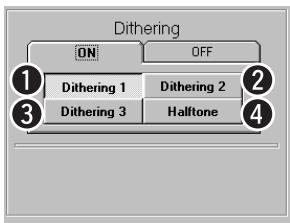
Dithering 1: Superior in image reproduction; however, it is not suitable for simple tones.
Dithering 2: Characteristic that is between Dithering 1 and Dithering 3.
Dithering 3: Effective for dark images or images with simple tones.
Halftone: Although images will not appear as jagged as with dithering, it is not suitable for images with gradations.
Setting the Image Conversion Method in Detail
Images can be converted as desired using RGB balance adjustment and 4-step threshold adjustment.
1 Click "Dithering".
Panel Ctrl Dithering Effect
The Dithering screen will appear.
2 Click "OFF".
3 Click "Details".
The Image Conversion Detailed Settings screen will appear.
4 Set the conversion method in detail.
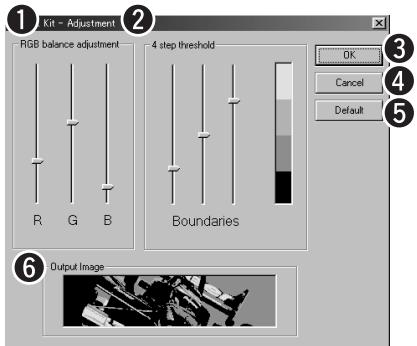
RGB balance adjustment: The balance of R (red), G (green) and B (blue) are adjusted to enhance colors that became hard to see during image conversion.
2 4-step threshold: The range of each step during 4-step conversion can be set using threshold values. Conversion can be made by widening the range of steps to enhance from the original image.
OK: Confirms the adjustment contents and closes the Image Conversion Detailed Settings screen.
4 Cancel: Cancels the adjustment contents and closes the Image Conversion Detailed Settings screen.
Default: Returns the adjustment contents to the default settings.
Output Image: Displays the output image of after the adjustment.
5 When completed with settings, click "OK".
The setting contents will be reflected on the image and the Image Conversion Detailed Setting screen will be closed.
The contrast and brightness of the captured images can be adjusted or effects such as negative and positive conversions can be applied.
Note:
- Images that have already been saved as files cannot be adjusted.
1 Click "Effect".
PanelCtrl Dithering Effect
The Effects screen will appear.
2 Adjust the effects.
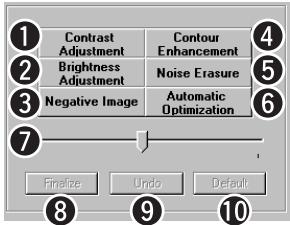
Contrast Adjustment: The contrast of the image can be adjusted. The contrast level is adjusted by moving the slider.
Brightness Adjustment: The brightness of the image (overall brightness) can be adjusted. The brightness level is adjusted by moving the slider.
Negative Image: The image is converted to negative/positive image.
4 Contour Enhancement: The contour level can be adjusted. The contour level is adjusted by moving the slider.
Noise Erasure: Noise on the image can be erased. Noise can be erased in levels by moving the slider to the right.
Automatic Optimization: The image can be automatically adjusted so that it appears clearer.
Slider: Used to adjust the contrast level, brightness level, contour level and noise erasure level. The level of adjustment increases when the slider is moved to the right and the level of adjustment decreases when the slider is moved to the left.
8 Finalize: The adjusted effect is confirmed.
9 Undo: Previously finalized effect can be removed.
10 Default: All adjusted effects are canceled and the image returns to the default state.
3 Confirm the adjusted effect using the following procedure.
- Select the item to adjust and perform the adjustment.
- When completed with the adjustment of the selected item, click "Finalize".
Note:
- Click "Finalize" every time each item is adjusted. Moving to other items without clicking "Finalize" will cancel the previous adjustment.
Created images can be saved.
Caution:
- After saving an image, the image can no longer be processed (converted or adjusted). (Perform image processing before saving images.)
1 Click "Save
A dialog box will appear.
2 Specify the file name and the saving destination, and then click "Save".
The file will be saved with the ".lkd" extension.
Note:
- Making backup of saved data is recommended in the unlikely event that the data is accidentally is erased.
Editing Images
For still images, text can be inserted. For movies and animations, frames can be added, deleted or rearranged to create desired images.
Note:
- Images downloaded from the LinkKit Website cannot be edited.
Inserting Text Images
Text can be inserted in created still images for display.
Note:
- Text of images already saved with the inserted text cannot be edited.
1 Click "Open".
A dialog box will appear.
Allowed file type is still images. (When a movie or animation is selected, the Edit Movie window will appear.)
2 Select the image file and click "Open".
The selected image will appear in the preview.
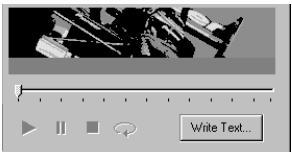
3 Click "Write Text".
The Draw Text window will open.
4 Enter/edit characters.
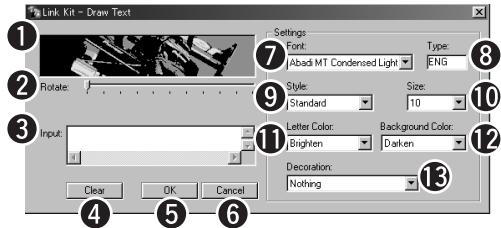
Preview image: The position of the entered characters can be moved by dragging. The entered characters can be returned to the original position by double clicking.
2 Rotate: The entered characters can be rotated 360 degrees counterclockwise with the upper left of the string as the axis by moving the slider.
Input box: The text entered here is displayed in the preview image.
Clear: Erases all entered text.
OK: Confirms the entered text and closes the Draw Text window.
Cancel: Cancels the entered text and closes the Draw Text window.
Font: The character font can be selected.
Type: The selected font type is displayed (European, symbol, etc.)
Style: The character style such as bold, italic, etc. can be selected.
10 Size: The character size can be selected.
Letter Color: The color of characters can be selected from 4 colors.
12 Background Color: The color of the text background can be selected from 4 colors or as transparent.
13 Decoration: Text can be decorated with underline, strikethrough, etc.
5 When completed with entering text, click "OK".
The Draw Text window will close and the entered characters will be displayed in the preview image.
6 Save the file.
Follow "Saving Created Images" to save the image.
Editing Created Movies and Animations
Adding, deleting and rearranging of frames can be performed for created movies and animations to create desired images.
1 Click "Open
A dialog box will open.
Allowed file types are movies and animations. (When a still image is selected, the Draw Text window will appear.)
2 Select the image file and click "Open".
The selected image will appear in the preview.
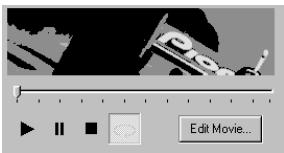
3 Click "Edit Movie".
The Edit Movie window will appear.
4 Select the frame(s) to edit.
- Select by clicking
Click the frame to edit. When selecting multiple frames, click the first or last fame of the range to edit and then click the other frame while holding down the "SHIFT" key.
- Select by dragging
Enclose the entire frame to edit by dragging. When selecting multiple frames, enclose the range of frames to edit by dragging.
Edit the selected frame(s).
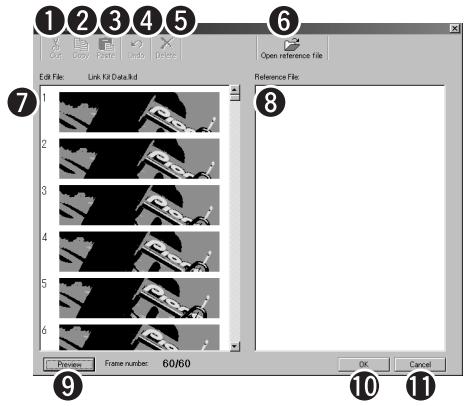
Cut: The selected frame can be cut out.
Copy: The selected frame can be copied.
3 Paste: The cutout or copied frame can be pasted. The pasting position is the frame before the selected frame. (When clicking between 2 frames, the frame can be pasted in between the 2 frames.)
4 Undo: The previously performed operation is canceled, returning the screen to the state one operation before the last.
Delete: The selected frame can be deleted.
Open reference file: A file of the frame to add in the editing images can be referenced and opened. (Images downloaded from the LinkKit Website cannot be opened as reference files.)
7 Edit File window: All frames of the file being edited are displayed.
Reference File window: All frames of the reference file are displayed. Furthermore, frames of the reference file can be copied to the editing file.
9 Preview: Edited images can be checked.
OK: Confirms the edited contents and closes the Edit Movie window.
Cancel: Cancel the edited contents and closes the Edit Movie window.
Note:
- Frames can be moved by dragging the selected frames to the desired position.
- The maximum number of frames that can be saved is 60. Frames over 60 will be cropped when the file is saved.
- Reference files cannot be edited.
- When right clicking the Edit File window, a menu will appear. Operations of "Undo", "Cut", "Copy", "Paste" and "Delete" can also be performed using this menu.
6 When completed with editing, click "OK".
The edited contents will be reflected and the Edit Movie window will close.
7 Save the file.
Follow "Saving Created Images" to save the file.
Connecting the Front Panel for Communication
Created images and images downloaded from the LinkKit Website can be written to the memory of the front panel, and the images stored in the front panel memory can be checked. Written images can be displayed during car audio playback. (For the display method, refer to the operation manual of the car audio system.)
Note:
- Images cannot be written if the front panel and PC are not connected correctly to this unit.
- To prevent the PC power from being cut-off during image transfer, avoid using the PC on a battery.
Connecting with a PC
Connect this unit and PC using the included cable, and then connect the power cord and AC adapter to this unit.
1 Connect in order of 1 - 4.
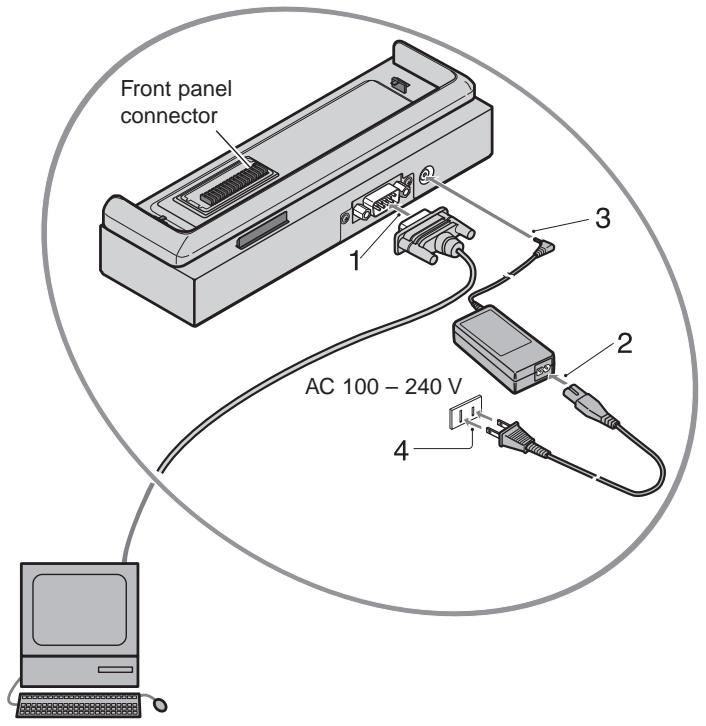
Caution:
- Do not touch the front panel connector. In addition, make sure dust and other foreign particles do not adhere to the connector. Otherwise, a bad connection may occur as a result.
Note:
- The power cord connection terminal of the AC adapter and the power cord are different in shape (with the exception of U.S. and Canadian models). However, there is no problem to the actual usage. Connect the power cord as is.
- When not using this unit, disconnect the power plug from the wall outlet for safety.
- Always connect this unit with the PC power turned off.
Mounting the Front Panel
Mount the front panel to this unit.
1 Align with the mounting guide and mount the front panel.
Align the position of the unit and front panel connectors and push the front panel straight down until a click is heard and the panel is securely locked. If the front panel is correctly mounted, the Ready indicator will light.
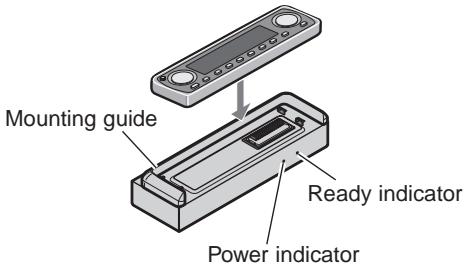
Caution:
- When mounting the front panel by sliding, damage may occur to the front panel connector of the unit. Always mount the front panel by pushing straight down.
Note:
- For front panels with a cut-off corner, the direction of the mounting guide needs to be changed. In this case, pull off the mounting guide and remount as shown in the illustration below.
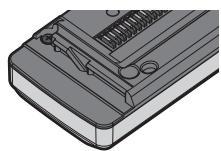
Checking the front panel
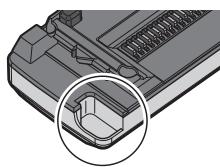
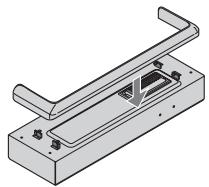
Mounting the mounting guide
Removing the Front Panel
1 Slide off the front panel to remove.
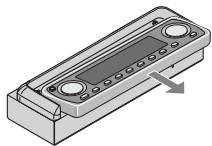
Writing Images to the Front Panel
1 Click "Panel Ctrl".
PanelCtrl Dithering Effect
The Front Panel Communication screen will appear.
2 Click "Connect".
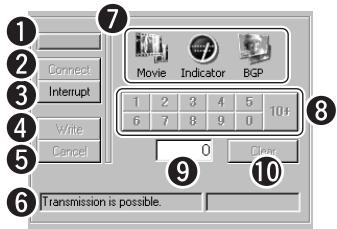
Lamp:
The lamp will light green when communication with the front panel is being performed correctly. The lamp will flash during connection.
Connect:
Starts communication with the front panel.
3 Interrupt:
Terminates communication with the front panel.
4 Write:
Writes opened image data to the selected image number. (Writing cannot be performed if the correct image type and image number are not selected.)
5 Cancel:
Cancels the writing process. (For movies, frames that have been written prior to the cancel operation will be stored in the front panel memory.)
Communication information:
Communication status with the front panel is displayed.
7 Selecting an image type:
Display and write image type (Movie, Indicator, BGP) can be selected. (When writing images, writing cannot be performed if the same image type as the opened data is not selected.)
Designating numbers:
Display and write image number can be specified. When specifying a 2 digit number, first click "10+" and then enter the 2nd digit. The allowed numbers vary depending on the selected image type. Furthermore, blue numbers indicate image numbers that can be rewritten. (Black numbers are for display-purposes only and cannot be rewritten.)
9 Number display box:
Currently selected image number is displayed.
10 Clear:
The image number displayed in the number display box is canceled.
Note:
- For Indicator, only Indicator images downloaded from the Pioneer homepage can be written. (Indicator images cannot be created with this software.)
- For movies, the writing process will take 5 - 10 minutes. Since the writing process will take longer with preview playback on, stop preview playback before starting the write process.
3
Click “Open” and select the image to write to the front panel.
The image will appear in the preview.
Note:
- When checking the front panel image, there is no need to select the image.
- Although writing to the front panel can be performed with the image currently being created (image before saving), the image data being created will be lost if a communication error, etc. occurs when directly writing to the front panel. It is recommended that you save data before writing images to the front panel.
4
Select the image to rewrite using the following procedure.
Selected image will be displayed on the front panel mounted to this unit.
1. Select the type of image to rewrite.
Select the same image type as the image selected in step 3 from: "Movie", "Indicator" and "BGP".
- Movie: Compatible with images of the car audio MOVIE button.
- Indicator: Compatible with images of the car audio S/A button.
- BGP: Compatible with images of the car audio BGP button.
Note:
- If the same image type as the selected image data is not selected, "Write" will remain displayed in gray and the write process cannot be performed.
2. Select the image number to rewrite.
Specify the image number to rewrite using the designating number buttons.
When specifying a 2 digit number, first click "10+" and then enter the 2nd digit.
Note:
- The allowed numbers vary depending on the selected image type. Furthermore, blue numbers indicate image numbers that can be rewritten. (Black numbers are for display-purposes only and cannot be rewritten.)
- Designating number buttons not compatible with the connected model will be displayed in gray and writing cannot be performed.
5
Click "Write".
A dialog box will appear.
Caution:
- When writing an image, the old image will be overwritten by the new image. For this reason, the previous image will be erased.
6
Click "OK".
The write process of the selected image data to the front panel will start.
Caution:
- If an application operation such as Internet connection or preview is performed during connection to the front panel, the communication may be delayed, sometimes resulting in communication error.
7
Click "Interrupt".
When completed with all operations, always click "Interrupt" to terminate communication with the front panel.
The setting can be changed according to the serial port of the connected PC.
1 Click "Option".
The Options screen will appear.
2 Click "Port Settings".
3 Select the serial port number.
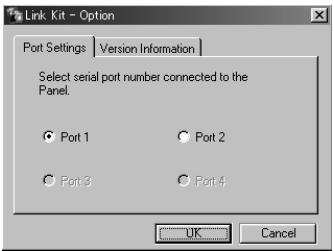
Checking the Version Information of this Software
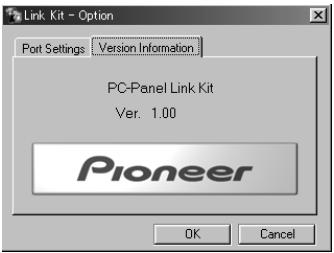
The version information of this software can be checked.
1 Click "Option
The Options screen will appear.
2 Click "Version Information".
1 Click "Close " on the top right of the screen.
The program will end and the window will close.
Returning Car Audio Images to Factory Settings
Rewritten car audio images can be returned to the images at the time of purchase.
1 Click "Open".
A dialog box will appear.
2 Select "Pioneer" - "LinkKit" - "Sample".
If the install directory is not specified at the time of install, the "Pioneer" folder will be installed in the Program Files folder.
3 Select the image file and click "Open".
The selected image will be displayed in the preview.
4 Write the selected image to the front panel.
Follow "Connecting the Front Panel for Communication" for performing operation.
Note:
- You can also download images (factory settings) from the Pioneer homepage.
General
| Symptom | Remedy |
| Communication with the front panel was interrupted. | Remove the front panel and remount. (See page 25.) |
| The software stopped working. | Quit the program and restart. |
Creating animations
| Symptom | Remedy |
| A black screen is displayed when creating wipe display animation. | Select a background image. Not selecting a background image will cause a black screen to be selected. |
Editing movies
| Symptom | Remedy |
| Cannot open reference files. | Select a movie file with file format of “LKD (.lkd)”. In addition, files displayed with “Locked” on the lower right of the dialog box cannot be opened as reference files. |
| The background of frames after 61 is black. | Although up to 100 images can be controlled in the work area during the movie editing process, only the first 60 can be saved. When completing editing, make sure the number of frames is 60 or less. |
| Although up to 100 images can be added during editing, frames after 60 cannot be saved. | |
| Preview playback stops in the middle. | If the number of images during editing exceeds 60, all following images (61 and after) will not be displayed in the playback. |
Communication
| Symptom | Remedy |
| Cannot communicate with the front panel. | Insert the power plug of this unit in the wall outlet. (See page 24.) |
| Properly connect the unit and PC using the included cable. (See page 24.) | |
| Remove the front panel and remount. (See page 25.) | |
| Adjust the LinkKit setting to the port number of the PC connected with the included cable. (See page 28.) |
Main unit
Type: PC link kit
Power supply: DC 10 V
Demand power (when front panel is connected): 3 W
Demand power (when front panel is not connected): 1 W
Weight: 0.30kg
Dimensions (excl. protrusions): 190 (W) × 43 (H) × 59 (D) mm
AC adapter
Power supply: AC 100 V - 240 V, 50/60 Hz
Rating: 45-57 VA
Rated output: DC 10 V
Demand power: 0.6 W
Weight: 0.15 kg
Dimensions: 98 (W) × 26 (H) × 54 (D) mm
After-sales service for Pioneer products [For U.S. and Canadian models]
Please contact the dealer or distributor from where you purchased the product for its after-sales service (including warranty conditions) or any other information. In case the necessary information is not available, please contact the companies listed below:
Please do not ship your product to the companies at the addresses listed below for repair without advance contact.
U.S.A.
Pioneer Electronics Service, Inc. CUSTOMER SERVICE DEPARTMENT
P.O.Box 1760
Long Beach, CA 90801
800-421-1404
CANADA
Pioneer Electronics of Canada, Inc.
CUSTOMER SATISFACTION DEPARTMENT
300 Allstate Parkway
Markham, Ontario L3R OP2
(905) 479-4411
1-877-283-5901
For warranty information please see the Limited Warranty sheet included with your product.
PIONEER CORPORATION
PIONEER ELECTRONICS (USA) INC.
P.O. Box 1760, Long Beach, California 90801, U.S.A.
TEL: (800) 421-1404
PIONEER EUROPE NV
Haven 1087, Keetberlaan 1, B-9120 Melsele, Belgium
TEL: (0) 3/570.05.11
PIONEER ELECTRONICS AUSTRALIA PTY. LTD.
178-184 Boundary Road, Braeside, Victoria 3195, Australia
TEL: (03) 9586-6300
PIONEER ELECTRONICS OF CANADA, INC.
300 Allstate Parkway, Markham, Ontario L3R OP2, Canada
TEL: (905) 479-4411
PIONEER ELECTRONICS DE MEXICO, S.A. de C.V.
San Lorenzo 1009 3er. Piso Desp. 302
Col. Del Valle Mexico, D.F.C.P. 03100
TEL: 5-688-52-90
Published by Pioneer Corporation.
Copyright © 2001 by Pioneer Corporation.
All rights reserved.
Publication de Pioneer Corporation.
Copyright © 2001 Pioneer Corporation.

- PIONEER SOFTWARE LICENSE AGREEMENT
- Product name: [PC Link Kit CD-PC1]
- TERMS OF AGREEMENT
- Article 1 (Definition)
- Article 2 (Range of application)
- Article 3 (License for use)
- Article 4 (Warranty)
- Article 5 (Legal liability for compensation)
- Article 6 (Restrictions)
- Article 7 (Compensation for damages/cancellation)
- LEADTOOLS
- ActiveComm
- Checking the Operational Environment
- Note:
- Caution:
- About User Registration
- User Registration Homepage URL
- WARNING:
- [For European model]
- [For U.S. model]
- IMPORTANT NOTICE
- Information to User
- [For Canadian model]
- SAFETY INSTRUCTIONS
- ENVIRONMENT:
- POWER:
- READ INSTRUCTIONS:
- RETAIN INSTRUCTIONS:
- FOLLOW INSTRUCTIONS:
- HEED WARNINGS:
- CLEANING:
- ATTACHMENTS:
- WATER AND MOISTURE:
- POWER SOURCES:
- PLUG:
- NONUSE PERIODS:
- GROUNDING OR POLARIZATION:
- POWER-CORD PROTECTION:
- LIGHTNING:
- OVERLOADING:
- OBJECT AND LIQUID ENTRY:
- CONDENSATION:
- WET HANDS:
- FRONT PANEL CONNECTOR:
- SERVICING:
- DAMAGE REQUIRING SERVICE:
- Main Features
- Insert the included CD-ROM into the CD-ROM drive.
- Check the content and click "Next".
- After reading the content, select "I accept the terms in the license agreement" and click "Next".
- Specify the install destination and click "Next".
- Click "Install" to install the program.
- Click "Finish".
- Removing "LinkKit" (Uninstall)
- From the Start menu, select "Programs" - "Pioneer" - "LinkKit".
- Click "Creating images".
- Select the image file and click "Open".
- Set the position and size of the image to capture.
- Changing the Frame Position and Size
- Changing the position
- Changing the size
- Click "Creating movies".
- Set the images to capture by performing the following in order.
- Click "Capture" to capture the images.
- Creating Animations from Still Images
- Selecting the Animation to Create
- Click "Scroll" or "Wipe" to select the animation type to create.
- Creating a Scroll Display Animation
- Set the images to capture using the following procedure.
- Click "Capture" to capture the images.
- Creating a Wipe Display Animation
- Downloading Images from the Pioneer homepage
- Setting the Image Conversion Method
- Easily Setting the Conversion Method of Images
- Click "Dithering".
- Click "ON".
- Select the desired dithering type.
- Setting the Image Conversion Method in Detail
- Click "OFF".
- Click "Details".
- Set the conversion method in detail.
- When completed with settings, click "OK".
- Click "Effect".
- Adjust the effects.
- Confirm the adjusted effect using the following procedure.
- Click "Save
- Specify the file name and the saving destination, and then click "Save".
- Editing Images
- Inserting Text Images
- Click "Open".
- Click "Write Text".
- Enter/edit characters.
- When completed with entering text, click "OK".
- Save the file.
- Editing Created Movies and Animations
- Click "Open
- Click "Edit Movie".
- Select the frame(s) to edit.
- Edit the selected frame(s).
- When completed with editing, click "OK".
- Save the file.
- Connecting the Front Panel for Communication
- Connecting with a PC
- Connect in order of 1 - 4.
- Mounting the Front Panel
- Align with the mounting guide and mount the front panel.
- Removing the Front Panel
- Slide off the front panel to remove.
- Writing Images to the Front Panel
- Click "Panel Ctrl".
- Click "Connect".
- Click “Open” and select the image to write to the front panel.
- Select the image to rewrite using the following procedure.
- Select the type of image to rewrite.
- Select the image number to rewrite.
- Click "Write".
- Click "OK".
- Click "Interrupt".
- Checking the Version Information of this Software
- Returning Car Audio Images to Factory Settings
- Main unit
- AC adapter
- After-sales service for Pioneer products [For U.S. and Canadian models]
- U.S.A.
- CANADA
- PIONEER CORPORATION
- PIONEER ELECTRONICS (USA) INC.
- PIONEER EUROPE NV
- PIONEER ELECTRONICS AUSTRALIA PTY. LTD.
- PIONEER ELECTRONICS OF CANADA, INC.
- PIONEER ELECTRONICS DE MEXICO, S.A. de C.V.
Brand : PIONEER
Model : CD-PC1
Category : Audio accessory