
THUNDERBOLT DISPLAY - Monitor APPLE - Free user manual and instructions
Find the device manual for free THUNDERBOLT DISPLAY APPLE in PDF.



| Product Type | 27-inch widescreen LED-backlit monitor |
| Brand | Apple |
| Model | Thunderbolt Display (A1407) |
| Resolution | 2560 x 1440 at 60 Hz |
| Dimensions (height x width x depth) | 488.1 mm x 651.7 mm x 208.13 mm (with stand) |
| Weight | 10.7 kg |
| Power | Power cord with grounding plug (mains) |
| Connectivity | 1 Thunderbolt port, 1 Gigabit Ethernet port, 3 USB 2.0 ports, 1 FireWire 800 port, MagSafe connector for MacBook Pro |
| Built-in Functions | FaceTime HD camera, microphone, 2.1 speakers (49 W), ambient light sensor, security slot |
| Maintenance and Cleaning | Unplug before cleaning; use a soft dry cloth; do not use alcohol or acetone-based products |
| Safety | Use only the supplied power cord; do not open the enclosure (high voltage); unplug if damaged or liquid is spilled |
| Spare Parts and Repairability | VESA adapter kit sold separately; repair by Apple or authorized service center only |
| General Information | Operating temperature: 10 to 35 °C; humidity: 20 to 80%; altitude: up to 3048 m |
Frequently Asked Questions - THUNDERBOLT DISPLAY APPLE
User questions about THUNDERBOLT DISPLAY APPLE
0 question about this device. Answer the ones you know or ask your own.
Ask a new question about this device
Download the instructions for your Monitor in PDF format for free! Find your manual THUNDERBOLT DISPLAY - APPLE and take your electronic device back in hand. On this page are published all the documents necessary for the use of your device. THUNDERBOLT DISPLAY by APPLE.
USER MANUAL THUNDERBOLT DISPLAY APPLE
Apple Thunderbolt Display

Apple Inc.
© 2011 Apple Inc. All rights reserved.
Under the copyright laws, this manual may not be copied, in whole or in part, without the written consent of Apple.
The Apple logo is a trademark of Apple Inc., registered in the U.S. and other countries. Use of the "keyboard" Apple logo (OptionShift-K) for commercial purposes without the prior written consent of Apple may constitute trademark infringement and unfair competition in violation of federal and state laws.
Every effort has been made to ensure that the information in this manual is accurate. Apple is not responsible for printing or clerical errors.
Apple
1 Infinite Loop
Cupertino, CA 95014
408-996-1010
www.apple.com
Apple, the Apple logo, FaceTime, iChat, iMovie, iPhone, iPod, Mac, MacBook, MagSafe, and Photo Booth are trademarks of Apple Inc., registered in the U.S. and other countries.
iPad is a trademark of Apple Inc.
Apple and Apple Store are service marks of Apple Inc., registered in the U.S. and other countries.
ENERGY STAR ® is a U.S. registered trademark.
The Bluetooth ® word mark and logos are registered trademarks owned by Bluetooth SIG, Inc. and any use of such marks by Apple is under license.
Thunderbolt and the Thunderbolt logo are trademarks of Intel Corporation in the United States and other countries.
Other company and product names mentioned herein may be trademarks of their respective companies. Mention of third-party products is for informational purposes only and constitutes neither an endorsement nor a recommendation. Apple assumes no responsibility with regard to the performance or use of these products.
Contents
Your Apple Thunderbolt Display is designed to work seamlessly with Mac computers that have a Thunderbolt port. It features an LED-backlit widescreen display, a MagSafe connector to charge your MacBook Pro, a built-in FaceTime HD camera, microphone, speaker system, security slot, and ports.
The instructions on the following pages help you set up and use your new display. Learn how to:
- Connect your display to your computer
- Use your display's camera, microphone, speaker system, and ports
- Adjust your display's settings
Note: You can connect your Apple Thunderbolt Display to any Mac computer that has a Thunderbolt port.
Important: Carefully read all the installation instructions (and the safety information starting on page 12) before you set up and use your display.
For information about the specific computers and graphics cards that are compatible with your display, go to www.apple.com/displays.
Setting Up Your Display
Follow these steps to set up your Apple Thunderbolt Display:
1 Remove the protective film from the display and cables.
2 Insert the power cord into the display, and then insert the AC plug into a grounded power outlet.
3 Connect the Thunderbolt cable to your computer's Thunderbolt port.
Apple Thunderbolt Display
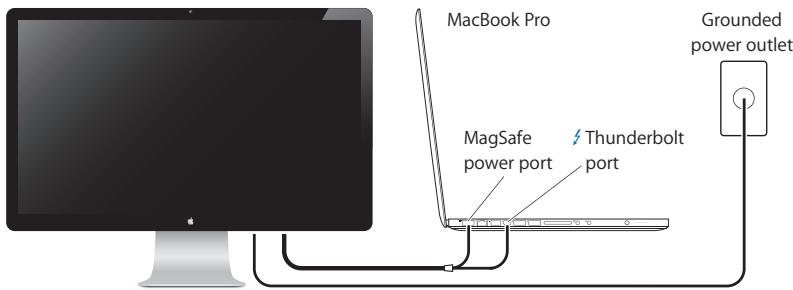
4 If you're connecting to a MacBook Pro, plug the MagSafe connector into the MagSafe power port on your MacBook Pro to power it and charge its battery.
5 If your computer is turned off, press the power (U) button on your computer to start it up. The display turns on automatically when you start up your computer.
Setting Up Your MacBook Pro with the Lid Closed
You can close the lid of your MacBook Pro and use just your Apple Thunderbolt Display. Follow the setup instructions on the previous page, and make sure the MagSafe connector from the display is plugged into the MagSafe power port on your MacBook Pro.
To use your Apple Thunderbolt Display with your MacBook Pro lid closed:
1 Connect an external USB keyboard and mouse to a USB port on your display, or use the Bluetooth® Setup Assistant to set up a wireless keyboard and mouse.
2 Make sure your MacBook Pro is turned on.
3 Close the lid on your MacBook Pro to put it to sleep.
4 Wait a few seconds, and then press any key on the external keyboard or click the mouse to wake your MacBook Pro.
Setting Up Your Apple Thunderbolt Display as an Additional Display
When you leave the lid on your MacBook Pro open, you can mirror the same desktop image on both displays or use the additional display as an extension of your desktop. Use Displays preferences to set up video mirroring or extended desktop.
To set up video mirroring or extended desktop:
1 Choose Apple ( Apple ) > System Preferences, and then click Displays.
2 Click the Arrangement tab and follow the onscreen instructions.
Using Your Display
Your Apple Thunderbolt Display has a built-in FaceTime HD camera, microphone, and speaker system.

Using the Built-in FaceTime HD Camera and Microphone
You can use the built-in FaceTime HD camera and microphone to capture still images, video, and sound using applications such as FaceTime, iChat, iMovie, and Photo Booth.
To set up the camera and microphone with iChat:
1 Click the iChat icon in the Dock to open the iChat application.
2 Choose iChat > Preferences, and then click Audio/Video.
3 Choose FaceTime HD Camera (Display) from the Camera pop-up menu.
4 Choose Display Audio from the Microphone pop-up menu.
Setting Up Sound Input and Output
You can listen to music, movies, games, and multimedia files through the speaker system on your display. You can use the microphone to record sounds or talk with friends using iChat or FaceTime. Use Sound preferences to manage sound input and output.
To set up sound input:
1 Choose Apple ( Apple ) > System Preferences, and then click Sound.
2 Click the Input tab in Sound preferences.
3 Choose Display Audio to input sound through your display's microphone.
To set up sound output:
1 Choose Apple (✗) > System Preferences, and then click Sound.
2 Click the Output tab in Sound preferences.
3 Choose Display Audio to hear sound through your display's speaker system.
These sound settings are used whenever your display is connected to your computer. They remain in effect until you change them.
Adjusting the Resolution, Brightness, and Color
Your Apple Thunderbolt Display can automatically adjust the screen brightness for current light conditions using the built-in ambient light sensor. You can turn auto-brightness on or off in Displays preferences.
To change the resolution or brightness:
1 Choose Apple ( Apple ) > System Preferences, and then click Displays.
2 Choose a resolution or drag the Brightness slider.
You can also use the brightness keys on an external Apple Keyboard to increase (✿) or decrease (✿) the brightness of your display. Make sure the menu bar is on the display you want to adjust.
To change the display color profile or calibrate your display:
1 Click the Color tab in Displays preferences.
2 Choose a display color profile, or click Calibrate to open the Display Calibrator Assistant.
For more information about calibrating your display, choose Help > Mac Help in the menu bar and search for "calibrate."
Security Slot and Ports
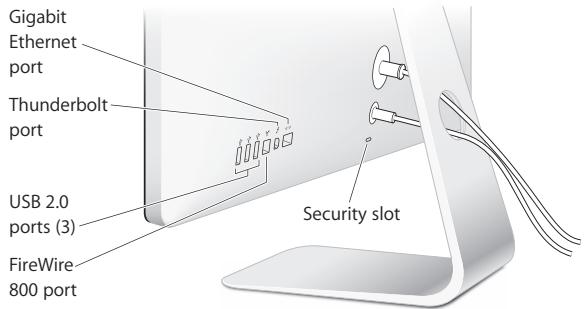
To secure your display, attach a locking cable to the security slot.
| <--> | Gigabit Ethernet port (10/100/1000Base-T)Connect to a high-speed 10/100/1000Base-T Ethernet network, connect a DSL or cable modem, or connect to another computer and transfer files. The Ethernet port automatically detects other Ethernet devices. |
| ⚡ | Thunderbolt port (high-speed data, video, and audio)Connect Thunderbolt-compatible devices for high-speed data transfer, or connect another display that uses Thunderbolt. This Thunderbolt port is not compatible with DVI, VGA, or DisplayPort displays or adapters. |
| ψ | Three high-speed USB (Universal Serial Bus) 2.0 portsConnect an iPod, iPhone, iPad, mouse, keyboard, printer, disk drive, digital camera, joystick, external USB modem, and more. You can also connect USB 1.1 devices. |
| 💡 | FireWire 800 portConnect external devices, such as digital video cameras and storage devices. The port provides up to 7 watts of power. |
Important: You can use the USB ports to charge your iPad, iPhone, or iPod, even when your display isn't connected to a computer. If you use one of these ports to sync information between your computer and an iPad, iPhone, or iPod, make sure the display's Thunderbolt cable is connected to your computer's Thunderbolt port.
Using a VESA Mounting Solution with Your Display
You can attach your display to an alternative mounting solution, using the VESA Mount Adapter Kit available from the Apple Online Store at www.apple.com/store. Use the kit to attach your display to any available VESA-compatible mounting solution. Simply follow the instructions included with the kit.
Care and Safety
Before you lift or reposition your display, you may need to disconnect the cables and power cord. Use correct lifting techniques when positioning the display. When lifting or carrying the display, hold it by the edges. Don't lift the display by the stand or the cord.
To clean the screen on your display:
1 Disconnect the power cord.
2 Use a soft, dry cloth to wipe dust from the screen.
WARNING: Don't clean the screen with a cleaner containing alcohol or acetone. Use a cleaner intended for use with a screen or display. Never spray cleaner directly on the screen. It may drip inside the display and cause damage.
Don't operate your display in areas with significant amounts of airborne dust, or smoke from cigarettes, cigars, ashtrays, stoves, or fireplaces, or near an ultrasonic humidifier using unfiltered tap water. Tiny airborne particles produced by smoking, cooking, burning, or using an ultrasonic humidifier with unfiltered water may, in rare instances, enter the ventilation openings of your display and, under certain conditions, result in a slight haze on the inside surface of the glass panel that covers the display.
Follow these safety guidelines for using your display:
- The only way to completely disconnect power is to unplug the power cord. Be sure to pull the plug, not the cord.
- Disconnect power immediately if the power cord is frayed or damaged, if you spill something on the display, or if the display falls or is damaged in some other way.
WARNING: Use only the power cord that came with your display. The power cord has a three-wire grounding plug (a plug that has a third grounding pin) that fits only a grounded AC outlet. If you are unable to insert the plug into an outlet because the outlet is not grounded, contact a licensed electrician to replace the outlet with a properly grounded outlet.
WARNING: Your display is a high-voltage component and should not be opened for any reason, even when it's unplugged. If your display needs service, see "Learning More, Service, and Support" on page 16.
Ergonomics
Here are some guidelines for adjusting your display to reduce glare and to accommodate your physical size and shape.
- Arrange the display so that the top of the screen is slightly below your eye level when you're sitting at the keyboard. The best distance from your eyes to the screen is up to you, although most people tend to prefer 18 to 28 inches (45 to 70 cm).
- Position the display by tilting it up or down to minimize glare and reflections from overhead lights and nearby windows.
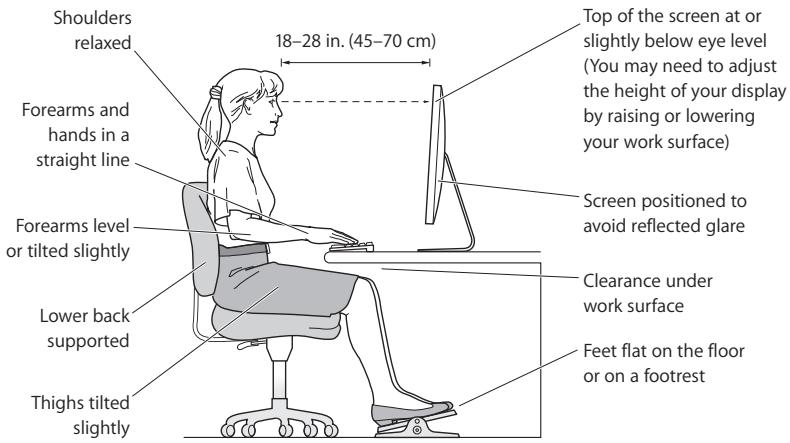
For more information about health, safety, and maintenance, go to the Apple ergonomic website at www.apple.com/about/ergonomics.
Troubleshooting Your Display
Before performing any of these steps, make sure your computer is turned on, the display is plugged into a grounded power outlet, all the cables are connected properly to your computer and display, and your computer is not in sleep mode.
If the screen doesn't have an image:
- Check the cables and connectors again to make sure they are connected properly to your computer and the display.
- Make sure your computer is turned on and is not in sleep mode. If the lid on your MacBook Pro is closed, use the external keyboard or mouse to wake the MacBook Pro from sleep.
- Unplug the display's power cord from the grounded power outlet, wait a few minutes, then plug it in again.
- Reset the PRAM by restarting your computer while holding down the Command (⌘), Option, P, and R keys until you hear the startup sound a second time.
If the screen is dim:
- Make sure the display brightness is set properly. Choose Apple ( Apple ) > System Preferences and click Displays. Drag the Brightness slider to adjust the brightness.
- If the colors on the display are too saturated or not correct, you may need to calibrate your display. Open Displays preferences, click the Color tab, click Calibrate, and follow the instructions.
If your MacBook Pro isn't charging:
Make sure the MagSafe connector from your display is seated properly in the MagSafe power port on your MacBook Pro.
If the built-in FaceTime HD camera, microphone, speaker system, or ports on the display aren't working:
Make sure the Thunderbolt cable from the display is firmly plugged into the Thunderbolt port on your computer. The display's camera, microphone, speaker system, and ports work only when this cable is connected to your computer.
More Troubleshooting Information
You can find more troubleshooting information on the Displays support website at www.apple.com/support/displays.
Learning More, Service, and Support
You can find more information about your display on the Apple website and in Mac Help.
| To learn about | See |
| Using your display | Mac Help and search for “displays.” |
| Display service, support, discussions, troubleshooting, and software downloads | The Displays Support site at www.apple.com/support/displays. |
| The latest information about displays | The Apple Displays site at www.apple.com/displays. |
| Registering your display | The Apple Product Registration site at www.apple.com/register. |
Specifications
• Model number: A1407
• Resolution: 2560 x 1440 @ 60 Hz
- Ports:
• Three high-speed USB 2.0 ports
• One Gigabit Ethernet port
• One Thunderbolt port
• One FireWire 800 port
- Camera and microphone: Built-in FaceTime HD camera with microphone
- Speakers: Built-in 2.1 speakers with 49 W output
Dimensions:
• Weight: 23.5 lb. (10.7 kg)
• Height: 19.2 inches (488.1 mm)
• Width: 25.65 inches (651.7 mm)
- Depth (with stand): 8.2 inches (208.13 mm)
• Viewable: 27 inches (685.8 mm) diagonal
Operating environment:
- Operating temperature: 50° to 95° F (10° to 35° C)
• Relative humidity: 20% to 80% (noncondensing) - Altitude: 0 to 10,000 feet (0 to 3048 meters)
Premiers contacts
Informations, services et assistance
Regulatory Compliance Information
FCC Compliance Statement
This equipment has been tested and found to comply with the limits for a Class B digital device, pursuant to part 15 of the FCC Rules. These limits are designed to provide reasonable protection against harmful interference in a residential installation.
This equipment generates, uses, and can radiate radio frequency energy and, if not installed and used in accordance with the instructions, may cause harmful interference to radio communications. However, there is no guarantee that interference will not occur in a particular installation. If this equipment does cause harmful interference to radio or television reception, which can be determined by turning the equipment off and on, the user is encouraged to try to correct the interference by one or more of the following measures:
• Reorient or relocate the receiving antenna.
- Increase the separation between the equipment and receiver.
- Connect the equipment into an outlet on a circuit different from that to which the receiver is connected.
- Consult the dealer or an experienced radio/TV technician for help.
If necessary, consult an Apple Authorized Service Provider or Apple. See the service and support information that came with your Apple product. Or, consult an experienced radio/television technician for additional suggestions.
Important: Changes or modifications to this product not authorized by Apple Inc. could void the EMC compliance and negate your authority to operate the product.
This product has demonstrated EMC compliance under conditions that included the use of compliant peripheral devices and shielded cables between system components. It is important that you use compliant peripheral devices and shielded cables between system components to reduce the possibility of causing interference to radios, television sets, and other electronic devices.
Responsible party (contact for FCC matters only):
Apple Inc. Corporate Compliance
1 Infinite Loop, MS 26-A
Cupertino, CA 95014
Canadian Compliance Statement
This equipment complies with the Canadian ICES-003 Class B specifications.
VCCI Class B Statement
情報処理装置等電波障害自主規制について
Korea Class B Statement
B급 기기(가정용 방송통신기자재)
Europe–EU Declaration of Conformity
See www.apple.com/euro/compliance.
High-Risk Activities Warning
This display is not intended for use in the operation of nuclear facilities, aircraft navigation or communications systems, or air traffic control machines, or for any other uses where the failure of the computer system could lead to death, personal injury or severe environmental damage.
ENERGY STAR®

ENERGY STAR
As an ENERGY STAR ® partner, Apple has determined that this product meets the ENERGY STAR ® requirements for energy efficiency. The ENERGY STAR ® program is a partnership with electronic equipment manufacturers to promote energy-efficient products. Improving energy efficiency of products saves money and helps conserve valuable resources.
This display is shipped with power management enabled, which allows the display to save power by decreasing luminance when used in a room with low ambient lighting. This automatic brightness control feature is enabled as a default setting in Displays preferences. To adjust your display luminance manually, use the display brightness keys on your keyboard or the brightness adjustment in Displays preferences.
For more information about ENERGY STAR ® , visit: www.energystar.gov
Disposal and Recycling Information

This symbol indicates that your product must be disposed of properly according to local laws and regulations. When your product reaches its end of life, contact Apple or your local authorities to learn about recycling options.
For information about Apple's recycling program, go to www.apple.com/recycling.
European Union—Disposal Information

The symbol above means that according to local laws and regulations your product should be disposed of separately from household waste. When this product reaches its end of life, take it to a collection point designated by local authorities. Some collection points accept products for free. The separate collection and recycling of your product at the time of disposal will help conserve natural resources and ensure that it is recycled in a manner that protects human health and the environment.
Apple and the Environment
Apple Inc. recognizes its responsibility to minimize the environmental impacts of its operations and products. More information is available on the web:
www.apple.com/environment
www.apple.com/br/environment

- Apple Thunderbolt Display
- Contents
- Setting Up Your Display
- Setting Up Your MacBook Pro with the Lid Closed
- Setting Up Your Apple Thunderbolt Display as an Additional Display
- To set up video mirroring or extended desktop:
- Using Your Display
- Using the Built-in FaceTime HD Camera and Microphone
- To set up the camera and microphone with iChat:
- Setting Up Sound Input and Output
- To set up sound input:
- To set up sound output:
- Adjusting the Resolution, Brightness, and Color
- To change the resolution or brightness:
- To change the display color profile or calibrate your display:
- Using a VESA Mounting Solution with Your Display
- Care and Safety
- To clean the screen on your display:
- Follow these safety guidelines for using your display:
- Ergonomics
- Troubleshooting Your Display
- If the screen doesn't have an image:
- If the screen is dim:
- If your MacBook Pro isn't charging:
- More Troubleshooting Information
- Learning More, Service, and Support
- Specifications
- Dimensions:
- Operating environment:
- Premiers contacts
- Informations, services et assistance
- Regulatory Compliance Information
- FCC Compliance Statement
- Canadian Compliance Statement
- VCCI Class B Statement
- Korea Class B Statement
- Europe–EU Declaration of Conformity
- High-Risk Activities Warning
- ENERGY STAR®
- Disposal and Recycling Information
- European Union—Disposal Information
- Apple and the Environment
Brand : APPLE
Model : THUNDERBOLT DISPLAY
Category : Monitor