
GO 320 - Bluetooth Headset JABRA - Free user manual and instructions
Find the device manual for free GO 320 JABRA in PDF.



User questions about GO 320 JABRA
0 question about this device. Answer the ones you know or ask your own.
Ask a new question about this device
Download the instructions for your Bluetooth Headset in PDF format for free! Find your manual GO 320 - JABRA and take your electronic device back in hand. On this page are published all the documents necessary for the use of your device. GO 320 by JABRA.
USER MANUAL GO 320 JABRA
© 2010 GN Netcom A/S (North America: GN Netcom US, Inc.). All rights reserved. Jabra® is a registered trademark of GN Netcom A/S. All other trademarks included herein are the property of their respective owners. The Bluetooth® word mark and logos are owned by the Bluetooth SIG, Inc. and any use of such marks by GN Netcom A/S is under license. (Design and specifications subject to change without notice).
MADE IN CHINA TYPE: BTS30 and END001W


Bluetooth
www.jabra.com
Jabra GO™ 660 Bluetooth® Headset System

Quick Start Manual
www.jabra.com
NEED MORE HELP?
Why wait? Go to our support page and find all the answers you're looking for 24-hours a day. www.jabra.com
TOLL FREE Customer Contact Details:
EMEA CUSTOMER CONTACT INFORMATION
Country:
United Kingdom
Telephone:
+44(0)1784220172
+33 (0) 130 589 075
Deutschland
+49(0)8031265172
Espana
+34916398064
italia
+390258328253
Denmark
+45 45 75 99 99
Sverige
+46(0)86930900
Norge
+4732227470
Suomi
+358 204 85 6040
Russia
Email:
info_uk@jabra.com
techsupport@gnnetcom.fr
techsupport@gn.com
support.dk@gn.com
info@jabra.se
support.no@gn.com
support.fi@gn.com
gkarlson@gn.com
Poland
+48122544015/0801800550
Czech Republic
+420800522722
Nederland
+49(0)8031265172
Belgique/Belgium
+49(0)8031265172
Luxemborg
+49(0)8031265172
Österreich
+49(0)8031265172
Middle East/Africa
support.pl@jabra.com
support.cz@gn.com
techsupport@gn.com
techsupport@gn.com
techsupport@gn.com
techsupport@gn.com
support.mea@gn.com
USA AND CANADA CUSTOMER CONTACT INFORMATION
Country:
Telephone:
USA
1-800-826-4656
Canada
1-800-489-4199
E-mail:
Technical support: techsupport@gnnetcom.com
Information: info@jabra.com
Web:
www.jabra.com (for the latest support info and online User Manuals)
Asia Pacific customer contact information
Country:
Telephone:
Australia
1-800-636-086 (local distributor)
China
+86-21-58365067
Hong Kong
800-968-265 (Toll free)
Indonesia
001-803-852-7664
Japan
+81-3-5297-7976
Malaysia
1800-812-160 (Toll free)
New Zealand
0800-447-982 (Toll free)
Singapore
800-860-0019 (Toll free)
Taiwar
0080-186-3013 (Toll free)
India
000-800-852-1185 (Toll free)
Philippine
+63-2-2424806
Email:
support.apac@jabra.com
Web:
www.jabra.com (for the latest support info and online User Manuals)
GN Netcom A/S • Lautrupbjerg 7 • 2750 Ballerup • Denmark
For more information please visit
www.jabra.com

2

3

4

5

6
6a
6b

7

EN Jabra GO™ 660 consist of Jabra EXTREME Headset and Jabra LINK™ 320 BT USB Adapter. NB: Chapter headings and illustrations share the same number to aid understanding.
FR Jabra GO™ 660 comprehend l'Oreillette
Jabra EXTREME et l'Adaptateur
Jabra LINK™ 320 BT USB.
Remarque: Les mêmes numeros pour les têtes de chapitre et les illustrations sont utilisés pour raison de compréhension.
DE Jabra GO^TM 660 umfasst das Jabra EXTREME Headset und den Jabra LINKTM 320 Bluetooth-USB -Adapter. Anmerkung: Kapitelüberschriften und Abbildungen verfügen über die gleiche Nummer, um das Verständnis zu erleihtern.
ES Jabra GO™ 660 se compone del auricular Jabra EXTREY e del adaptorato Jabra LINK™ 320 BT USB. NB: Los encabezados de los capitulos y las ilustraciones comparen la mesma numeracion para poderla comprension.
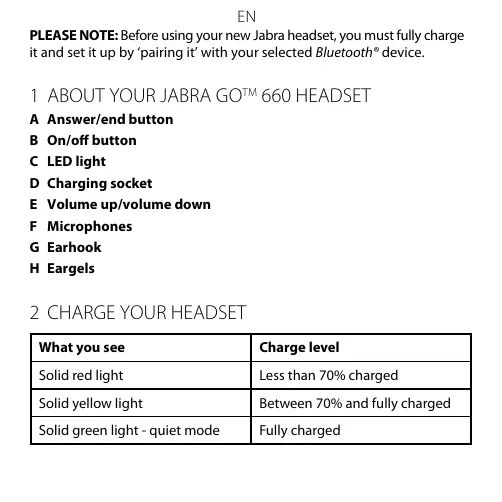
PLEASE NOTE: Before using your new Jabra headset, you must fully charge it and set it up by 'pairing it' with your selected Bluetooth® device.
1 ABOUT YOUR JABRA GO™ 660 HEADSET
A Answer/end button
B On/off button
C LED light
D Charging socket
E Volume up/volume down
F Microphones
G Earhook
H Eargels
| What you see | Charge level |
| Solid red light | Less than 70% charged |
| Solid yellow light | Between 70% and fully charged |
| Solid green light - quiet mode | Fully charged |
EN
3 TURNING YOUR HEADSET ON AND OFF
Slide on/off button to turn the headset on or off. The LED light will turn green when the headset is on.
4 PAIRING THE HEADSET WITH YOUR PHONE
1. Pairing:
Jabra GO™ 660 Headset can be paired with up to 8 different Bluetooth® devices and connected to two of them at the same time. This gives you the freedom to operate e.g. both of your mobile phones with the same headset.
Turn headset on. Press and hold answer/end button until solid blue light comes on.
- Activate Bluetooth® on your phone.
- Search for Bluetooth® devices and select Jabra EXTREME.
- Press 'OK' on the phone and confirm with PIN code 0000 (4 zeros).
EN
5 USING YOUR HEADSET
Answer a call
- Tap (less than 1 sec) the answer/end button on your headset to answer a call.
End a call
- Tap the answer/end button to end an active call.
Make a call
- The call will automatically transfer to your headset*. If it does not, please tap the answer/end button on your headset.
Reject a call *
- Press (1-3 sec) the answer/end button.
Activate voice dialing *
- Press the answer/end button. For best results, record the voice-dialing tag through your headset.
Redial last number \*
- Double tap the answer/end button when the headset is on and not used.
Adjust sound and volume *
- Tap the volume up or down to adjust the volume.
EN
6 WEARING STYLE
Wear the Jabra GO™ 660 Headset with or without an earhook.
6a. To wear with earhook, please attach for right or left ear wearing.
6b. To wear without earhook please use the Ultimate-fit Eargels™.
7 JABRA LINK 320 ADAPTER
In order to use the advanced EHS functions (pick up a call on the headset, last number redial etc for the many Jabra supported softphones) please install Jabra PC Suite on your PC.
PC Suite can be found at www.jabra.com/pcsuite
A. Multifunction Button
B. LED Indicator Blue/Green/Red

EN
8 PAIRING THE HEADSET WITH YOUR ADAPTER
The headset and adapter come pre-paired at the factory. Should this not work please follow the steps below:
- Insert the adapter to the PC.
- Press the Multifunction Button on the adapter until the solid blue light appears.
- Turn headset on - press and hold answer/end button until the solid blue light appears.
- Both adapter and headset flash to indicate successful pairing.


Visit www.jabra.com/GO660 for full user manual