Exterior 50 IP68 - Lighting MARTIN - Free user manual and instructions
Find the device manual for free Exterior 50 IP68 MARTIN in PDF.


| Product Type | Outdoor LED luminaire |
| Brand | Martin |
| Model | Exterior 50 IP68 |
| IP Rating | IP68 (dust-tight, continuous immersion) |
| Dimensions (L x W x H) | Approx. 120 x 90 x 60 mm |
| Weight | Approx. 1.2 kg |
| Power Supply | AC 100-240V, 50/60 Hz |
| Power Consumption | 50 W |
| Light Source | High-power LED (RGBW or white) |
| Beam Angle | 15° to 60° (adjustable) |
| Color Temperature | 3000K - 6000K (tunable) |
| Control Interface | DMX512, RDM, or stand-alone |
| Housing Material | Die-cast aluminum, stainless steel |
| Lens Material | Tempered glass |
| Operating Temperature | -20°C to +50°C |
| Protection Features | Overheating protection, surge protection |
| Mounting Options | Surface mount, pole mount, ground recessed |
| Maintenance | Clean with damp cloth; avoid solvents |
| Safety | CE, RoHS, IP68 certified |
| Spare Parts | LED module, driver, gaskets available |
| Repairability | Modular design; replaceable components |
Frequently Asked Questions - Exterior 50 IP68 MARTIN
User questions about Exterior 50 IP68 MARTIN
0 question about this device. Answer the ones you know or ask your own.
Ask a new question about this device
Download the instructions for your Lighting in PDF format for free! Find your manual Exterior 50 IP68 - MARTIN and take your electronic device back in hand. On this page are published all the documents necessary for the use of your device. Exterior 50 IP68 by MARTIN.
USER MANUAL Exterior 50 IP68 MARTIN
natural_image
Two metallic security camera modules with four focused lenses, shown from different angles (no text or symbols visible)Martin®
Dimensions
All dimensions are in millimeters
Exterior 50 IP68 Luminaire

text_image
130* 107 117 Cable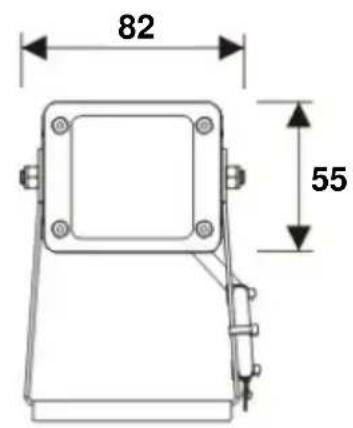
text_image
82 55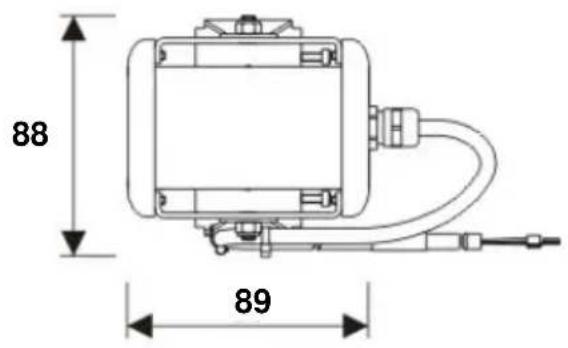
text_image
88 89*Approximate figure allowing for cable exit
© 2012 Martin Professional A/S. Information subject to change without notice. Martin Professional A/S and all affiliated companies disclaim liability for any injury, damage, direct or indirect loss, consequential or economic loss or any other loss occasioned by the use of, inability to use or reliance on the information contained in this document. The Martin logo, the Martin name and all other trademarks in this document pertaining to services or products by Martin Professional A/S or its affiliates and subsidiaries are trademarks owned or licensed by Martin Professional A/S or its affiliates or subsidiaries.
P/N 35000255, Rev. A
Exterior 100 IP68 Luminaire

text_image
165* 133 166 Cable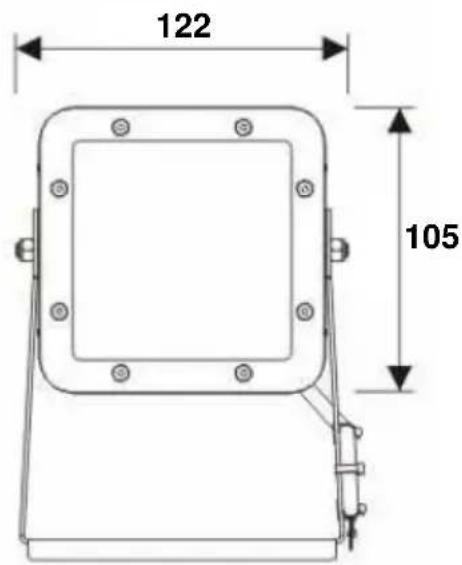
text_image
122 105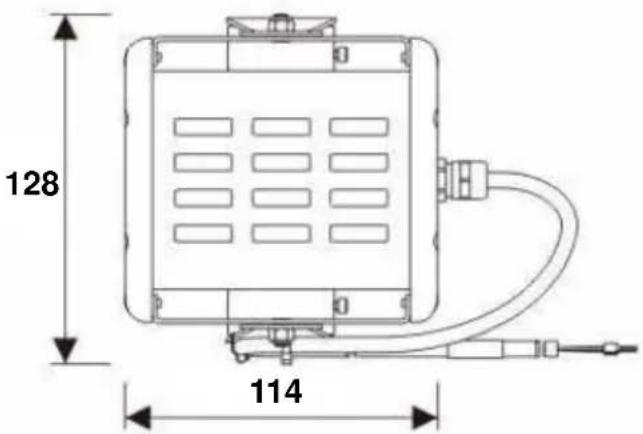
text_image
128 114*Approximate figure allowing for cable exit
Standard mounting post

text_image
80 Ø6 70 40 50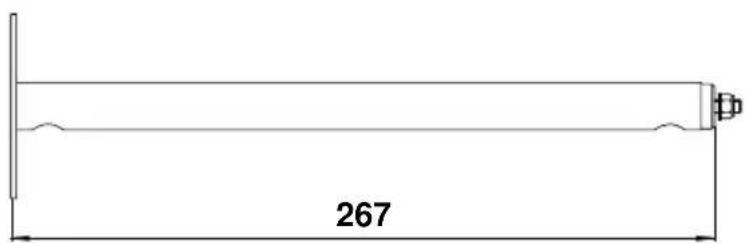
text_image
267Exterior 50 and 100 Mounting bracket bases
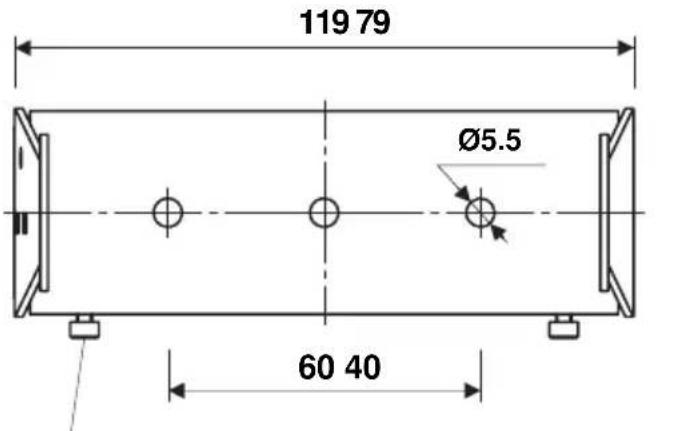
text_image
119 79 Ø5.5 60 40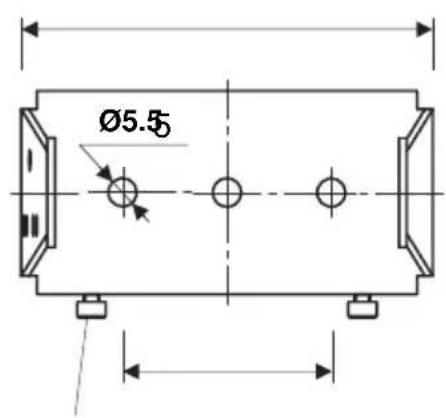
text_image
Ø5.5M3 screw for mounting on DIN rail M3 screw for mounting on DIN rail
Exterior 100 Mounting bracket Exterior 50 Mounting bracket
Exterior 50 and 100 Splitter

text_image
133 59 52 80 Ø5.5 Martin 80 115Exterior 50 and 100 PSU (EU model, 50/60 Hz)
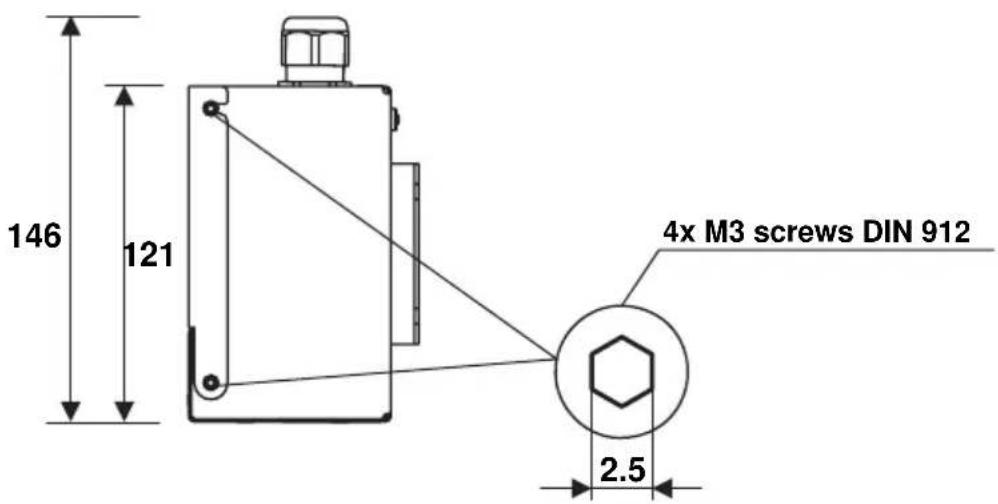
text_image
146 121 4x M3 screws DIN 912 2.5
text_image
355 328 100-240VAC Line 1 100-240VAC Line 2 DMX Line 1 DMX+Power Line 1 DMX+Power Line 2 73 83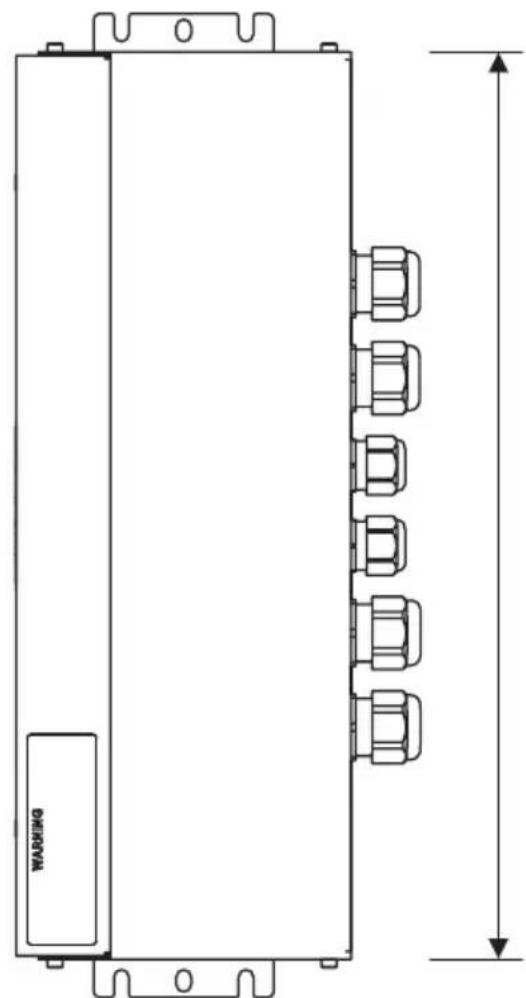
natural_image
Technical line drawing of a rectangular device with multiple connectors and a labeled warning box, shown with dimension lines (no text or symbols beyond the label)Dimensions 5
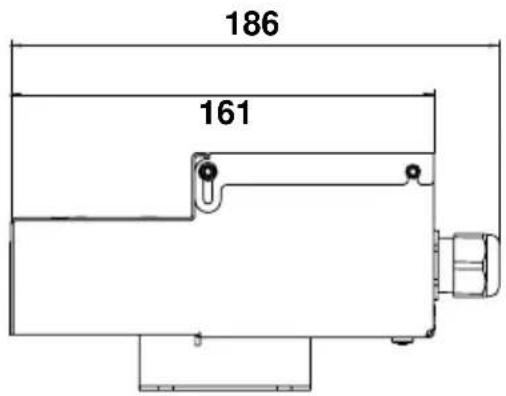
Exterior 50 and 100 PSU (US model, 60 Hz)
text_image
186 161
text_image
106-240VAC 106-240VAC 106-240VAC 106-240VAC 106-240VAC 106-240VAC 106-240VAC 106-240VAC 106-240VAC 106-240VAC 106-240VAC 106-240VAC 106-240VAC 106-240VAC 106-240VAC 106-240VAC 106-240VAC 106-240VAC 106-240VAC 106-240VAC 106-240VACContents
Dimensions 2
Safety information 8
Introduction 12
Unpacking 12
General information....13
Components in the system .....13
System power: general 13
System control: general .....14
System layout: general 15
Installation and connections: general .....22
Installing Power Supply Units 27
Physically installing a PSU . . . . . . . . . . . . . . . . . . . . . . . . . . . . . . . . . . . . . . . . . . . . . . . . . . . . . . . . . . 27
Connecting a PSU .....29
Installing Splitters 42
Physically installing a Splitter 42
Connecting a Splitter .....44
Installing Luminaires ....49
Physically installing Luminaires 49
Connecting Luminaires 54
Installing light shields 59
Checking and monitoring the installation ....60
System status indicators in a PSU 60
System status indicators in a Splitter .....61
Setup 62
Setting up for DMX control 62
Setting up using the remote control 64
Setting up via RDM using Martin M-PC™ .67
Operation 70
Ambient temperatures 70
DMX control 70
Using Martin M-PC ^TM for DMX control .....71
DMX protocols 73
RGBW Luminaires 73
White (CW, NW and WW) Luminaires 73
Service 74
Cleaning 74
Software installation....74
Troubleshooting 76
Specifications 77
Safety information
The following symbols are used to identify important safety information in this guide:

Danger! Risk of personal injury.

Danger! Risk of electric shock.

Danger! Risk of fire.

Warning!
LED light
emission. Do
not concentrate
the light beam.

Warning! Refer to user documentation before installing, powering or servicing.

Warning! The Martin™ Exterior 50 & 100 system is not for household use.

Warning! Read this guide before operating the system, follow the safety precautions listed in this section of the guide, and observe all warnings in this guide and printed on devices. Install and operate the system only as described in this guide and in accordance with local laws and regulations. Refer any operation not described in this guide to a qualified technician.
Warning! There are no user-serviceable parts inside Exterior 50 & 100 Luminaires. Refer all service to Martin ^TM or its authorized service agents.

Warning! Risk Group 3 (high risk) LED product according to EN 62471. Do not view the light output with optical instruments or any device that may concentrate the beam.
If you have questions about how to operate the system safely, please contact your Martin supplier or call the Martin 24-hour service hotline on +45 8740 0000, or in the USA on 1-888-tech-180.

PROTECTION FROM ELECTRIC SHOCK
- Isolate the entire system from AC mains power and make sure that power cannot be applied during work on the system.
-
Use only a single-phase, three-wire AC mains power source that complies with local building and electrical codes, that has both overload and ground-fault (earth-fault) protection, and that is within the voltage and frequency range specified on the serial number label on the PSU.
-
Ensure that the system is electrically connected to ground (earth) as described in this guide.
- Either power outlet sockets or hard-wired circuits that incorporate power on/off switches must be used to supply the system with power. Power plugs and/or power on/off switches must be easily accessible so that the system can be isolated from power quickly.
- Provide a means of locking out power (ensure that power can be shut down and is impossible to reapply, even accidentally) during service.
- Connect the PSU to AC mains power and relay power from one PSU to another using only 3-conductor neoprene- or hypalon-jacket cable that is heat resistant to minimum 90^ (194° F), rated minimum 16 amps, approved for the installation environment (UV, temperature, outdoor use, etc.) and has an external diameter of 6 - 12 mm (0.24 - 0.47 inch). In North America the power cable must be type SJO or type SOOW, minimum 16/3 AWG and rated minimum 300 VAC. In the EU the cable must be minimum 2.5mm^2 conductor size and HAR approved or equivalent.
- Use only hybrid (combined power and data) luminaire cables installed in Luminaires by Martin™ or its authorized agents to connect Luminaires. If the 3 m (9.8 ft.) luminaire cable supplied pre-installed is too short, extend it only with the extension cable kit available from Martin™.
- Use only the hybrid (combined power and data) Splitter cables supplied by Martin for the products concerned to connect a PSU to Splitters and to connect Splitters to each other.
- Do not connect the system to power unless all cable glands are sealed by either a cable or a blanking plug installed as described in this guide.
- Before using the system, check that all power distribution equipment and cables are in perfect condition, rated for the current requirements of all connected devices, protected to IP68 or higher and of suitable type for the location (including water, pollution, temperature and UV resistance).
- Protect all external connections inside suitable waterproof junction boxes or as required by local laws, regulations or codes. Ensure that the ends of cables cannot come into contact with water or moisture, as the vacuum created in devices during cooldowns can suck moisture up cable.
- Isolate the system from power immediately if any device, cable, cable gland or power plug is in any way damaged or defective, or if there are any signs of overheating. Do not reapply power until the fault has been rectified.
- Do not operate the system if any cover or component is missing, damaged or deformed.
- Shut down power to the system when it is not in use.
- Refer any service operation not described in this guide to an authorized Martin Service partner.


SYSTEM SAFETY LIMITS
- Do not connect any chain of devices (PSUs, Splitters and Luminaires) that will draw a total combined current of more than 16 amps to AC mains power. Each time you reach the limit of 16 amps, provide a new source of AC mains power from a mains power distribution circuit and create a new chain of devices that is connected to mains power via its own PSU.
- Do not connect any chain of devices that contains more than fifteen Exterior 50 or five Exterior 100 Luminaires (or any combination within these limits where three Exterior 50 Luminaires is equivalent to one Exterior 100 Luminaire) to any single output from a PSU.
- Do not connect chains of devices that contain a combined total of more than thirty Exterior 50 or ten Exterior 100 Luminaires (or any combination within these limits where three Exterior 50 Luminaires is equivalent to one Exterior 100 Luminaire) to one PSU.
- Do not allow any chain of devices linked by hybrid Splitter cable to exceed a maximum total length of 50 m (164 ft.) from the PSU to the last Splitter in the chain.
- Do not allow any luminaire cable to exceed a maximum length of 13 m (42.6 ft.) from a Splitter (or a PSU) to a Luminaire.

PROTECTION FROM BURNS AND FIRE
- Provide a minimum clearance of 10 cm (4 in.) from the front surface of luminaires to combustible materials.
- Do not operate the US model PSU in an ambient temperature ( T_a ) that exceeds 40°C (104°F). Do not operate other devices in the system in an ambient temperature ( T_a ) that exceeds 45°C (113°F).
- Do not modify devices in any way not described in this guide or install other than genuine Martin parts. Do not stick filters, masks or other materials directly onto Luminaires. Use only Martin approved accessories to mask or modify the light beam.
- Do not attempt to bypass thermostatic switches or fuses. Replace defective fuses with ones of the specified type and rating only.

PROTECTION FROM INJURY
- Do not view the light output with optical instruments or any device that may concentrate the beam.
- When installing devices overhead, ensure that the supporting structure and all hardware used can hold the weight of all the devices they support plus an adequate safety margin.
- Block access below the work area and work from a stable platform whenever installing or removing an overhead device.

Introduction
Thank you for selecting the Martin Professional™ Exterior 50 & 100 IP68™ range, an LED lighting system that features controllable RGBW color-changing and is suitable for use in harsh environments. Different mounting options provide flexibility in installation of the Luminaires.
This Installation and Safety Guide gives important information for owners, installers and service technicians. A User Guide containing details of controlling and operating the Exterior 50 & 100 system is available for download free of charge from the Product Support area at www.martin.com. If you have any difficulty finding or downloading the User Guide, please contact your Martin™ supplier, who will be happy to help.
For the latest documentation and information about the Exterior 50 & 100 system and all Martin Professional products, please visit the Martin website at www.martin.com
Comments or suggestions regarding this document may be e-mailed to service@martin.dk or posted to: Technical Documentation, Martin Professional A/S, Olof Palmes Allé 18, DK-8200 Aarhus N, Denmark.
Unpacking
The following items are included with products in the Exterior 50 & 100 range:
- All devices are supplied with IP68 cable glands.
- Luminaires are supplied with 3 m (9.8 ft.) hybrid power and data luminaire cables pre-installed (luminaire cables can be extended using a kit available from Martin™: see "Accessories" on page 79).
- The Exterior 50 & 100 Splitter is supplied with a blanking plug for sealing an unused luminaire cable gland and a blanking plug for sealing an unused Splitter hybrid cable gland.
- The Exterior 50 & 100 PSU is supplied with a blanking plug for sealing an unused control data cable gland, two blanking plugs for sealing unused AC mains power or hybrid cable glands, and this Installation and Safety Guide.
- Enough DMX terminators to allow termination at the ends of all DMX chains when installing the Exterior 50 & 100 system are supplied with Splitters and PSUs.
General information
Before you start installing the Exterior 50 & 100 system:
- Read the "Safety information" section starting on page 8 carefully. - Read this "General information" section carefully to familiarize yourself with system layout principles and installation procedure.
- Check that you have all the components you will need, including hybrid cable for Splitters and PSUs that can be ordered from Martin™.
- Check that the local AC mains power voltage is within the range shown on the PSU's serial number label.
- Make sure that you have a plan of the installation.
Components in the system
The Exterior 50 & 100 system includes four types of device:
- The Exterior 50 ^TM , an IP68-rated LED washlight Luminaire.
- The Exterior 100 ^TM , an IP68-rated LED washlight Luminaire.
- The Exterior 50 & 100 PSU, a Power Supply Unit in an IPX7-rated housing that supplies the Exterior 50 & 100 system with 30 VDC power. The PSU also relays DMX and RDM (Remote Device Management) data from a controller console or PC running controller software to the system.
- The Exterior 50 & 100 Splitter, a power/data splitter device housed in an IP65-rated junction box. The junction box can be waterproofed to IP68 by applying a sealing compound available from Martin™. Splitters relay 30 VDC power as well as DMX and RDM data to Luminaires and other Splitters.
All luminaires are available in RGBW, CW (cool white), NW (neutral white) and WW (warm white) options. The Exterior 100 is available in narrow and medium-angle options.
Hybrid (power and data) cable from Martin ^™ must be used to connect PSUs and Splitters. Hybrid cable is ordered separately.
A range of accessories for the system is available from Martin™ (see "Accessories" on page 79).
System power: general
The system is powered by connecting the Exterior 50 & 100 PSU to AC mains power.
System control: general
The Exterior 50 & 100 system can be:
- controlled using a DMX control device or PC application,
- set up and controlled using a PC running the Martin M-PC™ RDM-compliant Windows application via a Martin USB Duo™ USB/DMX interface box, or
- set up and programmed to display a single default scene using the infrared remote control unit available as an accessory from Martin™.
Data link
The DMX (and RDM if used) data signal from a DMX controller or PC must be sent to the PSU via a data link that conforms to DMX512-A specifications.
- Use DMX cable for the data link (microphone cable does not have the correct impedance).
- You must normally create the data link from the control device to the PSU as one single daisy chain (i.e. you must not split the data link into a 'Y'), but you can split the DMX data link into up to five branches if you use an amplifier/splitter such as the optically isolated Martin DMX 5.3 Splitter (P/N 90758140) or Martin RDM 5.5 Splitter (P/N 90758150) installed in a dry location.
- You must connect only one PSU directly to the DMX OUT data throughput in a PSU (but you can connect one daisy chain of PSUs in which each PSU is connected to the previous PSU's s DMX OUT data throughput).
- You must connect only one Splitter or one Luminaire directly to one OUTPUT hybrid output in a PSU (but you can connect one daisy chain of Splitters and Luminaires).
- Do not connect more than one Splitter (or one Luminaire) to the three-way data output quick-lock terminal block marked GND, DMX-, DMX+ and two-way 30 VDC output screw terminals marked +U and -U in a Splitter.
- Do not connect more than one Luminaire to the four-way hybrid output quick-lock terminal block marked DMX-, DMX+, +U, -U from a Splitter.
Two simple rules are:
- You can split the data link before a PSU using an amplifier/splitter device, as stated above, but do not split the hybrid power and data cable link after the PSU into a 'Y'.
- Do not connect more than one device or more than one daisy chain to one output from another device, because this will split the link into a 'Y'
In the Exterior 50 & 100 system, the data signal can be relayed from the PSU to either:
- two Luminaires directly via their hybrid (power and data) luminaire cables (see Figure 2 on page 18)
- a chain of Exterior 50 & 100 Splitters via hybrid Splitter cables and then sent to Luminaires via their luminaire cables (see Figure 3 on page 19)
- other PSUs by continuing the DMX link using DMX cable (see Figure 4 on page 21).
Exterior 50 & 100 PSUs and Splitters do not amplify or process the data signal when they relay it.
If you are in any doubt about how to install, set up or use DMX with the Exterior 50 & 100 system, your Martin supplier will be happy to provide guidance.
Data link DMX termination
Each time you end a data link to a PSU, a single Splitter or a daisy-chain of Splitters (i.e. you do not continue that link to another PSU or Splitter), you must terminate the data link by connecting a DMX line terminator across the data +ve (hot) and -ve (cold) conductors in the last PSU or Splitter on the link to absorb reflections that can disturb the data signal.
Enough DMX terminators for all possible configurations are supplied with PSUs and Splitters.
System layout: general
The following diagrams and information will help you to understand the system layout limits and possible options. Larger versions of the system layout diagrams are also available for download from the Product Support pages for the Exterior 50 & 100 on the Martin website at http://www.martin.com.

System layout limits
Warning! You may interconnect PSUs, Splitters and Luminaires as described in this section, but the total current draw of any group of interconnected devices must not exceed 16 amps. Each time you reach the 16 amp limit, you must create a new group of interconnected devices with their own connection to AC mains power.
Warning! Respect the following maximum limits when connecting Luminaires and Splitters to ANY ONE OUTPUT from an Exterior 50 & 100 PSU:
• Maximum FIVE Exterior 100 Luminaires per output, or
• Maximum FIFTEEN Exterior 50 Luminaires per output, or
- Any combination of Exterior 50 and Exterior 100 Luminaires within these limits where three Exterior 50 Luminaires are equivalent to one Exterior 100 Luminaire.
Warning! Respect the following maximum limits when connecting Luminaires and Splitters to ALL THE OUTPUTS from an Exterior 50 & 100 PSU:
• Maximum TEN Exterior 100 Luminaires in total, or
• Maximum THIRTY Exterior 50 Luminaires in total, or
- Any combination of Exterior 50 and Exterior 100 Luminaires within these limits where three Exterior 50 Luminaires are equivalent to one Exterior 100 Luminaire.

Warning! Any one run of hybrid cables that connects a PSU to a Splitter or chain of Splitters must not exceed a maximum total length of 50 m (164 ft.) from the PSU to the last Splitter in the chain.
Warning! Any one luminaire cable must not exceed a maximum length of 13 m (42.6 ft.).
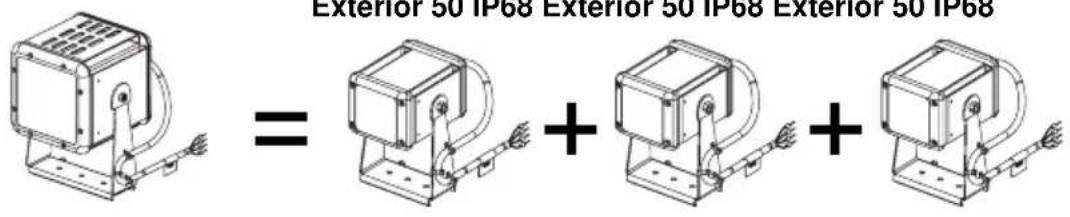
One Exterior 100 Luminaire (up to 18 W) is the equivalent of three Exterior 50 (up to 6 W) Luminaires in terms of power consumption and current draw (see Figure 1).
Exterior 100 IP68
text_image
Exterior 50 IP68 Exterior 50 IP68 Exterior 50 IP68 = + +Figure 1: Power and current equivalence
Minimum system layout
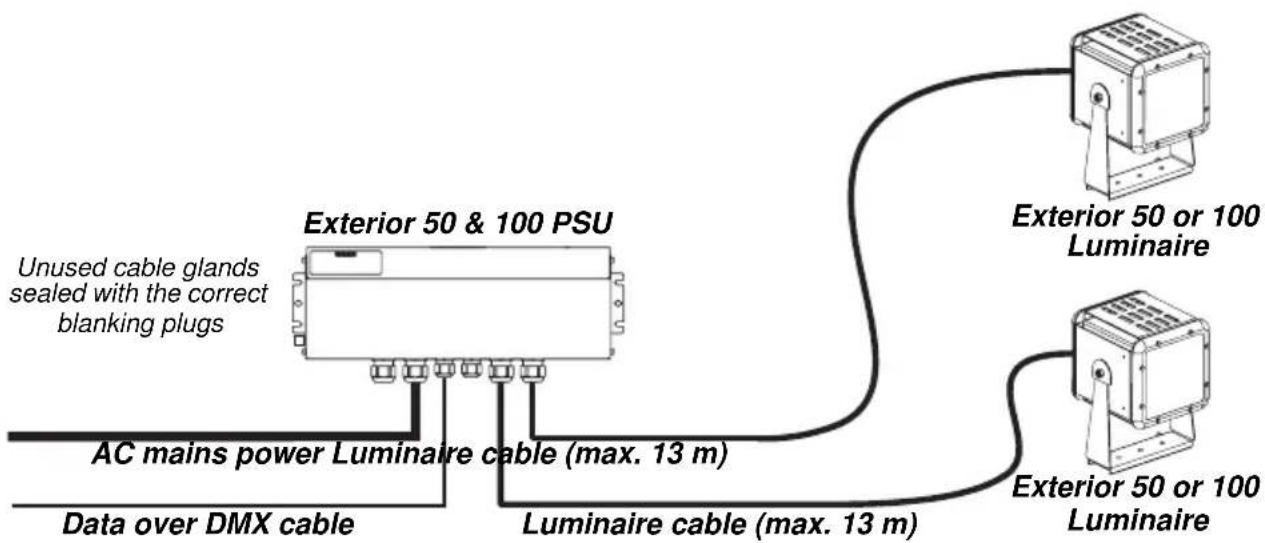
Figure 2 shows the most basic system layout possible.
In a minimum system:
- AC mains power is supplied to the Exterior 50 & 100 PSU via suitable power cable.
- A data signal from a DMX controller is supplied to the PSU via DMX cable.
- Combined 30 VDC power and DMX data from the PSU is supplied to one to two Exterior 50 or Exterior 100 Luminaires via their supplied luminaire cables.
text_image
Exterior 50 & 100 PSU Unused cable glands sealed with the correct blanking plugs AC mains power Luminaire cable (max. 13 m) Data over DMX cable Luminaire cable (max. 13 m) Exterior 50 or 100 Luminaire Exterior 50 or 100 LuminaireOutput = 2 x 100 W, 30 VDC
Figure 2: Minimum system layout
Single group system layout
Figure 3 shows the layout of a single group of Exterior 100 Luminaires:

flowchart
graph TD
    A["Exterior 50/100 Splitter"] --> B["Exterior 50/100 Splitter"]
    B --> C["Exterior 100/100 Splitter"]
    C --> D["Exterior 100/100 Splitter"]
    D --> E["Exterior 100/100 Splitter"]
    E --> F["Exterior 100/100 Splitter"]
    F --> G["Exterior 100/100 Splitter"]
    G --> H["Exterior 100/100 Splitter"]
    H --> I["Exterior 100/100 Splitter"]
    I --> J["Exterior 100/100 Splitter"]
    J --> K["Exterior 100/100 Splitter"]
    K --> L["Exterior 100/100 Splitter"]
    L --> M["Exterior 100/100 Splitter"]
    M --> N["Exterior 100/100 Splitter"]
    N --> O["Exterior 100/100 Splitter"]
    O --> P["Exterior 100/100 Splitter"]
    P --> Q["Exterior 100/100 Splitter"]
    Q --> R["Exterior 100/100 Splitter"]
    R --> S["Exterior 100/100 Splitter"]
    S --> T["Exterior 100/100 Splitter"]
    T --> U["Exterior 100/100 Splitter"]
    U --> V["Exterior 100/100 Splitter"]
    V --> W["Exterior 100/100 Splitter"]
    W --> X["Exterior 100/100 Splitter"]
    X --> Y["Exterior 100/100 Splitter"]
    Y --> Z["Exterior 100/100 Splitter"]
    Z --> AA["Exterior 100/100 Splitter"]
    AA --> AB["Exterior 100/100 Splitter"]
    AB --> AC["Exterior 100/100 Splitter"]
    AC --> AD["Exterior 100/100 Splitter"]
    AD --> AE["Exterior 100/100 Splitter"]
    AE --> AF["Exterior 100/100 Splitter"]
    AF --> AG["Exterior 100/100 Splitter"]
    AG --> AH["Exterior 100/100 Splitter"]
    AH --> AI["Exterior 100/100 Splitter"]
    AI --> AJ["Exterior 100/100 Splitter"]
    AJ --> AK["Exterior 100/100 Splitter"]
    AK --> AL["Exterior 100/100 Splitter"]
    AL --> AM["Exterior 100/100 Splitter"]
    AM --> AN["Exterior 100/100 Splitter"]
    AN --> AO["Exterior 100/100 Splitter"]
    AO --> AP["Exterior 100/100 Splitter"]
    AP --> AQ["Exterior 100/100 Splitter"]
    AQ --> AR["Exterior 100/100 Splitter"]
    AR --> AS["Exterior 100/100 Splitter"]
    AS --> AT["Exterior 100/100 Splitter"]
    AT --> AU["Exterior 100/100 Splitter"]
    AU --> AV["Exterior 100/100 Splitter"]
    AV --> AW["Exterior 100/100 Splitter"]
    AW --> AX["Exterior 100/100 Splitter"]
    AX --> AY["Exterior 100/100 Splitter"]
    AY --> AZ["Exterior 100/100 Splitter"]
    AZ --> BA["Exterior 100/100 Splitter"]
    BA --> BB["Exterior 100/100 Splitter"]
    BB --> BC["Exterior 100/100 Splitter"]
    BC --> BD["Exterior 100/1O3 Splitter"]
    BD --> BE["EXterior 5S/1O3 PSU /2x 1.6W /3.6VDC"]
    BE --> BF["EXterior 5S/1O3 PSU /2x 1.6W /3.6VDC"]
    BF --> BG["EXterior 5S/1O3 PSU /2x 1.6W /3.6VDC"]
    BG --> BH["LUMINARE Cable"]
    BH --> BI["LUMINARE Cable"]
    BI --> BJ["LUMINARE Cable"]
    BJ --> BK["LUMINARE Cable"]
    BK --> BL["LUMINARE Cable"]
    BL --> BM["LUMINARE Cable"]
Products shown with optional light shields installed
A larger version of this diagram is available on the Product Support pages for the Exterior 50/100 at WW.martin.com
Figure 3: Single group system layout
In a single group system:
- AC mains power is supplied to the Exterior 50 & 100 PSU via suitable power cable.
- A DMX control data signal from a DMX controller is supplied to the PSU via DMX cable.
- Combined 30 VDC power and DMX data from the PSU is supplied to single daisy-chains of Splitters via hybrid (combined power and data) cable.
- Combined power and data from each Splitter is supplied to Exterior 50 and/or 100 Luminaires via their supplied luminaire cables.
Multiple group system layout
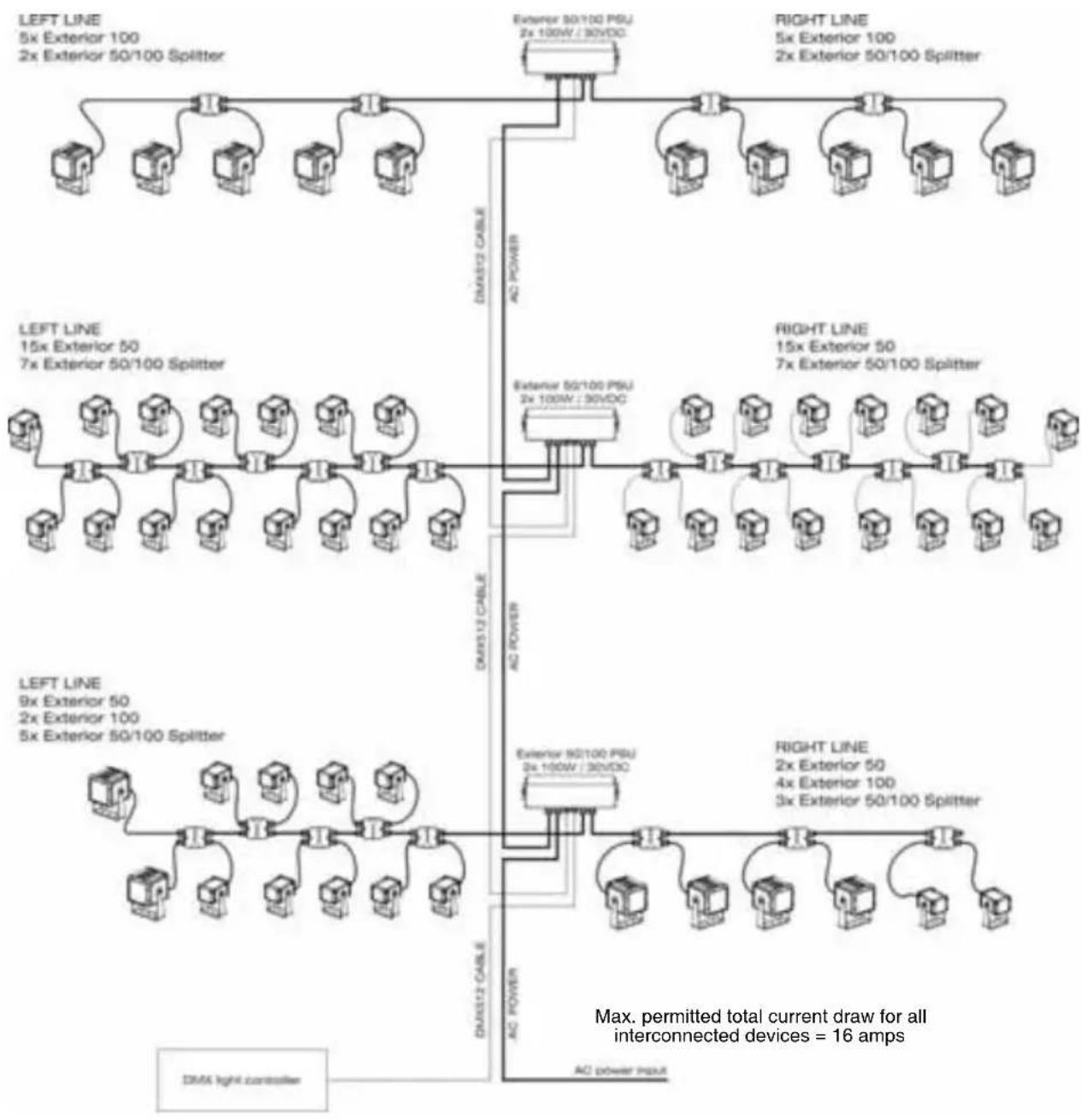
Figure 4 on the next page shows a system layout with multiple groups.
In a multiple group system:
- AC mains power is supplied to the first Exterior 50 & 100 PSU and relaved to following PSUs via suitable power cable.
- A DMX control data signal from a DMX controller is supplied to the first PSU and relaved to following PSUs via DMX cable.
- Combined 30 VDC power and DMX data from each PSU is supplied to single daisy-chains of Splitters via hybrid (combined power and data) cable.
- Combined power and data from each Splitter is supplied to Exterior 50 and/or 100 Luminaires via their supplied luminaire cables.
flowchart
graph TD
    A["LEFT LINE\n5x Exterior 100\n2x Exterior 50/100 Splitter"] --> B["DC Power Input"]
    C["EXTERIOR 50/100 PSU\n2x 100W / 30VDC"] --> D["DC Power"]
    E["RIGHT LINE\n5x Exterior 100\n2x Exterior 50/100 Splitter"] --> F["DC Power Input"]
    G["LEFT LINE\n15x Exterior 50\n7x Exterior 50/100 Splitter"] --> H["DC Power Input"]
    I["RIGHT LINE\n15x Exterior 50\n7x Exterior 50/100 Splitter"] --> J["DC Power Input"]
    K["LEFT LINE\n9x Exterior 50\n2x Exterior 100\n5x Exterior 50/100 Splitter"] --> L["DC Power Input"]
    M["RIGHT LINE\n2x Exterior 50\n4x Exterior 100\n3x Exterior 50/100 Splitter"] --> N["DC Power Input"]
    O["DC Power"] --> P["AC POWER"]
    Q["DC Power"] --> R["AC POWER + DSMA20 Cable"]
    S["DC Power"] --> T["DC Power + DSMA21 Cable"]
    U["DC Power"] --> V["DC Power + DSMA22 Cable"]
    W["DC Power"] --> X["DC Power + DSMA23 Cable"]
    Y["DC Power"] --> Z["DC Power + DSMA24 Cable"]
    AA["DC Power"] --> AB["DC Power + DSMA25 Cable"]
    AC["DC Power"] --> AD["DC Power + DSMA26 Cable"]
    AE["DC Power"] --> AF["DC Power + DSMA27 Cable"]
    AG["DC Power"] --> AH["DC Power + DSMA28 Cable"]
    AI["DC Power"] --> AJ["DC Power + DSMA29 Cable"]
    AK["DC Power"] --> AL["DC Power + DSMA30 Cable"]
    AM["DC Power"] --> AN["DC Power + DSMA31 Cable"]
    AO["DC Power"] --> AP["DC Power + DSMA32 Cable"]
    AQ["DC Power"] --> AR["DC Power + DSMA33 Cable"]
    AS["Max. permitted total current draw for all interconnected devices = 16 amps"]
A larger version of this diagram is available on the After-Sales/Product Support pages for the Exterior 50 and 100 at www.martin.com
Figure 4: Multiple group system layout
Installation and connections: general

Warning! Read the "Safety information" section starting on page 8 before carrying out work on the Exterior 50 & 100 system.
Warning! Luminaire cables may be installed in Luminaires and serviced only by Martin ^TM and its authorized service agents.
Consult Martin™ if you have any doubts about the suitability and/or safety of an installation.
See the system layout diagrams in the "General information" section starting on page 13 for an overview of how PSUs, Splitters and Luminaires are linked. Note the following:
- Splitters can be used to link Luminaires to a PSU until the maximum safe number of Luminaires per PSU output or per PSU is reached (see "System layout limits" on page 16).
- The hybrid Splitter cables and luminaire cables used for internal system connections carry both 30 VDC power and control data:
- Links from PSUs to Splitters, and links between Splitters, must use the hybrid Splitter cable available from Martin™ in various lengths (see "Accessories" on page 79).
- Links to Luminaires must use the hybrid luminaire cable that is supplied pre-installed in Luminaires. A 3 m (9.8 ft.) length is supplied. If this is not long enough, please consult your Martin™ supplier for assistance. Custom lengths up to a maximum safe limit of 13 m (42.6 ft.) are available. Luminaire cables must be installed by Martin™ or its authorized agents.
Installing a cable in a cable gland
All cable entries and exits in the Exterior 50 & 100 system use IP68 cable glands to ensure that system components are sealed against water and dust. When you install cable in PSUs and Splitters, you must follow the instructions in this section carefully to ensure a correct seal.
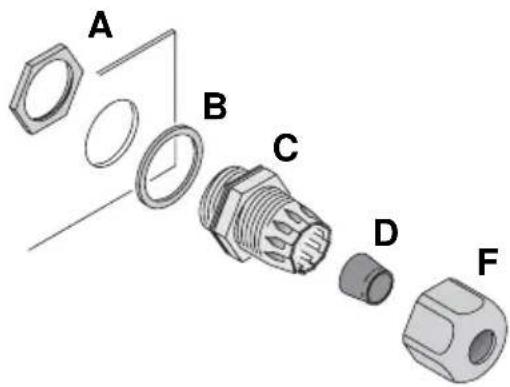
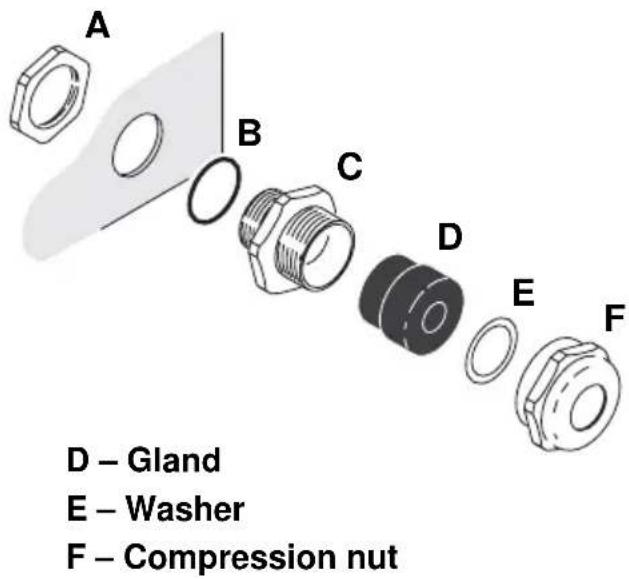
Nylon cable gland Metal cable gland
text_image
A B C D FA - Locking nut
B – Sealing ring
C - Cable entry
text_image
A B C D E F D – Gland E – Washer F – Compression nutFigure 5: Cable glands
To install a cable in a cable gland in a device in the Exterior 50 & 100 system:
- If necessary, prepare the cable as described in the relevant sections of this guide.
- See Figure 5. Loosen – but do not remove – compression nut F on the cable gland. Pass the cable through the gland D and cable entry C until the cable jacket has passed completely through the cable gland assembly. The cable should be a sliding fit in the gland.
- Make wiring connections in the device as described in the relevant sections of this guide.
- Check that wiring is routed so that it is not stressed, then hold cable entry C to prevent the cable gland assembly from rotating and tighten compression nut F firmly enough to ensure a waterproof seal.
Installing a blanking plug in an unused cable gland
All unused cable glands in the Exterior 50 & 100 system must be sealed with blanking plugs to prevent the entry of water and dust. Enough suitably sized blanking plugs are supplied with PSUs and Splitters to cover all possible situations.

text_image
Blanking plugsFigure 6: Cable gland blanking plugs
To install a blanking plug in a cable gland:
-
See Figure 6. Check that you have the correctly-sized blanking plug for the gland you need to seal (the correct blanking plug is a sliding fit in the gland when the compression nut F is loosened).
-
See Figure 5 on page 23. Loosen – but do not remove – compression nut F on the unused cable gland, insert a suitably-sized blanking plug fully into the cable gland, then hold cable entry C to prevent the assembly from rotating and tighten compression nut F firmly enough to ensure a waterproof seal.
Using a luminaire cable connection box
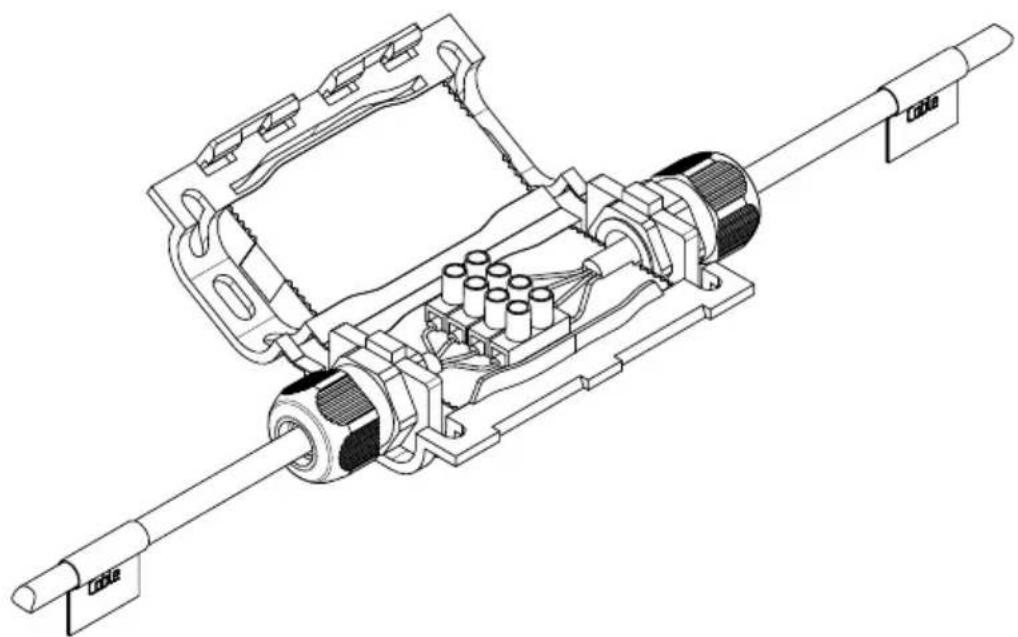
If the cable supplied pre-installed on Luminaires is not long enough, Martin™ can supply a gel-filled cable connection box that allows you to make a gel-sealed waterproof connection to extend the cable.
The connection box kit available from Martin™ (P/N 90510230) includes the box, two cable glands and a four-way terminal block. A 10m (32 ft.) luminaire cable extension kit (P/N 90510200) that includes the gel-filled connection box kit is also available.

Use the gel-sealed luminaire cable connection box to extend luminaire cables (the hybrid low-voltage/data cables supplied pre-installed on Luminaires) only. Do not use it on any other type of cable.

Ensure that cables that are connected using the box cannot be pulled or strained.
Install cable glands and cable ties following the instructions supplied with the box, or IP68 protection will not be obtained.
Do not exceed the maximum safe luminaire cable length of 13 m (42.6 ft.) total from Splitter to Luminaire.
natural_image
Technical line drawing of a mechanical assembly with gears and shafts (no text or symbols)Figure 7: Luminaire cable connection box
To connect cables using the cable connection box, follow the instructions provided with the box. Note that you must:
- Use the connections box when extending Luminaire cables only. If any other type of cable in the system is not long enough, replace it with a complete length of suitable cable (see “Accessories” on page 79 for cable available from Martin™).
- Ensure that cables connected using the box cannot be placed under strain or tension.
- Break out the blanking sections in the connections box to prepare the box to accept cable glands.
- Slide cable glands over cables before making wiring connections.
- Use the terminal block to connect the wires in one Luminaire cable to the wires in the other cable that have the same color and markings (see Table 1).
| Wire / marking Function |
| Black 1 / red +30 VDC |
| Black 2 / blue -30 VDC |
| Black 3 / no mark Data +ve |
| Black 4 / yellow Data -ve |
Table 1: Luminaire cable wiring identification
- When you have finished making connections, close the connections box as directed in the supplied instructions, fastening it tightly with two cable ties.
Installing Power Supply Units
Physically installing a PSU
Exterior 50 & 100 PSUs must be fastened to a flat surface. See Figure 8.

text_image
4 x M5 screws 343 65 343 355341 8 10 5.5 5.5 45 (EU model PSU illustrated)Figure 8: Mounting a PSU
Warning! Install the PSU horizontally or with the cable outlets facing downwards.
Figure 8 shows the EU model PSU, but mounting ears and dimensions are the same for the US model PSU.
Supporting surfaces, fasteners and hardware must be capable of supporting ten times the load they will bear when devices are installed and suitable for the installation environment.
If you are not installing the PSU horizontally, install it with the cable glands facing downwards to avoid water collecting at the cable entries.
Fasten the PSU securely to the mounting surface, ensuring space around it so that you have access to cable glands and can open the PSU for access to internal connections.
Connecting a PSU
Internal access to a PSU
(EU model PSU illustrated)

text_image
Screw Outer cover Screw Inner coverFigure 9: Internal access to PSU
To access the terminals or check the system status indicator LEDs inside a PSU, see Figure 9:
- Check that the system is isolated from AC mains power and that power cannot be reapplied during work on the system.
- Remove the two screws (arrowed) from the outer cover and hinge the cover open.
- Remove the four screws from the plastic inner cover and lift the cover off the box.
AC mains power input
AC mains power operating range
The Exterior 50 & 100 PSU is fully auto-sensing and can be connected to AC mains power as follows:
- The EU model PSU can be connected to mains power at 100-240 VAC nominal at 50/60 Hz.
- The US model PSU can be connected to mains power at 100-240 VAC nominal at 60 Hz.
Do not connect to power at any other voltage or AC frequency.
Power cable and plug
Cable that meets the power cable specifications listed on page 9 in the "Protection from electric shock" section must be used to connect the Exterior 50 & 100 PSU to an AC mains power source and to interconnect PSUs if you create a power cable link.
The cable used to supply the system with power must be either hard-wired to a building's electrical installation, providing an easily accessible power on/off switch close to the PSU, or fitted with a suitable grounding-type (earthed) power plug that matches the local power outlets.
If you fit a power plug, follow the plug manufacturer's instructions and locally applicable wiring color code. Table 2 shows some pin and wire color code identification schemes.
| Wire (US system) | Wire (EU system) | Pin Marking | Screw color | |
| black brown live L | yellow or brass | |||
| white blue neutral N silver | ||||
| green yellow/green | ground (protective earth) |  or or | PE ^green | |
Table 2: Power plug pin and power cable wiring identification
Connecting a PSU to AC mains power
text_image
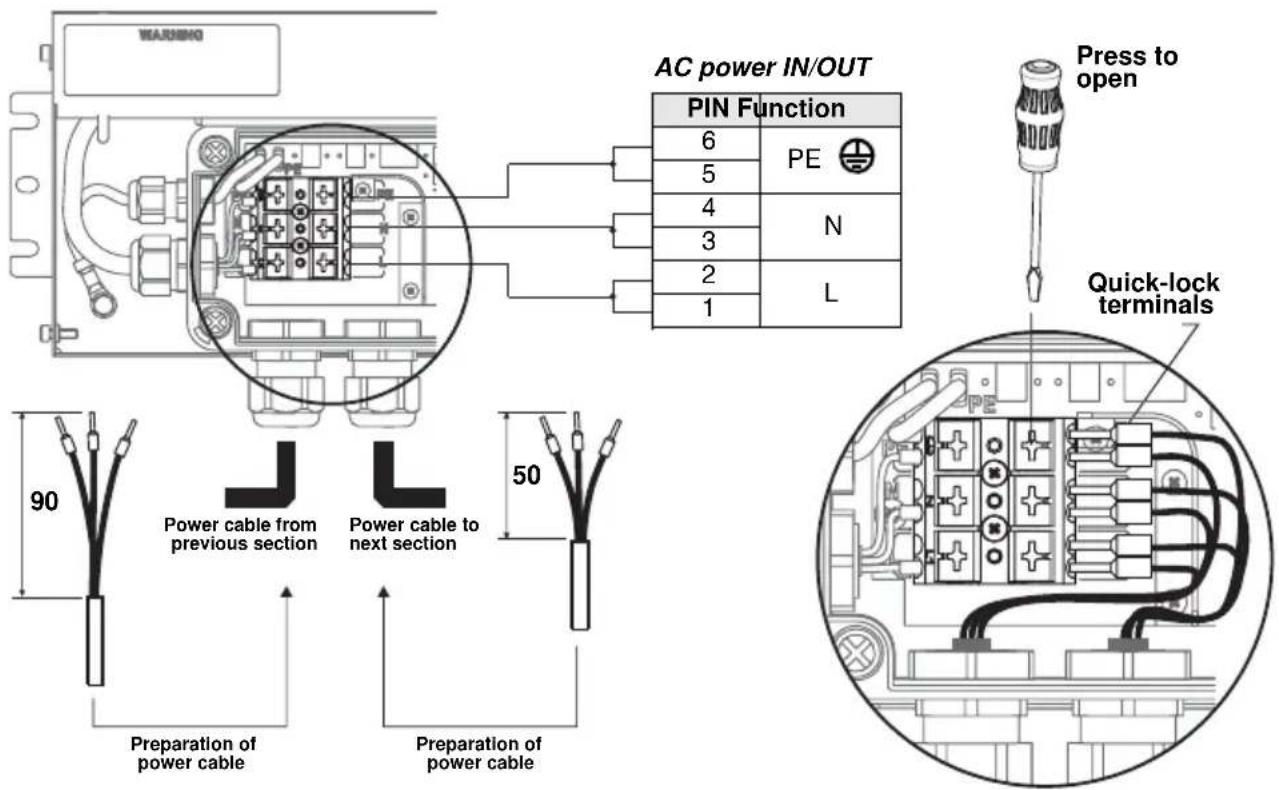
WARNING AC power IN/OUT PIN Function 6 PE 5 4 N 3 2 L Press to open Quick-lock terminals 90 Power cable from previous section Power cable to next section 50 Preparation of power cable Preparation of power cableFigure 10: AC mains power connections in PSU
To connect the Exterior 50 & 100 PSU to AC mains power:
-
Check that the system is isolated from AC mains power and that power cannot be reapplied during work on the system.
-
Refer to Table 2 for common AC mains power cable wiring color coding schemes.
-
The Exterior 50 & 100 PSU has quick-lock terminals for connecting power cables. Each terminal accepts one input and one throughput wire. Push down with a flat-blade screwdriver on a terminal as shown in Figure 10 each time you need to insert or release wires. Check that wires are fully inserted and held securely when you lift the screwdriver away.
-
Obtain a suitable length of power input cable that meets the specifications listed under "Protection from electric shock" starting on page 8.
-
See Figure 10. Prepare the power input cable for connection to the PSU by stripping the last 90 mm (3.5 ins.) of the outer cable jacket. Strip the last 10 mm (0.4 ins.) of the insulation from the ground/earth, the neutral and the live wires, and install 10 mm (0.4 ins.) ferrules (I-type end caps) on the ends of the wires.
-
See "Installing a cable in a cable gland" on page 23. Pass the power input cable through the cable gland marked 100-240 VAC Line 1 on the PSU.
-
See Figure 10. Connect the wires from the power input cable to the quick-lock terminals in the PSU as follows:
-
Connect the ground/protective earth wire to the terminal marked PE.
- Connect the neutral wire to the terminal marked N.
-
Connect the live wire to the terminal marked L.
-
Tighten the cable gland as described in "Installing a cable in a cable gland" on page 23.
-
If you are not continuing the AC mains power link from the PSU to another PSU, see "Installing a blanking plug in an unused cable gland" on page 24. Install a blanking plug in the unused power cable gland marked 100-240 VAC Line 2.
-
If you are continuing the AC mains power link to another PSU, follow the instructions in the next section.

Relaying AC mains power to other PSUs
Warning! The total current draw of all the Exterior 50 & 100 PSUs that draw power from an AC power source in one interconnected chain must not exceed 16 amps.
Exterior 50 & 100 PSUs can be interconnected in a chain so that they all draw AC mains power via the first PSU, but the following points must be respected:
- Connect only Exterior 50 & 100 PSU devices in the chain. Do not connect any other device to power via an Exterior 50 & 100 PSU.
- The cable used for power throughput must meet the same specifications as power input cable (see page 9).
To continue the AC mains power link from one Exterior 50 & 100 PSU to another:
- Obtain a suitable power cable (see above) to use for power throughput.
- See Figure 10. Prepare the power throughput cable for connection to the first PSU by stripping the last 50 mm (2 ins.) of the outer cable jacket, then stripping the last 10 mm (0.4 ins.) of the insulation from the ground/earth, the neutral and the live wires. The use of ferrules (I-type end caps) is recommended.
- See "Installing a cable in a cable gland" on page 23. Pass the power throughput cable through the cable gland marked 100-240 VAC Line 2 on the PSU.
-
See Figure 10. Connect the wires from the power input cable to the quick-lock terminals in the PSU as follows:
-
Connect the ground/protective earth wire to the terminal marked PE.
- Connect the neutral wire to the terminal marked N.
-
Connect the live wire to the terminal marked L.
-
Tighten the cable gland as described in "Installing a cable in a cable gland" on page 23.
- Install the AC mains power throughput cable in the same terminals used for AC mains power input in the first PSU using "AC mains power input" starting on page 30 as a guide. Use the cable gland marked 100-240 VAC Line 2 for power throughput cable exit from the PSU.
- Run the power throughput cable to the next PSU and install it as if it was a power input cable using "AC mains power input" starting on page 30 as a guide.
- To continue interconnecting other PSUs in a chain, follow the instructions above, but check that all the devices connected to all the PSUs in the chain draw a total combined current that does not exceed the safe maximum of 16 amps. To supply AC mains power to devices
after the 16 amps maximum limit is reached, you must create a new chain of PSUs that has its own connection to a building installation AC mains power circuit.
Connecting a PSU to DMX control data

text_image
Preparation of DMX data cable 60 DMX data IN/OUT 1 DMX data IN/OUT 2Figure 11: Control data input connections in PSU
To connect the Exterior 50 & 100 PSU to DMX control data:
-
Check that the system is isolated from AC mains power and that power cannot be reapplied during work on the system.
-
See Figure 11. Prepare the data input cable for connection to the PSU by stripping the last 60 mm (2.4 ins.) of the outer cable jacket. Strip the last 10 mm (0.4 ins.) of the data ground/common, the data +ve (hot) and data -ve (cold) wires. The use of ferrules (I-type end caps) is recommended.
-
See "Installing a cable in a cable gland" on page 23. Pass the data input cable through the cable gland marked DMX Line 1 on the PSU.

text_image
DMX data IN/OUT 2 PIN Function 1 Data shield 2 Data -ve (cold) 3 Data +ve (hot) DMX data IN/OUT 1 PIN Function 1 Data shield 2 Data -ve (cold) 3 Data +ve (hot)Figure 12: DMX control data pinouts in PSU
-
See Figure 12. Connect the wires from the DMX data input cable to the terminals marked DMX IN in the PSU as follows:
-
Connect the data shield/ground conductor to the terminal marked GND.
- Connect the data +ve (hot) wire to the terminal marked DMX+.
-
Connect the data -ve (cold) wire to the terminal marked DMX-.
-
Tighten the cable gland as described in "Installing a cable in a cable gland" on page 23.
-
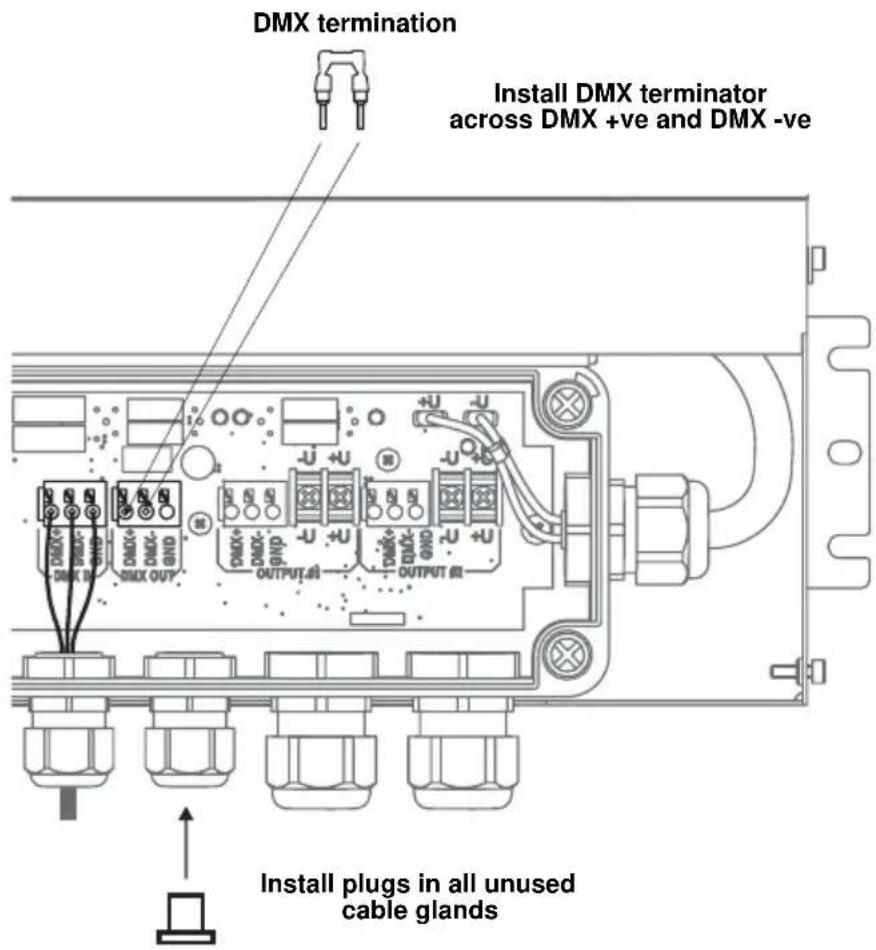
If you are not continuing the data link from the PSU to another PSU, see Figure 13:
• Install the supplied DMX terminator in the unused DMX OUT terminals so that it bridges the DMX+ and DMX+ terminals.
- Install a blanking plug in the unused cable gland marked DMX Line 2 (see "Installing a blanking plug in an unused cable gland" on page 24).
text_image
DMX termination Install DMX terminator across DMX +ve and DMX -ve DMX® DMX® DMX® DMX® DMX® DMX® DMX® DMX® DMX® DMX® DMX® DMX® DMX® DMX® DMX® DMX® DMX® DMX® DMX® DMX® DMX® DMX® DMX® DMX® DMX® DMX® DMX® DMX® DMX® DMX® DMX® DMX® DMX® DMX® DMx Output 4Ω Output 8Ω Install plugs in all unused cable glandsFigure 13: DMX termination in last PSU on link
- If you are continuing the DMX data link to another PSU, follow the instructions in the next section.
Relaying DMX control data to other PSUs
Exterior 50 & 100 PSUs can be interconnected using DMX cable in a chain to continue the DMX data link.
To extend the DMX data link from one Exterior 50 & 100 PSU to another:
- Obtain a suitable length of DMX cable to use for data throughput.
- See Figure 11. Prepare the DMX data throughput cable for connection to the first PSU by stripping the last 60 mm (2.4 ins.) of the outer cable jacket. Strip the last 10 mm (0.4 ins.) of the data ground/common, the data +ve (hot) and data -ve (cold) wires. The use of ferrules (I-type end caps) is recommended.
- Install the DMX data throughput cable in the first PSU using "Connecting a PSU to DMX control data" starting on page 34 as a guide. Use the cable gland marked DMX Line 2 for data throughput cable exit from the PSU.
- Run the data throughput cable to the next PSU and install it as if it was a DMX data input cable using "Connecting a PSU to DMX control data" starting on page 34 as a guide. Use the cable gland marked DMX Line 1 for data throughput cable entry into the PSU.
- If you need to continue interconnecting other PSUs in a daisy-chained DMX link, use the instructions above as a guide.
Connecting a PSU to a Splitter
To connect a hybrid Splitter cable to carry data and low-voltage DC power from a PSU to a Splitter:
- Obtain a suitable length of Martin hybrid Splitter cable (see cable lengths available from Martin under "Accessories" on page 79).
text_image
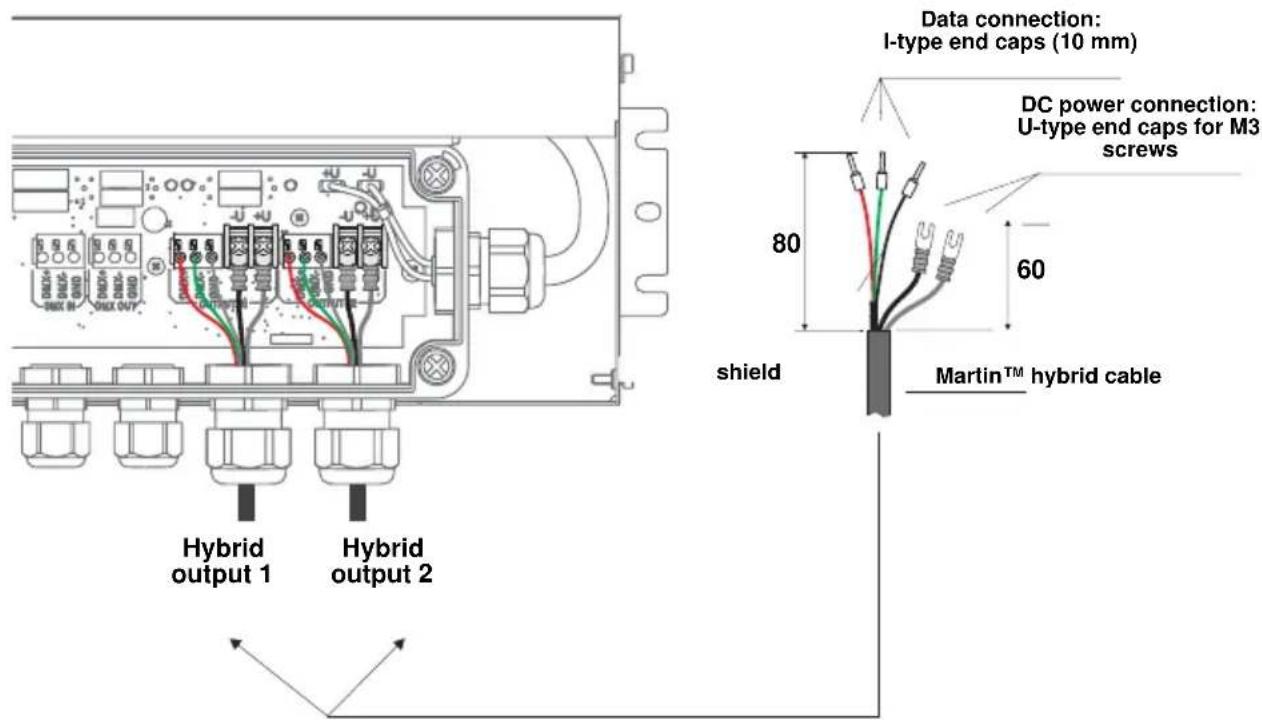
Data connection: I-type end caps (10 mm) DC power connection: U-type end caps for M3 screws 80 60 shield Hybrid output 1 Hybrid output 2 Martin™ hybrid cableFigure 14: Hybrid link connections in PSU
- See Figure 14. Martin™ hybrid Splitter cables have ferrules (I-type end caps) pre-installed on DMX control data wires and U-shaped end caps pre-installed on 30 VDC wires. You can make a custom-length hybrid Splitter cable by cutting the cable supplied by Martin™ to the required length. If you do this, you must prepare custom cables for connection inside the PSU. See Figure 14:
- strip 80 ~mm (3.1 ins.) of the outer cable jacket from the end of the cable
- strip the last 10 mm (0.4 ins.) of the data ground/common, the data +ve and data -ve wires and install ferrules (I-type end caps) on the exposed conductors, then
- shorten the two 30 VDC wires, strip the last 10 ~mm (0.4 ins.) from them and install U-shaped end caps that accept M3 screws onto the exposed conductors so that each 30 VDC wire is 60 ~mm (2.4 ins.) long including the end cap.
- See "Installing a cable in a cable gland" on page 23. Pass the hybrid output cable through the cable gland marked DMX/RDM +Power #1 on the PSU.
text_image
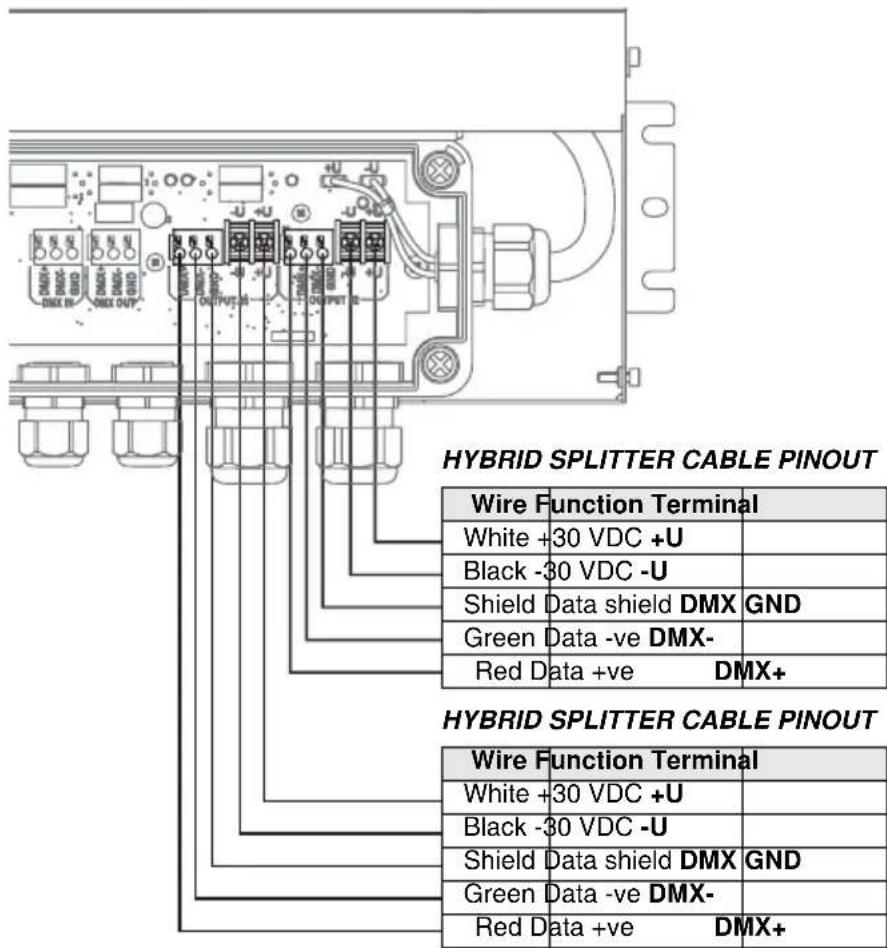
HYBRID SPLITTER CABLE PINOUT Wire Function Terminal White +30 VDC +U Black -30 VDC -U Shield Data shield DMX GND Green Data -ve DMX- Red Data +ve DMX+ HYBRID SPLITTER CABLE PINOUT Wire Function Terminal White +30 VDC +U Black -30 VDC -U Shield Data shield DMX GND Green Data -ve DMX- Red Data +ve DMX+Figure 15: Hybrid Splitter cable pinout in PSU
-
See Figure 15. Connect the wires from the hybrid Splitter cable to the terminals marked OUTPUT #1 in the PSU as follows:
-
Connect the braided copper and/or foil shield data ground/common conductor to the terminal marked GND.
- Connect the red data +ve (hot) wire to the terminal marked DMX+.
- Connect the green data -ve (cold) wire to the terminal marked DMX-
- Connect the white 30 V +ve (hot) wire to the terminal marked +U.
-
Connect the black 30 V -ve (cold) wire to the terminal marked -U.
-
Tighten the cable gland as described in "Installing a cable in a cable gland" on page 23.
text_image
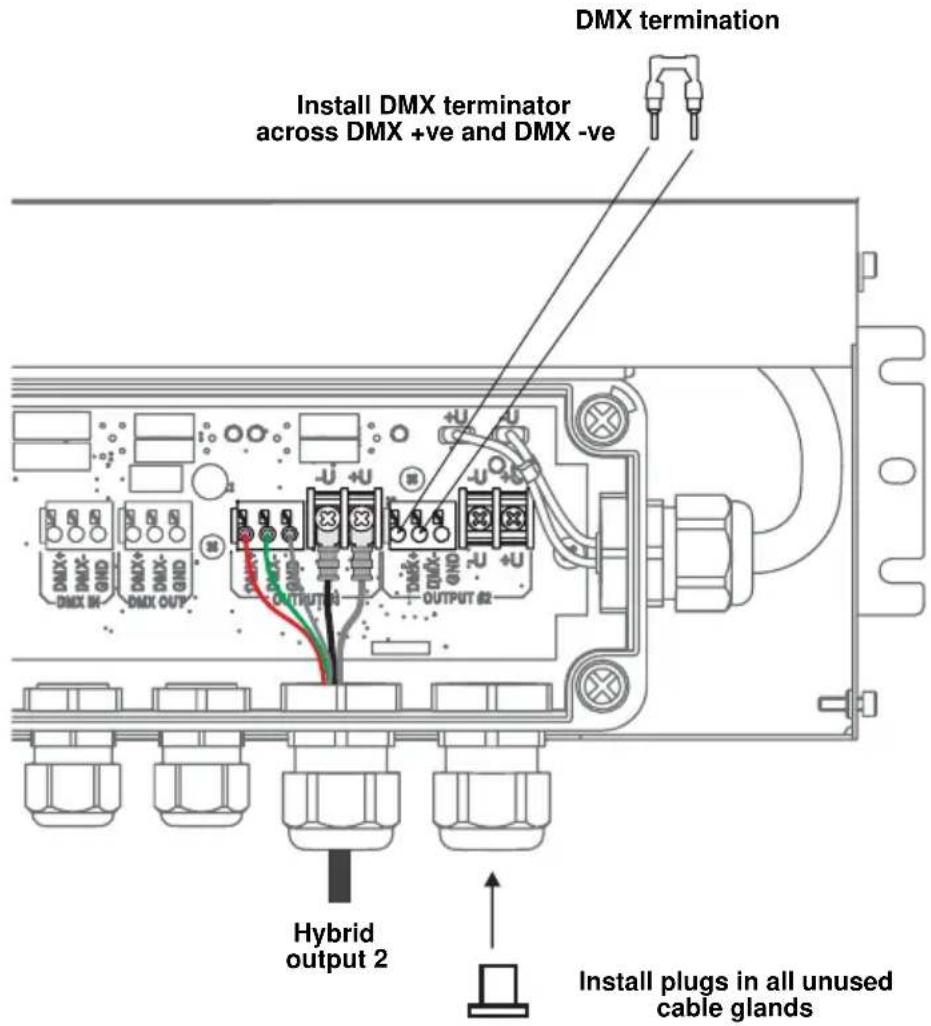
DMX termination Install DMX terminator across DMX +ve and DMX -ve Hybrid output 2 Install plugs in all unused cable glandsFigure 16: Terminating an unused hybrid link in a PSU
- If you are not going to create a second hybrid link from the PSU to a Splitter or Luminaire, see Figure 16:
• Install the supplied DMX terminator in the unused OUTPUT #2 terminals so that it bridges the DMX+ and DMX+ terminals.
- Install a blanking plug in the unused cable gland marked DMX/RDM +Power #2 (see "Installing a blanking plug in an unused cable gland" on page 24).
-
If you are going to create a second hybrid link from the PSU to a Splitter or Luminaire, follow the above instructions for the second hybrid cable, connecting the wires to the OUTPUT #2 terminals and using the cable gland marked DMX/RDM +Power #2 for cable exit from the PSU.
-
If you have finished making connections inside the PSU, follow the instructions in "Closing a CPU after internal access" on page 41.

Closing a CPU after internal access
Warning! When reinstalling the inner cover after internal access to the CPU:
- Check that mating surfaces are clean and undamaged. If surfaces are not in perfect condition, contact Martin™ for assistance.
- Reinstall the inner cover as it was originally installed, with the connectors label over the connectors, or it will be impossible to seal correctly.
- Reinstall all four inner cover screws securely.
After accessing the terminals and indicator LEDs inside a PSU:
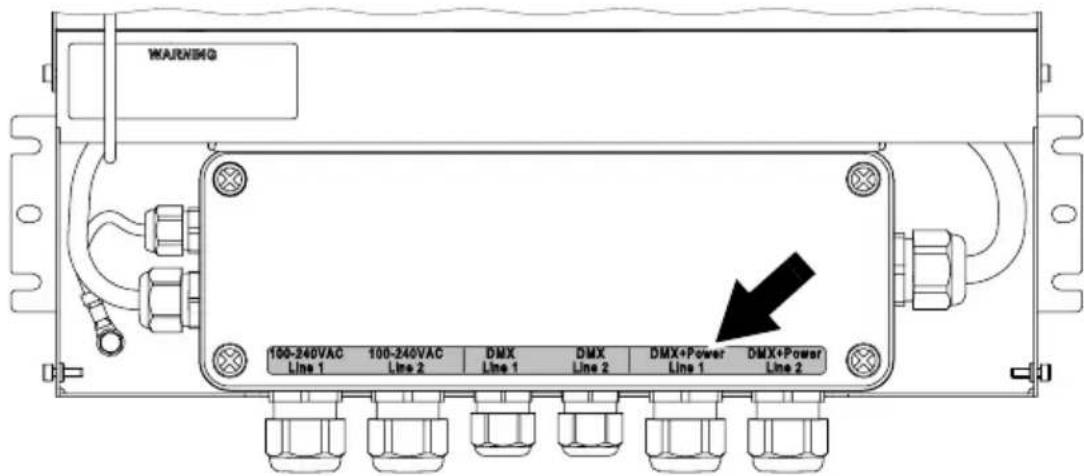
- See Figure 17. Check that all mating surfaces are in perfect condition and reinstall the inner cover as it was originally installed, with the connectors label (arrowed) over the connectors, tightening all four inner cover screws securely.
text_image
WARNING 100-240VAC Line 1 100-240VAC Line 2 DMX Line 1 DMX Line 2 DMX+Power Line 1 DMX+Power Line 2Figure 17: PSU inner cover – correct reinstallation
- See Figure 9 on page 29. Hinge the PSU outer cover closed and reinstall its two screws securely.
Installing Splitters
Physically installing a Splitter
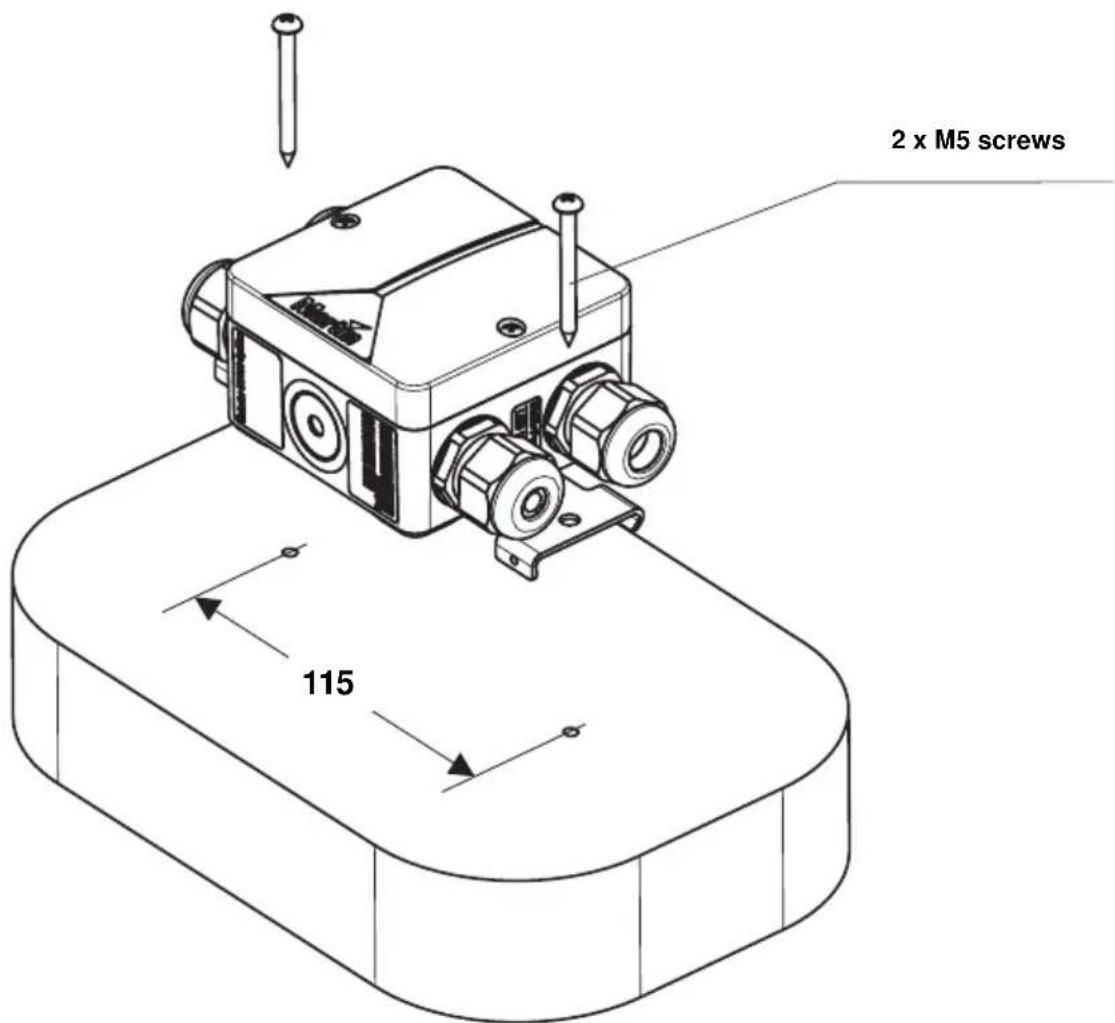
Exterior 50 & 100 Splitters can be fastened to a flat surface (see Figure 18) or mounted on DIN rail (see Figure 19).
Supporting surfaces, fasteners and hardware must be capable of supporting ten times the load they will bear when devices are installed.
text_image
2 x M5 screws 115Figure 18: Surface-mounting a Splitter
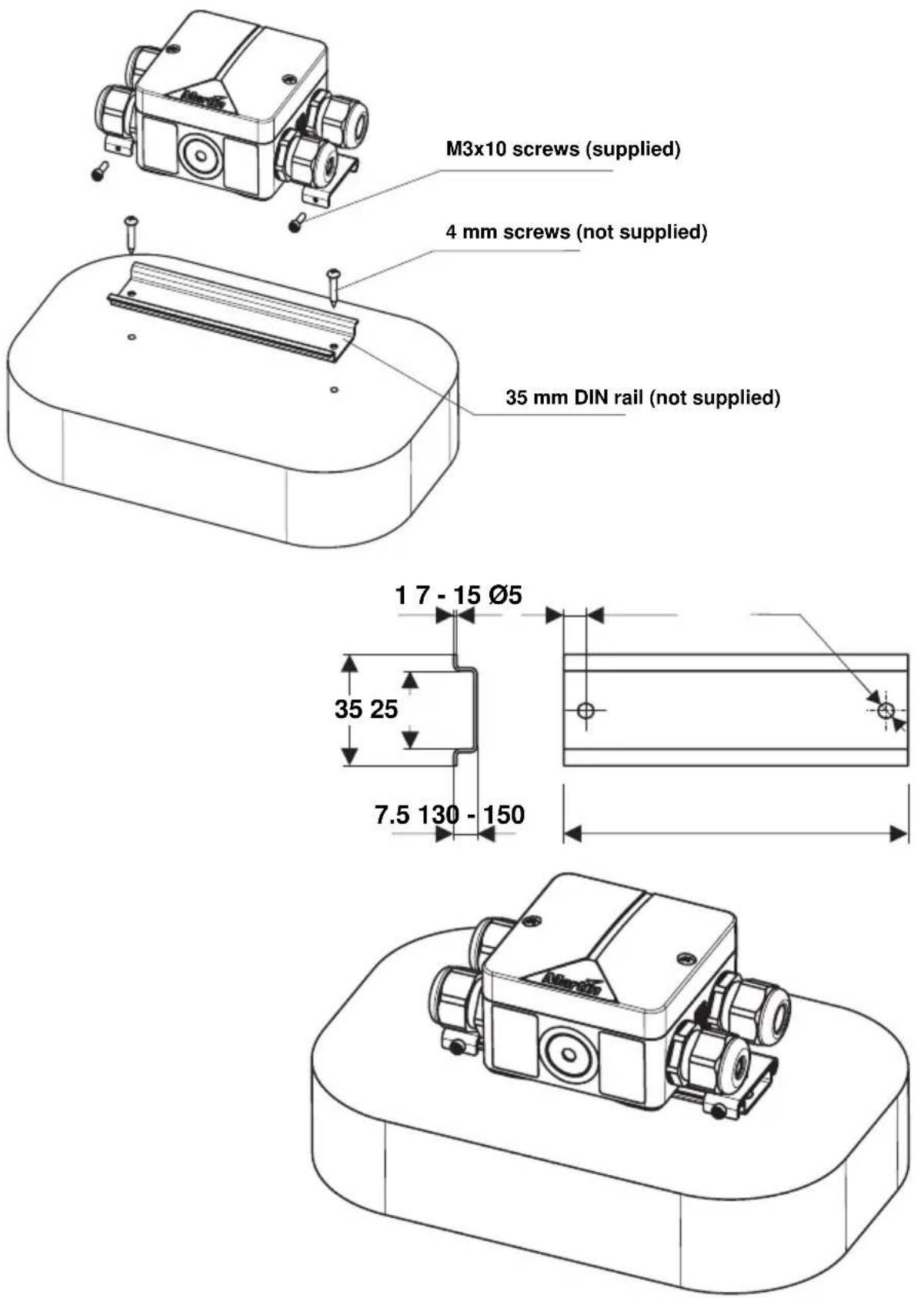
Figure 19: Mounting a Splitter on DIN rail
Connecting a Splitter
Internal access to a Splitter

text_image
Technical diagram of a mechanical device with labeled components A and a detailed internal cross-section view.Figure 20: Internal access to Splitter
For internal access to a Splitter:
- Check that the system is isolated from AC mains power and that power cannot be reapplied during work on the system.
- See Figure 20. Remove the two screws A from the top cover and lift the cover off the Splitter housing for access to the terminals and fuse.
- After you have finished connecting and testing the Splitter, check that mating surfaces are clean and undamaged and reinstall the top cover and screws A securely, making sure that you do not trap any wires under the top cover. Note that, if the Splitter is required to be fully waterproof, you will need to fill it with IP68 sealant (see "Filling a Splitter with IP68 sealant" on page 57).
Connecting the hybrid link in a Splitter

text_image
Data connection: I-type end caps (10 mm) DC power connection: U-type end caps for M3 screws 60 40 shield Martin™ hybrid cable Hybrid cable glandFigure 21: Hybrid cable connections in Splitter
To connect a hybrid Splitter cable carrying data and 30 VDC power to a Splitter:
-
Check that the system is isolated from AC mains power and that power cannot be reapplied during work on the system.
-
See Figure 21. Prepare a suitable length of Martin™ hybrid Splitter cable for connection to the Splitter:
- strip 60 ~mm (2.4 ins.) of the outer cable jacket from the end of the cable,
- strip the last 10 mm (0.4 ins.) of the data ground/common, the data +ve and data -ve wires and install ferrules (I-type end caps) on the exposed conductors, then
-
shorten the two 30 VDC wires, strip the last 10 ~mm (0.4 ins.) from them and install U-shaped end caps that accept M3 screws onto the exposed conductors so that each 30 VDC wire is 40 ~mm (1.6 ins.) long including the end cap.
-
See "Installing a cable in a cable gland" on page 23. Pass the hybrid Splitter cable through one of the hybrid (larger cable diameter) cable glands on the Splitter as shown in Figure 21.
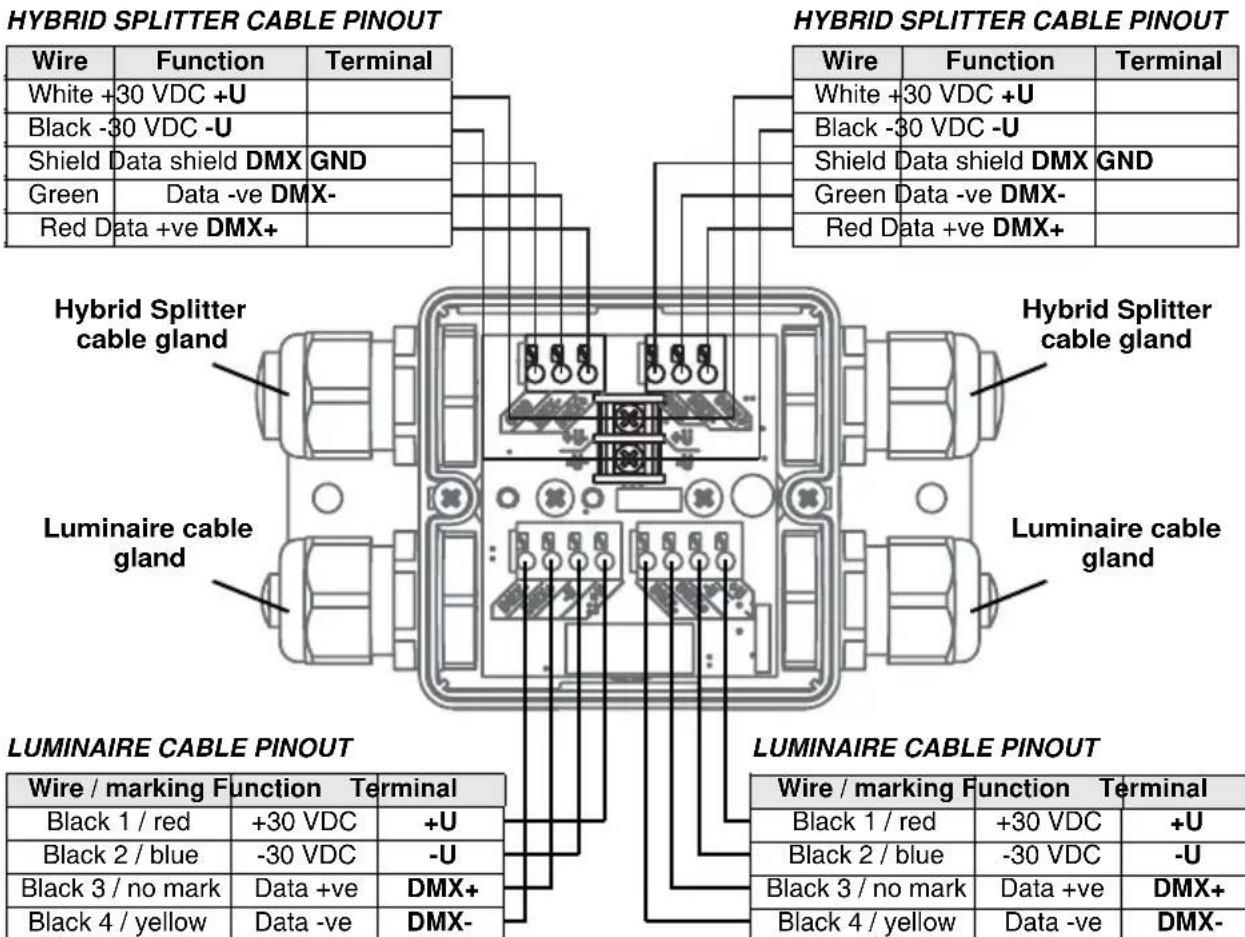
-
See Figure 22. Connect the wires from the hybrid Splitter cable to either of the hybrid cable terminals in the Splitter as follows:
-
Connect the braided copper and/or foil shield data ground/common conductor to the terminal marked GND.
- Connect the red data +ve (hot) wire to the terminal marked DMX+.
- Connect the green data -ve (cold) wire to the terminal marked DMX-
- Connect the white 30 V +ve (hot) wire to the terminal marked +U.
-
Connect the black 30 V -ve (cold) wire to the terminal marked -U.
-
Tighten the cable gland as described in "Installing a cable in a cable gland" on page 23.
text_image
HYBRID SPLITTER CABLE PINOUT HyBRID SPLITTER CABLE PINOUT Wire Function Terminal White +30 VDC +U Black -30 VDC -U Shield Data shield DMX GND Green Data -ve DMX- Red Data +ve DMX+ Hybrid Splitter cable gland Hybrid Splitter cable gland Luminaire cable gland Luminaire cable PINOUT LUMINAIRE CABLE PINOUT Wire / marking Function Terminal Black 1 / red +30 VDC +U Black 2 / blue -30 VDC -U Black 3 / no mark Data +ve DMX+ Black 4 / yellow Data -ve DMX- Hybrid Splitter cable gland Luminaire cable gland Luminaire Cable PINOUT Wire / marking Function Terminal Black 1 / red +30 VDC +U Black 2 / blue -30 VDC -U Black 3 / no mark Data +ve DMX+ Black 4 / yellow Data -ve DMX-Figure 22: Cable pinout in Splitter
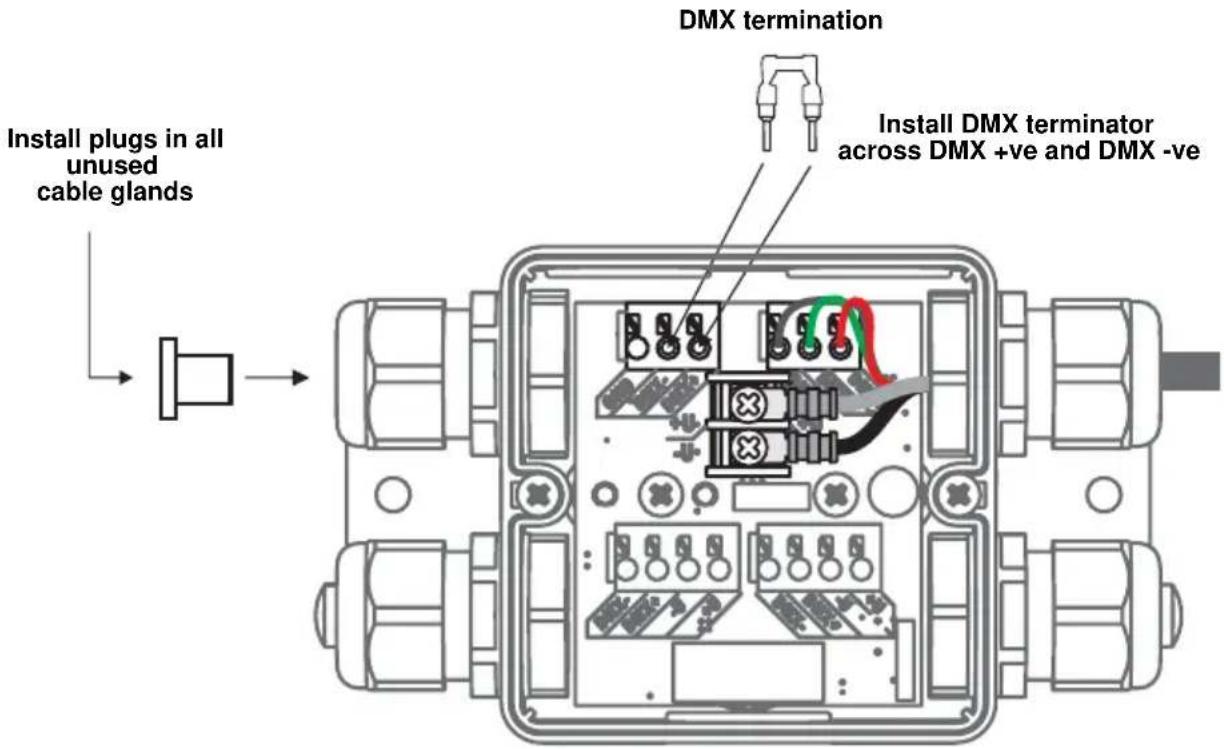
- If you are not going to extend the hybrid link from the Splitter to another Splitter, see Figure 23:
• Install the supplied DMX terminator in the unused DMX data terminals as shown in Figure 23 so that it bridges the DMX+ and DMX+ terminals.
- Install a blanking plug in the unused Splitter hybrid cable (larger cable diameter) gland (see "Installing a blanking plug in an unused cable gland" on page 24).
- If you are going to extend the hybrid link from the Splitter to another Splitter, follow the above instructions for the Splitter hybrid output
cable, connecting the wires to the unused hybrid cable in/out terminals and passing the cable through the unused Splitter hybrid cable gland.
text_image
DMX termination Install plugs in all unused cable glands Install DMX terminator across DMX +ve and DMX -veFigure 23: Terminating hybrid link in Splitter
- To connect Luminaires to a Splitter, see the next section of this guide.
Installing Luminaires
Using their supplied mounting brackets, Exterior 50 & 100 Luminaires can be fastened to a flat surface, mounted on standard 35 mm top-hat section DIN rail that is fastened to a flat surface, fastened to telescopic or fixed-length mounting posts that are fastened to a flat surface, or fastened to a ground stake that is embedded in the ground so that the stake will offer a stable support.
Supporting surfaces, fasteners and hardware must be capable of supporting ten times the load they will bear when devices are installed.
Physically installing Luminaires
Luminaires can be installed on a surface, on DIN rail or on a mounting post (including a ground stake that is pushed into the ground to anchor it securely)
Fastening to a surface
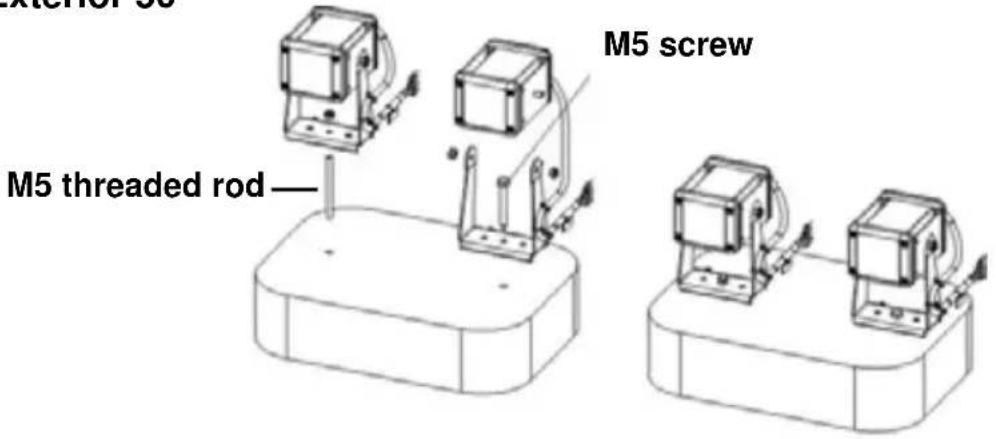
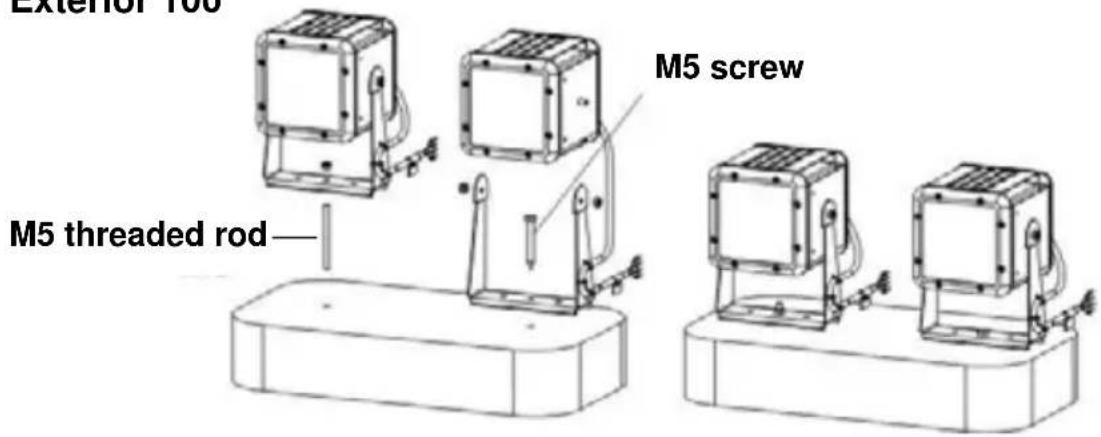
An Exterior 50 or 100 Luminaire can be mounted on a flat, stable surface in any orientation by fastening its mounting bracket to the surface. See Figure 24.
To fasten to a surface:
-
Check that the surface is flat and stable, and that the surface and all installation fasteners can support at least ten times the weight of all devices and hardware they will bear.
-
Pass a steel M6 fastener that is suitable for the environment, grade 8.8 minimum, through the centre hole in the Luminaire mounting bracket and tighten loosely at first.
-
Adjust the Luminaire for correct orientation and tighten the fastener.
-
Check that the Luminaire is held securely and cannot fall.
Exterior 50
text_image
M5 threaded rod M5 screwExterior 100
text_image
Exterior 100 M5 threaded rod M5 screwFigure 24: Fastening to a surface
Fastening to DIN rail
Using the attachment options on their mounting brackets and the two M3x10 Torx screws supplied with each Luminaire, Exterior 50 & 100 Luminaires can be mounted on standard 35 ~mm top-hat section DIN rail that is fastened to a flat surface. See Figure 25.
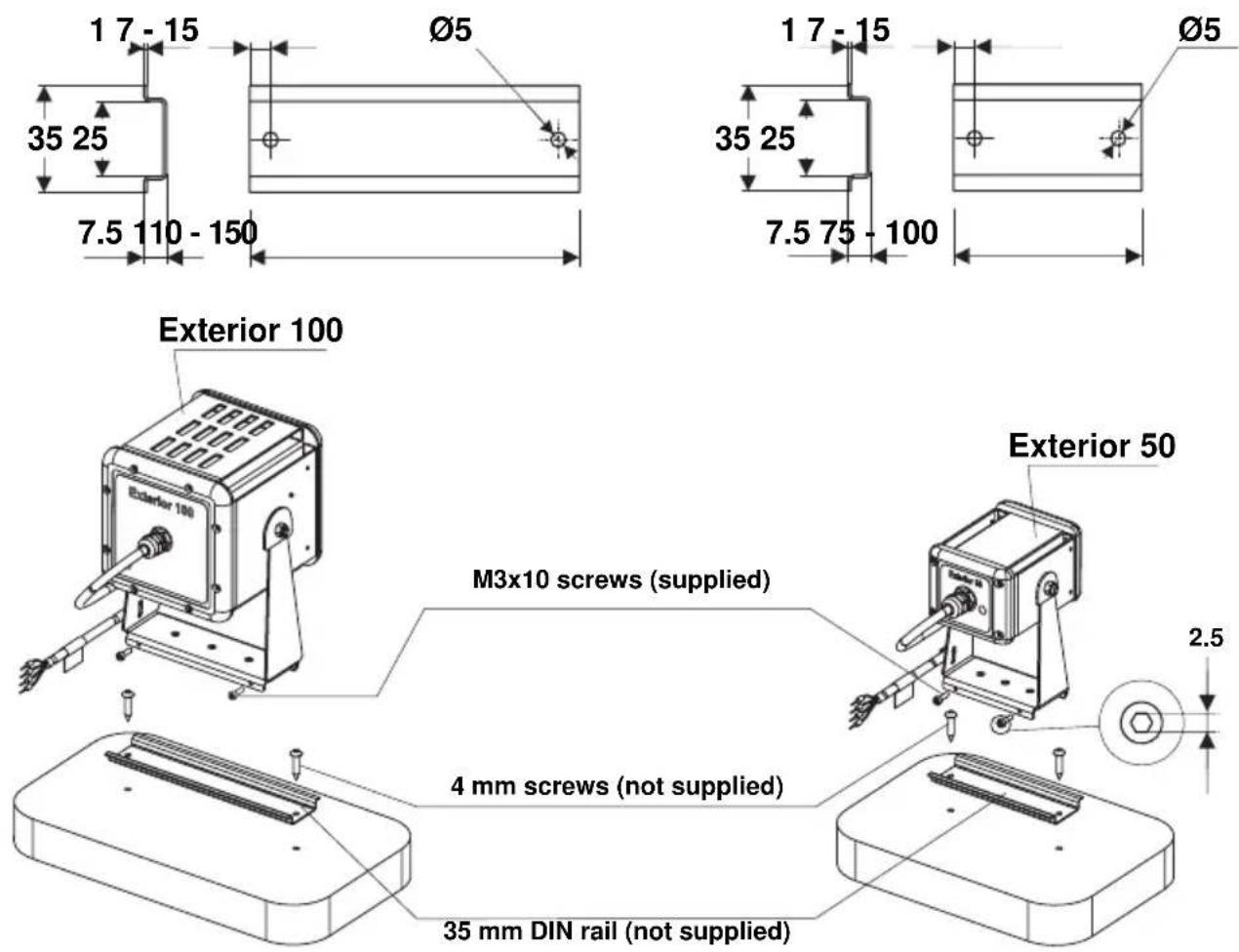
Figure 25: Fastening to DIN rail
To fasten an Exterior 50 or 100 mounting bracket to 35 mm DIN rail:
- Check that the DIN rail is securely mounted on a flat surface that can hold ten times the weight of all the hardware to be installed on it.
- Hook the upper edge of the profile in the Luminaire mounting bracket over the DIN rail and swing the mounting bracket down so that it hangs flat against the DIN rail (you may need to loosen the two screws in the mounting bracket base slightly for clearance).
- Adjust for position, then tighten both screws in the mounting bracket base securely behind the lower lip in the DIN rail.
- Check that the Luminaire is held securely and cannot fall.
Installing on a mounting post or ground stake
Using their mounting bracket, Exterior 50 & 100 Luminaires can be fastened onto the telescopic or standard (fixed-length) mounting posts or ground stakes that are available as accessories from Martin™.
Mounting posts must be securely fastened to a flat surface. Ground stakes must be securely embedded in the ground. All installation surfaces must provide a stable support. Luminaires are fastened to mounting posts and ground stakes using the same method.

text_image
Fixing points 50 x 40 Exterior 50/100 Telescopic mounting post 2.5 Adjustment screwsFigure 26: Fastening to a mounting post: Exterior 50
To fasten a Luminaire mounting bracket to a mounting post:
-
Check that the mounting surface is flat and stable, and that it can securely hold the weight of the Luminaire and cable.
-
See Figure 26. Fasten the mounting post securely to the mounting surface using suitable steel grade 8.8 minimum fasteners. The Luminaires will exert leverage on the end of mounting posts, so check
that fasteners and the anchoring method have sufficient strength to hold the Luminaire plus an adequate safety margin for the location.
-
Fasten the Luminaire mounting bracket to the end of the post, adjusting orientation before tightening the attachment nut.
-
Check that the Luminaire is held securely and cannot fall.
Connecting Luminaires
The conductors in the luminaire cable are identified in Figure 27 and cable entry and layout are shown in Figure 28.

text_image
Wire / marking Function Black 1 / red +30 VDC Black 2 / blue -30 VDC Black 3 / no mark Data +ve Black 4 / yellow Data -ve Red Blue No colored marking YellowFigure 27: Luminaire cable wire markings
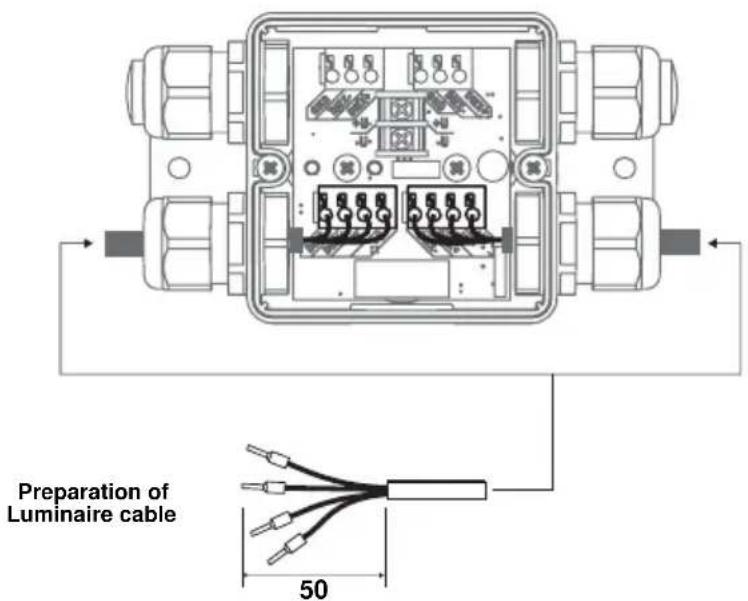
text_image
Preparation of Luminaire cable 50Figure 28: Luminaire cable connections in Splitter
To connect a luminaire cable to a Splitter:
- Check that the system is isolated from AC mains power and that power cannot be reapplied during work on the system.
- See "Installing a cable in a cable gland" on page 23. Pass the luminaire cable through either of the luminaire (smaller cable diameter) cable glands on the Splitter (see Figure 29).
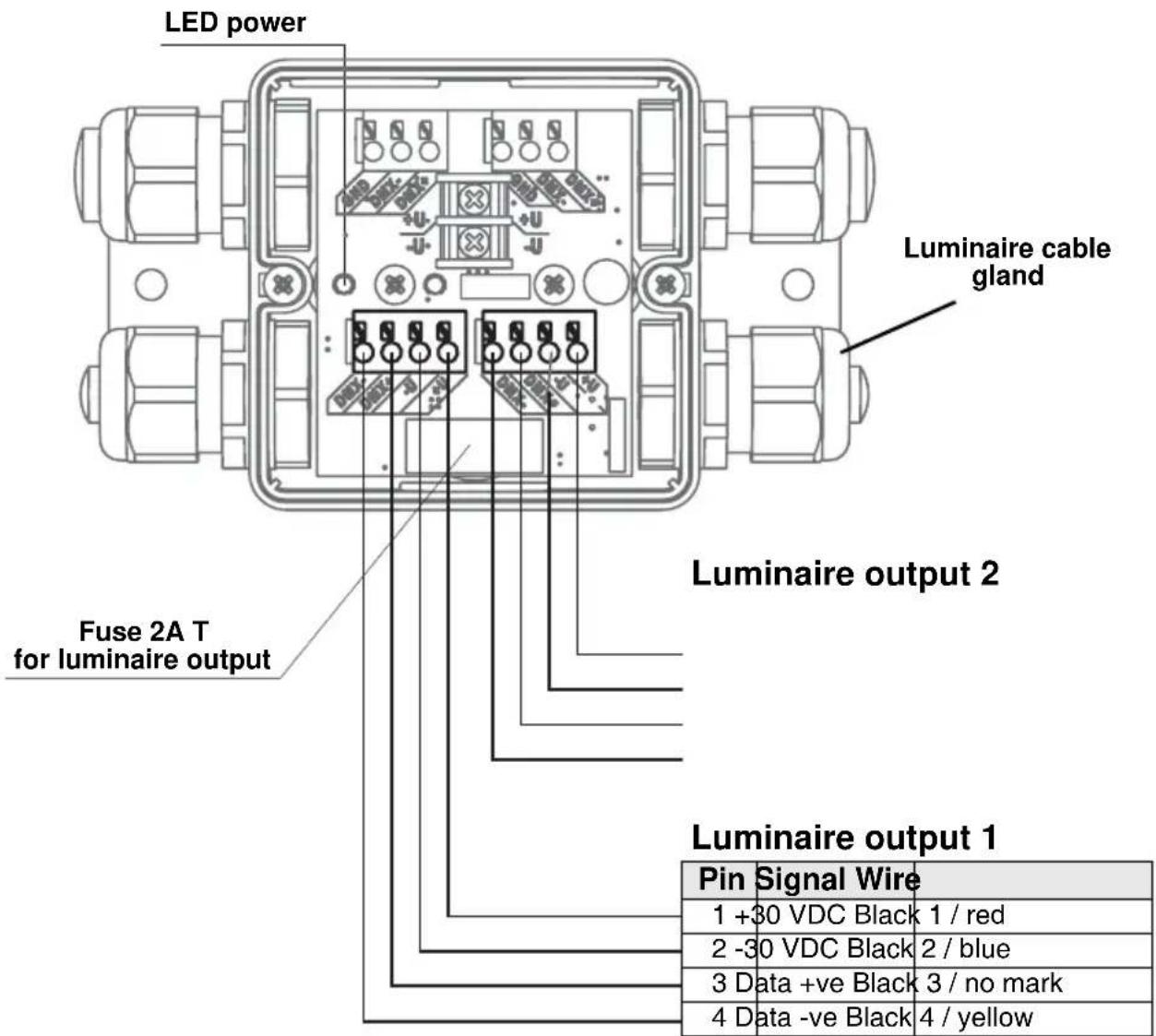
text_image
LED power Luminaire cable gland Fuse 2A T for luminaire output Luminaire output 2 Luminaire output 1 Pin Signal Wire 1 +30 VDC Black 1 / red 2 -30 VDC Black 2 / blue 3 Data +ve Black 3 / no mark 4 Data -ve Black 4 / yellowFigure 29: Luminaire cable pinout in Splitter
-
See Figure 29. Connect the wires from the luminaire cable to either of the luminaire cable terminals in the Splitter as follows:
-
Connect the 30 V +ve (hot) black wire marked 1 with the red ring to the terminal marked +U.
-
Connect the 30 V -ve (cold) black wire marked 2 with the blue ring to the terminal marked -U
-
Connect the data +ve (hot) black wire marked 3 with no colored ring to the terminal marked DMX+.
-
Connect the data -ve (cold) black wire marked 4 with the yellow ring to the terminal marked DMX-.
-
Tighten the cable gland as described in "Installing a cable in a cable gland" on page 23.
-
If you are going to connect another Luminaire to the Splitter, repeat the above instructions for connecting Luminaires, installing the unused luminaire (smaller diameter) cable gland on the luminaire cable and connecting the wires in the luminaire cable to the unused luminaire cable terminals.
If you have finished making connections to the Splitter, see Figure 30:
• Install the supplied DMX terminator in the unused DMX data terminals as shown in Figure 23 so that it bridges the DMX+ and DMX+ terminals.
- Install the correct-sized blanking plug in any unused cable gland (see "Installing a blanking plug in an unused cable gland" on page 24).
- If the Splitter needs to be fully waterproof, fill it with the sealing compound available from Martin™ (see "Filling a Splitter with IP68
"sealant" on page 57) and re-install the cover on the Splitter (see "Internal access to a Splitter" on page 44).

text_image
Install plugs in all unused cable glands Install DMX terminator across DMX +ve and DMX -ve DMX terminationFigure 30: DMX termination in unused luminaire cable output
Filling a Splitter with IP68 sealant
If a Splitter needs to be protected to IP68, a sealing compound gel available from Martin™ must be injected into the Splitter using a standard caulking gun after all connections have been made.
The sealant is self-healing. This means that you can push a screwdriver through it, for example, and it will reseal itself.
It is possible to remove the sealant after applying it if you need full access to terminals again. If you remove the sealant, inject new sealant afterwards to maintain IP68 protection.

Important! Avoid skin contact with the sealant. Use protective gloves when working with the sealant.
To apply sealant to a Splitter:
-
Check that all cables have been connected and connections tested.
-
See Figure 31. Place the Splitter either horizontal (with its cover C facing upwards) or vertical (with membrane B facing upwards).
-
Either remove the two screws A and lift the Splitter cover off or use membrane B for access, whichever will let you inject the sealant vertically downwards into the Splitter.
-
Install the supplied mixer nozzle on the sealant cartridge and place the cartridge in a standard caulking gun.
-
The sealant in the cartridge is a thick liquid. Fill the Splitter completely with sealant, allowing air to escape.
-
If you removed the Splitter cover, reinstall it, fastening both screws A.
-
Allow the sealant to cure for 24 hours before exposing the Splitter to heavy splashing with water or immersion.

text_image
A C A 32mm x 10mm BFigure 31: Access for sealant injection
Installing light shields
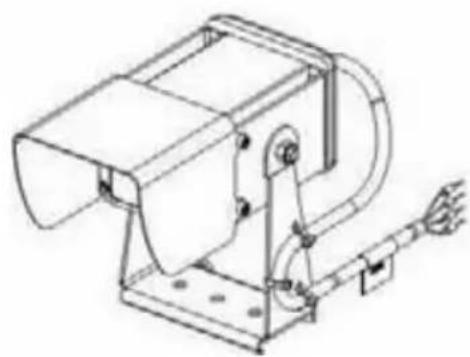
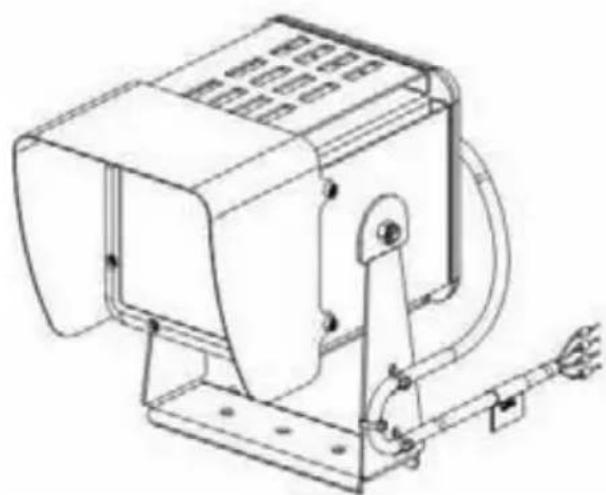
Light shields for Exterior 50 & 100 Luminaires are available as accessories from Martin™. The shields reduce unwanted glare and guide the light output at various beam angles. To install a shield on the front of a Luminaire, see Figure 32. Fasten the four Allen screws that are supplied with the shield through the shield and into the holes provided in the sides of the Luminaire housing. Check that the screws are secure.
Exterior 50
(Narrow Light Shield illustrated)
natural_image
Technical line drawing of a mechanical device with mounting base and wiring (no text or symbols)
text_image
66 53 2.5Exterior 100
(Narrow Light Shield illustrated)
natural_image
Technical line drawing of a mechanical device with mounting bracket and wiring (no text or symbols)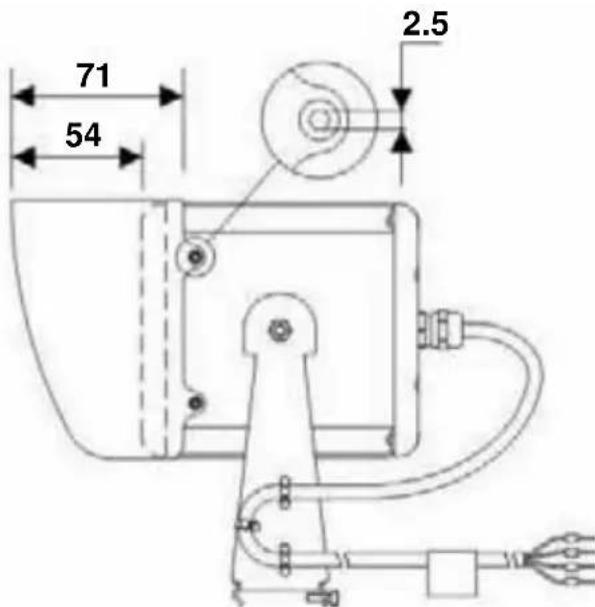
text_image
71 54 2.5Figure 32: Exterior 50 and 100 Light Shields
Checking and monitoring the installation
System status indicators in a PSU
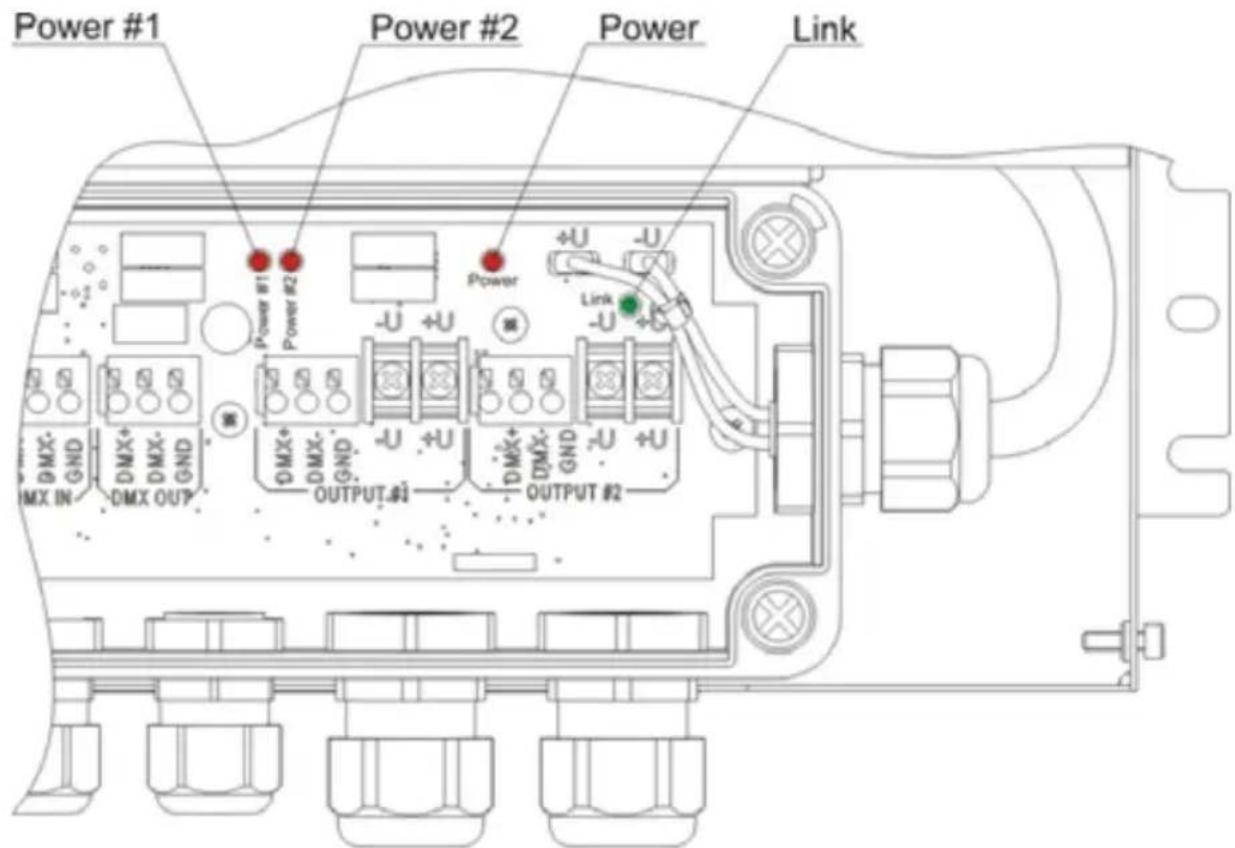
See Figure 33. Four indicator LEDs inside a PSU give information about system status:
• Power #1 lights red: indicates 30 V power transmission at output 1.
• Power #2 lights red: indicates 30 V power transmission at output 2.
• Power lights red: indicates that AC mains power is present at the input.
- Link flashes green: indicates data transmission at one or both of the DMX data outputs.
text_image
Power #1 Power #2 Power Link Power #1 Power #2 Power Link DMX- GND DMX+ DMX- GND DMX+ DMX- GND Output#1 Output#2 DMX+ DMX- GND DMX+ Output#1 Output#2Figure 33: Status indicator LEDs in PSU
For access to the indicator LEDs, follow the instructions in "Internal access to a PSU" on page 29 and "Closing a CPU after internal access" on page 41.
System status indicators in a Splitter
See Figure 34. Two indicator LEDs inside a Splitter give information about system status:
- Link flashes green: indicates data transmission at one or both of the DMX data outputs.
- Voltage lights constant yellow: indicates that the DC power received is outside the 20-40 V acceptable range.
• Voltage flashes yellow: identifies the DC power voltage received.
- Long flashes indicate multiples of 10
- Short flashes indicate single digit
Example: Voltage LED gives two long flashes and nine short flashes – DC voltage is 29 V.

text_image
Voltage Yellow LED indicator Link Green LED indicator Voltage LinkFigure 34: Status indicator LEDs in Splitter
For access to the indicator LEDs, follow the instructions in "Internal access to a Splitter" on page 44. If IP68 sealing compound has been injected, the LEDs should still be visible through the gel sealant.
Setup
You can set Exterior 50 & 100 Luminaires to display a programmable default scene and/or set them up for DMX control using the infrared remote control unit available as an accessory from Martin™. The remote control unit lets you communicate with one Luminaire at a time.
You can also set up Luminaires for DMX control and switch them between calibrated and raw modes using an RDM (Remote Device Management) compliant DMX controller such as the Martin M1 ^™ console or the Martin M-PC ^™ Windows application. An RDM-compliant controller connected to the data link lets you set up all the Luminaires on the link.
Setting up for DMX control
DMX Addressing
If DMX control of Exterior 50 & 100 Luminaires is required, they must be set up to receive instructions from the DMX controller on a DMX channel or group of DMX channels in the 512 channels available in their DMX universe.
The DMX address, also known as the control address or start channel, is the first of these channels. Each fixture uses this channel and the channels immediately above it to receive instructions.
Exterior 50 & 100 Luminaires use 1, 3, or 4 DMX channels, depending on model and raw/calibrated control mode. For example, if an RGBW Luminaire's DMX address is set to 1 and the Luminaire is in calibrated (RGB) mode, it will use channels 1 - 3. Channel 4 will be available as the DMX address for the next Luminaire.
If two or more identical Luminaires are set up with the same DMX address (RGBW Luminaires must also be in the same control mode, either raw RGBW or calibrated RGB), they will receive the same instructions and behave identically. Setting up identical Luminaires with the same address is an easy way to achieve synchronized action and can also be used as a troubleshooting tool.
Calibrated and Raw modes
Luminaires can be operated in either Calibrated or Raw control mode. Luminaires are supplied in Calibrated control mode, but they can be set to Calibrated or Raw mode via RDM using an RDM-compliant controller such as the Martin M-PC™ Windows application.
RGBW Luminaires
In RGBW Luminaires:
- Calibrated mode gives slightly reduced LED power but, LEDs follow factory-calibrated settings to give the best-matched color and white output across multiple Luminaires.
In Calibrated mode, color output is controlled using three RGB DMX channels. There is no DMX channel for white LED control. White output is added to the calibrated RGB output automatically as required to increase intensity and reduce color saturation.
- Raw mode allows all LEDs to be operated to their absolute maximum output regardless of color calibration issues. This means that hue, saturation, intensity and white color temperature can vary slightly between Luminaires.
In Raw mode, color output is controlled using four RGBW DMX channels. The white LED control channel must be manually adjusted to control intensity and color saturation in RGBW color mixing. Setting all four channels to 100% gives maximum intensity white.
White Luminaires
In Cool White, Neutral White and Warm White Luminaires:
- Calibrated mode gives slightly reduced LED power but sets LEDs to their factory-calibrated output power to give the best-matched white intensity across multiple Luminaires.
- Raw mode allows all LEDs to be operated to their absolute maximum output regardless of intensity issues. This means that white intensity can vary slightly between Luminaires.
Setting up using the remote control
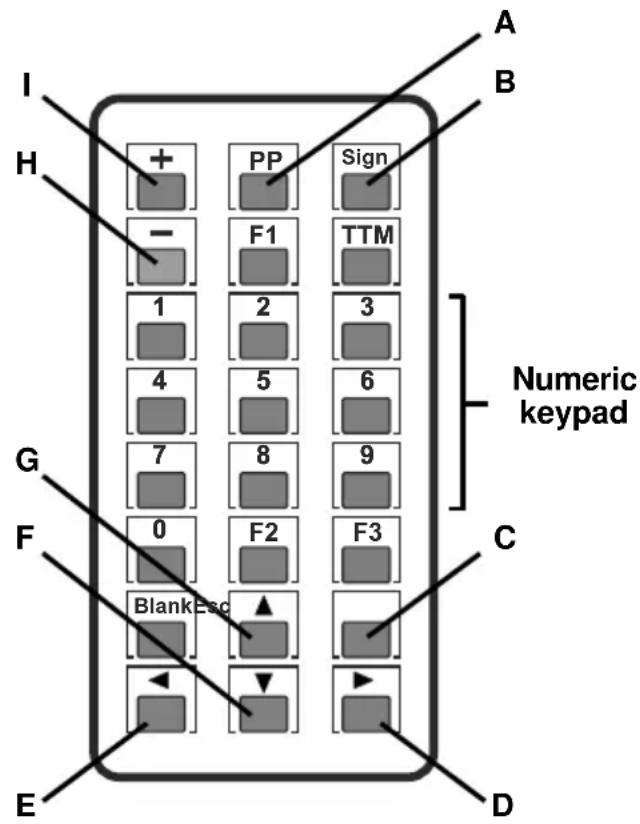
An IR (infrared) remote control unit for the Exterior 50 & 100 system is available as an accessory from Martin™ (P/N 90510210).
text_image
I H + PP Sign - F1 TTM 1 2 3 4 5 6 7 8 9 G F 0 F2 F3 BlankEsc E A B Numeric keypad C D| A | PP | Activates Remote Control mode in Luminaire |
| B | Sign | Stores configuration and exits Remote Control mode in Luminaire |
| C | Esc | Exits Remote Control mode in Luminaire without storing configuration |
| Numeric keypad | 1 - 0 | Enters parameter values |
| D | ▶ | Increase intensity of selected channel (in Scene Setting mode) |
| E | ◀ | Reduce intensity of selected channel (in Scene Setting mode) |
| F | ▼ | Sets all LEDs in Luminaire to zero intensity (in Scene Setting mode) |
| G | ▲ | Sets all LEDS in Luminaire to full intensity (in Scene Setting mode) |
| H | - | Starts Scene Setting mode |
| I | + | Starts DMX Address Setting mode |
Figure 35: Remote control keypad
Setting a Luminaire to Remote Control mode
Before you can set up or program a Luminaire with the remote control, you must set the Luminaire to Remote Control mode to allow communication between the two devices:
-
See Figure 36. Point the remote control at the IR sensor on the back of the Luminaire.
-
See Figure 35. Hold the PP key pressed in for five seconds. When communication is established, the status indicator LED incorporated in the sensor begins to flash green and the Luminaire gives three slow flashes (yellow in RGBW Luminaires).
-
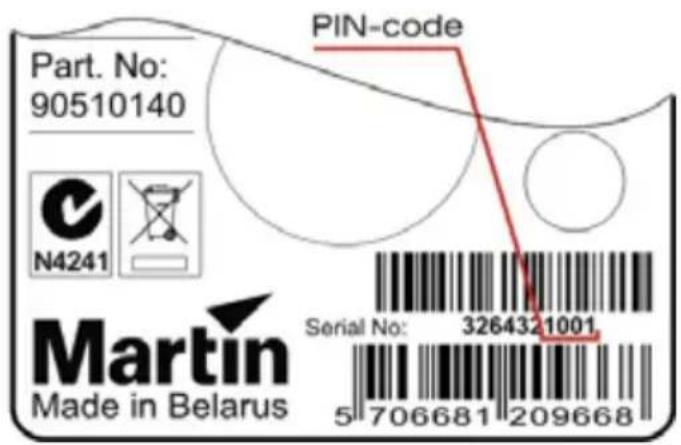
See Figure 37. Note the last four digits of the Luminaire's serial number labeled on the fixture and enter them using the numeric keypad on the remote control. The Luminaire should flash each time you press a button.
-
Press the Sign key.
- If the four digits have been entered correctly, the Luminaire flashes (green in RGBW Luminaires) three times slowly to show that it has entered Remote

text_image
IR-sensor LED indicatorFigure 36: IR sensor and status indicator LED
text_image
Part. No: 90510140 PIN-code N4241 Martin Made in Belarus Serial No: 3264321001 5 706681 209668Figure 37: Luminaire serial number
Control mode. The Luminaire automatically switches to DMX Address Setting mode.
- If the four digits have not been entered correctly, the Luminaire flashes (red in RGBW Luminaires) quickly and switches out of Remote Control mode. Repeat the above procedure from Step 1.
Note that:
- The IR sensor status indicator LED flashes each time a button on the remote control is pressed and the Luminaire accepts that entry.
- Only one parameter can be edited in one session of Remote Control mode. To edit the next parameter, you must re-enter Remote Control mode.
- If a Luminaire does not receive a remote control command for more than 20 seconds, it exits Remote Control mode without saving the configuration parameters.
- Any entered parameters are lost if you switch modes without storing those parameters.
Setting a Luminaire's DMX address
To set a Luminaire's DMX address with the remote control unit:
- Set the Luminaire to Remote Control mode (see previous section).
- Press + to enter DMX Address Setting mode.
- Enter the desired DMX address using the numeric keypad following these principles:
• Each time you enter digits, the Luminaire responds with short LED flashes.
- Enter the number in normal left-to-right order (first key pressed enters first digit on left of address).
- Any digits on the left that are not entered are interpreted as zero (if you only enter 5 or enter 05, your entry is interpreted as 005)
- Only the last three digits are accepted (if you enter 1234005, your entry is interpreted as 005).
- When you have entered the DMX address, press Sign to store the address in the Luminaire and exit DMX Address Setting Mode.
Programming a scene in a Luminaire
A ‘scene’ is a lighting effect or appearance (i.e. intensity, and in RGBW Luminaires color).
Note that:
- Sixteen intensity levels are available in programmed scenes.
- If a DMX signal is present, it overrides the programmed scene.
- The factory default values are zero for all Luminaires.
To program a Luminaire's default scene with the remote control unit:
-
Set the Luminaire to Remote Control mode (see previous section).
-
Press the — key to enter Scene Setting mode. The Luminaire responds with one short flash (blue in RGBW Luminaires) and the LEDs switch to the last stored scene. LEDs flash each time the Luminaire accepts an entry for the rest of this procedure.
-
In RGBW Luminaires, use digits 1 - 4 on the numeric keypad to select the individual LEDs:
-
1 selects Red
- 2 selects Green
- 3 selects Blue
-
4 selects White
-
Set LED intensity as follows:
-
Increases the intensity of the selected LEDs (in RGBW Luminaires) or all LEDs
- Decreases the intensity of the selected LEDs (in RGBW Luminaires) or all LEDs
- Sets all luminaires to zero intensity
-
Sats all luminaires to full intensity
-
When you have programmed the scene, press Sign to store the scene in the Luminaire and exit Scene Setting Mode.
An Exterior 50 & 100 Luminaire will display its default scene each time it is powered on, unless it receives a DMX signal.
Setting up via RDM using Martin M-PC™
The Exterior 50 & 100 system is compatible with RDM (Remote Device Management). Using an RDM-compliant DMX controller such as the Martin M-PC™ Windows application, you can communicate with the Luminaires on the data link via RDM. You can retrieve Luminaire data, and you can also:
- Set the DMX addresses of all the Luminaires on the link
- Set Luminaires to raw or calibrated modes.
To use Martin M-PC, connect a PC running this application to the data link using the Martin USB Duo™ USB/DMX interface box.
Luminaire information and DMX address setting
See Figure 38. Opening the RDM View window in M-PC and clicking on the Scan button (arrowed bottom left) gives a list of the RDM-compliant devices on the data link (in this example, one Exterior 100 and one Exterior 50 are present on the link, and both are set to DMX address 1).

text_image
M-PC Combo view List view Universe view Cloning view RDM view Manufacturer Type Label Universe Address Invert Lamp Status Errors Martin Professional AI Exterior 100 IP68 1 1 Martin Professional AI Exterior 50 IP68 1 Scan Remove all fixtures Identity on Reset Properties Summary Report... Tasks Choose type Expand all Collapse all Universe 1 (258 free) MATCH CPU RAM Help Close PatchFigure 38: M-PC RDM View
To set Luminaires' DMX addresses using M-PC, click in the Address box for each Luminaire, enter the desired DMX address, then press the Enter key on your PC keyboard to store the DMX address for that Luminaire.
Configuring Luminaire settings
See Figure 39. Opening the Device Info window for a Luminaire on the link calls up data for that Luminaire:
- Clicking on the Change personality... button (arrowed on right) in this window lets you select Mode 1 (Calibrated RGB) or Mode 2 (Raw RGBW) for the Luminaire.
- DMX footprint is updated with the number of DMX channels the Luminaire uses in the mode you select.

text_image
RDM Device Properties Martin Professional A/S - Exterior 100 IP68 Device Info Lamp/Power Info Sensor Info Messages Advanced RDM protocol version 1.0 UID: 4D50-0107E0BE Manufacturer label Martin Professional A/S Device label: Device model Exterior 100 IP68 (0x5) Product category Fixture - Fixed Software version 1.2.0 DMX footprint 3 Current personality Mode 1 of 2 Change personality... Start Address 1 Sub-device count 0 Sensor count 0 Refresh CloseFigure 39: M-PC Device Info view
Operation
Exterior 50 & 100 Luminaires can be operated using a DMX controller or set up to display a default scene that does not require DMX control.
If a Luminaire has been set up to display a default scene, it will display it as soon as power is applied, but if DMX commands are sent to a Luminaire, they override its default scene display.
Ambient temperatures
The Exterior 50 & 100 system – apart from the US model PSU for use in North America – can be operated at ambient temperatures from -40^ C ( -40^ F) to 45^ C ( 113^ F). The US model PSU for use in North America can be operated at ambient temperatures from -40^ C ( -40^ F) to 40^ C ( 104^ F). Do not operate devices outside their permitted temperature range.
DMX control
The industry-standard DMX system allows remote control of an Exterior 50 & 100 installation over the DMX data link using a DMX controller or a PC running DMX controller software such as the Martin M-PC ^™ application. If Luminaires have been set up with individual DMX addresses, they can be controlled individually.
The section “DMX protocols” on page 73 gives details of the control options available using DMX.
DMX channels in Raw and Calibrated modes
In RGBW Luminaires:
- RGBW control is available on four DMX channels when the Luminaire is set to Raw mode.
- RGB control is available on three DMX channels when the Luminaire is set to Calibrated mode.
When an RGBW Luminaire is set to Calibrated mode, white LED intensity is added automatically to match the color saturation and intensity levels set on the three RGB channels. Setting all three channels to 100% gives maximum intensity white, with all LEDs – including white – at their calibrated maximum.
In CW, NW and WW Luminaires, white LED intensity control is available on one DMX channel in both Raw and Calibrated modes.
See also "Calibrated and Raw modes" on page 62.
Using Martin M-PC™ for DMX control
See Figure 40. If you do not already have M-PC™ profiles for the models in the Exterior 50 & 100 series, you can create them in a few seconds.
Once you have profiles in the M-PC fixture library, you can control Exterior 50 & 100 Luminaires via DMX using a Windows PC running M-PC™ and connected to the data link via a Martin USB Duo™ USB/DMX interface box
See the Martin M-PC ^™ user documentation for full details of using the M-PC application.

text_image
New Features Features/Inventory - Step 1 of 2 Selected Maintenance Library Selected Features Enclose: 06-07-08 Features Settings COM Prohibits Route: 50.000m Library PCB Route: Cable Cable Cable Route: Cable Route: Cable Route: Cable Route: Cable Route: Cable Route: Cable Route: Cable Route: Cable Route: Cable Route: Cable Route: Cable Route: Cable Route: Cable Route: Cable Route: Cable Route: Cable Route: Cable Route: Cable Route: Cable Route: Cable Route:Figure 40: M-PC Fixture Library and Fixture Settings
Figure 41 shows the M-PC™ DMX control interface for an Exterior 100. In this example, the Luminaire is in Raw (uncalibrated RGBW) mode. Red output is set to 5% , Green is set to 10% , Blue is set to 30% and White is set to 40% .

text_image
MPC Create Player Put some Player Put again Permitted Progiver Control - Car Window Input Matched Buttons - Marks Carbox Dimensions Save 10 PSX Color: 5% Color: 10% Color: 30% Color: 40% Load: 15% Growth: 28% Blue: 1.96% Wide: 2.49% Save 10 PSX (Share PDS) (1) Color 7 Down: 1.0% Up: 2.42 Down: 2.42 Saving effects on Web Down: 0 Save 10 PSX (Share PDS) (1)Figure 41: M-PC DMX control interface
DMX protocols
RGBW Luminaires
Calibrated mode (calibrated RGB control)
Start code = 0
| Channel Value | Percent Function | |
| 1 | 0 - 255 0 - 100 | RedIntensity 0 →100% |
| 2 | 0 - 255 0 - 100 | GreenIntensity 0 →100% |
| 3 | 0 - 255 0 - 100 | BlueIntensity 0 →100% |
Raw mode (uncalibrated RGBW control)
Start code = 0
| Channel Value | Percent Function | |
| 1 | 0 - 255 0 - 100 | RedIntensity 0 →100% |
| 2 | 0 - 255 0 - 100 | GreenIntensity 0 →100% |
| 3 | 0 - 255 0 - 100 | BlueIntensity 0 →100% |
| 4 | 0 - 255 0 - 100 | WhiteIntensity 0 →100% |
White (CW, NW and WW) Luminaires
Intensity control (Raw and Calibrated modes)
Start code = 0
| Channel Value | Percent Function | |
| 1 | 0 - 255 0 - 100% | Single colorIntensity 0 →100% |
Service

Warning! There are no user-serviceable parts inside Luminaires. Refer any service operation not described in this guide to Martin Professional or its authorized service agents.
Installation, on-site service and maintenance can be provided worldwide by the Martin Professional Global Service organization and its approved agents, giving owners access to Martin's expertise and product knowledge in a partnership that will ensure the highest level of performance throughout the product's lifetime. Please contact your Martin supplier for details.
The only service operation the user can carry out on the Exterior 50 & 100 system is occasional cleaning.
Cleaning
Do not use abrasive, caustic or solvent-based products for cleaning, as they can encourage corrosion and cause surface damage.
To clean a device in the Exterior 50 & 100 system:
- Disconnect the system from power and allow it to cool for at least 5 minutes.
- Clean the outside of the device with a soft cloth slightly dampened in a warm water/detergent solution.
Software installation
It may be necessary to upload new software (i.e. firmware) to an Exterior 50 & 100 Luminaire if you believe that the product has a software-related fault or if you want to update to a newer version. Software updates are available from the Martin website (http://www.martin.com) and can be installed via the DMX data link with the following items:
- The Martin Software Uploader application, version 5.11 or later, downloadable free of charge in the ‘DMX Tools’ package from the Support area of the Martin website.
- The Luminaire's main CPU software update file, downloadable free of charge from the Support area of the Martin website (this file can be downloaded automatically from within the Uploader application)
- A Martin DABS 1 ^TM USB/DMX interface box and a Windows PC.
Installing software
- Connect a PC running the Martin Software Uploader application to a Martin DABS 1™ interface box (included in P/N 90758090) and from there to the Luminaire's DMX data input or to a suitable point on the DMX link. Software will be uploaded to that Luminaire and all Luminaires of the same type that are powered on and connected via the DMX link.
- Upload the Luminaire software as described in the Uploader application's help file or user documentation.
- Disconnect the uploader hardware and reconnect the Luminaire to the DMX link.
- Cycle power off and on. Check that the Luminaire resets correctly and behaves normally. If it does not, cycle power off and on again and check that the Luminaire now resets correctly and behaves normally. If the problem persists, contact Martin™ for assistance.
Troubleshooting
Problem Probable cause(s) Remedy
| Luminaire is completely dead. | No power to fixture. Check power and connections. | |
| Fuse in Splitter blown. | Isolate system from power. Check fuse and replace. | |
| Fuse in PSU blown. | ||
| One or more Luminaires responds incorrectly to control or does not respond at all. | Fault on DMX link. | Inspect connections and cables. Correct wrong or poor connections. Repair or replace damaged cables. |
| Incorrect Luminaire addressing. | Check that Luminaire is set to correct DMX mode.Check number of channels required by Luminaire's DMX mode and check Luminaire addresses. | |
| Luminaire defective. | Have faulty Luminaire serviced by Martin service technician. | |
| Other device on DMX link defective. | Bypass devices on DMX link until faulty device has been identified.Have faulty device tested and serviced by Martin service technician or device supplier. | |
| Luminaires cut out intermittently. | PSU is too hot. | Ensure free airflow around PSU.Clean PSU.Check that ambient temperature does not exceed maximum permitted level.Contact Martin for service. |
Table 3: Troubleshooting
Specifications
Physical
Exterior 50 Luminaire
Length 130 mm (5.1 in.) including clearance for cable
Width 87 mm (3.4 in.) including mounting/tilt adjustment fasteners
Height 117 mm (4.6 in.) including mounting bracket
Weight 660 g (23.3 oz.) including mounting bracket
Exterior 100 Luminaire
Length 165 mm (6.5 in.) including clearance for cable
Width ..... 127 mm (5.0 in.) including mounting/tilt adjustment fasteners
Height 166 mm (6.5 in.) including mounting bracket
Weight 1.4 kg (3.1 lbs.) including mounting bracket
Exterior 50/100 Splitter
Length 133 mm (5.2 in.) including cable glands
Width 80 mm (3.1 in.)
Height 59 mm (2.3 in.)
Weight 230 g (8.1 oz.)
Exterior 50/100 Power Supply Unit, EU model
Length 355 mm (14.0 in.)
Width 146 mm (5.7 in.) including cable glands
Height 83 mm (3.3 in.)
Weight 2.8 kg (6.2 lbs.)
Exterior 50/100 Power Supply Unit, US model
Length 355 mm (14.0 in.)
Width 186 mm (7.4 in.) including cable glands
Height 90 mm (3.6 in.)
Weight 3.4 kg (7.5 lbs.)
Exterior 50/100 Infrared Remote Control Unit
Length 145 mm (5.7 in.)
Width 50 mm (2 in.)
Height 23 mm (1 in.)
Weight 100 g (3.5 oz.)
Dynamic Effects
Color mixing RGBW (RGBW models)
Intensity 0 - 100% (all models)
Optics
Light source ....Cree MC-E high-power emitters
Color temperature (CW model) 6500 K
Color temperature (NW model) 4000 K
Color temperature (WW model) 2700 K
Minimum LED lifetime .....50 000 hours (to >70% luminous output)*
*Manufacturer's figure obtained under manufacturer's test conditions
Control and Programming
Control options ...... DMX, programmable default scene
Color control modes ..... Calibrated RGB, Raw RGBW (RGBW models)
Control modes ....Calibrated and Raw (all models)
DMX channels .....1 (CW, NW and WW models), 3/4 (RGBW models)
Setting and addressing ..... IR remote control unit, RDM-compliant controller
Dimming resolution.... 14-bit (internal)
DMX compliance. USITT DMX512-A
RDM compliance . . . . . . . . . . . . . . . . . . . . . . . . . . . . . . . . . . . . . . . . . . . . . . . . . . . . . . . . . . . . . . . . . . . . . . . . . . . . . . . . . . . . ANSI/ESTA E1.20
Receiver....RS-485
Firmware update.... Serial upload via DMX link
Construction
Color....Steel grey (custom colors available upon request)
Housing .... Aluminum with micro-arc oxidation coating, stainless steel protection frame
Mounting bracket 1.5 mm (0.1 in.) stainless steel
Front glass ..... Polycarbonate with UV and mechanical protection coating
Protection rating ..... Luminaires IP68, Splitter IP65 (IP68 with .. sealing compound), PSU IPX7
Installation
Orientation Any
Mounting. . . . . . Surface mount, 35 mm DIN rail, mounting post, ground stake
Minimum distance from Luminaire
to combustible surfaces illuminated .... 10 cm (4 in.)
Maximum Splitter hybrid cable length from PSU to last Splitter on chain 50 m (164 ft.)
Maximum Luminaire hybrid cable length 13 m (42.6 ft.)
Hybrid cables carry both power and data over multiple conductors
Connections
All cable entries IP68 cable gland
Internal connections in Splitter and PSU .... Quick-lock terminals
Electrical
AC power (input to EU model PSU) ..... 100-240 V nominal, 50/60 Hz
AC power (input to US model PSU) 100-240 V nominal, 60 Hz
System power (output from PSU) 30 VDC nominal
Power consumption, zero light output. 0.42 W per Luminaire
Power supply unit .... External PSU in IPX7-rated housing
Typical Power and Current
Exterior 50 Luminaire
Calibrated RGB mode, RGBW Luminaire. 4 W, 0.15 A at 30 VDC
Uncalibrated RGBW mode, RGBW Luminaire ..... 6 W, 0.2 A at 30 VDC
Calibrated mode, white (CW, NW or WW) Luminaire. . . 5.5 W, 0.2 A at 30 VDC
Uncalibrated mode, white (CW, NW or WW) Luminaire . . . 6 W, 0.2 A at 30 VDC
Exterior 100 Luminaire
Calibrated RGB mode, RGBW Luminaire . . . . . . . . . . 12 W, 0.4 A at 30 VDC Uncalibrated RGBW mode, RGBW Luminaire . . . . . . . . . 18 W, 0.6 A at 30 VDC Calibrated mode, white (CW, NW or WW) Luminaire . . . 17 W, 0.6 A at 30 VDC Uncalibrated mode, white (CW, NW or WW) Luminaire. . 18 W, 0.6 A at 30 VDC Measurements made at nominal voltage with all LEDs at full intensity. Allow for a deviation of +/- 10%.
Thermal
Cooling .... Convection Maximum ambient temperature (Ta max.), except US model PSU for use in North America.... 45° C (113° F) Maximum ambient temperature (Ta max.), US model PSU for use in North America.... 40° C (104° F) Minimum ambient temperature (Ta min.).... -40° C (-40° F)
Approvals

text_image
CE C INTERNETR LISTED USEU safety .....EN 60598-1, EN 60598-2-1 EU EMC .....EN 55103-1, EN 55103-2, .....EN 61000-3-2, EN 61000-3-3 US safety (applies to system with US model PSU).....UL 1310, 1598, UL 8750
Included Items
Included with Luminaire
3 m (9.8 ft.) luminaire hybrid cable (pre-installed) Adjustable mounting bracket
Included with Splitter
Blanking plug for sealing unused luminaire cable gland Blanking plug for sealing unused hybrid cable gland DMX line terminators
Included with PSU
Blanking plug for sealing unused data cable gland Two blanking plugs for sealing unused mains power or hybrid cable glands DMX line terminators User manual
Accessories
Exterior 50 & 100 Infrared Remote Control Unit. P/N 90510210 Exterior 50 light shield, narrow. P/N 90510270 Exterior 50 light shield, medium. P/N 90510280 Exterior 50 light shield, wide. P/N 90510290 Exterior 100 light shield, narrow. P/N 90510240 Exterior 100 light shield, medium. P/N 90510250 Exterior 100 light shield, wide. P/N 90510260 Exterior 50 & 100 standard mounting post. P/N 90510310 Exterior 50 & 100 telescopic mounting post. P/N 90510300
Exterior 50 & 100 ground stake . . . . . . . . . . . . . . . . . . . . . . . . . . . . . . . . . . . . . . . . . . . . . . . . P/N 90510320
IP68 Sealing compound set (for use with Splitters) .....P/N 90510220
Gel-sealed cable connection box kit incl. cable glands and 4-way terminal block . . . . . . . . . . . . . . . . . . . . . . . . . . . . . . . . . . . . . . . . . . . . . . . P/N 90510230
Exterior 50 & 100 Luminaire hybrid cable extension,
10 m (32 ft.), incl. Gel-sealed cable connection box kit . . . .P/N 90510200
Exterior 50 & 100 Splitter link hybrid cable, 25 m (82 ft.) .....P/N 90510170
Exterior 50 & 100 Splitter link hybrid cable, 50 m (164 ft.) .....P/N 90510180
Exterior 50 & 100 Splitter link hybrid cable, 100 m (328 ft.) .....P/N 90510190
Hybrid cables carry both power and data
Related Items
Martin M-PC™ Pro (up to 64 DMX universes) incl. USB Duo™. . .P/N 90732010
Martin M-PC™ Basic (up to 8 DMX universes) incl. USB Duo™ . .P/N 90732070
Martin USB Duo™ USB/DMX interface box .....P/N 90703010
Martin DABS 1 ^TM USB/DMX interface box including Martin MUM ^TM Windows application .....P/N 90758090
Spare Parts
3.15 AT (slow-blow) primary fuse
for Exterior 50 & 100 PSU, EU model .....P/N 05020013
2.5 AT (slow-blow) primary fuse for Exterior 50 & 100 Splitter . . . .P/N 05020010
Ordering Information
Exterior 50 & 100™ PSU (Power Supply Unit), EU model .....P/N 90510150
Exterior 50 & 100™ PSU (Power Supply Unit), US model .....P/N 90510155
Exterior 50 & 100™ Splitter . . . . . . . . . . . . . . . . . . . . . . . . . . . . . . . . . . . . . . . . . . . . . . . . P/N 90510160
Exterior 50™ IP68 RGBW, Medium .....P/N 90510080
Exterior 50™ IP68 CW, Narrow .....P/N 90510090
Exterior 50™ IP68 CW, Medium.....P/N 90510100
Exterior 50 ^TM IP68 NW, Narrow .....P/N 90510110
Exterior 50™ IP68 NW, Medium.....P/N 90510120
Exterior 50™ IP68 WW, Narrow .....P/N 90510130
Exterior 50™ IP68 WW, Medium .....P/N 90510140
Exterior 100™ IP68 RGBW, Narrow.....P/N 90510000
Exterior 100™ IP68 RGBW, Medium .....P/N 90510010
Exterior 100™ IP68 CW, Narrow .....P/N 90510020
Exterior 100™ IP68 CW, Medium.....P/N 90510030
Exterior 100™ IP68 NW, Narrow .....P/N 90510040
Exterior 100™ IP68 NW, Medium.....P/N 90510050
Exterior 100™ IP68 WW, Narrow .....P/N 90510060
Exterior 100™ IP68 WW, Medium . . . . . . . . . . . . . . . . . . . . . . . . . . . . . . . . . . . . . . . . . . . . . . . . . P/N 90510070
CW = Cool White, NW = Neutral White, WW = Warm White


Disposing of this product
Martin Professional products are supplied in compliance with Directive 2002/96/EC of the European Parliament and of the Council of the European Union on WEEE (Waste Electrical and Electronic Equipment), as amended by Directive 2003/108/EC, where applicable.
Help preserve the environment! Ensure that this product is recycled at the end of its life. Your supplier can give details of local arrangements for the disposal of Martin products.