
Tripix Wash - Lighting MARTIN - Free user manual and instructions
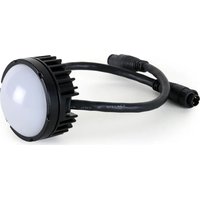
Find the device manual for free Tripix Wash MARTIN in PDF.


| Type of Product | LED Wash Light |
| Light Source | 3-in-1 RGB LED |
| LED Power | 72 W |
| Color Mixing | RGB, HSI, HSIC (calibrated and raw) |
| Beam Angle Options | Narrow, Medium, Wide diffuser filters |
| Control Options | DMX, Stand-alone, Synchronized host/client |
| DMX Channels | 3-16 depending on mode and pixel grouping |
| IP Rating | IP66 |
| Housing Material | Aluminum, clear anodized finish |
| Dimensions (W x H x L) | 132 mm x 231 mm x 335 mm (5.2 x 9.1 x 13.2 in.) |
| Weight | 4650 g (10.3 lb) |
| Mounting | Mounting bracket with screw/bolt fixation |
| Tilt Range | 163° |
| Pan Range | Approx. 90° |
| Cooling | Convection (no fans) |
| Maximum Ambient Temperature | 45°C (113°F) |
| Maximum Surface Temperature | 65°C (149°F) at Ta=45°C |
| Power Supply Unit (included) | Tripix Power IP66, 48 VDC output |
| AC Input Voltage | 100-240 VAC, 50/60 Hz |
| Maximum Fixtures per PSU | 3 Tripix Wash fixtures |
| Included Items | Fixture with narrow diffuser, Tripix Power IP66, Power Inserter Y-Cable, DMX Termination Plug |
| Accessories (optional) | Diffuser sets (narrow/medium/wide), Extension cables, DMX adapters, Cable adapters |
| Safety Certifications | CE, UL, CSA, Intertek, EN 60598, IEC 62471 |
| Cleaning Instructions | Soft cloth with mild detergent; do not use high-pressure water jets |
| Fuse Replacement | Only by authorized Martin service partner |
Frequently Asked Questions - Tripix Wash MARTIN
User questions about Tripix Wash MARTIN
0 question about this device. Answer the ones you know or ask your own.
Ask a new question about this device
Download the instructions for your Lighting in PDF format for free! Find your manual Tripix Wash - MARTIN and take your electronic device back in hand. On this page are published all the documents necessary for the use of your device. Tripix Wash by MARTIN.
USER MANUAL Tripix Wash MARTIN
User Manual Tripix™ Range
Tripix TM 300 Tripix TM 1200 Tripix TM Wash Tripix Power TM IP66
Dimensions
Unit: mm

Tripix™ 300 / Tripix™ 1200

Tripix™ Wash

Tripix Power™ IP66
© 2009-2015 Martin Professional™ ApS. Information subject to change without notice. Martin Professional ApS and all affiliated companies disclaim liability for any injury, damage, direct or indirect loss, consequential or economic loss or any other loss occasioned by the use of, inability to use or reliance on the information contained in this manual. The Martin logo, the Martin name and all other trademarks in this document pertaining to services or products by Martin Professional ApS or its affiliates and subsidiaries are trademarks owned or licensed by Martin Professional ApS or its affiliates or subsidiaries.
P/N 35000232, Rev. J
Safety Information
Warning! Read the safety precautions in this section before installing, powering, operating or servicing this product.
The following symbols are used to identify important safety information on the product and in this manual:

DANGER! Safety hazard. Risk of severe injury or death.

Warning! Hazardous voltage. Risk of lethal or severe electric shock.

Warning! LED light emission. Risk of eye injury.

Warning! Burn hazard. Hot surface. Do not touch

Warning! Refer to user manual.

Warning! Do not view the light output with optical instruments or any device that may concentrate the beam.
This product is for professional use only. It is not for household use.
This product presents risks of severe injury or death due to fire hazards, electric shock and falls.

Read this manual before installing, powering or servicing the product. Follow the safety precautions listed below and observe all warnings in this manual and printed on the fixture. Install and operate the fixture only as described in this manual and in accordance with local laws and regulations. Refer any operation not described in this manual to an authorized Martin Service partner.
If you have questions about how to operate the fixture safely, please contact your Martin dealer or call the Martin 24-hour service hotline at +45 70 200 201, or in the USA on 1-888-tech-180.

PROTECTION FROM ELECTRIC SHOCK
- The Tripix Power IP66 does not have a power on/off switch.
Make sure that a means of isolating this device from power (an on/off switch or a power plug that can be removed from a power outlet) is easily accessible. - Shut down power to the entire installation at the main power distribution board and lock out power (by removing the fuse at the distribution board for example) before carrying out any installation or maintenance work.
- Isolate devices from AC power before removing or installing any cover or part and when not in use.
- Connect the Tripix Power IP66 electrically to ground (earth).
- Use only a source of AC power that complies with local building and electrical codes and has both overload and ground-fault (earth-fault) protection.
- Before using the devices, check that all power distribution equipment and cables are in perfect condition and are rated for the current requirements of all connected devices.
- Isolate all devices from power immediately if any cable, seal, cover or other component is damaged, cracked or deformed. Do not reapply power until repairs have been completed.
- The Tripix Power IP66 can be installed outdoors.
- Refer any service operation not described in this manual to an authorized Martin Service partner.

PROTECTION FROM FIRE AND BURNS
- Do not operate fixtures or the Tripix Power IP66 if the ambient temperature (Ta) exceeds 45°C (113°F).
- The exterior surfaces of the Tripix fixtures and Tripix Power IP66 can become hot, up to 65irc C ( 149irc F), during normal operation. Ensure that accidental physical contact with the devices is impossible.
- Allow all Tripix devices to cool for 5 minutes before servicing.
- Install Tripix devices at least 20 cm (8 in.) away from combustible materials (for example textiles, wood, paper).
- Keep flammable materials well away from Tripix devices.
- Do not modify any Tripix device in any way not described in this manual. Only install genuine Martin parts.
- Use only Martin approved accessories to mask or modify the light beam.

- Install the Tripix Power IP66 indoors in a well-ventilated area only or outdoors. Provide a minimum clearance of 5 cm (2 in.) and ensure unrestricted airflow around all Tripix devices.


PROTECTION FROM INJURY
- Do not look at LEDs with a magnifying glass or any other optical instrument that may concentrate the light output.
- Ensure that all external covers, components and installation fittings are securely fastened.
- Block access below the work area and work from a stable platform whenever installing, servicing or moving the devices.
- Ensure that all supporting structures, surfaces, fasteners and lifting equipment can bear the weight of all the devices they are intended to support plus an adequate safety margin, and that they conform to local building and safety regulations.
- Use a sufficient number of fasteners with sufficient corrosion resistance, dimensions and strength to mount the DIN rail safely. Any nuts used must be self-locking.
- If there is a danger of injury or damage if a Tripix device falls, secure it with an approved secondary attachment such as a safety cable looped around the device or passed through a mounting hole and anchored securely in the mounting surface.


Disposing of this product
Martin™ products are supplied in compliance with Directive 2002/96/EC of the European Parliament and of the Council of the European Union on WEEE (Waste Electrical and Electronic Equipment), as amended by Directive 2003/108/EC, where applicable.
Help preserve the environment! Ensure that this product is recycled at the end of its life. Your supplier can give details of local arrangements for the disposal of Martin products.
Contents
Dimensions....2
Safety Information.... 3
Introduction....7
Unpacking 8
Using for the first time....8
Physical installation 9
Location and orientation 9
Mounting.... 10
AC power....16
Installation setup.... 19
Tripix system overview 19
Connecting the Tripix System.... 23
Fixture configuration 30
Configuring with MUM 30
Operation....38
Service and maintenance 40
Cleaning 40
Fixture information and monitoring 41
Testing....42
Fuse replacement....46
Software installation 46
Troubleshooting 48
Specifications 49
Introduction
Thank you for selecting Tripix ™ , a compact LED-based color-changing lighting product from Martin ™ . The Tripix is available in Short 300 mm (11.8 inch), Long 1200 mm (47.2 inch) and Wash models. All fixtures are powered by the Tripix Power ™ IP66.
The Tripix range features:
- RGB (Red, Green, and Blue) color mixing, with RGB, HSI (hue, saturation, intensity) and HSIC (hue, saturation, intensity, color temperature control) options
- Calibrated and raw (uncalibrated) RGB, calibrated HSI and HSIC
•82 W LED power from Tripix 1200
•24 W LED power from Tripix 300
• 72 W LED power from Tripix Wash
- Narrow, medium and wide diffuser filters (narrow fitted as standard)
- Possibility of controlling all fixtures attached to one Tripix Power IP66 as one single pixel
- Possibility of controlling Tripix 1200 and Tripix Wash fixtures as one, two or four separate pixels
- DMX512 control
- 64 pre-programmed stand-alone shows available. Host/client functionality allows synchronized stand-alone operation
- Possibility of combining a mixture of Tripix 300, 1200 and Wash fixtures on same power and data links
- Clamp mounting system for mounting Tripix 300 and 1200 fixtures on standard 35 mm top-hat DIN rail
- Mounting bracket for Tripix Wash
For the latest firmware updates, documentation, product specifications and other information about this and all Martin Professional™ products, please visit the Martin website at http://www.martin.com.
Unpacking
The following items are included with the Tripix fixture:
- Tripix fixture (Tripix 1200 or Tripix 300 or Tripix Wash) with narrow beam angle diffuser installed
- Warning note
The following items are included with the Tripix Power IP66:
- Tripix Power IP66 48 VDC Power Supply Unit
- Tripix Power Inserter Y-Cable
- Tripix DMX Termination Plug
- This user manual
Using for the first time
Before applying power to a Tripix installation:
- Carefully review “Safety Information” on page 3.
- Check that the local AC power voltage is within the range listed on the Tripix Power IP66 serial number label.
• Install the Tripix system as described in this manual.
Physical installation

Warning! Read "Safety Information" on page 3 before installing devices.
The safety and suitability of lifting equipment, installation location, anchoring method, mounting hardware and electrical installation is the responsibility of the installer. All local safety regulations and legal requirements must be observed when installing and connecting the devices. Installation must be carried out by qualified professionals only.
Tripix 300 and 1200 fixtures must be clamped onto a 35 mm DIN top-hat rail that is securely anchored to a suitable flat surface. Tripix Wash fixtures have an integral mounting bracket that must be bolted or screwed to a flat surface. Ensure that the supporting structure can bear the weight of all installed devices plus an adequate safety margin.
Make sure that there will be at least 5 cm (2 in.) of free space and unrestricted airflow around all Tripix devices.
Important! We recommend that you set DMX addresses and configure fixtures before physical installation. See “Fixture Configuration” later in this manual.
Contact your Martin supplier for assistance if you have any questions about how to install this product safely.
Location and orientation
Tripix fixtures and the Tripix Power IP66 have an IP rating of 66 and are suitable for outdoor installation.
Allow 5 cm (2 in.) space and free airflow around the Tripix Power IP66 and Tripix fixtures. Do not bury or cover any Tripix device.
Install the Tripix Power IP66 and all Tripix fixtures at least 20 cm (8 in.) away from any combustible materials (wood, paper, etc.) and well away from any flammable materials.
The housings of Tripix fixtures can reach 65irc C ( 149irc F) and the Tripix Power IP66 housing can reach 80irc C ( 176irc F). Restrict public access or locate the devices so that they cannot accidentally be touched.
All Tripix devices can be installed in any orientation.
Mounting
Mounting the Tripix 300 and 1200

Warning! Tripix 300/1200 fixtures must be mounted on 35 mm (1.4 inch) top-hat profile DIN rail that is securely anchored to a surface. The installation must conform to local electrical, building, safety and fire regulations. If there is a danger that a device may cause injury or damage if it falls, use a means of secondary attachment such as a safety cable looped around the device and securely anchored to the mounting surface.
Tripix 300 and 1200 fixtures are designed for mounting on standard 35 mm top-hat DIN rail. You can use standard lengths of 35 mm DIN Rail or use Martin Short 35 mm DIN rail supplied in 72 mm (2.8 in.) lengths (P/N 23819560).

Figure 1: Martin Short 35 mm DIN rail
The special Martin DIN Rail can be ordered from Martin (see "Accessories" in the Specifications section at the back of this manual). Dimensions for the Martin Short DIN rail are given in Figure 1.
Note that you cannot fasten the Tripix fixture mounting clamps directly over screws used to fasten DIN rail to the mounting surface. If a DIN rail mounting screw is in the way of a mounting clamp, move the screw to another slot in the DIN rail.
To mount a Tripix 300 or 1200 fixture on a surface using 35 mm DIN rail:
- Fasten the DIN rail securely to the mounting surface.
- See Figure 2. The fixture mounting bracket has a hooked profile on one side (see A). Hook this profile over the top of the DIN rail and
swing the bracket down. Use a 2.5 mm Allen key to tighten the mounting clamp screw (see B).
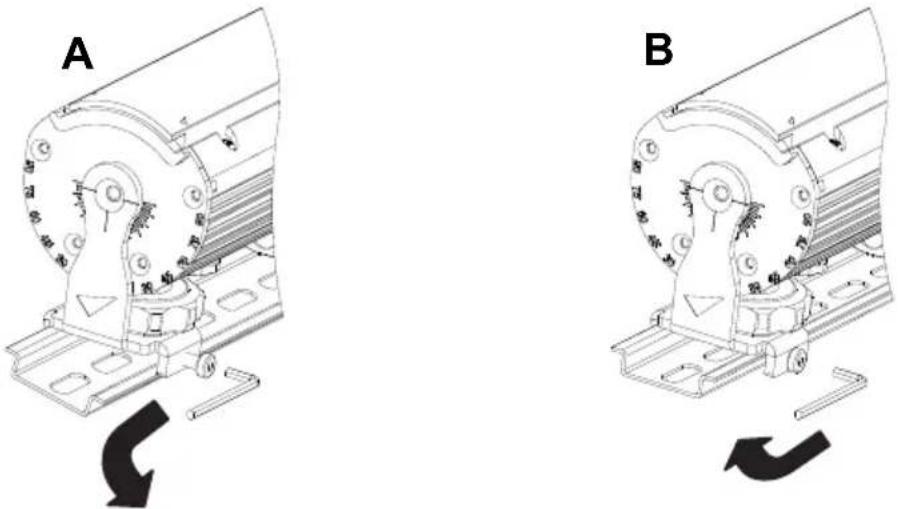
Figure 2: Mounting on DIN rail
- If there is any danger of the fixture causing injury or damage if it falls, secure it with a secondary attachment such as an approved safety cable attached to a secure anchoring point in the mounting surface.
Mounting the Tripix 300/1200 vertically
The mounting clamp screws will not hold a product securely on the DIN rail if it is installed vertically. You must therefore insert screws in the mounting surface through the DIN rail mounting holes (see arrow in Figure 3) so that the fixture mounting clamps rest against these screws and secure the fixture.

natural_image
Technical diagram of a mechanical assembly with no visible text or symbolsFigure 3: Vertical mounting on DIN rail
Adjusting the Tripix 300/1200 tilt angle
The Tripix 300/1200 can be tilted through 105irc (see Figure 4).

Figure 4: Tilt angle
To adjust the tilt angle:
- See Figure 5. Turn the locking knob (arrowed) clockwise until it releases the fixture profile.
- Adjust the fixture to the desired tilt angle.
- Rotate the locking knob counter-clockwise until it engages in the fixture profile and locks it in position.

Figure 5: Releasing and tightening the tilt lock
Mounting the Tripix Wash
To mount the fixture on a surface:
-
Mark up the mounting surface for screws or bolts (you can hold the fixture up to the mounting surface temporarily as a guide). Drill suitable holes in the mounting surface and use screw anchors if necessary.
-
See Figure 6. Installing washers under all screw or bolt heads, fasten an M12 bolt or screw with 12 mm (1/2 inch) thread diameter
into the mounting surface through the center hole in the base of the bracket, then fasten three M5 bolts or screws with 5 mm (0.2 inch) shaft diameter into the mounting surface through the curved slots in the base of the bracket.

natural_image
Technical line drawing of a mechanical component with multiple pins and a central housing (no text or symbols)Figure 6: Mounting the Tripix Wash
- If there is any danger of the fixture causing injury or damage if it falls, secure it with a secondary attachment such as an approved safety cable attached to a secure anchoring point in the mounting surface.
Adjusting the Tripix Wash tilt angle

natural_image
Technical line drawing of a heat exchanger mounted on a stand with hoses and connectors (no text or symbols)Figure 7: Tripix Wash tilt lock bolts
The Tripix Wash can be tilted through 163°. To adjust the tilt angle:
-
See Figure 7. Use two 6 mm Allen keys to loosen the tilt lock bolts.
-
Adjust the fixture to the desired tilt angle (see Figure 8).
-
Fasten the tilt lock bolts until they lock the fixture in position.

Figure 8: Adjusting Tripix Wash tilt angle
Adjusting the Tripix Wash pan angle

Figure 9: Adjusting Tripix Wash pan angle
The Tripix Wash pan angle can be adjusted through approximately 90irc . To adjust the pan angle:
- See Figure 9. Loosen the four screws or bolts in the base of the bracket.
- Adjust the fixture to the desired pan angle.
- Tighten the four screws or bolts in the base of the bracket.
Mounting the Tripix Power IP66
Respect all local safety, fire and building regulations governing the installation of electrical equipment in cavities or plenums. Allow free airflow and at least 5 cm (2 in.) of free space around the device. Allow sufficient ventilation to ensure that the ambient temperature will not
exceed 40irc C ( 104irc F) for the Tripix Power IP66 and 45irc C ( 113irc F) for Tripix fixtures.
The Tripix Power IP66 must be screwed or bolted securely to a flat surface in a location that is accessible for service using 5 mm shaft diameter screws or M5 bolts through the four mounting holes at the corners of the devices. Use washers under the screw or bolt heads. Use screw anchors in the mounting surface if necessary.
AC power

Warning! Read "Safety Information" on page 3 before installing this product. Lock out power to the entire installation before working on cables and connections or removing any cover.
Warning! Electrical installation must be carried out by qualified professionals only.
Warning! For protection from dangerous electric shock, the Tripix Power IP66 must be grounded (earthed). The AC power distribution system must be fitted with current overload and ground-fault (earth-fault) circuit breakers as well as a means to isolate the system from power and lock out power during service.
Important! Do not connect the Tripix system to an electrical dimmer system. Doing so can damage the electronics.
If you require help in planning or dimensioning the power distribution system, please contact your Martin supplier for assistance.
The Tripix Power IP66 must be connected to a single-phase 3-wire (live, neutral, ground/earth) power distribution system at 100-240 VAC nominal, 50/60 Hz. Do not connect to power at any other voltage or frequency.
The Tripix Power IP66 does not have a power on/off switch. Make sure that a means of isolating it from power (an on/off switch or a power plug that can be removed from a power outlet) is easily accessible.

Power input cable
Warning! The electrical equipment and cable used to supply the Tripix system with power must be in perfect condition, be adequately dimensioned for current requirements and respect maximum cable run lengths.
To connect the Tripix Power IP66 to AC mains power:
- For North America, use only SJTW (or STW), 3-conductor 18 AWG (or 16 AWG) power input cable rated minimum 105°C (221°F), VW-1.
- For the EU, use only power input cable type H05RN-F, 3 × 0.75 mm2 .
Check the condition of cables carefully. If there is a break or cut at any point in a cable (for example at a connection point), and if this is exposed to water, moisture can be drawn up the inside of the cable due to the vacuum effect of temperature fluctuations during operation.
Power plug
The Tripix Power IP66 can be hard-wired to a building's AC mains electrical installation, but if you decide to fit the power cable with a plug that is suitable for your AC mains power outlets, install a grounding-type (earthed) plug following the plug manufacturer's instructions.
Table 1 shows some possible pin identification schemes; if pins are not clearly identified, or if you have any doubts about proper installation, consult a qualified electrician.
| Wire color (US system) | Wire color (EU system) | Conductor | Symbol | Screw (US) |
| Black | Brown | Live | L | Yellow or Brass |
| White | Blue | Neutral | N | |
| Green | Yellow/Green | Ground (Earth) | Green | |
Table 1: Cable color-coding and conductor identification
Tripix Power IP66
A power input cable that meets the specifications given under “Power input cable” on the previous page must be supplied by the user. The cable must have an external diameter of 5 – 9.5 mm (0.2 – 0.37 in.), otherwise the power cable entry gland will not be effective to IP66.
Installing the Tripix Power IP66 power input cable
- Unfasten all the screws on the input side cover and lift the cover away from the housing as shown in Figure 10.

natural_image
Technical line drawing of a mechanical assembly with a screwdriver and cable (no text or symbols)Figure 10: Tripix IP66 power input connections
- Pass the power input cable through the cable gland.
- Connect the power cable conductors to the power terminals inside the cover using Table 1 and the markings on the terminals as a guide.
- Check carefully that the cover seal is correctly positioned, then replace the cover and tighten all the screws to a torque of 1 ± 0.1 Nm
- Tighten the outer nut on the cable gland to compress the gland and waterproof the cable entry.
- Prepare the other end of the power input cable for connection to AC mains power, but do not apply power until all installation work is completed.
Installation setup
Tripix system overview

Important! Read this section carefully before making connections. Incorrect configuration of the Tripix system may present a risk of fire or electric shock or permanently damage the Tripix fixture.
Martin Tripix and Martin Easypix™ products use different data signals. Do not connect them together, or you may cause damage.
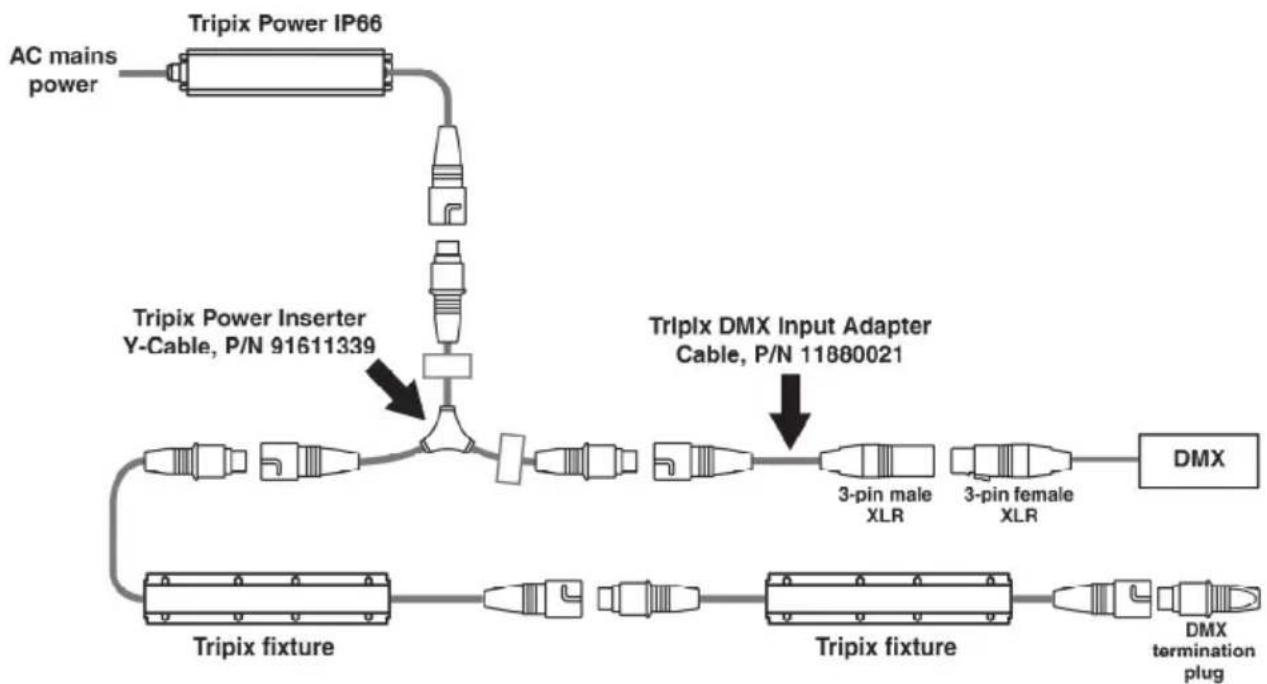
Figure 11 gives an overview of the basic Tripix system layout. Do not exceed the maximum number of fixtures that can be connected to one Tripix Power or Tripix Power IP66 and do not exceed the maximum combined power and data total cable length given on the next page.
flowchart
graph TD
    A["AC mains power"] --> B["Tripix Power IP66"]
    B --> C["Tripix Power Inserter Y-Cable, P/N 91611339"]
    C --> D["Tripix fixture"]
    D --> E["Tripix fixture"]
    E --> F["DMX termination plug"]
    G["Tripix DMX Input Adapter Cable, P/N 11880021"] --> H["3-pin male XLR"]
    G --> I["3-pin female XLR"]
    H --> J["DMX"]
    I --> K["DMX"]
Figure 11: Schematic cable and device layout

Warning! One Tripix Power IP66 can safely drive a maximum of:
- 12 Tripix 300s, or
• 3 Tripix 1200s, or
• 3 Tripix Wash fixtures, or
- any mixture of Tripix 300 and Tripix 1200 fixtures that does not exceed 3.6 meters (11 ft. 10 in.). One Tripix Wash counts as one Tripix 1200.
Warning! The maximum length of the power link from a Tripix Power IP66 to the last Tripix fixture on the power link must not exceed the length of the devices' integral cable tails plus 30 m (98 ft.). In other words, you can extend the standard power link by up to 30 m.
Tripix system components
The Tripix system consists of:
- Tripix Power IP66 – a power supply that provides fixtures with power at 48 volts DC.
- Power Inserter cable (see Figure 12), P/N 91611339, a Y-shaped cable that is used to connect a Tripix Power IP66 and data from a DMX controller (or PC with USB-DMX Interface) to a chain of Tripix fixtures.
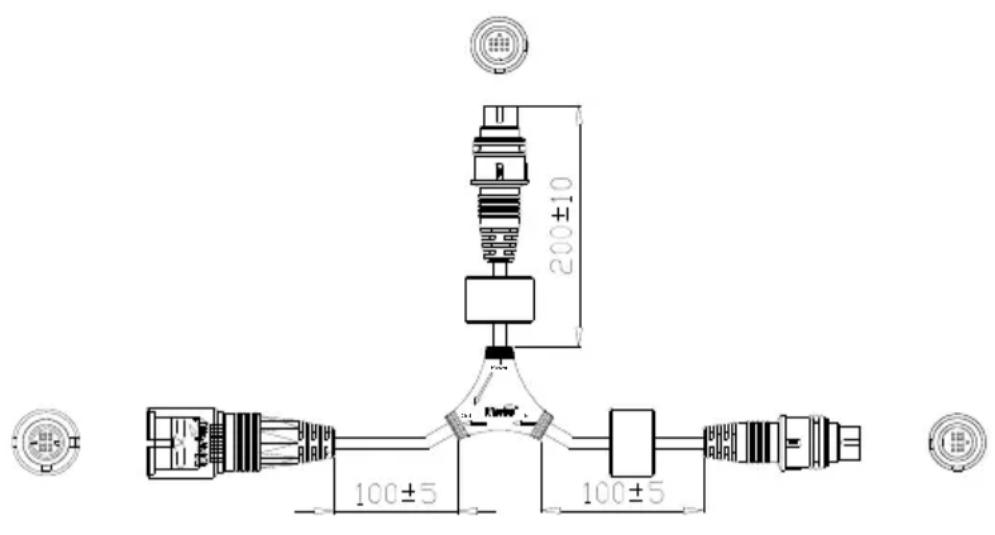
Figure 12: Power Inserter cable (dimensions in mm)
The connections to DMX data, power and fixtures are marked on the Power Inserter cable (see Figure 13):
- connect a DMX input adapter cable with the data signal from a DMX controller or a PC to "In"
- connect the 48 V output from a Tripix Power IP66 to "Power"
- connect a chain of Tripix fixtures to "Out".

Figure 13: Markings on Power Inserter
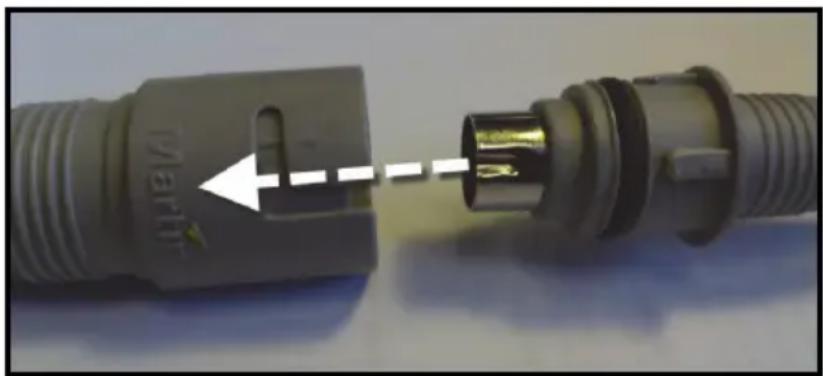
- Tripix fixtures that have integral cable tails with 13-pin DIN IP66 connectors for combined power and data interconnection. Line up the connectors so that the depression in the metal shield of the male connector lines up with the Martin logo on the female connector as shown below before you push connectors together. If you do not line connectors up as shown, you will damage the pins in the male connector:
natural_image
Close-up of a medical connector component with a dashed arrow indicating a transition or insertion point (no text or symbols visible)Connectors can be very stiff. Ensure that the male connector is completely inserted creating a tight seal (see below).


natural_image
Close-up of a beige plastic device component with a black checkmark and white arrow pointing to it (no readable text or symbols)Once you have engaged the connectors correctly, screw the clip rings provided onto the connectors until you hear two clicks. This is essential to lock connectors together and ensure a reliable waterproof seal.

natural_image
Close-up of a gray electrical plug with threaded ends and a dashed line indicating a measurement or alignment (no text or symbols)- A Tripix DMX Termination Plug (P/N 91611336) that must be inserted in the output cable tail of the last Tripix fixture at the end of the DMX link. This plug is supplied as standard with the Tripix Power IP66.
- A Tripix DMX Input Adapter cable (P/N 11880021) that lets you connect a 3-pin female XLR DMX output to the Power Inserter cable's "In" connector if external DMX control is required or to configure fixtures using the Martin MUM™ PC application and a USB/DMX interface. This 3-pin male XLR to 13-pin female DIN adapter is not supplied as standard and must be ordered separately.
- Tripix Extension Cables, available from Martin in various lengths. You need to use these if Tripix fixtures' integral data/power cable tails are not long enough for the planned installation. Tripix Extension Cables must be ordered separately.
- Tripix Cable Adapters, IP66, Male + Female (P/N 91611323). You only need to use these adapters if you need to extend the distance between Tripix devices because the integral cable tails are not long enough, and the Tripix Extension Cables are not suitable. Tripix Cable Adapters must be ordered separately.
Warning! The total length of all extension cables that carry power and that are added to a chain of Tripix fixtures supplied with power by one Tripix power device must not exceed 30 m (98 ft.).
- A Tripix DMX Output Adapter cable (P/N 91611338) that can be connected to the output cable tail of the last Tripix fixture on a data link. You only need to use this adapter if you need to continue the DMX link to the 3-pin male XLR DMX input of another type of fixture. This 13-pin male DIN to 3-pin female XLR adapter is not supplied as standard and must be ordered separately.
Connecting the Tripix System
Connecting a basic system
Connect a basic Tripix system following the instructions below:
- Check that the Tripix Power IP66 is not connected to AC mains power.
- See Figure 11 on page 19. Connect the 48 V output cable tail from the Tripix Power IP66 to the "Power" connector on the Tripix Power Inserter cable.
- Connect the "Out" connector on the Tripix Power Inserter cable to the first Tripix fixture's power/data input cable tail.
- Connect the first fixture's power/data output cable tail to the next fixture's power/data input cable tail.
- Continue connecting Tripix fixtures' power/data output cable tails to input tails to form a chain. Do not exceed the maximum permitted number of fixtures in one chain for the Tripix Power IP66 (see warnings under Tripix system overview on page 19).
- See Figure 14. When all groups of fixtures are connected correctly, insert a Martin Tripix DMX Termination Plug in the output connector of the last fixture of each separate chain of fixtures. One plug is supplied with each Tripix Power IP66. Additional plugs can be ordered from Martin (P/N 91611336).

Figure 14: DMX termination plug
- For DMX control, or to configure fixtures using a PC running the Martin MUM™ application via a USB/DMX interface such as the Martin DABS1™ Hardware Interface (P/N 91611144), connect the output from the DMX controller or USB/DMX interface to the "In" connector of the Power Inserter cable, using a Tripix DMX Input Adapter cable, P/N 11880021.
- Apply power and check that the system works as intended.
Extensions and advanced system connections
If the integral cable tails supplied with Tripix devices are too short, the Tripix system can be extended using Tripix Extension Cables or Tripix Cable Adapters.
Tripix Extension Cables
Tripix Extension Cables have the same IP66 connectors as Tripix fixtures and can be inserted anywhere in the link to extend it.
Tripix Cable Adapters
Tripix Cable Adapters let you extend the power/data link using three-conductor power cable and Ethernet cable. The adapters are supplied in pairs with male and female cable tails installed. See Figure 15.

natural_image
Close-up of a gray USB cable connector with a yellow circuit board and a white card labeled 'Marte' (no visible text or symbols on the cable itself)Figure 15: Male Tripix Cable Adapter
When installing fixtures outdoors or in a wet or damp environment install each cable adapter's PCB and terminals inside an IP66-rated electrical junction box (not supplied). Ensure that all cable grommets
are completely sealed against moisture and dust. Failure to seal the box can lead to damage and risk of fire or electric shock! Use only cable and junction boxes that are approved for installation and conform to all local building, electrical and safety codes.
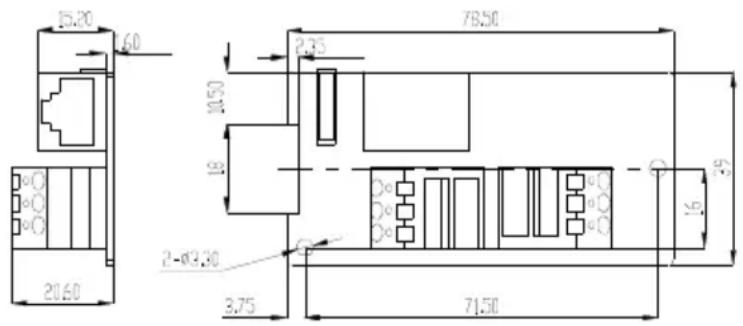
Figure 16: Tripix Cable Adapter dimensions

Figure 17: Tripix Cable Adapter
Connecting Cable Adapters
When connecting power cable between the 48 VDC terminal blocks, respect the cable lengths and dimensions given in Table 2.
| Total Length Cable | Conductor Gauges Required |
| 1-15m(3.3-49 ft.) | 16 AWG or 1.0 mm2 |
| 15-40m(49-131ft.) | 14 AWG or 1.5 mm2 |
| 40-80m(131-262ft.) | 12 AWG or 2.5 mm2 |
Table 2: Power cable length and gauges, Tripix Cable Adapters
48 VDC terminals are marked +, - and PG (PG = protective ground / protective earth). When installing 3-conductor power cable to run a
power extension from the male to the female cable adapter, connect terminals at both ends as follows:
• Terminals marked + to 48 VDC positive
- Terminals marked – to 48 VDC negative
• Terminals marked PG to ground/earth
To run a data extension from the male to the female adapter, plug in a good quality CAT5e or better cable with RJ-45 connectors. You are recommended not to exceed 50 m.
Extending the DMX data link
If you reach the maximum permitted number of Tripix fixtures for the Tripix power device you are using but you need to add more fixtures, you must create another group of fixtures connected to another Tripix Power IP66 to avoid a current overload.
If you want to control or configure all the fixtures together, you must continue the data link from the last fixture in Group 1 to the "In" connector of Group 2's Power Inserter cable (see Figure 18). The "In" connector of Power Inserter cables only accepts the data signal, so Groups 1 and 2 are powered independently. You can either:
- Connect the output cable tail of the last fixture in Group 1 directly to the "In" connector of group 2's Power Inserter cable, or
- Run a Tripix Extension Cable from the output cable tail of the last fixture in Group 1 to the "In" connector of group 2's Power Inserter cable, or
- Use a pair of Tripix Cable Adapters, IP66, Male + Female (P/N: 91611323 – see Figure 17) with a CAT5e data cable only (no power cable is necessary) to extend the link from the last fixture in Group 1 to the “In” connector of group 2’s Power Inserter cable.

Figure 18: Extending the DMX data link
Extending the power link
- See Figures 19 and 20. If you need to extend the distance between a Tripix Power IP66 and Power Inserter cable, you can use Tripix Cable Adapters. Only a power cable (arrowed) is needed as no data is transferred.

flowchart
graph TD
    A["Tripix Power IP66"] --> B["Line 1"]
    B --> C["Line 2"]
    C --> D["Line 3"]
    D --> E["DMX"]
    E --> F["Line 4"]
    F --> G["Line 5"]
    G --> H["Line 6"]
    H --> I["DMX"]
    style A fill:#f9f,stroke:#333
    style E fill:#ccf,stroke:#333
    style I fill:#cfc,stroke:#333
Figure 19: Extending Tripix Power and Power Inserter

natural_image
Pure electrical circuit lines without any symbolsFigure 20: Only power cable needed
- The dimensions of the power cable you must use for this purpose depend on the length of the power cable. Use the dimensions given in Table 2 on page 25. Warning! Do not exceed the cable lengths given in Table 2 on page 25.
Extending the power/data link
- See Figures 21 and 22. If you need to extend the distance between the Power Inserter cable and the first fixture, either insert a Tripix Extension Cable or use both a CAT5e data cable and a power cable (arrowed) in Tripix Cable Adapters.

flowchart
graph TD
    A["Tripix Power IP66"] --> B["DMX"]
    B --> C["Signal Line"]
    C --> D["Channel 1"]
    C --> E["Channel 2"]
    C --> F["Channel 3"]
    C --> G["Channel 4"]
    C --> H["Channel 5"]
    C --> I["Channel 6"]
    C --> J["Channel 7"]
    C --> K["Channel 8"]
    C --> L["Channel 9"]
    C --> M["Channel 10"]
Figure 21: Extending the link to the first fixture

natural_image
Pure electrical circuit lines without any symbolsFigure 22: Both power cable and CAT5 cable needed
- See Figures 23 and 24. If you need to extend the distance between fixtures, either insert a Tripix Extension Cable or use both a CAT5e cable and power cable (arrowed) in Tripix Cable Adapters.

flowchart
graph TD
    A["Component 1"] --> B["Component 2"]
    B --> C["Component 3"]
    C --> D["Component 4"]
    D --> E["Component 5"]
    E --> F["Component 6"]
    F --> G["Component 7"]
    G --> H["Component 8"]
    H --> I["Component 9"]
    I --> J["Component 10"]
    J --> K["Component 11"]
    K --> L["Component 12"]
    L --> M["Component 13"]
    M --> N["Component 14"]
    N --> O["Component 15"]
    O --> P["Component 16"]
    P --> Q["Component 17"]
    Q --> R["Component 18"]
    R --> S["Component 19"]
    S --> T["Component 20"]
    T --> U["Component 21"]
    U --> V["Component 22"]
    V --> W["Component 23"]
    W --> X["Component 24"]
    X --> Y["Component 25"]
    Y --> Z["Component 26"]
    Z --> AA["Component 27"]
    AA --> AB["Component 28"]
    AB --> AC["Component 29"]
    AC --> AD["Component 30"]
    AD --> AE["Component 31"]
    AE --> AF["Component 32"]
    AF --> AG["Component 33"]
    AG --> AH["Component 34"]
    AH --> AI["Component 35"]
    AI --> AJ["Component 36"]
    AJ --> AK["Component 37"]
    AK --> AL["Component 38"]
    AL --> AM["Component 39"]
    AM --> AN["Component 40"]
    AN --> AO["Component 41"]
    AO --> AP["Component 42"]
    AP --> AQ["Component 43"]
    AQ --> AR["Component 44"]
    AR --> AS["Component 45"]
    AS --> AT["Component 46"]
    AT --> AU["Component 47"]
    AU --> AV["Component 48"]
    AV --> AW["Component 49"]
    AW --> AX["Component 50"]
Figure 23: Extending the link

natural_image
Pure electrical circuit lines without any symbolsFigure 24: Both power cable and CAT5 cable needed
Continuing a data link to other types of fixture
If you need to continue the DMX data link to other types of fixture that have XLR-type DMX input connections, use the Tripix DMX Output adapter cable (P/N: 91611338) available from Martin.
Fixture configuration
To set up Tripix fixtures for DMX control or stand-alone operation, you will need:
- A Windows PC running the Martin MUM™ (Multi Utility Manager) application, version 1.6.2 or later.
- A Martin DABS1™ USB/DMX (PC to fixture) hardware interface, version 1.4 or later.
• The Tripix Power Inserter cable - A DMX input adapter cable (P/N 11880021), available from Martin.
Configuring with MUM
The Martin MUM ™ (Multi-Utility Manager) PC application allows you to set DMX addresses, DMX mode and pixel mode. It also allows you to enable and adjust stand-alone operation. See also the MUM user manual.
MUM is supplied in a package together with the Martin DABS1 interface (P/N: 91611144). The latest version of MUM is also available for download free of charge from the Martin website at www.martin.com.
Important! We recommend that you set DMX addresses and configure fixtures before physical installation. If you try to use the auto-addressing function and MUM does not recognize all fixtures, address and configure groups or fixtures separately (see “If MUM cannot recognize all the fixtures” on page 39).
To set up the system:
- Install Tripix fixtures on a DMX link as described earlier. Do not forget to add the DMX terminator at the end of the link.
- Connect a USB port from the PC to DABS1 RJ45 port.
- Connect the XLR output from the DABS1 to the DMX input adapter cable and then to the "In" connector of the Power Inserter cable.
- Connect the output from the Power Inserter cable to the input cable tail of the first Tripix fixture on the link.
- Apply power to the Power Inserter cable so that the fixtures on the link are powered, wait for fixtures to reset, and then start up MUM.
- Carry out setup as described below.
This procedure also works for one single fixture, provided that a DMX Termination Plug is installed on the DMX output cable tail of that fixture.
Communicating with a specific fixture
See Figure 25. To communicate with a specific fixture, open the Fixture Settings window in MUM. Use the navigation arrows just above the Refresh button near the bottom of the screen to scroll between fixtures. Fixtures are numbered sequentially from the first fixture on the DMX link, and the number of the fixture you are communicating with is displayed above the Reconnect button.
Configuring DMX operation
The Fixture settings window in MUM (see Figure 25) lets you:
- Use the navigation arrows to communicate with a specific fixture and set that fixture's DMX address in the DMX Address box, or
- Automatically set DMX addresses for all the Tripix fixtures on the link using the Auto address sequentially button. Depending on which DMX Mode and Pixel Mode is selected, MUM will allow from 3 to 16 DMX channels per fixture and allocate DMX addresses in sequence to all the Tripix fixtures on the link starting with the address shown in the DMX Address box, or
- Set all the Tripix fixtures on the link to DMX address 1 using the Reset DMX address to 1 button. If you choose this option, all the Tripix fixtures will react identically to DMX control and behave as one.

Figure 25: Fixture settings
If you have set a fixture's DMX address manually using the first method listed above, set its DMX and pixel grouping modes before moving on to the next fixture.
Setting DMX mode
Select the DMX color control mode you want to use via MUM (see Figure 26).

Figure 26: DMX Mode settings
Setting Pixel Mode
For Tripix 1200 and Tripix Wash fixtures, select the pixel grouping mode you want to use via MUM (see Figure 27).
![Tripix Files Help Future info Feature settings Stand-alone settings Monitor LED Test DMX protocol settings DMX Address DMX Mode Pixel Mode 1 RGB-Calibrated 1 Pixel Mode 1 Pixel Mode 2 Pixels Mode 4 Pixels Mode Tripix 1 of [of 1 to 1] Reconnect Refresh Close](/content/2026/06/1163893/images/c96b79fae929f48dffb6ac546fb04a5e1af0fa29e10ccf7efb15af72a6564ab2.jpg)
Figure 27: DMX Mode settings
Configuring stand-alone operation
To activate or deactivate stand-alone operation, open the Stand-alone settings window in MUM and set Stand-alone operation to Enabled/Disabled (see Figure 28).
![Tripix Files Help Fixture info Fixture settings Stand-alone settings Monitor LED Test Stand-alone settings Stand-alone operation Stand-alone sequence Synchronized Enabled Nature, Winter-Spring-Summer-Autumn Single Fixture Disabled Enabled meric sequences only) Scene fade time [dynamic sequences only] 0 Seconds Snap Tripix 1 of (of 1 to 1) Reconnect Refresh Close](/content/2026/06/1163893/images/82c1bc4d964177cc7b598ff010ae5c9ba6ad484d54419a3b1faba469e9b2c500.jpg)
Figure 28: Stand-alone settings
Stand-alone sequence settings
There are 64 static and dynamic stand-alone sequences in total (see Figure 29). Select a sequence to activate it.

Figure 29: Stand-alone sequence settings
Stand-alone sequence timing
See Figure 30. Stand-alone sequence times can be adjusted in the Stand-alone settings window:
- Wait times (the length of time each step in a dynamic scene is displayed) can be set in the Scene wait time pull-down box.
- Fade time (the speed of the change from one step in a dynamic scene to the next step) can be set using the Scene fade time pull-down box.

Figure 30: Stand-alone wait and fade times
Stand-alone programs
The stand-alone programs available are listed below.
| Sequence | Style Name | |
| 0 | SIMPLE COLORS | ALL OFF |
| 1 | RED | |
| 2 | GREEN | |
| 3 | BLUE | |
| 4 | ALL ON | |
| 5 | CYAN | |
| 6 | MAGENTA | |
| 7 | YELLOW | |
| 8 | WHITES | WARM WHITE |
| 9 | COOL WHITE | |
| 10 | COLD WHITE | |
| 11 | HOT WHITE | |
| 12 | TRENDY COLORS | ORANGE | |
| 13 | LIME GREEN | ||
| 14 | LEMON YELLOW | ||
| 15 | AQUA BLUE | ||
| 16 | BABY PINK | ||
| 17 | LILAC | ||
| 18 | BLOOD ORANGE | ||
| 19 | FLESH PINK | ||
| 20 | LEAF GREEN | ||
| 21 | PURPLE | ||
| 22 | SIMPLE DYNAMICS | RGB 1 | |
| 23 | RGB 2 | ||
| 24 | CMY | ||
| 25 | RAINBOW | ||
| 26 W - R - W - G - W - B | |||
| 27 W - C - W - M - W - Y | |||
| 28 | ALTERNATES I | RED / ORANGE | |
| 29 RED / PINK | |||
| 30 RED / AQUA | |||
| 31 GREEN / YELLOW | |||
| 32 | GREEN / ORANGE | GREEN / BLUE | |
| 33 | |||
| 34 BLUE / ALTERNATES II | |||
| 35 BLUE / ORANGE | |||
| 36 BLUE / YELLOW | |||
| 37 | GREEN FADE TO WHITE | RED FADE TO WHITE | |
| 38 | |||
| 39 BLUE FADE TO WHITE | |||
| 40 CYAN FADE TO WHITE | |||
| 41 MAGENTA FADE TO WHITE | |||
| 42 YELLOW FADE TO WHITE | |||
| 43 | PULSES | RED PULSE | |
| 44 | BLUE PULSE | ||
| 45 | GREEN PULSE | ||
| 46 | CYAN PULSE | ||
| 47 | MAGENTA PULSE | ||
| 48 | YELLOW PULSE | ||
| 49 | WHITE PULSE | ||
| 50 | RGB PULSE | ||
| 51 | CMY PULSE | ||
| 52 | FLASHES | RED FLASH | |
| 53 | BLUE FLASH | ||
| 54 | GREEN FLASH | ||
| 55 | CYAN FLASH | ||
| 56 | MAGENTA FLASH | ||
| 57 | YELLOW FLASH | ||
| 58 | NATURE | WINTER-SPRING-SUMMER-AUTUMN | |
| 59 | DAY-NIGHT | ||
| 60 | SUNRISE-SUNSET | ||
| 61 | SUNNY AFTERNOON | ||
| 62 | CLOUDY NIGHT | ||
| 63 | DAYTIME | ||
Single-fixture and synchronized operation
Important! Do not set more than one fixture on a link as host.
In synchronized operation, a master fixture playing a stand-alone program relays instructions via the DMX link that cause client fixtures to run identical synchronized programs.
Synchronized operation is set up in the Synchronized pull-down box in the Stand-alone settings window. See Figure 30. Settings are applied to the fixture you connect to using the navigation arrows.
- In S ingle Fixture mode, a Tripix runs its own stand-alone program and ignores all other fixtures.
- In Master mode, the Tripix sends stand-alone instructions to client fixtures so that they run an identical program to the master. Colors and fade/wait times in client fixtures will be identical to the master's. Do not set more than one fixture on the DMX link as master.
- In Synchronized mode, the Tripix is a client and obeys instructions from a master fixture.
-
Four buttons also allow you to apply settings to all Tripix fixtures on the DMX link:
-
Set all as single fixture sets all fixtures to run their own standalone program independently of the other fixtures
- Set all as single fixture - synchronized sequence and timing selections sets all fixtures to run the stand-alone program you have selected in MUM: scene changes are synchronized and wait/fade times are identical.
- Set this fixture as master, rest as synchronized sets the fixture you are connected to as master with the stand-alone
program you have selected in MUM. The other fixtures follow the master fixture's stand-alone program.
- Disable stand-alone for all Tripix takes all fixtures out of standalone mode leaving them ready for DMX control.
![Tripix Files Help Fixture info Fixture settings Stand-alone settings Monitor LED Test Stand-alone settings Stand-alone operation Stand-alone sequence Synchronized Enabled Simple Dynamic, W-B-W-G-W-B Master Scene wait time (dynamic sequences only) Scene fade time (dynamic sequences only) U Seconds Snap Stand alone settings (all Tripix) Set all as single fixture Set all as single fixture - synchronize sequence and timing selections Set this Tripix as master, rest as synchronized Disable stand-alone for all Tripix Tripix 1 of [of 1 to 2] Reconnect Refresh Close](/content/2026/06/1163893/images/c0faa577bbeda7e65ea08896b47fe2baa03ef0da925ee37bc42a3cb3b0ed582f.jpg)
Figure 30: Synchronized operation settings
If MUM cannot recognize all the fixtures
If MUM cannot recognize all the fixtures on a DMX link after you have connected MUM to the start of the link, connect MUM directly to any group with unrecognized fixtures to configure that group. To connect to a group, temporarily plug MUM into that group's Power Inserter cable's "In" connector.
If MUM does not recognize all the fixtures in a group, connect MUM directly to each unrecognized fixture. To connect to a fixture, temporarily connect a Tripix Power IP66 and Power Inserter cable to that fixture and plug MUM into the Power Inserter cable's "In" connector.
Operation

Warning! Do not view the light output with optical instruments or any device that may concentrate the beam.
Ambient temperatures
Tripix fixtures and the Tripix Power IP66 can be operated at ambient temperatures from -30irc C ( -22irc F) to 45irc C ( 113irc F).
DMX-controlled operation
When the Tripix system is set up for DMX-controlled operation, faders on the DMX controller are used to control color and intensity. The control method depends on which color control mode the Tripix system is set to:
| Channel | Value | Percentage | Function |
| 1 | 0-255 | 0-100% | Red |
| 2 0-255 0-1 | 100% Green | Intensity 0-100% | |
| 3 | 0-255 | 0-100% | Blue |
Intensity
Intensity
Table 3: RGB mode (raw* and calibrated)
*Raw = uncalibrated
| Channel | Value | Percentage | Function |
| 1 | 0-255 | 0-100% | HueRed>>Orange>>Amber>>Yellow>>Green>>Cyan>>Blue>>Indigo>>Violet>>Magenta>>Red |
| 2 | 0-255 | 0-100% | SaturationZero(White)>>Full |
| 3 | 0-255 | 0-100% | Intensity: 0-100% |
| 4 | 0-255 | 0 | Color Temperature Control2000 - 10000 K |
Table 4: HSI mode (calibrated)
Table 5: HSIC mode (calibrated)
Pixel grouping mode
If Tripix 1200 and Tripix Wash are set to 2 or 4 pixel mode, the DMX channels used are available for each pixel.
For example, a Tripix 1200 in 4-pixel HSIC mode will use 16 channels: the first 4 channels will control HSIC on pixel 1. Channel 5 to 8 will control HSIC on pixel 2, and so on.
Service and maintenance

Warning! Read "Safety Information" on page 3 before carrying out service or maintenance work on the Tripix system. Lock out power to the entire distribution system and allow fixtures to cool before servicing or opening any cover.
Important! Opening the fixture by anybody else but a Martin Distributor may damage the IP66 seal and will void the warranty!
Important! The Tripix system requires regular service and maintenance to maintain reliable operation and protect the investment it represents. Excessive dirt and particle build-up degrades performance, causes overheating and will damage Tripix fixtures and power supply devices. Damage caused by inadequate cleaning or maintenance is not covered by the product warranty.
The service and maintenance procedures described in this section must be carried out by qualified professionals only. Any service procedures not described in this section must be carried out by the Martin Service organization or its authorized agents.
It is Martin policy to use the best quality materials available to ensure optimum performance and the longest possible component lifetimes. However, optical components in all lighting fixtures are subject to wear and tear over the life of the Tripix fixture, resulting in gradual changes in color rendition, for example. The extent of wear and tear depends heavily on operating conditions and environment, so it is impossible to specify precise lifetimes for optical components.
Cleaning

Warning! Do not use a high-pressure water jet for cleaning.
Regular cleaning is essential for fixture life and performance. Build up of dust and dirt degrades the fixture's light output and cooling ability.
Cleaning schedules will vary greatly depending on the operating environment. It is therefore impossible to specify precise cleaning intervals for the Tripix system. Inspect fixtures within their first few weeks of operation to see whether cleaning is necessary. Check again at frequent intervals. This procedure will allow you to assess cleaning requirements in your particular situation. If in doubt, consult your Martin dealer about a suitable maintenance schedule.
Clean the Tripix Power IP66 and the Tripix fixture housing and front cover with a soft cloth dampened with a solution of water and a mild detergent such as car shampoo. Take care not to damage cables
during cleaning. Do not use products that contain solvents, abrasives or caustic agents for cleaning, as they can cause surface damage to the housing and the front cover.
Fixture information and monitoring
See Figure 31. The Fixture info window displays basic information for the fixture. Power-on hours and LED operation hours are also displayed. Two counters are available for each: an absolute and a resettable counter:

Figure 31: Fixture info window
See Figure 32. The Tripix displays voltage readouts for 48V and 5V components as well as temperature readouts for LEDs and the main PCB in the Monitor window:

Figure 32: Monitor window
Testing
See Figure 33. The LED Test window in MUM gives a quick method of testing LED output at 100% intensity without a DMX controller.
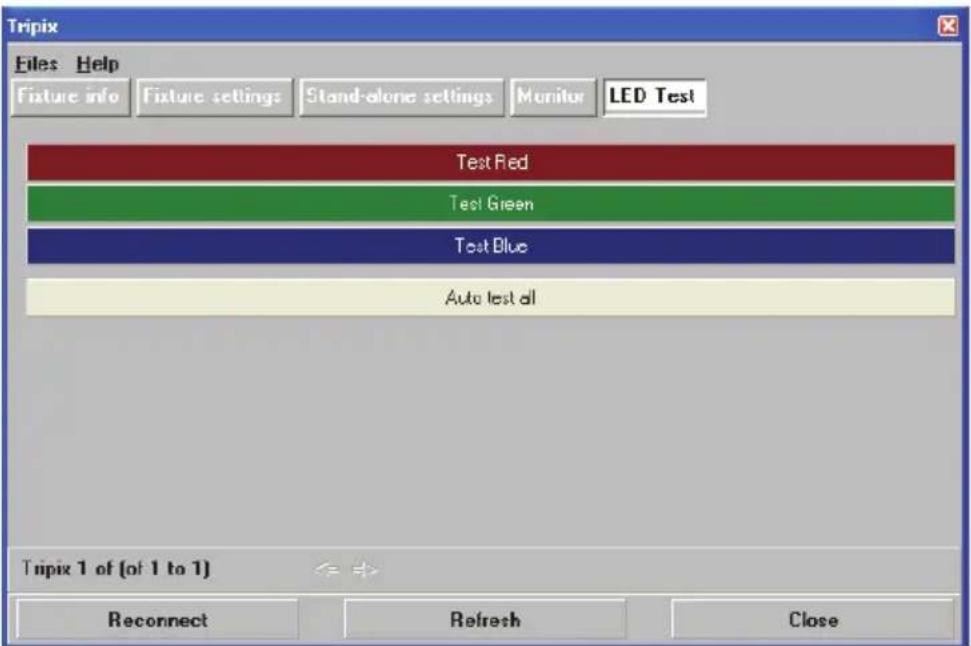
Figure 33: LED test window
Diffuser Filters
Important! Install diffuser filter sheets with their matt, textured surfaces and shiny, untextured surfaces facing as described below for the individual Tripix models. You can distinguish between the matt, textured surface and shiny, untextured surface by touching them with your fingers.
Tripix 300, 1200 and Wash fixtures are supplied with a narrow beam angle diffuser installed. The diffuser softens the output from the LEDs and alters the beam angle.
Diffuser filters are available in three different beam angles: narrow, medium and wide. Diffusers can be ordered from Martin (see "Accessories" on page 52).
Installing a Tripix 300/1200 diffuser
- Disconnect the Tripix fixture from power. If the fixture has been in use, allow it to cool for at least 5 minutes.
- Remove the fixture from the DIN rail by using a 2.5mm Allen key to release the mounting clamp screw and then unhooking the mounting bracket from the DIN rail. Place the fixture on a horizontal surface with the front cover facing up.
- Remove the front cover screws and the front cover (See Figure 34).
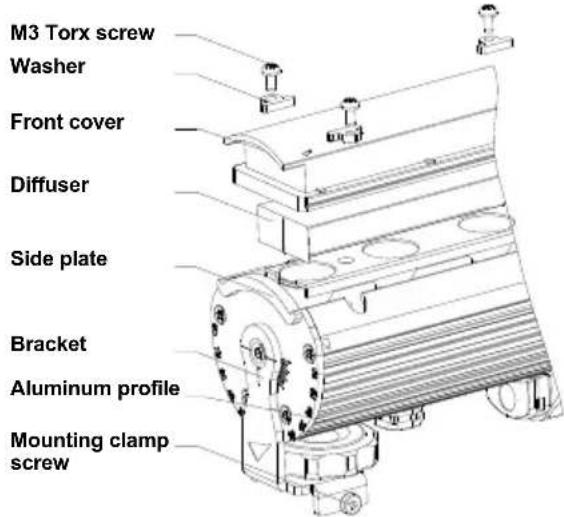
Figure 34: Tripix 300/1200 diffuser location
- Remove the old diffuser filter (if fitted) and install the new diffuser by putting it into the front cover with its matt side facing out towards the front and with its shiny side facing in towards the LEDs. To avoid light leakage, bend the edges of the diffuser as shown in Figure 35.

natural_image
Technical line drawing of a mechanical component or bracket (no text or symbols)Figure 35: Installing the Tripix 300/1200 diffuser
-
Check that the front cover seal is correctly seated in its slot all the way round the edge of the front cover. If the seal is not correctly seated, use one hand to press the seal into its slot in one place, then use the other hand to press the seal into the slot, moving round the slot until the seal is correctly seated all the way round the front cover.
-
Put the front cover back and cross-tighten all screws gradually in steps to a torque of 1.0 Nm ± 0.1 Nm .

Figure 36: Front cover screws
Installing a diffuser filter in the Tripix Wash
- Disconnect the Tripix Wash from power. If the fixture has been in use, allow it to cool for at least 5 minutes.
- Remove the screws from the fixture housing to release the front cover (See Figure 37).

natural_image
Technical line drawing of a mechanical assembly with no visible text or symbolsFigure 37: Remove the screws
- Remove the old diffuser filter (if fitted) and install the new diffuser (arrowed in Figure 37) by putting it into the front cover with its matt side facing in towards the LEDs and its shiny side facing out towards the front.
- Set the fixture upright (see figure 38) and check that the front cover seal is correctly seated in its slot all the way round the edge of the fixture housing. If the seal is not correctly seated, use one hand to press the seal into its slot in one place, then use the other hand to press the seal into the slot, moving round the slot until the seal is correctly seated all the way round the housing.

natural_image
Technical line drawing of a mechanical device with multiple internal components and mounting brackets (no text or symbols)Figure 38: Reinstalling the front cover
- Without disturbing the seal, reinstall the front cover, cross-tightening screws gradually in steps to a torque of 1.6 Nm ± 0.1 Nm .
Fuse
Warning! The fuse in the Tripix Power IP66 must be replaced by an authorized Martin Service partner only.

Software installation
It may be necessary to upload new software (i.e. firmware) to the Tripix fixtures if you believe that the product has a software-related fault or if you want to update to a newer version. Software updates are available from the Martin website (http://www.martin.com) and can be installed via the DMX data link with the following items:
- A Martin Universal USB-DMX Interface or Martin USB Duo DMX Interface (P/N 90703010) and a Windows PC.
- The Martin Uploader application, version 5.0 or later, downloadable free of charge from the "After-Sales" area of the Martin website.
- The Tripix main software update file, downloadable free of charge from the "After-Sales" area of the Martin website (this file can be downloaded automatically from within the Martin Uploader application)
Installing software
To install software in the Tripix fixtures:
-
Set the fixture's DMX address (or the fixtures' DMX addresses) to 1.
-
Connect the Uploader hardware to the Tripix fixture data input connector.
-
Upload the software as described in the Martin Uploader help file or user documentation. The LEDs will flash during the upload.
-
When the upload is completed, the fixture will go back to the previous status before upload.
-
Software uploads can fail (most failures are caused by interference on the data link). Turn off power and repeat the upload. If the problem persists, contact the Martin Service organization or its authorized agents for assistance.
Troubleshooting
| Problem | Probable | cause(s) | Remedy |
| Power and fixture are completely dead | No power to Tripix Power IP66 | Check power and connections. | |
| Primary fuse blown | Isolate device from power. Contact Martin for service. | ||
| One or more fixtures respond incorrectly to control or do not respond at all | Fault on DMX link | Inspect connections and cables. Correct poor connections. Repair or replace damaged cables. | |
| Incorrect DMX addressing | Check Tripix fixture is set to correct DMX mode. Check Tripix fixture's DMX address and channels assigned to it at controller. | ||
| Other device on DMX link defective | Bypass devices on DMX link until the faulty device has been identified. Have faulty device tested and serviced by Martin service or device supplier. | ||
| Wrong fixture configuration | Check the fixture configuration. | ||
| LEDs cut out intermittently | Tripix Power IP66 is too hot | Ensure free airflow around Tripix Power IP66. Clean the Tripix Power IP66. Check that ambient temperature does not exceed maximum permitted level. Contact Martin for service. | |
| Uneven color at very low levels (below 10% or DMX value 25) | Unstable LED output at low levels can occur due to direct drive technology used in Tripix. | Keep DMX values above 25 in static cues. Run quickly through DMX values 0 – 25 during fades. |
Table 7: Troubleshooting
Specifications
Physical
Tripix 300
Length 300 mm (11.8 in.)
Width 61 mm (2.4 in.) including mounting bracket
Height 82 mm (2.8 in.) including mounting bracket and DIN rail
Weight 1200 g (2.7 lb.)
Input cable tail length....170 mm (6.7 in.)
Output cable tail length....170 mm (6.7 in.)
Tripix 1200
Length 1200 mm (47.2 in.)
Width 61 mm (2.4 in.) including mounting bracket
Height 82 mm (2.8 in.) including mounting bracket and DIN rail
Weight 4230 g (9.4 lb.)
Input cable tail length....800 mm (31.5 in.)
Output cable tail length....500 mm (19.7 in.)
Tripix Wash
Length 335 mm (13.2 in.)
Width 132 mm (5.2 in.) including mounting bracket
Height 231 mm (9.1 in.) including mounting bracket
Weight 4650 g (10.3 lb.)
Input cable tail length....650 mm (25.5 in.)
Output cable tail length....650 mm (25.5 in.)
Tripix Power IP66
Length 314 mm (12.4 in.)
Width 68 mm (2.7 in.)
Height 39 mm (1.5 in.)
Weight 1.5 kg (3.3 lb.)
Output cable tail length....350 mm (13.8 in.)
Dynamic Effects
Color mixing ...... RGB
Red....0 - 100%
Green 0 - 100%
Blue 0 - 100%
Color temperature control....2 000 - 10 000 K continuous mixing
Control and Programming
Color control modes ..... RGB (raw & calibrated), HSI and HSIC (calibrated)
Control options ...... DMX, stand-alone and synchronized host/client
DMX USITT DMX512-A
DMX address setting .... Martin MUM™ application, Windows PC
Receiver RS-485
Firmware update.... Serial upload via DMX link
Optics
Light source....3-in-1 LED
Total LED power....Tripix 300: 24 W approx.
Tripix 1200: 82 W approx.
Tripix Wash: 72 W approx.
For photometric data see www.martin.com
Construction
Tripix 300, 1200 and Wash Fixtures
Housing ...... Aluminum
Finish......Clear anodized
Front cover ...... PMMA
IP rating IP 66
Tripix Power IP66
Housing ...... Aluminum
Finish...... Clear Anodized
IP rating IP 66
Installation
Orientation....Any
Vertical aiming....+/- 95°
Mounting points ......mounting brackets or 35 mm DIN top-hat rail
Maximum number of fixtures connected per Tripix Power IP66
Tripix 300 12
Tripix 1200....3
Tripix Wash 3
Mixture of Tripix 300, 1200 and Wash (Wash counts as 1200)....3.6 m (11.8 ft.)
Connections
AC power input, Tripix Power IP66....Hard-wired, screw terminals
Tripix fixtures interconnection, power and data ......13 pin DIN, IP66
Electrical (via Tripix Power IP66)
AC power....100-240 VAC nominal, 50/60 Hz
Max. power and current per Tripix Power IP66 240 W, 5 A
Thermal
Cooling ......All devices convection-cooled
Maximum ambient temperature (Ta.max.)
Fixtures, Tripix Power IP66 45°C (113°F)
Minimum ambient temperature (Ta min.)....-30° C (-22° F)
Maximum surface temperature, steady state, Ta=45°C:
Fixtures 65°C (149°F)
Tripix Power IP66....80° C (176° F)
Maximum total heat dissipation
Tripix 300 ....82 BTU/hr.
Tripix 1200 ....280 BTU/hr.
Tripix Wash 246 BTU/hr.
Tripix Power IP66 (under full load)....61 BTU/hr.
Approvals

Intertek 3044793

EU Safety ......EN 60598-1, EN 60598-2-1
LED Safety ...... IEC 60825-1, 2001; IEC 62471, 2006
EU EMC ...... EN 55 015, EN 55 103, EN 61 000-3
US Safety UL 1598
Canadian Safety....CAN/CSA C.22.2 No. 250
Included Items
Tripix 300, Tripix 1200 and Tripix Wash
1 x luminaire with narrow diffuser installed
Tripix Power IP66
1 x Tripix Power IP66 48 VDC Power Supply Unit
1 x Tripix Power Inserter Y-Cable.....P/N 91611339
1 x Tripix DMX Termination Plug....P/N 91611336
User documentation
Accessories
Tripix DMX Input Adapter 3-pin male XLR to 13-pin female DIN....P/N 11880021
Tripix DMX Output Adapter 13-pin male DIN to 3-pin female XLR.....P/N 91611338
0.5 m Tripix Hybrid Extension Cable P/N 91611335
1.0 m Tripix Hybrid Extension Cable P/N 91611334
5.0 m Tripix Hybrid Extension Cable P/N 91611333
Set of 8 Tripix Diffusers, Narrow, 300 mm....P/N 91611329
Set of 8 Tripix Diffusers, Medium, 300 mm....P/N 91611330
Set of 8 Tripix Diffusers, Wide, 300 mm P/N 91611331
Set of 4 Tripix Wash Diffusers, Narrow.....P/N 91610038
Set of 4 Tripix Wash Diffusers, Medium P/N 91610036
Set of 4 Tripix Wash Diffusers, Wide P/N 91610037
Tripix Power Inserter (3-way power & data insertion cable) .. P/N 91611339
Short Martin™ 35 mm DIN rail in 72 mm (2.8 in.) lengths ..... P/N 23819560
Tripix DMX Termination Plug....P/N 91611336
Cable Adapter, IP66, male + female....P/N 91611323
Fixtures are supplied with narrow diffusers installed. Different diffusers can be ordered and installed by a Martin Distributor only. Please indicate angles and models at time of order.
Related Items
MUM (Multi Utility Manager) incl. DABS interface & cables ... P/N 90758090
Ordering Information
Tripix 300 P/N 90354520
Tripix 1200....P/N 90354530
Tripix Power IP66 P/N 90760330
Custom colors are available by special order – please contact your Martin distributor for details.
Specifications subject to change without notice. Please see www.martin.com for latest product information and specifications.
Notes
Notes
- User Manual Tripix™ Range
- Dimensions
- Safety Information
- PROTECTION FROM ELECTRIC SHOCK
- PROTECTION FROM FIRE AND BURNS
- PROTECTION FROM INJURY
- Disposing of this product
- Contents
- Introduction
- Unpacking
- Using for the first time
- Physical installation
- Location and orientation
- Mounting
- Mounting the Tripix 300 and 1200
- Mounting the Tripix 300/1200 vertically
- Adjusting the Tripix 300/1200 tilt angle
- Mounting the Tripix Wash
- Adjusting the Tripix Wash tilt angle
- Adjusting the Tripix Wash pan angle
- Mounting the Tripix Power IP66
- AC power
- Power input cable
- Power plug
- Tripix Power IP66
- Installing the Tripix Power IP66 power input cable
- Installation setup
- Tripix system overview
- Tripix system components
- Connecting the Tripix System
- Connecting a basic system
- Extensions and advanced system connections
- Tripix Extension Cables
- Tripix Cable Adapters
- Connecting Cable Adapters
- Extending the DMX data link
- Extending the power link
- Extending the power/data link
- Continuing a data link to other types of fixture
- Fixture configuration
- Configuring with MUM
- Communicating with a specific fixture
- Configuring DMX operation
- Setting DMX mode
- Setting Pixel Mode
- Configuring stand-alone operation
- Stand-alone sequence settings
- Stand-alone sequence timing
- Stand-alone programs
- Single-fixture and synchronized operation
- If MUM cannot recognize all the fixtures
- Operation
- Ambient temperatures
- DMX-controlled operation
- Pixel grouping mode
- Service and maintenance
- Cleaning
- Fixture information and monitoring
- Testing
- Diffuser Filters
- Installing a Tripix 300/1200 diffuser
- Installing a diffuser filter in the Tripix Wash
- Fuse
- Software installation
- Installing software
- Troubleshooting
- Specifications
- Physical
- Tripix 300
- Tripix 1200
- Tripix Wash
- Dynamic Effects
- Control and Programming
- Optics
- Construction
- Tripix 300, 1200 and Wash Fixtures
- Installation
- Maximum number of fixtures connected per Tripix Power IP66
- Connections
- Electrical (via Tripix Power IP66)
- Thermal
- Approvals
- Included Items
- Tripix 300, Tripix 1200 and Tripix Wash
- Accessories
- Related Items
- Ordering Information
- Notes
Brand : MARTIN
Model : Tripix Wash
Category : Lighting