
PD-10 - Wireless printer accessory NIKON - Free user manual and instructions
Find the device manual for free PD-10 NIKON in PDF.




| Product type | Wi-Fi adapter for printer |
| Brand | Nikon |
| Model | PD-10 |
| Dimensions (L × H × D) | Approx. 117 × 45.5 × 29.5 mm (including base, excluding cable) |
| Weight | Approx. 73 g (without battery) |
| Power supply | Two LR6 (AA) alkaline batteries or rechargeable batteries (Nikon EN-MH1, ZR6 nickel-manganese, FR6/L91 lithium); also via printer USB connector (5 V, 100 mA) |
| Battery life | Approx. 120 minutes with LR6 alkaline batteries (varies depending on printer, file size, and wireless conditions) |
| Interface | USB (connection to printer); Wi-Fi IEEE 802.11g/b (Ad-hoc mode, 2.4 GHz) |
| Wireless security | WEP 128-bit |
| Wi-Fi range | Up to 25 m (802.11g) / 40 m (802.11b) without obstacles |
| Main functions | Wireless printing of digital photos from a compatible Nikon COOLPIX camera to a PictBridge printer |
| Compatibility | Nikon COOLPIX cameras with wireless transfer mode; PictBridge-compatible printers (5 V, 100 mA) |
| Number of storable profiles | Up to 50 camera profiles |
| Care and cleaning | Keep dry, avoid shocks, exposure to strong magnetic fields, and sudden temperature changes |
| Operating temperature | 0 to 40 °C |
| Operating humidity | 10 to 90 % |
| Safety | Complies with FCC Class B and RSS-210 (Canada) standards; do not use in presence of flammable gas, keep out of reach of children |
| Package contents | PD-10 adapter, user guide, declaration of conformity, two LR6 (AA) alkaline batteries, warranty |
Frequently Asked Questions - PD-10 NIKON
User questions about PD-10 NIKON
0 question about this device. Answer the ones you know or ask your own.
Ask a new question about this device
Download the instructions for your Wireless printer accessory in PDF format for free! Find your manual PD-10 - NIKON and take your electronic device back in hand. On this page are published all the documents necessary for the use of your device. PD-10 by NIKON.
USER MANUAL PD-10 NIKON
Wireless Printer Adapter
PD-10
Instruction Manual
CE
En
De
Fr
Es
Se
Ru
NI
It
For Your Safety
To prevent damage to your Nikon product or injury to yourself or to others, read the following safety precautions in their entirety before using this equipment. Keep these safety instructions where all those who use the product will read them.
The consequences that could result from failure to observe the precautions listed in this section are indicated by the following symbol:

This icon marks warnings, information that should be read before using this product to prevent possible injury.
WARNINGS

Turn off immediately in the event of malfunction
Should you notice smoke or an unusual smell coming from the PD-10, unplug the USB connector from printer and remove the battery immediately, taking care to avoid burns. Then take the equipment to a Nikon-authorized service representative for inspection. Continued operation could result in injury.

Do not disassemble
Touching the internal parts of the product could result in injury. Repairs should be performed only by qualified technicians. Should the product break open as the result of a fall or other accident, take the product to a Nikon-authorized service representative for inspection after unplugging the product and/or removing the batteries.

Do not use in the presence of flammable gas
Do not use electronic equipment in the presence of flammable gas, as this could result in explosion or fire.

Keep dry
Do not immerse in or expose to water. Continuing to use the product under such circumstances may cause fire or an electric shock.

Keep out of reach of children
Failure to observe this precaution could result in injury.

Remove the batteries if the product will not be used for long periods
Failure to observe this precaution could result in leakage, which may cause fire, injury, or contamination of surroundings.

Follow the instructions of hospital and airline personnel
This device emits radio frequency radiation that could interfere with medical or navigational equipment. Do not use this device in a hospital or on board an airplane without first obtaining the permission of hospital or airline staff.

Follow the warnings on the batteries.
Failure to observe this precaution could result in leakage, rupture, or fire.
Notices
- No part of the manuals included with this product may be reproduced, transmitted, transcribed, stored in a retrieval system, or translated into any language in any form, by any means, without Nikon's prior written permission.
- Nikon reserves the right to change the specifications of the hardware and software described in these manuals at any time and without prior notice.
Notice for customers in the U.S.A.
Federal Communications Commission (FCC)
Declaration of Conformity
This device complies with Part 15 of the FCC rules. Operation of the device is subject to the following two conditions: (1) this device may not cause harmful interference, and (2) this device must accept any interference received, including interference that may cause undesired operation. Products that contain a radio transmitter are labeled with FCC ID and may also carry the FCC logo.
Federal Communication Commission Interference Statement
This equipment has been tested and found to comply with the limits for a Class B digital device, pursuant to Part 15 of the FCC Rules. These limits are designed to provide reasonable protection against harmful interference in a residential installation. This equipment generates, uses and can radiate radio frequency energy and, if not installed and used in accordance with the instructions, may cause harmful interference to radio communications. However, there is no guarantee that interference will not occur in a particular installation. If this equipment does cause harmful interference to radio or television reception, which can be determined by
- Nikon will not be held liable for any damages resulting from the use of this product.
- While every effort has been made to ensure that the information in these manuals is accurate and complete, we would appreciate it were you to bring any errors or omissions to the attention of the Nikon representative in your area (address provided separately).
Nikon
PD-10

Tested To Comply
With FCC Standards
FOR HOME OR OFFICE USE
turning the equipment off and on, the user is encouraged to try to correct the interference by one of the following measures:
- Reorient or relocate the receiving antenna.
- Increase the separation between the equipment and receiver.
- Connect the equipment into an outlet on a circuit different from that to which the receiver is connected.
- Consult the dealer or an experienced radio/TV technician for help.
En
This device complies with Part 15 of the FCC Rules. Operation is subject to the following two conditions: (1) This device may not cause harmful interference, and (2) this device must accept any interference received, including interference that may cause undesired operation.
FCC Caution: Any changes or modifications not expressly approved by the party responsible for compliance could void the user's authority to operate this equipment.
IMPORTANT NOTE:
FCC Radiation Exposure Statement:
This equipment complies with FCC radiation exposure limits set forth for an uncontrolled environment. This equipment should be installed and operated with minimum distance 20cm between the radiator & your body.
This transmitter must not be co-located or operating in conjunction with any other antenna or transmitter.
Nikon Corporation declares that the Wireless Printer Adapter PD-10 (FCC ID: MXF-U940829G) is limited in CH1~CH11 for 2.4 GHz by specified firmware controlled in U.S.A.
Notice for customers in the State of California
WARNING: Handling the cord on this product will expose you to lead, a chemical known to the State of California to cause birth defects or other reproductive harm. Wash hands after handling.
Nikon Inc.,
1300 Walt Whitman Road, Melville, New York
11747-3064, U.S.A.
Tel.: 631-547-4200
Notice for customers in Canada
CAUTION
This class B digital apparatus meets all requirements of the Canadian Interference Causing Equipment Regulations.
RSS-210 14. Exposure of Humans to RF Fields
The installer of this radio equipment must ensure that the antenna is located or pointed such that it does not emit RF field in excess of Health Canada limits for the general population; consult Safety Code 6, obtainable from Health Canada's website:
www.hc-sc.gc.ca/rpb
ATTENTION
Operation is subject to the following two conditions:
1) This device may not cause interference and 2) This device must accept any interference, including interference that may cause undesired operation of the device.
Notice for customers in Europe
Hereby, Nikon Corporation, declares that this wireless printer adapter is in compliance with the essential requirements and other relevant provisions of Directive 1999/5/EC.
Symbol for separate collection applicable in European countries

This symbol indicates that this product is to be collected separately.
The following apply only to users in European countries.
- This product is designated for separate collection at an appropriate collection point. Do not dispose of as household waste.
- For more information, contact the retailer or the local authorities in charge of waste management.
Caring for the Adapter
- Keep dry
The device will be damaged if immersed in water or subjected to high levels of moisture.
- Do not drop
The product may malfunction if subjected to strong shocks or vibration.
- Keep away from strong magnetic fields
Do not use or store this device in the vicinity of equipment that generates strong electromagnetic radiation or magnetic fields. Strong static charges or the magnetic fields produced by equipment such as radio transmitters could affect the product's internal circuitry.
● Avoid sudden changes in temperature
Sudden changes in temperature, such as occur when entering or leaving a heated building on a cold day, can cause condensation inside the device. To prevent condensation, place the device in a carrying case or a plastic bag before exposing it to sudden changes in temperature.
Table of Contents
For Your Safety
Notices....i
Caring for the Adapter ....iii
Introduction 1
Before You Begin 2
Parts of the Adapter 3
Inserting the Batteries....4
Connecting the PD-10 to a Printer 5
Setting Profile Information on the Camera 6
Wireless Printing 8
LED Lamp Display 9
Troubleshooting 10
Specifications 11
Introduction
Thank you for purchasing the Nikon PD-10 wireless printer adapter.
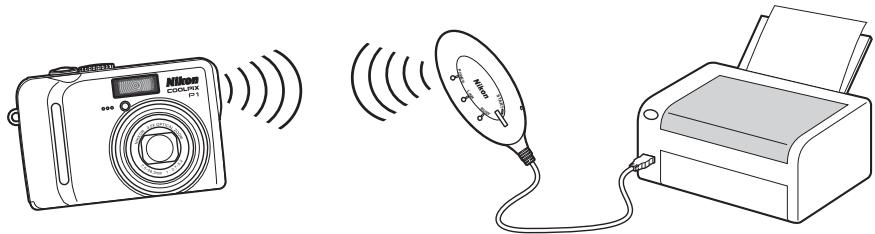
The PD-10 is an accessory for use with Nikon COOLPIX digital cameras* equipped with Wireless transfer mode.
By connecting the PD-10 to a PictBridge-compatible printer, you can wirelessly print camera images without a computer.
Read this manual and the camera manual thoroughly before use, and keep them handy when using these products.
* Check the camera manual to make sure that the camera is compatible with the PD-10.
Note
- Connect the PD-10 directly to a printer. Do not connect to a USB hub.
- The PD-10 must be connected to a printer that provides a 5 V, 100 mA power supply through the PictBridge interface (USB connector).
Before You Begin
| ● Package Contents | PD-10 wireless printer adapterInstruction Manual (this manual)Declaration of Conformity (Europe only)Two LR6 (AA) Alkaline batteries (for testing)Warranty |
● Life-Long Learning
As part of Nikon's "Life-Long Learning" commitment to ongoing product support and education, continually-updated information is available on-line at the following sites:
- For users in the U.S.A.: http://www.nikonusa.com/
- For users in Europe and Africa: http://www.europe-nikon.com/support/
- For users in Asia, Oceania and the Middle East: http://www.nikon-asia.com/
Visit these sites to keep up-to-date with the latest product information, tips, answers to frequently-asked questions (FAQs), and general advice on digital imaging and photography. Additional information may be available from the Nikon representative in your area. See the URL below for contact information:
http://nikonimaging.com/
Parts of the Adapter
En
En
Inserting the Batteries
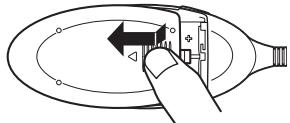
1 Press down and slide the battery-chamber cover in the direction of the arrow and open the cover.
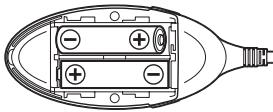
2 Insert two AA batteries into the battery chamber matching the (+) and (−) polarities as shown in the diagram.
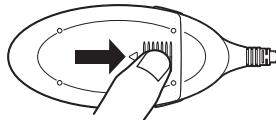
3 Close the battery-chamber cover and slide it until it latches.
Connecting the PD-10 to a Printer
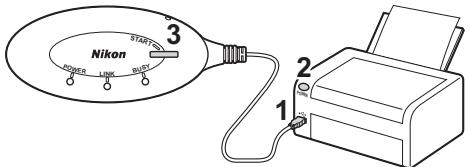
1 Connect the USB cable of the PD-10 to the PictBridge connector on the printer.
2 Turn the printer on and check that it is ready to print.
- Do not perform any operations with the PD-10 until the printer is ready to print.
3 Press the START button on the PD-10 to turn it on.
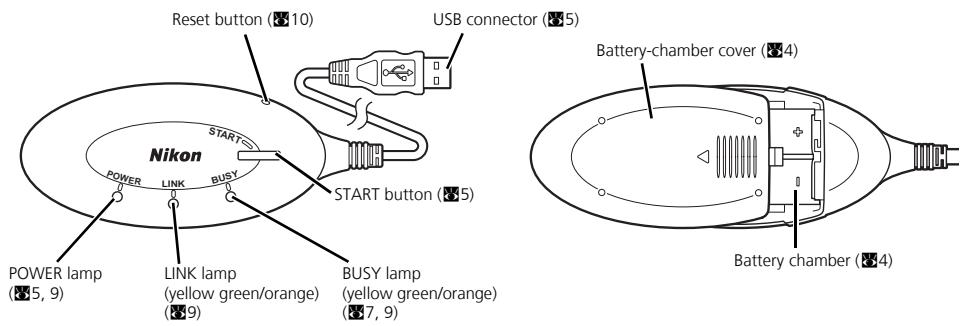
- The POWER lamp on the PD-10 lights, and the LINK lamp changes from orange to yellow green. The PD-10 is ready for wireless connection.
Once a connection is established:
- If this is the first time the PD-10 is used with the camera: Proceed to p.6.
- To perform wireless printing: Proceed to p.8.
En
Setting Profile Information on the Camera
If this is the first time the PD-10 is being used with a particular camera, follow the steps below to set up Profile Information on the camera and PD-10.
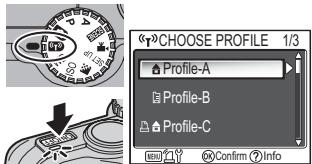
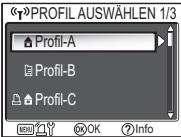
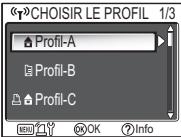
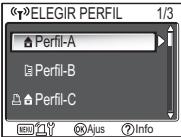
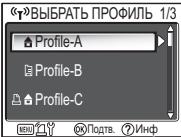
1 Rotate the mode dial on the camera to 📄 (Wireless transfer mode), and turn the camera on.
- The CHOOSE PROFILE screen is displayed on the camera monitor.
- If no Profile Information is currently set, a message is displayed prompting you to add Profile Information.
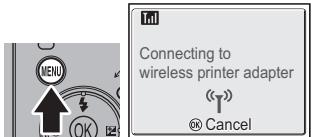
2 Press the MENU button on the camera.
- The message "Connecting to wireless printer adapter" will be displayed on the camera monitor.
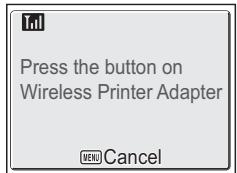
3 The message "Press the button on Wireless Printer Adapter" will be displayed on the camera monitor.
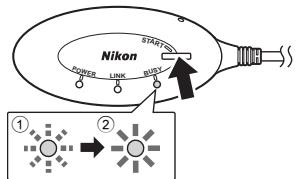
4 As soon as the message is displayed, press the START button on the PD-10 for two seconds.
- Press the START button while the message is displayed.
- The BUSY lamp on the PD-10 will blink slowly in orange ①. After a while, the BUSY lamp will light in orange for about three seconds when setup is complete ②.
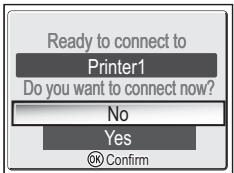
5 After setup is complete, the message "Ready to connect to Printer1 Do you want to connect now?" will be displayed on the camera monitor.
- Select No to return to the CHOOSE PROFILE screen (6). Select Yes to continue operations and print (step 3 on 8).
- After Profile Information is set up, the camera and PD-10 can be connected any number of times by choosing the Profile Information from the camera CHOOSE PROFILE screen. Profile Information must be set up again when Reset (☒ 10) is performed.
Note
If setup fails, the BUSY lamp on the PD-10 will blink rapidly in orange, and a message will be displayed on the camera monitor. If this occurs, press the Ⓧ button on the camera, and perform settings again.
● Number of Devices That Can Be Set
- The PD-10 can store the Profile Information of up to 50 cameras. If 50 profiles have already been created, the oldest profile will be deleted when storing a new profile.
- The camera can store the Profile Information of up to 9 devices, such as the PD-10, computers, and printers connected to computers. If 9 profiles have already been created and the Profile Information of the PD-10 is stored, delete an unneeded profile first using the Wireless Camera Setup Utility provided with the camera. If an unneeded profile is not deleted, the oldest profile will be overwritten. See the camera manual for more information on deleting profiles.
- Profile names
- When the Profile Information of the PD-10 is stored in the camera, the profile name is automatically set to "Printer x" (where x is a digit from 1 to 9).
- The profile name "Printer x" can be changed later using the Wireless Camera Setup Utility provided with the camera. See the camera manual for more information.
● Turning the PD-10 Off
- The PD-10 will turn off when disconnected from the printer.
Wireless Printing
Use the PD-10 and a camera with PD-10 Profile Information to wirelessly print camera images.
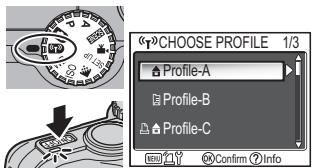
1. Rotate the mode dial on the camera to 📄 (Wireless transfer mode), and turn the camera on.
- The CHOOSE PROFILE screen is displayed on the camera monitor.
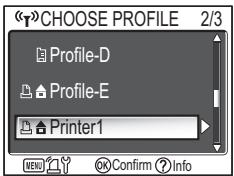
2. Select the profile name of the PD-10 using the multi selector on the camera and press the Ⓞ button.
- Screens showing the connection status of the PD-10 are displayed on the camera monitor.
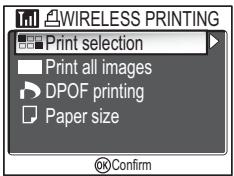
3. The WIRELESS PRINTING screen is displayed on the camera monitor.
- Print using the same procedure as "Direct Print" in the camera manual to directly print from the camera to a PictBridge-compatible printer.
• After printing is complete, the camera monitor returns to the CHOOSE PROFILE screen.
Note
- Use fully-powered batteries when performing wireless printing. • See the camera manual for direct printing operations.
- If printing is canceled before completing, printing stops and the camera monitor returns to the CHOOSE PROFILE screen.
LED Lamp Display
The POWER, LINK and BUSY lamps (3) indicate the following after the printer and camera are set up.
During printing standby, each lamp displays the color corresponding to the check mark (√).
| Lamp | Display | Status | Printing standby |
| POWER | Lights | Power is on | √ |
| LINK | Lights in yellow green | Ready for wireless connection | √ |
| Lights in orange | Not ready for wireless connection | ||
| Blinks rapidly in orange for about 3 seconds | There is a problem with the wireless connection. | ||
| BUSY | Lights in yellow green | Printing standby | √ |
| Blinks in yellow green | Transferring data for printing | ||
| Blinks rapidly in yellow green for about 3 seconds | There is a problem transferring data for printing. | ||
| Blinks in orange | Setting Profile Information on the camera | ||
| Lights in orange for about 3 seconds | Profile Information setup on the camera complete | ||
| Blinks rapidly in orange for about 3 seconds | There is a problem setting Profile Information on the camera. | ||
| Blinks alternately in orange and yellow green | Resetting (8510) |
Note
- If the connection with the camera is not established (when the BUSY lamp is not lit) and no operations are performed for about three minutes, the PD-10 automatically turns off in order to reduce power consumption.
- If in printing standby (indicated by the check marks in the chart above) for 10 minutes, the PD-10 automatically turns off.
Troubleshooting
If the camera cannot establish a strong connection to the PD-10 or if printing suddenly stops, check the following items.
| Problem | Possible cause/Solution |
| The POWER lamp on the PD-10 does not light. | Use fully-powered batteries.Check that the PD-10 is connected to the printer. |
| Unable to successfully set up the Profile Information on the camera and PD-10./The camera cannot establish a strong connection to the PD-10 (overall). | Check that the printer is on and ready to print. |
| The camera cannot establish a strong connection to the PD-10./The connection is interrupted. | The wireless signal may be affected by something nearby. Move the camera and printer closer together. |
| There is a problem with the wireless connection./The connection is interrupted. | The wireless signal may be affected by something nearby. Move the camera and printer closer together. Perform a Reset, and then set up the Profile Information on the camera again (886). |
| Unable to successfully set up the Profile Information on the camera and PD-10. (BUSY lamp blinks rapidly in orange.) | Perform Steps 3 and 4 in “Setting Profile Information on the Camera” (886 - 7) in rapid succession. In Step 4, the START button must be pressed for two seconds. |
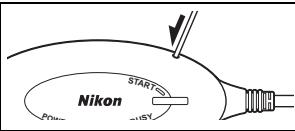
Resetting
- If the Reset button is pressed for about one second while the PD-10 is on and connected to the printer, all of the Profile Information set in the PD-10 will be deleted.
- Press the Reset button with a small, thin object.
Specifications
| Interface | USB | |
| Wireless LAN interface | IEEE 802.11g | Wireless LAN (OFDM, 54 Mbps in 2.4 GHz band)The distance to communicate: 0 - 25 m Condition of the distance: Line of sight |
| IEEE 802.11b | Wireless LAN (DSSS, 11 Mbps in 2.4 GHz band)The distance to communicate: 0 - 40 m Condition of the distance: Line of sight | |
| Wireless mode | Ad-hoc mode | |
| Security | WEP 128 bit | |
| Power sources | Batteries | Two LR6 (AA) Alkaline batteries (two rechargeable Nikon EN-MH1 batteries, two ZR6 (AA) nickel manganese batteries and two FR6/L91 (AA) lithium batteries also can be used) |
| USB connector on printer | 5 V, 100 mA | |
| Battery life | Approximately 120 minutes (when using LR6 (AA) Alkaline batteries; this may differ depending on the type of printer, file size of pictures to be printed, and wireless connection conditions) | |
| Dimensions (W × H × D) | Body: Approximately 117 × 45.5 × 29.5 mm/4.6 in. × 1.8 in. × 1.2 in. including cable boot (not including cable) USB cable: Approximately 500 mm/19.7 in. | |
| Approximate weight | 73 g without batteries | |
| Operation Environment | Temperature: 0 to 40°CHumidity: 10 to 90 % | |
Safety instructions
Note

Federal Communications Commission (FCC)
1300 Walt Whitman Road, Melville, New York
11747-3064, U.S.A.
Tel.: 631-547-4200
This class B digital apparatus meets all requirements of the Canadian Interference Causing Equipment Regulations.
IC Declaration
Note

Note
Restore
Note!
Note
Reset
Note
Note
No reproduction in any form of this manual, in whole or in part (except for brief quotation in critical articles or reviews), may be made without written authorization from NIKON CORPORATION.
- PD
- FOR YOUR SAFETY
- WARNINGS
- TURN OFF IMMEDIATELY IN THE EVENT OF MALFUNCTION
- DO NOT DISASSEMBLE
- DO NOT USE IN THE PRESENCE OF FLAMMABLE GAS
- KEEP DRY
- KEEP OUT OF REACH OF CHILDREN
- REMOVE THE BATTERIES IF THE PRODUCT WILL NOT BE USED FOR LONG PERIODS
- FOLLOW THE INSTRUCTIONS OF HOSPITAL AND AIRLINE PERSONNEL
- FOLLOW THE WARNINGS ON THE BATTERIES
- NOTICES
- NOTICE FOR CUSTOMERS IN THE U.S.A
- FEDERAL COMMUNICATIONS COMMISSION (FCC)
- DECLARATION OF CONFORMITY
- FEDERAL COMMUNICATION COMMISSION INTERFERENCE STATEMENT
- NIKON
- EN
- IMPORTANT NOTE
- FCC RADIATION EXPOSURE STATEMENT
- NOTICE FOR CUSTOMERS IN THE STATE OF CALIFORNIA
- NOTICE FOR CUSTOMERS IN CANADA
- CAUTION
- RSS-210 14. EXPOSURE OF HUMANS TO RF FIELDS
- ATTENTION
- NOTICE FOR CUSTOMERS IN EUROPE
- SYMBOL FOR SEPARATE COLLECTION APPLICABLE IN EUROPEAN COUNTRIES
- CARING FOR THE ADAPTER
- DO NOT DROP
- KEEP AWAY FROM STRONG MAGNETIC FIELDS
- ● AVOID SUDDEN CHANGES IN TEMPERATURE
- TABLE OF CONTENTS
- INTRODUCTION
- NOTE
- BEFORE YOU BEGIN
- ● LIFE-LONG LEARNING
- PARTS OF THE ADAPTER
- INSERTING THE BATTERIES
- CONNECTING THE PD-10 TO A PRINTER
- ONCE A CONNECTION IS ESTABLISHED
- SETTING PROFILE INFORMATION ON THE CAMERA
- WIRELESS PRINTING
- LED LAMP DISPLAY
- TROUBLESHOOTING
- RESETTING
- SPECIFICATIONS
- SAFETY INSTRUCTIONS
- IC DECLARATION
- RESTORE
- RESET
Brand : NIKON
Model : PD-10
Category : Wireless printer accessory