EasyManual
AF-10 - Camera NIKON - Free user manual and instructions
Find the device manual for free AF-10 NIKON in PDF.


User questions about AF-10 NIKON
0 question about this device. Answer the ones you know or ask your own.
Ask a new question about this device
Download the instructions for your Camera in PDF format for free! Find your manual AF-10 - NIKON and take your electronic device back in hand. On this page are published all the documents necessary for the use of your device. AF-10 by NIKON.
USER MANUAL AF-10 NIKON
Loading Documents Manually
Troubleshooting
Specifications
Paper Limitations

Cautions
- The reproduction of all or part of this manual without our permission is prohibited.
- The information contained in this manual is subject to change without notice.
- We have made every effort to produce a perfect manual, but should you find any mistakes, we would be grateful if you would kindly let us know.
- We cannot assume any responsibility for consequences resulting from the operation of this product, despite the terms mentioned above.
Federal Communications Commission (FCC) Radio Frequency Interference Statement
This equipment has been tested and found to comply with the limits for a Class B digital device, pursuant to Part 15 of the FCC Rules. These limits are designed to provide reasonable protection against harmful interference in a residential installation. This equipment generates, uses, and can radiate radio frequency energy and, if not installed and used in accordance with the instructions, may cause harmful interference to radio communications. However, there is no guarantee that interference will not occur in a particular installation. If this equipment does cause harmful interference to radio or television reception, which can be determined by turning the equipment off and on, the user is encouraged to try to correct the interference by one or more of the following measures:
- Reorient or relocate the receiving antenna.
- Increase the separation between the equipment and receiver.
- Connect the equipment into an outlet on a circuit different from that to which the receiver is connected.
- Consult the dealer or an experienced radio/TV technician for help.
CAUTION
Modifications
The FCC requires the user to be notified that any changes or modifications made to this device that are not expressly approved by Nikon Corporation may void the user's authority to operate the equipment.
Notice for customers in Canada
CAUTION
This class B digital apparatus meets all requirements of the Canadian Interference Causing Equipment Regulations.
ATTENTION
Thank you for purchasing the Nikon Auto Document Feeder AF- 10 for the full-color flatbed scanner ScanTouch I 10.
This manual describes the procedure for setting up the AF-10 and connecting it to the ScanTouch 110. Please read this manual thoroughly to ensure proper installation and operation of the unit.
For practical procedures on how to scan and reproduce images using the ScanTouch I I O with the Automatic Document
Feeder AF-10, please refer to the software manual.
We hope that you find this manual helpful.
Accessories
The following items are included with your Auto Document Feeder AF-10. On opening the package, if any items are missing, please contact your dealer immediately.
- Auto Document Feeder AF-10 (1)
- Open Me First envelope (I)
- User's Manual (I)
Installing the AF-10
I. Turn off your scanner and unplug its power cord from the AC power outlet.
2. Remove the document cover from the scanner.
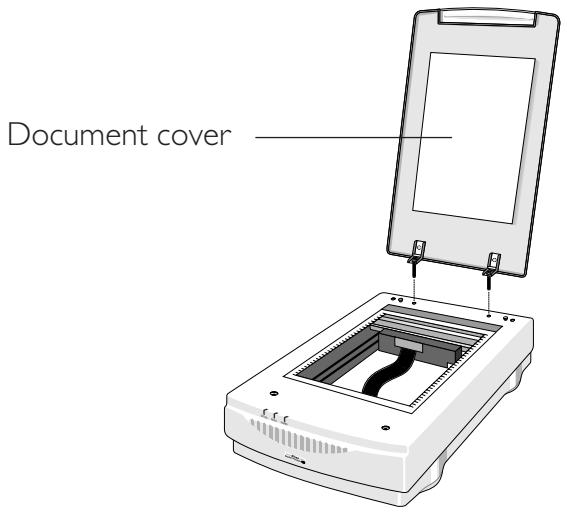
- Fit the two holes in the hinge plate of the AF-10 over the small supporting posts on the scanner.
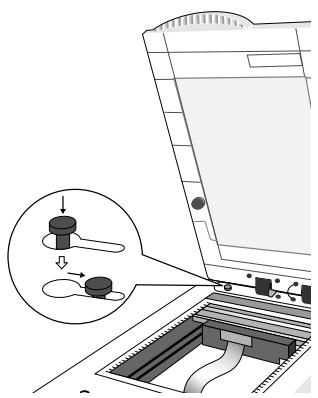
- Gently slide the AF-10 so that the supporting posts move into the narrow sections of the holes.
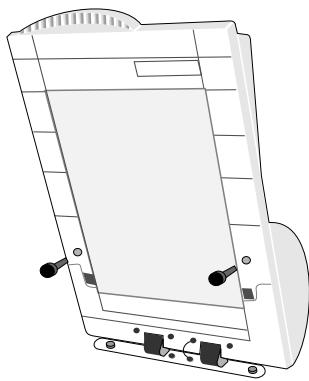
- Attach the AF-10 with the two lockdown screws provided. Insert screws into the center of each hinge bracket and use a coin to tighten the screws securely.
-
Connect the AF-10 interface cable to the connector on the rear panel of the scanner.
-
Plug in the scanner's power cord and turn the power switch on.
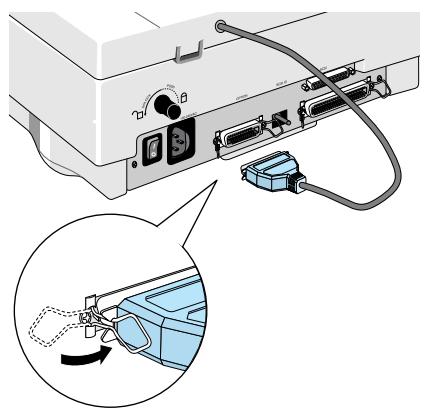
Note: When you remove the AF-10, store the two lockdown screws in the holes on the back of the unit, until they are needed again.
Using the AF-10
Begin by removing any document from the document setting glass of the scanner, and then make sure that the AF-10 is closed.
I. Turn the scanner on.
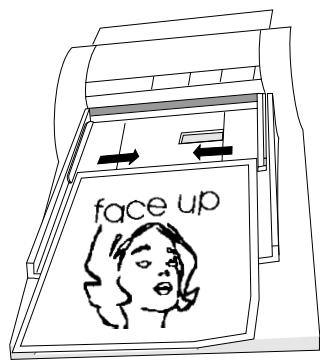
2. Place the documents in the upper tray, face up, as shown.
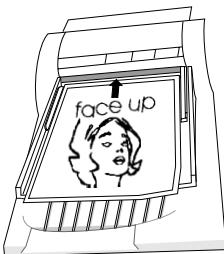
The AF-10 can be loaded with up to 50 sheets (a stack thickness of 6 ~mm or less) of the following paper sizes:
Check size 3 × 5 inches (76mm x 127mm)
A5 5.8 × 8.3 inches (148.5mm x 210mm)
B5 7.2 × 10.1 inches (182mm × 257mm)
A4 8.3 × 11.7 inches (210mm × 297mm)
Letter 8.5 x 11 inches (216mm x 279mm)
Legal 8.5 × 14 inches (216mm × 356mm)
- Slide the paper guides on the upper tray towards each other, until they just contact the edges of the document stack.
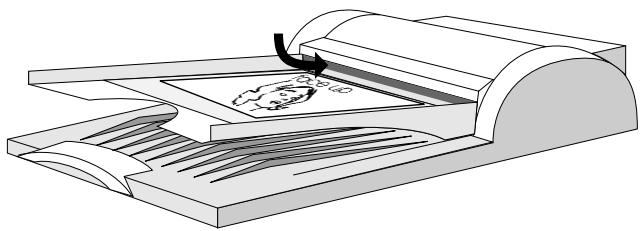
- After aligning the document stack, insert the documents until you can feel them contact the document-stopper of the AF-10.
Loading Documents Manually
You can still load documents manually, even with the AF-10 installed.
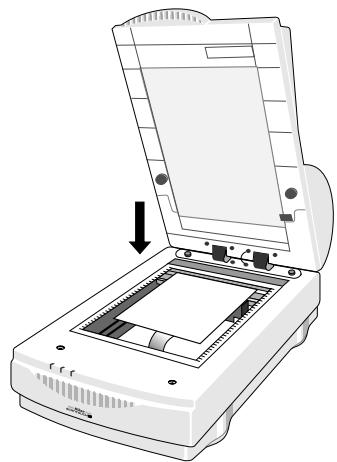
- Open the front end of the AF-10.
- Place the document on the document setting glass of the scanner, then lower the AF-10 and initiate the scan.
Troubleshooting
Removing a Jammed Document
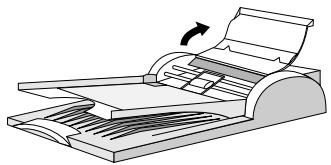
I. Raise the cover of the AF-10.
- (Condition 1)
If the jammed paper is at the exit of the AF-10, lift the upper tray, and slowly pull the jammed paper toward you until it is fully released from the feeder mechanism.
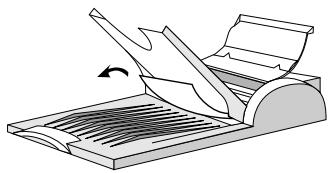
(Condition 2)
If the jammed paper has not yet arrived at the exit of the AF-10, slowly pull the jammed paper backward until it is fully released.
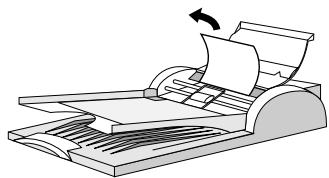
- After removal of the jammed document, gently close the cover of the AF-10.
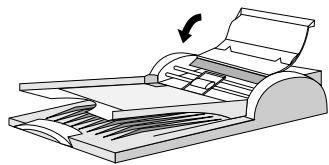
Replacing the Transparent Sheet
The quality of your scans may degrade overtime. Quite often this is caused by a scratched or dirty Transparent Sheet. You can contact your dealer to purchase a replacement. To replace a worn Transparent Sheet, follow these steps:
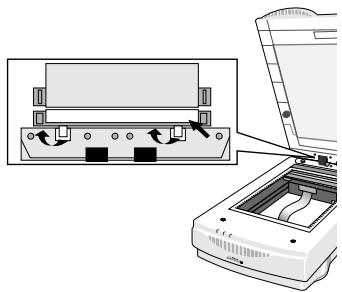
I. Raise the cover of the AF-10.
2. Remove the Transparent Sheet from the AF-10 by pulling the two hooks of the Transparent Sheet toward you, and pushing it up.
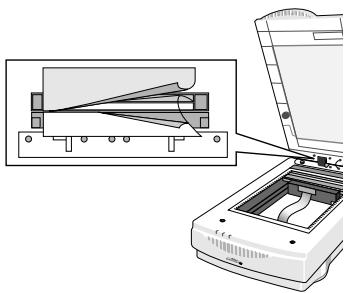
- Insert the transparency edge of the new Transparent Sheet between the paper guide (A or B) of the AF-10, with the white sheet to the lower side.
- Insert the two hooks of the Transparent Sheet into the AF-10.
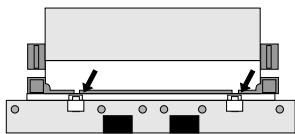
- Push down the two protrusions of the Transparent Sheet as far as they will go.
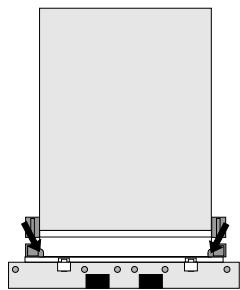
- Gently close the cover of the AF-10.
Specifications
Weight: 10.0 lbs (4.5kg)
Dimensions: 12.7 (W) × 20.6 (D) × 4.1 (H) inches (322 × 524 × 104mm)
Paper capacity: 6mm document stack (50 pages for 0.1t paper)
Operating Environment:
Temperature: 41^ F to 95^ F ( 5^ C to 35^ C )
Humidity: 20 to 85% R.H. (no condensation)
Storage Environment:
Temperature: -4^ F to 140^ F (-20^ C to 60^ C)
Humidity: under 95% R.H. (no condensation)
Paper Limitations
Size:
Width: 3.0 to 8.5 inches (76 to 216mm)
Length: 5.0 to 14 inches (127 to 356mm)
Thickness: 0.065 to 0.145 mm
Weight: 50 to 127g / mm
Paper Quality:
Copy Paper
Document Condition:
Use with ink that will not be transferred to the rollers. Torn, holed, wrinkled, or folded paper, paper with adhesive tape, carbon, or paper clips attached, or paper with wet ink, can cause a paper jam or damage to the AF-10.
EC DECLARATION OF CONFORMITY
We
Name: Nikon UK Limited
Address: Nikon House, 380 Richmond Road, Kingston, Surrey KT2 5PR, UK
declare that the product
Product Name: Auto Document Feeder AF-10
Manufacturer's Name: Nikon Corporation
Manufacturer's Address: Fuji Bldg., 2-3, Marunouchi 3-chome, Chiyoda-ku, Tokyo 100, Japan
is in conformity with the following Standards
EN55022 Class B
EN50082-1
IEC801-2:1984 8kV
IEC801-3:1984 3V/m
IEC801-4:1988 IkVAC, 0.5kV, I/O
following the provisions of the EMC Directive (89/336/EEC)
DECLARATION DE CONFORMITE DE LA CEE
Nous
Nom: Nikon UK Limited
Address: Nikon House, 380 Richmond Road, Kingston,
Surrey KT2 5PR, UK
Name: Nikon UK Limited
Anschrift: Nikon House, 380 Richmond Road, Kingston, Surrey KT2 5PR, UK