WAX - Smartphone WIKO - Free user manual and instructions

Find the device manual for free WAX WIKO in PDF.

📄 194 pages English EN 💬 AI Question
Notice WIKO WAX - page 32
Manual assistant
Powered by ChatGPT
Waiting for your message
Product information

Brand : WIKO

Model : WAX

Category : Smartphone

Download the instructions for your Smartphone in PDF format for free! Find your manual WAX - WIKO and take your electronic device back in hand. On this page are published all the documents necessary for the use of your device. WAX by WIKO.

USER MANUAL WAX WIKO

NOT ALLOW THE EXCLUSION OF IMPLIED WARRANTY OR LIMITATIONS ON THE LEGAL RIGHTS OF CONSUMERS, IT IS POSSIBLE THAT THESE EXCLUSIONS AND LIMITATIONS MAY NOT APPLY TO YOU. Third party services may be interrupted or terminated at any time. WIKO makes no representations or warranties over time regarding the availability of any content or service. WIKO has no control over the content and services transmitted by third parties via networks or transmission devices. WIKO expressly disclaims all liability for any interruption or suspension of a service or content provided by this device without restricting the general scope of this limitation of liability. WIKO may in no circumstances be liable for the customer service associated with the content and services. Any questions or inquiries concerning the content or services should be sent directly to the supplier of the relevant content or services. What’s in the Box :

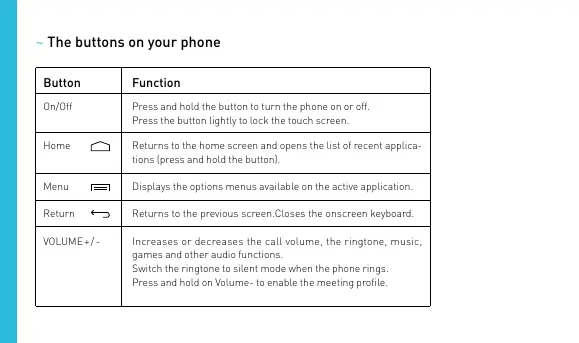
Getting to Know Your Phone Earpiece 3,5 mm headphone jack Front camera Micro USB port Camera lens LED flash Volume +/On-Off/Lock Touch screen Home Menu Return Loudspeaker ~ The buttons on your phone Button Function On/Off Press and hold the button to turn the phone on or off. Press the button lightly to lock the touch screen. Home Returns to the home screen and opens the list of recent applications (press and hold the button). Menu Displays the options menus available on the active application. Return Returns to the previous screen.Closes the onscreen keyboard. VOLUME + / - Increases or decreases the call volume, the ringtone, music, games and other audio functions. Switch the ringtone to silent mode when the phone rings. Press and hold on Volume- to enable the meeting profile. Getting Started ~ Inserting SIM cards You will need to insert your SIM card before you can use your phone. There is a small notch on the side of the phone to open the back cover. Insert the SIM card following the diagram.

~ Charging the Battery A flashing red light indicates that the battery level is very low : the battery should be recharged because, if the level is too low, it may shorten the life of the battery. Connect the charger to a power outlet and the micro USB connector to the phone’s USB port. The phone’s status indicator changes to red, indicating that the device is charging. Once the phone has finished charging, the status indicator changes to green and you should unplug the charger. ~ Turning the Phone On and Off To turn the phone on, press on the ON/OFF button and hold it down until the phone begins to vibrate. If your SIM card is locked, you must enter the correct PIN code to unblock the SIM card when the phone is powered up. Your PIN is supplied by your operator; if you did not receive it or have lost it, please contact them. When the PIN is entered incorrectly three times, the mobile phone is blocked and has to be unblocked using your PUK (this is supplied with the SIM card; if this is not the case, you should contact your phone operator). To turn the phone off, press and hold the ON-OFF button until the menu opens, then press on Switch Off. Now press OK to confirm. The phone vibrates when it is shut down completely. Basic Operations ~ Network Connection The first time the phone is turned on, or when you change SIM card(s) and re-start the phone, the Access point settings menu will be brought up. Press on Select. Press on the name of the SIM card to display the list of access points. Choose the one that matches your operator’s by pressing on the button on the right, then press on RETURN to go back to the previous menu.

  • APN Not Available If your operator does not appear in the list or the list is empty, ask your operator how to configure the APN manually. To do this, access the menu Settings > WIRELESS & NETWORKS > More… > Mobile networks > Access point names, press the + button in the top right of the screen, and enter the information provided by your operator. Then press the MENU button and choose Save. Return to the previous menu, then choose the APN that you have just saved.
  • Enabling Data Connection To check your data connection settings :

1. Go to Settings > WIRELESS & NETWORKS >

More… > Mobile networks > Access point names, then enable the access point according to your operator/package.

2. Return to the previous mobile network settings

menu, then press on Data enabled . *You can also drag the notifications panel downwards to enable a data connection. ~ Notifications Notification icons on the status bar

Connected to Wi-Fi Bluetooth enabled Signal strength GPS in use Connected to GPRS Voice call in progress Connected to EDGE Call waiting Connected to 3G Missed call Connected to HSPA (3G+) Synchronising Connected to HSPA+ (3G++) New mail No signal Alarm on Roaming Silent mode on Wi-Fi available New voicemail Downloading Connected to computer Battery level New SMS or MMS Airplane mode on Depending on the application, notifications may be accompanied by a beep, vibration or a flashing LED. Notifications Panel Drag the status bar downwards to see details of all your notifications, slide your finger up on any part of the home screen. Information about new messages received, upcoming calendar events, download status, etc. will then be displayed. The name of the operator is shown at the bottom of the panel. to clear all temporary notifications (apPress on plications that are running are still listed). Drag a notification to the left or right to clear it. To close the panel, drag it upwards or press on RETURN To access the settings panel, press on

Shortcut : pull the notification downwards with two fingers. ~ Using the Menus The menus on your phone take the form of a contextual menu or an options menu. Contextual Menu button. The options menu suggests actions or settings for the current screen or application but not for a specific item as is the case for the contextual menu. Note : some screens do not have options menus. To bring up a contextual menu, press and hold on an item on the screen: the contextual menu then suggests various actions associated with the item. For example, if you press and hold on an SMS, the options for the message are displayed. Note : not all items have a contextual menu. When you press and hold on an item that does not have a menu, nothing will happen. Options Menu To bring up an options menu, press on the MENU Safety Information Please read this safety information carefully so that you can use your phone in complete safety :

1. Children : Be very careful with children and your

phone. A mobile phone contains a number of detachable parts. Exercise great care when children are in close proximity to the phone. The phone contains small parts that could be swallowed or cause choking. If your phone is equipped with a camera or lighting device, do not use it too near children or animals.

2. Hearing : Prolonged listening at full power using a

lightweight headset or headphones can damage your hearing. Reduce the volume to the lowest possible level when listening to music or conversations. Avoid high volumes over extended periods.

3. Driving : Exercise care when driving. Driving requires maximum attention at all times in order to

minimise the risk of accidents. Using a mobile phone can distract the user and result in an accident. You must fully comply with the local regulations and laws in force regarding the use of cell phones whilst driving. You are not allowed to use the phone whilst driving. A hands-free kit should not be regarded as an alternative solution. Flying : Turn your phone off when flying. Remember to turn your phone off when you are in a plane (GSM + Bluetooth) as it may cause interference.

4. Hospitals : Turn your phone off near any medical

devices. It is extremely dangerous to leave a phone switched on near medical devices as it may cause interference. You must observe any instructions or warnings in hospitals and treatment centres. Remember to turn your phone off in service stations. Do not use your device in a petrol station near fuel. It is dangerous to use your phone inside a professional garage.

5. Electronic implants and pacemakers : Users who

wear a pacemaker or who are fitted with an electronic implant must hold the phone on the opposite side to their implant as a precaution when making a call. If you notice that your phone is causing interference with a pacemaker, switch it off immediately and contact the manufacturer of the pacemaker for advice on what action to take.

6. Fire hazard : Do not leave your device near heat

sources such as radiators or cookers. Do not leave your phone charging near flammable materials as there is a real risk of fire.

7. Contact with liquid : Do not expose the phone to

liquid or touch it with wet hands : any damage caused by water may be irreparable.

8. Use only WIKO-approved accessories. The use of

unauthorised accessories may damage your phone or cause a safety risk.

9. Do not destroy the batteries and chargers.

Never use a battery or charger that has been damaged. Keep batteries away from magnetic objects as the latter might cause a short-circuit between the positive and negative terminals of your batteries and permanently destroy the battery or phone. As a general rule, you should not expose the batteries to very high or low temperatures (below 0°C or above 45°C). Differences in temperature may reduce battery autonomy and service life.

10. Shocks and impact : Handle and use your phone

with the utmost care. Protect your phone : shocks and impact may damage it. Some parts of your phone are madefrom glass and might break if the phone is dropped or is subject to severe impact. Avoid dropping your phone. Do not touch the screen with sharp objects.

11. Electric shock : Do not try to dismantle your phone

as there is a very real risk of electric shock.

12. Maintenance : If you want to clean your handset,

use a dry cloth (do not use a solvent, such as benzene, or alcohol).

13. Recharge your phone in a well ventilated area.

Do not recharge your device when it is resting on a soft surface.

14. Damage to magnetic strips : Keep your phone

away from credit cards as they may damage the data on the magnetic strips. ~ Important operating guidelines Batteries - SIM - Emergency calls - SAR - Repairs

1. To increase the life of your battery, only use WIKO

chargers and batteries. Replacing the battery with a non-compliant model may result in the latter exploding.

2. Never throw batteries on a fire and follow the guidelines in force for recycling used batteries and phones.

3. Be careful not to crush or damage the battery, as

this could cause an internal short circuit and overheating.

4. Do not take the battery apart.

5. The battery can be recharged several hundred times

before needing to be replaced. When it shows signs of losing its power, it can be replaced.

6. If you do not use your mobile phone for an extended

period, remember to recharge the battery to optimise its use time.

7. Do not throw batteries away with household waste:

recycle them in accordance with the manufacturer’s guidelines. If the battery is damaged, contact the after-sales service or the nearest authorised WIKO dealer.

8. Unplug the charger from the wall socket when the

battery is fully charged in order to reduce your energy consumption.

9. Do not leave the battery being charged for more than

a week as this might result in an overload and reduce the life of the product.

10. Handle the SIM cards with care : wipe them with a

soft cloth if they appear dirty.

11. Emergency calls : the emergency numbers may

not be accessible on all mobile telephone networks, in isolated areas or areas where there is no coverage; check first with your operator.

12. Radio Frequency Exposure :

Your mobile phone has been designed and manufactured in accordance with the international guidelines (ICNIRP1) on exposure to radio frequencies. These guidelines, which are based on various studies and research, have been developed by independent scientific organisations to ensure the safety of everyone who uses a mobile phone. The safety information on exposure to radio waves uses a unit of measurement known as SAR (Specific Absorption Rate). The international guidelines have set this limit at 2W/kg*. The phone is used in standard operating positions when being tested for its SAR. International Commission on Non-Ionising Radiation Protection Although the SAR is determined using the highest power level, the phone’s real rate of specific absorption whilst in operation may be well below the maximum value. A phone is designed to operate at different power levels so that it only uses the power it needs to be connected to the network. In addition, all models of phone must undergo tests before being marketed to ensure compliance with the European R&TTE directive. This directive publishes strict rules for guaranteeing the safety of users and for preventing any risks to health. The maximum SAR value tested on this device when used in its normal position at the ear is 0.687W/kg and 0.955W/kg when used close to the body, at a minimum distance of 1.5 cm. It complies with the rules on ex- posure to radio frequencies when used in its normal position at the ear or at a minimum distance of 1.5 cm from the body. The device uses a high-quality network connection for transmitting files, data and messages. On occasion, the transmission of files or messages may be delayed until the connection is available. When this is the case, be sure to follow the instructions regarding the separation distance for establishing the transmission. If you use a case, belt-clip or holder for carrying the phone, it must not contain any metal and should be kept at a minimum distance of 1.5 cm from your body. *The SAR limit for mobile devices is 2.0 watts / kilogram (W/kg) averaged over ten grams of body tissue. SAR values may vary according to the standards for reporting information that are in force in different countries. Tips for Reducing Exposure Levels We recommend that you use your phone in good re- ception conditions in order to reduce the amount of radiation received. It is advisable to limit the amount of time you use the phone in underground car parks and when travelling by car or train, etc. Reception conditions are indicated by the bars that are displayed on your phone : the more bars there are, the better the reception quality. We recommend that you use the hands-free kit to reduce exposure to radiation. To reduce the adverse effects of prolonged radiation exposure, we advise teenagers to hold the phone away from their lower abdomen, and that pregnant women hold the phone at a distance from their stomach.

13. Only qualified service personnel should repair

your device. If you give your device to non-qualified personnel for repair, the phone will not be covered by WIKO’s warranty.

14. Due to the used enclosure material, the GSM mobile phone shall only be connected to a USB Interface

of version 2.0 or higher. The connection to so called power USB is prohibited.

15. The adapter shall be installed near the equipment

and shall be easily accessible.

16. This charger is for indoor use only, the charger type

is UD36A50100, output voltage/current is 5Vdc/1A. NOTE Wiko’s warranty does not cover normal wear and tear (batteries, screens, keyboards, camera lenses, etc.). Data Use Agreement Registering your WIKO phone is a free service offered by WIKO that allows our engineers to connect to your phone’s physical data so that they can tell what your model and hardware specifications are in real time. In return, the engineers can keep you informed of updates that are available for your system and warn you in case of a recognised technical failure on a model or series. In addition, this service allows us to alert you instantly if there is a malfunction so that we can provide a technical solution as soon as possible. By registering your phone, you acknowledge that WIKO and its engineers are able to collect, store, analyse and use diagnostic, technical and usage data (and related data) including, without limitation, data regarding your WIKO device, your software system and your applications. We will collect this information on a regular basis to facilitate the provision of software updates and product support and miscellaneous services offered to customers (where applicable) relating to the software on your device. WIKO may use this information without revealing the identity of the customer in order to offer and improve its products or services for the user. This service will not give us access to your content and personal files. You need to be connected to the mobile internet net- work for a short time to register your WIKO phone. This may result in connections costs, at your expense, depending on the nature of your contract with your mobile operator. We recommend that you use a Wi-Fi connection, as with this type of connection there is no data limit (if your phone service limits the exchange of data) and the connection is quicker. The information obtained is processed electronically in order to access the physical data on your phone. The data recipient is WIKO SAS. In accordance with the French Data Protection Act (the Loi Informatique et Libertés of January 6, 1978, amended in 2004), you have the right to access and correct personal information submitted during registration. You may exercise this right by writing to WIKO SAS at 1, rue Capitaine Dessemond, 13007 Marseilles, France. You may also, for legitimate reasons, oppose the processing of your personal data. ~ Recycling The symbol of a crossed-out wheelie-bin, as found in this manual, indicates that the item is subject to European Directive 2002/96/EC, which states that electrical and electronic equipment, batteries, accumulators and accessories must undergo selective waste management. Make sure that, when your phone is no longer usable, you put it in a suitable waste bin or return it to a mobile phone retailer. In this way you will help to reduce environmental and health hazards. Local councils, retailers and national manufacturing associations will give you the necessary information on how to dispose of your old device. «The details and conditions of our manufacturer warranty are available on www.wikomobile.com»