PRO 1 - Smart Home Vivax - Free user manual and instructions
Find the device manual for free PRO 1 Vivax in PDF.


User questions about PRO 1 Vivax
0 question about this device. Answer the ones you know or ask your own.
Ask a new question about this device
Download the instructions for your Smart Home in PDF format for free! Find your manual PRO 1 - Vivax and take your electronic device back in hand. On this page are published all the documents necessary for the use of your device. PRO 1 by Vivax.
USER MANUAL PRO 1 Vivax
natural_image
Warning symbol with a triangle containing a stylized ear icon (no text or numbers)- Uređaj uvijek držite dalje od predmeta poput bankovne kartice. Zračenje mobilnog telefona može uzrokovati gubitak podataka na kredinoj kartici i sličnim predmetima.
- Ne odlažite uređaj na vlažnim i mokrim mjestima, što može uzrokovati pregrijavanje ili kvar uređaja.
>PREZ PR( V>Ž") (
natural_image
Pure technical line drawing of a mechanical component or bracket (no text or symbols)VAŽN>:
text_image
Welcome ENGLISH (UNITED STATES) → Emergency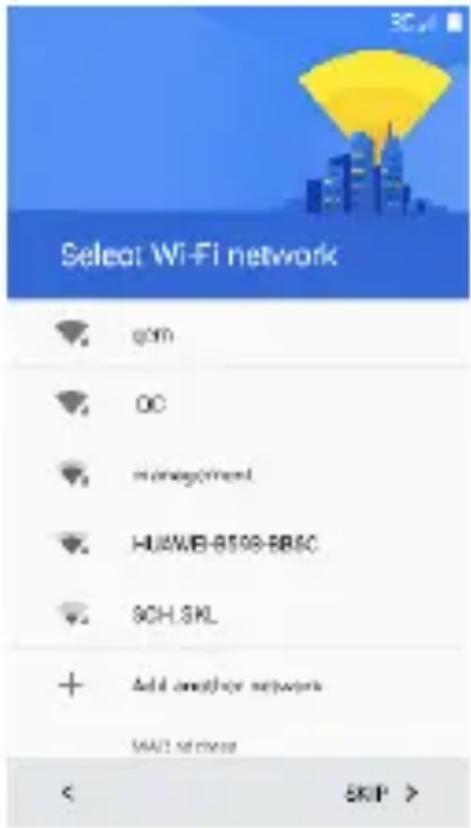
text_image
Select Wi-Fi network qCM OC management HUWJB-8598-BBSC SCH-SKL + Add another network MAX 6 channels < SKIP >Kopiranje postava
Drugog uređaja (opcija)
text_image
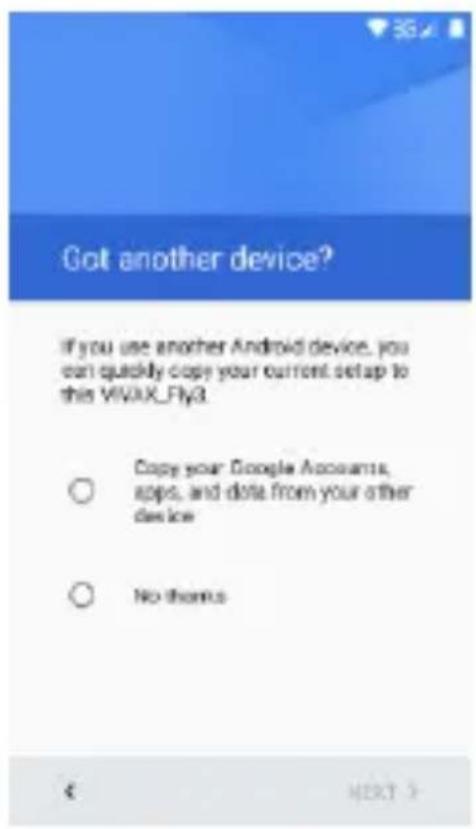
Got another device? If you use another Android device, you can quickly copy your current setup to this VIVAX_Fly3. Copy your Google Accounts, apps, and data from your other device No thanksPostavljanje Google računa
text_image
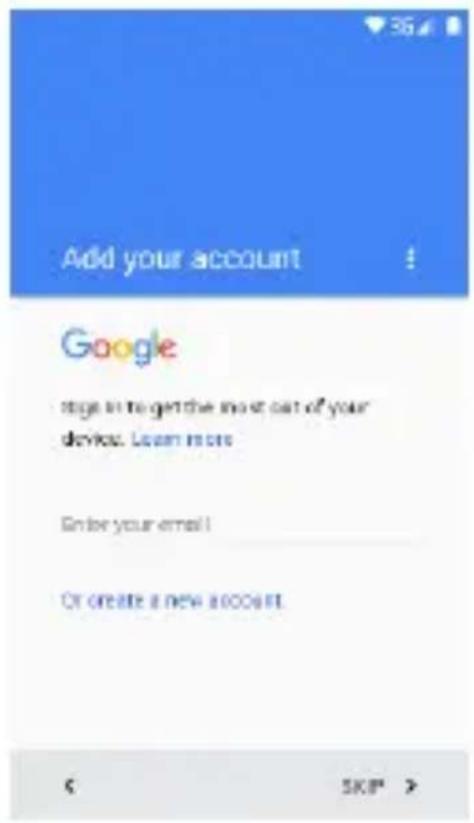
Add your account Google page in to get the most out of your device. Learn more Enter your email! Or create a new account.
text_image
Got another device? If you use another Android device, you can quickly copy your current setup to this VTBAX_Fly3. Copy your Google Accounts, apps, and data from your other device No thanksČarobnjak će vas voditi kroz postavljanje telefona i prilagoditi telefon vašoj telefonskoj mreži, Wi-Fi pristupu, Google računu, 9-mail računu i drugim početnim postavkama.
PRISTUP UPUTAMA NA ZASL>NU
Za više informacija i pristup Uputama za uporabu na zaslonu telefona, pritisnite na oznaku "Manual"
text_image
5:06 AM Thursday, January 1 Wi-Fi Bluetooth Do not disturb Data SIM not set Aplane mode Auto-rotate Flashlight Location Audio profiles2. Tipke
text_image
Google Email Watch To Show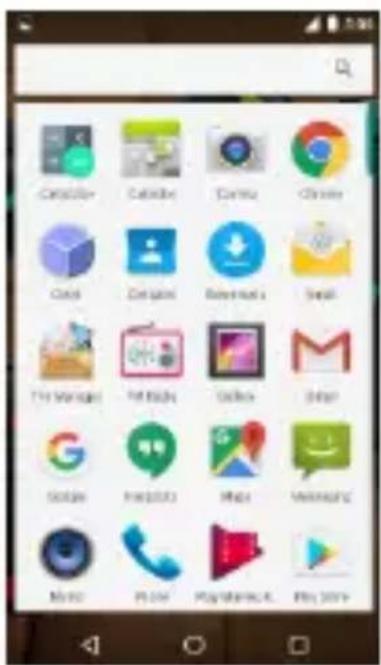
text_image
Catalay Catalay Catalay Chrome Gold Dengni Reversafe Smart Ttl Manager Hotbox Gloos Other Google FreeQQ Miao Weisense Music Play PlayMeats4.0 Play Store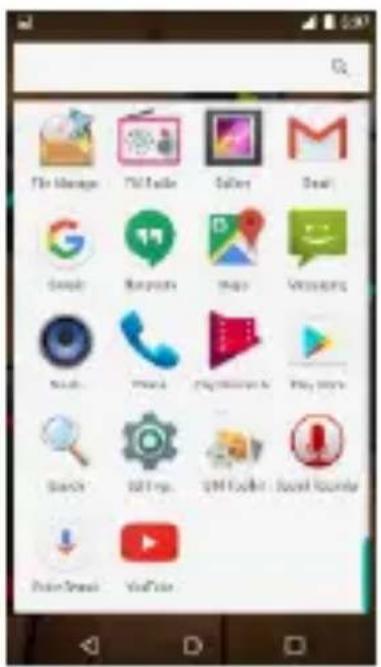
text_image
File Manage Watch Gallery Search Search Play Search Search Play Search Search Play SearchZa pokretanje Aplikacije, pritisnite na oznaku aplikacije.
4. Zaključavanje zaslona
Možete povećati sigurnost vašeg telefona odabirom tipa zaključavanje zaslona: Za ulazak u ugađanje odaberite: "Settings" (Postavke) > "Security" (Sigurnost) > "Screen lock" (Zaključavanje zaslona).
Možete postaviti zaključavanje zaslona s različitim razinama sigurnosti:
- No Lock 6Nema zaključavanja8
- Finger Slide 6Pomak prsta8
- Pattern 6Uzorak8
- PIN 67rojčana Lozinka8
- Password 6Slovna Lozinka8
text_image
5:07 Friday, January 1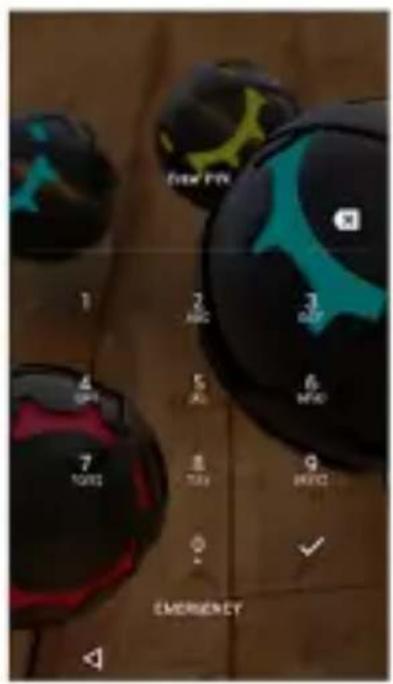
text_image
NEW PTR 1 2 ABC 3 OFF 4 5 6 MFG 7 TAY 8 BEET 9 OK ✓ EMERGENCY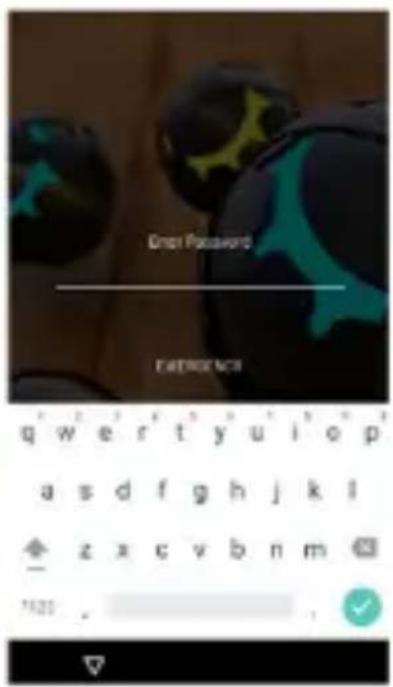
text_image
Get Password Emergency qw er t y u i o p a s d f g h j k l z x c v b n m 1625 .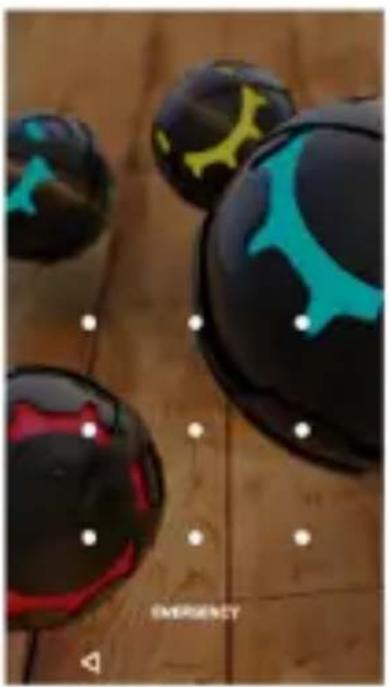
natural_image
Close-up of three black and red spherical objects with abstract markings on a wooden surface, no visible text or symbols.5. Postavljanje početnog zaslona
text_image
Mobile app interface screenshot showing a calendar with icons for email, photo, and settings, alongside a background of colorful balloons.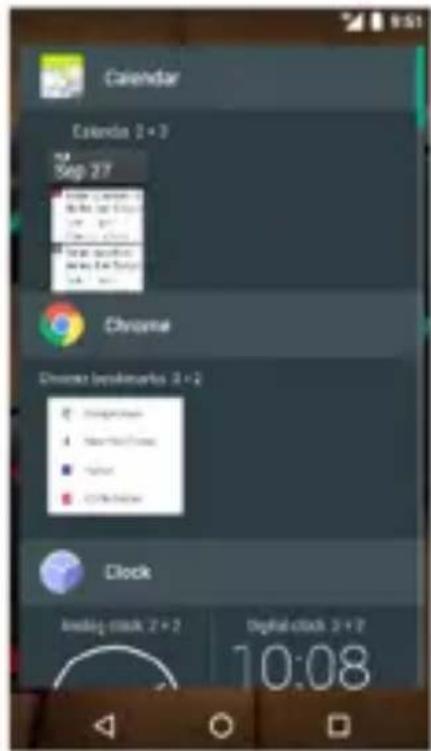
text_image
Calendar Calendar 2 + 3 Sep 27 Chrome Chrome browser Clock Analog clock 2 + 2 Digital clock 2 + 2 10:08Duljim dodirom na sliku Aplikacije možete pomicati aplikacije po zaslonu, brisati ih ili dodavati iz popisa aplikacija
6. Widget-i
Možete dodati aktivne aplikacije 6Widget-e8 na početni zaslon. Widget-i omogućavaju da na jednostavan i brz način možete vidjeti različite podatke i obavijesti na vašem početnom zaslonu, poput sata, vremenske prognoze, statusa 9-mail-a, itd.
natural_image
Close-up of colorful 3D-rendered objects on a wooden surface, no visible text or symbols7. Kamera
natural_image
Mobile phone interface with status bar, navigation buttons, and a play button (no readable text or symbols)8. Internet
text_image
9:53 AM Tuesday, November 15 0:00 Do not missets C2 Kujiwai model Automotive Flashlight Audio Audio previewZa pristup i pretraživanje interneta, možete koristiti Google Android aplikacije kao što je Chrome ili druge internetske tražilice.
text_image
Google Search or tape URL9. Uspostava poziva
Možete ostvariti poziv putem zapisnika poziva, odabirom kontakata, preko poruke koja sadrži tel. broj ili direktnim upisom broja koji želite pozvati. U modu
text_image
E Eph T TSL Today 1:00 PM 12:00 PM P: You're, I am empty, I'm able to go 19:00 PM P: You're going Share not read Mondaytext_image
Account setup Email account You can set up your account in just a few steps. gaoyan@innovatech.net.cn MANUAL SETUP NEXT >12. Audio
Vaš telefon podržava različite audio formate, različite zvučne efekte i četiri kategorizacije, tj. filtriranje po Izvođaču, Albumu, Naslovu i Listi za reprodukciju.
text_image
02 Billu Barber - Love Kiara Hit Hit Unknown artist 03 Kaminey - Dhan Te Non Anja Aaja Unknown artist 04 Skumdog Millionaire - Jai Ho Unknown artist 05 Love Aj Kal - Aahun Ashun Unknown artist 2014-12-20-17-12:50 Unknown artist 2014-12-20-17-13:07 Unknown artist 2014-12-23-18-40:42 Unknown artist 2014-12-23-18-40:50text_image
16221 1700238K VIEW REPLACE REMOVE CUT COPY SHARE Ghjjhhggghh MM8 Q'W'ER'T'Y'U'I'O'P A S D F G H J K L Z X C V B N M 2125 ,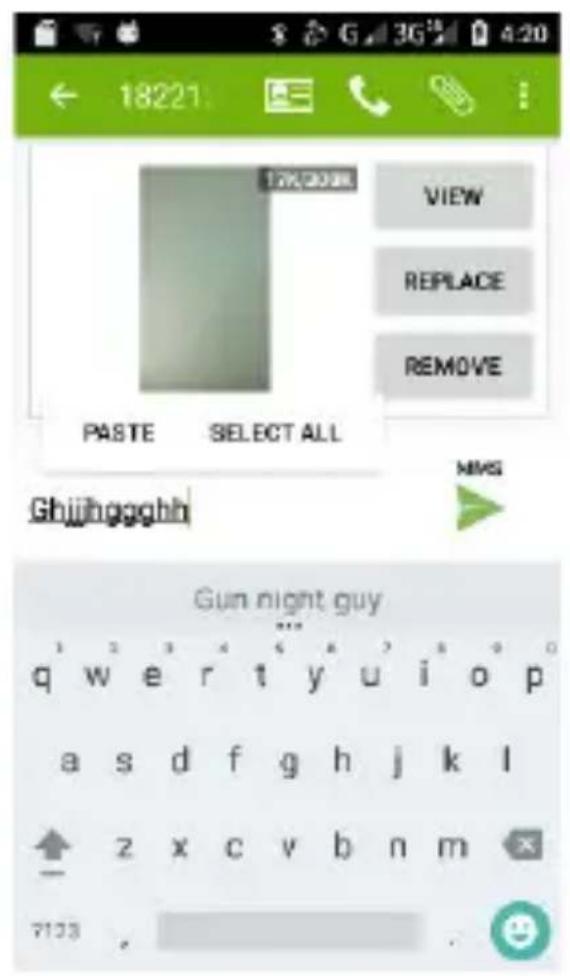
text_image
18221 PASTE SELECT ALL VIEW REPLACE REMOVE Ghjjhhggghh Gun night guy q w e r t y u i o p a s d f g h j k l z x c v b n m 712316. Karte i GPS
text_image
Take the shortcut Save home and work for faster directions SIGN IN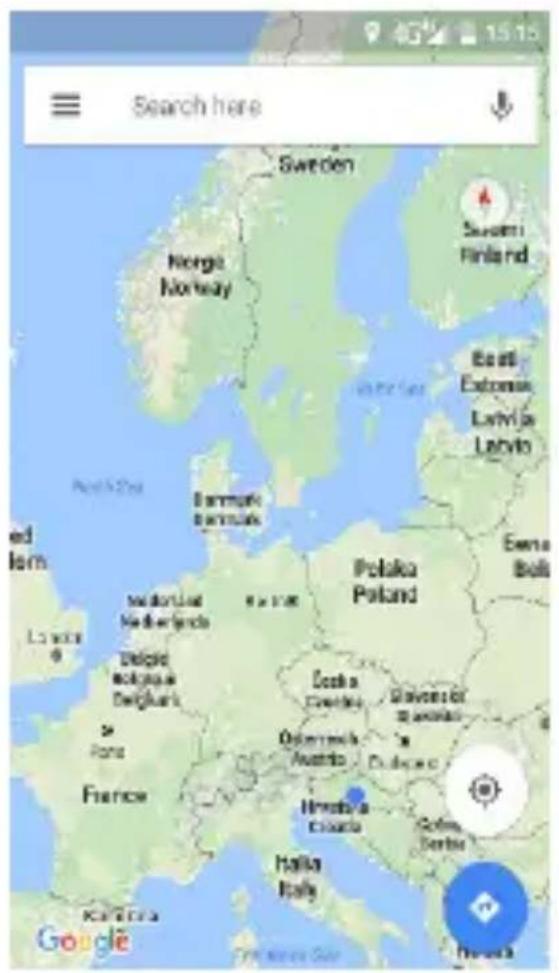
text_image
Search here Sweden Norge Norway Suzumi Finland East Extremes Latvia Denmark Polaka Eversa Bols L'Levres Madrid Netherlands Delphi Belgium Sé France Oxfordshire Austria Haryana Colaba Serbia Haita Italy GoogleAndroid logo, Google™, Google Maps™, Google Mail™, YouTube™, Google Play™ Store, i Google Talk™ su robne marke Google, Inc.
Wi-Fi ^® , Wi-Fi Protected Setup ^™ , Wi-Fi Direct ^™ , Wi-Fi CERTIFIED ^™ , i Wi-Fi logo su registrirane robne marke Wi-Fi Alliance.
PRO 1 Smartphone
SRB CG BiH
Korisničko uputstvo
Hvala vam na kupovini Vivax proizvoda.
Uputstva za upotrebu daju vam detaljne informacije o radu vašeg novog uređaja. Pre nego što počnete sa upotrebom vašeg novog telefona, obavezno pročitajte uputstva kako biste u potpunosti, sigurno i pravilno upotrebljavali vaš telefon. Sačuvajte uputstva za slučaj da vam ponovo zatrebaju.
ZAŠTITA IP68 – VAŽN>!
Vaš uređaj otporan je na padove, udarce i vodu, prema klasi zaštite IP68.
Šta to tačno znači? Telefon je dizajniran kao izuzetno otporan u poređenju sa klasičnim telefonima ali to NE ZNAČI da je neuništiv! To NE ZNAČI da je potpuno otporan na sva mehanička oštećenja i da je potpuno vodootporan.
Sve zaštitne kapice za zatvaranje priključaka na uređaju (USB, slušalice i sl.6 uvek moraju da budu pravilno postavljene!
text_image
Warning symbol with a triangle containing a stylized 'e' and sound waves, indicating noise or sound.Zbog toga se ne preporučuje slušanje audio zapisa sa velikom glasnoćom i ne više od jedan sat dnevno, pri srednjoj glasnoći.
text_image
1 2 3 4 5 6 7 8 Google Camera Gallery Mouse Backup and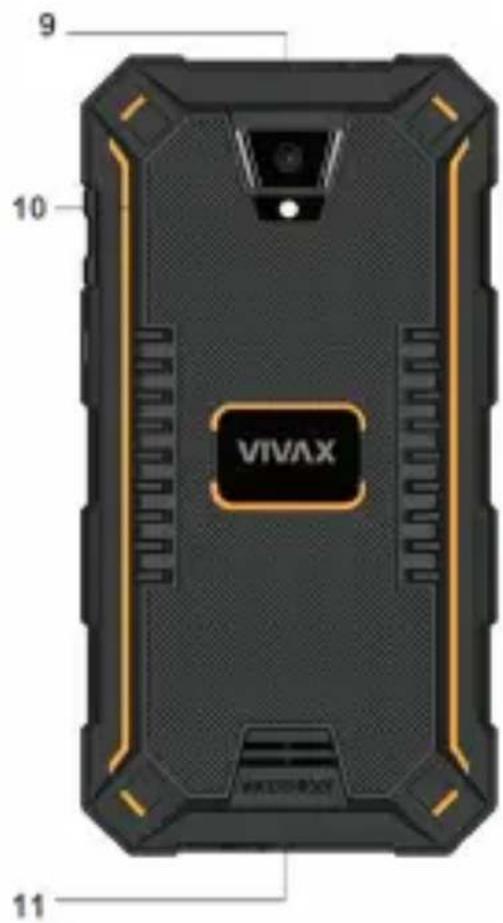
text_image
9 10 VIVAX 11- 3,5mm ulaz za slušalice
- Senzori
-
tvor za nosač SIM/TF kartica
- Prednja kamera
-
Tasteri jačine zvuka
-
Taster za Uključ. / Isključ.
- Tasteri navigacije
- USB ulaz
- Prednja kamera
- Stražnji LED fleš
- Zvučn
V7ŽN>
flowchart
graph LR
    A["Device with top panel"] --> B["Device with bottom panel"]
    B --> C["TF card"]
    B --> D["Nano SIM"]
natural_image
Pure technical line drawing of a mechanical component or bracket (no text or symbols)V7ŽN>:
a. Nemojte da umećete kartice u slot na silu. Kartica mora da uđe u slot lagano. Ukoliko to nije slućaj, ponovno proverite položaj SIM kartice.
text_image
Select Wi-Fi network qcm GC management HUWEI-B093-886C SCH_SKL Add another network MAC address < SKIP >Kopiranje sadržaja
drugog uređaja (opcija)
text_image
Add another email 1ab.kc@gmail.com is ready If you also use a personal or Exchange email address, you can add it now ○ Personal (BMAP/POP) Yellow, Outlook.com, etc. ○ Not now Add later in Gmail app To add another Google Account, one Settings • Accounts after setup.Postavljanje Google računa
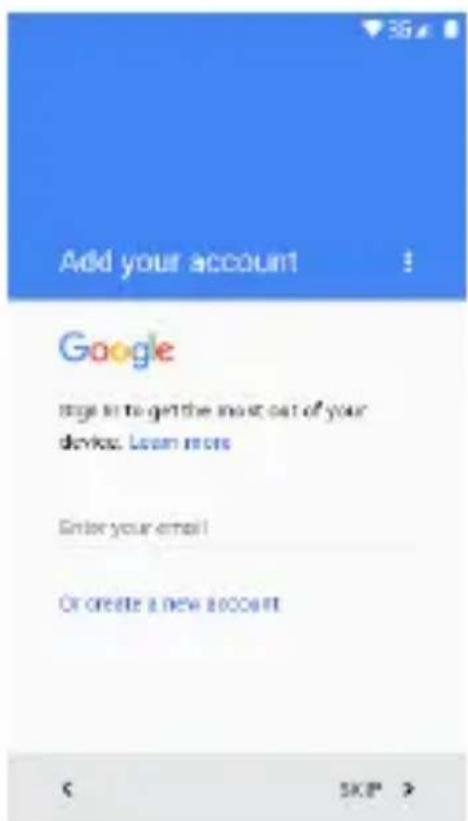
text_image
Add your account Google page to get the most out of your device. Learn more Enter your email! Or create a new account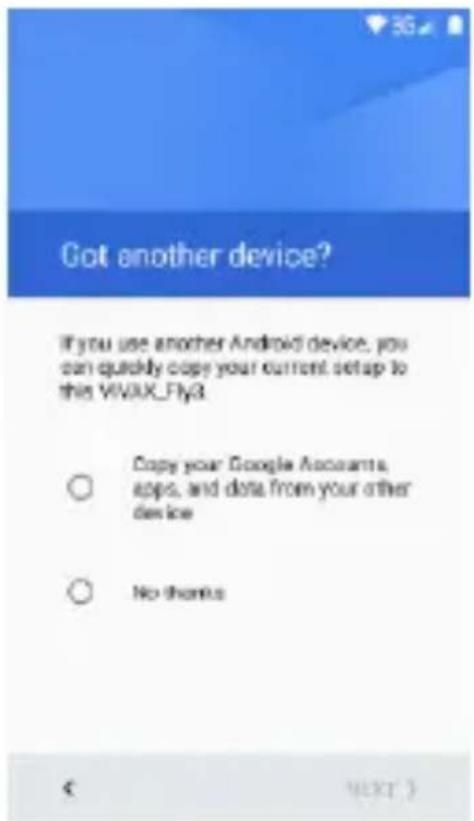
text_image
Got another device? If you use another Android device, you can quickly copy your current setup to this VIVIX_Fly3. Copy your Google Accounts, apps, and data from your other device No thanks € NEXT >Vodič će da vas vodi kroz podešavanje telefona, prilagođavanje telefona vašoj telefonskoj mreži, Wi-Fi pristup, Google račun, E-mail račun i druga početna podešavanja.
PRISTUP UPUTSTVIM7 N7 9KR7NU
Za više informacija i pristup Uputstvima za upotrebu na ekranu telefona, pritisnite
na oznaku "Manual"

Pritiskom na 7plikaciju "Manual", na ekranu će se prikazati elektronska verzija uputstava sa više podataka o podešavanjuu i upotrebi telefona.
ISKLJUČ9NJ9
text_image
5:06 AM Thursday, January 1 Wi-Fi Bluetooth Do not disturb Data SIM not set Amplitude mode Autorotate Flashlight Location Audio profiles2. Tasteri
text_image
Google Email WeChat Facebook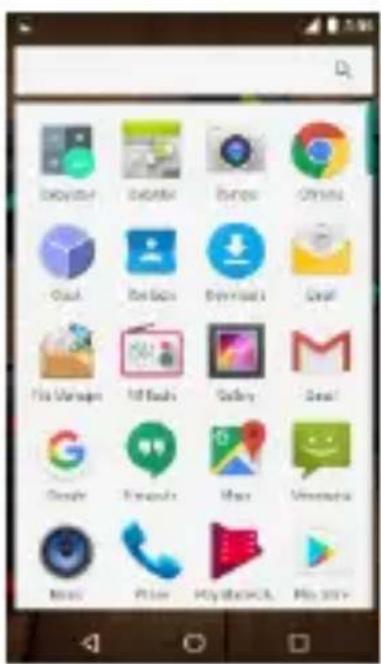
text_image
Screenshot of a mobile app home screen displaying a grid of app icons with Chinese labels.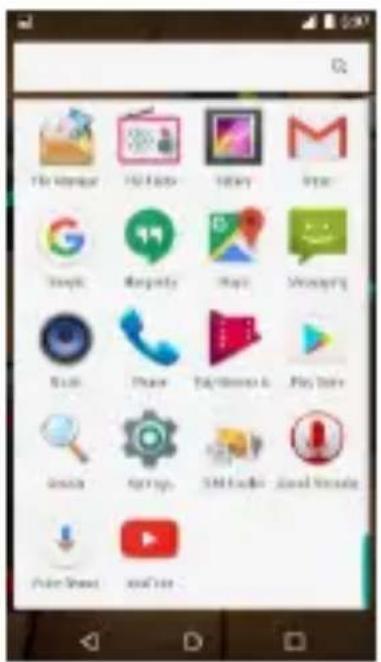
text_image
Screenshot of a mobile app home screen displaying a grid of app icons with Chinese labels.Za pokretanje aplikacije, pritisnite na oznaku aplikacije.
4. Zaključavanje ekrana
Možete da povećate sigurnost vašeg telefona izborom tipa zaključavanja ekrana: Za ulazak u podešavanje izaberite: “Settings” (Podešavanja) > “Security” (Sigurnost) > “Screen lock” (Zaključavanje ekrana).
natural_image
Close-up of glossy black and teal spherical objects on a wooden surface, with white dots and a 'Emergency' watermark (no readable text or symbols in the main image area)5. Podešavanje početnog ekrana
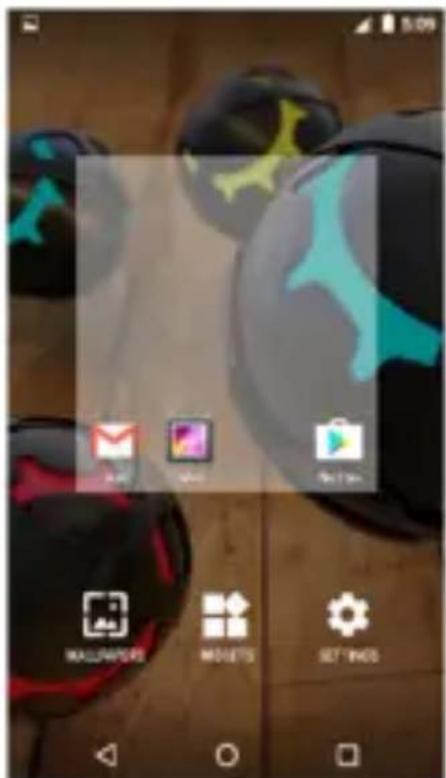
Dužim pritiskom na prazan deo na početnom ekranu ili izborom "Podešavanja", otvoriće se opcije za podešavanje pozadinske slike (wallpaper), dodavanje "widgets-a" i aplikacija.
text_image
Mobile app interface screenshot showing app icons and status bar with 'MALLWAPERS', 'MOSETS', 'SET WHO' labels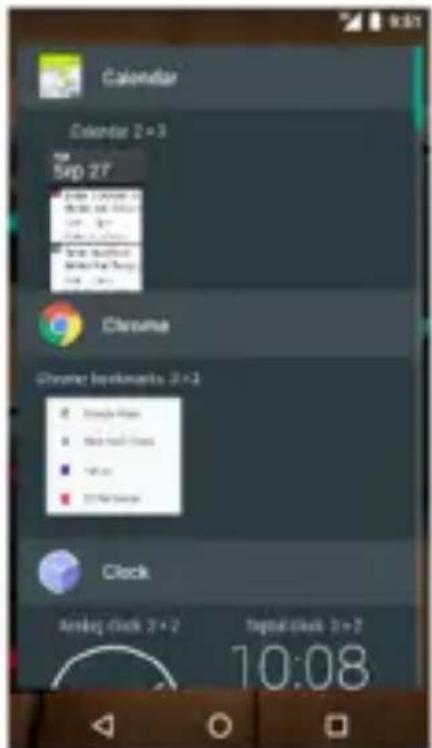
text_image
Calendar Calendar 2+3 Sep 27 Chrome Chrome bookmarks 2+3 Clock Analog clock 2+2 Digital clock 2+2 10:08Dužim dodirom na sliku 7plikacije možete da pomerate aplikacije po ekranu, brišete ih iz popisa ili dodajete u popis aplikacija.
6. Widget-i
natural_image
Close-up of glossy black and cyan spherical objects with glowing patterns, displayed on a wooden surface (no text or symbols visible)7. Kamera
natural_image
Mobile phone screenshot showing a blank screen with control buttons and navigation icons (no readable text or symbols)8. Internet
text_image
9:53 AM Tuesday, November 15 Do not differ Auto-House Flashlight Audio profiletext_image
Email Fax Email Email Email Email Email Email Email Email Email Email Email Email Email Email Email Email Email Email Email Email Email Email Email Email Email Email Email Email Email Email Email Email Email Email Email Email Email Email Email Email Email Email Email Email Email Email Email Email Email Email emailtext_image
Account setup Email account You can set up your account in just a few steps gaoyan@innovatech.net.cn MANUAL SETUP NEXT >12. 7udio
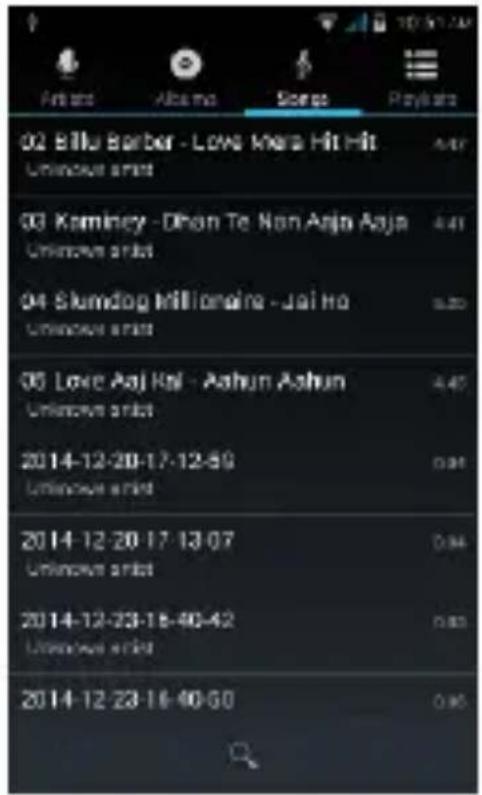
Vaš telefon podržava različite audio formate, različite zvučne efekte i četiri kategorizacije, tj. filtriranje po izvođaču, albumu, naslovu i listi za reprodukciju.
text_image
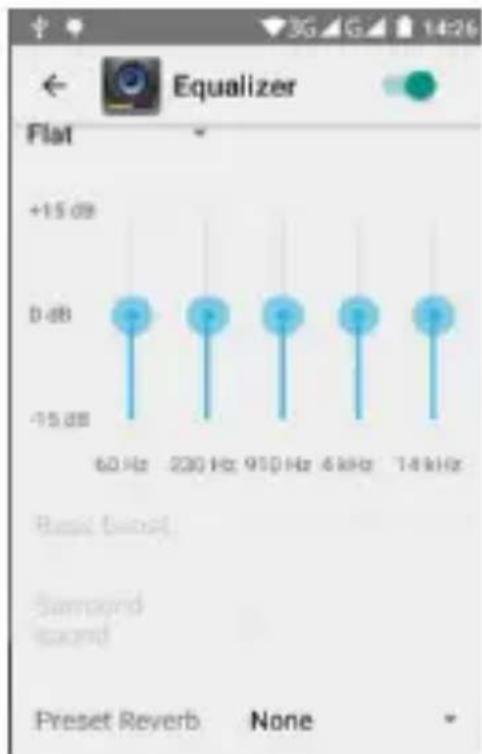
02 Billu Barber - Love Kiara Hit Hit Unknown artist 03 Kaminey - Dhan Te Non Anja Aaja Unknown artist 04 Skumdog Millionaire - Jai Ho Unknown artist 05 Love Ajal Kal - Ashun Ashun Unknown artist 2014-12-20-17-12-59 Unknown artist 2014-12-20-17-13-07 Unknown artist 2014-12-23-18-40-42 Unknown artist 2014-12-23-18-40-60Možete poboljšati kvalitet zvuka u slušalicama uz pomoć Equalizer-a.
bar
| Frequency | Value | |---|---| | 60 Hz | +15.08 | | 230 Hz | +15.08 | | 910 Hz | +15.08 | | 4 kHz | +15.08 | | 14 kHz | +15.08 | Preset Reverb None13. Video
Za reprodukciju različitih video formata, izaberite Video reproduktor 7plikaciju na vašem telefonu.
text_image
bbb_full.ffmpeg.480x360.webm.li... 00:12 09:56Možete da reprodukujete video datoteke iz različitih izvora, snimljene kamerom sa telefona, video datoteke sa interneta ili Youtube-a.
14. Slike
text_image
Albums Camera 1 image 23 webg Libya 1 webm Libya 12 mp4.1bx26 13 mp4.1bx26 6 Sep 1/2/03 1 Sep.1/2/03 24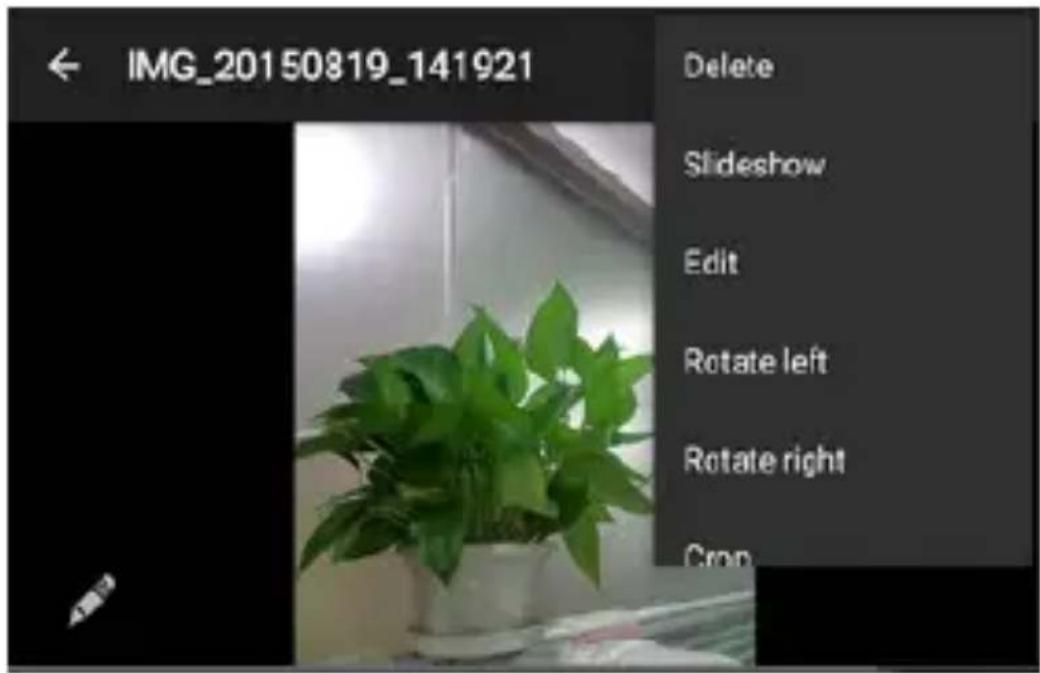
text_image
IMG_20150819_141921 Delete Slideshow Edit Rotate left Rotate right CropTelefon poseduje alat za lagano i brzo pregledavanje fotografija. Pomerenjem prsta po ekranu desno ili levo možete da pomerate slike. Dodirnite dvaput ili razmaknite dva prsta za uvećanje. Možete da uređujete, delite, šaljete slike i još mnogo toga.
text_image
Choose starting point Choose following Take the shortcut Save home and work for faster directions SIGN IN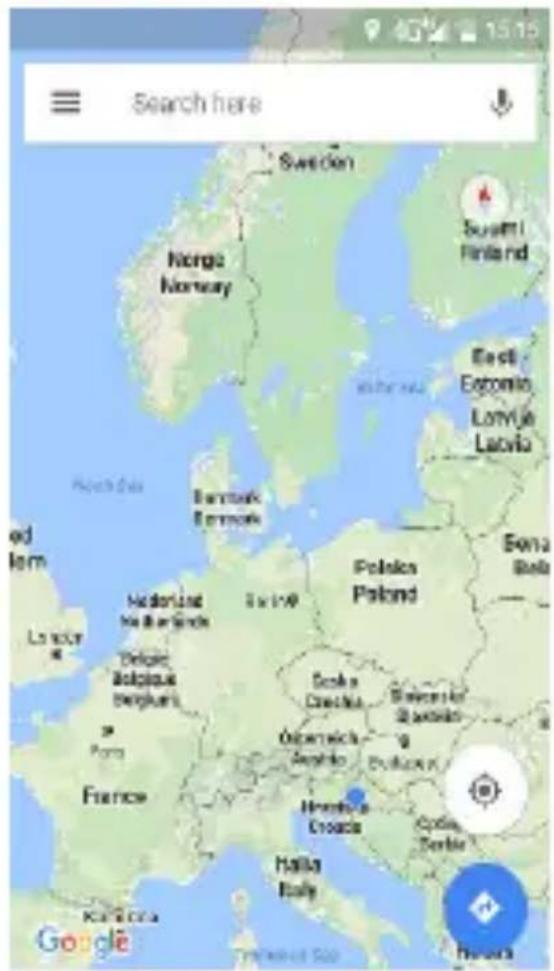
text_image
Search here Sweden Norge Norway Suzumi Finland East Estonia Lenvia Latvia Honduras Belgache Berguilla Polisica Poland Estonia Bella France Hernofrika Croatia Halia Italy GoogleAndroid logo, Google™, Google Maps™, Google Mail™, YouTube™, Google Play™ Store, i Google Talk™ su robne marke Google, Inc.
Wi-Fi ^® , Wi-Fi Protected Setup ^™ , Wi-Fi Direct ^™ , Wi-Fi CERTIFIED ^™ , i Wi-Fi logo su registrovane robne marke Wi-Fi Alliance.
PRO 1 Smartphone
MK
text_image
Warning symbol with a triangle containing an ear icon, indicating sound or hearing hazard.natural_image
Symbol of a trash bin with no text or numbers presentnatural_image
Symbol of a trash bin with no text or labelsflowchart
graph LR
    A["Device with two sides"] --> B["TF card"]
    A --> C["Nano SIM"]

natural_image
Pure technical line drawing of a mechanical component or bracket (no text or symbols)ВАЖНО:
text_image
Select Wi-Fi network open QC management HUAMEI-B590-886C SCH_SKL Add another network MAIL: address SKP >text_image
Got another device? If you use another Android device, you can quickly copy your current setup to this VIVAX_Fly3. Copy your Google Accounts, apps, and data from your other device No thanks € NEXT?text_image
Add your account Google signs to get the most out of your device. Learn more Enter your email! Or create a new account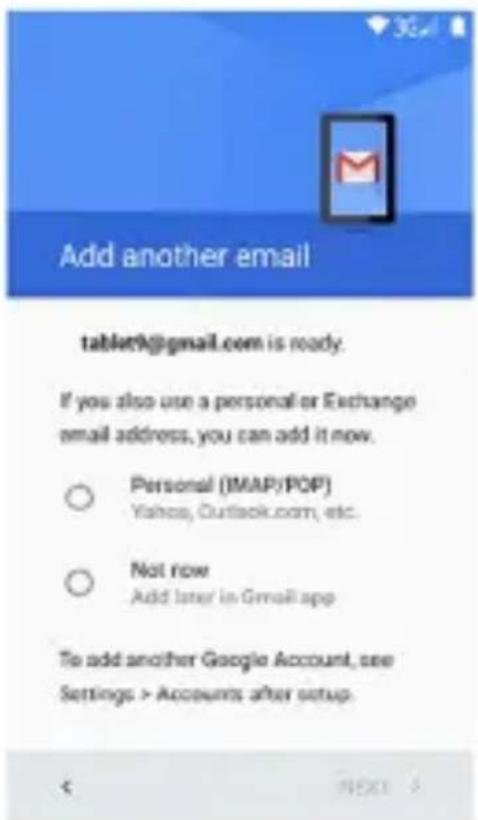
text_image
Add another email tablet9@gmail.com is ready. If you also use a personal or Exchange email address, you can add it now. ○ Personal (IMAP/POP) Yahoa, Outlook.com, etc. ○ Not row Add later in Gmail app To add another Google Account, see Settings > Accounts after setup. < NEXT >text_image
5:06 AM Thursday, January 1 Wi-Fi Bluetooth So not disturb Data SIM not set Airplane mode Auto-rotate Flashlight Location Audio profiles2. Копчиња
text_image
Screenshot of a mobile app home screen displaying a grid of app icons with Chinese labels.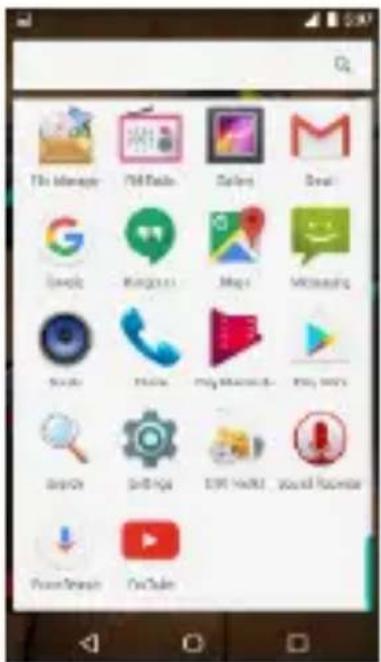
text_image
Ttl Manage 70+ Mobile Sales Read Google Kingsys Map1 Microsoft Search Search My Documents My QQ Search Settings ETF Outlook You'll favorize PowerShares GoClickstext_image
New PIN 1 2 3 4 5 6 7 8 9 0 ✓ Emergency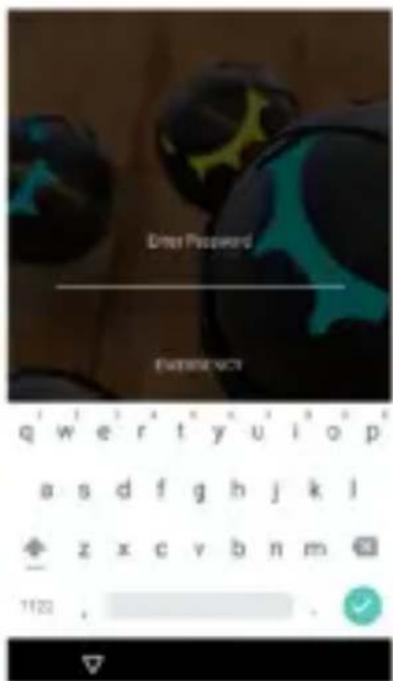
text_image
Enter Password EMERGENCY qw er ty u i o p a s d f g h j k l z x c v b n m 11:22 ,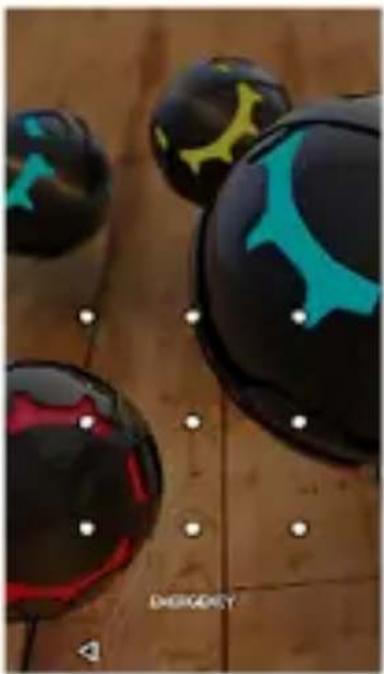
natural_image
Close-up of glossy black and red spherical objects with blue markings, placed on a wooden surface (no text or symbols visible)text_image
Mobile app interface screenshot showing app icons and status bar with Chinese labelstext_image
Chrome 87 hours after 10:15 Clock 8:15:00 10:08natural_image
Close-up of glossy black and cyan 3D-rendered objects on a wooden surface, with no visible text or symbols.natural_image
Mobile phone interface with status bar, navigation buttons, and a play button (no readable text or symbols)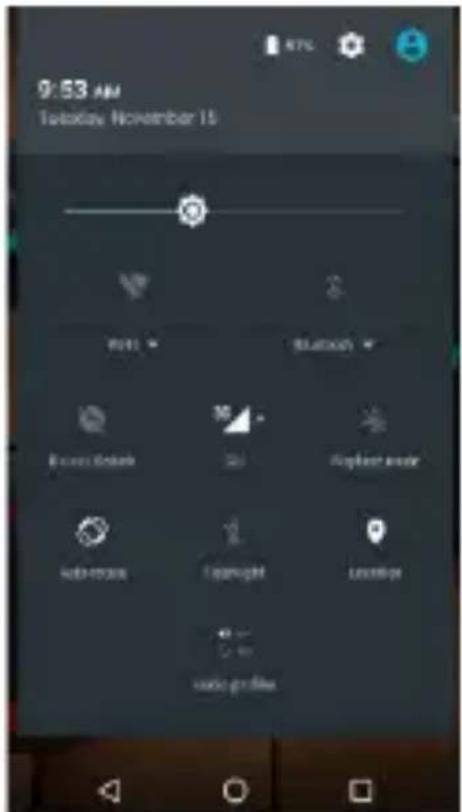
text_image
9:53 AM Tobloxv November 15 AUTO Blueprint Auto access Blueprint Auto profiletext_image
Send us to email or call to email E Pyrk T Tir 1300V I am my phone • Will you change it into app I am my phone • Don't miss Store full mail Mondaytext_image
Account setup Email account You can set up your account in just a few steps. gaoyan@innovatech.net.cn MANUAL SETUP NEXT >12. Аудио
text_image
02 Billu Barber - Love Mera Hit Hit Unknown artist 03 Kaminey - Dhan Te Non Anja Aaja Unknown artist 04 Skumdog Millionaire - Jai Ho Unknown artist 05 Love Aj Kal - Aahun Ashun Unknown artist 2014-12-20-17-12:59 Unknown artist 2014-12-20-17-13:07 Unknown artist 2014-12-23-18-40:42 Unknown artist 2014-12-23-18-40:60text_image
Equalizer Flat +15 dB 0 dB -15 dB 80 Hz 230 Hz 910 Hz 4 kHz 14 kHz Basic Boost Surround Reverb None Preset Reverb None13. Видео
text_image
16221 176/398K VIEW REPLACE REMOVE CUT COPY SHARE MMS Ghjjhhgghh Q'W'ER'T'Y'U'I'O'P' A S D F G H J K L Z X C V B N M 7123 ,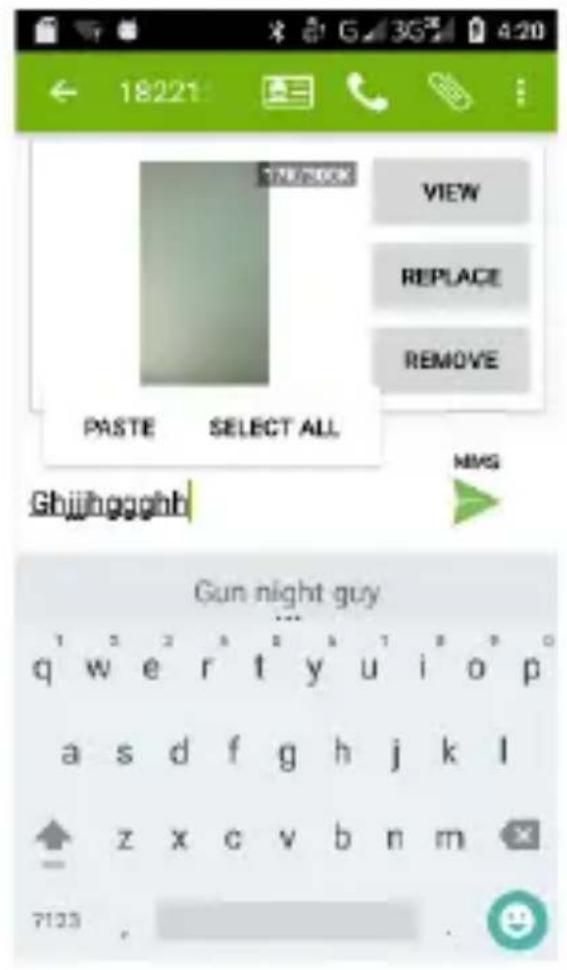
text_image
18221 VIEW REPLACE REMOVE PASTE SELECT ALL GGJJhgggghh MNG Gun night guy q w e r t y u i o p a s d f g h j k l z x c v b n m 712316. Мапи и 9PS
text_image
Choose starting point Choose destination Take the shortcut Save home and work for faster directions SIGN IN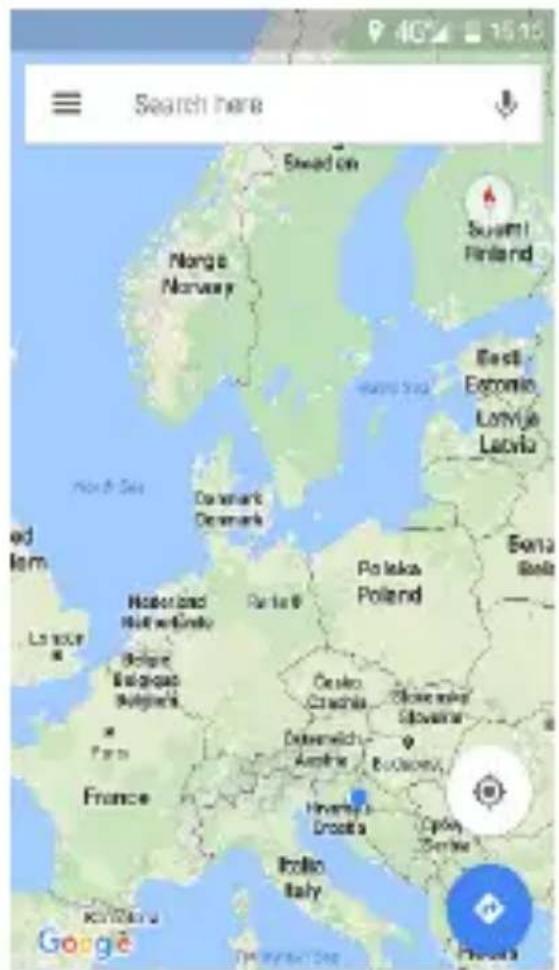
text_image
Search here Swed on Norge Norway Suzumi Finland Eastl. Estonia Lorraine Latvia North Sea Denmark Denmark Polaka Poland Eberia Belle Hokot and Hollweltski Bolivia Belgiana Bulgaria Paris France Ostavko Croatia Delaware Amerika Budapest Hverkanja Croatia Iceland Italy Cyprus Zimbabwe GoogleAndroid logo, Google™, Google Maps™, Google Mail™, YouTube™, Google Play™ Store, i Google Talk™ ce заштитени брендови на Google, Inc.
Wi-Fi ^® , Wi-Fi Protected Setup ^™ , Wi-Fi Direct ^™ , Wi-Fi CERTIFIED ^™ , i Wi-Fi logo се регистрирани рендирани марки на Wi-Fi Alliance.
PRO 1 Smartphone
AL
text_image
Warning symbol with a triangle containing a stylized 'e' and sound waves, indicating noise or sound.flowchart
graph LR
    A["Device with top panel"] --> B["Device with bottom panel"]
    B --> C["TF card"]
    B --> D["Nano SIM"]
natural_image
Pure technical line drawing of a mechanical component or bracket (no text or symbols)E RËN9ËSISH>E:
text_image
Select Wi-Fi network com GC management HUMWEI-B590-886C SCH_SKL Add another network MAD address < SKIP >text_image
Got another device? If you use another Android device, you can quickly copy your current setup to this VIVAX_Fy3: Copy your Google Accounts, apps, and data from your other device No thankstext_image
Add another email tablet@gmail.com is ready. If you also use a personal or Exchange email address, you can add it now. ○ Personal (IMAP/POP) Yahoo, Outlook.com, etc. ○ Not now Add layer in Gmail app. To add another Google Account, see Settings = Accounts after setup. < > << 3Gali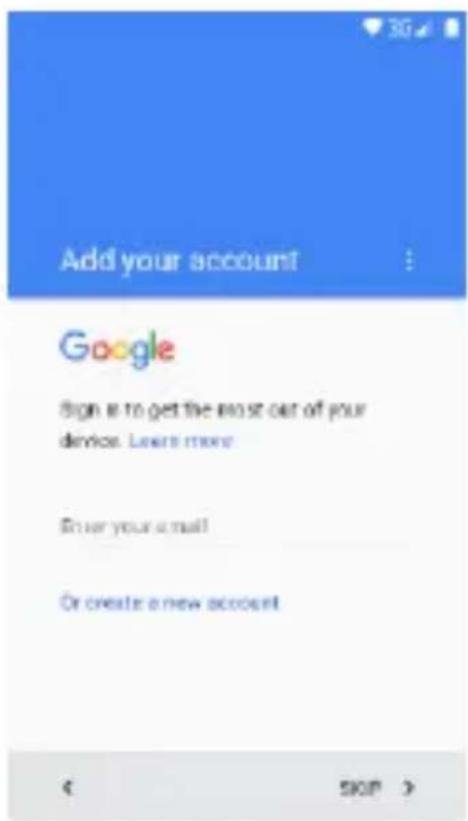
text_image
Add your account Google Sign it to get the most out of your device. Leers more Enter your email Or create a new accounttext_image
5:06 AM Thursday, January 1 Wi-Fi Bluetooth Do not disturb Data WM not set Airplane mode Auto-rotate Flashlight Location Audio profile2. Sustat
Susta për kyçje:
text_image
Screenshot of a mobile app home screen displaying a grid of app icons with Chinese labels.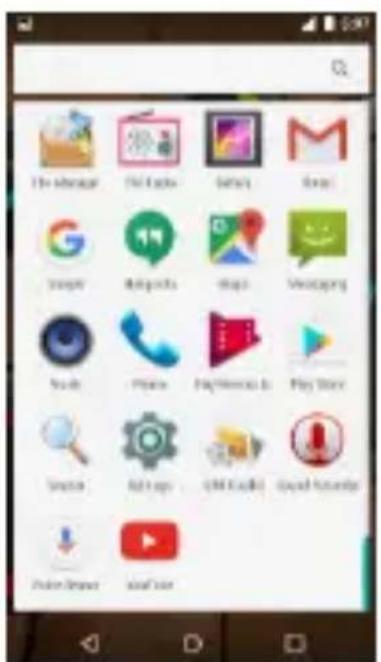
text_image
Screenshot of a mobile app home screen displaying a grid of app icons with Chinese labels.text_image
5:07 September January 1
text_image
New Pin 1 2 ADC 3 EXP 4 5 PL 6 ADD 7 PDS 8 TAN 9 MOVE 0 + - DISEASE 1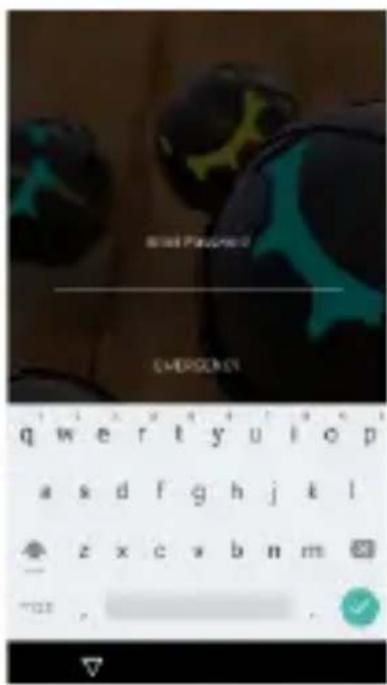
text_image
Brist Pauvino EMERGING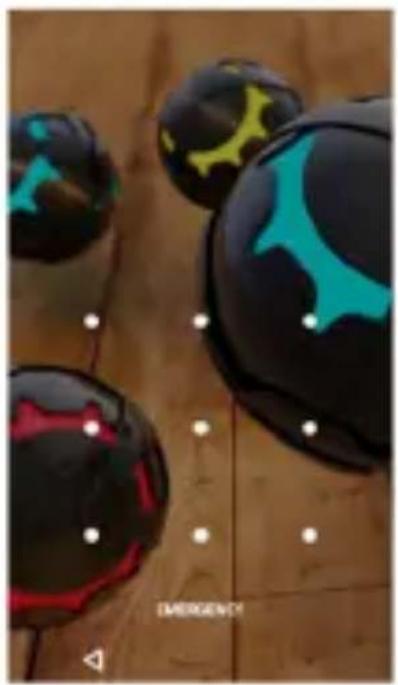
natural_image
Close-up of four colorful spherical objects with black, cyan, and red patterns on a wooden surface (no text or symbols visible)text_image
Mobile app interface screenshot showing a calendar with icons for email, photo, and settings, alongside a toolbar labeled 'MALLWERS', 'IMPORTS', and 'SETTINGS'.6. Widget-at
text_image
Calendar Date: 2:13 Sep 27 Make holiday (1) Make the holiday Get up home Get up again Chrome ST-MODNESDAY 15.2 Indoorings New York Times New New Monday Clock using clock 2+2 original clock 2+2 10:08natural_image
Close-up of black and cyan spherical objects with abstract patterns, displayed on a wooden surface (no text or symbols visible)natural_image
Mobile phone interface with status bar, navigation buttons, and a play button (no readable text or symbols)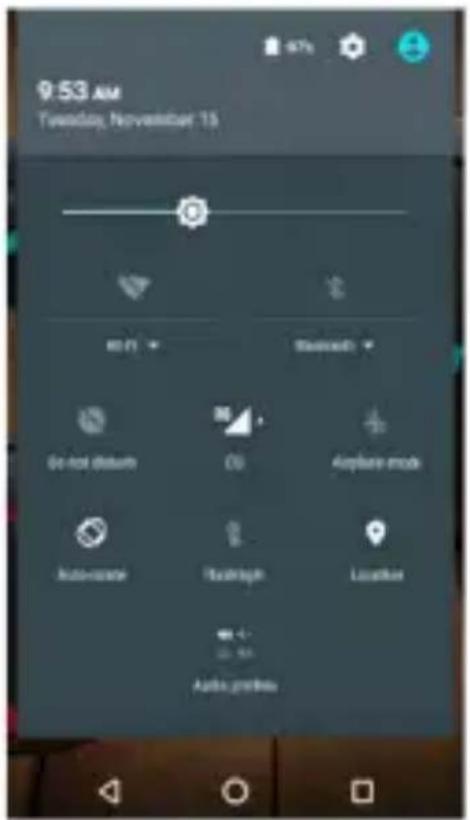
text_image
9:53 AM Tuesday, November 15 80 FT Bluetooth Go not lostum On Airplane mode Auto-size Risikrags Luzukat Audio profiletext_image
Screenshot of a mobile app interface showing two sections: one with a chat log and chat message, the other with a messaging app and chat message.text_image
Account setup Email account You can set up your account in just a few steps. gaoyan@innovatech.net.cn MANUAL SETUP NEXT >12. Audio
text_image
02 Billu Barber - Love Mera Hit Hit Unknown artist 03 Kaminey - Dhain Te Nan Asja Asja Unknown artist 04 Blumding Millionaire - Jal Ho Unknown artist 05 Love Asj Kal - Aahun Ashun Unknown artist 2014-12-20-17-12-59 Unknown artist 2014-12-20-17-18-07 Unknown artist 2014-12-23-16-40-42 Unknown artist 2014-12-23-16-40-50text_image
Equalizer Flat +15 dB 0 dB -15 dB 60 Hz 230 Hz 910 Hz 4 kHz 14 kHz Base boost Stressed output Preset Reverb None13. Video
text_image
Choose starting point Choose destination Take the shortcut Save home and work for faster directions SIGN IN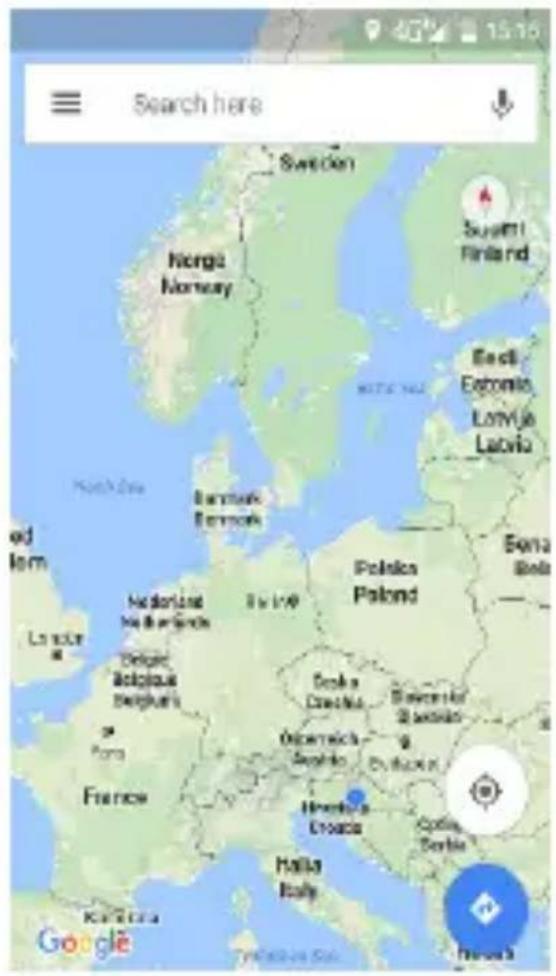
text_image
Search here Sweden Norga Norway Suzumi Finland Easti Estonia Lonuja Latvia Denmark Belgrade Polisica Poland Bena Bela Nederlass Nordland Delaware Belgiana Bulgaria Oklahoma Sanskia Hernofka Croatia Halla Italy Google Facebooknatural_image
Warning symbol with a triangle containing an ear and sound waves (no text or numbers)natural_image
Diagram showing a container with side panels and a cylindrical container, with two arrows pointing outward (no text or symbols)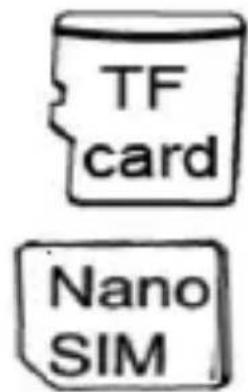
text_image
TF card Nano SIM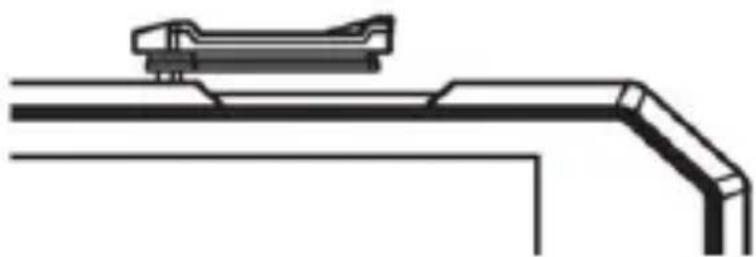
natural_image
Pure technical line drawing of a mechanical component or bracket (no text or symbols)POMEMBNO:
a. Ne8vstavljajte8kartic8na8silo8v8režo.8Kartica8mora8biti8rahlo8 vstavljena8 v8 režo.8 Če8 temu8 ni8 tako,8 ponovr preverite8položaj8kartice8SIM.8
b. Pred88vstavljanjem88ali88odstranjevanjem88kartice,8 izključite88telefon.88Nikoli88ne88vstavite88ali88odstranite8 kartico,8medtem8ko8je88telefon8vklopljen,8saj8to8lahko8 poškoduje8vašo8kartico8ali8telefon.8
c. SIM88B88(2)88delijo88SIM288kartico88ali88TF88pomnilniško kartico.88Ne88moreš88hkrati88uporabljati88SIM88in8 pomnilniško8kartico8v8režo8za8SIM2.8
3. Pritisnite in držite več kot 3 sekunde tipko za Vkl./Izkl. (6).
text_image
Select Wi-Fi network ✓ qam ✓ OC ✓ management ✓ HUAWB-8598-BBSC ✓ SCH-SKL + Add one/cover network MAYA network < SKIP >Kopiranje nastavitev druge naprave
text_image
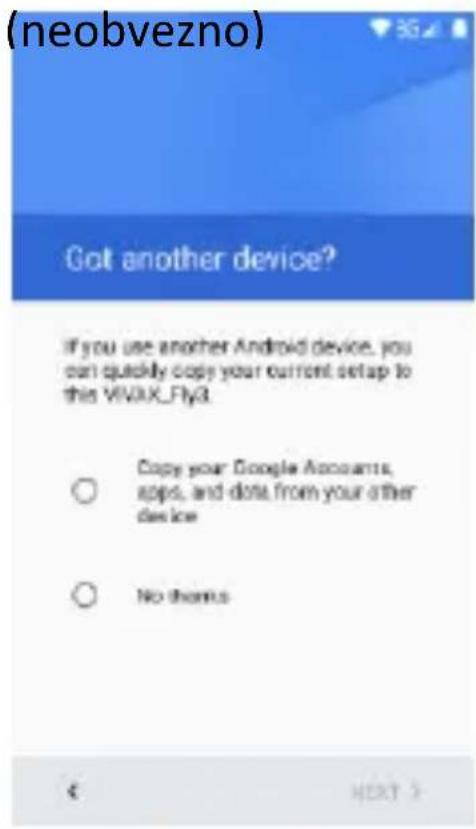
(neobvezno) Got another device? If you use another Android device, you can quickly copy your current setup to this VIVAX_Fly3. Copy your Google Accounts, apps, and dots from your other device No thankstext_image
Add your account Google Sign is to get the most out of your device. Learn more Enter your email Or create a new account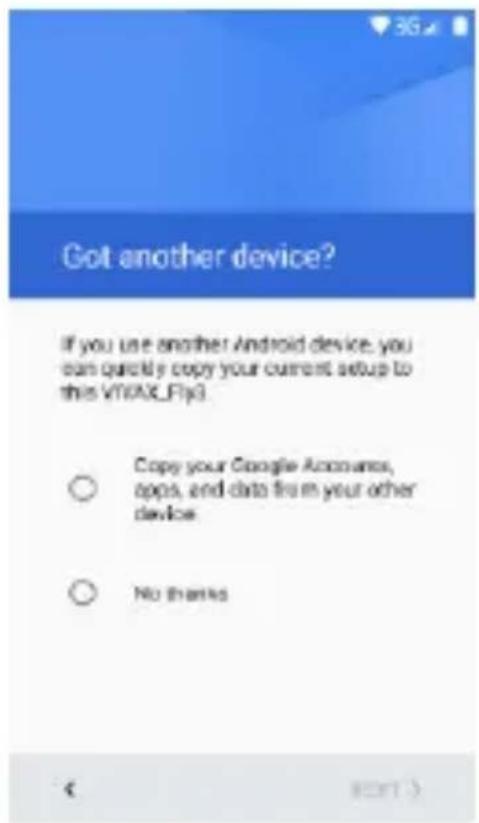
text_image
Got another device? If you use another Android device, you can quickly copy your current setup to this VTPAX_Fly3. Copy your Google Accounts, apps, and data from your other device No thankstext_image
5:06 AM Thursday, January 1 Wi-Fi Bluetooth Do not disturb Data SIM not set Airplane mode Auto-rotate Flashlight Location Audio profiles2. Tipke
Tipka za vklop5
text_image
5:07 THURSDAY, JANUARY 1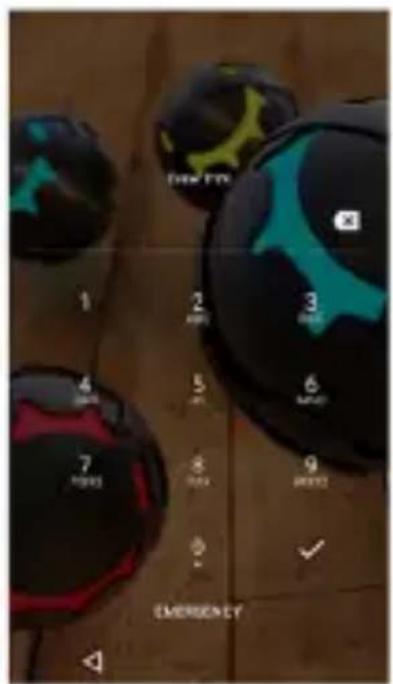
text_image
NEW ETS 1 2 3 4 5 6 7 8 9 Emergency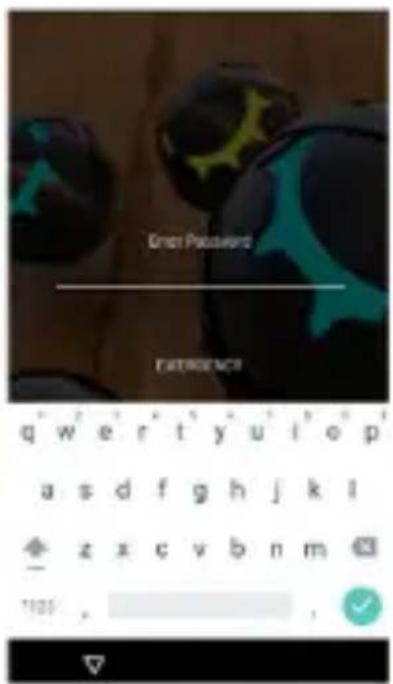
text_image
Erst Password EXTRENCI qwertyuiop asdfghjkl zxcvbnm 1125
natural_image
Three colorful spherical objects with abstract patterns on a wooden surface, no visible text or symbolstext_image
Mobile app interface screenshot showing status bar with email, photo, and settings icons alongside a background of sports equipment.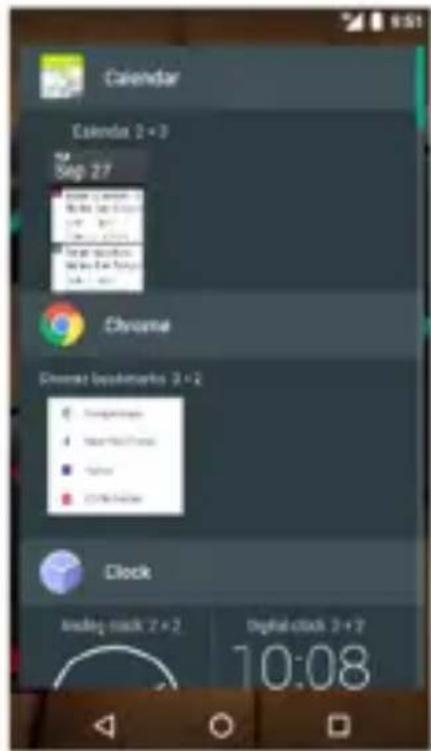
text_image
Calendar Calendar 2 + 3 Sep 27 Chrome Chrome2 clockworks 2 + 2 Clock Analog clock 2 + 2 Digital clock 2 + 2 10:08natural_image
Close-up of colorful 3D-rendered objects on a wooden surface, no visible text or symbols7. Kamera
natural_image
Mobile phone interface with status bar, navigation buttons, and a play button (no readable text or symbols)8. >nternet
text_image
9:53 AM Tuesday, November 15 Do not missets C2 Negative mode Automotive Flashlight Location Audio previewtext_image
Screenshot of a mobile app interface showing two sections: one with user input fields and buttons, the other displaying chat messages.text_image
Messaging 18516212218 Agree NOTCH11. 4-pošta
text_image
Account setup Email account You can set up your account in just a few steps. gaoyan@innovatech.net.cn MANUAL SETUP NEXT >12. 9vdio
text_image
02 Billu Barber - Love Kiara Hit Hit Unknown artist 03 Kaminey - Dhan Te Non Anja Aaja Unknown artist 04 Skumdog Millionaire - Jai Ho Unknown artist 05 Love Aj Kal - Aahun Ashun Unknown artist 2014-12-20-17-12-89 Unknown artist 2014-12-20-17-13-07 Unknown artist 2014-12-23-16-40-42 Unknown artist 2014-12-23-16-40-60text_image
16221 1700238K VIEW REPLACE REMOVE CUT COPY SHARE Ghjjhhggghh MM8 Q'W'ER'T'Y'U'I'O'P A S D F G H J K L Z X C V B N M 2125 ,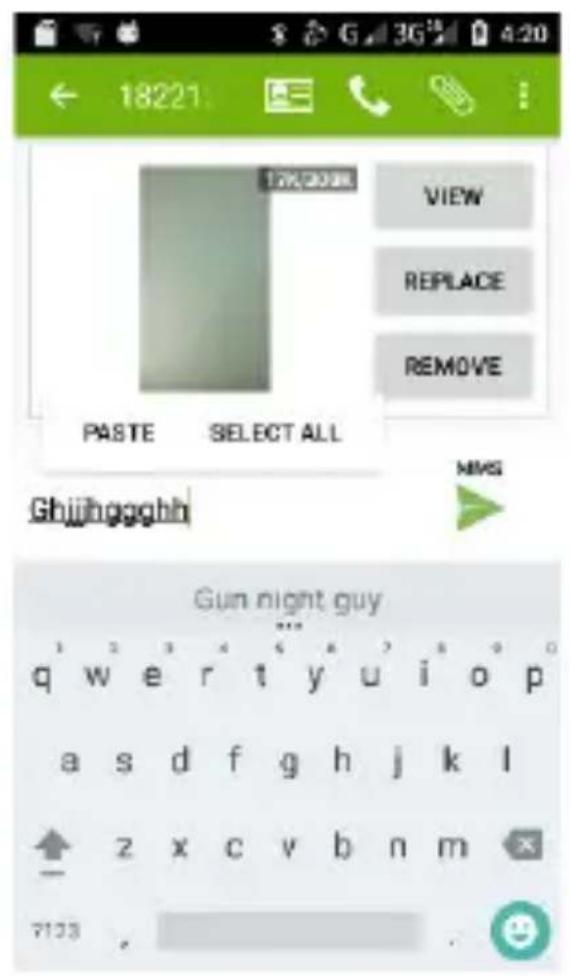
text_image
18221 PASTE SELECT ALL VIEW REPLACE REMOVE Ghjjhhggghh Gun night guy q w e r t y u i o p a s d f g h j k l z x c v b n m 712316. Zemljevidi in GPS
text_image
Choose starting point Choose destination Take the shortcut Save home and work for faster directions SIGN IN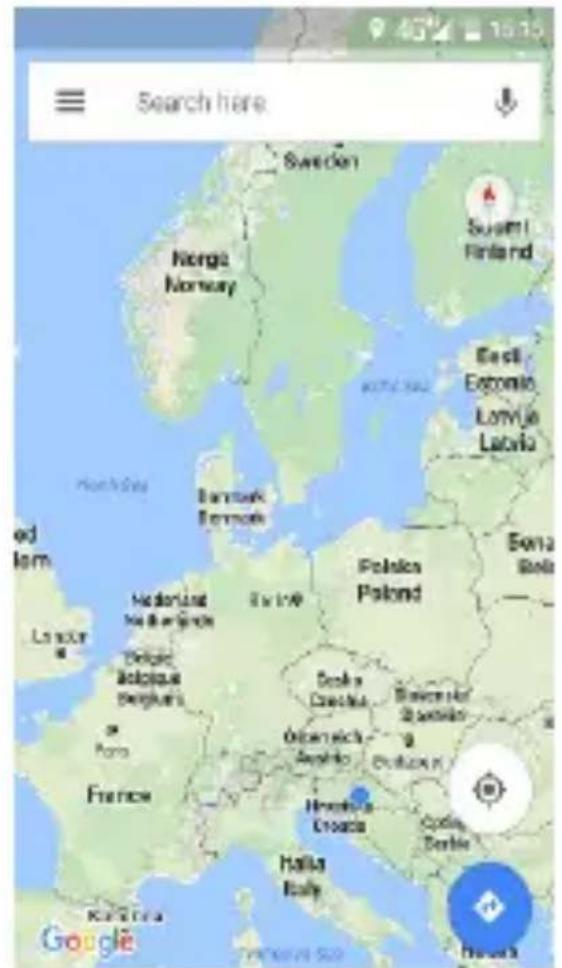
text_image
Search here Sweden Norge Norway Susmit Finland East Estonia Lorraine Latvia Denmark Bonnish Polonia Poland Estonia Lausanne Hondaland Nor Sweden Delaware Aloquoia Belghani's Porto France Decka Cochado Oberdick Asniolo Hochelles Croda Halla Italy Coping, Berlin Google8
8
8
8
8
Android8logo,8Google™,8Google8Maps™,8Google8Mail™,8 YouTube™,88Google88Play™88Store,88i88Google88Talk™88so8 blagovne8znamke8Google,8Inc.8
8
Wi-Fi ^® ,88Wi-Fi88Protected88Setup88 ^™ ,88Wi-Fi88Direct88 ^™ ,88W CERTIFIED88 ^™ 88in88logotip88Wi-Fi88so88registrirane8 blagovn znamke8Wi-Fi8Alliance.
PRO 1 Smartphone
CZ
Návod k použití
text_image
Warning symbol with a triangle containing a stylized 'e' and sound waves, indicating sound or audio hazard.natural_image
Symbol of a trash bin with no text or labelsnatural_image
Symbol of a trash bin with no text or labelstext_image
1 2 3 4 5 6 7 8 Google Camera Gallery Mission Backup and
text_image
9 10 VIVAX WATERPROVEflowchart
graph LR
    A["Device with top panel"] --> B["Device with bottom panel"]
    B --> C["TF card"]
    B --> D["Nano SIM"]
natural_image
Pure technical line drawing of a mechanical component or bracket (no text or symbols)DŮLEŽITÉ:
text_image
Select Wi-Fi network QSM QC management HUWMB-0198-BBSC SDH_SKL Add another network MAC STOP $U^2 >text_image
Got another device? If you use another Android device, you can quickly copy your current setup to this V10AX_Fly3. Copy your Google Accounts, apps, and data from your other device No thankstext_image
Add your account Google page to get the most out of your device. Learn more Enter your email Or create a new account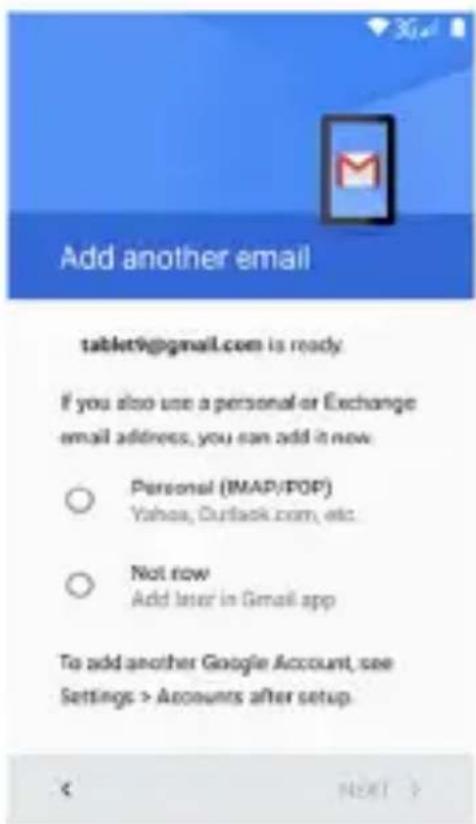
text_image
Add another email tablet9@gmail.com is ready If you also use a personal or Exchange email address, you can add it now. ○ Personal (IMAP/POP) Yahoa, Outlook.com, etc. ○ Not now Add later in Gmail app To add another Google Account, see Settings > Accounts after setup. < NEXT >text_image
5:06 AM Thursday, January 1 Wi-Fi Bluetooth So not disturb Data SIM not set Airplane mode Kanahate Flashlight Location luator position2. 3lačítka
text_image
Screenshot of a mobile app home screen displaying a grid of app icons with Chinese labels.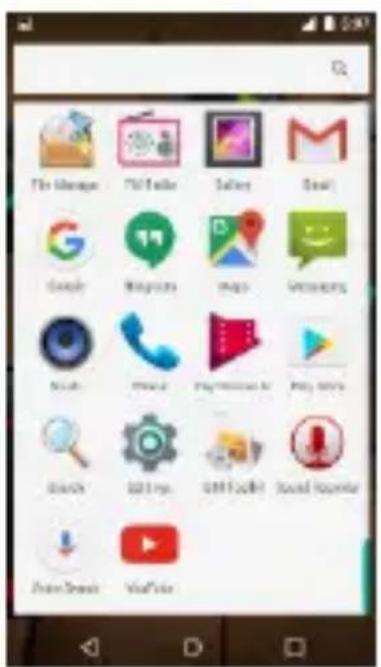
text_image
File Manage Gmail Salay Goal Google MyTrip Maps Messages Music Music PlayMeats Play GoVs Search QQ Tips OFF Tools Sound Options Enter Devices View Colortext_image
NEW FPs 1 2 3 4 5 6 7 8 9 Emergency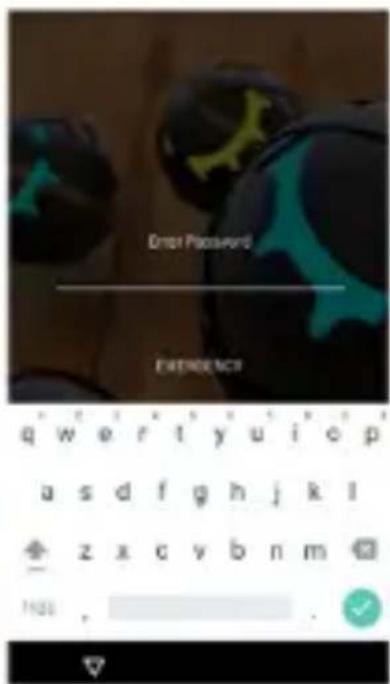
text_image
Error Password EVIDENCE qw e r t y u i o p a s d f g h j k l z x c v b n m 1425 ,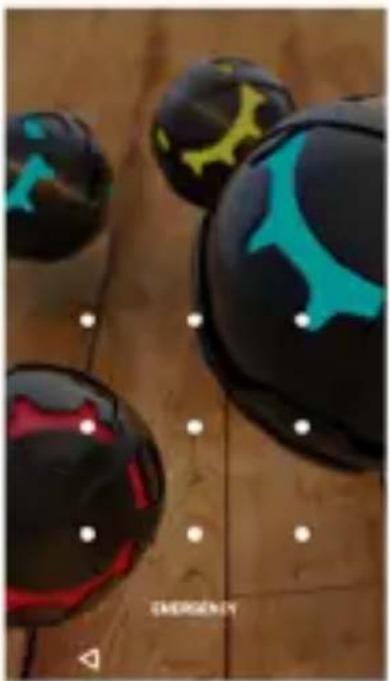
natural_image
Close-up of four glossy black and teal spherical objects on a wooden surface, with white dots and a 'Emergency' watermark (no readable text or symbols in the main image)text_image
Mobile app interface screenshot showing a game controller with icons for email, chat, and settings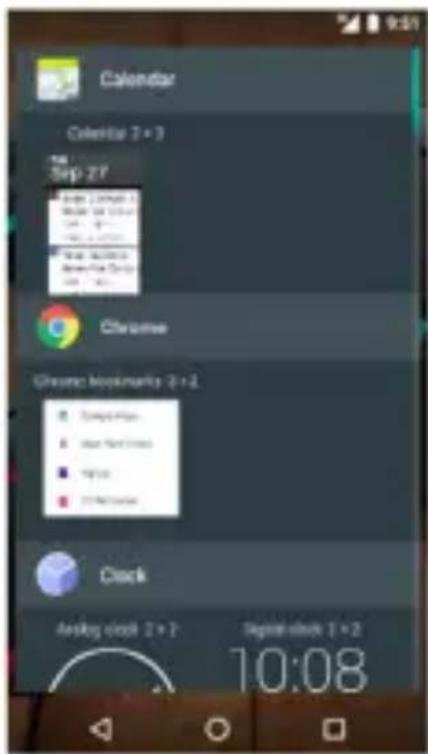
text_image
Calendar Calendar 2 + 1 Sep 27 New Document New Document New Address New Date Chrome Chrome Bookmark 2+1 Clock Analog clock 2+2 Digital clock 1+2 10:08natural_image
Close-up of colorful 3D-rendered spheres with blue and red highlights, displayed on a wooden surface (no text or symbols visible)7. Fotoaparát
natural_image
Mobile phone interface screenshot showing a blank screen with control buttons and navigation icons (no readable text or symbols)8. Internet
text_image
9:53 AM Tuesday, November 15 Windows Bluetooth Drive signals Do Airplane mode Auto/motor Flashlight Localize Audio profiletext_image
Enter a name or phone message E E T Fyeh T Fy you's when her phone letter Video: "80000000" " YouTube: jiaoyu.01.01.org" "9000011" " Email: age Your online helpstext_image
Account setup Email account You can set up your account in just a few steps gaoyan@innovatech.net.cn MANUAL SETUP NEXT >12. Audio
text_image
Equalizer Flat -15 dB 0 dB -15 dB 80 Hz 230 Hz 910 Hz 4 kHz 14 kHz Base boost Surround sound Preset Reverb None13. Video
text_image
Choose starting point Choose redemption Take the shortcut Save home and work for faster directions SIGN IN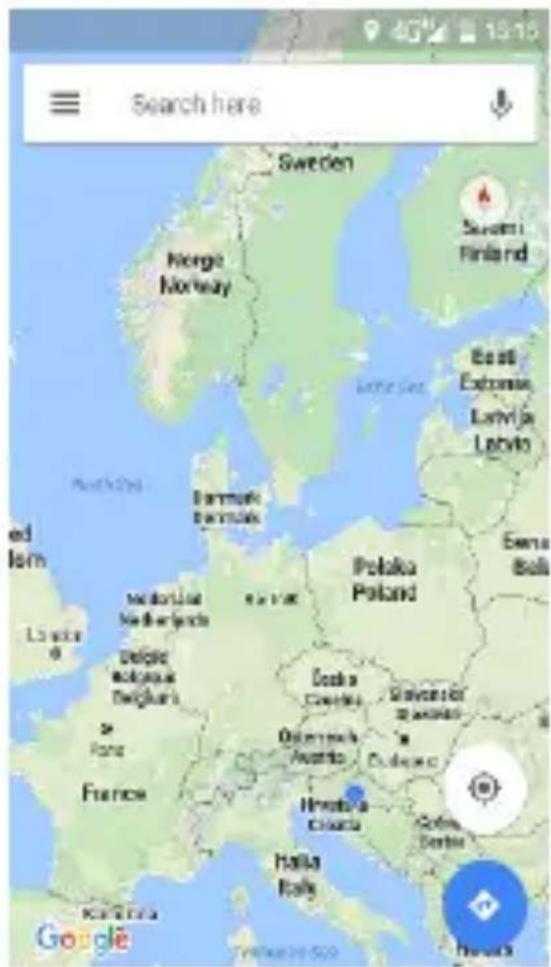
text_image
Search here Sweden Norway Norge Finland East Extreme Latvia Latvia Denmark Branaka Polaka Poland Enera Bali L'au Medeiutat Nederjets Delge Aloquas Belgara Oskarva Croatia Savvanski Savvanski Oskarva Austria Dubuca France Himalva Colalia Halia Italy Google Tehniewicz 500text_image
Warning symbol with a triangle containing a stylized 'e' and sound waves, indicating noise or sound.natural_image
Symbol of a recycling bin with no text or numbers presentnatural_image
Symbol of a trash bin with crossed lines indicating no waste or plastic (no text or labels)flowchart
graph LR
    A["Device with two sides"] --> B["TF card"]
    A --> C["Nano SIM"]
natural_image
Pure technical line drawing of a mechanical component or bracket (no text or symbols)DÔLEŽITÉ:
text_image
Welcome FREE YOU SUM! DO STATES? →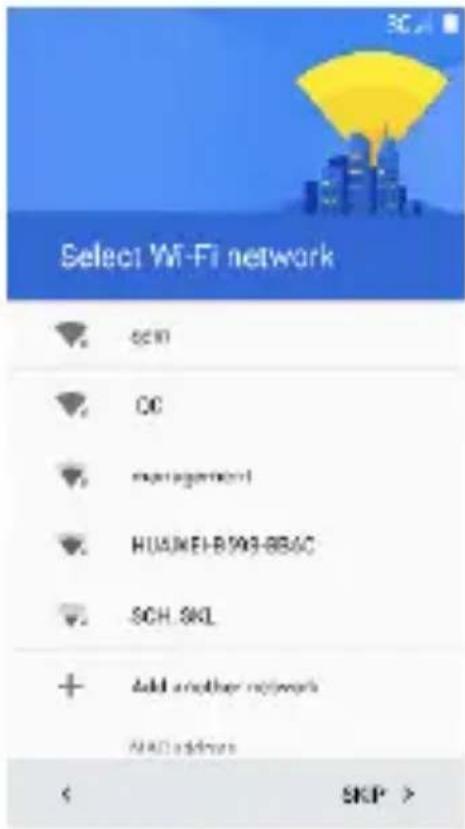
text_image
Select Wi-Fi network ▼ SCH ▼ CC ▼ management ▼ HUAWEI-B198-886C ▼ SCH. SKL + Add another network MALL address < SKP >text_image
Got another device? If you use another Android device, you can quickly copy your current setup to this VIVAX_Fly3. Copy your Google Accounts, apps, and data from your other device No thankstext_image
Add your account Google page is to get the most out of your device. Learn more Enter your email! Or create a new account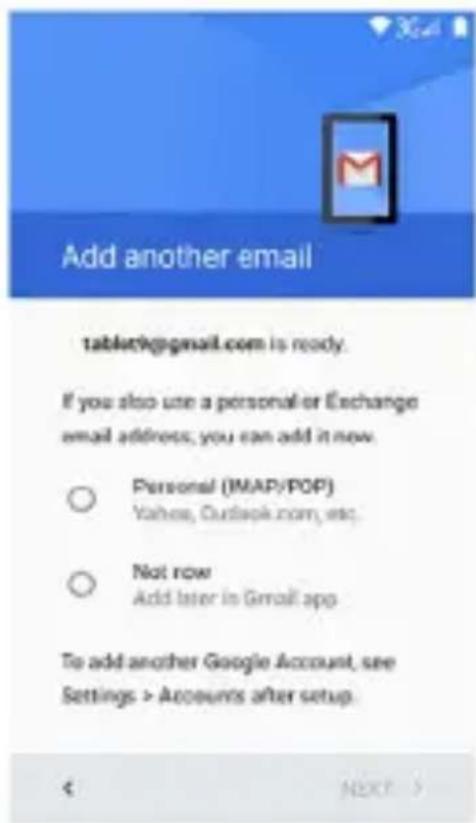
text_image
Add another email tablet9@gmail.com is ready. If you also use a personal or Exchange email address; you can add it now. ○ Personal (IMAP/POP) Yahaa, Outlook.com, etc. ○ Not row Add later in Gmail app To add another Google Account, see Settings > Accounts after setup. < NEXT >text_image
5:06 AM Thursday January 1 Wi-Fi Bluetooth Do not (default) Data SIM not set Airplane mode Auto-shake Flashlight Location Audio portlines2. Tlačidla
text_image
Screenshot of a mobile app home screen displaying a grid of app icons with Chinese labels.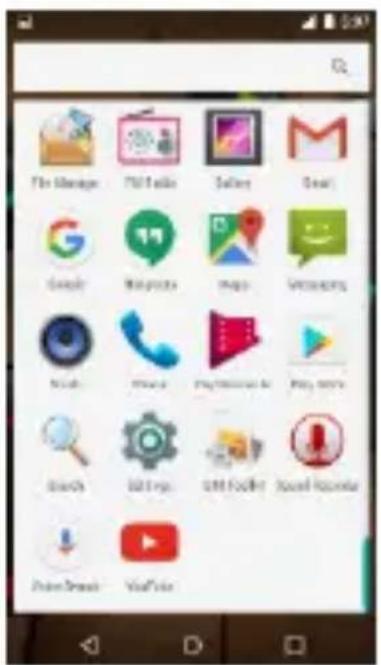
text_image
File Manage MailInfo Salary Email Google Mailpress Images Messages Music Phone Playbox Play info Search Edit Tools Edit Tools Sound Accounts Print Address View Infonatural_image
Close-up of four glossy black and red spherical objects with abstract markings, placed on a wooden surface (no text or symbols visible)text_image
Mobile app interface screenshot showing a calendar with icons for email, chat, and settings, alongside a background of stylized basketball gloves.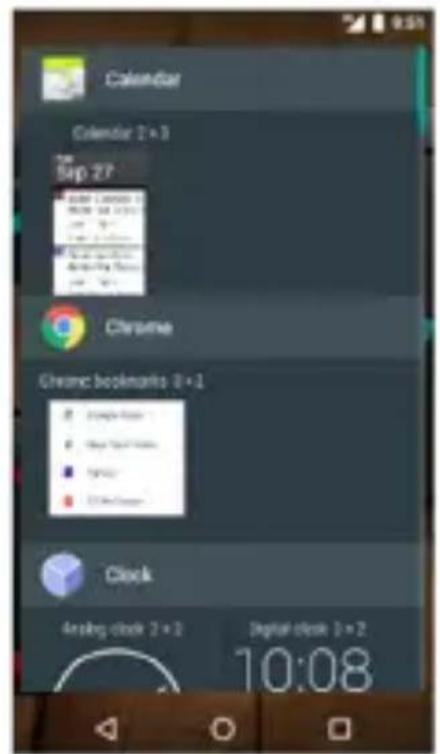
text_image
Calendar Calendar 1+3 Sep 27 Chrome Chrome bookmarks 8+1 Clock Analog clock 2+1 Digital clock 3+2 10:08natural_image
Close-up of four black spherical objects with glowing blue and yellow patterns on a wooden surface, displayed in a photo editing interface (no readable text or symbols)7. Kamera
natural_image
Mobile phone screenshot showing a blank screen with control buttons and navigation icons (no readable text or symbols)8. Internet
text_image
9:53 AM Tuesday, November 19 07% 87%text_image
Account setup Email account You can set up your account in just a few steps gaoyan@innovatech.net.cn MANUAL SETUP NEXT >12. Audio
text_image
02 Billu Barber - Love Mora Hit Hit Unknowns an art 03 Kaminey - Dhan Te Nan Aaja Anja Unknowns an art 04 Skumdog Millionaire - Jai Ho Unknowns an art 05 Love Aaj Kal - Astun Ashun Unknowns an art 2014-12-20-17-12-89 Unknowns an art 2014-12-20-17-13-07 Unknowns an art 2014-12-23-18-40-42 Unknowns an art 2014-12-23-16-40-60text_image
18227 17K/200K VIEW REPLACE REMOVE CUT COPY SHARE MM3 Ghjjhhggghh Q W E R T Y U I O P A S D F G H J K L Z X C V B N M Y123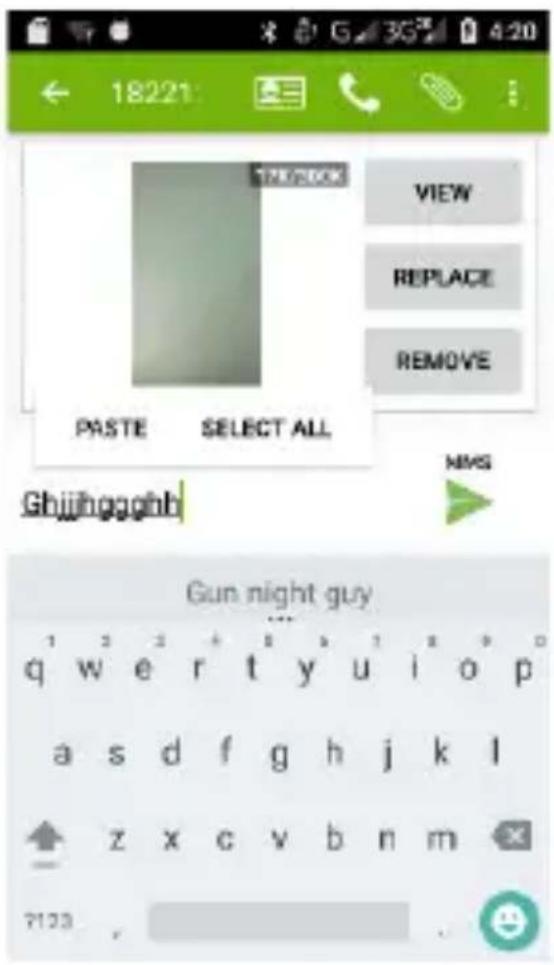
text_image
18221 VIEW REPLACE REMOVE PASTE SELECT ALL Ghjjhhggghb NWS Gun night guy q w e r t y u i o p a s d f g h j k l z x c v b n m 712316. Karty i GPS
text_image
Choose starting point Choose destination Take the shortcut Save home and work for faster directions SIGN IN
text_image
Search here Swed on Norge Norway Suzumi Finland Easti Estonia Lomija Latvia North Sea Denmark Denmark Polaka Poland Bena Bella Historical North Africa Delaware Bulgaria Paris France Istitin Italy Cypley, Serbia Gogé Dhovich Slovakia Ostaveta Amíria Hverdya Drocea Kořejné SlovakiaAndroid logo, Google™, Google Maps™, Google Mail™, YouTube™, Google Play™ Store, a Google Talk™ sú obchodné značky Google, Inc.
Wi-Fi®, Wi-Fi Protected Setup™, Wi-Fi Direct™, Wi-Fi CERTIFIED™, a Wi-Fi logo sú obchodné značky Wi-Fi Alliance.
PRO 1
Smartphone
EN
Instruction manual
Thank you for purchasing VIVAX phone.
Operating Instructions provides the most detailed information to operate your Smartphone.
Before using your new phone for the first time, read the safety instructions in “Safety Notice” chapter.
To get the most from your phone, please be sure to read all instructions thoroughly and keep them where they will be read by all who use the product.
PROT9CTION IP68 – IMPORTANT!
Your device is resistant to falls, shock and water, under IP68 protection class.
What exactly does that mean? Phone is designed as a much more robust than just a regular mobile phone, however it is not indestructible! This does not mean that it is completely resistant to all mechanical damages and it is completely waterproof.
All protective original caps for closing ports on the device (USB" headphones" etc.) must always be inserted correctly!
Any mechanical damage of your phone still subject to the standard warranty terms. The warranty does not cover Glass damage caused by improper handling.
The following conditions may effect on the water and damage resistance of your phone and should be avoided:
a2) Dropping or throwing your phone or subjecting it to other impacts
b2) Submerging your phone in water for long periods of time, swimming or bathing with your phone
c2) Exposing your phone to pressurized water or high velocity water
IP68 digits means:
The first digit “6”: No ingress of dust; complete protection against contact (dust tight) following an 8-hour test, resist on dropping on flat surface up to 1,5m hight.
The second digit “8”: Immersion into water up to 1m in short period, up to 30mins in idle-non usage conditions.
S4"9TY NOT")9S
Read these safety instructions before using your device and store them for possible future reference. Always follow these basic safety precautions when using your phone. This reduces the risk of fire, electric shock, and injury.
(4TT9RY, )"4RG9R, 4N3 OT"9R 4))9SSOR"9S
If the charger cord is damaged, have it repaired by the manufacturer, its service or a similarly qualified person in order to avoid any hazard.
The charger is not intended for use by persons (including children) with reduced physical, sensory or mental capacity. Persons who have not read the manual, unless they have received explanations by a person responsible for their safety and supervision should not use this unit. Children should be monitored to ensure that they do not play with the charger.
The charger should always be readily accessible. The device should not be exposed to dripping or splashing
water. No objects filled with liquids such as vases shall be placed on the device. Always leave a minimum distance of 10 cm around the unit to ensure sufficient ventilation. Naked flame sources, such as candles, should not be placed on top of the device. The device is intended for use only in a temperate climate. Do not dismantle or modify the charger; otherwise, personal injury, electric shock, fire and charger may occur.
Do not use the charger in such places with high humidity such as bathroom, etc., otherwise, electric shock, fire and charger damage may occur.
Do not touch the charger, electric wire and power socket with wet hand; otherwise, electric shock may occur.
)4UT"ON: Danger of explosion if battery is incorrectly placed or not replaced by the same type or equivalent. The battery should not be exposed to excessive heat such as sunshine, fire or similar conditions. The battery must be disposed of safely.
SW"T)" O"" "N R9STR")T93 4R94S
Switch the mobile device off where the use of mobile devices is not allowed or where there is a risk of causing interference or danger, for example on board an aircraft, near medical equipment, fuel, chemicals or blasting sites.
4UT"OR"S93 P9RSONN9L: Only qualified people are authorized to install or repair this product
4))9SSOR"9S: Only use batteries, chargers and other accessories which are compatible with this equipment. Do not connect incompatible products.
K99P T"9 9QU"PM9NT 3RY: This equipment is water proof, but it not means that you can leave your phone in the water. Keep it dry.
)""L3R9N: Keep your mobile device in a safe place, out of the reach of young children. The mobile device contains small parts that may present a choking hazard.
Radio frequency interference
Radio frequency output from electronic devices can interfere with other electronic equipment and cause malfunctions. Although this mobile device has been designed in accordance with EU regulations on radio frequency emission, mobile device wireless transmitters and electrical circuits can cause interference with other electronic equipment. We therefore recommend taking the following precautions:
4ircraft: Wireless equipment can cause interference in aircraft. Turn off your mobile device before boarding the aircraft. Do not use on the ground until allowed to do so by the flight crew.
Vehicles: Mobile device radio frequency emissions can affect the electronic systems of motor vehicles. In relation to your vehicle, check with the manufacturer or dealer.
Medical implants: Medical equipment manufacturers recommend a minimum distance of 15 centimeters
between a wireless device and an implanted medical device such as a pacemaker or defibrillator to avoid any interference with the medical device. It is recommended that people fitted with such devices:
- Always keep wireless equipment more than 15cm away from the medical device.
- Never carry wireless equipment in a breast pocket.
- Place such equipment at the opposite ear to the medical device.
- Turn off the wireless equipment if they think it is interfering with their device
- 7ollow the instructions provided by the medical implant manufacturer.
If you are fitted with a medical implant and have any questions related to the use of your mobile/wireless equipment, you should consult your doctor.
Other medical devices: Radio transmitting equipment including mobile devices may interfere with the proper operation of insufficiently protected medical equipment. Consult a doctor or the medical equipment manufacturer to find out whether the equipment is sufficiently protected from external radio wave signals. Turn off your device where required by regulations, particularly in hospitals.
Health facilities: Hospitals and health facilities may be using equipment which is particularly sensitive to external radio frequency emissions. Turn off the mobile device when staff or notices tell you to.
"earing: Warning: Using a headset risks not be able to correctly hear outside sounds. Do not use a headset when it could endanger your safety. Some mobile devices can interfere with the proper operation of hearing aids.
(lasting sites and marked areas: Turn off your device in potentially explosive areas. 7ollow all official instructions. Sparks in such areas can cause an explosion or a fire, resulting in serious injury or death. Turn off your equipment in petrol/gas stations, especially when near the fuel pumps. Strictly follow usage restrictions in fuel depots, chemical plants or in places using explosives. Potentially explosive areas are often, but not always, clearly signed. These include areas where it is normally considered advisable to turn of vehicle engines, the area below deck on ships, chemical storage or transfer plants, and areas where the air contains chemical products or particles, such as grain, dust and metal powder. All our mobile devices conform to international standards and regulations, and if need be national ones, with a view to limiting user exposure to electromagnetic fields. These standards and regulations were adopted after the completion of extensive scientific research. This research established no link between the use of the mobile device and any adverse effects on health if the device is used in accordance with standard practices. However, if you would like to reduce the level of exposure to radio frequency radiation you can limit
your use of wireless, because the time in contact with is a factor of exposure for a person, and you can move away the device from you, because the exposure level decreases with a smaller distance
G9N9R4L S4F9TY PR9C4UTIONS 4N3 43VIC9S
Read and retain these instructions for future reference.
Warnings: On the product and User 9uide instructions should always be adhered to.
Cleaning: Do not use liquid cleaners or aerosol cleaners. Use a damp soft cloth for cleaning.
4dapters: Use certified adapters recommended by producer. Other adapters may be hazardous or void your warranty.
Moisture & Water: Do not use near water such as near bath tub, kitchen sink, laundry tub, or swimming pool. Ventilation: Should there be slots and openings in the mobile device, they are provided for ventilation to ensure reliable operation of and protection from overheating. These openings should never be blocked by placing the product on a bed, sofa, rug, or other similar surface.
Power Sources: This mobile device should be operated from the type of power source indicated on the rating label. Consult your product dealer or our website for more information. For products intended to operate from battery power or other sources, refer to the operating instructions.
Overloading: Do not overload wall outlets, extension cords, or integral convenience receptacles as this can result in a risk of fire or electric shock.
Object and Liquid 9ntry: Never put objects of any kind on to or into this product through openings as they may touch dangerous voltage points or short out parts that could result in a fire or electric shock. Never spill liquid of any kind on the product.
Servicing: Do not attempt to service this product yourself as opening or removing covers may expose you to dangerous voltage or other hazards and will void your warranty. Refer all servicing to qualified service personnel.
3amage Requiring Service: Unplug this product from the wall outlet and refer servicing to qualified service personnel:
a) when the power-supply is damaged
b) if liquid has been spilled
c) if the product has been exposed to rain or water
d) if the product does not operate normally
e) if the product has been dropped or damaged in any way (voids warranty)
"eat: The product should be kept away from heat sources such as a radiator, heat register, stove, or other products that generate heat.
Replacement Parts: Unauthorized substitutions when service this product may result in fire, electric shock, or other hazards. Make sure your service technician has used parts specified by the manufacturer.
9nergy Save: To save energy, unplug the USB power adapter when not in use. The USB power adapter does not have a power switch, so you must unplug the USB power adapter from the electrical socket when not in use to avoid wasting power. The device should remain close to the electrical socket while charging.
Excessive sound pressure from earphones and headphones can cause hearing loss. If you notice any disturbance or hum noise in your ears, stop using the headset or earphones.
text_image
Warning symbol with a triangle containing a stylized 'e' and sound waves, indicating noise or sound.- Do not handle the mobile device when driving. Concentrate fully on the driving.
- Radio signals could affect some of the car's electronic systems such as the audio stereo and alarm systems.
- If the car is equipped with an airbag, do not hinder its deployment with fixed or wireless equipment. This could result in serious injury due to inadequate performance.
"NT9R"9R9N)9: All wireless devices are susceptible to interference which may affect their performance.
"ile and 4application 3download: Files you download from the Internet can include viruses that will damage your device. To reduce this risk, only download files from sources you trust. The descriptions in this manual are based on the default settings of your device. The images and screenshots used in this manual may differ from the actual product."
If the device receives an unstable power supply while charging, the touch screen may not function properly. If this happens, unplug the USB cable from the device. The device may heat up while charging. This is normal and should not affect your device's lifespan or performance.
Precautions for use
This mobile device meets guidelines concerning the exposure to radio waves. Your mobile device is a radio transmitter and receiver. It was designed to meet the limits recommended by international guidelines to limit the exposure to radio waves. These guidelines were developed by and independent scientific organization, The ICNIRP; and include safety margins designed to ensure the protection of all, regardless of age and health.
The recommendations on exposure guidelines for mobile devices employ a unit of measure known as the Specific absorption rate or SAR. The SAR limit defined in the ICNIRP recommendations is 2.0 watts/kilogram (W/kg) averaged over 10 grams of tissue. In tests to determine the SAR, the equipment is used in standard usage positions at its highest certified power level in all tested frequency bands. The actual SAR level of a device in use may be lower than the maximum value because the equipment is designed to only use the necessary power required reaching the network. That amount changes depending on a number of factors such as the distance from a network base station.
SAR VALU9S:
H9AD: 0,383 W/kg 10g
BODY: 0,744 W/kg 10g
9U Declaration of Conformity
Hereby, M SAN 9rupa d.d. declares that the radio equipment type SmartTelephone is in compliance with Directive 2014/53/EU.

The full text of the EU declaration of conformity is available at the following internet address:
Instructions for using your device you can find on http://hr.vivax.com/, Select :
PROIZVODI→Smart, Choose Model → Documents → Korisnički priručnik
Information on Disposal for Users of Waste 9electrical & 9electronic 9equipment (private households)
natural_image
Symbol of a trash bin with no text or labelsThis symbol on the product(s) and / or accompanying documents means that used electrical and electronic products should not be mixed with general household waste. 7or
proper treatment, recovery and recycling, please take this product(s) to designated collection points where it will be accepted free of charge. Alternatively, in some countries you may be able to return your products to your local retailer upon purchase of an equivalent new product. Disposing of this product correctly will help save valuable resources and prevent any potential negative effects on human health and the
environment, which could otherwise arise from inappropriate waste handling. Please contact your local authority for further details of your nearest designated collection point. Penalties may be applicable for incorrect disposal of this waste, in accordance with your national legislation.
3isposal of waste batteries
natural_image
Symbol of a trash bin with no text or labelsCheck local regulations for disposal of waste batteries or call your local customer service in order to get instructions on the disposal of old and used batteries. The batteries in this product should not be disposed of with household waste. Be sure to dispose of old batteries in special places for disposal of used batteries that are found in all retail shops where you can buy batteries
"nstructions for the Use of )harger:
Insert charger cable terminal into charging jack of the mobile phone. When battery icon flashes, it shows mobile phone charging is completed
Important: Due to the strength of the phone, the phone cabinet is thicker than standard devices, so that the USB and headphone jack is located "deeper" than standard phone.
It is recommended that always use the original cable for charging and original headphones, because it can happen to other USB cable and headphones will not be able to fully fit into the phone jack.
MAIN PARTS AND FUNCTIONS
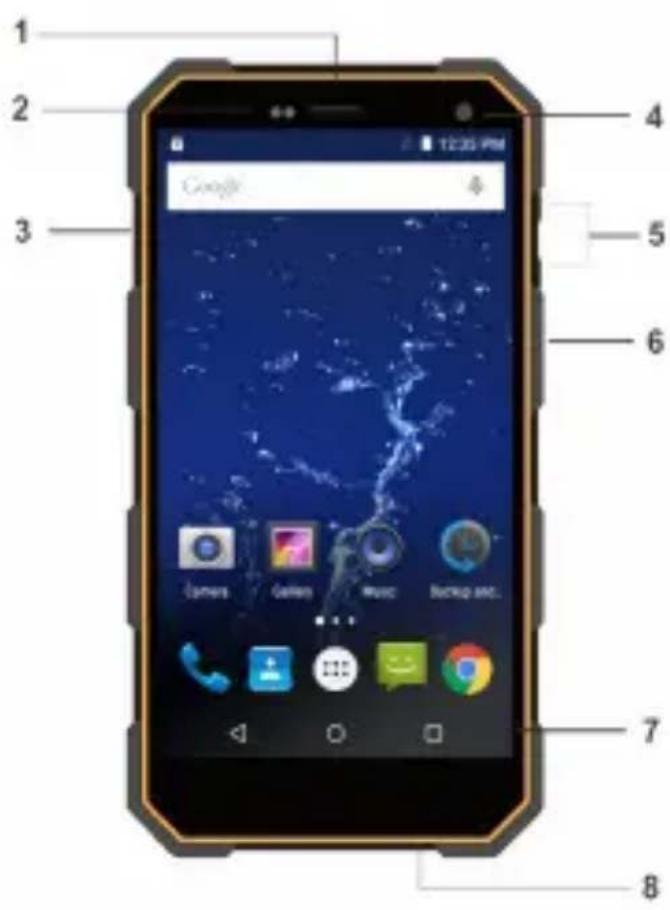
text_image
1 2 3 4 5 6 7 8 12:30 PM Google Games Music Backup sec.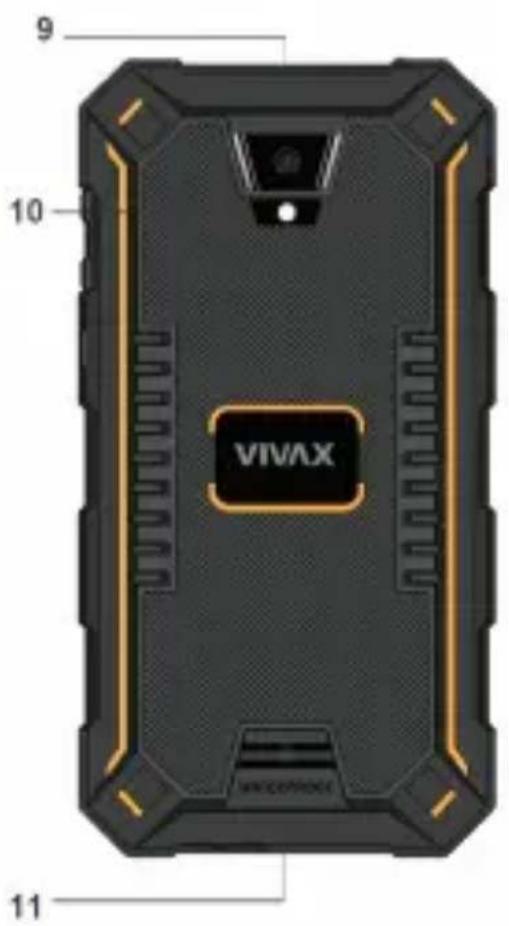
text_image
9 10 VIVAX 11- 3,5mm Earphone port
- Sensors
- SIM/TF Card Slot
- Front Camera
- Volume keys
- Power key
-
Navigation keys
-
USB port for Charging and PC connection
- Rear camera
- Rear LED flash
- Speaker
IMPORT4NT
To ensure water resistance and resistance to external influences or dust, all openings and connectors (headphone jack, SIM/TF Card slot) when not in use, must be tightly sealed with original rubber protections caps.
DISPL4Y NOTIFICATIONS
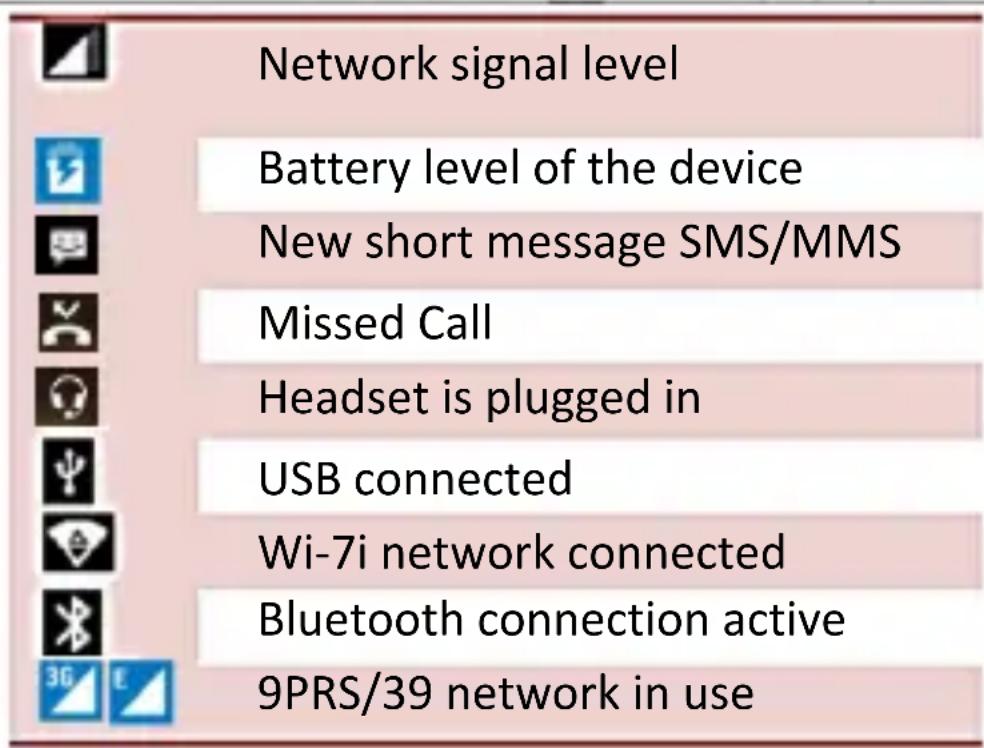
text_image
Network signal level Battery level of the device New short message SMS/MMS Missed Call Headset is plugged in USB connected Wi-7i network connected Bluetooth connection active 9PRS/39 network in useFIRST US9
Please switch Off your device before inserting or removing the SIM card and memory card
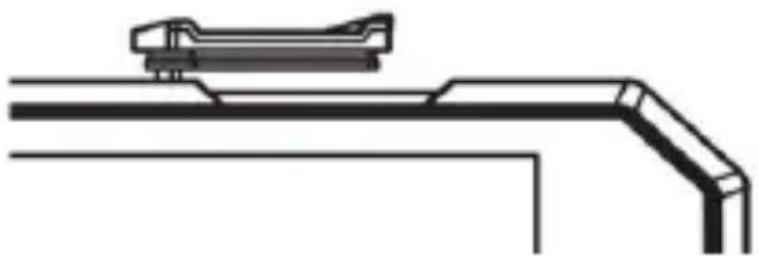
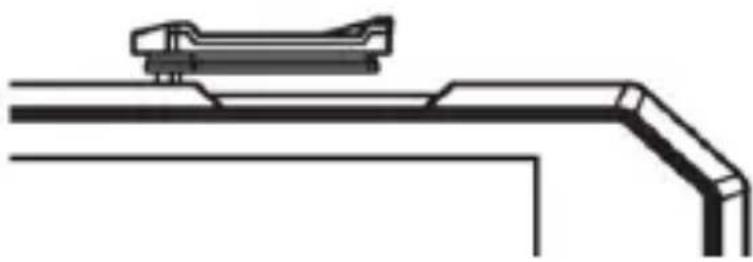
- Open the SIM card Slot-Cradle (3); and pull it out.
- Insert the Nano SIM phone card (SIM1) and Nano SIM card (SIM2) or T7 Memory card into the
appropriate slot, and then carefully put the Slot-Cradle back into slot.
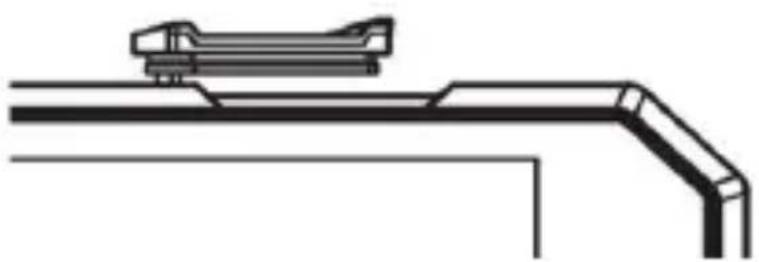
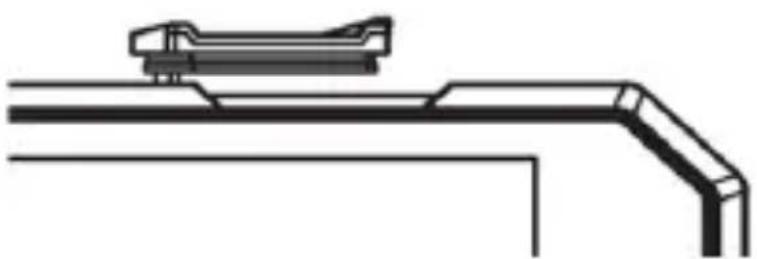
Card carefully insert into the slot trays with the contacts facing to the outside of the Credle slot, as shown in 7 figure:
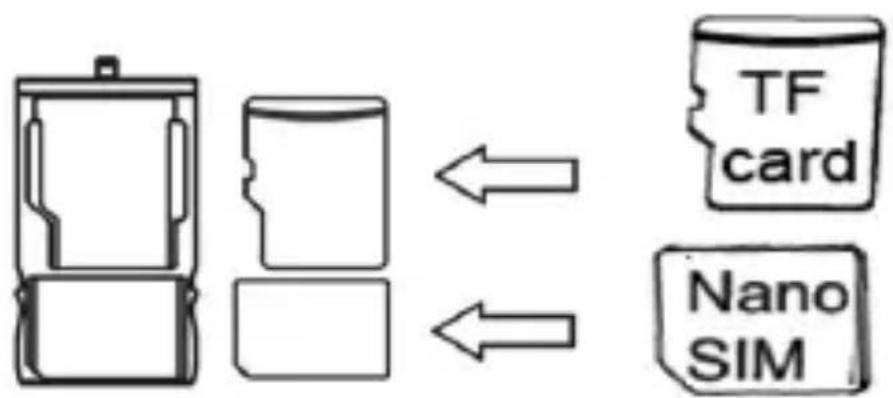
flowchart
graph LR
    A["Device with two sides"] --> B["TF card"]
    A --> C["Nano SIM"]
natural_image
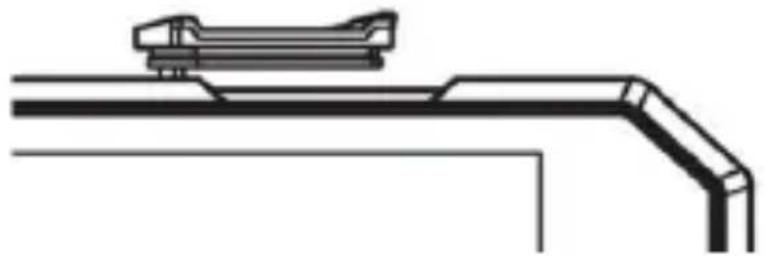
Pure technical line drawing of a mechanical component or bracket (no text or symbols)a. SIM B (2) slot share SIM2 card or TF memory card. You cannot simultaneously use SIM and TF card inserted in SIM2 slot.
b. Before inserting or removing a Card, turn Off your phone. Never insert or remove a Card while the phone is switched on, as this may damage your card or phone.
"MPORT4NT:
a. Do not insert the card into the slot with force. The card must be inserted slightly. If this is not the case, re-check the SIM card orientation.
b2 Before inserting or removing a Card, turn Off your phone2 Inserting or removing a Card while the phone is switched on may damage your card or phone2
3. To turn on Smartphone, press and hold more than 3 seconds the Power button (6).
4. Your phone will be turned on for a few moments (after the boot operating system) and it will display the image of the home screen.
5. Now it is necessary to adjust the basic settings of your Phone in order to access applications with 9oogle Play Store, Wi-7i wireless network and other services.
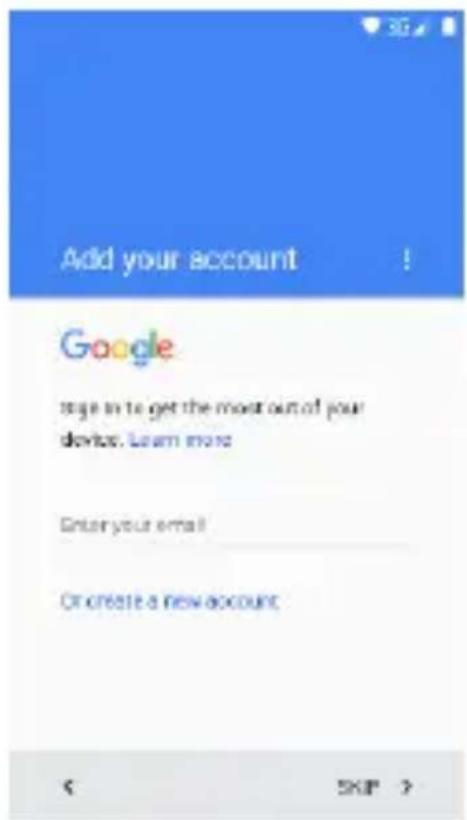
A) Follow the instructions that are shown in the "Wizard - Setup Guide phone":
OSD %anguage: Wi-7i network setup:
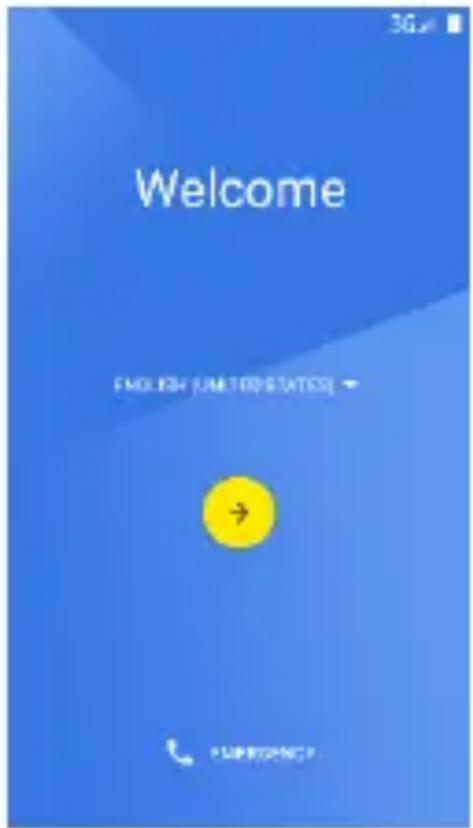
text_image
Welcome ENGLISH (UNITED STATES)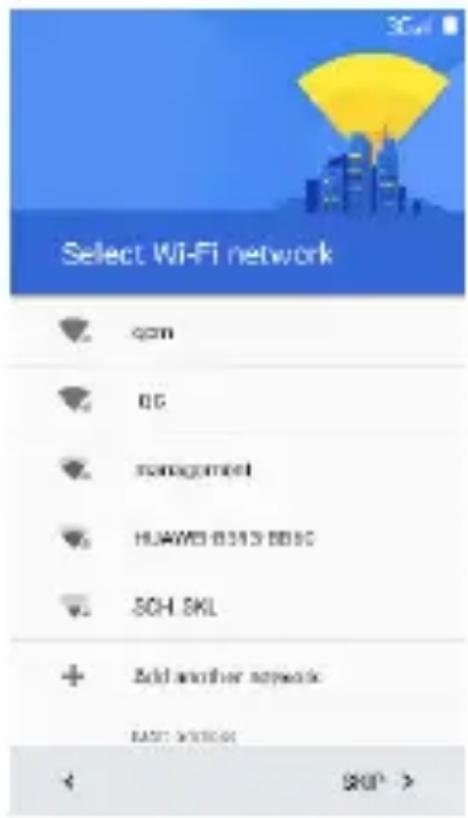
text_image
Select Wi-Fi network qm BG management HUAWEI 8513 BBSC SCH SKL Add another network EAST NETWORK < $0^p >Copy your setup from some other device (opt)
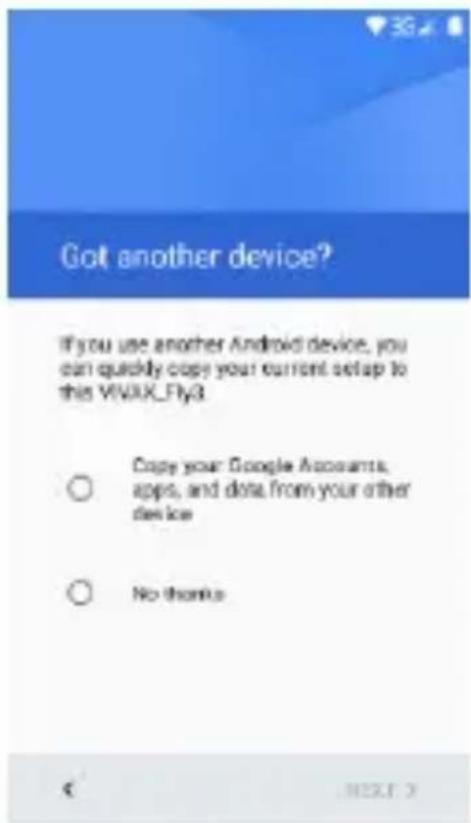
text_image
Got another device? If you use another Android device, you can quickly copy your current setup to this VIVIX_Fly3 Copy your Google Accounts, apps, and data from your other device No thanks9oogle account setup
text_image
Add your account Google trags in to get the most out of your device. Learn more Enter your email Or create a new account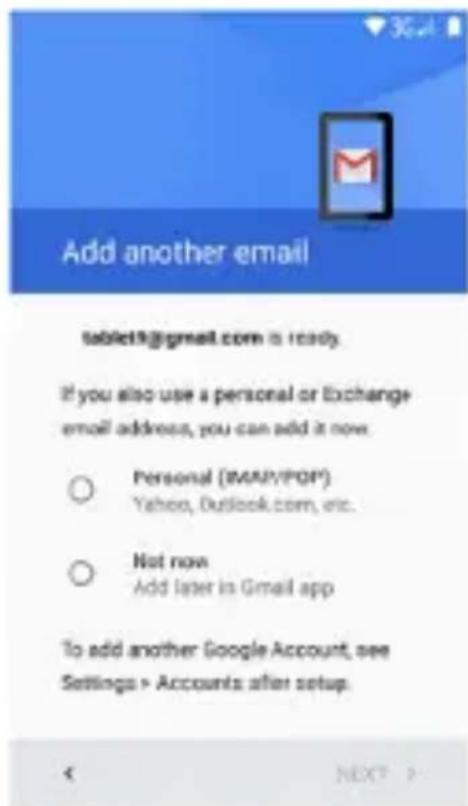
text_image
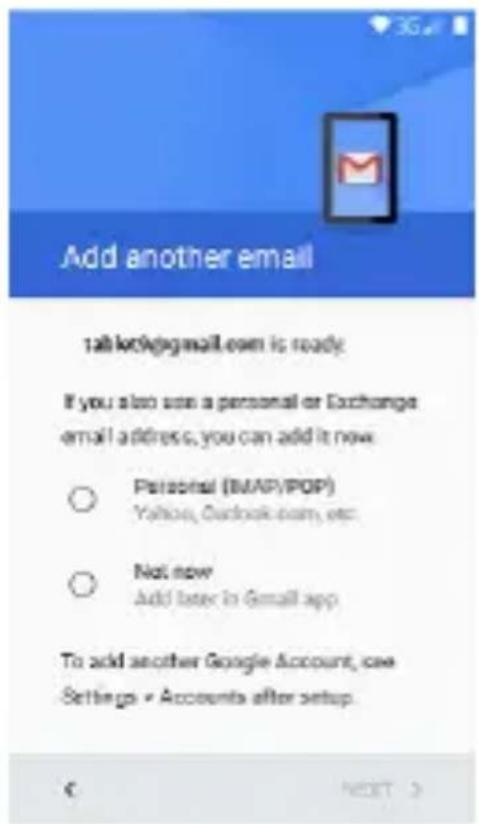
Add another email tablet9@gmail.com is ready. If you also use a personal or Exchange email address, you can add it now. ○ Personal (IMAP/POP) Yahoo, Outlook.com, etc. ○ Not now Add later in Gmail app To add another Google Account, see Settings > Accounts after setup. < NEXT >The wizard will guide you through setting up your phone and customize your phone to the telephone network, Wi-Fi access, a 9oogle account, E-mail accounts and other setups.
When finished with the initial setup of the phone, the display will show the home screen and your phone is ready for use.
Or ...
B) To open and adjust the settings, follow the steps below:
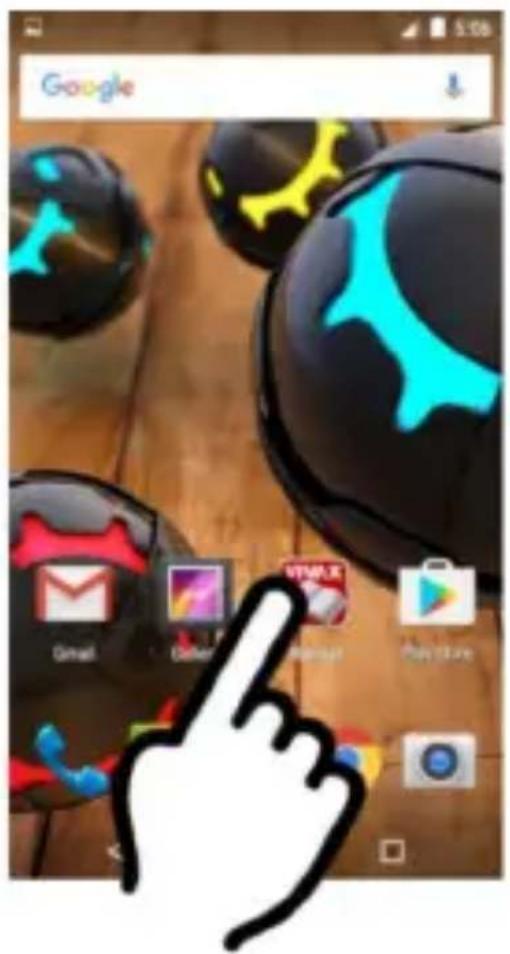
a. On the home screen, to open the list of applications, press the icon:
b. Press the icon Settings:
c. To select the display language, select "Language and Input" and choose language from the list.
d. To login to a Wi-Fi network and adjust the settings, select "Wi-Fi" and follow the onscreen instructions.
e. To log in to a Google account, without these settings you will not be able to download applications from the Google Store, select "Accounts".
BATT9RY CHARGING
In most cases, your phone comes with a pre-charged battery with approximately 50% charge, so it is ready for use. When the battery level falls below 10%, connect the charger to the phone.
a. Connect the mini USB plug from the charger into the USB port (8) on your Phone.
b. Plug the charger into a power outlet. On the device, along with the battery sign is marked lightning icon.
c. Leave your phone connected to the charger until the battery symbol not show full charge.
d. Disconnect your phone and charger from the supply.
OP9N TH9 INSTRUCTIONS ON TH9 PHON9 3ISPL4Y
For more information and access to the Instruction manual on the phone screen, press the icon "Manual"
By pressing the Icon "Manual", the display will show the Electronic version of the Instructions with more information about settings and using your phone.
text_image
Google Gmail Other VMAX Instagram Play StoreSWITCH OFF
Keep press the turn-on button (6)
The display window will appear with options to turn off, press the Power Off icon
r
)ONT9NTSr
1、Phone overview 21
2、Buttons 21
3、Screen 23
4、Screen lock 23
5. Customize home screen 24
6、Widgets 25
7、Camera 26
8、Internet 27
9、Make a call 27
10、Messaging 28
11、Email 28
12、Music 29
13、Videos 30
14、Photos 31
15、Cut, Copy, and Paste 32
16、Maps and GPS 32
Getting Started
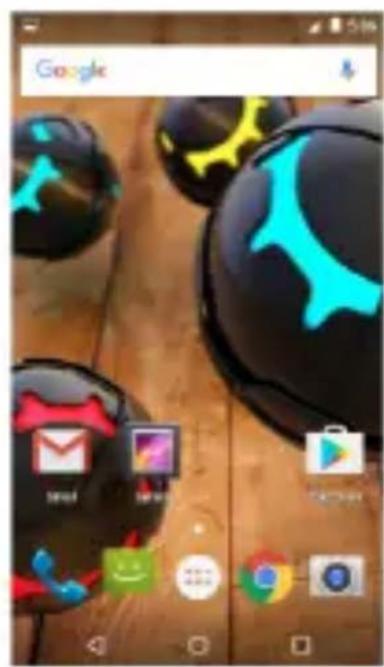
1. Telephone overview
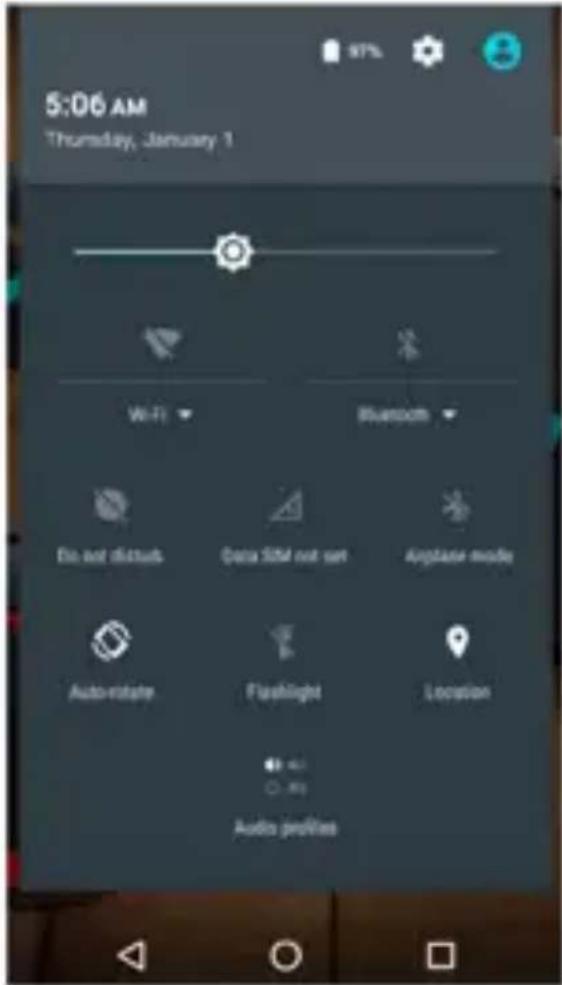
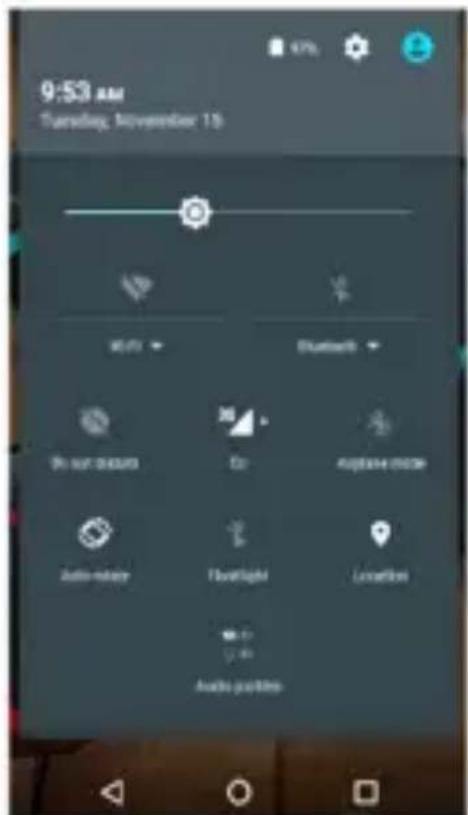
On the Home screen, swipe from the top to the bottom of the screen to open and display the quick menu to adjust:
- Screen brightness
- Wi-7i access
- Mobile access
- Bluetooth connection
- Airplane mode
-%ocations eg...
text_image
5:06 AM Thursday, January 1 Wi-Fi Bluetooth File not stuffs Data SIM not set Airplane mode Auto/matrix Flashlight Location Audio profiles2. Buttons
On/Off button:
To turn On the phone, press the power button for a few seconds.
When the phone is switched on, briefly press the button to switch On or Off the screen.
At the bottom of the screen you can find the buttons for navigation:
-
Home key ( 🔒) Touch the key to return to the home screen. In idle screen, touch and hold the key to view recently accessed features.
-
Menu key ( ) in standby mode, touch the button to set the wallpaper, add widgets, view settings, enter the system setup.
-
Back key ( 🔍 Touch to go back to the previous menu
3. Screen
On the home screen, to open the list of applications, press the icon: ::It will be shown a list of all applications installed on your phone.
text_image
Google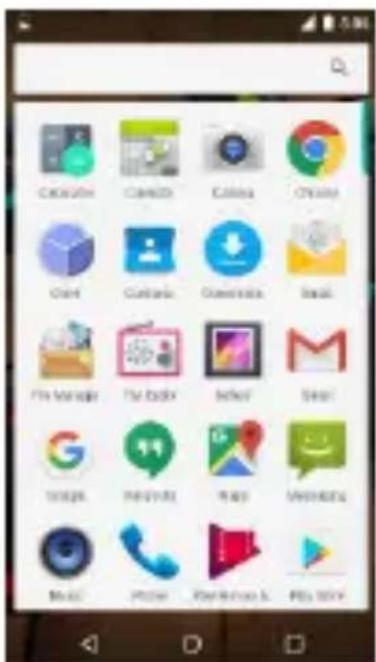
text_image
C#N C#N C#N C#N C# C# C# C# C# C# C# C# C# C# C# C# C# C# C# C# C# C# C# C# C# C# C# C# C# C# C# C# C# C# C# C# C# C# C# C# C# C# C# C# C# C# C# C# C# C# C# C# C# C# C#N C#N C#N C#N C#N C#N C#N C#N C#N C#N C#N C#N C#N C#N C#N C#N C#N C#N C#N C#N C#N C#N C#N C#N C#N C#N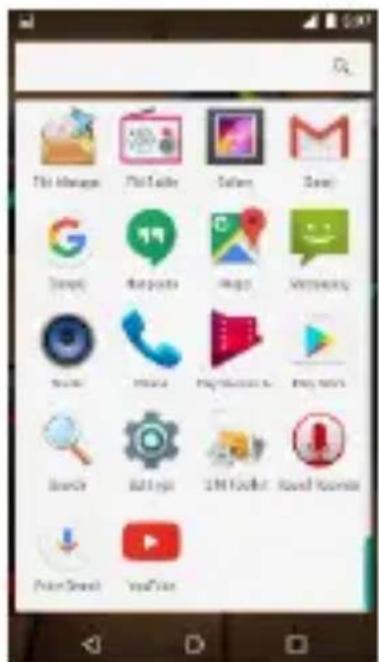
text_image
The Manager Pilot Guide Salam Dana Google Hotpot Image VMwareny Mobile Facebook Play Sudan Play Info Search Batterfly 3M Pocket Sound Camera Python Street YouTubeTo launch the Applications, press on Icon.
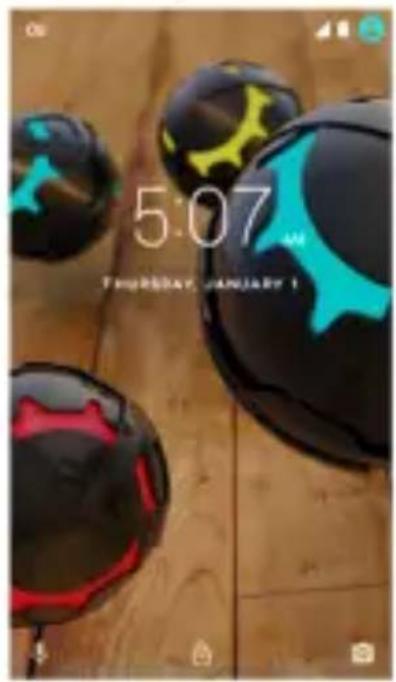
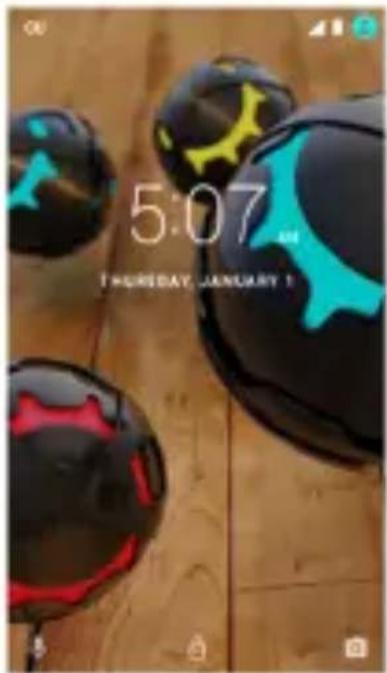
4. Screen lock
You can increase the security of your phone by selecting screen lock. Screen lock settings can be found under "Settings">"Security">"Screen lock".
You can set your screen lock with the different security levels:
- No %ock
- 7inger Slide
- Pattern
- PIN
- Password
text_image
5:07 THURSDAY JANUARY 1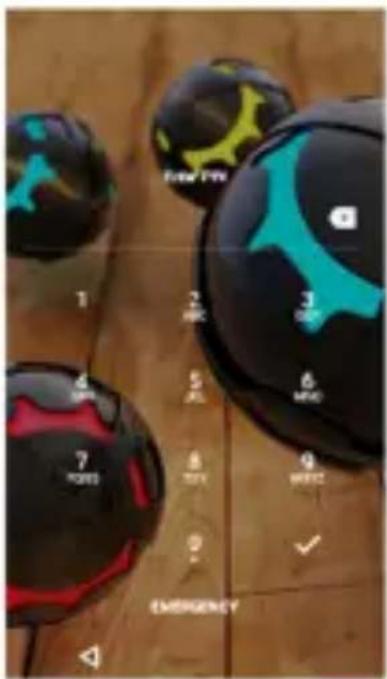
text_image
1 2 3 4 5 6 7 8 9 EMERGENCY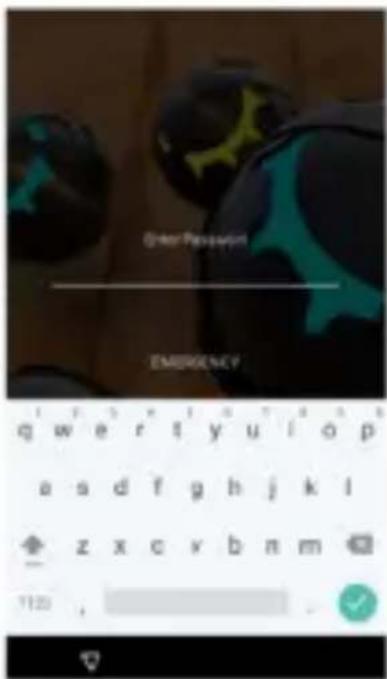
text_image
Order Passpersion EMERGENCY q w e r t y u l o p a s d f g h j k l z x c v b n m 1120 ,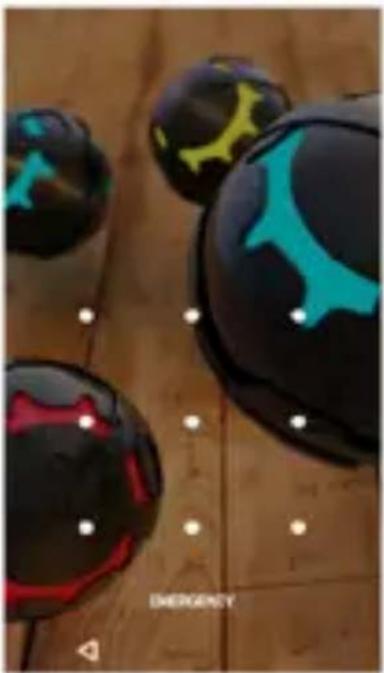
natural_image
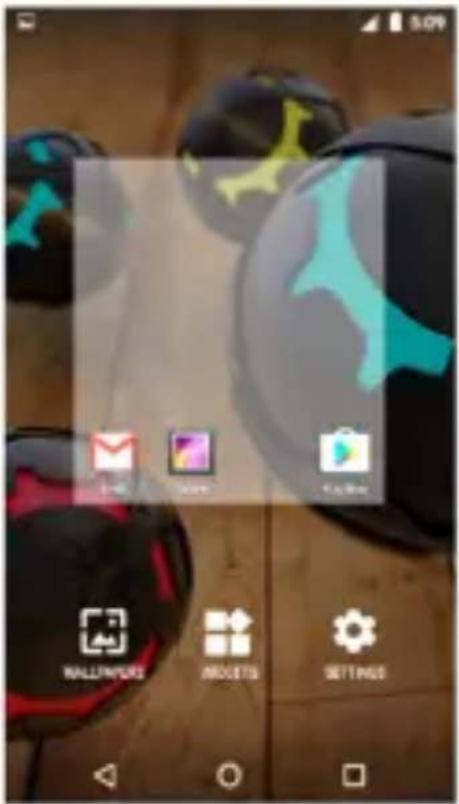
Close-up of four black and red spherical objects with blue and yellow markings, placed on a wooden surface (no text or symbols visible)5. Customize Home Screen
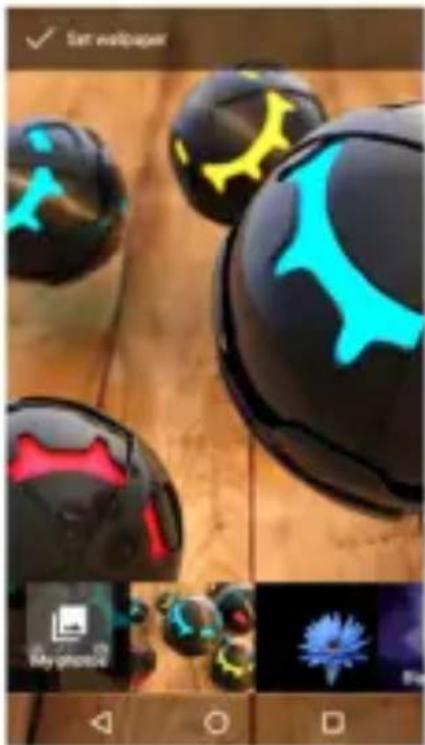
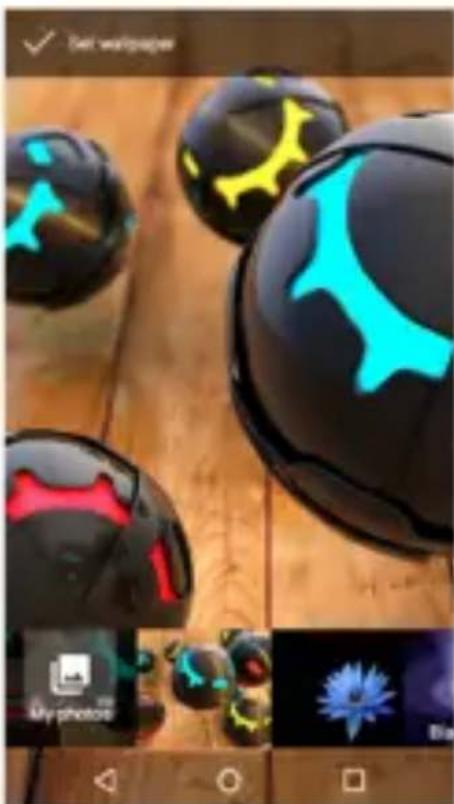
In standby mode, press and hold an empty area or press the menu button to set the wallpaper. In addition, you can also delete items from the Home screen, Move
items, add items to the main screen to customize the home screen
text_image
Mobile app interface screenshot showing app icons including Wallet, Store, and Settings with Chinese labels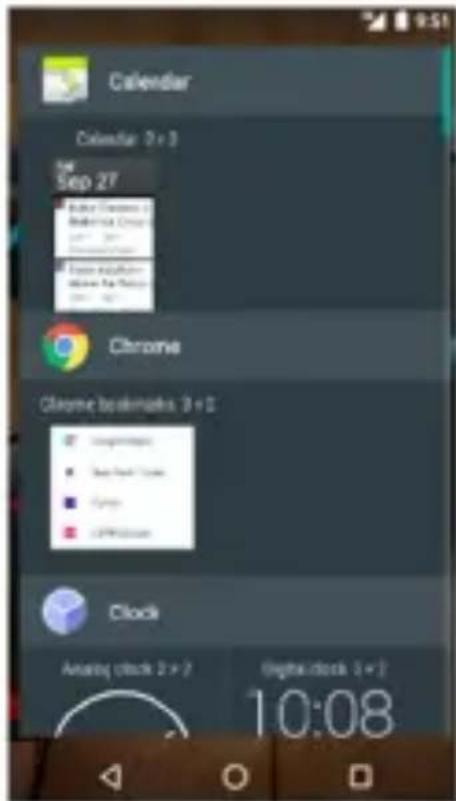
text_image
Calendar Calendar 3 + 3 Sep 27 Chrome Chrome bookmarks 3 + 3 Clock Analog clock 2 + 7 (light clock 5 + 7) 10:08Widgets
You can add widgets to home screen.
Widgets allows you that on easy and fast way you can see informations and notifications on your home screen, like Time, Weather forecast, E-mail status, Task and so on.
natural_image
Close-up of black and cyan spherical objects with abstract patterns, displayed on a wooden surface (no text or symbols visible)6. Camera
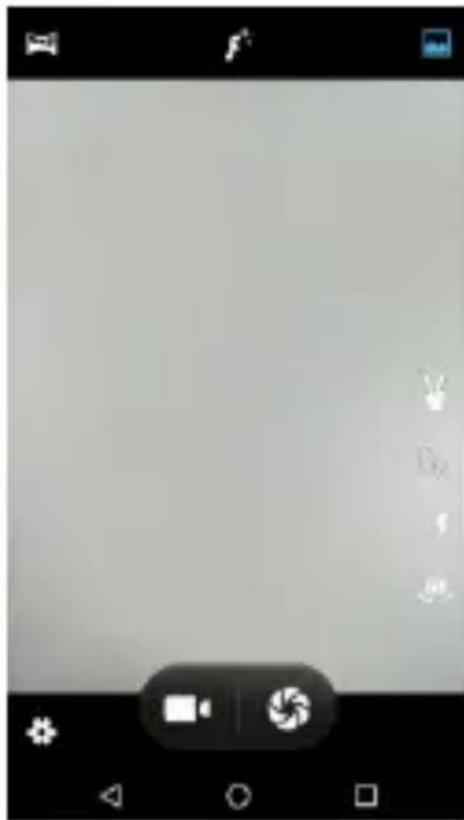
PHONE is equipped with high resolution cameras and a camcorder, which are designed for you to share wonderful moments with friends and family.
Adjust focus, flash, zoom in or zoom out, switch between cameras and switch between the functions by flipping the icon on the screen
natural_image
Grayscale image editing interface with tool icons and control buttons (no readable text or symbols)7. Internet
You can connect to the Internet network by selecting 39/49 broadband, W%AN. Enjoy music, videos, Apps and news anywhere and anytime as you like.
You can switch On/Off any kind of connection through 7ast menu or Settings.
text_image
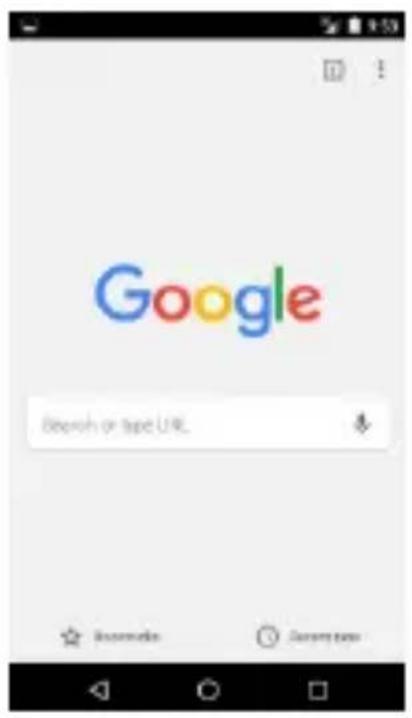
9:53 AM Sunday, November 15 47% 80% Bluetooth On your device Go Apache motor Auto motor Flamelight Location Audio port files7or internet browsing, launch 9oogle Android Apps or Internet Apps.
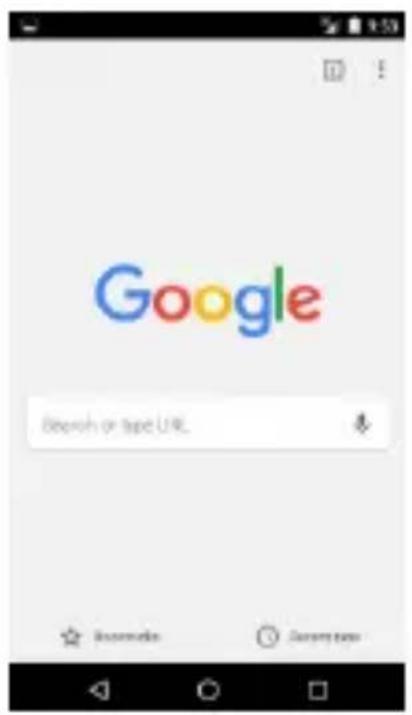
text_image
Google Search or tape URL8. Make a Call
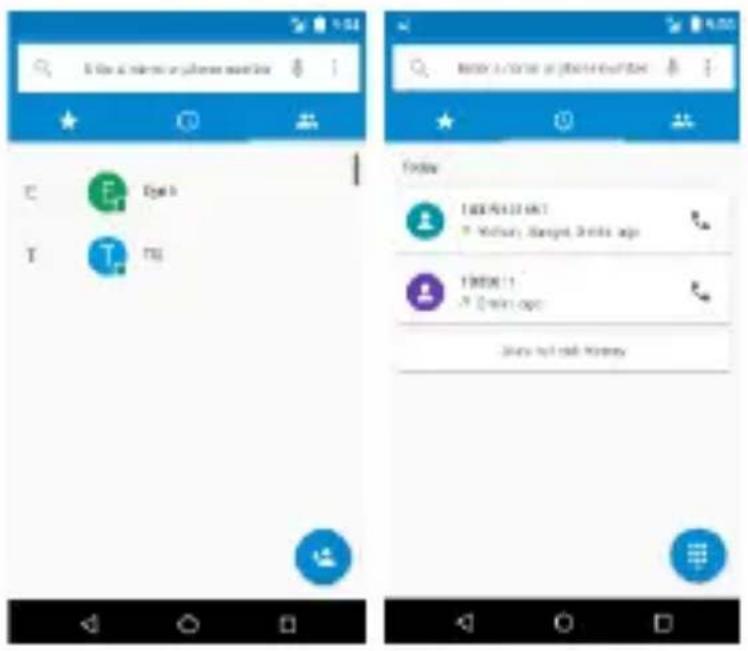
You can make a call under the interface of Call log, Contacts, Message (which contains a phone number) or with direct input of the telephone number.
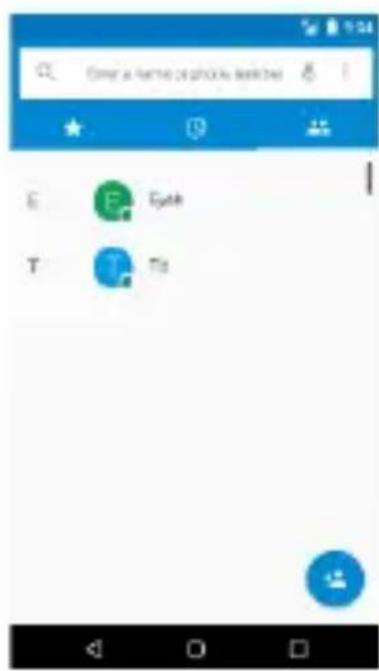
text_image
Enter a name or phone settings E Epath T Tis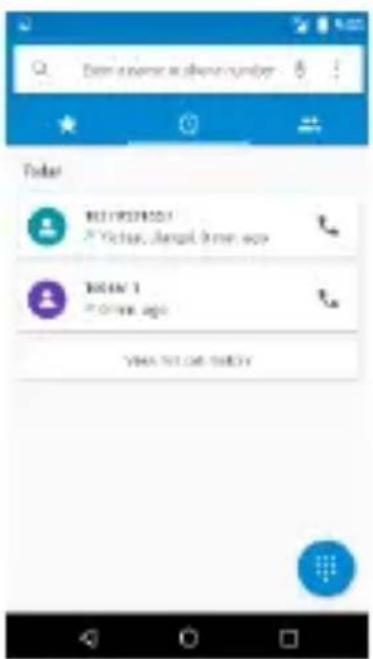
text_image
Daim extra user share number Today BET/POST/2021 * Yichai, Jiaqal, Irman. ago BET/ST * Other. ago VISA TV OR THEYIn the standby mode, touch a number to make a call. To dial Direct telephone number:
Press icon: Dial number and press Green button to make a call. When the call is finished, press Red button.
9. Messaging
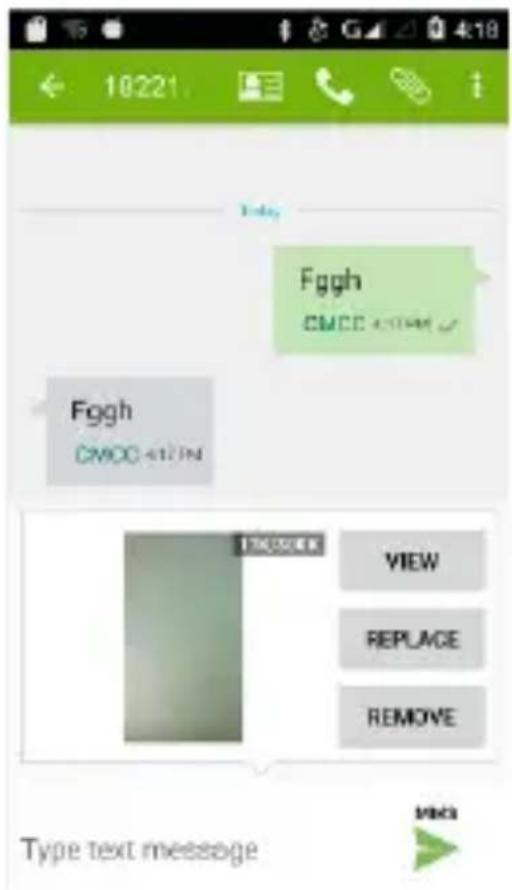
Touch and hold the text box to select an input method. You can insert smiley, picture, audio or video files and send to multiple recipients.
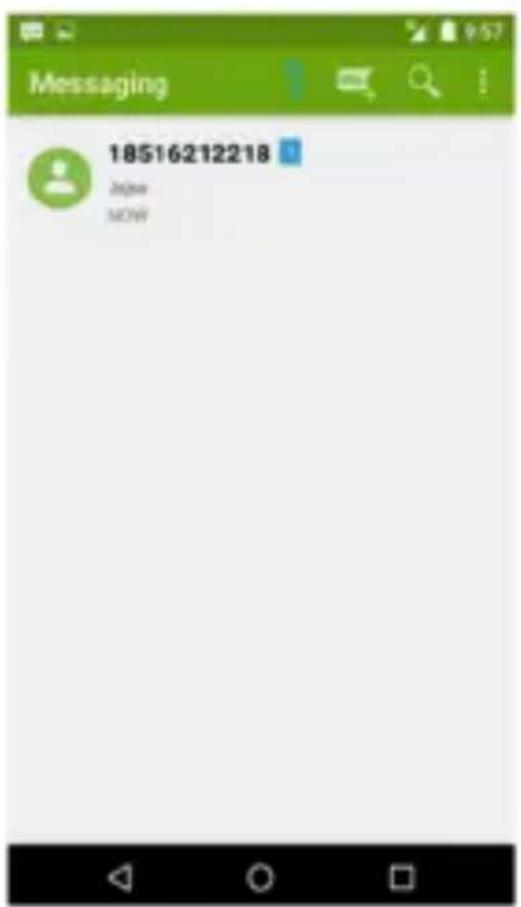
text_image
Messaging 18516212218 Begin NOW10. E-Mail
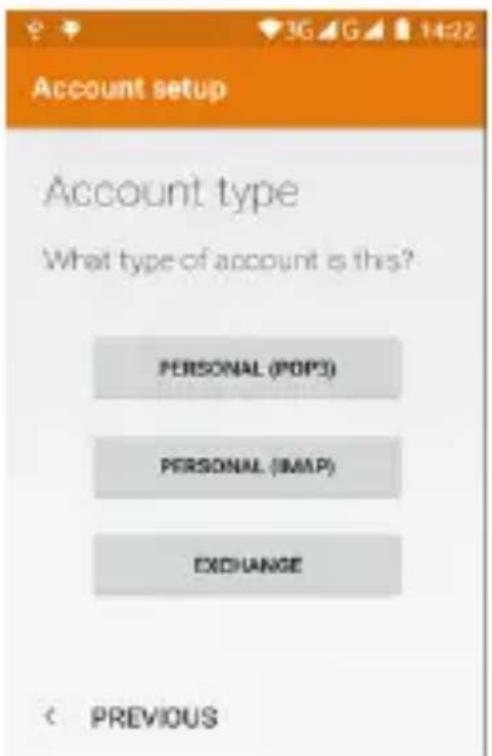
The email App enables you to read, compose and send emails, and is configured to work with all the major email
text_image
10221 Fggh CMCC 417JN Fggh CMCC 417JN VIEW REPLACE REMOVE Type text message Mega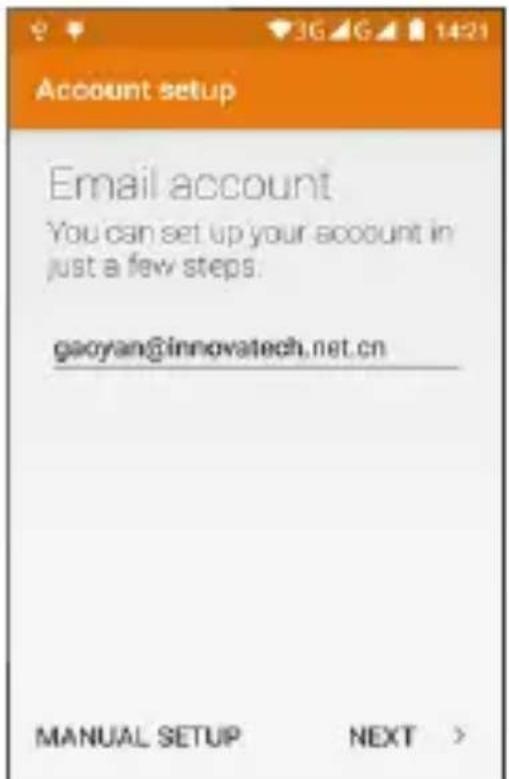
text_image
Account setup Email account You can set up your account in just a few steps. gaoyan@innovatech.net.cn MANUAL SETUP NEXT >providers. Phone supports multiple account mode, and you won't miss any email.
text_image
Account setup Account type What type of account is this? PERSONAL (POP3) PERSONAL (IMAP) EXCHANGE < PREVIOUS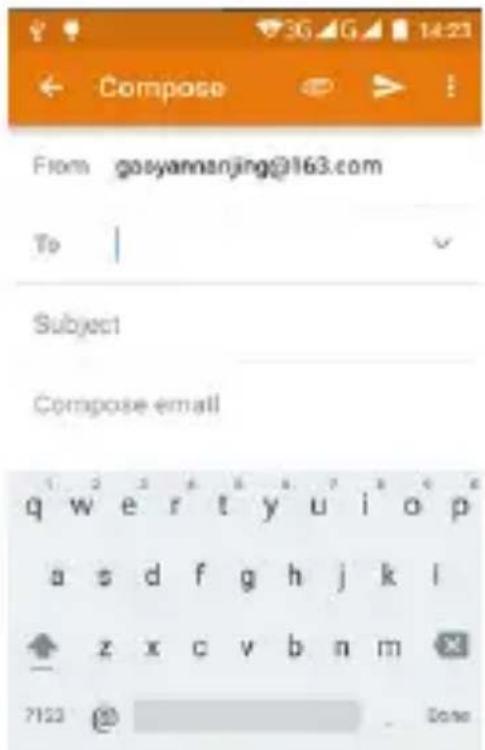
text_image
Compose From gosyananjing@163.com To Subject Compose email q w e r t y u i o p a s d f g h j k l z x c v b n m 7123 @ Done11. Music
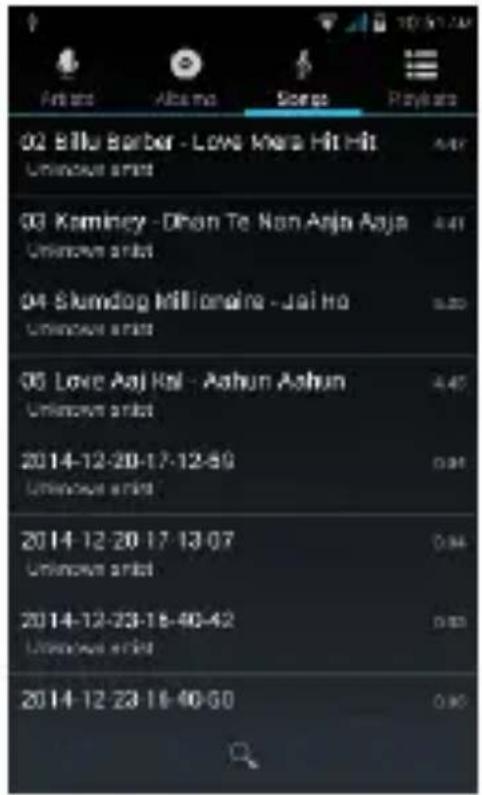
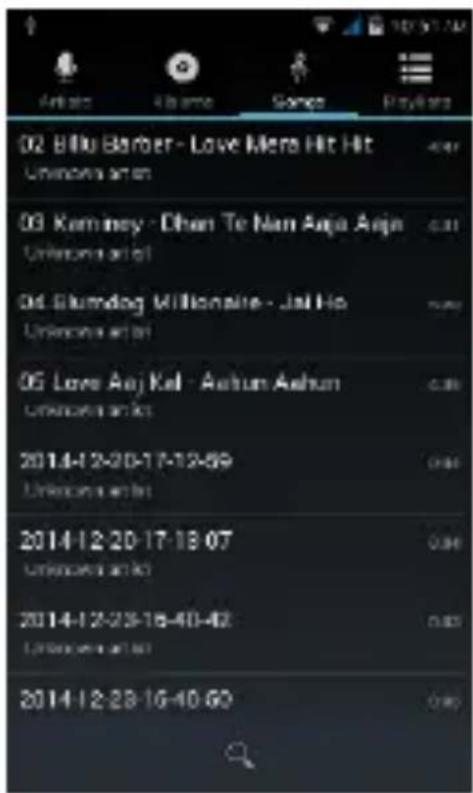
Your Phone supports various music formats, different sound effects, and 4 categorizing, i.e. Artists, Albums, Songs and Playlists.
text_image
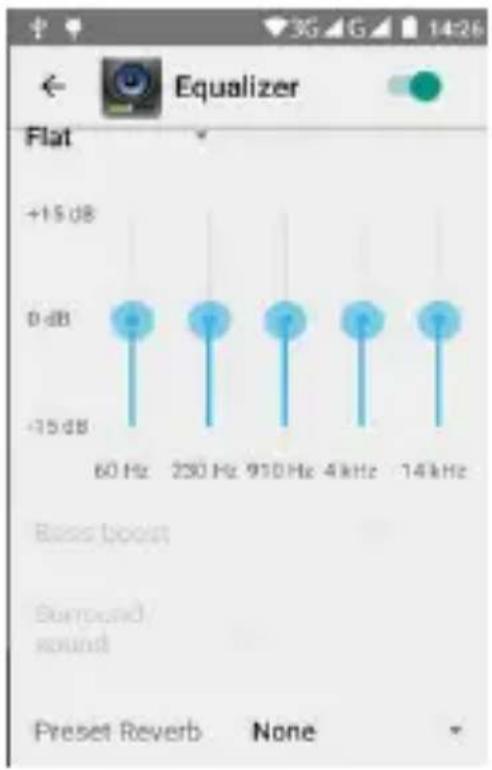
02 Billy Barber - Love Mera Hit Hit Unknowns are on 03 Kaminey - Dhan Te Nam Aaja Anja Unknowns are on 04 Blumdog Millionaire - Jal Ho Unknowns are on 05 Love Aaj Kal - Ashun Ashun Unknowns are on 2014-12-20-17-12-59 Unknowns are on 2014-12-20-17-18 07 Unknowns are on 2014-12-23-16-40-42 Unknowns are on 2014-12-23-16-40 60You can improve your earphone sound quality to adjust Equalizer settings.
text_image
Equalizer Flat +15 dB 0 dB -15 dB 60 Hz 230 Hz 910 Hz 4 kHz 14 kHz Base boost Surround sound Preset Reverb None12. Video
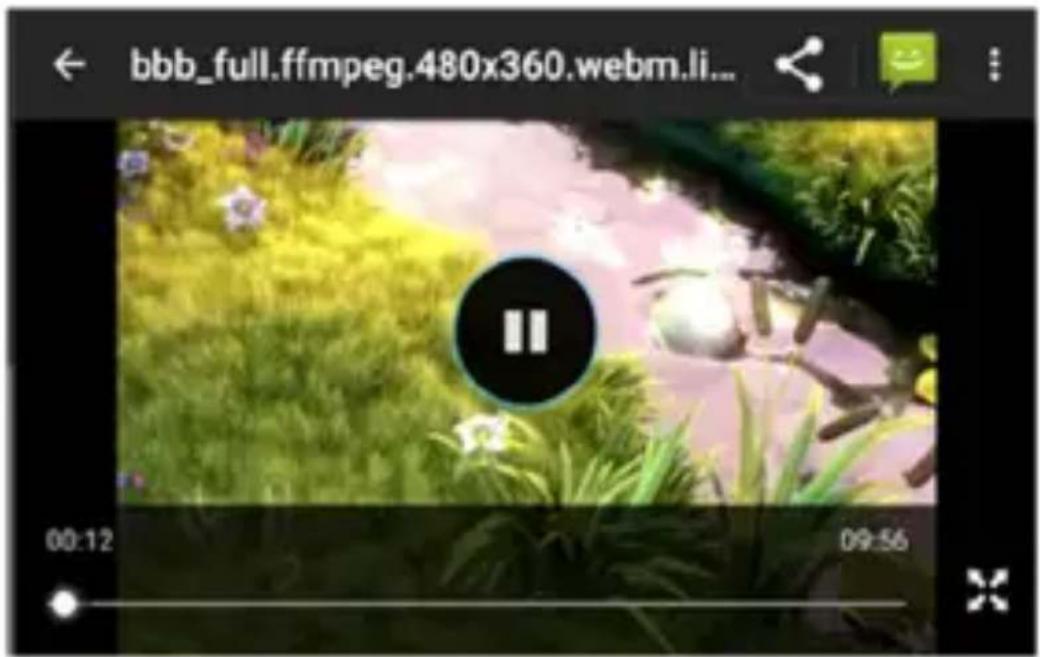
Enjoy a visual feast in a variety of video formats, please choose Video player on your Phone.
text_image
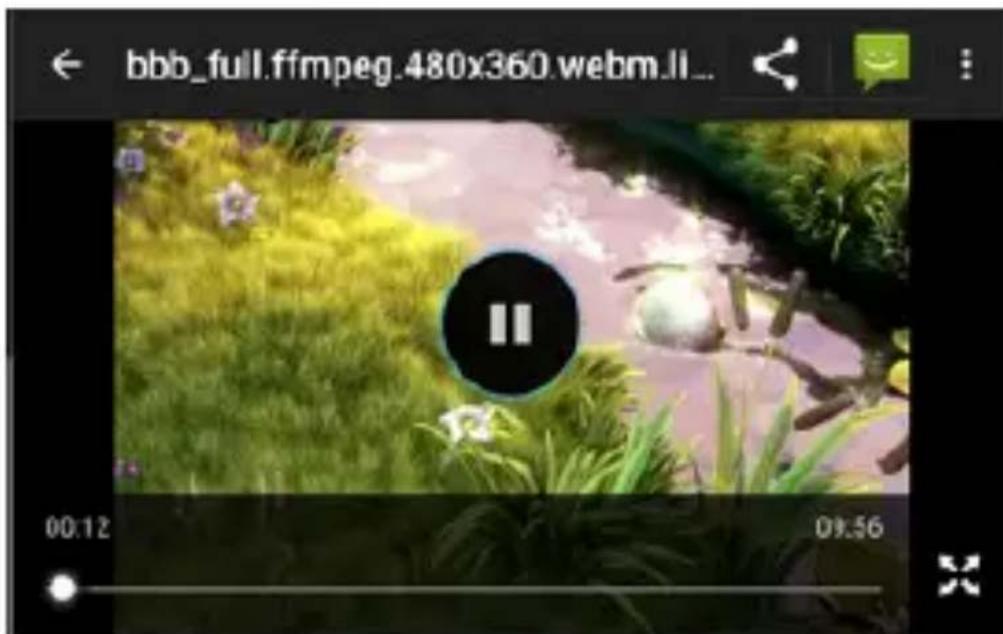
bbb_full.ffmpeg.480x360.webm.li... 00:12 09:56You can play Video files from different sources, Recorded Videos with your Camera, Video files from Internet or YouTube.
13. Photos
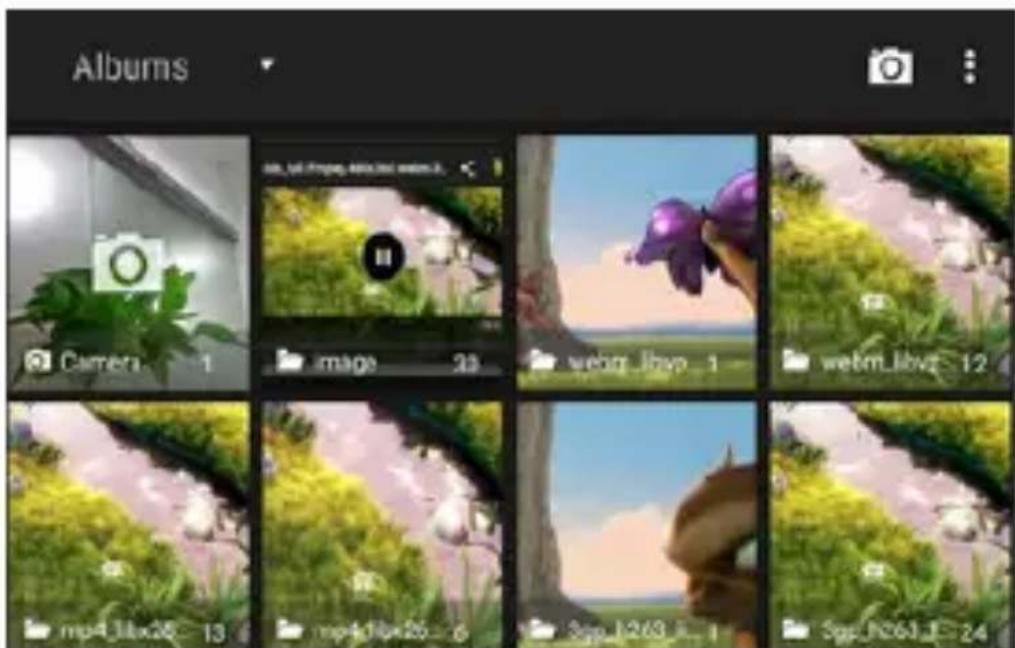
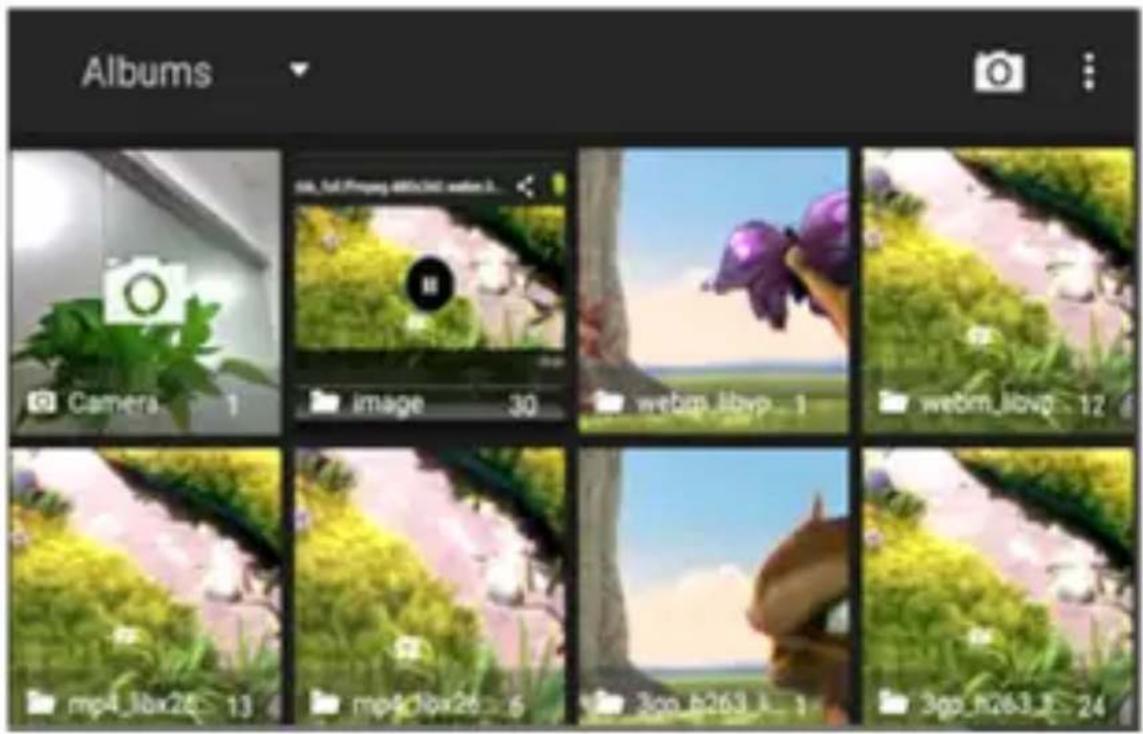
You will find it very easy to view all the photos. 7lick right or left to move among images. Double-tap or pinch the photo to zoom. You can edit, share, print, and more.
text_image
Albums Camera 1 image 30 webp libv p 1 webm libv p 12 mp4 libx26 13 mp4 libx26 6 3gp b263 1 3gp b263 2 24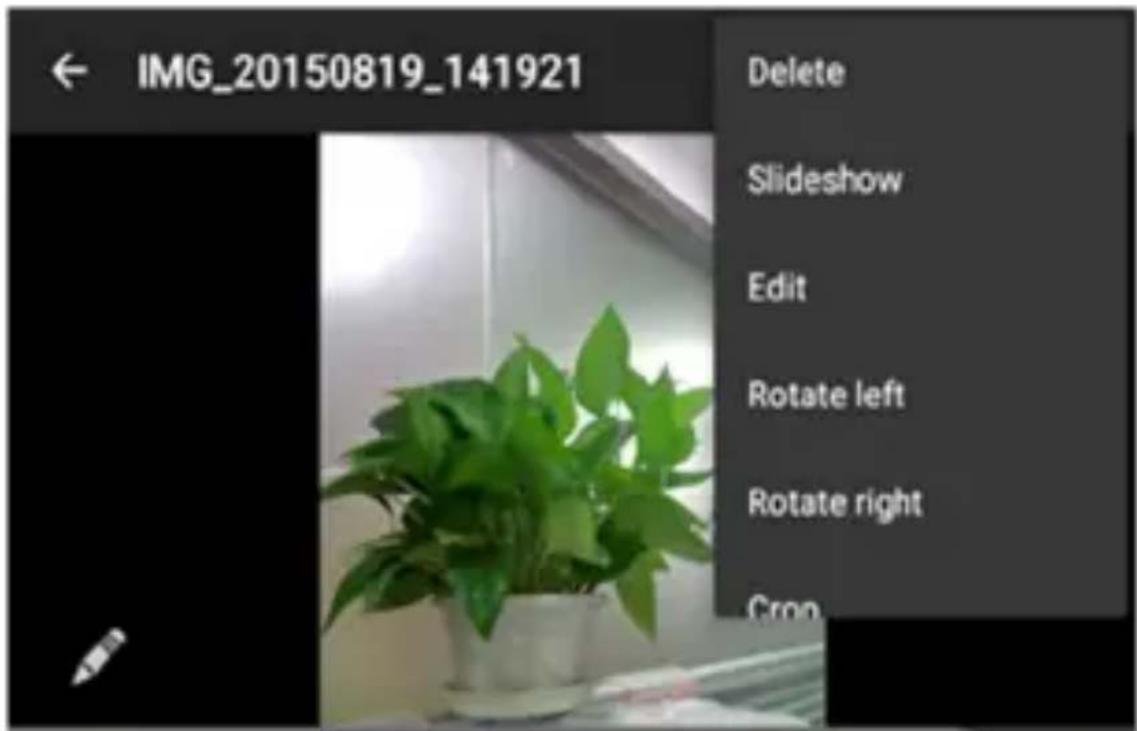
text_image
IMG_20150819_141921 Delete Slideshow Edit Rotate left Rotate right Crop14. Cut, Copy and Paste
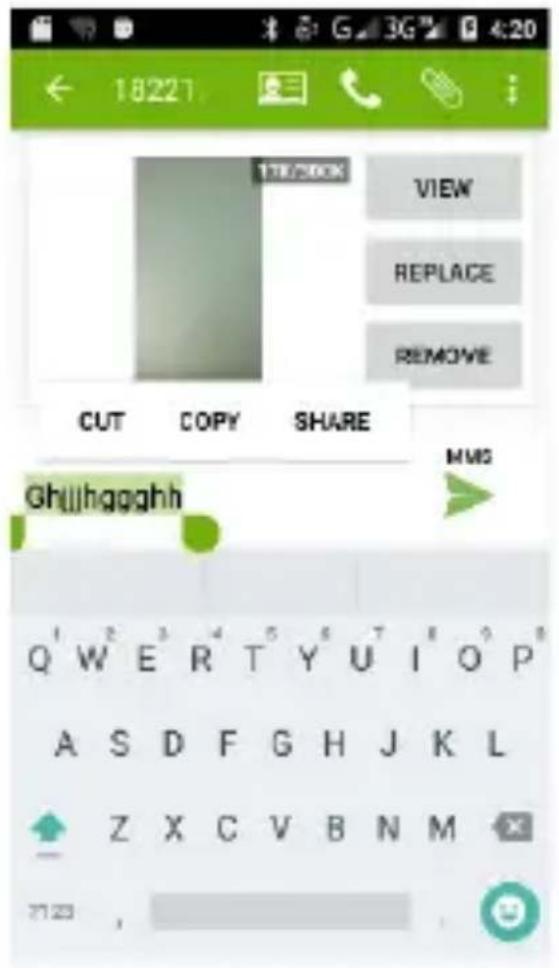
Touch and hold text content to bring up the magnifying glass, and then slide your finger to move the insertion points. Then tap to cut, copy, or paste. It is very easy to copy text from web pages, email, or text messages.
text_image
18221 VIEW REPLACE REMOVE CUT COPY SHARE GHjjhhggghh MMS Q W E R T Y U I O P A S D F G H J K L Z X C V B N M 7123 ,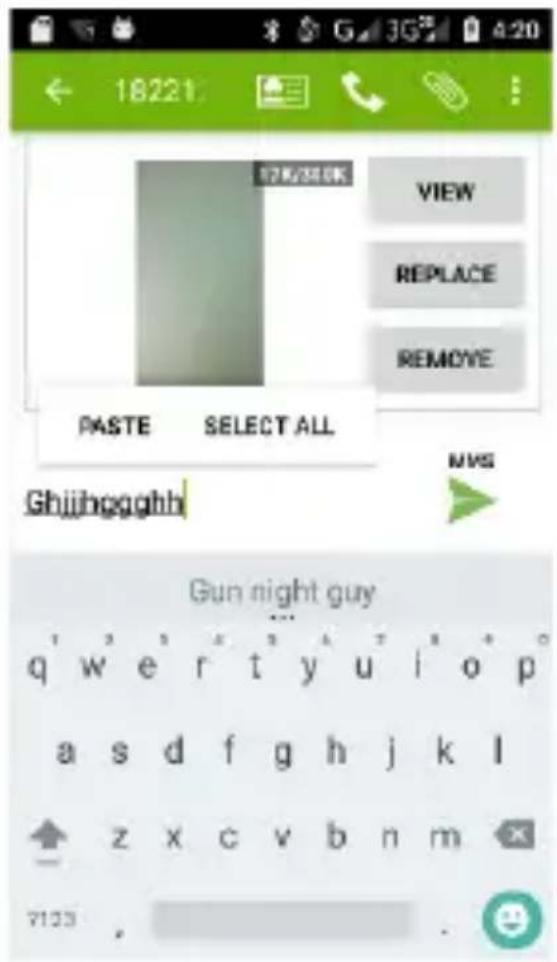
text_image
18221 PASTE SELECT ALL Ghjjhhggghh VIEW REPLACE REMOVE MVS Gun night guy q w e r t y u i o p a s d f g h j k l z x c v b n m 713315. Maps and GPS
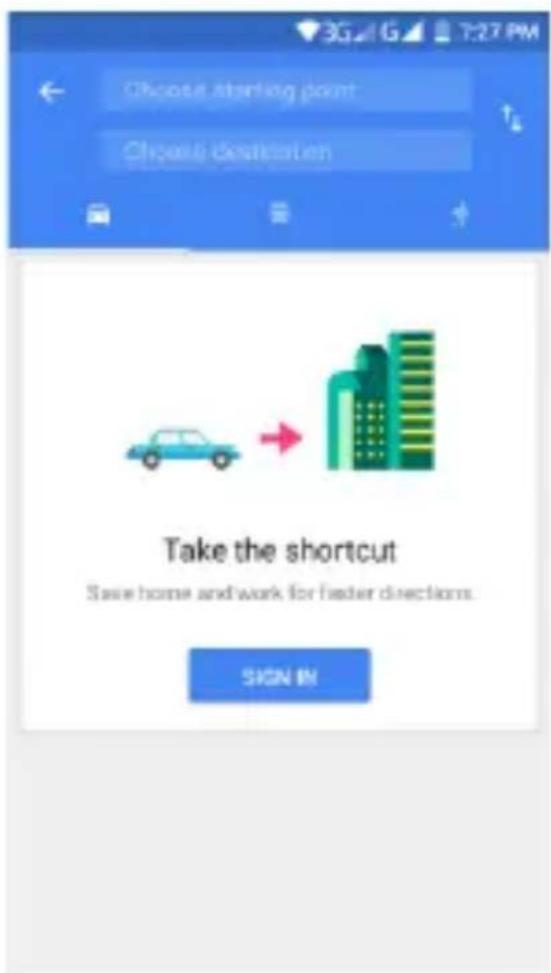
You can view satellite images or street map with detailed route instructions just as you are walking in the street. The Map App can be used to locate yourself, view real-time traffic conditions, pedestrian, bus routes or car driving route instructions. Available 9oogle maps
depends about your Internet connection and 9PS settings.
Also, you can download a various 9PS Route maps from 9oogle Play Store.
text_image
Choose starting point Choose destination Take the shortcut Save home and work for faster directions. SIGN IN
text_image
Search here Sweden Norway Sueven Finland Easti Estonia Lenvia Latvia North Korea Danskirk Bermottka Polonia Poland Estonia Belle Nordland Nordland Belgrade Belgoue Belghani's Slova Oxnolich Asniolo Ortunica Croatia Hernofina Italy Koeta France GoogleAndroid logo, Google™, Google Maps™, Google Mail™, YouTube™, Google Play™ Store, i Google Talk™ are Trademarks from Google, Inc2
Wi-Fi ^® , Wi-Fi Protected Setup ^™ , Wi-Fi Direct ^™ , Wi-Fi CERTIFIED ^™ , i Wi-Fi logo are registered Trademarks from Wi-Fi Alliance2
POSTOVANII
Zahvaljujemo na kupnji Vivax uređaja i nadamo se da ćete biti zadovotjni odabirom. Ako u jamstvenom periodu bude potreban popravak proizvoda, molim savjetujte se sa ovlaštenim prodavačem koji Vam je proizvod prodao ili nas kontaktirajte na dolje navedene brojeve i adrese. MOLIMO VAS DA PRIJE UPOTREBE PROIZVODA PAŽLJIVO PROČITATE TEHNIČKU DOKUMENTACIJU I UPUTE KOJI SUPRILOŽENI UZ PROIZVODI
- brigade 1B, (Mejaši)
HR-21000 Split
Tel. (021) 684 000,
Fax. (021) 684 001
Radno vrijeme: 9:00 do 17:00 sati, pon-pet
POSTOVANII
POTPIS I PEČAT PRODAVATELJA
text_image
H011 16 VIVAX SRINFORMACIJE POTROŠAČIMA
OBAVEZE POTROŠAČA
text_image
VIVAX H011 17 SRINFORMACIJE POTROŠAČIMA
Poštovani,