LED2801 - Television Manta - Free user manual and instructions
Find the device manual for free LED2801 Manta in PDF.


| Product Type | LED Television |
| Screen Size | 28 inches (28") |
| Display Resolution | 1366 x 768 (HD Ready) |
| Panel Type | LED |
| Dimensions (Without Stand) | 640 x 380 x 80 mm |
| Dimensions (With Stand) | 640 x 420 x 180 mm |
| Weight (Without Stand) | 3.8 kg |
| Weight (With Stand) | 4.1 kg |
| Power Consumption (Typical) | 45 W |
| Power Consumption (Standby) | < 0.5 W |
| Input Voltage | 100-240V AC, 50/60Hz |
| HDMI Inputs | 2 x HDMI |
| USB Inputs | 1 x USB 2.0 |
| Composite Video Input | 1 x RCA (AV In) |
| Component Video Input | 1 x YPbPr |
| RF Input | 1 x Antenna (IEC) |
| Audio Output | 1 x 3.5mm Headphone Jack, 1 x RCA (Audio Out) |
| Built-in Speakers | 2 x 3W |
| Remote Control | Included (IR) |
| Wall Mount VESA | 100 x 100 mm (screws not included) |
| TV Tuner | DVB-T/T2/C, MPEG-4 |
| Operating System | Basic non-smart TV (no smart features) |
| Package Contents | TV, Remote Control, Batteries, Stand, Quick Start Guide |
| Cleaning Instructions | Use a soft dry cloth; do not use liquids or abrasive cleaners |
| Safety Features | Over-voltage protection, child safety lock (in menu), auto standby |
| Repairability | User replaceable stand and remote; internal parts require professional service |
Frequently Asked Questions - LED2801 Manta
User questions about LED2801 Manta
0 question about this device. Answer the ones you know or ask your own.
Ask a new question about this device
Download the instructions for your Television in PDF format for free! Find your manual LED2801 - Manta and take your electronic device back in hand. On this page are published all the documents necessary for the use of your device. LED2801 by Manta.
USER MANUAL LED2801 Manta
natural_image
Abstract black-and-white circular logo with interlocking curved shapes (no text or symbols)MANTA
LED TV 28"
LED2801
Instrukcja obsługi
User's Manual
Control Panel Button Function....15
TV Terminal Connections....15
Optional Configuration as below 15
Remote Control....16
OSD Basic adjustment....17
Installation Guide....17
Channel 17
Picture....18
Sound 18
Lock System....19
Setup 19
PC 20
DTV Features....20
LED TV
Favorite List....20
Program Information 20
Audio....20
Electronic Program Guide EPG 21
Subtitle 21
Common interface....21
USB Features....21
Photo 21
Music....22
Movie....22
Text....22
PVR Operation 22
Trouble Shooting....23
Specification 24
INSTRUKCJA OBSŁUGI
Instrukcja obsługi
INSTRUKCJA OBSŁUGI
Złącze Cl
natural_image
Black-and-white beach scene with palm trees and a single palm tree, no visible text or symbolsnatural_image
Black-and-white photo of a waterfront cityscape with a boat and distant buildings under cloudy sky (no visible text or symbols)Uwaga:
Control Panel Button Function
VOL+ : Volume up.
VOL-: Volume down.
CH+: TV channel up.
CH-: TV channel down.
MENU : Press to select the main menu.
SOURCE: Select the input signal.
POWER: Turn the TV on or off.
TV Terminal Connections
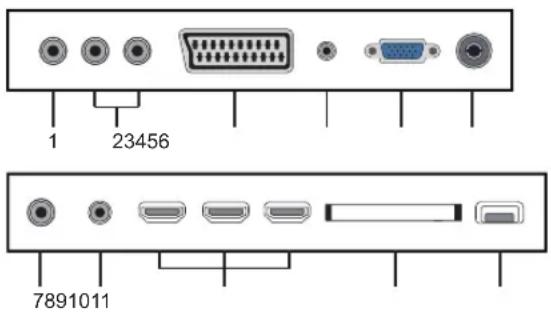
- Video input terminal.
- AUDIO input terminal.
- SCART input terminal.
- PC AUDIO terminal.
- VGA input terminal.
- TV antenna.
- Mini-YPBPR input terminal.
- HEADPHONE output terminal.
- HDMI input terminal.
- Cl slot.
- USB input terminal.
Optional Configuration as below
Connect the USB to the USB jack on the set.
NOTE
- It is only 500 mA MAX of DC current output when you connect with USB jack
- To ensure the Mobile HD works well, you should use other power supply for the Mobile HD. And do not use the USB jack in the same time.
- It supports Mobile HD by connecting with USB jack (must more than 2 GB). The partitions of the Mobile HD can't be more than 4 partitions. The max partition is 2TB. It supports FAT/FAT32 document. The max FAT document is 4GB and the max FAT32 document is 2TB.
USER'S MANUAL
Remote Control
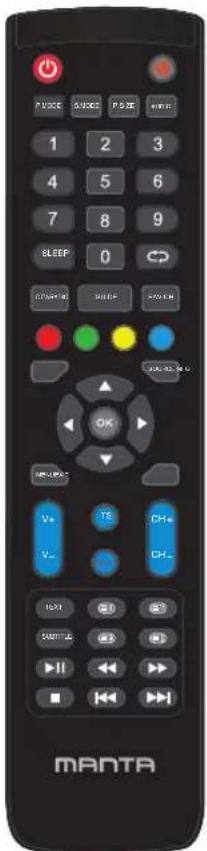
POWER Turns the LED TV on and into standby mode.
P.MODE Selects picture mode
S.MODE Selects sound effect options
P.SIZE Cycles through Wide mode settings
AUDIO Audio selection button
0-9 Pressing a number selects a channel.
SLEEP Set the sleep timer.
Switches back and forth between the current and previous channels.
DTV/RADIO In DTV mode, press DTV/RADIO button to enter DTV or RADIO mode.
GUIDE Displays the Programme Guide on the screen in DTV mode. Pressing again to turn GUIDE off.
FAV.CH Pressing FAV.CH displays favorites.
Press the appropriate colour to direct access functions in TELETEXT, GUIDE mode.
INFO Pressing once displays a variety of information such as the current channel and the input source.
SOURCE Pressing SOURCE displays the source list, use ▲▼ to select the video equipment connected to the video inputs of your LED TV and press OK button to confirm.sound.
▲▼◀▶/OK Allows you to navigate the on-screen menus and adjusts the system setting to you preference, OK confirms option settings. OK displays the channel list.
MENU Displays the OSD menu on the screen.
EXIT Exits the OSD menu.
V+/V- Increases and decreases volume.
CH+/CH- Scans up and down the channels.
TIME SHIFT In DTV mode. Click in the DTV mode key to start the delay function, press the play button to start playing delay program, press the ■ key to terminate the delay functions.
REC In DTV mode, Press REC button to start recording, press ■ button to stop recording
TEXT Turns on and off the Teletext function.
E! Displays the main index in Teletext mode.
☐? Reveals hidden information such as the answer to a quiz in TELETEXT mode.
SUBTITLE Displays the subtitle menu on the screen in DTV mode, use ▲▼ to select the TV subtitle options.
Displays the top, bottom or all of page,
Freeze a multi-page passage on screen in Teletext mode.
▶II In Media mode, press to start playback or pause.
In Media mode, use to reverse/advance
▶▶ playback rapidly.
In Media mode, press to stop playback. track.chapter or track.
In Media mode, press to jump to the previous of the currently played chapter or track.
In Media mode, press to jump to the next of the currently played chapter or track.
USER'S MANUAL
OSD Basic adjustment
Installation Guide
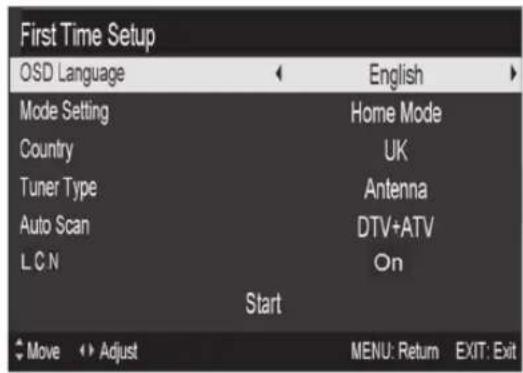
If this is the first time you are turning on the TV and there are no programs in the TV memory, the installation Guide menu will appear on the screen.
- Press the ◀/▶/▼/▲ button to select the local language.
- Press the ◀/▶/▼/▲ button to select mode.
- Press the ◀ / ▶ / ▼ / ▲ button to select the local country you want to
- Press the ◀/▶/▼/▲ button to select Air or cable.
- Press the ◀ / ▶ / ▼ / ▲ button to select mode :DTV + ATV,DTV,ATV.
- Press the ◀/▶/▼/▲ button to select "ON" or "OFF".
Note:
Searching for platform will take a long time, please be patient!
Channel
Press MENU button to display the main menu. Press ◀ / ▶ button to select CHANNEL in the main menu
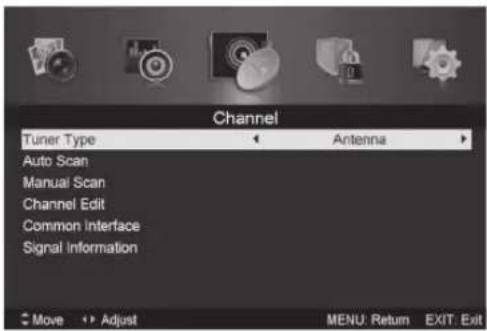
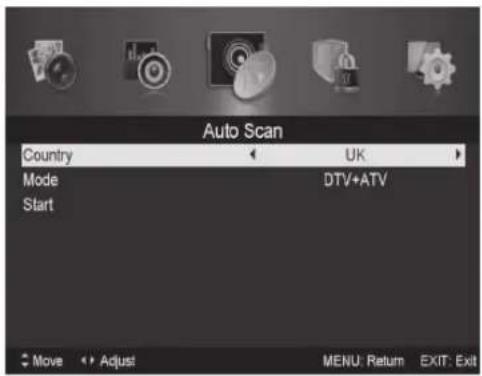
- Auto Scan
Press ▲ / ▼ button to select "Auto Scan"
Press ▲ / ▼ button to select country and press the ◀ / ▶ button to select mode.
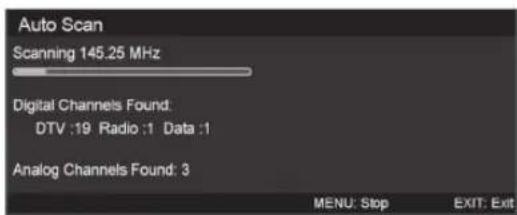
Press ▲/▼ button"and then press▶ button to start scanning. Press "MENU" or "EXIT" button to stop
Note: Searching for platform will take a long time. Please be patient!
- Analog Manual Scan
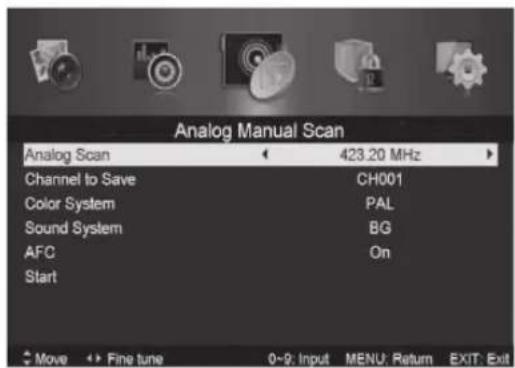
Press ▲ /▼ button to select "Manual scan" and press the ▶ button to Analog manual scan.
Press "MENU" button to return the previous menu. Press "EXIT" button to exit the menu.
USER'S MANUAL
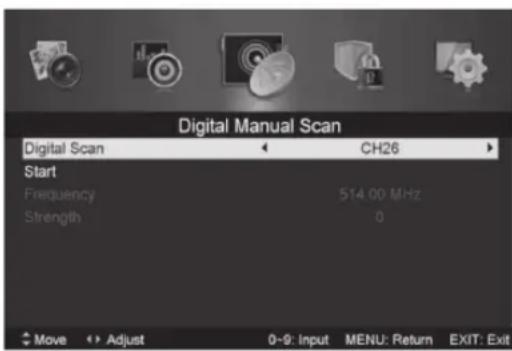
3. Digital Manual Tuning
Press ▲ /▼ button to select "Diigital Manual Scan" and press the ▼ button to start.
Press "MENU" button to return the previous menu.
Press "EXIT" button to exit the menu.
4.Channel Edit
Press ▲ / ▼ button to select "Channel Edit" and press the "ENTER" button to enter.
a. DELETE
Press ▲ / ▼ button to select the program and press "RED" button once to delete the program.
b. RENAME
Press ▲ / ▼, button to select the program and press "GREEN" button to rename the program. Press ◀ / ▶, button to select the item which you want to change and press the ◀ / ▶, button to select the different item. Press "ENTER" button to confirm.
NOTE:
RENAME only use in ATV.
b. MOVE
Press ▲ / ▼, button to select the channel and press the "YELLOW" button to move. Then press the ▲ / ▼, button to select the channel with which you want to move. Press "YELLOW" button again to confirm.
c. SKIP
Press ▲ / ▼, button to select the channel which you want to skip and press the "BLUE" button to skip. Press "BLUE" button again to cancel the setting.
5. Signal information (only use in DTV)
Press ▲ / ▼, button to select "Signal information" and press the "ENTER" button. Press "MENU" button to return the previous menu. Press "EXIT" button to exit the menu.
Picture
You can select the type of picture, which best corresponds to your viewing.
Press the "MENU" button to enter the OSD menu. Then press ◀/▶, button to select the "PICTURE" menu. Press ▲/▼ button to select "Picture Mode" and press the ◀/▶, button to select.
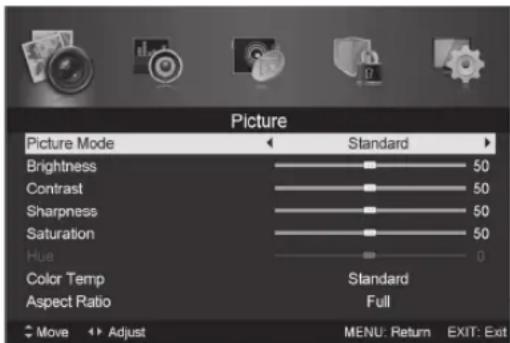
- Pressk ▲ / ▼ button to select "Brightness" and press the ◀ / ▶ button to enter brightness adjustment menu to adjust brightness.
- Press ▲ / ▼, button to select "Contrast" and press the ◀ / ▶ button to enter contrast adjustment menu to adjust contrast.
- Press ▲ / ▼ button to select "Sharpness" and press the ◀ / ▶ button to enter sharpness adjustment menu to adjust sharpness.
- Press ▲ / ▼ button to select "Saturation" and press the ◀ / ▶ button to enter Saturation adjustment menu to adjust saturation.
- Press ▲ / ▼ button to select "Hue" and press the ◀ / ▶ button to enter hue adjustment menu to adjust hue.
- Press ▲ / ▼ button to select "Sharpness" and press the ◀ / ▶ button to enter sharpness adjustment menu to adjust sharpness.
- Press ▲ / ▼ button to select "Color Temp" and press the ◀ / ▶ button to select mode Standard/Cool/Warm..
- Press ▲ / ▼ button to select "Aspect Ratio" and press the ▲ / ▼ button to select.
Press ▲ / ▼ button to select "Advanced Settings" and press the ▶ button to enter Advanced Settings adjustment menu to adjust.
Sound
You can select the type of sound, which best corresponds to your listening.
Press the "MENU" button to enter the OSD menu. Then press
◀/▶ button to select the "SOUND" menu.
USER'S MANUAL
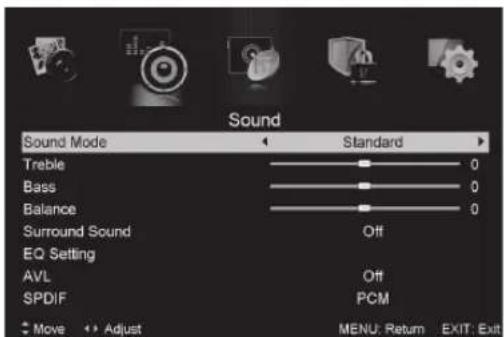
- Press ▲ / ▼ button to select "Sound Mode" and press the ◀ / ▶ button to select mode.
- Press ▲ / ▼ button to select "Treble" and press the ◀ / ▶ button to adjust.
- Press ▲ / ▼ button to select "Bass" and press the ◀ / ▶ button to adjust.
- Press ▲ / ▼ button to select "Balance" and press the ◀/▶ button to adjust.
- Press ▲ / ▼ button to select "Surround sound" and ◀ / ▶ button to select "ON" or "OFF".
- Press ▲ / ▼ button to select "EQ Setting" and ◀/▶ button to enter EQ Setting adjustment menu to adjust EQ..
- Press ▲ / ▼ button to select "AVL" and press the ◀ / ▶ button to select "On" or "Off".
Lock System
Press the "MENU" button to enter the OSD menu. Then press ◀/▶ button to select the "Lock System" menu. The default password is "0000".
Note:
The administrator password is "8899".
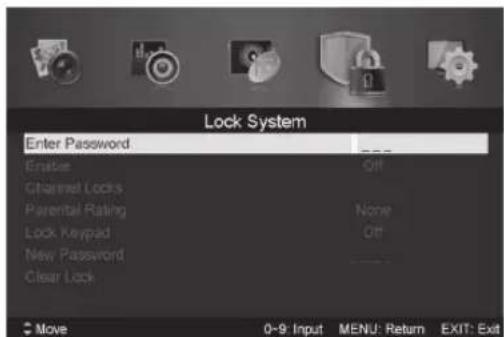
- Press ▲ / ▼ button to select "Enable" and then press ◀/ button to select "On" or "Off"
-
Press ▲ / ▼ button to select "channel locks" and press the
▶ button to select channels to lock. -
Press ▲ / ▼ button to select "Parental Rating" and press the ◀/▶ button to set.
- Press ▲ / ▼ button to select "Lock Keypad", then press button to select "On" or "Off", The key board will be invalid if you set Lock Keypad "On".
- Press ▲ / ▼ button to select "Hotel Model" and press the ▶ button to enter the sub-menu to set.
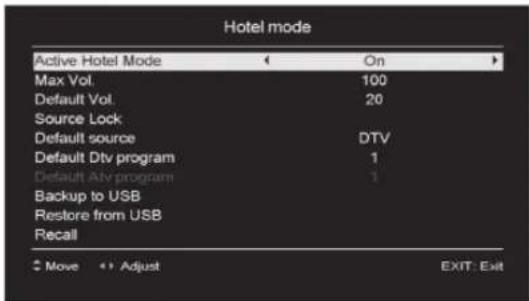
- Press ▲ / ▼ button to select "New Password" and set your new password.
6.. Press ▲ / ▼ button to select "Clear Lock" and then press the ▶ button to clear.
Setup
Press the "MENU" button to enter the OSD menu. Then press
◀/▶ button to select the "SETUP" menu.
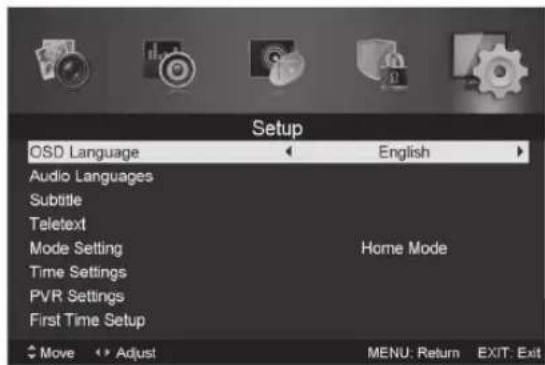
- Press ▲ / ▼ button to select "OSD Language" and press the / ▶ button to select the OSD language which you desire.
- Press ▲/▼ button to select "Audio Language" and press the ▶ button to enter the Audio language adjustment menu to select the Audio language which you desire.
- Press▲ / ▼ button to select "Subtitle" and press the ▶ button to select "On" or "Off".
USER'S MANUAL
Note:
This function is only used for DTV source.
- Press ▲ / ▼ button to select "Teletxt" menu and press the ▶ button to enter sub-menu.
- Press ▲ / ▼ button to select "Blue Screen" and press the ◀ / ▶ button to select "On" or "Off".
- Press ▲ / ▼ / ◀ / ▶ button to select Mode Setting.
- Press ▲ / ▼ / ◀ / ▶ button to select "Time Setting".
- Press ▲ / ▼ / ◀ / ▶ button to select "PVR Settings".
- Press ▲ / ▼ button to select "First Time Installation", then press "ENTER" button to set relevant options including OSD language, country and tuning.
- Press ▲ / ▼ / ◀ / ▶ button to select "OAD", then press "ENTER" button to enter sub menu.
- Press ▲ / ▼ button to select "Reset", then press "ENTER" a dialogue. Press ▶ button selecting "Yes" to restore all setting to default setting.
PC
Press the "MENU" button to enter the OSD menu. Then press ◀ / ▶ button to select the "PC Setting" menu. (Only available in PC model).
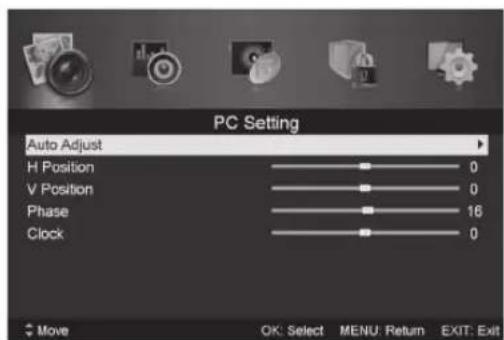
Press ▲ / ▼ button to select "Auto Adjust" menu and press the ▶ button to auto adjustment.
Press ▲ / ▼ button to select "H Position" and press the◀ / ▶ button to adjust.
Press ▲ / ▼ button to select "V-Position" and press the◀ / ▶ button to adjust.
Press ▲ / ▼ button to select "Phase" and press the ◀ / ▶ button to adjust.
Press ▲ / ▼ button to select "Clock" and press the ◀ / ▶ button to adjust.
DTV Features
Favorite List
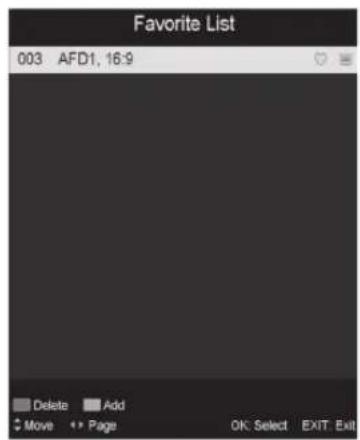
When the source is selected as DTV, users can enter Favorite List by pressing "FAV" button. The "Favorite List" window is illustrated as follows:
Program Information
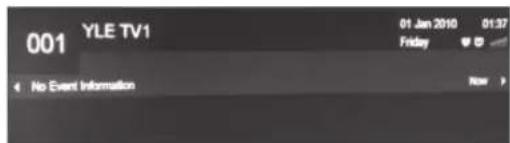
When the source is selected as DTV, you can press "display" button to display the channel's information. The program information window is illustrated as follows:
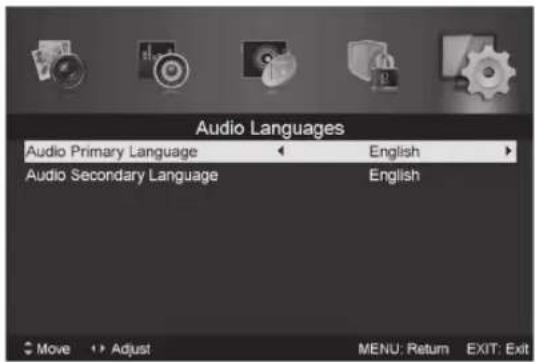
Audio
USER'S MANUAL
When the source is selected as DTV, users can enter the Setup menu to enter the "Audio Language" menu. The "audio language" window is illustrated, and press ▲ / ▼ button to select the "audio language" menu.
Electronic Program Guide EPG
Electronic Program Guide (EPG) provides program information which will be broadcasted now or in the future. The system will display EPG window by pressing "EPG" button. DATE and TIME information is displayed on the right of the window. The left side shows all channels. The right side shows the programs in the channel. The selected program is also displayed on the top of the screen.
Press the ▲ / ▼ button to select the "program". You can press "RED" button to enter record mode. Press "GREEN" button to display the program's detail. Press "YELLOW" button to Check details at PVR's Schedule List introduction. Press "Blue" button to enter remind setting.
Press the ▲ / ▼ button to select "CH" and press the ◀ / ▶ button to select the channel number to see the current channel's program forecast.
Note: The U disk will be formatted when in burning, please do not store important files in the U disk.
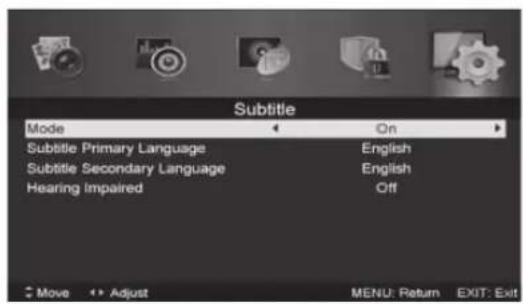
Subtitle
When the source is selected as DTV, users can go to the menu to set.
Note:
The pictures in regard to function are provided for reference purposes only.
Common interface
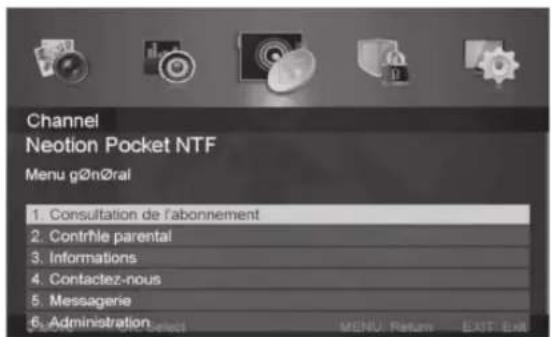
Press the ◀ / ▶ button to select Common interface, then press ENTER button to enter sub menu.
Only available when there is CI card under DTV.
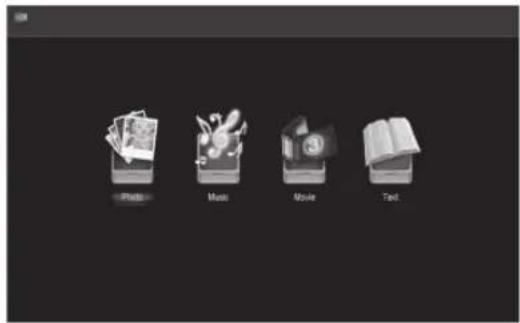
Press the "SOURCE" button to change to the "MEDIA" source.
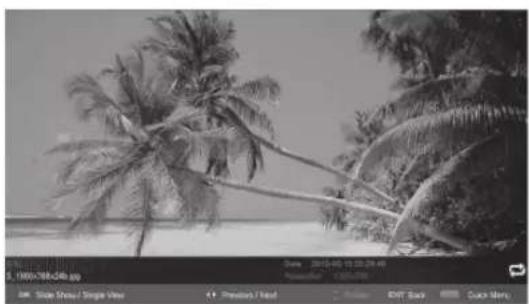
Photo
natural_image
Black-and-white beach scene with palm trees and a shoreline, no visible text or symbols- Press the ◀/▶ button enter the "PHOTO" option, and press enter button to enter
- Press ◀/▶ button to select drive disk you want to watch, then press enter button to enter.
- Press "BLUE" button to enter the sub menu to set.
- Press the "exit" button to back to the previous menu.
USER'S MANUAL
Music
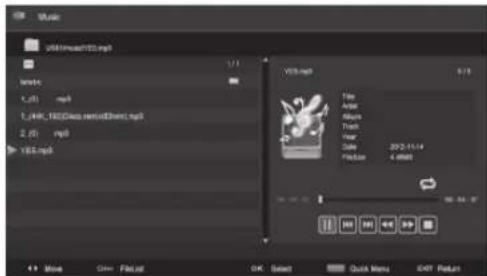
- Press ◀/▶ button to select MUSIC in the main menu, then press enter button to enter
- Press ◀/▶ button to select drive disk you want to watch, then press enter button to enter
- Press "BLUE" button to enter the sub menu to set.
4.. Press the "exit" button to back to the previous menu
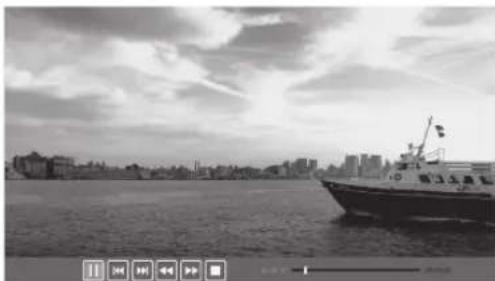
Movie
natural_image
Black-and-white photo of a boat on a river with city skyline in background (no visible text or symbols)- Press ◀/▶ button to select MOVIE in the main menu, then press enter button to enter
- Press ◀/▶ button to select drive disk you want to watch, then press enter button to enter
- Press "BLUE" button to enter the sub menu to set.
- Press the "exit" button to back to the previous menu.
Text
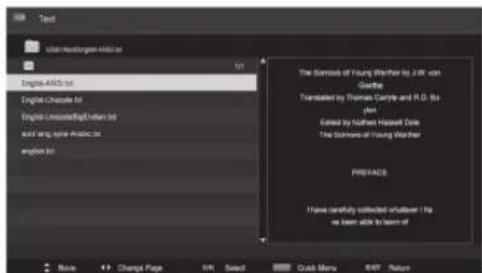
- Press ◀ / ▶ button to select TEXT in the main menu, then press enter button to enter.
- Press ◀/▶ button to select drive disk you want to watch, then press enter button to enter
- Press "BLUE" button to enter the sub menu to set.
- Press the "exit" button to back to the previous menu.
PVR Operation
In DTV source, press the "MENU" button to enter the OSD menu. Then press ◀/▶ button to select the "Setup" menu.
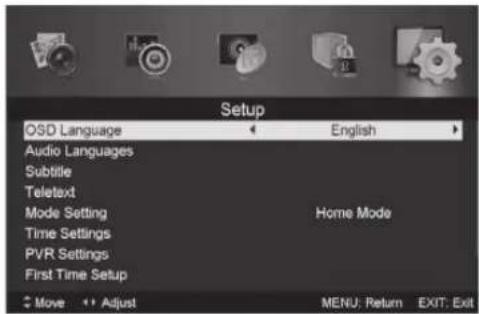
- Press ▲ / ▼ button to select "PVR Settings" and press the "ENTER" or ▶ button to enter.
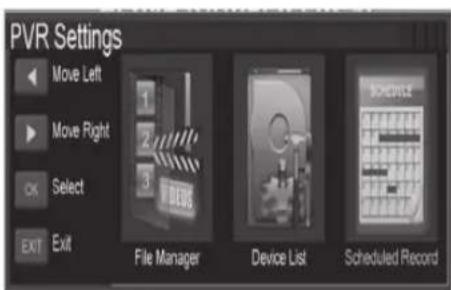
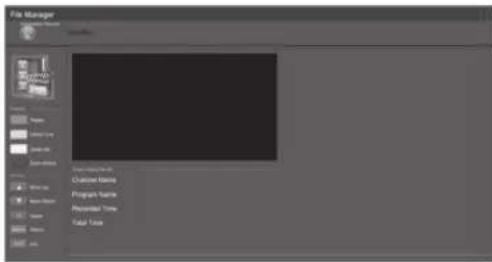
a) Press ◀/▶ button to select "File Manager" and press the "ENTER" button to check PVR file system.
USER'S MANUAL
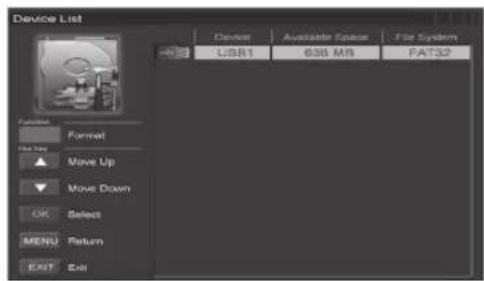
b) Press ◀/▶ button to select "Device List" and press the "ENTER" button to the sub menu.
c) Press ◀/▶ button to select "Scheduled Record" and press the "ENTER" button to set.
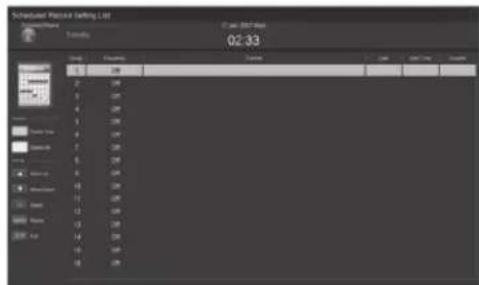
Note:
- The U disk will be formatted when in format, please do not store important files in the U disk.
- Press "● button for the first time to start recording, for the second time, the sign of recorder will be slimmed down, but it's still under recording.
Trouble Shooting
Before consulting service personnel, check the following chart for possible solutions.
| PROBLEM SOLUTION | |
| TV will not turn on | Make sure the power cord is plugged in.The batteries in the remote control may beExhausted; replace the batteries. |
| No picture, no sound | Check the cable between TV and antenna/ external AV device.Press the power button on the remote.Press the SOURCE button the remote, then press the ▲ / ▼ button repeatedly to select the TV source. |
| Poor picture, sound OK | Check the cable between TV and antenna/ external AV device.Try another channel, the station may have broadcast difficulties.Adjust the brightness/contrast in the Video menu. Check that the unit is set to PAL |
| Audio noise | Move any infrared equipment away from the TV. |
USER'S MANUAL
Specification
Screen size: 28" DLED panel
DVB-T with H264
Aspect ratio: 16:9
Resolution: 1366X768 HD Ready
Viewing angle: 170o (W); 160o (Sz)
Brightness: 250cd/m2
Contrast ratio: 1000:1
Response time: 5ms
Speaker system details: 2 x 6 Watt
Screen mode: 4:3, 16:9
TV tuner reception system: PAL/SECAM
Dolby Digital Plus (E-AC-3)
Stereo reception system: B/G,D/K,I,L/L,M/N
DBX noise reduction
Teletext: 1000 pages (Europa only)
In/Out Connections: HDMI, SCART AV-in., Earphone out., VGA
in., PC AUDIO in, USB
Consumption Standby: 1W
Working Consumption: 60W (max)
NOTE
NOTE
NOTE
