
MOTION 701 BTE - Hearing aid SIEMENS - Free user manual and instructions
Find the device manual for free MOTION 701 BTE SIEMENS in PDF.



| Product Type | Behind-the-ear (BTE) hearing aid |
| Brand | Siemens |
| Model | Motion 701 BTE |
| Power Source | Zinc-air battery size 312 or 13 (depending on version) or rechargeable batteries (Motion P) |
| Battery Life | Varies by use; low battery indicator |
| Main Features | Automatic volume adjustment, e2e wireless synchronization, automatic telephone program (with AutoPhone magnet), optional remote control |
| Listening Programs | Up to 5 programs (depending on configuration) |
| Coupling Type | LifeTube with Life Tip or standard ear tip |
| Care and Cleaning | Clean with a soft dry cloth; use a drying kit at night; clean LifeTube with cleaning wire; replace LifeTube/Life Tip every 3-6 months |
| Safety Instructions | Do not expose to heat, moisture, strong magnetic fields, X-rays; keep out of reach of children; do not use in explosive areas |
| Compatible Accessories | Charger for rechargeable batteries (Motion P), Tek remote control, AutoPhone magnet |
| General Information | Complies with FCC and ICES-003 standards; CE marking; disposal according to WEEE |
Frequently Asked Questions - MOTION 701 BTE SIEMENS
User questions about MOTION 701 BTE SIEMENS
0 question about this device. Answer the ones you know or ask your own.
Ask a new question about this device
Download the instructions for your Hearing aid in PDF format for free! Find your manual MOTION 701 BTE - SIEMENS and take your electronic device back in hand. On this page are published all the documents necessary for the use of your device. MOTION 701 BTE by SIEMENS.
USER MANUAL MOTION 701 BTE SIEMENS
Your Motion BTE hearing instrument 4
Intended use 6
General notes on safety 7
Handling of standard and rechargeable batteries 10
Inserting and removing your hearing instrument 13
Turning your hearing instrument on and off 14
Changing the hearing program 16
Changing the volume 17
Functionalities 18
Maintenance and care 21
Accessories 22
Troubleshooting tips 24
Technical information 25
Disposal information 27
Your Motion BTE hearing instrument

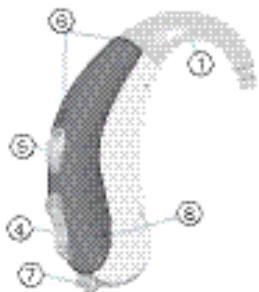
Motion S
optional with LifeTube
battery type: 312 always non-rechargeable
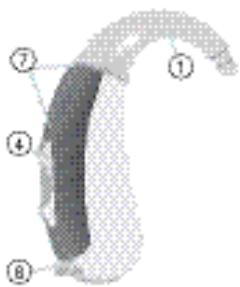
text_image
Diagram of a curved object with numbered parts labeled ① through ⑧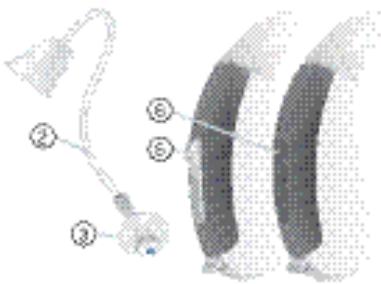
text_image
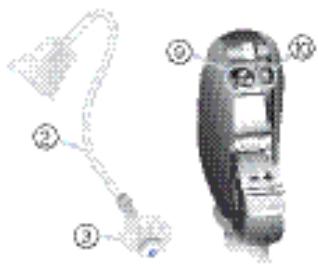
Diagram showing labeled parts of a biological or mechanical structure with numbered annotations① Earhook
② LifeTube
③ Life Tip
④ Rocker switch*
⑤ Push button*
⑥ Flat cover*
⑦ Microphone openings
⑧ Battery compartment
⑨ Serial number
⑩ Type of hearing instrument
* Alternative to a rocker switch your Hearing Care Professional can fit your hearing instrument with a push button or without control (flat cover).

Motion P
optional with LifeTube
battery type: 13
rechargeable or non-rechargeable
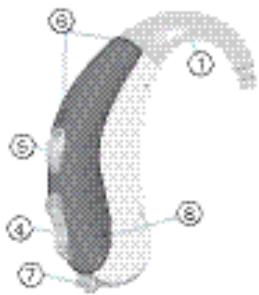
text_image
Diagram of a curved object with numbered parts labeled ① through ⑦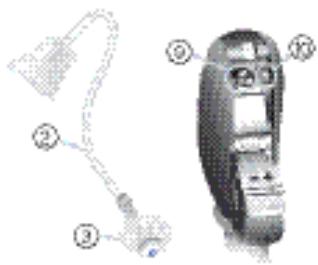
text_image
Diagram of a device with numbered parts, likely illustrating a mechanical or electronic component layout.① Earhook
② LifeTube
③ Life Tip
④ Rocker switch
⑤ Push button
⑥ Microphone openings
⑦ Battery compartment
⑧ Charging contacts
⑨ Serial number
⑩ Type of hearing instrument
Intended use
Hearing instruments are intended to improve the hearing of hearing impaired persons. Diagnosis and prescription of a hearing instrument must be performed by hearing health specialists, e.g. ENT doctors, audiologists or acousticians.
Read and follow the instructions of this user guide to avoid injuries or damage to the hearing instruments.
| Symbols: | |
| Be aware to information marked with the warning symbol WARNING, CAUTION or NOTICE! | |
 | WARNING points out a situation that could lead to serious injuries, CAUTION indicates a situation that could lead to minor and moderate injuries. |
| NOTICE | NOTICE indicates possible property damage. |
| [1445] | Advice and tips on how to handle your device better. |
| [1456] | Instruction. Indicates that something has to be done. |
 | Indicates an option that not every hearing instrument has. Ask your Hearing Care Professional to check off the relevant information. |
General notes on safety
NOTICE
Your hearing instruments are sensitive to extreme heat, high humidity, strong magnetic fields (>0.1T), X-rays and mechanical stress.
Do not expose your hearing instruments to extreme temperature or high humidity.
Do not leave them in direct sunlight.
Do not wear them in the shower or when you apply make-up, perfume, aftershave, hairspray or suntan lotion.
Do not wear your hearing instruments when you are exposed to short-waves, a strong magnetic field, a high frequency field or X-rays.
Do not place your hearing instruments in a microwave oven.

WARNING
Hazard of explosion!
Do not use your hearing instruments in areas where there is a danger of explosions (e.g. mining).

WARNING
Choking hazard posed by small parts.
Keep hearing instruments, batteries and accessories out of children's reach.
If swallowed consult a physician or hospital immediately.
If infants, small children or mentally disabled persons need to wear hearing instruments ensure adequate supervision.

CAUTION
Risk of injury caused by incorrect use of Life Tip.
Always wear the LifeTube with the Life Tip.
Make sure that the Life Tip is completely attached to the Life Tip adapter.
Change the LifeTube or Life Tip when they are cracked.
Put the LifeTube with the Life Tip carefully and not too deep into the ear.
Use the LifeTube and Life Tip only in the way described in this user guide.
If the Life Tip remains in the ear, have it removed by a medical professional.

In some countries restrictions for the usage of wireless equipment exist.
▶ Refer to local authorities for further information.
NOTICE
Leaking batteries damage the hearing instruments.
▶ Turn the hearing instruments off when not in use to preserve the battery.
Remove batteries when the instruments are not in use for a prolonged period of time.
NOTICE
Batteries contain harmful substances that pollute the environment.
Do not throw used batteries into household trash.
▶ Dispose batteries according to national regulations or return them to your Hearing Care Professional.
Handling of standard and rechargeable batteries
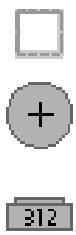

original size

Always use the right size of batteries.
Charge the rechargeable batteries before first use.
Remove the tab on standard batteries only when you are ready to use them.
The positive (+) side of the batteries is always the smooth side.
Always keep spare batteries with you.
Low battery indicator
Your Hearing Care Professional can activate an acoustic signal to inform you when the battery is nearly empty. If you hear an acoustic signal or experience low amplification power, replace the battery.
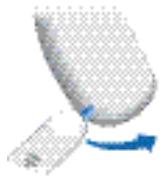
Inserting the battery
▶ Open the battery compartment completely using your fingernail as shown in the illustration.
Insert the proper size battery. Make sure that the "+" symbol on the battery points up as shown in the picture
▶ Close the battery compartment. Do not force the door shut. If it does not close easily, check to see if the battery was inserted properly.
When the battery door is completely closed, your hearing instrument is ready for use.
natural_image
Close-up of a curved metallic object with a blue arrow indicating rotation (no text or symbols)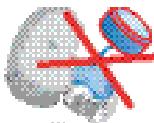
natural_image
Pixelated illustration of a blue ball and a gray object with a red ribbon, no text or symbols present.
natural_image
Pixelated abstract graphic with blue and gray shapes, no text or symbols present
natural_image
Abstract pixelated graphic with a blue arrow and arrowhead, no text or symbols presentRemoving the battery
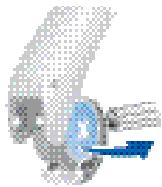
▶ Open the battery compartment completely.
Normally the battery drops out when the compartment is completely open.
If the battery does not come out, lightly tap the instrument or use the magnet stick available as accessory to remove the battery.
natural_image
Pixelated illustration of a cartoon character with a blue arrow pointing to its head (no text or symbols)Inserting and removing your hearing instrument

For side recognition ask your Hearing Care Professional to apply colored markers in the battery compartment. If the marker in the battery compartment is in red, the hearing instrument is intended for the right ear. If the marker is in blue, the hearing instrument is for the left ear.
Inserting your hearing instrument
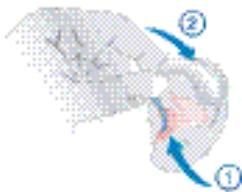
▶ Turn your hearing instrument off.
Hold the earmold / Life Tip between your thumb and index finger and insert it carefully into the ear canal.
You may find it helpful to pull your ear slightly upward or to the back.
natural_image
Diagram showing a hand holding a small object with two blue arrows labeled ① and ②, no readable text or symbols present.Place your hearing instrument behind your ear.
▶ Turn your hearing instrument on.
Removing your hearing instrument
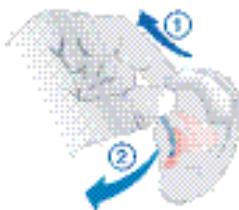
Hold the earmold/LifeTube between your thumb and index finger and carefully pull it out. You may find it helpful to lightly push your ear from the back.
natural_image
Illustration of a biological or geological formation with numbered arrows (① and ②) indicating flow or movement, no readable text or symbols present.Turning your hearing instrument on and off
▶ Ask your Hearing Care Professional to check off the relevant information.

Via battery compartment
On
▶ Close the battery compartment.
Off
▶ Open the battery compartment.

natural_image
Abstract pixelated graphic with a blue arrow and curved shape, no text or symbols present.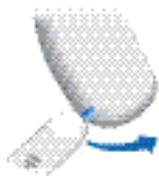
natural_image
Close-up of a curved object with blue arrows indicating motion or rotation (no text or symbols)
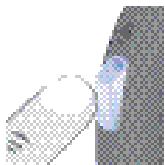
Via push button
On
▶ Press the push button for 2 seconds.
natural_image
Close-up of a hand holding a small object against a textured background (no visible text or symbols)Off
▶ Press the push button for 2 seconds.

Via remote control
▶ Refer to the remote control user guide.
Power-on delay
Your hearing instrument is equipped with a "power-on delay" feature which can be activated by your Hearing Care Professional. This allows you to turn the hearing instrument on with an automatic delay of 6, 12 or 18 seconds, so that you may insert the hearing instrument into your ear without experiencing unpleasant feedback (whistling).
Changing the hearing program
▶ Ask your Hearing Care Professional to check off the relevant information.

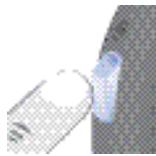
Via push button
▶ Press the push button to switch to the next program.
natural_image
Close-up of a white object with a blue highlight on a dark textured surface (no visible text or symbols)
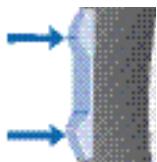
Via rocker switch
▶ Press up to switch to the next program.
▶ Press down to switch to the previous program.
natural_image
Pure diagram of two blue arrows pointing upward toward a textured gray surface (no text or symbols)
Via remote control
▶ Refer to the remote control user guide.
Changing the volume
The volume of your hearing instruments is controlled automatically and there is no need to manually adjust it. Should you prefer manual volume control, your Hearing Care Professional can program the hearing instrument for manual adjustment.

Automatic
The volume is adjusted automatically when in use.

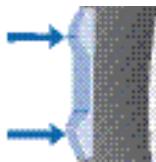
Rocker switch
▶ Press up to increase the volume.
▶ Press down to decrease the volume.
natural_image
Pure diagram of a curved object with two blue arrows pointing outward, no text or symbols present
Via remote control
▶ Refer to the remote control user guide.
Functionalities
Your Hearing Care Professional can activate the following functionalities.

e2e wireless
- Allows the use of a remote control.
■ Automatically adjusts both hearing instruments simultaneously to change the instrument settings, e.g. volume or program.
1
The performance of the e2e wireless function may be affected by electromagnetic interference – e.g. from a computer monitor or fluorescent lamp system.
Move away from the source of interference if you experience difficulty.

Automatic telephone program
▶ Hold a telephone near your hearing instrument (*).
The hearing instrument automatically switches to the telephone program.
▶ Move the telephone away from your hearing instrument.
The hearing instrument switches back to the previously used program.

You can also select the telephone program manually by using the program button.
When operating the hearing instrument in telecoil mode, the wireless function may cause a pulsing noise. This is due to the pick-up of the transmission signal. When your hearing instrument is in telecoil mode please use the remote control only with a distance greater than 10 cm (4 inches).
(\*) AutoPhone magnet accessory
Not all telephones produce a magnetic field strong enough to activate the AutoPhone function. In this case, use the Siemens AutoPhone magnet, which is available as accessory, and attach it to the telephone receiver to activate the AutoPhone function.

See the AutoPhone magnet user guide for instructions on how to position the magnet.
▶ Use only the Siemens magnet. Ask your Hearing Care Professional for this accessory.
NOTICE
Magnets can disturb electrical devices and delete stored data.
Keep magnets away from computers, color monitors, television sets, floppy discs, video- and audio discs and other electronic equipment/ devices.

WARNING
Magnets may interfere with the operation of life supporting systems (e. g. pacemakers, magnetic valves).
Use a magnet only if not in doubt about the safe distance. The safe distance between pacemaker and magnet should be at least 10 cm (4 inches).
Maintenance and care
Your hearing instruments are highly sensitive systems. Proper care and handling will ensure the best possible performance.
Clean instruments regularly to prevent damage to the hearing instruments and to avoid health problems.
NOTICE
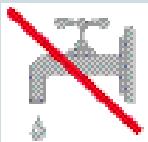
Do not put the hearing instruments in water.
natural_image
Pixelated image of a faucet with a red diagonal line crossing it, symbolizing water or pollution (no text or symbols present)Clean your hearing instruments with a soft, dry tissue, as necessary.
Place your hearing instruments in a "dry aid kit" with a special moisture-attracting capsule overnight.
▶ Ask your Hearing Care Professional for special care sets and further information on how to keep your hearing instruments in good condition.
For instruments with LifeTube
▶ Regulatory clean LifeTubes with a cleaning wire.
▶ Ask your Hearing Care Professional to exchange Life-Tubes and Life Tips approximately every 3 to 6 months or as needed.
Accessories
Charger (only Motion P)
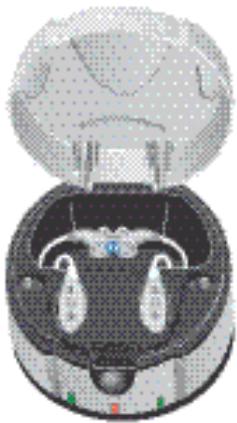
Your hearing instruments work with standard or rechargeable batteries. With the easy-to-use charger you can charge the rechargeable batteries for one or two hearing instruments. After just 6 hours of charging, the charger shuts itself off and the hearing instruments are ready to run for a day.
For detailed information and instructions refer to the charger user guide or ask your Hearing Care Professional.
natural_image
Top-down view of a car's head and dashboard (no visible text or symbols)Tek wireless enhancement
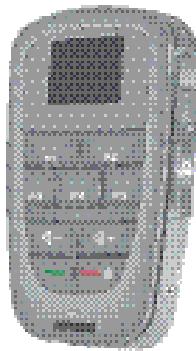
Your hearing instruments together with the Tek Connect remote control will allow you to connect your hearing instruments to the growing world of technology. Via a special Bluetooth connection it is possible to receive audio signals from your mobile, your television or your mp3-player.
For detailed information and instructions refer to the Tek user guide or ask your Hearing Care Professional.
natural_image
Pixelated grayscale image of a mobile phone with control buttons and a screen (no visible text or symbols)Remote control
The wireless function of your hearing instruments allows you to use a remote control to change the program and volume of your hearing instruments.
For further information about the remote control, contact your Hearing Care Professional or refer to the remote control user guide.

In the event your hearing instruments can be controlled by another person's remote control, return hearing instruments and remote control to your Hearing Care Professional.
Troubleshooting tips
Your hearing instruments are extremely reliable devices. Should a problem occur, it can usually be corrected quickly. Use these troubleshooting tips to resolve simple issues.
| Problem | Possible solution |
| Sound is weak. | Replace / recharge empty battery.Clean earmold.Increase volume. |
| Hearing instrument emits whistling sounds. | Reinsert the earmold until it fits securely.Decrease volume.Clean earmold. |
| Sound is distorted. | Decrease volume.Replace / recharge empty battery.Clean earmold / Life Tip. |
| Hearing instrument emits signal tones. | Gently close battery compartment completely.Replace / recharge empty battery. |
| Hearing instrument does not work. | Check if the hearing instrument is turned on.Gently close battery compartment completely.Replace / recharge empty battery.Make sure battery is inserted correctly.Power-on delay is active. Wait 18 seconds and check again. |
Consult your Hearing Care Professional if you encounter further problems.
Technical information
Siemens Motion 701, Motion 501 FCC ID: SGI-WL002BTE IC: 267AB-WL002 Operating frequencies: F_c=3.28 MHz

N14203
This Class B digital apparatus complies with Canadian ICES-003.
Changes or modifications not expressly approved by SAT GmbH for compliance could void the users authority to operate the equipment.
FCC compliance
This device complies with Part 15 of the FCC Rules and with RSS-310 of Industry Canada.
Operation is subject to the following conditions:
■ this device may not cause harmful interference, and
■ this device must accept any interference received, including interference that may cause undesired operation.
This equipment has been tested and found to comply with the limits for a Class B digital device, pursuant to Part 15 of the FCC Rules. These limits are designed to provide reasonable protection against harmful interference in a residential installation. This equipment generates, uses and can radiate radio frequency energy and, if not installed
and used in accordance with the instructions, may cause harmful interference to radio communications. However, there is no guarantee that interference will not occur in a particular installation. If this equipment does cause harmful interference to radio or television reception, which can be determined by turning the equipment off and on, the user is encouraged to try to correct the interference by one or more of the following measures:
■ Reorient or relocate the receiving antenna.
- Increase the separation between the equipment and receiver.
- Connect the equipment to an outlet on a circuit different from that to which the receiver is connected.
- Consult the dealer or an experienced radio/TV technician for help.
Disposal information
Within the European Union, the marked equipment is covered by "Directive 2002/96/EC of the European Parliament and of the Council of 27 January 2003 on waste electrical and electronic equipment."
natural_image
Simple line drawing of a trash bin with crossed lines indicating grain or waste (no text or symbols)Amended by "Directive 2003/108/EC" (WEEE).

▶ Recycle hearing instruments, batteries and accessories according to national regulations.
With the CE marking Siemens confirms compliance with the European Directive 93/42/EEC concerning medical devices.

For the products with e2e wireless 2.0 Siemens additionally confirms compliance with the European Directive 99/5/EC (R&TTE) concerning radio and telecommunications terminal equipment.
| Hearing instrument | ||
| LEFT | RIGHT | |
| Model | ||
| Serial number | ||
| Battery | ||
| ☐ yes ☐ no | Power-on delay | ☐ yes ☐ no |
| ☐ yes ☐ no | Push button | ☐ yes ☐ no |
| ☐ yes ☐ no | Rocker switch | ☐ yes ☐ no |
| Signal tones | ||
| ☐ on ☐ off | Program change | ☐ on ☐ off |
| ☐ on ☐ off | Low battery warning | ☐ on ☐ off |
| ☐ on ☐ off | Volume control limit | ☐ on ☐ off |
| ☐ on ☐ off | Volume control change | ☐ on ☐ off |
| Program | Description of the program | |
| 1 | ||
| 2 | ||
| 3 | ||
| 4 | ||
| 5 | ||
| Remote control | ||
| Model | ||
| Serial number | ||
Inhaltsverzeichnis
text_image
Diagram of a curved object with numbered parts labeled ① through ⑧① Tragehaken
② LifeTube
③ LifeTip
④ Kippschalter*
⑤ Programmtaster*
text_image
Diagram of a curved object with numbered parts labeled ① through ⑦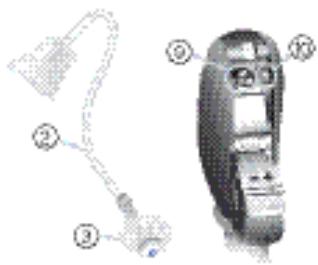
text_image
Diagram of a device with numbered parts, likely illustrating a mechanical or electronic component layout.① Tragehaken
② LifeTube
③ LifeTip
④ Kippschalter
⑤ Programmtaster
natural_image
Close-up of a curved object with a blue arrow indicating rotation (no text or symbols visible)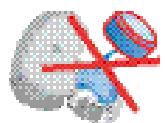
natural_image
Pixelated illustration of a helmet and a blue ball with red X marks (no text or symbols)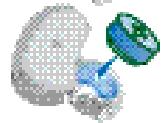
natural_image
Pixelated abstract illustration with a green circular shape and blue gradient, no text or symbols present.
natural_image
Abstract 3D rendering of a curved object with blue arrow indicating rotation (no text or symbols)natural_image
Close-up of a mechanical component with a blue arrow indicating direction (no visible text or symbols)natural_image
Diagram showing a hand holding a plant with two curved arrows labeled ① and ②, no text or symbols present.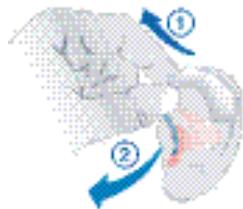
natural_image
Illustration of a biological structure with numbered arrows indicating movement or process (no text or symbols)natural_image
Abstract pixelated graphic with blue arrow and gray shape on transparent background (no text or symbols)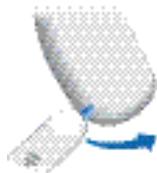
natural_image
Close-up of a curved object with a blue arrow indicating rotation (no text or symbols visible)
Mit Programmtaster
Ein
natural_image
Close-up of a white object with a blue highlight on a dark textured surface (no visible text or symbols)
Mit Fernbedienung
natural_image
Close-up of a metallic tool tip interacting with a textured surface (no visible text or symbols)
Wippschalter
natural_image
Pure diagram of two blue arrows pointing upward toward a textured gray surface (no text or symbols)
Mit Fernbedienung
natural_image
Pure diagram of two blue arrows pointing toward a textured gray surface (no text or symbols)
Mit Fernbedienung
natural_image
Pixelated image of a faucet with a red diagonal line crossing it, symbolizing water or pollution (no text or symbols present)natural_image
Top-down view of a car head with visible front wheel and dashboard (no text or symbols)Tek Fernbedienung
natural_image
Pixelated grayscale image of a mobile phone with control panel and buttons (no visible text or symbols)Fernbedienung
natural_image
Simple line drawing of a trash bin with crossed lines indicating grain or waste (no text or symbols)text_image
Diagram of a medical or anatomical procedure with numbered steps and labeled partsrechargeable ou non rechargeable
text_image
Labeled diagram of a curved object with numbered parts 1 through 8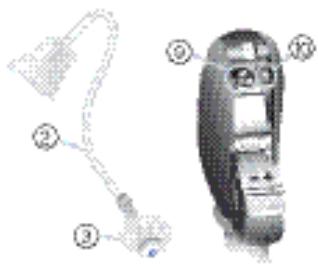
text_image
Diagram of a device with numbered parts, likely illustrating a mechanical or electrical component layout.natural_image
Close-up of a curved metallic object with a blue arrow indicating rotation (no text or symbols)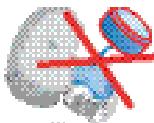
natural_image
Pixelated illustration of a blue ball and a gray object with a red ribbon, no text or symbols present.
natural_image
Pixelated abstract graphic with blue and gray shapes, no text or symbols present
natural_image
Abstract pixelated graphic with a blue arrow and arrowhead, no text or symbols presentRetrait de la pile
natural_image
Pixelated illustration of a person holding a blue object with an arrow, no visible text or symbolsnatural_image
Diagram showing two curved arrows labeled ① and ② pointing to a textured surface, with no readable text or symbols.natural_image
Illustration of a biological structure with numbered arrows indicating directional movement (no text or symbols)natural_image
Abstract graphic with a curved arrow and blue gradient, no text or symbols present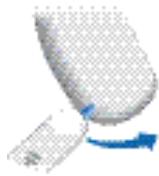
natural_image
Close-up of a curved object with a blue arrow indicating rotation (no text or symbols visible)
natural_image
Close-up of a hand holding a small object, possibly a tool or device, with no visible text or symbols.
Par la télécommande
natural_image
Close-up of a white object with a blue highlight on a dark textured surface (no visible text or symbols)
natural_image
Pure diagram of two blue arrows pointing toward a textured gray surface (no text or symbols)
Par la télécommande
natural_image
Pure diagram of a beam with two blue arrows pointing outward, no text or symbols present
Par la télécommande
natural_image
Pixelated illustration of a faucet with a red diagonal line and water droplet symbol (no text or numbers)natural_image
Top-down view of a car's head and dashboard (no visible text or symbols)Tek, communication sans fil
natural_image
Pixelated grayscale image of a mobile phone with control buttons and a screen (no visible text or symbols)Télécommande
natural_image
Simple line drawing of a trash bin with crossed handle and bin, no text or symbols presenttext_image
Diagram of a medical or anatomical device with numbered parts, likely illustrating a procedure or positioning.text_image
Diagram of a curved object with numbered parts labeled ① through ⑦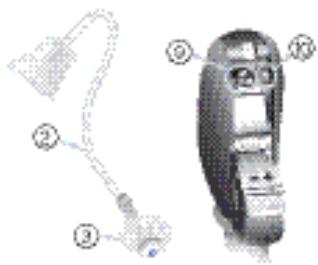
text_image
Diagram of a device with numbered parts, likely illustrating a mechanical or electronic component layout.natural_image
Close-up of a curved metallic object with a blue arrow indicating rotation (no text or symbols)natural_image
Two 3D-rendered human figures with red and blue symbols, one holding a green object (no text or labels)natural_image
Illustration of a hand holding a pen with a blue arrow indicating motion (no text or symbols)natural_image
Pixelated illustration of a cartoon character with a blue arrow, no visible text or symbolsnatural_image
Diagram showing two curved arrows labeled ① and ② pointing to a shaded region, no text or symbols present.natural_image
Illustration of a biological or geological formation with numbered arrows (① and ②) indicating flow or movement, no readable text or symbols present.natural_image
Abstract 3D graphic with a blue arrow and arrowhead, no text or symbols present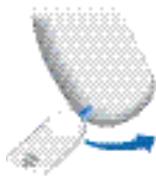
natural_image
Close-up of a curved object with a blue arrow indicating rotation (no text or symbols visible)
Tramite pulsante
On
natural_image
Close-up of a hand holding a small object against a pixelated background (no visible text or symbols)
natural_image
Close-up of a metallic object with a white circular feature, possibly part of a device or tool (no visible text or symbols)
natural_image
Pure diagram of a beam with two blue arrows pointing outward, no text or symbols present
natural_image
Pure diagram of two blue arrows pointing toward a textured gray surface (no text or symbols)
natural_image
Pixelated illustration of a faucet with a red diagonal line and water droplet symbol (no text or numbers)natural_image
Top-down view of a car's head and front wheel assembly (no visible text or symbols)natural_image
Pixelated grayscale image of a mobile phone with control buttons and a screen (no visible text or symbols)Comando a distanza
FCC ID: SGI-WL002BTE
IC: 267AB-WL002
natural_image
Simple line drawing of a trash bin with crossed handle and no text or symbolstext_image
Diagram of a curved object with numbered parts labeled ① through ⑧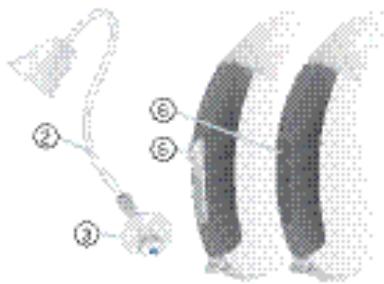
text_image
Diagram showing labeled parts of a biological or mechanical structure with numbered annotations① Toonbocht
② LifeTube
③ Life Tip
④ Tuimelschakelaar*
⑤ Drukknop*
text_image
Diagram of a curved object with numbered parts labeled ① through ⑦① Toonbocht
② LifeTube
③ Life Tip
④ Tuimelschakelaar
⑤ Drukknop
text_image
Diagram of a device with numbered parts, likely illustrating a mechanical or electronic component layout.natural_image
Close-up of a curved metallic object with a blue arrow indicating rotation (no text or symbols)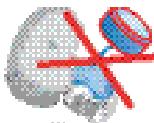
natural_image
Pixelated illustration of a blue ball and a gray object with a red ribbon, no text or symbols present.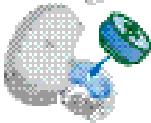
natural_image
Pixelated abstract graphic with blue and gray shapes, no text or symbols present
natural_image
Abstract pixelated graphic with blue arrow and gray background (no text or symbols)natural_image
Pixelated illustration of a person holding a large object with a blue arrow, no visible text or symbolsnatural_image
Diagram showing a hand holding a small object with blue arrows indicating direction (no text or symbols)natural_image
Illustration of a biological structure with numbered arrows indicating directional movement (no text or symbols)natural_image
Abstract pixelated graphic with a blue arrow and curved shape, no text or symbols present.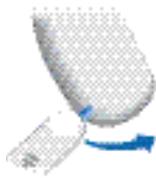
natural_image
Close-up of a curved object with a blue arrow indicating rotation (no text or symbols visible)
Via de drukknop
Aan
natural_image
Close-up of a hand holding a small object, possibly a tool or device, against a pixelated dark background (no visible text or symbols)
natural_image
Close-up of a white object with a blue highlight on a dark textured surface (no visible text or symbols)
Via de tuimelschakelaar
natural_image
Pure diagram of two blue arrows pointing to a vertical gray bar with dotted texture (no text or symbols)
natural_image
Pure diagram of two blue arrows pointing upward toward a textured gray surface (no text or symbols)
natural_image
Pixelated image of a faucet with a red diagonal line crossing it, symbolizing water or pollution (no text or symbols present)Lader (alleen Motion P)
natural_image
Top-down view of a car's front dashboard and steering wheel (no visible text or symbols)natural_image
Pixelated grayscale image of a mobile phone with control buttons and a screen (no visible text or symbols)Afstandsbediening
FCC-id: SGI-WL002BTE
IC: 267AB-WL002
Werkfrequencies: F_c=3,28 MHz

N14203
natural_image
Simple line drawing of a trash bin with crossed lines indicating no text or symbols (no readable text or labels)www.siemens.com/hearing