
Drive 2 - Smartphone Krüger&Matz - Free user manual and instructions
Find the device manual for free Drive 2 Krüger&Matz in PDF.


| Product type | Smartphone |
| Brand | Krüger&Matz |
| Model | Drive 2 |
| Operating system | Android 4.3 |
| Processor | Quad-core ARM Cortex A7 1.2 GHz |
| RAM memory | 1 GB |
| Internal storage | 4 GB (expandable via microSD card up to 32 GB) |
| Display | 4.5" FWVGA touchscreen (480 x 854 pixels) |
| Battery | Lithium-ion 3.8 V, 2000 mAh / 4000 mAh (depending on version) |
| Mobile network | GSM 850/900/1800/1900 MHz, WCDMA 900/2100 MHz |
| Dual SIM | Yes (2 SIM cards) |
| Rear camera | 5.0 MP with autofocus and LED flash |
| Front camera | 0.3 MP |
| Connectivity | USB 2.0, Micro USB, 3.5 mm jack |
| GPS | Yes (GPS/AGPS) |
| FM radio | Yes (87.5 - 108 MHz) |
| Audio formats | MP3, AAC, AAC+, eAAC+, MIDI, PCM |
| Video formats | H.264, MPEG-4, H.263, WMV-9 |
| Functions | Email, Google Street View, Games, Voice Recorder, Java, Calendar, Memo, Clock, Alarm, Calculator, Stopwatch, Vibration mode, E-book, Offline mode |
| Maintenance and cleaning | Use a soft damp cloth; avoid chemicals |
| Safety | Use only provided accessories; do not repair yourself; turn off in hazardous areas |
Frequently Asked Questions - Drive 2 Krüger&Matz
User questions about Drive 2 Krüger&Matz
0 question about this device. Answer the ones you know or ask your own.
Ask a new question about this device
Download the instructions for your Smartphone in PDF format for free! Find your manual Drive 2 - Krüger&Matz and take your electronic device back in hand. On this page are published all the documents necessary for the use of your device. Drive 2 by Krüger&Matz.
USER MANUAL Drive 2 Krüger&Matz
natural_image
Abstract wavy line pattern with gradient shading, no text or symbols presentSmartphone
KM0408
OWNER'S MANUAL
natural_image
Line drawing of a smartphone showing internal components and casing (no text or symbols)2.3 Instalace SIM karty
natural_image
Line drawing of a smartphone internal structure showing the open top and internal circuit board (no text or symbols)1 Specification and maintenance
58
1.1 Specification 58
1.2 Safety alert and cautions 61
1.3 Protecting your battery 63
1.4 Cleaning and maintenance 64
2 Getting started 65
2.1 Phone overview 65
2.2 Open the battery door 67
2.3 Install SIM cards 68
2.4 Install memory card 69
2.5 Power on/off 69
2.6 Battery charging 70
2.7 Security 70
3 Basic operation & knowledge 71
3.1 Using keys 71
3.2 Screen lock & display off 72
3.3 Status bar 72
3.4 Connectivity 77
3.5 Storage 78
3.6 Contact 79
3.7 Call 80
3.8 Messaging 80
3.9 Multimedia 81
3.10 Applications 82
3.11 GPS 83
1 Specification and maintenance
1.1 Specification
| General | |
| Operating system | Android 4.3 |
| Processor Quad ARM Cortex A7 1.2GHz | |
| Flash 4GB | |
| RAM 1GB | |
| Display 4.5" FWVGA (480*854) | |
| Battery 1) 3.8V, 4000mAh2) 3.8V, 2000mAh | |
| Network | |
| Band WCDMA 900/2100MHzGSM 850/900/1800/1900MHz | |
| Network GSM/GPRS/EDGEWCDMA R99, Rel 5 HSDPA,Rel 6 HSUPA,Rel 7 HSPA-+,Rel 8 DC-HSPA+ | |
| Dual-SIM Yes | |
| 3G DataRate DC-HSPA+ 42 MbpsHSUPA 5.76Mbps | |
| Camera | |
| Camera sensor type | CMOS |
| Front camera 0.3Mpix | |
| Rear camera 5.0Mpix AF | |
| Flash LED | |
| Communication / connectivity | |
| USB USB 2.0 | |
| Charger Micro USB | |
| Radio FM Yes (FM87.5-108MHz) | |
| GPS GPS/AGPS | |
| Format | |
| Ringtone format MP3, AAC, AAC+ | |
| Picuture format JPG, BMP, PNG | |
| Audio format PCM, MP3, AAC, AAC+, eAAC+, MIDI | |
| Video format H.264, MPEG-4, H.263, WMV-9 | |
EN
| Functions and applications | |
| Email Yes | |
| Google Street View | Yes |
| Game Yes | |
| Record function Yes | |
| Java Yes | |
| Calendar Yes | |
| Note Yes | |
| Clock Yes | |
| Alarm Yes | |
| Currency converter | Yes |
| Calculator Yes | |
| Stopwatch Yes | |
| Vibration Yes | |
| E-book Yes | |
| Flight mode Yes | |
1.2 Safety alert and cautions
Road safety comes first
Do not use a hand-held phone while driving. Use hands-free fittings when calls are unavoidable while driving. In some countries, dialing or receiving calls while driving is illegal!
Switch off in aircraft
Wireless devices can cause interference in aircraft. Please make sure that your mobile phone is powered off (or switch to flight mode) in flight.
Switch off before entering risky areas
Strictly observe the relevant laws, codes, and regulations on the use of mobile phones in risky areas. Turn off your mobile phone before entering a place susceptible to explosion, such as an oil station, oil tank, chemical plant or a place where a blasting process is under way.
Observe all special regulations
Follow any special regulations in force in any area such as hospitals and always switch off your phone whenever it is forbidden to use it or, when it may cause interference or danger. Properly use your mobile phone near medical apparatuses, such as pacemakers, hearing aids and some other electronic medical devices, as it may cause interference to such apparatuses.
Interference
The conversation quality of any mobile phone may be affected by radio interference. An antenna is built inside the mobile phone and located below the microphone. Do not touch the antenna area during a conversation, lest that the conversation quality deteriorate.
Qualified service
Only qualified personnel may install or repair phone equipment. Installing or repairing the mobile phone on your own may bring great danger and violates the warranty rules.
Accessories and batteries
Use only approved accessories and batteries.
Use sensibly
Use only in a normal and proper manner.
Emergency calls
Ensure the phone is switched on and in service, enter the emergency number, e.g. 112, then press the Dial key. Give your location and state your situation briefly. Do not end the call until told to do so.
1.3 Protecting your battery
Warn reminders about battery:
Please don't store your mobile phone battery at a place with extremely high or low temperature, for it will affect the service life of the battery, and shorten the standby time. It is recommended that to change a battery from the original supplier if the performance of the battery has declined, after using it for certain period of time.
Points of attention on use of battery:
- Make sure to switch off the mobile phone before you remove the battery.
- Don't throw the battery into the fire, or use it under an extremely high temperature condition.
- Don’t dismantle or modify the battery.
- Don't put battery in an occasion with strong mechanical impact, or use a hard object to penetrate the battery.
- If battery gives out any peculiar smell or getting overheated, you should stop using it.
- If the battery is found to have any crack, deformation, damage of other type, or electrolyte leakage, it should be stopped using immediately.
- Please clean your skin or clothes immediately with soap and clear water if any contact electrolyte leaking, and wash your eyes completely with clear water if any electrolyte splashes occurs.
- Make sure the battery is fully charged if it has been out of use for a long period.
- It is recommended that the rejected battery is returned to the mobile phone manufacturer or placed in a designated public area for rejected battery recycling. Don't mix it with any other garbage or throw it freely.
1.4 Cleaning and maintenance
- Please don’t leave the phone, the battery, and the charger in the bathroom and other high humidity places, and prevent them from rain.
- Please clean the phone, the battery, and the charger using soft and dry cloth.
- Please don’t wipe the phone using alcohol, thinner, or benzene and other chemical reagents.
- The socket with dirt may cause poor contact and power-off. Please clean it regularly.
Note: Screen protector is not covered under warranty. It is designed to protect phone screen during transport.
2 Getting started
2.1 Phone overview

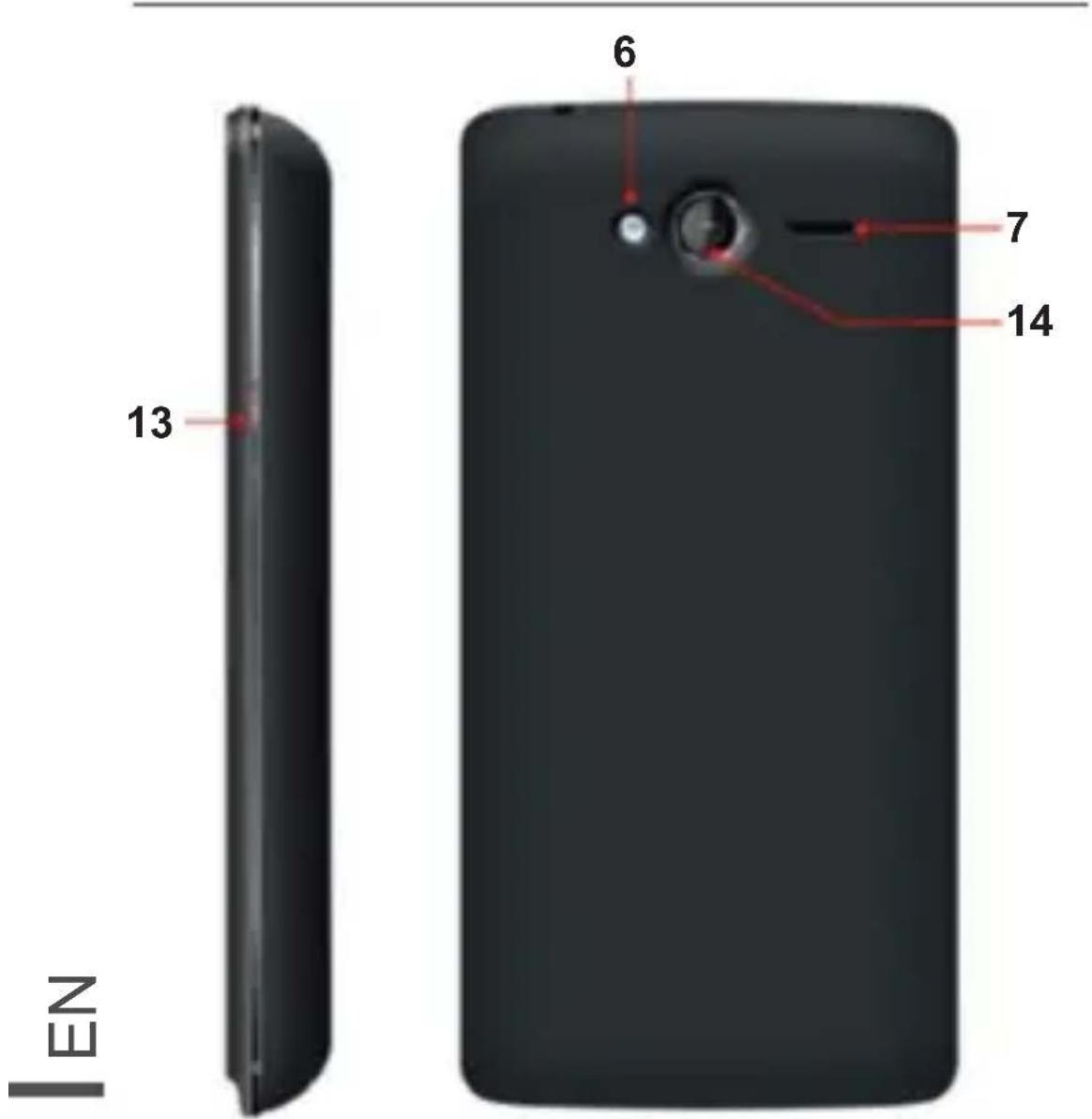
-
USB/Charger/Connection
-
3.5mm headset jack
-
Sensor
-
Receiver
-
Volume +/-
-
Flash
-
Speaker
-
Menu key
-
Home key
-
Mic
-
Back key
-
Front camera
-
Power on/off
-
Camera
2.2 Open the battery door
Push the battery cover upwards.

natural_image
Line drawing of a smartphone internal structure showing battery, circuit board, and casing (no text or symbols)Z
2.3 Install SIM cards
This phone supports dual SIM/USIM cards standby, before you power on the phone, make sure there is at least one SIM/USIM is inserted in either USIM/SIM slot.

Note: Dual SIM/USIM in standby will shorten the standby time compared to single SIM.
2.4 Install memory card
Aim at the SD card slot and push the SD card gently, and the card will be inserted correctly.

Z
Note: If the memory card is failed to read, please check whether it is correctly placed at good contact of metal point.
2.5 Power on/off
In power off status, long press the power key on top of the phone for about 2 seconds to power on your phone. In power on status, long press power key for about 2 seconds to power off your phone.
2.6 Battery charging
You can charge the battery by connecting the phone either to a pc USB port or to the provided standard charger. Use the provided standard USB cable. Note: In order to ensure normal operation of the phone, please make sure to use the designated charger.
2.7 Security
A series of passwords have been set in your mobile phone and SIM card, to prevent any unauthorized use of your mobile phone and SIM card.
PIN
The PIN (Personal identification number, 4 digits) code prevents your SIM card from being used by unauthorized people. In general, the PIN is supplied with SIM card by the network operator. If PIN check is enabled, you need to input the PIN each time when you power on your mobile phone. The SIM card will be locked if you input wrong PIN code for three times. Unlocking methods as follows:
-Input the correct PUK according to the screen tips to unlock the SIM card.
-Then input the new PIN and press the OK key.
-Input the new PIN again and then press the OK key.
-If the input PUK is correct, the SIM card will be unlocked and the PIN will be reset.
PUK
The PUK code (Personal Unlocking Key, 8digits) is required to change a blocked PIN. It is supplied with SIM card. If not, contact your network operator. If you input wrong PUK code for 10 times, SIM card will be invalid. Please contact the network operator to replace the SIM card.
PIN2
The PIN2 code (4 digits) is provided together with the SIM card, which is used to set other functions.
PUK2
The PUK2 code (the PIN2 unlocking password, 8 digits) is used to unlock the locked PIN2 code.
3 Basic operation & knowledge
3.1 Using keys
Power key: Press and hold Power key to open the power key menu, where you can turn off the phone (Power off), or Power off(Fast), or Restart, or switch Standard Mode, Silent mode, Vibration mode.
Volume key: Press the volume keys to change the ring volume (on the home screen) or the earpiece volume (during a call).
Menu key: Open a menu with items that affect the current screen or application. When you want to quit from an application or do other operations, if there is no option button displayed on screen, try this menu key.
Home key: Press Home to close any menu or apps and return to the home screen. On the home screen, press and hold Home key to show the last few apps you used, then tap an app to open it.
Back key: Opens the previous screen you were working in. If the onscreen keyboard is open, it will close the keyboard.
3.2 Screen lock & display off
You can customize the phone's display off time in menu Settings ->Display ->Sleep, without any operation to the phone in the set time. The LCD display will go off, short press any of Power key will wake up the display from the off mode.
If you wake up the display in more than 5 seconds after the LCD auto going off, it will be in the screen lock screen position. There are 5 different ways to unlock the screen according to your settings, under the menu Settings ->Security ->Screen lock, by default None option is activated, with this option.
3.3 Status bar
The Status bar appears at the top of every screen. It displays icons indicating that you've received notifications (on the left), icons indicating the phone's status (on the right), and programs which run in the background, along with the current time.

Notification icons
Status icons
Status icons

Battery is full

Battery is partially drained

Battery is low
Battery is very low
Battery is charging

No signal

Signal strength

3G in use

EDGE in use

Vibrate mode

Silence mode

Speakerphone is on

Phone microphone is mute

Airplane mode
Z

Alarm is set
Notification icons

New text or multimedia message

New Gmail message

Missed call

Call in progres
Call on hold
Call forwarding is on

Hangout is on

Screenshot captured

FM is on
Upcoming event

GPS is on

Song is playing

USB debugging connected

Phone is connected via USB cable
Z

Uploading data

Downloading data

New e-mail

Handset is plugged in
The applications you installed in your phone may use their own notification icons while running in the background.
To open the Notifications panel:
- Drag the status bar down from the top of the screen.
- OR press menu key on Home screen.
3.4 Connectivity
PC connections:
- You can connect your phone to a computer with a USB cable, to transfer music, pictures, and other files between your phone's SD card and the computer. To use this feature, you should follow the 3 steps below:
-
Use the USB cable that came with your phone to connect the phone to a USB port on your computer (you will receive a notification that the USB is connected).
-
Open the Notifications panel and tap Connected in charging mode.
-
Tap Mount SD Card, then you can transfer files between PC and SD card.
3.5 Storage
There are 2 kinds of user storage memory on your phone, phone built-in storage and SD card storage.
The phone built-in storage is mainly used for installing application space (see install applications section) and other information data.
Application programs and other data which you download from the internet or transfer from other devices, camera captured photos, recorded videos, or recording are all stored in external MMC.
3.6 Contact
Contacts gives you quick and easy access to the people you want to reach. When you first turn on your phone and sign into your Google Account, any existing Google contacts are downloaded to your phone. After that, your contacts are synchronized. Any changes you make to your contacts on the phone or the web are made in both places on next time you do the synchronization.
3.7 Call
Make a call:
- Tap on dial button on Home screen or on menu screen to enter dial board screen. Enter the phone number and tap send out button to make a call.
- In contact list, tap & hold on a contact and select Call contact option, or tap the contact and then tap
on button after entering another screen.
- In other applications such as message or call log, there are also options to make a call.
Answer/reject a call:
When a call comes in, drag 📄 on the left to the right until it reaches the green dot to answer a call. Or
drag on the right to the left until it reaches the red dot to reject the incoming call.
Z
During a call conversation, press the side volume key to adjust volume.
3.8 Messaging
You can use Messaging to exchange text messages (SMS) and multimedia messages (MMS) with your friends on their mobile phones.
You can send text (SMS) messages of up to 160 characters to another mobile phone. If you keep typing after reaching the limit, your message will be changed to MMS automatically.
Multimedia (MMS) messages can contain text and a picture, a recorded voice, an audio file, a video, or a picture slideshow.
Messaging automatically converts a message into a multimedia message if you send it to an email address instead of a phone number, add a subject, or attach a media file.
Press 🤨 on Main menu screen to access message.
When new message received, the message notifica
tion icon will be shown on the notification bar, drag down the bar and tap on the message to read.
3.9 Multimedia
Camera is a combination camera and camcorder that you use to shoot and share pictures and videos. Pictures and videos are stored on the phone's SD card or phone, so you must install one to use Camera.
Gallery is used to view pictures and play videos that you've taken with Camera, downloaded, or copied onto your SD card or phone. You can perform basic editing tasks on pictures and set them as your wallpaper or contact picture.
Music collects all audio files from your SD card or phone to play.
Videos collects all video files from your SD card or phone to play.
3.10 Applications
Based on the Android platform, your device's functionality can be extended by installing additional applications. These applications can be downloaded from internet such as Google Play Store.
Three ways to install applications in your phone:
- Direct download from the internet. When the downloading task is completed, select Install option in your download list to install.
- Note: The way of installing apps I may depends on the browser that you use, Before downloading, make sure there is an inserted available SD card.
- Download applications to your PC local disk, and install from PC by running the smartfren phone suite.
- If you have a file manager installed in your phone, you can transfer or download applications to your SD card, find out the application you want to install under path ./mnt/sd card/.. and tap on it.
Note: To install applications downloaded from websites other than Android Market, you must select Settings-> Security -> Unknown sources.
Warning: Applications downloaded from internet can be from unknown sources. To protect your phone and personal data, please download applications only from trusted sources such as Google Play Store.
To manage applications:
Enter Settings -> Applications -> Manage applications to access all the applications.
Tap on an application under each tag list, which will enter the Application info screen, along with manage buttons.
Force stop to close a running application, it will be stopped without confirmation.
Uninstall to uninstall applications that you don't want to use anymore, and free the storage space which occupied by the installed apps.
Clear data to delete user application data such as accounts, databases, settings, etc..
Move to SD card/phone to move applications installed in internal phone storage to internal SD card.
Clear cache to delete temporary application data which stored in your phone.
3.11 GPS
With the global positioning system (GPS) receiver in your phone, you can find your location with the level of accuracy: about 50 meters.
Z
To use this facility, you should install supported applications, such as Google Map.
Specifications are subject to change without notice.
„The Lechpol company declares that product KM0408 is consistent with the essential requirements and other relevant provisions of directive 1999/5/EC. The proper declaration for download from www.lech-pol.eu”
natural_image
Line drawing of an open smartphone showing internal components and a rising arrow (no text or symbols)S
natural_image
Line drawing of a smartphone internal structure showing battery, circuit board, and casing (no text or symbols)FR
natural_image
Line drawing of a smartphone internal structure showing the open base and internal components (no text or symbols)Z
natural_image
Line drawing of a smartphone internal structure showing battery, circuit board, and casing (no text or symbols)natural_image
Line drawing of a smartphone internal structure showing battery, circuit board, and casing (no text or symbols)2.3 Instalarea cartelei SIM
Telefonul suporta cartele SIM/USIM. Inainte de a por- ni telefonul, asigurati-va ca exista cel putin o cartela SIM/USIM introdusa in oricare dintre sloturile USIM/ SIM.

Nota: Cartela dubla SIM/USIM in standby va reduce durata de utilizare in modul de asteptare comparativ cu o singura cartela SIM.
Correct Disposal of This Product (Waste Electrical & Electronic Equipment)

(Applicable in the European Union and other European countries with separate collection systems) This marking shown on the product or its literature, indicates that it should not be disposed with other household wastes at the end of its working life. To prevent possible harm to the environment or human health from uncontrolled waste disposal, please separate this from other types of wastes and recycle it responsibly to promote the sustainable reuse of material resources. Household users should contact either the retailer where they purchased this product, or their local government office, for details of where and how they can take this item for environmentally safe recycling. Business users should contact their supplier and check the terms and conditions of the purchase contract This product should not be mixed with other commercial wastes for disposal
Made in China for LECHPOL Zbigniew Leszek, Miętne, 1 Garwolińska Street 08-400 Garwolin.


natural_image
Abstract wavy line pattern with gradient shading, no text or symbols presentTo see more product visit:
http://www.krugermatz.com
Krüger&Matz is a registered trademark

- Instalace SIM karty
- Specification and maintenance
- Getting started 65
- Basic operation & knowledge 71
- Specification
- Safety alert and cautions
- Road safety comes first
- Switch off in aircraft
- Switch off before entering risky areas
- Observe all special regulations
- Interference
- Qualified service
- Accessories and batteries
- Use sensibly
- Emergency calls
- Protecting your battery
- Warn reminders about battery:
- Points of attention on use of battery:
- Cleaning and maintenance
- Getting started
- Open the battery door
- Install SIM cards
- Install memory card
- Power on/off
- Battery charging
- Security
- PIN
- PUK
- PIN2
- PUK2
- Basic operation & knowledge
- Using keys
- Screen lock & display off
- Status bar
- Status icons
- Notification icons
- Connectivity
- PC connections:
- Storage
- Contact
- Call
- Make a call:
- Answer/reject a call:
- Messaging
- Multimedia
- Applications
- Three ways to install applications in your phone:
- To manage applications:
- GPS
- Instalarea cartelei SIM
Brand : Krüger&Matz
Model : Drive 2
Category : Smartphone