
USB NETWORK PRINT ADAPTER - Printer network adapter HP - Free user manual and instructions
Find the device manual for free USB NETWORK PRINT ADAPTER HP in PDF.



| Product Type | Network adapter for printer |
| Brand | HP |
| Model | USB Network Print Adapter |
| Main functions | Connects a USB printer to an Ethernet network; enables network printing and scanning |
| Power supply | Included power adapter (power cord) |
| Box contents | Adapter, Ethernet cable, USB cable, power cord, software CD |
| Minimum system requirements | Computer with Ethernet port, HP printer with USB port, active firewall |
| Security | Firewall must remain active during installation |
| Compatibility | HP printers and all-in-one devices with USB port |
| Network interface | Ethernet 10/100 |
| Included software | CD with drivers and User Guide |
| Installation | Requires software installation from CD, connection via USB and Ethernet cables |
| Connection Manager | Utility to connect/disconnect the network printer |
| Status indicators | Icons in the taskbar for connection status |
| Target device | HP USB printers |
Frequently Asked Questions - USB NETWORK PRINT ADAPTER HP
User questions about USB NETWORK PRINT ADAPTER HP
0 question about this device. Answer the ones you know or ask your own.
Ask a new question about this device
Download the instructions for your Printer network adapter in PDF format for free! Find your manual USB NETWORK PRINT ADAPTER - HP and take your electronic device back in hand. On this page are published all the documents necessary for the use of your device. USB NETWORK PRINT ADAPTER by HP.
USER MANUAL USB NETWORK PRINT ADAPTER HP
Welcome to the HP USB Network Print Adapter
The HP USB Network Print Adapter connects your USB printer or all-in-one to your Ethernet network. Once connected, you will be able to print or scan over your network using your printer or all-in-one software.
Get more information
The CD contains a User Guide with detailed information about configuring and using your HP USB Network Print Adapter, technical specifications, and regulatory information.
1 Locate components
Printer adapter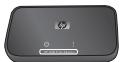
Ethernet cable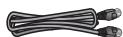
USB Network Print Adapter CD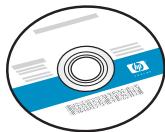
USB cable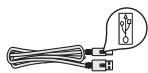
Power cord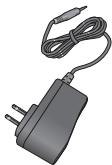
- Software
- User Guide


HP printer or all-in-one and installation CD (purchased separately)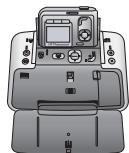
2 Set up the network print adapter
Follow these instructions to install and set up your network print adapter.
Connect the network print adapter
- Turn off the HP printer.
- Use the USB cable to attach the network print adapter to the USB port on the BACK of your HP printer.
Important: If your printer has a USB port on the front, do not attach the network print adapter to it. Use the back USB port.
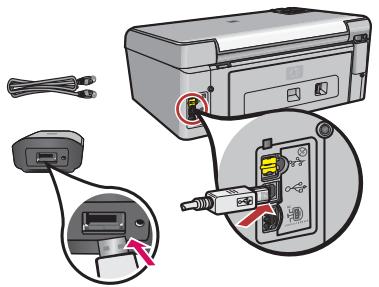
- Plug the Ethernet cable into the network print adapter and the hub or router.

- Attach the power cord to the network print adapter and plug it into a power outlet.
- Make sure the printer is plugged in and turn it on.
Firewall Should Be On
Unlike other programs, you should leave your firewall turned ON during installation of your HP USB Network Print Adapter.
You may see popup windows from your firewall software.
Click ALWAYS ALLOW or YES to any questions about allowing the network print adapter software access to your computer or internet.
Important: Your firewall software may pop up windows behind the installer window. If things seem to halt for too long, check for windows hidden behind other windows.
- Close other software programs, especially HP software such as the HP Solution Center, Toolbox, or HP Director.
- Insert the HP USB Network Print Adapter CD.
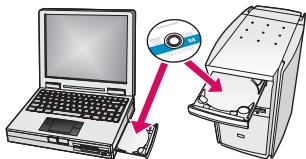
- Click Install to install the software.
- Accept the license agreement.
- If you have not already connected the network print adapter and turned on the printer, do so now.
- Select your network print adapter from the list and click Next.
Note: If your printer does not display, click Refresh.
The files begin to copy.
A window displays showing the printer that has been found.
- Click Finish to complete the installation.
Tip! Leave the "For best results, allow all users full printer access." box checked. If this box is unchecked, only an administrator can restart the printer if it pauses due to out of paper or other causes.
Note: If the installer asks you to insert your printer or all-in-one CD, you can click Cancel. You may have to click Cancel several times.
Install the printer software and connect to the printer
If the printer software is already installed on this computer, go to "Connect to the printer using Connection Manager".
If you need to install the printer software use the directions immediately following.
Install the printer software
Leave your printer attached to the HP USB Network Printer Adapter.
- Insert the printer software CD or start the downloaded driver installation.
- When the software asks you to plug in the USB cable, do the following:
a. Right-click the Connection Manager icon in the system tray (lower-right corner of your screen).

b. Select Connect.
The icon will change to show a successful connection.

Connect to the printer using Connection Manager
If you already have the printer software installed on this computer, follow these instructions.
- Right-click the Connection Manager icon in the system tray (lower-right corner of your screen).

- Click Connect.
The icon will change to show a successful connection.

Use the Connection Manager
The Connection Manager has a number of icons to tell you the status of the Network Print Adapter. The three common ones are described below.

The printer or all-in-one is connected and ready to use.
| The network print adapter can detect the printer or all-in-one but it is not currently connected. The device will be automatically reconnected if a print job is sent. If you want to scan or use the memory card slots, for example, you will need to manually reconnect the device. • To manually reconnect, right-click the icon and select Connect. | |
| The Network Print Adapter cannot detect the printer. Check to see if all cables are connected between the adapter and printer and that both are plugged in and have power. |
Print to your network printer
Print to your network printer just as you would any other printer.
If your printer was previously installed on this computer, the network version may be called (Copy 1).
b. Select Make Connection.
- WELCOME TO THE HP USB NETWORK PRINT ADAPTER
- GET MORE INFORMATION
- LOCATE COMPONENTS
- SET UP THE NETWORK PRINT ADAPTER
- CONNECT THE NETWORK PRINT ADAPTER
- FIREWALL SHOULD BE ON
- INSTALL THE PRINTER SOFTWARE AND CONNECT TO THE PRINTER
- INSTALL THE PRINTER SOFTWARE
- CONNECT TO THE PRINTER USING CONNECTION MANAGER
- USE THE CONNECTION MANAGER
- PRINT TO YOUR NETWORK PRINTER
Brand : HP
Model : USB NETWORK PRINT ADAPTER
Category : Printer network adapter