KAIRPRFR4SA - Air purifier Kogan - Free user manual and instructions
Find the device manual for free KAIRPRFR4SA Kogan in PDF.


User questions about KAIRPRFR4SA Kogan
0 question about this device. Answer the ones you know or ask your own.
Ask a new question about this device
Download the instructions for your Air purifier in PDF format for free! Find your manual KAIRPRFR4SA - Kogan and take your electronic device back in hand. On this page are published all the documents necessary for the use of your device. KAIRPRFR4SA by Kogan.
USER MANUAL KAIRPRFR4SA Kogan
natural_image
White cylindrical smart air purifier with blue LED, emitting bubbles (no text or symbols visible)KOGAN SMARTERHOME™ 5-STAGE AIR PURIFIER 4S
WITH H13 FILTER (329 CADR)
KAIRPRFR4SA
SAFETY & WARNINGS
Ensure to read and understand the contents of the user guide before using the product. Retain these instructions for future reference.
- To avoid electric shock and fire, do not allow water, liquid, or any flammable detergent to get into or to clean the product.
- Do not spray any flammable materials such as pesticides or perfumes around the product.
- Before connecting the power supply, check whether the voltage of the product is consistent with the local power supply voltage.
• If the power cord is damaged, to avoid danger, it must be replaced by Kogan.com. - Discontinue use if the plug, power cord or product is damaged.
- Keep the air inlet/outlet free from obstruction.
- The appliance can be used by children aged from 8 years and above and persons with reduced physical, sensory or mental capabilities or lack of experience and knowledge if they have been given supervision or instruction concerning use of the appliance in a safe way and understand the hazards involved.
- This product cannot replace normal ventilation, daily dust collection or oil exhaust when cooking.
- Ensure all electrical connections are tight and secure to avoid the risk of fire or shock.
- Do not place any items on or above the product.
- Be sure to place and use the product on a firm, flat and stable surface.
- Leave at least 30cm of space on the back and sides of the product and at least 50cm of space above the product when in use.
- Do not place the product under an air conditioner to prevent condensation or water dropping into the product.
- Ensure both the filter and the back cover are properly installed before connecting power.
• Only use filters specially designed for this product. - Do not insert fingers or objects into the air outlet/inlet to prevent physical damage or trouble.
- Do not use this product when using an indoor spray repellent, or in areas containing grease, flammable gas, or chemical fumes.
- Ensure the product is unplugged before moving, cleaning, maintaining, and replacing the filter.
Components
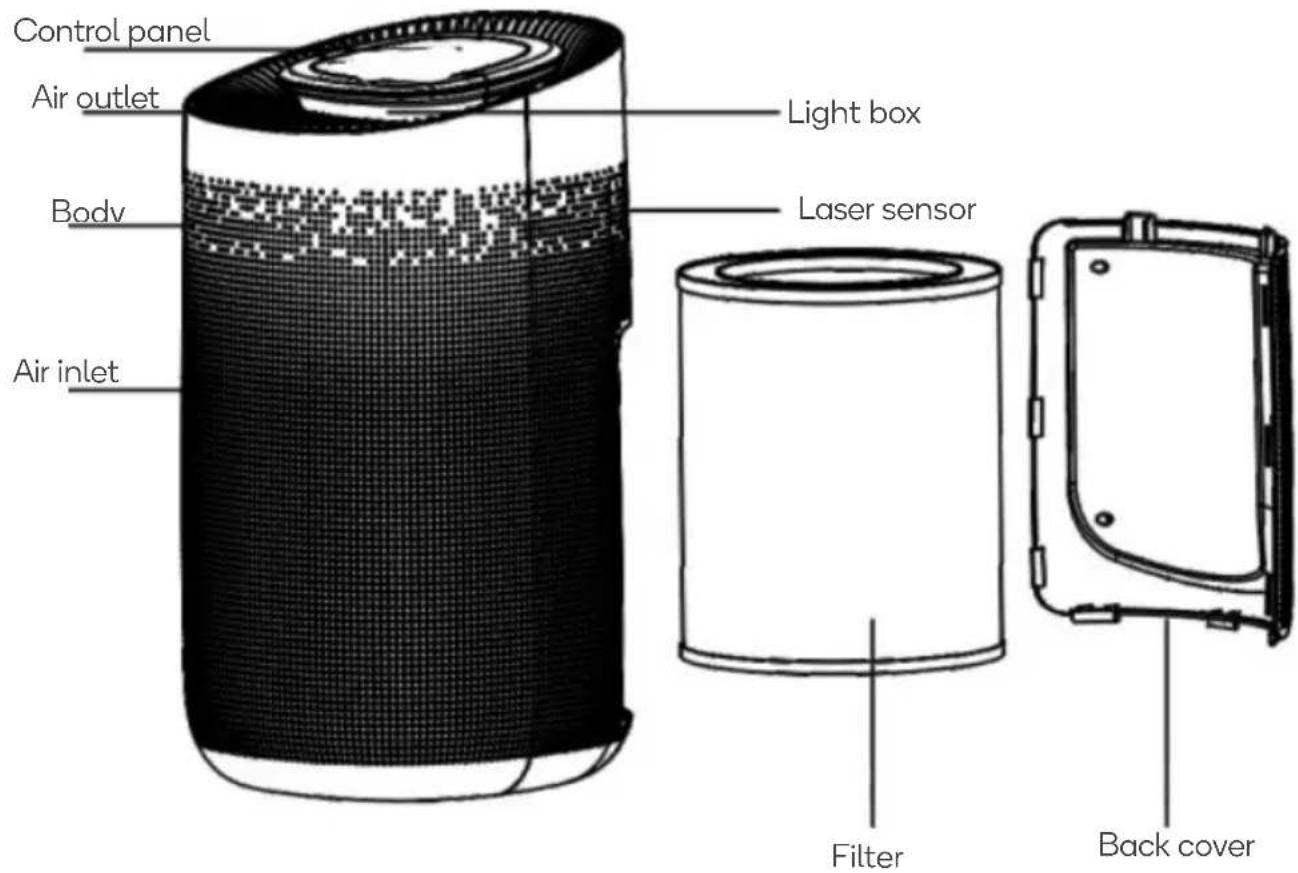
text_image
Control panel Air outlet Body Air inlet Light box Laser sensor Filter Back coverControl panel
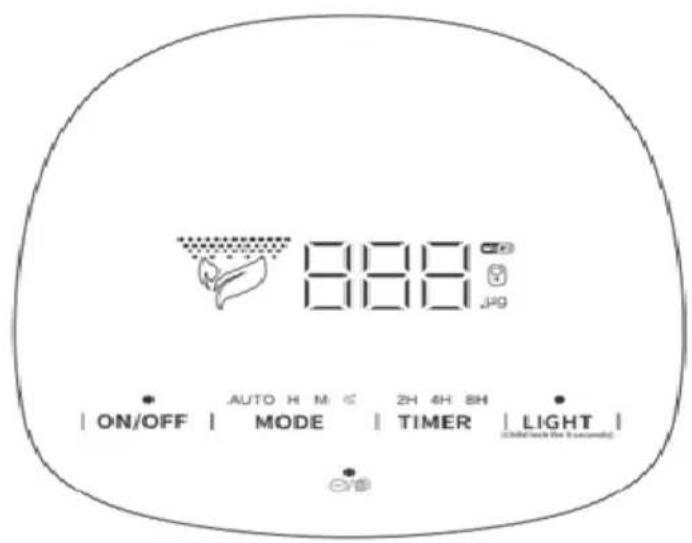
text_image
888 Jog AUTO H M C 2H 4H 8H ON/OFF MODE TIMER LIGHT TIME (Take the 3 seconds)ON/OFF Power Button
MODE Fan speed button
LIGHT Light / Child lock button
TIMER Timer / Wi-Fi reset button
Anion / Filter button
BEFORE FIRST USE
Before using, remove the packaging from the filter. Ensure the machine is unplugged before removing or installing the filter.
- Press the switch marked by the circle below to take out the back cover.
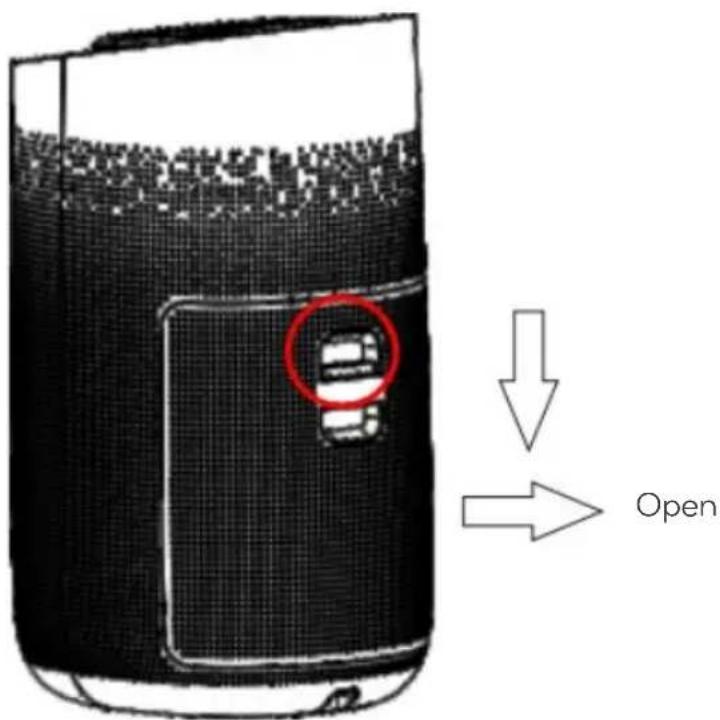
text_image
Diagram showing a device with a red circle highlighting a component, labeled 'Open' with an arrow pointing to it.- Remove the filter from the machine.
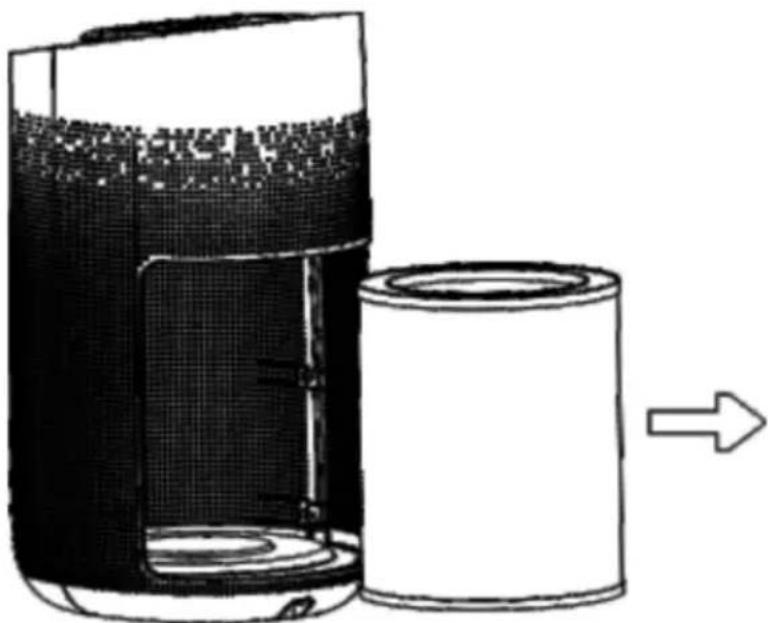
natural_image
Diagram of a cylindrical device with internal components and an arrow indicating direction (no text or symbols)- Remove the packaging from the new filter.

text_image
Packaging- Replace the filter into the machine.
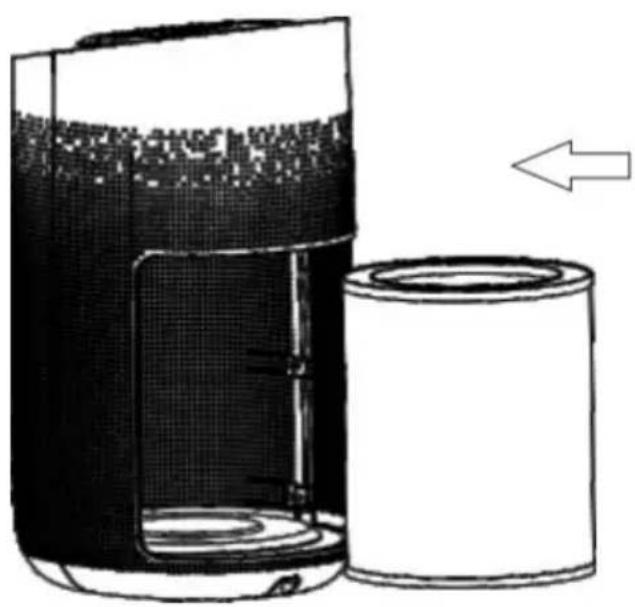
natural_image
Diagram of a portable device with a cylindrical container and a black interior, showing internal structure and an arrow indicating direction (no text or symbols present)- Press the switched marked by the circle below to close the back cover.
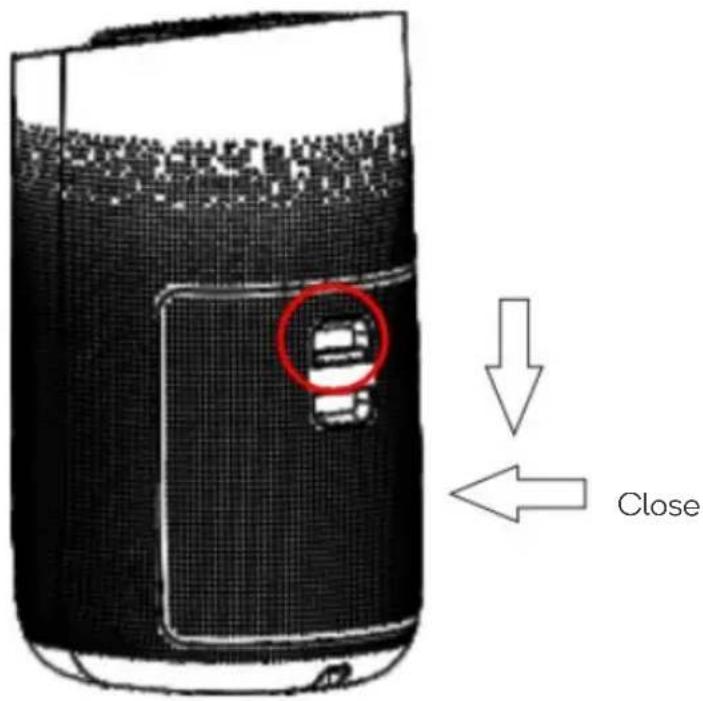
text_image
CloseCONNECT TO SMARTERHOME™ APP
Install App
Download the "Kogan SmarterHome" app from the Play Store (Android) or App Store (iOS).

text_image
QR code image containing encoded data, no visible human-readable textPlay Store (Android)
text_image
QR code image containing encoded data, no visible human-readable textApp Store (iOS)

To register:
- If you already have a SmarterHome account, select 'Log In'. To register a new account, select 'Sign Up'.
- The system will automatically recognise your country. If needed, you can manually select your country from the drop-down box. Enter your email address and tap 'Get Verification Code' to continue.
- A 6-digit code will be sent to the submitted email address. Enter this code before the one-minute timer expires.
- Continue to the next page and complete your SmarterHome profile.

text_image
Log In Sign Up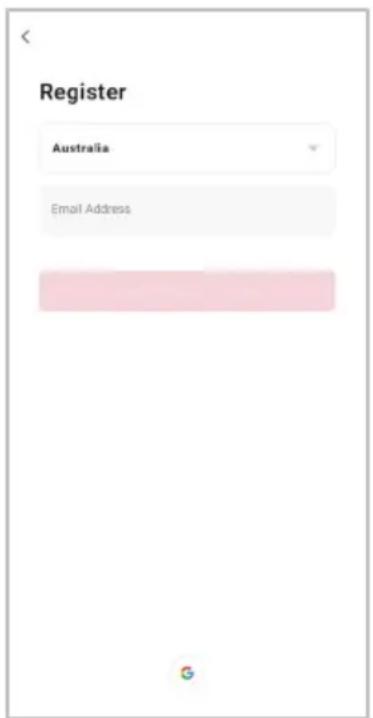
text_image
Register Australia Email Address
text_image
Enter Verification Code A verification code has been sent to your code! Didn't get a code?Set device in pairing mode
When the device is first turned on, it may automatically enter pairing mode (the timer indicator light will be flashing rapidly).
If not automatically in pairing mode when powered on, you can manually set the device in pairing mode by pressing and holding down the Timer/Wi-Fi reset button for seven seconds until the Timer indicator light is flashing rapidly.
Add device through network
- Once registered, tap "Add Device" on the app's home page, or the "+" in the upper right corner, to add a new device through the network.
- Select the product type from the list of options in the app (Air Treatment > Air Purifiers).
- Enter your Wi-Fi details. It is important that your SmarterHome™ device and the app are connected to the same Wi-Fi network during setup.

text_image
Home 14°C 41.7% Outdoor Humidity 100GhPa 5.0m/s Outdoor Air Pets Outdoor Wind Sp. All Devices Living Room Master Bedroom No devices Add Device Name Scene Add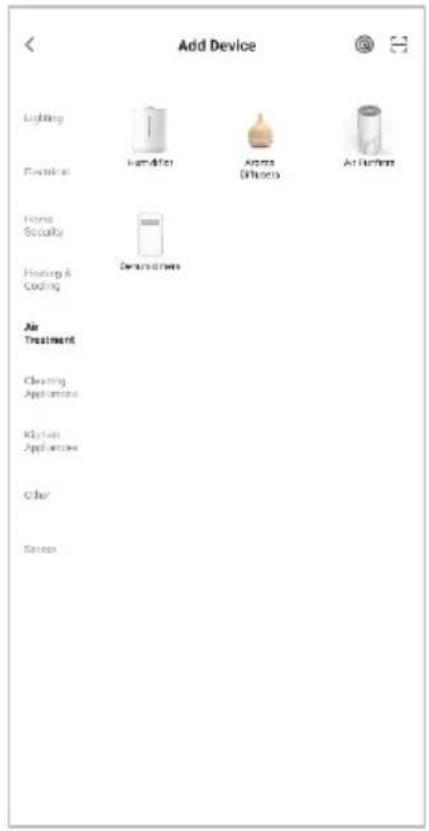
text_image
Add Device Lighting Electrical Home Security Heating & Coding Air Treatment Cleaning Appliances Kitchen Appliances Other Sensors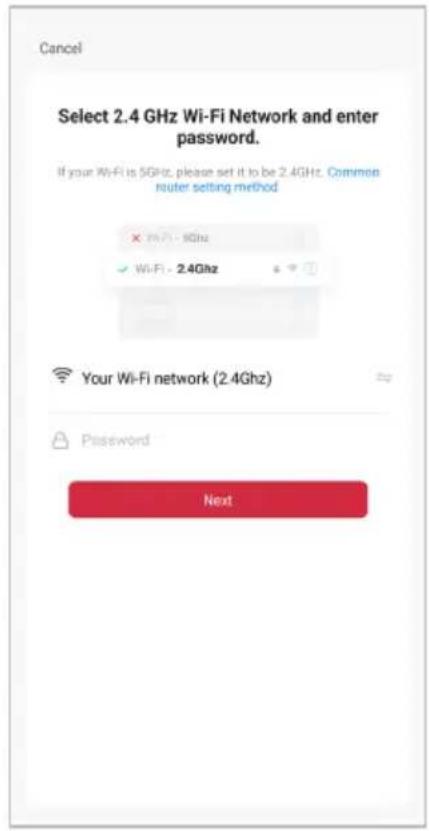
text_image
Cancel Select 2.4 GHz Wi-Fi Network and enter password. If your Wi-Fi is 5GHz, please set it to be 2.4GHz. Common router setting method × Wi-Fi - 5GHz ✓ Wi-Fi - 2.4Ghz Your Wi-Fi network (2.4Ghz) Password NextNotes:
• The device and the app have to use the same Wi-Fi network.
• The device is only compatible with 2.4Ghz networks.
• Depending on the product, Steps 3 and 4 may be in opposite order.
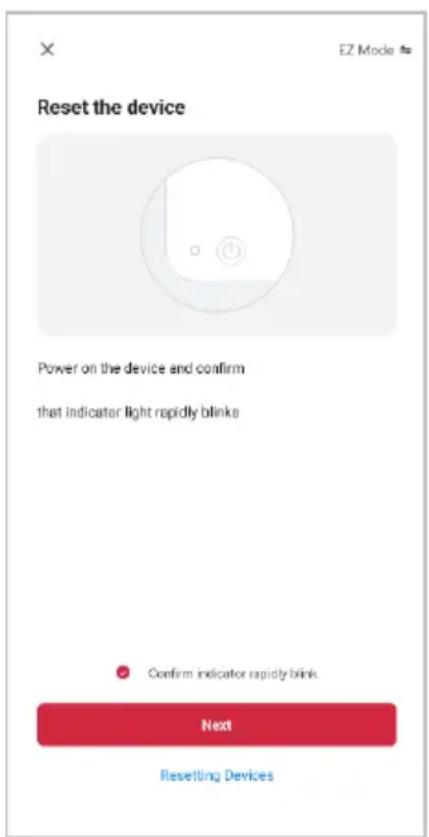
- Ensure that the device is in pairing mode, with the Timer indicator light flashing rapidly, and tap "Confirm light is rapidly flashing".
- The device will commence the pairing process and connect to the app. Ensure your Wi-Fi router, mobile phone, and the SmarterHome™ device are kept close until connection is complete.
- After successfully being added, you will have the option to rename the device and assign it to a location. It will now be listed on the app's home page. Tap the device listing to enter its control page.
text_image
Reset the device Power on the device and confirm that indicator light rapidly blinks Confirm indicator rapidly blink. Next Resetting Devices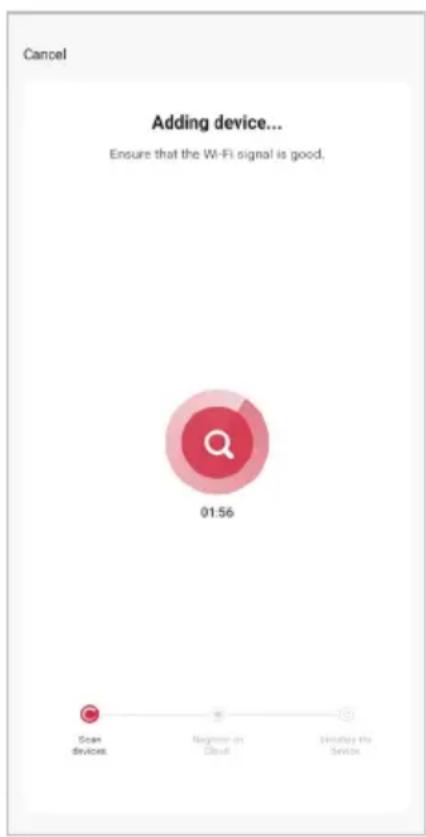
text_image
Cancel Adding device... Ensure that the Wi-Fi signal is good. 01:56 Scan devices. Beginner on Cloud Initiate the Service.
text_image
Add Device Done T device(s) added successfully Kogan SmarterHome™ product Added successfully Device Information Kogan SmarterHome™ product Assign Device to a Room Living Room Master Bedroom Study Room Dining Room Cancel DoneNote:
Once connected, you can select Create Scene from the “+” in the upper right corner (or from the Scene tab) to group connected SmarterHome™ products and automate their functions.
Having trouble connecting?
The prior steps detail the process for “EZ Mode” connection. If that does not work for your connection, we suggest trying it again, and if still no success, attempting the following method for AP Mode connection.
Set device in AP pairing mode
Set the device in pairing mode by pressing and holding down the Timer/Wi-Fi reset button for seven seconds again until the Timer indicator light is flashing slowly.
Using AP Mode to add device
- Follow the previous steps to select your product type (Air Treatment > Air Purifiers).
- Adjust your connection method by tapping on the mode type in the top-right corner of the screen. Select "AP Mode" for the set-up type.
- Ensure that the device is in pairing mode, with the Timer indicator light flashing slowly, and tap "Confirm light is slowly flashing".
- Enter your Wi-Fi details. It is important that your SmarterHome™ device and the app are connected to the same Wi-Fi network during setup.

text_image
Reset the device EZ Mode Ap ✓ EZ Mode Default AP Mode Power on the device and confirm that indicator light rapidly blinks Confirm indicator rapidly blink Reset Resetting Devices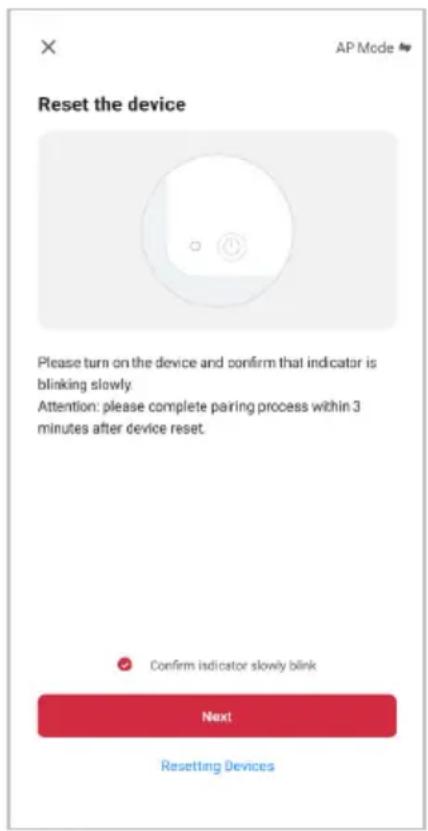
text_image
Reset the device Please turn on the device and confirm that indicator is blinking slowly. Attention: please complete pairing process within 3 minutes after device reset. Confirm indicator slowly blink Next Resetting Devices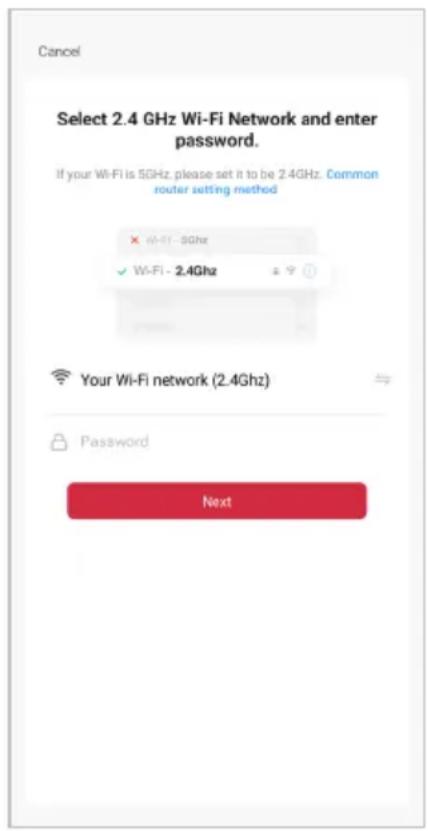
text_image
Cancel Select 2.4 GHz Wi-Fi Network and enter password. If your Wi-Fi is 5GHz, please set it to be 2.4GHz. Common router setting method ✓ Wi-Fi - 5Ghz ✓ Wi-Fi - 2.4Ghz Your Wi-Fi network (2.4Ghz) Password NextNotes:
• The device and the app have to use the same Wi-Fi network.
• The device is only compatible with 2.4Ghz networks.
• Depending on the product, Steps 3 and 4 may be in opposite order.
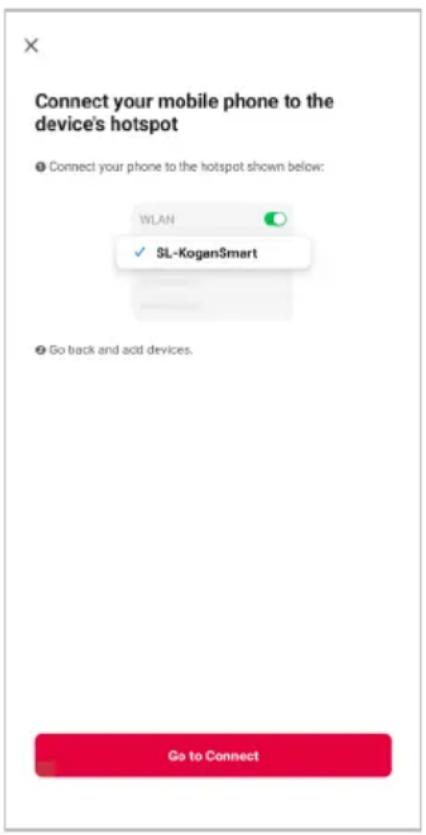
- Follow the in-app prompts to continue AP Mode connection, which will pair your mobile phone to the device's Wi-Fi hotspot to ensure a connection. This may be named "SL-KoganSmart", "SmartLife-XXXX", or another similar name.
Note:
If the Wi-Fi hotspot does not appear on your phone in the list of available networks, your device may not be set in AP Pairing Mode correctly. Try repeating the steps outlined above to ensure your device is ready for connection.
- The device will commence the pairing process and connect to the app. Ensure your Wi-Fi router, mobile phone, and the SmarterHome™ device are kept close until connection is complete.
- After successfully being added, you will have the option to rename the device and assign it to a location. It will now be listed on the app's home page. Tap the device listing to enter its control page.
text_image
Connect your mobile phone to the device's hotspot Connect your phone to the hotspot shown below: WLAN SL-KoganSmart Go back and add devices. Go to Connect
text_image
Cancel Adding device... Ensure that the Wi-Fi signal is good. 01:56 Scan devices. Digital at Cloud Instable the device
text_image
Add Device Done 1 device(s) added successfully Kogan SmarterHome™ product Added successfully Device Information Kogan SmarterHome™ product Assign Device to a Room Living Room Master Bedroom Study Room Dining Room Cancel DoneNote:
Once connected, you can select Create Scene from the “+” in the upper right corner (or from the Scene tab) to group connected SmarterHome™ products and automate their functions.
OPERATION
Connect the power; all indicators will illuminate for 1s and then dim. The machine will then be in standby mode.
Power Button
- Press the power button once when the appliance is in standby; the machine turns on at mid default mode and the buzzer sounds once.
-
The indicator light will be changed among the colour circulation of Blue - Cyan - Green - Yellow - Orange - Red - Purple, for a continuous 30 seconds while preheating. Following this, the indicator light will be influenced by the air quality:
-
Blue: Good air quality
• Yellow: Average air quality
• Red: Poor air quality
The digital display will show the PM2.5 numerical according to the air quality.
- Press again to turn off the machine, all the lights will be off, then the machine is in standby mode.
Fan Speed Button
During operation, press the Fan speed button to cycle the fan speed between the presets (Auto/High/Middle/Sleep), and the corresponding indicators will illuminate.
① Auto Mode
The fan speed will be adjusted according to the air quality, and the fan speed will automatically adjust between the high, middle, and sleep modes according to the air quality.
② High Mode
When the machine operates in High Mode, the corresponding indicator will illuminate.
③ Middle Mode
When the machine operates in Middle Mode, the corresponding indicator will illuminate.
④ Sleep Mode
When the machine works in a Sleep Mode, the corresponding indicator will be on. If there are no operations for 5 seconds, the power indicator and sleep indicator will be on slightly. The sleep indicators will be on again after touching any button.
Timer/Wi-Fi Button
- During operation, press the timer button to set intervals of 2, 4 and 8 hours. A beep will sound for each interval, and the corresponding indicator will illuminate.
- When the time is enabled, the machine begins to count down during operation. When the set time is up, the unit will cease operating and return to standby mode.
To reset the Wi-Fi connection or enter SmarterHome pairing mode, long press the Timer / Wi-Fi reset button for 7 seconds. The indicator light will begin flashing rapidly when successfully reset. If the device is disconnected from power, the Wi-Fi function will need to be reset when it is turned on again.
Light/Child lock Button
During operation, press the Light button and the indicator will illuminate. For each press, the buzzer will sound once, and the light will cycle between Soft, Standard, and Off modes.
Note:
When the unit is not operating, the light cannot be adjusted. During the first 30 second preheating period, the light can only be operated between on and off mode.
During operation, press and hold the Light/Child lock button for 3 seconds to enable the Child lock function; the indicator will illuminate. Press and hold again for 3 seconds, the buzzer will sound, and the indicator will dim to signify the function has been disabled.
Note:
No functions of the machine can be operated when the Child lock function is enabled. Disable the Child lock function to use the controls once again.
Anion/Filter Button
- During operation, press the Anion button to start the anion function, and press again to turn it off. The buzzer will sound each time it is pressed.
Replace filter reminder
- When the machine detects that the filter is saturated, or after running for 2200 hours (approximately 3 months), the filter indicator light will flash red. Press and hold the Filter button for 7 seconds to stop the flashing light and reset after installing a new filter.
Note:
The machine will still operate normally while this reminder is active.
GOOGLE HOME CONTROL
Note:
You will need to have set up a Google Home account prior to linking your Kogan SmarterHome™ device.
Adding "SmarterHome" to the Google Home app
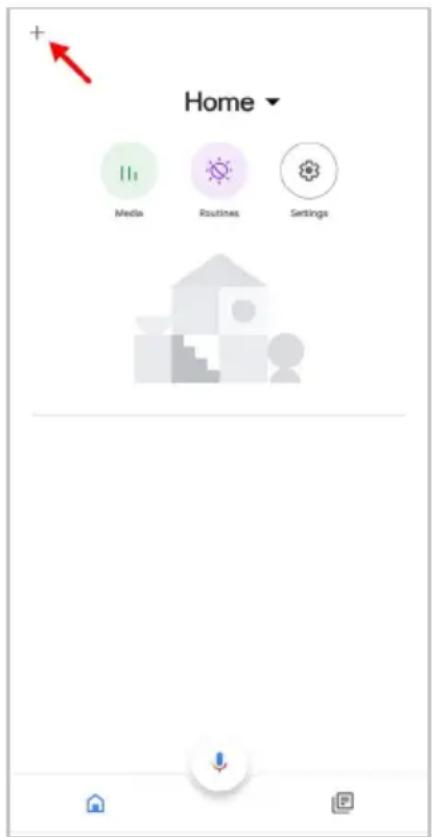
- From the home page of the Google Home app, select the “+” icon (top left corner, see arrow in the below screenshot) to access the ‘Add and manage’ page.
- Select 'Set up device', then select the 'Works with Google' option.
text_image
+ Home Media Routines Settings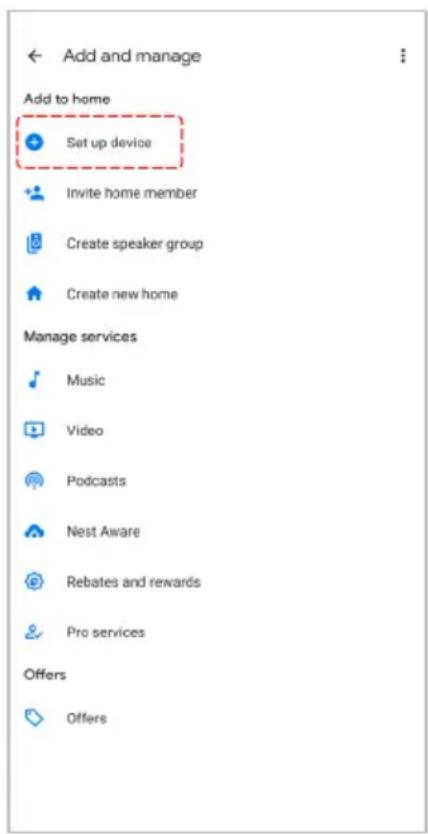
text_image
Add and manage Add to home Set up device Invite home member Create speaker group Create new home Manage services Music Video Podcasts Nest Aware Rebates and rewards Pro services Offers Offers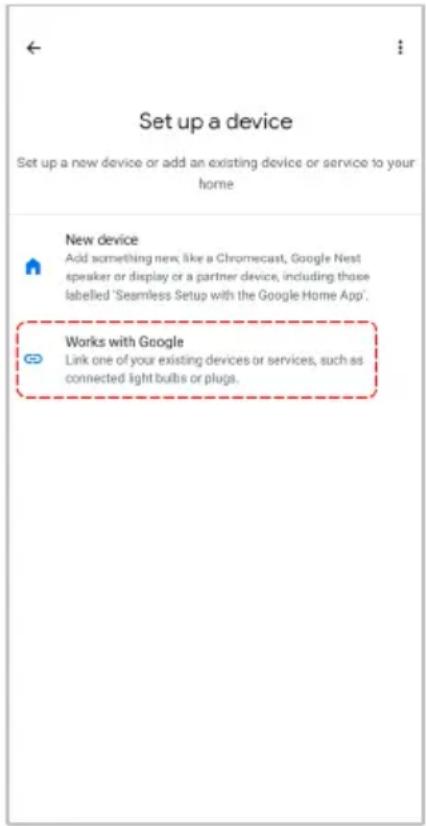
text_image
Set up a device Set up a new device or add an existing device or service to your home New device Add something new, like a Chromecast, Google Nest speaker or display or a partner device, including those labelled 'Seamless Setup with the Google Home App'. Works with Google Link one of your existing devices or services, such as connected light bulbs or plugs.- Select the search bar and type 'Smarter Home' to locate the Kogan SmarterHome™ service.
- From here, you will be prompted to sign into your SmarterHome™ account using either your email or mobile phone number, depending on which method you used to register your account.
- Select "Kogan SmarterHome™" from the app options.

text_image
smarter home Add new Smarter Home 1 2 3 4 5 6 7 8 9 0 q w e r t y u i o p a s d f g h j k l z x c v b n m 123
text_image
Link an account to control Smarter Home on any device This link will be available on devices or services where you're signed in to your Google Account. You can change this link in your Google Account. Cancel Cancel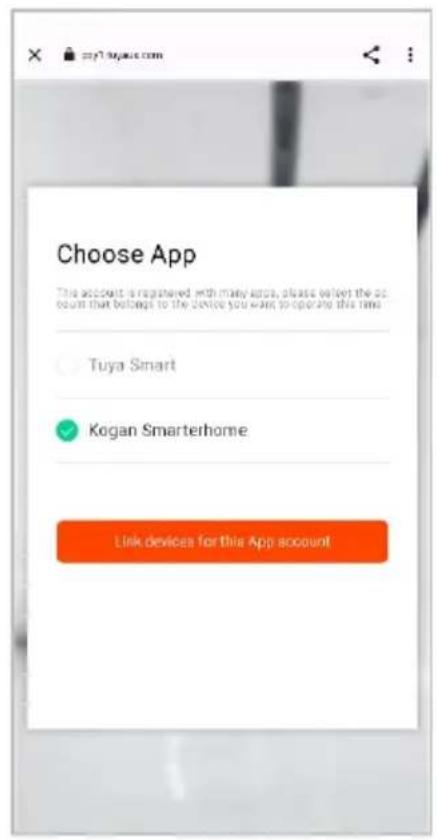
text_image
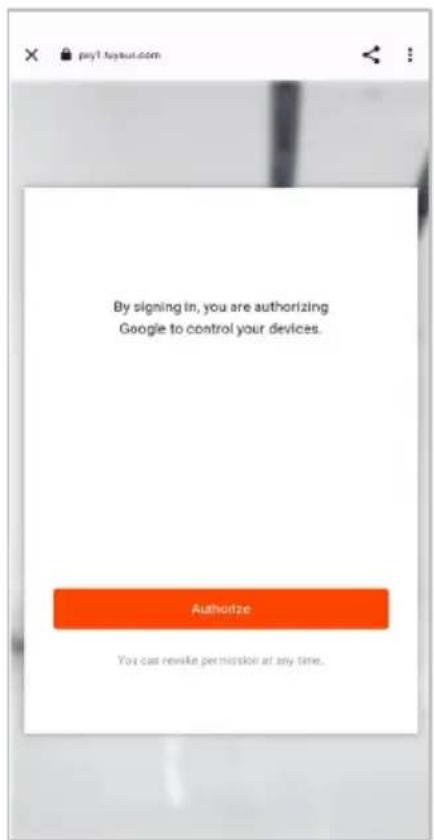
Choose App This account is registered with many accounts, please select the account that belongs to the device you want to operate this time. Tuya Smart Kogan Smarterhome Link devices for this App account!- Tap 'Authorise' to grant Google permission to access the SmarterHome™ app and your devices.
- Once connected, the app will display any compatible devices linked to your SmarterHome™ account. From here you can assign them to rooms and set up any routines. Tap on any of the devices to view a list of available commands.
text_image
By signing in, you are authorizing Google to control your devices. Authorize You can rewrite permission at any time.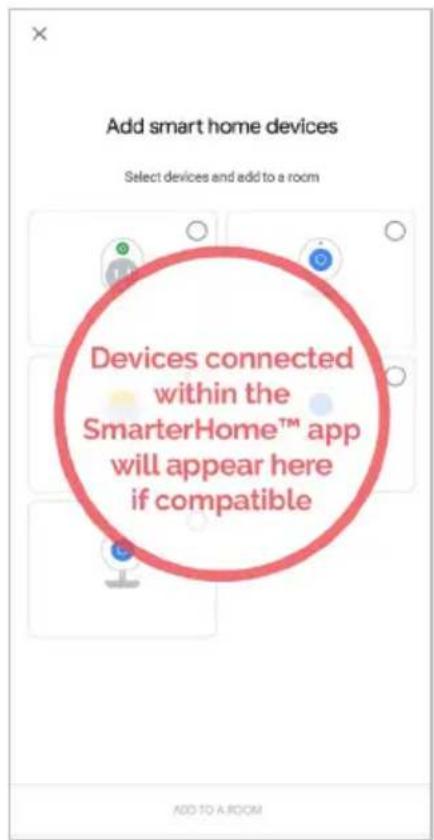
text_image
Add smart home devices Select devices and add to a room Devices connected within the SmarterHome™ app will appear here if compatible ADD TO A ROOMNote:
Please note that Google Home can only control the base/core functions of any compatible SmarterHome™ devices. To make full use of this product's smart functionality, please use the Kogan SmarterHome™ app.
AMAZON ALEXA CONTROL
Note:
You will need to have set up an Alexa account prior to linking your Kogan SmarterHome™ device.
Adding "SmarterHome" to the Alexa app
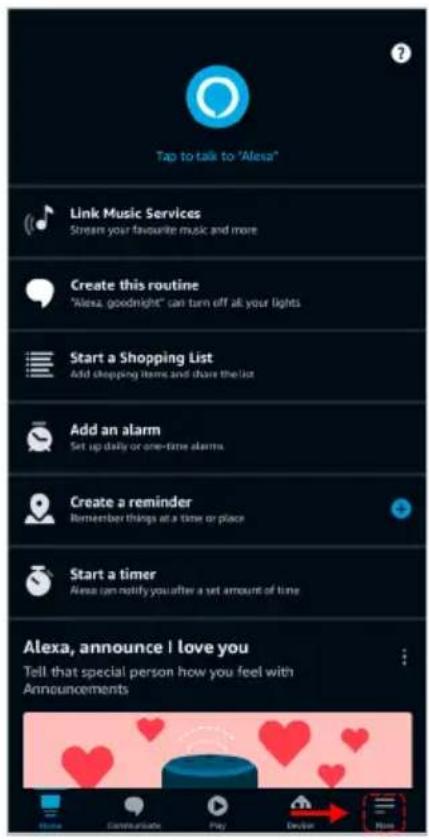
- From the home page of the Alexa app, select the “≡” icon in the bottom-right and select “Skills & Games” from the sidebar.
- Select the search bar and type 'Smarter Home' to locate the Kogan SmarterHome™ skill.
text_image
Tap to talk to "Alexa" Link Music Services Stream your favourite music and more Create this routine "Alexa, goodnight" can turn off all your lights Start a Shopping List Add shopping items and share the list Add an alarm Set up daily or one-time alarms Create a reminder Remember things at a time or place Start a timer Alexa can notify you after a set amount of time Alexa, announce I love you Tell that special person how you feel with Announcements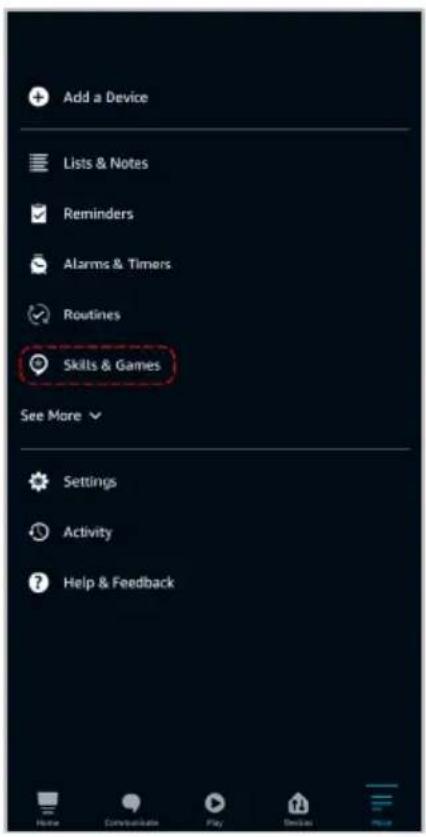
text_image
Add a Device Lists & Notes Reminders Alarms & Timers Routines Skills & Games See More Settings Activity Help & Feedback
text_image
SEARCH Search Keyword or skill name Kogan smarterhome Sort: Relevant Smarter Home "Alexa, dim the bedroom light to 50%." Smart Home smarterhome 1 2 3 4 5 6 7 8 9 0 q w e r t y u i o p @ # & * - + * ( ) a s d f g h j k l - $ * : : / z x c v b n m 123- Tap 'Enable to Use' to add the Kogan SmarterHome™ skill to Alexa.
- From here, you will be prompted to sign into your SmarterHome™ account using either your email or mobile phone number, depending on which method you used to register your account.
- Select "Kogan SmarterHome™" from the app options.
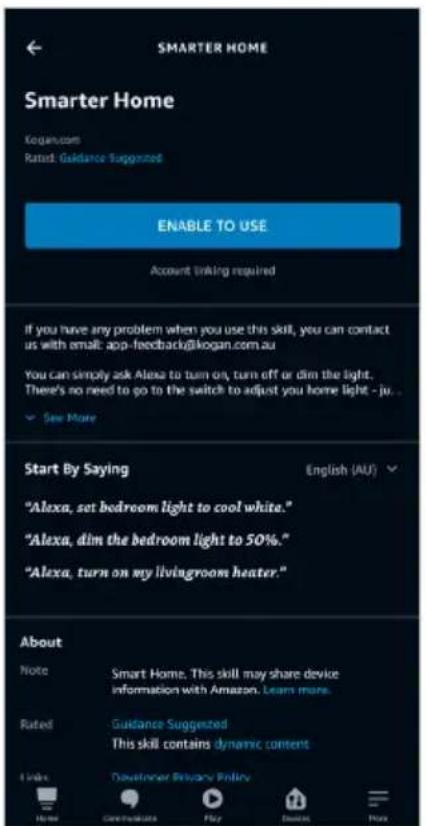
text_image
SMARTER HOME Smarter Home Kogan.com Rust: Guidance Suggested ENABLE TO USE Account linking required If you have any problem when you use this skill, you can contact us with email: app-feedback@kogan.com.au You can simply ask Alexa to turn on, turn off or dim the light. There's no need to go to the switch to adjust you home light - ju... ✓ See More Start By Saying English (AU) "Alexa, set bedroom light to cool white." "Alexa, dim the bedroom light to 50%." "Alexa, turn on my livingroom heater." About Note Smart Home. This skill may share device information with Amazon. Learn more. Rated Guidance Suggested This skill contains dynamic content Light Downturn Privacy Policy Home Contributions Play Save More Help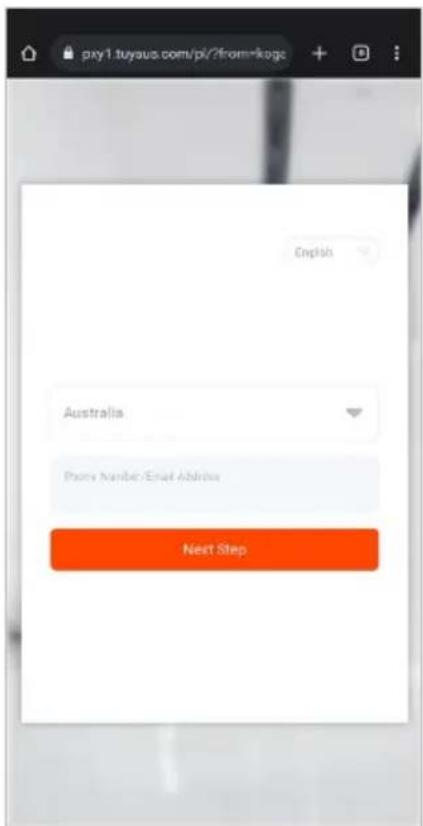
text_image
pxy1.tuyaus.com/pl/?from=koga English Australia Phone Number/Email Address Next Step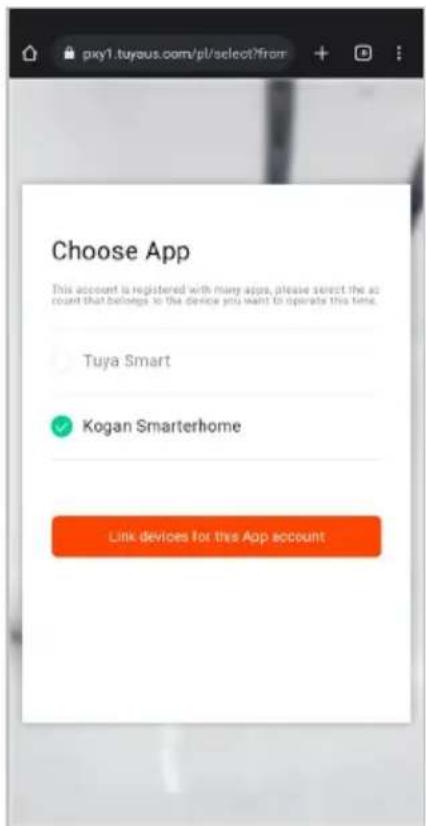
text_image
pxy1.tuyaus.com/pl/select?from Choose App This account is registered with many apps, please select the account that belongs to the device you want to operate this time. Tuya Smart Kogan Smarterhome Link devices for this App account- Tap 'Authorise' to grant Alexa permission to access the SmarterHome™ app and your devices.
- Once connected, the app will perform a search and display the devices linked to your SmarterHome™ account. When your devices have successfully connected to the Alexa app, you will be able to control your Kogan SmarterHome™ devices via Alexa's voice commands.

text_image
pxy1.tuyaus.com/pl/authorize?6 Allows by Amazon will be able to: Receive your public profile Control your devices over internet Authorize You can revoke permission at any time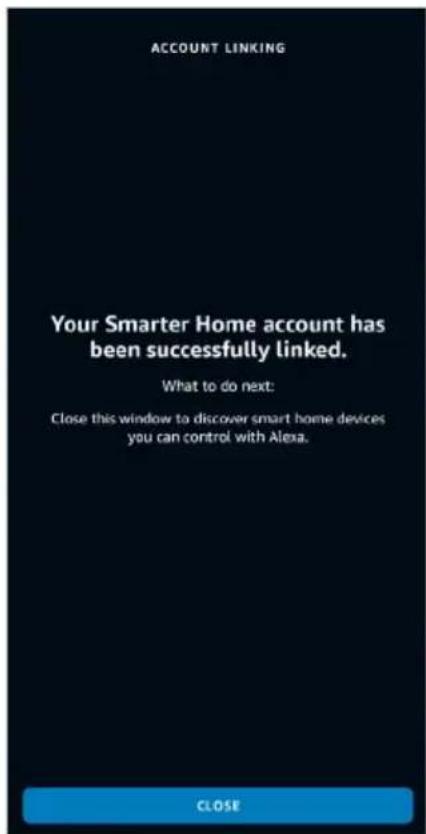
text_image
ACCOUNT LINKING Your Smarter Home account has been successfully linked. What to do next: Close this window to discover smart home devices you can control with Alexa. CLOSENote:
Please note that Alexa can only control the base/core functions of any compatible SmarterHome™ devices. To make full use of this product's smart functionality, please use the Kogan SmarterHome™ app.
CLEANING & CARE
Notice:
- Ensure the machine is unplugged before maintenance.
- Do not immerse the air purifier into water or any liquid.
- Do not use abrasive, corrosive or flammable cleaners (such as bleach or alcohol) to clean any part of the unit.
- Clean the filter regularly. Do not wash or reuse the filter.
- Ensure the machine is unplugged before replacing the filter.
• Sterilise the filter under sunlight regularly. - Do not use a vacuum cleaner to clean the filter or wash it directly.
Cleaning and Storage
- Ensure the machine is power-off and unplugged.
- Take out the filter to clean any dust from the surface of it.
- Use a soft cloth with neutral cleanser to clean away any dust or debris from the surface of the machine.
- After the filter is dried, install it into the air purifier to restart.
- If the machine is not in use for a long time, ensure the machine is dried out, put on the dust cover bag, and place it in a cool and well-ventilated place.
- To ensure optimum performance of the machine, turn on the machine for a few minutes from time to time when not in constant use.
Note:
Be sure not to drop any water into the machine when cleaning the air outlet.
SPECIFICATIONS
| Size L270 x W303 | x H497mm |
| Input | AC 100-240 V 50/60Hz |
| Power 50W | |
| Noise ≤ 56dB | |
| Coverage area ≤ 50m.sq | |
| Weight 4.6KG |
TROUBLESHOOTING
| Situation Reason | |
| Will not power on | Is it plugged into a power socket? Is there a power outage?Is the home leakage switch or fuse cut off?Is the filter replacing indicator keep flashing? |
| Poor performance | Is there any dust in the surface of the primary filter?Is there any obstacle blocking the air inlet/outlet? |
| Significant noise | Is anything obstructing the fan in the air outlet?Is the machine tilted?Set a lower grade of fan speed if the noise is too loud. |
| Unpleasant odour | It is normal that the machine may emit the smell of plastic during the first use.The machine will emit an unpleasant smell if the filter is dusty. In this case, clean or replace the filter.If the burning smell emits from the machine, unplug the power socket, and contact Kogan.com. |
| The replace filter reminder is still flashing after replacement | Press and hold the Filter button for 7 seconds to reset the life counter of the filter and the machine. |
Note:
If you require further assistance, contact help.Kogan.com for support. Do not disassemble the machine to attempt maintenance or repairs.
Need more information?
We hope that this user guide has given you
the assistance needed for a simple set-up.
For the most up-to-date guide for your product,
as well as any additional assistance you may require,
head online to help.kogan.com
kogan.com