
KASMAPF5SIA - Air purifier Kogan - Free user manual and instructions
Find the device manual for free KASMAPF5SIA Kogan in PDF.


| Product Type | Air Purifier |
| Brand | Kogan |
| Model | KASMAPF5SIA |
| Dimensions (H x W x D) | 48.5 cm x 25.0 cm x 25.0 cm |
| Weight | 4.8 kg |
| Power Supply | AC 220-240V, 50/60Hz |
| Power Consumption | 45 W |
| Filtration Stages | Pre-filter, HEPA H13, Activated Carbon |
| Fan Speeds | 4 speeds (Low, Medium, High, Turbo) |
| Timer | 1/2/4/8 hours |
| Coverage Area | Up to 40 m² |
| Noise Level | 25 - 50 dB |
| Air Quality Sensor | PM2.5 sensor with indicator |
| Auto Mode | Yes (adjusts fan speed based on air quality) |
| Sleep Mode | Yes (low noise, dimmed lights) |
| Child Lock | Yes |
| Filter Replacement Indicator | Yes |
| Filter Lifespan | 6-12 months depending on usage |
| Spare Parts Available | Replacement filter packs (HEPA + Carbon) |
| Maintenance | Vacuum pre-filter monthly, replace combined filter annually |
| Safety Features | Auto shut-off when front cover removed, tip-over protection |
| Warranty | 2 years |
Frequently Asked Questions - KASMAPF5SIA Kogan
User questions about KASMAPF5SIA Kogan
0 question about this device. Answer the ones you know or ask your own.
Ask a new question about this device
Download the instructions for your Air purifier in PDF format for free! Find your manual KASMAPF5SIA - Kogan and take your electronic device back in hand. On this page are published all the documents necessary for the use of your device. KASMAPF5SIA by Kogan.
USER MANUAL KASMAPF5SIA Kogan
natural_image
Line drawing of a white industrial air purifier unit with lid and side panel (no text or symbols)KOGAN SMARTERHOME™ AIR PURIFIER 5S
WITH H13 HEPA FILTER
KASMAPF5SIA
Safety & Warnings 3
Overview 4
Operation 6
Connect to SmarterHome™ App 8
Cleaning & Care 16
Troubleshooting 19
Specifications 20
Notes 21
SAFETY & WARNINGS
Ensure to read all instructions and warnings in this user guide prior to first use. Retain this user guide for future reference.
- This air purifier should not be used by persons (including children) with physical disabilities, mental disabilities, or lack of relevant experience and skills, unless they are given instructions by the person responsible for their safety.
- Do not allow children to play with the air purifier.
- This air purifier is not a substitute for normal ventilation, daily vacuuming, or cooking rangehoods.
- Do not use the filter for fuel or similar purposes. Burning the filter may cause irreversible human harm or endanger other lives.
- Ensure the air purifier is used on a stable, flat surface.
- Ensure the air purifier is connected to a power socket that is between 100–240V, with a frequency of 50 or 60Hz.
- Ensure the power cord is well connected into the power socket.
- Ensure there is at least a 30cm clearance on the back and sides of the air purifier. Ensure there is at least a 50cm clearance above the air purifier.
- To avoid electric shock and fire, do not allow water, liquid, or any flammable detergent to enter the air purifier.
- Do not use this air purifier when using indoor aerosol repellent or in places filled with oil, flammable gas, or chemical fumes.
- Do not spray insecticides, perfumes, or other flammable sprays around the air purifier.
- Do not block or place objects over the air inlet and air outlet.
- Do not insert anything into the air inlet or air outlet.
- Do not place anything onto the air purifier.
- Do not place the air purifier under an air conditioner to prevent condensation from dripping into the air purifier.
- If the power cord is damaged, stop use immediately and contact help.Kogan.com for assistance.
- Adult supervision is required if children are cleaning the air purifier.
- Do not use any third-party filters with this air purifier.
- Do not hit the air purifier with hard objects.
- Unplug the air purifier before moving it.
- Do not move the air purifier by pulling the power cord.
OVERVIEW

Control panel

UV/Anion button
Mode button
Timer button
Power button
Display panel
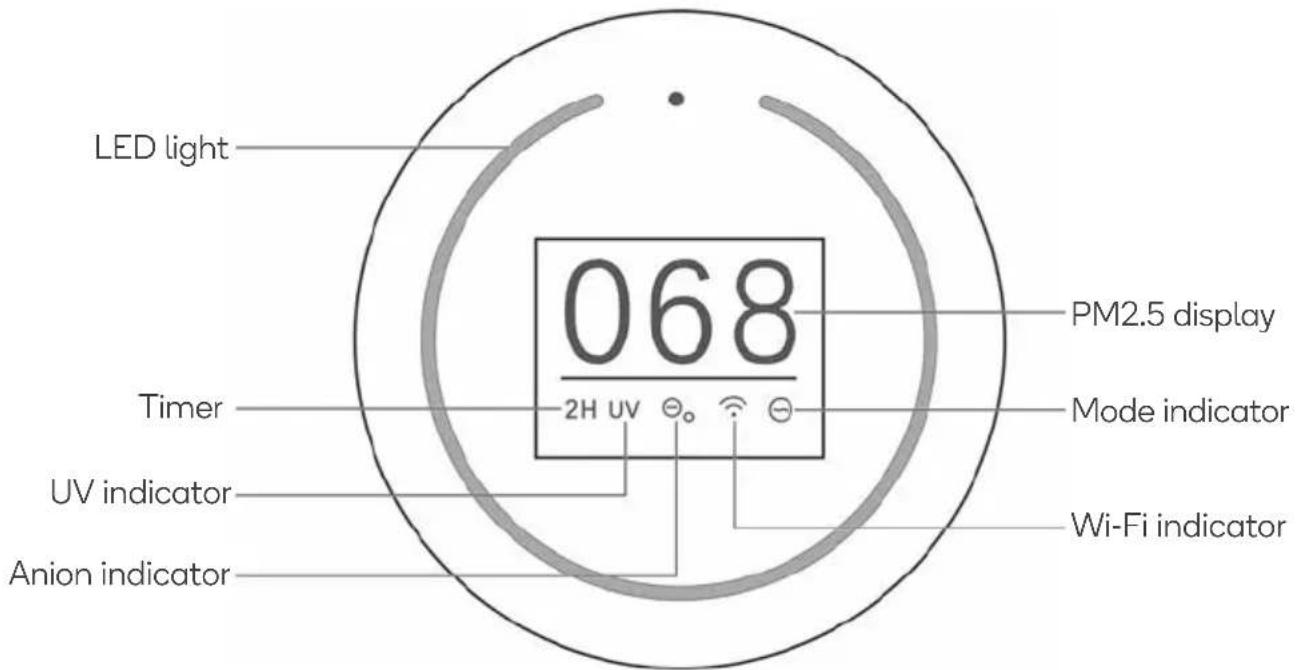
OPERATION
Placement
Place the air purifier on dry, stable, flat surface. Ensure there is at least a 30cm clearance around the back and sides, and a 50cm clearance above the air purifier.
Powering on/off
Plug the power cord of the air purifier into the power socket, then turn the socket on.
The air purifier will emit a sound before the LED light and display panel flashes once. This will indicate the air purifier has entered standby.
Press the power button to turn the air purifier on/off.
Modes
This air purifier features four modes:
- Auto – The air purifier will automatically adjust the fan speed to regulate the air quality to ideal levels.
- Sleep – The air purifier will operate at a lower noise level, ideal when sleeping.
- Mid – The air purifier will operate at a medium intensity.
- High – The air purifier will operate at a high intensity.
When turned on, the air purifier will operate in auto mode. This will be indicated by the mode indicator on the display panel.
The LED light will also illuminate a colour to reflect the air quality measured by the amount of PM_2.5 particles g/m^3 . The lower the number, the less pollutants there are in the air. This is shown as below.
| PM _2.5 μg/m ^3 | LED light colour |
| 0-75 | Blue |
| 76-150 | Yellow |
| >151 | Red |
aa
UV/Anion button
This air purifier can use either UV light or anions to remove bacteria and other pollutants in the air.
To set whether the air purifier uses UV light or anions, press the UV/Anion button. The relevant UV or anion indicator will illuminate on the display panel to reflect this.
Note:
If UV light is being used, the air purifier will intermittently operate it every two hours.
Timer
The air purifier can be set to turn off automatically after a pre-determined number of hours (2–24 hours).
Press the timer button to set how long from now the air purifier will turn off. This will be reflected on the display panel (2H-4H-6H-8H-10H-12H-24H-cancel).
To cancel the timer, press and hold the timer button.
CONNECT TO SMARTERHOME™ APP
This air purifier can connect to the Kogan SmarterHome™ app in three different ways.
- AP mode
- EZ mode
- Bluetooth
AP mode connection
Install App
Download the 'Kogan SmarterHome' app from the Play Store (Android) or App Store (iOS).

Play Store (Android)


App Store (iOS)

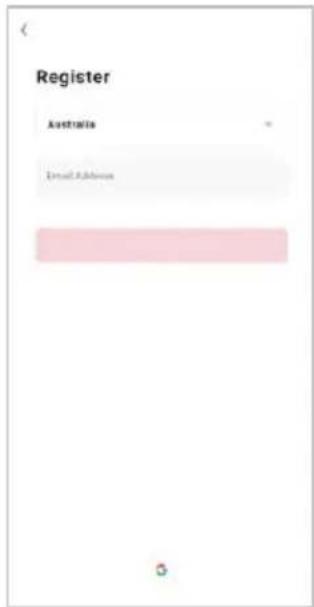
Toregister:
- If you already have a SmarterHome account, select 'Log In'. To register a new account, select 'Sign Up'.
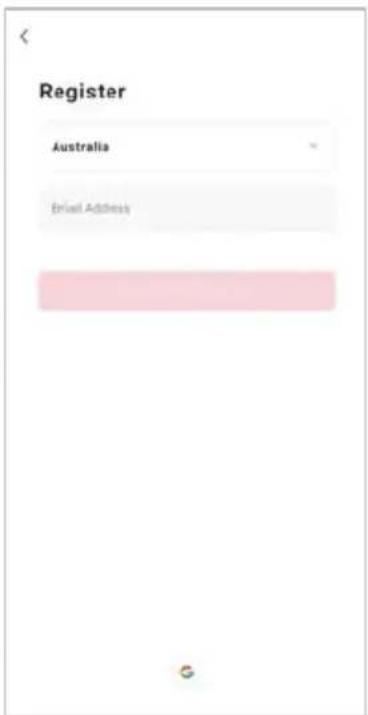
- The system will automatically recognise your country. If needed, you can manually select your country from the drop-down box. Enter your email address and tap 'Get Verification Code' to continue.
- A 6-digit code will be sent to the submitted email address. Enter this code before the one-minute timer expires.
- Continue to the next page and complete your SmarterHome profile.


Set device in pairing mode
When the device is first turned on, it may automatically enter pairing mode (the Wi-Fi indicator will be flashing slowly).
If not automatically in pairing mode when powered on, you can manually set the device in pairing mode by pressing and holding the UV/Anion button until the Wi-Fi indicator is flashing slowly.
Add device through network
- Once registered, tap 'Add Device' on the app's home page, or the '+' in the upper right corner, to add a new device through the network.
- Select the product type from the list of options in the app (Air Treatment > Air Purifiers).
- Adjust your connection method by tapping on the mode type in the top-right corner of the screen. Select 'AP Mode' for the set-up type.
- Ensure that the device is in pairing mode, with the Wi-Fi indicator flashing slowly, and tap 'Confirm light is slowly flashing'.
- Enter your Wi-Fi details. It is important that your SmarterHome™ device and the app are connected to the same Wi-Fi network during setup.


Notes:
• The device and the app have to use the same Wi-Fi network.
• The device is only compatible with 2.4Ghz networks.
- Follow the in-app prompts to continue AP Mode connection, which will pair your mobile phone to the device's Wi-Fi hotspot to ensure a connection. This may be named 'SL-KoganSmart', 'SmartLife-XXXX', or another similar name.
Note:
If the Wi-Fi hotspot does not appear on your phone in the list of available networks, your device may not be set in AP Pairing Mode correctly. Try repeating the steps outlined above to ensure your device is ready for connection.
- The device will commence the pairing process and connect to the app. Ensure your Wi-Fi router, mobile phone, and the SmarterHome™ device are kept close until connection is complete.
- After successfully being added, you will have the option to rename the device and assign it to a location. It will now be listed on the app's home page. Tap the device listing to enter its control page.


Note:
Once connected, you can select Create Scene from the ‘+’ in the upper right corner (or from the Scene tab) to group connected SmarterHome™ products and automate their functions.
Having trouble connecting?
The prior steps detail the process for 'AP Mode' connection. If that does not work for your connection, we suggest trying it again, and if still unsuccessful, attempting the following method for EZ Mode connection.
Set device in EZ pairing mode
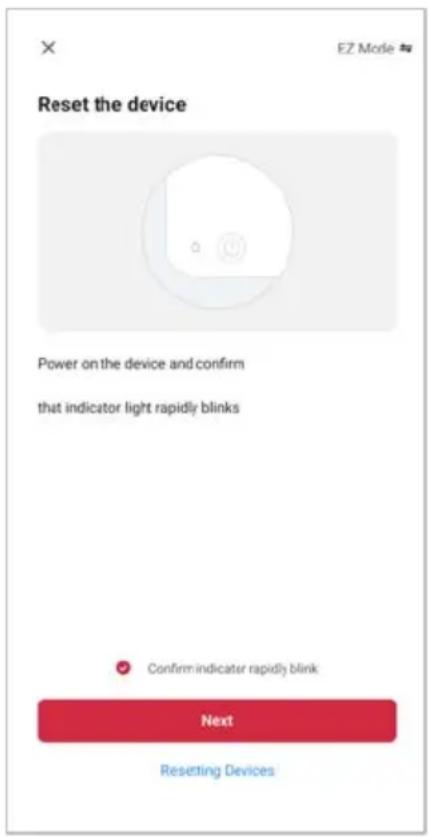
Set the device in pairing mode by pressing and holding the UV/Anion button until the Wi-Fi indicator starts flashing rapidly.
Using EZ Mode to add device
- Follow the previous steps to select your product type (Air Treatment > Air Purifiers).
- Adjust your connection method by tapping on the mode type in the top-right corner of the screen. Select 'EZ Mode' for the set-up type.
- Enter your Wi-Fi details. It is important that your SmarterHome™ device and the app are connected to the same Wi-Fi network during setup.


Notes:
• The device and the app have to use the same Wi-Fi network.
• The device is only compatible with 2.4Ghz networks.
- Ensure that the device is in pairing mode, with the Wi-Fi indicator flashing rapidly, and tap 'Next'.
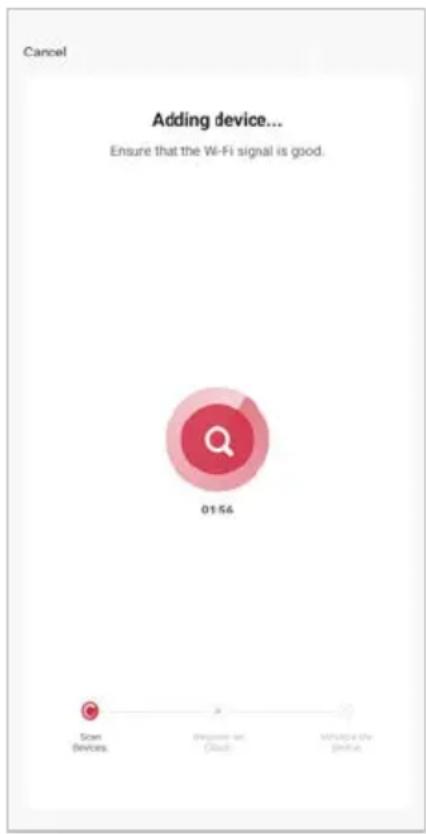
- The device will commence the pairing process and connect to the app. Ensure your Wi-Fi router, mobile phone, and the SmarterHome™ device are kept close until connection is complete.
- After successfully being added, you will have the option to rename the device and assign it to a location. It will now be listed on the app's home page. Tap the device listing to enter its control page.

Note:
Once connected, you can select Create Scene from the “+” in the upper right corner (or from the Scene tab) to group connected SmarterHome™ products and automate their functions.
Bluetooth connection
Install App
Download the "Kogan SmarterHome" app from the Play Store (Android) or App Store (iOS).

Play Store (Android)

App Store (iOS)

Toregister:
- If you already have a SmarterHome account, select 'Log In'. To register a new account, select 'Sign Up'.
- The system will automatically recognise your country. If needed, you can manually select your country from the drop-down box. Enter your email address and tap 'Get Verification Code' to continue.
- A 6-digit code will be sent to the submitted email address. Enter this code before the one-minute timer expires.
- Continue to the next page and complete your SmarterHome profile.

Set device in pairing mode
When the device is first turned on, it may automatically enter pairing mode (Wi-Fi indicator will be flashing rapidly).
If not automatically in pairing mode when powered on, you can manually set the device in pairing mode by pressing and holding the mode button for two seconds until the Wi-Fi indicator is flashing rapidly.
Add device through network
- Once registered, tap "Add Device" on the app's home page, or the "+" in the upper right corner, to add a new device through the network.
- Select the product type from the list of options in the app (Air Treatment > Air Purifiers).
- Enter your Wi-Fi details. It is important that your SmarterHome™ device and the app are connected to the same Wi-Fi network during setup.
Notes:
- The device and the app have to use the same Wi-Fi network.
-
The device is only compatible with 2.4Ghz networks.
-
Ensure that the device is in pairing mode, with the Wi-Fi indicator flashing rapidly, and tap 'Next'.
- The device will commence the pairing process and connect to the app. Ensure your Wi-Fi router, mobile phone, and the SmarterHome™ device are kept close until connection is complete.
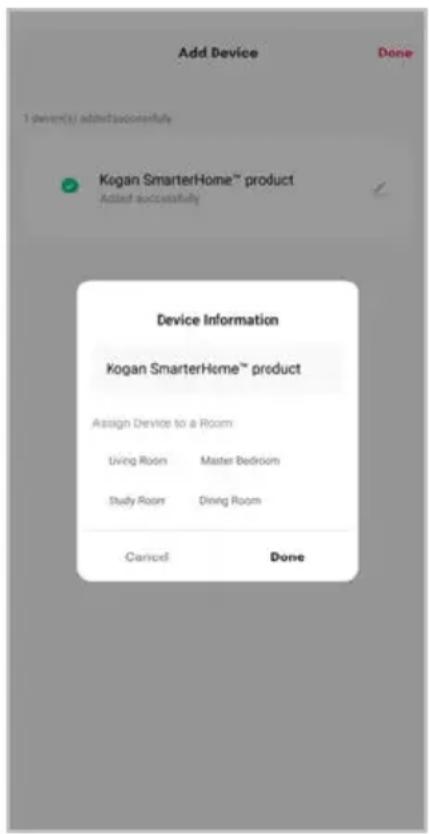
- After successfully being added, you will have the option to rename the device and assign it to a location. It will now be listed on the app's home page. Tap the device listing to enter its control page.


Note:
Once connected, you can select Create Scene from the “+” in the upper right corner (or from the Scene tab) to group connected SmarterHome™ products and automate their functions.
CLEANING & CARE
Ensure the air purifier is turned off and unplugged before cleaning.
- Remove the filter and take it outdoors to a well-ventilated area. Gently pat the dust off the outer surface of the filter. The filter should be regularly put under direct sunlight to sterilise bacteria.
- Using a soft cloth and neutral detergent, clean the air inlet/outlet and exterior of the air purifier. Allow to dry.
- After the air purifier is dry, reinsert the filter, and place a dust cover/bag over the appliance.
Notes:
- Ensure no water drops into the appliance when cleaning.
- Do not immerse the air purifier into water or any liquid.
- Do not use abrasive, corrosive, or flammable cleansers (for example, bleach, alcohol) to clean any part of the appliance.
- Do not wash the filter.
- Do not use a vacuum cleaner to clean the filter.
Filter replacement
When the display panel shows the indicator that the filter has finished its service life (2200 hours) and the LED light is flashing yellow, the filter must be replaced.
Ensure the air purifier is turned off and unplugged before replacing the filter.

Note:
Do not use third-party filters with this air purifier.
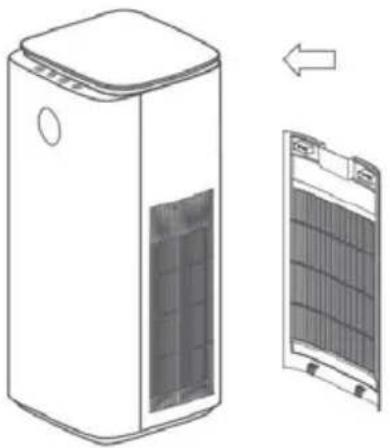
To replace the filter:
-
Turn off the air purifier and unplug the power cord from the power socket.
-
Open the back cover.

natural_image
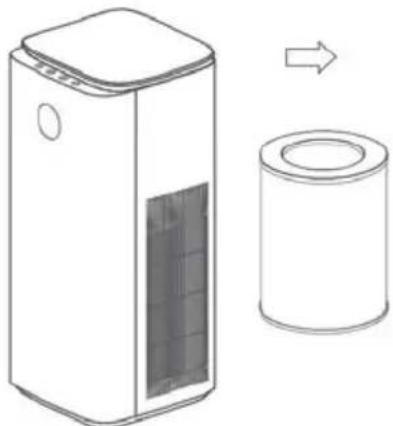
Diagram of a white air purifier with a side view showing internal structure (no text or symbols)- Remove the filter.
natural_image
Line drawing of a portable air purifier next to a cylindrical container, with an arrow indicating transformation (no text or symbols present)- Remove the packaging from the new filter (not included).

- Rotate the bottom cover of the filter in the direction marked 'Close', then insert the new filter into the air purifier.

natural_image
Line drawing of a two-cell air purifier with a side view showing internal structure (no text or symbols)- Reinstall the back cover.
natural_image
Technical line drawing of a portable air conditioner unit with side profile view (no text or symbols)-
After replacing the filter, plug the power cord of the air purifier into the power socket, and press the power button. The display panel will still show the indicator that the filter has finished its service life, and the LED light will still be flashing yellow.
-
Press and hold the mode button for seven seconds and the display will show the 'Filter 100%' indicator to indicate the filter has been replaced successfully.
If the filter needs to be replaced before 2200 hours of use:
-
Press and hold the mode button for 7 seconds. The filter reset icon “☐” will appear on the display.
-
Press the mode button again to reset the filter to 100%.
Storage
Place it in a well-ventilated area away from direct sunlight.
If the air purifier will not be used for an extended period, ensure to turn on the appliance every now and then to ensure good performance.
TROUBLESHOOTING
| Problem | Solution |
| The air purifier is not working. | ·Ensure there is no power outage and that the power socket is well connected.·Ensure the filter has not finished its service life. If so, turn off and unplug the air purifier, then replace the filter. |
| The volume of air being emitted from the appliance is less than usual. | ·Ensure there is no dust on the filter. If there is dust, clean the filter.·Ensure the air inlet and air outlet are not blocked. Remove any blockage if necessary. |
| The air purifier is making significant noises. | ·Ensure there is nothing stuck on the air outlet. If so, clean the air outlet.·Ensure the appliance is placed on a stable, flat surface.·Adjust the appliance to a lower volume mode (for example, sleep mode). |
| The air purifier is emitting an odour. | ·It is normal that air purifiers may smell like plastic the first few times they are used.·If the filters are dirty, the air purifier will emit an odour. Clean or replace the filters.·If there is a burning smell, unplug the power cord immediately. Stop use and contact help.Kogan.com for assistance. |
| The reminder for filter replacement keeps appearing after the new filter has been installed. | The timer for the filter must be reset. Press and hold the mode button for seven seconds. The yellow LED light will disappear, and the filter timer will be reset. |
If the above troubleshooting solutions above do not solve your issues, contact help.Kogan.com for support. Do not dismantle or attempt to repair the air purifier yourself.
SPECIFICATIONS
Dimensions 700 x 310 x 310mm
Weight 8.8kg
Rated voltage 100-240V, 50/60Hz
Power 60W
Noise 56dB
Coverage area 77m^2
NOTES
Need more information?
We hope that this user guide has given you the assistance needed for a simple set-up.
For the most up-to-date guide for your product, as well as any additional assistance you may require, head online to help.kogan.com
kogan.com


- KOGAN SMARTERHOME™ AIR PURIFIER 5S
- SAFETY & WARNINGS
- OVERVIEW
- Control panel
- Display panel
- OPERATION
- Placement
- Powering on/off
- Modes
- aa
- UV/Anion button
- Note:
- Timer
- CONNECT TO SMARTERHOME™ APP
- AP mode connection
- Install App
- Toregister:
- Set device in pairing mode
- Add device through network
- Notes:
- Having trouble connecting?
- Set device in EZ pairing mode
- Using EZ Mode to add device
- Bluetooth connection
- CLEANING & CARE
- Filter replacement
- Storage
- TROUBLESHOOTING
- SPECIFICATIONS
- NOTES
- Need more information?
Brand : Kogan
Model : KASMAPF5SIA
Category : Air purifier