MI-8030W - Office Mount-It! - Free user manual and instructions
Find the device manual for free MI-8030W Mount-It! in PDF.


| Product Type | Height-Adjustable Standing Desk |
| Brand | Mount-It! |
| Model | MI-8030W |
| Overall Dimensions (W x D) | 48 x 30 inches (122 x 76 cm) |
| Height Range | 28 to 48 inches (71 to 122 cm) |
| Weight Capacity | 265 lbs (120 kg) |
| Adjustment Type | Electric with memory presets |
| Number of Motors | Single motor |
| Desk Shape | Rectangular |
| Desktop Material | Engineered wood with laminate finish |
| Frame Material | Steel |
| Color | White frame with white desktop |
| Power Supply | 100-240V AC, 50/60Hz |
| Cable Management | Included cable tray |
| Assembly Required | Yes (with included tools) |
| Warranty | 2 years limited |
| Weight of Desk | 78 lbs (35 kg) |
| Cleaning Instructions | Wipe with a damp cloth; do not use abrasive cleaners |
| Certifications | UL, FCC |
Frequently Asked Questions - MI-8030W Mount-It!
User questions about MI-8030W Mount-It!
0 question about this device. Answer the ones you know or ask your own.
Ask a new question about this device
Download the instructions for your Office in PDF format for free! Find your manual MI-8030W - Mount-It! and take your electronic device back in hand. On this page are published all the documents necessary for the use of your device. MI-8030W by Mount-It!.
USER MANUAL MI-8030W Mount-It!
Digital Control Panel For Electric Height Adjustable Desk
Installation Instruction & User Guide
natural_image
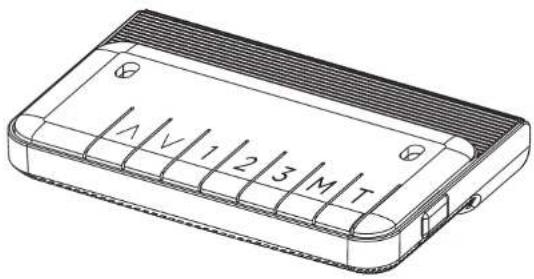
Technical line drawing of a rectangular electronic device with labeled pins (no text or symbols beyond basic markings)Model: MI-8030W MI-8030B
VISIT US AT MOUNT-IT.COM FOR PRODUCT REGISTRATION AND WARRANTY INFORMATION, CONTACT US AT SUPPORT@MOUNT-IT.COM OR 855-925-5668 FOR QUESTIONS OR COMMENTS.
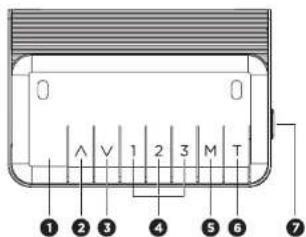
1 Operating Control Panel
text_image
1 2 3 4 5 6 71 Display
2 Upward movement
3 Downward movement
4 Memory 1/2/3
5 Memory/Screen lock (unlock)
6 Timer
7 USB port for charging (optional, according to the actual product received)
Note: Before first time use, please reset the system before operating.
Reset the System:
- To reset the system, press and hold the "Up" and "Down" buttons simultaneously. The unit will emit one beep, the display will show "rsf" and the desk will automatically move down to the lowest position. Do not release the "Up" and "Down" buttons until the unit emits another beep. The desk will raise slightly, and the display will show the current height, then the reset is complete.
Height Adjustment: Press and hold the "UP"/"DOWN" button to raise/lower the desk to your desired height. Release the button at any time to stop at a specific height.
Timer:
- Press the "T" button to initiate the timer. Each press of the "T" button will start a 30-minute timer, up to a maximum of 2 hours (4 button presses.) After pressing the timer button, the screen will flash and then return to displaying the current height of the desk. A light on the top right of the panel will remain on to indicate that the timer is running.
- When the timer is up the unit will beep 5 times.
- To cancel the timer, press the "T" button multiple times until the maximum timer is exceeded and the screen returns to displaying the current height of the desk and the indicator light in the top right corner is off.
Memory Setting:
- To save a height setting, press the "M" button and the display will flash "S-", then press the buttons 1, 2, or 3 to save that position to the corresponding button.
• To move the desk to the saved height setting, press the button 1, 2, or 3 and the desk will begin moving to the saved position. The display will show the height of the desk as it moves to the saved position and you may press any button to stop the movement of the desk.
Screen Locking Function:
- The control panel includes a locking function which must be activated to enable use of the lock. To activate/deactivate the locking function follow the Programming Guide in part 3 of this manual.
- To lock the control panel, press the "M" button for 3 seconds. Once locked the screen will only display a dashed bar "----" and no other button on the panel will function.
- To unlock the control panel, press the "M" button for 3 seconds. The screen will now display the height of the desk. If no buttons are pressed within 60 seconds the control panel will automatically lock again.
Change Measurement Unit – CM/IN: Press the "T" button for 3 seconds and the measurement unit will switch between Centimeters and Inches.
Power-Saving Mode: The control panel will automatically enter power saving mode after 10 minutes of no activity, and the screen will become dark. Press any button to activate the control panel.
2
Troubleshooting Guide

This troubleshooting guide is to be used to identify and resolve minor problems identified by the error code displayed on the screen. If the following guide cannot be used to resolve the error, please contact Mount-It! for further assistance.
| Error No. | Description | Error No. | Description |
| E01/E07 | Electrical fault. Disconnect the power from the wall, plug it back in, then try again. | E12/E22 | Electrical Fault. Disconnect the power from the wall, plug it back in, then try again. If this error code persists the control box may be faulty. |
| HOT | Overheating. Stop operation and allow the desk to remain idle for 20 minutes before resuming operation. | E13/E23 | Motor wires may be damaged. Check all connections for damage. E14 corresponds to the M1 connection. E23 corresponds to the M2 connection. |
| E02 | Alignment/Movement Error. Perform a system reset as described in Part 1 of this manual. | E14/E24 | Hall wires may be damaged. Check all connections for damage. E14 corresponds to the M1 connection. E23 corresponds to the M2 connection. |
| E04 | Control Panel not connected properly. Check all connections. Unplug the power cable from the wall, then plug it back in. | E15/E25 | Short Circuit. Motors or Columns are damaged. Contact Mount-It! for further assistance. E15 corresponds to the M1 connection. E25 corresponds to the M2 connection. |
| E05 | Collision avoidance system activated. Remove all obstructions before resuming operation. | E16/E26 | Motor Unable to Move. Overload protection activated. The desk is over the weight limit. Remove objects from the desk surface then perform a system reset. |
| E06 | Electrical Fault. Disconnect the power from the wall, plug it back in, then try again. If this error code persists the control box may be faulty. | E17/E27 | Motor fault/motors not synchronized. Check all connections. E17 corresponds to the M1 connection. E27 corresponds to the M2 connection. |
| E08 | Collision avoidance system activated. Remove all obstructions before resuming operation.Control Box is not installed properly. Ensure the control box is properly attached to the frame of the desk as shown in the installation manual, and ensure the desk is on an even surface.The power cables may have pulled on the control box. Ensure the cables have enough slack in them during all height positions. | E18/E28 | Overload protection activated. The desk is over the weight limit. Remove objects from the desk surface then perform a system reset. |
| E42 | Memory Error. Unplug the power cable from the wall, then plug it back in. If the error persists, perform a system reset or contact Mount-It! for further assistance. | ||
| E11/E21 | The motor cords were disconnected. Check the cable connections. E11 corresponds to the M1 connection. E21 corresponds to the M2 connection. | E43 | Collision avoidance system fault. The control box is not operating properly. Contact Mount-It! for further assistance. |
3
Custom Programming Guide
| Button Function: | 5-1Adjust Minimum Height Limit(62~116cm/24.4"-46.4") | 5-2Adjust Maximum Height Limit(72~128cm/28.3"-50.4") | 5-3Adjust Anti-Collision Sensitivity During Upward Movement (Level 0-Level 8) | 5-4Adjust Anti-Collision Sensitivity During Downward Movement (Level 0-Level 8) | 5-5Adjust Tilt Protection Sensitivity (Gyro Sensor) (Level 0-Level 8) | 5-6Change the Desktop Thickness(0~5cm/0~1.9") | 5-7Activate/Deactivate the Screen Lock Function(0:OFF/1:ON) | ||
 —— Height Adjustment —— Height Adjustment | Step 1:Selecting | Press "M" and "T" buttons simultaneously for 5 seconds until the unit emits one beep and the display flashes "S-1". Press "Up"/"Down" button to switch through from "S-1" to "S-7" and stop at the setting you want to adjust.If no actions are taken within 10 seconds, the control panel will automatically exit the setup screen. | |||||||
| Step 2:Programming | When the display is flashing "S-1", press the "M" button once. The current Maximum Height will be displayed (default setting is 128 cm.) Note. Due to the size range of the display screen, if the Measurement (Unit is set to Metric measurements past 100mm will not display micrometers. Multiple presses of the "Up"/"Down" buttons may be required before the displayed number changes.) | When the display is flashing "S-2", press the "M" button once. The current Maximum Height will be displayed (default setting is 128 cm.) Note. Due to the size range of the display screen, if the Measurement (Unit is set to Metric measurements past 100mm will not display micrometers. Multiple presses of the "Up"/"Down" buttons may be required before the displayed number changes.) | When the display is flashing "S-3", press the "M" button once. The current Anti-Collision Sensitivity during upward movement will be displayed (default setting is 128 cm.) Note. Due to the size range of the display screen, if the Measurement (Unit is set to Metric measurements past 100mm will not display micrometers. Multiple presses of the "Up"/"Down" buttons may be required before the displayed number changes.) | When the display is flashing "S-4", press the "M" button once. The current Anti-Collision Sensitivity during downward movement will be displayed (default setting is 128 cm.) Note. Due to the size range of the display screen, if the Measurement (Unit is set to Metric measurements past 100mm will not display micrometers. Multiple presses of the "Up"/"Down" buttons may be required before the displayed number changes.) | When the display is flashing "S-5", press the "M" button once. The current Anti-Collision Sensitivity during downward movement will be displayed (default setting is 128 cm.) Note. Due to the size range of the display screen, if the Measurement (Unit is set to Metric measurements past 100mm will not display micrometers. Multiple presses of the "Up"/"Down" buttons may be required before the displayed number changes.) | When the display is flashing "S-6", press the "M" button once. The current Anti-Collision Sensitivity during downward movement will be displayed (default setting is 128 cm.) Note. Due to the size range of the display screen, if the Measurement (Unit is set to Metric measurements past 100mm will not display micrometers. Multiple presses of the "Up"/"Down" buttons may be required before the displayed number changes.) | When the display is flashing "S-7", press the "M" button once. The current Anti-Collision Sensitivity during downward movement will be displayed (default setting is 128 cm.) Note. Due to the size range of the display screen, if the Measurement (Unit is set to Metric measurements past 100mm will not display micrometers. Multiple presses of the "Up"/"Down" buttons may be required before the displayed number changes.) | When the display is flashing "S-7", press that the "M" button once. The current Anti-Collision Sensitivity during downward movement will be displayed (default setting is 128 cm.) Note. Due to the size range of the display screen, if the Measurement (Unit is set to Metric measurements past 100mm will not display micrometers. Multiple presses of the "Up"/"Down" buttons may be required before the displayed number changes.) | |
| Step 3:Saving | Press "M" to save. "L-S"-successful "L-F"-failed | Press "M" to save. "H-S"-successful "H-F"-failed | Press "M" to save. "S-S"-successful "S-F"-failed | Press "M" to save. "S-S"-successful "S-F"-failed | Press "M" to save. "S-S"-successful "S-F"-failed | Press "M" to save. "S-S"-successful "S-F"-failed | Press "M" to save. "T-S"-successful "T-F"-failed | Press "M" to save. "A-S"-successful "A-F"-failed | |
Note:
- To leave the settings menu press the "T" button or wait for 10 seconds until the display automatically returns to displaying the height of the desk.
- The Min/Max height settings in "S-1" and "S-2" do NOT include the thickness of the desktop.