
B660M-SILVER - Motherboard BIOSTAR - Free user manual and instructions
Find the device manual for free B660M-SILVER BIOSTAR in PDF.


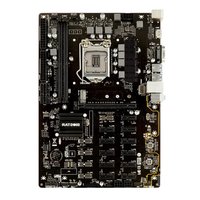
| Product Type | Motherboard |
| Brand | Biostar |
| Model | B660M-SILVER |
| Form Factor | uATX (244 mm x 244 mm) |
| CPU Support | 12th/13th/14th Gen Intel Core i9/i7/i5/i3, Pentium, Celeron (LGA1700) |
| Chipset | Intel B660 |
| Memory | 4 x DDR4 DIMM, dual channel, up to 128GB, supports DDR4-5000+(OC)/4300/4133/4000/3800/3600/3200/2933 |
| Storage | 2 x M.2 (1x PCIe 4.0 x4, 1x PCIe 4.0 x4/SATA), 4 x SATA III (6 Gb/s), supports RAID 0/1/5/10 |
| Expansion Slots | 1 x PCIe 5.0 x16, 1 x PCIe 3.0 x16 (x4 mode), 1 x PCIe 3.0 x1 |
| LAN | Realtek RTL8125B 2.5 Gigabit Ethernet |
| Audio | Realtek ALC1220 7.1-channel HD Audio, Hi-Fi (front) |
| USB Ports (Rear) | 1 x USB 3.2 Gen2 Type-C, 5 x USB 3.2 Gen2, 2 x USB 2.0 |
| USB Ports (Internal) | 1 x USB 3.2 Gen2 Type-C header, 1 x USB 3.2 Gen1 header (2 ports), 2 x USB 2.0 headers (4 ports) |
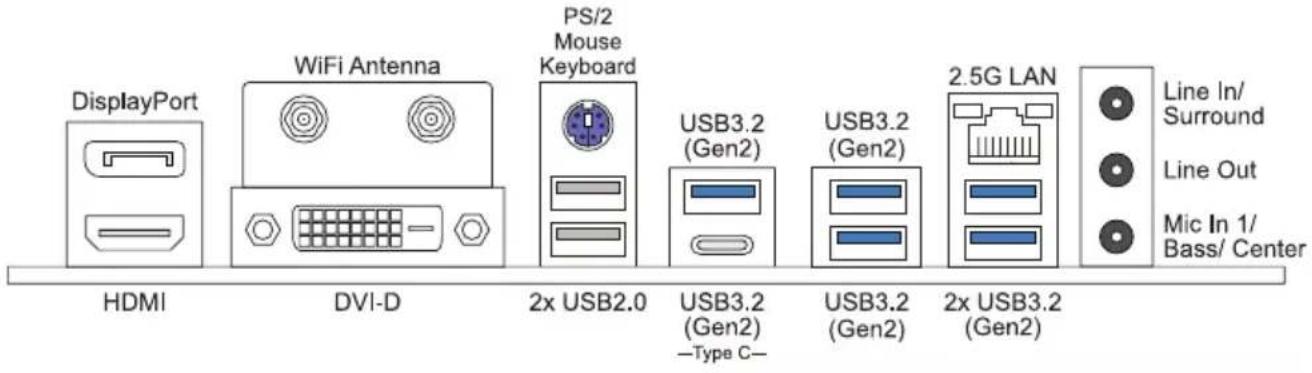
| Rear I/O | 2 x WiFi antenna, 1 x PS/2, 1 x HDMI 2.0, 1 x DP, 1 x DVI-D, 1 x LAN, 3 x audio jacks |
| Internal I/O | 1 x 24-pin ATX, 1 x 8-pin CPU, 1 x CPU fan, 1 x CPU_OPT, 3 x system fans, 1 x front panel, 1 x front audio, 1 x COM, 1 x TPM, 1 x Thunderbolt, 2 x 5V RGB, 1 x 12V RGB, M.2 E-key (WiFi/BT) |
| BIOS | UEFI BIOS with BIO-Flasher and Windows update utility |
| Software | RACING GT EVO (system info, fan control, RGB, overclocking), BIOScreen, Vivid LED DJ |
| Operating System | Windows 10 (64-bit), Windows 11 (64-bit) |
| Weight (Estimated) | ~0.7 kg (1.5 lbs) |
| Package Contents | Motherboard, 4 x SATA cables, rear I/O shield, quick installation guide, driver DVD |
| Safety Precautions | Disconnect power before installation; use anti-static measures; avoid moisture and heat; operate between 0-45°C |
| Cleaning | Use compressed air or soft brush; avoid liquid cleaners; unplug before cleaning |
| Reparability | User-replaceable CPU, memory, storage, expansion cards; requires proper handling of pins and connectors |
Frequently Asked Questions - B660M-SILVER BIOSTAR
User questions about B660M-SILVER BIOSTAR
0 question about this device. Answer the ones you know or ask your own.
Ask a new question about this device
Download the instructions for your Motherboard in PDF format for free! Find your manual B660M-SILVER - BIOSTAR and take your electronic device back in hand. On this page are published all the documents necessary for the use of your device. B660M-SILVER by BIOSTAR.
USER MANUAL B660M-SILVER BIOSTAR
FCC Information and Copyright
This equipment has been tested and found to comply with the limits of a Class B digital device, pursuant to Part 15 of the FCC Rules. These limits are designed to provide reasonable protection against harmful interference in a residential installation. This equipment generates, uses, and can radiate radio frequency energy and, if not installed and used in accordance with the instructions, may cause harmful interference to radio communications. There is no guarantee that interference will not occur in a particular installation.
The vendor makes no representations or warranties with respect to the contents here and specially disclaims any implied warranties of merchantability or fitness for any purpose. Further the vendor reserves the right to revise this publication and to make changes to the contents here without obligation to notify any party beforehand.
Duplication of this publication, in part or in whole, is not allowed without first obtaining the vendor's approval in writing.
The content of this user's manual is subject to be changed without notice and we will not be responsible for any mistakes found in this user's manual. All the brand and product names are trademarks of their respective companies.

Short Declaration of conformity We declare this product is complying with the laws in force and meeting all the essential requirements as specified by the directives 2004/108/CE, 2006/95/CE and 1999/05/CE whenever these laws may be applied

The terms HDMI and HDMI High-Definition Multimedia Interface, and the HDMI Logo are trademarks or registered trademarks of HDMI Licensing Administrator, Inc. in the United States and other countries.
Table of Contents
FCC Information and Copyright 1
Chapter 1: Introduction......3
1.1 Before You Start 3
1.2 Package Checklist....3
1.3 Specifications....4
1.4 Rear Panel Connectors....6
1.5 Motherboard Layout 7
Chapter 2: Hardware installation....9
2.1 Install Central Processing Unit (CPU) 9
2.2 Install a Heatsink....11
2.3 Connect Cooling Fans 12
2.4 Install System Memory 13
2.5 Expansion Slots 15
2.6 Jumper & Switch Setting 18
2.7 Headers & Connectors....19
2.8 LEDs 25
Chapter 3: UEFI BIOS & Software....26
3.1 UEFI BIOS Setup 26
3.2 BIOS Update 26
3.3 Software.... 30
Chapter 4: Useful help....40
4.1 Driver Installation 40
4.2 AMI BIOS Beep Code 41
4.3 AMI BIOS post code 41
4.4 Troubleshooting 43
4.5 Intel® Optane™ Technology (powered by 3D XPoint memory)...... 44
APPENDIX I: Specifications in Other Languages 45
Arabic 45
German 47
Spanish 49
Thai 51
Japan 53
Chapter 1: Introduction
1.1 Before You Start
Thank you for choosing our product. Before you start installing the motherboard, please make sure you follow the instructions below:
- Prepare a dry and stable working environment with sufficient lighting.
• Always disconnect the computer from power outlet before operation. - Before you take the motherboard out from anti-static bag, ground yourself properly by touching any safely grounded appliance, or use grounded wrist strap to remove the static charge.
- Avoid touching the components on motherboard or the rear side of the board unless necessary. Hold the board on the edge, do not try to bend or flex the board.
- Do not leave any unfastened small parts inside the case after installation. Loose parts will cause short circuits which may damage the equipment.
- Keep the computer from dangerous area, such as heat source, humid air and water.
- The operating temperatures of the computer should be 0 to 45 degrees Celsius.
• To avoid injury, be careful of:
Sharp pins on headers and connectors
Rough edges and sharp corners on the chassis
Damage to wires that could cause a short circuit
1.2 Package Checklist
- Serial ATA Cable x4
- Rear I/O Panel for ATX Case x1 (B660M-SILVER)
- Quick Installation Guide x1
• Fully Setup Driver DVD x1
Note
» The package contents may be different due to the sales region or models in which it was sold. For more information about the standard package in your region, please contact your dealer or sales representative.
1.3 Specifications
| Specifications | |
| CPU Support | Support for 12th/13th/14th Generation Intel® CoreTM i9/ i7/ i5/ i3 processors and Intel® Pentium®processors/ Intel® Celeron® processors in the LGA1700 package* Please refer to www.biostar.com.tw for CPU support list. |
| Chipset Intel® B660 | |
| Memory | Supports Dual Channel DDR4 - 5000+(OC)/ 4300(OC)/ 4133(OC)/ 4000(OC)/ 3800(OC)/ 3600(OC)/ 3200/29334x DDR4 DIMM Memory Slot, Max. Supports up to 128 GB MemoryEach DIMM supports non-ECC 4/8/16/32GB DDR4 moduleSupport Intel® Extreme Memory Profile (XMP) memory modules* Please refer to www.biostar.com.tw for Memory support list. |
| Storage | -- Total supports 2x M.2 socket and 4x SATA III (6Gb/s) portsIntel 12th/13th/14th Processors1x M.2 (M Key) Socket (M2_PCIEG4_64G):Supports M.2 Type 2280 SSD moduleSupports PCIe 4.0 x4 (64Gb/s) - NVMe/ AHCI SSDIntel B660 Chipset1x M.2 (M Key) Socket (M2_PCIEG4_64G_SATA):Supports M.2 Type 2242/ 2260/ 2280/ 22110 SSD moduleSupports PCIe 4.0 x4 (64Gb/s) - NVMe/ AHCI SSD & SATA III (6Gb/s)SSD4x SATA III Connector (6Gb/s):Supports AHCI, RAID 0, 1, 5, 10 & Intel® Rapid Storage Technology* Specifications vary by CPU types. |
| LAN | Realtek RTL8125B10/ 100/ 1000/ 2500 Mb/s auto negotiation, Half / Full duplex capability |
| Audio Codec | ALC12207.1 Channels, High Definition Audio, Hi-Fi(Front) |
| USB | 2x USB 3.2 (Gen2) Type-C port (1 on rear I/O and 1 via internal headers)5x USB 3.2 (Gen2) port (5 on rear I/Os)2x USB 3.2(Gen1) port (2 via internal headers)6x USB 2.0 port (2 on rear I/Os and 4 via internal headers) |
| Expansion Slots | Intel 12th/13th/14th Processors1x PCIe 5.0 x16 Slot (x16 mode)Intel B660 Chipset1x PCIe 3.0 x16 Slot (x4 mode)1x PCIe 3.0 x1 Slot* Specifications vary by CPU types. |
| Rear I/Os | 2x WIFI Antenna Port1x PS/2 Keyboard/ Mouse Port1x HDMI Port (HDMI2.0)1x DP Port1x DVI-D Port1x USB 3.2 (Gen2) Type-C Port5x USB 3.2 (Gen2) Port2x USB 2.0 port1x LAN port3x Audio Jack |
» Continued on Next Page
| Specifications | ||
| Internal I/Os | B660GTQ4x SATA III Connector (6Gb/s)1x M.2 (E Key) Socket : Supports 2230 type Wi-Fi & Bluetooth module and Intel® CNVi2x USB 2.0 Header (each header supports 2 USB 2.0 ports)1x USB 3.2 (Gen1) Header (each header supports 2 USB 3.2 (Gen1) ports)1x USB 3.2 (Gen2) Type C Header1x 8-Pin Power Connector1x 24-Pin Power Connector1x CPU Fan Connector1x CPU water cooling connector (CPU_OPT)3x System Fan Connector1x Front Panel Header1x Front Audio Header1x Internal Stereo Speaker Header1x Clear CMOS Header1x COM Port Header1x TPM Header1x Thunderbolt 3 Header2x LED Header (5V)1x LED Header (12V)1x IO LED Header1x SB LED Header* M.2 (E Key) Wi-Fi card is not provided | B660M-SILVER4x SATA III Connector (6Gb/s)1x M.2 (E Key) Socket : Supports 2230 type Wi-Fi & Bluetooth module and Intel® CNVi2x USB 2.0 Header (each header supports 2 USB 2.0 ports)1x USB 3.2 (Gen1) Header (each header supports 2 USB 3.2 (Gen1) ports)1x USB 3.2 (Gen2)Type C Header1x 8-Pin Power Connector1x 24-Pin Power Connector1x CPU Fan Connector1x CPU water cooling connector (CPU_OPT)3x System Fan Connector1x Front Panel Header1x Front Audio Header1x Internal Stereo Speaker Header1x Clear CMOS Header1x COM Port Header1x TPM Header1x Thunderbolt 3 Header2x LED Header (5V)1x LED Header (12V)* M.2 (E Key) Wi-Fi card is not provided |
| Form Factor uATX Form Factor, 244 mm x 244 mm | ||
| OS Support | Windows 10(64bit) / Windows 11(64bit)* Biostar reserves the right to add or remove support for any OS with or without notice. | |
1.4 Rear Panel Connectors
Note
» DP/ HDMI/ DVI-D ports only work with an Intel® integrated Graphics Processor.
» Maximum resolution
HDMI: 4096 x 2160 @60Hz, compliant with HDMI 2.0
DP: 4096 x 2304 @60Hz
DVI-D: 1920 x 1200 @60Hz
» The mainboard supports three onboard display outputs at same time and the display output configuration can be selected in Intel graphics driver utility.
» When using the front HD audio jack and plug in the headset / microphone, the rear sound will be automatically Disabled.
» The WiFi antenna port allows you to connect to the E Key module and use the WiFi & Bluetooth function.
1.5 Motherboard Layout
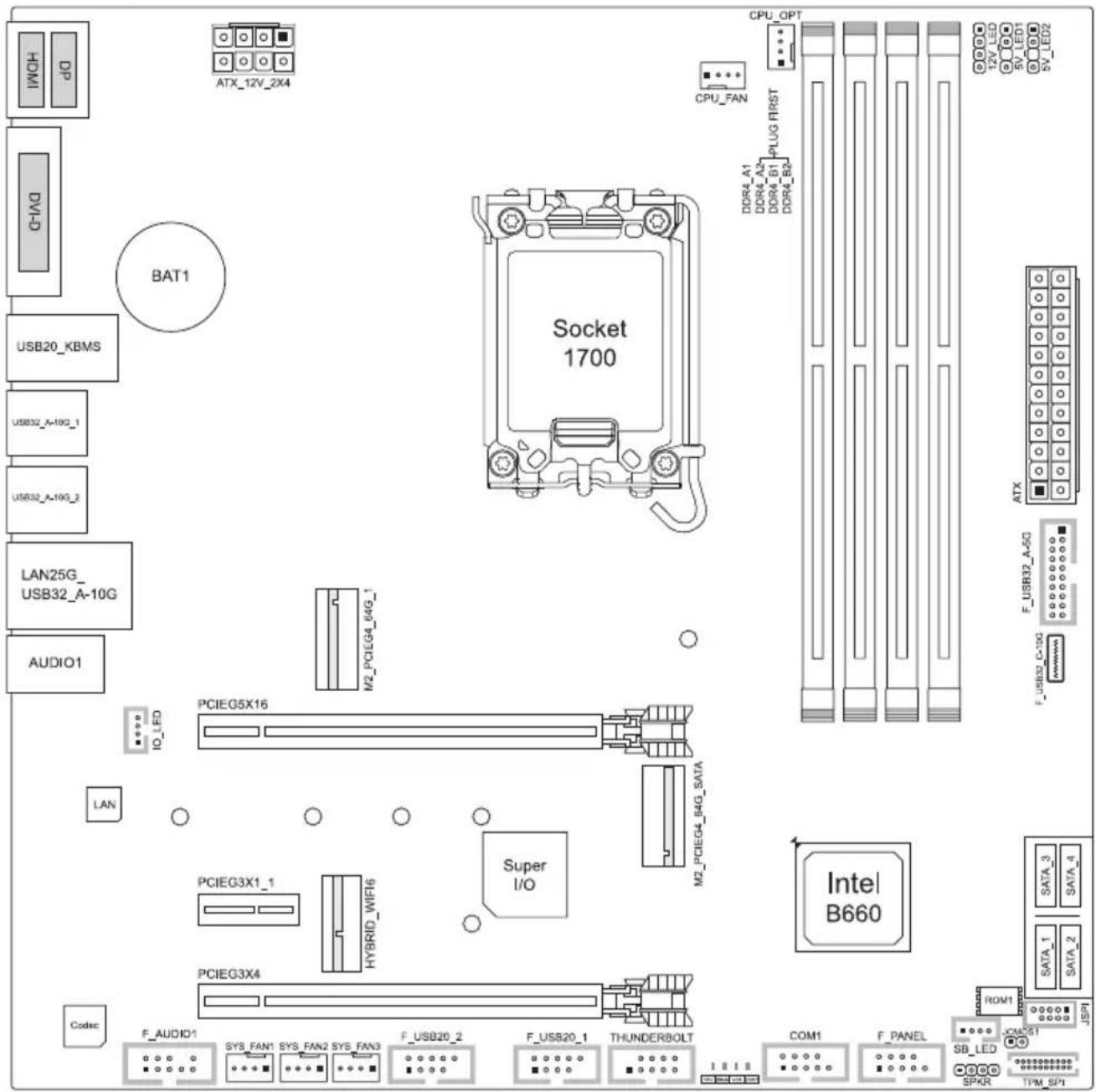
B660GTQ
Note
» ■ represents the 1st pin.
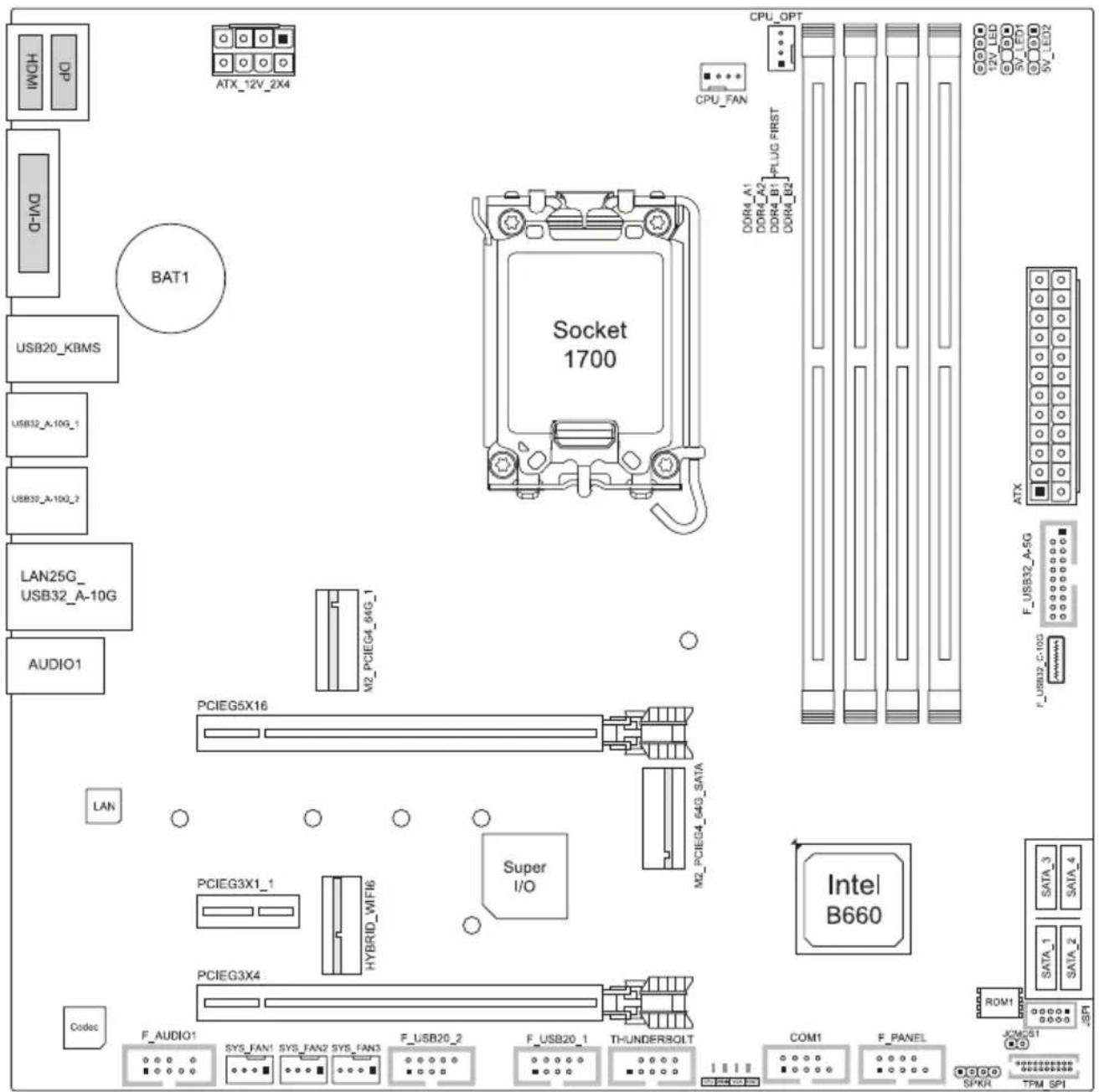
B660M-SILVER
Note
» ■ represents the 1st pin.
Chapter 2: Hardware installation
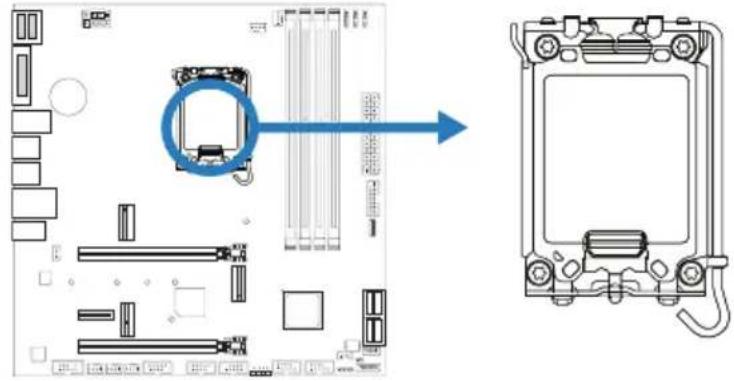
2.1 Install Central Processing Unit (CPU)
Step 1: Locate the CPU socket on the motherboard
Note
» Remove pin cap before installation, and make good preservation for future use. When the CPU is removed, cover the pin cap on the empty socket to ensure pin legs won't be damaged.
» The motherboard might equip with two different types of pin cap. Please refer below instruction to remove the pin cap.
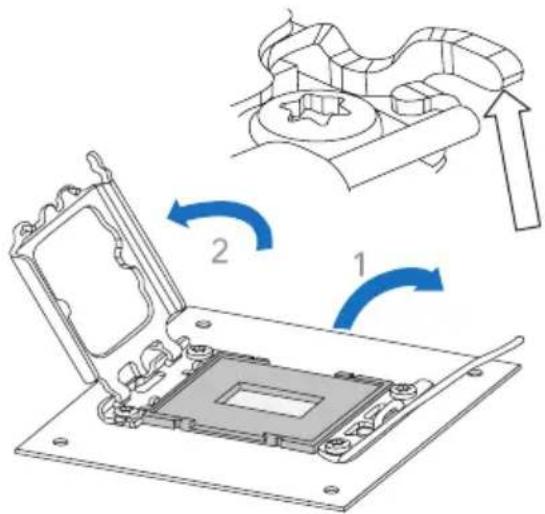
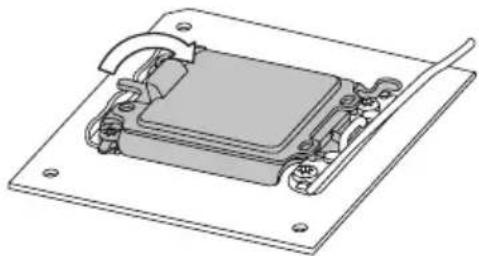
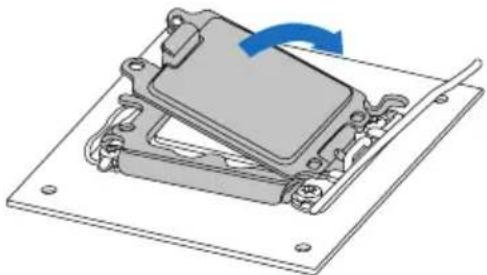
Step 2: Step 2: Open ILM Lever and then load plate using finger tab.
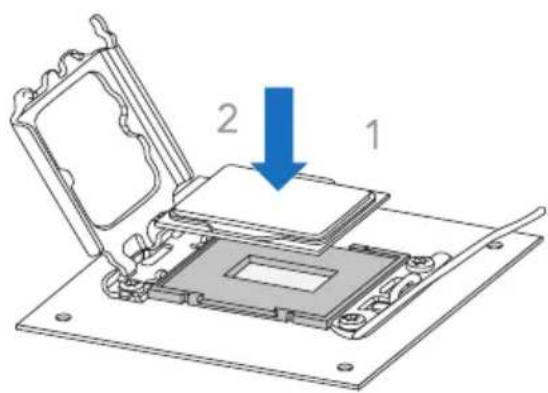
Step 3: Align and seat processor package on socket.
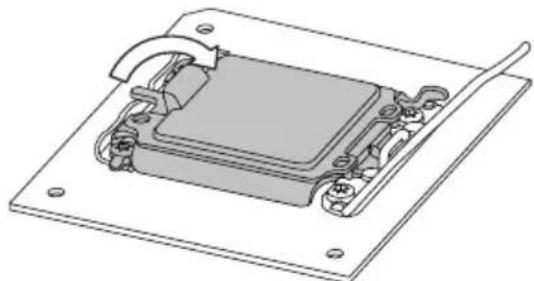
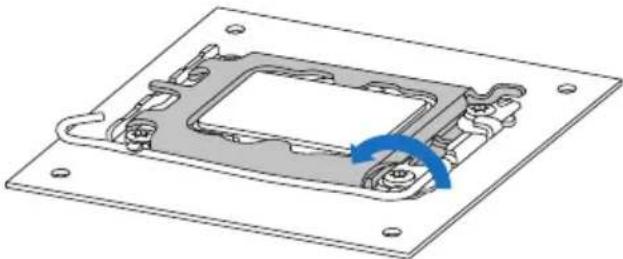
Step 4: Close the load plate.
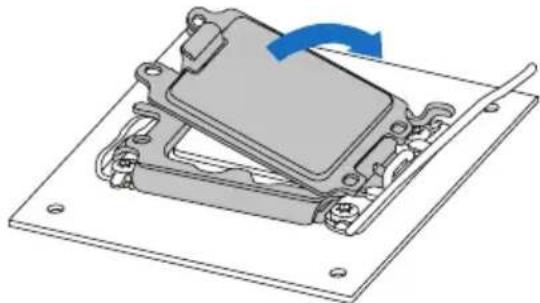
Step 5: Remove and save cover.
Step 6: Close ILM Lever and latch
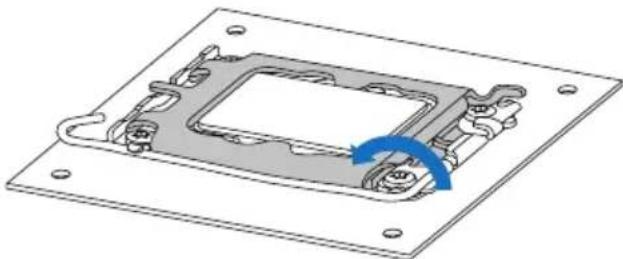
Note
» Ensure that you install the correct CPU designed for LGA1700 socket.
» The CPU fits only in one correct orientation. Do not force the CPU into the socket to prevent damaging the CPU.
2.2 Install a Heatsink
Step 1: Place the CPU fan assembly on top of the installed CPU and make sure that the four fasteners match the motherboard holes. Orient the assembly and make the fan cable is closest to the CPU fan connector.
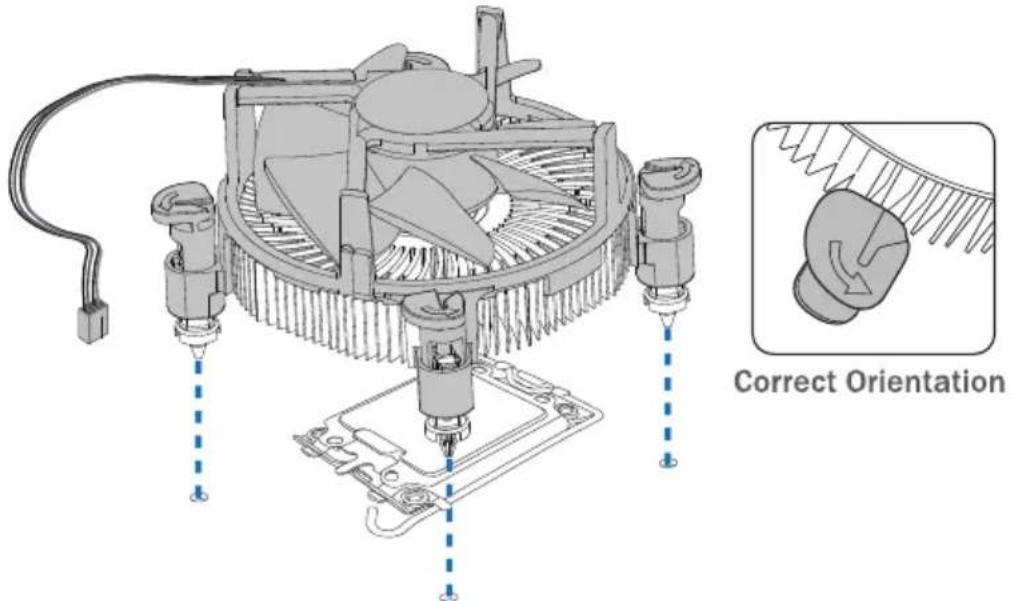
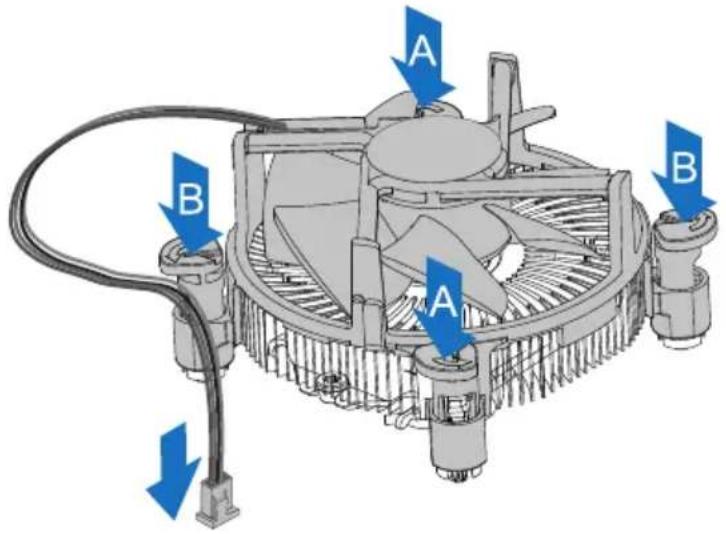
Step 2: Press down two fasteners at one time in a diagonal sequence to secure the CPU fan assembly in place. As each fastener locks into position a click should be heard.
Note
» Apply the thermal interface material on the CPU before heatsink installation, if necessary.
» Do not forget to connect the CPU fan connector.
» For proper installation, please kindly refer to the installation manual of your CPU heatsink.
2.3 Connect Cooling Fans
These fan headers support cooling-fans built in the computer. The fan cable and connector may be different according to the fan manufacturer.
CPU_FAN/ CPU_OPT: CPU Fan Header
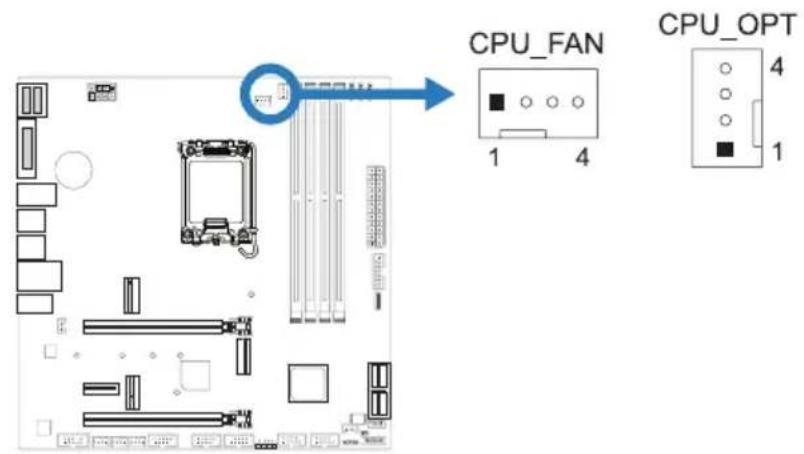
| Pin | Assignment |
| 1 | Ground |
| 2 | +12V |
| 3 | FAN RPM rate sense |
| 4 | AI Fan Control |
SYS_FAN1/ SYS_FAN2/ SYS_FAN3: System Fan Header
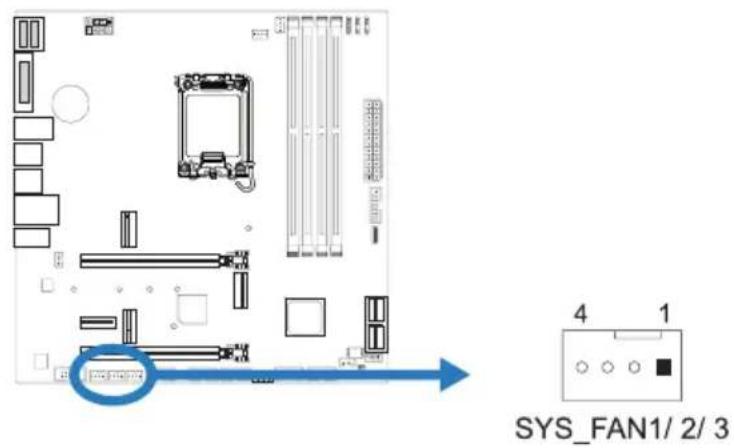
| Pin | Assignment |
| 1 | Ground |
| 2 | +12V |
| 3 | FAN RPM rate sense |
| 4 | AI Fan Control |
Note
» CPU_FAN, CPU_OPT, SYS_FAN1/2/3 support 4-pin and 3-pin head connectors. When connecting with wires onto connectors, please note that the red wire is the positive and should be connected to pin#2, and the black wire is Ground and should be connected to pin#1(GND).
» CPU Fan Header (CPU_OPT): Support water cooling fan and CPU fan.
2.4 Install System Memory
DDR4 Modules
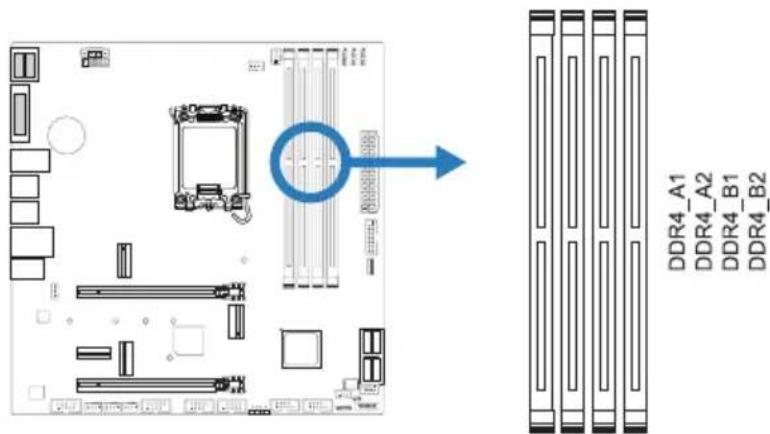
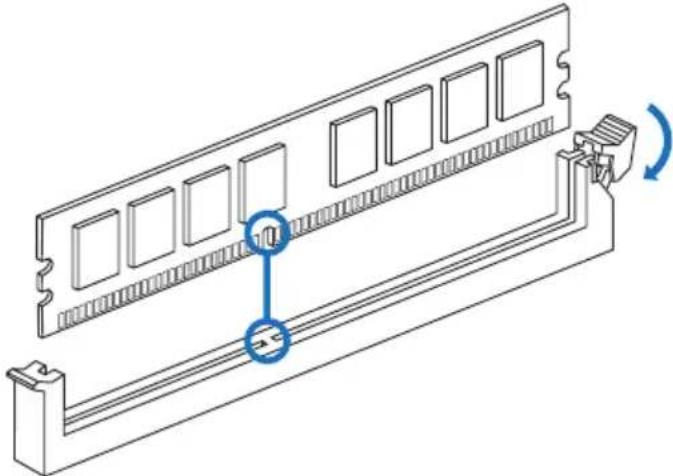
Step 1: Unlock a DIMM slot by pressing the retaining clips outward. Align a DIMM on the slot such that the notch on the DIMM matches the break on the slot.
Step 2: Insert the DIMM vertically and firmly into the slot until the retaining clips snap back in place and the DIMM is properly seated.
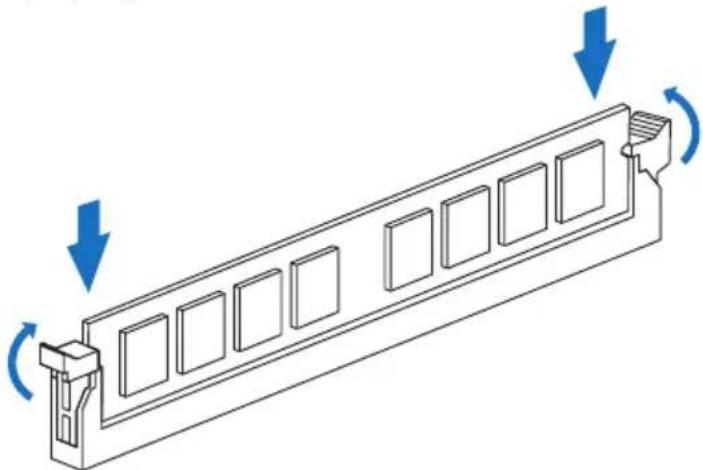
Note
» If the DIMM does not go in smoothly, do not force it. Pull it all the way out and try again.
Memory Capacity
| DIMM Socket Location DDR4 Module Total Memory Size | ||
| DDR4_A1 4GB/8GB/16GB/32GB | Max is 128GB. | |
| DDR4_A2 4GB/8GB/16GB/32GB | ||
| DDR4_B1 4GB/8GB/16GB/32GB | ||
| DDR4_B2 4GB/8GB/16GB/32GB | ||
Dual Channel Memory Installation
Please refer to the following requirements to activate Dual Channel function: Install memory module of the same density in pairs, shown in the table.
| Dual Channel Status DDR4_A1 DDR4_A2 DDR4_B1 DDR4_B2 | ||||
| Enabled O X O X | ||||
| Enabled X O X O | ||||
| Enabled O O O O | ||||
(O means memory installed, X means memory not installed.)
Note
» When installing more than one memory module, we recommend to use the same brand and capacity memory on this motherboard.
2.5 Expansion Slots
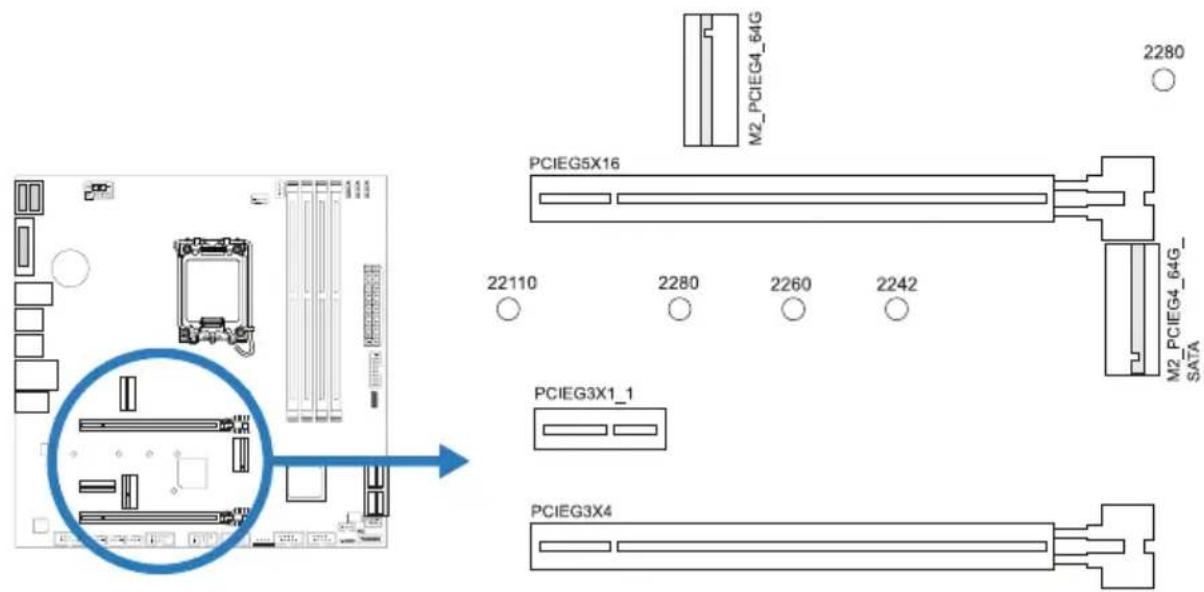
PCIEG5X16: PCI-Express Gen5 x16 Slots (x16 mode)
• PCI-Express 5.0 compliant.
• The maximum bandwidth of the PCIe slot is 128GB/s.
PCIEG3X4: PCI-Express Gen3 x16 Slots (x4 mode)
• PCI-Express 3.0 compliant.
• The maximum bandwidth of the PCIe slot is 8GB/s.
PCIEG3X1_1: PCI-Express Gen3 x1 Slots
• PCI-Express 3.0 compliant.
• Data transfer bandwidth up to 1GB/s per direction; 2GB/s in total
M2_PCIEG4_64G: M.2 (M Key) Socket
- The M.2 slot supports M.2 Type 2280 SSD module. When installing M.2 SSD module, please place the screw and hex pillar to correct position.
• Supports M.2 PCI Express module up to Gen4 x4 (64Gb/s) - NVMe & AHCI SSD.
• Supports Intel® Optane Technology.
M2_PCIEG4_64G_SATA: M.2 (M Key) Socket
- The M.2 slot supports M.2 Type 2242/ 2260/ 2280/ 22110 SSD module. When installing M.2 SSD module, please place the screw and hex pillar to correct position.
- Supports M.2 SATA III (6Gb/s) module and M.2 PCI Express module up to Gen4 x4 (64Gb/s) - NVMe & AHCI SSD
• Supports Intel® Rapid Storage Technology & Intel® Optane Technology.
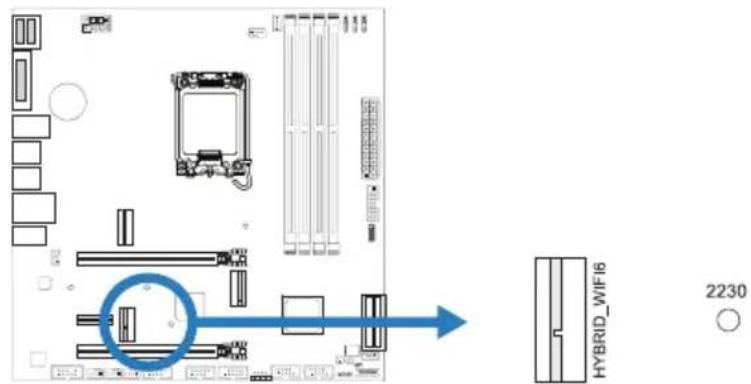
HYBRID_WIFI6: M.2 (E Key) Socket (M.2 (E Key) Wi-Fi card is not provided)
• Support M.2 socket 2230 type module.
- Supports WiFi/ Bluetooth module and Intel® CNVi (Integrated WiFi/ BT).
Note
» When using SATA SSD module on M.2 slot (M2_PCIEG4_64G_SATA), the SATA_1 connector will be disabled.
M.2 Slot module sharing status table
When M.2 Slot is installed with PCIe or SATA SSD mode interface, the usage status of SATA connector. (O means SATA connector enables, X means SATA connector disables.)
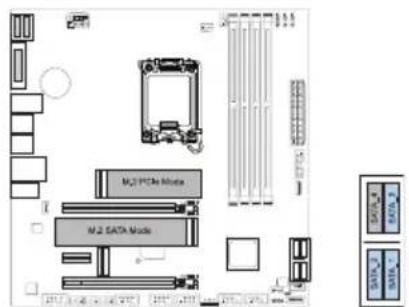
1x M.2 SATA SSD Slot + 1x M.2 PCIe SSD Slot -- 3x SATA HDDs
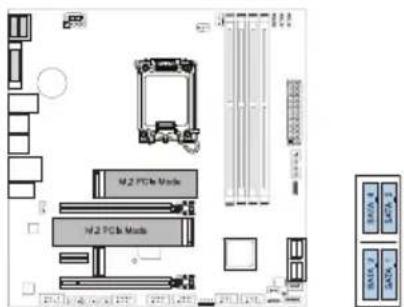
2x M.2 PCIe SSD Slot -- 4x SATA HDDs
1x N/A + 1x M.2 SATA SSD Slot
| SATA_1 SATA_3 | |
| 0 | 0 |
| SATA_2 SATA_4 | |
| 0 | 0 |
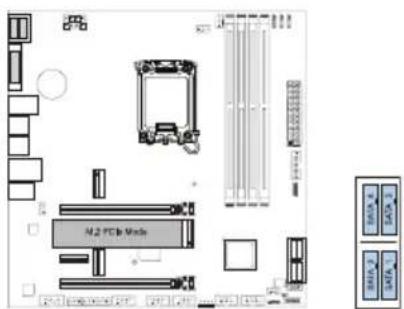
1x N/A + 1x M.2 PCIe SSD Slot -- 4x SATA HDDs
-- 3x SATA HDDs
Install an Expansion Card
You can install your expansion card by following steps:
- Read the related expansion card's instruction document before install the expansion card into the computer.
- Remove your computer's chassis cover, screws and slot bracket from the computer.
- Place a card in the expansion slot and press down on the card until it is completely seated in the slot.
- Secure the card's metal bracket to the chassis back panel with a screw. (This step is only
• for installing a VGA card.). - Replace your computer's chassis cover.
- Power on the computer, if necessary, change BIOS settings for the expansion card.
• Install related driver for the expansion card.
Note
» Please be note that you will need to use M2 type screwdriver if you want to install or uninstall the screw. It is recommended not to use a screwdriver that does not meet the specifications, otherwise the screw may be damaged.
2.6 Jumper & Switch Setting
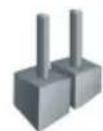
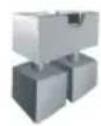
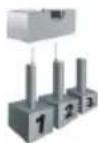
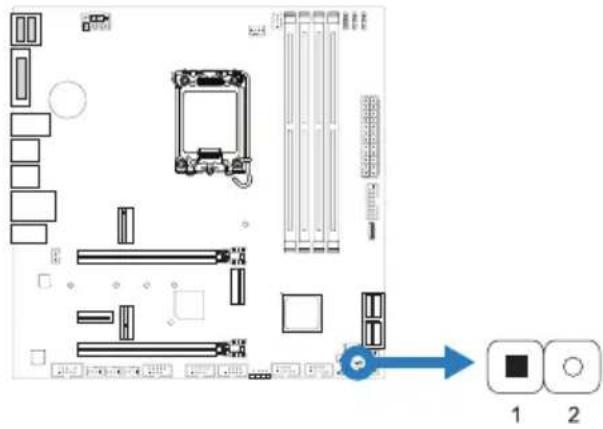
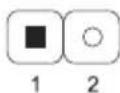
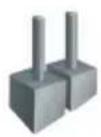
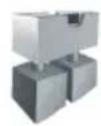
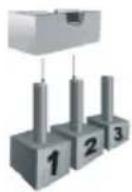
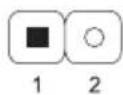
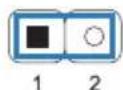
The illustration shows how to set up jumpers. When the jumper cap is placed on pins, the jumper is "close", if not, that means the jumper is "open".
Pin opened Pin closed Pin 1-2 closed
JCMOS1: Clear CMOS Jumper
The jumper allows users to restore the BIOS safe setting and the CMOS data. Please carefully follow the procedures to avoid damaging the motherboard.
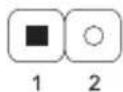
Pin 1-2 Open: Normal Operation (Default)
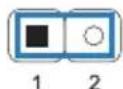
Pin 1-2 Short: Clear CMOS data
Clear CMOS Procedures:
- Remove AC power line.
- Set the jumper to "Pin 1-2 short", you can use a metal object like a screwdriver to touch the two pins.
- Wait for five seconds.
- After clearing the CMOS values, be sure the jumper is "Pin 1-2 open".
- Power on the AC.
- Load Optimal Defaults and save settings in CMOS.
2.7 Headers & Connectors
ATX: ATX Power Source Connector
For better compatibility, we recommend to use a standard ATX 24-pin power supply for this connector. Make sure to find the correct orientation before plugging the connector.
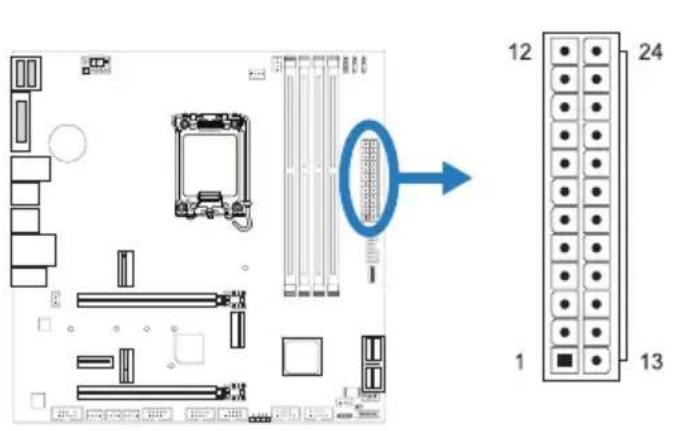
| Pin Assignment Pin Assignment | |
| 13 +3.3V 1 +3.3V | |
| 14 -12V 2 +3.3V | |
| 15 Ground 3 Ground | |
| 16 PS_ON 4 +5V | |
| 17 Ground 5 Ground | |
| 18 Ground 6 +5V | |
| 19 Ground 7 Ground | |
| 20 NC 8 PW_OK | |
| 21 +5V 9 Standby Voltage+5V | |
| 22 +5V 10 +12V | |
| 23 +5V 11 +12V | |
| 24 Ground 12 +3.3V | |
ATX_12V_2X4: ATX Power Source Connector
The connector provides +12V to the CPU power circuit. If the CPU power plug is 4-pin, please plug it into Pin 1-2-5-6 of ATX_12V_2X4.
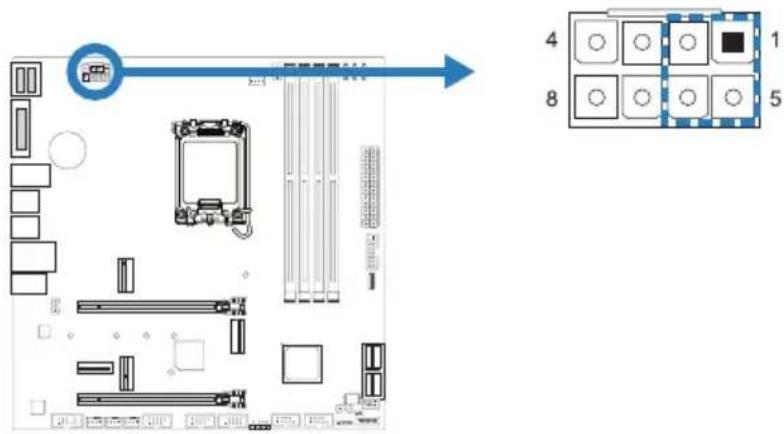
| Pin Assignment |
| 1 +12V |
| 2 +12V |
| 3 +12V |
| 4 +12V |
| 5 Ground |
| 6 Ground |
| 7 Ground |
| 8 Ground |
Note
» Before you power on the system, please make sure that both ATX, ATX_12V_2X4 and connectors have been plugged-in.
» Insufficient power supplied to the system may result in instability or the peripherals not functioning properly. Use of a PSU with a higher power output is recommended when configuring a system with more power-consuming devices.
PANEL1: Front Panel Header
This 10-pin header includes Power-on, Reset, HDD LED, Power LED connection.
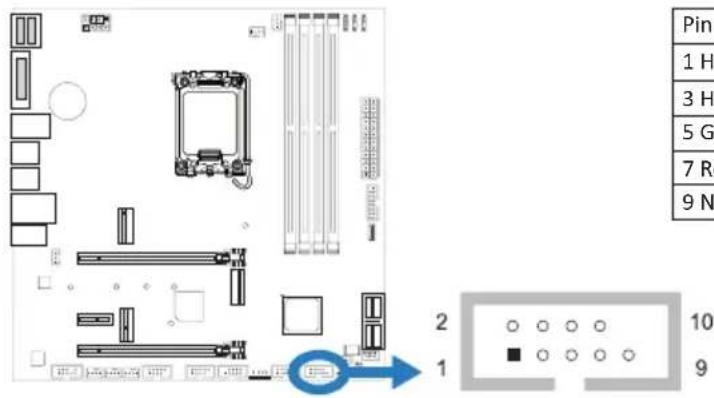
| Pin | Assignment Function Pin | Assignment Function | |
| 1 HDD LED(+) | HDDLED (-) | 2 Power LED (+) | PowerLED |
| 3 HDD LED(-) 4 PowEDED | |||
| 5 Ground | Reset Button | 6 Power Button | Power-OnButton |
| 7 Reset Control 8 | |||
| 9 NC NC 10 NA NA |
SPKR: Chassis Speaker Header
Please connect the chassis speaker to this header.
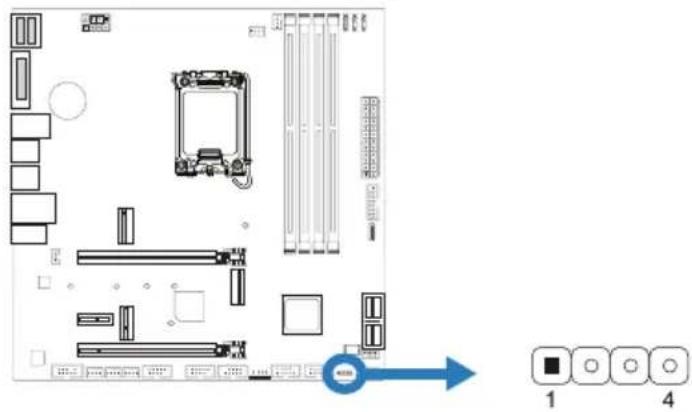
| Pin Assignment |
| 1 +5V |
| 2 N/A |
| 3 N/A |
| 4 Speaker |
TPM_SPI: Trusted Platform Module Header
This header allows you to store cryptographic keys that protect information.
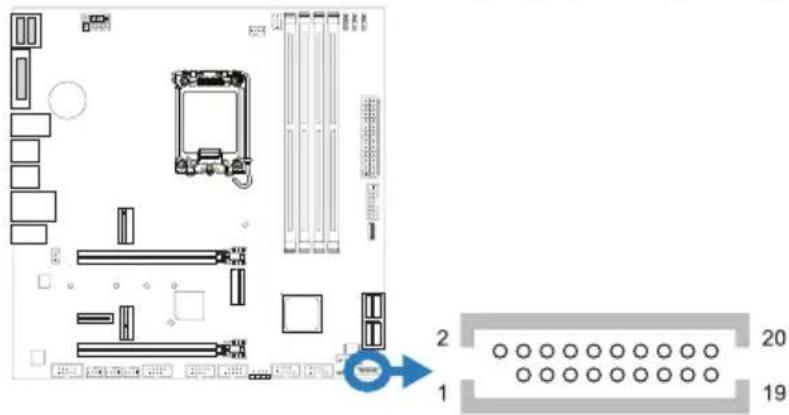
| Pin | Assignment | Pin | Assignment |
| 1 | NC | 2 | N/A |
| 3 | N/A | 4 | N/A |
| 5 | Ground | 6 | +3V3_DUAL |
| 7 | TSPI_CLK | 8 | N/A |
| 9 | N/A | 10 | TSPI_MISO |
| 11 N/A | 12 TSPI_MISI | ||
| 13 TSPI_CS# | 14 Ground | ||
| 15 N/A | 16 N/A | ||
| 17 TSPI_PIRQ# | 18 N/A | ||
| 19 TSPI_RST# | 20 N/A | ||
SATA_1/ SATA_2/ SATA_3/ SATA_4: Serial ATA 6.0 Gb/s Connectors
These connectors connect to SATA hard disk drives via SATA cables.
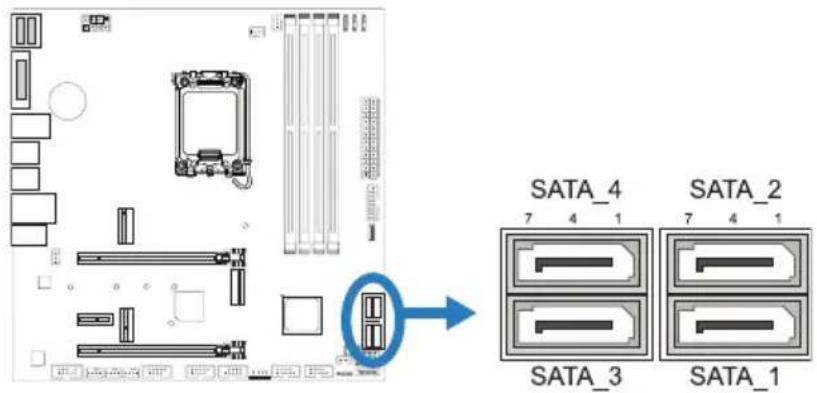
| Pin Assignment |
| 1 Ground |
| 2 TX+ |
| 3 TX- |
| 4 Ground |
Note
» When using SATA SSD module on M.2 slot (M2_PCIEG3_32G_SATA_RST_1), the SATA_6 connector will be disabled.
F_USB32_C-10G: Header for USB 3.2 (Gen2) Ports at Front Panel
This USB type-C header allows user to add additional USB ports on the PC front panel, and also can be connected with a wide range of external peripherals.
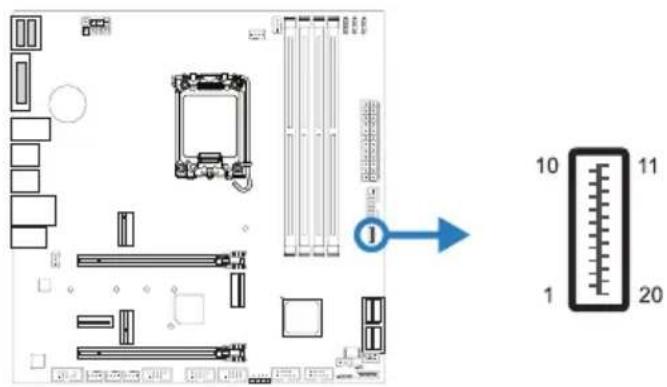
| Pin | Assignment Pin | Assignment |
| 1 VBUS 11 VBUS | ||
| 2 SSTX1+ 12 SSTX2+ | ||
| 3 SSTX1- 13 SSTX2- | ||
| 4 Ground 14 Ground | ||
| 5 SSRX1+ 15 SSRX2+ | ||
| 6 SSRX1- 16 SSRX2- | ||
| 7 VBUS 17 Ground | ||
| 8 CC1 | 18 D- | |
| 9 SBU1 | 19 D+ | |
| 10 | SBU2 | 20 CC2 |
F_USB32_A-5G: Header for USB 3.2 (Gen1) Ports at Front Panel
This header allows user to add additional USB ports on the PC front panel, and also can be connected with a wide range of external peripherals.
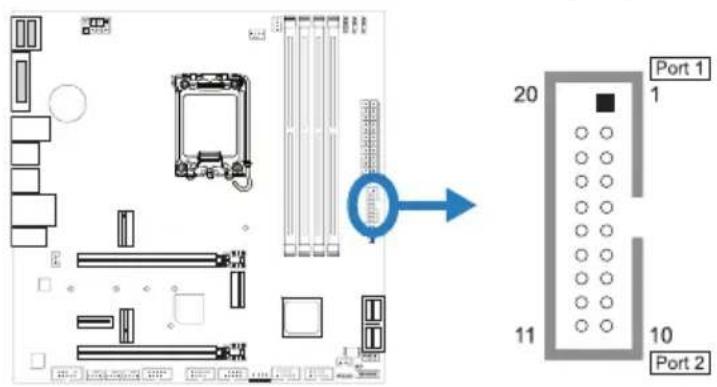
| Pin Assignment Pin | Assignment | ||
| 1 VBUS0 11 D2+ | |||
| 2 SSRX1- 12 D2- | |||
| 3 SSRX1+ 13 Ground | |||
| 4 Ground 14 SSTX2- | |||
| 5 SSTX1- 15 SSTX2- | |||
| 6 SSTX1+ 16 Ground | |||
| 7 Ground 17 SSRX2- | |||
| 8 D1- | 18 | SSRX2- | |
| 9 D1+ | 19 | VBUS1 | |
| 10 | ID | 20 Key | |
F_USB20_1/ F_USB20_2: Header for USB 2.0 Ports at Front Panel
This header allows user to add additional USB ports on the PC front panel, and also can be connected with a wide range of external peripherals.
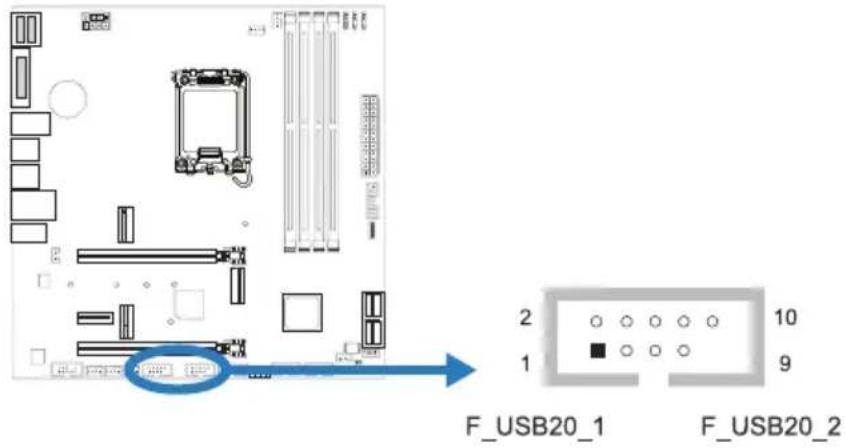
| Pin Assignment |
| 1 +5V (fused) |
| 2 +5V (fused) |
| 3 USB- |
| 4 USB- |
| 5 USB+ |
| 6 USB+ |
| 7 Ground |
| 8 Ground |
| 9 Key |
| 10 NC |
THUNDERBOLT: Thunderbolt Header
This header allows user to add additional Thunderbolt ports on the PC front panel, and also can be connected with a wide range of external peripherals.
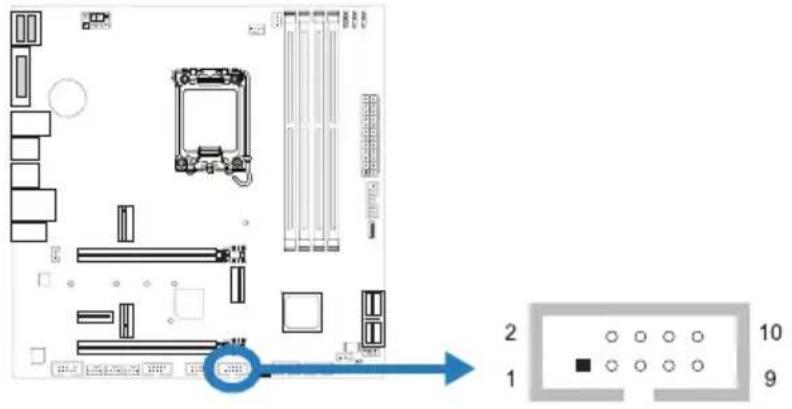
| Pin Assignment |
| 1 Force Power |
| 2 NC |
| 3 CIO Plug Event |
| 4 SMB_DATA_MAIN |
| 5 SLP_S3_N |
| 6 SMB_CLK_MAIN |
| 7 SLP_S5_N |
| 8 3VB_AIC_PD_INT# |
| 9 GND |
| 10 GND |
F_AUDIO1: Front Panel Audio Header
This header allows user to connect the chassis-mount front panel audio I/O which supports HD and AC'97 audio standards.
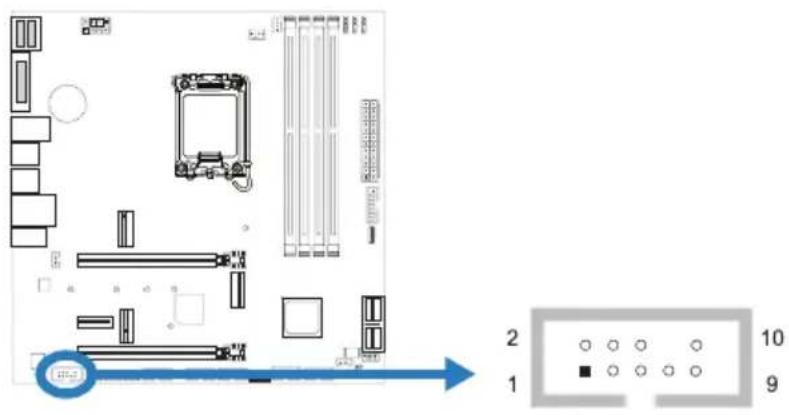
| HD Audio AC'97 | |||
| Pin | Assignment Pin | Assignment | |
| 1 Mic | Left in 1 Mic In | ||
| 2 Ground | 2 Ground | ||
| 3 Mic | Right in 3 Mic | Power | |
| 4 GPIO | 4 Audio Power | ||
| 5 Right | line in 5 RT | Line Out | |
| 6 Jack | Sense 6 RT | Line Out | |
| 7 Front | Sense 7 Reserved | ||
| 8 Key | 8 Key | ||
| 9 Left | line in 9 LFT | Line Out | |
| 10 Jack | Sense 10 LFT | Line Out | |
Note
» When using the front HD audio jack and plug in the headset, the rear sound will be automatically Disabled.
» It is recommended that you connect a high-definition front panel audio module to this connector to avail of the motherboard's high definition audio capability.
» Please try to disable the "Front Panel Jack Detection" if you want to use an AC'97 front audio output cable. The function can be found via O.S. Audio Utility.
COM1: Serial Port Header
The motherboard has a serial port header for connecting RS-232 Port.
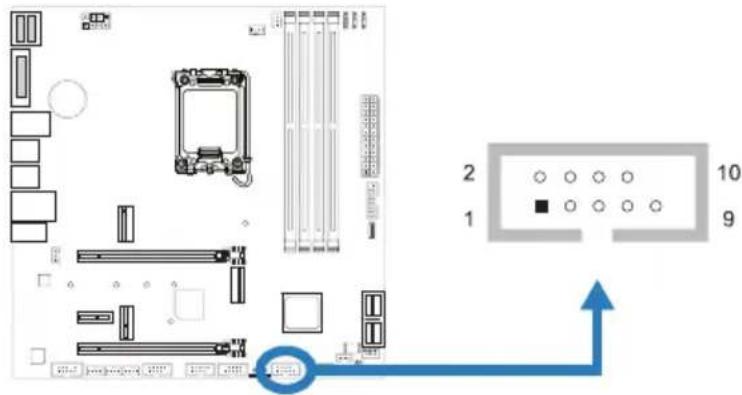
| Pin Assignment |
| 1 Carrier detect |
| 2 Received data |
| 3 Transmitted data |
| 4 Data terminal ready |
| 5 Signal ground |
| 6 Data set ready |
| 7 Request to send |
| 8 Clear to send |
| 9 Ring indicator |
| 10 Key |
12V_LED: RGB LED Device (5050 SMD) Header
This header providers 12V power and RGB control pins for RGB LED Device (5050 SMD).
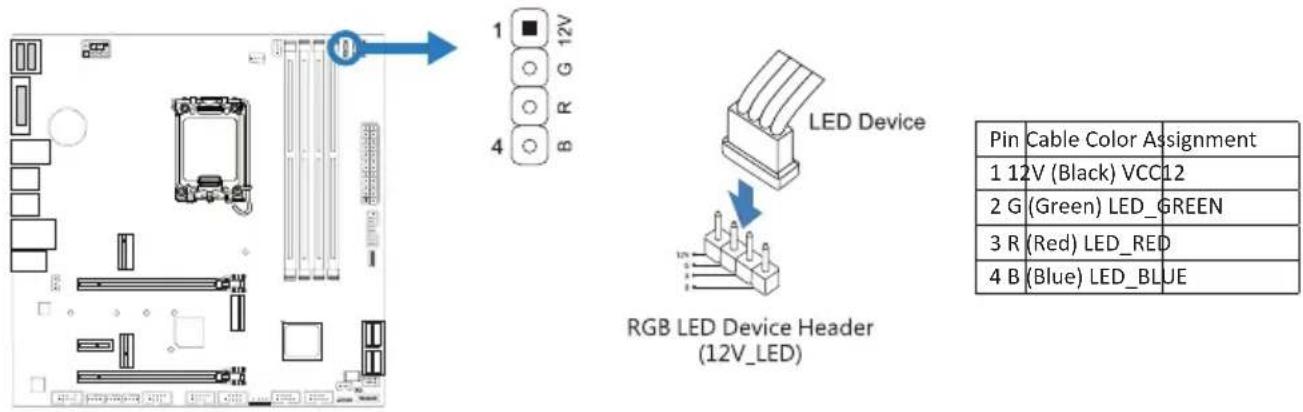
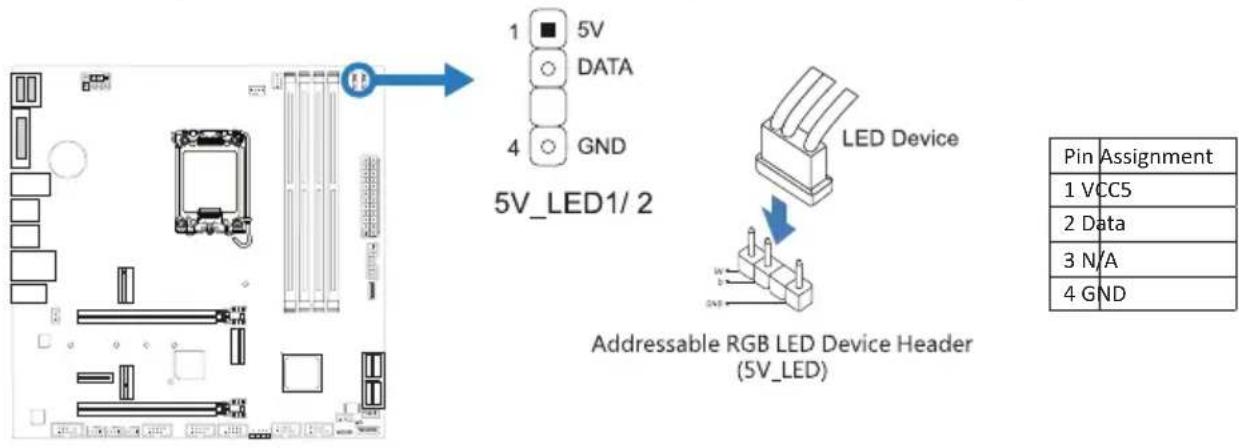
5V_LED1/ 5V_LED2: Addressable RGB LED Device (WS2818B) Header
This header providers 5V power and Data control pins for RGB LED Device (WS2818B).
Note
» Ensure proper pin connecting to your LED device, wrong connection may damage your LED device or motherboard.
The 12V_LED connector supports to 5050 RGB LED strips with the maximum power rating of 3A (12V).
» The 5V_LED connector supports up to 300 LEDs WS2818B individually Addressable RGB LED strips with the maximum power rating of 3A (5V).
» Please use the Vivid LED DJ software to control the LEDs. For detailed software setting information, refer to chapter 3.3.
2.8 LEDs
Debug LED: Debug LED Indicators
This LEDs indicate the status of the motherboard.
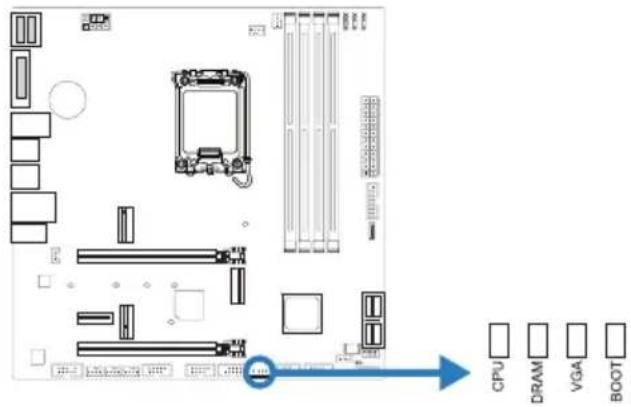
CPU - indicates CPU is not detected or fail. DRAM - indicates DRAM is not detected or fail. VGA - indicates GPU is not detected or fail. BOOT - indicates booting device is not detected or fail.
Note
» After starting the computer, the LED indicators will light up in the following order: CPU → DRAM → VGA → BOOT
» When the computer is ready, the LED indicator will show where the error occurred and will stay on until the problem is solved.
» After the computer is started, the Debug LED will not light up if there is no abnormality detected.
LEDs
Below LEDs are controlled by RACING GT EVO program. Please refer to Chapter 3.3 for more detail software setting.
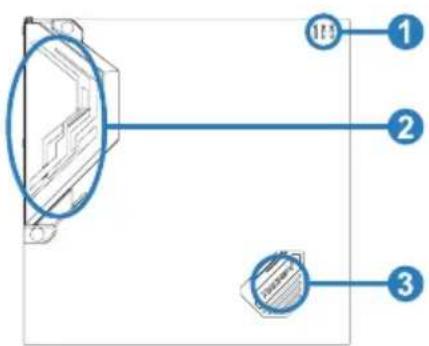
- RGB LED Header(5V/ 12V)
- ARMOR GEAR LEDs
- Southbridge LEDs
Chapter 3: UEFI BIOS & Software
3.1 UEFI BIOS Setup
- The BIOS Setup program can be used to view and change the BIOS settings for the computer. The BIOS Setup program is accessed by pressing the
key after the Power-On Self-Test (POST) memory test begins and before the operating system boot begins. - For further information of setting up the UEFI BIOS, please refer to the UEFI BIOS Manual on our website.
3.2 BIOS Update
The BIOS can be updated using either of the following utilities:
- BIOSTAR BIO-Flasher: Using this utility, the BIOS can be updated from a file on a hard disk, a USB drive (a flash drive or a USB hard drive), or a CD-ROM.
- BIOSTAR BIOS Update Utility: It enables automated updating while in the Windows environment. Using this utility, the BIOS can be updated from a file on a hard disk, a USB drive (a flash drive or a USB hard drive), or a CD-ROM, or from the file location on the Web.
BIOSTAR BIO-Flasher
Note
» This utility only allows storage device with FAT32/16 format and single partition.
» Shutting down or resetting the system while updating the BIOS will lead to system boot failure.
Updating BIOS with BIOSTAR BIO-Flasher
- Go to the website to download the latest BIOS file for the motherboard.
- Then, copy and save the BIOS file into a USB flash (pen) drive.(Only supported FAT/FAT32 format)
- Insert the USB pen drive that contains the BIOS file to the USB port.
-
Power on or reset the computer and then press
during the POST process. -
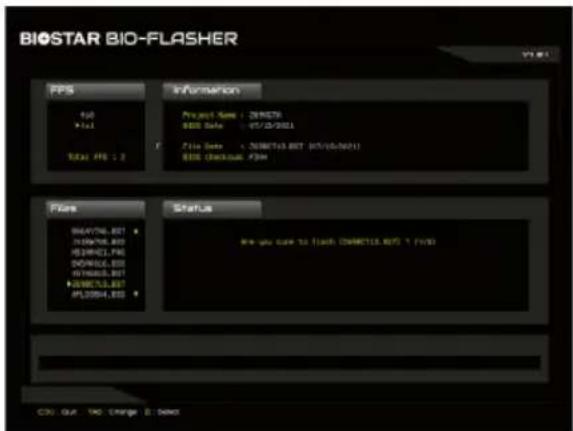
After entering the POST screen, the BIO-FLASHER utility pops out. Choose
to search for the BIOS file.
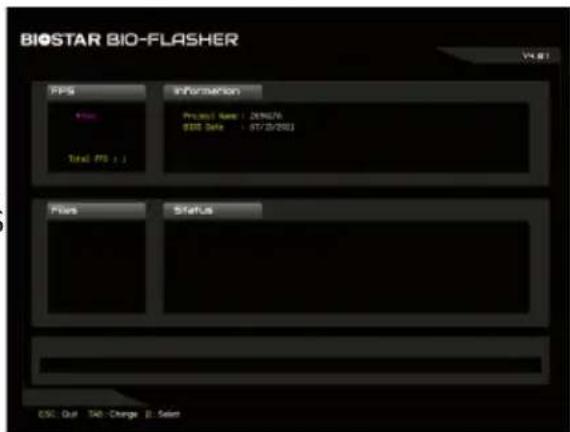
- Select the proper BIOS file, and a message asking if you are sure to flash the BIOS file. Click "Yes" to start updating BIOS.
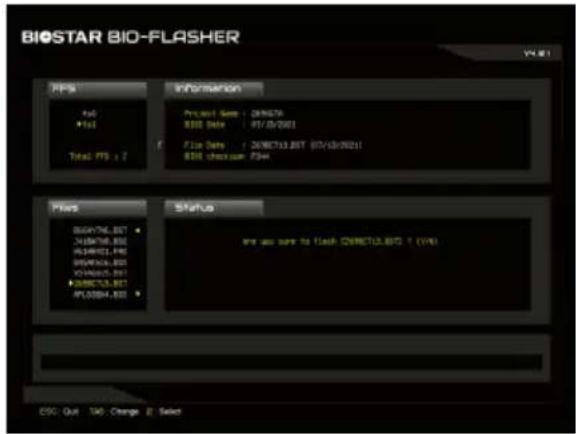
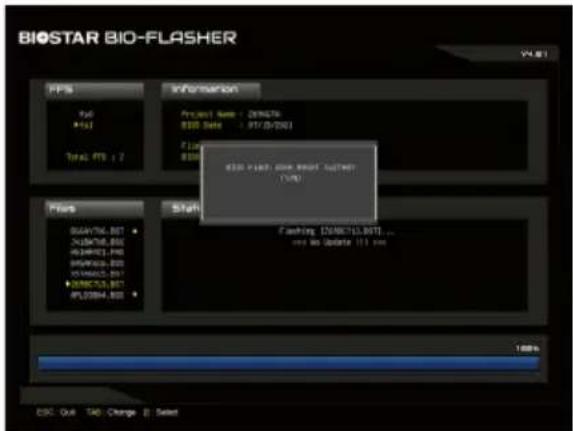
- A dialog pops out after BIOS flash is completed, asking you to restart the system. Press the
key to restart system.
- While the system boots up and the full screen logo shows up, press
key to enter BIOS setup.
After entering the BIOS setup, please go to the
BIOS Update Utility (through the Internet)
- Installing BIOS Update Utility from the DVD Driver.
-
Please make sure the system is connected to the internet before using this function.
-
Launch BIOS Update Utility and click the "Online Update" button on the main screen.
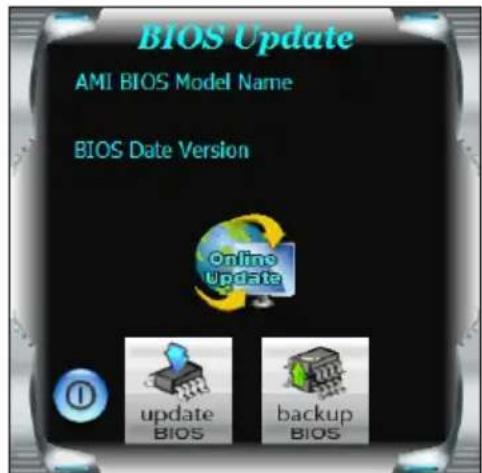
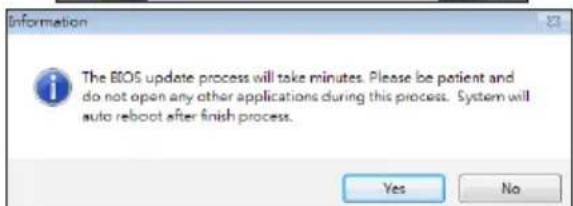
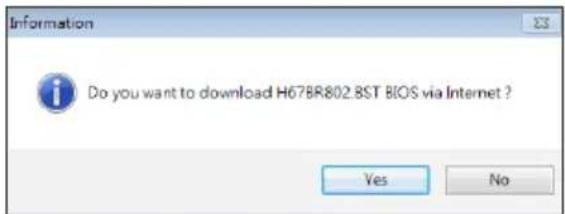
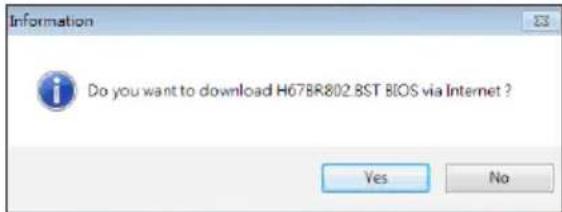
- An open dialog will show up to request your agreement to start the BIOS update. Click "Yes" to start the online update procedure.
-
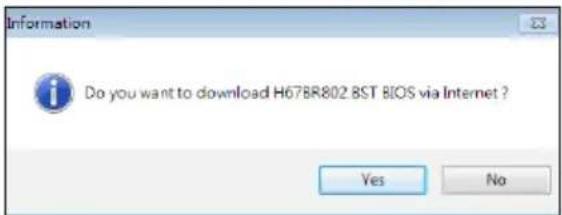
If there is a new BIOS version, the utility will ask you to download it. Click "Yes" to proceed.
-
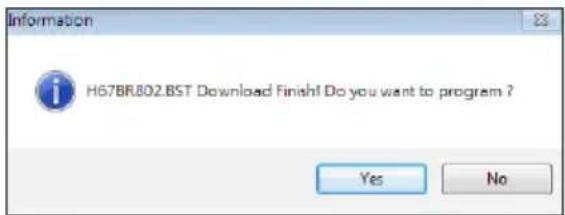
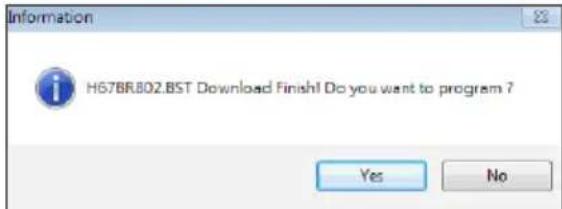
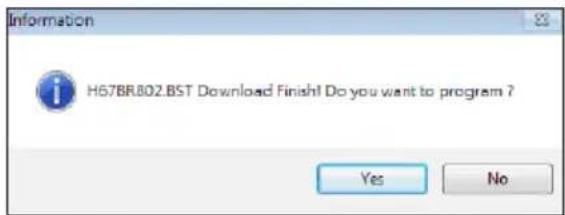
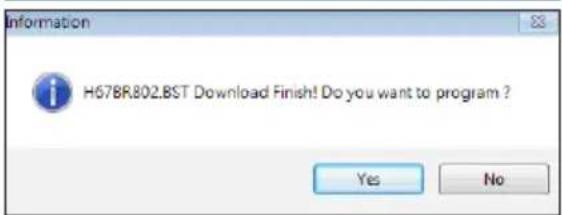
After the download is completed, you will be asked to program (update) the BIOS or not. Click "Yes" to proceed.
-
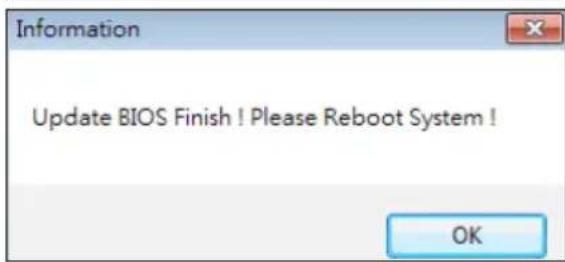
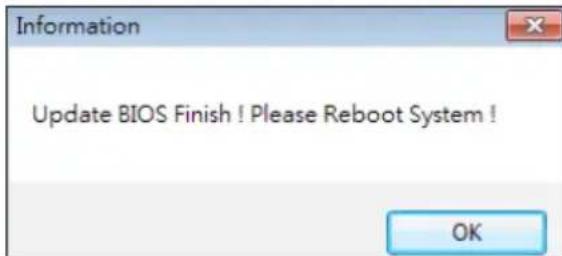
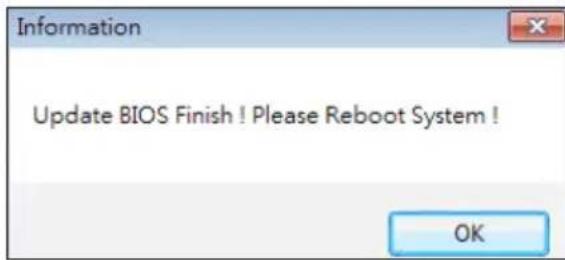
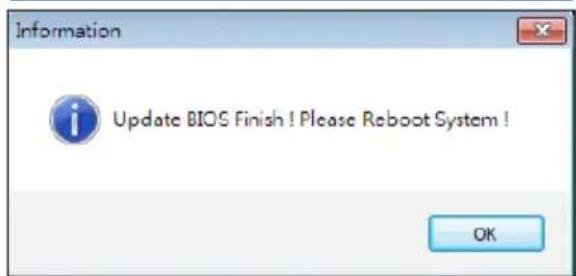
After the updating process is finished, you will be asked you to reboot the system. Click "OK" to reboot.
- While the system boots up and the full screen logo shows up, press
key to enter BIOS setup.
After entering the BIOS setup, please go to the
BIOS Update Utility (through a BIOS file)
- Installing BIOS Update Utility from the DVD Driver.
-
Download the proper BIOS from http://www.biostar.com.tw/
-
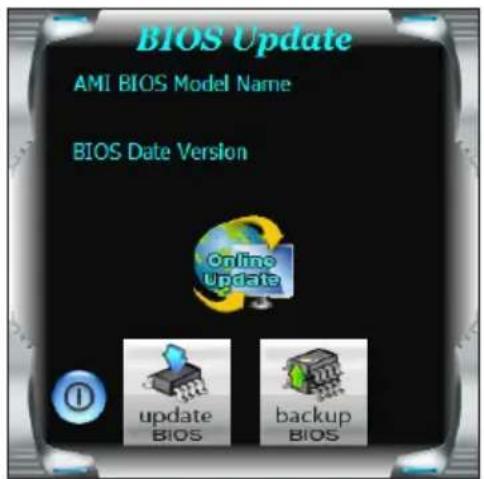
Launch BIOS Update Utility and click the "Update BIOS" button on the main screen.
-
A warning message will show up to request your agreement to start the BIOS update. Click "OK" to start the update procedure.
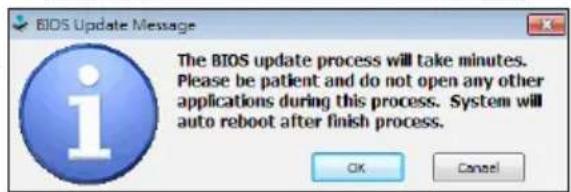
-
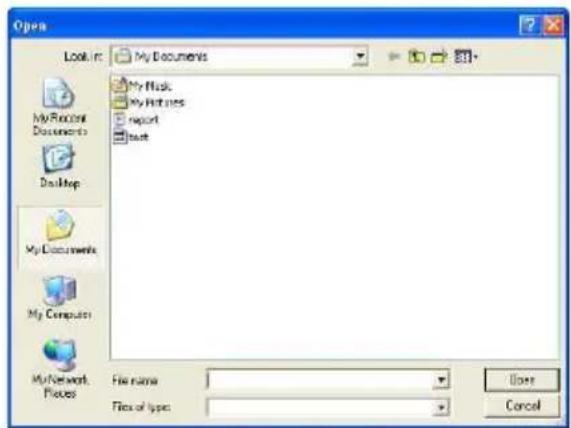
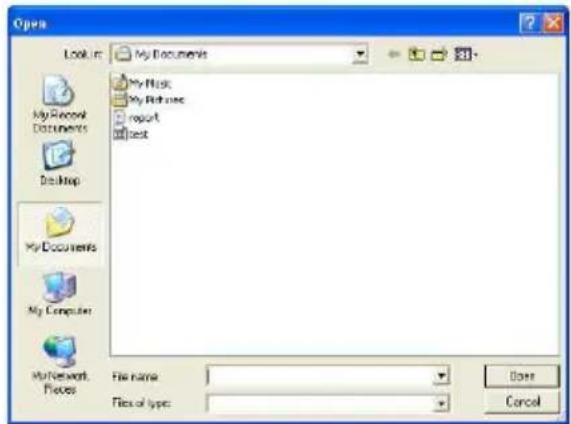
Choose the location for your BIOS file in the system. Please select the proper BIOS file, and then click on "Open". It will take several minutes, please be patient.
-
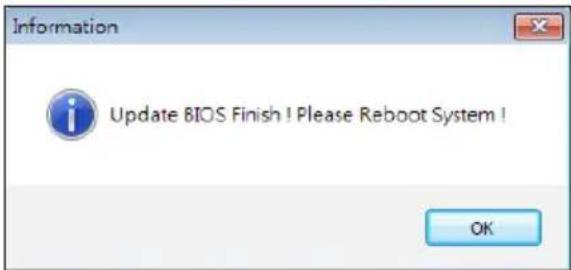
After the BIOS Update process is finished, click on "OK" to reboot the system.
-
While the system boots up and the full screen logo shows up, press
key to enter BIOS setup.
After entering the BIOS setup, please go to the
Backup BIOS
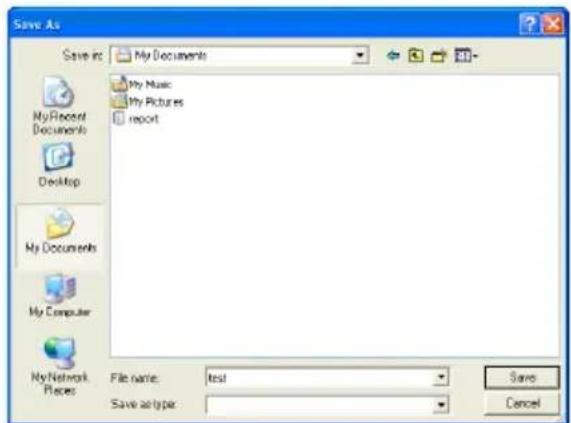
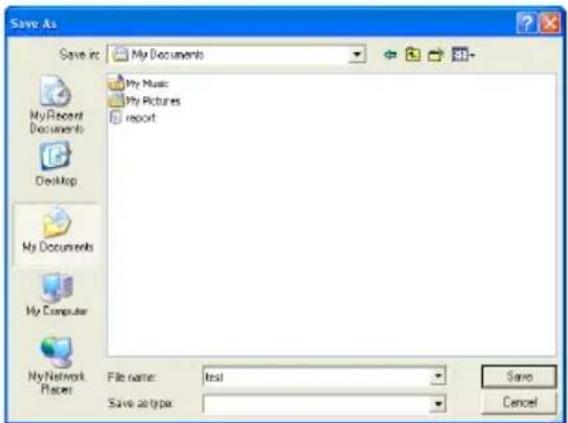
Click the Backup BIOS button on the main screen for the backup of BIOS, and select a proper location for your backup BIOS file in the system, and click "Save".
3.3 Software
Installing Software
- Insert the Setup DVD to the optical drive. The driver installation program would appear if the Auto-run function has been enabled.
- Select Software Installation, and then click on the respective software title.
- Follow the on-screen instructions to complete the installation.
Launching Software
After the installation process is completed, you will see the software icon showing on the desktop. Double-click the icon to launch it.
Note
» All the information and content about following software are subject to be changed without notice. For better performance, the software is being continuously updated.
» The information and pictures described below are for your reference only. The actual information and settings on board may be slightly different from this manual.
BIOScreen Utility
This utility allows you to personalize your boot logo easily. You can choose BMP as your boot logo so as to customize your computer.
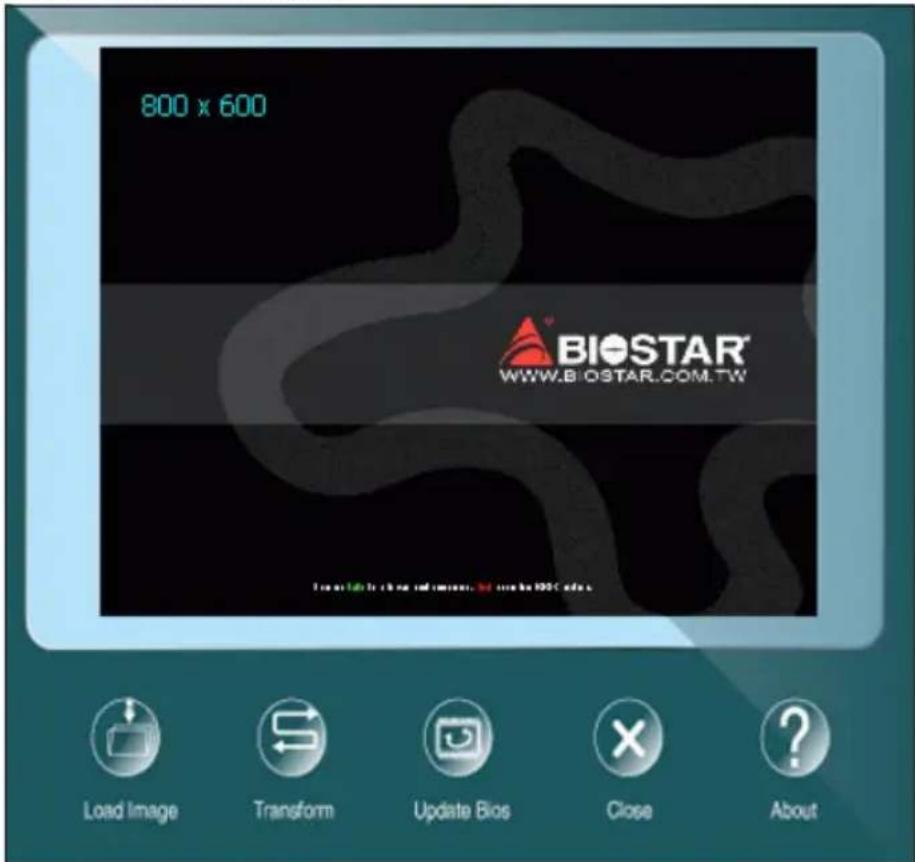
Please follow the step-by-step instructions below to update boot logo:
- Load Image: Choose the picture as the boot logo.
- Transform: Transform the picture for BIOS and preview the result.
- Update Bios: Write the picture to BIOS Memory to complete the update.
RACING GT EVO
RACING GT EVO is an easy-to-use program that integrates several BIOSTAR utilities and allows users to configure these utilities simultaneously and seamlessly.
Note
» Menu contents of RACING GT EVO will be different slightly, depending on different motherboard of users' computers.
» When the software is installed or removed, restart your computer.
System Information
This System Information tab provides you an overview of the basic system information.
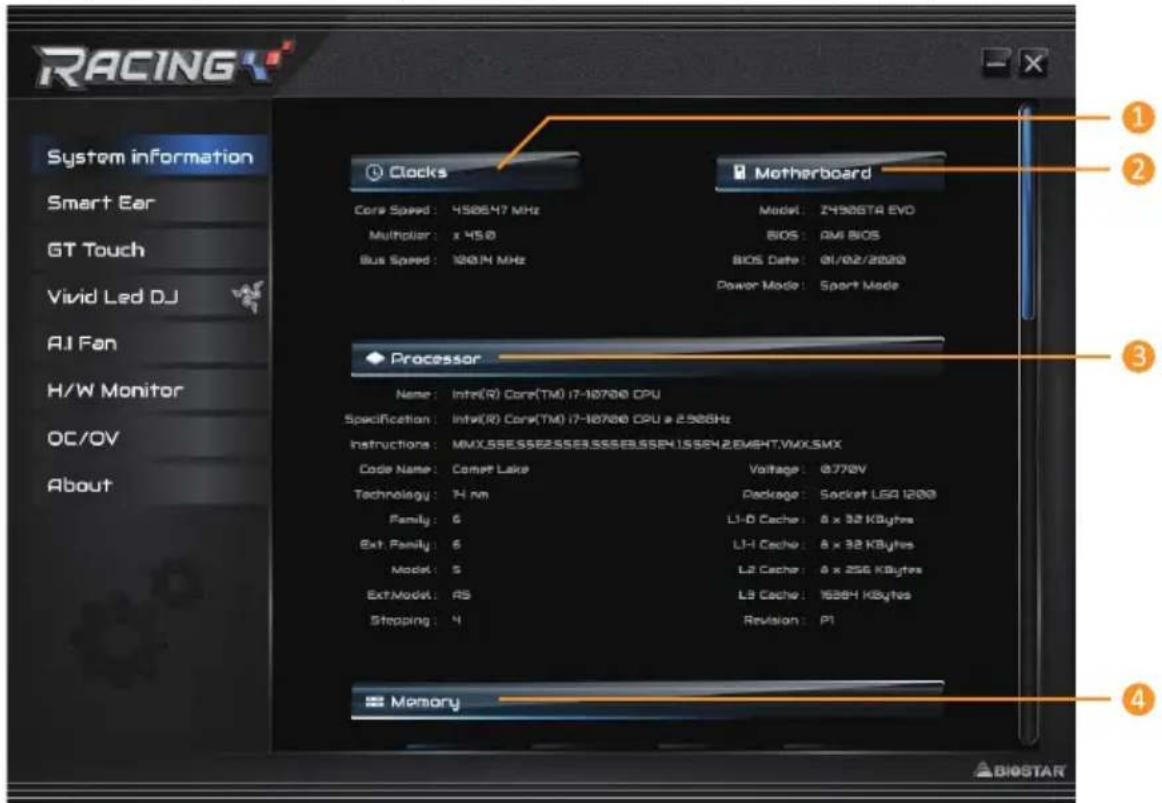
- Clocks: Shows core speed, multiplier and bus speed.
- Motherboard: Shows motherboard information.
- Processor: Shows CPU information.
- Memory: Shows memory information.
» Click on different memory slot buttons to get the memory information.
SmartEAR
Smart EAR allows you to control system volume and adjust impedance setting (Low/High Gain) to optimize your headphone performance. You can easily enjoy high-quality and awesome sound.
Requirements:
- A chassis with front audio output jacks
- An earphone or a headphone
- Windows 7 (32/64bit)/ 8.1(64bit)/ 10(64bit) operation system
Installation Guide:
- Make sure the front audio cable of the chassis connected to the front audio header of the motherboard properly.
- Install the RACING GT EVO program from the driver DVD.
- Connect the earphone or headphone to the front audio jack of the chassis or audio lineout port of rear I/Os.
» If you want to use an AC'97 front audio output cable, please disable the "Front Panel Jack Detection" setting. This setting can be found via O.S. Audio Utility.
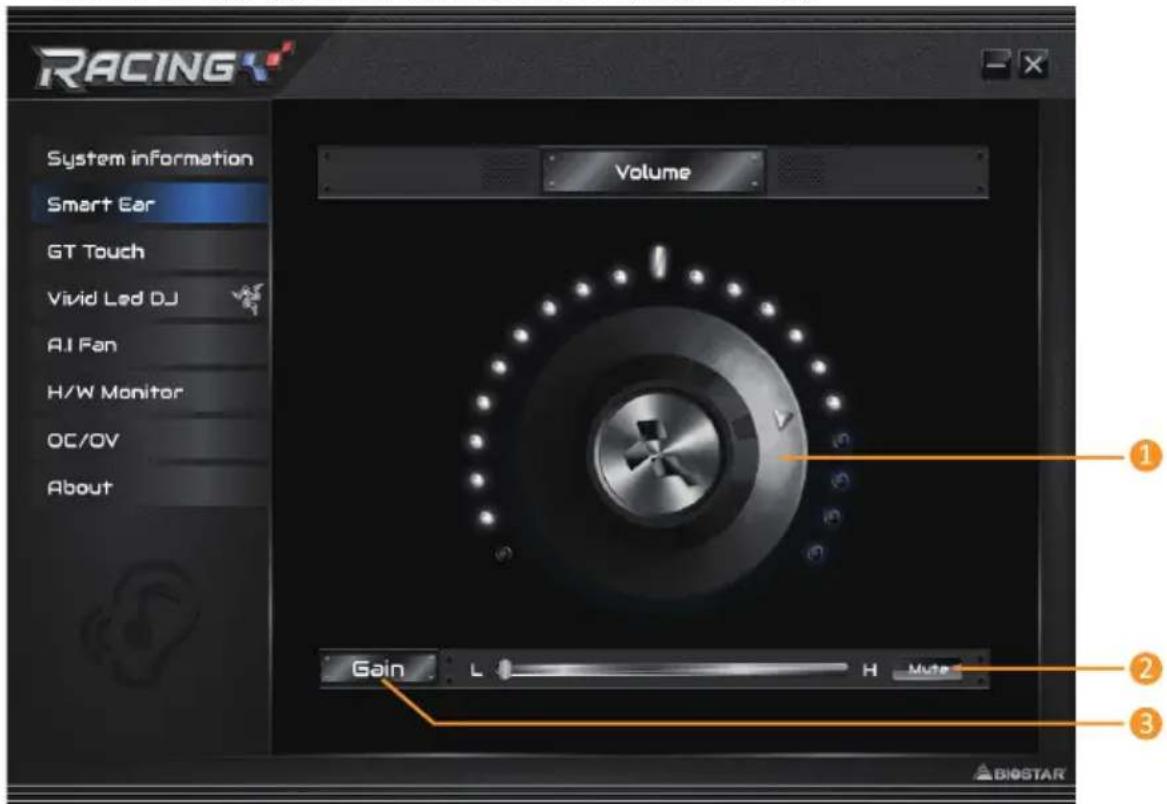
- Volume Control Knob: The volume can be finely adjusted by turning the knob either clockwise or anti-clockwise to increase or decrease system volume accordingly.
- Mute: To disable system sound.
- High/Low Gain Switch: Keep the gain switch to low for low impedance headphone and set to high for high impedance headphone.
GT Touch
GT Touch allows you to adjust Normal, ECO and Sport mode when running RACING GT EVO program in Windows environment.
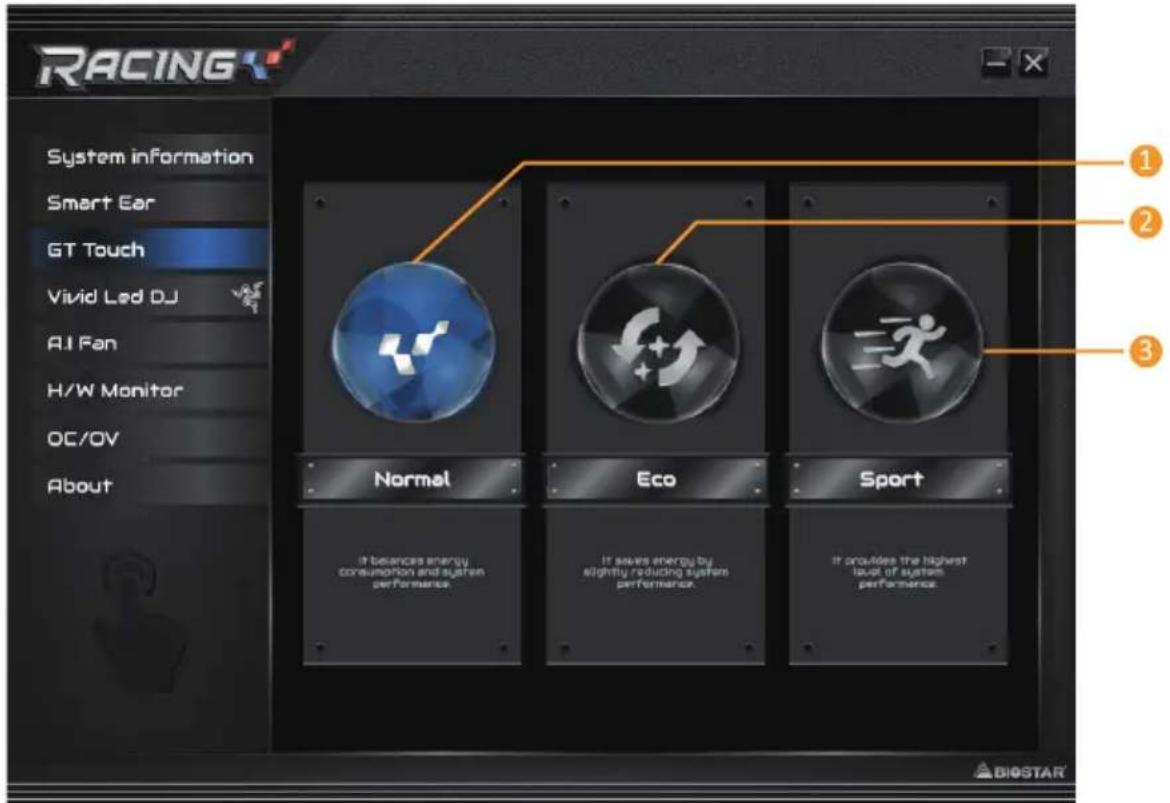
- Normal Mode: It balances energy consumption and system performance.
- ECO Mode: It saves energy by slightly reducing system performance.
- Sport Mode: It provides the highest level of system performance.
Vivid LED DJ
Vivid LED DJ can adjust your color scheme of ARMOR GEAR, RGB LED Device.
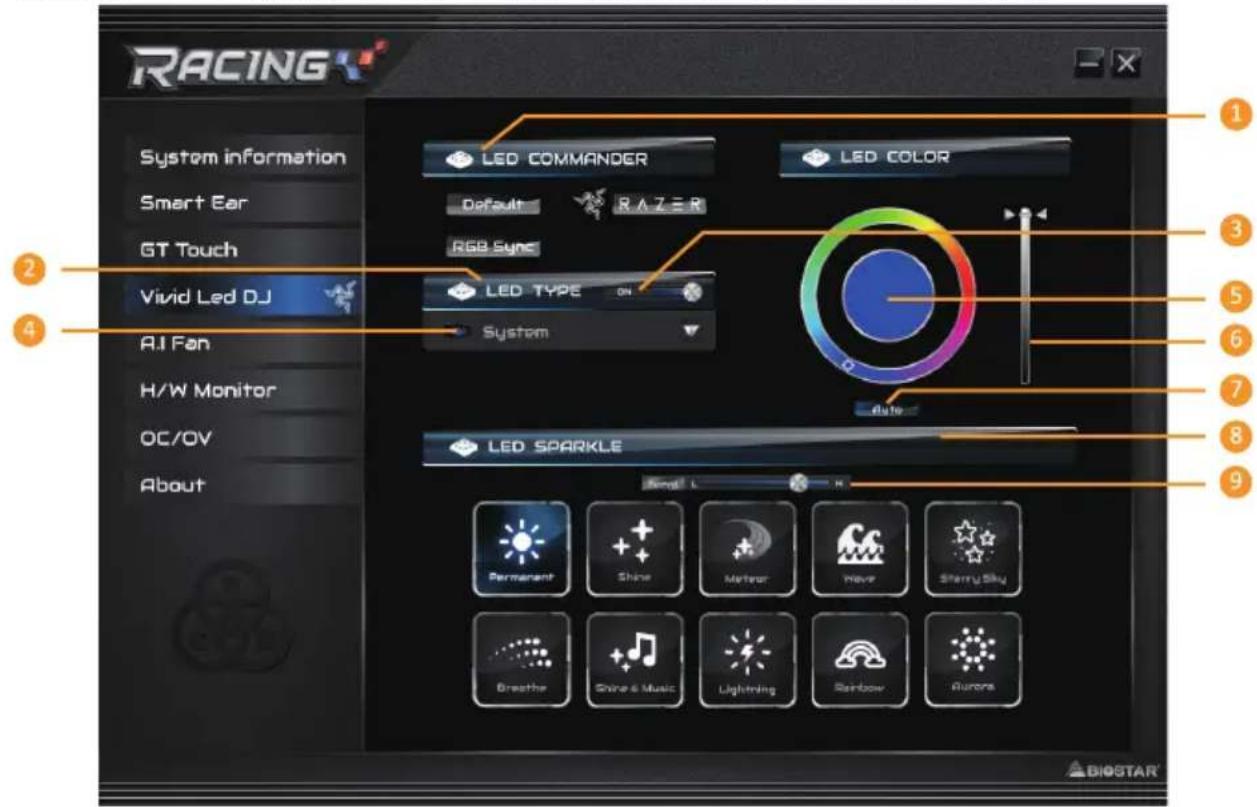
- LED COMMANDER: Allows you to select the LED mode.
- Default: Default LED illuminations. (Blue light)
- RAZER : Allows you to connect to the RAZER app to sync the motherboard lights.
» When using RAZER mode, turn off RACING GT EVO Software and LED illumination will return to the default state.
» RAZER mode is to achieve LED illumination synchronization through the connection with RAZER software.
» RAZER software must be installed to use RAZER mode. RAZER ICON will appear after the software is installed.
» When using RAZER mode, it must be used with RAZER related devices and peripheral devices.
» RAZER related information please go to RAZER official website download.
- RGB Sync : Allows you to synchronize the LED Type item settings.
- LED Type: Select the LED lighting blocks.
• System : System LED illuminations. (Racing ARMOR)
• 12V LED : The 12V LED illumination. (12V_LED Device)
- 5V LED: The 5V LED illumination. (5V_LED Device)
• Memory Sync : The RGB Audio LED illumination. (Memory LED)
-
ON/OFF: To enable or disable VIVID LED function.
-
ON/OFF: Allows you to enable or disable LED of a single item.
-
Color Palette: Allows to you choose specific color of the LEDs.
-
LED Brightness Bar: Allows you to adjust the LED brightness.
-
Auto: LEDs will Automatically change the Color Palette and LED Brightness.
» If you select Auto mode, the Color Pallette and LED Brightness Bar will disabled.
- LED SPARKLE: Allows to you choose sparkle of the LEDs.
• Permanent: LEDs are constantly lit.
- Shine: LEDs flash at a specific frequency.
- Breath: LEDs gradually flash on and off.
- Shine & Music: LEDs will flash according the music played on your system.
» Please make sure your speaker or earphone is properly connected to audio jack before using RACING GT EVO program.
- Meteor: LEDs slide at a specific frequency.
- Wave: LEDs are presented in a water wave rhythm.
• Starry sky: LEDs flicker at a specific rhythm.
• Lightning: LEDs flash and slide at a specific frequency.
- Rainbow: LEDs lights to dazzling colorful rhythm.
- Aurora: LEDs shows soft light and flickers lightly.
- High/Low Speed Switch: Allows you to control the flicker speed.
Note
» With VIVID LED DJ users can control the four LED light zones independently with different flashing modes (LED SPARKLE).
A.I Fan
A.I FAN utility smartly allows PC users to have more customizability of fan operating modes and automatically detects different temperatures to make fan operating at defined speed for optimal cooling performance.
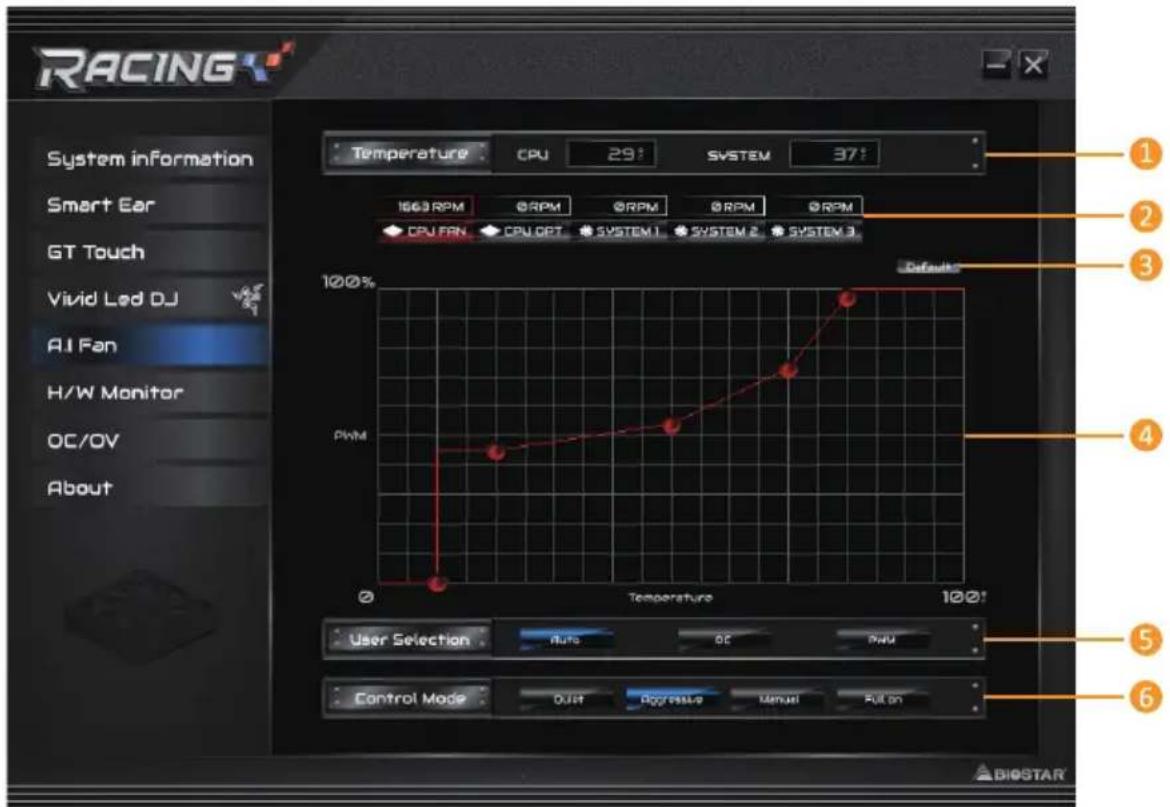
- Temperature: Shows the current CPU and system temperature.
- CPU FAN/ CPU OPT RPM & SYSTEM1/2/3 RPM: Click button to set the status value of CPU and system fan.
» Display items, please focus on the actual motherboard.
- Default: Restore defaults your changes value of a single item.
-
PWM/ Temperature Panel: According to the fan PWM value corresponding to CPU and system temperature to adjust the fan speed.
» Allows you to adjust according to your preferences. -
User Selection: Sets the fan property controls the actual selection operation.
• Auto: Allows you to adjust the Automatic detection Mode.
• DC: Allows you to adjust the Direct Current (DC) Mode.
- PWM: Allows you to adjust the Pulse Width Modulation (PWM) Mode.
-
Control Mode: Allows you to control mode of the fans.
-
Quiet: Enable Quiet mode.
- Aggressive: Enable Aggressive mode.
- Manual: Enable Manual mode.
• Full on: Enable Full On mode.
H/W Monitor
The HW Monitor tab allows you to monitor hardware voltage, fan speed, and temperature.
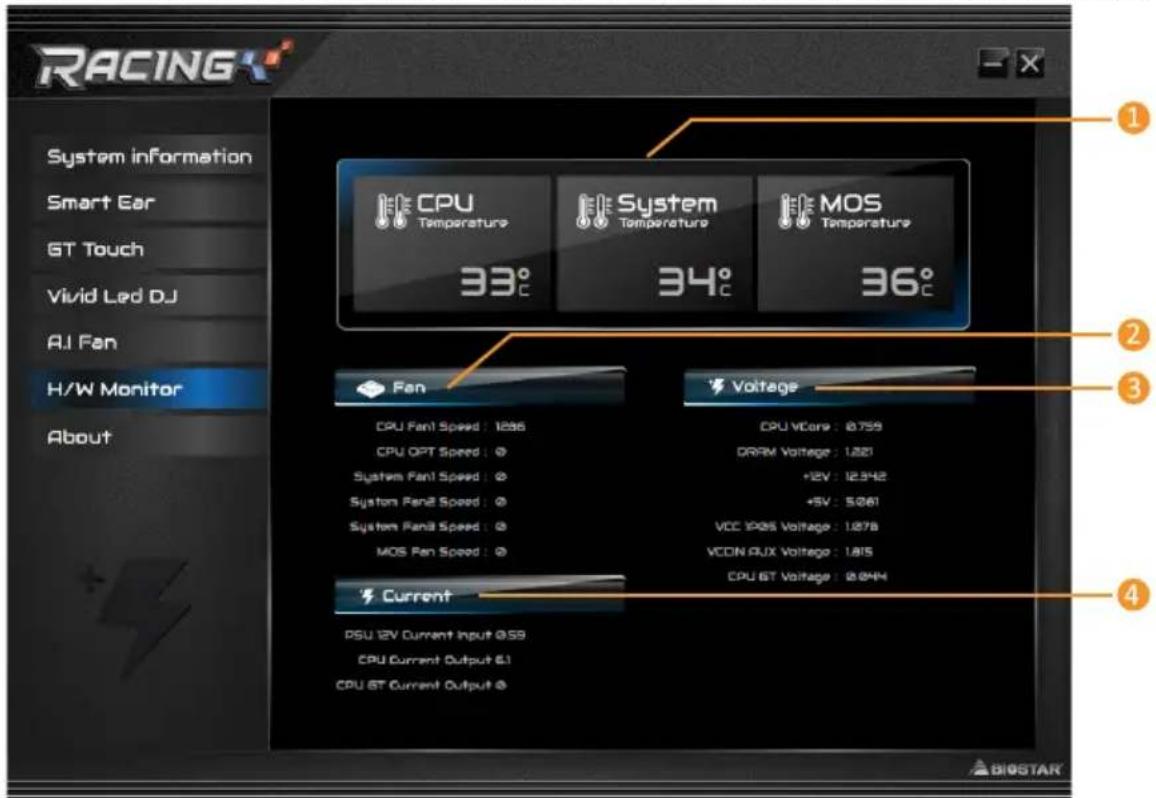
- CPU Temperature/System Temperature/MOS Temperature: Shows the current CPU, system temperature and Mos Temperature.
- Fan: Shows the current fans' speed.
- Voltage: Shows the current voltages of CPU and memory.
- Current: Shows the current of PSU 12V, CPU and CPU GT.
oc/ov
The OC/OV tab allows you to save or load the OC/OV setting profiles, change system frequency and voltage settings.
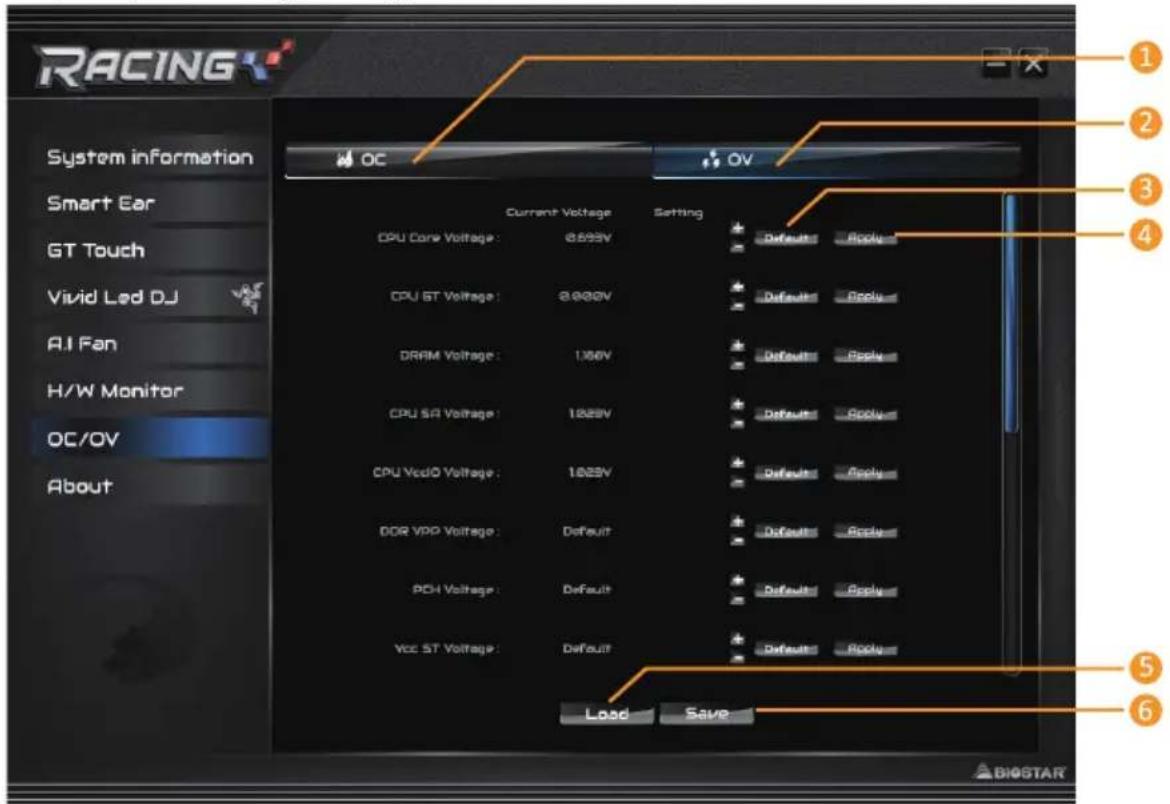
- OC: Allows you to adjust overclocking profile values.
- OV: Allows you to adjust voltage profile values.
- Default: Restore defaults your changes.
- Apply: Apply your changes.
- Load: Load the profile values from the file.
- Save: Store the profile values for future use.
Note
» Not all types of CPU perform above overclock setting ideally; the difference will be based on the selected CPU model.
» Overclock is an optional process, but not a “must-do” process; it is not recommended for inexperienced users. Therefore, we will not be responsible for any hardware damage which may be caused by overclocking. We also would not guarantee any overclocking performance.
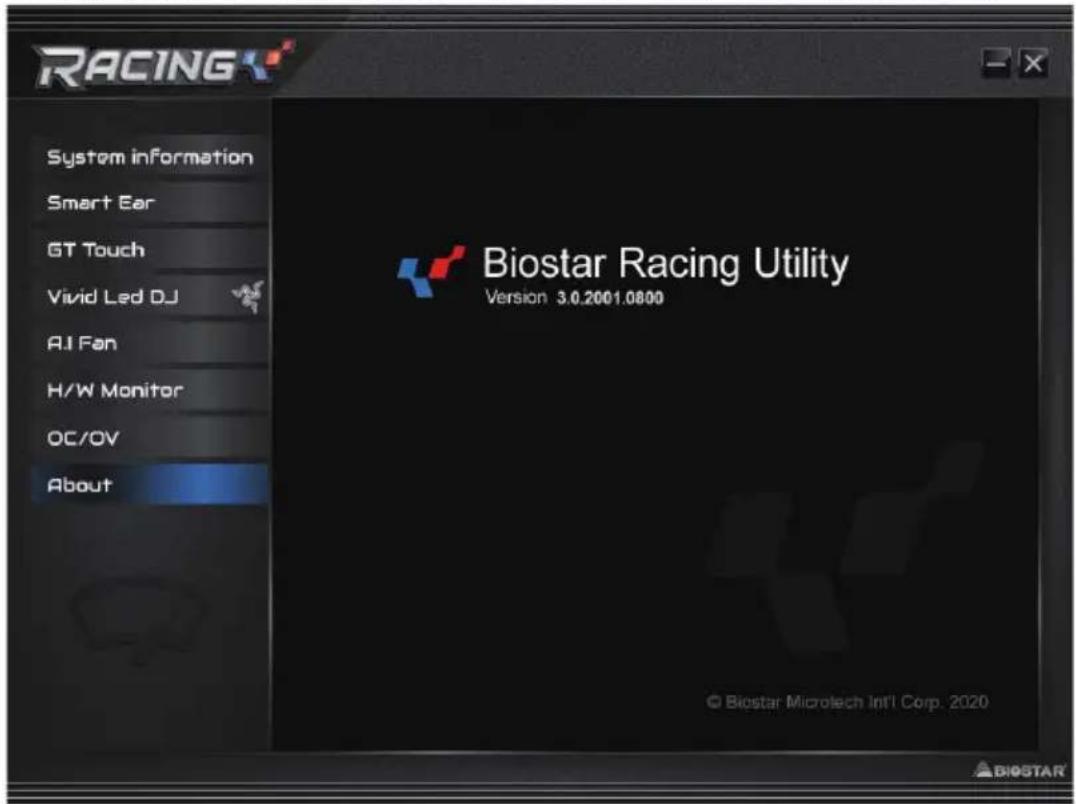
About
The About menu to display the Racing GT EVO Utility version information.
Chapter 4: Useful help
4.1 Driver Installation
After you installed your operating system, please insert the Fully Setup Driver DVD into your optical drive and install the driver for better system performance.
You will see the following window after you insert the DVD
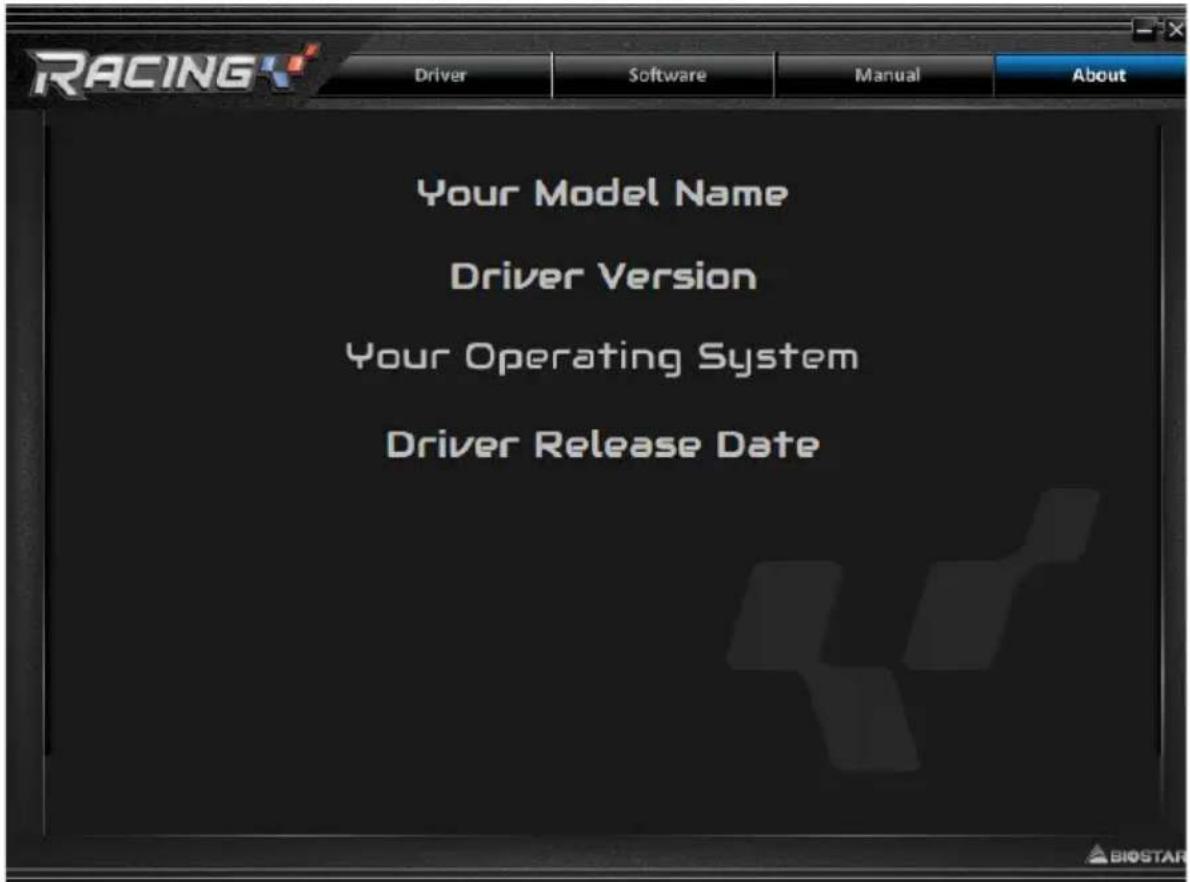
The setup guide will auto detect your motherboard and operating system.
A. Driver Installation
To install the driver, please click on the Driver icon. The setup guide will list the compatible driver for your motherboard and operating system. Click on each device driver to launch the installation program.
B. Software Installation
To install the software, please click on the Software icon. The setup guide will list the software available for your system, click on each software title to launch the installation program.
C. Manual
Aside from the paperback manual, we also provide manual in the Driver DVD. Click on the Manual icon to browse for available manual.
Note
» If this window didn't show up after you insert the Driver DVD, please use file browser to locate and execute the file SETUP.EXE under your optical drive.
» You will need Acrobat Reader to open the manual file. Please download the latest version of Acrobat Reader software from http://get.adobe.com/reader/
» The motherboard used in the illustrations may not resemble the actual board. these illustrations are for reference only.
4.2 AMI BIOS Beep Code
Boot Block Beep Codes
| Number of Beeps Description |
| Continuing Memory sizing error or Memory module not found |
POST BIOS Beep Codes
| Number of Beeps Description | |
| 1 Success booting. | |
| 8 Display memory error | (system video adapter) |
4.3 AMI BIOS post code
| Code Description |
| 10 PEI Core is started |
| 11 Pre-memory CPU initialization is started |
| 15 Pre-memory North Bridge initialization is started |
| 19 Pre-memory South Bridge initialization is started |
| 2B Memory initialization. Serial Presence Detect (SPD) data reading |
| 2C Memory initialization. Memory presence detection |
| 2D Memory initialization. Programming memory timing information |
| 2E Memory initialization. Configuring memory |
| 2F Memory initialization (other). |
| 31 Memory Installed |
| 32 CPU post-memory initialization is started |
| 33 CPU post-memory initialization. Cache initialization |
| 34 CPU post-memory initialization. Application Processor(s) (AP) initialization |
| 35 CPU post-memory initialization. Boot Strap Processor (BSP) selection |
| 36 CPU post-memory initialization. System Management Mode (SMM) initialization |
| 37 Post-Memory North Bridge initialization is started |
| 3B Post-Memory North Bridge initialization (North Bridge module specific) |
| 4F DXE IPL is started |
| 60 DXE Core is started |
| F0 Recovery condition triggered by firmware (Auto recovery) |
| F1 Recovery condition triggered by user (Forced recovery) |
| F2 Recovery process started |
| F3 Recovery firmware image is found |
| F4 Recovery firmware image is loaded |
| E0 S3 Resume is stared (S3 Resume PPI is called by the DXE IPL) |
| E1 S3 Boot Script execution |
| E2 Video repost |
| E3 OS S3 wake vector call |
| 60 DXE Core is started |
| 61 NVRAM initialization |
| 62 Installation of the South Bridge Runtime Services |
| 63 CPU DXE initialization is started |
| 68 PCI host bridge initialization |
| 69 North Bridge DXE initialization is started |
| 6A North Bridge DXE SMM initialization is started |
| Code | Description |
| 70 | South Bridge DXE initialization is started |
| 71 | South Bridge DXE SMM initialization is started |
| 72 | South Bridge devices initialization |
| 78 | South Bridge DXE Initialization (South Bridge module specific) |
| 79 | ACPI module initialization |
| 90 | Boot Device Selection (BDS) phase is started |
| 91 | Driver connecting is started |
| 92 | PCI Bus initialization is started |
| 93 | PCI Bus Hot Plug Controller Initialization |
| 94 | PCI Bus Enumeration |
| 95 | PCI Bus Request Resources |
| 96 | PCI Bus Assign Resources |
| 97 | Console Output devices connect |
| 98 | Console input devices connect |
| 99 | Super IO Initialization |
| 9A | USB initialization is started |
| 9B | USB Reset |
| 9C | USB Detect |
| 9D | USB Enable |
| A0 | IDE initialization is started |
| A1 | IDE Reset |
| A2 | IDE Detect |
| A3 | IDE Enable |
| A4 | SCSI initialization is started |
| A5 | SCSI Reset |
| A6 | SCSI Detect |
| A7 | SCSI Enable |
| A8 | Setup Verifying Password |
| A9 | Start of Setup |
| AB | Setup Input Wait |
| AD | Ready To Boot event |
| AE | Legacy Boot event |
| AF | Exit Boot Services event |
| B0 | Runtime Set Virtual Address MAP Begin |
| B1 | Runtime Set Virtual Address MAP End |
| B2 | Legacy Option ROM Initialization |
| B3 | System Reset |
| B4 | USB hot plug |
| B5 | PCI bus hot plug |
| B6 | Clean-up of NVRAM |
| B7 | Configuration Reset (reset of NVRAM settings) |
4.4 Troubleshooting
| Probable Solution | |
| 1. There is no power in the system. Power LED does not shine; the fan of the power supply does not work2. Indicator light on keyboard does not shine. | 1. Make sure power cable is securely plugged in.2. Replace cable.3. Contact technical support. |
| System is inoperative. Keyboard lights are on, power indicator lights are lit, and hard drives are running. | Using even pressure on both ends of the DIMM, press down firmly until the module snaps into place. |
| System does not boot from a hard disk drive, but can be booted from optical drive. | 1. Check cable running from disk to disk controller board. Make sure both ends are securely plugged in; check the drive type in the standard CMOS setup.2. Backing up the hard drive is extremely important. All hard disks are capable of breaking down at any time. |
| System only boots from an optical drive. Hard disks can be read, applications can be used, but system fails to boot from a hard disk. | 1. Back up data and applications files.2. Reformat the hard drive. Re-install applications and data using backup disks. |
| Screen message shows “Invalid Configuration” or “CMOS Failure.” | Review system’s equipment. Make sure correct information is in setup. |
| System cannot boot after user installs a second hard drive. | 1. Set master/slave jumpers correctly.2. Run SETUP program and select correct drive types. Call the drive manufacturers for compatibility with other drives. |
CPU Overheated
If the system shutdown automatically after power on system for seconds, that means the CPU protection function has been activated.
When the CPU is over heated, the motherboard will shutdown automatically to avoid a damage of the CPU, and the system may not power on again.
In this case, please double check:
- The CPU cooler surface is placed evenly with the CPU surface.
- CPU fan is rotated normally.
- CPU fan speed is fulfilling with the CPU speed.
After confirmed, please follow steps below to relief the CPU protection function.
- Remove the power cord from power supply for seconds.
- Wait for seconds.
- Plug in the power cord and boot up the system.
Or you can:
- Clear the CMOS data. (See "Close CMOS Header: JCMOS1" section)
- Wait for seconds.
- Power on the system again.
4.5 Intel® Optane™ Technology (powered by 3D XPoint memory)
With Intel® Optane™ technology you can unleash the power of your processor instead of it working at a fraction of its power. Eliminating that bottleneck requires better storage memory that is fast, inexpensive, and non-volatile. Intel® Optane technology has the potential to revolutionize big data, high-performance computing, virtualization, storage, cloud, gaming, and many other applications.
Features and Benefits :
• Massive in-memory data base
- Fast system recovery
- Low latency
• High endurance
Requirement for Intel® Optane Introduction :
- Intel® Optane Memory or Storage.
- Intel® 12th Gen core CPU.
• Install Intel® Optane Memory or Storage in the port that supports Intel® Optane technology. (Reference Page 4 for detail) - Install Intel® Rapid Storage Technology Driver and follow the instructions to enable Intel® Optane Technology.
• In some cases, Intel Optane Technology will not be available if UEFI OS is not installed.
APPENDIX: Specifications in Other Languages
Arabic
| الموصفات | |
| Intel® 12th/13th/14th CoreTM i9/ i7/ i5/ i3 @es#ر إنداعم معالجات Intel® Celeron / Intel® PentiumLGA1700 في حزمة CPU لقائمة دعم المعالج www.biostar.com.tw | Affordable Magazineالمركزية |
| Intel® B660 | مجموعة الشرانج |
| 5000+(OC)/4300(OC)/4133(OC)/4000(OC)/3800(OC)/3600(OC)/3200/2933 DDR4 4x تدعم قنّة مزدوچة دي. دي. ار. 128 DIMM 4x تحل کد أقصى 128 جيجابيت داكرة DDR4 32 /16 /8 /4 ECC 32 /16 /8 /4 ECC 32 /16 /8 /4 ECC 32 /16 /8 /4 ECC 32 /16 /8 /4 ECC 32 /16 /8 /4 ECC 32 /16 /8 /4 ECC 32 /16 /8 /4 ECC 32 /16 /8 /4 ECC 32 /16 /8 /4 ECC, Extreme Memory Profile (XMP) Intel® دعم وحدات الذاكراة 4x لقائمة دعم الذاكراة www.biostar.com.tw | الذاكراة |
| (6Gb/s) SATA III 4x و M.2 - Intel 12th/13th/14th Processors : (M2_PCIEG4_64G) قابس كهرباة (M Key) M.2 4x x1 .SSD 2280 Type M.2 4x x1 SSD AHCI & NVMe - (64Gb/s) 4x 4.0 PCI-E 4x x1 SSD AHCI & NVMe - (64Gb/s) 4x 4.0 PCI-E 4x x1 SSD AHCI & NVMe - (64Gb/s) 4x 4.0 PCI-E 4x x1 SSD AHCI & NVMe - (64Gb/s) 4x 4.0 PCI-E 4x x1 SSD AHCI & NVMe - (64Gb/s) - HDD AHCI & NVMe - (64Gb/s) 4x 4.0 PCI-E 4x x1 SSD AHCI & NVMe - (64Gb/s) 4x 4.0 PCI-E 4x x1 SSD AHCI & NVMe - (64Gb/s) 4x 4.0 PCI-E 4x x1 SSD AHCI & NVMe - (64Gb/s) 4x 4.1 0 RAID 4x x1 SSD AHCI & NVMe - (64Gb/s) 4x 4.1 0 RAID 4x x1 SSD AHCI & NVMe - (64Gb/s) 4x 4.1 0 RAID 4x x1 SSD AHCI & NVMe - (64Gb/s) 4x 4.1 0 RAID 4x x1 SSD AHCI & NVMe - (64Gb/s) SATA III & SSD AHCI/ NVMe - (64Gb/s) 4x 4.0 PCI-E 4x x1 SSD AHCI & NVMe - (64Gb/s) 4x 4.0 PCI-E 4x x1 SSD AHCI & NVMe - (64Gb/s) SATA III(6Gb/s) SATA III & SSD AHCI/ NVMe - (64Gb/s) 4x 4.0 PCI-E 4x x1 SSD AHCI & NVMe - (64Gb/s) SATA III(6Gb/s) SATA III & SSD AHCI/ NVMe - (64Gb/s) SATA III(6Gb/s) SATA III & SSD AHCI/ NVMe - (64Gb/s) SATA III(6Gb/s) SATA III & SSD AHCI/ NVMe - (64Gb/s) SATA III(6Gb/s) SATA III & SSD AHCI/ NVMe - (64Gb/s) SATA III(6Gb/s) SATA III & SSD AHCI/ NVMe - (64Gb/S) SATA III(6Gb/s) SATA III & SSD AHCI/ NVMe - (64Gb/S) SATA III(6Gb/s) SATA III & SSD AHCI/ NVMe - (64Gb/S) SATA III(6Gb/s) SATA III & SSD AHCI/ NVMe - (64Gb/S) SATA III(6Gb/s) SATA III & SSD AHCI/ NVMe - (64Gb/S) SATA III(6Gb/s), 10 / 5 / 1 / 0 RAID 4x x1 SSD AHCI & NVMe - (64Gb/S) SATA III & SSD AHCI & NVMe - (64Gb/S) SATA III & SSD AHCI & NVMe - (64Gb/S) SATA III & SSD AHCI & NVMe - (64Gb/S) SATA III & SSD AHCI & NVMe - (64Gb/S) SATA III & SSD AHCI & NVMe - (64Gb/S) SATA III & SSD AHCI & NVMe - (64Gb/S) SATA III & SSD AHCI, 10 / 5 / 1 / 0 RAID 4x x1 SSD AHCI & NVMe - (64Gb/S) SATA III & SSD AHCI & NVMe - (64Gb/S) SATA III & SSD AHCI & NVMe - (64Gb/S) SATA III & SSD AHCI & NVMe - (64Gb/S) SATA III & SSD AHCI & NVMe - (64Gb/S) SATA III & SSDAHCI & NVMe - (64Gb/S) SATA III & SSD AHCI & NVMe - (64Gb/S) SATA III & SSD AHCI & NVMe - (64Gb/S) SATA III & SSD AHCI & NVMe - (64Gb/S) SATA III & SSD AHCI & NVMe - (64Gb/S) SATA III & SSD AHCI & NVMe - (64Gb/S) SATA III & SSD AHCI & NVME - (64Gb/S) SATA III & SSD AHCI & NVMe - (64Gb/S) SATA III & SSD AHCI & NVMe - (64Gb/S) SATA III & SSD AHCI & NVMe - (64Gb/S) SATA III & SSD AHCI & NVMe - (64Gb/S) SATA III & SSD AHCI & NVMe - (64Gb/S) SATA III & SSD AHCI & NVMe - (65Gb/s) SATA III & SSD AHCI & NVMe - (64Gb/s) SATA III & SSD AHCI & NVMe - (64Gb/s) SATA III & SSD AHCI & NVMe - (64Gb/s) SATA III & SSD AHCI & NVMe - (64Gb/s) SATA III & SSD AHCI & NVMe - (64Gb/s) SATA III & SSD AHCI & NVMe - (64Gb/s) SATA III & SSD AHCI & NVMe - (64Gb/s) SATAIII & SSD AHCI & NVMe - (64Gb/s) SATA III & SSD AHCI & NVMe - (64Gb/s) SATA III & SSD AHCI & NVMe - (64Gb/s) SATA III & SSD AHCI & NVMe - (64Gb/s) SATA III & SSD AHCI & NVMe - (64Gb/s) SATA III & SSD AHCI & NVMe - (64Gb/s) SATA III & SSD AHC & NVMe - (64Gb/s) SATA III & SSD AHCI & NVMe - (64Gb/s) SATA III & SSD AHCI & NVMe - (64Gb/s) SATA III & SSD AHCI & NVMe - (64Gb/s) SATA III & SSD AHCI & NVMe - (64Gb/s) SATA III & SSD AHCI & NVMe - (64Gb/s) SATA III & SSD AHCI & NVMe- (64Gb/s) SATA III & SSD AHCI & NVMe - (64Gb/s) SATA III & SSD AHCI & NVMe - (64Gb/s) SATA III & SSD AHCI & NVMe - (64Gb/s) SATA III & SSD AHCI & NVMe - (64Gb/s) SATA III & SSD AHCI & NVMe - (64Gb/s) SATA III & SSD AHCI & NVMe - (64Gb/s) SATA III & SSD AHCI & NVMe - (64Gb/s) SATA III & SSD AHCI & NVMe - (64Gb/s) SATA III & SSD AHCI & NVMe - (64Gb/s) SATA III & SSD AHCI & NVMe - (64Gb/s) SATA III & SSD AHCI & NVMe - (64Gb/s) SATA III & SSD AHCI & NVMe - (64Gb/s)| 1x1x1x1x1x1x1x1x1x1x1x1x1x1x1x1x1x1x1x1x1x1x1x1x1x1x1x1x1x1x1x1x1x1x1x1x1x1x1x1x1x1x1x1x1x1x1x1x1x1x1|2x1x1x1x1x1x1x1x1x1x1x1x1x1x1x1x1x1x1x1x1x1x1x1x1x1x1x1x1x1x1x1x1x1x1x1x1x1x1x1x1x1x1x1x1x1x1x1x1x1x2x1x1x1x1x1x1x1x1x1x1x1x1x1x1x1x1x1x1x1x1x1x1x1x1x1x1x1x1x1x1x1x1x1x1x1x1x1x1x1x1x1x1x1x1x1x1x1x1x1|3x1x1x1x1x1x1x1x1x1x1x1x1x1x1x1x1x1x1x1x1x1x1x1x1x1x1x1x1x1x1x1x1x1x1x1x1x1|4x1x1x1x1x1x1x1x1x1x1x1x1x1x1x1x1x1x1x1x1x1x1x1x1x1x1x1x1x1|5x1x1x1x1x1x1x1x1x1x1x1x1x1x1x1x1x1x1x1x1x1x1x1x1x1x1x1|6x1x1x1x1x1x1x1x1x1x1x1x1x1x1x1x1x1x1x1x1x1x1x1x1|7x1x1x1x1x1x1x1x1x1x1x1x1x1x1x1x1x1x1x1x1x1|8x1x1x1x1x1x1x1x1x1x1x1x1x1x1x1x1x1x1x1x1|9x1x1x1x1x1x1x1x1x1x1x1x1x1x1x1x1x1x1x1x1x1|10x1x1x1x1x1x1x1x1x1x1x1x1x1x1x1x1x1|11x1x1x1x1x1x1x1x1x1x1x1x1x1x1x1x1|12x1x1x1x1x1x1x1x1x1x1x1x1x1x1x1|13x1x1x1x1x1x1x1x1x1x1x1x1x1x1|14x1x1x1x1x1x1x1x1x1x1x1x1x1x1|15x1x1x1x1x1x1x1x1x1x1x1x1x1|16x1x1x1x1x1x1x1x1x1x1x1x1x1x1|17x1x1x1x1x1x1x1x1x1x1x1x1x1|18x1x1x1x1x1x1x1x1x1x1x1x1x1|19x1x1x1x1x1x1x1x1x1x1x1x1x1|20x1x1x1x1x1x1x1x1x1x1x1x1x1x1|21x1x1x1x1x1x1x1x1x1x1x1x1x1|22x1x1x1x1x1x1x1x1x1x1x1x1x1|23x1x1x1x1x1x1x1x1x1x1x1x1x1|24x1x1x1x1x1x1x1x1x1x1x1x1x1|25x1x1x1x1x1x1x1x1x1x1x1x1|26x1x1x1x1x1x1x1x1x1x1x1x1x1|27x1x1x1x1x1x1x1x1x1x1x1x1x1|28x1x1x1x1x1x1x1x1x1x1x1x1x1|29x1x1x1x1x1x1x1x1x1x1x1x1x1|30x1x1x1x1x1x1x1x1x1x1x1x1x1x1x1|31x1x1x1x1x1x1x1x1x1x1x1x1x1|32x1x1x1x1x1x1x1x1x1x1x1x1x1|33x1x1x1x1x1x1x1x1x1x1x1x1x1|34x1x1x1x1x1x1x1x1x1x1x1x1x1x1|35x1x1x1x1x1x1x1x1x1x1x1x1|36x1x1x1x1x1x1x1x1x1x1x1x1|37x1x1x1x1x1x1x1x1x1x1x1x1|38x1x1x1x1x1x1x1x1x1x1x1|39x1x1x1x1x1x1x1x1x1x1x1x1|40x1x1x1x1x1x1x1x1x1x1x1x1x1|41x1x1x1x1x1x1x1x1x1x1x1x1|42x1x1x1x1x1x1x1x1x1x1x1x1|43x1x1x1x1x1x1x1x1x1x1x1x1x1x1|44x1x1x1x1x1x1x1x1x1x1x1x1x1|45x1x1x1x1x1x1x1x1x1x1x1x1x1|46x1x1x1x1x1x1x1x1x1x1x1x1|47x1x1x1x1x1x1x1x1x1x1x1x1|48x1x1x1x1x1x1x1x1x1x1x1x1|49x1x1x1x1x1x1x1x1x1x1x1x1x1|50x1x1x1x1x1x1x1x1x1x1x1x1x1x1|51x1x1x1x1x1x1x1x1x1x1x1x1x1|52x1x1x1x1x1x1x1x1x1x1x1x1x1|53x1x1x1x1x1x1x1x1x1x1x1|54x1x1x1x1x1x1x1x1x1x1|55x1x1x1x1x1x1x1x1|56x1x1x1x1x1x1x1x1|57x1x1x1x1x1x1x1x1x1|58x1x1x1x1x1x1x1|59x1x1x1x1x1x1x1|60x1x1x1x1x1x1x1x1x1x1x1x1|61x1x1x1x1x1x1x1x1x1|62x1x1x1x1x1x1x1x1|63x1x1x1x1x1x1x1|64x1x1s2 |20000000000000000000000000000000000000000000000000000000000000000000000000000000000000000000000000000 |20000000000000000000000000000000000000000000000000000000000000000000000000000000000000000000000000 |2222222222222222222222222222222222222222222222222222222222222222222222222222222222222222222222222222|222222222222222222222222222222222222222222222222222222222222222222222222222222222222222222222222222 | التحزين |
| Realtek RTL8125B 2500/1000/100/10 | LAN شبكة محلية |
| ALC1220 Hi-Fi (Front) 7.1 | الترميز الصويتی |
| (3)(4)(5)(6)(7)(8)(9)(10)(11)(12)(13)(14)(15)(16)(17)(18)(19)(20)(21)(22)(23)(24)(25)(26)(27)(28)(29)(30)(31)(32)(33)(34)(35)(36)(37)(38)(39)(40)(41)(42)(43)(44)(45)(46)(47)(48)(49)(50)(51)(52)(53)(54)(55)(56)(57)(58)(59)(60)(61)(62)(63)(64)(65)(66)(67)(68)(69)(70)(71)(72)(73)(74)(75)(76)(77)(78)(79)(80)(81)(82)(83)(84)(85)(86)(87)(88)(89)(90)(91)(92)(93)(94)(95)(96)(97)(98)(99)(100)( | USB نقل متسICS عام ١٢٠٥١٥١٦١٥١٦١٥١٦١٥١٦١٥١٦١٥١٦١٥١٦١٥١٦١٥١٦١٥١٦١٥١٦١٥١٦١٥١٦١٦١٥١٦١٦١٦١٦١٦١٦١٦١٦١٦١٦١٦١٦١٦١٦١٦١٦١٦١٦١٦١٦١٦١٦١٦١٦١٦١٧٥١٦١٧٥١٦١٧٥١٦١٧٥١٦١٧٥١٦١٧٥١٦١٧٥١٦١٧٥١٦١٧٥١٦١٧٥١٦١٧٤١٢٢٢٢٢٢٢٢٢٢٢٢٢٢٢٢٢٢٢٢٢٢٢٢٢٢٢٢٢٢٢٢٢٢٢٢٢٢٢٢٢٢٢٢٢٢٢٢٢٢٣١٢٢٢٢٢٢٢٢٢٢٢٢٢٢٢٢٢٢٢٢٢٢٢٢٢٢٢٢٢٢٢٢٢٢٢٢٢٢٢٢٢٢٢٢٢٢٢٢٣٢٢٢٢٢٢٢٢٢٢٢٢٢٢٢٢٢٢٢٢٢٢٢٢٢٢٢٢٢٢٢٢٢٢٢٢٢٢٢٢٢٢٢٢٢٢٢٢٢٩٥١٦١٥١٦١٥١٦١٥١٦١٥١٦١٥١٦١٥١٦١٥١٦١٥١٦١٥١٦١٥١٦١٥١٦١٥٢٢٢٢٢٢٢٢٢٢٢٢٢٢٢٢٢٢٢٢٢٢٢٢٢٢٢٢٢٢٢٢٢٢٢٢٢٢٢٢٢٢٢٢٢٢٢٢٢١٢٢٢٢٢٢٢٢٢٢٢٢٢٢٢٢٢٢٢٢٢٢٢٢٢٢٢٢٢٢٢٢٢٢٢٢٢٢٢٢٢٢٢٢٢٢٢٢١٣٢٢٢٢٢٢٢٢٢٢٢٢٢٢٢٢٢٢٢٢٢٢٢٢٢٢٢٢٢٢٢٢٢٢٢٢٢٢٢٢٢٢٢٢٢٢٢٢٣٣٣٣٣٣٣٣٣٣٣٣٣٣٣٣٣٣٣٣٣٣٣٣٣٣٣٣٣٣٣٣٣٣٣٣٣٣٣٣٣٣٣٣٣٣٣٣٣٣٢٢٢٢٢٢٢٢٢٢٢٢٢٢٢ |
» Continued on Next Page
Примечание
Примечание
| Pin Assignment |
| 1 Ground |
| 2 +12V |
| 3 FAN RPM rate sense |
| 4 Al Fan Control |
| Pin Assignment |
| 1 Ground |
| 2 +12V |
| 3 FAN RPM rate sense |
| 4 Al Fan Control |
Примечание
Примечание
1x N/A + 1x M.2 PCIe SSD Slot -- 4x SATA HDDs
| SATA_1 | SATA_3 | SATA_2 | SATA_4 | |
| 0 0 0 X | ||||
| SATA 1 S | ATA 3 SATA | 2 SATA 4 | |
| 0 0 0 | 0 |
| Pin Assignment Pin Assignment | |
| 13 +3.3V 1 +3.3V | |
| 14 -12V 2 +3.3V | |
| 15 Ground 3 Ground | |
| 16 PS_ON 4 +5V | |
| 17 Ground 5 Ground | |
| 18 Ground 6 +5V | |
| 19 Ground 7 Ground | |
| 20 NC 8 PW_OK | |
| 21 +5V 9 Standby Voltage+5V | |
| 22 +5V 10 +12V | |
| 23 +5V 11 +12V | |
| 24 Ground 12 +3.3V | |
| Pin Assignment |
| 1 +12V |
| 2 +12V |
| 3 +12V |
| 4 +12V |
| 5 Ground |
| 6 Ground |
| 7 Ground |
| 8 Ground |
Примечание
| Pin | Assignment Function Pin | Assignment Function | |
| 1 HDD LED(+) | HDDLED (-) | 2 Power LED (+) | PowerLED |
| 3 HDD LED(-) 4 Pow | LED | ||
| 5 Ground | Reset | 6 Power Button | Power-OnButton |
| 7 Reset Control 8 G | Button | ||
| 9 NC NC 10 NA NA |
| Pin | Assignment |
| 1 | +5V |
| 2 | N/A |
| 3 | N/A |
| 4 | Speaker |
| Pin | Assignment | Pin | Assignment |
| 1 | NC | 2 | N/A |
| 3 | N/A | 4 | N/A |
| 5 | Ground | 6 | +3V3_DUAL |
| 7 | TSPI_CLK | 8 | N/A |
| 9 | N/A | 10 | TSPI_MISO |
| 11 N/A | 12 | TSPI_MISI | |
| 13 TSPI_CS# | 14 | Ground | |
| 15 N/A | 16 | N/A | |
| 17 TSPI_PIRQ# | 18 | N/A | |
| 19 TSPI_RST# | 20 | N/A | |
SATA_1/ SATA_2/ SATA_3/ SATA_4: разъемыSerial ATA 6,0 Гбит/с
| Pin | Assignment |
| 1 | Ground |
| 2 | TX+ |
| 3 | TX- |
| 4 | Ground |
Примечание
| Pin | Assignment Pin | Assignment | |
| 1 VBUS 11 VBUS | |||
| 2 SSTX1+ 12 SSTX2+ | |||
| 3 SSTX1- 13 SSTX2- | |||
| 4 Ground 14 Ground | |||
| 5 SSRX1+ 15 SSRX2+ | |||
| 6 SSRX1- 16 SSRX2- | |||
| 7 VBUS 17 Ground | |||
| 8 CC1 18 D- | |||
| 9 SBU1 19 D+ | |||
| 10 | SBU2 | 20 CC2 | |
| Pin | Assignment Pin | Assignment |
| 1 VBUS0 11 D2+ | ||
| 2 SSRX1- | 12 D2- | |
| 3 SSRX1+ 13 Ground | ||
| 4 Ground 14 SSTX2+ | ||
| 5 SSTX1- 15 SSTX2- | ||
| 6 SSTX1+ 16 Ground | ||
| 7 Ground 17 SSRX2+ | ||
| 8 D1- | 18 SSRX2- | |
| 9 D1+ | 19 VBUS1 | |
| 10 ID | 20 Key |
| Pin Assignment | |
| 1 Force Power | |
| 2 | NC |
| 3 CIO Plug Event | |
| 4 SMB_DATA_MAIN | |
| 5 SLP_S3_N | |
| 6 SMB_CLK_MAIN | |
| 7 SLP_S5_N | |
| 8 3VB_AIC_PD_INT# | |
| 9 GND | |
| 10 GND | |
| HD Audio AC'97 | |||
| Pin | Назначение Pin | Наз | начение |
| 1 Mic | Left in 1 Mic | In | |
| 2 Ground | 2 Ground | ||
| 3 Mic | Right in 3 Mic | Power | |
| 4 GPIO | 4 Audio Power | ||
| 5 Right line in 5 RT Line Out | |||
| 6 Jack Sense 6 RT Line Out | |||
| 7 Front Sense 7 Reserved | |||
| 8 Key | 8 Key | ||
| 9 Left line in 9 LFT Line Out | |||
| 10 Jack Sense 10 LFT Line Out | |||
Примечание
| Pin Assignment |
| 1 Carrier detect |
| 2 Received data |
| 3 Transmitted data |
| 4 Data terminal ready |
| 5 Signal ground |
| 6 Data set ready |
| 7 Request to send |
| 8 Clear to send |
| 9 Ring indicator |
| 10 Key |
- CPU Temperature/System Temperature/MOS Temperature
주의
4 CPU보호 덧개를 덧습니다.
5 플라스틱 보호덮개를 제거합니다.
주의
| 핀 | 배열 |
| 1 Ground | |
| 2 +12V | |
| 3 FAN RPM rate sense | |
| 4 A Fan Control | |
| 핀 | 배열 |
| 1 Ground | |
| 2 + 12V | |
| 3 FAN RPM rate sense | |
| 4 A Fan Control | |
주의
주의
Pin opened Pin closed Pin 1-2 closed
JCMOS1: CMOS 클리어 점퍼
| 핀 | 배열 |
| 1 +5V | |
| 2 N/A | |
| 3 N/A | |
| 4 Speaker | |
| 핀 배열 핀 배열 | ||
| 1 NC 2 N/A | ||
| 3 N/A 4 N/A | ||
| 5 Ground 6 | +3V3 | DUAL |
| 7TSPI_CLK 8 N/A | ||
| 9 N/A 10 TSPI_MISO | ||
| 11 | N/A 12 TSP_MISI | |
| 13 | TSPI_CS# | 14 Ground |
| 15 | N/A 16 N/A | |
| 17 | TSPI_PIRQ# | 18 N/A |
| 19 | TSPI_RST# | 20 N/A |
SATA_1/ SATA_2/ SATA_3/ SATA_4: 시리얼 ATA 커넥터
| 핀 | 배열 |
| 1 Ground | |
| 2 TX+ | |
| 3 TX- | |
| 4 Ground | |
주의
| 핀 배열 핀 배열 | ||
| 1 VBUS 11 VBUS | ||
| 2 SSTX1+ 12 SSTX2+ | ||
| 3 SSTX1- 13 | SSTX2- | |
| 4 Ground 14 | Ground | |
| 5 SSRX1+ 15 | SSRX2+ | |
| 6 SSRX1- 16 | SSRX2- | |
| 7VBUS 17 Ground | ||
| 8 CC1 18 | D- | |
| 9 SBU1 19 | D+ | |
| 10 SBU2 | 20 CC2 |
| 핀 배열 핀 배열 | ||
| 1 VBUS0 11 | D2+ | |
| 2 SSRX1- 12 | D2- | |
| 3 SSRX1+ 13 | Ground | |
| 4 Ground 14 | SSTX2+ | |
| 5 SSTX1- 15 | SSTX2- | |
| 6 SSTX1+ 16 Ground | ||
| 7Ground 17 | SSRX2+ | |
| 8 D1- 18 | SSRX2- | |
| 9 D1+ 19 VBUS1 | ||
| 10 ID | 20 Key |
| 핀 | 배열 |
| 1 Force Power | |
| 2 | NC |
| 3 CIO Plug Event | |
| 4 SMB_DATA_MAIN | |
| 5 SLP_S3_N | |
| 6 SMB_CLK_MAIN | |
| 7SLP_S5_N | |
| 8 3V3_AIC_PD_INT# | |
| 9 | 접지 |
| 10 접지 | |
| HD Audio AC'97 | |||
| 핀 배열 핀 배열 | |||
| 1 Mic Left in 1 Mic In | |||
| 2 Ground 2 Ground | |||
| 3 Mic Right in 3 Mic Power | |||
| 4 GPIO 4 Audio Power | |||
| 5 Right line in 5 RT Line Out | |||
| 6 Jack Sense 6 RT Line Out | |||
| 7Front Sense 7Reserved | |||
| 8 Key 8 Key | |||
| 9 Left line in 9 LFT Line Out | |||
| 10 Jack Sense 10 LFT Line Out | |||
주의
5V_LED1/5V_LED2: Addressable RGB LED 장치 (WS2818B) 헤더
3.3 소프트웨어
소프트웨어의 설치
注意
步驟 4: 將 CPU 保護蓋蓋上。
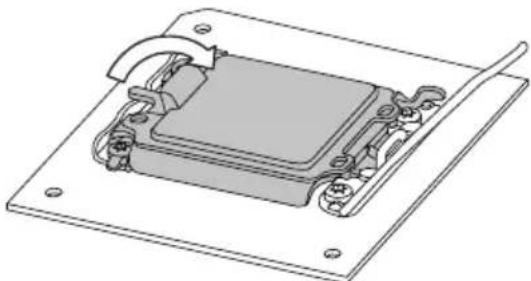
步驟 5: 取下塑膠保護殼。
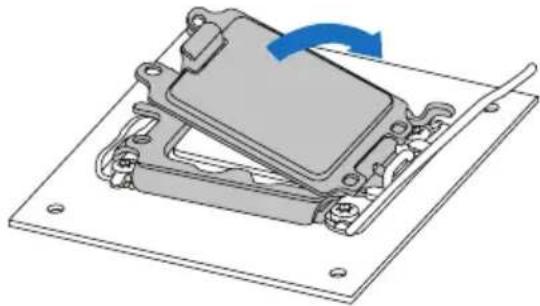
步驟 6: 將 ILM 拉桿完全閉合。
注意
注意
| 雙通道狀態 DDR4_A1 DDR4_A2 DDR4_B1 DDR4_B2 | |
| Enabled O X O X | |
| Enabled X O X O | |
| Enabled O O O O |
2x M.2 PCIe SSD Slot -- 4x SATA HDDs
針腳 1-2 打開: 一般操作(預設)
針腳 1-2 短路: 清空CMOS數據
清空CMOS數據過程:
| 針定義針定義 | ||
| 13 +3.3V 1 +3.3V | ||
| 14 -12V 2 +3.3V | ||
| 15接地3接地 | ||
| 16 PS_ON 4 +5V | ||
| 17接地5接地 | ||
| 18接地6 +5V | ||
| 19接地7接地 | ||
| 20 NC 8 PW_OK | ||
| 21 +5V 9 噚醒電壓 | +5V | |
| 22 +5V 10 +12V | ||
| 23 +5V 11 +12V | ||
| 24接地12 +3.3V |
ATX_12V_2X4: ATX電源插槽
| 針定義針定義 | |||
| 1 NC 2 N/A | |||
| 3N/A 4 N/A | |||
| 5 Ground 6 +3V3_DUAL | |||
| 7TSPI_CLK 8 N/A | |||
| 9 N/A 10 TSPI_MISO | |||
| 11 | N/A 12 TSPI_MISI | ||
| 13 | TSPI_CS# 14 | Ground | |
| 15 | N/A | 16 | N/A |
| 17 | TSPI_PIRQ# 18 | N/A | |
| 19 | TSPI_RST# 20 | N/A | |
| 針定義針定義 | |||
| 1 VBUS 11 VBUS | |||
| 2 SSRX1+ 12 SSTX2+ | |||
| 3SSRX1- 13 SSTX2- | |||
| 4接地 14接地 | |||
| 5 SSTX1+ 15 SSRX2+ | |||
| 6 SSTX1- 16 SSRX2- | |||
| 7VBUS 17接地 | |||
| 8 CC1 18 | D- | ||
| 9 SBU1 19 | D+ | ||
| 10 | SBU2 | 20 CC2 | |
| 針定義針定義 | |||
| 1 VBUS0 11 | D2+ | ||
| 2 SSRX1-12 D2- | |||
| 3 SSRX1+13接地 | |||
| 4接地14 SSTX2+ | |||
| 5 SSTX1-15 SSTX2- | |||
| 6 SSTX1+16接地 | |||
| 7接地17 SSRX2+ | |||
| 8 D1- 18 | SSRX2- | ||
| 9 D1+ 19 | VBUS1 | ||
| 10 | ID | 20 Key | |
| 針 | 定義 |
| 1 Force Power | |
| 2 | NC |
| 3CIO Plug Event | |
| 4 SMB_DATA_MAIN | |
| 5 SLP_S3_N | |
| 6 SMB_CLK_MAIN | |
| 7SLP_S5_N | |
| 8 3V3_AIC_PD_INT# | |
| 9 | 接地 |
| 10 接地 | |
F_AUDIO1: 前置面板音效接頭
| HD Audio AC' 97 | ||
| 針定義針定義 | ||
| 1 Mic Left in 1 Mic In | ||
| 2接地2接地 | ||
| 3Mic Right in 3Mic Power | ||
| 4 GPIO 4 Audio Power | ||
| 5 Right line in 5 RT Line Out | ||
| 6 Jack Sense 6 RT Line Out | ||
| 7Front Sense 7Reserved | ||
| 8 Key 8 Key | ||
| 9 Left line in 9 LFT Line Out | ||
| 10 Jack Sense 10 LFT Line Out | ||
注意
- RGB LED 接頭(5V/12V)
- ARMOR GEAR LED燈
- 南橋LED燈
第三章: UEFI BIOS和軟體
3.1 UEFI BIOS設定
3.3 軟體
安裝軟體
請參照以下步驟來更新開機畫面:
此設定將自動檢測您的主板和操作系統。
A. 驅動程式安裝
- FCC INFORMATION AND COPYRIGHT
- TABLE OF CONTENTS
- FCC INFORMATION AND COPYRIGHT 1
- CHAPTER 1: INTRODUCTION......3
- CHAPTER 2: HARDWARE INSTALLATION....9
- CHAPTER 3: UEFI BIOS & SOFTWARE....26
- CHAPTER 4: USEFUL HELP....40
- APPENDIX I: SPECIFICATIONS IN OTHER LANGUAGES 45
- CHAPTER 1: INTRODUCTION
- 1.1 BEFORE YOU START
- 1.2 PACKAGE CHECKLIST
- NOTE
- 1.3 SPECIFICATIONS
- 1.4 REAR PANEL CONNECTORS
- 1.5 MOTHERBOARD LAYOUT
- CHAPTER 2: HARDWARE INSTALLATION
- 2.1 INSTALL CENTRAL PROCESSING UNIT (CPU)
- 2.2 INSTALL A HEATSINK
- 2.3 CONNECT COOLING FANS
- 2.4 INSTALL SYSTEM MEMORY
- DDR4 MODULES
- DUAL CHANNEL MEMORY INSTALLATION
- 2.5 EXPANSION SLOTS
- PCIEG5X16: PCI-EXPRESS GEN5 X16 SLOTS (X16 MODE)
- PCIEG3X4: PCI-EXPRESS GEN3 X16 SLOTS (X4 MODE)
- PCIEG3X1_1: PCI-EXPRESS GEN3 X1 SLOTS
- M2_PCIEG4_64G: M.2 (M KEY) SOCKET
- M2_PCIEG4_64G_SATA: M.2 (M KEY) SOCKET
- HYBRID_WIFI6: M.2 (E KEY) SOCKET (M.2 (E KEY) WI-FI CARD IS NOT PROVIDED)
- M.2 SLOT MODULE SHARING STATUS TABLE
- INSTALL AN EXPANSION CARD
- 2.6 JUMPER & SWITCH SETTING
- JCMOS1: CLEAR CMOS JUMPER
- CLEAR CMOS PROCEDURES
- 2.7 HEADERS & CONNECTORS
- ATX: ATX POWER SOURCE CONNECTOR
- ATX_12V_2X4: ATX POWER SOURCE CONNECTOR
- PANEL1: FRONT PANEL HEADER
- SPKR: CHASSIS SPEAKER HEADER
- TPM_SPI: TRUSTED PLATFORM MODULE HEADER
- SATA_1/ SATA_2/ SATA_3/ SATA_4: SERIAL ATA 6.0 GB/S CONNECTORS
- F_USB32_C-10G: HEADER FOR USB 3.2 (GEN2) PORTS AT FRONT PANEL
- F_USB32_A-5G: HEADER FOR USB 3.2 (GEN1) PORTS AT FRONT PANEL
- F_USB20_1/ F_USB20_2: HEADER FOR USB 2.0 PORTS AT FRONT PANEL
- THUNDERBOLT: THUNDERBOLT HEADER
- F_AUDIO1: FRONT PANEL AUDIO HEADER
- COM1: SERIAL PORT HEADER
- 12V_LED: RGB LED DEVICE (5050 SMD) HEADER
- 5V_LED1/ 5V_LED2: ADDRESSABLE RGB LED DEVICE (WS2818B) HEADER
- 2.8 LEDS
- DEBUG LED: DEBUG LED INDICATORS
- LEDS
- CHAPTER 3: UEFI BIOS & SOFTWARE
- 3.1 UEFI BIOS SETUP
- 3.2 BIOS UPDATE
- BIOSTAR BIO-FLASHER
- BIOS UPDATE UTILITY (THROUGH THE INTERNET)
- BIOS UPDATE UTILITY (THROUGH A BIOS FILE)
- BACKUP BIOS
- 3.3 SOFTWARE
- INSTALLING SOFTWARE
- LAUNCHING SOFTWARE
- BIOSCREEN UTILITY
- RACING GT EVO
- SYSTEM INFORMATION
- SMARTEAR
- REQUIREMENTS
- INSTALLATION GUIDE
- GT TOUCH
- VIVID LED DJ
- A.I FAN
- H/W MONITOR
- OC/OV
- ABOUT
- CHAPTER 4: USEFUL HELP
- 4.1 DRIVER INSTALLATION
- DRIVER INSTALLATION
- SOFTWARE INSTALLATION
- MANUAL
- 4.2 AMI BIOS BEEP CODE
- 4.4 TROUBLESHOOTING
- CPU OVERHEATED
- 4.5 INTEL® OPTANE™ TECHNOLOGY (POWERED BY 3D XPOINT MEMORY)
- FEATURES AND BENEFITS
- REQUIREMENT FOR INTEL® OPTANE INTRODUCTION
- APPENDIX: SPECIFICATIONS IN OTHER LANGUAGES
- ПРИМЕЧАНИЕ
- SATA_1/ SATA_2/ SATA_3/ SATA_4: РАЗЪЕМЫSERIAL ATA 6,0 ГБИТ/С
- 주의
- JCMOS1: CMOS 클리어 점퍼
- SATA_1/ SATA_2/ SATA_3/ SATA_4: 시리얼 ATA 커넥터
- 5V_LED1/5V_LED2: ADDRESSABLE RGB LED 장치 (WS2818B) 헤더
- 3.3 소프트웨어
- 소프트웨어의 설치
- 注意
- 清空CMOS數據過程
- ATX_12V_2X4: ATX電源插槽
- F_AUDIO1: 前置面板音效接頭
- 第三章: UEFI BIOS和軟體
- 3.1 UEFI BIOS設定
- 3.3 軟體
- 安裝軟體
- 驅動程式安裝
Brand : BIOSTAR
Model : B660M-SILVER
Category : Motherboard